Module Objectives
• Understandingof what the Internet is and
how it operates.
• Acquiring skills to conduct searches and
research on the Internet using the World
Wide Web and ethics envolved.
• Understanding and using Internet
communication tools.
2
The Internet
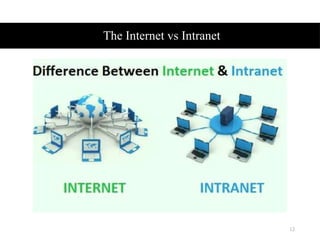
• Itis the largest network in the world that
connects hundreds of thousands of
individual networks all over the world.
• The popular term for the Internet is the
“information highway”.
• Rather than moving through geographical
space, it moves your ideas and information
through cyberspace – the space of
electronic movement of ideas and
information.
4
5.
Internet
• No oneowns it
• It has no formal management organization.
• As it was originally developed by the
Department of defense, this lack of
centralization made it less vulnerable to
wartime or terrorist attacks.
• To access the Internet, an existing network
need to pay a small registration fee and
agree to certain standards based on the
TCP/IP (Transmission Control
Protocol/Internet Protocol) .
5
6.
The Internet
• Everycomputer in Internet is identified by a
unique IP address. IP Address is a unique
set of numbers (such as 110.22.33.114)
which identifies a computer’s location.
• Internet is accessible to every user all over
the world
6
7.
The Internet
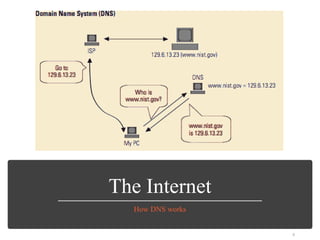
• Aspecial computer DNS (Domain Name
Server) is used to provide a name to the IP
Address so that the user can locate a
computer by a name.
• For example, a DNS server will resolve a
name http://www.google.com to a
particular IP address to uniquely identify
the computer on which this website is
hosted.
7
The uses ofthe Internet
• Send e-mail messages.
• Send (upload) or receive (download) files
between computers.
• Participate in discussion groups, such as
mailing lists and newsgroups.
• Surfing the web.
9
10.
The Intranet
• Intranetis the system in which multiple PCs
are connected to each other.
• PCs in intranet are not available to the
world outside the intranet.
• Usually each organization has its own
Intranet network and members/employees
of that organization can access the
computers in their intranet.
10
11.
The Intranet
• Eachcomputer in Intranet is also identified
by an IP Address which is unique among the
computers in that Intranet.
11
Similarities between Internetand
Intranet
• Intranet uses the internet protocols such as
TCP/IP and FTP.
• Intranet sites are accessible via the web
browser in a similar way as websites in the
internet. However, only members of
Intranet network can access intranet hosted
sites.
13
14.
Similarities between Internetand
Intranet
• In Intranet, own instant messengers can be
used as similar to yahoo messenger/gtalk
over the internet
14
15.
Differences between Internet
andIntranet
• Internet is general to PCs all over the world
whereas Intranet is specific to few PCs.
• Internet provides a wider and better access
to websites to a large population, whereas
Intranet is restricted.
• Internet is not as safe as Intranet. Intranet
can be safely privatized as per the need.
15
16.
What is Web?
•The Web (World Wide Web) consists of information
organized into Web pages containing text and graphic
images.
• It contains hypertext links, or highlighted keywords
and images that lead to related information.
• A collection of linked Web pages that has a common
theme or focus is called a Web site.
• The main page that all of the pages on a particular
Web site are organized around and link back to is
called the site’s home page.
16
17.
How to accessthe Internet?
• Many schools and businesses have direct
access to the Internet using special high-
speed communication lines and equipment.
• Students and employees can access
through the organization’s local area
networks (LAN) or through their own
personal computers.
• Another way to access the Internet is
through Internet Service Provider (ISP).
17
18.
Internet Service Provider(ISP)
• A commercial organization with permanent
connection to the Internet that sells
temporary connections to subscribers.
• Examples:
• Prodigy, America Online, Microsoft
network, AT&T Networks.
18
19.
How to accessthe Web?
• Once you have your Internet connection, then
you need special software called a browser to
access the Web.
• Web browsers are used to connect you to
remote computers, open and transfer files,
display text and images.
• Web browsers are specialized programs.
• Examples of Web browser: Mozilla fire fox,
Internet Explorer, Google chrome, Netscape
Navigator (Navigator) and Operamini.
19
20.
Client/Server Structure ofthe Web
• Web is a collection of files that reside on computers,
called Web servers, that are located all over the
world and are connected to each other through the
Internet.
• When you use your Internet connection to become
part of the Web, your computer becomes a Web
client in a worldwide client/server network.
• A Web browser is the software that you run on your
computer to make it work as a web client.
20
21.
Hypertext Markup Language
(HTML)
•The public files on the web servers are ordinary
text files, much like the files used by word-
processing software.
• To allow Web browser software to read them,
the text must be formatted according to a
generally accepted standard.
• The standard used on the web is Hypertext
markup language (HTML).
21
22.
Hypertext Markup Language(HTML)
• HTML uses codes, or tags, to tell the Web browser
software how to display the text contained in the
document.
• For example, a Web browser reading the
following line of text:
<B> A Review of the Book<I>Wind
Instruments of the 18th Century</I></B>
• recognizes the <B> and </B> tags as instructions
to display the entire line of text in bold and the
<I> and </I> tags as instructions to display the text
enclosed by those tags in italics.
22
23.
Addresses on theWeb:IP Addressing
• Each computer on the internet does have a
unique identification number, called an IP
(Internet Protocol) address.
• The IP addressing system currently in use on
the Internet uses a four-part number.
• Each part of the address is a number ranging
from 0 to 255, and each part is separated from
the previous part by period,
• For example, 106.29.242.17
23
24.
IP Addressing
• Thecombination of the four IP address parts
provides 4.2 billion possible addresses (256 x
256 x 256 x 256).
• This number seemed adequate until 1998.
• Members of various Internet task forces are
working to develop an alternate addressing
system that will accommodate the projected
growth.
• However, all of their working solutions require
extensive hardware and software changes
throughout the Internet.
24
25.
Domain Name Addressing
•Most web browsers do not use the IP address t locate
Web sites and individual pages.
• They use domain name addressing.
• A domain name is a unique name associated with a
specific IP address by a program that runs on an
Internet host computer.
• This program, which coordinates the IP addresses and
domain names for all computers attached to it, is
called DNS (Domain Name System ) software.
• The host computer that runs this software is called a
domain name server.
25
26.
Domain Name Addressing
•Domain names can include any number of parts
separated by periods, however most domain names
currently in use have only three or four parts.
• Domain names follow hierarchical model that you can
follow from top to bottom if you read the name from
the right to the left.
• For example, the domain name gsb.uchicago.edu is the
computer connected to the Internet at the Graduate
School of Business (gsb), which is an academic unit of
the University of Chicago (uchicago), which is an
educational institution (edu).
• No other computer on the Internet has the same
domain name. 26
27.
Uniform Resource Locators
•The IP address and the domain name each identify a particular
computer on the Internet.
• However, they do not indicate where a Web page’s HTML
document resides on that computer.
• To identify a Web pages exact location, Web browsers rely on
Uniform Resource Locator (URL).
• URL is a four-part addressing scheme that tells the Web
browser:
What transfer protocol to use for transporting the file
The domain name of the computer on which the file resides
The pathname of the folder or directory on the computer on
which the file resides
The name of the file
27
28.
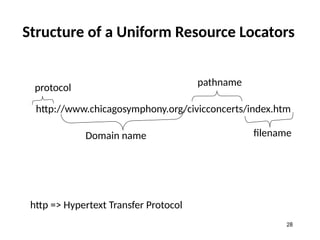
Structure of aUniform Resource Locators
http://www.chicagosymphony.org/civicconcerts/index.htm
protocol
Domain name
pathname
filename
http => Hypertext Transfer Protocol
28
29.
HTTP
• The transferprotocol is the set of rules that the
computers use to move files from one computer
to another on the Internet.
• The most common transfer protocol used on the
Internet is the Hypertext Transfer Protocol (HTTP).
• Two other protocols that you can use on the
Internet are the File Transfer Protocol (FTP) and
the Telnet Protocol
29
30.
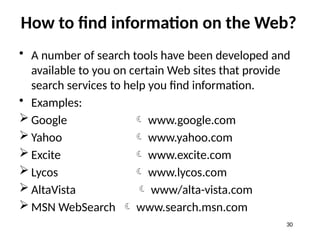
How to findinformation on the Web?
• A number of search tools have been developed and
available to you on certain Web sites that provide
search services to help you find information.
• Examples:
Google www.google.com
Yahoo www.yahoo.com
Excite www.excite.com
Lycos www.lycos.com
AltaVista www/alta-vista.com
MSN WebSearch www.search.msn.com
30
31.
How to findinformation on the Web?
• You can find information by two basic means.
• Search by Topic and Search by keywords.
• Some search services offer both methods, others only
one.
• Yahoo offers both.
Search by Topic
You can navigate through topic lists
Search by keywords
You can navigate by entering a keyword or phase into
a search text box.
31
32.
What is email?
•Electronic mail, most commonly referred to
as email or e-mail since 1993, is a method
of exchanging digital messages from an
author to one or more recipients
• You can use email to send & receive
messages over the internet
32
33.
What you need
•a computer with internet access
• an email account with a service provider such as
Yahoo, Gmail, Hotmail, etc.
• note: Microsoft Outlook and Apple Mail, are NOT
email providers (which is why you can’t email
from library computers without an account)
33
34.
Choosing an emailprovider
• Most common are Hotmail (Microsoft), Gmail
(Google), Yahoo Mail (Yahoo!)
34
35.
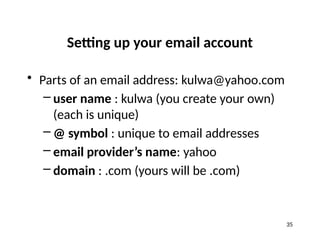
Setting up youremail account
• Parts of an email address: kulwa@yahoo.com
– user name : kulwa (you create your own)
(each is unique)
– @ symbol : unique to email addresses
– email provider’s name: yahoo
– domain : .com (yours will be .com)
35
36.
Password
• Something easyto remember, but difficult to
guess
– Do NOT use sensitive information, such as
SSN, bank PIN, etc.
• Usually a combination of letters and numbers
is best
• Verification questions in case you forget your
password
36
37.
The parts ofan email
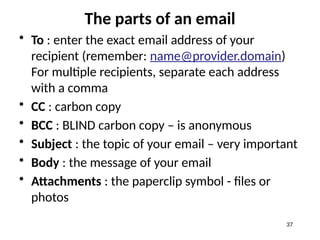
• To : enter the exact email address of your
recipient (remember: name@provider.domain)
For multiple recipients, separate each address
with a comma
• CC : carbon copy
• BCC : BLIND carbon copy – is anonymous
• Subject : the topic of your email – very important
• Body : the message of your email
• Attachments : the paperclip symbol - files or
photos
37
38.
DRAFT EMAILS &SAVING FOR LATER
• Drafts: When creating an e-mail the computer
will automatically save your work periodically. If
for any reason you should be interrupted (i.e.
lapse in internet connection) you can retrieve
your latest work what is called the DRAFT BOX.
38
39.
Receiving email
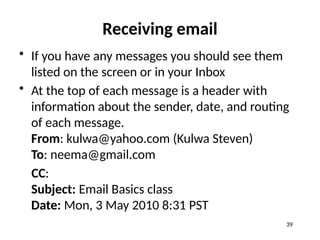
• Ifyou have any messages you should see them
listed on the screen or in your Inbox
• At the top of each message is a header with
information about the sender, date, and routing
of each message.
From: kulwa@yahoo.com (Kulwa Steven)
To: neema@gmail.com
CC:
Subject: Email Basics class
Date: Mon, 3 May 2010 8:31 PST
39
40.
Replying to anemail
• Reply vs Reply All
• When you click on Reply, your message will
automatically be sent to the person who
sent you the email (FROM field in header.)
• When you click on Reply All, your message
will automatically be sent to the person who
sent you the email AND everyone in the TO
and CC fields in the header.
40
41.
Forwarding an email
•When you click on FORWARD, you may
share the email you’ve received by sending
it to others.
• You may add your own message before
sending.
41
42.
Opening attachments
• Usuallyphotos or documents
• If you don’t know the sender, do NOT open
the attachment
• Avoid opening files with executable
extensions such
as .exe, .cmd, .com, .vbe, .bat etc. especially
when you don’t know the sender
42
43.
Deleting email &trashcan
• Once you’ve read an email, you must decide if you
want to save it or delete it.
• Click on delete to send the email to the TRASH CAN
• The message disappears from your list of messages but
is not truly deleted yet, so if you make a mistake you
can get the message back.
• Just look in the Trash folder. However, once you exit the
program, the messages are usually deleted for good.
43
44.
Privacy, viruses, &spam
• Privacy: CC vs BCC
• Viruses: Never open attachments from unknown
senders.
• Safety: Never send personal financial information
via email, even if it looks like a legitimate request
from your bank or financial institution.
• Spam: unsolicited commercial email, so delete
them
44
45.
Chatting & texting
TextingOnline
Is similar to texting using a cell phone but texts received can
only be viewed once, then they are permanently deleted after
being read. This is useful if you do not have a cell phone or
will not be near your cell phone and need to communicate to
another cell phone.
Chatting
This is real-time communication with no delay. Usually done
with those you know online. Be selective who you chat with.
As with spam and phishing, scams can occur with chatting as
well.
45
Phishing Scams
• Phishingis the attempt to acquire sensitive
information such as usernames, passwords, and
credit card details ( and sometimes, indirectly,
money), often for malicious reasons. By
masquerading as a trustworthy entity in electronic
communication.
• Phishers use a number of different techniques to
try to trick their victims. Below are some of
techniques one should be aware off in order to
prevent him/her self from phishing scams
48
49.
Phishing techniques
1. Key-loggersand Screen-loggers are particular
varieties of malware that track keyboard input
and send relevant information to the hacker via
the Internet. They can embed themselves into
users' browsers as small utility programs known
as helper objects that run automatically when
the browser is started as well as into system files
as device drivers or screen monitors.
49
50.
Phishing techniques
2. Malware-BasedPhishing refers to scams that
involve running malicious software on users' PCs.
Malware can be introduced as an email
attachment, as a downloadable file from a web
site, or by exploiting known security
vulnerabilities--a particular issue for small and
medium businesses (SMBs) who are not always
able to keep their software applications up to
date.
50
51.
Phishing techniques
3. DeceptivePhishing. The term "phishing" originally
referred to account theft using instant messaging but
the most common broadcast method today is a
deceptive email message. Messages about the need to
verify account information, system failure requiring
users to re-enter their information, fictitious account
charges, undesirable account changes, new free
services requiring quick action, and many other scams
are broadcast to a wide group of recipients with the
hope that the unwary will respond by clicking a link to
or signing onto a bogus site where their confidential
information can be collected.
51
52.
Phishing techniques
4. SearchEngine Phishing occurs when phishers create
websites with attractive (often too attractive)
sounding offers and have them indexed legitimately
with search engines. Users find the sites in the
normal course of searching for products or services
and are fooled into giving up their information. For
example, scammers have set up false banking sites
offering lower credit costs or better interest rates
than other banks. Victims who use these sites to save
or make more from interest charges are encouraged
to transfer existing accounts and deceived into giving
up their details.
52
53.
Phishing techniques
5. Man-in-the-MiddlePhishing is harder to detect than
many other forms of phishing. In these attacks
hackers position themselves between the user and
the legitimate website or system. They record the
information being entered but continue to pass it on
so that users' transactions are not affected. Later
they can sell or use the information or credentials
collected when the user is not active on the system.
53
54.
How to preventphishing scams
1. Check the email Carefully A phishing email may
claim to be from a legitimate company and when you
click the link to the website, it may look exactly like
the real website. The email may ask you to fill in the
information. Most phishing emails will start with
“Dear Customer” so you should be alert when you
come across these emails. You should know that a
legitimate company will not send spam emails. The
email may contain the names of fictional personnel
who supposedly work in the legitimate company.
54
55.
How to preventphishing scams
2. Never Enter Financial or Personal Information: Most
of the phishing emails will direct you to pages where
entries for financial or personal information are
required. An Internet user should never make
confidential entries through the links provided in the
emails.
55
56.
How to preventphishing scams
3. Protection through Software: Anti-spyware and
firewall settings should be used to prevent phishing
attacks and users should update the programs
regularly. Firewall protection prevents access to
malicious files by blocking the attacks. Antivirus
software scans every file which comes through the
Internet to your computer. It helps to prevent
damage to your system.
56
57.
How to preventphishing scams
4. Never Send Personal Information through emails:
Never send an email with sensitive information to
anyone. Make it a habit to check the address of the
website. A secure website always starts with “https”.
57
58.
How to preventphishing scams
5. Check Bank Details Regularly: To prevent bank
phishing and credit card phishing scams, you should
personally check your statements regularly. Get
monthly statements for your financial accounts and
check each and every entry carefully to ensure no
fraudulent transactions have been made without
your knowledge.
58
59.
How to preventphishing scams
6. Never Download Files from Unreliable Sources: If
you get a message stating a certain website may
contain malicious files, do not open the website.
Web browsers provide settings to prevent access to
malicious web pages and when you try to access a
malicious site, an alert message will appear. Never
download files from suspicious emails or websites.
Even search engines may show certain links which
may lead users to a phishing webpage which offers
low cost products. If the user makes purchases at
such a website, the credit card details will be
accessed by the phishers.
59