


THINGS YOU SHOULD KNOW
5 SKILLS FOR GETTING STARTED
HENRY FORD
MURAL is a visual workspace that helps you collaborate
together. Murals are giant boards to map out content.
Everything is securely saved in the cloud. Collaborate
wherever you are to keep your creative momentum.
People use murals for all kinds of team activities:
○ Design thinking & innovation
○ Product & service design
○ Planning & management
○ Marketing & branding
○ Research and journey mapping
○ Instruction & facilitation… and more!
WHAT IS MURAL?
1. Zooming & scrolling
2. Adding content
3. Using shortcuts
4. Collaborating with others
5. Managing MURAL
5 ESSENTIAL SKILLS
1. ZOOMING & SCROLLING
Zoom out to see the big picture
The easiest way to zoom is with the trackpad or with
the mouse wheel. If something is too small to read,
zoom in to see the detail instead of making it larger.
LEARN TO ZOOM QUICKLY
Zoom in to see the detail
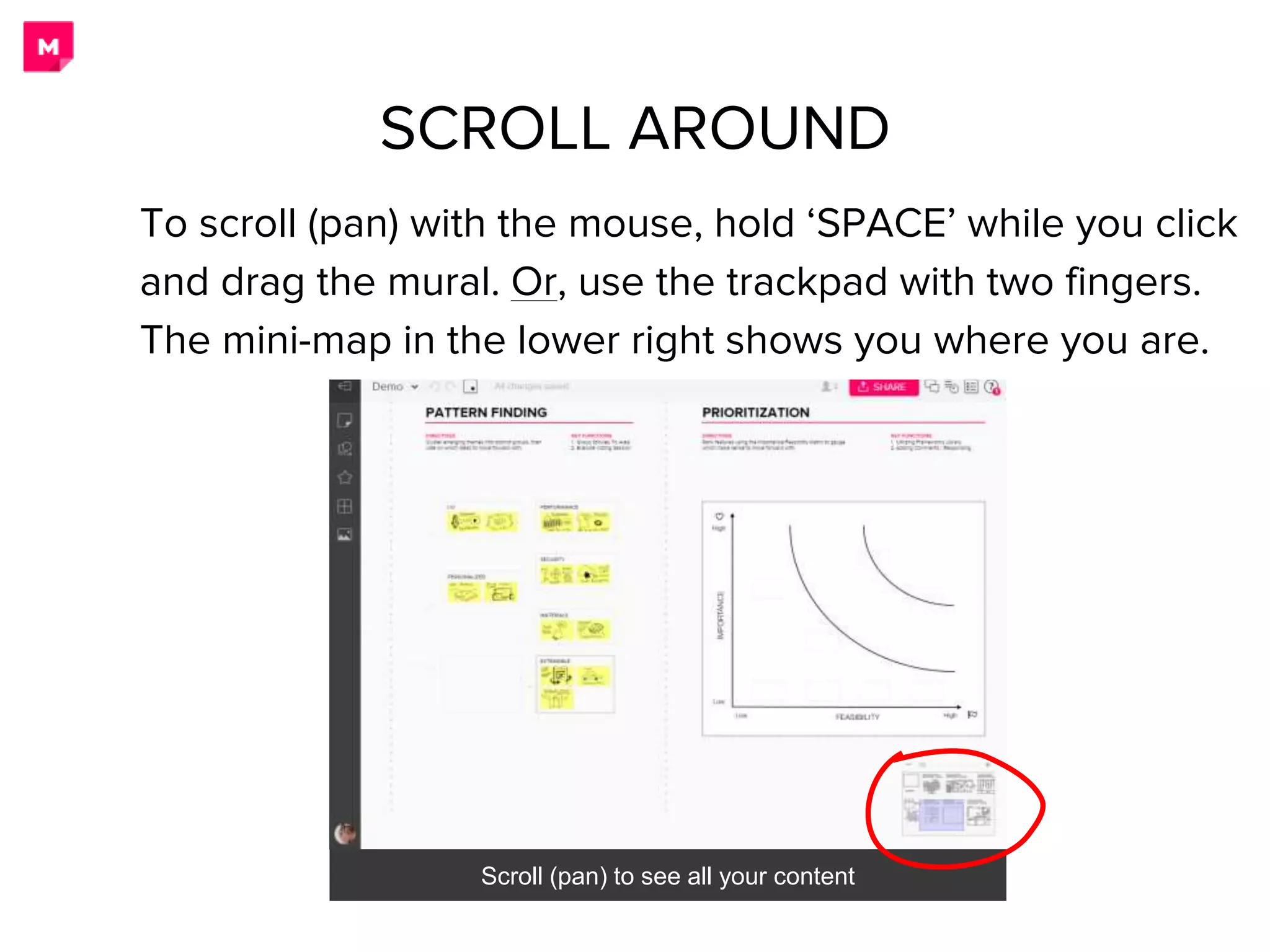
To scroll (pan) with the mouse, hold ‘SPACE’ while you click
and drag the mural. Or, use the trackpad with two fingers.
The mini-map in the lower right shows you where you are.
Scroll (pan) to see all your content
SCROLL AROUND
You have two options: Scroll (pan) and Zoom.
Change options in Zoom Settings (below the mini map).
Change navigation modes in Zoom Settings.
FIND THE BEST NAVIGATION MODE
SCROLLZOOM
2. ADDING CONTENT
Use the left toolbar to add content to MURAL
Explore the toolbar on the left to add text, shapes,
connectors, icons, frameworks and images. Double
click on the mural to add a sticky note even quicker.
MAP OUT YOUR CONTENT
Drag images and documents right from your hard drive.
Or, copy a URL and paste it into a mural. YouTube videos
will play directly inside the mural.
Play back YouTube videos right in MURAL
INSERT LINKS, VIDEOS & DOCUMENTS
Change element properties from the contextual menu.
Right click on any element for additional options.
FORMAT ELEMENTS
Contextual menus for note Right-click menu options
3. USING SHORTCUTS
Learn the keyboard commands built into MURAL.
Just press ‘?’ to see all of the available commands.
Keyboard commands for the Mac
RELY ON COMMANDS
Keyboard commands for the PC
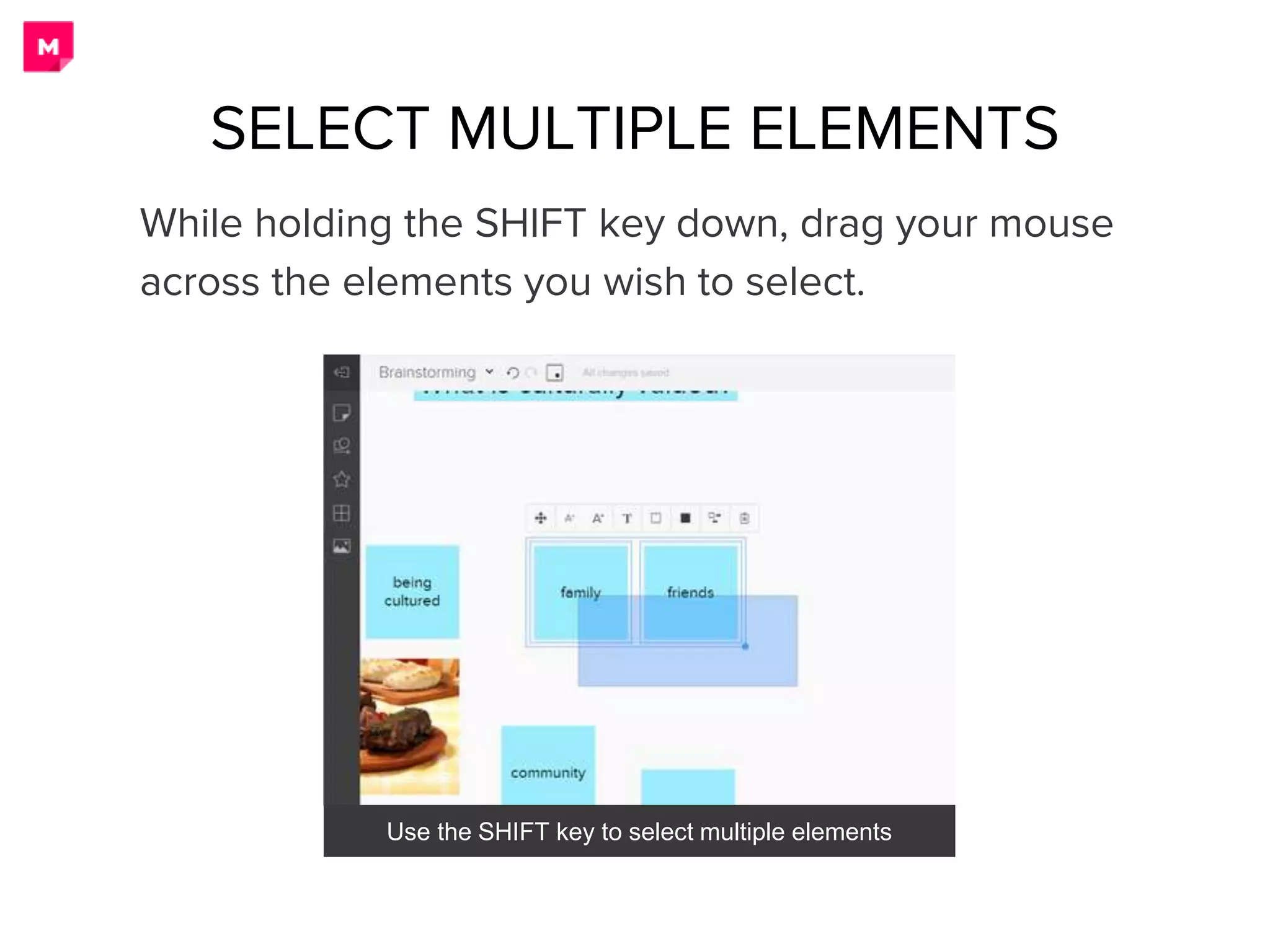
While holding the SHIFT key down, drag your mouse
across the elements you wish to select.
Use the SHIFT key to select multiple elements
SELECT MULTIPLE ELEMENTS
HENRY FORD
4. COLLABORATING WITH OTHERS
Invite others via the ‘Share’ option (upper right). Add their
addresses directly or send the link.
Invite teammates via email
INVITE TEAMMATES
Use Skype or similar for a conference call. Then, join a
mural with your team and add content together. Try the voting
feature in the top left to get consensus. Vote multiple times to
really drill down.
Get team consensus with the Voting feature
WORK TOGETHER IN REAL TIME
Comment on any element and see past activity
Add content to a mural independently. See what’s happened
since you last checked in with the Activity Feed (right). Keep
conversations going with comments.
COLLABORATE ASYNCHRONOUSLY
5. MANAGING MURAL
Click on the ‘All Murals’ icon (top left) to see all of your
murals. Rooms (left) are used to organize murals.
See all of your murals on the ‘dashboard’
GET AN OVERVIEW
Click ‘CREATE MURAL’ to start a new one. Existing
murals can be duplicated, moved or shared.
Use the drop-down menu in the upper right to manage each mural
CREATE NEW MURALS
FURTHER RESOURCES
1. GET ONLINE HELP
Just click on the question mark in the upper right of any mural.
2. VISIT THE HELP CENTER
See videos and articles on our support site: http://support.mural.ly
3. JOIN OUR LIVE DEMO
First Thursday of every month at 12 noon ET. Sign up here:
https://mural.co/webinars/monthly-demo/
4. CONTACT US DIRECTLY
Contact customer support directly at support@mural.ly

MURAL quick guide

  • 1.
    THINGS YOU SHOULDKNOW 5 SKILLS FOR GETTING STARTED
  • 2.
    HENRY FORD MURAL isa visual workspace that helps you collaborate together. Murals are giant boards to map out content. Everything is securely saved in the cloud. Collaborate wherever you are to keep your creative momentum. People use murals for all kinds of team activities: ○ Design thinking & innovation ○ Product & service design ○ Planning & management ○ Marketing & branding ○ Research and journey mapping ○ Instruction & facilitation… and more! WHAT IS MURAL?
  • 3.
    1. Zooming &scrolling 2. Adding content 3. Using shortcuts 4. Collaborating with others 5. Managing MURAL 5 ESSENTIAL SKILLS
  • 4.
    1. ZOOMING &SCROLLING
  • 5.
    Zoom out tosee the big picture The easiest way to zoom is with the trackpad or with the mouse wheel. If something is too small to read, zoom in to see the detail instead of making it larger. LEARN TO ZOOM QUICKLY Zoom in to see the detail
  • 6.
    To scroll (pan)with the mouse, hold ‘SPACE’ while you click and drag the mural. Or, use the trackpad with two fingers. The mini-map in the lower right shows you where you are. Scroll (pan) to see all your content SCROLL AROUND
  • 7.
    You have twooptions: Scroll (pan) and Zoom. Change options in Zoom Settings (below the mini map). Change navigation modes in Zoom Settings. FIND THE BEST NAVIGATION MODE SCROLLZOOM
  • 8.
  • 9.
    Use the lefttoolbar to add content to MURAL Explore the toolbar on the left to add text, shapes, connectors, icons, frameworks and images. Double click on the mural to add a sticky note even quicker. MAP OUT YOUR CONTENT
  • 10.
    Drag images anddocuments right from your hard drive. Or, copy a URL and paste it into a mural. YouTube videos will play directly inside the mural. Play back YouTube videos right in MURAL INSERT LINKS, VIDEOS & DOCUMENTS
  • 11.
    Change element propertiesfrom the contextual menu. Right click on any element for additional options. FORMAT ELEMENTS Contextual menus for note Right-click menu options
  • 12.
  • 13.
    Learn the keyboardcommands built into MURAL. Just press ‘?’ to see all of the available commands. Keyboard commands for the Mac RELY ON COMMANDS Keyboard commands for the PC
  • 14.
    While holding theSHIFT key down, drag your mouse across the elements you wish to select. Use the SHIFT key to select multiple elements SELECT MULTIPLE ELEMENTS
  • 15.
  • 16.
    Invite others viathe ‘Share’ option (upper right). Add their addresses directly or send the link. Invite teammates via email INVITE TEAMMATES
  • 17.
    Use Skype orsimilar for a conference call. Then, join a mural with your team and add content together. Try the voting feature in the top left to get consensus. Vote multiple times to really drill down. Get team consensus with the Voting feature WORK TOGETHER IN REAL TIME
  • 18.
    Comment on anyelement and see past activity Add content to a mural independently. See what’s happened since you last checked in with the Activity Feed (right). Keep conversations going with comments. COLLABORATE ASYNCHRONOUSLY
  • 19.
  • 20.
    Click on the‘All Murals’ icon (top left) to see all of your murals. Rooms (left) are used to organize murals. See all of your murals on the ‘dashboard’ GET AN OVERVIEW
  • 21.
    Click ‘CREATE MURAL’to start a new one. Existing murals can be duplicated, moved or shared. Use the drop-down menu in the upper right to manage each mural CREATE NEW MURALS
  • 22.
    FURTHER RESOURCES 1. GETONLINE HELP Just click on the question mark in the upper right of any mural. 2. VISIT THE HELP CENTER See videos and articles on our support site: http://support.mural.ly 3. JOIN OUR LIVE DEMO First Thursday of every month at 12 noon ET. Sign up here: https://mural.co/webinars/monthly-demo/ 4. CONTACT US DIRECTLY Contact customer support directly at support@mural.ly