Tips & Tricks for Writing Your
Thesis in MS WORD
Presented by
Shelly Baumann, Coordinator
202 Eielson Building (907) 474-7464
PO BOX 757560 (907) 474-1984 fax
Fairbanks, AK 99775-7560 gradschool@uaf.edu
http://www.uaf.edu/gradsch/
UAF Graduate School’s
General Thesis Information
 Thesis Formatting Workbook
 Thesis Formatting Workshop
 Thesis Submittal Form:
 Master’s
 PhD
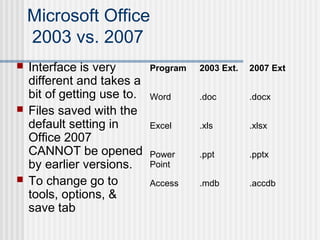
Microsoft Office
2003 vs. 2007
 Interface is very
different and takes a
bit of getting use to.
 Files saved with the
default setting in
Office 2007
CANNOT be opened
by earlier versions.
 To change go to
tools, options, &
save tab
Program 2003 Ext. 2007 Ext
Word .doc .docx
Excel .xls .xlsx
Power
Point
.ppt .pptx
Access .mdb .accdb
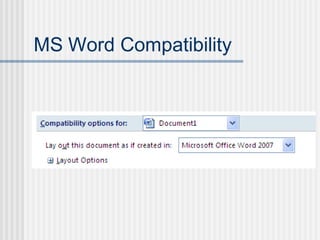
MS Word Compatibility
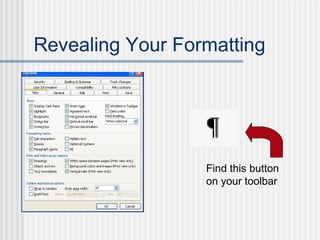
Revealing Your Formatting
Find this button
on your toolbar
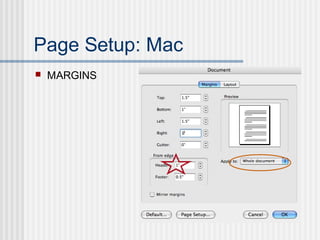
Page Setup: Mac
 MARGINS
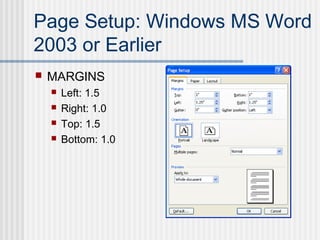
Page Setup: Windows MS Word
2003 or Earlier
 MARGINS
 Left: 1.5
 Right: 1.0
 Top: 1.5
 Bottom: 1.0
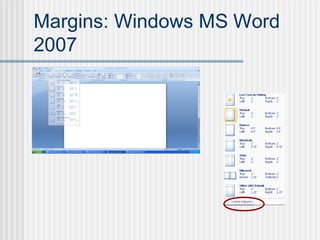
Margins: Windows MS Word
2007
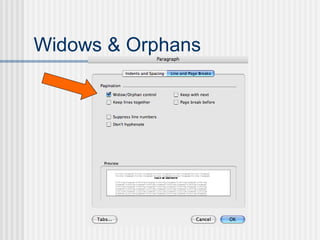
Widows & Orphans
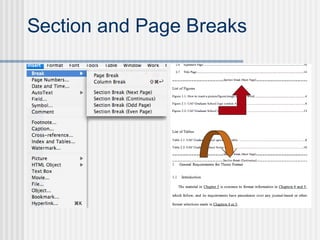
Section and Page Breaks
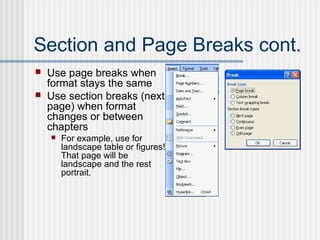
Section and Page Breaks cont.
 Use page breaks when
format stays the same
 Use section breaks (next
page) when format
changes or between
chapters
 For example, use for
landscape table or figures!
That page will be
landscape and the rest
portrait.
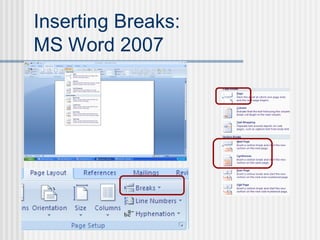
Inserting Breaks:
MS Word 2007
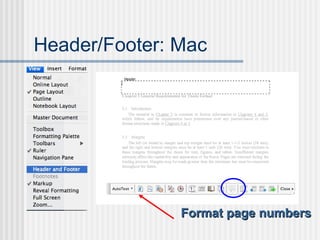
Header/Footer: Mac
Format page numbersFormat page numbers
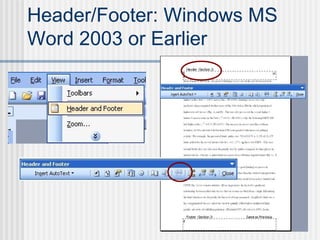
Header/Footer: Windows MS
Word 2003 or Earlier
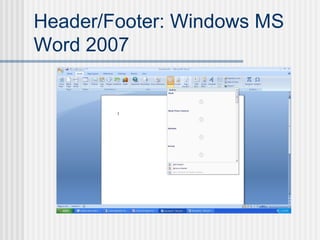
Header/Footer: Windows MS
Word 2007
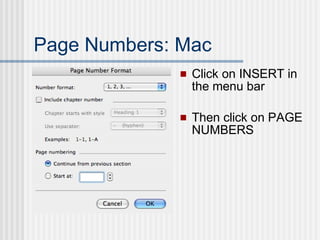
Page Numbers: Mac
 Click on INSERT in
the menu bar
 Then click on PAGE
NUMBERS
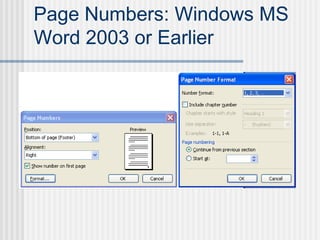
Page Numbers: Windows MS
Word 2003 or Earlier
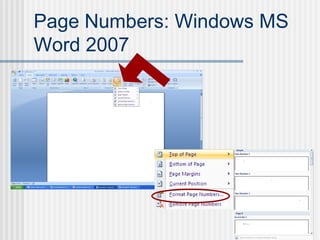
Page Numbers: Windows MS
Word 2007
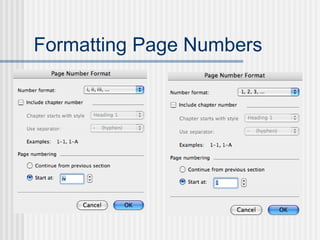
Formatting Page Numbers
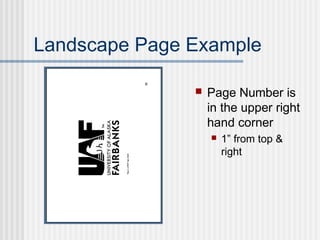
Landscape Page Example
 Page Number is
in the upper right
hand corner
 1” from top &
right
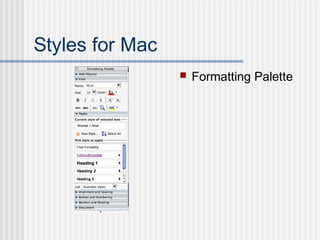
Styles for Mac
 Formatting Palette
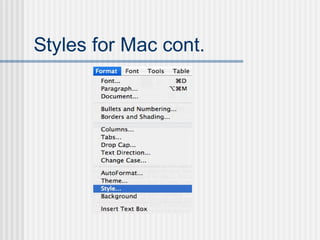
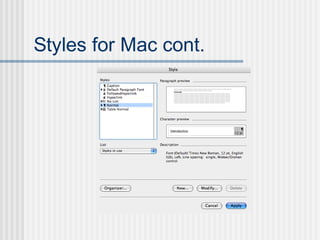
Styles for Mac cont.
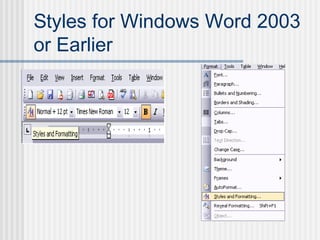
Styles for Windows Word 2003
or Earlier
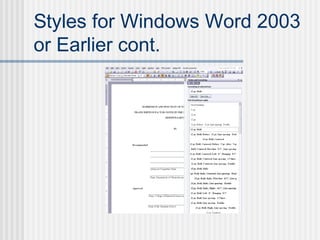
Styles for Windows Word 2003
or Earlier cont.
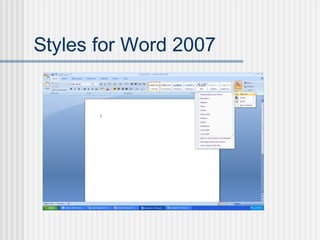
Styles for Word 2007
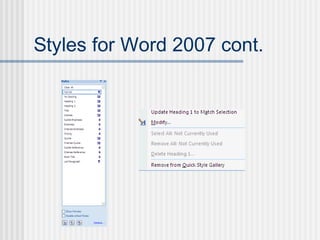
Styles for Word 2007 cont.
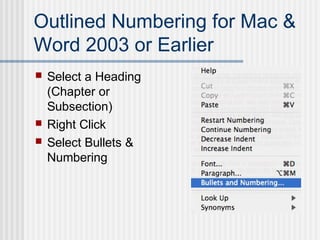
Outlined Numbering for Mac &
Word 2003 or Earlier
 Select a Heading
(Chapter or
Subsection)
 Right Click
 Select Bullets &
Numbering
Outlined Numbering cont.
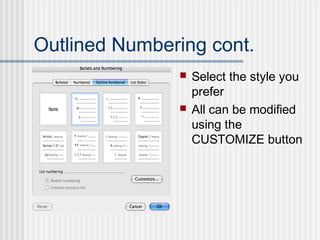
 Select the style you
prefer
 All can be modified
using the
CUSTOMIZE button
Outlined Numbering cont.
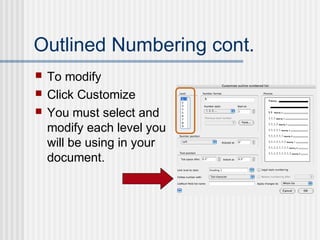
 To modify
 Click Customize
 You must select and
modify each level you
will be using in your
document.
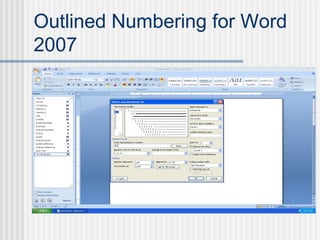
Outlined Numbering for Word
2007
 To modify or
customize the list
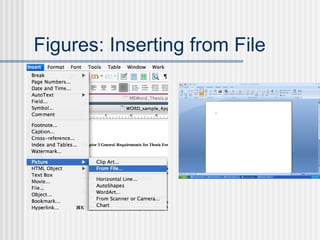
Figures: Inserting from File
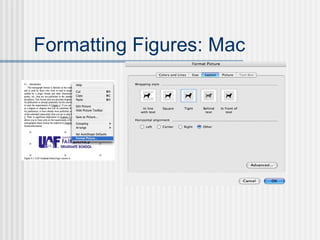
Formatting Figures: Mac
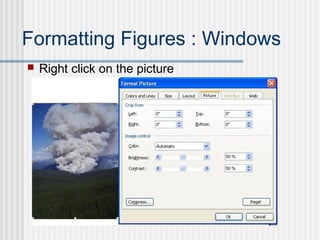
Formatting Figures : Windows
 Right click on the picture
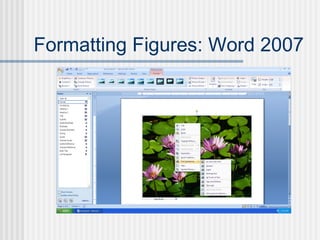
Formatting Figures: Word 2007
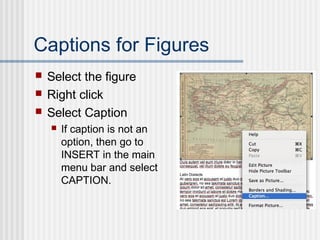
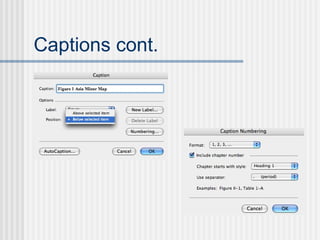
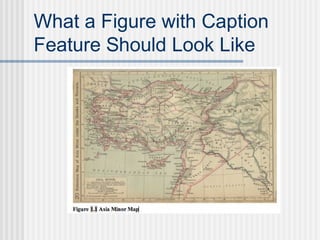
Captions for Figures
 Select the figure
 Right click
 Select Caption
 If caption is not an
option, then go to
INSERT in the main
menu bar and select
CAPTION.
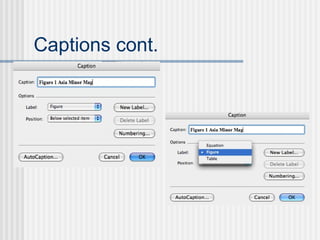
Captions cont.
Captions cont.
What a Figure with Caption
Feature Should Look Like
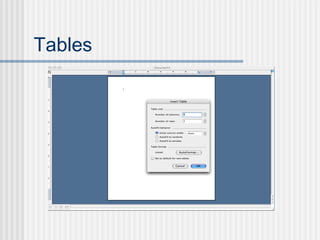
Tables
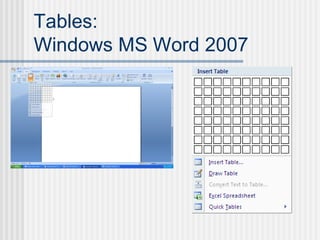
Tables:
Windows MS Word 2007
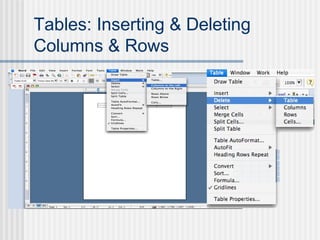
Tables: Inserting & Deleting
Columns & Rows
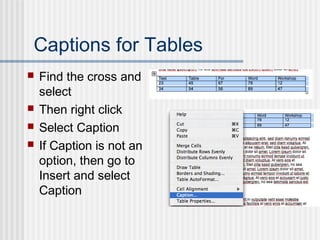
Captions for Tables
 Find the cross and
select
 Then right click
 Select Caption
 If Caption is not an
option, then go to
Insert and select
Caption
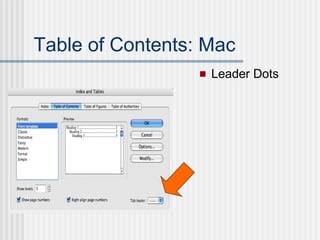
Table of Contents: Mac
 Leader Dots
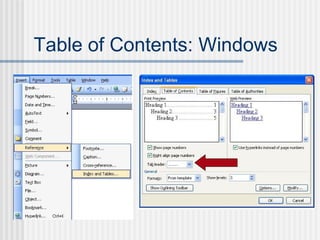
Table of Contents: Windows
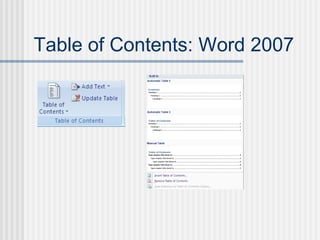
Table of Contents: Word 2007
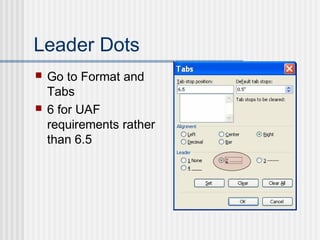
Leader Dots
 Go to Format and
Tabs
 6 for UAF
requirements rather
than 6.5
Tabs & Leader Dots:
MS Word 2007
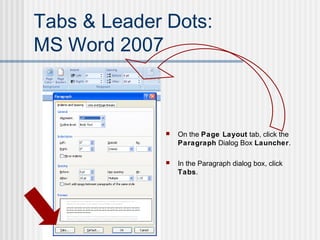
 On the Page Layout tab, click the
Paragraph Dialog Box Launcher.
 In the Paragraph dialog box, click
Tabs.
When All Else Fails
 If the Table of Contents will not cooperate after
the last time you update, then insert leader dots
with the tab.
 If a table or figure will not print with the
document print it separate.
Resources
 Writing Your Dissertation with Microsoft
Word: A step by step guide by Vincent
Kiernan
 The WEB
 A refresher on this workshop or the
Thesis Formatting workshop go to:
http://www.uaf.edu/gradsch/current/ready-
to-graduate/
The Perfect Thesis/Dissertation
 If the Graduate School deems you have a
perfectly formatted thesis.
 Then we will pay $100 towards your thesis
binding costs!
Electronic Copy is Now
Required
 You are now required to submit an
electronic copy (searchable .pdf or .doc)
when you turn in your copy for format
check and when you submit your final
copies
Thank You!
 Please fill out the evaluation form.
Ms word 4

Ms word 4

Editor's Notes

  • #2 Thesis & dissertation are used interchangeable throughout this presentation Thesis Formatting help available every Friday from 3p-5p. Updated 06/09/2009
  • #5 Open Office button at the upper left TWO WAYS SAVE AS: Word 2003 or earlier OR Click on Word Options, SAVE tab select at the very top of box SAVE documents as dropdown menu.
  • #6 Win MS Word 2003 or earlier: If not in toolbar then go to TOOLS:OPTIONS:VIEW:FORMATTING MARKS:click ALL Win MS Word 2007: Under the Office button in the upper left corner, click on Word Options (just to the left of “Exit Word”), select DISPLAY, then Select “Show all formatting marks”. MAC: If not in toolbar then go to PREFERENCES:VIEW:NONPRINTING CHARACTERS: click ALL Don’t copy & paste…actually do insert from file
  • #7 including addressing page/section breaks and dealing with landscape tables. Click on FORMAT: DOCUMENT
  • #8 To adjust the Header/Footer margins Click on the Layout Tab Adjust Header to be 1”. including addressing page/section breaks and dealing with landscape tables.
  • #9 Page Layout TAB
  • #10 Click on FORMAT: PARAGRAPH: LINE AND PAGE BREAKS Windows MS Word 2007: Additional handout available. Or go to Help and type in widows or type in orphans (you get the same answers).
  • #11 Section breaks are good to use around tables, chapters, figures…landscape pages.
  • #14 Change text direction dialog box…to rotate page number for landscape… To format page numbers for landscape page…click on VIEW: HEADER/FOOTER…click on the button that moves you to the FOOTER…once in the footer click on INSERT: PAGE NUMBERS from MENU BAR not from the footer itself. It should be Aligned RIGHT…click OK…now click on the page number and move it to OUTSIDE of the FOOTER BOX…Click on FORMAT: TEXT DIRECTION…Click the direction you want the number to be…
  • #25 Open Styles menu from two locations: The icon on the toolbar Or From the FORMAT menu in the main menu bar
  • #31 Most documents use at least 3 levels. Be sure to select whether you want a space, tab or nothing after the numbering system. If you are not using a numbering system then you will need to make sure it says “Nothing” so you don’t have blank space before your headings i.e. “ Chapter 4”
  • #32 Click the button called Multilevel List. Select a general numbering style. Then click on the Multilevel List and select of Define New Multilevel List.
  • #35 Change text direction dialog box…to rotate page number for landscape…
  • #43 Merged cells from excel don’t come over. Word 2007: to delete cells or rows. Highlight the cell(s) or row(s) to be deleted. Right click and select delete cell(s) or row(s).
  • #44 The rest of the Caption features are the same as they are for Figures.
  • #45 Click INSERT: INDEX and TABLES
  • #46 List of Figures, List of Tables, and List of Appendices, List of Other Materials are done the same way as the Table of Contents. Inserting a TOC or any the Lists is almost identical in the Mac version of Word.
  • #48 I find that 5.99” works very well.
  • #51 http://www.uaf.edu/gradsch/current/ready-to-graduate/ Bottom right corner of page: Click on STREAMING VIDEO of either workshops.
  • #52 No References Errors No Formatting Errors No Signature Page Errors No Spelling/Grammar Errors