Movie Maker
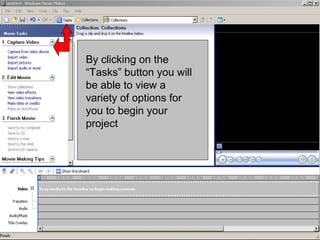
By clicking on the
“Tasks” button you will
be able to view a
variety of options for
you to begin your
project
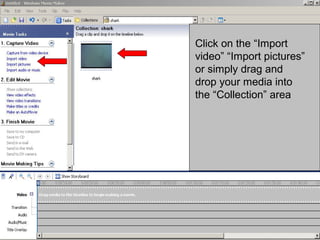
Click on the “Import
video” “Import pictures”
or simply drag and
drop your media into
the “Collection” area
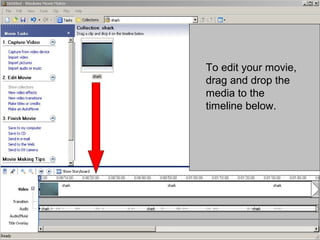
To edit your movie,
drag and drop the
media to the
timeline below.
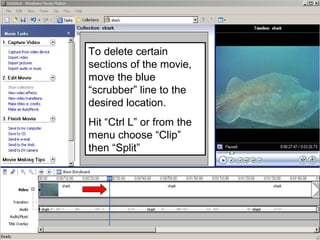
To delete certain
sections of the movie,
move the blue
“scrubber” line to the
desired location.
Hit “Ctrl L” or from the
menu choose “Clip”
then “Split”
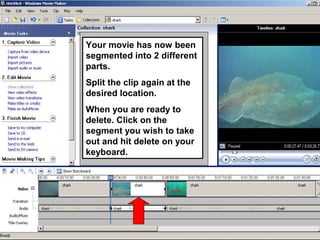
Your movie has now been
segmented into 2 different
parts.
Split the clip again at the
desired location.
When you are ready to
delete. Click on the
segment you wish to take
out and hit delete on your
keyboard.
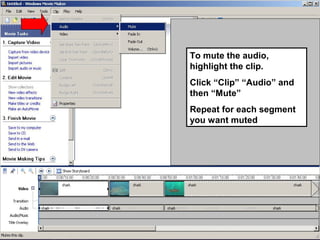
To mute the audio,
highlight the clip.
Click “Clip” “Audio” and
then “Mute”
Repeat for each segment
you want muted
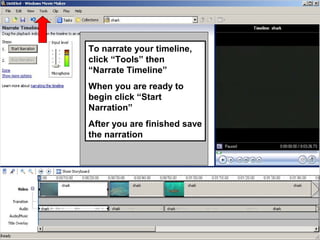
To narrate your timeline,
click “Tools” then
“Narrate Timeline”
When you are ready to
begin click “Start
Narration”
After you are finished save
the narration
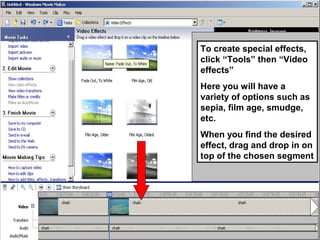
To create special effects,
click “Tools” then “Video
effects”
Here you will have a
variety of options such as
sepia, film age, smudge,
etc.
When you find the desired
effect, drag and drop in on
top of the chosen segment
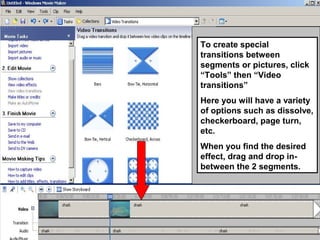
To create special
transitions between
segments or pictures, click
“Tools” then “Video
transitions”
Here you will have a variety
of options such as dissolve,
checkerboard, page turn,
etc.
When you find the desired
effect, drag and drop in-
between the 2 segments.
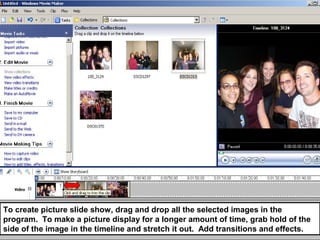
To create picture slide show, drag and drop all the selected images in the
program. To make a picture display for a longer amount of time, grab hold of the
side of the image in the timeline and stretch it out. Add transitions and effects.
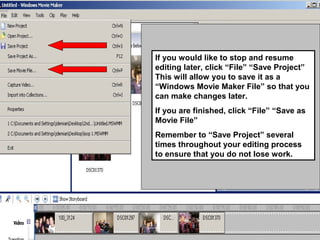
If you would like to stop and resume
editing later, click “File” “Save Project”
This will allow you to save it as a
“Windows Movie Maker File” so that you
can make changes later.
If you are finished, click “File” “Save as
Movie File”
Remember to “Save Project” several
times throughout your editing process
to ensure that you do not lose work.

Using Movie Maker by Discovery Ed

  • 1.
  • 2.
    By clicking onthe “Tasks” button you will be able to view a variety of options for you to begin your project
  • 3.
    Click on the“Import video” “Import pictures” or simply drag and drop your media into the “Collection” area
  • 4.
    To edit yourmovie, drag and drop the media to the timeline below.
  • 5.
    To delete certain sectionsof the movie, move the blue “scrubber” line to the desired location. Hit “Ctrl L” or from the menu choose “Clip” then “Split”
  • 6.
    Your movie hasnow been segmented into 2 different parts. Split the clip again at the desired location. When you are ready to delete. Click on the segment you wish to take out and hit delete on your keyboard.
  • 7.
    To mute theaudio, highlight the clip. Click “Clip” “Audio” and then “Mute” Repeat for each segment you want muted
  • 8.
    To narrate yourtimeline, click “Tools” then “Narrate Timeline” When you are ready to begin click “Start Narration” After you are finished save the narration
  • 9.
    To create specialeffects, click “Tools” then “Video effects” Here you will have a variety of options such as sepia, film age, smudge, etc. When you find the desired effect, drag and drop in on top of the chosen segment
  • 10.
    To create special transitionsbetween segments or pictures, click “Tools” then “Video transitions” Here you will have a variety of options such as dissolve, checkerboard, page turn, etc. When you find the desired effect, drag and drop in- between the 2 segments.
  • 11.
    To create pictureslide show, drag and drop all the selected images in the program. To make a picture display for a longer amount of time, grab hold of the side of the image in the timeline and stretch it out. Add transitions and effects.
  • 12.
    If you wouldlike to stop and resume editing later, click “File” “Save Project” This will allow you to save it as a “Windows Movie Maker File” so that you can make changes later. If you are finished, click “File” “Save as Movie File” Remember to “Save Project” several times throughout your editing process to ensure that you do not lose work.