Movie Maker Noreen Strehlow PESD Teachers 2/27/07 1 2
This is the opening screen of Movie Maker Task Pane This is where you can organize the way in which you put the movie together Storyboard View This view is more visual and shows larger samples of each photo or video clip
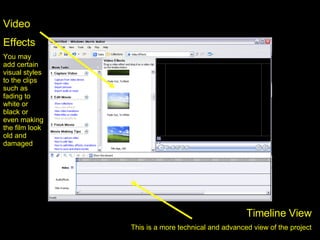
Timeline View This is a more technical and advanced view of the project Video Effects You may add certain visual styles to the clips such as fading to white or black or even making the film look old and damaged
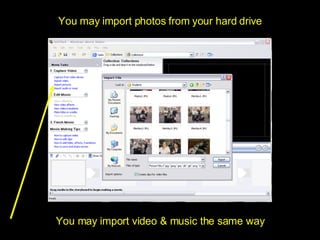
You may import photos from your hard drive You may import video & music the same way
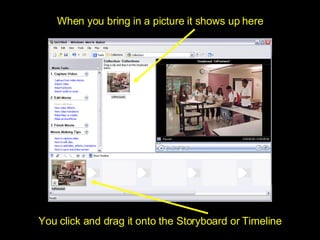
When you bring in a picture it shows up here You click and drag it onto the Storyboard or Timeline
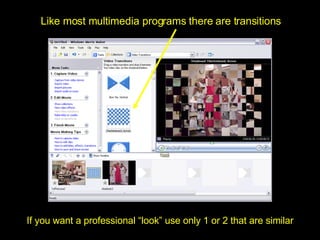
Like most multimedia programs there are transitions If you want a professional “look” use only 1 or 2 that are similar
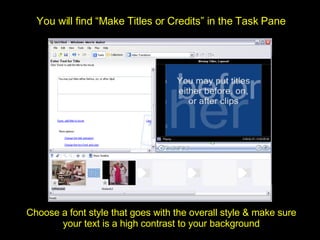
Choose a font style that goes with the overall style & make sure your text is a high contrast to your background You will find “Make Titles or Credits” in the Task Pane
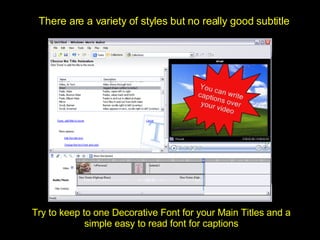
There are a variety of styles but no really good subtitle Try to keep to one Decorative Font for your Main Titles and a simple easy to read font for captions
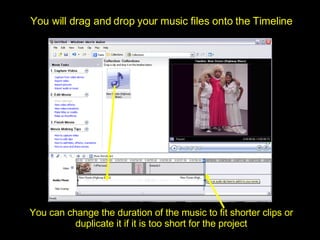
You can change the duration of the music to fit shorter clips or duplicate it if it is too short for the project You will drag and drop your music files onto the Timeline
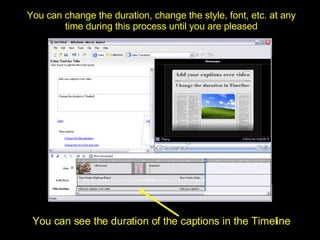
You can change the duration, change the style, font, etc. at any time during this process until you are pleased You can see the duration of the captions in the Timeline

Movie Maker

  • 1.
    Movie Maker NoreenStrehlow PESD Teachers 2/27/07 1 2
  • 2.
    This is theopening screen of Movie Maker Task Pane This is where you can organize the way in which you put the movie together Storyboard View This view is more visual and shows larger samples of each photo or video clip
  • 3.
    Timeline View Thisis a more technical and advanced view of the project Video Effects You may add certain visual styles to the clips such as fading to white or black or even making the film look old and damaged
  • 4.
    You may importphotos from your hard drive You may import video & music the same way
  • 5.
    When you bringin a picture it shows up here You click and drag it onto the Storyboard or Timeline
  • 6.
    Like most multimediaprograms there are transitions If you want a professional “look” use only 1 or 2 that are similar
  • 7.
    Choose a fontstyle that goes with the overall style & make sure your text is a high contrast to your background You will find “Make Titles or Credits” in the Task Pane
  • 8.
    There are avariety of styles but no really good subtitle Try to keep to one Decorative Font for your Main Titles and a simple easy to read font for captions
  • 9.
    You can changethe duration of the music to fit shorter clips or duplicate it if it is too short for the project You will drag and drop your music files onto the Timeline
  • 10.
    You can changethe duration, change the style, font, etc. at any time during this process until you are pleased You can see the duration of the captions in the Timeline