NNeettwwoorrkkss
KKEEMMEENNTTEERRIIAANN PPEELLAAJJAARRAANN MMAALLAAYYSSIIAA
SSeellff AAcccceessss LLeeaarrnniinngg MMoodduullee
Curriculum Development Centre
Ministry of Education
IIICCCTTT LLLiiittteeerrraaacccyyy fffooorrr
SSSeeecccooonnndddaaarrryyy SSSccchhhoooooolll
PPPrrrooogggrrraaammmmmmeee
ICTL For Secondary School - networks
1
MODULE 3
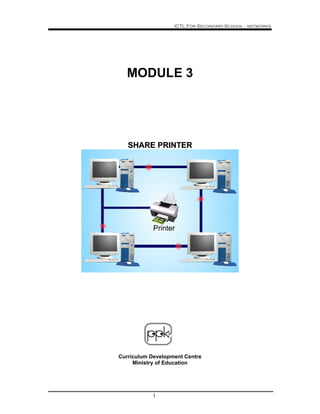
SSHHAARREE PPRRIINNTTEERR
Curriculum Development Centre
Ministry of Education
ICTL For Secondary School - networks
2
1. Name of Module : Network
2. Learning Outcomes: Students should be able to share printer in LAN
3. Knowledge and Skills
a. Share printer
b. Open file
c. Print file
4. Module Summary
At the end of the module student should be able to print documents using shared
printer
This module contains 3 activities:
Activity 1. Sharing Printer in Local Area Network. ( LAN )
Activity 2 Add Printer
Activity 3 Creating and Printing a Simple Document
5. Notes:
1. In general, sharing means to have or use something at the same time as
someone else.
2. File sharing is the practice of making files available for other users to
download over the Internet and smaller networks.
3. This can be done in any number of ways; in corporate networks it is done
using file servers but on the wider Internet it usually follow the peer-to-peer
(P2P) model, where the files are stored on and served by personal
computers of the users. Most people who engage in file sharing on the
Internet provide (upload) files and receive files (download).
• This module is useable if the network connection (LAN) already exist.
• The interface shown varies in computer networks in terms of name and network
arrangement depending on the setting.
• This module is a guideline to carry out the activity Networks And Internets for
Learning Area 1.4 and 1.5
ICTL For Secondary School - networks
3
Activity 1. Sharing Printer in Local Area Network. ( LAN )
Notes:
This activity shows the step on how to share a printer with other users in the
network.
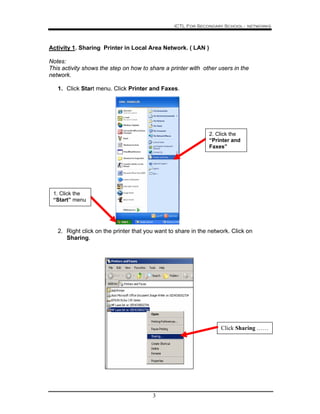
1. Click Start menu. Click Printer and Faxes.
2. Right click on the printer that you want to share in the network. Click on
Sharing.
Click Sharing ……
2. Click the
“Printer and
Faxes”
1. Click the
“Start” menu
ICTL For Secondary School - networks
4
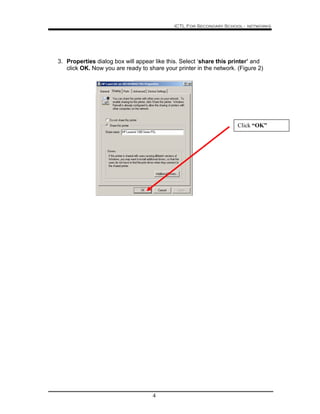
3. Properties dialog box will appear like this. Select ‘share this printer’ and
click OK. Now you are ready to share your printer in the network. (Figure 2)
Click “OK”
ICTL For Secondary School - networks
5
Activity 2 Add Printer
This activity shows the steps on how to add a printer that is attach to the other
computer on the network.
1. Repeat activity 1 to open the Printer and Faxes.
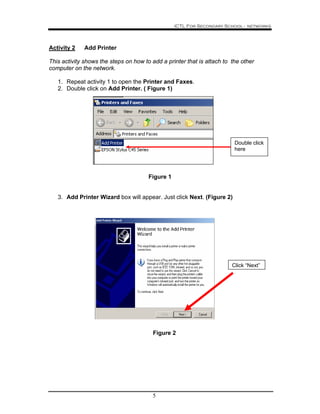
2. Double click on Add Printer. ( Figure 1)
Figure 1
3. Add Printer Wizard box will appear. Just click Next. (Figure 2)
Figure 2
Click “Next”
Double click
here
ICTL For Secondary School - networks
6
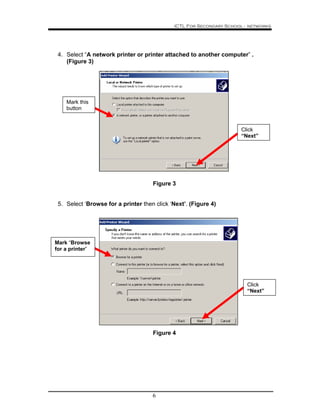
4. Select “A network printer or printer attached to another computer” .
(Figure 3)
Figure 3
5. Select ‘Browse for a printer then click ‘Next’. (Figure 4)
Figure 4
Mark this
button
Click
“Next”
Mark “Browse
for a printer”
Click
“Next”
ICTL For Secondary School - networks
7
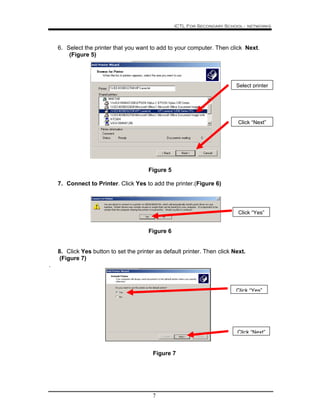
6. Select the printer that you want to add to your computer. Then click Next.
(Figure 5)
Figure 5
7. Connect to Printer. Click Yes to add the printer.(Figure 6)
Figure 6
8. Click Yes button to set the printer as default printer. Then click Next.
(Figure 7)
.
Figure 7
Select printer
Click “Next”
Click “Yes”
Click “Next”
Click “Yes”
ICTL For Secondary School - networks
8
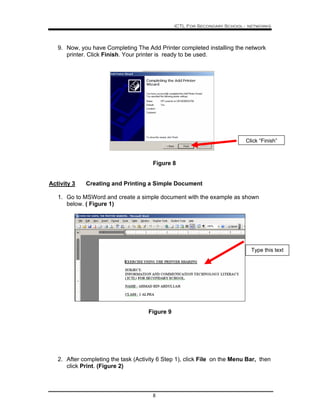
9. Now, you have Completing The Add Printer completed installing the network
printer. Click Finish. Your printer is ready to be used.
Figure 8
Activity 3 Creating and Printing a Simple Document
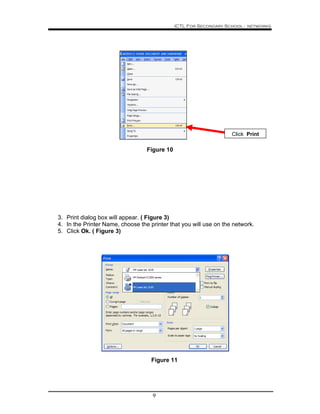
1. Go to MSWord and create a simple document with the example as shown
below. ( Figure 1)
Figure 9
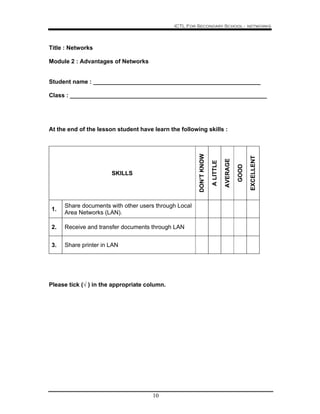
2. After completing the task (Activity 6 Step 1), click File on the Menu Bar, then
click Print. (Figure 2)
Click “Finish”
Type this text
ICTL For Secondary School - networks
9
Figure 10
3. Print dialog box will appear. ( Figure 3)
4. In the Printer Name, choose the printer that you will use on the network.
5. Click Ok. ( Figure 3)
Figure 11
Click Print
ICTL For Secondary School - networks
10
Title : Networks
Module 2 : Advantages of Networks
Student name : ___________________________________________________
Class : ____________________________________________________________
At the end of the lesson student have learn the following skills :
SKILLS
DON’TKNOW
ALITTLE
AVERAGE
GOOD
EXCELLENT
1.
Share documents with other users through Local
Area Networks (LAN).
2. Receive and transfer documents through LAN
3. Share printer in LAN
Please tick (√ ) in the appropriate column.

Module 3 Sharing Hardware

  • 1.
    NNeettwwoorrkkss KKEEMMEENNTTEERRIIAANN PPEELLAAJJAARRAANN MMAALLAAYYSSIIAA SSeellffAAcccceessss LLeeaarrnniinngg MMoodduullee Curriculum Development Centre Ministry of Education IIICCCTTT LLLiiittteeerrraaacccyyy fffooorrr SSSeeecccooonnndddaaarrryyy SSSccchhhoooooolll PPPrrrooogggrrraaammmmmmeee
  • 2.
    ICTL For SecondarySchool - networks 1 MODULE 3 SSHHAARREE PPRRIINNTTEERR Curriculum Development Centre Ministry of Education
  • 3.
    ICTL For SecondarySchool - networks 2 1. Name of Module : Network 2. Learning Outcomes: Students should be able to share printer in LAN 3. Knowledge and Skills a. Share printer b. Open file c. Print file 4. Module Summary At the end of the module student should be able to print documents using shared printer This module contains 3 activities: Activity 1. Sharing Printer in Local Area Network. ( LAN ) Activity 2 Add Printer Activity 3 Creating and Printing a Simple Document 5. Notes: 1. In general, sharing means to have or use something at the same time as someone else. 2. File sharing is the practice of making files available for other users to download over the Internet and smaller networks. 3. This can be done in any number of ways; in corporate networks it is done using file servers but on the wider Internet it usually follow the peer-to-peer (P2P) model, where the files are stored on and served by personal computers of the users. Most people who engage in file sharing on the Internet provide (upload) files and receive files (download). • This module is useable if the network connection (LAN) already exist. • The interface shown varies in computer networks in terms of name and network arrangement depending on the setting. • This module is a guideline to carry out the activity Networks And Internets for Learning Area 1.4 and 1.5
  • 4.
    ICTL For SecondarySchool - networks 3 Activity 1. Sharing Printer in Local Area Network. ( LAN ) Notes: This activity shows the step on how to share a printer with other users in the network. 1. Click Start menu. Click Printer and Faxes. 2. Right click on the printer that you want to share in the network. Click on Sharing. Click Sharing …… 2. Click the “Printer and Faxes” 1. Click the “Start” menu
  • 5.
    ICTL For SecondarySchool - networks 4 3. Properties dialog box will appear like this. Select ‘share this printer’ and click OK. Now you are ready to share your printer in the network. (Figure 2) Click “OK”
  • 6.
    ICTL For SecondarySchool - networks 5 Activity 2 Add Printer This activity shows the steps on how to add a printer that is attach to the other computer on the network. 1. Repeat activity 1 to open the Printer and Faxes. 2. Double click on Add Printer. ( Figure 1) Figure 1 3. Add Printer Wizard box will appear. Just click Next. (Figure 2) Figure 2 Click “Next” Double click here
  • 7.
    ICTL For SecondarySchool - networks 6 4. Select “A network printer or printer attached to another computer” . (Figure 3) Figure 3 5. Select ‘Browse for a printer then click ‘Next’. (Figure 4) Figure 4 Mark this button Click “Next” Mark “Browse for a printer” Click “Next”
  • 8.
    ICTL For SecondarySchool - networks 7 6. Select the printer that you want to add to your computer. Then click Next. (Figure 5) Figure 5 7. Connect to Printer. Click Yes to add the printer.(Figure 6) Figure 6 8. Click Yes button to set the printer as default printer. Then click Next. (Figure 7) . Figure 7 Select printer Click “Next” Click “Yes” Click “Next” Click “Yes”
  • 9.
    ICTL For SecondarySchool - networks 8 9. Now, you have Completing The Add Printer completed installing the network printer. Click Finish. Your printer is ready to be used. Figure 8 Activity 3 Creating and Printing a Simple Document 1. Go to MSWord and create a simple document with the example as shown below. ( Figure 1) Figure 9 2. After completing the task (Activity 6 Step 1), click File on the Menu Bar, then click Print. (Figure 2) Click “Finish” Type this text
  • 10.
    ICTL For SecondarySchool - networks 9 Figure 10 3. Print dialog box will appear. ( Figure 3) 4. In the Printer Name, choose the printer that you will use on the network. 5. Click Ok. ( Figure 3) Figure 11 Click Print
  • 11.
    ICTL For SecondarySchool - networks 10 Title : Networks Module 2 : Advantages of Networks Student name : ___________________________________________________ Class : ____________________________________________________________ At the end of the lesson student have learn the following skills : SKILLS DON’TKNOW ALITTLE AVERAGE GOOD EXCELLENT 1. Share documents with other users through Local Area Networks (LAN). 2. Receive and transfer documents through LAN 3. Share printer in LAN Please tick (√ ) in the appropriate column.