
Managing Projects – Never Been Easier –
Project 2013 and SharePoint 2013
Éamonn McGuinness, BrightWork CEO
Session Description
Managing Projects – Never Been Easier – Project and SharePoint 2013
Microsoft SharePoint 2013, with the new capabilities, is an awesome
platform for project collaboration. Microsoft Project 2013 has a seriously
improved two-way sync with SharePoint 2013. This session will look at
and demo both – a Project Management match made in heaven!
Presenter – Éamonn McGuinness, BrightWork
emcguinness@brightwork.com
Éamonn McGuinness is the CEO of BrightWork. Éamonn has been on various
Microsoft® SharePoint advisory teams since 2000.
He has over 25 years of executive experience at various technology organizations
including The Armed Services, The United Nations, and Digital Equipment
Corporation. He received his MSc from Dublin City University, Ireland.
Since 1991 Éamonn has been involved in various international process and project management
standards and was a TickIT/ISO 9001 Lead Auditor and a Software CMM (Capability Maturity
Model) Lead Assessor.
At BrightWork, he has worked with organizations like Microsoft®, Boeing, Eastman Kodak, Fedex,
and the US Army assisting with the introduction of very pragmatic project management
practices and project offices.
Time Out and Reflection – Before
Do you use SharePoint and Project to manage projects today?
1.

No

2.

Yes – we use SharePoint for some projects

3.

Yes – we use SharePoint for most or all projects

4.

Yes – we use SharePoint and Microsoft® Project synchronized on many
projects
Session Contents
1. SharePoint 2013 for Project Management
2. Project 2013 – the sync with SharePoint 2013
3. Getting to the Next Level with SharePoint and Project
4. Extra Resources – incl. Free SharePoint PM Template
Session Contents
1. SharePoint 2013 for Project Management
2. Project 2013 – the sync with SharePoint 2013
3. Getting to the Next Level with SharePoint and Project
4. Extra Resources – incl. Free SharePoint PM Template
How to manage projects – simple version!
1.

Processes (e.g. Goals, Tasks, Issues, Risks, etc.)

2.

Reports (e.g. Open Work, Overdue Issues, Resources, etc.)

3.

Constantly connect the people on the project to the processes

4.

Evolve and mature the way you manage projects
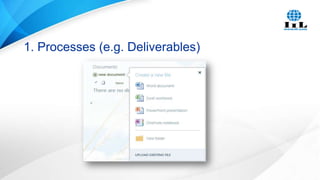
1. Processes (e.g. Deliverables)
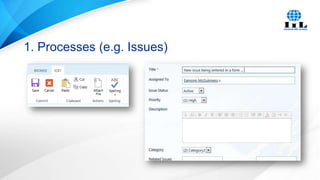
1. Processes (e.g. Issues)
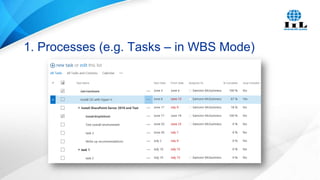
1. Processes (e.g. Tasks – in WBS Mode)
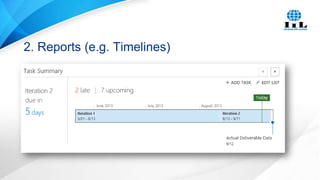
2. Reports (e.g. Timelines)
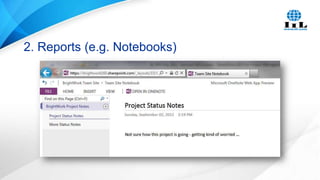
2. Reports (e.g. Notebooks)
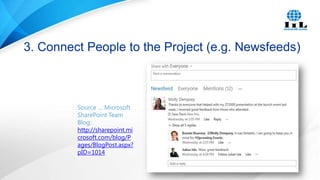
3. Connect People to the Project (e.g. Newsfeeds)

Source … Microsoft
SharePoint Team
Blog:
http://sharepoint.mi
crosoft.com/blog/P
ages/BlogPost.aspx?
pID=1014
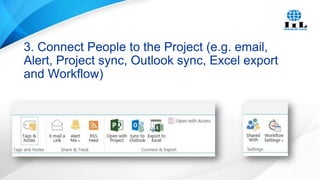
3. Connect People to the Project (e.g. email,
Alert, Project sync, Outlook sync, Excel export
and Workflow)
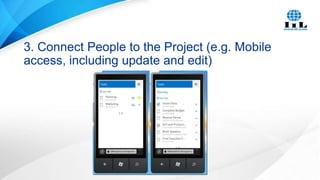
3. Connect People to the Project (e.g. Mobile
access, including update and edit)
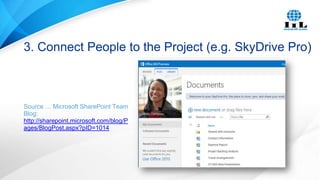
3. Connect People to the Project (e.g. SkyDrive Pro)

Source … Microsoft SharePoint Team
Blog:
http://sharepoint.microsoft.com/blog/P
ages/BlogPost.aspx?pID=1014
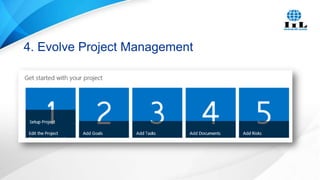
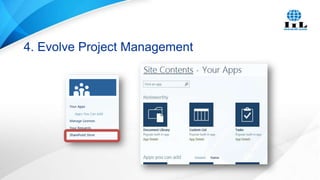
4. Evolve Project Management
Session Contents
1. SharePoint 2013 for Project Management
2. Project 2013 – the sync with SharePoint 2013
3. Getting to the Next Level with SharePoint and Project
4. Extra Resources – incl. Free SharePoint PM Template
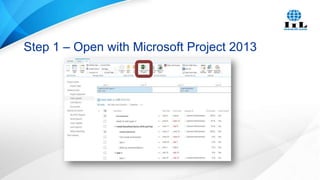
Step 1 – Open with Microsoft Project 2013
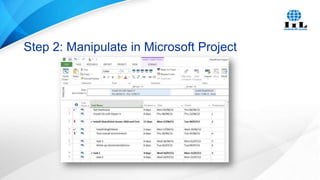
Step 2: Manipulate in Microsoft Project
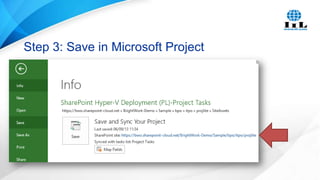
Step 3: Save in Microsoft Project
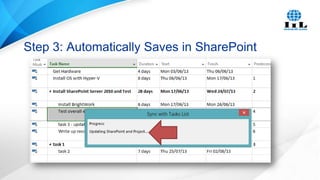
Step 3: Automatically Saves in SharePoint
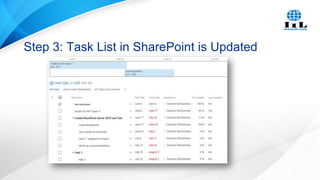
Step 3: Task List in SharePoint is Updated
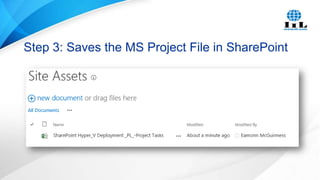
Step 3: Saves the MS Project File in SharePoint
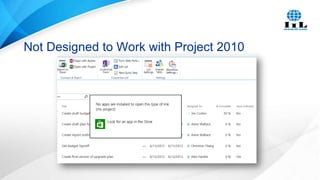
Not Designed to Work with Project 2010
Project 2013 Sync Update – 1
As before requires Project Professional 2013
Now deals with stuff it used to reject, e.g.
a space at the start of a Task Name
unsupported characters in the Task Name
characters like !=-(*&^%$£” etc.
all supported without issue

Very happy to say it now manages
Lead and Lag
Relationships other than FS SS, SF, FF
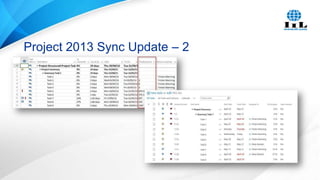
Project 2013 Sync Update – 2
Session Contents
1. SharePoint 2013 for Project Management
2. Project 2013 – the sync with SharePoint 2013
3. Getting to the Next Level with SharePoint and

Project
4. Extra Resources – incl. Free SharePoint PM Template
http://bit.ly/14wvvlt

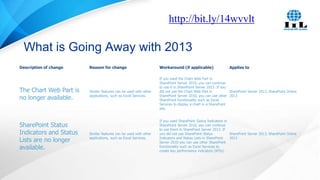
What is Going Away with 2013
Description of change

The Chart Web Part is
no longer available.

SharePoint Status
Indicators and Status
Lists are no longer
available.

Reason for change

Workaround (if applicable)

Applies to

Similar features can be used with other
applications, such as Excel Services.

If you used the Chart Web Part in
SharePoint Server 2010, you can continue
to use it in SharePoint Server 2013. If you
did not use the Chart Web Part in
SharePoint Server 2013, SharePoint Online
SharePoint Server 2010, you can use other 2013
SharePoint functionality such as Excel
Services to display a chart in a SharePoint
site.

Similar features can be used with other
applications, such as Excel Services.

If you used SharePoint Status Indicators in
SharePoint Server 2010, you can continue
to use them in SharePoint Server 2013. If
you did not use SharePoint Status
SharePoint Server 2013, SharePoint Online
Indicators and Status Lists in SharePoint
2013
Server 2010 you can use other SharePoint
functionality such as Excel Services to
create key performance indicators (KPIs).
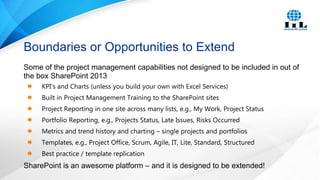
Boundaries or Opportunities to Extend
Some of the project management capabilities not designed to be included in out of
the box SharePoint 2013
KPI’s and Charts (unless you build your own with Excel Services)
Built in Project Management Training to the SharePoint sites
Project Reporting in one site across many lists, e.g., My Work, Project Status
Portfolio Reporting, e.g., Projects Status, Late Issues, Risks Occurred
Metrics and trend history and charting – single projects and portfolios
Templates, e.g., Project Office, Scrum, Agile, IT, Lite, Standard, Structured
Best practice / template replication

SharePoint is an awesome platform – and it is designed to be extended!
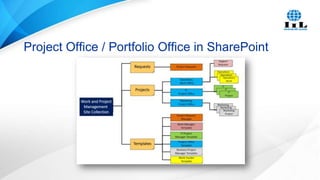
Project Office / Portfolio Office in SharePoint
Session Contents
1. SharePoint 2013 for Project Management
2. Project 2013 – the sync with SharePoint 2013
3. Getting to the Next Level with SharePoint and Project
4. Extra Resources – incl. Free SharePoint PM

Template
Time Out and Reflection – After
Would you now consider using SharePoint to manage projects?
1.

No

2.

Yes – we will use SharePoint for some projects

3.

Yes – we will use SharePoint for most or all projects

4.

Yes – we will use SharePoint and Microsoft® Project synchronized on many
projects
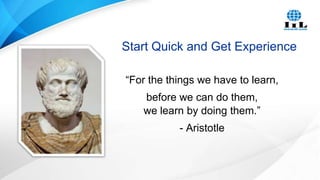
Start Quick and Get Experience
“For the things we have to learn,
before we can do them,
we learn by doing them.”
- Aristotle
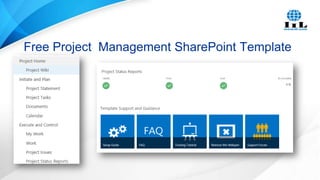
Free Project Management SharePoint Template
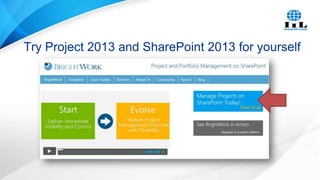
Try Project 2013 and SharePoint 2013 for yourself
Questions?
Intelligence – Integrity – Innovation
We invite you to take a closer look at what we can accomplish together.
Please visit iil.com or contact learning@iil.com to learn more about our
training, consulting, coaching, customized courses and other pathways
for professional development.

Connect with Us:
facebook.com/IIL.Inc
@IILGlobal
bit.ly/IILlinkedin
©2013 International Institute for Learning, Inc., All rights reserved.

bit.ly/IILgoogle
youtube.com/IILGlobal
allpm.com

Managing Projects - Never Been Easier

  • 1.
    Managing Projects –Never Been Easier – Project 2013 and SharePoint 2013 Éamonn McGuinness, BrightWork CEO
  • 2.
    Session Description Managing Projects– Never Been Easier – Project and SharePoint 2013 Microsoft SharePoint 2013, with the new capabilities, is an awesome platform for project collaboration. Microsoft Project 2013 has a seriously improved two-way sync with SharePoint 2013. This session will look at and demo both – a Project Management match made in heaven!
  • 3.
    Presenter – ÉamonnMcGuinness, BrightWork emcguinness@brightwork.com Éamonn McGuinness is the CEO of BrightWork. Éamonn has been on various Microsoft® SharePoint advisory teams since 2000. He has over 25 years of executive experience at various technology organizations including The Armed Services, The United Nations, and Digital Equipment Corporation. He received his MSc from Dublin City University, Ireland. Since 1991 Éamonn has been involved in various international process and project management standards and was a TickIT/ISO 9001 Lead Auditor and a Software CMM (Capability Maturity Model) Lead Assessor. At BrightWork, he has worked with organizations like Microsoft®, Boeing, Eastman Kodak, Fedex, and the US Army assisting with the introduction of very pragmatic project management practices and project offices.
  • 4.
    Time Out andReflection – Before Do you use SharePoint and Project to manage projects today? 1. No 2. Yes – we use SharePoint for some projects 3. Yes – we use SharePoint for most or all projects 4. Yes – we use SharePoint and Microsoft® Project synchronized on many projects
  • 5.
    Session Contents 1. SharePoint2013 for Project Management 2. Project 2013 – the sync with SharePoint 2013 3. Getting to the Next Level with SharePoint and Project 4. Extra Resources – incl. Free SharePoint PM Template
  • 6.
    Session Contents 1. SharePoint2013 for Project Management 2. Project 2013 – the sync with SharePoint 2013 3. Getting to the Next Level with SharePoint and Project 4. Extra Resources – incl. Free SharePoint PM Template
  • 7.
    How to manageprojects – simple version! 1. Processes (e.g. Goals, Tasks, Issues, Risks, etc.) 2. Reports (e.g. Open Work, Overdue Issues, Resources, etc.) 3. Constantly connect the people on the project to the processes 4. Evolve and mature the way you manage projects
  • 8.
    1. Processes (e.g.Deliverables)
  • 9.
  • 10.
    1. Processes (e.g.Tasks – in WBS Mode)
  • 11.
    2. Reports (e.g.Timelines)
  • 12.
    2. Reports (e.g.Notebooks)
  • 13.
    3. Connect Peopleto the Project (e.g. Newsfeeds) Source … Microsoft SharePoint Team Blog: http://sharepoint.mi crosoft.com/blog/P ages/BlogPost.aspx? pID=1014
  • 14.
    3. Connect Peopleto the Project (e.g. email, Alert, Project sync, Outlook sync, Excel export and Workflow)
  • 15.
    3. Connect Peopleto the Project (e.g. Mobile access, including update and edit)
  • 16.
    3. Connect Peopleto the Project (e.g. SkyDrive Pro) Source … Microsoft SharePoint Team Blog: http://sharepoint.microsoft.com/blog/P ages/BlogPost.aspx?pID=1014
  • 17.
  • 18.
  • 19.
    Session Contents 1. SharePoint2013 for Project Management 2. Project 2013 – the sync with SharePoint 2013 3. Getting to the Next Level with SharePoint and Project 4. Extra Resources – incl. Free SharePoint PM Template
  • 20.
    Step 1 –Open with Microsoft Project 2013
  • 21.
    Step 2: Manipulatein Microsoft Project
  • 22.
    Step 3: Savein Microsoft Project
  • 23.
    Step 3: AutomaticallySaves in SharePoint
  • 24.
    Step 3: TaskList in SharePoint is Updated
  • 25.
    Step 3: Savesthe MS Project File in SharePoint
  • 26.
    Not Designed toWork with Project 2010
  • 27.
    Project 2013 SyncUpdate – 1 As before requires Project Professional 2013 Now deals with stuff it used to reject, e.g. a space at the start of a Task Name unsupported characters in the Task Name characters like !=-(*&^%$£” etc. all supported without issue Very happy to say it now manages Lead and Lag Relationships other than FS SS, SF, FF
  • 28.
    Project 2013 SyncUpdate – 2
  • 29.
    Session Contents 1. SharePoint2013 for Project Management 2. Project 2013 – the sync with SharePoint 2013 3. Getting to the Next Level with SharePoint and Project 4. Extra Resources – incl. Free SharePoint PM Template
  • 30.
    http://bit.ly/14wvvlt What is GoingAway with 2013 Description of change The Chart Web Part is no longer available. SharePoint Status Indicators and Status Lists are no longer available. Reason for change Workaround (if applicable) Applies to Similar features can be used with other applications, such as Excel Services. If you used the Chart Web Part in SharePoint Server 2010, you can continue to use it in SharePoint Server 2013. If you did not use the Chart Web Part in SharePoint Server 2013, SharePoint Online SharePoint Server 2010, you can use other 2013 SharePoint functionality such as Excel Services to display a chart in a SharePoint site. Similar features can be used with other applications, such as Excel Services. If you used SharePoint Status Indicators in SharePoint Server 2010, you can continue to use them in SharePoint Server 2013. If you did not use SharePoint Status SharePoint Server 2013, SharePoint Online Indicators and Status Lists in SharePoint 2013 Server 2010 you can use other SharePoint functionality such as Excel Services to create key performance indicators (KPIs).
  • 31.
    Boundaries or Opportunitiesto Extend Some of the project management capabilities not designed to be included in out of the box SharePoint 2013 KPI’s and Charts (unless you build your own with Excel Services) Built in Project Management Training to the SharePoint sites Project Reporting in one site across many lists, e.g., My Work, Project Status Portfolio Reporting, e.g., Projects Status, Late Issues, Risks Occurred Metrics and trend history and charting – single projects and portfolios Templates, e.g., Project Office, Scrum, Agile, IT, Lite, Standard, Structured Best practice / template replication SharePoint is an awesome platform – and it is designed to be extended!
  • 32.
    Project Office /Portfolio Office in SharePoint
  • 33.
    Session Contents 1. SharePoint2013 for Project Management 2. Project 2013 – the sync with SharePoint 2013 3. Getting to the Next Level with SharePoint and Project 4. Extra Resources – incl. Free SharePoint PM Template
  • 34.
    Time Out andReflection – After Would you now consider using SharePoint to manage projects? 1. No 2. Yes – we will use SharePoint for some projects 3. Yes – we will use SharePoint for most or all projects 4. Yes – we will use SharePoint and Microsoft® Project synchronized on many projects
  • 35.
    Start Quick andGet Experience “For the things we have to learn, before we can do them, we learn by doing them.” - Aristotle
  • 36.
    Free Project ManagementSharePoint Template
  • 37.
    Try Project 2013and SharePoint 2013 for yourself
  • 38.
  • 39.
    Intelligence – Integrity– Innovation We invite you to take a closer look at what we can accomplish together. Please visit iil.com or contact learning@iil.com to learn more about our training, consulting, coaching, customized courses and other pathways for professional development. Connect with Us: facebook.com/IIL.Inc @IILGlobal bit.ly/IILlinkedin ©2013 International Institute for Learning, Inc., All rights reserved. bit.ly/IILgoogle youtube.com/IILGlobal allpm.com