INTRODUCTION TO MATLAB
NED University of Engineering & Technology
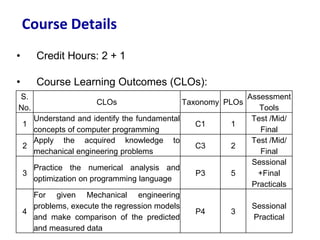
• Credit Hours: 2 + 1
• Course Learning Outcomes (CLOs):
Course Details
S.
No.
CLOs Taxonomy PLOs
Assessment
Tools
1
Understand and identify the fundamental
concepts of computer programming
C1 1
Test /Mid/
Final
2
Apply the acquired knowledge to
mechanical engineering problems
C3 2
Test /Mid/
Final
3
Practice the numerical analysis and
optimization on programming language
P3 5
Sessional
+Final
Practicals
4
For given Mechanical engineering
problems, execute the regression models
and make comparison of the predicted
and measured data
P4 3
Sessional
Practical
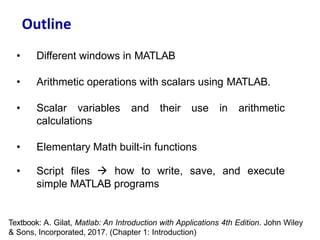
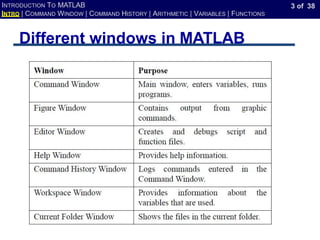
• Different windows in MATLAB
• Arithmetic operations with scalars using MATLAB.
• Scalar variables and their use in arithmetic
calculations
• Elementary Math built-in functions
• Script files → how to write, save, and execute
simple MATLAB programs
Outline
Textbook: A. Gilat, Matlab: An Introduction with Applications 4th Edition. John Wiley
& Sons, Incorporated, 2017. (Chapter 1: Introduction)
3 of 38
INTRODUCTION TO MATLAB
INTRO | COMMAND WINDOW | COMMAND HISTORY | ARITHMETIC | VARIABLES | FUNCTIONS
Different windows in MATLAB
4 of 38
INTRODUCTION TO MATLAB
INTRO | COMMAND WINDOW | COMMAND HISTORY | ARITHMETIC | VARIABLES | FUNCTIONS
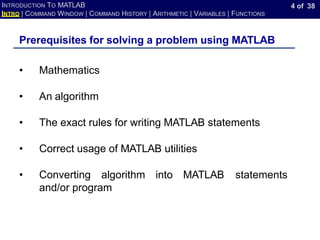
Prerequisites for solving a problem using MATLAB
• Mathematics
• An algorithm
• The exact rules for writing MATLAB statements
• Correct usage of MATLAB utilities
• Converting algorithm into MATLAB statements
and/or program
5 of 38
INTRODUCTION TO MATLAB
INTRO | COMMAND WINDOW | COMMAND HISTORY | ARITHMETIC | VARIABLES | FUNCTIONS
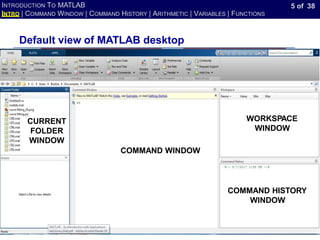
Default view of MATLAB desktop
COMMAND WINDOW
WORKSPACE
WINDOW
COMMAND HISTORY
WINDOW
CURRENT
FOLDER
WINDOW
6 of 38
INTRODUCTION TO MATLAB
INTRO | COMMAND WINDOW | COMMAND HISTORY | ARITHMETIC | VARIABLES | FUNCTIONS
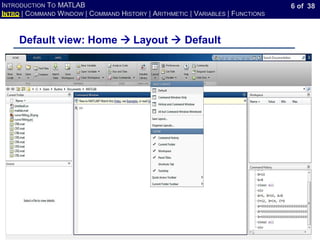
Default view: Home → Layout → Default
7 of 38
INTRODUCTION TO MATLAB
INTRO | COMMAND WINDOW | COMMAND HISTORY | ARITHMETIC | VARIABLES | FUNCTIONS
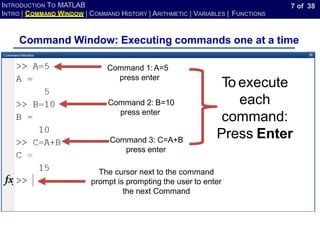
• Main window: For executing commands
• Command line: The line with command prompt >>
Command Window: Executing commands one at a time
Command 1:A=5
press enter
Command 2: B=10
press enter
Command 3: C=A+B
press enter
To execute
each
command:
Press Enter
The cursor next to the command
prompt is prompting the user to enter
the next Command
8 of 38
INTRODUCTION TO MATLAB
INTRO | COMMAND WINDOW | COMMAND HISTORY | ARITHMETIC | VARIABLES | FUNCTIONS
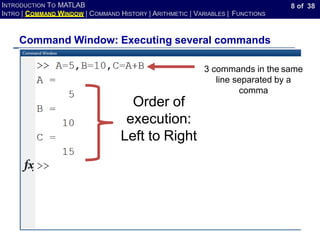
Command Window: Executing several commands
3 commands in the same
line separated by a
comma
Order of
execution:
Left to Right
9 of 38
INTRODUCTION TO MATLAB
INTRO | COMMAND WINDOW | COMMAND HISTORY | ARITHMETIC | VARIABLES | FUNCTIONS
Command Window: Editing
• Editing:
The already executed command can not be corrected
and re-executed
10 of 38
INTRODUCTION TO MATLAB
INTRO | COMMAND WINDOW | COMMAND HISTORY | ARITHMETIC | VARIABLES | FUNCTIONS
Command Window: Editing
Command-line editing:
• Left-arrow, Right-arrow
• Up-arrow and Down-arrow for accessing history
• Smart recall: type some character and press
Up-arrow and Down-arrow
11 of 38
INTRODUCTION TO MATLAB
INTRO | COMMAND WINDOW | COMMAND HISTORY | ARITHMETIC | VARIABLES | FUNCTIONS
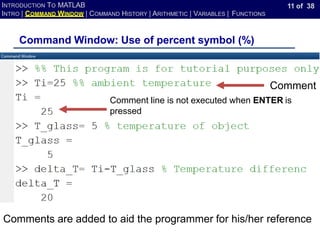
Command Window: Use of percent symbol (%)
Comment
Comment line is not executed when ENTER is
pressed
Comments are added to aid the programmer for his/her reference
12 of 38
INTRODUCTION TO MATLAB
INTRO | COMMAND WINDOW | COMMAND HISTORY | ARITHMETIC | VARIABLES | FUNCTIONS
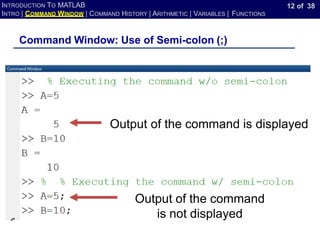
Command Window: Use of Semi-colon (;)
Output of the command is displayed
Output of the command
is not displayed
13 of 38
INTRODUCTION TO MATLAB
INTRO | COMMAND WINDOW | COMMAND HISTORY | ARITHMETIC | VARIABLES | FUNCTIONS
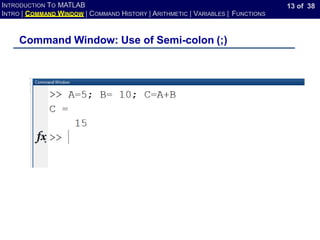
Command Window: Use of Semi-colon (;)
14 of 38
INTRODUCTION TO MATLAB
INTRO | COMMAND WINDOW | COMMAND HISTORY | ARITHMETIC | VARIABLES | FUNCTIONS
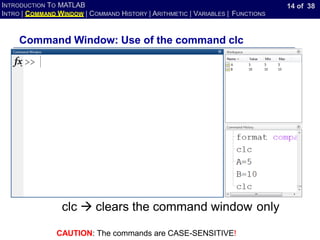
Command Window: Use of the command clc
clc → clears the command window only
CAUTION: The commands are CASE-SENSITIVE!
15 of 38
INTRODUCTION TO MATLAB
INTRO | COMMAND WINDOW | COMMAND HISTORY | ARITHMETIC | VARIABLES | FUNCTIONS
Drawbacks of a command window
• The commands in the Command window
cannot be saved and executed again.
• It is not interactive.
• Already executed command can not be
modified
• Better option: script file
16 of 38
INTRODUCTION TO MATLAB
INTRO | COMMAND WINDOW | COMMAND HISTORY | ARITHMETIC | VARIABLES | FUNCTIONS
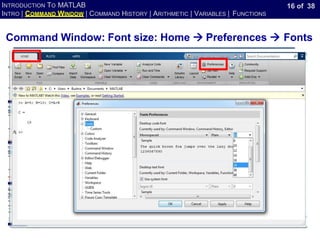
Command Window: Font size: Home → Preferences → Fonts
17 of 38
INTRODUCTION TO MATLAB
INTRO | COMMAND WINDOW | COMMAND HISTORY | ARITHMETIC | VARIABLES | FUNCTIONS
Useful commands you should know
CAUTION: The commands are CASE-SENSITIVE!
• help → lists all the primary help topics.
• help <command> → displays information about the command.
• doc On-line help → accesses the hypertext reference manual.
for this
• doc <command> → displays information about the command.
• type <command> → Displays the actual MATLAB code
command.
• lookfor <keyword> → Searches all MATLAB commands for this
keyword.
18 of 38
INTRODUCTION TO MATLAB
INTRO | COMMAND WINDOW | COMMAND HISTORY | ARITHMETIC | VARIABLES | FUNCTIONS
Useful commands you should know
ATTENTION: The commands are CASE-SENSITIVE!
• who → Lists all the current variables.
• whos → Lists all the current variables in more detail than who.
• save → Saves all of your variables.
• ^C → Abort the command which is currently executing (i.e., hold down
the control key and type c).
19 of 38
INTRODUCTION TO MATLAB
INTRO | COMMAND WINDOW | COMMAND HISTORY | ARITHMETIC | VARIABLES | FUNCTIONS
Useful commands you should know
ATTENTION: The commands are CASE-SENSITIVE!
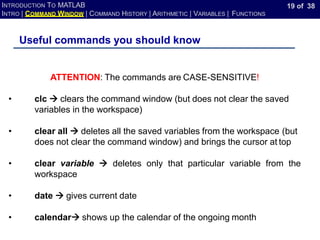
• clc → clears the command window (but does not clear the saved
variables in the workspace)
• clear all → deletes all the saved variables from the workspace (but
does not clear the command window) and brings the cursor at top
• clear variable → deletes only that particular variable from the
workspace
• date → gives current date
• calendar→ shows up the calendar of the ongoing month
20 of 38
INTRODUCTION TO MATLAB
INTRO | COMMAND WINDOW | COMMAND HISTORY | ARITHMETIC | VARIABLES | FUNCTIONS
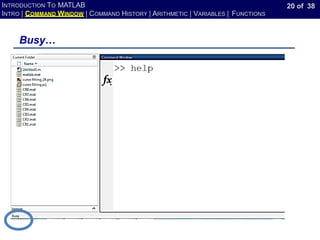
Busy…
21 of 38
INTRODUCTION TO MATLAB
INTRO | COMMAND WINDOW | COMMAND HISTORY | ARITHMETIC | VARIABLES | FUNCTIONS
Command History
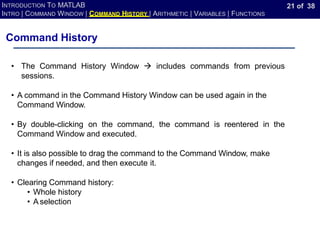
• The Command History Window → includes commands from previous
sessions.
• A command in the Command History Window can be used again in the
Command Window.
• By double-clicking on the command, the command is reentered in the
Command Window and executed.
• It is also possible to drag the command to the Command Window, make
changes if needed, and then execute it.
• Clearing Command history:
• Whole history
• A selection
22 of 38
INTRODUCTION TO MATLAB
INTRO | COMMAND WINDOW | COMMAND HISTORY | ARITHMETIC | VARIABLES | FUNCTIONS
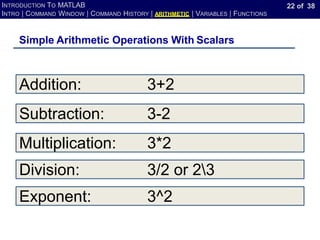
Simple Arithmetic Operations With Scalars
Addition: 3+2
Subtraction: 3-2
Multiplication: 3*2
Division: 3/2 or 23
Exponent: 3^2
23 of 38
INTRODUCTION TO MATLAB
INTRO | COMMAND WINDOW | COMMAND HISTORY | ARITHMETIC | VARIABLES | FUNCTIONS
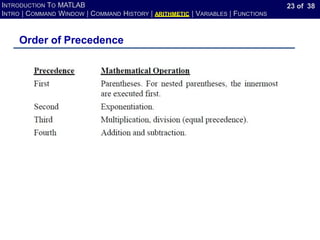
Order of Precedence
24 of 38
INTRODUCTION TO MATLAB
INTRO | COMMAND WINDOW | COMMAND HISTORY | ARITHMETIC | VARIABLES | FUNCTIONS
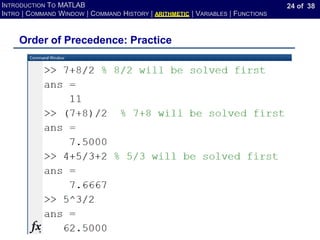
Order of Precedence: Practice
25 of 38
INTRODUCTION TO MATLAB
INTRO | COMMAND WINDOW | COMMAND HISTORY | ARITHMETIC | VARIABLES | FUNCTIONS
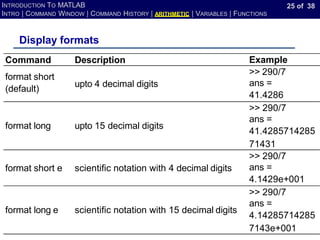
Display formats
Command Description Example
format short
(default)
upto 4 decimal digits
>> 290/7
ans =
41.4286
format long upto 15 decimal digits
>> 290/7
ans =
41.4285714285
71431
format short e scientific notation with 4 decimal digits
>> 290/7
ans =
4.1429e+001
format long e scientific notation with 15 decimal digits
>> 290/7
ans =
4.14285714285
7143e+001
26 of 38
INTRODUCTION TO MATLAB
INTRO | COMMAND WINDOW | COMMAND HISTORY | ARITHMETIC | VARIABLES | FUNCTIONS
Example
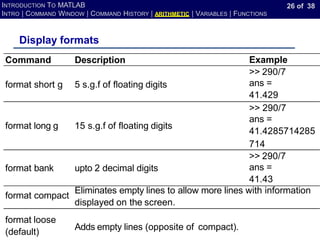
Display formats
Command Description
format short g 5 s.g.f of floating digits
>> 290/7
ans =
41.429
format long g 15 s.g.f of floating digits
>> 290/7
ans =
41.4285714285
714
format bank upto 2 decimal digits
>> 290/7
ans =
41.43
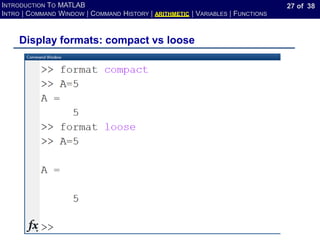
format loose
(default)
Adds empty lines (opposite of compact).
format compact
Eliminates empty lines to allow more lines with information
displayed on the screen.
27 of 38
INTRODUCTION TO MATLAB
INTRO | COMMAND WINDOW | COMMAND HISTORY | ARITHMETIC | VARIABLES | FUNCTIONS
Display formats: compact vs loose
28 of 38
INTRODUCTION TO MATLAB
INTRO | COMMAND WINDOW | COMMAND HISTORY | ARITHMETIC | VARIABLES | FUNCTIONS
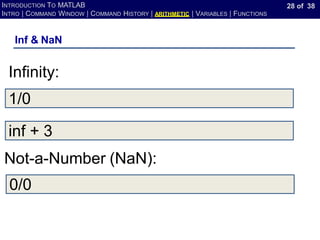
Inf & NaN
1/0
Infinity:
inf + 3
Not-a-Number (NaN):
0/0
29 of 38
INTRODUCTION TO MATLAB
INTRO | COMMAND WINDOW | COMMAND HISTORY | ARITHMETIC | VARIABLES | FUNCTIONS
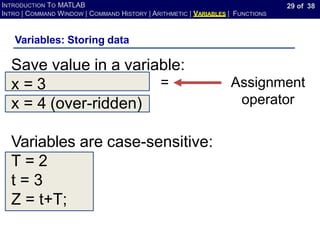
Variables: Storing data
Save value in a variable:
x = 3
x = 4 (over-ridden)
Variables are case-sensitive:
T = 2
t = 3
Z = t+T;
Assignment
operator
=
30 of 38
INTRODUCTION TO MATLAB
INTRO | COMMAND WINDOW | COMMAND HISTORY | ARITHMETIC | VARIABLES | FUNCTIONS
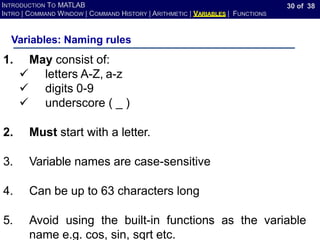
Variables: Naming rules
1. May consist of:
✓ letters A-Z, a-z
✓ digits 0-9
✓ underscore ( _ )
2. Must start with a letter.
3. Variable names are case-sensitive
4. Can be up to 63 characters long
5. Avoid using the built-in functions as the variable
name e.g. cos, sin, sqrt etc.
31 of 38
INTRODUCTION TO MATLAB
INTRO | COMMAND WINDOW | COMMAND HISTORY | ARITHMETIC | VARIABLES | FUNCTIONS
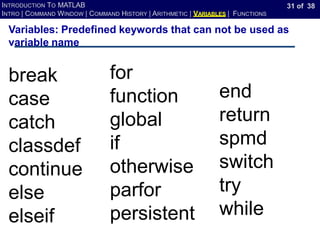
Variables: Predefined keywords that can not be used as
variable name
for
function
global
if
otherwise
parfor
persistent
break
case
catch
classdef
continue
else
elseif
end
return
spmd
switch
try
while
32 of 38
INTRODUCTION TO MATLAB
INTRO | COMMAND WINDOW | COMMAND HISTORY | ARITHMETIC | VARIABLES | FUNCTIONS
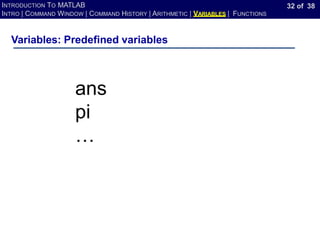
Variables: Predefined variables
ans
pi
…
33 of 38
INTRODUCTION TO MATLAB
INTRO | COMMAND WINDOW | COMMAND HISTORY | ARITHMETIC | VARIABLES | FUNCTIONS
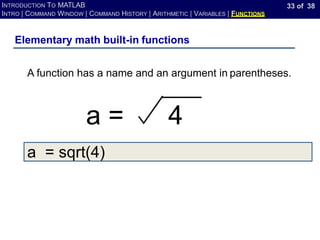
a = sqrt(4)
Elementary math built-in functions
A function has a name and an argument in parentheses.
a = 4
34 of 38
INTRODUCTION TO MATLAB
INTRO | COMMAND WINDOW | COMMAND HISTORY | ARITHMETIC | VARIABLES | FUNCTIONS
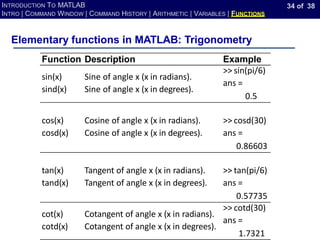
Elementary functions in MATLAB: Trigonometry
Function Description Example
sin(x)
sind(x)
Sine of angle x (x in radians).
Sine of angle x (x in degrees).
>> sin(pi/6)
ans =
0.5
cos(x)
cosd(x)
Cosine of angle x (x in radians).
Cosine of angle x (x in degrees).
>> cosd(30)
ans =
0.86603
tan(x)
tand(x)
Tangent of angle x (x in radians).
Tangent of angle x (x in degrees).
>> tan(pi/6)
ans =
0.57735
cot(x)
cotd(x)
Cotangent of angle x (x in radians).
Cotangent of angle x (x in degrees).
>> cotd(30)
ans =
1.7321
35 of 38
INTRODUCTION TO MATLAB
INTRO | COMMAND WINDOW | COMMAND HISTORY | ARITHMETIC | VARIABLES | FUNCTIONS
Elementary functions in MATLAB: Trigonometry
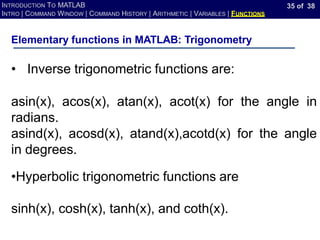
• Inverse trigonometric functions are:
asin(x), acos(x), atan(x), acot(x) for the angle in
radians.
asind(x), acosd(x), atand(x),acotd(x) for the angle
in degrees.
•Hyperbolic trigonometric functions are
sinh(x), cosh(x), tanh(x), and coth(x).
36 of 38
INTRODUCTION TO MATLAB
INTRO | COMMAND WINDOW | COMMAND HISTORY | ARITHMETIC | VARIABLES | FUNCTIONS
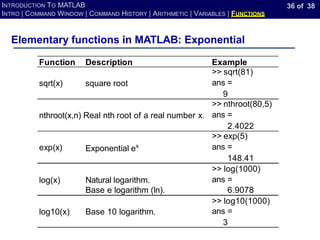
Elementary functions in MATLAB: Exponential
Function Description Example
sqrt(x) square root
>> sqrt(81)
ans =
9
nthroot(x,n) Real nth root of a real number x.
>> nthroot(80,5)
ans =
2.4022
exp(x) Exponential ex
>> exp(5)
ans =
148.41
3
log(x) Natural logarithm.
>> log(1000)
ans =
Base e logarithm (ln). 6.9078
log10(x) Base 10 logarithm.
>> log10(1000)
ans =
37 of 38
INTRODUCTION TO MATLAB
INTRO | COMMAND WINDOW | COMMAND HISTORY | ARITHMETIC | VARIABLES | FUNCTIONS
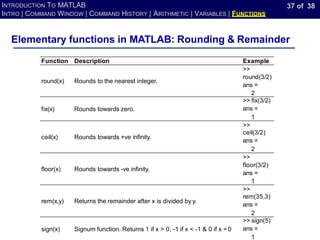
Elementary functions in MATLAB: Rounding & Remainder
Function Description Example
round(x) Rounds to the nearest integer.
>>
round(3/2)
ans =
2
fix(x) Rounds towards zero.
>> fix(3/2)
ans =
1
ceil(x) Rounds towards +ve infinity.
>>
ceil(3/2)
ans =
2
floor(x) Rounds towards -ve infinity.
>>
floor(3/2)
ans =
1
rem(x,y) Returns the remainder after x is divided by y.
>>
rem(35,3)
ans =
2
sign(x) Signum function. Returns 1 if x > 0, -1 if x < -1 & 0 if x =0
>> sign(5)
ans =
1
38 of 38
INTRODUCTION TO MATLAB
INTRO | COMMAND WINDOW | COMMAND HISTORY | ARITHMETIC | VARIABLES | FUNCTIONS
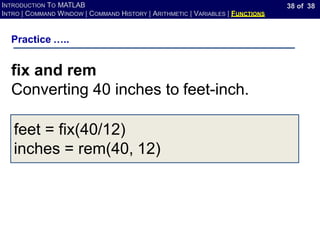
Practice …..
fix and rem
Converting 40 inches to feet-inch.
feet = fix(40/12)
inches = rem(40, 12)

Chapter 1.pdf

  • 1.
    INTRODUCTION TO MATLAB NEDUniversity of Engineering & Technology
  • 2.
    • Credit Hours:2 + 1 • Course Learning Outcomes (CLOs): Course Details S. No. CLOs Taxonomy PLOs Assessment Tools 1 Understand and identify the fundamental concepts of computer programming C1 1 Test /Mid/ Final 2 Apply the acquired knowledge to mechanical engineering problems C3 2 Test /Mid/ Final 3 Practice the numerical analysis and optimization on programming language P3 5 Sessional +Final Practicals 4 For given Mechanical engineering problems, execute the regression models and make comparison of the predicted and measured data P4 3 Sessional Practical
  • 3.
    • Different windowsin MATLAB • Arithmetic operations with scalars using MATLAB. • Scalar variables and their use in arithmetic calculations • Elementary Math built-in functions • Script files → how to write, save, and execute simple MATLAB programs Outline Textbook: A. Gilat, Matlab: An Introduction with Applications 4th Edition. John Wiley & Sons, Incorporated, 2017. (Chapter 1: Introduction)
  • 4.
    3 of 38 INTRODUCTIONTO MATLAB INTRO | COMMAND WINDOW | COMMAND HISTORY | ARITHMETIC | VARIABLES | FUNCTIONS Different windows in MATLAB
  • 5.
    4 of 38 INTRODUCTIONTO MATLAB INTRO | COMMAND WINDOW | COMMAND HISTORY | ARITHMETIC | VARIABLES | FUNCTIONS Prerequisites for solving a problem using MATLAB • Mathematics • An algorithm • The exact rules for writing MATLAB statements • Correct usage of MATLAB utilities • Converting algorithm into MATLAB statements and/or program
  • 6.
    5 of 38 INTRODUCTIONTO MATLAB INTRO | COMMAND WINDOW | COMMAND HISTORY | ARITHMETIC | VARIABLES | FUNCTIONS Default view of MATLAB desktop COMMAND WINDOW WORKSPACE WINDOW COMMAND HISTORY WINDOW CURRENT FOLDER WINDOW
  • 7.
    6 of 38 INTRODUCTIONTO MATLAB INTRO | COMMAND WINDOW | COMMAND HISTORY | ARITHMETIC | VARIABLES | FUNCTIONS Default view: Home → Layout → Default
  • 8.
    7 of 38 INTRODUCTIONTO MATLAB INTRO | COMMAND WINDOW | COMMAND HISTORY | ARITHMETIC | VARIABLES | FUNCTIONS • Main window: For executing commands • Command line: The line with command prompt >> Command Window: Executing commands one at a time Command 1:A=5 press enter Command 2: B=10 press enter Command 3: C=A+B press enter To execute each command: Press Enter The cursor next to the command prompt is prompting the user to enter the next Command
  • 9.
    8 of 38 INTRODUCTIONTO MATLAB INTRO | COMMAND WINDOW | COMMAND HISTORY | ARITHMETIC | VARIABLES | FUNCTIONS Command Window: Executing several commands 3 commands in the same line separated by a comma Order of execution: Left to Right
  • 10.
    9 of 38 INTRODUCTIONTO MATLAB INTRO | COMMAND WINDOW | COMMAND HISTORY | ARITHMETIC | VARIABLES | FUNCTIONS Command Window: Editing • Editing: The already executed command can not be corrected and re-executed
  • 11.
    10 of 38 INTRODUCTIONTO MATLAB INTRO | COMMAND WINDOW | COMMAND HISTORY | ARITHMETIC | VARIABLES | FUNCTIONS Command Window: Editing Command-line editing: • Left-arrow, Right-arrow • Up-arrow and Down-arrow for accessing history • Smart recall: type some character and press Up-arrow and Down-arrow
  • 12.
    11 of 38 INTRODUCTIONTO MATLAB INTRO | COMMAND WINDOW | COMMAND HISTORY | ARITHMETIC | VARIABLES | FUNCTIONS Command Window: Use of percent symbol (%) Comment Comment line is not executed when ENTER is pressed Comments are added to aid the programmer for his/her reference
  • 13.
    12 of 38 INTRODUCTIONTO MATLAB INTRO | COMMAND WINDOW | COMMAND HISTORY | ARITHMETIC | VARIABLES | FUNCTIONS Command Window: Use of Semi-colon (;) Output of the command is displayed Output of the command is not displayed
  • 14.
    13 of 38 INTRODUCTIONTO MATLAB INTRO | COMMAND WINDOW | COMMAND HISTORY | ARITHMETIC | VARIABLES | FUNCTIONS Command Window: Use of Semi-colon (;)
  • 15.
    14 of 38 INTRODUCTIONTO MATLAB INTRO | COMMAND WINDOW | COMMAND HISTORY | ARITHMETIC | VARIABLES | FUNCTIONS Command Window: Use of the command clc clc → clears the command window only CAUTION: The commands are CASE-SENSITIVE!
  • 16.
    15 of 38 INTRODUCTIONTO MATLAB INTRO | COMMAND WINDOW | COMMAND HISTORY | ARITHMETIC | VARIABLES | FUNCTIONS Drawbacks of a command window • The commands in the Command window cannot be saved and executed again. • It is not interactive. • Already executed command can not be modified • Better option: script file
  • 17.
    16 of 38 INTRODUCTIONTO MATLAB INTRO | COMMAND WINDOW | COMMAND HISTORY | ARITHMETIC | VARIABLES | FUNCTIONS Command Window: Font size: Home → Preferences → Fonts
  • 18.
    17 of 38 INTRODUCTIONTO MATLAB INTRO | COMMAND WINDOW | COMMAND HISTORY | ARITHMETIC | VARIABLES | FUNCTIONS Useful commands you should know CAUTION: The commands are CASE-SENSITIVE! • help → lists all the primary help topics. • help <command> → displays information about the command. • doc On-line help → accesses the hypertext reference manual. for this • doc <command> → displays information about the command. • type <command> → Displays the actual MATLAB code command. • lookfor <keyword> → Searches all MATLAB commands for this keyword.
  • 19.
    18 of 38 INTRODUCTIONTO MATLAB INTRO | COMMAND WINDOW | COMMAND HISTORY | ARITHMETIC | VARIABLES | FUNCTIONS Useful commands you should know ATTENTION: The commands are CASE-SENSITIVE! • who → Lists all the current variables. • whos → Lists all the current variables in more detail than who. • save → Saves all of your variables. • ^C → Abort the command which is currently executing (i.e., hold down the control key and type c).
  • 20.
    19 of 38 INTRODUCTIONTO MATLAB INTRO | COMMAND WINDOW | COMMAND HISTORY | ARITHMETIC | VARIABLES | FUNCTIONS Useful commands you should know ATTENTION: The commands are CASE-SENSITIVE! • clc → clears the command window (but does not clear the saved variables in the workspace) • clear all → deletes all the saved variables from the workspace (but does not clear the command window) and brings the cursor at top • clear variable → deletes only that particular variable from the workspace • date → gives current date • calendar→ shows up the calendar of the ongoing month
  • 21.
    20 of 38 INTRODUCTIONTO MATLAB INTRO | COMMAND WINDOW | COMMAND HISTORY | ARITHMETIC | VARIABLES | FUNCTIONS Busy…
  • 22.
    21 of 38 INTRODUCTIONTO MATLAB INTRO | COMMAND WINDOW | COMMAND HISTORY | ARITHMETIC | VARIABLES | FUNCTIONS Command History • The Command History Window → includes commands from previous sessions. • A command in the Command History Window can be used again in the Command Window. • By double-clicking on the command, the command is reentered in the Command Window and executed. • It is also possible to drag the command to the Command Window, make changes if needed, and then execute it. • Clearing Command history: • Whole history • A selection
  • 23.
    22 of 38 INTRODUCTIONTO MATLAB INTRO | COMMAND WINDOW | COMMAND HISTORY | ARITHMETIC | VARIABLES | FUNCTIONS Simple Arithmetic Operations With Scalars Addition: 3+2 Subtraction: 3-2 Multiplication: 3*2 Division: 3/2 or 23 Exponent: 3^2
  • 24.
    23 of 38 INTRODUCTIONTO MATLAB INTRO | COMMAND WINDOW | COMMAND HISTORY | ARITHMETIC | VARIABLES | FUNCTIONS Order of Precedence
  • 25.
    24 of 38 INTRODUCTIONTO MATLAB INTRO | COMMAND WINDOW | COMMAND HISTORY | ARITHMETIC | VARIABLES | FUNCTIONS Order of Precedence: Practice
  • 26.
    25 of 38 INTRODUCTIONTO MATLAB INTRO | COMMAND WINDOW | COMMAND HISTORY | ARITHMETIC | VARIABLES | FUNCTIONS Display formats Command Description Example format short (default) upto 4 decimal digits >> 290/7 ans = 41.4286 format long upto 15 decimal digits >> 290/7 ans = 41.4285714285 71431 format short e scientific notation with 4 decimal digits >> 290/7 ans = 4.1429e+001 format long e scientific notation with 15 decimal digits >> 290/7 ans = 4.14285714285 7143e+001
  • 27.
    26 of 38 INTRODUCTIONTO MATLAB INTRO | COMMAND WINDOW | COMMAND HISTORY | ARITHMETIC | VARIABLES | FUNCTIONS Example Display formats Command Description format short g 5 s.g.f of floating digits >> 290/7 ans = 41.429 format long g 15 s.g.f of floating digits >> 290/7 ans = 41.4285714285 714 format bank upto 2 decimal digits >> 290/7 ans = 41.43 format loose (default) Adds empty lines (opposite of compact). format compact Eliminates empty lines to allow more lines with information displayed on the screen.
  • 28.
    27 of 38 INTRODUCTIONTO MATLAB INTRO | COMMAND WINDOW | COMMAND HISTORY | ARITHMETIC | VARIABLES | FUNCTIONS Display formats: compact vs loose
  • 29.
    28 of 38 INTRODUCTIONTO MATLAB INTRO | COMMAND WINDOW | COMMAND HISTORY | ARITHMETIC | VARIABLES | FUNCTIONS Inf & NaN 1/0 Infinity: inf + 3 Not-a-Number (NaN): 0/0
  • 30.
    29 of 38 INTRODUCTIONTO MATLAB INTRO | COMMAND WINDOW | COMMAND HISTORY | ARITHMETIC | VARIABLES | FUNCTIONS Variables: Storing data Save value in a variable: x = 3 x = 4 (over-ridden) Variables are case-sensitive: T = 2 t = 3 Z = t+T; Assignment operator =
  • 31.
    30 of 38 INTRODUCTIONTO MATLAB INTRO | COMMAND WINDOW | COMMAND HISTORY | ARITHMETIC | VARIABLES | FUNCTIONS Variables: Naming rules 1. May consist of: ✓ letters A-Z, a-z ✓ digits 0-9 ✓ underscore ( _ ) 2. Must start with a letter. 3. Variable names are case-sensitive 4. Can be up to 63 characters long 5. Avoid using the built-in functions as the variable name e.g. cos, sin, sqrt etc.
  • 32.
    31 of 38 INTRODUCTIONTO MATLAB INTRO | COMMAND WINDOW | COMMAND HISTORY | ARITHMETIC | VARIABLES | FUNCTIONS Variables: Predefined keywords that can not be used as variable name for function global if otherwise parfor persistent break case catch classdef continue else elseif end return spmd switch try while
  • 33.
    32 of 38 INTRODUCTIONTO MATLAB INTRO | COMMAND WINDOW | COMMAND HISTORY | ARITHMETIC | VARIABLES | FUNCTIONS Variables: Predefined variables ans pi …
  • 34.
    33 of 38 INTRODUCTIONTO MATLAB INTRO | COMMAND WINDOW | COMMAND HISTORY | ARITHMETIC | VARIABLES | FUNCTIONS a = sqrt(4) Elementary math built-in functions A function has a name and an argument in parentheses. a = 4
  • 35.
    34 of 38 INTRODUCTIONTO MATLAB INTRO | COMMAND WINDOW | COMMAND HISTORY | ARITHMETIC | VARIABLES | FUNCTIONS Elementary functions in MATLAB: Trigonometry Function Description Example sin(x) sind(x) Sine of angle x (x in radians). Sine of angle x (x in degrees). >> sin(pi/6) ans = 0.5 cos(x) cosd(x) Cosine of angle x (x in radians). Cosine of angle x (x in degrees). >> cosd(30) ans = 0.86603 tan(x) tand(x) Tangent of angle x (x in radians). Tangent of angle x (x in degrees). >> tan(pi/6) ans = 0.57735 cot(x) cotd(x) Cotangent of angle x (x in radians). Cotangent of angle x (x in degrees). >> cotd(30) ans = 1.7321
  • 36.
    35 of 38 INTRODUCTIONTO MATLAB INTRO | COMMAND WINDOW | COMMAND HISTORY | ARITHMETIC | VARIABLES | FUNCTIONS Elementary functions in MATLAB: Trigonometry • Inverse trigonometric functions are: asin(x), acos(x), atan(x), acot(x) for the angle in radians. asind(x), acosd(x), atand(x),acotd(x) for the angle in degrees. •Hyperbolic trigonometric functions are sinh(x), cosh(x), tanh(x), and coth(x).
  • 37.
    36 of 38 INTRODUCTIONTO MATLAB INTRO | COMMAND WINDOW | COMMAND HISTORY | ARITHMETIC | VARIABLES | FUNCTIONS Elementary functions in MATLAB: Exponential Function Description Example sqrt(x) square root >> sqrt(81) ans = 9 nthroot(x,n) Real nth root of a real number x. >> nthroot(80,5) ans = 2.4022 exp(x) Exponential ex >> exp(5) ans = 148.41 3 log(x) Natural logarithm. >> log(1000) ans = Base e logarithm (ln). 6.9078 log10(x) Base 10 logarithm. >> log10(1000) ans =
  • 38.
    37 of 38 INTRODUCTIONTO MATLAB INTRO | COMMAND WINDOW | COMMAND HISTORY | ARITHMETIC | VARIABLES | FUNCTIONS Elementary functions in MATLAB: Rounding & Remainder Function Description Example round(x) Rounds to the nearest integer. >> round(3/2) ans = 2 fix(x) Rounds towards zero. >> fix(3/2) ans = 1 ceil(x) Rounds towards +ve infinity. >> ceil(3/2) ans = 2 floor(x) Rounds towards -ve infinity. >> floor(3/2) ans = 1 rem(x,y) Returns the remainder after x is divided by y. >> rem(35,3) ans = 2 sign(x) Signum function. Returns 1 if x > 0, -1 if x < -1 & 0 if x =0 >> sign(5) ans = 1
  • 39.
    38 of 38 INTRODUCTIONTO MATLAB INTRO | COMMAND WINDOW | COMMAND HISTORY | ARITHMETIC | VARIABLES | FUNCTIONS Practice ….. fix and rem Converting 40 inches to feet-inch. feet = fix(40/12) inches = rem(40, 12)