Material Design
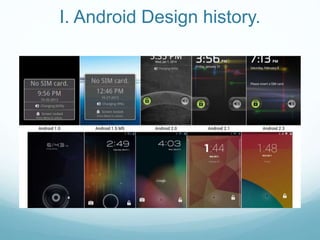
I. Android Design history.
II. What Is Material Design?
III. Material Design Layout.
IV. Material Design for developers.
V. Material Design pre Lollipop.
I. Android Design history.
II. What Is Material Design?
1. Environment.
2. Material Properties.
3. Elevetion and shadows.
1. Environment
A. 3D Word.
B. Light and shadows.
A. 3D Word
- The material environment is a 3D space.
- Standard 1dp thickness, equivalent to one pixel of thickness on
screens with a pixel density of 160.
B. Light and Shadow
- Shadows in the material environment are cast by these two light
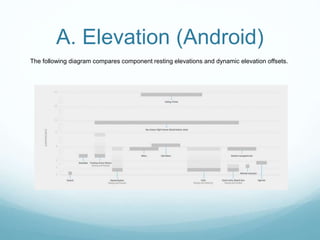
sources. In Android development, shadows occur when light sources
are blocked by sheets of material at various positions along the z-
axis.
2. Material properties
A. Physical properties.
B. Transforming material.
C. Movement of material.
A. Physical properties
The height and width of material can
vary.
Material is always 1dp thick.
Material has varying x & y dimensions (measured in dp) and a uniform thickness (1dp).
A. Physical properties
Shadows depict the relative elevation
between material elements.
Shadows are never approximated by
coloring material.
Shadows result naturally from the relative elevation (z-position) between material elements.
A. Physical properties
Content is displayed on material, in any shape and color. Content does not add thickness to material.
A. Physical properties
Content can behave independently of the material, but is limited within the bounds of the material.
A. Physical properties
Input events only affect the foreground
material.
Input events cannot pass through
material.
Material is solid.
Input events cannot pass through material.
A. Physical properties
Using elevation to separate material
elements is one method of preventing
multiple material elements from
occupying the same point in space
simultaneously.
Multiple material elements cannot
occupy the same point in space
simultaneously.
Multiple material elements cannot occupy the same point in space simultaneously
B. Transforming material
- Material can change shape
- Material grows and shrinks only along its plane.
- Material never bends or folds.
- Sheets of material can join together to become a single sheet of material.
- When split, material can heal. For example, if you remove a portion of material from a sheet of material, the
sheet of material will become a whole sheet again.
C. Movement of material
- Material can be spontaneously generated or destroyed anywhere in the
environment.
- Material can move along any axis.
- Z-axis motion is typically a result of user interaction with material.
3. Elevation and shadows
A. Elevation (Android)
B. Shadows
C.Object relationships
A. Elevation (Android)
Elevation is the relative depth, or distance, between two surfaces along the z-axis.
A. Elevation (Android)
All material objects, regardless of size, have a resting elevation, or default elevation that does not
change. If an object changes elevation, it should return to its resting elevation as soon as possible.
A. Elevation (Android)
The following diagram compares component resting elevations and dynamic elevation offsets.
B. Shadows
- Shadows provide important visual cues about objects’ depth and directional movement. They are
the only visual cue indicating the amount of separation between surfaces. An object’s elevation
determines the appearance of its shadow.
- In motion, shadows provide useful cues about an object’s direction of movement and whether the
distance between surfaces is increasing or decreasing.
Resting state: 6dp Pressed state: 12dp
C. Object relationships
Parent-child specifics:
i. Each object has one parent.
ii. Each object may have any number of
children.
iii. Children inherit transformative properties
from their parent, such as position, rotation,
scale, and elevation.
iv. Siblings are objects at the same level of
hierarchy.
III. Material Design Layout
1. Units and measurements
2. Metrics & keylines
1. Units and measurements
A. Pixel density
B. Density-independent pixels (dp)
C. Scaleable pixels (sp)
D. Designing layouts for dp
E. Image scaling
A. Pixel density
The number of pixels that fit into an inch is
referred to as “pixel density.” High-density
screens have more pixels per inch than low-
density ones. As a result, UI elements (such as
a button) appear physically larger on low-
density screens and smaller on high-density
screens.
Screen resolution refers to the total number
pixels in a display.
screen density = screen width (or height) in
pixels / screen width (or height) in inches
A. Pixel density
B. Density-independent pixels (dp)
"Density independence" refers to the uniform display of UI elements on screens with different
densities.
Density-independent pixels (pronounced “dips”) are flexible units that scale to uniform dimensions on
any screen. When developing an Android application, use dp to display elements uniformly on
screens with different densities.
B. Density-independent pixels (dp)
A dp is equal to one physical pixel on a screen with a density of 160. To calculate dp:
dp = (width in pixels * 160) / screen density
When writing CSS, use px wherever dp or sp is stated. Dp only needs to be used in developing for
Android.
C. Scaleable pixels (sp)
When developing for Android, scaleable pixels (sp) serve the same function as dp, but for fonts. The
default value of an sp is the same as the default value for dp.
The primary difference between an sp and a dp is that sp preserves a user's font settings. Users who
have larger text settings for accessibility will see the font size matched to their text size preferences.
D. Designing layouts for dp
When designing layouts for the screen, calculate an element’s measurements in dp:
dp = (width in pixels * 160) / density
For example, a 32 x 32 px icon with a screen density of 320 equals 16 x 16 dp.
E. Image scaling
Images can be scaled to look the same across different screen resolutions by using these ratios:
2. Metrics & keylines
A. Baseline grids
B. Keylines and spacing
C. Ratio keylines
D. Sizing by increments
E. Touch target size
2. Baseline grids
All components align to an 8dp square baseline grid for mobile, tablet, and desktop. Iconography in
toolbars align to a 4dp square baseline grid.
2. Keylines and spacing
Mobile List
A two-column, left-aligned list with a 56dp floating action button.
Keylines and margins
Screen edge left and right margins: 16dp
Content associated with an icon or avatar left margin: 72dp
Horizontal margins on mobile: 16dp.
Vertical spacing
1. Status bar: 24dp
2. Toolbar: 56dp
3. Subtitle: 48dp
4. List item: 72dp
2. Keylines and spacing
Keylines and margins
Screen edge left and right margins: 16dp
Content left margin from screen edge: 72dp
Vertical spacing
1. Status bar: 24dp
2. Toolbar: 56dp
3. Title and list items: 72dp
4. Subtitle: 48dp
5. Space between content areas: 8dp
2. Keylines and spacing
Mobile Detail view
A detail card with a 56dp floating action button..
Keylines and margins
Screen edge left and right margins: 16dp
Content left margin from screen edge: 72dp
Right-side icons align 32dp from the right edge to coordinate with the
floating action button.
Vertical spacing
1. Status bar: 24dp
2. Toolbar: 56dp
3. Space between content areas: 8dp
4. List item: 72dp
IV. Material Design for developers
1. Using the Material Theme.
2. Creating Lists and Cards
3. Defining Shadows and Clipping Views
4. Working with Drawables
5. Defining Custom Animations
6. Maintaining Compatibility
V. Material Design pre Lollipop.
1. Use App Compat Library.
dependencies {
compile "com.android.support:appcompat-v7:21.0.+"
}
values/themes.xml:
<style name="Theme.MyTheme" parent="Theme.AppCompat.Light">
<!-- Set AppCompat’s actionBarStyle -->
<item name="actionBarStyle">@style/MyActionBarStyle</item>
<!-- Set AppCompat’s color theming attrs -->
<item name="colorPrimary">@color/my_awesome_red</item>
<item name="colorPrimaryDark">@color/my_awesome_darker_red</item>
<!-- The rest of your attributes -->
</style>
2. Use some third party library support Material design for low version.
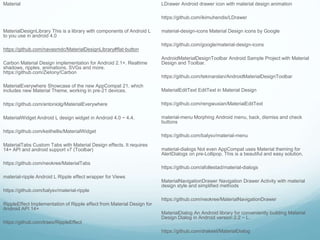
Material
MaterialDesignLibrary This is a library with components of Android L
to you use in android 4.0
https://github.com/navasmdc/MaterialDesignLibrary#flat-button
Carbon Material Design implementation for Android 2.1+. Realtime
shadows, ripples, animations, SVGs and more.
https://github.com/ZieIony/Carbon
MaterialEverywhere Showcase of the new AppCompat 21, which
includes new Material Theme, working in pre-21 devices.
https://github.com/antoniolg/MaterialEverywhere
MaterialWidget Android L design widget in Android 4.0 ~ 4.4.
https://github.com/keithellis/MaterialWidget
MaterialTabs Custom Tabs with Material Design effects. It requires
14+ API and android support v7 (Toolbar)
https://github.com/neokree/MaterialTabs
material-ripple Android L Ripple effect wrapper for Views
https://github.com/balysv/material-ripple
RippleEffect Implementation of Ripple effect from Material Design for
Android API 14+
https://github.com/traex/RippleEffect
LDrawer Android drawer icon with material design animation
https://github.com/ikimuhendis/LDrawer
material-design-icons Material Design icons by Google
https://github.com/google/material-design-icons
AndroidMaterialDesignToolbar Android Sample Project with Material
Design and Toolbar.
https://github.com/tekinarslan/AndroidMaterialDesignToolbar
MaterialEditText EditText in Material Design
https://github.com/rengwuxian/MaterialEditText
material-menu Morphing Android menu, back, dismiss and check
buttons
https://github.com/balysv/material-menu
material-dialogs Not even AppCompat uses Material theming for
AlertDialogs on pre-Lollipop. This is a beautiful and easy solution.
https://github.com/afollestad/material-dialogs
MaterialNavigationDrawer Navigation Drawer Activity with material
design style and simplified methods
https://github.com/neokree/MaterialNavigationDrawer
MaterialDialog An Android library for conveniently building Material
Design Dialog in Android version 2.2 ~ L.
https://github.com/drakeet/MaterialDialog
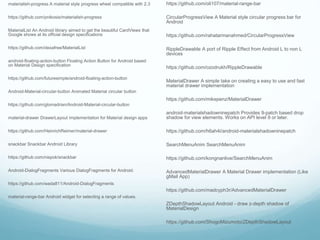
materialish-progress A material style progress wheel compatible with 2.3
https://github.com/pnikosis/materialish-progress
MaterialList An Android library aimed to get the beautiful CardViews that
Google shows at its official design specifications
https://github.com/dexafree/MaterialList
android-floating-action-button Floating Action Button for Android based
on Material Design specification
https://github.com/futuresimple/android-floating-action-button
Android-Material-circular-button Animated Material circular button
https://github.com/glomadrian/Android-Material-circular-button
material-drawer DrawerLayout implementation for Material design apps
https://github.com/HeinrichReimer/material-drawer
snackbar Snackbar Android Library
https://github.com/nispok/snackbar
Android-DialogFragments Various DialogFragments for Android.
https://github.com/wada811/Android-DialogFragments
material-range-bar Android widget for selecting a range of values.
https://github.com/oli107/material-range-bar
CircularProgressView A Material style circular progress bar for
Android
https://github.com/rahatarmanahmed/CircularProgressView
RippleDrawable A port of Ripple Effect from Android L to non L
devices
https://github.com/ozodrukh/RippleDrawable
MaterialDrawer A simple take on creating a easy to use and fast
material drawer implementation
https://github.com/mikepenz/MaterialDrawer
android-materialshadowninepatch Provides 9-patch based drop
shadow for view elements. Works on API level 9 or later.
https://github.com/h6ah4i/android-materialshadowninepatch
SearchMenuAnim SearchMenuAnim
https://github.com/kongnanlive/SearchMenuAnim
AdvancedMaterialDrawer A Material Drawer implementation (Like
gMail App)
https://github.com/madcyph3r/AdvancedMaterialDrawer
ZDepthShadowLayout Android - draw z-depth shadow of
MaterialDesign
https://github.com/ShogoMizumoto/ZDepthShadowLayout

Material

  • 1.
    Material Design I. AndroidDesign history. II. What Is Material Design? III. Material Design Layout. IV. Material Design for developers. V. Material Design pre Lollipop.
  • 2.
  • 3.
  • 4.
    II. What IsMaterial Design? 1. Environment. 2. Material Properties. 3. Elevetion and shadows.
  • 5.
    1. Environment A. 3DWord. B. Light and shadows.
  • 6.
    A. 3D Word -The material environment is a 3D space. - Standard 1dp thickness, equivalent to one pixel of thickness on screens with a pixel density of 160.
  • 7.
    B. Light andShadow - Shadows in the material environment are cast by these two light sources. In Android development, shadows occur when light sources are blocked by sheets of material at various positions along the z- axis.
  • 8.
    2. Material properties A.Physical properties. B. Transforming material. C. Movement of material.
  • 9.
    A. Physical properties Theheight and width of material can vary. Material is always 1dp thick. Material has varying x & y dimensions (measured in dp) and a uniform thickness (1dp).
  • 10.
    A. Physical properties Shadowsdepict the relative elevation between material elements. Shadows are never approximated by coloring material. Shadows result naturally from the relative elevation (z-position) between material elements.
  • 11.
    A. Physical properties Contentis displayed on material, in any shape and color. Content does not add thickness to material.
  • 12.
    A. Physical properties Contentcan behave independently of the material, but is limited within the bounds of the material.
  • 13.
    A. Physical properties Inputevents only affect the foreground material. Input events cannot pass through material. Material is solid. Input events cannot pass through material.
  • 14.
    A. Physical properties Usingelevation to separate material elements is one method of preventing multiple material elements from occupying the same point in space simultaneously. Multiple material elements cannot occupy the same point in space simultaneously. Multiple material elements cannot occupy the same point in space simultaneously
  • 15.
    B. Transforming material -Material can change shape - Material grows and shrinks only along its plane. - Material never bends or folds. - Sheets of material can join together to become a single sheet of material. - When split, material can heal. For example, if you remove a portion of material from a sheet of material, the sheet of material will become a whole sheet again.
  • 16.
    C. Movement ofmaterial - Material can be spontaneously generated or destroyed anywhere in the environment. - Material can move along any axis. - Z-axis motion is typically a result of user interaction with material.
  • 17.
    3. Elevation andshadows A. Elevation (Android) B. Shadows C.Object relationships
  • 18.
    A. Elevation (Android) Elevationis the relative depth, or distance, between two surfaces along the z-axis.
  • 19.
    A. Elevation (Android) Allmaterial objects, regardless of size, have a resting elevation, or default elevation that does not change. If an object changes elevation, it should return to its resting elevation as soon as possible.
  • 20.
    A. Elevation (Android) Thefollowing diagram compares component resting elevations and dynamic elevation offsets.
  • 21.
    B. Shadows - Shadowsprovide important visual cues about objects’ depth and directional movement. They are the only visual cue indicating the amount of separation between surfaces. An object’s elevation determines the appearance of its shadow. - In motion, shadows provide useful cues about an object’s direction of movement and whether the distance between surfaces is increasing or decreasing. Resting state: 6dp Pressed state: 12dp
  • 22.
    C. Object relationships Parent-childspecifics: i. Each object has one parent. ii. Each object may have any number of children. iii. Children inherit transformative properties from their parent, such as position, rotation, scale, and elevation. iv. Siblings are objects at the same level of hierarchy.
  • 23.
    III. Material DesignLayout 1. Units and measurements 2. Metrics & keylines
  • 24.
    1. Units andmeasurements A. Pixel density B. Density-independent pixels (dp) C. Scaleable pixels (sp) D. Designing layouts for dp E. Image scaling
  • 25.
    A. Pixel density Thenumber of pixels that fit into an inch is referred to as “pixel density.” High-density screens have more pixels per inch than low- density ones. As a result, UI elements (such as a button) appear physically larger on low- density screens and smaller on high-density screens. Screen resolution refers to the total number pixels in a display. screen density = screen width (or height) in pixels / screen width (or height) in inches
  • 26.
  • 27.
    B. Density-independent pixels(dp) "Density independence" refers to the uniform display of UI elements on screens with different densities. Density-independent pixels (pronounced “dips”) are flexible units that scale to uniform dimensions on any screen. When developing an Android application, use dp to display elements uniformly on screens with different densities.
  • 28.
    B. Density-independent pixels(dp) A dp is equal to one physical pixel on a screen with a density of 160. To calculate dp: dp = (width in pixels * 160) / screen density When writing CSS, use px wherever dp or sp is stated. Dp only needs to be used in developing for Android.
  • 29.
    C. Scaleable pixels(sp) When developing for Android, scaleable pixels (sp) serve the same function as dp, but for fonts. The default value of an sp is the same as the default value for dp. The primary difference between an sp and a dp is that sp preserves a user's font settings. Users who have larger text settings for accessibility will see the font size matched to their text size preferences.
  • 30.
    D. Designing layoutsfor dp When designing layouts for the screen, calculate an element’s measurements in dp: dp = (width in pixels * 160) / density For example, a 32 x 32 px icon with a screen density of 320 equals 16 x 16 dp.
  • 31.
    E. Image scaling Imagescan be scaled to look the same across different screen resolutions by using these ratios:
  • 32.
    2. Metrics &keylines A. Baseline grids B. Keylines and spacing C. Ratio keylines D. Sizing by increments E. Touch target size
  • 33.
    2. Baseline grids Allcomponents align to an 8dp square baseline grid for mobile, tablet, and desktop. Iconography in toolbars align to a 4dp square baseline grid.
  • 34.
    2. Keylines andspacing Mobile List A two-column, left-aligned list with a 56dp floating action button. Keylines and margins Screen edge left and right margins: 16dp Content associated with an icon or avatar left margin: 72dp Horizontal margins on mobile: 16dp. Vertical spacing 1. Status bar: 24dp 2. Toolbar: 56dp 3. Subtitle: 48dp 4. List item: 72dp
  • 35.
    2. Keylines andspacing Keylines and margins Screen edge left and right margins: 16dp Content left margin from screen edge: 72dp Vertical spacing 1. Status bar: 24dp 2. Toolbar: 56dp 3. Title and list items: 72dp 4. Subtitle: 48dp 5. Space between content areas: 8dp
  • 36.
    2. Keylines andspacing Mobile Detail view A detail card with a 56dp floating action button.. Keylines and margins Screen edge left and right margins: 16dp Content left margin from screen edge: 72dp Right-side icons align 32dp from the right edge to coordinate with the floating action button. Vertical spacing 1. Status bar: 24dp 2. Toolbar: 56dp 3. Space between content areas: 8dp 4. List item: 72dp
  • 37.
    IV. Material Designfor developers 1. Using the Material Theme. 2. Creating Lists and Cards 3. Defining Shadows and Clipping Views 4. Working with Drawables 5. Defining Custom Animations 6. Maintaining Compatibility
  • 38.
    V. Material Designpre Lollipop. 1. Use App Compat Library. dependencies { compile "com.android.support:appcompat-v7:21.0.+" } values/themes.xml: <style name="Theme.MyTheme" parent="Theme.AppCompat.Light"> <!-- Set AppCompat’s actionBarStyle --> <item name="actionBarStyle">@style/MyActionBarStyle</item> <!-- Set AppCompat’s color theming attrs --> <item name="colorPrimary">@color/my_awesome_red</item> <item name="colorPrimaryDark">@color/my_awesome_darker_red</item> <!-- The rest of your attributes --> </style> 2. Use some third party library support Material design for low version.
  • 39.
    Material MaterialDesignLibrary This isa library with components of Android L to you use in android 4.0 https://github.com/navasmdc/MaterialDesignLibrary#flat-button Carbon Material Design implementation for Android 2.1+. Realtime shadows, ripples, animations, SVGs and more. https://github.com/ZieIony/Carbon MaterialEverywhere Showcase of the new AppCompat 21, which includes new Material Theme, working in pre-21 devices. https://github.com/antoniolg/MaterialEverywhere MaterialWidget Android L design widget in Android 4.0 ~ 4.4. https://github.com/keithellis/MaterialWidget MaterialTabs Custom Tabs with Material Design effects. It requires 14+ API and android support v7 (Toolbar) https://github.com/neokree/MaterialTabs material-ripple Android L Ripple effect wrapper for Views https://github.com/balysv/material-ripple RippleEffect Implementation of Ripple effect from Material Design for Android API 14+ https://github.com/traex/RippleEffect LDrawer Android drawer icon with material design animation https://github.com/ikimuhendis/LDrawer material-design-icons Material Design icons by Google https://github.com/google/material-design-icons AndroidMaterialDesignToolbar Android Sample Project with Material Design and Toolbar. https://github.com/tekinarslan/AndroidMaterialDesignToolbar MaterialEditText EditText in Material Design https://github.com/rengwuxian/MaterialEditText material-menu Morphing Android menu, back, dismiss and check buttons https://github.com/balysv/material-menu material-dialogs Not even AppCompat uses Material theming for AlertDialogs on pre-Lollipop. This is a beautiful and easy solution. https://github.com/afollestad/material-dialogs MaterialNavigationDrawer Navigation Drawer Activity with material design style and simplified methods https://github.com/neokree/MaterialNavigationDrawer MaterialDialog An Android library for conveniently building Material Design Dialog in Android version 2.2 ~ L. https://github.com/drakeet/MaterialDialog
  • 40.
    materialish-progress A materialstyle progress wheel compatible with 2.3 https://github.com/pnikosis/materialish-progress MaterialList An Android library aimed to get the beautiful CardViews that Google shows at its official design specifications https://github.com/dexafree/MaterialList android-floating-action-button Floating Action Button for Android based on Material Design specification https://github.com/futuresimple/android-floating-action-button Android-Material-circular-button Animated Material circular button https://github.com/glomadrian/Android-Material-circular-button material-drawer DrawerLayout implementation for Material design apps https://github.com/HeinrichReimer/material-drawer snackbar Snackbar Android Library https://github.com/nispok/snackbar Android-DialogFragments Various DialogFragments for Android. https://github.com/wada811/Android-DialogFragments material-range-bar Android widget for selecting a range of values. https://github.com/oli107/material-range-bar CircularProgressView A Material style circular progress bar for Android https://github.com/rahatarmanahmed/CircularProgressView RippleDrawable A port of Ripple Effect from Android L to non L devices https://github.com/ozodrukh/RippleDrawable MaterialDrawer A simple take on creating a easy to use and fast material drawer implementation https://github.com/mikepenz/MaterialDrawer android-materialshadowninepatch Provides 9-patch based drop shadow for view elements. Works on API level 9 or later. https://github.com/h6ah4i/android-materialshadowninepatch SearchMenuAnim SearchMenuAnim https://github.com/kongnanlive/SearchMenuAnim AdvancedMaterialDrawer A Material Drawer implementation (Like gMail App) https://github.com/madcyph3r/AdvancedMaterialDrawer ZDepthShadowLayout Android - draw z-depth shadow of MaterialDesign https://github.com/ShogoMizumoto/ZDepthShadowLayout