MANAGERIAL ACCOUNTING
1 of 19
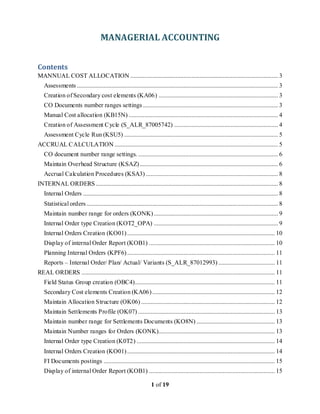
Contents
MANNUAL COST ALLOCATION .............................................................................................. 3
Assessments ................................................................................................................................ 3
Creation of Secondary cost elements (KA06) ............................................................................ 3
CO Documents number ranges settings...................................................................................... 3
Manual Cost allocation (KB15N) ............................................................................................... 4
Creation of Assessment Cycle (S_ALR_87005742) .................................................................. 4
Assessment Cycle Run (KSU5) .................................................................................................. 5
ACCRUAL CALCULATION ........................................................................................................ 5
CO document number range settings. ......................................................................................... 6
Maintain Overhead Structure (KSAZ)........................................................................................ 6
Accrual Calculation Procedures (KSA3) .................................................................................... 8
INTERNAL ORDERS .................................................................................................................... 8
Internal Orders ............................................................................................................................ 8
Statistical orders.......................................................................................................................... 8
Maintain number range for orders (KONK)............................................................................... 9
Internal Order type Creation (KOT2_OPA) ............................................................................... 9
Internal Orders Creation (KO01).............................................................................................. 10
Display of internal Order Report (KOB1) ................................................................................ 10
Planning Internal Orders (KPF6).............................................................................................. 11
Reports – Internal Order/ Plan/ Actual/ Variants (S_ALR_87012993) .................................... 11
REAL ORDERS ........................................................................................................................... 11
Field Status Group creation (OBC4)......................................................................................... 11
Secondary Cost elements Creation (KA06).............................................................................. 12
Maintain Allocation Structure (OK06) ..................................................................................... 12
Maintain Settlements Profile (OK07) ....................................................................................... 13
Maintain number range for Settlements Documents (KO8N) .................................................. 13
Maintain Number ranges for Orders (KONK).......................................................................... 13
Internal Order type Creation (K0T2) ........................................................................................ 14
Internal Orders Creation (KO01).............................................................................................. 14
FI Documents postings ............................................................................................................. 15
Display of internal Order Report (KOB1) ................................................................................ 15
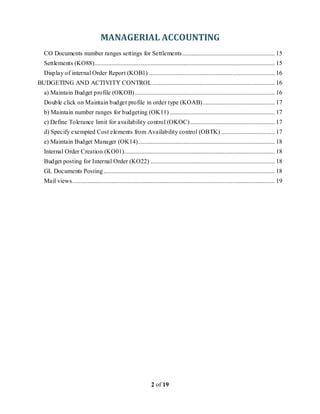
MANAGERIAL ACCOUNTING
2 of 19
CO Documents number ranges settings for Settlements........................................................... 15
Settlements (KO88)................................................................................................................... 15
Display of internal Order Report (KOB1) ................................................................................ 16
BUDGETING AND ACTIVITY CONTROL.............................................................................. 16
a) Maintain Budget profile (OKOB)......................................................................................... 16
Double click on Maintain budget profile in order type (KOAB).............................................. 17
b) Maintain number ranges for budgeting (OK11)................................................................... 17
c) Define Tolerance limit for availability control (OKOC)...................................................... 17
d) Specify exempted Cost elements from Availability control (OBTK) .................................. 17
e) Maintain Budget Manager (OK14)....................................................................................... 18
Internal Order Creation (KO01)................................................................................................ 18
Budget posting for Internal Order (KO22) ............................................................................... 18
GL Documents Posting............................................................................................................. 18
Mail views................................................................................................................................. 19
MANAGERIAL ACCOUNTING
3 of 19
MANNUAL COSTALLOCATION
Assessments
This assessment is also we are using for to allocate the cost from one cost centre to another cost
centre
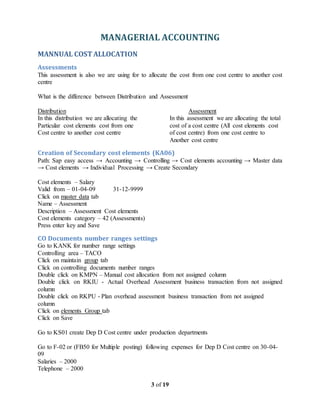
What is the difference between Distribution and Assessment
Distribution Assessment
In this distribution we are allocating the In this assessment we are allocating the total
Particular cost elements cost from one cost of a cost centre (All cost elements cost
Cost centre to another cost centre of cost centre) from one cost centre to
Another cost centre
Creation of Secondary cost elements (KA06)
Path: Sap easy access → Accounting → Controlling → Cost elements accounting → Master data
→ Cost elements → Individual Processing → Create Secondary
Cost elements – Salary
Valid from – 01-04-09 31-12-9999
Click on master data tab
Name – Assessment
Description – Assessment Cost elements
Cost elements category – 42 (Assessments)
Press enter key and Save
CO Documents number ranges settings
Go to KANK for number range settings
Controlling area – TACO
Click on maintain group tab
Click on controlling documents number ranges
Double click on KMPN – Manual cost allocation from not assigned column
Double click on RKIU - Actual Overhead Assessment business transaction from not assigned
column
Double click on RKPU - Plan overhead assessment business transaction from not assigned
column
Click on elements Group tab
Click on Save
Go to KS01 create Dep D Cost centre under production departments
Go to F-02 or (FB50 for Multiple posting) following expenses for Dep D Cost centre on 30-04-
09
Salaries – 2000
Telephone – 2000
MANAGERIAL ACCOUNTING
4 of 19
Electricity – 2000
Printing and Stationary – 2000
Go to KSB1 Check the cost centre value in Dep D
Cost centre – Dep D
Cost elements – Keep blank
Posting date – 01-04-09 30-04-09
Layout – 1SAP
Press f8 for execute
Now total value is 8000
Now in this above 8000 Manually allocate 2000 to Dep A Cost centre
Manual Cost allocation (KB15N)
Path: Sap easy access → Accounting → Controlling → Cost centre accounting → Actual posting
→ Manual cost allocation → Enter
Documents date – 30-04-09 Posting date – 30-04-09
Period – 01 Document header text – Manual Assessments
Cost elements – Salary
Amount – 2000
Sender Receiver
Cost centre – Dep D Cost centre – Dep A
Click on Save it
Now go to KSB1 check the values in Dep D
Cost centre – Dep D
Cost elements – Keep blank
Posting Date – 01-04-2009 to 30-04-2009
Layout - 1SAP
Press F8 for execute
Now the values is 6000
Now in this above 6000 allocate the 50% cost to Dep A 25% and Dep D 25% through a
Assessment
Creation of Assessment Cycle (S_ALR_87005742)
Path: Sap easy access → Accounting → Controlling → Cost centre accounting → Period end
close → Current settings → Define assessment
Cycle – Asses
Start date – 01-04-2009
Press enter key
MANAGERIAL ACCOUNTING
5 of 19
Text – Assessment cycle
Click on attach segments tab
Segment name – Asses (Assessment cycle)
Assessment cost elements – Salary
Receiver tracing factor
Receiver rule – Fixed Percentage
Click on Sender/ Receiver tab
Sender Receiver
Cost centre – Dep D Cost centre Dep A – Dep B
Click on sender value tab
Version – 0
Click on Receiver Tracing factor tab
Dep A 25%
Dep B 25%
Press enter key and Save
Come back three times
Click on yes
Assessment Cycle Run (KSU5)
Path: Sap easy access → Accounting → Controlling → Cost centre accounting → Period end
close → Single function → Allocation → Assessment
Period – 1 to - 1
Fiscal year – 2009
Activate test run
Activate Details list
Cycle – Asses
Press f8 for execute
Now select Sender 1 click on Sender tab
Come back
Select number of Receiver 2 click on Receiver tab
Come back wise
Click on yes
Deactivate the test run and again Press F8
ACCRUALCALCULATION
This accrual calculation we are using for month end provision. It generate the documents only in
CO. Cost element categories – 03
Go to KS01 create the following cost centres
1. Department E Under production department.
MANAGERIAL ACCOUNTING
6 of 19
2. Bonus under administration department.
Go to FS00 create bonus account under expenses and update in to CO.cost element categories-03
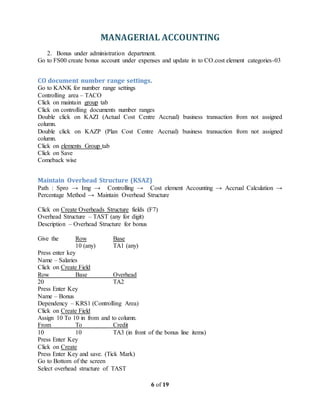
CO document number range settings.
Go to KANK for number range settings
Controlling area – TACO
Click on maintain group tab
Click on controlling documents number ranges
Double click on KAZI (Actual Cost Centre Accrual) business transaction from not assigned
column.
Double click on KAZP (Plan Cost Centre Accrual) business transaction from not assigned
column.
Click on elements Group tab
Click on Save
Comeback wise
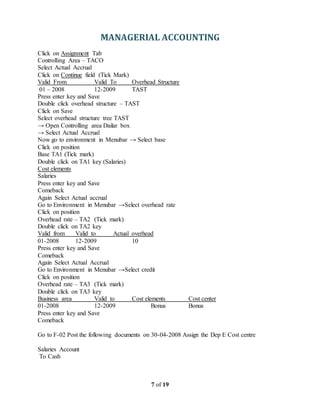
Maintain Overhead Structure (KSAZ)
Path : Spro → Img → Controlling → Cost element Accounting → Accrual Calculation →
Percentage Method → Maintain Overhead Structure
Click on Create Overheads Structure fields (F7)
Overhead Structure – TAST (any for digit)
Description – Overhead Structure for bonus
Give the Row Base
10 (any) TA1 (any)
Press enter key
Name – Salaries
Click on Create Field
Row Base Overhead
20 TA2
Press Enter Key
Name – Bonus
Dependency – KRS1 (Controlling Area)
Click on Create Field
Assign 10 To 10 in from and to column.
From To Credit
10 10 TA3 (in front of the bonus line items)
Press Enter Key
Click on Create
Press Enter Key and save. (Tick Mark)
Go to Bottom of the screen
Select overhead structure of TAST
MANAGERIAL ACCOUNTING
7 of 19
Click on Assignment Tab
Controlling Area – TACO
Select Actual Accrual
Click on Continue field (Tick Mark)
Valid From Valid To Overhead Structure
01 – 2008 12-2009 TAST
Press enter key and Save
Double click overhead structure – TAST
Click on Save
Select overhead structure tree TAST
→ Open Controlling area Dailar box
→ Select Actual Accrual
Now go to environment in Menubar → Select base
Click on position
Base TA1 (Tick mark)
Double click on TA1 key (Salaries)
Cost elements
Salaries
Press enter key and Save
Comeback
Again Select Actual accrual
Go to Environment in Menubar →Select overhead rate
Click on position
Overhead rate – TA2 (Tick mark)
Double click on TA2 key
Valid from Valid to Actual overhead
01-2008 12-2009 10
Press enter key and Save
Comeback
Again Select Actual Accrual
Go to Environment in Menubar →Select credit
Click on position
Overhead rate – TA3 (Tick mark)
Double click on TA3 key
Business area Valid to Cost elements Cost center
01-2008 12-2009 Bonus Bonus
Press enter key and Save
Comeback
Go to F-02 Post the following documents on 30-04-2008 Assign the Dep E Cost centre
Salaries Account
To Cash
MANAGERIAL ACCOUNTING
8 of 19
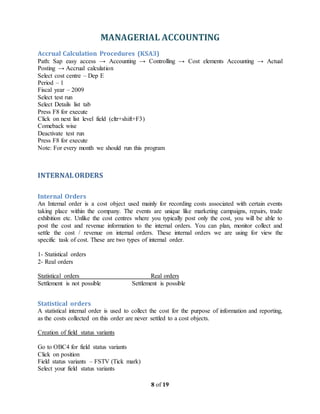
Accrual Calculation Procedures (KSA3)
Path: Sap easy access → Accounting → Controlling → Cost elements Accounting → Actual
Posting → Accrual calculation
Select cost centre – Dep E
Period – 1
Fiscal year – 2009
Select test run
Select Details list tab
Press F8 for execute
Click on next list level field (cltr+shift+F3)
Comeback wise
Deactivate test run
Press F8 for execute
Note: For every month we should run this program
INTERNALORDERS
Internal Orders
An Internal order is a cost object used mainly for recording costs associated with certain events
taking place within the company. The events are unique like marketing campaigns, repairs, trade
exhibition etc. Unlike the cost centres where you typically post only the cost, you will be able to
post the cost and revenue information to the internal orders. You can plan, monitor collect and
settle the cost / revenue on internal orders. These internal orders we are using for view the
specific task of cost. These are two types of internal order.
1- Statistical orders
2- Real orders
Statistical orders Real orders
Settlement is not possible Settlement is possible
Statistical orders
A statistical internal order is used to collect the cost for the purpose of information and reporting,
as the costs collected on this order are never settled to a cost objects.
Creation of field status variants
Go to OBC4 for field status variants
Click on position
Field status variants – FSTV (Tick mark)
Select your field status variants
MANAGERIAL ACCOUNTING
9 of 19
Double click on field status group folder
Select G004
Click on copy as (F6)
Change the field status group in to G002
Change the text in to Cost acco unt and Internal orders
Press enter key
Double click on G002
Double click on additional account assignments
Keep cost centre, CO/PP orders as required entries
Come back twice and SAVE
Comeback
Go to FS00 select telephone bill account
Click on change field
Click on create/bank/interest tab
Change field status group in to G002
Maintain number range for orders (KONK)
Path: Same
Click on Maintain Group tab
Now go to Groups in Menubar → Insert (F6)
Text – Internal Orders number range for telephone bill
From number To Number
90201 90300
Press enter key
Go to bottom of the screen
Select Internal order number range for telephone bill
Double click on TBCD Telephone bill cost from not assigned column
Click on elements group tab
Press enter key and Save
Comeback wise
Press enter key and Save
Internal Order type Creation (KOT2_OPA)
Path: Spro → Img → Controlling → Internal Orders → Order master data → Define Order type
Click on new entries
Order category – 01 (Internal orders) (Tick mark)
Order type – TBCD (Any 4 code) (telephone bill cost)
Planning profile – 000001
Object class – Overhead cost
Select Release Immediately
MANAGERIAL ACCOUNTING
10 of 19
Press enter key and SAVE (Tick mark) (Tick mark)
Comeback wise
Internal Orders Creation (KO01)
Path: Sap easy access → Accounting → Controlling →Internal Orders → Master data → Special
function → Orders → Create
Order type – TBCD
Click on master data tab
Description – Tel – 9847652968
Business area – TAMU
Click on Control data tab
Select Statistical Orders
Press enter key and Save
(Note reference number)
Like we can create any number of telephone account
Paid telephone bill 1000 through cash on 30-04-09 Cost center – Dep A
Internal Order – 9847652968
Go to F-02 Post the above documents
Documents date – 30-04-09 Type – SA Company code – TAST
Posting date – 30-04-09 Period – 01 Currency – INR
Document header text – Telephone bills
Post key – 40 Account – Telephone bill account
Press enter key
Amount - 1000
Cost centre - dept A Order – 9847652968
Text – Telephone bill
Post key – 50 Account – Cash Account
Amount - * Business area – TAHY
Text - +
Press enter key and Save
Display of internal Order Report (KOB1)
Path: Sap easy access → Accounting → Controlling → Internal Orders → Information System
→ Reports for Internal Orders → Line items → Orders Actual line item
Order – 9847652968
Cost elements – Telephone bill
Posting date – 01-04-09 to 30-04-09
Layout – 1SAP
Press F8 for execute
MANAGERIAL ACCOUNTING
11 of 19
Planning Internal Orders (KPF6)
Path: Sap easy access → Accounting → Controlling → Internal Orders → Planning → Cost and
Activity inputs → Change
Version – 0
From period - 1 To Period – 1
Fiscal year – 2009
Order – Internal Orders Number (9847652968)
Cost - Telephone bill
Select form based
Press F5 for Overview screen
Assign 800 in total Plan cost column
Press enter key and Save
Reports – Internal Order/ Plan/ Actual/ Variants (S_ALR_87012993)
Path: Sap easy access → Accounting → Controlling →Internal Orders → Information systems
→ Reports for internal orders → Plan/ Actual / Comparison → Orders: Actual / Plan / Variants
Controlling area – TACO Fiscal year – 2009
From period – 01 To Period – 01
Plan version – 0
Order value - Orders number
Cost elements value – 40006
Press F8 for execute
REAL ORDERS
A real internal order is always used to settle costs to the other cost objects. So even if you specify
the real cost object while making a posting to the real order, the system will consider that cost
object as a statistical one as the internal orders itself is a real cost objects.
Field Status Group creation (OBC4)
Go to OBC4 for field status variants
Click on Position
Field status variants – FSTV
Select your field status variants
Double click on field status group folder
Select G004
Click on copy as (F6)
Change the field status group in to G010
MANAGERIAL ACCOUNTING
12 of 19
Change the text in to Internal orders
Press enter key
Double click on G010
Double click on additional account assignments
Keep cost center, CO/PP orders as required entries
Come back twise and SAVE
Comeback
Go to FS00 Create Petrol expenses account (Primary cost elements) Under Expenses with field
status group G010 and Update in to CO
Now we are going to create s secondary cost elements
Secondary Cost elements Creation (KA06)
Path: Sap easy access → Accounting → Controlling → Cost elements accounting → Master data
→ Cost elements → Individual Processing → Create secondary
Cost elements – 500002 (Settlements)
Valid from – 01-04-2009 To – 31-12-9999
Click on master data
Name – Settlements
Description – Settlements Cost elements
Cost elements category – 21 (Internal Settlements)
Press enter key and Save
Maintain Allocation Structure (OK06)
Path: Spro → img → Controlling → Internal Orders → Actual Posting → Settlements →
Maintain allocation structure
Click on new entries
Allocation structure Text
VH Vehicle allocation
Press enter key
Now select your allocation Structure
Double click on Assignments Folder
Click on new entries
Assignment Text
PET Petrol Expenses
Press enter key and Save
Now select your Assignments
Double click on Source folder
From Cost elements
Petrol elements
Double click on settlements Cost elements folder
MANAGERIAL ACCOUNTING
13 of 19
Click on new entries
Receiver Category Settlements Cost elements
CTR (Cost center) 50002 (Settlements)
Press enter key and Save
Comeback Six times
Maintain Settlements Profile (OK07)
Path: Same
Double click on maintain settlements profiles
Click on new entries
Settlements profile – STPL (Any code) Vehicle settlement profile
Allocation Structure – VH
Default object type – CTR
Select % Settlements
Select Amount Settlements
Valid Receivers
Cost center – Settlements Required
Other Parameters
Documents type – SA
Maximum of Dist rece – 999
Residence time – 12
Comeback twise
Maintain number range for Settlements Documents (KO8N)
Path: Same
Click on maintain group tab (F6)
Select standard accounting documents
Double click on TACO Controlling area from not assigned column
Click on elements group tab
Click on Save
Comeback twise
Maintain Number ranges for Orders (KONK)
Path: Same
Click on maintain Group tab
Now go to Groups in menubar → Insert (F6)
Text – Internal Orders number range for Vehicle
From number To Number
MANAGERIAL ACCOUNTING
14 of 19
90301 90400
Press enter key
Go to bottom of the screen
Select Internal order number range for Vehicle
Double click on VHC Vehicle order type from not assigned column
Click on elements group tab
Press enter key and Save
Comeback wise
Internal Order type Creation (K0T2)
Path: Spro → Img → Controlling → Internal orders → Orders master data → Define orders type
Click on new entries
Order category – 01 (Tick mark)
Order type – VHC
Settlements profile - STPL
Planning profile – 000001
Object class – Overhead Cost
Select Release immediately
Press enter key and Save
Comeback twise
Internal Orders Creation (KO01)
Path: Sap easy access → Accounting → Controlling → Internal orders → Master data → Special
function → Order → Create
Order type - VHC
Click on master data tab
Description – Vehicle number 768
Business area – TAMU
Object class – Overhead
Click on Settlement rule tab
Category Settlement receiver Percentage
CTR DEP A 50
CTR DEP B 30
CTR DEP C 20
Press enter key and Save
MANAGERIAL ACCOUNTING
15 of 19
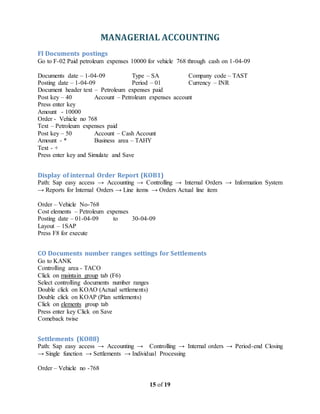
FI Documents postings
Go to F-02 Paid petroleum expenses 10000 for vehicle 768 through cash on 1-04-09
Documents date – 1-04-09 Type – SA Company code – TAST
Posting date – 1-04-09 Period – 01 Currency – INR
Document header text – Petroleum expenses paid
Post key – 40 Account – Petroleum expenses account
Press enter key
Amount - 10000
Order - Vehicle no 768
Text – Petroleum expenses paid
Post key – 50 Account – Cash Account
Amount - * Business area – TAHY
Text - +
Press enter key and Simulate and Save
Display of internal Order Report (KOB1)
Path: Sap easy access → Accounting → Controlling → Internal Orders → Information System
→ Reports for Internal Orders → Line items → Orders Actual line item
Order – Vehicle No-768
Cost elements – Petroleum expenses
Posting date – 01-04-09 to 30-04-09
Layout – 1SAP
Press F8 for execute
CO Documents number ranges settings for Settlements
Go to KANK
Controlling area - TACO
Click on maintain group tab (F6)
Select controlling documents number ranges
Double click on KOAO (Actual settlements)
Double click on KOAP (Plan settlements)
Click on elements group tab
Press enter key Click on Save
Comeback twise
Settlements (KO88)
Path: Sap easy access → Accounting → Controlling → Internal orders → Period-end Closing
→ Single function → Settlements → Individual Processing
Order – Vehicle no -768
MANAGERIAL ACCOUNTING
16 of 19
Settlements period – 1
Fiscal year – 2009
Activate Test run
Press F8 for execute
Click on details list field
Come back wise
Deactivate Test run and again Press F8 for execute
Display of internal Order Report (KOB1)
Path: Sap easy access → Accounting → Controlling → Internal Orders → Information System
→ Reports for Internal Orders → Line items → Orders Actual line item
Order – Vehicle NO-768
Cost elements – Settlments
Posting date – 01-04-09 to 30-04-09
Layout – 1SAP
Press F8 for execute
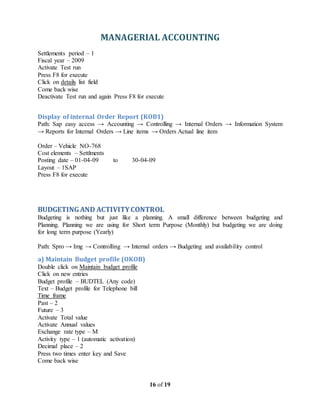
BUDGETINGAND ACTIVITYCONTROL
Budgeting is nothing but just like a planning. A small difference between budgeting and
Planning. Planning we are using for Short term Purpose (Monthly) but budgeting we are doing
for long term purpose (Yearly)
Path: Spro → Img → Controlling → Internal orders → Budgeting and availability control
a) Maintain Budget profile (OKOB)
Double click on Maintain budget profile
Click on new entries
Budget profile – BUDTEL (Any code)
Text – Budget profile for Telephone bill
Time frame
Past – 2
Future – 3
Activate Total value
Activate Annual values
Exchange rate type – M
Activity type – 1 (automatic activation)
Decimal place – 2
Press two times enter key and Save
Come back wise
MANAGERIAL ACCOUNTING
17 of 19
Double click on Maintain budget profile in order type (KOAB)
Click position
Order type – VHC (Tick mark)
Double click on VHC Order type
Budget profile – BUPR
Press enter key and Save
Come back wise
b) Maintain number ranges for budgeting (OK11)
Path: Same
Click on change intervals
Note: Here no need for define the number range because by default we have some number range.
The number range is 4
Click on Save
Comeback wise
c) Define Tolerance limit for availability control (OKOC)
Path: Same
Click on new entries
Contr area Profile Tolerance group Action Control Usage
TACO BUPR + + 1 (Warning msg) 80
TACO BUPR + + 2 85
TACO BUPR + + 3 90
Press enter key and Save
Come back wise
d) Specify exempted Cost elements from Availability control (OBTK)
Path: Same
Click on new entries
Contr area Cost elements
TACO 40005 (Salary) you can any cost elements
Press enter key and Save
Comeback wise
MANAGERIAL ACCOUNTING
18 of 19
e) Maintain Budget Manager (OK14)
Click on new entries
Control area Order Object class Username
TACO VHC Overhead Ubaid
Press enter key and Save
Comeback wise
Internal Order Creation (KO01)
Path: Path: Sap easy access → Accounting → Controlling → Internal orders → Master data →
Special function → Order → Create
Order type - VHC
Click on master data tab
Description – Tel Number -9618941802
Business area – TAMU
Click on Control data tab
Activate Statistical Order
Click on Save
Budget posting for Internal Order (KO22)
Path: : Sap easy access → Accounting → Controlling → Internal orders → Budgeting →
Original budget → Change
Order – Tel – 9618941802
Click on Original budget tab
Period Budget
Overall 60000
2006 10000
2007 10000
2008 10000
2009 10000
2010 10000
2011 10000
Press enter key and Save
Come back
GL Documents Posting
Paid Telephone bill 8700 through bank assign the internal order 90221 (tel – 9618941802)
Cost center – Dep A
MANAGERIAL ACCOUNTING
19 of 19
Mail views
Path: Sap easy access → Office → Work place (SBWP)
Double click on Inbox
Select budget control order – 90221 (Tel)

Managerial accounting-v1.1

  • 1.
    MANAGERIAL ACCOUNTING 1 of19 Contents MANNUAL COST ALLOCATION .............................................................................................. 3 Assessments ................................................................................................................................ 3 Creation of Secondary cost elements (KA06) ............................................................................ 3 CO Documents number ranges settings...................................................................................... 3 Manual Cost allocation (KB15N) ............................................................................................... 4 Creation of Assessment Cycle (S_ALR_87005742) .................................................................. 4 Assessment Cycle Run (KSU5) .................................................................................................. 5 ACCRUAL CALCULATION ........................................................................................................ 5 CO document number range settings. ......................................................................................... 6 Maintain Overhead Structure (KSAZ)........................................................................................ 6 Accrual Calculation Procedures (KSA3) .................................................................................... 8 INTERNAL ORDERS .................................................................................................................... 8 Internal Orders ............................................................................................................................ 8 Statistical orders.......................................................................................................................... 8 Maintain number range for orders (KONK)............................................................................... 9 Internal Order type Creation (KOT2_OPA) ............................................................................... 9 Internal Orders Creation (KO01).............................................................................................. 10 Display of internal Order Report (KOB1) ................................................................................ 10 Planning Internal Orders (KPF6).............................................................................................. 11 Reports – Internal Order/ Plan/ Actual/ Variants (S_ALR_87012993) .................................... 11 REAL ORDERS ........................................................................................................................... 11 Field Status Group creation (OBC4)......................................................................................... 11 Secondary Cost elements Creation (KA06).............................................................................. 12 Maintain Allocation Structure (OK06) ..................................................................................... 12 Maintain Settlements Profile (OK07) ....................................................................................... 13 Maintain number range for Settlements Documents (KO8N) .................................................. 13 Maintain Number ranges for Orders (KONK).......................................................................... 13 Internal Order type Creation (K0T2) ........................................................................................ 14 Internal Orders Creation (KO01).............................................................................................. 14 FI Documents postings ............................................................................................................. 15 Display of internal Order Report (KOB1) ................................................................................ 15
  • 2.
    MANAGERIAL ACCOUNTING 2 of19 CO Documents number ranges settings for Settlements........................................................... 15 Settlements (KO88)................................................................................................................... 15 Display of internal Order Report (KOB1) ................................................................................ 16 BUDGETING AND ACTIVITY CONTROL.............................................................................. 16 a) Maintain Budget profile (OKOB)......................................................................................... 16 Double click on Maintain budget profile in order type (KOAB).............................................. 17 b) Maintain number ranges for budgeting (OK11)................................................................... 17 c) Define Tolerance limit for availability control (OKOC)...................................................... 17 d) Specify exempted Cost elements from Availability control (OBTK) .................................. 17 e) Maintain Budget Manager (OK14)....................................................................................... 18 Internal Order Creation (KO01)................................................................................................ 18 Budget posting for Internal Order (KO22) ............................................................................... 18 GL Documents Posting............................................................................................................. 18 Mail views................................................................................................................................. 19
  • 3.
    MANAGERIAL ACCOUNTING 3 of19 MANNUAL COSTALLOCATION Assessments This assessment is also we are using for to allocate the cost from one cost centre to another cost centre What is the difference between Distribution and Assessment Distribution Assessment In this distribution we are allocating the In this assessment we are allocating the total Particular cost elements cost from one cost of a cost centre (All cost elements cost Cost centre to another cost centre of cost centre) from one cost centre to Another cost centre Creation of Secondary cost elements (KA06) Path: Sap easy access → Accounting → Controlling → Cost elements accounting → Master data → Cost elements → Individual Processing → Create Secondary Cost elements – Salary Valid from – 01-04-09 31-12-9999 Click on master data tab Name – Assessment Description – Assessment Cost elements Cost elements category – 42 (Assessments) Press enter key and Save CO Documents number ranges settings Go to KANK for number range settings Controlling area – TACO Click on maintain group tab Click on controlling documents number ranges Double click on KMPN – Manual cost allocation from not assigned column Double click on RKIU - Actual Overhead Assessment business transaction from not assigned column Double click on RKPU - Plan overhead assessment business transaction from not assigned column Click on elements Group tab Click on Save Go to KS01 create Dep D Cost centre under production departments Go to F-02 or (FB50 for Multiple posting) following expenses for Dep D Cost centre on 30-04- 09 Salaries – 2000 Telephone – 2000
  • 4.
    MANAGERIAL ACCOUNTING 4 of19 Electricity – 2000 Printing and Stationary – 2000 Go to KSB1 Check the cost centre value in Dep D Cost centre – Dep D Cost elements – Keep blank Posting date – 01-04-09 30-04-09 Layout – 1SAP Press f8 for execute Now total value is 8000 Now in this above 8000 Manually allocate 2000 to Dep A Cost centre Manual Cost allocation (KB15N) Path: Sap easy access → Accounting → Controlling → Cost centre accounting → Actual posting → Manual cost allocation → Enter Documents date – 30-04-09 Posting date – 30-04-09 Period – 01 Document header text – Manual Assessments Cost elements – Salary Amount – 2000 Sender Receiver Cost centre – Dep D Cost centre – Dep A Click on Save it Now go to KSB1 check the values in Dep D Cost centre – Dep D Cost elements – Keep blank Posting Date – 01-04-2009 to 30-04-2009 Layout - 1SAP Press F8 for execute Now the values is 6000 Now in this above 6000 allocate the 50% cost to Dep A 25% and Dep D 25% through a Assessment Creation of Assessment Cycle (S_ALR_87005742) Path: Sap easy access → Accounting → Controlling → Cost centre accounting → Period end close → Current settings → Define assessment Cycle – Asses Start date – 01-04-2009 Press enter key
  • 5.
    MANAGERIAL ACCOUNTING 5 of19 Text – Assessment cycle Click on attach segments tab Segment name – Asses (Assessment cycle) Assessment cost elements – Salary Receiver tracing factor Receiver rule – Fixed Percentage Click on Sender/ Receiver tab Sender Receiver Cost centre – Dep D Cost centre Dep A – Dep B Click on sender value tab Version – 0 Click on Receiver Tracing factor tab Dep A 25% Dep B 25% Press enter key and Save Come back three times Click on yes Assessment Cycle Run (KSU5) Path: Sap easy access → Accounting → Controlling → Cost centre accounting → Period end close → Single function → Allocation → Assessment Period – 1 to - 1 Fiscal year – 2009 Activate test run Activate Details list Cycle – Asses Press f8 for execute Now select Sender 1 click on Sender tab Come back Select number of Receiver 2 click on Receiver tab Come back wise Click on yes Deactivate the test run and again Press F8 ACCRUALCALCULATION This accrual calculation we are using for month end provision. It generate the documents only in CO. Cost element categories – 03 Go to KS01 create the following cost centres 1. Department E Under production department.
  • 6.
    MANAGERIAL ACCOUNTING 6 of19 2. Bonus under administration department. Go to FS00 create bonus account under expenses and update in to CO.cost element categories-03 CO document number range settings. Go to KANK for number range settings Controlling area – TACO Click on maintain group tab Click on controlling documents number ranges Double click on KAZI (Actual Cost Centre Accrual) business transaction from not assigned column. Double click on KAZP (Plan Cost Centre Accrual) business transaction from not assigned column. Click on elements Group tab Click on Save Comeback wise Maintain Overhead Structure (KSAZ) Path : Spro → Img → Controlling → Cost element Accounting → Accrual Calculation → Percentage Method → Maintain Overhead Structure Click on Create Overheads Structure fields (F7) Overhead Structure – TAST (any for digit) Description – Overhead Structure for bonus Give the Row Base 10 (any) TA1 (any) Press enter key Name – Salaries Click on Create Field Row Base Overhead 20 TA2 Press Enter Key Name – Bonus Dependency – KRS1 (Controlling Area) Click on Create Field Assign 10 To 10 in from and to column. From To Credit 10 10 TA3 (in front of the bonus line items) Press Enter Key Click on Create Press Enter Key and save. (Tick Mark) Go to Bottom of the screen Select overhead structure of TAST
  • 7.
    MANAGERIAL ACCOUNTING 7 of19 Click on Assignment Tab Controlling Area – TACO Select Actual Accrual Click on Continue field (Tick Mark) Valid From Valid To Overhead Structure 01 – 2008 12-2009 TAST Press enter key and Save Double click overhead structure – TAST Click on Save Select overhead structure tree TAST → Open Controlling area Dailar box → Select Actual Accrual Now go to environment in Menubar → Select base Click on position Base TA1 (Tick mark) Double click on TA1 key (Salaries) Cost elements Salaries Press enter key and Save Comeback Again Select Actual accrual Go to Environment in Menubar →Select overhead rate Click on position Overhead rate – TA2 (Tick mark) Double click on TA2 key Valid from Valid to Actual overhead 01-2008 12-2009 10 Press enter key and Save Comeback Again Select Actual Accrual Go to Environment in Menubar →Select credit Click on position Overhead rate – TA3 (Tick mark) Double click on TA3 key Business area Valid to Cost elements Cost center 01-2008 12-2009 Bonus Bonus Press enter key and Save Comeback Go to F-02 Post the following documents on 30-04-2008 Assign the Dep E Cost centre Salaries Account To Cash
  • 8.
    MANAGERIAL ACCOUNTING 8 of19 Accrual Calculation Procedures (KSA3) Path: Sap easy access → Accounting → Controlling → Cost elements Accounting → Actual Posting → Accrual calculation Select cost centre – Dep E Period – 1 Fiscal year – 2009 Select test run Select Details list tab Press F8 for execute Click on next list level field (cltr+shift+F3) Comeback wise Deactivate test run Press F8 for execute Note: For every month we should run this program INTERNALORDERS Internal Orders An Internal order is a cost object used mainly for recording costs associated with certain events taking place within the company. The events are unique like marketing campaigns, repairs, trade exhibition etc. Unlike the cost centres where you typically post only the cost, you will be able to post the cost and revenue information to the internal orders. You can plan, monitor collect and settle the cost / revenue on internal orders. These internal orders we are using for view the specific task of cost. These are two types of internal order. 1- Statistical orders 2- Real orders Statistical orders Real orders Settlement is not possible Settlement is possible Statistical orders A statistical internal order is used to collect the cost for the purpose of information and reporting, as the costs collected on this order are never settled to a cost objects. Creation of field status variants Go to OBC4 for field status variants Click on position Field status variants – FSTV (Tick mark) Select your field status variants
  • 9.
    MANAGERIAL ACCOUNTING 9 of19 Double click on field status group folder Select G004 Click on copy as (F6) Change the field status group in to G002 Change the text in to Cost acco unt and Internal orders Press enter key Double click on G002 Double click on additional account assignments Keep cost centre, CO/PP orders as required entries Come back twice and SAVE Comeback Go to FS00 select telephone bill account Click on change field Click on create/bank/interest tab Change field status group in to G002 Maintain number range for orders (KONK) Path: Same Click on Maintain Group tab Now go to Groups in Menubar → Insert (F6) Text – Internal Orders number range for telephone bill From number To Number 90201 90300 Press enter key Go to bottom of the screen Select Internal order number range for telephone bill Double click on TBCD Telephone bill cost from not assigned column Click on elements group tab Press enter key and Save Comeback wise Press enter key and Save Internal Order type Creation (KOT2_OPA) Path: Spro → Img → Controlling → Internal Orders → Order master data → Define Order type Click on new entries Order category – 01 (Internal orders) (Tick mark) Order type – TBCD (Any 4 code) (telephone bill cost) Planning profile – 000001 Object class – Overhead cost Select Release Immediately
  • 10.
    MANAGERIAL ACCOUNTING 10 of19 Press enter key and SAVE (Tick mark) (Tick mark) Comeback wise Internal Orders Creation (KO01) Path: Sap easy access → Accounting → Controlling →Internal Orders → Master data → Special function → Orders → Create Order type – TBCD Click on master data tab Description – Tel – 9847652968 Business area – TAMU Click on Control data tab Select Statistical Orders Press enter key and Save (Note reference number) Like we can create any number of telephone account Paid telephone bill 1000 through cash on 30-04-09 Cost center – Dep A Internal Order – 9847652968 Go to F-02 Post the above documents Documents date – 30-04-09 Type – SA Company code – TAST Posting date – 30-04-09 Period – 01 Currency – INR Document header text – Telephone bills Post key – 40 Account – Telephone bill account Press enter key Amount - 1000 Cost centre - dept A Order – 9847652968 Text – Telephone bill Post key – 50 Account – Cash Account Amount - * Business area – TAHY Text - + Press enter key and Save Display of internal Order Report (KOB1) Path: Sap easy access → Accounting → Controlling → Internal Orders → Information System → Reports for Internal Orders → Line items → Orders Actual line item Order – 9847652968 Cost elements – Telephone bill Posting date – 01-04-09 to 30-04-09 Layout – 1SAP Press F8 for execute
  • 11.
    MANAGERIAL ACCOUNTING 11 of19 Planning Internal Orders (KPF6) Path: Sap easy access → Accounting → Controlling → Internal Orders → Planning → Cost and Activity inputs → Change Version – 0 From period - 1 To Period – 1 Fiscal year – 2009 Order – Internal Orders Number (9847652968) Cost - Telephone bill Select form based Press F5 for Overview screen Assign 800 in total Plan cost column Press enter key and Save Reports – Internal Order/ Plan/ Actual/ Variants (S_ALR_87012993) Path: Sap easy access → Accounting → Controlling →Internal Orders → Information systems → Reports for internal orders → Plan/ Actual / Comparison → Orders: Actual / Plan / Variants Controlling area – TACO Fiscal year – 2009 From period – 01 To Period – 01 Plan version – 0 Order value - Orders number Cost elements value – 40006 Press F8 for execute REAL ORDERS A real internal order is always used to settle costs to the other cost objects. So even if you specify the real cost object while making a posting to the real order, the system will consider that cost object as a statistical one as the internal orders itself is a real cost objects. Field Status Group creation (OBC4) Go to OBC4 for field status variants Click on Position Field status variants – FSTV Select your field status variants Double click on field status group folder Select G004 Click on copy as (F6) Change the field status group in to G010
  • 12.
    MANAGERIAL ACCOUNTING 12 of19 Change the text in to Internal orders Press enter key Double click on G010 Double click on additional account assignments Keep cost center, CO/PP orders as required entries Come back twise and SAVE Comeback Go to FS00 Create Petrol expenses account (Primary cost elements) Under Expenses with field status group G010 and Update in to CO Now we are going to create s secondary cost elements Secondary Cost elements Creation (KA06) Path: Sap easy access → Accounting → Controlling → Cost elements accounting → Master data → Cost elements → Individual Processing → Create secondary Cost elements – 500002 (Settlements) Valid from – 01-04-2009 To – 31-12-9999 Click on master data Name – Settlements Description – Settlements Cost elements Cost elements category – 21 (Internal Settlements) Press enter key and Save Maintain Allocation Structure (OK06) Path: Spro → img → Controlling → Internal Orders → Actual Posting → Settlements → Maintain allocation structure Click on new entries Allocation structure Text VH Vehicle allocation Press enter key Now select your allocation Structure Double click on Assignments Folder Click on new entries Assignment Text PET Petrol Expenses Press enter key and Save Now select your Assignments Double click on Source folder From Cost elements Petrol elements Double click on settlements Cost elements folder
  • 13.
    MANAGERIAL ACCOUNTING 13 of19 Click on new entries Receiver Category Settlements Cost elements CTR (Cost center) 50002 (Settlements) Press enter key and Save Comeback Six times Maintain Settlements Profile (OK07) Path: Same Double click on maintain settlements profiles Click on new entries Settlements profile – STPL (Any code) Vehicle settlement profile Allocation Structure – VH Default object type – CTR Select % Settlements Select Amount Settlements Valid Receivers Cost center – Settlements Required Other Parameters Documents type – SA Maximum of Dist rece – 999 Residence time – 12 Comeback twise Maintain number range for Settlements Documents (KO8N) Path: Same Click on maintain group tab (F6) Select standard accounting documents Double click on TACO Controlling area from not assigned column Click on elements group tab Click on Save Comeback twise Maintain Number ranges for Orders (KONK) Path: Same Click on maintain Group tab Now go to Groups in menubar → Insert (F6) Text – Internal Orders number range for Vehicle From number To Number
  • 14.
    MANAGERIAL ACCOUNTING 14 of19 90301 90400 Press enter key Go to bottom of the screen Select Internal order number range for Vehicle Double click on VHC Vehicle order type from not assigned column Click on elements group tab Press enter key and Save Comeback wise Internal Order type Creation (K0T2) Path: Spro → Img → Controlling → Internal orders → Orders master data → Define orders type Click on new entries Order category – 01 (Tick mark) Order type – VHC Settlements profile - STPL Planning profile – 000001 Object class – Overhead Cost Select Release immediately Press enter key and Save Comeback twise Internal Orders Creation (KO01) Path: Sap easy access → Accounting → Controlling → Internal orders → Master data → Special function → Order → Create Order type - VHC Click on master data tab Description – Vehicle number 768 Business area – TAMU Object class – Overhead Click on Settlement rule tab Category Settlement receiver Percentage CTR DEP A 50 CTR DEP B 30 CTR DEP C 20 Press enter key and Save
  • 15.
    MANAGERIAL ACCOUNTING 15 of19 FI Documents postings Go to F-02 Paid petroleum expenses 10000 for vehicle 768 through cash on 1-04-09 Documents date – 1-04-09 Type – SA Company code – TAST Posting date – 1-04-09 Period – 01 Currency – INR Document header text – Petroleum expenses paid Post key – 40 Account – Petroleum expenses account Press enter key Amount - 10000 Order - Vehicle no 768 Text – Petroleum expenses paid Post key – 50 Account – Cash Account Amount - * Business area – TAHY Text - + Press enter key and Simulate and Save Display of internal Order Report (KOB1) Path: Sap easy access → Accounting → Controlling → Internal Orders → Information System → Reports for Internal Orders → Line items → Orders Actual line item Order – Vehicle No-768 Cost elements – Petroleum expenses Posting date – 01-04-09 to 30-04-09 Layout – 1SAP Press F8 for execute CO Documents number ranges settings for Settlements Go to KANK Controlling area - TACO Click on maintain group tab (F6) Select controlling documents number ranges Double click on KOAO (Actual settlements) Double click on KOAP (Plan settlements) Click on elements group tab Press enter key Click on Save Comeback twise Settlements (KO88) Path: Sap easy access → Accounting → Controlling → Internal orders → Period-end Closing → Single function → Settlements → Individual Processing Order – Vehicle no -768
  • 16.
    MANAGERIAL ACCOUNTING 16 of19 Settlements period – 1 Fiscal year – 2009 Activate Test run Press F8 for execute Click on details list field Come back wise Deactivate Test run and again Press F8 for execute Display of internal Order Report (KOB1) Path: Sap easy access → Accounting → Controlling → Internal Orders → Information System → Reports for Internal Orders → Line items → Orders Actual line item Order – Vehicle NO-768 Cost elements – Settlments Posting date – 01-04-09 to 30-04-09 Layout – 1SAP Press F8 for execute BUDGETINGAND ACTIVITYCONTROL Budgeting is nothing but just like a planning. A small difference between budgeting and Planning. Planning we are using for Short term Purpose (Monthly) but budgeting we are doing for long term purpose (Yearly) Path: Spro → Img → Controlling → Internal orders → Budgeting and availability control a) Maintain Budget profile (OKOB) Double click on Maintain budget profile Click on new entries Budget profile – BUDTEL (Any code) Text – Budget profile for Telephone bill Time frame Past – 2 Future – 3 Activate Total value Activate Annual values Exchange rate type – M Activity type – 1 (automatic activation) Decimal place – 2 Press two times enter key and Save Come back wise
  • 17.
    MANAGERIAL ACCOUNTING 17 of19 Double click on Maintain budget profile in order type (KOAB) Click position Order type – VHC (Tick mark) Double click on VHC Order type Budget profile – BUPR Press enter key and Save Come back wise b) Maintain number ranges for budgeting (OK11) Path: Same Click on change intervals Note: Here no need for define the number range because by default we have some number range. The number range is 4 Click on Save Comeback wise c) Define Tolerance limit for availability control (OKOC) Path: Same Click on new entries Contr area Profile Tolerance group Action Control Usage TACO BUPR + + 1 (Warning msg) 80 TACO BUPR + + 2 85 TACO BUPR + + 3 90 Press enter key and Save Come back wise d) Specify exempted Cost elements from Availability control (OBTK) Path: Same Click on new entries Contr area Cost elements TACO 40005 (Salary) you can any cost elements Press enter key and Save Comeback wise
  • 18.
    MANAGERIAL ACCOUNTING 18 of19 e) Maintain Budget Manager (OK14) Click on new entries Control area Order Object class Username TACO VHC Overhead Ubaid Press enter key and Save Comeback wise Internal Order Creation (KO01) Path: Path: Sap easy access → Accounting → Controlling → Internal orders → Master data → Special function → Order → Create Order type - VHC Click on master data tab Description – Tel Number -9618941802 Business area – TAMU Click on Control data tab Activate Statistical Order Click on Save Budget posting for Internal Order (KO22) Path: : Sap easy access → Accounting → Controlling → Internal orders → Budgeting → Original budget → Change Order – Tel – 9618941802 Click on Original budget tab Period Budget Overall 60000 2006 10000 2007 10000 2008 10000 2009 10000 2010 10000 2011 10000 Press enter key and Save Come back GL Documents Posting Paid Telephone bill 8700 through bank assign the internal order 90221 (tel – 9618941802) Cost center – Dep A
  • 19.
    MANAGERIAL ACCOUNTING 19 of19 Mail views Path: Sap easy access → Office → Work place (SBWP) Double click on Inbox Select budget control order – 90221 (Tel)