Making Good PowerPoint Presentations By Julie and Karen
Outline Common mistakes in formatting a PowerPoint presentation Examples of Mistakes Tips regarding the content of a presentation
Mistakes People Make Too small text Too much text Bad color choice Moving or flying text and graphics Fancy Transitions Overly complicated diagrams
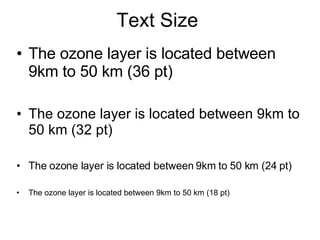
Text Size The ozone layer is located between 9km to 50 km (36 pt) The ozone layer is located between 9km to 50 km (32 pt) The ozone layer is located between 9km to 50 km (24 pt) The ozone layer is located between 9km to 50 km (18 pt)
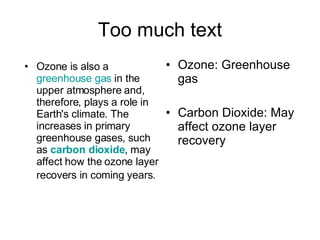
Too much text Ozone: Greenhouse gas Carbon Dioxide: May affect ozone layer recovery Ozone is also a  greenhouse gas  in the upper atmosphere and, therefore, plays a role in Earth's climate. The increases in primary greenhouse gases, such as  carbon dioxide , may affect how the ozone layer recovers in coming years.
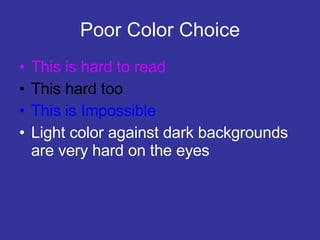
Poor Color Choice This is hard to read This hard too This is Impossible Light color against dark backgrounds are very hard on the eyes
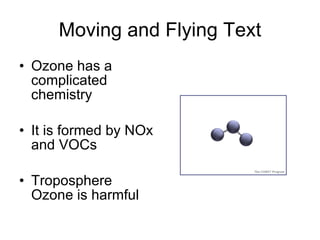
Moving and Flying Text Ozone has a complicated chemistry It is formed by NOx and VOCs Troposphere Ozone is harmful
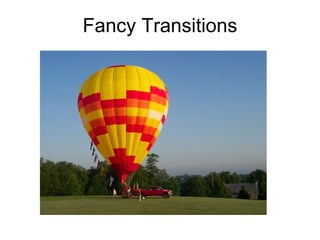
Fancy Transitions
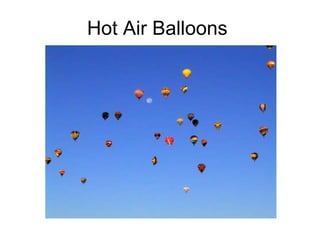
Hot Air Balloons
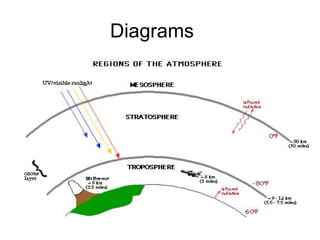
Diagrams
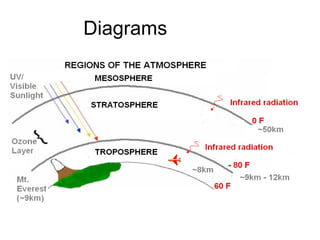
Diagrams
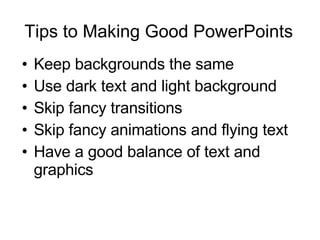
Tips to Making Good PowerPoints Keep backgrounds the same Use dark text and light background Skip fancy transitions Skip fancy animations and flying text Have a good balance of text and graphics
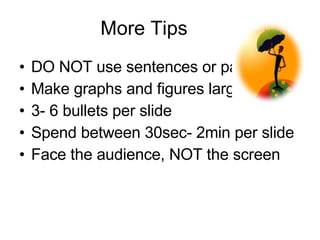
More Tips DO NOT use sentences or paragraphs Make graphs and figures large 3- 6 bullets per slide Spend between 30sec- 2min per slide  Face the audience, NOT the screen
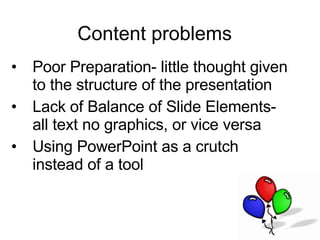
Content problems Poor Preparation- little thought given to the structure of the presentation Lack of Balance of Slide Elements- all text no graphics, or vice versa Using PowerPoint as a crutch instead of a tool
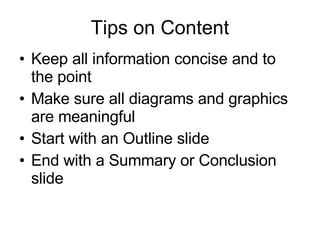
Tips on Content Keep all information concise and to the point Make sure all diagrams and graphics are meaningful Start with an Outline slide End with a Summary or Conclusion slide
Summary Keep the presentation simple Avoid unnecessary sounds and animations Keep information well organized DO NOT read from your slides verbatim Remind your audience of key points at the end of the presentation

Making Good Ppt Presentations

  • 1.
    Making Good PowerPointPresentations By Julie and Karen
  • 2.
    Outline Common mistakesin formatting a PowerPoint presentation Examples of Mistakes Tips regarding the content of a presentation
  • 3.
    Mistakes People MakeToo small text Too much text Bad color choice Moving or flying text and graphics Fancy Transitions Overly complicated diagrams
  • 4.
    Text Size Theozone layer is located between 9km to 50 km (36 pt) The ozone layer is located between 9km to 50 km (32 pt) The ozone layer is located between 9km to 50 km (24 pt) The ozone layer is located between 9km to 50 km (18 pt)
  • 5.
    Too much textOzone: Greenhouse gas Carbon Dioxide: May affect ozone layer recovery Ozone is also a greenhouse gas in the upper atmosphere and, therefore, plays a role in Earth's climate. The increases in primary greenhouse gases, such as carbon dioxide , may affect how the ozone layer recovers in coming years.
  • 6.
    Poor Color ChoiceThis is hard to read This hard too This is Impossible Light color against dark backgrounds are very hard on the eyes
  • 7.
    Moving and FlyingText Ozone has a complicated chemistry It is formed by NOx and VOCs Troposphere Ozone is harmful
  • 8.
  • 9.
  • 10.
  • 11.
  • 12.
    Tips to MakingGood PowerPoints Keep backgrounds the same Use dark text and light background Skip fancy transitions Skip fancy animations and flying text Have a good balance of text and graphics
  • 13.
    More Tips DONOT use sentences or paragraphs Make graphs and figures large 3- 6 bullets per slide Spend between 30sec- 2min per slide Face the audience, NOT the screen
  • 14.
    Content problems PoorPreparation- little thought given to the structure of the presentation Lack of Balance of Slide Elements- all text no graphics, or vice versa Using PowerPoint as a crutch instead of a tool
  • 15.
    Tips on ContentKeep all information concise and to the point Make sure all diagrams and graphics are meaningful Start with an Outline slide End with a Summary or Conclusion slide
  • 16.
    Summary Keep thepresentation simple Avoid unnecessary sounds and animations Keep information well organized DO NOT read from your slides verbatim Remind your audience of key points at the end of the presentation