Email for Mac Mail
A setup guide for Jezweb clients
using IMAP settings to send and
receive emails on Mac Mail.
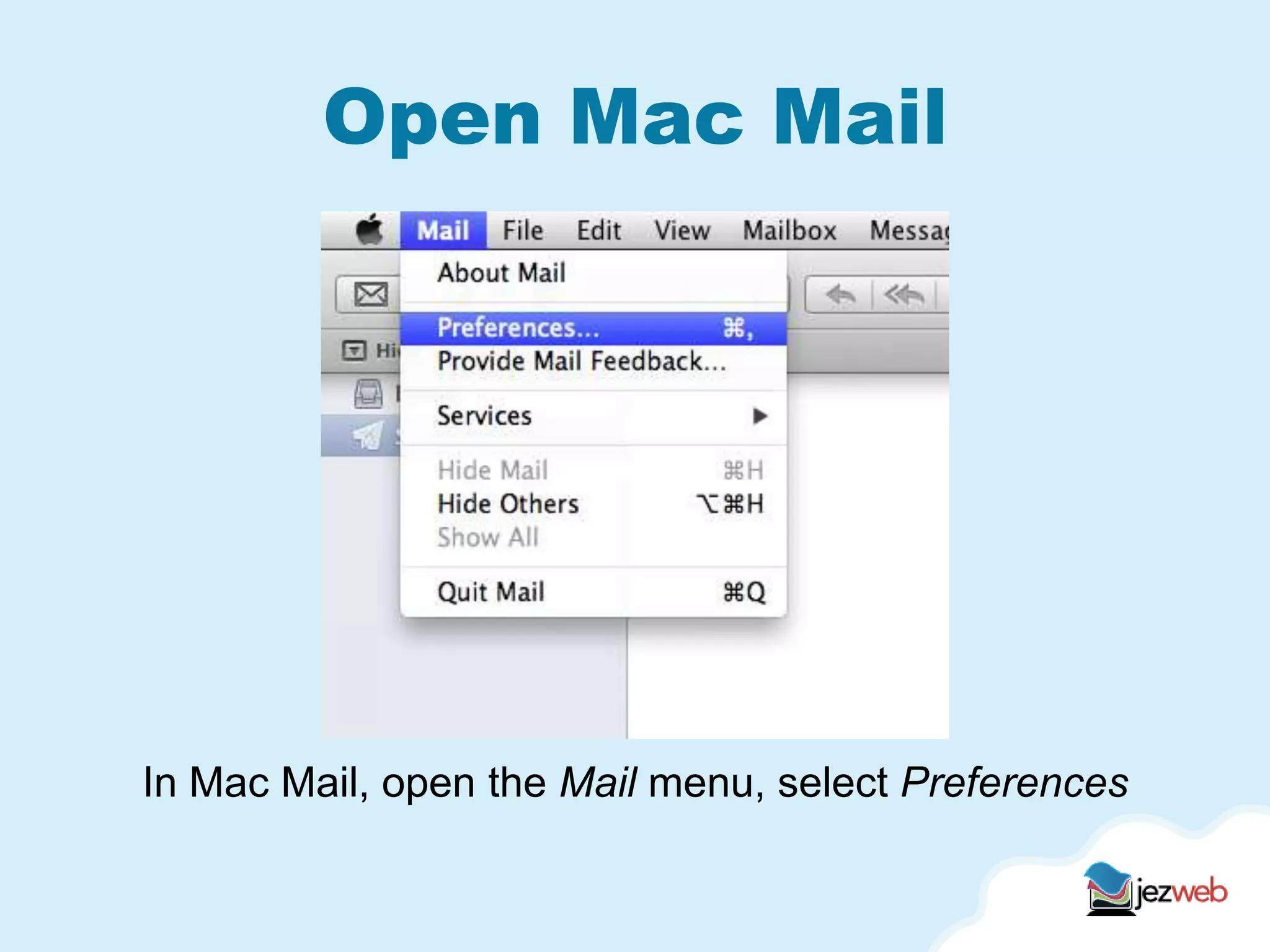
Open Mac Mail
In Mac Mail, open the Mail menu, select Preferences
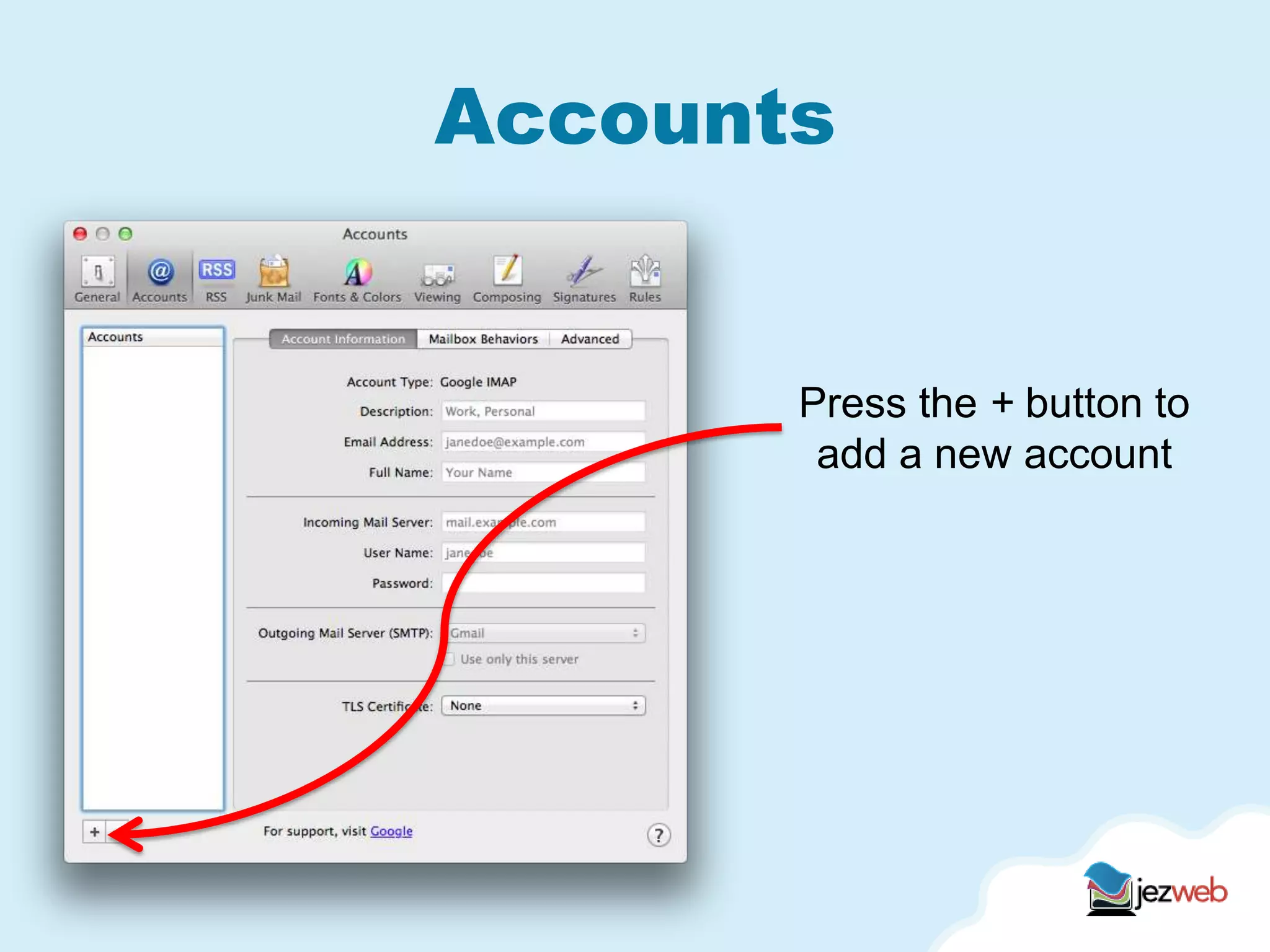
Accounts
Press the + button to
add a new account
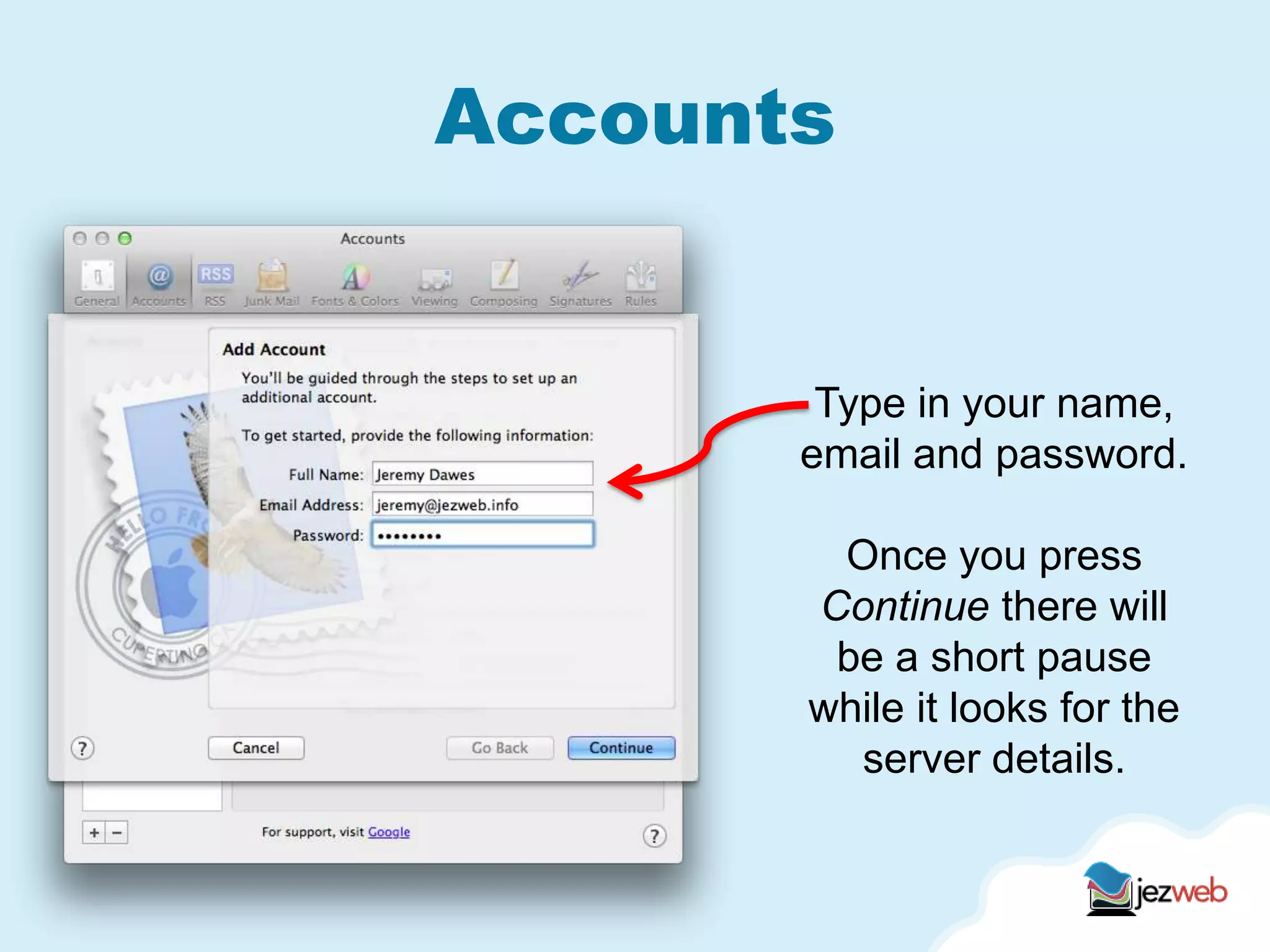
Accounts
Type in your name,
email and password.
Once you press
Continue there will
be a short pause
while it looks for the
server details.
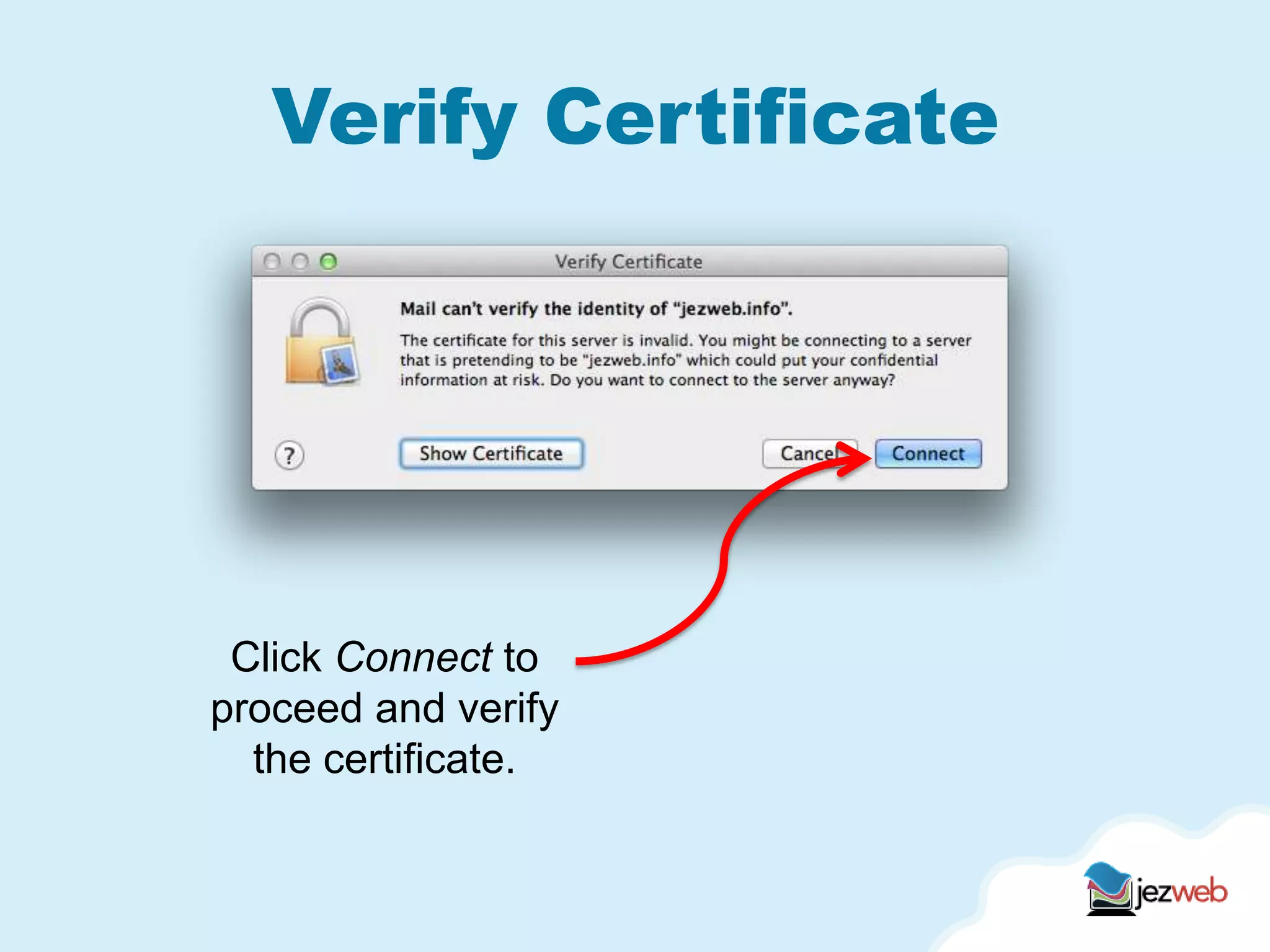
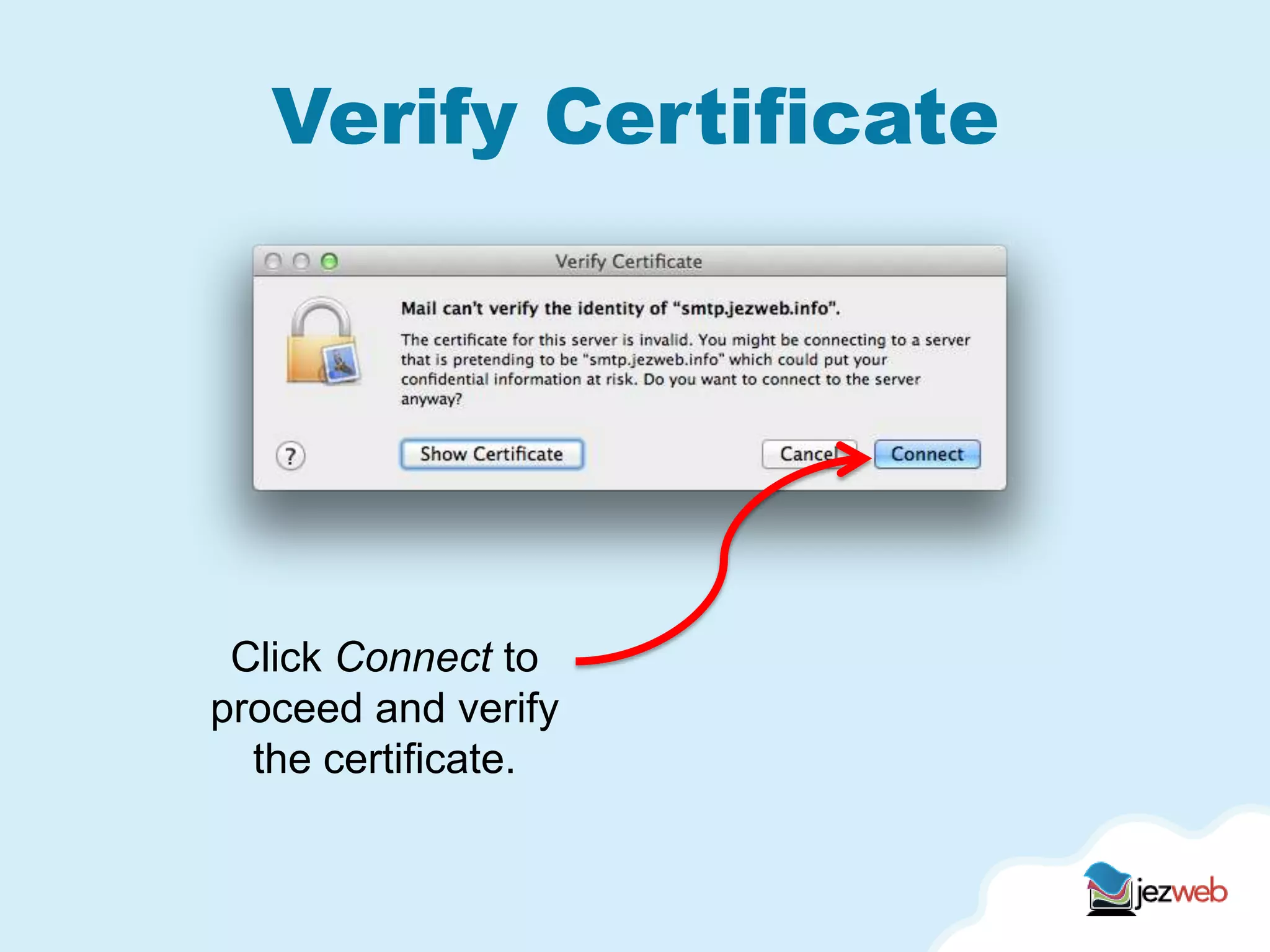
Verify Certificate
Click Connect to
proceed and verify
the certificate.
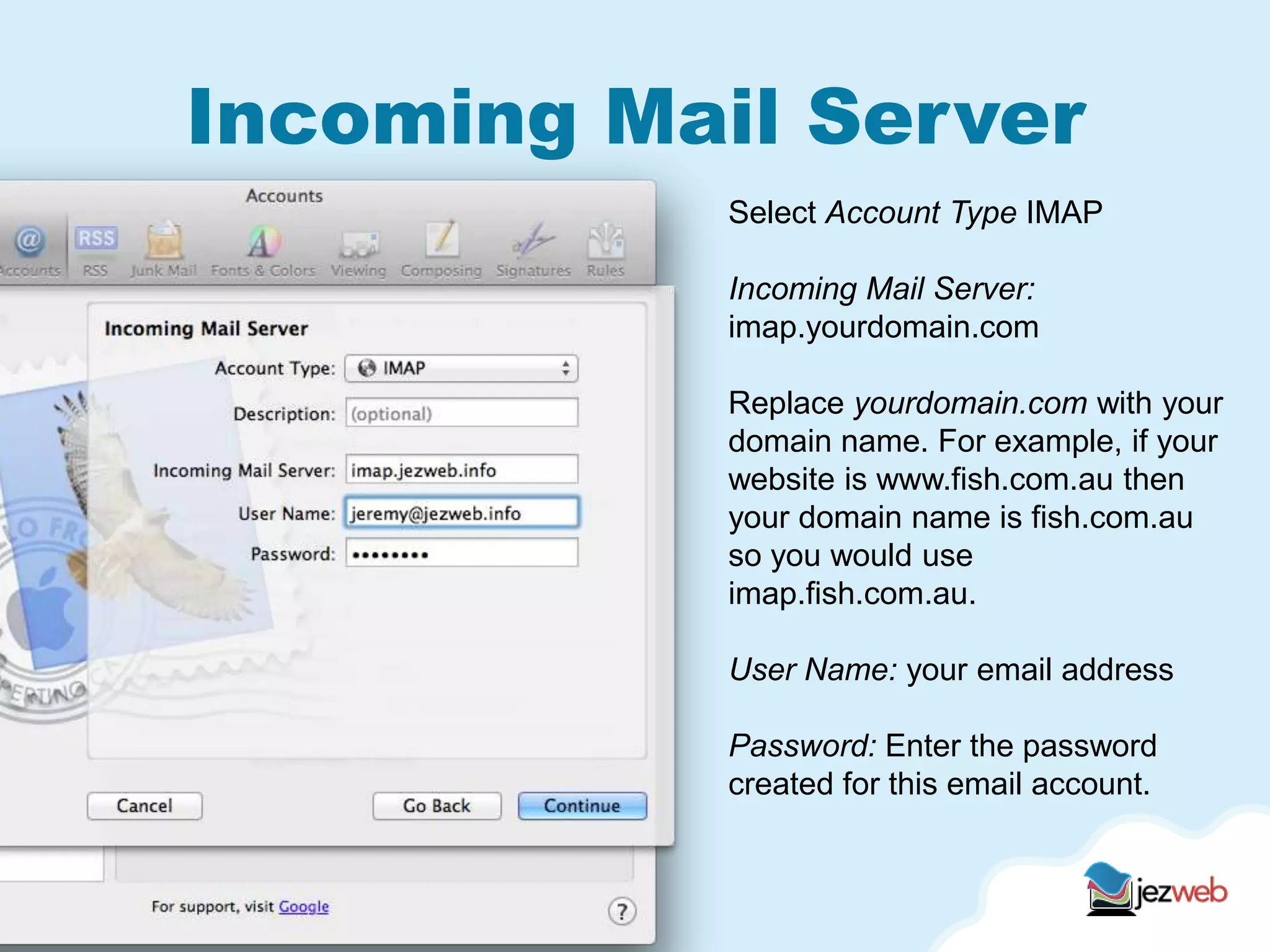
Incoming Mail Server
Select Account Type IMAP
Incoming Mail Server:
imap.yourdomain.com
Replace yourdomain.com with your
domain name. For example, if your
website is www.fish.com.au then
your domain name is fish.com.au
so you would use
imap.fish.com.au.
User Name: your email address
Password: Enter the password
created for this email account.
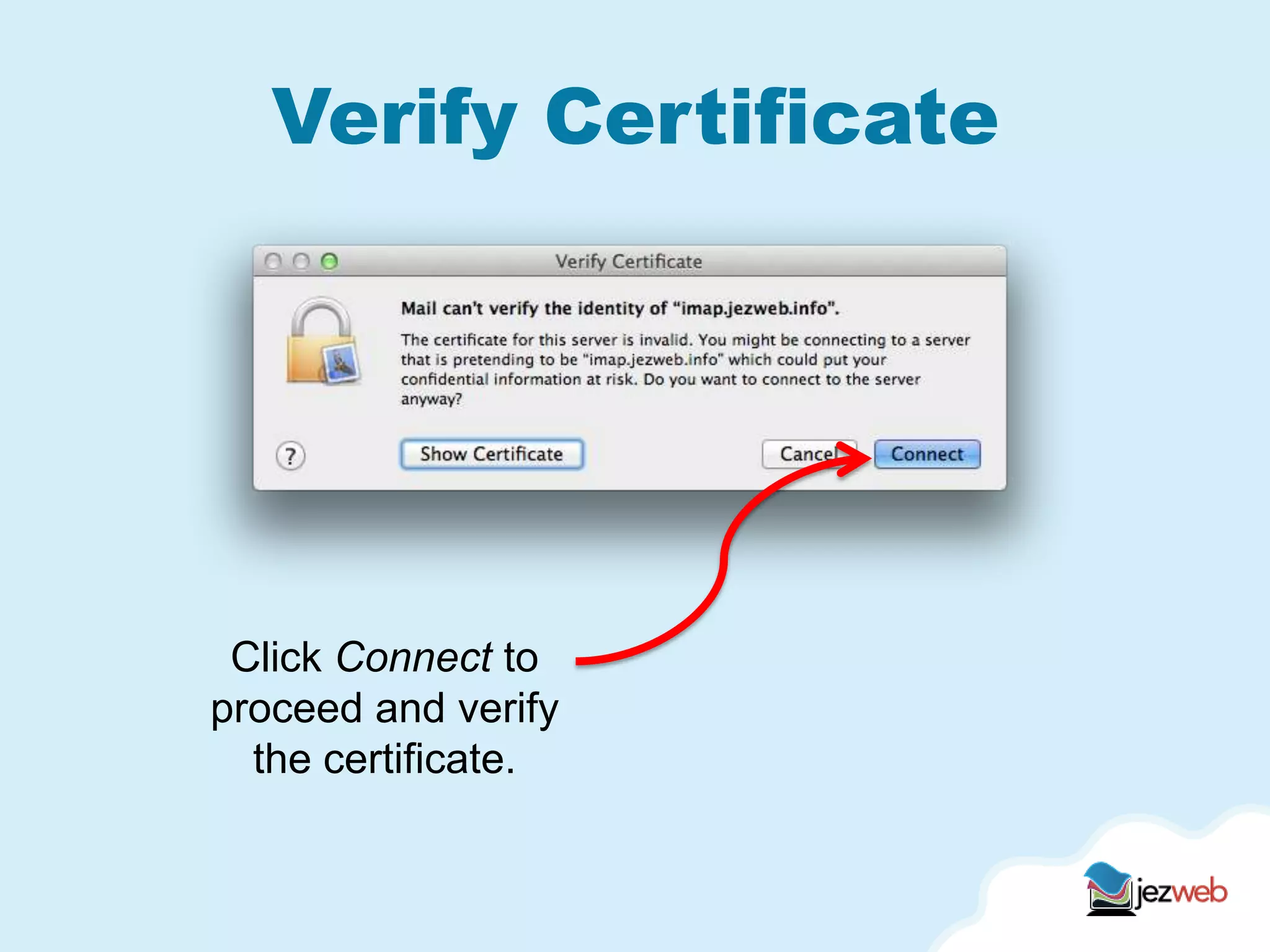
Verify Certificate
Click Connect to
proceed and verify
the certificate.
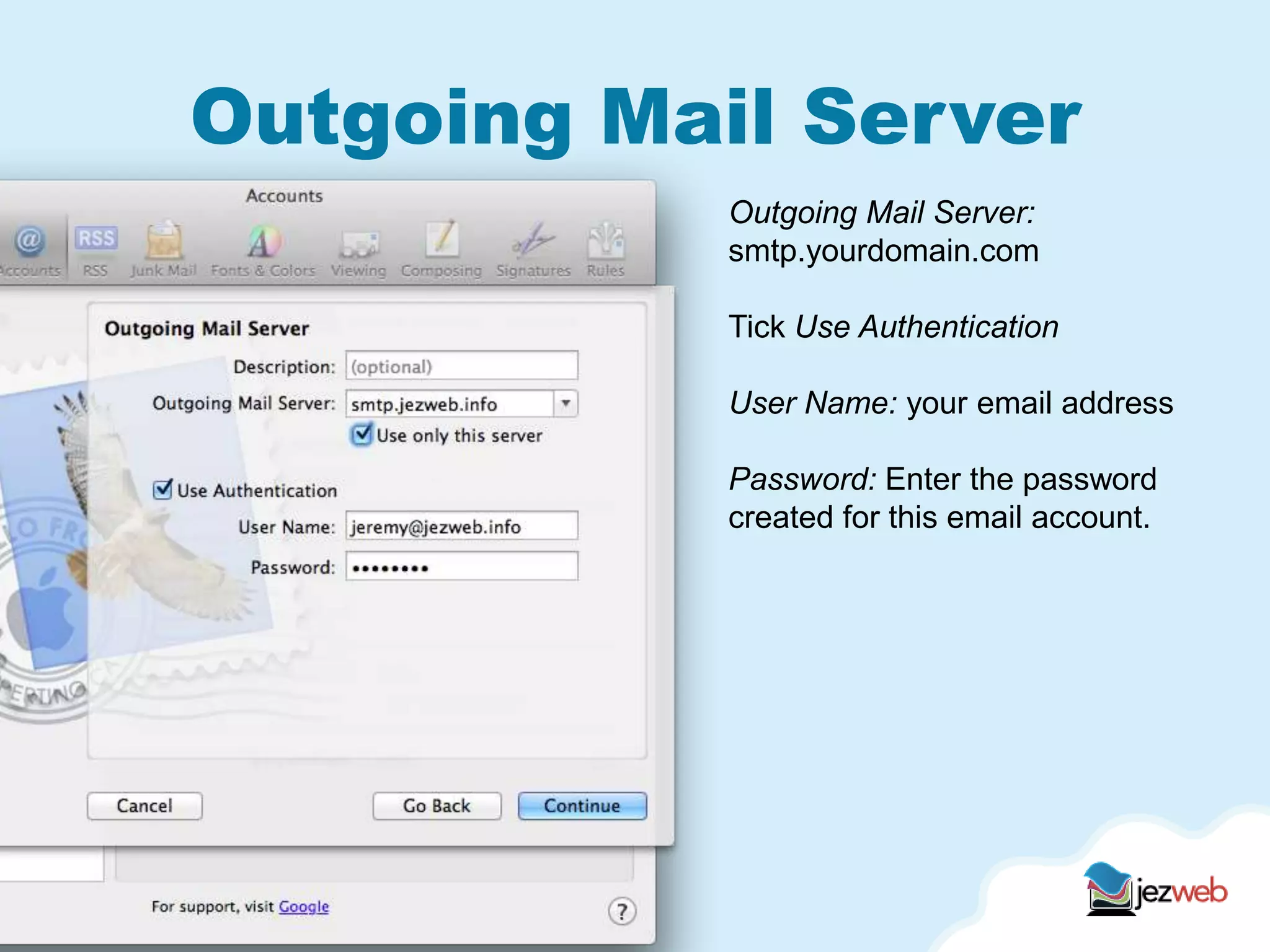
Outgoing Mail Server
Outgoing Mail Server:
smtp.yourdomain.com
Tick Use Authentication
User Name: your email address
Password: Enter the password
created for this email account.
Verify Certificate
Click Connect to
proceed and verify
the certificate.
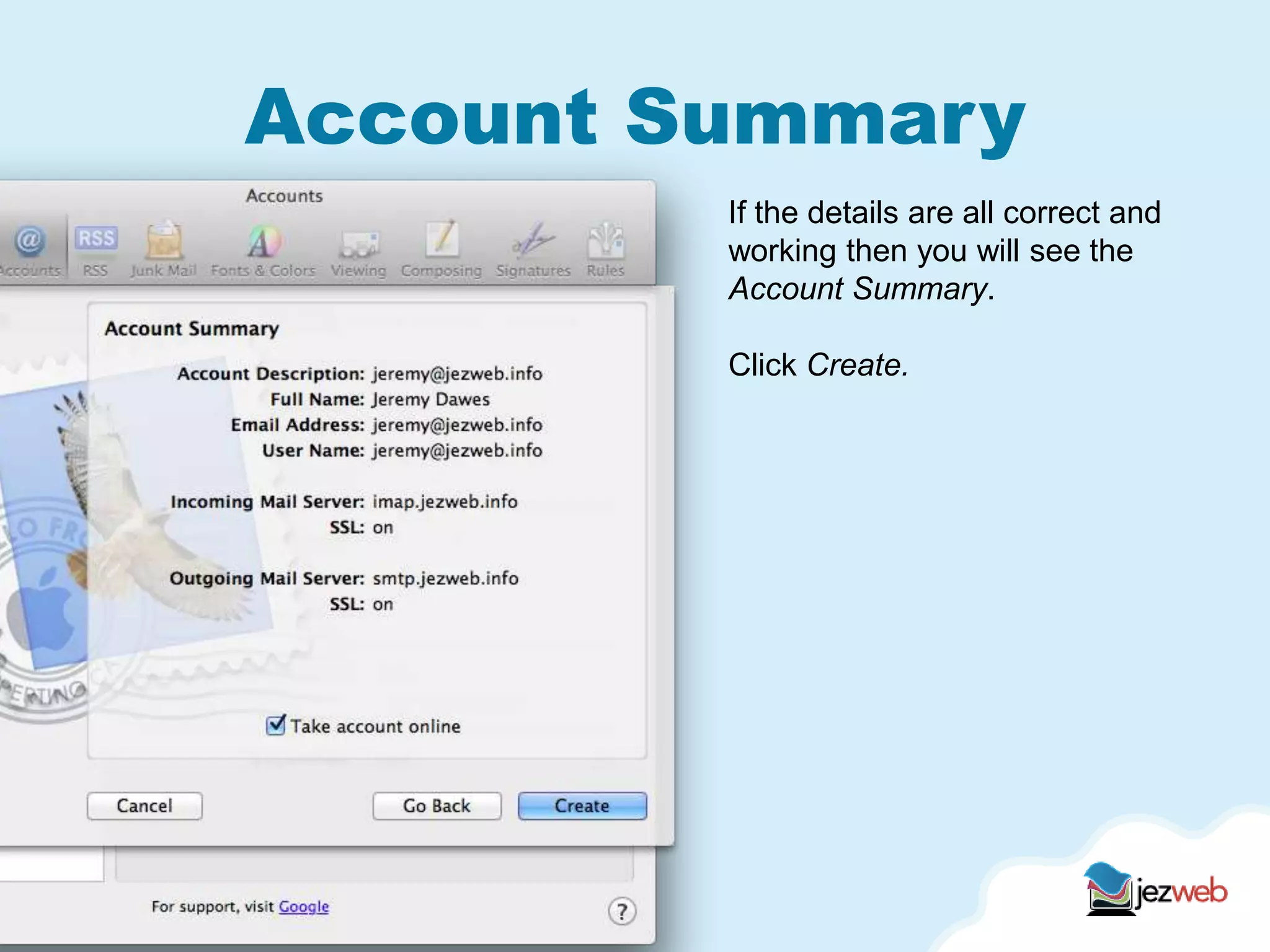
Account Summary
If the details are all correct and
working then you will see the
Account Summary.
Click Create.
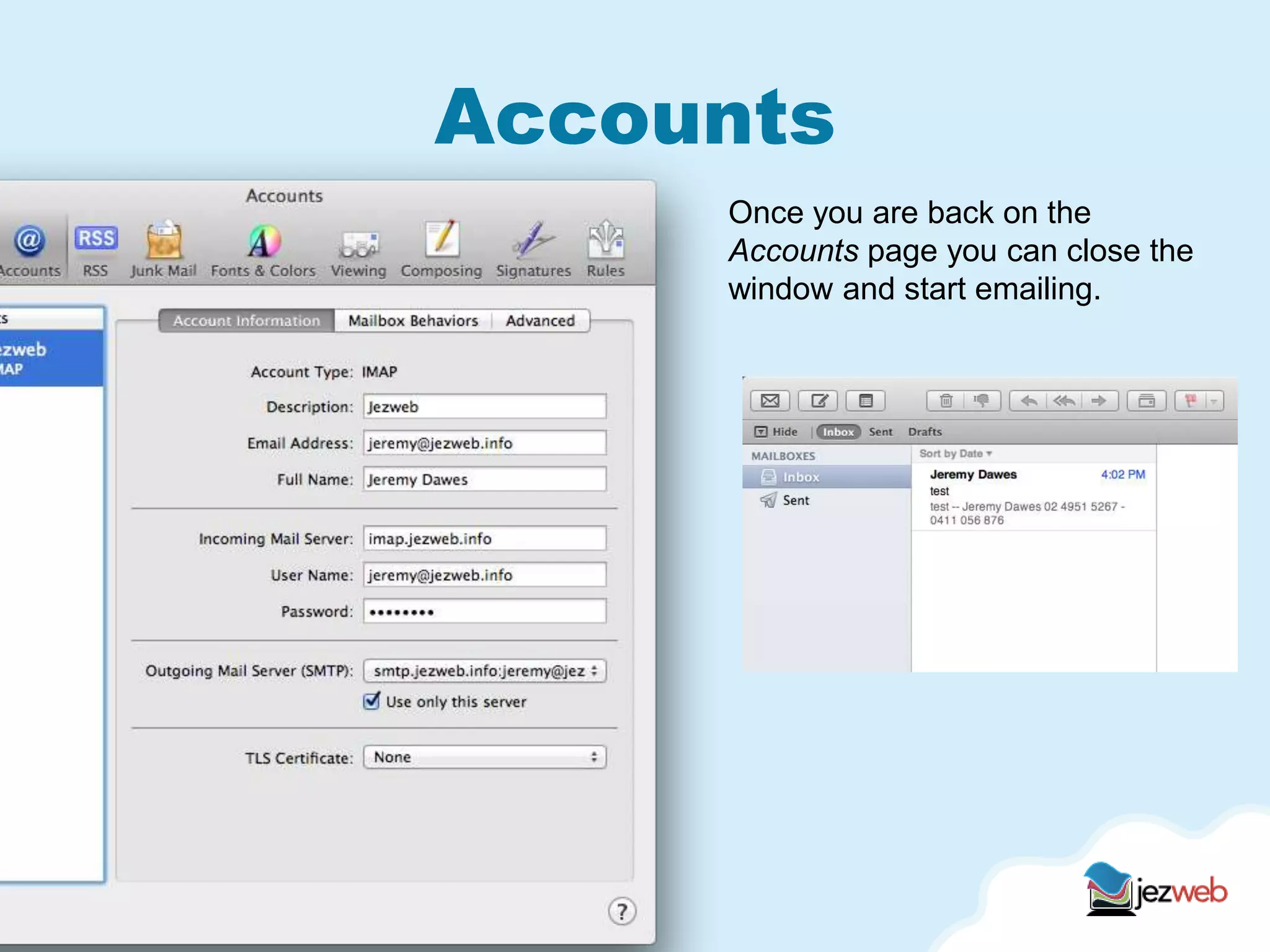
Accounts
Once you are back on the
Accounts page you can close the
window and start emailing.

Mac mail imap settings

  • 1.
    Email for MacMail A setup guide for Jezweb clients using IMAP settings to send and receive emails on Mac Mail.
  • 2.
    Open Mac Mail InMac Mail, open the Mail menu, select Preferences
  • 3.
    Accounts Press the +button to add a new account
  • 4.
    Accounts Type in yourname, email and password. Once you press Continue there will be a short pause while it looks for the server details.
  • 5.
    Verify Certificate Click Connectto proceed and verify the certificate.
  • 6.
    Incoming Mail Server SelectAccount Type IMAP Incoming Mail Server: imap.yourdomain.com Replace yourdomain.com with your domain name. For example, if your website is www.fish.com.au then your domain name is fish.com.au so you would use imap.fish.com.au. User Name: your email address Password: Enter the password created for this email account.
  • 7.
    Verify Certificate Click Connectto proceed and verify the certificate.
  • 8.
    Outgoing Mail Server OutgoingMail Server: smtp.yourdomain.com Tick Use Authentication User Name: your email address Password: Enter the password created for this email account.
  • 9.
    Verify Certificate Click Connectto proceed and verify the certificate.
  • 10.
    Account Summary If thedetails are all correct and working then you will see the Account Summary. Click Create.
  • 11.
    Accounts Once you areback on the Accounts page you can close the window and start emailing.