How to setup GTP Email in
   Mail on Mac OS X
Instructions for OS X 10.7 and 10.8 but should work on older versions.

            These instructions are for POP3 email setup.

                         By GTP iCommerce
                           1300 856 533
                        support@gtp.com.au
Step 1 – Know your Email Settings
You need to know the following before you get start.

   1.     Your Email Address(es)
   2.     Your Password(s)
   3.     Incoming Mail Server: mail.yourdomain.com.au
   4.     Outgoing Mail Server: mail.yourdomain.com.au

   Please replace yourdomain with your own domain name. You may also
   need to change the .com.au to .com.

   Test you know your password by logging in via webmail if you have
   problems http://webmail.yourdomain.com.au

   If you don’t know email support@gtp.com.au and tell us what password to set your email to. Or SMS 0411 352 766 with
   details or Call 1300 856 533 and talk to support or leave a message with what password you want and your mobile number
   so we can SMS you.
Mail
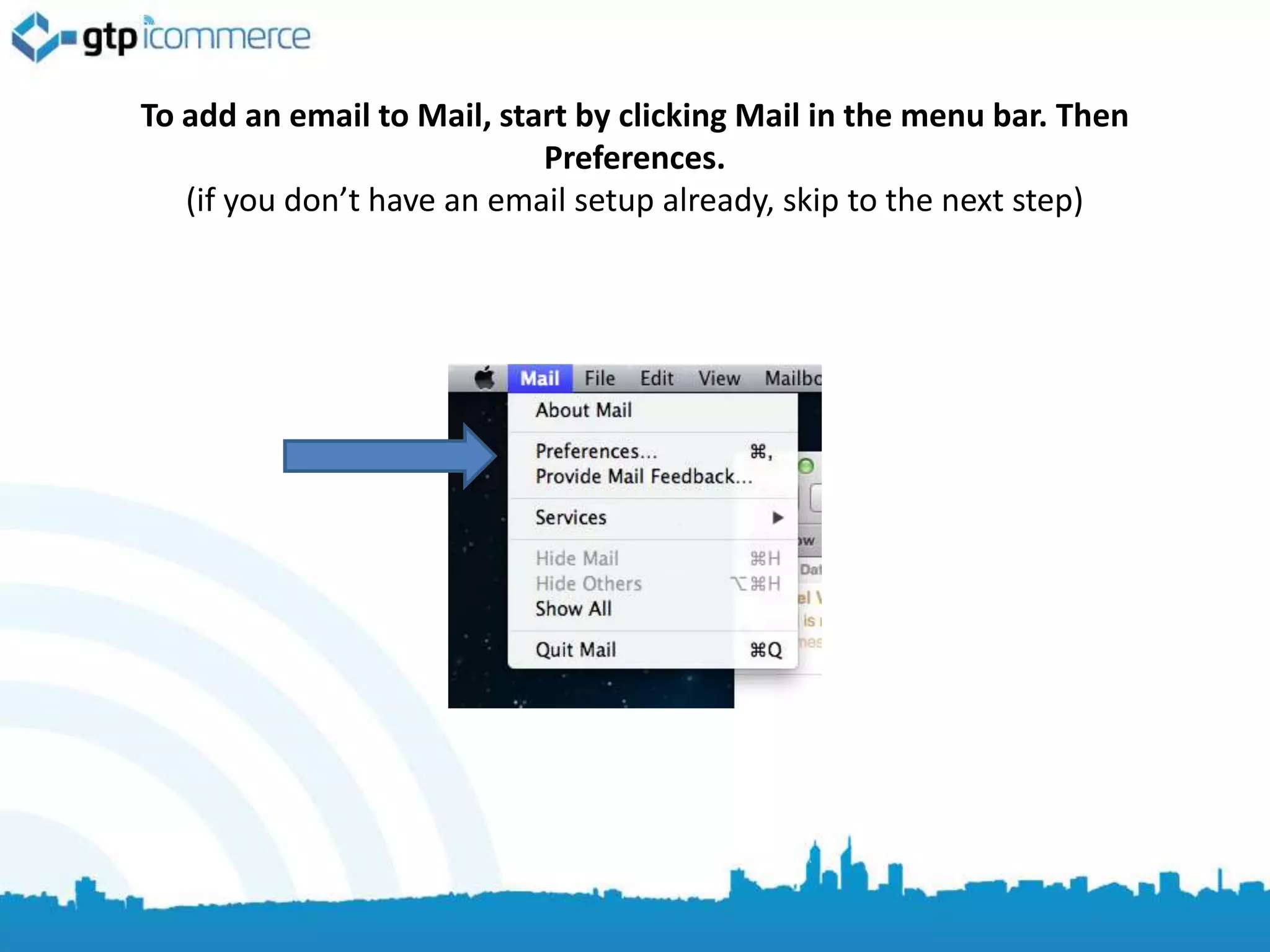
To add an email to Mail, start by clicking Mail in the menu bar. Then
                            Preferences.
   (if you don’t have an email setup already, skip to the next step)
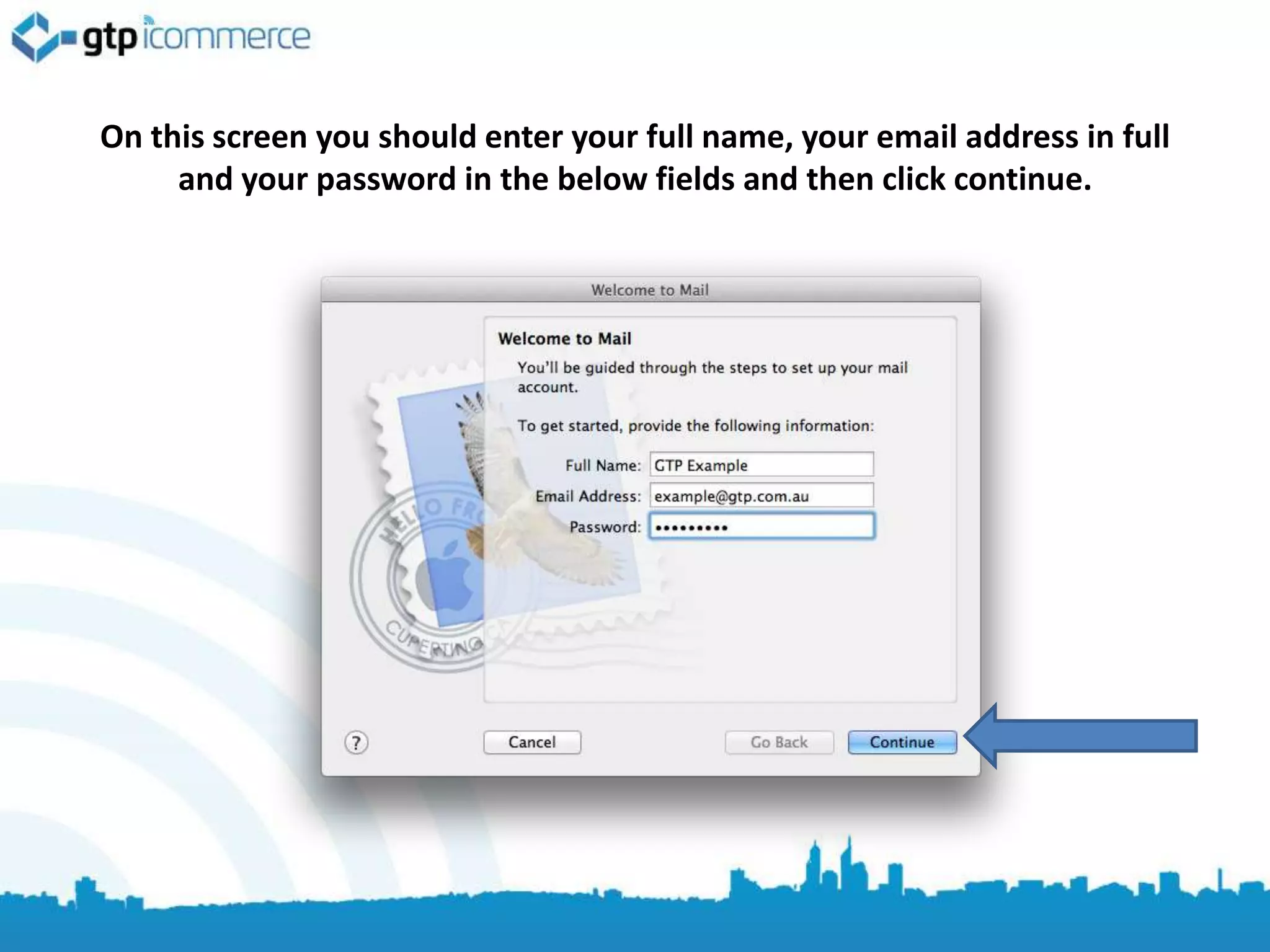
On this screen you should enter your full name, your email address in full
     and your password in the below fields and then click continue.
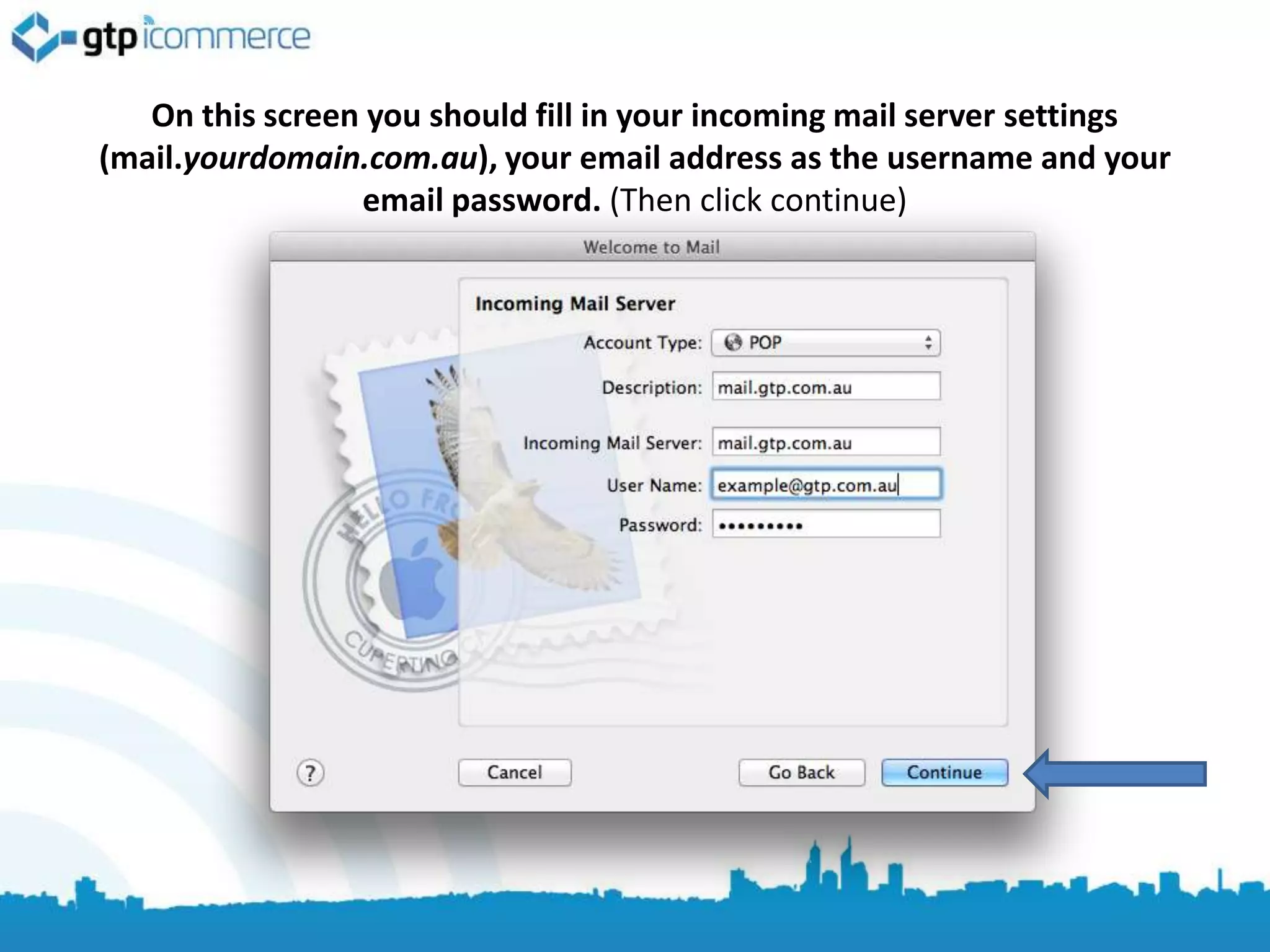
On this screen you should fill in your incoming mail server settings
(mail.yourdomain.com.au), your email address as the username and your
                 email password. (Then click continue)
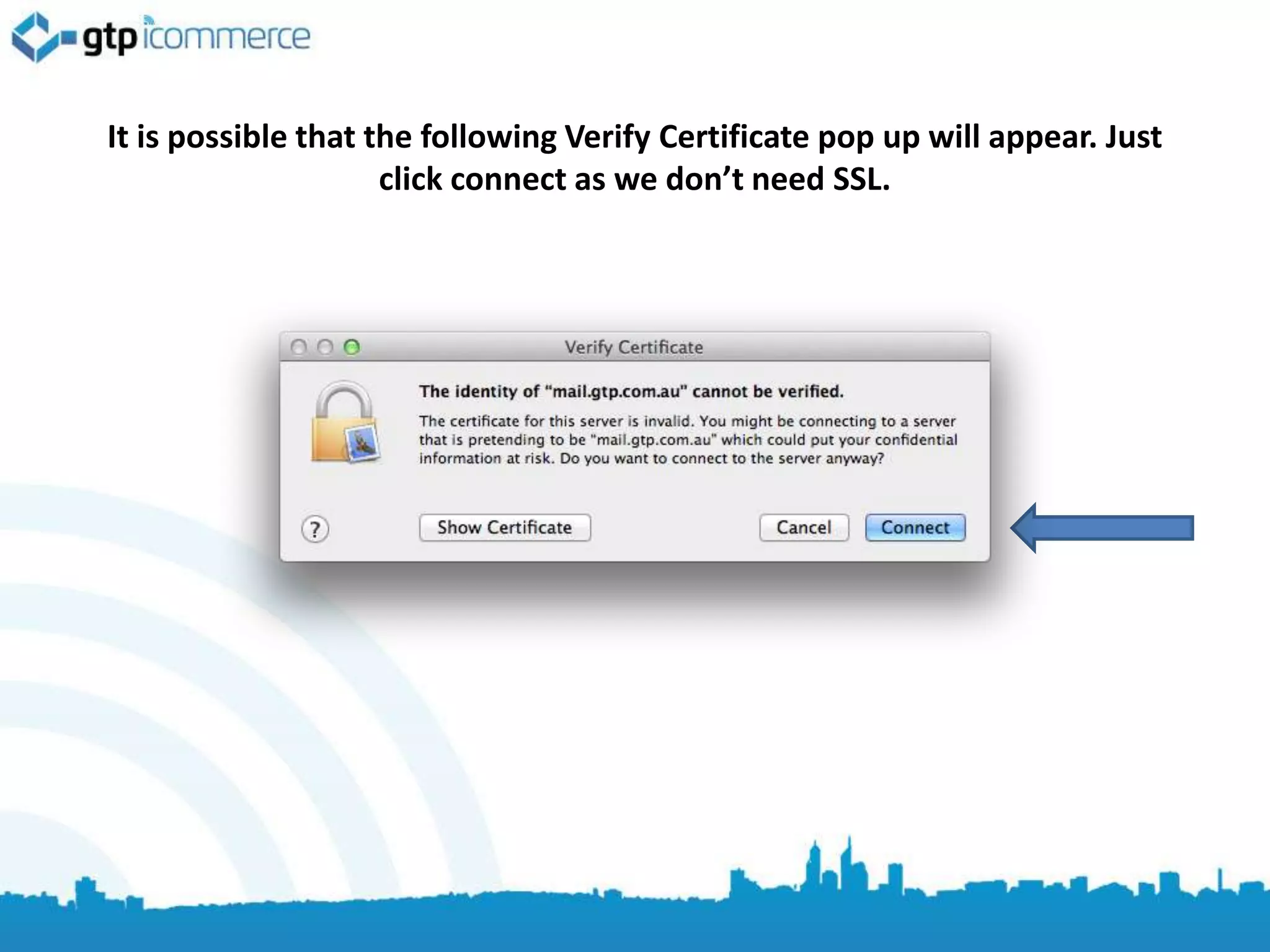
It is possible that the following Verify Certificate pop up will appear. Just
                     click connect as we don’t need SSL.
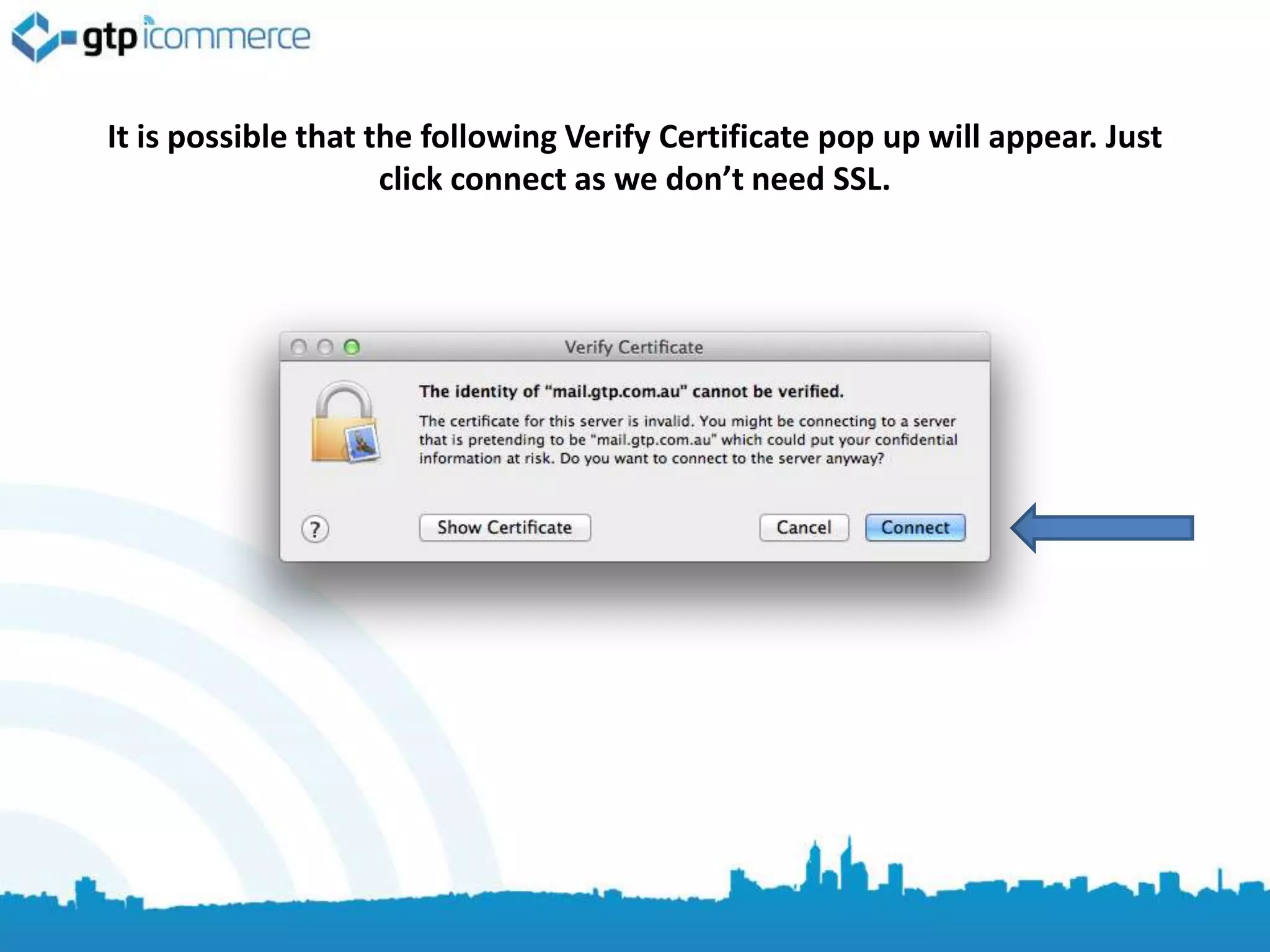
It is possible that the following Verify Certificate pop up will appear. Just
                     click connect as we don’t need SSL.
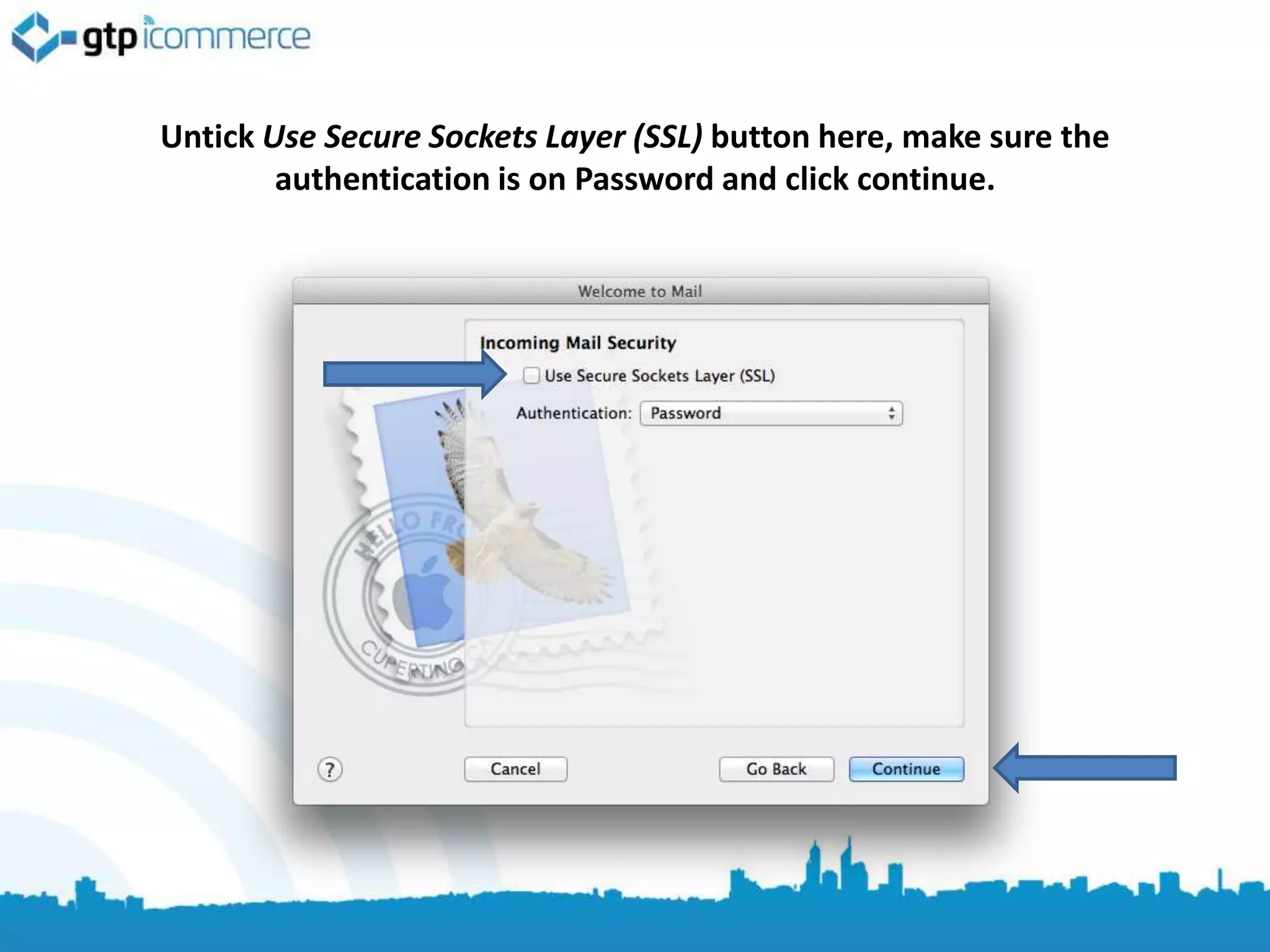
Untick Use Secure Sockets Layer (SSL) button here, make sure the
        authentication is on Password and click continue.
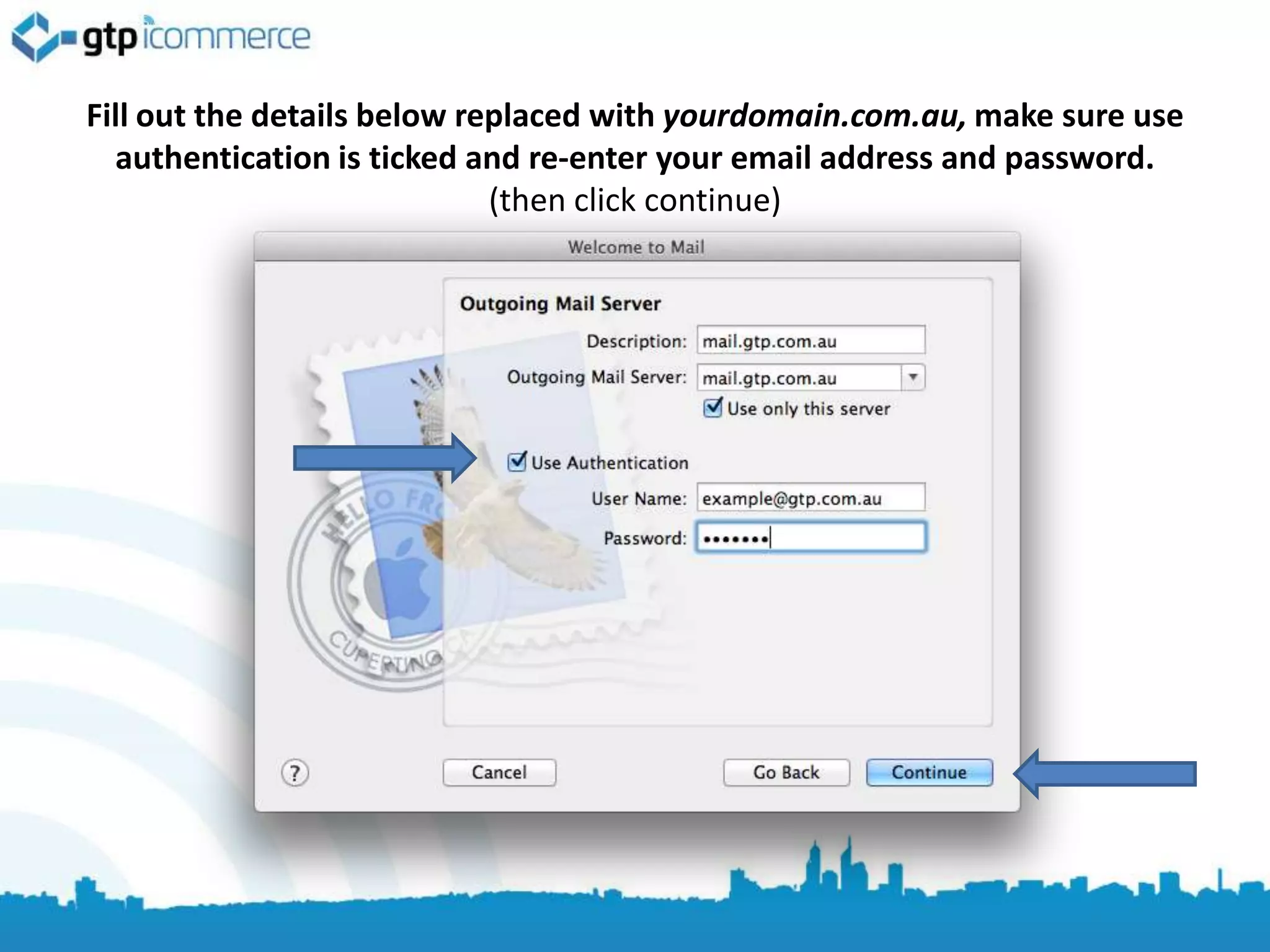
Fill out the details below replaced with yourdomain.com.au, make sure use
  authentication is ticked and re-enter your email address and password.
                             (then click continue)
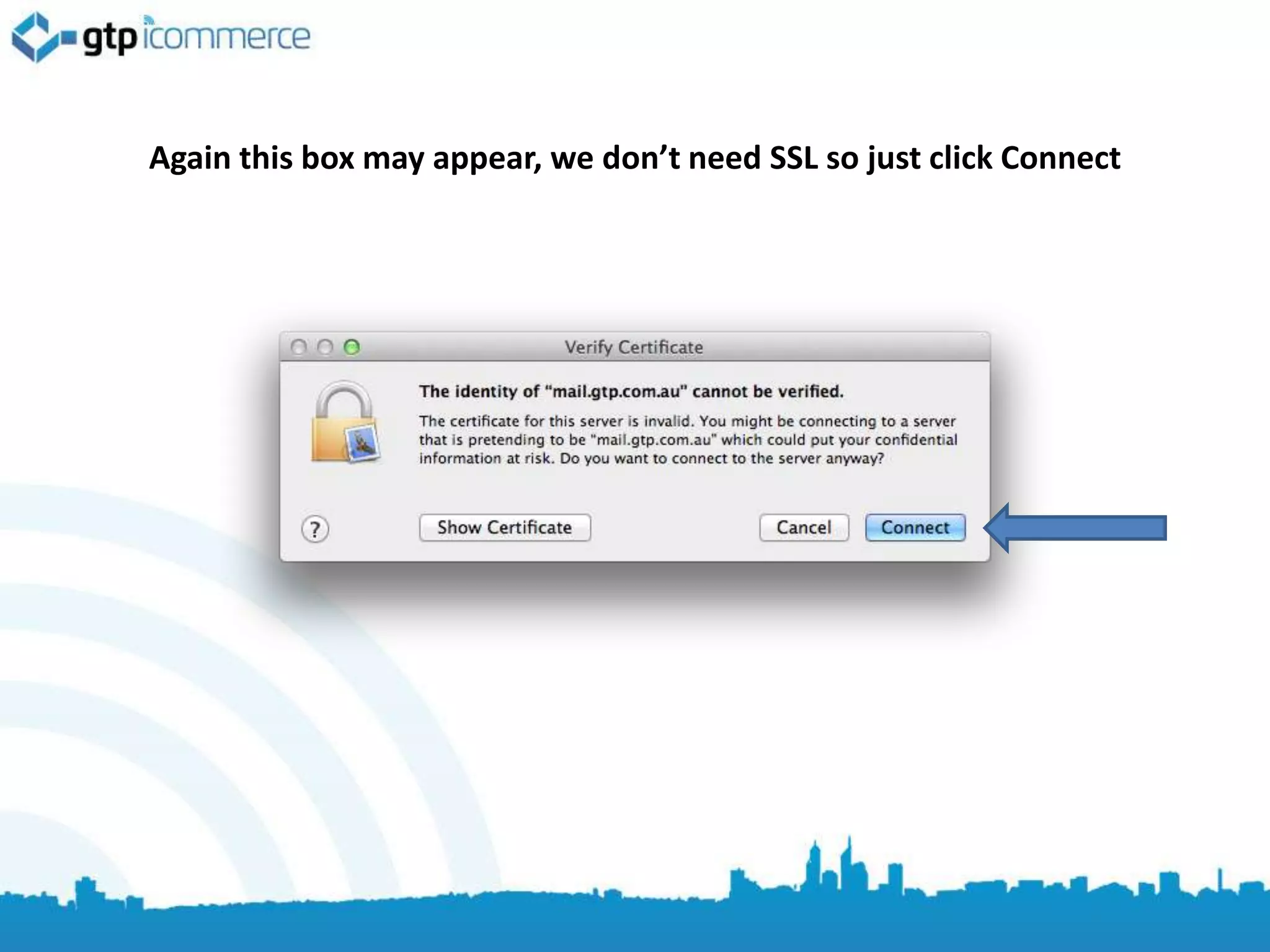
Again this box may appear, we don’t need SSL so just click Connect
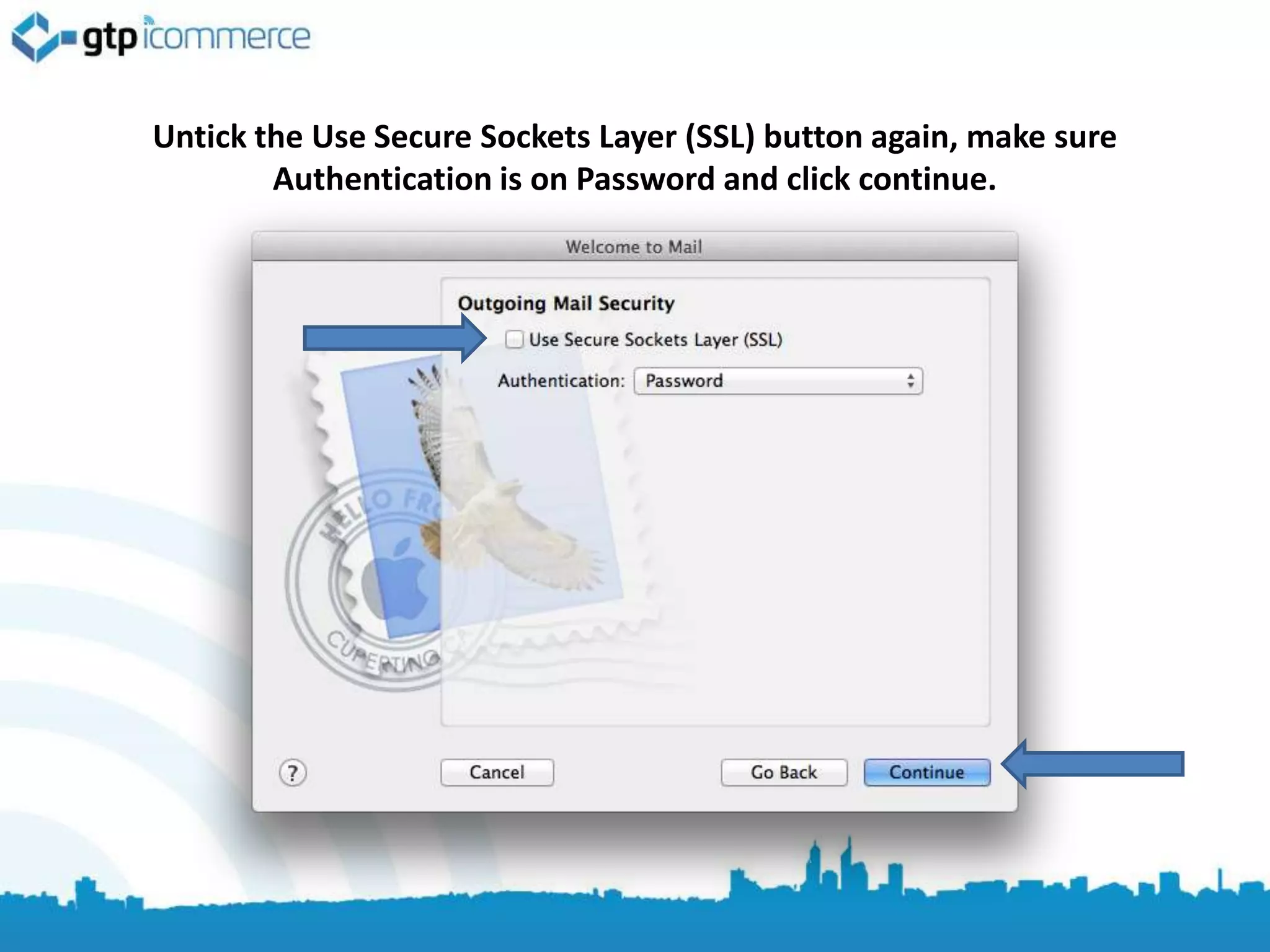
Untick the Use Secure Sockets Layer (SSL) button again, make sure
        Authentication is on Password and click continue.
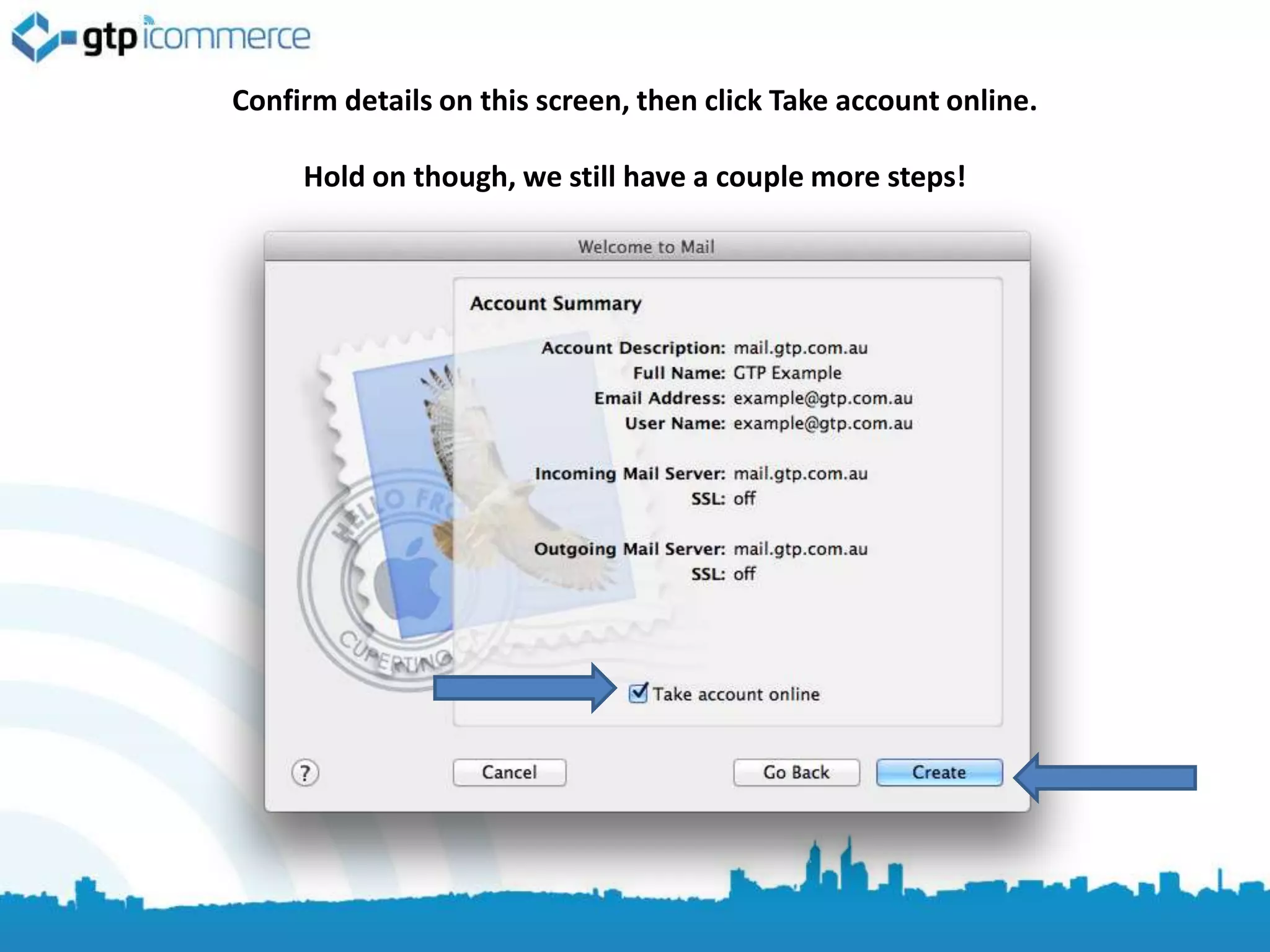
Confirm details on this screen, then click Take account online.

     Hold on though, we still have a couple more steps!
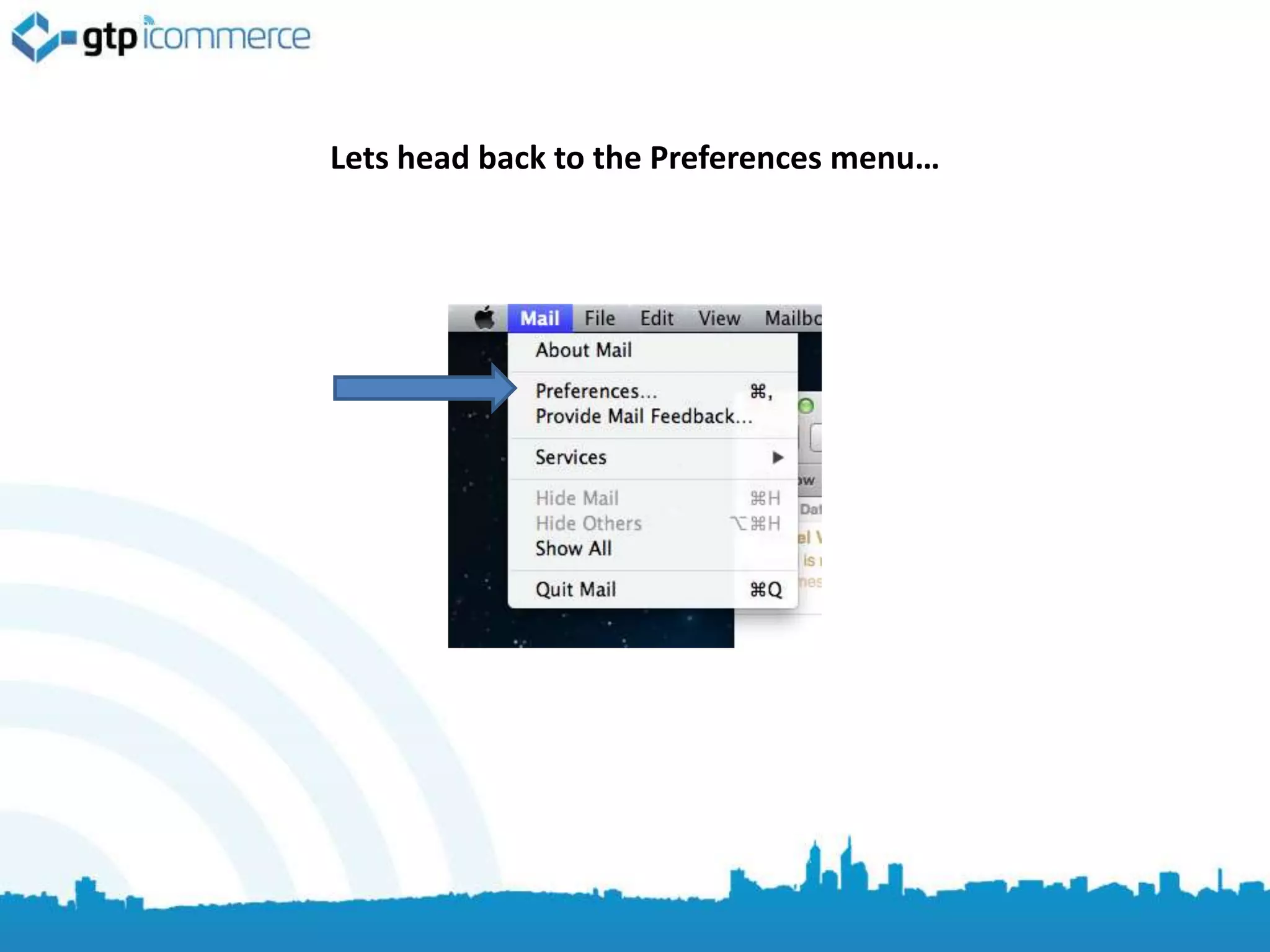
Lets head back to the Preferences menu…
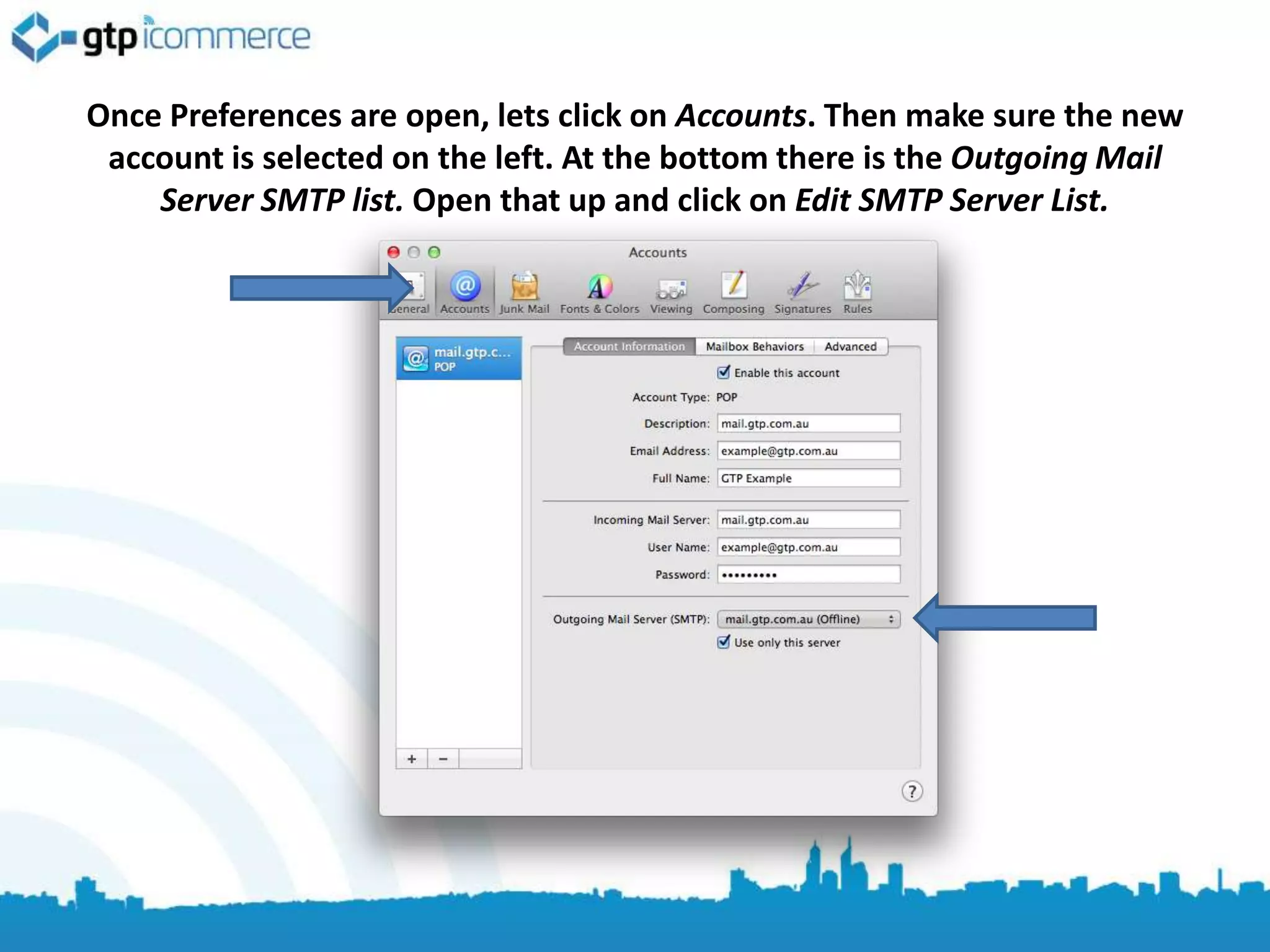
Once Preferences are open, lets click on Accounts. Then make sure the new
 account is selected on the left. At the bottom there is the Outgoing Mail
    Server SMTP list. Open that up and click on Edit SMTP Server List.
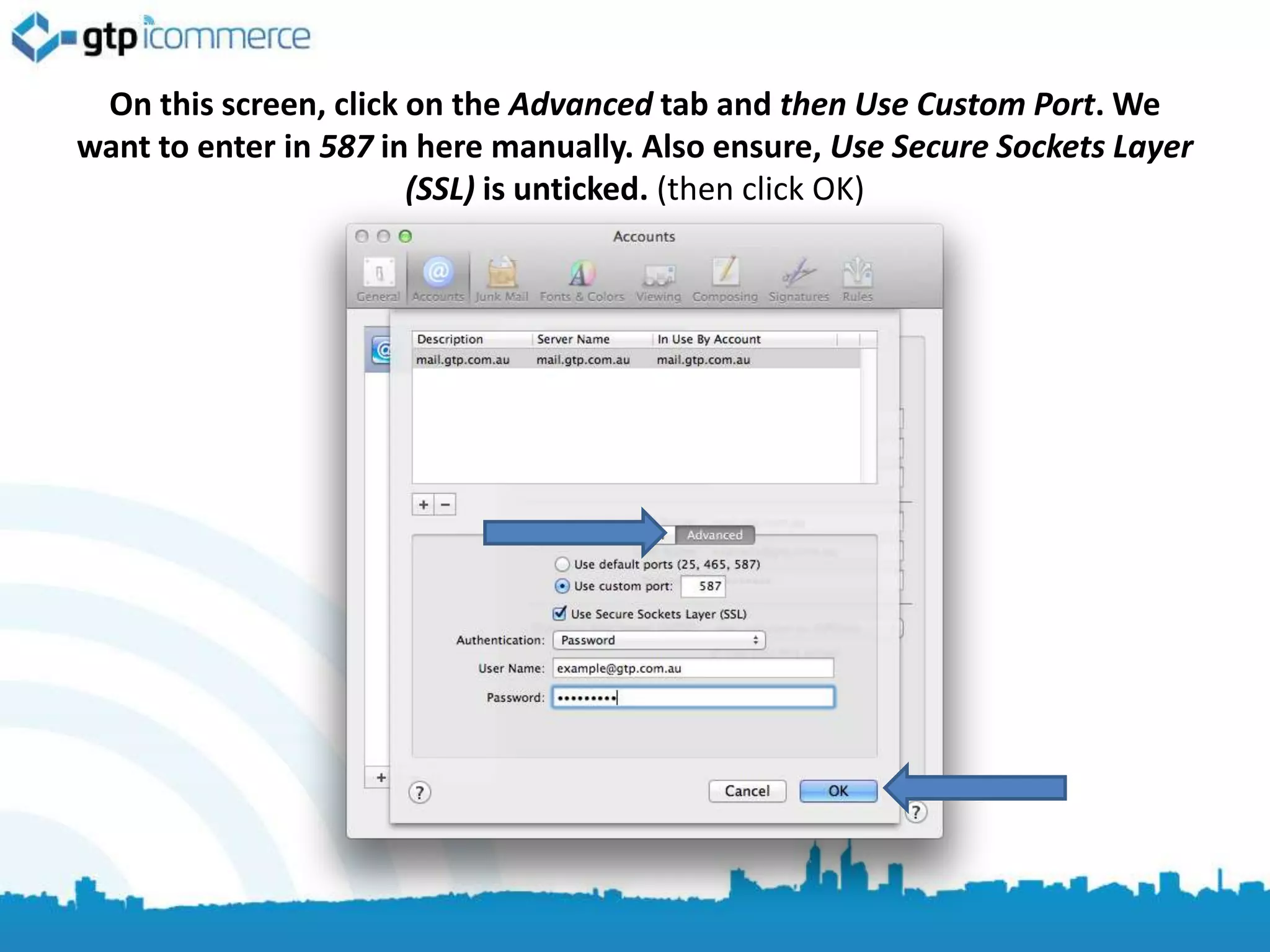
On this screen, click on the Advanced tab and then Use Custom Port. We
want to enter in 587 in here manually. Also ensure, Use Secure Sockets Layer
                       (SSL) is unticked. (then click OK)
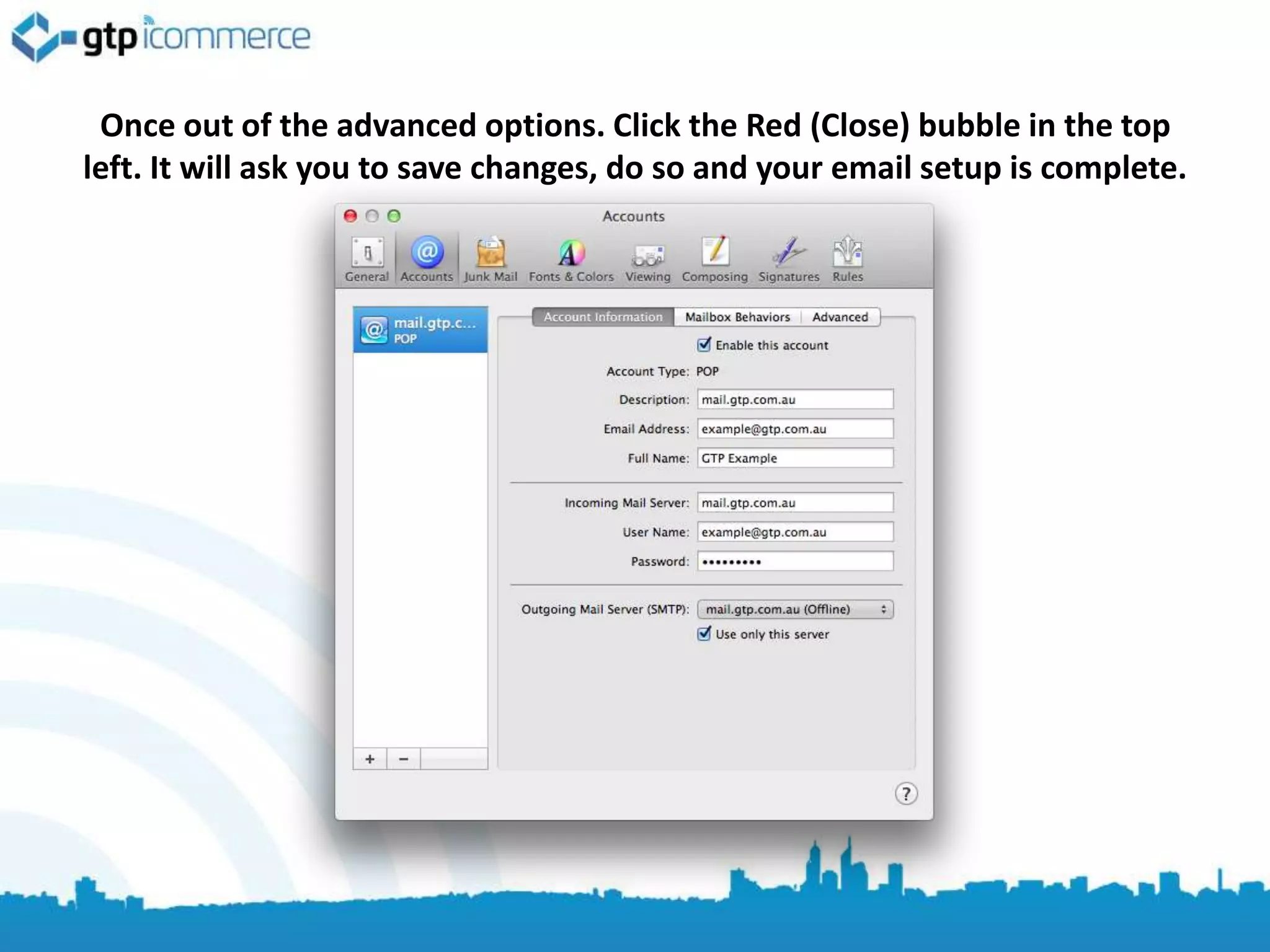
Once out of the advanced options. Click the Red (Close) bubble in the top
left. It will ask you to save changes, do so and your email setup is complete.
Troubleshooting.
• Check User Name Field contains FULL email address (this is the most
  common mistake as outlook strips the last part of the email itself)

• Check your incoming and outgoing mail servers are
  mail.YOURdomainname.com.au

• Then confirm that your password is correct

• If still not working make sure you have internet access by loading Google.

• If you have internet access and cannot get your email to work then call
  GTP on 1300 856 533.

Email Setup for Mail on Mac OSX for GTP iCommerce Emails

  • 1.
    How to setupGTP Email in Mail on Mac OS X Instructions for OS X 10.7 and 10.8 but should work on older versions. These instructions are for POP3 email setup. By GTP iCommerce 1300 856 533 support@gtp.com.au
  • 2.
    Step 1 –Know your Email Settings You need to know the following before you get start. 1. Your Email Address(es) 2. Your Password(s) 3. Incoming Mail Server: mail.yourdomain.com.au 4. Outgoing Mail Server: mail.yourdomain.com.au Please replace yourdomain with your own domain name. You may also need to change the .com.au to .com. Test you know your password by logging in via webmail if you have problems http://webmail.yourdomain.com.au If you don’t know email support@gtp.com.au and tell us what password to set your email to. Or SMS 0411 352 766 with details or Call 1300 856 533 and talk to support or leave a message with what password you want and your mobile number so we can SMS you.
  • 3.
  • 4.
    To add anemail to Mail, start by clicking Mail in the menu bar. Then Preferences. (if you don’t have an email setup already, skip to the next step)
  • 5.
    On this screenyou should enter your full name, your email address in full and your password in the below fields and then click continue.
  • 6.
    On this screenyou should fill in your incoming mail server settings (mail.yourdomain.com.au), your email address as the username and your email password. (Then click continue)
  • 7.
    It is possiblethat the following Verify Certificate pop up will appear. Just click connect as we don’t need SSL.
  • 8.
    It is possiblethat the following Verify Certificate pop up will appear. Just click connect as we don’t need SSL.
  • 9.
    Untick Use SecureSockets Layer (SSL) button here, make sure the authentication is on Password and click continue.
  • 10.
    Fill out thedetails below replaced with yourdomain.com.au, make sure use authentication is ticked and re-enter your email address and password. (then click continue)
  • 11.
    Again this boxmay appear, we don’t need SSL so just click Connect
  • 12.
    Untick the UseSecure Sockets Layer (SSL) button again, make sure Authentication is on Password and click continue.
  • 13.
    Confirm details onthis screen, then click Take account online. Hold on though, we still have a couple more steps!
  • 14.
    Lets head backto the Preferences menu…
  • 15.
    Once Preferences areopen, lets click on Accounts. Then make sure the new account is selected on the left. At the bottom there is the Outgoing Mail Server SMTP list. Open that up and click on Edit SMTP Server List.
  • 16.
    On this screen,click on the Advanced tab and then Use Custom Port. We want to enter in 587 in here manually. Also ensure, Use Secure Sockets Layer (SSL) is unticked. (then click OK)
  • 17.
    Once out ofthe advanced options. Click the Red (Close) bubble in the top left. It will ask you to save changes, do so and your email setup is complete.
  • 18.
    Troubleshooting. • Check UserName Field contains FULL email address (this is the most common mistake as outlook strips the last part of the email itself) • Check your incoming and outgoing mail servers are mail.YOURdomainname.com.au • Then confirm that your password is correct • If still not working make sure you have internet access by loading Google. • If you have internet access and cannot get your email to work then call GTP on 1300 856 533.