Email Setup for Microsoft
                          Outlook
                     Outlook 2010 and Outlook 2013
                              Outlook 2007
                              Outlook 2003
                             These instructions are for POP3 email setup
                             They are targeted at clients of GTP iCommerce but will generally work for everyone


Web Design Perth Western Australia
                                                   www.gtp-icommerce.com
Step 1 – Know Your Email Settings

     You Need to know the following before you get started…
     1.Your Email Address’s
     2.Your Password’s

     3.Incoming mail server: mail.yourdomain.com.au
     4.Outgoing mail server: mail.yourdomain.com.au

     Please replace yourdomain with your own domain settings. E.g                                          mail.abccompany.com.au


     Test you know your password by logging in via webmail if you have problems
     http://webmail.yourdomain.com.au
     If you don’t know email support@gtp.com.au and tell us what passsword to set your email to. Or SMS 0411 352 766 with details or Call 1300
     856 533 and talk to support or leave a message with what password you want and your mobile number so we can sms you.


Web Design Perth Western Australia                       www.gtp-icommerce.com
Outlook 2010 Email Setup
                       Instructions


Web Design Perth Western Australia   www.gtp-icommerce.com
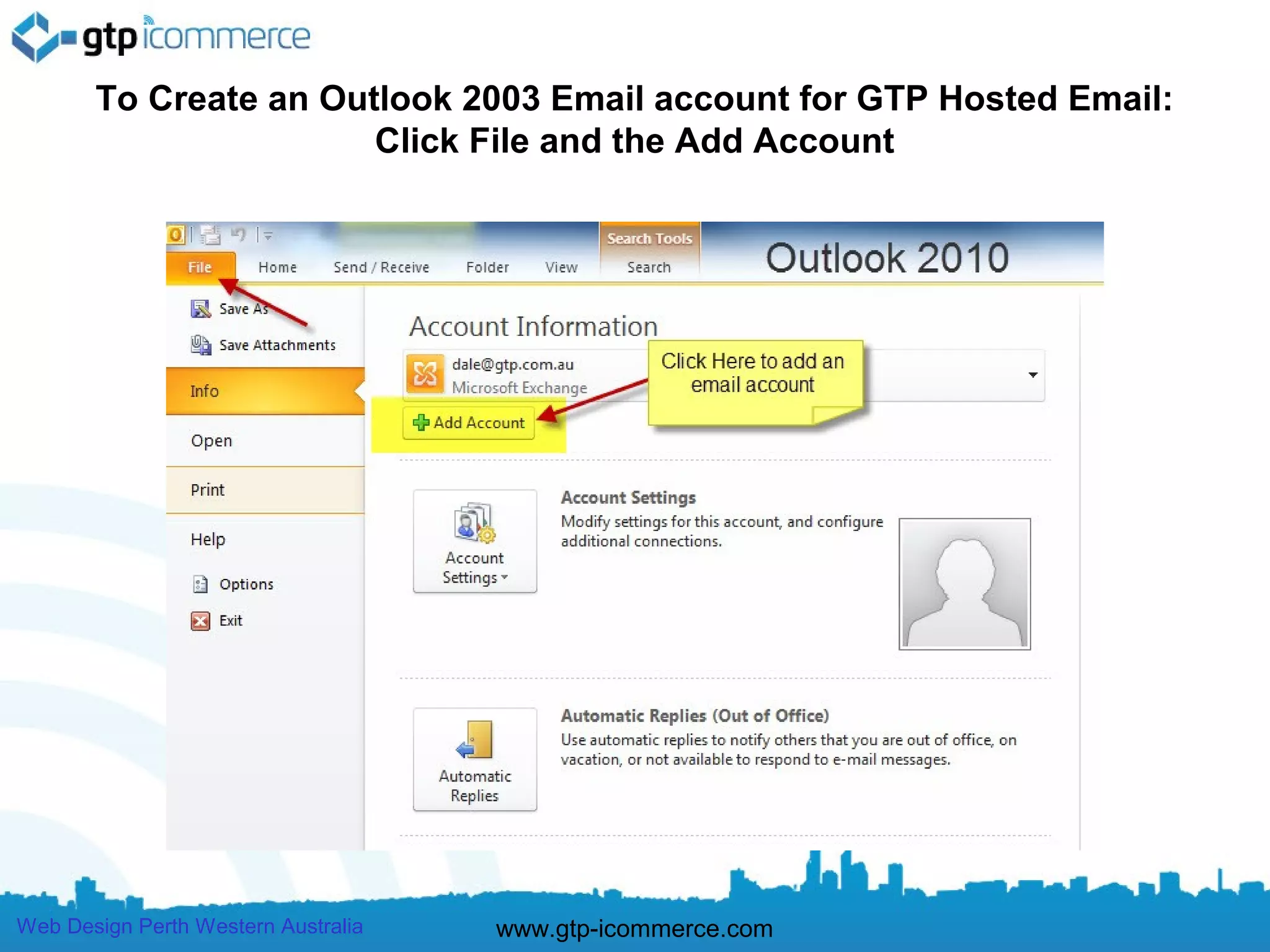
To Create an Outlook 2003 Email account for GTP Hosted Email:
                       Click File and the Add Account


Web Design Perth Western Australia   www.gtp-icommerce.com
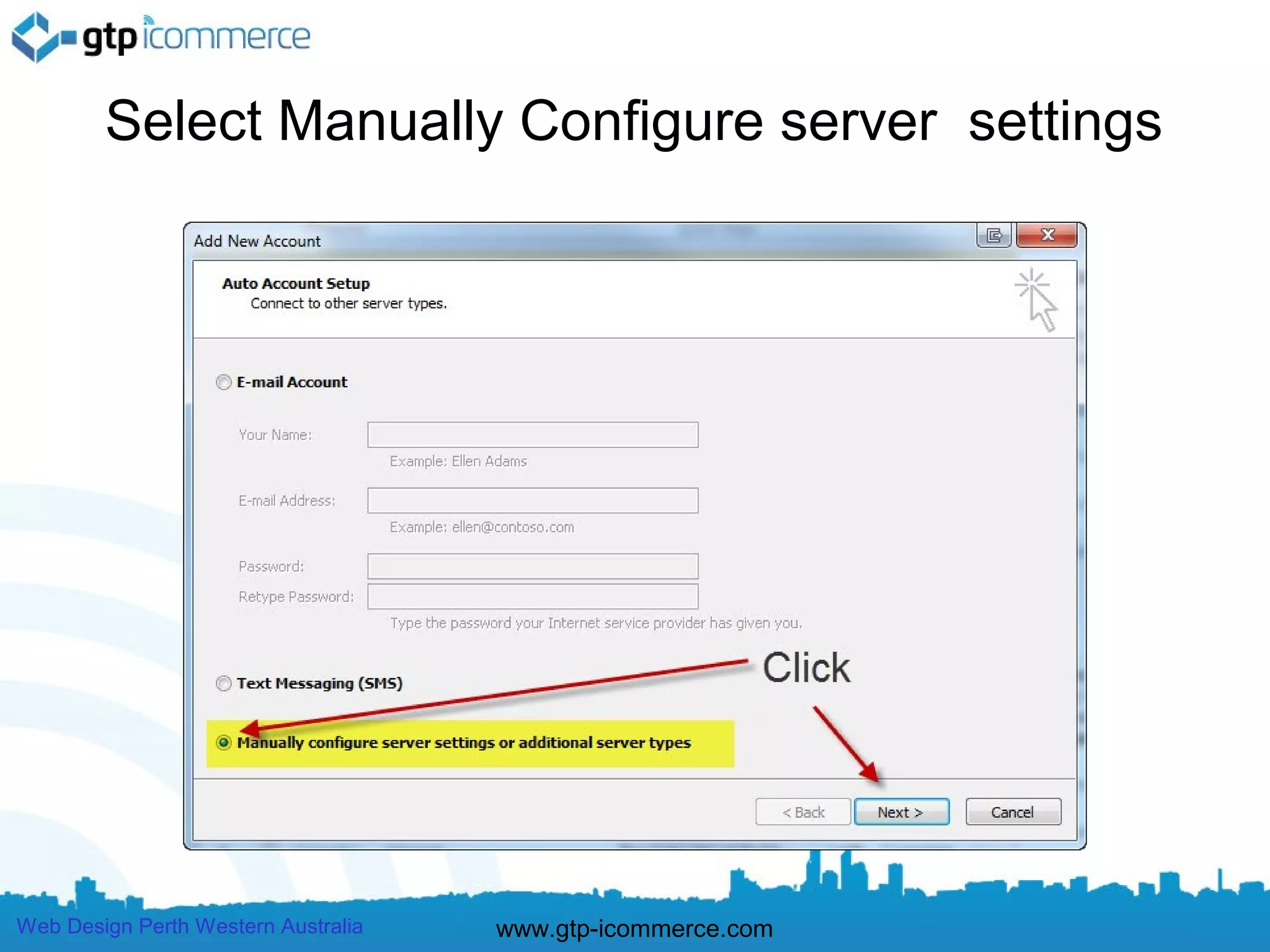
Select Manually Configure server settings


Web Design Perth Western Australia   www.gtp-icommerce.com
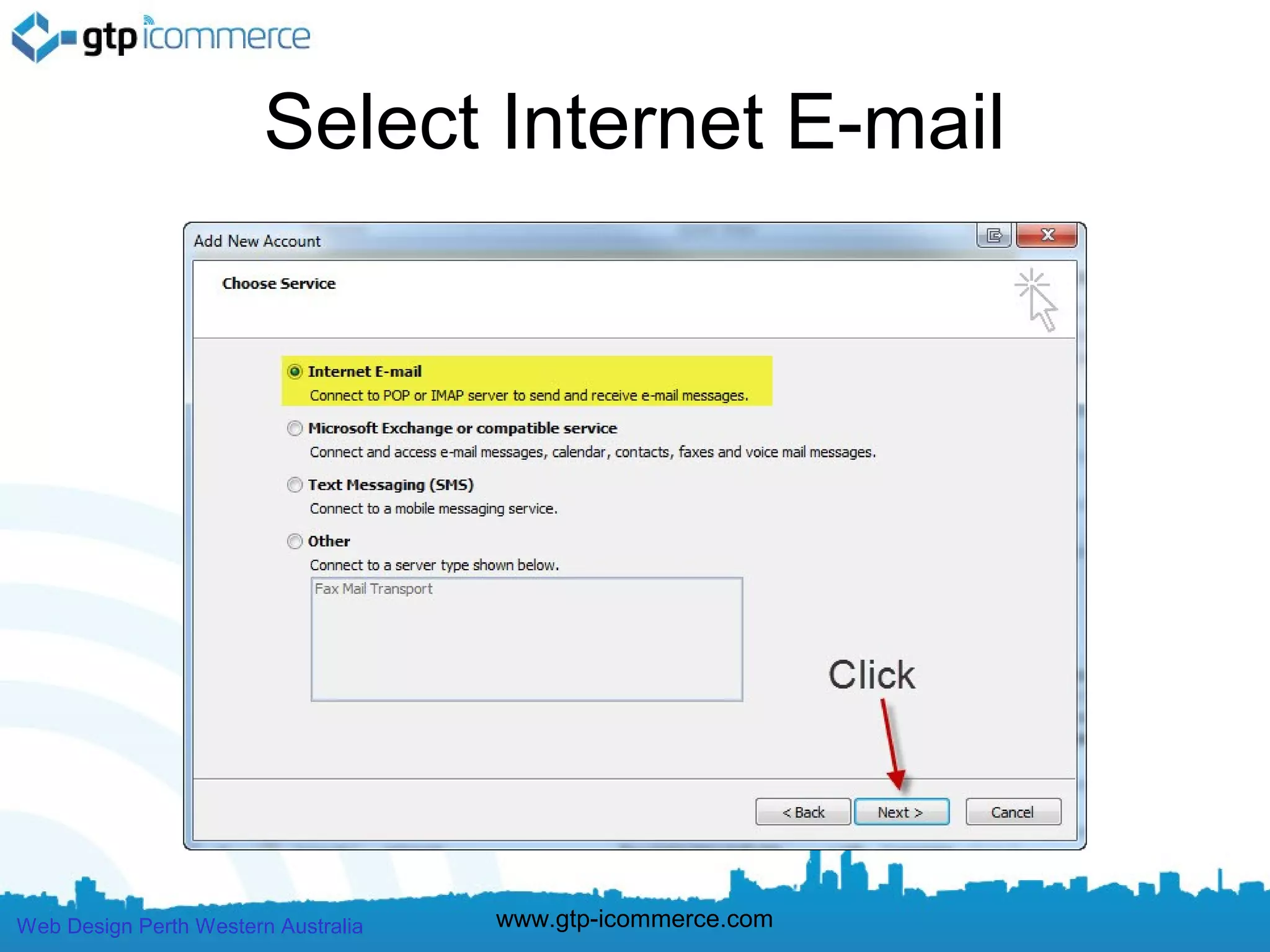
Select Internet E-mail


Web Design Perth Western Australia   www.gtp-icommerce.com
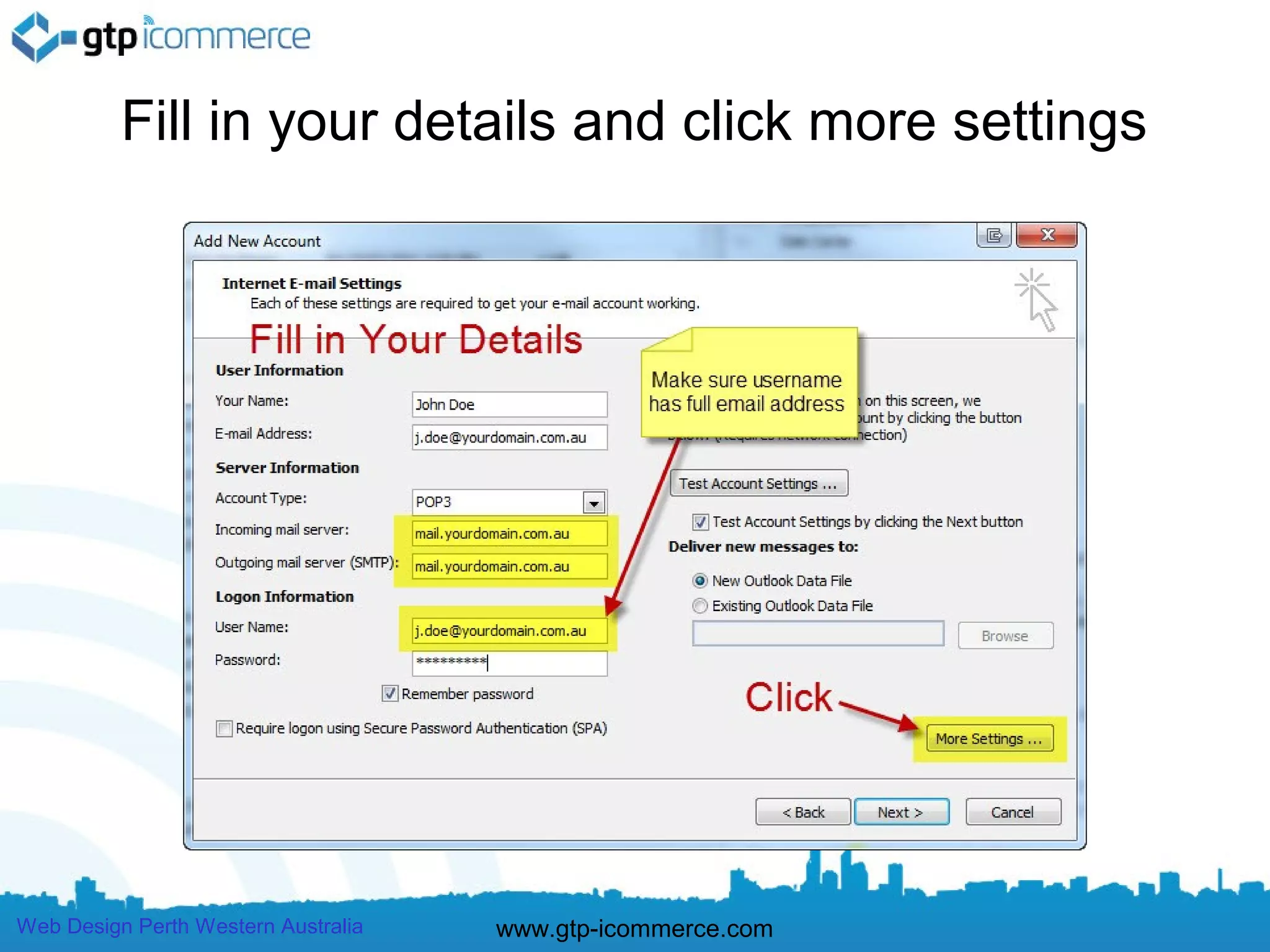
Fill in your details and click more settings


Web Design Perth Western Australia   www.gtp-icommerce.com
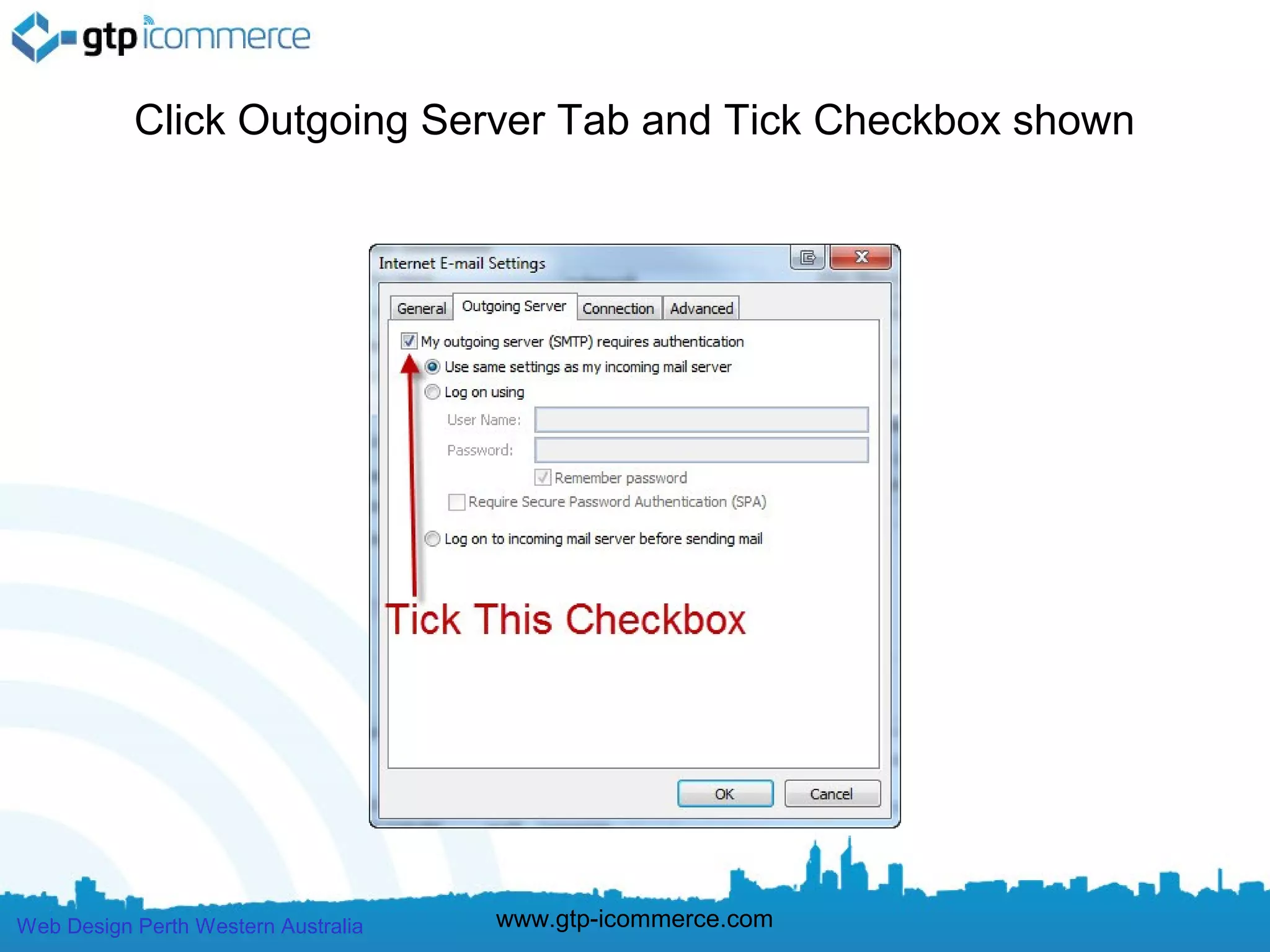
Click Outgoing Server Tab and Tick Checkbox shown


Web Design Perth Western Australia   www.gtp-icommerce.com
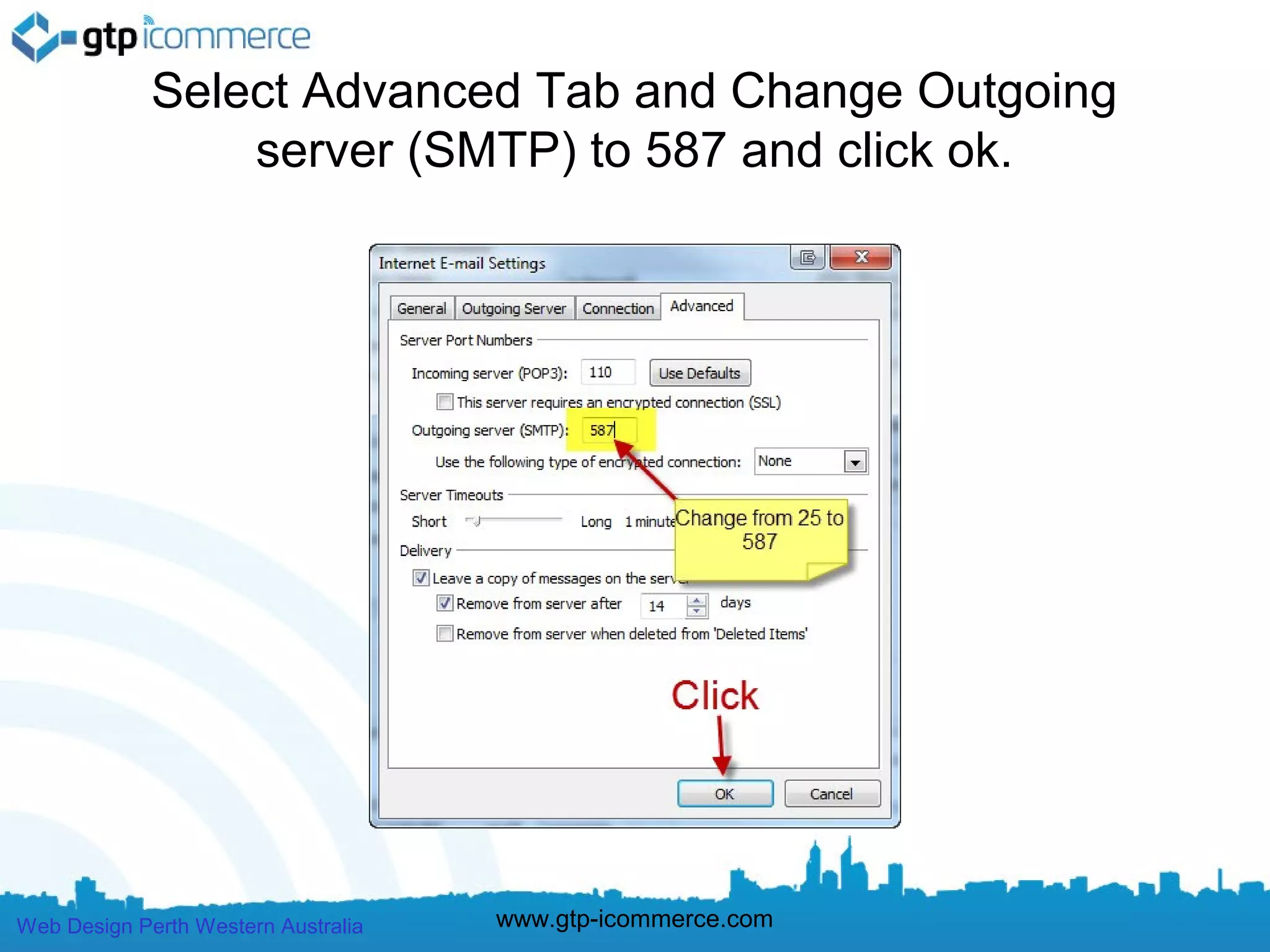
Select Advanced Tab and Change Outgoing
                 server (SMTP) to 587 and click ok.


Web Design Perth Western Australia   www.gtp-icommerce.com
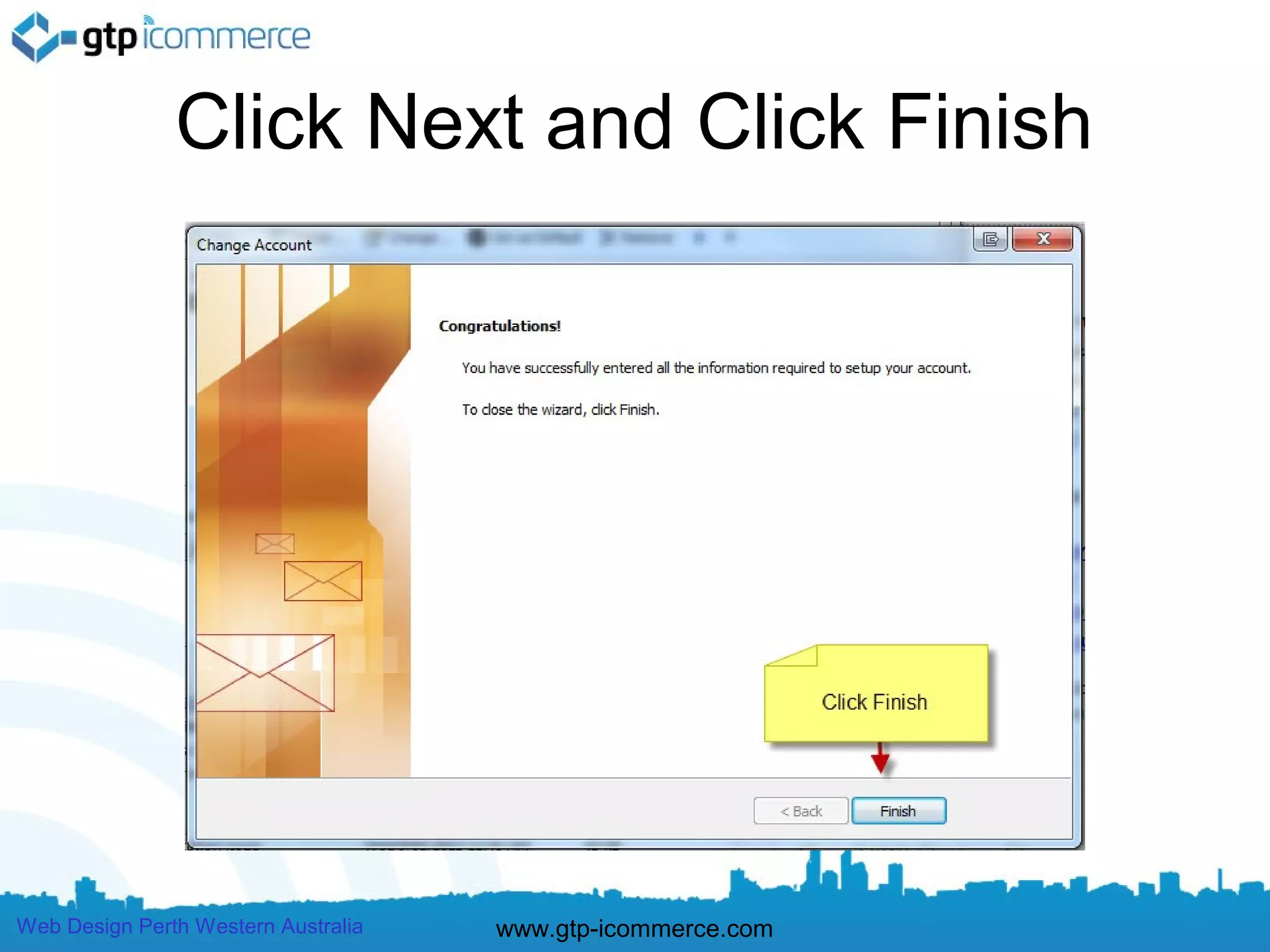
Click Next and Click Finish


Web Design Perth Western Australia   www.gtp-icommerce.com
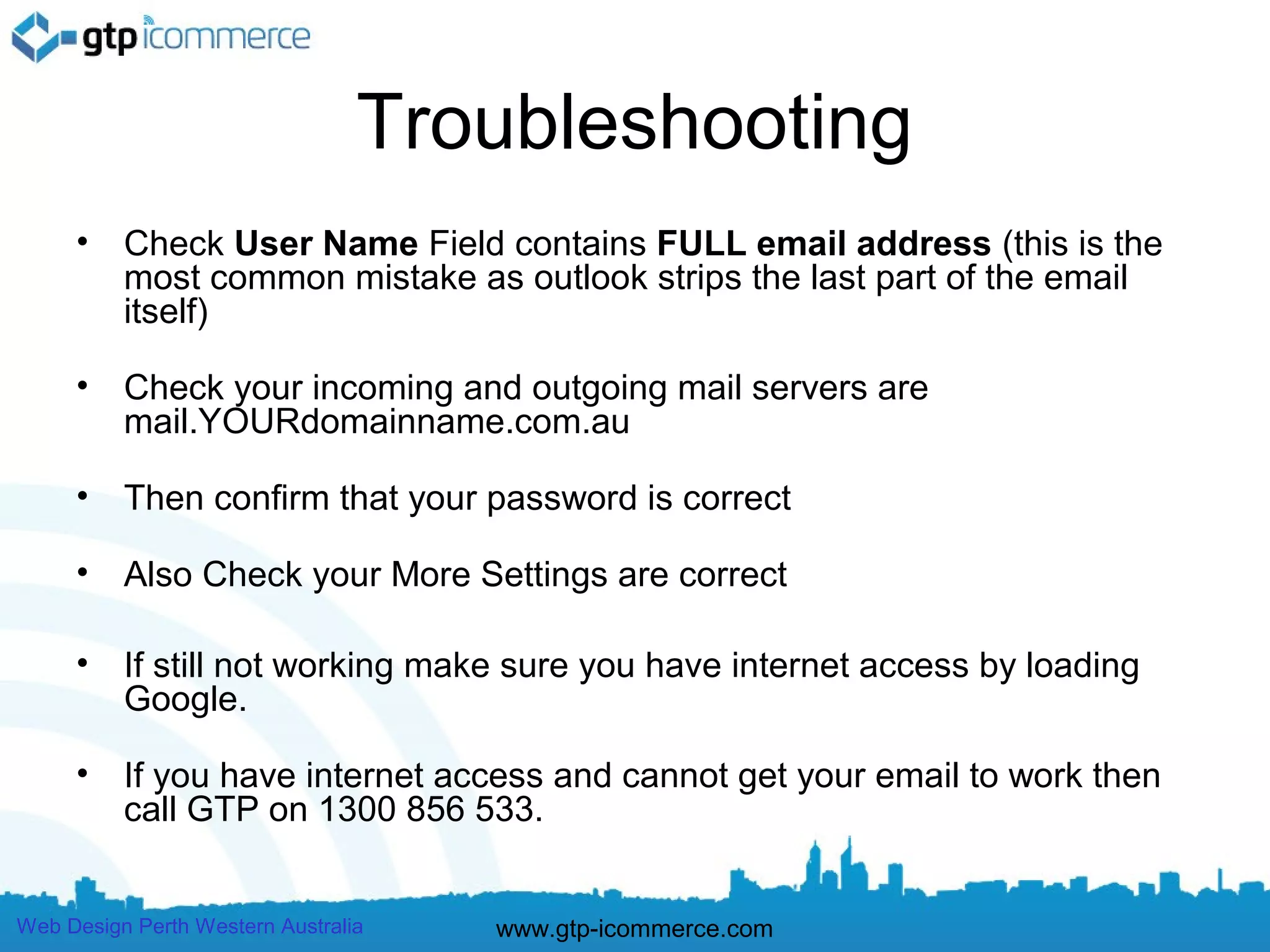
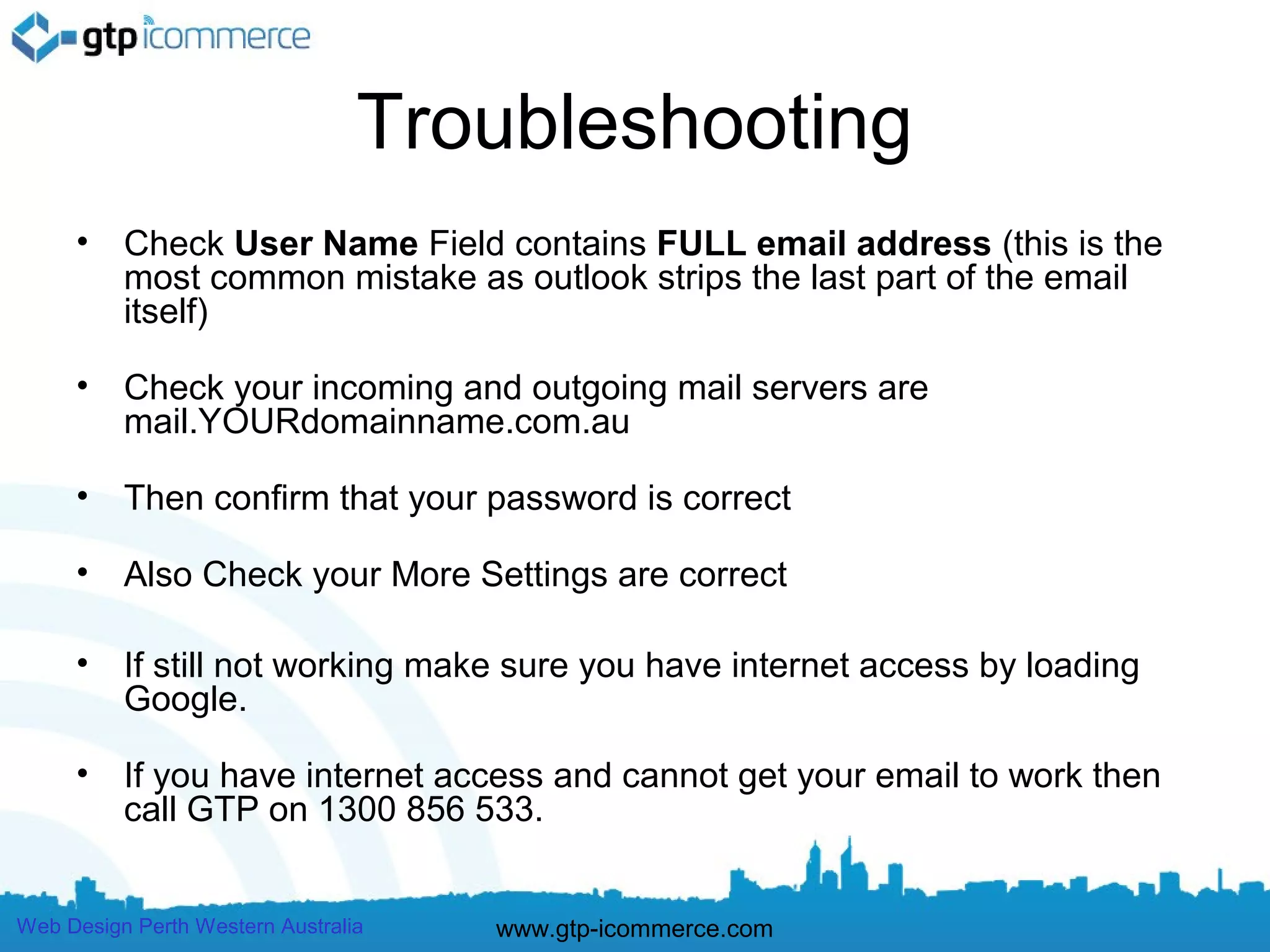
Troubleshooting
     •    Check User Name Field contains FULL email address (this is the
          most common mistake as outlook strips the last part of the email
          itself)

     •    Check your incoming and outgoing mail servers are
          mail.YOURdomainname.com.au

     •    Then confirm that your password is correct

     •    Also Check your More Settings are correct

     •    If still not working make sure you have internet access by loading
          Google.

     •    If you have internet access and cannot get your email to work then
          call GTP on 1300 856 533.


Web Design Perth Western Australia   www.gtp-icommerce.com
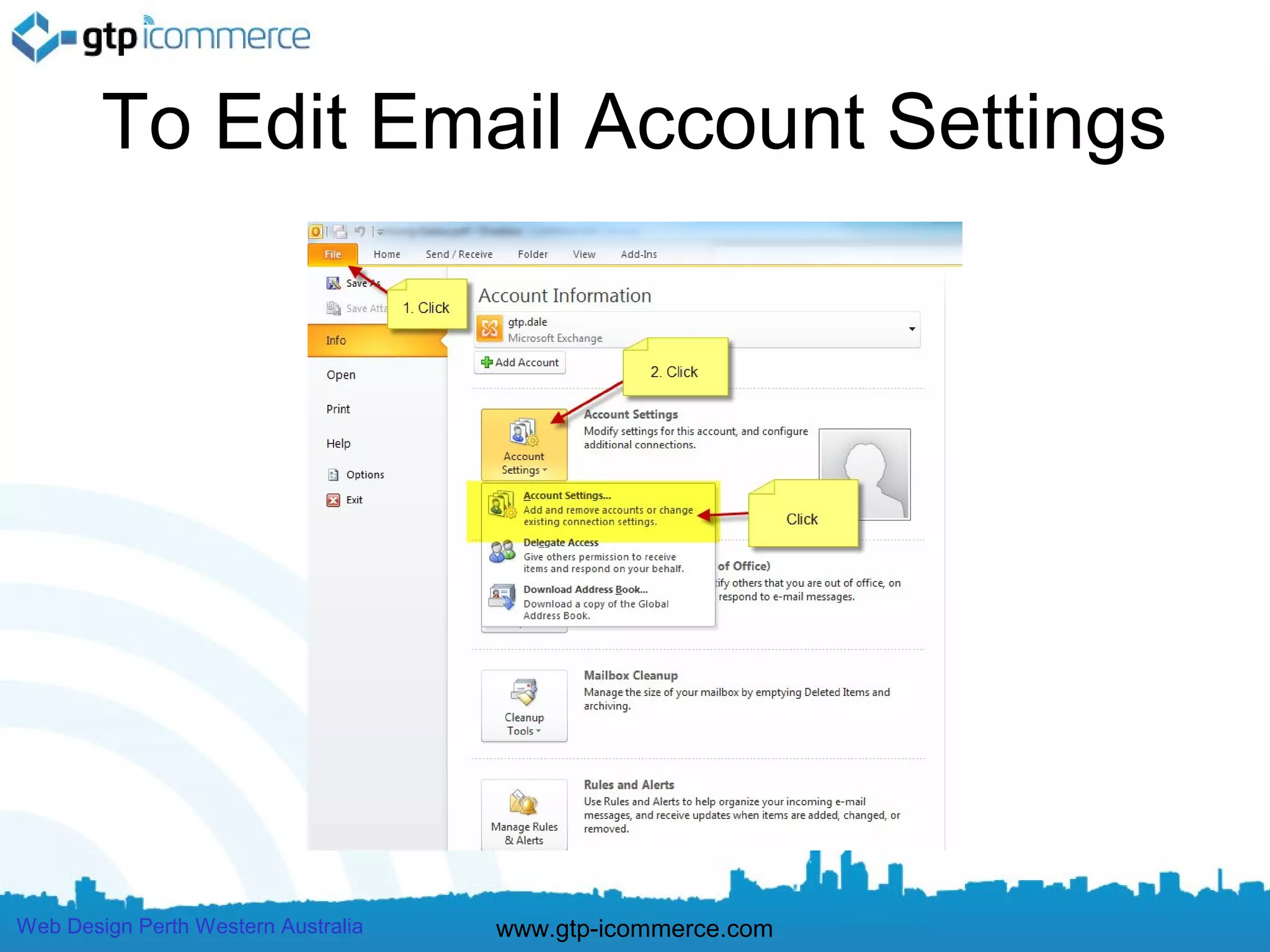
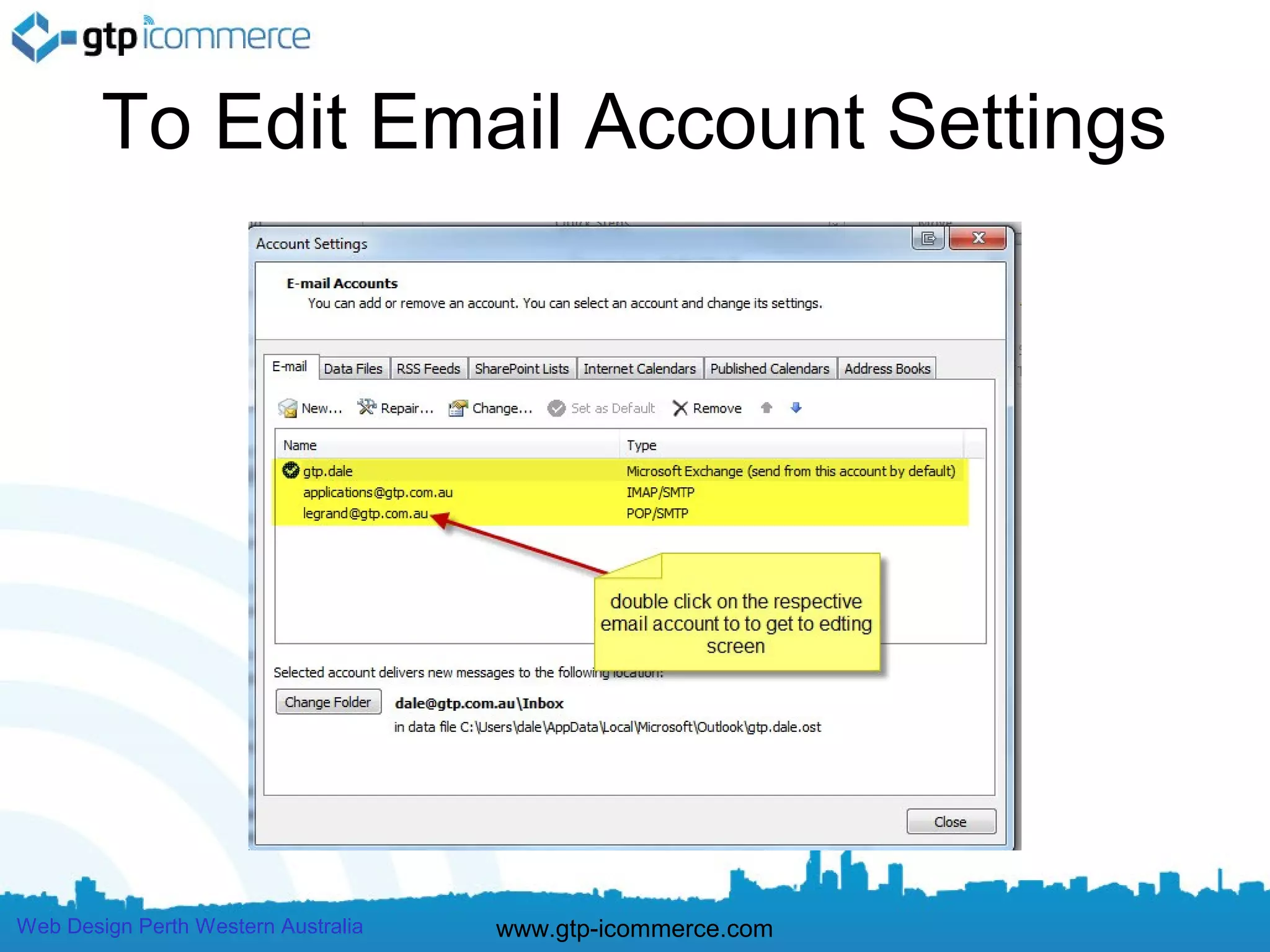
To Edit Email Account Settings


Web Design Perth Western Australia   www.gtp-icommerce.com
To Edit Email Account Settings


Web Design Perth Western Australia   www.gtp-icommerce.com
Troubleshooting
     •    Check User Name Field contains FULL email address (this is the
          most common mistake as outlook strips the last part of the email
          itself)

     •    Check your incoming and outgoing mail servers are
          mail.YOURdomainname.com.au

     •    Then confirm that your password is correct

     •    Also Check your More Settings are correct

     •    If still not working make sure you have internet access by loading
          Google.

     •    If you have internet access and cannot get your email to work then
          call GTP on 1300 856 533.


Web Design Perth Western Australia   www.gtp-icommerce.com
End of Outlook 2010 Instructions


                   Continue on for setting up email in other versions of outlook


Web Design Perth Western Australia     www.gtp-icommerce.com
Outlook 2013 Email Setup
                       Instructions
                         Please follow outlook 2010
                                instructions.
                         We have not build these yet.


Web Design Perth Western Australia   www.gtp-icommerce.com
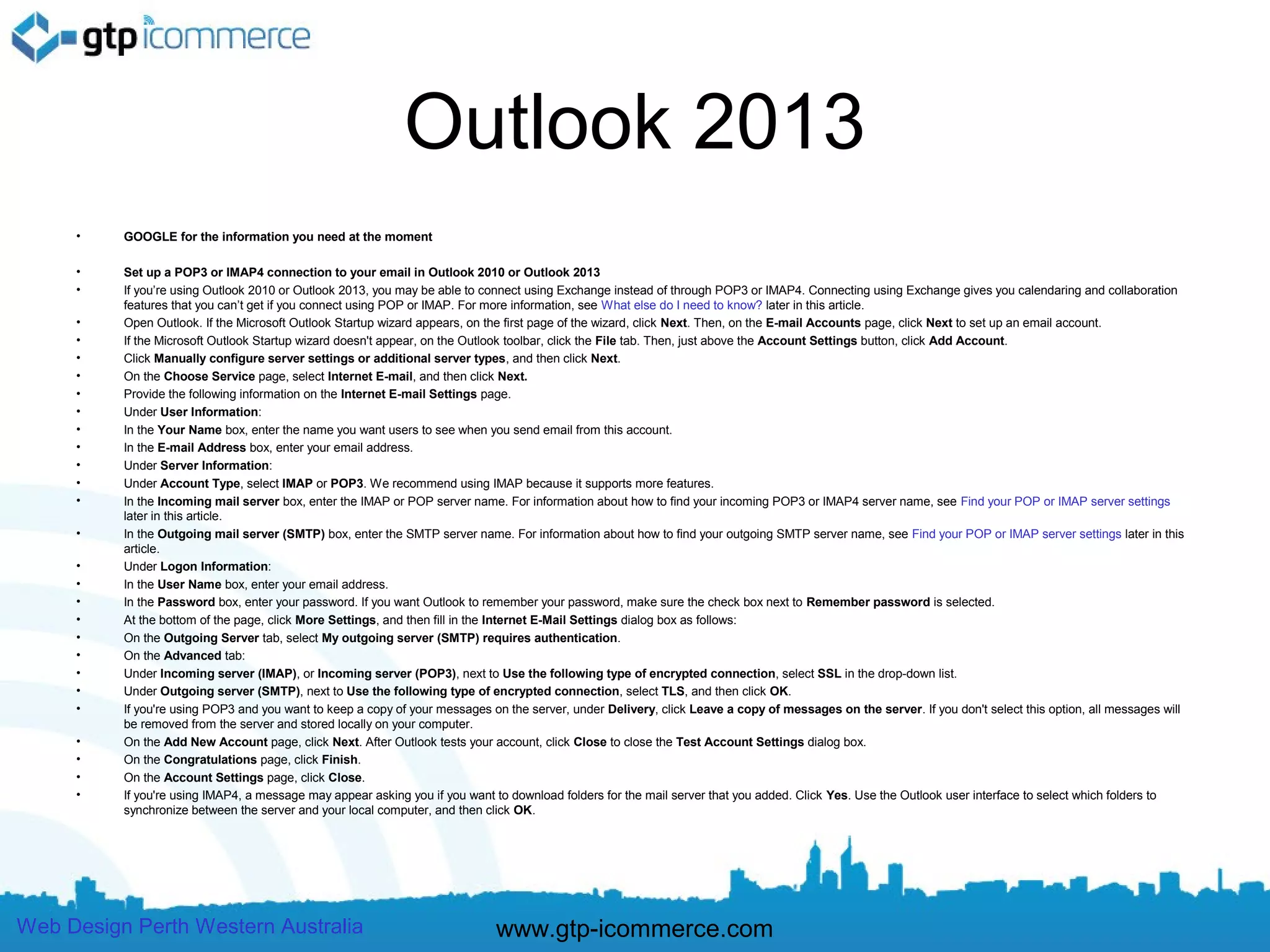
Outlook 2013
     •    GOOGLE for the information you need at the moment

     •    Set up a POP3 or IMAP4 connection to your email in Outlook 2010 or Outlook 2013
     •    If you’re using Outlook 2010 or Outlook 2013, you may be able to connect using Exchange instead of through POP3 or IMAP4. Connecting using Exchange gives you calendaring and collaboration
          features that you can’t get if you connect using POP or IMAP. For more information, see What else do I need to know? later in this article.

     •    Open Outlook. If the Microsoft Outlook Startup wizard appears, on the first page of the wizard, click Next. Then, on the E-mail Accounts page, click Next to set up an email account.
     •    If the Microsoft Outlook Startup wizard doesn't appear, on the Outlook toolbar, click the File tab. Then, just above the Account Settings button, click Add Account.
     •    Click Manually configure server settings or additional server types, and then click Next.
     •    On the Choose Service page, select Internet E-mail, and then click Next.
     •    Provide the following information on the Internet E-mail Settings page.
     •    Under User Information:
     •    In the Your Name box, enter the name you want users to see when you send email from this account.
     •    In the E-mail Address box, enter your email address.
     •    Under Server Information:
     •    Under Account Type, select IMAP or POP3. We recommend using IMAP because it supports more features.
     •    In the Incoming mail server box, enter the IMAP or POP server name. For information about how to find your incoming POP3 or IMAP4 server name, see Find your POP or IMAP server settings
          later in this article.
     •    In the Outgoing mail server (SMTP) box, enter the SMTP server name. For information about how to find your outgoing SMTP server name, see Find your POP or IMAP server settings later in this
          article.
     •    Under Logon Information:
     •    In the User Name box, enter your email address.
     •    In the Password box, enter your password. If you want Outlook to remember your password, make sure the check box next to Remember password is selected.
     •    At the bottom of the page, click More Settings, and then fill in the Internet E-Mail Settings dialog box as follows:
     •    On the Outgoing Server tab, select My outgoing server (SMTP) requires authentication.
     •    On the Advanced tab:
     •    Under Incoming server (IMAP), or Incoming server (POP3), next to Use the following type of encrypted connection, select SSL in the drop-down list.
     •    Under Outgoing server (SMTP), next to Use the following type of encrypted connection, select TLS, and then click OK.
     •    If you're using POP3 and you want to keep a copy of your messages on the server, under Delivery, click Leave a copy of messages on the server. If you don't select this option, all messages will
          be removed from the server and stored locally on your computer.
     •    On the Add New Account page, click Next. After Outlook tests your account, click Close to close the Test Account Settings dialog box.
     •    On the Congratulations page, click Finish.
     •    On the Account Settings page, click Close.
     •    If you're using IMAP4, a message may appear asking you if you want to download folders for the mail server that you added. Click Yes. Use the Outlook user interface to select which folders to
          synchronize between the server and your local computer, and then click OK.


Web Design Perth Western Australia                                           www.gtp-icommerce.com
Troubleshooting
     •    Check User Name Field contains FULL email address (this is the
          most common mistake as outlook strips the last part of the email
          itself)

     •    Check your incoming and outgoing mail servers are
          mail.YOURdomainname.com.au

     •    Then confirm that your password is correct

     •    Also Check your More Settings are correct

     •    If still not working make sure you have internet access by loading
          Google.

     •    If you have internet access and cannot get your email to work then
          call GTP on 1300 856 533.


Web Design Perth Western Australia   www.gtp-icommerce.com
Outlook 2007 Email Setup
                       Instructions


Web Design Perth Western Australia   www.gtp-icommerce.com
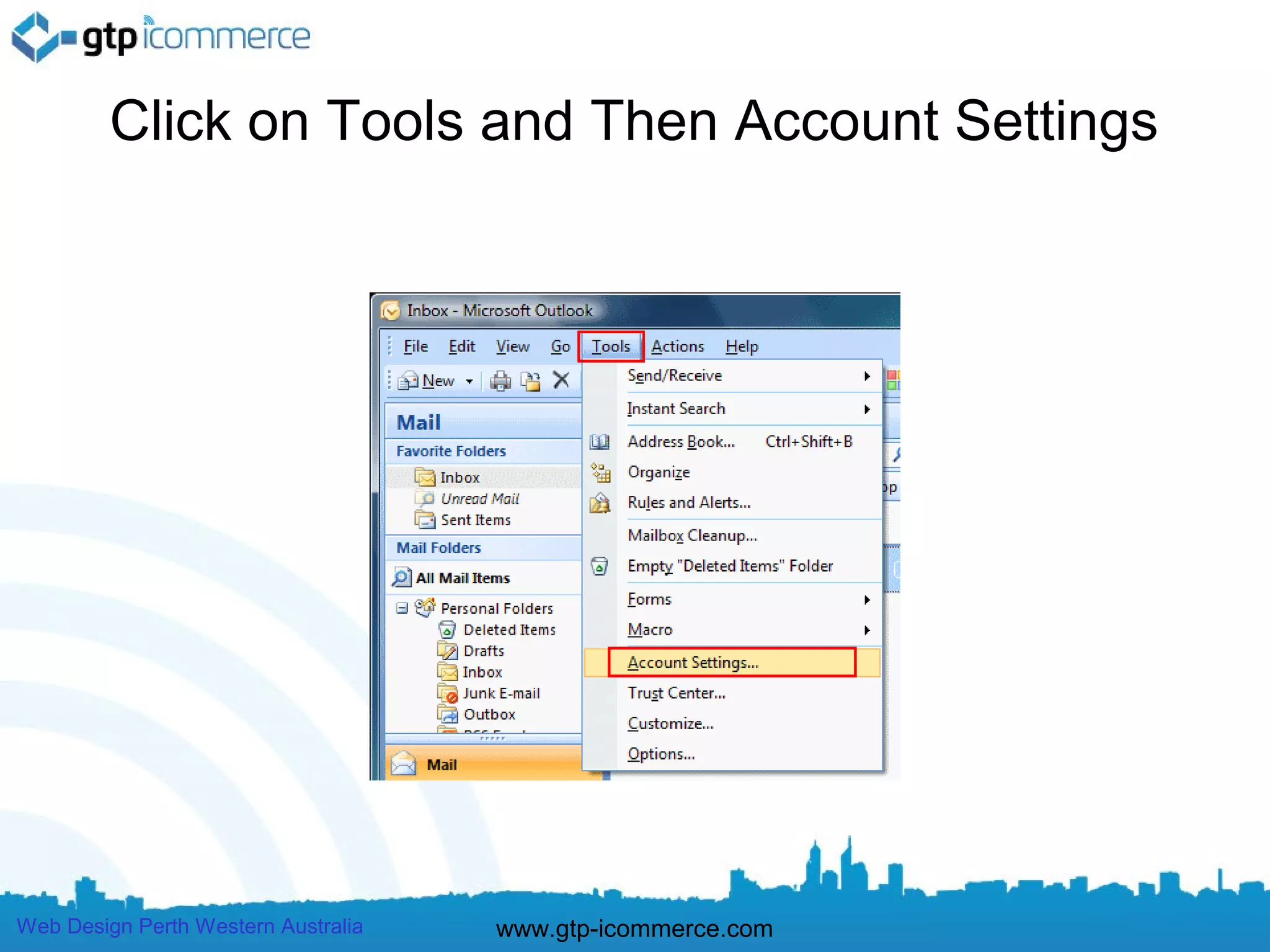
Click on Tools and Then Account Settings


Web Design Perth Western Australia   www.gtp-icommerce.com
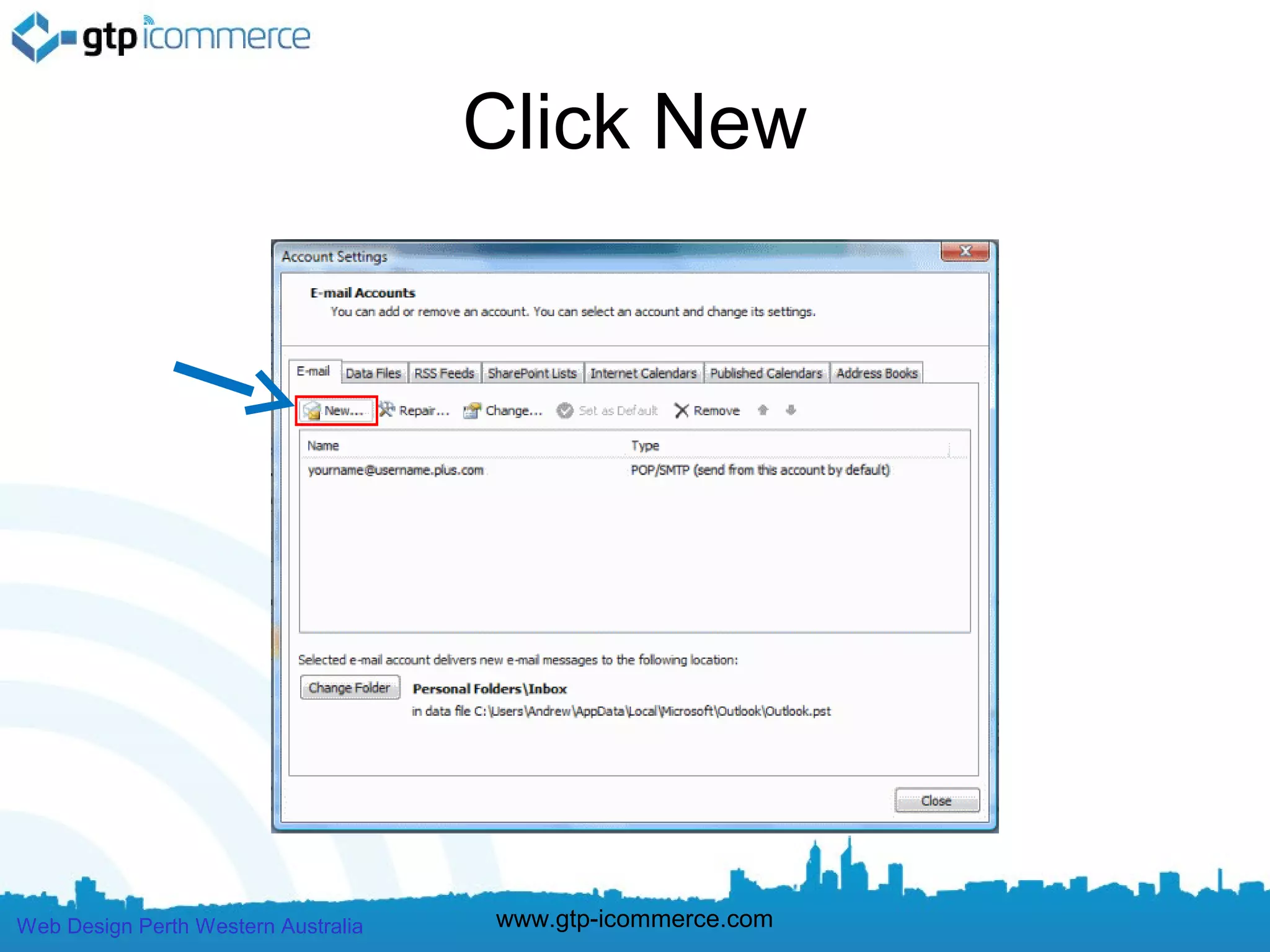
Click New


Web Design Perth Western Australia   www.gtp-icommerce.com
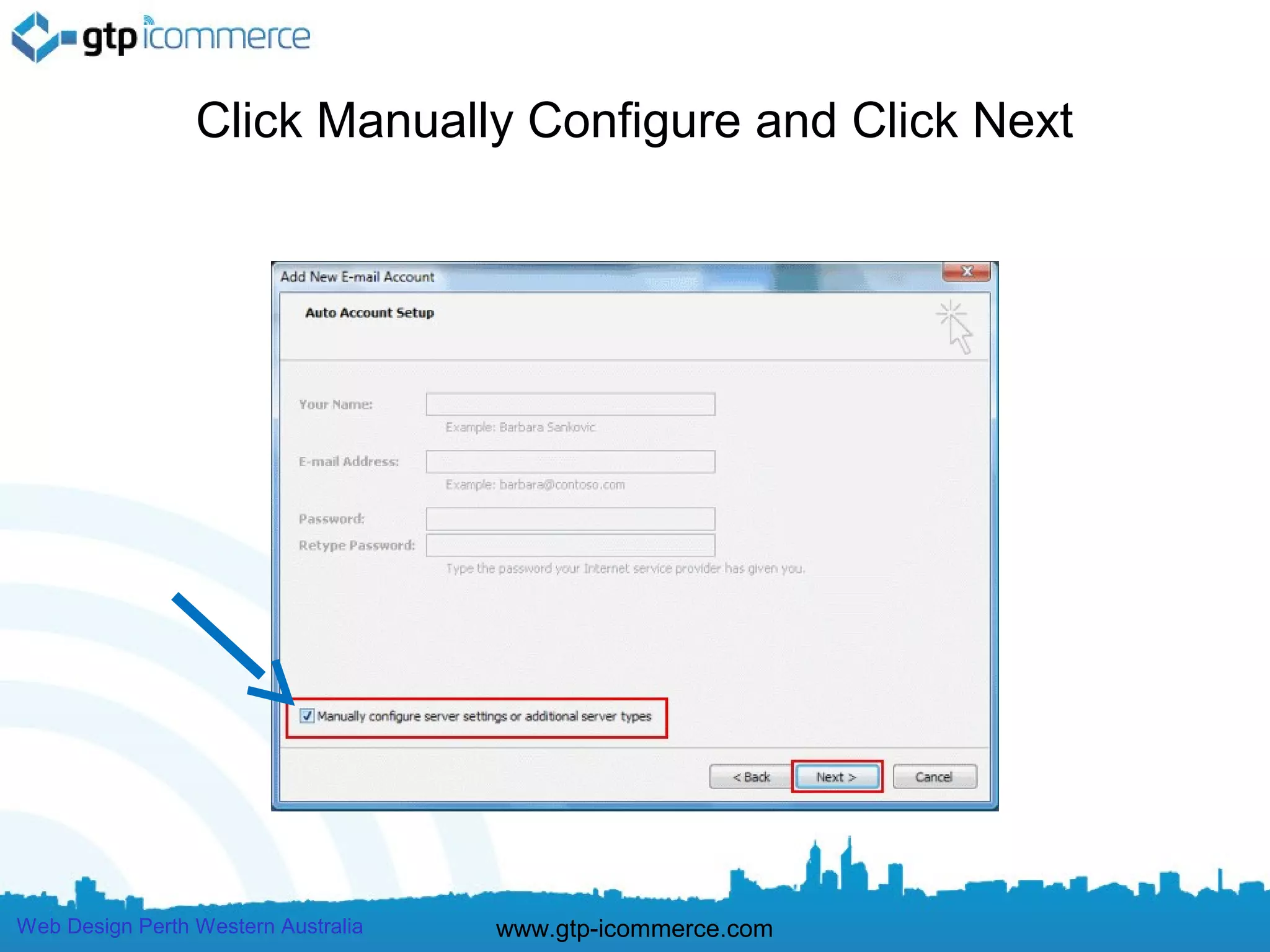
Click Manually Configure and Click Next


Web Design Perth Western Australia   www.gtp-icommerce.com
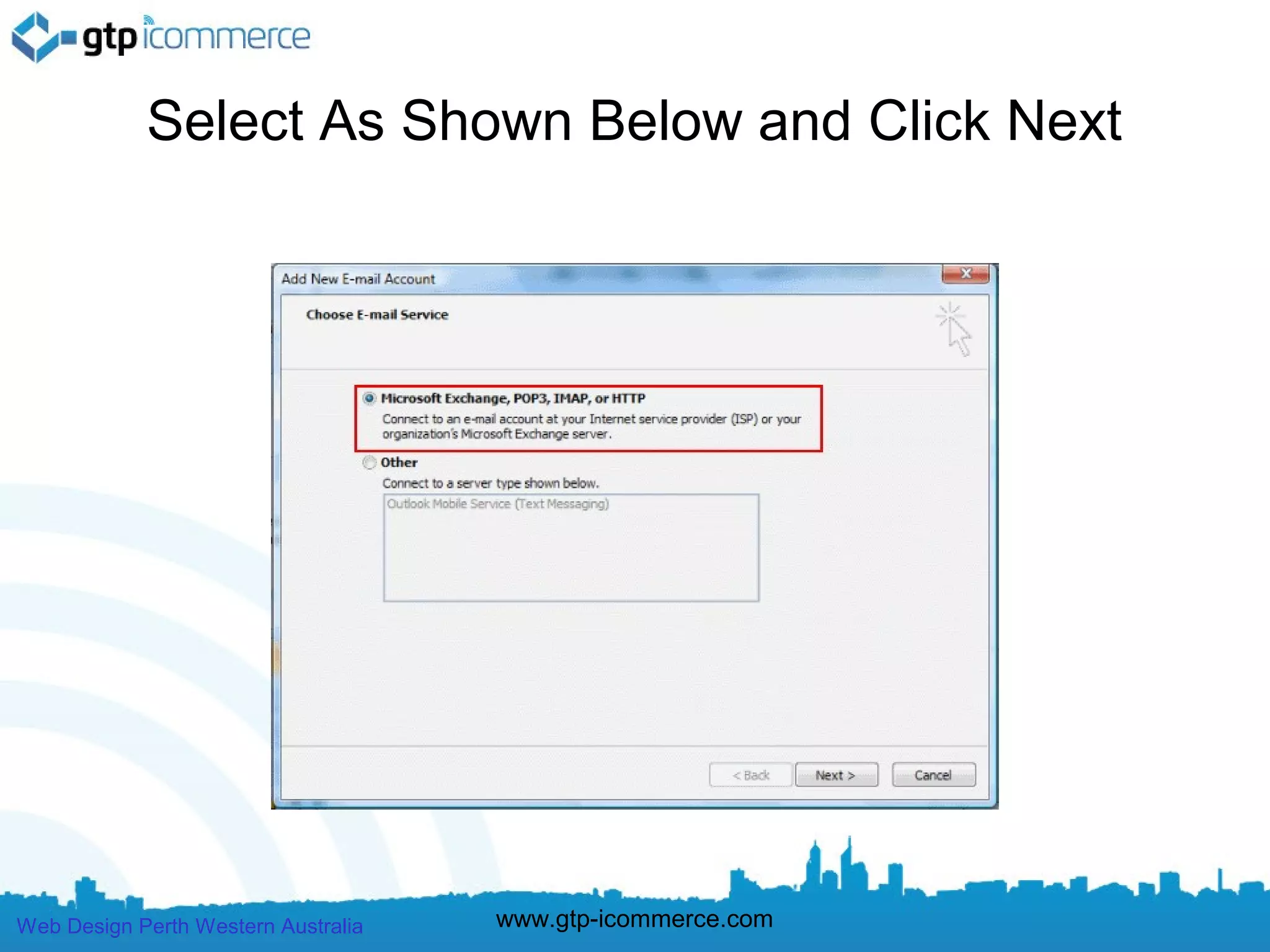
Select As Shown Below and Click Next


Web Design Perth Western Australia   www.gtp-icommerce.com
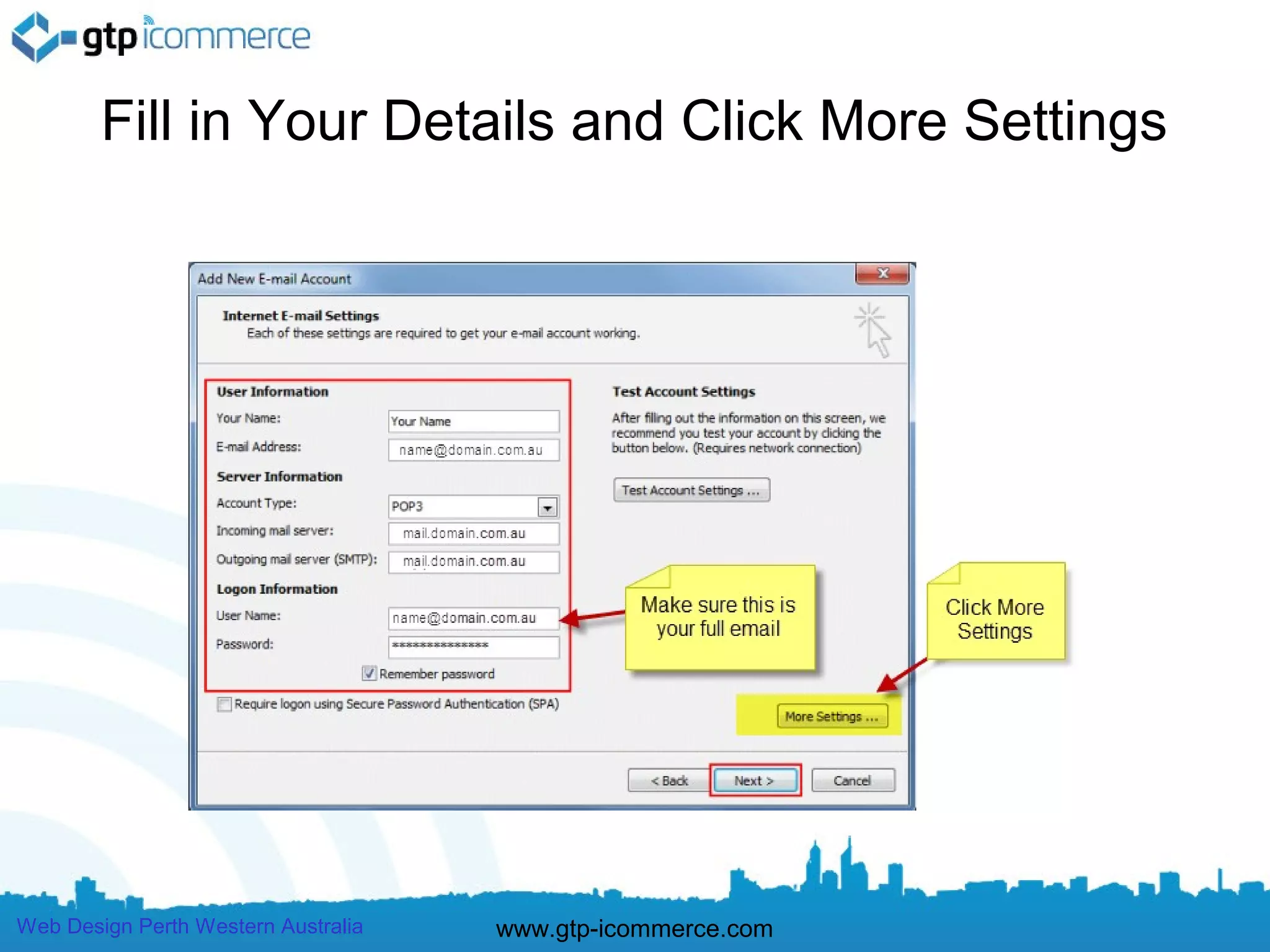
Fill in Your Details and Click More Settings


Web Design Perth Western Australia   www.gtp-icommerce.com
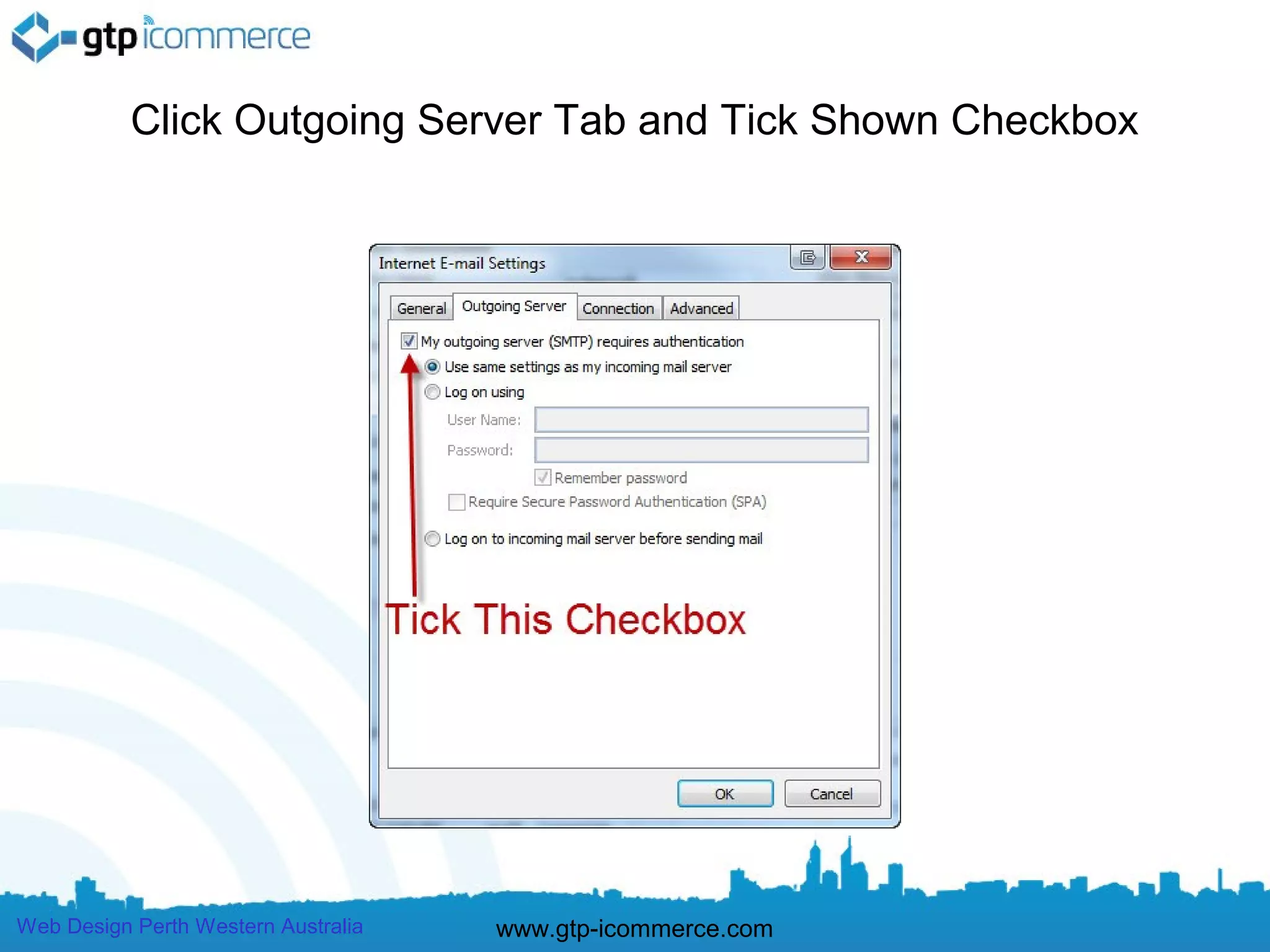
Click Outgoing Server Tab and Tick Shown Checkbox


Web Design Perth Western Australia   www.gtp-icommerce.com
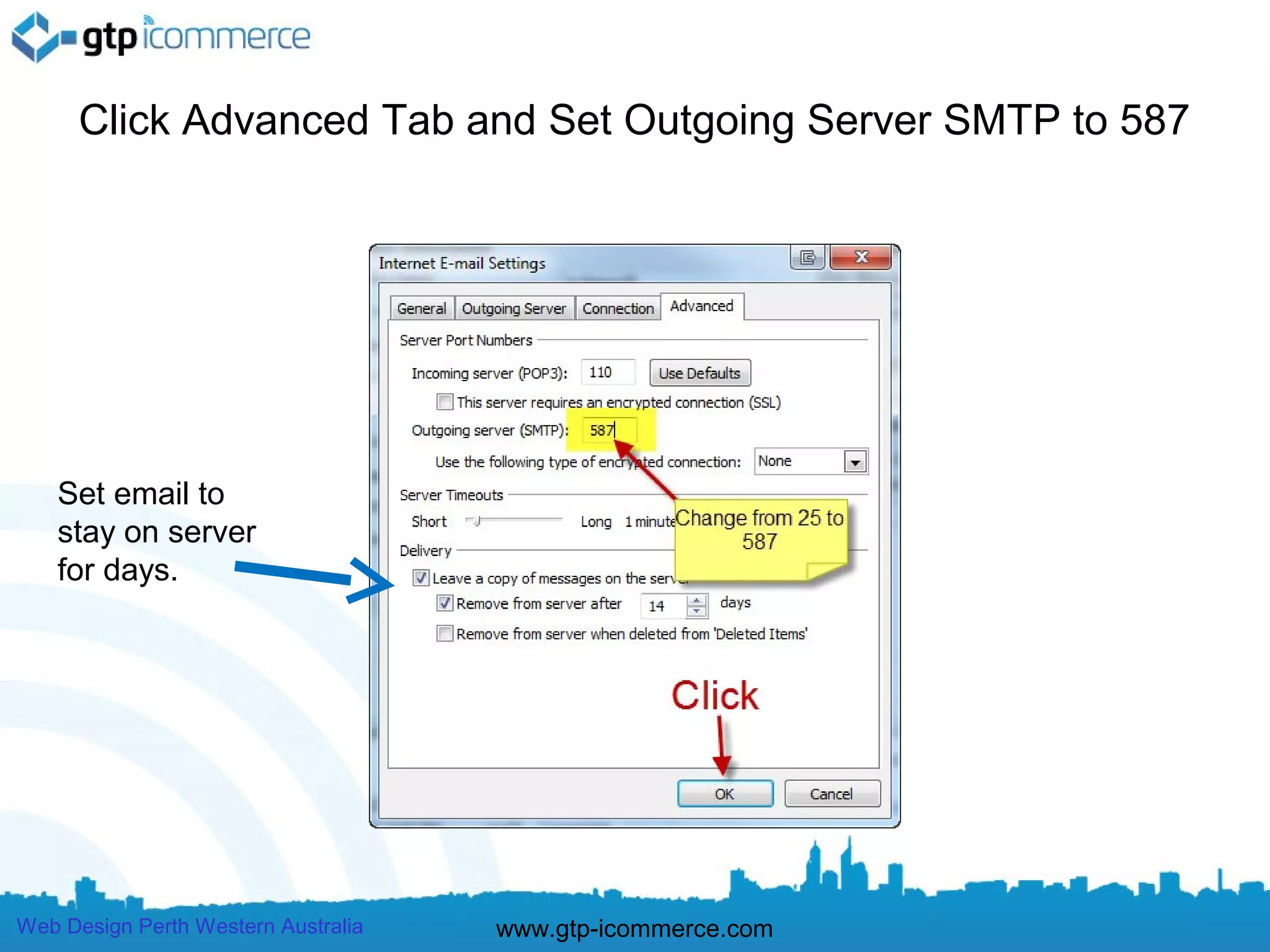
Click Advanced Tab and Set Outgoing Server SMTP to 587


    Set email to
    stay on server
    for days.


Web Design Perth Western Australia   www.gtp-icommerce.com
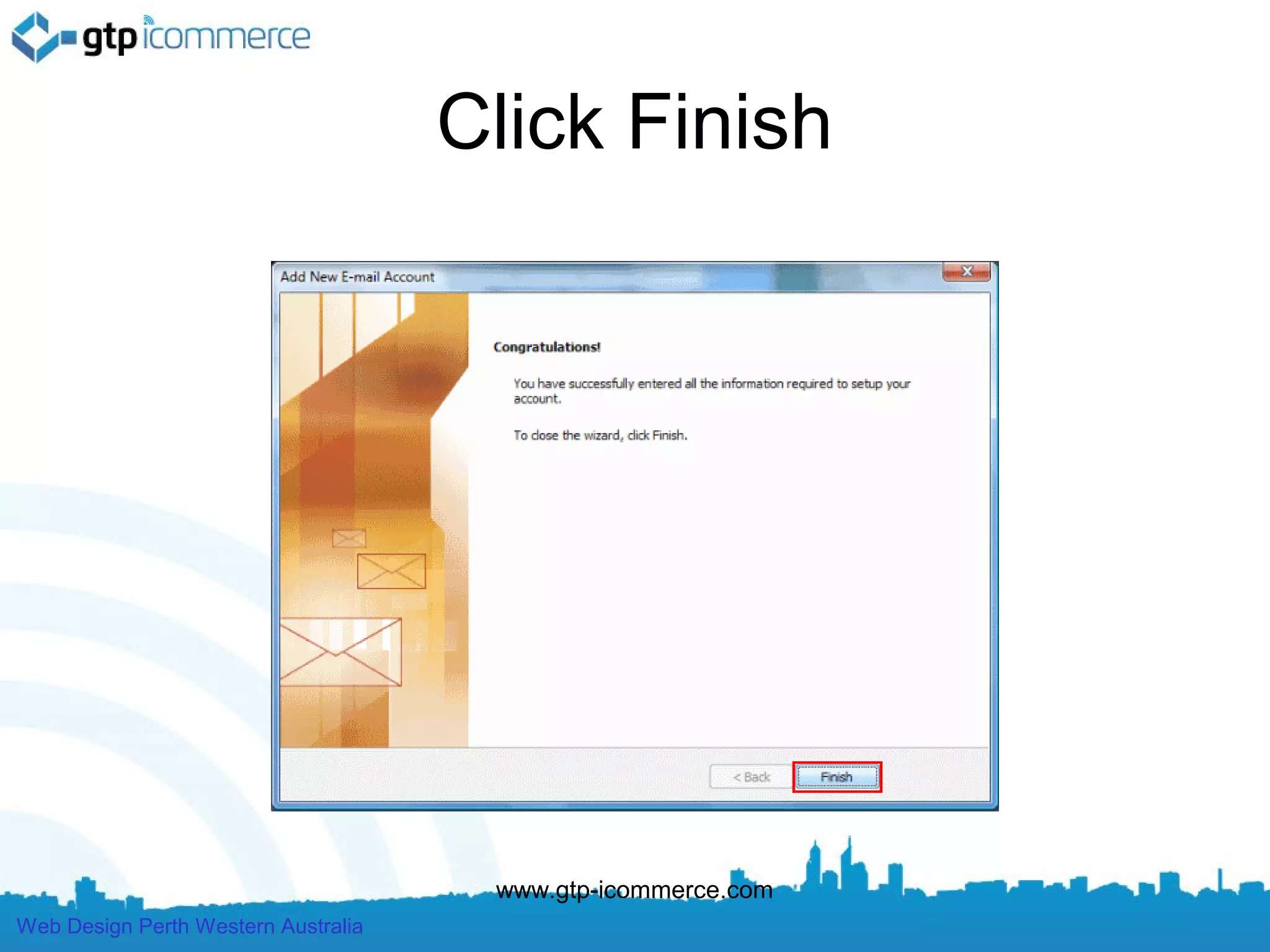
Click Finish


                                      www.gtp-icommerce.com
Web Design Perth Western Australia
To Create an Outlook 2007 Email account
                                                  for GTP Web Site Email:
                                                    Instructions in words.
     •    Go to Tools and Account Settings – below the E-mail tab click new.
     •    Choose E-mail Service: Click on the “Microsoft Exchange, POP3, IMAP, or HTTP” radio button
     •    Click the “manually configure server settings or additional server types” check box this will automatically enter in all of the required
          fields – click next.
     •    Click on the Internet E-mail bubble – click next.
     •    Enter the following information:
             –    Your Name: <Display Name you want to use, i.e., Bob Dylan>
             –    Email address: <Full email address, i.e., bobdylan@mydomain.com.au> e.g. bobdylan@smellycheese.com.au
             –    or mail.mydomain.com.au e.g mail.smellycheese.com.au


             –    Outgoing Mail server: mail.mydomain.com.au (e.g. mail.smellycheese.com.au)
             –    User name: <Full email address, i.e., bobdylan@mydomain.com.au> e.g. bobdylan@smellycheese.com.au
             –    Password: <Your email account password>
     •    If using GTP as your outgoing mail server settings or mail.yourdomain.com.au the server requires SMTP Authentication, follow these
          steps. If you are not sure if your mailserver requires SMTP Authentication, please contact your hosting company or ISP.

     •    Click More Settings
     •    Click on Outgoing Server Tab
     •    Outgoing Server Tab: Tick my outgoing server (smtp) requires authentication.
     •    Click on 'use same settings as my incoming mail server'
     •    Click Advanced Tab
     •    Leave 'Incoming server (POP3)' as 110
     •    Change Outgoing server (SMTP) number to 587 (from 25)
     •    Click Ok to close
     •    Click on Next
     •    Click on Finish.


Web Design Perth Western Australia                       www.gtp-icommerce.com
Troubleshooting
     •    Check User Name Field contains FULL email address (this is the
          most common mistake as outlook strips the last part of the email
          itself)

     •    Check your incoming and outgoing mail servers are
          mail.YOURdomainname.com.au

     •    Then confirm that your password is correct

     •    Also Check your More Settings are correct

     •    If still not working make sure you have internet access by loading
          Google.

     •    If you have internet access and cannot get your email to work then
          call GTP on 1300 856 533.


Web Design Perth Western Australia   www.gtp-icommerce.com
Outlook 2003 Email Setup
                       Instructions


Web Design Perth Western Australia   www.gtp-icommerce.com
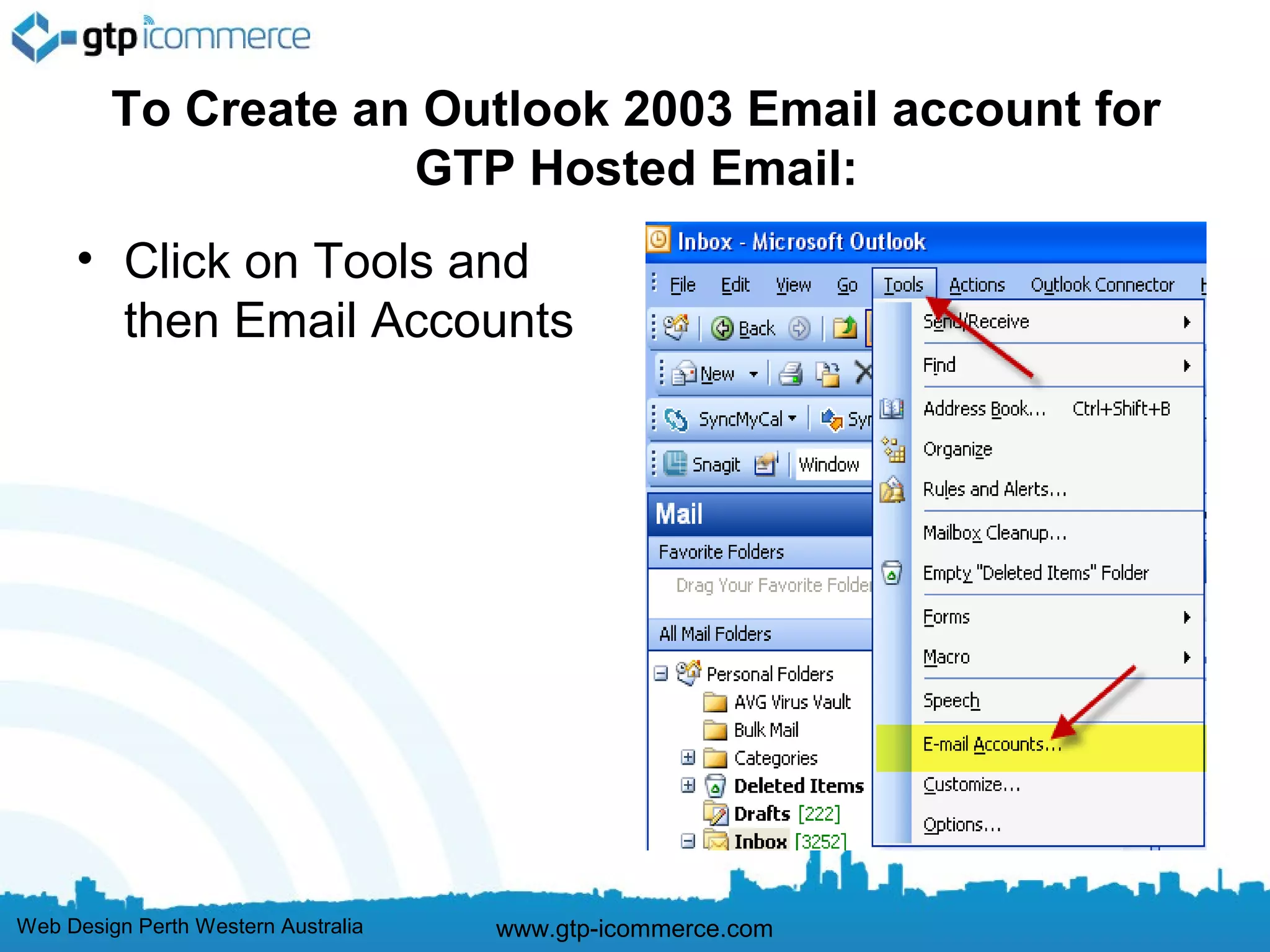
To Create an Outlook 2003 Email account for
                     GTP Hosted Email:
     • Click on Tools and
       then Email Accounts


Web Design Perth Western Australia   www.gtp-icommerce.com
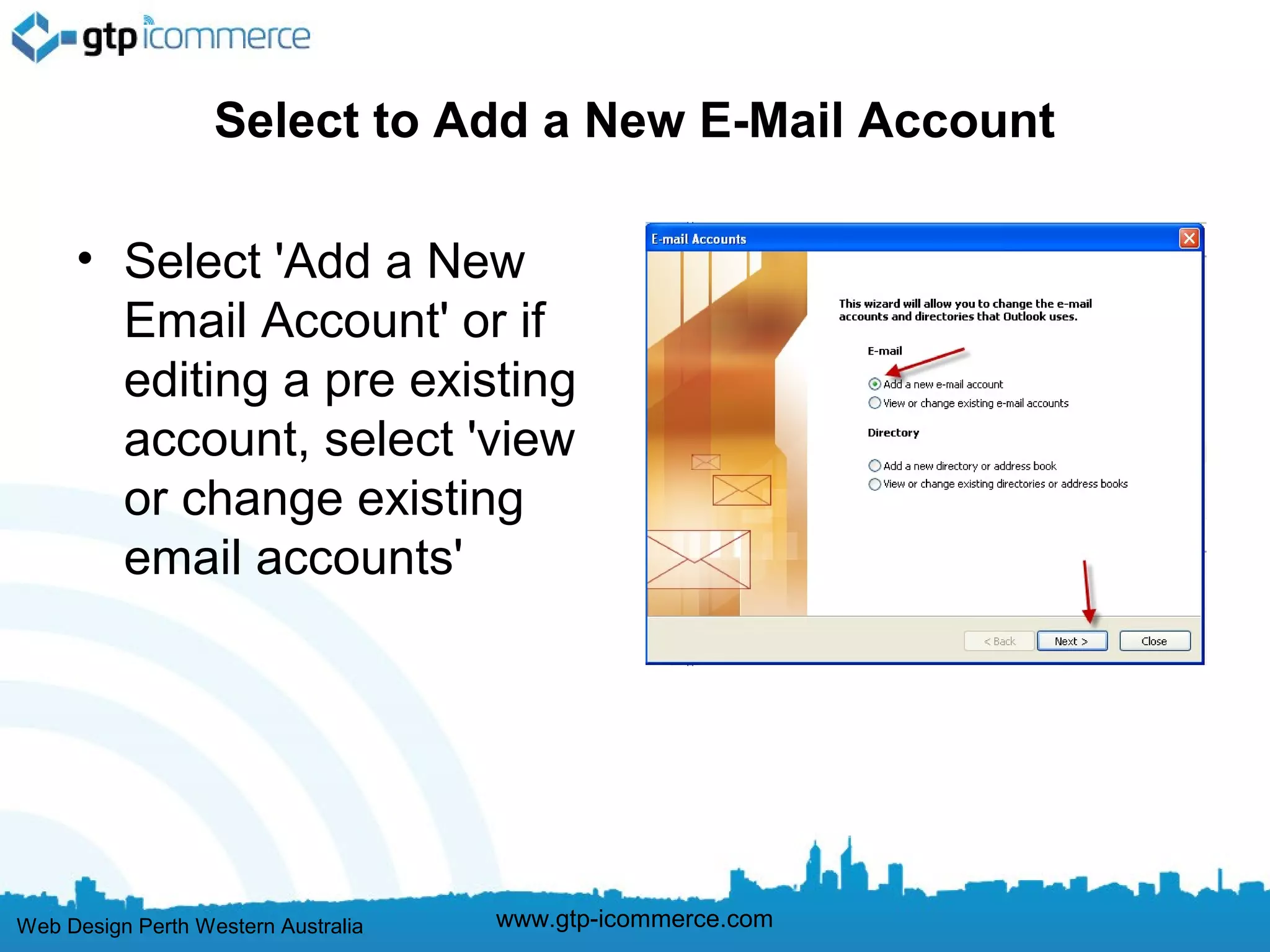
Select to Add a New E-Mail Account

     • Select 'Add a New
       Email Account' or if
       editing a pre existing
       account, select 'view
       or change existing
       email accounts'


Web Design Perth Western Australia   www.gtp-icommerce.com
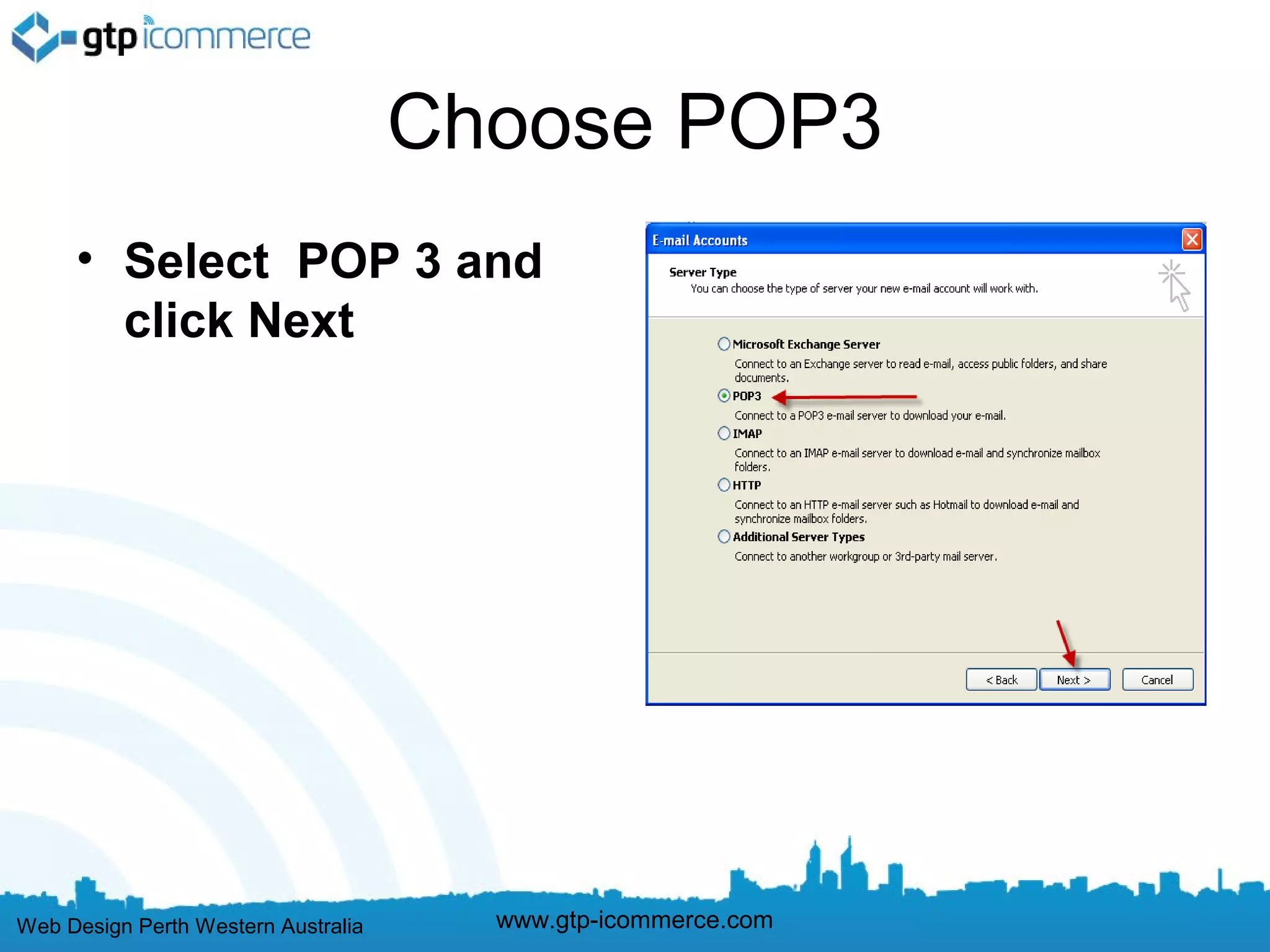
Choose POP3
     • Select POP 3 and
       click Next


Web Design Perth Western Australia     www.gtp-icommerce.com
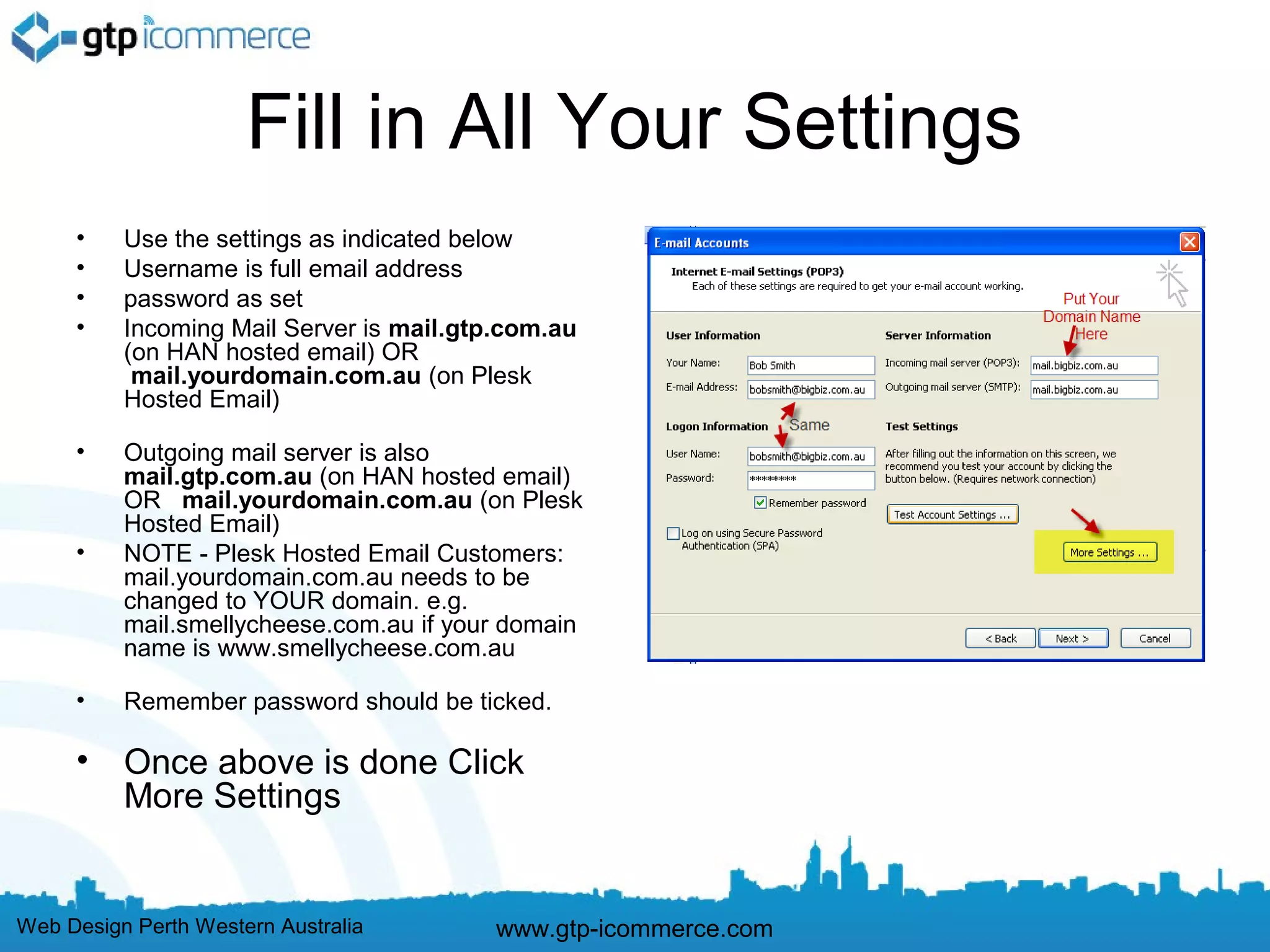
Fill in All Your Settings
     •    Use the settings as indicated below
     •    Username is full email address
     •    password as set
     •    Incoming Mail Server is mail.gtp.com.au
          (on HAN hosted email) OR
           mail.yourdomain.com.au (on Plesk
          Hosted Email)

     •    Outgoing mail server is also
          mail.gtp.com.au (on HAN hosted email)
          OR  mail.yourdomain.com.au (on Plesk
          Hosted Email)
     •    NOTE - Plesk Hosted Email Customers:
          mail.yourdomain.com.au needs to be
          changed to YOUR domain. e.g.
          mail.smellycheese.com.au if your domain
          name is www.smellycheese.com.au

     •    Remember password should be ticked.

     •    Once above is done Click
          More Settings


Web Design Perth Western Australia        www.gtp-icommerce.com
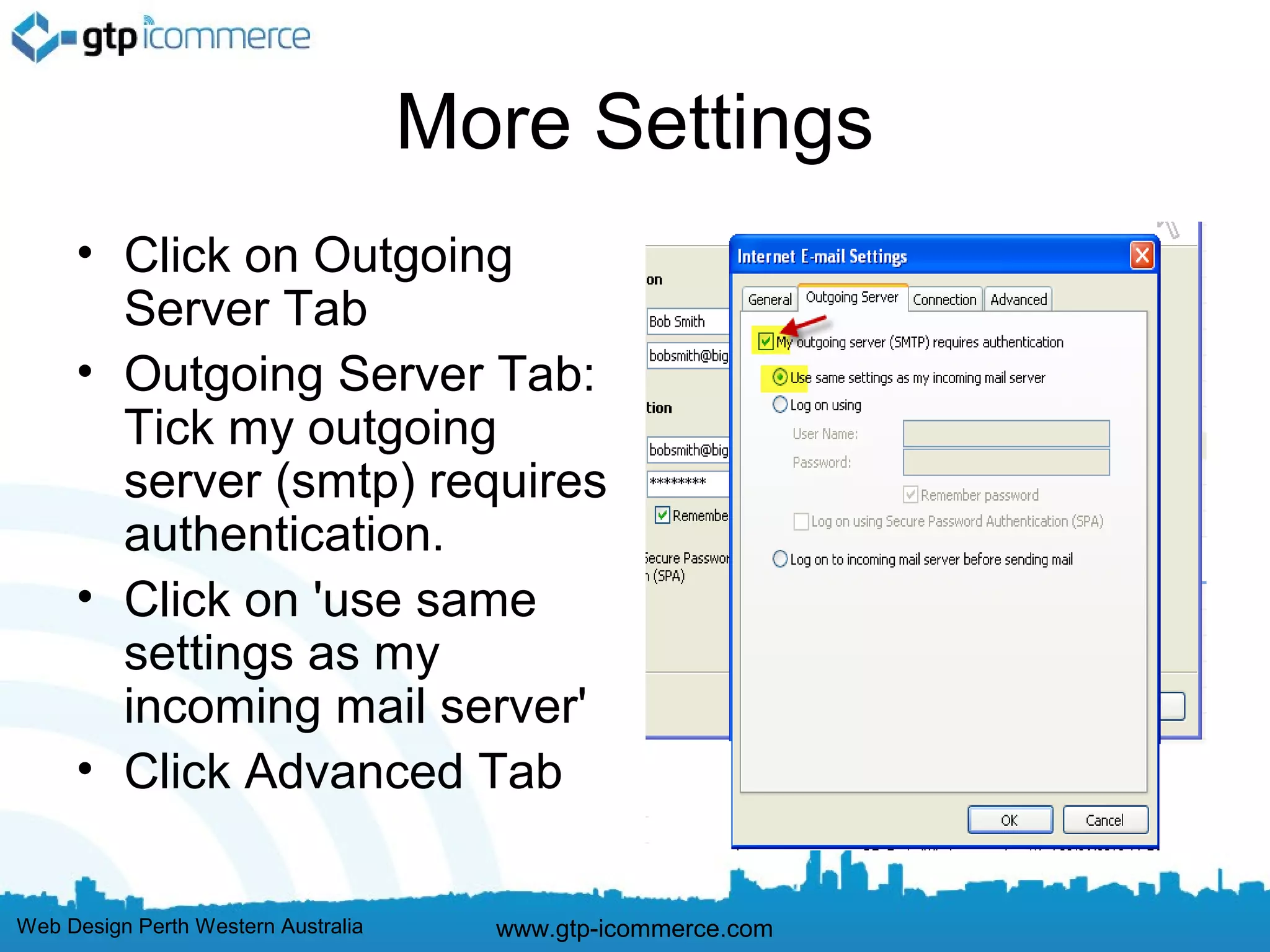
More Settings
     • Click on Outgoing
       Server Tab
     • Outgoing Server Tab:
       Tick my outgoing
       server (smtp) requires
       authentication.
     • Click on 'use same
       settings as my
       incoming mail server'
     • Click Advanced Tab

Web Design Perth Western Australia     www.gtp-icommerce.com
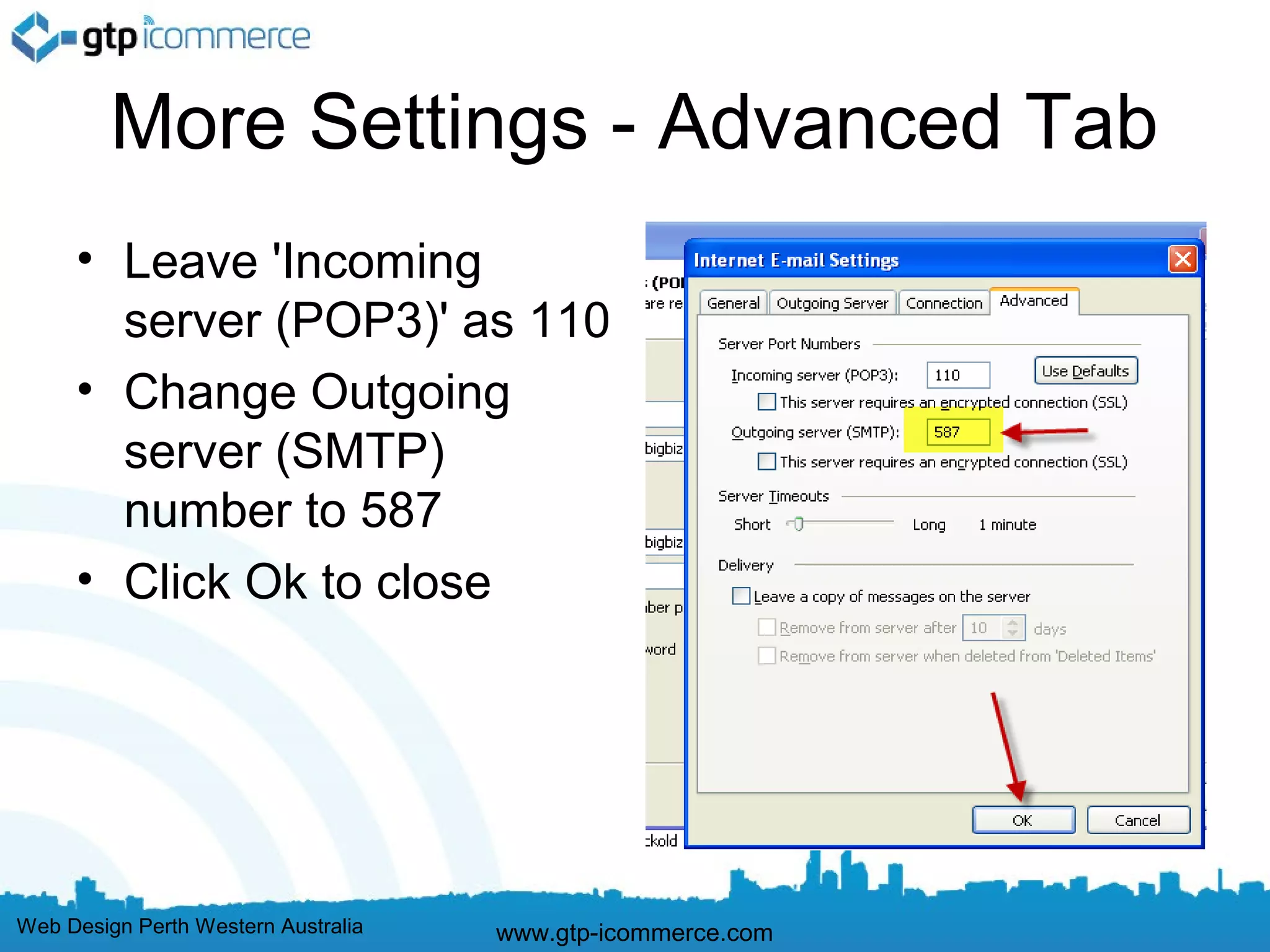
More Settings - Advanced Tab
     • Leave 'Incoming
       server (POP3)' as 110
     • Change Outgoing
       server (SMTP)
       number to 587
     • Click Ok to close


Web Design Perth Western Australia   www.gtp-icommerce.com
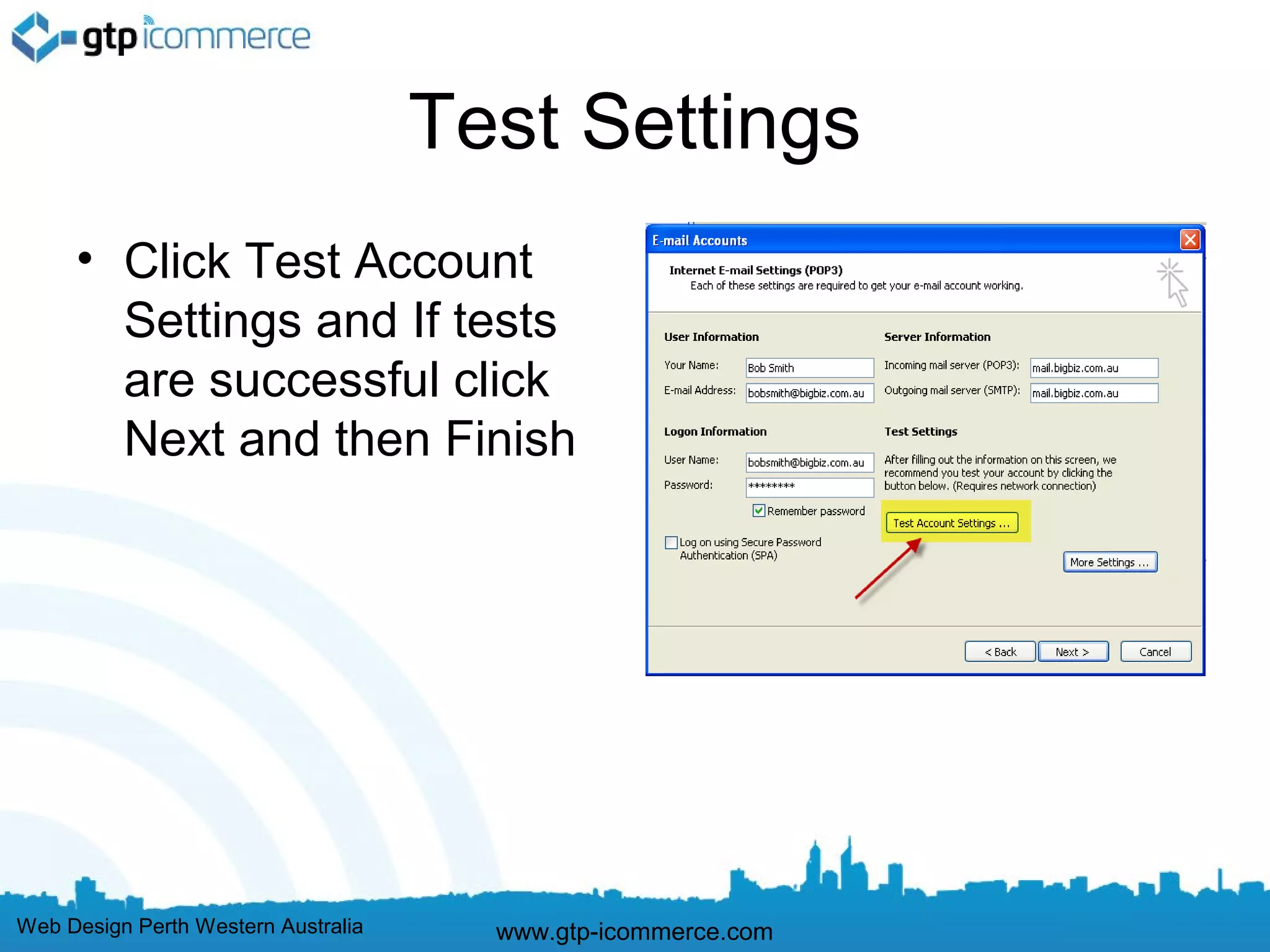
Test Settings
     • Click Test Account
       Settings and If tests
       are successful click
       Next and then Finish


Web Design Perth Western Australia     www.gtp-icommerce.com
Troubleshooting
     •    Check User Name Field contains FULL email address (this is the
          most common mistake as outlook strips the last part of the email
          itself)

     •    Check your incoming and outgoing mail servers are
          mail.YOURdomainname.com.au

     •    Then confirm that your password is correct

     •    Also Check your More Settings are correct

     •    If still not working make sure you have internet access by loading
          Google.

     •    If you have internet access and cannot get your email to work then
          call GTP on 1300 856 533.


Web Design Perth Western Australia   www.gtp-icommerce.com
GTP iCommerce Pty Ltd
                                “Results Focused Internet Marketing”
                                  That’s “Guaranteed To Perform”
                                          We specialise in

     •Ecommerce Shopping Cart Web Sites with
     •Integrated Email Marketing Software
     •Search Engine Optimisation Services
     •GTP Hub Business Management Software
     for Time Tracking, Project Management, Task Management


Web Design Perth Western Australia       www.gtp-icommerce.com
Contact Us For
     • Please contact us if you require a powerful
       internet marketing web site for lead
       generation, e-commerce, business
       process improvement, and email
       marketing.
     • GTP was established in 1996.
     • Finalist in 2012 For Best Ecommerce Web
       Site in the Australian Web Awards.

Web Design Perth Western Australia      www.gtp-icommerce.com
Contact Information
     •    support@gtp.com.au
     •    + 61 1300 856 533
     •    SMS: +61 411 352 766
     •    Twitter: perthwebdesign
     •    Facebook: http://www.facebook.com/gtp.web.design.seo


Web Design Perth Western Australia   www.gtp-icommerce.com

Email setup for microsoft outlook

  • 1.
    Email Setup forMicrosoft Outlook Outlook 2010 and Outlook 2013 Outlook 2007 Outlook 2003 These instructions are for POP3 email setup They are targeted at clients of GTP iCommerce but will generally work for everyone Web Design Perth Western Australia www.gtp-icommerce.com
  • 2.
    Step 1 –Know Your Email Settings You Need to know the following before you get started… 1.Your Email Address’s 2.Your Password’s 3.Incoming mail server: mail.yourdomain.com.au 4.Outgoing mail server: mail.yourdomain.com.au Please replace yourdomain with your own domain settings. E.g mail.abccompany.com.au Test you know your password by logging in via webmail if you have problems http://webmail.yourdomain.com.au If you don’t know email support@gtp.com.au and tell us what passsword to set your email to. Or SMS 0411 352 766 with details or Call 1300 856 533 and talk to support or leave a message with what password you want and your mobile number so we can sms you. Web Design Perth Western Australia www.gtp-icommerce.com
  • 3.
    Outlook 2010 EmailSetup Instructions Web Design Perth Western Australia www.gtp-icommerce.com
  • 4.
    To Create anOutlook 2003 Email account for GTP Hosted Email: Click File and the Add Account Web Design Perth Western Australia www.gtp-icommerce.com
  • 5.
    Select Manually Configureserver settings Web Design Perth Western Australia www.gtp-icommerce.com
  • 6.
    Select Internet E-mail WebDesign Perth Western Australia www.gtp-icommerce.com
  • 7.
    Fill in yourdetails and click more settings Web Design Perth Western Australia www.gtp-icommerce.com
  • 8.
    Click Outgoing ServerTab and Tick Checkbox shown Web Design Perth Western Australia www.gtp-icommerce.com
  • 9.
    Select Advanced Taband Change Outgoing server (SMTP) to 587 and click ok. Web Design Perth Western Australia www.gtp-icommerce.com
  • 10.
    Click Next andClick Finish Web Design Perth Western Australia www.gtp-icommerce.com
  • 11.
    Troubleshooting • Check User Name Field contains FULL email address (this is the most common mistake as outlook strips the last part of the email itself) • Check your incoming and outgoing mail servers are mail.YOURdomainname.com.au • Then confirm that your password is correct • Also Check your More Settings are correct • If still not working make sure you have internet access by loading Google. • If you have internet access and cannot get your email to work then call GTP on 1300 856 533. Web Design Perth Western Australia www.gtp-icommerce.com
  • 12.
    To Edit EmailAccount Settings Web Design Perth Western Australia www.gtp-icommerce.com
  • 13.
    To Edit EmailAccount Settings Web Design Perth Western Australia www.gtp-icommerce.com
  • 14.
    Troubleshooting • Check User Name Field contains FULL email address (this is the most common mistake as outlook strips the last part of the email itself) • Check your incoming and outgoing mail servers are mail.YOURdomainname.com.au • Then confirm that your password is correct • Also Check your More Settings are correct • If still not working make sure you have internet access by loading Google. • If you have internet access and cannot get your email to work then call GTP on 1300 856 533. Web Design Perth Western Australia www.gtp-icommerce.com
  • 15.
    End of Outlook2010 Instructions Continue on for setting up email in other versions of outlook Web Design Perth Western Australia www.gtp-icommerce.com
  • 16.
    Outlook 2013 EmailSetup Instructions Please follow outlook 2010 instructions. We have not build these yet. Web Design Perth Western Australia www.gtp-icommerce.com
  • 17.
    Outlook 2013 • GOOGLE for the information you need at the moment • Set up a POP3 or IMAP4 connection to your email in Outlook 2010 or Outlook 2013 • If you’re using Outlook 2010 or Outlook 2013, you may be able to connect using Exchange instead of through POP3 or IMAP4. Connecting using Exchange gives you calendaring and collaboration features that you can’t get if you connect using POP or IMAP. For more information, see What else do I need to know? later in this article. • Open Outlook. If the Microsoft Outlook Startup wizard appears, on the first page of the wizard, click Next. Then, on the E-mail Accounts page, click Next to set up an email account. • If the Microsoft Outlook Startup wizard doesn't appear, on the Outlook toolbar, click the File tab. Then, just above the Account Settings button, click Add Account. • Click Manually configure server settings or additional server types, and then click Next. • On the Choose Service page, select Internet E-mail, and then click Next. • Provide the following information on the Internet E-mail Settings page. • Under User Information: • In the Your Name box, enter the name you want users to see when you send email from this account. • In the E-mail Address box, enter your email address. • Under Server Information: • Under Account Type, select IMAP or POP3. We recommend using IMAP because it supports more features. • In the Incoming mail server box, enter the IMAP or POP server name. For information about how to find your incoming POP3 or IMAP4 server name, see Find your POP or IMAP server settings later in this article. • In the Outgoing mail server (SMTP) box, enter the SMTP server name. For information about how to find your outgoing SMTP server name, see Find your POP or IMAP server settings later in this article. • Under Logon Information: • In the User Name box, enter your email address. • In the Password box, enter your password. If you want Outlook to remember your password, make sure the check box next to Remember password is selected. • At the bottom of the page, click More Settings, and then fill in the Internet E-Mail Settings dialog box as follows: • On the Outgoing Server tab, select My outgoing server (SMTP) requires authentication. • On the Advanced tab: • Under Incoming server (IMAP), or Incoming server (POP3), next to Use the following type of encrypted connection, select SSL in the drop-down list. • Under Outgoing server (SMTP), next to Use the following type of encrypted connection, select TLS, and then click OK. • If you're using POP3 and you want to keep a copy of your messages on the server, under Delivery, click Leave a copy of messages on the server. If you don't select this option, all messages will be removed from the server and stored locally on your computer. • On the Add New Account page, click Next. After Outlook tests your account, click Close to close the Test Account Settings dialog box. • On the Congratulations page, click Finish. • On the Account Settings page, click Close. • If you're using IMAP4, a message may appear asking you if you want to download folders for the mail server that you added. Click Yes. Use the Outlook user interface to select which folders to synchronize between the server and your local computer, and then click OK. Web Design Perth Western Australia www.gtp-icommerce.com
  • 18.
    Troubleshooting • Check User Name Field contains FULL email address (this is the most common mistake as outlook strips the last part of the email itself) • Check your incoming and outgoing mail servers are mail.YOURdomainname.com.au • Then confirm that your password is correct • Also Check your More Settings are correct • If still not working make sure you have internet access by loading Google. • If you have internet access and cannot get your email to work then call GTP on 1300 856 533. Web Design Perth Western Australia www.gtp-icommerce.com
  • 19.
    Outlook 2007 EmailSetup Instructions Web Design Perth Western Australia www.gtp-icommerce.com
  • 20.
    Click on Toolsand Then Account Settings Web Design Perth Western Australia www.gtp-icommerce.com
  • 21.
    Click New Web DesignPerth Western Australia www.gtp-icommerce.com
  • 22.
    Click Manually Configureand Click Next Web Design Perth Western Australia www.gtp-icommerce.com
  • 23.
    Select As ShownBelow and Click Next Web Design Perth Western Australia www.gtp-icommerce.com
  • 24.
    Fill in YourDetails and Click More Settings Web Design Perth Western Australia www.gtp-icommerce.com
  • 25.
    Click Outgoing ServerTab and Tick Shown Checkbox Web Design Perth Western Australia www.gtp-icommerce.com
  • 26.
    Click Advanced Taband Set Outgoing Server SMTP to 587 Set email to stay on server for days. Web Design Perth Western Australia www.gtp-icommerce.com
  • 27.
    Click Finish www.gtp-icommerce.com Web Design Perth Western Australia
  • 28.
    To Create anOutlook 2007 Email account for GTP Web Site Email: Instructions in words. • Go to Tools and Account Settings – below the E-mail tab click new. • Choose E-mail Service: Click on the “Microsoft Exchange, POP3, IMAP, or HTTP” radio button • Click the “manually configure server settings or additional server types” check box this will automatically enter in all of the required fields – click next. • Click on the Internet E-mail bubble – click next. • Enter the following information: – Your Name: <Display Name you want to use, i.e., Bob Dylan> – Email address: <Full email address, i.e., bobdylan@mydomain.com.au> e.g. bobdylan@smellycheese.com.au – or mail.mydomain.com.au e.g mail.smellycheese.com.au – Outgoing Mail server: mail.mydomain.com.au (e.g. mail.smellycheese.com.au) – User name: <Full email address, i.e., bobdylan@mydomain.com.au> e.g. bobdylan@smellycheese.com.au – Password: <Your email account password> • If using GTP as your outgoing mail server settings or mail.yourdomain.com.au the server requires SMTP Authentication, follow these steps. If you are not sure if your mailserver requires SMTP Authentication, please contact your hosting company or ISP. • Click More Settings • Click on Outgoing Server Tab • Outgoing Server Tab: Tick my outgoing server (smtp) requires authentication. • Click on 'use same settings as my incoming mail server' • Click Advanced Tab • Leave 'Incoming server (POP3)' as 110 • Change Outgoing server (SMTP) number to 587 (from 25) • Click Ok to close • Click on Next • Click on Finish. Web Design Perth Western Australia www.gtp-icommerce.com
  • 29.
    Troubleshooting • Check User Name Field contains FULL email address (this is the most common mistake as outlook strips the last part of the email itself) • Check your incoming and outgoing mail servers are mail.YOURdomainname.com.au • Then confirm that your password is correct • Also Check your More Settings are correct • If still not working make sure you have internet access by loading Google. • If you have internet access and cannot get your email to work then call GTP on 1300 856 533. Web Design Perth Western Australia www.gtp-icommerce.com
  • 30.
    Outlook 2003 EmailSetup Instructions Web Design Perth Western Australia www.gtp-icommerce.com
  • 31.
    To Create anOutlook 2003 Email account for GTP Hosted Email: • Click on Tools and then Email Accounts Web Design Perth Western Australia www.gtp-icommerce.com
  • 32.
    Select to Adda New E-Mail Account • Select 'Add a New Email Account' or if editing a pre existing account, select 'view or change existing email accounts' Web Design Perth Western Australia www.gtp-icommerce.com
  • 33.
    Choose POP3 • Select POP 3 and click Next Web Design Perth Western Australia www.gtp-icommerce.com
  • 34.
    Fill in AllYour Settings • Use the settings as indicated below • Username is full email address • password as set • Incoming Mail Server is mail.gtp.com.au (on HAN hosted email) OR  mail.yourdomain.com.au (on Plesk Hosted Email) • Outgoing mail server is also mail.gtp.com.au (on HAN hosted email) OR  mail.yourdomain.com.au (on Plesk Hosted Email) • NOTE - Plesk Hosted Email Customers: mail.yourdomain.com.au needs to be changed to YOUR domain. e.g. mail.smellycheese.com.au if your domain name is www.smellycheese.com.au • Remember password should be ticked. • Once above is done Click More Settings Web Design Perth Western Australia www.gtp-icommerce.com
  • 35.
    More Settings • Click on Outgoing Server Tab • Outgoing Server Tab: Tick my outgoing server (smtp) requires authentication. • Click on 'use same settings as my incoming mail server' • Click Advanced Tab Web Design Perth Western Australia www.gtp-icommerce.com
  • 36.
    More Settings -Advanced Tab • Leave 'Incoming server (POP3)' as 110 • Change Outgoing server (SMTP) number to 587 • Click Ok to close Web Design Perth Western Australia www.gtp-icommerce.com
  • 37.
    Test Settings • Click Test Account Settings and If tests are successful click Next and then Finish Web Design Perth Western Australia www.gtp-icommerce.com
  • 38.
    Troubleshooting • Check User Name Field contains FULL email address (this is the most common mistake as outlook strips the last part of the email itself) • Check your incoming and outgoing mail servers are mail.YOURdomainname.com.au • Then confirm that your password is correct • Also Check your More Settings are correct • If still not working make sure you have internet access by loading Google. • If you have internet access and cannot get your email to work then call GTP on 1300 856 533. Web Design Perth Western Australia www.gtp-icommerce.com
  • 39.
    GTP iCommerce PtyLtd “Results Focused Internet Marketing” That’s “Guaranteed To Perform” We specialise in •Ecommerce Shopping Cart Web Sites with •Integrated Email Marketing Software •Search Engine Optimisation Services •GTP Hub Business Management Software for Time Tracking, Project Management, Task Management Web Design Perth Western Australia www.gtp-icommerce.com
  • 40.
    Contact Us For • Please contact us if you require a powerful internet marketing web site for lead generation, e-commerce, business process improvement, and email marketing. • GTP was established in 1996. • Finalist in 2012 For Best Ecommerce Web Site in the Australian Web Awards. Web Design Perth Western Australia www.gtp-icommerce.com
  • 41.
    Contact Information • support@gtp.com.au • + 61 1300 856 533 • SMS: +61 411 352 766 • Twitter: perthwebdesign • Facebook: http://www.facebook.com/gtp.web.design.seo Web Design Perth Western Australia www.gtp-icommerce.com