1AND1MAIL
ADVANCED FEATURES
Auto Remove
Bounced and Unsubscribed
Company Website: www.yetesoft.com
Sales Inquiry: sales@yetesoft.com
Technical Support: support@yetesoft.com
Why Remove Bounced and Unsubscribed?
Every email service provider uses your Sender Score to filter
emails and determine your inbox placement rate.
Keeping sending to bounced and unsubscribed emails would
lead to high bounce rate and spam complaints of your email
campaign. Such behavior is harming the email ecosystem, thus,
it will seriously lower your Sender Score.
Therefore, constantly removing bounced and unsubscribed
emails from your contact list is very important to your email
deliverability and future revenue stream.
In this guide, you will learn how to look for characteristics (e.g.
senders, subjects, keywords) of bounced and unsubscribed
emails through POP3 settings of your email account, and how
to clean them up.
Remove Bounced Emails
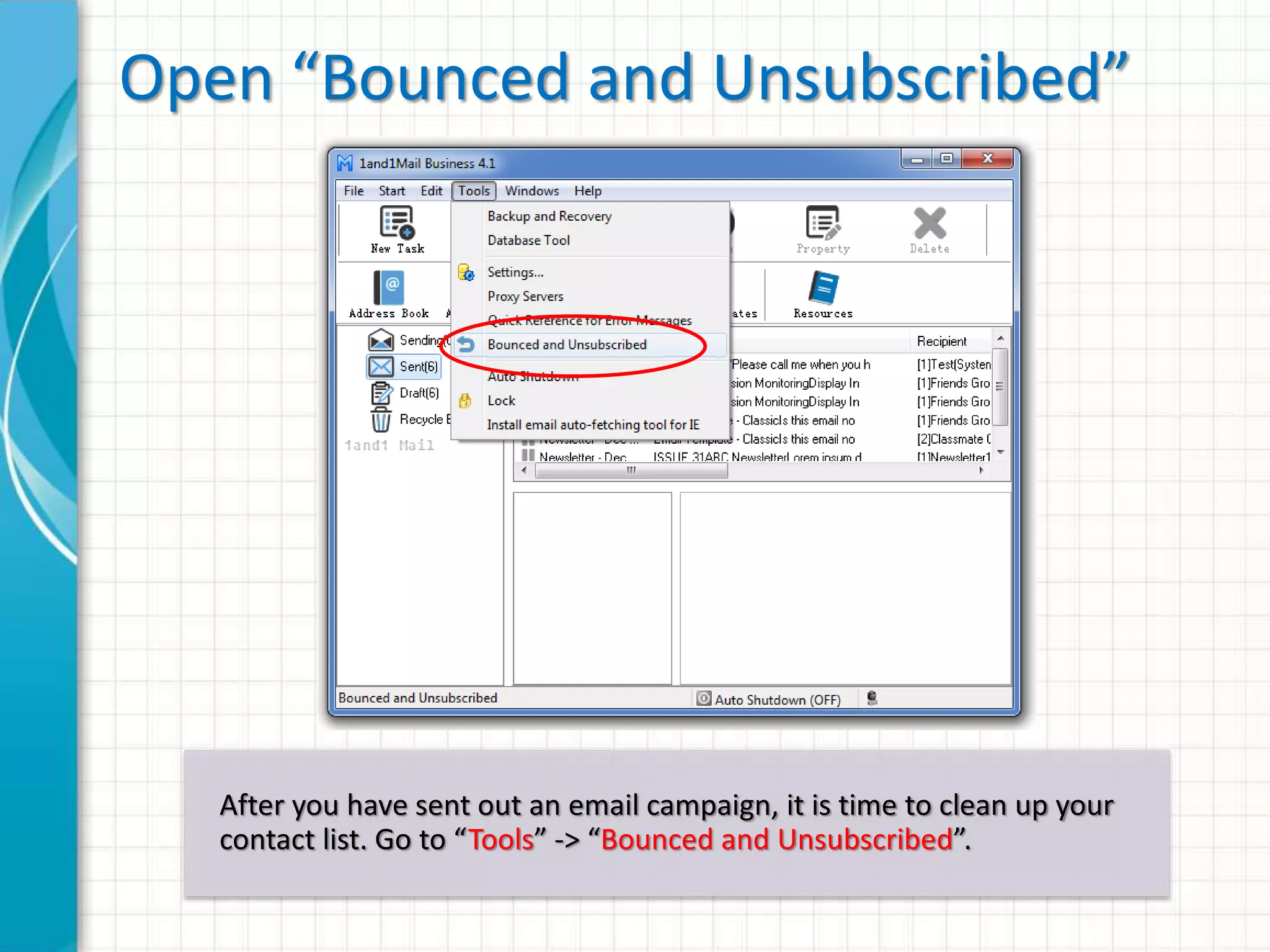
Open Tool Window
A few hours after you have sent out an email campaign, it is time to
clean up your contact list for bounced emails. Go to “Tools” ->
“Bounced and Unsubscribed”.
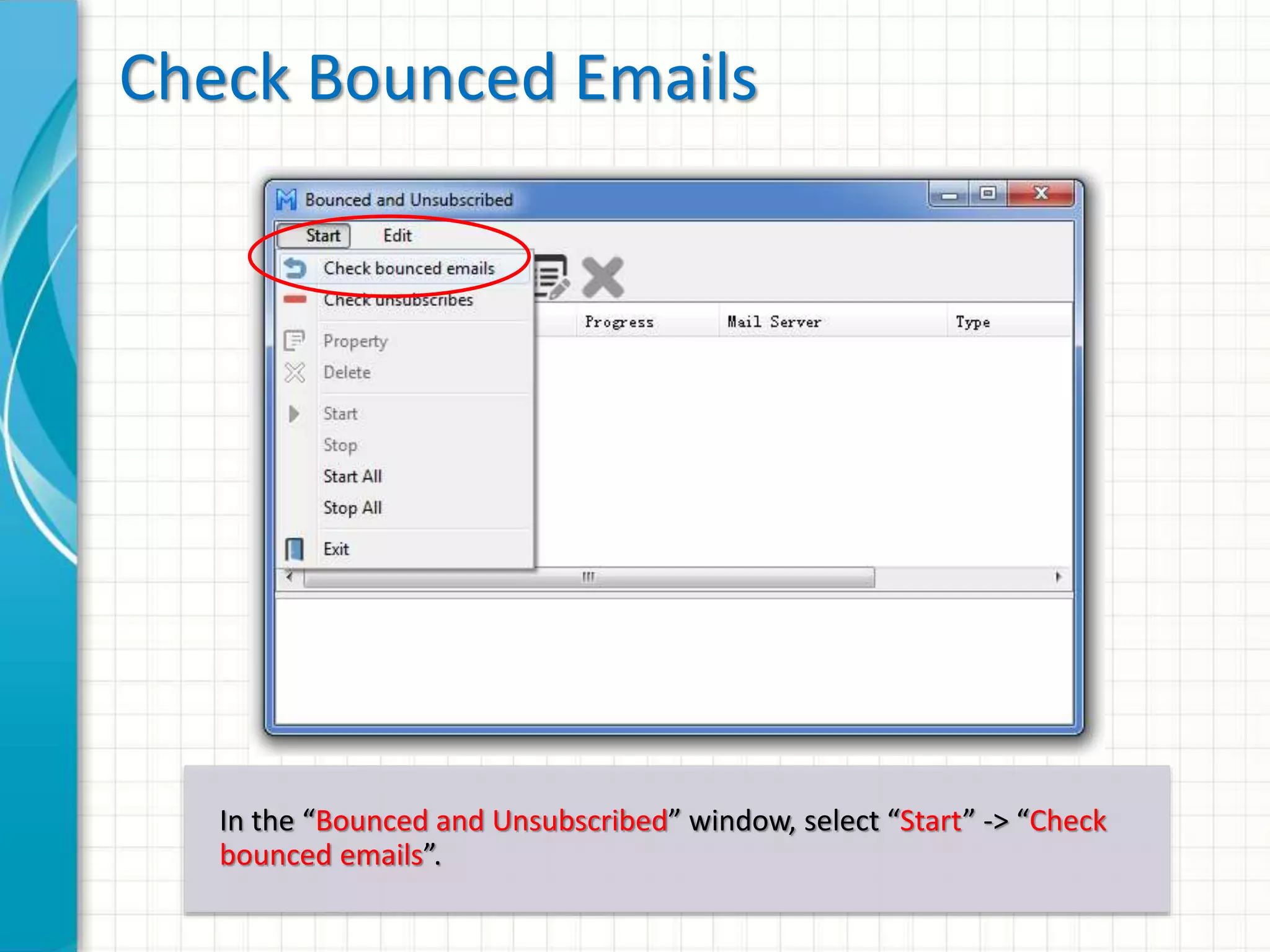
Check Bounced Emails
In the “Bounced and Unsubscribed” window, select “Start” -> “Check
bounced emails”.
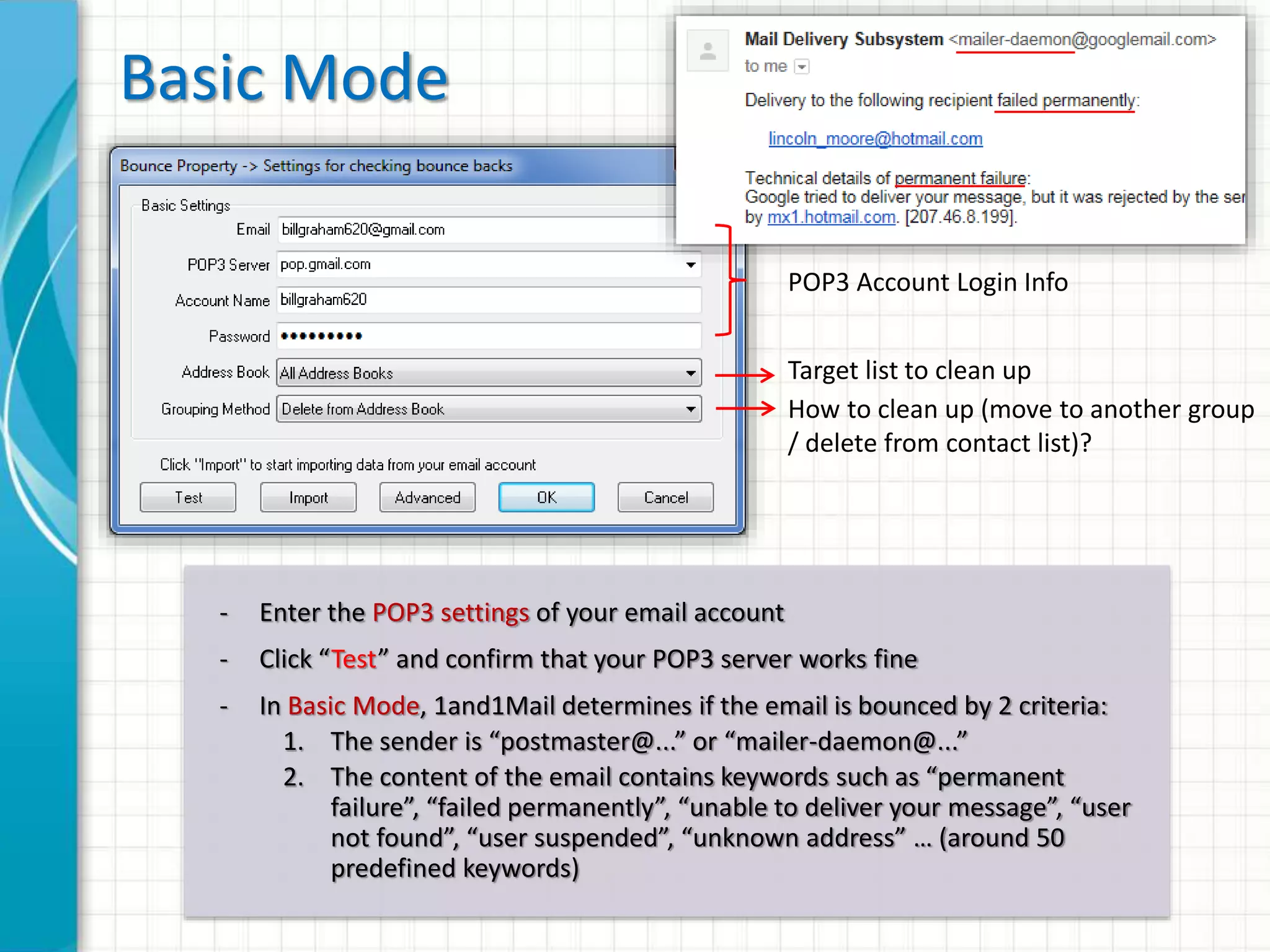
Basic Mode
POP3 Account Login Info
Target list to clean up
How to clean up (move to another group
/ delete from contact list)?
- Enter the POP3 settings of your email account
- Click “Test” and confirm that your POP3 server works fine
- In Basic Mode, 1and1Mail determines if the email is bounced by 2 criteria:
1. The sender is “postmaster@...” or “mailer-daemon@...”
2. The content of the email contains keywords such as “has been
disabled”, “does no exists”, “user not found”, “user suspended”,
“unknown address” … (around 50 predefined keywords)
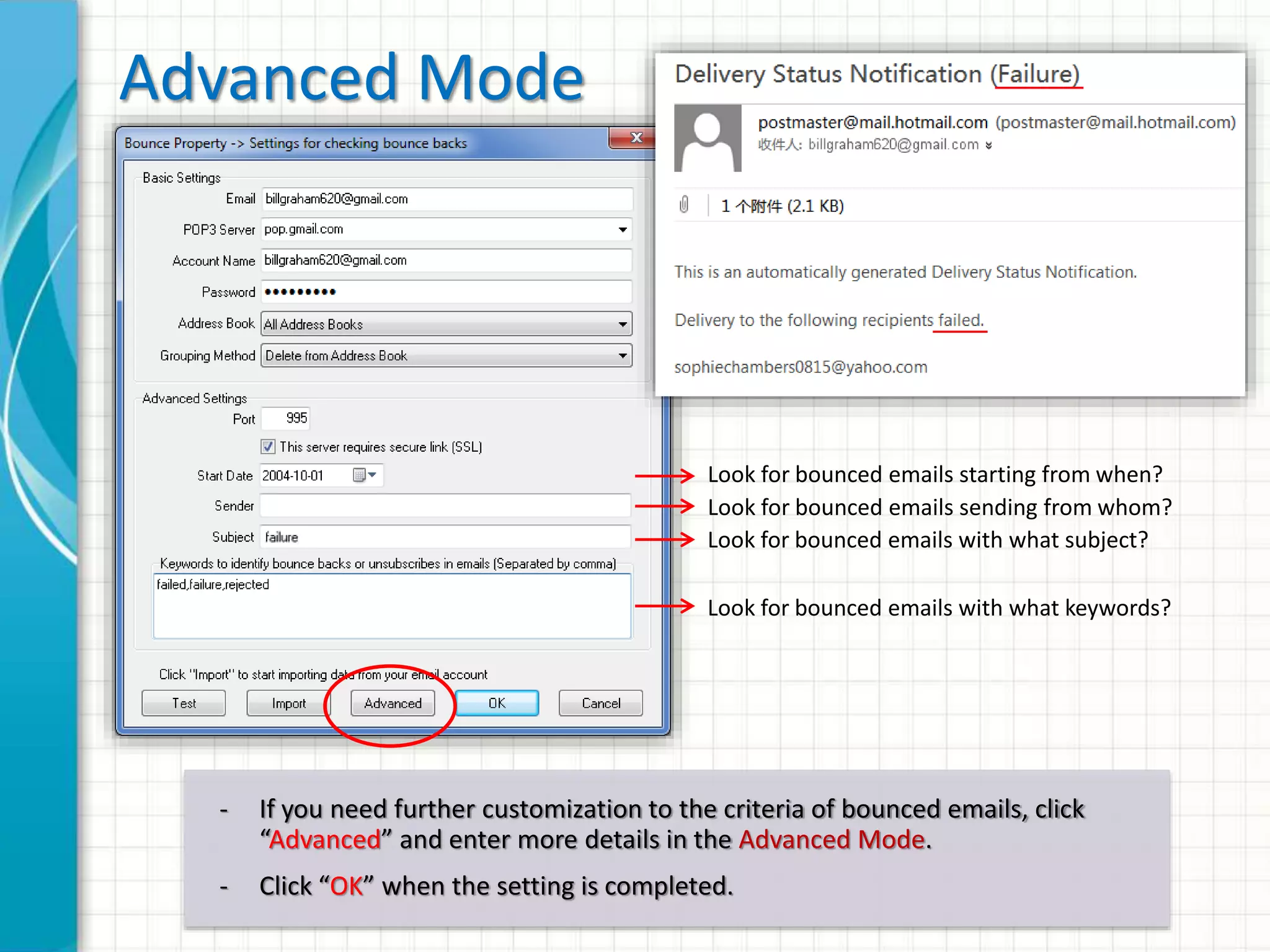
Advanced Mode
Look for bounced emails starting from when?
Look for bounced emails sending from whom?
Look for bounced emails with what subject?
Look for bounced emails with what keywords?
- If you need further customization to the criteria of bounced emails, click
“Advanced” and enter more details in the Advanced Mode.
- Click “OK” when the setting is completed.
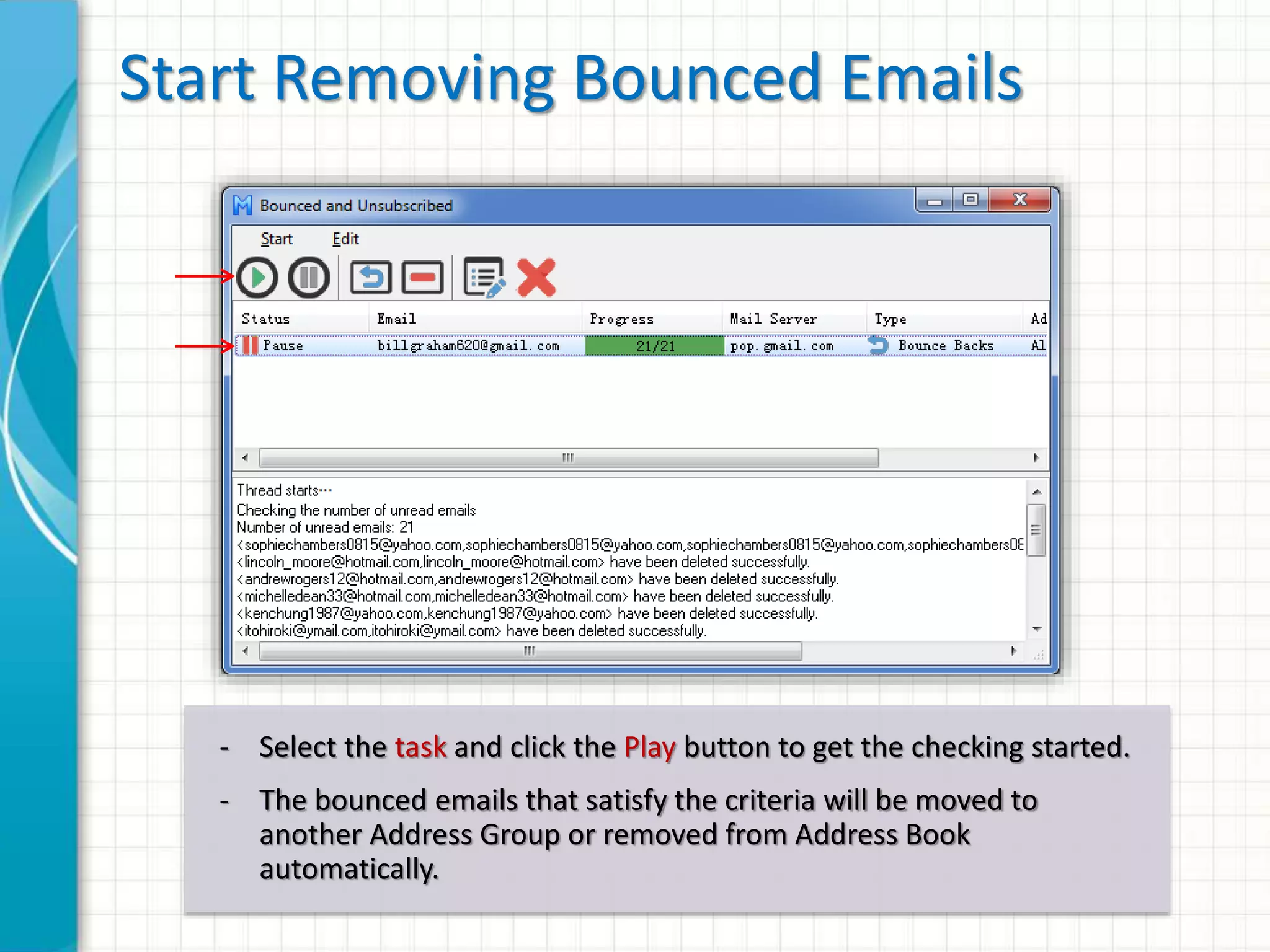
Start Removing Bounced Emails
- Select the task and click the Play button to get the checking started.
- The bounced emails that satisfy the criteria will be moved to
another Address Group or removed from Address Book
automatically.
Remove Unsubscribed Emails
Unsubscribe Link Wizard
When you are editing your email, pause the cursor at where you want
to insert the unsubscribe link and go to “Insert” -> “Unsubscribe Link”.
Input Unsubscribe Link Attributes
Follow the wizard to input the attributes of the unsubscribe link.
Send Unsubscribed Emails
If your recipients want to unsubscribe from your list, they can simply click on
the link and send a pre-composed email with just one click.
These simple unsubscribed steps ensure your recipients do not report you as a
spammer and you can maintain a high reputation score with your email service
provider.
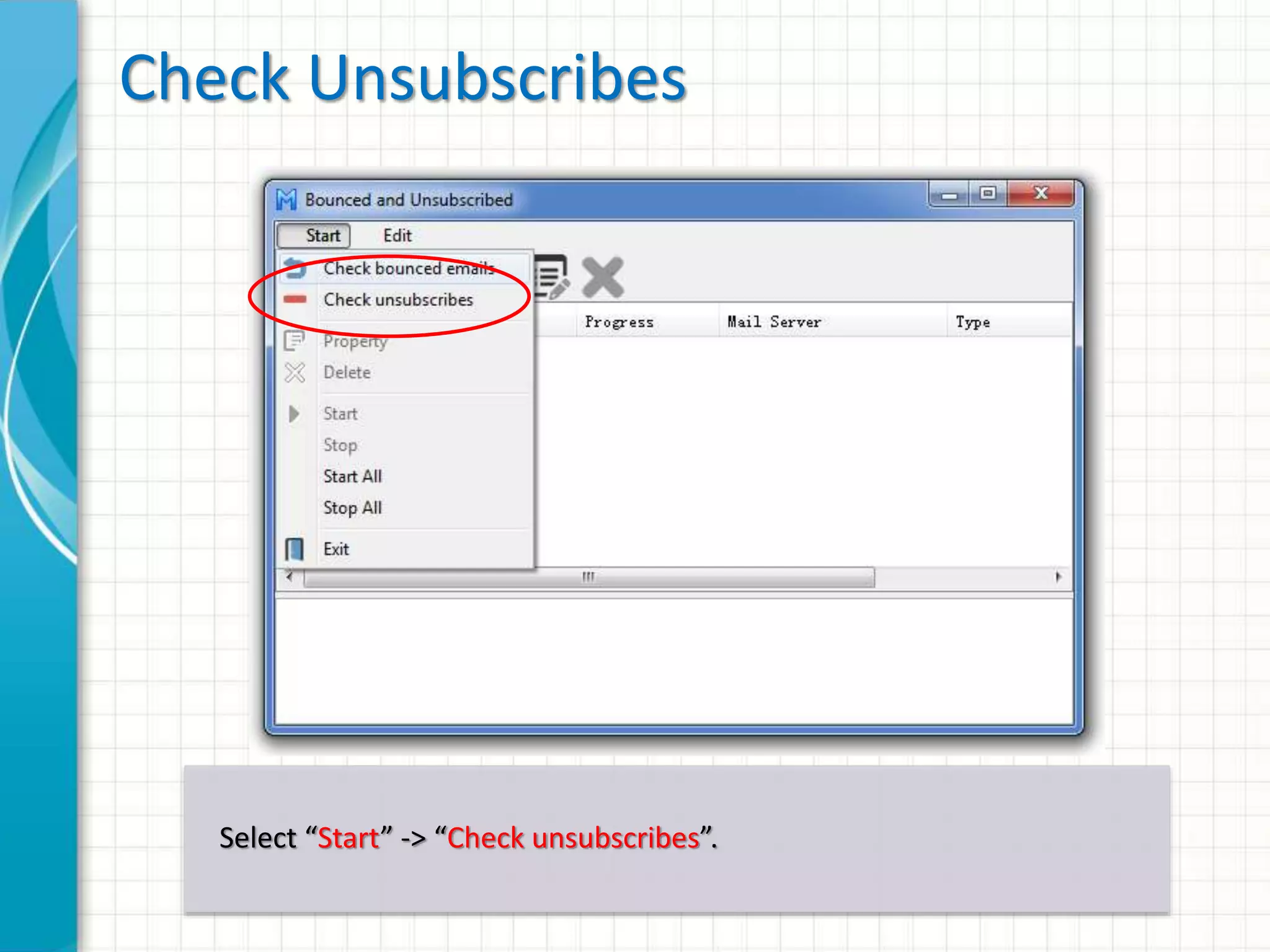
Check Unsubscribes
A few days after you have sent out your email campaigns, it is time to
clean up your list and remove the unsubscribes.
Go to “Start” -> “Check unsubscribes”.
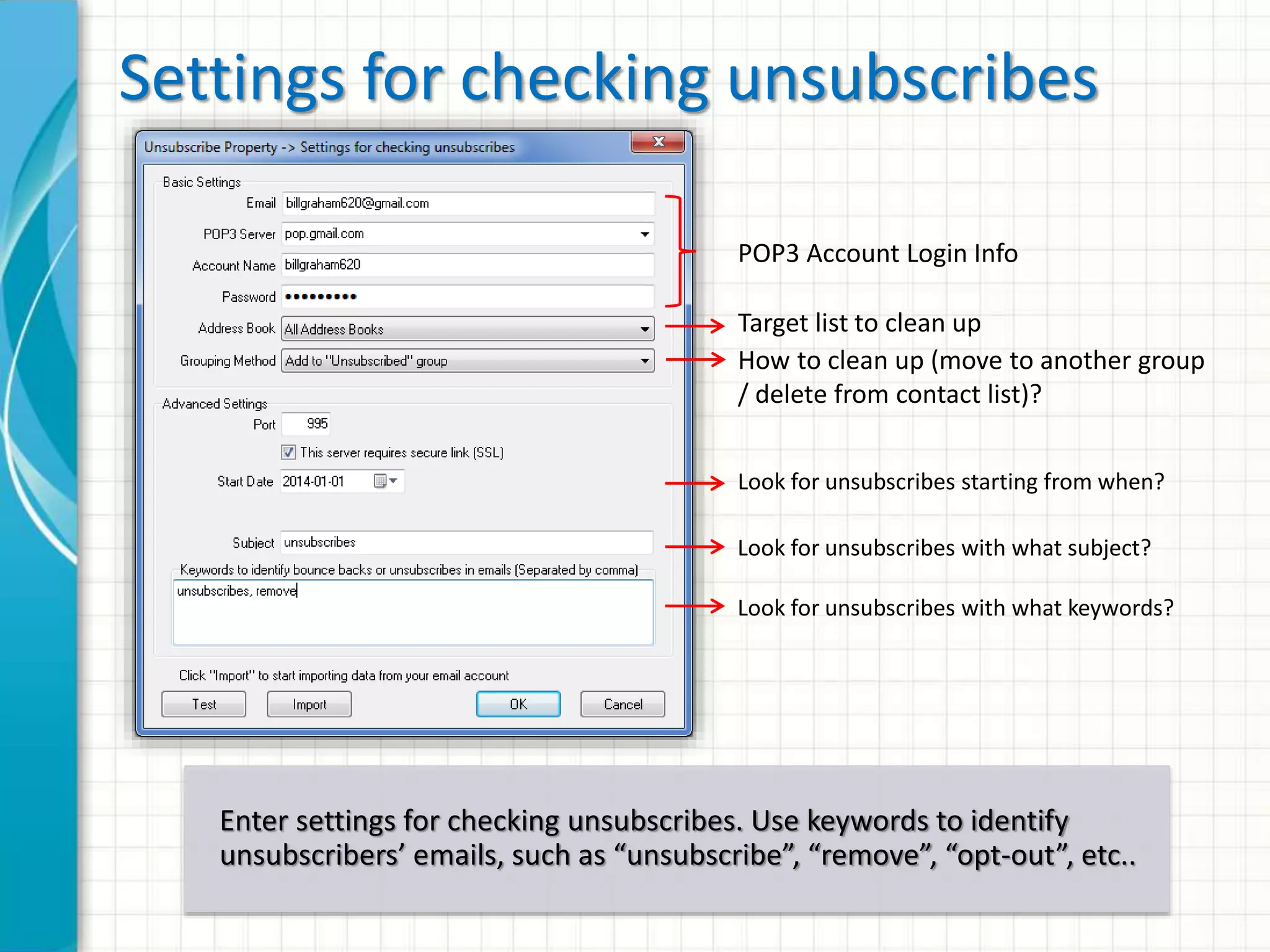
Settings for checking unsubscribes
Enter settings for checking unsubscribes. Use keywords to identify
unsubscribers’ emails, such as “unsubscribe”, “remove”, “opt-out”, etc..
POP3 Account Login Info
Target list to clean up
How to clean up (move to another group
/ delete from contact list)?
Look for unsubscribes starting from when?
Look for unsubscribes with what subject?
Look for unsubscribes with what keywords?
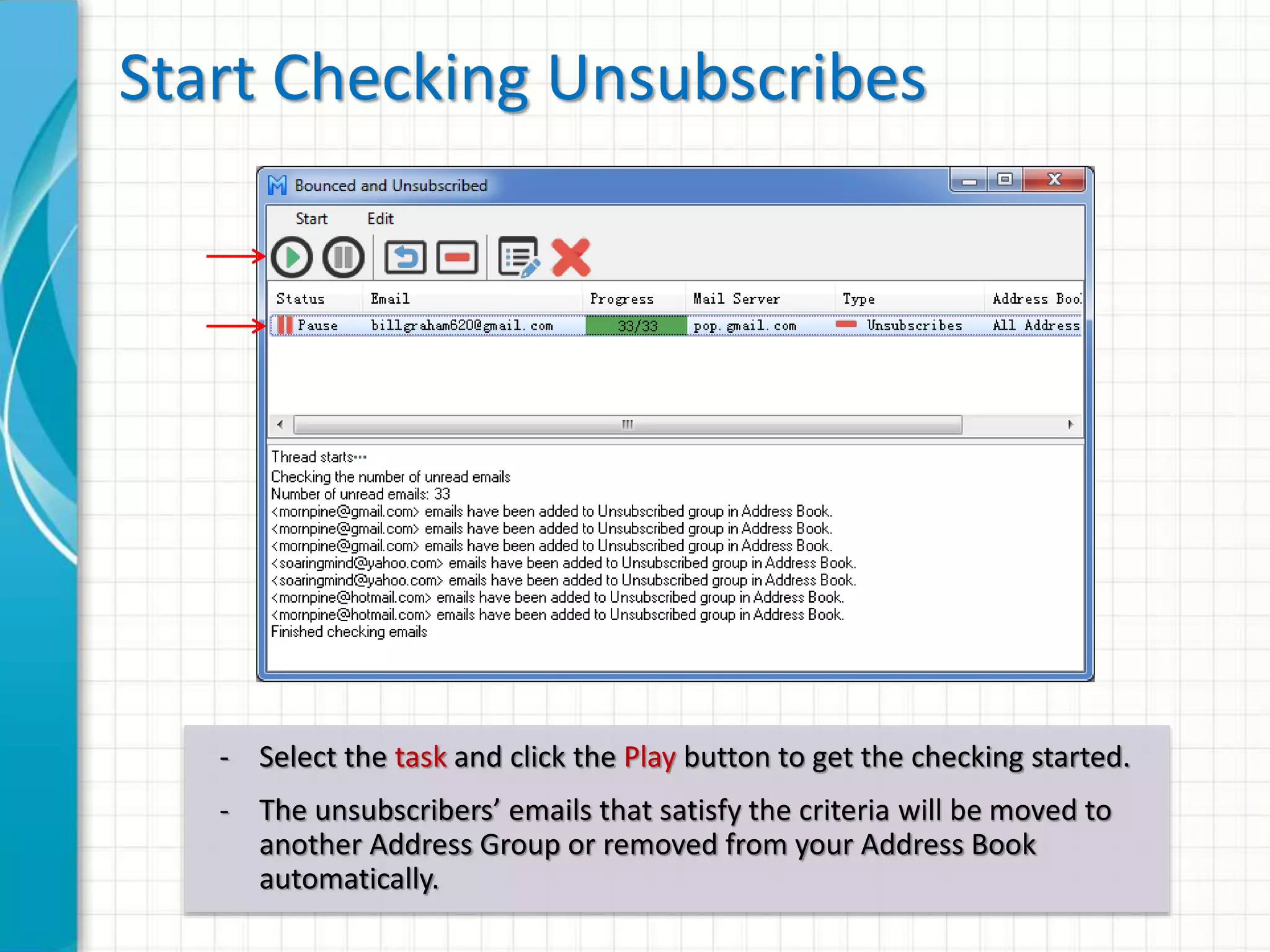
Start Checking Unsubscribes
- Select the task and click the Play button to get the checking started.
- The unsubscribers’ emails that satisfy the criteria will be moved to
another Address Group or removed from your Address Book
automatically.
Unsubscribed Group
Unsubscribers’ emails will be copied to the Unsubscribed Group and
no emails will be sent to them in the future.
1AND1MAIL
View 1and1Mail Video Demo: www.yetesoft.com/demo/
Download 1and1Mail Free Edition: www.yetesoft.com/download/
Upgrade to 1and1Mail Pro Edition: www.yetesoft.com/pricing-editions/
Award-Winning Email Marketing Software

1and1Mail Advanced Features - Auto Remove Bounced and Unsubscribed

  • 1.
    1AND1MAIL ADVANCED FEATURES Auto Remove Bouncedand Unsubscribed Company Website: www.yetesoft.com Sales Inquiry: sales@yetesoft.com Technical Support: support@yetesoft.com
  • 2.
    Why Remove Bouncedand Unsubscribed? Every email service provider uses your Sender Score to filter emails and determine your inbox placement rate. Keeping sending to bounced and unsubscribed emails would lead to high bounce rate and spam complaints of your email campaign. Such behavior is harming the email ecosystem, thus, it will seriously lower your Sender Score. Therefore, constantly removing bounced and unsubscribed emails from your contact list is very important to your email deliverability and future revenue stream. In this guide, you will learn how to look for characteristics (e.g. senders, subjects, keywords) of bounced and unsubscribed emails through POP3 settings of your email account, and how to clean them up.
  • 3.
  • 4.
    Open Tool Window Afew hours after you have sent out an email campaign, it is time to clean up your contact list for bounced emails. Go to “Tools” -> “Bounced and Unsubscribed”.
  • 5.
    Check Bounced Emails Inthe “Bounced and Unsubscribed” window, select “Start” -> “Check bounced emails”.
  • 6.
    Basic Mode POP3 AccountLogin Info Target list to clean up How to clean up (move to another group / delete from contact list)? - Enter the POP3 settings of your email account - Click “Test” and confirm that your POP3 server works fine - In Basic Mode, 1and1Mail determines if the email is bounced by 2 criteria: 1. The sender is “postmaster@...” or “mailer-daemon@...” 2. The content of the email contains keywords such as “has been disabled”, “does no exists”, “user not found”, “user suspended”, “unknown address” … (around 50 predefined keywords)
  • 7.
    Advanced Mode Look forbounced emails starting from when? Look for bounced emails sending from whom? Look for bounced emails with what subject? Look for bounced emails with what keywords? - If you need further customization to the criteria of bounced emails, click “Advanced” and enter more details in the Advanced Mode. - Click “OK” when the setting is completed.
  • 8.
    Start Removing BouncedEmails - Select the task and click the Play button to get the checking started. - The bounced emails that satisfy the criteria will be moved to another Address Group or removed from Address Book automatically.
  • 9.
  • 10.
    Unsubscribe Link Wizard Whenyou are editing your email, pause the cursor at where you want to insert the unsubscribe link and go to “Insert” -> “Unsubscribe Link”.
  • 11.
    Input Unsubscribe LinkAttributes Follow the wizard to input the attributes of the unsubscribe link.
  • 12.
    Send Unsubscribed Emails Ifyour recipients want to unsubscribe from your list, they can simply click on the link and send a pre-composed email with just one click. These simple unsubscribed steps ensure your recipients do not report you as a spammer and you can maintain a high reputation score with your email service provider.
  • 13.
    Check Unsubscribes A fewdays after you have sent out your email campaigns, it is time to clean up your list and remove the unsubscribes. Go to “Start” -> “Check unsubscribes”.
  • 14.
    Settings for checkingunsubscribes Enter settings for checking unsubscribes. Use keywords to identify unsubscribers’ emails, such as “unsubscribe”, “remove”, “opt-out”, etc.. POP3 Account Login Info Target list to clean up How to clean up (move to another group / delete from contact list)? Look for unsubscribes starting from when? Look for unsubscribes with what subject? Look for unsubscribes with what keywords?
  • 15.
    Start Checking Unsubscribes -Select the task and click the Play button to get the checking started. - The unsubscribers’ emails that satisfy the criteria will be moved to another Address Group or removed from your Address Book automatically.
  • 16.
    Unsubscribed Group Unsubscribers’ emailswill be copied to the Unsubscribed Group and no emails will be sent to them in the future.
  • 17.
    1AND1MAIL View 1and1Mail VideoDemo: www.yetesoft.com/demo/ Download 1and1Mail Free Edition: www.yetesoft.com/download/ Upgrade to 1and1Mail Pro Edition: www.yetesoft.com/pricing-editions/ Award-Winning Email Marketing Software

Editor's Notes

  • #18 Microsoft Confidential