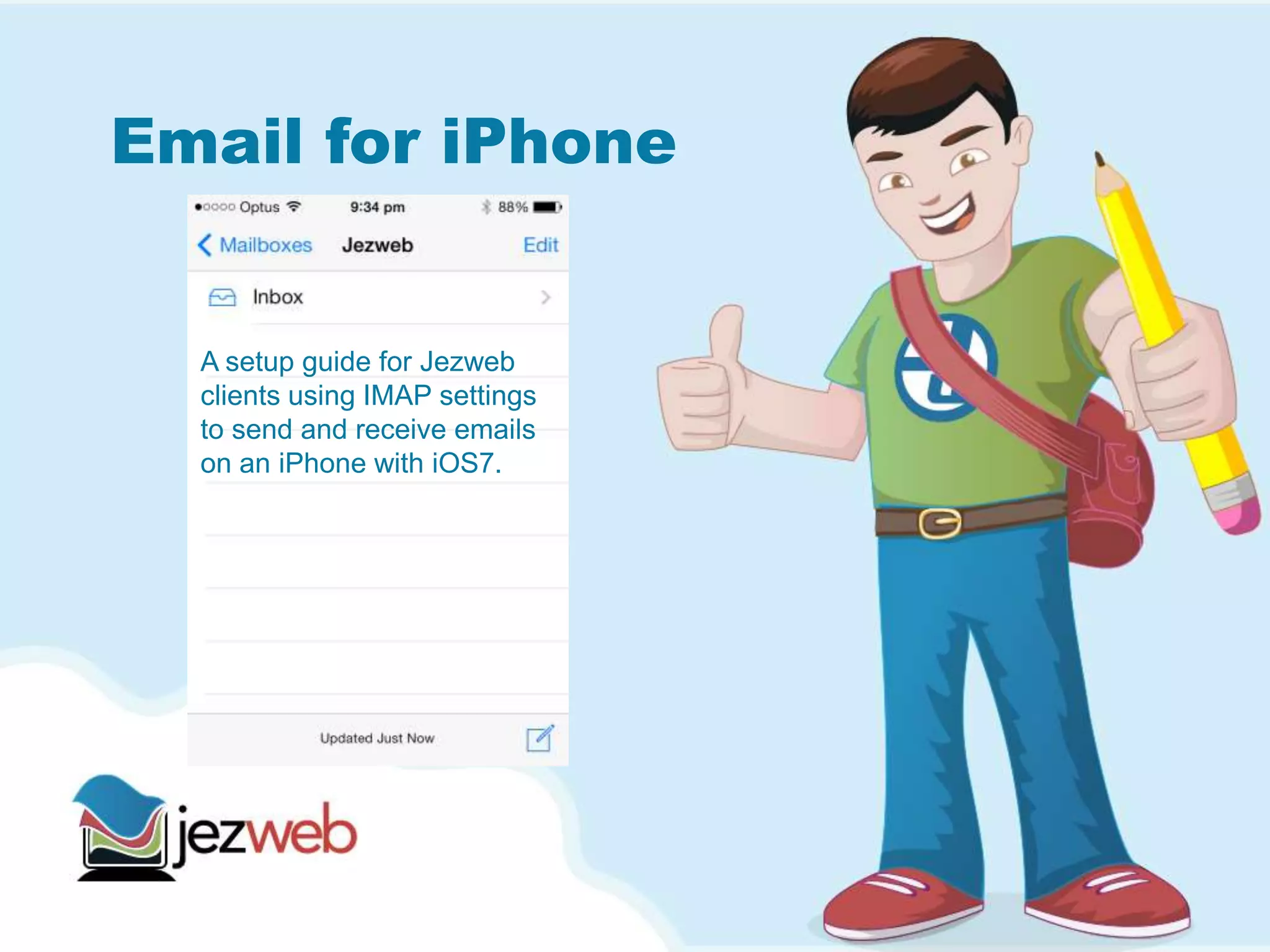
Email for iPhone
A setup guide for Jezweb
clients using IMAP settings
to send and receive emails
on an iPhone with iOS7.
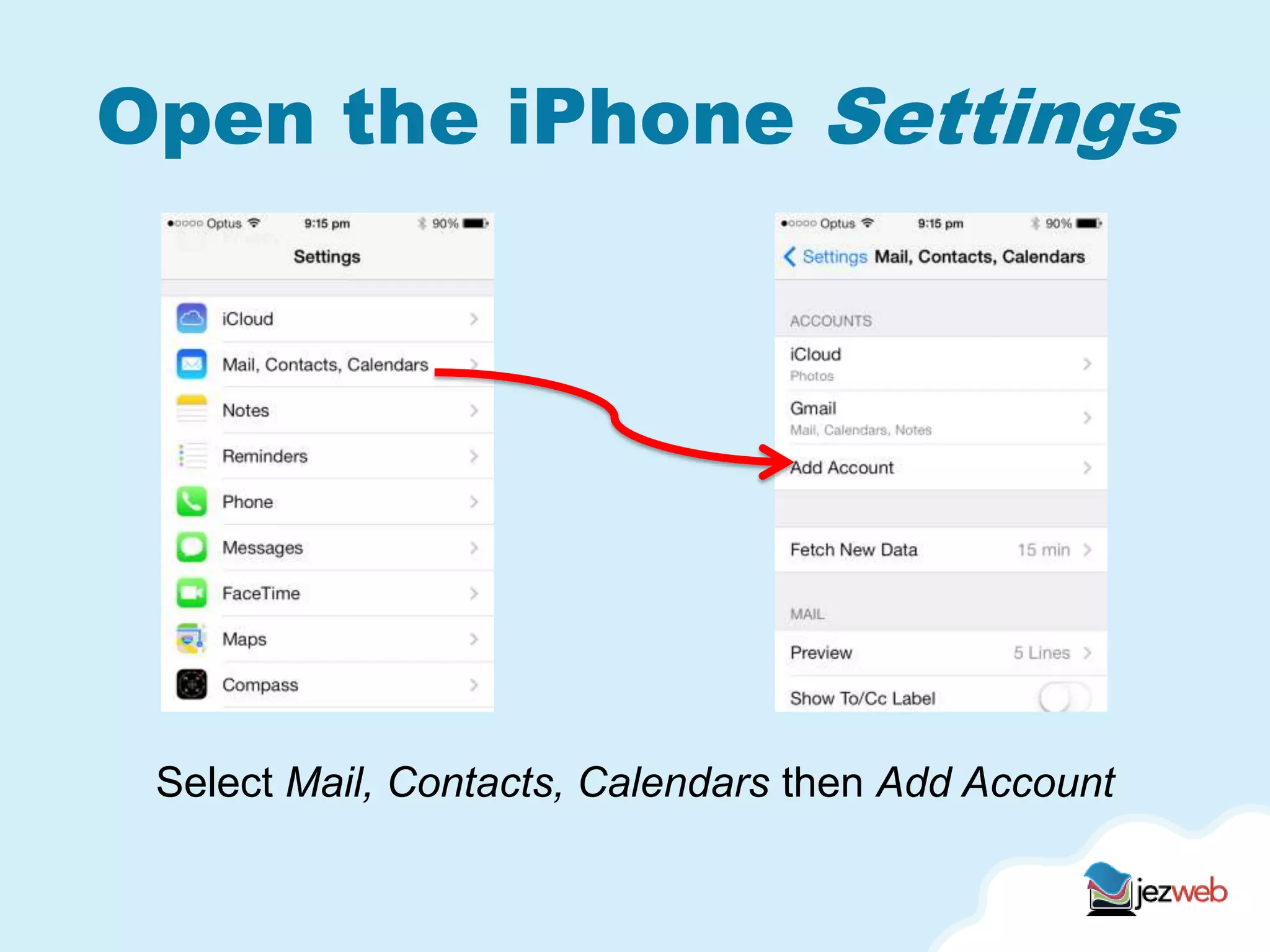
Open the iPhone Settings
Select Mail, Contacts, Calendars then Add Account
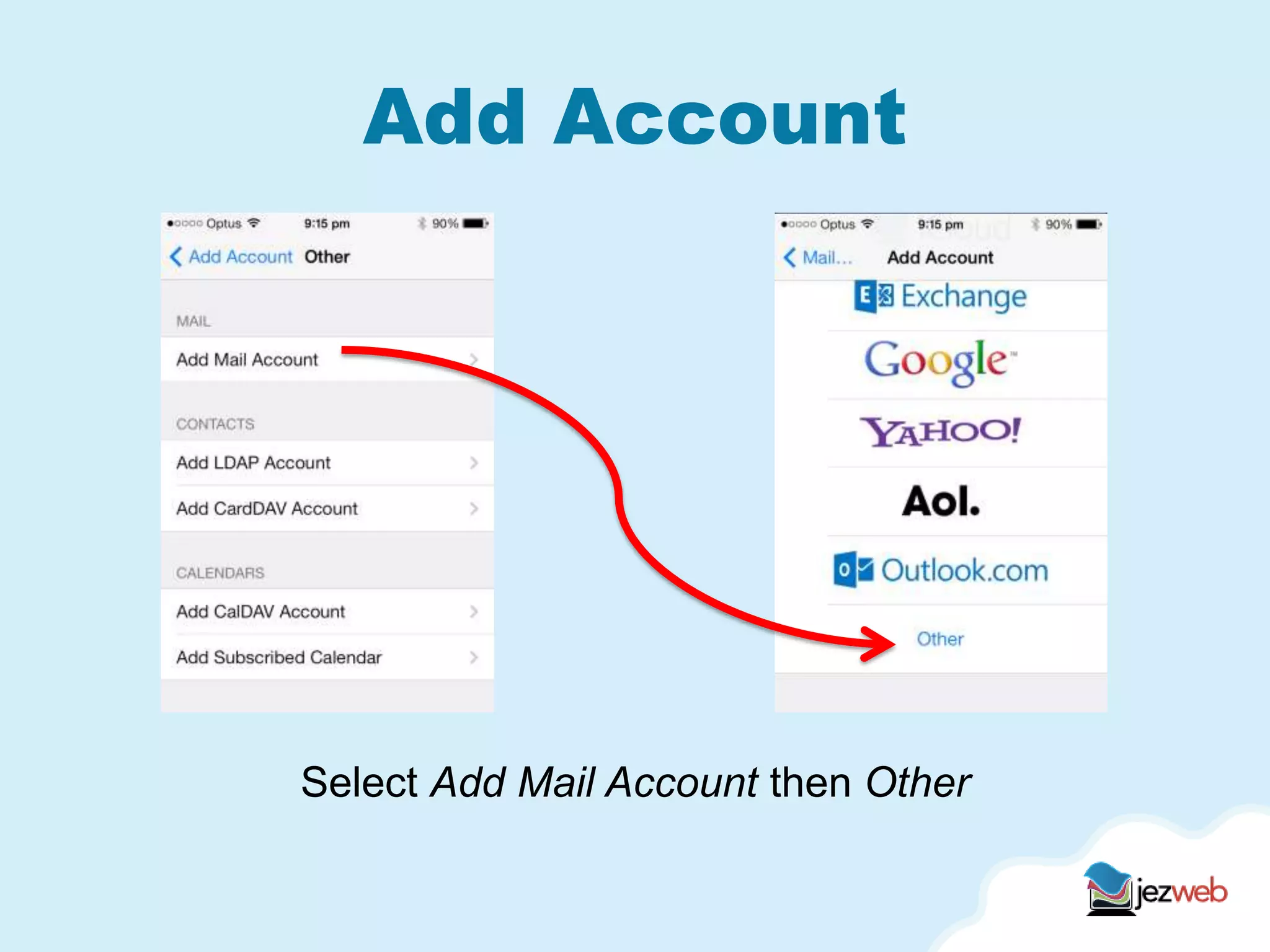
Add Account
Select Add Mail Account then Other
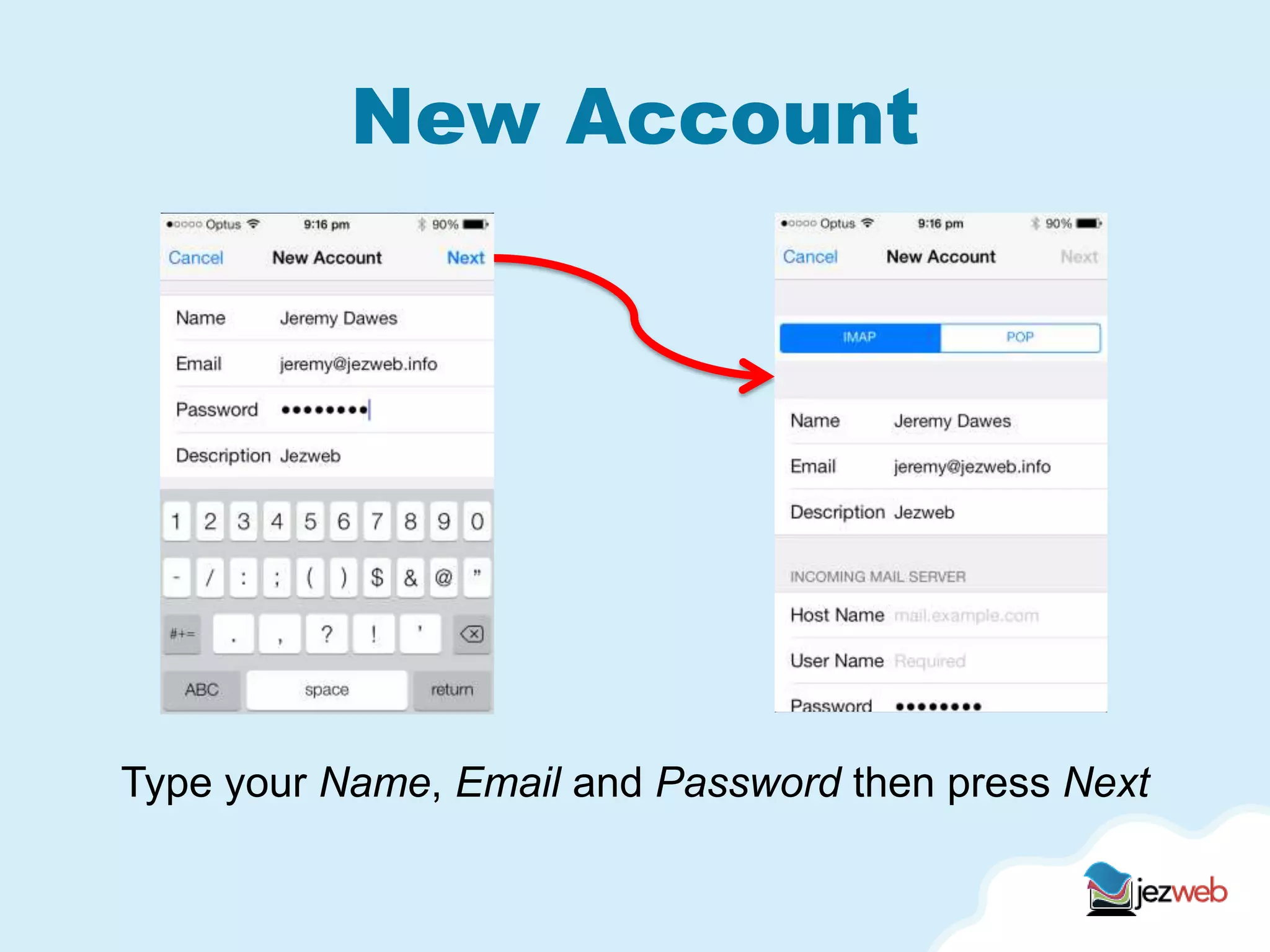
New Account
Type your Name, Email and Password then press Next
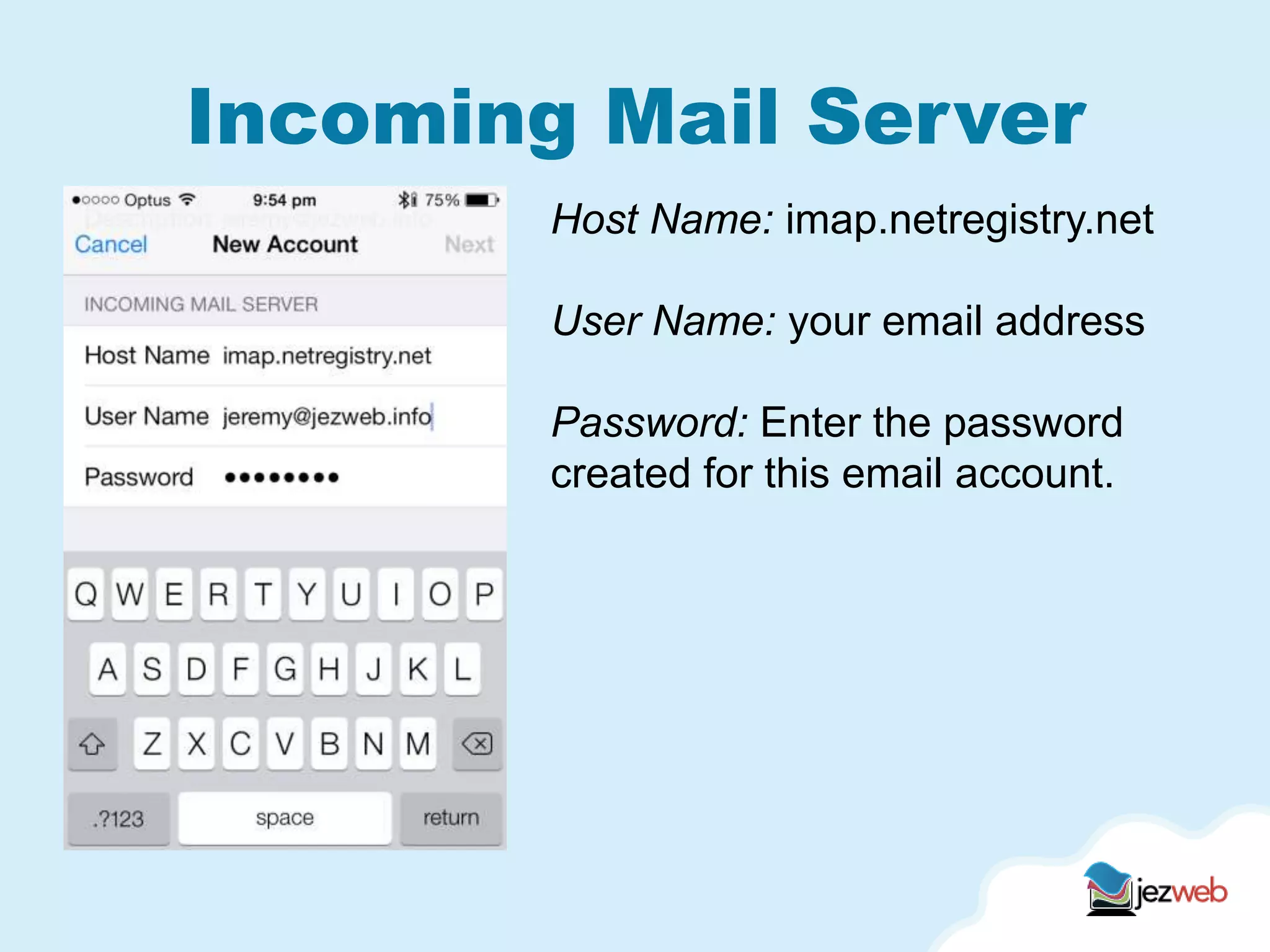
Incoming Mail Server
Host Name: imap.netregistry.net
User Name: your email address
Password: Enter the password
created for this email account.
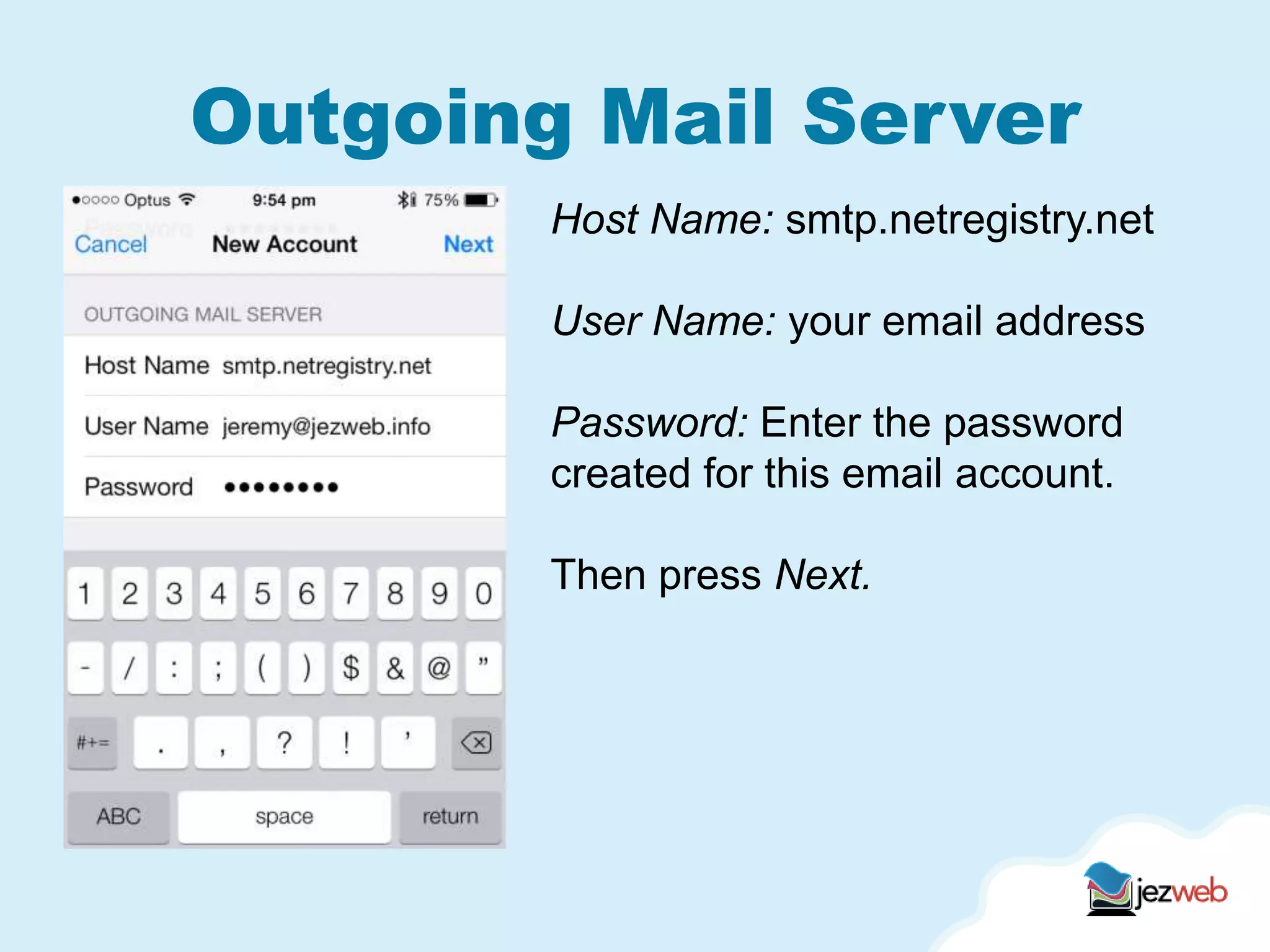
Outgoing Mail Server
Host Name: smtp.netregistry.net
User Name: your email address
Password: Enter the password
created for this email account.
Then press Next.
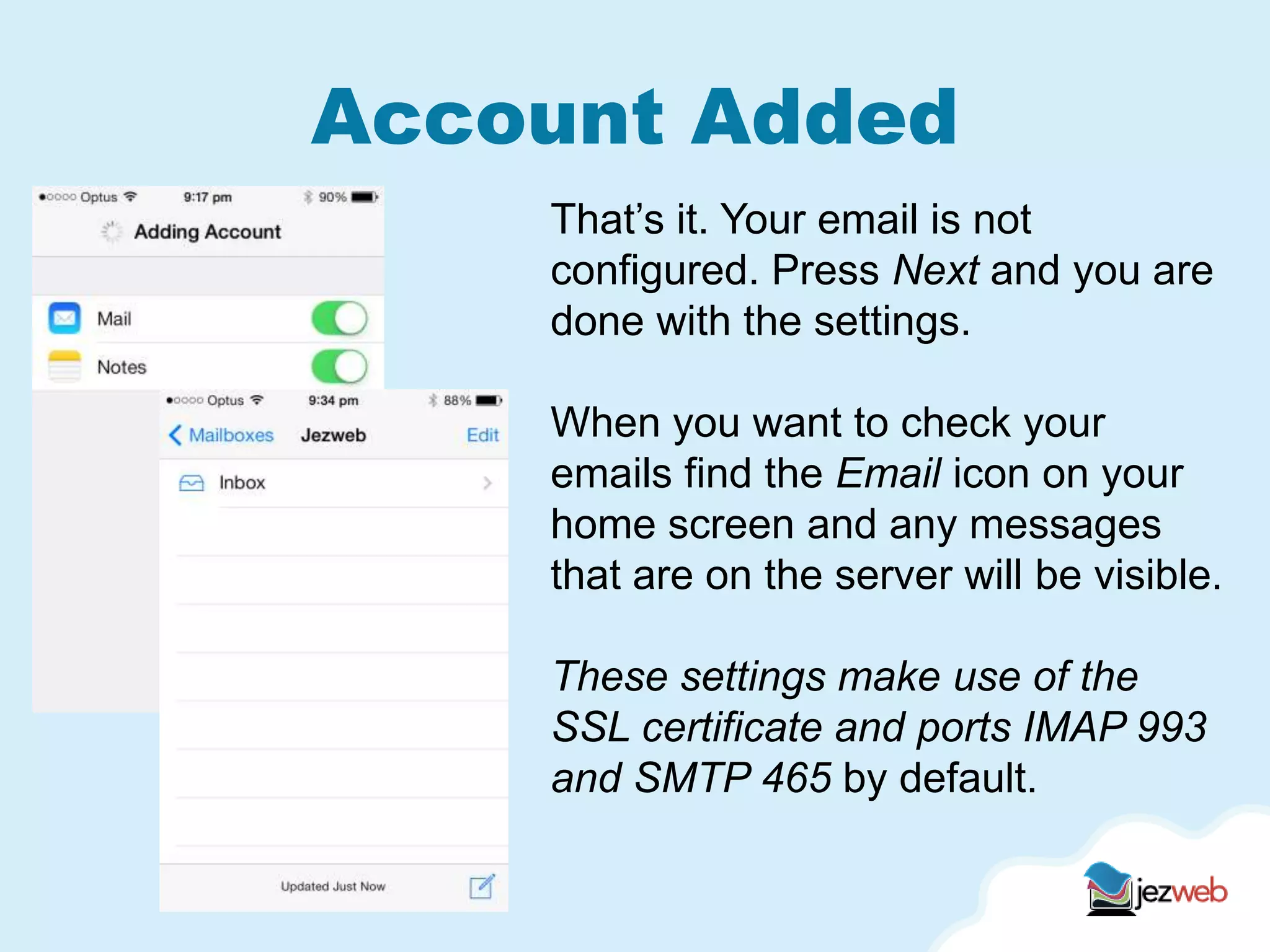
Account Added
That’s it. Your email is not
configured. Press Next and you are
done with the settings.
When you want to check your
emails find the Email icon on your
home screen and any messages
that are on the server will be visible.
These settings make use of the
SSL certificate and ports IMAP 993
and SMTP 465 by default.

iphone ios7 imap settings netregistry ssl

  • 1.
    Email for iPhone Asetup guide for Jezweb clients using IMAP settings to send and receive emails on an iPhone with iOS7.
  • 2.
    Open the iPhoneSettings Select Mail, Contacts, Calendars then Add Account
  • 3.
    Add Account Select AddMail Account then Other
  • 4.
    New Account Type yourName, Email and Password then press Next
  • 5.
    Incoming Mail Server HostName: imap.netregistry.net User Name: your email address Password: Enter the password created for this email account.
  • 6.
    Outgoing Mail Server HostName: smtp.netregistry.net User Name: your email address Password: Enter the password created for this email account. Then press Next.
  • 7.
    Account Added That’s it.Your email is not configured. Press Next and you are done with the settings. When you want to check your emails find the Email icon on your home screen and any messages that are on the server will be visible. These settings make use of the SSL certificate and ports IMAP 993 and SMTP 465 by default.