LECTURE 4

Looping &
Concatenation
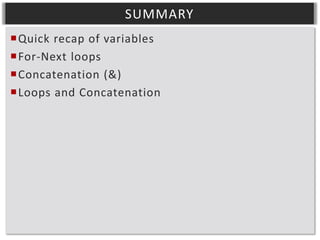
SUMMARY
Quick recap of variables
For-Next loops
Concatenation (&)
Loops and Concatenation
QUICK RECAP
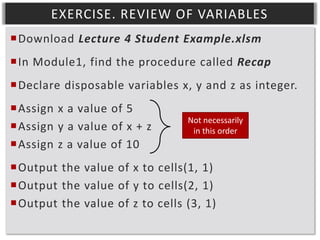
EXERCISE. REVIEW OF VARIABLES
Download Lecture 4 Student Example.xlsm
In Module1, find the procedure called Recap
Declare disposable variables x, y and z as integer.
Assign x a value of 5
Assign y a value of x + z
Assign z a value of 10

Not necessarily
in this order

Output the value of x to cells(1, 1)
Output the value of y to cells(2, 1)
Output the value of z to cells (3, 1)
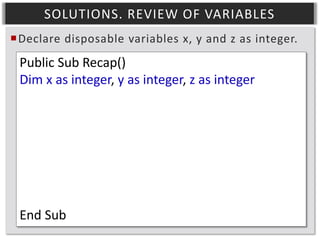
SOLUTIONS. REVIEW OF VARIABLES
Declare disposable variables x, y and z as integer.

Public Sub Recap()
Dim x as integer, y as integer, z as integer

End Sub
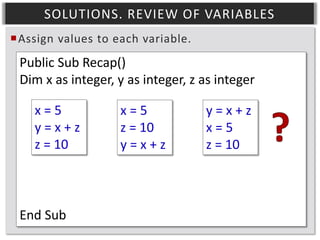
SOLUTIONS. REVIEW OF VARIABLES
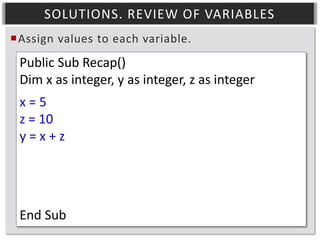
Assign values to each variable.

Public Sub Recap()
Dim x as integer, y as integer, z as integer
x=5
y=x+z
z = 10

End Sub

x=5
z = 10
y=x+z

y=x+z
x=5
z = 10
SOLUTIONS. REVIEW OF VARIABLES
Assign values to each variable.

Public Sub Recap()
Dim x as integer, y as integer, z as integer
x=5
z = 10
y=x+z

End Sub
SOLUTIONS. REVIEW OF VARIABLES
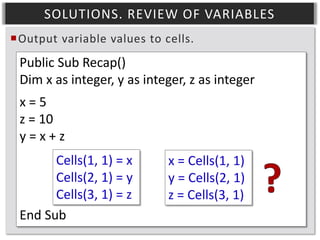
Output variable values to cells.

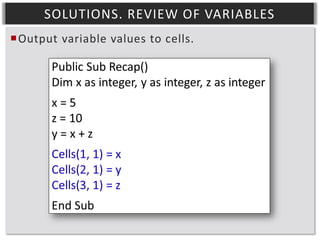
Public Sub Recap()
Dim x as integer, y as integer, z as integer
x=5
z = 10
y=x+z
Cells(1, 1) = x
Cells(2, 1) = y
Cells(3, 1) = z
End Sub

x = Cells(1, 1)
y = Cells(2, 1)
z = Cells(3, 1)
SOLUTIONS. REVIEW OF VARIABLES
Output variable values to cells.
STEPPING THROUGH CODE
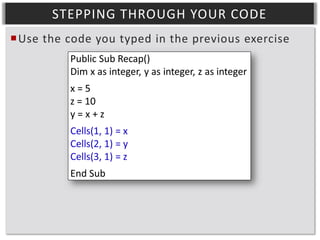
STEPPING THROUGH YOUR CODE
Use the code you typed in the previous exercise
STEPPING THROUGH YOUR CODE
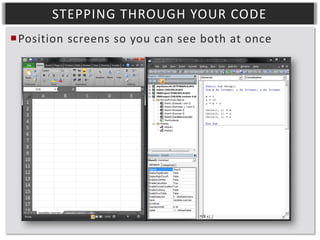
Position screens so you can see both at once
STEPPING THROUGH YOUR CODE
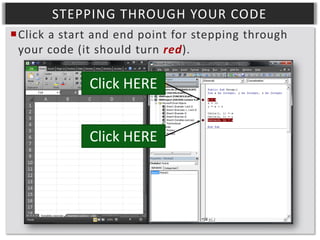
Click a start and end point for stepping through
your code (it should turn red).

Click HERE
Click HERE
STEPPING THROUGH YOUR CODE
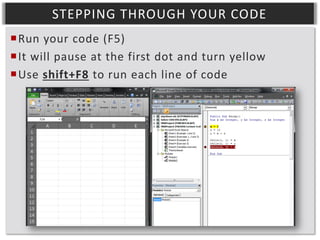
Run your code (F5)
It will pause at the first dot and turn yellow
Use shift+F8 to run each line of code
HOVER OVER VARIABLES
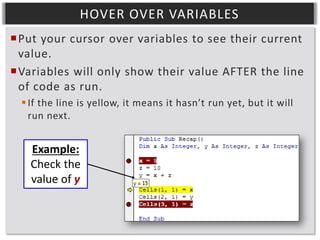
Put your cursor over variables to see their current
value.
Variables will only show their value AFTER the line
of code as run.
 If the line is yellow, it means it hasn’t run yet, but it will
run next.

Example:
Check the
value of y
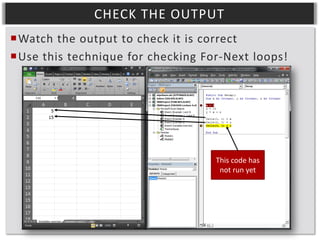
CHECK THE OUTPUT
Watch the output to check it is correct
Use this technique for checking For-Next loops!

This code has
not run yet
FOR-NEXT LOOPS

An
Introduction
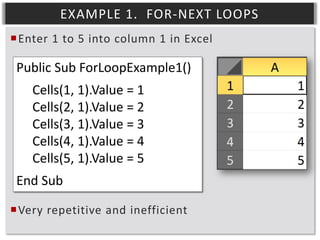
EXAMPLE 1. FOR-NEXT LOOPS
Enter 1 to 5 into column 1 in Excel

Public Sub ForLoopExample1()
Cells(1, 1).Value = 1
Cells(2, 1).Value = 2
Cells(3, 1).Value = 3
Cells(4, 1).Value = 4
Cells(5, 1).Value = 5
End Sub
Very repetitive and inefficient
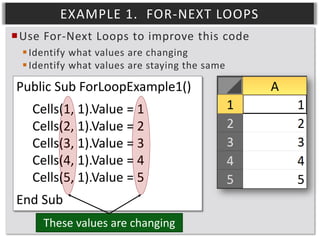
EXAMPLE 1. FOR-NEXT LOOPS
Use For-Next Loops to improve this code
 Identify what values are changing
 Identify what values are staying the same

Public Sub ForLoopExample1()
Cells(1, 1).Value = 1
Cells(2, 1).Value = 2
Cells(3, 1).Value = 3
Cells(4, 1).Value = 4
Cells(5, 1).Value = 5
End Sub
These values are changing
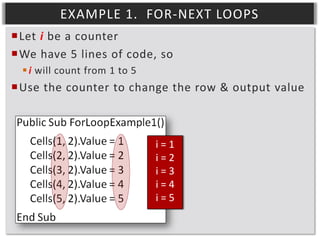
EXAMPLE 1. FOR-NEXT LOOPS
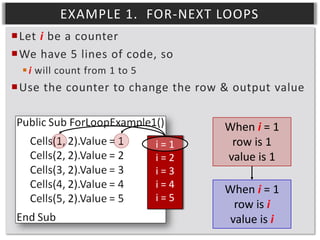
Let i be a counter
We have 5 lines of code, so
 i will count from 1 to 5

Use the counter to change the row & output value

i=1
i=2
i=3
i=4
i=5
EXAMPLE 1. FOR-NEXT LOOPS
Let i be a counter
We have 5 lines of code, so
 i will count from 1 to 5

Use the counter to change the row & output value

i=1
i=2
i=3
i=4
i=5

When i = 1
row is 1
value is 1
When i = 1
row is i
value is i
EXAMPLE 1. FOR-NEXT LOOPS
Let i be a counter
We have 5 lines of code, so
 i will count from 1 to 5

Use the counter to change the row & output value

i=1
i=2
i=3
i=4
i=5

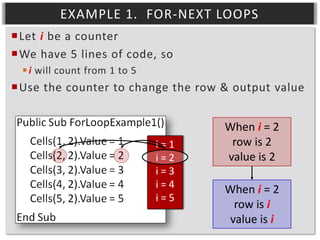
When i = 2
row is 2
value is 2
When i = 2
row is i
value is i
EXAMPLE 1. FOR-NEXT LOOPS
Let i be a counter
We have 5 lines of code, so
 i will count from 1 to 5

Use the counter to change the row & output value

i=1
i=2
i=3
i=4
i=5

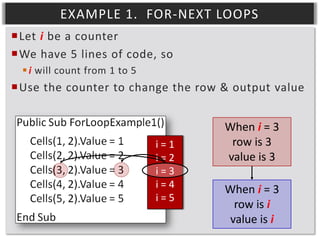
When i = 3
row is 3
value is 3
When i = 3
row is i
value is i
EXAMPLE 1. FOR-NEXT LOOPS
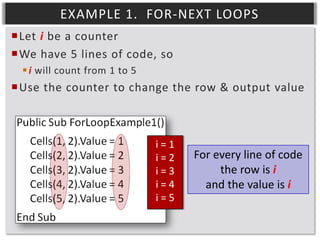
Let i be a counter
We have 5 lines of code, so
 i will count from 1 to 5

Use the counter to change the row & output value

i=1
i=2
i=3
i=4
i=5

For every line of code
the row is i
and the value is i
EXAMPLE 1. FOR-NEXT LOOPS
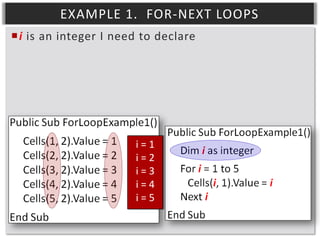
i is an integer I need to declare

i=1
i=2
i=3
i=4
i=5
EXAMPLE 1. FOR-NEXT LOOPS
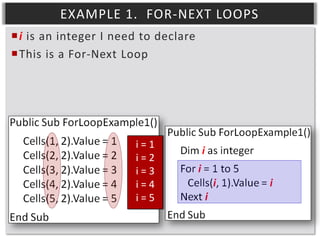
i is an integer I need to declare
This is a For-Next Loop

i=1
i=2
i=3
i=4
i=5
EXAMPLE 1. FOR-NEXT LOOPS
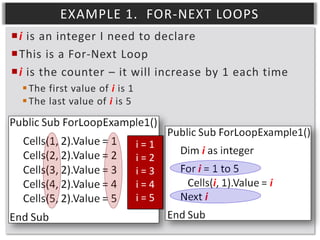
i is an integer I need to declare
This is a For-Next Loop
i is the counter – it will increase by 1 each time
 The first value of i is 1
 The last value of i is 5

i=1
i=2
i=3
i=4
i=5
EXAMPLE 1. FOR-NEXT LOOPS
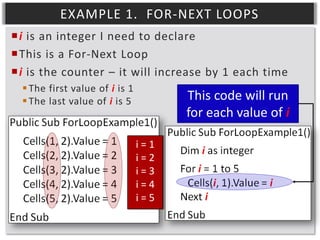
i is an integer I need to declare
This is a For-Next Loop
i is the counter – it will increase by 1 each time
 The first value of i is 1
 The last value of i is 5

This code will run
for each value of i
i=1
i=2
i=3
i=4
i=5
FOR-NEXT LOOPS

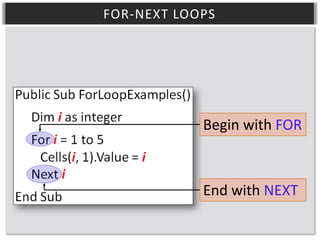
Begin with FOR

End with NEXT
FOR-NEXT LOOPS
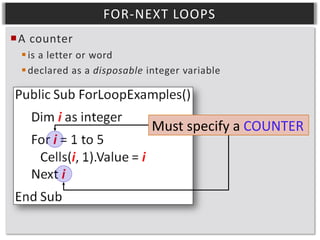
A counter
 is a letter or word
 declared as a disposable integer variable

Must specify a COUNTER
FOR-NEXT LOOPS

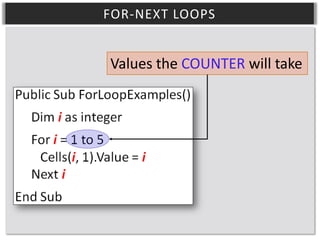
Values the COUNTER will take
FOR-NEXT LOOPS
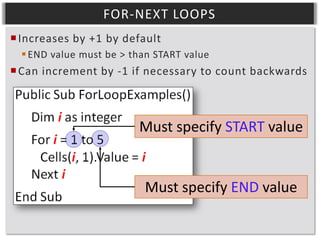
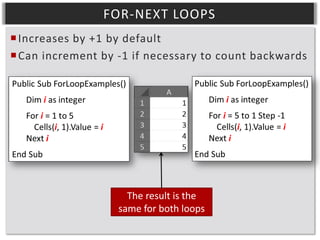
 Increases by +1 by default
 END value must be > than START value

 Can increment by -1 if necessary to count backwards

Must specify START value

Must specify END value
FOR-NEXT LOOPS
 Increases by +1 by default
 Can increment by -1 if necessary to count backwards

The result is the
same for both loops
FOR-NEXT LOOPS

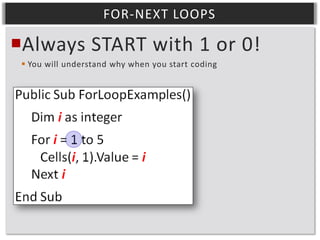
Always START with 1 or 0!
 You will understand why when you start coding
FOR-NEXT LOOPS

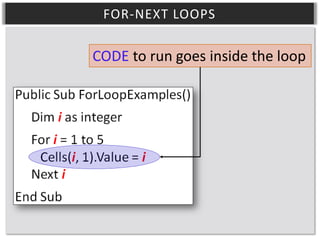
CODE to run goes inside the loop
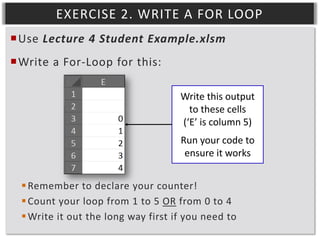
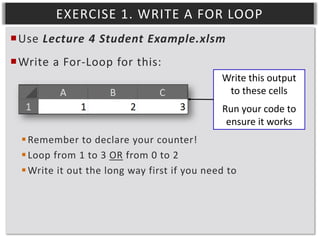
EXERCISE 1. WRITE A FOR LOOP
Use Lecture 4 Student Example.xlsm
Write a For-Loop for this:
Write this output
to these cells
Run your code to
ensure it works
 Remember to declare your counter!
 Loop from 1 to 3 OR from 0 to 2
 Write it out the long way first if you need to
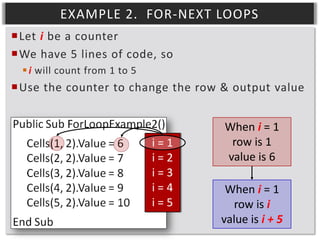
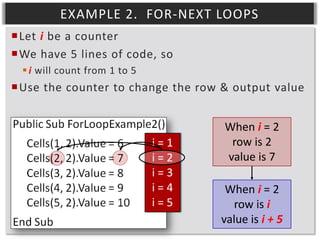
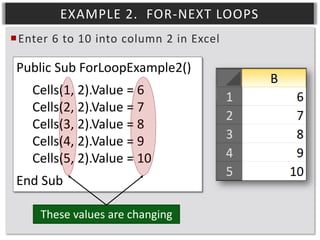
EXAMPLE 2. FOR-NEXT LOOPS
Enter 6 to 10 into column 2 in Excel

Public Sub ForLoopExample2()
Cells(1, 2).Value = 6
Cells(2, 2).Value = 7
Cells(3, 2).Value = 8
Cells(4, 2).Value = 9
Cells(5, 2).Value = 10
End Sub
These values are changing
EXAMPLE 2. FOR-NEXT LOOPS
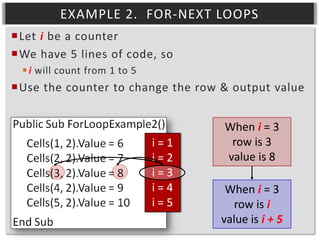
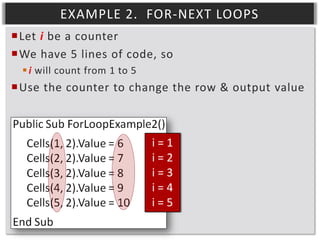
Let i be a counter
We have 5 lines of code, so
 i will count from 1 to 5

Use the counter to change the row & output value

i=1
i=2
i=3
i=4
i=5
EXAMPLE 2. FOR-NEXT LOOPS
Let i be a counter
We have 5 lines of code, so
 i will count from 1 to 5

Use the counter to change the row & output value

i=1
i=2
i=3
i=4
i=5

When i = 1
row is 1
value is 6
When i = 1
row is i
value is i + 5
EXAMPLE 2. FOR-NEXT LOOPS
Let i be a counter
We have 5 lines of code, so
 i will count from 1 to 5

Use the counter to change the row & output value

i=1
i=2
i=3
i=4
i=5

When i = 2
row is 2
value is 7
When i = 2
row is i
value is i + 5
EXAMPLE 2. FOR-NEXT LOOPS
Let i be a counter
We have 5 lines of code, so
 i will count from 1 to 5

Use the counter to change the row & output value

i=1
i=2
i=3
i=4
i=5

When i = 3
row is 3
value is 8
When i = 3
row is i
value is i + 5
EXAMPLE 2. FOR-NEXT LOOPS
Let i be a counter
We have 5 lines of code, so
 i will count from 1 to 5

Use the counter to change the row & output value

i=1
i=2
i=3
i=4
i=5

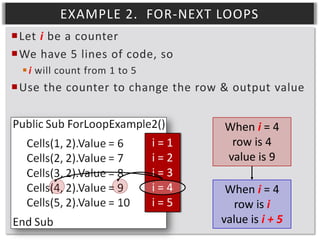
When i = 4
row is 4
value is 9
When i = 4
row is i
value is i + 5
EXAMPLE 2. FOR-NEXT LOOPS
Let i be a counter
We have 5 lines of code, so
 i will count from 1 to 5

Use the counter to change the row & output value

i=1
i=2
i=3
i=4
i=5

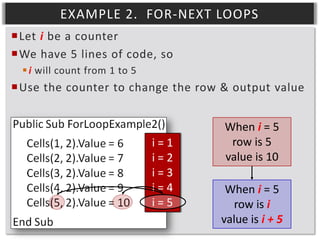
When i = 5
row is 5
value is 10
When i = 5
row is i
value is i + 5
EXAMPLE 2. FOR-NEXT LOOPS
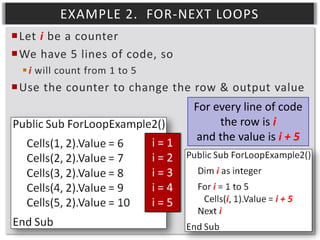
Let i be a counter
We have 5 lines of code, so
 i will count from 1 to 5

Use the counter to change the row & output value

i=1
i=2
i=3
i=4
i=5

For every line of code
the row is i
and the value is i + 5
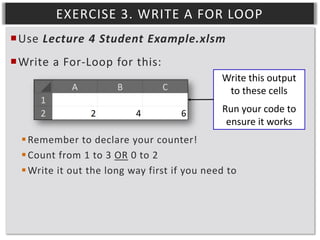
EXERCISE 2. WRITE A FOR LOOP
Use Lecture 4 Student Example.xlsm
Write a For-Loop for this:
Write this output
to these cells
(‘E’ is column 5)
Run your code to
ensure it works
 Remember to declare your counter!
 Count your loop from 1 to 5 OR from 0 to 4
 Write it out the long way first if you need to
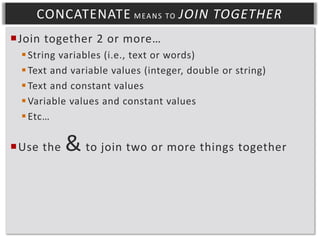
EXERCISE 3. WRITE A FOR LOOP
Use Lecture 4 Student Example.xlsm
Write a For-Loop for this:
Write this output
to these cells
Run your code to
ensure it works
 Remember to declare your counter!
 Count from 1 to 3 OR 0 to 2
 Write it out the long way first if you need to
CONCATENATION

&
CONCATENATE M EA N S TO JOIN TOGETHER
Join together 2 or more…
 String variables (i.e., text or words)
 Text and variable values (integer, double or string)
 Text and constant values
 Variable values and constant values
 Etc…

Use the

& to join two or more things together
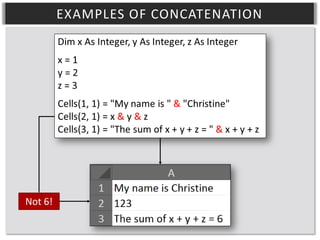
EXAMPLES OF CONCATENATION

Not 6!
EXAMPLE 3. CONCATENATION
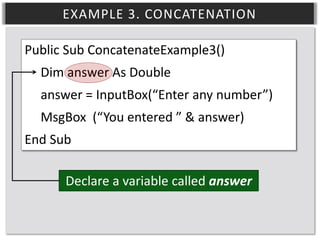
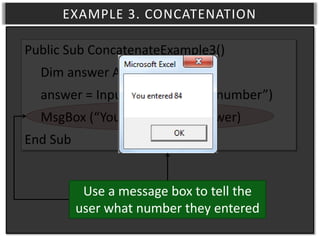
Public Sub ConcatenateExample3()
Dim answer As Double
answer = InputBox(“Enter any number”)
MsgBox (“You entered ” & answer)
End Sub
Declare a variable called answer
EXAMPLE 3. CONCATENATION
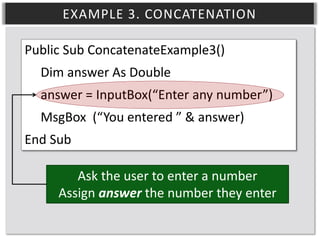
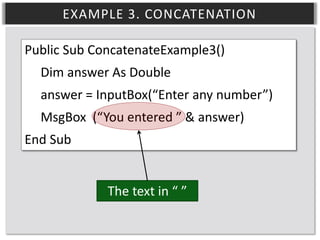
Public Sub ConcatenateExample3()
Dim answer As Double
answer = InputBox(“Enter any number”)
MsgBox (“You entered ” & answer)
End Sub
Ask the user to enter a number
Assign answer the number they enter
EXAMPLE 3. CONCATENATION
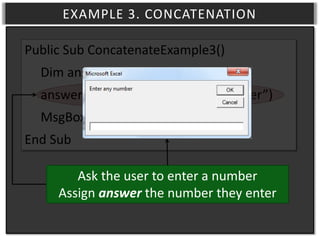
Public Sub ConcatenateExample3()
Dim answer As Double
answer = InputBox(“Enter any number”)
MsgBox (“You entered ” & answer)
End Sub
Ask the user to enter a number
Assign answer the number they enter
EXAMPLE 3. CONCATENATION
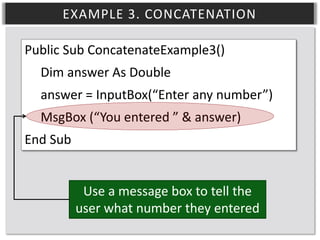
Public Sub ConcatenateExample3()
Dim answer As Double
answer = InputBox(“Enter any number”)
MsgBox (“You entered ” & answer)
End Sub
Use a message box to tell the
user what number they entered
EXAMPLE 3. CONCATENATION
Public Sub ConcatenateExample3()
Dim answer As Double
answer = InputBox(“Enter any number”)
MsgBox (“You entered ” & answer)
End Sub
Use a message box to tell the
user what number they entered
EXAMPLE 3. CONCATENATION
Public Sub ConcatenateExample3()
Dim answer As Double
answer = InputBox(“Enter any number”)
MsgBox (“You entered ” & answer)
End Sub
The text in “ ”
EXAMPLE 3. CONCATENATION
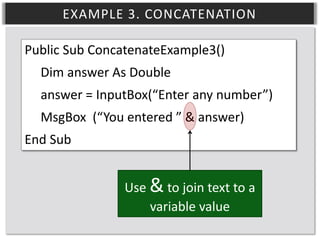
Public Sub ConcatenateExample3()
Dim answer As Double
answer = InputBox(“Enter any number”)
MsgBox (“You entered ” & answer)
End Sub
Use & to join text to a
variable value
EXAMPLE 3. CONCATENATION
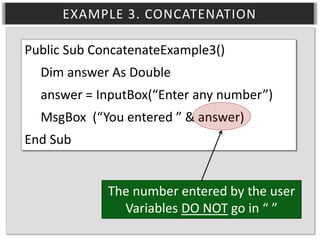
Public Sub ConcatenateExample3()
Dim answer As Double
answer = InputBox(“Enter any number”)
MsgBox (“You entered ” & answer)
End Sub
The number entered by the user
Variables DO NOT go in “ ”
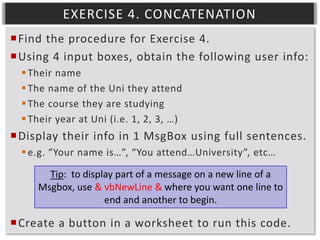
EXERCISE 4. CONCATENATION
Find the procedure for Exercise 4.
Using 4 input boxes, obtain the following user info:
 Their name
 The name of the Uni they attend
 The course they are studying
 Their year at Uni (i.e. 1, 2, 3, …)

Display their info in 1 MsgBox using full sentences.
 e.g. “Your name is…”, “You attend…University”, etc…
Tip: to display part of a message on a new line of a
Msgbox, use & vbNewLine & where you want one line to
end and another to begin.

Create a button in a worksheet to run this code.
LOOPS WITH
CONCATENATION
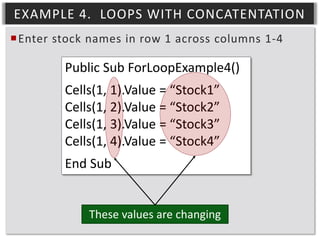
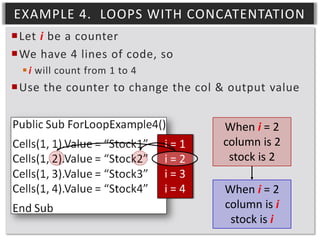
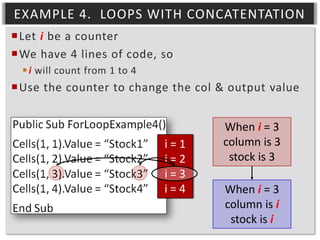
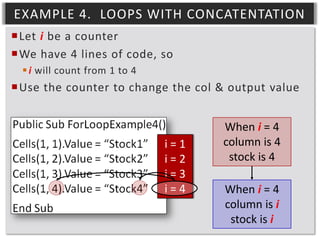
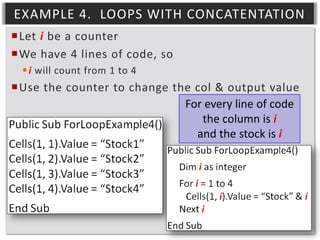
EXAMPLE 4. LOOPS WITH CONCATENTATION
Enter stock names in row 1 across columns 1-4

Public Sub ForLoopExample4()
Cells(1, 1).Value = “Stock1”
Cells(1, 2).Value = “Stock2”
Cells(1, 3).Value = “Stock3”
Cells(1, 4).Value = “Stock4”
End Sub
These values are changing
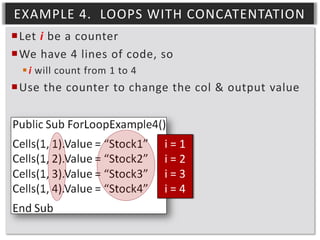
EXAMPLE 4. LOOPS WITH CONCATENTATION
Let i be a counter
We have 4 lines of code, so
 i will count from 1 to 4

Use the counter to change the col & output value

i=1
i=2
i=3
i=4
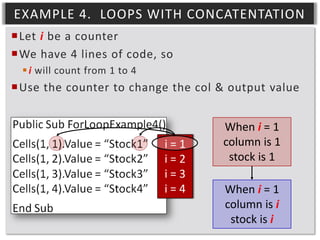
EXAMPLE 4. LOOPS WITH CONCATENTATION
Let i be a counter
We have 4 lines of code, so
 i will count from 1 to 4

Use the counter to change the col & output value

i=1
i=2
i=3
i=4

When i = 1
column is 1
stock is 1
When i = 1
column is i
stock is i
EXAMPLE 4. LOOPS WITH CONCATENTATION
Let i be a counter
We have 4 lines of code, so
 i will count from 1 to 4

Use the counter to change the col & output value

i=1
i=2
i=3
i=4

When i = 2
column is 2
stock is 2
When i = 2
column is i
stock is i
EXAMPLE 4. LOOPS WITH CONCATENTATION
Let i be a counter
We have 4 lines of code, so
 i will count from 1 to 4

Use the counter to change the col & output value

i=1
i=2
i=3
i=4

When i = 3
column is 3
stock is 3
When i = 3
column is i
stock is i
EXAMPLE 4. LOOPS WITH CONCATENTATION
Let i be a counter
We have 4 lines of code, so
 i will count from 1 to 4

Use the counter to change the col & output value

i=1
i=2
i=3
i=4

When i = 4
column is 4
stock is 4
When i = 4
column is i
stock is i
EXAMPLE 4. LOOPS WITH CONCATENTATION
Let i be a counter
We have 4 lines of code, so
 i will count from 1 to 4

Use the counter to change the col & output value
For every line of code
the column is i
and the stock is i
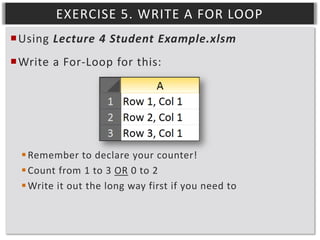
EXERCISE 5. WRITE A FOR LOOP
Using Lecture 4 Student Example.xlsm
Write a For-Loop for this:

 Remember to declare your counter!
 Count from 1 to 3 OR 0 to 2
 Write it out the long way first if you need to
FINAL COMMENTS
WHEN YOU’RE STUCK…
When in doubt, write it out!!
 If you aren’t sure how to write a loop, write it out without
using loops so you can spot the pattern.
 Then use a loop to make it more efficient.

Step through your code to see what is happening
during each loop.
 Check variable values
 Check output to cells/ranges

You cannot loop variable names
 E.g., “mean” & i
 You have to use arrays (in a couple of weeks)
 For now, those bits of code will have to be inefficient and long
LEARNING OUTCOMES
You are ready to move on when…
 LO17: You can name the 4 main parts of a For-Next loop.
 LO18: Given the output you need, you can write a For-Next
loop to achieve that output. Similarly, given a For-Next
loop you can work out what the output/result will be (we
will practice this in the lab). This is for one loop, not a
nested loop (yet).
 LO19: You can define the concept of concatenation and
give some examples of how it is used in programming. You
can use concatenation to join together values from text,
variables and/or numbers. You also know when you need
to use “ ” and when you should not use “ ”.
 LO20: You can combine the use of concatenation with fornext loops to make code more efficient.
THE END

Ma3696 lecture 4

  • 1.
  • 2.
    SUMMARY Quick recap ofvariables For-Next loops Concatenation (&) Loops and Concatenation
  • 3.
  • 4.
    EXERCISE. REVIEW OFVARIABLES Download Lecture 4 Student Example.xlsm In Module1, find the procedure called Recap Declare disposable variables x, y and z as integer. Assign x a value of 5 Assign y a value of x + z Assign z a value of 10 Not necessarily in this order Output the value of x to cells(1, 1) Output the value of y to cells(2, 1) Output the value of z to cells (3, 1)
  • 5.
    SOLUTIONS. REVIEW OFVARIABLES Declare disposable variables x, y and z as integer. Public Sub Recap() Dim x as integer, y as integer, z as integer End Sub
  • 6.
    SOLUTIONS. REVIEW OFVARIABLES Assign values to each variable. Public Sub Recap() Dim x as integer, y as integer, z as integer x=5 y=x+z z = 10 End Sub x=5 z = 10 y=x+z y=x+z x=5 z = 10
  • 7.
    SOLUTIONS. REVIEW OFVARIABLES Assign values to each variable. Public Sub Recap() Dim x as integer, y as integer, z as integer x=5 z = 10 y=x+z End Sub
  • 8.
    SOLUTIONS. REVIEW OFVARIABLES Output variable values to cells. Public Sub Recap() Dim x as integer, y as integer, z as integer x=5 z = 10 y=x+z Cells(1, 1) = x Cells(2, 1) = y Cells(3, 1) = z End Sub x = Cells(1, 1) y = Cells(2, 1) z = Cells(3, 1)
  • 9.
    SOLUTIONS. REVIEW OFVARIABLES Output variable values to cells.
  • 10.
  • 11.
    STEPPING THROUGH YOURCODE Use the code you typed in the previous exercise
  • 12.
    STEPPING THROUGH YOURCODE Position screens so you can see both at once
  • 13.
    STEPPING THROUGH YOURCODE Click a start and end point for stepping through your code (it should turn red). Click HERE Click HERE
  • 14.
    STEPPING THROUGH YOURCODE Run your code (F5) It will pause at the first dot and turn yellow Use shift+F8 to run each line of code
  • 15.
    HOVER OVER VARIABLES Putyour cursor over variables to see their current value. Variables will only show their value AFTER the line of code as run.  If the line is yellow, it means it hasn’t run yet, but it will run next. Example: Check the value of y
  • 16.
    CHECK THE OUTPUT Watchthe output to check it is correct Use this technique for checking For-Next loops! This code has not run yet
  • 17.
  • 18.
    EXAMPLE 1. FOR-NEXTLOOPS Enter 1 to 5 into column 1 in Excel Public Sub ForLoopExample1() Cells(1, 1).Value = 1 Cells(2, 1).Value = 2 Cells(3, 1).Value = 3 Cells(4, 1).Value = 4 Cells(5, 1).Value = 5 End Sub Very repetitive and inefficient
  • 19.
    EXAMPLE 1. FOR-NEXTLOOPS Use For-Next Loops to improve this code  Identify what values are changing  Identify what values are staying the same Public Sub ForLoopExample1() Cells(1, 1).Value = 1 Cells(2, 1).Value = 2 Cells(3, 1).Value = 3 Cells(4, 1).Value = 4 Cells(5, 1).Value = 5 End Sub These values are changing
  • 20.
    EXAMPLE 1. FOR-NEXTLOOPS Let i be a counter We have 5 lines of code, so  i will count from 1 to 5 Use the counter to change the row & output value i=1 i=2 i=3 i=4 i=5
  • 21.
    EXAMPLE 1. FOR-NEXTLOOPS Let i be a counter We have 5 lines of code, so  i will count from 1 to 5 Use the counter to change the row & output value i=1 i=2 i=3 i=4 i=5 When i = 1 row is 1 value is 1 When i = 1 row is i value is i
  • 22.
    EXAMPLE 1. FOR-NEXTLOOPS Let i be a counter We have 5 lines of code, so  i will count from 1 to 5 Use the counter to change the row & output value i=1 i=2 i=3 i=4 i=5 When i = 2 row is 2 value is 2 When i = 2 row is i value is i
  • 23.
    EXAMPLE 1. FOR-NEXTLOOPS Let i be a counter We have 5 lines of code, so  i will count from 1 to 5 Use the counter to change the row & output value i=1 i=2 i=3 i=4 i=5 When i = 3 row is 3 value is 3 When i = 3 row is i value is i
  • 24.
    EXAMPLE 1. FOR-NEXTLOOPS Let i be a counter We have 5 lines of code, so  i will count from 1 to 5 Use the counter to change the row & output value i=1 i=2 i=3 i=4 i=5 For every line of code the row is i and the value is i
  • 25.
    EXAMPLE 1. FOR-NEXTLOOPS i is an integer I need to declare i=1 i=2 i=3 i=4 i=5
  • 26.
    EXAMPLE 1. FOR-NEXTLOOPS i is an integer I need to declare This is a For-Next Loop i=1 i=2 i=3 i=4 i=5
  • 27.
    EXAMPLE 1. FOR-NEXTLOOPS i is an integer I need to declare This is a For-Next Loop i is the counter – it will increase by 1 each time  The first value of i is 1  The last value of i is 5 i=1 i=2 i=3 i=4 i=5
  • 28.
    EXAMPLE 1. FOR-NEXTLOOPS i is an integer I need to declare This is a For-Next Loop i is the counter – it will increase by 1 each time  The first value of i is 1  The last value of i is 5 This code will run for each value of i i=1 i=2 i=3 i=4 i=5
  • 29.
    FOR-NEXT LOOPS Begin withFOR End with NEXT
  • 30.
    FOR-NEXT LOOPS A counter is a letter or word  declared as a disposable integer variable Must specify a COUNTER
  • 31.
    FOR-NEXT LOOPS Values theCOUNTER will take
  • 32.
    FOR-NEXT LOOPS  Increasesby +1 by default  END value must be > than START value  Can increment by -1 if necessary to count backwards Must specify START value Must specify END value
  • 33.
    FOR-NEXT LOOPS  Increasesby +1 by default  Can increment by -1 if necessary to count backwards The result is the same for both loops
  • 34.
    FOR-NEXT LOOPS Always STARTwith 1 or 0!  You will understand why when you start coding
  • 35.
    FOR-NEXT LOOPS CODE torun goes inside the loop
  • 36.
    EXERCISE 1. WRITEA FOR LOOP Use Lecture 4 Student Example.xlsm Write a For-Loop for this: Write this output to these cells Run your code to ensure it works  Remember to declare your counter!  Loop from 1 to 3 OR from 0 to 2  Write it out the long way first if you need to
  • 37.
    EXAMPLE 2. FOR-NEXTLOOPS Enter 6 to 10 into column 2 in Excel Public Sub ForLoopExample2() Cells(1, 2).Value = 6 Cells(2, 2).Value = 7 Cells(3, 2).Value = 8 Cells(4, 2).Value = 9 Cells(5, 2).Value = 10 End Sub These values are changing
  • 38.
    EXAMPLE 2. FOR-NEXTLOOPS Let i be a counter We have 5 lines of code, so  i will count from 1 to 5 Use the counter to change the row & output value i=1 i=2 i=3 i=4 i=5
  • 39.
    EXAMPLE 2. FOR-NEXTLOOPS Let i be a counter We have 5 lines of code, so  i will count from 1 to 5 Use the counter to change the row & output value i=1 i=2 i=3 i=4 i=5 When i = 1 row is 1 value is 6 When i = 1 row is i value is i + 5
  • 40.
    EXAMPLE 2. FOR-NEXTLOOPS Let i be a counter We have 5 lines of code, so  i will count from 1 to 5 Use the counter to change the row & output value i=1 i=2 i=3 i=4 i=5 When i = 2 row is 2 value is 7 When i = 2 row is i value is i + 5
  • 41.
    EXAMPLE 2. FOR-NEXTLOOPS Let i be a counter We have 5 lines of code, so  i will count from 1 to 5 Use the counter to change the row & output value i=1 i=2 i=3 i=4 i=5 When i = 3 row is 3 value is 8 When i = 3 row is i value is i + 5
  • 42.
    EXAMPLE 2. FOR-NEXTLOOPS Let i be a counter We have 5 lines of code, so  i will count from 1 to 5 Use the counter to change the row & output value i=1 i=2 i=3 i=4 i=5 When i = 4 row is 4 value is 9 When i = 4 row is i value is i + 5
  • 43.
    EXAMPLE 2. FOR-NEXTLOOPS Let i be a counter We have 5 lines of code, so  i will count from 1 to 5 Use the counter to change the row & output value i=1 i=2 i=3 i=4 i=5 When i = 5 row is 5 value is 10 When i = 5 row is i value is i + 5
  • 44.
    EXAMPLE 2. FOR-NEXTLOOPS Let i be a counter We have 5 lines of code, so  i will count from 1 to 5 Use the counter to change the row & output value i=1 i=2 i=3 i=4 i=5 For every line of code the row is i and the value is i + 5
  • 45.
    EXERCISE 2. WRITEA FOR LOOP Use Lecture 4 Student Example.xlsm Write a For-Loop for this: Write this output to these cells (‘E’ is column 5) Run your code to ensure it works  Remember to declare your counter!  Count your loop from 1 to 5 OR from 0 to 4  Write it out the long way first if you need to
  • 46.
    EXERCISE 3. WRITEA FOR LOOP Use Lecture 4 Student Example.xlsm Write a For-Loop for this: Write this output to these cells Run your code to ensure it works  Remember to declare your counter!  Count from 1 to 3 OR 0 to 2  Write it out the long way first if you need to
  • 47.
  • 48.
    CONCATENATE M EAN S TO JOIN TOGETHER Join together 2 or more…  String variables (i.e., text or words)  Text and variable values (integer, double or string)  Text and constant values  Variable values and constant values  Etc… Use the & to join two or more things together
  • 49.
  • 50.
    EXAMPLE 3. CONCATENATION PublicSub ConcatenateExample3() Dim answer As Double answer = InputBox(“Enter any number”) MsgBox (“You entered ” & answer) End Sub Declare a variable called answer
  • 51.
    EXAMPLE 3. CONCATENATION PublicSub ConcatenateExample3() Dim answer As Double answer = InputBox(“Enter any number”) MsgBox (“You entered ” & answer) End Sub Ask the user to enter a number Assign answer the number they enter
  • 52.
    EXAMPLE 3. CONCATENATION PublicSub ConcatenateExample3() Dim answer As Double answer = InputBox(“Enter any number”) MsgBox (“You entered ” & answer) End Sub Ask the user to enter a number Assign answer the number they enter
  • 53.
    EXAMPLE 3. CONCATENATION PublicSub ConcatenateExample3() Dim answer As Double answer = InputBox(“Enter any number”) MsgBox (“You entered ” & answer) End Sub Use a message box to tell the user what number they entered
  • 54.
    EXAMPLE 3. CONCATENATION PublicSub ConcatenateExample3() Dim answer As Double answer = InputBox(“Enter any number”) MsgBox (“You entered ” & answer) End Sub Use a message box to tell the user what number they entered
  • 55.
    EXAMPLE 3. CONCATENATION PublicSub ConcatenateExample3() Dim answer As Double answer = InputBox(“Enter any number”) MsgBox (“You entered ” & answer) End Sub The text in “ ”
  • 56.
    EXAMPLE 3. CONCATENATION PublicSub ConcatenateExample3() Dim answer As Double answer = InputBox(“Enter any number”) MsgBox (“You entered ” & answer) End Sub Use & to join text to a variable value
  • 57.
    EXAMPLE 3. CONCATENATION PublicSub ConcatenateExample3() Dim answer As Double answer = InputBox(“Enter any number”) MsgBox (“You entered ” & answer) End Sub The number entered by the user Variables DO NOT go in “ ”
  • 58.
    EXERCISE 4. CONCATENATION Findthe procedure for Exercise 4. Using 4 input boxes, obtain the following user info:  Their name  The name of the Uni they attend  The course they are studying  Their year at Uni (i.e. 1, 2, 3, …) Display their info in 1 MsgBox using full sentences.  e.g. “Your name is…”, “You attend…University”, etc… Tip: to display part of a message on a new line of a Msgbox, use & vbNewLine & where you want one line to end and another to begin. Create a button in a worksheet to run this code.
  • 59.
  • 60.
    EXAMPLE 4. LOOPSWITH CONCATENTATION Enter stock names in row 1 across columns 1-4 Public Sub ForLoopExample4() Cells(1, 1).Value = “Stock1” Cells(1, 2).Value = “Stock2” Cells(1, 3).Value = “Stock3” Cells(1, 4).Value = “Stock4” End Sub These values are changing
  • 61.
    EXAMPLE 4. LOOPSWITH CONCATENTATION Let i be a counter We have 4 lines of code, so  i will count from 1 to 4 Use the counter to change the col & output value i=1 i=2 i=3 i=4
  • 62.
    EXAMPLE 4. LOOPSWITH CONCATENTATION Let i be a counter We have 4 lines of code, so  i will count from 1 to 4 Use the counter to change the col & output value i=1 i=2 i=3 i=4 When i = 1 column is 1 stock is 1 When i = 1 column is i stock is i
  • 63.
    EXAMPLE 4. LOOPSWITH CONCATENTATION Let i be a counter We have 4 lines of code, so  i will count from 1 to 4 Use the counter to change the col & output value i=1 i=2 i=3 i=4 When i = 2 column is 2 stock is 2 When i = 2 column is i stock is i
  • 64.
    EXAMPLE 4. LOOPSWITH CONCATENTATION Let i be a counter We have 4 lines of code, so  i will count from 1 to 4 Use the counter to change the col & output value i=1 i=2 i=3 i=4 When i = 3 column is 3 stock is 3 When i = 3 column is i stock is i
  • 65.
    EXAMPLE 4. LOOPSWITH CONCATENTATION Let i be a counter We have 4 lines of code, so  i will count from 1 to 4 Use the counter to change the col & output value i=1 i=2 i=3 i=4 When i = 4 column is 4 stock is 4 When i = 4 column is i stock is i
  • 66.
    EXAMPLE 4. LOOPSWITH CONCATENTATION Let i be a counter We have 4 lines of code, so  i will count from 1 to 4 Use the counter to change the col & output value For every line of code the column is i and the stock is i
  • 67.
    EXERCISE 5. WRITEA FOR LOOP Using Lecture 4 Student Example.xlsm Write a For-Loop for this:  Remember to declare your counter!  Count from 1 to 3 OR 0 to 2  Write it out the long way first if you need to
  • 68.
  • 69.
    WHEN YOU’RE STUCK… Whenin doubt, write it out!!  If you aren’t sure how to write a loop, write it out without using loops so you can spot the pattern.  Then use a loop to make it more efficient. Step through your code to see what is happening during each loop.  Check variable values  Check output to cells/ranges You cannot loop variable names  E.g., “mean” & i  You have to use arrays (in a couple of weeks)  For now, those bits of code will have to be inefficient and long
  • 70.
    LEARNING OUTCOMES You areready to move on when…  LO17: You can name the 4 main parts of a For-Next loop.  LO18: Given the output you need, you can write a For-Next loop to achieve that output. Similarly, given a For-Next loop you can work out what the output/result will be (we will practice this in the lab). This is for one loop, not a nested loop (yet).  LO19: You can define the concept of concatenation and give some examples of how it is used in programming. You can use concatenation to join together values from text, variables and/or numbers. You also know when you need to use “ ” and when you should not use “ ”.  LO20: You can combine the use of concatenation with fornext loops to make code more efficient.
  • 71.