Chapter 6Loop structures
IntroductionThis chapter introduces:Input boxesList boxesCounters and accumulatorsCompound operatorsLoopsData validationDataTipsPublishing an application with ClickOnce technologyChapter 5 – Slide 2
Chapter 5 – Slide 3OverviewAn input box provides a quick and simple way to ask the user to enter dataUser types a value in the text boxOK button returns a string value containing user inputCancel button returns an empty stringShould not be used as a primary method of inputConvenient tool for developing & testing applications
General FormatChapter 5 – Slide 4InputBox(Prompt [,Title] [,Default] [,Xpos] [,Ypos])
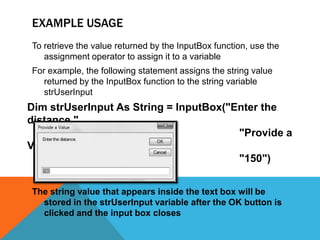
Example UsageTo retrieve the value returned by the InputBox function, use the assignment operator to assign it to a variableFor example, the following statement assigns the string value returned by the InputBox function to the string variable strUserInputThe string value that appears inside the text box will be stored in the strUserInput variable after the OK button is clicked and the input box closesChapter 5 – Slide 5Dim strUserInput As String = InputBox("Enter the distance.",                                                                         "Provide a Value",                                                                         "150")
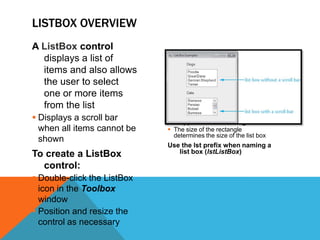
A ListBoxcontrol displays a list of items and also allows the user to select one or more items from the listDisplays a scroll bar when all items cannot be shownTo create a ListBox control:Double-click the ListBox icon in the Toolbox windowPosition and resize the control as necessaryIn Design mode, the list box appears as a rectangleThe size of the rectangle determines the size of the list boxUse the lst prefix when naming a list box (lstListBox)Listbox Overview
The Items PropertyThe entries in a list box are stored in a property named ItemsThe Items property holds an entire list of values from which the user may chooseThe list of values may be established at design time or runtime Items are stored in a Collection called the Items CollectionChapter 5 – Slide 7
To store values in the Items property at design time:Select the ListBox control in the Designer windowIn the Properties window, click the Items (Collection) ellipsis button (...)Type each value on a separate line in the String Collection Editor dialog boxAdding Items to the Items Collection
The SelectedItem PropertyThe SelectedItemproperty contains the currently selected item from the list boxFor example:Chapter 5 – Slide 9If lstItems.SelectedIndex <> -1strItemName = lstItems.SelectedItem.ToString()End If
Loops overviewA repetition structure, or loop causes one or more statements to repeatEach repetition of the loop is called an iterationVisual Basic has three types of loops:Do WhileDo UntilFor… NextThe difference among them is how they control the repetitionChapter 5 – Slide 10
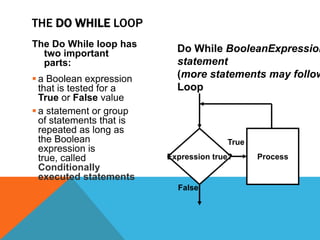
The Do While loop has two important parts:a Boolean expression that is tested for a True or False valuea statement or group of statements that is repeated as long as the Boolean expression is true, calledConditionally executed statementsThe Do While LoopExpression true?ProcessTrueFalseDo While BooleanExpressionstatement(more statements may follow)Loop
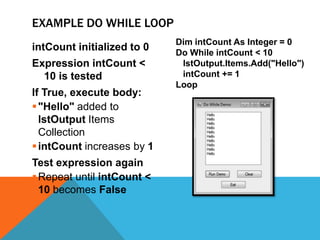
intCount initialized to 0Expression intCount < 10 is testedIf True, execute body:"Hello" added to lstOutput Items CollectionintCount increases by 1Test expression againRepeat until intCount < 10 becomes FalseExample Do While LoopDim intCount As Integer = 0Do While intCount < 10lstOutput.Items.Add("Hello")intCount += 1Loop
Infinite LoopsChapter 5 – Slide 13A loop must have some way to end itselfSomething within the body of the loop must eventually force the test expression to falseIn the previous exampleThe loop continues to repeatintCount increases by one for each repetitionFinally intCount is not < 10 and the loop endsIf the test expression can never be false, the loop will continue to repeat forever This is called an infinite loop
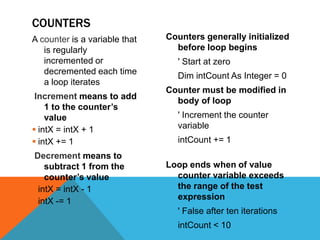
Counters generally initialized before loop begins	' Start at zero	Dim intCount As Integer = 0Counter must be modified in body of loop	' Increment the counter variableintCount += 1		Loop ends when of value counter variable exceeds the range of the test expression	' False after ten iterationsintCount < 10		A counter is a variable that is regularly incremented or decremented each time a loop iterates Incrementmeans to add 1 to the counter’s valueintX = intX + 1intX += 1 Decrementmeans to subtract 1 from the counter’s valueintX = intX - 1intX -= 1Counters
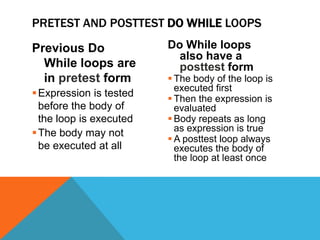
Previous Do While loops are in pretestformExpression is tested before the body of the loop is executedThe body may not be executed at allDo While loops also have a posttestformThe body of the loop is executed firstThen the expression is evaluatedBody repeats as long as expression is trueA posttest loop always executes the body of the loop at least oncePretest and Posttest Do While Loops
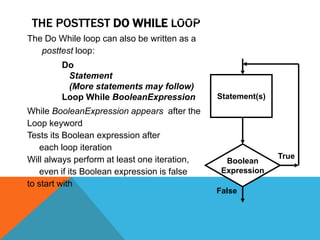
The Posttest Do While LoopChapter 5 – Slide 16The Do While loop can also be written as aposttest loop:While BooleanExpression appears  after the Loop keywordTests its Boolean expression after 	each loop iterationWill always perform at least one iteration, 	even if its Boolean expression is false to start withDo   Statement   (More statements may follow)Loop While BooleanExpressionStatement(s)BooleanExpressionTrueFalse
Example Posttest Do While LoopChapter 5 – Slide 17Dim intCount As Integer = 100DoMessageBox.Show("Hello World!")intCount += 1Loop While intCount < 10intCount is initialized to 100The statements in the body of the loop executeThe expression intCount < 10 is testedThe expression is FalseThe loop stops after the first iteration
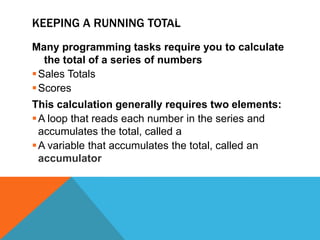
Keeping a Running TotalChapter 5 – Slide 18Many programming tasks require you to calculate the total of a series of numbersSales TotalsScoresThis calculation generally requires two elements:A loop that reads each number in the series and accumulates the total, called a running totalA variable that accumulates the total, called anaccumulator
Logic for Keeping a Running TotalChapter 5 – Slide 19Setting the accumulator variable to zero before entering the loop is a critical stepSet accumulator to 0Is there another number to read?Yes(True)Read the next numberAdd the number to the  accumulatorNo(False)
The Do Until LoopChapter 5 – Slide 20A Do Until loop iterates until an expression is trueRepeats as long as its test expression is FalseEnds when its test expression becomes TrueCan be written in either pretest or posttest formPretest General Format:Do Until BooleanExpression   Statement   (More statements may follow)LoopPosttest General Format:Do   Statement   (More statements may follow)Loop Until BooleanExpression
The For...Next LoopChapter 5 – Slide 21Ideal for loops that require a counter, pretest form onlyFor, To, and Next are keywordsCounterVariable tracks number of iterationsStartValue is initial value of counterEndValue is counter number of final iterationOptional Step Increment allows the counter to increment at a value other than 1 at each iteration of the loopFor CounterVariable = StartValue To EndValue [Step Increment]statement(more statements may follow)Next [CounterVariable]
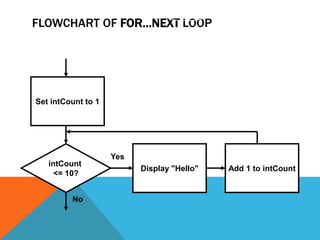
Example of For…Next LoopChapter 5 – Slide 22For intCount = 1 To 10MessageBox.Show("Hello")NextStep 1:  intCount is set to 1 (the start value)Step 2:  intCount is compared to 10 (the end value) If intCount is less than or equal to 10 Continue to Step 3Otherwise the loop is exitedStep 3: The MessageBox.Show("Hello") statement is executedStep 4: intCount is incremented by 1Step 5: Go back to Step 2 and repeat this sequence
Flowchart of For…Next LoopSet intCount to 1intCount<= 10?Display "Hello"Add 1 to intCountYesNoChapter 5 – Slide 23
Specifying a Step ValueChapter 5 – Slide 24The step value is the value added to the counter variable at the end of each iterationOptional and if not specified, defaults to 1The following loop iterates 10 times with counter values 0, 10, 20, …, 80, 90, 100Step value may be negative, causing the loop to count downwardFor intCount = 0 To 100 Step 10MessageBox.Show(intCount.ToString())NextFor intCount = 10 To 1 Step -1MessageBox.Show(intCount.ToString())Next
User Input LoopsDo loops often are written to end the loop when a certain value is entered by the user, or the user performs a certain action such as clicking the Cancel button in an input box
Summing a Series of NumbersChapter 5 – Slide 26The For...Next loop can be used to calculate the sum of a series of numbersDim intCount As Integer ' Loop counterDim intTotal As Integer = 0 ' Accumulator' Add the numbers 1 through 100.For intCount = 1 To 100intTotal += intCountNext' Display the sum of the numbers.MessageBox.Show("The sum of 1 through 100 is “ & intTotal.ToString())
Validating DataYou must test the data to ensure that it is accurate and that its use will not cause program exception.When using an input box, the data should be checked using the IsNumeric function and the If statements discussed in Chapter 5.If the data is not valid, the user must be notified of the error and an input box displayed to allow the user to enter valid data.
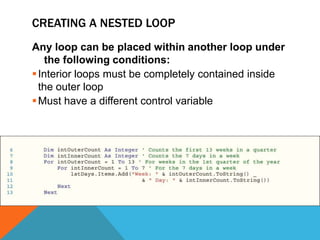
Creating a Nested LoopAny loop can be placed within another loop under the following conditions: Interior loops must be completely contained inside the outer loopMust have a different control variable
Selecting the Best LoopUse a Do loop if the number of repetitions is unknown and is based on a condition changing; a For...Next loop is best if the exact number of repetitions is fixed
If a loop condition must be tested before the body of the loop is executed, use a top-controlled Do While or Do Until loop. If the instructions within a loop must be executed one time regardless of the status of a condition, use a bottom-controlled Do While or Do Until loop
Use the keyword While if you want to continue execution of the loop while the condition is true. Use the keyword Until if you want to continue execution until the condition is trueUsing a DataTip with BreakpointsResolving defects in code is called debuggingA good way to collect information is to pause the execution of the code where a possible error could occurBreakpoints are stop points placed in the code to tell the Visual Studio 2010 debugger where and when to pause the execution of the applicationWhile in break mode, you can examine the values in all variables that are within the scope of execution through the use of DataTips
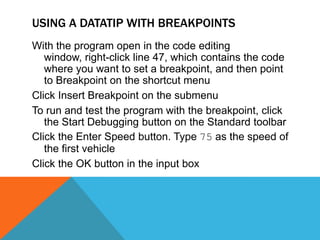
Using a DataTip with BreakpointsWith the program open in the code editing window, right-click line 47, which contains the code where you want to set a breakpoint, and then point to Breakpoint on the shortcut menuClick Insert Breakpoint on the submenuTo run and test the program with the breakpoint, click the Start Debugging button on the Standard toolbarClick the Enter Speed button. Type 75 as the speed of the first vehicleClick the OK button in the input box
Using a DataTip with BreakpointsPoint to the variable decVehicleSpeed on line 47You can view the value in any other variable within execution scope by pointing to that variable. To illustrate, point to the variable decTotalOfAllSpeeds on line 47Continue the program by clicking the Continue button on the Standard toolbar. Notice that the Continue button is the same as the Start Debugging buttonPoint to the decTotalOfAllSpeeds variable
Using a DataTip with Breakpoints
Publishing an Application with ClickOnce DeploymentAfter an application is completely debugged and working properly, you can deploy the projectDeploying a project means placing an executable version of the program on your hard disk, on a Web server, or on a network serverWhen programming using Visual Basic 2010, you can create a deployed program by using ClickOnce DeploymentThe deployed version of the program you create can be installed and executed on any computer that has the .NET framework installed
Publishing an Application with ClickOnce DeploymentWith the program open, click Build on the menu barClick Publish Radar on the Build menuChange the default location from publish\ to a file location. To publish to a USB drive, type the drive letter. In this example, enter E: for a USB driveClick the Next button. If necessary, click the From a CD-ROM or DVD-ROM radio buttonClick the Next button. If necessary, click the The application will not check for updates radio button
Publishing an Application with ClickOnce DeploymentClick the Next buttonClick the Finish buttonTo view the finished result, minimize the Visual Studio window, and then double-click Computer on the Windows 7 Start menu. Double-click the USB drive icon to view the published installation folderTo install the application, double-click the setup fileAfter installation, the program will run. To run the installed application again, click the Start button on the Windows taskbar. Point to All Programs, click Radar on the All Programs menu, and then click Radar on the Radar submenu
Publishing an Application with ClickOnce Deployment

Loop structures chpt_6

  • 1.
  • 2.
    IntroductionThis chapter introduces:InputboxesList boxesCounters and accumulatorsCompound operatorsLoopsData validationDataTipsPublishing an application with ClickOnce technologyChapter 5 – Slide 2
  • 3.
    Chapter 5 –Slide 3OverviewAn input box provides a quick and simple way to ask the user to enter dataUser types a value in the text boxOK button returns a string value containing user inputCancel button returns an empty stringShould not be used as a primary method of inputConvenient tool for developing & testing applications
  • 4.
    General FormatChapter 5– Slide 4InputBox(Prompt [,Title] [,Default] [,Xpos] [,Ypos])
  • 5.
    Example UsageTo retrievethe value returned by the InputBox function, use the assignment operator to assign it to a variableFor example, the following statement assigns the string value returned by the InputBox function to the string variable strUserInputThe string value that appears inside the text box will be stored in the strUserInput variable after the OK button is clicked and the input box closesChapter 5 – Slide 5Dim strUserInput As String = InputBox("Enter the distance.", "Provide a Value", "150")
  • 6.
    A ListBoxcontrol displaysa list of items and also allows the user to select one or more items from the listDisplays a scroll bar when all items cannot be shownTo create a ListBox control:Double-click the ListBox icon in the Toolbox windowPosition and resize the control as necessaryIn Design mode, the list box appears as a rectangleThe size of the rectangle determines the size of the list boxUse the lst prefix when naming a list box (lstListBox)Listbox Overview
  • 7.
    The Items PropertyTheentries in a list box are stored in a property named ItemsThe Items property holds an entire list of values from which the user may chooseThe list of values may be established at design time or runtime Items are stored in a Collection called the Items CollectionChapter 5 – Slide 7
  • 8.
    To store valuesin the Items property at design time:Select the ListBox control in the Designer windowIn the Properties window, click the Items (Collection) ellipsis button (...)Type each value on a separate line in the String Collection Editor dialog boxAdding Items to the Items Collection
  • 9.
    The SelectedItem PropertyTheSelectedItemproperty contains the currently selected item from the list boxFor example:Chapter 5 – Slide 9If lstItems.SelectedIndex <> -1strItemName = lstItems.SelectedItem.ToString()End If
  • 10.
    Loops overviewA repetitionstructure, or loop causes one or more statements to repeatEach repetition of the loop is called an iterationVisual Basic has three types of loops:Do WhileDo UntilFor… NextThe difference among them is how they control the repetitionChapter 5 – Slide 10
  • 11.
    The Do Whileloop has two important parts:a Boolean expression that is tested for a True or False valuea statement or group of statements that is repeated as long as the Boolean expression is true, calledConditionally executed statementsThe Do While LoopExpression true?ProcessTrueFalseDo While BooleanExpressionstatement(more statements may follow)Loop
  • 12.
    intCount initialized to0Expression intCount < 10 is testedIf True, execute body:"Hello" added to lstOutput Items CollectionintCount increases by 1Test expression againRepeat until intCount < 10 becomes FalseExample Do While LoopDim intCount As Integer = 0Do While intCount < 10lstOutput.Items.Add("Hello")intCount += 1Loop
  • 13.
    Infinite LoopsChapter 5– Slide 13A loop must have some way to end itselfSomething within the body of the loop must eventually force the test expression to falseIn the previous exampleThe loop continues to repeatintCount increases by one for each repetitionFinally intCount is not < 10 and the loop endsIf the test expression can never be false, the loop will continue to repeat forever This is called an infinite loop
  • 14.
    Counters generally initializedbefore loop begins ' Start at zero Dim intCount As Integer = 0Counter must be modified in body of loop ' Increment the counter variableintCount += 1 Loop ends when of value counter variable exceeds the range of the test expression ' False after ten iterationsintCount < 10 A counter is a variable that is regularly incremented or decremented each time a loop iterates Incrementmeans to add 1 to the counter’s valueintX = intX + 1intX += 1 Decrementmeans to subtract 1 from the counter’s valueintX = intX - 1intX -= 1Counters
  • 15.
    Previous Do Whileloops are in pretestformExpression is tested before the body of the loop is executedThe body may not be executed at allDo While loops also have a posttestformThe body of the loop is executed firstThen the expression is evaluatedBody repeats as long as expression is trueA posttest loop always executes the body of the loop at least oncePretest and Posttest Do While Loops
  • 16.
    The Posttest DoWhile LoopChapter 5 – Slide 16The Do While loop can also be written as aposttest loop:While BooleanExpression appears after the Loop keywordTests its Boolean expression after each loop iterationWill always perform at least one iteration, even if its Boolean expression is false to start withDo Statement (More statements may follow)Loop While BooleanExpressionStatement(s)BooleanExpressionTrueFalse
  • 17.
    Example Posttest DoWhile LoopChapter 5 – Slide 17Dim intCount As Integer = 100DoMessageBox.Show("Hello World!")intCount += 1Loop While intCount < 10intCount is initialized to 100The statements in the body of the loop executeThe expression intCount < 10 is testedThe expression is FalseThe loop stops after the first iteration
  • 18.
    Keeping a RunningTotalChapter 5 – Slide 18Many programming tasks require you to calculate the total of a series of numbersSales TotalsScoresThis calculation generally requires two elements:A loop that reads each number in the series and accumulates the total, called a running totalA variable that accumulates the total, called anaccumulator
  • 19.
    Logic for Keepinga Running TotalChapter 5 – Slide 19Setting the accumulator variable to zero before entering the loop is a critical stepSet accumulator to 0Is there another number to read?Yes(True)Read the next numberAdd the number to the accumulatorNo(False)
  • 20.
    The Do UntilLoopChapter 5 – Slide 20A Do Until loop iterates until an expression is trueRepeats as long as its test expression is FalseEnds when its test expression becomes TrueCan be written in either pretest or posttest formPretest General Format:Do Until BooleanExpression Statement (More statements may follow)LoopPosttest General Format:Do Statement (More statements may follow)Loop Until BooleanExpression
  • 21.
    The For...Next LoopChapter5 – Slide 21Ideal for loops that require a counter, pretest form onlyFor, To, and Next are keywordsCounterVariable tracks number of iterationsStartValue is initial value of counterEndValue is counter number of final iterationOptional Step Increment allows the counter to increment at a value other than 1 at each iteration of the loopFor CounterVariable = StartValue To EndValue [Step Increment]statement(more statements may follow)Next [CounterVariable]
  • 22.
    Example of For…NextLoopChapter 5 – Slide 22For intCount = 1 To 10MessageBox.Show("Hello")NextStep 1: intCount is set to 1 (the start value)Step 2: intCount is compared to 10 (the end value) If intCount is less than or equal to 10 Continue to Step 3Otherwise the loop is exitedStep 3: The MessageBox.Show("Hello") statement is executedStep 4: intCount is incremented by 1Step 5: Go back to Step 2 and repeat this sequence
  • 23.
    Flowchart of For…NextLoopSet intCount to 1intCount<= 10?Display "Hello"Add 1 to intCountYesNoChapter 5 – Slide 23
  • 24.
    Specifying a StepValueChapter 5 – Slide 24The step value is the value added to the counter variable at the end of each iterationOptional and if not specified, defaults to 1The following loop iterates 10 times with counter values 0, 10, 20, …, 80, 90, 100Step value may be negative, causing the loop to count downwardFor intCount = 0 To 100 Step 10MessageBox.Show(intCount.ToString())NextFor intCount = 10 To 1 Step -1MessageBox.Show(intCount.ToString())Next
  • 25.
    User Input LoopsDoloops often are written to end the loop when a certain value is entered by the user, or the user performs a certain action such as clicking the Cancel button in an input box
  • 26.
    Summing a Seriesof NumbersChapter 5 – Slide 26The For...Next loop can be used to calculate the sum of a series of numbersDim intCount As Integer ' Loop counterDim intTotal As Integer = 0 ' Accumulator' Add the numbers 1 through 100.For intCount = 1 To 100intTotal += intCountNext' Display the sum of the numbers.MessageBox.Show("The sum of 1 through 100 is “ & intTotal.ToString())
  • 27.
    Validating DataYou musttest the data to ensure that it is accurate and that its use will not cause program exception.When using an input box, the data should be checked using the IsNumeric function and the If statements discussed in Chapter 5.If the data is not valid, the user must be notified of the error and an input box displayed to allow the user to enter valid data.
  • 28.
    Creating a NestedLoopAny loop can be placed within another loop under the following conditions: Interior loops must be completely contained inside the outer loopMust have a different control variable
  • 29.
    Selecting the BestLoopUse a Do loop if the number of repetitions is unknown and is based on a condition changing; a For...Next loop is best if the exact number of repetitions is fixed
  • 30.
    If a loopcondition must be tested before the body of the loop is executed, use a top-controlled Do While or Do Until loop. If the instructions within a loop must be executed one time regardless of the status of a condition, use a bottom-controlled Do While or Do Until loop
  • 31.
    Use the keywordWhile if you want to continue execution of the loop while the condition is true. Use the keyword Until if you want to continue execution until the condition is trueUsing a DataTip with BreakpointsResolving defects in code is called debuggingA good way to collect information is to pause the execution of the code where a possible error could occurBreakpoints are stop points placed in the code to tell the Visual Studio 2010 debugger where and when to pause the execution of the applicationWhile in break mode, you can examine the values in all variables that are within the scope of execution through the use of DataTips
  • 32.
    Using a DataTipwith BreakpointsWith the program open in the code editing window, right-click line 47, which contains the code where you want to set a breakpoint, and then point to Breakpoint on the shortcut menuClick Insert Breakpoint on the submenuTo run and test the program with the breakpoint, click the Start Debugging button on the Standard toolbarClick the Enter Speed button. Type 75 as the speed of the first vehicleClick the OK button in the input box
  • 33.
    Using a DataTipwith BreakpointsPoint to the variable decVehicleSpeed on line 47You can view the value in any other variable within execution scope by pointing to that variable. To illustrate, point to the variable decTotalOfAllSpeeds on line 47Continue the program by clicking the Continue button on the Standard toolbar. Notice that the Continue button is the same as the Start Debugging buttonPoint to the decTotalOfAllSpeeds variable
  • 34.
    Using a DataTipwith Breakpoints
  • 35.
    Publishing an Applicationwith ClickOnce DeploymentAfter an application is completely debugged and working properly, you can deploy the projectDeploying a project means placing an executable version of the program on your hard disk, on a Web server, or on a network serverWhen programming using Visual Basic 2010, you can create a deployed program by using ClickOnce DeploymentThe deployed version of the program you create can be installed and executed on any computer that has the .NET framework installed
  • 36.
    Publishing an Applicationwith ClickOnce DeploymentWith the program open, click Build on the menu barClick Publish Radar on the Build menuChange the default location from publish\ to a file location. To publish to a USB drive, type the drive letter. In this example, enter E: for a USB driveClick the Next button. If necessary, click the From a CD-ROM or DVD-ROM radio buttonClick the Next button. If necessary, click the The application will not check for updates radio button
  • 37.
    Publishing an Applicationwith ClickOnce DeploymentClick the Next buttonClick the Finish buttonTo view the finished result, minimize the Visual Studio window, and then double-click Computer on the Windows 7 Start menu. Double-click the USB drive icon to view the published installation folderTo install the application, double-click the setup fileAfter installation, the program will run. To run the installed application again, click the Start button on the Windows taskbar. Point to All Programs, click Radar on the All Programs menu, and then click Radar on the Radar submenu
  • 38.
    Publishing an Applicationwith ClickOnce Deployment