Loop
Single Loop | Double Loop | Do While Loop
Looping is one of the most powerful programming techniques.
A loop in Excel VBA enables you to loop through a range of cells with
just a few codes lines.
Single Loop
You can use a single loop to loop through a one-dimensional range of
cells.
Place a command button on your worksheet and add the following code
lines:
Dim i As Integer
For i = 1 To 6
Cells (i, 1).Value = 100
Next i
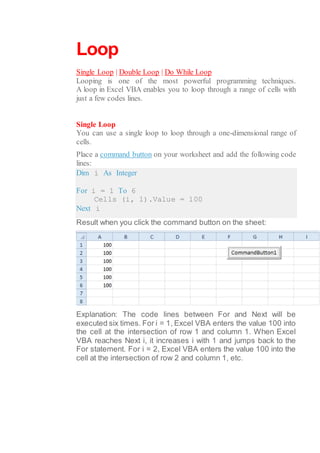
Result when you click the command button on the sheet:
Explanation: The code lines between For and Next will be
executed six times. For i = 1, Excel VBA enters the value 100 into
the cell at the intersection of row 1 and column 1. When Excel
VBA reaches Next i, it increases i with 1 and jumps back to the
For statement. For i = 2, Excel VBA enters the value 100 into the
cell at the intersection of row 2 and column 1, etc.
Double Loop
You can use a double loop to loop through a two-dimensional
range of cells.
Place a command button on your worksheet and add the following
code lines:
Dim i As Integer, j As Integer
For i = 1 To 6
For j = 1 To 2
Cells (i, j).Value = 100
Next j
Next i
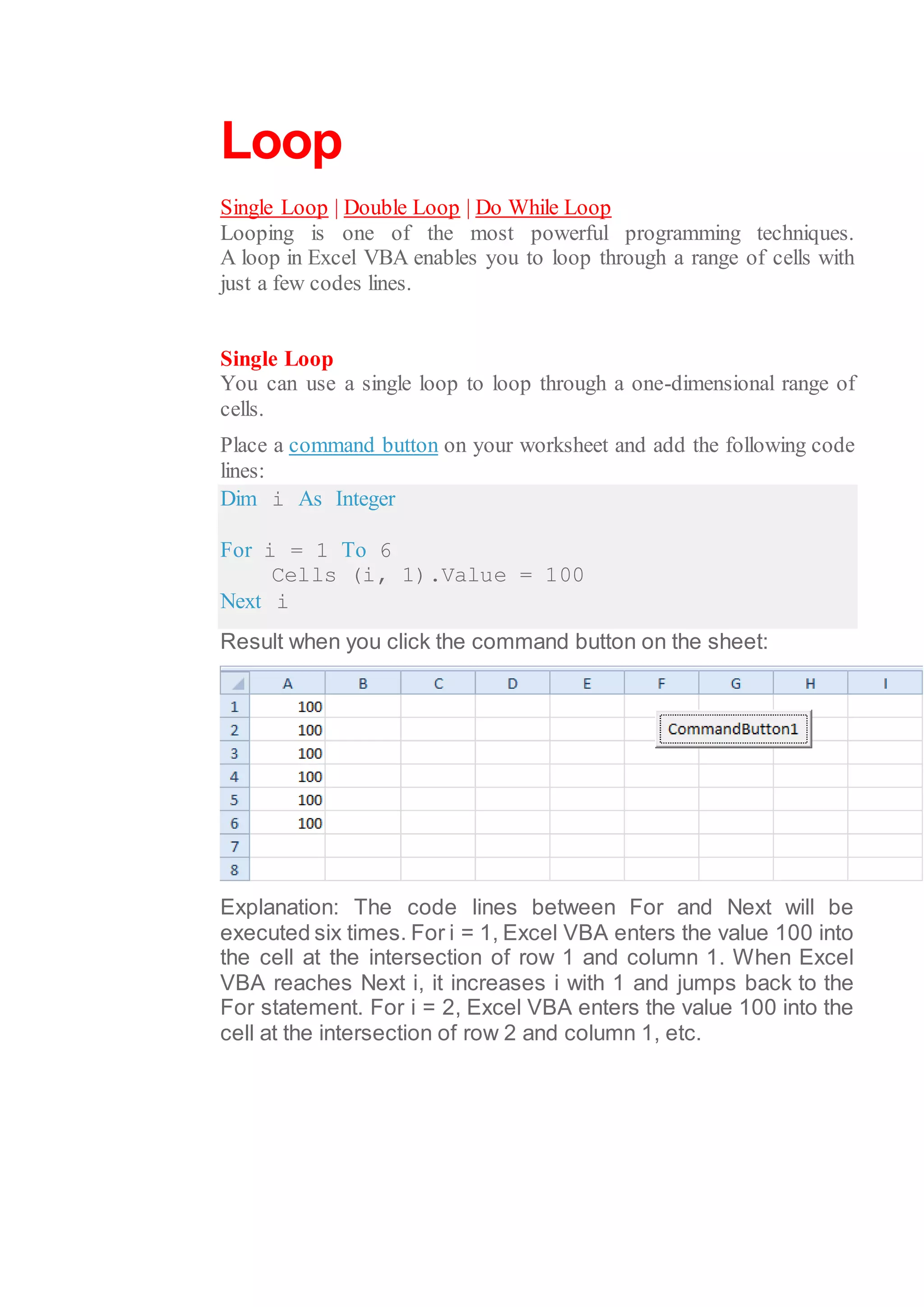
Result when you click the command button on the sheet:
Explanation: For i = 1 and j = 1, Excel VBA enters the value 100
into the cell at the intersection of row 1 and column 1. When
Excel VBA reaches Next j, it increases j with 1 and jumps back to
the For j statement.
For i = 1 and j = 2, Excel VBA enters the value 100 into the cell at
the intersection of row 1 and column 2. Next, Excel VBA ignores
Next j because j only runs from 1 to 2. When Excel VBA reaches
Next i, it increases i with 1 and jumps back to the For i statement.
For i = 2 and j = 1, Excel VBA enters the value 100 into the cell at
the intersection of row 2 and column 1, etc.
Do While Loop
Besides the For Next loop, there are other loops in Excel VBA.
For example, the Do While Loop.Code placed between Do While
and Loop will be repeated as long as the part after Do While is
true.
1. Place a command button on your worksheet and add the
following code lines:
Dim i As Integer
i = 1
Do While i < 6
Cells (i, 1).Value = 20
i = i + 1
Loop
Result when you click the command button on the sheet:
Explanation:
as long as i is lower than 6, Excel VBA enters the value 20 into
the cell at the intersection of row i and column 1 and increments i
by 1. In Excel VBA (and in other programming languages), the
symbol '=' means becomes.
It does not mean equal. So i = i + 1 means i becomes i + 1. In
other words: take the present value of i and add 1 to it. For
example, if i = 1, i becomes 1 + 1 = 2. As a result, the value 20
will be placed into column A five times (not six because Excel
VBA stops when i equals 6).
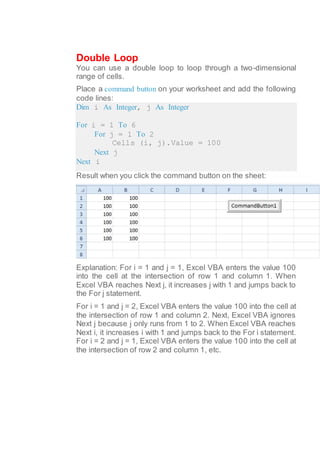
2. Enter some numbers in column A.
3. Place a command button on your worksheet and add the
following code lines:
Dim i As Integer
i = 1
Do While Cells (i, 1).Value <> ""
Cells(i, 2).Value = Cells(i, 1).Value + 10
i = i + 1
Loop
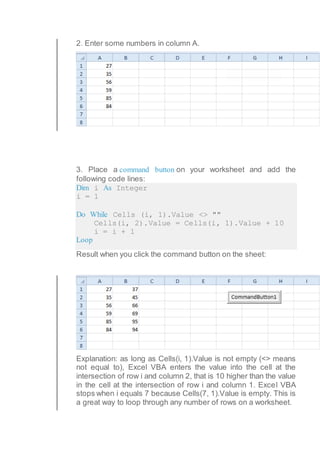
Result when you click the command button on the sheet:
Explanation: as long as Cells(i, 1).Value is not empty (<> means
not equal to), Excel VBA enters the value into the cell at the
intersection of row i and column 2, that is 10 higher than the value
in the cell at the intersection of row i and column 1. Excel VBA
stops when i equals 7 because Cells(7, 1).Value is empty. This is
a great way to loop through any number of rows on a worksheet.
Do Until Loop
Although not used very often on this site, you might find yourself in a
situation where you want to use the Do Until Loop in Excel VBA. Code
placed between Do Until and Loop will be repeated until the part after
Do Until is true.
Place a command button on your worksheet and add the following code
lines:
Dim i As Integer
i = 1
Do Until i > 6
Cells (i, 1).Value = 20
i = i + 1
Loop
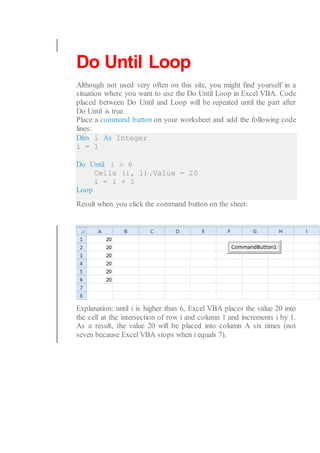
Result when you click the command button on the sheet:
Explanation: until i is higher than 6, Excel VBA places the value 20 into
the cell at the intersection of row i and column 1 and increments i by 1.
As a result, the value 20 will be placed into column A six times (not
seven because Excel VBA stops when i equals 7).
Example:
Find MsgBox(answer)
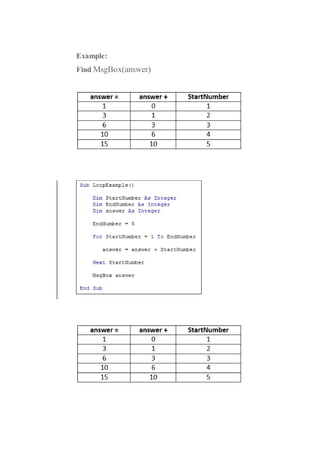
But by going round the loop 5 times, we've added up the numbers from 1 to
5. This gives a value of 15. Run your programme and test it out. The
message box should display an answer of 15.
Now move the message box from the end of the code to inside the loop, just
before Next StartNumber:
For StartNumber = 1 ToEndNumber
answer = answer + StartNumber
MsgBox answer
Next StartNumber
Now run the code again. The message box displays 5 times, once for each
time round the loop. This time, the values will be the same as from our table
above, from the left-hand column under answer =.

Loop in excel

  • 1.
    Loop Single Loop |Double Loop | Do While Loop Looping is one of the most powerful programming techniques. A loop in Excel VBA enables you to loop through a range of cells with just a few codes lines. Single Loop You can use a single loop to loop through a one-dimensional range of cells. Place a command button on your worksheet and add the following code lines: Dim i As Integer For i = 1 To 6 Cells (i, 1).Value = 100 Next i Result when you click the command button on the sheet: Explanation: The code lines between For and Next will be executed six times. For i = 1, Excel VBA enters the value 100 into the cell at the intersection of row 1 and column 1. When Excel VBA reaches Next i, it increases i with 1 and jumps back to the For statement. For i = 2, Excel VBA enters the value 100 into the cell at the intersection of row 2 and column 1, etc.
  • 2.
    Double Loop You canuse a double loop to loop through a two-dimensional range of cells. Place a command button on your worksheet and add the following code lines: Dim i As Integer, j As Integer For i = 1 To 6 For j = 1 To 2 Cells (i, j).Value = 100 Next j Next i Result when you click the command button on the sheet: Explanation: For i = 1 and j = 1, Excel VBA enters the value 100 into the cell at the intersection of row 1 and column 1. When Excel VBA reaches Next j, it increases j with 1 and jumps back to the For j statement. For i = 1 and j = 2, Excel VBA enters the value 100 into the cell at the intersection of row 1 and column 2. Next, Excel VBA ignores Next j because j only runs from 1 to 2. When Excel VBA reaches Next i, it increases i with 1 and jumps back to the For i statement. For i = 2 and j = 1, Excel VBA enters the value 100 into the cell at the intersection of row 2 and column 1, etc.
  • 3.
    Do While Loop Besidesthe For Next loop, there are other loops in Excel VBA. For example, the Do While Loop.Code placed between Do While and Loop will be repeated as long as the part after Do While is true. 1. Place a command button on your worksheet and add the following code lines: Dim i As Integer i = 1 Do While i < 6 Cells (i, 1).Value = 20 i = i + 1 Loop Result when you click the command button on the sheet: Explanation: as long as i is lower than 6, Excel VBA enters the value 20 into the cell at the intersection of row i and column 1 and increments i by 1. In Excel VBA (and in other programming languages), the symbol '=' means becomes. It does not mean equal. So i = i + 1 means i becomes i + 1. In other words: take the present value of i and add 1 to it. For example, if i = 1, i becomes 1 + 1 = 2. As a result, the value 20 will be placed into column A five times (not six because Excel VBA stops when i equals 6).
  • 4.
    2. Enter somenumbers in column A. 3. Place a command button on your worksheet and add the following code lines: Dim i As Integer i = 1 Do While Cells (i, 1).Value <> "" Cells(i, 2).Value = Cells(i, 1).Value + 10 i = i + 1 Loop Result when you click the command button on the sheet: Explanation: as long as Cells(i, 1).Value is not empty (<> means not equal to), Excel VBA enters the value into the cell at the intersection of row i and column 2, that is 10 higher than the value in the cell at the intersection of row i and column 1. Excel VBA stops when i equals 7 because Cells(7, 1).Value is empty. This is a great way to loop through any number of rows on a worksheet.
  • 5.
    Do Until Loop Althoughnot used very often on this site, you might find yourself in a situation where you want to use the Do Until Loop in Excel VBA. Code placed between Do Until and Loop will be repeated until the part after Do Until is true. Place a command button on your worksheet and add the following code lines: Dim i As Integer i = 1 Do Until i > 6 Cells (i, 1).Value = 20 i = i + 1 Loop Result when you click the command button on the sheet: Explanation: until i is higher than 6, Excel VBA places the value 20 into the cell at the intersection of row i and column 1 and increments i by 1. As a result, the value 20 will be placed into column A six times (not seven because Excel VBA stops when i equals 7).
  • 6.
  • 7.
    But by goinground the loop 5 times, we've added up the numbers from 1 to 5. This gives a value of 15. Run your programme and test it out. The message box should display an answer of 15. Now move the message box from the end of the code to inside the loop, just before Next StartNumber: For StartNumber = 1 ToEndNumber answer = answer + StartNumber MsgBox answer Next StartNumber Now run the code again. The message box displays 5 times, once for each time round the loop. This time, the values will be the same as from our table above, from the left-hand column under answer =.