Industry 4.0 
­ M2M Infrastructure ­  
   
Copyright and all intellectual property belongs to Brockhaus Group ​                                  0 
 
 
Table of Content 
 
Table of Content 
Introduction 
What is Docker ? 
Docker benefits 
Docker architecture 
Docker images 
Docker registries 
Docker containers 
Install Docker 
Prerequisites 
Use Docker 
Working with Docker images 
Getting a new image 
Finding images 
Working with Docker containers 
Controlling new containers 
Running Apache Cassandra in Docker 
What is Cassandra ? 
Running the cluster inside Docker 
Data Replication in Cassandra 
Best practices 
Docker Spring Application with Cassandra database 
Getting started 
Step 1: Create Spring Starter Project 
Step 2: Create a simple Sensor class to persist. 
Step 3: Create spring data cassandra repository 
Step 4: Add Cassandra configuration 
Step 5: Spring Rest Controller 
Step 6: Containerize Application 
Links 
Official 
Tutorials 


Copyright and all intellectual property belongs to Brockhaus Group ​                                  1 


Introduction 
 
Virtual machines now enable IT professionals to emulate everything from 
hardware to apps, saving time, money and space .  
 
But as virtualization has become more popular, managing all those virtual 
machines need more resources and energy.  
 
There are many solution in the market that gives developers a platform to 
pack and run any application like Docker, Rocket ...  
 
The choice of one or other platform to use is in general based on user experience, Docker Platform as 
good example has been an instant hit with developers because the user experience is simple and 
familiar. 
What is Docker ? 
 
The best way to describe Docker is to use the phrase from Docker web­site: Docker is “an open source 
project to pack, ship and run any application as a lightweight container.” The main idea is that Docker 
provide an abstraction layer that allows developers to package any application and have it run on any 
infrastructure. 
Docker separates applications from infrastructure using container 
technology, similar to how virtual machines separate the operating 
system from physical material. 
The Docker Engine container comprises just the application and its 
dependencies. It runs as an isolated process in user­space on the host 
operating system, sharing the kernel with other containers. 
Thus it enjoys the resource isolation, allocation benefits of VMs , 
portability and efficient. 
Docker benefits 
 
● Portability across machines :  build any application in any language using any stack. 
● Rapid application deployment : containers include the minimal runtime requirements of the 
application, reducing their size and allowing them to be deployed quickly. 
● Version control and component reuse  : you can track successive versions of a container, 
inspect differences, or roll­back to previous versions. Containers reuse components from the 
preceding layers, which makes them noticeably lightweight. 
● Simplified maintenance : Docker reduces effort and risk of problems with application 
dependencies. 
Copyright and all intellectual property belongs to Brockhaus Group ​                                  2 
 
 
Docker architecture 
 
Docker uses a client­server architecture. The Docker client talks to the Docker daemon, which does 
the heavy lifting of building, running, and distributing your Docker containers. Both the Docker client 
and the daemon can run on the same system, or you can connect a Docker client to a remote Docker 
daemon. The Docker client and daemon communicate via sockets or through a RESTful API. 
 
Docker Architecture 
 
Docker images 
 
A Docker image is read­only template. For example, an image could contain an Ubuntu operating 
system with Apache Server and web application installed. Images are used to create Docker 
containers. 
 
Docker registries 
 
Docker registries hold images. There are public or private stores from which we can upload or 
download images. The public Docker registry is provided with the Docker Hub. It serves a huge 
collection of existing images for users. 
 
Docker containers 
 
Docker containers are similar to a directory. A Docker container holds everything that is needed for an 
application to run. Each container is created from a Docker image. Docker containers can be run,  
started, stopped, moved, and deleted. Each container is an isolated and secure application platform. 
Copyright and all intellectual property belongs to Brockhaus Group ​                                  3 


Install Docker 
Prerequisites 
Docker requires a 64­bit installation regardless of Ubuntu version. Additionally, kernel must be 3.10 at 
minimum.The latest 3.10 minor version or a newer maintained version are also acceptable. 
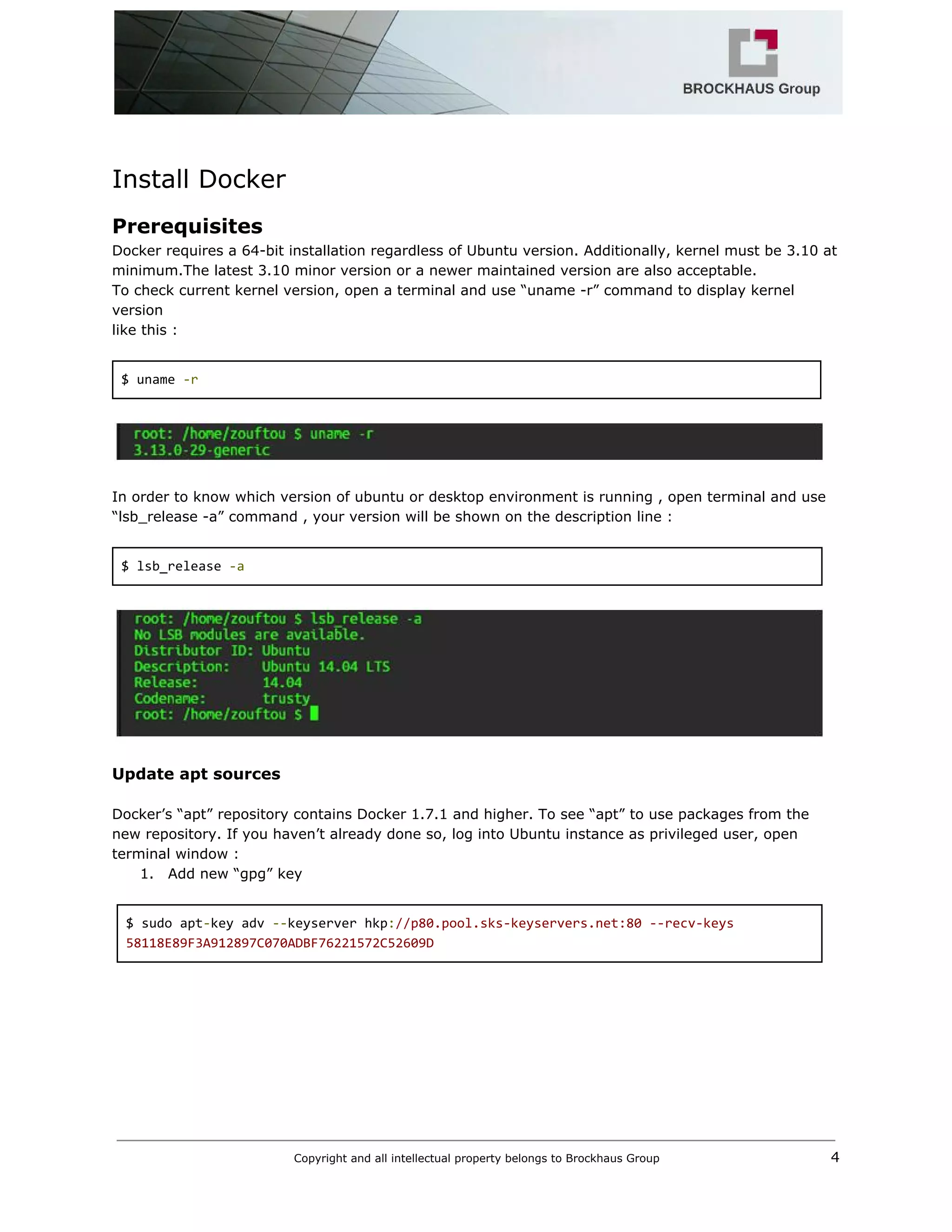
To check current kernel version, open a terminal and use “uname ­r” command to display kernel 
version 
like this :  
 
$ uname ​‐r 


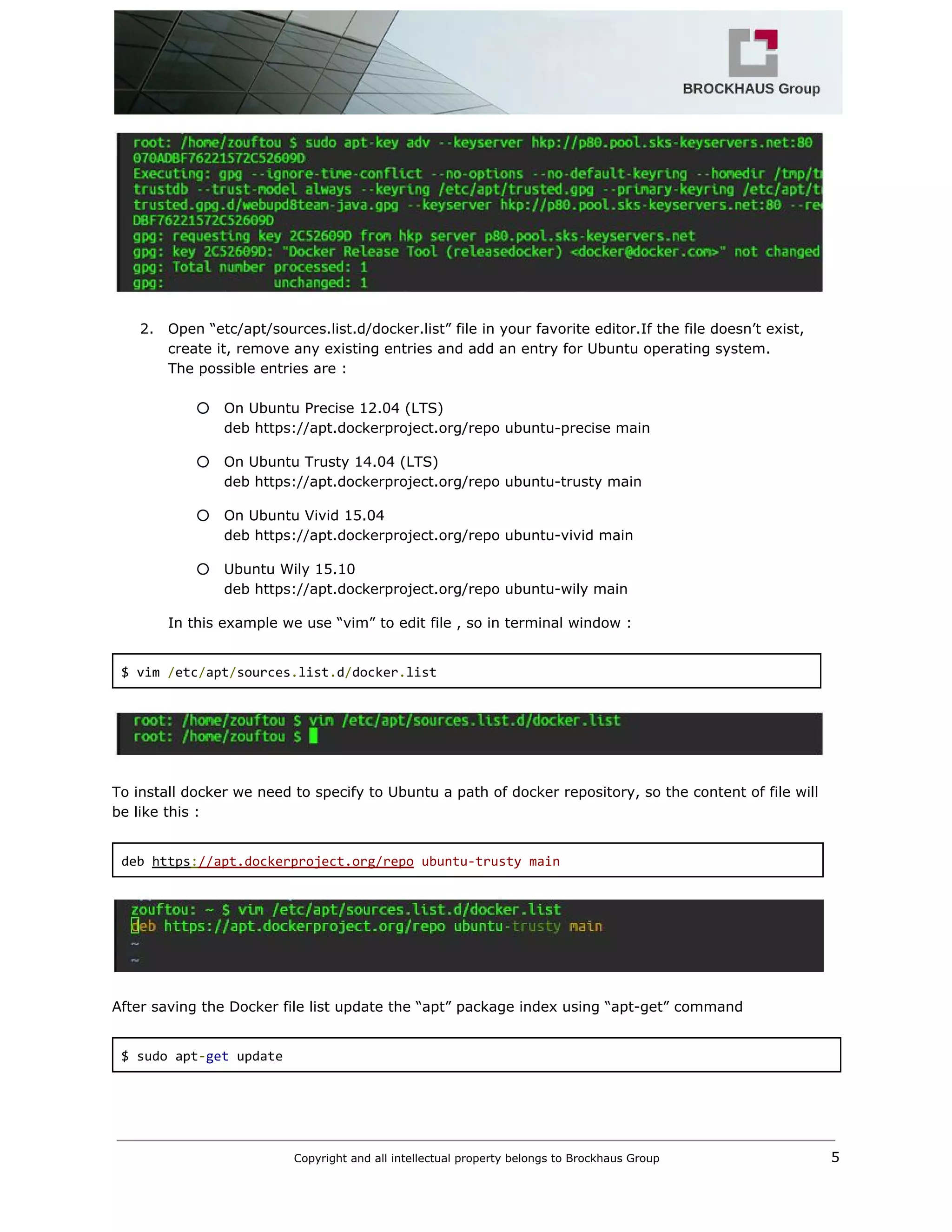
In order to know which version of ubuntu or desktop environment is running , open terminal and use 
“lsb_release ­a” command , your version will be shown on the description line : 
 
$ lsb_release ​‐a 


Update apt sources 
 
Docker’s “apt” repository contains Docker 1.7.1 and higher. To see “apt” to use packages from the 
new repository. If you haven’t already done so, log into Ubuntu instance as privileged user, open 
terminal window : 
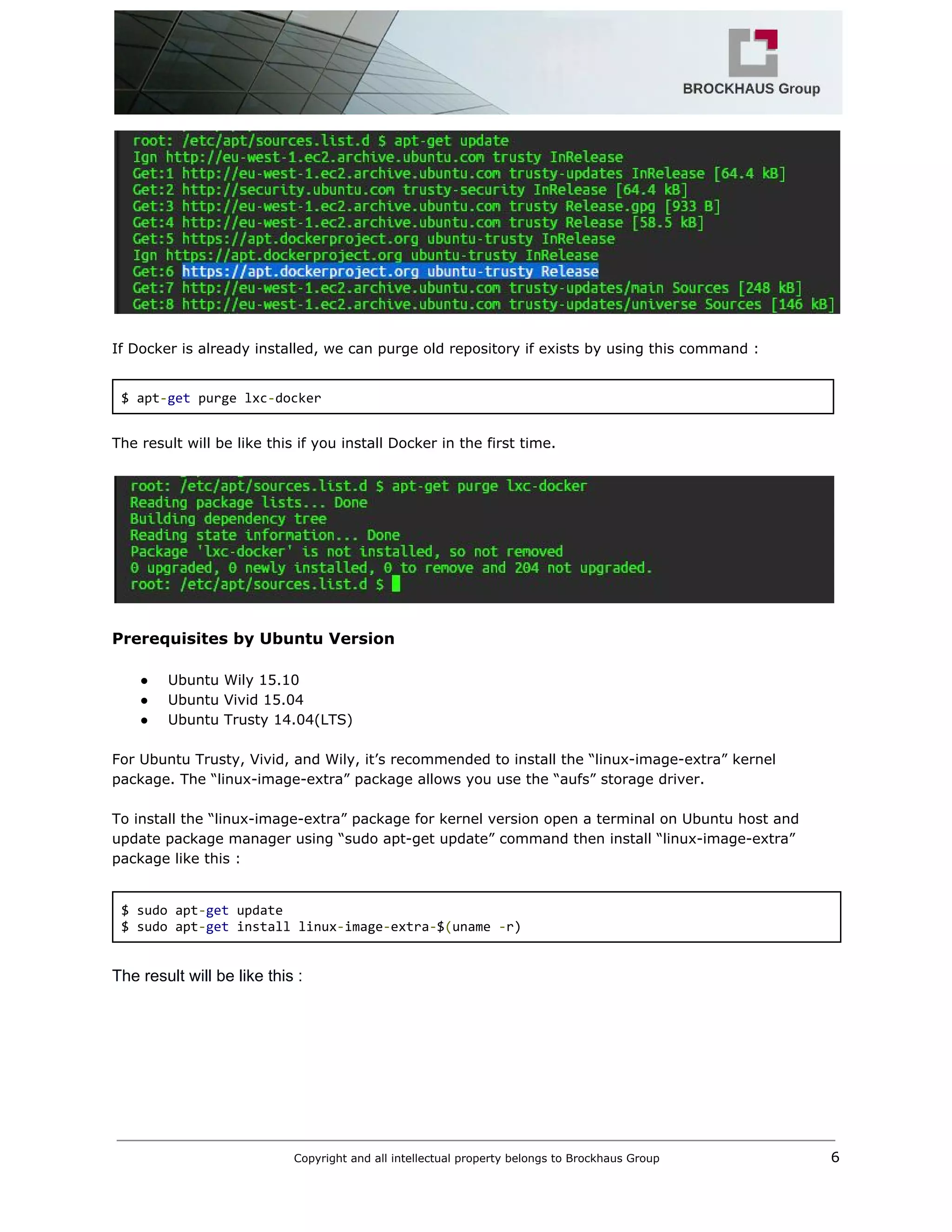
1. Add new “gpg” key  
 
$ sudo apt​‐​key adv ​‐‐​keyserver hkp​:​//p80.pool.sks‐keyservers.net:80 ‐‐recv‐keys 
58118E89F3A912897C070ADBF76221572C52609D 
 
Copyright and all intellectual property belongs to Brockhaus Group ​                                  4 


2. Open “etc/apt/sources.list.d/docker.list” file in your favorite editor.If the file doesn’t exist, 
create it, remove any existing entries and add an entry for Ubuntu operating system. 
The possible entries are :  
 
○ On Ubuntu Precise 12.04 (LTS) 
deb https://apt.dockerproject.org/repo ubuntu­precise main 
○ On Ubuntu Trusty 14.04 (LTS) 
deb https://apt.dockerproject.org/repo ubuntu­trusty main 
○ On Ubuntu Vivid 15.04 
deb https://apt.dockerproject.org/repo ubuntu­vivid main 
○ Ubuntu Wily 15.10 
deb https://apt.dockerproject.org/repo ubuntu­wily main 
In this example we use “vim” to edit file , so in terminal window : 
 
$ vim ​/​etc​/​apt​/​sources​.​list​.​d​/​docker​.​list 


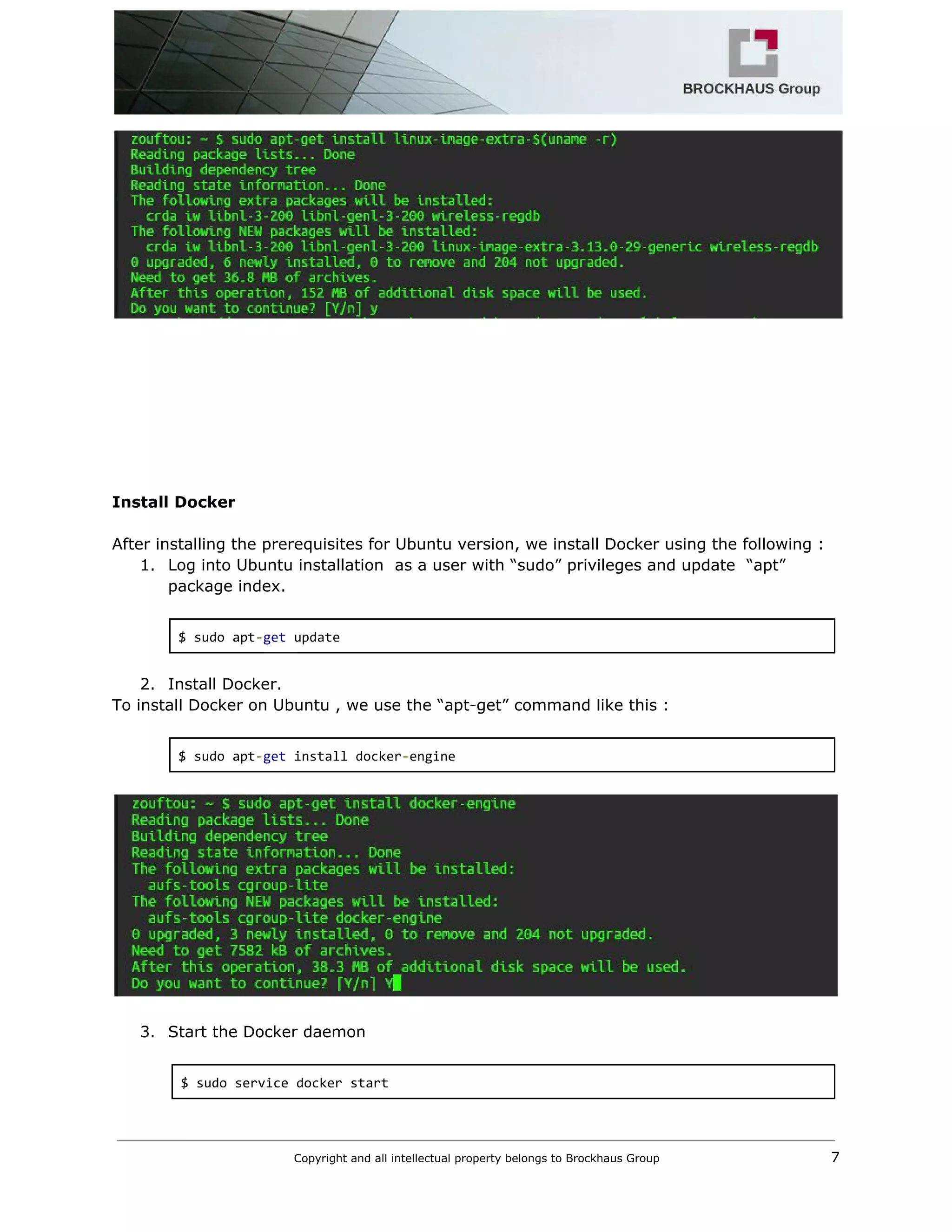
To install docker we need to specify to Ubuntu a path of docker repository, so the content of file will 
be like this : 
 
deb ​https​:​//apt.dockerproject.org/repo​ ubuntu‐trusty main 


After saving the Docker file list update the “apt” package index using “apt­get” command  
 
$ sudo apt​‐​get​ update 
 
Copyright and all intellectual property belongs to Brockhaus Group ​                                  5 


If Docker is already installed, we can purge old repository if exists by using this command : 
 
$ apt​‐​get​ purge lxc​‐​docker 
 
The result will be like this if you install Docker in the first time. 


Prerequisites by Ubuntu Version 
 
● Ubuntu Wily 15.10 
● Ubuntu Vivid 15.04 
● Ubuntu Trusty 14.04(LTS) 
 
For Ubuntu Trusty, Vivid, and Wily, it’s recommended to install the “linux­image­extra” kernel 
package. The “linux­image­extra” package allows you use the “aufs” storage driver.  
 
To install the “linux­image­extra” package for kernel version open a terminal on Ubuntu host and 
update package manager using “sudo apt­get update” command then install “linux­image­extra” 
package like this : 
 
$ sudo apt​‐​get​ update 
$ sudo apt​‐​get​ install linux​‐​image​‐​extra​‐​$​(​uname ​‐​r) 
 
The result will be like this : 
Copyright and all intellectual property belongs to Brockhaus Group ​                                  6 


Install Docker 
 
After installing the prerequisites for Ubuntu version, we install Docker using the following : 
1. Log into Ubuntu installation  as a user with “sudo” privileges and update  “apt” 
package index. 
 
$ sudo apt​‐​get​ update 
 
2. Install Docker. 
To install Docker on Ubuntu , we use the “apt­get” command like this : 
 
$ sudo apt​‐​get​ install docker​‐​engine 


3. Start the Docker daemon 
 
$ sudo service docker start 
 
Copyright and all intellectual property belongs to Brockhaus Group ​                                  7 


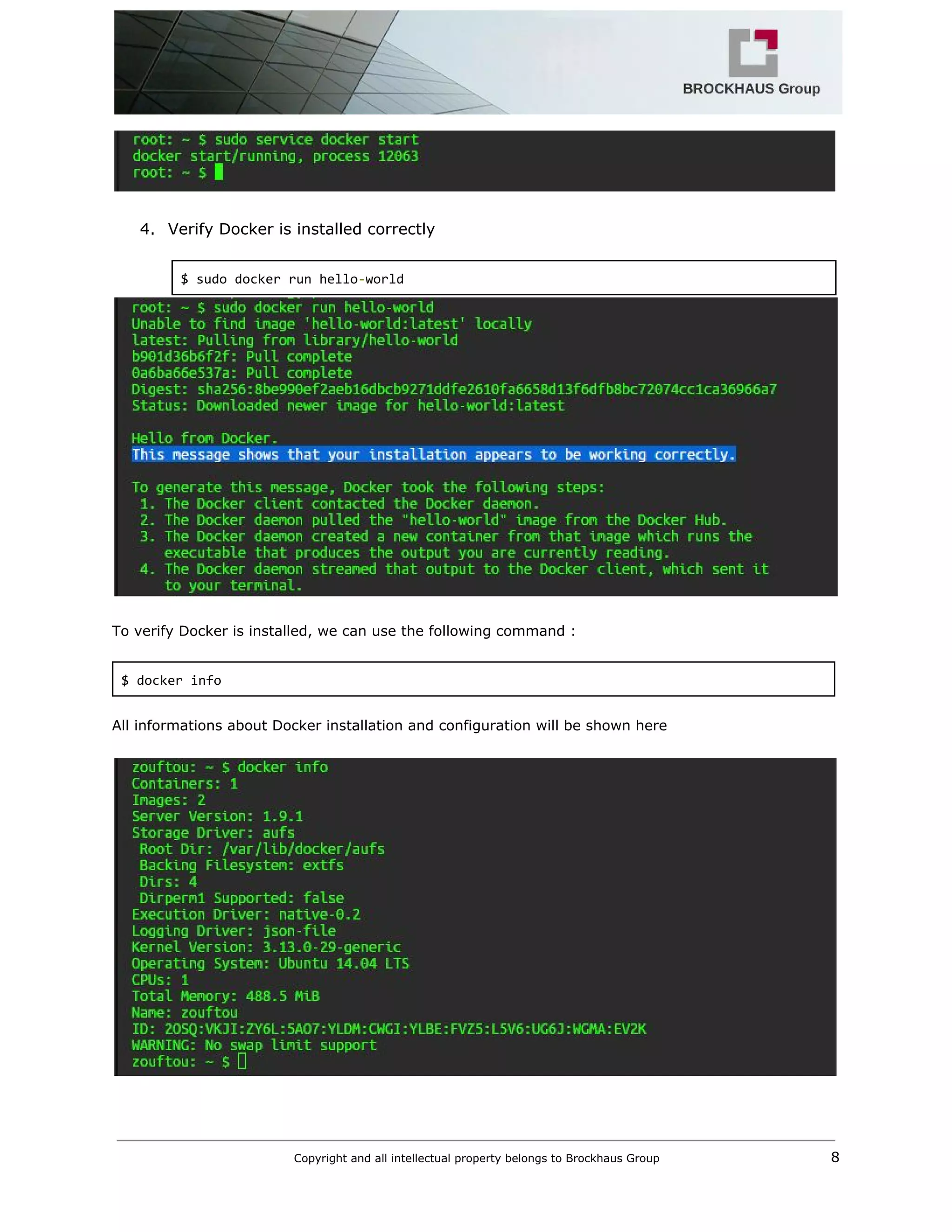
4. Verify Docker is installed correctly 
 
$ sudo docker run hello​‐​world 
 
 
To verify Docker is installed, we can use the following command : 
 
$ docker info 
 
All informations about Docker installation and configuration will be shown here  
 
 
Copyright and all intellectual property belongs to Brockhaus Group ​                                  8 


Use Docker 
Working with Docker images 
 
Docker images are the basis of containers. Each time we use “docker run” command , it told docker 
which image to work with. If an image isn’t already present on the host then it’ll be downloaded from 
a registry: by default the Docker Hub Registry. 
 
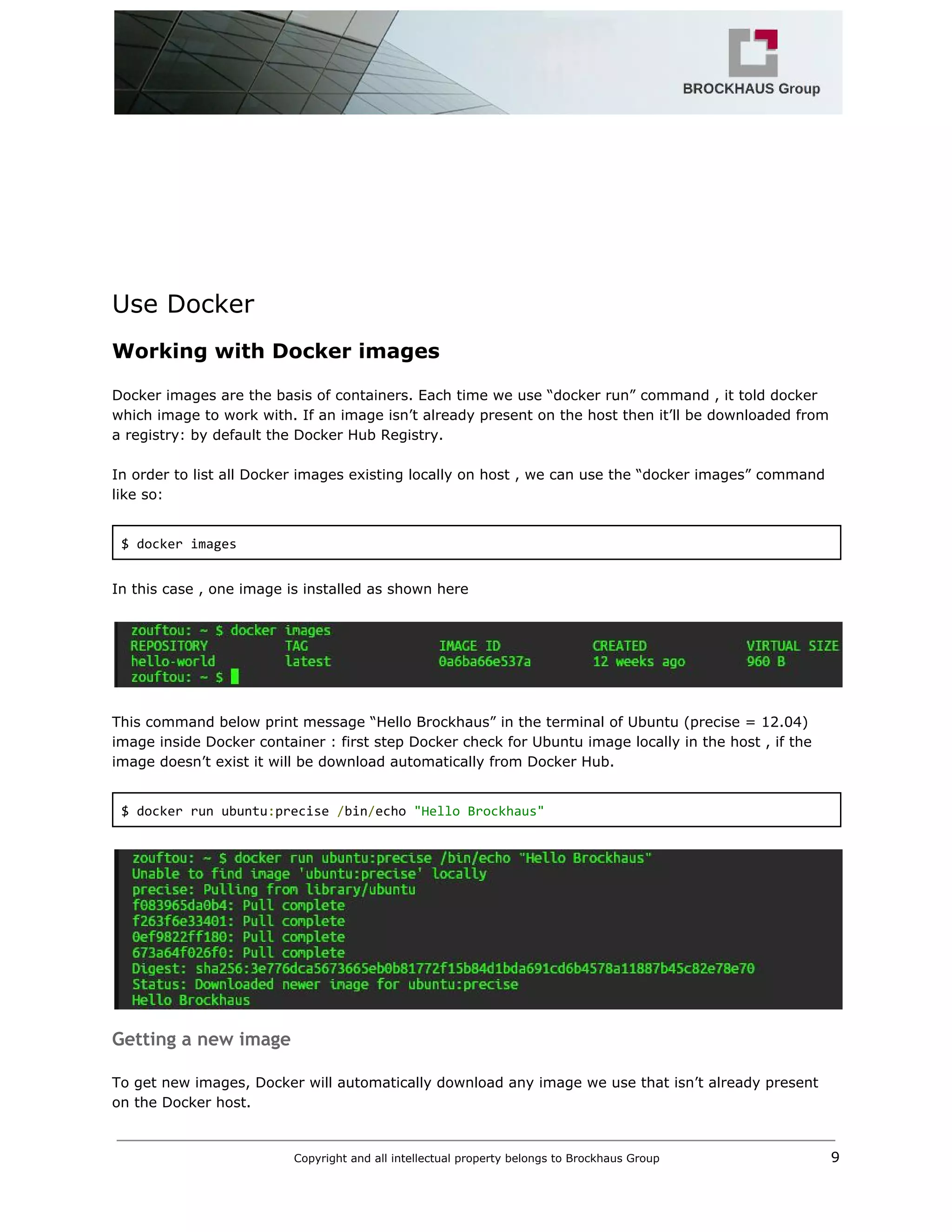
In order to list all Docker images existing locally on host , we can use the “docker images” command 
like so: 
 
$ docker images 
 
In this case , one image is installed as shown here 


This command below print message “Hello Brockhaus” in the terminal of Ubuntu (precise = 12.04) 
image inside Docker container : first step Docker check for Ubuntu image locally in the host , if the 
image doesn’t exist it will be download automatically from Docker Hub. 
 
$ docker run ubuntu​:​precise ​/​bin​/​echo ​"Hello Brockhaus" 
 
 
Getting a new image
 
To get new images, Docker will automatically download any image we use that isn’t already present 
on the Docker host.  
Copyright and all intellectual property belongs to Brockhaus Group ​                                  9 
 
 
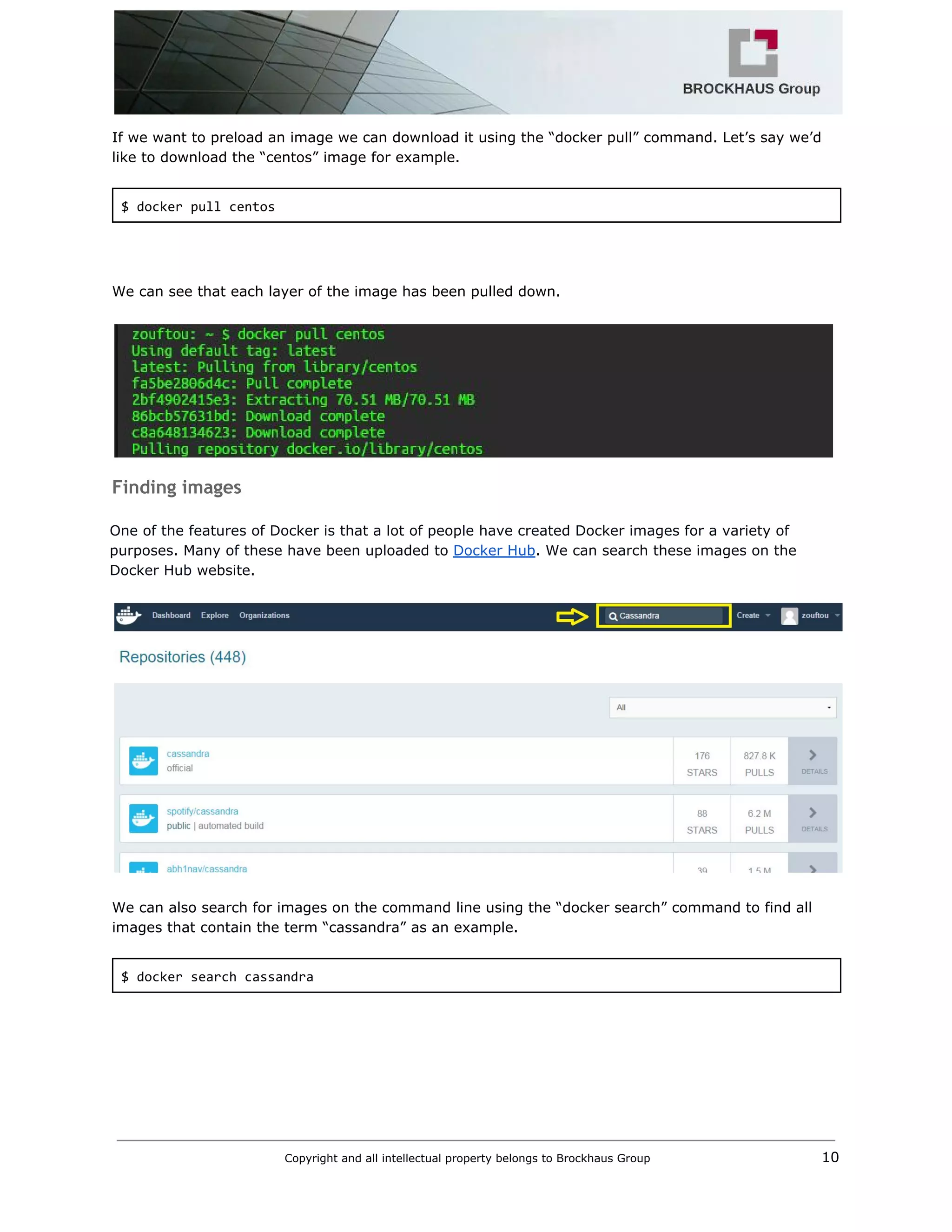
If we want to preload an image we can download it using the “docker pull” command. Let’s say we’d 
like to download the “centos” image for example. 
 
$ docker pull centos 


We can see that each layer of the image has been pulled down. 
 
 
Finding images
 
One of the features of Docker is that a lot of people have created Docker images for a variety of 
purposes. Many of these have been uploaded to ​Docker Hub​. We can search these images on the 
Docker Hub website. 


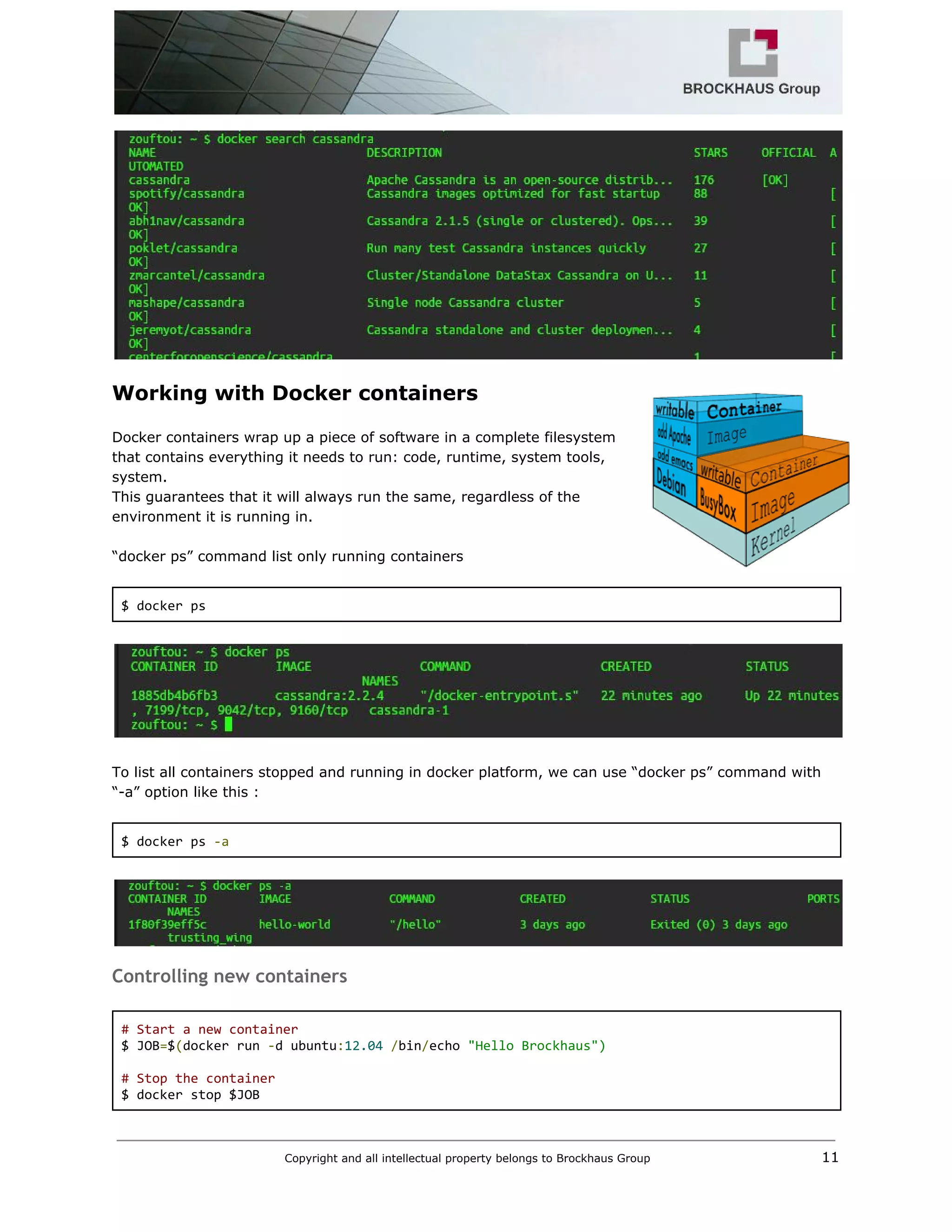
We can also search for images on the command line using the “docker search” command to find all 
images that contain the term “cassandra” as an example. 
 
$ docker search cassandra 
 
Copyright and all intellectual property belongs to Brockhaus Group ​                                  10 


Working with Docker containers 
 
Docker containers wrap up a piece of software in a complete filesystem 
that contains everything it needs to run: code, runtime, system tools, 
system.  
This guarantees that it will always run the same, regardless of the 
environment it is running in. 
 
“docker ps” command list only running containers 
 
$ docker ps 


To list all containers stopped and running in docker platform, we can use “docker ps” command with 
“­a” option like this : 
 
$ docker ps ​‐a 
 
 
Controlling new containers
 
# Start a new container 
$ JOB​=​$​(​docker run ​‐​d ubuntu​:​12.04​ ​/​bin​/​echo ​"Hello Brockhaus") 
  
# Stop the container 
$ docker stop $JOB 
Copyright and all intellectual property belongs to Brockhaus Group ​                                  11 


# Start the container 
$ docker start $JOB 
  
# Restart the container 
$ docker restart $JOB 
  
# SIGKILL a container 
$ docker kill $JOB 
  
# Remove a container 
$ docker stop $JOB  
# Container must be stopped to remove it 
$ docker rm $JOB 
Running Apache Cassandra in Docker 
What is Cassandra ? 
 
Apache Cassandra is an open source distributed database management 
system designed to handle large amounts of data across many commodity 
servers, providing high availability with no single point of failure.  
 
Cassandra offers robust support for clusters spanning multiple datacenters, 
with asynchronous masterless replication allowing low latency operations 
for all clients. 
 
Running the cluster inside Docker 
 
There are several Cassandra Docker images available. The image used here is that from the Docker 
Official Images project. For starting a three node Cassandra 2.2.4 cluster, a seed node is started first: 
 
$ docker run ​‐‐​name cassandra​‐​1​ ​‐​d cassandra​:​2.2​.4 
 
“cassandra­1” is the name of seed node and the version of cassandra pulled is 2.2.4  
 
Copyright and all intellectual property belongs to Brockhaus Group ​                                  12 


The IP address of the seed node container can be obtained with 
 
$ SEED​=​`docker inspect ‐‐format='{{ .NetworkSettings.IPAddress }}' cassandra‐1` 
$ echo $SEED 


The default Dockerfile configuration of cassandra image can be found on Github web site in this url 
Docker Official Image packaging for Cassandra​. For cassandra 2.2.4 used in this document, we can 
see all configuration instructions here. 
 
FROM debian​:​jessie​‐​backports 
 
RUN apt​‐​key adv ​‐‐​keyserver ha​.​pool​.​sks​‐​keyservers​.​net ​‐‐​recv​‐​keys 
514A2AD631A57A16DD0047EC749D6EEC0353B12C 
  
RUN echo ​'deb http://www.apache.org/dist/cassandra/debian 22x main'​ ​>> 
/etc/​apt​/​sources​.​list​.​d​/​cassandra​.​list 
  
ENV CASSANDRA_VERSION ​2.2​.4 
  
RUN apt​‐​get​ update  
  &&​ apt​‐​get​ install ​‐​y cassandra​=​"$CASSANDRA_VERSION"​  
  &&​ rm ​‐​rf ​/​var​/​lib​/​apt​/​lists​/* 
  
ENV CASSANDRA_CONFIG ​/​etc​/​cassandra 
  
COPY docker​‐​entrypoint​.​sh ​/​docker​‐​entrypoint​.​sh 
ENTRYPOINT ​[​"/docker‐entrypoint.sh"] 
  
Copyright and all intellectual property belongs to Brockhaus Group ​                                  13 
 
 
VOLUME ​/​var​/​lib​/​cassandra 
  
# 7000: intra‐node communication 
# 7001: TLS intra‐node communication 
# 7199: JMX 
# 9042: CQL 
# 9160: thrift service 
EXPOSE ​7000​ ​7001​ ​7199​ ​9042​ ​9160 
CMD ​[​"cassandra"​,​ ​"‐f"] 
 
Data Replication in Cassandra 
 
In Cassandra, one or more of the nodes in a cluster act as replicas for a given piece of data. If it is 
detected that some of the nodes responded with an out­of­date value, Cassandra will return the most 
recent value to the client. 
 
Let create two nodes Cassandra “cassandra­2” and “cassandra­3” using SEED value. 
 
$ docker run ​‐‐​name cassandra​‐​2​ ​‐​d ​‐​e CASSANDRA_SEEDS​=​$SEED cassandra​:​2.2​.4 
$ docker run ​‐‐​name cassandra​‐​3​ ​‐​d ​‐​e CASSANDRA_SEEDS​=​$SEED cassandra​:​2.2​.4 
 
 
Best practices    
It’s very easy to use Shell scripts for starting and stopping Cassandra nodes. For example, starting a 
four nodes cluster is as simple as: 
 
Start cluster 
$ ​./​cluster​‐​start​.​sh 4 
 
cluster­start.sh 
#!/bin/sh 
if​ ​[​ ​‐​n ​"$1"​ ​];​ ​then 
NODES​=​$1 
else 
NODES​=3 
fi 
  
docker run ​‐‐​name cassandra​‐​1​ ​‐​d cassandra​:​2.2​.​4​ ​>​ ​/dev/​null 
echo ​"cassandra‐1" 
  
Copyright and all intellectual property belongs to Brockhaus Group ​                                  14 
 
 
SEED​=​`docker inspect ‐‐format='{{ .NetworkSettings.IPAddress }}' cassandra‐1` 
  
if​ ​[​ $NODES ​‐​gt ​1​ ​];​ ​then 
for​ i ​in​ ​`seq 2 $NODES`; 
do 
  docker run ​‐‐​name ​"cassandra‐$i"​ ​‐​d ​‐​e CASSANDRA_SEEDS​=​$SEED cassandra​:​2.2​.​4​ ​> 
/dev/​null 
  echo ​"cassandra‐$i" 
done 
fi 
 
Stop cluster 
$ ​./​cluster​‐​stop​.​sh 
 
cluster­stop.sh 
#!/bin/sh 
  
NODES​=​`docker ps ‐a | grep cassandra‐ | wc ‐l` 
  
for​ i ​in​ ​`seq 1 $NODES`; 
do 
docker rm ​‐​f ​"cassandra‐$i" 
done 
Docker Spring Application with Cassandra database 
 
In this example we shall demonstrate how to connect Spring Data Application to Apache Cassandra, a 
Column based NoSql Database and run it inside Docker containers. 
 
What we’ll need : 
 
1. Eclipse IDE 
2. Spring Tool Suite (STS) 
3. Cassandra​ 2.2.4 
4. JDK 1.8 
 
We can find this demo “docker­spring­cassandra­example” from ​brockhaus­gruppe​ repository on 
Github and clone it using “git clone” command. 
 
$ git clone https​:​//github.com/brockhaus‐gruppe/docker‐spring‐cassandra‐example.git 
 
Getting started
 
Spring Data Cassandra uses the DataStax Java Driver version 2.X, which supports DataStax Enterprise 
4/Cassandra 2.0, and Java SE 6 or higher. The latest commercial release (2.X as of this writing) is 
recommended. 
 
Copyright and all intellectual property belongs to Brockhaus Group ​                                  15 
 
 
An easy way to bootstrap setting up a working environment is to create a Spring boot project in ​STS​. 
 
First we need to set up a running Cassandra server if we want to test project in localhost. 
 
Step 1: Create Spring Starter Project
 
To create a Spring project in STS go to File ­> New ­> Others, then select spring wizards  ­> Spring 
Starter Project  


Press Next button , the second view will be open like this :   
 
 
We can check Frameworks needed for our application in this check table, for example Spring Web MVC 
is selected as shown in this picture : 
Copyright and all intellectual property belongs to Brockhaus Group ​                                  16 


If Cassandra is not shown in the check table of dependencies , then add the following to “pom.xml” 
dependencies section. 
 
<dependency> 
<groupId>​org.springframework.boot​</groupId> 
<artifactId>​spring‐boot‐starter‐data‐cassandra​</artifactId> 
</dependency> 
Press Next button to show the last view, then press Finish button to download all dependencies from 
maven repository.  
Finally the “pom.xml“ file will be like this : 
 
pom.xml 
<?​xml version​=​"1.0"​ encoding​=​"UTF‐8"​?> 
<project xmlns="http://maven.apache.org/POM/4.0.0" 
xmlns:xsi="http://www.w3.org/2001/XMLSchema‐instance" 
xsi​:​schemaLocation​=​"http://maven.apache.org/POM/4.0.0 
http://maven.apache.org/xsd/maven‐4.0.0.xsd"> 
<modelVersion>​4.0.0​</modelVersion> 
 
<groupId>​de.brockhaus​</groupId> 
<artifactId>​demo​</artifactId> 
<version>​0.0.1‐SNAPSHOT​</version> 
<packaging>​jar​</packaging> 
 
<name>​docker‐spring‐cassandra‐example​</name> 
<description>​Docker Spring Cassandra Example​</description> 
 
<parent> 
<groupId>​org.springframework.boot​</groupId> 
<artifactId>​spring‐boot‐starter‐parent​</artifactId> 
<version>​1.3.1.RELEASE​</version> 
<relativePath/>​ ​<!‐‐ lookup parent from repository ‐‐> 
</parent> 
 
<properties> 
<project.build.sourceEncoding>​UTF‐8​</project.build.sourceEncoding> 
<java.version>​1.8​</java.version> 
Copyright and all intellectual property belongs to Brockhaus Group ​                                  17 
 
 
</properties> 
 
<dependencies> 
<dependency> 
<groupId>​org.springframework.boot​</groupId> 
<artifactId>​spring‐boot‐starter‐data‐cassandra​</artifactId> 
</dependency> 
<dependency> 
<groupId>​org.springframework.boot​</groupId> 
<artifactId>​spring‐boot‐starter‐web​</artifactId> 
</dependency> 
 
<dependency> 
<groupId>​org.springframework.boot​</groupId> 
<artifactId>​spring‐boot‐starter‐test​</artifactId> 
<scope>​test​</scope> 
</dependency> 
</dependencies> 
 
<build> 
<plugins> 
<plugin> 
<groupId>​org.springframework.boot​</groupId> 
<artifactId>​spring‐boot‐maven‐plugin​</artifactId> 
</plugin> 
</plugins> 
</build> 
</project> 
Step 2: Create a simple Sensor class to persist.
 
package​ de​.​brockhaus​.​domain; 
 
import​ org​.​springframework​.​data​.​cassandra​.​mapping​.​PrimaryKey; 
import​ org​.​springframework​.​data​.​cassandra​.​mapping​.​Table; 
 
@Table​(​"sensors") 
public​ ​class​ ​Sensor​ { 
 
@PrimaryKey  
private​ ​String​ id​;  
  
private​ ​String​ name; 
 
public​ ​Sensor​(​String​ id​,​ ​String​ name​)​ { 
super​(); 
this​.​id ​=​ id; 
this​.​name ​=​ name; 
} 
 
public​ ​String​ getId​()​ { 
return​ id; 
} 
 
public​ ​void​ setId​(​String​ id​)​ { 
this​.​id ​=​ id; 
} 
Copyright and all intellectual property belongs to Brockhaus Group ​                                  18 


public​ ​String​ getName​()​ { 
return​ name; 
} 
 
public​ ​void​ setName​(​String​ name​)​ { 
this​.​name ​=​ name; 
} 
 
@Override 
public​ ​String​ toString​()​ { 
return​ ​"Sensor [id="​ ​+​ id ​+​ ​", name="​ ​+​ name ​+​ ​"]"; 
} 
} 
Step 3: Create spring data cassandra repository
 
package​ de​.​brockhaus​.​domain; 
 
import​ org​.​springframework​.​data​.​cassandra​.​repository​.​CassandraRepository; 
import​ org​.​springframework​.​data​.​cassandra​.​repository​.​Query; 
 
public​ ​interface​ ​SensorRepository​ ​extends​ ​CassandraRepository​<​Sensor​>​ { 
 
    ​@Query​(​"SELECT * FROM sensors WHERE name=?0") 
    ​Iterable​<​Sensor​>​ findByName​(​String​ name​); 
} 
Step 4: Add Cassandra configuration
 
package​ de​.​brockhaus​.​config; 
import​ org​.​springframework​.​beans​.​factory​.​annotation​.​Autowired; 
import​ org​.​springframework​.​context​.​annotation​.​Bean; 
import​ org​.​springframework​.​context​.​annotation​.​Configuration; 
import​ org​.​springframework​.​core​.​env​.​Environment; 
import​ org​.​springframework​.​data​.​cassandra​.​config​.​CassandraClusterFactoryBean; 
import​ org​.​springframework​.​data​.​cassandra​.​config​.​CassandraSessionFactoryBean; 
import​ org​.​springframework​.​data​.​cassandra​.​config​.​SchemaAction; 
import​ org​.​springframework​.​data​.​cassandra​.​convert​.​CassandraConverter; 
import​ org​.​springframework​.​data​.​cassandra​.​convert​.​MappingCassandraConverter; 
import​ org​.​springframework​.​data​.​cassandra​.​core​.​CassandraOperations; 
import​ org​.​springframework​.​data​.​cassandra​.​core​.​CassandraTemplate; 
import​ org​.​springframework​.​data​.​cassandra​.​mapping​.​BasicCassandraMappingContext; 
import​ org​.​springframework​.​data​.​cassandra​.​mapping​.​CassandraMappingContext; 
import​ org​.​springframework​.​data​.​cassandra​.​repository​.​config​.​EnableCassandraRepositories; 
 
@Configuration 
@EnableCassandraRepositories​(​basePackages ​=​ ​{​"de.brockhaus.domain"​}) 
public​ ​class​ ​CassandraConfig​ { 
 
    ​@Autowired 
    ​private​ ​Environment​ environment; 
   
    ​@Bean 
    ​public​ ​CassandraClusterFactoryBean​ cluster​()​ { 
        ​CassandraClusterFactoryBean​ cluster ​=​ ​new​ ​CassandraClusterFactoryBean​(); 
Copyright and all intellectual property belongs to Brockhaus Group ​                                  19 
 
 
        cluster​.​setContactPoints​(​environment​.​getProperty​(​"cassandra.contactpoints"​)); 
        cluster​.​setPort​(​Integer​.​parseInt​(​environment​.​getProperty​(​"cassandra.port"​))); 
        ​return​ cluster; 
    } 
   
    ​@Bean 
    ​public​ ​CassandraMappingContext​ mappingContext​()​ { 
        ​return​ ​new​ ​BasicCassandraMappingContext​(); 
    } 
   
    ​@Bean 
    ​public​ ​CassandraConverter​ converter​()​ { 
        ​return​ ​new​ ​MappingCassandraConverter​(​mappingContext​()); 
    } 
   
    ​@Bean 
    ​public​ ​CassandraSessionFactoryBean​ session​()​ ​throws​ ​Exception​ { 
        ​CassandraSessionFactoryBean​ session ​=​ ​new​ ​CassandraSessionFactoryBean​(); 
        session​.​setCluster​(​cluster​().​getObject​()); 
        session​.​setKeyspaceName​(​environment​.​getProperty​(​"cassandra.keyspace"​)); 
        session​.​setConverter​(​converter​()); 
        session​.​setSchemaAction​(​SchemaAction​.​NONE​); 
        ​return​ session; 
    } 
   
    ​@Bean 
    ​public​ ​CassandraOperations​ cassandraTemplate​()​ ​throws​ ​Exception​ { 
        ​return​ ​new​ ​CassandraTemplate​(​session​().​getObject​()); 
    } 
} 
 
Cassandra connection information will reside on resources/application.properties 
 
cassandra​.​contactpoints​=​127.0.0.1 
cassandra​.​port​=​9042 
cassandra​.​keyspace​=​brockhaus 
 
The “contactpoints” property  is address of the nodes to be contacted initially before the driver 
performs node discovery ( example : ​cassandra​.​contactpoints​=​'10.1.1.3', '10.1.1.4', '10.1.1.5' ) 
 
Step 5: Spring Rest Controller
 
package​ de​.​brockhaus​.​rest; 
 
import​ java​.​util​.​List; 
import​ javax​.​annotation​.​PostConstruct; 
 
import​ org​.​springframework​.​beans​.​factory​.​annotation​.​Autowired; 
import​ org​.​springframework​.​web​.​bind​.​annotation​.​PathVariable; 
import​ org​.​springframework​.​web​.​bind​.​annotation​.​RequestMapping; 
import​ org​.​springframework​.​web​.​bind​.​annotation​.​RestController; 
 
import​ de​.​brockhaus​.​domain​.​Sensor; 
import​ de​.​brockhaus​.​domain​.​SensorRepository; 
Copyright and all intellectual property belongs to Brockhaus Group ​                                  20 


@RestController 
public​ ​class​ ​SensorController​ { 
 
@Autowired 
private​ ​SensorRepository​ sensorRepo; 
 
@PostConstruct 
public​ ​void​ initData​(){ 
sensorRepo​.​deleteAll​(); 
sensorRepo​.​save​(​new​ ​Sensor​(​"0001"​,​"oilpression"​)); 
sensorRepo​.​save​(​new​ ​Sensor​(​"0002"​,​"temperature"​)); 
} 
 
@RequestMapping​(​"/") 
public​ ​String​ index​(){ 
return​ ​"<center></br><h1>*** Brockhaus Gruppe ***</h1></br> 
                       <h2> Docker Spring Cassandra Example</h2></center>"; 
} 
 
       ​@RequestMapping​(​value ​=​ ​"/sensor/{name}") 
       ​public​ ​Sensor​ getSensor​(​@PathVariable​(​"name"​)​ ​String​ pName​)​ { 
         ​return​ ​(​Sensor​)​ sensorRepo​.​findByName​(​pName​); 
       } 
   
       ​@RequestMapping​(​"/sensors") 
public​ ​List​<​Sensor​>​ getAllSensors​(){ 
return​ ​(​List​<​Sensor​>)​ sensorRepo​.​findAll​(); 
} 
} 
 
 
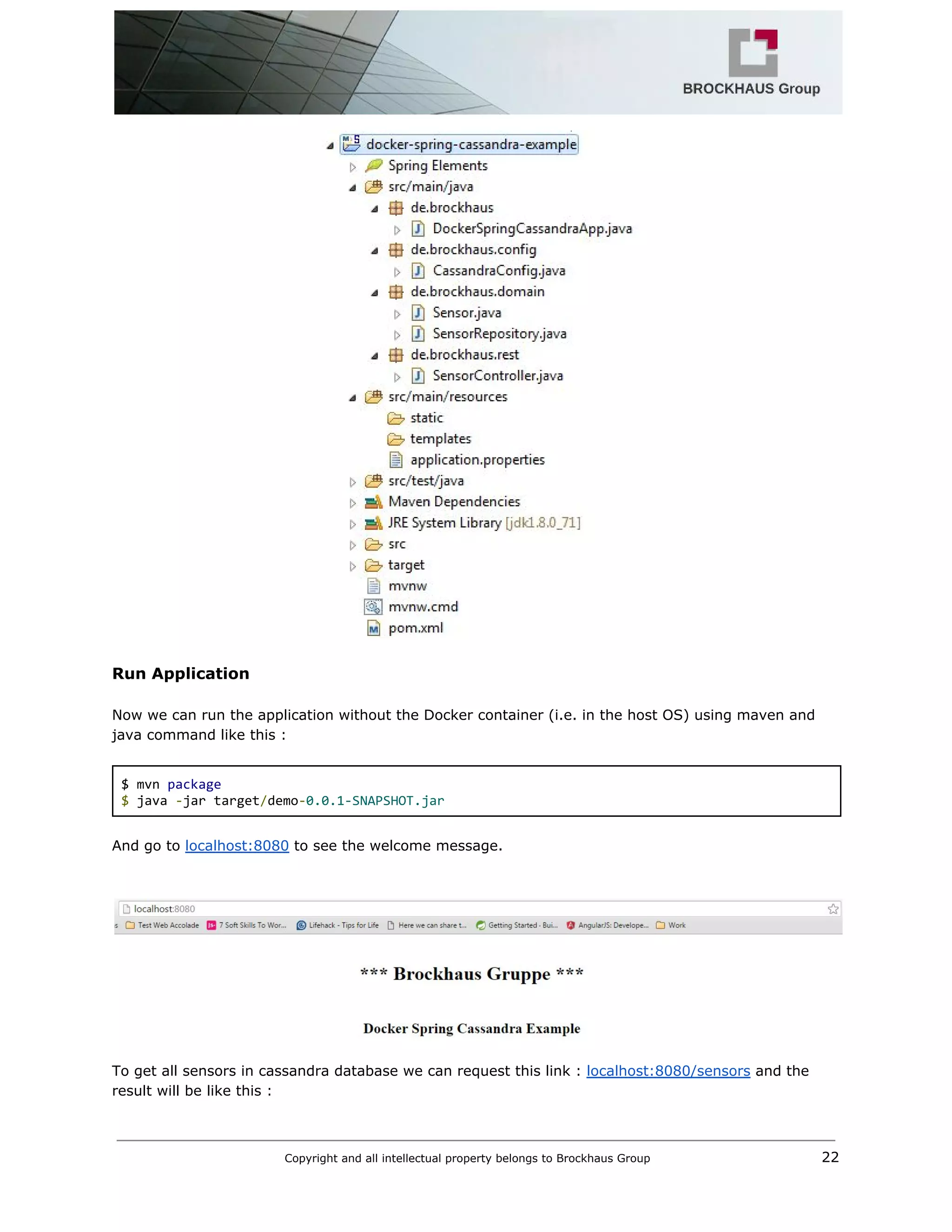
Project directory  
Copyright and all intellectual property belongs to Brockhaus Group ​                                  21 


Run Application 
 
Now we can run the application without the Docker container (i.e. in the host OS) using maven and 
java command like this : 
 
$ mvn ​package  
$ ​java ​‐​jar target​/​demo​‐​0.0.1‐SNAPSHOT.jar 
 
And go to ​localhost:8080​ to see the welcome message. 


To get all sensors in cassandra database we can request this link : ​localhost:8080/sensors​ and the 
result will be like this : 
Copyright and all intellectual property belongs to Brockhaus Group ​                                  22 


Step 6: Containerize Application
 
Docker can build images automatically by reading the instructions from a Dockerfile, a text file that 
contains all the commands, in order, needed to build a given image. Dockerfiles adhere to a specific 
format and use a specific set of instructions. We can learn the basics on the ​Dockerfile Reference 
page​. 
 
Docker has a simple Dockerfile file format that it uses to specify the "layers" of an image. So let’s go 
ahead and create a Dockerfile in our Spring Cassandra Example Project: 
 
Dockerfile 
FROM java​:​8  
 
# Install maven 
RUN apt​‐​get​ update  
RUN apt​‐​get​ install ​‐​y maven 
 
WORKDIR ​/​code 
 
# Prepare by downloading dependencies 
ADD pom​.​xml ​/​code​/​pom​.​xml  
RUN ​[​"mvn"​,​ ​"dependency:resolve"​]  
RUN ​[​"mvn"​,​ ​"verify"] 
 
# Adding source to WORKDIR 
ADD src ​/​code​/​src 
 
RUN ​[​"mvn"​,​ ​"package"] 
 
EXPOSE ​8080 
  
CMD ​[​"java"​,​ ​"‐jar"​,​ ​"target/demo‐0.0.1‐SNAPSHOT.jar"​]  
Copyright and all intellectual property belongs to Brockhaus Group ​                                  23 
 
 
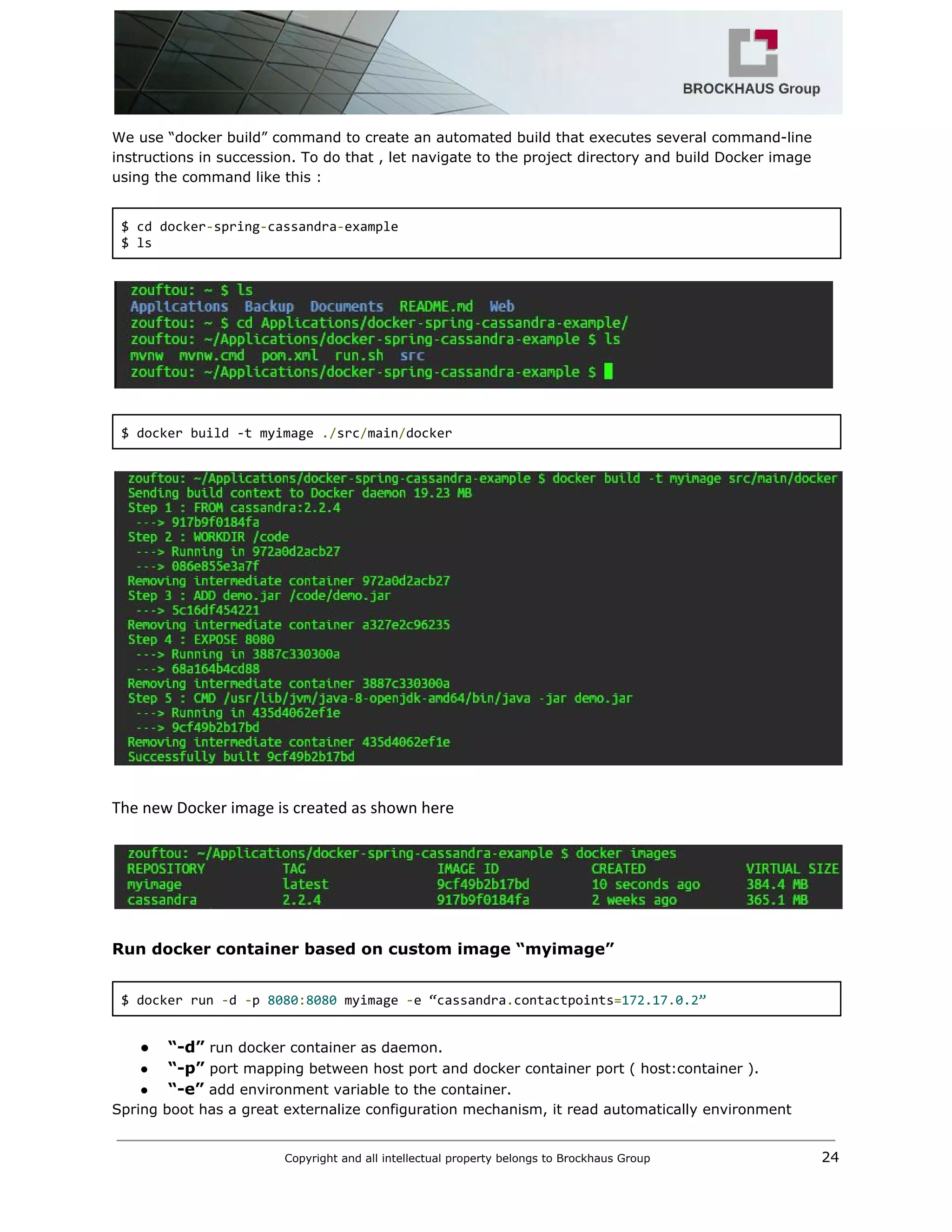
We use “docker build” command to create an automated build that executes several command­line 
instructions in succession. To do that , let navigate to the project directory and build Docker image 
using the command like this : 
 
$ cd docker​‐​spring​‐​cassandra​‐​example 
$ ls 


$ docker build ‐t myimage ​./​src​/​main​/​docker 


The new Docker image is created as shown here 


Run docker container based on custom image “myimage” 
 
$ docker run ​‐​d ​‐​p ​8080​:​8080​ myimage ​‐​e “cassandra​.​contactpoints​=​172.17​.​0.2” 
 
● “­d”​ run docker container as daemon. 
● “­p”​ port mapping between host port and docker container port ( host:container ). 
● “­e”​ add environment variable to the container. 
Spring boot has a great externalize configuration mechanism, it read automatically environment  
Copyright and all intellectual property belongs to Brockhaus Group ​                                  24 
 
 
variable from system and map them to properties in spring application context. 


Result 


To show last logs of docker container it’s as simple as running just one command. Let’s take a look at 
the logs for container bc67738e4616: 


Copyright and all intellectual property belongs to Brockhaus Group ​                                  25 


Links 
 
Official
 
https://docs.docker.com/ 
 
https://spring.io/guides/gs/spring­boot­docker/ 
 
http://docs.spring.io/spring­data/cassandra/docs/1.0.4.RELEASE/reference/html/cassan
dra.core.html 


Tutorials
 
https://blog.giantswarm.io/getting­started­with­java­development­on­docker/ 
 
https://rbmhtechnology.github.io/chaos­testing­with­docker­and­cassandra/ 
 
http://www.javacodegeeks.com/2015/12/docker­java­application­with­solr­mongo­cassa
ndra.html 
 
Copyright and all intellectual property belongs to Brockhaus Group ​                                  26 
 

M2M infrastructure using Docker