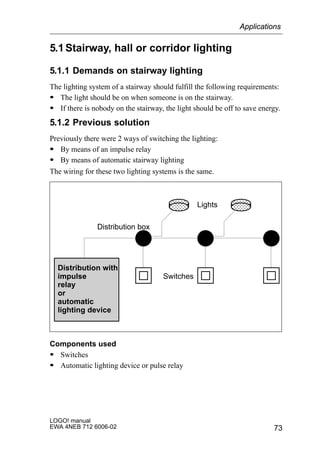
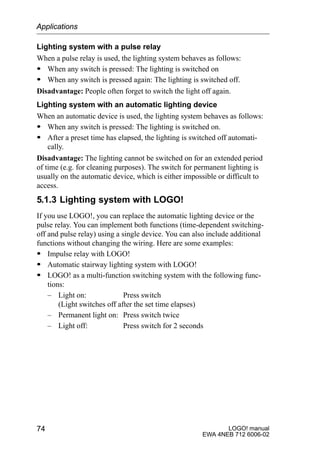
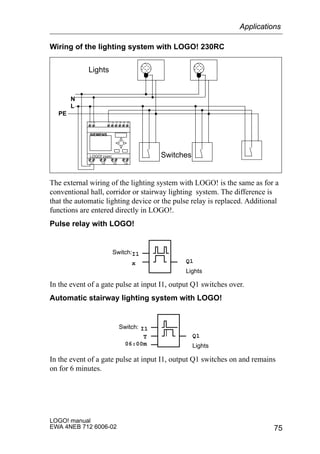
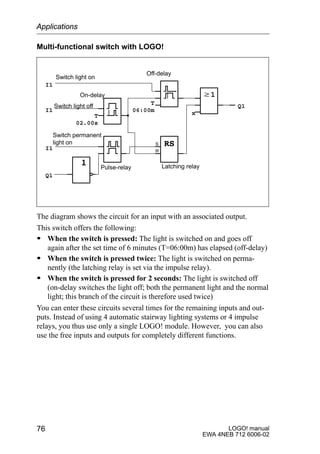
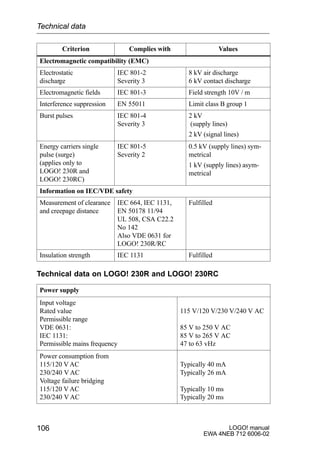
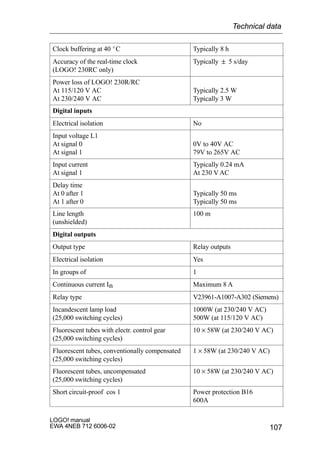
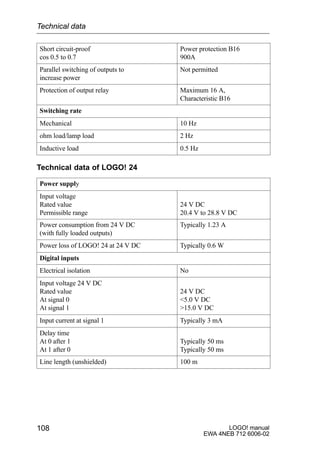
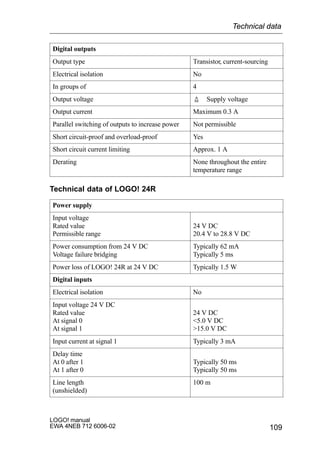
i
LOGO! manual
EWA 4NEB 712 6006-02
Welcome to LOGO!
Dear customer,
Thank you for purchasing LOGO!, and congratulations on your decision.
In LOGO! you have acquired a logic module that meets the stringent qual-
ity requirements of ISO 9001.
LOGO! is universal in application. Its comprehensive functionality and
great ease of use make it a highly cost-efficient solution for virtually any
application.
LOGO! documentation
This LOGO! manual tells you how to install, progam and use LOGO!.
In addition, the step-by-step graphical guide shipped with LOGO! and the
LOGO!Soft online help system provide you with the essentials.
LOGO!Soft is a programming package that runs on PCs under WindowsT .
It will help you get to know LOGO! and test, print and archive programs.
Guide to the manual
We have subdivided this manual into 6 chapters:
S Getting to know LOGO!
S Installing and wiring LOGO!
S Programming LOGO!
S Parameterizing LOGO!
S Applications
S Technical data
Additional support
If you have any questions concerning LOGO!, the dealer from whom you
bought it will be glad to help you.
Safety guidelines
This manual contains notices which you should observe to ensure your own personal
safety, as well as to protect the product and connected equipment. These notices are
highlighted in the manual by a warning triangle and are marked as follows according
to the level of danger:
LOGO! manual
EWA 4NEB 712 6006-02
ii
!
Danger
indicates that death, severe personal injury or substantial property dam-
age will result if proper precautions are not taken.
!
Warning
indicates that death, severe personal injury or substantial property dam-
age can result if proper precautions are not taken.
!
Caution
indicates that minor personal injury or property damage can result if
proper precautions are not taken.
Note
draws your attention to particularly important information on the prod-
uct, handling the product, or to a particular part of the documentation.
!
Warning
Only qualified personnel should be allowed to install and work on this
equipment. Qualified persons are defined as persons who are authorized
to commission, to ground, and to tag circuits, equipment, and systems in
accordance with established safety practices and standards.
!
Warning
This device and its components may only be used for the applications
described in the catalog or the technical description, and only in connec-
tion with devices or components from other manufacturers which have
been approved or recommended by Siemens.
This product can only function correctly and safely if it is transported,
stored, set up, and installed correctly, and operated and maintained as
recommended.
Copyright E Siemens AG 1996 All rights reserved
The reproduction, transmission or use of this document or its contents is not permitted without
express written authority. Offenders will be liable for damages. All rights, including rights created
Disclaimerof Liability
We have checked the contents of this manual for agreement with the hardware and software
described. Since deviations cannot be precluded entirely, we cannot guarantee full agreement.
However, the data in this manual are reviewed regularly and any necessary corrections included
in subsequent editions. Suggestions for improvement are welcomed.
Welcome to LOGO!
iii
LOGO! manual
EWA 4NEB 712 6006-02
Contents
1 Getting to know LOGO! 1. . . . . . . . . . .
2 Installing and wiring LOGO! 3. . . . . . .
2.1 Installing/deinstalling LOGO! 4. . . . . . . . . . . . . . . . . . .
2.2 Wiring LOGO! 5. . . . . . . . . . . . . . . . . . . . . . . . . . . . . . . . .
2.2.1 Connecting the power supply 5. . . . . . . . . . . . . . . . . . .
2.2.2 Connecting LOGO!’s inputs 6. . . . . . . . . . . . . . . . . . . .
2.2.3 Connecting outputs 8. . . . . . . . . . . . . . . . . . . . . . . . . . . .
2.3 Switching LOGO! on/resumption of power supply 10
3 Programming LOGO! 12. . . . . . . . . . . . .
3.1 Circuit diagram 13. . . . . . . . . . . . . . . . . . . . . . . . . . . . . . . .
3.2 Connectors and blocks 14. . . . . . . . . . . . . . . . . . . . . . . .
3.3 Connectors 15. . . . . . . . . . . . . . . . . . . . . . . . . . . . . . . . . . .
3.4 Basic functions 17. . . . . . . . . . . . . . . . . . . . . . . . . . . . . . .
3.4.1 AND 18. . . . . . . . . . . . . . . . . . . . . . . . . . . . . . . . . . . . . . . .
3.4.2 OR 18. . . . . . . . . . . . . . . . . . . . . . . . . . . . . . . . . . . . . . . . . .
3.4.3 NOT 19. . . . . . . . . . . . . . . . . . . . . . . . . . . . . . . . . . . . . . . .
3.4.4 NAND 20. . . . . . . . . . . . . . . . . . . . . . . . . . . . . . . . . . . . . . .
3.4.5 NOR 20. . . . . . . . . . . . . . . . . . . . . . . . . . . . . . . . . . . . . . . .
3.4.6 XOR 21. . . . . . . . . . . . . . . . . . . . . . . . . . . . . . . . . . . . . . . .
3.5 Special functions 22. . . . . . . . . . . . . . . . . . . . . . . . . . . . . .
3.5.1 Accuracy of the time 23. . . . . . . . . . . . . . . . . . . . . . . . . . .
3.5.2 On-delay 24. . . . . . . . . . . . . . . . . . . . . . . . . . . . . . . . . . . . .
3.5.3 Off-delay 25. . . . . . . . . . . . . . . . . . . . . . . . . . . . . . . . . . . . .
3.5.4 Pulse relay 26. . . . . . . . . . . . . . . . . . . . . . . . . . . . . . . . . . .
3.5.5 Clock (time switch) 27. . . . . . . . . . . . . . . . . . . . . . . . . . . .
3.5.6 Setting the clock (time switch) 29. . . . . . . . . . . . . . . . . .
3.5.7 Clock: examples 29. . . . . . . . . . . . . . . . . . . . . . . . . . . . . .
3.5.8 Latching relay 31. . . . . . . . . . . . . . . . . . . . . . . . . . . . . . . .
3.5.9 Clock pulse generator 32. . . . . . . . . . . . . . . . . . . . . . . . .
3.5.10 Retentive on-delay 33. . . . . . . . . . . . . . . . . . . . . . . . . . . .
3.5.11 Up and down counter 34. . . . . . . . . . . . . . . . . . . . . . . . . .
LOGO! manual
EWA 4NEB 712 6006-02
iv
3.6 Blocks (BN) 36. . . . . . . . . . . . . . . . . . . . . . . . . . . . . . . . . . .
3.7 Memory required and size of a circuit 37. . . . . . . . . . .
3.8 The golden rules for working with LOGO! 40. . . . . . .
3.9 Overview of LOGO!’s menus 41. . . . . . . . . . . . . . . . . . .
3.10 Converting a circuit diagram to a block
representation 42. . . . . . . . . . . . . . . . . . . . . . . . . . . . . . . . .
3.11 Entering a program 43. . . . . . . . . . . . . . . . . . . . . . . . . . . .
3.11.1 Switching to programming mode 43. . . . . . . . . . . . . . . .
3.11.2 First program 44. . . . . . . . . . . . . . . . . . . . . . . . . . . . . . . . .
3.11.3 Editing the program 45. . . . . . . . . . . . . . . . . . . . . . . . . . .
3.11.4 Second program 51. . . . . . . . . . . . . . . . . . . . . . . . . . . . . .
3.11.5 Deleting a block 55. . . . . . . . . . . . . . . . . . . . . . . . . . . . . . .
3.11.6 Deleting a number of interconnected blocks 56. . . . . .
3.11.7 Correcting typing errors 57. . . . . . . . . . . . . . . . . . . . . . . .
3.11.8 ”?” on the display 57. . . . . . . . . . . . . . . . . . . . . . . . . . . . .
3.11.9 Deleting a program 57. . . . . . . . . . . . . . . . . . . . . . . . . . . .
3.12 Using the program module/card 59. . . . . . . . . . . . . . . .
3.12.1 Removing the program module/card 60. . . . . . . . . . . . .
3.12.2 Copying a program from LOGO! to the program
module/card 61. . . . . . . . . . . . . . . . . . . . . . . . . . . . . . . . . .
3.12.3 Copying a program from the program module/card
to LOGO! 62. . . . . . . . . . . . . . . . . . . . . . . . . . . . . . . . . . .
3.13 Connecting LOGO! to a PC 65. . . . . . . . . . . . . . . . . . . . .
4 Parameterizing LOGO! 66. . . . . . . . . . . .
4.1 Switching to parameterization mode 67. . . . . . . . . . . .
4.1.1 Parameters 68. . . . . . . . . . . . . . . . . . . . . . . . . . . . . . . . . .
4.1.2 Selecting a parameter 68. . . . . . . . . . . . . . . . . . . . . . . . .
4.1.3 Changing a parameter 69. . . . . . . . . . . . . . . . . . . . . . . . .
4.2 Setting the time (LOGO! 230 RC) 71. . . . . . . . . . . . . . . .
5 Applications 72. . . . . . . . . . . . . . . . . . . . .
5.1 Stairway, hall or corridor lighting 73. . . . . . . . . . . . . . .
5.1.1 Demands on stairway lighting 73. . . . . . . . . . . . . . . . . . .
5.1.2 Previous solution 73. . . . . . . . . . . . . . . . . . . . . . . . . . . . . .
5.1.3 Lighting system with LOGO! 74. . . . . . . . . . . . . . . . . . . .
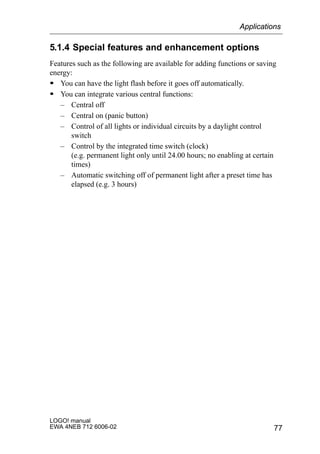
5.1.4 Special features and enhancement options 77. . . . . . .
Contents
v
LOGO! manual
EWA 4NEB 712 6006-02
5.2 Automatic door 78. . . . . . . . . . . . . . . . . . . . . . . . . . . . . . . .
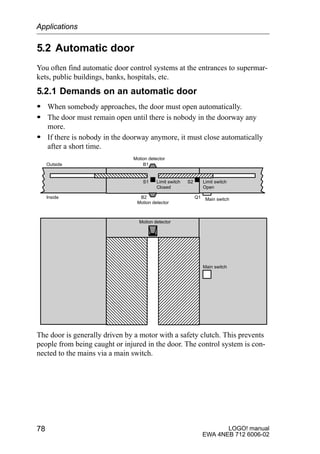
5.2.1 Demands on an automatic door 78. . . . . . . . . . . . . . . . .
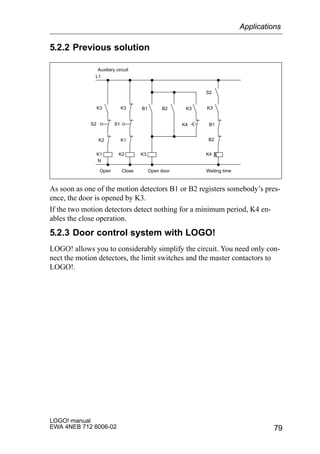
5.2.2 Previous solution 79. . . . . . . . . . . . . . . . . . . . . . . . . . . . . .
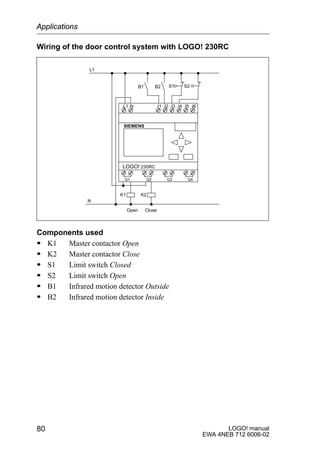
5.2.3 Door control system with LOGO! 79. . . . . . . . . . . . . . . .
5.2.4 Special features and enhancement options 82. . . . . . .
5.2.5 Enhanced LOGO! 230 RC solution 82. . . . . . . . . . . . . .
5.3 Ventilation system 85. . . . . . . . . . . . . . . . . . . . . . . . . . . . .
5.3.1 Demands on a ventilation system 85. . . . . . . . . . . . . . .
5.3.2 Advantages of using LOGO! 87. . . . . . . . . . . . . . . . . . . .
5.4 Industrial gate 89. . . . . . . . . . . . . . . . . . . . . . . . . . . . . . . . .
5.4.1 Demands on the door control system 89. . . . . . . . . . . .
5.4.2 Previous solution 90. . . . . . . . . . . . . . . . . . . . . . . . . . . . . .
5.4.3 Enhanced LOGO! solution 92. . . . . . . . . . . . . . . . . . . . .
5.5 Fluorescent lamps 93. . . . . . . . . . . . . . . . . . . . . . . . . . . . .
5.5.1 Demands on the lighting system 93. . . . . . . . . . . . . . . .
5.5.2 Previous solution 94. . . . . . . . . . . . . . . . . . . . . . . . . . . . . .
5.5.3 Fluorescent lamp control with LOGO! 230RC 95. . . . .
5.6 Rainwater pump 97. . . . . . . . . . . . . . . . . . . . . . . . . . . . . . .
5.6.1 Demands on the control system for a
rainwater pump 98. . . . . . . . . . . . . . . . . . . . . . . . . . . . . . .
5.6.2 Previous solution 98. . . . . . . . . . . . . . . . . . . . . . . . . . . . . .
5.6.3 Rainwater pump with LOGO! 230RC 99. . . . . . . . . . . .
5.6.4 Special features and enhancement options 100. . . . . . .
5.7 Dereeler 101. . . . . . . . . . . . . . . . . . . . . . . . . . . . . . . . . . . . . .
5.7.1 Demands on a dereeler 101. . . . . . . . . . . . . . . . . . . . . . . .
5.7.2 Previous solution 101. . . . . . . . . . . . . . . . . . . . . . . . . . . . . .
5.7.3 Dereeler with LOGO! 24R 102. . . . . . . . . . . . . . . . . . . . . .
5.7.4 Advantages of the LOGO! solution 103. . . . . . . . . . . . . .
5.8 Additional application options 104. . . . . . . . . . . . . . . . .
6 Technical data 105. . . . . . . . . . . . . . . . . . .
Abbreviations 112. . . . . . . . . . . . . . . . . . . . . . . . . . . . . . . . .
Contents
LOGO! manual
EWA 4NEB 712 6006-02
vi
Contents
1
LOGO! manual
EWA 4NEB 712 6006-02
1 Getting to know LOGO!
What is LOGO! ? –
LOGO! is the new universal logic module from Siemens.
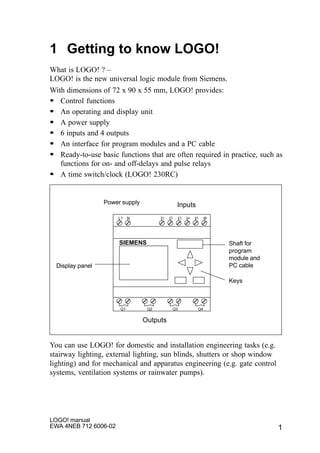
With dimensions of 72 x 90 x 55 mm, LOGO! provides:
S Control functions
S An operating and display unit
S A power supply
S 6 inputs and 4 outputs
S An interface for program modules and a PC cable
S Ready-to-use basic functions that are often required in practice, such as
functions for on- and off-delays and pulse relays
S A time switch/clock (LOGO! 230RC)
L1 N I1 I2 I3 I4 I5 I6
Q1 Q2 Q3 Q4
SIEMENS
Inputs
Outputs
Power supply
Display panel
Keys
Shaft for
program
module and
PC cable
You can use LOGO! for domestic and installation engineering tasks (e.g.
stairway lighting, external lighting, sun blinds, shutters or shop window
lighting) and for mechanical and apparatus engineering (e.g. gate control
systems, ventilation systems or rainwater pumps).
LOGO! manual
EWA 4NEB 712 6006-02
2
Versions
The following different versions of LOGO! are available:
S LOGO! 230 RC
– Power supply and digital inputs: 115 V AC / 230 V AC
– Digital outputs: relays, max. 8 A
– 4 time switches (clocks) with up to 3 on and off times each
S LOGO 230R
– Power supply and digital inputs: 115 V AC / 230 V AC
– Digital outputs: relays, max. 8 A
S LOGO! 24R
– Power supply and digital inputs: 24 V DC
– Digital outputs: relays, max. 8 A
S LOGO! 24
– Power supply and digital inputs: 24 V DC
– Digital outputs: transistor max. 0.3 A
LOGO! has UL, CSA and FM certification, carries CE marking, complies
with the VDE 0631 and IEC1131 standards and has interference suppres-
sion in accordance with EN 55011 (limit class B).
Getting to know LOGO!
3
LOGO! manual
EWA 4NEB 712 6006-02
2 Installing and wiring LOGO!
You install LOGO! in a distribution box or cabinet, ensuring that the con-
nectors are covered. If they are not, there is a danger of touching live
parts.
LOGO! must be installed and wired by a trained technician who knows
and complies with both the universally applicable engineering rules and
the regulations and standards that apply in specific cases.
Dimensions
The dimensions of LOGO! comply with the DIN 43880 standard for the
dimensions of installation equipment.
LOGO! must be snapped onto a DIN rail with a width of 35 mm
(DIN EN 50022).
LOGO! is 72 mm wide, which corresponds to the size of 4 modules.
LOGO! manual
EWA 4NEB 712 6006-02
4
2.1 Installing/deinstallingLOGO!
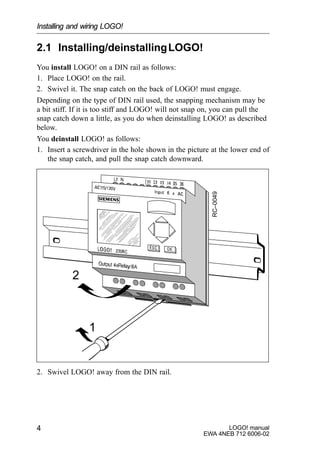
You install LOGO! on a DIN rail as follows:
1. Place LOGO! on the rail.
2. Swivel it. The snap catch on the back of LOGO! must engage.
Depending on the type of DIN rail used, the snapping mechanism may be
a bit stiff. If it is too stiff and LOGO! will not snap on, you can pull the
snap catch down a little, as you do when deinstalling LOGO! as described
below.
You deinstall LOGO! as follows:
1. Insert a screwdriver in the hole shown in the picture at the lower end of
the snap catch, and pull the snap catch downward.
1
2
RC–0049
2. Swivel LOGO! away from the DIN rail.
Installing and wiring LOGO!
5
LOGO! manual
EWA 4NEB 712 6006-02
2.2 Wiring LOGO!
Use a screwdriver with a head 3 mm wide to wire LOGO!.
You do not need wire end ferrules for the connectors. You can use wires up
to the following sizes:
S 1 x 2.5 mm2
S 2 x 1.5 mm2
2.2.1 Connecting the power supply
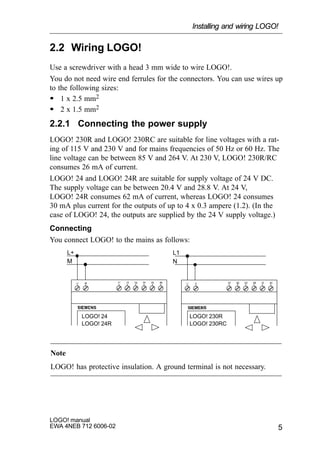
LOGO! 230R and LOGO! 230RC are suitable for line voltages with a rat-
ing of 115 V and 230 V and for mains frequencies of 50 Hz or 60 Hz. The
line voltage can be between 85 V and 264 V. At 230 V, LOGO! 230R/RC
consumes 26 mA of current.
LOGO! 24 and LOGO! 24R are suitable for supply voltage of 24 V DC.
The supply voltage can be between 20.4 V and 28.8 V. At 24 V,
LOGO! 24R consumes 62 mA of current, whereas LOGO! 24 consumes
30 mA plus current for the outputs of up to 4 x 0.3 ampere (1.2). (In the
case of LOGO! 24, the outputs are supplied by the 24 V supply voltage.)
Connecting
You connect LOGO! to the mains as follows:
L1L+
NM
LOGO! 24
LOGO! 24R
LOGO! 230R
LOGO! 230RC
Note
LOGO! has protective insulation. A ground terminal is not necessary.
Installing and wiring LOGO!
LOGO! manual
EWA 4NEB 712 6006-02
6
2.2.2 Connecting LOGO!’s inputs
Requirements
You connect sensors to the inputs. The sensors may be switches, photo-
electric barriers or daylight control switches, for example.
Sensor attributes for LOGO! 230R and LOGO! 230RC
S LOGO! recognizes the switch state 0 (switch open) at 40 V AC. The
maximum input current is 0.24 mA (switches with glow lamps can
cause problems if the closed-circuit current of the glow lamps is
greater than 0.2 mA. Connect these switches to LOGO! via a relay, or
use switches where the glow lamp is connected via an additional n-type
conductor).
S LOGO! recognizes the switch state 1 (switch open) at 79 V AC
(switch closed).
S You cannot connect 2-wire proximity switches to LOGO! directly be-
cause of their high closed-circuit current.
S When the switch state changes from 0 to 1, switch state 1 must exist
for at least 50 ms for LOGO! to recognize it. The same applies to state
0 when the change is in the opposite direction.
Sensor attributes for LOGO! 24 and LOGO! 24 R
S LOGO! recognizes the switch state 0 (switch open) at 5 V DC. The
input current is typically 3 mA.
S LOGO! recognizes the switch state 1 (switch closed) at 15 V DC.
S You can connect 3- and 4-wire proximity switches with a separate volt-
age supply to LOGO!. You cannot connect 2-wire proximity switches
to LOGO! directly because of their high closed-circuit current.
S When the switch state changes from 0 to 1, switch state 1 must exist
for at least 50 ms for LOGO! to recognize it. The same applies to state
0 when the change is in the opposite direction.
Installing and wiring LOGO!
7
LOGO! manual
EWA 4NEB 712 6006-02
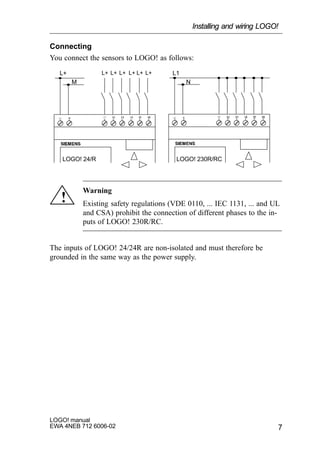
Connecting
You connect the sensors to LOGO! as follows:
L1
N
L+
M
LOGO! 24/R LOGO! 230R/RC
L+ L+ L+ L+ L+ L+
!
Warning
Existing safety regulations (VDE 0110, ... IEC 1131, ... and UL
and CSA) prohibit the connection of different phases to the in-
puts of LOGO! 230R/RC.
The inputs of LOGO! 24/24R are non-isolated and must therefore be
grounded in the same way as the power supply.
Installing and wiring LOGO!
LOGO! manual
EWA 4NEB 712 6006-02
8
2.2.3 Connecting outputs
LOGO! 230R, LOGO! 230RC and LOGO! 24R
The outputs of LOGO! 230R, LOGO! 230RC and LOGO! 24R are relays.
The contacts of the relays are isolated from the power supply and the in-
puts.
Requirements for the relay outputs
You can connect different loads to the outputs, such as lamps, fluorescent
tubes, motors, contactors, etc. The loads connected to LOGO! 230R/RC
and LOGO! 24R must have the following properties:
S The maximum switched current depends on the type of load and the
number of operations. You will find more information on this in the
technical specifications.
S When switched on (Q = 1), the maximum current is 8 amperes for a
non-inductive load and 2 amperes for an inductive load.
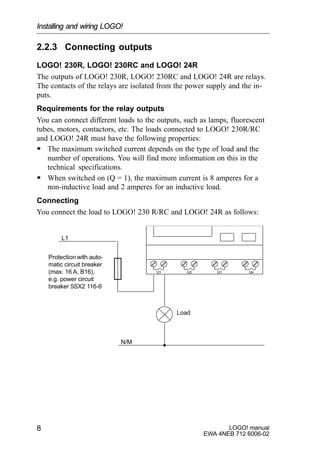
Connecting
You connect the load to LOGO! 230 R/RC and LOGO! 24R as follows:
L1
N/M
Load
Protection with auto-
matic circuit breaker
(max. 16 A, B16),
e.g. power circuit
breaker 5SX2 116-6
Installing and wiring LOGO!
9
LOGO! manual
EWA 4NEB 712 6006-02
LOGO! 24
The outputs of LOGO! 24 are switched by means of transistors. The out-
puts are short circuit-proof and overload-proof. A separate voltage supply
to the load is not necessary; LOGO! 24 supplies the load with voltage.
Requirements for transistor outputs
The load connected to LOGO! 24 must have the following properties:
S The maximum switched current is 0.3 amperes.
S When switched on (Q = 1), the maximum current is 0.3 amperes.
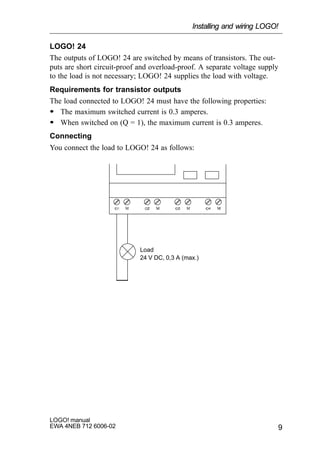
Connecting
You connect the load to LOGO! 24 as follows:
Load
24 V DC, 0,3 A (max.)
Installing and wiring LOGO!
LOGO! manual
EWA 4NEB 712 6006-02
10
2.3 Switching LOGO! on/resumption of power
supply
LOGO! does not have a power switch. How LOGO! responds when
switched on depends on:
S Whether a program is stored in LOGO!
S Whether a memory card is inserted
S The state LOGO! was in before power off
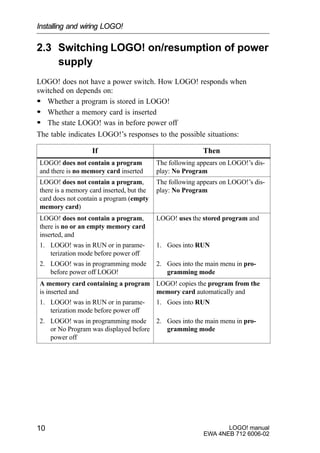
The table indicates LOGO!’s responses to the possible situations:
If Then
LOGO! does not contain a program
and there is no memory card inserted
The following appears on LOGO!’s dis-
play: No Program
LOGO! does not contain a program,
there is a memory card inserted, but the
card does not contain a program (empty
memory card)
The following appears on LOGO!’s dis-
play: No Program
LOGO! does not contain a program,
there is no or an empty memory card
inserted, and
1. LOGO! was in RUN or in parame-
terization mode before power off
2. LOGO! was in programming mode
before power off LOGO!
LOGO! uses the stored program and
1. Goes into RUN
2. Goes into the main menu in pro-
gramming mode
A memory card containing a program
is inserted and
1. LOGO! was in RUN or in parame-
terization mode before power off
2. LOGO! was in programming mode
or No Program was displayed before
power off
LOGO! copies the program from the
memory card automatically and
1. Goes into RUN
2. Goes into the main menu in pro-
gramming mode
Installing and wiring LOGO!
11
LOGO! manual
EWA 4NEB 712 6006-02
Try to remember the 4 simple rules for starting LOGO!:
1. If there is no program in LOGO! or on the memory card, LOGO! dis-
plays the message: No Program
2. If there is a program on the memory card, it is copied to LOGO! auto-
matically. If there is already a program in LOGO!, it is overwritten.
3. If there is a program in LOGO! or on the memory card, LOGO! adopts
the operating status it had before power off.
4. The times and count values are reset at power off. The program is sto-
red in such a way that it is secure against power failure.
Note
If a power failure occurs while you are entering a program, the program
in LOGO! is deleted when the power is restored.
You should therefore back up your original program on a program module
(card) before changing it.
LOGO! operating statuses
LOGO! has 2 operating statuses:
S STOP
S RUN
LOGO! is in STOP when ’No Program’ is displayed or when you switch it
to programming mode. In STOP:
S Inputs I1 to I6 are not read.
S The program is not executed.
S The relay contacts of Q1 to Q4 are always open.
LOGO! is in RUN when ’RUN’ is displayed (after START in the main
menu) or when you switch it to parameterization mode. In RUN, LOGO!
S Reads the statuses of inputs I1 to I6.
S Calculates (with the program) the status of the outputs.
S Switches relays Q1 to Q4 on or off.
Installing and wiring LOGO!
LOGO! manual
EWA 4NEB 712 6006-02
12
3 Programming LOGO!
By programming, we mean entering a circuit. A LOGO! program is really
no more than a circuit diagram represented in a different way.
We have changed the way it is represented to suit LOGO!’s display panel.
What does this chapter contain?
S It begins by telling you something about how a circuit is stored in
LOGO!.
S It then introduces you to the blocks that exist in LOGO!.
S Finally, it contains an example illustrating how to enter a circuit in
LOGO!.
13
LOGO! manual
EWA 4NEB 712 6006-02
3.1 Circuit diagram
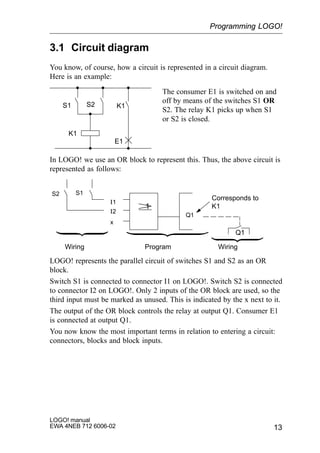
You know, of course, how a circuit is represented in a circuit diagram.
Here is an example:
K1
S1 K1S2
E1
The consumer E1 is switched on and
off by means of the switches S1 OR
S2. The relay K1 picks up when S1
or S2 is closed.
In LOGO! we use an OR block to represent this. Thus, the above circuit is
represented as follows:
I1
I2
x
Q1
1
S2 S1
Wiring
Q1
Program Wiring
Corresponds to
K1
LOGO! represents the parallel circuit of switches S1 and S2 as an OR
block.
Switch S1 is connected to connector I1 on LOGO!. Switch S2 is connected
to connector I2 on LOGO!. Only 2 inputs of the OR block are used, so the
third input must be marked as unused. This is indicated by the x next to it.
The output of the OR block controls the relay at output Q1. Consumer E1
is connected at output Q1.
You now know the most important terms in relation to entering a circuit:
connectors, blocks and block inputs.
Programming LOGO!
LOGO! manual
EWA 4NEB 712 6006-02
14
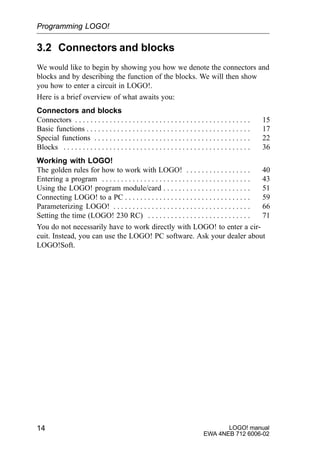
3.2 Connectors and blocks
We would like to begin by showing you how we denote the connectors and
blocks and by describing the function of the blocks. We will then show
you how to enter a circuit in LOGO!.
Here is a brief overview of what awaits you:
Connectors and blocks
Connectors 15. . . . . . . . . . . . . . . . . . . . . . . . . . . . . . . . . . . . . . . . . . . . . .
Basic functions 17. . . . . . . . . . . . . . . . . . . . . . . . . . . . . . . . . . . . . . . . . . .
Special functions 22. . . . . . . . . . . . . . . . . . . . . . . . . . . . . . . . . . . . . . . . .
Blocks 36. . . . . . . . . . . . . . . . . . . . . . . . . . . . . . . . . . . . . . . . . . . . . . . . .
Working with LOGO!
The golden rules for how to work with LOGO! 40. . . . . . . . . . . . . . . . .
Entering a program 43. . . . . . . . . . . . . . . . . . . . . . . . . . . . . . . . . . . . . . .
Using the LOGO! program module/card 51. . . . . . . . . . . . . . . . . . . . . . .
Connecting LOGO! to a PC 59. . . . . . . . . . . . . . . . . . . . . . . . . . . . . . . . .
Parameterizing LOGO! 66. . . . . . . . . . . . . . . . . . . . . . . . . . . . . . . . . . . .
Setting the time (LOGO! 230 RC) 71. . . . . . . . . . . . . . . . . . . . . . . . . . .
You do not necessarily have to work directly with LOGO! to enter a cir-
cuit. Instead, you can use the LOGO! PC software. Ask your dealer about
LOGO!Soft.
Programming LOGO!
15
LOGO! manual
EWA 4NEB 712 6006-02
3.3 Connectors
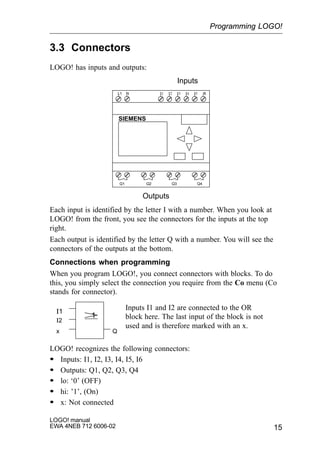
LOGO! has inputs and outputs:
Inputs
Outputs
L1 N I1 I2 I3 I4 I5 I6
Q1 Q2 Q3 Q4
SIEMENS
Each input is identified by the letter I with a number. When you look at
LOGO! from the front, you see the connectors for the inputs at the top
right.
Each output is identified by the letter Q with a number. You will see the
connectors of the outputs at the bottom.
Connections when programming
When you program LOGO!, you connect connectors with blocks. To do
this, you simply select the connection you require from the Co menu (Co
stands for connector).
I1
I2
x
1
Inputs I1 and I2 are connected to the OR
block here. The last input of the block is not
used and is therefore marked with an x.
Q
LOGO! recognizes the following connectors:
S Inputs: I1, I2, I3, I4, I5, I6
S Outputs: Q1, Q2, Q3, Q4
S lo: ‘0’ (OFF)
S hi: ’1’, (On)
S x: Not connected
Programming LOGO!
LOGO! manual
EWA 4NEB 712 6006-02
16
The inputs and outputs can have the state ’0’ or ’1’. ’0’ means there is no
voltage at the input, and ’1’ means that there is. But that is unlikely to be
new to you.
We introduced the connectors hi, lo and x in order to facilitate program
entry for you. ’hi’ has the fixed state ’1’, and ’lo” has the fixed state ’0’.
If you do not want to wire an input on a block, you use the ’x’ connector.
Programming LOGO!
17
LOGO! manual
EWA 4NEB 712 6006-02
3.4 Basic functions
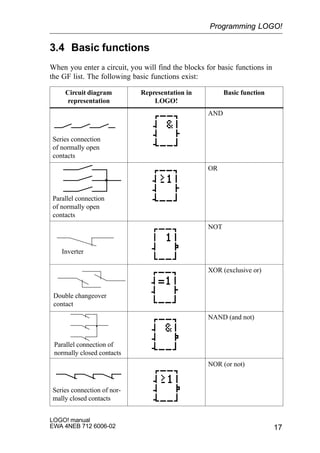
When you enter a circuit, you will find the blocks for basic functions in
the GF list. The following basic functions exist:
Circuit diagram
representation
Representation in
LOGO!
Basic function
Series connection
of normally open
contacts
AND
Parallel connection
of normally open
contacts
OR
Inverter
NOT
Double changeover
contact
XOR (exclusive or)
Parallel connection of
normally closed contacts
NAND (and not)
Series connection of nor-
mally closed contacts
NOR (or not)
Programming LOGO!
LOGO! manual
EWA 4NEB 712 6006-02
18
3.4.1 AND
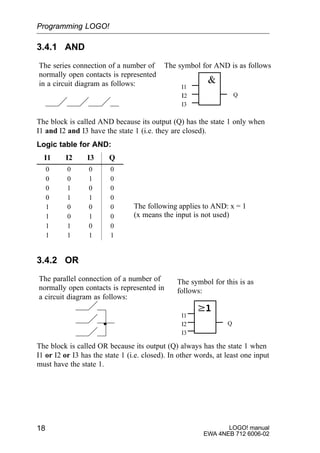
I1
I2
I3
Q
The series connection of a number of
normally open contacts is represented
in a circuit diagram as follows:
The symbol for AND is as follows
The block is called AND because its output (Q) has the state 1 only when
I1 and I2 and I3 have the state 1 (i.e. they are closed).
Logic table for AND:
I1 I2 I3 Q
0 0 0 0
0 0 1 0
0 1 0 0
0 1 1 0
1 0 0 0
1 0 1 0
1 1 0 0
1 1 1 1
3.4.2 OR
The symbol for this is as
follows:
I1
I2
I3
Q
The parallel connection of a number of
normally open contacts is represented in
a circuit diagram as follows:
The block is called OR because its output (Q) always has the state 1 when
I1 or I2 or I3 has the state 1 (i.e. closed). In other words, at least one input
must have the state 1.
Programming LOGO!
The following applies to AND: x = 1
(x means the input is not used)
19
LOGO! manual
EWA 4NEB 712 6006-02
Logic table for OR:
I1 I2 I3 Q
0 0 0 0
0 0 1 1
0 1 0 1
0 1 1 1
1 0 0 1
1 0 1 1
1 1 0 1
1 1 1 1
3.4.3 NOT
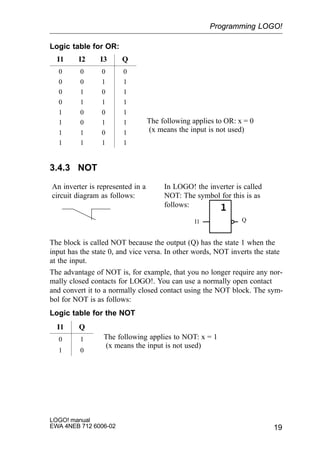
An inverter is represented in a
circuit diagram as follows:
QI1
In LOGO! the inverter is called
NOT: The symbol for this is as
follows:
The block is called NOT because the output (Q) has the state 1 when the
input has the state 0, and vice versa. In other words, NOT inverts the state
at the input.
The advantage of NOT is, for example, that you no longer require any nor-
mally closed contacts for LOGO!. You can use a normally open contact
and convert it to a normally closed contact using the NOT block. The sym-
bol for NOT is as follows:
Logic table for the NOT
I1 Q
0 1
1 0
Programming LOGO!
The following applies to OR: x = 0
(x means the input is not used)
The following applies to NOT: x = 1
(x means the input is not used)
LOGO! manual
EWA 4NEB 712 6006-02
20
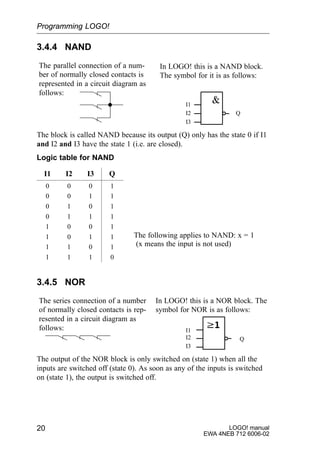
3.4.4 NAND
I1
I2
I3
Q
The parallel connection of a num-
ber of normally closed contacts is
represented in a circuit diagram as
follows:
In LOGO! this is a NAND block.
The symbol for it is as follows:
The block is called NAND because its output (Q) only has the state 0 if I1
and I2 and I3 have the state 1 (i.e. are closed).
Logic table for NAND
I1 I2 I3 Q
0 0 0 1
0 0 1 1
0 1 0 1
0 1 1 1
1 0 0 1
1 0 1 1
1 1 0 1
1 1 1 0
3.4.5 NOR
I1
I2
I3
Q
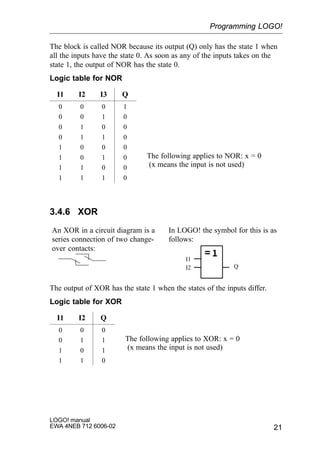
The series connection of a number
of normally closed contacts is rep-
resented in a circuit diagram as
follows:
In LOGO! this is a NOR block. The
symbol for NOR is as follows:
The output of the NOR block is only switched on (state 1) when all the
inputs are switched off (state 0). As soon as any of the inputs is switched
on (state 1), the output is switched off.
Programming LOGO!
The following applies to NAND: x = 1
(x means the input is not used)
21
LOGO! manual
EWA 4NEB 712 6006-02
The block is called NOR because its output (Q) only has the state 1 when
all the inputs have the state 0. As soon as any of the inputs takes on the
state 1, the output of NOR has the state 0.
Logic table for NOR
I1 I2 I3 Q
0 0 0 1
0 0 1 0
0 1 0 0
0 1 1 0
1 0 0 0
1 0 1 0
1 1 0 0
1 1 1 0
3.4.6 XOR
An XOR in a circuit diagram is a
series connection of two change-
over contacts:
Q
I1
I2
In LOGO! the symbol for this is as
follows:
The output of XOR has the state 1 when the states of the inputs differ.
Logic table for XOR
I1 I2 Q
0 0 0
0 1 1
1 0 1
1 1 0
Programming LOGO!
The following applies to NOR: x = 0
(x means the input is not used)
The following applies to XOR: x = 0
(x means the input is not used)
LOGO! manual
EWA 4NEB 712 6006-02
22
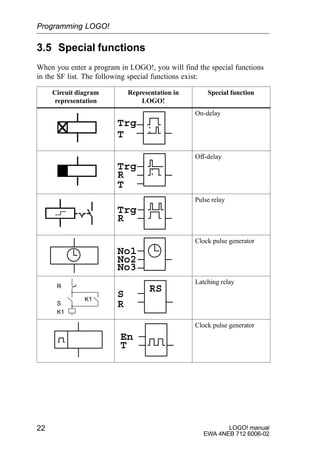
3.5 Special functions
When you enter a program in LOGO!, you will find the special functions
in the SF list. The following special functions exist:
Circuit diagram
representation
Representation in
LOGO!
Special function
Trg
T
On-delay
Trg
T
R
Off-delay
Trg
R
Pulse relay
No1
No3
No2
Clock pulse generator
R
S
K1
K1
RS
R
S
Latching relay
En
T
Clock pulse generator
Programming LOGO!
23
LOGO! manual
EWA 4NEB 712 6006-02
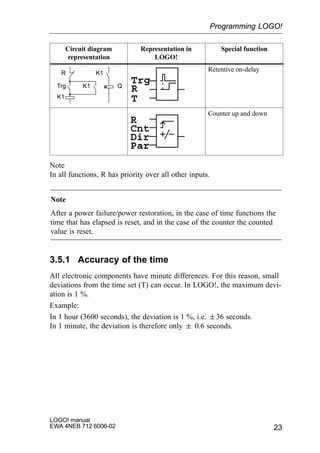
Circuit diagram
representation
Special functionRepresentation in
LOGO!
R K1
K1
K1Trg Q
Trg
T
R
Retentive on-delay
R
Cnt
Dir
Par
Counter up and down
Note
In all functions, R has priority over all other inputs.
Note
After a power failure/power restoration, in the case of time functions the
time that has elapsed is reset, and in the case of the counter the counted
value is reset.
3.5.1 Accuracy of the time
All electronic components have minute differences. For this reason, small
deviations from the time set (T) can occur. In LOGO!, the maximum devi-
ation is 1 %.
Example:
In 1 hour (3600 seconds), the deviation is 1 %, i.e. 36 seconds.
In 1 minute, the deviation is therefore only  0.6 seconds.
Programming LOGO!
LOGO! manual
EWA 4NEB 712 6006-02
24
3.5.2 On-delay
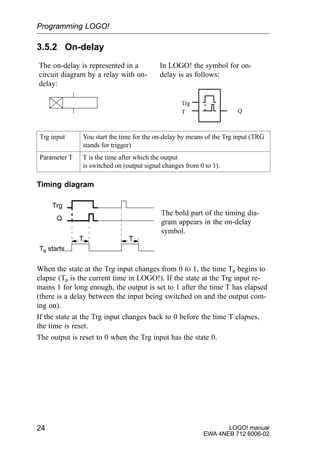
The on-delay is represented in a
circuit diagram by a relay with on-
delay:
Trg
T Q
In LOGO! the symbol for on-
delay is as follows:
Trg input You start the time for the on-delay by means of the Trg input (TRG
stands for trigger)
Parameter T T is the time after which the output
is switched on (output signal changes from 0 to 1).
Timing diagram
Trg
T T
Ta starts
Q
The bold part of the timing dia-
gram appears in the on-delay
symbol.
When the state at the Trg input changes from 0 to 1, the time Ta begins to
elapse (Ta is the current time in LOGO!). If the state at the Trg input re-
mains 1 for long enough, the output is set to 1 after the time T has elapsed
(there is a delay between the input being switched on and the output com-
ing on).
If the state at the Trg input changes back to 0 before the time T elapses,
the time is reset.
The output is reset to 0 when the Trg input has the state 0.
Programming LOGO!
25
LOGO! manual
EWA 4NEB 712 6006-02
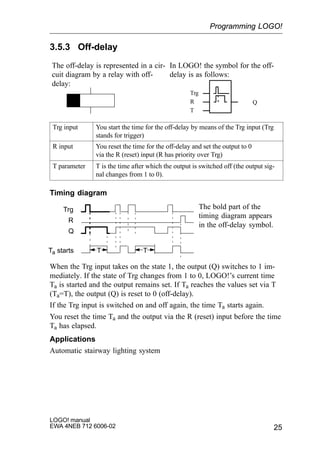
3.5.3 Off-delay
The off-delay is represented in a cir-
cuit diagram by a relay with off-
delay:
In LOGO! the symbol for the off-
delay is as follows:
Trg
R
T
Q
Trg input You start the time for the off-delay by means of the Trg input (Trg
stands for trigger)
R input You reset the time for the off-delay and set the output to 0
via the R (reset) input (R has priority over Trg)
T parameter T is the time after which the output is switched off (the output sig-
nal changes from 1 to 0).
Timing diagram
Trg
TTTa starts
Q
R
The bold part of the
timing diagram appears
in the off-delay symbol.
When the Trg input takes on the state 1, the output (Q) switches to 1 im-
mediately. If the state of Trg changes from 1 to 0, LOGO!’s current time
Ta is started and the output remains set. If Ta reaches the values set via T
(Ta=T), the output (Q) is reset to 0 (off-delay).
If the Trg input is switched on and off again, the time Ta starts again.
You reset the time Ta and the output via the R (reset) input before the time
Ta has elapsed.
Applications
Automatic stairway lighting system
Programming LOGO!
LOGO! manual
EWA 4NEB 712 6006-02
26
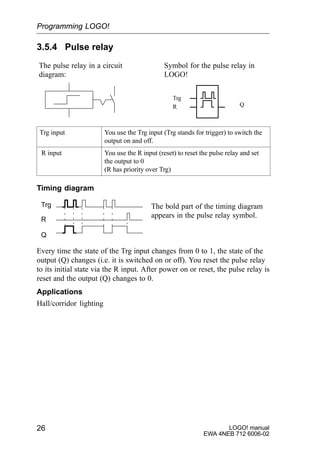
3.5.4 Pulse relay
Trg
R Q
Symbol for the pulse relay in
LOGO!
The pulse relay in a circuit
diagram:
Trg input You use the Trg input (Trg stands for trigger) to switch the
output on and off.
R input You use the R input (reset) to reset the pulse relay and set
the output to 0
(R has priority over Trg)
Timing diagram
Trg
Q
R
The bold part of the timing diagram
appears in the pulse relay symbol.
Every time the state of the Trg input changes from 0 to 1, the state of the
output (Q) changes (i.e. it is switched on or off). You reset the pulse relay
to its initial state via the R input. After power on or reset, the pulse relay is
reset and the output (Q) changes to 0.
Applications
Hall/corridor lighting
Programming LOGO!
27
LOGO! manual
EWA 4NEB 712 6006-02
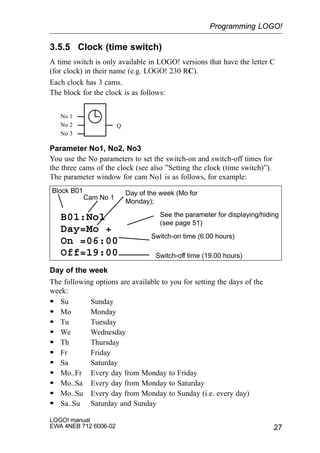
3.5.5 Clock (time switch)
A time switch is only available in LOGO! versions that have the letter C
(for clock) in their name (e.g. LOGO! 230 RC).
Each clock has 3 cams.
The block for the clock is as follows:
No 1
No 2
No 3
Q
Parameter No1, No2, No3
You use the No parameters to set the switch-on and switch-off times for
the three cams of the clock (see also ”Setting the clock (time switch)”).
The parameter window for cam No1 is as follows, for example:
B01:No1
Day=Mo +
On =06:00
Off=19:00
Day of the week (Mo for
Monday);
Switch-on time (6.00 hours)
See the parameter for displaying/hiding
(see page 51)
Switch-off time (19.00 hours)
Block B01
Cam No 1
Day of the week
The following options are available to you for setting the days of the
week:
S Su Sunday
S Mo Monday
S Tu Tuesday
S We Wednesday
S Th Thursday
S Fr Friday
S Sa Saturday
S Mo..Fr Every day from Monday to Friday
S Mo..Sa Every day from Monday to Saturday
S Mo..Su Every day from Monday to Sunday (i.e. every day)
S Sa..Su Saturday and Sunday
Programming LOGO!
LOGO! manual
EWA 4NEB 712 6006-02
28
Switch-on time
Any time between 00:00 and 23:59 hours
––:–– means there is no switch-on time
Switch-off time
Any time between 00:00 and 23:59 hours
––:–– means there is no switch-off time
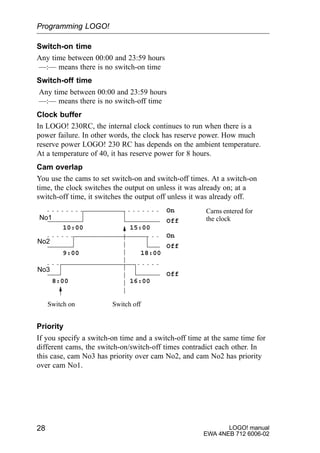
Clock buffer
In LOGO! 230RC, the internal clock continues to run when there is a
power failure. In other words, the clock has reserve power. How much
reserve power LOGO! 230 RC has depends on the ambient temperature.
At a temperature of 40, it has reserve power for 8 hours.
Cam overlap
You use the cams to set switch-on and switch-off times. At a switch-on
time, the clock switches the output on unless it was already on; at a
switch-off time, it switches the output off unless it was already off.
No1
No2
No3
Carns entered for
the clock
Switch on Switch off
On
Off
10:00 15:00
On
Off
9:00 18:00
Off
8:00 16:00
Priority
If you specify a switch-on time and a switch-off time at the same time for
different cams, the switch-on/switch-off times contradict each other. In
this case, cam No3 has priority over cam No2, and cam No2 has priority
over cam No1.
Programming LOGO!
29
LOGO! manual
EWA 4NEB 712 6006-02
3.5.6 Setting the clock (time switch)
To enter switching times, proceed as follows:
1. Position the cursor on one of the clock’s No parameters (e.g. No1).
2. Press the OK key. LOGO! opens the parameter window for the cam.
The cursor is positioned on the day of the week.
3. Use the and keys to select one or more days of the week.
4. Use the key to move the cursor to the first position for the switch-on
time.
5. Set the switch-on time.
You use the and keys to change the value. To move the cursor
from one position to another, you use the and keys.
You can only select the value ––:–at the first position
(––:–– means no switching operation).
6. Set the switch-off time (same procedure as for step 5).
7. Conclude your input by pressing the OK key.
3.5.7 Clock: examples
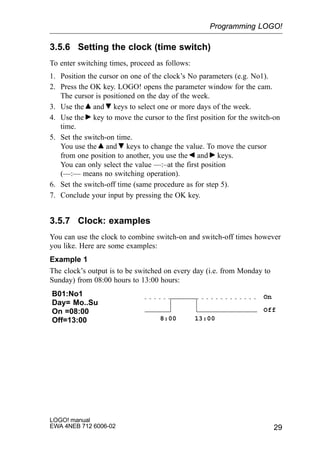
You can use the clock to combine switch-on and switch-off times however
you like. Here are some examples:
Example 1
The clock’s output is to be switched on every day (i.e. from Monday to
Sunday) from 08:00 hours to 13:00 hours:
B01:No1
Day= Mo..Su
On =08:00
Off=13:00
On
Off
8:00 13:00
Programming LOGO!
LOGO! manual
EWA 4NEB 712 6006-02
30
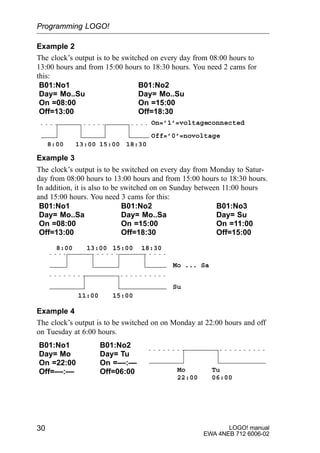
Example 2
The clock’s output is to be switched on every day from 08:00 hours to
13:00 hours and from 15:00 hours to 18:30 hours. You need 2 cams for
this:
B01:No1
Day= Mo..Su
On =08:00
Off=13:00
B01:No2
Day= Mo..Su
On =15:00
Off=18:30
On=’1’=voltageconnected
Off=’0’=novoltage
8:00 13:00 15:00 18:30
Example 3
The clock’s output is to be switched on every day from Monday to Satur-
day from 08:00 hours to 13:00 hours and from 15:00 hours to 18:30 hours.
In addition, it is also to be switched on on Sunday between 11:00 hours
and 15:00 hours. You need 3 cams for this:
B01:No1
Day= Mo..Sa
On =08:00
Off=13:00
B01:No2
Day= Mo..Sa
On =15:00
Off=18:30
B01:No3
Day= Su
On =11:00
Off=15:00
Mo ... Sa
8:00 13:00 15:00 18:30
Su
11:00 15:00
Example 4
The clock’s output is to be switched on on Monday at 22:00 hours and off
on Tuesday at 6:00 hours.
B01:No1
Day= Mo
On =22:00
Off=––:––
B01:No2
Day= Tu
On =––:––
Off=06:00 Mo
22:00
Tu
06:00
Programming LOGO!
31
LOGO! manual
EWA 4NEB 712 6006-02
3.5.8 Latching relay
Very often, a circuit is required that retains a switched-on state. This is
referred to as latching. Latching is represented in a circuit diagram as fol-
lows:
LOGO! has a separate block for this type of cir-
cuit. The symbol for a latching relay is as fol-
lows:
S
R Q
RS
Q
QS
R
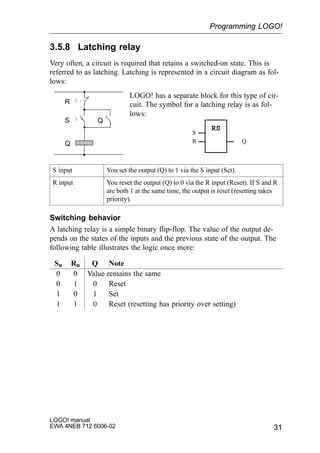
S input You set the output (Q) to 1 via the S input (Set).
R input You reset the output (Q) to 0 via the R input (Reset). If S and R
are both 1 at the same time, the output is reset (resetting takes
priority).
Switching behavior
A latching relay is a simple binary flip-flop. The value of the output de-
pends on the states of the inputs and the previous state of the output. The
following table illustrates the logic once more:
Sn Rn Q Note
0 0 Value remains the same
0 1 0 Reset
1 0 1 Set
1 1 0 Reset (resetting has priority over setting)
Programming LOGO!
LOGO! manual
EWA 4NEB 712 6006-02
32
3.5.9 Clock pulse generator
En
T Q
The symbol for a clock pulse gen-
erator in LOGO!
A clock pulse generator in a cir-
cuit diagram:
En input You switch the clock pulse generator on and off via the En in-
put (enable).
T parameter T is the time for which the output is switched on or off.
Timing diagram
En
Q T T
T T
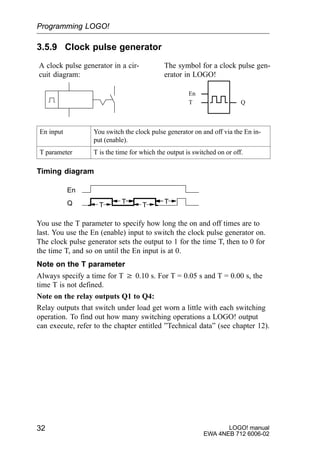
You use the T parameter to specify how long the on and off times are to
last. You use the En (enable) input to switch the clock pulse generator on.
The clock pulse generator sets the output to 1 for the time T, then to 0 for
the time T, and so on until the En input is at 0.
Note on the T parameter
Always specify a time for T w 0.10 s. For T = 0.05 s and T = 0.00 s, the
time T is not defined.
Note on the relay outputs Q1 to Q4:
Relay outputs that switch under load get worn a little with each switching
operation. To find out how many switching operations a LOGO! output
can execute, refer to the chapter entitled ”Technical data” (see chapter 12).
Programming LOGO!
33
LOGO! manual
EWA 4NEB 712 6006-02
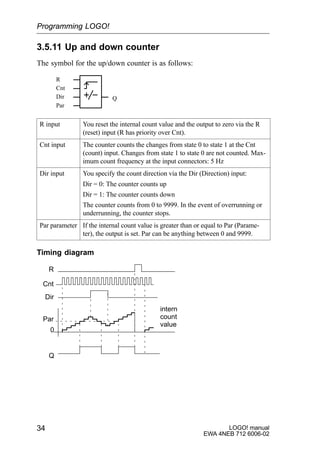
3.5.10 Retentive on-delay
Trg
R
T
Q
Retentive on-delay in LOGO!Retentive on-delay in a cir-
cuit diagram:
R K1
K1
K1Trg Q
Trg input You start the time for the on-delay via the Trg (trigger) input
R input You reset the time for the on-delay and set the output to 0
via the R (reset) input(R has priority over Trg)
T parameter T is the time after which the output is switched on (the output
changes from 0 to 1).
Timing diagram
Trg
TTa starts
Q
R
T
The bold part of the
timing diagram ap-
pears in the retentive
on-relay symbol.
If the state of the Trg input changes from 0 to 1, the current time Ta starts.
When Ta reaches the time T, the output (Q) is set to 1. Another switching
operation at the Trg input has no effect on Ta.
The output and the time Ta are not reset to 0 until the state of the R input
changes to 1 again.
Programming LOGO!
LOGO! manual
EWA 4NEB 712 6006-02
34
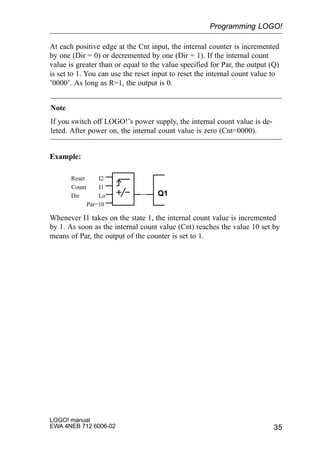
3.5.11 Up and down counter
The symbol for the up/down counter is as follows:
Cnt
Dir
Par
R
Q
R input You reset the internal count value and the output to zero via the R
(reset) input (R has priority over Cnt).
Cnt input The counter counts the changes from state 0 to state 1 at the Cnt
(count) input. Changes from state 1 to state 0 are not counted. Max-
imum count frequency at the input connectors: 5 Hz
Dir input You specify the count direction via the Dir (Direction) input:
Dir = 0: The counter counts up
Dir = 1: The counter counts down
The counter counts from 0 to 9999. In the event of overrunning or
underrunning, the counter stops.
Par parameter If the internal count value is greater than or equal to Par (Parame-
ter), the output is set. Par can be anything between 0 and 9999.
Timing diagram
R
Dir
Par
Cnt
0
Q
intern
count
value
Programming LOGO!
35
LOGO! manual
EWA 4NEB 712 6006-02
At each positive edge at the Cnt input, the internal counter is incremented
by one (Dir = 0) or decremented by one (Dir = 1). If the internal count
value is greater than or equal to the value specified for Par, the output (Q)
is set to 1. You can use the reset input to reset the internal count value to
’0000’. As long as R=1, the output is 0.
Note
If you switch off LOGO!’s power supply, the internal count value is de-
leted. After power on, the internal count value is zero (Cnt=0000).
Example:
Count I1
Dir Lo
Par=10
Reset I2
Q1
Whenever I1 takes on the state 1, the internal count value is incremented
by 1. As soon as the internal count value (Cnt) reaches the value 10 set by
means of Par, the output of the counter is set to 1.
Programming LOGO!
LOGO! manual
EWA 4NEB 712 6006-02
36
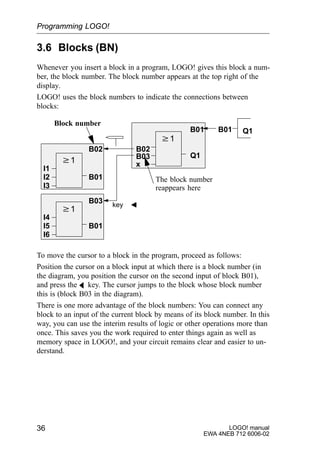
3.6 Blocks (BN)
Whenever you insert a block in a program, LOGO! gives this block a num-
ber, the block number. The block number appears at the top right of the
display.
LOGO! uses the block numbers to indicate the connections between
blocks:
I1
I2
I3
w1
B01
B02 B02
w1
B03 Q1
B01 B01
key
I4
I5
I6
w1
B01
B03
The block number
reappears here
Block number
Q1
x
To move the cursor to a block in the program, proceed as follows:
Position the cursor on a block input at which there is a block number (in
the diagram, you position the cursor on the second input of block B01),
and press the A key. The cursor jumps to the block whose block number
this is (block B03 in the diagram).
There is one more advantage of the block numbers: You can connect any
block to an input of the current block by means of its block number. In this
way, you can use the interim results of logic or other operations more than
once. This saves you the work required to enter things again as well as
memory space in LOGO!, and your circuit remains clear and easier to un-
derstand.
Programming LOGO!
37
LOGO! manual
EWA 4NEB 712 6006-02
3.7 Memory required and size of a circuit
A program (or circuit diagram, if you prefer) is subject to limitations with
regard to:
S The number of blocks connected in series
S The memory available
Number of blocks connected in series
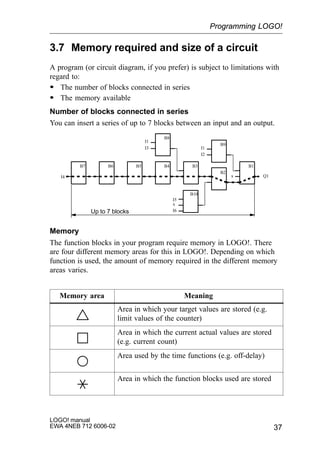
You can insert a series of up to 7 blocks between an input and an output.
Q1x
I1
I2
I4
I5
x
I6
I1
I3
B1
B2
B3B4B5B6B7
B8
B9
B10
Up to 7 blocks
Memory
The function blocks in your program require memory in LOGO!. There
are four different memory areas for this in LOGO!. Depending on which
function is used, the amount of memory required in the different memory
areas varies.
Memory area Meaning
Area in which your target values are stored (e.g.
limit values of the counter)
Area in which the current actual values are stored
(e.g. current count)
Area used by the time functions (e.g. off-delay)
Area in which the function blocks used are stored
Programming LOGO!
LOGO! manual
EWA 4NEB 712 6006-02
38
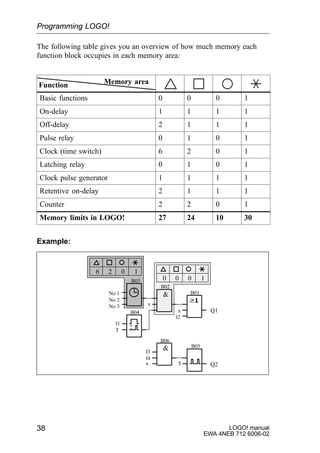
The following table gives you an overview of how much memory each
function block occupies in each memory area:
Function Memory area
Basic functions 0 0 0 1
On-delay 1 1 1 1
Off-delay 2 1 1 1
Pulse relay 0 1 0 1
Clock (time switch) 6 2 0 1
Latching relay 0 1 0 1
Clock pulse generator 1 1 1 1
Retentive on-delay 2 1 1 1
Counter 2 2 0 1
Memory limits in LOGO! 27 24 10 30
Example:
Q1x
I2
B01
B02
B03
x
B04
0 100
6 102
No 1
No 2
No 3
I1
T
B05
B06
T Q2
I3
I4
x
Programming LOGO!
39
LOGO! manual
EWA 4NEB 712 6006-02
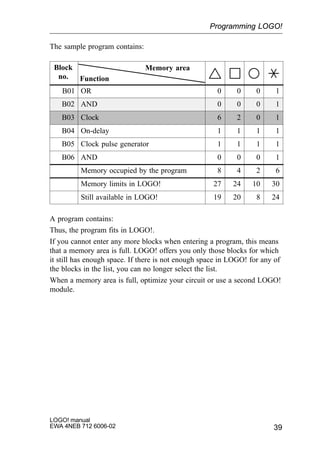
The sample program contains:
Block
no. Function
Memory area
B01 OR 0 0 0 1
B02 AND 0 0 0 1
B03 Clock 6 2 0 1
B04 On-delay 1 1 1 1
B05 Clock pulse generator 1 1 1 1
B06 AND 0 0 0 1
Memory occupied by the program 8 4 2 6
Memory limits in LOGO! 27 24 10 30
Still available in LOGO! 19 20 8 24
A program contains:
Thus, the program fits in LOGO!.
If you cannot enter any more blocks when entering a program, this means
that a memory area is full. LOGO! offers you only those blocks for which
it still has enough space. If there is not enough space in LOGO! for any of
the blocks in the list, you can no longer select the list.
When a memory area is full, optimize your circuit or use a second LOGO!
module.
Programming LOGO!
LOGO! manual
EWA 4NEB 712 6006-02
40
3.8 The golden rules for working with LOGO!
Rule 1
You enter the circuit in programming mode. You switch to programming
mode by pressing the 3 keys , and OK simultaneously.
You change the values of times and parameters in parameterization mode.
You switch to parameterization mode by pressing the 2 keys ESC and OK
simultaneously.
Rule 2
You enter a circuit in the following sequence:
From output to input
Rule 3
The following applies when entering a circuit:
S When the cursor appears in the form of an underscore, you can move
the cursor
– Use the keys , , and to move the cursor in the circuit
– Press OK to select a connnector/block
– Press ESC to exit circuit input
S When the cursor appears in the form of a solid block, you select a
connector/block
– Use the keys and to select a connector/block
– Press OK to accept a selection
– Press ESC to go back one step
Rule 4
LOGO! can only store complete programs
Programming LOGO!
41
LOGO! manual
EWA 4NEB 712 6006-02
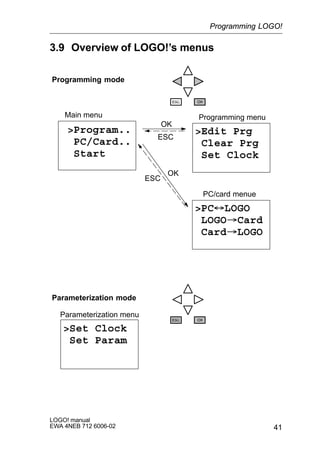
3.9 Overview of LOGO!’s menus
Program..
PC/Card..
Start
Edit Prg
Clear Prg
Set Clock
PC´LOGO
LOGO³Card
Card³LOGO
Main menu Programming menu
PC/card menue
Set Clock
Set Param
OK
OK
ESC
ESC
Parameterization menu
Programming mode
Parameterization mode
Programming LOGO!
LOGO! manual
EWA 4NEB 712 6006-02
42
3.10Converting a circuit diagram to a block
representation
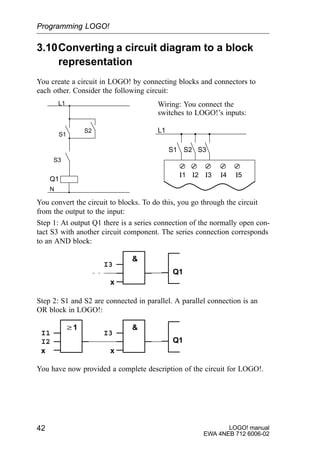
You create a circuit in LOGO! by connecting blocks and connectors to
each other. Consider the following circuit:
L1
N
S1
Q1
S2
S3
Wiring: You connect the
switches to LOGO!’s inputs:
I1 I2 I3 I4 I5
L1
S1 S2 S3
You convert the circuit to blocks. To do this, you go through the circuit
from the output to the input:
Step 1: At output Q1 there is a series connection of the normally open con-
tact S3 with another circuit component. The series connection corresponds
to an AND block:
I3
x
Q1

Step 2: S1 and S2 are connected in parallel. A parallel connection is an
OR block in LOGO!:
I3
x
Q1
w1
I1
I2
x
You have now provided a complete description of the circuit for LOGO!.
Programming LOGO!
43
LOGO! manual
EWA 4NEB 712 6006-02
3.11Entering a program
You have designed a circuit and now want to enter it in LOGO!. The ex-
ample below illustrates how to do this.
3.11.1 Switching to programming mode
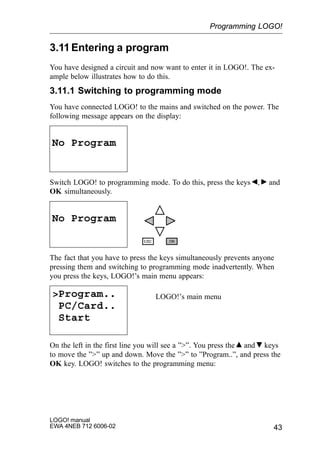
You have connected LOGO! to the mains and switched on the power. The
following message appears on the display:
No Program
Switch LOGO! to programming mode. To do this, press the keys , and
OK simultaneously.
No Program
The fact that you have to press the keys simultaneously prevents anyone
pressing them and switching to programming mode inadvertently. When
you press the keys, LOGO!’s main menu appears:
Program..
PC/Card..
Start
LOGO!’s main menu
On the left in the first line you will see a ””. You press the and keys
to move the ”” up and down. Move the ”” to ”Program..”, and press the
OK key. LOGO! switches to the programming menu:
Programming LOGO!
LOGO! manual
EWA 4NEB 712 6006-02
44
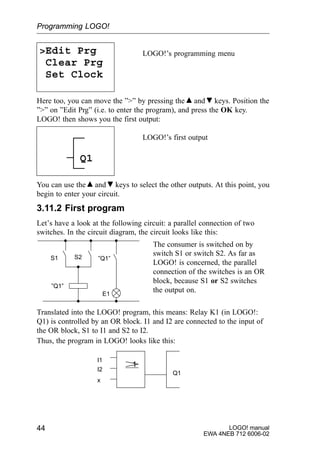
Edit Prg
Clear Prg
Set Clock
LOGO!’s programming menu
Here too, you can move the ”” by pressing the and keys. Position the
”” on ”Edit Prg” (i.e. to enter the program), and press the OK key.
LOGO! then shows you the first output:
LOGO!’s first output
Q1
You can use the and keys to select the other outputs. At this point, you
begin to enter your circuit.
3.11.2 First program
Let’s have a look at the following circuit: a parallel connection of two
switches. In the circuit diagram, the circuit looks like this:
”Q1”
S1 ”Q1”S2
E1
The consumer is switched on by
switch S1 or switch S2. As far as
LOGO! is concerned, the parallel
connection of the switches is an OR
block, because S1 or S2 switches
the output on.
Translated into the LOGO! program, this means: Relay K1 (in LOGO!:
Q1) is controlled by an OR block. I1 and I2 are connected to the input of
the OR block, S1 to I1 and S2 to I2.
Thus, the program in LOGO! looks like this:
I1
I2
x
Q1
1
Programming LOGO!
45
LOGO! manual
EWA 4NEB 712 6006-02
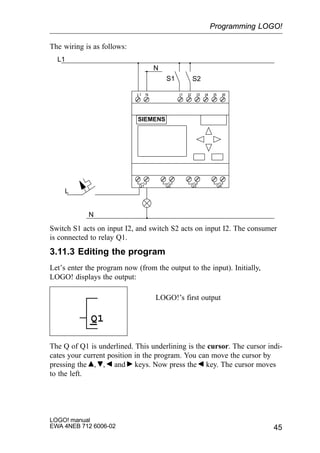
The wiring is as follows:
L1 N I1 I2 I3 I4 I5 I6
Q1 Q2 Q3 Q4
SIEMENS
L1
N
S1 S2
L
N
Switch S1 acts on input I2, and switch S2 acts on input I2. The consumer
is connected to relay Q1.
3.11.3 Editing the program
Let’s enter the program now (from the output to the input). Initially,
LOGO! displays the output:
LOGO!’s first output
Q1
The Q of Q1 is underlined. This underlining is the cursor. The cursor indi-
cates your current position in the program. You can move the cursor by
pressing the , , and keys. Now press the key. The cursor moves
to the left.
Programming LOGO!
LOGO! manual
EWA 4NEB 712 6006-02
46
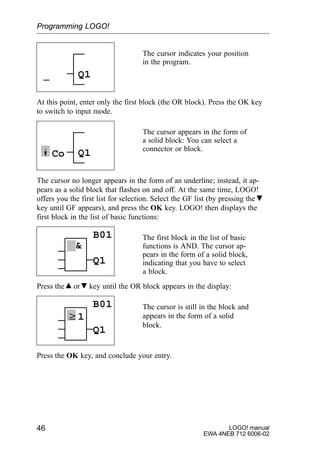
The cursor indicates your position
in the program.
Q1
At this point, enter only the first block (the OR block). Press the OK key
to switch to input mode.
The cursor appears in the form of
a solid block: You can select a
connector or block.
Q1Co
The cursor no longer appears in the form of an underline; instead, it ap-
pears as a solid block that flashes on and off. At the same time, LOGO!
offers you the first list for selection. Select the GF list (by pressing the
key until GF appears), and press the OK key. LOGO! then displays the
first block in the list of basic functions:
The first block in the list of basic
functions is AND. The cursor ap-
pears in the form of a solid block,
indicating that you have to select
a block.

B01
Q1
Press the or key until the OR block appears in the display:
w1
The cursor is still in the block and
appears in the form of a solid
block.
B01
Q1
Press the OK key, and conclude your entry.
Programming LOGO!
47
LOGO! manual
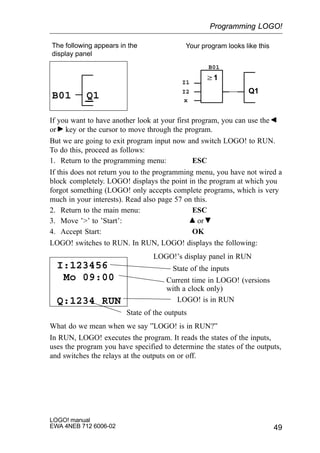
EWA 4NEB 712 6006-02
w1
The following appears in the display panel
B01
Q1
B01
w1
Q1
Your program looks like this
Block number
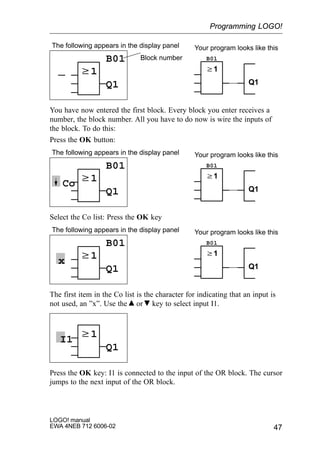
You have now entered the first block. Every block you enter receives a
number, the block number. All you have to do now is wire the inputs of
the block. To do this:
Press the OK button:
w1
The following appears in the display panel
B01
Q1
B01
w1
Q1
Your program looks like this
Co
Select the Co list: Press the OK key
w1
The following appears in the display panel
B01
Q1
B01
w1
Q1
Your program looks like this
x
The first item in the Co list is the character for indicating that an input is
not used, an ”x”. Use the or key to select input I1.
w1
Q1
I1
Press the OK key: I1 is connected to the input of the OR block. The cursor
jumps to the next input of the OR block.
Programming LOGO!
LOGO! manual
EWA 4NEB 712 6006-02
48
w1
The following appears in
the display panel
B01
Q1
w1
Q1
Your program looks like this
I1
I1
B01
–
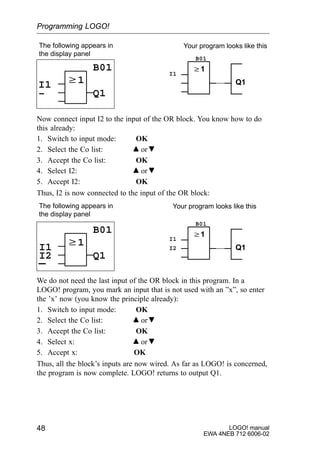
Now connect input I2 to the input of the OR block. You know how to do
this already:
1. Switch to input mode: OK
2. Select the Co list: or
3. Accept the Co list: OK
4. Select I2: or
5. Accept I2: OK
Thus, I2 is now connected to the input of the OR block:
w1
The following appears in
the display panel
B01
Q1
w1
Q1
Your program looks like this
I1
I1
B01
I2
I2
We do not need the last input of the OR block in this program. In a
LOGO! program, you mark an input that is not used with an ”x”, so enter
the ’x’ now (you know the principle already):
1. Switch to input mode: OK
2. Select the Co list: or
3. Accept the Co list: OK
4. Select x: or
5. Accept x: OK
Thus, all the block’s inputs are now wired. As far as LOGO! is concerned,
the program is now complete. LOGO! returns to output Q1.
Programming LOGO!
49
LOGO! manual
EWA 4NEB 712 6006-02
The following appears in the
display panel
w1
Q1
Your program looks like this
I1
B01
I2
Q1B01 x
If you want to have another look at your first program, you can use the
or key or the cursor to move through the program.
But we are going to exit program input now and switch LOGO! to RUN.
To do this, proceed as follows:
1. Return to the programming menu: ESC
If this does not return you to the programming menu, you have not wired a
block completely. LOGO! displays the point in the program at which you
forgot something (LOGO! only accepts complete programs, which is very
much in your interests). Read also page 57 on this.
2. Return to the main menu: ESC
3. Move ’’ to ’Start’: or
4. Accept Start: OK
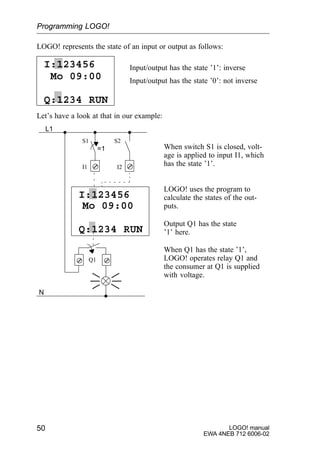
LOGO! switches to RUN. In RUN, LOGO! displays the following:
I:123456
LOGO!’s display panel in RUN
State of the inputs
Current time in LOGO! (versions
with a clock only)
LOGO! is in RUN
State of the outputs
I:123456
Mo 09:00
Q:1234 RUN
What do we mean when we say ”LOGO! is in RUN?”
In RUN, LOGO! executes the program. It reads the states of the inputs,
uses the program you have specified to determine the states of the outputs,

and switches the relays at the outputs on or off.
Programming LOGO!
LOGO! manual
EWA 4NEB 712 6006-02
50
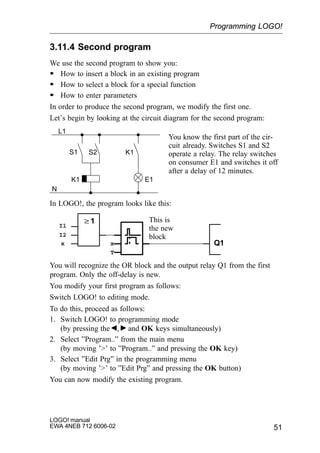
LOGO! represents the state of an input or output as follows:
Input/output has the state ’1’: inverse
Input/output has the state ’0’: not inverse
I:123456
Mo 09:00
Q:1234 RUN
Let’s have a look at that in our example:
When switch S1 is closed, volt-
age is applied to input I1, which
has the state ’1’.
LOGO! uses the program to
calculate the states of the out-
puts.
Output Q1 has the state
’1’ here.
When Q1 has the state ’1’,
LOGO! operates relay Q1 and
the consumer at Q1 is supplied
with voltage.
I:123456
Mo 09:00
Q:1234 RUN
L1
N
S1 S2
=1
I1 I2
Q1
Programming LOGO!
51
LOGO! manual
EWA 4NEB 712 6006-02
3.11.4 Second program
We use the second program to show you:
S How to insert a block in an existing program
S How to select a block for a special function
S How to enter parameters
In order to produce the second program, we modify the first one.
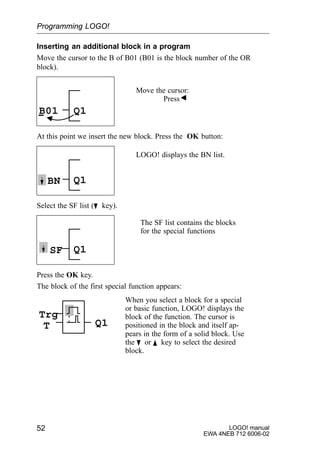
Let’s begin by looking at the circuit diagram for the second program:
You know the first part of the cir-
cuit already. Switches S1 and S2
operate a relay. The relay switches
on consumer E1 and switches it off
after a delay of 12 minutes.
L1
N
S1 S2 K1
K1 E1
In LOGO!, the program looks like this:
w1
Q1
I1
I2
x x
T
This is
the new
block
You will recognize the OR block and the output relay Q1 from the first
program. Only the off-delay is new.
You modify your first program as follows:
Switch LOGO! to editing mode.
To do this, proceed as follows:
1. Switch LOGO! to programming mode
(by pressing the , and OK keys simultaneously)
2. Select ”Program..” from the main menu
(by moving ’’ to ”Program..” and pressing the OK key)
3. Select ”Edit Prg” in the programming menu
(by moving ’’ to ”Edit Prg” and pressing the OK button)
You can now modify the existing program.
Programming LOGO!
LOGO! manual
EWA 4NEB 712 6006-02
52
Inserting an additional block in a program
Move the cursor to the B of B01 (B01 is the block number of the OR
block).
Q1B01
Move the cursor:
Press
At this point we insert the new block. Press the OK button:
Q1BN
LOGO! displays the BN list.
Select the SF list (B key).
Q1SF
The SF list contains the blocks
for the special functions
Press the OK key.
The block of the first special function appears:
Trg
T Q1
When you select a block for a special
or basic function, LOGO! displays the
block of the function. The cursor is
positioned in the block and itself ap-
pears in the form of a solid block. Use
the B or Y key to select the desired
block.
Programming LOGO!
53
LOGO! manual
EWA 4NEB 712 6006-02
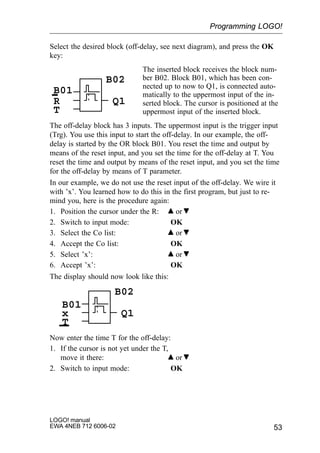
Select the desired block (off-delay, see next diagram), and press the OK
key:
R
The inserted block receives the block num-
ber B02. Block B01, which has been con-
nected up to now to Q1, is connected auto-
matically to the uppermost input of the in-
serted block. The cursor is positioned at the
uppermost input of the inserted block.
B01
T
Q1
B02
The off-delay block has 3 inputs. The uppermost input is the trigger input
(Trg). You use this input to start the off-delay. In our example, the off-
delay is started by the OR block B01. You reset the time and output by
means of the reset input, and you set the time for the off-delay at T. You
reset the time and output by means of the reset input, and you set the time
for the off-delay by means of T parameter.
In our example, we do not use the reset input of the off-delay. We wire it
with ’x’. You learned how to do this in the first program, but just to re-
mind you, here is the procedure again:
1. Position the cursor under the R: or
2. Switch to input mode: OK
3. Select the Co list: or
4. Accept the Co list: OK
5. Select ’x’: or
6. Accept ’x’: OK
The display should now look like this:
x
B01
T
Q1
B02
Now enter the time T for the off-delay:
1. If the cursor is not yet under the T,
move it there: or
2. Switch to input mode: OK
Programming LOGO!
LOGO! manual
EWA 4NEB 712 6006-02
54
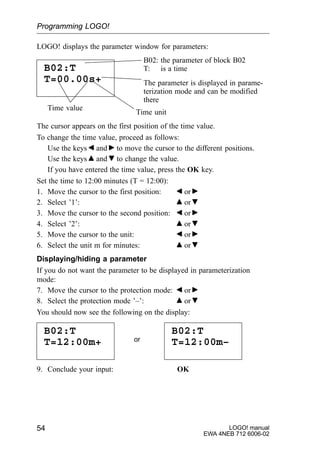
LOGO! displays the parameter window for parameters:
B02: the parameter of block B02
T: is a time
The parameter is displayed in parame-
terization mode and can be modified
there
B02:T
T=00.00s+
Time value
Time unit
The cursor appears on the first position of the time value.
To change the time value, proceed as follows:
Use the keys and to move the cursor to the different positions.
Use the keys and to change the value.
If you have entered the time value, press the OK key.
Set the time to 12:00 minutes (T = 12:00):
1. Move the cursor to the first position: or
2. Select ’1’: or
3. Move the cursor to the second position: or
4. Select ’2’: or
5. Move the cursor to the unit: or
6. Select the unit m for minutes: or
Displaying/hiding a parameter
If you do not want the parameter to be displayed in parameterization
mode:
7. Move the cursor to the protection mode: or
8. Select the protection mode ’–’: or
You should now see the following on the display:
B02:T
T=12:00m+
B02:T
T=12:00m–or
9. Conclude your input: OK
Programming LOGO!
55
LOGO! manual
EWA 4NEB 712 6006-02
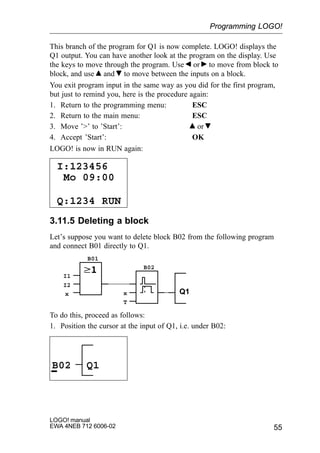
This branch of the program for Q1 is now complete. LOGO! displays the
Q1 output. You can have another look at the program on the display. Use
the keys to move through the program. Use or to move from block to
block, and use and to move between the inputs on a block.
You exit program input in the same way as you did for the first program,
but just to remind you, here is the procedure again:
1. Return to the programming menu: ESC
2. Return to the main menu: ESC
3. Move ’’ to ’Start’: or
4. Accept ’Start’: OK
LOGO! is now in RUN again:
I:123456
Q:1234 RUN
Mo 09:00
3.11.5 Deleting a block
Let’s suppose you want to delete block B02 from the following program
and connect B01 directly to Q1.
Q1
I1
I2
x x
T
B01
B02
To do this, proceed as follows:
1. Position the cursor at the input of Q1, i.e. under B02:
B02 Q1
Programming LOGO!
LOGO! manual
EWA 4NEB 712 6006-02
56
2. Press the OK key.
3. Connect block B01 instead of block B02 directly to output Q01:
Select the BN list, and then press OK.
Select B01, and then press OK.
Result: Block B02 is deleted. Block B01 is now connected directly to the
output instead of block B01.
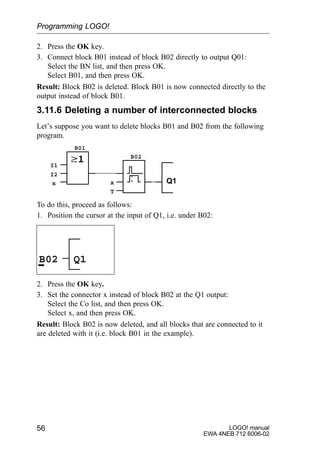
3.11.6 Deleting a number of interconnected blocks
Let’s suppose you want to delete blocks B01 and B02 from the following
program.
Q1
I1
I2
x x
T
B01
B02
To do this, proceed as follows:
1. Position the cursor at the input of Q1, i.e. under B02:
B02 Q1
2. Press the OK key.
3. Set the connector x instead of block B02 at the Q1 output:
Select the Co list, and then press OK.
Select x, and then press OK.
Result: Block B02 is now deleted, and all blocks that are connected to it
are deleted with it (i.e. block B01 in the example).
Programming LOGO!
57
LOGO! manual
EWA 4NEB 712 6006-02
3.11.7 Correcting typing errors
It is easy to correct typing errors in LOGO!:
S If you have not yet concluded input, you can use ESC to go back a step
S If you have already concluded input, simply start again:
1. Move the cursor to the location of the error
2. Switch to input mode: OK
3. Enter the correct wiring for the input.
You can only replace one block with another if the new block has exactly
the same number of inputs as the old one. However, you can delete the old
block and insert a new one. You can insert whichever block you like.
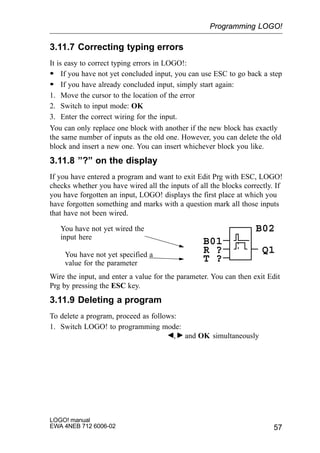
3.11.8 ”?” on the display
If you have entered a program and want to exit Edit Prg with ESC, LOGO!
checks whether you have wired all the inputs of all the blocks correctly. If
you have forgotten an input, LOGO! displays the first place at which you
have forgotten something and marks with a question mark all those inputs
that have not been wired.
You have not yet wired the
input here
You have not yet specified a
value for the parameter
R ?
B01
T ?
Q1
B02
Wire the input, and enter a value for the parameter. You can then exit Edit
Prg by pressing the ESC key.
3.11.9 Deleting a program
To delete a program, proceed as follows:
1. Switch LOGO! to programming mode:
, and OK simultaneously
Programming LOGO!
LOGO! manual
EWA 4NEB 712 6006-02
58
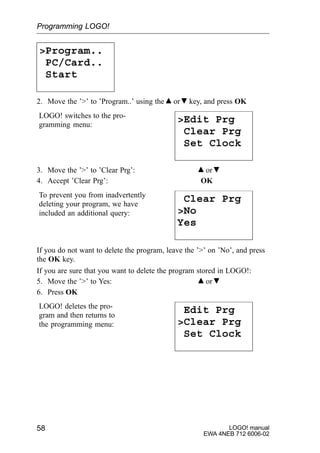
Program..
PC/Card..
Start
2. Move the ’’ to ’Program..’ using the or key, and press OK
Edit Prg
Clear Prg
Set Clock
LOGO! switches to the pro-
gramming menu:
3. Move the ’’ to ’Clear Prg’: or
4. Accept ’Clear Prg’: OK
Clear Prg
No
Yes
To prevent you from inadvertently
deleting your program, we have
included an additional query:
If you do not want to delete the program, leave the ’’ on ’No’, and press
the OK key.
If you are sure that you want to delete the program stored in LOGO!:
5. Move the ’’ to Yes: or
6. Press OK
Edit Prg
Clear Prg
Set Clock
LOGO! deletes the pro-
gram and then returns to
the programming menu:
Programming LOGO!
59
LOGO! manual
EWA 4NEB 712 6006-02
3.12Using the program module/card
You can copy the program stored in LOGO! to a program module/card.
You can then insert the program module/card in a different LOGO! and
copy the program to it. You can use the program module/card to:
S Archive programs
S Duplicate programs
S Send programs by post
S Write and test programs in the office and then transfer them to a differ-
ent LOGO! in the cabinet
LOGO! is supplied with a cover. You receive the program module/card
separately.
Programming LOGO!
LOGO! manual
EWA 4NEB 712 6006-02
60
3.12.1 Removing the program module/card
You can change the program module/card when the power is on and
LOGO! is in RUN or the programming mode. However, please heed the
following warning:
! Warning
Only use LOGO! 230 with the cover or the program module/
card inserted.
Do not put your finger or an object made of metal or any other
conductive material in the open shaft of the program module/
card.
The socket for the program module/card may be live if mis-
takes have been made with the wiring (L1 and N mixed up).
The program module/card should only be changed by a trained
technician.
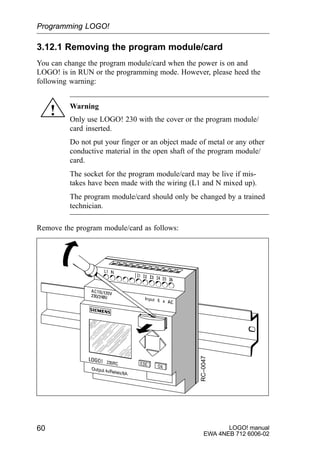
Remove the program module/card as follows:
RC–0047
Programming LOGO!
61
LOGO! manual
EWA 4NEB 712 6006-02
Carefully insert a screwdriver into the slot at the upper end of the program
module/card, and ease the program module/card out of the shaft a little.
You can now remove the program module/card.
Inserting the program module/card
The shaft for the program module/card is chamfered at the bottom on the
right. The program module/card also has a chamfered edge. This prevents
you from inserting the program module/card the wrong way around. Insert
the program module/card into the shaft until it engages.
3.12.2 Copying a program from LOGO! to the
program module/card
To copy a program to the program module/card, proceed as follows:
1. Insert the program module/card
2. Switch LOGO! to programming mode:
, and OK simultaneously
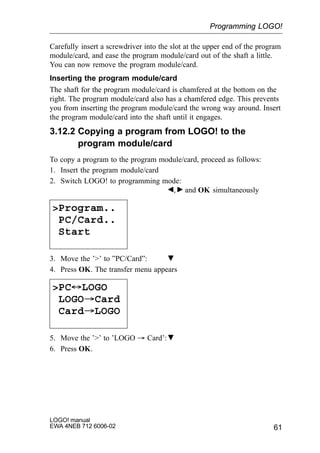
Program..
PC/Card..
Start
3. Move the ’’ to ”PC/Card”:
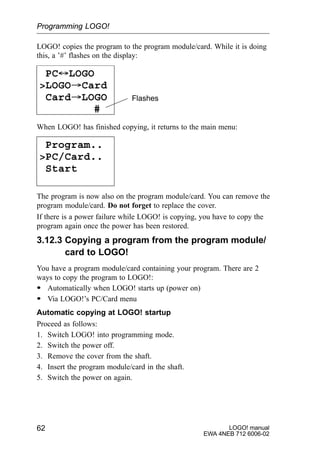
4. Press OK. The transfer menu appears
PC´LOGO
LOGO³Card
Card³LOGO
5. Move the ’’ to ’LOGO ³ Card’:
6. Press OK.
Programming LOGO!
LOGO! manual
EWA 4NEB 712 6006-02
62
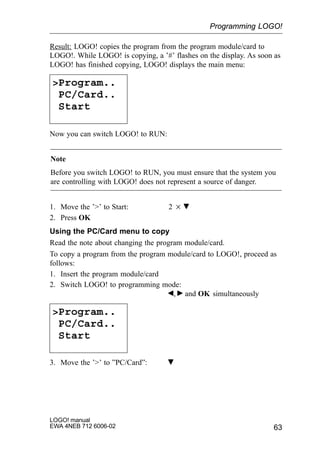
LOGO! copies the program to the program module/card. While it is doing
this, a ’#’ flashes on the display:
PC´LOGO
LOGO³Card
Card³LOGO
#
Flashes
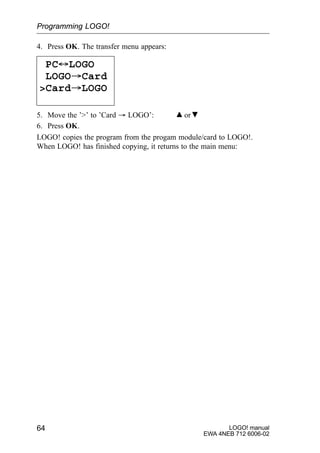
When LOGO! has finished copying, it returns to the main menu:
Program..
PC/Card..
Start
The program is now also on the program module/card. You can remove the
program module/card. Do not forget to replace the cover.
If there is a power failure while LOGO! is copying, you have to copy the
program again once the power has been restored.
3.12.3 Copying a program from the program module/
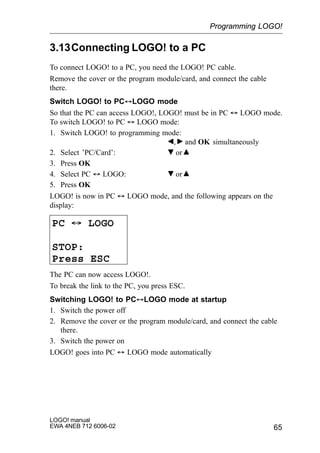
card to LOGO!
You have a program module/card containing your program. There are 2
ways to copy the program to LOGO!:
S Automatically when LOGO! starts up (power on)
S Via LOGO!’s PC/Card menu
Automatic copying at LOGO! startup
Proceed as follows:
1. Switch LOGO! into programming mode.
2. Switch the power off.
3. Remove the cover from the shaft.
4. Insert the program module/card in the shaft.
5. Switch the power on again.
Programming LOGO!
63
LOGO! manual
EWA 4NEB 712 6006-02
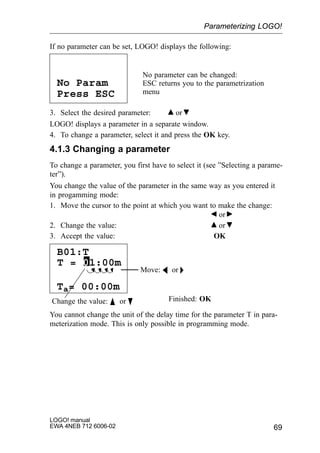
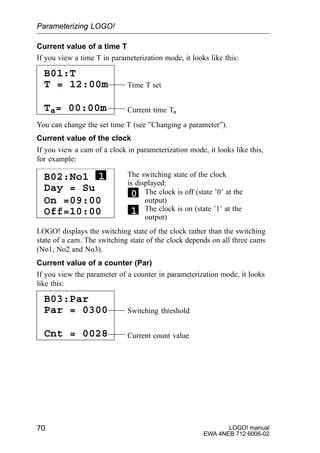
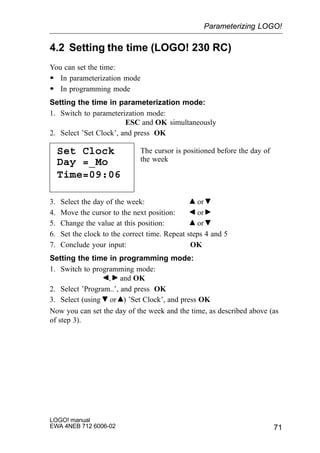
Result: LOGO! copies the program from the program module/card to
LOGO!. While LOGO! is copying, a ’#’ flashes on the display. As soon as
LOGO! has finished copying, LOGO! displays the main menu:
Program..
PC/Card..
Start
Now you can switch LOGO! to RUN:
Note
Before you switch LOGO! to RUN, you must ensure that the system you
are controlling with LOGO! does not represent a source of danger.
1. Move the ’’ to Start: 2
2. Press OK
Using the PC/Card menu to copy
Read the note about changing the program module/card.
To copy a program from the program module/card to LOGO!, proceed as
follows:
1. Insert the program module/card
2. Switch LOGO! to programming mode:
, and OK simultaneously
Program..
PC/Card..
Start
3. Move the ’’ to ”PC/Card”:
Programming LOGO!
LOGO! manual
EWA 4NEB 712 6006-02
64
4. Press OK. The transfer menu appears:
PC´LOGO
LOGO³Card
Card³LOGO
5. Move the ’’ to ’Card ³ LOGO’: or
6. Press OK.
LOGO! copies the program from the progam module/card to LOGO!.
When LOGO! has finished copying, it returns to the main menu:
Programming LOGO!
65
LOGO! manual
EWA 4NEB 712 6006-02
3.13Connecting LOGO! to a PC
To connect LOGO! to a PC, you need the LOGO! PC cable.
Remove the cover or the program module/card, and connect the cable
there.
Switch LOGO! to PC´LOGO mode
So that the PC can access LOGO!, LOGO! must be in PC ´ LOGO mode.
To switch LOGO! to PC ´ LOGO mode:
1. Switch LOGO! to programming mode:
, and OK simultaneously
2. Select ’PC/Card’: or
3. Press OK
4. Select PC ´ LOGO: or
5. Press OK
LOGO! is now in PC ´ LOGO mode, and the following appears on the
display:
PC ´ LOGO
STOP:
Press ESC
The PC can now access LOGO!.
To break the link to the PC, you press ESC.
Switching LOGO! to PC´LOGO mode at startup
1. Switch the power off
2. Remove the cover or the program module/card, and connect the cable
there.
3. Switch the power on
LOGO! goes into PC ´ LOGO mode automatically
Programming LOGO!
LOGO! manual
EWA 4NEB 712 6006-02
66
4 Parameterizing LOGO!
By parameterization we mean setting the parameters of blocks. You can
set delay times for time functions, switching times for clocks (time
switches) and the threshold value of a counter.
You can set the parameters:
S In programming mode
S In parameterization mode
In parameterization mode, the programmer sets a value for a parameter.
We introduced parameterization mode so that parameters can be changed
without having to change the program. In this way, a caretaker can change
times, for example, without having to change into programming mode.
The advantage of this is that the program (and thus the circuit) is protected
but can still be modified by the user of the circuit to suit requirements.
Note
LOGO! continues to execute the program in parameterization mode.
67
LOGO! manual
EWA 4NEB 712 6006-02
4.1 Switching to parameterization mode
To switch to parameterization mode, press ESC and OK simultaneously:
I:123456
Q:1234 RUN
Mo 09:00
ESC OK
LOGO! switches to parameterization mode and displays the parameteriza-
tion menu:
Set Clock
Set Param
The ’Set Clock’ menu item is displayed only if your version of LOGO! has
a clock/time switch (those versions of LOGO! that have a clock have the
letter C in their name, e.g. LOGO 230 RC). ’Set Clock’ allows you to set
LOGO!’s clock.
Parameterizing LOGO!
LOGO! manual
EWA 4NEB 712 6006-02
68
4.1.1 Parameters
Parameters can be:
S The delay times of a time relay
S The switching times (cams) of a clock
S The threshold value of a counter
How do you recognize a parameter? Simple: by its block number. Every
parameter is identified by the block number and the parameter abbrevi-
ation. Examples:
B01:T
Block number Parameter abbreviation
B01:T A delay time can be set at block B01
B02:No1 Block B02 is a clock block. No1 is the first cam of this clock
B03:Par Block B03 is a counter. Par is the threshold value of
the counter
4.1.2 Selecting a parameter
To select a parameter, proceed as follows:
1. Select the ’Set Param’ option from the parameterization menu
Set Clock
Set Param
2. Press OK
LOGO! displays the first parameter:
B01:T
Ta= 00:00m
T = 12:00m
Parameter
Value set for the parameter
Current time in LOGO!
Parameterizing LOGO!
69
LOGO! manual
EWA 4NEB 712 6006-02
If no parameter can be set, LOGO! displays the following:
Press ESC
No Param
No parameter can be changed:
ESC returns you to the parametrization
menu
3. Select the desired parameter: or
LOGO! displays a parameter in a separate window.
4. To change a parameter, select it and press the OK key.
4.1.3 Changing a parameter
To change a parameter, you first have to select it (see ”Selecting a parame-
ter”).
You change the value of the parameter in the same way as you entered it
in progamming mode:
1. Move the cursor to the point at which you want to make the change:
or
2. Change the value: or
3. Accept the value: OK
Move: A or 
Change the value: Y or B Finished: OK
B01:T
Ta= 00:00m
T = 01:00m
You cannot change the unit of the delay time for the parameter T in para-
meterization mode. This is only possible in programming mode.
Parameterizing LOGO!
LOGO! manual
EWA 4NEB 712 6006-02
70
Current value of a time T
If you view a time T in parameterization mode, it looks like this:
B01:T
Ta= 00:00m
T = 12:00m Time T set
Current time Ta
You can change the set time T (see ”Changing a parameter”).
Current value of the clock
If you view a cam of a clock in parameterization mode, it looks like this,
for example:
B02:No1
Off=10:00
Day = Su
The switching state of the clock
is displayed:
On =09:00
1
The clock is off (state ’0’ at the
output)
The clock is on (state ’1’ at the
output)
1
0
LOGO! displays the switching state of the clock rather than the switching
state of a cam. The switching state of the clock depends on all three cams
(No1, No2 and No3).
Current value of a counter (Par)
If you view the parameter of a counter in parameterization mode, it looks
like this:
B03:Par
Cnt = 0028
Par = 0300 Switching threshold
Current count value
Parameterizing LOGO!
71
LOGO! manual
EWA 4NEB 712 6006-02
4.2 Setting the time (LOGO! 230 RC)
You can set the time:
S In parameterization mode
S In programming mode
Setting the time in parameterization mode:
1. Switch to parameterization mode:
ESC and OK simultaneously
2. Select ’Set Clock’, and press OK
Set Clock
Day =_Mo
The cursor is positioned before the day of
the week
Time=09:06
3. Select the day of the week: or
4. Move the cursor to the next position: or
5. Change the value at this position: or
6. Set the clock to the correct time. Repeat steps 4 and 5
7. Conclude your input: OK
Setting the time in programming mode:
1. Switch to programming mode:
, and OK
2. Select ’Program..’, and press OK
3. Select (using or ) ’Set Clock’, and press OK
Now you can set the day of the week and the time, as described above (as
of step 3).
Parameterizing LOGO!
LOGO! manual
EWA 4NEB 712 6006-02
72
5 Applications
To give you a feeling for the kind of situations in which you can use
LOGO!, we have compiled a number of application examples. We have in-
cluded the circuit diagram of the original solution for each example. For the
solutions using LOGO!, we have included the wiring and a diagram.
Solutions for the following tasks are included:
Stairway, hall or corridor lighting 73. . . . . . . . . . . . . . . . . . . . . . . . . . . .
An automatic door 78. . . . . . . . . . . . . . . . . . . . . . . . . . . . . . . . . . . . . . . .
A ventilation system 85. . . . . . . . . . . . . . . . . . . . . . . . . . . . . . . . . . . . . .
An industrial gate 89. . . . . . . . . . . . . . . . . . . . . . . . . . . . . . . . . . . . . . . . .
Fluorescent lamps 93. . . . . . . . . . . . . . . . . . . . . . . . . . . . . . . . . . . . . . . .
A rainwater pump 97. . . . . . . . . . . . . . . . . . . . . . . . . . . . . . . . . . . . . . . .
Dereeler 101. . . . . . . . . . . . . . . . . . . . . . . . . . . . . . . . . . . . . . . . . . . . . . . .
Other possibilities 104. . . . . . . . . . . . . . . . . . . . . . . . . . . . . . . . . . . . . . . .
Note
The LOGO! applications are available to our customers free of charge. The
examples they contain are not binding and are included to provide general
information on how LOGO! can be used. Customer-specific solutions may
be different.
The user is responsible for ensuring that the system is run properly. We
refer you to the relevant national standards and system-related installation
requirements.
Errors are excepted the right to make changes reserved.
73
LOGO! manual
EWA 4NEB 712 6006-02
5.1Stairway, hall or corridor lighting
5.1.1 Demands on stairway lighting
The lighting system of a stairway should fulfill the following requirements:
S The light should be on when someone is on the stairway.
S If there is nobody on the stairway, the light should be off to save energy.
5.1.2 Previous solution
Previously there were 2 ways of switching the lighting:
S By means of an impulse relay
S By means of automatic stairway lighting
The wiring for these two lighting systems is the same.
ÎÎÎ
ÎÎÎ
ÎÎÎÎÎÎ ÎÎÎ
ÎÎÎ
ÎÎÎÎÎÎLights
Switches
Distribution with
impulse
relay
or
automatic
lighting device
Distribution box
Components used
S Switches
S Automatic lighting device or pulse relay
Applications
LOGO! manual
EWA 4NEB 712 6006-02
74
Lighting system with a pulse relay
When a pulse relay is used, the lighting system behaves as follows:
S When any switch is pressed: The lighting is switched on
S When any switch is pressed again: The lighting is switched off.
Disadvantage: People often forget to switch the light off again.
Lighting system with an automatic lighting device
When an automatic device is used, the lighting system behaves as follows:
S When any switch is pressed: The lighting is switched on.
S After a preset time has elapsed, the lighting is switched off automati-
cally.
Disadvantage: The lighting cannot be switched on for an extended period
of time (e.g. for cleaning purposes). The switch for permanent lighting is
usually on the automatic device, which is either impossible or difficult to
access.
5.1.3 Lighting system with LOGO!
If you use LOGO!, you can replace the automatic lighting device or the
pulse relay. You can implement both functions (time-dependent switching-
off and pulse relay) using a single device. You can also include additional
functions without changing the wiring. Here are some examples:
S Impulse relay with LOGO!
S Automatic stairway lighting system with LOGO!
S LOGO! as a multi-function switching system with the following func-
tions:
– Light on: Press switch
(Light switches off after the set time elapses)
– Permanent light on: Press switch twice
– Light off: Press switch for 2 seconds
Applications
75
LOGO! manual
EWA 4NEB 712 6006-02
Wiring of the lighting system with LOGO! 230RC
ÏÏ ÏÏÏÏLights
Switches
L1 N I1 I2 I3 I4 I5 I6
Q1 Q2 Q3 Q4
SIEMENS
L
N
PE
LOGO! 230RC
The external wiring of the lighting system with LOGO! is the same as for a
conventional hall, corridor or stairway lighting system. The difference is
that the automatic lighting device or the pulse relay is replaced. Additional
functions are entered directly in LOGO!.
Pulse relay with LOGO!
I1Switch:
Q1
Lights
x
In the event of a gate pulse at input I1, output Q1 switches over.
Automatic stairway lighting system with LOGO!
I1Switch:
Q1
Lights
T
06:00m
In the event of a gate pulse at input I1, output Q1 switches on and remains
on for 6 minutes.
Applications
LOGO! manual
EWA 4NEB 712 6006-02
76
Multi-functional switch with LOGO!
I1
w1
I1
T
02.00s
T
06:00m
Q1
x
I1
Switch light on
Switch permanent
light on
Switch light off
Off-delay
Latching relayPulse-relay
On-delay
Q1
The diagram shows the circuit for an input with an associated output.
This switch offers the following:
S When the switch is pressed: The light is switched on and goes off
again after the set time of 6 minutes (T=06:00m) has elapsed (off-delay)
S When the switch is pressed twice: The light is switched on perma-
nently (the latching relay is set via the impulse relay).
S When the switch is pressed for 2 seconds: The light is switched off
(on-delay switches the light off; both the permanent light and the normal
light; this branch of the circuit is therefore used twice)
You can enter these circuits several times for the remaining inputs and out-
puts. Instead of using 4 automatic stairway lighting systems or 4 impulse
relays, you thus use only a single LOGO! module. However, you can also
use the free inputs and outputs for completely different functions.
Applications
77
LOGO! manual
EWA 4NEB 712 6006-02
5.1.4 Special features and enhancement options
Features such as the following are available for adding functions or saving
energy:
S You can have the light flash before it goes off automatically.
S You can integrate various central functions:
– Central off
– Central on (panic button)
– Control of all lights or individual circuits by a daylight control
switch
– Control by the integrated time switch (clock)
(e.g. permanent light only until 24.00 hours; no enabling at certain
times)
– Automatic switching off of permanent light after a preset time has
elapsed (e.g. 3 hours)
Applications
LOGO! manual
EWA 4NEB 712 6006-02
78
5.2 Automatic door
You often find automatic door control systems at the entrances to supermar-
kets, public buildings, banks, hospitals, etc.
5.2.1 Demands on an automatic door
S When somebody approaches, the door must open automatically.
S The door must remain open until there is nobody in the doorway any
more.
S If there is nobody in the doorway anymore, it must close automatically
after a short time.
ÌÌÌÌÌÌÌÌÌÌÌÌÑÑÑÑÑÑÑÑÑÑ
ÑÑÑÑÑÑÑÑÑÑÑÑÑÑÑÑÑÑÑÑÑÑÑÑ
ÑÑÑÑÑÑÑÑ
ÌÌÌÌÌÌÌÌÌÌÌÌÌÌÌÌÌÌÌÌÌÌÌÌÌÌÌÌÌÌ
ÌÌÌÌÌÌÌÌÌÌ
Motion detector
Outside
Inside
Motion detector
B1
B2
Limit switch
Closed
Limit switch
Open
Main switch
Q1
S1 S2
Motion detector
Main switch
The door is generally driven by a motor with a safety clutch. This prevents
people from being caught or injured in the door. The control system is con-
nected to the mains via a main switch.
Applications
79
LOGO! manual
EWA 4NEB 712 6006-02
5.2.2 Previous solution
K1 K2
K2 K1
K3 K3
Open Close
S2 S1
K3
B1 B2 K3
K4
K4
B2
K3
B1
S2
Open door Waiting time
Auxiliary circuit
L1
N
As soon as one of the motion detectors B1 or B2 registers somebody’s pres-
ence, the door is opened by K3.
If the two motion detectors detect nothing for a minimum period, K4 en-
ables the close operation.
5.2.3 Door control system with LOGO!
LOGO! allows you to considerably simplify the circuit. You need only con-
nect the motion detectors, the limit switches and the master contactors to
LOGO!.
Applications
LOGO! manual
EWA 4NEB 712 6006-02
80
Wiring of the door control system with LOGO! 230RC
L1 N I1 I2 I3 I4 I5 I6
Q1 Q2 Q3 Q4
SIEMENS
K1 K2
Open Close
B1 B2 S2S1
L1
N
LOGO! 230RC
Components used
S K1 Master contactor Open
S K2 Master contactor Close
S S1 Limit switch Closed
S S2 Limit switch Open
S B1 Infrared motion detector Outside
S B2 Infrared motion detector Inside
Applications
81
LOGO! manual
EWA 4NEB 712 6006-02
Diagram of the door control system with LOGO! 230RC

1
1
1

I4
I3
Q2
Q1
RSI1
I2
1
I4
T=
4s
Close
Open
x

x
Q1
Q2
This is what the functional block diagram that corresponds to the circuit
diagram of the conventional solution looks like.
You can simplify this circuit if you make use of LOGO!’s functions. You
can use the off-delay to replace the latching relay and on-delay. The follow-
ing function block diagram illustrates this simplification:

1
1
1

I4
I3
I1
I2
x
Q2
Q1
x
10 s
Close
Open
Limit switch
Door open
Limit switch
Door open
Motion
detector
Q1
Q2
Applications
LOGO! manual
EWA 4NEB 712 6006-02
82
5.2.4 Special features and enhancement options
The functionality and user friendliness can be improved in the following
ways, for example:
S You can connect an additional control switch: Open – Automatic –
Closed (O-A-C)
S You can connect a buzzer to one of LOGO!’s outputs to indicate when
the door is about to close.
S You can include time- and direction-dependent enabling of door opening
(so that it only opens during shop opening hours and only from the in-
side to the outside after closing time, for example).
5.2.5 Enhanced LOGO! 230 RC solution
Wiring of the enhanced LOGO! solution
L1 N I1 I2 I3 I4 I5 I6
Q1 Q2 Q3 Q4
SIEMENS
K1 K2
Open Close
B1 B2 S2S1
L1
N
Buzzer
S3 O-A-C
H1
LOGO! 230RC
Applications
83
LOGO! manual
EWA 4NEB 712 6006-02
Functional block diagram of the enhanced LOGO! solution
x
x
x
x
No1:
Day= Mo..Fr
On = 09:00
Off =18:00
No2:
Day= Sa
On = 08:00
Off =13:00
No1:
Day= Mo..Fr
On = 09:00
Off =19:00
No2:
Day= Sa
On = 08:00
Off =14:00
I1
I2
Motion detector B1
Motion detector B2
T= 10 s
x
I5
Q2
I4
Q1
Open
Q2
Close
xQ1
I1
I2
I3
I6
Detecting motion
Motor for opening
Motor for closing
Control switch
Open door
Close output
Limit switch
Door open
Open output
Motion detector B1
Motion detector B2
Limit switch
Door closed
Control switch
Close door
Detecting motion
During business hours, motion detector B1 opens the door as soon as some-
body wants to enter the shop from outside. Motion detector B2 opens the
door if somebody wants to leave the shop.
Applications
LOGO! manual
EWA 4NEB 712 6006-02
84
After closing time, motion detector B2 continues to open the door for 1 hour
so that customers can leave the shop.
Motor for opening
Output Q1 is switched on and opens the door when
S the control switch at I5 is operated (the door is to be constantly open), or
S the motion detectors indicate that somebody is approaching the door, and
S the door is not yet completely open (limit switch at I4).
Motor for closing
Output Q2 is switched on and closes the door when
S the control switch at I6 is operated (the door is to be constantly closed),
or
S the motion detectors indicate that there is nobody near the door, and
S the door is not yet fully closed (limit switch at I3).
Buzzer
You connect the buzzer to output Q3. The buzzer sounds for a short time (in
this case 1 second) when the door is closed. In the block diagram, you enter
the following circuit at Q3:
T= 1 s
x Q3
Buzzer
Q2
Close
output
Applications
85
LOGO! manual
EWA 4NEB 712 6006-02
5.3 Ventilation system
5.3.1 Demands on a ventilation system
A ventilation system is used either to feed fresh air into a room or to remove
used air from it. Consider the following example:
ÉÉÉÉÉÉÉÉÉÉÉÉÉÉÉÉÉÉÉÉÉÉÉÉÉÉÉÉÉÉÉÉÉÉÉÉÉÉÉÉÉÉ
ÉÉÉÉÉÉÉÉÉÉÉÉÉÉÉÉÉÉÉÉÉ
ÉÉÉÉÉÉÉÉÉÉÉÉÉÉÉÉÉÉÉÉÉÉÉÉÉÉÉÉÉÉÉÉÉÉÉÉÉÉÉÉÉÉÉÉÉÉÉÉÉÉÉÉÉÉÉÉÉÉÉÉÉÉÉ
ÉÉÉÉÉÉÉÉÉÉÉÉÉÉÉÉÉÉÉÉÉÉÉÉÉÉÉÉÉÉÉÉÉÉÉÉÉÉÉÉÉÉ
Fresh air ventilator
Flow monitor
Exhaust ventilator
Flow monitor
S The room contains an exhaust ventilator and a fresh air ventilator.
S Both ventilators are controlled by a control monitor.
S At no time must excess pressure develop in the room.
S The fresh air ventilator cannot be switched on unless the flow monitor
indicates that the exhaust ventilator is functioning properly.
S A warning light comes on in the event of a ventilator failing.
The circuit diagram for the previous solution is as follows:
K1 K5
K5
S1
Exhaust air Fresh air
S0
K3K2
Operation
Auxiliary circuit
L1
N
S2
K1
v
S2
H1K4
S3v
K5
Fault
H2
K2 K4
Applications
LOGO! manual
EWA 4NEB 712 6006-02
86
The ventilators are controlled by flow monitors. If no air flow is detected
after a short waiting time has elapsed, the system is switched off and a fault
is reported. You acknowledge this by pressing the stop switch.
In addition to the flow monitors, the ventilation monitoring system requires
an evaluation circuit with a number of switching devices. The evaluation
circuit can be replaced by a single LOGO! module.
Wiring of the ventilation system with LOGO! 230RC
L1N I1 I2 I3 I4 I5 I6
Q1 Q2 Q3 Q4
SIEMENS
K1 K2
S1
L1
N
S2 S3 vv
H1 H2
S0
LOGO! 230RC
Exhaust ventilator Fresh air ventilator
Components used
S K1 Master contactor
S K2 Master contactor
S S0 Stop switch
S S1 Start switch
S S2 Flow monitor
S S3 Flow monitor
S H1 Warning light
S H2 Warning light
Applications
87
LOGO! manual
EWA 4NEB 712 6006-02
Block diagram of the LOGO! solution
The block diagram of the ventilation control system with LOGO! is as fol-
lows:
x
I1On
Q3Fault
I2Off
Q1
Exhaust
ventilator
Q2
Fresh air
ventilator
Q1Exhaust
ventilator
I3
Exhaust air
flow monitor
x
I2Off
Fault
x
T=
10 s
x
T= 10 s
x
x
x
I3
Exhaust air flow
monitor
I4
Fresh air flow
monitor
Exhaust air ventilator Q1
Exhaust air ventilatorQ2
Q3
5.3.2 Advantages of using LOGO!
When you use LOGO!, you do not need as many switching devices. Thus,
you save on installation time and space in the switch box. You may even be
able to use a smaller switch box.
Additional options when using LOGO!
S The free output (Q4) can be used as a potential-free signalling contact in
the event of a fault or a power failure.
S It is possible to stagger the switching-off of the ventilators.
These functions can be implemented without additional switching devices.
Applications
LOGO! manual
EWA 4NEB 712 6006-02
88
Functional diagram of the enhanced LOGO! solution
The ventilators at Q1 and Q2 are switched off as shown in the following
circuit:
x
T=
10 s
T=
30 s
Q1
Exhaust
air
ventilator
Q2
Fresh air
ventilator
On I1
I2
Off
Fault Q3
x
x
I3Exhaust air flow
monitor
I2Off
Fault
T=
10 s
T=
10 s
x
x
x
I3
Exhaust air flow
monitor
I4
Fresh air flow
monitor
Exhaust air ventilator Q1
Exhaust air ventilatorQ2
Q3
You can also generate a message via output Q4:
Q3
Fault
Q4
Message
The contacts of output Q4 are always closed when the system is running.
Relay Q4 does not release unless there is a power failure or a fault in the
system. This contact can be used for teleindication, for example.
Applications
89
LOGO! manual
EWA 4NEB 712 6006-02
5.4Industrial gate
ÔÔ
ÔÔÔÔÔÔ
ÔÔ
ÔÔÔÔ
ÔÔ
ÔÔ
ÔÔÔÔÔÔ
ÔÔ
ÔÔÔÔ
ÔÔ
Warning
lightSafety pressure bar
There is often a gate at the entrance to a company’s premises. This is only
opened to let vehicles in and out.
The gate is controlled by the gateman.
5.4.1 Demands on the door control system
S The gate is opened, closed and monitored by the gateman, who operates
it by means of a switch in the gatehouse.
S The gate is normally completely open or completely closed, but its
movement can be interrupted at any time.
S A warning light starts flashing on and off 5 seconds before the gate be-
gins to move and continues for as long as the gate is still moving.
S A safety pressure bar ensures that nobody gets injured and nothing gets
caught or damaged when the gate closes.
Applications
LOGO! manual
EWA 4NEB 712 6006-02
90
5.4.2 Previous solution
Various kinds of control system are used to drive automatic gates. The cir-
cuit diagram shows one possible gate control circuit.
K1 K5
K3
S1
Open Close
S0
K3K2
Warning light
Auxiliary circuit
L1
N
K1
H1K4
S5 p
K6
K6
K1
S2
S2 K3
K2 K4
Open Close
K5
S5 p
S1
K3 K1
S4S3
Wiring of the gate control system with LOGO! 230RC
L1 N I1 I2 I3 I4 I5 I6
Q1 Q2 Q3 Q4
SIEMENS
K1 K2
Open Close
S4S3
L1
N
S1 S2 S0
S5
p
S5 p
Warning light
H1
Open Closed Stop
LOGO! 230RC
Applications
91
LOGO! manual
EWA 4NEB 712 6006-02
Components used
S K1 Master contactor
S K2 Master contactor
S S0 Stop switch
S S1 Open switch
S S2 Close switch
S S3 Open position switch
S S4 Closed position switch
S S5 Safety pressure bar
Functional diagram of the LOGO! solution
T=
5 s
T=
5 s
x
x
x
x
Q1
Open
Q3
Flashing
light
Q1
Close
I3
I4
I3
I6
I5
I1
I2
Q2
Q1
Safety bar
Gate is closed
Gate is open
Stop switch
Open start
switch
Stop switch
Close start
switch
The open and close start switches start the movement of the gate, provided
the gate is not currently moving in the opposite direction. The gate stops
moving when the stop switch is pressed or when it reaches a limit switch.
The gate is also prevented from closing by the safety bar.
Applications
LOGO! manual
EWA 4NEB 712 6006-02
92
5.4.3 Enhanced LOGO! solution
In our enhanced solution, the gate will automatically open again when the
safety bar operates.
xx
I6
Safety bar
I5Gate is closed
Q2
I3
I4Gate is open
Stop switch
x
I1
Q2
Open start switch
T=
5 s
Q1
Open
T=
5 s
x
Q2
Close
I3
I6
I5
I2
Q1
Safety bar
Gate is closed
Stop switch
Close start
switch
Q3
Flashing
light
Applications
93
LOGO! manual
EWA 4NEB 712 6006-02
5.5Fluorescent lamps
ÉÉÉÉÉÉÉÉÉÉÉÉÉÉÉ
ÉÉÉÉÉÉÉÉÉÉÉÉÉÉÉ
ÉÉÉÉÉÉÉÉÉÉÉÉÉÉÉÉÉÉÉÉÉÉÉÉÉÉÉÉÉÉ
ÉÉÉÉÉÉÉÉÉÉÉÉÉÉÉ
Fluorescent lamp 2Fluorescent lamp 1
Fluorescent lamp 4Fluorescent lamp 3
ÉÉÉ
É É
ÉÉÉÉ
ÉÉÉÉÉÉÉÉÉÉÉÉÉÉÉÉÉÉÉÉ
Corridor
Office
When lighting systems are planned in companies, the type and number of
lamps used depends on the level of lighting required. For reasons of cost
efficiency, fluorescent lamps arranged in rows of tubes are often used. They
are subdivided into switching groups according to how the room is used.
5.5.1 Demands on the lighting system
S The lamps are switched on and off locally.
S If there is sufficient natural light, the lamps on the window side of the
room are automatically switched off by means of a brightness-sensitive
switch.
S The lights are switched off automatically at 8 o’clock in the evening.
S It must be possible at all times to switch the lights on and off locally.
Applications
LOGO! manual
EWA 4NEB 712 6006-02
94
5.5.2 Previous solution
B1
L1
N
E1
E1
lx K6
E5
K5
E4
K4
E3
K3
E2K3 K4 K5 K6
S1 S2 S3 S4
K1 K2
K4K4K4
The lights are operated by means of a pulse relay controlled by the switches
at the door. Independently of this, they are reset by the time switch (clock)
or by the brightness-sensitive switch via the central off input. The switch-
ing-off commands must be cut by impulse relays so that it is still possible to
switch the lights on and off locally after they have been switched off cen-
trally.
Components required:
S Switches S1 to S4
S Daylight control switch B1
S Time switch (clock) E1
S Impulse relays K1 and K2
S Remote-control switches with central off K3 to K6
Disadvantages of the previous solution
S To implement the required functions, a large amount of circuitry is re-
quired.
S The large number of mechanical components means that considerable
wear and high maintenance costs can be expected.
S Functional changes are costly to implement.
Applications
95
LOGO! manual
EWA 4NEB 712 6006-02
5.5.3 Fluorescent lamp control with LOGO! 230RC
L1 N I1 I2 I3 I4 I5 I6
Q1 Q2 Q3 Q4
SIEMENS
L1
N
E2 E3 E4
B1
lx
Fluorescent
lamp 1
E5
Fluorescent
lamp 2
Fluorescent
lamp 3
Fluorescent
lamp 4
S1 S2 S3 S4
LOGO! 230RC
Components used
S S1 to S4 Switches
S B1 Daylight control switch
Applications
LOGO! manual
EWA 4NEB 712 6006-02
96
Functional diagram of the LOGO! solution
x
T=
1s
Q2
Mo..Su
20:00 – 20.01
Mo..Su
21:00 – 21.01
Switch-off pulse generated by time switch (clock)
I5
T=
1s
Daylight
control switch
x
I5
Switch-off pulse generated by daylight control switch
I1
I2
I3
I4
x
x
Q1
Q4
Q3
Lamp 3
Corridor side
Lamp 4
Corridor side
Lamp 1
Window side
Lamp 2
Window side
Advantages of the LOGO! solution
S You can connect the lamps to LOGO! directly provided the switching
capacity of the outputs is not exceeded. In the case of greater capacities,
you should use a power contactor.
S You connect the brightness-sensitive switch to one of LOGO!’s inputs
directly.
S You do not need a time switch; this function is integrated in LOGO!.
S The fact that fewer switching devices are required means you can install
a smaller sub-distribution unit and thus save space.
S Fewer devices are required.
S The lighting system can be easily modified.
S Additional switching times can be set as required (staggered switch-off
pulses at the end of the day).
S The effect of the brightness-sensitive switch can easily be applied to all
lamps or a changed group of lamps.
Applications
97
LOGO! manual
EWA 4NEB 712 6006-02
5.6 Rainwater pump
Rainwateris being used increasingly in homes in addition to drinking water.
This saves money and is environment-friendly. You can use rainwater, for
example, for:
S Washing clothes
S Watering the garden
S Watering house plants
S Washing the car
S Flushing the toilet
The following drawing illustrates how a system for using rainwater works:
ÕÕÕ
ÕÕÕÕÕÕŠŠŠŠŠŠ
ÎÎÎ
ÎÎÎÎÎÎÎÎÎÎÎÎ
Pump
S1
ÕÕÕÕÕÕÕÕÕ
S2
S3
S4
M1
K4
Rainwater
supply
Rainwater
collecting tank
Pressure tank
Rainwater pipe
Control in
distribution
box
Pressure switch
Drinking water supply
Run-dry protection on
Drinking water supply on
Run-dry protection off
Drinking water supply off
The rainwater is caught in a collecting tank, from which it is pumped into a
pipe system. The rainwater can then be taken from this in the same way that
drinking water can. If the tank should ever run dry, it can be supplied with
drinking water.
Applications
LOGO! manual
EWA 4NEB 712 6006-02
98
5.6.1 Demands on the control system for a rainwater
pump
S The water must be available at all times. Whenever necessary, the con-
troller must switch automatically to drinking water.
S When the switch to drinking water takes place, no rainwater must get
into the drinking water system.
S If there is not enough water in the rainwater tank, the pump cannot be
switched on (run-dry protection).
5.6.2 Previous solution
K1 K2
K3
S1
K3
S4 K3
Auxiliary circuit
L1
N
K4
S3 K4pK2
S3 S2
Y1
Pump After-run
time
Run-dry
protection
Pure water
supply
The pump and a solenoid valve are controlled by a pressure switch and 3
float switches in the rainwater tank. The pump must be switched on when
the pressure goes below the minimum permitted. Once the operating pres-
sure is reached, the pump is switched off again after an after-run time of a
few seconds. The after-run time prevents the water pump from constantly
being switched on and off if the water is drawn for any length of time.
Applications
99
LOGO! manual
EWA 4NEB 712 6006-02
5.6.3 Rainwater pump with LOGO! 230RC
L1 N I1 I2 I3 I4 I5 I6
Q1 Q2 Q3 Q4
SIEMENS
K1 Y1
S4S3
L1
N
S1 S2p
LOGO! 230RC
Pump Drinking water supply
Apart from LOGO!, you need only the pressure switch and the float
switches to control the pump. If you are using a three-phase motor, you need
a master contactor. If the system has a single-phase motor, you need a con-
tactor if the motor requires more current than output relay Q1 can switch.
The consumption of a solenoid valve is so low that you can normally con-
trol it directly.
S K1 Master contactor
S Y1 Solenoid valve
S S1 Pressure switch
S S2 to S4 Float switches
Applications
LOGO! manual
EWA 4NEB 712 6006-02
100
Functional diagram of the LOGO! solution
I
2Float switch for
drinking water
supply off
Drinking water
supply
Q2
Float switch for
drinking water
supply on
I1Pressure
switch
I2
Float switch for
run-dry protection off
I4
Float switch for
run-dry protection on
x
T = 20 s x
Pump
Q1
I2
5.6.4 Special features and enhancement options
In the functional diagram you can see how to wire the control system for the
pump and the solenoid valve. Its structure corresponds to that of the circuit
diagram. However, you can also integrate additional functions for specific
applications that, with conventional technology, would require additional
equipment:
S Enabling of the pump at specific times
S Indication of an imminent or existing water shortage
S Indication of malfunctioning
Applications
101
LOGO! manual
EWA 4NEB 712 6006-02
5.7 Dereeler
A metal strip (coil) is fed to a punching device over a dereeler.
5.7.1 Demands on a dereeler
The following demands are placed on a dereeler:
S The metal strip must not sag.
S The metal fed to the punching device must not exceed a defined maxi-
mum tension.
S If the metal strip becomes too taut, the punching device must be
switched off.
M
~
Punching device
Metal strip
Switch S3
Strip too taut  Punching device off
Switch S4
Strip taut  Dereeler on
Switch S5
Strip loose  Dereeler off
5.7.2 Previous solution
K1 Dereeler
drive
K2
K4
K3
S2 S3
K2
K2 K3
S4
K2 punching
device
H1
K1
S1
K4
S5
Enable
Automatic Strip taut Strip loose
The key-operated switch S1 is the operating mode switch (manual/auto-
matic) for the dereeler. You can use switch S2 to control the motor of the
dereeler manually. Switches S4 and S5 monitor the tension of the strip and
switch the motor of the dereeler on and off. Switch S3 switches the punch-
ing device off when the strip is too taut.
Applications
LOGO! manual
EWA 4NEB 712 6006-02
102
5.7.3 Dereeler with LOGO! 24R
If you use LOGO!, you can make the circuit much simpler. You only have to
connect the switches, the indicator light and the main contactor to LOGO!.
Wiring the dereeler with LOGO! 24R
L+ M I1 I2 I3 I4 I5 I6
Q1 Q2 Q3 Q4
SIEMENS
K1 H1
Dereeler
S3
L+
M
S1
Automatic mode on
S2 S4 S5
Enable
punching device
LOGO! 24R
Components used
S S1 Operating mode switch: manual/automatic
S S2 Switch for manual dereeler control
S S3 Switch for switching the punching device off
S S4 Strip taut switch
S S5 Strip loose switch
S K1 Motor contactor
S H1 Indicator light for automatic mode
Applications
103
LOGO! manual
EWA 4NEB 712 6006-02
Functional diagram of the LOGO! solution
The block diagram for controlling the dereeler with LOGO! is as follows:
I2
I4
I5 R
I1
I3
x
x
I6
I2
I4
x
S
Manual mode on
Manual dereeler control Dereeler drive on
Automatic mode on
Punching device off
Strip taut
Strip loose
Indicator light for
automatic mode
Enable punching
device
Automatic mode on
Punching device off
Q1
Q2
Q3
5.7.4 Advantages of the LOGO! solution
If you use LOGO!, you need fewer switching devices less wiring is in-
volved. You also save on assembly time and space in the switch box. You
may even be able to use a smaller switch box.
Applications
LOGO! manual
EWA 4NEB 712 6006-02
104
5.8 Additional application options
It is worth using LOGO! particularly when you:
S Can replace a number of auxiliary switching devices with the integrated
functions of LOGO!.
S Want to save yourself wiring and installation work (because the wiring is
done in LOGO!).
S Want to reduce the space required by the components in the control cabi-
net/distribution box. You may be able to use a smaller control cabinet/
distribution box.
S Can add or change functions subsequently without having to install an
additional switching device or change the wiring.
S Have to provide your customers with additional functions for their do-
mestic or building installation. Here are some examples:
– Home security: You can program LOGO! to switch a lamp on regu-
larly or open and close your shutters while you are on holiday.
– Heating system: You can program LOGO! to run the circulation
pump only when water or heat is really required.
– Cooling systems: You can program LOGO! to thaw your cooling
systems automatically on a regular basis to save energy costs.
– You can illuminate aquaria and terraria automatically on a time-de-
pendent basis.
You can also:
S Use commercially available switches and buttons, which makes it easy
to integrate in the installation.
S Connect LOGO! directly to your domestic installation due to its inte-
grated power supply.
Do you have any suggestions?
There are many more potential applications for LOGO!. If you know of one,
why not write to us? We will collect all the suggestions we receive, and we
intend to pass on as many as we can. So drop us a line – no matter how un-
usual or simple your LOGO! circuit is! We will be delighted to receive all
your suggestions.
Write to:
Siemens AG
AUT V16 – LOGO!
Gleiwitzer Straße 555
D-90327 Nuremberg
Applications
105
LOGO! manual
EWA 4NEB 712 6006-02
6 Technical data
General technical data
Criterion Complies with Values
Dimensions W×H×D
in mm
Weight
72 x 90 x 55
with installation mechanism:
72 x 90 x 59
approx. 190 g
Installation on 35 mm DIN rail
Width of 4 modules
Ambient climatic conditions
Ambient temperature Cold: IEC 68-2-1
°Horizontal installation
Vertical installation
Heat:
IEC 68-2-2*
0 to 55 °C
0 to 55 °C
Storage/transport *40 °C to + 70 °C
Relative humidity IEC 68-2-30 From 5 to 95%
no condensation
Atmospheric pressure From 795 to 1080 hPa
Pollutants IEC 68-2-42
IEC 68-2-43
SOs 10 cm3 /m3, 4 days
HsS 1 cm3 /m3, 4 days
Ambient mechanical conditions
Protection type IP 20
Vibrations IEC 68-2-6 10 to 57 Hz (constant ampli-
tude 0.15 mm)
57 to 150 Hz (constant ac-
celeration 2 g)
Shock IEC 68-2-27 18 shocks
(half-sine 15g/11ms)
Drop IEC 68-2-31 Drop height 50 mm
Free fall (packaged) IEC 68-2-32 1 m
*IEC 68 includes VDE 0631
LOGO! manual
EWA 4NEB 712 6006-02
106
Criterion ValuesComplies with
Electromagnetic compatibility (EMC)
Electrostatic
discharge
IEC 801-2
Severity 3
8 kV air discharge
6 kV contact discharge
Electromagnetic fields IEC 801-3 Field strength 10V / m
Interference suppression EN 55011 Limit class B group 1
Burst pulses IEC 801-4
Severity 3
2 kV
(supply lines)
2 kV (signal lines)
Energy carriers single
pulse (surge)
(applies only to
LOGO! 230R and
LOGO! 230RC)
IEC 801-5
Severity 2
0.5 kV (supply lines) sym-
metrical
1 kV (supply lines) asym-
metrical
Information on IEC/VDE safety
Measurement of clearance
and creepage distance
IEC 664, IEC 1131,
EN 50178 11/94
UL 508, CSA C22.2
No 142
Also VDE 0631 for
LOGO! 230R/RC
Fulfilled
Insulation strength IEC 1131 Fulfilled
Technical data on LOGO! 230R and LOGO! 230RC
Power supply
Input voltage
Rated value
Permissible range
VDE 0631:
IEC 1131:
Permissible mains frequency
115 V/120 V/230 V/240 V AC
85 V to 250 V AC
85 V to 265 V AC
47 to 63 vHz
Power consumption from
115/120 V AC
230/240 V AC
Voltage failure bridging
115/120 V AC
230/240 V AC
Typically 40 mA
Typically 26 mA
Typically 10 ms
Typically 20 ms
Technical data
107
LOGO! manual
EWA 4NEB 712 6006-02
Clock buffering at 40 _C Typically 8 h
Accuracy of the real-time clock
(LOGO! 230RC only)
Typically  5 s/day
Power loss of LOGO! 230R/RC
At 115/120 V AC
At 230/240 V AC
Typically 2.5 W
Typically 3 W
Digital inputs
Electrical isolation No
Input voltage L1
At signal 0
At signal 1
0V to 40V AC
79V to 265V AC
Input current
At signal 1
Typically 0.24 mA
At 230 V AC
Delay time
At 0 after 1
At 1 after 0
Typically 50 ms
Typically 50 ms
Line length
(unshielded)
100 m
Digital outputs
Output type Relay outputs
Electrical isolation Yes
In groups of 1
Continuous current Ith Maximum 8 A
Relay type V23961-A1007-A302 (Siemens)
Incandescent lamp load
(25,000 switching cycles)
1000W (at 230/240 V AC)
500W (at 115/120 V AC)
Fluorescent tubes with electr. control gear
(25,000 switching cycles)
10 × 58W (at 230/240 V AC)
Fluorescent tubes, conventionally compensated
(25,000 switching cycles)
1 × 58W (at 230/240 V AC)
Fluorescent tubes, uncompensated
(25,000 switching cycles)
10 × 58W (at 230/240 V AC)
Short circuit-proof cos 1 Power protection B16
600A
Technical data
LOGO! manual
EWA 4NEB 712 6006-02
108
Short circuit-proof
cos 0.5 to 0.7
Power protection B16
900A
Parallel switching of outputs to
increase power
Not permitted
Protection of output relay Maximum 16 A,
Characteristic B16
Switching rate
Mechanical 10 Hz
ohm load/lamp load 2 Hz
Inductive load 0.5 Hz
Technical data of LOGO! 24
Power supply
Input voltage
Rated value
Permissible range
24 V DC
20.4 V to 28.8 V DC
Power consumption from 24 V DC
(with fully loaded outputs)
Typically 1.23 A
Power loss of LOGO! 24 at 24 V DC Typically 0.6 W
Digital inputs
Electrical isolation No
Input voltage 24 V DC
Rated value
At signal 0
At signal 1
24 V DC
5.0 V DC
15.0 V DC
Input current at signal 1 Typically 3 mA
Delay time
At 0 after 1
At 1 after 0
Typically 50 ms
Typically 50 ms
Line length (unshielded) 100 m
Technical data
109
LOGO! manual
EWA 4NEB 712 6006-02
Digital outputs
ÁÁÁÁÁÁÁÁÁÁÁÁÁ
ÁÁÁÁÁÁÁÁÁÁÁÁÁOutput type
ÁÁÁÁÁÁÁÁÁ
ÁÁÁÁÁÁÁÁÁTransistor, current-sourcing
ÁÁÁÁÁÁÁÁÁÁÁÁÁ
ÁÁÁÁÁÁÁÁÁÁÁÁÁElectrical isolation
ÁÁÁÁÁÁÁÁÁ
ÁÁÁÁÁÁÁÁÁNo
ÁÁÁÁÁÁÁÁÁÁÁÁÁÁÁÁÁÁÁÁÁÁÁÁÁÁIn groups of
ÁÁÁÁÁÁÁÁÁÁÁÁÁÁÁÁÁÁ4
ÁÁÁÁÁÁÁÁÁÁÁÁÁ
ÁÁÁÁÁÁÁÁÁÁÁÁÁÁÁÁÁÁÁÁÁÁÁÁÁÁ
Output voltage
ÁÁÁÁÁÁÁÁÁ
ÁÁÁÁÁÁÁÁÁÁÁÁÁÁÁÁÁÁ
¢ Supply voltage
ÁÁÁÁÁÁÁÁÁÁÁÁÁ
ÁÁÁÁÁÁÁÁÁÁÁÁÁ
Output current ÁÁÁÁÁÁÁÁÁ
ÁÁÁÁÁÁÁÁÁ
Maximum 0.3 A
ÁÁÁÁÁÁÁÁÁÁÁÁÁ
ÁÁÁÁÁÁÁÁÁÁÁÁÁ
Parallel switching of outputs to increase power ÁÁÁÁÁÁÁÁÁ
ÁÁÁÁÁÁÁÁÁ
Not permissible
ÁÁÁÁÁÁÁÁÁÁÁÁÁ
ÁÁÁÁÁÁÁÁÁÁÁÁÁ
Short circuit-proof and overload-proof ÁÁÁÁÁÁÁÁÁ
ÁÁÁÁÁÁÁÁÁ
Yes
ÁÁÁÁÁÁÁÁÁÁÁÁÁÁÁÁÁÁÁÁÁÁÁÁÁÁ
Short circuit current limiting ÁÁÁÁÁÁÁÁÁÁÁÁÁÁÁÁÁÁ
Approx. 1 A
ÁÁÁÁÁÁÁÁÁÁÁÁÁ
ÁÁÁÁÁÁÁÁÁÁÁÁÁ
ÁÁÁÁÁÁÁÁÁÁÁÁÁ
Derating ÁÁÁÁÁÁÁÁÁ
ÁÁÁÁÁÁÁÁÁ
ÁÁÁÁÁÁÁÁÁ
None throughout the entire
temperature range
Technical data of LOGO! 24R
Power supply
ÁÁÁÁÁÁÁÁÁÁÁÁÁÁÁÁÁÁÁÁÁÁÁÁÁÁ
ÁÁÁÁÁÁÁÁÁÁÁÁÁ
Input voltage
Rated value
Permissible range
ÁÁÁÁÁÁÁÁÁÁÁÁÁÁÁÁÁÁ
ÁÁÁÁÁÁÁÁÁ
24 V DC
20.4 V to 28.8 V DC
ÁÁÁÁÁÁÁÁÁÁÁÁÁÁÁÁÁÁÁÁÁÁÁÁÁÁ
ÁÁÁÁÁÁÁÁÁÁÁÁÁ
Power consumption from 24 V DC
Voltage failure bridging
ÁÁÁÁÁÁÁÁÁÁÁÁÁÁÁÁÁÁ
ÁÁÁÁÁÁÁÁÁ
Typically 62 mA
Typically 5 ms
ÁÁÁÁÁÁÁÁÁÁÁÁÁ
ÁÁÁÁÁÁÁÁÁÁÁÁÁPower loss of LOGO! 24R at 24 V DC ÁÁÁÁÁÁÁÁÁ
ÁÁÁÁÁÁÁÁÁTypically 1.5 W
ÁÁÁÁÁÁÁÁÁÁÁÁÁ
ÁÁÁÁÁÁÁÁÁÁÁÁÁDigital inputs ÁÁÁÁÁÁÁÁÁ
ÁÁÁÁÁÁÁÁÁÁÁÁÁÁÁÁÁÁÁÁÁÁÁÁÁÁÁÁÁÁÁÁÁÁÁElectrical isolation ÁÁÁÁÁÁÁÁÁÁÁÁÁÁÁÁÁÁNo
ÁÁÁÁÁÁÁÁÁÁÁÁÁ
ÁÁÁÁÁÁÁÁÁÁÁÁÁÁÁÁÁÁÁÁÁÁÁÁÁÁ
ÁÁÁÁÁÁÁÁÁÁÁÁÁ
Input voltage 24 V DC
Rated value
At signal 0
At signal 1
ÁÁÁÁÁÁÁÁÁ
ÁÁÁÁÁÁÁÁÁÁÁÁÁÁÁÁÁÁ
ÁÁÁÁÁÁÁÁÁ
24 V DC
5.0 V DC
15.0 V DC
ÁÁÁÁÁÁÁÁÁÁÁÁÁ
ÁÁÁÁÁÁÁÁÁÁÁÁÁInput current at signal 1
ÁÁÁÁÁÁÁÁÁ
ÁÁÁÁÁÁÁÁÁTypically 3 mA
ÁÁÁÁÁÁÁÁÁÁÁÁÁÁÁÁÁÁÁÁÁÁÁÁÁÁ
Delay time
At 0 after 1
At 1 after 0
ÁÁÁÁÁÁÁÁÁÁÁÁÁÁÁÁÁÁ
ÁÁÁÁÁÁÁÁÁÁÁÁÁÁÁÁÁÁ
Typically 50 ms
Typically 50 ms
ÁÁÁÁÁÁÁÁÁÁÁÁÁÁÁÁÁÁÁÁÁÁÁÁÁÁ
Line length
(unshielded)
ÁÁÁÁÁÁÁÁÁÁÁÁÁÁÁÁÁÁ
100 m
Technical data
LOGO! manual
EWA 4NEB 712 6006-02
110
ÁÁÁÁÁÁÁÁÁÁÁÁÁ
ÁÁÁÁÁÁÁÁÁÁÁÁÁDigital outputs
ÁÁÁÁÁÁÁÁÁ
ÁÁÁÁÁÁÁÁÁÁÁÁÁÁÁÁÁÁÁÁÁÁ
ÁÁÁÁÁÁÁÁÁÁÁÁÁOutput type
ÁÁÁÁÁÁÁÁÁ
ÁÁÁÁÁÁÁÁÁRelay outputs
ÁÁÁÁÁÁÁÁÁÁÁÁÁ
ÁÁÁÁÁÁÁÁÁÁÁÁÁElectrical isolation
ÁÁÁÁÁÁÁÁÁ
ÁÁÁÁÁÁÁÁÁYes
ÁÁÁÁÁÁÁÁÁÁÁÁÁÁÁÁÁÁÁÁÁÁÁÁÁÁIn groups of
ÁÁÁÁÁÁÁÁÁÁÁÁÁÁÁÁÁÁ1
ÁÁÁÁÁÁÁÁÁÁÁÁÁ
ÁÁÁÁÁÁÁÁÁÁÁÁÁÁÁÁÁÁÁÁÁÁÁÁÁÁ
Continuous current Ith
ÁÁÁÁÁÁÁÁÁ
ÁÁÁÁÁÁÁÁÁÁÁÁÁÁÁÁÁÁ
Maximum 8 A
ÁÁÁÁÁÁÁÁÁÁÁÁÁ
ÁÁÁÁÁÁÁÁÁÁÁÁÁ
Relay type ÁÁÁÁÁÁÁÁÁ
ÁÁÁÁÁÁÁÁÁ
V23061-A1007-A302
(Siemens)
ÁÁÁÁÁÁÁÁÁÁÁÁÁ
ÁÁÁÁÁÁÁÁÁÁÁÁÁ
ÁÁÁÁÁÁÁÁÁÁÁÁÁ
Incandescent lamp load (25,000 switching
cycles)
ÁÁÁÁÁÁÁÁÁ
ÁÁÁÁÁÁÁÁÁ
ÁÁÁÁÁÁÁÁÁ
1000 W
ÁÁÁÁÁÁÁÁÁÁÁÁÁÁÁÁÁÁÁÁÁÁÁÁÁÁ
ÁÁÁÁÁÁÁÁÁÁÁÁÁ
Fluorescent tubes with electr. control gear
(25,000 switching cycles)
ÁÁÁÁÁÁÁÁÁÁÁÁÁÁÁÁÁÁ
ÁÁÁÁÁÁÁÁÁ
10 x 58 W
ÁÁÁÁÁÁÁÁÁÁÁÁÁ
ÁÁÁÁÁÁÁÁÁÁÁÁÁ
ÁÁÁÁÁÁÁÁÁÁÁÁÁ
Fluorescent tubes, conventionally compensated
(25,000 switching cycles)
ÁÁÁÁÁÁÁÁÁ
ÁÁÁÁÁÁÁÁÁ
ÁÁÁÁÁÁÁÁÁ
1 x 58 W
ÁÁÁÁÁÁÁÁÁÁÁÁÁÁÁÁÁÁÁÁÁÁÁÁÁÁ
Fluorescent tubes, uncompensated
(25,000 switching cycles)
ÁÁÁÁÁÁÁÁÁÁÁÁÁÁÁÁÁÁ
10 x 58 W
ÁÁÁÁÁÁÁÁÁÁÁÁÁ
ÁÁÁÁÁÁÁÁÁÁÁÁÁÁÁÁÁÁÁÁÁÁÁÁÁÁ
Short circuit-proof cos 1
ÁÁÁÁÁÁÁÁÁ
ÁÁÁÁÁÁÁÁÁÁÁÁÁÁÁÁÁÁ
Power protection B16
600 A
ÁÁÁÁÁÁÁÁÁÁÁÁÁ
ÁÁÁÁÁÁÁÁÁÁÁÁÁÁÁÁÁÁÁÁÁÁÁÁÁÁ
Short circuit-proof
cos 0.5 to 0.7
ÁÁÁÁÁÁÁÁÁ
ÁÁÁÁÁÁÁÁÁÁÁÁÁÁÁÁÁÁ
Power protection B16
900 A
ÁÁÁÁÁÁÁÁÁÁÁÁÁ
ÁÁÁÁÁÁÁÁÁÁÁÁÁParallel switching of outputs to increase power ÁÁÁÁÁÁÁÁÁ
ÁÁÁÁÁÁÁÁÁNot permitted
ÁÁÁÁÁÁÁÁÁÁÁÁÁ
ÁÁÁÁÁÁÁÁÁÁÁÁÁ
ÁÁÁÁÁÁÁÁÁÁÁÁÁ
Protection of output relay ÁÁÁÁÁÁÁÁÁ
ÁÁÁÁÁÁÁÁÁ
ÁÁÁÁÁÁÁÁÁ
Maximum 16 A,
Characteristic B16
ÁÁÁÁÁÁÁÁÁÁÁÁÁÁÁÁÁÁÁÁÁÁÁÁÁÁ
Switching rate ÁÁÁÁÁÁÁÁÁÁÁÁÁÁÁÁÁÁÁÁÁÁÁÁÁÁÁÁÁÁÁ
ÁÁÁÁÁÁÁÁÁÁÁÁÁ
Mechanical ÁÁÁÁÁÁÁÁÁ
ÁÁÁÁÁÁÁÁÁ
10 Hz
ÁÁÁÁÁÁÁÁÁÁÁÁÁÁÁÁÁÁÁÁÁÁÁÁÁÁohm load/lamp load ÁÁÁÁÁÁÁÁÁÁÁÁÁÁÁÁÁÁ2 Hz
ÁÁÁÁÁÁÁÁÁÁÁÁÁ
ÁÁÁÁÁÁÁÁÁÁÁÁÁInductive load ÁÁÁÁÁÁÁÁÁ
ÁÁÁÁÁÁÁÁÁ0.5 Hz
Technical data
111
LOGO! manual
EWA 4NEB 712 6006-02
Switching capacity and service life of the relay outputs
Switching cycles / million
Switched current / A
0.1
0.2
0.3
0.4
0.5
1 2 3 4 5 6 7 8
DC 24V / max. 8 A
AC 115/120 V / max. 8 A
AC 230/240 V / max. 8 A
Figure 1 Switching capacity and service life of the contacts at ohm load (heating)
Switching cycles / million
Switched current / A
0.2
0.4
0.6
0.8
1.0
0.5 1 2
DC 24V / max. 2 A
AC 115/120 V / max. 2 A
AC 230/240 V / max. 2 A
0.1
Figure 2 Switching capacity and service life of the contacts at highly inductive
load in accordance with IEC 947-5-1 DC13/AC15 (contactors, solenoid
coils, motors)
Technical data
LOGO! manual
EWA 4NEB 712 6006-02
112
Abbreviations
B01 Block number B01
BN Block number
Cnt Count (input for counter)
Co Connector
Dir Direction (for counter: up or down)
En Enable (switching on the clock pulse generator)
GF Grundfunktion (basic function)
No Nocke (cam for clock)
Par Parameter for counter
R Reset
S Set (setting the latching relay)
SF Special function
T Time (parameter)
Ta Current value of a time (the current value of a time is displayed in
the parameterization mode)
Trg Trigger (parameter)

Logo e 96

  • 1.
    i LOGO! manual EWA 4NEB712 6006-02 Welcome to LOGO! Dear customer, Thank you for purchasing LOGO!, and congratulations on your decision. In LOGO! you have acquired a logic module that meets the stringent qual- ity requirements of ISO 9001. LOGO! is universal in application. Its comprehensive functionality and great ease of use make it a highly cost-efficient solution for virtually any application. LOGO! documentation This LOGO! manual tells you how to install, progam and use LOGO!. In addition, the step-by-step graphical guide shipped with LOGO! and the LOGO!Soft online help system provide you with the essentials. LOGO!Soft is a programming package that runs on PCs under WindowsT . It will help you get to know LOGO! and test, print and archive programs. Guide to the manual We have subdivided this manual into 6 chapters: S Getting to know LOGO! S Installing and wiring LOGO! S Programming LOGO! S Parameterizing LOGO! S Applications S Technical data Additional support If you have any questions concerning LOGO!, the dealer from whom you bought it will be glad to help you. Safety guidelines This manual contains notices which you should observe to ensure your own personal safety, as well as to protect the product and connected equipment. These notices are highlighted in the manual by a warning triangle and are marked as follows according to the level of danger:
  • 2.
    LOGO! manual EWA 4NEB712 6006-02 ii ! Danger indicates that death, severe personal injury or substantial property dam- age will result if proper precautions are not taken. ! Warning indicates that death, severe personal injury or substantial property dam- age can result if proper precautions are not taken. ! Caution indicates that minor personal injury or property damage can result if proper precautions are not taken. Note draws your attention to particularly important information on the prod- uct, handling the product, or to a particular part of the documentation. ! Warning Only qualified personnel should be allowed to install and work on this equipment. Qualified persons are defined as persons who are authorized to commission, to ground, and to tag circuits, equipment, and systems in accordance with established safety practices and standards. ! Warning This device and its components may only be used for the applications described in the catalog or the technical description, and only in connec- tion with devices or components from other manufacturers which have been approved or recommended by Siemens. This product can only function correctly and safely if it is transported, stored, set up, and installed correctly, and operated and maintained as recommended. Copyright E Siemens AG 1996 All rights reserved The reproduction, transmission or use of this document or its contents is not permitted without express written authority. Offenders will be liable for damages. All rights, including rights created Disclaimerof Liability We have checked the contents of this manual for agreement with the hardware and software described. Since deviations cannot be precluded entirely, we cannot guarantee full agreement. However, the data in this manual are reviewed regularly and any necessary corrections included in subsequent editions. Suggestions for improvement are welcomed. Welcome to LOGO!
  • 3.
    iii LOGO! manual EWA 4NEB712 6006-02 Contents 1 Getting to know LOGO! 1. . . . . . . . . . . 2 Installing and wiring LOGO! 3. . . . . . . 2.1 Installing/deinstalling LOGO! 4. . . . . . . . . . . . . . . . . . . 2.2 Wiring LOGO! 5. . . . . . . . . . . . . . . . . . . . . . . . . . . . . . . . . 2.2.1 Connecting the power supply 5. . . . . . . . . . . . . . . . . . . 2.2.2 Connecting LOGO!’s inputs 6. . . . . . . . . . . . . . . . . . . . 2.2.3 Connecting outputs 8. . . . . . . . . . . . . . . . . . . . . . . . . . . . 2.3 Switching LOGO! on/resumption of power supply 10 3 Programming LOGO! 12. . . . . . . . . . . . . 3.1 Circuit diagram 13. . . . . . . . . . . . . . . . . . . . . . . . . . . . . . . . 3.2 Connectors and blocks 14. . . . . . . . . . . . . . . . . . . . . . . . 3.3 Connectors 15. . . . . . . . . . . . . . . . . . . . . . . . . . . . . . . . . . . 3.4 Basic functions 17. . . . . . . . . . . . . . . . . . . . . . . . . . . . . . . 3.4.1 AND 18. . . . . . . . . . . . . . . . . . . . . . . . . . . . . . . . . . . . . . . . 3.4.2 OR 18. . . . . . . . . . . . . . . . . . . . . . . . . . . . . . . . . . . . . . . . . . 3.4.3 NOT 19. . . . . . . . . . . . . . . . . . . . . . . . . . . . . . . . . . . . . . . . 3.4.4 NAND 20. . . . . . . . . . . . . . . . . . . . . . . . . . . . . . . . . . . . . . . 3.4.5 NOR 20. . . . . . . . . . . . . . . . . . . . . . . . . . . . . . . . . . . . . . . . 3.4.6 XOR 21. . . . . . . . . . . . . . . . . . . . . . . . . . . . . . . . . . . . . . . . 3.5 Special functions 22. . . . . . . . . . . . . . . . . . . . . . . . . . . . . . 3.5.1 Accuracy of the time 23. . . . . . . . . . . . . . . . . . . . . . . . . . . 3.5.2 On-delay 24. . . . . . . . . . . . . . . . . . . . . . . . . . . . . . . . . . . . . 3.5.3 Off-delay 25. . . . . . . . . . . . . . . . . . . . . . . . . . . . . . . . . . . . . 3.5.4 Pulse relay 26. . . . . . . . . . . . . . . . . . . . . . . . . . . . . . . . . . . 3.5.5 Clock (time switch) 27. . . . . . . . . . . . . . . . . . . . . . . . . . . . 3.5.6 Setting the clock (time switch) 29. . . . . . . . . . . . . . . . . . 3.5.7 Clock: examples 29. . . . . . . . . . . . . . . . . . . . . . . . . . . . . . 3.5.8 Latching relay 31. . . . . . . . . . . . . . . . . . . . . . . . . . . . . . . . 3.5.9 Clock pulse generator 32. . . . . . . . . . . . . . . . . . . . . . . . . 3.5.10 Retentive on-delay 33. . . . . . . . . . . . . . . . . . . . . . . . . . . . 3.5.11 Up and down counter 34. . . . . . . . . . . . . . . . . . . . . . . . . .
  • 4.
    LOGO! manual EWA 4NEB712 6006-02 iv 3.6 Blocks (BN) 36. . . . . . . . . . . . . . . . . . . . . . . . . . . . . . . . . . . 3.7 Memory required and size of a circuit 37. . . . . . . . . . . 3.8 The golden rules for working with LOGO! 40. . . . . . . 3.9 Overview of LOGO!’s menus 41. . . . . . . . . . . . . . . . . . . 3.10 Converting a circuit diagram to a block representation 42. . . . . . . . . . . . . . . . . . . . . . . . . . . . . . . . . 3.11 Entering a program 43. . . . . . . . . . . . . . . . . . . . . . . . . . . . 3.11.1 Switching to programming mode 43. . . . . . . . . . . . . . . . 3.11.2 First program 44. . . . . . . . . . . . . . . . . . . . . . . . . . . . . . . . . 3.11.3 Editing the program 45. . . . . . . . . . . . . . . . . . . . . . . . . . . 3.11.4 Second program 51. . . . . . . . . . . . . . . . . . . . . . . . . . . . . . 3.11.5 Deleting a block 55. . . . . . . . . . . . . . . . . . . . . . . . . . . . . . . 3.11.6 Deleting a number of interconnected blocks 56. . . . . . 3.11.7 Correcting typing errors 57. . . . . . . . . . . . . . . . . . . . . . . . 3.11.8 ”?” on the display 57. . . . . . . . . . . . . . . . . . . . . . . . . . . . . 3.11.9 Deleting a program 57. . . . . . . . . . . . . . . . . . . . . . . . . . . . 3.12 Using the program module/card 59. . . . . . . . . . . . . . . . 3.12.1 Removing the program module/card 60. . . . . . . . . . . . . 3.12.2 Copying a program from LOGO! to the program module/card 61. . . . . . . . . . . . . . . . . . . . . . . . . . . . . . . . . . 3.12.3 Copying a program from the program module/card to LOGO! 62. . . . . . . . . . . . . . . . . . . . . . . . . . . . . . . . . . . 3.13 Connecting LOGO! to a PC 65. . . . . . . . . . . . . . . . . . . . . 4 Parameterizing LOGO! 66. . . . . . . . . . . . 4.1 Switching to parameterization mode 67. . . . . . . . . . . . 4.1.1 Parameters 68. . . . . . . . . . . . . . . . . . . . . . . . . . . . . . . . . . 4.1.2 Selecting a parameter 68. . . . . . . . . . . . . . . . . . . . . . . . . 4.1.3 Changing a parameter 69. . . . . . . . . . . . . . . . . . . . . . . . . 4.2 Setting the time (LOGO! 230 RC) 71. . . . . . . . . . . . . . . . 5 Applications 72. . . . . . . . . . . . . . . . . . . . . 5.1 Stairway, hall or corridor lighting 73. . . . . . . . . . . . . . . 5.1.1 Demands on stairway lighting 73. . . . . . . . . . . . . . . . . . . 5.1.2 Previous solution 73. . . . . . . . . . . . . . . . . . . . . . . . . . . . . . 5.1.3 Lighting system with LOGO! 74. . . . . . . . . . . . . . . . . . . . 5.1.4 Special features and enhancement options 77. . . . . . . Contents
  • 5.
    v LOGO! manual EWA 4NEB712 6006-02 5.2 Automatic door 78. . . . . . . . . . . . . . . . . . . . . . . . . . . . . . . . 5.2.1 Demands on an automatic door 78. . . . . . . . . . . . . . . . . 5.2.2 Previous solution 79. . . . . . . . . . . . . . . . . . . . . . . . . . . . . . 5.2.3 Door control system with LOGO! 79. . . . . . . . . . . . . . . . 5.2.4 Special features and enhancement options 82. . . . . . . 5.2.5 Enhanced LOGO! 230 RC solution 82. . . . . . . . . . . . . . 5.3 Ventilation system 85. . . . . . . . . . . . . . . . . . . . . . . . . . . . . 5.3.1 Demands on a ventilation system 85. . . . . . . . . . . . . . . 5.3.2 Advantages of using LOGO! 87. . . . . . . . . . . . . . . . . . . . 5.4 Industrial gate 89. . . . . . . . . . . . . . . . . . . . . . . . . . . . . . . . . 5.4.1 Demands on the door control system 89. . . . . . . . . . . . 5.4.2 Previous solution 90. . . . . . . . . . . . . . . . . . . . . . . . . . . . . . 5.4.3 Enhanced LOGO! solution 92. . . . . . . . . . . . . . . . . . . . . 5.5 Fluorescent lamps 93. . . . . . . . . . . . . . . . . . . . . . . . . . . . . 5.5.1 Demands on the lighting system 93. . . . . . . . . . . . . . . . 5.5.2 Previous solution 94. . . . . . . . . . . . . . . . . . . . . . . . . . . . . . 5.5.3 Fluorescent lamp control with LOGO! 230RC 95. . . . . 5.6 Rainwater pump 97. . . . . . . . . . . . . . . . . . . . . . . . . . . . . . . 5.6.1 Demands on the control system for a rainwater pump 98. . . . . . . . . . . . . . . . . . . . . . . . . . . . . . . 5.6.2 Previous solution 98. . . . . . . . . . . . . . . . . . . . . . . . . . . . . . 5.6.3 Rainwater pump with LOGO! 230RC 99. . . . . . . . . . . . 5.6.4 Special features and enhancement options 100. . . . . . . 5.7 Dereeler 101. . . . . . . . . . . . . . . . . . . . . . . . . . . . . . . . . . . . . . 5.7.1 Demands on a dereeler 101. . . . . . . . . . . . . . . . . . . . . . . . 5.7.2 Previous solution 101. . . . . . . . . . . . . . . . . . . . . . . . . . . . . . 5.7.3 Dereeler with LOGO! 24R 102. . . . . . . . . . . . . . . . . . . . . . 5.7.4 Advantages of the LOGO! solution 103. . . . . . . . . . . . . . 5.8 Additional application options 104. . . . . . . . . . . . . . . . . 6 Technical data 105. . . . . . . . . . . . . . . . . . . Abbreviations 112. . . . . . . . . . . . . . . . . . . . . . . . . . . . . . . . . Contents
  • 6.
    LOGO! manual EWA 4NEB712 6006-02 vi Contents
  • 7.
    1 LOGO! manual EWA 4NEB712 6006-02 1 Getting to know LOGO! What is LOGO! ? – LOGO! is the new universal logic module from Siemens. With dimensions of 72 x 90 x 55 mm, LOGO! provides: S Control functions S An operating and display unit S A power supply S 6 inputs and 4 outputs S An interface for program modules and a PC cable S Ready-to-use basic functions that are often required in practice, such as functions for on- and off-delays and pulse relays S A time switch/clock (LOGO! 230RC) L1 N I1 I2 I3 I4 I5 I6 Q1 Q2 Q3 Q4 SIEMENS Inputs Outputs Power supply Display panel Keys Shaft for program module and PC cable You can use LOGO! for domestic and installation engineering tasks (e.g. stairway lighting, external lighting, sun blinds, shutters or shop window lighting) and for mechanical and apparatus engineering (e.g. gate control systems, ventilation systems or rainwater pumps).
  • 8.
    LOGO! manual EWA 4NEB712 6006-02 2 Versions The following different versions of LOGO! are available: S LOGO! 230 RC – Power supply and digital inputs: 115 V AC / 230 V AC – Digital outputs: relays, max. 8 A – 4 time switches (clocks) with up to 3 on and off times each S LOGO 230R – Power supply and digital inputs: 115 V AC / 230 V AC – Digital outputs: relays, max. 8 A S LOGO! 24R – Power supply and digital inputs: 24 V DC – Digital outputs: relays, max. 8 A S LOGO! 24 – Power supply and digital inputs: 24 V DC – Digital outputs: transistor max. 0.3 A LOGO! has UL, CSA and FM certification, carries CE marking, complies with the VDE 0631 and IEC1131 standards and has interference suppres- sion in accordance with EN 55011 (limit class B). Getting to know LOGO!
  • 9.
    3 LOGO! manual EWA 4NEB712 6006-02 2 Installing and wiring LOGO! You install LOGO! in a distribution box or cabinet, ensuring that the con- nectors are covered. If they are not, there is a danger of touching live parts. LOGO! must be installed and wired by a trained technician who knows and complies with both the universally applicable engineering rules and the regulations and standards that apply in specific cases. Dimensions The dimensions of LOGO! comply with the DIN 43880 standard for the dimensions of installation equipment. LOGO! must be snapped onto a DIN rail with a width of 35 mm (DIN EN 50022). LOGO! is 72 mm wide, which corresponds to the size of 4 modules.
  • 10.
    LOGO! manual EWA 4NEB712 6006-02 4 2.1 Installing/deinstallingLOGO! You install LOGO! on a DIN rail as follows: 1. Place LOGO! on the rail. 2. Swivel it. The snap catch on the back of LOGO! must engage. Depending on the type of DIN rail used, the snapping mechanism may be a bit stiff. If it is too stiff and LOGO! will not snap on, you can pull the snap catch down a little, as you do when deinstalling LOGO! as described below. You deinstall LOGO! as follows: 1. Insert a screwdriver in the hole shown in the picture at the lower end of the snap catch, and pull the snap catch downward. 1 2 RC–0049 2. Swivel LOGO! away from the DIN rail. Installing and wiring LOGO!
  • 11.
    5 LOGO! manual EWA 4NEB712 6006-02 2.2 Wiring LOGO! Use a screwdriver with a head 3 mm wide to wire LOGO!. You do not need wire end ferrules for the connectors. You can use wires up to the following sizes: S 1 x 2.5 mm2 S 2 x 1.5 mm2 2.2.1 Connecting the power supply LOGO! 230R and LOGO! 230RC are suitable for line voltages with a rat- ing of 115 V and 230 V and for mains frequencies of 50 Hz or 60 Hz. The line voltage can be between 85 V and 264 V. At 230 V, LOGO! 230R/RC consumes 26 mA of current. LOGO! 24 and LOGO! 24R are suitable for supply voltage of 24 V DC. The supply voltage can be between 20.4 V and 28.8 V. At 24 V, LOGO! 24R consumes 62 mA of current, whereas LOGO! 24 consumes 30 mA plus current for the outputs of up to 4 x 0.3 ampere (1.2). (In the case of LOGO! 24, the outputs are supplied by the 24 V supply voltage.) Connecting You connect LOGO! to the mains as follows: L1L+ NM LOGO! 24 LOGO! 24R LOGO! 230R LOGO! 230RC Note LOGO! has protective insulation. A ground terminal is not necessary. Installing and wiring LOGO!
  • 12.
    LOGO! manual EWA 4NEB712 6006-02 6 2.2.2 Connecting LOGO!’s inputs Requirements You connect sensors to the inputs. The sensors may be switches, photo- electric barriers or daylight control switches, for example. Sensor attributes for LOGO! 230R and LOGO! 230RC S LOGO! recognizes the switch state 0 (switch open) at 40 V AC. The maximum input current is 0.24 mA (switches with glow lamps can cause problems if the closed-circuit current of the glow lamps is greater than 0.2 mA. Connect these switches to LOGO! via a relay, or use switches where the glow lamp is connected via an additional n-type conductor). S LOGO! recognizes the switch state 1 (switch open) at 79 V AC (switch closed). S You cannot connect 2-wire proximity switches to LOGO! directly be- cause of their high closed-circuit current. S When the switch state changes from 0 to 1, switch state 1 must exist for at least 50 ms for LOGO! to recognize it. The same applies to state 0 when the change is in the opposite direction. Sensor attributes for LOGO! 24 and LOGO! 24 R S LOGO! recognizes the switch state 0 (switch open) at 5 V DC. The input current is typically 3 mA. S LOGO! recognizes the switch state 1 (switch closed) at 15 V DC. S You can connect 3- and 4-wire proximity switches with a separate volt- age supply to LOGO!. You cannot connect 2-wire proximity switches to LOGO! directly because of their high closed-circuit current. S When the switch state changes from 0 to 1, switch state 1 must exist for at least 50 ms for LOGO! to recognize it. The same applies to state 0 when the change is in the opposite direction. Installing and wiring LOGO!
  • 13.
    7 LOGO! manual EWA 4NEB712 6006-02 Connecting You connect the sensors to LOGO! as follows: L1 N L+ M LOGO! 24/R LOGO! 230R/RC L+ L+ L+ L+ L+ L+ ! Warning Existing safety regulations (VDE 0110, ... IEC 1131, ... and UL and CSA) prohibit the connection of different phases to the in- puts of LOGO! 230R/RC. The inputs of LOGO! 24/24R are non-isolated and must therefore be grounded in the same way as the power supply. Installing and wiring LOGO!
  • 14.
    LOGO! manual EWA 4NEB712 6006-02 8 2.2.3 Connecting outputs LOGO! 230R, LOGO! 230RC and LOGO! 24R The outputs of LOGO! 230R, LOGO! 230RC and LOGO! 24R are relays. The contacts of the relays are isolated from the power supply and the in- puts. Requirements for the relay outputs You can connect different loads to the outputs, such as lamps, fluorescent tubes, motors, contactors, etc. The loads connected to LOGO! 230R/RC and LOGO! 24R must have the following properties: S The maximum switched current depends on the type of load and the number of operations. You will find more information on this in the technical specifications. S When switched on (Q = 1), the maximum current is 8 amperes for a non-inductive load and 2 amperes for an inductive load. Connecting You connect the load to LOGO! 230 R/RC and LOGO! 24R as follows: L1 N/M Load Protection with auto- matic circuit breaker (max. 16 A, B16), e.g. power circuit breaker 5SX2 116-6 Installing and wiring LOGO!
  • 15.
    9 LOGO! manual EWA 4NEB712 6006-02 LOGO! 24 The outputs of LOGO! 24 are switched by means of transistors. The out- puts are short circuit-proof and overload-proof. A separate voltage supply to the load is not necessary; LOGO! 24 supplies the load with voltage. Requirements for transistor outputs The load connected to LOGO! 24 must have the following properties: S The maximum switched current is 0.3 amperes. S When switched on (Q = 1), the maximum current is 0.3 amperes. Connecting You connect the load to LOGO! 24 as follows: Load 24 V DC, 0,3 A (max.) Installing and wiring LOGO!
  • 16.
    LOGO! manual EWA 4NEB712 6006-02 10 2.3 Switching LOGO! on/resumption of power supply LOGO! does not have a power switch. How LOGO! responds when switched on depends on: S Whether a program is stored in LOGO! S Whether a memory card is inserted S The state LOGO! was in before power off The table indicates LOGO!’s responses to the possible situations: If Then LOGO! does not contain a program and there is no memory card inserted The following appears on LOGO!’s dis- play: No Program LOGO! does not contain a program, there is a memory card inserted, but the card does not contain a program (empty memory card) The following appears on LOGO!’s dis- play: No Program LOGO! does not contain a program, there is no or an empty memory card inserted, and 1. LOGO! was in RUN or in parame- terization mode before power off 2. LOGO! was in programming mode before power off LOGO! LOGO! uses the stored program and 1. Goes into RUN 2. Goes into the main menu in pro- gramming mode A memory card containing a program is inserted and 1. LOGO! was in RUN or in parame- terization mode before power off 2. LOGO! was in programming mode or No Program was displayed before power off LOGO! copies the program from the memory card automatically and 1. Goes into RUN 2. Goes into the main menu in pro- gramming mode Installing and wiring LOGO!
  • 17.
    11 LOGO! manual EWA 4NEB712 6006-02 Try to remember the 4 simple rules for starting LOGO!: 1. If there is no program in LOGO! or on the memory card, LOGO! dis- plays the message: No Program 2. If there is a program on the memory card, it is copied to LOGO! auto- matically. If there is already a program in LOGO!, it is overwritten. 3. If there is a program in LOGO! or on the memory card, LOGO! adopts the operating status it had before power off. 4. The times and count values are reset at power off. The program is sto- red in such a way that it is secure against power failure. Note If a power failure occurs while you are entering a program, the program in LOGO! is deleted when the power is restored. You should therefore back up your original program on a program module (card) before changing it. LOGO! operating statuses LOGO! has 2 operating statuses: S STOP S RUN LOGO! is in STOP when ’No Program’ is displayed or when you switch it to programming mode. In STOP: S Inputs I1 to I6 are not read. S The program is not executed. S The relay contacts of Q1 to Q4 are always open. LOGO! is in RUN when ’RUN’ is displayed (after START in the main menu) or when you switch it to parameterization mode. In RUN, LOGO! S Reads the statuses of inputs I1 to I6. S Calculates (with the program) the status of the outputs. S Switches relays Q1 to Q4 on or off. Installing and wiring LOGO!
  • 18.
    LOGO! manual EWA 4NEB712 6006-02 12 3 Programming LOGO! By programming, we mean entering a circuit. A LOGO! program is really no more than a circuit diagram represented in a different way. We have changed the way it is represented to suit LOGO!’s display panel. What does this chapter contain? S It begins by telling you something about how a circuit is stored in LOGO!. S It then introduces you to the blocks that exist in LOGO!. S Finally, it contains an example illustrating how to enter a circuit in LOGO!.
  • 19.
    13 LOGO! manual EWA 4NEB712 6006-02 3.1 Circuit diagram You know, of course, how a circuit is represented in a circuit diagram. Here is an example: K1 S1 K1S2 E1 The consumer E1 is switched on and off by means of the switches S1 OR S2. The relay K1 picks up when S1 or S2 is closed. In LOGO! we use an OR block to represent this. Thus, the above circuit is represented as follows: I1 I2 x Q1 1 S2 S1 Wiring Q1 Program Wiring Corresponds to K1 LOGO! represents the parallel circuit of switches S1 and S2 as an OR block. Switch S1 is connected to connector I1 on LOGO!. Switch S2 is connected to connector I2 on LOGO!. Only 2 inputs of the OR block are used, so the third input must be marked as unused. This is indicated by the x next to it. The output of the OR block controls the relay at output Q1. Consumer E1 is connected at output Q1. You now know the most important terms in relation to entering a circuit: connectors, blocks and block inputs. Programming LOGO!
  • 20.
    LOGO! manual EWA 4NEB712 6006-02 14 3.2 Connectors and blocks We would like to begin by showing you how we denote the connectors and blocks and by describing the function of the blocks. We will then show you how to enter a circuit in LOGO!. Here is a brief overview of what awaits you: Connectors and blocks Connectors 15. . . . . . . . . . . . . . . . . . . . . . . . . . . . . . . . . . . . . . . . . . . . . . Basic functions 17. . . . . . . . . . . . . . . . . . . . . . . . . . . . . . . . . . . . . . . . . . . Special functions 22. . . . . . . . . . . . . . . . . . . . . . . . . . . . . . . . . . . . . . . . . Blocks 36. . . . . . . . . . . . . . . . . . . . . . . . . . . . . . . . . . . . . . . . . . . . . . . . . Working with LOGO! The golden rules for how to work with LOGO! 40. . . . . . . . . . . . . . . . . Entering a program 43. . . . . . . . . . . . . . . . . . . . . . . . . . . . . . . . . . . . . . . Using the LOGO! program module/card 51. . . . . . . . . . . . . . . . . . . . . . . Connecting LOGO! to a PC 59. . . . . . . . . . . . . . . . . . . . . . . . . . . . . . . . . Parameterizing LOGO! 66. . . . . . . . . . . . . . . . . . . . . . . . . . . . . . . . . . . . Setting the time (LOGO! 230 RC) 71. . . . . . . . . . . . . . . . . . . . . . . . . . . You do not necessarily have to work directly with LOGO! to enter a cir- cuit. Instead, you can use the LOGO! PC software. Ask your dealer about LOGO!Soft. Programming LOGO!
  • 21.
    15 LOGO! manual EWA 4NEB712 6006-02 3.3 Connectors LOGO! has inputs and outputs: Inputs Outputs L1 N I1 I2 I3 I4 I5 I6 Q1 Q2 Q3 Q4 SIEMENS Each input is identified by the letter I with a number. When you look at LOGO! from the front, you see the connectors for the inputs at the top right. Each output is identified by the letter Q with a number. You will see the connectors of the outputs at the bottom. Connections when programming When you program LOGO!, you connect connectors with blocks. To do this, you simply select the connection you require from the Co menu (Co stands for connector). I1 I2 x 1 Inputs I1 and I2 are connected to the OR block here. The last input of the block is not used and is therefore marked with an x. Q LOGO! recognizes the following connectors: S Inputs: I1, I2, I3, I4, I5, I6 S Outputs: Q1, Q2, Q3, Q4 S lo: ‘0’ (OFF) S hi: ’1’, (On) S x: Not connected Programming LOGO!
  • 22.
    LOGO! manual EWA 4NEB712 6006-02 16 The inputs and outputs can have the state ’0’ or ’1’. ’0’ means there is no voltage at the input, and ’1’ means that there is. But that is unlikely to be new to you. We introduced the connectors hi, lo and x in order to facilitate program entry for you. ’hi’ has the fixed state ’1’, and ’lo” has the fixed state ’0’. If you do not want to wire an input on a block, you use the ’x’ connector. Programming LOGO!
  • 23.
    17 LOGO! manual EWA 4NEB712 6006-02 3.4 Basic functions When you enter a circuit, you will find the blocks for basic functions in the GF list. The following basic functions exist: Circuit diagram representation Representation in LOGO! Basic function Series connection of normally open contacts AND Parallel connection of normally open contacts OR Inverter NOT Double changeover contact XOR (exclusive or) Parallel connection of normally closed contacts NAND (and not) Series connection of nor- mally closed contacts NOR (or not) Programming LOGO!
  • 24.
    LOGO! manual EWA 4NEB712 6006-02 18 3.4.1 AND I1 I2 I3 Q The series connection of a number of normally open contacts is represented in a circuit diagram as follows: The symbol for AND is as follows The block is called AND because its output (Q) has the state 1 only when I1 and I2 and I3 have the state 1 (i.e. they are closed). Logic table for AND: I1 I2 I3 Q 0 0 0 0 0 0 1 0 0 1 0 0 0 1 1 0 1 0 0 0 1 0 1 0 1 1 0 0 1 1 1 1 3.4.2 OR The symbol for this is as follows: I1 I2 I3 Q The parallel connection of a number of normally open contacts is represented in a circuit diagram as follows: The block is called OR because its output (Q) always has the state 1 when I1 or I2 or I3 has the state 1 (i.e. closed). In other words, at least one input must have the state 1. Programming LOGO! The following applies to AND: x = 1 (x means the input is not used)
  • 25.
    19 LOGO! manual EWA 4NEB712 6006-02 Logic table for OR: I1 I2 I3 Q 0 0 0 0 0 0 1 1 0 1 0 1 0 1 1 1 1 0 0 1 1 0 1 1 1 1 0 1 1 1 1 1 3.4.3 NOT An inverter is represented in a circuit diagram as follows: QI1 In LOGO! the inverter is called NOT: The symbol for this is as follows: The block is called NOT because the output (Q) has the state 1 when the input has the state 0, and vice versa. In other words, NOT inverts the state at the input. The advantage of NOT is, for example, that you no longer require any nor- mally closed contacts for LOGO!. You can use a normally open contact and convert it to a normally closed contact using the NOT block. The sym- bol for NOT is as follows: Logic table for the NOT I1 Q 0 1 1 0 Programming LOGO! The following applies to OR: x = 0 (x means the input is not used) The following applies to NOT: x = 1 (x means the input is not used)
  • 26.
    LOGO! manual EWA 4NEB712 6006-02 20 3.4.4 NAND I1 I2 I3 Q The parallel connection of a num- ber of normally closed contacts is represented in a circuit diagram as follows: In LOGO! this is a NAND block. The symbol for it is as follows: The block is called NAND because its output (Q) only has the state 0 if I1 and I2 and I3 have the state 1 (i.e. are closed). Logic table for NAND I1 I2 I3 Q 0 0 0 1 0 0 1 1 0 1 0 1 0 1 1 1 1 0 0 1 1 0 1 1 1 1 0 1 1 1 1 0 3.4.5 NOR I1 I2 I3 Q The series connection of a number of normally closed contacts is rep- resented in a circuit diagram as follows: In LOGO! this is a NOR block. The symbol for NOR is as follows: The output of the NOR block is only switched on (state 1) when all the inputs are switched off (state 0). As soon as any of the inputs is switched on (state 1), the output is switched off. Programming LOGO! The following applies to NAND: x = 1 (x means the input is not used)
  • 27.
    21 LOGO! manual EWA 4NEB712 6006-02 The block is called NOR because its output (Q) only has the state 1 when all the inputs have the state 0. As soon as any of the inputs takes on the state 1, the output of NOR has the state 0. Logic table for NOR I1 I2 I3 Q 0 0 0 1 0 0 1 0 0 1 0 0 0 1 1 0 1 0 0 0 1 0 1 0 1 1 0 0 1 1 1 0 3.4.6 XOR An XOR in a circuit diagram is a series connection of two change- over contacts: Q I1 I2 In LOGO! the symbol for this is as follows: The output of XOR has the state 1 when the states of the inputs differ. Logic table for XOR I1 I2 Q 0 0 0 0 1 1 1 0 1 1 1 0 Programming LOGO! The following applies to NOR: x = 0 (x means the input is not used) The following applies to XOR: x = 0 (x means the input is not used)
  • 28.
    LOGO! manual EWA 4NEB712 6006-02 22 3.5 Special functions When you enter a program in LOGO!, you will find the special functions in the SF list. The following special functions exist: Circuit diagram representation Representation in LOGO! Special function Trg T On-delay Trg T R Off-delay Trg R Pulse relay No1 No3 No2 Clock pulse generator R S K1 K1 RS R S Latching relay En T Clock pulse generator Programming LOGO!
  • 29.
    23 LOGO! manual EWA 4NEB712 6006-02 Circuit diagram representation Special functionRepresentation in LOGO! R K1 K1 K1Trg Q Trg T R Retentive on-delay R Cnt Dir Par Counter up and down Note In all functions, R has priority over all other inputs. Note After a power failure/power restoration, in the case of time functions the time that has elapsed is reset, and in the case of the counter the counted value is reset. 3.5.1 Accuracy of the time All electronic components have minute differences. For this reason, small deviations from the time set (T) can occur. In LOGO!, the maximum devi- ation is 1 %. Example: In 1 hour (3600 seconds), the deviation is 1 %, i.e. 36 seconds. In 1 minute, the deviation is therefore only 0.6 seconds. Programming LOGO!
  • 30.
    LOGO! manual EWA 4NEB712 6006-02 24 3.5.2 On-delay The on-delay is represented in a circuit diagram by a relay with on- delay: Trg T Q In LOGO! the symbol for on- delay is as follows: Trg input You start the time for the on-delay by means of the Trg input (TRG stands for trigger) Parameter T T is the time after which the output is switched on (output signal changes from 0 to 1). Timing diagram Trg T T Ta starts Q The bold part of the timing dia- gram appears in the on-delay symbol. When the state at the Trg input changes from 0 to 1, the time Ta begins to elapse (Ta is the current time in LOGO!). If the state at the Trg input re- mains 1 for long enough, the output is set to 1 after the time T has elapsed (there is a delay between the input being switched on and the output com- ing on). If the state at the Trg input changes back to 0 before the time T elapses, the time is reset. The output is reset to 0 when the Trg input has the state 0. Programming LOGO!
  • 31.
    25 LOGO! manual EWA 4NEB712 6006-02 3.5.3 Off-delay The off-delay is represented in a cir- cuit diagram by a relay with off- delay: In LOGO! the symbol for the off- delay is as follows: Trg R T Q Trg input You start the time for the off-delay by means of the Trg input (Trg stands for trigger) R input You reset the time for the off-delay and set the output to 0 via the R (reset) input (R has priority over Trg) T parameter T is the time after which the output is switched off (the output sig- nal changes from 1 to 0). Timing diagram Trg TTTa starts Q R The bold part of the timing diagram appears in the off-delay symbol. When the Trg input takes on the state 1, the output (Q) switches to 1 im- mediately. If the state of Trg changes from 1 to 0, LOGO!’s current time Ta is started and the output remains set. If Ta reaches the values set via T (Ta=T), the output (Q) is reset to 0 (off-delay). If the Trg input is switched on and off again, the time Ta starts again. You reset the time Ta and the output via the R (reset) input before the time Ta has elapsed. Applications Automatic stairway lighting system Programming LOGO!
  • 32.
    LOGO! manual EWA 4NEB712 6006-02 26 3.5.4 Pulse relay Trg R Q Symbol for the pulse relay in LOGO! The pulse relay in a circuit diagram: Trg input You use the Trg input (Trg stands for trigger) to switch the output on and off. R input You use the R input (reset) to reset the pulse relay and set the output to 0 (R has priority over Trg) Timing diagram Trg Q R The bold part of the timing diagram appears in the pulse relay symbol. Every time the state of the Trg input changes from 0 to 1, the state of the output (Q) changes (i.e. it is switched on or off). You reset the pulse relay to its initial state via the R input. After power on or reset, the pulse relay is reset and the output (Q) changes to 0. Applications Hall/corridor lighting Programming LOGO!
  • 33.
    27 LOGO! manual EWA 4NEB712 6006-02 3.5.5 Clock (time switch) A time switch is only available in LOGO! versions that have the letter C (for clock) in their name (e.g. LOGO! 230 RC). Each clock has 3 cams. The block for the clock is as follows: No 1 No 2 No 3 Q Parameter No1, No2, No3 You use the No parameters to set the switch-on and switch-off times for the three cams of the clock (see also ”Setting the clock (time switch)”). The parameter window for cam No1 is as follows, for example: B01:No1 Day=Mo + On =06:00 Off=19:00 Day of the week (Mo for Monday); Switch-on time (6.00 hours) See the parameter for displaying/hiding (see page 51) Switch-off time (19.00 hours) Block B01 Cam No 1 Day of the week The following options are available to you for setting the days of the week: S Su Sunday S Mo Monday S Tu Tuesday S We Wednesday S Th Thursday S Fr Friday S Sa Saturday S Mo..Fr Every day from Monday to Friday S Mo..Sa Every day from Monday to Saturday S Mo..Su Every day from Monday to Sunday (i.e. every day) S Sa..Su Saturday and Sunday Programming LOGO!
  • 34.
    LOGO! manual EWA 4NEB712 6006-02 28 Switch-on time Any time between 00:00 and 23:59 hours ––:–– means there is no switch-on time Switch-off time Any time between 00:00 and 23:59 hours ––:–– means there is no switch-off time Clock buffer In LOGO! 230RC, the internal clock continues to run when there is a power failure. In other words, the clock has reserve power. How much reserve power LOGO! 230 RC has depends on the ambient temperature. At a temperature of 40, it has reserve power for 8 hours. Cam overlap You use the cams to set switch-on and switch-off times. At a switch-on time, the clock switches the output on unless it was already on; at a switch-off time, it switches the output off unless it was already off. No1 No2 No3 Carns entered for the clock Switch on Switch off On Off 10:00 15:00 On Off 9:00 18:00 Off 8:00 16:00 Priority If you specify a switch-on time and a switch-off time at the same time for different cams, the switch-on/switch-off times contradict each other. In this case, cam No3 has priority over cam No2, and cam No2 has priority over cam No1. Programming LOGO!
  • 35.
    29 LOGO! manual EWA 4NEB712 6006-02 3.5.6 Setting the clock (time switch) To enter switching times, proceed as follows: 1. Position the cursor on one of the clock’s No parameters (e.g. No1). 2. Press the OK key. LOGO! opens the parameter window for the cam. The cursor is positioned on the day of the week. 3. Use the and keys to select one or more days of the week. 4. Use the key to move the cursor to the first position for the switch-on time. 5. Set the switch-on time. You use the and keys to change the value. To move the cursor from one position to another, you use the and keys. You can only select the value ––:–at the first position (––:–– means no switching operation). 6. Set the switch-off time (same procedure as for step 5). 7. Conclude your input by pressing the OK key. 3.5.7 Clock: examples You can use the clock to combine switch-on and switch-off times however you like. Here are some examples: Example 1 The clock’s output is to be switched on every day (i.e. from Monday to Sunday) from 08:00 hours to 13:00 hours: B01:No1 Day= Mo..Su On =08:00 Off=13:00 On Off 8:00 13:00 Programming LOGO!
  • 36.
    LOGO! manual EWA 4NEB712 6006-02 30 Example 2 The clock’s output is to be switched on every day from 08:00 hours to 13:00 hours and from 15:00 hours to 18:30 hours. You need 2 cams for this: B01:No1 Day= Mo..Su On =08:00 Off=13:00 B01:No2 Day= Mo..Su On =15:00 Off=18:30 On=’1’=voltageconnected Off=’0’=novoltage 8:00 13:00 15:00 18:30 Example 3 The clock’s output is to be switched on every day from Monday to Satur- day from 08:00 hours to 13:00 hours and from 15:00 hours to 18:30 hours. In addition, it is also to be switched on on Sunday between 11:00 hours and 15:00 hours. You need 3 cams for this: B01:No1 Day= Mo..Sa On =08:00 Off=13:00 B01:No2 Day= Mo..Sa On =15:00 Off=18:30 B01:No3 Day= Su On =11:00 Off=15:00 Mo ... Sa 8:00 13:00 15:00 18:30 Su 11:00 15:00 Example 4 The clock’s output is to be switched on on Monday at 22:00 hours and off on Tuesday at 6:00 hours. B01:No1 Day= Mo On =22:00 Off=––:–– B01:No2 Day= Tu On =––:–– Off=06:00 Mo 22:00 Tu 06:00 Programming LOGO!
  • 37.
    31 LOGO! manual EWA 4NEB712 6006-02 3.5.8 Latching relay Very often, a circuit is required that retains a switched-on state. This is referred to as latching. Latching is represented in a circuit diagram as fol- lows: LOGO! has a separate block for this type of cir- cuit. The symbol for a latching relay is as fol- lows: S R Q RS Q QS R S input You set the output (Q) to 1 via the S input (Set). R input You reset the output (Q) to 0 via the R input (Reset). If S and R are both 1 at the same time, the output is reset (resetting takes priority). Switching behavior A latching relay is a simple binary flip-flop. The value of the output de- pends on the states of the inputs and the previous state of the output. The following table illustrates the logic once more: Sn Rn Q Note 0 0 Value remains the same 0 1 0 Reset 1 0 1 Set 1 1 0 Reset (resetting has priority over setting) Programming LOGO!
  • 38.
    LOGO! manual EWA 4NEB712 6006-02 32 3.5.9 Clock pulse generator En T Q The symbol for a clock pulse gen- erator in LOGO! A clock pulse generator in a cir- cuit diagram: En input You switch the clock pulse generator on and off via the En in- put (enable). T parameter T is the time for which the output is switched on or off. Timing diagram En Q T T T T You use the T parameter to specify how long the on and off times are to last. You use the En (enable) input to switch the clock pulse generator on. The clock pulse generator sets the output to 1 for the time T, then to 0 for the time T, and so on until the En input is at 0. Note on the T parameter Always specify a time for T w 0.10 s. For T = 0.05 s and T = 0.00 s, the time T is not defined. Note on the relay outputs Q1 to Q4: Relay outputs that switch under load get worn a little with each switching operation. To find out how many switching operations a LOGO! output can execute, refer to the chapter entitled ”Technical data” (see chapter 12). Programming LOGO!
  • 39.
    33 LOGO! manual EWA 4NEB712 6006-02 3.5.10 Retentive on-delay Trg R T Q Retentive on-delay in LOGO!Retentive on-delay in a cir- cuit diagram: R K1 K1 K1Trg Q Trg input You start the time for the on-delay via the Trg (trigger) input R input You reset the time for the on-delay and set the output to 0 via the R (reset) input(R has priority over Trg) T parameter T is the time after which the output is switched on (the output changes from 0 to 1). Timing diagram Trg TTa starts Q R T The bold part of the timing diagram ap- pears in the retentive on-relay symbol. If the state of the Trg input changes from 0 to 1, the current time Ta starts. When Ta reaches the time T, the output (Q) is set to 1. Another switching operation at the Trg input has no effect on Ta. The output and the time Ta are not reset to 0 until the state of the R input changes to 1 again. Programming LOGO!
  • 40.
    LOGO! manual EWA 4NEB712 6006-02 34 3.5.11 Up and down counter The symbol for the up/down counter is as follows: Cnt Dir Par R Q R input You reset the internal count value and the output to zero via the R (reset) input (R has priority over Cnt). Cnt input The counter counts the changes from state 0 to state 1 at the Cnt (count) input. Changes from state 1 to state 0 are not counted. Max- imum count frequency at the input connectors: 5 Hz Dir input You specify the count direction via the Dir (Direction) input: Dir = 0: The counter counts up Dir = 1: The counter counts down The counter counts from 0 to 9999. In the event of overrunning or underrunning, the counter stops. Par parameter If the internal count value is greater than or equal to Par (Parame- ter), the output is set. Par can be anything between 0 and 9999. Timing diagram R Dir Par Cnt 0 Q intern count value Programming LOGO!
  • 41.
    35 LOGO! manual EWA 4NEB712 6006-02 At each positive edge at the Cnt input, the internal counter is incremented by one (Dir = 0) or decremented by one (Dir = 1). If the internal count value is greater than or equal to the value specified for Par, the output (Q) is set to 1. You can use the reset input to reset the internal count value to ’0000’. As long as R=1, the output is 0. Note If you switch off LOGO!’s power supply, the internal count value is de- leted. After power on, the internal count value is zero (Cnt=0000). Example: Count I1 Dir Lo Par=10 Reset I2 Q1 Whenever I1 takes on the state 1, the internal count value is incremented by 1. As soon as the internal count value (Cnt) reaches the value 10 set by means of Par, the output of the counter is set to 1. Programming LOGO!
  • 42.
    LOGO! manual EWA 4NEB712 6006-02 36 3.6 Blocks (BN) Whenever you insert a block in a program, LOGO! gives this block a num- ber, the block number. The block number appears at the top right of the display. LOGO! uses the block numbers to indicate the connections between blocks: I1 I2 I3 w1 B01 B02 B02 w1 B03 Q1 B01 B01 key I4 I5 I6 w1 B01 B03 The block number reappears here Block number Q1 x To move the cursor to a block in the program, proceed as follows: Position the cursor on a block input at which there is a block number (in the diagram, you position the cursor on the second input of block B01), and press the A key. The cursor jumps to the block whose block number this is (block B03 in the diagram). There is one more advantage of the block numbers: You can connect any block to an input of the current block by means of its block number. In this way, you can use the interim results of logic or other operations more than once. This saves you the work required to enter things again as well as memory space in LOGO!, and your circuit remains clear and easier to un- derstand. Programming LOGO!
  • 43.
    37 LOGO! manual EWA 4NEB712 6006-02 3.7 Memory required and size of a circuit A program (or circuit diagram, if you prefer) is subject to limitations with regard to: S The number of blocks connected in series S The memory available Number of blocks connected in series You can insert a series of up to 7 blocks between an input and an output. Q1x I1 I2 I4 I5 x I6 I1 I3 B1 B2 B3B4B5B6B7 B8 B9 B10 Up to 7 blocks Memory The function blocks in your program require memory in LOGO!. There are four different memory areas for this in LOGO!. Depending on which function is used, the amount of memory required in the different memory areas varies. Memory area Meaning Area in which your target values are stored (e.g. limit values of the counter) Area in which the current actual values are stored (e.g. current count) Area used by the time functions (e.g. off-delay) Area in which the function blocks used are stored Programming LOGO!
  • 44.
    LOGO! manual EWA 4NEB712 6006-02 38 The following table gives you an overview of how much memory each function block occupies in each memory area: Function Memory area Basic functions 0 0 0 1 On-delay 1 1 1 1 Off-delay 2 1 1 1 Pulse relay 0 1 0 1 Clock (time switch) 6 2 0 1 Latching relay 0 1 0 1 Clock pulse generator 1 1 1 1 Retentive on-delay 2 1 1 1 Counter 2 2 0 1 Memory limits in LOGO! 27 24 10 30 Example: Q1x I2 B01 B02 B03 x B04 0 100 6 102 No 1 No 2 No 3 I1 T B05 B06 T Q2 I3 I4 x Programming LOGO!
  • 45.
    39 LOGO! manual EWA 4NEB712 6006-02 The sample program contains: Block no. Function Memory area B01 OR 0 0 0 1 B02 AND 0 0 0 1 B03 Clock 6 2 0 1 B04 On-delay 1 1 1 1 B05 Clock pulse generator 1 1 1 1 B06 AND 0 0 0 1 Memory occupied by the program 8 4 2 6 Memory limits in LOGO! 27 24 10 30 Still available in LOGO! 19 20 8 24 A program contains: Thus, the program fits in LOGO!. If you cannot enter any more blocks when entering a program, this means that a memory area is full. LOGO! offers you only those blocks for which it still has enough space. If there is not enough space in LOGO! for any of the blocks in the list, you can no longer select the list. When a memory area is full, optimize your circuit or use a second LOGO! module. Programming LOGO!
  • 46.
    LOGO! manual EWA 4NEB712 6006-02 40 3.8 The golden rules for working with LOGO! Rule 1 You enter the circuit in programming mode. You switch to programming mode by pressing the 3 keys , and OK simultaneously. You change the values of times and parameters in parameterization mode. You switch to parameterization mode by pressing the 2 keys ESC and OK simultaneously. Rule 2 You enter a circuit in the following sequence: From output to input Rule 3 The following applies when entering a circuit: S When the cursor appears in the form of an underscore, you can move the cursor – Use the keys , , and to move the cursor in the circuit – Press OK to select a connnector/block – Press ESC to exit circuit input S When the cursor appears in the form of a solid block, you select a connector/block – Use the keys and to select a connector/block – Press OK to accept a selection – Press ESC to go back one step Rule 4 LOGO! can only store complete programs Programming LOGO!
  • 47.
    41 LOGO! manual EWA 4NEB712 6006-02 3.9 Overview of LOGO!’s menus Program.. PC/Card.. Start Edit Prg Clear Prg Set Clock PC´LOGO LOGO³Card Card³LOGO Main menu Programming menu PC/card menue Set Clock Set Param OK OK ESC ESC Parameterization menu Programming mode Parameterization mode Programming LOGO!
  • 48.
    LOGO! manual EWA 4NEB712 6006-02 42 3.10Converting a circuit diagram to a block representation You create a circuit in LOGO! by connecting blocks and connectors to each other. Consider the following circuit: L1 N S1 Q1 S2 S3 Wiring: You connect the switches to LOGO!’s inputs: I1 I2 I3 I4 I5 L1 S1 S2 S3 You convert the circuit to blocks. To do this, you go through the circuit from the output to the input: Step 1: At output Q1 there is a series connection of the normally open con- tact S3 with another circuit component. The series connection corresponds to an AND block: I3 x Q1 Step 2: S1 and S2 are connected in parallel. A parallel connection is an OR block in LOGO!: I3 x Q1 w1 I1 I2 x You have now provided a complete description of the circuit for LOGO!. Programming LOGO!
  • 49.
    43 LOGO! manual EWA 4NEB712 6006-02 3.11Entering a program You have designed a circuit and now want to enter it in LOGO!. The ex- ample below illustrates how to do this. 3.11.1 Switching to programming mode You have connected LOGO! to the mains and switched on the power. The following message appears on the display: No Program Switch LOGO! to programming mode. To do this, press the keys , and OK simultaneously. No Program The fact that you have to press the keys simultaneously prevents anyone pressing them and switching to programming mode inadvertently. When you press the keys, LOGO!’s main menu appears: Program.. PC/Card.. Start LOGO!’s main menu On the left in the first line you will see a ””. You press the and keys to move the ”” up and down. Move the ”” to ”Program..”, and press the OK key. LOGO! switches to the programming menu: Programming LOGO!
  • 50.
    LOGO! manual EWA 4NEB712 6006-02 44 Edit Prg Clear Prg Set Clock LOGO!’s programming menu Here too, you can move the ”” by pressing the and keys. Position the ”” on ”Edit Prg” (i.e. to enter the program), and press the OK key. LOGO! then shows you the first output: LOGO!’s first output Q1 You can use the and keys to select the other outputs. At this point, you begin to enter your circuit. 3.11.2 First program Let’s have a look at the following circuit: a parallel connection of two switches. In the circuit diagram, the circuit looks like this: ”Q1” S1 ”Q1”S2 E1 The consumer is switched on by switch S1 or switch S2. As far as LOGO! is concerned, the parallel connection of the switches is an OR block, because S1 or S2 switches the output on. Translated into the LOGO! program, this means: Relay K1 (in LOGO!: Q1) is controlled by an OR block. I1 and I2 are connected to the input of the OR block, S1 to I1 and S2 to I2. Thus, the program in LOGO! looks like this: I1 I2 x Q1 1 Programming LOGO!
  • 51.
    45 LOGO! manual EWA 4NEB712 6006-02 The wiring is as follows: L1 N I1 I2 I3 I4 I5 I6 Q1 Q2 Q3 Q4 SIEMENS L1 N S1 S2 L N Switch S1 acts on input I2, and switch S2 acts on input I2. The consumer is connected to relay Q1. 3.11.3 Editing the program Let’s enter the program now (from the output to the input). Initially, LOGO! displays the output: LOGO!’s first output Q1 The Q of Q1 is underlined. This underlining is the cursor. The cursor indi- cates your current position in the program. You can move the cursor by pressing the , , and keys. Now press the key. The cursor moves to the left. Programming LOGO!
  • 52.
    LOGO! manual EWA 4NEB712 6006-02 46 The cursor indicates your position in the program. Q1 At this point, enter only the first block (the OR block). Press the OK key to switch to input mode. The cursor appears in the form of a solid block: You can select a connector or block. Q1Co The cursor no longer appears in the form of an underline; instead, it ap- pears as a solid block that flashes on and off. At the same time, LOGO! offers you the first list for selection. Select the GF list (by pressing the key until GF appears), and press the OK key. LOGO! then displays the first block in the list of basic functions: The first block in the list of basic functions is AND. The cursor ap- pears in the form of a solid block, indicating that you have to select a block. B01 Q1 Press the or key until the OR block appears in the display: w1 The cursor is still in the block and appears in the form of a solid block. B01 Q1 Press the OK key, and conclude your entry. Programming LOGO!
  • 53.
    47 LOGO! manual EWA 4NEB712 6006-02 w1 The following appears in the display panel B01 Q1 B01 w1 Q1 Your program looks like this Block number You have now entered the first block. Every block you enter receives a number, the block number. All you have to do now is wire the inputs of the block. To do this: Press the OK button: w1 The following appears in the display panel B01 Q1 B01 w1 Q1 Your program looks like this Co Select the Co list: Press the OK key w1 The following appears in the display panel B01 Q1 B01 w1 Q1 Your program looks like this x The first item in the Co list is the character for indicating that an input is not used, an ”x”. Use the or key to select input I1. w1 Q1 I1 Press the OK key: I1 is connected to the input of the OR block. The cursor jumps to the next input of the OR block. Programming LOGO!
  • 54.
    LOGO! manual EWA 4NEB712 6006-02 48 w1 The following appears in the display panel B01 Q1 w1 Q1 Your program looks like this I1 I1 B01 – Now connect input I2 to the input of the OR block. You know how to do this already: 1. Switch to input mode: OK 2. Select the Co list: or 3. Accept the Co list: OK 4. Select I2: or 5. Accept I2: OK Thus, I2 is now connected to the input of the OR block: w1 The following appears in the display panel B01 Q1 w1 Q1 Your program looks like this I1 I1 B01 I2 I2 We do not need the last input of the OR block in this program. In a LOGO! program, you mark an input that is not used with an ”x”, so enter the ’x’ now (you know the principle already): 1. Switch to input mode: OK 2. Select the Co list: or 3. Accept the Co list: OK 4. Select x: or 5. Accept x: OK Thus, all the block’s inputs are now wired. As far as LOGO! is concerned, the program is now complete. LOGO! returns to output Q1. Programming LOGO!
  • 55.
    49 LOGO! manual EWA 4NEB712 6006-02 The following appears in the display panel w1 Q1 Your program looks like this I1 B01 I2 Q1B01 x If you want to have another look at your first program, you can use the or key or the cursor to move through the program. But we are going to exit program input now and switch LOGO! to RUN. To do this, proceed as follows: 1. Return to the programming menu: ESC If this does not return you to the programming menu, you have not wired a block completely. LOGO! displays the point in the program at which you forgot something (LOGO! only accepts complete programs, which is very much in your interests). Read also page 57 on this. 2. Return to the main menu: ESC 3. Move ’’ to ’Start’: or 4. Accept Start: OK LOGO! switches to RUN. In RUN, LOGO! displays the following: I:123456 LOGO!’s display panel in RUN State of the inputs Current time in LOGO! (versions with a clock only) LOGO! is in RUN State of the outputs I:123456 Mo 09:00 Q:1234 RUN What do we mean when we say ”LOGO! is in RUN?” In RUN, LOGO! executes the program. It reads the states of the inputs, uses the program you have specified to determine the states of the outputs, and switches the relays at the outputs on or off. Programming LOGO!
  • 56.
    LOGO! manual EWA 4NEB712 6006-02 50 LOGO! represents the state of an input or output as follows: Input/output has the state ’1’: inverse Input/output has the state ’0’: not inverse I:123456 Mo 09:00 Q:1234 RUN Let’s have a look at that in our example: When switch S1 is closed, volt- age is applied to input I1, which has the state ’1’. LOGO! uses the program to calculate the states of the out- puts. Output Q1 has the state ’1’ here. When Q1 has the state ’1’, LOGO! operates relay Q1 and the consumer at Q1 is supplied with voltage. I:123456 Mo 09:00 Q:1234 RUN L1 N S1 S2 =1 I1 I2 Q1 Programming LOGO!
  • 57.
    51 LOGO! manual EWA 4NEB712 6006-02 3.11.4 Second program We use the second program to show you: S How to insert a block in an existing program S How to select a block for a special function S How to enter parameters In order to produce the second program, we modify the first one. Let’s begin by looking at the circuit diagram for the second program: You know the first part of the cir- cuit already. Switches S1 and S2 operate a relay. The relay switches on consumer E1 and switches it off after a delay of 12 minutes. L1 N S1 S2 K1 K1 E1 In LOGO!, the program looks like this: w1 Q1 I1 I2 x x T This is the new block You will recognize the OR block and the output relay Q1 from the first program. Only the off-delay is new. You modify your first program as follows: Switch LOGO! to editing mode. To do this, proceed as follows: 1. Switch LOGO! to programming mode (by pressing the , and OK keys simultaneously) 2. Select ”Program..” from the main menu (by moving ’’ to ”Program..” and pressing the OK key) 3. Select ”Edit Prg” in the programming menu (by moving ’’ to ”Edit Prg” and pressing the OK button) You can now modify the existing program. Programming LOGO!
  • 58.
    LOGO! manual EWA 4NEB712 6006-02 52 Inserting an additional block in a program Move the cursor to the B of B01 (B01 is the block number of the OR block). Q1B01 Move the cursor: Press At this point we insert the new block. Press the OK button: Q1BN LOGO! displays the BN list. Select the SF list (B key). Q1SF The SF list contains the blocks for the special functions Press the OK key. The block of the first special function appears: Trg T Q1 When you select a block for a special or basic function, LOGO! displays the block of the function. The cursor is positioned in the block and itself ap- pears in the form of a solid block. Use the B or Y key to select the desired block. Programming LOGO!
  • 59.
    53 LOGO! manual EWA 4NEB712 6006-02 Select the desired block (off-delay, see next diagram), and press the OK key: R The inserted block receives the block num- ber B02. Block B01, which has been con- nected up to now to Q1, is connected auto- matically to the uppermost input of the in- serted block. The cursor is positioned at the uppermost input of the inserted block. B01 T Q1 B02 The off-delay block has 3 inputs. The uppermost input is the trigger input (Trg). You use this input to start the off-delay. In our example, the off- delay is started by the OR block B01. You reset the time and output by means of the reset input, and you set the time for the off-delay at T. You reset the time and output by means of the reset input, and you set the time for the off-delay by means of T parameter. In our example, we do not use the reset input of the off-delay. We wire it with ’x’. You learned how to do this in the first program, but just to re- mind you, here is the procedure again: 1. Position the cursor under the R: or 2. Switch to input mode: OK 3. Select the Co list: or 4. Accept the Co list: OK 5. Select ’x’: or 6. Accept ’x’: OK The display should now look like this: x B01 T Q1 B02 Now enter the time T for the off-delay: 1. If the cursor is not yet under the T, move it there: or 2. Switch to input mode: OK Programming LOGO!
  • 60.
    LOGO! manual EWA 4NEB712 6006-02 54 LOGO! displays the parameter window for parameters: B02: the parameter of block B02 T: is a time The parameter is displayed in parame- terization mode and can be modified there B02:T T=00.00s+ Time value Time unit The cursor appears on the first position of the time value. To change the time value, proceed as follows: Use the keys and to move the cursor to the different positions. Use the keys and to change the value. If you have entered the time value, press the OK key. Set the time to 12:00 minutes (T = 12:00): 1. Move the cursor to the first position: or 2. Select ’1’: or 3. Move the cursor to the second position: or 4. Select ’2’: or 5. Move the cursor to the unit: or 6. Select the unit m for minutes: or Displaying/hiding a parameter If you do not want the parameter to be displayed in parameterization mode: 7. Move the cursor to the protection mode: or 8. Select the protection mode ’–’: or You should now see the following on the display: B02:T T=12:00m+ B02:T T=12:00m–or 9. Conclude your input: OK Programming LOGO!
  • 61.
    55 LOGO! manual EWA 4NEB712 6006-02 This branch of the program for Q1 is now complete. LOGO! displays the Q1 output. You can have another look at the program on the display. Use the keys to move through the program. Use or to move from block to block, and use and to move between the inputs on a block. You exit program input in the same way as you did for the first program, but just to remind you, here is the procedure again: 1. Return to the programming menu: ESC 2. Return to the main menu: ESC 3. Move ’’ to ’Start’: or 4. Accept ’Start’: OK LOGO! is now in RUN again: I:123456 Q:1234 RUN Mo 09:00 3.11.5 Deleting a block Let’s suppose you want to delete block B02 from the following program and connect B01 directly to Q1. Q1 I1 I2 x x T B01 B02 To do this, proceed as follows: 1. Position the cursor at the input of Q1, i.e. under B02: B02 Q1 Programming LOGO!
  • 62.
    LOGO! manual EWA 4NEB712 6006-02 56 2. Press the OK key. 3. Connect block B01 instead of block B02 directly to output Q01: Select the BN list, and then press OK. Select B01, and then press OK. Result: Block B02 is deleted. Block B01 is now connected directly to the output instead of block B01. 3.11.6 Deleting a number of interconnected blocks Let’s suppose you want to delete blocks B01 and B02 from the following program. Q1 I1 I2 x x T B01 B02 To do this, proceed as follows: 1. Position the cursor at the input of Q1, i.e. under B02: B02 Q1 2. Press the OK key. 3. Set the connector x instead of block B02 at the Q1 output: Select the Co list, and then press OK. Select x, and then press OK. Result: Block B02 is now deleted, and all blocks that are connected to it are deleted with it (i.e. block B01 in the example). Programming LOGO!
  • 63.
    57 LOGO! manual EWA 4NEB712 6006-02 3.11.7 Correcting typing errors It is easy to correct typing errors in LOGO!: S If you have not yet concluded input, you can use ESC to go back a step S If you have already concluded input, simply start again: 1. Move the cursor to the location of the error 2. Switch to input mode: OK 3. Enter the correct wiring for the input. You can only replace one block with another if the new block has exactly the same number of inputs as the old one. However, you can delete the old block and insert a new one. You can insert whichever block you like. 3.11.8 ”?” on the display If you have entered a program and want to exit Edit Prg with ESC, LOGO! checks whether you have wired all the inputs of all the blocks correctly. If you have forgotten an input, LOGO! displays the first place at which you have forgotten something and marks with a question mark all those inputs that have not been wired. You have not yet wired the input here You have not yet specified a value for the parameter R ? B01 T ? Q1 B02 Wire the input, and enter a value for the parameter. You can then exit Edit Prg by pressing the ESC key. 3.11.9 Deleting a program To delete a program, proceed as follows: 1. Switch LOGO! to programming mode: , and OK simultaneously Programming LOGO!
  • 64.
    LOGO! manual EWA 4NEB712 6006-02 58 Program.. PC/Card.. Start 2. Move the ’’ to ’Program..’ using the or key, and press OK Edit Prg Clear Prg Set Clock LOGO! switches to the pro- gramming menu: 3. Move the ’’ to ’Clear Prg’: or 4. Accept ’Clear Prg’: OK Clear Prg No Yes To prevent you from inadvertently deleting your program, we have included an additional query: If you do not want to delete the program, leave the ’’ on ’No’, and press the OK key. If you are sure that you want to delete the program stored in LOGO!: 5. Move the ’’ to Yes: or 6. Press OK Edit Prg Clear Prg Set Clock LOGO! deletes the pro- gram and then returns to the programming menu: Programming LOGO!
  • 65.
    59 LOGO! manual EWA 4NEB712 6006-02 3.12Using the program module/card You can copy the program stored in LOGO! to a program module/card. You can then insert the program module/card in a different LOGO! and copy the program to it. You can use the program module/card to: S Archive programs S Duplicate programs S Send programs by post S Write and test programs in the office and then transfer them to a differ- ent LOGO! in the cabinet LOGO! is supplied with a cover. You receive the program module/card separately. Programming LOGO!
  • 66.
    LOGO! manual EWA 4NEB712 6006-02 60 3.12.1 Removing the program module/card You can change the program module/card when the power is on and LOGO! is in RUN or the programming mode. However, please heed the following warning: ! Warning Only use LOGO! 230 with the cover or the program module/ card inserted. Do not put your finger or an object made of metal or any other conductive material in the open shaft of the program module/ card. The socket for the program module/card may be live if mis- takes have been made with the wiring (L1 and N mixed up). The program module/card should only be changed by a trained technician. Remove the program module/card as follows: RC–0047 Programming LOGO!
  • 67.
    61 LOGO! manual EWA 4NEB712 6006-02 Carefully insert a screwdriver into the slot at the upper end of the program module/card, and ease the program module/card out of the shaft a little. You can now remove the program module/card. Inserting the program module/card The shaft for the program module/card is chamfered at the bottom on the right. The program module/card also has a chamfered edge. This prevents you from inserting the program module/card the wrong way around. Insert the program module/card into the shaft until it engages. 3.12.2 Copying a program from LOGO! to the program module/card To copy a program to the program module/card, proceed as follows: 1. Insert the program module/card 2. Switch LOGO! to programming mode: , and OK simultaneously Program.. PC/Card.. Start 3. Move the ’’ to ”PC/Card”: 4. Press OK. The transfer menu appears PC´LOGO LOGO³Card Card³LOGO 5. Move the ’’ to ’LOGO ³ Card’: 6. Press OK. Programming LOGO!
  • 68.
    LOGO! manual EWA 4NEB712 6006-02 62 LOGO! copies the program to the program module/card. While it is doing this, a ’#’ flashes on the display: PC´LOGO LOGO³Card Card³LOGO # Flashes When LOGO! has finished copying, it returns to the main menu: Program.. PC/Card.. Start The program is now also on the program module/card. You can remove the program module/card. Do not forget to replace the cover. If there is a power failure while LOGO! is copying, you have to copy the program again once the power has been restored. 3.12.3 Copying a program from the program module/ card to LOGO! You have a program module/card containing your program. There are 2 ways to copy the program to LOGO!: S Automatically when LOGO! starts up (power on) S Via LOGO!’s PC/Card menu Automatic copying at LOGO! startup Proceed as follows: 1. Switch LOGO! into programming mode. 2. Switch the power off. 3. Remove the cover from the shaft. 4. Insert the program module/card in the shaft. 5. Switch the power on again. Programming LOGO!
  • 69.
    63 LOGO! manual EWA 4NEB712 6006-02 Result: LOGO! copies the program from the program module/card to LOGO!. While LOGO! is copying, a ’#’ flashes on the display. As soon as LOGO! has finished copying, LOGO! displays the main menu: Program.. PC/Card.. Start Now you can switch LOGO! to RUN: Note Before you switch LOGO! to RUN, you must ensure that the system you are controlling with LOGO! does not represent a source of danger. 1. Move the ’’ to Start: 2 2. Press OK Using the PC/Card menu to copy Read the note about changing the program module/card. To copy a program from the program module/card to LOGO!, proceed as follows: 1. Insert the program module/card 2. Switch LOGO! to programming mode: , and OK simultaneously Program.. PC/Card.. Start 3. Move the ’’ to ”PC/Card”: Programming LOGO!
  • 70.
    LOGO! manual EWA 4NEB712 6006-02 64 4. Press OK. The transfer menu appears: PC´LOGO LOGO³Card Card³LOGO 5. Move the ’’ to ’Card ³ LOGO’: or 6. Press OK. LOGO! copies the program from the progam module/card to LOGO!. When LOGO! has finished copying, it returns to the main menu: Programming LOGO!
  • 71.
    65 LOGO! manual EWA 4NEB712 6006-02 3.13Connecting LOGO! to a PC To connect LOGO! to a PC, you need the LOGO! PC cable. Remove the cover or the program module/card, and connect the cable there. Switch LOGO! to PC´LOGO mode So that the PC can access LOGO!, LOGO! must be in PC ´ LOGO mode. To switch LOGO! to PC ´ LOGO mode: 1. Switch LOGO! to programming mode: , and OK simultaneously 2. Select ’PC/Card’: or 3. Press OK 4. Select PC ´ LOGO: or 5. Press OK LOGO! is now in PC ´ LOGO mode, and the following appears on the display: PC ´ LOGO STOP: Press ESC The PC can now access LOGO!. To break the link to the PC, you press ESC. Switching LOGO! to PC´LOGO mode at startup 1. Switch the power off 2. Remove the cover or the program module/card, and connect the cable there. 3. Switch the power on LOGO! goes into PC ´ LOGO mode automatically Programming LOGO!
  • 72.
    LOGO! manual EWA 4NEB712 6006-02 66 4 Parameterizing LOGO! By parameterization we mean setting the parameters of blocks. You can set delay times for time functions, switching times for clocks (time switches) and the threshold value of a counter. You can set the parameters: S In programming mode S In parameterization mode In parameterization mode, the programmer sets a value for a parameter. We introduced parameterization mode so that parameters can be changed without having to change the program. In this way, a caretaker can change times, for example, without having to change into programming mode. The advantage of this is that the program (and thus the circuit) is protected but can still be modified by the user of the circuit to suit requirements. Note LOGO! continues to execute the program in parameterization mode.
  • 73.
    67 LOGO! manual EWA 4NEB712 6006-02 4.1 Switching to parameterization mode To switch to parameterization mode, press ESC and OK simultaneously: I:123456 Q:1234 RUN Mo 09:00 ESC OK LOGO! switches to parameterization mode and displays the parameteriza- tion menu: Set Clock Set Param The ’Set Clock’ menu item is displayed only if your version of LOGO! has a clock/time switch (those versions of LOGO! that have a clock have the letter C in their name, e.g. LOGO 230 RC). ’Set Clock’ allows you to set LOGO!’s clock. Parameterizing LOGO!
  • 74.
    LOGO! manual EWA 4NEB712 6006-02 68 4.1.1 Parameters Parameters can be: S The delay times of a time relay S The switching times (cams) of a clock S The threshold value of a counter How do you recognize a parameter? Simple: by its block number. Every parameter is identified by the block number and the parameter abbrevi- ation. Examples: B01:T Block number Parameter abbreviation B01:T A delay time can be set at block B01 B02:No1 Block B02 is a clock block. No1 is the first cam of this clock B03:Par Block B03 is a counter. Par is the threshold value of the counter 4.1.2 Selecting a parameter To select a parameter, proceed as follows: 1. Select the ’Set Param’ option from the parameterization menu Set Clock Set Param 2. Press OK LOGO! displays the first parameter: B01:T Ta= 00:00m T = 12:00m Parameter Value set for the parameter Current time in LOGO! Parameterizing LOGO!
  • 75.
    69 LOGO! manual EWA 4NEB712 6006-02 If no parameter can be set, LOGO! displays the following: Press ESC No Param No parameter can be changed: ESC returns you to the parametrization menu 3. Select the desired parameter: or LOGO! displays a parameter in a separate window. 4. To change a parameter, select it and press the OK key. 4.1.3 Changing a parameter To change a parameter, you first have to select it (see ”Selecting a parame- ter”). You change the value of the parameter in the same way as you entered it in progamming mode: 1. Move the cursor to the point at which you want to make the change: or 2. Change the value: or 3. Accept the value: OK Move: A or Change the value: Y or B Finished: OK B01:T Ta= 00:00m T = 01:00m You cannot change the unit of the delay time for the parameter T in para- meterization mode. This is only possible in programming mode. Parameterizing LOGO!
  • 76.
    LOGO! manual EWA 4NEB712 6006-02 70 Current value of a time T If you view a time T in parameterization mode, it looks like this: B01:T Ta= 00:00m T = 12:00m Time T set Current time Ta You can change the set time T (see ”Changing a parameter”). Current value of the clock If you view a cam of a clock in parameterization mode, it looks like this, for example: B02:No1 Off=10:00 Day = Su The switching state of the clock is displayed: On =09:00 1 The clock is off (state ’0’ at the output) The clock is on (state ’1’ at the output) 1 0 LOGO! displays the switching state of the clock rather than the switching state of a cam. The switching state of the clock depends on all three cams (No1, No2 and No3). Current value of a counter (Par) If you view the parameter of a counter in parameterization mode, it looks like this: B03:Par Cnt = 0028 Par = 0300 Switching threshold Current count value Parameterizing LOGO!
  • 77.
    71 LOGO! manual EWA 4NEB712 6006-02 4.2 Setting the time (LOGO! 230 RC) You can set the time: S In parameterization mode S In programming mode Setting the time in parameterization mode: 1. Switch to parameterization mode: ESC and OK simultaneously 2. Select ’Set Clock’, and press OK Set Clock Day =_Mo The cursor is positioned before the day of the week Time=09:06 3. Select the day of the week: or 4. Move the cursor to the next position: or 5. Change the value at this position: or 6. Set the clock to the correct time. Repeat steps 4 and 5 7. Conclude your input: OK Setting the time in programming mode: 1. Switch to programming mode: , and OK 2. Select ’Program..’, and press OK 3. Select (using or ) ’Set Clock’, and press OK Now you can set the day of the week and the time, as described above (as of step 3). Parameterizing LOGO!
  • 78.
    LOGO! manual EWA 4NEB712 6006-02 72 5 Applications To give you a feeling for the kind of situations in which you can use LOGO!, we have compiled a number of application examples. We have in- cluded the circuit diagram of the original solution for each example. For the solutions using LOGO!, we have included the wiring and a diagram. Solutions for the following tasks are included: Stairway, hall or corridor lighting 73. . . . . . . . . . . . . . . . . . . . . . . . . . . . An automatic door 78. . . . . . . . . . . . . . . . . . . . . . . . . . . . . . . . . . . . . . . . A ventilation system 85. . . . . . . . . . . . . . . . . . . . . . . . . . . . . . . . . . . . . . An industrial gate 89. . . . . . . . . . . . . . . . . . . . . . . . . . . . . . . . . . . . . . . . . Fluorescent lamps 93. . . . . . . . . . . . . . . . . . . . . . . . . . . . . . . . . . . . . . . . A rainwater pump 97. . . . . . . . . . . . . . . . . . . . . . . . . . . . . . . . . . . . . . . . Dereeler 101. . . . . . . . . . . . . . . . . . . . . . . . . . . . . . . . . . . . . . . . . . . . . . . . Other possibilities 104. . . . . . . . . . . . . . . . . . . . . . . . . . . . . . . . . . . . . . . . Note The LOGO! applications are available to our customers free of charge. The examples they contain are not binding and are included to provide general information on how LOGO! can be used. Customer-specific solutions may be different. The user is responsible for ensuring that the system is run properly. We refer you to the relevant national standards and system-related installation requirements. Errors are excepted the right to make changes reserved.
  • 79.
    73 LOGO! manual EWA 4NEB712 6006-02 5.1Stairway, hall or corridor lighting 5.1.1 Demands on stairway lighting The lighting system of a stairway should fulfill the following requirements: S The light should be on when someone is on the stairway. S If there is nobody on the stairway, the light should be off to save energy. 5.1.2 Previous solution Previously there were 2 ways of switching the lighting: S By means of an impulse relay S By means of automatic stairway lighting The wiring for these two lighting systems is the same. ÎÎÎ ÎÎÎ ÎÎÎÎÎÎ ÎÎÎ ÎÎÎ ÎÎÎÎÎÎLights Switches Distribution with impulse relay or automatic lighting device Distribution box Components used S Switches S Automatic lighting device or pulse relay Applications
  • 80.
    LOGO! manual EWA 4NEB712 6006-02 74 Lighting system with a pulse relay When a pulse relay is used, the lighting system behaves as follows: S When any switch is pressed: The lighting is switched on S When any switch is pressed again: The lighting is switched off. Disadvantage: People often forget to switch the light off again. Lighting system with an automatic lighting device When an automatic device is used, the lighting system behaves as follows: S When any switch is pressed: The lighting is switched on. S After a preset time has elapsed, the lighting is switched off automati- cally. Disadvantage: The lighting cannot be switched on for an extended period of time (e.g. for cleaning purposes). The switch for permanent lighting is usually on the automatic device, which is either impossible or difficult to access. 5.1.3 Lighting system with LOGO! If you use LOGO!, you can replace the automatic lighting device or the pulse relay. You can implement both functions (time-dependent switching- off and pulse relay) using a single device. You can also include additional functions without changing the wiring. Here are some examples: S Impulse relay with LOGO! S Automatic stairway lighting system with LOGO! S LOGO! as a multi-function switching system with the following func- tions: – Light on: Press switch (Light switches off after the set time elapses) – Permanent light on: Press switch twice – Light off: Press switch for 2 seconds Applications
  • 81.
    75 LOGO! manual EWA 4NEB712 6006-02 Wiring of the lighting system with LOGO! 230RC ÏÏ ÏÏÏÏLights Switches L1 N I1 I2 I3 I4 I5 I6 Q1 Q2 Q3 Q4 SIEMENS L N PE LOGO! 230RC The external wiring of the lighting system with LOGO! is the same as for a conventional hall, corridor or stairway lighting system. The difference is that the automatic lighting device or the pulse relay is replaced. Additional functions are entered directly in LOGO!. Pulse relay with LOGO! I1Switch: Q1 Lights x In the event of a gate pulse at input I1, output Q1 switches over. Automatic stairway lighting system with LOGO! I1Switch: Q1 Lights T 06:00m In the event of a gate pulse at input I1, output Q1 switches on and remains on for 6 minutes. Applications
  • 82.
    LOGO! manual EWA 4NEB712 6006-02 76 Multi-functional switch with LOGO! I1 w1 I1 T 02.00s T 06:00m Q1 x I1 Switch light on Switch permanent light on Switch light off Off-delay Latching relayPulse-relay On-delay Q1 The diagram shows the circuit for an input with an associated output. This switch offers the following: S When the switch is pressed: The light is switched on and goes off again after the set time of 6 minutes (T=06:00m) has elapsed (off-delay) S When the switch is pressed twice: The light is switched on perma- nently (the latching relay is set via the impulse relay). S When the switch is pressed for 2 seconds: The light is switched off (on-delay switches the light off; both the permanent light and the normal light; this branch of the circuit is therefore used twice) You can enter these circuits several times for the remaining inputs and out- puts. Instead of using 4 automatic stairway lighting systems or 4 impulse relays, you thus use only a single LOGO! module. However, you can also use the free inputs and outputs for completely different functions. Applications
  • 83.
    77 LOGO! manual EWA 4NEB712 6006-02 5.1.4 Special features and enhancement options Features such as the following are available for adding functions or saving energy: S You can have the light flash before it goes off automatically. S You can integrate various central functions: – Central off – Central on (panic button) – Control of all lights or individual circuits by a daylight control switch – Control by the integrated time switch (clock) (e.g. permanent light only until 24.00 hours; no enabling at certain times) – Automatic switching off of permanent light after a preset time has elapsed (e.g. 3 hours) Applications
  • 84.
    LOGO! manual EWA 4NEB712 6006-02 78 5.2 Automatic door You often find automatic door control systems at the entrances to supermar- kets, public buildings, banks, hospitals, etc. 5.2.1 Demands on an automatic door S When somebody approaches, the door must open automatically. S The door must remain open until there is nobody in the doorway any more. S If there is nobody in the doorway anymore, it must close automatically after a short time. ÌÌÌÌÌÌÌÌÌÌÌÌÑÑÑÑÑÑÑÑÑÑ ÑÑÑÑÑÑÑÑÑÑÑÑÑÑÑÑÑÑÑÑÑÑÑÑ ÑÑÑÑÑÑÑÑ ÌÌÌÌÌÌÌÌÌÌÌÌÌÌÌÌÌÌÌÌÌÌÌÌÌÌÌÌÌÌ ÌÌÌÌÌÌÌÌÌÌ Motion detector Outside Inside Motion detector B1 B2 Limit switch Closed Limit switch Open Main switch Q1 S1 S2 Motion detector Main switch The door is generally driven by a motor with a safety clutch. This prevents people from being caught or injured in the door. The control system is con- nected to the mains via a main switch. Applications
  • 85.
    79 LOGO! manual EWA 4NEB712 6006-02 5.2.2 Previous solution K1 K2 K2 K1 K3 K3 Open Close S2 S1 K3 B1 B2 K3 K4 K4 B2 K3 B1 S2 Open door Waiting time Auxiliary circuit L1 N As soon as one of the motion detectors B1 or B2 registers somebody’s pres- ence, the door is opened by K3. If the two motion detectors detect nothing for a minimum period, K4 en- ables the close operation. 5.2.3 Door control system with LOGO! LOGO! allows you to considerably simplify the circuit. You need only con- nect the motion detectors, the limit switches and the master contactors to LOGO!. Applications
  • 86.
    LOGO! manual EWA 4NEB712 6006-02 80 Wiring of the door control system with LOGO! 230RC L1 N I1 I2 I3 I4 I5 I6 Q1 Q2 Q3 Q4 SIEMENS K1 K2 Open Close B1 B2 S2S1 L1 N LOGO! 230RC Components used S K1 Master contactor Open S K2 Master contactor Close S S1 Limit switch Closed S S2 Limit switch Open S B1 Infrared motion detector Outside S B2 Infrared motion detector Inside Applications
  • 87.
    81 LOGO! manual EWA 4NEB712 6006-02 Diagram of the door control system with LOGO! 230RC 1 1 1 I4 I3 Q2 Q1 RSI1 I2 1 I4 T= 4s Close Open x x Q1 Q2 This is what the functional block diagram that corresponds to the circuit diagram of the conventional solution looks like. You can simplify this circuit if you make use of LOGO!’s functions. You can use the off-delay to replace the latching relay and on-delay. The follow- ing function block diagram illustrates this simplification: 1 1 1 I4 I3 I1 I2 x Q2 Q1 x 10 s Close Open Limit switch Door open Limit switch Door open Motion detector Q1 Q2 Applications
  • 88.
    LOGO! manual EWA 4NEB712 6006-02 82 5.2.4 Special features and enhancement options The functionality and user friendliness can be improved in the following ways, for example: S You can connect an additional control switch: Open – Automatic – Closed (O-A-C) S You can connect a buzzer to one of LOGO!’s outputs to indicate when the door is about to close. S You can include time- and direction-dependent enabling of door opening (so that it only opens during shop opening hours and only from the in- side to the outside after closing time, for example). 5.2.5 Enhanced LOGO! 230 RC solution Wiring of the enhanced LOGO! solution L1 N I1 I2 I3 I4 I5 I6 Q1 Q2 Q3 Q4 SIEMENS K1 K2 Open Close B1 B2 S2S1 L1 N Buzzer S3 O-A-C H1 LOGO! 230RC Applications
  • 89.
    83 LOGO! manual EWA 4NEB712 6006-02 Functional block diagram of the enhanced LOGO! solution x x x x No1: Day= Mo..Fr On = 09:00 Off =18:00 No2: Day= Sa On = 08:00 Off =13:00 No1: Day= Mo..Fr On = 09:00 Off =19:00 No2: Day= Sa On = 08:00 Off =14:00 I1 I2 Motion detector B1 Motion detector B2 T= 10 s x I5 Q2 I4 Q1 Open Q2 Close xQ1 I1 I2 I3 I6 Detecting motion Motor for opening Motor for closing Control switch Open door Close output Limit switch Door open Open output Motion detector B1 Motion detector B2 Limit switch Door closed Control switch Close door Detecting motion During business hours, motion detector B1 opens the door as soon as some- body wants to enter the shop from outside. Motion detector B2 opens the door if somebody wants to leave the shop. Applications
  • 90.
    LOGO! manual EWA 4NEB712 6006-02 84 After closing time, motion detector B2 continues to open the door for 1 hour so that customers can leave the shop. Motor for opening Output Q1 is switched on and opens the door when S the control switch at I5 is operated (the door is to be constantly open), or S the motion detectors indicate that somebody is approaching the door, and S the door is not yet completely open (limit switch at I4). Motor for closing Output Q2 is switched on and closes the door when S the control switch at I6 is operated (the door is to be constantly closed), or S the motion detectors indicate that there is nobody near the door, and S the door is not yet fully closed (limit switch at I3). Buzzer You connect the buzzer to output Q3. The buzzer sounds for a short time (in this case 1 second) when the door is closed. In the block diagram, you enter the following circuit at Q3: T= 1 s x Q3 Buzzer Q2 Close output Applications
  • 91.
    85 LOGO! manual EWA 4NEB712 6006-02 5.3 Ventilation system 5.3.1 Demands on a ventilation system A ventilation system is used either to feed fresh air into a room or to remove used air from it. Consider the following example: ÉÉÉÉÉÉÉÉÉÉÉÉÉÉÉÉÉÉÉÉÉÉÉÉÉÉÉÉÉÉÉÉÉÉÉÉÉÉÉÉÉÉ ÉÉÉÉÉÉÉÉÉÉÉÉÉÉÉÉÉÉÉÉÉ ÉÉÉÉÉÉÉÉÉÉÉÉÉÉÉÉÉÉÉÉÉÉÉÉÉÉÉÉÉÉÉÉÉÉÉÉÉÉÉÉÉÉÉÉÉÉÉÉÉÉÉÉÉÉÉÉÉÉÉÉÉÉÉ ÉÉÉÉÉÉÉÉÉÉÉÉÉÉÉÉÉÉÉÉÉÉÉÉÉÉÉÉÉÉÉÉÉÉÉÉÉÉÉÉÉÉ ÉÉÉÉÉÉÉÉÉÉÉÉÉÉÉÉÉÉÉÉÉÉÉÉÉÉÉÉÉÉÉÉÉÉÉÉÉÉÉÉÉÉ Fresh air ventilator Flow monitor Exhaust ventilator Flow monitor S The room contains an exhaust ventilator and a fresh air ventilator. S Both ventilators are controlled by a control monitor. S At no time must excess pressure develop in the room. S The fresh air ventilator cannot be switched on unless the flow monitor indicates that the exhaust ventilator is functioning properly. S A warning light comes on in the event of a ventilator failing. The circuit diagram for the previous solution is as follows: K1 K5 K5 S1 Exhaust air Fresh air S0 K3K2 Operation Auxiliary circuit L1 N S2 K1 v S2 H1K4 S3v K5 Fault H2 K2 K4 Applications
  • 92.
    LOGO! manual EWA 4NEB712 6006-02 86 The ventilators are controlled by flow monitors. If no air flow is detected after a short waiting time has elapsed, the system is switched off and a fault is reported. You acknowledge this by pressing the stop switch. In addition to the flow monitors, the ventilation monitoring system requires an evaluation circuit with a number of switching devices. The evaluation circuit can be replaced by a single LOGO! module. Wiring of the ventilation system with LOGO! 230RC L1N I1 I2 I3 I4 I5 I6 Q1 Q2 Q3 Q4 SIEMENS K1 K2 S1 L1 N S2 S3 vv H1 H2 S0 LOGO! 230RC Exhaust ventilator Fresh air ventilator Components used S K1 Master contactor S K2 Master contactor S S0 Stop switch S S1 Start switch S S2 Flow monitor S S3 Flow monitor S H1 Warning light S H2 Warning light Applications
  • 93.
    87 LOGO! manual EWA 4NEB712 6006-02 Block diagram of the LOGO! solution The block diagram of the ventilation control system with LOGO! is as fol- lows: x I1On Q3Fault I2Off Q1 Exhaust ventilator Q2 Fresh air ventilator Q1Exhaust ventilator I3 Exhaust air flow monitor x I2Off Fault x T= 10 s x T= 10 s x x x I3 Exhaust air flow monitor I4 Fresh air flow monitor Exhaust air ventilator Q1 Exhaust air ventilatorQ2 Q3 5.3.2 Advantages of using LOGO! When you use LOGO!, you do not need as many switching devices. Thus, you save on installation time and space in the switch box. You may even be able to use a smaller switch box. Additional options when using LOGO! S The free output (Q4) can be used as a potential-free signalling contact in the event of a fault or a power failure. S It is possible to stagger the switching-off of the ventilators. These functions can be implemented without additional switching devices. Applications
  • 94.
    LOGO! manual EWA 4NEB712 6006-02 88 Functional diagram of the enhanced LOGO! solution The ventilators at Q1 and Q2 are switched off as shown in the following circuit: x T= 10 s T= 30 s Q1 Exhaust air ventilator Q2 Fresh air ventilator On I1 I2 Off Fault Q3 x x I3Exhaust air flow monitor I2Off Fault T= 10 s T= 10 s x x x I3 Exhaust air flow monitor I4 Fresh air flow monitor Exhaust air ventilator Q1 Exhaust air ventilatorQ2 Q3 You can also generate a message via output Q4: Q3 Fault Q4 Message The contacts of output Q4 are always closed when the system is running. Relay Q4 does not release unless there is a power failure or a fault in the system. This contact can be used for teleindication, for example. Applications
  • 95.
    89 LOGO! manual EWA 4NEB712 6006-02 5.4Industrial gate ÔÔ ÔÔÔÔÔÔ ÔÔ ÔÔÔÔ ÔÔ ÔÔ ÔÔÔÔÔÔ ÔÔ ÔÔÔÔ ÔÔ Warning lightSafety pressure bar There is often a gate at the entrance to a company’s premises. This is only opened to let vehicles in and out. The gate is controlled by the gateman. 5.4.1 Demands on the door control system S The gate is opened, closed and monitored by the gateman, who operates it by means of a switch in the gatehouse. S The gate is normally completely open or completely closed, but its movement can be interrupted at any time. S A warning light starts flashing on and off 5 seconds before the gate be- gins to move and continues for as long as the gate is still moving. S A safety pressure bar ensures that nobody gets injured and nothing gets caught or damaged when the gate closes. Applications
  • 96.
    LOGO! manual EWA 4NEB712 6006-02 90 5.4.2 Previous solution Various kinds of control system are used to drive automatic gates. The cir- cuit diagram shows one possible gate control circuit. K1 K5 K3 S1 Open Close S0 K3K2 Warning light Auxiliary circuit L1 N K1 H1K4 S5 p K6 K6 K1 S2 S2 K3 K2 K4 Open Close K5 S5 p S1 K3 K1 S4S3 Wiring of the gate control system with LOGO! 230RC L1 N I1 I2 I3 I4 I5 I6 Q1 Q2 Q3 Q4 SIEMENS K1 K2 Open Close S4S3 L1 N S1 S2 S0 S5 p S5 p Warning light H1 Open Closed Stop LOGO! 230RC Applications
  • 97.
    91 LOGO! manual EWA 4NEB712 6006-02 Components used S K1 Master contactor S K2 Master contactor S S0 Stop switch S S1 Open switch S S2 Close switch S S3 Open position switch S S4 Closed position switch S S5 Safety pressure bar Functional diagram of the LOGO! solution T= 5 s T= 5 s x x x x Q1 Open Q3 Flashing light Q1 Close I3 I4 I3 I6 I5 I1 I2 Q2 Q1 Safety bar Gate is closed Gate is open Stop switch Open start switch Stop switch Close start switch The open and close start switches start the movement of the gate, provided the gate is not currently moving in the opposite direction. The gate stops moving when the stop switch is pressed or when it reaches a limit switch. The gate is also prevented from closing by the safety bar. Applications
  • 98.
    LOGO! manual EWA 4NEB712 6006-02 92 5.4.3 Enhanced LOGO! solution In our enhanced solution, the gate will automatically open again when the safety bar operates. xx I6 Safety bar I5Gate is closed Q2 I3 I4Gate is open Stop switch x I1 Q2 Open start switch T= 5 s Q1 Open T= 5 s x Q2 Close I3 I6 I5 I2 Q1 Safety bar Gate is closed Stop switch Close start switch Q3 Flashing light Applications
  • 99.
    93 LOGO! manual EWA 4NEB712 6006-02 5.5Fluorescent lamps ÉÉÉÉÉÉÉÉÉÉÉÉÉÉÉ ÉÉÉÉÉÉÉÉÉÉÉÉÉÉÉ ÉÉÉÉÉÉÉÉÉÉÉÉÉÉÉÉÉÉÉÉÉÉÉÉÉÉÉÉÉÉ ÉÉÉÉÉÉÉÉÉÉÉÉÉÉÉÉÉÉÉÉÉÉÉÉÉÉÉÉÉÉ ÉÉÉÉÉÉÉÉÉÉÉÉÉÉÉÉÉÉÉÉÉÉÉÉÉÉÉÉÉÉ ÉÉÉÉÉÉÉÉÉÉÉÉÉÉÉ Fluorescent lamp 2Fluorescent lamp 1 Fluorescent lamp 4Fluorescent lamp 3 ÉÉÉ É É ÉÉÉÉ ÉÉÉÉÉÉÉÉÉÉÉÉÉÉÉÉÉÉÉÉ ÉÉÉÉÉÉÉÉÉÉÉÉÉÉÉÉÉÉÉÉ Corridor Office When lighting systems are planned in companies, the type and number of lamps used depends on the level of lighting required. For reasons of cost efficiency, fluorescent lamps arranged in rows of tubes are often used. They are subdivided into switching groups according to how the room is used. 5.5.1 Demands on the lighting system S The lamps are switched on and off locally. S If there is sufficient natural light, the lamps on the window side of the room are automatically switched off by means of a brightness-sensitive switch. S The lights are switched off automatically at 8 o’clock in the evening. S It must be possible at all times to switch the lights on and off locally. Applications
  • 100.
    LOGO! manual EWA 4NEB712 6006-02 94 5.5.2 Previous solution B1 L1 N E1 E1 lx K6 E5 K5 E4 K4 E3 K3 E2K3 K4 K5 K6 S1 S2 S3 S4 K1 K2 K4K4K4 The lights are operated by means of a pulse relay controlled by the switches at the door. Independently of this, they are reset by the time switch (clock) or by the brightness-sensitive switch via the central off input. The switch- ing-off commands must be cut by impulse relays so that it is still possible to switch the lights on and off locally after they have been switched off cen- trally. Components required: S Switches S1 to S4 S Daylight control switch B1 S Time switch (clock) E1 S Impulse relays K1 and K2 S Remote-control switches with central off K3 to K6 Disadvantages of the previous solution S To implement the required functions, a large amount of circuitry is re- quired. S The large number of mechanical components means that considerable wear and high maintenance costs can be expected. S Functional changes are costly to implement. Applications
  • 101.
    95 LOGO! manual EWA 4NEB712 6006-02 5.5.3 Fluorescent lamp control with LOGO! 230RC L1 N I1 I2 I3 I4 I5 I6 Q1 Q2 Q3 Q4 SIEMENS L1 N E2 E3 E4 B1 lx Fluorescent lamp 1 E5 Fluorescent lamp 2 Fluorescent lamp 3 Fluorescent lamp 4 S1 S2 S3 S4 LOGO! 230RC Components used S S1 to S4 Switches S B1 Daylight control switch Applications
  • 102.
    LOGO! manual EWA 4NEB712 6006-02 96 Functional diagram of the LOGO! solution x T= 1s Q2 Mo..Su 20:00 – 20.01 Mo..Su 21:00 – 21.01 Switch-off pulse generated by time switch (clock) I5 T= 1s Daylight control switch x I5 Switch-off pulse generated by daylight control switch I1 I2 I3 I4 x x Q1 Q4 Q3 Lamp 3 Corridor side Lamp 4 Corridor side Lamp 1 Window side Lamp 2 Window side Advantages of the LOGO! solution S You can connect the lamps to LOGO! directly provided the switching capacity of the outputs is not exceeded. In the case of greater capacities, you should use a power contactor. S You connect the brightness-sensitive switch to one of LOGO!’s inputs directly. S You do not need a time switch; this function is integrated in LOGO!. S The fact that fewer switching devices are required means you can install a smaller sub-distribution unit and thus save space. S Fewer devices are required. S The lighting system can be easily modified. S Additional switching times can be set as required (staggered switch-off pulses at the end of the day). S The effect of the brightness-sensitive switch can easily be applied to all lamps or a changed group of lamps. Applications
  • 103.
    97 LOGO! manual EWA 4NEB712 6006-02 5.6 Rainwater pump Rainwateris being used increasingly in homes in addition to drinking water. This saves money and is environment-friendly. You can use rainwater, for example, for: S Washing clothes S Watering the garden S Watering house plants S Washing the car S Flushing the toilet The following drawing illustrates how a system for using rainwater works: ÕÕÕ ÕÕÕÕÕÕŠŠŠŠŠŠ ÎÎÎ ÎÎÎÎÎÎÎÎÎÎÎÎ Pump S1 ÕÕÕÕÕÕÕÕÕ S2 S3 S4 M1 K4 Rainwater supply Rainwater collecting tank Pressure tank Rainwater pipe Control in distribution box Pressure switch Drinking water supply Run-dry protection on Drinking water supply on Run-dry protection off Drinking water supply off The rainwater is caught in a collecting tank, from which it is pumped into a pipe system. The rainwater can then be taken from this in the same way that drinking water can. If the tank should ever run dry, it can be supplied with drinking water. Applications
  • 104.
    LOGO! manual EWA 4NEB712 6006-02 98 5.6.1 Demands on the control system for a rainwater pump S The water must be available at all times. Whenever necessary, the con- troller must switch automatically to drinking water. S When the switch to drinking water takes place, no rainwater must get into the drinking water system. S If there is not enough water in the rainwater tank, the pump cannot be switched on (run-dry protection). 5.6.2 Previous solution K1 K2 K3 S1 K3 S4 K3 Auxiliary circuit L1 N K4 S3 K4pK2 S3 S2 Y1 Pump After-run time Run-dry protection Pure water supply The pump and a solenoid valve are controlled by a pressure switch and 3 float switches in the rainwater tank. The pump must be switched on when the pressure goes below the minimum permitted. Once the operating pres- sure is reached, the pump is switched off again after an after-run time of a few seconds. The after-run time prevents the water pump from constantly being switched on and off if the water is drawn for any length of time. Applications
  • 105.
    99 LOGO! manual EWA 4NEB712 6006-02 5.6.3 Rainwater pump with LOGO! 230RC L1 N I1 I2 I3 I4 I5 I6 Q1 Q2 Q3 Q4 SIEMENS K1 Y1 S4S3 L1 N S1 S2p LOGO! 230RC Pump Drinking water supply Apart from LOGO!, you need only the pressure switch and the float switches to control the pump. If you are using a three-phase motor, you need a master contactor. If the system has a single-phase motor, you need a con- tactor if the motor requires more current than output relay Q1 can switch. The consumption of a solenoid valve is so low that you can normally con- trol it directly. S K1 Master contactor S Y1 Solenoid valve S S1 Pressure switch S S2 to S4 Float switches Applications
  • 106.
    LOGO! manual EWA 4NEB712 6006-02 100 Functional diagram of the LOGO! solution I 2Float switch for drinking water supply off Drinking water supply Q2 Float switch for drinking water supply on I1Pressure switch I2 Float switch for run-dry protection off I4 Float switch for run-dry protection on x T = 20 s x Pump Q1 I2 5.6.4 Special features and enhancement options In the functional diagram you can see how to wire the control system for the pump and the solenoid valve. Its structure corresponds to that of the circuit diagram. However, you can also integrate additional functions for specific applications that, with conventional technology, would require additional equipment: S Enabling of the pump at specific times S Indication of an imminent or existing water shortage S Indication of malfunctioning Applications
  • 107.
    101 LOGO! manual EWA 4NEB712 6006-02 5.7 Dereeler A metal strip (coil) is fed to a punching device over a dereeler. 5.7.1 Demands on a dereeler The following demands are placed on a dereeler: S The metal strip must not sag. S The metal fed to the punching device must not exceed a defined maxi- mum tension. S If the metal strip becomes too taut, the punching device must be switched off. M ~ Punching device Metal strip Switch S3 Strip too taut Punching device off Switch S4 Strip taut Dereeler on Switch S5 Strip loose Dereeler off 5.7.2 Previous solution K1 Dereeler drive K2 K4 K3 S2 S3 K2 K2 K3 S4 K2 punching device H1 K1 S1 K4 S5 Enable Automatic Strip taut Strip loose The key-operated switch S1 is the operating mode switch (manual/auto- matic) for the dereeler. You can use switch S2 to control the motor of the dereeler manually. Switches S4 and S5 monitor the tension of the strip and switch the motor of the dereeler on and off. Switch S3 switches the punch- ing device off when the strip is too taut. Applications
  • 108.
    LOGO! manual EWA 4NEB712 6006-02 102 5.7.3 Dereeler with LOGO! 24R If you use LOGO!, you can make the circuit much simpler. You only have to connect the switches, the indicator light and the main contactor to LOGO!. Wiring the dereeler with LOGO! 24R L+ M I1 I2 I3 I4 I5 I6 Q1 Q2 Q3 Q4 SIEMENS K1 H1 Dereeler S3 L+ M S1 Automatic mode on S2 S4 S5 Enable punching device LOGO! 24R Components used S S1 Operating mode switch: manual/automatic S S2 Switch for manual dereeler control S S3 Switch for switching the punching device off S S4 Strip taut switch S S5 Strip loose switch S K1 Motor contactor S H1 Indicator light for automatic mode Applications
  • 109.
    103 LOGO! manual EWA 4NEB712 6006-02 Functional diagram of the LOGO! solution The block diagram for controlling the dereeler with LOGO! is as follows: I2 I4 I5 R I1 I3 x x I6 I2 I4 x S Manual mode on Manual dereeler control Dereeler drive on Automatic mode on Punching device off Strip taut Strip loose Indicator light for automatic mode Enable punching device Automatic mode on Punching device off Q1 Q2 Q3 5.7.4 Advantages of the LOGO! solution If you use LOGO!, you need fewer switching devices less wiring is in- volved. You also save on assembly time and space in the switch box. You may even be able to use a smaller switch box. Applications
  • 110.
    LOGO! manual EWA 4NEB712 6006-02 104 5.8 Additional application options It is worth using LOGO! particularly when you: S Can replace a number of auxiliary switching devices with the integrated functions of LOGO!. S Want to save yourself wiring and installation work (because the wiring is done in LOGO!). S Want to reduce the space required by the components in the control cabi- net/distribution box. You may be able to use a smaller control cabinet/ distribution box. S Can add or change functions subsequently without having to install an additional switching device or change the wiring. S Have to provide your customers with additional functions for their do- mestic or building installation. Here are some examples: – Home security: You can program LOGO! to switch a lamp on regu- larly or open and close your shutters while you are on holiday. – Heating system: You can program LOGO! to run the circulation pump only when water or heat is really required. – Cooling systems: You can program LOGO! to thaw your cooling systems automatically on a regular basis to save energy costs. – You can illuminate aquaria and terraria automatically on a time-de- pendent basis. You can also: S Use commercially available switches and buttons, which makes it easy to integrate in the installation. S Connect LOGO! directly to your domestic installation due to its inte- grated power supply. Do you have any suggestions? There are many more potential applications for LOGO!. If you know of one, why not write to us? We will collect all the suggestions we receive, and we intend to pass on as many as we can. So drop us a line – no matter how un- usual or simple your LOGO! circuit is! We will be delighted to receive all your suggestions. Write to: Siemens AG AUT V16 – LOGO! Gleiwitzer Straße 555 D-90327 Nuremberg Applications
  • 111.
    105 LOGO! manual EWA 4NEB712 6006-02 6 Technical data General technical data Criterion Complies with Values Dimensions W×H×D in mm Weight 72 x 90 x 55 with installation mechanism: 72 x 90 x 59 approx. 190 g Installation on 35 mm DIN rail Width of 4 modules Ambient climatic conditions Ambient temperature Cold: IEC 68-2-1 °Horizontal installation Vertical installation Heat: IEC 68-2-2* 0 to 55 °C 0 to 55 °C Storage/transport *40 °C to + 70 °C Relative humidity IEC 68-2-30 From 5 to 95% no condensation Atmospheric pressure From 795 to 1080 hPa Pollutants IEC 68-2-42 IEC 68-2-43 SOs 10 cm3 /m3, 4 days HsS 1 cm3 /m3, 4 days Ambient mechanical conditions Protection type IP 20 Vibrations IEC 68-2-6 10 to 57 Hz (constant ampli- tude 0.15 mm) 57 to 150 Hz (constant ac- celeration 2 g) Shock IEC 68-2-27 18 shocks (half-sine 15g/11ms) Drop IEC 68-2-31 Drop height 50 mm Free fall (packaged) IEC 68-2-32 1 m *IEC 68 includes VDE 0631
  • 112.
    LOGO! manual EWA 4NEB712 6006-02 106 Criterion ValuesComplies with Electromagnetic compatibility (EMC) Electrostatic discharge IEC 801-2 Severity 3 8 kV air discharge 6 kV contact discharge Electromagnetic fields IEC 801-3 Field strength 10V / m Interference suppression EN 55011 Limit class B group 1 Burst pulses IEC 801-4 Severity 3 2 kV (supply lines) 2 kV (signal lines) Energy carriers single pulse (surge) (applies only to LOGO! 230R and LOGO! 230RC) IEC 801-5 Severity 2 0.5 kV (supply lines) sym- metrical 1 kV (supply lines) asym- metrical Information on IEC/VDE safety Measurement of clearance and creepage distance IEC 664, IEC 1131, EN 50178 11/94 UL 508, CSA C22.2 No 142 Also VDE 0631 for LOGO! 230R/RC Fulfilled Insulation strength IEC 1131 Fulfilled Technical data on LOGO! 230R and LOGO! 230RC Power supply Input voltage Rated value Permissible range VDE 0631: IEC 1131: Permissible mains frequency 115 V/120 V/230 V/240 V AC 85 V to 250 V AC 85 V to 265 V AC 47 to 63 vHz Power consumption from 115/120 V AC 230/240 V AC Voltage failure bridging 115/120 V AC 230/240 V AC Typically 40 mA Typically 26 mA Typically 10 ms Typically 20 ms Technical data
  • 113.
    107 LOGO! manual EWA 4NEB712 6006-02 Clock buffering at 40 _C Typically 8 h Accuracy of the real-time clock (LOGO! 230RC only) Typically 5 s/day Power loss of LOGO! 230R/RC At 115/120 V AC At 230/240 V AC Typically 2.5 W Typically 3 W Digital inputs Electrical isolation No Input voltage L1 At signal 0 At signal 1 0V to 40V AC 79V to 265V AC Input current At signal 1 Typically 0.24 mA At 230 V AC Delay time At 0 after 1 At 1 after 0 Typically 50 ms Typically 50 ms Line length (unshielded) 100 m Digital outputs Output type Relay outputs Electrical isolation Yes In groups of 1 Continuous current Ith Maximum 8 A Relay type V23961-A1007-A302 (Siemens) Incandescent lamp load (25,000 switching cycles) 1000W (at 230/240 V AC) 500W (at 115/120 V AC) Fluorescent tubes with electr. control gear (25,000 switching cycles) 10 × 58W (at 230/240 V AC) Fluorescent tubes, conventionally compensated (25,000 switching cycles) 1 × 58W (at 230/240 V AC) Fluorescent tubes, uncompensated (25,000 switching cycles) 10 × 58W (at 230/240 V AC) Short circuit-proof cos 1 Power protection B16 600A Technical data
  • 114.
    LOGO! manual EWA 4NEB712 6006-02 108 Short circuit-proof cos 0.5 to 0.7 Power protection B16 900A Parallel switching of outputs to increase power Not permitted Protection of output relay Maximum 16 A, Characteristic B16 Switching rate Mechanical 10 Hz ohm load/lamp load 2 Hz Inductive load 0.5 Hz Technical data of LOGO! 24 Power supply Input voltage Rated value Permissible range 24 V DC 20.4 V to 28.8 V DC Power consumption from 24 V DC (with fully loaded outputs) Typically 1.23 A Power loss of LOGO! 24 at 24 V DC Typically 0.6 W Digital inputs Electrical isolation No Input voltage 24 V DC Rated value At signal 0 At signal 1 24 V DC 5.0 V DC 15.0 V DC Input current at signal 1 Typically 3 mA Delay time At 0 after 1 At 1 after 0 Typically 50 ms Typically 50 ms Line length (unshielded) 100 m Technical data
  • 115.
    109 LOGO! manual EWA 4NEB712 6006-02 Digital outputs ÁÁÁÁÁÁÁÁÁÁÁÁÁ ÁÁÁÁÁÁÁÁÁÁÁÁÁOutput type ÁÁÁÁÁÁÁÁÁ ÁÁÁÁÁÁÁÁÁTransistor, current-sourcing ÁÁÁÁÁÁÁÁÁÁÁÁÁ ÁÁÁÁÁÁÁÁÁÁÁÁÁElectrical isolation ÁÁÁÁÁÁÁÁÁ ÁÁÁÁÁÁÁÁÁNo ÁÁÁÁÁÁÁÁÁÁÁÁÁÁÁÁÁÁÁÁÁÁÁÁÁÁIn groups of ÁÁÁÁÁÁÁÁÁÁÁÁÁÁÁÁÁÁ4 ÁÁÁÁÁÁÁÁÁÁÁÁÁ ÁÁÁÁÁÁÁÁÁÁÁÁÁÁÁÁÁÁÁÁÁÁÁÁÁÁ Output voltage ÁÁÁÁÁÁÁÁÁ ÁÁÁÁÁÁÁÁÁÁÁÁÁÁÁÁÁÁ ¢ Supply voltage ÁÁÁÁÁÁÁÁÁÁÁÁÁ ÁÁÁÁÁÁÁÁÁÁÁÁÁ Output current ÁÁÁÁÁÁÁÁÁ ÁÁÁÁÁÁÁÁÁ Maximum 0.3 A ÁÁÁÁÁÁÁÁÁÁÁÁÁ ÁÁÁÁÁÁÁÁÁÁÁÁÁ Parallel switching of outputs to increase power ÁÁÁÁÁÁÁÁÁ ÁÁÁÁÁÁÁÁÁ Not permissible ÁÁÁÁÁÁÁÁÁÁÁÁÁ ÁÁÁÁÁÁÁÁÁÁÁÁÁ Short circuit-proof and overload-proof ÁÁÁÁÁÁÁÁÁ ÁÁÁÁÁÁÁÁÁ Yes ÁÁÁÁÁÁÁÁÁÁÁÁÁÁÁÁÁÁÁÁÁÁÁÁÁÁ Short circuit current limiting ÁÁÁÁÁÁÁÁÁÁÁÁÁÁÁÁÁÁ Approx. 1 A ÁÁÁÁÁÁÁÁÁÁÁÁÁ ÁÁÁÁÁÁÁÁÁÁÁÁÁ ÁÁÁÁÁÁÁÁÁÁÁÁÁ Derating ÁÁÁÁÁÁÁÁÁ ÁÁÁÁÁÁÁÁÁ ÁÁÁÁÁÁÁÁÁ None throughout the entire temperature range Technical data of LOGO! 24R Power supply ÁÁÁÁÁÁÁÁÁÁÁÁÁÁÁÁÁÁÁÁÁÁÁÁÁÁ ÁÁÁÁÁÁÁÁÁÁÁÁÁ Input voltage Rated value Permissible range ÁÁÁÁÁÁÁÁÁÁÁÁÁÁÁÁÁÁ ÁÁÁÁÁÁÁÁÁ 24 V DC 20.4 V to 28.8 V DC ÁÁÁÁÁÁÁÁÁÁÁÁÁÁÁÁÁÁÁÁÁÁÁÁÁÁ ÁÁÁÁÁÁÁÁÁÁÁÁÁ Power consumption from 24 V DC Voltage failure bridging ÁÁÁÁÁÁÁÁÁÁÁÁÁÁÁÁÁÁ ÁÁÁÁÁÁÁÁÁ Typically 62 mA Typically 5 ms ÁÁÁÁÁÁÁÁÁÁÁÁÁ ÁÁÁÁÁÁÁÁÁÁÁÁÁPower loss of LOGO! 24R at 24 V DC ÁÁÁÁÁÁÁÁÁ ÁÁÁÁÁÁÁÁÁTypically 1.5 W ÁÁÁÁÁÁÁÁÁÁÁÁÁ ÁÁÁÁÁÁÁÁÁÁÁÁÁDigital inputs ÁÁÁÁÁÁÁÁÁ ÁÁÁÁÁÁÁÁÁÁÁÁÁÁÁÁÁÁÁÁÁÁÁÁÁÁÁÁÁÁÁÁÁÁÁElectrical isolation ÁÁÁÁÁÁÁÁÁÁÁÁÁÁÁÁÁÁNo ÁÁÁÁÁÁÁÁÁÁÁÁÁ ÁÁÁÁÁÁÁÁÁÁÁÁÁÁÁÁÁÁÁÁÁÁÁÁÁÁ ÁÁÁÁÁÁÁÁÁÁÁÁÁ Input voltage 24 V DC Rated value At signal 0 At signal 1 ÁÁÁÁÁÁÁÁÁ ÁÁÁÁÁÁÁÁÁÁÁÁÁÁÁÁÁÁ ÁÁÁÁÁÁÁÁÁ 24 V DC 5.0 V DC 15.0 V DC ÁÁÁÁÁÁÁÁÁÁÁÁÁ ÁÁÁÁÁÁÁÁÁÁÁÁÁInput current at signal 1 ÁÁÁÁÁÁÁÁÁ ÁÁÁÁÁÁÁÁÁTypically 3 mA ÁÁÁÁÁÁÁÁÁÁÁÁÁÁÁÁÁÁÁÁÁÁÁÁÁÁ ÁÁÁÁÁÁÁÁÁÁÁÁÁÁÁÁÁÁÁÁÁÁÁÁÁÁ Delay time At 0 after 1 At 1 after 0 ÁÁÁÁÁÁÁÁÁÁÁÁÁÁÁÁÁÁ ÁÁÁÁÁÁÁÁÁÁÁÁÁÁÁÁÁÁ Typically 50 ms Typically 50 ms ÁÁÁÁÁÁÁÁÁÁÁÁÁÁÁÁÁÁÁÁÁÁÁÁÁÁ Line length (unshielded) ÁÁÁÁÁÁÁÁÁÁÁÁÁÁÁÁÁÁ 100 m Technical data
  • 116.
    LOGO! manual EWA 4NEB712 6006-02 110 ÁÁÁÁÁÁÁÁÁÁÁÁÁ ÁÁÁÁÁÁÁÁÁÁÁÁÁDigital outputs ÁÁÁÁÁÁÁÁÁ ÁÁÁÁÁÁÁÁÁÁÁÁÁÁÁÁÁÁÁÁÁÁ ÁÁÁÁÁÁÁÁÁÁÁÁÁOutput type ÁÁÁÁÁÁÁÁÁ ÁÁÁÁÁÁÁÁÁRelay outputs ÁÁÁÁÁÁÁÁÁÁÁÁÁ ÁÁÁÁÁÁÁÁÁÁÁÁÁElectrical isolation ÁÁÁÁÁÁÁÁÁ ÁÁÁÁÁÁÁÁÁYes ÁÁÁÁÁÁÁÁÁÁÁÁÁÁÁÁÁÁÁÁÁÁÁÁÁÁIn groups of ÁÁÁÁÁÁÁÁÁÁÁÁÁÁÁÁÁÁ1 ÁÁÁÁÁÁÁÁÁÁÁÁÁ ÁÁÁÁÁÁÁÁÁÁÁÁÁÁÁÁÁÁÁÁÁÁÁÁÁÁ Continuous current Ith ÁÁÁÁÁÁÁÁÁ ÁÁÁÁÁÁÁÁÁÁÁÁÁÁÁÁÁÁ Maximum 8 A ÁÁÁÁÁÁÁÁÁÁÁÁÁ ÁÁÁÁÁÁÁÁÁÁÁÁÁ Relay type ÁÁÁÁÁÁÁÁÁ ÁÁÁÁÁÁÁÁÁ V23061-A1007-A302 (Siemens) ÁÁÁÁÁÁÁÁÁÁÁÁÁ ÁÁÁÁÁÁÁÁÁÁÁÁÁ ÁÁÁÁÁÁÁÁÁÁÁÁÁ Incandescent lamp load (25,000 switching cycles) ÁÁÁÁÁÁÁÁÁ ÁÁÁÁÁÁÁÁÁ ÁÁÁÁÁÁÁÁÁ 1000 W ÁÁÁÁÁÁÁÁÁÁÁÁÁÁÁÁÁÁÁÁÁÁÁÁÁÁ ÁÁÁÁÁÁÁÁÁÁÁÁÁ Fluorescent tubes with electr. control gear (25,000 switching cycles) ÁÁÁÁÁÁÁÁÁÁÁÁÁÁÁÁÁÁ ÁÁÁÁÁÁÁÁÁ 10 x 58 W ÁÁÁÁÁÁÁÁÁÁÁÁÁ ÁÁÁÁÁÁÁÁÁÁÁÁÁ ÁÁÁÁÁÁÁÁÁÁÁÁÁ Fluorescent tubes, conventionally compensated (25,000 switching cycles) ÁÁÁÁÁÁÁÁÁ ÁÁÁÁÁÁÁÁÁ ÁÁÁÁÁÁÁÁÁ 1 x 58 W ÁÁÁÁÁÁÁÁÁÁÁÁÁÁÁÁÁÁÁÁÁÁÁÁÁÁ Fluorescent tubes, uncompensated (25,000 switching cycles) ÁÁÁÁÁÁÁÁÁÁÁÁÁÁÁÁÁÁ 10 x 58 W ÁÁÁÁÁÁÁÁÁÁÁÁÁ ÁÁÁÁÁÁÁÁÁÁÁÁÁÁÁÁÁÁÁÁÁÁÁÁÁÁ Short circuit-proof cos 1 ÁÁÁÁÁÁÁÁÁ ÁÁÁÁÁÁÁÁÁÁÁÁÁÁÁÁÁÁ Power protection B16 600 A ÁÁÁÁÁÁÁÁÁÁÁÁÁ ÁÁÁÁÁÁÁÁÁÁÁÁÁÁÁÁÁÁÁÁÁÁÁÁÁÁ Short circuit-proof cos 0.5 to 0.7 ÁÁÁÁÁÁÁÁÁ ÁÁÁÁÁÁÁÁÁÁÁÁÁÁÁÁÁÁ Power protection B16 900 A ÁÁÁÁÁÁÁÁÁÁÁÁÁ ÁÁÁÁÁÁÁÁÁÁÁÁÁParallel switching of outputs to increase power ÁÁÁÁÁÁÁÁÁ ÁÁÁÁÁÁÁÁÁNot permitted ÁÁÁÁÁÁÁÁÁÁÁÁÁ ÁÁÁÁÁÁÁÁÁÁÁÁÁ ÁÁÁÁÁÁÁÁÁÁÁÁÁ Protection of output relay ÁÁÁÁÁÁÁÁÁ ÁÁÁÁÁÁÁÁÁ ÁÁÁÁÁÁÁÁÁ Maximum 16 A, Characteristic B16 ÁÁÁÁÁÁÁÁÁÁÁÁÁÁÁÁÁÁÁÁÁÁÁÁÁÁ Switching rate ÁÁÁÁÁÁÁÁÁÁÁÁÁÁÁÁÁÁÁÁÁÁÁÁÁÁÁÁÁÁÁ ÁÁÁÁÁÁÁÁÁÁÁÁÁ Mechanical ÁÁÁÁÁÁÁÁÁ ÁÁÁÁÁÁÁÁÁ 10 Hz ÁÁÁÁÁÁÁÁÁÁÁÁÁÁÁÁÁÁÁÁÁÁÁÁÁÁohm load/lamp load ÁÁÁÁÁÁÁÁÁÁÁÁÁÁÁÁÁÁ2 Hz ÁÁÁÁÁÁÁÁÁÁÁÁÁ ÁÁÁÁÁÁÁÁÁÁÁÁÁInductive load ÁÁÁÁÁÁÁÁÁ ÁÁÁÁÁÁÁÁÁ0.5 Hz Technical data
  • 117.
    111 LOGO! manual EWA 4NEB712 6006-02 Switching capacity and service life of the relay outputs Switching cycles / million Switched current / A 0.1 0.2 0.3 0.4 0.5 1 2 3 4 5 6 7 8 DC 24V / max. 8 A AC 115/120 V / max. 8 A AC 230/240 V / max. 8 A Figure 1 Switching capacity and service life of the contacts at ohm load (heating) Switching cycles / million Switched current / A 0.2 0.4 0.6 0.8 1.0 0.5 1 2 DC 24V / max. 2 A AC 115/120 V / max. 2 A AC 230/240 V / max. 2 A 0.1 Figure 2 Switching capacity and service life of the contacts at highly inductive load in accordance with IEC 947-5-1 DC13/AC15 (contactors, solenoid coils, motors) Technical data
  • 118.
    LOGO! manual EWA 4NEB712 6006-02 112 Abbreviations B01 Block number B01 BN Block number Cnt Count (input for counter) Co Connector Dir Direction (for counter: up or down) En Enable (switching on the clock pulse generator) GF Grundfunktion (basic function) No Nocke (cam for clock) Par Parameter for counter R Reset S Set (setting the latching relay) SF Special function T Time (parameter) Ta Current value of a time (the current value of a time is displayed in the parameterization mode) Trg Trigger (parameter)