i
LOGO! Manual
A5E00067781 01
Welcome to LOGO!
Dear customer,
Thank you for purchasing LOGO!, and congratulations on your
decision. In LOGO! you have acquired a logic module that meets
the stringent quality requirements of ISO 9001.
LOGO! is universal in application. Its comprehensive functionality
and great ease of use make it a highly cost–efficient solution for
virtually any application.
LOGO! documentation
This LOGO! manual tells you how to install, program and use
LOGO!.
You can find information on wiring in the LOGO! manual as well as
in the LOGO! product information that is supplied with each de-
vice. You can get further information on programming LOGO! via
the PC in the LOGO!Soft Comfort online help system. LOGO!Soft
Comfort is the programming software for PCs. It runs under
WINDOWSR and will help you get to know LOGO! and to write,
test, print out and archive programs independently of LOGO!.
Guide to the manual
We have subdivided this manual into 9 chapters:
S Getting to Know LOGO!
S Installing and Wiring LOGO!
S Programming LOGO!
S LOGO! Functions
S Parameterizing LOGO!
S LOGO!’s Program Modules
S LOGO! Software
S Applications
S Appendices
Additional support
You can find answers to your LOGO! questions quickly and easily
on the Internet at http://www.ad.siemens.de/logo.
www.dienhathe.vn
www.dienhathe.com
LOGO! Manual
A5E00067781 01
ii
Safety guidelines
This manual contains notices which you should observe to ensure
your own personal safety, as well as to protect the product and
connected equipment. These notices are highlighted in the ma-
nual by a warning triangle and are marked as follows according to
the level of danger:
!
Danger
Indicates that death, severe personal injury or substantial dam-
age to property will result if proper precautions are not taken.
!
Warning
Indicates that death, severe personal injury or substantial dam-
age to property can result if proper precautions are not taken.
!
Caution
Indicates that personal injury or damage to property can result
if proper precautions are not taken.
Note
Draws your intention to particularly important information on
the product, handling the product, or to a particular part of the
documentation.
!
Warning
Only qualified personnel should be allowed to install and
work on this equipment. Qualified personnel are defined as
persons who are authorized to commission, to ground and to
tag circuits, equipment and systems in accordance with estab-
lished safety practices and standards.
!
Warning
This device may only be used for the applications described in
the catalog and the technical description, and only with non–
Siemens devices or components if they have been approved
or recommended by Siemens.
This product can only function correctly and safely if it is trans-
ported, stored, set up, and installed correctly, and operated
and maintained as recommended.
Welcome to LOGO!
www.dienhathe.vn
www.dienhathe.com
iii
LOGO! Manual
A5E00067781 01
Copyright E Siemens AG 1996 All rights reserved
The reproduction, transmission or use of this document or its contents is not permitted
without express written authority. Offenders will be liable for damages. All rights reserved, in
particular in the event of a patent being granted or the registration of a utility model or design.
Disclaimer of Liability
We have checked the contents of this manual for agreement with the hardware and soft-
ware described. Nevertheless, discrepancies cannot be ruled out, and we therefore cannot
guarantee full correspondence. However, the data in this manual is reviewed regularly and
any necessary corrections included in subsequent editions. Suggestions for improvement
are welcomed.
Welcome to LOGO!
www.dienhathe.vn
www.dienhathe.com
LOGO! Manual
A5E00067781 01
iv
Contents
1 Getting to Know LOGO! 1. . . . . . . . . . .
2 Installing and Wiring LOGO! 8. . . . . .
2.1 Installing/Removing LOGO! 10. . . . . . . . . . . . . . . . . . . .
2.2 Wiring LOGO! 12. . . . . . . . . . . . . . . . . . . . . . . . . . . . . . . . .
2.2.1 Connecting the Power Supply 12. . . . . . . . . . . . . . . . . . .
2.2.2 Connecting LOGO!’s Inputs 14. . . . . . . . . . . . . . . . . . . .
2.2.3 Connecting Outputs 19. . . . . . . . . . . . . . . . . . . . . . . . . . .
2.2.4 Connecting the ASi Bus (LOGO! ...B11 Only) 21. . . . .
2.2.5 LOGO!...B11 on the ASi Bus 22. . . . . . . . . . . . . . . . . . .
2.3 Switching LOGO! On/Resumption of
Power Supply 24. . . . . . . . . . . . . . . . . . . . . . . . . . . . . . . . .
3 Programming LOGO! 27. . . . . . . . . . . . .
3.1 Connectors 28. . . . . . . . . . . . . . . . . . . . . . . . . . . . . . . . . . .
3.2 Blocks and Block Numbers 30. . . . . . . . . . . . . . . . . . . . .
3.3 From the Circuit Diagram to LOGO! 33. . . . . . . . . . . . .
3.4 The 4 Golden Rules for Working with LOGO! 36. . . .
3.5 Overview of LOGO!’s menus 38. . . . . . . . . . . . . . . . . . .
3.6 Entering and Starting a Program 39. . . . . . . . . . . . . . . .
3.6.1 Switching to Programming Mode 39. . . . . . . . . . . . . . . .
3.6.2 First Program 40. . . . . . . . . . . . . . . . . . . . . . . . . . . . . . . . .
3.6.3 Entering a Program 42. . . . . . . . . . . . . . . . . . . . . . . . . . .
3.6.4 Second Program 49. . . . . . . . . . . . . . . . . . . . . . . . . . . . . .
3.6.5 Deleting a Block 55. . . . . . . . . . . . . . . . . . . . . . . . . . . . . .
3.6.6 Deleting a Number of Interconnected Blocks 56. . . . . .
3.6.7 Correcting Typing Errors 57. . . . . . . . . . . . . . . . . . . . . . .
3.6.8 ”?” on the Display 57. . . . . . . . . . . . . . . . . . . . . . . . . . . . .
3.6.9 Deleting a Program 58. . . . . . . . . . . . . . . . . . . . . . . . . . . .
3.7 Storage Space and Size of a Circuit 59. . . . . . . . . . . . .
www.dienhathe.vn
www.dienhathe.com
v
LOGO! Manual
A5E00067781 01
4 LOGO! Functions 62. . . . . . . . . . . . . . . .
4.1 Constants and Connectors – Co 63. . . . . . . . . . . . . . . .
4.2 List of Basic Functions – BF 65. . . . . . . . . . . . . . . . . . .
4.2.1 AND 67. . . . . . . . . . . . . . . . . . . . . . . . . . . . . . . . . . . . . . . .
4.2.2 AND with RLO Edge Detection 67. . . . . . . . . . . . . . . . . .
4.2.3 NAND (AND Not) 68. . . . . . . . . . . . . . . . . . . . . . . . . . . . .
4.2.4 NAND with RLO Edge Detection 69. . . . . . . . . . . . . . . .
4.2.5 OR 69. . . . . . . . . . . . . . . . . . . . . . . . . . . . . . . . . . . . . . . . . .
4.2.6 NOR (OR Not) 70. . . . . . . . . . . . . . . . . . . . . . . . . . . . . . . .
4.2.7 XOR (Exclusive OR) 71. . . . . . . . . . . . . . . . . . . . . . . . . .
4.2.8 NOT (Negation, Inverter) 71. . . . . . . . . . . . . . . . . . . . . . .
4.3 Fundamentals of Special Functions 72. . . . . . . . . . . . .
4.3.1 Description of the Inputs 73. . . . . . . . . . . . . . . . . . . . . . .
4.3.2 Time Response 74. . . . . . . . . . . . . . . . . . . . . . . . . . . . . . .
4.3.3 Clock Buffering 75. . . . . . . . . . . . . . . . . . . . . . . . . . . . . . .
4.3.4 Retentivity 75. . . . . . . . . . . . . . . . . . . . . . . . . . . . . . . . . . .
4.3.5 Degree of Protection 76. . . . . . . . . . . . . . . . . . . . . . . . . .
4.3.6 Gain and Offset Calculation for Analog Values 76. . . .
4.4 List of Special Functions – SF 77. . . . . . . . . . . . . . . . . .
4.4.1 On Delay 80. . . . . . . . . . . . . . . . . . . . . . . . . . . . . . . . . . . .
4.4.2 Off Delay 82. . . . . . . . . . . . . . . . . . . . . . . . . . . . . . . . . . . .
4.4.3 On/Off Delay 84. . . . . . . . . . . . . . . . . . . . . . . . . . . . . . . . .
4.4.4 Retentive On Delay 86. . . . . . . . . . . . . . . . . . . . . . . . . . .
4.4.5 Latching Relay 88. . . . . . . . . . . . . . . . . . . . . . . . . . . . . . . .
4.4.6 Current Impulse Relay 90. . . . . . . . . . . . . . . . . . . . . . . . .
4.4.7 Interval Time-Delay Relay – Pulse Output 92. . . . . . . .
4.4.8 Edge-Triggered Interval Time-Delay Relay 94. . . . . . . .
4.4.9 Seven-Day Time Switch 95. . . . . . . . . . . . . . . . . . . . . . . .
4.4.10 Twelve-Month Time Switch 100. . . . . . . . . . . . . . . . . . . . .
4.4.11 Up/Down Counter 102. . . . . . . . . . . . . . . . . . . . . . . . . . . . .
4.4.12 Operating Hours Counter 105. . . . . . . . . . . . . . . . . . . . . .
4.4.13 Symmetrical Clock Pulse Generator 108. . . . . . . . . . . . .
4.4.14 Asynchronous Pulse Generator 110. . . . . . . . . . . . . . . . .
4.4.15 Random Generator 111. . . . . . . . . . . . . . . . . . . . . . . . . . . .
4.4.16 Frequency Trigger 113. . . . . . . . . . . . . . . . . . . . . . . . . . . . .
4.4.17 Analog Trigger 115. . . . . . . . . . . . . . . . . . . . . . . . . . . . . . . .
4.4.18 Analog Comparator 118. . . . . . . . . . . . . . . . . . . . . . . . . . .
Contents
www.dienhathe.vn
www.dienhathe.com
LOGO! Manual
A5E00067781 01
vi
4.4.19 Stairwell Light Switch 122. . . . . . . . . . . . . . . . . . . . . . . . . .
4.4.20 Dual-Function Switch 124. . . . . . . . . . . . . . . . . . . . . . . . . .
4.4.21 Message Texts 126. . . . . . . . . . . . . . . . . . . . . . . . . . . . . . .
5 Parameterizing LOGO! 129. . . . . . . . . . . .
5.1 Switching to Parameterization Mode 130. . . . . . . . . . . .
5.1.1 Parameters 130. . . . . . . . . . . . . . . . . . . . . . . . . . . . . . . . . .
5.1.2 Selecting a Parameter 131. . . . . . . . . . . . . . . . . . . . . . . . .
5.1.3 Changing a Parameter 132. . . . . . . . . . . . . . . . . . . . . . . . .
5.2 Setting the Time (LOGO! ... C) 135. . . . . . . . . . . . . . . . . .
6 LOGO! Program Modules 137. . . . . . . . .
6.1 Overview of the Modules 138. . . . . . . . . . . . . . . . . . . . . . .
6.2 Removing and Inserting Modules 139. . . . . . . . . . . . . . .
6.3 Copying a Program from LOGO! to the
Program Module/Card 141. . . . . . . . . . . . . . . . . . . . . . . . .
6.4 Copying from the Module to LOGO! 142. . . . . . . . . . . .
7 LOGO! Software 145. . . . . . . . . . . . . . . . .
7.1 Possible Applications for LOGO! Software 147. . . . . .
7.2 Connecting LOGO! to a PC 148. . . . . . . . . . . . . . . . . . . . .
7.3 Transfer Settings 149. . . . . . . . . . . . . . . . . . . . . . . . . . . . . .
Contents
www.dienhathe.vn
www.dienhathe.com
vii
LOGO! Manual
A5E00067781 01
8 Applications 150. . . . . . . . . . . . . . . . . . . . .
8.1 Stairwell or Hall Lighting 151. . . . . . . . . . . . . . . . . . . . . . .
8.1.1 Demands on Stairwell Lighting 151. . . . . . . . . . . . . . . . . .
8.1.2 Previous Solution 151. . . . . . . . . . . . . . . . . . . . . . . . . . . . .
8.1.3 Lighting System with LOGO! 152. . . . . . . . . . . . . . . . . . .
8.1.4 Special Features and Enhancement Options 155. . . . . .
8.2 Automatic Door 156. . . . . . . . . . . . . . . . . . . . . . . . . . . . . . .
8.2.1 Demands on an Automatic Door 156. . . . . . . . . . . . . . . .
8.2.2 Previous Solution 157. . . . . . . . . . . . . . . . . . . . . . . . . . . . .
8.2.3 Door Control System with LOGO! 157. . . . . . . . . . . . . . .
8.2.4 Special Features and Enhancement Options 160. . . . . .
8.2.5 Enhanced LOGO! 230RC Solution 160. . . . . . . . . . . . . .
8.3 Ventilation System 163. . . . . . . . . . . . . . . . . . . . . . . . . . . . .
8.3.1 Demands on a Ventilation System 163. . . . . . . . . . . . . . .
8.3.2 Advantages of Using LOGO! 166. . . . . . . . . . . . . . . . . . .
8.4 Industrial Gate 168. . . . . . . . . . . . . . . . . . . . . . . . . . . . . . . .
8.4.1 Demands on the Gate Control System 168. . . . . . . . . . .
8.4.2 Previous Solution 169. . . . . . . . . . . . . . . . . . . . . . . . . . . . .
8.4.3 Enhanced LOGO! Solution 171. . . . . . . . . . . . . . . . . . . . .
8.5 Centralized Activation and Surveillance
of Several Industrial Gates 172. . . . . . . . . . . . . . . . . . . . .
8.5.1 Demands on the Gate Control System 173. . . . . . . . . . .
8.6 Fluorescent Luminaires 177. . . . . . . . . . . . . . . . . . . . . . . .
8.6.1 Demands on the Lighting System 177. . . . . . . . . . . . . . .
8.6.2 Previous Solution 178. . . . . . . . . . . . . . . . . . . . . . . . . . . . .
8.6.3 Fluorescent Luminaire Control with LOGO! 230RC 179
8.7 Water Pump 181. . . . . . . . . . . . . . . . . . . . . . . . . . . . . . . . . . .
8.7.1 Demands on the Control System of a
Rainwater Pump 182. . . . . . . . . . . . . . . . . . . . . . . . . . . . . .
8.7.2 Previous Solution 182. . . . . . . . . . . . . . . . . . . . . . . . . . . . .
8.7.3 Rainwater Pump with LOGO! 230RC 183. . . . . . . . . . . .
8.7.4 Special Features and Enhancement Options 184. . . . . .
8.8 Further Potential Applications 185. . . . . . . . . . . . . . . . .
Contents
www.dienhathe.vn
www.dienhathe.com
LOGO! Manual
A5E00067781 01
viii
A Technical Specifications 188. . . . . . . . . .
A.1 General Technical Specifications 188. . . . . . . . . . . . . . .
A.2 Technical Specifications: LOGO! 230... 190. . . . . . . . . .
A.3 Technical Specifications: LOGO! 24 Basic 193. . . . . . .
A.4 Technical Specifications: LOGO! 24 Long 196. . . . . . .
A.5 Technical Specifications: LOGO! 12... 199. . . . . . . . . . .
A.6 Technical Specifications:
LOGO!Power 12 V 203. . . . . . . . . . . . . . . . . . . . . . . . . . . . .
A.7 Technical Specifications:
LOGO!Power 24 V 205. . . . . . . . . . . . . . . . . . . . . . . . . . . . .
A.8 Technical Specifications:
LOGO! Contact 24/230 207. . . . . . . . . . . . . . . . . . . . . . . . .
B Determining Memory Requirements 208
C Determining the Cycle Time 210. . . . . . .
D LOGO! Without a Display 212. . . . . . . . .
E LOGO! ...LB11:
Active-Passive Switchover 215. . . . . . .
F LOGO! Menu Structure 217. . . . . . . . . . .
Order Numbers 218. . . . . . . . . . . . . . . . . . . . . .
Abbreviations 220. . . . . . . . . . . . . . . . . . . . . . . .
Index 221. . . . . . . . . . . . . . . . . . . . . . . . . . . . . . . .
Contents
www.dienhathe.vn
www.dienhathe.com
1
LOGO! Manual
A5E00067781 01
1 Getting to Know LOGO!
What is LOGO! ?
LOGO! is the universal logic module from Siemens.
LOGO! integrates
S Control functions
S An operating and display unit
S Power supply
S An interface for program modules and a PC cable
S Ready-to-use basic functions that are often required in
day-to-day operation, such as functions for on/off delays
and current impulse relays
S Time switch
S Binary markers
S Inputs and outputs according to the device type
What can LOGO! do?
You can use LOGO! for domestic and installation engineer-
ing tasks (e.g. stairway lighting, external lighting, sun
blinds, shutters, shop window lighting etc.), switch cabinet
engineering and mechanical and apparatus engineering
(e.g. gate control systems, ventilation systems, or rainwa-
ter pumps etc.).
You can also use LOGO! for specific control systems in
conservatories or greenhouses, for signal preparation in
control systems and, with the ASi variant, you can have
on-site centralized control of machines and processes.
There are special variants without an operating unit for se-
rial applications in the construction of small machines, ap-
paratus and control cabinets and the field of installation.
www.dienhathe.vn
www.dienhathe.com
LOGO! Manual
A5E00067781 01
2
What device types are available?
There are LOGO! models for 12 V DC, 24 V DC, 24 V AC
and 230 V AC as:
S A standard variant with 6 inputs and 4 outputs with di-
mensions of 72 x 90 x 55 mm
S A variant without a display with 6 inputs and 4 outputs
with dimensions of 72 x 90 x 55 mm
S A variant with 8 inputs and 4 outputs with dimensions of
72 x 90 x 55 mm
S A long variant with 12 inputs and 8 outputs with dimen-
sions of 126 x 90 x 55 mm
S A bus variant with 12 inputs and 8 outputs, and addi-
tional AS interface bus connection, via which 4 further
inputs and 4 further outputs are available in the bus sys-
tem. All this is packed into dimensions of
126 x 90 x 55 mm.
All variants include 29 ready-to-use basic and special func-
tions for program creation.
It’s your choice
The various variants can be adapted very easily to your
own specific task.
LOGO! provides solutions ranging from the small domestic
installation through small automation tasks to extensive
tasks integrating the AS interface bus system.
Getting to Know LOGO!
www.dienhathe.vn
www.dienhathe.com
3
LOGO! Manual
A5E00067781 01
How LOGO! is structured
LOGO!...standardvariant
1
2
3
I7 I8
Q1 Q2 Q3 Q4
SIEMENS
3
35
72
L1 N
4
6
5
90
55
LOGO!...L/LOGO!...LB11
1
2
3
126
35
90
L1 N I1 I2 I3 I4
Q1 Q3 Q4
SIEMENS
I5 I6
Q2 Q5 Q6 Q7 Q8
I7 I8 AS interface
– +
I9 I10 I11 I12
3
4
5
6
7
1
2
4
3 Outputs
Power supply
Inputs
Module shaft with
cover
5
6
7 AS interface
connection
(only with LB11)
Control panel
(not with RCo)
LCD
(not with RCo)
I4 I5 I6I1 I2 I3
Getting to Know LOGO!
www.dienhathe.vn
www.dienhathe.com
LOGO! Manual
A5E00067781 01
4
How to recognize which LOGO! model you have
LOGO!’s designation contains information on various char-
acteristics:
S 12: 12 V DC variant
S 24: 24 V DC variant
S 230: 115/230 V AC variant
S R: Relay outputs (without R: Transistor output)
S C: Integrated seven-day time switch
S o: Variant without display
S L: Twice the number of outputs and inputs
S B11: slave with AS interface bus connection
We also use icons to describe the different types of LOGO!
They are used whenever information refers to only some of
the LOGO! variants:
Standard variant with 6 or 8 inputs and 4 outputs with di-
mensions of 72 x 90 x 55 mm
Standard variant without a display with 6 or 8 inputs and
4 outputs with dimensions of 72 x 90 x 55 mm
..L variant with 12 inputs and 8 outputs with dimensions of
126 x 90 x 55 mm
..B11 variant with 12 inputs and 8 outputs and additional
AS interface bus connection with 4 virtual inputs and
4 virtual outputs with dimensions of 126 x 90 x 55 mm.
Getting to Know LOGO!
www.dienhathe.vn
www.dienhathe.com
5
LOGO! Manual
A5E00067781 01
Variants
The following different variants of LOGO! are available:
Symbol Designation Outputs Typs
LOGO! 12/24RC * 4 x 230 V; 10A Relay
LOGO! 24 * 4 x 24 V; 0,3 A Transistor
LOGO! 24RC (AC) 4 x 230 V; 10A Relay
LOGO! 230RC 4 x 230 V; 10A Relay
LOGO! 12/24RCo * 4 x 230 V; 10A Relay
LOGO! 24RCo (AC) 4 x 230 V; 10A Relay
LOGO! 230RCo 4 x 230 V; 10A Relay
LOGO! 12RCL 8 x 230 V; 10A Relay
LOGO! 24L 8 x 24 V; 0.3 A Transistor
LOGO! 24RCL 8 x 230 V; 10A Relay
LOGO! 230RCL 8 x 230 V; 10A Relay
LOGO! 24RCLB11 8 x 230 V; 10A Relay
LOGO! 230RCLB11 8 x 230 V; 10A Relay
*: Also with analog inputs
Getting to Know LOGO!
www.dienhathe.vn
www.dienhathe.com
LOGO! Manual
A5E00067781 01
6
Certification, recognition and approval
LOGO! has to UL, CSA and FM certification.
S UL listing mark
Underwriters Laboratories (UL) to
UL 508 standard, file no. 116536
S CSA Certification Mark
Canadian Standard Association (CSA) to
standard C22.2 No. 142, file no. LR 48323
S FM approval
Factory Mutual (FM) Approval to
Standard Class Number 3611, Class I, Division 2,
Group A, B, C, D
!
Warning
Personal injury and material damage may be
incurred.
In potentially explosive areas, personal injury or
property damage can result if you withdraw any
connectors while the system is in operation.
Always ensure that the system is deenergized
before you disconnect LOGO! plug connections
and associated components in potentially explo-
sive areas.
LOGO! carries CE marking, complies with the VDE 0631
and IEC1131 standards and has interference suppression
to EN 55011 (limit class B, class A for ASi bus operation).
Shipbuilding certification has been granted.
S ABS – American Bureau of Shipping
S BV – Bureau Veritas
S DNV – Det Norske Veritas
S GL – Germanischer Lloyd
S LRS – Lloyds Register of Shipping
S PRS – Polski Rejestr Statków
LOGO! can therefore be used both in industry and at home.
Getting to Know LOGO!
www.dienhathe.vn
www.dienhathe.com
7
LOGO! Manual
A5E00067781 01
Marking for Australia
SIMATIC products with the marking shown on the left meet
the requirements of the AS/NZS 2064 Standard (Class A).
Getting to Know LOGO!
www.dienhathe.vn
www.dienhathe.com
LOGO! Manual
A5E00067781 01
8
2 Installing and Wiring LOGO!
General guidelines
You should keep to the following guidelines when you
install and wire your LOGO!:
S Ensure that you comply with all the valid and mandatory
standards when wiring your LOGO! device. You should
also heed any national and regional regulations when
installing and operating the devices. Contact the rele-
vant authorities to find out the standards and regula-
tions that apply in your specific case.
S Use wires with the appropriate cross-section for the
amount of current involved. You can wire LOGO! using
wires with a cross-section of between 1.5 mm2 and
2.5 mm2 (see Section 2.2).
S Don’t screw the connectors too tightly. The maximum
torque is 0.5 Nm (see Section 2.2).
S Keep wiring distances as short as possible. If longer
wires are necessary, a shielded cable should be used.
You should lay wires in pairs: a neutral conductor to-
gether with a phase conductor or signal conductor.
S Isolate AC wiring and high-voltage DC wiring with rapid
operating sequences from low-voltage signal wiring.
S Ensure that the wires have the required strain relief.
S Provide suitable overvoltage protection for wires that
could be vulnerable to lightning.
S Do not connect an external power supply to an output
load parallel to a DC output. This can result in reverse
current at the output unless you have a diode or a simi-
lar block in your configuration.
www.dienhathe.vn
www.dienhathe.com
9
LOGO! Manual
A5E00067781 01
Note
LOGO! must be installed and wired by a trained technician
who knows and complies with both the universally applica-
ble engineering rules and the regulations and standards
that apply in specific cases.
Installing and Wiring LOGO!
www.dienhathe.vn
www.dienhathe.com
LOGO! Manual
A5E00067781 01
10
2.1 Installing/RemovingLOGO!
Dimensions
The dimensions of LOGO! comply with DIN 43880.
LOGO! must be snapped onto a DIN rail with a width of
35 mm to DIN EN 50022.
Width of LOGO!:
S LOGO! is 72 mm wide, which corresponds to the size of
4 modules (standard variant).
S LOGO!...RCo is 72 mm wide, which corresponds to the
size of 4 modules (standard variant).
S LOGO!...L is 126 mm wide, which corresponds to the
size of 7 modules.
S LOGO!...B11 is 126 mm wide, which corresponds to the
size of 7 modules.
Note
We will show you how to install and deinstall LOGO! with
the aid of an illustration of the LOGO! 230RC. The mea-
sures described also apply to all other LOGO! modules.
Installing
To install LOGO! on a DIN rail, proceed as follows:
1. Place LOGO! on the rail
2. Swivel it onto the rail so that the snap catch on the back
of LOGO! engages.
Depending on the type of DIN rail used, the snapping
mechanism may be a bit stiff. If it is too stiff and LOGO!
won’t snap on, you can pull the snap catch down a little as
you do when deinstalling LOGO! (as described below).
Installing and Wiring LOGO!
www.dienhathe.vn
www.dienhathe.com
11
LOGO! Manual
A5E00067781 01
Deinstalling
To deinstall LOGO!, proceed as follows:
1. Insert a screwdriver in the hole shown in the picture at
the lower end of the snap catch, and pull the snap catch
downwards.
1
2
2. Swivel it away from the DIN rail.
Installing and Wiring LOGO!
www.dienhathe.vn
www.dienhathe.com
LOGO! Manual
A5E00067781 01
12
2.2 Wiring LOGO!
Use a screwdriver with a 3 mm head to wire LOGO!.
You don’t need wire end ferrules for the connectors. You
can use wires up to the following sizes:
S 1 x 2.5 mm2
S 2 x 1.5 mm2 for each second connector compartment
Connecting torque: 0.4...0.5 Nm or 3...4 LBin
Note
Install LOGO! in a distribution box or control cabinet, en-
suring that the connectors are covered. If they are not,
there is a danger of touching live parts.
2.2.1 Connecting the Power Supply
LOGO! 230 variants are suitable for line voltages with a
rating of 115 V AC and 230 V AC and LOGO! 24 variants
and 12 variants are suitable for 24 V DC and 24 V AC or
12 V DC supply voltage. Note the information on connec-
tion in the product information document shipped with your
device and the technical specifications in Appendix A relat-
ing to the permissible voltage tolerances, line frequencies
and current inputs.
Note
Power failure might result for instance in an additional
edge after power restoration with edge-triggered special
functions.
Installing and Wiring LOGO!
www.dienhathe.vn
www.dienhathe.com
13
LOGO! Manual
A5E00067781 01
Connecting
To connect LOGO! to the system, proceed as follows:
L1L+
NM
LOGO! 12/24... LOGO! 230...
Protection by fuse
if required (recommended).
12/24 RC...: 0.8 A
24: 2.0 A
24 L: 3.0 A
Note
LOGO! has protective insulation. A ground terminal is not
necessary.
Installing and Wiring LOGO!
www.dienhathe.vn
www.dienhathe.com
LOGO! Manual
A5E00067781 01
14
2.2.2 Connecting LOGO!’s Inputs
Prerequisites
Connect sensors to the inputs. The sensors may be push-
buttons, switches, photoelectric barriers, daylight control
switches etc.
Sensor attributesfor LOGO!
LOGO! 12/24 RC/RCo LOGO! 24
I1 ... I6 I7, I8 I1 ... I6 I7, I8
Circuit state 0 < 5 V DC < 5 V DC < 5 V DC < 5 V DC
Input current < 1.0 mA < 0.05 mA < 1.0 mA < 0.05 mA
Schaltzustand 1 > 8 V DC > 8 V DC > 8 V DC > 8 V DC
Input current > 1.5 mA > 0.1 mA > 1.5 mA > 0.1 mA
LOGO! 24
RC/RCo (AC)
LOGO! 230
RC/RCo
Circuit state 0 < 5 V AC < 40 V AC
Input current < 1.0 mA < 0.03 mA
Circuit state 1 > 12 V AC > 79 V AC
Input current > 2.5 mA > 0.08 mA
LOGO! 12
RCL
LOGO! 24
L
LOGO! 24
RCL...
LOGO! 230
RCL...
Circuit state 0 < 4 V DC < 5 V DC < 5 V DC < 40 V AC
Input current < 0.5 mA < 1.5 mA < 1.5 mA < 0.03 mA
Circuit state 1 > 8 V DC > 12 V DC > 12 V DC > 79 V AC
Input current > 1.5 mA > 4.5 mA > 4.5 mA > 0.08 mA
Installing and Wiring LOGO!
www.dienhathe.vn
www.dienhathe.com
15
LOGO! Manual
A5E00067781 01
Sensor connections
Connecting glow lamps, 2-wire proximity switch for
LOGO! 230RC/230RCo
L1
N
NL1
C
3SB1430-3C
3SB1420-3D
3TX7462-3T
Order number for C:
Siemens
Switching Devices & Systems
Circuit state change 0 ! 1 / 1 ! 0
When the circuit state changes from 0 to 1, circuit state 1
and, in the case of a change from 1 to 0, circuit state 0
must be in place for at least one program cycle for LOGO!
to recognize the new circuit state.
The cycle time of the program processing depends on the
size of the program.
In the appendix you can find a description of a short test
program that will help you to work out the current cycle
time.
Fast inputs
LOGO! (apart from LOGO! 230..., 24 RC and 24 RCo) also
has inputs for frequency functions. The same restrictions
do not apply to these fast inputs. The fast inputs are the
last two inputs on a LOGO!:
S LOGO! Standard variant: inputs I5/I6
S LOGO!...L variant: inputs I11/I12
Installing and Wiring LOGO!
www.dienhathe.vn
www.dienhathe.com
LOGO! Manual
A5E00067781 01
16
Analog inputs
In the case of LOGO!24, LOGO!12/24RC and
LOGO!12/24RCo, the inputs I7 and I8 can be used as nor-
mal digital inputs or as analog inputs. How the input is used
depends on its purpose in the LOGO! control program. You
can use the digital capability of the input with I7/I8 and its
analog capability with the identifiers AI1 and AI2.
See also Section 4.1.
Note
Always use twisted wires for analog signals, and keep
them as short as possible
Installing and Wiring LOGO!
www.dienhathe.vn
www.dienhathe.com
17
LOGO! Manual
A5E00067781 01
Sensor connections
To connect the sensors to LOGO!, proceed as follows:
LOGO! 12/24 ...
L+
M The inputs of LOGO! 12/24... are
non-isolated and therefore require
the same reference potential
(ground) as the power supply.
You can also pick up analog signals
between the power supply and
ground.
LOGO! 230 ... (standard variant)
L1
N
!
Warning
Existing safety regulations (VDE 0110, ... and
IEC 1131, ..., as well as UL and CSA) prohibit
the connection of different phases to the inputs
of LOGO! 230.
Installing and Wiring LOGO!
www.dienhathe.vn
www.dienhathe.com
LOGO! Manual
A5E00067781 01
18
LOGO! ...L...
L1
N
L3
L2
The inputs of LOGO!
...L.. are grouped in
groups of 4 inputs.
The same applies to
these groups as for
the individual inputs of
a standard LOGO!.
Different phases are
possible only between
the blocks.
!
Warning
Existing safety regulations (VDE 0110, ... and
IEC 1131, ..., as well as UL and CSA) prohibit
the connection of different phases to one input
block of LOGO! ...L...
Installing and Wiring LOGO!
www.dienhathe.vn
www.dienhathe.com
19
LOGO! Manual
A5E00067781 01
2.2.3 Connecting Outputs
LOGO! ...R...
The outputs of LOGO! ...R... are relays. The contacts of
the relays are isolated from the power supply and from the
inputs.
Prerequisites for relay outputs
You can connect different loads to the outputs such as
lamps, fluorescent tubes, motors, contactors etc. The loads
connected to LOGO! ...R... must have the following proper-
ties:
S The maximum switched current depends on the type of
load and the number of operations. You will find more
information on this in the technical specifications.
S When switched on (Q = 1), the maximum current is
10 amperes (8 A at 230 V AC) for a non-inductive load
and 3 amperes (2 A at 12/24 V AC/DC) for an inductive
load.
Connecting
To connect the load to LOGO! ...R...variants, proceed as
follows:
Protection with automatic circuit breaker (max. 16 A, B16, e.g. power circuit
breaker 5SX2 116-6 (if desired)
Load Load Load
Installing and Wiring LOGO!
www.dienhathe.vn
www.dienhathe.com
LOGO! Manual
A5E00067781 01
20
LOGO! with transistor outputs
LOGO! variants with transistor outputs can be identified by
the fact that the letter R is missing from their type designa-
tion. The outputs are short circuit-proof and overload-proof.
A separate voltage supply to the load is not necessary
since LOGO! supplies the load with voltage.
Prerequisites for transistor outputs
The load connected to LOGO! must have the following
properties:
S The maximum switched current is 0.3 amperes per out-
put.
Connecting
To connect the load to LOGO! with transistor outputs, pro-
ceed as follows:
Load: 24 V DC, 0.3 A max.
LOGO! 24 LOGO! 24L
Load Load Load
Installing and Wiring LOGO!
www.dienhathe.vn
www.dienhathe.com
21
LOGO! Manual
A5E00067781 01
2.2.4 Connecting the ASi Bus (LOGO! ...B11 Only)
This section will be of interest to you if you want
to connect LOGO!..B11 to the ASi bus.
LOGO!...B11
LOGO!...B11 can be integrated into a network as an ASi
slave. Using a two-wire lead you can then do the following:
S Read in and process 4 additional inputs via the ASi bus.
S Operate 4 additional outputs on one overlaid master of
the ASi bus.
Configure LOGO!...B11 in the ASi bus by means of the ASi
master you are using.
Prerequisites for operation on an ASi master
Please note: LOGO! ...B11 must be registered in the ASi
system (e.g. LOGO! is assigned an address by the bus
master). Please read Section 2.2.5 to find out how to do
this with LOGO!..
!
Caution
The ASi address can be changed at least
10 times for all LOGO! ..LB11 variants.
Additional changes are not guaranteed.
Installing and Wiring LOGO!
www.dienhathe.vn
www.dienhathe.com
LOGO! Manual
A5E00067781 01
22
Connecting
Connect the bus connection cable to the connector pro-
vided or to a connector permitted by the system. Make
sure that the polarity is correct.
Then push the wired connector into the interface marked
AS interface.
LOGO!
L1
LOGO!...B11
L1
L2
+-
AS interface
- +
2.2.5 LOGO!...B11 on the ASi Bus
LOGO!...B11 must be known to the bus master if you are
to be able to use the ASi functionality. This takes places
automatically when you connect LOGO!...B11 to the bus
lead. The master detects the address of the slave.
In the case of LOGO!...B1, the address preset at the fac-
tory = 0. The master assigns a new address that is not
equal to 0.
If there are no address conflicts in the system or if only one
slave with the address 0 is connected, you do not have to
take any further steps.
Installing and Wiring LOGO!
www.dienhathe.vn
www.dienhathe.com
23
LOGO! Manual
A5E00067781 01
Note
If you are connecting several slave assemblies (e.g.
LOGO!...B11) to the bus at the same time, please read
Appendix E.
Installing and Wiring LOGO!
www.dienhathe.vn
www.dienhathe.com
LOGO! Manual
A5E00067781 01
24
2.3 Switching LOGO! On/Resumption of
Power Supply
LOGO! does not have a power switch. How LOGO! re-
sponds when switched on, depends on the following:
S Whether a program is stored in LOGO!.
S Whether a program module is connected.
S Whether it is a LOGO! variant without a display
(LOGO!...RCo).
S The state LOGO! was in before power off.
The table indicates LOGO!’s response to the possible situ-
ations:
No Program
No Program
>Program..
PC/Card..
Start
I:123456
Q:1234 RUN
Mo 09:00
With stored pro-
gram from
LOGO!
&
B01
Q1
No program in
memory
(empty)
(with program)
or
B03:Par
Cnt = 0028
Par = 0300
LOGO! in RUN
(empty)
(with program)
or
I:123456
Q:1234 RUN
Mo 09:00
I:123456
Q:1234 RUN
Mo 09:00
Program in
memory
>Program..
PC/Card..
Start
(empty)
or
With program
copied from
module to
LOGO!
Before power off After power on
(with program)
>Program..
PC/Card..
Start
With stored pro-
gram from
LOGO!
With program
copied from mod-
ule to LOGO!
Installing and Wiring LOGO!
www.dienhathe.vn
www.dienhathe.com
25
LOGO! Manual
A5E00067781 01
Try to remember the 4 simple rules for starting LOGO!:
1. If there is no program in LOGO! or on the connected
program module, LOGO! (with display) displays the
message: No Program.
2. If there is a program on the program module, it is auto-
matically copied to LOGO!. If there is already a program
in LOGO!, it is overwritten
3. If there is a program in LOGO! or on the program mod-
ule, LOGO! adopts the operating status it had before
power off. If you are using a variant without display
(LOGO! ...RCo), it automatically changes from STOP to
RUN (the LED changes from red to green).
4. If you have switched on retentivity for at least one func-
tion or are using a function with retentivity permanently
switched on, its current values are retained at power off.
Note
If a power failure occurs while you are entering a program,
you will find when the power is restored that LOGO! no
longer contains the program.
You should therefore save your original program before
changing it on a program module (card) or on a computer
(LOGO!Soft Comfort).
Installing and Wiring LOGO!
www.dienhathe.vn
www.dienhathe.com
LOGO! Manual
A5E00067781 01
26
LOGO! operating modes
LOGO! has 2 operating modes: STOP and RUN
STOP RUN
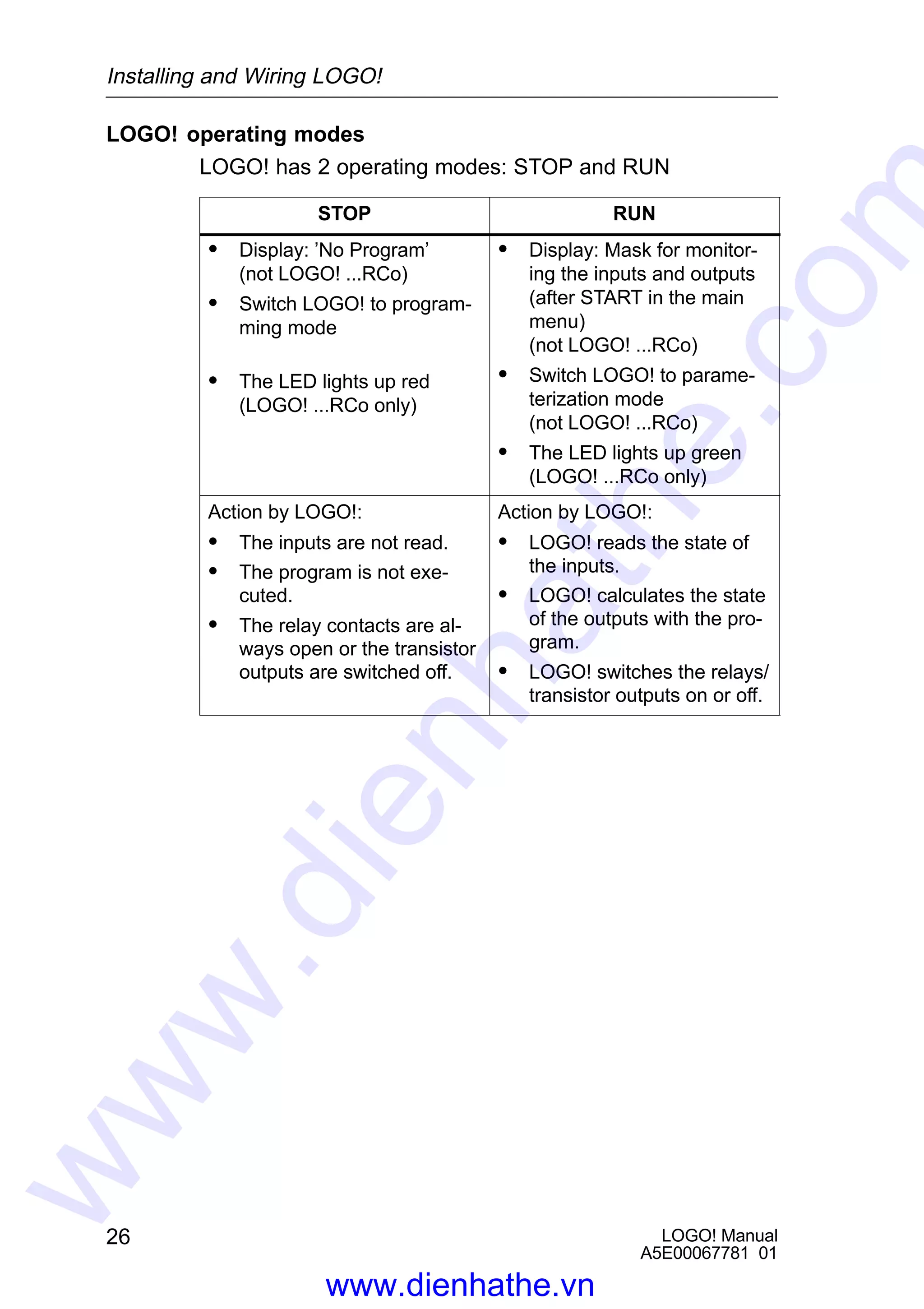
S Display: ’No Program’
(not LOGO! ...RCo)
S Switch LOGO! to program-
ming mode
S The LED lights up red
(LOGO! ...RCo only)
S Display: Mask for monitor-
ing the inputs and outputs
(after START in the main
menu)
(not LOGO! ...RCo)
S Switch LOGO! to parame-
terization mode
(not LOGO! ...RCo)
S The LED lights up green
(LOGO! ...RCo only)
Action by LOGO!:
S The inputs are not read.
S The program is not exe-
cuted.
S The relay contacts are al-
ways open or the transistor
outputs are switched off.
Action by LOGO!:
S LOGO! reads the state of
the inputs.
S LOGO! calculates the state
of the outputs with the pro-
gram.
S LOGO! switches the relays/
transistor outputs on or off.
Installing and Wiring LOGO!
www.dienhathe.vn
www.dienhathe.com
27
LOGO! Manual
A5E00067781 01
3 Programming LOGO!
The first steps with LOGO!
By programming we mean entering a circuit. A LOGO! pro-
gram is really no more than a circuit diagram represented
in a different way.
We have changed the way it is represented to suit
LOGO!’s display panel. In this chapter we will show you
how to use LOGO! to turn your applications into LOGO!
programs.
Note
The LOGO! variants without a display –
LOGO! 12/24RCo, LOGO! 24RCo and LOGO! 230RCo –
do not have an operating unit. They are mainly intended
for serial applications in small machine and apparatus
construction.
LOGO!...RCo variants are not programmed on the device.
Programs from LOGO! software or from memory modules
of other LOGO! devices are transferred into the device.
In the first section of the chapter a brief example will help
you get to know how to use LOGO!.
S We will begin by introducing the two basic terms con-
nector and block and showing you what is meant by
them.
S In a second step we will develop a program from a sim-
ple, conventional circuit.
S In the third step you can then enter this program directly
into LOGO!.
After reading through only the first few pages of this
manual, you will already have stored your first executable
program in LOGO!. Using suitable hardware (switches etc.)
you will then be able to carry out your first tests.
www.dienhathe.vn
www.dienhathe.com
LOGO! Manual
A5E00067781 01
28
3.1 Connectors
LOGO! has inputs and outputs:
L1 N I1 I2 I3 I4
Q1 Q3 Q4
SIEMENS
I5 I6
Q2 Q5 Q6 Q7 Q8
I7 I8 AS interface
– +
I9 I10 I11 I12L1 N I1 I2 I3 I4 I5 I6
Q1 Q2 Q3 Q4
SIEMENS
Inputs
Outputs
4 inputs and
4 outputs via an ASi bus
I7 I8
Each input is identified by the letter I and a number. When
you look at LOGO! from the front, you can see the connec-
tors for the inputs at the top.
Each output is identified by the letter Q and a number. You
can see the connectors of the outputs in the figure below.
Note
Inputs and outputs that are made available with
LOGO!...B11 by means of the AS interface bus connection
are physical inputs on LOGO! itself.
Note that it is the bus master that defines the input and
output devices on the ASi bus.
Programming LOGO!
www.dienhathe.vn
www.dienhathe.com
29
LOGO! Manual
A5E00067781 01
LOGO!’s connectors
The term connector refers to all connections and states in
LOGO!.
The inputs and outputs can have the state ’0’ or ’1’. ’0’
means there is no voltage at the input; ’1’ means that there
is. But that is unlikely to be new to you.
We introduced the connectors hi, lo and x, in order to facili-
tate program entry for you. ’hi’ (high) has the fixed state ’1’
and ’lo’ (low) has the fixed state ’0’.
If you don’t want to wire an input on a block, use the ’x’
connector. You can find out what a block is on the next
page.
LOGO! recognizes the following connectors:
Connec-
tors
Inputs I1... I6I,
I7 (AI1),
I8 (AI2)
I1...I12 I1...I12 and
Ia1...Ia4
(AS interface)
Outputs Q1...Q4 Q1...Q8 Q1...Q8 and
Qa1...Qa4
(AS interface)
lo Signal with level ’0’ (off)
hi Signal with level ’1’ (on)
x An existing connection that is not used
Programming LOGO!
www.dienhathe.vn
www.dienhathe.com
LOGO! Manual
A5E00067781 01
30
3.2 Blocks and Block Numbers
In this chapter, we will describe how you can create exten-
sive circuits with the aid of LOGO!’s elements and how the
blocks are linked to each other and to the inputs and out-
puts.
For this purpose, please turn to Section 3.3. There we de-
scribe how to turn a conventional circuit into a LOGO! pro-
gram.
Blocks
A block in LOGO! is a function which converts input infor-
mation into output information. With earlier variants of
LOGO! you had to wire up the individual elements in the
control cabinet or terminal box.
When you program LOGO! you connect connectors with
blocks. To do this, simply select the connection you require
from the Co menu (Co stands for connector).
Logic operations
The simplest blocks are logic operations:
S AND
S OR
S ...
I1
I2
x
1
Inputs I1 and I2 are connected to the
OR block. The last input of the block
is not used and is therefore marked
with an x.
Q
We have made the special functions far more powerful
than before:
S Current impulse relay
S Counter
S On delay
S ....
Chapter 4 provides a complete list of LOGO!’s functions.
Programming LOGO!
www.dienhathe.vn
www.dienhathe.com
31
LOGO! Manual
A5E00067781 01
Displaying a block in LOGO!
The figure below shows a typical LOGO! display. As you
can see only block can be shown at a time. We have there-
fore introduced block numbers to help you to check how
the circuit is structured.
B02
w1
I2 Q1
B01
Display image of LOGO!
x
Block number –
assigned by
LOGO!
This shows that a
further block is
connected
Input
Connection is not required OutputBlock
Assigning a block number
Whenever you insert a block in a program, LOGO! assigns
that block a number.
LOGO! uses the block number to indicate the connections
between the blocks. The block numbers are therefore
chiefly meant to help you find your way around the pro-
gram.
I1
I2
I3
w1
B01
B02
B02
w1
B03 Q1
B01
B01
Move around the program using the key
I4
I5
I6
w1
B01
There is a con-
nection between
these blocks
Block number
Q1
x
B03
Programming LOGO!
www.dienhathe.vn
www.dienhathe.com
LOGO! Manual
A5E00067781 01
32
The overview display shows you three displays of LOGO!,
which together make up the program. As you can see
LOGO! links the blocks with one another by means of the
block numbers.
Advantages of the block numbers
You can connect almost any block to an input of the current
block using its block number. In this way you can use the
interim results of logic or other operations more than once.
This saves you the work required to enter things again as
well as memory space, and ensures that your circuit re-
mains clear. In this case you have to know how LOGO! has
named the blocks.
Note
To make working with LOGO! particularly efficient, we rec-
ommend that you draw up a diagram overview of the pro-
gram. This will make it easier to create the program. You
can then enter the block numbers assigned by LOGO! in
this diagram.
If you use the LOGO!Soft software to program LOGO!,
you can display and print out a ladder program. You can
create a functional block diagram of your program straight
away using LOGO!Soft Comfort.
Programming LOGO!
www.dienhathe.vn
www.dienhathe.com
33
LOGO! Manual
A5E00067781 01
3.3 From the Circuit Diagram to LOGO!
How a circuit is represented in a circuit diagram
You know, of course, how a circuit is represented in a cir-
cuit diagram. Here is an example:
K1
S1 K1S2
E1
The consumer E1 is switched
on and off by means of the
switches (S1 OR S2) AND S3.
(ODER=OR; UND=AND)
The relay K1 picks up, when
S1 or S2 and also S3 are
closed.
S3
Implementing a circuit with LOGO!
You create a circuit In LOGO! by connecting blocks and
connectors to each other:
S1 ... S3
Wiring of the inputs
I3
x
Q1
w1
I1
I2
x
Program in LOGO!
Wiring of the outputs
To implement a circuit in LOGO!, begin at the output of the
circuit.
The output is the load or the relay that is supposed to oper-
ate.
Programming LOGO!
www.dienhathe.vn
www.dienhathe.com
LOGO! Manual
A5E00067781 01
34
You convert the circuit to blocks. To do this, go through the
circuit from the output to the input:
Step1: At output Q1 there is a series connection of the nor-
mally open contact S3 with another circuit component. The
series connection corresponds to an AND block:
I3
x
Q1

Step 2: S1 and S2 are connected in parallel. The parallel
connection corresponds to an OR block:
I3
x
Q1
w1
I1
I2
x
You have now provided a complete description of the circuit
for LOGO!. You now need to connect the inputs and out-
puts to LOGO!.
Wiring
Connect switches S1 to S3 to the screw connectors of
LOGO!:
S Connect S1 to connector I1 on LOGO!
S Connect S2 to connector I2 on LOGO!
S Connect S3 to connector I3 on LOGO!
Only 2 inputs of the OR block are used so the third input
must be marked as unused. This is indicated by the x next
to it.
Likewise, only 2 inputs of the AND block are used. The
third input is therefore also marked as ’unused’ by an x
next to it.
The output of the AND block controls the relay at output
Q1. Consumer E1 is connected at output Q1.
Programming LOGO!
www.dienhathe.vn
www.dienhathe.com
35
LOGO! Manual
A5E00067781 01
Wiring example
The following table shows you the wiring based on a 230 V
variant of LOGO!.
L1
N Wiring of the inputs
Wiring of the outputs
S
1
S
3
S
2
L1
N
Wiring of the outputs of a LOGO...L...
LoadLoad
Programming LOGO!
www.dienhathe.vn
www.dienhathe.com
LOGO! Manual
A5E00067781 01
36
3.4 The 4 Golden Rules for Working with
LOGO!
Rule 1
3-finger grip
S Enter the circuit in programming mode. Switch to pro-
gramming mode by pressing the 3 keys , and OK at
the same time.
S Change the values of times and parameters in parame-
terization mode. Switch to parameterization mode by
pressing the 2 keys ESC and OK at the same time.
Rule 2
Outputs and inputs
S Always enter a circuit from output to input.
S You can connect an output to several inputs, but not
several outputs to one input.
S You can’t connect an output to a preceding input within
a program path. Insert markers or outputs in such cases
(recursions).
Programming LOGO!
www.dienhathe.vn
www.dienhathe.com
37
LOGO! Manual
A5E00067781 01
Rule 3
Cursor and cursor movement
The following applies when entering a circuit:
S When the cursor appears in the form of an underscore,
you can move the cursor:
– Use the keys , , or to move the cursor in the
circuit.
– Press OK to select a connector/block.
– Press ESC to exit circuit input.
S When the cursor appears in the form of a solid block,
you should select a connector/block
– Use the keys or to select a connector/block.
– Press OK to accept a selection.
– Press ESC to go back one step.
Rule 4
Planning
S Before you enter a circuit, draw up a complete plan of it
on paper or program LOGO! directly using LOGO!Soft
or LOGO!Soft Comfort.
S LOGO! can only store complete programs. If you enter
an incomplete program, LOGO! is not able to exit
Programming mode.
Programming LOGO!
www.dienhathe.vn
www.dienhathe.com
LOGO! Manual
A5E00067781 01
38
3.5 Overview of LOGO!’s menus
Program..
PC/Card..
Start
Edit Prg
Clear Prg
Set Clock
ASi_BUS..
PC´
³Card
Card³
Main menu Programming menu
PC/card menu
Set Clock
Set Param
OK
OK
ESC
ESC
Parameterization menu
Programming mode
Parameterization mode
= LOGO!
Programming LOGO!
www.dienhathe.vn
www.dienhathe.com
39
LOGO! Manual
A5E00067781 01
3.6 Entering and Starting a Program
You have designed a circuit and now want to enter it in
LOGO!. The example below illustrates how to do this.
3.6.1 Switching to Programming Mode
Connect LOGO! to the mains and switch on the power. The
following message appears on the display:
No Program
Switch LOGO! to programming mode To do this, press the
keys , and OK at the same time. The fact that you have
to press the keys simultaneously prevents anyone pressing
them and switching to programming mode inadvertently.
No Program
When you press the keys, LOGO!’s main menu appears:
Program..
PC/Card..
Start
LOGO!’s main menu
On the left in the first line you will see ””. Use the keys
and to move the ”” up and down. Move the ”” to
”Program..” and press OK. LOGO! switches to the pro-
gramming menu.
Programming LOGO!
www.dienhathe.vn
www.dienhathe.com
LOGO! Manual
A5E00067781 01
40
Edit Prg
Clear Prg
Set Clock
ASi_BUS..
LOGO!’s programming menu
The ASi bus entry only appears
with LOGO!...LB11 variants
Here too, you can move the ”” by pressing the and
keys. Position the ”” on ”Edit Prg” (i.e. to enter the pro-
gram) and press OK. LOGO! then displays the first output:
LOGO!’s first output
Q1
Use the keys and keys to select the other outputs. At
this point, you begin to enter your circuit.
3.6.2 First Program
Let’s have a look at the following circuit: a parallel connec-
tion of two switches.
Circuit diagram
How a circuit is represented in a circuit diagram
K1
S1
K1
S2
E1
The consumer is switched on
by switch S1 or switch S2. As
far as LOGO! is concerned,
the parallel connection of the
switches is an OR block be-
cause S1 or S2 switches the
output on.
Programming LOGO!
www.dienhathe.vn
www.dienhathe.com
41
LOGO! Manual
A5E00067781 01
Translated into the LOGO! program, this means: Relay K1
(in LOGO! via output Q1) is controlled by an OR block.
Program
I1 and I2 are connected to the input of the OR block, S1 to
I1 and S2 to I2.
Thus, the program in LOGO! looks like this:
I1
I2
x
Q1
1
Wiring
The wiring is as follows:
L1 N I1 I2 I3 I4 I5 I6
Q1 Q2 Q3 Q4
SIEMENS
L1
N
S1 S2
L
N
Switch S1 acts on input I1 and switch S2 on input I2. The
consumer is connected to relay Q1.
Programming LOGO!
www.dienhathe.vn
www.dienhathe.com
LOGO! Manual
A5E00067781 01
42
3.6.3 Entering a Program
Let’s enter the program now (from the output to the input).
Initially, LOGO! displays the output:
LOGO!’s first output
Q1
The Q of Q1 is underlined. This underlining is the cursor.
The cursor indicates your current position in the program.
You can move the cursor by pressing the , , and
keys. Now press the key . The cursor moves to the left.
The cursor indicates your position in
the program.
Q1–
At this point, enter only the first block (the OR block). Press
OK to switch to input mode.
The cursor appears in the form of a
solid block: you can select a connector
or block.
Q1Co
The cursor no longer appears in the form of an underline;
instead it appears as a solid block that flashes on and off.
At the same time, LOGO! offers you the first list for selec-
tion.
Select the BF list (by pressing until BF appears) and
press OK. LOGO! then displays the first block in the list of
basic functions (BF):
Programming LOGO!
www.dienhathe.vn
www.dienhathe.com
43
LOGO! Manual
A5E00067781 01
The first block in the list of basic func-
tions is AND. The cursor appears in
the form of a solid block, indicating that
you have to select a block.

B01
Q1
Now press the key or , until the OR block appears in
the display:
w1
B01
Q1
The cursor is still in the block and ap-
pears in the form of a solid block.
Press OK to conclude your selection.
w1
The following appears in the display panel
B01
Q1
B01
w1
Q1
Your entire program looks
like this
Block
number
–
You have now entered the first block. Each block you enter
receives a number, the block number. All you have to do
now is wire the inputs of the block. To do this, proceed as
follows:
Press OK.
w1
The following appears in the display panel
B01
Q1
Co
Programming LOGO!
www.dienhathe.vn
www.dienhathe.com
LOGO! Manual
A5E00067781 01
44
Select the Co list: Press OK
w1
The following appears in the display panel
B01
Q1
x
The first item in the Co list is the character for indicating
that the input is not use, an ”x”. Use the or key to se-
lect input I1.
w1
Q1
I1
B01
Press OK: I1 is connected to the input of the OR block.
The cursor jumps to the next input of the OR block.
w1
The following appears in the display panel
B01
Q1
w1
Q1
Your entire program so far
looks like this in LOGO!
I1 I1
B01
–
Now connect input I2 to the input of the OR block. You
know how to do this already:
1. Switch to input mode: OK
2. Select the Co list: keys or
3. Accept the Co list: OK
4. Select I2: keys or
5. Accept I2: OK
Thus, I2 is now connected to the input of the OR block:
Programming LOGO!
www.dienhathe.vn
www.dienhathe.com
45
LOGO! Manual
A5E00067781 01
w1
The following appears in the display panel
B01
Q1
w1
Q1
I1 I1
B01
I2I2
Your entire program so far
looks like this in LOGO!
We don’t need the last input of the OR block in this pro-
gram. In a LOGO! program, you mark an input that is not
used with an ”x”, so now enter the ’x’ (you know the princi-
ple already):
1. Switch to input mode: OK
2. Select the Co list: keys or
3. Accept the Co list: OK
4. Select x: keys or
5. Accept x: OK
Thus, all the block’s inputs are now wired. As far as LOGO!
is concerned, the program is now complete. LOGO! returns
to output Q1.
The following appears in the display panel
w1
Q1
Your program looks like this
I1
B01
I2Q1B01
x
If you want to have another look at your first program, you
can use the or key to move the cursor through the pro-
gram.
Programming LOGO!
www.dienhathe.vn
www.dienhathe.com
LOGO! Manual
A5E00067781 01
46
But we are going to exit program input now. To do this, pro-
ceed as follows:
1. Return to the programming menu: ESC
If this doesn’t return you to the programming menu, you
have not wired a block completely. LOGO! displays the
point in the program at which you forgot something (LOGO!
only accepts completed programs, which is very much in
your interests). Also refer to page 57.
Note
LOGO! has now stored your program permanently, so that
it will not be lost in the event of a power failure. The pro-
gram is stored in LOGO! until you expressly delete it by
entering the appropriate command.
2. Return to the main menu: ESC
Switching LOGO! to RUN
3. Move ’’ to ’Start’: keys or
4. Accept Start: OK
LOGO! switches to RUN. In RUN LOGO! displays the fol-
lowing:
LOGO!’s display panel in RUN
State of the inputs
Current time
(variants with time switch only)
LOGO! is in RUN
State of the outputs
I:123456
Mo 09:00
Q:1234 RUN
I:12345678
Q:12345678
Mo 09:00
9 10 11 12
ASi_Bus
Ia : 1234
Qa : 1234
Bus: On
State of the ASi inputs
State of the ASi outputs
State of the ASi bus
Programming LOGO!
www.dienhathe.vn
www.dienhathe.com
47
LOGO! Manual
A5E00067781 01
What does ”LOGO! is in RUN?” mean?
In RUN, LOGO! executes the program. First of all it reads
the states of the inputs, uses the program you have speci-
fied to determine the states of the outputs, and switches
the relays at the outputs on or off.
LOGO! represents the state of an input or output as fol-
lows:
Input/outputhas the state ’1’:
inverse
Input/output has the state
’0’: not inverse
Mo 09:00
I:12345678
9 10 11 12
I:123456
Mo 09:00
Q:1234 RUN Q:12345678
State display
Let’s have a look at that in our example:
I:123456
Mo 09:00
Q:1234 RUN
L1
N
S1 S2
=1
When switch S1 is closed,
voltage is applied to input I1,
which has the state ’1’.
LOGO! calculates the states
of the outputs with the pro-
gram.
Output Q1 has the state ’1’
here.
When Q1 has the state ’1’,
LOGO! operates relay Q1
and the consumer at Q1 is
supplied with voltage.
I1 I2
Q1
Programming LOGO!
www.dienhathe.vn
www.dienhathe.com
LOGO! Manual
A5E00067781 01
48
The next step
You have now successfully entered your first circuit.
In the next section, we will show you how to make changes
to existing programs and use special functions in them.
Programming LOGO!
www.dienhathe.vn
www.dienhathe.com
49
LOGO! Manual
A5E00067781 01
3.6.4 Second Program
We will use the second program to show you the following:
S How to insert a block in an existing program.
S How to select a block for a special function.
S How to enter parameters.
Changing circuits
In order to produce the second program, we have to modify
the first one slightly.
Let’s begin by looking at the circuit diagram for the second
program:
L1
N
S1 S2
You already know the first part of
the circuit. Switches S1 and S2 op-
erate a relay. This relay switches on
consumer E1 and switches it off af-
ter a delay of 12 minutes.
K1
K1 E1
In LOGO! the program looks like this:
w1
Q1
I1
I2
x x
T
This is the
additional new
block
You will recognize the OR block and output relay Q1 from
the first program. Only the off delay is new.
Programming LOGO!
www.dienhathe.vn
www.dienhathe.com
LOGO! Manual
A5E00067781 01
50
Editing a program
Switch LOGO! to programming mode
To do this, proceed as follows:
1. Switch LOGO! to programming mode:
( , and OK at the same time).
2. Select ”Program..” from the main menu
(by moving ’’ to “Program..” and press OK)
3. Select ”Edit Prg..” from the programming menu
(by moving ’’ to “Edit Prg..” and press OK)
You can now modify the existing program.
Inserting an additional block in a program
Move the cursor to the B of B01 (B01 is the block number
of the OR block).
Q1B01
Move the cursor:
Press
At this point we insert the new block. Press OK.
Q1BN
LOGO! displays the BN list.
Select the SF list (B key).
Q1SF
The SF list contains the blocks
for the special functions.
Press OK.
Programming LOGO!
www.dienhathe.vn
www.dienhathe.com
51
LOGO! Manual
A5E00067781 01
The block of the first special function appears:
Trg
T Q1
When you select a block for a special or basic
function, LOGO! displays the block of the
function. The cursor is in the block and ap-
pears in the form of a solid block. Use the B
or Y key to select the block you want.
Select the desired block (off delay, see next diagram) and
press OK:
R
The inserted block receives the block num-
ber B02. Block B01, which has been con-
nected up to now to Q1, is automatically
connected to the uppermost input of the in-
serted block. The cursor is positioned at the
uppermost input of the inserted block.
B01
T
Q1
B02
The off-delay block has 3 inputs. The uppermost input is
the trigger input (Trg). Use this input to start the off delay.
In our example, the off delay is started by the OR block
B01. Reset the time and outputs using the reset input and
set the time for the off delay using the T parameter.
In our example, we don’t use the reset input of the off
delay. We wire it with ’x’. You learned how to do this in the
first program, but just to remind you, here is the procedure
again:
1. Position the cursor under the R:key or
2. Switch to input mode: OK
3. Select the Co list: keys or
4. Accept the Co list: OK
5. Select x: keys or
6. Accept x: OK
x
B01
T
Q1
B02 The display should now look like this:
Programming LOGO!
www.dienhathe.vn
www.dienhathe.com
LOGO! Manual
A5E00067781 01
52
Parameterizing a block
Now enter the time T for the off delay:
1. If the cursor is not yet under the T,
move it there: keys or
2. Switch to input mode: OK
LOGO! displays the parameter window for parameters:
B02: the parameter of block
B02 T: is a time
+ Means: the parameter is
displayed in parameteriza-
tion mode and can be modi-
fied there
B02:T
T=00.00s+
Time value Time unit
The cursor appears on the first position of the time value.
To change the time value, proceed as follows:
S Use the keys and to move the cursor to different
positions.
S Use the keys and to change the value.
S When you have entered the time value, press OK.
Setting the time
Set the time T = 12:00 minutes:
1. Move the cursor to the first position:
or
2. Select ’1’:
or
3. Move the cursor to the second position:
or
4. Select ’2’:
or
5. Move the cursor to the unit:
or
6. Select the unit m for minutes:
or
Programming LOGO!
www.dienhathe.vn
www.dienhathe.com
53
LOGO! Manual
A5E00067781 01
Displaying/hiding parameters – type of protection
If you don’t want the parameter to be displayed in parame-
terization mode, proceed as follows:
7. Move the cursor to the protection mode::
or
8. Select protection mode ’–’:
or
The following message should now appear on the display:
B02:T
T=12:00m+
B02:T
T = 12:00mor
Type of protection+: Time
T can be changed in para-
meterization mode
Type of protection–: Time
T cannot be changed in
parameterization mode
9. Conclude your input:
OK
Checking the program
This branch of the program for Q1 is now complete.
LOGO! displays the Q1 output. You can have another look
at the program on the display. Use the keys to move
through the program. Use or to move from block to
block and use and to move between the inputs on a
block.
Exiting programming mode
Exit program input in the same way you did for the first pro-
gram, but just remind you, here is the procedure again:
1. Return to the programming menu: ESC
2. Return to the main menu: ESC
3. Move ’’ to ’Start’: keys or
4. Accept Start: OK
Programming LOGO!
www.dienhathe.vn
www.dienhathe.com
LOGO! Manual
A5E00067781 01
54
LOGO! is now in RUN again:
I:123456
Q:1234 RUN
Mo 09:00
Programming LOGO!
www.dienhathe.vn
www.dienhathe.com
55
LOGO! Manual
A5E00067781 01
3.6.5 Deleting a Block
Let’s suppose you want to delete block B02 from the fol-
lowing program and connect B01 directly with Q1.
Q1
I1
I2
x x
T
B01
B02
To do this, proceed as follows:
1. Switch LOGO! to programming mode (3-finger grip).
2. Select ’Edit Prg’ by pressing OK.
3. Position the cursor at the input of Q1, i.e. under B02
using the key :
B02 Q1
4. Press OK.
5. Connect block B01 instead of block B02 directly to out-
put Q1:
Select the BN list and press OK
Select B01 and press OK.
Result: Block B02 is now deleted, because it is no longer
used anywhere within the entire circuit. Block B01 is now
connected directly to the output instead of B02.
Programming LOGO!
www.dienhathe.vn
www.dienhathe.com
LOGO! Manual
A5E00067781 01
56
3.6.6 Deleting a Number of Interconnected Blocks
Let’s suppose you want to delete blocks B01 and B02 from
the following program.
Q1
I1
I2
x x
T
B01
B02
To do this, proceed as follows:
1. Switch LOGO! to programming mode (3-finger grip).
2. Select ’Edit Prg’ by pressing OK.
3. Position the cursor at the input of Q1, i.e. under B02:
B02 Q1
4. Press OK.
5. Set the connector x instead of block B02 at the Q1 out-
put:
Select the Co list and then press OK.
Select x and then press OK.
Result: Block B02 is now deleted, because it is no longer
used anywhere within the entire circuit. and all the blocks
that are connected to it are deleted (i.e. block B01 in the
example).
Programming LOGO!
www.dienhathe.vn
www.dienhathe.com
57
LOGO! Manual
A5E00067781 01
3.6.7 Correcting Typing Errors
It is easy to correct typing errors in LOGO!:
S If you have not yet concluded input, you can use ESC
to go back a step.
S If you have already concluded input, simply start again,
as follows:
1. Move the cursor to the location of the error.
2. Switch to input mode: OK
3. Enter the correct wiring for the input.
You can only replace one block with another if the new
block has exactly the same number of inputs as the old
one. However, you can delete the old block and insert a
new one. You can insert whichever block you like.
3.6.8 ”?” on the Display
If you have entered a program and want to exit “Edit Prg”
with ESC, LOGO! checks whether you have wired all the
inputs of all the blocks correctly. If you have forgotten an
input or parameter, LOGO! displays the first place at which
you have forgotten something and marks with a question
mark all those inputs and parameters that have not been
wired.
R ?
You have not yet wired the in-
put here
B01
T ?
Q1
B02
You have not yet specified a
value for the parameter
Wire the input and enter a value for the parameter. You can
then exit “Edit Prg” by pressing ESC.
Programming LOGO!
www.dienhathe.vn
www.dienhathe.com
LOGO! Manual
A5E00067781 01
58
3.6.9 Deleting a Program
To delete a program, proceed as follows:
1. Switch LOGO! to programming mode:
, and OK at the same time
Program..
PC/Card..
Start
2. Move the ’’ with the keys or to ’Program..’ and
press OK
Edit Prg
Clear Prg
Set Clock
LOGO! switches to the programming
menu.
3. Move the ’’ to ”Clear Prg”:
or
4. Accept ’Clear Prg’:
OK
Clear Prg
No
Yes
To prevent you from inadvertently delet-
ing the program, we have included an
additional query.
If you do not want to delete the program, leave the ’’ on
’No’ and press OK.
If you are sure that you want to delete the program stored
in LOGO!, proceed as follows:
5. Move the ’’ to Yes:
or
6. Press OK. LOGO! deletes the program.
Programming LOGO!
www.dienhathe.vn
www.dienhathe.com
59
LOGO! Manual
A5E00067781 01
3.7 Storage Space and Size of a Circuit
A program (control program in LOGO!, circuit diagram) has
the following limitations:
S The number of blocks connected in series (nesting
depth)
S The storage space (use of memory by the blocks)
Memory area
You can only use a limited number of blocks for your pro-
gram in LOGO!. In addition, some blocks require extra
memory for their special functions.
The memory required for special functions is divided up
into 4 memory areas.
S Par: The area in which LOGO! stores the desired val-
ues (e.g. the limit values of a counter).
S RAM: The area in which LOGO! stores the current ac-
tual values (e.g. the counter status).
S Timer: The area LOGO! uses for time functions such as
the off delay.
S REM: The area in which LOGO! stores actual values
that have to be retained (e.g. the count value of an op-
erating hours counter). In blocks with selective use of
the retentive feature, this memory area is only used if
the retentive feature is switched on.
Resources available in LOGO!
The maximum amount of resources that can be occupied
by a program in LOGO! is as follows:
Blocks Par RAM Timer REM Markers
56 48 27 16 15 8
LOGO! monitors memory utilization, and offers in the func-
tion lists only those functions for which there is still actually
enough memory space available.
Programming LOGO!
www.dienhathe.vn
www.dienhathe.com
LOGO! Manual
A5E00067781 01
60
Memory utilization
The table gives you an overview of the special memory
requirements of the special functions:
Function block Par RAM Timer REM
Latching relay* 0 (1) 0 (1)
Current impulse relay* 0 (1) 0 (1)
Interval time-delay relay 1 1 1 0
Edge-triggered interval
time-delay relay
1 1 1 0
On delay 1 1 1 0
Off delay 2 1 1 0
On/off delay 2 1 1 0
Retentive
on delay
2 1 1 0
Seven-day time switch 6 2 0 0
Twelve-month time switch 2 0 0 0
Up/down counter* 2 (2) 0 (2)
Operating hours counter 2 0 0 4
Symmetrical clock pulse gen-
erator
1 1 1 0
Asynchronous pulse genera-
tor
3 1 1 0
Random generator 2 1 1 0
Frequency
trigger
3 3 1 0
Analog trigger 4 2 0 0
Analog comparator 3 4 0 0
Stairwell light switch 1 1 1 0
Dual-function switch 2 1 1 0
Message texts 1 0 0 0
Programming LOGO!
www.dienhathe.vn
www.dienhathe.com
61
LOGO! Manual
A5E00067781 01
* Depending on the parameterization of the function with or
without retentivity, each function occupies the following
amount of memory:
S Retentivity switched off: RAM memory
S Retentivity switched on: REM memory
The maximum number of functions that can be used
Based on the memory requirements of the individual
special functions, you can work out the maximum
number of special functions you can use.
Example: The operating hours counter requires 2 memory
areas for desired value storage (Par) and 4 memory areas
for the actual values that have to be retained (REM). There
are 15 REM memory areas and 48 Par memory areas In
LOGO!.
The special function of the operating hours counter can
therefore only be used a maximum of 3 times, leaving just
3 REM memory areas left. Although there are still 42 Par
memory areas free, you are one REM memory area short
to run an additional operating hours counter.
Calculation: Free memory areas divided by the required
number of memory areas. Carry out this calculation for
each memory area required (Par, RAM, timer, REM). The
lowest value shows you the maximum number of functions
you can use.
Nesting depth
A program path consists of a series of function blocks
starting and ending with a terminal block. The number of
blocks in a program path describes the nesting depth.
Inputs and levels (I, Ia, hi, lo), as well as outputs and mark-
ers (Q, Qa, M) are terminal blocks . The terminal blocks
are not represented by a block symbol in LOGO!.
The maximum number of function blocks you can use in
LOGO! is 56, so the maximum nesting depth is:
56 function blocks + 2 terminal blocks = 58.
Programming LOGO!
www.dienhathe.vn
www.dienhathe.com
LOGO! Manual
A5E00067781 01
62
4 LOGO! Functions
Element lists
LOGO! offers you a number of elements in programming
mode. So that you don’t lose track of things, we have di-
vided these elements into lists. These lists are:
S ±Co: List of connectors (Connector)
(see Section 4.1)
S ±BF: List of the basic functions AND, OR, ...
(see Section 4.2)
S ±SF: List of special functions
(see Section 4.4)
S ±BN: List of the completed and reusable blocks in the
circuit
Contents of the lists
All the lists display elements available in LOGO!. Normally,
these are all the connectors, all the basic functions and all
the special functions that the respective LOGO! variant
knows. These elements also include all the blocks you
have created in LOGO! before you call up the ±BN list.
When LOGO! no longer displays everything
LOGO! no longer displays all elements if:
S No further block must be inserted.
In this case, there is either no more memory available
or the maximum number of possible blocks has been
reached (56).
S A special block would use more memory than is still
available in LOGO!.
S The resulting number of function blocks connected in
series would exceed 7 (see Section 3.7).
www.dienhathe.vn
www.dienhathe.com
63
LOGO! Manual
A5E00067781 01
4.1 Constants and Connectors – Co
Constants and connectors (connectors = Co) are inputs,
outputs, memory markers and fixed voltage levels
(constants).
Inputs
Inputs are identified by the letter I. The input numbers (I1,
I2, ...) correspond to the numbers of the input connectors
on LOGO!.
Analog inputs
The LOGO! models LOGO! 24, LOGO! 12/24RC and
LOGO! 12/24RCo include the inputs I7 and I8, which can
also be used as AI1 and AI2, depending on how they are
programmed. If the inputs are used as I7 and I8, the signal
applied is interpreted as a digital value. If they are used as
AI1 and AI2, the signals are interpreted as analog values.
In the case of special functions, which can only be effec-
tively connected with analog inputs on the input side, only
the analog inputs AI1 and AI2 are offered for selection in
programming mode when the input signal is selected.
ASi inputs
Inputs Ia1 to Ia4 are also available for communication via
the ASi bus in LOGO! variants with an AS interface con-
nection (LOGO!...B11).
Outputs
Outputs are identified by the letter Q. The output numbers
(Q1, Q2, ...) correspond to the numbers of the output con-
nectors on LOGO!.
Outputs Qa1 to Qa4 are also available for communication
via the ASi bus with LOGO! variants with an AS interface
connection (LOGO!...B11).
LOGO! Functions
www.dienhathe.vn
www.dienhathe.com
LOGO! Manual
A5E00067781 01
64
Markers
Markers are identified by the letter M. Markers are virtual
outputs that have the same value at their output as they
have at their input. There are 8 memory markers (M1 ...
M8) available in LOGO!.
By using memory markers you can exceed the maximum
number of consecutive blocks.
Startup flags
Memory marker M8 is set in the first cycle of the user pro-
gram and can be used subsequently in your program as a
startup flag. It is automatically reset after the first cycle of
program processing.
As regards setting, deletion and evaluation, memory
marker M8 can be used in the same way as memory mark-
ers M1 to M7 in all subsequent cycles.
Note
The signal applied at the marker’s output is always that of
the last program cycle. The signal is not changed within a
program cycle.
Levels
Voltage levels are identified by hi and lo. If a block is sup-
posed to have the state “1” = hi or “0” = continuously, the
input is wired with the fixed level or the constant hi or lo
value.
Open connectors
If a connector pin of a block is not to be wired, this is indi-
cated with an x.
LOGO! Functions
www.dienhathe.vn
www.dienhathe.com
65
LOGO! Manual
A5E00067781 01
4.2 List of Basic Functions – BF
Basic functions are simple basic operation links in Boolean
algebra.
When you enter a circuit, you will find the blocks for basic
functions in the BF list. The following basic functions exist:
Circuit diagram
representation
Representation in
LOGO!
Designation of the
basic function
Series connection
of normally open
contacts
AND
(see page 67)
AND with RLO
edge detection
(see page 67)
Parallel connec-
tion of normally
closed contacts
NAND
(AND not)
(see page 68)
NAND with RLO
edge detection
(see page 69)
Parallel connec-
tion of normally
open contacts
OR
(see page 67)
Series connec-
tionof normally
closed contacts
NOR
(OR not)
(see page 70)
LOGO! Functions
www.dienhathe.vn
www.dienhathe.com
LOGO! Manual
A5E00067781 01
66
Circuit diagram
representation
Designation of the
basic function
Representation in
LOGO!
Double change-
over
XOR
(exclusive OR)
(see page 71)
Inverter
NOT
(negation, inverter)
(see page 71)
LOGO! Functions
www.dienhathe.vn
www.dienhathe.com
67
LOGO! Manual
A5E00067781 01
4.2.1 AND
The series connection of a number of nor-
mally open contacts is represented in a
circuit diagram as follows:
Symbol in LOGO!:
The output of the AND only adopts the state 1 if all the in-
puts have the state 1 (i.e. they are closed).
If an input pin of this block is not wired (x), then the follow-
ing applies to the input: x = 1.
Logic table for AND
1 2 3 Q
0 0 0 0
0 0 1 0
0 1 0 0
0 1 1 0
1 0 0 0
1 0 1 0
1 1 0 0
1 1 1 1
4.2.2 AND with RLO Edge Detection
Symbol in LOGO!:
The output of AND with RLO edge detection only adopts
the state 1 when all inputs have the state 1 and at least
one input had the state 0 in the previous cycle.
If an input pin of this block is not wired (x), then the follow-
ing applies to the input: x = 1.
LOGO! Functions
www.dienhathe.vn
www.dienhathe.com
LOGO! Manual
A5E00067781 01
68
Timing diagram for AND with RLO edge detection
1
Cycle
3
Q
2
1 2 3 4 5 6 7 8 9 10
4.2.3 NAND (AND Not)
The parallel connection of a number
of normally closed contacts is repre-
sented in a circuit diagram as follows:
Symbol in LOGO!:
The output of NAND only adopts the state 0 if all the inputs
have the state 1 (i.e. they are closed).
If an input pin of this block is not wired (x), then the follow-
ing applies to the input: x = 1.
Logic table for NAND
1 2 3 Q
0 0 0 1
0 0 1 1
0 1 0 1
0 1 1 1
1 0 0 1
1 0 1 1
1 1 0 1
1 1 1 0
LOGO! Functions
www.dienhathe.vn
www.dienhathe.com
69
LOGO! Manual
A5E00067781 01
4.2.4 NAND with RLO Edge Detection
Symbol in LOGO!:
The output of NAND with RLO edge detection only adopts
the state 1 when at least one input has the state 0 and all
inputs had the state 1 in the previous cycle.
If an input pin of this block is not wired (x), then the follow-
ing applies to the input: x = 1.
Timing diagram for NAND with RLO edge detection
1
Cycle
3
Q
2
1 2 3 4 5 6 7 8 9 10
4.2.5 OR
The parallel connection of a number of
normally open contacts is represented
in a circuit diagram as follows: Symbol in LOGO!:
The output of the OR adopts the state 1 if at least one in-
put has the state 1 (i.e. it is closed).
If an input pin of this block is not wired (x), then the follow-
ing applies to the input: x = 0.
LOGO! Functions
www.dienhathe.vn
www.dienhathe.com
LOGO! Manual
A5E00067781 01
70
Logic table for OR:
1 2 3 Q
0 0 0 0
0 0 1 1
0 1 0 1
0 1 1 1
1 0 0 1
1 0 1 1
1 1 0 1
1 1 1 1
4.2.6 NOR (OR Not)
The series connection of a number of
normally closed contacts is represented
in a circuit diagram as follows:
Symbol in LOGO!:
The output of NOR only adopts the state 1 if all the inputs
have the state 0 (i.e. they are switched off). As soon as
any of the inputs is switched on (state 1), the output of
NOR is set to 0.
If an input pin of this block is not wired (x), then the follow-
ing applies to the input: x = 0.
Logic table for NOR
1 2 3 Q
0 0 0 1
0 0 1 0
0 1 0 0
0 1 1 0
1 0 0 0
1 0 1 0
1 1 0 0
1 1 1 0
LOGO! Functions
www.dienhathe.vn
www.dienhathe.com
71
LOGO! Manual
A5E00067781 01
4.2.7 XOR (Exclusive OR)
An XOR in a circuit diagram is a
series connection of two change-
over contacts:
Symbol in LOGO!:
The output of XOR adopts the state 1 if the inputs have
different states.
If an input pin of this block is not wired (x), then the follow-
ing applies to the input: x = 0.
Logic table for XOR
1 2 Q
0 0 0
0 1 1
1 0 1
1 1 0
4.2.8 NOT (Negation, Inverter)
A normally closed contact is repre-
sented in a circuit diagram as follows:
Symbol in LOGO!:
The output adopts the state 1 if the input has the state 0. In
other words, NOT inverts the state at the input.
The advantage of the NOT function can be illustrated by
the following example: you no longer require normally
closed contacts for LOGO! You use a normally open con-
tact and convert it into a normally closed contact by using
NOT.
Logic table for NOT
1 Q
0 1
1 0
LOGO! Functions
www.dienhathe.vn
www.dienhathe.com
LOGO! Manual
A5E00067781 01
72
4.3 Fundamentals of Special Functions
You will notice that special functions differ from basic func-
tions on first glance because of the differences in the de-
scriptions of their inputs are named. Special functions in-
clude time functions, retentivity and various
parameterization options to adapt the program to your indi-
vidual requirements.
In this section we would like to give you a brief overview of
the input descriptions and provide you with some important
background information about special functions. The indi-
vidual special functions are described in Section 4.4.
LOGO! Functions
www.dienhathe.vn
www.dienhathe.com
73
LOGO! Manual
A5E00067781 01
4.3.1 Description of the Inputs
Connection inputs
The connections that can be made to other blocks or to the
inputs of the LOGO! device are described here.
S S (set):
The input S allows you to set the output to “1”.
S R (reset):
The reset input R takes priority over all other inputs and
switches outputs to “0”.
S Trg (trigger):
You use this input to start the execution of a function.
S Cnt (count):
This input records count pulses.
S Fre (frequency):
Frequency signals to be evaluated are applied at the
input with this description.
S Dir (direction):
You use this input to set the direction in which a counter
should count, for example.
S En (enable):
This input enables the function of the block. If the input
is at “0”, other signals are ignored by the block.
S Inv (invert):
The output signal of the block is inverted when this input
is activated.
S Ral (reset all):
All internal values are reset.
Connector X at the inputs of the special functions
If you wire inputs of special functions to the x connector,
these inputs will be assigned the value 0 i.e. a low signal is
applied to the inputs.
LOGO! Functions
www.dienhathe.vn
www.dienhathe.com
LOGO! Manual
A5E00067781 01
74
Parameter inputs
There some inputs at which you do not apply signals.
Instead, you parameterize the function block with certain
values.
S Par (parameter):
This input is not wired. Here you set parameters for the
block.
S T (time):
This input is not wired. Here you set times for a block.
S No (number):
This input is not wired. Here you set time bases.
S P (priority):
This input is not wired. Here you set priorities.
4.3.2 Time Response
Parameter T
With some of the special functions it is possible to parame-
terize a time value T. When specifying the time, note that
the values to be entered depend on the time base set:
Time Base _ _ : _ _
s (seconds) Seconds : 1/100 seconds
m (minutes) Minutes : Seconds
h (hours) Hours : Minutes
B01:T
T=04.10h+
Setting the time T for 250 minutes:
Unit hours (h):
04.00 hours 240 minutes
00.10 hours +10 minutes
= 250 minutes
LOGO! Functions
www.dienhathe.vn
www.dienhathe.com
75
LOGO! Manual
A5E00067781 01
Note
Always specify a time T w 0.10 s. For T = 0.05 s and
T = 0.00 s the time T is not defined.
Accuracy of T
All electronic components have minute differences. This
can result in deviations in the set time (T). In LOGO! the
maximum deviation is 1 %.
Example:
In 1 hour (3600 seconds) the deviation is 1 % (i.e. 36 sec-
onds).
In 1 minute the deviation is therefore only 0.6 seconds.
Accuracy of the time switch
To make sure that this deviation doesn’t result in the clock
in C variants running inaccurately, the time switch is regu-
larly compared with a high-precision time base and ad-
justed accordingly.
This results in a maximum time error of $5s a day.
4.3.3 Clock Buffering
The internal clock of a LOGO! module continues to run if
there is a power failure, i.e. it has a power buffer. The dura-
tion of the reserve power is affected by the ambient tem-
perature. At an ambient temperature of 25°C the typical
power buffer is 80 hours.
4.3.4 Retentivity
The switching states and counter values can be kept reten-
tively in the special functions. To do this, retentivity must be
switched on for the relevant function.
LOGO! Functions
www.dienhathe.vn
www.dienhathe.com
LOGO! Manual
A5E00067781 01
76
4.3.5 Degree of Protection
The parameter protection setting allows you to specify
whether the parameters can be displayed and altered in
parameter assignment mode on the LOGO! module. There
are two possible settings:
+: The parameter settings are also displayed in parameter
assignment mode and can be changed.–: The parameter
settings are not displayed in parameter assignment mode
and can only be changed in programming mode.
4.3.6 Gain and Offset Calculation for Analog Values
The Gain and Offset parameters allow the internal repre-
sentation of an analog value to be aligned with the actual
measured value.
Parameter Minimum Maximum
Connector voltage (in V) 0 ≥ 10
Internal process image 0 1000
Gain (in %) 0 1000
Offset –999 +999
A connector voltage of 0 to 10 V is mapped internally to
values of 0 to 1000. A connector voltage greater than 10 V
is also represented as 1000 in the internal process image.
You can use the Gain parameter to set a gain of 1000 % (a
factor of 10), for example.
You can use the Offset parameter to move the zero point of
the measured values.
You will find a sample application in the description of the
“analog comparator” special function on page 118.
For information on the analog inputs, see also Section 4.1.
LOGO! Functions
www.dienhathe.vn
www.dienhathe.com
77
LOGO! Manual
A5E00067781 01
4.4 List of Special Functions – SF
When you enter a program in LOGO!, you will find the
blocks for the special functions in the SF list. In the follow-
ing table you will also find comparable representations from
circuit diagrams as well as an indication as to whether the
function in question has parameterizable retentivity.
Circuit
diagram
representation
Representation
in LOGO!
Description of
the special
function
Re
On delay
(see page 80)
Off delay
(see page 82)
On/off
delay
(see page 84)
R K
1
K
1
QTr
g
K
1
Retentive on
delay
(see page 86)
R
S
K1
K
1
Latching relay
(see page 88)
Re
Current impulse
relay
(see page 90)
Re
LOGO! Functions
www.dienhathe.vn
www.dienhathe.com
LOGO! Manual
A5E00067781 01
78
Circuit
diagram
representation
ReDescription of
the special
function
Representation
in LOGO!
Interval time–
delay relay
(see page 92)
Edge-triggered
interval time–
delay relay
(see page 94)
New Seven-day time
switch
(see page 95)
Twelve-month
time switch
(see page 100)
Up and down
counter
(see page 102)
Re
Operating hours
counter
(see page 105)
Symmetrical
clock pulse
generator
(see page 108)
Asynchronous
pulse generator
(see page 110)
LOGO! Functions
www.dienhathe.vn
www.dienhathe.com
79
LOGO! Manual
A5E00067781 01
Circuit
diagram
representation
ReDescription of
the special
function
Representation
in LOGO!
Random genera-
tor
(see page 111)
Frequency
trigger
(see page 113)
Analog trigger
(see page 115)
Analog
comparator
(see page 118)
Stairwell light
switch
(see page 122)
Dual-function
switch
(see page 124)
Message texts
(see page 126)
LOGO! Functions
www.dienhathe.vn
www.dienhathe.com
LOGO! Manual
A5E00067781 01
80
4.4.1 On Delay
Brief description
In the case of the on delay, the output is not switched over
until a definable time period has elapsed.
Symbol in
LOGO!:
Connection Description
Input Trg Use Trg (trigger) input to
start the time for the on
delay.
Parameter T T is the time after which the
output is switched on (out-
put signal is switched from 0
to 1).
Output Q Q switches on after expira-
tion of the defined time T if
Trg is still set.
Parameter T
Please note the parameter values for the T parameter in
Section 4.3.2.
Timing diagram
Trg
T T
Ta starts
Q
The bold part of the
timing diagram ap-
pears in the on-delay
symbol.
Description of function
When the state at the Trg input changes from 0 to 1, the
time Ta begins to elapse (Ta is the current time in LOGO!).
LOGO! Functions
www.dienhathe.vn
www.dienhathe.com
81
LOGO! Manual
A5E00067781 01
If the state at the Trg input remains 1 at least for the dura-
tion of the parameterized time T, the output is set to 1 after
the time T has elapsed (there is a delay between the input
being switched on and the output coming on).
If the state at the Trg input switches back to 0 before the
time T has elapsed, the time is reset.
The output is reset to 0 if the state at the Trg input is 0.
In the event of a power failure, the elapsed time is reset.
LOGO! Functions
www.dienhathe.vn
www.dienhathe.com
LOGO! Manual
A5E00067781 01
82
4.4.2 Off Delay
Brief description
In the case of the off delay, the output is not reset until a
definable time period has elapsed.
Symbol in
LOGO!
Connection Description
Input Trg A negative signal edge
(change from 1 to 0) at the
input Trg (trigger) starts the
off-delay timer
Input R The input R resets the
elapsed time for the off
delay and sets the output
to 0.
Parameter T T is the period after which
the output is switched off
(output signal is switched
from 1 to 0).
Output Q Q switches on when Trg
does but when Trg switches
off remains on until the
delay period T has elapsed.
Parameter T
Please note the parameter values for the T parameter in
Section 4.3.2.
Timing diagram
Trg
TTTa starts
Q
R
The bold part of the
timing diagram ap-
pears in the off-delay
symbol.
LOGO! Functions
www.dienhathe.vn
www.dienhathe.com
83
LOGO! Manual
A5E00067781 01
Description of function
When the state at the input Trg changes to 1, the output Q
switches to 1 immediately.
If the state at the input Trg changes from 1 to 0, the current
time Ta starts in LOGO!, and the output remains set. If Ta
reaches the values specified via T (Ta=T), the output Q is
reset to 0 (off delay).
If the Trg input switches on and off again, the time Ta starts
again.
The input R (Reset) resets the elapsed time Ta and the out-
put before the set time delay Ta has elapsed.
In the event of a power failure, the elapsed time is reset.
LOGO! Functions
www.dienhathe.vn
www.dienhathe.com
LOGO! Manual
A5E00067781 01
84
4.4.3 On/Off Delay
Brief description
In the case of the on/off delay, the output is switched
through after a programmable time and reset after a para-
meterizable time period has elapsed.
Symbol in
LOGO!
Connection Description
Input Trg A rising edge (change from
0 to 1) at the input Trg (Trig-
ger) starts the time TH for
the on delay.
A falling edge (change from
1 to 0) starts the time TL for
the off delay.
Parameter Par TH is the time after which
the output is switched on
(output signal is switched
from 0 to 1).
TL is the time after which the
output is switched off (out-
put signal is switched from 1
to 0).
Output Q Q switches on after the
parameterized time TH has
elapsed if Trg is still set, and
switches off after the time TL
has elapsed if Trg has not
been set again in the in-
terim.
Parameters TH and TL
Note the default values for the parameters TH and TL in
Section 4.3.2.
LOGO! Functions
www.dienhathe.vn
www.dienhathe.com
85
LOGO! Manual
A5E00067781 01
Timing diagram
Trg
T T
TH starts
Q
T
TL starts
The bold part of the
timing diagram ap-
pears in the on/off
delay symbol.
Description of function
When the state at the input Trg changes from 0 to 1, the
timed period TH elapses.
If the state at the input Trg remains 1 at least for the dura-
tion of the parameterized time TH, the output is set to 1
after the time TH has elapsed (there is a delay between the
input being switched on and the output coming on).
If the state at the input Trg switches back to 0 before the
time TH has elapsed, the time is reset.
When the state at the input changes to 0 again, the timed
period TL elapses.
If the state at the input Trg remains at 0 at least for the
duration of the parameterized time TL, the output is set to 0
after the time TL has elapsed (there is a delay between the
input being switched off and the output going off).
If the state at the input Trg switches back to 1 before the
time TL has elapsed, the time is reset.
In the event of a power failure, the elapsed time is reset.
LOGO! Functions
www.dienhathe.vn
www.dienhathe.com
LOGO! Manual
A5E00067781 01
86
4.4.4 Retentive On Delay
Brief description
Following an input pulse, a definable timed period starts on
expiration of which the output is set.
Symbol in
LOGO!
Connection Description
Input Trg Use the Trg (trigger) input to
start the time for the on
delay.
Input R Input R resets the time for
the on delay and sets the
output to 0.
Parameter T T is the time after which the
output is switched on (out-
put state is switched from 0
to 1).
Output Q Q is switched on when the
delay period T has elapsed.
Parameter T
Please refer to the note in Section 4.3.2 when specifying
the values.
Timing diagram
Trg
TTa starts
Q
R
T
The bold part of the timing diagram appears in the retentive on-delay
symbol.
LOGO! Functions
www.dienhathe.vn
www.dienhathe.com
87
LOGO! Manual
A5E00067781 01
Description of function
When the state at the Trg input changes from 0 to 1, the
current time Ta starts. When Ta reaches the time T, output
Q is set to 1. Another switching operation at the Trg input
has no effect on Ta.
The output and the time Ta are not reset to 0, until the state
of the R input changes to 1 again.
In the event of a power failure, the elapsed time is reset.
LOGO! Functions
www.dienhathe.vn
www.dienhathe.com
LOGO! Manual
A5E00067781 01
88
4.4.5 Latching Relay
Brief description
The output Q is set via the input S. The output is reset via
the input R.
Symbol in
LOGO!
Connection Description
Input S Input S sets the output Q
to 1.
Input R The input R resets the out-
put Q to 0. If S and R are
both 1 at the same time,
then the output is reset
Parameter Par This parameter is used to
switch retentivity on or off.
Rem:
off = no retentive feature
on = the state can be stored
retentively
Output Q Q switches on when S does
and remains on until the in-
put R is set.
Timing diagram
S
R
Q
Switching behavior
A latching relay is a simple binary memory cell. The signal
at the output depends on the states of the inputs and the
previous state at the output. The following table illustrates
the logic once more:
LOGO! Functions
www.dienhathe.vn
www.dienhathe.com
89
LOGO! Manual
A5E00067781 01
Sn Rn Q Remarks
0 0 x State remains the same
0 1 0 Reset
1 0 1 Set
1 1 0 Reset (resetting has priority over setting)
After power failure the signal that was valid before the
power failure is set at the output if the retentive feature was
switched on.
LOGO! Functions
www.dienhathe.vn
www.dienhathe.com
LOGO! Manual
A5E00067781 01
90
4.4.6 Current Impulse Relay
Brief description
The output is set and reset by a short pulse at the input.
Symbol in
LOGO!
Connection Description
Input Trg Use the Trg input (trigger) to
switch the output Q on and
off.
Input R The input R resets the cur-
rent impulse relay and sets
the output to 0.
Parameter Par This parameter is used to
switch retentivity on or off.
Rem:
off = no retentive feature
on = the state can be stored
retentively
Output Q Q switches on when Trg is
sent and remains switched
on until T expires.
Timing diagram
Trg
Q
R
The bold part of the timing dia-
gram appears in the current im-
pulse relay symbol.
Description of function
Every time the state at the input Trg changes from 0 to 1,
the output Q changes its state, i.e. the output is switched
on or off.
LOGO! Functions
www.dienhathe.vn
www.dienhathe.com
91
LOGO! Manual
A5E00067781 01
Use the R input to reset the current impulse relay to its ini-
tial state (i.e. the output is set to 0).
After power failure the current impulse relay is reset and
the Q output changes to 0 if you haven’t switched on the
retentive feature.
LOGO! Functions
www.dienhathe.vn
www.dienhathe.com
LOGO! Manual
A5E00067781 01
92
4.4.7 Interval Time-Delay Relay – Pulse Output
Brief description
An input signal produces a signal of definable duration at
the output.
Symbol in
LOGO!
Connection Description
Input Trg The input Trg (trigger) starts
the time for the interval time-
delay relay.
Parameter T T is the period after which
the output is switched off
(output signal is switched
from 1 to 0).
Output Q Q comes on with Trg and re-
mains on during the time Ta
and while the input is set to
1.
Parameter T
Please refer to the note on the T parameter in Sec-
tion 4.3.2.
Timing diagram
Trg
T has not expired completelyTa starts
Q
The bold part of the timing diagram
appears in the interval time-delay
relay symbol.
T
Description of function
When the input Trg switches to the state 1, the output Q
immediately switches to the state 1. At the same time, the
elapsed time Ta starts running; the output remains set.
If Ta reaches the value specified by means of T (Ta=T), the
output Q is reset to 0 (pulse output).
LOGO! Functions
www.dienhathe.vn
www.dienhathe.com
93
LOGO! Manual
A5E00067781 01
If the state at the input Trg switches back from 1 to 0 be-
fore the specified time has elapsed, the output also imme-
diately switches back from 1 to 0.
LOGO! Functions
www.dienhathe.vn
www.dienhathe.com
LOGO! Manual
A5E00067781 01
94
4.4.8 Edge-Triggered Interval Time-Delay Relay
Brief description
An input signal produces a signal of a parameterizable
duration at the output (retriggerable).
Symbol in
LOGO!
Connection Description
Input Trg The input Trg (Trg stands for
trigger) starts the time for
the edge-triggered interval
time-delay relay
Parameter T T is the period after which
the output is switched off
(output signal is switched
from 1 to 0).
Output Q Q switches on when Trg
does but when Trg switches
off remains on until the
delay period T has elapsed.
Parameter T
Please refer to the note on the T parameter in Sec-
tion 4.3.2.
Timing diagram
Trg
Ta starts
Q
The bold part of the timing diagram
appears in the edge-triggered interval
time-delay relay symbol.
T T
Description of function
When the input Trg switches to the state 1, the output Q
immediately switches to the state 1. At the same time, the
time Ta starts running. If Ta reaches the time specified for T
(Ta=T), the output Q is reset to 0 (pulse output).
If the input Trg changes again from 0 to 1 before the set
time has elapsed (retriggering), the time Ta is reset and the
output remains on.
LOGO! Functions
www.dienhathe.vn
www.dienhathe.com
95
LOGO! Manual
A5E00067781 01
4.4.9 Seven-Day Time Switch
Brief description
The output is controlled by a definable on/off date. Every
possible combination of weekdays is supported. Select the
active weekdays by hiding the inactive weekdays.
Symbol in
LOGO!
Connection Description
Parameters
No 1, No 2
No 3
The No (cam) parameter is
used to set the on and off
times for each of the cams
of the seven-day time
switch. You specify the
times in terms of day and
time.
Output Q Q switches on when the
parameterizable cam is
switched on.
Timing diagram (3 examples)
Monday Wednesday
Tuesday Saturday
Friday
Thursday
Sunday
Q
1No 1 31 2 31 1 11
No1: Daily: 06:30 hours to 08:00 hours
No2: Tuesday 03:10 hours to 04:15 hours
No3: Saturday and Sunday 16:30 hours to 23:10 hours
LOGO! Functions
www.dienhathe.vn
www.dienhathe.com
LOGO! Manual
A5E00067781 01
96
Description of function
Each seven-day time switch has three setting cams, each
of which can be used to configure a time window. You use
the cams to set the on and off times for the time windows.
At the on times, the seven-day time switch activates the
output if it is not already on.
At the off times, the seven-day time switch deactivates the
output if it is not already off. If you set an on time on one
cam that is the same as the off time on another cam on the
seven-day time switch, then the on and off times conflict. In
such cases, cam 3 has priority over cam 2 and cam 2 has
priority over cam 1.
Parameter assignment window
The parameter assignment window for cam no. 1, for ex-
ample, is as follows:
B01:No1
D=MTWTFSS+
On =06:30
Off=08:00
On time (06.30 hours)
See the section ”Displaying/
hiding parameters – type of
protection” on page53
Off time (08.00 hours)
Block B01 Cam No 1 Weekdays (daily)
Day of the week
The letters after “D=” have the following meanings:
S M : Monday (Monday)
S T : Tuesday (Tuesday)
S W : Wednesday (Wednesday)
S T : Thursday (Thursday)
S F : Friday (Friday)
S S : Saturday (Saturday)
S S : Sunday (Sunday)
LOGO! Functions
www.dienhathe.vn
www.dienhathe.com
97
LOGO! Manual
A5E00067781 01
An uppercase letter means the weekday has been se-
lected. A ”–” means the weekday has not been selected.
Switching times
You can set any time between 00:00 and 23:59.
––:–– means no switching on or off.
Setting the seven-day time switch
To enter the switching times, proceed as follows:
1. Position the cursor on one of the time switch’s cam (No)
parameters (e.g. No1).
2. Press OK. LOGO! opens the parameter assignment
window for the cam. The cursor is positioned on the day
of the week.
3. Use the and keys to select one or more days of the
week.
4. Use the key to move the cursor to the first position for
the on time.
5. Set the on time.
Use the and keys to change the value. To move the
cursor from one position to another, use the and
keys. You can only select the value ––:–– at the first
digit (––:–– means no switching operation).
6. Use the key to move the cursor to the first position for
the off time.
7. Set the off time (same procedure as for step 5).
8. Conclude your input by pressing OK.
The cursor is positioned at parameter No 2 (cam 2).
You can now parameterize another cam.
Note
Please refer to the technical specifications in Section 4.3.2
for information regarding the accuracy of the time switch.
LOGO! Functions
www.dienhathe.vn
www.dienhathe.com
LOGO! Manual
A5E00067781 01
98
Seven-day time switch: example
The output of the seven-day time switch is to be switched
on every day from 05:30 to 07:40. In addition, the output is
also to be switched on from 03:10 to 04:15 on Tuesday and
from 16:30 to 23:10 at the weekend.
Three cams are required for this.
Here is the parameter assignment window for cams 2 and
3 from the above timing diagram.
Cam 1
Cam 1 is to switch on the output of the seven-day time
switch every day from 05:30 to 07:40.
B01:No1
D=MTWTFSS+
On =05:30
Off=07:40
Cam 2
Cam 2 is to switch on the output of the seven-day time
switch every Tuesday from 03:10 to 04:15.
B01:No2
D=–T–––––+
On =03:10
Off=04:15
Cam 3
Cam 3 is to switch on the output of the seven-day time
switch every Saturday and Sunday from 16:30 to 23:10.
B01:No3
D=–––––SS+
On =16:30
Off=23:10
LOGO! Functions
www.dienhathe.vn
www.dienhathe.com
99
LOGO! Manual
A5E00067781 01
Result
1No
Monday Wednesday
Tuesday Saturday
Friday
Thursday
Sunday
1 31 2 3
Q
1 1 11
LOGO! Functions
www.dienhathe.vn
www.dienhathe.com
LOGO! Manual
A5E00067781 01
100
4.4.10 Twelve-Month Time Switch
Brief description
The output is controlled by a definable on/off date.
Symbol in
LOGO!
Connection Description
Input No Use the No parameter to set
the on and off times for the
cam of the twelve-month
time switch.
Output Q Q switches on when the
parameterizable cam is
switched on.
Timing diagram
MM.DD+
On=02.20
Off=04.03
On
Off
February 20 April 3
Feb. Mar. Apr.
Description of function
At the on time, the twelve-month time switch switches the
output on and at the off time, it switches the output off. The
off date indicates the date on which the output is reset to 0.
The first value indicates the month, the second value indi-
cates the day.
LOGO! Functions
www.dienhathe.vn
www.dienhathe.com
101
LOGO! Manual
A5E00067781 01
Parameterization example
The output of a LOGO! has to be switched on every year
on March 1 and switched off on April 4, switched on again
on July 7 and switched off on November 19. For this you
require 2 twelve-month time switches each of which is con-
figured for one of the on periods. The outputs are then
linked by an OR block.
B01:No
MM.DD
On=03.01
Off=04.04
B02:No
MM.DD
On=07.07
Off=11.19
On
Off
1 March
4 April
7 July
19 November
B01 B02
LOGO! Functions
www.dienhathe.vn
www.dienhathe.com
LOGO! Manual
A5E00067781 01
102
4.4.11 Up/Down Counter
Brief description
On receipt of an input pulse, an internal counter starts
counting either up or down, depending on the parameter-
ization. When the definable count value is reached, the out-
put is set. The direction of the count is set by a separate
input.
Symbol in
LOGO!
Connection Description
Input R The R input can be used to
reset the internal count
value and the output to
zero.
Input Cnt The counter counts the
changes from state 0 to
state 1 at the Cnt input.
Changes from state 1 to
state 0 are not counted.
Maximum count frequency
at the input connectors: 5
Hz
Input Dir The Dir input allows you to
specify the counting direc-
tion as follows:
Dir = 0: count up
Dir = 1: count down
Parameter Par Lim is the count threshold
value; when the internal
counter reaches that value,
the output is set.
Rem activates retentivity
Output Q Q switches on when the
count value is reached.
LOGO! Functions
www.dienhathe.vn
www.dienhathe.com
103
LOGO! Manual
A5E00067781 01
Timing diagram
R
Dir
Par
Cnt
0
Q
Internal
count value
Cnt
Description of function
At each positive signal edge at the input, Cnt either in-
creases the internal counter value by one (Dir = 0) or de-
creases it by one (Dir = 1).
If the internal counter value is greater than or equal to the
value specified for Par, the output Q is set to 1.
The Reset input R can be used to reset the internal counter
value and the output to ’000000’. As long as R=1, the out-
put remains set to 0 and the pulses at the input Cnt are not
counted.
Par parameter setting
B03:Par
Rem=off
Lim=
000100+
Count value
Retentivity
See the section ”Displaying/
hiding parameters – type of
protection” on page53
If the internal counter value is greater than or equal to Par,
output Q is set. The counter remains the same in the case
of under or overflow.
Lim can be anything between 0 and 999999.
Rem: This parameter switches the retentive feature of the
internal Cnt counter on an off.
off = No retentive feature
on = The Cnt counter can be stored retentively
LOGO! Functions
www.dienhathe.vn
www.dienhathe.com
LOGO! Manual
A5E00067781 01
104
If the retentive feature is switched on, when a power failure
occurs the counter status remains the same and this value
is used once power is restored.
LOGO! Functions
www.dienhathe.vn
www.dienhathe.com
105
LOGO! Manual
A5E00067781 01
4.4.12 Operating Hours Counter
Brief description
When the input is set, a definable timed period starts run-
ning. The output is set when the defined period has
elapsed.
Symbol in
LOGO!
Connection Description
Input R R = 0:Hours can be counted
if Ral is not 1
Ral = 1:The counter is
stopped
The input R resets the out-
put. The remaining period of
the service interval MN is
set to MN = MI. The pre-
viously elapsed time re-
mains stored.
Input En En is the monitoring input.
LOGO! measures the length
of time in which this input is
set.
Input Ral Ral = 0: Hours can be
counted if R is not 1
Ral = 1:The counter is
stopped
The input Ral (Reset all) re-
sets the counter and the
output, i.e.
S Output Q = 0,
S Recorded operating time
OT = 0
S Remaining period of ser-
vice interval MN = MI.
LOGO! Functions
www.dienhathe.vn
www.dienhathe.com
LOGO! Manual
A5E00067781 01
106
Symbol in
LOGO!
DescriptionConnection
Parameter Par:
MI
MI: specified service interval
in hours.
MI can be any number of
hours in the range 0 to
9999.
Output Q If the remaining time MN = 0
(see timing diagram), the
output is set.
MI = parameterized count value
MN= remaining time
OT= total time elapsed since the last 1 signal at the
Ral input
Timing diagram
MI = Defined time period
MN = Remaining period
OT = Total elapsed time since last 1 signal at input Ral
Par:
Q
R
Ral
En
MN=MI
OT
MN=0
The counter stops counting as long as R or Ral is set
MI=5h
1h x–R=1h
R
x
LOGO! Functions
www.dienhathe.vn
www.dienhathe.com
107
LOGO! Manual
A5E00067781 01
Description of function
The operating hours counter monitors the input En. As long
as the signal 1 is present at that input, LOGO! monitors the
elapsed time and the remaining period MN. LOGO! dis-
plays those times in parameterization mode. When the re-
maining period MN reaches 0, the output Q is set to 1.
The reset input R resets the output Q and the timer for the
remaining period to the specified period MI. The internal
counter OT continues to run.
The Ral reset input resets the output Q and the counter for
the remaining time to the specified value MI. The internal
counter OT is reset to 0.
You can look at the current values for MN and OT during
program execution in parameterization mode.
Limit value for OT
When you reset the hours counter with the signal R, the
accumulated time remains stored in OT. The maximum
limit for the counter OT is 99999 hours.
If the hours counter reaches that figure, no more hours are
recorded.
Par parameter setting
B03:Par
MI = 0000h+
Monitoringinterval in hours
Degree of
protection
MI is the parameterizable time interval. It can be anything
between 0 and 9999.
LOGO! Functions
www.dienhathe.vn
www.dienhathe.com
LOGO! Manual
A5E00067781 01
108
4.4.13 Symmetrical Clock Pulse Generator
Brief description
A clock pulse with a definable period length is output at the
output.
Symbol in
LOGO!
Connection Description
Input En The En input switches the
clock pulse generator on
and off.
Parameter T T is the time for which the
output is switched on or off.
Output Q Q switches on and off cycli-
cally in time with the pulse
period T.
Parameter T
Please refer to the note in Section 4.3.2 when specifying
the values.
Timing diagram
En
Q T T
T T
The bold part of the timing diagram appears in the symmetrical
clock pulse generator symbol.
Description of function
The parameter T specifies the length of the on and off peri-
ods. Use the En (enable) input to switch the clock pulse
generator on. The pulse generator sets the output to 1 for
the time T, then to 0 for the time T and so on until the En
input is a 0.
LOGO! Functions
www.dienhathe.vn
www.dienhathe.com
109
LOGO! Manual
A5E00067781 01
Note on the relay outputs:
Relay outputs that switch under load get worn a little with
each switching operation. To find out how many switching
operations a LOGO! output can execute, refer to the Chap-
ter entitled Technical Specifications (see Chapter A).
LOGO! Functions
www.dienhathe.vn
www.dienhathe.com
LOGO! Manual
A5E00067781 01
110
4.4.14 Asynchronous Pulse Generator
Brief description
The pulse form of the output can be modified by means of
the definable pulse duration/interpulse period ratio.
Symbol in
LOGO!
Connection Description
Input En The En input switches the
asynchronous pulse gener-
ator on and off.
INV input The input INV is used to in-
vert the output signal of the
asynchronous clock pulse
generator when active.
Parameter Par You can set the pulse dura-
tion TH and the interpulse
period TL.
Output Q Q switches on and off cycli-
cally with the times TH and
TL.
Timing diagram
En
Inv
TH
Q
TL THTL TH TLTH
Description of function
You can set the pulse duration and interpulse period using
the parameters TH (Time High) and TL (Time Low). Both
parameters have the same time base; they cannot be set
individually to different bases.
The INV input allows the output to be inverted. The input
INV only negates the output if the block is activated by EN.
LOGO! Functions
www.dienhathe.vn
www.dienhathe.com
111
LOGO! Manual
A5E00067781 01
4.4.15 Random Generator
Brief description
In the case of the random generator, the output is switched
on and off again within a parameterizable time period.
Symbol in
LOGO!
Connection Description
Input En A rising edge (change from
0 to 1) at the En (enable) in-
put starts the on delay time
of the random generator.
A falling edge (change from
1 to 0) starts the off delay
time of the random genera-
tor.
Parameter Par The on delay time is set ran-
domly between 0 s and TH.
The off delay time is set ran-
domly between 0 s and TL.
TL must have the same
time base as TH.
Output Q Q switches on after the on
delay time has elapsed,if
Trg is still set, and switches
off after the off delay time
has elapsed if Trg has not
been set again in the in-
terim.
LOGO! Functions
www.dienhathe.vn
www.dienhathe.com
LOGO! Manual
A5E00067781 01
112
Parameters TH and TL
Note the default values for the parameters TH and TL in
Section 4.3.2.
Timing diagram
En
T starts
Q
TLTH
The bold part of the
timing diagram ap-
pears in the on/off
delay symbol.
Description of function
If the state at the input En changes from 0 to 1, a random
time (on delay time) between 0 s and TH is defined and
started. If the state at the input En remains at 1 at least for
the duration of the on delay time, the output is set to 1 after
the on delay time has elapsed.
If the state at the input En switches back to 0 before the on
delay time has elapsed, the timer is reset.
If the state at the input En changes again to 0, a random
time (off delay time) between 0 s and TL is defined and
started.
If the state at the input En remains at 0 at least for the
duration of the off delay time, the output is set to 0 after the
off delay time has elapsed.
If the state at the input En switches back to 1 before the off
delay time has elapsed, the timer is reset.
In the event of a power failure, the elapsed time is reset.
LOGO! Functions
www.dienhathe.vn
www.dienhathe.com
113
LOGO! Manual
A5E00067781 01
4.4.16 Frequency Trigger
Brief description
The output is switched on or off depending on whether the
frequency at the input is between two definable limits.
Symbol in
LOGO!
Connection Description
Input Cnt At the Cnt input you apply
the input that supplies the
pulses to be counted.
Use
S Inputs I5/I6 or I11/I12
(LOGO!...L) for rapid
counts (not
LOGO!230..., 24RC,
24RCo):
max. 1 kHz.
S Any other input or circuit
component for lower fre-
quencies.
Parameter Par:
SW, SW#
G_T
SW: on threshold
SW#: off threshold
G_T: time period over which
the signal pulses applied
are counted.
Output Q Q switches on or off de-
pending on SW and SW#.
Timing diagram
Q
SW# = 5fa = 6 fa = 10 fa = 8 fa = 5
G_T
fre SW = 9
LOGO! Functions
www.dienhathe.vn
www.dienhathe.com
LOGO! Manual
A5E00067781 01
114
Description of function
The trigger measures the signals at the Cnt input. The
pulses received are recorded over a parameterizable pe-
riod G_T. If the frequency of the pulses received in the pe-
riod G_T is greater than the on and the off thresholds, the
output Q switches on.
Q switches off again if the measured pulse frequency
reaches or falls below the off threshold.
Par parameter setting
B03:Par
SW=0050+
SW#=0048
G_T:01:00s
On threshold
Degree of
protection
Time interval for pulses
Off threshold
SW is the on threshold. It can be any frequency in the
range 0000 to 9999.
SW# is the off threshold. It can be any frequency in the
range 0000 to 9999.
G_T is the time interval in which the pulses applied to Cnt
are measured. G_T can be a period between 00.05 s and
99.95 s.
Note
If you specify the time G_T a 1 s, LOGO! returns the cur-
rent frequency (in Hz) in the fa parameter.
fa is always the sum of the pulses measured per time unit
G_T.
LOGO! Functions
www.dienhathe.vn
www.dienhathe.com
115
LOGO! Manual
A5E00067781 01
4.4.17 Analog Trigger
Brief description
The output is switched on, if the analog value exceeds a
parameterizable on threshold. The output is switched off if
the analog value falls below the parameterizable off thresh-
old (hysteresis).
Symbol in
LOGO!
Connection Description
Input Ax At the output Ax, apply the
analog signal to be evalu-
ated.
Use the connectors I7 (AI1)
or I8 (AI2).
0-10 V corresponds to
0-1000 (internal value).
Parameter Par:
, , SW,
SW#
#
# : Gain in %
Value range 0..1000 %
 : Offset
Value range 999
SW: on threshold
Value range 19990
SW#: off threshold
Value range 19990
Output Q Q is set or reset depending
on the threshold values.
Gain and Offset parameters
Refer to the information in Section 4.3.6 on the Gain and
Offset parameters.
LOGO! Functions
www.dienhathe.vn
www.dienhathe.com
LOGO! Manual
A5E00067781 01
116
Timing diagram
Q
1000
0Ax
SW
SW#
Description of function
The function reads in the analog value AI1 or AI2.
The Offset parameter is then added to the analog value.
This value is then multiplied by the Gain parameter.
If this value exceeds the on threshold (SW), the output Q
is set to 1.
Q is reset to 0 again if the value violates the off threshold
(SW#).
LOGO! Functions
www.dienhathe.vn
www.dienhathe.com
117
LOGO! Manual
A5E00067781 01
Par parameter setting
The Gain and Offset parameters are used to adapt the
sensors used to the relevant application.
Parameter assignment
B03:Par
SW =+00000
SW# =+00000
 =0050+
Gain in %
Degree of protection
On threshold
#
Off threshold
Press key
Offset
SW=+00000
SW#=+00000
 =0050+
 =+200
#
Display in PARAM mode (example):
B02:Par
SW =+400
SW# =+200
Ax =+20
LOGO! Functions
www.dienhathe.vn
www.dienhathe.com
LOGO! Manual
A5E00067781 01
118
4.4.18 Analog Comparator
Brief description
The output is switched on if the difference between Ax and
Ay exceeds the set threshold value.
Symbol in
LOGO!
Connection Description
Inputs Ax and
Ay
At the Ax and Ay inputs, ap-
ply the analog signals
whose difference is to be
evaluated.
Use the connectors I7 (AI1)
and I8 (AI2).
Parameter Par:
, , n#
# : Gain in %
Value range 0..1000 %
 : Offset
Value range 999
n : Threshold value
Output Q Q is set to 1 if the difference
between Ax and Ay ex-
ceeds the threshold value.
Gain and Offset parameters
Refer to the information in Section 4.3.6 on the Gain and
Offset parameters.
LOGO! Functions
www.dienhathe.vn
www.dienhathe.com
119
LOGO! Manual
A5E00067781 01
Timing diagram
Q
For Ax - Ay  200
Ax
1000
0
Ay
1000
0
Ax-Ay
1000
0
200
–200
Description of function
The analog comparator function carries out the following
arithmetic operations:
1. The value parameterized for Offset is added to Ax and
Ay.
2. Ax and Ay are multiplied by the Gain parameter.
3. The function produces the difference between the ana-
log values Ax and Ay.
If this value exceeds the threshold value parameterized
under n, the output Q is set to 1.
Otherwise, Q is reset to 0.
Rule for calculation
Q = 1 when:
[(Ax + offset)  gain] – [(Ax + offset)  gain]  threshold
value
LOGO! Functions
www.dienhathe.vn
www.dienhathe.com
LOGO! Manual
A5E00067781 01
120
Par parameter setting
The Gain and Offset parameters are used to adapt the
sensors used to the relevant application.
B03:Par
n =00000
 =0050+
 =+200
Gain in %
Degree of protection
Threshold value
Offset
#
LOGO! Functions
www.dienhathe.vn
www.dienhathe.com
121
LOGO! Manual
A5E00067781 01
Example
To control a heating system, the flow temperature Tv (via a
sensor at AI1) and the return temperature Tr (via a sensor
at AI2) are to be compared with each other.
If the return temperature differs by more than 15 _C from
the flow temperature, a switching operation is to be trig-
gered (e.g. burner on).
The real temperatures are to be displayed in PARAM
mode.
Temperature sensors with the following technical specifica-
tions are available: –30 to +70 _C, 0 to 10V DC.
Application Internal Representation
–30 to +70 _C = 0 to 10V DC 0 to 1000
0 _C 300
! Offset = –300
Value range:
–30 to +70 _C = 100
1000
! Gain = 100/1000
= 0.1 = 10 %
Switching threshold = 15 _C Threshold value = 15
Parameter assignment
#
B03:Par
n =00015
 =0010+
 =-300
Display in PARAM mode (examples):
B03:Par
n = 20
Ax = 10
Ay = 30
B03:Par
n = 30
Ax = 10
Ay =– 20
LOGO! Functions
www.dienhathe.vn
www.dienhathe.com
LOGO! Manual
A5E00067781 01
122
4.4.19 Stairwell Light Switch
Brief description
Following an input pulse (edge-controlled), a parameteriz-
able timed period starts. The output is reset when the de-
fined period has elapsed. 15 s before the time has elapsed,
an off warning is issued.
Symbol in
LOGO!
Connection Description
Input Trg Use the Trg (trigger) input to
start the time for the stair-
well light switch (off delay).
Parameter T T is the time after which the
output is switched off (out-
put state changes from 1
to 0).
Minutes are set as the de-
fault time base.
Output Q Q is switched off when the
time T has elapsed. 15 s be-
fore the time has elapsed,
the output switches to 0 for
1 s.
Parameter T
Please refer to the note in Section 4.3.2 when specifying
the values.
Timing diagram
15s
Ta starts T
1s
Q
Trg
Warning time
Warning duration
LOGO! Functions
www.dienhathe.vn
www.dienhathe.com
123
LOGO! Manual
A5E00067781 01
Description of function
If the state of the input Trg changes from 1 to 0, the current
time Ta starts and the output Q is set to 1.
15 s before Ta reaches the time T, the output Q is set to 0
for 1 s.
If the time Ta reaches the time T, the output Q is reset to 0.
Another switch at the input Trg during Ta resets Ta (retrigger
option).
In the event of a power failure, the elapsed time is reset.
Changing the time base
You can also set other values for the warning time and
warning duration .
Time Base T Warning Time Warning
Duration
Seconds* 750 ms 50 ms
Minutes 15 s 1 s
Hours 15 min 1 min
*Only relevant for programs with a cycle time of  25 ms
See also ”Determining the Cycle Time” in Appendix C.
LOGO! Functions
www.dienhathe.vn
www.dienhathe.com
LOGO! Manual
A5E00067781 01
124
4.4.20 Dual-Function Switch
Brief description
Switch with 2 different functions:
S Current impulse switch with off delay
S Switch (permanent light)
Symbol in
LOGO!
Connection Description
Input Trg Switch on the output Q via
the Trg (trigger) input (off
delay or permanent light).
When the output Q is
switched on, it can be reset
with Trg.
Parameter Par TH is the time after which
the output is switched off
(output state changes from
1 to 0).
TL is the length of time that
has to be set for the input to
activate the permanent light
function.
Output Q The output Q switches on
with Trg and switches off
again after a parameteriz-
able time depending on the
length of the pulse to Trg, or
it is reset after Trg is acti-
vated again.
Parameters TH and TL
Please refer to the note in Section 4.3.2 when specifying
the values.
LOGO! Functions
www.dienhathe.vn
www.dienhathe.com
125
LOGO! Manual
A5E00067781 01
Timing diagram
Ta starts TH
Q
Trig
TL
Description of function
If the state of the input Trg changes from 0 to 1, the current
time Ta starts and the output Q is set to 1.
If the time Ta reaches the time TH, the output Q is reset
to 0.
In the event of a power failure, the elapsed time is reset.
If the state 0 changes to 1 at the input Trg, and 1 remains
set at least for the time TL, the permanent light function is
activated and the output Q is switched on permanently.
If the input Trg is switched again, TH is reset and the output
Q is switched off.
LOGO! Functions
www.dienhathe.vn
www.dienhathe.com
LOGO! Manual
A5E00067781 01
126
4.4.21 Message Texts
Brief description
Display of a parameterized message text during RUN.
Symbol in
LOGO!
Connection Description
Input En A change in the state from 0
to 1 at the En (Enable) input
starts the output of the mes-
sage text.
Parameter P P is the priority of the mes-
sage text.
Parameter Par Par is the text for the mes-
sage output.
Output Q Q has the same state as the
input En.
Limitation
A maximum of 5 message text functions are possible.
Description of function
If the state at the input changes from 0 to 1, the message
text you have parameterized is displayed in RUN mode.
If the state at the input changes from 1 to 0, the message
text is not displayed.
If several message text functions have been triggered with
En=1, the message with the highest priority is displayed.
If you press the key, the low-priority messages are dis-
played as well.
You can switch between the standard display and the mes-
sage text display using the keys and .
LOGO! Functions
www.dienhathe.vn
www.dienhathe.com
127
LOGO! Manual
A5E00067781 01
Example
A message could be displayed as follows, for example:
En=1
Motor 2
3000
Hours
Mainte-
nance
I:123456
Su 23:40
Q:1234
Parameter assignment window
To parameterize the priority,
proceed as follows (parameter assignment window for P):
B03:P
Priority 1
To parameterize the message text,
proceed as follows (parameter assignment window for
Par):
..
..
..
..
Use the key to select a line that is to contain a message
text.
Press the OK key to switch to edit mode for this line.
Use the keys and select the letter to be displayed. To
move the cursor from one position to another, use the keys
and .
Press OK to apply the changes or ESC to exit edit mode.
LOGO! Functions
www.dienhathe.vn
www.dienhathe.com
LOGO! Manual
A5E00067781 01
128
To output a parameter (e.g. display a measurement or
function value) as a message text in a line, select this line
with the key and press the key:
Par
..
..
..
P
Press the OK key to switch to edit mode.
B01:T
Use the keys and to select between the blocks to be
displayed and the corresponding parameters.
Use the keys and to select the block or the parameter
to be displayed.
To select the parameter, press OK.
Press the ESC key to exit parameter assignment mode.
Your changes are applied.
LOGO! Functions
www.dienhathe.vn
www.dienhathe.com
129
LOGO! Manual
A5E00067781 01
5 Parameterizing LOGO!
By parameterization we mean setting the parameters of the
blocks. You can set delay times for time functions, switch-
ing times for time switches, the threshold value of a
counter, the monitoring interval of an operating hours
counter and the on and off thresholds of the threshold
switch.
You can set the parameters:
S In programming mode
S In parameterization mode
In parameterization mode the programmer sets a value for
a parameter.
We introduced parameterization mode so that parameters
can be changed without having to change the program. In
this way, a user can change the times without having to
change into programming mode. The advantage of this is
that the program (and thus the circuit) is protected but can
still be modified by the user of the circuit to suit require-
ments.
Note
LOGO! continues to execute the program in parameteriza-
tion mode.
www.dienhathe.vn
www.dienhathe.com
LOGO! Manual
A5E00067781 01
130
5.1 Switching to Parameterization Mode
To switch to parameterization mode, press ESC and OK at
the same time:
I:123456
Q:1234 RUN
Mo 09:00
ESC OK
LOGO! switches to parameterization mode and displays
the parameterization menu:
Set Clock
Set Param
The ’Set Clock’ menu item is executed only if your version
of LOGO! has a clock/time switch (those versions of
LOGO! that have a clock have the letter C in their name
e. g. LOGO 230RC). Set Clock allows you to set LOGO!’s
time switch.
5.1.1 Parameters
The following can be parameters:
S The delay times of a time relay.
S The switching times (cams) of a time switch.
S The threshold value of a counter.
S The monitoring time of an operating hours counter.
S The switching thresholds of a threshold switch.
Parameterizing LOGO!
www.dienhathe.vn
www.dienhathe.com
131
LOGO! Manual
A5E00067781 01
Each parameter is identified by the block number and the
parameter abbreviation. Examples:
B01:T
Block number Parameter abbreviation
S T: ...is a time that can be set.
S No1: ...is the first cam of a time switch (clock).
S Par: ...refers to several counters that can be monitored.
5.1.2 Selecting a Parameter
To select a parameter, proceed as follows:
1. Select the ’Set Param’ option from the parameterization
menu.
Set Clock
Set Param
2. Press the OK key
LOGO! displays the first parameter. If parameters can-
not be set, you can use ESC to return to the parameter-
ization menu.
Parameterizing LOGO!
www.dienhathe.vn
www.dienhathe.com
LOGO! Manual
A5E00067781 01
132
B01:T
Ta= 00:00m
T = 12:00m
Parameter
Value set for the parameter
Current time in LOGO!
Press ESC
No Param
No parameter can be changed:
ESC returns you to the parameterization menu
3. Select the desired parameter:
or
LOGO! displays a parameter in a separate window.
4. To change a parameter, select it and press OK.
5.1.3 Changing a Parameter
To change a parameter, you first have to select it (see ”Se-
lecting a parameter).
You change the value of the parameter in the same way as
you entered it in programming mode:
1. Move the cursor to the point at which you want to make
the change:
or
2. Change the value:
or
3. Accept the value:
OK
B01:T
Ta= 00:00m
To move: A or  key
To change value: Y or B key
Finished: OK
T = 01:00m
Parameterizing LOGO!
www.dienhathe.vn
www.dienhathe.com
133
LOGO! Manual
A5E00067781 01
You cannot change the unit of the delay time for the param-
eter T in parameterization mode. This is only possible in
programming mode.
Current value of a time T
If you view a time T in parameterization mode, it looks like
this:
B01:T
Ta= 00:00m
T = 12:00m Time T set
Current time Ta
You can change the set time T (see ”Changing a parame-
ter).
Current value of the time switch
If you view a cam of a time switch in parameterization
mode, it looks like this, for example:
The time switch is off
(state ’0’ at the output)
The time switch is on
(state ’1’ at the output)
B02:No1
Off=10:00
Day = Su
The circuit state of the time switch
is displayed:
On =09:00
1
1
0
LOGO! displays the circuit state of the time switch rather
than the circuit state of a cam. The circuit state of the time
switch depends on all three cams (No1, No 2 and No 3).
Parameterizing LOGO!
www.dienhathe.vn
www.dienhathe.com
LOGO! Manual
A5E00067781 01
134
Current value of a counter
If you view the parameter of a counter in parameterization
mode, it looks like this:
Cnt=000028
Lim=000300
B03:Par
Switching threshold
Current count value
Current value of an operating hours counter
If you view the parameters of an operating hours counter in
parameterization mode, it looks like this:
B05:Par
MI = 0100h
MN = 0017h
OT =00083h
Remainingtime
Operating hours elapsed
Monitoring time
Current value of a threshold switch
If you view the parameter of a threshold switch in parame-
terization mode, it looks like this:
B06:Par
Off threshold
Measured value
On thresholdSW=0050
SW#=0048
fa =0012
Parameterizing LOGO!
www.dienhathe.vn
www.dienhathe.com
135
LOGO! Manual
A5E00067781 01
5.2 Setting the Time (LOGO! ... C)
You can set the time:
S In parameterization mode
S In programming mode
Setting the time in parameterization mode:
1. Switch to parameterization mode:
ESC and OK at the same time
2. Select ’Set Clock’ and press OK.
Set Clock
_Mo 14:26
MM.DD.YY
06.14.99
The cursor is posi-
tioned before the day
of the week.
3. Select the day of the week:
or
4. Move the cursor to the next position:
or
5. Change the value:
or
6. Set the clock to the correct time. Repeat steps 4 and 5.
7. Conclude your input:
OK
Setting the time in programming mode:
1. Switch to programming mode:
, and OK at the same time
2. Select ’Program’ and press OK
3. Select (using or ) ’Set Clock’ and press OK
Now you can set the day of the week and the time, as de-
scribed above (as of step 3.).
Parameterizing LOGO!
www.dienhathe.vn
www.dienhathe.com
LOGO! Manual
A5E00067781 01
136
Switching between summer and winter time:
LOGO! must be in RUN if you want to switch over the time.
1. If necessary, exit programming or parameterization
mode and switch LOGO! to RUN.
Time displayedMo 09:17
I:12345678
9 10 11 12
Q:12345678
2. Press OK and
The current time is put forward by one hour.
Time displayed after
change
Mo 10:17
I:12345678
9 10 11 12
Q:12345678
Change the time in the opposite direction in the same way:
3. Press OK and
The current time is put back by one hour.
Time displayed after
change
Mo 09:17
I:12345678
9 10 11 12
Q:12345678
Parameterizing LOGO!
www.dienhathe.vn
www.dienhathe.com
137
LOGO! Manual
A5E00067781 01
6 LOGO! Program Modules
You can only keep one program stored in LOGO!. If you
want to change the program or write another program with-
out deleting the first one, you must archive it somewhere.
You can use program modules/cards to do this.
You can copy the program stored in LOGO! to a program
module/card. You can insert the program module/card in a
different LOGO! and in this way copy the program to the
other LOGO!. You can use the program module/card to do
the following:
S Archive programs
S Duplicate programs
S Send programs by post
S Write and test programs in the office and then transfer
them to a different LOGO! in the cabinet.
LOGO! is supplied with a cover. You receive the program
module/card separately.
Note
You do not require a module for permanently storing the
program in your LOGO!.
The LOGO! program is already stored permanently when
programming mode is finished.
Below you will find the two modules that you can get for
LOGO!. Both of them can accommodate the entire pro-
gram memory of a LOGO!.
Module Order number
Yellow module: for copying 6ED1 056-1BA00-0AA0
Red module: with know-how
protection and copy protection
6ED1 056-4BA00-0AA0
www.dienhathe.vn
www.dienhathe.com
LOGO! Manual
A5E00067781 01
138
6.1 Overview of the Modules
Yellow program module
You can read and write programs with this module.
Red program module
You can only write programs with this module. Once a pro-
gram has been stored, it cannot be looked at, copied or
changed (i.e. your data is protected).
Programs saved like this can only be run if the module re-
mains inserted in LOGO! while the system is in operation.
!
Warning
Make sure that you don’t save your program on
a module with program protection if you intend to
edit it further.
You can start up a program on a module with
know-how protection but not read it for the pur-
pose of editing.
LOGO! Program Modules
www.dienhathe.vn
www.dienhathe.com
139
LOGO! Manual
A5E00067781 01
Upward compatibility
The modules are only upwardly compatible. This means:
S A module written in a standard variant can be read in all
the other variants.
S A module written in a LOGO! ...L variant can be read in
all the other LOGO! ...L variants; but not into a standard
variant.
S A module written in a LOGO! ...LB11 variant can be
read in all the other LOGO! ...LB11 variants; but not in a
standard variant or in a LOGO! ...L variant.
6.2 Removing and Inserting Modules
When you remove a red program module (know-how
protection and copy protection), always remember that the
program stored on the module can only run if the module is
inserted and remains inserted for the entire time.
If the module is removed, LOGO! displays the message ’no
program’. Removing the red module during operation leads
to impermissible operating statuses.
Always heed the following warning:
! Warning
Do not put your finger or an object made of metal
or any other conductive material in the open
shaft of the program module/card.
The socket for the program module/card may be
live if L1 and N have been incorrectly wired.
The program module/card should only be
changed by a trained technician.
LOGO! Program Modules
www.dienhathe.vn
www.dienhathe.com
LOGO! Manual
A5E00067781 01
140
Removing the module
Remove the program module/card as follows:
RC–0047
Carefully insert a screwdriver into the slot at the upper end
of the program module/card and ease the program module/
card out of the shaft a little.
You can now remove the program module/card:
Inserting the program module/card
The shaft for the program module/card is chamfered at the
lower right edge. The program module/card also has a
chamfered edge. This prevents you from inserting the pro-
gram module/card the wrong way around. Insert the pro-
gram module/card into the shaft until it engages.
LOGO! Program Modules
www.dienhathe.vn
www.dienhathe.com
141
LOGO! Manual
A5E00067781 01
6.3 Copying a Program from LOGO! to the
Program Module/Card
To copy a program to the program module/card, proceed
as follows:
1. Insert the program module/card into the shaft.
2. Switch LOGO! to programming mode:
, and OK at the same time
Program..
PC/Card..
Start
3. Move the ’’ to ”PC/Card”:
4. Press OK. The transfer menu appears.
PCe
Card
Card
= LOGO!
5. Move the ’’ to ’LOGO ³ Card’:
6. Press OK.
LOGO! copies the program to the program module/card.
When LOGO! has finished copying, it automatically returns
to the main menu:
Program..
PC/Card..
Start
LOGO! Program Modules
www.dienhathe.vn
www.dienhathe.com
LOGO! Manual
A5E00067781 01
142
The program is now also on the program module/card. You
can now remove the program module/card: Don’t forget to
replace the cover.
If there is a power failure while LOGO! is copying, you
have to copy the program again once the power has been
restored.
6.4 Copying from the Module to LOGO!
You have a program module/card containing your program.
You can copy the program to LOGO! in two ways:
S Automatically when LOGO! starts up (power on)
S Via LOGO!’s PC/Card menu.
Note
Please note that not all programs stored on the modules
can be read in all LOGO! variants. If necessary, read Sec-
tion 6.1 again.
Automatic copying when LOGO! starts up
Proceed as follows:
1. Switch off the power supply to LOGO! (power down)
2. Remove the cover shaft.
3. Insert the program module/card into the appropriate
shaft.
4. Switch on the power supply to LOGO! again.
LOGO! Program Modules
www.dienhathe.vn
www.dienhathe.com
143
LOGO! Manual
A5E00067781 01
Result: LOGO! copies the program from the program mod-
ule/card to LOGO!. As soon as LOGO! has finished copy-
ing, LOGO! displays the main menu:
Program..
PC/Card..
Start
Note
Before you switch LOGO! to RUN, you must ensure that
the system you are controlling with LOGO! does not repre-
sent a source of danger.
1. Move the ’’ to Start:
2 key
2. Press OK
Using the PC/Card menu to copy
Read the note about changing the program module/card.
To copy a program from the program module/card to
LOGO!, proceed as follows:
1. Insert the program module/card
2. Switch LOGO! to programming mode:
, and OK at the same time
Program..
PC/Card..
Start
3. Move the ’’ to ”PC/Card”:
key
LOGO! Program Modules
www.dienhathe.vn
www.dienhathe.com
LOGO! Manual
A5E00067781 01
144
4. Press OK. The transfer menu appears.
PCe
Card
Card
= LOGO!
5. Move the ’’ to ’Card ³ LOGO’:
key or
6. Press OK.
Result: LOGO! copies the program from the program mod-
ule/card to LOGO!. As soon as LOGO! has finished copy-
ing, LOGO! automatically displays the main menu.
LOGO! Program Modules
www.dienhathe.vn
www.dienhathe.com
145
LOGO! Manual
A5E00067781 01
7 LOGO! Software
The program LOGO!Soft Comfort is available as a pro-
gramming package for the PC. The software has the fol-
lowing functions:
S Offline program generation of your application
S Simulation of your circuit (or program) on the computer
S Generation and printing of a block diagram of the circuit
S Saving the program to the hard disk or another storage
medium
S Program transfer
– From LOGO! to the PC
– From the PC to LOGO!
The LOGO! alternative
The LOGO! programming software thus represents an al-
ternative to the conventional means of planning:
1. First you develop your applications at your desk.
2. You simulate the application in your computer and test
whether or not it functions properly before the circuit is
actually put to use.
3. You print out the entire circuit in a block diagram or in
several block diagrams sorted according to outputs.
4. You archive your circuits in your PC file system. In this
way you can retrieve a circuit directly if you want to
make changes some time in the future.
5. You transfer the program to LOGO! by pressing just a
few buttons. Your LOGO! is retooled within a very short
space of time.
www.dienhathe.vn
www.dienhathe.com
LOGO! Manual
A5E00067781 01
146
LOGO!Soft Comfort
LOGO!Soft Comfort allows you to create control programs
easily and efficiently. Programs are created on the PC us-
ing the drag-and-drop technique. You first write the pro-
gram and then assess which LOGO! variants are required
for the completed program.
One particularly user-friendly feature is the offline program
simulation facility, which enables the simultaneous status
display of multiple special functions and permits extensive
documentation of the programs created. This optional pro-
gram software also provides a comprehensive online help
system on CD ROM.
LOGO!Soft Comfort runs on Windows 95/98 and Win-
dows NT 4.0 or higher, is server-capable and offers you
freedom and maximum convenience when creating pro-
grams.
LOGO!Soft Comfort V2.0
This is the current version of LOGO!Soft Comfort. As of
Version 2.0 you will find all the functions and functionality of
the new devices as well described in this manual.
Upgrading LOGO!Soft Comfort V1.0
If you have an old LOGO!Soft Comfort function, you can
download old programs to the new devices, but you cannot
use programs with the new functions. To do this, you must
upgrade your Version 1.0 to the latest version.
You can only install the upgrade if you have a full version of
LOGO!Soft Comfort V1.0.
Updates  infos
You can download free upgrades and demo versions of the
software
from the Internet at the following address:
http://www.ad.siemens.de/logo/html_00/software.htm.
LOGO! Software
www.dienhathe.vn
www.dienhathe.com
147
LOGO! Manual
A5E00067781 01
7.1 Possible Applications for LOGO! Software
System requirements
The following requirements have to be met in order to run
LOGO!Soft Comfort V2.0:
S IBM-compatible PC
S Pentium 90 or higher
(Pentium 133 recommended)
S 32 MB RAM
(64 MB RAM recommended)
S 90 MB of free hard disk space
S Microsoft Windows 95/98 or NT4.0
S SVGA graphics card, resolution 800x600, 256 colors
(1024x768 recommended)
S CD-ROM drive + mouse
Installation and operation
Before installation, read the product information documen-
tation and the text files on the CD-ROM.
To install the software, simply follow the instructions on the
installation program. To start the installation program, pro-
ceed as follows (installation on CD-ROM should start auto-
matically):
1. Select and start SETUP.EXE
in Windows 95/98 and Windows NT 4.0 either by choos-
ing StartRun and entering the line: [drive]:Setup or by
clicking it in Windows Explorer.
2. Follow the instructions in the installation program.
The best way to find out how to use the software is by
working with it on your computer. If you have any ques-
tions, use the software online help system.
LOGO! Software
www.dienhathe.vn
www.dienhathe.com
LOGO! Manual
A5E00067781 01
148
The next steps
In the next step we will show you how to connect LOGO! to
a PC. Omit this step, if you currently only have the soft-
ware available.
7.2 Connecting LOGO! to a PC
Connecting a PC cable
To connect LOGO! to a PC, you need the LOGO! PC
cable.
(Order no. 6ED1 057-1AA00-0BA0 ).
Remove the cover or the program module/card on your
LOGO! and connect the cable there. Connect the other end
of the cable to the serial port of your PC.
Switching LOGO! to PC´LOGO Mode
There are two ways to connect the PC and LOGO!. LOGO!
is either switched to transfer mode when it is on or auto-
matically when the LOGO! power supply is switched on
and the transfer cable is in place.
To switch LOGO! to PC ´ LOGO mode, proceed as fol-
lows:
1. Switch LOGO! to programming mode:
Press , and OK at the same time
2. Select ’PC/Card’:
or
3. Press OK
4. Select ’PC ´ LOGO’:
or
5. Press OK
LOGO! is now in PC ´ LOGO mode and the following dis-
play appears:
LOGO! Software
www.dienhathe.vn
www.dienhathe.com
149
LOGO! Manual
A5E00067781 01
PC ´
STOP:
Press ESC
= LOGO!
To switch LOGO! automatically to PC ´ LOGO mode, pro-
ceed as follows:
1. Switch off the power supply to LOGO!
2. Remove the cover or the program module/card and
connect the cable there.
3. Switch the power back on.
LOGO! automatically goes into PC ´ LOGO mode.
The PC can now access LOGO!. You can find out how to
do this on the online help system of the LOGO! software.
You can interrupt the connection to the PC using ESC on
LOGO!.
7.3 Transfer Settings
To transfer programs between the PC and LOGO!, you
must make certain settings in the LOGO! software. You
can make these settings using the menu of the software
you are using.
LOGO!Soft Comfort
S Specify which LOGO!: LOGO!Soft Comfort works out
which LOGO! variant you will need to use the written
program.
S Options ! Interface: You can enter the serial port to
which LOGO! is connected. You can also find out the
correct port automatically (each port is checked by the
program for a connected LOGO!).
S Transfer: PC ! LOGO!: Use this to transfer a program
you have created in LOGO!Soft Comfort to LOGO!.
S Transfer: LOGO! ! PC: Use this to transfer a program
you have created in LOGO! to LOGO!Soft Comfort.
LOGO! Software
www.dienhathe.vn
www.dienhathe.com
LOGO! Manual
A5E00067781 01
150
8 Applications
To give you an idea of the kind of situations in which you
can use LOGO!, we have compiled a number of application
examples. We have included the circuit diagram of the orig-
inal solution for each example and compared it with the
solutions using LOGO!.
You can find solutions for the following tasks:
Stairway, hall or corridor lighting 151. . . . . . . . . . . . . . . . . .
Automatic door 156. . . . . . . . . . . . . . . . . . . . . . . . . . . . . . . . .
Ventilation system 163. . . . . . . . . . . . . . . . . . . . . . . . . . . . . .
Industrial gate 168. . . . . . . . . . . . . . . . . . . . . . . . . . . . . . . . . .
Centralized activation and surveillance of several
industrial gates 172. . . . . . . . . . . . . . . . . . . . . . . . . . . . . . . . .
Fluorescent luminaires 177. . . . . . . . . . . . . . . . . . . . . . . . . .
Rainwater pump 181. . . . . . . . . . . . . . . . . . . . . . . . . . . . . . . .
Other applications 185. . . . . . . . . . . . . . . . . . . . . . . . . . . . . .
Note
The LOGO! applications are provided free of charge to our
customers. The examples they contain are not binding and
are included to provide general information on how LOGO!
can be used. Customer-specific solutions may be different.
The user is responsible for ensuring that the system oper-
ates properly. We would also draw your attention to the
need to comply with any applicable local standards and
system-related installation regulations.
Errors are excepted and the right to make changes re-
served.
You can find these applications and tips for further applica-
tions on the Internet at:
http://www.ad.siemens.de/logo
www.dienhathe.vn
www.dienhathe.com
151
LOGO! Manual
A5E00067781 01
8.1 Stairwell or Hall Lighting
8.1.1 Demands on Stairwell Lighting
The basic requirements for a stairwell lighting system in an
apartment block are as follows:
S When someone is using the stairs, the stairwell lights
should be on.
S If no-one is in the stairwell, the lights should go out in
order to save energy.
8.1.2 Previous Solution
Conventionally, there have been two ways to control such a
lighting system as follows:
S By means of a current impulse relay
S By means of automatic stairway lighting
The wiring for the two lighting systems is identical.
ÎÎÎÎÎÎ
ÎÎÎÎÎÎ ÎÎÎÎÎÎ
ÎÎÎÎÎÎ
Lights
Switches
Distribution by
means of current
impulse relay
or
automatic
stairway lighting
Distribution box
Components used
S Switches
S Automatic lighting device or current impulse relay
Applications
www.dienhathe.vn
www.dienhathe.com
LOGO! Manual
A5E00067781 01
152
Lighting system with a current impulse relay
When a current impulse relay is used, the lighting system
behaves as follows:
S When any switch is pressed: the lighting is switched on
S When any switch is pressed again: the lighting is
switched off
Disadvantage: people frequently forget to switch the lights
off.
Lighting system with an automatic lighting device
When an automatic device is used, the lighting system be-
haves as follows:
S When any switch is pressed: the lighting is switched on
S When the preset time has elapsed, the lights switch off
automatically.
Disadvantage: The lighting cannot be switched on for an
extended period of time (e.g. for cleaning purposes). The
permanent on switch is usually on the stairwell lighting
timer unit which may be difficult or impossible to gain ac-
cess to.
8.1.3 Lighting System with LOGO!
You can use a LOGO! module to replace the stairwell light-
ing timer or the current impulse relay. And you can imple-
ment both functions (timed off delay and current impulse
relay) in a single unit. What is more, you can incorporate
extra functions without making any alterations to the wiring.
Here are some examples:
S Current impulse relay with LOGO!
S Automatic stairway lighting system with LOGO!
S LOGO! as a multifunctional switching system with the
following functions:
– Light on: Press switch
(Light switches off after the set time elapses)
– Permanent light on: Press switch twice
– Light off: Press switch for 2 seconds
Applications
www.dienhathe.vn
www.dienhathe.com
153
LOGO! Manual
A5E00067781 01
Wiring of the lighting system with LOGO! 230RC
ÏÏ
ÏÏ
ÏÏ
ÏÏLights
Switches
L1 N I1 I2 I3 I4 I5 I6
Q1 Q2 Q3 Q4
SIEMENS
L
N
PE
LOGO! 230RC
The external wiring for the lighting system using a LOGO!
module is no different from the conventional method of wir-
ing a corridor or stairwell lighting system. Only the auto-
matic lighting timer/current impulse relay is replaced. Addi-
tional functions are entered directly in LOGO!.
Current impulse relay with LOGO!
I1Switch:
Q1
Lights
x
In the event of a gate pulse at input I1, output Q1 switches
over.
Automatic stairway lighting system with LOGO!
I1Switch:
Q1
Lights
T
06:00m
In the event of a gate pulse at input I1, output Q1 switches
on and remains on for 6 minutes.
Applications
www.dienhathe.vn
www.dienhathe.com
LOGO! Manual
A5E00067781 01
154
Multifunctional switch with LOGO!
Switch light on
Switch perma-
nent light on
Switch light off
Off delay
Latching relay
Current impulse relay
On delay

x T
02.00s
x
T
02.00s
w1
T
06:00m
x
Q1
Q1
I1
I1
I1
I1
lo
The diagram shows the circuit for an input with an associ-
ated output.
This switch has the following options:
S When the switch is pressed: The light is switched on
and goes off again after the set time of 6 minutes
(T=06:00m) has elapsed (off delay)
S When the switch is pressed twice: The light is
switched on permanently (the latching relay is set via
the current impulse relay).
S When the switch is pressed for 2 seconds: The light
is switched off (on delay switches the light off; both the
permanent light and the normal light; this branch of the
circuit is therefore used twice)
You can enter these circuits several times for the remaining
inputs and outputs. Instead of using 4 automatic stairway
lighting systems or 4 current impulse relays, you thus use
only a single LOGO!. However, you can also use the free
inputs and outputs for completely different functions.
Applications
www.dienhathe.vn
www.dienhathe.com
155
LOGO! Manual
A5E00067781 01
8.1.4 Special Features and Enhancement Options
Features such as the following are available for adding
functions or saving energy:
S You can have the light flash before it goes off automati-
cally.
S You can integrate various central functions:
– Central off
– Central on (panic button)
– Control of all lights or individual circuits by a daylight
control switch
– Control by the integrated time switch
(e.g. permanent light only until 24.00 hours; no enab-
ling at certain times)
– Automatic switching off of the permanent light after a
preset time has elapsed (e.g. after 3 hours)
Applications
www.dienhathe.vn
www.dienhathe.com
LOGO! Manual
A5E00067781 01
156
8.2 Automatic Door
You often find automatic door control systems at the en-
trance to supermarkets, public buildings, banks, hospitals
etc.
8.2.1 Demands on an Automatic Door
S When somebody approaches, the door must open auto-
matically.
S The door must remain open until there is nobody in the
doorway anymore.
S If there is nobody in the doorway anymore, it must close
automatically after a short time.
ÌÌÌÌÌ
ÌÌÌÌÌ
ÑÑÑÑÑ
ÑÑÑÑÑ
ÑÑÑÑ
ÑÑÑÑ
ÑÑÑÑ
ÑÑÑÑ
ÑÑÑÑ
ÑÑÑÑ
ÑÑÑÑ
ÑÑÑÑ
ÌÌÌÌ
ÌÌÌÌ
ÌÌÌÌ
ÌÌÌÌ
ÌÌÌÌ
ÌÌÌÌ
ÌÌÌÌ
ÌÌÌÌ
Outside
Inside
B1
B2
Limit switch
closed
Limit switch
open
Main switch
Q1
S1 S2
Motion detector
Main switch
Motion detector
Motion detector
The door is generally driven by a motor with a safety clutch.
This prevents people from being caught or injured in the
door. The control system is connected to the mains via a
main switch.
Applications
www.dienhathe.vn
www.dienhathe.com
157
LOGO! Manual
A5E00067781 01
8.2.2 Previous Solution
K1 K2
K2 K1
K3 K3
Open Close
S2 S1
K3
B1 B2 K3
K4
K4
B2
K3
B1
S2
Open door Waiting time
Auxiliary circuit
L1
N
As soon as one of the motion detectors B1 or B2 registers
somebody’s presence, the door is opened by K3.
If the two motion detectors detect nothing for a minimum
period, K4 enables the close operation.
8.2.3 Door Control System with LOGO!
LOGO! allows you to considerably simplify the circuit. You
need only connect the motion detectors, the limit switches
and the master contactors to LOGO!.
Applications
www.dienhathe.vn
www.dienhathe.com
LOGO! Manual
A5E00067781 01
158
Wiring of the door control system with LOGO! 230RC
L1 N I1 I2 I3 I4 I5 I6
Q1 Q2 Q3 Q4
SIEMENS
K1 K2
Open Close
B1 B2 S2S1
L1
N
LOGO! 230RC
Components used
S K1 Master contactor Open
S K2 Master contactor Close
S S1 (NC contact) Limit switch Closed
S S2 (NC contact) Limit switch Open
S B1 (NO contact) Infrared motion detector Outside
S B2 (NO contact) Infrared motion detector Inside
Applications
www.dienhathe.vn
www.dienhathe.com
159
LOGO! Manual
A5E00067781 01
Diagram of the door control system with LOGO!

1
1
1

I4
I3
Q2
Q1
RSI1
I2
1
I4
T=
4s
Close
Open
x

x
Q1
Q2
This is what the functional block diagram that corresponds
to the circuit diagram of the conventional solution looks like.
You can simplify this circuit if you make use of LOGO!’s
functions. You can use the off delay to replace the latching
relay and on delay. The following function block diagram
illustrates this simplification:

1
1
1

I4
I3
I1
I2
x
Q2
Q1
x
10 s
Close
Open
Limit switch
Door closed
Limit switch
Door open
Motion
detector
Q1
Q2
Applications
www.dienhathe.vn
www.dienhathe.com
LOGO! Manual
A5E00067781 01
160
8.2.4 Special Features and Enhancement Options
Functionality and user friendliness can be improved in the
following ways, for example:
S You can connect an additional control switch: Open –
Automatic – Closed (O-A-C)
S You can connect a buzzer to one of LOGO!’s outputs to
indicate when the door is about to close.
S You can include time and direction-dependent enabling
of door opening (so that it only opens during shop open-
ing hours or only from the inside to the outside after
closing time).
8.2.5 Enhanced LOGO! 230RC Solution
Wiring of the enhanced LOGO! solution
L1 N I1 I2 I3 I4 I5 I6
SIEMENS
K1 K2
Open Close
B1 B2 S2S1
L1
N
Buzzer
S3 O-A-G
H1
LOGO! 230RC
Q1 Q2 Q3 Q4
Applications
www.dienhathe.vn
www.dienhathe.com
161
LOGO! Manual
A5E00067781 01
Functional block diagram of the enhanced LOGO! solution
x
x
x
x
No1:
Day= Mo..Fr
On = 09:00
Off =18:00
No2:
Day= Sa
On = 08:00
Off =13:00
No1:
Day= Mo..Fr
On = 09:00
Off =19:00
No2:
Day= Sa
On = 08:00
Off =14:00
I1
I2
Motion detector B1
Motion detector B2
T= 10 s
x
I5Control switch
Door open
Q2Close output
I4
Limit switch
Door open
Q1
Open
Q2
Close
xQ1
I1
I2
Open output
Motion detector B1
Motion detector B2
I3Limit switch
Door closed
I6Control switch
Close door
Detecting motion
Motor for opening
Motor for closing
Applications
www.dienhathe.vn
www.dienhathe.com
LOGO! Manual
A5E00067781 01
162
Detecting motion
During business hours, motion detector B1 opens the door
as soon as somebody wants to enter the shop from out-
side. Motion detector B2 opens the door if somebody wants
to leave the shop.
After closing time, motion detector B2 continues to open
the door for 1 hour so that customers can leave the shop.
Motor for opening
Output Q1 is switched on and opens the door when the
following occurs:
S The control switch at 15 is operated (the door is to be
constantly open) or
S The motion detectors indicate that somebody is ap-
proaching the door and
S The door is not yet fully open (limit switch at I4).
Motor for closing
Output Q2 is switched on and closes the door when the
following occurs:
S The control switch at 16 is operated (the door is to be
constantly closed) or
S The motion detectors indicate that there is nobody near
the door and
S The door is not yet fully closed (limit switch at I3).
Buzzer
Connect the buzzer to output Q3. The buzzer sounds for a
short time (in this case 1 second) when the door is closed.
Enter the following circuit at Q3 in the block diagram:
T= 1 s
x Q3
Buzzer
Q2
Close
output
Applications
www.dienhathe.vn
www.dienhathe.com
163
LOGO! Manual
A5E00067781 01
8.3 Ventilation System
8.3.1 Demands on a Ventilation System
The purpose of a ventilation system is either to bring fresh
air into a room or to extract stale air from a room. Consider
the following example:
ÉÉÉÉÉÉÉÉÉÉÉÉÉÉÉÉÉÉ
ÉÉÉÉÉÉÉÉÉÉÉÉÉÉÉÉÉÉ
ÉÉÉÉÉÉÉÉÉÉÉÉÉÉÉÉÉÉ
ÉÉÉÉÉÉÉÉÉÉÉÉÉÉÉÉÉÉ
ÉÉÉÉÉÉÉÉÉÉÉÉÉÉÉÉÉÉ
ÉÉÉÉÉÉÉÉÉÉÉÉÉÉÉÉÉÉ
ÉÉÉÉÉÉÉÉÉÉÉÉÉÉÉÉÉÉ
ÉÉÉÉÉÉÉÉÉÉÉÉÉÉÉÉÉÉ
ÉÉÉÉÉÉÉÉÉÉÉÉÉÉÉÉÉÉ
ÉÉÉÉÉÉÉÉÉÉÉÉÉÉÉÉÉÉ
Fresh-air fan
Flow sensor
Extractor fan
Flow sensor
S The room contains an extractor fan and a fresh-air fan.
S Both fans are monitored by a flow sensor.
S The pressure in the room must not be allowed to rise
above atmospheric pressure.
S The fresh-air fan must only be switched on provided reli-
able functioning of the extractor fan is signaled by the
flow sensor.
S A warning lamp indicates if one of the fans fails.
Applications
www.dienhathe.vn
www.dienhathe.com
LOGO! Manual
A5E00067781 01
164
The circuit diagram for the previous solution is as follows:
K1 K5
K5
S1
Stale air Fresh air
S0
K3K2
Operation
Auxiliary circuit
L1
N
S2
K1
v
S2
H1K4
S3v
K5
Fault
H2
K2 K4
The fans are monitored by flow sensors. If, after a short
delay, no air flow is registered, the system is switched off
and a fault reported. Acknowledge this by pressing the stop
switch.
Monitoring the fans requires an analyzer circuit with several
switching devices in addition to the flow sensors. The ana-
lyzer circuit can be replaced by a single LOGO! module.
Wiring of the ventilation system with LOGO! 230RC
L1 N I1 I2 I3 I4 I5 I6
Q1 Q2 Q3 Q4
SIEMENS
K1 K2
Exhaust fan Fresh-air fan
S1
L1
N
S2 S3 vv
H1 H2
S0
LOGO! 230RC
Applications
www.dienhathe.vn
www.dienhathe.com
165
LOGO! Manual
A5E00067781 01
Components used
S K1 Master contactor
S K2 Master contactor
S S0 (NC contact) Stop switch
S S1 (NO contact) Start switch
S S2 (NO contact) Flow sensor
S S3 (NO contact) Flow sensor
S H1 Indicator lamp
S H2 Indicator lamp
Block diagram of the LOGO! solution
The block diagram of the ventilation control system with
LOGO! is as follows:
x
I1On
Q3Fault
I2Off
Q1
Exhaust
fan
Q2
Fresh-air
fan
Q1Extractor fan
I3
Exhaust air
flow sensor
x
I2Off
Fault
x
T=
10 s
x
T= 10 s
x
x
x
I3
Exhaust air flow
sensor
I4
Fresh-air flow
sensor
Extractor fan Q1
Extractor fan Q2
Q3
Applications
www.dienhathe.vn
www.dienhathe.com
LOGO! Manual
A5E00067781 01
166
8.3.2 Advantages of Using LOGO!
If you use a LOGO! module you require fewer switching
devices. That saves you installation time and space in the
control cabinet. Under certain circumstances it may even
allow you to use a smaller control cabinet.
Additional options when using LOGO!
S The free output (Q4) can be used as a potential-free
signaling contact in the event of a fault or a power fail-
ure.
S It is possible to stagger the switching-off of the fans.
These functions can be implemented without additional
switching devices.
Functional block diagram of the enhanced LOGO! solution
The fans at Q1 and Q2 are switched on and off as shown in
the following circuit:
x
T=
10 s
T=
30 s
Q1
Exhaust
fan
Q2
Fresh-air
fan
On
I2
Off
Fault Q3
x
x
I3Exhaust air flow
sensor
I2Off
Fault
T=
10 s
T=
10 s
x
x
x
I3
Exhaust air flow
sensor
I4
Fresh-air flow
sensor
Q1 exhaust fan
Q2 exhaust fan
Q3
I1
Applications
www.dienhathe.vn
www.dienhathe.com
167
LOGO! Manual
A5E00067781 01
You can also generate a message via output Q4:
Q3
Fault
Q4
Message
The relay contacts of output Q4 are always closed when
the system is running. Relay Q4 does not release unless
there is a power failure or a fault in the system. This con-
tact can be used for teleindication, for example.
Applications
www.dienhathe.vn
www.dienhathe.com
LOGO! Manual
A5E00067781 01
168
8.4 Industrial Gate
ÔÔ
ÔÔ
ÔÔ
ÔÔ
ÔÔ
ÔÔ
ÔÔ
ÔÔ
ÔÔ
ÔÔ
ÔÔ
ÔÔ
ÔÔ
ÔÔ
ÔÔ
ÔÔ
Warning light
Safety pressure bar
There is often a gate at the entrance to a company’s prem-
ises. This is only opened to let vehicles in and out.
The gate is controlled by the gateman.
8.4.1 Demands on the Gate Control System
S The gate is opened and closed by operating a switch in
the gatehouse. The gateman is able to monitor the op-
eration of the gate at the same time.
S The gate is normally fully opened or closed. However,
movement of the gate can be halted at any time.
S A flashing light is activated 5 seconds before the gate
begins to move and continues for as long as the gate is
in motion.
S A safety pressure bar ensures that nobody gets injured
and nothing gets trapped or damaged when the gate
closes.
Applications
www.dienhathe.vn
www.dienhathe.com
169
LOGO! Manual
A5E00067781 01
8.4.2 Previous Solution
Various kinds of control systems are used to operate auto-
matic gates. The circuit diagram shows one possible gate
control circuit.
K1 K5
K3
S1
Open Close
S0
K3K2
Flashing light
Auxiliary circuit
L1
N
K1
H1K4
S5 p
K6
K6
K1
S2
S2 K3
K2 K4
Open Close
K5
S5 p
S1
K3 K1
S4S3
Wiring of the gate control system with LOGO! 230RC
L1 N I1 I2 I3 I4 I5 I6
Q1 Q2 Q3 Q4
SIEMENS
K1 K3
Open Close
S4S3
L1
N
S1 S2 S0
S5
p
S5 p
Flashing light
H1
Open Close Stop
LOGO! 230RC
Applications
www.dienhathe.vn
www.dienhathe.com
LOGO! Manual
A5E00067781 01
170
Components used
S K1 Master contactor
S K2 Master contactor
S S0 (NC contact) Stop switch
S S1 (NO contact) Open switch
S S2 (NO contact) Close switch
S S3 (NC contact) Open position switch
S S4 (NC contact) Closed position switch
S S5 (NC contact) Safety pressure bar
Functional diagram of the LOGO! solution
T=
5 s
T=
5 s
x
x
x
x
Q1
Open
Q3
Flashing
light
Q2
Close
I3
I4
I3
I6
I5
I1
I2
Q2
Q1
Safety bar
Gate is closed
Gate is open
Stop switch
Open
Start switch
Stop switch
Close start switch
T=
2 s
I2
I1Open start switch
Close start
switch
Open
Start switch
The open and close start switches move the gate in the
appropriate direction provided it is not already moving in
the other direction. Movement of the gate is halted by the
stop switch or the relevant limit switch. The gate is also
prevented from closing by the safety bar.
Applications
www.dienhathe.vn
www.dienhathe.com
171
LOGO! Manual
A5E00067781 01
8.4.3 Enhanced LOGO! Solution
In our enhanced solution the gate will automatically open
again when the safety bar is operated.
xx
I6
Safety bar
x
Q2
I3
I4Gate is open
Stop switch
x
I1
Q2
Open start switch
T=
5 s
Q1
Open
T=
5 s
x
Q2
Close
I3
I6
I5
I2
Q1
Safety bar
Gate is closed
Stop switch
Close start
switch
Q3
Flashing
light
T=
2 s
Applications
www.dienhathe.vn
www.dienhathe.com
LOGO! Manual
A5E00067781 01
172
8.5 Centralized Activation and Surveillance
of Several Industrial Gates
Ô
Ô
Ô
Ô
Ô
Ô
Ô
Ô
Ô
Ô
Ô
Ô
1 Safety pressure bar 2
Flashing warning light
ASimaster
Ô
Ô
Ô
Ô
Ô
Ô
Ô
Ô
1 2
1 2
1 2
There are often a number of different entrances to a com-
pany’s premises. Not all gates can always be surveilled
directly by a member of staff. They must therefore be able
to be surveilled and operated by a gateman who sits in a
central control room.
It is also important to ensure that a member of staff can
open and close the gate directly at the gate.
A LOGO!230RCLB11 is used for each gate. The modules
are linked to each other and an ASi master by means of the
ASi bus.
In this chapter, we will describe the gate control system
used for a gate. All the other gate control systems are iden-
tical.
Applications
www.dienhathe.vn
www.dienhathe.com
173
LOGO! Manual
A5E00067781 01
8.5.1 Demands on the Gate Control System
S Each gate is opened and closed by means of a cord-op-
erated switch. The gate is normally fully opened or
closed.
S Each gate can also be opened and closed using
switches at the gate.
S The ASi bus connection enables the gateman to open
and close the gate from the gatehouse. The state GATE
OPEN or GATE CLOSED is indicated in the gatehouse.
S A flashing light is activated 5 seconds before the gate
begins to move and continues for as long as the gate is
in motion.
S A safety pressure bar ensures that nobody gets injured
and nothing gets trapped or damaged when the gate
closes.
Applications
www.dienhathe.vn
www.dienhathe.com
LOGO! Manual
A5E00067781 01
174
Wiring of the gate control system with LOGO! 230RCLB11
N
L1 N I1 I2 I3 I4
Q1 Q3 Q4
SIEMENS
I5 I6
Q2 Q5 Q6 Q7 Q8
Output 8x
I7 I8
AS interface
– +I9 I10 I11 I12
K1 K2
L1
Gate
closed
Gate
open
Flashing
light
S0 S1 S2 S3 S4 S5 S6
p
S6
p
Components used
S K1 Master contactor opening
S K2 Master contactor closing
S S0 (NO contact) OPEN cord-operated switch
S S1 (NO contact) CLOSE cord-operated switch
S S2 (NO contact) Open switch
S S3 (NO contact) Close switch
S S4 (NC contact) OPEN GATE position switch
S S5 (NC contact) CLOSE GATE position switch
S S6 (NC contact) Safety pressure bar
Applications
www.dienhathe.vn
www.dienhathe.com
175
LOGO! Manual
A5E00067781 01
Higher-level control system
S Qa1 OPEN GATE position switch
S Qa2 CLOSE GATE position switch
S Ia1 External OPEN GATE switch
S Ia2 External CLOSE GATE switch
Applications
www.dienhathe.vn
www.dienhathe.com
LOGO! Manual
A5E00067781 01
176
Functional diagram of the LOGO! solution
w1Closed
Safety bar
Gate is closed
Gate is closed
T
05.00s
w1
Q1
I1
I2
I3
I5
Ia1
x
I6
I4
Q2
x
Ia2
Gate
open
w1

=1 

 w1
w1
I5
x
I5
x
x
I7 x
I6
I7
x
I6
I7 x
Q3
Qa1
x
Qa2
I5
I6
T
05.00s
T
02.00s
Gate
clo-
sed
Flas-
hing
light
Gate is open
Gate open
Gate open
Gate is open
Gate is open
Open gate by hand
Close gate by hand
Safety bar
Safety bar
Closed
Gate is closed
Gate is closed
Gate is open
Closed
Open
The OPEN gate and CLOSE gate start switches move the
gate in the appropriate direction provided it is not already
moving in the other direction. Movement of the gate is
halted by the relevant limit switch. The gate is also pre-
vented from closing by the safety bar.
Applications
www.dienhathe.vn
www.dienhathe.com
177
LOGO! Manual
A5E00067781 01
8.6 Fluorescent Luminaires
ÉÉÉÉÉÉÉÉÉÉÉÉ
ÉÉÉÉÉÉÉÉÉÉÉÉ
ÉÉÉÉÉÉÉÉÉÉÉÉ
ÉÉÉÉÉÉÉÉÉÉÉÉ
ÉÉÉÉÉÉÉÉÉÉÉÉ
ÉÉÉÉÉÉÉÉÉÉÉÉ
ÉÉÉÉÉÉÉÉÉÉÉÉ
ÉÉÉÉÉÉÉÉÉÉÉÉ
ÉÉÉÉÉÉÉÉÉÉÉÉ
ÉÉÉÉÉÉÉÉÉÉÉÉ
Fluorescent
luminaire 2
Fluorescent
luminaire 1
Fluorescent
luminaire 4
Fluorescent
luminaire 3
ÉÉÉ
ÉÉ
ÉÉ
É
É
ÉÉÉÉ
ÉÉÉÉÉÉÉÉÉÉÉÉÉÉÉÉÉ
ÉÉÉÉÉÉÉÉÉÉÉÉÉÉÉÉÉ
Corridor
Office
When lighting systems are planned in companies, the type
and number of lamps used depends on the level of lighting
required. For reasons of cost efficiency, fluorescent lumin-
aires arranged in rows of tubes are often used. They are
subdivided into switching groups according to how the
room is used.
8.6.1 Demands on the Lighting System
S The fluorescent luminaires are switched on and off lo-
cally.
S If there is sufficient natural light, the luminaires on the
window side of the room are automatically switched off
by means of a brightness-sensitive switch.
S The lights are switched off automatically at 20.00.
S It must be possible at all times to switch the lights on
and off locally.
Applications
www.dienhathe.vn
www.dienhathe.com
LOGO! Manual
A5E00067781 01
178
8.6.2 Previous Solution
B1
L1
N
E1
E1
lx K6
E5
K5
E4
K4
E3
K3
E2K3 K4 K5 K6
S1 S2 S3 S4
K1 K2
K2K2K1
The lights are operated by means of a current impulse
relay controlled by switches at the door. Independently of
this, they are reset by the time switch or by the brightness-
sensitive switch via the central off input. The switching-off
commands must be cut by interval time-delay relays so that
it is still possible to switch the lights on and off locally after
they have been switched off centrally.
Components required:
S Switches S1 to S4
S Daylight control switch B1
S Time switch E1
S Interval time-delay relays K1 and K2
S Remote-control switches with central off K3 to K6
Disadvantages of the previous solution
S To implement the required functions, a large amount of
circuitry is necessary.
S The large number of mechanical components means
that considerable wear and high maintenance costs can
be expected.
S Functional changes are costly to implement.
Applications
www.dienhathe.vn
www.dienhathe.com
179
LOGO! Manual
A5E00067781 01
8.6.3 Fluorescent Luminaire Control with
LOGO! 230RC
L1 N I1 I2 I3 I4 I5 I6
Q1 Q2 Q3 Q4
SIEMENS
L1
N
E2 E3 E4
B1
lx
Fluorescent
lamp 1
E5
Fluorescent
lamp 2
Fluorescent
lamp 3
Fluorescent
lamp 4
S1 S2 S3 S4
LOGO! 230RC
Components used
S S1 to S4 (NO contact) Switches
S B1 (NO contact) Daylight control switch
Applications
www.dienhathe.vn
www.dienhathe.com
LOGO! Manual
A5E00067781 01
180
Functional diagram of the LOGO! solution
x
T=
1s
Q2
Mo..Su
20:00 – 20.01
Mo..Su
21:00 – 21.01
Switch-off pulse generated by time switch
I5
T=
1s
Daylight con-
trol switch
x
I5
Switch-off pulse generated by daylight control switch
I1
I2
I3
I4
x
x
Q1
Q4
Q3
Luminaire 3
Corridor side
Luminaire 4
Corridor side
Luminaire 1
Window side
Luminaire 2
Window side
Advantages of the LOGO! solution
S You can connect the lamps directly to LOGO! provided
the switching capacity of the individual outputs is not
exceeded. In the case of greater capacities, you should
use a power contactor.
S Connect the brightness-sensitive switch directly to one
of LOGO!’s inputs.
S You don’t need a time switch since this function is inte-
grated in LOGO!.
S The fact that fewer switching devices are required
means that you can install a smaller sub-distribution unit
and thus save space.
S Fewer devices are required
S The lighting system can be easily modified.
S Additional switching times can be set as required (stag-
gered switch-off pulses at the end of the day).
S The brightness-sensitive switch function can easily be
applied to all lamps or an altered group of lamps.
Applications
www.dienhathe.vn
www.dienhathe.com
181
LOGO! Manual
A5E00067781 01
8.7 Water Pump
Nowadays, private households are increasingly making use
of rainwater alongside the mains domestic water supply.
This saves money and helps protect the environment.
Rainwater can be used for the following, for example:
S Washing clothes
S Watering the garden
S Watering indoor plants
S Washing the car
S Flushing the toilet
The sketch below illustrates how such a rainwater supply
system works:
ÕÕÕ
ÕÕÕ
ÕÕÕŠŠŠ
ŠŠŠ
ÎÎÎ
ÎÎÎ
ÎÎÎ
ÎÎÎ
ÎÎÎ
ÎÎÎ
Run-dry prevention on
Mains water inlet on
Run-dry prevention off
Mains water inlet off
Pump
Pressure tank
Pressure switch
S1
ÕÕÕ
ÕÕÕ
S2
S3
S4
M1
Rainwater
collecting tank
Water pipe
Control in the
distribution box
Mains water inletK4
Rainwater inlet
The rainwater is collected in a large water butt. From the
water butt it is pumped by a pumping station into a piping
system provided for it. From there it can be drawn off in the
same way as the normal household water supply. If the wa-
ter butt should run dry, it can be topped up with mains wa-
ter.
Applications
www.dienhathe.vn
www.dienhathe.com
LOGO! Manual
A5E00067781 01
182
8.7.1 Demands on the Control System of a
Rainwater Pump
S The system must be capable of supplying water at all
times. If necessary, the control system must switch over
to mains water if the rainwater runs out.
S The system must not allow rainwater to enter the mains
supply when switching over to mains water.
S The pump cannot be switched on if there is not enough
water in the rainwater butt (run-dry prevention system).
8.7.2 Previous Solution
K1 K2
K3
Pump Overrun time
S1
K3
S4 K3
Run-dry
protection
Auxiliary circuit
L1
N
K4
S3 K4
Pure water
inlet
pK2
S3 S2
Y1
The pump and a solenoid valve are controlled by means of
a pressure switch and 3 float switches that are fitted in the
rainwater butt. The pump must be switched on when the
pressure in the cylinder falls below the minimum level.
Once the operating pressure has been reached, the pump
is switched off again following a short overrun period of a
few seconds. The overrun time prevents the water pump
continuously cutting in and out if water is drawn off for any
length of time.
Applications
www.dienhathe.vn
www.dienhathe.com
183
LOGO! Manual
A5E00067781 01
8.7.3 Rainwater Pump with LOGO! 230RC
L1 N I1 I2 I3 I4 I5 I6
Q1 Q2 Q3 Q4
SIEMENS
K1 Y1
Pump
S4S3
L1
N
S1 S2p
Mains water inlet
LOGO! 230RC
Apart from LOGO!, you only need the pressure switch and
the float switches to control the pump. If you are using a
3-phase AC motor, you must use a master contactor for
switching the pump. On systems using single-phase AC
pumps, you must fit a contactor if the AC pump requires a
higher current than can be switched by the output relay Q1.
The power of a solenoid valve is so low that it can normally
be controlled directly.
S K1 Master contactor
S Y1 Solenoid valve
S S1 (NO contact) Pressure switch
S S2 (NO contact) Float switch
S S3 (NC contact) Float switch
S S4 (NC contact) Float switch
Applications
www.dienhathe.vn
www.dienhathe.com
LOGO! Manual
A5E00067781 01
184
Block diagram of the LOGO! solution
I2
Float switch for
mains water inlet off Mains water inlet
Q2
Float switch for mains water inlet off
I1Pressure switch
I3
Float switch for run-
dry protection on I4
Float switch for run-
dry protection off
x
T = 20 s x
Pump
Q1
I3
8.7.4 Special Features and Enhancement Options
The function diagram shows how you can connect up the
control system for the pump and the solenoid valve. Its lay-
out corresponds to that of the current flow diagram. You
also have the possibility of incorporating additional func-
tions for specific applications that would only be possible
with the inclusion of extra equipment if you were using con-
ventional technology, e.g.:
S Enabling the pump at specific times
S Indication of imminent or existing shortage of water
S Reporting of system faults
Applications
www.dienhathe.vn
www.dienhathe.com
185
LOGO! Manual
A5E00067781 01
8.8 Further Potential Applications
In addition to the above applications, we have also put a
selection of 23 further potential applications on the Internet
(updated June 1999) at www.ad.siemens.de/logo/
html_00/einsatz.htm.
The following are some of the examples you can find there:
S Watering greenhouse plants
S Control of conveyor systems
S Control of a bending machine
S Shop window lighting
S Bell system (e.g. in a school)
S Parking lot surveillance
S Exterior lighting
S Control system for shutters
S Interior and exterior lighting for an apartment block
S Control system for a cream stirrer
S Sports hall lighting
S Equal distribution of 3 loads
S Sequence control system for cable-welding machines
with large cross-sections
S Step switch (e.g. for fans)
S Boiler sequence control
S Control system for several pump sets with centralized
operation
S Cutting device (e.g. for detonating fuses)
S Monitoring length of use (e.g. in solar energy system)
S Intelligent foot buttons (e.g. to select speeds)
S Control of an elevating platform
S Impregnation of textiles – heating and conveyor control
system
S Silo-filling system
And many more.
Applications
www.dienhathe.vn
www.dienhathe.com
LOGO! Manual
A5E00067781 01
186
You can also find descriptions and the relevant circuit dia-
grams of the applications on the Internet. You can read
these *.pdf files with Adobe Acrobat Reader. And if you
have installed the LOGO!Soft or LOGO!Soft Comfort pro-
gramming software on your PC, you can simply download
the relevant circuit diagrams at the touch of a button, adapt
them to your requirements, transfer them into LOGO! via
the PC cable and start to use them.
Advantages of using LOGO!
It is worth using LOGO! particularly when you:
S Can replace a number of auxiliary switching devices
with the integrated functions of LOGO!.
S Want to save yourself wiring and installation work (be-
cause the wiring is done in LOGO!).
S Want to reduce the space required for components in
the control cabinet/distribution box. You may be able to
use a smaller control cabinet/distribution box.
S Can add or change functions subsequently without hav-
ing to install an additional switching device or change
the wiring.
S Have to provide your customers with additional func-
tions for their domestic or building installation. Here are
some examples:
– Home security: You can program LOGO! to switch a
lamp on regularly or open and close your shutters
while you are on holiday.
– Heating system: You can program LOGO! to run the
circulation pump only when water or heat is really
required.
– Cooling systems: You can program LOGO! to thaw
your cooling systems automatically on a regular ba-
sis to save energy costs.
– You can illuminate aquaria and terraria automatically
on a time-dependent basis.
Applications
www.dienhathe.vn
www.dienhathe.com
187
LOGO! Manual
A5E00067781 01
You can also:
S Use commercially available switches and buttons, which
makes it easy to integrate in the installation.
S Connect LOGO! directly to your domestic installation
due to its integrated power supply.
Do you have any suggestions?
There are definitely more ways to use LOGO!. If you know
of one, why not write to us? We will collect all the sugges-
tions we receive, and we intend to pass on as many as we
can. So drop us a line – no matter how unusual or simple
your LOGO! circuit is! We would be delighted to receive
your suggestions.
Write to:
Siemens AG
AD AS MVM – LOGO!
Postfach 48 48
D-90327 Nuernberg
Applications
www.dienhathe.vn
www.dienhathe.com
LOGO! Manual
A5E00067781 01
188
A Technical Specifications
A.1 General Technical Specifications
Criterion Complies with Values
Dimensions (WxHxD) 72 x 90 x 55 mm
Weight Approx. 190 g
Installation On 35 mm DIN rail
width of 4 modules
LOGO!...L...:
Dimensions (WxHxD) 126 x 90 x 55 mm
Weight Approx. 360 g
Installation On 35 mm DIN rail
width of 7 modules
Climatic environmental conditions
Ambient temperature
Horizontal installation
Cold:
IEC 68-2-1 0 ... 55 °CHorizontal installation
Vertical installation
Heat:
IEC 68-2-2*
0 ... 55 C
0 ... 55 °C
Storage/transport *40 °C ... +70 °C
Relative humidity IEC 68-2-30 From 5 to 95 %
no condensation
Air pressure 795 ... 1080 hPa
Pollutants IEC 68-2-42
IEC 68-2-43
SO2 10 cm3 /m3, 4 days
H2S 1 cm3 /m3, 4 days
Mechanical environmental conditions
Type of protection IP20
Vibrations: IEC 68-2-6 10 ... 57 Hz (constant
amplitude 0.15 mm)
57 ... 150 Hz (constant
acceleration 2 g)
Shock IEC 68-2-27 18 shocks
(Half–sine 15g/11ms)
*IEC 68 includes VDE 0631
www.dienhathe.vn
www.dienhathe.com
189
LOGO! Manual
A5E00067781 01
Criterion ValuesComplies with
Drop IEC 68-2-31 Drop height 50 mm
Free fall (packaged) IEC 68-2-32 1 m
Electromagnetic compatibility (EMC)
Electrostatic discharge IEC 801-2
Severity 3
8 kV air discharge
6 kV contact discharge
Electromagnetic fields IEC 801-3 Field strength 10 V/m
Interference suppression EN 55011 Limit class B group 1
Limit class for ASi opera-
tion
EMC emitted interference EN 50081-2
Interference immunity EN 50082-2
Burst pulses IEC 801-4
Severity 3
2 kV (supply and signal
lines)
B11 variants: to ASi
Complete Specification
V 2.0 dated 27.11.95
Energy carriers
Single pulse (surge)
(applies only to LOGO!
230....)
IEC 801-5
Severity 2
0.5 kV (power lines)
symmetrical
1 kV (power lines) asym-
metrical
Information on IEC* / VDE * safety
Measurement of clear-
ance and creepage dis-
tance
IEC 664, IEC 1131,
EN 50178 draft
11/94 UL 508, CSA
C22.2 No 142
Also VDE 0631 for
LOGO! 230R/RC
Fulfilled
Insulation strength IEC 1131 Fulfilled
Technical Specifications
www.dienhathe.vn
www.dienhathe.com
LOGO! Manual
A5E00067781 01
190
A.2 Technical Specifications: LOGO! 230...
LOGO! 230RC
LOGO! 230RCo
LOGO! 230RCL
LOGO! 230RCLB11
Power supply
Input voltage 115/230 V AC 115/230 V AC
Permissible range 85 ... 253 V AC 85 ... 253 V AC
Permissible mains frequency 47 ... 63 Hz 47 ... 63 Hz
Power consumption
S 115 V AC 10 30 mA 15 65 mAS 115 V AC 10 ... 30 mA 15 ... 65 mA
S 230 V AC 10 20 mA 15 40 mAS 230 V AC 10 ... 20 mA 15 ... 40 mA
Voltage failure bridging
S 115 V AC Typically 10 ms Typically 10 msS 115 V AC Typically 10 ms Typically 10 ms
S 230 V AC
y y
Typically 20 ms
y y
Typically 20 msS 230 V AC Typically 20 ms Typically 20 ms
Power loss at
S 115 V AC 1 1 3 5 W 1 7 7 5 WS 115 V AC 1.1 ... 3.5 W 1.7 ... 7.5 W
S 230 V AC 2 3 4 6 W 3 4 9 2 WS 230 V AC 2.3 ... 4.6 W 3.4 ... 9.2 W
Clock buffering at 25 _C Typically 80 h Typically 80 h
Accuracy of the real–time
clock
Max. 5 s a day Max. 5 s a day
Digital inputs
Number 6 12
Electrical isolation No No
Input voltage L1
S Signal 0  40 V AC  40 V ACg
S Signal 1  79 V AC  79 V AC
Input current at
S Signal 0  0.03 mA  0.03 mAg
S Signal 1  0.08 mA  0.08 mA
Technical Specifications
www.dienhathe.vn
www.dienhathe.com
191
LOGO! Manual
A5E00067781 01
LOGO! 230RCL
LOGO! 230RCLB11
LOGO! 230RC
LOGO! 230RCo
Delay time at
S 0 after 1 Typically 50 ms Typically 50 ms
S 1 after 0
y y
Typically 50 ms
y y
Typically 50 ms
Line length (unshielded) 100 m 100 m
Digital outputs
Number 4 8
Output type Relay outputs Relay outputs
Electrical isolation Yes Yes
In groups of 1 2
Activation of digital input Yes Yes
Continuous current Ith (per
connector)
Max. 10 A Max. 10 A
Incandescent lamp load
(25,000 switching cycles) at
230/240 V AC
115/120 V AC
1000 W
500 W
1000 W
500 W
Fluorescent tubes with electr.
control gear (25,000 switch-
ing cycles)
10 x 58 W (at
230/240 V AC)
10 x 58 W (at
230/240 V AC)
Fluorescent tubes, conven-
tionally compensated (25,000
switching cycles)
1 x 58 W (at
230/240 V AC)
1 x 58 W (at
230/240 V AC)
Fluorescent tubes, uncom-
pensated (25,000 switching
cycles)
10 x 58 W (at
230/240 V AC)
10 x 58 W (at
230/240 V AC)
Short circuit–proof cos 1 Power protection
B16
600A
Power protection
B16
600A
Short–circuit proof cos 0.5 to
0.7
Power protection
B16
900A
Power protection
B16
900A
Technical Specifications
www.dienhathe.vn
www.dienhathe.com
LOGO! Manual
A5E00067781 01
192
LOGO! 230RCL
LOGO! 230RCLB11
LOGO! 230RC
LOGO! 230RCo
Derating None throughout
the entire tempera-
ture range
None throughout
the entire tempera-
ture range
Parallel switching of outputs
to increase power
Not permitted Not permitted
Protection of output relay (if
desired)
Max. 16 A,
characteristic B16
Max. 16 A,
characteristic B16
Switching rate
Mechanical 10 Hz 10 Hz
Ohmic load/lamp load 2 Hz 2 Hz
Inductive load 0.5 Hz 0.5 Hz
ASi–slave connection (LOGO! 230RCLB11 only)
ASi profile
S I/O config
S ID code
7.F
7h
Fh
Number of virtual digital in-
puts
4
Number of virtual digital out-
puts
4
Power supply ASi power supply
unit
Power consumption Typically 30 mA
Electrical isolation Yes
Reverse polarity protection Yes
Technical Specifications
www.dienhathe.vn
www.dienhathe.com
193
LOGO! Manual
A5E00067781 01
A.3 Technical Specifications: LOGO! 24 Basic
LOGO! 24 LOGO! 24RC
LOGO! 24RCo
Power supply
Input voltage 24 V DC 24 V AC
Permissible Range 20.4 to 28.8 V DC 20.4 ... 26.4 V AC
Power consumption from
24 V DC
10 ... 20 mA 15 ... 120 mA
Voltage failure bridging Typically 5 ms
Power loss at 24 V 0.2 ... 0.5 W 0.3 ... 1.8 W (AC)
Clock buffering at 25 _C Typically 80 h
Accuracy of the real–time
clock
Max. 5 s a day
Digital inputs
Number 8 6
Electrical isolation No No
Input voltage L+
S Signal 0  5 V DC  5 V ACg
S Signal 1  8 V DC  12 V AC
Input current at
S Signal 0  1.0 mA (I1...I6)
 0.05 mA (I7, I8)
 1.0 mA
S Signal 1
( , )
 1.5 mA (I1...I6)
 0.1 mA (I7, I8)
 2.5 mA
Delay time at
S 0 after 1 Typically 1.5 ms Typically 1.5 ms
S 1 after 0
y y
Typically 1.5 ms
y y
Typically 15 ms
Line length (unshielded) 100 m 100 m
Analog inputs
Number 2 (I7, I8)
Technical Specifications
www.dienhathe.vn
www.dienhathe.com
LOGO! Manual
A5E00067781 01
194
LOGO! 24RC
LOGO! 24RCo
LOGO! 24
Range 0 ... 10 V DC
Max. input voltage 28.8 V DC
Digital outputs
Number 4 4
Output type Transistor,
current–sourcing
Relay outputs
Electrical isolation No Yes
In groups of 1
Activation of digital input Yes
Output voltage ¢ Supply voltage
Output current Max. 0.3 A
Continuous current Ith Max. 10 A
Incandescent lamp load
(25,000 switching cycles) at
1000 W
Fluorescent tubes with electr.
control gear (25,000 switch-
ing cycles)
10 x 58 W
Fluorescent tubes, conven-
tionally compensated (25,000
switching cycles)
1 x 58 W
Fluorescent tubes, uncom-
pensated (25,000 switching
cycles)
10 x 58 W
Short circuit–proof and over-
load–proof
Yes
Short–circuit current limitation Approx. 1 A
Derating None throughout
the entire tempera-
ture range
None throughout
the entire tempera-
ture range
Short circuit–proof cos 1 Power protection
B16
600A
Technical Specifications
www.dienhathe.vn
www.dienhathe.com
195
LOGO! Manual
A5E00067781 01
LOGO! 24RC
LOGO! 24RCo
LOGO! 24
Short–circuit proof cos 0.5 to
0.7
Power protection
B16
900A
Parallel switching of outputs
to increase power
Not permitted Not permitted
Protection of output relay (if
desired)
Max. 16 A,
characteristic B16
Switching rate
Mechanical 10 Hz
Electrical 10 Hz
Ohmic load/lamp load 10 Hz 2 Hz
Inductive load 0.5 Hz 0.5 Hz
Technical Specifications
www.dienhathe.vn
www.dienhathe.com
LOGO! Manual
A5E00067781 01
196
A.4 Technical Specifications: LOGO! 24 Long
LOGO! 24L LOGO! 24RCL
LOGO! 24RCLB11
Power supply
Input voltage 24 V DC 24 V DC
Permissible range 20.4 to 28.8 V DC 20.4 to 28.8 V DC
Power consumption from
24 V DC
10 ... 30 mA
+ 0.3 A per output
15 ... 120 mA
Voltage failure bridging Typically 5 ms
Power loss at 24 V DC 0.2 ... 0.8 W 0.3 ... 2.9 W
Clock buffering at 25 _C Typically 80 h
Accuracy of the real–time
clock
Max. 5 s a day
Electrical isolation No No
Reverse polarity protection Yes Yes
Digital inputs
Number 12 12
Electrical isolation No No
Input voltage L+
S Signal 0  5 V DC  5 V DCg
S Signal 1  12 V DC  12 V DC
Input current at
S Signal 0  1.5 mA  1.5 mAg
S Signal 1  4.5 mA  4.5 mA
Delay time at
S 0 after 1 Typically 1.5 ms Typically 1.5 ms
S 1 after 0
y y
Typically 1.5 ms
y y
Typically 1.5 ms
Line length (unshielded) 100 m 100 m
Technical Specifications
www.dienhathe.vn
www.dienhathe.com
197
LOGO! Manual
A5E00067781 01
LOGO! 24RCL
LOGO! 24RCLB11
LOGO! 24L
Digital outputs
Number 8 8
Output type Transistor, current–
sourcing
Relay outputs
Electrical isolation No Yes
In groups of 2
Activation of digital input Yes Yes
Output voltage ¢ Supply voltage
Output current Max. 0.3 A
Continuous current Ith (per
connector)
Max. 10 A
Incandescent lamp load
(25,000 switching cycles) at
1000 W
Fluorescent tubes with electr.
control gear (25,000 switch-
ing cycles)
10 x 58 W
Fluorescent tubes, conven-
tionally compensated (25,000
switching cycles)
1 x 58 W
Fluorescent tubes, uncom-
pensated (25,000 switching
cycles)
10 x 58 W
Short circuit–proof and over-
load–proof
Yes
Short–circuit current limitation Approx. 1 A
Derating None throughout
the entire tempera-
ture range
None throughout
the entire tempera-
ture range
Short circuit–proof cos 1 Power protection
B16
600A
Technical Specifications
www.dienhathe.vn
www.dienhathe.com
LOGO! Manual
A5E00067781 01
198
LOGO! 24RCL
LOGO! 24RCLB11
LOGO! 24L
Short–circuit proof cos 0.5 to
0.7
Power protection
B16
900A
Parallel switching of outputs
to increase power
Not permitted Not permitted
Protection of output relay (if
desired)
Max. 16 A,
characteristic B16
Switching rate
Mechanical 10 Hz
Electrical 10 Hz
Ohmic load/lamp load 10 Hz 2 Hz
Inductive load 0.5 Hz 0.5 Hz
ASi slave connection(LOGO! 24RLCB11 only)
ASi profile
S I/O config
S ID code
7.F
7h
Fh
Number of virtual digital in-
puts
4
Number of virtual digital out-
puts
4
Power supply ASi power supply
unit
Power consumption Typically 30 mA
Electrical isolation Yes
Reverse polarity protection Yes
Technical Specifications
www.dienhathe.vn
www.dienhathe.com
199
LOGO! Manual
A5E00067781 01
A.5 Technical Specifications: LOGO! 12...
LOGO! 12RCL LOGO! 12/24RC
LOGO! 12/24RCo
Power supply
Input voltage 12 V DC 12/24 V DC
Permissible range 10.8 ... 15.6 V DC 10.8 ... 15.6 V DC
20.4 ... 28.8 V DC
Power consumption 10 ... 165 mA
(from 12 V DC)
10 ... 120 mA
(from 12/24 V DC)
Voltage failure bridging Typically 5 ms Typically 5 ms
Power loss 0.1 ... 2.0 W
(at 12 V DC)
0.1 ... 1.2 W
(at 12/24 V DC)
Clock buffering at 25 _C Typically 80 h Typically 80 h
Accuracy of the real–time
clock
Max. 5 s a day Max. 5 s a day
Electrical isolation No No
Reverse polarity protection Yes Yes
Digital inputs
Number 12 8
Electrical isolation No No
Input voltage L+
S Signal 0  4 V DC  5 V DCg
S Signal 1  8 V DC  8 V DC
Input current at
S Signal 0  0.5 mA
 1.5 mA
 1.0 mA (I1...I6)
 0,05 mA (I7, I8)
S Signal 1
 1.5 mA , ( , )
 1.5 mA (I1...I6)
 0,1 mA (I7, I8)
Delay time at
S 0 after 1 Typically 1.5 ms Typically 1.5 ms
S 1 after 0
y y
Typically 1.5 ms
y y
Typically 1.5 ms
Technical Specifications
www.dienhathe.vn
www.dienhathe.com
LOGO! Manual
A5E00067781 01
200
LOGO! 12/24RC
LOGO! 12/24RCo
LOGO! 12RCL
Line length (unshielded) 100 m 100 m
Analog inputs
Number 2 (I7, I8)
Range 0 ... 10 V DC
Max. input voltage 28.8 V DC
Digital outputs
Number 8 4
Output type Relay outputs Relay outputs
Electrical isolation Yes Yes
In groups of 2 1
Activation of digital input Yes Yes
Output voltage
Output current
Continuous current Ith (per
connector)
Max. 10 A Max. 10 A
Incandescent lamp load
(25,000 switching cycles) at
1000 W 1000 W
Fluorescent tubes with electr.
control gear (25,000 switch-
ing cycles)
10 x 58 W 10 x 58 W
Fluorescent tubes, conven-
tionally compensated (25,000
switching cycles)
1 x 58 W 1 x 58 W
Fluorescent tubes, uncom-
pensated (25,000 switching
cycles)
10 x 58 W 10 x 58 W
Short circuit–proof and over-
load–proof
Short–circuit current limitation
Technical Specifications
www.dienhathe.vn
www.dienhathe.com
201
LOGO! Manual
A5E00067781 01
LOGO! 12/24RC
LOGO! 12/24RCo
LOGO! 12RCL
Derating None throughout
the entire tempera-
ture range
None throughout
the entire tempera-
ture range
Short circuit–proof cos 1 Power protection
B16
600A
Power protection
B16
600A
Short–circuit proof cos 0.5 to
0.7
Power protection
B16
900A
Power protection
B16
900A
Parallel switching of outputs
to increase power
Not permitted Not permitted
Protection of output relay (if
desired)
Max. 16 A,
characteristic B16
Max. 16 A,
characteristic B16
Switching rate
Mechanical 10 Hz 10 Hz
Electrical
Ohmic load/lamp load 2 Hz 2 Hz
Inductive load 0.5 Hz 0.5 Hz
Technical Specifications
www.dienhathe.vn
www.dienhathe.com
LOGO! Manual
A5E00067781 01
202
Switching capacity and service life of the relay outputs
Ohmic load
Switching cycles/million
Switched current/A
0.1
0.2
0.3
0.4
0.5
2 4 6 8 10
Maximum 10 A
Maximum 10 A
Maximum 10 A
12/24 V AC/DC
115/120 V AC
230/240 V AC
Figure A Switching capacity and service life of the contacts at ohmic load
(heating)
Inductive load
Switching cycles/million
Switched current/A
0.1
0.2
0.3
0.4
0.5
321
0.6
0.7
0.8
0.9
1.0
Maximum 2 A
Maximum 3 A
Maximum 3 A
12/24 V AC/DC
115/120 V AC
230/240 V AC
Figure B Switching capacity and service life of the contacts at highly induc-
tive load to IEC 947-5-1 DC13/AC15 (contactors, solenoid coils,
motors)
Technical Specifications
www.dienhathe.vn
www.dienhathe.com
203
LOGO! Manual
A5E00067781 01
A.6 Technical Specifications:
LOGO!Power 12 V
LOGO! Power 12 V is a switched–mode primary power
supply unit for LOGO! devices. Two current intensities are
available.
LOGO! Power
12 V / 1.9 A
LOGO! Power
12 V / 4.5 A
Input data
Input voltage 120 ... 230 V AC
Permissible range 85 ... 264 V AC
Permissible mains frequency 47 ... 63 Hz
Voltage failure bridging  40 ms (at 187 V AC)
Input current 0.3 ... 0.18 A 0.73 ... 0.43 A
Making current (25°C) v 15 A v 30 A
Device protection Internal
Recommended circuit
breaker (IEC 898) in mains in-
feed
 6 A characteristic D
 10 A characteristic C
Output data
Output voltage
Overall tolerance
Adjustment range
Residual ripple
12 V DC
+/- 3 %
11.1 ... 12.9 V DC
 200 mVSS
Output current
Overcurrent limiting
1.9 A
2.4 A
4.5 A
4.5 A
Efficiency w 80 %
Parallel switching to increase
power
Yes
Electromagnetic compatibility
Interference suppression EN 50081–1, EN 55022 Class B
Interference immunity EN 50082-2
Technical Specifications
www.dienhathe.vn
www.dienhathe.com
LOGO! Manual
A5E00067781 01
204
LOGO! Power
12 V / 4.5 A
LOGO! Power
12 V / 1.9 A
Safety
Electrical isolation, primary/
secondary
Yes, SELV (to EN 60950/VDE 0805)
Safety class II (to IEC 536/VDE 0106 T1)
Type of protection IP 20 (to EN 60529/VDE 470 T1)
CE marking
UL/CSA certification
FM approval
Yes
Yes UL 508 / CSA 22.2
In preparation
General details
Ambient temperature range –20 ... +55°C, natural convection
Storage and transport tem-
perature
- 40 ... +70°C
Connections on input One connector (1x2.5mm2 o. 2x 1.5 mm2 )
each for L1 and N
Connections on output Two connectors (1x2.5mm2 o. 2x 1.5 mm2)
each for L+ and M
Installation On 35 mm DIN rail, snap–on
Dimensions in mm (WxHxD) 72 x 80 x 55 126 x 90 x 55
Approx. weight 0.2 kg 0.4 kg
Technical Specifications
www.dienhathe.vn
www.dienhathe.com
205
LOGO! Manual
A5E00067781 01
A.7 Technical Specifications:
LOGO!Power 24 V
LOGO! Power 24 V is a switched–mode primary power
supply unit for LOGO! devices. Two current intensities are
available.
LOGO! Power
24 V/1.3 A
LOGO! Power
24 V/2.5 A
Input data
Input voltage 120 ... 230 V AC
Permissible range 85 ... 264 V AC
Permissible mains frequency 47 ... 63 Hz
Voltage failure bridging 40 ms (at 187 V AC)
Input current 0.48 ... 0.3 A 0.85 ... 0.5 A
Making current (25°C)  15 A  30 A
Device protection Internal
Recommended circuit
breaker (IEC 898) in mains in-
feed
 6 A characteristic D
 10 A characteristic C
Output data
Output voltage
Overall tolerance
Adjustment range
Residual ripple
24 V DC
+/- 3 %
22.2 ... 25.8 V DC
 250 mVSS
Output current
Overcurrent limiting
1.3 A
1.6 A
2.5 A
2.8 A
Efficiency  80 %
Parallel switching to increase
power
Yes
Electromagnetic compatibility
Interference suppression EN 50081–1, EN 55022 Class B
Interference immunity EN 50082-2
Technical Specifications
www.dienhathe.vn
www.dienhathe.com
LOGO! Manual
A5E00067781 01
206
LOGO! Power
24 V/2.5 A
LOGO! Power
24 V/1.3 A
Safety
Electrical isolation, primary/
secondary
Yes, SELV (to EN 60950/VDE 0805)
Safety class II (to IEC 536/VDE 0106 T1)
Type of protection IP 20 (to EN 60529/VDE 470 T1)
CE marking
UL/CSA certification
FM approval
Yes
Yes UL 508 / CSA 22.2
Yes Class I, Div. 2, T4
General details
Ambient temperature range –20 ... +55°C, natural convection
Storage and transport tem-
perature
–40 ... +70°C
Connections on input One connector (1x2.5mm2 o. 2x 1.5 mm2 )
each for L1 and N
Connections on output Two connectors (1x2.5mm2 o. 2x 1.5 mm2)
each for L+ and M
Installation On 35 mm DIN rail, snap–on
Dimensions in mm (WxHxD) 72 x 80 x 55 126 x 90 x 55
Approx. weight 0.2 kg 0.4 kg
Technical Specifications
www.dienhathe.vn
www.dienhathe.com
207
LOGO! Manual
A5E00067781 01
A.8 Technical Specifications:
LOGO! Contact 24/230
LOGO! Contact 24 and LOGO! Contact 230 are switching
modules for the direct switching of ohmic loads of up to 20
A and motors of up to 4 kW (without noise emission, hum–
free).
LOGO!
Contact 24
LOGO!
Contact 230
Operating voltage 24 V DC 230 V AC;
50/60 Hz
Switching capacity
Utilization category AC-1: Switching of
ohmic load at 55°C
Operating current at 400 V
Output of three–phase loads at 400 V
85 ... 264 V
(derating at 93 V)
20 A
13 kW
Utilization category AC-2, AC-3: Motors
with slipring or squirrel–cage rotor
Operating current at 400 V
Output of three–phase loads at 400 V
85 ... 264 V
(derating at 93 V)
8.4 A
4 kW
Short–circuit protection:
Assignment type 1
Assignment type 2
25 A
10 A
Connecting leads Finely stranded with wire end fer-
rules
single–core
2x (0.75 to 2.5) mm2
2x (1 to 2.5) mm2
1 x 4 mm2
Dimensions (WxHxD) 36 x 72 x 55
Ambient temperature -25 ... +55°C
Storage temperature -50 ... +80°C
Technical Specifications
www.dienhathe.vn
www.dienhathe.com
www.dienhathe.vn
www.dienhathe.com
LOGO! Manual
A5E00067781 01
208
B Determining Memory
Requirements
Use of memory areas
If you are unable to enter another block when you are en-
tering a program, this means a memory area is completely
occupied. LOGO! only offers you the blocks that will still fit
into LOGO!. If no more blocks from a list fit into LOGO!,
you will not be able to select the list again.
If a memory area is occupied, you have to optimize your
circuit or use a second LOGO!.
Determining the amount of memory required
When you calculate the memory requirements of a circuit,
you must always include all the individual areas of the
memory.
Example:
Q1x
I2
B01
B02
B03
x
B04
0 000
6 002
No 1
No 2
No 3
I1
T
B05
B06
T Q2
I3
I4
x
Par RAM REMTimer
Par RAM REMTimer
www.dienhathe.vn
www.dienhathe.com
209
LOGO! Manual
A5E00067781 01
The example program consists of the following:
Block Function Memory area
no.
Par RAM Timer REM Blocks
B01 OR 0 0 0 0 1
B02 AND 0 0 0 0 1
B03 Time switch 6 2 0 0 1
B04 On delay 1 1 1 0 1
B05 Clock pulse generator 1 1 1 0 1
B06 AND 0 0 0 0 1
Resources occupied by the
program
8 4 2 0 6
Memory limitations in LOGO! 48 27 16 15 56
Still available in LOGO! 40 23 14 15 50
The program therefore fits into LOGO!.
Determining Memory Requirements
www.dienhathe.vn
www.dienhathe.com
LOGO! Manual
A5E00067781 01
210
C Determining the Cycle Time
The program cycle is the complete execution of the pro-
gram, primarily the reading in of the inputs, the processing
of the program and the subsequent reading out of the out-
puts. The cycle time is the time required to execute a pro-
gram once in full.
The time required for a program cycle can be determined
using a short test program. The test program is created in
LOGO! and produces a value during processing in parame-
terization mode from which the current cycle time can be
calculated.
Test program
1. Create the test program by linking an output or marker
to a threshold switch and by switching a clock pulse
generator at its input, which is switched on by a hi sig-
nal.
Hi
Par Qx
T
B02
B01
Output Q
or
Memory
marker M
2. Parameterize the two blocks as shown below. A clock
pulse is generated in each program cycle based on the
cycle time of 0 seconds. The time interval of the thresh-
old switch is set to 2 seconds.
B02:T
T =00.00s+
B01:Par
SW =1000+
SW =0000
G_T=02.00s
#

www.dienhathe.vn
www.dienhathe.com
211
LOGO! Manual
A5E00067781 01
3. Then start the program and switch LOGO! to parame-
terization mode. You can look at the parameters for the
threshold switch in parameterization mode.
B01:Par
SW =1000+
SW =0000
fa =0086
#
 fa= is the sum of the
pulses measured per
time unit G_T
4. The inverse value of fa is equal to the cycle time of
LOGO! with the current program stored in the memory.
1/fa = cycle time in s
Explanation
The clock pulse generator (T=0) changes its output signal
every time the program is executed. A level (high or low)
thus lasts exactly one cycle. A period therefore lasts 2
cycles.
The threshold switch indicates the ratio of periods per 2
seconds which results in the ratio of cycles per second.
Edge change of clock pulse generator
each time the program is executed
Cycle time
Periods
1 period = 1 pulse = 2 cycles
Determining the Cycle Time
www.dienhathe.vn
www.dienhathe.com
LOGO! Manual
A5E00067781 01
212
D LOGO! Without a Display
The LOGO! 12/24RCo, LOGO! 24RCo and
LOGO! 230RCo variants without a display were developed
because some special applications don’t need operating
units such as keypads and a display during operation.
I4 I5 I6
Q1 Q2 Q3 Q4
SIEMENS
I1 I2 I31 L N
RUN/STOP
LOGO! 230RC0
Output 4 x relay/10A
Less is definitely more!
The advantages for you:
S More cost-efficient than with an operating unit.
S Require less space in the cabinet than conventional
hardware.
S Considerably more flexible and less costly than sepa-
rate hardware units.
S Advantageous for applications in which two or three
conventional switching devices can be replaced.
S Very easy to use.
S Cannot be used by unauthorized persons.
S Compatible with LOGO! basic variants.
www.dienhathe.vn
www.dienhathe.com
213
LOGO! Manual
A5E00067781 01
Programming without an operating unit
There are two ways to program LOGO! without a display:
S Create a program with LOGO! software on the PC and
transfer the program to LOGO!
S Transfer the program from a LOGO! program module/
card to your LOGO! without a display.
Operating characteristics
Once the power supply has been connected, LOGO! is
ready for operation. You can switch off LOGO! without a
display by disconnecting the power supply, for example by
removing the plug.
You can’t use a key combination to set up LOGO! RCo var-
iants for data transfer, and similarly programs can’t be
stopped or started using keys. LOGO! RCo variants there-
fore have modified startup characteristics:
Startup characteristics
If a LOGO! program module/card is inserted, a program
stored there will be copied to the device immediately after
LOGO! has been switched on, thus overwriting an existing
program.
If a PC cable is inserted, LOGO! automatically goes into
PC ´ LOGO mode when it is switched on. Using the PC
software LOGO!Soft and LOGO!Soft Comfort you can read
the programs from LOGO! or store them on LOGO!.
If there is already a valid program in the program memory,
LOGO! will automatically transfer from STOP to RUN after
power has been switched on.
LOGO! without a Display
www.dienhathe.vn
www.dienhathe.com
LOGO! Manual
A5E00067781 01
214
Operating status indicator
Operating statuses, such as Power On, RUN and STOP
are indicated by an LED on the front hood.
S Red LED: PowerOn/STOP
S Green LED: PowerOn/RUN
After the power supply has been switched on and when-
ever LOGO! is not in RUN mode, the red LED comes on.
When LOGO! is in RUN mode, the green LED comes on.
LOGO! without a Display
www.dienhathe.vn
www.dienhathe.com
215
LOGO! Manual
A5E00067781 01
E LOGO! ...LB11:
Active-Passive Switchover
All LOGO!...B11 variants are factory-set to address 0.
When the master is assigning addresses, only one active
slave may be set to address 0 on the ASi bus at any one
time. All the other slaves with address 0 must be passive
i.e. unknown on the bus.
!
Caution
The ASi address can be changed 10 times for
each LOGO! ...LB11 variant.
Additional changes are not guaranteed.
To enable you to switch LOGO!...B11 to passive, we have
integrated a menu item in the programming menu.
Switching LOGO! ...B11 between active and passive
1. Switch LOGO!...B11 to programming mode (using the
3-finger grip) and then press OK to get directly into the
programming menu.
2. Press the key three times
The cursor () is now positioned at the start of the
ASi_BUS.. line
Edit Prg
Clear Prg
Set Clock
ASi_BUS..
www.dienhathe.vn
www.dienhathe.com
LOGO! Manual
A5E00067781 01
216
3. Press OK. The following display appears:
 Active
Passive
LOGO:
Active
4. Switch LOGO!...B11 to passive by pressing the key
and then OK. The display indicates the new state
LOGO:
Passive
5. As soon as the master has recognized an active slave
and assigned it an address, you can switch another
slave back from passive to active.
Note
You can only exit the menu for switching between active
and passive if LOGO! is switched to active.
LOGO! ...B11: Active-Passive Switchover
www.dienhathe.vn
www.dienhathe.com
217
LOGO! Manual
A5E00067781 01
F LOGO! Menu Structure
LOGO:
Active
Passive
Active
n times
message
texts
n = 0..5
Program..
PC/Card..
Start
ASi_Bus..
Set Clock
Clear Prg
Edit Prg
Clear Prg
No
Yes
Set Clock
#
I:12345678
9 10 11 12
Q:12345678
We 08:44
ASi_Bus
Ia : 1234
Qa : 1234
Bus: Off
We 08:31
MM.DD.YY
01.11.00
#
PC-LOGO
Stop?
Press ESC
Q1
Card-LOGO
LOGO-Card
PC-LOGO
= optional menus
www.dienhathe.vn
www.dienhathe.com
LOGO! Manual
A5E00067781 01
218
Order Numbers
Table A
Variant Designation Order number
Standard LOGO! 24RC
LOGO! 230RC
6ED1 052-1HB00-0BA2
6ED1 052-1FB00-0BA2
Without display LOGO! 12/24RCo *
LOGO! 24RCo
LOGO! 230RCo
6ED1 052-2MD00-0BA2
6ED1 052-2HB00-0BA2
6ED1 052-2FB00-0BA2
Analog input LOGO! 12/24RC
LOGO! 24
6ED1 052-1MD00-0BA2
6ED1 052-1CC00-0BA2
Long LOGO! 12RCL
LOGO! 24L
LOGO! 24RCL
LOGO! 230RCL
6ED1 053-1BB00-0BA2
6ED1 053-1CA00-0BA2
6ED1 053-1HB00-0BA2
6ED1 053-1FB00-0BA2
Bus LOGO! 24RCLB11
LOGO! 230RCLB11
6ED1 053-1HH00-0BA2
6ED1 053-1FH00-0BA2
*: Also with analog inputs
www.dienhathe.vn
www.dienhathe.com
219
LOGO! Manual
A5E00067781 01
Table B
Accessories Designation Order number
Software LOGO!Soft Comfort V2.0
Comfort update from 1.0 to
2.0
6ED1 058-0BA00-0YC1
6ED1 058-0CA00-0YC0
Program
modules
Yellow card
Red card
6ED1 056-1BA00-0AA0
6ED1 056-4BA00-0AA0
Switching
module
LOGO!Contact 24 V
LOGO!Contact 230 V
6ED1 057-4CA00-0AA0
6ED1 057-4EA00-0AA0
Power modules LOGO!Power 12V/1.9A
LOGO!Power 12V/4.5A
LOGO!Power 24V/1.3A
LOGO!Power 24V/2.5A
6EP1 321-1SH01
6EP1 322-1SH01
6EP1 331-1SH01
6EP1 332-1SH41
Others PC cable
Manual
6ED1 057-1AA00-0BA0
6ED1 050-1AA00-0BE3
Order Numbers
www.dienhathe.vn
www.dienhathe.com
LOGO! Manual
A5E00067781 01
220
Abbreviations
B01 Block number B01
B11 LOGO! device designation: ASi bus connection
BF Basic functions
BN Block number
C LOGO! device designation: integrated clock
Cnt Count = input for counter
Co Connector
Dir Direction (e.g. for counter)
En Enable (e.g. for switching on the clock pulse
generator)
L LOGO! device designation: long variant
No Cams (time switch parameters)
o LOGO! device designation: without display
Par Parameter
R Reset
R LOGO! device designation: relay outputs
S Set (e.g. setting the latching relay)
SF Special functions
T Time (parameter)
Trg Trigger (parameter)
www.dienhathe.vn
www.dienhathe.com
221
LOGO! Manual
A5E00067781 01
Index
Symbols
?, on the display, 57
Numbers
3-finger grip, 36
4 golden rules, 36
A
Active, 215, 217
Active-passive, 215
switchover, 215, 217
Analog
comparator, 118
inputs, 63
values, 76
AND, 67
AND not, 68
Applications, 150
AS interface, 3
ASi
bus, 21
master, 21
system, 21
ASi inputs, 63
Asynchronous pulse generator,
110
B
Basic functions, 65
AND, 67
with edge, 67
NAND, 68
with edge, 69
NOR, 70
NOT, 71
OR, 69
XOR, 71
BF, 62, 65
Block, 30
deleting, 55
interconnected blocks, 56
inserting, 50
number, 30
assigning, 31
BN, 62
Bus connection cable, 22
C
CE marking, 6
Certification, 6
Checking, 53
Circuit diagram, 33
Circuit state change, 15
Clock pulse generator, symme-
trical, 108
www.dienhathe.vn
www.dienhathe.com
LOGO! Manual
A5E00067781 01
222
Co, 62, 63
Connecting
inputs, 14
outputs, 19
Connection inputs, 73
Connectors, 28, 63, 64
hi, 29
inputs, 29
lo, 29
LOGO!’s, 29
outputs, 29
x, 29, 73
Constants, 63
Control panel, 3
Control program, 59
Correcting typing errors, 57
Counter
operating hours, 105
up/down, 102
CSA, 6
Current impulse relay, 90
Cursor, 37
Cursor movement, 37
Cycle time, 210
D
Day of the week, 96
Degree of protection, 76
Demo versions, 146
Device types, LOGO!, 2
Diagram overview, 32
Dimensions, 10
DIN rail, 10
Display, 31
Display image, 31
Displaying, 53
drag and drop, 146
Dual-function switch, 124
E
Editing, 50
Example
automatic door, 156
fluorescent luminaires, 177
further applications, 185
industrial gate, 168
activation, 172
surveillance, 172
lighting
hall, 151
stairwell, 151
ventilation system, 163
water pump, 181
Exclusive OR, 71
Exiting programming mode, 53
F
Fast inputs, 15
FM, 6
Frequency functions, 15
Function blocks, 30
Index
www.dienhathe.vn
www.dienhathe.com
223
LOGO! Manual
A5E00067781 01
Functions, 62
Fundamentals of special func-
tions, 72
G
Gain, 76
Golden rules, 36
Ground terminal, 13
H
Hiding, 53
I
Input connection, 14
Inputs, 63
Inserting, 50
Installation, 147
Internet address, 150
Interval time-delay relay
edge-triggered, 94
pulse output, 92
Inverter, 71
L
Latching relay, 88
LCD, 3
LED, 214
Levels, 64
Limitations, 59
List
BF, 62
BN, 62
Co, 62
SF, 62
Logic module, 1
LOGO!
connecting to a PC, 148
guidelines, 8
installing, 10
on the ASi bus, 22
operating modes, 26
recognizing, 4
removing, 10
structure of, 3
switching on, 24
variants, 5
wiring, 12
LOGO! software, 145
installation, 147
LOGO!’s menu, 38
LOGO!Soft Comfort, 146
M
Markers, 64
Memory
area, 59
requirements, 208
utilization, 60
Memory requirements, 208
Menu structure, 217
Message texts, 126
Mode
Index
www.dienhathe.vn
www.dienhathe.com
LOGO! Manual
A5E00067781 01
224
parameterization, 130
parameterizing, 38
programming, 38
Modules, 10
N
NAND, 68
Negation, 71
Nesting depth, 59, 61
NOR, 70
NOT, 71
O
Off delay, 82
Off time, 97
Offset, 76
On delay, 80
retentive, 86
On time, 97
On/off delay, 84
Open connectors, 64
Operating
characteristics, 213
operating status indicator,
214
Operating hours, counter, 105
Operation, 147
OR, 69
OR not, 70
Output connection, 19
Outputs, 63
P
Par, 59
Parameter
displaying/hiding, 53
selecting, 131
setting, 129
T, 74
Parameter assignment window,
96, 127
Parameterizing, 52
Parameters
changing, 132
inputs, 74
Passive, 215, 217
Passive-active, 215
PC cable, 148
PC´LOGO, 148
PC´LOGO mode, 148
Planning, 37
Power
off, 24
on, 24
switch, 24
Power supply
connecting, 12
resumption, 24
Program cycle, 210
Program module
copying, 142
inserting, 139, 140
red, 137
Index
www.dienhathe.vn
www.dienhathe.com
225
LOGO! Manual
A5E00067781 01
removing, 139, 140
yellow, 137
Program path, 61
Programming software, 145
Programs
archiving, 137
changing, 49
deleting, 58
duplicating, 137
entering, 42
sending by post, 137
Pulse
duration, 110
interpulse period, 110
Pulse generator, asynchronous,
110
Pulse output, 92
R
RAM, 59
Random generator, 111
Relay outputs, 19, 202
service life, 202
switching capacity, 202
REM, 59
Resources, 59
Retentive on delay, 86
Retentivity, 75
RLO edge detection, 67, 69
Rules, 4 golden, 36
RUN, 46
S
Sensor attributes, 14
Setting, 52
Setting the time, 135
Seven-day time switch, 4, 95,
97
examples, 98
setting, 97
SF, 62, 77
Simulation, 145
Size of a circuit, 59
Slave, 4
Special functions, 77
analog comparator, 118
clock pulse generator, sym-
metrical, 108
counter
operating hours counter, 105
up/down, 102
delay
off, 82
on, 80
on/off, 84
retentive on, 86
fundamentals, 72
interval time-delay relay
edge-triggered, 94
pulse output, 92
message texts, 126
pulse generator, asynchro-
nous, 110
random generator, 111
relay
current impulse, 90
Index
www.dienhathe.vn
www.dienhathe.com
LOGO! Manual
A5E00067781 01
226
latching, 88
switch
dual-function, 124
stairwell light, 122
time switch
seven-day, 95
twelve-month, 100
trigger
analog, 115
frequency, 113
Stairwell light switch, 122
Startup characteristics, 213
Startup flags, 64
Storage, space, 59
Summer time, 136
Switch
dual-function, 124
stairwell light, 122
Switched current, maximum, 20
Switching, summer and winter
time, 136
Switchover, active-passive,
215, 217
Symbols, 4
Symmetrical clock pulse gene-
rator, 108
T
T. See time
Technical Specifications, 188
Technical specifications
general, 188
LOGO! 12...., 199
LOGO! 230...., 190
LOGO! 24 Basic, 193
LOGO! 24 Long, 196
LOGO!Contact, 207
LOGO!Power 12 V, 203
LOGO!Power 24 V, 205
Terminal block, 61
Time, accuracy, 75
Time error, 75
Time response, 74
Time switch, 1
accuracy, 75
Timer, 59
Transistor outputs, 20
Trigger
analog, 115
frequency, 113
Twelve-month time switch, 100
Two-wire lead, 21
Type of protection, 53
U
UL, 6
Up/down counter, 102
Upgrade, 146
Upward compatibility, 139
V
Voltage levels, 64
Index
www.dienhathe.vn
www.dienhathe.com
227
LOGO! Manual
A5E00067781 01
W
Warning duration, 123
Warning time, 123
Winter time, 136
Wire end ferrules, 12
Without display, 212
X
XOR, 71
Z
Zero point, 76
Index
www.dienhathe.vn
www.dienhathe.com

Siemens logo welcome to logo!

  • 1.
    i LOGO! Manual A5E00067781 01 Welcometo LOGO! Dear customer, Thank you for purchasing LOGO!, and congratulations on your decision. In LOGO! you have acquired a logic module that meets the stringent quality requirements of ISO 9001. LOGO! is universal in application. Its comprehensive functionality and great ease of use make it a highly cost–efficient solution for virtually any application. LOGO! documentation This LOGO! manual tells you how to install, program and use LOGO!. You can find information on wiring in the LOGO! manual as well as in the LOGO! product information that is supplied with each de- vice. You can get further information on programming LOGO! via the PC in the LOGO!Soft Comfort online help system. LOGO!Soft Comfort is the programming software for PCs. It runs under WINDOWSR and will help you get to know LOGO! and to write, test, print out and archive programs independently of LOGO!. Guide to the manual We have subdivided this manual into 9 chapters: S Getting to Know LOGO! S Installing and Wiring LOGO! S Programming LOGO! S LOGO! Functions S Parameterizing LOGO! S LOGO!’s Program Modules S LOGO! Software S Applications S Appendices Additional support You can find answers to your LOGO! questions quickly and easily on the Internet at http://www.ad.siemens.de/logo. www.dienhathe.vn www.dienhathe.com
  • 2.
    LOGO! Manual A5E00067781 01 ii Safetyguidelines This manual contains notices which you should observe to ensure your own personal safety, as well as to protect the product and connected equipment. These notices are highlighted in the ma- nual by a warning triangle and are marked as follows according to the level of danger: ! Danger Indicates that death, severe personal injury or substantial dam- age to property will result if proper precautions are not taken. ! Warning Indicates that death, severe personal injury or substantial dam- age to property can result if proper precautions are not taken. ! Caution Indicates that personal injury or damage to property can result if proper precautions are not taken. Note Draws your intention to particularly important information on the product, handling the product, or to a particular part of the documentation. ! Warning Only qualified personnel should be allowed to install and work on this equipment. Qualified personnel are defined as persons who are authorized to commission, to ground and to tag circuits, equipment and systems in accordance with estab- lished safety practices and standards. ! Warning This device may only be used for the applications described in the catalog and the technical description, and only with non– Siemens devices or components if they have been approved or recommended by Siemens. This product can only function correctly and safely if it is trans- ported, stored, set up, and installed correctly, and operated and maintained as recommended. Welcome to LOGO! www.dienhathe.vn www.dienhathe.com
  • 3.
    iii LOGO! Manual A5E00067781 01 CopyrightE Siemens AG 1996 All rights reserved The reproduction, transmission or use of this document or its contents is not permitted without express written authority. Offenders will be liable for damages. All rights reserved, in particular in the event of a patent being granted or the registration of a utility model or design. Disclaimer of Liability We have checked the contents of this manual for agreement with the hardware and soft- ware described. Nevertheless, discrepancies cannot be ruled out, and we therefore cannot guarantee full correspondence. However, the data in this manual is reviewed regularly and any necessary corrections included in subsequent editions. Suggestions for improvement are welcomed. Welcome to LOGO! www.dienhathe.vn www.dienhathe.com
  • 4.
    LOGO! Manual A5E00067781 01 iv Contents 1Getting to Know LOGO! 1. . . . . . . . . . . 2 Installing and Wiring LOGO! 8. . . . . . 2.1 Installing/Removing LOGO! 10. . . . . . . . . . . . . . . . . . . . 2.2 Wiring LOGO! 12. . . . . . . . . . . . . . . . . . . . . . . . . . . . . . . . . 2.2.1 Connecting the Power Supply 12. . . . . . . . . . . . . . . . . . . 2.2.2 Connecting LOGO!’s Inputs 14. . . . . . . . . . . . . . . . . . . . 2.2.3 Connecting Outputs 19. . . . . . . . . . . . . . . . . . . . . . . . . . . 2.2.4 Connecting the ASi Bus (LOGO! ...B11 Only) 21. . . . . 2.2.5 LOGO!...B11 on the ASi Bus 22. . . . . . . . . . . . . . . . . . . 2.3 Switching LOGO! On/Resumption of Power Supply 24. . . . . . . . . . . . . . . . . . . . . . . . . . . . . . . . . 3 Programming LOGO! 27. . . . . . . . . . . . . 3.1 Connectors 28. . . . . . . . . . . . . . . . . . . . . . . . . . . . . . . . . . . 3.2 Blocks and Block Numbers 30. . . . . . . . . . . . . . . . . . . . . 3.3 From the Circuit Diagram to LOGO! 33. . . . . . . . . . . . . 3.4 The 4 Golden Rules for Working with LOGO! 36. . . . 3.5 Overview of LOGO!’s menus 38. . . . . . . . . . . . . . . . . . . 3.6 Entering and Starting a Program 39. . . . . . . . . . . . . . . . 3.6.1 Switching to Programming Mode 39. . . . . . . . . . . . . . . . 3.6.2 First Program 40. . . . . . . . . . . . . . . . . . . . . . . . . . . . . . . . . 3.6.3 Entering a Program 42. . . . . . . . . . . . . . . . . . . . . . . . . . . 3.6.4 Second Program 49. . . . . . . . . . . . . . . . . . . . . . . . . . . . . . 3.6.5 Deleting a Block 55. . . . . . . . . . . . . . . . . . . . . . . . . . . . . . 3.6.6 Deleting a Number of Interconnected Blocks 56. . . . . . 3.6.7 Correcting Typing Errors 57. . . . . . . . . . . . . . . . . . . . . . . 3.6.8 ”?” on the Display 57. . . . . . . . . . . . . . . . . . . . . . . . . . . . . 3.6.9 Deleting a Program 58. . . . . . . . . . . . . . . . . . . . . . . . . . . . 3.7 Storage Space and Size of a Circuit 59. . . . . . . . . . . . . www.dienhathe.vn www.dienhathe.com
  • 5.
    v LOGO! Manual A5E00067781 01 4LOGO! Functions 62. . . . . . . . . . . . . . . . 4.1 Constants and Connectors – Co 63. . . . . . . . . . . . . . . . 4.2 List of Basic Functions – BF 65. . . . . . . . . . . . . . . . . . . 4.2.1 AND 67. . . . . . . . . . . . . . . . . . . . . . . . . . . . . . . . . . . . . . . . 4.2.2 AND with RLO Edge Detection 67. . . . . . . . . . . . . . . . . . 4.2.3 NAND (AND Not) 68. . . . . . . . . . . . . . . . . . . . . . . . . . . . . 4.2.4 NAND with RLO Edge Detection 69. . . . . . . . . . . . . . . . 4.2.5 OR 69. . . . . . . . . . . . . . . . . . . . . . . . . . . . . . . . . . . . . . . . . . 4.2.6 NOR (OR Not) 70. . . . . . . . . . . . . . . . . . . . . . . . . . . . . . . . 4.2.7 XOR (Exclusive OR) 71. . . . . . . . . . . . . . . . . . . . . . . . . . 4.2.8 NOT (Negation, Inverter) 71. . . . . . . . . . . . . . . . . . . . . . . 4.3 Fundamentals of Special Functions 72. . . . . . . . . . . . . 4.3.1 Description of the Inputs 73. . . . . . . . . . . . . . . . . . . . . . . 4.3.2 Time Response 74. . . . . . . . . . . . . . . . . . . . . . . . . . . . . . . 4.3.3 Clock Buffering 75. . . . . . . . . . . . . . . . . . . . . . . . . . . . . . . 4.3.4 Retentivity 75. . . . . . . . . . . . . . . . . . . . . . . . . . . . . . . . . . . 4.3.5 Degree of Protection 76. . . . . . . . . . . . . . . . . . . . . . . . . . 4.3.6 Gain and Offset Calculation for Analog Values 76. . . . 4.4 List of Special Functions – SF 77. . . . . . . . . . . . . . . . . . 4.4.1 On Delay 80. . . . . . . . . . . . . . . . . . . . . . . . . . . . . . . . . . . . 4.4.2 Off Delay 82. . . . . . . . . . . . . . . . . . . . . . . . . . . . . . . . . . . . 4.4.3 On/Off Delay 84. . . . . . . . . . . . . . . . . . . . . . . . . . . . . . . . . 4.4.4 Retentive On Delay 86. . . . . . . . . . . . . . . . . . . . . . . . . . . 4.4.5 Latching Relay 88. . . . . . . . . . . . . . . . . . . . . . . . . . . . . . . . 4.4.6 Current Impulse Relay 90. . . . . . . . . . . . . . . . . . . . . . . . . 4.4.7 Interval Time-Delay Relay – Pulse Output 92. . . . . . . . 4.4.8 Edge-Triggered Interval Time-Delay Relay 94. . . . . . . . 4.4.9 Seven-Day Time Switch 95. . . . . . . . . . . . . . . . . . . . . . . . 4.4.10 Twelve-Month Time Switch 100. . . . . . . . . . . . . . . . . . . . . 4.4.11 Up/Down Counter 102. . . . . . . . . . . . . . . . . . . . . . . . . . . . . 4.4.12 Operating Hours Counter 105. . . . . . . . . . . . . . . . . . . . . . 4.4.13 Symmetrical Clock Pulse Generator 108. . . . . . . . . . . . . 4.4.14 Asynchronous Pulse Generator 110. . . . . . . . . . . . . . . . . 4.4.15 Random Generator 111. . . . . . . . . . . . . . . . . . . . . . . . . . . . 4.4.16 Frequency Trigger 113. . . . . . . . . . . . . . . . . . . . . . . . . . . . . 4.4.17 Analog Trigger 115. . . . . . . . . . . . . . . . . . . . . . . . . . . . . . . . 4.4.18 Analog Comparator 118. . . . . . . . . . . . . . . . . . . . . . . . . . . Contents www.dienhathe.vn www.dienhathe.com
  • 6.
    LOGO! Manual A5E00067781 01 vi 4.4.19Stairwell Light Switch 122. . . . . . . . . . . . . . . . . . . . . . . . . . 4.4.20 Dual-Function Switch 124. . . . . . . . . . . . . . . . . . . . . . . . . . 4.4.21 Message Texts 126. . . . . . . . . . . . . . . . . . . . . . . . . . . . . . . 5 Parameterizing LOGO! 129. . . . . . . . . . . . 5.1 Switching to Parameterization Mode 130. . . . . . . . . . . . 5.1.1 Parameters 130. . . . . . . . . . . . . . . . . . . . . . . . . . . . . . . . . . 5.1.2 Selecting a Parameter 131. . . . . . . . . . . . . . . . . . . . . . . . . 5.1.3 Changing a Parameter 132. . . . . . . . . . . . . . . . . . . . . . . . . 5.2 Setting the Time (LOGO! ... C) 135. . . . . . . . . . . . . . . . . . 6 LOGO! Program Modules 137. . . . . . . . . 6.1 Overview of the Modules 138. . . . . . . . . . . . . . . . . . . . . . . 6.2 Removing and Inserting Modules 139. . . . . . . . . . . . . . . 6.3 Copying a Program from LOGO! to the Program Module/Card 141. . . . . . . . . . . . . . . . . . . . . . . . . 6.4 Copying from the Module to LOGO! 142. . . . . . . . . . . . 7 LOGO! Software 145. . . . . . . . . . . . . . . . . 7.1 Possible Applications for LOGO! Software 147. . . . . . 7.2 Connecting LOGO! to a PC 148. . . . . . . . . . . . . . . . . . . . . 7.3 Transfer Settings 149. . . . . . . . . . . . . . . . . . . . . . . . . . . . . . Contents www.dienhathe.vn www.dienhathe.com
  • 7.
    vii LOGO! Manual A5E00067781 01 8Applications 150. . . . . . . . . . . . . . . . . . . . . 8.1 Stairwell or Hall Lighting 151. . . . . . . . . . . . . . . . . . . . . . . 8.1.1 Demands on Stairwell Lighting 151. . . . . . . . . . . . . . . . . . 8.1.2 Previous Solution 151. . . . . . . . . . . . . . . . . . . . . . . . . . . . . 8.1.3 Lighting System with LOGO! 152. . . . . . . . . . . . . . . . . . . 8.1.4 Special Features and Enhancement Options 155. . . . . . 8.2 Automatic Door 156. . . . . . . . . . . . . . . . . . . . . . . . . . . . . . . 8.2.1 Demands on an Automatic Door 156. . . . . . . . . . . . . . . . 8.2.2 Previous Solution 157. . . . . . . . . . . . . . . . . . . . . . . . . . . . . 8.2.3 Door Control System with LOGO! 157. . . . . . . . . . . . . . . 8.2.4 Special Features and Enhancement Options 160. . . . . . 8.2.5 Enhanced LOGO! 230RC Solution 160. . . . . . . . . . . . . . 8.3 Ventilation System 163. . . . . . . . . . . . . . . . . . . . . . . . . . . . . 8.3.1 Demands on a Ventilation System 163. . . . . . . . . . . . . . . 8.3.2 Advantages of Using LOGO! 166. . . . . . . . . . . . . . . . . . . 8.4 Industrial Gate 168. . . . . . . . . . . . . . . . . . . . . . . . . . . . . . . . 8.4.1 Demands on the Gate Control System 168. . . . . . . . . . . 8.4.2 Previous Solution 169. . . . . . . . . . . . . . . . . . . . . . . . . . . . . 8.4.3 Enhanced LOGO! Solution 171. . . . . . . . . . . . . . . . . . . . . 8.5 Centralized Activation and Surveillance of Several Industrial Gates 172. . . . . . . . . . . . . . . . . . . . . 8.5.1 Demands on the Gate Control System 173. . . . . . . . . . . 8.6 Fluorescent Luminaires 177. . . . . . . . . . . . . . . . . . . . . . . . 8.6.1 Demands on the Lighting System 177. . . . . . . . . . . . . . . 8.6.2 Previous Solution 178. . . . . . . . . . . . . . . . . . . . . . . . . . . . . 8.6.3 Fluorescent Luminaire Control with LOGO! 230RC 179 8.7 Water Pump 181. . . . . . . . . . . . . . . . . . . . . . . . . . . . . . . . . . . 8.7.1 Demands on the Control System of a Rainwater Pump 182. . . . . . . . . . . . . . . . . . . . . . . . . . . . . . 8.7.2 Previous Solution 182. . . . . . . . . . . . . . . . . . . . . . . . . . . . . 8.7.3 Rainwater Pump with LOGO! 230RC 183. . . . . . . . . . . . 8.7.4 Special Features and Enhancement Options 184. . . . . . 8.8 Further Potential Applications 185. . . . . . . . . . . . . . . . . Contents www.dienhathe.vn www.dienhathe.com
  • 8.
    LOGO! Manual A5E00067781 01 viii ATechnical Specifications 188. . . . . . . . . . A.1 General Technical Specifications 188. . . . . . . . . . . . . . . A.2 Technical Specifications: LOGO! 230... 190. . . . . . . . . . A.3 Technical Specifications: LOGO! 24 Basic 193. . . . . . . A.4 Technical Specifications: LOGO! 24 Long 196. . . . . . . A.5 Technical Specifications: LOGO! 12... 199. . . . . . . . . . . A.6 Technical Specifications: LOGO!Power 12 V 203. . . . . . . . . . . . . . . . . . . . . . . . . . . . . A.7 Technical Specifications: LOGO!Power 24 V 205. . . . . . . . . . . . . . . . . . . . . . . . . . . . . A.8 Technical Specifications: LOGO! Contact 24/230 207. . . . . . . . . . . . . . . . . . . . . . . . . B Determining Memory Requirements 208 C Determining the Cycle Time 210. . . . . . . D LOGO! Without a Display 212. . . . . . . . . E LOGO! ...LB11: Active-Passive Switchover 215. . . . . . . F LOGO! Menu Structure 217. . . . . . . . . . . Order Numbers 218. . . . . . . . . . . . . . . . . . . . . . Abbreviations 220. . . . . . . . . . . . . . . . . . . . . . . . Index 221. . . . . . . . . . . . . . . . . . . . . . . . . . . . . . . . Contents www.dienhathe.vn www.dienhathe.com
  • 9.
    1 LOGO! Manual A5E00067781 01 1Getting to Know LOGO! What is LOGO! ? LOGO! is the universal logic module from Siemens. LOGO! integrates S Control functions S An operating and display unit S Power supply S An interface for program modules and a PC cable S Ready-to-use basic functions that are often required in day-to-day operation, such as functions for on/off delays and current impulse relays S Time switch S Binary markers S Inputs and outputs according to the device type What can LOGO! do? You can use LOGO! for domestic and installation engineer- ing tasks (e.g. stairway lighting, external lighting, sun blinds, shutters, shop window lighting etc.), switch cabinet engineering and mechanical and apparatus engineering (e.g. gate control systems, ventilation systems, or rainwa- ter pumps etc.). You can also use LOGO! for specific control systems in conservatories or greenhouses, for signal preparation in control systems and, with the ASi variant, you can have on-site centralized control of machines and processes. There are special variants without an operating unit for se- rial applications in the construction of small machines, ap- paratus and control cabinets and the field of installation. www.dienhathe.vn www.dienhathe.com
  • 10.
    LOGO! Manual A5E00067781 01 2 Whatdevice types are available? There are LOGO! models for 12 V DC, 24 V DC, 24 V AC and 230 V AC as: S A standard variant with 6 inputs and 4 outputs with di- mensions of 72 x 90 x 55 mm S A variant without a display with 6 inputs and 4 outputs with dimensions of 72 x 90 x 55 mm S A variant with 8 inputs and 4 outputs with dimensions of 72 x 90 x 55 mm S A long variant with 12 inputs and 8 outputs with dimen- sions of 126 x 90 x 55 mm S A bus variant with 12 inputs and 8 outputs, and addi- tional AS interface bus connection, via which 4 further inputs and 4 further outputs are available in the bus sys- tem. All this is packed into dimensions of 126 x 90 x 55 mm. All variants include 29 ready-to-use basic and special func- tions for program creation. It’s your choice The various variants can be adapted very easily to your own specific task. LOGO! provides solutions ranging from the small domestic installation through small automation tasks to extensive tasks integrating the AS interface bus system. Getting to Know LOGO! www.dienhathe.vn www.dienhathe.com
  • 11.
    3 LOGO! Manual A5E00067781 01 HowLOGO! is structured LOGO!...standardvariant 1 2 3 I7 I8 Q1 Q2 Q3 Q4 SIEMENS 3 35 72 L1 N 4 6 5 90 55 LOGO!...L/LOGO!...LB11 1 2 3 126 35 90 L1 N I1 I2 I3 I4 Q1 Q3 Q4 SIEMENS I5 I6 Q2 Q5 Q6 Q7 Q8 I7 I8 AS interface – + I9 I10 I11 I12 3 4 5 6 7 1 2 4 3 Outputs Power supply Inputs Module shaft with cover 5 6 7 AS interface connection (only with LB11) Control panel (not with RCo) LCD (not with RCo) I4 I5 I6I1 I2 I3 Getting to Know LOGO! www.dienhathe.vn www.dienhathe.com
  • 12.
    LOGO! Manual A5E00067781 01 4 Howto recognize which LOGO! model you have LOGO!’s designation contains information on various char- acteristics: S 12: 12 V DC variant S 24: 24 V DC variant S 230: 115/230 V AC variant S R: Relay outputs (without R: Transistor output) S C: Integrated seven-day time switch S o: Variant without display S L: Twice the number of outputs and inputs S B11: slave with AS interface bus connection We also use icons to describe the different types of LOGO! They are used whenever information refers to only some of the LOGO! variants: Standard variant with 6 or 8 inputs and 4 outputs with di- mensions of 72 x 90 x 55 mm Standard variant without a display with 6 or 8 inputs and 4 outputs with dimensions of 72 x 90 x 55 mm ..L variant with 12 inputs and 8 outputs with dimensions of 126 x 90 x 55 mm ..B11 variant with 12 inputs and 8 outputs and additional AS interface bus connection with 4 virtual inputs and 4 virtual outputs with dimensions of 126 x 90 x 55 mm. Getting to Know LOGO! www.dienhathe.vn www.dienhathe.com
  • 13.
    5 LOGO! Manual A5E00067781 01 Variants Thefollowing different variants of LOGO! are available: Symbol Designation Outputs Typs LOGO! 12/24RC * 4 x 230 V; 10A Relay LOGO! 24 * 4 x 24 V; 0,3 A Transistor LOGO! 24RC (AC) 4 x 230 V; 10A Relay LOGO! 230RC 4 x 230 V; 10A Relay LOGO! 12/24RCo * 4 x 230 V; 10A Relay LOGO! 24RCo (AC) 4 x 230 V; 10A Relay LOGO! 230RCo 4 x 230 V; 10A Relay LOGO! 12RCL 8 x 230 V; 10A Relay LOGO! 24L 8 x 24 V; 0.3 A Transistor LOGO! 24RCL 8 x 230 V; 10A Relay LOGO! 230RCL 8 x 230 V; 10A Relay LOGO! 24RCLB11 8 x 230 V; 10A Relay LOGO! 230RCLB11 8 x 230 V; 10A Relay *: Also with analog inputs Getting to Know LOGO! www.dienhathe.vn www.dienhathe.com
  • 14.
    LOGO! Manual A5E00067781 01 6 Certification,recognition and approval LOGO! has to UL, CSA and FM certification. S UL listing mark Underwriters Laboratories (UL) to UL 508 standard, file no. 116536 S CSA Certification Mark Canadian Standard Association (CSA) to standard C22.2 No. 142, file no. LR 48323 S FM approval Factory Mutual (FM) Approval to Standard Class Number 3611, Class I, Division 2, Group A, B, C, D ! Warning Personal injury and material damage may be incurred. In potentially explosive areas, personal injury or property damage can result if you withdraw any connectors while the system is in operation. Always ensure that the system is deenergized before you disconnect LOGO! plug connections and associated components in potentially explo- sive areas. LOGO! carries CE marking, complies with the VDE 0631 and IEC1131 standards and has interference suppression to EN 55011 (limit class B, class A for ASi bus operation). Shipbuilding certification has been granted. S ABS – American Bureau of Shipping S BV – Bureau Veritas S DNV – Det Norske Veritas S GL – Germanischer Lloyd S LRS – Lloyds Register of Shipping S PRS – Polski Rejestr Statków LOGO! can therefore be used both in industry and at home. Getting to Know LOGO! www.dienhathe.vn www.dienhathe.com
  • 15.
    7 LOGO! Manual A5E00067781 01 Markingfor Australia SIMATIC products with the marking shown on the left meet the requirements of the AS/NZS 2064 Standard (Class A). Getting to Know LOGO! www.dienhathe.vn www.dienhathe.com
  • 16.
    LOGO! Manual A5E00067781 01 8 2Installing and Wiring LOGO! General guidelines You should keep to the following guidelines when you install and wire your LOGO!: S Ensure that you comply with all the valid and mandatory standards when wiring your LOGO! device. You should also heed any national and regional regulations when installing and operating the devices. Contact the rele- vant authorities to find out the standards and regula- tions that apply in your specific case. S Use wires with the appropriate cross-section for the amount of current involved. You can wire LOGO! using wires with a cross-section of between 1.5 mm2 and 2.5 mm2 (see Section 2.2). S Don’t screw the connectors too tightly. The maximum torque is 0.5 Nm (see Section 2.2). S Keep wiring distances as short as possible. If longer wires are necessary, a shielded cable should be used. You should lay wires in pairs: a neutral conductor to- gether with a phase conductor or signal conductor. S Isolate AC wiring and high-voltage DC wiring with rapid operating sequences from low-voltage signal wiring. S Ensure that the wires have the required strain relief. S Provide suitable overvoltage protection for wires that could be vulnerable to lightning. S Do not connect an external power supply to an output load parallel to a DC output. This can result in reverse current at the output unless you have a diode or a simi- lar block in your configuration. www.dienhathe.vn www.dienhathe.com
  • 17.
    9 LOGO! Manual A5E00067781 01 Note LOGO!must be installed and wired by a trained technician who knows and complies with both the universally applica- ble engineering rules and the regulations and standards that apply in specific cases. Installing and Wiring LOGO! www.dienhathe.vn www.dienhathe.com
  • 18.
    LOGO! Manual A5E00067781 01 10 2.1Installing/RemovingLOGO! Dimensions The dimensions of LOGO! comply with DIN 43880. LOGO! must be snapped onto a DIN rail with a width of 35 mm to DIN EN 50022. Width of LOGO!: S LOGO! is 72 mm wide, which corresponds to the size of 4 modules (standard variant). S LOGO!...RCo is 72 mm wide, which corresponds to the size of 4 modules (standard variant). S LOGO!...L is 126 mm wide, which corresponds to the size of 7 modules. S LOGO!...B11 is 126 mm wide, which corresponds to the size of 7 modules. Note We will show you how to install and deinstall LOGO! with the aid of an illustration of the LOGO! 230RC. The mea- sures described also apply to all other LOGO! modules. Installing To install LOGO! on a DIN rail, proceed as follows: 1. Place LOGO! on the rail 2. Swivel it onto the rail so that the snap catch on the back of LOGO! engages. Depending on the type of DIN rail used, the snapping mechanism may be a bit stiff. If it is too stiff and LOGO! won’t snap on, you can pull the snap catch down a little as you do when deinstalling LOGO! (as described below). Installing and Wiring LOGO! www.dienhathe.vn www.dienhathe.com
  • 19.
    11 LOGO! Manual A5E00067781 01 Deinstalling Todeinstall LOGO!, proceed as follows: 1. Insert a screwdriver in the hole shown in the picture at the lower end of the snap catch, and pull the snap catch downwards. 1 2 2. Swivel it away from the DIN rail. Installing and Wiring LOGO! www.dienhathe.vn www.dienhathe.com
  • 20.
    LOGO! Manual A5E00067781 01 12 2.2Wiring LOGO! Use a screwdriver with a 3 mm head to wire LOGO!. You don’t need wire end ferrules for the connectors. You can use wires up to the following sizes: S 1 x 2.5 mm2 S 2 x 1.5 mm2 for each second connector compartment Connecting torque: 0.4...0.5 Nm or 3...4 LBin Note Install LOGO! in a distribution box or control cabinet, en- suring that the connectors are covered. If they are not, there is a danger of touching live parts. 2.2.1 Connecting the Power Supply LOGO! 230 variants are suitable for line voltages with a rating of 115 V AC and 230 V AC and LOGO! 24 variants and 12 variants are suitable for 24 V DC and 24 V AC or 12 V DC supply voltage. Note the information on connec- tion in the product information document shipped with your device and the technical specifications in Appendix A relat- ing to the permissible voltage tolerances, line frequencies and current inputs. Note Power failure might result for instance in an additional edge after power restoration with edge-triggered special functions. Installing and Wiring LOGO! www.dienhathe.vn www.dienhathe.com
  • 21.
    13 LOGO! Manual A5E00067781 01 Connecting Toconnect LOGO! to the system, proceed as follows: L1L+ NM LOGO! 12/24... LOGO! 230... Protection by fuse if required (recommended). 12/24 RC...: 0.8 A 24: 2.0 A 24 L: 3.0 A Note LOGO! has protective insulation. A ground terminal is not necessary. Installing and Wiring LOGO! www.dienhathe.vn www.dienhathe.com
  • 22.
    LOGO! Manual A5E00067781 01 14 2.2.2Connecting LOGO!’s Inputs Prerequisites Connect sensors to the inputs. The sensors may be push- buttons, switches, photoelectric barriers, daylight control switches etc. Sensor attributesfor LOGO! LOGO! 12/24 RC/RCo LOGO! 24 I1 ... I6 I7, I8 I1 ... I6 I7, I8 Circuit state 0 < 5 V DC < 5 V DC < 5 V DC < 5 V DC Input current < 1.0 mA < 0.05 mA < 1.0 mA < 0.05 mA Schaltzustand 1 > 8 V DC > 8 V DC > 8 V DC > 8 V DC Input current > 1.5 mA > 0.1 mA > 1.5 mA > 0.1 mA LOGO! 24 RC/RCo (AC) LOGO! 230 RC/RCo Circuit state 0 < 5 V AC < 40 V AC Input current < 1.0 mA < 0.03 mA Circuit state 1 > 12 V AC > 79 V AC Input current > 2.5 mA > 0.08 mA LOGO! 12 RCL LOGO! 24 L LOGO! 24 RCL... LOGO! 230 RCL... Circuit state 0 < 4 V DC < 5 V DC < 5 V DC < 40 V AC Input current < 0.5 mA < 1.5 mA < 1.5 mA < 0.03 mA Circuit state 1 > 8 V DC > 12 V DC > 12 V DC > 79 V AC Input current > 1.5 mA > 4.5 mA > 4.5 mA > 0.08 mA Installing and Wiring LOGO! www.dienhathe.vn www.dienhathe.com
  • 23.
    15 LOGO! Manual A5E00067781 01 Sensorconnections Connecting glow lamps, 2-wire proximity switch for LOGO! 230RC/230RCo L1 N NL1 C 3SB1430-3C 3SB1420-3D 3TX7462-3T Order number for C: Siemens Switching Devices & Systems Circuit state change 0 ! 1 / 1 ! 0 When the circuit state changes from 0 to 1, circuit state 1 and, in the case of a change from 1 to 0, circuit state 0 must be in place for at least one program cycle for LOGO! to recognize the new circuit state. The cycle time of the program processing depends on the size of the program. In the appendix you can find a description of a short test program that will help you to work out the current cycle time. Fast inputs LOGO! (apart from LOGO! 230..., 24 RC and 24 RCo) also has inputs for frequency functions. The same restrictions do not apply to these fast inputs. The fast inputs are the last two inputs on a LOGO!: S LOGO! Standard variant: inputs I5/I6 S LOGO!...L variant: inputs I11/I12 Installing and Wiring LOGO! www.dienhathe.vn www.dienhathe.com
  • 24.
    LOGO! Manual A5E00067781 01 16 Analoginputs In the case of LOGO!24, LOGO!12/24RC and LOGO!12/24RCo, the inputs I7 and I8 can be used as nor- mal digital inputs or as analog inputs. How the input is used depends on its purpose in the LOGO! control program. You can use the digital capability of the input with I7/I8 and its analog capability with the identifiers AI1 and AI2. See also Section 4.1. Note Always use twisted wires for analog signals, and keep them as short as possible Installing and Wiring LOGO! www.dienhathe.vn www.dienhathe.com
  • 25.
    17 LOGO! Manual A5E00067781 01 Sensorconnections To connect the sensors to LOGO!, proceed as follows: LOGO! 12/24 ... L+ M The inputs of LOGO! 12/24... are non-isolated and therefore require the same reference potential (ground) as the power supply. You can also pick up analog signals between the power supply and ground. LOGO! 230 ... (standard variant) L1 N ! Warning Existing safety regulations (VDE 0110, ... and IEC 1131, ..., as well as UL and CSA) prohibit the connection of different phases to the inputs of LOGO! 230. Installing and Wiring LOGO! www.dienhathe.vn www.dienhathe.com
  • 26.
    LOGO! Manual A5E00067781 01 18 LOGO!...L... L1 N L3 L2 The inputs of LOGO! ...L.. are grouped in groups of 4 inputs. The same applies to these groups as for the individual inputs of a standard LOGO!. Different phases are possible only between the blocks. ! Warning Existing safety regulations (VDE 0110, ... and IEC 1131, ..., as well as UL and CSA) prohibit the connection of different phases to one input block of LOGO! ...L... Installing and Wiring LOGO! www.dienhathe.vn www.dienhathe.com
  • 27.
    19 LOGO! Manual A5E00067781 01 2.2.3Connecting Outputs LOGO! ...R... The outputs of LOGO! ...R... are relays. The contacts of the relays are isolated from the power supply and from the inputs. Prerequisites for relay outputs You can connect different loads to the outputs such as lamps, fluorescent tubes, motors, contactors etc. The loads connected to LOGO! ...R... must have the following proper- ties: S The maximum switched current depends on the type of load and the number of operations. You will find more information on this in the technical specifications. S When switched on (Q = 1), the maximum current is 10 amperes (8 A at 230 V AC) for a non-inductive load and 3 amperes (2 A at 12/24 V AC/DC) for an inductive load. Connecting To connect the load to LOGO! ...R...variants, proceed as follows: Protection with automatic circuit breaker (max. 16 A, B16, e.g. power circuit breaker 5SX2 116-6 (if desired) Load Load Load Installing and Wiring LOGO! www.dienhathe.vn www.dienhathe.com
  • 28.
    LOGO! Manual A5E00067781 01 20 LOGO!with transistor outputs LOGO! variants with transistor outputs can be identified by the fact that the letter R is missing from their type designa- tion. The outputs are short circuit-proof and overload-proof. A separate voltage supply to the load is not necessary since LOGO! supplies the load with voltage. Prerequisites for transistor outputs The load connected to LOGO! must have the following properties: S The maximum switched current is 0.3 amperes per out- put. Connecting To connect the load to LOGO! with transistor outputs, pro- ceed as follows: Load: 24 V DC, 0.3 A max. LOGO! 24 LOGO! 24L Load Load Load Installing and Wiring LOGO! www.dienhathe.vn www.dienhathe.com
  • 29.
    21 LOGO! Manual A5E00067781 01 2.2.4Connecting the ASi Bus (LOGO! ...B11 Only) This section will be of interest to you if you want to connect LOGO!..B11 to the ASi bus. LOGO!...B11 LOGO!...B11 can be integrated into a network as an ASi slave. Using a two-wire lead you can then do the following: S Read in and process 4 additional inputs via the ASi bus. S Operate 4 additional outputs on one overlaid master of the ASi bus. Configure LOGO!...B11 in the ASi bus by means of the ASi master you are using. Prerequisites for operation on an ASi master Please note: LOGO! ...B11 must be registered in the ASi system (e.g. LOGO! is assigned an address by the bus master). Please read Section 2.2.5 to find out how to do this with LOGO!.. ! Caution The ASi address can be changed at least 10 times for all LOGO! ..LB11 variants. Additional changes are not guaranteed. Installing and Wiring LOGO! www.dienhathe.vn www.dienhathe.com
  • 30.
    LOGO! Manual A5E00067781 01 22 Connecting Connectthe bus connection cable to the connector pro- vided or to a connector permitted by the system. Make sure that the polarity is correct. Then push the wired connector into the interface marked AS interface. LOGO! L1 LOGO!...B11 L1 L2 +- AS interface - + 2.2.5 LOGO!...B11 on the ASi Bus LOGO!...B11 must be known to the bus master if you are to be able to use the ASi functionality. This takes places automatically when you connect LOGO!...B11 to the bus lead. The master detects the address of the slave. In the case of LOGO!...B1, the address preset at the fac- tory = 0. The master assigns a new address that is not equal to 0. If there are no address conflicts in the system or if only one slave with the address 0 is connected, you do not have to take any further steps. Installing and Wiring LOGO! www.dienhathe.vn www.dienhathe.com
  • 31.
    23 LOGO! Manual A5E00067781 01 Note Ifyou are connecting several slave assemblies (e.g. LOGO!...B11) to the bus at the same time, please read Appendix E. Installing and Wiring LOGO! www.dienhathe.vn www.dienhathe.com
  • 32.
    LOGO! Manual A5E00067781 01 24 2.3Switching LOGO! On/Resumption of Power Supply LOGO! does not have a power switch. How LOGO! re- sponds when switched on, depends on the following: S Whether a program is stored in LOGO!. S Whether a program module is connected. S Whether it is a LOGO! variant without a display (LOGO!...RCo). S The state LOGO! was in before power off. The table indicates LOGO!’s response to the possible situ- ations: No Program No Program >Program.. PC/Card.. Start I:123456 Q:1234 RUN Mo 09:00 With stored pro- gram from LOGO! & B01 Q1 No program in memory (empty) (with program) or B03:Par Cnt = 0028 Par = 0300 LOGO! in RUN (empty) (with program) or I:123456 Q:1234 RUN Mo 09:00 I:123456 Q:1234 RUN Mo 09:00 Program in memory >Program.. PC/Card.. Start (empty) or With program copied from module to LOGO! Before power off After power on (with program) >Program.. PC/Card.. Start With stored pro- gram from LOGO! With program copied from mod- ule to LOGO! Installing and Wiring LOGO! www.dienhathe.vn www.dienhathe.com
  • 33.
    25 LOGO! Manual A5E00067781 01 Tryto remember the 4 simple rules for starting LOGO!: 1. If there is no program in LOGO! or on the connected program module, LOGO! (with display) displays the message: No Program. 2. If there is a program on the program module, it is auto- matically copied to LOGO!. If there is already a program in LOGO!, it is overwritten 3. If there is a program in LOGO! or on the program mod- ule, LOGO! adopts the operating status it had before power off. If you are using a variant without display (LOGO! ...RCo), it automatically changes from STOP to RUN (the LED changes from red to green). 4. If you have switched on retentivity for at least one func- tion or are using a function with retentivity permanently switched on, its current values are retained at power off. Note If a power failure occurs while you are entering a program, you will find when the power is restored that LOGO! no longer contains the program. You should therefore save your original program before changing it on a program module (card) or on a computer (LOGO!Soft Comfort). Installing and Wiring LOGO! www.dienhathe.vn www.dienhathe.com
  • 34.
    LOGO! Manual A5E00067781 01 26 LOGO!operating modes LOGO! has 2 operating modes: STOP and RUN STOP RUN S Display: ’No Program’ (not LOGO! ...RCo) S Switch LOGO! to program- ming mode S The LED lights up red (LOGO! ...RCo only) S Display: Mask for monitor- ing the inputs and outputs (after START in the main menu) (not LOGO! ...RCo) S Switch LOGO! to parame- terization mode (not LOGO! ...RCo) S The LED lights up green (LOGO! ...RCo only) Action by LOGO!: S The inputs are not read. S The program is not exe- cuted. S The relay contacts are al- ways open or the transistor outputs are switched off. Action by LOGO!: S LOGO! reads the state of the inputs. S LOGO! calculates the state of the outputs with the pro- gram. S LOGO! switches the relays/ transistor outputs on or off. Installing and Wiring LOGO! www.dienhathe.vn www.dienhathe.com
  • 35.
    27 LOGO! Manual A5E00067781 01 3Programming LOGO! The first steps with LOGO! By programming we mean entering a circuit. A LOGO! pro- gram is really no more than a circuit diagram represented in a different way. We have changed the way it is represented to suit LOGO!’s display panel. In this chapter we will show you how to use LOGO! to turn your applications into LOGO! programs. Note The LOGO! variants without a display – LOGO! 12/24RCo, LOGO! 24RCo and LOGO! 230RCo – do not have an operating unit. They are mainly intended for serial applications in small machine and apparatus construction. LOGO!...RCo variants are not programmed on the device. Programs from LOGO! software or from memory modules of other LOGO! devices are transferred into the device. In the first section of the chapter a brief example will help you get to know how to use LOGO!. S We will begin by introducing the two basic terms con- nector and block and showing you what is meant by them. S In a second step we will develop a program from a sim- ple, conventional circuit. S In the third step you can then enter this program directly into LOGO!. After reading through only the first few pages of this manual, you will already have stored your first executable program in LOGO!. Using suitable hardware (switches etc.) you will then be able to carry out your first tests. www.dienhathe.vn www.dienhathe.com
  • 36.
    LOGO! Manual A5E00067781 01 28 3.1Connectors LOGO! has inputs and outputs: L1 N I1 I2 I3 I4 Q1 Q3 Q4 SIEMENS I5 I6 Q2 Q5 Q6 Q7 Q8 I7 I8 AS interface – + I9 I10 I11 I12L1 N I1 I2 I3 I4 I5 I6 Q1 Q2 Q3 Q4 SIEMENS Inputs Outputs 4 inputs and 4 outputs via an ASi bus I7 I8 Each input is identified by the letter I and a number. When you look at LOGO! from the front, you can see the connec- tors for the inputs at the top. Each output is identified by the letter Q and a number. You can see the connectors of the outputs in the figure below. Note Inputs and outputs that are made available with LOGO!...B11 by means of the AS interface bus connection are physical inputs on LOGO! itself. Note that it is the bus master that defines the input and output devices on the ASi bus. Programming LOGO! www.dienhathe.vn www.dienhathe.com
  • 37.
    29 LOGO! Manual A5E00067781 01 LOGO!’sconnectors The term connector refers to all connections and states in LOGO!. The inputs and outputs can have the state ’0’ or ’1’. ’0’ means there is no voltage at the input; ’1’ means that there is. But that is unlikely to be new to you. We introduced the connectors hi, lo and x, in order to facili- tate program entry for you. ’hi’ (high) has the fixed state ’1’ and ’lo’ (low) has the fixed state ’0’. If you don’t want to wire an input on a block, use the ’x’ connector. You can find out what a block is on the next page. LOGO! recognizes the following connectors: Connec- tors Inputs I1... I6I, I7 (AI1), I8 (AI2) I1...I12 I1...I12 and Ia1...Ia4 (AS interface) Outputs Q1...Q4 Q1...Q8 Q1...Q8 and Qa1...Qa4 (AS interface) lo Signal with level ’0’ (off) hi Signal with level ’1’ (on) x An existing connection that is not used Programming LOGO! www.dienhathe.vn www.dienhathe.com
  • 38.
    LOGO! Manual A5E00067781 01 30 3.2Blocks and Block Numbers In this chapter, we will describe how you can create exten- sive circuits with the aid of LOGO!’s elements and how the blocks are linked to each other and to the inputs and out- puts. For this purpose, please turn to Section 3.3. There we de- scribe how to turn a conventional circuit into a LOGO! pro- gram. Blocks A block in LOGO! is a function which converts input infor- mation into output information. With earlier variants of LOGO! you had to wire up the individual elements in the control cabinet or terminal box. When you program LOGO! you connect connectors with blocks. To do this, simply select the connection you require from the Co menu (Co stands for connector). Logic operations The simplest blocks are logic operations: S AND S OR S ... I1 I2 x 1 Inputs I1 and I2 are connected to the OR block. The last input of the block is not used and is therefore marked with an x. Q We have made the special functions far more powerful than before: S Current impulse relay S Counter S On delay S .... Chapter 4 provides a complete list of LOGO!’s functions. Programming LOGO! www.dienhathe.vn www.dienhathe.com
  • 39.
    31 LOGO! Manual A5E00067781 01 Displayinga block in LOGO! The figure below shows a typical LOGO! display. As you can see only block can be shown at a time. We have there- fore introduced block numbers to help you to check how the circuit is structured. B02 w1 I2 Q1 B01 Display image of LOGO! x Block number – assigned by LOGO! This shows that a further block is connected Input Connection is not required OutputBlock Assigning a block number Whenever you insert a block in a program, LOGO! assigns that block a number. LOGO! uses the block number to indicate the connections between the blocks. The block numbers are therefore chiefly meant to help you find your way around the pro- gram. I1 I2 I3 w1 B01 B02 B02 w1 B03 Q1 B01 B01 Move around the program using the key I4 I5 I6 w1 B01 There is a con- nection between these blocks Block number Q1 x B03 Programming LOGO! www.dienhathe.vn www.dienhathe.com
  • 40.
    LOGO! Manual A5E00067781 01 32 Theoverview display shows you three displays of LOGO!, which together make up the program. As you can see LOGO! links the blocks with one another by means of the block numbers. Advantages of the block numbers You can connect almost any block to an input of the current block using its block number. In this way you can use the interim results of logic or other operations more than once. This saves you the work required to enter things again as well as memory space, and ensures that your circuit re- mains clear. In this case you have to know how LOGO! has named the blocks. Note To make working with LOGO! particularly efficient, we rec- ommend that you draw up a diagram overview of the pro- gram. This will make it easier to create the program. You can then enter the block numbers assigned by LOGO! in this diagram. If you use the LOGO!Soft software to program LOGO!, you can display and print out a ladder program. You can create a functional block diagram of your program straight away using LOGO!Soft Comfort. Programming LOGO! www.dienhathe.vn www.dienhathe.com
  • 41.
    33 LOGO! Manual A5E00067781 01 3.3From the Circuit Diagram to LOGO! How a circuit is represented in a circuit diagram You know, of course, how a circuit is represented in a cir- cuit diagram. Here is an example: K1 S1 K1S2 E1 The consumer E1 is switched on and off by means of the switches (S1 OR S2) AND S3. (ODER=OR; UND=AND) The relay K1 picks up, when S1 or S2 and also S3 are closed. S3 Implementing a circuit with LOGO! You create a circuit In LOGO! by connecting blocks and connectors to each other: S1 ... S3 Wiring of the inputs I3 x Q1 w1 I1 I2 x Program in LOGO! Wiring of the outputs To implement a circuit in LOGO!, begin at the output of the circuit. The output is the load or the relay that is supposed to oper- ate. Programming LOGO! www.dienhathe.vn www.dienhathe.com
  • 42.
    LOGO! Manual A5E00067781 01 34 Youconvert the circuit to blocks. To do this, go through the circuit from the output to the input: Step1: At output Q1 there is a series connection of the nor- mally open contact S3 with another circuit component. The series connection corresponds to an AND block: I3 x Q1 Step 2: S1 and S2 are connected in parallel. The parallel connection corresponds to an OR block: I3 x Q1 w1 I1 I2 x You have now provided a complete description of the circuit for LOGO!. You now need to connect the inputs and out- puts to LOGO!. Wiring Connect switches S1 to S3 to the screw connectors of LOGO!: S Connect S1 to connector I1 on LOGO! S Connect S2 to connector I2 on LOGO! S Connect S3 to connector I3 on LOGO! Only 2 inputs of the OR block are used so the third input must be marked as unused. This is indicated by the x next to it. Likewise, only 2 inputs of the AND block are used. The third input is therefore also marked as ’unused’ by an x next to it. The output of the AND block controls the relay at output Q1. Consumer E1 is connected at output Q1. Programming LOGO! www.dienhathe.vn www.dienhathe.com
  • 43.
    35 LOGO! Manual A5E00067781 01 Wiringexample The following table shows you the wiring based on a 230 V variant of LOGO!. L1 N Wiring of the inputs Wiring of the outputs S 1 S 3 S 2 L1 N Wiring of the outputs of a LOGO...L... LoadLoad Programming LOGO! www.dienhathe.vn www.dienhathe.com
  • 44.
    LOGO! Manual A5E00067781 01 36 3.4The 4 Golden Rules for Working with LOGO! Rule 1 3-finger grip S Enter the circuit in programming mode. Switch to pro- gramming mode by pressing the 3 keys , and OK at the same time. S Change the values of times and parameters in parame- terization mode. Switch to parameterization mode by pressing the 2 keys ESC and OK at the same time. Rule 2 Outputs and inputs S Always enter a circuit from output to input. S You can connect an output to several inputs, but not several outputs to one input. S You can’t connect an output to a preceding input within a program path. Insert markers or outputs in such cases (recursions). Programming LOGO! www.dienhathe.vn www.dienhathe.com
  • 45.
    37 LOGO! Manual A5E00067781 01 Rule3 Cursor and cursor movement The following applies when entering a circuit: S When the cursor appears in the form of an underscore, you can move the cursor: – Use the keys , , or to move the cursor in the circuit. – Press OK to select a connector/block. – Press ESC to exit circuit input. S When the cursor appears in the form of a solid block, you should select a connector/block – Use the keys or to select a connector/block. – Press OK to accept a selection. – Press ESC to go back one step. Rule 4 Planning S Before you enter a circuit, draw up a complete plan of it on paper or program LOGO! directly using LOGO!Soft or LOGO!Soft Comfort. S LOGO! can only store complete programs. If you enter an incomplete program, LOGO! is not able to exit Programming mode. Programming LOGO! www.dienhathe.vn www.dienhathe.com
  • 46.
    LOGO! Manual A5E00067781 01 38 3.5Overview of LOGO!’s menus Program.. PC/Card.. Start Edit Prg Clear Prg Set Clock ASi_BUS.. PC´ ³Card Card³ Main menu Programming menu PC/card menu Set Clock Set Param OK OK ESC ESC Parameterization menu Programming mode Parameterization mode = LOGO! Programming LOGO! www.dienhathe.vn www.dienhathe.com
  • 47.
    39 LOGO! Manual A5E00067781 01 3.6Entering and Starting a Program You have designed a circuit and now want to enter it in LOGO!. The example below illustrates how to do this. 3.6.1 Switching to Programming Mode Connect LOGO! to the mains and switch on the power. The following message appears on the display: No Program Switch LOGO! to programming mode To do this, press the keys , and OK at the same time. The fact that you have to press the keys simultaneously prevents anyone pressing them and switching to programming mode inadvertently. No Program When you press the keys, LOGO!’s main menu appears: Program.. PC/Card.. Start LOGO!’s main menu On the left in the first line you will see ””. Use the keys and to move the ”” up and down. Move the ”” to ”Program..” and press OK. LOGO! switches to the pro- gramming menu. Programming LOGO! www.dienhathe.vn www.dienhathe.com
  • 48.
    LOGO! Manual A5E00067781 01 40 EditPrg Clear Prg Set Clock ASi_BUS.. LOGO!’s programming menu The ASi bus entry only appears with LOGO!...LB11 variants Here too, you can move the ”” by pressing the and keys. Position the ”” on ”Edit Prg” (i.e. to enter the pro- gram) and press OK. LOGO! then displays the first output: LOGO!’s first output Q1 Use the keys and keys to select the other outputs. At this point, you begin to enter your circuit. 3.6.2 First Program Let’s have a look at the following circuit: a parallel connec- tion of two switches. Circuit diagram How a circuit is represented in a circuit diagram K1 S1 K1 S2 E1 The consumer is switched on by switch S1 or switch S2. As far as LOGO! is concerned, the parallel connection of the switches is an OR block be- cause S1 or S2 switches the output on. Programming LOGO! www.dienhathe.vn www.dienhathe.com
  • 49.
    41 LOGO! Manual A5E00067781 01 Translatedinto the LOGO! program, this means: Relay K1 (in LOGO! via output Q1) is controlled by an OR block. Program I1 and I2 are connected to the input of the OR block, S1 to I1 and S2 to I2. Thus, the program in LOGO! looks like this: I1 I2 x Q1 1 Wiring The wiring is as follows: L1 N I1 I2 I3 I4 I5 I6 Q1 Q2 Q3 Q4 SIEMENS L1 N S1 S2 L N Switch S1 acts on input I1 and switch S2 on input I2. The consumer is connected to relay Q1. Programming LOGO! www.dienhathe.vn www.dienhathe.com
  • 50.
    LOGO! Manual A5E00067781 01 42 3.6.3Entering a Program Let’s enter the program now (from the output to the input). Initially, LOGO! displays the output: LOGO!’s first output Q1 The Q of Q1 is underlined. This underlining is the cursor. The cursor indicates your current position in the program. You can move the cursor by pressing the , , and keys. Now press the key . The cursor moves to the left. The cursor indicates your position in the program. Q1– At this point, enter only the first block (the OR block). Press OK to switch to input mode. The cursor appears in the form of a solid block: you can select a connector or block. Q1Co The cursor no longer appears in the form of an underline; instead it appears as a solid block that flashes on and off. At the same time, LOGO! offers you the first list for selec- tion. Select the BF list (by pressing until BF appears) and press OK. LOGO! then displays the first block in the list of basic functions (BF): Programming LOGO! www.dienhathe.vn www.dienhathe.com
  • 51.
    43 LOGO! Manual A5E00067781 01 Thefirst block in the list of basic func- tions is AND. The cursor appears in the form of a solid block, indicating that you have to select a block. B01 Q1 Now press the key or , until the OR block appears in the display: w1 B01 Q1 The cursor is still in the block and ap- pears in the form of a solid block. Press OK to conclude your selection. w1 The following appears in the display panel B01 Q1 B01 w1 Q1 Your entire program looks like this Block number – You have now entered the first block. Each block you enter receives a number, the block number. All you have to do now is wire the inputs of the block. To do this, proceed as follows: Press OK. w1 The following appears in the display panel B01 Q1 Co Programming LOGO! www.dienhathe.vn www.dienhathe.com
  • 52.
    LOGO! Manual A5E00067781 01 44 Selectthe Co list: Press OK w1 The following appears in the display panel B01 Q1 x The first item in the Co list is the character for indicating that the input is not use, an ”x”. Use the or key to se- lect input I1. w1 Q1 I1 B01 Press OK: I1 is connected to the input of the OR block. The cursor jumps to the next input of the OR block. w1 The following appears in the display panel B01 Q1 w1 Q1 Your entire program so far looks like this in LOGO! I1 I1 B01 – Now connect input I2 to the input of the OR block. You know how to do this already: 1. Switch to input mode: OK 2. Select the Co list: keys or 3. Accept the Co list: OK 4. Select I2: keys or 5. Accept I2: OK Thus, I2 is now connected to the input of the OR block: Programming LOGO! www.dienhathe.vn www.dienhathe.com
  • 53.
    45 LOGO! Manual A5E00067781 01 w1 Thefollowing appears in the display panel B01 Q1 w1 Q1 I1 I1 B01 I2I2 Your entire program so far looks like this in LOGO! We don’t need the last input of the OR block in this pro- gram. In a LOGO! program, you mark an input that is not used with an ”x”, so now enter the ’x’ (you know the princi- ple already): 1. Switch to input mode: OK 2. Select the Co list: keys or 3. Accept the Co list: OK 4. Select x: keys or 5. Accept x: OK Thus, all the block’s inputs are now wired. As far as LOGO! is concerned, the program is now complete. LOGO! returns to output Q1. The following appears in the display panel w1 Q1 Your program looks like this I1 B01 I2Q1B01 x If you want to have another look at your first program, you can use the or key to move the cursor through the pro- gram. Programming LOGO! www.dienhathe.vn www.dienhathe.com
  • 54.
    LOGO! Manual A5E00067781 01 46 Butwe are going to exit program input now. To do this, pro- ceed as follows: 1. Return to the programming menu: ESC If this doesn’t return you to the programming menu, you have not wired a block completely. LOGO! displays the point in the program at which you forgot something (LOGO! only accepts completed programs, which is very much in your interests). Also refer to page 57. Note LOGO! has now stored your program permanently, so that it will not be lost in the event of a power failure. The pro- gram is stored in LOGO! until you expressly delete it by entering the appropriate command. 2. Return to the main menu: ESC Switching LOGO! to RUN 3. Move ’’ to ’Start’: keys or 4. Accept Start: OK LOGO! switches to RUN. In RUN LOGO! displays the fol- lowing: LOGO!’s display panel in RUN State of the inputs Current time (variants with time switch only) LOGO! is in RUN State of the outputs I:123456 Mo 09:00 Q:1234 RUN I:12345678 Q:12345678 Mo 09:00 9 10 11 12 ASi_Bus Ia : 1234 Qa : 1234 Bus: On State of the ASi inputs State of the ASi outputs State of the ASi bus Programming LOGO! www.dienhathe.vn www.dienhathe.com
  • 55.
    47 LOGO! Manual A5E00067781 01 Whatdoes ”LOGO! is in RUN?” mean? In RUN, LOGO! executes the program. First of all it reads the states of the inputs, uses the program you have speci- fied to determine the states of the outputs, and switches the relays at the outputs on or off. LOGO! represents the state of an input or output as fol- lows: Input/outputhas the state ’1’: inverse Input/output has the state ’0’: not inverse Mo 09:00 I:12345678 9 10 11 12 I:123456 Mo 09:00 Q:1234 RUN Q:12345678 State display Let’s have a look at that in our example: I:123456 Mo 09:00 Q:1234 RUN L1 N S1 S2 =1 When switch S1 is closed, voltage is applied to input I1, which has the state ’1’. LOGO! calculates the states of the outputs with the pro- gram. Output Q1 has the state ’1’ here. When Q1 has the state ’1’, LOGO! operates relay Q1 and the consumer at Q1 is supplied with voltage. I1 I2 Q1 Programming LOGO! www.dienhathe.vn www.dienhathe.com
  • 56.
    LOGO! Manual A5E00067781 01 48 Thenext step You have now successfully entered your first circuit. In the next section, we will show you how to make changes to existing programs and use special functions in them. Programming LOGO! www.dienhathe.vn www.dienhathe.com
  • 57.
    49 LOGO! Manual A5E00067781 01 3.6.4Second Program We will use the second program to show you the following: S How to insert a block in an existing program. S How to select a block for a special function. S How to enter parameters. Changing circuits In order to produce the second program, we have to modify the first one slightly. Let’s begin by looking at the circuit diagram for the second program: L1 N S1 S2 You already know the first part of the circuit. Switches S1 and S2 op- erate a relay. This relay switches on consumer E1 and switches it off af- ter a delay of 12 minutes. K1 K1 E1 In LOGO! the program looks like this: w1 Q1 I1 I2 x x T This is the additional new block You will recognize the OR block and output relay Q1 from the first program. Only the off delay is new. Programming LOGO! www.dienhathe.vn www.dienhathe.com
  • 58.
    LOGO! Manual A5E00067781 01 50 Editinga program Switch LOGO! to programming mode To do this, proceed as follows: 1. Switch LOGO! to programming mode: ( , and OK at the same time). 2. Select ”Program..” from the main menu (by moving ’’ to “Program..” and press OK) 3. Select ”Edit Prg..” from the programming menu (by moving ’’ to “Edit Prg..” and press OK) You can now modify the existing program. Inserting an additional block in a program Move the cursor to the B of B01 (B01 is the block number of the OR block). Q1B01 Move the cursor: Press At this point we insert the new block. Press OK. Q1BN LOGO! displays the BN list. Select the SF list (B key). Q1SF The SF list contains the blocks for the special functions. Press OK. Programming LOGO! www.dienhathe.vn www.dienhathe.com
  • 59.
    51 LOGO! Manual A5E00067781 01 Theblock of the first special function appears: Trg T Q1 When you select a block for a special or basic function, LOGO! displays the block of the function. The cursor is in the block and ap- pears in the form of a solid block. Use the B or Y key to select the block you want. Select the desired block (off delay, see next diagram) and press OK: R The inserted block receives the block num- ber B02. Block B01, which has been con- nected up to now to Q1, is automatically connected to the uppermost input of the in- serted block. The cursor is positioned at the uppermost input of the inserted block. B01 T Q1 B02 The off-delay block has 3 inputs. The uppermost input is the trigger input (Trg). Use this input to start the off delay. In our example, the off delay is started by the OR block B01. Reset the time and outputs using the reset input and set the time for the off delay using the T parameter. In our example, we don’t use the reset input of the off delay. We wire it with ’x’. You learned how to do this in the first program, but just to remind you, here is the procedure again: 1. Position the cursor under the R:key or 2. Switch to input mode: OK 3. Select the Co list: keys or 4. Accept the Co list: OK 5. Select x: keys or 6. Accept x: OK x B01 T Q1 B02 The display should now look like this: Programming LOGO! www.dienhathe.vn www.dienhathe.com
  • 60.
    LOGO! Manual A5E00067781 01 52 Parameterizinga block Now enter the time T for the off delay: 1. If the cursor is not yet under the T, move it there: keys or 2. Switch to input mode: OK LOGO! displays the parameter window for parameters: B02: the parameter of block B02 T: is a time + Means: the parameter is displayed in parameteriza- tion mode and can be modi- fied there B02:T T=00.00s+ Time value Time unit The cursor appears on the first position of the time value. To change the time value, proceed as follows: S Use the keys and to move the cursor to different positions. S Use the keys and to change the value. S When you have entered the time value, press OK. Setting the time Set the time T = 12:00 minutes: 1. Move the cursor to the first position: or 2. Select ’1’: or 3. Move the cursor to the second position: or 4. Select ’2’: or 5. Move the cursor to the unit: or 6. Select the unit m for minutes: or Programming LOGO! www.dienhathe.vn www.dienhathe.com
  • 61.
    53 LOGO! Manual A5E00067781 01 Displaying/hidingparameters – type of protection If you don’t want the parameter to be displayed in parame- terization mode, proceed as follows: 7. Move the cursor to the protection mode:: or 8. Select protection mode ’–’: or The following message should now appear on the display: B02:T T=12:00m+ B02:T T = 12:00mor Type of protection+: Time T can be changed in para- meterization mode Type of protection–: Time T cannot be changed in parameterization mode 9. Conclude your input: OK Checking the program This branch of the program for Q1 is now complete. LOGO! displays the Q1 output. You can have another look at the program on the display. Use the keys to move through the program. Use or to move from block to block and use and to move between the inputs on a block. Exiting programming mode Exit program input in the same way you did for the first pro- gram, but just remind you, here is the procedure again: 1. Return to the programming menu: ESC 2. Return to the main menu: ESC 3. Move ’’ to ’Start’: keys or 4. Accept Start: OK Programming LOGO! www.dienhathe.vn www.dienhathe.com
  • 62.
    LOGO! Manual A5E00067781 01 54 LOGO!is now in RUN again: I:123456 Q:1234 RUN Mo 09:00 Programming LOGO! www.dienhathe.vn www.dienhathe.com
  • 63.
    55 LOGO! Manual A5E00067781 01 3.6.5Deleting a Block Let’s suppose you want to delete block B02 from the fol- lowing program and connect B01 directly with Q1. Q1 I1 I2 x x T B01 B02 To do this, proceed as follows: 1. Switch LOGO! to programming mode (3-finger grip). 2. Select ’Edit Prg’ by pressing OK. 3. Position the cursor at the input of Q1, i.e. under B02 using the key : B02 Q1 4. Press OK. 5. Connect block B01 instead of block B02 directly to out- put Q1: Select the BN list and press OK Select B01 and press OK. Result: Block B02 is now deleted, because it is no longer used anywhere within the entire circuit. Block B01 is now connected directly to the output instead of B02. Programming LOGO! www.dienhathe.vn www.dienhathe.com
  • 64.
    LOGO! Manual A5E00067781 01 56 3.6.6Deleting a Number of Interconnected Blocks Let’s suppose you want to delete blocks B01 and B02 from the following program. Q1 I1 I2 x x T B01 B02 To do this, proceed as follows: 1. Switch LOGO! to programming mode (3-finger grip). 2. Select ’Edit Prg’ by pressing OK. 3. Position the cursor at the input of Q1, i.e. under B02: B02 Q1 4. Press OK. 5. Set the connector x instead of block B02 at the Q1 out- put: Select the Co list and then press OK. Select x and then press OK. Result: Block B02 is now deleted, because it is no longer used anywhere within the entire circuit. and all the blocks that are connected to it are deleted (i.e. block B01 in the example). Programming LOGO! www.dienhathe.vn www.dienhathe.com
  • 65.
    57 LOGO! Manual A5E00067781 01 3.6.7Correcting Typing Errors It is easy to correct typing errors in LOGO!: S If you have not yet concluded input, you can use ESC to go back a step. S If you have already concluded input, simply start again, as follows: 1. Move the cursor to the location of the error. 2. Switch to input mode: OK 3. Enter the correct wiring for the input. You can only replace one block with another if the new block has exactly the same number of inputs as the old one. However, you can delete the old block and insert a new one. You can insert whichever block you like. 3.6.8 ”?” on the Display If you have entered a program and want to exit “Edit Prg” with ESC, LOGO! checks whether you have wired all the inputs of all the blocks correctly. If you have forgotten an input or parameter, LOGO! displays the first place at which you have forgotten something and marks with a question mark all those inputs and parameters that have not been wired. R ? You have not yet wired the in- put here B01 T ? Q1 B02 You have not yet specified a value for the parameter Wire the input and enter a value for the parameter. You can then exit “Edit Prg” by pressing ESC. Programming LOGO! www.dienhathe.vn www.dienhathe.com
  • 66.
    LOGO! Manual A5E00067781 01 58 3.6.9Deleting a Program To delete a program, proceed as follows: 1. Switch LOGO! to programming mode: , and OK at the same time Program.. PC/Card.. Start 2. Move the ’’ with the keys or to ’Program..’ and press OK Edit Prg Clear Prg Set Clock LOGO! switches to the programming menu. 3. Move the ’’ to ”Clear Prg”: or 4. Accept ’Clear Prg’: OK Clear Prg No Yes To prevent you from inadvertently delet- ing the program, we have included an additional query. If you do not want to delete the program, leave the ’’ on ’No’ and press OK. If you are sure that you want to delete the program stored in LOGO!, proceed as follows: 5. Move the ’’ to Yes: or 6. Press OK. LOGO! deletes the program. Programming LOGO! www.dienhathe.vn www.dienhathe.com
  • 67.
    59 LOGO! Manual A5E00067781 01 3.7Storage Space and Size of a Circuit A program (control program in LOGO!, circuit diagram) has the following limitations: S The number of blocks connected in series (nesting depth) S The storage space (use of memory by the blocks) Memory area You can only use a limited number of blocks for your pro- gram in LOGO!. In addition, some blocks require extra memory for their special functions. The memory required for special functions is divided up into 4 memory areas. S Par: The area in which LOGO! stores the desired val- ues (e.g. the limit values of a counter). S RAM: The area in which LOGO! stores the current ac- tual values (e.g. the counter status). S Timer: The area LOGO! uses for time functions such as the off delay. S REM: The area in which LOGO! stores actual values that have to be retained (e.g. the count value of an op- erating hours counter). In blocks with selective use of the retentive feature, this memory area is only used if the retentive feature is switched on. Resources available in LOGO! The maximum amount of resources that can be occupied by a program in LOGO! is as follows: Blocks Par RAM Timer REM Markers 56 48 27 16 15 8 LOGO! monitors memory utilization, and offers in the func- tion lists only those functions for which there is still actually enough memory space available. Programming LOGO! www.dienhathe.vn www.dienhathe.com
  • 68.
    LOGO! Manual A5E00067781 01 60 Memoryutilization The table gives you an overview of the special memory requirements of the special functions: Function block Par RAM Timer REM Latching relay* 0 (1) 0 (1) Current impulse relay* 0 (1) 0 (1) Interval time-delay relay 1 1 1 0 Edge-triggered interval time-delay relay 1 1 1 0 On delay 1 1 1 0 Off delay 2 1 1 0 On/off delay 2 1 1 0 Retentive on delay 2 1 1 0 Seven-day time switch 6 2 0 0 Twelve-month time switch 2 0 0 0 Up/down counter* 2 (2) 0 (2) Operating hours counter 2 0 0 4 Symmetrical clock pulse gen- erator 1 1 1 0 Asynchronous pulse genera- tor 3 1 1 0 Random generator 2 1 1 0 Frequency trigger 3 3 1 0 Analog trigger 4 2 0 0 Analog comparator 3 4 0 0 Stairwell light switch 1 1 1 0 Dual-function switch 2 1 1 0 Message texts 1 0 0 0 Programming LOGO! www.dienhathe.vn www.dienhathe.com
  • 69.
    61 LOGO! Manual A5E00067781 01 *Depending on the parameterization of the function with or without retentivity, each function occupies the following amount of memory: S Retentivity switched off: RAM memory S Retentivity switched on: REM memory The maximum number of functions that can be used Based on the memory requirements of the individual special functions, you can work out the maximum number of special functions you can use. Example: The operating hours counter requires 2 memory areas for desired value storage (Par) and 4 memory areas for the actual values that have to be retained (REM). There are 15 REM memory areas and 48 Par memory areas In LOGO!. The special function of the operating hours counter can therefore only be used a maximum of 3 times, leaving just 3 REM memory areas left. Although there are still 42 Par memory areas free, you are one REM memory area short to run an additional operating hours counter. Calculation: Free memory areas divided by the required number of memory areas. Carry out this calculation for each memory area required (Par, RAM, timer, REM). The lowest value shows you the maximum number of functions you can use. Nesting depth A program path consists of a series of function blocks starting and ending with a terminal block. The number of blocks in a program path describes the nesting depth. Inputs and levels (I, Ia, hi, lo), as well as outputs and mark- ers (Q, Qa, M) are terminal blocks . The terminal blocks are not represented by a block symbol in LOGO!. The maximum number of function blocks you can use in LOGO! is 56, so the maximum nesting depth is: 56 function blocks + 2 terminal blocks = 58. Programming LOGO! www.dienhathe.vn www.dienhathe.com
  • 70.
    LOGO! Manual A5E00067781 01 62 4LOGO! Functions Element lists LOGO! offers you a number of elements in programming mode. So that you don’t lose track of things, we have di- vided these elements into lists. These lists are: S ±Co: List of connectors (Connector) (see Section 4.1) S ±BF: List of the basic functions AND, OR, ... (see Section 4.2) S ±SF: List of special functions (see Section 4.4) S ±BN: List of the completed and reusable blocks in the circuit Contents of the lists All the lists display elements available in LOGO!. Normally, these are all the connectors, all the basic functions and all the special functions that the respective LOGO! variant knows. These elements also include all the blocks you have created in LOGO! before you call up the ±BN list. When LOGO! no longer displays everything LOGO! no longer displays all elements if: S No further block must be inserted. In this case, there is either no more memory available or the maximum number of possible blocks has been reached (56). S A special block would use more memory than is still available in LOGO!. S The resulting number of function blocks connected in series would exceed 7 (see Section 3.7). www.dienhathe.vn www.dienhathe.com
  • 71.
    63 LOGO! Manual A5E00067781 01 4.1Constants and Connectors – Co Constants and connectors (connectors = Co) are inputs, outputs, memory markers and fixed voltage levels (constants). Inputs Inputs are identified by the letter I. The input numbers (I1, I2, ...) correspond to the numbers of the input connectors on LOGO!. Analog inputs The LOGO! models LOGO! 24, LOGO! 12/24RC and LOGO! 12/24RCo include the inputs I7 and I8, which can also be used as AI1 and AI2, depending on how they are programmed. If the inputs are used as I7 and I8, the signal applied is interpreted as a digital value. If they are used as AI1 and AI2, the signals are interpreted as analog values. In the case of special functions, which can only be effec- tively connected with analog inputs on the input side, only the analog inputs AI1 and AI2 are offered for selection in programming mode when the input signal is selected. ASi inputs Inputs Ia1 to Ia4 are also available for communication via the ASi bus in LOGO! variants with an AS interface con- nection (LOGO!...B11). Outputs Outputs are identified by the letter Q. The output numbers (Q1, Q2, ...) correspond to the numbers of the output con- nectors on LOGO!. Outputs Qa1 to Qa4 are also available for communication via the ASi bus with LOGO! variants with an AS interface connection (LOGO!...B11). LOGO! Functions www.dienhathe.vn www.dienhathe.com
  • 72.
    LOGO! Manual A5E00067781 01 64 Markers Markersare identified by the letter M. Markers are virtual outputs that have the same value at their output as they have at their input. There are 8 memory markers (M1 ... M8) available in LOGO!. By using memory markers you can exceed the maximum number of consecutive blocks. Startup flags Memory marker M8 is set in the first cycle of the user pro- gram and can be used subsequently in your program as a startup flag. It is automatically reset after the first cycle of program processing. As regards setting, deletion and evaluation, memory marker M8 can be used in the same way as memory mark- ers M1 to M7 in all subsequent cycles. Note The signal applied at the marker’s output is always that of the last program cycle. The signal is not changed within a program cycle. Levels Voltage levels are identified by hi and lo. If a block is sup- posed to have the state “1” = hi or “0” = continuously, the input is wired with the fixed level or the constant hi or lo value. Open connectors If a connector pin of a block is not to be wired, this is indi- cated with an x. LOGO! Functions www.dienhathe.vn www.dienhathe.com
  • 73.
    65 LOGO! Manual A5E00067781 01 4.2List of Basic Functions – BF Basic functions are simple basic operation links in Boolean algebra. When you enter a circuit, you will find the blocks for basic functions in the BF list. The following basic functions exist: Circuit diagram representation Representation in LOGO! Designation of the basic function Series connection of normally open contacts AND (see page 67) AND with RLO edge detection (see page 67) Parallel connec- tion of normally closed contacts NAND (AND not) (see page 68) NAND with RLO edge detection (see page 69) Parallel connec- tion of normally open contacts OR (see page 67) Series connec- tionof normally closed contacts NOR (OR not) (see page 70) LOGO! Functions www.dienhathe.vn www.dienhathe.com
  • 74.
    LOGO! Manual A5E00067781 01 66 Circuitdiagram representation Designation of the basic function Representation in LOGO! Double change- over XOR (exclusive OR) (see page 71) Inverter NOT (negation, inverter) (see page 71) LOGO! Functions www.dienhathe.vn www.dienhathe.com
  • 75.
    67 LOGO! Manual A5E00067781 01 4.2.1AND The series connection of a number of nor- mally open contacts is represented in a circuit diagram as follows: Symbol in LOGO!: The output of the AND only adopts the state 1 if all the in- puts have the state 1 (i.e. they are closed). If an input pin of this block is not wired (x), then the follow- ing applies to the input: x = 1. Logic table for AND 1 2 3 Q 0 0 0 0 0 0 1 0 0 1 0 0 0 1 1 0 1 0 0 0 1 0 1 0 1 1 0 0 1 1 1 1 4.2.2 AND with RLO Edge Detection Symbol in LOGO!: The output of AND with RLO edge detection only adopts the state 1 when all inputs have the state 1 and at least one input had the state 0 in the previous cycle. If an input pin of this block is not wired (x), then the follow- ing applies to the input: x = 1. LOGO! Functions www.dienhathe.vn www.dienhathe.com
  • 76.
    LOGO! Manual A5E00067781 01 68 Timingdiagram for AND with RLO edge detection 1 Cycle 3 Q 2 1 2 3 4 5 6 7 8 9 10 4.2.3 NAND (AND Not) The parallel connection of a number of normally closed contacts is repre- sented in a circuit diagram as follows: Symbol in LOGO!: The output of NAND only adopts the state 0 if all the inputs have the state 1 (i.e. they are closed). If an input pin of this block is not wired (x), then the follow- ing applies to the input: x = 1. Logic table for NAND 1 2 3 Q 0 0 0 1 0 0 1 1 0 1 0 1 0 1 1 1 1 0 0 1 1 0 1 1 1 1 0 1 1 1 1 0 LOGO! Functions www.dienhathe.vn www.dienhathe.com
  • 77.
    69 LOGO! Manual A5E00067781 01 4.2.4NAND with RLO Edge Detection Symbol in LOGO!: The output of NAND with RLO edge detection only adopts the state 1 when at least one input has the state 0 and all inputs had the state 1 in the previous cycle. If an input pin of this block is not wired (x), then the follow- ing applies to the input: x = 1. Timing diagram for NAND with RLO edge detection 1 Cycle 3 Q 2 1 2 3 4 5 6 7 8 9 10 4.2.5 OR The parallel connection of a number of normally open contacts is represented in a circuit diagram as follows: Symbol in LOGO!: The output of the OR adopts the state 1 if at least one in- put has the state 1 (i.e. it is closed). If an input pin of this block is not wired (x), then the follow- ing applies to the input: x = 0. LOGO! Functions www.dienhathe.vn www.dienhathe.com
  • 78.
    LOGO! Manual A5E00067781 01 70 Logictable for OR: 1 2 3 Q 0 0 0 0 0 0 1 1 0 1 0 1 0 1 1 1 1 0 0 1 1 0 1 1 1 1 0 1 1 1 1 1 4.2.6 NOR (OR Not) The series connection of a number of normally closed contacts is represented in a circuit diagram as follows: Symbol in LOGO!: The output of NOR only adopts the state 1 if all the inputs have the state 0 (i.e. they are switched off). As soon as any of the inputs is switched on (state 1), the output of NOR is set to 0. If an input pin of this block is not wired (x), then the follow- ing applies to the input: x = 0. Logic table for NOR 1 2 3 Q 0 0 0 1 0 0 1 0 0 1 0 0 0 1 1 0 1 0 0 0 1 0 1 0 1 1 0 0 1 1 1 0 LOGO! Functions www.dienhathe.vn www.dienhathe.com
  • 79.
    71 LOGO! Manual A5E00067781 01 4.2.7XOR (Exclusive OR) An XOR in a circuit diagram is a series connection of two change- over contacts: Symbol in LOGO!: The output of XOR adopts the state 1 if the inputs have different states. If an input pin of this block is not wired (x), then the follow- ing applies to the input: x = 0. Logic table for XOR 1 2 Q 0 0 0 0 1 1 1 0 1 1 1 0 4.2.8 NOT (Negation, Inverter) A normally closed contact is repre- sented in a circuit diagram as follows: Symbol in LOGO!: The output adopts the state 1 if the input has the state 0. In other words, NOT inverts the state at the input. The advantage of the NOT function can be illustrated by the following example: you no longer require normally closed contacts for LOGO! You use a normally open con- tact and convert it into a normally closed contact by using NOT. Logic table for NOT 1 Q 0 1 1 0 LOGO! Functions www.dienhathe.vn www.dienhathe.com
  • 80.
    LOGO! Manual A5E00067781 01 72 4.3Fundamentals of Special Functions You will notice that special functions differ from basic func- tions on first glance because of the differences in the de- scriptions of their inputs are named. Special functions in- clude time functions, retentivity and various parameterization options to adapt the program to your indi- vidual requirements. In this section we would like to give you a brief overview of the input descriptions and provide you with some important background information about special functions. The indi- vidual special functions are described in Section 4.4. LOGO! Functions www.dienhathe.vn www.dienhathe.com
  • 81.
    73 LOGO! Manual A5E00067781 01 4.3.1Description of the Inputs Connection inputs The connections that can be made to other blocks or to the inputs of the LOGO! device are described here. S S (set): The input S allows you to set the output to “1”. S R (reset): The reset input R takes priority over all other inputs and switches outputs to “0”. S Trg (trigger): You use this input to start the execution of a function. S Cnt (count): This input records count pulses. S Fre (frequency): Frequency signals to be evaluated are applied at the input with this description. S Dir (direction): You use this input to set the direction in which a counter should count, for example. S En (enable): This input enables the function of the block. If the input is at “0”, other signals are ignored by the block. S Inv (invert): The output signal of the block is inverted when this input is activated. S Ral (reset all): All internal values are reset. Connector X at the inputs of the special functions If you wire inputs of special functions to the x connector, these inputs will be assigned the value 0 i.e. a low signal is applied to the inputs. LOGO! Functions www.dienhathe.vn www.dienhathe.com
  • 82.
    LOGO! Manual A5E00067781 01 74 Parameterinputs There some inputs at which you do not apply signals. Instead, you parameterize the function block with certain values. S Par (parameter): This input is not wired. Here you set parameters for the block. S T (time): This input is not wired. Here you set times for a block. S No (number): This input is not wired. Here you set time bases. S P (priority): This input is not wired. Here you set priorities. 4.3.2 Time Response Parameter T With some of the special functions it is possible to parame- terize a time value T. When specifying the time, note that the values to be entered depend on the time base set: Time Base _ _ : _ _ s (seconds) Seconds : 1/100 seconds m (minutes) Minutes : Seconds h (hours) Hours : Minutes B01:T T=04.10h+ Setting the time T for 250 minutes: Unit hours (h): 04.00 hours 240 minutes 00.10 hours +10 minutes = 250 minutes LOGO! Functions www.dienhathe.vn www.dienhathe.com
  • 83.
    75 LOGO! Manual A5E00067781 01 Note Alwaysspecify a time T w 0.10 s. For T = 0.05 s and T = 0.00 s the time T is not defined. Accuracy of T All electronic components have minute differences. This can result in deviations in the set time (T). In LOGO! the maximum deviation is 1 %. Example: In 1 hour (3600 seconds) the deviation is 1 % (i.e. 36 sec- onds). In 1 minute the deviation is therefore only 0.6 seconds. Accuracy of the time switch To make sure that this deviation doesn’t result in the clock in C variants running inaccurately, the time switch is regu- larly compared with a high-precision time base and ad- justed accordingly. This results in a maximum time error of $5s a day. 4.3.3 Clock Buffering The internal clock of a LOGO! module continues to run if there is a power failure, i.e. it has a power buffer. The dura- tion of the reserve power is affected by the ambient tem- perature. At an ambient temperature of 25°C the typical power buffer is 80 hours. 4.3.4 Retentivity The switching states and counter values can be kept reten- tively in the special functions. To do this, retentivity must be switched on for the relevant function. LOGO! Functions www.dienhathe.vn www.dienhathe.com
  • 84.
    LOGO! Manual A5E00067781 01 76 4.3.5Degree of Protection The parameter protection setting allows you to specify whether the parameters can be displayed and altered in parameter assignment mode on the LOGO! module. There are two possible settings: +: The parameter settings are also displayed in parameter assignment mode and can be changed.–: The parameter settings are not displayed in parameter assignment mode and can only be changed in programming mode. 4.3.6 Gain and Offset Calculation for Analog Values The Gain and Offset parameters allow the internal repre- sentation of an analog value to be aligned with the actual measured value. Parameter Minimum Maximum Connector voltage (in V) 0 ≥ 10 Internal process image 0 1000 Gain (in %) 0 1000 Offset –999 +999 A connector voltage of 0 to 10 V is mapped internally to values of 0 to 1000. A connector voltage greater than 10 V is also represented as 1000 in the internal process image. You can use the Gain parameter to set a gain of 1000 % (a factor of 10), for example. You can use the Offset parameter to move the zero point of the measured values. You will find a sample application in the description of the “analog comparator” special function on page 118. For information on the analog inputs, see also Section 4.1. LOGO! Functions www.dienhathe.vn www.dienhathe.com
  • 85.
    77 LOGO! Manual A5E00067781 01 4.4List of Special Functions – SF When you enter a program in LOGO!, you will find the blocks for the special functions in the SF list. In the follow- ing table you will also find comparable representations from circuit diagrams as well as an indication as to whether the function in question has parameterizable retentivity. Circuit diagram representation Representation in LOGO! Description of the special function Re On delay (see page 80) Off delay (see page 82) On/off delay (see page 84) R K 1 K 1 QTr g K 1 Retentive on delay (see page 86) R S K1 K 1 Latching relay (see page 88) Re Current impulse relay (see page 90) Re LOGO! Functions www.dienhathe.vn www.dienhathe.com
  • 86.
    LOGO! Manual A5E00067781 01 78 Circuit diagram representation ReDescriptionof the special function Representation in LOGO! Interval time– delay relay (see page 92) Edge-triggered interval time– delay relay (see page 94) New Seven-day time switch (see page 95) Twelve-month time switch (see page 100) Up and down counter (see page 102) Re Operating hours counter (see page 105) Symmetrical clock pulse generator (see page 108) Asynchronous pulse generator (see page 110) LOGO! Functions www.dienhathe.vn www.dienhathe.com
  • 87.
    79 LOGO! Manual A5E00067781 01 Circuit diagram representation ReDescriptionof the special function Representation in LOGO! Random genera- tor (see page 111) Frequency trigger (see page 113) Analog trigger (see page 115) Analog comparator (see page 118) Stairwell light switch (see page 122) Dual-function switch (see page 124) Message texts (see page 126) LOGO! Functions www.dienhathe.vn www.dienhathe.com
  • 88.
    LOGO! Manual A5E00067781 01 80 4.4.1On Delay Brief description In the case of the on delay, the output is not switched over until a definable time period has elapsed. Symbol in LOGO!: Connection Description Input Trg Use Trg (trigger) input to start the time for the on delay. Parameter T T is the time after which the output is switched on (out- put signal is switched from 0 to 1). Output Q Q switches on after expira- tion of the defined time T if Trg is still set. Parameter T Please note the parameter values for the T parameter in Section 4.3.2. Timing diagram Trg T T Ta starts Q The bold part of the timing diagram ap- pears in the on-delay symbol. Description of function When the state at the Trg input changes from 0 to 1, the time Ta begins to elapse (Ta is the current time in LOGO!). LOGO! Functions www.dienhathe.vn www.dienhathe.com
  • 89.
    81 LOGO! Manual A5E00067781 01 Ifthe state at the Trg input remains 1 at least for the dura- tion of the parameterized time T, the output is set to 1 after the time T has elapsed (there is a delay between the input being switched on and the output coming on). If the state at the Trg input switches back to 0 before the time T has elapsed, the time is reset. The output is reset to 0 if the state at the Trg input is 0. In the event of a power failure, the elapsed time is reset. LOGO! Functions www.dienhathe.vn www.dienhathe.com
  • 90.
    LOGO! Manual A5E00067781 01 82 4.4.2Off Delay Brief description In the case of the off delay, the output is not reset until a definable time period has elapsed. Symbol in LOGO! Connection Description Input Trg A negative signal edge (change from 1 to 0) at the input Trg (trigger) starts the off-delay timer Input R The input R resets the elapsed time for the off delay and sets the output to 0. Parameter T T is the period after which the output is switched off (output signal is switched from 1 to 0). Output Q Q switches on when Trg does but when Trg switches off remains on until the delay period T has elapsed. Parameter T Please note the parameter values for the T parameter in Section 4.3.2. Timing diagram Trg TTTa starts Q R The bold part of the timing diagram ap- pears in the off-delay symbol. LOGO! Functions www.dienhathe.vn www.dienhathe.com
  • 91.
    83 LOGO! Manual A5E00067781 01 Descriptionof function When the state at the input Trg changes to 1, the output Q switches to 1 immediately. If the state at the input Trg changes from 1 to 0, the current time Ta starts in LOGO!, and the output remains set. If Ta reaches the values specified via T (Ta=T), the output Q is reset to 0 (off delay). If the Trg input switches on and off again, the time Ta starts again. The input R (Reset) resets the elapsed time Ta and the out- put before the set time delay Ta has elapsed. In the event of a power failure, the elapsed time is reset. LOGO! Functions www.dienhathe.vn www.dienhathe.com
  • 92.
    LOGO! Manual A5E00067781 01 84 4.4.3On/Off Delay Brief description In the case of the on/off delay, the output is switched through after a programmable time and reset after a para- meterizable time period has elapsed. Symbol in LOGO! Connection Description Input Trg A rising edge (change from 0 to 1) at the input Trg (Trig- ger) starts the time TH for the on delay. A falling edge (change from 1 to 0) starts the time TL for the off delay. Parameter Par TH is the time after which the output is switched on (output signal is switched from 0 to 1). TL is the time after which the output is switched off (out- put signal is switched from 1 to 0). Output Q Q switches on after the parameterized time TH has elapsed if Trg is still set, and switches off after the time TL has elapsed if Trg has not been set again in the in- terim. Parameters TH and TL Note the default values for the parameters TH and TL in Section 4.3.2. LOGO! Functions www.dienhathe.vn www.dienhathe.com
  • 93.
    85 LOGO! Manual A5E00067781 01 Timingdiagram Trg T T TH starts Q T TL starts The bold part of the timing diagram ap- pears in the on/off delay symbol. Description of function When the state at the input Trg changes from 0 to 1, the timed period TH elapses. If the state at the input Trg remains 1 at least for the dura- tion of the parameterized time TH, the output is set to 1 after the time TH has elapsed (there is a delay between the input being switched on and the output coming on). If the state at the input Trg switches back to 0 before the time TH has elapsed, the time is reset. When the state at the input changes to 0 again, the timed period TL elapses. If the state at the input Trg remains at 0 at least for the duration of the parameterized time TL, the output is set to 0 after the time TL has elapsed (there is a delay between the input being switched off and the output going off). If the state at the input Trg switches back to 1 before the time TL has elapsed, the time is reset. In the event of a power failure, the elapsed time is reset. LOGO! Functions www.dienhathe.vn www.dienhathe.com
  • 94.
    LOGO! Manual A5E00067781 01 86 4.4.4Retentive On Delay Brief description Following an input pulse, a definable timed period starts on expiration of which the output is set. Symbol in LOGO! Connection Description Input Trg Use the Trg (trigger) input to start the time for the on delay. Input R Input R resets the time for the on delay and sets the output to 0. Parameter T T is the time after which the output is switched on (out- put state is switched from 0 to 1). Output Q Q is switched on when the delay period T has elapsed. Parameter T Please refer to the note in Section 4.3.2 when specifying the values. Timing diagram Trg TTa starts Q R T The bold part of the timing diagram appears in the retentive on-delay symbol. LOGO! Functions www.dienhathe.vn www.dienhathe.com
  • 95.
    87 LOGO! Manual A5E00067781 01 Descriptionof function When the state at the Trg input changes from 0 to 1, the current time Ta starts. When Ta reaches the time T, output Q is set to 1. Another switching operation at the Trg input has no effect on Ta. The output and the time Ta are not reset to 0, until the state of the R input changes to 1 again. In the event of a power failure, the elapsed time is reset. LOGO! Functions www.dienhathe.vn www.dienhathe.com
  • 96.
    LOGO! Manual A5E00067781 01 88 4.4.5Latching Relay Brief description The output Q is set via the input S. The output is reset via the input R. Symbol in LOGO! Connection Description Input S Input S sets the output Q to 1. Input R The input R resets the out- put Q to 0. If S and R are both 1 at the same time, then the output is reset Parameter Par This parameter is used to switch retentivity on or off. Rem: off = no retentive feature on = the state can be stored retentively Output Q Q switches on when S does and remains on until the in- put R is set. Timing diagram S R Q Switching behavior A latching relay is a simple binary memory cell. The signal at the output depends on the states of the inputs and the previous state at the output. The following table illustrates the logic once more: LOGO! Functions www.dienhathe.vn www.dienhathe.com
  • 97.
    89 LOGO! Manual A5E00067781 01 SnRn Q Remarks 0 0 x State remains the same 0 1 0 Reset 1 0 1 Set 1 1 0 Reset (resetting has priority over setting) After power failure the signal that was valid before the power failure is set at the output if the retentive feature was switched on. LOGO! Functions www.dienhathe.vn www.dienhathe.com
  • 98.
    LOGO! Manual A5E00067781 01 90 4.4.6Current Impulse Relay Brief description The output is set and reset by a short pulse at the input. Symbol in LOGO! Connection Description Input Trg Use the Trg input (trigger) to switch the output Q on and off. Input R The input R resets the cur- rent impulse relay and sets the output to 0. Parameter Par This parameter is used to switch retentivity on or off. Rem: off = no retentive feature on = the state can be stored retentively Output Q Q switches on when Trg is sent and remains switched on until T expires. Timing diagram Trg Q R The bold part of the timing dia- gram appears in the current im- pulse relay symbol. Description of function Every time the state at the input Trg changes from 0 to 1, the output Q changes its state, i.e. the output is switched on or off. LOGO! Functions www.dienhathe.vn www.dienhathe.com
  • 99.
    91 LOGO! Manual A5E00067781 01 Usethe R input to reset the current impulse relay to its ini- tial state (i.e. the output is set to 0). After power failure the current impulse relay is reset and the Q output changes to 0 if you haven’t switched on the retentive feature. LOGO! Functions www.dienhathe.vn www.dienhathe.com
  • 100.
    LOGO! Manual A5E00067781 01 92 4.4.7Interval Time-Delay Relay – Pulse Output Brief description An input signal produces a signal of definable duration at the output. Symbol in LOGO! Connection Description Input Trg The input Trg (trigger) starts the time for the interval time- delay relay. Parameter T T is the period after which the output is switched off (output signal is switched from 1 to 0). Output Q Q comes on with Trg and re- mains on during the time Ta and while the input is set to 1. Parameter T Please refer to the note on the T parameter in Sec- tion 4.3.2. Timing diagram Trg T has not expired completelyTa starts Q The bold part of the timing diagram appears in the interval time-delay relay symbol. T Description of function When the input Trg switches to the state 1, the output Q immediately switches to the state 1. At the same time, the elapsed time Ta starts running; the output remains set. If Ta reaches the value specified by means of T (Ta=T), the output Q is reset to 0 (pulse output). LOGO! Functions www.dienhathe.vn www.dienhathe.com
  • 101.
    93 LOGO! Manual A5E00067781 01 Ifthe state at the input Trg switches back from 1 to 0 be- fore the specified time has elapsed, the output also imme- diately switches back from 1 to 0. LOGO! Functions www.dienhathe.vn www.dienhathe.com
  • 102.
    LOGO! Manual A5E00067781 01 94 4.4.8Edge-Triggered Interval Time-Delay Relay Brief description An input signal produces a signal of a parameterizable duration at the output (retriggerable). Symbol in LOGO! Connection Description Input Trg The input Trg (Trg stands for trigger) starts the time for the edge-triggered interval time-delay relay Parameter T T is the period after which the output is switched off (output signal is switched from 1 to 0). Output Q Q switches on when Trg does but when Trg switches off remains on until the delay period T has elapsed. Parameter T Please refer to the note on the T parameter in Sec- tion 4.3.2. Timing diagram Trg Ta starts Q The bold part of the timing diagram appears in the edge-triggered interval time-delay relay symbol. T T Description of function When the input Trg switches to the state 1, the output Q immediately switches to the state 1. At the same time, the time Ta starts running. If Ta reaches the time specified for T (Ta=T), the output Q is reset to 0 (pulse output). If the input Trg changes again from 0 to 1 before the set time has elapsed (retriggering), the time Ta is reset and the output remains on. LOGO! Functions www.dienhathe.vn www.dienhathe.com
  • 103.
    95 LOGO! Manual A5E00067781 01 4.4.9Seven-Day Time Switch Brief description The output is controlled by a definable on/off date. Every possible combination of weekdays is supported. Select the active weekdays by hiding the inactive weekdays. Symbol in LOGO! Connection Description Parameters No 1, No 2 No 3 The No (cam) parameter is used to set the on and off times for each of the cams of the seven-day time switch. You specify the times in terms of day and time. Output Q Q switches on when the parameterizable cam is switched on. Timing diagram (3 examples) Monday Wednesday Tuesday Saturday Friday Thursday Sunday Q 1No 1 31 2 31 1 11 No1: Daily: 06:30 hours to 08:00 hours No2: Tuesday 03:10 hours to 04:15 hours No3: Saturday and Sunday 16:30 hours to 23:10 hours LOGO! Functions www.dienhathe.vn www.dienhathe.com
  • 104.
    LOGO! Manual A5E00067781 01 96 Descriptionof function Each seven-day time switch has three setting cams, each of which can be used to configure a time window. You use the cams to set the on and off times for the time windows. At the on times, the seven-day time switch activates the output if it is not already on. At the off times, the seven-day time switch deactivates the output if it is not already off. If you set an on time on one cam that is the same as the off time on another cam on the seven-day time switch, then the on and off times conflict. In such cases, cam 3 has priority over cam 2 and cam 2 has priority over cam 1. Parameter assignment window The parameter assignment window for cam no. 1, for ex- ample, is as follows: B01:No1 D=MTWTFSS+ On =06:30 Off=08:00 On time (06.30 hours) See the section ”Displaying/ hiding parameters – type of protection” on page53 Off time (08.00 hours) Block B01 Cam No 1 Weekdays (daily) Day of the week The letters after “D=” have the following meanings: S M : Monday (Monday) S T : Tuesday (Tuesday) S W : Wednesday (Wednesday) S T : Thursday (Thursday) S F : Friday (Friday) S S : Saturday (Saturday) S S : Sunday (Sunday) LOGO! Functions www.dienhathe.vn www.dienhathe.com
  • 105.
    97 LOGO! Manual A5E00067781 01 Anuppercase letter means the weekday has been se- lected. A ”–” means the weekday has not been selected. Switching times You can set any time between 00:00 and 23:59. ––:–– means no switching on or off. Setting the seven-day time switch To enter the switching times, proceed as follows: 1. Position the cursor on one of the time switch’s cam (No) parameters (e.g. No1). 2. Press OK. LOGO! opens the parameter assignment window for the cam. The cursor is positioned on the day of the week. 3. Use the and keys to select one or more days of the week. 4. Use the key to move the cursor to the first position for the on time. 5. Set the on time. Use the and keys to change the value. To move the cursor from one position to another, use the and keys. You can only select the value ––:–– at the first digit (––:–– means no switching operation). 6. Use the key to move the cursor to the first position for the off time. 7. Set the off time (same procedure as for step 5). 8. Conclude your input by pressing OK. The cursor is positioned at parameter No 2 (cam 2). You can now parameterize another cam. Note Please refer to the technical specifications in Section 4.3.2 for information regarding the accuracy of the time switch. LOGO! Functions www.dienhathe.vn www.dienhathe.com
  • 106.
    LOGO! Manual A5E00067781 01 98 Seven-daytime switch: example The output of the seven-day time switch is to be switched on every day from 05:30 to 07:40. In addition, the output is also to be switched on from 03:10 to 04:15 on Tuesday and from 16:30 to 23:10 at the weekend. Three cams are required for this. Here is the parameter assignment window for cams 2 and 3 from the above timing diagram. Cam 1 Cam 1 is to switch on the output of the seven-day time switch every day from 05:30 to 07:40. B01:No1 D=MTWTFSS+ On =05:30 Off=07:40 Cam 2 Cam 2 is to switch on the output of the seven-day time switch every Tuesday from 03:10 to 04:15. B01:No2 D=–T–––––+ On =03:10 Off=04:15 Cam 3 Cam 3 is to switch on the output of the seven-day time switch every Saturday and Sunday from 16:30 to 23:10. B01:No3 D=–––––SS+ On =16:30 Off=23:10 LOGO! Functions www.dienhathe.vn www.dienhathe.com
  • 107.
    99 LOGO! Manual A5E00067781 01 Result 1No MondayWednesday Tuesday Saturday Friday Thursday Sunday 1 31 2 3 Q 1 1 11 LOGO! Functions www.dienhathe.vn www.dienhathe.com
  • 108.
    LOGO! Manual A5E00067781 01 100 4.4.10Twelve-Month Time Switch Brief description The output is controlled by a definable on/off date. Symbol in LOGO! Connection Description Input No Use the No parameter to set the on and off times for the cam of the twelve-month time switch. Output Q Q switches on when the parameterizable cam is switched on. Timing diagram MM.DD+ On=02.20 Off=04.03 On Off February 20 April 3 Feb. Mar. Apr. Description of function At the on time, the twelve-month time switch switches the output on and at the off time, it switches the output off. The off date indicates the date on which the output is reset to 0. The first value indicates the month, the second value indi- cates the day. LOGO! Functions www.dienhathe.vn www.dienhathe.com
  • 109.
    101 LOGO! Manual A5E00067781 01 Parameterizationexample The output of a LOGO! has to be switched on every year on March 1 and switched off on April 4, switched on again on July 7 and switched off on November 19. For this you require 2 twelve-month time switches each of which is con- figured for one of the on periods. The outputs are then linked by an OR block. B01:No MM.DD On=03.01 Off=04.04 B02:No MM.DD On=07.07 Off=11.19 On Off 1 March 4 April 7 July 19 November B01 B02 LOGO! Functions www.dienhathe.vn www.dienhathe.com
  • 110.
    LOGO! Manual A5E00067781 01 102 4.4.11Up/Down Counter Brief description On receipt of an input pulse, an internal counter starts counting either up or down, depending on the parameter- ization. When the definable count value is reached, the out- put is set. The direction of the count is set by a separate input. Symbol in LOGO! Connection Description Input R The R input can be used to reset the internal count value and the output to zero. Input Cnt The counter counts the changes from state 0 to state 1 at the Cnt input. Changes from state 1 to state 0 are not counted. Maximum count frequency at the input connectors: 5 Hz Input Dir The Dir input allows you to specify the counting direc- tion as follows: Dir = 0: count up Dir = 1: count down Parameter Par Lim is the count threshold value; when the internal counter reaches that value, the output is set. Rem activates retentivity Output Q Q switches on when the count value is reached. LOGO! Functions www.dienhathe.vn www.dienhathe.com
  • 111.
    103 LOGO! Manual A5E00067781 01 Timingdiagram R Dir Par Cnt 0 Q Internal count value Cnt Description of function At each positive signal edge at the input, Cnt either in- creases the internal counter value by one (Dir = 0) or de- creases it by one (Dir = 1). If the internal counter value is greater than or equal to the value specified for Par, the output Q is set to 1. The Reset input R can be used to reset the internal counter value and the output to ’000000’. As long as R=1, the out- put remains set to 0 and the pulses at the input Cnt are not counted. Par parameter setting B03:Par Rem=off Lim= 000100+ Count value Retentivity See the section ”Displaying/ hiding parameters – type of protection” on page53 If the internal counter value is greater than or equal to Par, output Q is set. The counter remains the same in the case of under or overflow. Lim can be anything between 0 and 999999. Rem: This parameter switches the retentive feature of the internal Cnt counter on an off. off = No retentive feature on = The Cnt counter can be stored retentively LOGO! Functions www.dienhathe.vn www.dienhathe.com
  • 112.
    LOGO! Manual A5E00067781 01 104 Ifthe retentive feature is switched on, when a power failure occurs the counter status remains the same and this value is used once power is restored. LOGO! Functions www.dienhathe.vn www.dienhathe.com
  • 113.
    105 LOGO! Manual A5E00067781 01 4.4.12Operating Hours Counter Brief description When the input is set, a definable timed period starts run- ning. The output is set when the defined period has elapsed. Symbol in LOGO! Connection Description Input R R = 0:Hours can be counted if Ral is not 1 Ral = 1:The counter is stopped The input R resets the out- put. The remaining period of the service interval MN is set to MN = MI. The pre- viously elapsed time re- mains stored. Input En En is the monitoring input. LOGO! measures the length of time in which this input is set. Input Ral Ral = 0: Hours can be counted if R is not 1 Ral = 1:The counter is stopped The input Ral (Reset all) re- sets the counter and the output, i.e. S Output Q = 0, S Recorded operating time OT = 0 S Remaining period of ser- vice interval MN = MI. LOGO! Functions www.dienhathe.vn www.dienhathe.com
  • 114.
    LOGO! Manual A5E00067781 01 106 Symbolin LOGO! DescriptionConnection Parameter Par: MI MI: specified service interval in hours. MI can be any number of hours in the range 0 to 9999. Output Q If the remaining time MN = 0 (see timing diagram), the output is set. MI = parameterized count value MN= remaining time OT= total time elapsed since the last 1 signal at the Ral input Timing diagram MI = Defined time period MN = Remaining period OT = Total elapsed time since last 1 signal at input Ral Par: Q R Ral En MN=MI OT MN=0 The counter stops counting as long as R or Ral is set MI=5h 1h x–R=1h R x LOGO! Functions www.dienhathe.vn www.dienhathe.com
  • 115.
    107 LOGO! Manual A5E00067781 01 Descriptionof function The operating hours counter monitors the input En. As long as the signal 1 is present at that input, LOGO! monitors the elapsed time and the remaining period MN. LOGO! dis- plays those times in parameterization mode. When the re- maining period MN reaches 0, the output Q is set to 1. The reset input R resets the output Q and the timer for the remaining period to the specified period MI. The internal counter OT continues to run. The Ral reset input resets the output Q and the counter for the remaining time to the specified value MI. The internal counter OT is reset to 0. You can look at the current values for MN and OT during program execution in parameterization mode. Limit value for OT When you reset the hours counter with the signal R, the accumulated time remains stored in OT. The maximum limit for the counter OT is 99999 hours. If the hours counter reaches that figure, no more hours are recorded. Par parameter setting B03:Par MI = 0000h+ Monitoringinterval in hours Degree of protection MI is the parameterizable time interval. It can be anything between 0 and 9999. LOGO! Functions www.dienhathe.vn www.dienhathe.com
  • 116.
    LOGO! Manual A5E00067781 01 108 4.4.13Symmetrical Clock Pulse Generator Brief description A clock pulse with a definable period length is output at the output. Symbol in LOGO! Connection Description Input En The En input switches the clock pulse generator on and off. Parameter T T is the time for which the output is switched on or off. Output Q Q switches on and off cycli- cally in time with the pulse period T. Parameter T Please refer to the note in Section 4.3.2 when specifying the values. Timing diagram En Q T T T T The bold part of the timing diagram appears in the symmetrical clock pulse generator symbol. Description of function The parameter T specifies the length of the on and off peri- ods. Use the En (enable) input to switch the clock pulse generator on. The pulse generator sets the output to 1 for the time T, then to 0 for the time T and so on until the En input is a 0. LOGO! Functions www.dienhathe.vn www.dienhathe.com
  • 117.
    109 LOGO! Manual A5E00067781 01 Noteon the relay outputs: Relay outputs that switch under load get worn a little with each switching operation. To find out how many switching operations a LOGO! output can execute, refer to the Chap- ter entitled Technical Specifications (see Chapter A). LOGO! Functions www.dienhathe.vn www.dienhathe.com
  • 118.
    LOGO! Manual A5E00067781 01 110 4.4.14Asynchronous Pulse Generator Brief description The pulse form of the output can be modified by means of the definable pulse duration/interpulse period ratio. Symbol in LOGO! Connection Description Input En The En input switches the asynchronous pulse gener- ator on and off. INV input The input INV is used to in- vert the output signal of the asynchronous clock pulse generator when active. Parameter Par You can set the pulse dura- tion TH and the interpulse period TL. Output Q Q switches on and off cycli- cally with the times TH and TL. Timing diagram En Inv TH Q TL THTL TH TLTH Description of function You can set the pulse duration and interpulse period using the parameters TH (Time High) and TL (Time Low). Both parameters have the same time base; they cannot be set individually to different bases. The INV input allows the output to be inverted. The input INV only negates the output if the block is activated by EN. LOGO! Functions www.dienhathe.vn www.dienhathe.com
  • 119.
    111 LOGO! Manual A5E00067781 01 4.4.15Random Generator Brief description In the case of the random generator, the output is switched on and off again within a parameterizable time period. Symbol in LOGO! Connection Description Input En A rising edge (change from 0 to 1) at the En (enable) in- put starts the on delay time of the random generator. A falling edge (change from 1 to 0) starts the off delay time of the random genera- tor. Parameter Par The on delay time is set ran- domly between 0 s and TH. The off delay time is set ran- domly between 0 s and TL. TL must have the same time base as TH. Output Q Q switches on after the on delay time has elapsed,if Trg is still set, and switches off after the off delay time has elapsed if Trg has not been set again in the in- terim. LOGO! Functions www.dienhathe.vn www.dienhathe.com
  • 120.
    LOGO! Manual A5E00067781 01 112 ParametersTH and TL Note the default values for the parameters TH and TL in Section 4.3.2. Timing diagram En T starts Q TLTH The bold part of the timing diagram ap- pears in the on/off delay symbol. Description of function If the state at the input En changes from 0 to 1, a random time (on delay time) between 0 s and TH is defined and started. If the state at the input En remains at 1 at least for the duration of the on delay time, the output is set to 1 after the on delay time has elapsed. If the state at the input En switches back to 0 before the on delay time has elapsed, the timer is reset. If the state at the input En changes again to 0, a random time (off delay time) between 0 s and TL is defined and started. If the state at the input En remains at 0 at least for the duration of the off delay time, the output is set to 0 after the off delay time has elapsed. If the state at the input En switches back to 1 before the off delay time has elapsed, the timer is reset. In the event of a power failure, the elapsed time is reset. LOGO! Functions www.dienhathe.vn www.dienhathe.com
  • 121.
    113 LOGO! Manual A5E00067781 01 4.4.16Frequency Trigger Brief description The output is switched on or off depending on whether the frequency at the input is between two definable limits. Symbol in LOGO! Connection Description Input Cnt At the Cnt input you apply the input that supplies the pulses to be counted. Use S Inputs I5/I6 or I11/I12 (LOGO!...L) for rapid counts (not LOGO!230..., 24RC, 24RCo): max. 1 kHz. S Any other input or circuit component for lower fre- quencies. Parameter Par: SW, SW# G_T SW: on threshold SW#: off threshold G_T: time period over which the signal pulses applied are counted. Output Q Q switches on or off de- pending on SW and SW#. Timing diagram Q SW# = 5fa = 6 fa = 10 fa = 8 fa = 5 G_T fre SW = 9 LOGO! Functions www.dienhathe.vn www.dienhathe.com
  • 122.
    LOGO! Manual A5E00067781 01 114 Descriptionof function The trigger measures the signals at the Cnt input. The pulses received are recorded over a parameterizable pe- riod G_T. If the frequency of the pulses received in the pe- riod G_T is greater than the on and the off thresholds, the output Q switches on. Q switches off again if the measured pulse frequency reaches or falls below the off threshold. Par parameter setting B03:Par SW=0050+ SW#=0048 G_T:01:00s On threshold Degree of protection Time interval for pulses Off threshold SW is the on threshold. It can be any frequency in the range 0000 to 9999. SW# is the off threshold. It can be any frequency in the range 0000 to 9999. G_T is the time interval in which the pulses applied to Cnt are measured. G_T can be a period between 00.05 s and 99.95 s. Note If you specify the time G_T a 1 s, LOGO! returns the cur- rent frequency (in Hz) in the fa parameter. fa is always the sum of the pulses measured per time unit G_T. LOGO! Functions www.dienhathe.vn www.dienhathe.com
  • 123.
    115 LOGO! Manual A5E00067781 01 4.4.17Analog Trigger Brief description The output is switched on, if the analog value exceeds a parameterizable on threshold. The output is switched off if the analog value falls below the parameterizable off thresh- old (hysteresis). Symbol in LOGO! Connection Description Input Ax At the output Ax, apply the analog signal to be evalu- ated. Use the connectors I7 (AI1) or I8 (AI2). 0-10 V corresponds to 0-1000 (internal value). Parameter Par: , , SW, SW# # # : Gain in % Value range 0..1000 % : Offset Value range 999 SW: on threshold Value range 19990 SW#: off threshold Value range 19990 Output Q Q is set or reset depending on the threshold values. Gain and Offset parameters Refer to the information in Section 4.3.6 on the Gain and Offset parameters. LOGO! Functions www.dienhathe.vn www.dienhathe.com
  • 124.
    LOGO! Manual A5E00067781 01 116 Timingdiagram Q 1000 0Ax SW SW# Description of function The function reads in the analog value AI1 or AI2. The Offset parameter is then added to the analog value. This value is then multiplied by the Gain parameter. If this value exceeds the on threshold (SW), the output Q is set to 1. Q is reset to 0 again if the value violates the off threshold (SW#). LOGO! Functions www.dienhathe.vn www.dienhathe.com
  • 125.
    117 LOGO! Manual A5E00067781 01 Parparameter setting The Gain and Offset parameters are used to adapt the sensors used to the relevant application. Parameter assignment B03:Par SW =+00000 SW# =+00000 =0050+ Gain in % Degree of protection On threshold # Off threshold Press key Offset SW=+00000 SW#=+00000 =0050+ =+200 # Display in PARAM mode (example): B02:Par SW =+400 SW# =+200 Ax =+20 LOGO! Functions www.dienhathe.vn www.dienhathe.com
  • 126.
    LOGO! Manual A5E00067781 01 118 4.4.18Analog Comparator Brief description The output is switched on if the difference between Ax and Ay exceeds the set threshold value. Symbol in LOGO! Connection Description Inputs Ax and Ay At the Ax and Ay inputs, ap- ply the analog signals whose difference is to be evaluated. Use the connectors I7 (AI1) and I8 (AI2). Parameter Par: , , n# # : Gain in % Value range 0..1000 % : Offset Value range 999 n : Threshold value Output Q Q is set to 1 if the difference between Ax and Ay ex- ceeds the threshold value. Gain and Offset parameters Refer to the information in Section 4.3.6 on the Gain and Offset parameters. LOGO! Functions www.dienhathe.vn www.dienhathe.com
  • 127.
    119 LOGO! Manual A5E00067781 01 Timingdiagram Q For Ax - Ay 200 Ax 1000 0 Ay 1000 0 Ax-Ay 1000 0 200 –200 Description of function The analog comparator function carries out the following arithmetic operations: 1. The value parameterized for Offset is added to Ax and Ay. 2. Ax and Ay are multiplied by the Gain parameter. 3. The function produces the difference between the ana- log values Ax and Ay. If this value exceeds the threshold value parameterized under n, the output Q is set to 1. Otherwise, Q is reset to 0. Rule for calculation Q = 1 when: [(Ax + offset) gain] – [(Ax + offset) gain] threshold value LOGO! Functions www.dienhathe.vn www.dienhathe.com
  • 128.
    LOGO! Manual A5E00067781 01 120 Parparameter setting The Gain and Offset parameters are used to adapt the sensors used to the relevant application. B03:Par n =00000 =0050+ =+200 Gain in % Degree of protection Threshold value Offset # LOGO! Functions www.dienhathe.vn www.dienhathe.com
  • 129.
    121 LOGO! Manual A5E00067781 01 Example Tocontrol a heating system, the flow temperature Tv (via a sensor at AI1) and the return temperature Tr (via a sensor at AI2) are to be compared with each other. If the return temperature differs by more than 15 _C from the flow temperature, a switching operation is to be trig- gered (e.g. burner on). The real temperatures are to be displayed in PARAM mode. Temperature sensors with the following technical specifica- tions are available: –30 to +70 _C, 0 to 10V DC. Application Internal Representation –30 to +70 _C = 0 to 10V DC 0 to 1000 0 _C 300 ! Offset = –300 Value range: –30 to +70 _C = 100 1000 ! Gain = 100/1000 = 0.1 = 10 % Switching threshold = 15 _C Threshold value = 15 Parameter assignment # B03:Par n =00015 =0010+ =-300 Display in PARAM mode (examples): B03:Par n = 20 Ax = 10 Ay = 30 B03:Par n = 30 Ax = 10 Ay =– 20 LOGO! Functions www.dienhathe.vn www.dienhathe.com
  • 130.
    LOGO! Manual A5E00067781 01 122 4.4.19Stairwell Light Switch Brief description Following an input pulse (edge-controlled), a parameteriz- able timed period starts. The output is reset when the de- fined period has elapsed. 15 s before the time has elapsed, an off warning is issued. Symbol in LOGO! Connection Description Input Trg Use the Trg (trigger) input to start the time for the stair- well light switch (off delay). Parameter T T is the time after which the output is switched off (out- put state changes from 1 to 0). Minutes are set as the de- fault time base. Output Q Q is switched off when the time T has elapsed. 15 s be- fore the time has elapsed, the output switches to 0 for 1 s. Parameter T Please refer to the note in Section 4.3.2 when specifying the values. Timing diagram 15s Ta starts T 1s Q Trg Warning time Warning duration LOGO! Functions www.dienhathe.vn www.dienhathe.com
  • 131.
    123 LOGO! Manual A5E00067781 01 Descriptionof function If the state of the input Trg changes from 1 to 0, the current time Ta starts and the output Q is set to 1. 15 s before Ta reaches the time T, the output Q is set to 0 for 1 s. If the time Ta reaches the time T, the output Q is reset to 0. Another switch at the input Trg during Ta resets Ta (retrigger option). In the event of a power failure, the elapsed time is reset. Changing the time base You can also set other values for the warning time and warning duration . Time Base T Warning Time Warning Duration Seconds* 750 ms 50 ms Minutes 15 s 1 s Hours 15 min 1 min *Only relevant for programs with a cycle time of 25 ms See also ”Determining the Cycle Time” in Appendix C. LOGO! Functions www.dienhathe.vn www.dienhathe.com
  • 132.
    LOGO! Manual A5E00067781 01 124 4.4.20Dual-Function Switch Brief description Switch with 2 different functions: S Current impulse switch with off delay S Switch (permanent light) Symbol in LOGO! Connection Description Input Trg Switch on the output Q via the Trg (trigger) input (off delay or permanent light). When the output Q is switched on, it can be reset with Trg. Parameter Par TH is the time after which the output is switched off (output state changes from 1 to 0). TL is the length of time that has to be set for the input to activate the permanent light function. Output Q The output Q switches on with Trg and switches off again after a parameteriz- able time depending on the length of the pulse to Trg, or it is reset after Trg is acti- vated again. Parameters TH and TL Please refer to the note in Section 4.3.2 when specifying the values. LOGO! Functions www.dienhathe.vn www.dienhathe.com
  • 133.
    125 LOGO! Manual A5E00067781 01 Timingdiagram Ta starts TH Q Trig TL Description of function If the state of the input Trg changes from 0 to 1, the current time Ta starts and the output Q is set to 1. If the time Ta reaches the time TH, the output Q is reset to 0. In the event of a power failure, the elapsed time is reset. If the state 0 changes to 1 at the input Trg, and 1 remains set at least for the time TL, the permanent light function is activated and the output Q is switched on permanently. If the input Trg is switched again, TH is reset and the output Q is switched off. LOGO! Functions www.dienhathe.vn www.dienhathe.com
  • 134.
    LOGO! Manual A5E00067781 01 126 4.4.21Message Texts Brief description Display of a parameterized message text during RUN. Symbol in LOGO! Connection Description Input En A change in the state from 0 to 1 at the En (Enable) input starts the output of the mes- sage text. Parameter P P is the priority of the mes- sage text. Parameter Par Par is the text for the mes- sage output. Output Q Q has the same state as the input En. Limitation A maximum of 5 message text functions are possible. Description of function If the state at the input changes from 0 to 1, the message text you have parameterized is displayed in RUN mode. If the state at the input changes from 1 to 0, the message text is not displayed. If several message text functions have been triggered with En=1, the message with the highest priority is displayed. If you press the key, the low-priority messages are dis- played as well. You can switch between the standard display and the mes- sage text display using the keys and . LOGO! Functions www.dienhathe.vn www.dienhathe.com
  • 135.
    127 LOGO! Manual A5E00067781 01 Example Amessage could be displayed as follows, for example: En=1 Motor 2 3000 Hours Mainte- nance I:123456 Su 23:40 Q:1234 Parameter assignment window To parameterize the priority, proceed as follows (parameter assignment window for P): B03:P Priority 1 To parameterize the message text, proceed as follows (parameter assignment window for Par): .. .. .. .. Use the key to select a line that is to contain a message text. Press the OK key to switch to edit mode for this line. Use the keys and select the letter to be displayed. To move the cursor from one position to another, use the keys and . Press OK to apply the changes or ESC to exit edit mode. LOGO! Functions www.dienhathe.vn www.dienhathe.com
  • 136.
    LOGO! Manual A5E00067781 01 128 Tooutput a parameter (e.g. display a measurement or function value) as a message text in a line, select this line with the key and press the key: Par .. .. .. P Press the OK key to switch to edit mode. B01:T Use the keys and to select between the blocks to be displayed and the corresponding parameters. Use the keys and to select the block or the parameter to be displayed. To select the parameter, press OK. Press the ESC key to exit parameter assignment mode. Your changes are applied. LOGO! Functions www.dienhathe.vn www.dienhathe.com
  • 137.
    129 LOGO! Manual A5E00067781 01 5Parameterizing LOGO! By parameterization we mean setting the parameters of the blocks. You can set delay times for time functions, switch- ing times for time switches, the threshold value of a counter, the monitoring interval of an operating hours counter and the on and off thresholds of the threshold switch. You can set the parameters: S In programming mode S In parameterization mode In parameterization mode the programmer sets a value for a parameter. We introduced parameterization mode so that parameters can be changed without having to change the program. In this way, a user can change the times without having to change into programming mode. The advantage of this is that the program (and thus the circuit) is protected but can still be modified by the user of the circuit to suit require- ments. Note LOGO! continues to execute the program in parameteriza- tion mode. www.dienhathe.vn www.dienhathe.com
  • 138.
    LOGO! Manual A5E00067781 01 130 5.1Switching to Parameterization Mode To switch to parameterization mode, press ESC and OK at the same time: I:123456 Q:1234 RUN Mo 09:00 ESC OK LOGO! switches to parameterization mode and displays the parameterization menu: Set Clock Set Param The ’Set Clock’ menu item is executed only if your version of LOGO! has a clock/time switch (those versions of LOGO! that have a clock have the letter C in their name e. g. LOGO 230RC). Set Clock allows you to set LOGO!’s time switch. 5.1.1 Parameters The following can be parameters: S The delay times of a time relay. S The switching times (cams) of a time switch. S The threshold value of a counter. S The monitoring time of an operating hours counter. S The switching thresholds of a threshold switch. Parameterizing LOGO! www.dienhathe.vn www.dienhathe.com
  • 139.
    131 LOGO! Manual A5E00067781 01 Eachparameter is identified by the block number and the parameter abbreviation. Examples: B01:T Block number Parameter abbreviation S T: ...is a time that can be set. S No1: ...is the first cam of a time switch (clock). S Par: ...refers to several counters that can be monitored. 5.1.2 Selecting a Parameter To select a parameter, proceed as follows: 1. Select the ’Set Param’ option from the parameterization menu. Set Clock Set Param 2. Press the OK key LOGO! displays the first parameter. If parameters can- not be set, you can use ESC to return to the parameter- ization menu. Parameterizing LOGO! www.dienhathe.vn www.dienhathe.com
  • 140.
    LOGO! Manual A5E00067781 01 132 B01:T Ta=00:00m T = 12:00m Parameter Value set for the parameter Current time in LOGO! Press ESC No Param No parameter can be changed: ESC returns you to the parameterization menu 3. Select the desired parameter: or LOGO! displays a parameter in a separate window. 4. To change a parameter, select it and press OK. 5.1.3 Changing a Parameter To change a parameter, you first have to select it (see ”Se- lecting a parameter). You change the value of the parameter in the same way as you entered it in programming mode: 1. Move the cursor to the point at which you want to make the change: or 2. Change the value: or 3. Accept the value: OK B01:T Ta= 00:00m To move: A or key To change value: Y or B key Finished: OK T = 01:00m Parameterizing LOGO! www.dienhathe.vn www.dienhathe.com
  • 141.
    133 LOGO! Manual A5E00067781 01 Youcannot change the unit of the delay time for the param- eter T in parameterization mode. This is only possible in programming mode. Current value of a time T If you view a time T in parameterization mode, it looks like this: B01:T Ta= 00:00m T = 12:00m Time T set Current time Ta You can change the set time T (see ”Changing a parame- ter). Current value of the time switch If you view a cam of a time switch in parameterization mode, it looks like this, for example: The time switch is off (state ’0’ at the output) The time switch is on (state ’1’ at the output) B02:No1 Off=10:00 Day = Su The circuit state of the time switch is displayed: On =09:00 1 1 0 LOGO! displays the circuit state of the time switch rather than the circuit state of a cam. The circuit state of the time switch depends on all three cams (No1, No 2 and No 3). Parameterizing LOGO! www.dienhathe.vn www.dienhathe.com
  • 142.
    LOGO! Manual A5E00067781 01 134 Currentvalue of a counter If you view the parameter of a counter in parameterization mode, it looks like this: Cnt=000028 Lim=000300 B03:Par Switching threshold Current count value Current value of an operating hours counter If you view the parameters of an operating hours counter in parameterization mode, it looks like this: B05:Par MI = 0100h MN = 0017h OT =00083h Remainingtime Operating hours elapsed Monitoring time Current value of a threshold switch If you view the parameter of a threshold switch in parame- terization mode, it looks like this: B06:Par Off threshold Measured value On thresholdSW=0050 SW#=0048 fa =0012 Parameterizing LOGO! www.dienhathe.vn www.dienhathe.com
  • 143.
    135 LOGO! Manual A5E00067781 01 5.2Setting the Time (LOGO! ... C) You can set the time: S In parameterization mode S In programming mode Setting the time in parameterization mode: 1. Switch to parameterization mode: ESC and OK at the same time 2. Select ’Set Clock’ and press OK. Set Clock _Mo 14:26 MM.DD.YY 06.14.99 The cursor is posi- tioned before the day of the week. 3. Select the day of the week: or 4. Move the cursor to the next position: or 5. Change the value: or 6. Set the clock to the correct time. Repeat steps 4 and 5. 7. Conclude your input: OK Setting the time in programming mode: 1. Switch to programming mode: , and OK at the same time 2. Select ’Program’ and press OK 3. Select (using or ) ’Set Clock’ and press OK Now you can set the day of the week and the time, as de- scribed above (as of step 3.). Parameterizing LOGO! www.dienhathe.vn www.dienhathe.com
  • 144.
    LOGO! Manual A5E00067781 01 136 Switchingbetween summer and winter time: LOGO! must be in RUN if you want to switch over the time. 1. If necessary, exit programming or parameterization mode and switch LOGO! to RUN. Time displayedMo 09:17 I:12345678 9 10 11 12 Q:12345678 2. Press OK and The current time is put forward by one hour. Time displayed after change Mo 10:17 I:12345678 9 10 11 12 Q:12345678 Change the time in the opposite direction in the same way: 3. Press OK and The current time is put back by one hour. Time displayed after change Mo 09:17 I:12345678 9 10 11 12 Q:12345678 Parameterizing LOGO! www.dienhathe.vn www.dienhathe.com
  • 145.
    137 LOGO! Manual A5E00067781 01 6LOGO! Program Modules You can only keep one program stored in LOGO!. If you want to change the program or write another program with- out deleting the first one, you must archive it somewhere. You can use program modules/cards to do this. You can copy the program stored in LOGO! to a program module/card. You can insert the program module/card in a different LOGO! and in this way copy the program to the other LOGO!. You can use the program module/card to do the following: S Archive programs S Duplicate programs S Send programs by post S Write and test programs in the office and then transfer them to a different LOGO! in the cabinet. LOGO! is supplied with a cover. You receive the program module/card separately. Note You do not require a module for permanently storing the program in your LOGO!. The LOGO! program is already stored permanently when programming mode is finished. Below you will find the two modules that you can get for LOGO!. Both of them can accommodate the entire pro- gram memory of a LOGO!. Module Order number Yellow module: for copying 6ED1 056-1BA00-0AA0 Red module: with know-how protection and copy protection 6ED1 056-4BA00-0AA0 www.dienhathe.vn www.dienhathe.com
  • 146.
    LOGO! Manual A5E00067781 01 138 6.1Overview of the Modules Yellow program module You can read and write programs with this module. Red program module You can only write programs with this module. Once a pro- gram has been stored, it cannot be looked at, copied or changed (i.e. your data is protected). Programs saved like this can only be run if the module re- mains inserted in LOGO! while the system is in operation. ! Warning Make sure that you don’t save your program on a module with program protection if you intend to edit it further. You can start up a program on a module with know-how protection but not read it for the pur- pose of editing. LOGO! Program Modules www.dienhathe.vn www.dienhathe.com
  • 147.
    139 LOGO! Manual A5E00067781 01 Upwardcompatibility The modules are only upwardly compatible. This means: S A module written in a standard variant can be read in all the other variants. S A module written in a LOGO! ...L variant can be read in all the other LOGO! ...L variants; but not into a standard variant. S A module written in a LOGO! ...LB11 variant can be read in all the other LOGO! ...LB11 variants; but not in a standard variant or in a LOGO! ...L variant. 6.2 Removing and Inserting Modules When you remove a red program module (know-how protection and copy protection), always remember that the program stored on the module can only run if the module is inserted and remains inserted for the entire time. If the module is removed, LOGO! displays the message ’no program’. Removing the red module during operation leads to impermissible operating statuses. Always heed the following warning: ! Warning Do not put your finger or an object made of metal or any other conductive material in the open shaft of the program module/card. The socket for the program module/card may be live if L1 and N have been incorrectly wired. The program module/card should only be changed by a trained technician. LOGO! Program Modules www.dienhathe.vn www.dienhathe.com
  • 148.
    LOGO! Manual A5E00067781 01 140 Removingthe module Remove the program module/card as follows: RC–0047 Carefully insert a screwdriver into the slot at the upper end of the program module/card and ease the program module/ card out of the shaft a little. You can now remove the program module/card: Inserting the program module/card The shaft for the program module/card is chamfered at the lower right edge. The program module/card also has a chamfered edge. This prevents you from inserting the pro- gram module/card the wrong way around. Insert the pro- gram module/card into the shaft until it engages. LOGO! Program Modules www.dienhathe.vn www.dienhathe.com
  • 149.
    141 LOGO! Manual A5E00067781 01 6.3Copying a Program from LOGO! to the Program Module/Card To copy a program to the program module/card, proceed as follows: 1. Insert the program module/card into the shaft. 2. Switch LOGO! to programming mode: , and OK at the same time Program.. PC/Card.. Start 3. Move the ’’ to ”PC/Card”: 4. Press OK. The transfer menu appears. PCe Card Card = LOGO! 5. Move the ’’ to ’LOGO ³ Card’: 6. Press OK. LOGO! copies the program to the program module/card. When LOGO! has finished copying, it automatically returns to the main menu: Program.. PC/Card.. Start LOGO! Program Modules www.dienhathe.vn www.dienhathe.com
  • 150.
    LOGO! Manual A5E00067781 01 142 Theprogram is now also on the program module/card. You can now remove the program module/card: Don’t forget to replace the cover. If there is a power failure while LOGO! is copying, you have to copy the program again once the power has been restored. 6.4 Copying from the Module to LOGO! You have a program module/card containing your program. You can copy the program to LOGO! in two ways: S Automatically when LOGO! starts up (power on) S Via LOGO!’s PC/Card menu. Note Please note that not all programs stored on the modules can be read in all LOGO! variants. If necessary, read Sec- tion 6.1 again. Automatic copying when LOGO! starts up Proceed as follows: 1. Switch off the power supply to LOGO! (power down) 2. Remove the cover shaft. 3. Insert the program module/card into the appropriate shaft. 4. Switch on the power supply to LOGO! again. LOGO! Program Modules www.dienhathe.vn www.dienhathe.com
  • 151.
    143 LOGO! Manual A5E00067781 01 Result:LOGO! copies the program from the program mod- ule/card to LOGO!. As soon as LOGO! has finished copy- ing, LOGO! displays the main menu: Program.. PC/Card.. Start Note Before you switch LOGO! to RUN, you must ensure that the system you are controlling with LOGO! does not repre- sent a source of danger. 1. Move the ’’ to Start: 2 key 2. Press OK Using the PC/Card menu to copy Read the note about changing the program module/card. To copy a program from the program module/card to LOGO!, proceed as follows: 1. Insert the program module/card 2. Switch LOGO! to programming mode: , and OK at the same time Program.. PC/Card.. Start 3. Move the ’’ to ”PC/Card”: key LOGO! Program Modules www.dienhathe.vn www.dienhathe.com
  • 152.
    LOGO! Manual A5E00067781 01 144 4.Press OK. The transfer menu appears. PCe Card Card = LOGO! 5. Move the ’’ to ’Card ³ LOGO’: key or 6. Press OK. Result: LOGO! copies the program from the program mod- ule/card to LOGO!. As soon as LOGO! has finished copy- ing, LOGO! automatically displays the main menu. LOGO! Program Modules www.dienhathe.vn www.dienhathe.com
  • 153.
    145 LOGO! Manual A5E00067781 01 7LOGO! Software The program LOGO!Soft Comfort is available as a pro- gramming package for the PC. The software has the fol- lowing functions: S Offline program generation of your application S Simulation of your circuit (or program) on the computer S Generation and printing of a block diagram of the circuit S Saving the program to the hard disk or another storage medium S Program transfer – From LOGO! to the PC – From the PC to LOGO! The LOGO! alternative The LOGO! programming software thus represents an al- ternative to the conventional means of planning: 1. First you develop your applications at your desk. 2. You simulate the application in your computer and test whether or not it functions properly before the circuit is actually put to use. 3. You print out the entire circuit in a block diagram or in several block diagrams sorted according to outputs. 4. You archive your circuits in your PC file system. In this way you can retrieve a circuit directly if you want to make changes some time in the future. 5. You transfer the program to LOGO! by pressing just a few buttons. Your LOGO! is retooled within a very short space of time. www.dienhathe.vn www.dienhathe.com
  • 154.
    LOGO! Manual A5E00067781 01 146 LOGO!SoftComfort LOGO!Soft Comfort allows you to create control programs easily and efficiently. Programs are created on the PC us- ing the drag-and-drop technique. You first write the pro- gram and then assess which LOGO! variants are required for the completed program. One particularly user-friendly feature is the offline program simulation facility, which enables the simultaneous status display of multiple special functions and permits extensive documentation of the programs created. This optional pro- gram software also provides a comprehensive online help system on CD ROM. LOGO!Soft Comfort runs on Windows 95/98 and Win- dows NT 4.0 or higher, is server-capable and offers you freedom and maximum convenience when creating pro- grams. LOGO!Soft Comfort V2.0 This is the current version of LOGO!Soft Comfort. As of Version 2.0 you will find all the functions and functionality of the new devices as well described in this manual. Upgrading LOGO!Soft Comfort V1.0 If you have an old LOGO!Soft Comfort function, you can download old programs to the new devices, but you cannot use programs with the new functions. To do this, you must upgrade your Version 1.0 to the latest version. You can only install the upgrade if you have a full version of LOGO!Soft Comfort V1.0. Updates infos You can download free upgrades and demo versions of the software from the Internet at the following address: http://www.ad.siemens.de/logo/html_00/software.htm. LOGO! Software www.dienhathe.vn www.dienhathe.com
  • 155.
    147 LOGO! Manual A5E00067781 01 7.1Possible Applications for LOGO! Software System requirements The following requirements have to be met in order to run LOGO!Soft Comfort V2.0: S IBM-compatible PC S Pentium 90 or higher (Pentium 133 recommended) S 32 MB RAM (64 MB RAM recommended) S 90 MB of free hard disk space S Microsoft Windows 95/98 or NT4.0 S SVGA graphics card, resolution 800x600, 256 colors (1024x768 recommended) S CD-ROM drive + mouse Installation and operation Before installation, read the product information documen- tation and the text files on the CD-ROM. To install the software, simply follow the instructions on the installation program. To start the installation program, pro- ceed as follows (installation on CD-ROM should start auto- matically): 1. Select and start SETUP.EXE in Windows 95/98 and Windows NT 4.0 either by choos- ing StartRun and entering the line: [drive]:Setup or by clicking it in Windows Explorer. 2. Follow the instructions in the installation program. The best way to find out how to use the software is by working with it on your computer. If you have any ques- tions, use the software online help system. LOGO! Software www.dienhathe.vn www.dienhathe.com
  • 156.
    LOGO! Manual A5E00067781 01 148 Thenext steps In the next step we will show you how to connect LOGO! to a PC. Omit this step, if you currently only have the soft- ware available. 7.2 Connecting LOGO! to a PC Connecting a PC cable To connect LOGO! to a PC, you need the LOGO! PC cable. (Order no. 6ED1 057-1AA00-0BA0 ). Remove the cover or the program module/card on your LOGO! and connect the cable there. Connect the other end of the cable to the serial port of your PC. Switching LOGO! to PC´LOGO Mode There are two ways to connect the PC and LOGO!. LOGO! is either switched to transfer mode when it is on or auto- matically when the LOGO! power supply is switched on and the transfer cable is in place. To switch LOGO! to PC ´ LOGO mode, proceed as fol- lows: 1. Switch LOGO! to programming mode: Press , and OK at the same time 2. Select ’PC/Card’: or 3. Press OK 4. Select ’PC ´ LOGO’: or 5. Press OK LOGO! is now in PC ´ LOGO mode and the following dis- play appears: LOGO! Software www.dienhathe.vn www.dienhathe.com
  • 157.
    149 LOGO! Manual A5E00067781 01 PC´ STOP: Press ESC = LOGO! To switch LOGO! automatically to PC ´ LOGO mode, pro- ceed as follows: 1. Switch off the power supply to LOGO! 2. Remove the cover or the program module/card and connect the cable there. 3. Switch the power back on. LOGO! automatically goes into PC ´ LOGO mode. The PC can now access LOGO!. You can find out how to do this on the online help system of the LOGO! software. You can interrupt the connection to the PC using ESC on LOGO!. 7.3 Transfer Settings To transfer programs between the PC and LOGO!, you must make certain settings in the LOGO! software. You can make these settings using the menu of the software you are using. LOGO!Soft Comfort S Specify which LOGO!: LOGO!Soft Comfort works out which LOGO! variant you will need to use the written program. S Options ! Interface: You can enter the serial port to which LOGO! is connected. You can also find out the correct port automatically (each port is checked by the program for a connected LOGO!). S Transfer: PC ! LOGO!: Use this to transfer a program you have created in LOGO!Soft Comfort to LOGO!. S Transfer: LOGO! ! PC: Use this to transfer a program you have created in LOGO! to LOGO!Soft Comfort. LOGO! Software www.dienhathe.vn www.dienhathe.com
  • 158.
    LOGO! Manual A5E00067781 01 150 8Applications To give you an idea of the kind of situations in which you can use LOGO!, we have compiled a number of application examples. We have included the circuit diagram of the orig- inal solution for each example and compared it with the solutions using LOGO!. You can find solutions for the following tasks: Stairway, hall or corridor lighting 151. . . . . . . . . . . . . . . . . . Automatic door 156. . . . . . . . . . . . . . . . . . . . . . . . . . . . . . . . . Ventilation system 163. . . . . . . . . . . . . . . . . . . . . . . . . . . . . . Industrial gate 168. . . . . . . . . . . . . . . . . . . . . . . . . . . . . . . . . . Centralized activation and surveillance of several industrial gates 172. . . . . . . . . . . . . . . . . . . . . . . . . . . . . . . . . Fluorescent luminaires 177. . . . . . . . . . . . . . . . . . . . . . . . . . Rainwater pump 181. . . . . . . . . . . . . . . . . . . . . . . . . . . . . . . . Other applications 185. . . . . . . . . . . . . . . . . . . . . . . . . . . . . . Note The LOGO! applications are provided free of charge to our customers. The examples they contain are not binding and are included to provide general information on how LOGO! can be used. Customer-specific solutions may be different. The user is responsible for ensuring that the system oper- ates properly. We would also draw your attention to the need to comply with any applicable local standards and system-related installation regulations. Errors are excepted and the right to make changes re- served. You can find these applications and tips for further applica- tions on the Internet at: http://www.ad.siemens.de/logo www.dienhathe.vn www.dienhathe.com
  • 159.
    151 LOGO! Manual A5E00067781 01 8.1Stairwell or Hall Lighting 8.1.1 Demands on Stairwell Lighting The basic requirements for a stairwell lighting system in an apartment block are as follows: S When someone is using the stairs, the stairwell lights should be on. S If no-one is in the stairwell, the lights should go out in order to save energy. 8.1.2 Previous Solution Conventionally, there have been two ways to control such a lighting system as follows: S By means of a current impulse relay S By means of automatic stairway lighting The wiring for the two lighting systems is identical. ÎÎÎÎÎÎ ÎÎÎÎÎÎ ÎÎÎÎÎÎ ÎÎÎÎÎÎ Lights Switches Distribution by means of current impulse relay or automatic stairway lighting Distribution box Components used S Switches S Automatic lighting device or current impulse relay Applications www.dienhathe.vn www.dienhathe.com
  • 160.
    LOGO! Manual A5E00067781 01 152 Lightingsystem with a current impulse relay When a current impulse relay is used, the lighting system behaves as follows: S When any switch is pressed: the lighting is switched on S When any switch is pressed again: the lighting is switched off Disadvantage: people frequently forget to switch the lights off. Lighting system with an automatic lighting device When an automatic device is used, the lighting system be- haves as follows: S When any switch is pressed: the lighting is switched on S When the preset time has elapsed, the lights switch off automatically. Disadvantage: The lighting cannot be switched on for an extended period of time (e.g. for cleaning purposes). The permanent on switch is usually on the stairwell lighting timer unit which may be difficult or impossible to gain ac- cess to. 8.1.3 Lighting System with LOGO! You can use a LOGO! module to replace the stairwell light- ing timer or the current impulse relay. And you can imple- ment both functions (timed off delay and current impulse relay) in a single unit. What is more, you can incorporate extra functions without making any alterations to the wiring. Here are some examples: S Current impulse relay with LOGO! S Automatic stairway lighting system with LOGO! S LOGO! as a multifunctional switching system with the following functions: – Light on: Press switch (Light switches off after the set time elapses) – Permanent light on: Press switch twice – Light off: Press switch for 2 seconds Applications www.dienhathe.vn www.dienhathe.com
  • 161.
    153 LOGO! Manual A5E00067781 01 Wiringof the lighting system with LOGO! 230RC ÏÏ ÏÏ ÏÏ ÏÏLights Switches L1 N I1 I2 I3 I4 I5 I6 Q1 Q2 Q3 Q4 SIEMENS L N PE LOGO! 230RC The external wiring for the lighting system using a LOGO! module is no different from the conventional method of wir- ing a corridor or stairwell lighting system. Only the auto- matic lighting timer/current impulse relay is replaced. Addi- tional functions are entered directly in LOGO!. Current impulse relay with LOGO! I1Switch: Q1 Lights x In the event of a gate pulse at input I1, output Q1 switches over. Automatic stairway lighting system with LOGO! I1Switch: Q1 Lights T 06:00m In the event of a gate pulse at input I1, output Q1 switches on and remains on for 6 minutes. Applications www.dienhathe.vn www.dienhathe.com
  • 162.
    LOGO! Manual A5E00067781 01 154 Multifunctionalswitch with LOGO! Switch light on Switch perma- nent light on Switch light off Off delay Latching relay Current impulse relay On delay x T 02.00s x T 02.00s w1 T 06:00m x Q1 Q1 I1 I1 I1 I1 lo The diagram shows the circuit for an input with an associ- ated output. This switch has the following options: S When the switch is pressed: The light is switched on and goes off again after the set time of 6 minutes (T=06:00m) has elapsed (off delay) S When the switch is pressed twice: The light is switched on permanently (the latching relay is set via the current impulse relay). S When the switch is pressed for 2 seconds: The light is switched off (on delay switches the light off; both the permanent light and the normal light; this branch of the circuit is therefore used twice) You can enter these circuits several times for the remaining inputs and outputs. Instead of using 4 automatic stairway lighting systems or 4 current impulse relays, you thus use only a single LOGO!. However, you can also use the free inputs and outputs for completely different functions. Applications www.dienhathe.vn www.dienhathe.com
  • 163.
    155 LOGO! Manual A5E00067781 01 8.1.4Special Features and Enhancement Options Features such as the following are available for adding functions or saving energy: S You can have the light flash before it goes off automati- cally. S You can integrate various central functions: – Central off – Central on (panic button) – Control of all lights or individual circuits by a daylight control switch – Control by the integrated time switch (e.g. permanent light only until 24.00 hours; no enab- ling at certain times) – Automatic switching off of the permanent light after a preset time has elapsed (e.g. after 3 hours) Applications www.dienhathe.vn www.dienhathe.com
  • 164.
    LOGO! Manual A5E00067781 01 156 8.2Automatic Door You often find automatic door control systems at the en- trance to supermarkets, public buildings, banks, hospitals etc. 8.2.1 Demands on an Automatic Door S When somebody approaches, the door must open auto- matically. S The door must remain open until there is nobody in the doorway anymore. S If there is nobody in the doorway anymore, it must close automatically after a short time. ÌÌÌÌÌ ÌÌÌÌÌ ÑÑÑÑÑ ÑÑÑÑÑ ÑÑÑÑ ÑÑÑÑ ÑÑÑÑ ÑÑÑÑ ÑÑÑÑ ÑÑÑÑ ÑÑÑÑ ÑÑÑÑ ÌÌÌÌ ÌÌÌÌ ÌÌÌÌ ÌÌÌÌ ÌÌÌÌ ÌÌÌÌ ÌÌÌÌ ÌÌÌÌ Outside Inside B1 B2 Limit switch closed Limit switch open Main switch Q1 S1 S2 Motion detector Main switch Motion detector Motion detector The door is generally driven by a motor with a safety clutch. This prevents people from being caught or injured in the door. The control system is connected to the mains via a main switch. Applications www.dienhathe.vn www.dienhathe.com
  • 165.
    157 LOGO! Manual A5E00067781 01 8.2.2Previous Solution K1 K2 K2 K1 K3 K3 Open Close S2 S1 K3 B1 B2 K3 K4 K4 B2 K3 B1 S2 Open door Waiting time Auxiliary circuit L1 N As soon as one of the motion detectors B1 or B2 registers somebody’s presence, the door is opened by K3. If the two motion detectors detect nothing for a minimum period, K4 enables the close operation. 8.2.3 Door Control System with LOGO! LOGO! allows you to considerably simplify the circuit. You need only connect the motion detectors, the limit switches and the master contactors to LOGO!. Applications www.dienhathe.vn www.dienhathe.com
  • 166.
    LOGO! Manual A5E00067781 01 158 Wiringof the door control system with LOGO! 230RC L1 N I1 I2 I3 I4 I5 I6 Q1 Q2 Q3 Q4 SIEMENS K1 K2 Open Close B1 B2 S2S1 L1 N LOGO! 230RC Components used S K1 Master contactor Open S K2 Master contactor Close S S1 (NC contact) Limit switch Closed S S2 (NC contact) Limit switch Open S B1 (NO contact) Infrared motion detector Outside S B2 (NO contact) Infrared motion detector Inside Applications www.dienhathe.vn www.dienhathe.com
  • 167.
    159 LOGO! Manual A5E00067781 01 Diagramof the door control system with LOGO! 1 1 1 I4 I3 Q2 Q1 RSI1 I2 1 I4 T= 4s Close Open x x Q1 Q2 This is what the functional block diagram that corresponds to the circuit diagram of the conventional solution looks like. You can simplify this circuit if you make use of LOGO!’s functions. You can use the off delay to replace the latching relay and on delay. The following function block diagram illustrates this simplification: 1 1 1 I4 I3 I1 I2 x Q2 Q1 x 10 s Close Open Limit switch Door closed Limit switch Door open Motion detector Q1 Q2 Applications www.dienhathe.vn www.dienhathe.com
  • 168.
    LOGO! Manual A5E00067781 01 160 8.2.4Special Features and Enhancement Options Functionality and user friendliness can be improved in the following ways, for example: S You can connect an additional control switch: Open – Automatic – Closed (O-A-C) S You can connect a buzzer to one of LOGO!’s outputs to indicate when the door is about to close. S You can include time and direction-dependent enabling of door opening (so that it only opens during shop open- ing hours or only from the inside to the outside after closing time). 8.2.5 Enhanced LOGO! 230RC Solution Wiring of the enhanced LOGO! solution L1 N I1 I2 I3 I4 I5 I6 SIEMENS K1 K2 Open Close B1 B2 S2S1 L1 N Buzzer S3 O-A-G H1 LOGO! 230RC Q1 Q2 Q3 Q4 Applications www.dienhathe.vn www.dienhathe.com
  • 169.
    161 LOGO! Manual A5E00067781 01 Functionalblock diagram of the enhanced LOGO! solution x x x x No1: Day= Mo..Fr On = 09:00 Off =18:00 No2: Day= Sa On = 08:00 Off =13:00 No1: Day= Mo..Fr On = 09:00 Off =19:00 No2: Day= Sa On = 08:00 Off =14:00 I1 I2 Motion detector B1 Motion detector B2 T= 10 s x I5Control switch Door open Q2Close output I4 Limit switch Door open Q1 Open Q2 Close xQ1 I1 I2 Open output Motion detector B1 Motion detector B2 I3Limit switch Door closed I6Control switch Close door Detecting motion Motor for opening Motor for closing Applications www.dienhathe.vn www.dienhathe.com
  • 170.
    LOGO! Manual A5E00067781 01 162 Detectingmotion During business hours, motion detector B1 opens the door as soon as somebody wants to enter the shop from out- side. Motion detector B2 opens the door if somebody wants to leave the shop. After closing time, motion detector B2 continues to open the door for 1 hour so that customers can leave the shop. Motor for opening Output Q1 is switched on and opens the door when the following occurs: S The control switch at 15 is operated (the door is to be constantly open) or S The motion detectors indicate that somebody is ap- proaching the door and S The door is not yet fully open (limit switch at I4). Motor for closing Output Q2 is switched on and closes the door when the following occurs: S The control switch at 16 is operated (the door is to be constantly closed) or S The motion detectors indicate that there is nobody near the door and S The door is not yet fully closed (limit switch at I3). Buzzer Connect the buzzer to output Q3. The buzzer sounds for a short time (in this case 1 second) when the door is closed. Enter the following circuit at Q3 in the block diagram: T= 1 s x Q3 Buzzer Q2 Close output Applications www.dienhathe.vn www.dienhathe.com
  • 171.
    163 LOGO! Manual A5E00067781 01 8.3Ventilation System 8.3.1 Demands on a Ventilation System The purpose of a ventilation system is either to bring fresh air into a room or to extract stale air from a room. Consider the following example: ÉÉÉÉÉÉÉÉÉÉÉÉÉÉÉÉÉÉ ÉÉÉÉÉÉÉÉÉÉÉÉÉÉÉÉÉÉ ÉÉÉÉÉÉÉÉÉÉÉÉÉÉÉÉÉÉ ÉÉÉÉÉÉÉÉÉÉÉÉÉÉÉÉÉÉ ÉÉÉÉÉÉÉÉÉÉÉÉÉÉÉÉÉÉ ÉÉÉÉÉÉÉÉÉÉÉÉÉÉÉÉÉÉ ÉÉÉÉÉÉÉÉÉÉÉÉÉÉÉÉÉÉ ÉÉÉÉÉÉÉÉÉÉÉÉÉÉÉÉÉÉ ÉÉÉÉÉÉÉÉÉÉÉÉÉÉÉÉÉÉ ÉÉÉÉÉÉÉÉÉÉÉÉÉÉÉÉÉÉ Fresh-air fan Flow sensor Extractor fan Flow sensor S The room contains an extractor fan and a fresh-air fan. S Both fans are monitored by a flow sensor. S The pressure in the room must not be allowed to rise above atmospheric pressure. S The fresh-air fan must only be switched on provided reli- able functioning of the extractor fan is signaled by the flow sensor. S A warning lamp indicates if one of the fans fails. Applications www.dienhathe.vn www.dienhathe.com
  • 172.
    LOGO! Manual A5E00067781 01 164 Thecircuit diagram for the previous solution is as follows: K1 K5 K5 S1 Stale air Fresh air S0 K3K2 Operation Auxiliary circuit L1 N S2 K1 v S2 H1K4 S3v K5 Fault H2 K2 K4 The fans are monitored by flow sensors. If, after a short delay, no air flow is registered, the system is switched off and a fault reported. Acknowledge this by pressing the stop switch. Monitoring the fans requires an analyzer circuit with several switching devices in addition to the flow sensors. The ana- lyzer circuit can be replaced by a single LOGO! module. Wiring of the ventilation system with LOGO! 230RC L1 N I1 I2 I3 I4 I5 I6 Q1 Q2 Q3 Q4 SIEMENS K1 K2 Exhaust fan Fresh-air fan S1 L1 N S2 S3 vv H1 H2 S0 LOGO! 230RC Applications www.dienhathe.vn www.dienhathe.com
  • 173.
    165 LOGO! Manual A5E00067781 01 Componentsused S K1 Master contactor S K2 Master contactor S S0 (NC contact) Stop switch S S1 (NO contact) Start switch S S2 (NO contact) Flow sensor S S3 (NO contact) Flow sensor S H1 Indicator lamp S H2 Indicator lamp Block diagram of the LOGO! solution The block diagram of the ventilation control system with LOGO! is as follows: x I1On Q3Fault I2Off Q1 Exhaust fan Q2 Fresh-air fan Q1Extractor fan I3 Exhaust air flow sensor x I2Off Fault x T= 10 s x T= 10 s x x x I3 Exhaust air flow sensor I4 Fresh-air flow sensor Extractor fan Q1 Extractor fan Q2 Q3 Applications www.dienhathe.vn www.dienhathe.com
  • 174.
    LOGO! Manual A5E00067781 01 166 8.3.2Advantages of Using LOGO! If you use a LOGO! module you require fewer switching devices. That saves you installation time and space in the control cabinet. Under certain circumstances it may even allow you to use a smaller control cabinet. Additional options when using LOGO! S The free output (Q4) can be used as a potential-free signaling contact in the event of a fault or a power fail- ure. S It is possible to stagger the switching-off of the fans. These functions can be implemented without additional switching devices. Functional block diagram of the enhanced LOGO! solution The fans at Q1 and Q2 are switched on and off as shown in the following circuit: x T= 10 s T= 30 s Q1 Exhaust fan Q2 Fresh-air fan On I2 Off Fault Q3 x x I3Exhaust air flow sensor I2Off Fault T= 10 s T= 10 s x x x I3 Exhaust air flow sensor I4 Fresh-air flow sensor Q1 exhaust fan Q2 exhaust fan Q3 I1 Applications www.dienhathe.vn www.dienhathe.com
  • 175.
    167 LOGO! Manual A5E00067781 01 Youcan also generate a message via output Q4: Q3 Fault Q4 Message The relay contacts of output Q4 are always closed when the system is running. Relay Q4 does not release unless there is a power failure or a fault in the system. This con- tact can be used for teleindication, for example. Applications www.dienhathe.vn www.dienhathe.com
  • 176.
    LOGO! Manual A5E00067781 01 168 8.4Industrial Gate ÔÔ ÔÔ ÔÔ ÔÔ ÔÔ ÔÔ ÔÔ ÔÔ ÔÔ ÔÔ ÔÔ ÔÔ ÔÔ ÔÔ ÔÔ ÔÔ Warning light Safety pressure bar There is often a gate at the entrance to a company’s prem- ises. This is only opened to let vehicles in and out. The gate is controlled by the gateman. 8.4.1 Demands on the Gate Control System S The gate is opened and closed by operating a switch in the gatehouse. The gateman is able to monitor the op- eration of the gate at the same time. S The gate is normally fully opened or closed. However, movement of the gate can be halted at any time. S A flashing light is activated 5 seconds before the gate begins to move and continues for as long as the gate is in motion. S A safety pressure bar ensures that nobody gets injured and nothing gets trapped or damaged when the gate closes. Applications www.dienhathe.vn www.dienhathe.com
  • 177.
    169 LOGO! Manual A5E00067781 01 8.4.2Previous Solution Various kinds of control systems are used to operate auto- matic gates. The circuit diagram shows one possible gate control circuit. K1 K5 K3 S1 Open Close S0 K3K2 Flashing light Auxiliary circuit L1 N K1 H1K4 S5 p K6 K6 K1 S2 S2 K3 K2 K4 Open Close K5 S5 p S1 K3 K1 S4S3 Wiring of the gate control system with LOGO! 230RC L1 N I1 I2 I3 I4 I5 I6 Q1 Q2 Q3 Q4 SIEMENS K1 K3 Open Close S4S3 L1 N S1 S2 S0 S5 p S5 p Flashing light H1 Open Close Stop LOGO! 230RC Applications www.dienhathe.vn www.dienhathe.com
  • 178.
    LOGO! Manual A5E00067781 01 170 Componentsused S K1 Master contactor S K2 Master contactor S S0 (NC contact) Stop switch S S1 (NO contact) Open switch S S2 (NO contact) Close switch S S3 (NC contact) Open position switch S S4 (NC contact) Closed position switch S S5 (NC contact) Safety pressure bar Functional diagram of the LOGO! solution T= 5 s T= 5 s x x x x Q1 Open Q3 Flashing light Q2 Close I3 I4 I3 I6 I5 I1 I2 Q2 Q1 Safety bar Gate is closed Gate is open Stop switch Open Start switch Stop switch Close start switch T= 2 s I2 I1Open start switch Close start switch Open Start switch The open and close start switches move the gate in the appropriate direction provided it is not already moving in the other direction. Movement of the gate is halted by the stop switch or the relevant limit switch. The gate is also prevented from closing by the safety bar. Applications www.dienhathe.vn www.dienhathe.com
  • 179.
    171 LOGO! Manual A5E00067781 01 8.4.3Enhanced LOGO! Solution In our enhanced solution the gate will automatically open again when the safety bar is operated. xx I6 Safety bar x Q2 I3 I4Gate is open Stop switch x I1 Q2 Open start switch T= 5 s Q1 Open T= 5 s x Q2 Close I3 I6 I5 I2 Q1 Safety bar Gate is closed Stop switch Close start switch Q3 Flashing light T= 2 s Applications www.dienhathe.vn www.dienhathe.com
  • 180.
    LOGO! Manual A5E00067781 01 172 8.5Centralized Activation and Surveillance of Several Industrial Gates Ô Ô Ô Ô Ô Ô Ô Ô Ô Ô Ô Ô 1 Safety pressure bar 2 Flashing warning light ASimaster Ô Ô Ô Ô Ô Ô Ô Ô 1 2 1 2 1 2 There are often a number of different entrances to a com- pany’s premises. Not all gates can always be surveilled directly by a member of staff. They must therefore be able to be surveilled and operated by a gateman who sits in a central control room. It is also important to ensure that a member of staff can open and close the gate directly at the gate. A LOGO!230RCLB11 is used for each gate. The modules are linked to each other and an ASi master by means of the ASi bus. In this chapter, we will describe the gate control system used for a gate. All the other gate control systems are iden- tical. Applications www.dienhathe.vn www.dienhathe.com
  • 181.
    173 LOGO! Manual A5E00067781 01 8.5.1Demands on the Gate Control System S Each gate is opened and closed by means of a cord-op- erated switch. The gate is normally fully opened or closed. S Each gate can also be opened and closed using switches at the gate. S The ASi bus connection enables the gateman to open and close the gate from the gatehouse. The state GATE OPEN or GATE CLOSED is indicated in the gatehouse. S A flashing light is activated 5 seconds before the gate begins to move and continues for as long as the gate is in motion. S A safety pressure bar ensures that nobody gets injured and nothing gets trapped or damaged when the gate closes. Applications www.dienhathe.vn www.dienhathe.com
  • 182.
    LOGO! Manual A5E00067781 01 174 Wiringof the gate control system with LOGO! 230RCLB11 N L1 N I1 I2 I3 I4 Q1 Q3 Q4 SIEMENS I5 I6 Q2 Q5 Q6 Q7 Q8 Output 8x I7 I8 AS interface – +I9 I10 I11 I12 K1 K2 L1 Gate closed Gate open Flashing light S0 S1 S2 S3 S4 S5 S6 p S6 p Components used S K1 Master contactor opening S K2 Master contactor closing S S0 (NO contact) OPEN cord-operated switch S S1 (NO contact) CLOSE cord-operated switch S S2 (NO contact) Open switch S S3 (NO contact) Close switch S S4 (NC contact) OPEN GATE position switch S S5 (NC contact) CLOSE GATE position switch S S6 (NC contact) Safety pressure bar Applications www.dienhathe.vn www.dienhathe.com
  • 183.
    175 LOGO! Manual A5E00067781 01 Higher-levelcontrol system S Qa1 OPEN GATE position switch S Qa2 CLOSE GATE position switch S Ia1 External OPEN GATE switch S Ia2 External CLOSE GATE switch Applications www.dienhathe.vn www.dienhathe.com
  • 184.
    LOGO! Manual A5E00067781 01 176 Functionaldiagram of the LOGO! solution w1Closed Safety bar Gate is closed Gate is closed T 05.00s w1 Q1 I1 I2 I3 I5 Ia1 x I6 I4 Q2 x Ia2 Gate open w1 =1 w1 w1 I5 x I5 x x I7 x I6 I7 x I6 I7 x Q3 Qa1 x Qa2 I5 I6 T 05.00s T 02.00s Gate clo- sed Flas- hing light Gate is open Gate open Gate open Gate is open Gate is open Open gate by hand Close gate by hand Safety bar Safety bar Closed Gate is closed Gate is closed Gate is open Closed Open The OPEN gate and CLOSE gate start switches move the gate in the appropriate direction provided it is not already moving in the other direction. Movement of the gate is halted by the relevant limit switch. The gate is also pre- vented from closing by the safety bar. Applications www.dienhathe.vn www.dienhathe.com
  • 185.
    177 LOGO! Manual A5E00067781 01 8.6Fluorescent Luminaires ÉÉÉÉÉÉÉÉÉÉÉÉ ÉÉÉÉÉÉÉÉÉÉÉÉ ÉÉÉÉÉÉÉÉÉÉÉÉ ÉÉÉÉÉÉÉÉÉÉÉÉ ÉÉÉÉÉÉÉÉÉÉÉÉ ÉÉÉÉÉÉÉÉÉÉÉÉ ÉÉÉÉÉÉÉÉÉÉÉÉ ÉÉÉÉÉÉÉÉÉÉÉÉ ÉÉÉÉÉÉÉÉÉÉÉÉ ÉÉÉÉÉÉÉÉÉÉÉÉ Fluorescent luminaire 2 Fluorescent luminaire 1 Fluorescent luminaire 4 Fluorescent luminaire 3 ÉÉÉ ÉÉ ÉÉ É É ÉÉÉÉ ÉÉÉÉÉÉÉÉÉÉÉÉÉÉÉÉÉ ÉÉÉÉÉÉÉÉÉÉÉÉÉÉÉÉÉ Corridor Office When lighting systems are planned in companies, the type and number of lamps used depends on the level of lighting required. For reasons of cost efficiency, fluorescent lumin- aires arranged in rows of tubes are often used. They are subdivided into switching groups according to how the room is used. 8.6.1 Demands on the Lighting System S The fluorescent luminaires are switched on and off lo- cally. S If there is sufficient natural light, the luminaires on the window side of the room are automatically switched off by means of a brightness-sensitive switch. S The lights are switched off automatically at 20.00. S It must be possible at all times to switch the lights on and off locally. Applications www.dienhathe.vn www.dienhathe.com
  • 186.
    LOGO! Manual A5E00067781 01 178 8.6.2Previous Solution B1 L1 N E1 E1 lx K6 E5 K5 E4 K4 E3 K3 E2K3 K4 K5 K6 S1 S2 S3 S4 K1 K2 K2K2K1 The lights are operated by means of a current impulse relay controlled by switches at the door. Independently of this, they are reset by the time switch or by the brightness- sensitive switch via the central off input. The switching-off commands must be cut by interval time-delay relays so that it is still possible to switch the lights on and off locally after they have been switched off centrally. Components required: S Switches S1 to S4 S Daylight control switch B1 S Time switch E1 S Interval time-delay relays K1 and K2 S Remote-control switches with central off K3 to K6 Disadvantages of the previous solution S To implement the required functions, a large amount of circuitry is necessary. S The large number of mechanical components means that considerable wear and high maintenance costs can be expected. S Functional changes are costly to implement. Applications www.dienhathe.vn www.dienhathe.com
  • 187.
    179 LOGO! Manual A5E00067781 01 8.6.3Fluorescent Luminaire Control with LOGO! 230RC L1 N I1 I2 I3 I4 I5 I6 Q1 Q2 Q3 Q4 SIEMENS L1 N E2 E3 E4 B1 lx Fluorescent lamp 1 E5 Fluorescent lamp 2 Fluorescent lamp 3 Fluorescent lamp 4 S1 S2 S3 S4 LOGO! 230RC Components used S S1 to S4 (NO contact) Switches S B1 (NO contact) Daylight control switch Applications www.dienhathe.vn www.dienhathe.com
  • 188.
    LOGO! Manual A5E00067781 01 180 Functionaldiagram of the LOGO! solution x T= 1s Q2 Mo..Su 20:00 – 20.01 Mo..Su 21:00 – 21.01 Switch-off pulse generated by time switch I5 T= 1s Daylight con- trol switch x I5 Switch-off pulse generated by daylight control switch I1 I2 I3 I4 x x Q1 Q4 Q3 Luminaire 3 Corridor side Luminaire 4 Corridor side Luminaire 1 Window side Luminaire 2 Window side Advantages of the LOGO! solution S You can connect the lamps directly to LOGO! provided the switching capacity of the individual outputs is not exceeded. In the case of greater capacities, you should use a power contactor. S Connect the brightness-sensitive switch directly to one of LOGO!’s inputs. S You don’t need a time switch since this function is inte- grated in LOGO!. S The fact that fewer switching devices are required means that you can install a smaller sub-distribution unit and thus save space. S Fewer devices are required S The lighting system can be easily modified. S Additional switching times can be set as required (stag- gered switch-off pulses at the end of the day). S The brightness-sensitive switch function can easily be applied to all lamps or an altered group of lamps. Applications www.dienhathe.vn www.dienhathe.com
  • 189.
    181 LOGO! Manual A5E00067781 01 8.7Water Pump Nowadays, private households are increasingly making use of rainwater alongside the mains domestic water supply. This saves money and helps protect the environment. Rainwater can be used for the following, for example: S Washing clothes S Watering the garden S Watering indoor plants S Washing the car S Flushing the toilet The sketch below illustrates how such a rainwater supply system works: ÕÕÕ ÕÕÕ ÕÕÕŠŠŠ ŠŠŠ ÎÎÎ ÎÎÎ ÎÎÎ ÎÎÎ ÎÎÎ ÎÎÎ Run-dry prevention on Mains water inlet on Run-dry prevention off Mains water inlet off Pump Pressure tank Pressure switch S1 ÕÕÕ ÕÕÕ S2 S3 S4 M1 Rainwater collecting tank Water pipe Control in the distribution box Mains water inletK4 Rainwater inlet The rainwater is collected in a large water butt. From the water butt it is pumped by a pumping station into a piping system provided for it. From there it can be drawn off in the same way as the normal household water supply. If the wa- ter butt should run dry, it can be topped up with mains wa- ter. Applications www.dienhathe.vn www.dienhathe.com
  • 190.
    LOGO! Manual A5E00067781 01 182 8.7.1Demands on the Control System of a Rainwater Pump S The system must be capable of supplying water at all times. If necessary, the control system must switch over to mains water if the rainwater runs out. S The system must not allow rainwater to enter the mains supply when switching over to mains water. S The pump cannot be switched on if there is not enough water in the rainwater butt (run-dry prevention system). 8.7.2 Previous Solution K1 K2 K3 Pump Overrun time S1 K3 S4 K3 Run-dry protection Auxiliary circuit L1 N K4 S3 K4 Pure water inlet pK2 S3 S2 Y1 The pump and a solenoid valve are controlled by means of a pressure switch and 3 float switches that are fitted in the rainwater butt. The pump must be switched on when the pressure in the cylinder falls below the minimum level. Once the operating pressure has been reached, the pump is switched off again following a short overrun period of a few seconds. The overrun time prevents the water pump continuously cutting in and out if water is drawn off for any length of time. Applications www.dienhathe.vn www.dienhathe.com
  • 191.
    183 LOGO! Manual A5E00067781 01 8.7.3Rainwater Pump with LOGO! 230RC L1 N I1 I2 I3 I4 I5 I6 Q1 Q2 Q3 Q4 SIEMENS K1 Y1 Pump S4S3 L1 N S1 S2p Mains water inlet LOGO! 230RC Apart from LOGO!, you only need the pressure switch and the float switches to control the pump. If you are using a 3-phase AC motor, you must use a master contactor for switching the pump. On systems using single-phase AC pumps, you must fit a contactor if the AC pump requires a higher current than can be switched by the output relay Q1. The power of a solenoid valve is so low that it can normally be controlled directly. S K1 Master contactor S Y1 Solenoid valve S S1 (NO contact) Pressure switch S S2 (NO contact) Float switch S S3 (NC contact) Float switch S S4 (NC contact) Float switch Applications www.dienhathe.vn www.dienhathe.com
  • 192.
    LOGO! Manual A5E00067781 01 184 Blockdiagram of the LOGO! solution I2 Float switch for mains water inlet off Mains water inlet Q2 Float switch for mains water inlet off I1Pressure switch I3 Float switch for run- dry protection on I4 Float switch for run- dry protection off x T = 20 s x Pump Q1 I3 8.7.4 Special Features and Enhancement Options The function diagram shows how you can connect up the control system for the pump and the solenoid valve. Its lay- out corresponds to that of the current flow diagram. You also have the possibility of incorporating additional func- tions for specific applications that would only be possible with the inclusion of extra equipment if you were using con- ventional technology, e.g.: S Enabling the pump at specific times S Indication of imminent or existing shortage of water S Reporting of system faults Applications www.dienhathe.vn www.dienhathe.com
  • 193.
    185 LOGO! Manual A5E00067781 01 8.8Further Potential Applications In addition to the above applications, we have also put a selection of 23 further potential applications on the Internet (updated June 1999) at www.ad.siemens.de/logo/ html_00/einsatz.htm. The following are some of the examples you can find there: S Watering greenhouse plants S Control of conveyor systems S Control of a bending machine S Shop window lighting S Bell system (e.g. in a school) S Parking lot surveillance S Exterior lighting S Control system for shutters S Interior and exterior lighting for an apartment block S Control system for a cream stirrer S Sports hall lighting S Equal distribution of 3 loads S Sequence control system for cable-welding machines with large cross-sections S Step switch (e.g. for fans) S Boiler sequence control S Control system for several pump sets with centralized operation S Cutting device (e.g. for detonating fuses) S Monitoring length of use (e.g. in solar energy system) S Intelligent foot buttons (e.g. to select speeds) S Control of an elevating platform S Impregnation of textiles – heating and conveyor control system S Silo-filling system And many more. Applications www.dienhathe.vn www.dienhathe.com
  • 194.
    LOGO! Manual A5E00067781 01 186 Youcan also find descriptions and the relevant circuit dia- grams of the applications on the Internet. You can read these *.pdf files with Adobe Acrobat Reader. And if you have installed the LOGO!Soft or LOGO!Soft Comfort pro- gramming software on your PC, you can simply download the relevant circuit diagrams at the touch of a button, adapt them to your requirements, transfer them into LOGO! via the PC cable and start to use them. Advantages of using LOGO! It is worth using LOGO! particularly when you: S Can replace a number of auxiliary switching devices with the integrated functions of LOGO!. S Want to save yourself wiring and installation work (be- cause the wiring is done in LOGO!). S Want to reduce the space required for components in the control cabinet/distribution box. You may be able to use a smaller control cabinet/distribution box. S Can add or change functions subsequently without hav- ing to install an additional switching device or change the wiring. S Have to provide your customers with additional func- tions for their domestic or building installation. Here are some examples: – Home security: You can program LOGO! to switch a lamp on regularly or open and close your shutters while you are on holiday. – Heating system: You can program LOGO! to run the circulation pump only when water or heat is really required. – Cooling systems: You can program LOGO! to thaw your cooling systems automatically on a regular ba- sis to save energy costs. – You can illuminate aquaria and terraria automatically on a time-dependent basis. Applications www.dienhathe.vn www.dienhathe.com
  • 195.
    187 LOGO! Manual A5E00067781 01 Youcan also: S Use commercially available switches and buttons, which makes it easy to integrate in the installation. S Connect LOGO! directly to your domestic installation due to its integrated power supply. Do you have any suggestions? There are definitely more ways to use LOGO!. If you know of one, why not write to us? We will collect all the sugges- tions we receive, and we intend to pass on as many as we can. So drop us a line – no matter how unusual or simple your LOGO! circuit is! We would be delighted to receive your suggestions. Write to: Siemens AG AD AS MVM – LOGO! Postfach 48 48 D-90327 Nuernberg Applications www.dienhathe.vn www.dienhathe.com
  • 196.
    LOGO! Manual A5E00067781 01 188 ATechnical Specifications A.1 General Technical Specifications Criterion Complies with Values Dimensions (WxHxD) 72 x 90 x 55 mm Weight Approx. 190 g Installation On 35 mm DIN rail width of 4 modules LOGO!...L...: Dimensions (WxHxD) 126 x 90 x 55 mm Weight Approx. 360 g Installation On 35 mm DIN rail width of 7 modules Climatic environmental conditions Ambient temperature Horizontal installation Cold: IEC 68-2-1 0 ... 55 °CHorizontal installation Vertical installation Heat: IEC 68-2-2* 0 ... 55 C 0 ... 55 °C Storage/transport *40 °C ... +70 °C Relative humidity IEC 68-2-30 From 5 to 95 % no condensation Air pressure 795 ... 1080 hPa Pollutants IEC 68-2-42 IEC 68-2-43 SO2 10 cm3 /m3, 4 days H2S 1 cm3 /m3, 4 days Mechanical environmental conditions Type of protection IP20 Vibrations: IEC 68-2-6 10 ... 57 Hz (constant amplitude 0.15 mm) 57 ... 150 Hz (constant acceleration 2 g) Shock IEC 68-2-27 18 shocks (Half–sine 15g/11ms) *IEC 68 includes VDE 0631 www.dienhathe.vn www.dienhathe.com
  • 197.
    189 LOGO! Manual A5E00067781 01 CriterionValuesComplies with Drop IEC 68-2-31 Drop height 50 mm Free fall (packaged) IEC 68-2-32 1 m Electromagnetic compatibility (EMC) Electrostatic discharge IEC 801-2 Severity 3 8 kV air discharge 6 kV contact discharge Electromagnetic fields IEC 801-3 Field strength 10 V/m Interference suppression EN 55011 Limit class B group 1 Limit class for ASi opera- tion EMC emitted interference EN 50081-2 Interference immunity EN 50082-2 Burst pulses IEC 801-4 Severity 3 2 kV (supply and signal lines) B11 variants: to ASi Complete Specification V 2.0 dated 27.11.95 Energy carriers Single pulse (surge) (applies only to LOGO! 230....) IEC 801-5 Severity 2 0.5 kV (power lines) symmetrical 1 kV (power lines) asym- metrical Information on IEC* / VDE * safety Measurement of clear- ance and creepage dis- tance IEC 664, IEC 1131, EN 50178 draft 11/94 UL 508, CSA C22.2 No 142 Also VDE 0631 for LOGO! 230R/RC Fulfilled Insulation strength IEC 1131 Fulfilled Technical Specifications www.dienhathe.vn www.dienhathe.com
  • 198.
    LOGO! Manual A5E00067781 01 190 A.2Technical Specifications: LOGO! 230... LOGO! 230RC LOGO! 230RCo LOGO! 230RCL LOGO! 230RCLB11 Power supply Input voltage 115/230 V AC 115/230 V AC Permissible range 85 ... 253 V AC 85 ... 253 V AC Permissible mains frequency 47 ... 63 Hz 47 ... 63 Hz Power consumption S 115 V AC 10 30 mA 15 65 mAS 115 V AC 10 ... 30 mA 15 ... 65 mA S 230 V AC 10 20 mA 15 40 mAS 230 V AC 10 ... 20 mA 15 ... 40 mA Voltage failure bridging S 115 V AC Typically 10 ms Typically 10 msS 115 V AC Typically 10 ms Typically 10 ms S 230 V AC y y Typically 20 ms y y Typically 20 msS 230 V AC Typically 20 ms Typically 20 ms Power loss at S 115 V AC 1 1 3 5 W 1 7 7 5 WS 115 V AC 1.1 ... 3.5 W 1.7 ... 7.5 W S 230 V AC 2 3 4 6 W 3 4 9 2 WS 230 V AC 2.3 ... 4.6 W 3.4 ... 9.2 W Clock buffering at 25 _C Typically 80 h Typically 80 h Accuracy of the real–time clock Max. 5 s a day Max. 5 s a day Digital inputs Number 6 12 Electrical isolation No No Input voltage L1 S Signal 0 40 V AC 40 V ACg S Signal 1 79 V AC 79 V AC Input current at S Signal 0 0.03 mA 0.03 mAg S Signal 1 0.08 mA 0.08 mA Technical Specifications www.dienhathe.vn www.dienhathe.com
  • 199.
    191 LOGO! Manual A5E00067781 01 LOGO!230RCL LOGO! 230RCLB11 LOGO! 230RC LOGO! 230RCo Delay time at S 0 after 1 Typically 50 ms Typically 50 ms S 1 after 0 y y Typically 50 ms y y Typically 50 ms Line length (unshielded) 100 m 100 m Digital outputs Number 4 8 Output type Relay outputs Relay outputs Electrical isolation Yes Yes In groups of 1 2 Activation of digital input Yes Yes Continuous current Ith (per connector) Max. 10 A Max. 10 A Incandescent lamp load (25,000 switching cycles) at 230/240 V AC 115/120 V AC 1000 W 500 W 1000 W 500 W Fluorescent tubes with electr. control gear (25,000 switch- ing cycles) 10 x 58 W (at 230/240 V AC) 10 x 58 W (at 230/240 V AC) Fluorescent tubes, conven- tionally compensated (25,000 switching cycles) 1 x 58 W (at 230/240 V AC) 1 x 58 W (at 230/240 V AC) Fluorescent tubes, uncom- pensated (25,000 switching cycles) 10 x 58 W (at 230/240 V AC) 10 x 58 W (at 230/240 V AC) Short circuit–proof cos 1 Power protection B16 600A Power protection B16 600A Short–circuit proof cos 0.5 to 0.7 Power protection B16 900A Power protection B16 900A Technical Specifications www.dienhathe.vn www.dienhathe.com
  • 200.
    LOGO! Manual A5E00067781 01 192 LOGO!230RCL LOGO! 230RCLB11 LOGO! 230RC LOGO! 230RCo Derating None throughout the entire tempera- ture range None throughout the entire tempera- ture range Parallel switching of outputs to increase power Not permitted Not permitted Protection of output relay (if desired) Max. 16 A, characteristic B16 Max. 16 A, characteristic B16 Switching rate Mechanical 10 Hz 10 Hz Ohmic load/lamp load 2 Hz 2 Hz Inductive load 0.5 Hz 0.5 Hz ASi–slave connection (LOGO! 230RCLB11 only) ASi profile S I/O config S ID code 7.F 7h Fh Number of virtual digital in- puts 4 Number of virtual digital out- puts 4 Power supply ASi power supply unit Power consumption Typically 30 mA Electrical isolation Yes Reverse polarity protection Yes Technical Specifications www.dienhathe.vn www.dienhathe.com
  • 201.
    193 LOGO! Manual A5E00067781 01 A.3Technical Specifications: LOGO! 24 Basic LOGO! 24 LOGO! 24RC LOGO! 24RCo Power supply Input voltage 24 V DC 24 V AC Permissible Range 20.4 to 28.8 V DC 20.4 ... 26.4 V AC Power consumption from 24 V DC 10 ... 20 mA 15 ... 120 mA Voltage failure bridging Typically 5 ms Power loss at 24 V 0.2 ... 0.5 W 0.3 ... 1.8 W (AC) Clock buffering at 25 _C Typically 80 h Accuracy of the real–time clock Max. 5 s a day Digital inputs Number 8 6 Electrical isolation No No Input voltage L+ S Signal 0 5 V DC 5 V ACg S Signal 1 8 V DC 12 V AC Input current at S Signal 0 1.0 mA (I1...I6) 0.05 mA (I7, I8) 1.0 mA S Signal 1 ( , ) 1.5 mA (I1...I6) 0.1 mA (I7, I8) 2.5 mA Delay time at S 0 after 1 Typically 1.5 ms Typically 1.5 ms S 1 after 0 y y Typically 1.5 ms y y Typically 15 ms Line length (unshielded) 100 m 100 m Analog inputs Number 2 (I7, I8) Technical Specifications www.dienhathe.vn www.dienhathe.com
  • 202.
    LOGO! Manual A5E00067781 01 194 LOGO!24RC LOGO! 24RCo LOGO! 24 Range 0 ... 10 V DC Max. input voltage 28.8 V DC Digital outputs Number 4 4 Output type Transistor, current–sourcing Relay outputs Electrical isolation No Yes In groups of 1 Activation of digital input Yes Output voltage ¢ Supply voltage Output current Max. 0.3 A Continuous current Ith Max. 10 A Incandescent lamp load (25,000 switching cycles) at 1000 W Fluorescent tubes with electr. control gear (25,000 switch- ing cycles) 10 x 58 W Fluorescent tubes, conven- tionally compensated (25,000 switching cycles) 1 x 58 W Fluorescent tubes, uncom- pensated (25,000 switching cycles) 10 x 58 W Short circuit–proof and over- load–proof Yes Short–circuit current limitation Approx. 1 A Derating None throughout the entire tempera- ture range None throughout the entire tempera- ture range Short circuit–proof cos 1 Power protection B16 600A Technical Specifications www.dienhathe.vn www.dienhathe.com
  • 203.
    195 LOGO! Manual A5E00067781 01 LOGO!24RC LOGO! 24RCo LOGO! 24 Short–circuit proof cos 0.5 to 0.7 Power protection B16 900A Parallel switching of outputs to increase power Not permitted Not permitted Protection of output relay (if desired) Max. 16 A, characteristic B16 Switching rate Mechanical 10 Hz Electrical 10 Hz Ohmic load/lamp load 10 Hz 2 Hz Inductive load 0.5 Hz 0.5 Hz Technical Specifications www.dienhathe.vn www.dienhathe.com
  • 204.
    LOGO! Manual A5E00067781 01 196 A.4Technical Specifications: LOGO! 24 Long LOGO! 24L LOGO! 24RCL LOGO! 24RCLB11 Power supply Input voltage 24 V DC 24 V DC Permissible range 20.4 to 28.8 V DC 20.4 to 28.8 V DC Power consumption from 24 V DC 10 ... 30 mA + 0.3 A per output 15 ... 120 mA Voltage failure bridging Typically 5 ms Power loss at 24 V DC 0.2 ... 0.8 W 0.3 ... 2.9 W Clock buffering at 25 _C Typically 80 h Accuracy of the real–time clock Max. 5 s a day Electrical isolation No No Reverse polarity protection Yes Yes Digital inputs Number 12 12 Electrical isolation No No Input voltage L+ S Signal 0 5 V DC 5 V DCg S Signal 1 12 V DC 12 V DC Input current at S Signal 0 1.5 mA 1.5 mAg S Signal 1 4.5 mA 4.5 mA Delay time at S 0 after 1 Typically 1.5 ms Typically 1.5 ms S 1 after 0 y y Typically 1.5 ms y y Typically 1.5 ms Line length (unshielded) 100 m 100 m Technical Specifications www.dienhathe.vn www.dienhathe.com
  • 205.
    197 LOGO! Manual A5E00067781 01 LOGO!24RCL LOGO! 24RCLB11 LOGO! 24L Digital outputs Number 8 8 Output type Transistor, current– sourcing Relay outputs Electrical isolation No Yes In groups of 2 Activation of digital input Yes Yes Output voltage ¢ Supply voltage Output current Max. 0.3 A Continuous current Ith (per connector) Max. 10 A Incandescent lamp load (25,000 switching cycles) at 1000 W Fluorescent tubes with electr. control gear (25,000 switch- ing cycles) 10 x 58 W Fluorescent tubes, conven- tionally compensated (25,000 switching cycles) 1 x 58 W Fluorescent tubes, uncom- pensated (25,000 switching cycles) 10 x 58 W Short circuit–proof and over- load–proof Yes Short–circuit current limitation Approx. 1 A Derating None throughout the entire tempera- ture range None throughout the entire tempera- ture range Short circuit–proof cos 1 Power protection B16 600A Technical Specifications www.dienhathe.vn www.dienhathe.com
  • 206.
    LOGO! Manual A5E00067781 01 198 LOGO!24RCL LOGO! 24RCLB11 LOGO! 24L Short–circuit proof cos 0.5 to 0.7 Power protection B16 900A Parallel switching of outputs to increase power Not permitted Not permitted Protection of output relay (if desired) Max. 16 A, characteristic B16 Switching rate Mechanical 10 Hz Electrical 10 Hz Ohmic load/lamp load 10 Hz 2 Hz Inductive load 0.5 Hz 0.5 Hz ASi slave connection(LOGO! 24RLCB11 only) ASi profile S I/O config S ID code 7.F 7h Fh Number of virtual digital in- puts 4 Number of virtual digital out- puts 4 Power supply ASi power supply unit Power consumption Typically 30 mA Electrical isolation Yes Reverse polarity protection Yes Technical Specifications www.dienhathe.vn www.dienhathe.com
  • 207.
    199 LOGO! Manual A5E00067781 01 A.5Technical Specifications: LOGO! 12... LOGO! 12RCL LOGO! 12/24RC LOGO! 12/24RCo Power supply Input voltage 12 V DC 12/24 V DC Permissible range 10.8 ... 15.6 V DC 10.8 ... 15.6 V DC 20.4 ... 28.8 V DC Power consumption 10 ... 165 mA (from 12 V DC) 10 ... 120 mA (from 12/24 V DC) Voltage failure bridging Typically 5 ms Typically 5 ms Power loss 0.1 ... 2.0 W (at 12 V DC) 0.1 ... 1.2 W (at 12/24 V DC) Clock buffering at 25 _C Typically 80 h Typically 80 h Accuracy of the real–time clock Max. 5 s a day Max. 5 s a day Electrical isolation No No Reverse polarity protection Yes Yes Digital inputs Number 12 8 Electrical isolation No No Input voltage L+ S Signal 0 4 V DC 5 V DCg S Signal 1 8 V DC 8 V DC Input current at S Signal 0 0.5 mA 1.5 mA 1.0 mA (I1...I6) 0,05 mA (I7, I8) S Signal 1 1.5 mA , ( , ) 1.5 mA (I1...I6) 0,1 mA (I7, I8) Delay time at S 0 after 1 Typically 1.5 ms Typically 1.5 ms S 1 after 0 y y Typically 1.5 ms y y Typically 1.5 ms Technical Specifications www.dienhathe.vn www.dienhathe.com
  • 208.
    LOGO! Manual A5E00067781 01 200 LOGO!12/24RC LOGO! 12/24RCo LOGO! 12RCL Line length (unshielded) 100 m 100 m Analog inputs Number 2 (I7, I8) Range 0 ... 10 V DC Max. input voltage 28.8 V DC Digital outputs Number 8 4 Output type Relay outputs Relay outputs Electrical isolation Yes Yes In groups of 2 1 Activation of digital input Yes Yes Output voltage Output current Continuous current Ith (per connector) Max. 10 A Max. 10 A Incandescent lamp load (25,000 switching cycles) at 1000 W 1000 W Fluorescent tubes with electr. control gear (25,000 switch- ing cycles) 10 x 58 W 10 x 58 W Fluorescent tubes, conven- tionally compensated (25,000 switching cycles) 1 x 58 W 1 x 58 W Fluorescent tubes, uncom- pensated (25,000 switching cycles) 10 x 58 W 10 x 58 W Short circuit–proof and over- load–proof Short–circuit current limitation Technical Specifications www.dienhathe.vn www.dienhathe.com
  • 209.
    201 LOGO! Manual A5E00067781 01 LOGO!12/24RC LOGO! 12/24RCo LOGO! 12RCL Derating None throughout the entire tempera- ture range None throughout the entire tempera- ture range Short circuit–proof cos 1 Power protection B16 600A Power protection B16 600A Short–circuit proof cos 0.5 to 0.7 Power protection B16 900A Power protection B16 900A Parallel switching of outputs to increase power Not permitted Not permitted Protection of output relay (if desired) Max. 16 A, characteristic B16 Max. 16 A, characteristic B16 Switching rate Mechanical 10 Hz 10 Hz Electrical Ohmic load/lamp load 2 Hz 2 Hz Inductive load 0.5 Hz 0.5 Hz Technical Specifications www.dienhathe.vn www.dienhathe.com
  • 210.
    LOGO! Manual A5E00067781 01 202 Switchingcapacity and service life of the relay outputs Ohmic load Switching cycles/million Switched current/A 0.1 0.2 0.3 0.4 0.5 2 4 6 8 10 Maximum 10 A Maximum 10 A Maximum 10 A 12/24 V AC/DC 115/120 V AC 230/240 V AC Figure A Switching capacity and service life of the contacts at ohmic load (heating) Inductive load Switching cycles/million Switched current/A 0.1 0.2 0.3 0.4 0.5 321 0.6 0.7 0.8 0.9 1.0 Maximum 2 A Maximum 3 A Maximum 3 A 12/24 V AC/DC 115/120 V AC 230/240 V AC Figure B Switching capacity and service life of the contacts at highly induc- tive load to IEC 947-5-1 DC13/AC15 (contactors, solenoid coils, motors) Technical Specifications www.dienhathe.vn www.dienhathe.com
  • 211.
    203 LOGO! Manual A5E00067781 01 A.6Technical Specifications: LOGO!Power 12 V LOGO! Power 12 V is a switched–mode primary power supply unit for LOGO! devices. Two current intensities are available. LOGO! Power 12 V / 1.9 A LOGO! Power 12 V / 4.5 A Input data Input voltage 120 ... 230 V AC Permissible range 85 ... 264 V AC Permissible mains frequency 47 ... 63 Hz Voltage failure bridging 40 ms (at 187 V AC) Input current 0.3 ... 0.18 A 0.73 ... 0.43 A Making current (25°C) v 15 A v 30 A Device protection Internal Recommended circuit breaker (IEC 898) in mains in- feed 6 A characteristic D 10 A characteristic C Output data Output voltage Overall tolerance Adjustment range Residual ripple 12 V DC +/- 3 % 11.1 ... 12.9 V DC 200 mVSS Output current Overcurrent limiting 1.9 A 2.4 A 4.5 A 4.5 A Efficiency w 80 % Parallel switching to increase power Yes Electromagnetic compatibility Interference suppression EN 50081–1, EN 55022 Class B Interference immunity EN 50082-2 Technical Specifications www.dienhathe.vn www.dienhathe.com
  • 212.
    LOGO! Manual A5E00067781 01 204 LOGO!Power 12 V / 4.5 A LOGO! Power 12 V / 1.9 A Safety Electrical isolation, primary/ secondary Yes, SELV (to EN 60950/VDE 0805) Safety class II (to IEC 536/VDE 0106 T1) Type of protection IP 20 (to EN 60529/VDE 470 T1) CE marking UL/CSA certification FM approval Yes Yes UL 508 / CSA 22.2 In preparation General details Ambient temperature range –20 ... +55°C, natural convection Storage and transport tem- perature - 40 ... +70°C Connections on input One connector (1x2.5mm2 o. 2x 1.5 mm2 ) each for L1 and N Connections on output Two connectors (1x2.5mm2 o. 2x 1.5 mm2) each for L+ and M Installation On 35 mm DIN rail, snap–on Dimensions in mm (WxHxD) 72 x 80 x 55 126 x 90 x 55 Approx. weight 0.2 kg 0.4 kg Technical Specifications www.dienhathe.vn www.dienhathe.com
  • 213.
    205 LOGO! Manual A5E00067781 01 A.7Technical Specifications: LOGO!Power 24 V LOGO! Power 24 V is a switched–mode primary power supply unit for LOGO! devices. Two current intensities are available. LOGO! Power 24 V/1.3 A LOGO! Power 24 V/2.5 A Input data Input voltage 120 ... 230 V AC Permissible range 85 ... 264 V AC Permissible mains frequency 47 ... 63 Hz Voltage failure bridging 40 ms (at 187 V AC) Input current 0.48 ... 0.3 A 0.85 ... 0.5 A Making current (25°C) 15 A 30 A Device protection Internal Recommended circuit breaker (IEC 898) in mains in- feed 6 A characteristic D 10 A characteristic C Output data Output voltage Overall tolerance Adjustment range Residual ripple 24 V DC +/- 3 % 22.2 ... 25.8 V DC 250 mVSS Output current Overcurrent limiting 1.3 A 1.6 A 2.5 A 2.8 A Efficiency 80 % Parallel switching to increase power Yes Electromagnetic compatibility Interference suppression EN 50081–1, EN 55022 Class B Interference immunity EN 50082-2 Technical Specifications www.dienhathe.vn www.dienhathe.com
  • 214.
    LOGO! Manual A5E00067781 01 206 LOGO!Power 24 V/2.5 A LOGO! Power 24 V/1.3 A Safety Electrical isolation, primary/ secondary Yes, SELV (to EN 60950/VDE 0805) Safety class II (to IEC 536/VDE 0106 T1) Type of protection IP 20 (to EN 60529/VDE 470 T1) CE marking UL/CSA certification FM approval Yes Yes UL 508 / CSA 22.2 Yes Class I, Div. 2, T4 General details Ambient temperature range –20 ... +55°C, natural convection Storage and transport tem- perature –40 ... +70°C Connections on input One connector (1x2.5mm2 o. 2x 1.5 mm2 ) each for L1 and N Connections on output Two connectors (1x2.5mm2 o. 2x 1.5 mm2) each for L+ and M Installation On 35 mm DIN rail, snap–on Dimensions in mm (WxHxD) 72 x 80 x 55 126 x 90 x 55 Approx. weight 0.2 kg 0.4 kg Technical Specifications www.dienhathe.vn www.dienhathe.com
  • 215.
    207 LOGO! Manual A5E00067781 01 A.8Technical Specifications: LOGO! Contact 24/230 LOGO! Contact 24 and LOGO! Contact 230 are switching modules for the direct switching of ohmic loads of up to 20 A and motors of up to 4 kW (without noise emission, hum– free). LOGO! Contact 24 LOGO! Contact 230 Operating voltage 24 V DC 230 V AC; 50/60 Hz Switching capacity Utilization category AC-1: Switching of ohmic load at 55°C Operating current at 400 V Output of three–phase loads at 400 V 85 ... 264 V (derating at 93 V) 20 A 13 kW Utilization category AC-2, AC-3: Motors with slipring or squirrel–cage rotor Operating current at 400 V Output of three–phase loads at 400 V 85 ... 264 V (derating at 93 V) 8.4 A 4 kW Short–circuit protection: Assignment type 1 Assignment type 2 25 A 10 A Connecting leads Finely stranded with wire end fer- rules single–core 2x (0.75 to 2.5) mm2 2x (1 to 2.5) mm2 1 x 4 mm2 Dimensions (WxHxD) 36 x 72 x 55 Ambient temperature -25 ... +55°C Storage temperature -50 ... +80°C Technical Specifications www.dienhathe.vn www.dienhathe.com
  • 216.
  • 217.
    LOGO! Manual A5E00067781 01 208 BDetermining Memory Requirements Use of memory areas If you are unable to enter another block when you are en- tering a program, this means a memory area is completely occupied. LOGO! only offers you the blocks that will still fit into LOGO!. If no more blocks from a list fit into LOGO!, you will not be able to select the list again. If a memory area is occupied, you have to optimize your circuit or use a second LOGO!. Determining the amount of memory required When you calculate the memory requirements of a circuit, you must always include all the individual areas of the memory. Example: Q1x I2 B01 B02 B03 x B04 0 000 6 002 No 1 No 2 No 3 I1 T B05 B06 T Q2 I3 I4 x Par RAM REMTimer Par RAM REMTimer www.dienhathe.vn www.dienhathe.com
  • 218.
    209 LOGO! Manual A5E00067781 01 Theexample program consists of the following: Block Function Memory area no. Par RAM Timer REM Blocks B01 OR 0 0 0 0 1 B02 AND 0 0 0 0 1 B03 Time switch 6 2 0 0 1 B04 On delay 1 1 1 0 1 B05 Clock pulse generator 1 1 1 0 1 B06 AND 0 0 0 0 1 Resources occupied by the program 8 4 2 0 6 Memory limitations in LOGO! 48 27 16 15 56 Still available in LOGO! 40 23 14 15 50 The program therefore fits into LOGO!. Determining Memory Requirements www.dienhathe.vn www.dienhathe.com
  • 219.
    LOGO! Manual A5E00067781 01 210 CDetermining the Cycle Time The program cycle is the complete execution of the pro- gram, primarily the reading in of the inputs, the processing of the program and the subsequent reading out of the out- puts. The cycle time is the time required to execute a pro- gram once in full. The time required for a program cycle can be determined using a short test program. The test program is created in LOGO! and produces a value during processing in parame- terization mode from which the current cycle time can be calculated. Test program 1. Create the test program by linking an output or marker to a threshold switch and by switching a clock pulse generator at its input, which is switched on by a hi sig- nal. Hi Par Qx T B02 B01 Output Q or Memory marker M 2. Parameterize the two blocks as shown below. A clock pulse is generated in each program cycle based on the cycle time of 0 seconds. The time interval of the thresh- old switch is set to 2 seconds. B02:T T =00.00s+ B01:Par SW =1000+ SW =0000 G_T=02.00s # www.dienhathe.vn www.dienhathe.com
  • 220.
    211 LOGO! Manual A5E00067781 01 3.Then start the program and switch LOGO! to parame- terization mode. You can look at the parameters for the threshold switch in parameterization mode. B01:Par SW =1000+ SW =0000 fa =0086 # fa= is the sum of the pulses measured per time unit G_T 4. The inverse value of fa is equal to the cycle time of LOGO! with the current program stored in the memory. 1/fa = cycle time in s Explanation The clock pulse generator (T=0) changes its output signal every time the program is executed. A level (high or low) thus lasts exactly one cycle. A period therefore lasts 2 cycles. The threshold switch indicates the ratio of periods per 2 seconds which results in the ratio of cycles per second. Edge change of clock pulse generator each time the program is executed Cycle time Periods 1 period = 1 pulse = 2 cycles Determining the Cycle Time www.dienhathe.vn www.dienhathe.com
  • 221.
    LOGO! Manual A5E00067781 01 212 DLOGO! Without a Display The LOGO! 12/24RCo, LOGO! 24RCo and LOGO! 230RCo variants without a display were developed because some special applications don’t need operating units such as keypads and a display during operation. I4 I5 I6 Q1 Q2 Q3 Q4 SIEMENS I1 I2 I31 L N RUN/STOP LOGO! 230RC0 Output 4 x relay/10A Less is definitely more! The advantages for you: S More cost-efficient than with an operating unit. S Require less space in the cabinet than conventional hardware. S Considerably more flexible and less costly than sepa- rate hardware units. S Advantageous for applications in which two or three conventional switching devices can be replaced. S Very easy to use. S Cannot be used by unauthorized persons. S Compatible with LOGO! basic variants. www.dienhathe.vn www.dienhathe.com
  • 222.
    213 LOGO! Manual A5E00067781 01 Programmingwithout an operating unit There are two ways to program LOGO! without a display: S Create a program with LOGO! software on the PC and transfer the program to LOGO! S Transfer the program from a LOGO! program module/ card to your LOGO! without a display. Operating characteristics Once the power supply has been connected, LOGO! is ready for operation. You can switch off LOGO! without a display by disconnecting the power supply, for example by removing the plug. You can’t use a key combination to set up LOGO! RCo var- iants for data transfer, and similarly programs can’t be stopped or started using keys. LOGO! RCo variants there- fore have modified startup characteristics: Startup characteristics If a LOGO! program module/card is inserted, a program stored there will be copied to the device immediately after LOGO! has been switched on, thus overwriting an existing program. If a PC cable is inserted, LOGO! automatically goes into PC ´ LOGO mode when it is switched on. Using the PC software LOGO!Soft and LOGO!Soft Comfort you can read the programs from LOGO! or store them on LOGO!. If there is already a valid program in the program memory, LOGO! will automatically transfer from STOP to RUN after power has been switched on. LOGO! without a Display www.dienhathe.vn www.dienhathe.com
  • 223.
    LOGO! Manual A5E00067781 01 214 Operatingstatus indicator Operating statuses, such as Power On, RUN and STOP are indicated by an LED on the front hood. S Red LED: PowerOn/STOP S Green LED: PowerOn/RUN After the power supply has been switched on and when- ever LOGO! is not in RUN mode, the red LED comes on. When LOGO! is in RUN mode, the green LED comes on. LOGO! without a Display www.dienhathe.vn www.dienhathe.com
  • 224.
    215 LOGO! Manual A5E00067781 01 ELOGO! ...LB11: Active-Passive Switchover All LOGO!...B11 variants are factory-set to address 0. When the master is assigning addresses, only one active slave may be set to address 0 on the ASi bus at any one time. All the other slaves with address 0 must be passive i.e. unknown on the bus. ! Caution The ASi address can be changed 10 times for each LOGO! ...LB11 variant. Additional changes are not guaranteed. To enable you to switch LOGO!...B11 to passive, we have integrated a menu item in the programming menu. Switching LOGO! ...B11 between active and passive 1. Switch LOGO!...B11 to programming mode (using the 3-finger grip) and then press OK to get directly into the programming menu. 2. Press the key three times The cursor () is now positioned at the start of the ASi_BUS.. line Edit Prg Clear Prg Set Clock ASi_BUS.. www.dienhathe.vn www.dienhathe.com
  • 225.
    LOGO! Manual A5E00067781 01 216 3.Press OK. The following display appears: Active Passive LOGO: Active 4. Switch LOGO!...B11 to passive by pressing the key and then OK. The display indicates the new state LOGO: Passive 5. As soon as the master has recognized an active slave and assigned it an address, you can switch another slave back from passive to active. Note You can only exit the menu for switching between active and passive if LOGO! is switched to active. LOGO! ...B11: Active-Passive Switchover www.dienhathe.vn www.dienhathe.com
  • 226.
    217 LOGO! Manual A5E00067781 01 FLOGO! Menu Structure LOGO: Active Passive Active n times message texts n = 0..5 Program.. PC/Card.. Start ASi_Bus.. Set Clock Clear Prg Edit Prg Clear Prg No Yes Set Clock # I:12345678 9 10 11 12 Q:12345678 We 08:44 ASi_Bus Ia : 1234 Qa : 1234 Bus: Off We 08:31 MM.DD.YY 01.11.00 # PC-LOGO Stop? Press ESC Q1 Card-LOGO LOGO-Card PC-LOGO = optional menus www.dienhathe.vn www.dienhathe.com
  • 227.
    LOGO! Manual A5E00067781 01 218 OrderNumbers Table A Variant Designation Order number Standard LOGO! 24RC LOGO! 230RC 6ED1 052-1HB00-0BA2 6ED1 052-1FB00-0BA2 Without display LOGO! 12/24RCo * LOGO! 24RCo LOGO! 230RCo 6ED1 052-2MD00-0BA2 6ED1 052-2HB00-0BA2 6ED1 052-2FB00-0BA2 Analog input LOGO! 12/24RC LOGO! 24 6ED1 052-1MD00-0BA2 6ED1 052-1CC00-0BA2 Long LOGO! 12RCL LOGO! 24L LOGO! 24RCL LOGO! 230RCL 6ED1 053-1BB00-0BA2 6ED1 053-1CA00-0BA2 6ED1 053-1HB00-0BA2 6ED1 053-1FB00-0BA2 Bus LOGO! 24RCLB11 LOGO! 230RCLB11 6ED1 053-1HH00-0BA2 6ED1 053-1FH00-0BA2 *: Also with analog inputs www.dienhathe.vn www.dienhathe.com
  • 228.
    219 LOGO! Manual A5E00067781 01 TableB Accessories Designation Order number Software LOGO!Soft Comfort V2.0 Comfort update from 1.0 to 2.0 6ED1 058-0BA00-0YC1 6ED1 058-0CA00-0YC0 Program modules Yellow card Red card 6ED1 056-1BA00-0AA0 6ED1 056-4BA00-0AA0 Switching module LOGO!Contact 24 V LOGO!Contact 230 V 6ED1 057-4CA00-0AA0 6ED1 057-4EA00-0AA0 Power modules LOGO!Power 12V/1.9A LOGO!Power 12V/4.5A LOGO!Power 24V/1.3A LOGO!Power 24V/2.5A 6EP1 321-1SH01 6EP1 322-1SH01 6EP1 331-1SH01 6EP1 332-1SH41 Others PC cable Manual 6ED1 057-1AA00-0BA0 6ED1 050-1AA00-0BE3 Order Numbers www.dienhathe.vn www.dienhathe.com
  • 229.
    LOGO! Manual A5E00067781 01 220 Abbreviations B01Block number B01 B11 LOGO! device designation: ASi bus connection BF Basic functions BN Block number C LOGO! device designation: integrated clock Cnt Count = input for counter Co Connector Dir Direction (e.g. for counter) En Enable (e.g. for switching on the clock pulse generator) L LOGO! device designation: long variant No Cams (time switch parameters) o LOGO! device designation: without display Par Parameter R Reset R LOGO! device designation: relay outputs S Set (e.g. setting the latching relay) SF Special functions T Time (parameter) Trg Trigger (parameter) www.dienhathe.vn www.dienhathe.com
  • 230.
    221 LOGO! Manual A5E00067781 01 Index Symbols ?,on the display, 57 Numbers 3-finger grip, 36 4 golden rules, 36 A Active, 215, 217 Active-passive, 215 switchover, 215, 217 Analog comparator, 118 inputs, 63 values, 76 AND, 67 AND not, 68 Applications, 150 AS interface, 3 ASi bus, 21 master, 21 system, 21 ASi inputs, 63 Asynchronous pulse generator, 110 B Basic functions, 65 AND, 67 with edge, 67 NAND, 68 with edge, 69 NOR, 70 NOT, 71 OR, 69 XOR, 71 BF, 62, 65 Block, 30 deleting, 55 interconnected blocks, 56 inserting, 50 number, 30 assigning, 31 BN, 62 Bus connection cable, 22 C CE marking, 6 Certification, 6 Checking, 53 Circuit diagram, 33 Circuit state change, 15 Clock pulse generator, symme- trical, 108 www.dienhathe.vn www.dienhathe.com
  • 231.
    LOGO! Manual A5E00067781 01 222 Co,62, 63 Connecting inputs, 14 outputs, 19 Connection inputs, 73 Connectors, 28, 63, 64 hi, 29 inputs, 29 lo, 29 LOGO!’s, 29 outputs, 29 x, 29, 73 Constants, 63 Control panel, 3 Control program, 59 Correcting typing errors, 57 Counter operating hours, 105 up/down, 102 CSA, 6 Current impulse relay, 90 Cursor, 37 Cursor movement, 37 Cycle time, 210 D Day of the week, 96 Degree of protection, 76 Demo versions, 146 Device types, LOGO!, 2 Diagram overview, 32 Dimensions, 10 DIN rail, 10 Display, 31 Display image, 31 Displaying, 53 drag and drop, 146 Dual-function switch, 124 E Editing, 50 Example automatic door, 156 fluorescent luminaires, 177 further applications, 185 industrial gate, 168 activation, 172 surveillance, 172 lighting hall, 151 stairwell, 151 ventilation system, 163 water pump, 181 Exclusive OR, 71 Exiting programming mode, 53 F Fast inputs, 15 FM, 6 Frequency functions, 15 Function blocks, 30 Index www.dienhathe.vn www.dienhathe.com
  • 232.
    223 LOGO! Manual A5E00067781 01 Functions,62 Fundamentals of special func- tions, 72 G Gain, 76 Golden rules, 36 Ground terminal, 13 H Hiding, 53 I Input connection, 14 Inputs, 63 Inserting, 50 Installation, 147 Internet address, 150 Interval time-delay relay edge-triggered, 94 pulse output, 92 Inverter, 71 L Latching relay, 88 LCD, 3 LED, 214 Levels, 64 Limitations, 59 List BF, 62 BN, 62 Co, 62 SF, 62 Logic module, 1 LOGO! connecting to a PC, 148 guidelines, 8 installing, 10 on the ASi bus, 22 operating modes, 26 recognizing, 4 removing, 10 structure of, 3 switching on, 24 variants, 5 wiring, 12 LOGO! software, 145 installation, 147 LOGO!’s menu, 38 LOGO!Soft Comfort, 146 M Markers, 64 Memory area, 59 requirements, 208 utilization, 60 Memory requirements, 208 Menu structure, 217 Message texts, 126 Mode Index www.dienhathe.vn www.dienhathe.com
  • 233.
    LOGO! Manual A5E00067781 01 224 parameterization,130 parameterizing, 38 programming, 38 Modules, 10 N NAND, 68 Negation, 71 Nesting depth, 59, 61 NOR, 70 NOT, 71 O Off delay, 82 Off time, 97 Offset, 76 On delay, 80 retentive, 86 On time, 97 On/off delay, 84 Open connectors, 64 Operating characteristics, 213 operating status indicator, 214 Operating hours, counter, 105 Operation, 147 OR, 69 OR not, 70 Output connection, 19 Outputs, 63 P Par, 59 Parameter displaying/hiding, 53 selecting, 131 setting, 129 T, 74 Parameter assignment window, 96, 127 Parameterizing, 52 Parameters changing, 132 inputs, 74 Passive, 215, 217 Passive-active, 215 PC cable, 148 PC´LOGO, 148 PC´LOGO mode, 148 Planning, 37 Power off, 24 on, 24 switch, 24 Power supply connecting, 12 resumption, 24 Program cycle, 210 Program module copying, 142 inserting, 139, 140 red, 137 Index www.dienhathe.vn www.dienhathe.com
  • 234.
    225 LOGO! Manual A5E00067781 01 removing,139, 140 yellow, 137 Program path, 61 Programming software, 145 Programs archiving, 137 changing, 49 deleting, 58 duplicating, 137 entering, 42 sending by post, 137 Pulse duration, 110 interpulse period, 110 Pulse generator, asynchronous, 110 Pulse output, 92 R RAM, 59 Random generator, 111 Relay outputs, 19, 202 service life, 202 switching capacity, 202 REM, 59 Resources, 59 Retentive on delay, 86 Retentivity, 75 RLO edge detection, 67, 69 Rules, 4 golden, 36 RUN, 46 S Sensor attributes, 14 Setting, 52 Setting the time, 135 Seven-day time switch, 4, 95, 97 examples, 98 setting, 97 SF, 62, 77 Simulation, 145 Size of a circuit, 59 Slave, 4 Special functions, 77 analog comparator, 118 clock pulse generator, sym- metrical, 108 counter operating hours counter, 105 up/down, 102 delay off, 82 on, 80 on/off, 84 retentive on, 86 fundamentals, 72 interval time-delay relay edge-triggered, 94 pulse output, 92 message texts, 126 pulse generator, asynchro- nous, 110 random generator, 111 relay current impulse, 90 Index www.dienhathe.vn www.dienhathe.com
  • 235.
    LOGO! Manual A5E00067781 01 226 latching,88 switch dual-function, 124 stairwell light, 122 time switch seven-day, 95 twelve-month, 100 trigger analog, 115 frequency, 113 Stairwell light switch, 122 Startup characteristics, 213 Startup flags, 64 Storage, space, 59 Summer time, 136 Switch dual-function, 124 stairwell light, 122 Switched current, maximum, 20 Switching, summer and winter time, 136 Switchover, active-passive, 215, 217 Symbols, 4 Symmetrical clock pulse gene- rator, 108 T T. See time Technical Specifications, 188 Technical specifications general, 188 LOGO! 12...., 199 LOGO! 230...., 190 LOGO! 24 Basic, 193 LOGO! 24 Long, 196 LOGO!Contact, 207 LOGO!Power 12 V, 203 LOGO!Power 24 V, 205 Terminal block, 61 Time, accuracy, 75 Time error, 75 Time response, 74 Time switch, 1 accuracy, 75 Timer, 59 Transistor outputs, 20 Trigger analog, 115 frequency, 113 Twelve-month time switch, 100 Two-wire lead, 21 Type of protection, 53 U UL, 6 Up/down counter, 102 Upgrade, 146 Upward compatibility, 139 V Voltage levels, 64 Index www.dienhathe.vn www.dienhathe.com
  • 236.
    227 LOGO! Manual A5E00067781 01 W Warningduration, 123 Warning time, 123 Winter time, 136 Wire end ferrules, 12 Without display, 212 X XOR, 71 Z Zero point, 76 Index www.dienhathe.vn www.dienhathe.com