Load Balancing Barracuda Web Filter
Deployment Guide
v1.0.3

Copyright © 2014 Loadbalancer.org, Inc.

1
Table of Contents
About this Guide............................................................................................................................................... 3
Loadbalancer.org Appliances Supported.......................................................................................................... 3
Loadbalancer.org Software Versions Supported............................................................................................... 3
Barracuda Web Filter Appliances Supported.................................................................................................... 3
Benefits of Implementing a Load Balancer....................................................................................................... 4
Load Balancer Configuration Options............................................................................................................... 4
Layer 4 (Recommended)............................................................................................................................. 4
DR Mode - Direct Server Return Mode (Recommended).......................................................................4
NAT Mode - Network Address Translation Mode....................................................................................4
Layer 7......................................................................................................................................................... 4
SNAT / HAProxy Mode - Source Network Address Translation..............................................................4
Persistence - aka Server Affinity.................................................................................................................. 5
Source IP Address (Recommended)...................................................................................................... 5
Destination Hash.................................................................................................................................... 5
Web Filter Deployment Mode........................................................................................................................... 5
Proxy Mode.................................................................................................................................................. 5
Loadbalancer.org Appliance – the Basics......................................................................................................... 6
Network Configuration................................................................................................................................. 6
Accessing the Web User Interface (WUI).................................................................................................... 7
Clustered Pair Configuration........................................................................................................................ 8
Proxy Mode....................................................................................................................................................... 9
Deployment Architecture.............................................................................................................................. 9
Load Balancer Configuration..................................................................................................................... 10
Create the Virtual Server/Service (VIP)................................................................................................ 10
Create the Real Servers (RIPs)............................................................................................................ 11
Web Filter Configuration............................................................................................................................ 12
Modify the Web Filters to accept traffic for the VIP...............................................................................12
Concept........................................................................................................................................... 12
Configuring the Barracuda Appliance.............................................................................................. 12
Web Filter Operating Mode................................................................................................................... 13
Proxy Port Configuration....................................................................................................................... 13
Client Configuration................................................................................................................................... 14
Testing & Validation......................................................................................................................................... 15
Layer 4 – Current Connections.................................................................................................................. 15
Technical Support........................................................................................................................................... 16
Appendix......................................................................................................................................................... 17
1 – Clustered Pair Configuration – Adding a Slave Unit.............................................................................17
2 – Loadbalancer.org Company Contact Information.................................................................................18
3 – Barracuda Company Contact Information............................................................................................ 19

2
About this Guide
This guide details the configuration of Loadbalancer.org appliances for deployment with Barracuda's range of
Web Filter products. It includes recommended deployment topologies and also steps on how to configure the
appliances.
For an introduction on setting up the load balancer as well as more technical information, please also refer to
the quick-start guides and full administration manuals which are available at the following links:
Quickstart guide: http://www.loadbalancer.org/pdf/quickstartguideLBv7.pdf
Administration manual: http://www.loadbalancer.org/pdf/loadbalanceradministrationv7.pdf

Loadbalancer.org Appliances Supported
All our products can be used for load balancing Barracuda Web Filters. The complete list of models is shown
below:

•

Enterprise R16

•

Enterprise

•

Enterprise MAX

•

Enterprise 10G

•

Enterprise R320

•

Enterprise VA

•

Enterprise VA R16

For a full specification comparison of these models please refer to: http://www.loadbalancer.org/matrix.php

Loadbalancer.org Software Versions Supported
•

v7.4.3 and later

Barracuda Web Filter Appliances Supported
•

All versions

3
Benefits of Implementing a Load Balancer
Since secure, reliable and available Internet access is essential and not just a luxury, steps must be taken to
ensure 100% up time. Loadbalancer.org appliances provide the perfect solution by allowing multiple Web
Filter devices to be deployed in a load balanced and highly available cluster. Benefits include:

•
•
•

High-Availability – If a Web Filter fails, service is not interrupted
Maintenance – Web Filters can easily be taken out of the cluster for maintenance
Performance – For additional performance simply add more Web Filters to the cluster

Load Balancer Configuration Options
The following sections describe the various load balancer configuration methods that are possible when load
balancing Web Filters.

Layer 4 (Recommended)
DR Mode - Direct Server Return Mode (Recommended)
In this mode, traffic from the client to the Web Filter passes via the load balancer, return traffic passes
directly back to the client which maximizes performance. Direct routing works by changing the destination
MAC address of the incoming packet on the fly which is very fast. This mode is transparent by default
meaning that the Web Filter sees the real client IP address and not the IP address of the load balancer.
Due to its speed, overall simplicity and effectiveness, Direct Routing (DR) mode with source IP persistence is
our recommended method and can be used in both proxy mode & transparent (routed) proxy mode.

NAT Mode - Network Address Translation Mode
This mode requires the implementation of a two-arm infrastructure with an internal and external subnet to
carry out the translation (the same way a firewall works). The real servers (i.e. the Web Filters) must have
their default Filter configured to be the load balancer. It offers high performance and like DR mode is
transparent by default.

Layer 7
SNAT / HAProxy Mode - Source Network Address Translation
Using HAProxy in SNAT mode means that the load balancer is acting as a full proxy and therefore it doesn't
have the same raw throughput as the layer 4 methods. Also, this method is not transparent by default so the
real servers will see the source address of each request as the load balancers IP address. This is generally
not desirable although this can be resolved in two ways; either by reading the X-Forwarded-For header that's
included by default when using HAProxy, or by enabling Tproxy on the load balancer. The issues with using
Proxy are that the default Filter on the real servers (i.e. the Web Filters) must be changed to point as the load
balancer and also it requires a two-arm infrastructure with two subnets which complicates the deployment.
SNAT mode does not have the raw throughput of the layer 4 solutions and is therefore not normally used for
Web Filter / Proxy load balancing deployments.

4
Persistence - aka Server Affinity
Persistence may or may not be required and depends on the specific Web Filter being used. Two possible
methods are described in the following sections.

Source IP Address (Recommended)
Source IP persistence is the standard method and is appropriate for most requirements. When set, clients
connecting from the same source IP address within the persistence timeout period (the default is 5 mins) will
always be sent to the same Web Filter.

Destination Hash
Another option is to change the load balancing algorithm (i.e. the “scheduler”) to destination hash (DH). This
causes the load balancer to select the proxy based on a hash of the destination IP address. This causes
session requests to be directed at the same server based solely on the destination IP address of a packet
which therefore makes client connections persistent for a particular Internet host.
Since this setting is a scheduler, the way connections are load balanced will also change. However it should
still provide a well balanced distribution of client sessions between Web Filter servers.

Web Filter Deployment Mode
When using a load balancer Barracuda suggest using forward proxy mode. For more information please
refer to 'Method 3' in the 'High Availability Deployment Options' section at the following link:
http://techlib.barracuda.com/display/BWFV60/High+Availability+-+Clustering+the+Barracuda+Web+Filter

Proxy Mode
This mode requires the load balancers VIP address to be defined in users browsers. This means that the
load balancer will receive client requests and then distribute these requests across the back-end Web Filters.

5
Loadbalancer.org Appliance – the Basics
Network Configuration
The IP address, default gateway and DNS settings can be configured in several ways depending on the
version as detailed below.

v7.5 & Later
Configure the IP address, Default Gateway & DNS Settings
Using the Network Setup Wizard at the console:
After boot, follow the console instructions to configure the IP address, gateway and DNS settings..
Using the WUI:
Using a browser, connect to the WUI on the default IP address/port: http://192.168.2.21:9080
to set the IP address use: Local Configuration > Network Interface Configuration
to set the default gateway use: Local Configuration > Routing
to configure DNS settings use: Local Configuration > Hostname & DNS
Using Linux commands:
At the console, set the initial IP address using the following command:
ip addr add <IP address>/<mask> dev eth0
e.g. ip addr add 192.168.2.10/24 dev eth0
At the console, set the initial default gateway using the following command:
route add default gw <IP address> <interface>
e.g. route add default gw 192.168.2.254 eth0
At the console, set the DNS server using the following command:
echo nameserver <IP address> >> /etc/resolv.conf
e.g. echo nameserver 192.168.64.1 >> /etc/resolv.conf
N.B. If this method is used, you must also configure these settings using the WUI, otherwise settings will be
lost after a reboot

v7.4.3
Configure the IP address & Default Gateway
Using the Network Setup Wizard at the console:
After boot, follow the console instructions to configure the IP address and gateway using the Network Setup
Wizard.
N.B. For these software versions the network setup wizard does not support DNS server configuration. DNS
servers must be defined using the WUI or Linux commands as explained below.

6
Configure the IP address, Default Gateway & DNS Settings
Using the WUI:
Using a browser, connect to the WUI on the default IP address:port: http://192.168.2.21:9080
to set the IP address use: Edit Configuration > Network Interface Configuration
to set the default gateway use: Edit Configuration > Routing
to configure DNS settings use: Edit Configuration > Hostname & DNS
Using Linux commands:
At the console, set the initial IP address using the following command:
ip addr add <IP address>/<mask> dev eth0
e.g. ip addr add 192.168.2.10/24 dev eth0
At the console, set the initial default gateway using the following command:
route add default gw <IP address> <interface>
e.g. route add default gw 192.168.2.254 eth0
At the console, set the DNS server using the following command:
echo nameserver <IP address> >> /etc/resolv.conf
e.g. echo nameserver 192.168.64.1 >> /etc/resolv.conf
N.B. If this method is used, you must also configure these settings using the WUI, otherwise settings will be
lost after a reboot

Accessing the Web User Interface (WUI)
The WUI can be accessed from a browser at: http://192.168.2.21:9080/lbadmin
* Note the port number → 9080
(replace 192.168.2.21 with the IP address of your load balancer if its been changed from the default)
Username: loadbalancer
Password: loadbalancer
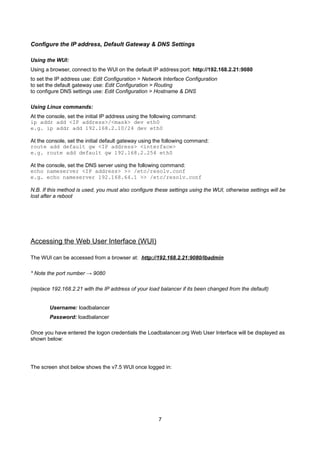
Once you have entered the logon credentials the Loadbalancer.org Web User Interface will be displayed as
shown below:

The screen shot below shows the v7.5 WUI once logged in:

7
Clustered Pair Configuration
Loadbalancer.org recommend that load balancer appliances are deployed in pairs for high availability. In this
guide s single unit is deployed first, adding a secondary slave unit is covered in section 1 of the Appendix.

NOTE: It's highly recommended that you have a working Web Filter environment first before
implementing the load balancer.

8
Proxy Mode
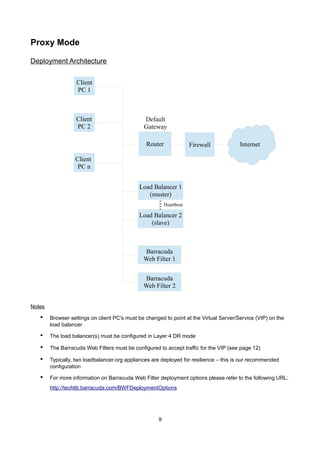
Deployment Architecture
Client
PC 1

Client
PC 2

Default
Gateway
Router

Firewall

Internet

Client
PC n
Load Balancer 1
(master)
Heartbeat

Load Balancer 2
(slave)

Barracuda
Web Filter 1
Barracuda
Web Filter 2
Notes

•

Browser settings on client PC's must be changed to point at the Virtual Server/Service (VIP) on the
load balancer

•

The load balancer(s) must be configured in Layer 4 DR mode

•

The Barracuda Web Filters must be configured to accept traffic for the VIP (see page 12)

•

Typically, two loadbalancer.org appliances are deployed for resilience – this is our recommended
configuration

•

For more information on Barracuda Web Filter deployment options please refer to the following URL:
http://techlib.barracuda.com/BWFDeploymentOptions

9
Load Balancer Configuration
Create the Virtual Server/Service (VIP)
NOTE: Prior to v7.5 a VIP is known as a 'Virtual Server', from v7.5 onwards it's known as a 'Virtual
Service'. For simplicity the configuration steps below refer to 'Virtual Service' for both.

•

v7.5 & later – using the WUI go to Cluster Configuration > Layer 4 – Virtual Services

•

v7.4.3 – using the WUI go to Edit Configuration > Layer 4 – Virtual Servers

•

Click [Add a New Virtual Service]

•

Enter the following details:

•

Enter an appropriate label (name) for the VIP, e.g. Proxy

•

Set the Virtual Service IP address field to the required IP address, e.g. 192.168.2.202

•

Set the Virtual Service Ports field to the required port (the same as the Web Filters) , e.g. 8080

•

Ensure that Forwarding Method is set to Direct Return

•

Set Persistent to yes

•

Ensure that Protocol is set to TCP

•

Click Update

10
Create the Real Servers (RIPs)

•

v7.5 & later – using the WUI go to Cluster Configuration > Layer 4 – Real Servers

•

v7.4.3 – using the WUI go to Edit Configuration > Layer 4 – Real Servers

•

Click [Add a new Real Server] next to the newly created VIP

•

Enter the following details:

•

Enter an appropriate label (name) for the first Proxy Server, e.g. Proxy1

•

Change the Real Server IP Address field to the required IP address, e.g. 192.168.2.210

•

Click Update

•

Repeat the above steps to add your other Web Filters

11
Web Filter Configuration
Modify the Web Filters to accept traffic for the VIP
Concept

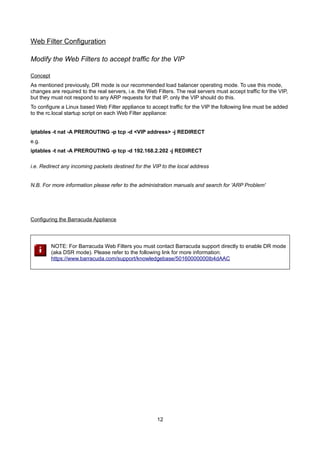
As mentioned previously, DR mode is our recommended load balancer operating mode. To use this mode,
changes are required to the real servers, i.e. the Web Filters. The real servers must accept traffic for the VIP,
but they must not respond to any ARP requests for that IP, only the VIP should do this.
To configure a Linux based Web Filter appliance to accept traffic for the VIP the following line must be added
to the rc.local startup script on each Web Filter appliance:
iptables -t nat -A PREROUTING -p tcp -d <VIP address> -j REDIRECT
e.g.
iptables -t nat -A PREROUTING -p tcp -d 192.168.2.202 -j REDIRECT
i.e. Redirect any incoming packets destined for the VIP to the local address
N.B. For more information please refer to the administration manuals and search for 'ARP Problem'

Configuring the Barracuda Appliance

NOTE: For Barracuda Web Filters you must contact Barracuda support directly to enable DR mode
(aka DSR mode). Please refer to the following link for more information:
https://www.barracuda.com/support/knowledgebase/50160000000Ib4dAAC

12
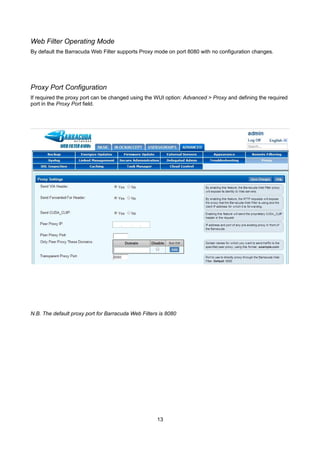
Web Filter Operating Mode
By default the Barracuda Web Filter supports Proxy mode on port 8080 with no configuration changes.

Proxy Port Configuration
If required the proxy port can be changed using the WUI option: Advanced > Proxy and defining the required
port in the Proxy Port field.

N.B. The default proxy port for Barracuda Web Filters is 8080

13
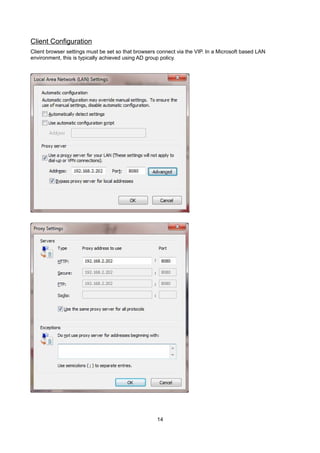
Client Configuration
Client browser settings must be set so that browsers connect via the VIP. In a Microsoft based LAN
environment, this is typically achieved using AD group policy.

14
Testing & Validation
To verify that the traffic is passing through the load balancer correctly the following reporting options can be
used:
System Overview
Reports > Layer 4 Status
Reports > Layer 4 Current Connections
Many reporting and dashboard options are also available in the Barracuda user interface. For more details
please refer to the appropriate Barracuda documentation

Layer 4 – Current Connections
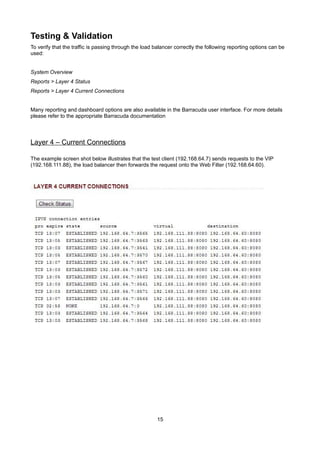
The example screen shot below illustrates that the test client (192.168.64.7) sends requests to the VIP
(192.168.111.88), the load balancer then forwards the request onto the Web Filter (192.168.64.60).

15
Technical Support
Loadbalancer.org support : support@loadbalancer.org
Barracuda support : https://www.barracuda.com/support

16
Appendix
1 – Clustered Pair Configuration – Adding a Slave Unit
If you initially configured just the master unit and now need to add a slave, please refer the section 'Adding a
slave unit after the master has been configured' in the v7.x administration manual which is available at the
following link: http://www.loadbalancer.org/pdf/loadbalanceradministrationv7.pdf

Don't hesitate to contact our support team if you need any further assistance configuring a slave
appliance: support@loadbalancer.org

17
2 – Loadbalancer.org Company Contact Information

Website

URL : www.loadbalancer.org

North America (US)

Loadbalancer.org, Inc.
270 Presidential Drive
Wilmington,
DE 19807
USA
Tel
Fax
Email (sales)
Email (support)

:
:
:
:

North America (Canada)

+1 866.229.8562 (24x7)
+1 302.213.0122
sales@loadbalancer.org
support@loadbalancer.org

Loadbalancer.org Ltd.
300-422 Richards Street
Vancouver, BC
V6B 2Z4
Canada
Tel
Fax
Email (sales)
Email (support)

:
:
:
:

Europe (UK)

+1 604.629.7575
+1 302.213.0122
sales@loadbalancer.org
support@loadbalancer.org

Loadbalancer.org Ltd.
Portsmouth Technopole
Kingston Crescent
Portsmouth
PO2 8FA
England, UK
Tel
Fax
Email (sales)
Email (support)

:
:
:
:

Europe (Germany)

+44(0)870 4438779 (24x7)
+44(0)870 4327672
sales@loadbalancer.org
support@loadbalancer.org

Loadbalancer.org GmbH
Alt Pempelfort 2
40211 Düsseldorf
Germany
Tel
Fax
Email (sales)
Email (support)

:
:
:
:

+49 (0)30 920 383 6494
+49 (0)30 920 383 6495
vertrieb@loadbalancer.org
support@loadbalancer.org

18
3 – Barracuda Company Contact Information

Website

Worldwide Support
Options

URL : www.barracuda.com

Barracuda support:

https://www.barracuda.com/support

19

Handbuch-zum-Load-Balancing-des-Barracuda-Webfilters

  • 1.
    Load Balancing BarracudaWeb Filter Deployment Guide v1.0.3 Copyright © 2014 Loadbalancer.org, Inc. 1
  • 2.
    Table of Contents Aboutthis Guide............................................................................................................................................... 3 Loadbalancer.org Appliances Supported.......................................................................................................... 3 Loadbalancer.org Software Versions Supported............................................................................................... 3 Barracuda Web Filter Appliances Supported.................................................................................................... 3 Benefits of Implementing a Load Balancer....................................................................................................... 4 Load Balancer Configuration Options............................................................................................................... 4 Layer 4 (Recommended)............................................................................................................................. 4 DR Mode - Direct Server Return Mode (Recommended).......................................................................4 NAT Mode - Network Address Translation Mode....................................................................................4 Layer 7......................................................................................................................................................... 4 SNAT / HAProxy Mode - Source Network Address Translation..............................................................4 Persistence - aka Server Affinity.................................................................................................................. 5 Source IP Address (Recommended)...................................................................................................... 5 Destination Hash.................................................................................................................................... 5 Web Filter Deployment Mode........................................................................................................................... 5 Proxy Mode.................................................................................................................................................. 5 Loadbalancer.org Appliance – the Basics......................................................................................................... 6 Network Configuration................................................................................................................................. 6 Accessing the Web User Interface (WUI).................................................................................................... 7 Clustered Pair Configuration........................................................................................................................ 8 Proxy Mode....................................................................................................................................................... 9 Deployment Architecture.............................................................................................................................. 9 Load Balancer Configuration..................................................................................................................... 10 Create the Virtual Server/Service (VIP)................................................................................................ 10 Create the Real Servers (RIPs)............................................................................................................ 11 Web Filter Configuration............................................................................................................................ 12 Modify the Web Filters to accept traffic for the VIP...............................................................................12 Concept........................................................................................................................................... 12 Configuring the Barracuda Appliance.............................................................................................. 12 Web Filter Operating Mode................................................................................................................... 13 Proxy Port Configuration....................................................................................................................... 13 Client Configuration................................................................................................................................... 14 Testing & Validation......................................................................................................................................... 15 Layer 4 – Current Connections.................................................................................................................. 15 Technical Support........................................................................................................................................... 16 Appendix......................................................................................................................................................... 17 1 – Clustered Pair Configuration – Adding a Slave Unit.............................................................................17 2 – Loadbalancer.org Company Contact Information.................................................................................18 3 – Barracuda Company Contact Information............................................................................................ 19 2
  • 3.
    About this Guide Thisguide details the configuration of Loadbalancer.org appliances for deployment with Barracuda's range of Web Filter products. It includes recommended deployment topologies and also steps on how to configure the appliances. For an introduction on setting up the load balancer as well as more technical information, please also refer to the quick-start guides and full administration manuals which are available at the following links: Quickstart guide: http://www.loadbalancer.org/pdf/quickstartguideLBv7.pdf Administration manual: http://www.loadbalancer.org/pdf/loadbalanceradministrationv7.pdf Loadbalancer.org Appliances Supported All our products can be used for load balancing Barracuda Web Filters. The complete list of models is shown below: • Enterprise R16 • Enterprise • Enterprise MAX • Enterprise 10G • Enterprise R320 • Enterprise VA • Enterprise VA R16 For a full specification comparison of these models please refer to: http://www.loadbalancer.org/matrix.php Loadbalancer.org Software Versions Supported • v7.4.3 and later Barracuda Web Filter Appliances Supported • All versions 3
  • 4.
    Benefits of Implementinga Load Balancer Since secure, reliable and available Internet access is essential and not just a luxury, steps must be taken to ensure 100% up time. Loadbalancer.org appliances provide the perfect solution by allowing multiple Web Filter devices to be deployed in a load balanced and highly available cluster. Benefits include: • • • High-Availability – If a Web Filter fails, service is not interrupted Maintenance – Web Filters can easily be taken out of the cluster for maintenance Performance – For additional performance simply add more Web Filters to the cluster Load Balancer Configuration Options The following sections describe the various load balancer configuration methods that are possible when load balancing Web Filters. Layer 4 (Recommended) DR Mode - Direct Server Return Mode (Recommended) In this mode, traffic from the client to the Web Filter passes via the load balancer, return traffic passes directly back to the client which maximizes performance. Direct routing works by changing the destination MAC address of the incoming packet on the fly which is very fast. This mode is transparent by default meaning that the Web Filter sees the real client IP address and not the IP address of the load balancer. Due to its speed, overall simplicity and effectiveness, Direct Routing (DR) mode with source IP persistence is our recommended method and can be used in both proxy mode & transparent (routed) proxy mode. NAT Mode - Network Address Translation Mode This mode requires the implementation of a two-arm infrastructure with an internal and external subnet to carry out the translation (the same way a firewall works). The real servers (i.e. the Web Filters) must have their default Filter configured to be the load balancer. It offers high performance and like DR mode is transparent by default. Layer 7 SNAT / HAProxy Mode - Source Network Address Translation Using HAProxy in SNAT mode means that the load balancer is acting as a full proxy and therefore it doesn't have the same raw throughput as the layer 4 methods. Also, this method is not transparent by default so the real servers will see the source address of each request as the load balancers IP address. This is generally not desirable although this can be resolved in two ways; either by reading the X-Forwarded-For header that's included by default when using HAProxy, or by enabling Tproxy on the load balancer. The issues with using Proxy are that the default Filter on the real servers (i.e. the Web Filters) must be changed to point as the load balancer and also it requires a two-arm infrastructure with two subnets which complicates the deployment. SNAT mode does not have the raw throughput of the layer 4 solutions and is therefore not normally used for Web Filter / Proxy load balancing deployments. 4
  • 5.
    Persistence - akaServer Affinity Persistence may or may not be required and depends on the specific Web Filter being used. Two possible methods are described in the following sections. Source IP Address (Recommended) Source IP persistence is the standard method and is appropriate for most requirements. When set, clients connecting from the same source IP address within the persistence timeout period (the default is 5 mins) will always be sent to the same Web Filter. Destination Hash Another option is to change the load balancing algorithm (i.e. the “scheduler”) to destination hash (DH). This causes the load balancer to select the proxy based on a hash of the destination IP address. This causes session requests to be directed at the same server based solely on the destination IP address of a packet which therefore makes client connections persistent for a particular Internet host. Since this setting is a scheduler, the way connections are load balanced will also change. However it should still provide a well balanced distribution of client sessions between Web Filter servers. Web Filter Deployment Mode When using a load balancer Barracuda suggest using forward proxy mode. For more information please refer to 'Method 3' in the 'High Availability Deployment Options' section at the following link: http://techlib.barracuda.com/display/BWFV60/High+Availability+-+Clustering+the+Barracuda+Web+Filter Proxy Mode This mode requires the load balancers VIP address to be defined in users browsers. This means that the load balancer will receive client requests and then distribute these requests across the back-end Web Filters. 5
  • 6.
    Loadbalancer.org Appliance –the Basics Network Configuration The IP address, default gateway and DNS settings can be configured in several ways depending on the version as detailed below. v7.5 & Later Configure the IP address, Default Gateway & DNS Settings Using the Network Setup Wizard at the console: After boot, follow the console instructions to configure the IP address, gateway and DNS settings.. Using the WUI: Using a browser, connect to the WUI on the default IP address/port: http://192.168.2.21:9080 to set the IP address use: Local Configuration > Network Interface Configuration to set the default gateway use: Local Configuration > Routing to configure DNS settings use: Local Configuration > Hostname & DNS Using Linux commands: At the console, set the initial IP address using the following command: ip addr add <IP address>/<mask> dev eth0 e.g. ip addr add 192.168.2.10/24 dev eth0 At the console, set the initial default gateway using the following command: route add default gw <IP address> <interface> e.g. route add default gw 192.168.2.254 eth0 At the console, set the DNS server using the following command: echo nameserver <IP address> >> /etc/resolv.conf e.g. echo nameserver 192.168.64.1 >> /etc/resolv.conf N.B. If this method is used, you must also configure these settings using the WUI, otherwise settings will be lost after a reboot v7.4.3 Configure the IP address & Default Gateway Using the Network Setup Wizard at the console: After boot, follow the console instructions to configure the IP address and gateway using the Network Setup Wizard. N.B. For these software versions the network setup wizard does not support DNS server configuration. DNS servers must be defined using the WUI or Linux commands as explained below. 6
  • 7.
    Configure the IPaddress, Default Gateway & DNS Settings Using the WUI: Using a browser, connect to the WUI on the default IP address:port: http://192.168.2.21:9080 to set the IP address use: Edit Configuration > Network Interface Configuration to set the default gateway use: Edit Configuration > Routing to configure DNS settings use: Edit Configuration > Hostname & DNS Using Linux commands: At the console, set the initial IP address using the following command: ip addr add <IP address>/<mask> dev eth0 e.g. ip addr add 192.168.2.10/24 dev eth0 At the console, set the initial default gateway using the following command: route add default gw <IP address> <interface> e.g. route add default gw 192.168.2.254 eth0 At the console, set the DNS server using the following command: echo nameserver <IP address> >> /etc/resolv.conf e.g. echo nameserver 192.168.64.1 >> /etc/resolv.conf N.B. If this method is used, you must also configure these settings using the WUI, otherwise settings will be lost after a reboot Accessing the Web User Interface (WUI) The WUI can be accessed from a browser at: http://192.168.2.21:9080/lbadmin * Note the port number → 9080 (replace 192.168.2.21 with the IP address of your load balancer if its been changed from the default) Username: loadbalancer Password: loadbalancer Once you have entered the logon credentials the Loadbalancer.org Web User Interface will be displayed as shown below: The screen shot below shows the v7.5 WUI once logged in: 7
  • 8.
    Clustered Pair Configuration Loadbalancer.orgrecommend that load balancer appliances are deployed in pairs for high availability. In this guide s single unit is deployed first, adding a secondary slave unit is covered in section 1 of the Appendix. NOTE: It's highly recommended that you have a working Web Filter environment first before implementing the load balancer. 8
  • 9.
    Proxy Mode Deployment Architecture Client PC1 Client PC 2 Default Gateway Router Firewall Internet Client PC n Load Balancer 1 (master) Heartbeat Load Balancer 2 (slave) Barracuda Web Filter 1 Barracuda Web Filter 2 Notes • Browser settings on client PC's must be changed to point at the Virtual Server/Service (VIP) on the load balancer • The load balancer(s) must be configured in Layer 4 DR mode • The Barracuda Web Filters must be configured to accept traffic for the VIP (see page 12) • Typically, two loadbalancer.org appliances are deployed for resilience – this is our recommended configuration • For more information on Barracuda Web Filter deployment options please refer to the following URL: http://techlib.barracuda.com/BWFDeploymentOptions 9
  • 10.
    Load Balancer Configuration Createthe Virtual Server/Service (VIP) NOTE: Prior to v7.5 a VIP is known as a 'Virtual Server', from v7.5 onwards it's known as a 'Virtual Service'. For simplicity the configuration steps below refer to 'Virtual Service' for both. • v7.5 & later – using the WUI go to Cluster Configuration > Layer 4 – Virtual Services • v7.4.3 – using the WUI go to Edit Configuration > Layer 4 – Virtual Servers • Click [Add a New Virtual Service] • Enter the following details: • Enter an appropriate label (name) for the VIP, e.g. Proxy • Set the Virtual Service IP address field to the required IP address, e.g. 192.168.2.202 • Set the Virtual Service Ports field to the required port (the same as the Web Filters) , e.g. 8080 • Ensure that Forwarding Method is set to Direct Return • Set Persistent to yes • Ensure that Protocol is set to TCP • Click Update 10
  • 11.
    Create the RealServers (RIPs) • v7.5 & later – using the WUI go to Cluster Configuration > Layer 4 – Real Servers • v7.4.3 – using the WUI go to Edit Configuration > Layer 4 – Real Servers • Click [Add a new Real Server] next to the newly created VIP • Enter the following details: • Enter an appropriate label (name) for the first Proxy Server, e.g. Proxy1 • Change the Real Server IP Address field to the required IP address, e.g. 192.168.2.210 • Click Update • Repeat the above steps to add your other Web Filters 11
  • 12.
    Web Filter Configuration Modifythe Web Filters to accept traffic for the VIP Concept As mentioned previously, DR mode is our recommended load balancer operating mode. To use this mode, changes are required to the real servers, i.e. the Web Filters. The real servers must accept traffic for the VIP, but they must not respond to any ARP requests for that IP, only the VIP should do this. To configure a Linux based Web Filter appliance to accept traffic for the VIP the following line must be added to the rc.local startup script on each Web Filter appliance: iptables -t nat -A PREROUTING -p tcp -d <VIP address> -j REDIRECT e.g. iptables -t nat -A PREROUTING -p tcp -d 192.168.2.202 -j REDIRECT i.e. Redirect any incoming packets destined for the VIP to the local address N.B. For more information please refer to the administration manuals and search for 'ARP Problem' Configuring the Barracuda Appliance NOTE: For Barracuda Web Filters you must contact Barracuda support directly to enable DR mode (aka DSR mode). Please refer to the following link for more information: https://www.barracuda.com/support/knowledgebase/50160000000Ib4dAAC 12
  • 13.
    Web Filter OperatingMode By default the Barracuda Web Filter supports Proxy mode on port 8080 with no configuration changes. Proxy Port Configuration If required the proxy port can be changed using the WUI option: Advanced > Proxy and defining the required port in the Proxy Port field. N.B. The default proxy port for Barracuda Web Filters is 8080 13
  • 14.
    Client Configuration Client browsersettings must be set so that browsers connect via the VIP. In a Microsoft based LAN environment, this is typically achieved using AD group policy. 14
  • 15.
    Testing & Validation Toverify that the traffic is passing through the load balancer correctly the following reporting options can be used: System Overview Reports > Layer 4 Status Reports > Layer 4 Current Connections Many reporting and dashboard options are also available in the Barracuda user interface. For more details please refer to the appropriate Barracuda documentation Layer 4 – Current Connections The example screen shot below illustrates that the test client (192.168.64.7) sends requests to the VIP (192.168.111.88), the load balancer then forwards the request onto the Web Filter (192.168.64.60). 15
  • 16.
    Technical Support Loadbalancer.org support: support@loadbalancer.org Barracuda support : https://www.barracuda.com/support 16
  • 17.
    Appendix 1 – ClusteredPair Configuration – Adding a Slave Unit If you initially configured just the master unit and now need to add a slave, please refer the section 'Adding a slave unit after the master has been configured' in the v7.x administration manual which is available at the following link: http://www.loadbalancer.org/pdf/loadbalanceradministrationv7.pdf Don't hesitate to contact our support team if you need any further assistance configuring a slave appliance: support@loadbalancer.org 17
  • 18.
    2 – Loadbalancer.orgCompany Contact Information Website URL : www.loadbalancer.org North America (US) Loadbalancer.org, Inc. 270 Presidential Drive Wilmington, DE 19807 USA Tel Fax Email (sales) Email (support) : : : : North America (Canada) +1 866.229.8562 (24x7) +1 302.213.0122 sales@loadbalancer.org support@loadbalancer.org Loadbalancer.org Ltd. 300-422 Richards Street Vancouver, BC V6B 2Z4 Canada Tel Fax Email (sales) Email (support) : : : : Europe (UK) +1 604.629.7575 +1 302.213.0122 sales@loadbalancer.org support@loadbalancer.org Loadbalancer.org Ltd. Portsmouth Technopole Kingston Crescent Portsmouth PO2 8FA England, UK Tel Fax Email (sales) Email (support) : : : : Europe (Germany) +44(0)870 4438779 (24x7) +44(0)870 4327672 sales@loadbalancer.org support@loadbalancer.org Loadbalancer.org GmbH Alt Pempelfort 2 40211 Düsseldorf Germany Tel Fax Email (sales) Email (support) : : : : +49 (0)30 920 383 6494 +49 (0)30 920 383 6495 vertrieb@loadbalancer.org support@loadbalancer.org 18
  • 19.
    3 – BarracudaCompany Contact Information Website Worldwide Support Options URL : www.barracuda.com Barracuda support: https://www.barracuda.com/support 19