Project
Linux Package Manager
What is YUM?
• YUM (Yellowdog Updater Modified) is an open source
command-line as well as graphical based package management
tool for RPM (RedHat Package Manager) based Linux systems.
• It allows users and system administrator to easily install,
update, remove or search software packages on a systems.
• YUM uses numerous third party repositories to install packages
automatically by resolving their dependencies issues.
Install a Package (vsftp) with YUM
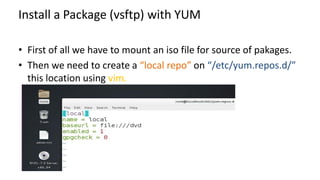
• First of all we have to mount an iso file for source of pakages.
• Then we need to create a “local repo” on “/etc/yum.repos.d/”
this location using vim.
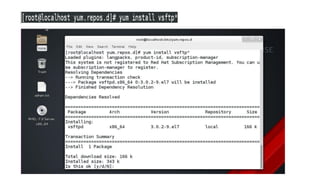
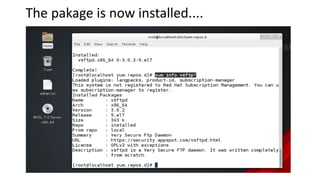
The pakage is now installed....
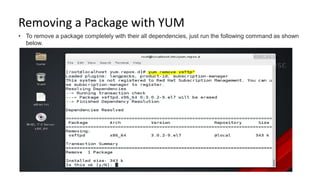
Removing a Package with YUM
• To remove a package completely with their all dependencies, just run the following command as shown
below.
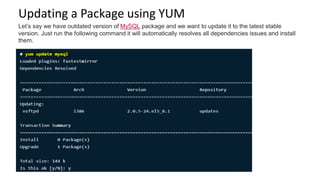
Updating a Package using YUM
Let’s say we have outdated version of MySQL package and we want to update it to the latest stable
version. Just run the following command it will automatically resolves all dependencies issues and install
them.
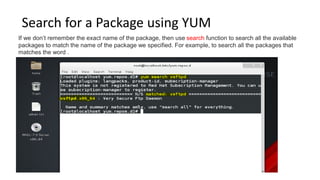
Search for a Package using YUM
If we don’t remember the exact name of the package, then use search function to search all the available
packages to match the name of the package we specified. For example, to search all the packages that
matches the word .
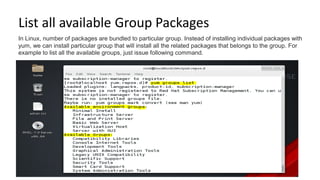
List all available Group Packages
In Linux, number of packages are bundled to particular group. Instead of installing individual packages with
yum, we can install particular group that will install all the related packages that belongs to the group. For
example to list all the available groups, just issue following command.
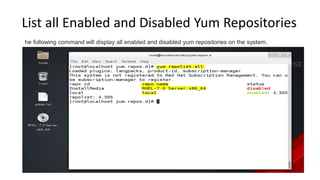
List all Enabled and Disabled Yum Repositories
he following command will display all enabled and disabled yum repositories on the system.
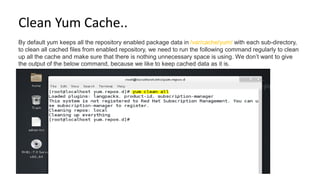
Clean Yum Cache..
By default yum keeps all the repository enabled package data in /var/cache/yum/ with each sub-directory,
to clean all cached files from enabled repository, we need to run the following command regularly to clean
up all the cache and make sure that there is nothing unnecessary space is using. We don’t want to give
the output of the below command, because we like to keep cached data as it is.
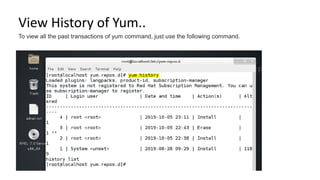
View History of Yum..
To view all the past transactions of yum command, just use the following command.
Linux packege manager

Linux packege manager

  • 1.
  • 2.
    What is YUM? •YUM (Yellowdog Updater Modified) is an open source command-line as well as graphical based package management tool for RPM (RedHat Package Manager) based Linux systems. • It allows users and system administrator to easily install, update, remove or search software packages on a systems. • YUM uses numerous third party repositories to install packages automatically by resolving their dependencies issues.
  • 3.
    Install a Package(vsftp) with YUM • First of all we have to mount an iso file for source of pakages. • Then we need to create a “local repo” on “/etc/yum.repos.d/” this location using vim.
  • 5.
    The pakage isnow installed....
  • 6.
    Removing a Packagewith YUM • To remove a package completely with their all dependencies, just run the following command as shown below.
  • 7.
    Updating a Packageusing YUM Let’s say we have outdated version of MySQL package and we want to update it to the latest stable version. Just run the following command it will automatically resolves all dependencies issues and install them.
  • 8.
    Search for aPackage using YUM If we don’t remember the exact name of the package, then use search function to search all the available packages to match the name of the package we specified. For example, to search all the packages that matches the word .
  • 9.
    List all availableGroup Packages In Linux, number of packages are bundled to particular group. Instead of installing individual packages with yum, we can install particular group that will install all the related packages that belongs to the group. For example to list all the available groups, just issue following command.
  • 10.
    List all Enabledand Disabled Yum Repositories he following command will display all enabled and disabled yum repositories on the system.
  • 11.
    Clean Yum Cache.. Bydefault yum keeps all the repository enabled package data in /var/cache/yum/ with each sub-directory, to clean all cached files from enabled repository, we need to run the following command regularly to clean up all the cache and make sure that there is nothing unnecessary space is using. We don’t want to give the output of the below command, because we like to keep cached data as it is.
  • 12.
    View History ofYum.. To view all the past transactions of yum command, just use the following command.