Beyond Menus and Toolbars in Microsoft Office Jensen Harris Microsoft Office User Experience Team December 13, 2005
About Me Lead Program Manager on the Microsoft Office User Experience team At Microsoft since 1998 Degree in music composition Author of popular freeware (including YAC distributed Caller ID system) In 1997, my web site “Mediocre Site of the Day” selected as one of PC Magazine’s “Top 50 Web Sites”
About Microsoft Office System of productivity software The most common suite includes Word, Excel, PowerPoint, Outlook, and Access 400 million paid users Most recent version: Office 2003 Next version: code-named Office “12”,  currently in beta testing Tonight, I’ll show Office “12” Beta 1
Why am I here? Office “12” introduces a new way of working with Office applications Breaks away from the standard “menu and toolbar” model Includes elements of new interaction design and feature reorganization A huge risk for Microsoft, but one we think will pay off
Top Design Goals Make the software easier to use Help people save time Make it easier to discover more of the functionality people need in Office Support the creation of great looking documents
Agenda Why a new UI? What is the new UI? Questions and answers
Why a new UI for Office?
Office Business Challenges Conventional punditry: “ Office is good enough” “ People only use the same 5% of Office” “ Everything I need was in Office [95, 97, 2000]” What real people tell us: “ I’m sure there’s a way to do this, but I can’t figure out how” “ Office is quite complex, I would be better at my job if I knew how to use it more.”
How did we get here?
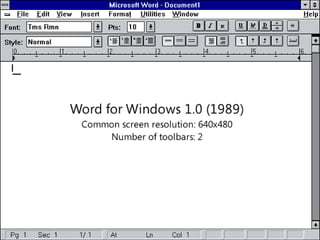
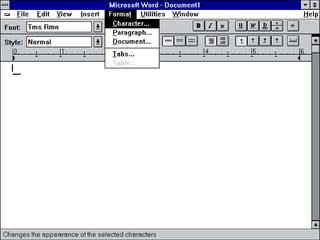
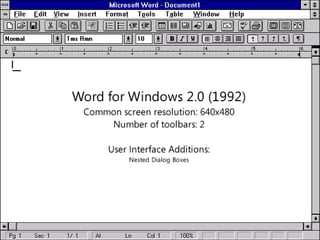
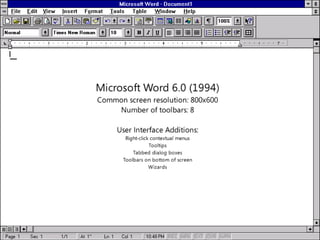
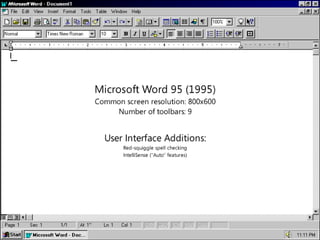
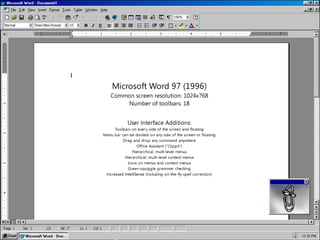
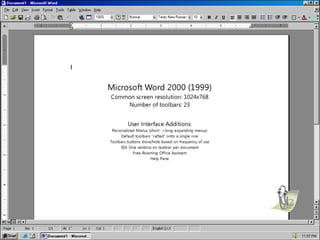
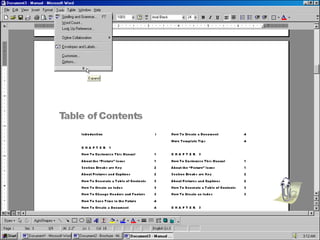
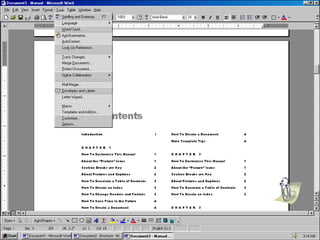
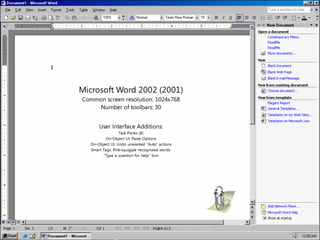
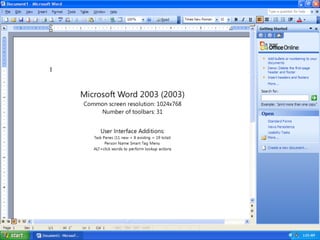
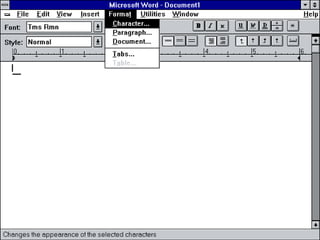
Ye Olde Museum Of Office Past


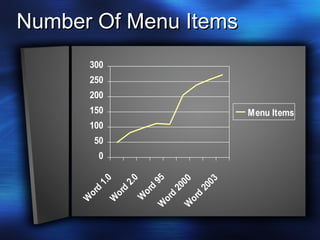
Number Of Menu Items
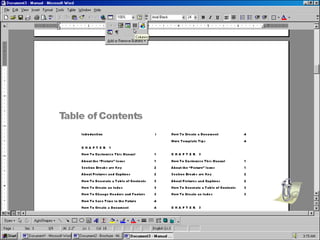
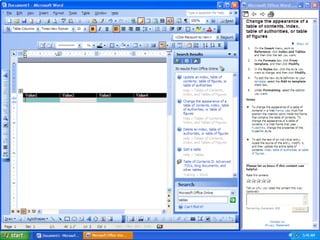
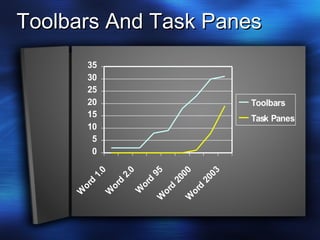
Toolbars And Task Panes
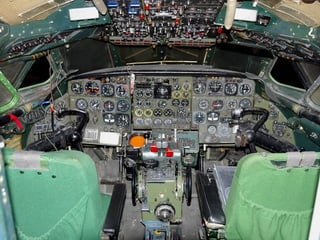
Why a New User Experience? Menus and Toolbars were designed for less full-featured programs The feature set of Office has grown and stretched existing UI mechanisms to  the limit It’s harder to find functionality than it was a decade ago “ There must be a way to do this…” “ I don’t even know where to start looking.”
 
 
Why Now? The role of data from Office 2003: 1.2  billion  data sessions collected ~1.8 million sessions per day Over the last 90 days, we’ve tracked 352 million command bar clicks in Word We track nearly 6000 individual datapoints We couldn’t have done this without data!
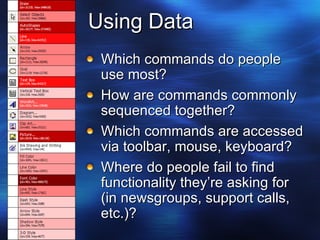
Using Data Which commands do people use most? How are commands commonly sequenced together? Which commands are accessed via toolbar, mouse, keyboard? Where do people fail to find functionality they’re asking for (in newsgroups, support calls, etc.)?
A Clean Slate
Office “12” Design Tenets A person’s focus should be on their content, not on the UI.  Help people work without interference.  Reduce the number of choices presented at any given time.  Increase the user’s sense of mastery through contextualization. Strive to increase efficient access to features. Bring out the soul of the program; embrace consistency, but not homogeneity. Give features a permanent home.  Prefer consistent-location UI over “smart” UI. Straightforward is better than clever.
The “Sense Of Mastery” A single, finite space to search for functionality Contextualization: Simplify the number of choices available at any one time Help people work without interference Predictability, No “Auto” UI Comfort level: This is still Microsoft Office What would we build knowing how the applications turn out?
Taking the Big Bet Conservative history lets us make the big bet now Trust in people to learn a new way of working You must remove to simplify! A huge responsibility… and opportunity People spend more 1-on-1 time with Office than with their spouses
Office “12” User Interface
The New UI Framework The “Ribbon” Galleries Live Preview Contextual Tabs Quick Access Toolbar MiniBar “ Super Tooltips” Enhanced window frame: View switching and Live Zoom Customizable Status Bar “ KeyTips” and Keyboard Navigation Streamlined Options Context Menus File Menu
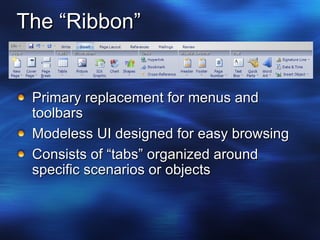
The “Ribbon” Primary replacement for menus and toolbars Modeless UI designed for easy browsing Consists of “tabs” organized around specific scenarios or objects
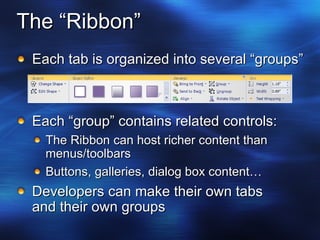
The “Ribbon” Each tab is organized into several “groups” Each “group” contains related controls: The Ribbon can host richer content than menus/toolbars  Buttons, galleries, dialog box content… Developers can make their own tabs and their own groups
Advantages Of The “Ribbon” One home for functionality No more looking through hierarchical menus, toolbars, task panes… Better organization of commands within each application Enough room to label most commands Rich command layouts help people find more important functionality Hosts galleries
The Ribbon
Success Criteria (circa September 2003) People feel a sense of possibility when they see that we’ve made big changes. People feel free to explore and use more of the depth of our products. People continue to be as efficient or more efficient on familiar tasks as they are now. The user experience is deep—not just “dressing up the pig.” There will be a learning curve, but it will be worth it. In the end, users will feel a sense of mastery.
Contextualization Right-click context menus, 1995 to 2005 Then: Experts only Now: Primary choice for beginners  Embrace the magic of context in a richer, modeless UI
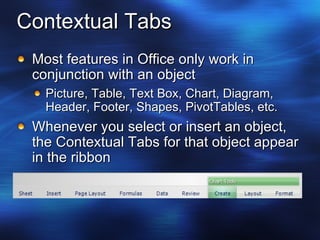
Contextual Tabs Most features in Office only work in conjunction with an object Picture, Table, Text Box, Chart, Diagram, Header, Footer, Shapes, PivotTables, etc. Whenever you select or insert an object, the Contextual Tabs for that object appear in the ribbon
Contextual Tabs The set of tools you need are always at hand The set of tools you couldn’t use are out of your way Results Easy to find the right functionality to get something done The core (non-contextual) product is vastly simplified
Contextual Tabs
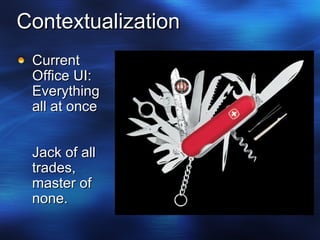
Contextualization Current Office UI: Everything all at once Jack of all trades, master of none.
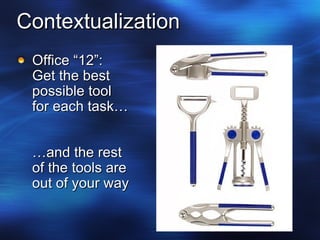
Contextualization Office “12”: Get the best possible tool for each task… …and the rest of the tools are out of your way
Galleries A new control, designed to work together with the ribbon Provides a visual way of browsing functionality Shows the  result  of commands, not the commands themselves People can be successful using galleries without understanding what they’re doing behind the scenes
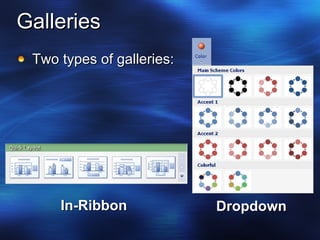
Galleries Two types of galleries: Dropdown In-Ribbon
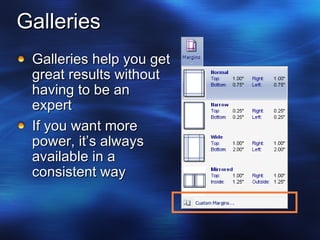
Galleries Galleries help you get great results without having to be an expert If you want more power, it’s always available in a consistent way
Three-Stage Formatting Apply an overall style to an object from a gallery of visual styles Tweak the appearance of an object using galleries of individual effects Drill down into a dialog of fine-tuned settings (# of pixels, transparency %, etc.) Bumper Bowling
Results-Oriented Design Think about features instead of commands Present functionality at a higher level Illustrate features by their results Use galleries to get the user close to the result they want to achieve as quickly as possible Visual!  Tactile!  Responsive! Compare to: Command-Oriented Design
Live Preview See what effect a feature would have without actually applying it As you hover over a choice in a gallery, the document previews the action Stops the frustrating, repetitive cycle of clicks trying to get the right format Drop a menu, scroll to intended target, click to apply, undo command, drop the menu,  repeat […]
Galleries and Live Preview
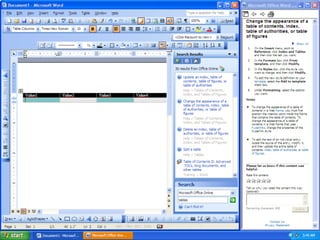
Customization Office 2003’s Command Bars are extremely customizable This high level of customization has a price Increased complexity Accidental customization Barriers to extensibility Promotes a “let the users figure it out” design viewpoint
 
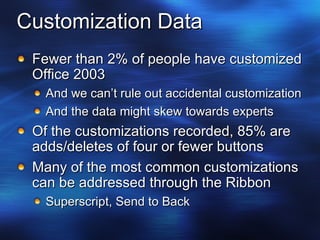
Customization Data Fewer than 2% of people have customized Office 2003 And we can’t rule out accidental customization And the data might skew towards experts Of the customizations recorded, 85% are adds/deletes of four or fewer buttons Many of the most common customizations can be addressed through the Ribbon Superscript, Send to Back
Quick Access Toolbar (“QAT”) Allows one-click access to commands from anywhere Starts with three icons: Save, Undo, Redo Users can customize it to include anything in the Ribbon Two modes: compact and full size
Quick Access Toolbar
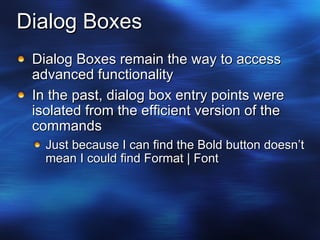
Dialog Boxes Dialog Boxes remain the way to access advanced functionality In the past, dialog box entry points were isolated from the efficient version of the commands Just because I can find the Bold button doesn’t mean I could find Format | Font
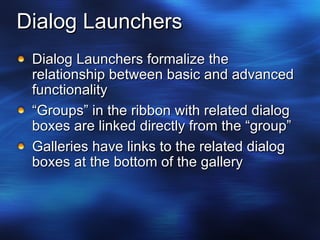
Dialog Launchers Dialog Launchers formalize the relationship between basic and advanced functionality “ Groups” in the ribbon with related dialog boxes are linked directly from the “group” Galleries have links to the related dialog boxes at the bottom of the gallery
Dialog Launchers
MiniBar One of the major goals of the new user experience is to improve efficiency The MiniBar is a unique form of on-object UI designed to improve your efficiency On-object UI for the features you use most! Helps prevent cyclical tab switches in the ribbon Efficient access to commands for mouse-oriented people
MiniBar
Frequently Asked Questions Q: What programs get the new UI? A: In Office “12” Word Excel PowerPoint Outlook (except the shell) Access
Frequently Asked Questions Q: Is there a “Classic Mode?” A: No.  Although Office 2003-compatible keyboard shortcuts can be used, menus and toolbars have been removed entirely from the product.
Frequently Asked Questions Q: Is the visual look-and-feel of the product done? A: No.  Beta 1 contains a sample skin to test the drawing capabilities of the new controls.  Production works on the real look and feel is underway and should be in the product by Beta 2.
Summary The new user experience helps people be more productive with Office Find the right feature Discover new functionality Be more efficient Easily create powerful, beautiful documents
Questions & Answers My Office UI Blog: http://blogs.msdn.com/jensenh Contact me via e-mail: [email_address]
© 2005 Microsoft Corporation. All rights reserved. This presentation is for informational purposes only. Microsoft makes no warranties, express or implied, in this summary.

Jensen Harris: Beyond Menus and Toolbars in Microsoft Office

  • 1.
    Beyond Menus andToolbars in Microsoft Office Jensen Harris Microsoft Office User Experience Team December 13, 2005
  • 2.
    About Me LeadProgram Manager on the Microsoft Office User Experience team At Microsoft since 1998 Degree in music composition Author of popular freeware (including YAC distributed Caller ID system) In 1997, my web site “Mediocre Site of the Day” selected as one of PC Magazine’s “Top 50 Web Sites”
  • 3.
    About Microsoft OfficeSystem of productivity software The most common suite includes Word, Excel, PowerPoint, Outlook, and Access 400 million paid users Most recent version: Office 2003 Next version: code-named Office “12”, currently in beta testing Tonight, I’ll show Office “12” Beta 1
  • 4.
    Why am Ihere? Office “12” introduces a new way of working with Office applications Breaks away from the standard “menu and toolbar” model Includes elements of new interaction design and feature reorganization A huge risk for Microsoft, but one we think will pay off
  • 5.
    Top Design GoalsMake the software easier to use Help people save time Make it easier to discover more of the functionality people need in Office Support the creation of great looking documents
  • 6.
    Agenda Why anew UI? What is the new UI? Questions and answers
  • 7.
    Why a newUI for Office?
  • 8.
    Office Business ChallengesConventional punditry: “ Office is good enough” “ People only use the same 5% of Office” “ Everything I need was in Office [95, 97, 2000]” What real people tell us: “ I’m sure there’s a way to do this, but I can’t figure out how” “ Office is quite complex, I would be better at my job if I knew how to use it more.”
  • 9.
    How did weget here?
  • 10.
    Ye Olde MuseumOf Office Past
  • 11.
  • 12.
  • 13.
  • 14.
  • 15.
  • 16.
  • 17.
  • 18.
  • 19.
  • 20.
  • 21.
  • 22.
  • 23.
  • 24.
  • 25.
  • 26.
    Why a NewUser Experience? Menus and Toolbars were designed for less full-featured programs The feature set of Office has grown and stretched existing UI mechanisms to the limit It’s harder to find functionality than it was a decade ago “ There must be a way to do this…” “ I don’t even know where to start looking.”
  • 27.
  • 28.
  • 29.
    Why Now? Therole of data from Office 2003: 1.2 billion data sessions collected ~1.8 million sessions per day Over the last 90 days, we’ve tracked 352 million command bar clicks in Word We track nearly 6000 individual datapoints We couldn’t have done this without data!
  • 30.
    Using Data Whichcommands do people use most? How are commands commonly sequenced together? Which commands are accessed via toolbar, mouse, keyboard? Where do people fail to find functionality they’re asking for (in newsgroups, support calls, etc.)?
  • 31.
  • 32.
    Office “12” DesignTenets A person’s focus should be on their content, not on the UI. Help people work without interference. Reduce the number of choices presented at any given time. Increase the user’s sense of mastery through contextualization. Strive to increase efficient access to features. Bring out the soul of the program; embrace consistency, but not homogeneity. Give features a permanent home. Prefer consistent-location UI over “smart” UI. Straightforward is better than clever.
  • 33.
    The “Sense OfMastery” A single, finite space to search for functionality Contextualization: Simplify the number of choices available at any one time Help people work without interference Predictability, No “Auto” UI Comfort level: This is still Microsoft Office What would we build knowing how the applications turn out?
  • 34.
    Taking the BigBet Conservative history lets us make the big bet now Trust in people to learn a new way of working You must remove to simplify! A huge responsibility… and opportunity People spend more 1-on-1 time with Office than with their spouses
  • 35.
  • 36.
    The New UIFramework The “Ribbon” Galleries Live Preview Contextual Tabs Quick Access Toolbar MiniBar “ Super Tooltips” Enhanced window frame: View switching and Live Zoom Customizable Status Bar “ KeyTips” and Keyboard Navigation Streamlined Options Context Menus File Menu
  • 37.
    The “Ribbon” Primaryreplacement for menus and toolbars Modeless UI designed for easy browsing Consists of “tabs” organized around specific scenarios or objects
  • 38.
    The “Ribbon” Eachtab is organized into several “groups” Each “group” contains related controls: The Ribbon can host richer content than menus/toolbars Buttons, galleries, dialog box content… Developers can make their own tabs and their own groups
  • 39.
    Advantages Of The“Ribbon” One home for functionality No more looking through hierarchical menus, toolbars, task panes… Better organization of commands within each application Enough room to label most commands Rich command layouts help people find more important functionality Hosts galleries
  • 40.
  • 41.
    Success Criteria (circaSeptember 2003) People feel a sense of possibility when they see that we’ve made big changes. People feel free to explore and use more of the depth of our products. People continue to be as efficient or more efficient on familiar tasks as they are now. The user experience is deep—not just “dressing up the pig.” There will be a learning curve, but it will be worth it. In the end, users will feel a sense of mastery.
  • 42.
    Contextualization Right-click contextmenus, 1995 to 2005 Then: Experts only Now: Primary choice for beginners Embrace the magic of context in a richer, modeless UI
  • 43.
    Contextual Tabs Mostfeatures in Office only work in conjunction with an object Picture, Table, Text Box, Chart, Diagram, Header, Footer, Shapes, PivotTables, etc. Whenever you select or insert an object, the Contextual Tabs for that object appear in the ribbon
  • 44.
    Contextual Tabs Theset of tools you need are always at hand The set of tools you couldn’t use are out of your way Results Easy to find the right functionality to get something done The core (non-contextual) product is vastly simplified
  • 45.
  • 46.
    Contextualization Current OfficeUI: Everything all at once Jack of all trades, master of none.
  • 47.
    Contextualization Office “12”:Get the best possible tool for each task… …and the rest of the tools are out of your way
  • 48.
    Galleries A newcontrol, designed to work together with the ribbon Provides a visual way of browsing functionality Shows the result of commands, not the commands themselves People can be successful using galleries without understanding what they’re doing behind the scenes
  • 49.
    Galleries Two typesof galleries: Dropdown In-Ribbon
  • 50.
    Galleries Galleries helpyou get great results without having to be an expert If you want more power, it’s always available in a consistent way
  • 51.
    Three-Stage Formatting Applyan overall style to an object from a gallery of visual styles Tweak the appearance of an object using galleries of individual effects Drill down into a dialog of fine-tuned settings (# of pixels, transparency %, etc.) Bumper Bowling
  • 52.
    Results-Oriented Design Thinkabout features instead of commands Present functionality at a higher level Illustrate features by their results Use galleries to get the user close to the result they want to achieve as quickly as possible Visual! Tactile! Responsive! Compare to: Command-Oriented Design
  • 53.
    Live Preview Seewhat effect a feature would have without actually applying it As you hover over a choice in a gallery, the document previews the action Stops the frustrating, repetitive cycle of clicks trying to get the right format Drop a menu, scroll to intended target, click to apply, undo command, drop the menu, repeat […]
  • 54.
  • 55.
    Customization Office 2003’sCommand Bars are extremely customizable This high level of customization has a price Increased complexity Accidental customization Barriers to extensibility Promotes a “let the users figure it out” design viewpoint
  • 56.
  • 57.
    Customization Data Fewerthan 2% of people have customized Office 2003 And we can’t rule out accidental customization And the data might skew towards experts Of the customizations recorded, 85% are adds/deletes of four or fewer buttons Many of the most common customizations can be addressed through the Ribbon Superscript, Send to Back
  • 58.
    Quick Access Toolbar(“QAT”) Allows one-click access to commands from anywhere Starts with three icons: Save, Undo, Redo Users can customize it to include anything in the Ribbon Two modes: compact and full size
  • 59.
  • 60.
    Dialog Boxes DialogBoxes remain the way to access advanced functionality In the past, dialog box entry points were isolated from the efficient version of the commands Just because I can find the Bold button doesn’t mean I could find Format | Font
  • 61.
    Dialog Launchers DialogLaunchers formalize the relationship between basic and advanced functionality “ Groups” in the ribbon with related dialog boxes are linked directly from the “group” Galleries have links to the related dialog boxes at the bottom of the gallery
  • 62.
  • 63.
    MiniBar One ofthe major goals of the new user experience is to improve efficiency The MiniBar is a unique form of on-object UI designed to improve your efficiency On-object UI for the features you use most! Helps prevent cyclical tab switches in the ribbon Efficient access to commands for mouse-oriented people
  • 64.
  • 65.
    Frequently Asked QuestionsQ: What programs get the new UI? A: In Office “12” Word Excel PowerPoint Outlook (except the shell) Access
  • 66.
    Frequently Asked QuestionsQ: Is there a “Classic Mode?” A: No. Although Office 2003-compatible keyboard shortcuts can be used, menus and toolbars have been removed entirely from the product.
  • 67.
    Frequently Asked QuestionsQ: Is the visual look-and-feel of the product done? A: No. Beta 1 contains a sample skin to test the drawing capabilities of the new controls. Production works on the real look and feel is underway and should be in the product by Beta 2.
  • 68.
    Summary The newuser experience helps people be more productive with Office Find the right feature Discover new functionality Be more efficient Easily create powerful, beautiful documents
  • 69.
    Questions & AnswersMy Office UI Blog: http://blogs.msdn.com/jensenh Contact me via e-mail: [email_address]
  • 70.
    © 2005 MicrosoftCorporation. All rights reserved. This presentation is for informational purposes only. Microsoft makes no warranties, express or implied, in this summary.