IT 100-07
Information Technology
Course Introduction
Professor Marino
Tuesdays and Thursdays 4:30-5:50PM Howard Hall Room 207
Today’s Agenda: Tuesday, September 6th, 2016
▪ About Me
▪ Contact Info
▪ Open Syllabus and Schedule from eCampus
▪ Netiquette
▪ Important Dates
▪ How to Succeed in IT 100 Without Really Trying
▪ Navigating eCampus
▪ Navigating MyITLab
▪ Homework
About Me
▪ Monmouth University Adjunct Professor
▪ High School Business and Computer Teacher
▪ Current EdD Student [Curriculum and Instruction with focuses in
Instructional Technology and Distance Learning]
▪ Entrepreneur [run 4 businesses and a non-profit]
▪ Ambassador [Edmodo and SimpleK12]
▪ Financial Blogger [The Street, Seeking Alpha, and Nasdaq]
Contact Info
▪ E-mail: mamarino@Monmouth.edu
▪ E-mail is the best way to get in touch with me.
▪ I try to respond within 24 hours.
▪ In case of EMERGENCY call me at 848-333-8637
▪ OFFICE HOURS:
Where? Howard Hall Room 223
When? Tuesdays and Thursdays from 6-7PM
Syllabus Important Points
▪ Class Meeting Time
▪ Required Course Materials
▪ Learning Objectives
▪ Grading Scale
▪ Attendance
▪ Academic Honesty
▪ MyITLab
▪ Helpful Info
Class Meeting Time
▪ Please come to class on time whenever we are scheduled to meet
▪ Be Prepared [Course Schedule Defines Everything]
▪ Be Ready to Start as soon as our course time starts
Required Course Materials and Learning Objectives
▪ As defined in syllabus
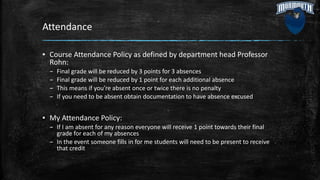
Grading Scale
Exams
50%
Final Exam
20%
Assignments
30%
Grade Breakdown
Exams
Final Exam
Assignments
Symbol Start %
A 93
A- 90
B+ 87
B 83
B- 80
C+ 77
C 73
C- 70
D+ 67
D 63
D- 60
F 0
Attendance
▪ Course Attendance Policy as defined by department head Professor
Rohn:
– Final grade will be reduced by 3 points for 3 absences
– Final grade will be reduced by 1 point for each additional absence
– This means if you’re absent once or twice there is no penalty
– If you need to be absent obtain documentation to have absence excused
▪ My Attendance Policy:
– If I am absent for any reason everyone will receive 1 point towards their final
grade for each of my absences
– In the event someone fills in for me students will need to be present to receive
that credit
Academic Honesty
▪ Statement on Academic Honesty on Syllabus
▪ Consequences of Academic Dishonesty
– You will receive an F for the course
– Further disciplinary action may occur; including dismissal from the university
– Lowers GPA
– Financial cost to retake course
– Potential loss of scholarships
– Potential loss in eligibility for extracurricular activities
– Need to repeat course for credit
MyITLab
▪ MyITLab will feature most of your assignments for this course [there
are other small assignments on eCampus]
▪ MyITLab will house all five unit exams and the final exam
▪ MyITLab features a digital copy of the course textbook and
Technology in Action for easy usage
Helpful Info
▪ Help Desk
▪ IT Lab Assistants
▪ IT Tutors and Tutoring Lab
▪ Other Campus Computer Access
Course Schedule
▪ Defines Topics to be covered in class
▪ Defines all HW Assignments and Due Dates
▪ Defines PPT Presentation Dates [subject to change]
▪ Defines Readings that should be completed prior to class
Netiquette
▪ Netiquette is the term used to describe the rules of
etiquette that apply to electronic
communications. It is important to use good
netiquette when communicating with me and with
your classmates, so I ask that you abide by the rules
of netiquette in all aspects of this course. These
rules are basically common sense things, but I feel
they are important enough to reiterate here.
Netiquette cont.
▪ The rules of netiquette you will be expected to follow in this course are as
follows:
▪ Be clear.
– Use Standard English and do not abbreviate.
– Spell check, revise and edit your messages before sending them.
– Use appropriate subject lines that reflect the content of the message.
▪ Be polite and careful.
– Do not use ALL UPPERCASE LETTERS!!! or multiple exclamation marks, as it is
sometimes difficult to understand the tone of the message.
– Typing in all capital letters is synonymous to yelling at someone.
– Avoid sarcasm and irony, which can be misinterpreted by the reader.
– Refrain from using inappropriate or offensive language.
– Remember you are not talking to a machine; there is a person on the other end of
your message.
Netiquette cont.
▪ Demonstrate respect for the opinions of others when responding to
your classmates.
▪ Remember that you are communicating within a classroom and
behave accordingly.
▪ Be forgiving of other people's mistakes.
▪ Always remain calm, even if you believe someone has insulted you.
▪ Disagree respectfully and with facts, not gossip.
▪ Apply the golden rule -- treat others the way you would like to be
treated.
Important Dates
▪ Late Registration/Add-Drop Period: Sept. 6th to Sept. 13th
▪ No Class: October 18th and November 24th
▪ Withdrawal Deadline: November 3rd
▪ Any additional important dates will be announced at the start of class
How to Succeed in IT 100
Without Really Trying
▪ Be on time to class/Be in class: Being in class will help you do well on assignments
and exams
▪ “Alright Young Scholars” means class is starting
▪ Submit all assignments on time
▪ Study all review materials prior to exams
▪ Work smart
Navigating eCampus
▪ Each unit will have its own folder: Word, Computer Concepts, Access
and PowerPoint, Computer Security, and Excel
▪ MyITLab will have its own folder
▪ Research Paper will have its own folder
▪ Agendas for class; such as this one, will all be put into one folder
Navigating MyITLab
Homework
▪ Purchase required course materials if you haven’t already done so
▪ Complete About Me Discussion Thread [Instructions in eCampus]
▪ Follow hashtag #Marino10007 at
https://twitter.com/hashtag/Marino10007?f=tweets&src=hash
Is It Over?
▪ Yes, the old man in front of the room is done talking for today
▪ CLASS DISMISSED
▪ See you on Thursday
IT 100-07
Information Technology
Course Introduction
Professor Marino
Tuesdays and Thursdays 4:30-5:50PM Howard Hall Room 207
Today’s Agenda: Thursday, September 8th, 2016
▪Download Data Files Info
▪Research Paper Info
▪Start on Windows 10 Simulation
Research Paper
▪ All students will choose a research topic
▪ All students will be required to complete research on their chosen
topic to produce a research paper
▪ All students will be required to follow the research paper rubric
▪ All students will submit a rough draft through eCampus and a hard
copy to instructor
▪ All students will submit a final draft through eCampus and a hard copy
to instructor
▪ Students will use their research paper to create a presentation later in
the semester
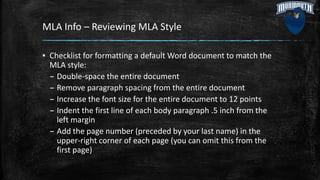
MLA Info – Reviewing MLA Style
▪ Checklist for formatting a default Word document to match the
MLA style:
– Double-space the entire document
– Remove paragraph spacing from the entire document
– Increase the font size for the entire document to 12 points
– Indent the first line of each body paragraph .5 inch from the
left margin
– Add the page number (preceded by your last name) in the
upper-right corner of each page (you can omit this from the
first page)
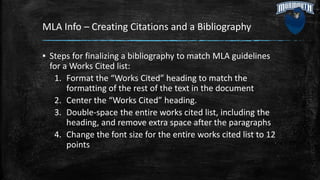
MLA Info – Creating Citations and a Bibliography
▪ Steps for finalizing a bibliography to match MLA guidelines
for a Works Cited list:
1. Format the “Works Cited” heading to match the
formatting of the rest of the text in the document
2. Center the “Works Cited” heading.
3. Double-space the entire works cited list, including the
heading, and remove extra space after the paragraphs
4. Change the font size for the entire works cited list to 12
points
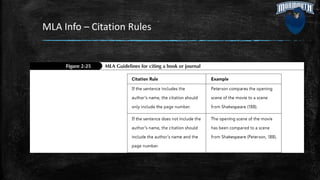
MLA Info – Citation Rules
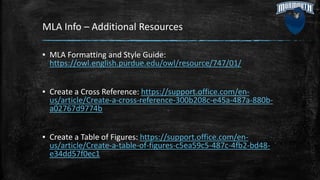
MLA Info – Additional Resources
▪ MLA Formatting and Style Guide:
https://owl.english.purdue.edu/owl/resource/747/01/
▪ Create a Cross Reference: https://support.office.com/en-
us/article/Create-a-cross-reference-300b208c-e45a-487a-880b-
a02767d9774b
▪ Create a Table of Figures: https://support.office.com/en-
us/article/Create-a-table-of-figures-c5ea59c5-487c-4fb2-bd48-
e34dd57f0ec1
How to Conduct Scholarly Research
▪ Source Evaluations:
– Google Scholar OK
– Wikipedia NOT OK
– Evaluation Test -
http://guides.monmouth.edu/c.php?g=63392&p=2705358
▪ Library and Other Resources:
– http://guides.monmouth.edu/IT100
– http://www.monmouth.edu/academics/css/writing/ResourcesForW
riters.aspx
– http://library.monmouth.edu/main/
Related Assignments and Due Dates
▪ Plagiarism Tutorial: DUE 9/13 Prior to Class
▪ Scholarly Sources 1 and 2: DUE 9/22 Prior to Class
▪ Rough Draft: DUE 10/4 Submit to eCampus Prior to Class and Hand in
Hard Copy at the Start of Class
▪ Final Draft: DUE 10/13 Submit to eCampus Prior to Class and Hand in
Hard Copy at the Start of Class
Homework
▪ Finish Windows 10 MyITLab Simulation if not done already
▪ Begin Working on Assignments Associated with Research Paper
▪ Check Twitter
▪ Check eCampus
Is It Over?
▪ Yes, the old man in front of the room is done talking for today
▪ CLASS DISMISSED
▪ See you on Tuesday
IT 100-07
Information Technology
Course Introduction
Professor Marino
Tuesdays and Thursdays 4:30-5:50PM Howard Hall Room 207
Today’s Agenda: Tuesday, September 13th, 2016
▪Word 1 Concepts
▪Word 1 Classwork Grader Project
▪Homework
Word 1 Concepts
▪ Non-printing formatting marks
▪ No spacing style
▪ Manual page break
▪ Spelling & grammar checker
▪ Word options dialog box
▪ Synonyms
▪ Format painter
▪ Small caps
▪ Insert footer with field
▪ View two pages
Word 1 Classwork Grader Assignment
Homework
▪ Word 1 Simulation [MyITLab]
▪ Word 1 Grader Project [MyITLab]
▪ Check Twitter
▪ Check eCampus
Is It Over?
▪ Yes, the old man in front of the room is done talking for today
▪ CLASS DISMISSED
▪ See you on Thursday
IT 100-07
Information Technology
Course Introduction
Professor Marino
Tuesdays and Thursdays 4:30-5:50PM Howard Hall Room 207
Today’s Agenda: Thursday, September 15th, 2016
▪Word 2 Concepts
▪Word 2 Classwork [eCampus]
▪Homework
Word 2 Concepts
▪ Find & replace text
▪ Footnotes
▪ Add sources
▪ Insert citations
▪ Insert bibliographies
▪ Formatting lists
▪ Set paragraph indents
▪ Modify line & paragraph spacing
▪ Create custom headers
Word 2 Classwork [eCampus]
Instructions:
1.Complete Word Chapter 2 on pages 186-211.
2.Upload the completed files.
3.Submit the assignment.
Homework
▪ Word 2 Simulation [MyITLab]
▪ Word 2 Grader Project [MyITLab]
▪ Check Twitter
▪ Check eCampus
Is It Over?
▪ Yes, the old man in front of the room is done talking for today
▪ CLASS DISMISSED
▪ See you on Tuesday
IT 100-07
Information Technology
Course Introduction
Professor Marino
Tuesdays and Thursdays 4:30-5:50PM Howard Hall Room 207
Today’s Agenda: Tuesday, September 20th, 2016
▪Refer to Agenda from 9-8-
16 on eCampus pertaining
to MLA Format/Style
▪Remember Google Scholar
OK, Wikipedia NOT OK
CRAAP Test
▪ http://guides.monmouth.edu/c.php?g=63392&p=2705358
▪ Currency – source should be less than 5 years old for your papers
▪ Relevance – does it match your topic? If so, use it
▪ Authority – who wrote it? Are they published often?
▪ Accuracy – is the info you found true?
▪ Purpose – you want to choose unbiased/non opinion sources
▪ Feel free to watch the video at the link provided
Our Library Guide
▪ http://guides.monmouth.edu/IT100
▪ Use Journal Articles Tab
▪ Click the box next to Scholarly and Peer Reviewed
▪ Enter your search terms and click Search
▪ Select Last 5 Years under Publication Date
▪ Click on a result and click PDF Full Text [if this option doesn’t exist for
that result move on to another source]
▪ If you’ve read it and feel it helps your paper click Cite; scroll down and
copy the MLA citation
Writing Your Paper
▪ http://www.monmouth.edu/academics/css/writing/ResourcesForWrit
ers.aspx
▪ The Writing Process: Writing a Thesis
▪ Research and Documentation: All MLA Topics and Research Tips
Google Scholar
▪ https://scholar.google.com/
▪ Only provides scholarly sources for your search terms
▪ May not be able to open all sources [try to stick with sources that list
PDF or HTML on the right hand side]
▪ Click Cite and highlight the MLA citation if you use the source for your
paper
Helpful Hints
▪ Download all sources you seem interested in to read and decide if
they are a good source
▪ Copy citations for all sources you download. As you delete the sources
you decide not to use, delete their citation
▪ Pick sources that match your opinion
▪ Start your research and writing soon
Scholarly Sources Homework
▪ For Scholarly Sources 1 & 2 you are required to find two scholarly
sources to use for your paper and answer questions. Remember to
include the citation for the articles.
▪ Use the process I just went through with you
▪ 1 source for each assignment. DON’T SUBMIT BOTH SOURCES IN ONE
FILE.
▪ In theory you will use these 2 scholarly sources for your paper.
Homework
▪ Scholarly Sources 1 & 2
▪ Social Issues 1 & 2
▪ Check Twitter
▪ Check eCampus
Is It Over?
▪ Yes, the old man in front of the room is done talking for today
▪ CLASS DISMISSED
▪ See you on Thursday
IT 100-07
Information Technology
Course Introduction
Professor Marino
Tuesdays and Thursdays 4:30-5:50PM Howard Hall Room 207
Today’s Agenda: Thursday, September 22nd, 2016
▪Word 3 Concepts
▪Word 3 Classwork
▪Homework
Word 3 Concepts
Insert Text and Pictures From
Files
Resize and Align Pictures
Apply Pictures Styles and Artistic
Effects
Set Tab Stops
Type Tabbed Lists
Apply Table Styles
Create Tables
Delete and Add Table Rows and
Columns
Format Text in Table Cells
Format Tables
Word 3 Homework [eCampus]
Instructions
1.Complete Word Chapter 3 on pages 226-251.
2.Upload the completed files.
3.Submit the assignment.
Homework
▪ Word 3 Simulation [MyITLab]
▪ Word 3 Grader Project [MyITLab]
▪ Check Twitter
▪ Check eCampus
Is It Over?
▪ Yes, the old man in front of the room is done talking for today
▪ CLASS DISMISSED
▪ See you on Tuesday
IT 100-07
Information Technology
Course Introduction
Professor Marino
Tuesdays and Thursdays 4:30-5:50PM Howard Hall Room 207
Today’s Agenda: Tuesday, September 27th, 2016
▪ Word 7 Concepts
▪ Word Integrated Project 1 [pgs. 308-313]
▪ Homework
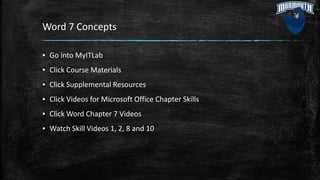
Word 7 Concepts
▪ Go into MyITLab
▪ Click Course Materials
▪ Click Supplemental Resources
▪ Click Videos for Microsoft Office Chapter Skills
▪ Click Word Chapter 7 Videos
▪ Watch Skill Videos 1, 2, 8 and 10
Word Integrated Project 1
▪ To be done in class
▪ Follow directions from pgs. 308-313
▪ Submit on eCampus
Homework
▪ Use Word Review on MyITLab to study for Word
Exam
▪ Check Twitter
▪ Check eCampus
Is It Over?
▪ Yes, the old man in front of the room is done talking for today
▪ CLASS DISMISSED
▪ See you on Thursday
IT 100-07
Information Technology
Word Exam
Professor Marino
Tuesdays and Thursdays 4:30-5:50PM Howard Hall Room 207
Today’s Agenda: Thursday, September 29th, 2016
▪Complete Word Exam in MyITLab
▪Be Aware of Homework [Research
Paper Rough Draft]
Homework
▪ Check Twitter
▪ Check eCampus
▪ Complete Assigned Readings
▪ Once you complete Word Exam you are dismissed
IT 100-07
Information Technology
Course Introduction
Professor Marino
Tuesdays and Thursdays 4:30-5:50PM Howard Hall Room 207
This Week’s Agenda:
Tuesday, October 4th and Thursday, October 6th, 2016
▪Computer Concepts
▪Computer Purchase
Assignment
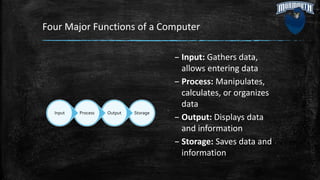
Four Major Functions of a Computer
Storage
Output
Process
Input
– Input: Gathers data,
allows entering data
– Process: Manipulates,
calculates, or organizes
data
– Output: Displays data
and information
– Storage: Saves data and
information
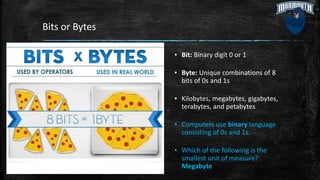
Bits or Bytes
▪ Bit: Binary digit 0 or 1
▪ Byte: Unique combinations of 8
bits of 0s and 1s
▪ Kilobytes, megabytes, gigabytes,
terabytes, and petabytes
▪ Computers use binary language
consisting of 0s and 1s.
▪ Which of the following is the
smallest unit of measure?
Megabyte
Types of Computers
▪ Mainframe: Many users
simultaneously
▪ Supercomputer: Complex
calculations
▪ Embedded: Self-contained
– Examples: electronic
thermostat, drone
▪ Embedded computers are
specially designed computer
chips that reside inside other
devices such as a car.
▪ Which of the following
computers is large, expensive
and supports many
simultaneous users and
manages large amounts of
data? Mainframe computer
▪ An Apple iPad and a Microsoft
Surface are examples of Tablet
computers.
Input
▪ Enter data and instructions
▪ Examples
– Keyboard
– Mouse
– Microphone
– Scanner
– Digital camera
– Stylus
▪ A(n) Stylus is an input
device that looks like a
pen.
▪ A keyboard and mouse are
examples of input devices.
Output: Overview and Monitors
▪ Send data out of the
computer in the form of:
– Text
– Pictures
– Sounds
– Video
▪ Examples
– Monitors
– Printers
– Speakers and earphones
▪ Monitors: Liquid crystal display
(LCD), Light-emitting diode
(LED), Organic light-emitting
diode (OLED)
▪ The most common type of
monitor is a(n) liquid crystal
display (LCD).
▪ The number of pixels displayed
on the screen is known as
screen resolution.
Output: Printers
▪ Inkjet: Affordable, High-quality
color, Quick and quiet
▪ Laser: Faster printing speed,
Higher-quality printouts, More
expensive
▪ All-in-one printer: Printer,
scanner, copier, and fax
▪ Plotter: Prints oversize images
▪ Thermal printer
▪ Thermal printers either
melt a wax based ink on
regular paper or by
burning dots on specially
coated paper.
▪ Laser printers are usually
faster at printing in black
and white than inkjet
printers. True
Output: Sounds
▪ Speaker
– Output device for sound
– Surround-sound speakers
– Wireless speaker system
▪ Headphones or earbuds
– Keep from distracting
others
• Most computers include inexpensive
speakers. These speakers are sufficient to
play audio clips from the Web and enable
you to participate in videoconferencing or
phone calls made over the Internet.
• A surround-sound speaker is a system of
speakers and audio processing that
envelops the listener in a 360-degree field
of sound.
• Wireless speaker systems are available to
help you avoid cluttering up your rooms
with speaker wires.
• Headphones or earbuds plug into the same
jack to which speakers connect. Hearing
might be damaged by excessive volume
when using earbuds.
Processing and Memory
▪ Motherboard: CPU, ROM,
RAM, and cache, Slots for
expansion cards, Sound/Video
cards, Network interface card
(NIC)
• The motherboard is located inside the
system unit and contains the central
electronic components of the
computer, including the computer's
processor (CPU), and many circuit
boards that help the computer to
function.
•A network interface card
(NIC) enables your
computer to connect to
other computers or to the
Internet.
•The motherboard contains
the central electronic
components of the
computer.
RAM: Random Access Memory
Stores instructions and
data
Series of several memory
cards or modules
Temporary (volatile)
storage
▪ RAM is the abbreviation
for the place in the
computer where the
programs and data the
computer is currently using
are temporarily stored.
▪ RAM is a volatile storage
location.
ROM: Read Only Memory
Stores startup
instructions
Permanent (nonvolatile)
storage
▪ The area that holds all the
startup instructions the
computer needs to start is
the ROM.
▪ Apple's OS X and Microsoft
Windows are examples of
operating system
software.
CPU: Central Processing Unit
CPU or processor
“Brains” of the computer
Controls all functions of
the computer’s
components
Processes all commands
and instructions
Billions of tasks per second
▪ CPU Performance Measures:
Processor speed measured in
hertz (Hz), Megahertz (MHz) or
gigahertz (GHz)
– Number of cores: Single,
Dual, Quad, Ten
▪ Today's CPUs run at speeds
measured in kilohertz. False
▪ A(n) dual-core CPU has two
processing paths, allowing it to
process more than one
instruction at a time.
Hard Drives
▪ Primary device for
permanent storage
▪ Nonvolatile storage devices
▪ Internal drive is for
permanent storage
▪ External hard drive
▪ Solid-state Drive (SSD)
▪ All of the following are
names for a flash drive
EXCEPT hard drive.
Data Storage
▪ External hard drives
▪ Flash Storage
▪ Compact discs (CDs)
▪ Digital video discs (DVDs)
– Store more data than
CDs
▪ Blu-ray discs (BDs)
▪ Which of the following
optical storage media
has the greatest
storage capacity? BD
▪ Flash drives plug into
a(n) USB port.
Peripherals: Ports, Cards, and Hubs
▪ Universal serial bus (USB)
▪ New USB 3.1 standard port: Transfer speeds of 10
Gbps
▪ FireWire 800: Transfer speeds up to 800 Mbps
▪ Thunderbolt: Transfer speeds up to 20 Gbps
▪ Connectivity port
– Access to networks and the Internet
▪ Ethernet port
▪ Audio ports
– Connect headphones, microphones, speakers
▪ Video ports
– Connect monitors and multimedia devices
– HDMI
▪ Which port is the most
common port used to
connect input and output
devices? Universal serial
bus (USB)
▪ A(n) port is where a
peripheral device can
attach to a computer so
that data can be
exchanged between it and
the operating system.
Ergonomics
Position your monitor
correctly.
Purchase an adjustable
chair.
Assume a proper position
while typing.
Take breaks from
computer tasks.
Ensure that the lighting is
adequate.
▪ Ergonomics is
concerned with the
design and
arrangement of
machines and furniture
to avoid uncomfortable
or unsafe experiences.
Computer Purchase Assignment
▪ How do you use your computer? Assess needs
▪ What software do you run? Total your needed
space
▪ Choose 3 computers that meet your requirements
▪ Find specs of each computer
▪ Which of the 3 computers did you choose and
why?
Computer Concepts Exam
▪ 25 Questions
▪ On MyITLab
▪ The Blue Text in this PPT are the questions and
answers. The answers are in boldface.
▪ Study those statements.
Homework
▪ Computer Purchase Assignment Due October 11th at 4:30PM
▪ Social Issues 3 Due October 11th at 4:30PM
▪ Computer Concepts Exam on October 11th STUDY!!!
▪ Check Twitter
▪ Check eCampus
Is It Over?
▪ Yes, the old man in front of the room is done talking for today
▪ CLASS DISMISSED
▪ See you on Tuesday
IT 100-07
Information Technology
Course Introduction
Professor Marino
Tuesdays and Thursdays 4:30-5:50PM Howard Hall Room 207
Today’s Agenda: Thursday, October 6th, 2016
▪Rough Draft Review
▪Computer Concepts Great
Debate
Homework
▪ Computer Purchase Assignment Due October 11th at 4:30PM
▪ Social Issues 3 Due October 11th at 4:30PM
▪ Computer Concepts Exam on October 11th STUDY!!!
▪ Check Twitter
▪ Check eCampus
Is It Over?
▪ Yes, the old man in front of the room is done talking for today
▪ CLASS DISMISSED
▪ See you on Tuesday
IT 100-07
Information Technology
Computer Concepts Exam
Professor Marino
Tuesdays and Thursdays 4:30-5:50PM Howard Hall Room 207
Today’s Agenda: Tuesday, October 11th, 2016
▪ Computer Concepts Exam
▪ Research Paper Due Next Class
▪ Once Computer Concepts Exam is completed
you are dismissed
IT 100-07
Information Technology
Course Introduction
Professor Marino
Tuesdays and Thursdays 4:30-5:50PM Howard Hall Room 207
Today’s Agenda: Thursday, October 13th, 2016
▪PPT 1 Concepts
▪PPT 1 Simulation
▪PPT 1 Grader Project
▪PPT 2 and 3 Concepts that can be
used for PPT Assignment
▪Introduce PPT Assignment/Rubric
PPT 1 Concepts
1. Open, View, and Save
Presentations
2. Edit and Replace Text
3. Format Slide Text
4. Check Spelling and Use the
Thesaurus
5. Insert Slides and Modify
Slide Layouts
6. Insert and Format Pictures
7. Organize Slides in Slide
Sorter View
8. Apply Slide Transitions and
View Slide Shows
9. Insert Headers and Footers
and Print Handouts
10. Add Notes Pages and Use
Presenter View
PPT 2 and 3 Concepts for PPT Presentation
▪Chapter 2:
–Change Themes and
Variants [Skill 2]
–Change Font Colors
and Effects [Skill 3]
▪Chapter 3:
–Insert Video Files
[Skill 9]
–Apply Video Styles
and Adjust Videos
[Skill 10]
Homework
▪ PPT 1 Skills 1-10 Due at 6PM
▪ Begin Working on PowerPoint
▪ Check Twitter
▪ Check eCampus
Is It Over?
▪ Yes, the old man in front of the room is done talking for today
▪ CLASS DISMISSED
▪ See you on Thursday NO CLASS TUESDAY DUE TO FALL BREAK
IT 100-07
Information Technology
Course Introduction
Professor Marino
Tuesdays and Thursdays 4:30-5:50PM Howard Hall Room 207
Today’s Agenda: Thursday, October 20th, 2016
▪PPT 4 Concepts
▪PPT 4 Simulation
▪Effective PPT Presentations
PPT 4 Concepts
1. Insert Tables
2. Modify Table Layouts
3. Apply Table Styles
4. Insert Column Charts
5. Edit and Format Charts
6. Insert Pie Charts
7. Apply Animation Effects
and Change Duration
8. Modify Animation Timings
and Use Animation Painter
9. Delay or Remove
Animation
10. Navigate Slide Shows
Effective PowerPoint Presentations
▪ One theme per slide
▪ Rehearse
▪ Know your purpose and
audience
▪ Exhibit your Passion
▪ Build on your content
▪ Know Your Topic to a
Strong Degree
▪ Keep eye contact
▪ Use facts
▪ Use readable font
▪ Don’t read from your slides
▪ Think about questions you
may be asked ahead of
time
Homework
▪ Continue Working on PowerPoint
▪ Check Twitter
▪ Check eCampus
Is It Over?
▪ Yes, the old man in front of the room is done talking for today
▪ CLASS DISMISSED
▪ See you on Tuesday
IT 100-07
Information Technology
Course Introduction
Professor Marino
Tuesdays and Thursdays 4:30-5:50PM Howard Hall Room 207
Today’s Agenda: Tuesday, October 25th, 2016
▪Access 1 Concepts
▪Access 1 Simulation
▪Access 1 Grader Project
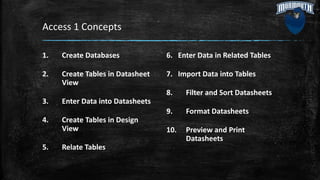
Access 1 Concepts
1. Create Databases
2. Create Tables in Datasheet
View
3. Enter Data into Datasheets
4. Create Tables in Design
View
5. Relate Tables
6. Enter Data in Related Tables
7. Import Data into Tables
8. Filter and Sort Datasheets
9. Format Datasheets
10. Preview and Print
Datasheets
Homework
▪ Continue Working on PowerPoint
▪ Check Twitter
▪ Check eCampus
Is It Over?
▪ Yes, the old man in front of the room is done talking for today
▪ CLASS DISMISSED
▪ See you on Thursday
IT 100-07
Information Technology
Course Introduction
Professor Marino
Tuesdays and Thursdays 4:30-5:50PM Howard Hall Room 207
Today’s Agenda: Thursday, October 27th, 2016
▪Access 2 Concepts
▪Access 2 Simulation
Access 2 Concepts
1. Open, View, and Save
Presentations
2. Edit and Replace Text
3. Format Slide Text
4. Check Spelling and Use the
Thesaurus
5. Insert Slides and Modify
Slide Layouts
6. Insert and Format Pictures
7. Organize Slides in Slide
Sorter View
8. Apply Slide Transitions and
View Slide Shows
9. Insert Headers and Footers
and Print Handouts
10. Add Notes Pages and Use
Presenter View
Homework
▪ Study for PPT/Access Exam [Use MyITLab Reviews]
▪ Make sure all PPT/Access MyITLab Assignments are Done
▪ PowerPoint Due on November 3rd
▪ Check Twitter
▪ Check eCampus
Is It Over?
▪ Yes, the old man in front of the room is done talking for today
▪ CLASS DISMISSED
▪ See you on Tuesday
IT 100-07
Information Technology
PowerPoint/Access Exam
Professor Marino
Tuesdays and Thursdays 4:30-5:50PM Howard Hall Room 207
Today’s Agenda: Tuesday, November 1st, 2016
▪ PowerPoint/Access Exam
▪ PowerPoint Due Next Class
▪ Once PowerPoint/Access Exam is completed
you are dismissed
IT 100-07
Information Technology
Course Introduction
Professor Marino
Tuesdays and Thursdays 4:30-5:50PM Howard Hall Room 207
Today’s Agenda: Thursday, November 3rd, 2016
▪Excel 1 Concepts
▪Excel 1 Simulation
▪Excel 1 Grader Project
▪Presentation Calendar
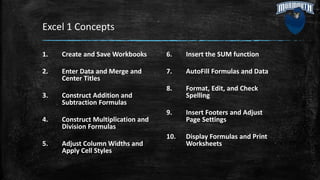
Excel 1 Concepts
1. Create and Save Workbooks
2. Enter Data and Merge and
Center Titles
3. Construct Addition and
Subtraction Formulas
4. Construct Multiplication and
Division Formulas
5. Adjust Column Widths and
Apply Cell Styles
6. Insert the SUM function
7. AutoFill Formulas and Data
8. Format, Edit, and Check
Spelling
9. Insert Footers and Adjust
Page Settings
10. Display Formulas and Print
Worksheets
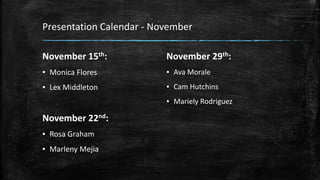
Presentation Calendar - November
November 15th:
▪ Monica Flores
▪ Lex Middleton
November 22nd:
▪ Rosa Graham
▪ Marleny Mejia
November 29th:
▪ Ava Morale
▪ Cam Hutchins
▪ Mariely Rodriguez
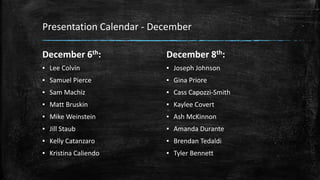
Presentation Calendar - December
December 6th:
▪ Lee Colvin
▪ Samuel Pierce
▪ Sam Machiz
▪ Matt Bruskin
▪ Mike Weinstein
▪ Jill Staub
▪ Kelly Catanzaro
▪ Kristina Caliendo
December 8th:
▪ Joseph Johnson
▪ Gina Priore
▪ Cass Capozzi-Smith
▪ Kaylee Covert
▪ Ash McKinnon
▪ Amanda Durante
▪ Brendan Tedaldi
▪ Tyler Bennett
Homework
▪ Start Preparing for your Presentation
▪ Check Twitter
▪ Check eCampus
Is It Over?
▪ Yes, the old man in front of the room is done talking for today
▪ CLASS DISMISSED
▪ See you on Tuesday
IT 100-07
Information Technology
Course Introduction
Professor Marino
Tuesdays and Thursdays 4:30-5:50PM Howard Hall Room 207
Today’s Agenda: Tuesday, November 8th, 2016
▪Excel 2 Concepts
▪Excel 2 Simulation
▪Excel 2 Grader Project
▪Presentation Calendar
Excel 2 Concepts
1. Align and Wrap Text
2. Apply Absolute Cell
References
3. Format Numbers
4. Insert the AVERAGE
function
5. Insert the MIN and MAX
functions
6. Create Column Charts
7. Format Column Charts
8. Create and Format Pie
Charts
9. Update Charts and Insert
WordArt
10. Preview and Print Multiple
Worksheets
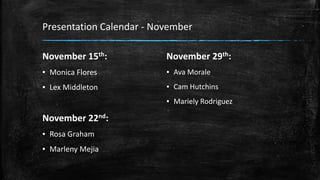
Presentation Calendar - November
November 15th:
▪ Monica Flores
▪ Lex Middleton
November 22nd:
▪ Rosa Graham
▪ Marleny Mejia
November 29th:
▪ Ava Morale
▪ Cam Hutchins
▪ Mariely Rodriguez
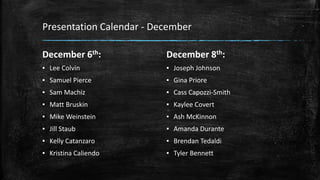
Presentation Calendar - December
December 6th:
▪ Lee Colvin
▪ Samuel Pierce
▪ Sam Machiz
▪ Matt Bruskin
▪ Mike Weinstein
▪ Jill Staub
▪ Kelly Catanzaro
▪ Kristina Caliendo
December 8th:
▪ Joseph Johnson
▪ Gina Priore
▪ Cass Capozzi-Smith
▪ Kaylee Covert
▪ Ash McKinnon
▪ Amanda Durante
▪ Brendan Tedaldi
▪ Tyler Bennett
Homework
▪ Check Twitter
▪ Check eCampus
Is It Over?
▪ Yes, the old man in front of the room is done talking for today
▪ CLASS DISMISSED
▪ See you on Thursday
IT 100-07
Information Technology
Course Introduction
Professor Marino
Tuesdays and Thursdays 4:30-5:50PM Howard Hall Room 207
Today’s Agenda: Thursday, November 10th, 2016
▪Excel 3 Concepts
▪Excel 3 Simulation
▪Excel 3 Grader Project
▪Flowcharts
Excel 3 Concepts
▪ Organize Worksheet Tabs
▪ Enter and Format Dates
▪ Clear Cell Contents and
Formats
▪ Move Cell Contents and Use
Paste Options
▪ Enter Data in Grouped
Worksheets
▪ Insert Multiple Math
Operators in Formulas
▪ Format Grouped Worksheets
▪ Insert, Hide, Delete, and Move
Worksheets
▪ Create Summary Worksheets
▪ Create Clustered Bar Charts
Homework
▪ Check Twitter
▪ Check eCampus
Is It Over?
▪ Yes, the old man in front of the room is done talking for today
▪ CLASS DISMISSED
▪ See you on Tuesday
IT 100-07
Information Technology
Course Introduction
Professor Marino
Tuesdays and Thursdays 4:30-5:50PM Howard Hall Room 207
Today’s Agenda: Tuesday, November 15th, 2016
▪Excel 4 Concepts
▪Excel 4 Simulation
▪Excel 4 Grader Project
▪Monica & Lex Presentation
Excel 4 Concepts
▪ Insert the TODAY, NOW, and
COUNT functions
▪ Insert the IF function
▪ Move Functions, Add Borders,
and Rotate Text
▪ Apply Conditional Formatting
▪ Insert Sparklines
▪ Use Find and Replace
▪ Freeze and Unfreeze Panes
▪ Create and Sort Excel Tables
▪ Filter Excel Tables
▪ Convert Tables to Ranges and
Adjust Worksheet Print
Settings
Homework
▪ Study for Excel Exam [Use MyITLab Reviews]
▪ Check Twitter
▪ Check eCampus
Is It Over?
▪ Yes, the old man in front of the room is done talking for today
▪ CLASS DISMISSED
▪ See you on Thursday
IT 100-07
Information Technology
Excel Exam
Professor Marino
Tuesdays and Thursdays 4:30-5:50PM Howard Hall Room 207
Today’s Agenda: Thursday, November 17th, 2016
▪ Excel Exam
▪ Check Course Schedule for Homework
▪ Once Excel Exam is completed you are
dismissed
IT 100-07
Information Technology
Course Introduction
Professor Marino
Tuesdays and Thursdays 4:30-5:50PM Howard Hall Room 207
Today’s Agenda: Tuesday, November 22nd, 2016
▪Security Concepts Part 1
▪Security Assignments 1 & 2
▪Rosa & Marleny Presentation
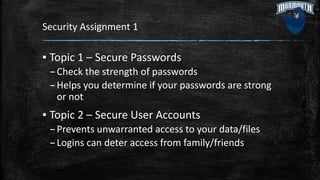
Security Assignment 1
▪ Topic 1 – Secure Passwords
–Check the strength of passwords
–Helps you determine if your passwords are strong
or not
▪ Topic 2 – Secure User Accounts
–Prevents unwarranted access to your data/files
–Logins can deter access from family/friends
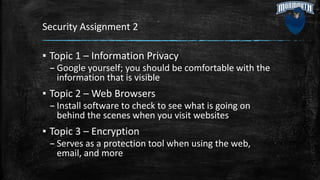
Security Assignment 2
▪ Topic 1 – Information Privacy
– Google yourself; you should be comfortable with the
information that is visible
▪ Topic 2 – Web Browsers
– Install software to check to see what is going on
behind the scenes when you visit websites
▪ Topic 3 – Encryption
– Serves as a protection tool when using the web,
email, and more
Zero Days Video – Watch at Home
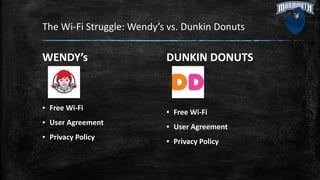
The Wi-Fi Struggle: Wendy’s vs. Dunkin Donuts
WENDY’s
▪ Free Wi-Fi
▪ User Agreement
▪ Privacy Policy
DUNKIN DONUTS
▪ Free Wi-Fi
▪ User Agreement
▪ Privacy Policy
The Wi-Fi Struggle: Wendy’s vs. Dunkin Donuts
▪ On paper Wendy’s and Dunkin Donuts both offer Free Wi-Fi, but one
is a safer Wi-Fi option than the other
▪ Consider accessing the Wi-Fi in the general public, not on campus (ie
the store in your town)
▪ Teams will be split among the class with two captains
▪ Team captains will choose either Wendy’s or Dunkin Donuts
▪ Each team will research their company’s Wi-Fi information to
determine: a) If it is a safe bet to use their company’s Wi-Fi and b) If
it is a safe bet to use the other team’s company’s Wi-Fi
▪ There is a right answer; for one very important reason
Homework
▪ Security Assignments 1 and 2 Due November 29th at 4:30PM
▪ Social Issues 4 and 5 Due December 1st at 4:30PM
▪ Security Exam on December 1st, STUDY!!!
▪ Check Twitter
▪ Check eCampus
Is It Over?
▪ Yes, the old man in front of the room is done talking for today
▪ CLASS DISMISSED
▪ See you on Thursday
IT 100-07
Information Technology
Course Introduction
Professor Marino
Tuesdays and Thursdays 4:30-5:50PM Howard Hall Room 207
This Week’s Agenda: Tuesday, November 22nd, 2016
▪Security Concepts Part 1
▪Security Assignments 1 & 2
▪Rosa & Marleny Presentation
Security Assignments 1 and 2
▪ Security Assignment #1 – Password Protection
▪ Security Assignment #2 – Information Privacy
and Encryption
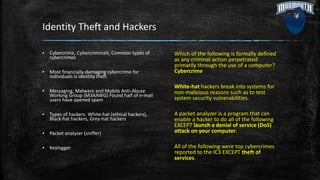
Identity Theft and Hackers
Which of the following is formally defined
as any criminal action perpetrated
primarily through the use of a computer?
Cybercrime
White-hat hackers break into systems for
non-malicious reasons such as to test
system security vulnerabilities.
A packet analyzer is a program that can
enable a hacker to do all of the following
EXCEPT launch a denial of service (DoS)
attack on your computer.
All of the following were top cybercrimes
reported to the IC3 EXCEPT theft of
services.
▪ Cybercrime, Cybercriminals, Common types of
cybercrimes
▪ Most financially damaging cybercrime for
individuals is identity theft
▪ Messaging, Malware and Mobile Anti-Abuse
Working Group (M3AAWG) Found half of e-mail
users have opened spam
▪ Types of hackers: White-hat (ethical hackers),
Black-hat hackers, Grey-hat hackers
▪ Packet analyzer (sniffer)
▪ Keylogger
Hacking
▪ Trojan horses—Appear to be
useful
▪ Rootkits
▪ Zombies
▪ Denial-of-Service
– Legitimate users are denied
access to a computer system
– System shuts down
▪ DDoS
▪ A rootkit allows a hacker to gain
access to your computer and take
almost complete control of it
without your knowledge.
▪ A DDoS attack floods a computer
with requests until it shuts down
and refuses to answer any
requests for information.
▪ A zombie is another person's
computer controlled by a hacker.
True
Viruses
▪ Not limited to computers
▪ Widespread cybercrime: Spreading
viruses
▪ Main purpose and Secondary
objectives
▪ Sources of virus infection
▪ Classified by methods used to avoid
detection: Polymorphic viruses,
Multipartite viruses, Stealth viruses
▪ Creating and distributing computer
viruses is one of the most widespread
types of cybercrimes.
▪ All of the following activities may infect
your computer with a virus EXCEPT
printing a document.
▪ Which of the following classifications of
viruses can change its own code to avoid
detection? Polymorphic
▪ With regard to computer protection,
quarantining is defined as placing a found
virus in a secure area on the hard drive.
▪ A(n) virus signature is the portion of virus
code that is unique to a particular
computer virus.
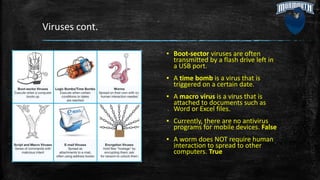
Viruses cont.
▪ Boot-sector viruses are often
transmitted by a flash drive left in
a USB port.
▪ A time bomb is a virus that is
triggered on a certain date.
▪ A macro virus is a virus that is
attached to documents such as
Word or Excel files.
▪ Currently, there are no antivirus
programs for mobile devices. False
▪ A worm does NOT require human
interaction to spread to other
computers. True
Malware and SPAM
▪ Malware has malicious intent
– Adware displays sponsored advertisements
– Spyware is an unwanted piggy-back
program
▪ Transmits information
▪ Tracking cookies
▪ Keystroke logger
▪ Many antispyware packages are available
▪ Spam—junk e-mail
▪ Tactics to minimize spam
▪ Spyware is a program that
gathers information about your
surfing habits without your
knowledge.
Cookies
▪ Cookies are small text files
received when you visit a
website
▪ Help companies determine the
effectiveness of their marketing
▪ Do not search drive for
personal information
▪ May invade your privacy
▪ Pose no security threat
▪ Which of the following
statements about cookies
is NOT true? Cookies
obtain your personal
information by searching
your hard drive.
▪ CAPTCHA is the wavy hard-to-
read letter and number
sequence that you type to
prove that you are human to a
website.
This Week’s Agenda: Tuesday, November 29th, 2016
▪Security Concepts Part 2
▪Ava, Cam, & Mariely
Presentation
Phishing and Pharming
▪ Phishing
– Luring people into revealing
information
▪ Pharming
– Malicious code planted on
your computer to gather
information
▪ Guidelines to avoid schemes
▪ When malicious code is
planted on your computer
and alters your browser's
ability to find web
addresses, it is known as
pharming.
Scareware and Firewalls
▪ Type of malware
▪ Attempts to convince you
something is wrong … and to
pay money to fix it
▪ Firewall—hardware or software
▪ Windows and OS X include
firewalls
▪ Security suites include firewall
software
▪ You can block logical ports
from invaders and make
your computer invisible to
others on the Internet by
installing a firewall.
▪ Configuring a firewall to ignore
all incoming packets that
request access to a specific port
is known as logical port
blocking.
Preventing Viruses
▪ Antivirus software
– Detects viruses and
protects your computer. Like Symantec,
Kaspersky, AVG, McAfee
▪ Need strong passwords. Password
strength tests
▪ Operating systems have built-in password
protection
▪ Biometrics: Fingerprint, Iris pattern in eye,
Voice authentication, Face pattern
recognition
▪ Provide a high level of security
▪ Rules for creating
passwords include all of
the following EXCEPT use a
dictionary to find a
lengthy word that is easy
to remember.
Protecting Data
▪ Protect your personal
Information. Backups are copies
of data
▪ Backup your data from:
Unauthorized access,
Tampering, Destruction
▪ Power surges
▪ Surge protector
– Replace every 2–3 years
– Use with all devices that have
solid-state components
▪ Social engineering is any
technique that uses social
skills to generate human
interaction that entices
individuals to reveal
sensitive information.
Preventing Theft
▪ Four main security concerns with mobile devices:
–Keeping them from being stolen
–Keeping data secure in case they are stolen
–Finding a device if it is stolen
–Remotely recovering and wiping data off a stolen
device
Security Exam
▪ 25 Questions
▪ On MyITLab
▪ The Yellow Text in this PPT are the questions
and answers. The answers are in boldface.
▪ Study those statements.
Homework
▪ Security Assignments 1 and 2 Due November 29th at 4:30PM
▪ Social Issues 4 and 5 Due December 1st at 4:30PM
▪ Security Exam on December 1st, STUDY!!!
▪ Check Twitter
▪ Check eCampus
Is It Over?
▪ Yes, the old man in front of the room is done talking for today
▪ CLASS DISMISSED
▪ See you on Thursday
IT 100-07
Information Technology
Course Introduction
Professor Marino
Tuesdays and Thursdays 4:30-5:50PM Howard Hall Room 207
Today’s Agenda: Tuesday, November 29th, 2016
▪Security Concepts Part 2
▪Ava, Cam & Mariely
Presentation
Review from Last Tuesday
▪ Hackers go after the Elderly due to their financial stability and
Young adults due to their available credit
▪ Google Images is a stronger tool than Google Search in viewing
your digital footprint
▪ Mobile devices are at the same risk as your personal computers
▪ Using Wi-Fi is risky; look for Wi-Fi with a password to make it a
little more secure
Zero Days Video Discussion
▪ What are Zero Days?
–Vulnerabilities in the code that can be hacked
▪ What are Bug Bounties?
–Payment for identifying a zero day in the
software/code
▪ You can either fix a Zero Day, pay someone to
fix it, or get hacked
Protect Yourself
▪ Protecting yourself on your personal computer and mobile devices is a
primary concern
▪ Your data [whether personal like bank account or professional like
work documents] can be useful resources to hackers
▪ Use strategies to prevent issues and continue to be educated about
cybersecurity
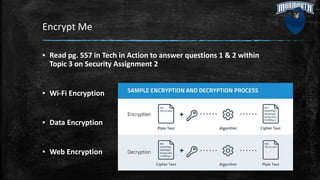
Encrypt Me
▪ Read pg. 557 in Tech in Action to answer questions 1 & 2 within
Topic 3 on Security Assignment 2
▪ Wi-Fi Encryption
▪ Data Encryption
▪ Web Encryption
Encrypt Me – Defining Encryption
▪ A methodology using algorithms to modify data, text, code, etc. to prevent
the opportunity of hacking and misuse of information
▪ Courses such as Cryptography devote a substantial amount of time
towards this process
▪ Encryption can exist as: Wi-Fi Encryption, Data Encryption, and Web
Encryption
▪ Encryption can be one of the most secure ways to protect your computer
and mobile device
Encrypt Me – Wi-Fi Encryption
▪ Wi-Fi Encryption is the encryption method you take to protect outside access to your network
[whether at home or not]
▪ Three common types are WEP, WPA, WPA2
▪ Wired Equivalent Privacy can be 64, 128, or 256 bit encryptions; commonly used, but easily
hacked
▪ Wi-Fi Protected Access is 256 bit encryption; created due to the vulnerabilities of WEP
▪ Wi-Fi Protected Access II is an updated version of WPA and the most secure encryption tool for
Wi-Fi
Encrypt Me – Data Encryption
▪ Focuses heavily on making text or information sent via email or
other online transmit difficult to decipher [or read]
▪ Substitution ciphers are the most common tool for this task
Encrypt Me – Web Encryption
▪ Look for the “lock” – it means the most secure websites
▪ Digital Certificates
– Like cookies; gives access based on
prior approval/visit [can expire]
▪ SSL Encryption
– Most common web encryption tool
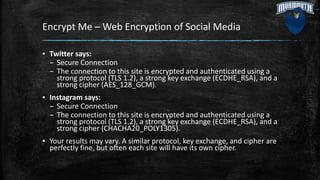
Encrypt Me – Web Encryption of Social Media
▪ Twitter says:
– Secure Connection
– The connection to this site is encrypted and authenticated using a
strong protocol (TLS 1.2), a strong key exchange (ECDHE_RSA), and a
strong cipher (AES_128_GCM).
▪ Instagram says:
– Secure Connection
– The connection to this site is encrypted and authenticated using a
strong protocol (TLS 1.2), a strong key exchange (ECDHE_RSA), and a
strong cipher (CHACHA20_POLY1305).
▪ Your results may vary. A similar protocol, key exchange, and cipher are
perfectly fine, but often each site will have its own cipher.
Security Exam on Thursday
▪ Worth 110 Points
▪ Lee’s Team gets 10 Extra Credit Points
▪ Will start with 4 questions on eCampus based on other content and
video [worth 10 points]
▪ 25 questions on MyITLab based on the Yellow content in 11-22&29
Agenda [worth 100 points]
Homework
▪ Security Assignments 1 and 2 Due in Moments
▪ Social Issues 4 and 5 Due December 1st at 4:30PM
▪ Security Exam on December 1st, STUDY!!!
▪ Check Twitter
▪ Check eCampus
Is It Over?
▪ Yes, the old man in front of the room is done talking for today
▪ CLASS DISMISSED
▪ See you on Thursday
IT 100-07
Information Technology
Course Introduction
Professor Marino
Tuesdays and Thursdays 4:30-5:50PM Howard Hall Room 207
Today’s Agenda: Tuesday, December 6th, 2016
Presentations:
▪ Lee Colvin
▪ Samuel Pierce
▪ Sam Machiz
▪ Matt Bruskin
▪ Mike Weinstein
▪ Jill Staub
▪ Kelly Catanzaro
▪ Kristina Caliendo
Homework
▪ Check Twitter
▪ Check eCampus
Is It Over?
▪ Yes, the old man in front of the room is done talking for today
▪ CLASS DISMISSED
▪ See you on Thursday
IT 100-07
Information Technology
Course Introduction
Professor Marino
Tuesdays and Thursdays 4:30-5:50PM Howard Hall Room 207
Today’s Agenda: Thursday, December 8th, 2016
Presentations:
▪ Joseph Johnson
▪ Gina Priore
▪ Cass Capozzi-Smith
▪ Kaylee Covert
▪ Ash McKinnon
▪ Amanda Durante
▪ Brendan Tedaldi
▪ Tyler Bennett
Homework
▪ Study for Final Exam
▪ Check Twitter
▪ Check eCampus
Is It Over?
▪ Yes, the old man in front of the room is done talking for today
▪ CLASS DISMISSED
▪ See you at the Final Exam
IT 100-07
Information Technology
Final Exam
Professor Marino
Tuesdays and Thursdays 4:30-5:50PM Howard Hall Room 207
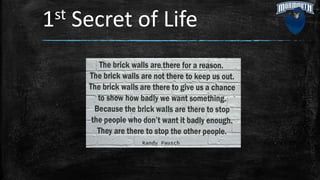
1st Secret of Life
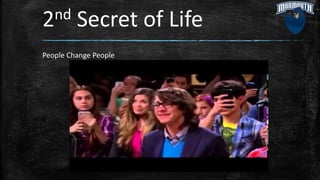
2nd Secret of Life
People Change People
3rd Secret of Life
Don’t be afraid to make a fool out of yourself for a good cause
Today’s Agenda: Thursday, December 15th, 2016
▪ Complete MyITLab Final Exam
▪ Grade Sheets to be distributed [includes all grades
except Final Exam grade]
▪ You may leave once you finish the entire Final Exam

IT 100 Agenda 9-6-16.pptx

  • 1.
    IT 100-07 Information Technology CourseIntroduction Professor Marino Tuesdays and Thursdays 4:30-5:50PM Howard Hall Room 207
  • 2.
    Today’s Agenda: Tuesday,September 6th, 2016 ▪ About Me ▪ Contact Info ▪ Open Syllabus and Schedule from eCampus ▪ Netiquette ▪ Important Dates ▪ How to Succeed in IT 100 Without Really Trying ▪ Navigating eCampus ▪ Navigating MyITLab ▪ Homework
  • 3.
    About Me ▪ MonmouthUniversity Adjunct Professor ▪ High School Business and Computer Teacher ▪ Current EdD Student [Curriculum and Instruction with focuses in Instructional Technology and Distance Learning] ▪ Entrepreneur [run 4 businesses and a non-profit] ▪ Ambassador [Edmodo and SimpleK12] ▪ Financial Blogger [The Street, Seeking Alpha, and Nasdaq]
  • 4.
    Contact Info ▪ E-mail:mamarino@Monmouth.edu ▪ E-mail is the best way to get in touch with me. ▪ I try to respond within 24 hours. ▪ In case of EMERGENCY call me at 848-333-8637 ▪ OFFICE HOURS: Where? Howard Hall Room 223 When? Tuesdays and Thursdays from 6-7PM
  • 5.
    Syllabus Important Points ▪Class Meeting Time ▪ Required Course Materials ▪ Learning Objectives ▪ Grading Scale ▪ Attendance ▪ Academic Honesty ▪ MyITLab ▪ Helpful Info
  • 6.
    Class Meeting Time ▪Please come to class on time whenever we are scheduled to meet ▪ Be Prepared [Course Schedule Defines Everything] ▪ Be Ready to Start as soon as our course time starts
  • 7.
    Required Course Materialsand Learning Objectives ▪ As defined in syllabus
  • 8.
    Grading Scale Exams 50% Final Exam 20% Assignments 30% GradeBreakdown Exams Final Exam Assignments Symbol Start % A 93 A- 90 B+ 87 B 83 B- 80 C+ 77 C 73 C- 70 D+ 67 D 63 D- 60 F 0
  • 9.
    Attendance ▪ Course AttendancePolicy as defined by department head Professor Rohn: – Final grade will be reduced by 3 points for 3 absences – Final grade will be reduced by 1 point for each additional absence – This means if you’re absent once or twice there is no penalty – If you need to be absent obtain documentation to have absence excused ▪ My Attendance Policy: – If I am absent for any reason everyone will receive 1 point towards their final grade for each of my absences – In the event someone fills in for me students will need to be present to receive that credit
  • 10.
    Academic Honesty ▪ Statementon Academic Honesty on Syllabus ▪ Consequences of Academic Dishonesty – You will receive an F for the course – Further disciplinary action may occur; including dismissal from the university – Lowers GPA – Financial cost to retake course – Potential loss of scholarships – Potential loss in eligibility for extracurricular activities – Need to repeat course for credit
  • 11.
    MyITLab ▪ MyITLab willfeature most of your assignments for this course [there are other small assignments on eCampus] ▪ MyITLab will house all five unit exams and the final exam ▪ MyITLab features a digital copy of the course textbook and Technology in Action for easy usage
  • 12.
    Helpful Info ▪ HelpDesk ▪ IT Lab Assistants ▪ IT Tutors and Tutoring Lab ▪ Other Campus Computer Access
  • 13.
    Course Schedule ▪ DefinesTopics to be covered in class ▪ Defines all HW Assignments and Due Dates ▪ Defines PPT Presentation Dates [subject to change] ▪ Defines Readings that should be completed prior to class
  • 14.
    Netiquette ▪ Netiquette isthe term used to describe the rules of etiquette that apply to electronic communications. It is important to use good netiquette when communicating with me and with your classmates, so I ask that you abide by the rules of netiquette in all aspects of this course. These rules are basically common sense things, but I feel they are important enough to reiterate here.
  • 15.
    Netiquette cont. ▪ Therules of netiquette you will be expected to follow in this course are as follows: ▪ Be clear. – Use Standard English and do not abbreviate. – Spell check, revise and edit your messages before sending them. – Use appropriate subject lines that reflect the content of the message. ▪ Be polite and careful. – Do not use ALL UPPERCASE LETTERS!!! or multiple exclamation marks, as it is sometimes difficult to understand the tone of the message. – Typing in all capital letters is synonymous to yelling at someone. – Avoid sarcasm and irony, which can be misinterpreted by the reader. – Refrain from using inappropriate or offensive language. – Remember you are not talking to a machine; there is a person on the other end of your message.
  • 16.
    Netiquette cont. ▪ Demonstraterespect for the opinions of others when responding to your classmates. ▪ Remember that you are communicating within a classroom and behave accordingly. ▪ Be forgiving of other people's mistakes. ▪ Always remain calm, even if you believe someone has insulted you. ▪ Disagree respectfully and with facts, not gossip. ▪ Apply the golden rule -- treat others the way you would like to be treated.
  • 17.
    Important Dates ▪ LateRegistration/Add-Drop Period: Sept. 6th to Sept. 13th ▪ No Class: October 18th and November 24th ▪ Withdrawal Deadline: November 3rd ▪ Any additional important dates will be announced at the start of class
  • 18.
    How to Succeedin IT 100 Without Really Trying ▪ Be on time to class/Be in class: Being in class will help you do well on assignments and exams ▪ “Alright Young Scholars” means class is starting ▪ Submit all assignments on time ▪ Study all review materials prior to exams ▪ Work smart
  • 19.
    Navigating eCampus ▪ Eachunit will have its own folder: Word, Computer Concepts, Access and PowerPoint, Computer Security, and Excel ▪ MyITLab will have its own folder ▪ Research Paper will have its own folder ▪ Agendas for class; such as this one, will all be put into one folder
  • 20.
  • 21.
    Homework ▪ Purchase requiredcourse materials if you haven’t already done so ▪ Complete About Me Discussion Thread [Instructions in eCampus] ▪ Follow hashtag #Marino10007 at https://twitter.com/hashtag/Marino10007?f=tweets&src=hash
  • 22.
    Is It Over? ▪Yes, the old man in front of the room is done talking for today ▪ CLASS DISMISSED ▪ See you on Thursday
  • 23.
    IT 100-07 Information Technology CourseIntroduction Professor Marino Tuesdays and Thursdays 4:30-5:50PM Howard Hall Room 207
  • 24.
    Today’s Agenda: Thursday,September 8th, 2016 ▪Download Data Files Info ▪Research Paper Info ▪Start on Windows 10 Simulation
  • 25.
    Research Paper ▪ Allstudents will choose a research topic ▪ All students will be required to complete research on their chosen topic to produce a research paper ▪ All students will be required to follow the research paper rubric ▪ All students will submit a rough draft through eCampus and a hard copy to instructor ▪ All students will submit a final draft through eCampus and a hard copy to instructor ▪ Students will use their research paper to create a presentation later in the semester
  • 26.
    MLA Info –Reviewing MLA Style ▪ Checklist for formatting a default Word document to match the MLA style: – Double-space the entire document – Remove paragraph spacing from the entire document – Increase the font size for the entire document to 12 points – Indent the first line of each body paragraph .5 inch from the left margin – Add the page number (preceded by your last name) in the upper-right corner of each page (you can omit this from the first page)
  • 27.
    MLA Info –Creating Citations and a Bibliography ▪ Steps for finalizing a bibliography to match MLA guidelines for a Works Cited list: 1. Format the “Works Cited” heading to match the formatting of the rest of the text in the document 2. Center the “Works Cited” heading. 3. Double-space the entire works cited list, including the heading, and remove extra space after the paragraphs 4. Change the font size for the entire works cited list to 12 points
  • 28.
    MLA Info –Citation Rules
  • 29.
    MLA Info –Additional Resources ▪ MLA Formatting and Style Guide: https://owl.english.purdue.edu/owl/resource/747/01/ ▪ Create a Cross Reference: https://support.office.com/en- us/article/Create-a-cross-reference-300b208c-e45a-487a-880b- a02767d9774b ▪ Create a Table of Figures: https://support.office.com/en- us/article/Create-a-table-of-figures-c5ea59c5-487c-4fb2-bd48- e34dd57f0ec1
  • 30.
    How to ConductScholarly Research ▪ Source Evaluations: – Google Scholar OK – Wikipedia NOT OK – Evaluation Test - http://guides.monmouth.edu/c.php?g=63392&p=2705358 ▪ Library and Other Resources: – http://guides.monmouth.edu/IT100 – http://www.monmouth.edu/academics/css/writing/ResourcesForW riters.aspx – http://library.monmouth.edu/main/
  • 31.
    Related Assignments andDue Dates ▪ Plagiarism Tutorial: DUE 9/13 Prior to Class ▪ Scholarly Sources 1 and 2: DUE 9/22 Prior to Class ▪ Rough Draft: DUE 10/4 Submit to eCampus Prior to Class and Hand in Hard Copy at the Start of Class ▪ Final Draft: DUE 10/13 Submit to eCampus Prior to Class and Hand in Hard Copy at the Start of Class
  • 32.
    Homework ▪ Finish Windows10 MyITLab Simulation if not done already ▪ Begin Working on Assignments Associated with Research Paper ▪ Check Twitter ▪ Check eCampus
  • 33.
    Is It Over? ▪Yes, the old man in front of the room is done talking for today ▪ CLASS DISMISSED ▪ See you on Tuesday
  • 34.
    IT 100-07 Information Technology CourseIntroduction Professor Marino Tuesdays and Thursdays 4:30-5:50PM Howard Hall Room 207
  • 35.
    Today’s Agenda: Tuesday,September 13th, 2016 ▪Word 1 Concepts ▪Word 1 Classwork Grader Project ▪Homework
  • 36.
    Word 1 Concepts ▪Non-printing formatting marks ▪ No spacing style ▪ Manual page break ▪ Spelling & grammar checker ▪ Word options dialog box ▪ Synonyms ▪ Format painter ▪ Small caps ▪ Insert footer with field ▪ View two pages
  • 37.
    Word 1 ClassworkGrader Assignment
  • 38.
    Homework ▪ Word 1Simulation [MyITLab] ▪ Word 1 Grader Project [MyITLab] ▪ Check Twitter ▪ Check eCampus
  • 39.
    Is It Over? ▪Yes, the old man in front of the room is done talking for today ▪ CLASS DISMISSED ▪ See you on Thursday
  • 40.
    IT 100-07 Information Technology CourseIntroduction Professor Marino Tuesdays and Thursdays 4:30-5:50PM Howard Hall Room 207
  • 41.
    Today’s Agenda: Thursday,September 15th, 2016 ▪Word 2 Concepts ▪Word 2 Classwork [eCampus] ▪Homework
  • 42.
    Word 2 Concepts ▪Find & replace text ▪ Footnotes ▪ Add sources ▪ Insert citations ▪ Insert bibliographies ▪ Formatting lists ▪ Set paragraph indents ▪ Modify line & paragraph spacing ▪ Create custom headers
  • 43.
    Word 2 Classwork[eCampus] Instructions: 1.Complete Word Chapter 2 on pages 186-211. 2.Upload the completed files. 3.Submit the assignment.
  • 44.
    Homework ▪ Word 2Simulation [MyITLab] ▪ Word 2 Grader Project [MyITLab] ▪ Check Twitter ▪ Check eCampus
  • 45.
    Is It Over? ▪Yes, the old man in front of the room is done talking for today ▪ CLASS DISMISSED ▪ See you on Tuesday
  • 46.
    IT 100-07 Information Technology CourseIntroduction Professor Marino Tuesdays and Thursdays 4:30-5:50PM Howard Hall Room 207
  • 47.
    Today’s Agenda: Tuesday,September 20th, 2016 ▪Refer to Agenda from 9-8- 16 on eCampus pertaining to MLA Format/Style ▪Remember Google Scholar OK, Wikipedia NOT OK
  • 48.
    CRAAP Test ▪ http://guides.monmouth.edu/c.php?g=63392&p=2705358 ▪Currency – source should be less than 5 years old for your papers ▪ Relevance – does it match your topic? If so, use it ▪ Authority – who wrote it? Are they published often? ▪ Accuracy – is the info you found true? ▪ Purpose – you want to choose unbiased/non opinion sources ▪ Feel free to watch the video at the link provided
  • 49.
    Our Library Guide ▪http://guides.monmouth.edu/IT100 ▪ Use Journal Articles Tab ▪ Click the box next to Scholarly and Peer Reviewed ▪ Enter your search terms and click Search ▪ Select Last 5 Years under Publication Date ▪ Click on a result and click PDF Full Text [if this option doesn’t exist for that result move on to another source] ▪ If you’ve read it and feel it helps your paper click Cite; scroll down and copy the MLA citation
  • 50.
    Writing Your Paper ▪http://www.monmouth.edu/academics/css/writing/ResourcesForWrit ers.aspx ▪ The Writing Process: Writing a Thesis ▪ Research and Documentation: All MLA Topics and Research Tips
  • 51.
    Google Scholar ▪ https://scholar.google.com/ ▪Only provides scholarly sources for your search terms ▪ May not be able to open all sources [try to stick with sources that list PDF or HTML on the right hand side] ▪ Click Cite and highlight the MLA citation if you use the source for your paper
  • 52.
    Helpful Hints ▪ Downloadall sources you seem interested in to read and decide if they are a good source ▪ Copy citations for all sources you download. As you delete the sources you decide not to use, delete their citation ▪ Pick sources that match your opinion ▪ Start your research and writing soon
  • 53.
    Scholarly Sources Homework ▪For Scholarly Sources 1 & 2 you are required to find two scholarly sources to use for your paper and answer questions. Remember to include the citation for the articles. ▪ Use the process I just went through with you ▪ 1 source for each assignment. DON’T SUBMIT BOTH SOURCES IN ONE FILE. ▪ In theory you will use these 2 scholarly sources for your paper.
  • 54.
    Homework ▪ Scholarly Sources1 & 2 ▪ Social Issues 1 & 2 ▪ Check Twitter ▪ Check eCampus
  • 55.
    Is It Over? ▪Yes, the old man in front of the room is done talking for today ▪ CLASS DISMISSED ▪ See you on Thursday
  • 56.
    IT 100-07 Information Technology CourseIntroduction Professor Marino Tuesdays and Thursdays 4:30-5:50PM Howard Hall Room 207
  • 57.
    Today’s Agenda: Thursday,September 22nd, 2016 ▪Word 3 Concepts ▪Word 3 Classwork ▪Homework
  • 58.
    Word 3 Concepts InsertText and Pictures From Files Resize and Align Pictures Apply Pictures Styles and Artistic Effects Set Tab Stops Type Tabbed Lists Apply Table Styles Create Tables Delete and Add Table Rows and Columns Format Text in Table Cells Format Tables
  • 59.
    Word 3 Homework[eCampus] Instructions 1.Complete Word Chapter 3 on pages 226-251. 2.Upload the completed files. 3.Submit the assignment.
  • 60.
    Homework ▪ Word 3Simulation [MyITLab] ▪ Word 3 Grader Project [MyITLab] ▪ Check Twitter ▪ Check eCampus
  • 61.
    Is It Over? ▪Yes, the old man in front of the room is done talking for today ▪ CLASS DISMISSED ▪ See you on Tuesday
  • 62.
    IT 100-07 Information Technology CourseIntroduction Professor Marino Tuesdays and Thursdays 4:30-5:50PM Howard Hall Room 207
  • 63.
    Today’s Agenda: Tuesday,September 27th, 2016 ▪ Word 7 Concepts ▪ Word Integrated Project 1 [pgs. 308-313] ▪ Homework
  • 64.
    Word 7 Concepts ▪Go into MyITLab ▪ Click Course Materials ▪ Click Supplemental Resources ▪ Click Videos for Microsoft Office Chapter Skills ▪ Click Word Chapter 7 Videos ▪ Watch Skill Videos 1, 2, 8 and 10
  • 65.
    Word Integrated Project1 ▪ To be done in class ▪ Follow directions from pgs. 308-313 ▪ Submit on eCampus
  • 66.
    Homework ▪ Use WordReview on MyITLab to study for Word Exam ▪ Check Twitter ▪ Check eCampus
  • 67.
    Is It Over? ▪Yes, the old man in front of the room is done talking for today ▪ CLASS DISMISSED ▪ See you on Thursday
  • 68.
    IT 100-07 Information Technology WordExam Professor Marino Tuesdays and Thursdays 4:30-5:50PM Howard Hall Room 207
  • 69.
    Today’s Agenda: Thursday,September 29th, 2016 ▪Complete Word Exam in MyITLab ▪Be Aware of Homework [Research Paper Rough Draft]
  • 70.
    Homework ▪ Check Twitter ▪Check eCampus ▪ Complete Assigned Readings ▪ Once you complete Word Exam you are dismissed
  • 71.
    IT 100-07 Information Technology CourseIntroduction Professor Marino Tuesdays and Thursdays 4:30-5:50PM Howard Hall Room 207
  • 72.
    This Week’s Agenda: Tuesday,October 4th and Thursday, October 6th, 2016 ▪Computer Concepts ▪Computer Purchase Assignment
  • 73.
    Four Major Functionsof a Computer Storage Output Process Input – Input: Gathers data, allows entering data – Process: Manipulates, calculates, or organizes data – Output: Displays data and information – Storage: Saves data and information
  • 74.
    Bits or Bytes ▪Bit: Binary digit 0 or 1 ▪ Byte: Unique combinations of 8 bits of 0s and 1s ▪ Kilobytes, megabytes, gigabytes, terabytes, and petabytes ▪ Computers use binary language consisting of 0s and 1s. ▪ Which of the following is the smallest unit of measure? Megabyte
  • 75.
    Types of Computers ▪Mainframe: Many users simultaneously ▪ Supercomputer: Complex calculations ▪ Embedded: Self-contained – Examples: electronic thermostat, drone ▪ Embedded computers are specially designed computer chips that reside inside other devices such as a car. ▪ Which of the following computers is large, expensive and supports many simultaneous users and manages large amounts of data? Mainframe computer ▪ An Apple iPad and a Microsoft Surface are examples of Tablet computers.
  • 76.
    Input ▪ Enter dataand instructions ▪ Examples – Keyboard – Mouse – Microphone – Scanner – Digital camera – Stylus ▪ A(n) Stylus is an input device that looks like a pen. ▪ A keyboard and mouse are examples of input devices.
  • 77.
    Output: Overview andMonitors ▪ Send data out of the computer in the form of: – Text – Pictures – Sounds – Video ▪ Examples – Monitors – Printers – Speakers and earphones ▪ Monitors: Liquid crystal display (LCD), Light-emitting diode (LED), Organic light-emitting diode (OLED) ▪ The most common type of monitor is a(n) liquid crystal display (LCD). ▪ The number of pixels displayed on the screen is known as screen resolution.
  • 78.
    Output: Printers ▪ Inkjet:Affordable, High-quality color, Quick and quiet ▪ Laser: Faster printing speed, Higher-quality printouts, More expensive ▪ All-in-one printer: Printer, scanner, copier, and fax ▪ Plotter: Prints oversize images ▪ Thermal printer ▪ Thermal printers either melt a wax based ink on regular paper or by burning dots on specially coated paper. ▪ Laser printers are usually faster at printing in black and white than inkjet printers. True
  • 79.
    Output: Sounds ▪ Speaker –Output device for sound – Surround-sound speakers – Wireless speaker system ▪ Headphones or earbuds – Keep from distracting others • Most computers include inexpensive speakers. These speakers are sufficient to play audio clips from the Web and enable you to participate in videoconferencing or phone calls made over the Internet. • A surround-sound speaker is a system of speakers and audio processing that envelops the listener in a 360-degree field of sound. • Wireless speaker systems are available to help you avoid cluttering up your rooms with speaker wires. • Headphones or earbuds plug into the same jack to which speakers connect. Hearing might be damaged by excessive volume when using earbuds.
  • 80.
    Processing and Memory ▪Motherboard: CPU, ROM, RAM, and cache, Slots for expansion cards, Sound/Video cards, Network interface card (NIC) • The motherboard is located inside the system unit and contains the central electronic components of the computer, including the computer's processor (CPU), and many circuit boards that help the computer to function. •A network interface card (NIC) enables your computer to connect to other computers or to the Internet. •The motherboard contains the central electronic components of the computer.
  • 81.
    RAM: Random AccessMemory Stores instructions and data Series of several memory cards or modules Temporary (volatile) storage ▪ RAM is the abbreviation for the place in the computer where the programs and data the computer is currently using are temporarily stored. ▪ RAM is a volatile storage location.
  • 82.
    ROM: Read OnlyMemory Stores startup instructions Permanent (nonvolatile) storage ▪ The area that holds all the startup instructions the computer needs to start is the ROM. ▪ Apple's OS X and Microsoft Windows are examples of operating system software.
  • 83.
    CPU: Central ProcessingUnit CPU or processor “Brains” of the computer Controls all functions of the computer’s components Processes all commands and instructions Billions of tasks per second ▪ CPU Performance Measures: Processor speed measured in hertz (Hz), Megahertz (MHz) or gigahertz (GHz) – Number of cores: Single, Dual, Quad, Ten ▪ Today's CPUs run at speeds measured in kilohertz. False ▪ A(n) dual-core CPU has two processing paths, allowing it to process more than one instruction at a time.
  • 84.
    Hard Drives ▪ Primarydevice for permanent storage ▪ Nonvolatile storage devices ▪ Internal drive is for permanent storage ▪ External hard drive ▪ Solid-state Drive (SSD) ▪ All of the following are names for a flash drive EXCEPT hard drive.
  • 85.
    Data Storage ▪ Externalhard drives ▪ Flash Storage ▪ Compact discs (CDs) ▪ Digital video discs (DVDs) – Store more data than CDs ▪ Blu-ray discs (BDs) ▪ Which of the following optical storage media has the greatest storage capacity? BD ▪ Flash drives plug into a(n) USB port.
  • 86.
    Peripherals: Ports, Cards,and Hubs ▪ Universal serial bus (USB) ▪ New USB 3.1 standard port: Transfer speeds of 10 Gbps ▪ FireWire 800: Transfer speeds up to 800 Mbps ▪ Thunderbolt: Transfer speeds up to 20 Gbps ▪ Connectivity port – Access to networks and the Internet ▪ Ethernet port ▪ Audio ports – Connect headphones, microphones, speakers ▪ Video ports – Connect monitors and multimedia devices – HDMI ▪ Which port is the most common port used to connect input and output devices? Universal serial bus (USB) ▪ A(n) port is where a peripheral device can attach to a computer so that data can be exchanged between it and the operating system.
  • 87.
    Ergonomics Position your monitor correctly. Purchasean adjustable chair. Assume a proper position while typing. Take breaks from computer tasks. Ensure that the lighting is adequate. ▪ Ergonomics is concerned with the design and arrangement of machines and furniture to avoid uncomfortable or unsafe experiences.
  • 88.
    Computer Purchase Assignment ▪How do you use your computer? Assess needs ▪ What software do you run? Total your needed space ▪ Choose 3 computers that meet your requirements ▪ Find specs of each computer ▪ Which of the 3 computers did you choose and why?
  • 89.
    Computer Concepts Exam ▪25 Questions ▪ On MyITLab ▪ The Blue Text in this PPT are the questions and answers. The answers are in boldface. ▪ Study those statements.
  • 90.
    Homework ▪ Computer PurchaseAssignment Due October 11th at 4:30PM ▪ Social Issues 3 Due October 11th at 4:30PM ▪ Computer Concepts Exam on October 11th STUDY!!! ▪ Check Twitter ▪ Check eCampus
  • 91.
    Is It Over? ▪Yes, the old man in front of the room is done talking for today ▪ CLASS DISMISSED ▪ See you on Tuesday
  • 92.
    IT 100-07 Information Technology CourseIntroduction Professor Marino Tuesdays and Thursdays 4:30-5:50PM Howard Hall Room 207
  • 93.
    Today’s Agenda: Thursday,October 6th, 2016 ▪Rough Draft Review ▪Computer Concepts Great Debate
  • 94.
    Homework ▪ Computer PurchaseAssignment Due October 11th at 4:30PM ▪ Social Issues 3 Due October 11th at 4:30PM ▪ Computer Concepts Exam on October 11th STUDY!!! ▪ Check Twitter ▪ Check eCampus
  • 95.
    Is It Over? ▪Yes, the old man in front of the room is done talking for today ▪ CLASS DISMISSED ▪ See you on Tuesday
  • 96.
    IT 100-07 Information Technology ComputerConcepts Exam Professor Marino Tuesdays and Thursdays 4:30-5:50PM Howard Hall Room 207
  • 97.
    Today’s Agenda: Tuesday,October 11th, 2016 ▪ Computer Concepts Exam ▪ Research Paper Due Next Class ▪ Once Computer Concepts Exam is completed you are dismissed
  • 98.
    IT 100-07 Information Technology CourseIntroduction Professor Marino Tuesdays and Thursdays 4:30-5:50PM Howard Hall Room 207
  • 99.
    Today’s Agenda: Thursday,October 13th, 2016 ▪PPT 1 Concepts ▪PPT 1 Simulation ▪PPT 1 Grader Project ▪PPT 2 and 3 Concepts that can be used for PPT Assignment ▪Introduce PPT Assignment/Rubric
  • 100.
    PPT 1 Concepts 1.Open, View, and Save Presentations 2. Edit and Replace Text 3. Format Slide Text 4. Check Spelling and Use the Thesaurus 5. Insert Slides and Modify Slide Layouts 6. Insert and Format Pictures 7. Organize Slides in Slide Sorter View 8. Apply Slide Transitions and View Slide Shows 9. Insert Headers and Footers and Print Handouts 10. Add Notes Pages and Use Presenter View
  • 101.
    PPT 2 and3 Concepts for PPT Presentation ▪Chapter 2: –Change Themes and Variants [Skill 2] –Change Font Colors and Effects [Skill 3] ▪Chapter 3: –Insert Video Files [Skill 9] –Apply Video Styles and Adjust Videos [Skill 10]
  • 102.
    Homework ▪ PPT 1Skills 1-10 Due at 6PM ▪ Begin Working on PowerPoint ▪ Check Twitter ▪ Check eCampus
  • 103.
    Is It Over? ▪Yes, the old man in front of the room is done talking for today ▪ CLASS DISMISSED ▪ See you on Thursday NO CLASS TUESDAY DUE TO FALL BREAK
  • 104.
    IT 100-07 Information Technology CourseIntroduction Professor Marino Tuesdays and Thursdays 4:30-5:50PM Howard Hall Room 207
  • 105.
    Today’s Agenda: Thursday,October 20th, 2016 ▪PPT 4 Concepts ▪PPT 4 Simulation ▪Effective PPT Presentations
  • 106.
    PPT 4 Concepts 1.Insert Tables 2. Modify Table Layouts 3. Apply Table Styles 4. Insert Column Charts 5. Edit and Format Charts 6. Insert Pie Charts 7. Apply Animation Effects and Change Duration 8. Modify Animation Timings and Use Animation Painter 9. Delay or Remove Animation 10. Navigate Slide Shows
  • 107.
    Effective PowerPoint Presentations ▪One theme per slide ▪ Rehearse ▪ Know your purpose and audience ▪ Exhibit your Passion ▪ Build on your content ▪ Know Your Topic to a Strong Degree ▪ Keep eye contact ▪ Use facts ▪ Use readable font ▪ Don’t read from your slides ▪ Think about questions you may be asked ahead of time
  • 108.
    Homework ▪ Continue Workingon PowerPoint ▪ Check Twitter ▪ Check eCampus
  • 109.
    Is It Over? ▪Yes, the old man in front of the room is done talking for today ▪ CLASS DISMISSED ▪ See you on Tuesday
  • 110.
    IT 100-07 Information Technology CourseIntroduction Professor Marino Tuesdays and Thursdays 4:30-5:50PM Howard Hall Room 207
  • 111.
    Today’s Agenda: Tuesday,October 25th, 2016 ▪Access 1 Concepts ▪Access 1 Simulation ▪Access 1 Grader Project
  • 112.
    Access 1 Concepts 1.Create Databases 2. Create Tables in Datasheet View 3. Enter Data into Datasheets 4. Create Tables in Design View 5. Relate Tables 6. Enter Data in Related Tables 7. Import Data into Tables 8. Filter and Sort Datasheets 9. Format Datasheets 10. Preview and Print Datasheets
  • 113.
    Homework ▪ Continue Workingon PowerPoint ▪ Check Twitter ▪ Check eCampus
  • 114.
    Is It Over? ▪Yes, the old man in front of the room is done talking for today ▪ CLASS DISMISSED ▪ See you on Thursday
  • 115.
    IT 100-07 Information Technology CourseIntroduction Professor Marino Tuesdays and Thursdays 4:30-5:50PM Howard Hall Room 207
  • 116.
    Today’s Agenda: Thursday,October 27th, 2016 ▪Access 2 Concepts ▪Access 2 Simulation
  • 117.
    Access 2 Concepts 1.Open, View, and Save Presentations 2. Edit and Replace Text 3. Format Slide Text 4. Check Spelling and Use the Thesaurus 5. Insert Slides and Modify Slide Layouts 6. Insert and Format Pictures 7. Organize Slides in Slide Sorter View 8. Apply Slide Transitions and View Slide Shows 9. Insert Headers and Footers and Print Handouts 10. Add Notes Pages and Use Presenter View
  • 118.
    Homework ▪ Study forPPT/Access Exam [Use MyITLab Reviews] ▪ Make sure all PPT/Access MyITLab Assignments are Done ▪ PowerPoint Due on November 3rd ▪ Check Twitter ▪ Check eCampus
  • 119.
    Is It Over? ▪Yes, the old man in front of the room is done talking for today ▪ CLASS DISMISSED ▪ See you on Tuesday
  • 120.
    IT 100-07 Information Technology PowerPoint/AccessExam Professor Marino Tuesdays and Thursdays 4:30-5:50PM Howard Hall Room 207
  • 121.
    Today’s Agenda: Tuesday,November 1st, 2016 ▪ PowerPoint/Access Exam ▪ PowerPoint Due Next Class ▪ Once PowerPoint/Access Exam is completed you are dismissed
  • 122.
    IT 100-07 Information Technology CourseIntroduction Professor Marino Tuesdays and Thursdays 4:30-5:50PM Howard Hall Room 207
  • 123.
    Today’s Agenda: Thursday,November 3rd, 2016 ▪Excel 1 Concepts ▪Excel 1 Simulation ▪Excel 1 Grader Project ▪Presentation Calendar
  • 124.
    Excel 1 Concepts 1.Create and Save Workbooks 2. Enter Data and Merge and Center Titles 3. Construct Addition and Subtraction Formulas 4. Construct Multiplication and Division Formulas 5. Adjust Column Widths and Apply Cell Styles 6. Insert the SUM function 7. AutoFill Formulas and Data 8. Format, Edit, and Check Spelling 9. Insert Footers and Adjust Page Settings 10. Display Formulas and Print Worksheets
  • 125.
    Presentation Calendar -November November 15th: ▪ Monica Flores ▪ Lex Middleton November 22nd: ▪ Rosa Graham ▪ Marleny Mejia November 29th: ▪ Ava Morale ▪ Cam Hutchins ▪ Mariely Rodriguez
  • 126.
    Presentation Calendar -December December 6th: ▪ Lee Colvin ▪ Samuel Pierce ▪ Sam Machiz ▪ Matt Bruskin ▪ Mike Weinstein ▪ Jill Staub ▪ Kelly Catanzaro ▪ Kristina Caliendo December 8th: ▪ Joseph Johnson ▪ Gina Priore ▪ Cass Capozzi-Smith ▪ Kaylee Covert ▪ Ash McKinnon ▪ Amanda Durante ▪ Brendan Tedaldi ▪ Tyler Bennett
  • 127.
    Homework ▪ Start Preparingfor your Presentation ▪ Check Twitter ▪ Check eCampus
  • 128.
    Is It Over? ▪Yes, the old man in front of the room is done talking for today ▪ CLASS DISMISSED ▪ See you on Tuesday
  • 129.
    IT 100-07 Information Technology CourseIntroduction Professor Marino Tuesdays and Thursdays 4:30-5:50PM Howard Hall Room 207
  • 130.
    Today’s Agenda: Tuesday,November 8th, 2016 ▪Excel 2 Concepts ▪Excel 2 Simulation ▪Excel 2 Grader Project ▪Presentation Calendar
  • 131.
    Excel 2 Concepts 1.Align and Wrap Text 2. Apply Absolute Cell References 3. Format Numbers 4. Insert the AVERAGE function 5. Insert the MIN and MAX functions 6. Create Column Charts 7. Format Column Charts 8. Create and Format Pie Charts 9. Update Charts and Insert WordArt 10. Preview and Print Multiple Worksheets
  • 132.
    Presentation Calendar -November November 15th: ▪ Monica Flores ▪ Lex Middleton November 22nd: ▪ Rosa Graham ▪ Marleny Mejia November 29th: ▪ Ava Morale ▪ Cam Hutchins ▪ Mariely Rodriguez
  • 133.
    Presentation Calendar -December December 6th: ▪ Lee Colvin ▪ Samuel Pierce ▪ Sam Machiz ▪ Matt Bruskin ▪ Mike Weinstein ▪ Jill Staub ▪ Kelly Catanzaro ▪ Kristina Caliendo December 8th: ▪ Joseph Johnson ▪ Gina Priore ▪ Cass Capozzi-Smith ▪ Kaylee Covert ▪ Ash McKinnon ▪ Amanda Durante ▪ Brendan Tedaldi ▪ Tyler Bennett
  • 134.
  • 135.
    Is It Over? ▪Yes, the old man in front of the room is done talking for today ▪ CLASS DISMISSED ▪ See you on Thursday
  • 136.
    IT 100-07 Information Technology CourseIntroduction Professor Marino Tuesdays and Thursdays 4:30-5:50PM Howard Hall Room 207
  • 137.
    Today’s Agenda: Thursday,November 10th, 2016 ▪Excel 3 Concepts ▪Excel 3 Simulation ▪Excel 3 Grader Project ▪Flowcharts
  • 138.
    Excel 3 Concepts ▪Organize Worksheet Tabs ▪ Enter and Format Dates ▪ Clear Cell Contents and Formats ▪ Move Cell Contents and Use Paste Options ▪ Enter Data in Grouped Worksheets ▪ Insert Multiple Math Operators in Formulas ▪ Format Grouped Worksheets ▪ Insert, Hide, Delete, and Move Worksheets ▪ Create Summary Worksheets ▪ Create Clustered Bar Charts
  • 139.
  • 140.
    Is It Over? ▪Yes, the old man in front of the room is done talking for today ▪ CLASS DISMISSED ▪ See you on Tuesday
  • 141.
    IT 100-07 Information Technology CourseIntroduction Professor Marino Tuesdays and Thursdays 4:30-5:50PM Howard Hall Room 207
  • 142.
    Today’s Agenda: Tuesday,November 15th, 2016 ▪Excel 4 Concepts ▪Excel 4 Simulation ▪Excel 4 Grader Project ▪Monica & Lex Presentation
  • 143.
    Excel 4 Concepts ▪Insert the TODAY, NOW, and COUNT functions ▪ Insert the IF function ▪ Move Functions, Add Borders, and Rotate Text ▪ Apply Conditional Formatting ▪ Insert Sparklines ▪ Use Find and Replace ▪ Freeze and Unfreeze Panes ▪ Create and Sort Excel Tables ▪ Filter Excel Tables ▪ Convert Tables to Ranges and Adjust Worksheet Print Settings
  • 144.
    Homework ▪ Study forExcel Exam [Use MyITLab Reviews] ▪ Check Twitter ▪ Check eCampus
  • 145.
    Is It Over? ▪Yes, the old man in front of the room is done talking for today ▪ CLASS DISMISSED ▪ See you on Thursday
  • 146.
    IT 100-07 Information Technology ExcelExam Professor Marino Tuesdays and Thursdays 4:30-5:50PM Howard Hall Room 207
  • 147.
    Today’s Agenda: Thursday,November 17th, 2016 ▪ Excel Exam ▪ Check Course Schedule for Homework ▪ Once Excel Exam is completed you are dismissed
  • 148.
    IT 100-07 Information Technology CourseIntroduction Professor Marino Tuesdays and Thursdays 4:30-5:50PM Howard Hall Room 207
  • 149.
    Today’s Agenda: Tuesday,November 22nd, 2016 ▪Security Concepts Part 1 ▪Security Assignments 1 & 2 ▪Rosa & Marleny Presentation
  • 150.
    Security Assignment 1 ▪Topic 1 – Secure Passwords –Check the strength of passwords –Helps you determine if your passwords are strong or not ▪ Topic 2 – Secure User Accounts –Prevents unwarranted access to your data/files –Logins can deter access from family/friends
  • 151.
    Security Assignment 2 ▪Topic 1 – Information Privacy – Google yourself; you should be comfortable with the information that is visible ▪ Topic 2 – Web Browsers – Install software to check to see what is going on behind the scenes when you visit websites ▪ Topic 3 – Encryption – Serves as a protection tool when using the web, email, and more
  • 152.
    Zero Days Video– Watch at Home
  • 153.
    The Wi-Fi Struggle:Wendy’s vs. Dunkin Donuts WENDY’s ▪ Free Wi-Fi ▪ User Agreement ▪ Privacy Policy DUNKIN DONUTS ▪ Free Wi-Fi ▪ User Agreement ▪ Privacy Policy
  • 154.
    The Wi-Fi Struggle:Wendy’s vs. Dunkin Donuts ▪ On paper Wendy’s and Dunkin Donuts both offer Free Wi-Fi, but one is a safer Wi-Fi option than the other ▪ Consider accessing the Wi-Fi in the general public, not on campus (ie the store in your town) ▪ Teams will be split among the class with two captains ▪ Team captains will choose either Wendy’s or Dunkin Donuts ▪ Each team will research their company’s Wi-Fi information to determine: a) If it is a safe bet to use their company’s Wi-Fi and b) If it is a safe bet to use the other team’s company’s Wi-Fi ▪ There is a right answer; for one very important reason
  • 155.
    Homework ▪ Security Assignments1 and 2 Due November 29th at 4:30PM ▪ Social Issues 4 and 5 Due December 1st at 4:30PM ▪ Security Exam on December 1st, STUDY!!! ▪ Check Twitter ▪ Check eCampus
  • 156.
    Is It Over? ▪Yes, the old man in front of the room is done talking for today ▪ CLASS DISMISSED ▪ See you on Thursday
  • 157.
    IT 100-07 Information Technology CourseIntroduction Professor Marino Tuesdays and Thursdays 4:30-5:50PM Howard Hall Room 207
  • 158.
    This Week’s Agenda:Tuesday, November 22nd, 2016 ▪Security Concepts Part 1 ▪Security Assignments 1 & 2 ▪Rosa & Marleny Presentation
  • 159.
    Security Assignments 1and 2 ▪ Security Assignment #1 – Password Protection ▪ Security Assignment #2 – Information Privacy and Encryption
  • 160.
    Identity Theft andHackers Which of the following is formally defined as any criminal action perpetrated primarily through the use of a computer? Cybercrime White-hat hackers break into systems for non-malicious reasons such as to test system security vulnerabilities. A packet analyzer is a program that can enable a hacker to do all of the following EXCEPT launch a denial of service (DoS) attack on your computer. All of the following were top cybercrimes reported to the IC3 EXCEPT theft of services. ▪ Cybercrime, Cybercriminals, Common types of cybercrimes ▪ Most financially damaging cybercrime for individuals is identity theft ▪ Messaging, Malware and Mobile Anti-Abuse Working Group (M3AAWG) Found half of e-mail users have opened spam ▪ Types of hackers: White-hat (ethical hackers), Black-hat hackers, Grey-hat hackers ▪ Packet analyzer (sniffer) ▪ Keylogger
  • 161.
    Hacking ▪ Trojan horses—Appearto be useful ▪ Rootkits ▪ Zombies ▪ Denial-of-Service – Legitimate users are denied access to a computer system – System shuts down ▪ DDoS ▪ A rootkit allows a hacker to gain access to your computer and take almost complete control of it without your knowledge. ▪ A DDoS attack floods a computer with requests until it shuts down and refuses to answer any requests for information. ▪ A zombie is another person's computer controlled by a hacker. True
  • 162.
    Viruses ▪ Not limitedto computers ▪ Widespread cybercrime: Spreading viruses ▪ Main purpose and Secondary objectives ▪ Sources of virus infection ▪ Classified by methods used to avoid detection: Polymorphic viruses, Multipartite viruses, Stealth viruses ▪ Creating and distributing computer viruses is one of the most widespread types of cybercrimes. ▪ All of the following activities may infect your computer with a virus EXCEPT printing a document. ▪ Which of the following classifications of viruses can change its own code to avoid detection? Polymorphic ▪ With regard to computer protection, quarantining is defined as placing a found virus in a secure area on the hard drive. ▪ A(n) virus signature is the portion of virus code that is unique to a particular computer virus.
  • 163.
    Viruses cont. ▪ Boot-sectorviruses are often transmitted by a flash drive left in a USB port. ▪ A time bomb is a virus that is triggered on a certain date. ▪ A macro virus is a virus that is attached to documents such as Word or Excel files. ▪ Currently, there are no antivirus programs for mobile devices. False ▪ A worm does NOT require human interaction to spread to other computers. True
  • 164.
    Malware and SPAM ▪Malware has malicious intent – Adware displays sponsored advertisements – Spyware is an unwanted piggy-back program ▪ Transmits information ▪ Tracking cookies ▪ Keystroke logger ▪ Many antispyware packages are available ▪ Spam—junk e-mail ▪ Tactics to minimize spam ▪ Spyware is a program that gathers information about your surfing habits without your knowledge.
  • 165.
    Cookies ▪ Cookies aresmall text files received when you visit a website ▪ Help companies determine the effectiveness of their marketing ▪ Do not search drive for personal information ▪ May invade your privacy ▪ Pose no security threat ▪ Which of the following statements about cookies is NOT true? Cookies obtain your personal information by searching your hard drive. ▪ CAPTCHA is the wavy hard-to- read letter and number sequence that you type to prove that you are human to a website.
  • 166.
    This Week’s Agenda:Tuesday, November 29th, 2016 ▪Security Concepts Part 2 ▪Ava, Cam, & Mariely Presentation
  • 167.
    Phishing and Pharming ▪Phishing – Luring people into revealing information ▪ Pharming – Malicious code planted on your computer to gather information ▪ Guidelines to avoid schemes ▪ When malicious code is planted on your computer and alters your browser's ability to find web addresses, it is known as pharming.
  • 168.
    Scareware and Firewalls ▪Type of malware ▪ Attempts to convince you something is wrong … and to pay money to fix it ▪ Firewall—hardware or software ▪ Windows and OS X include firewalls ▪ Security suites include firewall software ▪ You can block logical ports from invaders and make your computer invisible to others on the Internet by installing a firewall. ▪ Configuring a firewall to ignore all incoming packets that request access to a specific port is known as logical port blocking.
  • 169.
    Preventing Viruses ▪ Antivirussoftware – Detects viruses and protects your computer. Like Symantec, Kaspersky, AVG, McAfee ▪ Need strong passwords. Password strength tests ▪ Operating systems have built-in password protection ▪ Biometrics: Fingerprint, Iris pattern in eye, Voice authentication, Face pattern recognition ▪ Provide a high level of security ▪ Rules for creating passwords include all of the following EXCEPT use a dictionary to find a lengthy word that is easy to remember.
  • 170.
    Protecting Data ▪ Protectyour personal Information. Backups are copies of data ▪ Backup your data from: Unauthorized access, Tampering, Destruction ▪ Power surges ▪ Surge protector – Replace every 2–3 years – Use with all devices that have solid-state components ▪ Social engineering is any technique that uses social skills to generate human interaction that entices individuals to reveal sensitive information.
  • 171.
    Preventing Theft ▪ Fourmain security concerns with mobile devices: –Keeping them from being stolen –Keeping data secure in case they are stolen –Finding a device if it is stolen –Remotely recovering and wiping data off a stolen device
  • 172.
    Security Exam ▪ 25Questions ▪ On MyITLab ▪ The Yellow Text in this PPT are the questions and answers. The answers are in boldface. ▪ Study those statements.
  • 173.
    Homework ▪ Security Assignments1 and 2 Due November 29th at 4:30PM ▪ Social Issues 4 and 5 Due December 1st at 4:30PM ▪ Security Exam on December 1st, STUDY!!! ▪ Check Twitter ▪ Check eCampus
  • 174.
    Is It Over? ▪Yes, the old man in front of the room is done talking for today ▪ CLASS DISMISSED ▪ See you on Thursday
  • 175.
    IT 100-07 Information Technology CourseIntroduction Professor Marino Tuesdays and Thursdays 4:30-5:50PM Howard Hall Room 207
  • 176.
    Today’s Agenda: Tuesday,November 29th, 2016 ▪Security Concepts Part 2 ▪Ava, Cam & Mariely Presentation
  • 177.
    Review from LastTuesday ▪ Hackers go after the Elderly due to their financial stability and Young adults due to their available credit ▪ Google Images is a stronger tool than Google Search in viewing your digital footprint ▪ Mobile devices are at the same risk as your personal computers ▪ Using Wi-Fi is risky; look for Wi-Fi with a password to make it a little more secure
  • 178.
    Zero Days VideoDiscussion ▪ What are Zero Days? –Vulnerabilities in the code that can be hacked ▪ What are Bug Bounties? –Payment for identifying a zero day in the software/code ▪ You can either fix a Zero Day, pay someone to fix it, or get hacked
  • 179.
    Protect Yourself ▪ Protectingyourself on your personal computer and mobile devices is a primary concern ▪ Your data [whether personal like bank account or professional like work documents] can be useful resources to hackers ▪ Use strategies to prevent issues and continue to be educated about cybersecurity
  • 180.
    Encrypt Me ▪ Readpg. 557 in Tech in Action to answer questions 1 & 2 within Topic 3 on Security Assignment 2 ▪ Wi-Fi Encryption ▪ Data Encryption ▪ Web Encryption
  • 181.
    Encrypt Me –Defining Encryption ▪ A methodology using algorithms to modify data, text, code, etc. to prevent the opportunity of hacking and misuse of information ▪ Courses such as Cryptography devote a substantial amount of time towards this process ▪ Encryption can exist as: Wi-Fi Encryption, Data Encryption, and Web Encryption ▪ Encryption can be one of the most secure ways to protect your computer and mobile device
  • 182.
    Encrypt Me –Wi-Fi Encryption ▪ Wi-Fi Encryption is the encryption method you take to protect outside access to your network [whether at home or not] ▪ Three common types are WEP, WPA, WPA2 ▪ Wired Equivalent Privacy can be 64, 128, or 256 bit encryptions; commonly used, but easily hacked ▪ Wi-Fi Protected Access is 256 bit encryption; created due to the vulnerabilities of WEP ▪ Wi-Fi Protected Access II is an updated version of WPA and the most secure encryption tool for Wi-Fi
  • 183.
    Encrypt Me –Data Encryption ▪ Focuses heavily on making text or information sent via email or other online transmit difficult to decipher [or read] ▪ Substitution ciphers are the most common tool for this task
  • 184.
    Encrypt Me –Web Encryption ▪ Look for the “lock” – it means the most secure websites ▪ Digital Certificates – Like cookies; gives access based on prior approval/visit [can expire] ▪ SSL Encryption – Most common web encryption tool
  • 185.
    Encrypt Me –Web Encryption of Social Media ▪ Twitter says: – Secure Connection – The connection to this site is encrypted and authenticated using a strong protocol (TLS 1.2), a strong key exchange (ECDHE_RSA), and a strong cipher (AES_128_GCM). ▪ Instagram says: – Secure Connection – The connection to this site is encrypted and authenticated using a strong protocol (TLS 1.2), a strong key exchange (ECDHE_RSA), and a strong cipher (CHACHA20_POLY1305). ▪ Your results may vary. A similar protocol, key exchange, and cipher are perfectly fine, but often each site will have its own cipher.
  • 186.
    Security Exam onThursday ▪ Worth 110 Points ▪ Lee’s Team gets 10 Extra Credit Points ▪ Will start with 4 questions on eCampus based on other content and video [worth 10 points] ▪ 25 questions on MyITLab based on the Yellow content in 11-22&29 Agenda [worth 100 points]
  • 187.
    Homework ▪ Security Assignments1 and 2 Due in Moments ▪ Social Issues 4 and 5 Due December 1st at 4:30PM ▪ Security Exam on December 1st, STUDY!!! ▪ Check Twitter ▪ Check eCampus
  • 188.
    Is It Over? ▪Yes, the old man in front of the room is done talking for today ▪ CLASS DISMISSED ▪ See you on Thursday
  • 189.
    IT 100-07 Information Technology CourseIntroduction Professor Marino Tuesdays and Thursdays 4:30-5:50PM Howard Hall Room 207
  • 190.
    Today’s Agenda: Tuesday,December 6th, 2016 Presentations: ▪ Lee Colvin ▪ Samuel Pierce ▪ Sam Machiz ▪ Matt Bruskin ▪ Mike Weinstein ▪ Jill Staub ▪ Kelly Catanzaro ▪ Kristina Caliendo
  • 191.
  • 192.
    Is It Over? ▪Yes, the old man in front of the room is done talking for today ▪ CLASS DISMISSED ▪ See you on Thursday
  • 193.
    IT 100-07 Information Technology CourseIntroduction Professor Marino Tuesdays and Thursdays 4:30-5:50PM Howard Hall Room 207
  • 194.
    Today’s Agenda: Thursday,December 8th, 2016 Presentations: ▪ Joseph Johnson ▪ Gina Priore ▪ Cass Capozzi-Smith ▪ Kaylee Covert ▪ Ash McKinnon ▪ Amanda Durante ▪ Brendan Tedaldi ▪ Tyler Bennett
  • 195.
    Homework ▪ Study forFinal Exam ▪ Check Twitter ▪ Check eCampus
  • 196.
    Is It Over? ▪Yes, the old man in front of the room is done talking for today ▪ CLASS DISMISSED ▪ See you at the Final Exam
  • 197.
    IT 100-07 Information Technology FinalExam Professor Marino Tuesdays and Thursdays 4:30-5:50PM Howard Hall Room 207
  • 198.
  • 199.
    2nd Secret ofLife People Change People
  • 200.
    3rd Secret ofLife Don’t be afraid to make a fool out of yourself for a good cause
  • 201.
    Today’s Agenda: Thursday,December 15th, 2016 ▪ Complete MyITLab Final Exam ▪ Grade Sheets to be distributed [includes all grades except Final Exam grade] ▪ You may leave once you finish the entire Final Exam

Editor's Notes

  • #11 Both Students Submit Same Work: If another student submits your work, you will receive an F in the course. This applies to any graded assignment. Both parties will automatically receive an F. There are no exceptions. SAM Cheating: Download your personalized starting file. Make the changes. Upload your file for grading. Uploading another student's file for grading, Copying and pasting from another student's file. Other actions may also be flagged. SAM - reports the name of the student from whom the work was copied. Protect Yourself: Do not show your work to other students. Do not give your work to other students. Do not allow other students to use your account. Do not allow other students to use your computer unless it is under a guest account. It is a responsibility of all students to protect their files from unauthorized access and use. TurnItIn: Turnitin.com – reports the source of the plagiarized material.
  • #32 Both Students Submit Same Work: If another student submits your work, you will receive an F in the course. This applies to any graded assignment. Both parties will automatically receive an F. There are no exceptions. SAM Cheating: Download your personalized starting file. Make the changes. Upload your file for grading. Uploading another student's file for grading, Copying and pasting from another student's file. Other actions may also be flagged. SAM - reports the name of the student from whom the work was copied. Protect Yourself: Do not show your work to other students. Do not give your work to other students. Do not allow other students to use your account. Do not allow other students to use your computer unless it is under a guest account. It is a responsibility of all students to protect their files from unauthorized access and use. TurnItIn: Turnitin.com – reports the source of the plagiarized material.
  • #74 Input: Gathers data, allows entering data Process: Manipulates, calculates, or organizes data Output: Displays data and information Storage: Saves data and information
  • #75 Input: Gathers data, allows entering data Process: Manipulates, calculates, or organizes data Output: Displays data and information Storage: Saves data and information
  • #76 Input: Gathers data, allows entering data Process: Manipulates, calculates, or organizes data Output: Displays data and information Storage: Saves data and information
  • #77 Input: Gathers data, allows entering data Process: Manipulates, calculates, or organizes data Output: Displays data and information Storage: Saves data and information
  • #78 Input: Gathers data, allows entering data Process: Manipulates, calculates, or organizes data Output: Displays data and information Storage: Saves data and information
  • #79 Input: Gathers data, allows entering data Process: Manipulates, calculates, or organizes data Output: Displays data and information Storage: Saves data and information
  • #80 Input: Gathers data, allows entering data Process: Manipulates, calculates, or organizes data Output: Displays data and information Storage: Saves data and information
  • #81 Input: Gathers data, allows entering data Process: Manipulates, calculates, or organizes data Output: Displays data and information Storage: Saves data and information
  • #82 Input: Gathers data, allows entering data Process: Manipulates, calculates, or organizes data Output: Displays data and information Storage: Saves data and information
  • #83 Input: Gathers data, allows entering data Process: Manipulates, calculates, or organizes data Output: Displays data and information Storage: Saves data and information
  • #84 Input: Gathers data, allows entering data Process: Manipulates, calculates, or organizes data Output: Displays data and information Storage: Saves data and information
  • #85 Input: Gathers data, allows entering data Process: Manipulates, calculates, or organizes data Output: Displays data and information Storage: Saves data and information
  • #86 Input: Gathers data, allows entering data Process: Manipulates, calculates, or organizes data Output: Displays data and information Storage: Saves data and information
  • #87 Input: Gathers data, allows entering data Process: Manipulates, calculates, or organizes data Output: Displays data and information Storage: Saves data and information
  • #88 Input: Gathers data, allows entering data Process: Manipulates, calculates, or organizes data Output: Displays data and information Storage: Saves data and information
  • #161 Cybercrime is any criminal action perpetrated primarily through the use of a computer. Cybercriminals are individuals who use computers, networks, and the Internet to perpetrate crime. Four common categories of complaints received were FBI-related scams, identity theft, nonauction/non-delivery of merchandise, and advance fee fraud. Although the top four complaints all relate to some type of fraud, other complaints received involved equally serious matters such as computer intrusions—hacking—child pornography, and blackmail. Many victims of identity theft spend months, or even years, trying to repair their credit and eliminate fraudulent debts. Identity theft occurs when a thief steals personal information such as your name, address, Social Security number, birth date, bank account number, and credit card information and runs up debts in your name. The nefarious acts cover a wide range of activities. A survey by the Messaging, Malware and Mobile Anti-Abuse Working Group (M3AAWG) found that half of e-mail users in North America and Europe have opened spam. A hacker is most commonly defined as anyone who unlawfully breaks into a computer system. Hackers may be identified as: White-hat hackers break into systems for nonmalicious reasons such as to test system security vulnerabilities or to expose undisclosed weaknesses. Black-hat hackers break into systems to destroy information or for illegal gain. Grey-hat hackers illegally break into systems to flaunt their expertise or to attempt to sell their services in repairing security breaches. A packet analyzer (sniffer) is a program deployed by hackers that looks at (or sniffs) each packet as it travels on the Internet. A keylogger is a program that captures all keystrokes made on a computer.
  • #162 A Trojan horse is a program that appears to be something useful or desirable, but does something malicious in the background without your knowledge. Backdoor programs and rootkits are programs that allow hackers to gain access to your computer and take almost complete control of it without your knowledge. A computer that a hacker controls is referred to as a zombie. Zombies are often used to launch denial-of-service attacks on other computers. In a denial-of-service attack, legitimate users are denied access to a system because a hacker is repeatedly making requests of that system through a computer the hacker has taken over as a zombie. A computer can handle only a certain number of requests for information at one time. When it is flooded with requests, it shuts down and refuses to answer any requests for information, even if the requests are from a legitimate user. A distributed denial-of-service (DDoS) attack, launches DoS attacks from more than one zombie at the same time.
  • #163 Viruses are not limited to computers; smartphones, tablet computers, and other devices can be infected. Creating and disseminating viruses are two of the most widespread types of cybercrimes. A virus’s main purpose is to replicate itself and copy its code into as many other host files as possible. The majority of viruses have secondary objectives or side effects. Downloading and running a file that’s attached to the e-mail are common ways to infect your computer. Viruses can be classified by the methods they take to avoid detection: A polymorphic virus changes its code to avoid detection. Most polymorphic viruses infect a particular type of file. A multipartite virus is designed to infect multiple file types in an effort to fool the antivirus software that is looking for it. Stealth viruses temporarily erase their code from the files where they reside and hide in the active memory of the computer.
  • #165 Malware is software that has a malicious intent Adware displays unsponsored advertisements Spyware is an unwanted program that downloads with other software from the Internet and runs in the background. Spyware transmits information about you. Many spyware programs use tracking cookies. A keystroke logger program monitors keystrokes. Other anti-spyware programs are easy to install and update. Spam is unwanted or junk e-mail. There are several ways to help avoid spam: Create a free e-mail address Spam filters Buy third-party programs Reclassify e-mails that have been misidentified as spam
  • #166 Cookies are small text files that some websites automatically store on your hard drive when you visit them. Companies use this information to determine the traffic flowing through their website and the effectiveness of their marketing strategy. Cookies do not go through your hard drive in search of personal information. The main concern is that advertisers will use this information indiscriminately, thus invading your privacy. Cookies pose no security threat because it is virtually impossible to hide a virus or malicious software program in a cookie.
  • #168 Phishing lures Internet users to reveal personal information. Pharming occurs when malicious code is planted on your computer. These guidelines help to avoid such schemes: Never reply directly to any e-mail asking for personal information. Don’t click on a link in an e-mail. Check with the company asking for information. Never give personal information over the Internet unless you know the site is secure. Use phishing filters. Use Internet security software that’s constantly being updated.
  • #169 Scareware is a type of malware that downloads onto your computer and tries to convince you that your computer is infected with a virus or other type of malware. You’re then directed to a website where you can buy fake removal or antivirus tools that provide little or no value. Scareware is a social engineering technique because it uses people’s fear of computer viruses to convince them to part with their money. A firewall is a software program or hardware device designed to protect computers from hackers. Both Windows and OS X include reliable firewalls. The Windows Action Center is a good source of information about the security settings on your computer, including the status of your firewall. Security suites such as Norton Internet Security, McAfee Internet Security, and ZoneAlarm Internet Security Suite also include firewall software.
  • #170 Antivirus software is specifically designed to detect viruses and protect your computer and files from harm. Symantec, Kaspersky, AVG, and McAfee are among the companies that offer highly rated antivirus software packages. Antivirus protection is also included in comprehensive Internet security packages such as Norton Internet Security, Kaspersky Internet Security, and McAfee Total Protection. These software packages also help protect you from threats other than computer viruses. Strong passwords are difficult for someone to guess. There are many password generators available for free, such as the Strong Password Generator. You can use online password strength testers, such as the Password Meter, to evaluate your passwords. To restrict access to your computer, Windows, OS X, and most other operating systems have built-in password (or passcode) protection for files as well as the entire desktop. A biometric authentication device is a device that reads a unique personal characteristic such as a fingerprint or the iris pattern in your eye and converts it to a digital code. Because no two people have the same biometric characteristics, these devices provide a high level of security. Other biometric devices, including voice authentication and facial recognition systems, are now widely offered in notebook computers, tablets, and smartphones.
  • #171 The data on your computer faces three major threats: Unauthorized access Tampering Destruction Backups Copies of files that you can use to replace the originals if they’re lost or damaged Power surges occur when an electrical current is supplied in excess of normal voltage. Old or faulty wiring, downed power lines, malfunctions at electric company substations, and lightning strikes can all cause power surges. A surge protector protects your computer. Replace surge protectors every 2–3 years or after a major surge. All electronic devices that have solid-state components, such as TVs, stereos, printers, and cell phones should be connected to a surge protector.
  • #172 You have four main security concerns with mobile devices: Keeping them from being stolen Keeping data secure in case they are stolen Finding a device if it is stolen Remotely recovering and wiping data off a stolen device
  • #200 https://www.youtube.com/watch?v=iwiEm96nqcQ
  • #201 https://www.youtube.com/watch?v=WSdAdqRoYSw