Introduction To jQuery 
Dave Berthiaume 
Thomson Reuters 
November 30, 2011
What is jQuery? 
• Open source JavaScript library/framework 
• Created by John Resig in Jan. 2006 
• Mantra: “Faster, smaller and more extensible” 
• Cross-browser compatible 
– IE 6+, Firefox 2+, Safari 2.0+, Opera 9+ 
• Fully supported by Microsoft (with Intellisense) 
• Very small footprint 
2
What is jQuery? 
• Built with plug-in architecture 
• Easy to learn / use 
• Chaining methods 
• Unobtrusive Javascript 
• CSS v1-3 compatible 
• Namespacing (plays nice with other libraries) 
• Great docs and community 
• Designed to change the way you write Javascript 
3
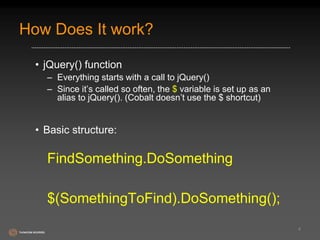
How Does It work? 
• jQuery() function 
– Everything starts with a call to jQuery() 
– Since it’s called so often, the $ variable is set up as an 
alias to jQuery(). (Cobalt doesn’t use the $ shortcut) 
• Basic structure: 
FindSomething.DoSomething 
$(SomethingToFind).DoSomething(); 
4
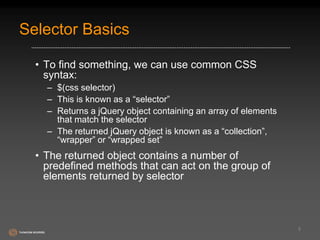
Selector Basics 
• To find something, we can use common CSS 
syntax: 
– $(css selector) 
– This is known as a “selector” 
– Returns a jQuery object containing an array of elements 
that match the selector 
– The returned jQuery object is known as a “collection”, 
“wrapper” or “wrapped set” 
• The returned object contains a number of 
predefined methods that can act on the group of 
elements returned by selector 
5
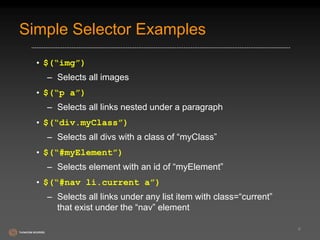
Simple Selector Examples 
• $(“img”) 
– Selects all images 
• $(“p a”) 
– Selects all links nested under a paragraph 
• $(“div.myClass”) 
– Selects all divs with a class of “myClass” 
• $(“#myElement”) 
– Selects element with an id of “myElement” 
• $(“#nav li.current a”) 
– Selects all links under any list item with class=“current” 
that exist under the “nav” element 
6
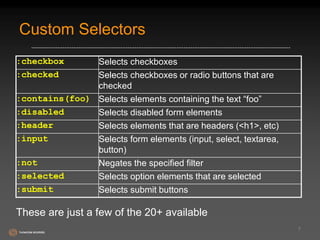
Custom Selectors 
7 
:checkbox Selects checkboxes 
:checked Selects checkboxes or radio buttons that are 
checked 
:contains(foo) Selects elements containing the text “foo” 
:disabled Selects disabled form elements 
:header Selects elements that are headers (<h1>, etc) 
:input Selects form elements (input, select, textarea, 
button) 
:not Negates the specified filter 
:selected Selects option elements that are selected 
:submit Selects submit buttons 
These are just a few of the 20+ available
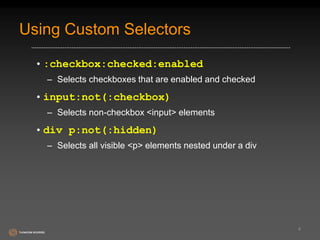
Using Custom Selectors 
•:checkbox:checked:enabled 
– Selects checkboxes that are enabled and checked 
•input:not(:checkbox) 
– Selects non-checkbox <input> elements 
•div p:not(:hidden) 
– Selects all visible <p> elements nested under a div 
8
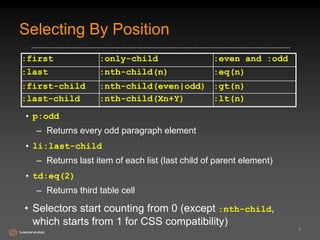
Selecting By Position 
9 
:first :only-child :even and :odd 
:last :nth-child(n) :eq(n) 
:first-child :nth-child(even|odd) :gt(n) 
:last-child :nth-child(Xn+Y) :lt(n) 
• p:odd 
– Returns every odd paragraph element 
• li:last-child 
– Returns last item of each list (last child of parent element) 
• td:eq(2) 
– Returns third table cell 
• Selectors start counting from 0 (except :nth-child, 
which starts from 1 for CSS compatibility)
More Selector Examples 
$(“li:last”) Selects last list item 
$(“tr:nth-child(1)”) Selects the first row of each table 
$(“tr:nth-child(even)”) Selects even numbered table rows 
$(“body > div:has(a)”) Selects direct <div> children of 
10 
<body> containing links 
$(“img[alt]”) Selects images with ALT attribute 
$(“a[href*=jquery.com]”) Matches all <a> elements that 
reference the jQuery site 
$(“a[href$=pdf]”) Selects links to PDF files 
$(“a[href^=https://]”) Selects all links starting with 
“https://” 
Powerful stuff!
Selectors Summary 
• Can leverage your knowledge of CSS selectors to 
get up and running fast 
• Learn about the more advanced selectors jQuery 
supports: 
– http://docs.jquery.com/selectors 
11
Selectors Demo 
12
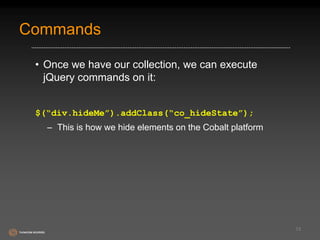
Commands 
• Once we have our collection, we can execute 
jQuery commands on it: 
$(“div.hideMe”).addClass(“co_hideState”); 
– This is how we hide elements on the Cobalt platform 
13
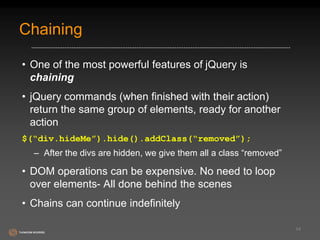
Chaining 
• One of the most powerful features of jQuery is 
chaining 
• jQuery commands (when finished with their action) 
return the same group of elements, ready for another 
action 
$(“div.hideMe”).hide().addClass(“removed”); 
– After the divs are hidden, we give them all a class “removed” 
• DOM operations can be expensive. No need to loop 
over elements- All done behind the scenes 
• Chains can continue indefinitely 
14
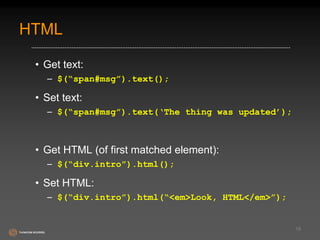
HTML 
• Get text: 
– $(“span#msg”).text(); 
• Set text: 
– $(“span#msg”).text(‘The thing was updated’); 
• Get HTML (of first matched element): 
– $(“div.intro”).html(); 
• Set HTML: 
– $(“div.intro”).html(“<em>Look, HTML</em>”); 
15
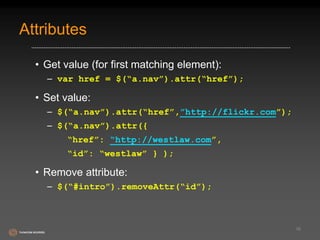
Attributes 
• Get value (for first matching element): 
– var href = $(“a.nav”).attr(“href”); 
• Set value: 
– $(“a.nav”).attr(“href”,”http://flickr.com”); 
– $(“a.nav”).attr({ 
“href”: “http://westlaw.com”, 
“id”: “westlaw” } ); 
• Remove attribute: 
– $(“#intro”).removeAttr(“id”); 
16
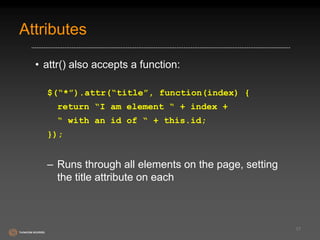
Attributes 
• attr() also accepts a function: 
$(“*”).attr(“title”, function(index) { 
return “I am element “ + index + 
“ with an id of “ + this.id; 
}); 
– Runs through all elements on the page, setting 
the title attribute on each 
17
CSS 
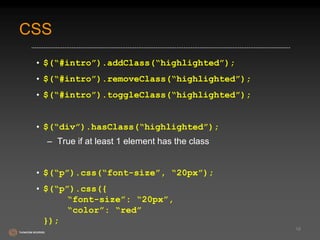
• $(“#intro”).addClass(“highlighted”); 
• $(“#intro”).removeClass(“highlighted”); 
• $(“#intro”).toggleClass(“highlighted”); 
• $(“div”).hasClass(“highlighted”); 
– True if at least 1 element has the class 
• $(“p”).css(“font-size”, “20px”); 
• $(“p”).css({ 
“font-size”: “20px”, 
“color”: “red” 
}); 
18
CSS 
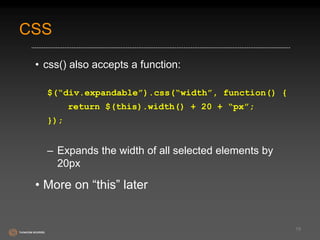
• css() also accepts a function: 
$(“div.expandable”).css(“width”, function() { 
return $(this).width() + 20 + “px”; 
}); 
– Expands the width of all selected elements by 
20px 
• More on “this” later 
19
Height and Width 
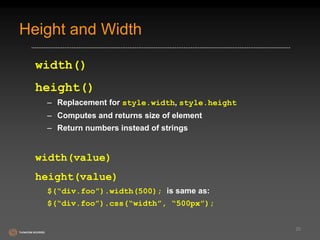
width() 
height() 
– Replacement for style.width, style.height 
– Computes and returns size of element 
– Return numbers instead of strings 
width(value) 
height(value) 
$(“div.foo”).width(500); is same as: 
$(“div.foo”).css(“width”, “500px”); 
20
Collections As Arrays 
• You can treat collections as arrays: 
– $(“div.myClass”).length = number of matched 
elements 
– $(“div.myClass”)[0] = the first <div> in the collection 
• Or you can call methods on collections: 
– $(“div.myClass”).size() = number of matched 
elements 
– $(“div.myClass”).get(0) = the first <div> in the 
collection 
21
The add() Method 
• Adds elements to the collection: 
$(“img[alt]”) 
.addClass(“thickBorder”) 
.add(“img[title]”) 
.addClass(“seeThrough”); 
• Can also be used to add new elements: 
$(“p”).add(“<div>Hi there!</div>”) 
• This adds elements to the collection, not the DOM 
22
The slice() Method 
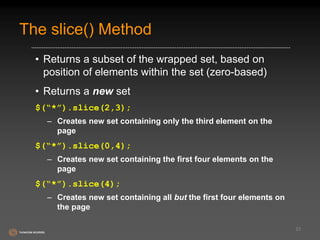
• Returns a subset of the wrapped set, based on 
position of elements within the set (zero-based) 
• Returns a new set 
$(“*”).slice(2,3); 
– Creates new set containing only the third element on the 
page 
$(“*”).slice(0,4); 
– Creates new set containing the first four elements on the 
page 
$(“*”).slice(4); 
– Creates new set containing all but the first four elements on 
the page 
23
The filter() Method 
• Filters out elements from the collection 
• Can accept a selector or a function as a parameter 
• Selector as parameter: 
$(“img”) 
.addClass(“seeThrough”) 
.filter(“[title*=dog]”) 
.addClass(“thickBorder”) 
– Reduces set to images with a title attribute containing ‘dog’ 
24
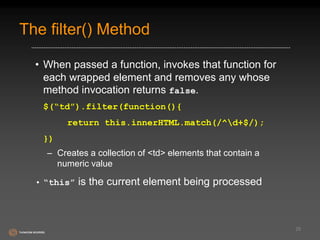
The filter() Method 
• When passed a function, invokes that function for 
each wrapped element and removes any whose 
method invocation returns false. 
$(“td”).filter(function(){ 
return this.innerHTML.match(/^d+$/); 
}) 
– Creates a collection of <td> elements that contain a 
numeric value 
• “this” is the current element being processed 
25
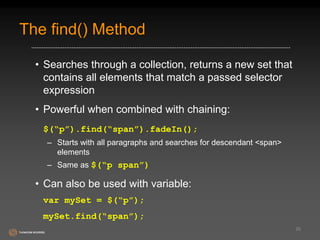
The find() Method 
• Searches through a collection, returns a new set that 
contains all elements that match a passed selector 
expression 
• Powerful when combined with chaining: 
$(“p”).find(“span”).fadeIn(); 
– Starts with all paragraphs and searches for descendant <span> 
elements 
– Same as $(“p span”) 
• Can also be used with variable: 
var mySet = $(“p”); 
mySet.find(“span”); 
26
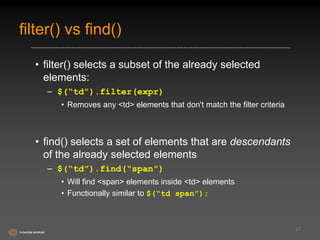
filter() vs find() 
• filter() selects a subset of the already selected 
elements: 
– $(“td”).filter(expr) 
• Removes any <td> elements that don't match the filter criteria 
• find() selects a set of elements that are descendants 
of the already selected elements 
– $(“td”).find(“span”) 
• Will find <span> elements inside <td> elements 
• Functionally similar to $(“td span”); 
27
The each() Command 
• Easiest way to inspect or modify the component 
elements of a matched set 
• Traverses matched set invoking the passed iterator 
function for each 
• Can be used to easily set a property value onto all 
elements in a collection 
$(“img”).each(function(n){ 
this.alt = “This is image[“ + n 
+ “] with an id of “ + this.id; 
}); 
28
The each() Command 
• Can also be used to collect all values for a specific 
property into an array: 
var allAlts = new Array(); 
$(‘img’).each(function(){ 
allAlts.push(this.alt); 
}); 
• To obtain property from just a single element, 
remember set can be treated like a Javascript array: 
var altVal = $(‘#myImg’)[0].alt; 
29
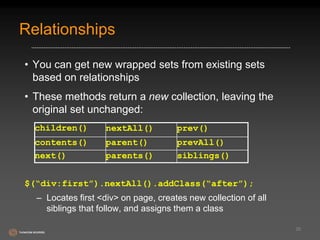
Relationships 
• You can get new wrapped sets from existing sets 
based on relationships 
• These methods return a new collection, leaving the 
original set unchanged: 
$(“div:first”).nextAll().addClass(“after”); 
– Locates first <div> on page, creates new collection of all 
siblings that follow, and assigns them a class 
30 
children() nextAll() prev() 
contents() parent() prevAll() 
next() parents() siblings()
Commands Demo 
31
What is “this”? 
$(“p”).each(function() { 
var id = this.id, 
$this = $(this), 
images = $this.find(“img”); 
}); 
• “this” is a DOM element 
• Wrap in $() to make it a jQuery object 
• Now you can issue jQuery commands 
• $ prefix on variable name is a common convention 
to indicate it’s a jQuery object 
32
Creating New Elements 
• The $ function is versatile enough to perform many 
duties 
• We can create DOM elements on the fly by passing 
the $() function a string that contains the HTML 
markup for those elements 
• To create a new paragraph element: 
$(“<p>Hi there!</p>”) 
– Creates a “disembodied” element that is not part of the 
DOM 
33
Add New Element To DOM 
• Use one of jQuery’s DOM manipulation functions to 
attach new elements to the correct element 
<p id=“foo”>Follow me!</p> 
$(“<p>Hi there!</p>”).insertAfter(“#foo”); 
Result: 
Follow me! 
Hi there! 
34 
append() insertAfter() before() 
appendTo() prepend() insertBefore() 
insert() prependTo()
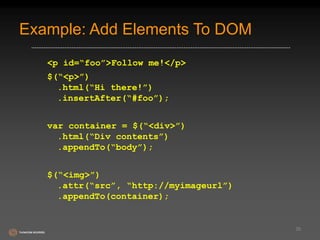
Example: Add Elements To DOM 
<p id=“foo”>Follow me!</p> 
$(“<p>”) 
.html(“Hi there!”) 
.insertAfter(“#foo”); 
var container = $(“<div>”) 
.html(“Div contents”) 
.appendTo(“body”); 
$(“<img>”) 
.attr(“src”, “http://myimageurl”) 
.appendTo(container); 
35
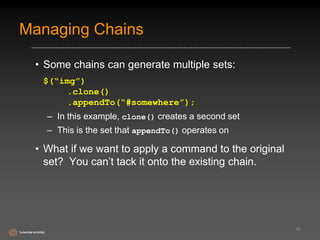
Managing Chains 
• Some chains can generate multiple sets: 
$(“img”) 
.clone() 
.appendTo(“#somewhere”); 
– In this example, clone() creates a second set 
– This is the set that appendTo() operates on 
• What if we want to apply a command to the original 
set? You can’t tack it onto the existing chain. 
36
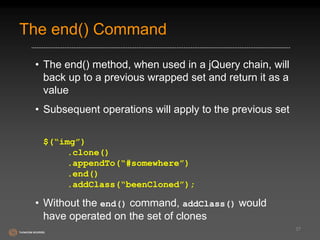
The end() Command 
• The end() method, when used in a jQuery chain, will 
back up to a previous wrapped set and return it as a 
value 
• Subsequent operations will apply to the previous set 
$(“img”) 
.clone() 
.appendTo(“#somewhere”) 
.end() 
.addClass(“beenCloned”); 
• Without the end() command, addClass() would 
have operated on the set of clones 
37
Event Model 
• In 1.7, new on() and off() methods unify event 
handling in jQuery so there’s no need to use bind(), 
delegate() or the older live() calls. The syntax: 
$(elements).on( events [, selector] [, data] , 
handler ); 
$(elements).off( [events] [, selector] [, 
handler] ); 
38
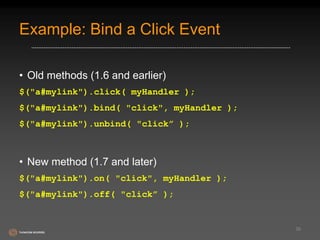
Example: Bind a Click Event 
• Old methods (1.6 and earlier) 
$("a#mylink").click( myHandler ); 
$("a#mylink").bind( "click", myHandler ); 
$("a#mylink").unbind( "click” ); 
• New method (1.7 and later) 
$("a#mylink").on( "click", myHandler ); 
$("a#mylink").off( "click” ); 
39
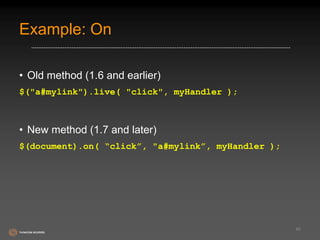
Example: On 
• Old method (1.6 and earlier) 
$("a#mylink").live( "click", myHandler ); 
• New method (1.7 and later) 
$(document).on( “click”, "a#mylink”, myHandler ); 
40
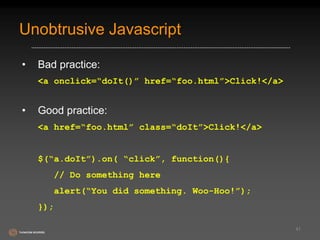
Unobtrusive Javascript 
• Bad practice: 
<a onclick=“doIt()” href=“foo.html”>Click!</a> 
• Good practice: 
<a href=“foo.html” class=“doIt”>Click!</a> 
$(“a.doIt”).on( “click”, function(){ 
// Do something here 
alert(“You did something. Woo-Hoo!”); 
}); 
41
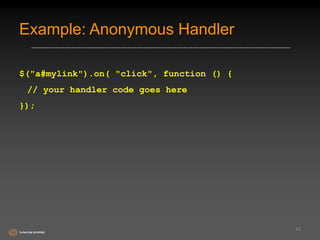
Example: Anonymous Handler 
$("a#mylink").on( "click", function () { 
// your handler code goes here 
}); 
42
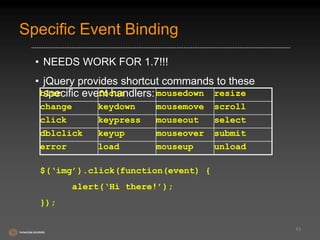
Specific Event Binding 
• NEEDS WORK FOR 1.7!!! 
• jQuery provides shortcut commands to these 
specific event handlers: 
43 
blur focus mousedown resize 
change keydown mousemove scroll 
click keypress mouseout select 
dblclick keyup mouseover submit 
error load mouseup unload 
$(‘img’).click(function(event) { 
alert(‘Hi there!’); 
});
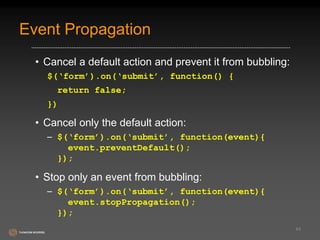
Event Propagation 
• Cancel a default action and prevent it from bubbling: 
$(‘form’).on(‘submit’, function() { 
return false; 
}) 
• Cancel only the default action: 
– $(‘form’).on(‘submit’, function(event){ 
event.preventDefault(); 
}); 
• Stop only an event from bubbling: 
– $(‘form’).on(‘submit’, function(event){ 
event.stopPropagation(); 
}); 
44
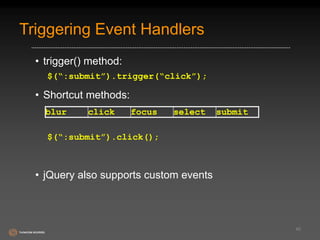
Triggering Event Handlers 
• trigger() method: 
$(“:submit”).trigger(“click”); 
• Shortcut methods: 
$(“:submit”).click(); 
• jQuery also supports custom events 
45 
blur click focus select submit
Zebra Stripe Demo 
46
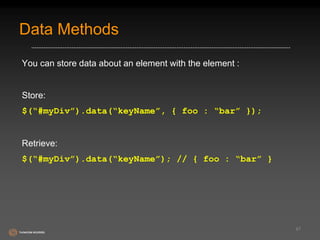
Data Methods 
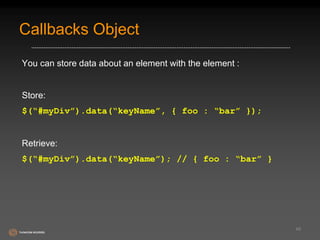
You can store data about an element with the element : 
Store: 
$(“#myDiv”).data(“keyName”, { foo : “bar” }); 
Retrieve: 
$(“#myDiv”).data(“keyName”); // { foo : “bar” } 
47
Callbacks Object 
You can store data about an element with the element : 
Store: 
$(“#myDiv”).data(“keyName”, { foo : “bar” }); 
Retrieve: 
$(“#myDiv”).data(“keyName”); // { foo : “bar” } 
48
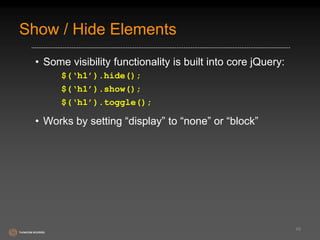
Show / Hide Elements 
• Some visibility functionality is built into core jQuery: 
$(‘h1’).hide(); 
$(‘h1’).show(); 
$(‘h1’).toggle(); 
• Works by setting “display” to “none” or “block” 
49
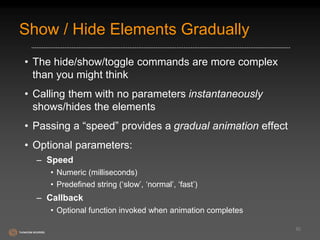
Show / Hide Elements Gradually 
• The hide/show/toggle commands are more complex 
than you might think 
• Calling them with no parameters instantaneously 
shows/hides the elements 
• Passing a “speed” provides a gradual animation effect 
• Optional parameters: 
– Speed 
• Numeric (milliseconds) 
• Predefined string (‘slow’, ‘normal’, ‘fast’) 
– Callback 
• Optional function invoked when animation completes 
50
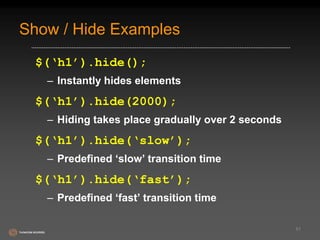
Show / Hide Examples 
$(‘h1’).hide(); 
– Instantly hides elements 
$(‘h1’).hide(2000); 
– Hiding takes place gradually over 2 seconds 
$(‘h1’).hide(‘slow’); 
– Predefined ‘slow’ transition time 
$(‘h1’).hide(‘fast’); 
– Predefined ‘fast’ transition time 
51
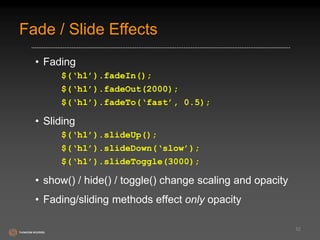
Fade / Slide Effects 
• Fading 
$(‘h1’).fadeIn(); 
$(‘h1’).fadeOut(2000); 
$(‘h1’).fadeTo(‘fast’, 0.5); 
• Sliding 
$(‘h1’).slideUp(); 
$(‘h1’).slideDown(‘slow’); 
$(‘h1’).slideToggle(3000); 
• show() / hide() / toggle() change scaling and opacity 
• Fading/sliding methods effect only opacity 
52
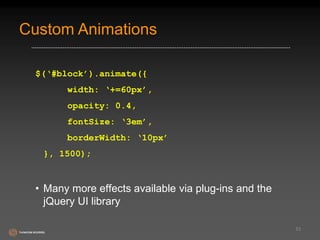
Custom Animations 
$(‘#block’).animate({ 
width: ‘+=60px’, 
opacity: 0.4, 
fontSize: ‘3em’, 
borderWidth: ‘10px’ 
}, 1500); 
• Many more effects available via plug-ins and the 
jQuery UI library 
53
Effects Demo 
54
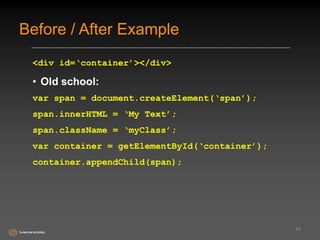
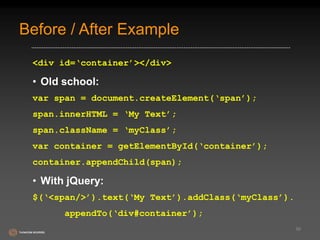
Before / After Example 
<div id=‘container’></div> 
• Old school: 
var span = document.createElement(‘span’); 
span.innerHTML = ‘My Text’; 
span.className = ‘myClass’; 
var container = getElementById(‘container’); 
container.appendChild(span); 
55
Before / After Example 
<div id=‘container’></div> 
• Old school: 
var span = document.createElement(‘span’); 
span.innerHTML = ‘My Text’; 
span.className = ‘myClass’; 
var container = getElementById(‘container’); 
container.appendChild(span); 
• With jQuery: 
$(‘<span/>’).text(‘My Text’).addClass(‘myClass’). 
appendTo(‘div#container’); 
56
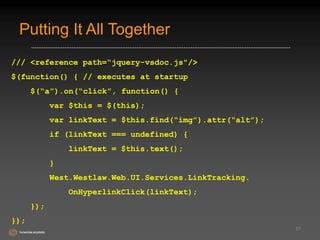
Putting It All Together 
/// <reference path=“jquery-vsdoc.js"/> 
$(function() { // executes at startup 
$(“a”).on(“click”, function() { 
var $this = $(this); 
var linkText = $this.find(“img”).attr(“alt”); 
if (linkText === undefined) { 
linkText = $this.text(); 
} 
West.Westlaw.Web.UI.Services.LinkTracking. 
OnHyperlinkClick(linkText); 
}); 
}); 
57
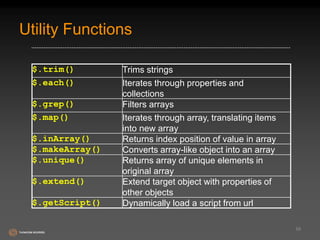
Utility Functions 
58 
$.trim() Trims strings 
$.each() Iterates through properties and 
collections 
$.grep() Filters arrays 
$.map() Iterates through array, translating items 
into new array 
$.inArray() Returns index position of value in array 
$.makeArray() Converts array-like object into an array 
$.unique() Returns array of unique elements in 
original array 
$.extend() Extend target object with properties of 
other objects 
$.getScript() Dynamically load a script from url
Type Checking 
var myValue = [1, 2, 3]; 
jQuery.isFunction(myValue); // false 
jQuery.isPlainObject(myValue); // false 
jQuery.isArray(myValue); // true 
jQuery.isNumeric(myValue[0]); // true 
59
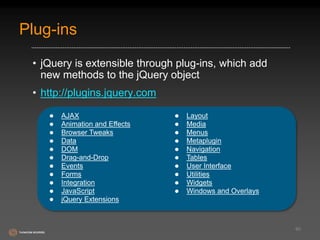
Plug-ins 
• jQuery is extensible through plug-ins, which add 
new methods to the jQuery object 
• http://plugins.jquery.com 
60
Plug-in Examples 
• Example plug-in usage: 
$(“img[src$=.png]”).ifixpng(); 
• Create your own, using $.fn: 
$.fn.hideLinks = function() { 
return this.find(“a[href]”).hide().end(); 
} 
– fn is actually a shortcut to ‘prototype’ 
• Now use it: 
– $(“p”).hideLinks(); 
61
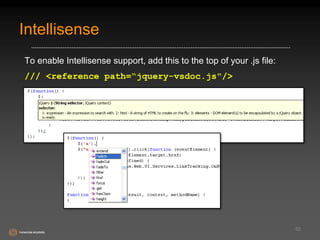
Intellisense 
To enable Intellisense support, add this to the top of your .js file: 
/// <reference path=“jquery-vsdoc.js"/> 
62
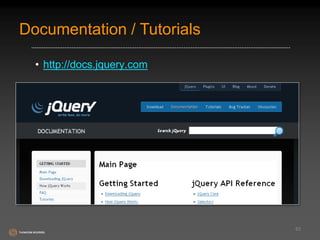
Documentation / Tutorials 
• http://docs.jquery.com 
63
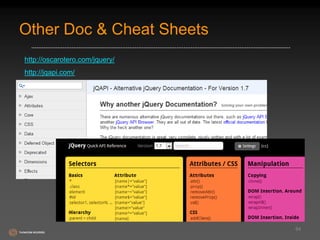
Other Doc & Cheat Sheets 
http://oscarotero.com/jquery/ 
http://jqapi.com/ 
64
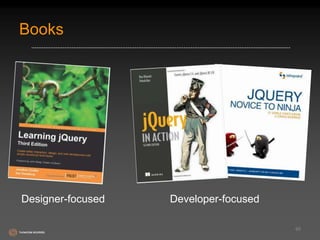
Books 
65 
Designer-focused Developer-focused
jQuery UI 
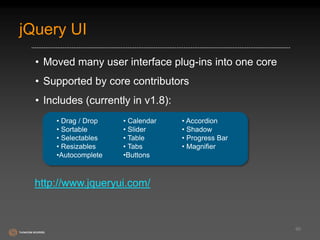
• Moved many user interface plug-ins into one core 
• Supported by core contributors 
• Includes (currently in v1.8): 
66 
• Drag / Drop 
• Sortable 
• Selectables 
• Resizables 
•Autocomplete 
• Calendar 
• Slider 
• Table 
• Tabs 
•Buttons 
• Accordion 
• Shadow 
• Progress Bar 
• Magnifier 
http://www.jqueryui.com/
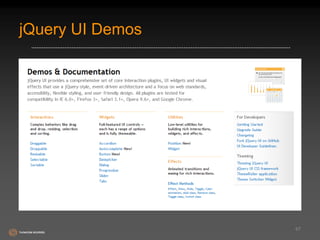
jQuery UI Demos 
67
Resources 
• Official site: 
www.jquery.com 
• jQuery Fundamentals: 
http://jqfundamentals.com 
• Selector Tester: 
http://www.woods.iki.fi/interactive-jquery-tester.html 
• Learn jQuery & Javascript for Free: 
http://learn.appendto.com/ 
• jQuery for Absolute Beginners: 
http://net.tutsplus.com/articles/web-roundups/jquery-for-absolute-beginners- 
video-series/ 
• Addy Osmani’s Blog: 
http://addyosmani.com/blog/?s=jQuery 
68
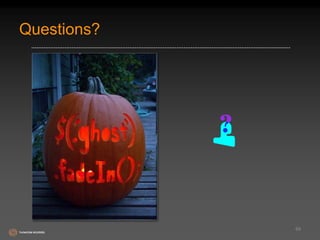
Questions? 
69

Iniciando com jquery

  • 1.
    Introduction To jQuery Dave Berthiaume Thomson Reuters November 30, 2011
  • 2.
    What is jQuery? • Open source JavaScript library/framework • Created by John Resig in Jan. 2006 • Mantra: “Faster, smaller and more extensible” • Cross-browser compatible – IE 6+, Firefox 2+, Safari 2.0+, Opera 9+ • Fully supported by Microsoft (with Intellisense) • Very small footprint 2
  • 3.
    What is jQuery? • Built with plug-in architecture • Easy to learn / use • Chaining methods • Unobtrusive Javascript • CSS v1-3 compatible • Namespacing (plays nice with other libraries) • Great docs and community • Designed to change the way you write Javascript 3
  • 4.
    How Does Itwork? • jQuery() function – Everything starts with a call to jQuery() – Since it’s called so often, the $ variable is set up as an alias to jQuery(). (Cobalt doesn’t use the $ shortcut) • Basic structure: FindSomething.DoSomething $(SomethingToFind).DoSomething(); 4
  • 5.
    Selector Basics •To find something, we can use common CSS syntax: – $(css selector) – This is known as a “selector” – Returns a jQuery object containing an array of elements that match the selector – The returned jQuery object is known as a “collection”, “wrapper” or “wrapped set” • The returned object contains a number of predefined methods that can act on the group of elements returned by selector 5
  • 6.
    Simple Selector Examples • $(“img”) – Selects all images • $(“p a”) – Selects all links nested under a paragraph • $(“div.myClass”) – Selects all divs with a class of “myClass” • $(“#myElement”) – Selects element with an id of “myElement” • $(“#nav li.current a”) – Selects all links under any list item with class=“current” that exist under the “nav” element 6
  • 7.
    Custom Selectors 7 :checkbox Selects checkboxes :checked Selects checkboxes or radio buttons that are checked :contains(foo) Selects elements containing the text “foo” :disabled Selects disabled form elements :header Selects elements that are headers (<h1>, etc) :input Selects form elements (input, select, textarea, button) :not Negates the specified filter :selected Selects option elements that are selected :submit Selects submit buttons These are just a few of the 20+ available
  • 8.
    Using Custom Selectors •:checkbox:checked:enabled – Selects checkboxes that are enabled and checked •input:not(:checkbox) – Selects non-checkbox <input> elements •div p:not(:hidden) – Selects all visible <p> elements nested under a div 8
  • 9.
    Selecting By Position 9 :first :only-child :even and :odd :last :nth-child(n) :eq(n) :first-child :nth-child(even|odd) :gt(n) :last-child :nth-child(Xn+Y) :lt(n) • p:odd – Returns every odd paragraph element • li:last-child – Returns last item of each list (last child of parent element) • td:eq(2) – Returns third table cell • Selectors start counting from 0 (except :nth-child, which starts from 1 for CSS compatibility)
  • 10.
    More Selector Examples $(“li:last”) Selects last list item $(“tr:nth-child(1)”) Selects the first row of each table $(“tr:nth-child(even)”) Selects even numbered table rows $(“body > div:has(a)”) Selects direct <div> children of 10 <body> containing links $(“img[alt]”) Selects images with ALT attribute $(“a[href*=jquery.com]”) Matches all <a> elements that reference the jQuery site $(“a[href$=pdf]”) Selects links to PDF files $(“a[href^=https://]”) Selects all links starting with “https://” Powerful stuff!
  • 11.
    Selectors Summary •Can leverage your knowledge of CSS selectors to get up and running fast • Learn about the more advanced selectors jQuery supports: – http://docs.jquery.com/selectors 11
  • 12.
  • 13.
    Commands • Oncewe have our collection, we can execute jQuery commands on it: $(“div.hideMe”).addClass(“co_hideState”); – This is how we hide elements on the Cobalt platform 13
  • 14.
    Chaining • Oneof the most powerful features of jQuery is chaining • jQuery commands (when finished with their action) return the same group of elements, ready for another action $(“div.hideMe”).hide().addClass(“removed”); – After the divs are hidden, we give them all a class “removed” • DOM operations can be expensive. No need to loop over elements- All done behind the scenes • Chains can continue indefinitely 14
  • 15.
    HTML • Gettext: – $(“span#msg”).text(); • Set text: – $(“span#msg”).text(‘The thing was updated’); • Get HTML (of first matched element): – $(“div.intro”).html(); • Set HTML: – $(“div.intro”).html(“<em>Look, HTML</em>”); 15
  • 16.
    Attributes • Getvalue (for first matching element): – var href = $(“a.nav”).attr(“href”); • Set value: – $(“a.nav”).attr(“href”,”http://flickr.com”); – $(“a.nav”).attr({ “href”: “http://westlaw.com”, “id”: “westlaw” } ); • Remove attribute: – $(“#intro”).removeAttr(“id”); 16
  • 17.
    Attributes • attr()also accepts a function: $(“*”).attr(“title”, function(index) { return “I am element “ + index + “ with an id of “ + this.id; }); – Runs through all elements on the page, setting the title attribute on each 17
  • 18.
    CSS • $(“#intro”).addClass(“highlighted”); • $(“#intro”).removeClass(“highlighted”); • $(“#intro”).toggleClass(“highlighted”); • $(“div”).hasClass(“highlighted”); – True if at least 1 element has the class • $(“p”).css(“font-size”, “20px”); • $(“p”).css({ “font-size”: “20px”, “color”: “red” }); 18
  • 19.
    CSS • css()also accepts a function: $(“div.expandable”).css(“width”, function() { return $(this).width() + 20 + “px”; }); – Expands the width of all selected elements by 20px • More on “this” later 19
  • 20.
    Height and Width width() height() – Replacement for style.width, style.height – Computes and returns size of element – Return numbers instead of strings width(value) height(value) $(“div.foo”).width(500); is same as: $(“div.foo”).css(“width”, “500px”); 20
  • 21.
    Collections As Arrays • You can treat collections as arrays: – $(“div.myClass”).length = number of matched elements – $(“div.myClass”)[0] = the first <div> in the collection • Or you can call methods on collections: – $(“div.myClass”).size() = number of matched elements – $(“div.myClass”).get(0) = the first <div> in the collection 21
  • 22.
    The add() Method • Adds elements to the collection: $(“img[alt]”) .addClass(“thickBorder”) .add(“img[title]”) .addClass(“seeThrough”); • Can also be used to add new elements: $(“p”).add(“<div>Hi there!</div>”) • This adds elements to the collection, not the DOM 22
  • 23.
    The slice() Method • Returns a subset of the wrapped set, based on position of elements within the set (zero-based) • Returns a new set $(“*”).slice(2,3); – Creates new set containing only the third element on the page $(“*”).slice(0,4); – Creates new set containing the first four elements on the page $(“*”).slice(4); – Creates new set containing all but the first four elements on the page 23
  • 24.
    The filter() Method • Filters out elements from the collection • Can accept a selector or a function as a parameter • Selector as parameter: $(“img”) .addClass(“seeThrough”) .filter(“[title*=dog]”) .addClass(“thickBorder”) – Reduces set to images with a title attribute containing ‘dog’ 24
  • 25.
    The filter() Method • When passed a function, invokes that function for each wrapped element and removes any whose method invocation returns false. $(“td”).filter(function(){ return this.innerHTML.match(/^d+$/); }) – Creates a collection of <td> elements that contain a numeric value • “this” is the current element being processed 25
  • 26.
    The find() Method • Searches through a collection, returns a new set that contains all elements that match a passed selector expression • Powerful when combined with chaining: $(“p”).find(“span”).fadeIn(); – Starts with all paragraphs and searches for descendant <span> elements – Same as $(“p span”) • Can also be used with variable: var mySet = $(“p”); mySet.find(“span”); 26
  • 27.
    filter() vs find() • filter() selects a subset of the already selected elements: – $(“td”).filter(expr) • Removes any <td> elements that don't match the filter criteria • find() selects a set of elements that are descendants of the already selected elements – $(“td”).find(“span”) • Will find <span> elements inside <td> elements • Functionally similar to $(“td span”); 27
  • 28.
    The each() Command • Easiest way to inspect or modify the component elements of a matched set • Traverses matched set invoking the passed iterator function for each • Can be used to easily set a property value onto all elements in a collection $(“img”).each(function(n){ this.alt = “This is image[“ + n + “] with an id of “ + this.id; }); 28
  • 29.
    The each() Command • Can also be used to collect all values for a specific property into an array: var allAlts = new Array(); $(‘img’).each(function(){ allAlts.push(this.alt); }); • To obtain property from just a single element, remember set can be treated like a Javascript array: var altVal = $(‘#myImg’)[0].alt; 29
  • 30.
    Relationships • Youcan get new wrapped sets from existing sets based on relationships • These methods return a new collection, leaving the original set unchanged: $(“div:first”).nextAll().addClass(“after”); – Locates first <div> on page, creates new collection of all siblings that follow, and assigns them a class 30 children() nextAll() prev() contents() parent() prevAll() next() parents() siblings()
  • 31.
  • 32.
    What is “this”? $(“p”).each(function() { var id = this.id, $this = $(this), images = $this.find(“img”); }); • “this” is a DOM element • Wrap in $() to make it a jQuery object • Now you can issue jQuery commands • $ prefix on variable name is a common convention to indicate it’s a jQuery object 32
  • 33.
    Creating New Elements • The $ function is versatile enough to perform many duties • We can create DOM elements on the fly by passing the $() function a string that contains the HTML markup for those elements • To create a new paragraph element: $(“<p>Hi there!</p>”) – Creates a “disembodied” element that is not part of the DOM 33
  • 34.
    Add New ElementTo DOM • Use one of jQuery’s DOM manipulation functions to attach new elements to the correct element <p id=“foo”>Follow me!</p> $(“<p>Hi there!</p>”).insertAfter(“#foo”); Result: Follow me! Hi there! 34 append() insertAfter() before() appendTo() prepend() insertBefore() insert() prependTo()
  • 35.
    Example: Add ElementsTo DOM <p id=“foo”>Follow me!</p> $(“<p>”) .html(“Hi there!”) .insertAfter(“#foo”); var container = $(“<div>”) .html(“Div contents”) .appendTo(“body”); $(“<img>”) .attr(“src”, “http://myimageurl”) .appendTo(container); 35
  • 36.
    Managing Chains •Some chains can generate multiple sets: $(“img”) .clone() .appendTo(“#somewhere”); – In this example, clone() creates a second set – This is the set that appendTo() operates on • What if we want to apply a command to the original set? You can’t tack it onto the existing chain. 36
  • 37.
    The end() Command • The end() method, when used in a jQuery chain, will back up to a previous wrapped set and return it as a value • Subsequent operations will apply to the previous set $(“img”) .clone() .appendTo(“#somewhere”) .end() .addClass(“beenCloned”); • Without the end() command, addClass() would have operated on the set of clones 37
  • 38.
    Event Model •In 1.7, new on() and off() methods unify event handling in jQuery so there’s no need to use bind(), delegate() or the older live() calls. The syntax: $(elements).on( events [, selector] [, data] , handler ); $(elements).off( [events] [, selector] [, handler] ); 38
  • 39.
    Example: Bind aClick Event • Old methods (1.6 and earlier) $("a#mylink").click( myHandler ); $("a#mylink").bind( "click", myHandler ); $("a#mylink").unbind( "click” ); • New method (1.7 and later) $("a#mylink").on( "click", myHandler ); $("a#mylink").off( "click” ); 39
  • 40.
    Example: On •Old method (1.6 and earlier) $("a#mylink").live( "click", myHandler ); • New method (1.7 and later) $(document).on( “click”, "a#mylink”, myHandler ); 40
  • 41.
    Unobtrusive Javascript •Bad practice: <a onclick=“doIt()” href=“foo.html”>Click!</a> • Good practice: <a href=“foo.html” class=“doIt”>Click!</a> $(“a.doIt”).on( “click”, function(){ // Do something here alert(“You did something. Woo-Hoo!”); }); 41
  • 42.
    Example: Anonymous Handler $("a#mylink").on( "click", function () { // your handler code goes here }); 42
  • 43.
    Specific Event Binding • NEEDS WORK FOR 1.7!!! • jQuery provides shortcut commands to these specific event handlers: 43 blur focus mousedown resize change keydown mousemove scroll click keypress mouseout select dblclick keyup mouseover submit error load mouseup unload $(‘img’).click(function(event) { alert(‘Hi there!’); });
  • 44.
    Event Propagation •Cancel a default action and prevent it from bubbling: $(‘form’).on(‘submit’, function() { return false; }) • Cancel only the default action: – $(‘form’).on(‘submit’, function(event){ event.preventDefault(); }); • Stop only an event from bubbling: – $(‘form’).on(‘submit’, function(event){ event.stopPropagation(); }); 44
  • 45.
    Triggering Event Handlers • trigger() method: $(“:submit”).trigger(“click”); • Shortcut methods: $(“:submit”).click(); • jQuery also supports custom events 45 blur click focus select submit
  • 46.
  • 47.
    Data Methods Youcan store data about an element with the element : Store: $(“#myDiv”).data(“keyName”, { foo : “bar” }); Retrieve: $(“#myDiv”).data(“keyName”); // { foo : “bar” } 47
  • 48.
    Callbacks Object Youcan store data about an element with the element : Store: $(“#myDiv”).data(“keyName”, { foo : “bar” }); Retrieve: $(“#myDiv”).data(“keyName”); // { foo : “bar” } 48
  • 49.
    Show / HideElements • Some visibility functionality is built into core jQuery: $(‘h1’).hide(); $(‘h1’).show(); $(‘h1’).toggle(); • Works by setting “display” to “none” or “block” 49
  • 50.
    Show / HideElements Gradually • The hide/show/toggle commands are more complex than you might think • Calling them with no parameters instantaneously shows/hides the elements • Passing a “speed” provides a gradual animation effect • Optional parameters: – Speed • Numeric (milliseconds) • Predefined string (‘slow’, ‘normal’, ‘fast’) – Callback • Optional function invoked when animation completes 50
  • 51.
    Show / HideExamples $(‘h1’).hide(); – Instantly hides elements $(‘h1’).hide(2000); – Hiding takes place gradually over 2 seconds $(‘h1’).hide(‘slow’); – Predefined ‘slow’ transition time $(‘h1’).hide(‘fast’); – Predefined ‘fast’ transition time 51
  • 52.
    Fade / SlideEffects • Fading $(‘h1’).fadeIn(); $(‘h1’).fadeOut(2000); $(‘h1’).fadeTo(‘fast’, 0.5); • Sliding $(‘h1’).slideUp(); $(‘h1’).slideDown(‘slow’); $(‘h1’).slideToggle(3000); • show() / hide() / toggle() change scaling and opacity • Fading/sliding methods effect only opacity 52
  • 53.
    Custom Animations $(‘#block’).animate({ width: ‘+=60px’, opacity: 0.4, fontSize: ‘3em’, borderWidth: ‘10px’ }, 1500); • Many more effects available via plug-ins and the jQuery UI library 53
  • 54.
  • 55.
    Before / AfterExample <div id=‘container’></div> • Old school: var span = document.createElement(‘span’); span.innerHTML = ‘My Text’; span.className = ‘myClass’; var container = getElementById(‘container’); container.appendChild(span); 55
  • 56.
    Before / AfterExample <div id=‘container’></div> • Old school: var span = document.createElement(‘span’); span.innerHTML = ‘My Text’; span.className = ‘myClass’; var container = getElementById(‘container’); container.appendChild(span); • With jQuery: $(‘<span/>’).text(‘My Text’).addClass(‘myClass’). appendTo(‘div#container’); 56
  • 57.
    Putting It AllTogether /// <reference path=“jquery-vsdoc.js"/> $(function() { // executes at startup $(“a”).on(“click”, function() { var $this = $(this); var linkText = $this.find(“img”).attr(“alt”); if (linkText === undefined) { linkText = $this.text(); } West.Westlaw.Web.UI.Services.LinkTracking. OnHyperlinkClick(linkText); }); }); 57
  • 58.
    Utility Functions 58 $.trim() Trims strings $.each() Iterates through properties and collections $.grep() Filters arrays $.map() Iterates through array, translating items into new array $.inArray() Returns index position of value in array $.makeArray() Converts array-like object into an array $.unique() Returns array of unique elements in original array $.extend() Extend target object with properties of other objects $.getScript() Dynamically load a script from url
  • 59.
    Type Checking varmyValue = [1, 2, 3]; jQuery.isFunction(myValue); // false jQuery.isPlainObject(myValue); // false jQuery.isArray(myValue); // true jQuery.isNumeric(myValue[0]); // true 59
  • 60.
    Plug-ins • jQueryis extensible through plug-ins, which add new methods to the jQuery object • http://plugins.jquery.com 60
  • 61.
    Plug-in Examples •Example plug-in usage: $(“img[src$=.png]”).ifixpng(); • Create your own, using $.fn: $.fn.hideLinks = function() { return this.find(“a[href]”).hide().end(); } – fn is actually a shortcut to ‘prototype’ • Now use it: – $(“p”).hideLinks(); 61
  • 62.
    Intellisense To enableIntellisense support, add this to the top of your .js file: /// <reference path=“jquery-vsdoc.js"/> 62
  • 63.
    Documentation / Tutorials • http://docs.jquery.com 63
  • 64.
    Other Doc &Cheat Sheets http://oscarotero.com/jquery/ http://jqapi.com/ 64
  • 65.
    Books 65 Designer-focusedDeveloper-focused
  • 66.
    jQuery UI •Moved many user interface plug-ins into one core • Supported by core contributors • Includes (currently in v1.8): 66 • Drag / Drop • Sortable • Selectables • Resizables •Autocomplete • Calendar • Slider • Table • Tabs •Buttons • Accordion • Shadow • Progress Bar • Magnifier http://www.jqueryui.com/
  • 67.
  • 68.
    Resources • Officialsite: www.jquery.com • jQuery Fundamentals: http://jqfundamentals.com • Selector Tester: http://www.woods.iki.fi/interactive-jquery-tester.html • Learn jQuery & Javascript for Free: http://learn.appendto.com/ • jQuery for Absolute Beginners: http://net.tutsplus.com/articles/web-roundups/jquery-for-absolute-beginners- video-series/ • Addy Osmani’s Blog: http://addyosmani.com/blog/?s=jQuery 68
  • 69.

Editor's Notes

  • #2  Meant as a primer Entice you to learn more yourself
  • #13 Use Chapter 2: SELECTORS Lab
  • #32 Use Chapter 2: Wrapped Set Lab
  • #47 Move startup code from body tag. Show *.fixed as fixed file.
  • #55 Include jQuerify and StarTribune site
  • #62 What’s with the @ sign?
  • #68 Show resize(), sortable() on SiteMap page.