Graphical User
Interface
By Mohamed Essam
Tkinter package is
shipped with Python as a
standard package, so we
don’t need to install
anything to use it.
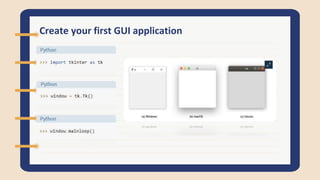
Create your first GUI application
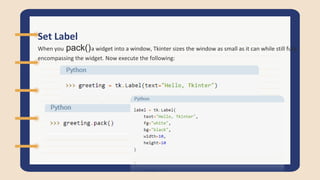
Set Label
When you .pack()a widget into a window, Tkinter sizes the window as small as it can while still fully
encompassing the widget. Now execute the following:
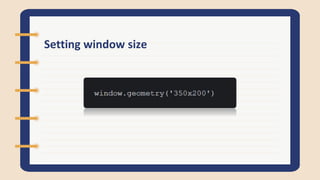
Setting window size
Think of grid as a
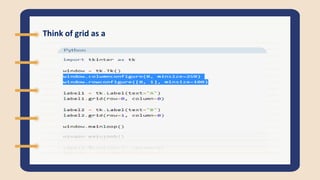
Think of grid as a
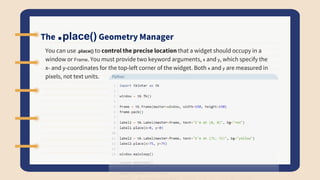
The .place() Geometry Manager
You can use .place() to control the precise location that a widget should occupy in a
window or Frame. You must provide two keyword arguments, x and y, which specify the
x- and y-coordinates for the top-left corner of the widget. Both x and y are measured in
pixels, not text units.
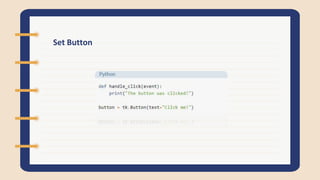
Set Button
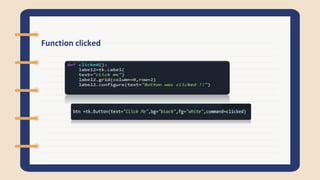
Function clicked
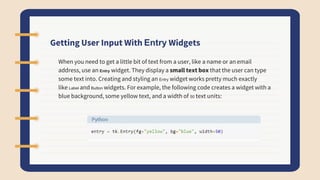
Getting User Input With Entry Widgets
When you need to get a little bit of text from a user, like a name or an email
address, use an Entry widget. They display a small text box that the user can type
some text into. Creating and styling an Entry widget works pretty much exactly
like Label and Button widgets. For example, the following code creates a widget with a
blue background, some yellow text, and a width of 50 text units:
Getting User Input With Entry Widgets
The interesting bit about Entry widgets isn’t how to style them, though. It’s how to use them to get
input from a user. There are three main operations that you can perform with Entry widgets:
Retrieving text with .get()

Introduction_to_Gui_with_tkinter.pptx

  • 1.
  • 2.
    Tkinter package is shippedwith Python as a standard package, so we don’t need to install anything to use it.
  • 3.
    Create your firstGUI application
  • 4.
    Set Label When you.pack()a widget into a window, Tkinter sizes the window as small as it can while still fully encompassing the widget. Now execute the following:
  • 5.
  • 6.
  • 7.
  • 8.
    The .place() GeometryManager You can use .place() to control the precise location that a widget should occupy in a window or Frame. You must provide two keyword arguments, x and y, which specify the x- and y-coordinates for the top-left corner of the widget. Both x and y are measured in pixels, not text units.
  • 9.
  • 10.
  • 11.
    Getting User InputWith Entry Widgets When you need to get a little bit of text from a user, like a name or an email address, use an Entry widget. They display a small text box that the user can type some text into. Creating and styling an Entry widget works pretty much exactly like Label and Button widgets. For example, the following code creates a widget with a blue background, some yellow text, and a width of 50 text units:
  • 12.
    Getting User InputWith Entry Widgets The interesting bit about Entry widgets isn’t how to style them, though. It’s how to use them to get input from a user. There are three main operations that you can perform with Entry widgets: Retrieving text with .get()