GOALS OF TODAY’S WORKSHOP
• Create a WordPress Site
• Privacy Settings
• Deleting a WordPress Site
• Add content to your site.
• Example: Modify your site for
blogging
• Customize your site
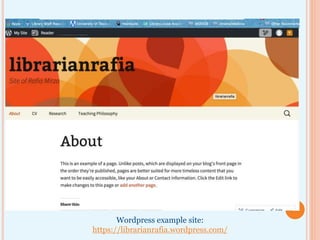
Wordpress example site:
https://librarianrafia.wordpress.com/
CREATE A WORDPRESS
SITE
GETTINGSTARTEDWITHWORDPRESS
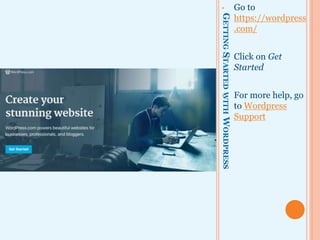
• Go to
https://wordpress
.com/
• Click on Get
Started
• For more help, go
to Wordpress
Support
GETTINGSTARTEDWITHWORDPRESS
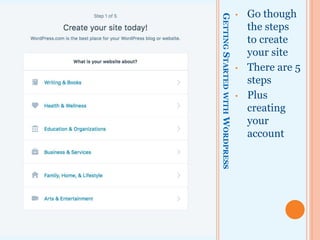
• Go though
the steps
to create
your site
• There are 5
steps
• Plus
creating
your
account
GETTINGSTARTEDWITHWORDPRESS
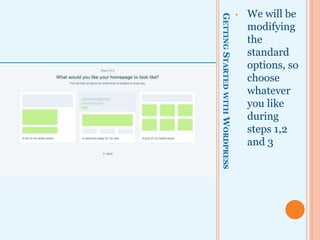
• We will be
modifying
the
standard
options, so
choose
whatever
you like
during
steps 1,2
and 3
GETTINGSTARTEDWITHWORDPRESS
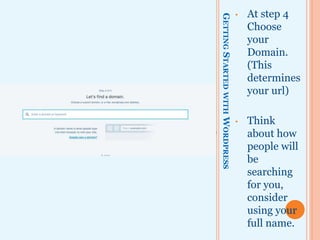
• At step 4
Choose
your
Domain.
(This
determines
your URL)
• Think
about how
people will
be
searching
for you,
consider
using your
full name.
GETTINGSTARTEDWITHWORDPRESS
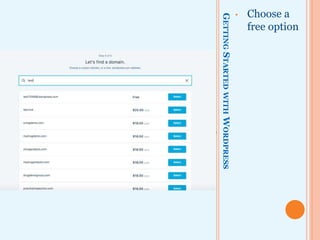
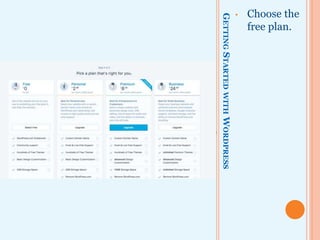
• Choose a
free option
GETTINGSTARTEDWITHWORDPRESS
• Choose the
free plan.
GETTINGSTARTEDWITHWORDPRESS
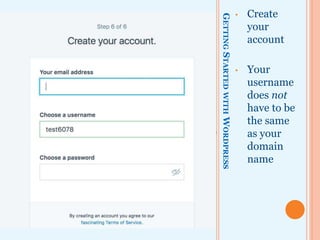
• Create
your
account
• Your
username
does not
have to be
the same
as your
domain
name
GETTINGSTARTEDWITHWORDPRESS
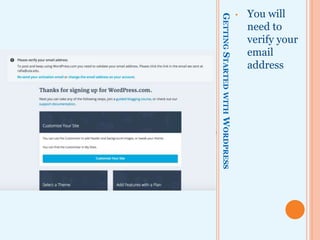
• You will
need to
verify your
email
address
CREATINGATEACHINGPORTFOLIOWITHWORDPRESS
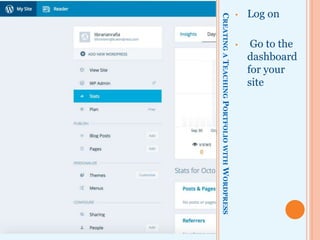
• Log on
• Go to the
dashboard
for your
site
PRIVACY SETTINGS AND
DELETING A WORDPRESS
SITE
DELETINGYOURWORDPRESS
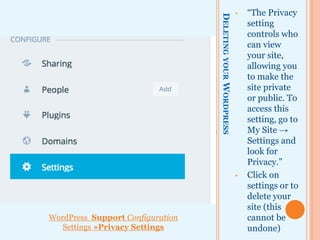
• “The Privacy
setting
controls who
can view your
site, allowing
you to make
the site private
or public.”
• To
access
this
setting,
go to My
Site →
Settings
and look
for
Privacy.”
• Click on
settings to
delete your
site (this
cannot be
undone)
WordPress Support Configuration
Settings »Privacy Settings
DELETINGYOURWORDPRESS
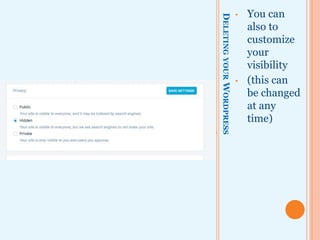
• You can
also to
customize
your
visibility
• This can be
changed at
any time
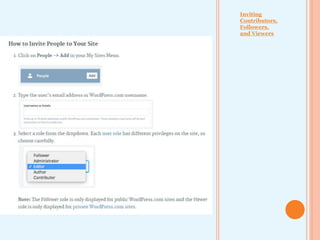
• Inviting
Contributors,
Followers,
and Viewers
• If you make
your site
Private, you
must add
anyone who

you want to be
able to read it
(such as your
Professor) as a
Viewer
ADD TEAMMATES
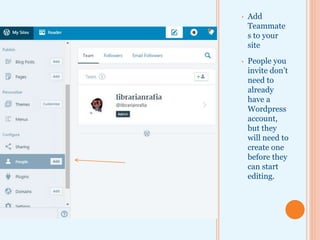
• Add
Teammates to
your site
• People you
invite don’t
need to already
have a
WordPress
account, but
they will need
to create one
before they can
start editing.
CHOOSE A THEME
GETTINGSTARTEDWITHWORDPRESS
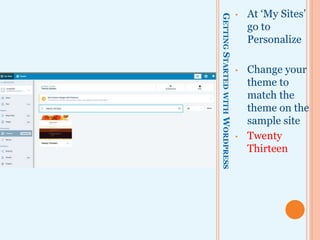
• At ‘My Sites’
go to
Personalize
• Change your
theme to
match the
theme on the
sample site
• Twenty
Thirteen
CREATE A PAGE
CREATINGATEACHINGPORTFOLIOWITHWORDPRESS
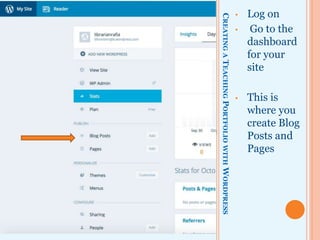
• Log on
• Go to the
dashboard
for your
site
• This is
where you
create Blog
Posts and
Pages
GETTINGSTARTEDWITHWORDPRESS
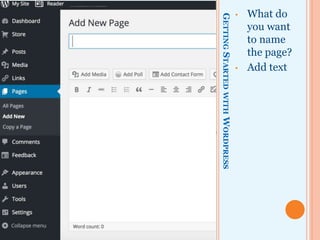
• What do
you want
to name
the page?
• Add text
GETTINGSTARTEDWITHWORDPRESS
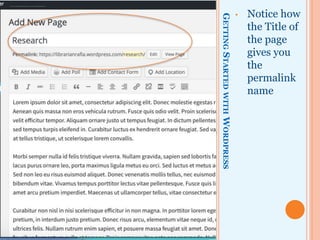
• Notice how
the Title of
the page
gives you
the
permalink
name
GETTINGSTARTEDWITHWORDPRESS
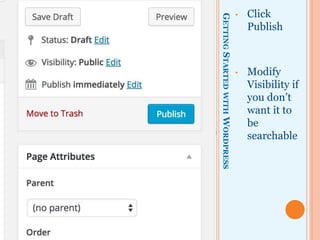
• Click
Publish
• Modify
Visibility if
you don’t
want it to
be
searchable
GETTINGSTARTEDWITHWORDPRESS
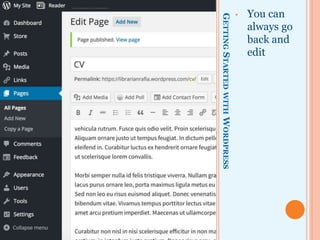
• You can
always go
back and
edit
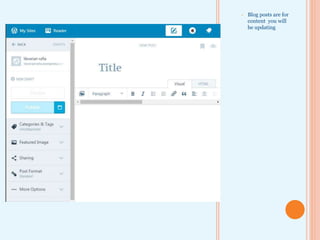
CREATE A BLOG POST
• Blog posts are for
content you will
be updating
CUSTOMIZE YOUR SITE
GETTINGSTARTEDWITHWORDPRESS
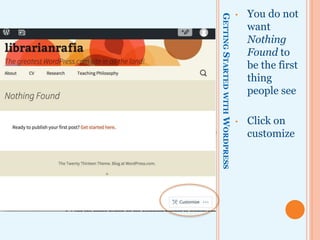
• You do not
want
Nothing
Found to
be the first
thing
people see
• Click on
customize
GETTINGSTARTEDWITHWORDPRESS
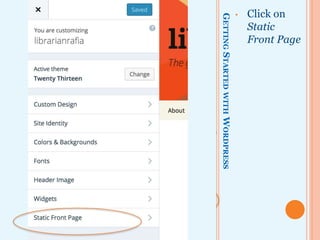
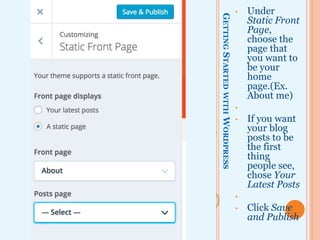
• Click on
Static
Front Page
GETTINGSTARTEDWITHWORDPRESS
• Under
Static Front
Page,
choose the
page that
you want to
be your
home
page.(Ex.
About me)
•
• If you want
your blog
posts to be
the first
thing
people see,
chose Your
Latest Posts
•
• Click Save
and Publish
GETTINGSTARTEDWITHWORDPRESS
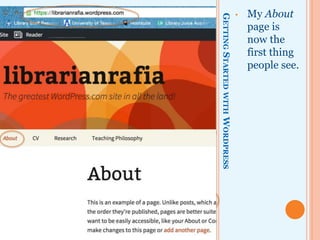
• My About
page is
now the
first thing
people see.
ADDINGSOCIALMEDIA
 You have a few options in regards to
adding your social media account
 You can add a link to your social media
account on your about page
 If you want to highlight a specific item in
you social media account, you can look
for the embed option
 If you want to feature your social media
account its entirety, look for the option
of inserting a widget
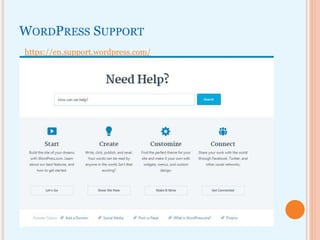
WORDPRESS SUPPORT
https://en.support.wordpress.com/
This work is licensed under a Creative Commons Attribution-
NonCommercial-ShareAlike 4.0 International License.
Rafia Mirza
@librarianrafia
Digital Humanities Librarian
rafia@uta.edu
Questions?

Introduction to WordPress (blogging)