INTRODUCTION TO
WINDOWS Created: by: Norwin C. Adriatico
OBJECTIVES
• To know how to quickly navigate in Windows;
• familiarize ourselves with “files” and the common
file types that we should be aware of;
• know what “shortcuts” are and how to use them;
• understand what “applications” are;
• be informed about common Windows errors and
what do those errors mean;
• be reminded of the Do’s and Don’ts when we are
using our computer;
• be updated with other useful information about
how to take care of our computers in general.
OBJECTIVES
The Desktop
Icons
Start
Menu
Taskbar
System
Tray
•Desktop - a display on a computer
screen comprising background and
icons representing equipment,
programs, and files. Microsoft® Encarta® 2009. © 1993-2008
Microsoft Corporation. All rights reserved.
•Icon - a small image on a computer
screen that represents something such
as a program or device.Microsoft® Encarta® 2009. © 1993-
2008 Microsoft Corporation. All rights reserved.
•e.g.
•Taskbar - is the bar located at the
bottom of the desktop which shows
running programs and icons of
different programs.Microsoft® Encarta® 2009. © 1993-2008
Microsoft Corporation. All rights reserved.
•Start Menu - is the primary location in
Windows to locate your installed
programs and find any files or folders. It
pops up when you press the Windows
button on your keyboard or in the
taskbar https://www.computerhope.com/jargon/s/startmen.htm
•System tray - located at the right most
side of the taskbar that contain the
icons of utility programs like wi-fi,
volume control, battery, and calendar.
•Application - is a computer program
or piece of software designed to
perform a specific task. (e.g. Word,
Excel, PowerPoint, Adobe Photoshop,
Google Chrome). Microsoft® Encarta® 2009. © 1993-2008 Microsoft
Corporation. All rights reserved.
•File - a uniquely named collection of
program instructions or data stored on a
hard drive disk, or other storage
medium and treated as a single entity.
Microsoft® Encarta® 2009. © 1993-2008 Microsoft Corporation. All rights reserved.
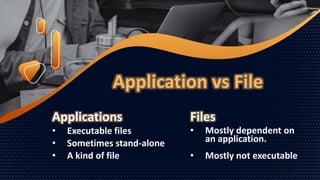
Application vs File
Applications
• Executable files
• Sometimes stand-alone
• A kind of file
Files
• Mostly dependent on
an application.
• Mostly not executable
• Filename - A unique name given to a
file to help identify it.
• File extension - Group of letters found
after a filename, that identify the type
and format of the file.
•File metadata - It stores information
such as creation date, modified date,
size, creator, and type of the file.
Basic Elements of Files
Common Files Types and
Extensions
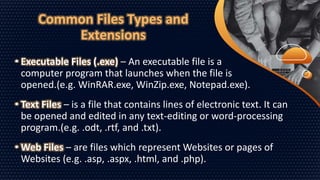
• Executable Files (.exe) – An executable file is a
computer program that launches when the file is
opened.(e.g. WinRAR.exe, WinZip.exe, Notepad.exe).
• Text Files – is a file that contains lines of electronic text. It can
be opened and edited in any text-editing or word-processing
program.(e.g. .odt, .rtf, and .txt).
• Web Files – are files which represent Websites or pages of
Websites (e.g. .asp, .aspx, .html, and .php).
Common Files Types and
Extensions
• Compressed Files – contains files or directories
smaller than the original file size for easy storage.
(e.g. .zip, .pkg, and .rar).
• Disk Image Files – files that contain the entire information of a
disk in a single file. (e.g. .ISO, .dmg and .mdf.).
• System Files – files that are required for the smooth functioning
of an operating system for a computer. (e.g. .fnt, .fon, and .ttf).
Document File Types and
Extensions
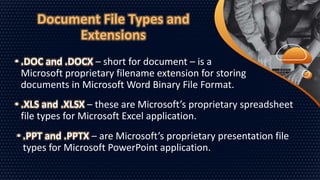
• .DOC and .DOCX – short for document – is a
Microsoft proprietary filename extension for storing
documents in Microsoft Word Binary File Format.
• .XLS and .XLSX – these are Microsoft’s proprietary spreadsheet
file types for Microsoft Excel application.
• .PPT and .PPTX – are Microsoft’s proprietary presentation file
types for Microsoft PowerPoint application.
Document File Types and
Extensions
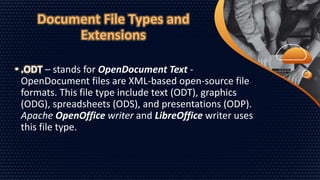
• .ODT – stands for OpenDocument Text -
OpenDocument files are XML-based open-source file
formats. This file type include text (ODT), graphics
(ODG), spreadsheets (ODS), and presentations (ODP).
Apache OpenOffice writer and LibreOffice writer uses
this file type.
Document File Types and
Extensions
• .PDF – stands for Portable Document Format - is a
print-ready document that will look the same to
everyone, irrespective of what software was used to
create the document.
e.g.
Your Web Browser, Adobe Acrobat Reader DC,
Foxit Reader, and Nitro Pro are some of the best
PDF readers.
Navigating Using
the Taskbar
1. Press the Windows icon on
your keyboard.
2. Click on button on the
upper right side of the Start
menu.
3. Right click on application of your
choice (e.g. Word, Excel).
4. Click on
“Pin to
taskbar”.
Place it in the taskbar!
Shortcut Keys
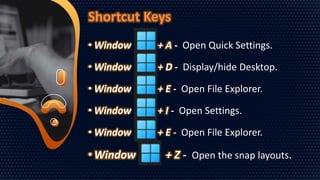
• Window + A - Open Quick Settings.
• Window + D - Display/hide Desktop.
• Window + E - Open File Explorer.
• Window + I - Open Settings.
• Window + E - Open File Explorer.
• Window + Z - Open the snap layouts.
Shortcut Keys
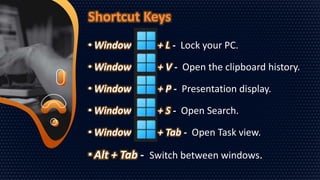
• Window + L - Lock your PC.
• Window + V - Open the clipboard history.
• Window + P - Presentation display.
• Window + S - Open Search.
• Window + Tab - Open Task view.
• Alt + Tab - Switch between windows.
Common Windows 11 Errors
Can’t upgrade to Windows 11
• Microsoft imposed a strict set of hardware
requirements in order to be eligible for the
Windows 11 upgrade. One of the most
important ones is the need to have a
modern processor - roughly post-2018 -
and with a TPM 2.0 chip.
• Trusted Platform Module (TPM) technology
is designed to provide hardware-based,
security-related functions.
Blue Screen of Death (BSOD)
• Microsoft imposed a strict set of hardware
requirements in order to be eligible for the
Windows 11 upgrade. One of the most
important ones is the need to have a
modern processor - roughly post-2018 -
and with a TPM 2.0 chip.
• Trusted Platform Module (TPM) technology
is designed to provide hardware-based,
security-related functions.
Blue Screen of Death (BSOD)
Reasons why did you see a BSOD…
1. Corrupt or damaged device drivers..
2. Malware.
3. Bad sectors and corrupt file.
4. Damaged or Corrupt system file.
5. Aging hardware.
6. Drive Errors due to logical, physical, and mechanical
issues.
7. RAM errors.
Noticeable long loading time for
Microsoft Office applications
Possible scenarios…
1. Malwares / Virus(es).
2. Presence of multiple anti-viruses.
3. Too many applications running in background.
4. Too many applications running at the same time.
5. Bad sectors and corrupt file.
6. Aging computer unit.
Windows Update Error 0x80070057
Possible solution…
• Go to www.Microsoft.com and search for the error
code that you saw on your screen by typing it on
the search bar, then, follow the instruction for fixing
the error.
Icons in the taskbar are not showing
Possible solution…
• Sometimes restarting the desktop / laptop
computer will solve the problem.
References
• https://www.g2.com/glossary/file-type
• https://www.filecenter.com/blog/the-giant-list-of-document-file-types-and-extensions/
• https://support.microsoft.com/en-us/windows/keyboard-shortcuts-in-windows-dcc61a57-8ff0-cffe-
9796-cb9706c75eec
• https://support.microsoft.com/en-us/windows/windows-keyboard-shortcuts-3d444b08-3a00-abd6-
67da-ecfc07e86b98
• https://blog.hubspot.com/marketing/best-free-pdf-reader
• https://www.stellarinfo.com/blog/5-common-windows-errors-resolved/
Made with by
We hope you learned something :-)

INTRODUCTION TO WINDOWS.pptx

  • 1.
    INTRODUCTION TO WINDOWS Created:by: Norwin C. Adriatico
  • 2.
    OBJECTIVES • To knowhow to quickly navigate in Windows; • familiarize ourselves with “files” and the common file types that we should be aware of; • know what “shortcuts” are and how to use them; • understand what “applications” are;
  • 3.
    • be informedabout common Windows errors and what do those errors mean; • be reminded of the Do’s and Don’ts when we are using our computer; • be updated with other useful information about how to take care of our computers in general. OBJECTIVES
  • 4.
  • 5.
    •Desktop - adisplay on a computer screen comprising background and icons representing equipment, programs, and files. Microsoft® Encarta® 2009. © 1993-2008 Microsoft Corporation. All rights reserved.
  • 6.
    •Icon - asmall image on a computer screen that represents something such as a program or device.Microsoft® Encarta® 2009. © 1993- 2008 Microsoft Corporation. All rights reserved. •e.g.
  • 7.
    •Taskbar - isthe bar located at the bottom of the desktop which shows running programs and icons of different programs.Microsoft® Encarta® 2009. © 1993-2008 Microsoft Corporation. All rights reserved.
  • 8.
    •Start Menu -is the primary location in Windows to locate your installed programs and find any files or folders. It pops up when you press the Windows button on your keyboard or in the taskbar https://www.computerhope.com/jargon/s/startmen.htm
  • 9.
    •System tray -located at the right most side of the taskbar that contain the icons of utility programs like wi-fi, volume control, battery, and calendar.
  • 10.
    •Application - isa computer program or piece of software designed to perform a specific task. (e.g. Word, Excel, PowerPoint, Adobe Photoshop, Google Chrome). Microsoft® Encarta® 2009. © 1993-2008 Microsoft Corporation. All rights reserved.
  • 11.
    •File - auniquely named collection of program instructions or data stored on a hard drive disk, or other storage medium and treated as a single entity. Microsoft® Encarta® 2009. © 1993-2008 Microsoft Corporation. All rights reserved.
  • 12.
    Application vs File Applications •Executable files • Sometimes stand-alone • A kind of file Files • Mostly dependent on an application. • Mostly not executable
  • 13.
    • Filename -A unique name given to a file to help identify it. • File extension - Group of letters found after a filename, that identify the type and format of the file. •File metadata - It stores information such as creation date, modified date, size, creator, and type of the file. Basic Elements of Files
  • 14.
    Common Files Typesand Extensions • Executable Files (.exe) – An executable file is a computer program that launches when the file is opened.(e.g. WinRAR.exe, WinZip.exe, Notepad.exe). • Text Files – is a file that contains lines of electronic text. It can be opened and edited in any text-editing or word-processing program.(e.g. .odt, .rtf, and .txt). • Web Files – are files which represent Websites or pages of Websites (e.g. .asp, .aspx, .html, and .php).
  • 15.
    Common Files Typesand Extensions • Compressed Files – contains files or directories smaller than the original file size for easy storage. (e.g. .zip, .pkg, and .rar). • Disk Image Files – files that contain the entire information of a disk in a single file. (e.g. .ISO, .dmg and .mdf.). • System Files – files that are required for the smooth functioning of an operating system for a computer. (e.g. .fnt, .fon, and .ttf).
  • 16.
    Document File Typesand Extensions • .DOC and .DOCX – short for document – is a Microsoft proprietary filename extension for storing documents in Microsoft Word Binary File Format. • .XLS and .XLSX – these are Microsoft’s proprietary spreadsheet file types for Microsoft Excel application. • .PPT and .PPTX – are Microsoft’s proprietary presentation file types for Microsoft PowerPoint application.
  • 17.
    Document File Typesand Extensions • .ODT – stands for OpenDocument Text - OpenDocument files are XML-based open-source file formats. This file type include text (ODT), graphics (ODG), spreadsheets (ODS), and presentations (ODP). Apache OpenOffice writer and LibreOffice writer uses this file type.
  • 18.
    Document File Typesand Extensions • .PDF – stands for Portable Document Format - is a print-ready document that will look the same to everyone, irrespective of what software was used to create the document. e.g. Your Web Browser, Adobe Acrobat Reader DC, Foxit Reader, and Nitro Pro are some of the best PDF readers.
  • 19.
  • 20.
    1. Press theWindows icon on your keyboard. 2. Click on button on the upper right side of the Start menu. 3. Right click on application of your choice (e.g. Word, Excel). 4. Click on “Pin to taskbar”. Place it in the taskbar!
  • 21.
    Shortcut Keys • Window+ A - Open Quick Settings. • Window + D - Display/hide Desktop. • Window + E - Open File Explorer. • Window + I - Open Settings. • Window + E - Open File Explorer. • Window + Z - Open the snap layouts.
  • 22.
    Shortcut Keys • Window+ L - Lock your PC. • Window + V - Open the clipboard history. • Window + P - Presentation display. • Window + S - Open Search. • Window + Tab - Open Task view. • Alt + Tab - Switch between windows.
  • 23.
  • 24.
    Can’t upgrade toWindows 11 • Microsoft imposed a strict set of hardware requirements in order to be eligible for the Windows 11 upgrade. One of the most important ones is the need to have a modern processor - roughly post-2018 - and with a TPM 2.0 chip. • Trusted Platform Module (TPM) technology is designed to provide hardware-based, security-related functions.
  • 26.
    Blue Screen ofDeath (BSOD) • Microsoft imposed a strict set of hardware requirements in order to be eligible for the Windows 11 upgrade. One of the most important ones is the need to have a modern processor - roughly post-2018 - and with a TPM 2.0 chip. • Trusted Platform Module (TPM) technology is designed to provide hardware-based, security-related functions.
  • 27.
    Blue Screen ofDeath (BSOD) Reasons why did you see a BSOD… 1. Corrupt or damaged device drivers.. 2. Malware. 3. Bad sectors and corrupt file. 4. Damaged or Corrupt system file. 5. Aging hardware. 6. Drive Errors due to logical, physical, and mechanical issues. 7. RAM errors.
  • 28.
    Noticeable long loadingtime for Microsoft Office applications Possible scenarios… 1. Malwares / Virus(es). 2. Presence of multiple anti-viruses. 3. Too many applications running in background. 4. Too many applications running at the same time. 5. Bad sectors and corrupt file. 6. Aging computer unit.
  • 29.
    Windows Update Error0x80070057 Possible solution… • Go to www.Microsoft.com and search for the error code that you saw on your screen by typing it on the search bar, then, follow the instruction for fixing the error.
  • 30.
    Icons in thetaskbar are not showing Possible solution… • Sometimes restarting the desktop / laptop computer will solve the problem.
  • 31.
    References • https://www.g2.com/glossary/file-type • https://www.filecenter.com/blog/the-giant-list-of-document-file-types-and-extensions/ •https://support.microsoft.com/en-us/windows/keyboard-shortcuts-in-windows-dcc61a57-8ff0-cffe- 9796-cb9706c75eec • https://support.microsoft.com/en-us/windows/windows-keyboard-shortcuts-3d444b08-3a00-abd6- 67da-ecfc07e86b98 • https://blog.hubspot.com/marketing/best-free-pdf-reader • https://www.stellarinfo.com/blog/5-common-windows-errors-resolved/
  • 32.
    Made with by Wehope you learned something :-)

Editor's Notes

  • #2 © Copyright Showeet.com – Creative & Free PowerPoint and Google Slides Templates
  • #3 © Copyright Showeet.com – Creative & Free PowerPoint and Google Slides Templates
  • #4 © Copyright Showeet.com – Creative & Free PowerPoint and Google Slides Templates
  • #5 © Copyright Showeet.com – Creative & Free PowerPoint and Google Slides Templates
  • #6 © Copyright Showeet.com – Creative & Free PowerPoint and Google Slides Templates
  • #7 © Copyright Showeet.com – Creative & Free PowerPoint and Google Slides Templates
  • #8 © Copyright Showeet.com – Creative & Free PowerPoint and Google Slides Templates
  • #9 © Copyright Showeet.com – Creative & Free PowerPoint and Google Slides Templates
  • #10 © Copyright Showeet.com – Creative & Free PowerPoint and Google Slides Templates
  • #11 © Copyright Showeet.com – Creative & Free PowerPoint and Google Slides Templates
  • #12 © Copyright Showeet.com – Creative & Free PowerPoint and Google Slides Templates
  • #13 © Copyright Showeet.com – Creative & Free PowerPoint and Google Slides Templates
  • #14 © Copyright Showeet.com – Creative & Free PowerPoint and Google Slides Templates
  • #15 © Copyright Showeet.com – Creative & Free PowerPoint and Google Slides Templates
  • #16 © Copyright Showeet.com – Creative & Free PowerPoint and Google Slides Templates
  • #17 © Copyright Showeet.com – Creative & Free PowerPoint and Google Slides Templates
  • #18 PDF - Once upon a time, if you wanted to pass a document along to someone else, they had to have the same software you used to create the file. As software options proliferated, this became more and more challenging.
  • #19 PDF - Once upon a time, if you wanted to pass a document along to someone else, they had to have the same software you used to create the file. As software options proliferated, this became more and more challenging.
  • #20 © Copyright Showeet.com – Creative & Free PowerPoint and Google Slides Templates
  • #21 © Copyright Showeet.com – Creative & Free PowerPoint and Google Slides Templates
  • #22 © Copyright Showeet.com – Creative & Free PowerPoint and Google Slides Templates
  • #23 © Copyright Showeet.com – Creative & Free PowerPoint and Google Slides Templates
  • #24 © Copyright Showeet.com – Creative & Free PowerPoint and Google Slides Templates
  • #25 © Copyright Showeet.com – Creative & Free PowerPoint and Google Slides Templates
  • #26 © Copyright Showeet.com – Creative & Free PowerPoint and Google Slides Templates
  • #27 © Copyright Showeet.com – Creative & Free PowerPoint and Google Slides Templates
  • #28 © Copyright Showeet.com – Creative & Free PowerPoint and Google Slides Templates
  • #29 © Copyright Showeet.com – Creative & Free PowerPoint and Google Slides Templates
  • #30 © Copyright Showeet.com – Creative & Free PowerPoint and Google Slides Templates
  • #31 © Copyright Showeet.com – Creative & Free PowerPoint and Google Slides Templates
  • #32 © Copyright Showeet.com – Creative & Free PowerPoint and Google Slides Templates
  • #33 © Copyright Showeet.com – Creative & Free PowerPoint and Google Slides Templates