Raspberry Pi: Getting Started
Hima Tammineedi
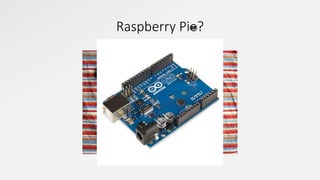
What’s a raspberry pie?
Raspberry Pie?Raspberry Pie?
Overview
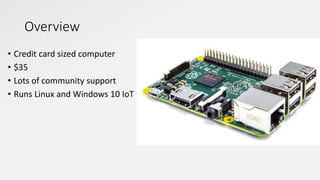
• Credit card sized computer
• $35
• Lots of community support
• Runs Linux and Windows 10 IoT
Setting up your Pi!
Checklist
• SD card
• Monitor
• HDMI cable
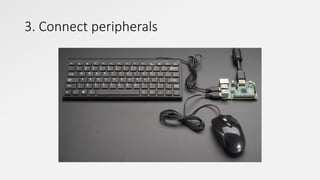
• Keyboard
• Mouse
• Micro USB power suppply
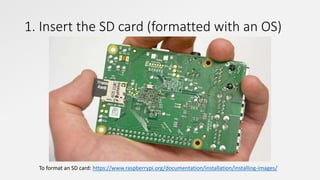
1. Insert the SD card (formatted with an OS)
To format an SD card: https://www.raspberrypi.org/documentation/installation/installing-images/
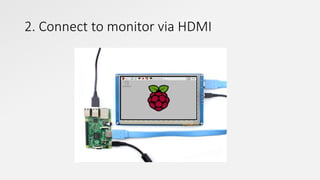
2. Connect to monitor via HDMI
3. Connect peripherals
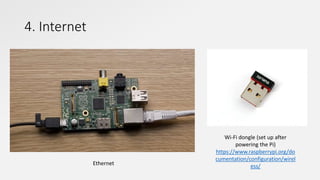
4. Internet
Ethernet
Wi-Fi dongle (set up after
powering the Pi)
https://www.raspberrypi.org/do
cumentation/configuration/wirel
ess/
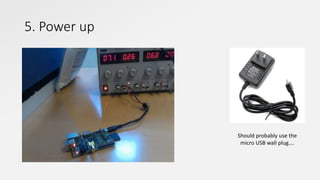
5. Power up
Should probably use the
micro USB wall plug….
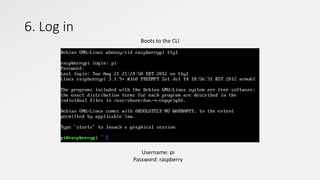
6. Log in
Username: pi
Password: raspberry
Boots to the CLI
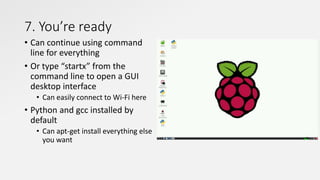
7. You’re ready
• Can continue using command
line for everything
• Or type “startx” from the
command line to open a GUI
desktop interface
• Can easily connect to Wi-Fi here
• Python and gcc installed by
default
• Can apt-get install everything else
you want
SSH (optional – highly recommended)
• First find the IP address of your Pi (“hostname –I”)
• “ssh pi@<IP>”
• Use X forwarding to see GUI applications
• Use RDP to access the full desktop!
• Use Remote Desktop Connection (pre-installed on Windows)
• Download other software for Mac or Linux
• “startx”
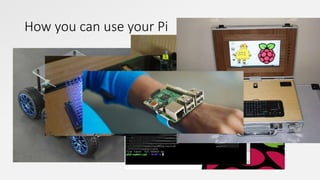
How you can use your Pi

Raspberry pi intro workshop