[Feb 2016] A Special Webinar for Forward4
Internet of Things 101:
Building IoT Prototypes w/ Raspberry Pi
Tomomi Imura (@girlie_mac)
Tomomi
(@girlie_mac)
● Lead Dev Evangelist at PubNub
● Front-End Dev
● ❤ Hardware hacking
● Cat Lady of the InterWeb
What You Will Learn Today
1. Internet of Things and Data Stream
2. How to send & receive data with PubNub using Python
3. How to wire a LED & resistor to Pi using breadboard
4. How to program Pi to blink the LED
5. Making it IoT : Remote-controlled LED from web interface
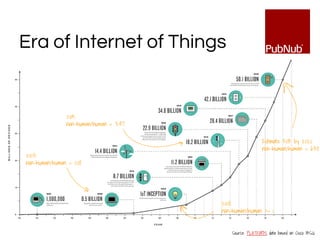
Era of Internet of Things
Source: PLATFORM, data based on Cisco IBSG
Estimate 50B by 2020
non-human/human = 6.58
2003:
non-human/human = 0.08
2015:
non-human/human = 3.47
2008:
non-human/human >= 1
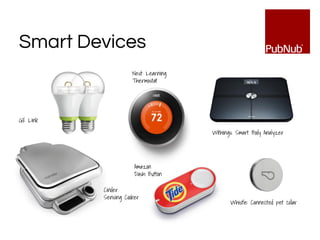
Withings: Smart Body Analyzer
GE Link
Cinder
Sensing Cooker
Nest: Learning
Thermostat
Whistle: Connected pet collar
Amazon
Dash Button
Smart Devices
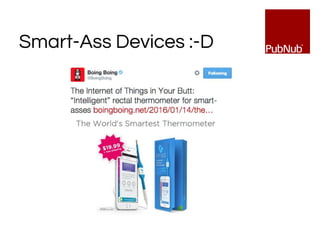
Smart-Ass Devices :-D
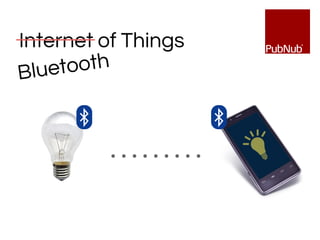
Internet of Things
………
Bluetooth
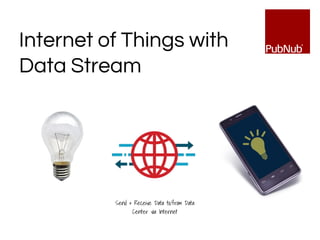
Internet of Things with
Data Stream
Send & Receive Data to/from Data
Center via Internet
PubNub Data Stream
Two-way communication to/from every device in the world.
https://pubnub.com
Realtime Reliable Secure
PubNub is globally distributed realtime data stream
network (DNS)
PubNub Use-Cases
◼ Chat (Periscope)
◼ Multi-player games (DeNA games)
◼ Vehicle Location Tracking (Lyft, GetTaxi)
◼ Financial data (TD Ameritrade)
◼ Collaborative teaching tools (ClassDojo, CodePen)
◼ IoT, Smart Home (Insteon, Logitech)
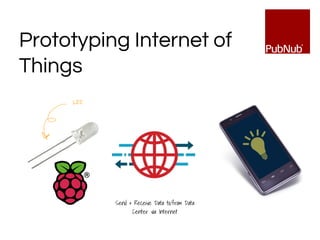
Prototyping Internet of
Things
Send & Receive Data to/from Data
Center via Internet
LED
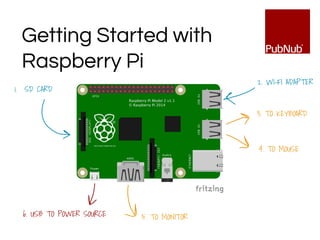
6. USB TO POWER SOURCE 5. TO MONITOR
4. TO MOUSE
3. TO KEYBOARD
2. WI-FI ADAPTER
1. SD CARD
Getting Started with
Raspberry Pi
https://github.com/pubnub/
workshop-raspberrypi
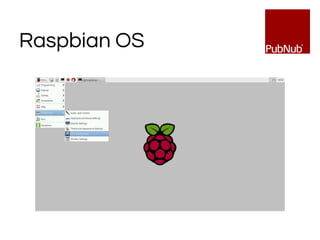
Raspbian OS
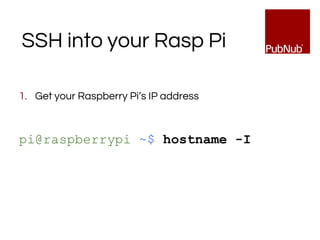
SSH into your Rasp Pi
1. Get your Raspberry Pi’s IP address
pi@raspberrypi ~$ hostname -I
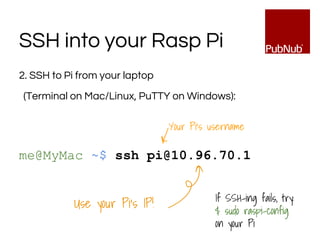
2. SSH to Pi from your laptop
(Terminal on Mac/Linux, PuTTY on Windows):
me@MyMac ~$ ssh pi@10.96.70.1
SSH into your Rasp Pi
Use your Pi’s IP!
Your Pi’s username
If SSH-ing fails, try:
$ sudo raspi-config
on your Pi
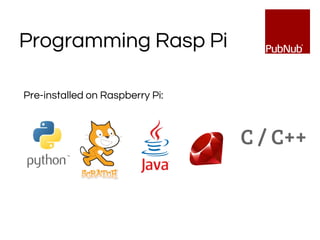
Programming Rasp Pi
Pre-installed on Raspberry Pi:
C / C++
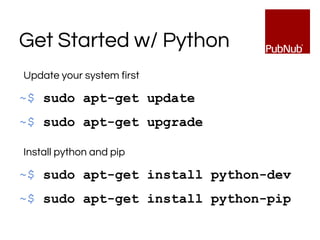
Get Started w/ Python
Update your system first
~$ sudo apt-get update
~$ sudo apt-get upgrade
Install python and pip
~$ sudo apt-get install python-dev
~$ sudo apt-get install python-pip
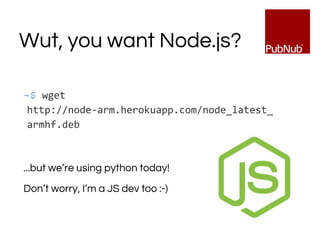
Wut, you want Node.js?
~$ wget
http://node-arm.herokuapp.com/node_latest_
armhf.deb
...but we’re using python today!
Don’t worry, I’m a JS dev too :-)
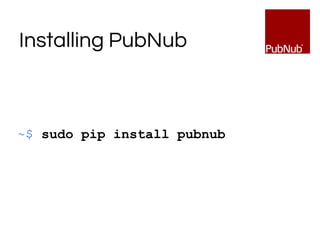
Installing PubNub
~$ sudo pip install pubnub
https://github.com/pubnub/
workshop-raspberrypi/tree/master/
projects-python/helloworld
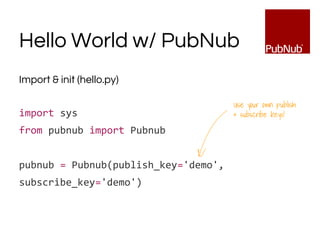
Hello World w/ PubNub
Import & init (hello.py)
import sys
from pubnub import Pubnub
pubnub = Pubnub(publish_key='demo',
subscribe_key='demo')
Use your own publish
& subscribe keys!
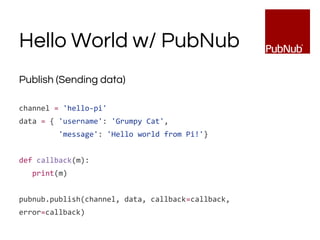
Hello World w/ PubNub
Publish (Sending data)
channel = 'hello-pi'
data = { 'username': 'Grumpy Cat',
'message': 'Hello world from Pi!'}
def callback(m):
print(m)
pubnub.publish(channel, data, callback=callback,
error=callback)
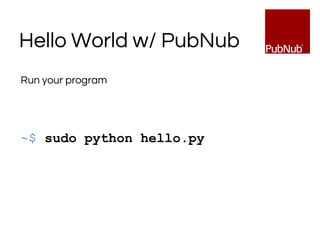
Hello World w/ PubNub
Run your program
~$ sudo python hello.py
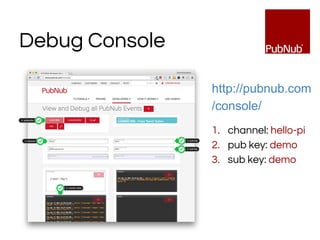
Debug Console
http://pubnub.com
/console/
1. channel: hello-pi
2. pub key: demo
3. sub key: demo
https://github.com/pubnub/
workshop-raspberrypi/tree/master/
projects-python/led
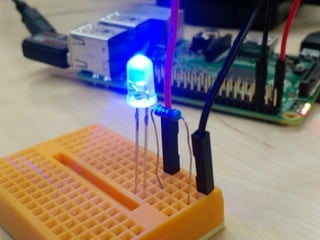
Hello World of Hardware:
Blinking LED
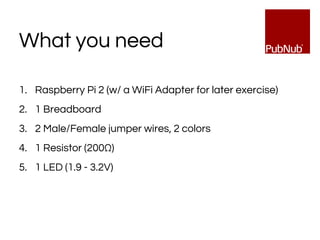
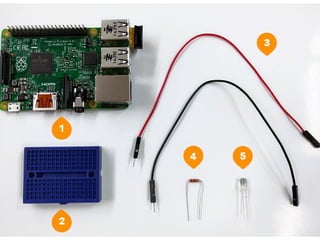
1. Raspberry Pi 2 (w/ a WiFi Adapter for later exercise)
2. 1 Breadboard
3. 2 Male/Female jumper wires, 2 colors
4. 1 Resistor (200Ω)
5. 1 LED (1.9 - 3.2V)
What you need
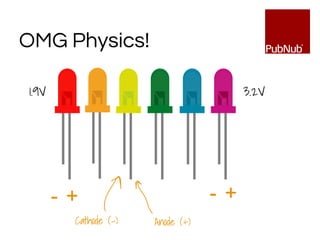
OMG Physics!
Cathode (-) Anode (+)
- +
1.9V 3.2V
- +
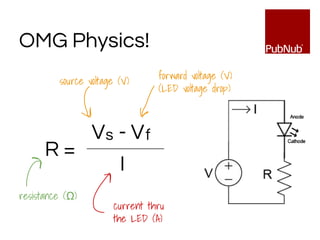
OMG Physics!
R =
V - Vs f
I
source voltage (V) forward voltage (V)
(LED voltage drop)
current thru
the LED (A)
resistance (Ω)
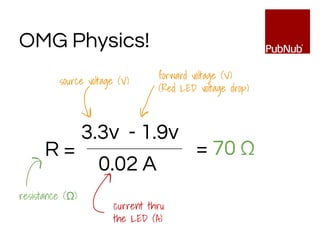
OMG Physics!
R =
3.3v - 1.9v
0.02 A
source voltage (V)
forward voltage (V)
(Red LED voltage drop)
current thru
the LED (A)
resistance (Ω)
= 70 Ω
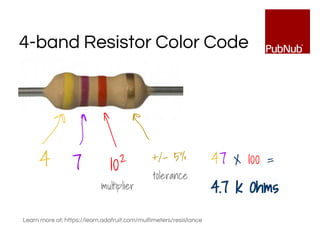
4-band Resistor Color Code
47 x 100 =
4.7 k Ohms
4 7 102 +/- 5%
multiplier
tolerance
Learn more at: https://learn.adafruit.com/multimeters/resistance
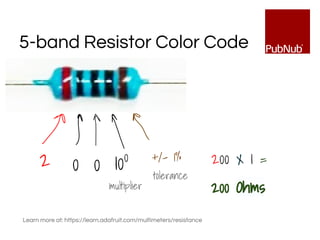
5-band Resistor Color Code
200 x 1 =
200 Ohms
2 0 100 +/- 1%
multiplier
tolerance
Learn more at: https://learn.adafruit.com/multimeters/resistance
0
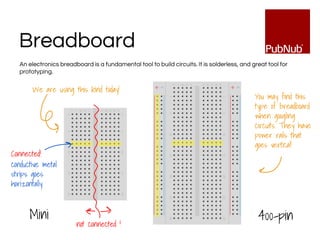
Breadboard
400-pinMini
We are using this kind today!
You may find this
type of breadboard
when googling
circuits. They have
power rails that
goes vertical!
not connected !
An electronics breadboard is a fundamental tool to build circuits. It is solderless, and great tool for
prototyping.
conductive metal
strips goes
horizontally
Connected!
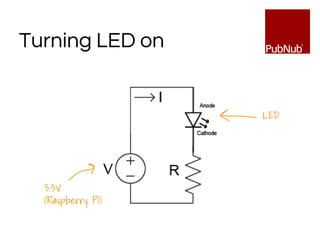
Turning LED on
3.3V
(Raspberry Pi)
LED
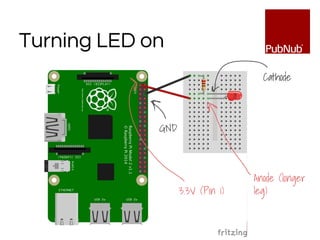
Turning LED on
3.3V (Pin 1)
GND
Anode (longer
leg)
Cathode
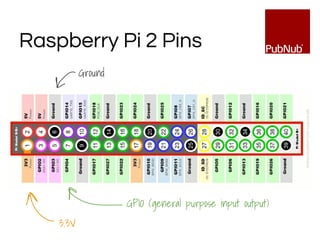
Raspberry Pi 2 Pins
3.3V
Ground
GPIO (general purpose input output)
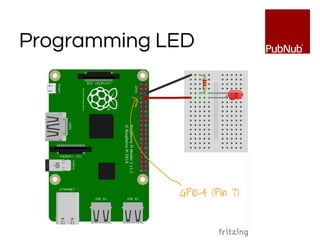
Programming LED
GPIO-4 (Pin 7)
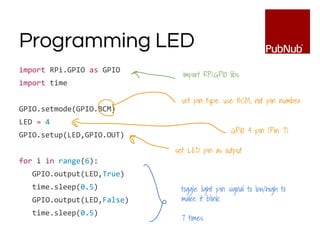
Programming LED
import RPi.GPIO as GPIO
import time
GPIO.setmode(GPIO.BCM)
LED = 4
GPIO.setup(LED,GPIO.OUT)
for i in range(6):
GPIO.output(LED,True)
time.sleep(0.5)
GPIO.output(LED,False)
time.sleep(0.5)
import RPi.GPIO libs
set pin type. use BCM, not pin number
GPIO 4 pin (Pin 7)
set LED pin as output
toggle light pin signal to low/high to
make it blink.
7 times.
https://github.com/pubnub/
workshop-raspberrypi/tree/master/
projects-python/remote-led
Making it IoT:
Remote-Controlled LED
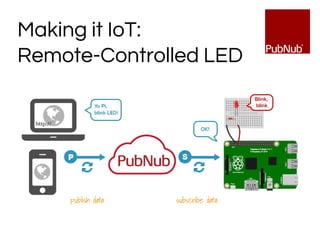
Making it IoT:
Remote-Controlled LED
publish data subscribe data
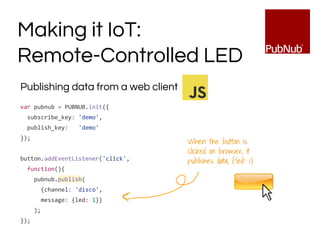
Publishing data from a web client
var pubnub = PUBNUB.init({
subscribe_key: 'demo',
publish_key: 'demo'
});
button.addEventListener('click',
function(){
pubnub.publish(
{channel: 'disco',
message: {led: 1}}
);
});
Making it IoT:
Remote-Controlled LED
When the button is
clicked on browser, it
publishes data, {‘led’: 1}
Subscribing data to Raspberry Pi
pubnub = Pubnub(publish_key='demo', subscribe_key='demo')
channel = 'disco'
def _callback(m, channel):
if m['led'] == 1:
for i in range(6):
GPIO.output(LED_PIN,True)
time.sleep(0.5)
GPIO.output(LED_PIN,False)
time.sleep(0.5)
pubnub.subscribe(channels=channel, callback=_callback, error=_error)
Making it IoT:
Remote-Controlled LED
button.addEventListener
('click', publish);
As soon as a message is
published from a browser,
the message is subscribed
to Pi
Disco!
http://pubnub.github.io/
workshop-raspberrypi/web/disco.html
Making it IoT:
Remote-Controlled LED
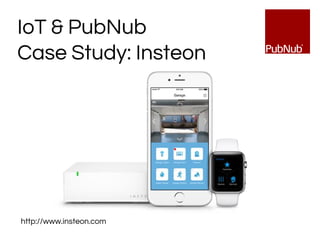
IoT & PubNub
Case Study: Insteon
http://www.insteon.com
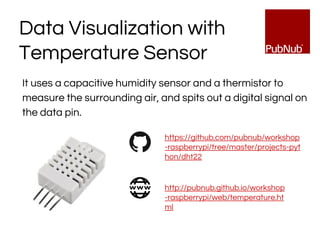
Data Visualization with
Temperature Sensor
It uses a capacitive humidity sensor and a thermistor to
measure the surrounding air, and spits out a digital signal on
the data pin.
https://github.com/pubnub/workshop
-raspberrypi/tree/master/projects-pyt
hon/dht22
http://pubnub.github.io/workshop
-raspberrypi/web/temperature.ht
ml
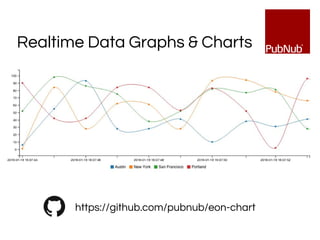
Realtime Data Graphs & Charts
https://github.com/pubnub/eon-chart
Resources
◼ Raspberry Pi - https://www.raspberrypi.org/
◼ PubNub - https://pubnub.com
◼ Step-by-step instructions & Code sample on GitHub -
https://github.com/pubnub/workshop-raspberrypi
◼ This slide deck: https://goo.gl/NHIkJe
Thank you :-)
Tomomi Imura (@girlie_mac)
https://www.pubnub.com/blog/author/tomomi/
http://girliemac.com
Tuts+ Node.js & Arduino tutorial: http://goo.gl/LTtPn4
Creative Commons Attributions
◼ LED circuit: Wikimedia
◼ GPIO Pins: RaspberryPi-Spy.co.uk
Also, great public domain images from Pixabay, and an
open-source software, Fritzing for circuit diagrams!

[Forward4 Webinar 2016] Building IoT Prototypes w/ Raspberry Pi

  • 1.
    [Feb 2016] ASpecial Webinar for Forward4 Internet of Things 101: Building IoT Prototypes w/ Raspberry Pi Tomomi Imura (@girlie_mac)
  • 2.
    Tomomi (@girlie_mac) ● Lead DevEvangelist at PubNub ● Front-End Dev ● ❤ Hardware hacking ● Cat Lady of the InterWeb
  • 3.
    What You WillLearn Today 1. Internet of Things and Data Stream 2. How to send & receive data with PubNub using Python 3. How to wire a LED & resistor to Pi using breadboard 4. How to program Pi to blink the LED 5. Making it IoT : Remote-controlled LED from web interface
  • 4.
    Era of Internetof Things Source: PLATFORM, data based on Cisco IBSG Estimate 50B by 2020 non-human/human = 6.58 2003: non-human/human = 0.08 2015: non-human/human = 3.47 2008: non-human/human >= 1
  • 5.
    Withings: Smart BodyAnalyzer GE Link Cinder Sensing Cooker Nest: Learning Thermostat Whistle: Connected pet collar Amazon Dash Button Smart Devices
  • 6.
  • 7.
  • 8.
    Internet of Thingswith Data Stream Send & Receive Data to/from Data Center via Internet
  • 9.
    PubNub Data Stream Two-waycommunication to/from every device in the world. https://pubnub.com Realtime Reliable Secure PubNub is globally distributed realtime data stream network (DNS)
  • 10.
    PubNub Use-Cases ◼ Chat(Periscope) ◼ Multi-player games (DeNA games) ◼ Vehicle Location Tracking (Lyft, GetTaxi) ◼ Financial data (TD Ameritrade) ◼ Collaborative teaching tools (ClassDojo, CodePen) ◼ IoT, Smart Home (Insteon, Logitech)
  • 11.
    Prototyping Internet of Things Send& Receive Data to/from Data Center via Internet LED
  • 12.
    6. USB TOPOWER SOURCE 5. TO MONITOR 4. TO MOUSE 3. TO KEYBOARD 2. WI-FI ADAPTER 1. SD CARD Getting Started with Raspberry Pi
  • 13.
  • 14.
  • 15.
    SSH into yourRasp Pi 1. Get your Raspberry Pi’s IP address pi@raspberrypi ~$ hostname -I
  • 16.
    2. SSH toPi from your laptop (Terminal on Mac/Linux, PuTTY on Windows): me@MyMac ~$ ssh pi@10.96.70.1 SSH into your Rasp Pi Use your Pi’s IP! Your Pi’s username If SSH-ing fails, try: $ sudo raspi-config on your Pi
  • 17.
    Programming Rasp Pi Pre-installedon Raspberry Pi: C / C++
  • 18.
    Get Started w/Python Update your system first ~$ sudo apt-get update ~$ sudo apt-get upgrade Install python and pip ~$ sudo apt-get install python-dev ~$ sudo apt-get install python-pip
  • 19.
    Wut, you wantNode.js? ~$ wget http://node-arm.herokuapp.com/node_latest_ armhf.deb ...but we’re using python today! Don’t worry, I’m a JS dev too :-)
  • 20.
    Installing PubNub ~$ sudopip install pubnub
  • 21.
  • 22.
    Hello World w/PubNub Import & init (hello.py) import sys from pubnub import Pubnub pubnub = Pubnub(publish_key='demo', subscribe_key='demo') Use your own publish & subscribe keys!
  • 23.
    Hello World w/PubNub Publish (Sending data) channel = 'hello-pi' data = { 'username': 'Grumpy Cat', 'message': 'Hello world from Pi!'} def callback(m): print(m) pubnub.publish(channel, data, callback=callback, error=callback)
  • 24.
    Hello World w/PubNub Run your program ~$ sudo python hello.py
  • 25.
    Debug Console http://pubnub.com /console/ 1. channel:hello-pi 2. pub key: demo 3. sub key: demo
  • 26.
  • 28.
    1. Raspberry Pi2 (w/ a WiFi Adapter for later exercise) 2. 1 Breadboard 3. 2 Male/Female jumper wires, 2 colors 4. 1 Resistor (200Ω) 5. 1 LED (1.9 - 3.2V) What you need
  • 30.
    OMG Physics! Cathode (-)Anode (+) - + 1.9V 3.2V - +
  • 31.
    OMG Physics! R = V- Vs f I source voltage (V) forward voltage (V) (LED voltage drop) current thru the LED (A) resistance (Ω)
  • 32.
    OMG Physics! R = 3.3v- 1.9v 0.02 A source voltage (V) forward voltage (V) (Red LED voltage drop) current thru the LED (A) resistance (Ω) = 70 Ω
  • 33.
    4-band Resistor ColorCode 47 x 100 = 4.7 k Ohms 4 7 102 +/- 5% multiplier tolerance Learn more at: https://learn.adafruit.com/multimeters/resistance
  • 34.
    5-band Resistor ColorCode 200 x 1 = 200 Ohms 2 0 100 +/- 1% multiplier tolerance Learn more at: https://learn.adafruit.com/multimeters/resistance 0
  • 35.
    Breadboard 400-pinMini We are usingthis kind today! You may find this type of breadboard when googling circuits. They have power rails that goes vertical! not connected ! An electronics breadboard is a fundamental tool to build circuits. It is solderless, and great tool for prototyping. conductive metal strips goes horizontally Connected!
  • 36.
  • 37.
    Turning LED on 3.3V(Pin 1) GND Anode (longer leg) Cathode
  • 38.
    Raspberry Pi 2Pins 3.3V Ground GPIO (general purpose input output)
  • 39.
  • 40.
    Programming LED import RPi.GPIOas GPIO import time GPIO.setmode(GPIO.BCM) LED = 4 GPIO.setup(LED,GPIO.OUT) for i in range(6): GPIO.output(LED,True) time.sleep(0.5) GPIO.output(LED,False) time.sleep(0.5) import RPi.GPIO libs set pin type. use BCM, not pin number GPIO 4 pin (Pin 7) set LED pin as output toggle light pin signal to low/high to make it blink. 7 times.
  • 41.
  • 42.
    Making it IoT: Remote-ControlledLED publish data subscribe data
  • 43.
    Publishing data froma web client var pubnub = PUBNUB.init({ subscribe_key: 'demo', publish_key: 'demo' }); button.addEventListener('click', function(){ pubnub.publish( {channel: 'disco', message: {led: 1}} ); }); Making it IoT: Remote-Controlled LED When the button is clicked on browser, it publishes data, {‘led’: 1}
  • 44.
    Subscribing data toRaspberry Pi pubnub = Pubnub(publish_key='demo', subscribe_key='demo') channel = 'disco' def _callback(m, channel): if m['led'] == 1: for i in range(6): GPIO.output(LED_PIN,True) time.sleep(0.5) GPIO.output(LED_PIN,False) time.sleep(0.5) pubnub.subscribe(channels=channel, callback=_callback, error=_error) Making it IoT: Remote-Controlled LED button.addEventListener ('click', publish); As soon as a message is published from a browser, the message is subscribed to Pi
  • 45.
  • 46.
    IoT & PubNub CaseStudy: Insteon http://www.insteon.com
  • 47.
    Data Visualization with TemperatureSensor It uses a capacitive humidity sensor and a thermistor to measure the surrounding air, and spits out a digital signal on the data pin. https://github.com/pubnub/workshop -raspberrypi/tree/master/projects-pyt hon/dht22 http://pubnub.github.io/workshop -raspberrypi/web/temperature.ht ml
  • 48.
    Realtime Data Graphs& Charts https://github.com/pubnub/eon-chart
  • 49.
    Resources ◼ Raspberry Pi- https://www.raspberrypi.org/ ◼ PubNub - https://pubnub.com ◼ Step-by-step instructions & Code sample on GitHub - https://github.com/pubnub/workshop-raspberrypi ◼ This slide deck: https://goo.gl/NHIkJe
  • 50.
    Thank you :-) TomomiImura (@girlie_mac) https://www.pubnub.com/blog/author/tomomi/ http://girliemac.com Tuts+ Node.js & Arduino tutorial: http://goo.gl/LTtPn4
  • 51.
    Creative Commons Attributions ◼LED circuit: Wikimedia ◼ GPIO Pins: RaspberryPi-Spy.co.uk Also, great public domain images from Pixabay, and an open-source software, Fritzing for circuit diagrams!