Introduction To


MySql Database Administration GUI
    Presented By Chad Robertson For
      Front Range PHP Users Group
             July 13th 2010
What I Will Be Covering

What is Navicat?

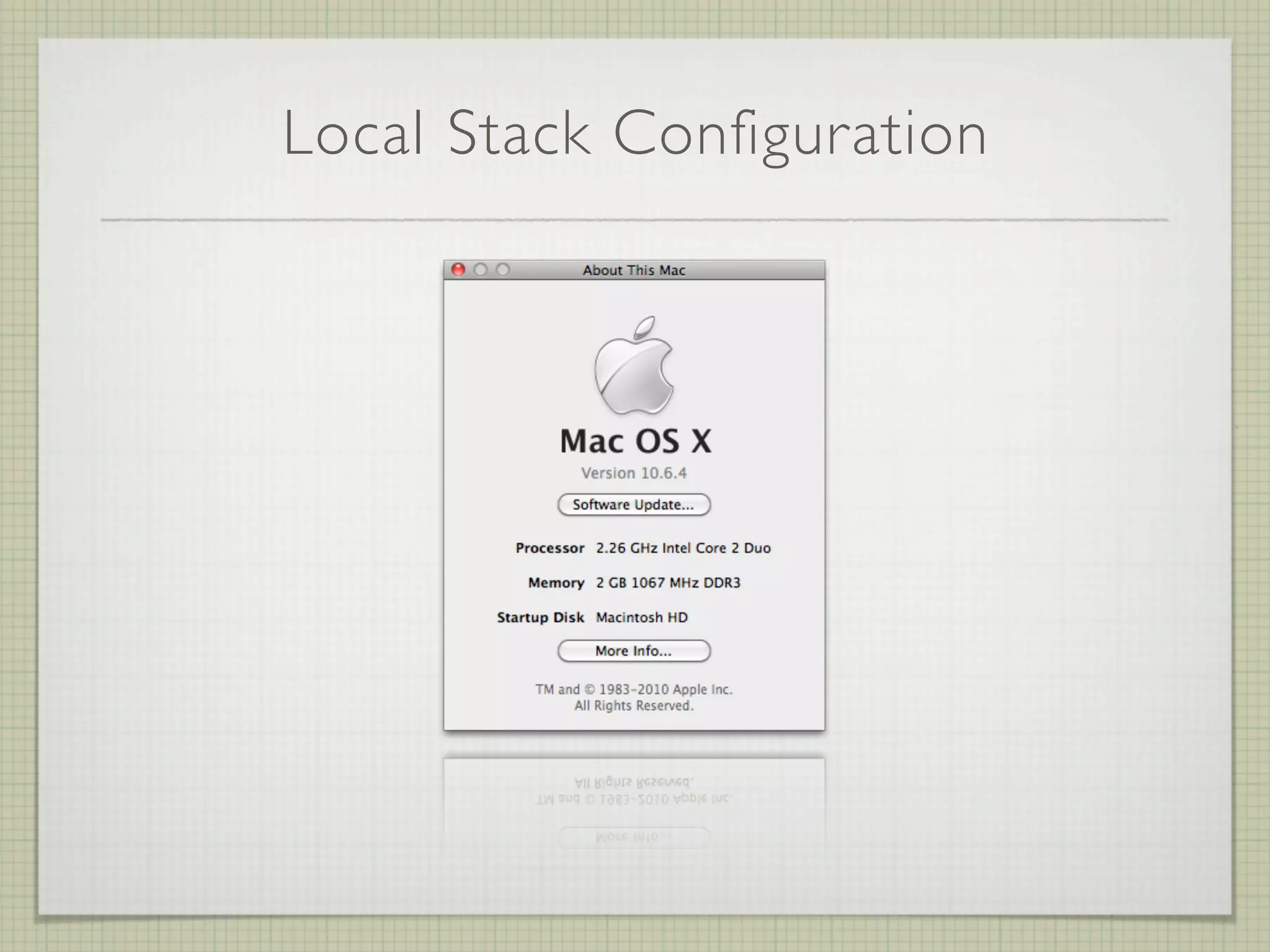
The stacks I used for this presentation

Why would you want to use it?

Comparison to phpMyAdmin

Who can use it?

Setting up a connection (local, remote and remote http tunnel)

Basic usage

Demo / Questions?
What I Will Be Covering

What is Navicat?

The stacks I used for this presentation

Why would you want to use it?

Comparison to phpMyAdmin

Who can use it?

Setting up a connection (local, remote and remote http tunnel)

Basic usage

Demo / Questions?
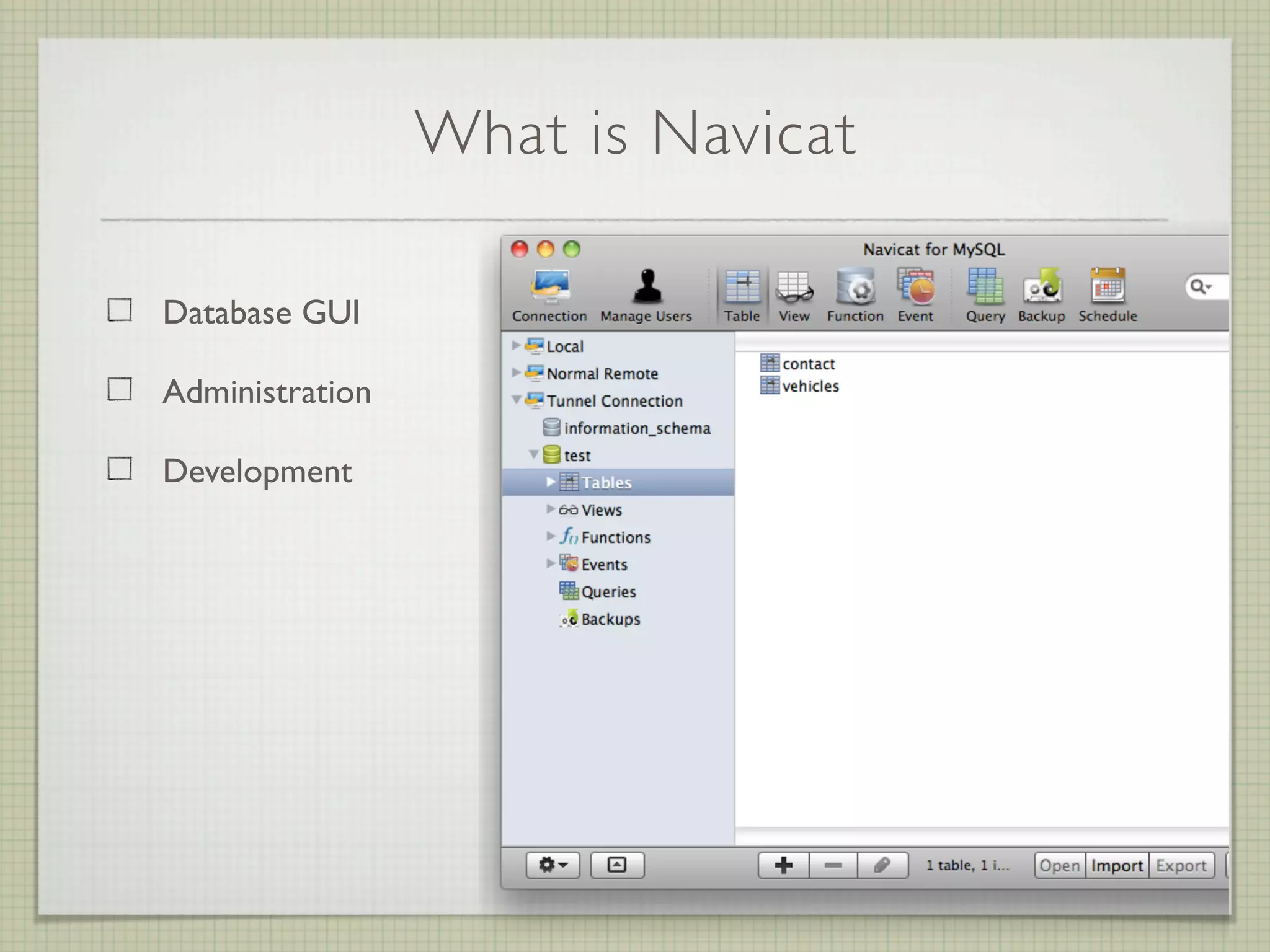
What is Navicat

Database GUI

Administration

Development
Local Stack Configuration

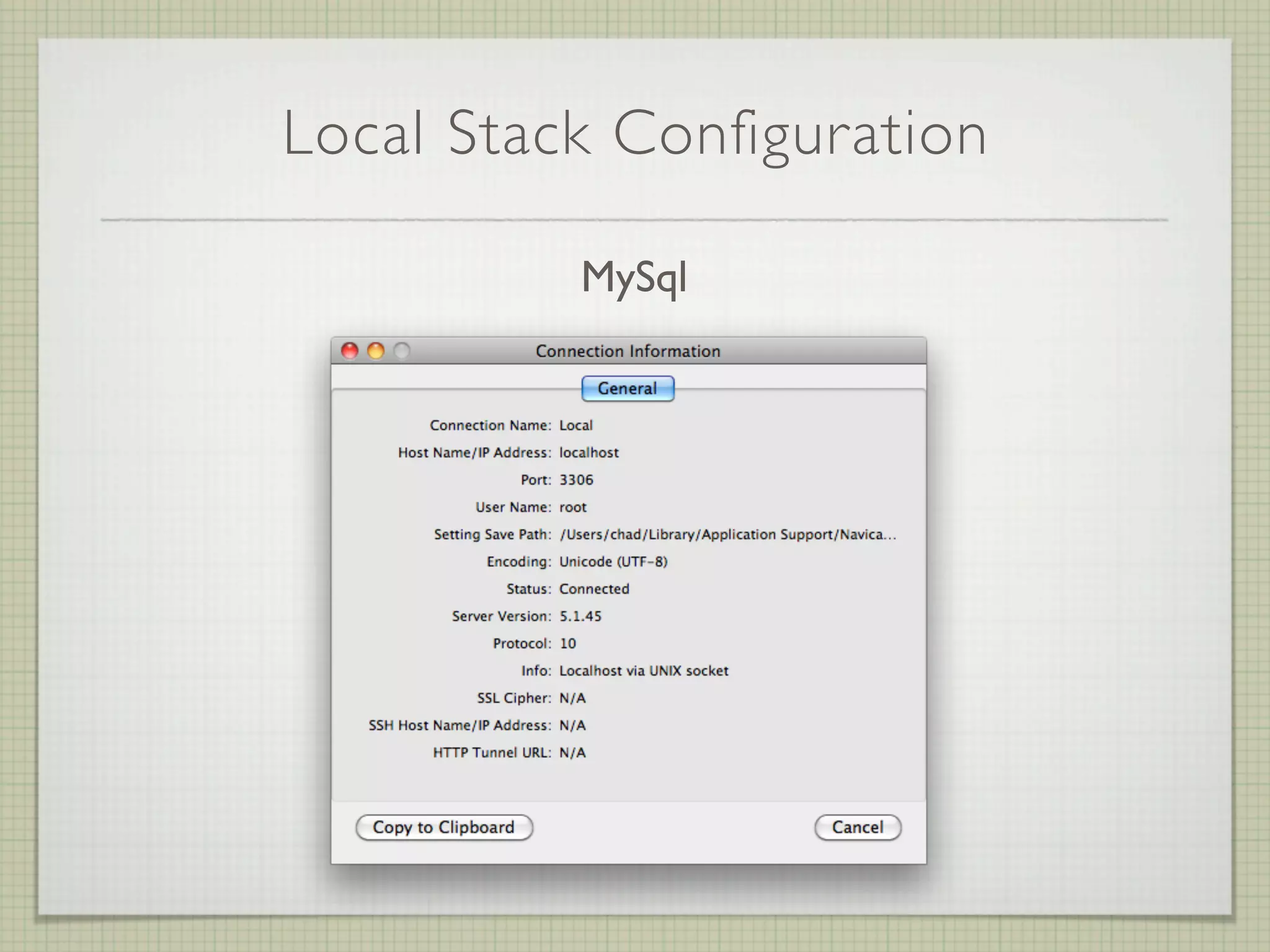
          MySql
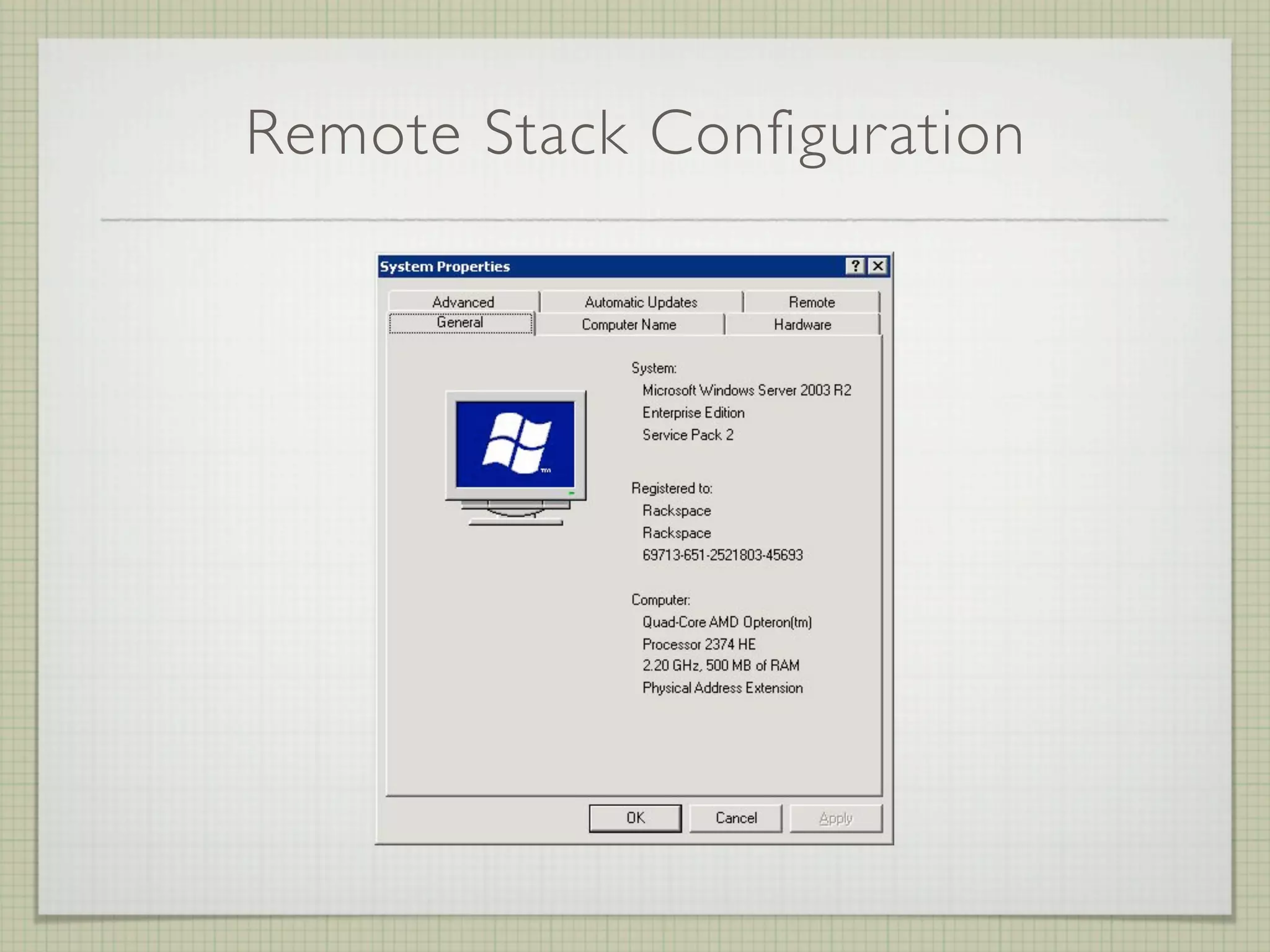
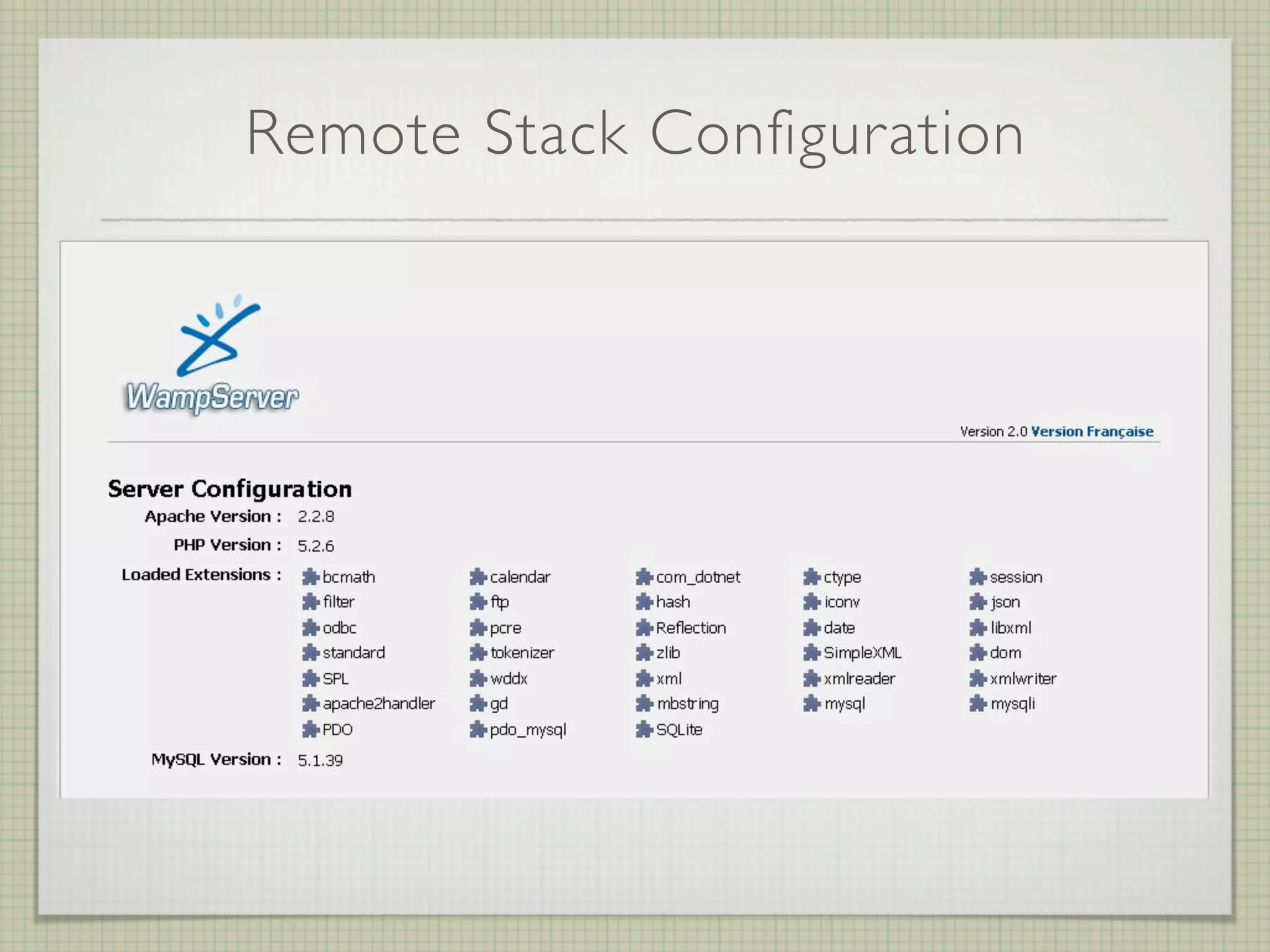
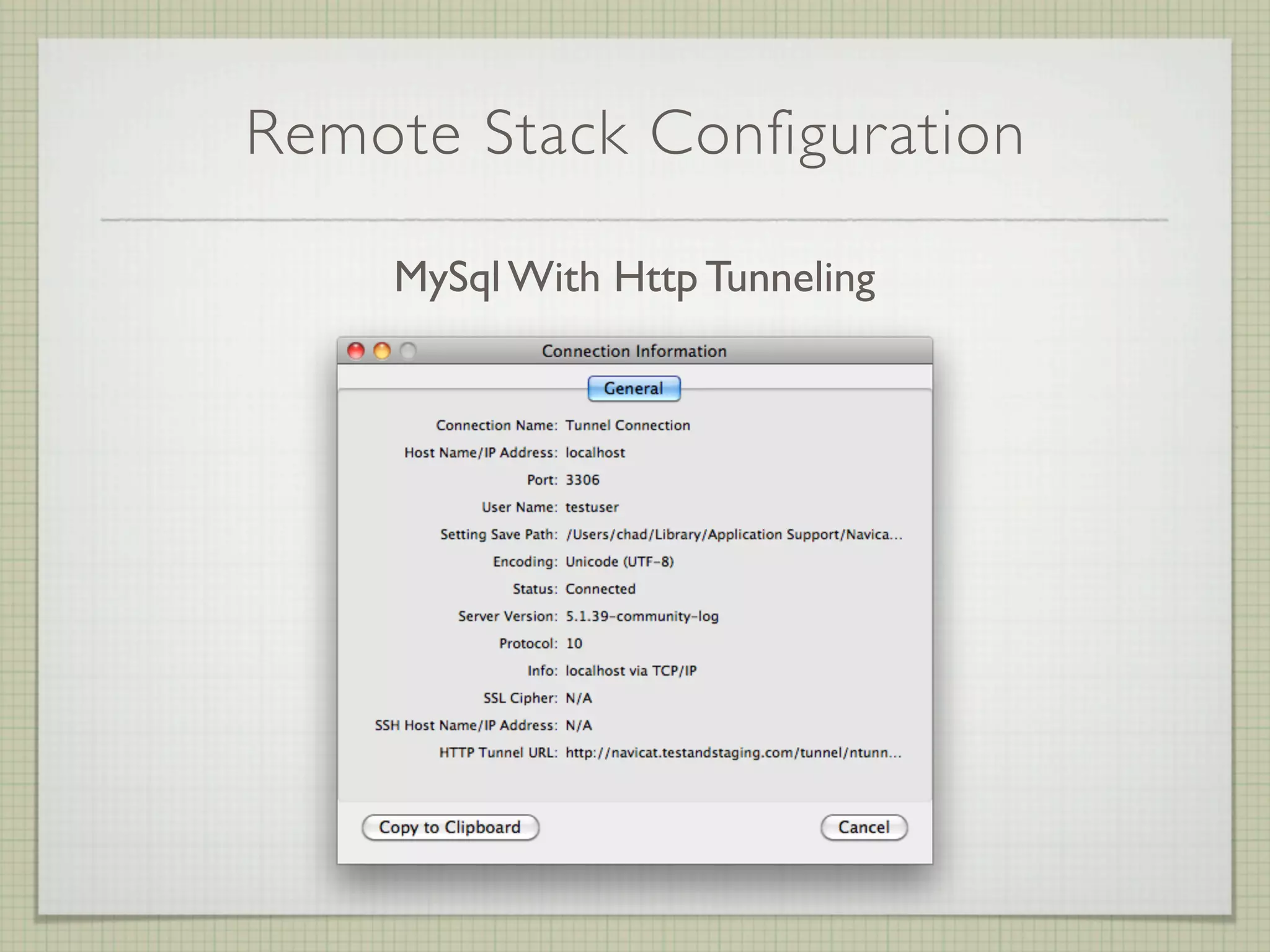
Remote Stack Configuration

    MySql With Http Tunneling
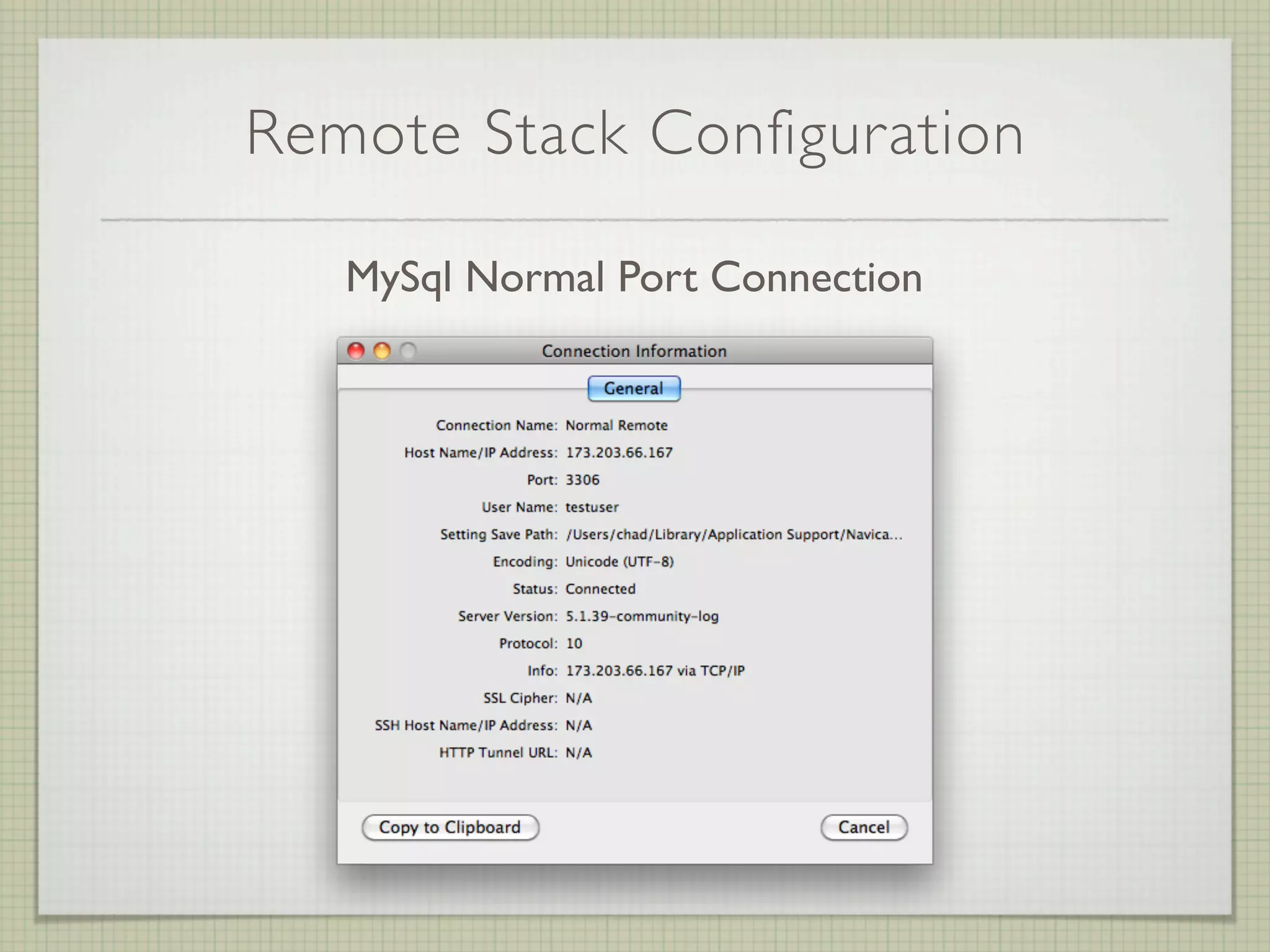
Remote Stack Configuration

   MySql Normal Port Connection
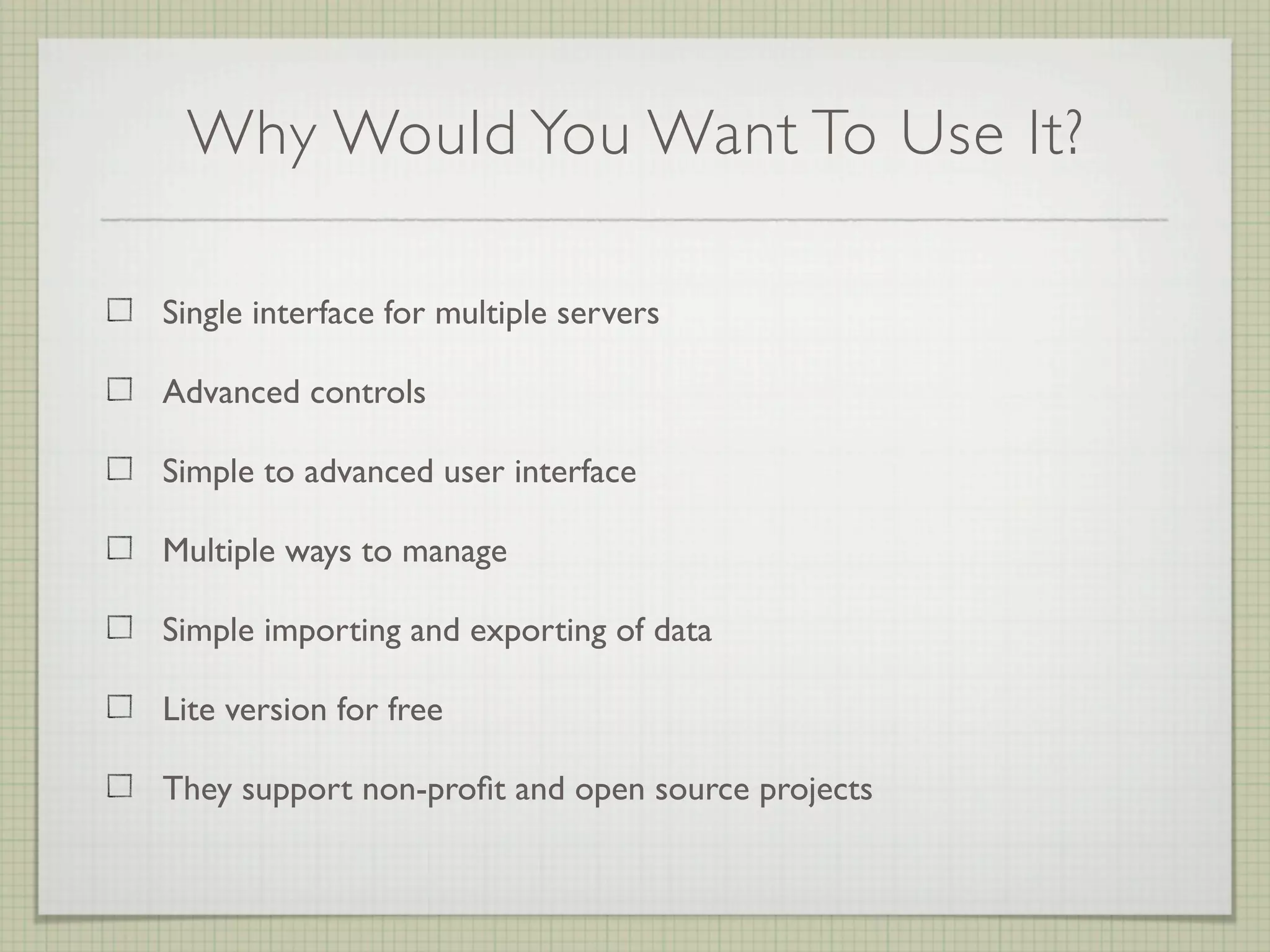
Why Would You Want To Use It?

Single interface for multiple servers

Advanced controls

Simple to advanced user interface

Multiple ways to manage

Simple importing and exporting of data

Lite version for free

They support non-profit and open source projects
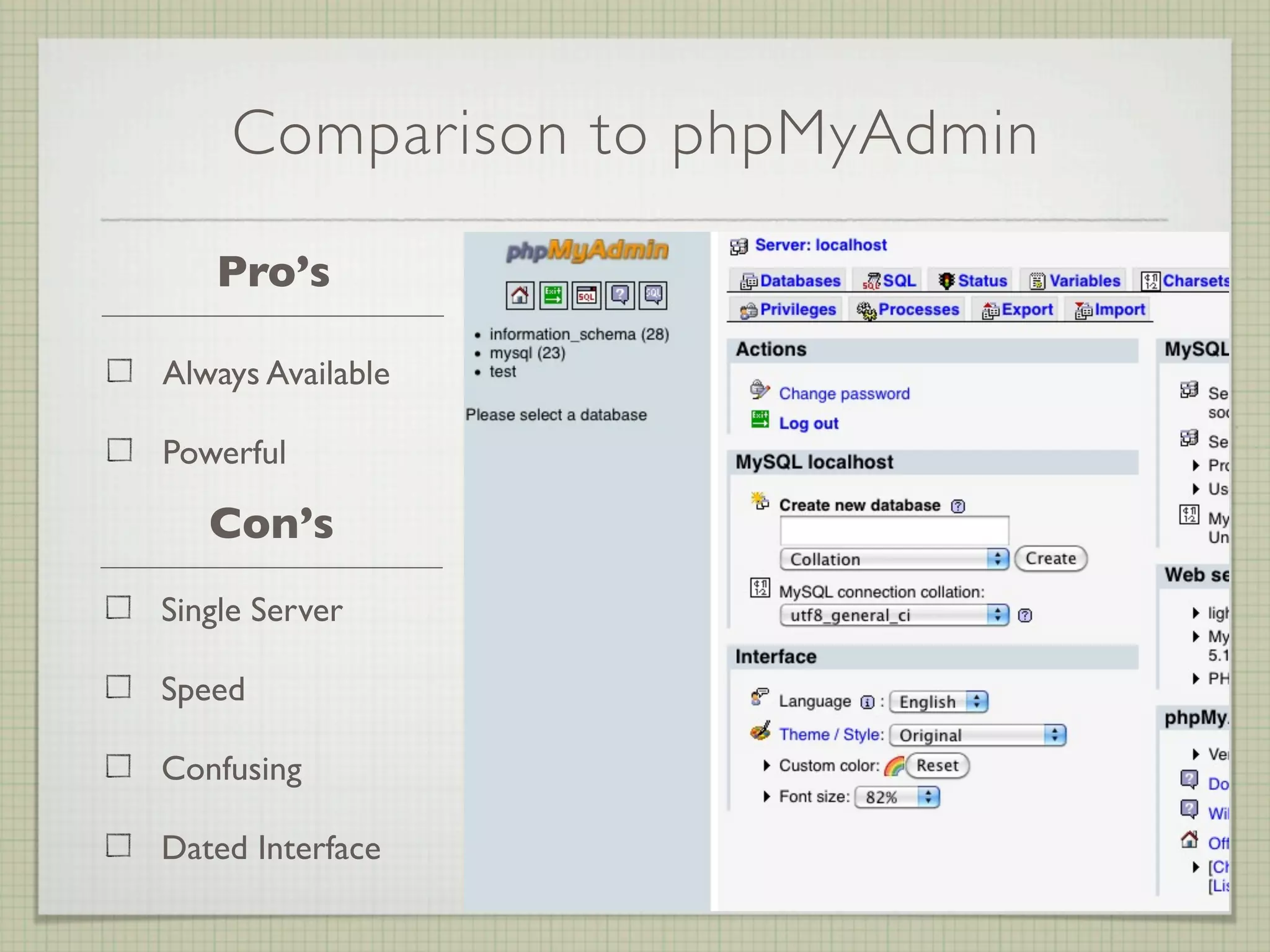
Comparison to phpMyAdmin

   Pro’s

Always Available

Powerful

   Con’s
Single Server

Speed

Confusing

Dated Interface
Who Can Use It?

XP

Vista

Server 2003

Server 2008

Windows 7
Who Can Use It?

10.4 Tiger

10.5 Leopard

10.6 Snow Leopard
Who Can Use It?

Compatible with i386 PC

Support 32-bit and 64-bit Linux platform

Support Linux kernel version 2.2 or higher

Support Glibc 2.4 or above

Support GNOME and KDE
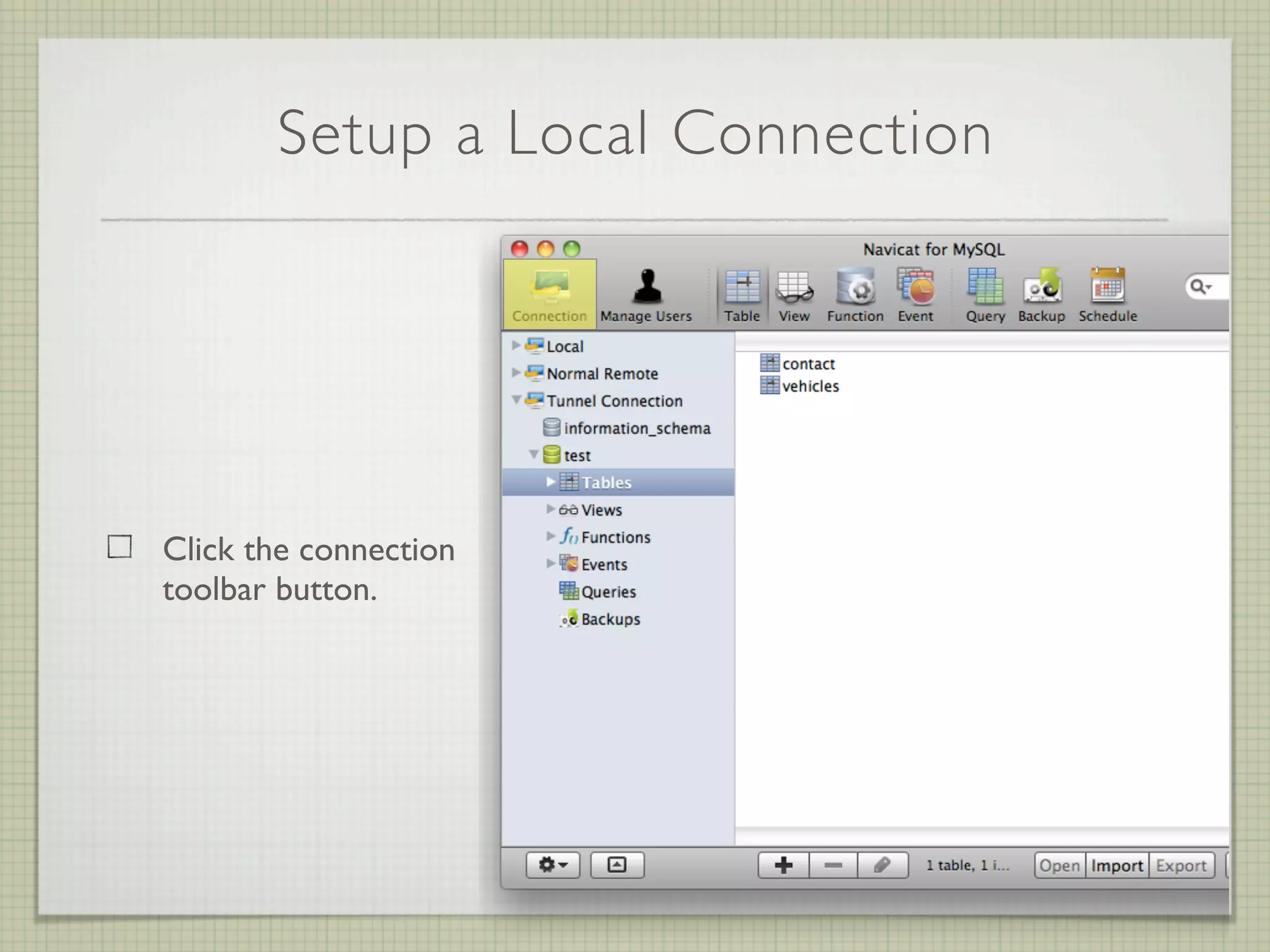
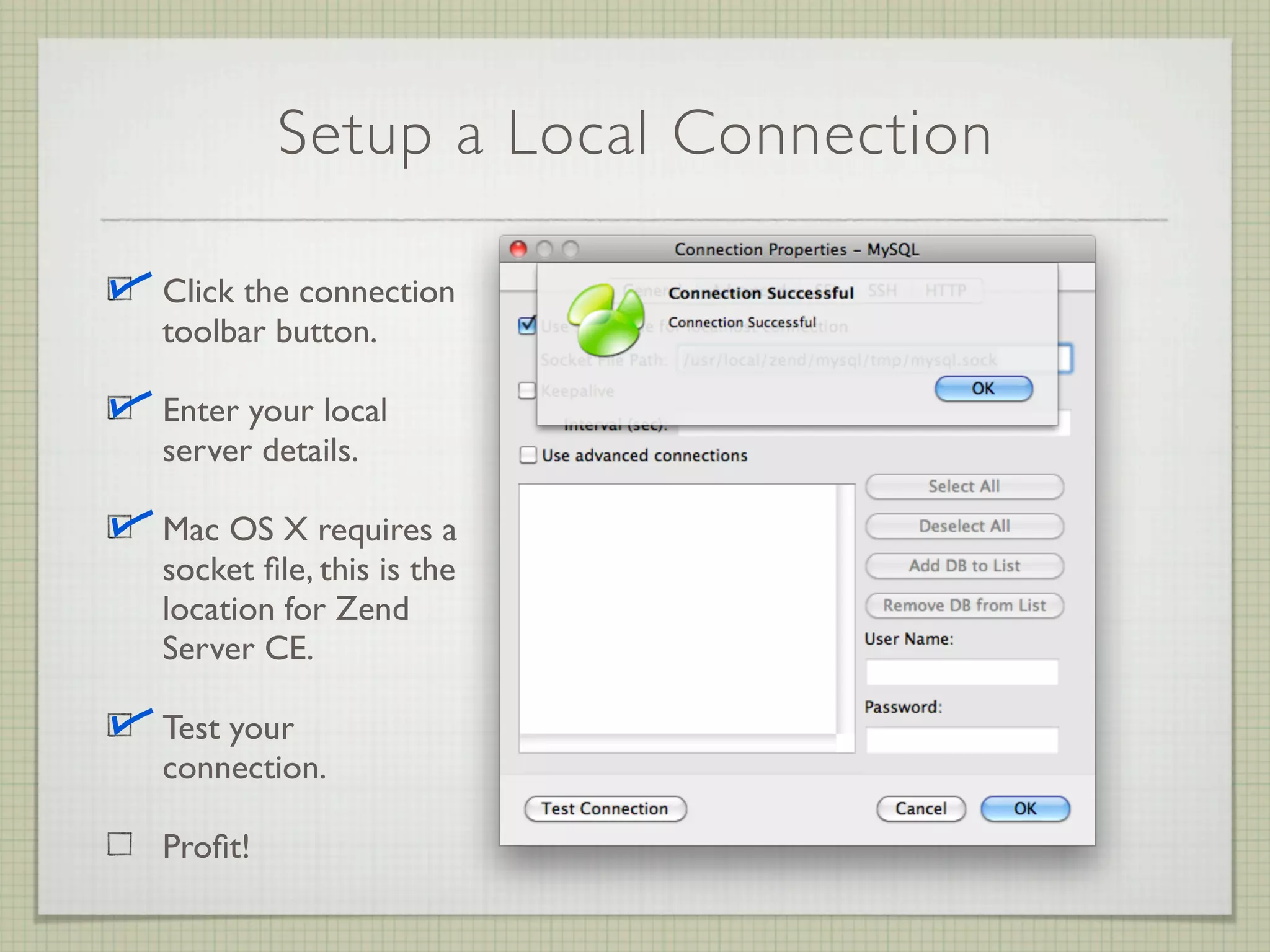
Setup a Local Connection


Click the connection
toolbar button.
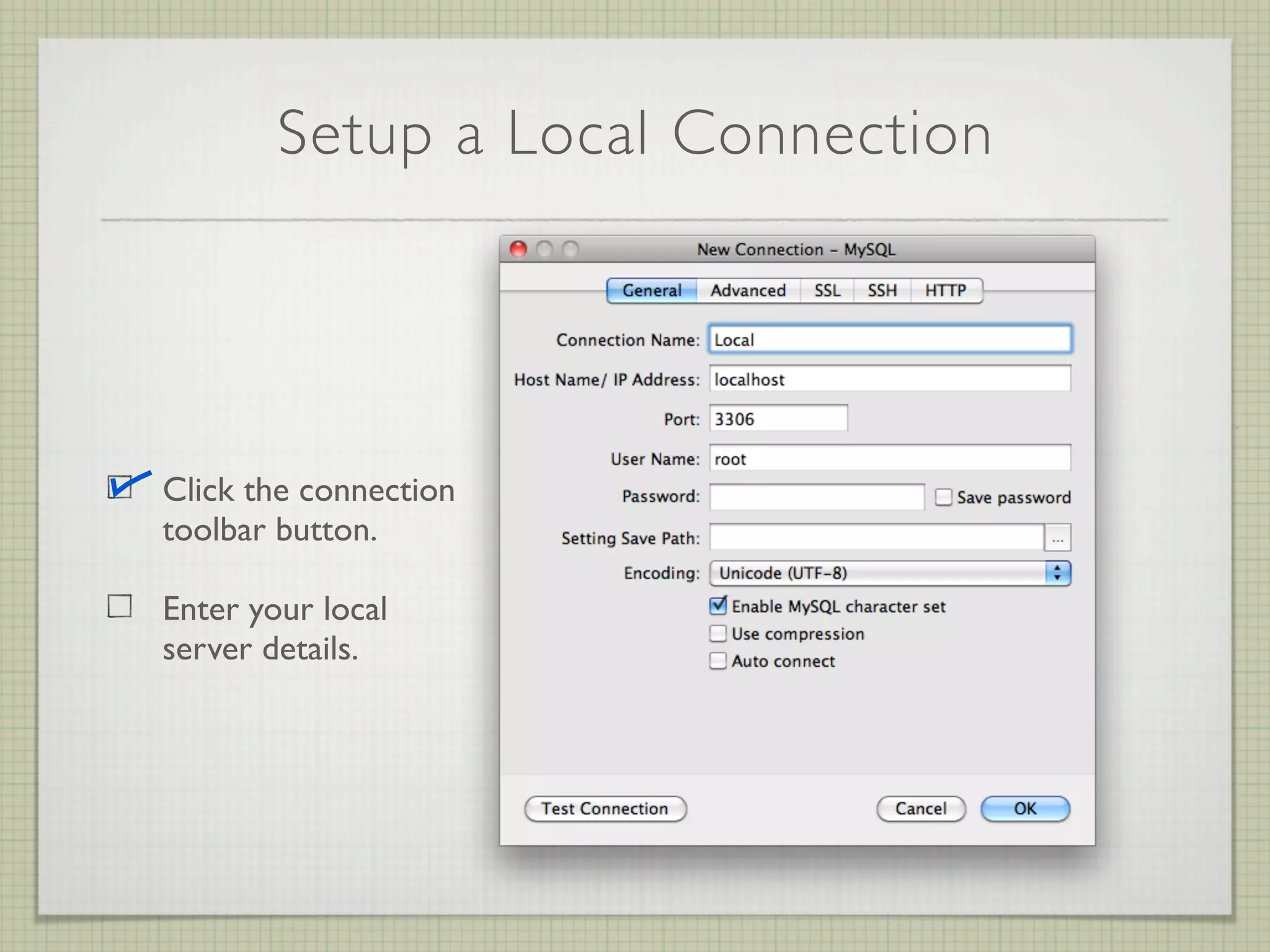
Setup a Local Connection


Click the connection
toolbar button.

Enter your local
server details.
Setup a Local Connection


Click the connection
toolbar button.
Enter your local
server details.

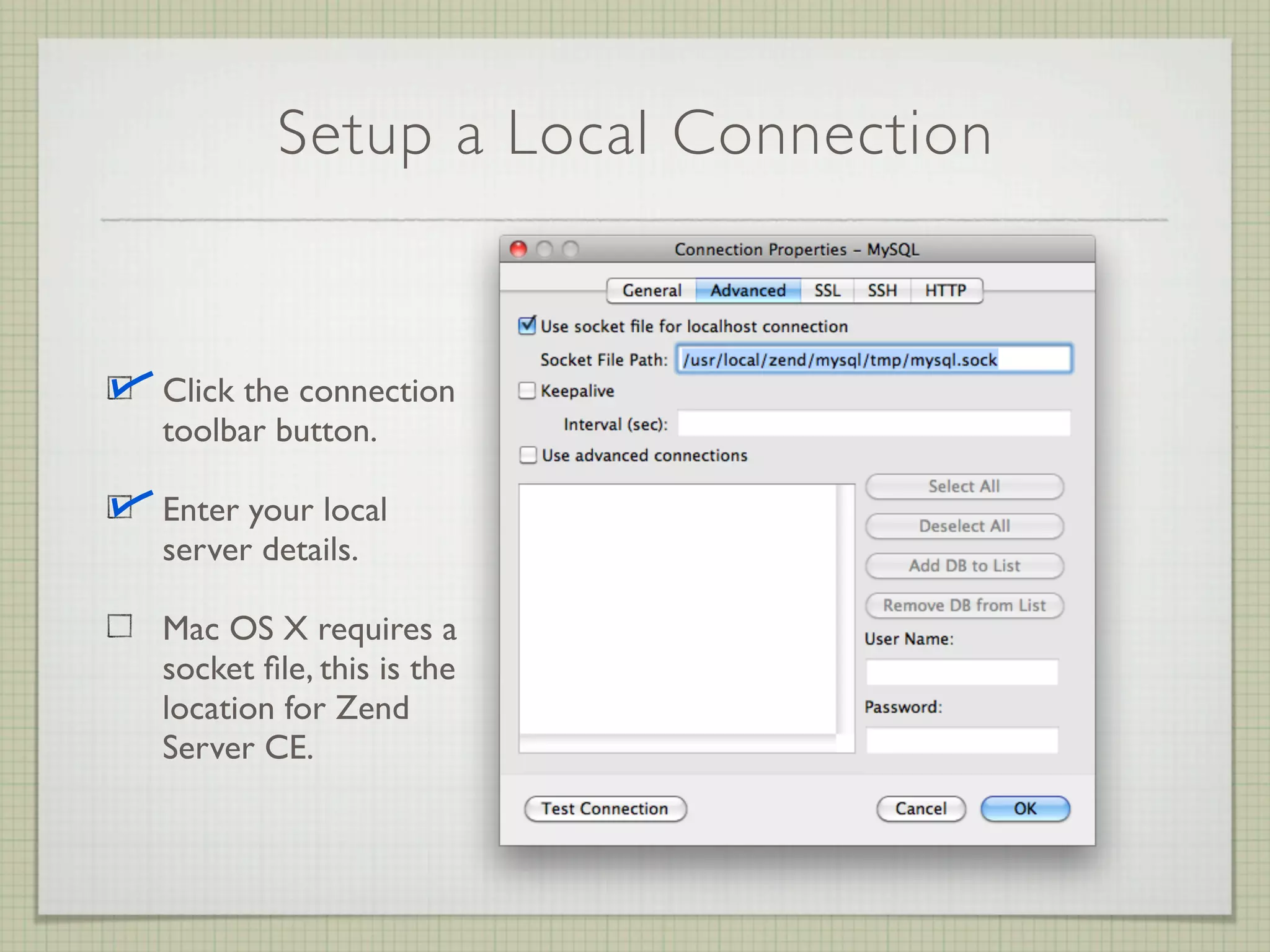
Mac OS X requires a
socket file, this is the
location for Zend
Server CE.
Setup a Local Connection

Click the connection
toolbar button.

Enter your local
server details.

Mac OS X requires a
socket file, this is the
location for Zend
Server CE.

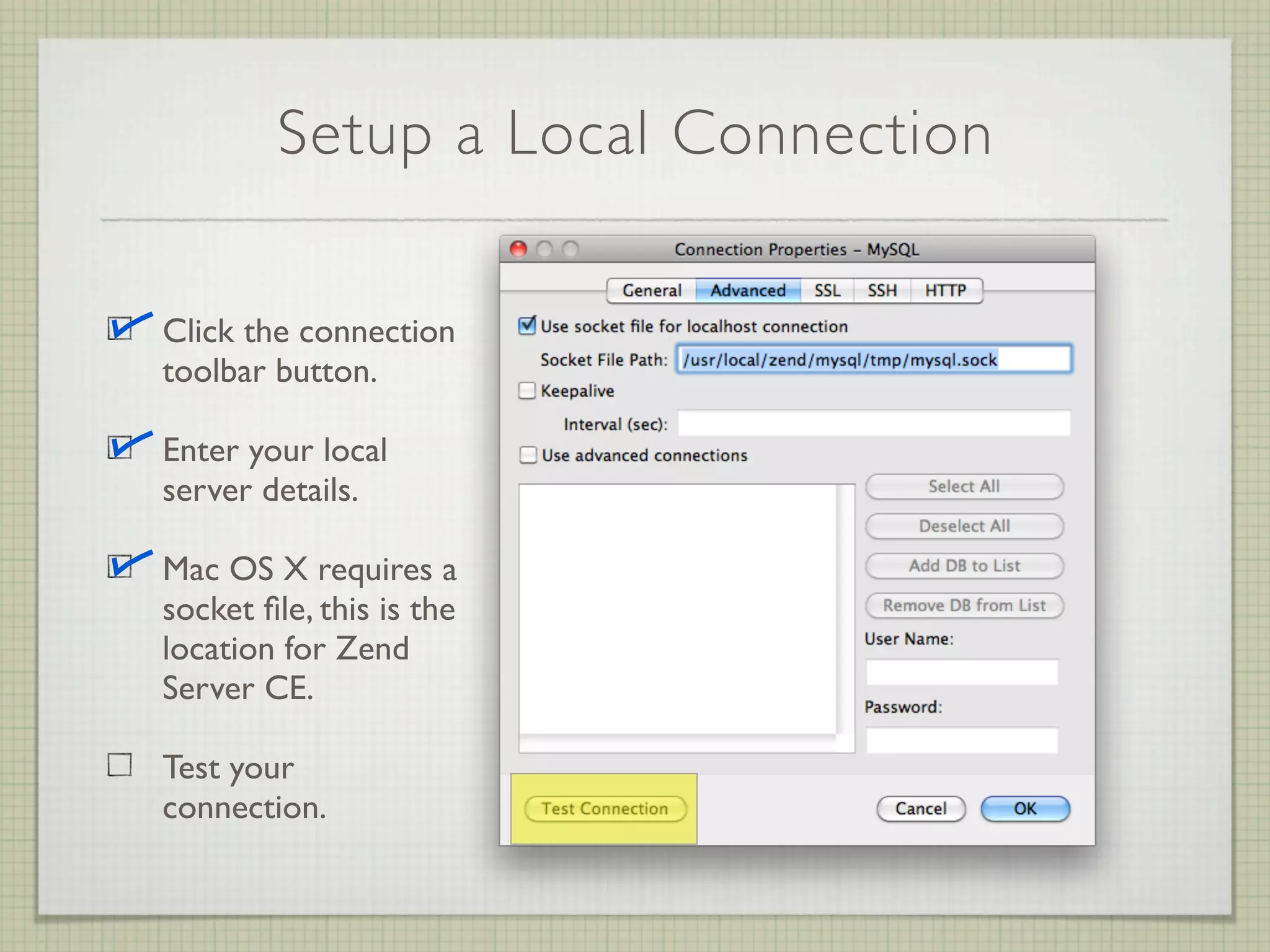
Test your
connection.
Setup a Local Connection

Click the connection
toolbar button.

Enter your local
server details.

Mac OS X requires a
socket file, this is the
location for Zend
Server CE.

Test your
connection.

Profit!
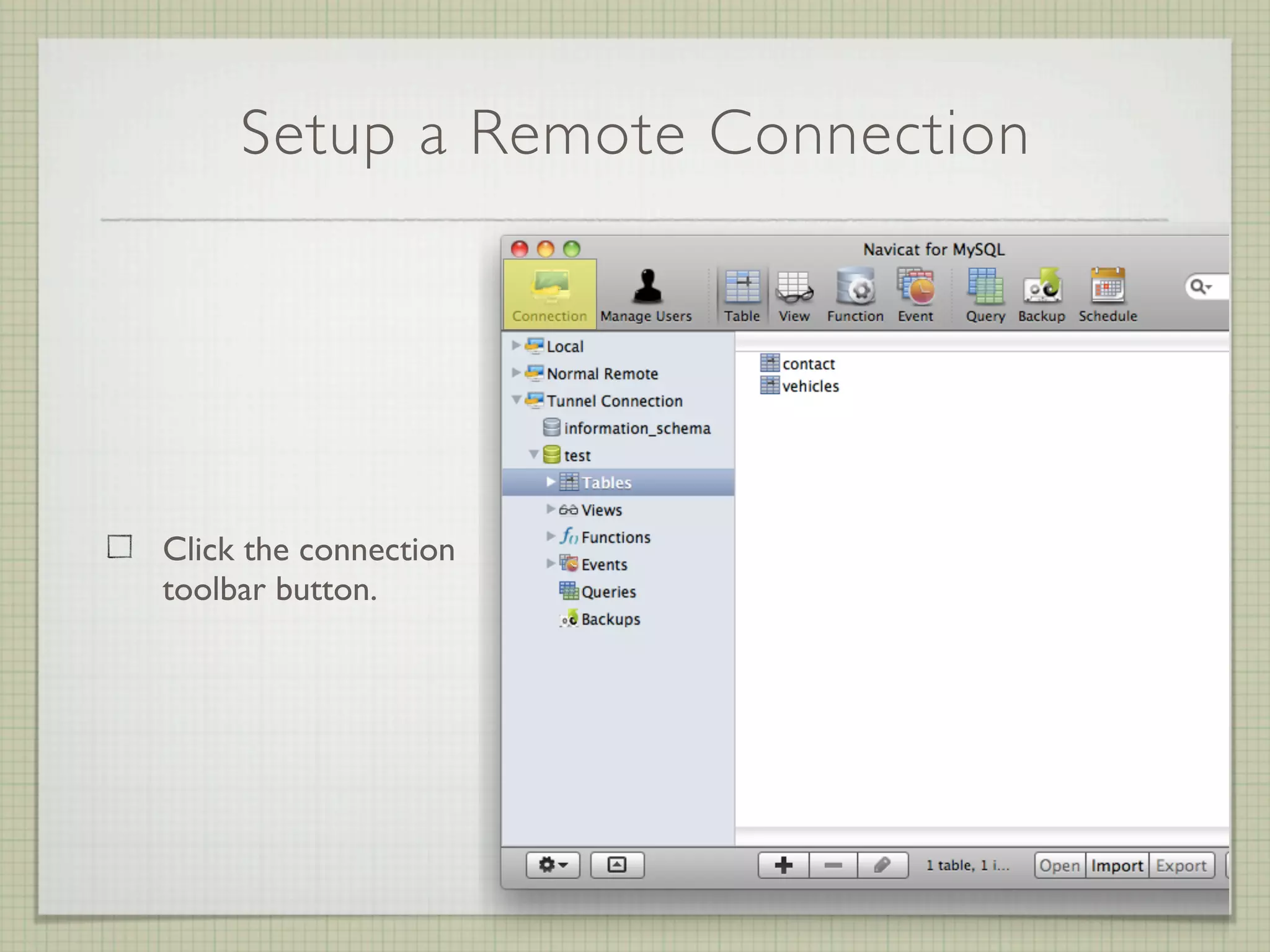
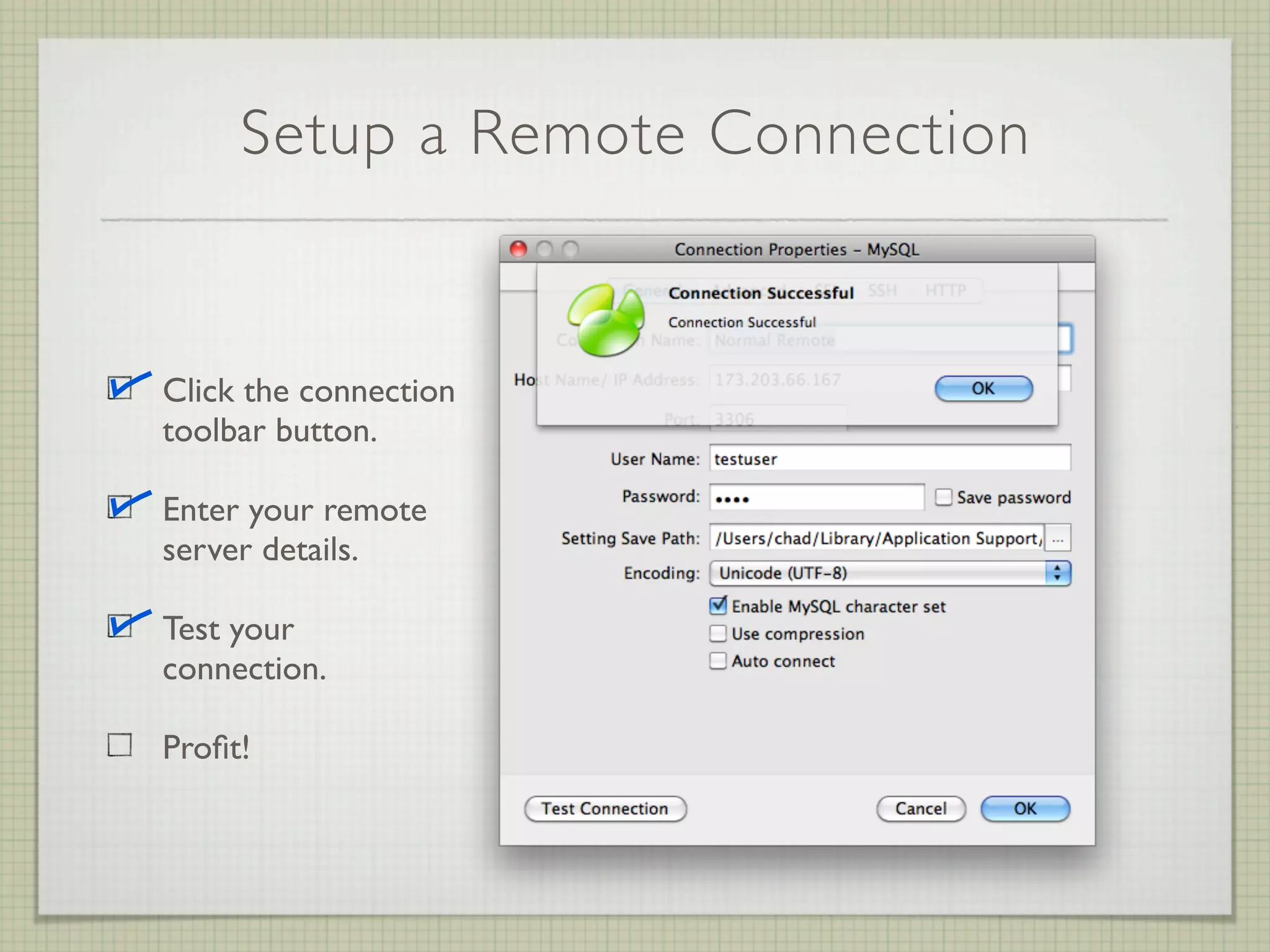
Setup a Remote Connection


Click the connection
toolbar button.
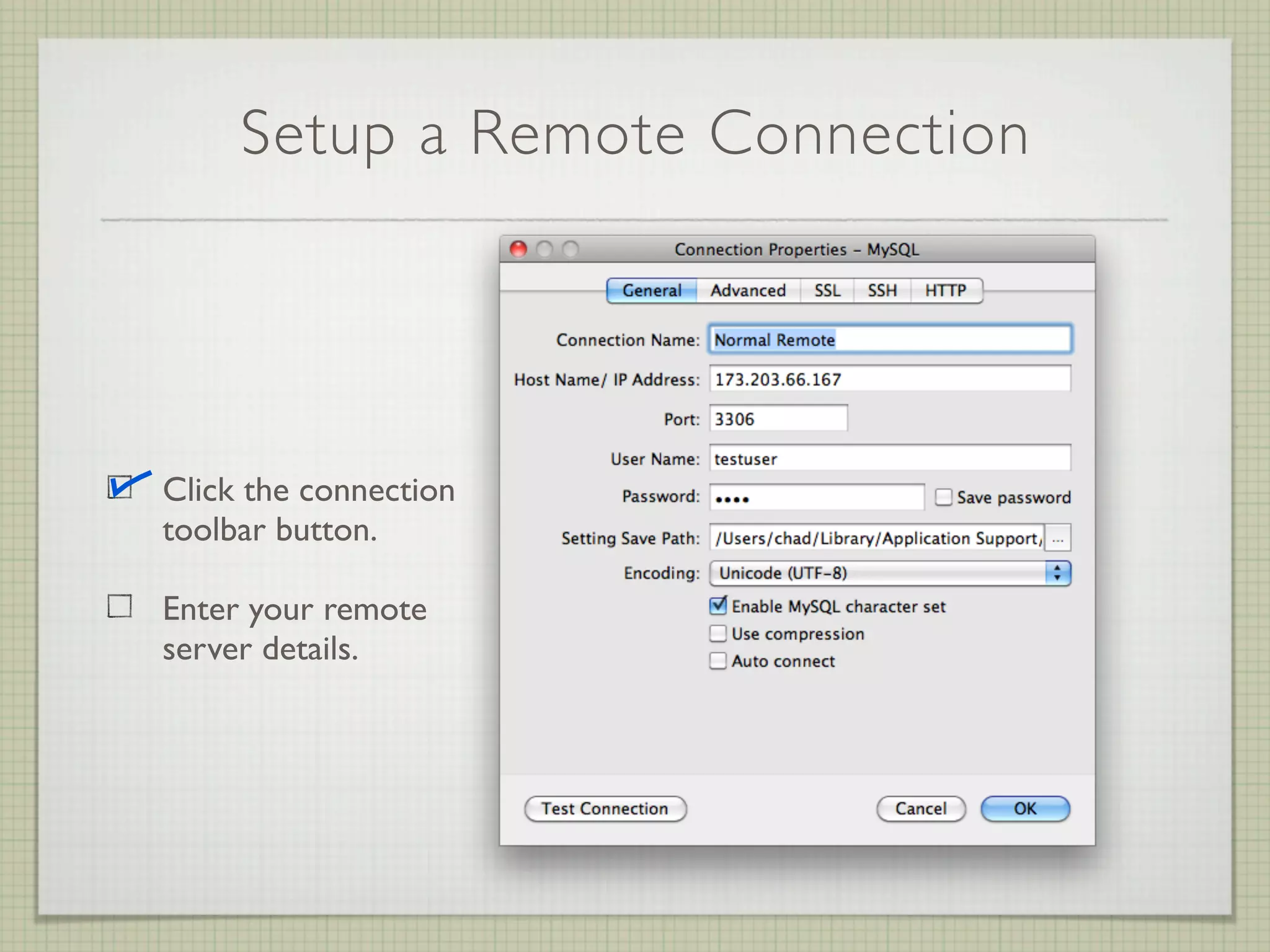
Setup a Remote Connection


Click the connection
toolbar button.

Enter your remote
server details.
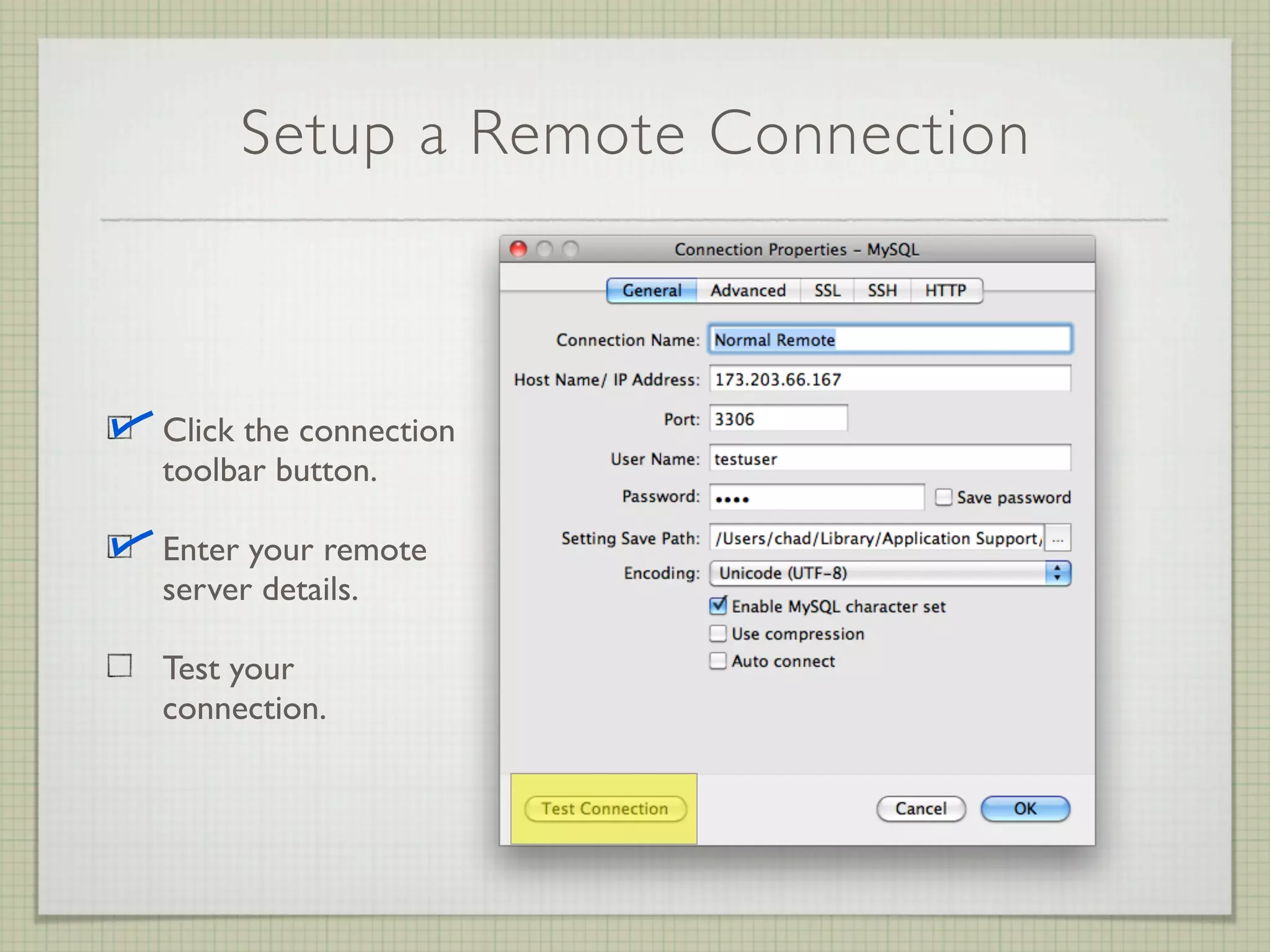
Setup a Remote Connection


Click the connection
toolbar button.

Enter your remote
server details.

Test your
connection.
Setup a Remote Connection


Click the connection
toolbar button.

Enter your remote
server details.

Test your
connection.

Profit!
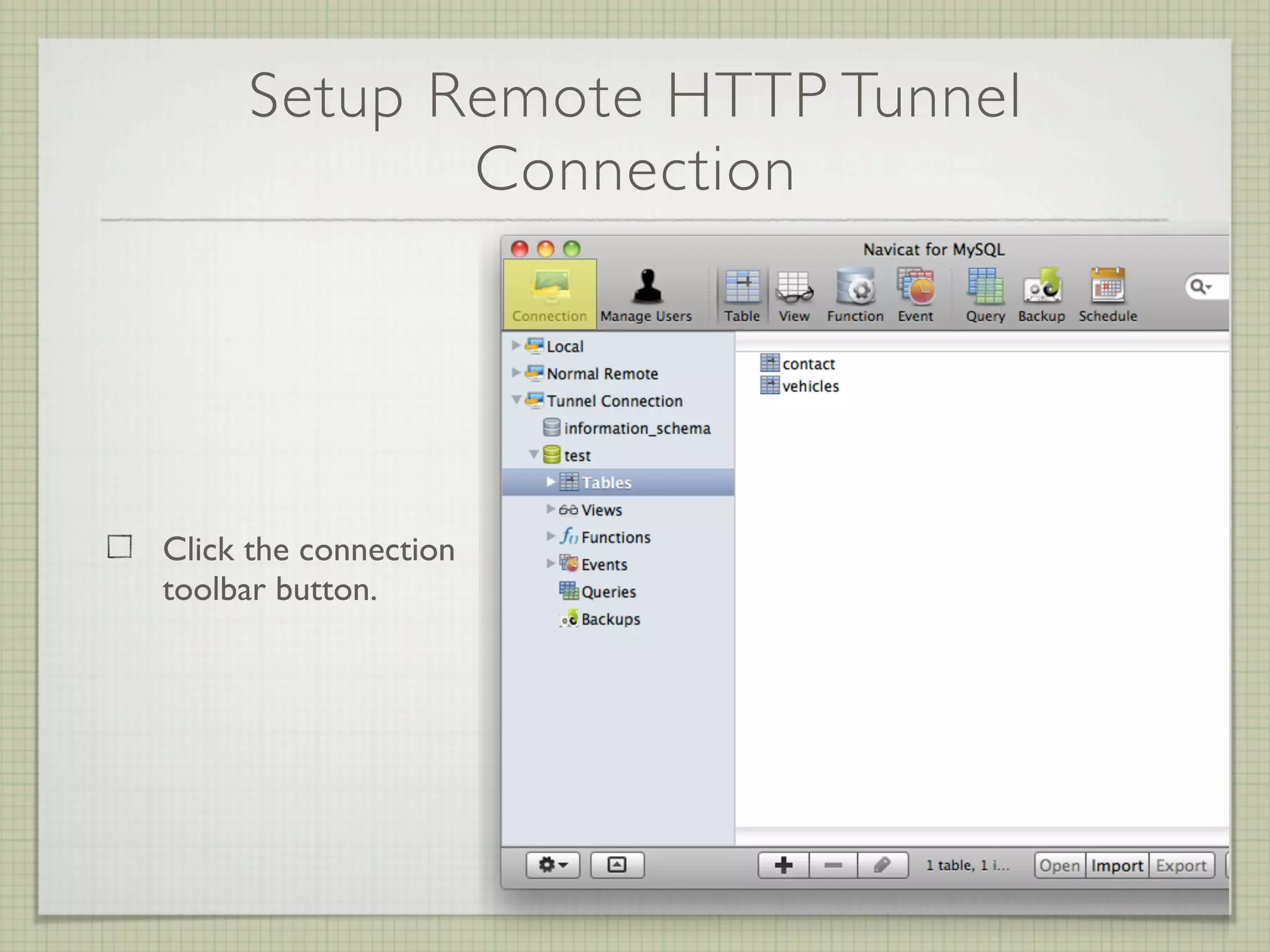
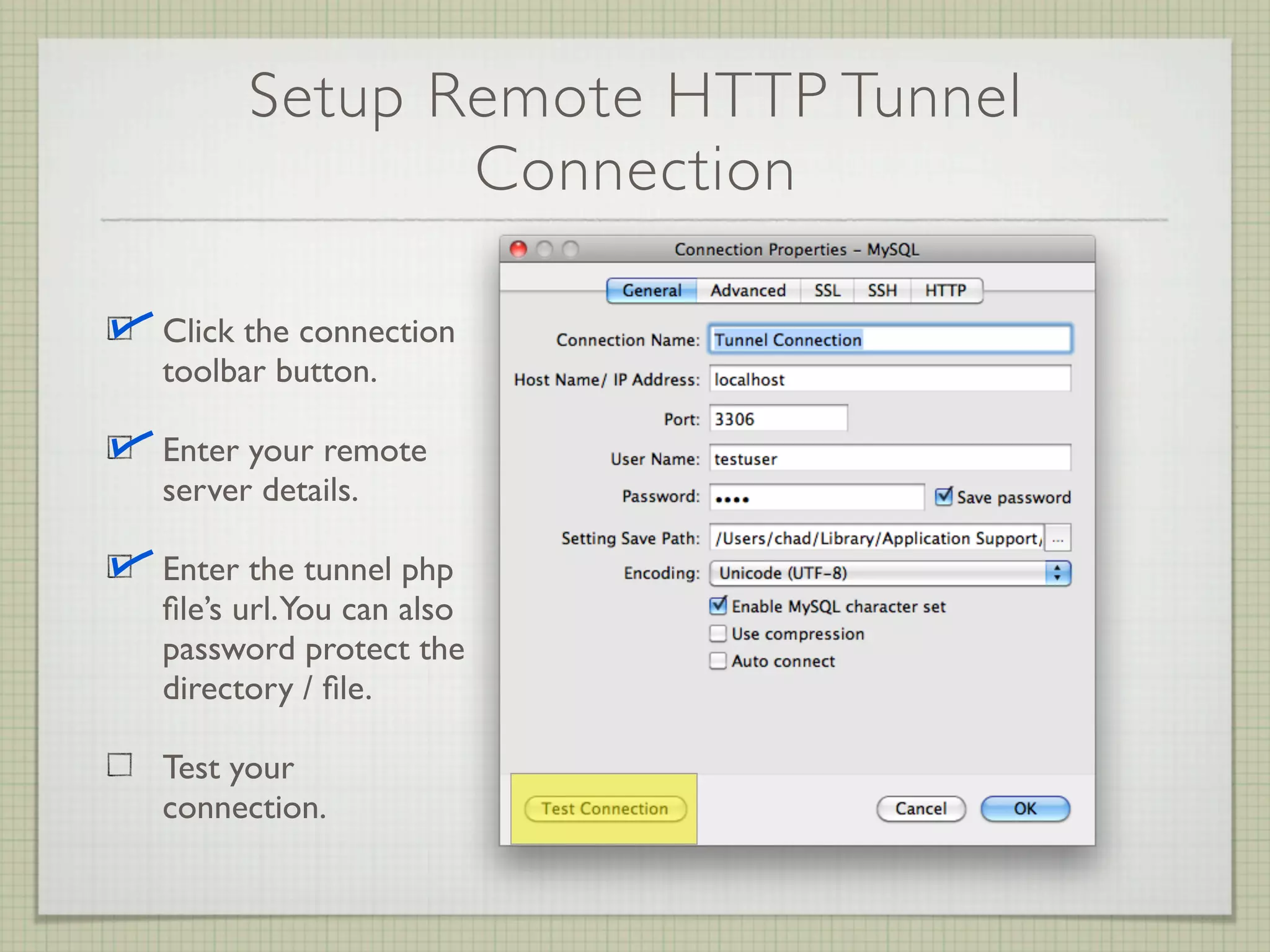
Setup Remote HTTP Tunnel
            Connection


Click the connection
toolbar button.
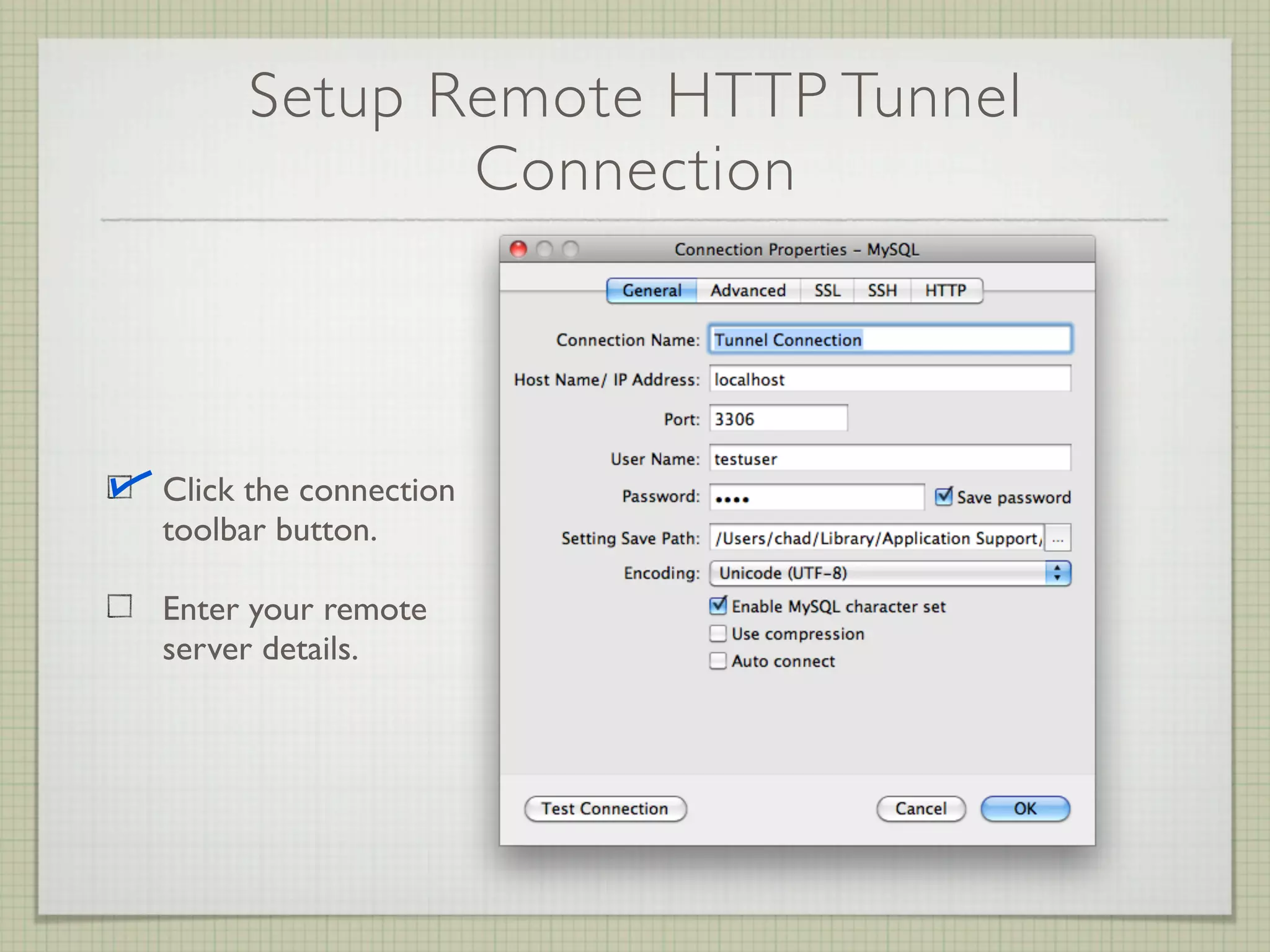
Setup Remote HTTP Tunnel
            Connection


Click the connection
toolbar button.

Enter your remote
server details.
Setup Remote HTTP Tunnel
             Connection


Click the connection
toolbar button.

Enter your remote
server details.

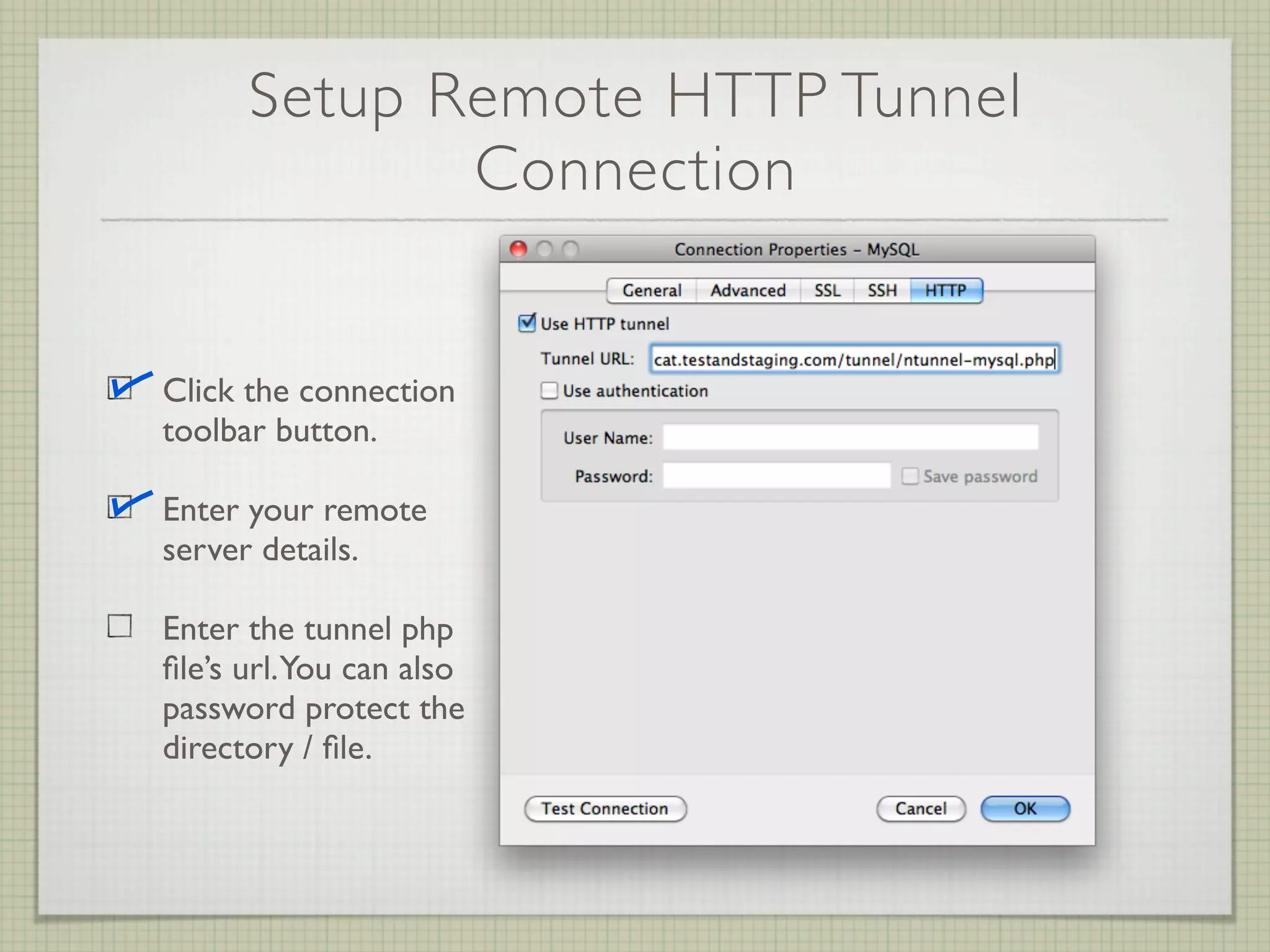
Enter the tunnel php
file’s url. You can also
password protect the
directory / file.
Setup Remote HTTP Tunnel
             Connection

Click the connection
toolbar button.

Enter your remote
server details.

Enter the tunnel php
file’s url. You can also
password protect the
directory / file.

Test your
connection.
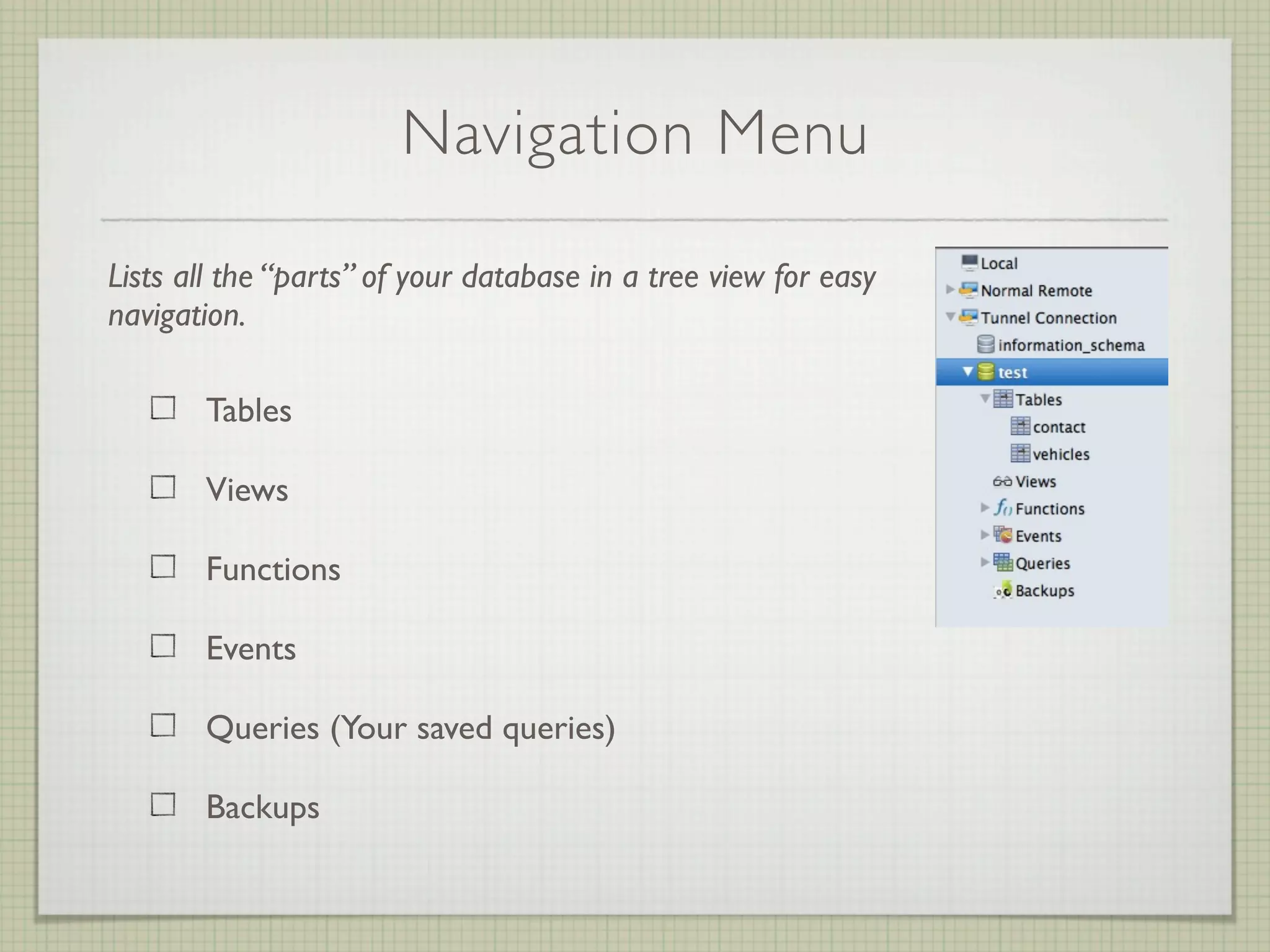
Navigation Menu

Lists all the “parts” of your database in a tree view for easy
navigation.

       Tables

       Views

       Functions

       Events

       Queries (Your saved queries)

       Backups
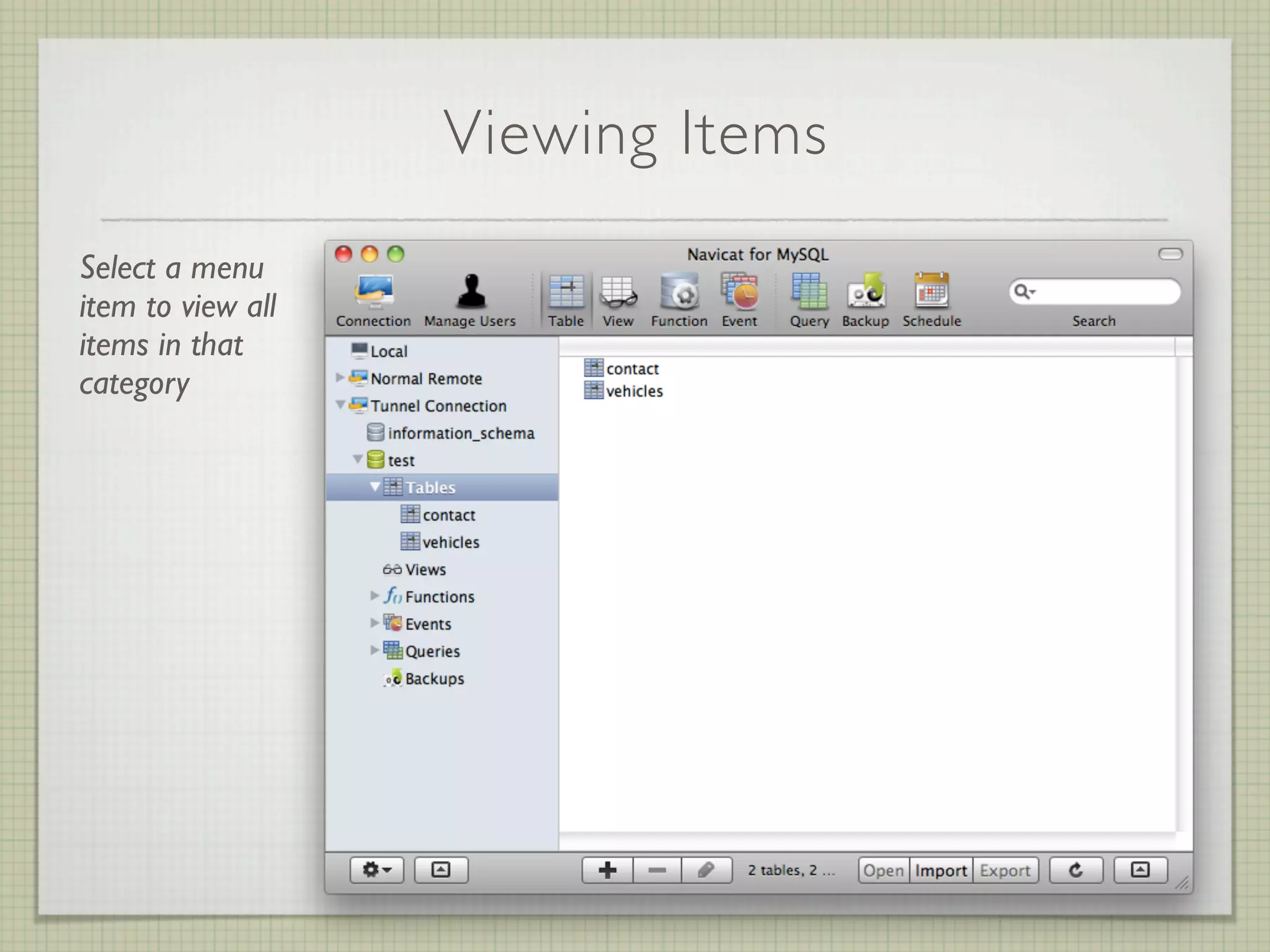
Viewing Items
Select a menu
item to view all
items in that
category
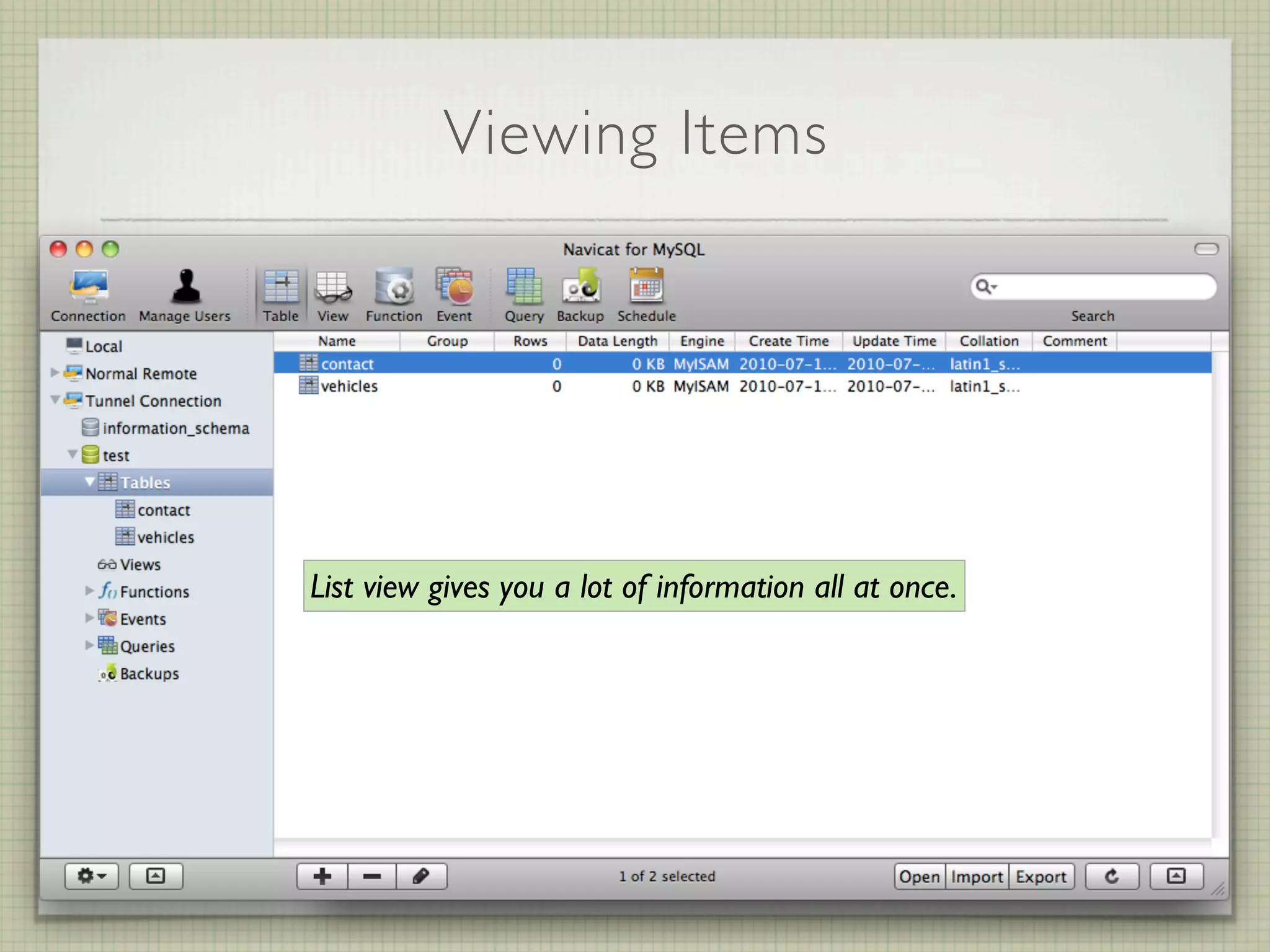
Viewing Items


List view gives you a lot of information all at once.
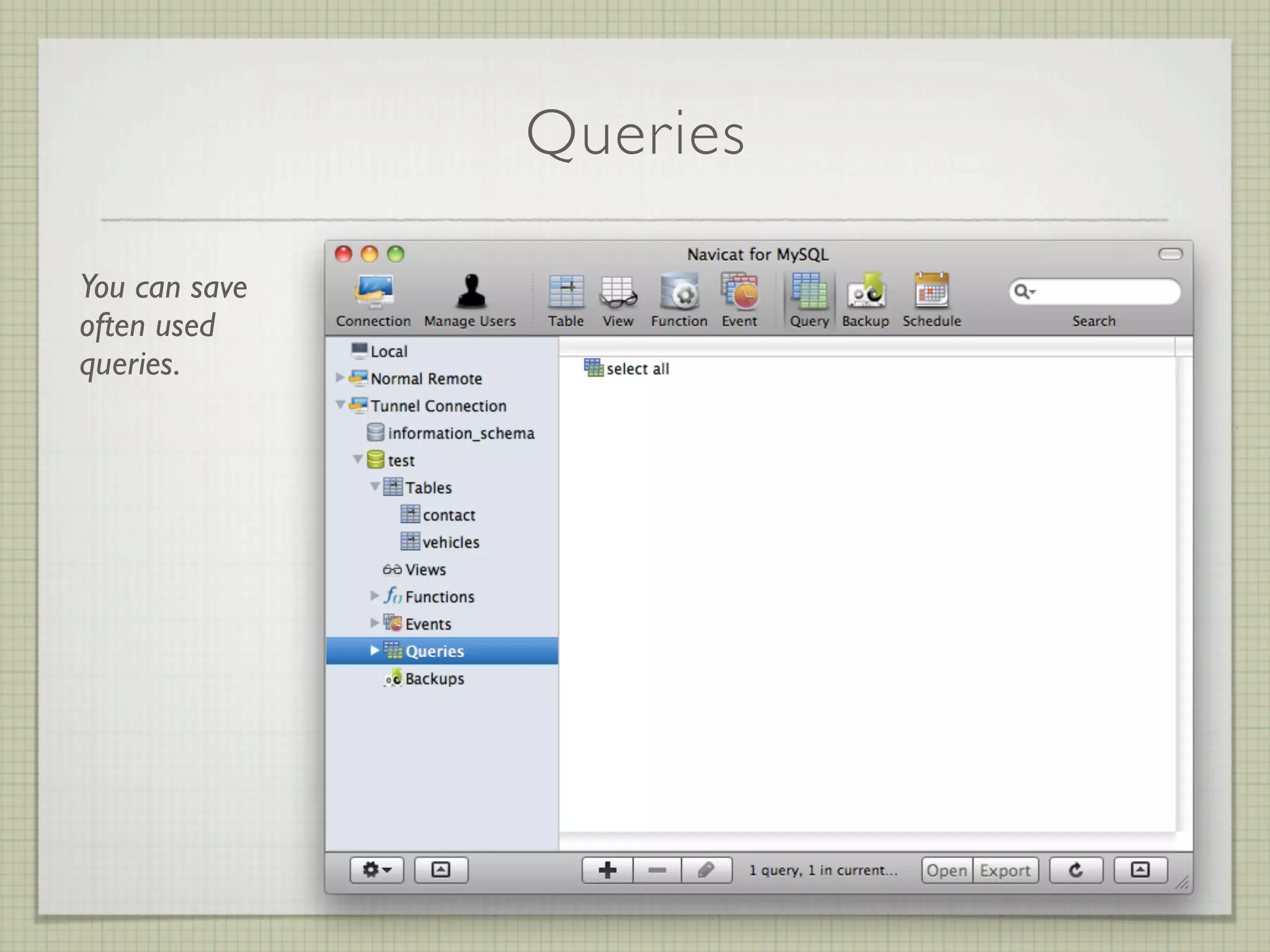
Queries

You can save
often used
queries.
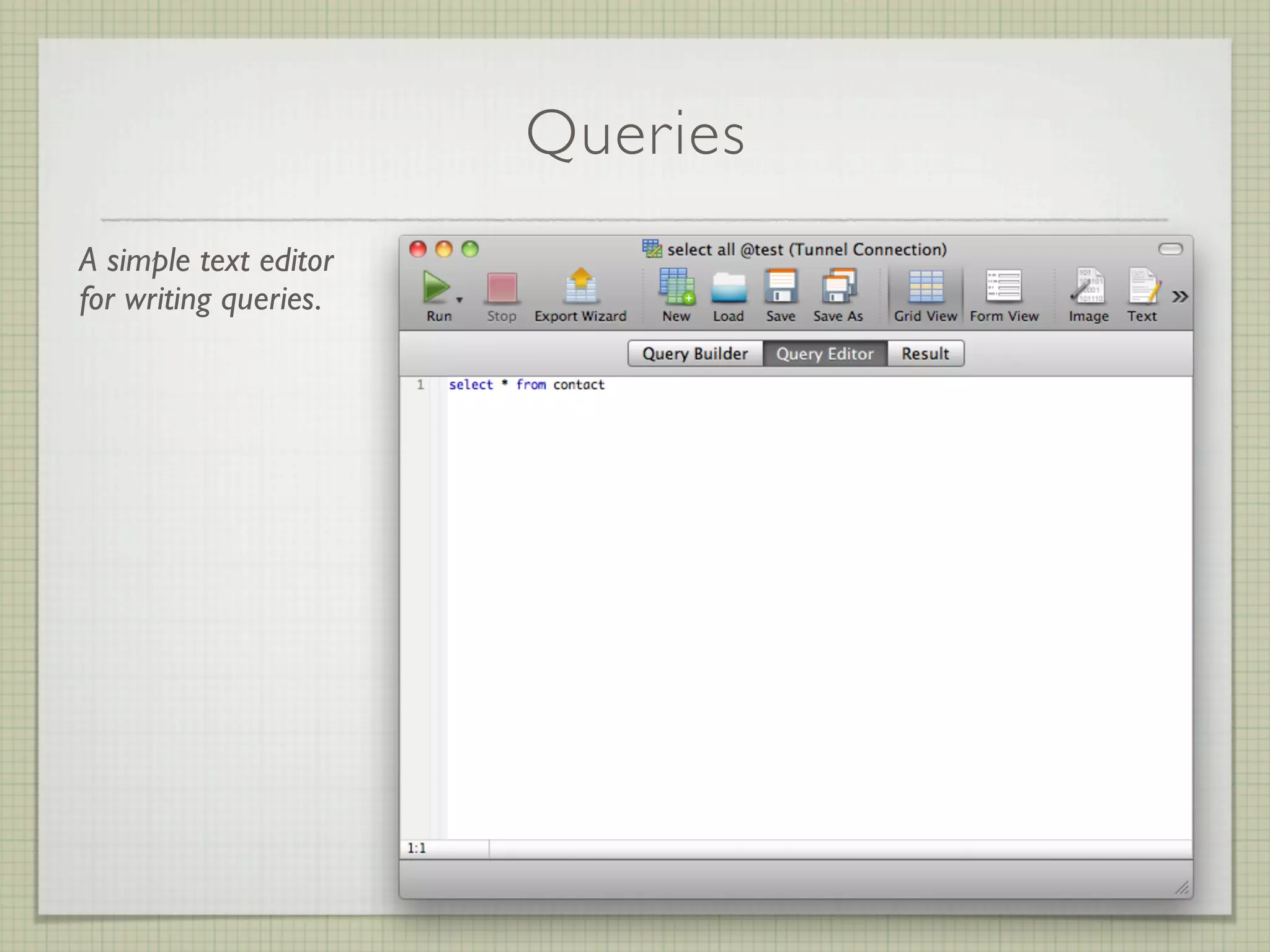
Queries
A simple text editor
for writing queries.
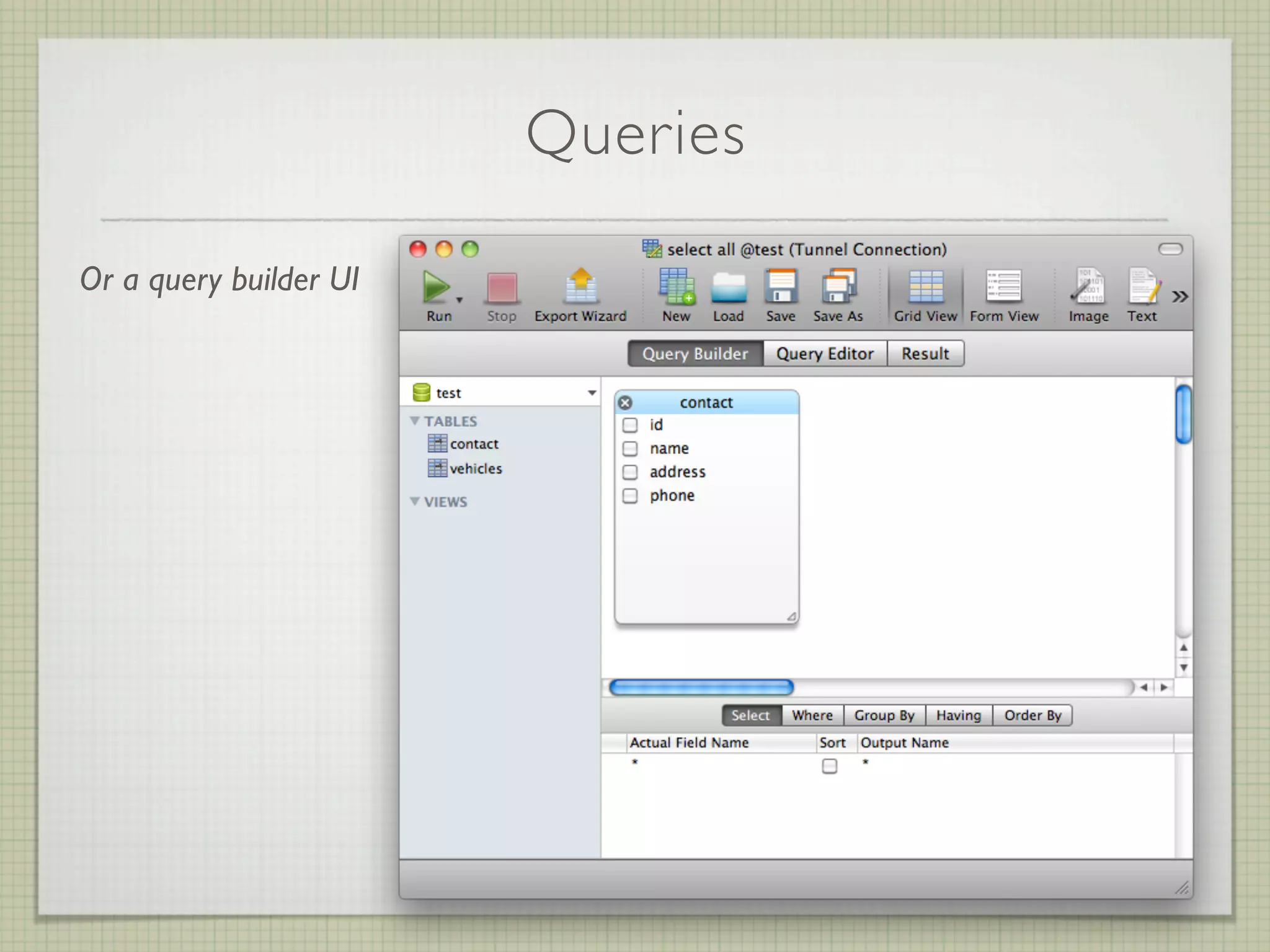
Queries

Or a query builder UI
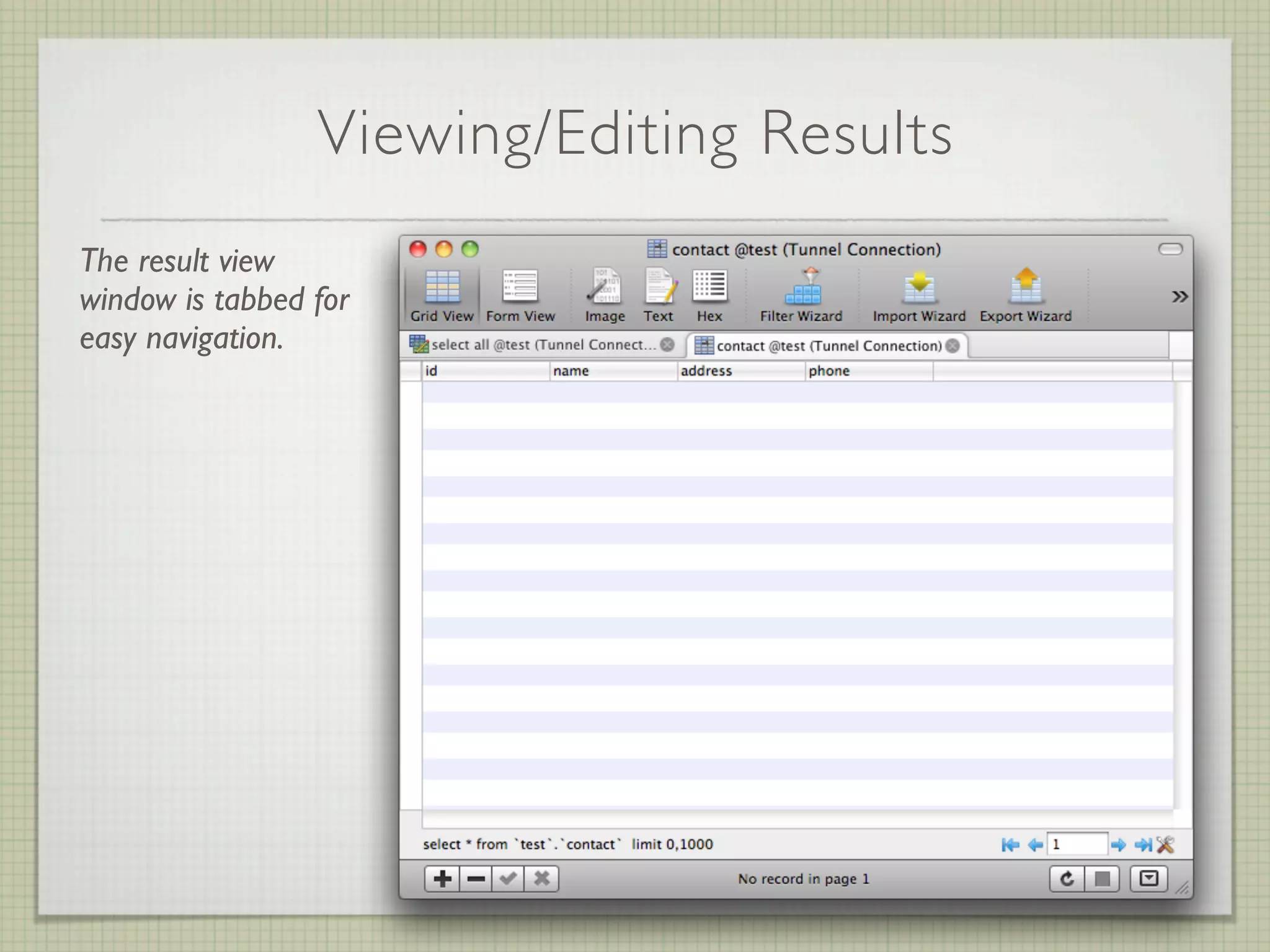
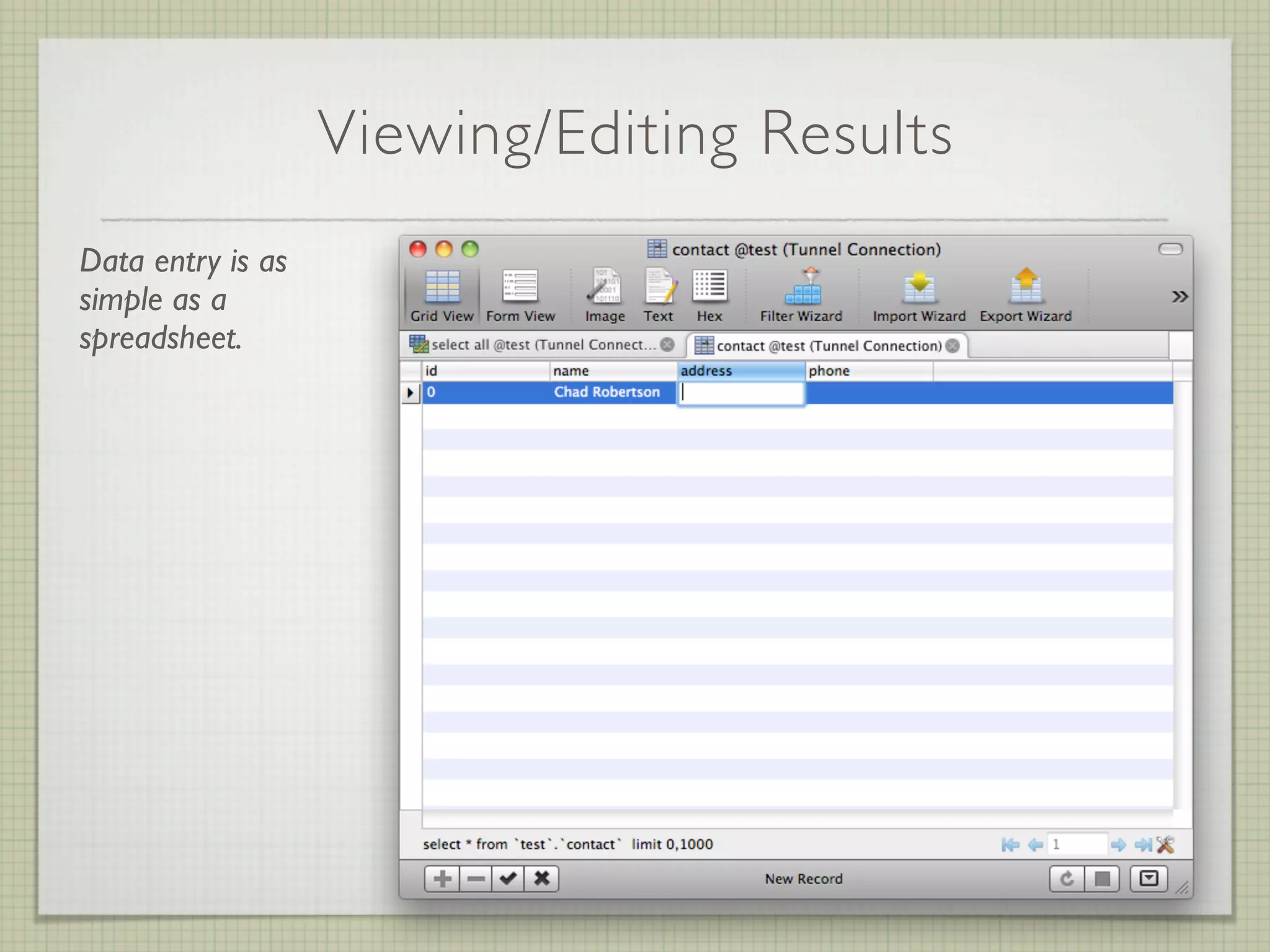
Viewing/Editing Results
The result view
window is tabbed for
easy navigation.
Viewing/Editing Results
Data entry is as
simple as a
spreadsheet.
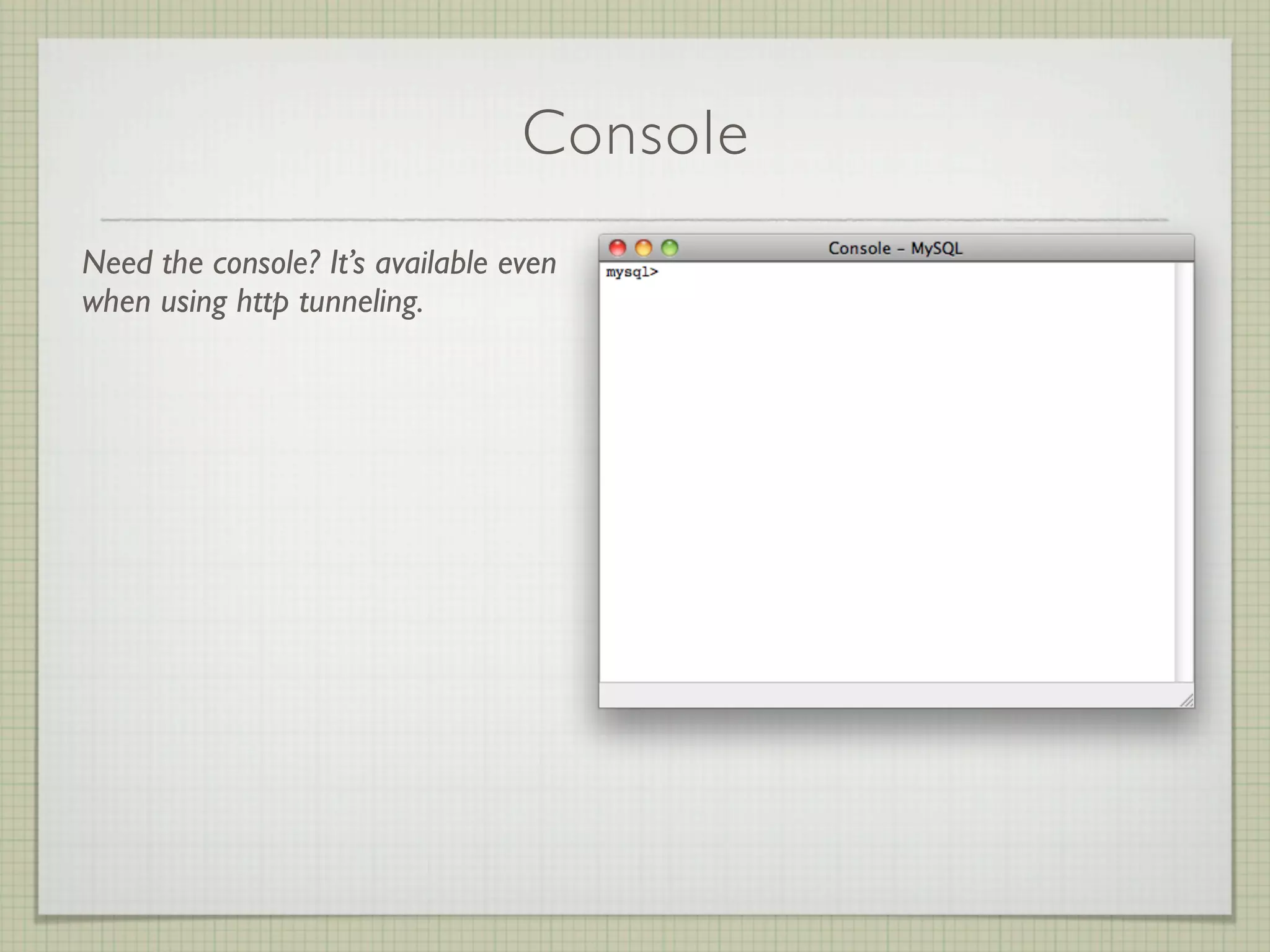
Console
Need the console? It’s available even
when using http tunneling.
And Much Much More...


    Demo and Questions
Thank You!

Introduction To Navicat MySql GUI

  • 1.
    Introduction To MySql DatabaseAdministration GUI Presented By Chad Robertson For Front Range PHP Users Group July 13th 2010
  • 2.
    What I WillBe Covering What is Navicat? The stacks I used for this presentation Why would you want to use it? Comparison to phpMyAdmin Who can use it? Setting up a connection (local, remote and remote http tunnel) Basic usage Demo / Questions?
  • 3.
    What I WillBe Covering What is Navicat? The stacks I used for this presentation Why would you want to use it? Comparison to phpMyAdmin Who can use it? Setting up a connection (local, remote and remote http tunnel) Basic usage Demo / Questions?
  • 4.
    What is Navicat DatabaseGUI Administration Development
  • 5.
  • 6.
  • 7.
  • 8.
  • 9.
  • 10.
    Remote Stack Configuration MySql With Http Tunneling
  • 11.
    Remote Stack Configuration MySql Normal Port Connection
  • 12.
    Why Would YouWant To Use It? Single interface for multiple servers Advanced controls Simple to advanced user interface Multiple ways to manage Simple importing and exporting of data Lite version for free They support non-profit and open source projects
  • 13.
    Comparison to phpMyAdmin Pro’s Always Available Powerful Con’s Single Server Speed Confusing Dated Interface
  • 14.
    Who Can UseIt? XP Vista Server 2003 Server 2008 Windows 7
  • 15.
    Who Can UseIt? 10.4 Tiger 10.5 Leopard 10.6 Snow Leopard
  • 16.
    Who Can UseIt? Compatible with i386 PC Support 32-bit and 64-bit Linux platform Support Linux kernel version 2.2 or higher Support Glibc 2.4 or above Support GNOME and KDE
  • 17.
    Setup a LocalConnection Click the connection toolbar button.
  • 18.
    Setup a LocalConnection Click the connection toolbar button. Enter your local server details.
  • 19.
    Setup a LocalConnection Click the connection toolbar button. Enter your local server details. Mac OS X requires a socket file, this is the location for Zend Server CE.
  • 20.
    Setup a LocalConnection Click the connection toolbar button. Enter your local server details. Mac OS X requires a socket file, this is the location for Zend Server CE. Test your connection.
  • 21.
    Setup a LocalConnection Click the connection toolbar button. Enter your local server details. Mac OS X requires a socket file, this is the location for Zend Server CE. Test your connection. Profit!
  • 22.
    Setup a RemoteConnection Click the connection toolbar button.
  • 23.
    Setup a RemoteConnection Click the connection toolbar button. Enter your remote server details.
  • 24.
    Setup a RemoteConnection Click the connection toolbar button. Enter your remote server details. Test your connection.
  • 25.
    Setup a RemoteConnection Click the connection toolbar button. Enter your remote server details. Test your connection. Profit!
  • 26.
    Setup Remote HTTPTunnel Connection Click the connection toolbar button.
  • 27.
    Setup Remote HTTPTunnel Connection Click the connection toolbar button. Enter your remote server details.
  • 28.
    Setup Remote HTTPTunnel Connection Click the connection toolbar button. Enter your remote server details. Enter the tunnel php file’s url. You can also password protect the directory / file.
  • 29.
    Setup Remote HTTPTunnel Connection Click the connection toolbar button. Enter your remote server details. Enter the tunnel php file’s url. You can also password protect the directory / file. Test your connection.
  • 30.
    Navigation Menu Lists allthe “parts” of your database in a tree view for easy navigation. Tables Views Functions Events Queries (Your saved queries) Backups
  • 31.
    Viewing Items Select amenu item to view all items in that category
  • 32.
    Viewing Items List viewgives you a lot of information all at once.
  • 33.
  • 34.
    Queries A simple texteditor for writing queries.
  • 35.
  • 36.
    Viewing/Editing Results The resultview window is tabbed for easy navigation.
  • 37.
    Viewing/Editing Results Data entryis as simple as a spreadsheet.
  • 38.
    Console Need the console?It’s available even when using http tunneling.
  • 39.
    And Much MuchMore... Demo and Questions
  • 40.