INTRODUCTION OF
INFORMATION TECHNOLGY
OPERATING SYSTEM
An operating system (OS) is the program that,
after being initially loaded into the computer by a
boot program, manages all the other application
programs in a computer. The application programs
use the OS by requesting services through a
defined application program interface (API). In
addition, users can interact directly with the
operating system through a user interface (UI),
such as a command-line interface (CLI) or a
graphical user interface (GUI).
WHAT DOES AN OPERATING
SYSTEM DO
 An operating system brings powerful benefits to
computer software and software development.
Without an operating system, which is system
software specifically designed to run the computer,
every application would need to include its own UI,
as well as the comprehensive code needed to handle
all low-level functionality of the underlying
computer's system software, such as disk storage and
network interfaces. Considering the vast array of
underlying hardware available, and the number of
software routines that must be run at the system
software level to support computer functions, this
would bloat the size of every application and make
software development impractical.
FUNCTIONS OF AN OPERATING
SYSTEM
User interface
 The user can interact with the computer to do work either through a GUI, which
is a point-and-click visual screen that contains icons that trigger system
functions and launch applications, a CLI, which consists of a single command
line for data entry, or both.The architecture of an OS.
Application management
 An operating system handles the launch and management of every application,
which supports the following functions:Timesharing multiple processes,
or threads, so that various tasks can share the available processors'
resources.Manages interruptions that applications produce to gain a processor's
immediate attention, ensuring there's enough memory to execute the application
and its corresponding data without interfering with other processes.Carries out
error handling that can remove an application's processes.Perform memory
management without disrupting other applications or the OS.
Hardware provisioning and execution
 An operating system can also support APIs that enable applications to use OS
and hardware functions without the need to know anything about the low-level
OS or hardware state. For example, a Windows API can enable a program to
obtain input from a keyboard or mouse; create GUI elements, such as dialog
windows and buttons; and read and write files to a storage device. Applications
are almost always tailored to use the OS system on which the application
intends to run.
Process scheduling and prioritization
 In a multitasking operating system, where multiple programs can be
running at the same time, the OS determines in which order
applications should run and how much time should be allowed for
each application before giving another application a turn. For
example, the OS can determine if a batch job, such as a large printing
task, can be scheduled to run later when resources are free.
Parallel processing
 On computers that can provide parallel processing, an OS manages
how to divide a program so that it runs on more than one processor at
a time.
File management
 Per user request, IT rulesets or default settings, an operating system
manages the creation, access, modification and deletion of files and
directories.
Networking
 Transparent to the user, the OS automatically connects a
workstation to networkwide resources by
deciphering network protocols and connecting to networks. This
enables a single user to access network printers and servers that are
hosted on the network.
Security
 Using policies defined and authorized by IT, the OS enforces security
access controls and encryption for users, applications and data.
Performance monitoring and error detection
 The OS continually monitors computer performance and produces system
logs that assist in fine-tuning for optimal performance and resolving
issues that concern resource utilization, performance slowdowns and
bottlenecks, and error resolution.
Backup and recovery
 Data can be backed up periodically throughout the day, nightly, weekly
or at whatever frequency that's defined. The OS can perform these
backups automatically, without user or IT assistance. If a data outage or
system failure occurs,
data can easily be recovered from the latest backup.
Virtualization
 Most OSes enable users to define multiple operating systems that run
independently of each other by using software-created partitions that
separate each OS from the others on a single physical workstation. This
enables the user to run multiple applications, each with their own
dedicated OS, simultaneously on a single workstation to optimize
performance.
OPERATING SYSTEM TYPES
 General-purpose operating systems
A general-purpose OS can run a multitude of
applications on a broad selection of hardware,
enabling a user to run one or more applications or
tasks simultaneously. A general-purpose OS can be
installed on many different desktop and laptop
models and run applications from accounting
systems to databases to web browsers to games.
General-purpose OSes typically focus on process, or
thread, and hardware management to ensure that
applications can reliably share the wide range of
computing hardware present.
 Windows, Microsoft's flagship operating system, is the
de facto standard for home and business computers.
Introduced in 1985, the Microsoft Windows GUI-based
OS has been released in many versions since then.
The user-friendly Windows 95 was largely responsible
for the rapid development of personal computing.
 Mac OS is the operating system for Apple's line of PCs
and workstations.
 Unix is a multiuser operating system designed for
flexibility and adaptability. Originally developed in
the 1970s, Unix was one of the first OSes to be written
in the C language.
 Linux is a Unix-like operating system from the open
source community that was designed to provide PC
users a free or low-cost OS alternative. Linux has a
reputation as an efficient and fast-performing OS.
 Mobile operating systems
Mobile operating computer systems are designed for
mobile computing and communication-centric devices,
such as smartphones and tablets. Mobile devices
typically offer limited computing resources compared
to traditional PCs, and the OS must be scaled back in
size and complexity to minimize its own resource use,
while ensuring adequate resources for one or more
applications running on the device. Mobile operating
systems tend to emphasize efficient performance, user
responsiveness and close attention to data handling
tasks, such as supporting media streaming. Apple iOS
and Android are examples of mobile operating
systems.
Embedded operating systems
 Not all computing devices are general-purpose. A huge assortment of dedicated
devices -- including home digital assistants, automated teller machines,
airplane systems, retail point of sale terminals and internet of things devices --
use more customized and "slimmed down" operating systems. The principal
difference between embedded OSes and general-purpose OSes is that the
devices the embedded OSes are embedded on do only one major thing, so the OS
is highly stripped down and dedicated to both performance and resilience. The
embedded OS should run quickly, not crash, and handle all errors gracefully to
continue operating in all circumstances. In most cases, the OS is provided on a
chip that's incorporated into the actual device. A medical device used in a
patient's life support equipment, for example, employs an embedded OS that
must run reliably to keep the patient alive. Embedded Linux is one example of
an embedded OS.
Network operating systems
 A network operating system (NOS) is another specialized OS intended to
facilitate communication between devices operating on a local area network. A
NOS provides the communication stack needed to understand network protocols
to create, exchange and decompose network packets. Today, the concept of a
specialized NOS is largely obsolete because other OSes handle network
communication. Windows 10 and Windows Server 2019, for example, include
comprehensive networking capabilities. The concept of a NOS is still used for
some networking devices, such as routers, switches and firewalls, and
manufacturers employ proprietary NOSes, including Cisco Internetwork
Operating System and the open source NOS RouterOS from MikroTik.
 Real-time operating systems
When a computing device must interact with the
real world within constant and repeatable time constraints,
the device manufacturer might opt to use a real-time
operating system (RTOS). For example, an industrial
control system might direct the operations of a sprawling
factory or power plant. Such a facility produces signals
from myriad sensors and sends signals to operate valves,
actuators, motors and countless other devices.
Distributed operating systems
A distributed OS installed on a network can provide
service to a multitude of workstations, especially thin-
client computers that have little or no resident applications
or data on them. Multiple users access and share
applications and resources that are hosted on these larger,
distributed network servers, and the OSes on these servers
manage the access requests and resource consumption
from multiple user workstations.
ADVANTAGES OF UNIX OPERATING SYSTEM
Ecommerce:
 Many big online stores use UNIX or Linux servers to host their
websites. UNIX has also used to manage mobiles and electronic
machines.
Portable:
 As UNIX is made from using C language so it is a highly
portable OS. You can use this OS on any PC or MAC computers.
C is a very popular language and most programmers can work
easily in this language. You can communicate with hardware by
using the C language.
Memory usage:
 UNIX use less memory while running sophisticated programs.
UNIX OS can handle virtual memory nicely. The virtual
memory expands as more programs come into the main memory.
Most of the tasks in UNIX is done by using fewer resources.
Less code to execute:
 In GUI (graphical user interface), we sometimes need
many mouse clicks to perform some specific task but in the
case of UNIX we can simply write one command in CLI
(command line interface) and that task is done.
Files used everywhere:
 All type of data is stored in files i.e. all devices and
terminal are stored in files. Working with files in OS
becomes fast and can be easily managed by UNIX.
Ideal for web hosting:
 As UNIX OS is free and secure so it is widely used by web
hosting companies. Many web hosting servers use utilities
like DNS (Domain Name Server), DHCP (Dynamic Host
Configuration Protocol) and the webserver.
Safe and secure:
 UNIX provides a safe and secure platform in which multiple
users can interact with the servers online without any security
issues. The interaction with the UNIX servers is fast and
without any bugs. UNIX uses UID and GID for controlling
permissions for users and files are accessed by users through
these permissions
No anti-virus needed:
 As you know that Chrome OS, macOS, Linux, Ubuntu and
android are developed by using UNIX OS. These OS are
considered safe from any virus. You don’t need to install any
anti-virus in newly build Chrome OS.
User interactions:
 There are many online servers, electric machines where user
interaction is not involved. UNIX is an ideal choice for machines
and devices where no or fewer user interactions are involved.
UNIX can manage the automatic working of systems very well.
FEATURES UNIX
 UNIX is free
 The file system is hierarchical by which accessing
and retrieving files become easy
 The performance of UNIX is better than
Windows NT
 Stable database access
 Better handling of internet and intranet in
servers
 Internet-client and file server are better
managed using Java in UNIX
DISADVANTAGES OF UNIX OPERATING
SYSTEM
Not user friendly:
 Novice user has difficulty in using UNIX. Most of the
work in UNIX is done by using commands in CLI so
beginner has to remember a different type of commands.
UNIX is solely made for programmers and not for
beginner users. Some experience people also feel
difficulty in using commands because some commands
are very different from their name.
Poor documentation:
 There is not any proper documentation available for
UNIX. If the user gets any problem then he has to
consult some expert and getting online help from the
documentation is very difficult. If you compare this with
Windows and macOS then you will get proper and easy
to follow the documentation that is available online.
Cryptic commands:
 Most of the commands in UNIX use cryptic words. It is
difficult for the casual user to get the idea of working of
command. Some commands use special characters and
understanding commands for newbie programmers become
difficult. If you use any wrong character in the command then
your system will start doing unknown works that may also
delete or change some data from your computer. Some
commands in UNIX work in a combination of other commands
so if you forget any command then your work cannot be
completed.
High learning curve:
 The commands in UNIX is much more difficult than
commands in Windows MS-DOS and macOS. It also becomes
difficult to remember the commands. You have to go through
the documentation every time you have to use any complex
command. The new UNIX OS comes with GUI but still, most
of the work is done using CLI. The apps and software in UNIX
are also not very popular and you have to learn them before
using this software.
DOS
 Any operating system which runs from the hard
disk drive is termed a Disk Operating System
( D.O.S ). This also refers to the specific family of
disk operating systems known as MS-DOS or
Microsoft disk operating system. Anything that
commands and controls the computer’s hardware
and peripheral devices with control over the
program, and its functionality is known as the
operating system. This operating system which
runs through the hard disk, is known as a disk
operating system. For the first time, It was made
and introduced for IBM by Microsoft, known as
IBM PC DOS, in 1981.
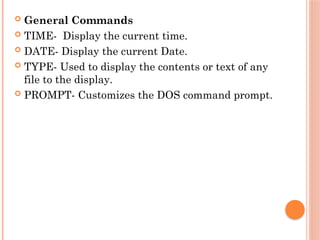
 General Commands
 TIME- Display the current time.
 DATE- Display the current Date.
 TYPE- Used to display the contents or text of any
file to the display.
 PROMPT- Customizes the DOS command prompt.
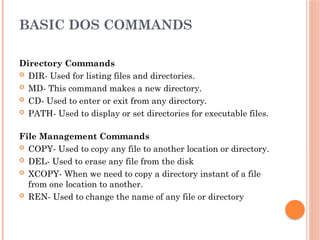
BASIC DOS COMMANDS
Directory Commands
 DIR- Used for listing files and directories.
 MD- This command makes a new directory.
 CD- Used to enter or exit from any directory.
 PATH- Used to display or set directories for executable files.
File Management Commands
 COPY- Used to copy any file to another location or directory.
 DEL- Used to erase any file from the disk
 XCOPY- When we need to copy a directory instant of a file
from one location to another.
 REN- Used to change the name of any file or directory
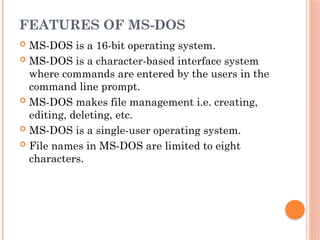
FEATURES OF MS-DOS
 MS-DOS is a 16-bit operating system.
 MS-DOS is a character-based interface system
where commands are entered by the users in the
command line prompt.
 MS-DOS makes file management i.e. creating,
editing, deleting, etc.
 MS-DOS is a single-user operating system.
 File names in MS-DOS are limited to eight
characters.
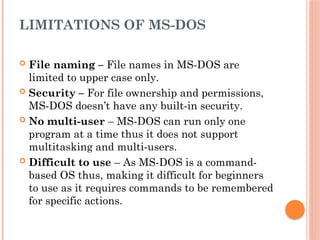
LIMITATIONS OF MS-DOS
 File naming – File names in MS-DOS are
limited to upper case only.
 Security – For file ownership and permissions,
MS-DOS doesn’t have any built-in security.
 No multi-user – MS-DOS can run only one
program at a time thus it does not support
multitasking and multi-users.
 Difficult to use – As MS-DOS is a command-
based OS thus, making it difficult for beginners
to use as it requires commands to be remembered
for specific actions.
WINDOWS OPERATING SYSTEM
 Windows Operating System is a type of operating system
based on Graphical User Interface (GUI). It is called a
graphical user interface because it create an interface
(communication screen) between user and machine by using
graphical elements like icons, pictures, colors, etc.
 The Windows operating system was developed by Microsoft
Corporation, an American Multinational technology
company founded by Bill Gates and Paul Allen. Windows
operating system is one of the most popular computer
operating systems in the world. The primary reason behind
its global popularity is its very user-friendly interface.
Windows operating system also provides multitasking
capabilities, virtual memory management, etc.
ADVANTAGES OF WINDOWS OPERATING
SYSTEM
Unser Friendly Interface and Easy to Use
 The user interface created by the Windows operating
system on the computer screen is quite user friendly
when compared to other operating systems such as
Linux and MAC. Also, all versions of the windows
operating system such as windows 7, windows 8,
windows 10, and windows 11 have several things
common that make users easy to switch from one
version to another.
Compatible to All Hardware
 As Windows operating system is the most extensively
used computer operating system. It is used by over
95% of users globally. Thus, all the computer
hardware manufacturers produce drivers for windows
operating system.
Support Plug and Play Feature
 In Windows operating system most hardware drivers are
preinstalled which makes it to offer plug and play feature.
Therefore, a computer system with windows operating system
can detect the plug hardware device automatically to play and
hence we do not need to install driver of the device manually.
Provide Software Development Support
 For software developers, windows operating system
environment is most convenient. This is because Linux users
cannot create applications to run on windows operating
system. Thus, it is a better choice to use windows operating
system to develop applications. For this reason, programmers
and software engineers use windows operating system to
develop games, utilities, and other applications.
Have Both Desktop and Touch Screen Support
 The interface of Windows 10 and Windows 11 operating
systems are made to support both desktop devices and touch
screen devices.
Poor Technical Support
 Windows customer support is very poor for most
windows users. Windows support team provides
technical support service only to some large
organizations. Therefore, individual users have to
look at some external resource and forums to resolve
their technical problems.
High Performance System Requirement
 As windows operating system is an excellent
graphical user interface operating system. Hence, it
requires a high performance system to run. To install
windows operating system, the computer system
must have large RAM capacity, powerful CPU, large
capacity storage disk, good graphics card, etc.
DISADVANTAGES OF WINDOWS OPERATING
SYSTEM
Security Concerns
 Windows operating system is relatively unsafe against security
threats. Therefore, hackers can easily penetrate into the system
by breaking its security layers. So, users of windows operating
system are to be highly rely on anti-virus software to protect
their data from malicious attacks.
Paid Software
 The application software run on windows operating system are
paid. For example, we want to do graphic designing, we have
purchase Photoshop or any other graphics software, for word
processing we have to purchase MS-Word, and so on.
Expensive
 To use Windows operating system on the computer, we have to
purchase license from Microsoft, thus we cannot use windows
operating system legally free. The cost of buying a copy of
windows license is very high.
WHAT IS AN EMAIL?
Email is the short form of electronic mail. It is a
method of exchanging digital communication via
internet or a network. Anyone with an internet
connection can send email messages to an
individual or a group of email recipients around the
world. This transfer of communication occurs in a
few seconds.
HOW DOES EMAIL WORK?
 Sender – The one who creates the email to be sent to the
receiver
 Receiver – The one (s) who receive the email
 Email address – It determines who is sending and receiving the
email; there will be one email address of the sender and one or
more email addresses of the receivers. It comprises three parts –
local part (a unique set of characters from alphabets to numbers),
@ symbol, and domain name
 Mail Server – Each email that is sent goes through a mail
server. There can be two mail servers between the sender and
recipient.
 MTA – Mail Transfer Agent is a program that receives mail from
the sender and send to SMTP
 Email Protocols – Simple Mail Transfer Protocol (SMTP), Post
Office Protocol (POP), and Internet Message Access Protocol
(IMAP) are the three email protocols.
MOBILE COMPUTER
 Customers often have questions about mobile
computing such as, "What is a mobile computer?
Is it a wireless barcode scanner, tablet, or smart
phone? Or is it any mobile device used for
scanning?" The answers may surprise you. Like
wireless scanners, mobile computers scan
barcodes and capture data. They both support
multiple interface options and come in a variety
of sizes, shapes, and styles.
MOBILE COMPUTER TYPES
 Handheld – Small, yet durable, devices that
extend organizational knowledge into the field by
combining scanning and processing functions
into a single device
 Wearable – Wearable devices that come
equipped with the latest voice technology for
streamlined picking, packing, and shipping
 Vehicle-mounted – Rugged mobile
workstations that attach to industrial vehicles
such as trucks, forklifts, and carts
 Tablets – Handheld computers that securely
transmit data over high-speed networks using the
familiar design and functionality of consumer tablets
while enjoying the durability of enterprise scanning
devices
 Smartphones – Small devices outfitted with
processing, scanning, and cellular functionality for
true all-in-one mobility
 Hazardous environment - Certified handheld
computers specifically designed for environments
where the potential for explosions is present; includes
both intrinsically safe and non-incendive devices
THANK
YOU

INTRODUCTION TO INFORMATION TECHNOLOGY.pptx

  • 1.
  • 2.
    OPERATING SYSTEM An operatingsystem (OS) is the program that, after being initially loaded into the computer by a boot program, manages all the other application programs in a computer. The application programs use the OS by requesting services through a defined application program interface (API). In addition, users can interact directly with the operating system through a user interface (UI), such as a command-line interface (CLI) or a graphical user interface (GUI).
  • 3.
    WHAT DOES ANOPERATING SYSTEM DO  An operating system brings powerful benefits to computer software and software development. Without an operating system, which is system software specifically designed to run the computer, every application would need to include its own UI, as well as the comprehensive code needed to handle all low-level functionality of the underlying computer's system software, such as disk storage and network interfaces. Considering the vast array of underlying hardware available, and the number of software routines that must be run at the system software level to support computer functions, this would bloat the size of every application and make software development impractical.
  • 4.
    FUNCTIONS OF ANOPERATING SYSTEM User interface  The user can interact with the computer to do work either through a GUI, which is a point-and-click visual screen that contains icons that trigger system functions and launch applications, a CLI, which consists of a single command line for data entry, or both.The architecture of an OS. Application management  An operating system handles the launch and management of every application, which supports the following functions:Timesharing multiple processes, or threads, so that various tasks can share the available processors' resources.Manages interruptions that applications produce to gain a processor's immediate attention, ensuring there's enough memory to execute the application and its corresponding data without interfering with other processes.Carries out error handling that can remove an application's processes.Perform memory management without disrupting other applications or the OS. Hardware provisioning and execution  An operating system can also support APIs that enable applications to use OS and hardware functions without the need to know anything about the low-level OS or hardware state. For example, a Windows API can enable a program to obtain input from a keyboard or mouse; create GUI elements, such as dialog windows and buttons; and read and write files to a storage device. Applications are almost always tailored to use the OS system on which the application intends to run.
  • 5.
    Process scheduling andprioritization  In a multitasking operating system, where multiple programs can be running at the same time, the OS determines in which order applications should run and how much time should be allowed for each application before giving another application a turn. For example, the OS can determine if a batch job, such as a large printing task, can be scheduled to run later when resources are free. Parallel processing  On computers that can provide parallel processing, an OS manages how to divide a program so that it runs on more than one processor at a time. File management  Per user request, IT rulesets or default settings, an operating system manages the creation, access, modification and deletion of files and directories. Networking  Transparent to the user, the OS automatically connects a workstation to networkwide resources by deciphering network protocols and connecting to networks. This enables a single user to access network printers and servers that are hosted on the network.
  • 6.
    Security  Using policiesdefined and authorized by IT, the OS enforces security access controls and encryption for users, applications and data. Performance monitoring and error detection  The OS continually monitors computer performance and produces system logs that assist in fine-tuning for optimal performance and resolving issues that concern resource utilization, performance slowdowns and bottlenecks, and error resolution. Backup and recovery  Data can be backed up periodically throughout the day, nightly, weekly or at whatever frequency that's defined. The OS can perform these backups automatically, without user or IT assistance. If a data outage or system failure occurs, data can easily be recovered from the latest backup. Virtualization  Most OSes enable users to define multiple operating systems that run independently of each other by using software-created partitions that separate each OS from the others on a single physical workstation. This enables the user to run multiple applications, each with their own dedicated OS, simultaneously on a single workstation to optimize performance.
  • 7.
    OPERATING SYSTEM TYPES General-purpose operating systems A general-purpose OS can run a multitude of applications on a broad selection of hardware, enabling a user to run one or more applications or tasks simultaneously. A general-purpose OS can be installed on many different desktop and laptop models and run applications from accounting systems to databases to web browsers to games. General-purpose OSes typically focus on process, or thread, and hardware management to ensure that applications can reliably share the wide range of computing hardware present.
  • 8.
     Windows, Microsoft'sflagship operating system, is the de facto standard for home and business computers. Introduced in 1985, the Microsoft Windows GUI-based OS has been released in many versions since then. The user-friendly Windows 95 was largely responsible for the rapid development of personal computing.  Mac OS is the operating system for Apple's line of PCs and workstations.  Unix is a multiuser operating system designed for flexibility and adaptability. Originally developed in the 1970s, Unix was one of the first OSes to be written in the C language.  Linux is a Unix-like operating system from the open source community that was designed to provide PC users a free or low-cost OS alternative. Linux has a reputation as an efficient and fast-performing OS.
  • 9.
     Mobile operatingsystems Mobile operating computer systems are designed for mobile computing and communication-centric devices, such as smartphones and tablets. Mobile devices typically offer limited computing resources compared to traditional PCs, and the OS must be scaled back in size and complexity to minimize its own resource use, while ensuring adequate resources for one or more applications running on the device. Mobile operating systems tend to emphasize efficient performance, user responsiveness and close attention to data handling tasks, such as supporting media streaming. Apple iOS and Android are examples of mobile operating systems.
  • 10.
    Embedded operating systems Not all computing devices are general-purpose. A huge assortment of dedicated devices -- including home digital assistants, automated teller machines, airplane systems, retail point of sale terminals and internet of things devices -- use more customized and "slimmed down" operating systems. The principal difference between embedded OSes and general-purpose OSes is that the devices the embedded OSes are embedded on do only one major thing, so the OS is highly stripped down and dedicated to both performance and resilience. The embedded OS should run quickly, not crash, and handle all errors gracefully to continue operating in all circumstances. In most cases, the OS is provided on a chip that's incorporated into the actual device. A medical device used in a patient's life support equipment, for example, employs an embedded OS that must run reliably to keep the patient alive. Embedded Linux is one example of an embedded OS. Network operating systems  A network operating system (NOS) is another specialized OS intended to facilitate communication between devices operating on a local area network. A NOS provides the communication stack needed to understand network protocols to create, exchange and decompose network packets. Today, the concept of a specialized NOS is largely obsolete because other OSes handle network communication. Windows 10 and Windows Server 2019, for example, include comprehensive networking capabilities. The concept of a NOS is still used for some networking devices, such as routers, switches and firewalls, and manufacturers employ proprietary NOSes, including Cisco Internetwork Operating System and the open source NOS RouterOS from MikroTik.
  • 11.
     Real-time operatingsystems When a computing device must interact with the real world within constant and repeatable time constraints, the device manufacturer might opt to use a real-time operating system (RTOS). For example, an industrial control system might direct the operations of a sprawling factory or power plant. Such a facility produces signals from myriad sensors and sends signals to operate valves, actuators, motors and countless other devices. Distributed operating systems A distributed OS installed on a network can provide service to a multitude of workstations, especially thin- client computers that have little or no resident applications or data on them. Multiple users access and share applications and resources that are hosted on these larger, distributed network servers, and the OSes on these servers manage the access requests and resource consumption from multiple user workstations.
  • 12.
    ADVANTAGES OF UNIXOPERATING SYSTEM Ecommerce:  Many big online stores use UNIX or Linux servers to host their websites. UNIX has also used to manage mobiles and electronic machines. Portable:  As UNIX is made from using C language so it is a highly portable OS. You can use this OS on any PC or MAC computers. C is a very popular language and most programmers can work easily in this language. You can communicate with hardware by using the C language. Memory usage:  UNIX use less memory while running sophisticated programs. UNIX OS can handle virtual memory nicely. The virtual memory expands as more programs come into the main memory. Most of the tasks in UNIX is done by using fewer resources.
  • 13.
    Less code toexecute:  In GUI (graphical user interface), we sometimes need many mouse clicks to perform some specific task but in the case of UNIX we can simply write one command in CLI (command line interface) and that task is done. Files used everywhere:  All type of data is stored in files i.e. all devices and terminal are stored in files. Working with files in OS becomes fast and can be easily managed by UNIX. Ideal for web hosting:  As UNIX OS is free and secure so it is widely used by web hosting companies. Many web hosting servers use utilities like DNS (Domain Name Server), DHCP (Dynamic Host Configuration Protocol) and the webserver.
  • 14.
    Safe and secure: UNIX provides a safe and secure platform in which multiple users can interact with the servers online without any security issues. The interaction with the UNIX servers is fast and without any bugs. UNIX uses UID and GID for controlling permissions for users and files are accessed by users through these permissions No anti-virus needed:  As you know that Chrome OS, macOS, Linux, Ubuntu and android are developed by using UNIX OS. These OS are considered safe from any virus. You don’t need to install any anti-virus in newly build Chrome OS. User interactions:  There are many online servers, electric machines where user interaction is not involved. UNIX is an ideal choice for machines and devices where no or fewer user interactions are involved. UNIX can manage the automatic working of systems very well.
  • 15.
    FEATURES UNIX  UNIXis free  The file system is hierarchical by which accessing and retrieving files become easy  The performance of UNIX is better than Windows NT  Stable database access  Better handling of internet and intranet in servers  Internet-client and file server are better managed using Java in UNIX
  • 16.
    DISADVANTAGES OF UNIXOPERATING SYSTEM Not user friendly:  Novice user has difficulty in using UNIX. Most of the work in UNIX is done by using commands in CLI so beginner has to remember a different type of commands. UNIX is solely made for programmers and not for beginner users. Some experience people also feel difficulty in using commands because some commands are very different from their name. Poor documentation:  There is not any proper documentation available for UNIX. If the user gets any problem then he has to consult some expert and getting online help from the documentation is very difficult. If you compare this with Windows and macOS then you will get proper and easy to follow the documentation that is available online.
  • 17.
    Cryptic commands:  Mostof the commands in UNIX use cryptic words. It is difficult for the casual user to get the idea of working of command. Some commands use special characters and understanding commands for newbie programmers become difficult. If you use any wrong character in the command then your system will start doing unknown works that may also delete or change some data from your computer. Some commands in UNIX work in a combination of other commands so if you forget any command then your work cannot be completed. High learning curve:  The commands in UNIX is much more difficult than commands in Windows MS-DOS and macOS. It also becomes difficult to remember the commands. You have to go through the documentation every time you have to use any complex command. The new UNIX OS comes with GUI but still, most of the work is done using CLI. The apps and software in UNIX are also not very popular and you have to learn them before using this software.
  • 18.
    DOS  Any operatingsystem which runs from the hard disk drive is termed a Disk Operating System ( D.O.S ). This also refers to the specific family of disk operating systems known as MS-DOS or Microsoft disk operating system. Anything that commands and controls the computer’s hardware and peripheral devices with control over the program, and its functionality is known as the operating system. This operating system which runs through the hard disk, is known as a disk operating system. For the first time, It was made and introduced for IBM by Microsoft, known as IBM PC DOS, in 1981.
  • 19.
     General Commands TIME- Display the current time.  DATE- Display the current Date.  TYPE- Used to display the contents or text of any file to the display.  PROMPT- Customizes the DOS command prompt.
  • 20.
    BASIC DOS COMMANDS DirectoryCommands  DIR- Used for listing files and directories.  MD- This command makes a new directory.  CD- Used to enter or exit from any directory.  PATH- Used to display or set directories for executable files. File Management Commands  COPY- Used to copy any file to another location or directory.  DEL- Used to erase any file from the disk  XCOPY- When we need to copy a directory instant of a file from one location to another.  REN- Used to change the name of any file or directory
  • 21.
    FEATURES OF MS-DOS MS-DOS is a 16-bit operating system.  MS-DOS is a character-based interface system where commands are entered by the users in the command line prompt.  MS-DOS makes file management i.e. creating, editing, deleting, etc.  MS-DOS is a single-user operating system.  File names in MS-DOS are limited to eight characters.
  • 22.
    LIMITATIONS OF MS-DOS File naming – File names in MS-DOS are limited to upper case only.  Security – For file ownership and permissions, MS-DOS doesn’t have any built-in security.  No multi-user – MS-DOS can run only one program at a time thus it does not support multitasking and multi-users.  Difficult to use – As MS-DOS is a command- based OS thus, making it difficult for beginners to use as it requires commands to be remembered for specific actions.
  • 23.
    WINDOWS OPERATING SYSTEM Windows Operating System is a type of operating system based on Graphical User Interface (GUI). It is called a graphical user interface because it create an interface (communication screen) between user and machine by using graphical elements like icons, pictures, colors, etc.  The Windows operating system was developed by Microsoft Corporation, an American Multinational technology company founded by Bill Gates and Paul Allen. Windows operating system is one of the most popular computer operating systems in the world. The primary reason behind its global popularity is its very user-friendly interface. Windows operating system also provides multitasking capabilities, virtual memory management, etc.
  • 24.
    ADVANTAGES OF WINDOWSOPERATING SYSTEM Unser Friendly Interface and Easy to Use  The user interface created by the Windows operating system on the computer screen is quite user friendly when compared to other operating systems such as Linux and MAC. Also, all versions of the windows operating system such as windows 7, windows 8, windows 10, and windows 11 have several things common that make users easy to switch from one version to another. Compatible to All Hardware  As Windows operating system is the most extensively used computer operating system. It is used by over 95% of users globally. Thus, all the computer hardware manufacturers produce drivers for windows operating system.
  • 25.
    Support Plug andPlay Feature  In Windows operating system most hardware drivers are preinstalled which makes it to offer plug and play feature. Therefore, a computer system with windows operating system can detect the plug hardware device automatically to play and hence we do not need to install driver of the device manually. Provide Software Development Support  For software developers, windows operating system environment is most convenient. This is because Linux users cannot create applications to run on windows operating system. Thus, it is a better choice to use windows operating system to develop applications. For this reason, programmers and software engineers use windows operating system to develop games, utilities, and other applications. Have Both Desktop and Touch Screen Support  The interface of Windows 10 and Windows 11 operating systems are made to support both desktop devices and touch screen devices.
  • 26.
    Poor Technical Support Windows customer support is very poor for most windows users. Windows support team provides technical support service only to some large organizations. Therefore, individual users have to look at some external resource and forums to resolve their technical problems. High Performance System Requirement  As windows operating system is an excellent graphical user interface operating system. Hence, it requires a high performance system to run. To install windows operating system, the computer system must have large RAM capacity, powerful CPU, large capacity storage disk, good graphics card, etc.
  • 27.
    DISADVANTAGES OF WINDOWSOPERATING SYSTEM Security Concerns  Windows operating system is relatively unsafe against security threats. Therefore, hackers can easily penetrate into the system by breaking its security layers. So, users of windows operating system are to be highly rely on anti-virus software to protect their data from malicious attacks. Paid Software  The application software run on windows operating system are paid. For example, we want to do graphic designing, we have purchase Photoshop or any other graphics software, for word processing we have to purchase MS-Word, and so on. Expensive  To use Windows operating system on the computer, we have to purchase license from Microsoft, thus we cannot use windows operating system legally free. The cost of buying a copy of windows license is very high.
  • 28.
    WHAT IS ANEMAIL? Email is the short form of electronic mail. It is a method of exchanging digital communication via internet or a network. Anyone with an internet connection can send email messages to an individual or a group of email recipients around the world. This transfer of communication occurs in a few seconds.
  • 29.
    HOW DOES EMAILWORK?  Sender – The one who creates the email to be sent to the receiver  Receiver – The one (s) who receive the email  Email address – It determines who is sending and receiving the email; there will be one email address of the sender and one or more email addresses of the receivers. It comprises three parts – local part (a unique set of characters from alphabets to numbers), @ symbol, and domain name  Mail Server – Each email that is sent goes through a mail server. There can be two mail servers between the sender and recipient.  MTA – Mail Transfer Agent is a program that receives mail from the sender and send to SMTP  Email Protocols – Simple Mail Transfer Protocol (SMTP), Post Office Protocol (POP), and Internet Message Access Protocol (IMAP) are the three email protocols.
  • 30.
    MOBILE COMPUTER  Customersoften have questions about mobile computing such as, "What is a mobile computer? Is it a wireless barcode scanner, tablet, or smart phone? Or is it any mobile device used for scanning?" The answers may surprise you. Like wireless scanners, mobile computers scan barcodes and capture data. They both support multiple interface options and come in a variety of sizes, shapes, and styles.
  • 31.
    MOBILE COMPUTER TYPES Handheld – Small, yet durable, devices that extend organizational knowledge into the field by combining scanning and processing functions into a single device  Wearable – Wearable devices that come equipped with the latest voice technology for streamlined picking, packing, and shipping  Vehicle-mounted – Rugged mobile workstations that attach to industrial vehicles such as trucks, forklifts, and carts
  • 32.
     Tablets –Handheld computers that securely transmit data over high-speed networks using the familiar design and functionality of consumer tablets while enjoying the durability of enterprise scanning devices  Smartphones – Small devices outfitted with processing, scanning, and cellular functionality for true all-in-one mobility  Hazardous environment - Certified handheld computers specifically designed for environments where the potential for explosions is present; includes both intrinsically safe and non-incendive devices
  • 33.