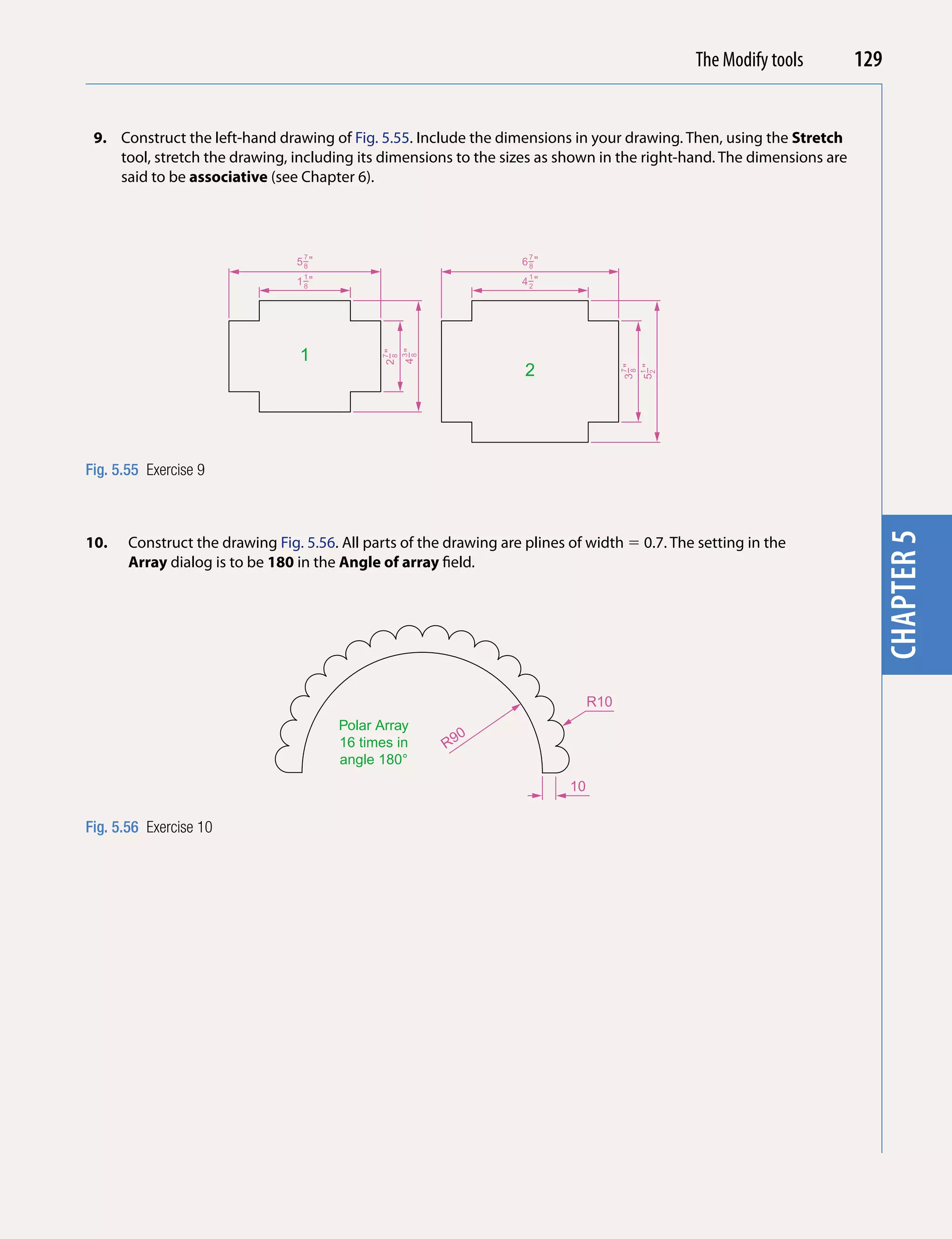
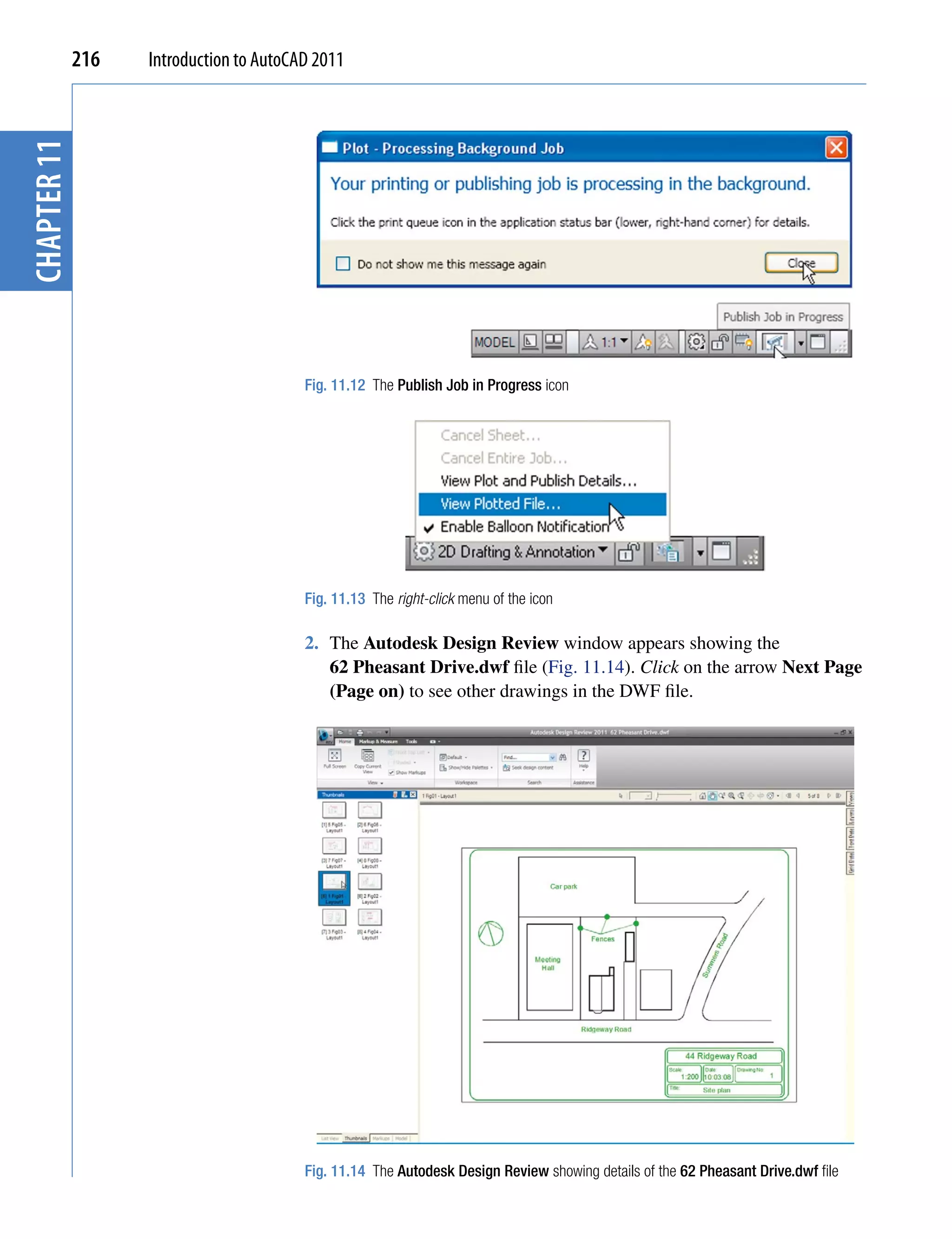
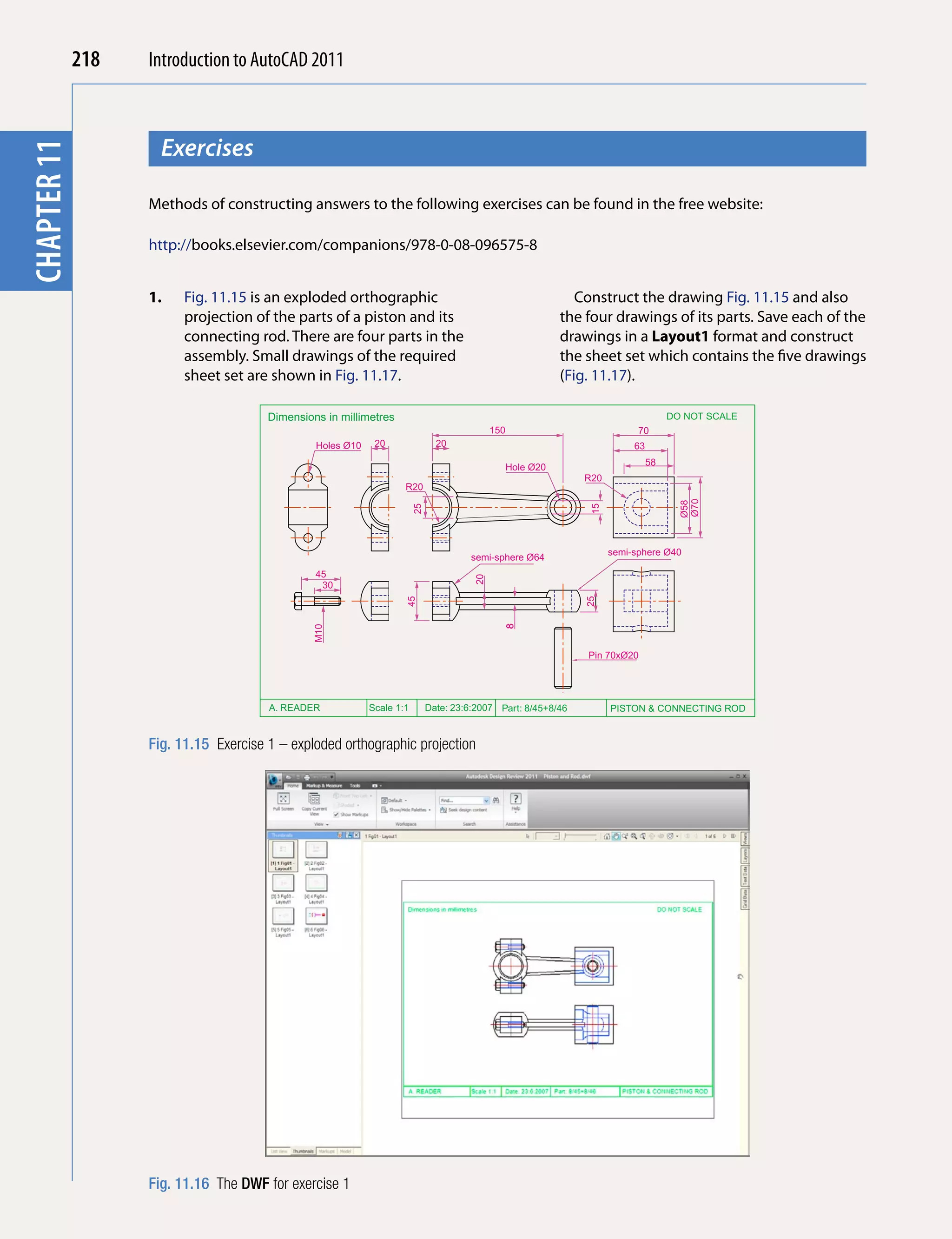
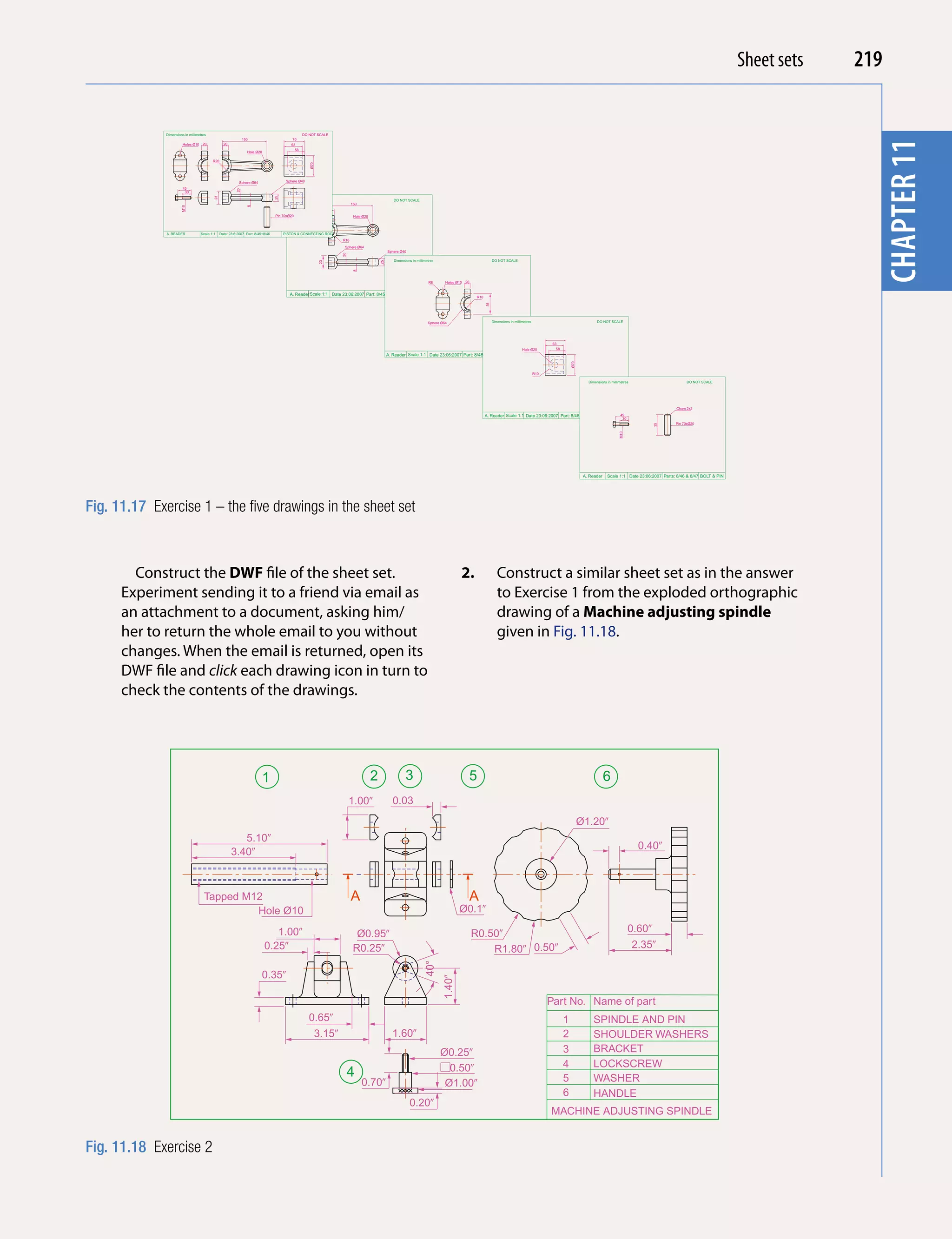
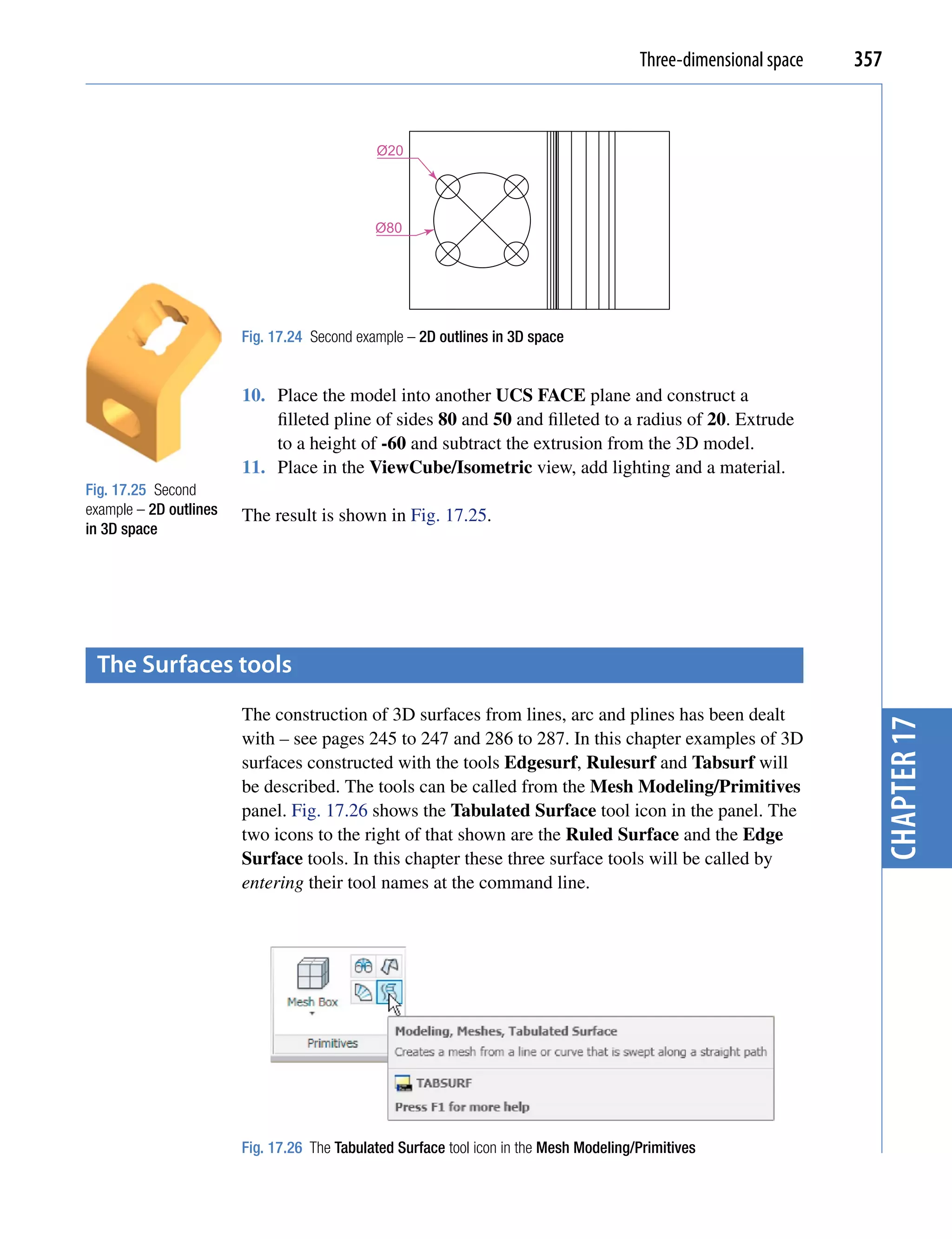
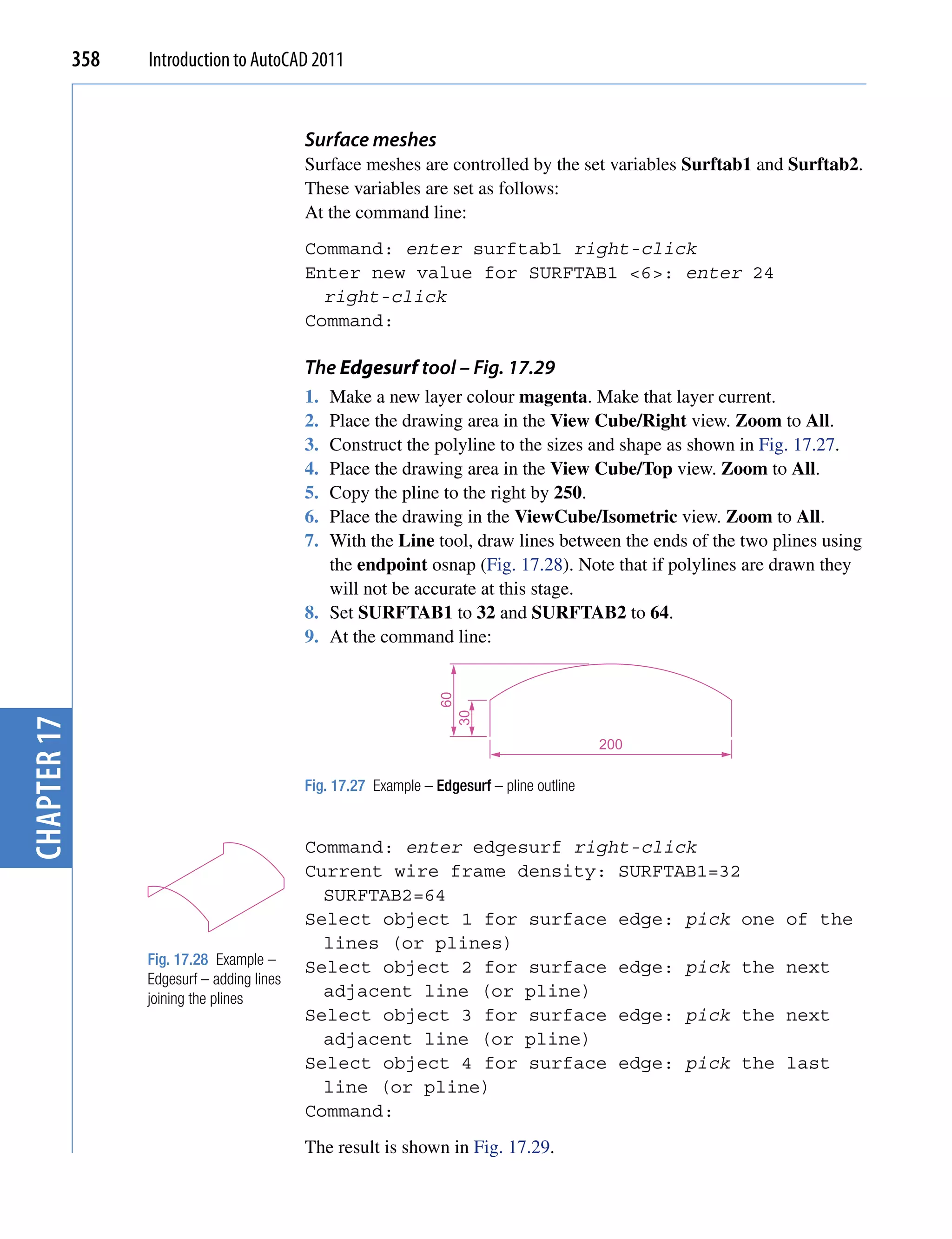
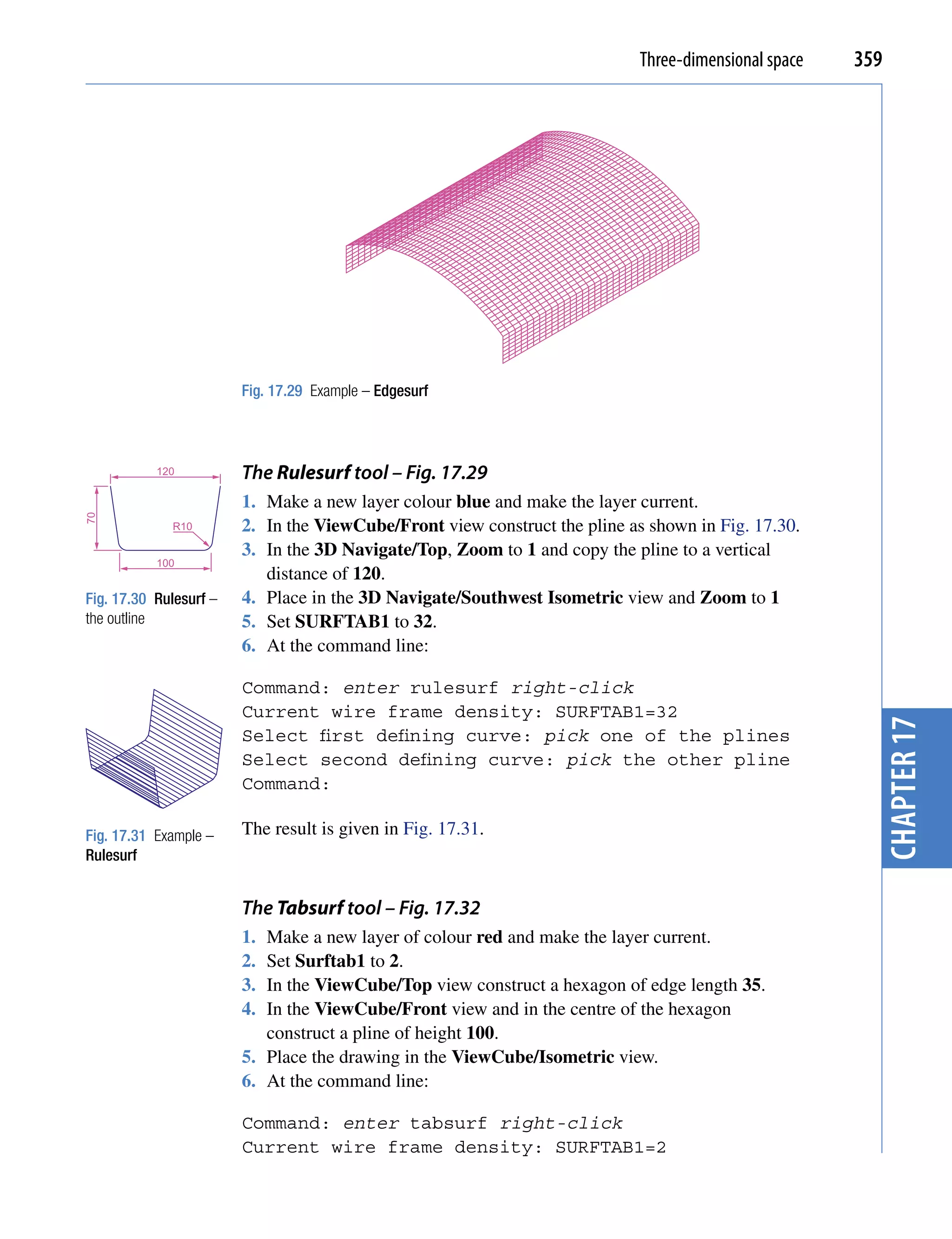
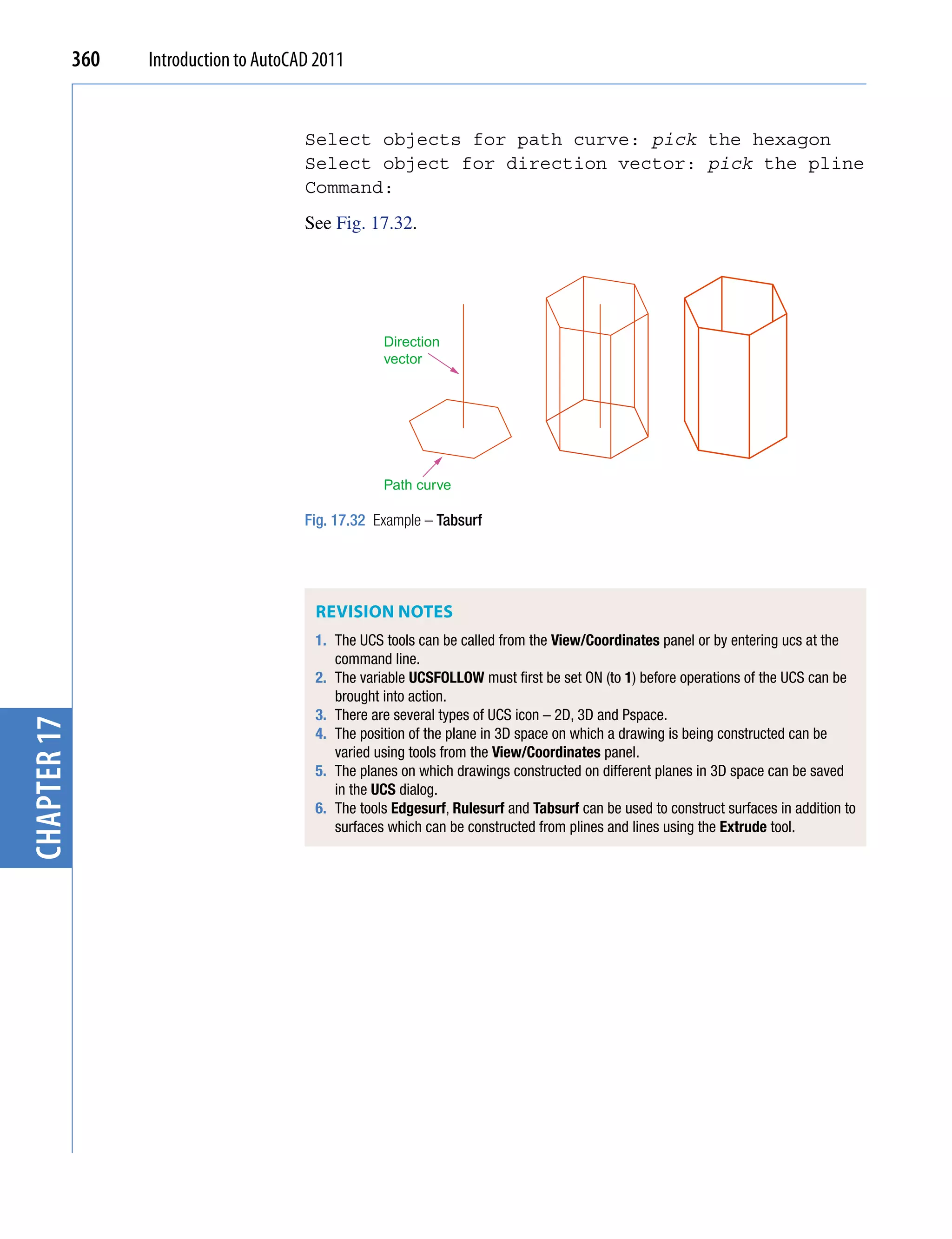
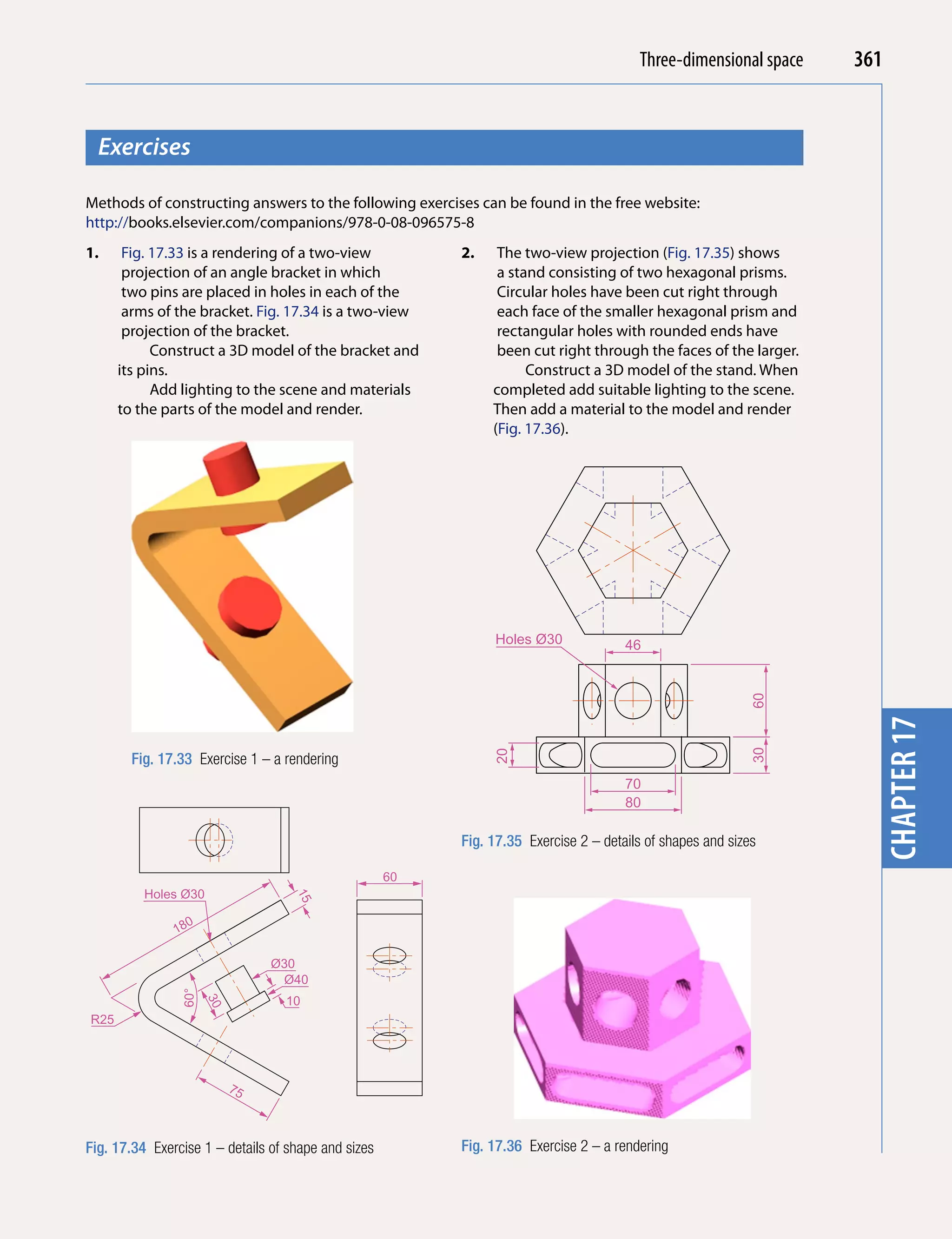
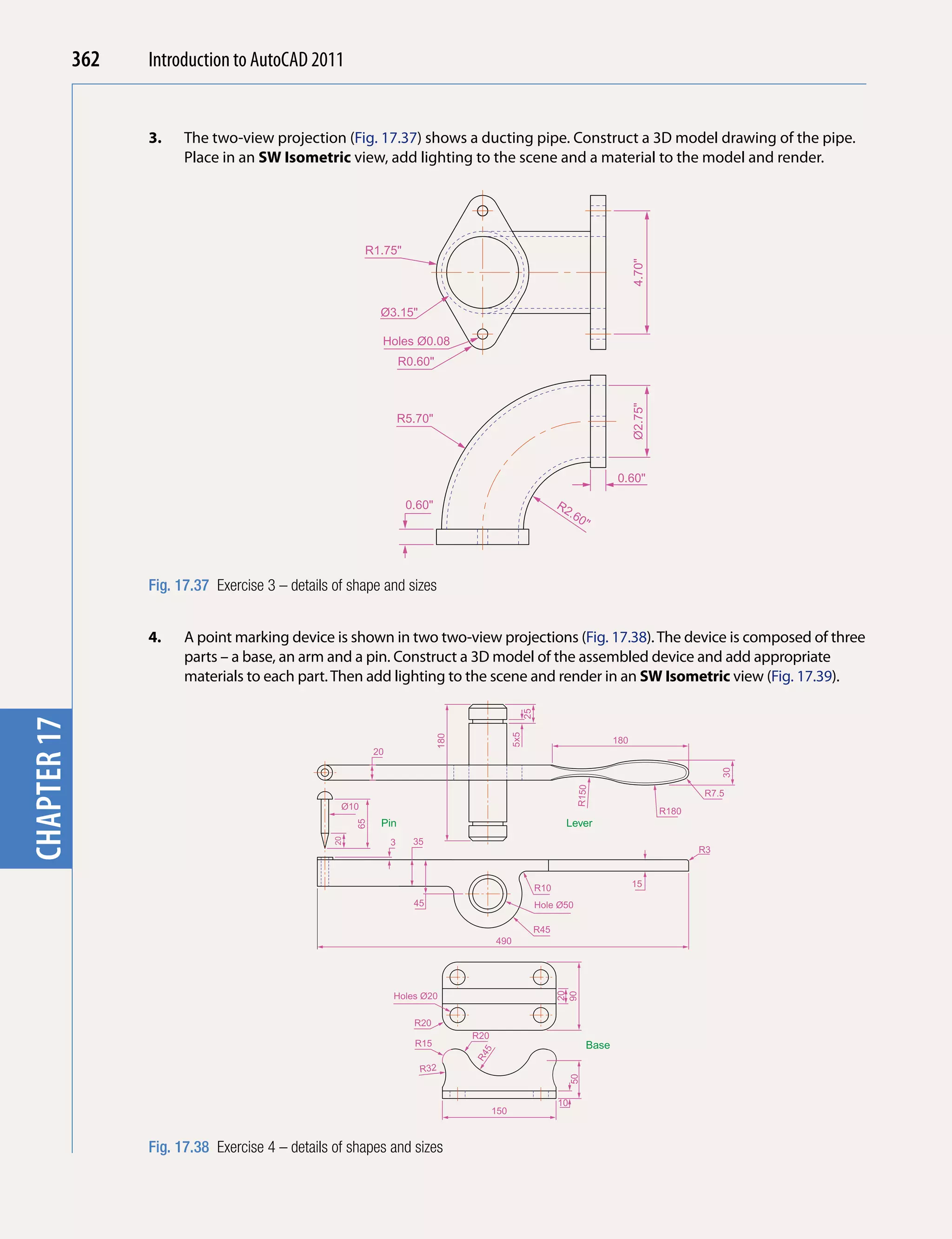
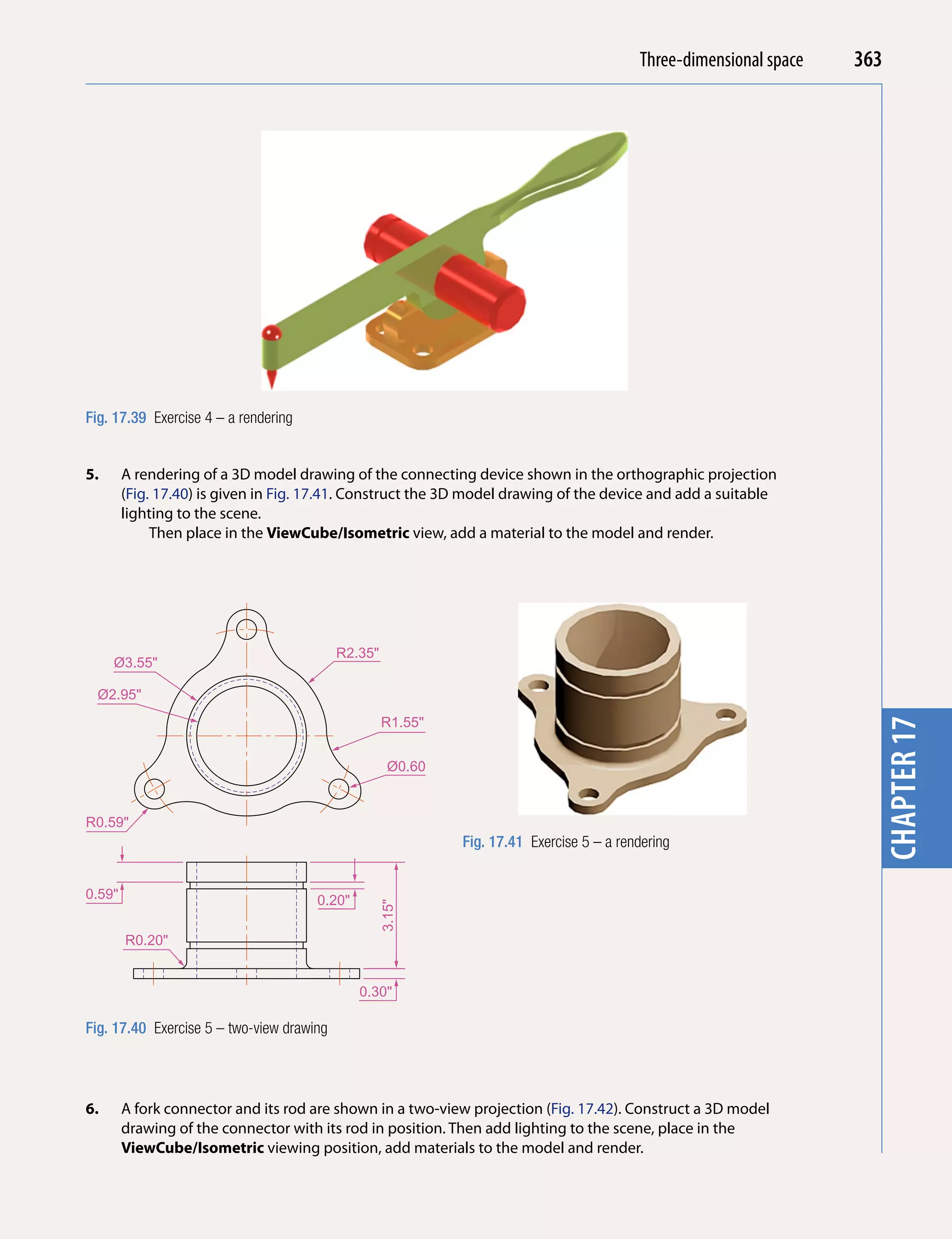
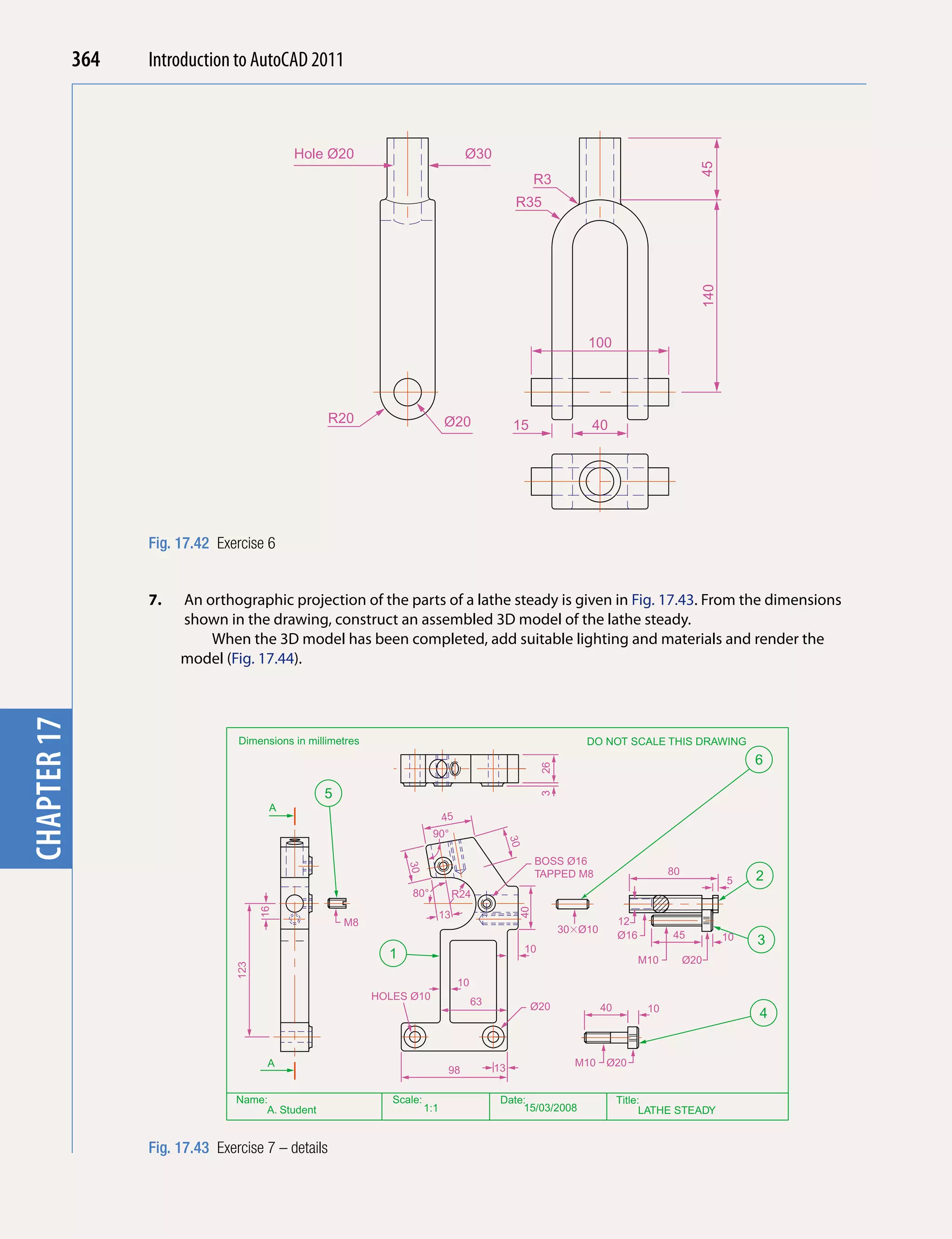
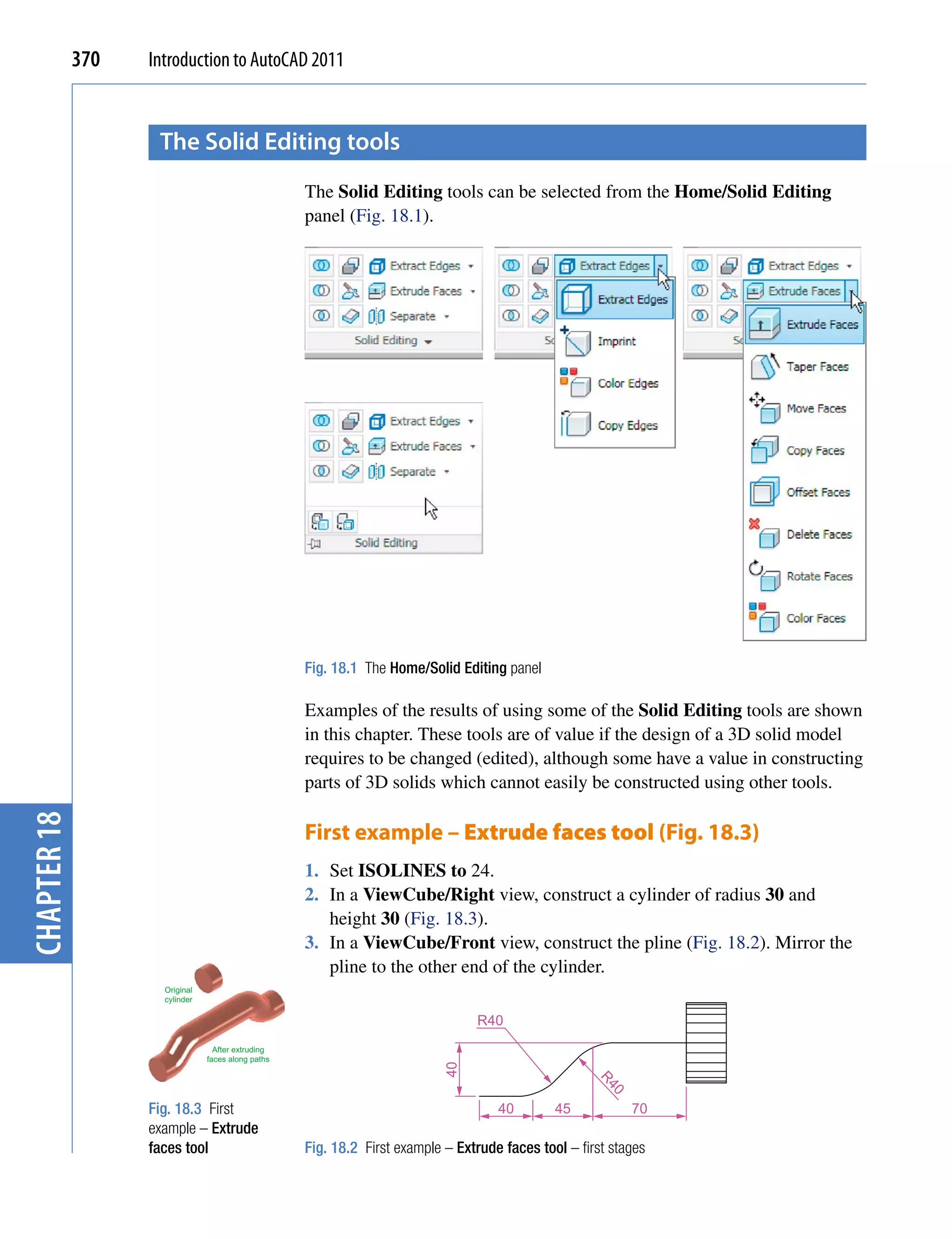
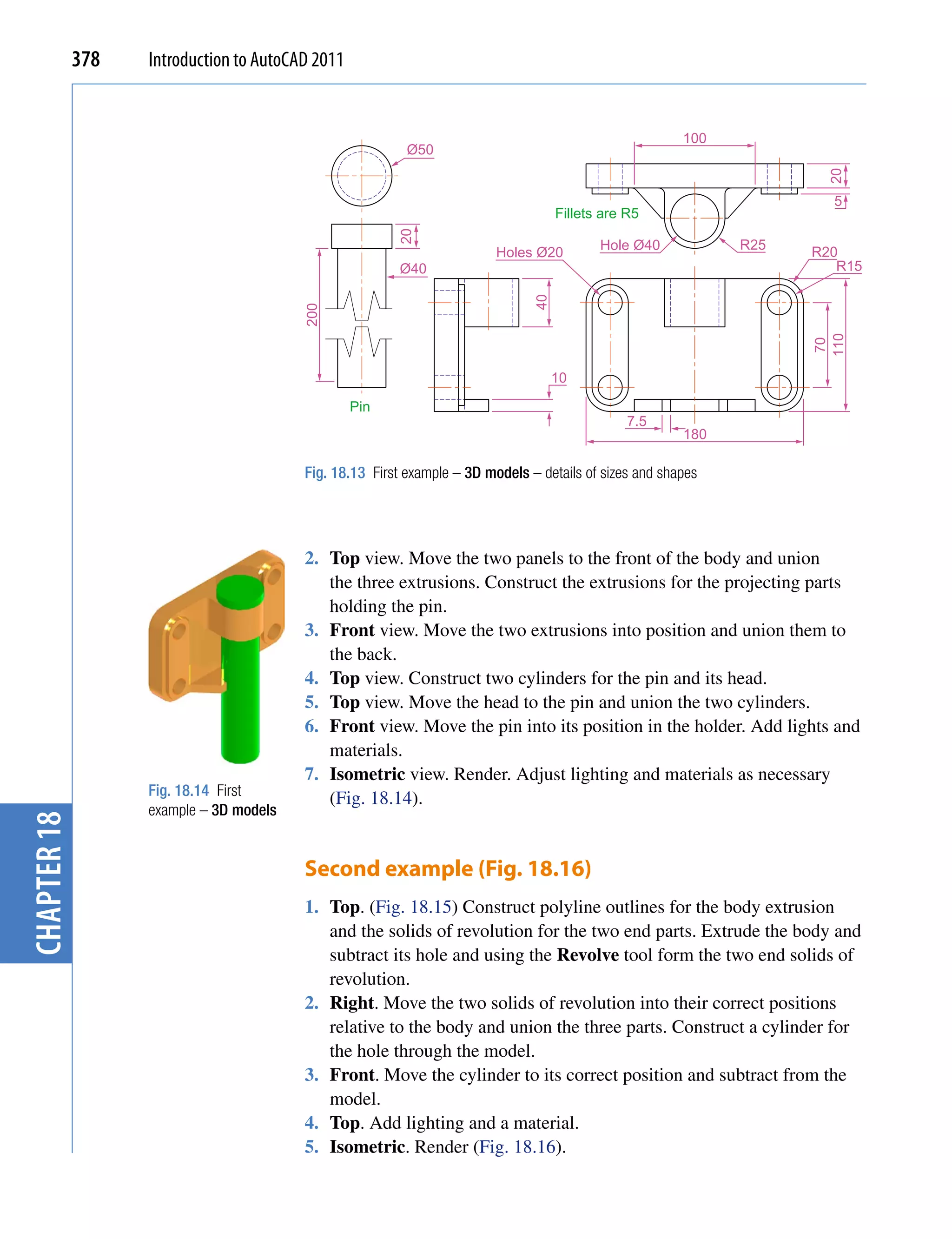
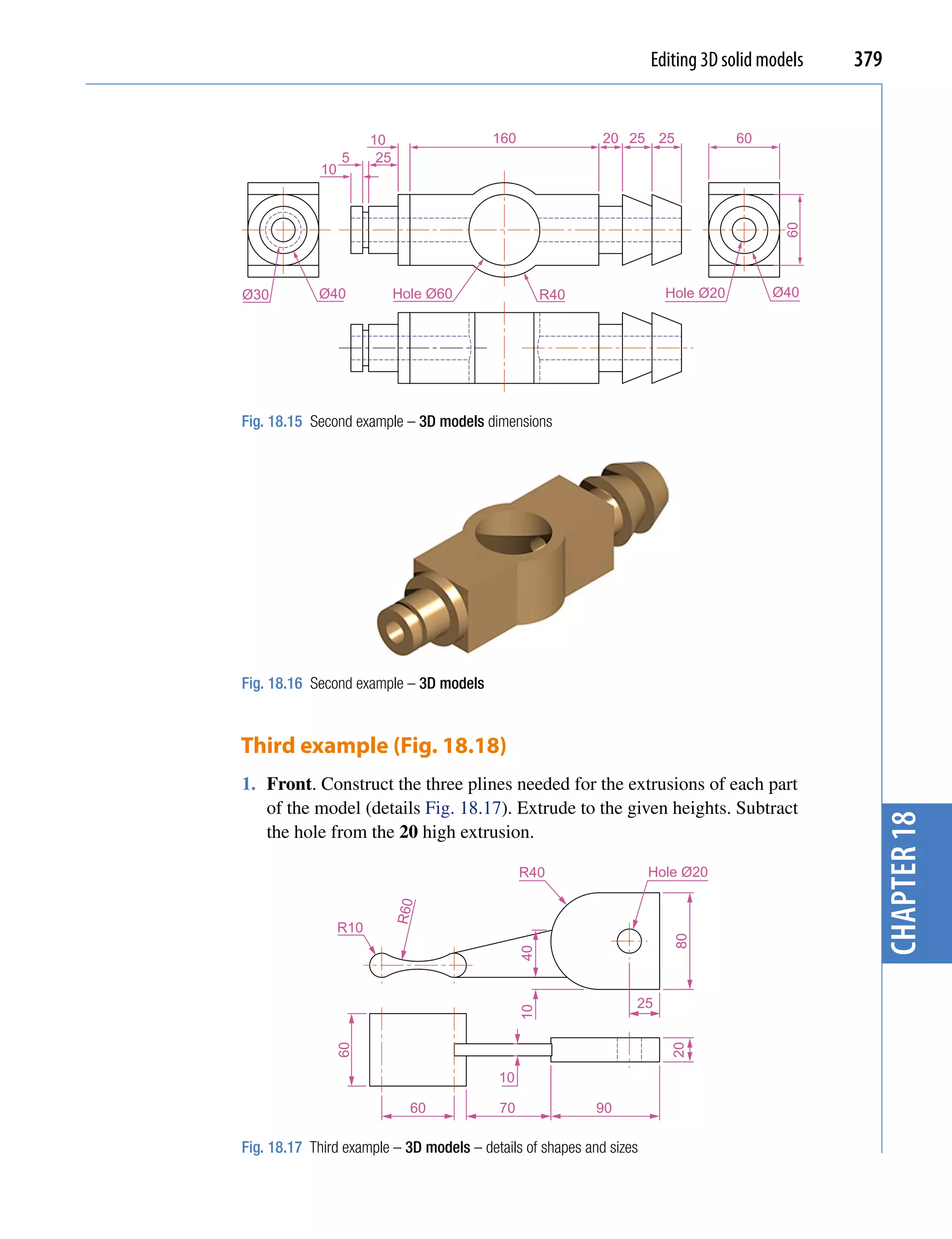
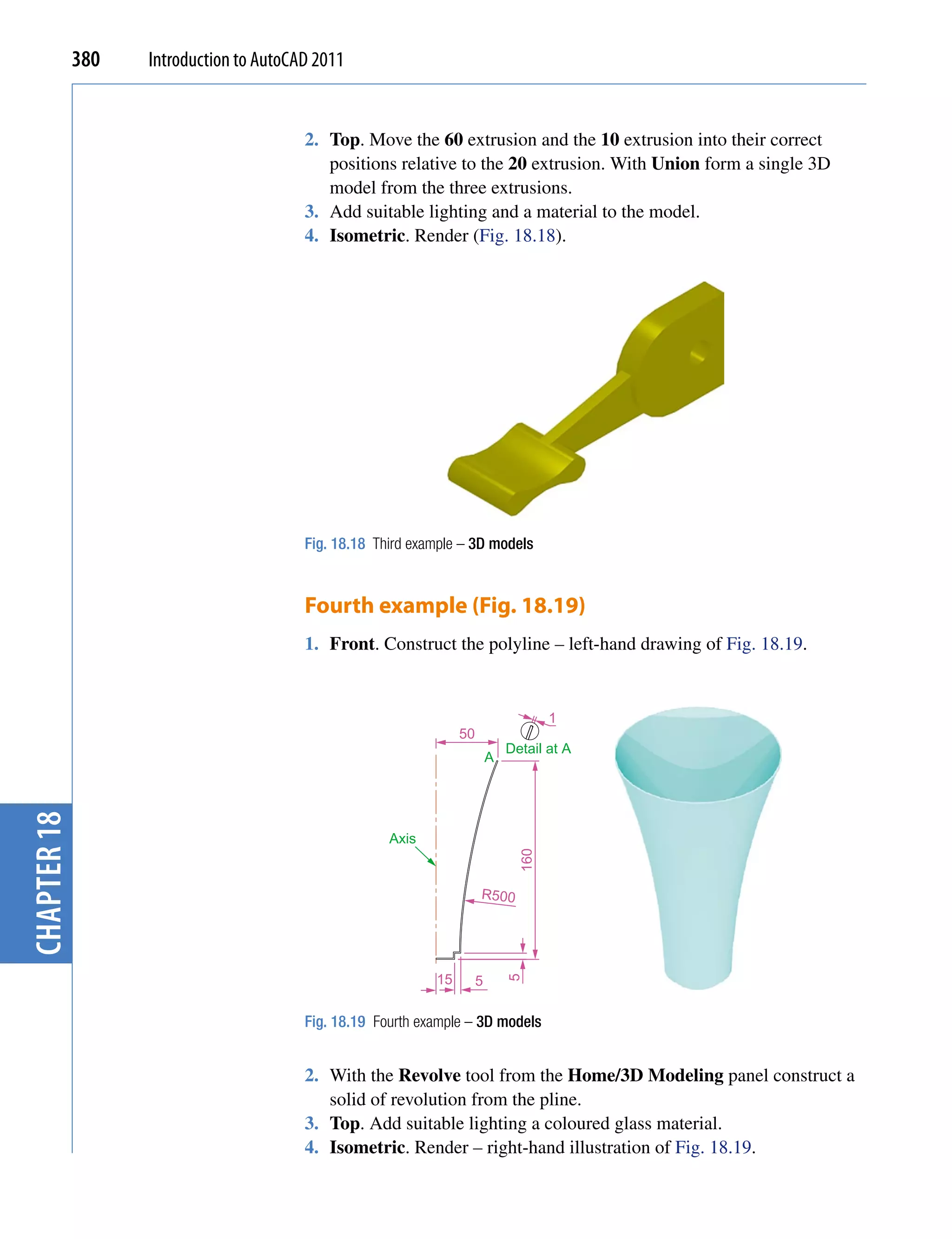
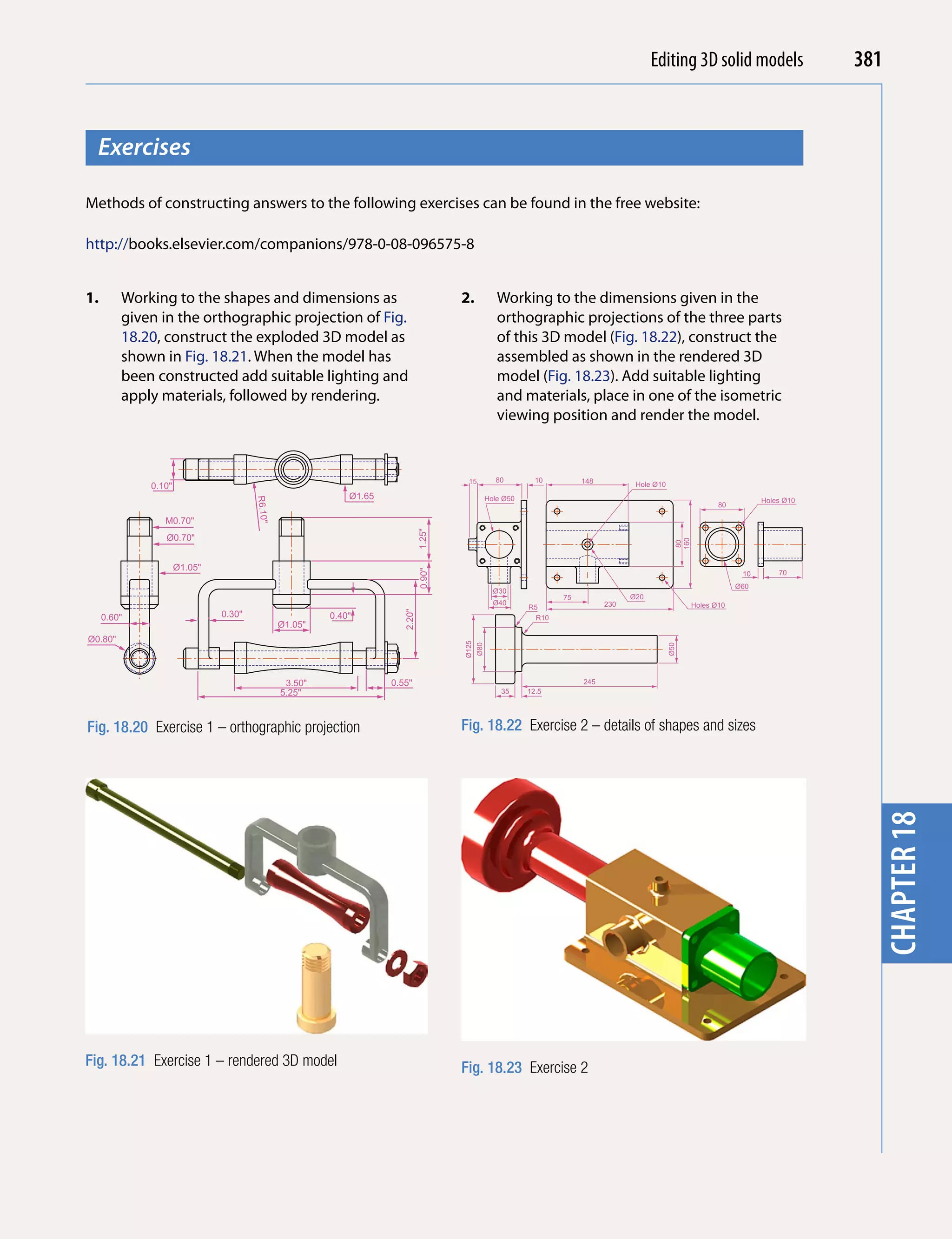
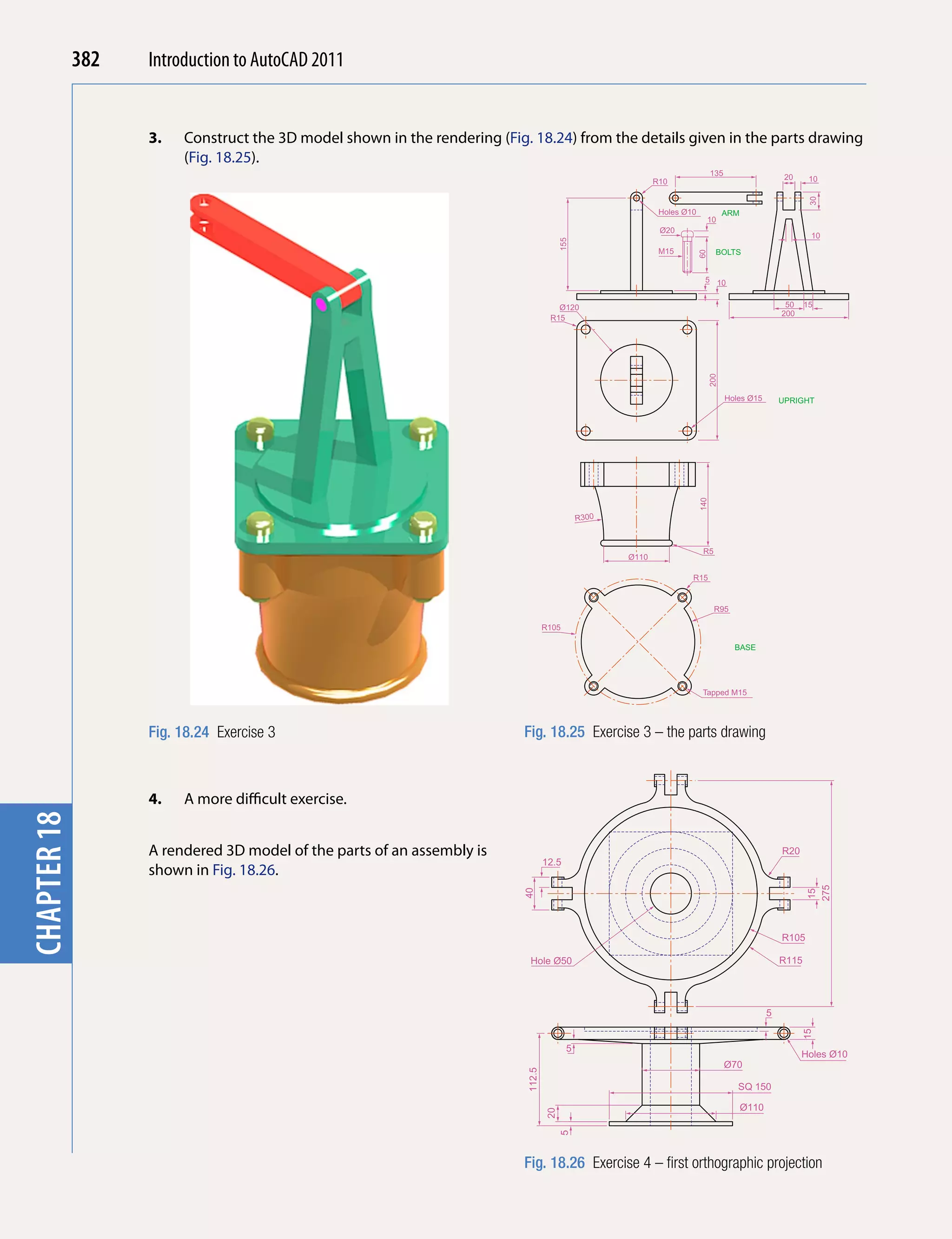
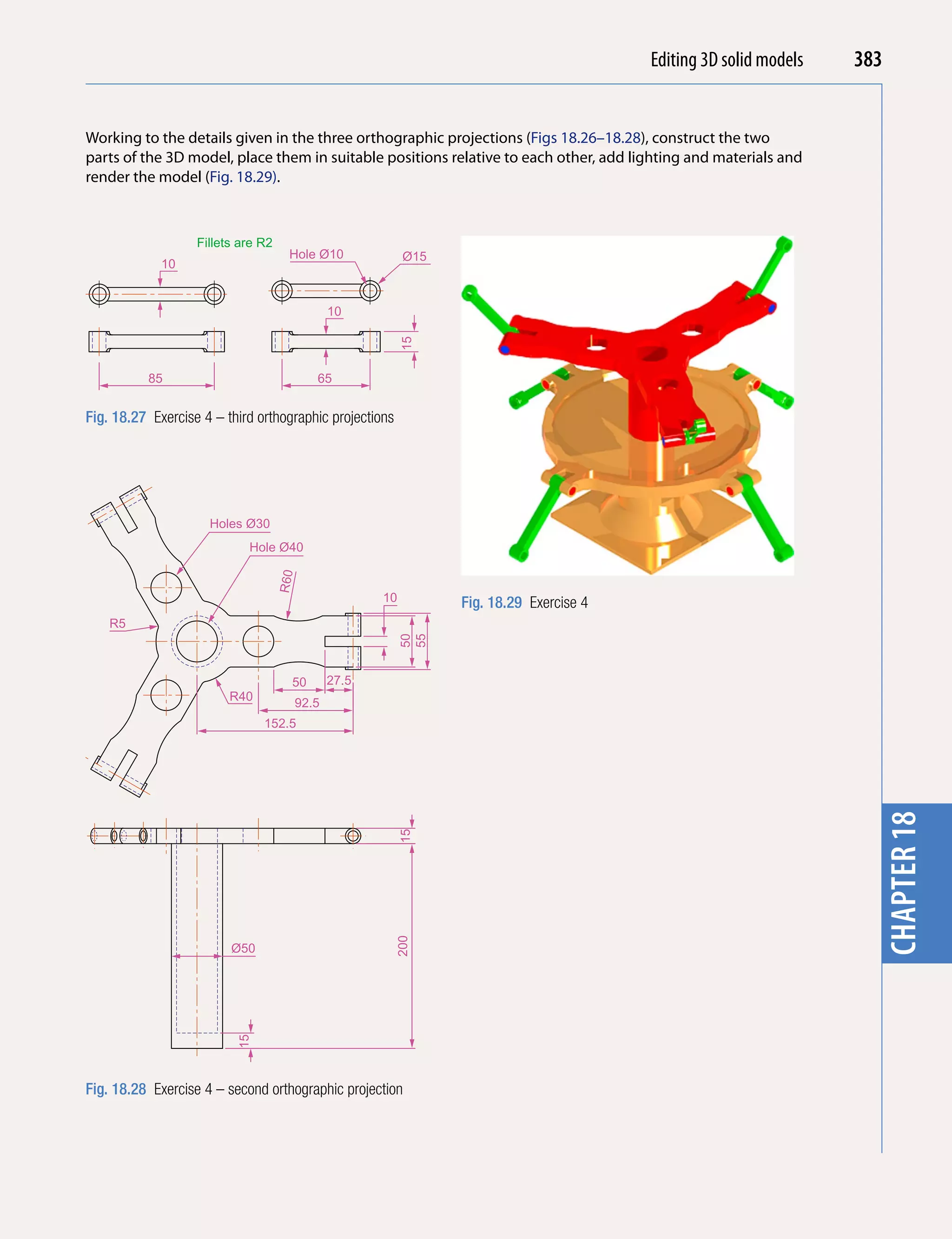
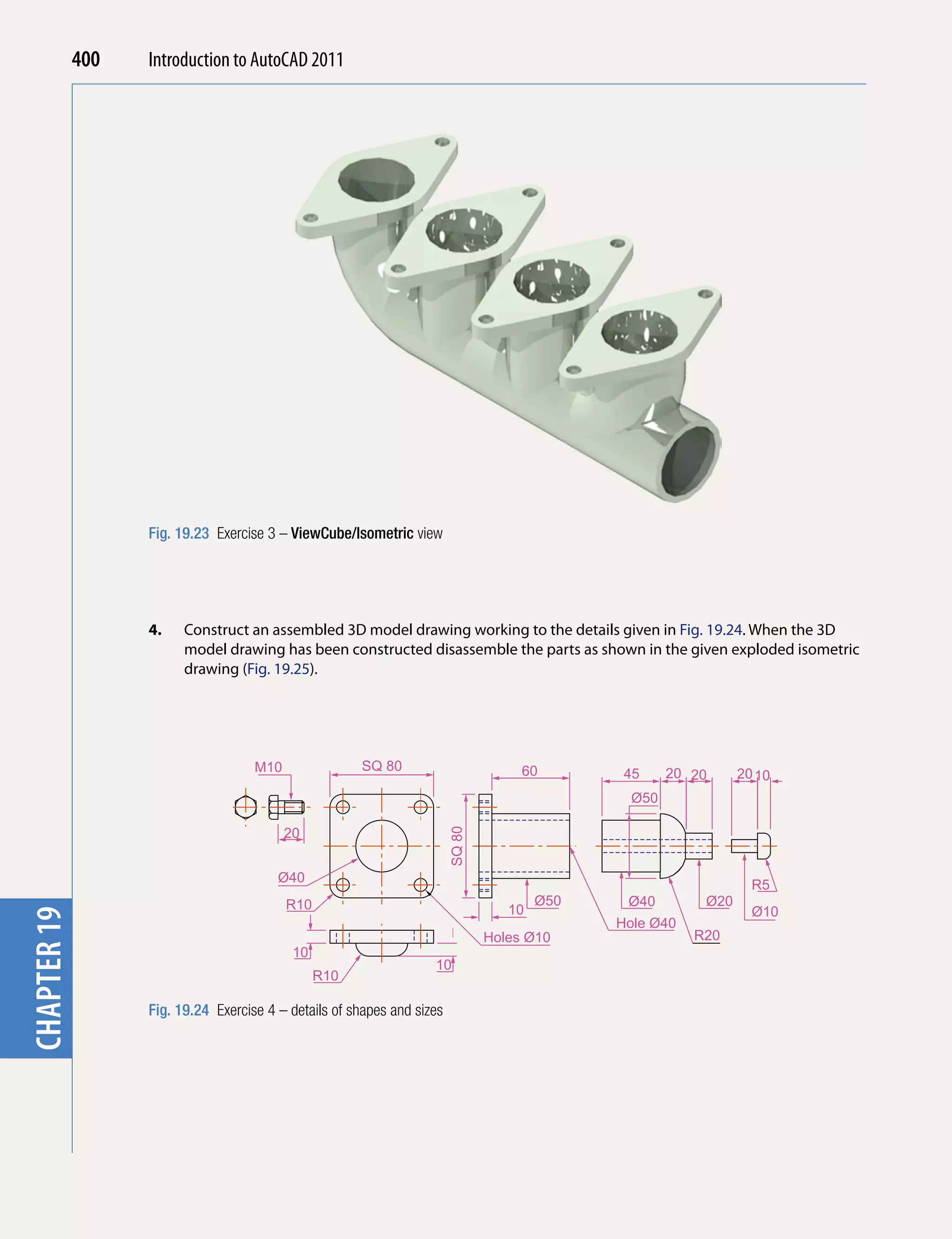
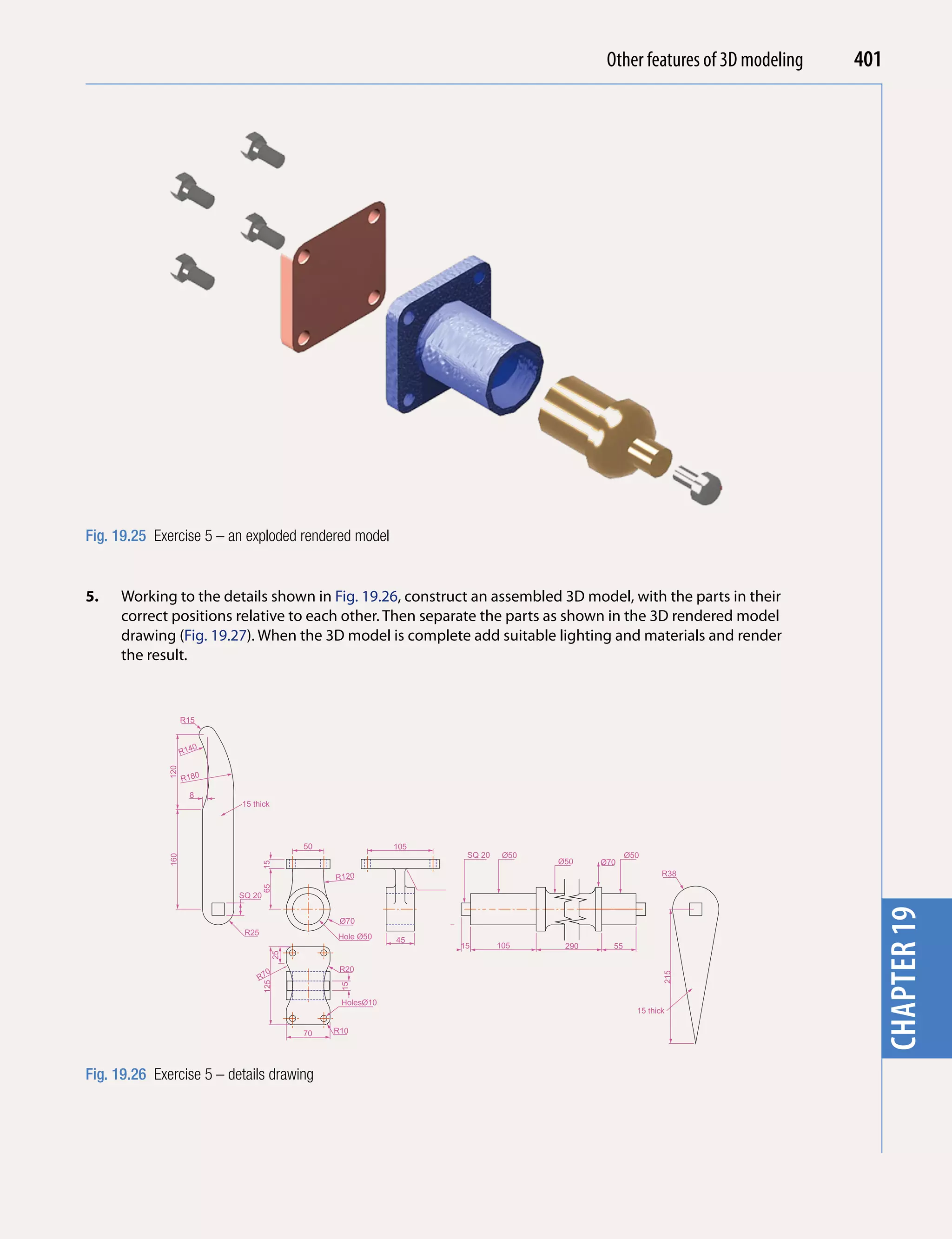
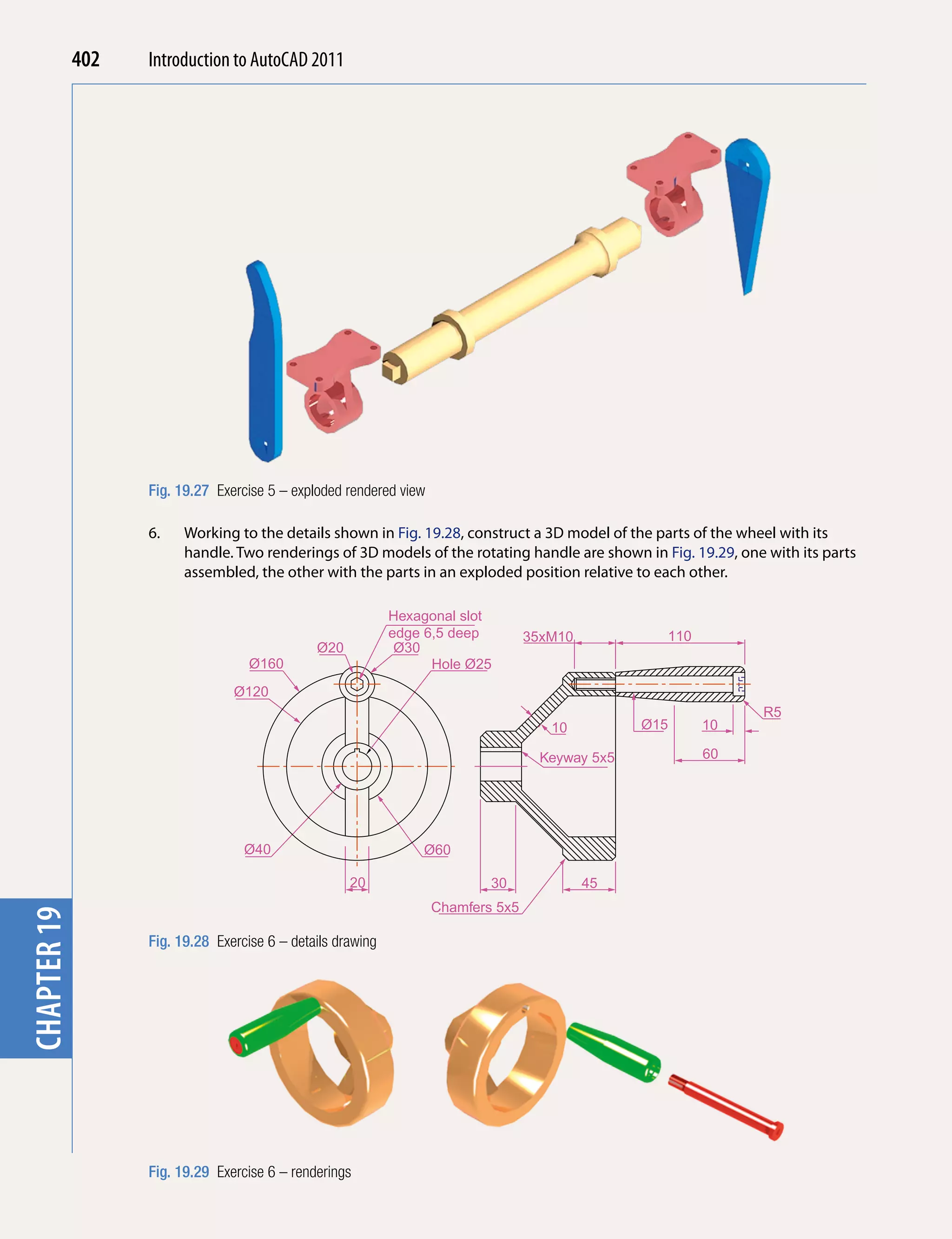
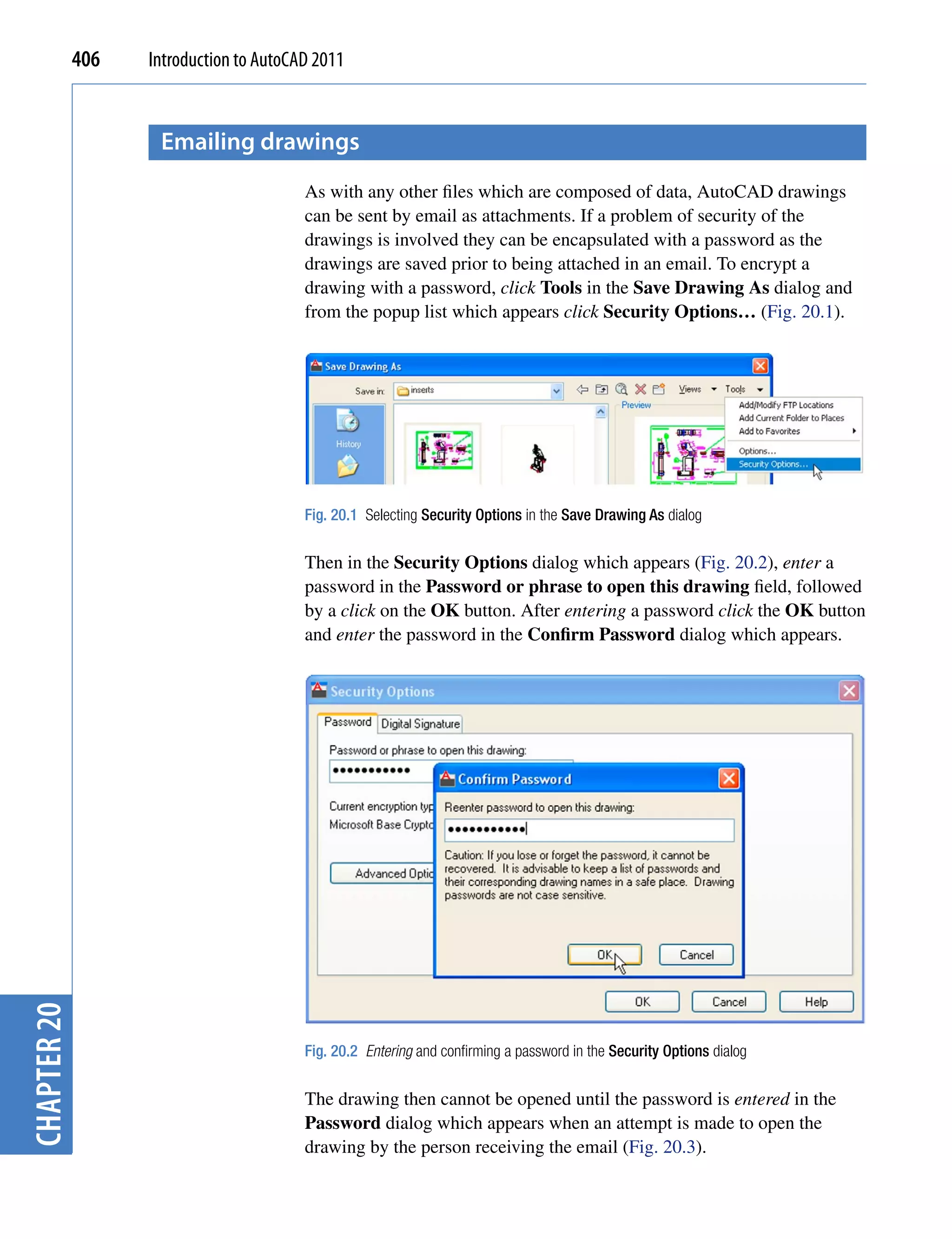
Chapter 1
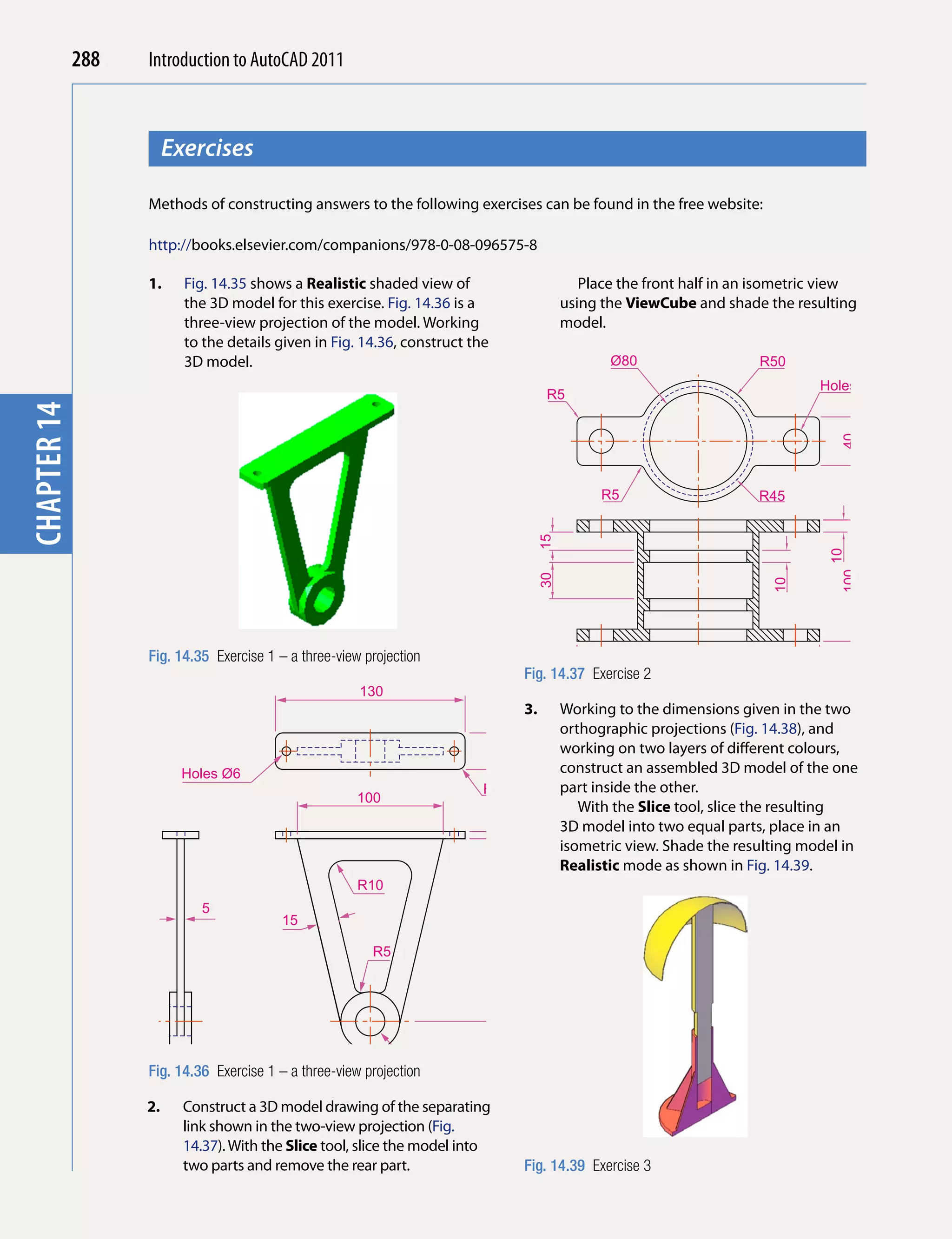
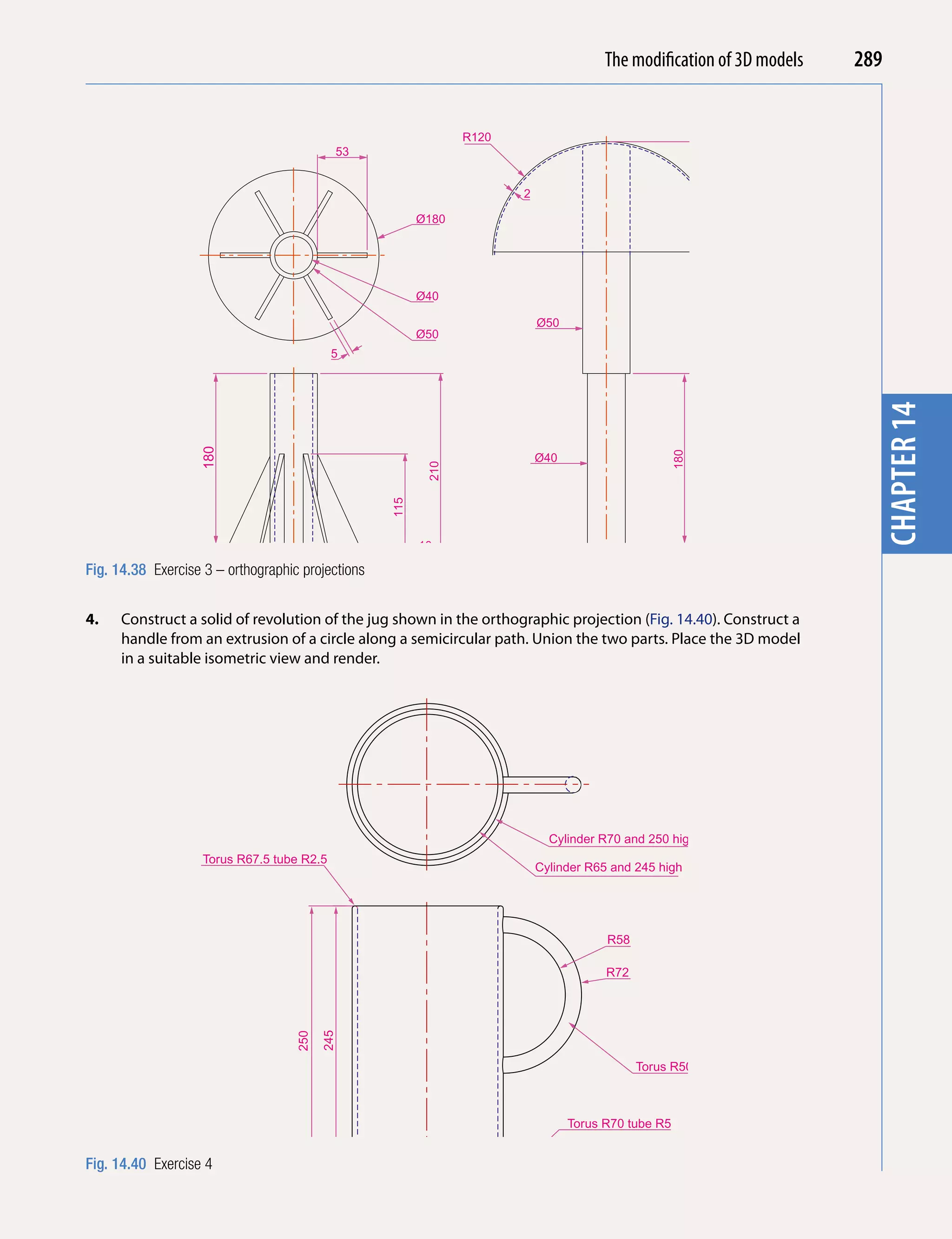
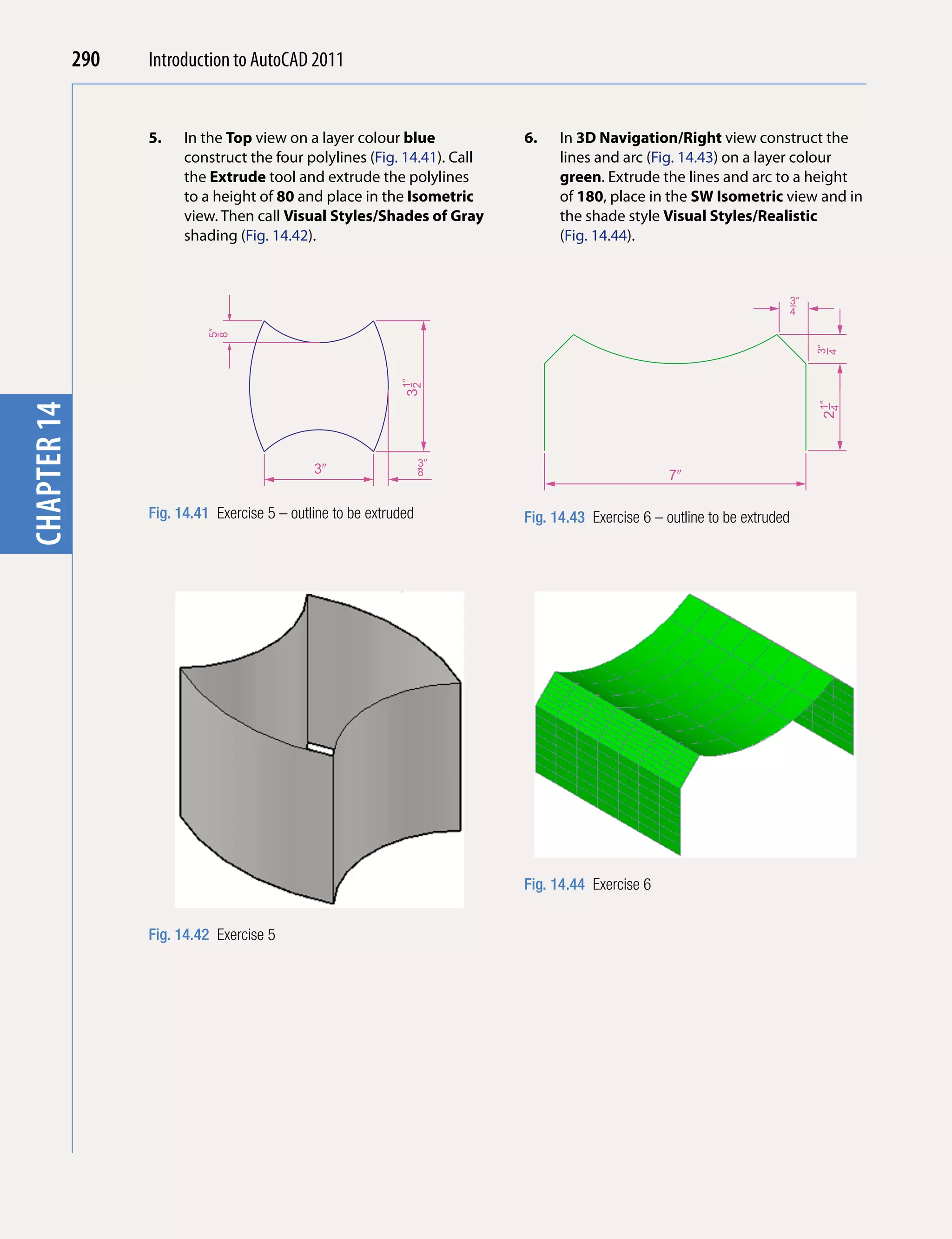
           Introducing AutoCAD
                          2011
 AIM OF THIS CHAPTER

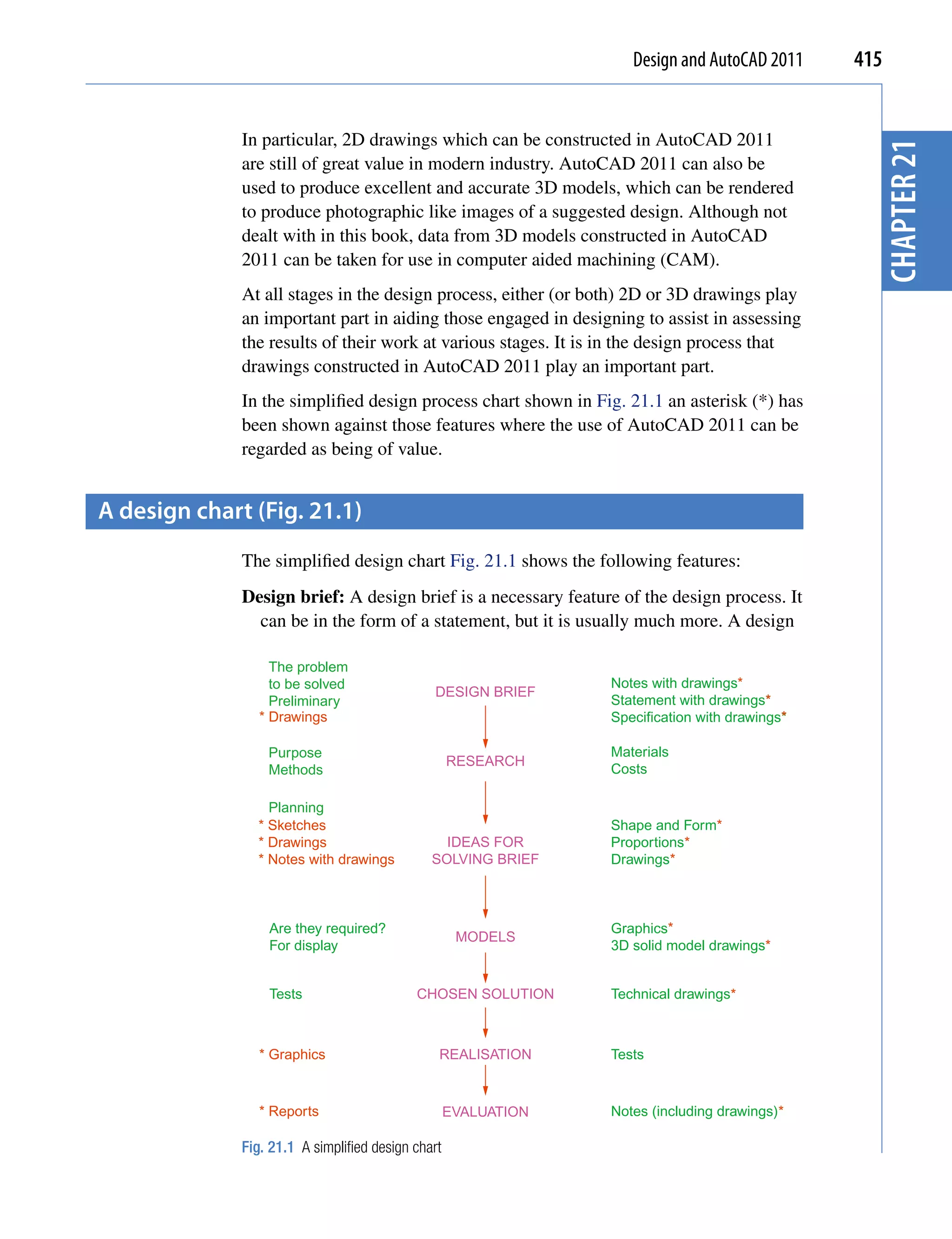
The aim of this chapter is designed to introduce features of the AutoCAD 2011 window and
methods of operating AutoCAD 2011.


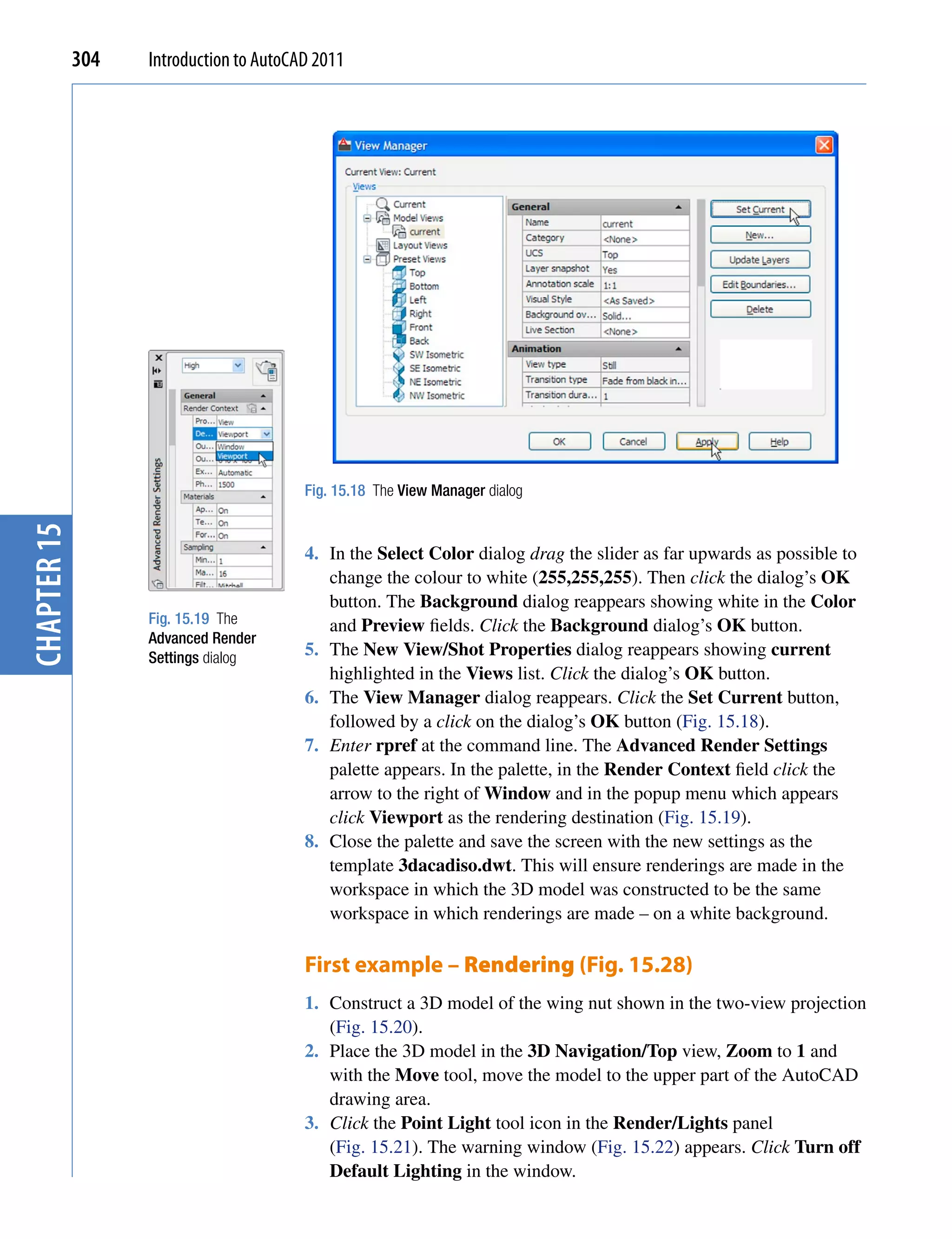
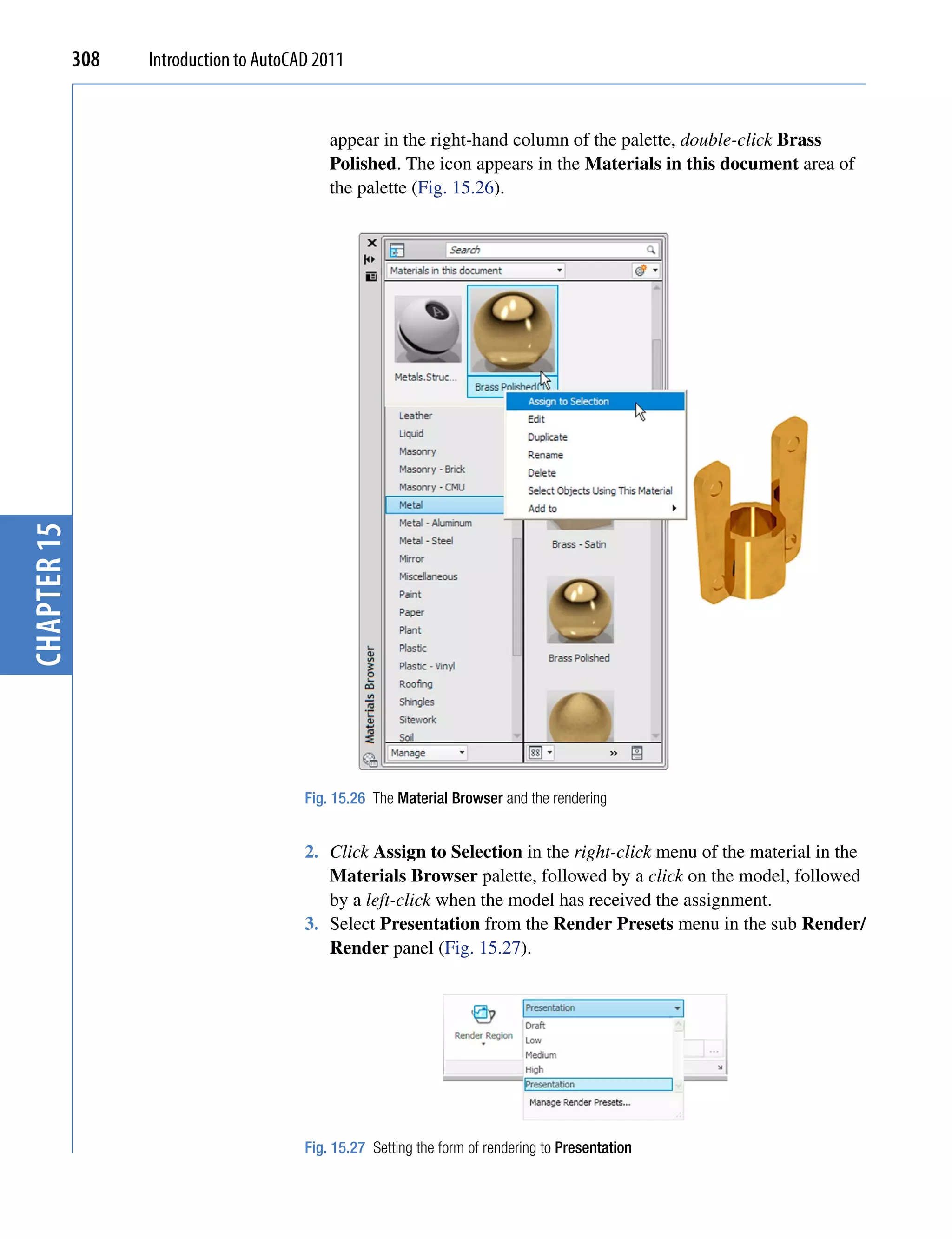
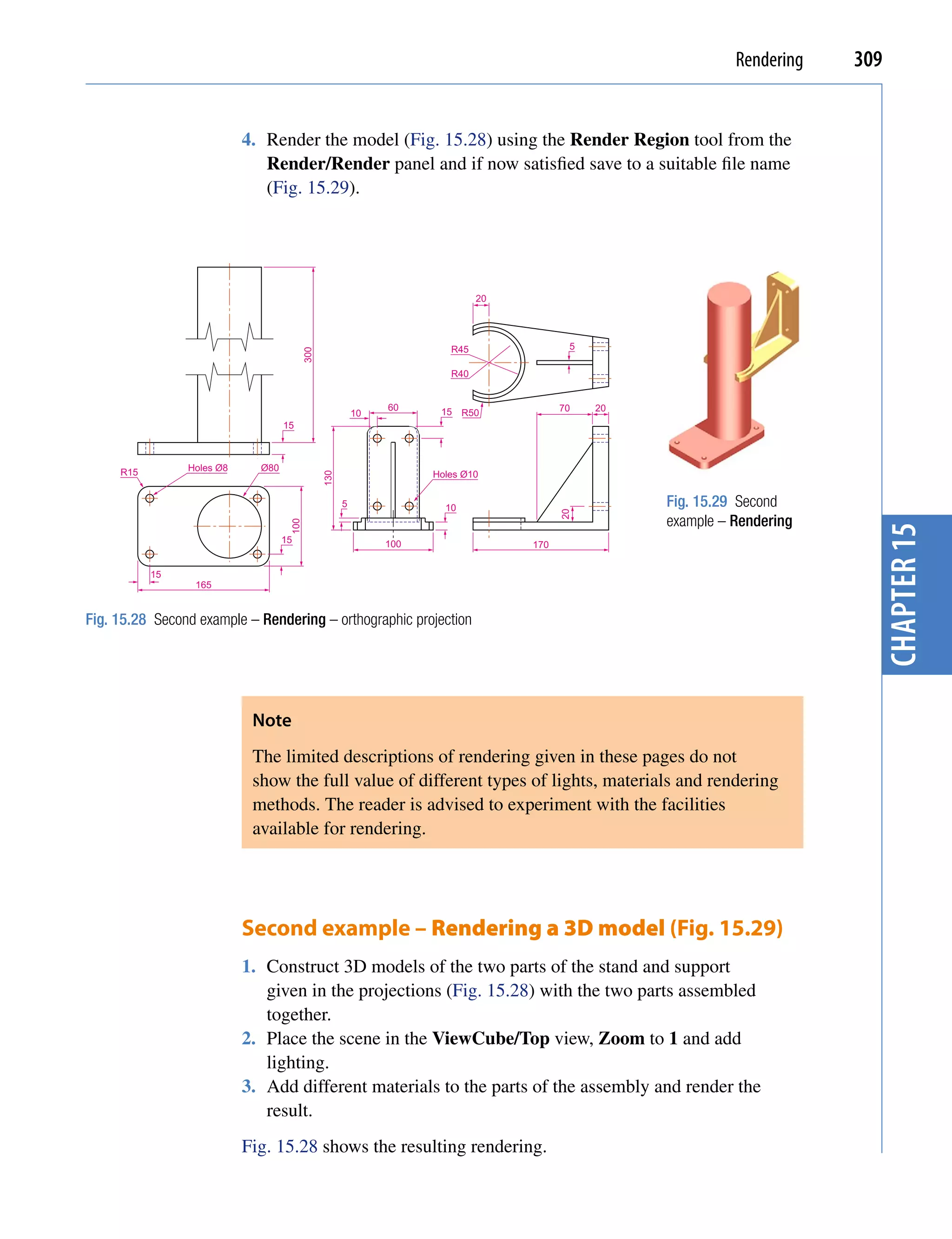
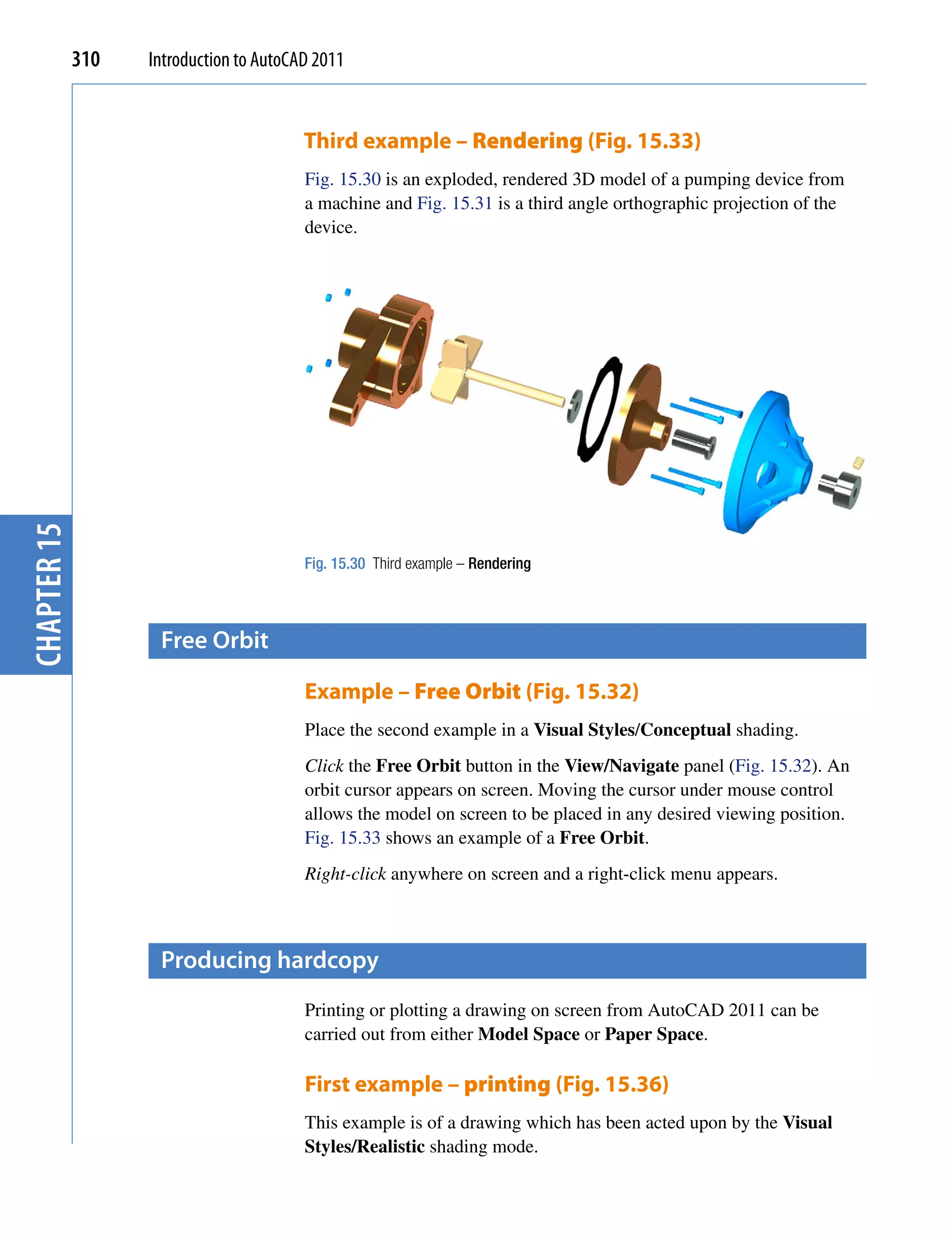
                                                                                           3
4   Introduction to AutoCAD 2011


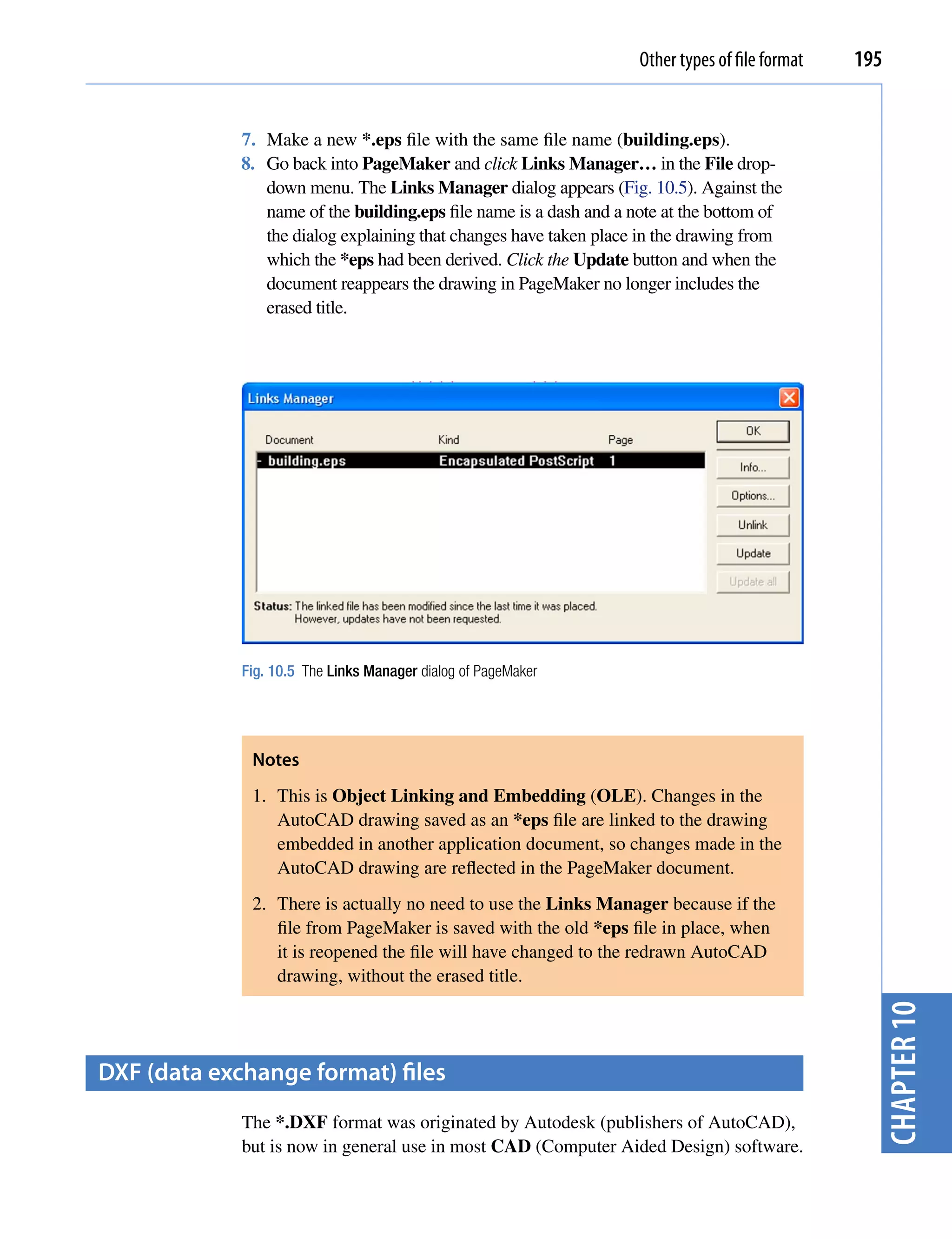
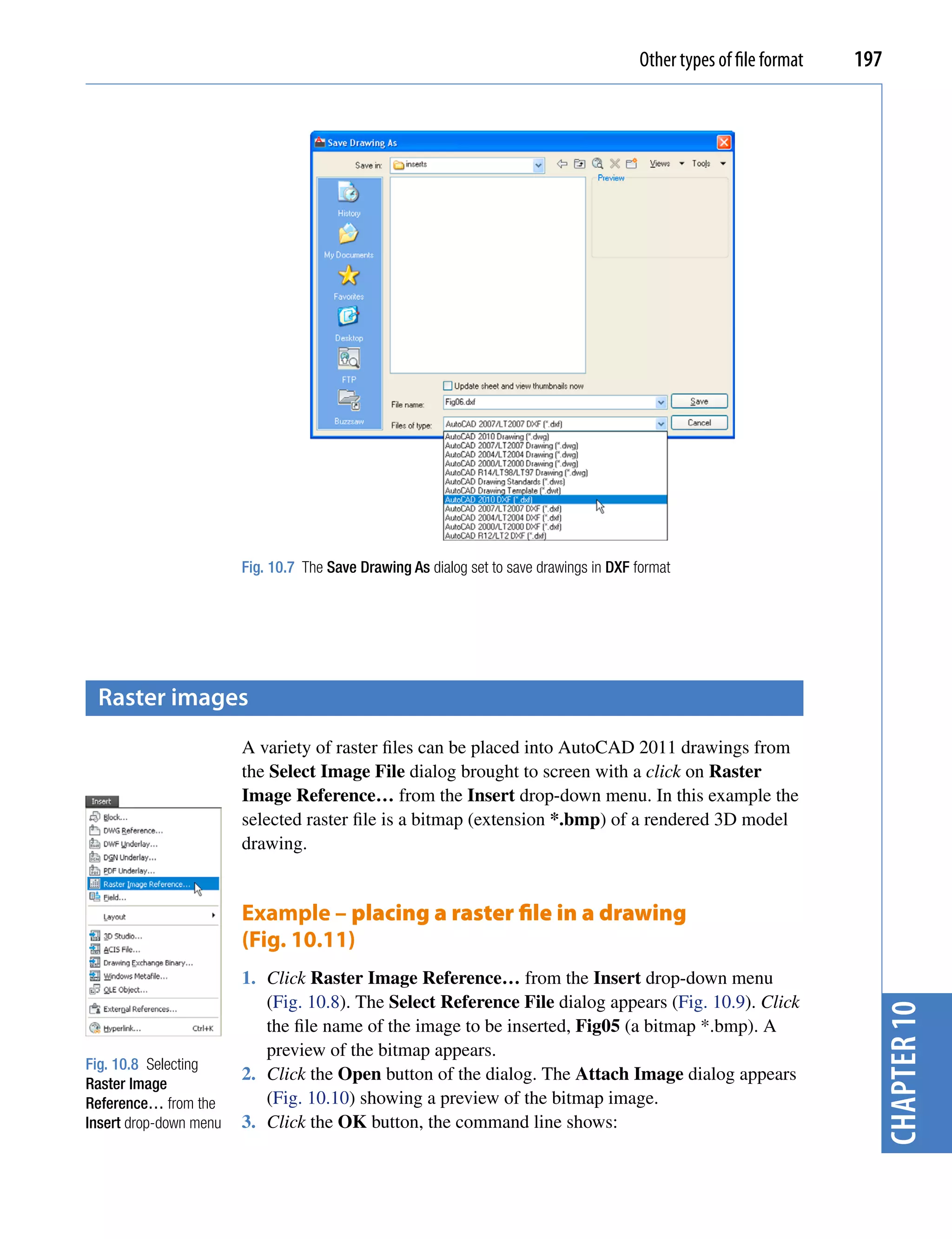
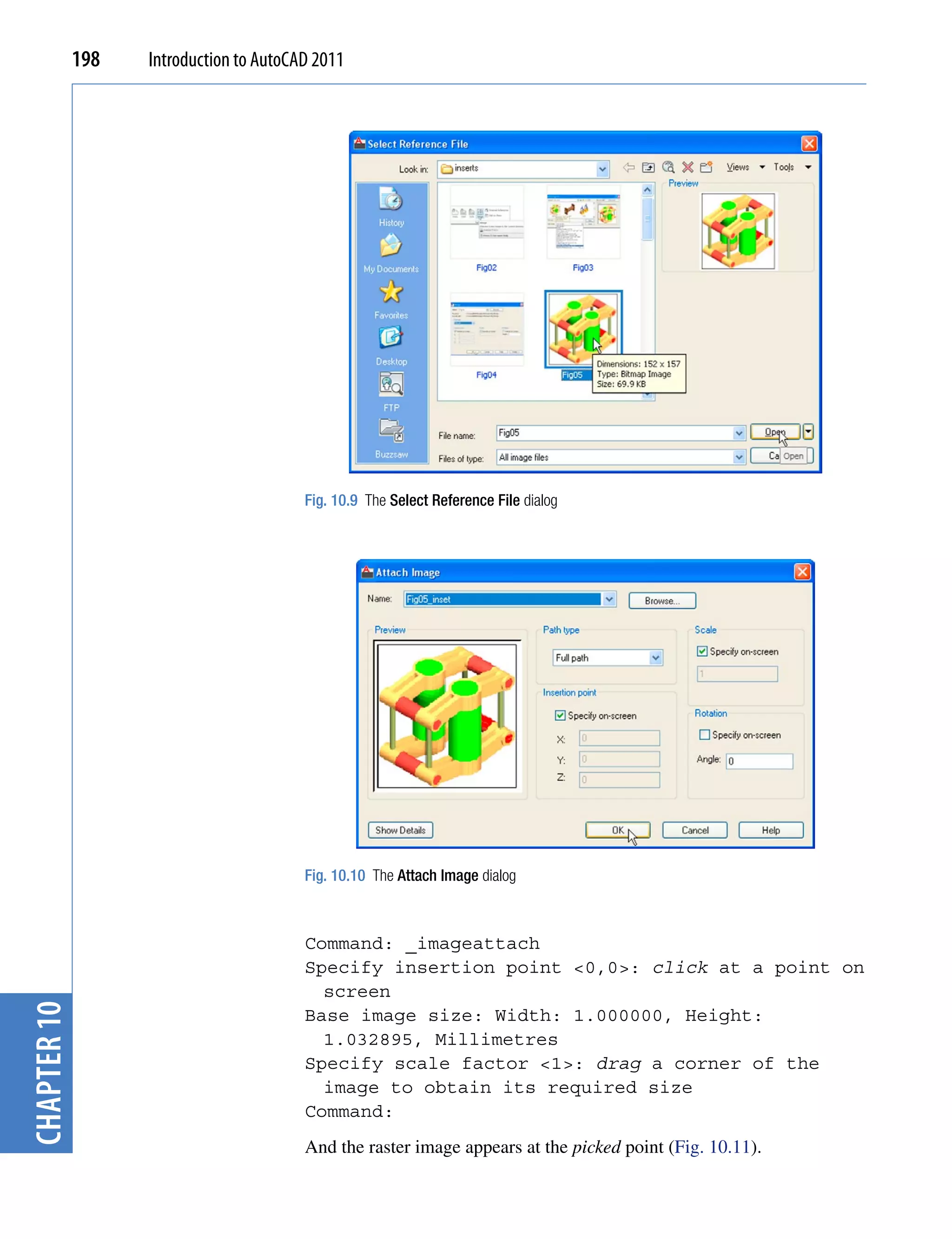
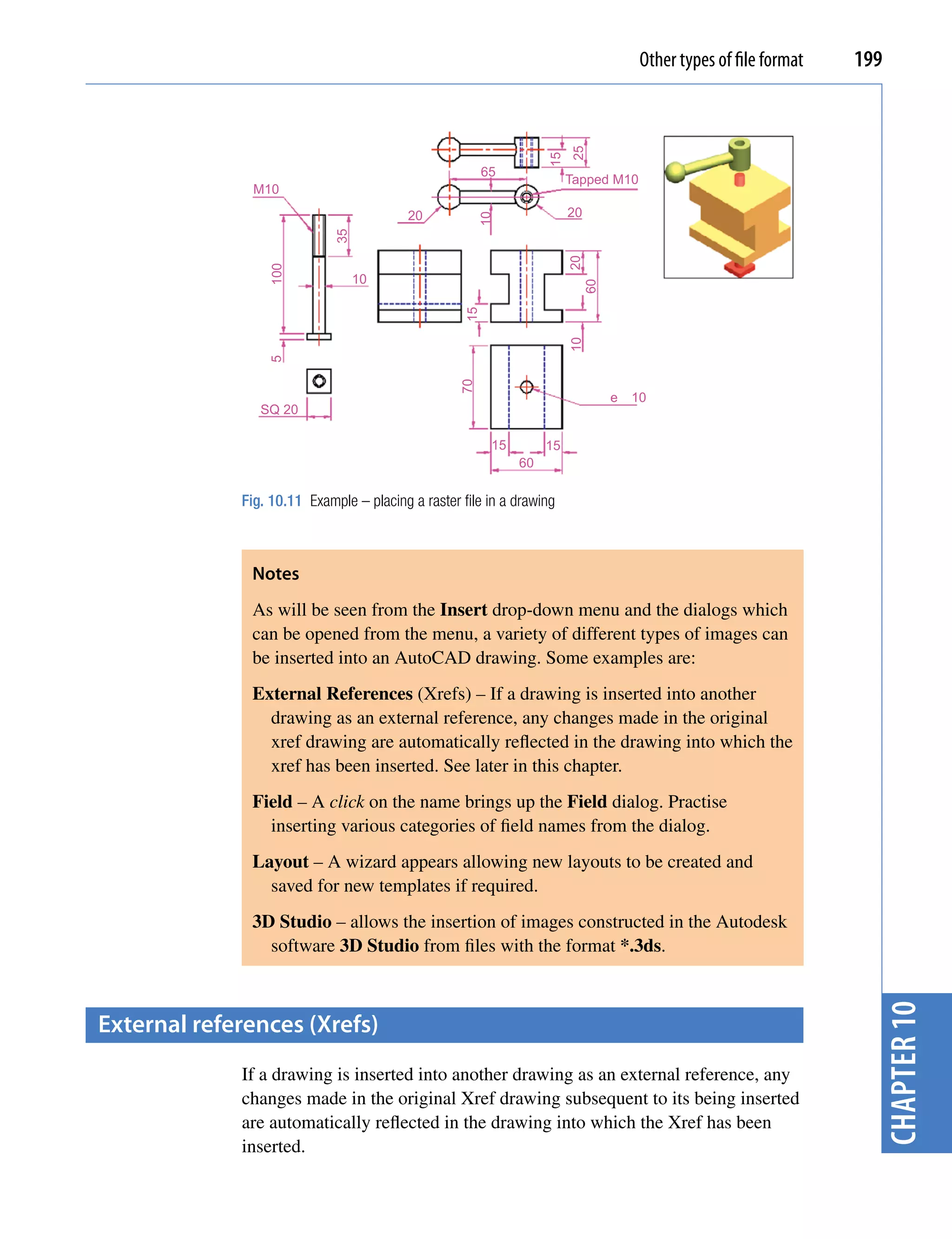
             Opening AutoCAD 2011
CHAPTER 1


                                   AutoCAD 2011 is designed to work in a Windows operating system. In
                                   general, to open AutoCAD 2011, double-click on the AutoCAD 2011
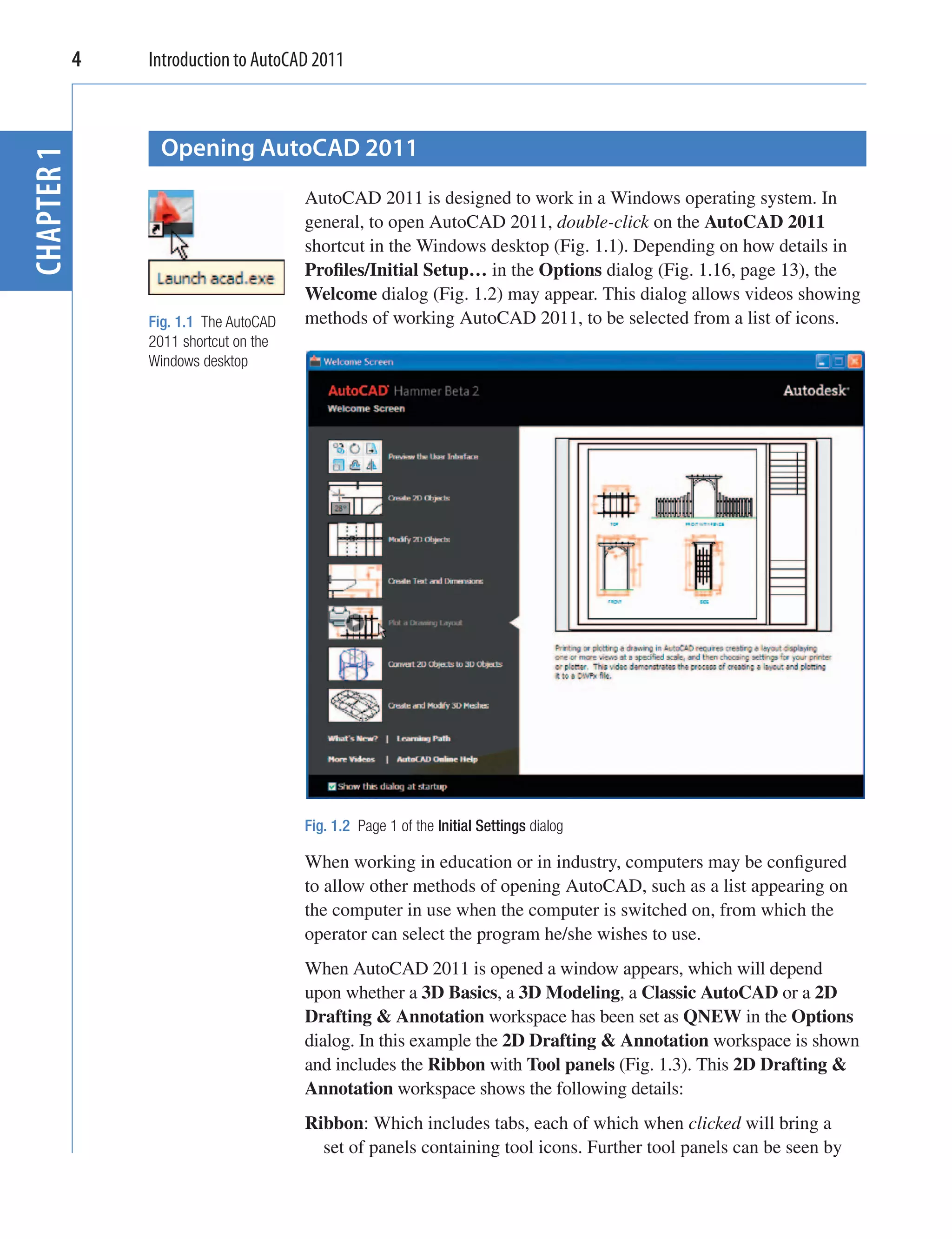
                                   shortcut in the Windows desktop (Fig. 1.1). Depending on how details in
                                   Profiles/Initial Setup… in the Options dialog (Fig. 1.16, page 13), the
                                   Welcome dialog (Fig. 1.2) may appear. This dialog allows videos showing
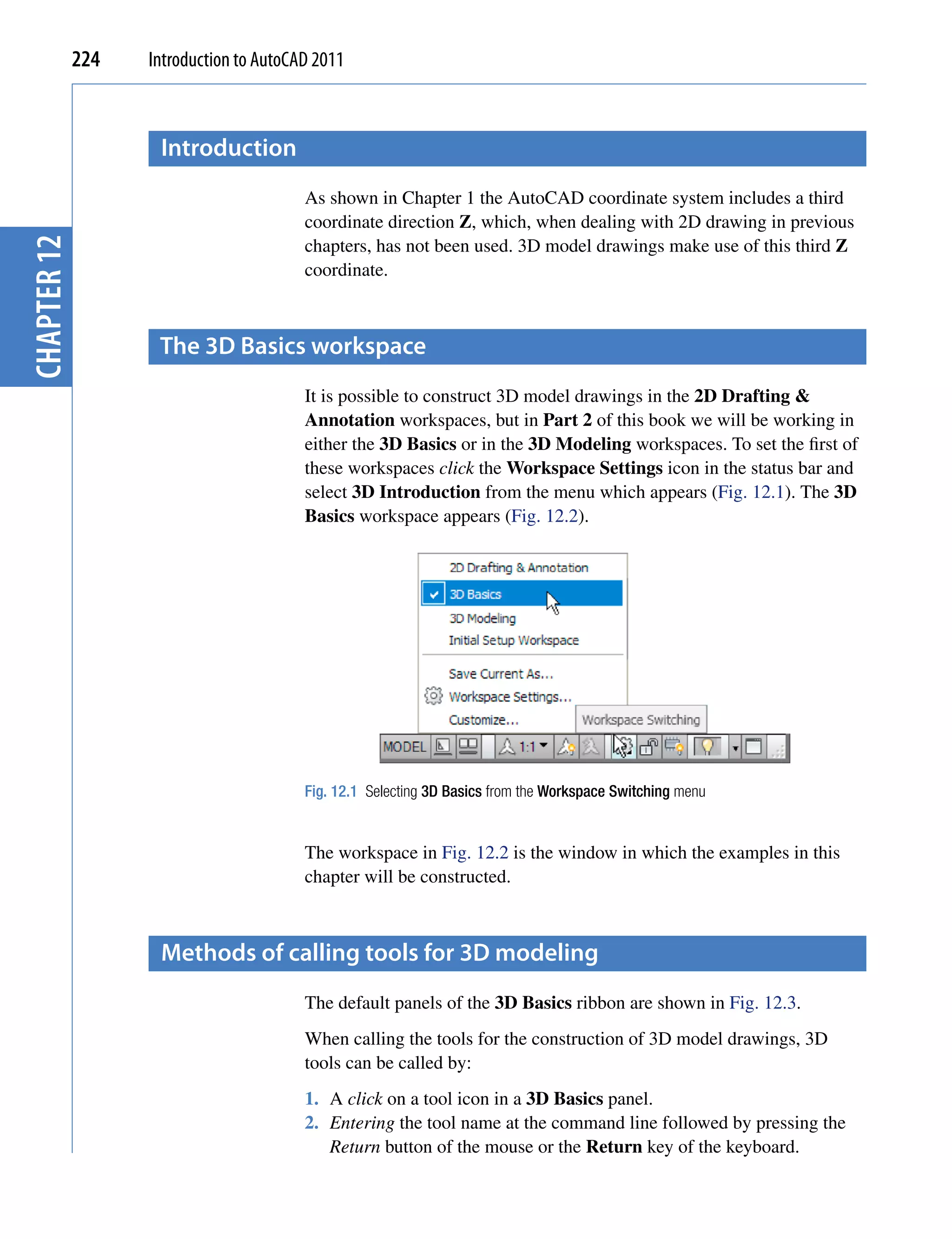
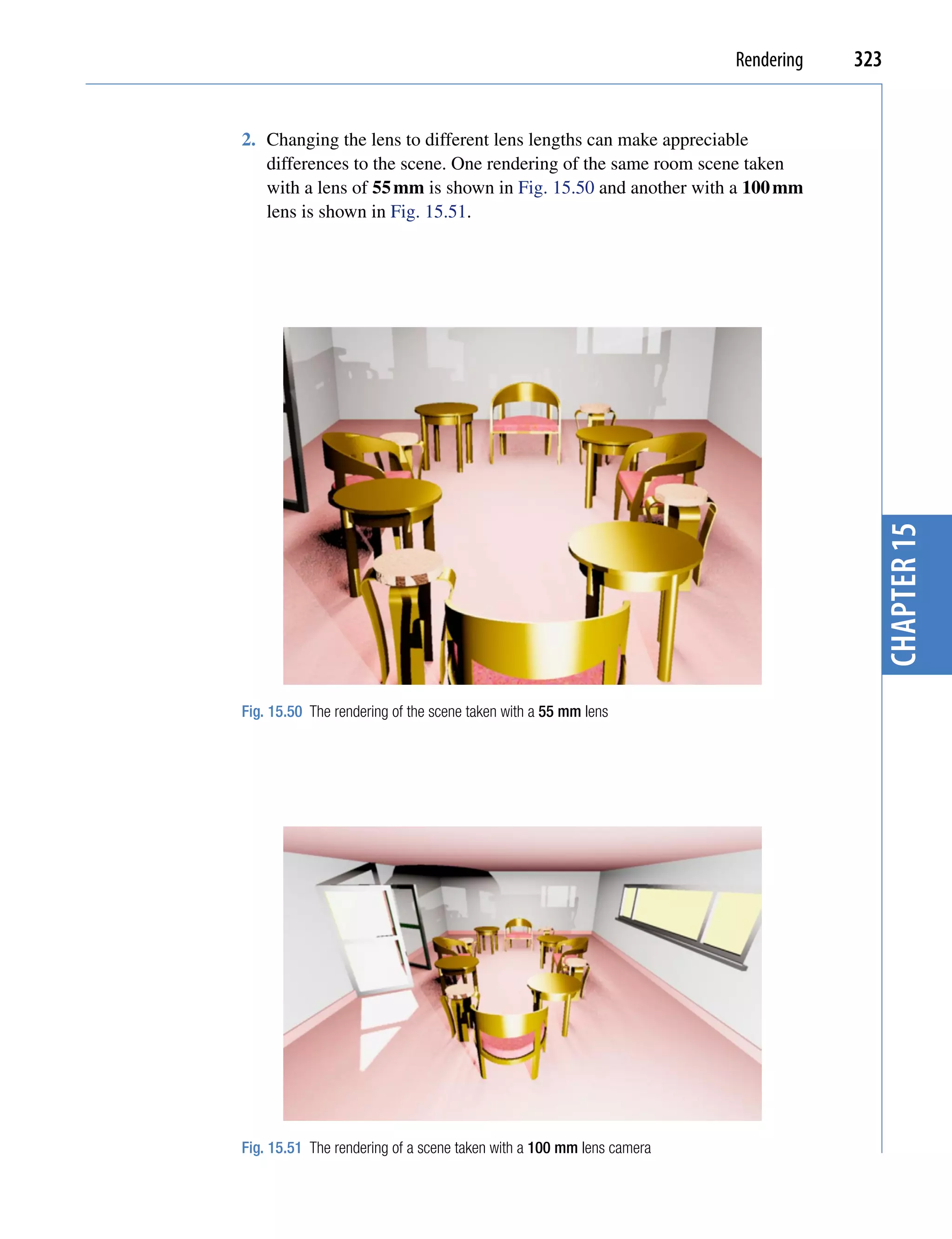
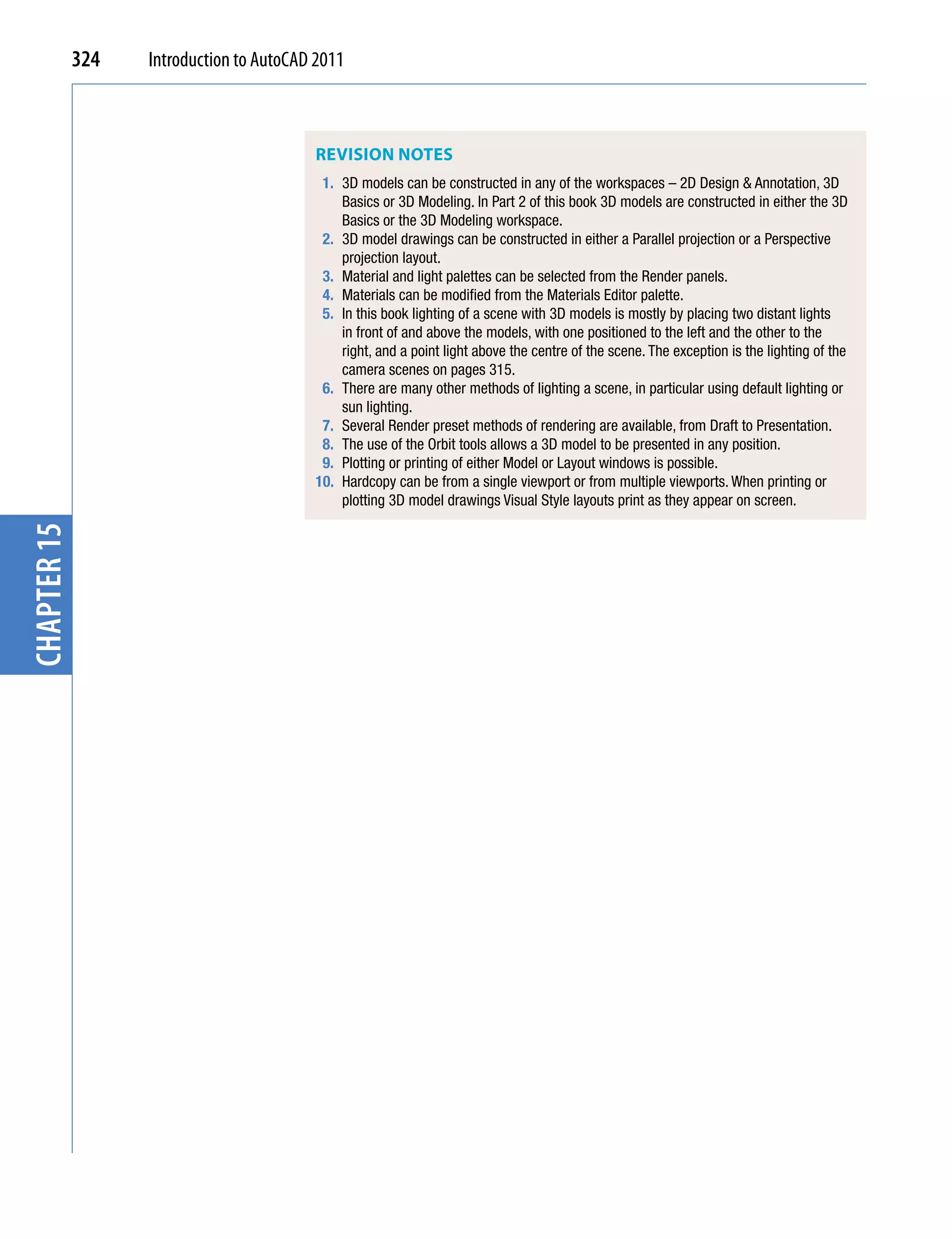
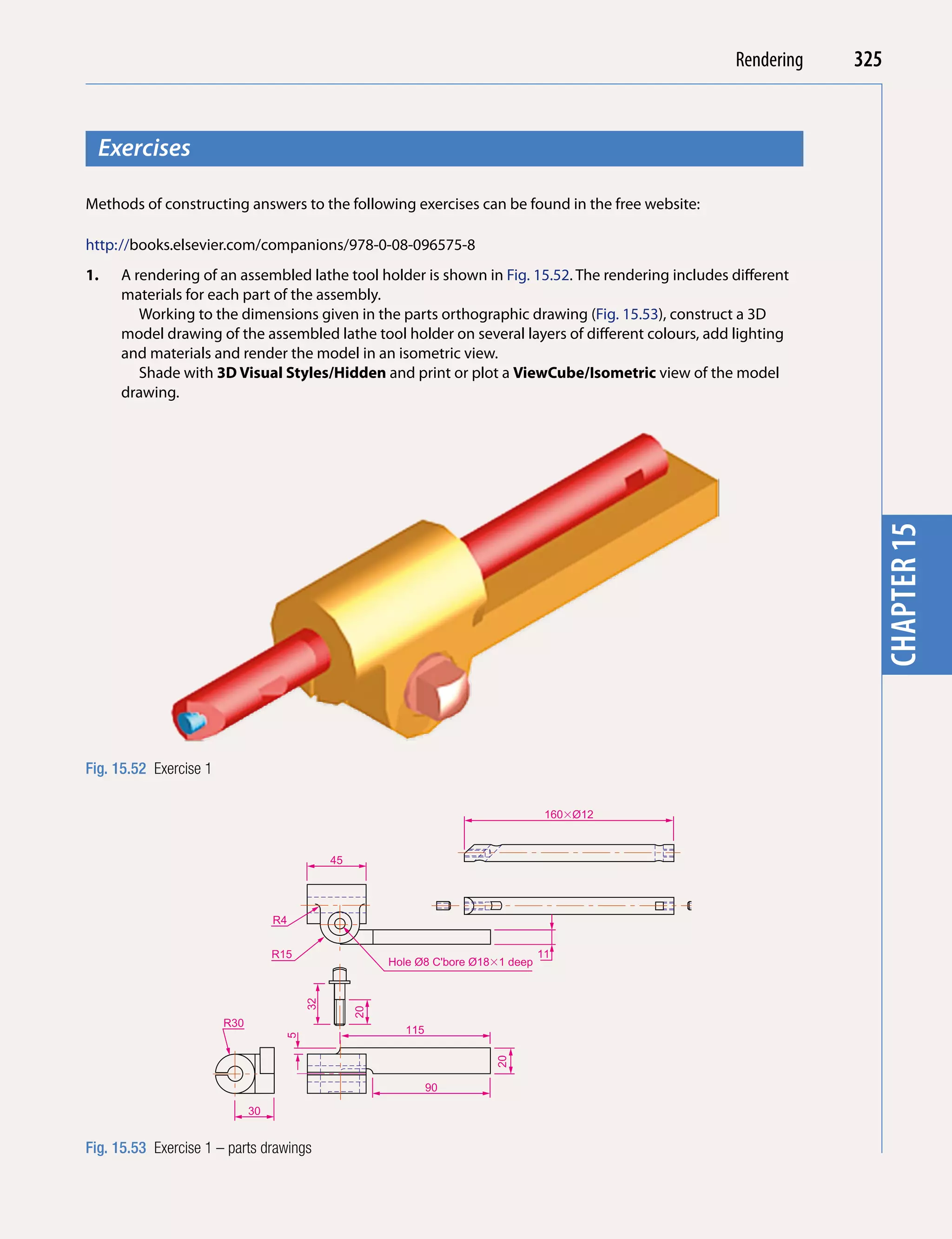
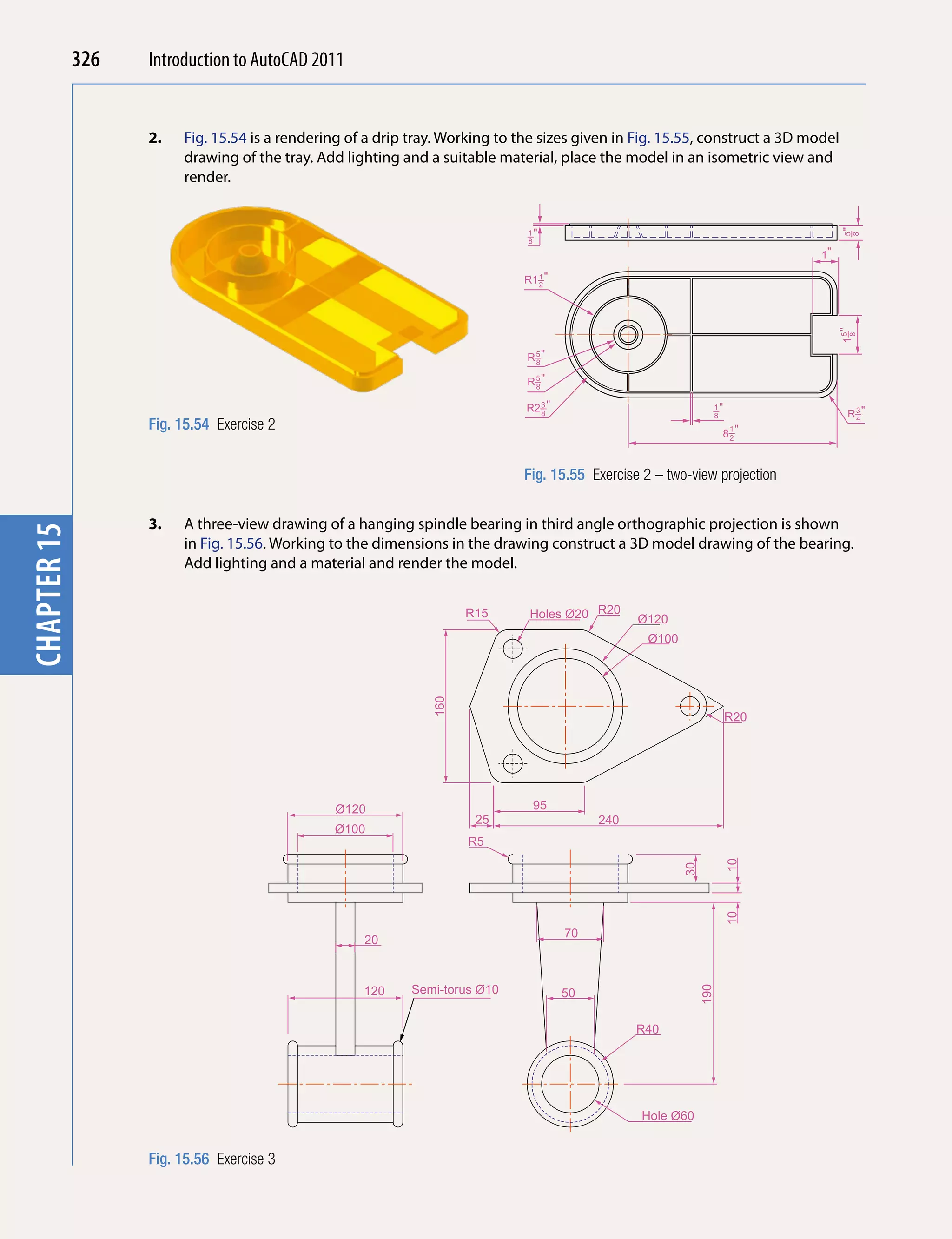
            Fig. 1.1 The AutoCAD   methods of working AutoCAD 2011, to be selected from a list of icons.
            2011 shortcut on the
            Windows desktop


                                   Fig. 1.2 Page 1 of the Initial Settings dialog

                                   When working in education or in industry, computers may be configured
                                   to allow other methods of opening AutoCAD, such as a list appearing on
                                   the computer in use when the computer is switched on, from which the
                                   operator can select the program he/she wishes to use.
                                   When AutoCAD 2011 is opened a window appears, which will depend
                                   upon whether a 3D Basics, a 3D Modeling, a Classic AutoCAD or a 2D
                                   Drafting & Annotation workspace has been set as QNEW in the Options
                                   dialog. In this example the 2D Drafting & Annotation workspace is shown
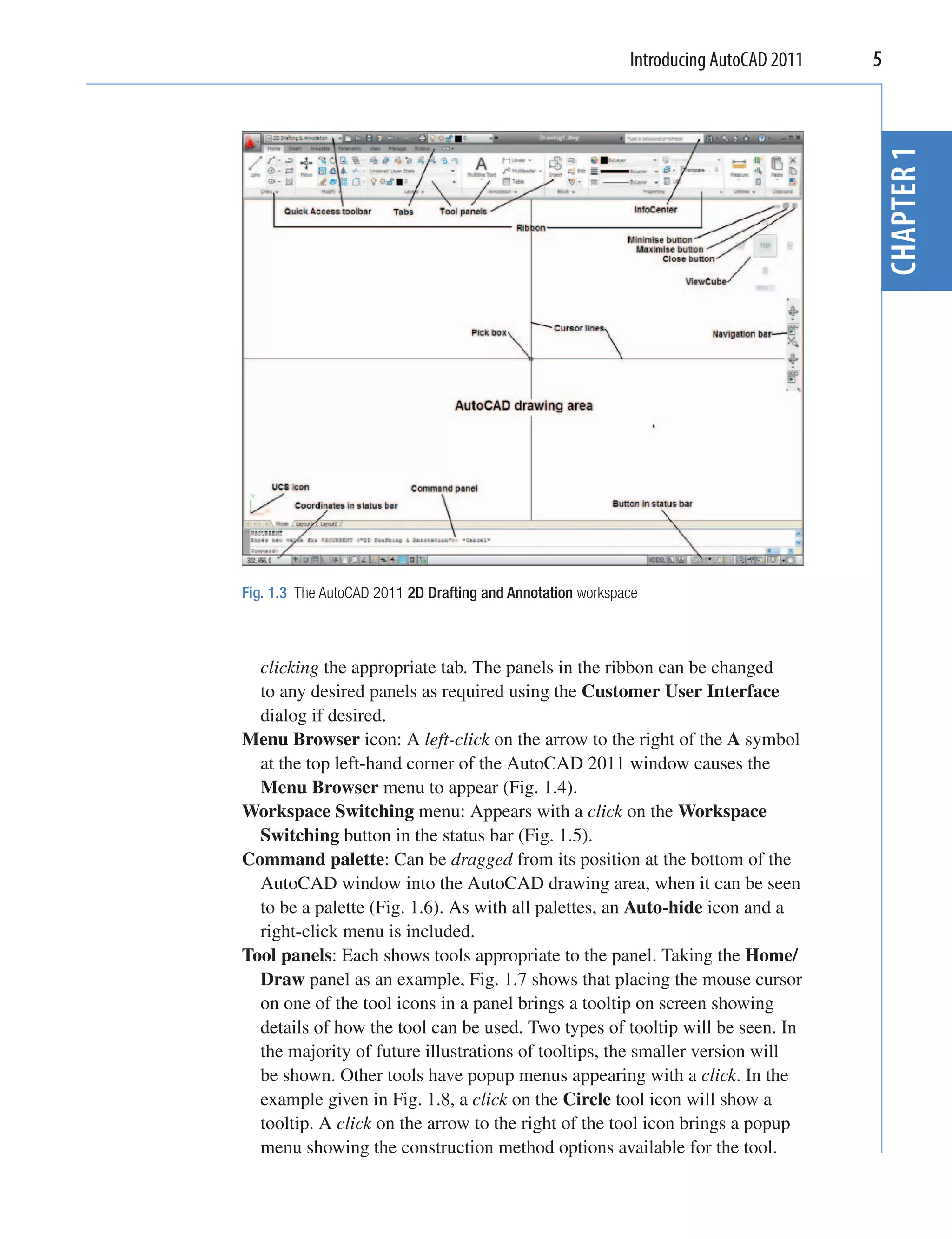
                                   and includes the Ribbon with Tool panels (Fig. 1.3). This 2D Drafting &
                                   Annotation workspace shows the following details:
                                   Ribbon: Which includes tabs, each of which when clicked will bring a
                                     set of panels containing tool icons. Further tool panels can be seen by
Introducing AutoCAD 2011   5


                                                                                       CHAPTER 1
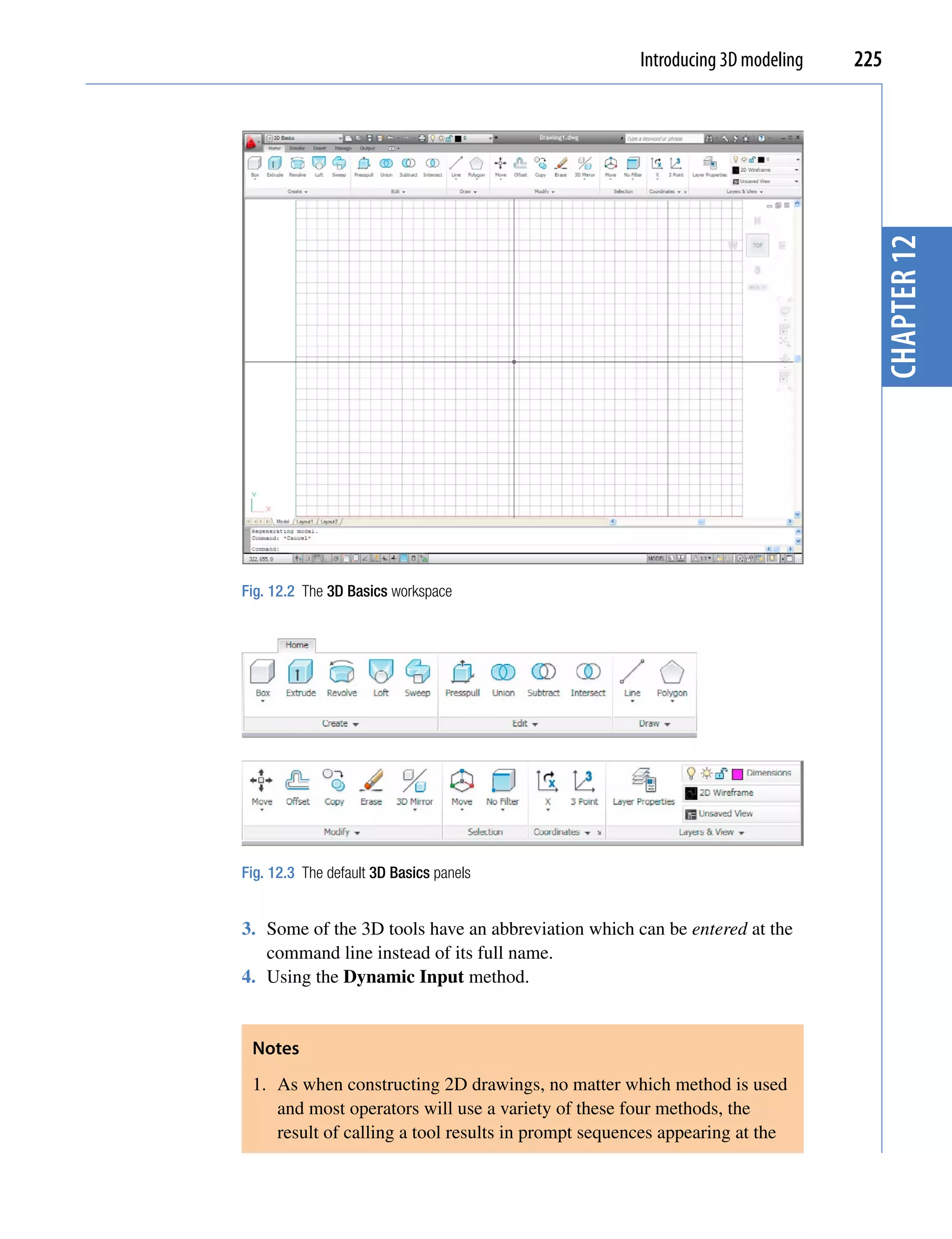
Fig. 1.3 The AutoCAD 2011 2D Drafting and Annotation workspace


  clicking the appropriate tab. The panels in the ribbon can be changed
  to any desired panels as required using the Customer User Interface
  dialog if desired.
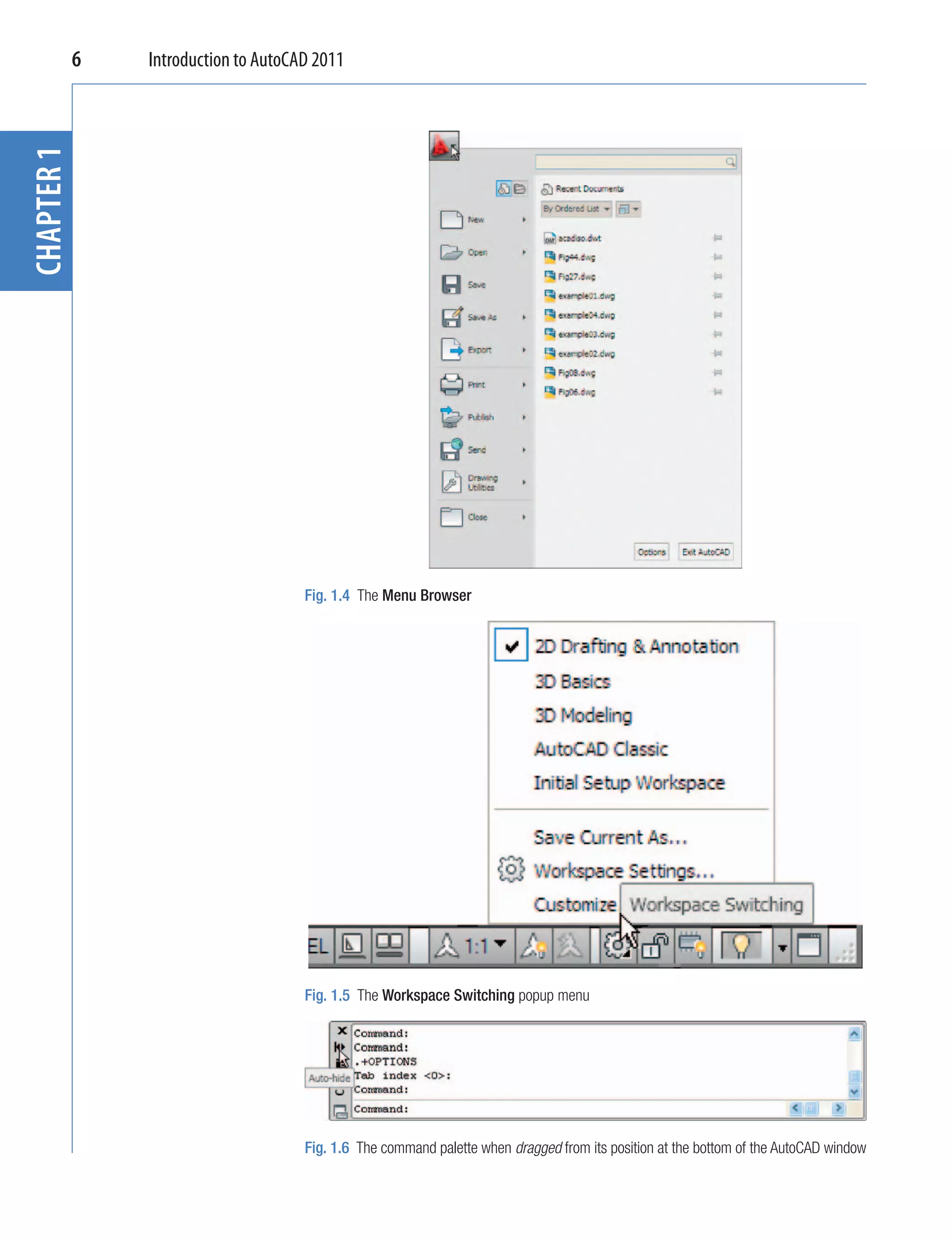
Menu Browser icon: A left-click on the arrow to the right of the A symbol
  at the top left-hand corner of the AutoCAD 2011 window causes the
  Menu Browser menu to appear (Fig. 1.4).
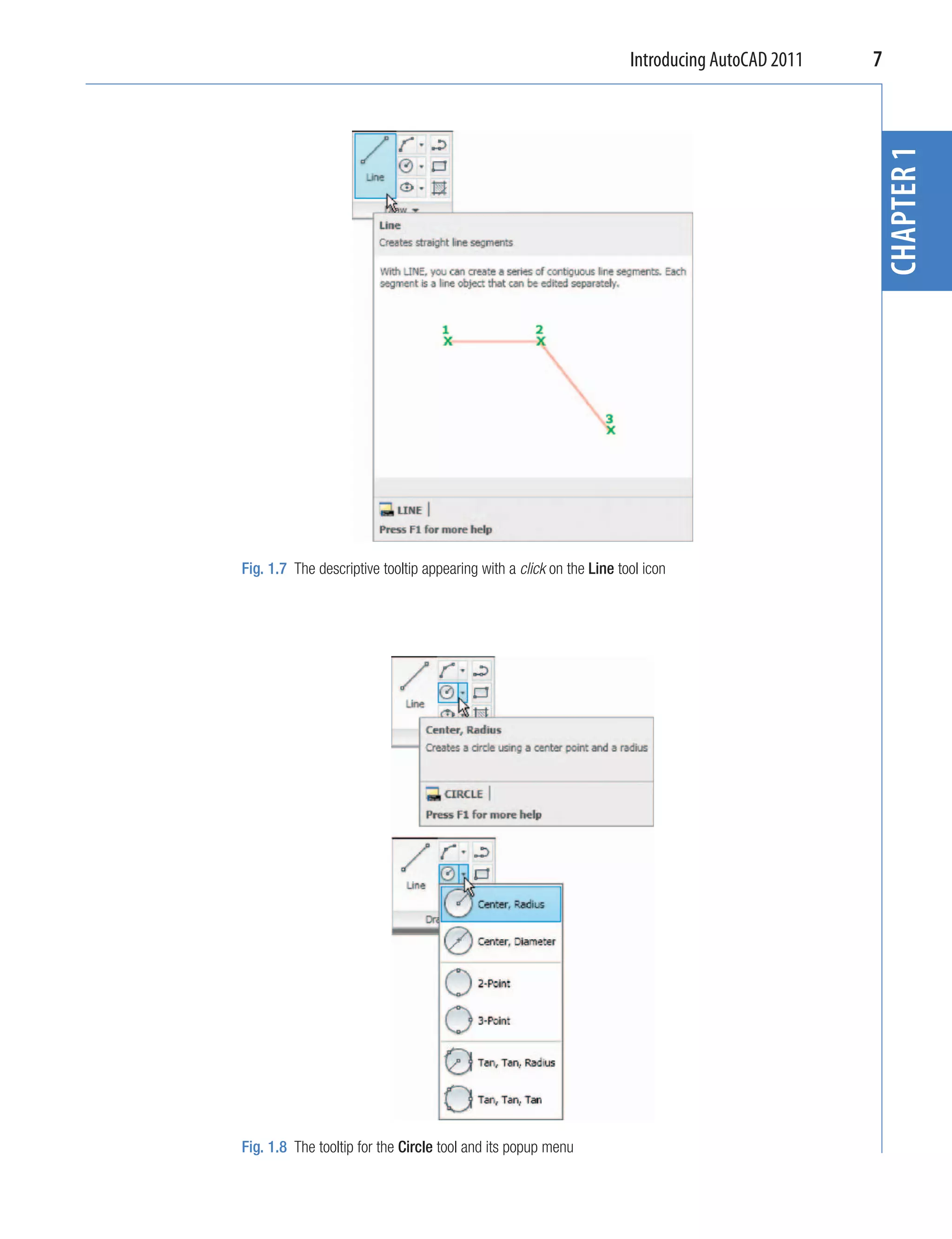
Workspace Switching menu: Appears with a click on the Workspace
  Switching button in the status bar (Fig. 1.5).
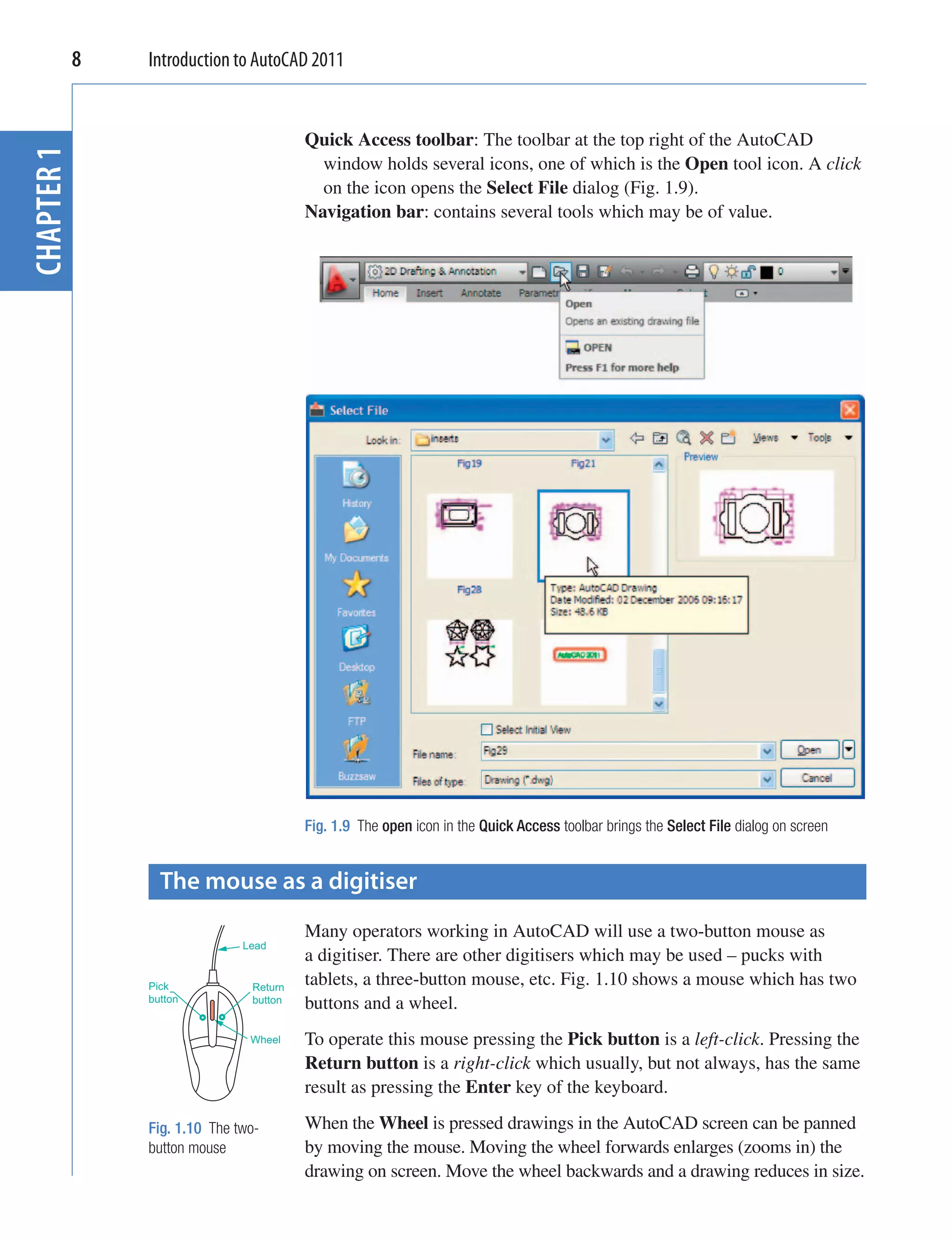
Command palette: Can be dragged from its position at the bottom of the
  AutoCAD window into the AutoCAD drawing area, when it can be seen
  to be a palette (Fig. 1.6). As with all palettes, an Auto-hide icon and a
  right-click menu is included.
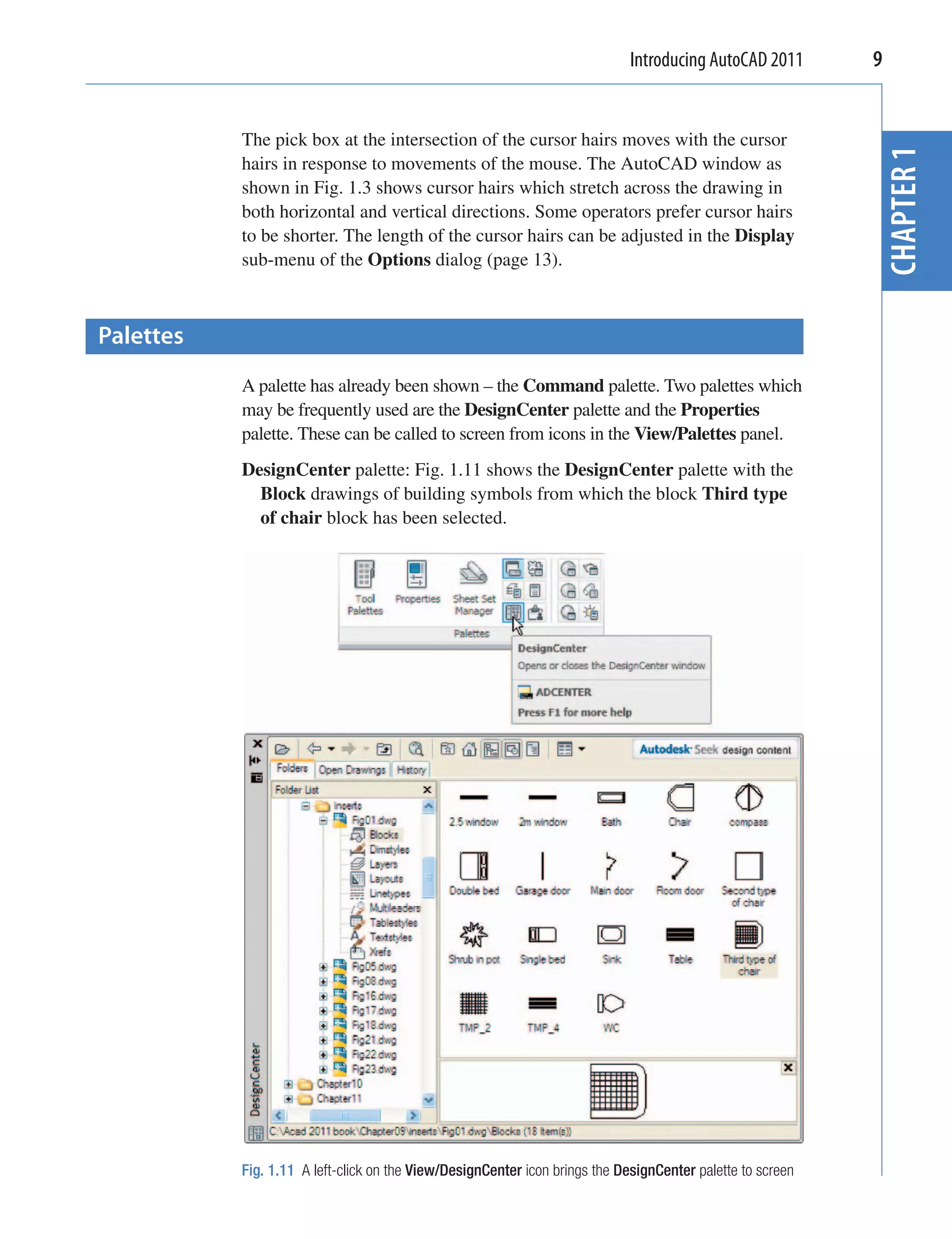
Tool panels: Each shows tools appropriate to the panel. Taking the Home/
  Draw panel as an example, Fig. 1.7 shows that placing the mouse cursor
  on one of the tool icons in a panel brings a tooltip on screen showing
  details of how the tool can be used. Two types of tooltip will be seen. In
  the majority of future illustrations of tooltips, the smaller version will
  be shown. Other tools have popup menus appearing with a click. In the
  example given in Fig. 1.8, a click on the Circle tool icon will show a
  tooltip. A click on the arrow to the right of the tool icon brings a popup
  menu showing the construction method options available for the tool.
6
CHAPTER 1   Introduction to AutoCAD 2011


                                  Fig. 1.4 The Menu Browser


                                  Fig. 1.5 The Workspace Switching popup menu


                                  Fig. 1.6 The command palette when dragged from its position at the bottom of the AutoCAD window
Introducing AutoCAD 2011   7


                                                                                                 CHAPTER 1
Fig. 1.7 The descriptive tooltip appearing with a click on the Line tool icon


Fig. 1.8 The tooltip for the Circle tool and its popup menu
8   Introduction to AutoCAD 2011


                                     Quick Access toolbar: The toolbar at the top right of the AutoCAD
CHAPTER 1


                                       window holds several icons, one of which is the Open tool icon. A click
                                       on the icon opens the Select File dialog (Fig. 1.9).
                                     Navigation bar: contains several tools which may be of value.


                                     Fig. 1.9 The open icon in the Quick Access toolbar brings the Select File dialog on screen


              The mouse as a digitiser
                                     Many operators working in AutoCAD will use a two-button mouse as
                           Lead
                                     a digitiser. There are other digitisers which may be used – pucks with
            Pick            Return
                                     tablets, a three-button mouse, etc. Fig. 1.10 shows a mouse which has two
            button          button   buttons and a wheel.
                            Wheel    To operate this mouse pressing the Pick button is a left-click. Pressing the
                                     Return button is a right-click which usually, but not always, has the same
                                     result as pressing the Enter key of the keyboard.

            Fig. 1.10 The two-       When the Wheel is pressed drawings in the AutoCAD screen can be panned
            button mouse             by moving the mouse. Moving the wheel forwards enlarges (zooms in) the
                                     drawing on screen. Move the wheel backwards and a drawing reduces in size.
Introducing AutoCAD 2011       9


           The pick box at the intersection of the cursor hairs moves with the cursor


                                                                                                            CHAPTER 1
           hairs in response to movements of the mouse. The AutoCAD window as
           shown in Fig. 1.3 shows cursor hairs which stretch across the drawing in
           both horizontal and vertical directions. Some operators prefer cursor hairs
           to be shorter. The length of the cursor hairs can be adjusted in the Display
           sub-menu of the Options dialog (page 13).


Palettes
           A palette has already been shown – the Command palette. Two palettes which
           may be frequently used are the DesignCenter palette and the Properties
           palette. These can be called to screen from icons in the View/Palettes panel.
           DesignCenter palette: Fig. 1.11 shows the DesignCenter palette with the
             Block drawings of building symbols from which the block Third type
             of chair block has been selected.


           Fig. 1.11 A left-click on the View/DesignCenter icon brings the DesignCenter palette to screen
10   Introduction to AutoCAD 2011


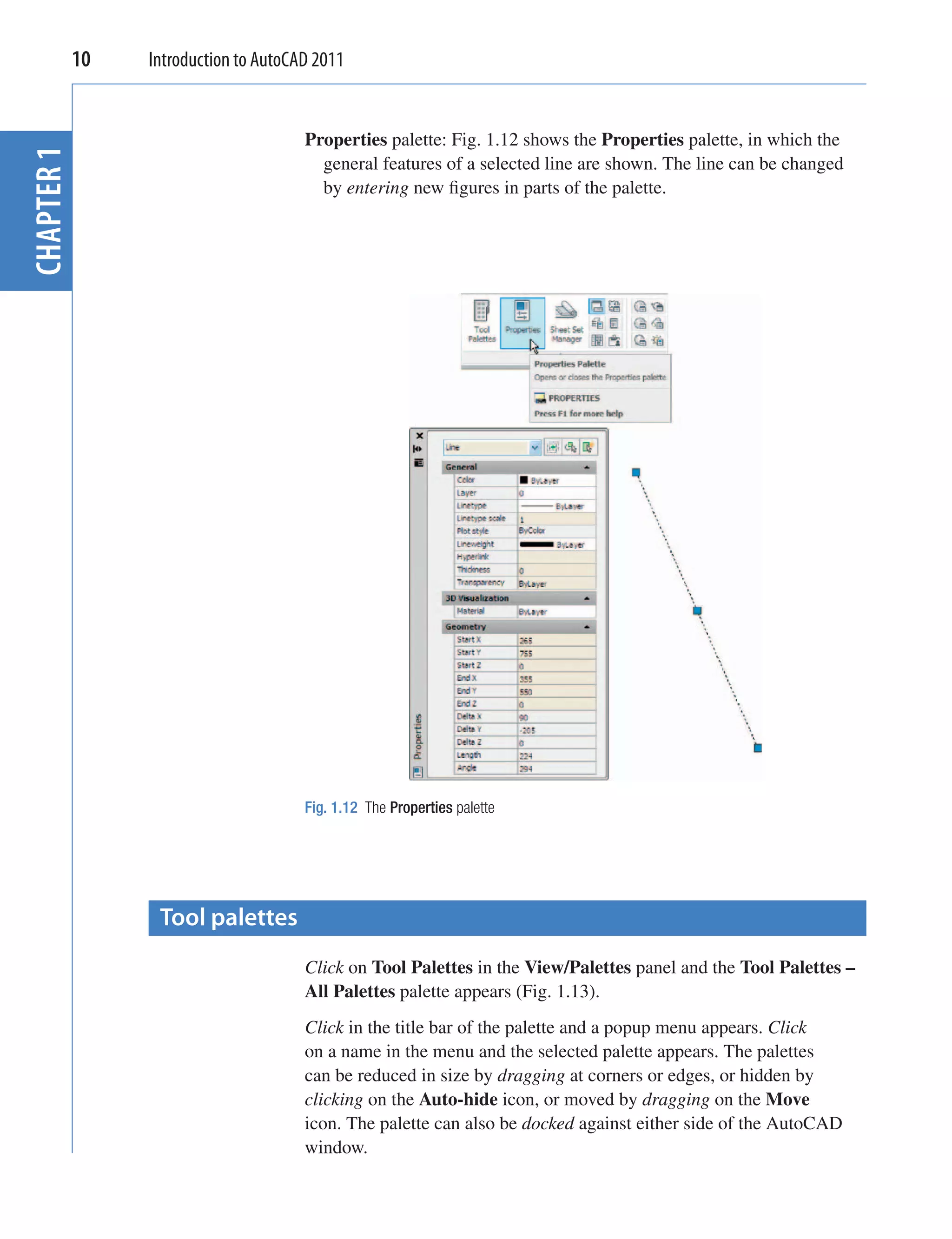
                                   Properties palette: Fig. 1.12 shows the Properties palette, in which the
CHAPTER 1


                                     general features of a selected line are shown. The line can be changed
                                     by entering new figures in parts of the palette.


                                   Fig. 1.12 The Properties palette


              Tool palettes
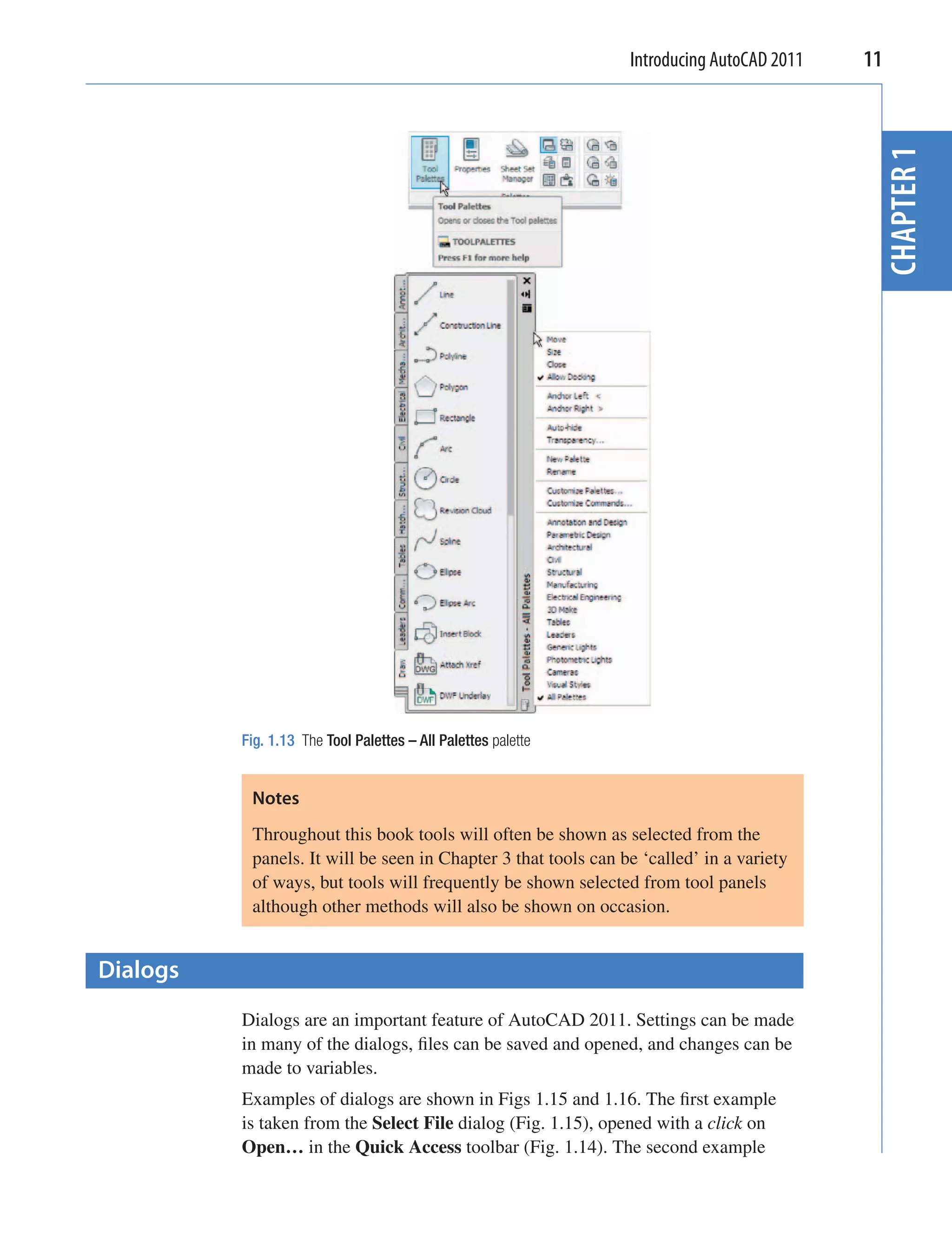
                                   Click on Tool Palettes in the View/Palettes panel and the Tool Palettes –
                                   All Palettes palette appears (Fig. 1.13).
                                   Click in the title bar of the palette and a popup menu appears. Click
                                   on a name in the menu and the selected palette appears. The palettes
                                   can be reduced in size by dragging at corners or edges, or hidden by
                                   clicking on the Auto-hide icon, or moved by dragging on the Move
                                   icon. The palette can also be docked against either side of the AutoCAD
                                   window.
Introducing AutoCAD 2011   11


                                                                                            CHAPTER 1
          Fig. 1.13 The Tool Palettes – All Palettes palette


           Notes
           Throughout this book tools will often be shown as selected from the
           panels. It will be seen in Chapter 3 that tools can be ‘called’ in a variety
           of ways, but tools will frequently be shown selected from tool panels
           although other methods will also be shown on occasion.


Dialogs
          Dialogs are an important feature of AutoCAD 2011. Settings can be made
          in many of the dialogs, files can be saved and opened, and changes can be
          made to variables.
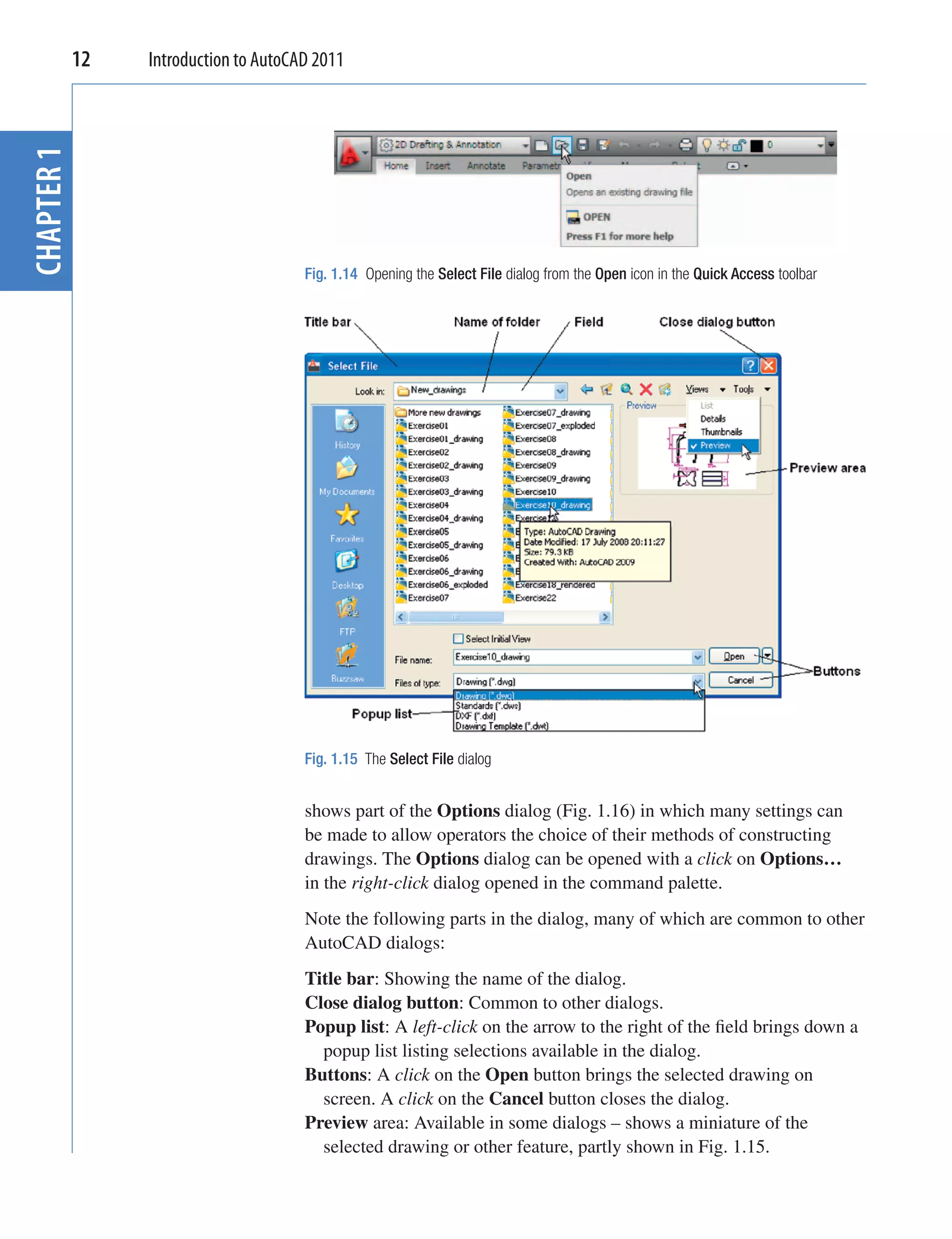
          Examples of dialogs are shown in Figs 1.15 and 1.16. The first example
          is taken from the Select File dialog (Fig. 1.15), opened with a click on
          Open… in the Quick Access toolbar (Fig. 1.14). The second example
12
CHAPTER 1    Introduction to AutoCAD 2011


                                   Fig. 1.14 Opening the Select File dialog from the Open icon in the Quick Access toolbar


                                   Fig. 1.15 The Select File dialog


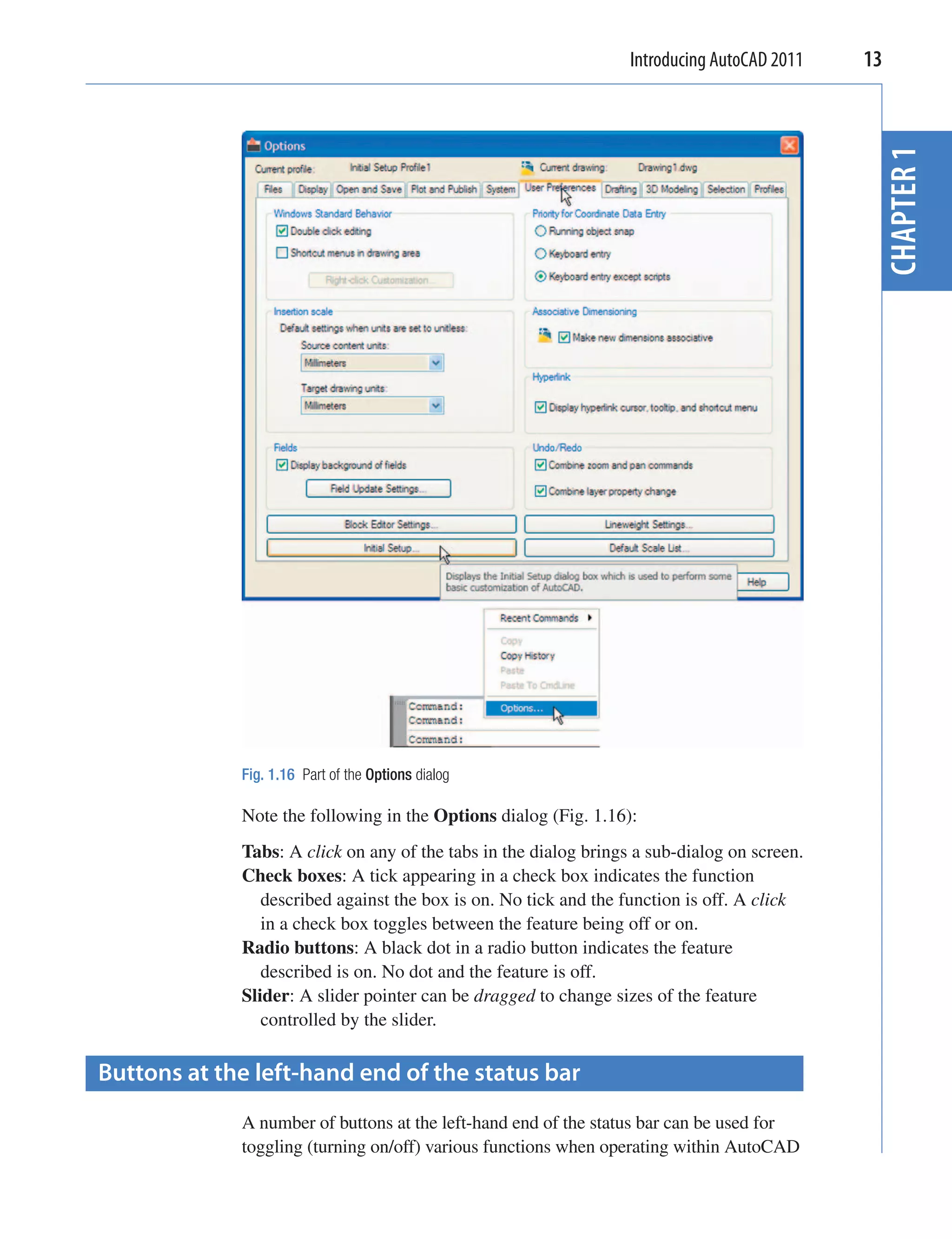
                                   shows part of the Options dialog (Fig. 1.16) in which many settings can
                                   be made to allow operators the choice of their methods of constructing
                                   drawings. The Options dialog can be opened with a click on Options…
                                   in the right-click dialog opened in the command palette.
                                   Note the following parts in the dialog, many of which are common to other
                                   AutoCAD dialogs:
                                   Title bar: Showing the name of the dialog.
                                   Close dialog button: Common to other dialogs.
                                   Popup list: A left-click on the arrow to the right of the field brings down a
                                     popup list listing selections available in the dialog.
                                   Buttons: A click on the Open button brings the selected drawing on
                                     screen. A click on the Cancel button closes the dialog.
                                   Preview area: Available in some dialogs – shows a miniature of the
                                     selected drawing or other feature, partly shown in Fig. 1.15.
Introducing AutoCAD 2011   13


                                                                                              CHAPTER 1
             Fig. 1.16 Part of the Options dialog

             Note the following in the Options dialog (Fig. 1.16):
             Tabs: A click on any of the tabs in the dialog brings a sub-dialog on screen.
             Check boxes: A tick appearing in a check box indicates the function
                described against the box is on. No tick and the function is off. A click
                in a check box toggles between the feature being off or on.
             Radio buttons: A black dot in a radio button indicates the feature
                described is on. No dot and the feature is off.
             Slider: A slider pointer can be dragged to change sizes of the feature
                controlled by the slider.

Buttons at the left-hand end of the status bar
             A number of buttons at the left-hand end of the status bar can be used for
             toggling (turning on/off) various functions when operating within AutoCAD
14   Introduction to AutoCAD 2011


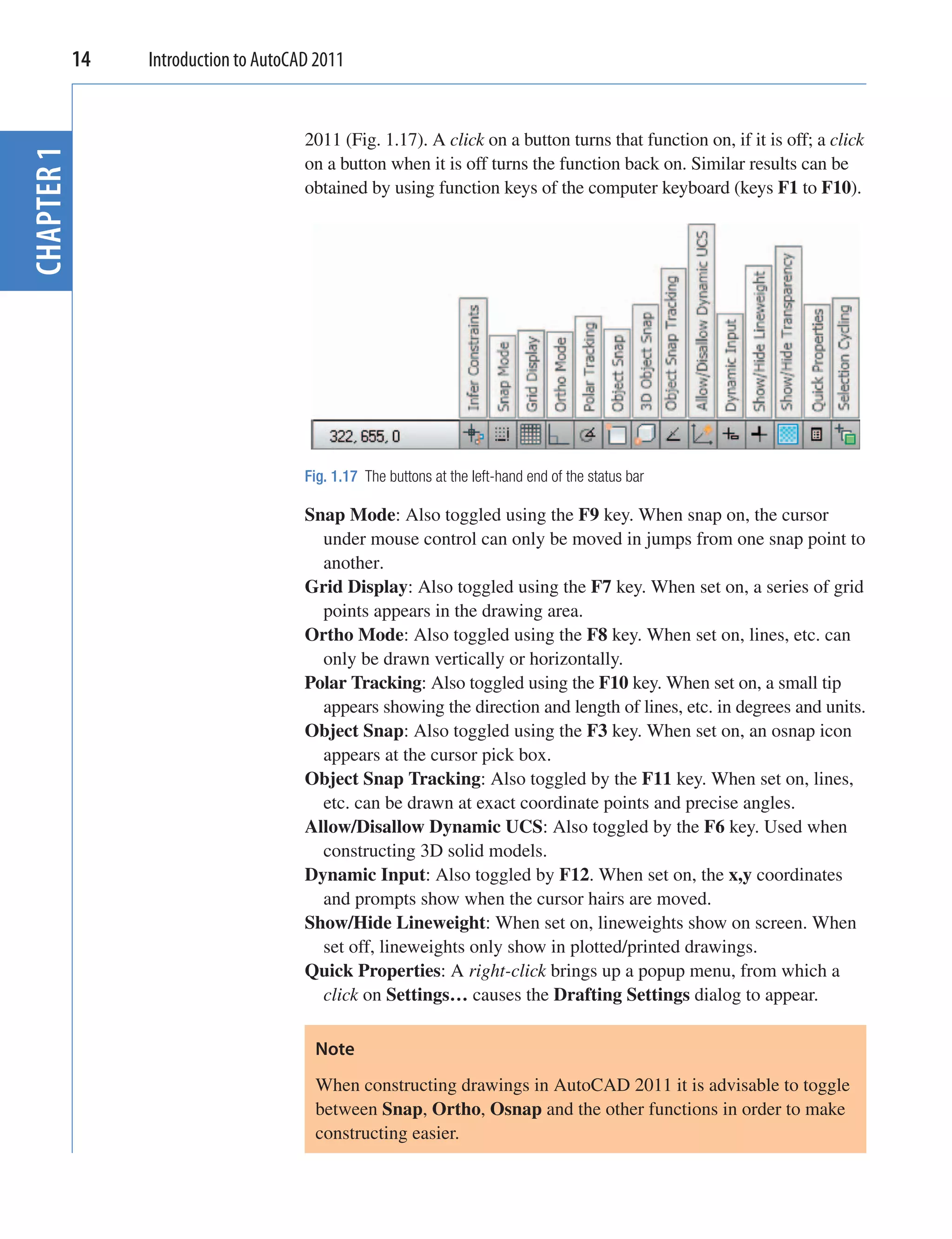
                                   2011 (Fig. 1.17). A click on a button turns that function on, if it is off; a click
CHAPTER 1


                                   on a button when it is off turns the function back on. Similar results can be
                                   obtained by using function keys of the computer keyboard (keys F1 to F10).


                                   Fig. 1.17 The buttons at the left-hand end of the status bar

                                   Snap Mode: Also toggled using the F9 key. When snap on, the cursor
                                     under mouse control can only be moved in jumps from one snap point to
                                     another.
                                   Grid Display: Also toggled using the F7 key. When set on, a series of grid
                                     points appears in the drawing area.
                                   Ortho Mode: Also toggled using the F8 key. When set on, lines, etc. can
                                     only be drawn vertically or horizontally.
                                   Polar Tracking: Also toggled using the F10 key. When set on, a small tip
                                     appears showing the direction and length of lines, etc. in degrees and units.
                                   Object Snap: Also toggled using the F3 key. When set on, an osnap icon
                                     appears at the cursor pick box.
                                   Object Snap Tracking: Also toggled by the F11 key. When set on, lines,
                                     etc. can be drawn at exact coordinate points and precise angles.
                                   Allow/Disallow Dynamic UCS: Also toggled by the F6 key. Used when
                                     constructing 3D solid models.
                                   Dynamic Input: Also toggled by F12. When set on, the x,y coordinates
                                     and prompts show when the cursor hairs are moved.
                                   Show/Hide Lineweight: When set on, lineweights show on screen. When
                                     set off, lineweights only show in plotted/printed drawings.
                                   Quick Properties: A right-click brings up a popup menu, from which a
                                     click on Settings… causes the Drafting Settings dialog to appear.

                                    Note
                                    When constructing drawings in AutoCAD 2011 it is advisable to toggle
                                    between Snap, Ortho, Osnap and the other functions in order to make
                                    constructing easier.
Introducing AutoCAD 2011   15


Buttons at the right-hand end of the status bar


                                                                                                         CHAPTER 1
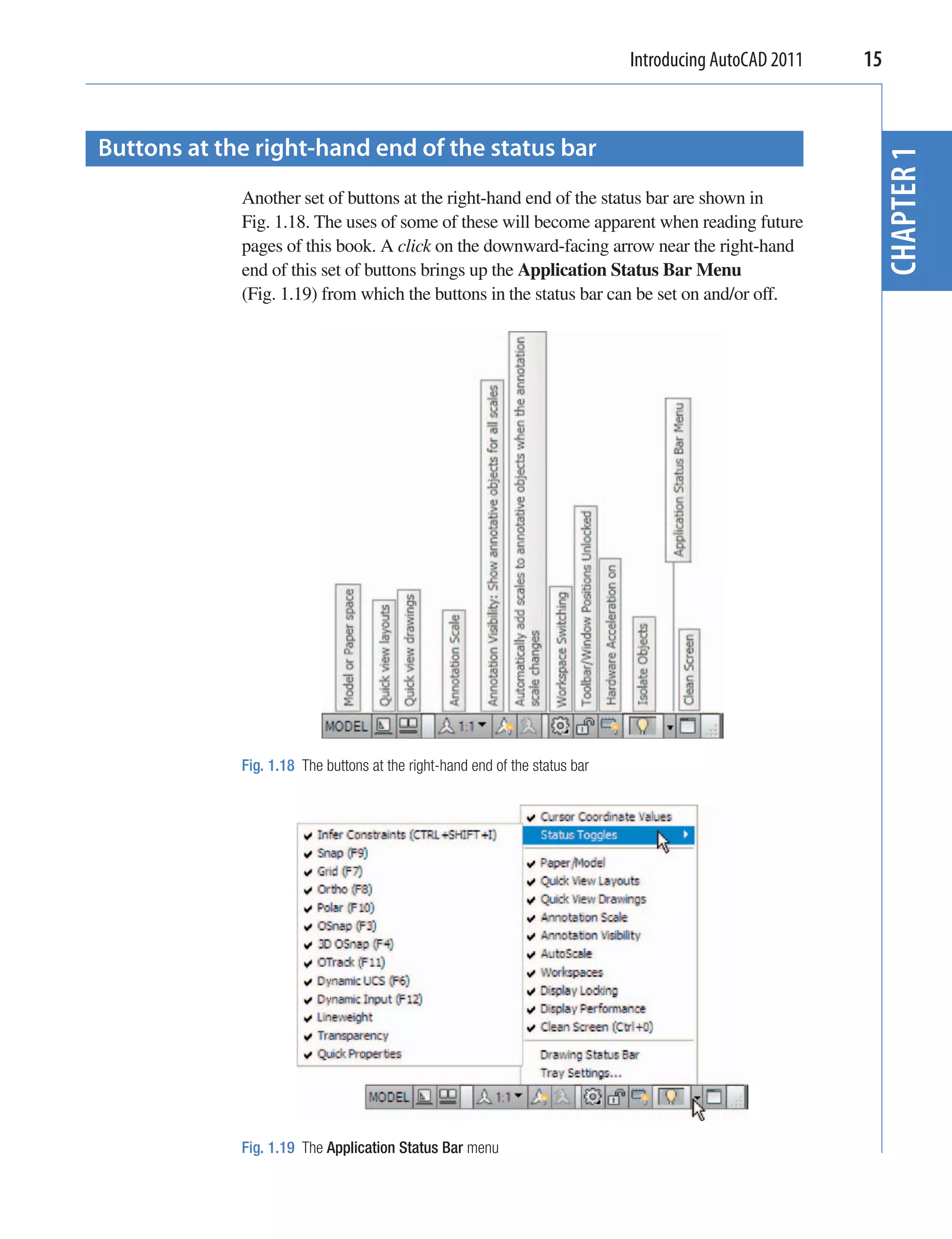
             Another set of buttons at the right-hand end of the status bar are shown in
             Fig. 1.18. The uses of some of these will become apparent when reading future
             pages of this book. A click on the downward-facing arrow near the right-hand
             end of this set of buttons brings up the Application Status Bar Menu
             (Fig. 1.19) from which the buttons in the status bar can be set on and/or off.


             Fig. 1.18 The buttons at the right-hand end of the status bar


             Fig. 1.19 The Application Status Bar menu
16   Introduction to AutoCAD 2011


              The AutoCAD coordinate system
CHAPTER 1


                                   In the AutoCAD 2D coordinate system, units are measured horizontally
                                   in terms of X and vertically in terms of Y. A 2D point in the AutoCAD
                                   drawing area can be determined in terms of X,Y (in this book referred
                                   to as x,y). x,y 0,0 is the origin of the system. The coordinate point
                                   x,y 100,50 is 100 units to the right of the origin and 50 units above the
                                   origin. The point x,y     100, 50 is 100 units to the left of the origin
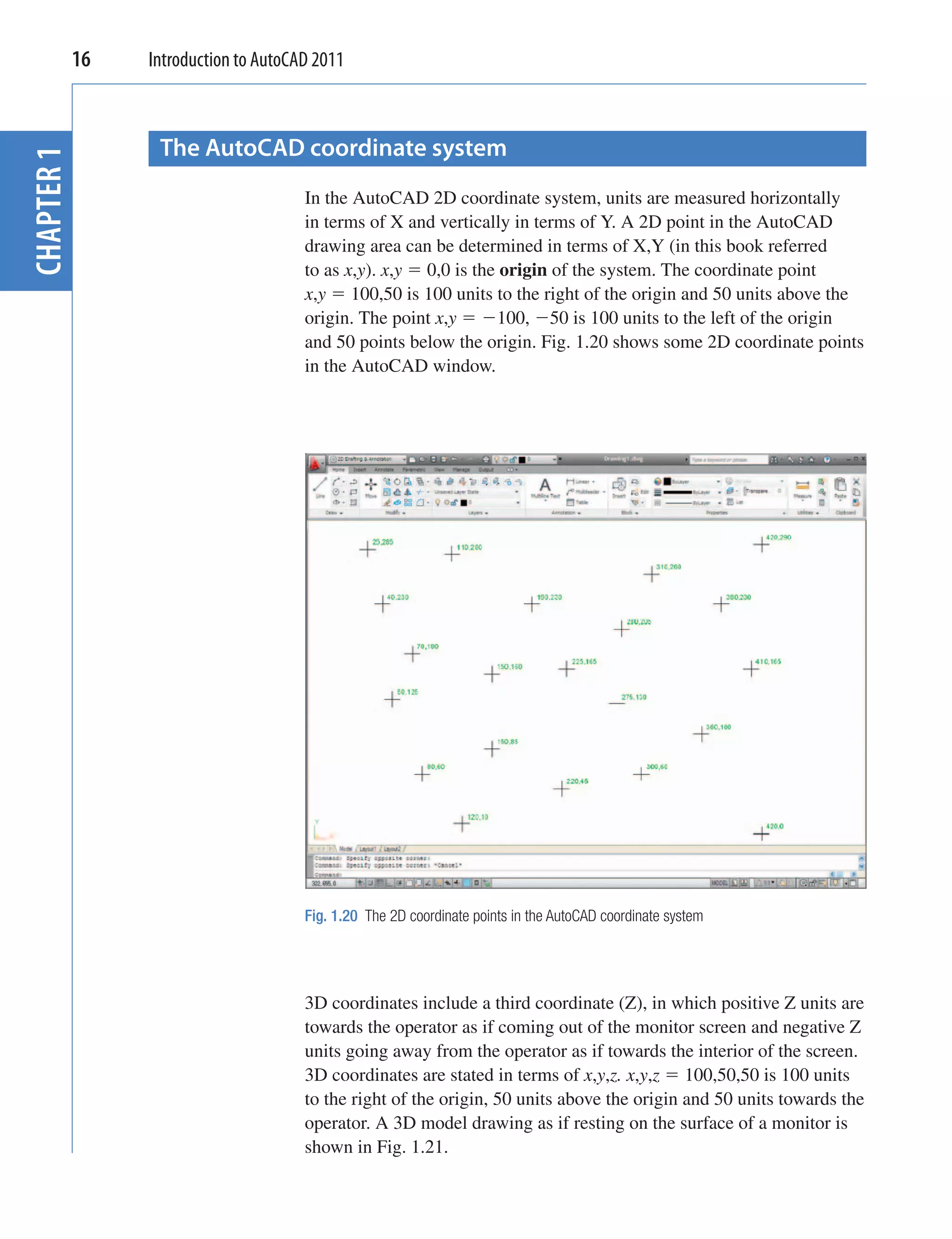
                                   and 50 points below the origin. Fig. 1.20 shows some 2D coordinate points
                                   in the AutoCAD window.


                                   Fig. 1.20 The 2D coordinate points in the AutoCAD coordinate system


                                   3D coordinates include a third coordinate (Z), in which positive Z units are
                                   towards the operator as if coming out of the monitor screen and negative Z
                                   units going away from the operator as if towards the interior of the screen.
                                   3D coordinates are stated in terms of x,y,z. x,y,z 100,50,50 is 100 units
                                   to the right of the origin, 50 units above the origin and 50 units towards the
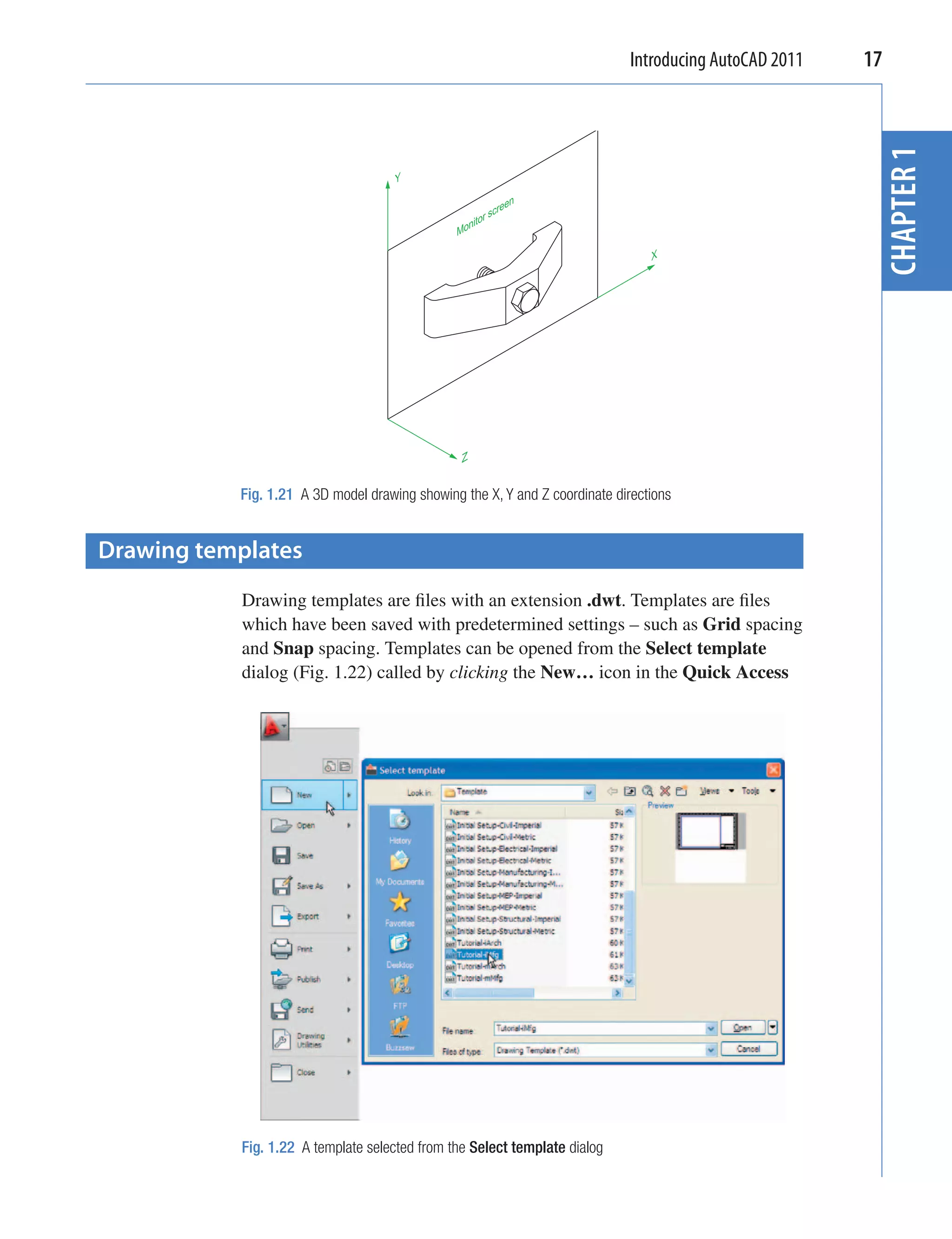
                                   operator. A 3D model drawing as if resting on the surface of a monitor is
                                   shown in Fig. 1.21.
Introducing AutoCAD 2011   17


                                                                                                         CHAPTER 1
                                     Y

                                                             een
                                                          scr
                                                    tor
                                               Moni

                                                                                X


                                                Z


           Fig. 1.21 A 3D model drawing showing the X, Y and Z coordinate directions


Drawing templates
           Drawing templates are files with an extension .dwt. Templates are files
           which have been saved with predetermined settings – such as Grid spacing
           and Snap spacing. Templates can be opened from the Select template
           dialog (Fig. 1.22) called by clicking the New… icon in the Quick Access


           Fig. 1.22 A template selected from the Select template dialog
18   Introduction to AutoCAD 2011


                                   toolbar. An example of a template file being opened is shown in Fig. 1.22.
CHAPTER 1


                                   In this example the template will be opened in Paper Space and is
                                   complete with a title block and borders.
                                   When AutoCAD 2011 is used in European countries and opened, the
                                   acadiso.dwt template is the one most likely to appear on screen. In this
                                   part (Part 1 – 2D Design) of this book drawings will usually be constructed
                                   in an adaptation of the acadiso.dwt template. To adapt this template:
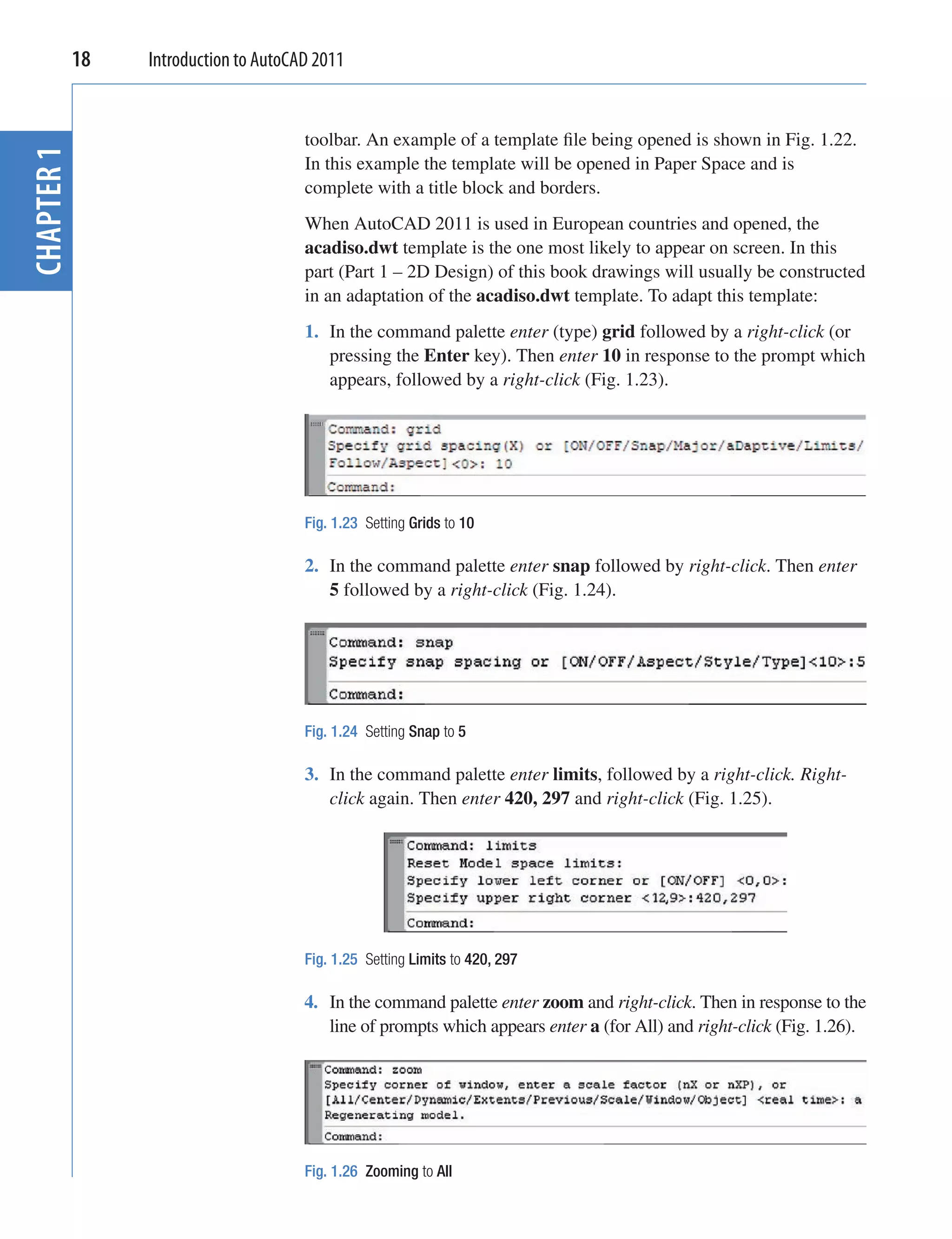
                                   1. In the command palette enter (type) grid followed by a right-click (or
                                      pressing the Enter key). Then enter 10 in response to the prompt which
                                      appears, followed by a right-click (Fig. 1.23).


                                   Fig. 1.23 Setting Grids to 10

                                   2. In the command palette enter snap followed by right-click. Then enter
                                      5 followed by a right-click (Fig. 1.24).


                                   Fig. 1.24 Setting Snap to 5

                                   3. In the command palette enter limits, followed by a right-click. Right-
                                      click again. Then enter 420, 297 and right-click (Fig. 1.25).


                                   Fig. 1.25 Setting Limits to 420, 297

                                   4. In the command palette enter zoom and right-click. Then in response to the
                                      line of prompts which appears enter a (for All) and right-click (Fig. 1.26).


                                   Fig. 1.26 Zooming to All
Introducing AutoCAD 2011   19


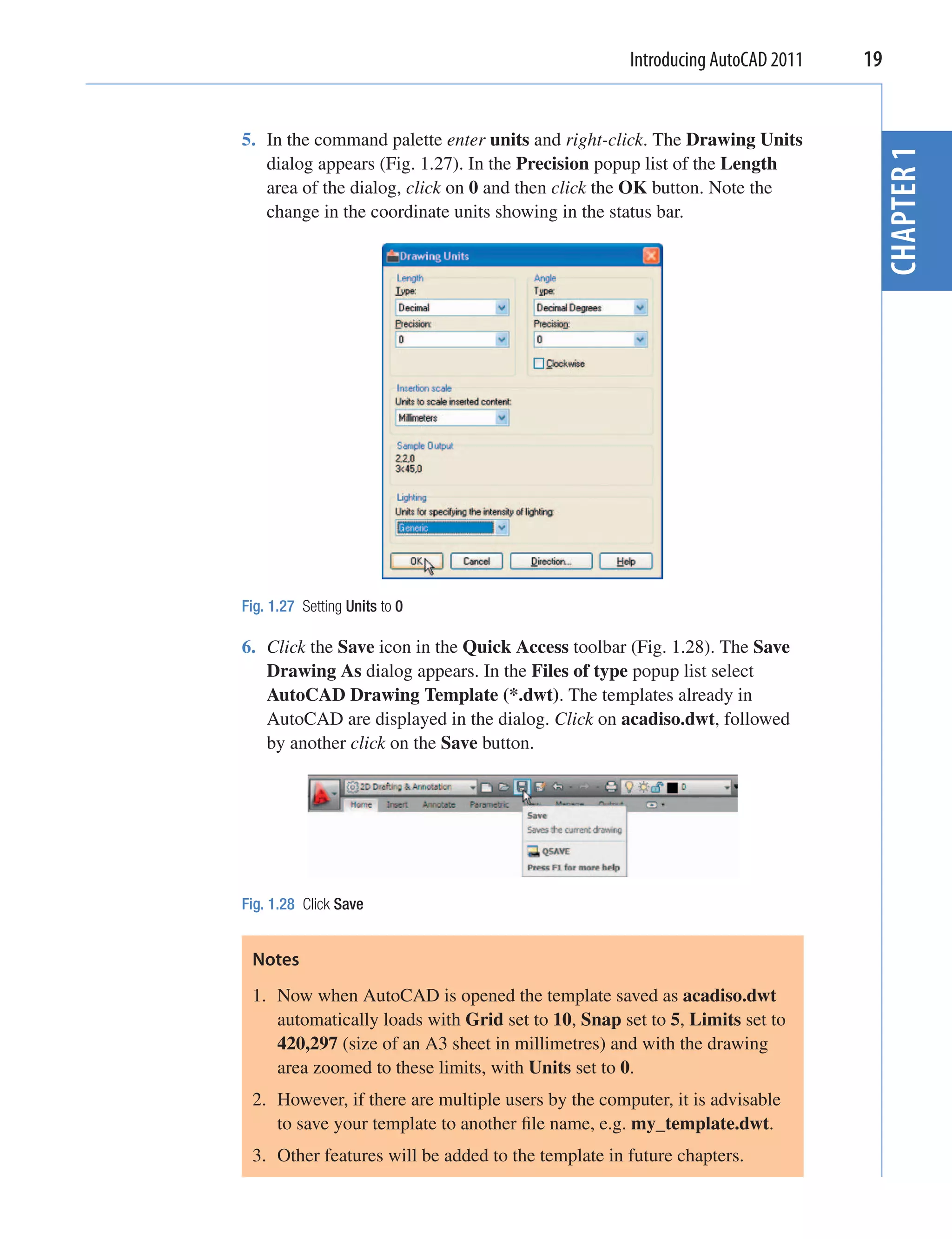
5. In the command palette enter units and right-click. The Drawing Units


                                                                                CHAPTER 1
   dialog appears (Fig. 1.27). In the Precision popup list of the Length
   area of the dialog, click on 0 and then click the OK button. Note the
   change in the coordinate units showing in the status bar.


Fig. 1.27 Setting Units to 0

6. Click the Save icon in the Quick Access toolbar (Fig. 1.28). The Save
   Drawing As dialog appears. In the Files of type popup list select
   AutoCAD Drawing Template (*.dwt). The templates already in
   AutoCAD are displayed in the dialog. Click on acadiso.dwt, followed
   by another click on the Save button.


Fig. 1.28 Click Save


 Notes
 1. Now when AutoCAD is opened the template saved as acadiso.dwt
    automatically loads with Grid set to 10, Snap set to 5, Limits set to
    420,297 (size of an A3 sheet in millimetres) and with the drawing
    area zoomed to these limits, with Units set to 0.
 2. However, if there are multiple users by the computer, it is advisable
    to save your template to another file name, e.g. my_template.dwt.
 3. Other features will be added to the template in future chapters.
20   Introduction to AutoCAD 2011


              Methods of showing entries in the command palette
CHAPTER 1


                                   Throughout the book, a tool is “called” usually by a click on a tool icon
                                   in a panel – in this example entering zoom at the command line and the
                                   following appears in the command palette:
                                   Command: enter zoom right-click
                                   Specify corner of window, enter a scale factor
                                     (nX or nXP), or [All/Center/Dynamic/Extents/
                                     Previous/Scale/Window/Object] <real time>: pick
                                     a point on screen
                                   Specify opposite corner: pick another point to
                                     form a window
                                   Command:


                                    Note
                                    In later examples this may be shortened to:
                                    Command: zoom
                                    [prompts]: following by picking points
                                    Command:


                                    Notes
                                    1. In the above enter means type the given letter, word or words at the
                                       Command: prompt.
                                    2. Right-click means press the Return (right) button of the mouse or
                                       press the Return key of the keyboard.


              Tools and tool icons
                                   In AutoCAD 2011, tools are shown as names and icons in panels or in
                                   drop-down menus. When the cursor is placed over a tool icon a description
                                   shows with the name of the tool as shown and an explanation in diagram
                                   form as in the example given in Fig. 1.7 (page 5).
                                   If a small outward-facing arrow is included at the right-hand side of a tool
                                   icon, when the cursor is placed over the icon and the pick button of the
                                   mouse depressed and held, a flyout appears which includes other features.
                                   An example is given in Fig. 1.8 (page 5).
Introducing AutoCAD 2011   21


Another AutoCAD workspace


                                                                                                   CHAPTER 1
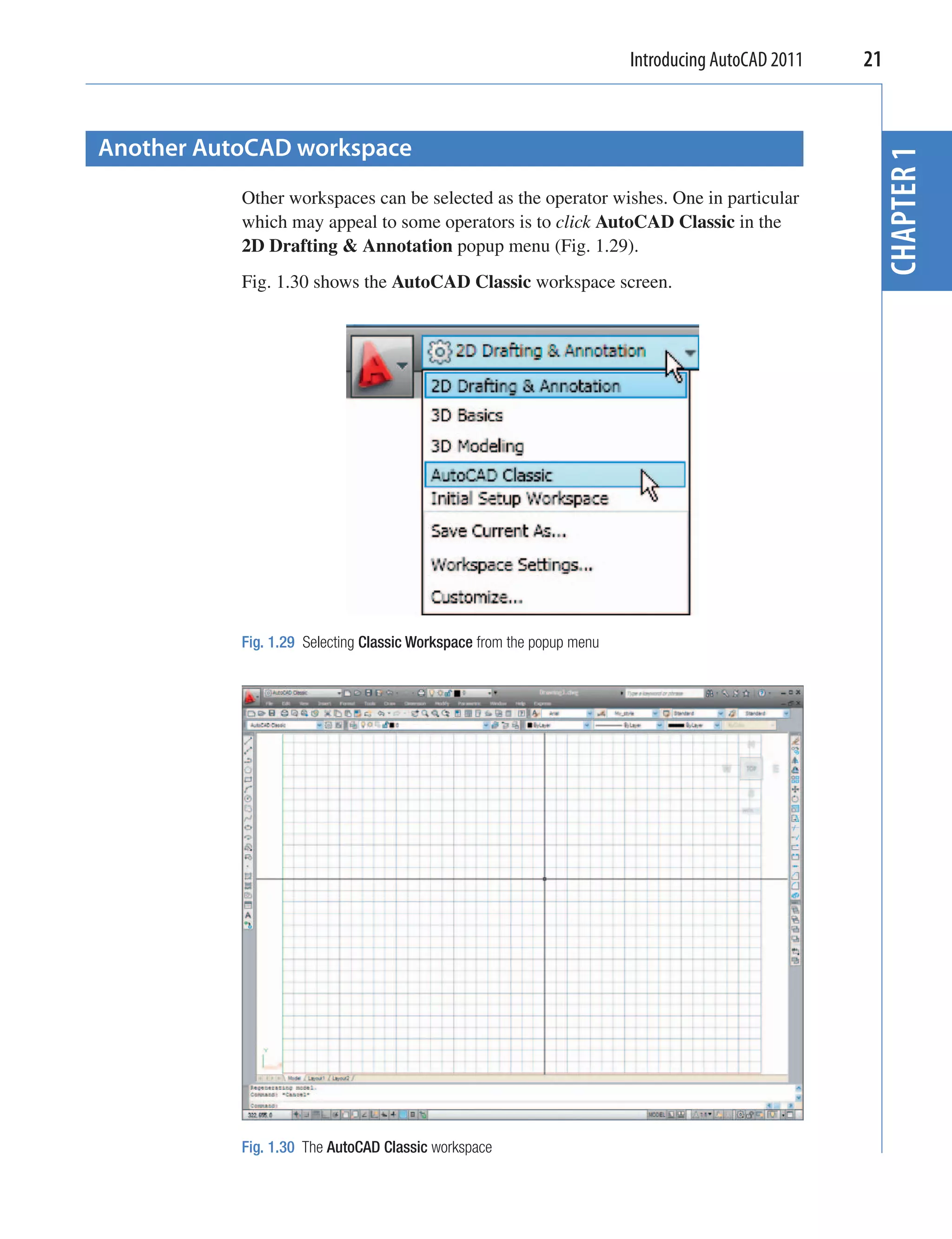
           Other workspaces can be selected as the operator wishes. One in particular
           which may appeal to some operators is to click AutoCAD Classic in the
           2D Drafting & Annotation popup menu (Fig. 1.29).
           Fig. 1.30 shows the AutoCAD Classic workspace screen.


           Fig. 1.29 Selecting Classic Workspace from the popup menu


           Fig. 1.30 The AutoCAD Classic workspace
22   Introduction to AutoCAD 2011


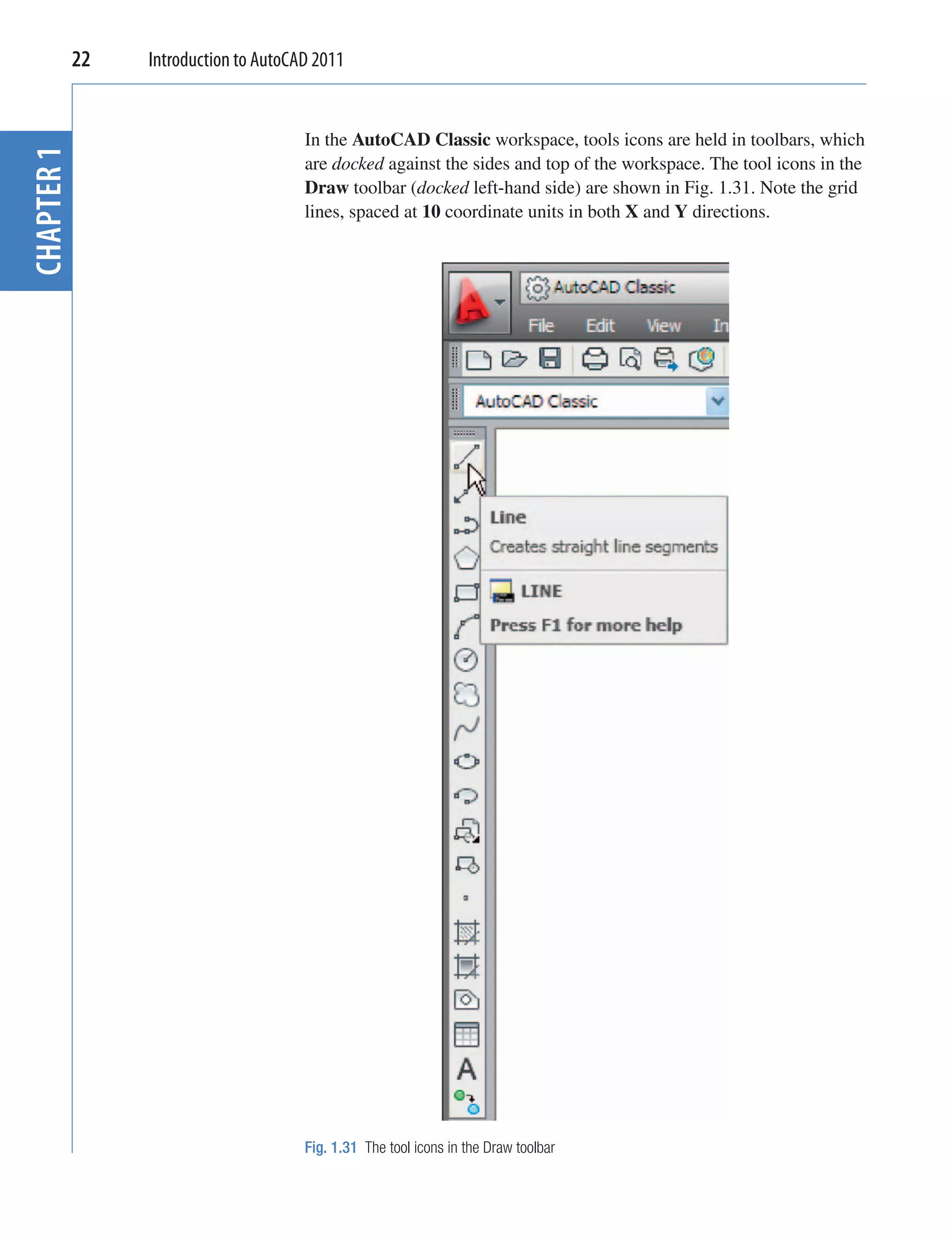
                                   In the AutoCAD Classic workspace, tools icons are held in toolbars, which
CHAPTER 1


                                   are docked against the sides and top of the workspace. The tool icons in the
                                   Draw toolbar (docked left-hand side) are shown in Fig. 1.31. Note the grid
                                   lines, spaced at 10 coordinate units in both X and Y directions.


                                   Fig. 1.31 The tool icons in the Draw toolbar
Introducing AutoCAD 2011   23


 The Ribbon


                                                                                                      CHAPTER 1
                      In the 2D Drafting & Annotation workspace, the Ribbon contains groups
                      of panels placed at the top of the AutoCAD 2011 window. In Fig. 1.3 on
                      page 3, there are eight panels – Draw, Modify, Layers, Annotation,
                      Block, Properties, Utilities and Clipboard. Other groups of palettes can
                      be called from the tabs at the top of the Ribbon.
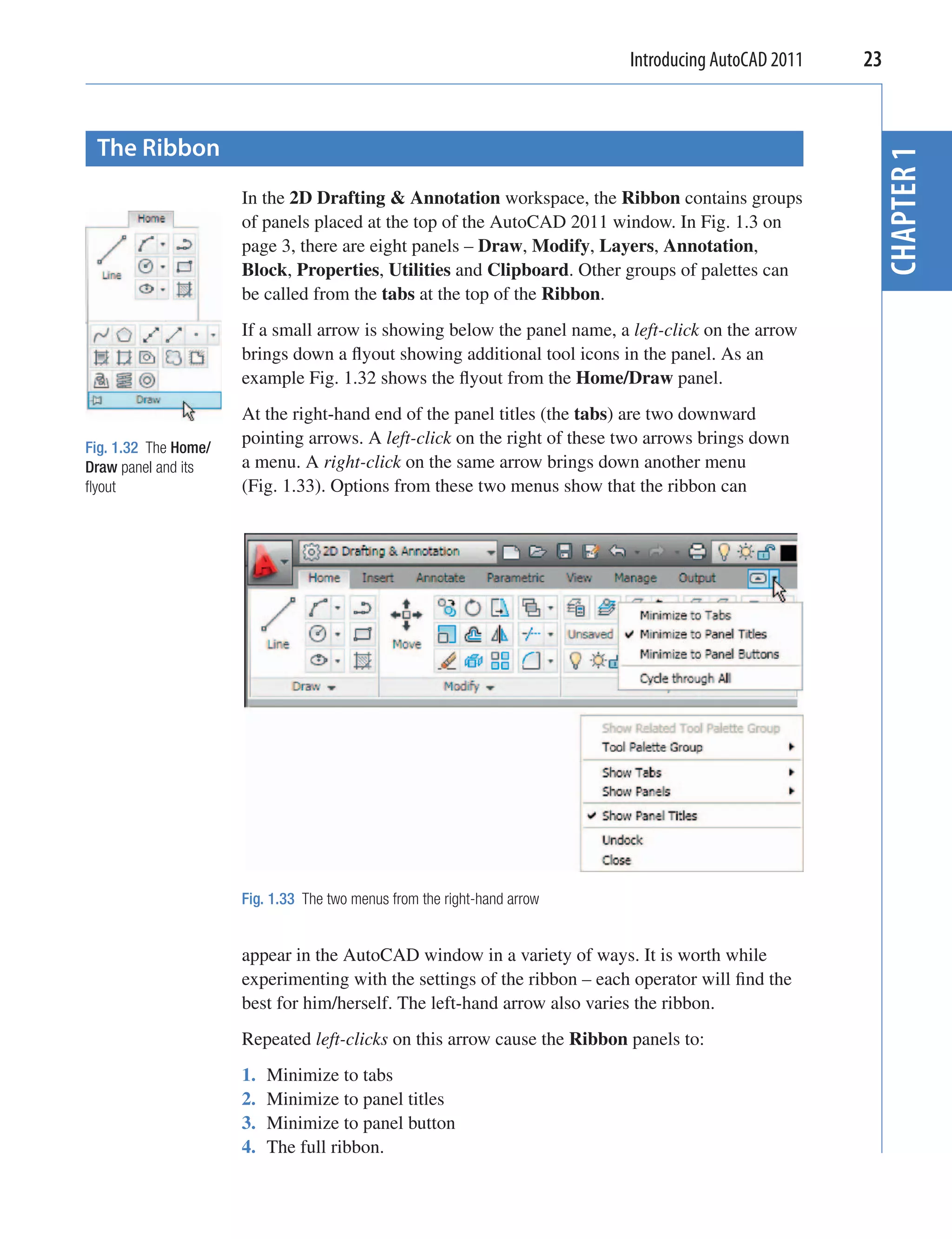
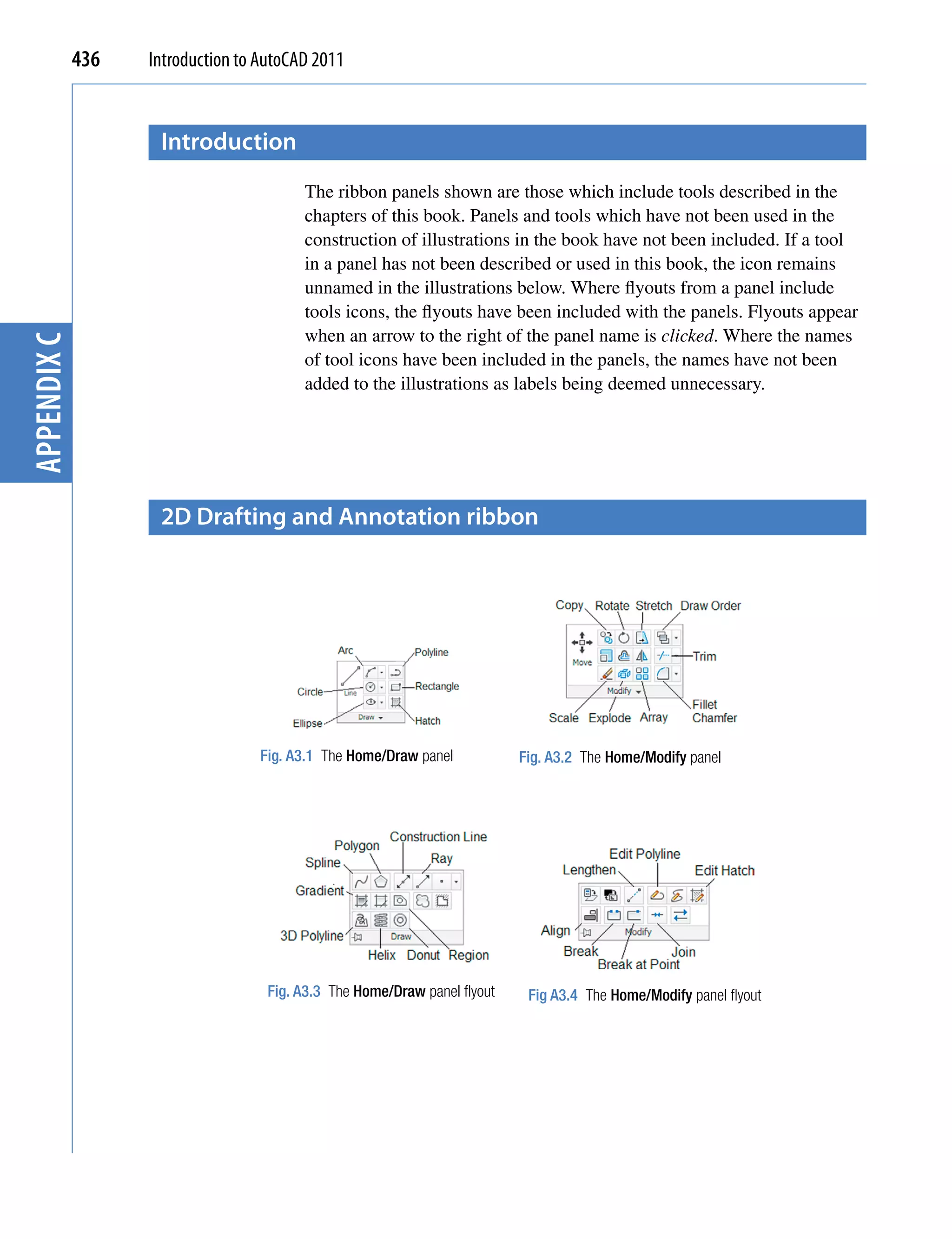
                      If a small arrow is showing below the panel name, a left-click on the arrow
                      brings down a flyout showing additional tool icons in the panel. As an
                      example Fig. 1.32 shows the flyout from the Home/Draw panel.
                      At the right-hand end of the panel titles (the tabs) are two downward
Fig. 1.32 The Home/
                      pointing arrows. A left-click on the right of these two arrows brings down
Draw panel and its    a menu. A right-click on the same arrow brings down another menu
flyout                 (Fig. 1.33). Options from these two menus show that the ribbon can


                      Fig. 1.33 The two menus from the right-hand arrow


                      appear in the AutoCAD window in a variety of ways. It is worth while
                      experimenting with the settings of the ribbon – each operator will find the
                      best for him/herself. The left-hand arrow also varies the ribbon.
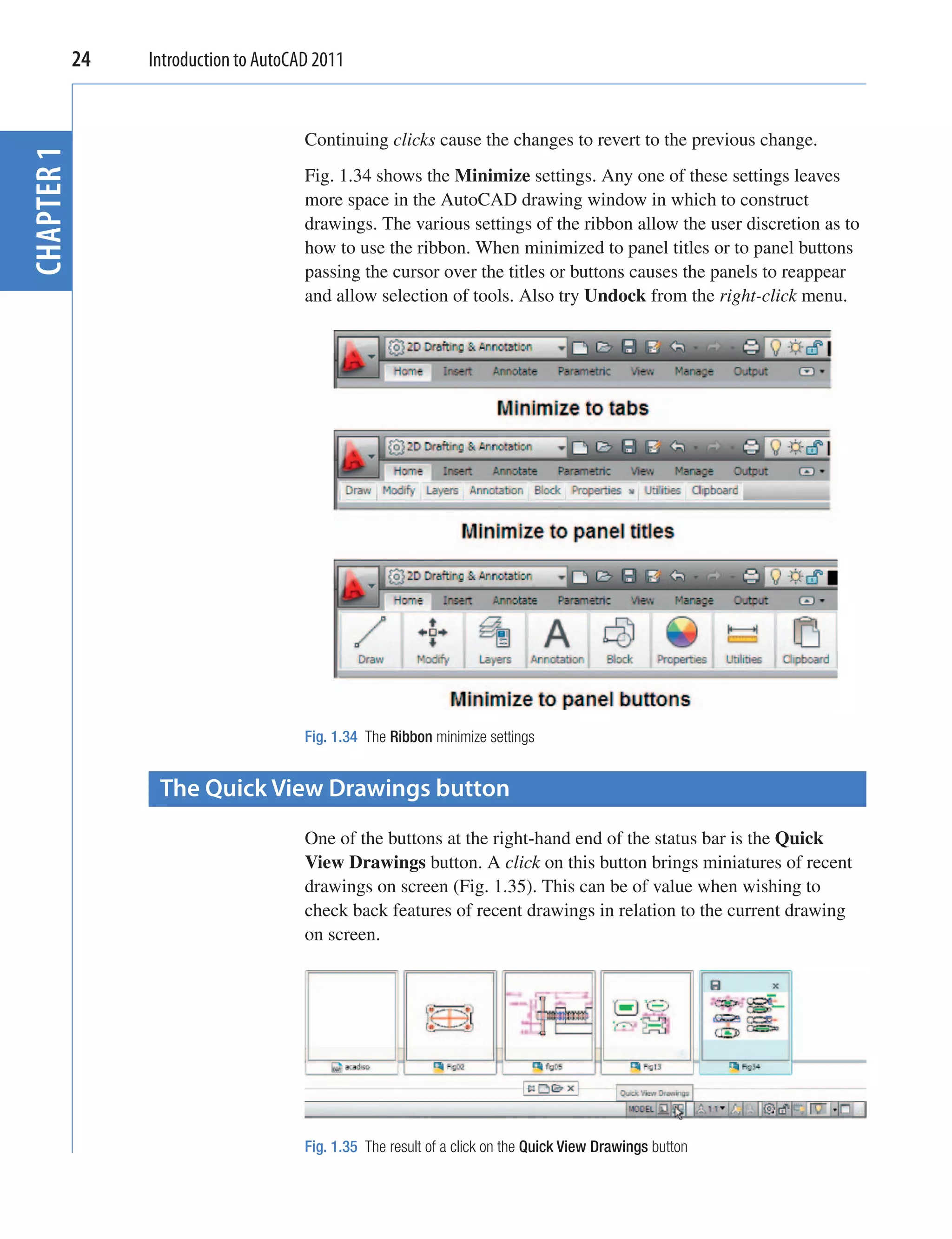
                      Repeated left-clicks on this arrow cause the Ribbon panels to:
                      1.   Minimize to tabs
                      2.   Minimize to panel titles
                      3.   Minimize to panel button
                      4.   The full ribbon.
24   Introduction to AutoCAD 2011


                                   Continuing clicks cause the changes to revert to the previous change.
CHAPTER 1


                                   Fig. 1.34 shows the Minimize settings. Any one of these settings leaves
                                   more space in the AutoCAD drawing window in which to construct
                                   drawings. The various settings of the ribbon allow the user discretion as to
                                   how to use the ribbon. When minimized to panel titles or to panel buttons
                                   passing the cursor over the titles or buttons causes the panels to reappear
                                   and allow selection of tools. Also try Undock from the right-click menu.


                                   Fig. 1.34 The Ribbon minimize settings


              The Quick View Drawings button
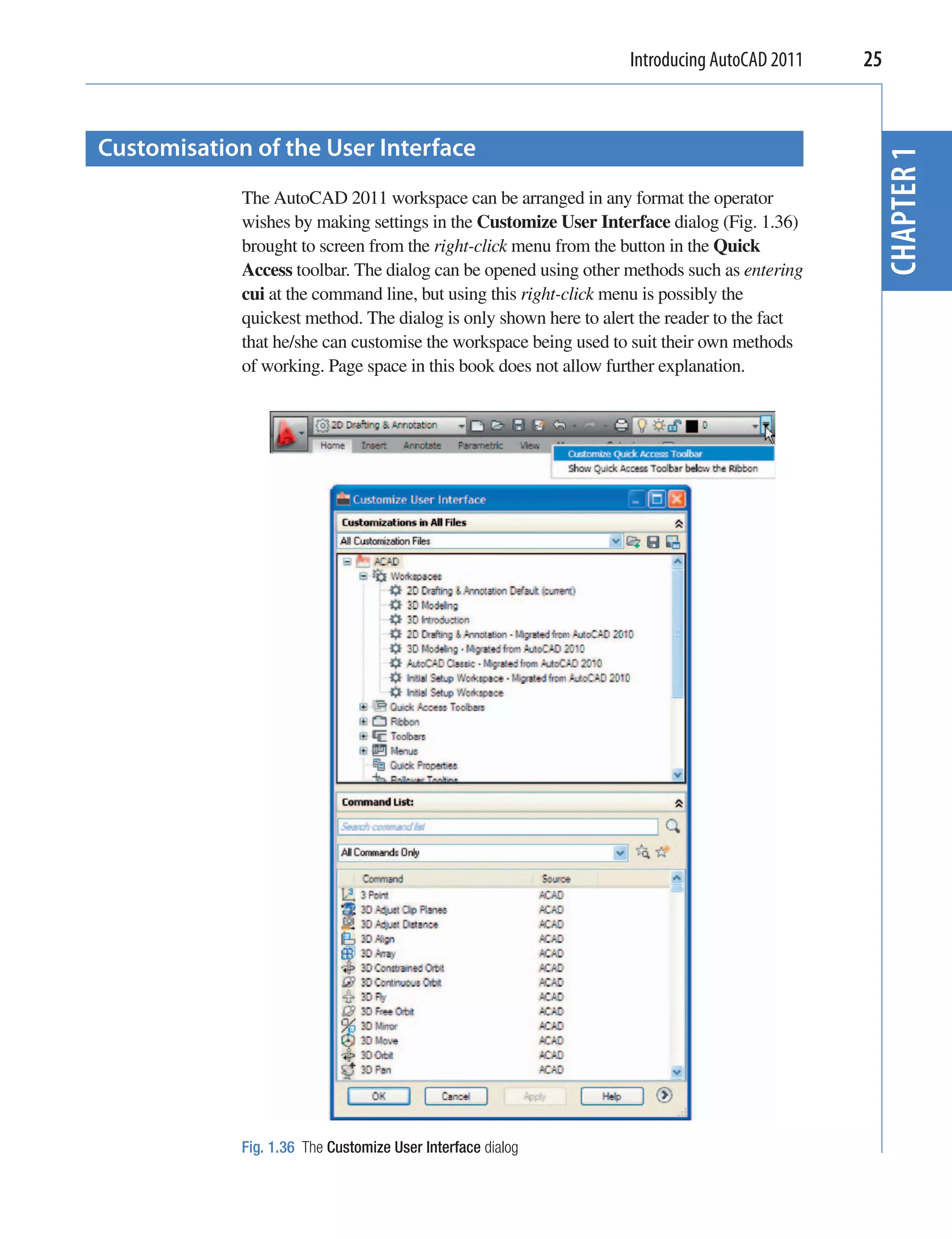
                                   One of the buttons at the right-hand end of the status bar is the Quick
                                   View Drawings button. A click on this button brings miniatures of recent
                                   drawings on screen (Fig. 1.35). This can be of value when wishing to
                                   check back features of recent drawings in relation to the current drawing
                                   on screen.


                                   Fig. 1.35 The result of a click on the Quick View Drawings button
Introducing AutoCAD 2011    25


Customisation of the User Interface


                                                                                               CHAPTER 1
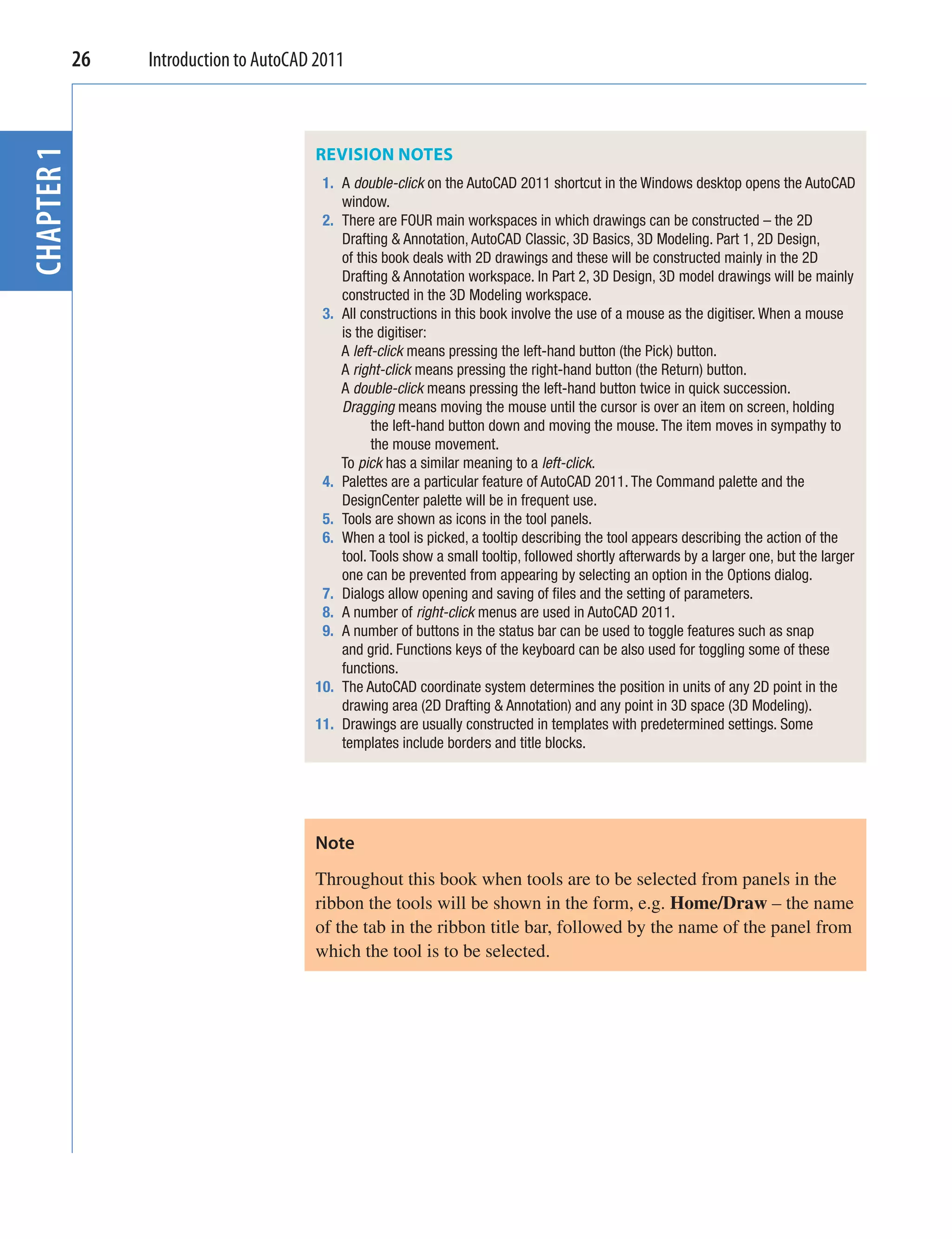
             The AutoCAD 2011 workspace can be arranged in any format the operator
             wishes by making settings in the Customize User Interface dialog (Fig. 1.36)
             brought to screen from the right-click menu from the button in the Quick
             Access toolbar. The dialog can be opened using other methods such as entering
             cui at the command line, but using this right-click menu is possibly the
             quickest method. The dialog is only shown here to alert the reader to the fact
             that he/she can customise the workspace being used to suit their own methods
             of working. Page space in this book does not allow further explanation.


             Fig. 1.36 The Customize User Interface dialog
26
CHAPTER 1    Introduction to AutoCAD 2011


                                    REVISION NOTES
                                     1. A double-click on the AutoCAD 2011 shortcut in the Windows desktop opens the AutoCAD
                                        window.
                                     2. There are FOUR main workspaces in which drawings can be constructed – the 2D
                                        Drafting & Annotation, AutoCAD Classic, 3D Basics, 3D Modeling. Part 1, 2D Design,
                                        of this book deals with 2D drawings and these will be constructed mainly in the 2D
                                        Drafting & Annotation workspace. In Part 2, 3D Design, 3D model drawings will be mainly
                                        constructed in the 3D Modeling workspace.
                                     3. All constructions in this book involve the use of a mouse as the digitiser. When a mouse
                                        is the digitiser:
                                        A left-click means pressing the left-hand button (the Pick) button.
                                        A right-click means pressing the right-hand button (the Return) button.
                                        A double-click means pressing the left-hand button twice in quick succession.
                                        Dragging means moving the mouse until the cursor is over an item on screen, holding
                                              the left-hand button down and moving the mouse. The item moves in sympathy to
                                              the mouse movement.
                                        To pick has a similar meaning to a left-click.
                                     4. Palettes are a particular feature of AutoCAD 2011. The Command palette and the
                                        DesignCenter palette will be in frequent use.
                                     5. Tools are shown as icons in the tool panels.
                                     6. When a tool is picked, a tooltip describing the tool appears describing the action of the
                                        tool. Tools show a small tooltip, followed shortly afterwards by a larger one, but the larger
                                        one can be prevented from appearing by selecting an option in the Options dialog.
                                     7. Dialogs allow opening and saving of files and the setting of parameters.
                                     8. A number of right-click menus are used in AutoCAD 2011.
                                     9. A number of buttons in the status bar can be used to toggle features such as snap
                                        and grid. Functions keys of the keyboard can be also used for toggling some of these
                                        functions.
                                    10. The AutoCAD coordinate system determines the position in units of any 2D point in the
                                        drawing area (2D Drafting & Annotation) and any point in 3D space (3D Modeling).
                                    11. Drawings are usually constructed in templates with predetermined settings. Some
                                        templates include borders and title blocks.


                                    Note
                                    Throughout this book when tools are to be selected from panels in the
                                    ribbon the tools will be shown in the form, e.g. Home/Draw – the name
                                    of the tab in the ribbon title bar, followed by the name of the panel from
                                    which the tool is to be selected.
Chapter 2
              Introducing drawing

 Aims of this chApter

The aims of this chapter are:

1. To introduce the construction of 2D drawing in the 2D Drafting & Annotation
   workspace.
2. The drawing of outlines using the Line, Circle and Polyline tools from the Home/Draw
   panel.
3. Drawing to snap points.
4. Drawing to absolute coordinate points.
5. Drawing to relative coordinate points.
6. Drawing using the ‘tracking’ method.
7. The use of the Erase, Undo and Redo tools.


                                                                                          27
28   Introduction to AutoCAD 2011


                  the 2D Drafting & Annotation workspace
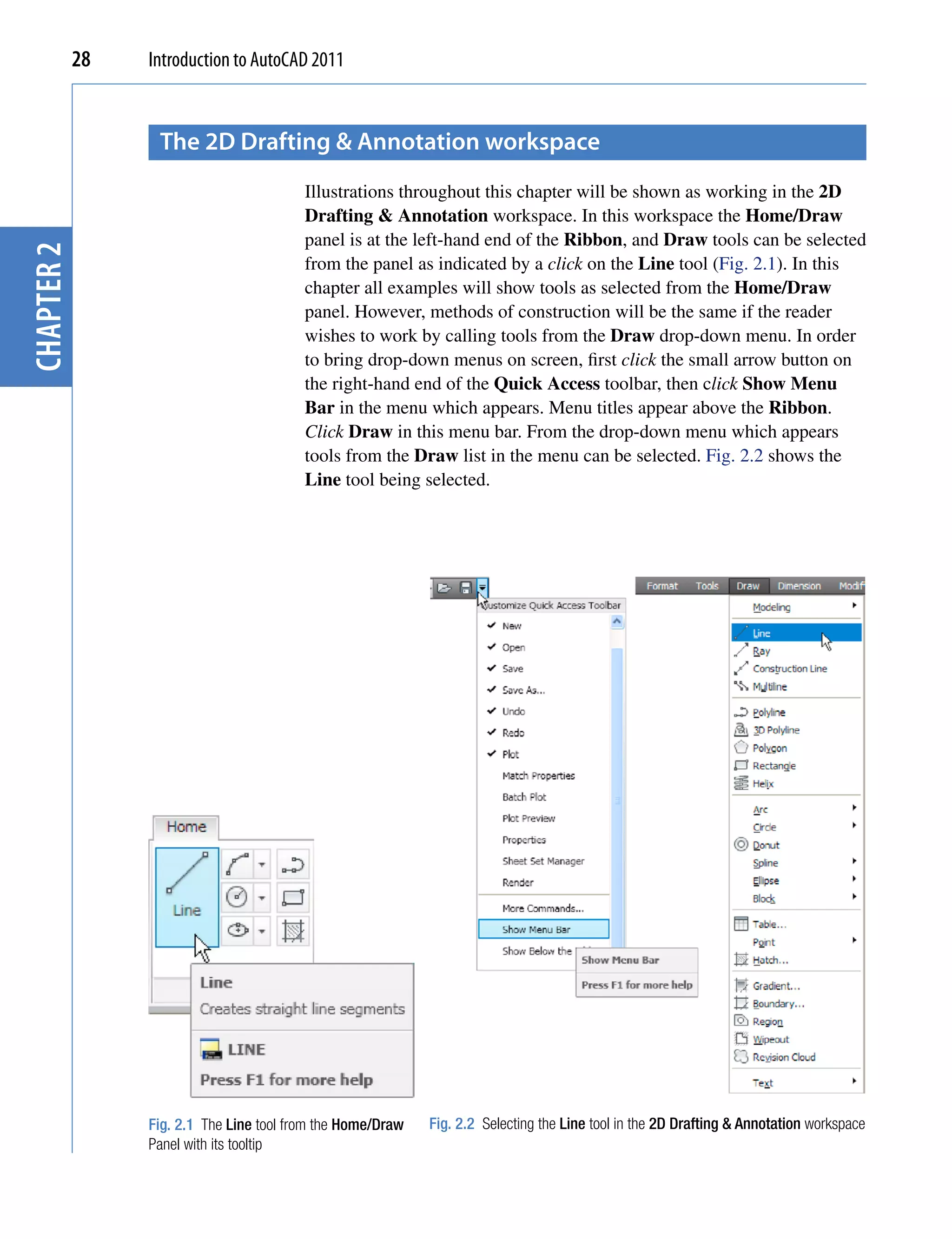
                                          Illustrations throughout this chapter will be shown as working in the 2D
                                          Drafting & Annotation workspace. In this workspace the Home/Draw
                                          panel is at the left-hand end of the Ribbon, and Draw tools can be selected
chapter 2


                                          from the panel as indicated by a click on the Line tool (Fig. 2.1). In this
                                          chapter all examples will show tools as selected from the Home/Draw
                                          panel. However, methods of construction will be the same if the reader
                                          wishes to work by calling tools from the Draw drop-down menu. In order
                                          to bring drop-down menus on screen, first click the small arrow button on
                                          the right-hand end of the Quick Access toolbar, then click Show Menu
                                          Bar in the menu which appears. Menu titles appear above the Ribbon.
                                          Click Draw in this menu bar. From the drop-down menu which appears
                                          tools from the Draw list in the menu can be selected. Fig. 2.2 shows the
                                          Line tool being selected.


                 Fig. 2.1 The Line tool from the Home/Draw   Fig. 2.2 Selecting the Line tool in the 2D Drafting & Annotation workspace
                 Panel with its tooltip
Introducing drawing   29


Drawing with the Line tool

             First example – Line tool (Fig. 1.3)
             1. Open AutoCAD. The drawing area will show the settings of the


                                                                                                          chapter 2
                acadiso.dwt template – Limits set to 420,297, Grid set to 10, Snap set
                to 5 and Units set to 0.
             2. Left-click on the Line tool in the Home/Draw panel (Fig. 2.1), or click
                Line in the Draw drop-down menu (Fig. 2.2), or enter line or l at the
                command line.


              Notes
              a. The tooltip which appears when the tool icon is clicked in the Draw
                 panel.
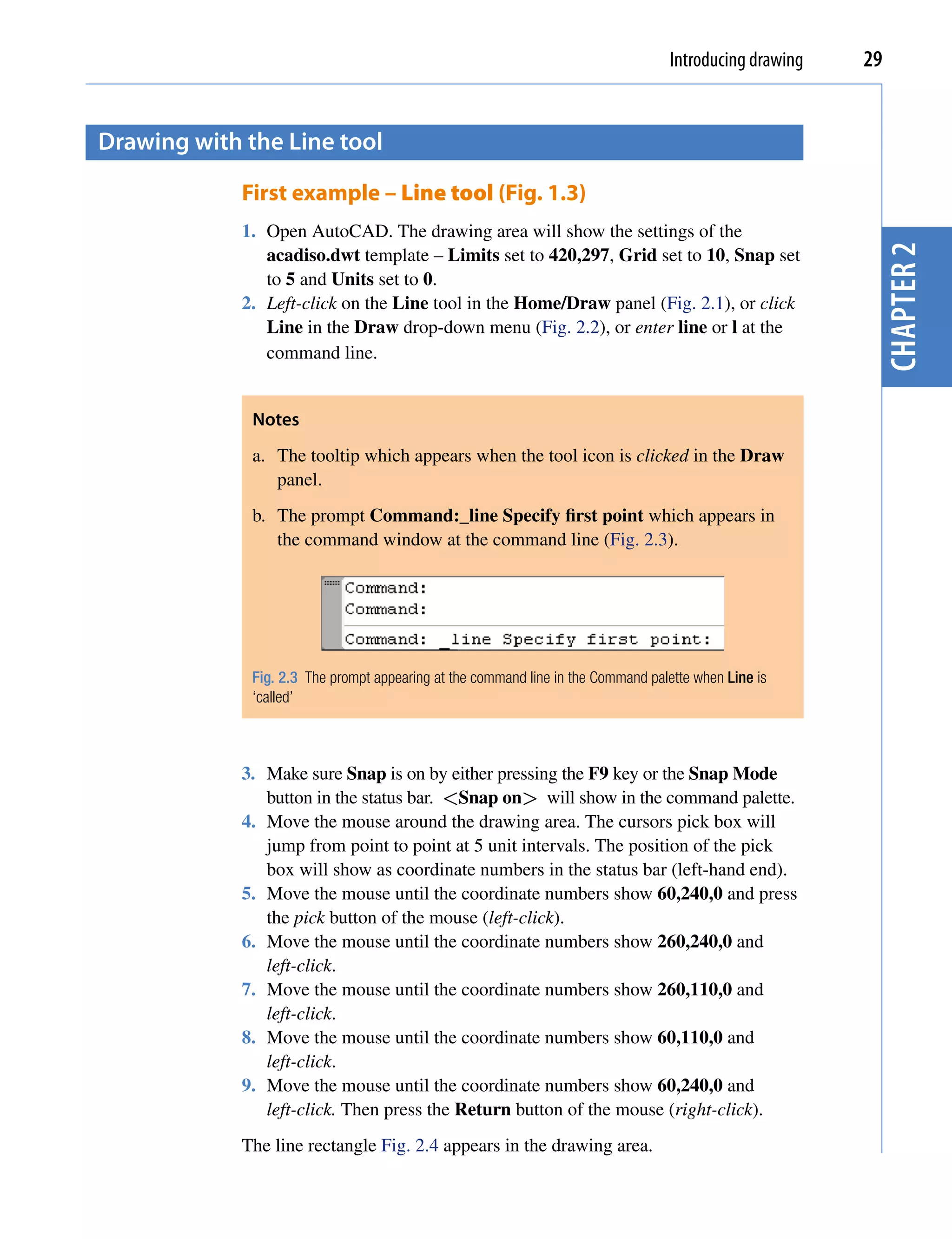
              b. The prompt Command:_line Specify first point which appears in
                 the command window at the command line (Fig. 2.3).


              Fig. 2.3 The prompt appearing at the command line in the Command palette when Line is
              ‘called’


             3. Make sure Snap is on by either pressing the F9 key or the Snap Mode
                button in the status bar. <Snap on> will show in the command palette.
             4. Move the mouse around the drawing area. The cursors pick box will
                jump from point to point at 5 unit intervals. The position of the pick
                box will show as coordinate numbers in the status bar (left-hand end).
             5. Move the mouse until the coordinate numbers show 60,240,0 and press
                the pick button of the mouse (left-click).
             6. Move the mouse until the coordinate numbers show 260,240,0 and
                left-click.
             7. Move the mouse until the coordinate numbers show 260,110,0 and
                left-click.
             8. Move the mouse until the coordinate numbers show 60,110,0 and
                left-click.
             9. Move the mouse until the coordinate numbers show 60,240,0 and
                left-click. Then press the Return button of the mouse (right-click).
             The line rectangle Fig. 2.4 appears in the drawing area.
30   Introduction to AutoCAD 2011


                                                     60,240,0                                  260,240,0
chapter 2


                                                     60,110,0                                  260,110,0

                                       Fig. 2.4 First example – Line tool


                                       Second example – Line tool (Fig. 2.6)
                                       1. Clear the drawing from the screen with a click on the Close button of
                                          the AutoCAD drawing area. Make sure it is not the AutoCAD 2011
                                          window button.
                                       2. The warning window Fig. 2.5 appears in the centre of the screen. Click
                                          its No button.


                                       Fig. 2.5 The AutoCAD warning window


                                       3. Left-click New… button in the File drop-down menu and from the
                                          Select template dialog which appears double-click on acadiso.dwt.
                                       4. Left-click on the Line tool icon and enter figures as follows at each
                                          prompt of the command line sequence:
                                       Command:_line Specify first point: enter 80,235
                                         right-click
                                       Specify next point or [Undo]: enter 275,235
                                       right-click
                                       Specify next point or [Undo]: enter 295,210
                                         right-click
Introducing drawing   31


Specify next point or                 [Close/Undo]: enter 295,100
  right-click
Specify next point or                 [Close/Undo]: enter 230,100
  right-click
Specify next point or                 [Close/Undo]: enter 230,70


                                                                                 chapter 2
  right-click
Specify next point or                 [Close/Undo]: enter 120,70
  right-click
Specify next point or                 [Close/Undo]: enter 120,100
  right-click
Specify next point or                 [Close/Undo]: enter 55,100
  right-click
Specify next point or                 [Close/Undo]: enter 55,210
  right-click
Specify next point or                 [Close/Undo]: enter c
  (Close) right-click
Command:
The result is as shown in Fig. 2.6.


                80,235                                  275,235


     55,210                                                       295,210


                          120,100             230,100
     55,100                                                       295,100


                           120,70              230,70

Fig. 2.6 Second example – Line tool


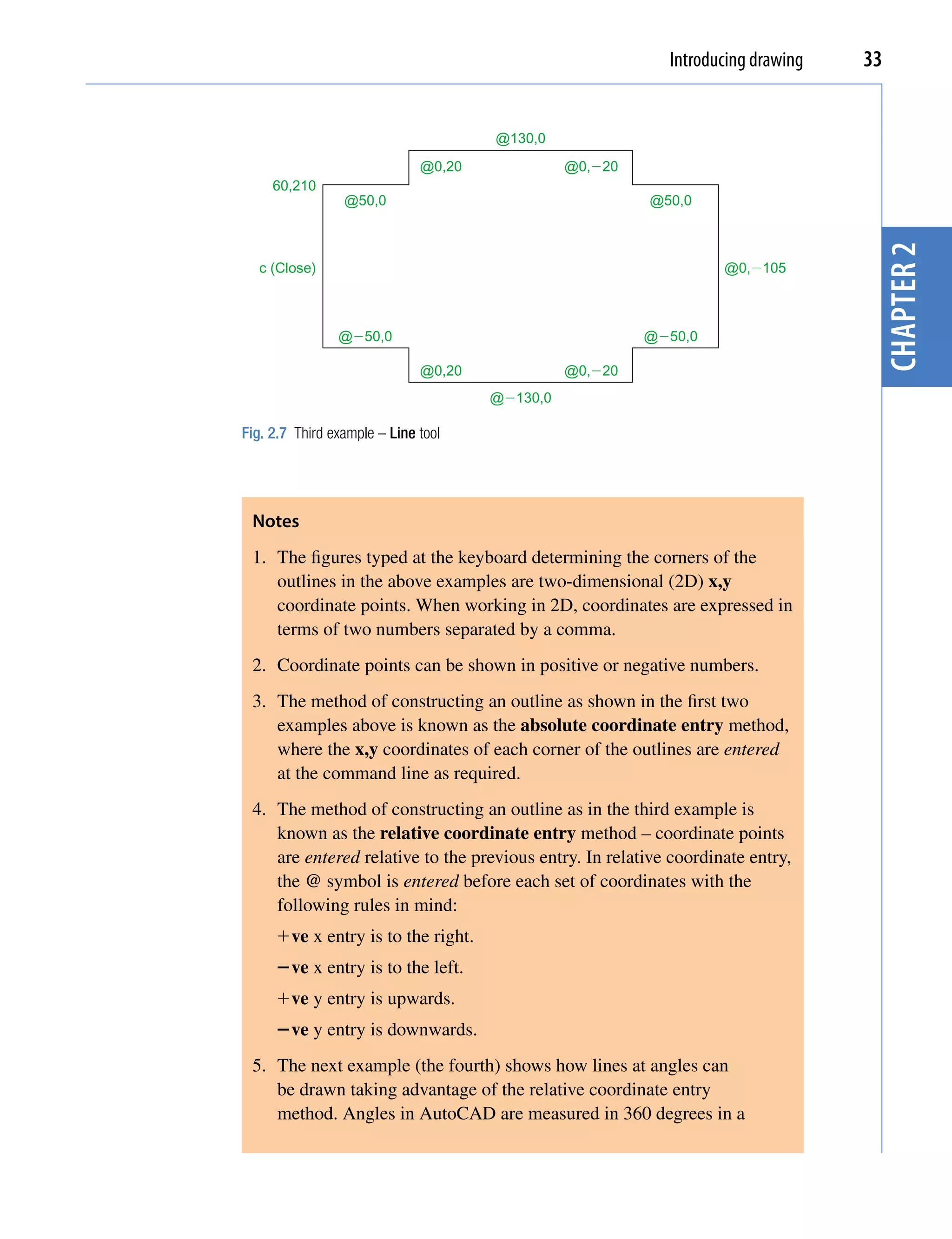
Third example – Line tool (Fig. 2.7)
1. Close the drawing and open a new acadiso.dwt window.
2. Left-click on the Line tool icon and enter figures as follows at each
   prompt of the command line sequence:
Command:_line Specify first point: enter 60,210
  right-click
32   Introduction to AutoCAD 2011


                                       Specify next point           or [Undo]: enter @50,0
                                         right-click
                                       Specify next point           or [Undo]: enter @0,20
                                         right-click
                                       Specify next point           or [Close/Undo]: enter @130,0
chapter 2


                                         right-click
                                       Specify next point           or [Close/Undo]: enter @0,-20
                                         right-click


                                       Third example – Line tool (Fig. 2.7)
                                       1. Close the drawing and open a new acadiso.dwt window.
                                       2. Left-click on the Line tool icon and enter figures as follows at each
                                          prompt of the command line sequence:
                                       Command:_line Specify first point: enter 60,210
                                         right-click
                                       Specify next point or [Undo]: enter @50,0
                                         right-click
                                       Specify next point or [Undo]: enter @0,20
                                         right-click
                                       Specify next point or [Undo/Undo]: enter @130,0
                                         right-click
                                       Specify next point or [Undo/Undo]: enter @0,-20
                                         right-click
                                       Specify next point or [Undo/Undo]: enter @50,0
                                         right-click
                                       Specify next point or [Close/Undo]: enter @0,-105
                                         right-click
                                       Specify next point or [Close/Undo]: enter @-50,0
                                         right-click
                                       Specify next point or [Close/Undo]: enter @0,-20
                                         right-click
                                       Specify next point or [Close/Undo]: enter @-130,0
                                         right-click
                                       Specify next point or [Close/Undo]: enter @0,20
                                         right-click
                                       Specify next point or [Close/Undo]: enter @-50,0
                                         right-click
                                       Specify next point or [Close/Undo]: enter c
                                         (Close) right-click
                                       Command:
                                       The result is as shown in Fig. 2.7.
Introducing drawing   33


                                      @130,0
                              @0,20             @0,�20
     60,210
                 @50,0                                   @50,0


                                                                                  chapter 2
   c (Close)                                                       @0,�105


                @�50,0                                   @�50,0

                              @0,20             @0,�20
                                      @�130,0

Fig. 2.7 Third example – Line tool


 Notes
 1. The figures typed at the keyboard determining the corners of the
    outlines in the above examples are two-dimensional (2D) x,y
    coordinate points. When working in 2D, coordinates are expressed in
    terms of two numbers separated by a comma.
 2. Coordinate points can be shown in positive or negative numbers.
 3. The method of constructing an outline as shown in the first two
    examples above is known as the absolute coordinate entry method,
    where the x,y coordinates of each corner of the outlines are entered
    at the command line as required.
 4. The method of constructing an outline as in the third example is
    known as the relative coordinate entry method – coordinate points
    are entered relative to the previous entry. In relative coordinate entry,
    the @ symbol is entered before each set of coordinates with the
    following rules in mind:
     ve x entry is to the right.
     ve x entry is to the left.
     ve y entry is upwards.
     ve y entry is downwards.
 5. The next example (the fourth) shows how lines at angles can
    be drawn taking advantage of the relative coordinate entry
    method. Angles in AutoCAD are measured in 360 degrees in a
34   Introduction to AutoCAD 2011


                                            counterclockwise (anticlockwise) direction (Fig. 2.8). The  symbol
                                            precedes the angle.
chapter 2


                                                                                     90�


                                                              135�                                         45�


                                                     180�                                                         0�


                                                              225�                                         315�


                                                                                    270�

                                        Fig. 2.8 The counterclockwise direction of measuring angles in AutoCAD


                                       Fourth example – Line tool (Fig. 2.9)
                                       1. Close the drawing and open a new acadiso.dwt window.
                                       2. Left-click on the Line tool icon and enter figures as follows at each
                                          prompt of the command line sequence:
                                       Command:_line Specify first point: 70,230
                                       Specify next point: @220,0
                                       Specify next point: @0,-70
                                       Specify next point or [Undo]: @115<225
                                       Specify next point or [Undo]: @-60,0
                                       Specify next point or [Close/Undo]: @115<135
                                       Specify next point or [Close/Undo]: @0,70
                                       Specify next point or [Close/Undo]: c (Close)
                                       Command:
                                       The result is as shown in Fig. 2.9.
Introducing drawing   35


           70,230                     @220,0

                    c(Close)
       @0,70                                                       @0,�70


                                                                                     chapter 2
                    @


                                                          5
                                                       22
                      11


                                                     5�
                        5�


                                                  11
                           13


                                                 @
                             5
                                      @�60,0

Fig. 2.9 Fourth example – Line tool


Fifth example – Line tool (Fig. 2.10)
Another method of constructing accurate drawings is by using a method
known as tracking. When Line is in use, as each Specify next point:
appears at the command line, a rubber-banded line appears from the last
point entered. Drag the rubber-band line in any direction and enter a
number at the keyboard, followed by a right-click. The line is drawn in the
dragged direction of a length in units equal to the entered number.
In this example because all lines are drawn in vertical or horizontal
directions, either press the F8 key or click the ORTHO button in the status
bar which will only allow drawing horizontally or vertically.
1. Close the drawing and open a new acadiso.dwt window.
2. Left-click on the Line tool icon and enter figures as follows at each
   prompt of the command line sequence:
Command:_line Specify first point: enter 65,220
  right-click
Specify next point: drag to right enter 240
  right-click
Specify next point: drag down enter 145 right-click
Specify next point or [Undo]: drag left enter 65
  right-click
Specify next point or [Undo]: drag upwards enter 25
  right-click
Specify next point or [Close/Undo]: drag left
  enter 120 right-click
Specify next point or [Close/Undo]: drag upwards
  enter 25 right-click
36   Introduction to AutoCAD 2011


                                       Specify next point or [Close/Undo]: drag left
                                         enter 55 right-click
                                       Specify next point or [Close/Undo]: c (Close)
                                         right-click
                                       Command:
chapter 2


                                       The result is as shown in Fig. 2.10.

                                                                                      240
                                                65,220


                                            c (Close)


                                                                                                          145
                                                              55
                                                                             25


                                                                                     120


                                                                                            25
                                                                                                 65

                                       Fig. 2.10 Fifth example – Line tool


                  Drawing with the circle tool

                                       First example – Circle tool (Fig. 2.13)
                                       1. Close the drawing just completed and open the acadiso.dwt template.
                                       2. Left-click on the Circle tool icon in the Home/Draw panel (Fig. 2.11).


                                       Fig. 2.11 The Circle tool from the Home/Draw panel
Introducing drawing   37


                         3. Enter a coordinate and a radius against the prompts appearing in the
                            command window as shown in Fig. 2.12, followed by right-clicks. The
                            circle (Fig. 2.13) appears on screen.


                                                                                                                          chapter 2
                         Fig. 2.12 First example – Circle. The command line prompts when Circle is called

                   R55


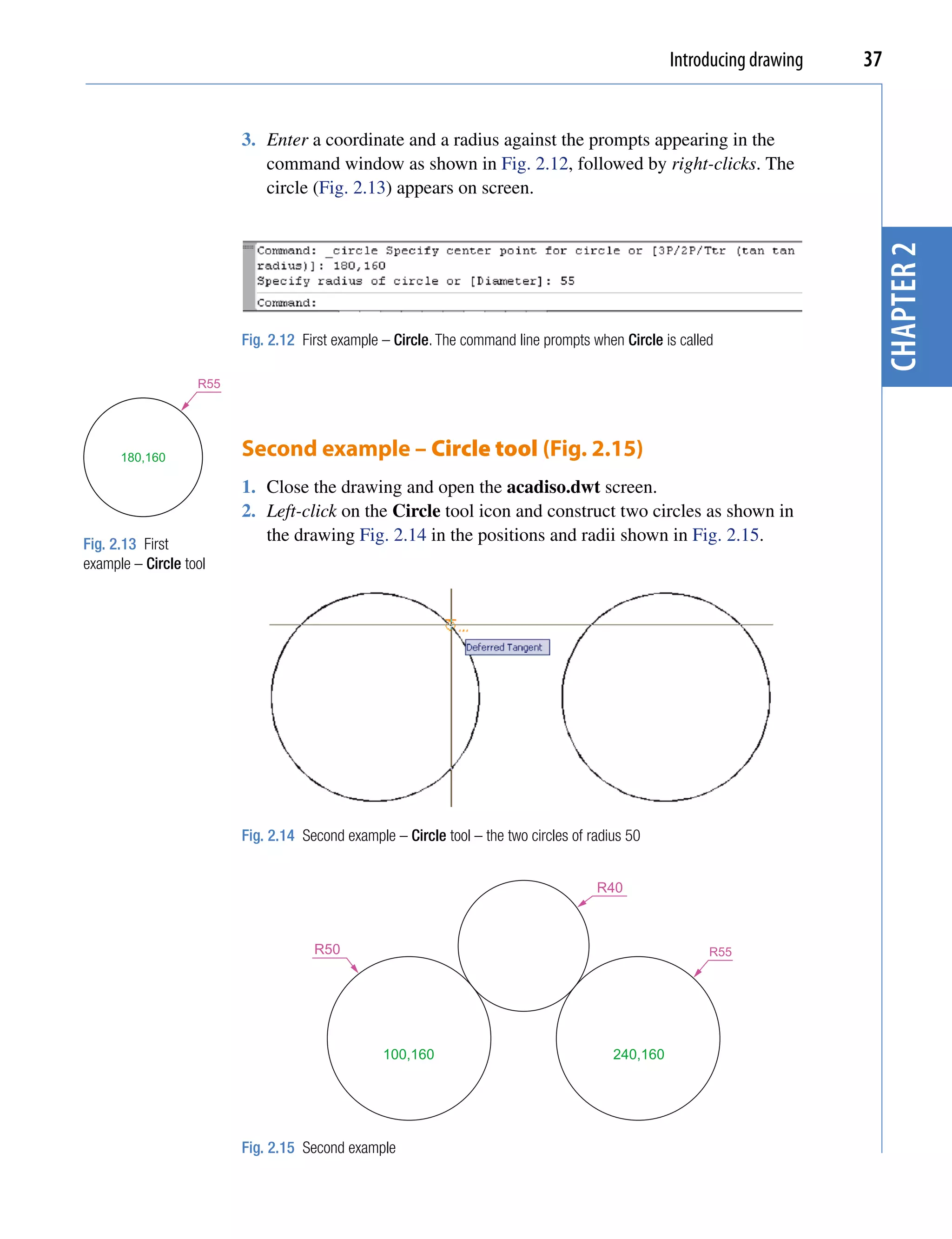
      180,160            Second example – Circle tool (Fig. 2.15)
                         1. Close the drawing and open the acadiso.dwt screen.
                         2. Left-click on the Circle tool icon and construct two circles as shown in
Fig. 2.13 First
                            the drawing Fig. 2.14 in the positions and radii shown in Fig. 2.15.
example – Circle tool


                         Fig. 2.14 Second example – Circle tool – the two circles of radius 50


                                                                                      R40


                                     R50                                                                R55


                                                 100,160                                 240,160


                         Fig. 2.15 Second example
38   Introduction to AutoCAD 2011


                                       3. Click the Circle tool again and against the first prompt enter t (the
                                          abbreviation for the prompt tan tan radius), followed by a right-click.
                                       Command_circle Specify center point for circle or
                                         [3P/2P/Ttr (tan tan radius]: enter t right-click
                                       Specify point on object for first tangent of
chapter 2


                                         circle: pick
                                       Specify point on object for second tangent of
                                         circle: pick
                                       Specify radius of circle (50): enter 40 right-
                                         click
                                       Command:
                                       The circle of radius 40 tangential to the two circles already drawn then
                                       appears (Fig. 2.15).

                                        Notes
                                        1. When a point on either circle is picked a tip (Deferred Tangent)
                                           appears. This tip will only appear when the Object Snap button is
                                           set on with a click on its button in the status bar, or the F3 key of the
                                           keyboard is pressed.
                                        2. Circles can be drawn through 3 points or through 2 points entered at
                                           the command line in response to prompts brought to the command line
                                           by using 3P and 2P in answer to the circle command line prompts.


                  the erase tool
                                       If an error has been made when using any of the AutoCAD 2011 tools,
                                       the object or objects which have been incorrectly drawn can be deleted
                                       with the Erase tool. The Erase tool icon can be selected from the Home/
                                       Modify panel (Fig. 2.16) or by entering e at the command line.


                                       Fig. 2.16 The Erase tool icon from the Home/Modify panel
Introducing drawing   39


First example – Erase (Fig. 2.18)
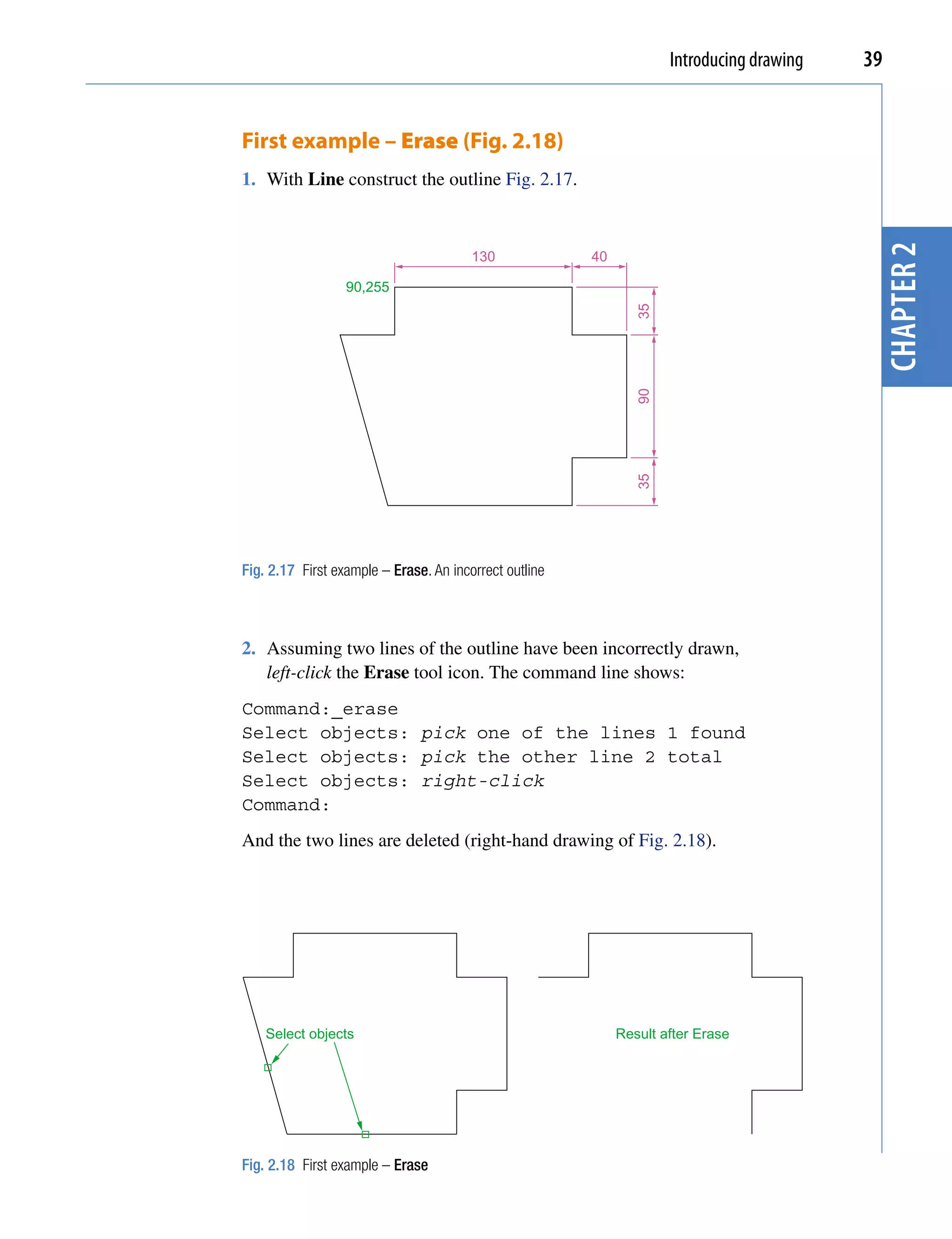
1. With Line construct the outline Fig. 2.17.


                                                                                            chapter 2
                                        130             40

                  90,255


                                                                35
                                                                90
                                                                35
Fig. 2.17 First example – Erase. An incorrect outline


2. Assuming two lines of the outline have been incorrectly drawn,
   left-click the Erase tool icon. The command line shows:
Command:_erase
Select objects: pick one of the lines 1 found
Select objects: pick the other line 2 total
Select objects: right-click
Command:
And the two lines are deleted (right-hand drawing of Fig. 2.18).


    Select objects                                           Result after Erase


Fig. 2.18 First example – Erase
40   Introduction to AutoCAD 2011


                                       Second example – Erase (Fig. 2.19)
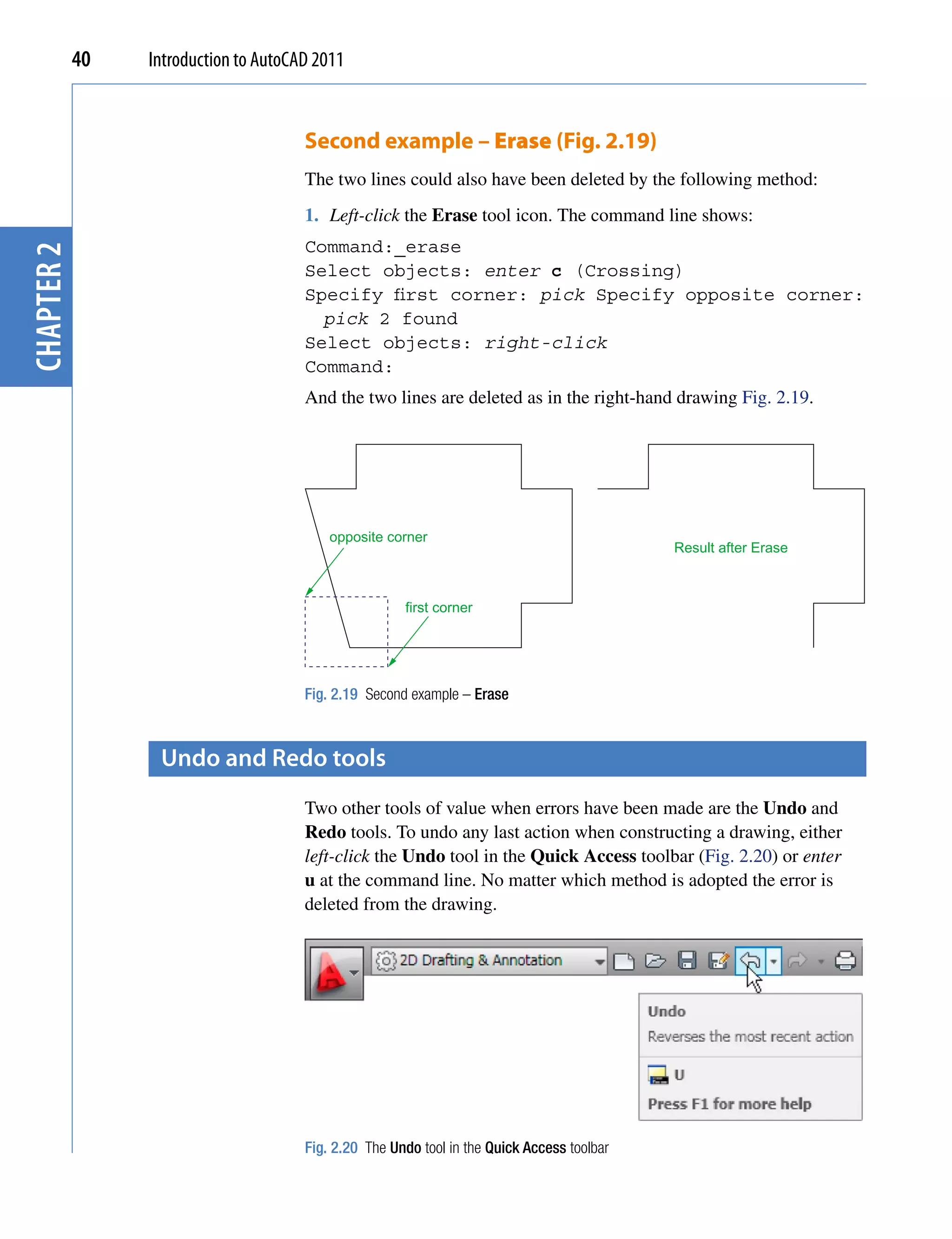
                                       The two lines could also have been deleted by the following method:
                                       1. Left-click the Erase tool icon. The command line shows:
                                       Command:_erase
chapter 2


                                       Select objects: enter c (Crossing)
                                       Specify first corner: pick Specify opposite corner:
                                         pick 2 found
                                       Select objects: right-click
                                       Command:
                                       And the two lines are deleted as in the right-hand drawing Fig. 2.19.


                                           opposite corner
                                                                                             Result after Erase


                                                       first corner


                                       Fig. 2.19 Second example – Erase


                  Undo and redo tools
                                       Two other tools of value when errors have been made are the Undo and
                                       Redo tools. To undo any last action when constructing a drawing, either
                                       left-click the Undo tool in the Quick Access toolbar (Fig. 2.20) or enter
                                       u at the command line. No matter which method is adopted the error is
                                       deleted from the drawing.


                                       Fig. 2.20 The Undo tool in the Quick Access toolbar
Introducing drawing   41


             Everything constructed during a session of drawing can be undone by
             repeated clicking on the Undo tool icon or by repeatedly entering u’s at
             the command line.
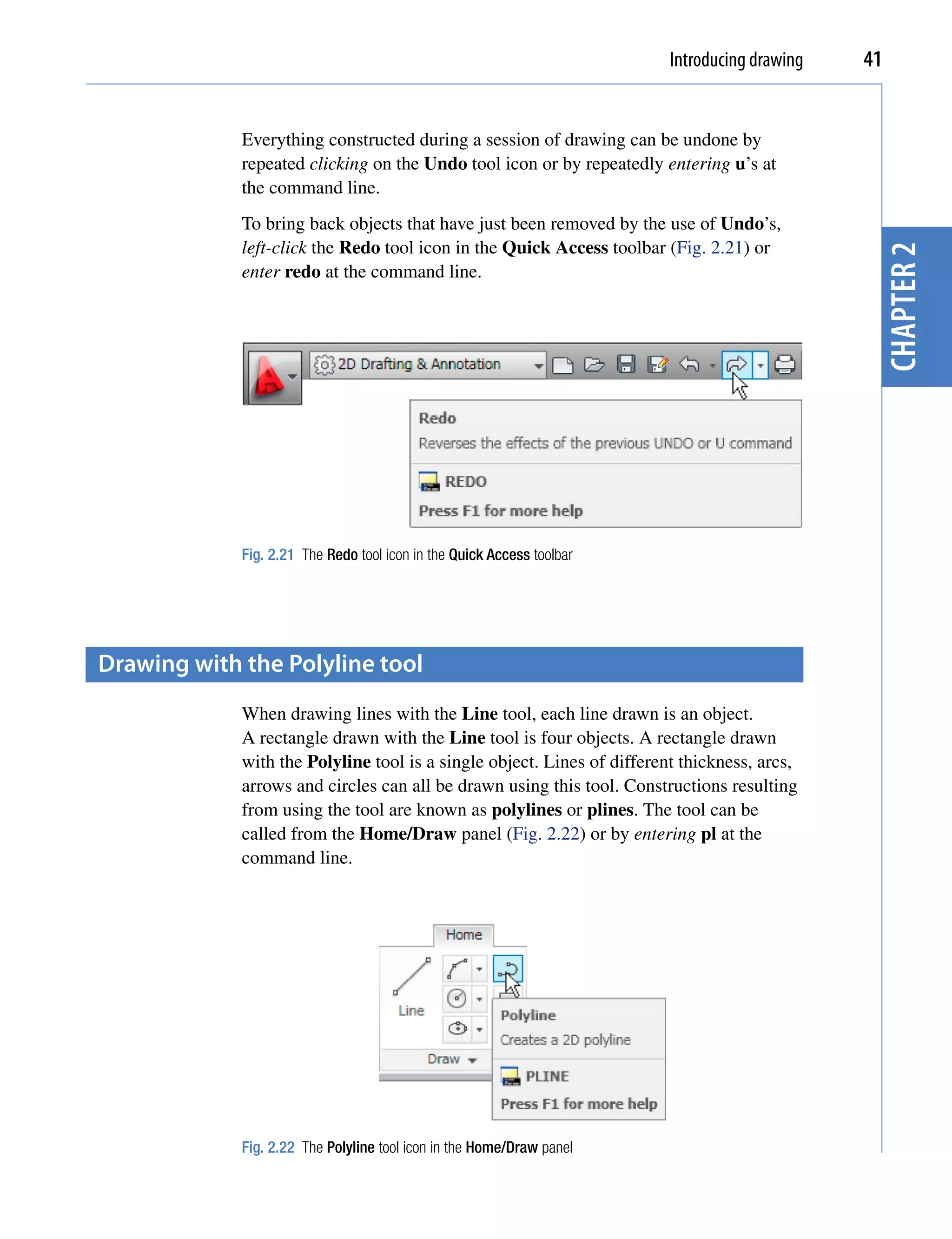
             To bring back objects that have just been removed by the use of Undo’s,
             left-click the Redo tool icon in the Quick Access toolbar (Fig. 2.21) or


                                                                                                chapter 2
             enter redo at the command line.


             Fig. 2.21 The Redo tool icon in the Quick Access toolbar


Drawing with the polyline tool
             When drawing lines with the Line tool, each line drawn is an object.
             A rectangle drawn with the Line tool is four objects. A rectangle drawn
             with the Polyline tool is a single object. Lines of different thickness, arcs,
             arrows and circles can all be drawn using this tool. Constructions resulting
             from using the tool are known as polylines or plines. The tool can be
             called from the Home/Draw panel (Fig. 2.22) or by entering pl at the
             command line.


             Fig. 2.22 The Polyline tool icon in the Home/Draw panel
42   Introduction to AutoCAD 2011


                                       First example – Polyline tool (Fig. 2.23)
                                       In this example enter and right-click have not been included (Fig. 2.23).
                                       Left-click the Polyline tool icon. The command line shows:
chapter 2


                                       Command:_pline Specify start point: 30,250
                                       Current line width is 0
                                       Specify next point or [Arc/Halfwidth/Length/Undo/
                                         Width]: 230,250
                                       Specify next point or [Arc/Close/Halfwidth/Length/
                                         Undo/Width]: 230,120
                                       Specify next point or [Arc/Close/Halfwidth/Length/
                                         Undo/Width]: 30,120
                                       Specify next point or [Arc/Close/Halfwidth/Length/
                                         Undo/Width]: c (Close)
                                       Command:


                                                       30,250                                  230,250


                                                       30,120                                  230,120

                                       Fig. 2.23 First example – Polyline tool


                                        Notes
                                        1. Note the prompts – Arc for constructing pline arcs, Close to close
                                           an outline, Halfwidth to halve the width of a wide pline, Length
                                           to enter the required length of a pline, Undo to undo the last pline
                                           constructed Width to change the width of the pline.
                                        2. Only the capital letter(s) of a prompt needs to be entered in upper or
                                           lower case to make that prompt effective.
                                        3. Other prompts will appear when the Polyline tool is in use as will be
                                           shown in later examples.
Introducing drawing   43


Second example – Polyline tool (Fig. 2.24)
This will be a long sequence, but it is typical of a reasonably complex
drawing using the Polyline tool. In the following sequences, when a
prompt line is to be repeated, the prompts in square brackets ([]) will be
replaced by [prompts] (Fig. 2.24).


                                                                                      chapter 2
                  40,250                   160,250       260,250


                                                     260,180


                                                         260,120
                  40,120                   160,120

Fig. 2.24 Second example – Polyline tool


Left-click the Polyline tool icon. The command line shows:
Command:_pline Specify start point: 40,250
Current line width is 0
Specify next point or [Arc/Halfwidth/Length/Undo/
  Width]: w (Width)
Specify starting width <0>: 5
Specify ending width <5>: right-click
Specify next point or [Arc/Close/Halfwidth/Length/
  Undo/Width]: 160,250
Specify next point or [prompts]: h (Halfwidth)
Specify starting half-width <2.5>: 1
Specify ending half-width <1>: right-click
Specify next point or [prompts]: 260,250
Specify next point or [prompts]: 260,180
Specify next point or [prompts]: w (Width)
Specify starting width <1>: 10
Specify ending width <10>: right-click
Specify next point or [prompts]: 260,120
Specify next point or [prompts]: h (Halfwidth)
Specify starting half-width <5>: 2
Specify ending half-width <2>: right-click
Specify next point or [prompts]: 160,120
Specify next point or [prompts]: w (Width)
44   Introduction to AutoCAD 2011


                                       Specify starting width <4>: 20
                                       Specify ending width <20>: right-click
                                       Specify next point or [prompts]: 40,120
                                       Specify starting width <20>: 5
                                       Specify ending width <5>: right-click
chapter 2


                                       Specify next point or [prompts]: c (Close)
                                       Command:

                                       Third example – Polyline tool (Fig. 2.25)
                                       Left-click the Polyline tool icon. The command line shows:
                                       Command:_pline Specify start point: 50,220
                                       Current line width is 0
                                       [prompts]: w (Width)
                                       Specify starting width <0>: 0.5
                                       Specify ending width <0.5>: right-click
                                       Specify next point or [prompts]: 120,220
                                       Specify next point or [prompts]: a (Arc)
                                       Specify endpoint of arc or [prompts]: s (second pt)
                                       Specify second point on arc: 150,200
                                       Specify end point of arc: 180,220
                                       Specify end point of arc or [prompts]: l (Line)
                                       Specify next point or [prompts]: 250,220
                                       Specify next point or [prompts]: 260,190
                                       Specify next point or [prompts]: a (Arc)
                                       Specify endpoint of arc or [prompts]: s (second pt)
                                       Specify second point on arc: 240,170
                                       Specify end point of arc: 250,160
                                       Specify end point of arc or [prompts]: l (Line)
                                       Specify next point or [prompts]: 250,150
                                       Specify next point or [prompts]: 250,120
                                       And so on until the outline Fig. 2.25 is completed.

                                                       50,220             120,220      180,220         250,220


                                                  50,190                         150,200                   250,190

                                                                60,170                           240,170

                                                  50,150                         150,140                   250,150


                                                       50,120             120,120      180,120         250,120

                                       Fig. 2.25 Third example – Polyline tool
Introducing drawing   45


Fourth example – Polyline tool (Fig. 2.26)
Left-click the Polyline tool icon. The command line shows:
Command:_pline Specify start point: 80,170
Current line width is 0


                                                                                chapter 2
Specify next point or [prompts]: w (Width)
Specify starting width <0>: 1
Specify ending width <1>: right-click
Specify next point or [prompts]: a (Arc)
Specify endpoint of arc or [prompts]: s (second pt)
Specify second point on arc: 160,250
Specify end point of arc: 240,170
Specify end point of arc or [prompts]: cl (CLose)
Command:
And the circle Fig. 2.26 is formed.

                                           160,250


                   80,170                            240,170


Fig. 2.26 Fourth example – Polyline tool


Fifth example – Polyline tool (Fig. 2.27)
Left-click the Polyline tool icon. The command line shows:
Command:_pline Specify start point: 60,180
Current line width is 0
Specify next point or [prompts]: w (Width)
Specify starting width <0>: 1
Specify ending width <1>: right-click
Specify next point or [prompts]: 190,180
Specify next point or [prompts]: w (Width)
Specify starting width <1>: 20
Specify ending width <20>: 0
Specify next point or [prompts]: 265,180
Specify next point or [prompts]: right-click
Command:
46   Introduction to AutoCAD 2011


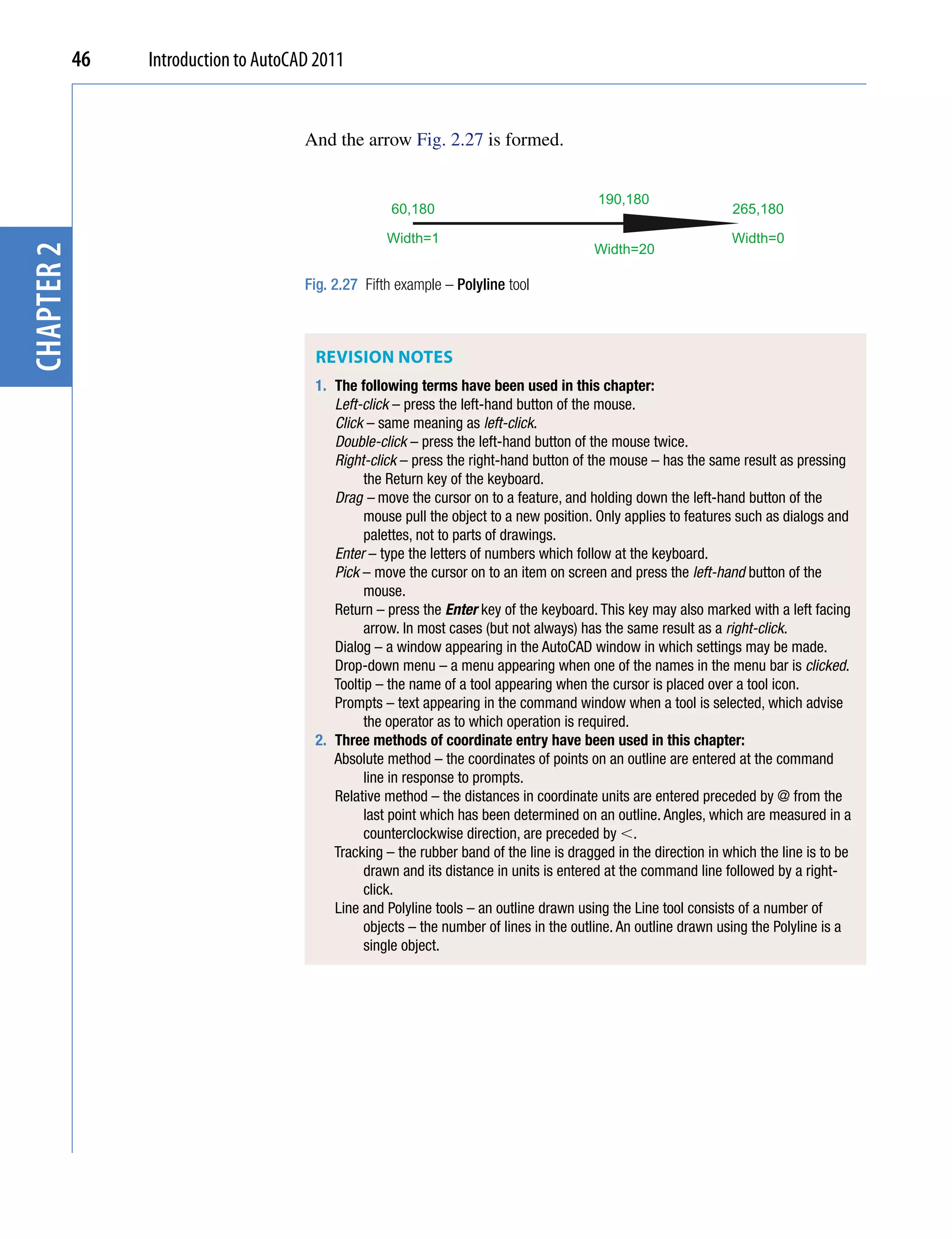
                                       And the arrow Fig. 2.27 is formed.


                                                                                          190,180
                                                      60,180                                                      265,180

                                                     Width=1                                                      Width=0
                                                                                         Width=20
chapter 2


                                       Fig. 2.27 Fifth example – Polyline tool


                                        REviSion noTES
                                        1. The following terms have been used in this chapter:
                                           Left-click – press the left-hand button of the mouse.
                                           Click – same meaning as left-click.
                                           Double-click – press the left-hand button of the mouse twice.
                                           Right-click – press the right-hand button of the mouse – has the same result as pressing
                                                 the Return key of the keyboard.
                                           Drag – move the cursor on to a feature, and holding down the left-hand button of the
                                                 mouse pull the object to a new position. Only applies to features such as dialogs and
                                                 palettes, not to parts of drawings.
                                           Enter – type the letters of numbers which follow at the keyboard.
                                           Pick – move the cursor on to an item on screen and press the left-hand button of the
                                                 mouse.
                                           Return – press the Enter key of the keyboard. This key may also marked with a left facing
                                                 arrow. In most cases (but not always) has the same result as a right-click.
                                           Dialog – a window appearing in the AutoCAD window in which settings may be made.
                                           Drop-down menu – a menu appearing when one of the names in the menu bar is clicked.
                                           Tooltip – the name of a tool appearing when the cursor is placed over a tool icon.
                                           Prompts – text appearing in the command window when a tool is selected, which advise
                                                 the operator as to which operation is required.
                                        2. Three methods of coordinate entry have been used in this chapter:
                                           Absolute method – the coordinates of points on an outline are entered at the command
                                                 line in response to prompts.
                                           Relative method – the distances in coordinate units are entered preceded by @ from the
                                                 last point which has been determined on an outline. Angles, which are measured in a
                                                 counterclockwise direction, are preceded by .
                                           Tracking – the rubber band of the line is dragged in the direction in which the line is to be
                                                 drawn and its distance in units is entered at the command line followed by a right-
                                                 click.
                                           Line and Polyline tools – an outline drawn using the Line tool consists of a number of
                                                 objects – the number of lines in the outline. An outline drawn using the Polyline is a
                                                 single object.
Introducing AutoCAD 2010
                                                                                              Introducing drawing                   47


  Exercises


                                                                                                                                           chapter 1
Methods of constructing answers to the following exercises can be found in the free website:

http://books.elsevier.com/companions/978-0-08-096575-8


                                                                                                                                     chapter 2
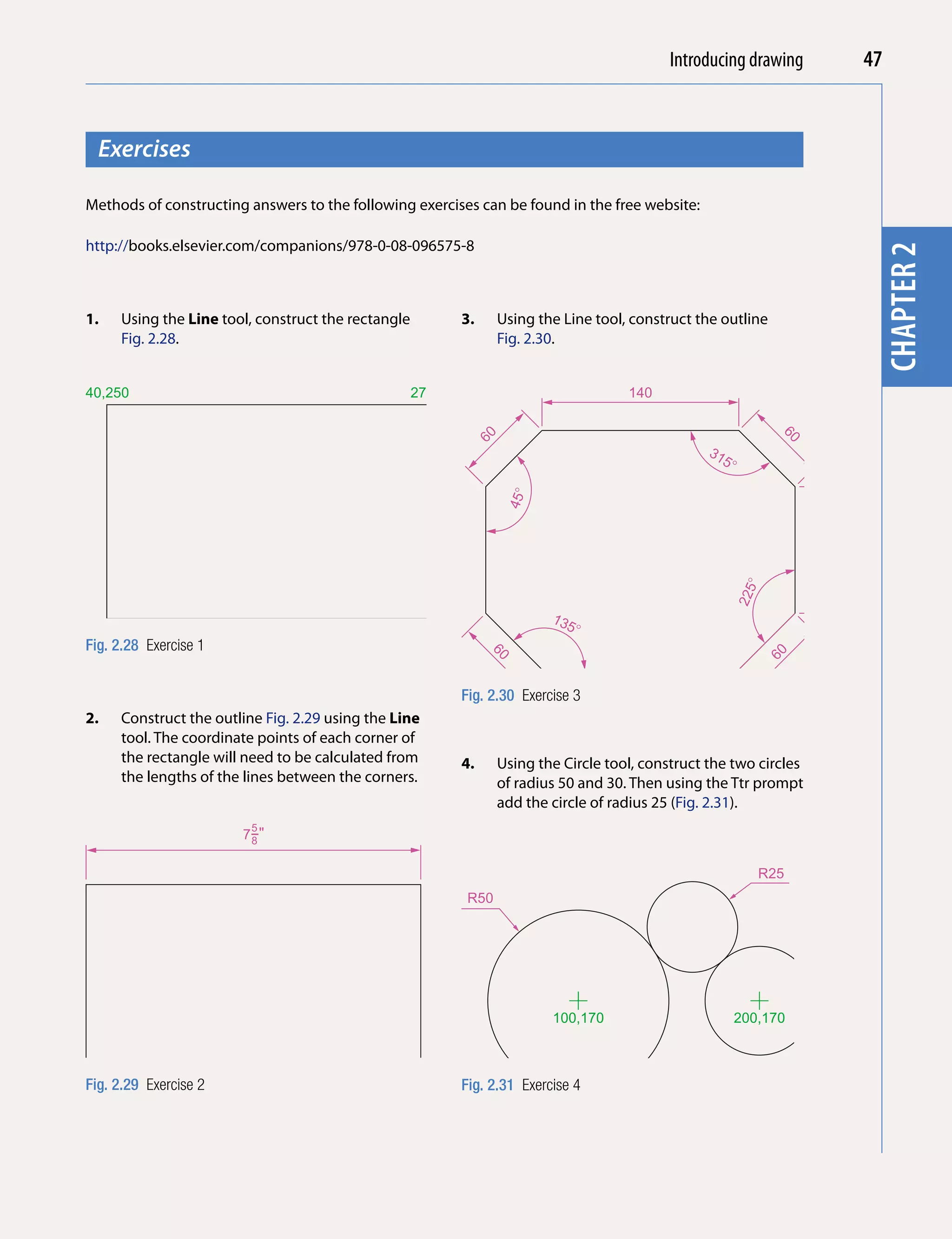
1.   Using the Line tool, construct the rectangle            3.     Using the Line tool, construct the outline
     Fig. 2.28.                                                     Fig. 2.30.


40,250                                              270,250                             140


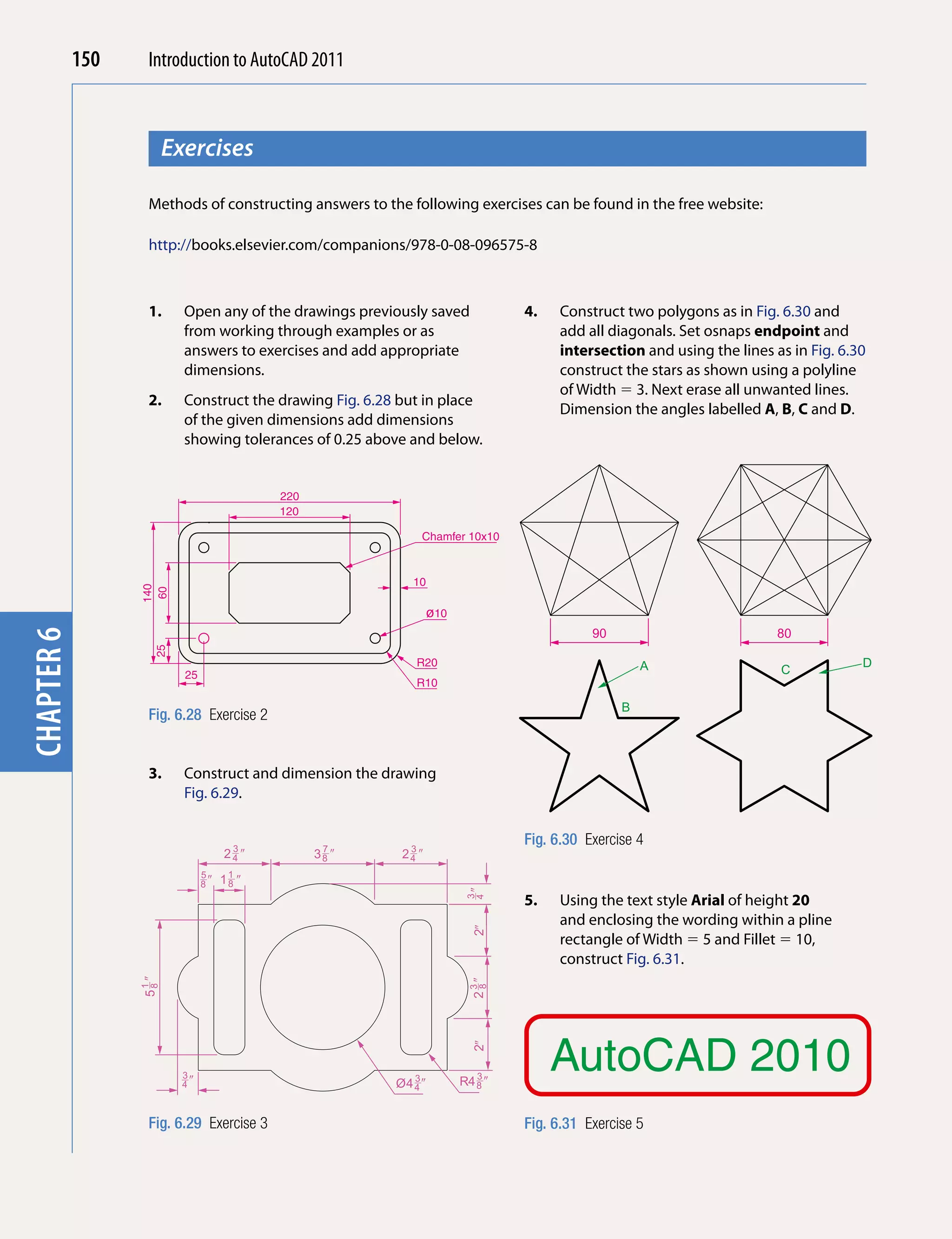
                                                              60


                                                                                                                    60
                                                                                                     31
                                                                                                       5�


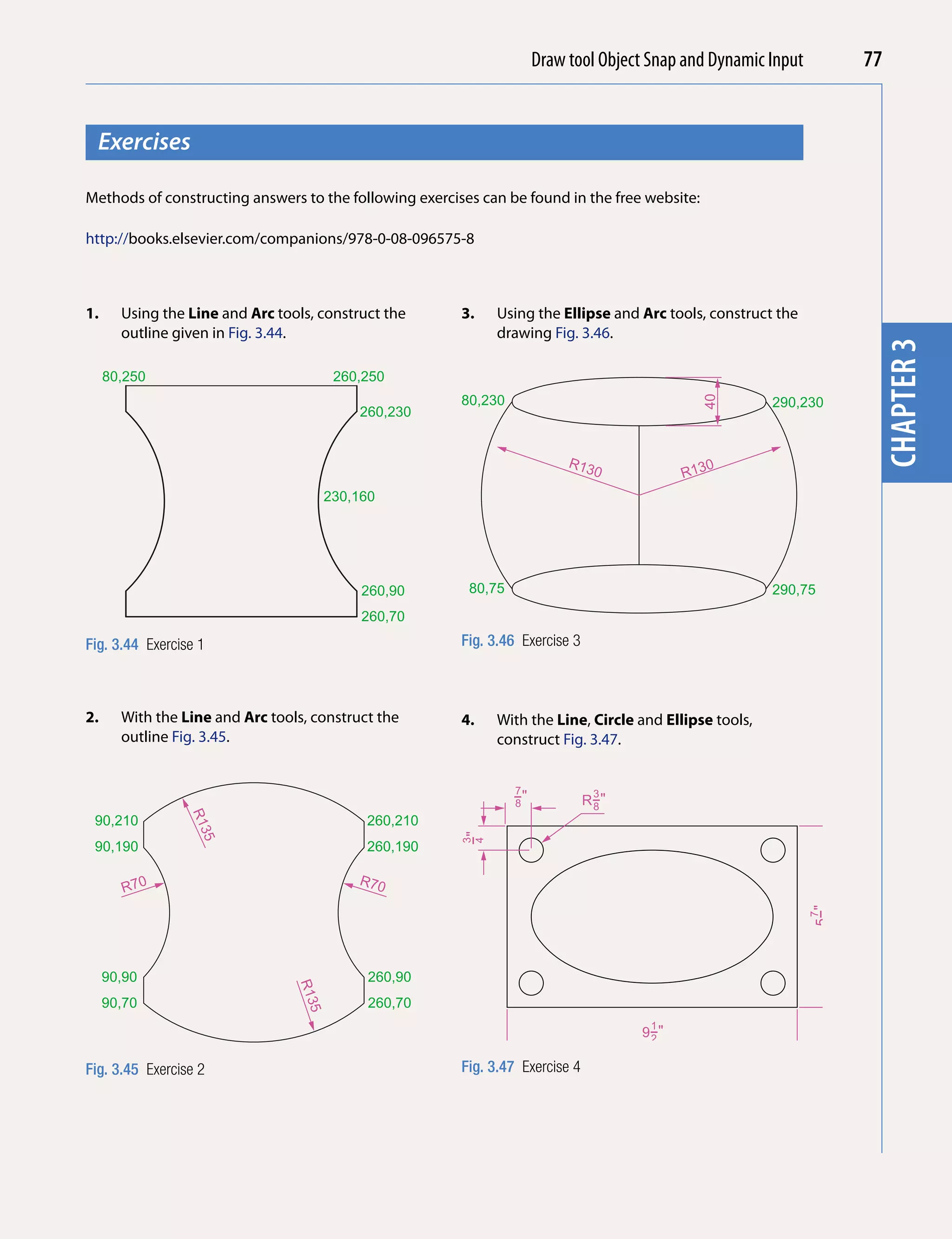
                                                                     45�


                                                                                                                         90
                                                                                                             �
                                                                                                            225
                                                                            135
40,100                                              270,100                    �
Fig. 2.28 Exercise 1
                                                                  60


                                                                                                                  60
                                                             Fig. 2.30 Exercise 3
2.   Construct the outline Fig. 2.29 using the Line
     tool. The coordinate points of each corner of
     the rectangle will need to be calculated from           4.     Using the Circle tool, construct the two circles
     the lengths of the lines between the corners.                  of radius 50 and 30. Then using the Ttr prompt
                                                                    add the circle of radius 25 (Fig. 2.31).
                         5
                       7−"
                        8


                                                                                                                  R25
                                                              R50

                                                                                                                              R30
                                                       4−"
                                                       3
                                                        4


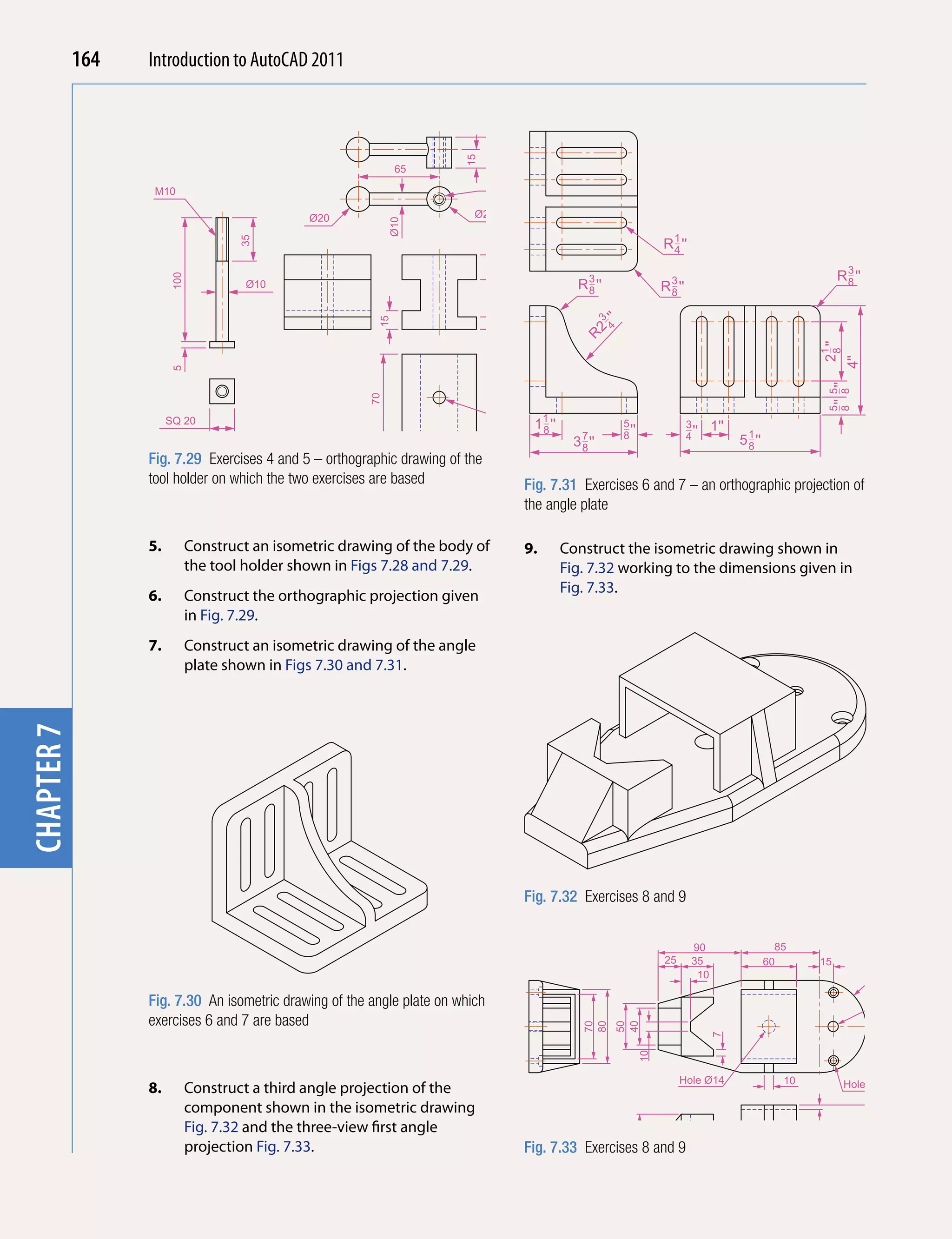
                                                                            100,170                         200,170


Fig. 2.29 Exercise 2                                         Fig. 2.31 Exercise 4
48   Introduction to AutoCAD 2010
                                               2011


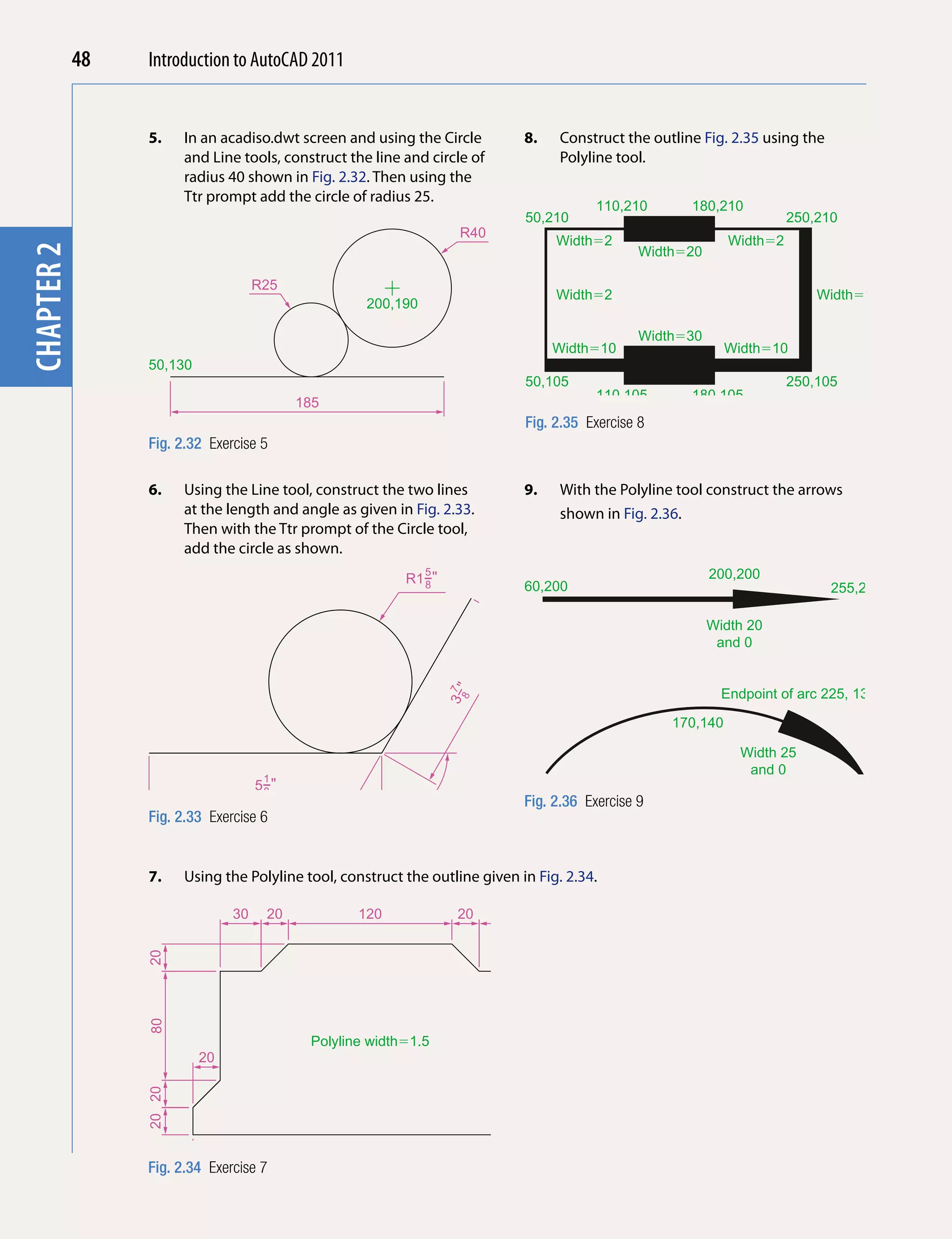
                       5.      In an acadiso.dwt screen and using the Circle           8.   Construct the outline Fig. 2.35 using the
      chapter 1

                               and Line tools, construct the line and circle of             Polyline tool.
                               radius 40 shown in Fig. 2.32. Then using the
                               Ttr prompt add the circle of radius 25.
                                                                                                   110,210      180,210
                                                                                       50,210                                     250,210
                                                                            R40
                                                                                            Width�2                     Width�2
chapter 2


                                                                                                          Width�20

                                           R25
                                                                                            Width�2                                   Width�10
                                                            200,190

                                                                                                          Width�30
                                                                                            Width�10                    Width�10
                       50,130
                                                                                       50,105                                     250,105
                                                                                                   110,105      180,105
                                                 185
                                                                                       Fig. 2.35 Exercise 8
                       Fig. 2.32 Exercise 5

                       6.      Using the Line tool, construct the two lines            9.   With the Polyline tool construct the arrows
                               at the length and angle as given in Fig. 2.33.               shown in Fig. 2.36.
                               Then with the Ttr prompt of the Circle tool,
                               add the circle as shown.
                                                                    5
                                                                  R1−"                                               200,200
                                                                    8                  60,200                                           255,200

                                                                                                                     Width 20
                                                                                                                      and 0


                                                                                                                       Endpoint of arc 225, 130
                                                                          3−7"
                                                                            8


                                                                                                              170,140

                                                                                                                          Width 25
                                                                                                                           and 0
                                            1
                                           5−"                                         60,95
                                            8                         �
                                                                 12
                                                                    0                  Fig. 2.36 Exercise 9                                       295,70
                       Fig. 2.33 Exercise 6


                       7.      Using the Polyline tool, construct the outline given in Fig. 2.34.

                                      30    20            120               20    30
                       20
                       80


                                                   Polyline width�1.5
                                 20                                                    20
                       20 20


                       Fig. 2.34 Exercise 7               260
Chapter 3
Draw tools, Object Snap
    and Dynamic Input
 Aims of this chApter

The aims of this chapter are:

1. To give examples of the use of the Arc, Ellipse, Polygon, Rectangle, tools from the
   Home/Draw panel.
2. To give examples of the uses of the Polyline Edit (pedit) tool.
3. To introduce the Object Snaps (osnap) and their uses.
4. To introduce the Dynamic Input (DYN) system and its uses.


                                                                                         49
50   Introduction to AutoCAD 2011


                   introduction
                                           The majority of tools in AutoCAD 2011 can be called into use by any one
                                           of the following six methods:
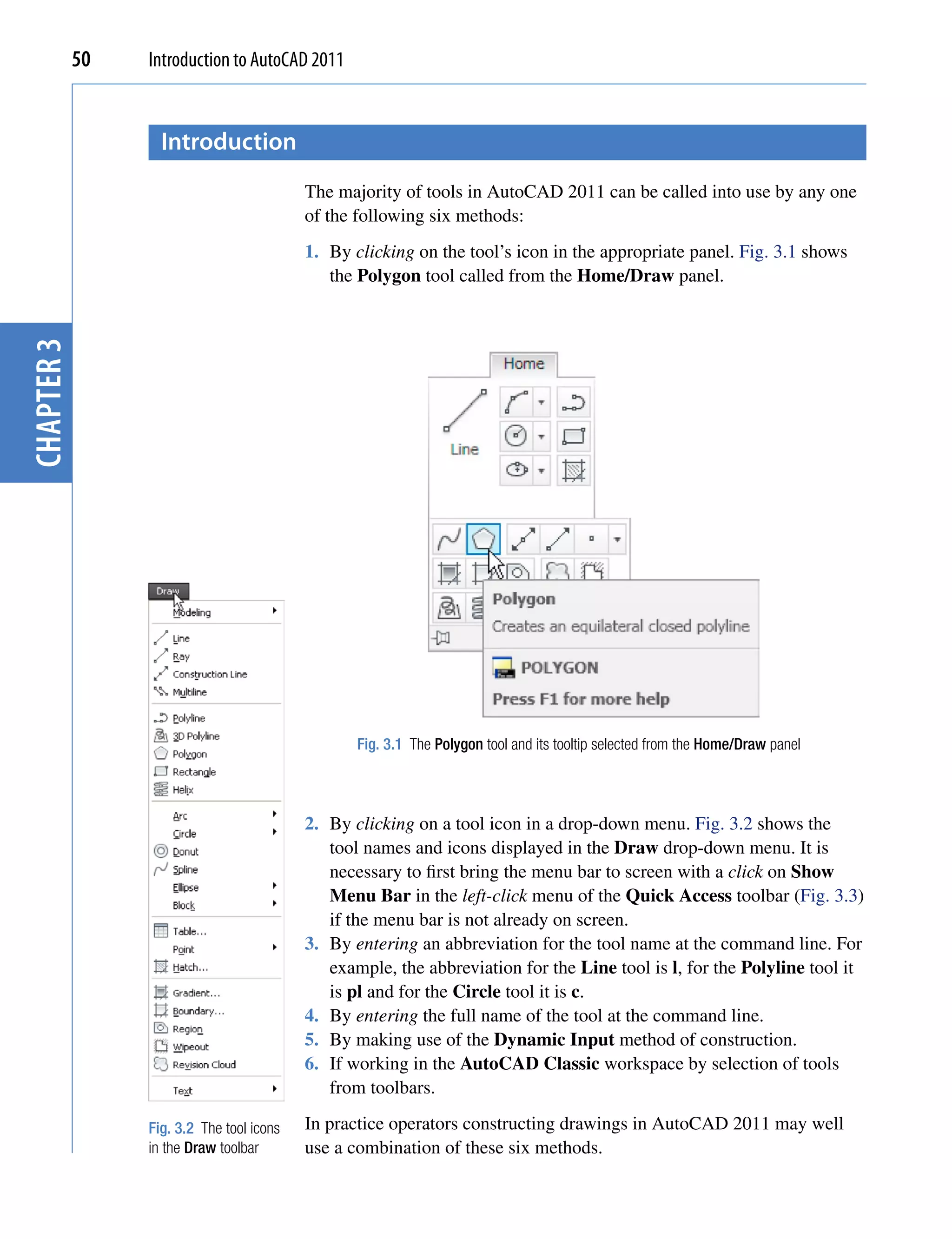
                                           1. By clicking on the tool’s icon in the appropriate panel. Fig. 3.1 shows
                                              the Polygon tool called from the Home/Draw panel.
chapter 3


                                                  Fig. 3.1 The Polygon tool and its tooltip selected from the Home/Draw panel


                                           2. By clicking on a tool icon in a drop-down menu. Fig. 3.2 shows the
                                              tool names and icons displayed in the Draw drop-down menu. It is
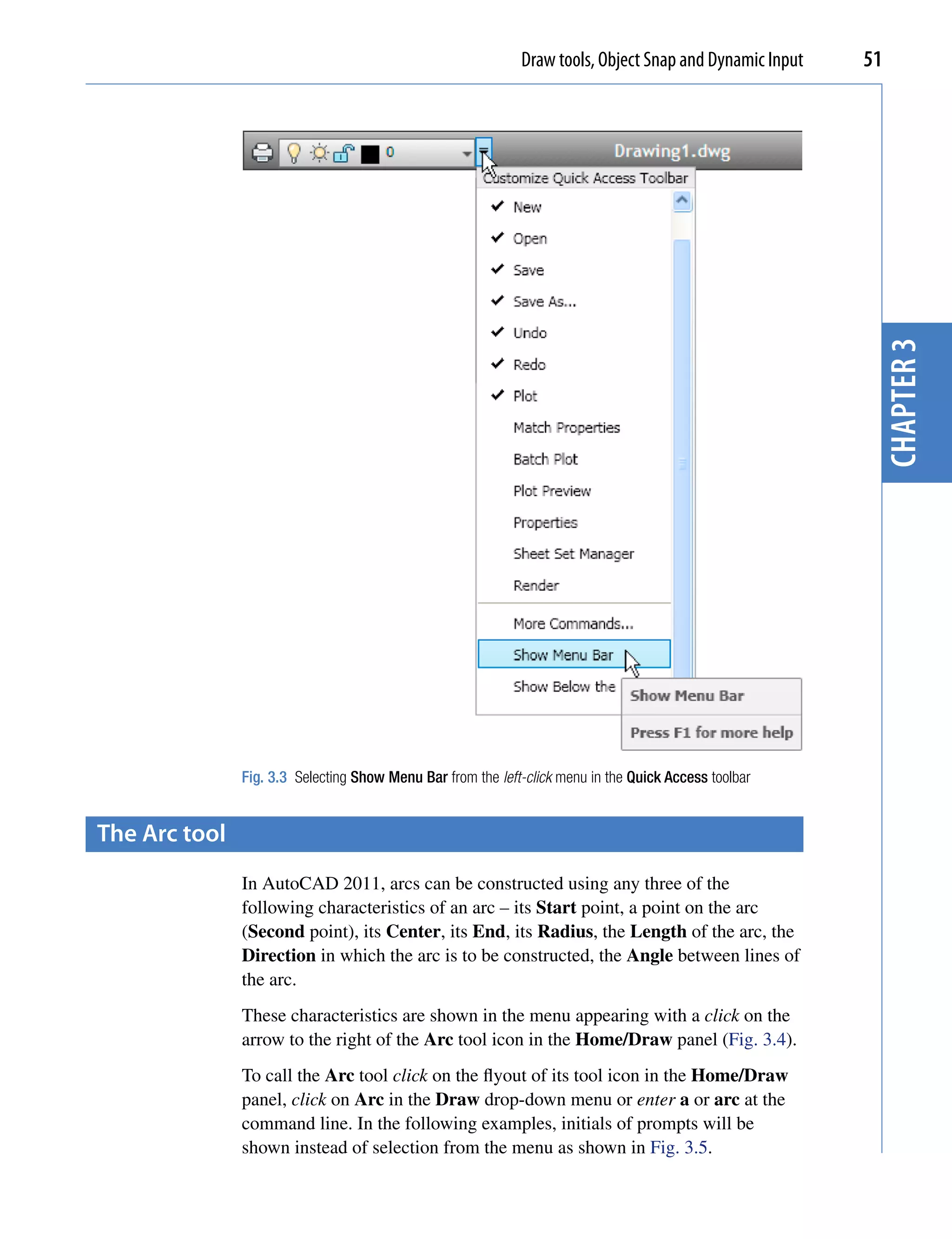
                                              necessary to first bring the menu bar to screen with a click on Show
                                              Menu Bar in the left-click menu of the Quick Access toolbar (Fig. 3.3)
                                              if the menu bar is not already on screen.
                                           3. By entering an abbreviation for the tool name at the command line. For
                                              example, the abbreviation for the Line tool is l, for the Polyline tool it
                                              is pl and for the Circle tool it is c.
                                           4. By entering the full name of the tool at the command line.
                                           5. By making use of the Dynamic Input method of construction.
                                           6. If working in the AutoCAD Classic workspace by selection of tools
                                              from toolbars.

                 Fig. 3.2 The tool icons   In practice operators constructing drawings in AutoCAD 2011 may well
                 in the Draw toolbar       use a combination of these six methods.
Draw tools, Object Snap and Dynamic Input   51


                                                                                                          chapter 3
               Fig. 3.3 Selecting Show Menu Bar from the left-click menu in the Quick Access toolbar


the Arc tool
               In AutoCAD 2011, arcs can be constructed using any three of the
               following characteristics of an arc – its Start point, a point on the arc
               (Second point), its Center, its End, its Radius, the Length of the arc, the
               Direction in which the arc is to be constructed, the Angle between lines of
               the arc.
               These characteristics are shown in the menu appearing with a click on the
               arrow to the right of the Arc tool icon in the Home/Draw panel (Fig. 3.4).
               To call the Arc tool click on the flyout of its tool icon in the Home/Draw
               panel, click on Arc in the Draw drop-down menu or enter a or arc at the
               command line. In the following examples, initials of prompts will be
               shown instead of selection from the menu as shown in Fig. 3.5.
52   Introduction to AutoCAD 2011


                                                  55,250


                                         10,220          100,220 140,215                260,215
                                              First example                                       320,210        420,210
                                                                       Center is 200,190               Radius�75
                                                                        Second example                Third example

                                         Fig. 3.5 Examples – Arc tool
chapter 3


                                         First example – Arc tool (Fig. 3.5)
                                         Left-click the Arc tool icon. The command line shows:
                                         Command:_arc Specify start point of arc or
                                           [Center]: 100,220
                                         Specify second point of arc or [Center/End]:
                 Fig. 3.4 The Arc tool     55,250
                 flyout in the Home/     Specify end point of arc: 10,220
                 Draw panel
                                         Command:


                                         Second example – Arc tool (Fig. 3.5)
                                         Command:right-click brings back the Arc sequence
                                         ARC Specify start point of arc or [Center]: c
                                           (Center)
                                         Specify center point of arc: 200,190
                                         Specify start point of arc: 260,215
                                         Specify end point of arc or [Angle/chord Length]:
                                           140,215
                                         Command:


                                         Third example – Arc tool (Fig. 3.5)
                                         Command:right-click brings back the Arc sequence
                                         ARC Specify start point of arc or [Center]:
                                           420,210
                                         Specify second point of arc or [Center/End]:
                                           e (End)
                                         Specify end point of arc: 320,210
                                         Specify center point of arc or [Angle/Direction/
                                           Radius]: r (Radius)
                                         Specify radius of arc: 75
                                         Command:
Draw tools, Object Snap and Dynamic Input       53


  the ellipse tool
                          Ellipses can be regarded as what is seen when a circle is viewed from
                          directly in front of the circle and the circle rotated through an angle about
                          its horizontal diameter. Ellipses are measured in terms of two axes – a
                          major axis and a minor axis, the major axis being the diameter of the
                          circle and the minor axis being the height of the ellipse after the circle has
                          been rotated through an angle (Fig. 3.6).


                                                                                                                            chapter 3
                                                                                              major axis      minor axis

                                                 Diameter

                                                                                 Circle rotated
                                                                                 through 60�           Ellipse as
                                                                                                       seen from
                             Circle as         Circle as seen                                      direction of arrow
                            seen from          from direction
                              a side              of arrow

                          Fig. 3.6 An ellipse can be regarded as viewing a rotated circle


                          To call the Ellipse tool, click on its tool icon in the Home/Draw panel
                          (Fig. 3.7), click its name in the Draw drop-down menu or enter a or arc at
                          the command line.


                          First example – Ellipse (Fig. 3.8)
                          Left-click the Ellipse tool icon. The command line shows:
                          Command:_ellipse
Fig. 3.7 The Ellipse      Specify axis endpoint of elliptical arc or
tool icon flyout in the     [Center]: 30,190
Home/Draw panel           Specify other endpoint of axis: 150,190
                          Specify distance to other axis or [Rotation] 25
                          Command:


                          Second example – Ellipse (Fig. 3.8)
                          In this second example, the coordinates of the centre of the ellipse (the
                          point where the two axes intersect) are entered, followed by entering
                          coordinates for the end of the major axis, followed by entering the units
                          for the end of the minor axis.
                          Command:right-click
                          ELLIPSE
54   Introduction to AutoCAD 2011


                                       Specify axis endpoint of elliptical arc or
                                         [Center]: c
                                       Specify center of ellipse: 260,190
                                       Specify endpoint of axis: 205,190
                                       Specify distance to other axis or
                                       [Rotation]: 30
                                       Command:

                                       Third example – Ellipse (Fig. 3.8)
chapter 3


                                       In this third example, after setting the positions of the ends of the major
                                       axis, the angle of rotation of the circle from which an ellipse can be
                                       obtained is entered (Fig. 3.8).


                                                                                                                 30
                                                                 25

                                       30,190                          150,190                  205,190
                                                                                                             260,190

                                                     First example
                                                                                                          Second example

                                                                      30,100     Rotation�45�   120,100


                                                                               Third example

                                       Fig. 3.8 Examples – Ellipse


                                       Command: right-click
                                       ELLIPSE
                                       Specify axis endpoint of elliptical arc or
                                         [Center]: 30,100
                                       Specify other endpoint of axis: 120,100
                                       Specify distance to other axis or [Rotation]:
                                         r (Rotation)
                                       Specify rotation around major axis: 45
                                       Command:


                  saving drawings
                                       Before going further it is as well to know how to save the drawings
                                       constructed when answering examples and exercises in this book. When a
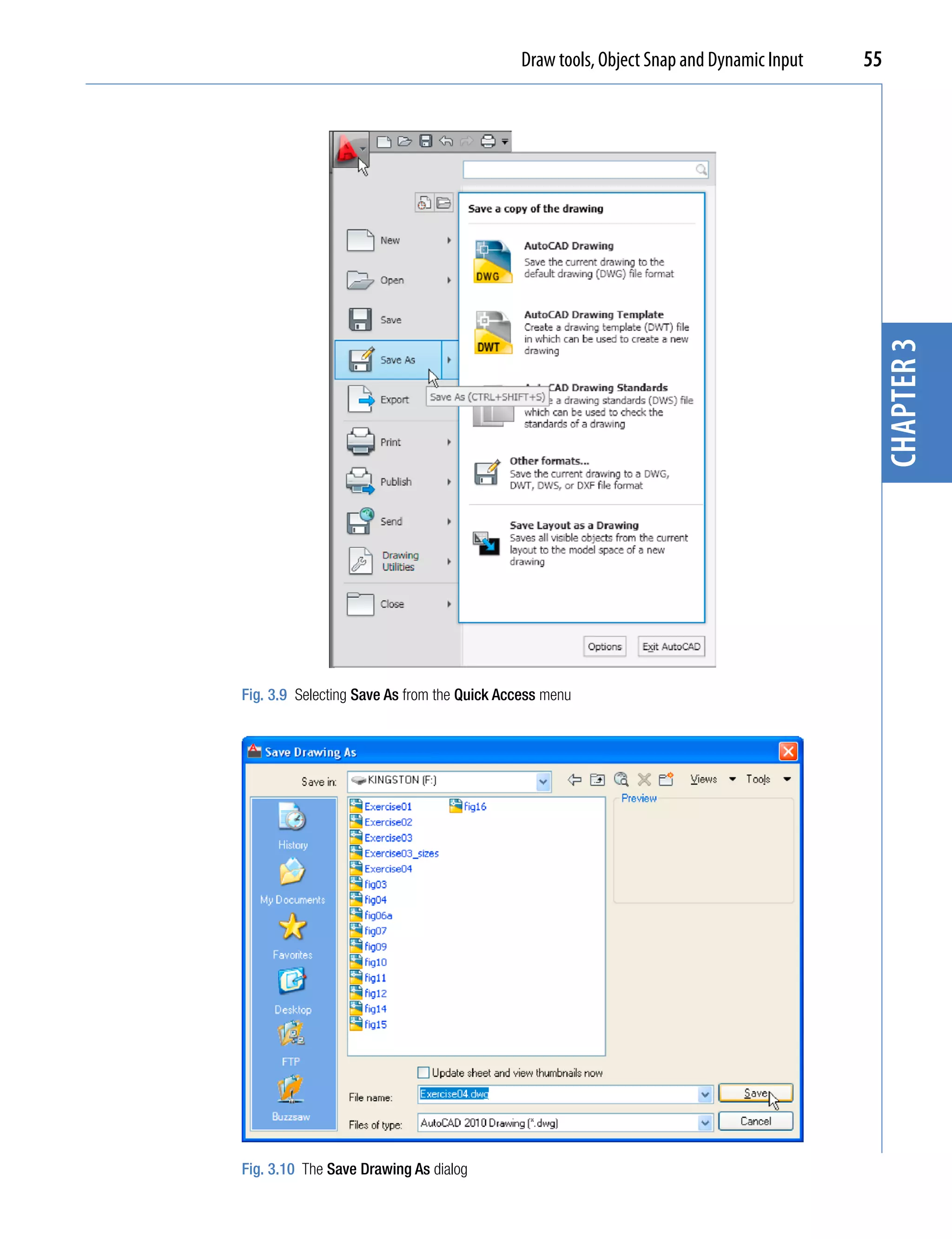
                                       drawing has been constructed, left-click on Save As in the menu appearing
                                       with a left-click on the AutoCAD icon at the top left-hand corner of the
                                       window (Fig. 3.9). The Save Drawing As dialog appears (Fig. 3.10).
Draw tools, Object Snap and Dynamic Input   55


                                                                                         chapter 3
Fig. 3.9 Selecting Save As from the Quick Access menu


Fig. 3.10 The Save Drawing As dialog
56   Introduction to AutoCAD 2011


                                       Unless you are the only person using the computer on which the drawing
                                       has been constructed, it is best to save work to a USB memory stick or other
                                       form of temporary saving device. To save a drawing to a USB memory stick:
                                       1. Place a memory stick in a USB drive.
                                       2. In the Save in: field of the dialog, click the arrow to the right of the
                                          field and from the popup list select KINGSTON [F:] (the name of my
                                          USB drive and stick).
                                       3. In the File name: field type a name. The file name extension .dwg does
                                          not need to be typed – it will be added to the file name.
chapter 3


                                       4. Left-click the Save button of the dialog. The drawing will be saved with the
                                          file name extension .dwg – the AutoCAD file name extension (Fig. 3.10).


                  snap
                                       In previous chapters, several methods of constructing accurate drawings
                                       have been described – using Snap, absolute coordinate entry, relative
                                       coordinate entry and tracking. Other methods of ensuring accuracy
                                       between parts of constructions are by making use of Object Snaps
                                       (Osnaps).
                                       Snap Mode, Grid Display and Object Snaps can be toggled on/off from
                                       the buttons in the status bar or by pressing the keys, F9 (Snap Mode),
                                       F7 (Grid Display) and F3 (Object Snap).


                  object snaps (osnaps)
                                       Object Snaps allow objects to be added to a drawing at precise positions in
                                       relation to other objects already on screen. With Object Snaps, objects can
                                       be added to the end points, midpoints, to intersections of objects, to centres
                                       and/or quadrants of circles and so on. Object Snaps also override snap
                                       points even when snap is set on.
                                       To set Object Snaps – at the command line:
                                       Command: enter os
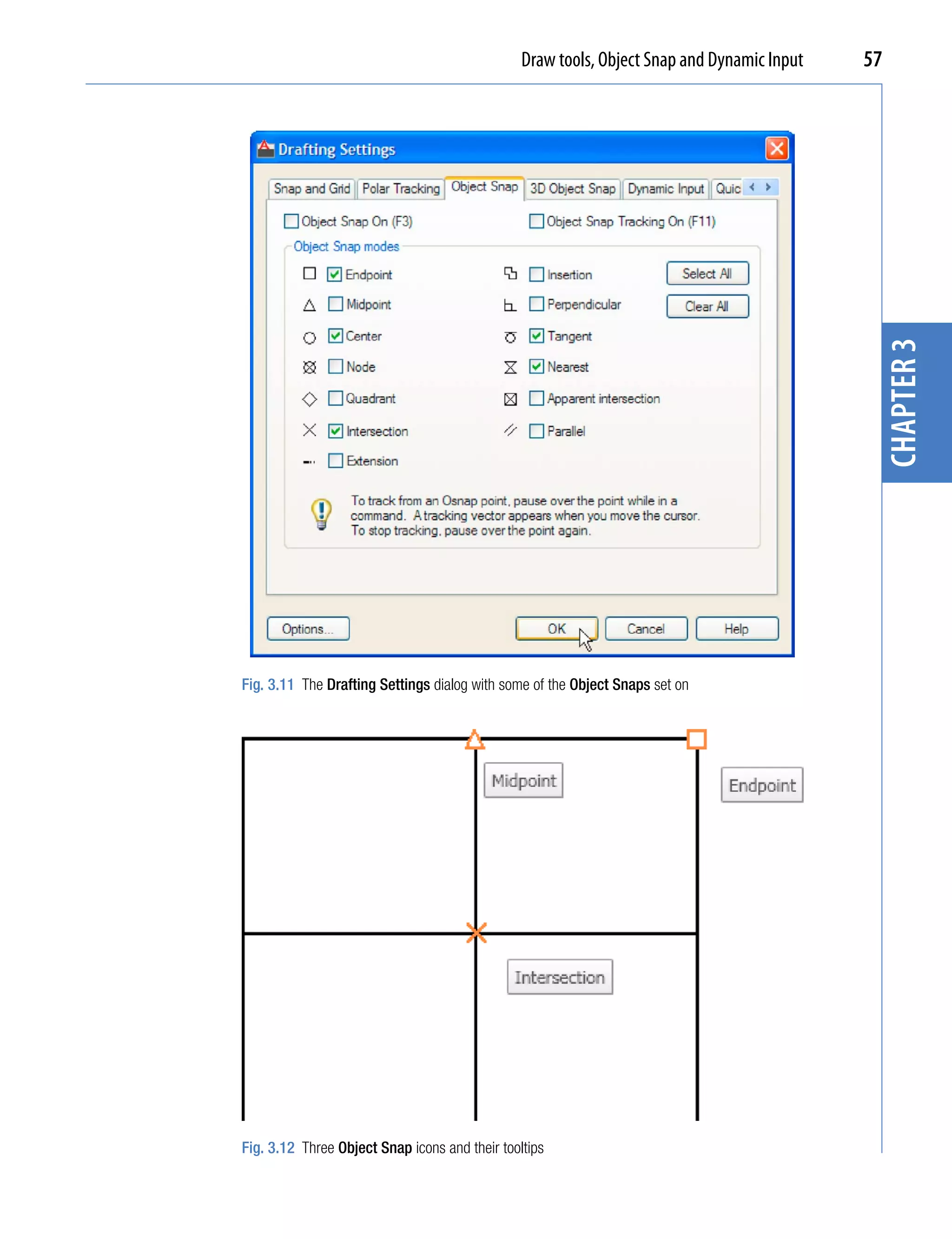
                                       And the Drafting Settings dialog appears (Fig. 3.11). Click the Object
                                       Snap tab in the upper part of the dialog and click the check boxes to the
                                       right of the Object Snap names to set them on (or off in on).
                                       When Object Snaps are set ON, as outlines are constructed using Object
                                       Snap icons and their tooltips appear as indicated in Fig. 3.12.
Draw tools, Object Snap and Dynamic Input   57


                                                                                             chapter 3
Fig. 3.11 The Drafting Settings dialog with some of the Object Snaps set on


Fig. 3.12 Three Object Snap icons and their tooltips
58   Introduction to AutoCAD 2011


                                       It is sometimes advisable not to have Object Snaps set on in the
                                       Drafting Settings dialog, but to set Object Snap off and use Object
                                       Snap abbreviations at the command line when using tools. The following
                                       examples show the use of some of these abbreviations. Object Snaps can
                                       be toggled on/off by pressing the F3 key of the keyboard.

                                       First example – Object Snap (Fig. 3.13)
                                       Call the Polyline tool:
chapter 3


                                       Command:_pline
                                       Specify start point: 50,230
                                       [prompts]: w (Width)
                                       Specify starting width: 1
                                       Specify ending width <1>: right-click
                                       Specify next point: 260,230
                                       Specify next point: right-click
                                       Command: right-click
                                       PLINE
                                       Specify start point: pick the right-hand end of
                                         the pline
                                       Specify next point: 50,120
                                       Specify next point: right-click
                                       Command: right-click
                                       PLINE
                                       Specify start point: pick near the middle of first
                                         pline
                                       Specify next point: 155,120
                                       Specify next point: right-click
                                       Command: right-click
                                       PLINE
                                       Specify start point: pick the plines at their
                                         intersection
                                       Specify start point: right-click
                                       Command:
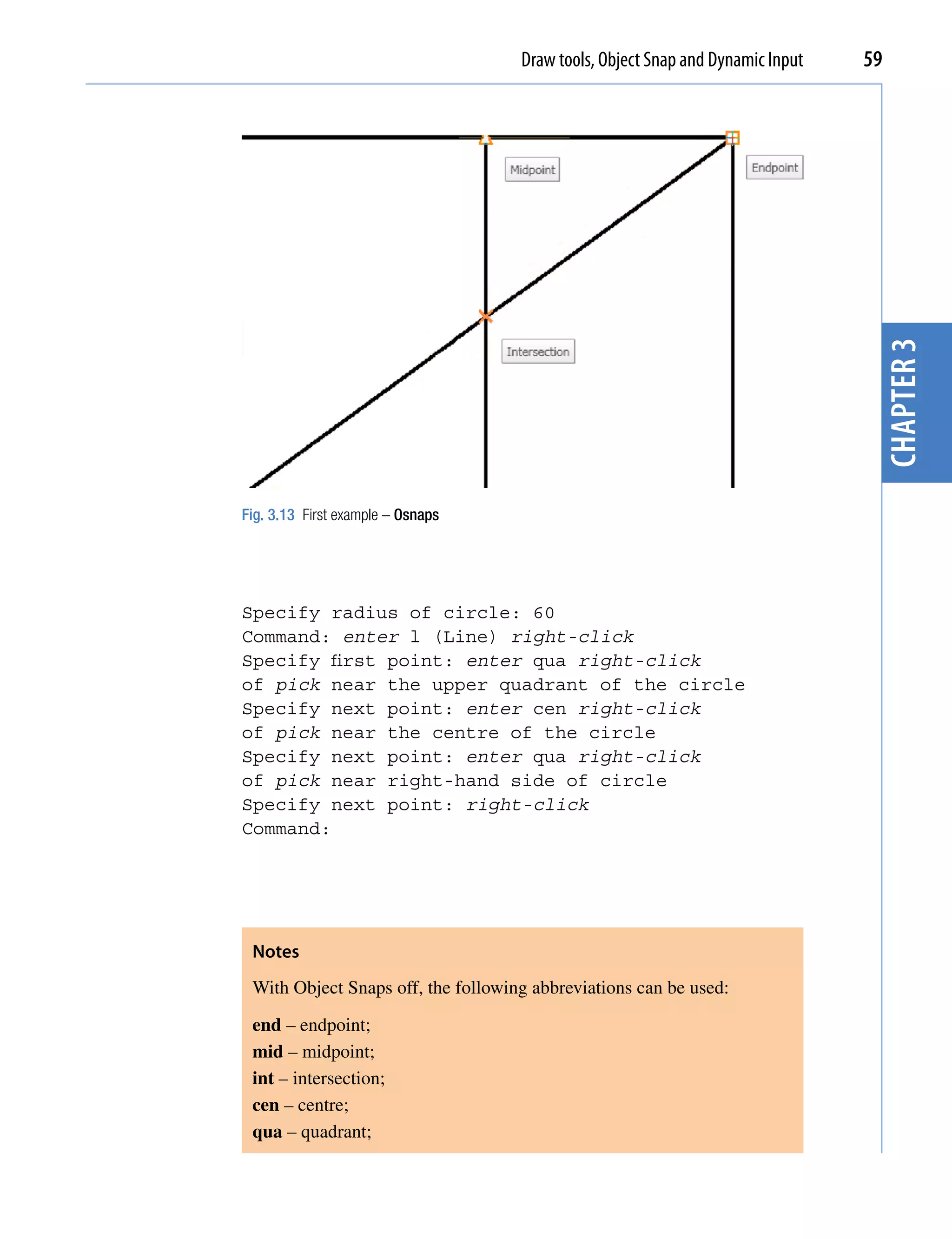
                                       The result is shown in Fig. 3.13. In this illustration the Object Snap
                                       tooltips are shown as they appear when each object is added to the outline.

                                       Second example – Object Snap abbreviations
                                       (Fig. 3.14)
                                       Call the Circle tool:
                                       Command:_circle
                                       Specify center point for circle: 180,170
Draw tools, Object Snap and Dynamic Input   59


                                                                                 chapter 3
Fig. 3.13 First example – Osnaps


Specify radius of circle: 60
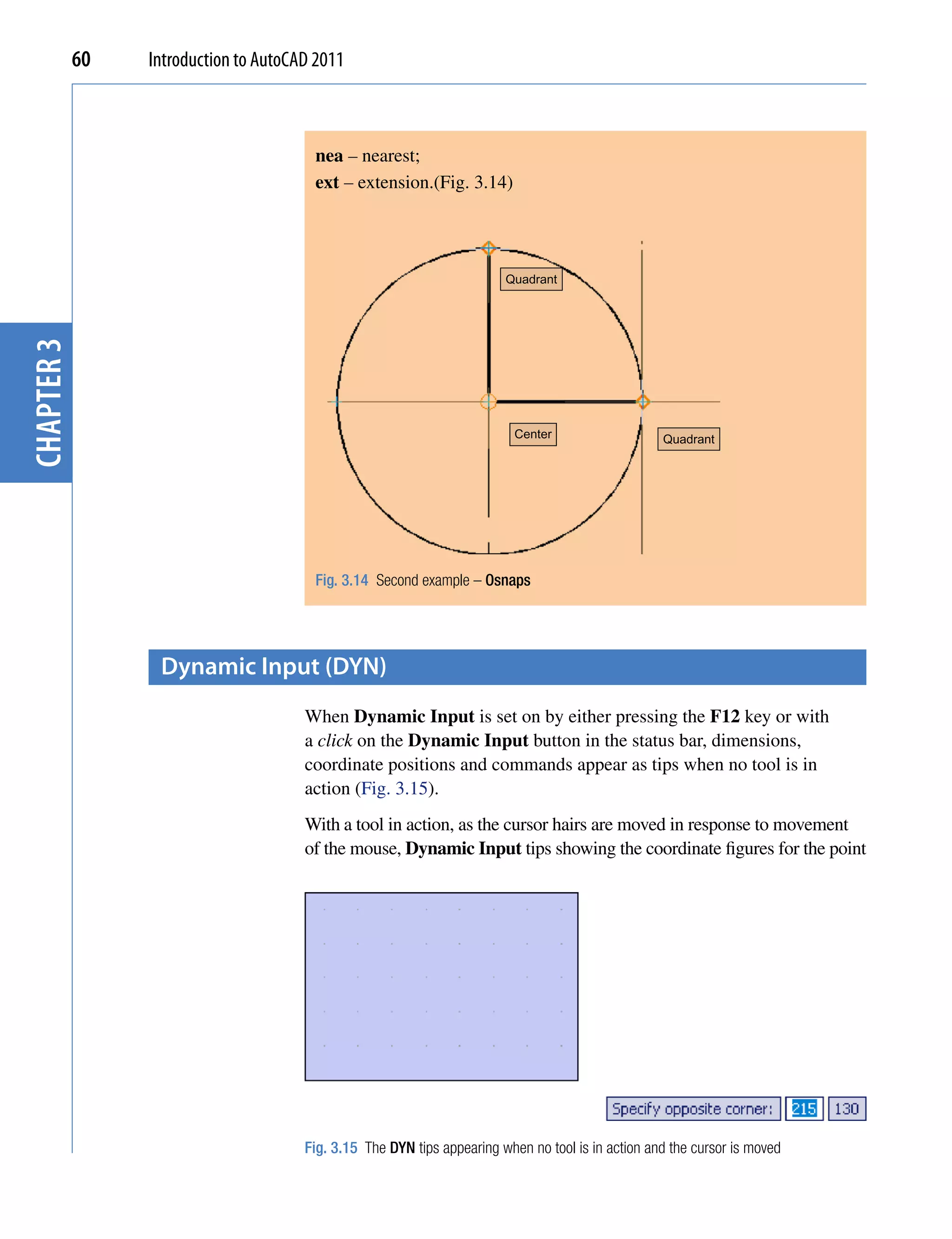
Command: enter l (Line) right-click
Specify first point: enter qua right-click
of pick near the upper quadrant of the circle
Specify next point: enter cen right-click
of pick near the centre of the circle
Specify next point: enter qua right-click
of pick near right-hand side of circle
Specify next point: right-click
Command:


 Notes
 With Object Snaps off, the following abbreviations can be used:

 end – endpoint;
 mid – midpoint;
 int – intersection;
 cen – centre;
 qua – quadrant;
60   Introduction to AutoCAD 2011


                                        nea – nearest;
                                        ext – extension.(Fig. 3.14)


                                                                         Quadrant
chapter 3


                                                                           Center                   Quadrant


                                        Fig. 3.14 Second example – Osnaps


                  Dynamic input (DYN)
                                       When Dynamic Input is set on by either pressing the F12 key or with
                                       a click on the Dynamic Input button in the status bar, dimensions,
                                       coordinate positions and commands appear as tips when no tool is in
                                       action (Fig. 3.15).
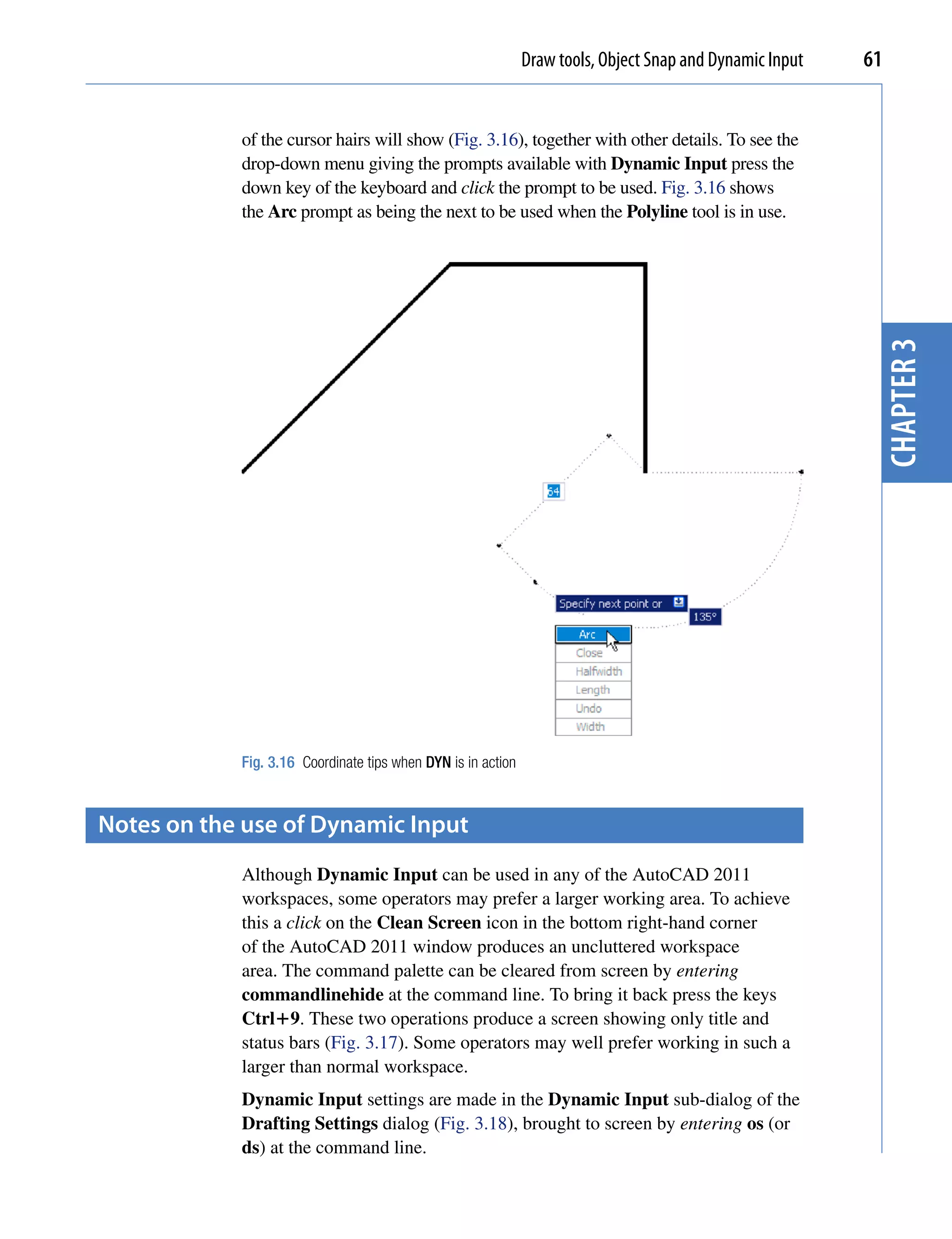
                                       With a tool in action, as the cursor hairs are moved in response to movement
                                       of the mouse, Dynamic Input tips showing the coordinate figures for the point


                                       Fig. 3.15 The DYN tips appearing when no tool is in action and the cursor is moved
Draw tools, Object Snap and Dynamic Input   61


            of the cursor hairs will show (Fig. 3.16), together with other details. To see the
            drop-down menu giving the prompts available with Dynamic Input press the
            down key of the keyboard and click the prompt to be used. Fig. 3.16 shows
            the Arc prompt as being the next to be used when the Polyline tool is in use.


                                                                                                           chapter 3
            Fig. 3.16 Coordinate tips when DYN is in action


Notes on the use of Dynamic input
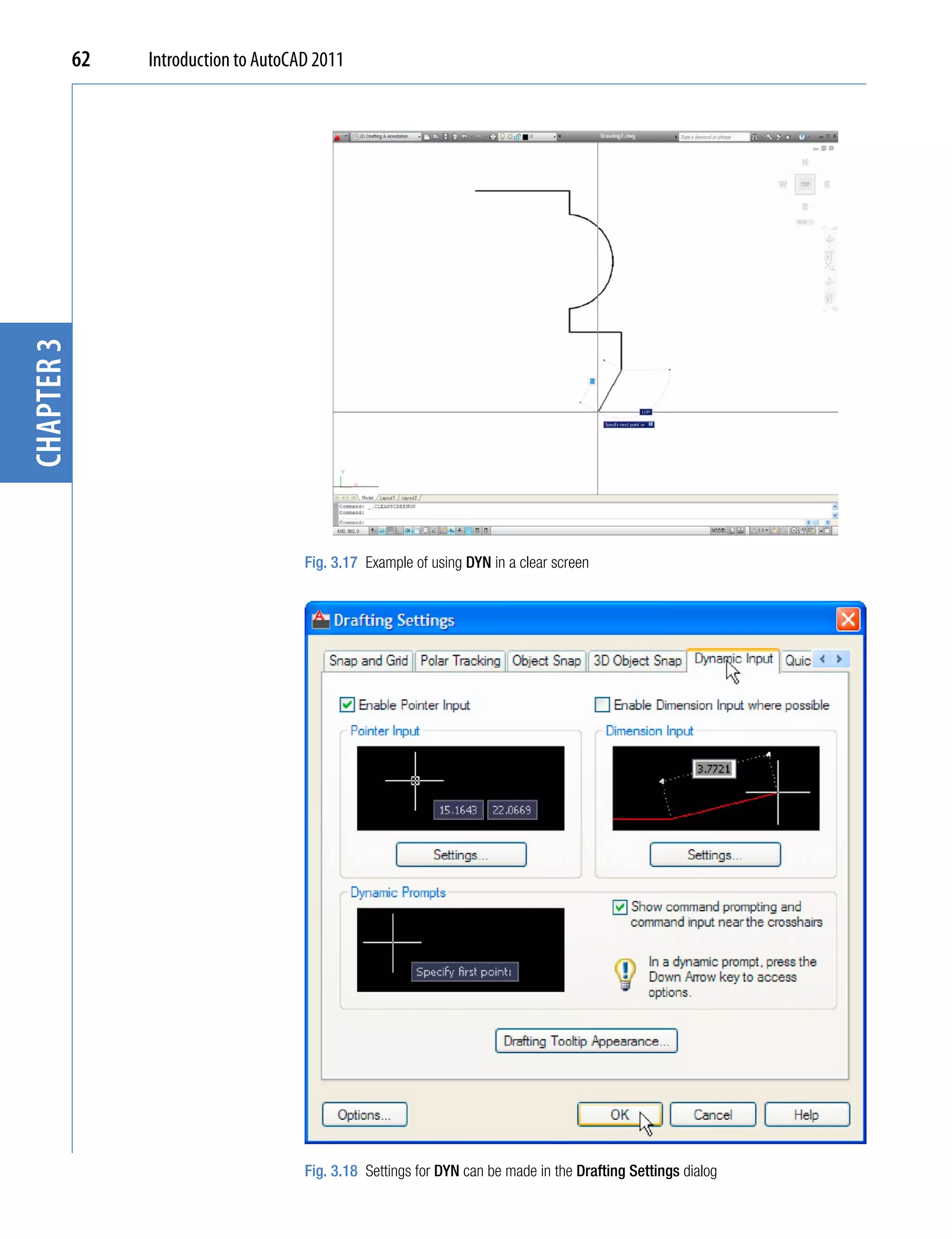
            Although Dynamic Input can be used in any of the AutoCAD 2011
            workspaces, some operators may prefer a larger working area. To achieve
            this a click on the Clean Screen icon in the bottom right-hand corner
            of the AutoCAD 2011 window produces an uncluttered workspace
            area. The command palette can be cleared from screen by entering
            commandlinehide at the command line. To bring it back press the keys
            Ctrl9. These two operations produce a screen showing only title and
            status bars (Fig. 3.17). Some operators may well prefer working in such a
            larger than normal workspace.
            Dynamic Input settings are made in the Dynamic Input sub-dialog of the
            Drafting Settings dialog (Fig. 3.18), brought to screen by entering os (or
            ds) at the command line.
chapter 3   62   Introduction to AutoCAD 2011


                                       Fig. 3.17 Example of using DYN in a clear screen


                                       Fig. 3.18 Settings for DYN can be made in the Drafting Settings dialog
Draw tools, Object Snap and Dynamic Input   63


When Dynamic Input is in action, tools can be called by using any of the
methods described on page 50.
1.   By entering the name of the tool at the command line.
2.   By entering the abbreviation for a tool name at the command line.
3.   By selecting the tool’s icon from a panel.
4.   By selecting the tool’s name from a drop-down menu.

When Dynamic Input is active and a tool is called, command prompts
appear in a tooltip at the cursor position. Fig. 3.19 shows the tooltip


                                                                                               chapter 3
appearing at the cursor position when the Line tool icon in the Home/
Draw panel is clicked.


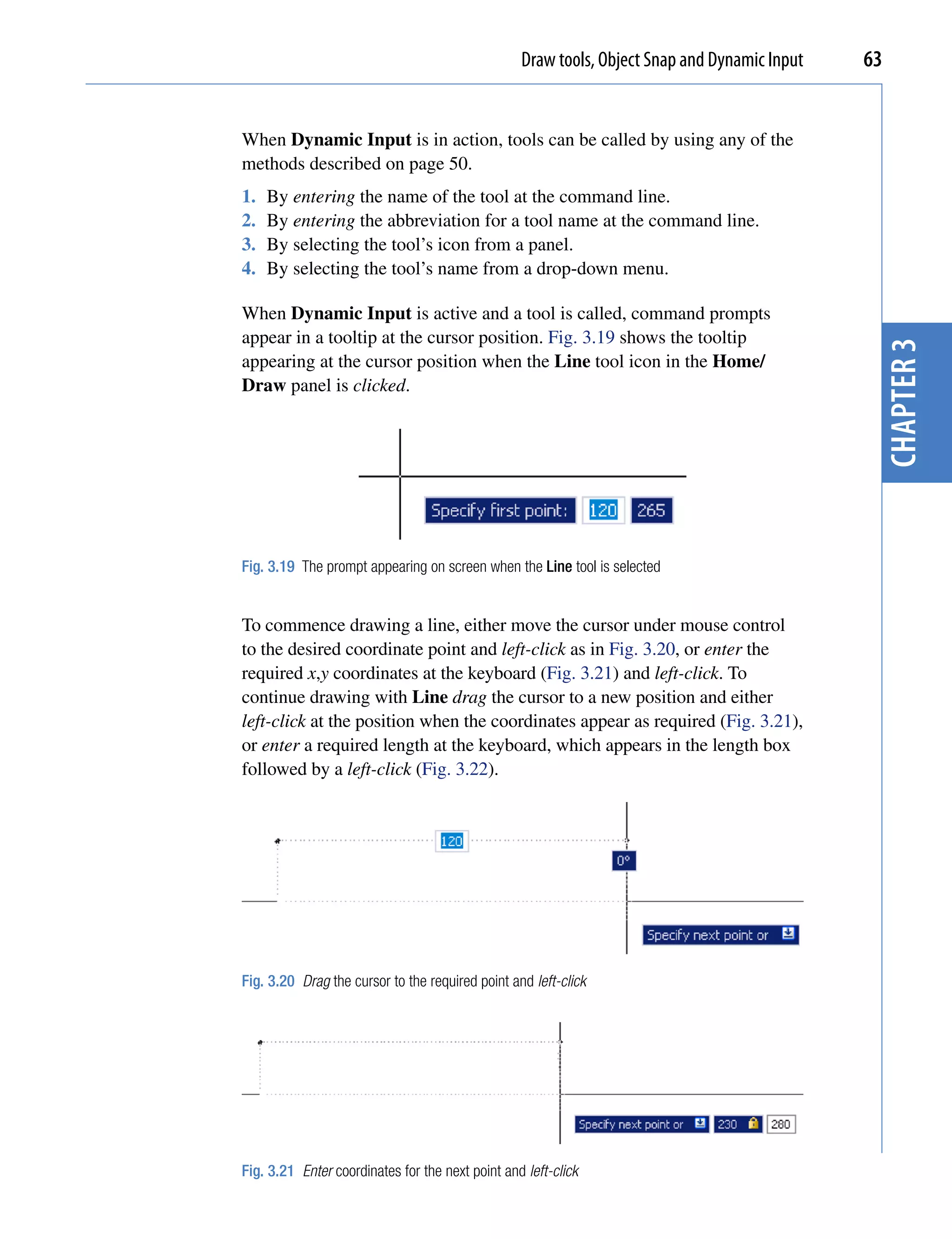
Fig. 3.19 The prompt appearing on screen when the Line tool is selected


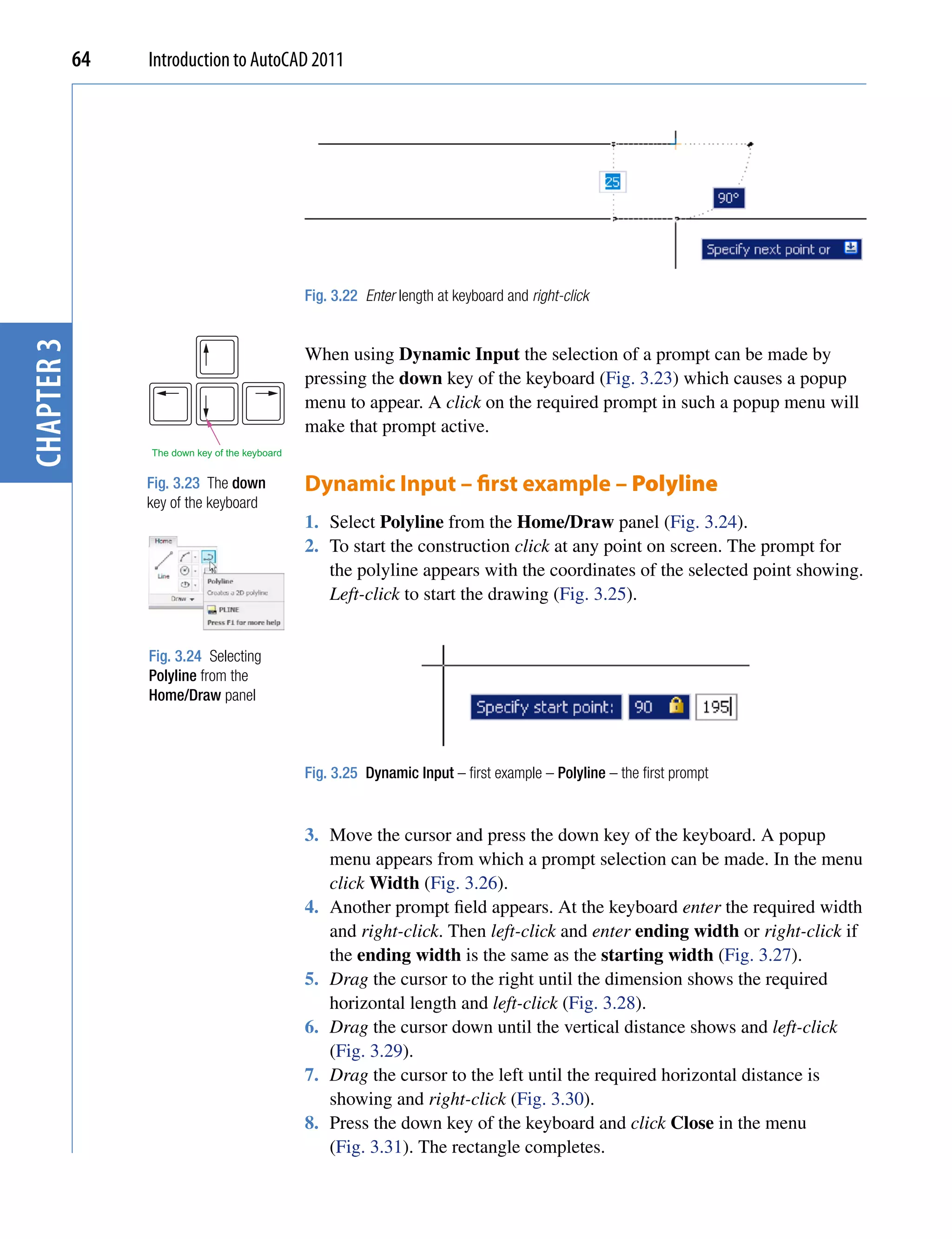
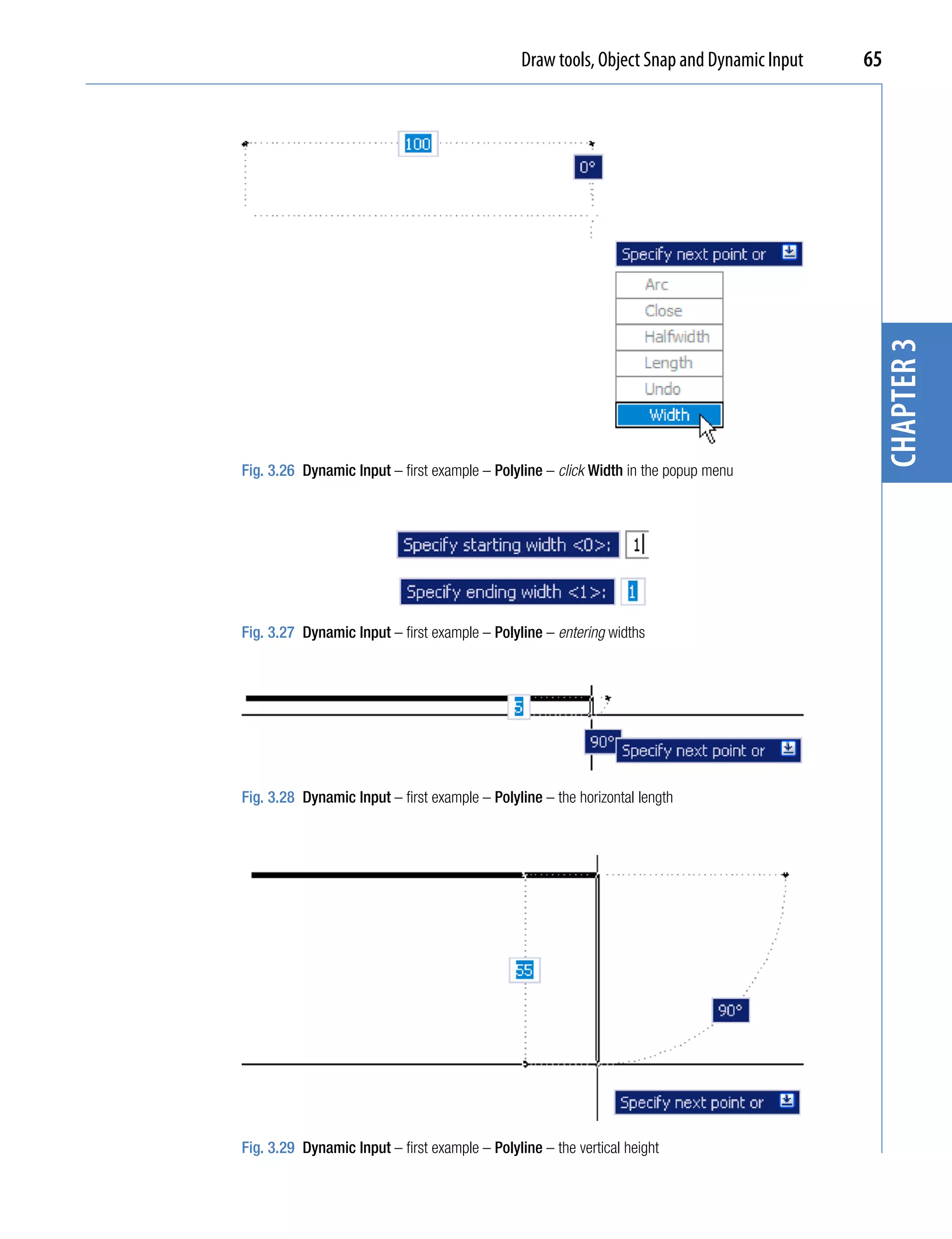
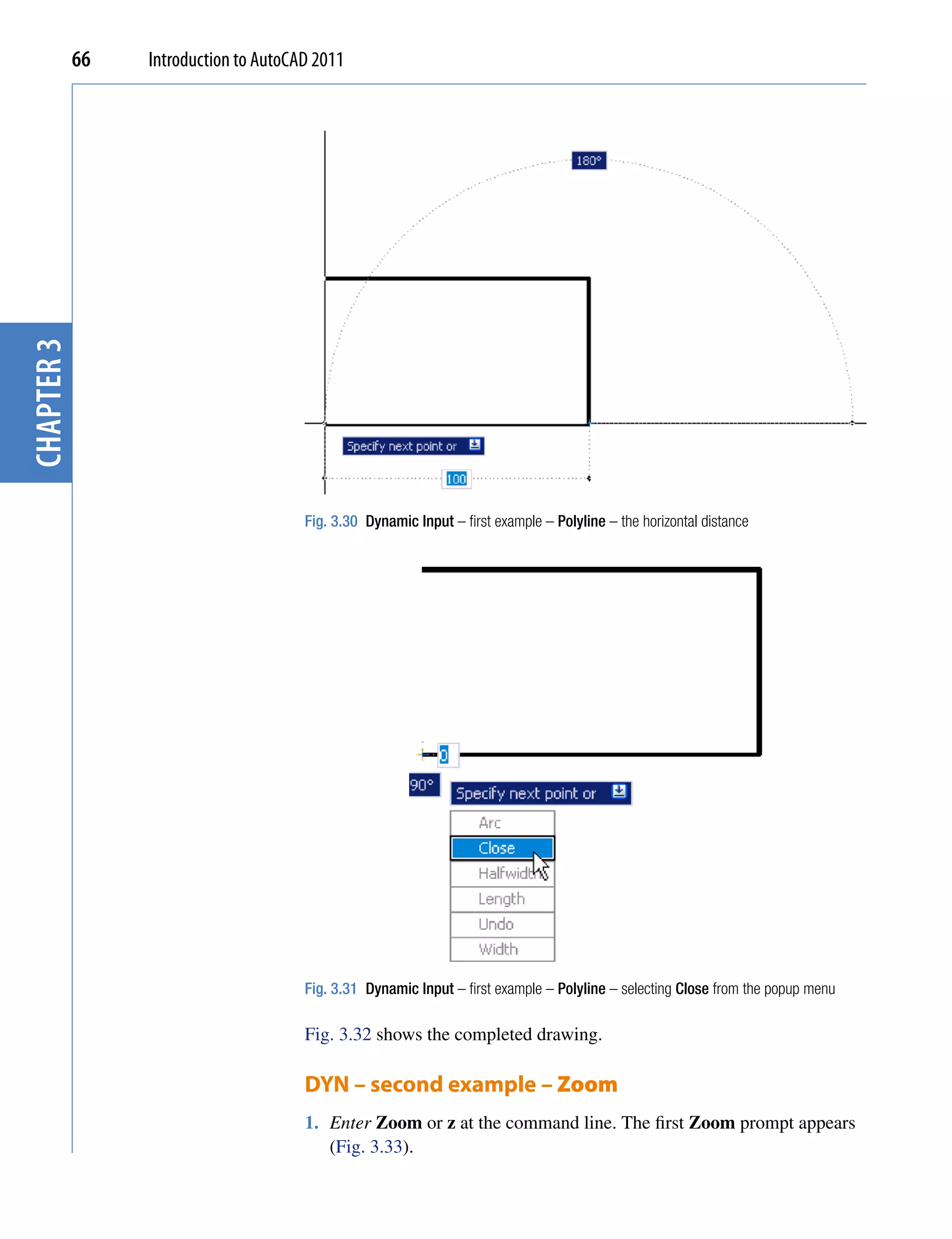
To commence drawing a line, either move the cursor under mouse control
to the desired coordinate point and left-click as in Fig. 3.20, or enter the
required x,y coordinates at the keyboard (Fig. 3.21) and left-click. To
continue drawing with Line drag the cursor to a new position and either
left-click at the position when the coordinates appear as required (Fig. 3.21),
or enter a required length at the keyboard, which appears in the length box
followed by a left-click (Fig. 3.22).


Fig. 3.20 Drag the cursor to the required point and left-click


Fig. 3.21 Enter coordinates for the next point and left-click
64   Introduction to AutoCAD 2011


                                                Fig. 3.22 Enter length at keyboard and right-click
chapter 3


                                                When using Dynamic Input the selection of a prompt can be made by
                                                pressing the down key of the keyboard (Fig. 3.23) which causes a popup
                                                menu to appear. A click on the required prompt in such a popup menu will
                                                make that prompt active.
                 The down key of the keyboard


                 Fig. 3.23 The down             Dynamic Input – first example – Polyline
                 key of the keyboard
                                                1. Select Polyline from the Home/Draw panel (Fig. 3.24).
                                                2. To start the construction click at any point on screen. The prompt for
                                                   the polyline appears with the coordinates of the selected point showing.
                                                   Left-click to start the drawing (Fig. 3.25).


                 Fig. 3.24 Selecting
                 Polyline from the
                 Home/Draw panel


                                                Fig. 3.25 Dynamic Input – first example – Polyline – the first prompt


                                                3. Move the cursor and press the down key of the keyboard. A popup
                                                   menu appears from which a prompt selection can be made. In the menu
                                                   click Width (Fig. 3.26).
                                                4. Another prompt field appears. At the keyboard enter the required width
                                                   and right-click. Then left-click and enter ending width or right-click if
                                                   the ending width is the same as the starting width (Fig. 3.27).
                                                5. Drag the cursor to the right until the dimension shows the required
                                                   horizontal length and left-click (Fig. 3.28).
                                                6. Drag the cursor down until the vertical distance shows and left-click
                                                   (Fig. 3.29).
                                                7. Drag the cursor to the left until the required horizontal distance is
                                                   showing and right-click (Fig. 3.30).
                                                8. Press the down key of the keyboard and click Close in the menu
                                                   (Fig. 3.31). The rectangle completes.
Draw tools, Object Snap and Dynamic Input   65


                                                                                             chapter 3
Fig. 3.26 Dynamic Input – first example – Polyline – click Width in the popup menu


Fig. 3.27 Dynamic Input – first example – Polyline – entering widths


Fig. 3.28 Dynamic Input – first example – Polyline – the horizontal length


Fig. 3.29 Dynamic Input – first example – Polyline – the vertical height
chapter 3   66   Introduction to AutoCAD 2011


                                       Fig. 3.30 Dynamic Input – first example – Polyline – the horizontal distance


                                       Fig. 3.31 Dynamic Input – first example – Polyline – selecting Close from the popup menu

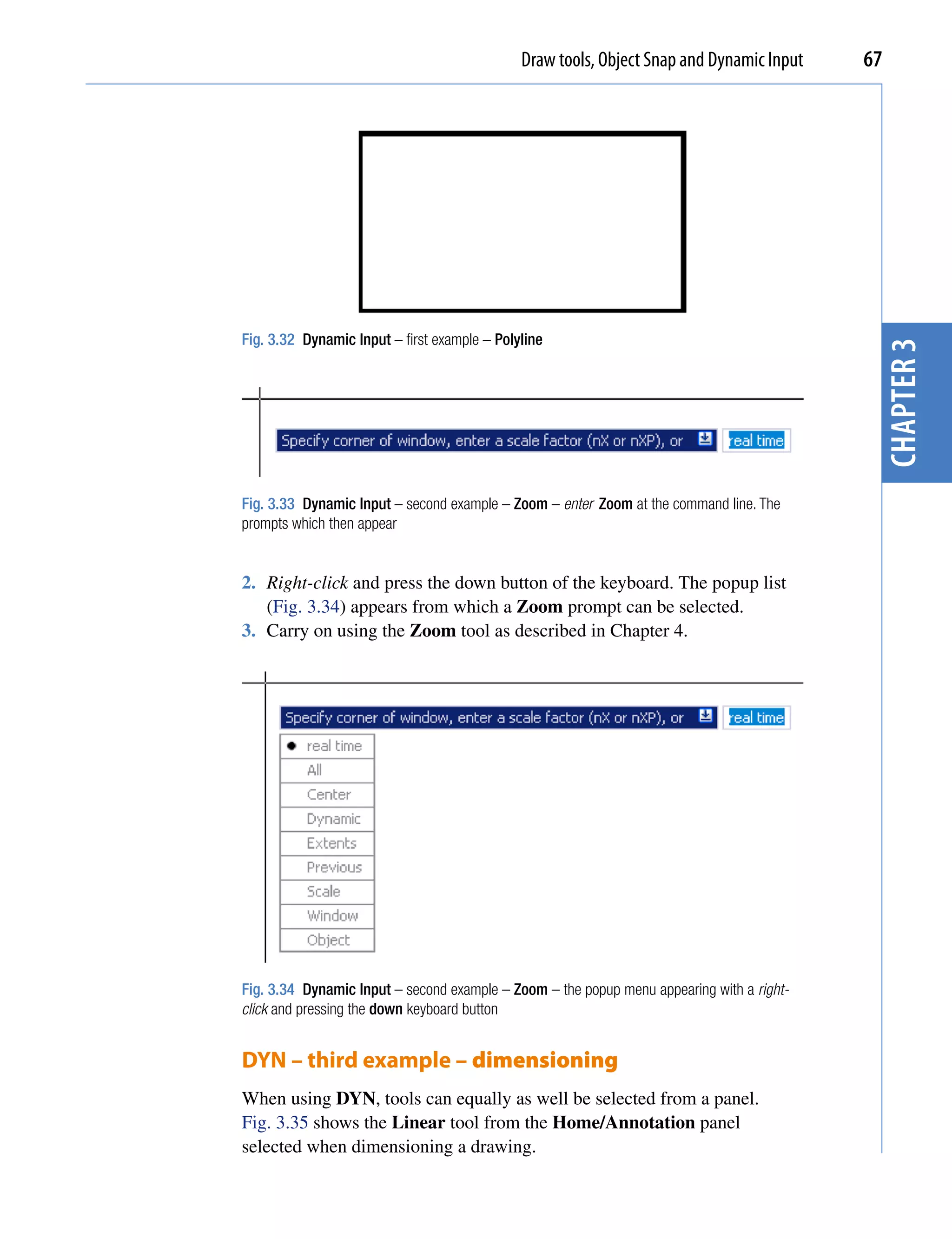
                                       Fig. 3.32 shows the completed drawing.

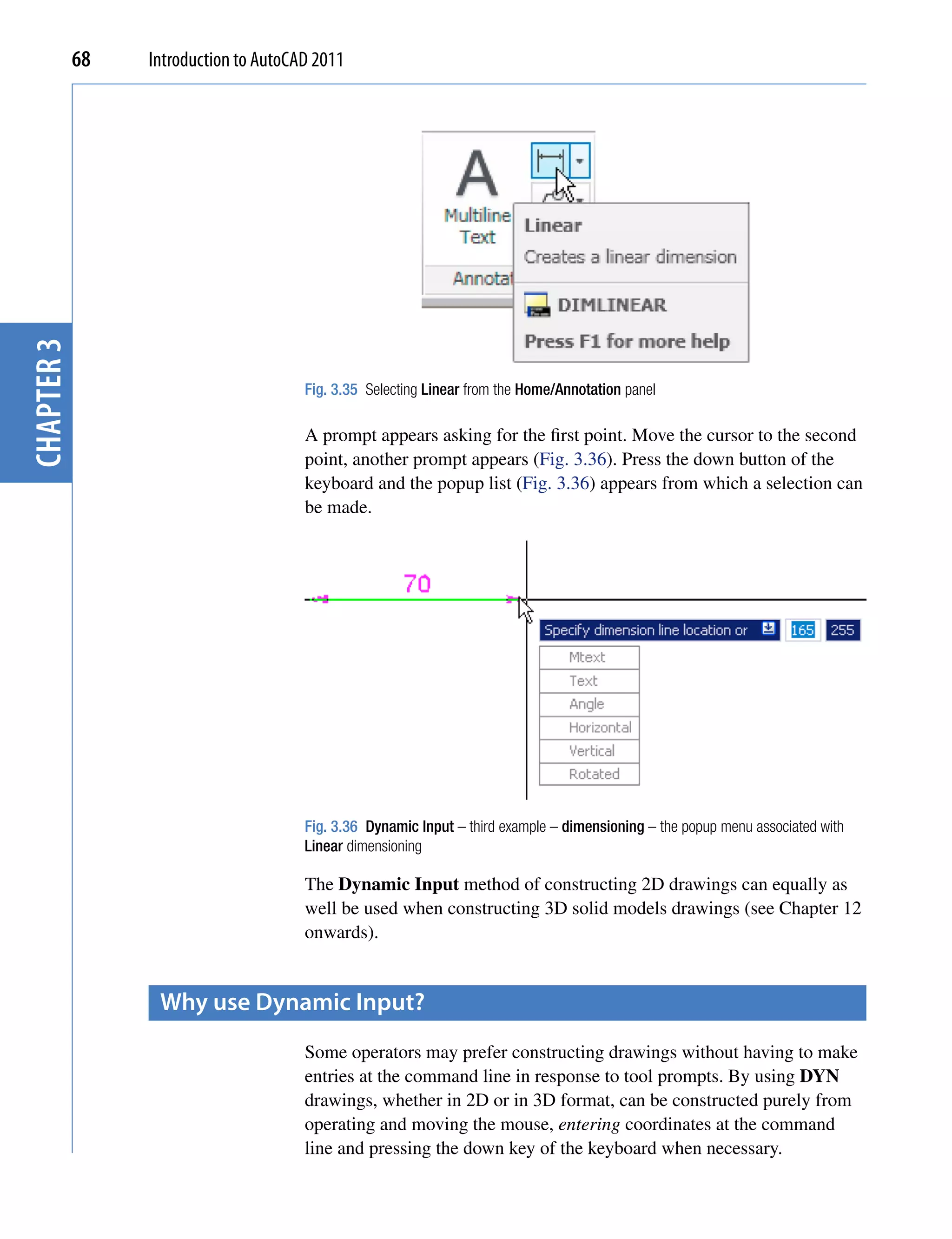
                                       DYN – second example – Zoom
                                       1. Enter Zoom or z at the command line. The first Zoom prompt appears
                                          (Fig. 3.33).
Draw tools, Object Snap and Dynamic Input    67


Fig. 3.32 Dynamic Input – first example – Polyline


                                                                                            chapter 3
Fig. 3.33 Dynamic Input – second example – Zoom – enter Zoom at the command line. The
prompts which then appear


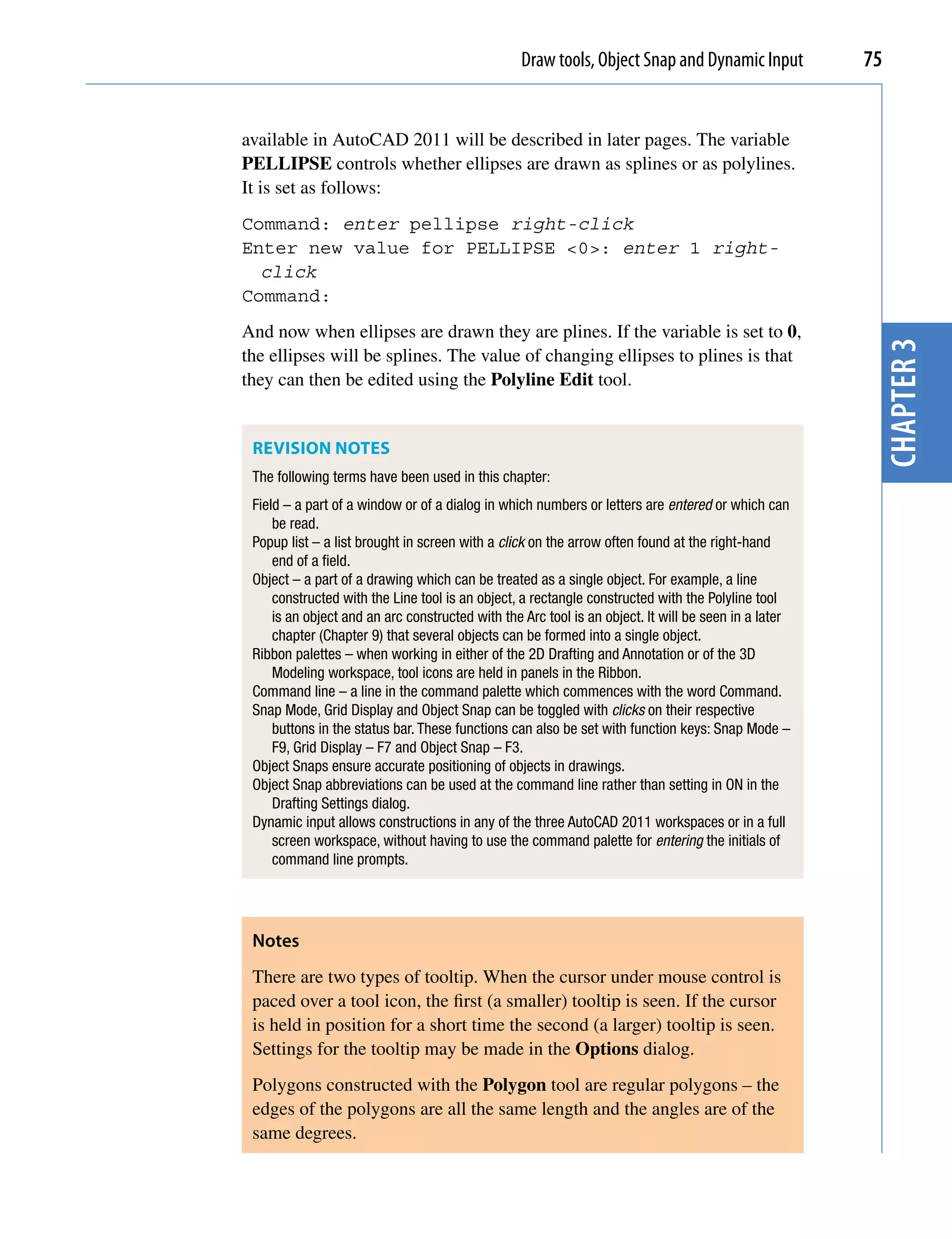
2. Right-click and press the down button of the keyboard. The popup list
   (Fig. 3.34) appears from which a Zoom prompt can be selected.
3. Carry on using the Zoom tool as described in Chapter 4.


Fig. 3.34 Dynamic Input – second example – Zoom – the popup menu appearing with a right-
click and pressing the down keyboard button


DYN – third example – dimensioning
When using DYN, tools can equally as well be selected from a panel.
Fig. 3.35 shows the Linear tool from the Home/Annotation panel
selected when dimensioning a drawing.
chapter 3   68   Introduction to AutoCAD 2011


                                       Fig. 3.35 Selecting Linear from the Home/Annotation panel

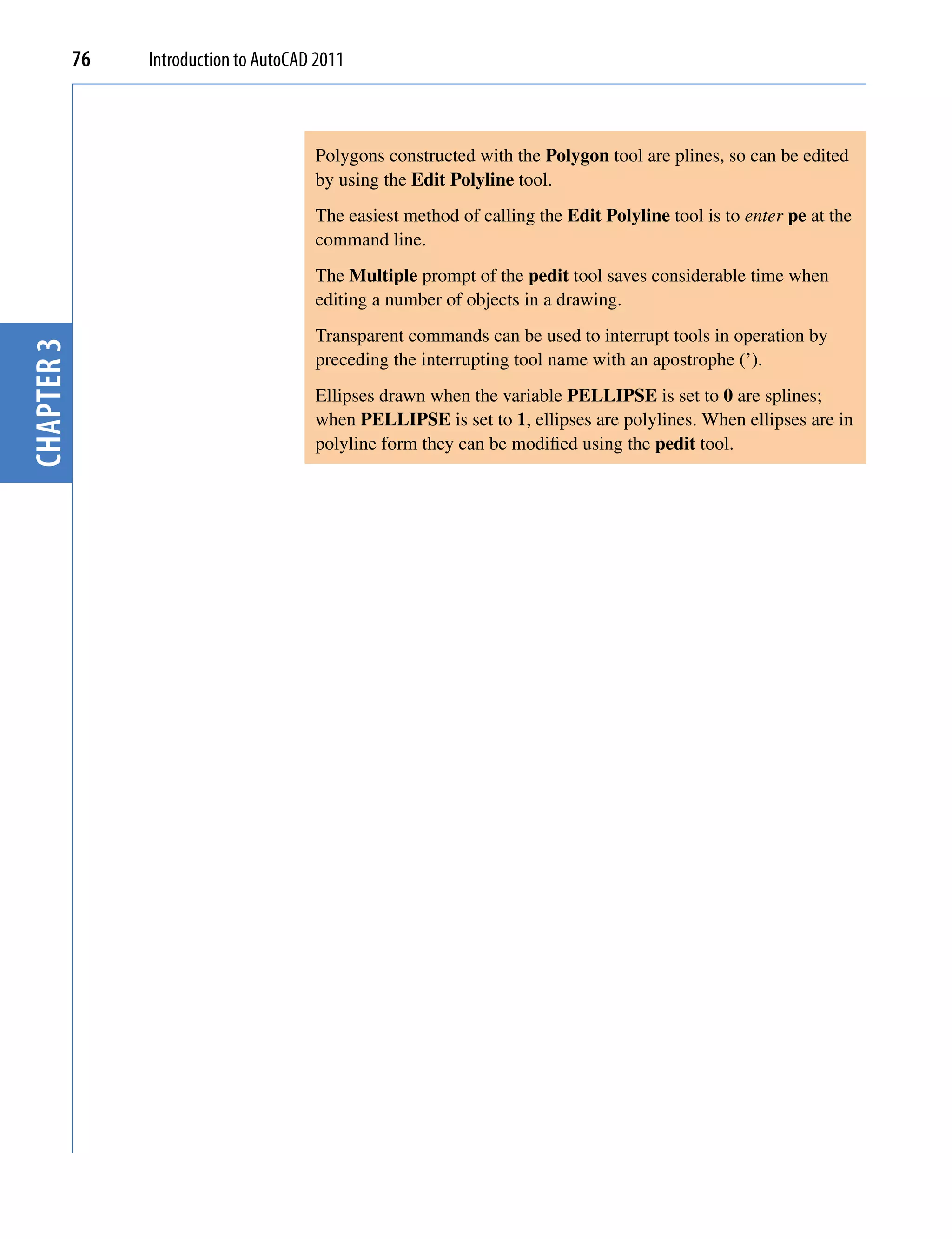
                                       A prompt appears asking for the first point. Move the cursor to the second
                                       point, another prompt appears (Fig. 3.36). Press the down button of the
                                       keyboard and the popup list (Fig. 3.36) appears from which a selection can
                                       be made.


                                       Fig. 3.36 Dynamic Input – third example – dimensioning – the popup menu associated with
                                       Linear dimensioning

                                       The Dynamic Input method of constructing 2D drawings can equally as
                                       well be used when constructing 3D solid models drawings (see Chapter 12
                                       onwards).


                  Why use Dynamic input?
                                       Some operators may prefer constructing drawings without having to make
                                       entries at the command line in response to tool prompts. By using DYN
                                       drawings, whether in 2D or in 3D format, can be constructed purely from
                                       operating and moving the mouse, entering coordinates at the command
                                       line and pressing the down key of the keyboard when necessary.
Draw tools, Object Snap and Dynamic Input   69


examples of using other Draw tools

            Polygon tool (Fig. 3.37)
            Call the Polygon tool – either with a click on its tool icon in the Home/
            Draw panel (Fig. 3.1, page 69), from the Draw drop-down menu, or by
            entering pol or polygon at the command line. No matter how the tool is
            called, the command line shows:
            Command:_polygon Enter number of sides <4>: 6


                                                                                                   chapter 3
            Specify center of polygon or [Edge]: 60,210
            Enter an option [Inscribed in circle/Circumscribed
              about circle] <I>: right-click (accept Inscribed)
            Specify radius of circle: 60
            Command:
            1. In the same manner construct a 5-sided polygon of centre 200,210 and
               of radius 60.
            2. Then, construct an 8-sided polygon of centre 330,210 and radius 60.
            3. Repeat to construct a 9-sided polygon circumscribed about a circle of
               radius 60 and centre 60,80.
            4. Construct yet another polygon with 10 sides of radius 60 and of centre
               200,80.
            5. Finally another polygon circumscribing a circle of radius 60, of centre
               330,80 and sides 12.

            The result is shown in Fig. 3.37.

                                         Inscribing
                                           circle


                                                       5-sided                  8-sided
                         6-sided                                                octagon
                                                      pentagon
                         hexagon


                                     Circumscribing
                                          circle


                          9-sided
                         nonagon                      10-sided                  12-sided
                                                      decagon                 duodecagon


            Fig. 3.37 First example – Polygon tool
70   Introduction to AutoCAD 2011


                                       Rectangle tool – first example (Fig. 3.39)
                                       Call the Rectangle tool – either with a click on its tool icon in the Home/
                                       Draw panel (Fig. 3.38) by entering rec or rectangle at the command
                                       line. The tool can be also called from the Draw drop-down menu. The
                                       command line shows (Fig. 3.39):


                 Fig. 3.38 The
                 Rectangle tool from              25,240                               200,240
chapter 3


                 the Home/Draw panel
                                                                                                 Chamfers
                                                                                                 15 and 15


                                                                             160,160                    300,160

                                                  20,120                           200,120


                                                                                                 Width�4
                                                               Width�2                           Chamfers
                                                             Fileets�R15                         10 and 15


                                                                             160,30                          315,25

                                       Fig. 3.39 Examples – Rectangle tool


                                       Command:_rectang
                                       Specify first corner point or [Chamfer/
                                       Elevation/Fillet/Thickness/Width]: 25,240
                                       Specify other corner point or [Area/Dimensions/
                                         Rotation]: 160,160
                                       Command:


                                       Rectangle tool – second example (Fig. 3.39)
                                       Command:_rectang
                                       [prompts]: c (Chamfer)
                                       Specify first chamfer distance for rectangles
                                         <0>: 15
                                       Specify first chamfer distance for rectangles <15>:
                                         right-click
                                       Specify first corner point: 200,240
                                       Specify other corner point: 300,160
                                       Command:
Draw tools, Object Snap and Dynamic Input   71


              Rectangle tool – third example (Fig. 3.39)
              Command: _rectang
              Specify first corner point or [Chamfer/Elevation/
                Fillet/Thickness/Width]: f (Fillet)
              Specify fillet radius for rectangles <0>: 15
              Specify first corner point or [Chamfer/Elevation/
                Fillet/Thickness/Width]: w (Width)
              Specify line width for rectangles <0>: 1


                                                                                                 chapter 3
              Specify first corner point or [Chamfer/Elevation/
                Fillet/Thickness/Width]: 20,120
              Specify other corner point or [Area/Dimensions/
                Rotation]: 160,30
              Command:

              Rectangle – fourth example (Fig. 3.39)
              Command:_rectang
              Specify first corner point or [Chamfer/Elevation/
                Fillet/Thickness/Width]: w (Width)
              Specify line width for rectangles <0>: 4
              Specify first corner point or [Chamfer/Elevation/
                Fillet/Thickness/Width]: c (Chamfer)
              Specify first chamfer distance for rectangles <0>: 15
              Specify second chamfer distance for rectangles
                <15>: right-click
              Specify first corner point: 200,120
              Specify other corner point: 315,25
              Command:


the polyline edit tool
              The Polyline Edit tool is a valuable tool for the editing of polylines.

              First example – Polyline Edit (Fig. 3.42)
              1. With the Polyline tool construct the outlines 1 to 6 of Fig. 3.40.
              2. Call the Edit Polyline tool either from the Home/Modify panel
                 (Fig. 3.41) or from the Modify drop-down menu, or by entering pe or
                 pedit at the command line, which then shows:
              Command: enter pe
              PEDIT Select polyline or [Multiple]: pick pline 2
72   Introduction to AutoCAD 2011


                                        1                               2                             3


                                                Pline rectangel
                                                    120�80


                                        4                               5                             6
chapter 3


                                       Fig. 3.40 Examples – Edit Polyline – the plines to be edited


                                       Fig. 3.41 Calling Edit Polyline from the Home/Modify panel


                                       Enter an option [Open/Join/Width/Edit vertex/Fit/
                                         Spline/Decurve/Ltype gen/Reverse/Undo]:
                                         w (Width)
                                       Specify new width for all segments: 2
                                       Enter an option [Open/Join/Width/Edit vertex/Fit/
                                         Spline/Decurve/Ltype gen/Reverse/Undo]: right-
                                         click
                                       Command:
                                       3. Repeat with pline 3 and pedit to Width  10.
                                       4. Repeat with line 4 and enter s (Spline) in response to the prompt line:
                                       Enter an option [Open/Join/Width/Edit vertex/Fit/
                                         Spline/Decurve/Ltype gen/Reverse/Undo]: enter s
                                       5. Repeat with pline 5 and enter j in response to the prompt line:
Draw tools, Object Snap and Dynamic Input   73


Enter an option [Open/Join/Width/Edit vertex/Fit/
  Spline/Decurve/Ltype gen/Undo]: enter j
The result is shown in pline 6.
The resulting examples are shown in Fig. 3.42.


 1                                   2                            3


                                                                                                chapter 3
        Pline 120�80
                                           Pedit to Width�2              Pedit to Width�10
         of Width�0


 4                                   5                            6

        Pedit using the                                                   Pedit drawing 5
                                          Pline with open side
        Spline prompt                                                      using Close


Fig. 3.42 Examples – Polyline Edit


Example – Multiple Polyline Edit (Fig. 3.43)
1. With the Polyline tool construct the left-hand outlines of Fig. 3.43.
2. Call the Edit Polyline tool. The command line shows:


           20 20          60             20 20
                                                  15
20
30


                          80
60


                               100
30
20


                                             15                       After Multiple Pedit
        pick       Outlines using
                   Line and Arc                                           to Width=2

Fig. 3.43 Example – Multiple Polyline Edit
74   Introduction to AutoCAD 2011


                                       Command: enter pe
                                       PEDIT Select polyline or [Multiple]: m (Multiple)
                                       Select objects: pick any one of the lines or arcs
                                         of the left-hand outlines of Fig. 6.16 1 found
                                       Select objects: pick another line or arc 1 found 2
                                         total
                                       Continue selecting lines and arcs as shown by the
                                         pick boxes of the left-hand drawing of Fig. 3.45
                                         until the command line shows:
chapter 3


                                       Select objects: pick another line or arc 1 found
                                         24 total
                                       Select objects: right-click
                                       [prompts]: w (Width)
                                       Specify new width for all segments: 1.5
                                       Convert Arcs, Lines and Splines to polylines [Yes/
                                         No]? <Y>: right-click
                                       [prompts]: right-click
                                       Command:
                                       The result is shown in the right-hand drawing of Fig. 3.43.


                  transparent commands
                                       When any tool is in operation it can be interrupted by prefixing the
                                       interrupting command with an apostrophe (’). This is particularly useful
                                       when wishing to zoom when constructing a drawing (see page 82). As an
                                       example when the Line tool is being used:
                                       Command:_line
                                       Specify first point: 100,120
                                       Specify next point: 190,120
                                       Specify next point: enter ’z (Zoom)
                                       >> Specify corner of window or [prompts]: pick
                                       >>>> Specify opposite corner: pick
                                       Resuming line command.
                                       Specify next point:
                                       And so on. The transparent command method can be used with any tool.


                  the set variable peLLipse
                                       Many of the operations performed in AutoCAD are carried out under
                                       settings of SET VARIABLES. Some of the numerous set variables
Draw tools, Object Snap and Dynamic Input           75


available in AutoCAD 2011 will be described in later pages. The variable
PELLIPSE controls whether ellipses are drawn as splines or as polylines.
It is set as follows:
Command: enter pellipse right-click
Enter new value for PELLIPSE <0>: enter 1 right-
  click
Command:
And now when ellipses are drawn they are plines. If the variable is set to 0,


                                                                                                       chapter 3
the ellipses will be splines. The value of changing ellipses to plines is that
they can then be edited using the Polyline Edit tool.


 REvISION NOTES
 The following terms have been used in this chapter:
 Field – a part of a window or of a dialog in which numbers or letters are entered or which can
     be read.
 Popup list – a list brought in screen with a click on the arrow often found at the right-hand
     end of a field.
 Object – a part of a drawing which can be treated as a single object. For example, a line
     constructed with the Line tool is an object, a rectangle constructed with the Polyline tool
     is an object and an arc constructed with the Arc tool is an object. It will be seen in a later
     chapter (Chapter 9) that several objects can be formed into a single object.
 Ribbon palettes – when working in either of the 2D Drafting and Annotation or of the 3D
     Modeling workspace, tool icons are held in panels in the Ribbon.
 Command line – a line in the command palette which commences with the word Command.
 Snap Mode, Grid Display and Object Snap can be toggled with clicks on their respective
     buttons in the status bar. These functions can also be set with function keys: Snap Mode –
     F9, Grid Display – F7 and Object Snap – F3.
 Object Snaps ensure accurate positioning of objects in drawings.
 Object Snap abbreviations can be used at the command line rather than setting in ON in the
     Drafting Settings dialog.
 Dynamic input allows constructions in any of the three AutoCAD 2011 workspaces or in a full
     screen workspace, without having to use the command palette for entering the initials of
     command line prompts.


 Notes
 There are two types of tooltip. When the cursor under mouse control is
 paced over a tool icon, the first (a smaller) tooltip is seen. If the cursor
 is held in position for a short time the second (a larger) tooltip is seen.
 Settings for the tooltip may be made in the Options dialog.
 Polygons constructed with the Polygon tool are regular polygons – the
 edges of the polygons are all the same length and the angles are of the
 same degrees.
76   Introduction to AutoCAD 2011


                                        Polygons constructed with the Polygon tool are plines, so can be edited
                                        by using the Edit Polyline tool.
                                        The easiest method of calling the Edit Polyline tool is to enter pe at the
                                        command line.
                                        The Multiple prompt of the pedit tool saves considerable time when
                                        editing a number of objects in a drawing.
                                        Transparent commands can be used to interrupt tools in operation by
chapter 3


                                        preceding the interrupting tool name with an apostrophe (’).
                                        Ellipses drawn when the variable PELLIPSE is set to 0 are splines;
                                        when PELLIPSE is set to 1, ellipses are polylines. When ellipses are in
                                        polyline form they can be modified using the pedit tool.
Draw tool Object Snap and Dynamic Input
                                                                                    Introducing AutoCAD 2010          77


  Exercises


                                                                                                                       chapter 1
Methods of constructing answers to the following exercises can be found in the free website:

http://books.elsevier.com/companions/978-0-08-096575-8


1.     Using the Line and Arc tools, construct the      3.   Using the Ellipse and Arc tools, construct the
       outline given in Fig. 3.44.                           drawing Fig. 3.46.


                                                                                                                       chapter 3
     80,250                             260,250
                                                        80,230


                                                                                               40
                                                                                                        290,230
                                           260,230


                                                                           R13                 0
                                                                                0          R13
                                       230,160


                                            260,90       80,75                                          290,75
                                            260,70

Fig. 3.44 Exercise 1                                    Fig. 3.46 Exercise 3


2.     With the Line and Arc tools, construct the       4.   With the Line, Circle and Ellipse tools,
       outline Fig. 3.45.                                    construct Fig. 3.47.


                                                                 7
                                                                 −"
                                                                 8
                                                                                3
                                                                               R−"
                                                                                8
                 R1


 90,210                                     260,210
                  35


                                                        −"
                                                        3
                                                        4


 90,190                                     260,190

                                           R70
        R70
                                                                                                                5−"
                                                                                                                 7
                                                                                                                 8


     90,90                                   260,90
                                 R13


     90,70                                   260,70
                                  5


                                                                                       1
                                                                                     9−"
                                                                                      2


Fig. 3.45 Exercise 2                                    Fig. 3.47 Exercise 4
78   Introduction to AutoCAD 2010
                                         2011


                 5.   With the Ellipse tool, construct the drawing   7.    Fig. 3.50 shows seven hexagons with edges
chapter 1

                      Fig. 3.48.                                           touching. Construct the inner hexagon using
                                                                           the Polygon tool, then with the aid of the
                      110,250                            250,250           Edge prompt of the tool, add the other six
                                                                           hexagons.


                                                                                             30
chapter 3


                      110,110                            250,110
                                Each ellipse minor axis=30

                 Fig. 3.48 Exercise 5


                 6.   Fig. 3.49 shows a rectangle in the form of a
                      square with hexagons along each edge. Using
                                                                     Fig. 3.50 Exercise 7
                      the Dimensions prompt of the Rectangle
                      tool, construct the square. Then, using the
                      Edge prompt of the Polygon tool, add
                      the four hexagons. Use the Object Snap         8.    Fig. 3.51 was constructed using only the
                      endpoint to ensure the polygons are in their         Rectangle tool. Make an exact copy of the
                      exact positions.                                     drawing using only the Rectangle tool.


                                                                                                        3
                                                                                                       2−"
                                                                                                        4


                                           65
                                                                                            2"


                                                                                       2"
                                65


                                                                     4−"

                                                                            −"
                                                                      1
                                                                      8

                                                                           5
                                                                            8


                                                                     Fig. 3.51 Exercise 8


                 Fig. 3.49 Exercise 6
Draw tool Object Snap and Dynamic Input
                                                                                         Introducing AutoCAD 2010         79


9.   Construct the drawing Fig. 3.52 using the              10. Construct Fig. 3.53 using the Line and Arc


                                                                                                                           chapter 1
     Line and Arc tools. Then, with the aid of the              tools. Then change all widths of lines and arcs
     Multiple prompt of the Edit Polyline tool,                 to a width of 2 with Polyline Edit.
     change the outlines into plines of Width1.

                                                                              60                  170                60
                                160                                           40
                                120
                                 80


                                                            40


                                                                                                                           50
                                 60                              10

                                                            Fig. 3.53 Exercise 10


                                                                                                                           chapter 3
      100
      60
      40


                                          R
                                              60


Fig. 3.52 Exercise 9


11. Construct Fig. 3.54 using the Rectangle, Line and Edit Polyline tools.


                           60                         230                            60
                 130


                                                                                             30


                                                                                    Chamfers 20�20
                                         60                           60
                                              Inner pline of Width�10
                                              Outer pline of Width�5

                 Fig. 3.54 Exercise 11
Chapter 4
                                 Zoom, Pan and
                                     templates
 Aims of this chApter

The aims of this chapter are:

1. To demonstrate the value of the Zoom tools.
2. To introduce the Pan tool.
3. To describe the value of using the Aerial View window in conjunction with the Zoom
   and Pan tools.
4. To update the acadiso.dwt template.
5. To describe the construction and saving of drawing templates.


                                                                                        81
82   Introduction to AutoCAD 2011


                  introduction
                                       The use of the Zoom tools allows not only the close inspection of the most
                                       minute areas of a drawing in the AutoCAD 2011 drawing area, but also the
                                       accurate construction of very small details in a drawing.
                                       The Zoom tools can be called by selection from the View/Navigate panel
                                       or from the View drop-down menu (Fig. 4.1). However by far the easiest
                                       and quickest method of calling the Zoom is to enter z at the command line
                                       as follows:
                                       Command: enter z right-click
                                       ZOOM Specify corner of window, enter a scale factor
                                         (nX or nXP) or [All/Center/Dynamic/Extents/
chapter 4


                                         Previous/Scale/Window/Object] <real time>:


                                       Fig. 4.1 Calling Zoom – from the Zoom/Navigate panel or from the View drop-down menu


                                       This allows the different zooms:
                                       Realtime – selects parts of a drawing within a window.
                                       All – the screen reverts to the limits of the template.
Zoom, Pan and templates   83


Center – the drawing centres itself around a picked point.
Dynamic – a broken line surrounds the drawing which can be changed in
  size and repositioned to part of the drawing.
Extents – the drawing fills the AutoCAD drawing area.
Previous – the screen reverts to its previous zoom.
Scale – entering a number or a decimal fraction scales the drawing.
Window – the parts of the drawing within a picked window appears on
  screen. The effect is the same as using real time.
Object – pick any object on screen and the object zooms.
The operator will probably be using Realtime, Window and Previous
zooms most frequently.
Figs 4.2–4.4 show a drawing which has been constructed, a Zoom
Window of part of the drawing allowing it to be checked for accuracy and


                                                                                  chapter 4
a Zoom Extents, respectively.


Fig. 4.2 Drawing to be acted upon by the Zoom tool


Fig. 4.3 Zoom Window of part of the drawing Fig. 4.2
chapter 4   84   Introduction to AutoCAD 2011


                                       Fig. 4.4 Zoom Extents of the drawing Fig. 4.2


                                       It will be found that the Zoom tools are among those most frequently used
                                       when working in AutoCAD 2011.


                  the Aerial View window
                                       Enter dsviewer at the command line and the Aerial View window
                                       appears – usually in the bottom right-hand corner of the AutoCAD 2011


                                                Dimensions in millimetres                               DO NOT SCALE THIS DRAWING


                                                                              Sq thread Ø25
                                                                                            Ø25
                                                                                 Cham 3x3
                                                                                                                                   140
                                                    120


                                                          R20            30                  35        125   R20
                                                                    80
                                                                                                                   185

                                                                      Cham 5x5                    30                     35   35
                                                                                       10
                                                                                 100


                                                                              Ø10

                                                                              Ø15


                                       Fig. 4.5 The drawing used to illustrate Figs 4.6 and 4.7
                                                  A. Yarwood                15/05/2007          Scale 1:1                 BENCH VICE 2/4D
Zoom, Pan and templates     85


               window. The Aerial View window shows the whole of a drawing, even if
               larger that the limits. The Aerial View window is of value when dealing
               with large drawings – it allows that part of the window on screen to be
               shown in relation to the whole of the drawing. Fig. 4.5 is a three-view
               orthographic projection of a small bench vice.
               Fig. 4.6 shows a Zoom Window of the drawing Fig. 4.5 including the Aerial
               View Window. The area of the drawing within the Zoom window in the
               drawing area is bounded by a thick green line in the Aerial View window.


                                                                                                              chapter 4
               Fig. 4.6 Zoom Window of the drawing Fig. 4.5 with its surrounding zoom rectangle showing in
               the Aerial View window


the pan tool
               The Pan tools can be called with a click on the Pan button in the status bar,
               from the Pan sub-menu of the View drop-down menu or by entering p at
               the command line. When the tool is called, the cursor on screen changes to
               an icon of a hand. Dragging the hand across screen under mouse movement
               allows various parts of a large drawing not in the AutoCAD drawing area
               to be viewed. As the dragging takes place, the green rectangle in the Aerial
               View window moves in sympathy (see Fig. 4.7). The Pan tool allows any part
               of the drawing to be viewed and/or modified. When that part of the drawing
               which is required is on screen a right-click calls up the menu as shown in
               Fig. 4.7, from which either the tool can be exited or other tools can be called.
chapter 4   86   Introduction to AutoCAD 2011


                                       Fig. 4.7 The Pan tool in action showing a part of the drawing, while the whole drawing is shown in
                                       the Aerial View window.


                                        Notes
                                        1. If using a mouse with a wheel both zooms and pans can be
                                           performed with the aid of the wheel. See page 8.
                                        2. The Zoom tools are important in that they allow even the smallest
                                           parts of drawings to be examined and, if necessary, amended or
                                           modified.
                                        3. The zoom tools can be called from the sub-menu of the View drop-
                                           down menu or by entering zoom or z at the command line. The easiest
                                           of this choice is to enter z at the command line followed by a right-click.
                                        4. Similarly the easiest method of calling the Pan tool is to enter p at
                                           the command line followed by a right-click.
                                        5. When constructing large drawings, the Pan tool and the Aerial View
                                           window are of value for allowing work to be carried out in any part of a
                                           drawing, while showing the whole drawing in the Aerial View window.


                  Drawing templates
                                       In Chapters 1–3, drawings were constructed in the template acadiso.dwt
                                       which loaded when AutoCAD 2011 was opened. The default acadiso
                                       template has been amended to Limits set to 420,297 (coordinates within
Zoom, Pan and templates   87


               which a drawing can be constructed), Grid Display set to 10, Snap Mode
               set to 5 and the drawing area Zoomed to All.
               Throughout this book most drawings will be based on an A3 sheet, which
               measures 420 units by 297 units (the same as Limits).


                Note
                As mentioned before if others are using the computer on which
                drawings are being constructed, it is as well to save the template being
                used to another file name, or if thought necessary to a memory stick
                or other temporary type of disk. A file name My_template.dwt, as
                suggested earlier, or a name such as book_template can be given.


                                                                                                chapter 4
Adding features to the template
               Four other features will now be added to our template:
               Text style – set in the Text Style dialog.
               Dimension style – set in the Dimension Style Manager dialog.
               Shortcutmenu variable – set to 0.
               Layers – set in the Layer Properties Manager dialog.

setting text
               1. At the command line:
               Command: enter st (Style) right-click
               2. The Text style dialog appears (Fig. 4.8). In the dialog, enter 6 in the
                  Height field. Then left-click on Arial in the Font name popup list.
                  Arial font letters appear in the Preview area of the dialog.


               Fig. 4.8 The Text Style dialog
88   Introduction to AutoCAD 2011


                                       3. Left-click the New button and enter Arial in the New text style sub-
                                          dialog which appears (Fig. 4.9) and click the OK button.
                                       4. Left-click the Set Current button of the Text Style dialog.
                                       5. Left-click the Close button of the dialog.
chapter 4


                                       Fig. 4.9 The New Text Style sub-dialog

                  setting dimension style
                                       Settings for dimensions require making entries in a number of sub-dialogs
                                       in the Dimension Style Manager. To set the dimensions style:
                                       1. At the command line:
                                       Command: enter d right-click
                                       And the Dimensions Style Manager dialog appears (Fig. 4.10).


                                       Fig. 4.10 The Dimensions Style Manager dialog
Zoom, Pan and templates   89


2. In the dialog, click the Modify… button.
3. The Modify Dimension Style dialog appears (Fig. 4.11). This dialog shows
   a number of tabs at the top of the dialog. Click the Lines tab and make
   settings as shown in Fig. 4.11. Then click the OK button of that dialog.


                                                                                              chapter 4
Fig. 4.11 The setting for Lines in the Modify Dimensions Style dialog


4. The original Dimension Style Manager reappears. Click its Modify
   button again.
5. The Modify Dimension Style dialog reappears (Fig. 4.12), click the
   Symbols and Arrows tab. Set Arrow size to 6.
6. Then click the Text tab. Set Text style to Arial, set Color to Magenta,
   set Text Height to 6 and click the ISO check box in the bottom right-
   hand corner of the dialog.
7. Then click the Primary Units tab and set the units Precision to 0, that
   is no units after decimal point and Decimal separator to Period. Click
   the sub-dialogs OK button (Fig. 4.12).
8. The Dimension Styles Manager dialog reappears showing dimensions,
   as they will appear in a drawing, in the Preview of my-style box. Click the
   New… button. The Create New Dimension Style dialog appears (Fig. 4.13).
9. Enter a suitable name in the New Style Name: field – in this example
   this is My-style. Click the Continue button and the Dimension Style
   Manager appears (Fig. 4.14). This dialog now shows a preview of the
   My-style dimensions. Click the dialog’s Set Current button, following
   by another click on the Close button. See Fig. 4.14.
chapter 4   90   Introduction to AutoCAD 2011


                                       Fig. 4.12 Setting Primary Units in the Dimension Style Manager


                                       Fig. 4.13 The Create New Dimension Style dialog


                                       Fig. 4.14 The Dimension Style Manager reappears. Click the Set Current and Close buttons
Zoom, Pan and templates   91


  setting the shortcutmenu variable
                       Call the line tool, draw a few lines and then right-click. The right-click
                       menu shown in Fig. 4.15 may well appear. A similar menu will also appear
                       when any tool is called. Some operators prefer using this menu when
                       constructing drawings. To stop this menu appearing:
                       Command: enter shortcutmenu right-click
                       Enter new value for SHORTCUTMENU <12>: 0
                       Command:
                       And the menu will no longer appears when a tool is in action.
Fig. 4.15 The right-
click menu


                                                                                                      chapter 4
  setting layers
                       1. At the command line enter layer or la followed by a right-click. The
                          Layer Properties Manager palette appears (Fig. 4.16).
                       2. Click the New Layer icon. Layer1 appears in the layer list. Overwrite
                          the name Layer1 entering Centre.


                       Fig. 4.16 The Layer Properties Manager palette


                       3. Repeat step 2 four times and make four more layers entitled
                          Construction, Dimensions, Hidden and Text.
                       4. Click one of the squares under the Color column of the dialog. The
                          Select Color dialog appears (Fig. 4.17). Double-click on one of the
                          colours in the Index Color squares. The selected colour appears against
                          the layer name in which the square was selected. Repeat until all five
                          new layers have a colour.
chapter 4   92   Introduction to AutoCAD 2011


                                    Fig. 4.17 The Select Color dialog

                                       5. Click on the linetype Continuous against the layer name Centre.
                                          The Select Linetype dialog appears (Fig. 4.18). Click its Load…
                                          button and from the Load or Reload Linetypes dialog double-click
                                          CENTER2. The dialog disappears and the name appears in the Select
                                          Linetype dialog. Click the OK button and the linetype CENTER2
                                          appears against the layer Center.


                                       Fig. 4.18 The Select Linetype dialog

                                       6. Repeat with layer Hidden, load the linetype HIDDEN2 and make the
                                          linetype against this layer HIDDEN2.
                                       7. Click on the any of the lineweights in the Layer Properties Manager.
                                          This brings up the Lineweight dialog (Fig. 4.19). Select the lineweight
                                          0.3. Repeat the same for all other layers. Then click the Close button of
                                          the Layer Properties Manager.
Zoom, Pan and templates   93


                                                                                             chapter 4
             Fig. 4.19 The Lineweight dialog


saving the template file

             1. Left-click on Save As in the menu appearing with a left-click on the
                AutoCAD icon at the top left-hand corner of the screen (Fig. 4.20).


             Fig. 4.20 Calling Save As
94   Introduction to AutoCAD 2011


                                       2. In the Save Drawing As dialog which comes on screen (Fig. 4.21),
                                          click the arrow to the right of the Files of type field and in the popup
                                          list associated with the field click on AutoCAD Drawing Template
                                          (*.dwt). The list of template files in the AutoCAD 2011/Template
                                          directory appears in the file list.
chapter 4


                                       Fig. 4.21 Saving the template to the name acadiso.dwt

                                       3. Click on acadiso in the file list, followed by a click on the Save button.
                                       4. The Template Option dialog appears. Make entries as suggested in
                                          Fig. 4.22, making sure that Metric is chosen from the popup list. The


                                       Fig. 4.22 The Template Description dialog
Zoom, Pan and templates   95


                 template can now saved to be opened for the construction of drawings
                 as needed. Now when AutoCAD 2011 is opened again the template
                 acadiso.dwt appears on screen.


              Note
              Remember that if others are using the computer it is advisable to save
              the template to a name of your own choice.


template file to include imperial dimensions


                                                                                                      chapter 4
             If dimensions are to be in Imperial measure – in yards, feet and inches,
             first set Limits to 28,18. In addition the settings in the Dimension Style
             Manager will need to be different from those shown earlier. Settings for
             Imperial measure in the Primary Units sub-dialog need to be set as
             shown in Fig. 4.23. Settings in the Text sub-dialog of the Text Style dialog
             also need to be set as shown in Fig. 4.24.
             In addition the settings in the Primary Units dialog also need settings to
             be different to those for Metric dimensions as shown in Fig. 4.25.


             Fig. 4.23 Settings for Imperial dimensions in Primary Units
chapter 4   96   Introduction to AutoCAD 2011


                                       Fig. 4.24 Settings for Imperial dimensions set in Text


                                       Fig. 4.25 Settings for Imperial dimensions in the Primary Units dialog
Zoom, Pan and templates       97


ReVision notes
1. The Zoom tools are important in that they allow even the smallest parts of drawings to be
   examined, amended or modified.
2. The Zoom tools can be called from the sub-menu of the View drop-down menu, or by
   entering z or zoom at the command line. The easiest is to enter z at the command line.
3. There are five methods of calling tools for use – selecting a tool icon in a panel from a
   group of panels in the Ribbon; entering the name of a tool in full at the command line;
   entering an abbreviation for a tool; selecting a tool from a drop-down menu. If working in
   the AutoCAD Classic workspace, tools are called from toolbars.
4. When constructing large drawings, the Pan tool and the Aerial View window allow work
   to be carried out in any part of a drawing, while showing the whole drawing in the Aerial
   View window.
5. An A3 sheet of paper is 420 mm by 297 mm. If a drawing constructed in the template
   acadiso.dwt described in this book, is printed/plotted full size (scale 1:1), each unit in the
   drawing will be 1 mm in the print/plot.


                                                                                                     chapter 4
6. When limits are set it is essential to call Zoom followed by a (All) to ensure that the limits
   of the drawing area are as set.
7. If the right-click menu appears when using tools, the menu can be aborted if required by
   setting the SHORTCUTMENU variable to 0.
98   Introduction to AutoCAD 2010
                                         2011


                  Exercises
chapter 1


                 If you have saved drawings constructed either by following the worked examples in this book or by
                 answering exercises in Chapters 2 and 3, open some of them and practise zooms and pans.
chapter 4
Chapter 5
                              The Modify tools

 Aim of this chApter

The aim of this chapter is to describe the uses of tools for modifying parts of drawings.


                                                                                            99
100   Introduction to AutoCAD 2011


                   introduction
                                        The Modify tools are among those most frequently used. The tools are
                                        found in the Home/Modify panel. A click on the arrow at the bottom of the
                                        Home/Modify panel brings down a further set of tool icons (Fig. 5.1). They
                                        can also be selected from the Modify drop-down menu (Fig. 5.2). In the
                                        AutoCAD Classic workspace, they can be selected from the Modify toolbar.


                                        Fig. 5.1 The Modify tool icons in the Home/Modify panel
chapter 5


                                        Using the Erase tool from Home/Modify was described in Chapter 2.
                                        Examples of tools other than the Explode follow. See also Chapter 9 for
                                        Explode.

                                        First example – Copy (Fig. 5.5)
                  Fig. 5.2 The Modify
                                        1. Construct Fig. 5.3 using Polyline. Do not include the dimensions.
                  drop-down menu
                                                                                      200
                                                            25


                                                                            5
                                                                 5


                                                                                                  130


                                        Fig. 5.3 First example – Copy Object – outlines


                   the copy tool
                                        2. Call the Copy tool – either left-click on its tool icon in the Home/
                                           Modify panel (Fig. 5.4) or enter cp or copy at the command line.
                                           The command line shows:
                                        Command: _copy
                                        Select objects: pick the cross 1 found
                                        Select objects: right-click
The Modify tools   101


Current settings: Copy mode = Multiple
Specify base point or [Displacement/mOde]
  <Displacement>: pick
Specify second point or [Exit/Undo]: pick
Specify second point or [Exit/Undo] <Exit>:
  right-click
Command:
The result is given in Fig. 5.5.


                                                                          chapter 5
Fig. 5.4 The Copy tool from the Home/Modify panel


                                   base point


                                      second point


Fig. 5.5 First example – Copy


Second example – Multiple copy (Fig. 5.6)
1. Erase the copied object.
2. Call the Copy tool. The command line shows:
Command: _copy
Select objects: pick the cross 1 found
Select objects: right-click
Current settings: Copy mode = Multiple
Specify base point or [Displacement/mOde]
  <Displacement>: pick
Specify second point or <use first point as
  displacement>: pick
102   Introduction to AutoCAD 2011


                                           Specify second point or [Exit/Undo] <Exit>: pick
                                           Specify second point or [Exit/Undo] <Exit>: pick
                                           Specify second point or [Exit/Undo] <Exit>: e
                                             (Exit)
                                           Command
                                           The result is shown in Fig. 5.6.


                                                                               base point


                                                                                 second point


                                           Fig. 5.6 Second example – Copy – Multiple copy
chapter 5


                    the mirror tool

                                           First example – Mirror (Fig. 5.9)
                                           1. Construct the outline Fig. 5.7 using the Line and Arc tools.
                                     30    2. Call the Mirror tool – left-click on its tool icon in the Home/Modify
                                              panel (Fig. 5.8) or from the Modify drop-down menu, or enter mi or
                  20


                                              mirror at the command line. The command line shows:
                  35


                                     R35

                              R5
                                 5
                  75


                                     R35
                  35
                  20


                  Fig. 5.7 First
                  example –
                                           Fig. 5.8 The Mirror tool from the Home/Modify panel
                  Mirror – outline

                                           Command:_mirror
                                           Select objects: pick first corner Specify opposite
                                             corner: pick 7 found
                                           Select objects: right-click
                                           Specify first point of mirror line: pick
The Modify tools   103


Specify second point of mirror line: pick
Erase source objects [Yes/No] <N>: right-click
Command:
The result is shown in Fig. 5.9.

Second example – Mirror (Fig. 5.10)
1. Construct the outline shown in the dimensioned polyline in the upper
   drawing of Fig. 5.10.
2. Call Mirror and using the tool three times complete the given outline.
   The two points shown in Fig. 5.10 are to mirror the right-hand side of
   the outline.

                   first corner                              first point of
                                                              mirror line


                                                                                                        chapter 5
                                                     Result of
                                                     the mirror
                                                     operation


                                                              second point
                                                              of mirror line
                                   opposite corner

Fig. 5.9 First example – Mirror

                             1               7        1
                            1−"
                             8              3−"
                                             8       1−"
                                                      8
                   −"
                   5
                   8


                                                                  first point of
                                                                  mirror line


                                  second point
                                   of mirror line


Fig. 5.10 Second example – Mirror
104   Introduction to AutoCAD 2011


                                                                       Third example – Mirror (Fig. 5.11)
                                                                       If text is involved when using the Mirror tool, the set variable
                                                                       MIRRTEXT must be set correctly. To set the variable:
                   MIRRTEXT=1

                                MIRRTEXT=0


                                             MIRRTEXT=0
                                                          1=TXETRRIM
                                                                       Command: mirrtext
                                                                       Enter new value for MIRRTEXT <1>: 0
                                                                       Command:
                  Fig. 5.11 Third
                  example – Mirror                                     If set to 0 text will mirror without distortion. If set to 1 text will read
                                                                       backwards as indicated in Fig. 5.11.


                      the offset tool

                                                                       Examples – Offset (Fig. 5.14)
                                                                       1. Construct the four outlines shown in Fig. 5.13.
                                                                       2. Call the Offset tool – left-click on its tool icon in the Home/Modify panel
chapter 5


                                                                          (Fig. 5.12), pick the tool name in the Modify drop-down menu or enter
                                                                          o or offset at the command line. The command line shows (Fig. 5.13):


                                                                       Fig. 5.12 The Offset tool from the Home/Modify panel


                                                                                  1                                           2
                                                                                         Rectangle 140x85                              Ellipse 135x70
                                                                                           of width 1 and
                                                                                          chamfers 15x15

                                                                                                                          40            60           40

                                                                                                                    4                                 20
                                                                                                                                                           35


                                                                                   3
                                                                                                            30


                                                                                                                                  Pline of width=1
                                                                                                                                                           30


                                                                                              Arc
                                                                                             110
                                                                                                                                                           35


                                                                       Fig. 5.13 Examples – Offset – outlines
The Modify tools   105


                          Command:_offset
                          Current settings: Erase source = No
                            Layer=Source OFFSETGAPTYPE=0
                          Specify offset distance or [Through/Erase/Layer]
                            <Through>: 10
                          Select object to offset or [Exit/Undo]
                            <Exit>: pick drawing 1
                          Specify point on side to offset or [Exit/Multiple/
                            Undo] <Exit>: pick inside the rectangle
                          Select object to offset or [Exit/Undo]
                            <Exit>: e (Exit)
                          Command:
                          3. Repeat for drawings 2, 3 and 4 in Fig. 5.12 as shown in Fig. 5.14.
                          Arrays can be in either a Rectangular form or a Polar form as shown in
                          the examples below.


                                                                                                              chapter 5
                                                                        Offset 3 times by 5
                                              Offset by 10


                                                                      Offset inside
                                                                      and outside
                                                                         by 7.5

                                        Offset twice by 15


                          Fig. 5.14 Examples – Offset


 the Array tool

                          First example – Rectangular Array (Fig. 5.17)
          40
  10                      1. Construct the drawing Fig. 5.15.
                10


                          2. Call the Array tool – either click Array in the Modify drop-down
                             menu (Fig. 5.16), from the Home/Modify panel, or enter ar or array at
                     40


 Ø10
                             the command line. The Array dialog appears (Fig. 5.17).
                          3. Make settings in the dialog:
Fig. 5.15 First
example – Array –            Rectangular Array radio button set on (dot in button)
drawing to be arrayed        Row field – enter 5
106   Introduction to AutoCAD 2011


                                              Column field – enter 6
                                              Row offset field – enter – 50 (note the minus sign)
                                              Column offset field – enter 50


                  Fig. 5.16 Selecting
                  Array from the Modify
                  drop-down menu
chapter 5


                                          Fig. 5.17 First example – the Array dialog


                                          4. Click the Select objects button and the dialog disappears. Window the
                                             drawing. A second dialog appears which includes a Preview button.
                                          5. Click the Preview button. The dialog disappears and the following
                                             prompt appears at the command line:
                                          Pick or press Esc to return to drawing or <Right-
                                            click to accept drawing>:
                                          6. If satisfied right-click. If not, press the Esc key and make revisions to
                                             the Array dialog fields as necessary.
                                          The resulting array is shown in Fig. 5.18.

                                          Second example – Polar Array (Fig. 5.22)
                                          1. Construct the drawing Fig. 5.19.
                                          2. Call Array. The Array dialog appears. Make settings as shown
                                             in Fig. 5.20.
                                          3. Click the Select objects button of the dialog and window the drawing.
                                             The dialog returns to screen. Click the Pick Center point button
                                             (Fig. 5.21) and when the dialog disappears, pick a centre point for the
                                             array.
The Modify tools   107


                                                                                                         chapter 5
                        Fig. 5.18 First example – Array
60


                  Ø20

             10
      35


Fig. 5.19 Second
example – the drawing
to be arrayed


                        Fig. 5.20 Second example – Array – settings in the dialog
108   Introduction to AutoCAD 2011


                                        Fig. 5.21 Second example – Array – the Pick Center point button
chapter 5


                                        4. The dialog reappears. Click its Preview button. The array appears
                                           and the command line shows:
                                        Pick or press Esc to return to drawing or
                                          <Right-click to accept drawing>:
                                        5. If satisfied right-click. If not, press the Esc key and make revisions to
                                           the Array dialog fields as necessary.
                                        The resulting array is shown in Fig. 5.22.


                                                                                 centre point
                                                                                   of array


                                        Fig. 5.22 Second example – Array
The Modify tools   109


the move tool

            Example – Move (Fig. 5.25)
            1. Construct the drawing Fig. 5.23.


                                       Rectangle 190x50. Chafers 10x10


                                                     All edges are 5

            Fig. 5.23 Example – Move – drawing


            2. Call Move – click the Move tool icon in the Home/Modify panel
               (Fig. 5.24), pick Move from the Modify drop-down menu or enter m or


                                                                                              chapter 5
               move at the command line, which shows:


            Fig. 5.24 The Move tool from the Home/Modify panel


            Command:_move
            Select objects: pick the middle shape in the
              drawing 1 found
            Select objects: right-click
            Specify base point or [Displacement]
              <Displacement>: pick
            Specify second point or <use first point as
              displacement>: pick
            Command:
            The result is given in Fig. 5.25.
110   Introduction to AutoCAD 2011


                                                                                object which has
                                                                                  been moved


                                                                       base point    second point

                                        Fig. 5.25 Example – Move


                   the rotate tool
                                        When using the Rotate tool remember the default rotation of objects
                                        within AutoCAD 2011 is counterclockwise (anticlockwise).

                                        Example – Rotate (Fig. 5.27)
                                        1. Construct drawing 1 of Fig. 5.27 with Polyline. Copy the drawing 1
chapter 5


                                           three times (Fig. 5.27).
                                        2. Call Rotate – left-click on its tool icon in the Home/Modify panel
                                           (Fig. 5.26), pick Rotate from the Modify drop-down menu or enter ro
                                           or rotate at the command line. The command line shows: and the first
                                           copy rotates through the specified angle.


                                        Fig. 5.26 The Rotate tool icon from the Home/Modify panel

                                        Command:_rotate
                                        Current positive angle in UCS:
                                          ANGDIR = counterclockwise ANGBASE=0
                                        Select objects: window the drawing 3 found
                                        Select objects: right-click
                                        Specify base point: pick
                                        Specify rotation angle or [Copy/Reference] <0>: 45
                                        Command:
                                        3. Repeat for drawings 3 and 4 rotating as shown in Fig. 5.27.
The Modify tools   111


                                                 40      35        35    40

                                          1


                                                                               20
                             2 Rotated 45°                              4 Rotated 90°


                                    base point        3 Rotated 135°


             Fig. 5.27 Example – Rotate


the scale tool


                                                                                                             chapter 5
             Examples – Scale (Fig. 5.29)
             1. Using the Rectangle and Polyline tools, construct drawing 1 of
                Fig. 5.29. The Rectangle fillets are R10. The line width of all parts
                is 1. Copy the drawing 3 times to give drawings 2, 3 and 4.
             2. Call Scale – left-click on its tool icon in the Home/Draw panel
                (Fig. 5.28), pick Scale from the Modify drop-down-menu or enter sc or
                scale at the command line which then shows:


             Fig. 5.28 The Scale tool from the Home/Modify panel

             Command:_scale
             Select objects: window drawing 2 5 found
             Select objects: right-click
             Specify base point: pick
112   Introduction to AutoCAD 2011


                                        Specify scale factor or [Copy/Reference]
                                          <1>: 0.75
                                        Command:
                                        3. Repeat for the other two drawings 3 and 4 scaling to the scales given
                                           with the drawings.
                                        The results are shown in Fig. 5.29.

                                                  3          1        3
                                                 1−"
                                                  8        3−"
                                                            8         −"
                                                                      4


                                                                                        2
                                        1


                                                                            1−"
                                                                           3
                                                                             8
                                                            5
                                                            −"                                      Scaled 1.5
                                                            8


                                         3                                        4
                                                  Scaled 0.75
chapter 5


                                                                                                  Scaled 1.75
                                                                           base point

                                        Fig. 5.29 Examples – Scale


                   the trim tool
                                        This tool is one which will be frequent use when constructing drawings.

                                        First example – Trim (Fig. 5.31)
                                        1. Construct the drawing Original drawing in Fig. 5.31.
                                        2. Call Trim – either left-click on its tool icon in the Home/Modify panel
                                           (Fig. 5.30), pick Trim from the Modify drop-down menu or enter tr or
                                           trim at the command line, which then shows:


                                        Fig. 5.30 The Trim tool icon from the Home/Modify panel
The Modify tools   113


Command:_trim
Current settings: Projection UCS. Edge = Extend
Select cutting edges . . . .
Select objects or <select all>: pick the left-hand
  circle 1 found
Select objects: right-click
Select objects to trim or shift-select to extend
  or [Fence/Project/Crossing/Edge/eRase//Undo]:
  pick one of the objects
Select objects to trim or shift-select to extend
  or
[Fence/Crossing/Project/Edge/eRase/Undo: pick the
  second of the objects
Select objects to trim or shift-select to extend
  or [Project/Edge/Undo]: right-click
Command:
3. This completes the First stage as shown in Fig. 5.31. Repeat the Trim


                                                                                               chapter 5
   sequence for the Second stage.
4. The Third stage drawing of Fig. 5.31 shows the result of the trims at
   the left-hand end of the drawing.
5. Repeat for the right-hand end. The final result is shown in the drawing
   labelled Result in Fig. 5.31.


                                          100
                        R20                                  R15
                       R15                                   R10
                                          20


 cutting edges                      Original drawing

                       objects to trim
                                                   cutting edges


    First stage                    Second stage                    Third stage


                                         Result

Fig. 5.31 First example – Trim
114   Introduction to AutoCAD 2011


                                        Second example – Trim (Fig. 5.32)
                                        1. Construct the left-hand drawing of Fig. 5.32.
                                        2. Call Trim. The command line shows:
                                        Command:_trim
                                        Current settings: Projection UCS. Edge = Extend
                                        Select cutting edges . . .
                                        Select objects or <select all>: pick the left-hand
                                          arc 1 found
                                        Select objects: right-click
                                        Select objects to trim or shift-select to extend
                                          or [Fence/Crossing/Project/Edge/eRase/Undo]: e
                                          (Edge)
                                        Enter an implied edge extension mode [Extend/No
                                          extend] <No extend>: e (Extend)
                                        Select objects to trim: pick
                                        Select objects to trim: pick
chapter 5


                                        Select objects to trim: right-click
                                        Command:
                                        3. Repeat for the other required trims. The result is given in Fig. 5.32.


                                                                      120
                                                                       80


                                                                 cutting edges
                                                     100


                                                                                            Result


                                                                 objects to trim

                                        Fig. 5.32 Second example – Trim


                   the stretch tool

                                        Examples – Stretch (Fig. 5.34)
                                        As its name implies the Stretch tool is for stretching drawings or parts
                                        of drawings. The action of the tool prevents it from altering the shape of
The Modify tools   115


circles in any way. Only crossing or polygonal windows can be used to
determine the part of a drawing which is to be stretched.
1. Construct the drawing labelled Original in Fig. 5.34, but do not include
   the dimensions. Use the Circle, Arc, Trim and Polyline Edit tools.
   The resulting outlines are plines of width  1. With the Copy tool
   make two copies of the drawing.


 Note
 In each of the three examples in Fig. 5.34, the broken lines represent the
 crossing windows required when Stretch is used.


2. Call the Stretch tool – either click on its tool icon in the Home/Modify
   panel (Fig. 5.33), pick its name in the Modify drop-down menu or enter
   s or stretch at the command line, which shows.


                                                                                  chapter 5
Fig. 5.33 The Stretch tool icon from the Home/Modify panel


Command:_stretch
Select objects to stretch by crossing-window
  or crossing-polygon. . .
Select objects:enter c right-click
Specify first corner: pick Specify opposite
  corner: pick 1 found
Select objects: right-click
Specify base point or [Displacement]
  <Displacement>: pick beginning of arrow
Specify second point of displacement or <use first
  point as displacement>: drag in the direction
  of the arrow to the required second point and
  right-click
Command:
116   Introduction to AutoCAD 2011


                                                                                                  pick corner
                                                           120
                                          R20                          R10

                                                         Original


                                        15
                                                                                                       opposite corner


                                                                       5
                                                              5
                                                    5


                                                            R11
                                                                                  First example


                                                                                     Second example
                                                           Third
                                                          example


                                        Fig. 5.34 Examples – Stretch
chapter 5


                                         Notes
                                         1. When circles are windowed with the crossing window no stretching
                                            can take place. This is why, in the case of the first example in
                                            Fig. 5.33, when the second point of displacement was picked, there
                                            was no result – the outline did not stretch.
                                         2. Care must be taken when using this tool as unwanted stretching can
                                            occur (Fig. 5.34).


                   the Break tool

                                        Examples – Break (Fig. 5.36)
                                        1. Construct the rectangle, arc and circle (Fig. 5.36).
                                        2. Call Break – either click on its tool icon in the Home/Modify panel
                                           (Fig. 5.35), click Break in the Modify drop-down menu or enter br or
                                           break at the command line, which shows:

                                        For drawings 1 and 2
                                        Command:_break Select object: pick at the point
                                        Specify second break point or [First point]: pick
                                        Command:
The Modify tools   117


Fig. 5.35 The Break tool icon from the Home/Modify panel


For drawing 3


                                                                                         chapter 5
Command:_break Select object pick
Specify second break point or [First point]: enter
  f right-click
Specify first break point: pick
Specify second break point: pick
Command:
The results are shown in Fig. 5.36.


              1
                                  Select
                                                           Result
                   second break
                       point


               2
                                                           Result
                                 second point

               3       Select

                                                           Result


                                     first point

Fig. 5.36 Examples – Break
118   Introduction to AutoCAD 2011


                                         Note
                                         Remember the default rotation of AutoCAD 2011 is counterclockwise.
                                         This applies to the use of the Break tool.


                   the Join tool
                                        The Join tool can be used to join plines providing their ends are touching,
                                        to join lines which are in line with each other, and to join arcs and convert
                                        arcs to circles.

                                        Examples – Join (Fig. 5.38)
                                        1. Construct a rectangle from four separate plines – drawing 1 of
                                           Fig. 5.38; construct two lines – drawing 2 of Fig. 5.38 and an arc –
                                           drawing 3 of Fig. 5.38.
chapter 5


                                        2. Call the Join tool – either click the Join tool icon in the Home/Modify
                                           panel (Fig. 5.37), select Join from the Modify drop-down menu or
                                           enter join or j at the command line. The command line shows:


                                        Fig. 5.37 The Join tool icon from the Home/Modify panel


                                        Command: _join Select source object:
                                        Select objects to join to source: pick a pline 1
                                          found
                                        Select objects to join to source: pick another 1
                                          found, 2 total
                                        Select objects to join to source: pick another 1
                                          found, 3 total
                                        Select objects to join to source: right-click
The Modify tools   119


            3 segments added to polyline
            Command: right-click
            JOIN Select source object: pick one of the lines
            Select lines to join to source: pick the other 1
              found
            Select lines to join to source: right-click
            1 line joined to source
            Command: right-click
            JOIN Select source object: pick the arc
            Select arcs to join to source or [cLose]: enter l
              right-click
            Arc converted to a circle.
            Command:
            The results are shown in Fig. 5.38.


                                                                                               chapter 5
             1            4 separate plines                        Result 1
                                                              a closed polyline


             2
                                                                  Result 2


             3
                                                                  Result 3


            Fig. 5.38 Examples – Join


the extend tool

            Examples – Extend (Fig. 5.40)
            1. Construct plines and a circle as shown in the left-hand drawings of Fig.
               5.40.
            2. Call Extend – either click the Extend tool icon in the Home/Modify
               panel (Fig. 5.39), pick Extend from the Modify drop-down menu or
               enter ex or extend at the command line which then shows:
            Command:_extend
            Current settings: Projection=UCS Edge=Extend
            Select boundary edges . . .
120   Introduction to AutoCAD 2011


                                        Select objects or <select all>: pick 1 found
                                        Select objects: right-click
                                        Select object to extend or shift-select to trim
                                          or[Fence/Crossing/Project/Edge/Undo]: pick
                                        Repeat for each object to be extended. Then:
                                        Select object to extend or shift-select to trim or
                                          [Fence/Crossing/Project/Edge/Undo]: right-click
                                        Command:
                                        The results are shown in Fig. 5.40.
chapter 5


                                        Fig. 5.39 The Extend tool icon from the Home/Modify panel


                                                   objects to
                                                    extend


                                                                                  boundary edge     Results


                                            objects to
                                             extend


                                        Fig. 5.40 Examples – Extend
The Modify tools   121


              Note
              Observe the similarity of the Extend and No extend prompts with those
              of the Trim tool.


the fillet and chamfer tools
             These two tools can be called from the Home/Modify panel. There
             are similarities in the prompt sequences for these two tools. The major
             differences are that only one (Radius) setting is required for a fillet, but
             two (Dist1 and Dist2) are required for a chamfer. The basic prompts for
             both are:

             Fillet


                                                                                                  chapter 5
             Command:_fillet
             Current settings: Mode = TRIM, Radius = 1
             Select first object or [Polyline/Radius/Trim/
               mUltiple]: enter r (Radius)right-click
             Specify fillet radius <1>: 15

             Chamfer
             Command:_chamfer
             (TRIM mode) Current chamfer Dist1 = 1, Dist2 = 1
             Select first line or [Undo/Polyline/Distance/Angle/
               Trim/mEthod/Multiple]: enter d (Distance)
               right-click
             Specify first chamfer distance <1>: 10
             Specify second chamfer distance <10>: right-click


             Examples – Fillet (Fig. 5.42)
             1. Construct three rectangles 100 by 60 using either the Line or the
                Polyline tool (Fig. 5.42).
             2. Call Fillet – click the arrow to the right of the tool icon in the Home/
                Modify panel and select Fillet from the menu which appears
                (Fig. 5.41), pick Fillet from the Modify drop-down menu or enter f or
                fillet at the command line which then shows:
             Command:_fillet
             Current settings: Mode = TRIM, Radius = 1
122   Introduction to AutoCAD 2011


                                        Select first object or [Polyline/Radius/Trim/
                                          mUltiple]: r (Radius)
                                        Specify fillet radius <0>: 15
                                        Select first object or [Undo/Polyline/Radius/Trim/
                                          Multiple]: pick
                                        Select second object or shift-select to apply
                                          corner: pick
                                        Command:
                                        Three examples are given in Fig. 5.42.
chapter 5


                                        Fig. 5.41 Select Fillet from the menu in the Home/Modify panel


                                                                       Original
                                                                      rectangle               Radius�10
                                                                       100�60


                                                                                              Radius�15
                                                                      Radius�20
                                                                                               No trim


                                        Fig. 5.42 Examples – Fillet


                                        Examples – Chamfer (Fig. 5.44)
                                        1. Construct three rectangles 100 by 60 using either the Line or the
                                           Polyline tool.
                                        2. Call Chamfer – click the arrow to the right of the tool icon in the
                                           Home/Modify panel and select Chamfer from the menu which appears
The Modify tools   123


   (Fig. 5.43), pick Chamfer from the Modify drop-down menu or enter
   cha or chamfer at the command line which then shows:


Fig. 5.43 Select Chamfer from the Home/Modify panel


Command:_chamfer
(TRIM mode) Current chamfer Dist1 = 1, Dist2 = 1
Select first line or [Undo/Polyline/Distance/Angle/


                                                                                      chapter 5
  Trim/
mEthod/Multiple]: d
Specify first chamfer distance <1>: 10
Specify second chamfer distance <10>: right-click
Select first line or [Undo/Polyline/Distance/Angle/
  Trim/mEthod/Multiple]:pick the first line for the
  chamfer
Select second line or shift-select to apply
  corner: pick
Command:
The result is shown in Fig. 5.44. The other two rectangles are chamfered in
a similar manner except that the No trim prompt is brought into operation
with the bottom left-hand example.


                          Original
                                                      Dist1=10
                         rectangle
                                                      Dist2=10
                          100x60


                         Dist1=20
                                                      Dist1=10
                         Dist2=20
                                                      Dist2=15
                          No trim


Fig. 5.44 Examples – Chamfer
124   Introduction to AutoCAD 2011


                                         REviSion noTES
                                         1. The Modify tools are among the most frequently used tools in AutoCAD 2011.
                                         2. The abbreviations for the Modify tools are:
                                            Copy – cp or co
                                            Mirror – mi
                                            Offset – o
                                            Array – ar
                                            Move – m
                                            Rotate – ro
                                            Scale – sc
                                            Stretch – s
                                            Trim – tr
                                            Extend – ex
                                            Break – br
                                            Join – j
                                            Chamfer – cha
                                            Fillet – f
                                         3. There are two other tools in the 2D Draw control panel: Erase – some examples were
                                            given in Chapter 2 – and Explode – further details of this tools will be given in Chapter 9.

                                         A note – selection windows and crossing windows
chapter 5


                                         In the Options dialog settings can be made in the Selection sub-dialog for Visual Effects. A
                                         click on the Visual Effects Settings… button brings up another dialog. If the Area Selection
                                         Effect settings are set, on a normal window from top left to bottom right will colour in a
                                         chosen colour (default blue). A crossing window from bottom left to top right, will be coloured
                                         red. Note also that highlighting – selection Preview Effect allows objects to highlight if this
                                         feature is on. These settings are shown in Fig. 5.45.


                                         Fig. 5.45 Visual Setting Effects Settings sub-dialog of the Options dialog
The Modify tools   125


REviSion noTES (ConTinuEd)
 4. When using Mirror, if text is part of the area to be mirrored, the set variable Mirrtext will
    require setting – to either 1 or 0.
 5. With Offset the Through prompt can be answered by clicking two points in the drawing
    area the distance of the desired offset distance.
 6. Polar Arrays can be arrays around any angle set in the Angle of array field of the Array
    dialog.
 7. When using Scale, it is advisable to practise the Reference prompt.
 8. The Trim tool in either its Trim or its No trim modes is among the most useful tools in
    AutoCAD 2011.
 9. When using Stretch circles are unaffected by the stretching.
10. There are some other tools in the Home/Modify panel not described in this book. The
    reader is invited to experiment with these other tools. They are:
    Bring to Front, Send to Back, Bring above Objects, Send under Objects;
    Set by Layer; Change Space; Lengthen; Edit Spline, Edit Hatch; Reverse.


                                                                                                      chapter 5
126   Introduction to AutoCAD 2010
                                          2011


                    Exercises
chapter 1


                  Methods of constructing answers to the following exercises can be found in the free website:

                  http://books.elsevier.com/companions/978-0-08-096575-8


                  1.   Construct the Fig. 5.46. All parts are plines of width  0.7 with corners filleted R10. The long strips have
                       been constructed using Circle, Polyline, Trim and Polyline Edit. Construct one strip and then copy it
                       using Copy.


                                                         120                             230
                                                          80
                                                                                                    10
                                                 20
                                                 40


                                                                                                         100
                                           160
chapter 5


                                                                       All fillets R10              R10


                  Fig. 5.46 Exercise 1


                  2.   Construct the drawing Fig. 5.47. All parts of the drawing are plines of width  0.7. The setting in the
                       Array dialog is to be 180 in the Angle of array field.


                                                                         7
                                                                        9−"
                                                                         8
                                                         1
                                                       1−"
                                                        8
                                                 1−"
                                             1
                                                  8


                                                                                                   7−"
                                                                                                    1
                                                                                                    2


                                                 3                                                       3
                                            Ø−"
                                             4                                                      R −"
                                                                                                      4


                  Fig. 5.47 Exercise 2
Introducing AutoCAD 2010
                                                                                                          The Modify tools     127


3.    Using the tools Polyline, Circle, Trim,                                                          R10


                                                                                                                                 chapter 1
      Polyline Edit, Mirror and Fillet construct the
      drawing (Fig. 5.48).
                                                                                                           R5       Offset 5

         10                    30                       R20
 10


                                                         R20


                                                         R20
140
 80


                                    R15


                                                               Fig. 5.50 Exercise 4
                            160
                            260
                                                               5.   Construct the arrow (Fig. 5.51). Array the
Fig. 5.48 Exercise 3                                                arrow around the centre of its circle 8 times to
                                                                    produce the right-hand drawing of Fig. 5.51.

                                                                      20
4.    Construct the circles and lines (Fig. 5.49).


                                                                                                                                 chapter 5
      Using offset and the Ttr prompt of the Circle
                                                               30


      tool followed by Trim, construct one of the
                                                                           10
      outlines arrayed within the outer circle. Then,
      with Polyline Edit change the lines and arcs
                                                               80


                                                                             R15
      into a pline of width  0.3. Finally array the
      outline 12 times around the centre of the
      circles (Fig. 5.50).                                                   Ø20


                                               Ø200

                                                  Ø220
                         30°
                                                               Fig. 5.51 Exercise 5
                                                        Ø80
                                                               6.   Construct the left-hand drawing of Fig. 5.52.
                                                        Ø50         Then with Move, move the central outline to
                                                                    the top left-hand corner of the outer outline.
                                                                    Then with Copy make copies to the other
                                                                    corners.
                                                                           170                        25
                                                                                                 25


                                                                           30
                                                                                          100


                                                                                   R7.5
                                                                        10


Fig. 5.49 Exercise 4 – circles and lines on which the                  Chamfers 20x10
exercise is based
                                                               Fig. 5.52 Exercise 6
128   Introduction to AutoCAD 2010
                                          2011


                  7.   Construct the drawing Fig. 5.53 and make two copies using Copy. With Rotate rotate each of the
chapter 1

                       copies to the angles as shown.


                                                   1          3
                                             Ø1−"
                                               8             R −"
                                                               4


                                               1−"
                                               1
                                                4
                                                                  3
                                                       3     R −"
                                                               8
                                                       −"
                                                       4
                                         5−"
                                         1
                                          8


                                                                  3
                                                              R −"
                                                                4


                                                                                   Rotated 330°       Rotated 315°
                                               1
                                             Ø1−"
                                               8


                  Fig. 5.53 Exercise 7
chapter 5


                  8.   Construct the dimensioned drawing of Fig. 5.54. With Copy copy the drawing. Then with Scale scale
                       the drawing to scale of 0.5, followed by using Rotate to rotate the drawing through an angle of as
                       shown. Finally scale the original drawing to a scale of 2:1.

                                                             90             15
                                                                                  R20
                                                              20


                                                                                                      Scale 0.5
                                                                                                      Rotate 300°
                                                                                  35


                                                                      R20
                                                                            R20
                                             Ø30            Ø60


                                                                                            Scale 2


                  Fig. 5.54 Exercise 8
Introducing AutoCAD 2010
                                                                                                  The Modify tools    129


 9. Construct the left-hand drawing of Fig. 5.55. Include the dimensions in your drawing. Then, using the Stretch


                                                                                                                        chapter 1
    tool, stretch the drawing, including its dimensions to the sizes as shown in the right-hand. The dimensions are
    said to be associative (see Chapter 6).


                                  7                                  7
                                 5−"
                                  8                                 6−"
                                                                     8
                                  1                                  1
                                 1−"
                                  8                                 4−"
                                                                     2


                                 1

                                                    4−"
                                              2−"
                                                     3
                                                     8
                                               7
                                               8
                                                                     2


                                                                                       3−"
                                                                                             5−"
                                                                                        7
                                                                                        8
                                                                                              1
                                                                                              2
Fig. 5.55 Exercise 9


                                                                                                                        chapter 5
10.    Construct the drawing Fig. 5.56. All parts of the drawing are plines of width  0.7. The setting in the
       Array dialog is to be 180 in the Angle of array field.


                                                                                 R10
                                       Polar Array
                                                            0
                                       16 times in        R9
                                       angle 180°
                                                                            10

Fig. 5.56 Exercise 10
Chapter 6
             Dimensions and Text

 Aims of this chApter

The aims of this chapter are:

1. To describe a variety of methods of dimensioning drawings.
2. To describe methods of adding text to drawings.


                                                                            131
132   Introduction to AutoCAD 2011


                   introduction
                                        The dimension style (My_style) has already been set in the acadiso.dwt
                                        template, which means that dimensions can be added to drawings using
                                        this dimension style.


                   the Dimension tools
                                        There are several ways in which the dimensions tools can be called.
                                        1. From the Annotate/Dimensions panel (Fig. 6.1).
chapter 6


                                        Fig. 6.1 Dimension tools in the Annotate/
                                        Dimensions panel                            Fig. 6.2 Dimensions in the drop-down menu

                                        2. Click Dimension in the menu bar. Dimension tools can be selected
                                           from the drop-down menu which appears (Fig. 6.2).
                                        3. By entering an abbreviation for a dimension tool at the command line.
                                        Some operators may well decide to use a combination of the three methods.
                                        4. In the Classic AutoCAD workspace from the Dimension toolbar.
Dimensions and Text   133


             Note
             In general, in this book dimensions are shown in drawings in the Metric
             style – mainly in millimetres, but some will be shown in Imperial
             style – in inches. To see how to set a drawing template for Imperial
             dimensioning see Chapter 4 (page 95).


Adding dimensions using these tools

            First example – Linear Dimension (Fig. 6.4)
            1. Construct a rectangle 180  110 using the Polyline tool.
            2. Make the Dimensions layer current from the Home/Layers panel
               (Fig. 6.3).


                                                                                                       chapter 6
            Fig. 6.3 The Home/Layers panel – making Dimensions layer current


            3. Click the Linear tool icon in the Annotate/Dimension panel (Fig. 6.1).
               The command line shows:
            Command: _dimlinear
            Specify first extension line origin or <select
              object>: pick
            Specify second extension line origin: pick
            Specify dimension line location or [Mtext/
            Text/Angle/Horizontal/Vertical/Rotated] pick
                                                   :
            Dimension text = 180
            Command:
            Fig. 6.4 shows the 180 dimension. Follow exactly the same procedure for
            the 110 dimension.
134   Introduction to AutoCAD 2011


                                                                                    Dimension line location
                                                    First                                                     Second
                                                    extension                                                 extension
                                                    line                            180                       line


                                                                                                        110
                                        Fig. 6.4 First example – Linear dimension


                                         Notes
                                         1. If necessary use Osnaps to locate the extension line locations.
                                         2. At the prompt:
                                         Specify first extension line origin or [select
                                           object]
                                                 :
                                              Also allows the line being dimensioned to be picked.
chapter 6


                                         3. The drop-down menu from the Line tool icon contains the following
                                            tool icons – Angular, Linear, Aligned, Arc Length, Radius,
                                            Diameter, Jog Line and Ordinate. Refer to Fig. 6.1 when working
                                            through the examples below. Note – when a tool is chosen from this
                                            menu, the icon in the panel changes to the selected tool icon.


                                        Second example – Aligned Dimension (Fig. 6.5)
                                        1. Construct the outline Fig. 6.5 using the Line tool.

                                                                              170
                                                                                                          99
                                                              13
                                                                9


                                                                                                                50


                                                                                            170

                                        Fig. 6.5 Second example – Aligned dimension
Dimensions and Text   135


2. Make the Dimensions layer current (Home/Layers panel).
3. Left-click the Aligned tool icon (see Fig. 6.1) and dimension the
   outline. The prompts and replies are similar to the first example.

Third example – Radius Dimension (Fig. 6.6)
1. Construct the outline Fig. 6.5 using the Line and Fillet tools.
2. Make the Dimensions layer current (Home/Layers panel).
3. Left-click the Radius tool icon (see Fig. 6.1). The command line shows:
Command:_dimradius
Select arc or circle: pick one of the arcs
Dimension text = 30
Specify dimension line location or [Mtext/Text/
  Angle] pick
       :
Command:
4. Continue dimensioning the outline as shown in Fig. 6.6.

                                            190
                   R30                                 R20


                                                                                  chapter 6
                                                          100


Fig. 6.6 Third example – Radius dimension


 Notes
 1. At the prompt:
    [Mtext/Text/Angle]          :
    If a t (Text) is entered, another number can be entered, but remember
    if the dimension is a radius the letter R must be entered as a prefix to
    the new number.
 2. If the response is a (Angle), and an angle number is entered the text
    for the dimension will appear at an angle.
 3. If the response is m (Mtext) the Text Formatting dialog appears
    together with a box in which new text can be entered. See page 147.
 4. Dimensions added to a drawing using other tools from the Annotate/
    Dimensions panel should be practised.
136   Introduction to AutoCAD 2011


                   Adding dimensions from the command line
                                        From Figs 6.1 and 6.2 it will be seen that there are some dimension tools
                                        which have not been described in examples. Some operators may prefer
                                        entering dimensions from the command line. This involves abbreviations
                                        for the required dimension such as:
                                        For Linear Dimension – hor (horizontal) or ve (vertical);
                                        For Aligned Dimension – al;
                                        For Radius Dimension – ra;
                                        For Diameter Dimension – d;
                                        For Angular Dimension – an;
                                        For Dimension Text Edit – te;
                                        For Quick Leader – l.
                                        And to exit from the dimension commands – e (Exit).

                                        First example – hor and ve (horizontal and
                                        vertical) – Fig. 6.8
                                        1. Construct the outline Fig. 6.7 using the Line tool. Its dimensions are
                                           shown in Fig. 6.8.
chapter 6


                                        Fig. 6.7 First example – outline to dimension

                                        2. Make the Dimensions layer current (Home/Layers panel).
                                        3. At the command line enter dim. The command line will show:
                                        Command: enter dim right-click
                                        Dim: enter hor (horizontal) right-click
                                        Specify first extension line origin or <select
                                          object>: pick
                                        Specify second extension line origin: pick
                                        Non-associative dimension created.
                                        Specify dimension line location or [Mtext/Text/
                                          Angle] pick
                                                :
                                        Enter dimension text <50>: right-click
Dimensions and Text   137


Dim: right-click
HORIZONTAL
Specify first extension line origin or <select
  object>: pick
Specify second extension line origin: pick
Non-associative dimension created.
Specify dimension line location or [Mtext/Text/
  Angle/Horizontal/Vertical/Rotated] pick
                                    :
Enter dimension text <140>: right-click
Dim: right-click
And the 50 and 140 horizontal dimensions are added to the outline.
4. Continue to add the right-hand 50 dimension. Then when the command
   line shows:
Dim: enter ve (vertical) right-click
Specify first extension line origin or <select
  object>: pick
Specify second extension line origin: pick
Specify dimension line location or [Mtext/Text/
  Angle/Horizontal/Vertical/Rotated] pick
                                    :
Dimension text <20>: right-click


                                                                                           chapter 6
Dim: right-click
VERTICAL
Specify first extension line origin or <select
  object>: pick
Specify second extension line origin: pick
Specify dimension line location or [Mtext/Text/
  Angle/Horizontal/Vertical/Rotated] pick
                                    :
Dimension text <100>: right-click
Dim: enter e (Exit) right-click
Command:
The result is shown in Fig. 6.8.

                               50                 140         50
                   20
                   100


Fig. 6.8 First example – horizontal and vertical dimensions
138   Introduction to AutoCAD 2011


                                        Second example – an (Angular) – Fig. 6.10
                                        1. Construct the outline Fig. 6.9 – a pline of width  1.

                                                                          60                              60       40


                                                                                                                             40
                                                  45


                                                                                                                             90
                                                                                        290

                                        Fig. 6.9 Second example – outline for dimensions

                                        2. Make the Dimensions layer current (Home/Layers panel).
                                        3. At the command line:
                                        Command: enter dim right-click
                                        Dim: enter an right-click
                                        Select arc, circle, line or <specify vertex>: pick
chapter 6


                                        Select second line: pick
                                        Specify dimension arc line location or [Mtext/
                                          Text/Angle/Quadrant] pick
                                                              :
                                        Enter dimension <90>: right-click
                                        Enter text location (or press ENTER) pick
                                                                             :
                                        Dim:
                                        And so on to add the other angular dimensions.
                                        The result is given in Fig. 6.10.

                                                                     60                              60

                                                                 °                                        135
                                                             135                  90°                          °


                                                                Select line                   Select second line
                                                                                                                        90


                                                                                 290

                                        Fig. 6.10 Second example – an (Angular) dimension
Dimensions and Text   139


Third example – l (Leader) – Fig. 6.12
1. Construct Fig. 6.11.


                              20              125         10
                                                                10


                         20


                                                           45
                    70
                         30


                                                           15
                               30                    15

Fig. 6.11 Third example – outline for dimensioning


2. Make the Dimensions layer current (Home/Layers panel).
3. At the command line:
Command: enter dim right-click


                                                                                        chapter 6
Dim: enter l (Leader) right-click
Leader start: enter nea (osnap nearest)
  right-click to pick one of the chamfer
  lines
To point: pick
To point: pick
To point: right-click
Dimension text <0>: enter CHA 10 × 10 right-click
Dim: right-click
Continue to add the other leader dimensions – Fig. 6.12.


                                               125
              CHA 20x20                                    CHA 10x10
                                                           45
                     70


             CHA 30x30                                     CHA 15x15

Fig. 6.12 Third example – l (Leader) dimensions
140   Introduction to AutoCAD 2011


                                        Fourth example – te (dimension text edit) – Fig. 6.14
                                        1. Construct Fig. 6.13.

                                                                                   210
                                                                 30                                20 20
                                                         ∆20


                                                                                                           20 20
                                                                                                                   130
                                                    Polygon


                                                                                                           30
                                                                                                          Ellipse 30�20

                                        Fig. 6.13 Fourth example – dimensioned drawing


                                        2. Make the Dimensions layer current (Home/Layers panel).
                                        3. At the command line:
                                        Command: enter dim right-click
                                        Dim: enter te (tedit) right-click
chapter 6


                                        Select dimension: pick the dimension to be changed
                                        Specify new location for text or [Left/Right/
                                          Center/Home/Angle] either pick or enter a prompt
                                                            :
                                          capital letter
                                        Dim:
                                        The results as given in Fig. 6.14 show dimensions which have been moved.
                                        The 210 dimension changed to the left-hand end of the dimension line, the
                                        130 dimension changed to the left-hand end of the dimension line and the
                                        30 dimension position changed.

                                                                                   210


                                                                 30                                20 20
                                                                                                           20 20


                                                                             ∆20
                                                                                                                   130


                                                     Polygon
                                                                                                     30


                                                                                                      Ellipse 30�20

                                        Fig. 6.14 Fourth example – dimensions amended with tedit
Dimensions and Text   141


the Arc Length tool (Fig. 6.15)
             1. Construct two arcs of different sizes as in Fig. 6.15.


                                               147


                                                           62
                                           213

             Fig. 6.15 Examples – Arc Length tool


             2. Make the Dimensions layer current (Home/Layers panel).
             3. Call the Arc Length tool from the Annotate/Dimensions panel (see
                Fig. 6.3) or enter dimarc at the command line. The command line shows:
             Command: _dimarc
             Select arc or polyline arc segment: pick an arc
             Specify arc length dimension location, or [Mtext/


                                                                                                  chapter 6
               Text/Angle/Partial/Leader] pick a suitable
                                         :
               position
             Dimension text = 147
             Command:
             Examples on two arcs are shown in Fig. 6.15.


the Jogged tool (Fig. 6.16)
             1. Draw a circle and an arc as indicated in Fig. 6.16.


                                                     R60
                                                                         R49


                                                        R60

             Fig. 6.16 Examples – the Jogged tool
142   Introduction to AutoCAD 2011


                                        2. Make the Dimensions layer current (Home/Layers panel).
                                        3. Call the Jogged tool, either with a left-click on its tool icon in the
                                           Annotation/Dimension panel (see Fig. 6.1) or by entering jog at the
                                           command line. The command line shows:
                                        Command: _dimjogged
                                        Select arc or circle: pick the circle or the
                                          arc
                                        Specify center location override:
                                          pick
                                        Dimension text = 60
                                        Specify dimension line location or [Mtext/Text/
                                          Angle] pick
                                                :
                                        Specify jog location: pick
                                        Command:
                                        The results of placing as jogged dimension on a circle and an arc are
                                        shown in Fig. 6.16.


                   Dimension tolerances
chapter 6


                                        Before simple tolerances can be included with dimensions, new settings
                                        will need to be made in the Dimension Style Manager dialog as
                                        follows:
                                        1. Open the dialog. The quickest way of doing this is to enter d at the
                                           command line followed by a right-click. This opens up the dialog.
                                        2. Click the Modify… button of the dialog, followed by a left-click on
                                           the Primary Units tab and in the resulting sub-dialog make settings
                                           as shown in Fig. 6.17. Note the changes in the preview box of the
                                           dialog.


                                        Example – tolerances (Fig. 6.19)
                                        1. Construct the outline Fig. 6.18.
                                        2. Make the Dimensions layer current (Home/Layers panel).
                                        3. Dimension the drawing using either tools from the Dimension panel
                                           or by entering abbreviations at the command line. Because tolerances
                                           have been set in the Dimension Style Manager dialog (Fig. 6.17), the
                                           toleranced dimensions will automatically be added to the drawing
                                           (Fig. 6.19).
Dimensions and Text   143


                                                                                              chapter 6
Fig. 6.17 The Tolerances sub-dialog of the Modify Dimension Style dialog


Fig. 6.18 First example – simple tolerances – outline

                                               245.00�0.05
                                                     �0.05

                             65.00�0.05
                                  �0.05        55.00�0.05
                                                    �0.05
                                                                                   �0.05
                                                                             115.00�0.05


            Ø40.00�0.05
                  �0.05


                            The dimensions in this drawing show tolerances

Fig. 6.19 Example – tolerances
144   Introduction to AutoCAD 2011


                   text
                                        There are two main methods of adding text to drawings – Multiline Text
                                        and Single Line Text.


                                        Example – Single Line Text (Fig. 6.19)
                                        1. Open the drawing from the example on tolerances – Fig. 6.19.
                                        2. Make the Text layer current (Home/Layers panel).
                                        3. At the command line enter dt (for Single Line Text) followed by a
                                           right-click:
                                        Command: enter dt right-click
                                        TEXT
                                        Current text style “ARIAL” Text height: 8
                                          Annotative No:
                                        Specify start point of text or [Justify/Style]:
                                          pick
                                        Specify rotation angle of text <0>: right-click
                                        Enter text: enter The dimensions in this drawing
                                          show tolerances press the Return key twice
chapter 6


                                        Command:
                                        The result is given in Fig. 6.19.


                                         Notes
                                         1. When using Dynamic Text the Return key of the keyboard is
                                            pressed when the text has been entered. A right-click does not
                                            work.
                                         2. At the prompt:
                                         Specify start point of text or [Justify/Style]:
                                           enter s (Style) right-click
                                         Enter style name or [?] <ARIAL>: enter ?
                                           right-click
                                         Enter text style(s) to list <*>: right-click
                                                 And an AutoCAD Text Window (Fig. 6.20) appears listing all the
                                                 styles which have been selected in the Text Style dialog
                                                 (see page 145).
Dimensions and Text   145


Fig. 6.20 The AutoCAD Text Window


3. In order to select the required text style its name must be entered at
   the prompt:


                                                                                 chapter 6
Enter style name or [?] <ARIAL>: enter Romand
  right-click
     And the text entered will be in the Romand style of height 9. But only
     if that style was previously been selected in the Text Style dialog.
4. Fig. 6.21 shows some text styles from the AutoCAD Text Window.


Fig. 6.21 Some text fonts
146   Introduction to AutoCAD 2011


                                         5. There are two types of text fonts available in AutoCAD 2011 – the 5.
                                            There are two types of text fonts available in AutoCAD 2011 – the
                                            AutoCAD SHX fonts and the Windows True Type fonts. The
                                            styles shown in Fig. 6.21 are the ITALIC, ROMAND, ROMANS
                                            and STANDARD styles are AutoCAD text fonts. The TIMES and
                                            ARIAL styles are Windows True Type styles. Most of the True
                                            Type fonts can be entered in Bold, Bold Italic, Italic or Regular
                                            styles, but these variations are not possible with the AutoCAD fonts.
                                         6. The Font name popup list of the Text Style dialog shows that a large
                                            number of text styles are available to the AutoCAD 2011 operator.
                                            It is advisable to practise using a variety of these fonts to familiarise
                                            oneself with the text opportunities available with AutoCAD 2011.


                                        Example – Multiline Text (Fig. 6.23)
                                        1. Make the Text layer current (Home/Layers panel).
                                        2. Either left-click on the Multiline Text tool icon in the Annotate/Text
                                           panel (Fig. 6.22) or enter t at the command line:
chapter 6


                                        Fig. 6.22 Selecting Multiline Text… from the Annotate/Text panel


                                        Command:_mtext
                                        Current text style: “Arial” Text height: 6
                                          Annotative No
                                        Specify first corner: pick
                                        Specify opposite corner or [Height/Justify/Line
                                          spacing/Rotation/Style/Width/Columns] pick
                                                                               :
                                        As soon as the opposite corner is picked, the Text Formatting box
                                        appears (Fig. 6.23). Text can now be entered as required within the box as
                                        indicated in this illustration.
Dimensions and Text   147


            Fig. 6.23 Example – Multiline Text entered in the text box


            When all the required text has been entered left-click and the text box
            disappears leaving the text on screen.


symbols used in text
            When text has to be added by entering letters and figures as part of a
            dimension, the following symbols must be used:
            To obtain Ø75 enter %%c75;
            To obtain 55% enter 55%%%;
            To obtain 0.05 enter %%p0.05;


                                                                                                 chapter 6
            To obtain 90° enter 90%%d.


checking spelling

             Note
             When a misspelt word or a word not in the AutoCAD spelling
             dictionary is entered in the Multiline Text box, red dots appear under
             the word, allowing immediate correction.
             There are two methods for the checking of spelling in AutoCAD 2011.


            First example – spell checking – ddedit (Fig. 6.24)

            1. Enter some badly spelt text as indicated in Fig. 6.24.
            2. Enter ddedit at the command line.
            3. Left-click on the text. The text is highlighted. Edit the text as if working
               in a word processing application and when satisfied left-click followed
               by a right-click.
148   Introduction to AutoCAD 2011


                                        Fig. 6.24 First example – spell checking – ddedit


                                        Second example – the Spelling tool (Fig. 6.25)
                                        1. Enter some badly spelt text as indicated in Fig. 6.25.
                                        2. Either click the Spell Check… icon in the Annotate/Text panel
                                           (Fig. 6.26) or enter spell or sp at the command line.
                                        3. The Check Spelling dialog appears (Fig. 6.25). In the Where to look
                                           field select Entire drawing from the field’s popup list. The first badly
                                           spelt word is highlighted with words to replace them listed in the
chapter 6


                                           Suggestions field. Select the appropriate correct spelling as shown.


                                        Fig. 6.25 Second example – the Check Spelling dialog
Dimensions and Text       149


Fig. 6.27 The
AutoCAD Message
window showing
that spelling check is
complete                 Fig. 6.26 The Spell Check… icon in the Annotate/Text panel


                             Continue until all text is checked. When completely checked an
                             AutoCAD Message appears (Fig. 6.27). If satisfied click its
                             OK button.


                          REviSion noTES
                           1. In the Line and Arrows sub-dialog of the Dimension Style Manager dialog Lineweights


                                                                                                                                chapter 6
                              were set to 0.3. If these lineweights are to show in the drawing area of AutoCAD 2011,
                              the Show/Hide Lineweight button in the status bar must be set ON.
                           2. Dimensions can be added to drawings using the tools from the Annotate/Dimensions
                              panel or by entering dim, followed by abbreviations for the tools at the command line.
                           3. It is usually advisable to use osnaps when locating points on a drawing for dimensioning.
                           4. The Style and Angle of the text associated with dimensions can be changed during the
                              dimensioning process.
                           5. When wishing to add tolerances to dimensions it will probably be necessary to make new
                              settings in the Dimension Style Manager dialog.
                           6. There are two methods for adding text to a drawing – Single Line Text and Multiline Text.
                           7. When adding Single Line Text to a drawing, the Return key must be used and not the
                              right-hand mouse button.
                           8. Text styles can be changed during the process of adding text to drawings.
                           9. AutoCAD 2011 uses two types of text style – AutoCAD SHX fonts and Windows True Type
                              fonts.
                          10. Most True Type fonts can be in bold, bold italic, italic or regular format. AutoCAD fonts can
                              only be added in the single format.
                          11. To obtain the symbols Ø; ; °; % use %%c; %%p; %%d; %%% before the figures of the
                              dimension.
                          12. Text spelling can be checked with by selecting Object/Text/Edit… from the Modify drop-
                              down menu, by selecting Spell Check… from the Annotate/Text panel, or by entering
                              spell or sp at the command line.
150    Introduction to AutoCAD 2010
                                           2011


                         Exercises
chapter 1


                   Methods of constructing answers to the following exercises can be found in the free website:

                   http://books.elsevier.com/companions/978-0-08-096575-8


                   1.      Open any of the drawings previously saved              4.   Construct two polygons as in Fig. 6.30 and
                           from working through examples or as                         add all diagonals. Set osnaps endpoint and
                           answers to exercises and add appropriate                    intersection and using the lines as in Fig. 6.30
                           dimensions.                                                 construct the stars as shown using a polyline
                                                                                       of Width  3. Next erase all unwanted lines.
                   2.      Construct the drawing Fig. 6.28 but in place
                                                                                       Dimension the angles labelled A, B, C and D.
                           of the given dimensions add dimensions
                           showing tolerances of 0.25 above and below.


                                            220
                                            120

                                                               Chamfer 10x10


                                                             10
                  140
                   60


                                                                   ø10
                                                                                             90                          80
chapter 6

                    25


                                                              R20                                     A                               D
                           25                                                                                            C
                                                              R10

                                                                                                  B
                   Fig. 6.28 Exercise 2


                   3.      Construct and dimension the drawing
                           Fig. 6.29.


                                      3            7        3
                                                                                  Fig. 6.30 Exercise 4
                                     24 �         38 �     24 �
                                5
                                8�   11 �
                                      8
                                                                          4�


                                                                                  5.   Using the text style Arial of height 20
                                                                          3


                                                                                       and enclosing the wording within a pline
                                                                           2�


                                                                                       rectangle of Width  5 and Fillet  10,
                                                                                       construct Fig. 6.31.
                  51 �


                                                                          23�
                   8


                                                                           8


                                                                                       AutoCAD 2010
                                                                           2�


                           3                                 3              3
                           4�                             Ø4 4 �         R4 8 �


                   Fig. 6.29 Exercise 3                                           Fig. 6.31 Exercise 5
Chapter 7
                        Orthographic and
                               isometric
 Aim of this chApter

The aim of this chapter is to introduce methods of constructing views in orthographic
projection and the construction of isometric drawings.


                                                                                        151
152   Introduction to AutoCAD 2011


                    orthographic projection
                                           Orthographic projection involves viewing an article being described in a
                                           technical drawing from different directions – from the front, from a side,
                                           from above, from below or from any other viewing position. Orthographic
                                           projection often involves:
                                           The drawing of details which are hidden, using hidden detail lines.
                                           Sectional views in which the article being drawn is imagined as being cut
                                             through and the cut surface drawn.
                                           Centre lines through arcs, circles spheres and cylindrical shapes.


                    An example of an orthographic projection
                                           Taking the solid shown in Fig. 7.1 – to construct a three-view orthographic
                                           projection of the solid:
                                           1. Draw what is seen when the solid is viewed from its left-hand side and
                                              regard this as the front of the solid. What is drawn will be a front view
                                              (Fig. 7.2).

                                                                                     60
                                                                       110
chapter 7


                                                                                     R20
                                                                                     R10
                                                                                               180


                  Fig. 7.1 Example –
                  orthographic
                  projection – the solid                                ∅120
                  being drawn

                                                                               ∅60
                                                                                               40


                                                                               ∅40
                                                                                               30


                                           Fig. 7.2 The front view of the solid

                                           2. Draw what is seen when the solid is viewed from the left-hand end of
                                              the front view. This produces an end view. Fig. 7.3 shows the end view
                                              alongside the front view.
                                           3. Draw what is seen when the solid is viewed from above the front view.
                                              This produces a plan. Fig. 7.4 shows the plan below the front view.
                                           4. In the Home/Layers panel in the Layer list click on Centre to make it
                                              the current layer (Fig. 7.5). All lines will now be drawn as centre lines.
Orthographic and isometric   153


                           60
                                                              R40
                                                               Hole Ø40


        110
                          R20
                                                                 R20
                          R10


                                            180
         Ø120


               Ø60


                                            40
               Ø40


                                            30
Fig. 7.3 Front and end views of the solid

                           60
                                                              R40
                                                               Hole Ø40
        110


                           R20
                                                                 R20
                           R10
                                            180


         Ø120


                                                                                    chapter 7
                Ø60
                                            40


                Ø40
                                            30


Fig. 7.4 Front and end views and plan of the solid

5.   In the three-view drawing add centre lines.
6.   Make the Hidden layer the current layer and add hidden detail lines.
7.   Make the Text layer current and add border lines and a title block.
8.   Make the Dimensions layer current and add all dimensions.
The completed drawing is shown in Fig. 7.6.
154   Introduction to AutoCAD 2011


                                        Fig. 7.5 Making the layer Centre current from the Home/Layers panel


                                          Dimensions                        60
                                          in millimetres                                                              R40
                                                                                                                      Hole ∅40
                                                           110


                                                                            R20
                                                                                         180                             R20
                                                                            R10


                                                            ∅
                                                            ∅120


                                                                   ∅60
                                                                                         40


                                                                   ∅40
                                                                                         30
chapter 7


                                         Name:                           Scale:         Date:                Title:
                                                     A. Student                   1:1           19/07/2006            PART 7/45/EB


                                        Fig. 7.6 The completed working drawing of the solid


                   first angle and third angle
                                        There are two types of orthographic projection – first angle and third
                                        angle. Fig. 7.7 is a pictorial drawing of the solid used to demonstrate the
                                        two angles. Fig. 7.8 shows a three-view first angle projection and Fig. 7.9
                                        the same views in third angle.
Orthographic and isometric   155


                                                                          Look from this
                                                                          direction to see
                                                                               a PLAN

                                                                                     Look from this
                                                                                     direction to see
                                                                                     an END VIEW

                                                                 Front
                                                                 view
Fig. 7.7 The solid
used to demonstrate
first and third angles of                      End view
projection


                                                                         Plan


                            Fig. 7.8 A first angle projection


                                                                                                                   chapter 7

                            Fig. 7.9 A third angle projection


                            In both angles the viewing is from the same directions. The
                            difference is that the view as seen is placed on the viewing side of
                            the front view in third angle and on the opposite side to the viewing in
                            first angle.
156   Introduction to AutoCAD 2011


                                        Adding hatching
                                        In order to show internal shapes of a solid being drawn in orthographic
                                        projection, the solid is imagined as being cut along a plane and the cut
                                        surface then drawn as seen. Common practice is to hatch the areas which
                                        then show in the cut surface. Note the section plane line, the section label
                                        and the hatching in the sectional view (Fig. 7.10).
                                        To add the hatching as shown in Fig. 7.10:


                                                       Hatching


                                                                                A-A


                                                                                      Section label


                                                               A                      A
                                                                                          Section line
chapter 7


                                        Fig. 7.10 A sectional view


                                        1. Call the Hatch tool with a left-click on its tool icon in the Home/Draw
                                           panel (Fig. 7.11). A new tab Hatch Creation is created and opens the
                                           Hatch Creation ribbon (Fig. 7.12), but only if the ribbon is active.


                                        Fig. 7.11 The Hatch tool icon and tooltip from the Home/Draw panel
Orthographic and isometric   157


Fig. 7.12 The Hatch Creation tab and ribbon


                         2. In the Hatch Creation/Pattern panel click the bottom arrow on the
                            right of the panel and from the palette which appears pick the ANI31
                            pattern (Fig. 7.13).
                         3. In the Hatch Creation/Properties panel adjust the Hatch Scale to 2
                            (Fig. 7.14).


                                                                                                                        chapter 7
                         Fig. 7.13 Selecting ANSI31 pattern from the Hatch Creation/Pattern panel


                         Fig. 7.14 Setting the Hatch Scale to 2 in the Hatch Creation/Properties panel
158   Introduction to AutoCAD 2011


                                        4. In the Hatch Creation/Boundaries panel left-click the Pick Points
                                           icon (Fig. 7.15).
                                        5. Pick the points in the front view (left-hand drawing of Fig. 7.16) and
                                           the picked points hatch. If satisfied the hatching is correct right-click
                                           (right-hand drawing of Fig. 7.16).


                                        Fig. 7.15 Select Pick Points from the Hatch Creation/Boundaries panel


                                                                                                            Result
                                                                                                              of
                                              Pick Points                                                  hatching
chapter 7


                                        Fig. 7.16 The result of hatching


                   isometric drawing

                                         Note
                                         Isometric drawing must not be confused with solid model drawing,
                                         examples of which are given in Chapters 12–19. Isometric drawing is a
                                         2D method of describing objects in a pictorial form.
Orthographic and isometric   159


                                     Setting the AutoCAD window for isometric drawing
                                     To set the AutoCAD 2011 window for the construction of isometric
                                     drawings:
                                     1. At the command line:
                                     Command: enter snap
                                     Specify snap spacing or [On/Off/Aspect/Rotate/
                                       Style/Type] <5>: s (Style)
                                     Enter snap grid style [Standard/Isometric] <S>:
                                       i (Isometric)
                                     Specify vertical spacing <5>: right-click
                                     Command:
                                     And the grid dots in the window assume an isometric pattern as shown in
                                     Fig. 7.17. Note also the cursor hair lines which are at set in an Isometric
                                     Left angle.


                                                                                                                                  chapter 7

          Isoplane Top
                                     Fig. 7.17 The AutoCAD grid points set for isometric drawing
 Iso                            ht
    pla
       ne                    Rig
            Lef       lane           2. There are three isometric angles – Isoplane Top, Isoplane Left and
               t Isop
                                        Isoplane Right. These can be set by pressing either the F5 function key
                                        or the Ctrl and E keys. Repeated pressing of either of these ‘toggles’
Fig. 7.18 The three                     between the three settings. Fig. 7.18 is an isometric view showing the
isoplanes                               three isometric planes.
160   Introduction to AutoCAD 2011


                                                         The isometric circle
                                                         Circles in an isometric drawing show as ellipses. To add an isometric circle
                                                         to an isometric drawing, call the Ellipse tool. The command line shows:
                                                         Command: _ellipse
                                                         Specify axis endpoint of ellipse or [Arc/Center/
                                                           Isocircle]: enter i (Isocircle) right-click
                                                         Specify center of isocircle: pick or enter
                            Isoplane Top                   coordinates
                                                         Specify radius of isocircle or [Diameter]: enter a
                   Iso                              ht     number
                      pla
                         ne                      Rig
                              Le          lane           Command:
                                ft   Isop

                                                         And the isocircle appears. Its isoplane position is determined by which of
                  Fig. 7.19 The three                    the isoplanes is in operation at the time the isocircle was formed. Fig. 7.19
                  isocircles                             shows these three isoplanes containing isocircles.


                    examples of isometric drawings

                                                         First example – isometric drawing (Fig. 7.22)
                                                         1. This example is to construct an isometric drawing to the details given
                                                            in the orthographic projection (Fig. 7.20). Set Snap on (press the F9
                                                            function key) and Grid on (F7).
                                                         2. Set Snap to Isometric and set the isoplane to Isoplane Top using F5.
chapter 7


                                                         3. With Line, construct the outline of the top of the model (Fig. 7.19)
                                                            working to the dimensions given in Fig. 7.18.
                                                         4. Call Ellipse tool and set to isocircle and add the isocircle of radius 20
                                                            centred in its correct position in the outline of the top (Fig. 7.21).
                                                         5. Set the isoplane to Isoplane Right and with the Copy tool, copy the top
                                                            with its ellipse vertically downwards 3 times as shown in Fig. 7.22.
                                                         6. Add lines as shown in Fig. 7.21.
                                                         7. Finally using Trim remove unwanted parts of lines and ellipses to
                                                            produce Fig. 7.22.


                                                         Second example – isometric drawing (Fig. 7.24)
                                                         Fig. 7.23 is an orthographic projection of the model of which the isometric
                                                         drawing is to be constructed. Fig. 7.24 shows the stages in its construction.
                                                         The numbers refer to the items in the list below:
                                                         1. In Isoplane Right construct two isocircles of radii 10 and 20.
                                                         2. Add lines as in drawing 2 and trim unwanted parts of isocircle.
Orthographic and isometric   161


                                            70                                     80


                                                          20
                                                               130
                                                                                                   Ø40


                      Fig. 7.20 First example – isometric drawing – the model


                                                                                                                         chapter 7
                                 Items 3 and 4
                                                        Item 5                                           Item 6


                      Fig. 7.21 First example – isometric drawing – items 3, 4, 5 and 6


                      3.   With Copy copy 3 times as in drawing 3.
                      4.   With Trim trim unwanted lines and parts of isocircle (drawing 4).
                      5.   In Isoplane Left add lines as in drawing 5.
Fig. 7.22 First
                      6.   In Isoplane Right add lines and isocircles as in drawing 6.
example – isometric   7.   With Trim trim unwanted lines and parts of isocircles to complete the
drawing                    isometric drawing – drawing 7.
162   Introduction to AutoCAD 2011


                                                              0.60''      1.80''                            R1.20''


                                                             3.00''
                                                                                      ∅1.20''


                                                             6.00''
                                                                                   ∅0.60''

                                                                                   R0.90''

                                        Fig. 7.23 Second example – isometric drawing – orthographic projection


                                                                  1         4


                                                                  2
                                                                           5              6             7

                                                                  3
chapter 7


                                        Fig. 7.24 Second example – isometric drawing – stages in the construction


                                         ReviSion noteS
                                         1. There are, in the main, two types of orthographic projection – first angle and third angle.
                                         2. The number of views included in an orthographic projection depends upon the complexity
                                            of the component being drawn – a good rule to follow is to attempt fully describing the
                                            object in as few views as possible.
                                         3. Sectional views allow parts of an object which are normally hidden from view to be more
                                            fully described in a projection.
                                         4. When a layer is turned OFF, all constructions on that layer disappear from the screen.
                                         5. Frozen layers cannot be selected, but note that layer 0 cannot be frozen.
                                         6. Isometric drawing is a 2D pictorial method of producing illustrations showing objects. It is
                                            not a 3D method of showing a pictorial view.
                                         7. When drawing ellipses in an isometric drawing the Isocircle prompt of the Ellipse tool
                                            command line sequence must be used.
                                         8. When constructing an isometric drawing Snap must be set to Isometric mode before
                                            construction can commence.
OrthographicAutoCAD 2010
                                                                                            Introducing and isometric           163


  Exercises


                                                                                                                                   chapter 1
Methods of constructing answers to the following exercises can be found in the free website:

http://books.elsevier.com/companions/978-0-08-096575-8


Fig. 7.25 is an isometric drawing of a slider fitment
on which the three exercises 1, 2 and 3 are based.                                4 3 ''
                                                                                    4            2''


                                                             2 7 ''
                                                               8
                                                                                                                         R1''
                                                              2''
                                                              1''                                                        Ø1 1 ''
                                                                                                                            8


                                                             Fig. 7.27 Exercises 2 and 3
Fig. 7.25 Exercises 1, 2 and 3 – an isometric drawing of
the three parts of the slider on which these exercises are
based                                                        3.       Construct an isometric drawing of the part
                                                                      shown in Fig. 7.27.
                                                             4.       Construct a three-view orthographic
1.        Fig. 7.26 is a first angle orthographic
                                                                      projection in an angle of your own choice of
          projection of part of the fitment shown in the
                                                                      the tool holder assembled as shown in the
          isometric drawing Fig. 7.23. Construct a three-
                                                                      isometric drawing Fig. 7.28. Details are given


                                                                                                                                   chapter 7
          view third angle orthographic projection of
                                                                      in Fig. 7.29.
          the part.

                                         50
                                                                       R30
                                                                       Hole Ø30

                                                                        R5
                                                 50
     15


                            180
     15
     70


Fig. 7.26 Exercise 1
R10
     15


2.        Fig. 7.27 is a first angle orthographic            Fig. 7.28 Exercises 4 and 5 – orthographic projections of
          projection of the other part of the fitment.       the three parts of the tool holder
          Construct a three-view third angle
          orthographic projection of the part.
chapter 1   164   Introduction to AutoCAD 2010
                                          2011


                                                                               25
                                                                        15
                                                              65
                                                                               Tapped M10
                   M10

                                               Ø20                        Ø20


                                                             Ø10
                                     35                                                                                       R 1 ''
                                                                                                                                4


                                                                              20
                                                                                                                                                                              R 3 ''
                       100


                                      Ø10                                                            R 3 ''
                                                                                                       8                      R 3 ''
                                                                                                                                8
                                                                                                                                                                                8


                                                                                    60
                                                         15


                                                                                                             ''
                                                                                                         3
                                                                                                              4
                                                                                                        2
                                                                                                      R


                                                                                                                                                                         21 ''
                                                                               10


                                                                                                                                                                          8
                                                                                                                                                                                 4''
                       5


                                                                                                                                                                          8 '' 8 ''
                                                                                                                                                                          5 5
                                                        70


                                                                                    Hole Ø10
                       SQ 20                                                              11 ''                   5                    3      1''
                                                                                                                  8 ''                 4 ''
                                                                                           8
                                                                                                    3 7 ''
                                                                                                      8
                                                                                                                                                    5 1 ''
                                                                                                                                                      8
                  Fig. 7.29 Exercises 4 and 5 – orthographic drawing of 15
                                                               15       the
                  tool holder on which the two exercises are based 60                    Fig. 7.31 Exercises 6 and 7 – an orthographic projection of
                                                                                         the angle plate

                  5.         Construct an isometric drawing of the body of               9.       Construct the isometric drawing shown in
                             the tool holder shown in Figs 7.28 and 7.29.                         Fig. 7.32 working to the dimensions given in
                                                                                                  Fig. 7.33.
                  6.         Construct the orthographic projection given
                             in Fig. 7.29.
                  7.         Construct an isometric drawing of the angle
                             plate shown in Figs 7.30 and 7.31.
chapter 7


                                                                                         Fig. 7.32 Exercises 8 and 9


                                                                                                                                        90                     85
                                                                                                                               25       35                   60          15
                                                                                                                                         10

                  Fig. 7.30 An isometric drawing of the angle plate on which                                                                                                           Hole Ø12
                  exercises 6 and 7 are based
                                                                                                      70
                                                                                                      80
                                                                                                                  50
                                                                                                                  40


                                                                                                                                              7
                                                                                                                         10


                                                                                                                                    Hole Ø14                    10
                  8.         Construct a third angle projection of the                                                                                                           Holes Ø6 C'Bbore Ø10

                             component shown in the isometric drawing
                                                                                                                                                                                            R5
                             Fig. 7.32 and the three-view first angle
                                                                                                                                                                                       40
                                                                                                                                                                     5
                                                                                                                  30


                             projection Fig. 7.33.                                       Fig. 7.33 Exercises 8 and 9
                                                                                                                                                                                       15
Chapter 8
                                                             Hatching

 Aim of this chApter

The aim of this chapter is to give further examples of the use of hatching in its various forms.


                                                                                                   165
166   Introduction to AutoCAD 2011


                   introduction
                                        In Chapter 7 an example of hatching of a sectional view in an orthographic
                                        projection was given. Further examples of hatching will be described in
                                        this chapter.
                                        There are a large number of hatch patterns available when hatching
                                        drawings in AutoCAD 2011. Some examples from hatch patterns are
                                        shown in Fig. 8.1.


                                         1                                                 2

                                                                          AR-HBONE                                  AR-PARQ1
                                                                          Scale�0.1                                 Scale�0.1


                                          3                                                4

                                                                          CLAY                                      HOUND
                                                                          Scale�2                                   Scale�2


                                          5                                            6

                                                                          NET3                                      AR-BRELM
                                                                          Scale�2                                   Scale�0.2


                                        Fig. 8.1 Some hatch patterns from AutoCAD 2011
chapter 8


                                        Other hatch patterns can be selected from Hatch Creation/Properties
                                        panel, or the operator can design his/her own hatch patterns as User
                                        Defined patterns (Fig. 8.2).


                                        Fig. 8.2 The User Defined patterns in the Hatch Creation/Properties panel
Hatching   167


First example – hatching a sectional view (Fig. 8.3)
Fig. 8.3 shows a two-view orthographic projection which includes a
sectional end view. Note the following in the drawing:


                              R50
        Keyway 3�3
                                            A   R45              25   50    25
                   Ø40
                                                       Ø25


                                                                      A-A
              90


                                                      135
                                                             R25
                                            A
              50


                                                              R25                HOLE Ø20
                               20
                              100

     Tolerances:    Dimensions in mm      Materials:
     Linear 0.05
     Angular: 15° unless otherwise stated DO NOT SCALE Finish:
      Name:                                       Title:
                           Scale: 1:1   Date:                                     Dwg No:


Fig. 8.3 First example – Hatching


1. The section plane line, consisting of a centre line with its ends marked
   A and arrows showing the direction of viewing to obtain the sectional
   view.
2. The sectional view labelled with the letters of the section plane
   line.


                                                                                                   chapter 8
3. The cut surfaces of the sectional view hatched with the ANSI31 hatch
   pattern, which is in general use for the hatching of engineering drawing
   sections.


Second example – hatching rules (Fig. 8.4)
Fig. 8.4 describes the stages in hatching a sectional end view of a lathe tool
holder. Note the following in the section:
1. There are two angles of hatching to differentiate the separate parts of
   the section.
2. The section follows the general rule that parts such as screws, bolts,
   nuts, rivets, other cylindrical objects, webs and ribs, and other such
   features are shown as outside views within sections.
168   Introduction to AutoCAD 2011


                                                                            Add centre line
                                                                            after hatching


                                                                                                                If satisfied
                                                                       Pick Point                              left-click on
                                       1                                            2                           OK button
                                       Pick Point                                   Hatch Pattern
                                                                                     ANSI31 at
                                                                                      Angle=0
                                                                                     Scale=1.5


                                                                                                            Change Hatch
                                                                                                             Angle to 90


                                       3                                       4


                                      Pick Point                      Pick Point

                                     Fig. 8.4 Second example – hatching rules for sections


                                        In order to hatch this example:
                                        1. Left-click on the Hatch tool icon in the Home/Draw panel (Fig. 8.5).
                                           The ribbon changes to the Hatch Creation ribbon. Entering hatch or h
                                           at the command line has the same result.
                                        2. Left-click ANSI31 in the Hatch Creation/Pattern panel (Fig. 8.6).
                                        3. Set the Hatch Scale to 1.5 in the Hatch Creation/Properties panel
                                           (Fig. 8.7).
                                        4. Left-click Pick Points in the Hatch Creation/Boundaries panel and
chapter 8


                                           pick inside the areas to be hatched (Fig. 8.8).
                                        5. The picked areas hatch. If satisfied with the hatching right-click. If not
                                           satisfied amend the settings and when satisfied right-click.


                                        Fig. 8.5 Left-click on the Hatch tool icon in the Home/Draw panel
Hatching   169


            Fig. 8.6 Select ANSI31 in the Hatch Creation/Pattern panel


            Fig. 8.7 Set the Hatch Scale in the Hatch Creation/Properties panel


                                                                                                  chapter 8

            Fig. 8.8 Left-click Pick Points in the Hatch Creation/Boundaries panel


the hatch and Gradient dialog
            If the ribbon is not on screen, entering hatch or h at the command line
            brings the Hatch and Gradient dialog to screen (Fig. 8.9). The method
            of hatching given in the previous two examples is much the same whether
170   Introduction to AutoCAD 2011


                                        Fig. 8.9 The Hatch and Gradient dialog

                                        using the tools in the Hatch Creation ribbon or using the Hatch and
                                        Gradient dialog. Fig. 8.9 shows the ANSI Hatch Pattern dialog and the
                                        Pick Points button in the Hatch and Gradient dialog, which are picked
                                        for the same methods as described in the given examples.

                                        Third example – Associative hatching (Fig. 8.10)
                                        Fig. 8.10 shows two end view of a house. After constructing the left-hand
chapter 8


                                        view, it was found that the upper window had been placed in the wrong

                                                                 End view of house                After moving frame
                                                                   before moving                   hatching adjusts
                                                                     the upper                         to its new
                                                                       window
                                                                          frame                         position


                                        Fig. 8.10 Third example – Associative hatching
Hatching   171


position. Using the Move tool, the window was moved to a new position. The
brick hatching automatically adjusted to the new position. Such associative
hatching is only possible if check box is ON – a tick in the check box in the
Options area of the Hatch and Gradient dialog (Fig. 8.11).


Fig. 8.11 Associative Hatching set ON in the Hatch and Gradient dialog


Fourth example – Colour gradient hatching (Fig. 8.12)
Fig. 8.12 shows two examples of hatching from the Gradient sub-dialog
of the Hatch and Gradient dialog.


Fig. 8.12 Fourth example – Colour gradient hatching
                                                                                      chapter 8
1. Construct two outlines each consisting of six rectangles (Fig. 8.12).
2. Click Gradient in the drop-down menu in the Hatch Creation/
   Properties panel (Fig. 8.13). In the Hatch Creation/Pattern panel
   which then appears, pick one of the gradient choices (Fig. 8.14),
   followed by a click in a single area of one of the rectangles in the left-
   hand drawing, followed by a right-click.
3. Repeat in each of the other rectangles of the left-hand drawing
   changing the pattern in each of the rectangles.
172   Introduction to AutoCAD 2011


                                        Fig. 8.13 Selecting Gradient in the Hatch Creation/Properties panel


                                        Fig. 8.14 The Gradient patterns in the Hatch Creation/Pattern panel

                                        4. Change the colour of the Gradient patterns with a click on the red
                                           option in the Select Colors … drop-down menu in the Hatch Creation/
                                           Properties panel. The hatch patterns all change colour to red (Fig. 8.15).
chapter 8


                                        Fig. 8.15 Changing the colours of the Gradient patterns
Hatching   173


Fifth example – advanced hatching (Fig. 8.17)
Left-click Normal Island Detection in the Hatch Creation/Options panel
extension. The drop-down shows several forms of Island hatching (Fig. 8.16).


Fig. 8.16 The Island detection options in the Hatch Creation/Options panel


1. Construct a drawing which includes three outlines as shown in the left-


                                                                                          chapter 8
   hand drawing of Fig. 8.17 and copy it twice to produce three identical
   drawings.
2. Select the hatch patterns STARS at an angle of 0 and scale 1.

                                        pick points


                 Normal                       Outer                 Ignore

Fig. 8.17 Fifth example – advanced hatching
174   Introduction to AutoCAD 2011


                                        3.   Click Normal Island Detection from the drop-down menu.
                                        4.   Pick a point in the left-hand drawing. The drawing hatches as shown.
                                        5.   Repeat in the centre drawing with Outer Island Detection selected.
                                        6.   Repeat in the right-hand drawing with Ignore Island Detection
                                             selected.

                                        Sixth example – text in hatching (Fig. 8.18)
                                        1. Construct a pline rectangle using the sizes given in Fig. 8.18.
                                        2. In the Text Style Manager dialog, set the text font to Arial and its
                                           Height  25.
                                        3. Using the Dtext tool enter the text as shown central to the rectangle.
                                        4. Hatch the area using the HONEY hatch pattern set to an angle of 0 and
                                           scale of 1.
                                        The result is shown in Fig. 8.18.


                                                                                         275


                                                                   AutoCAD 2011
                                                       90


                                        Fig. 8.18 Sixth example – text in hatching


                                         Note
chapter 8


                                         Text will be entered with a surrounding boundary area free from
                                         hatching providing Normal Island Detection has been selected from
                                         the Hatch Creation/Options panel.


                                         ReviSion noTeS
                                         1. A large variety of hatch patterns are available when working with AutoCAD 2011.
                                         2. In sectional views in engineering drawings it is usual to show items such as bolts, screws,
                                            other cylindrical objects, webs and ribs as outside views.
                                         3. When Associative hatching is set on, if an object is moved within a hatched area, the
                                            hatching accommodates to fit around the moved object.
                                         4. Colour gradient hatching is available in AutoCAD 2011.
                                         5. When hatching takes place around text, a space around the text will be free from hatching.
Introducing AutoCAD 2010
                                                                                                                          Hatching          175


     Exercises


                                                                                                                                                 chapter 1
Methods of constructing answers to the following exercises can be found in the free website:

http://www.books.elsevier.com/companions/978-0-08-096575-8


1.     Fig. 8.19 is a pictorial drawing of the                               2.    Construct the orthographic projection
       component shown in the orthographic                                         Fig. 8.21 to the given dimensions with the
       projection Fig. 8.20. Construct the three views                             front view as the sectional view A-A.
       but with the font view as a sectional view
       based on the section plane A-A.                                                                                       110
                                                                                                                                                        A


                                                                                  10
                                                                             60
                                                                                                                        10


                                                                                                                                                75
                                                                                                                                           10
                                                                                               10              10
                                                                                                    50         40                                       A
                                                                                                                                                             70
                                                                                                                                    80


                                                                             Fig. 8.21 Exercise 2
Fig. 8.19 Exercise 1 – a pictorial view
                                                                                                                                                     Fillets are
                                                                                  50
                                                                             60


                                                                             3.    Construct the drawing Stage 5 following the                       R3, R4 a
                                                                                                                                            10
                                                                                   descriptions of stages given in Fig. 8. 22.
                  5                         3
                 1−"
                  8                    1−"
                                        4           R1−"
                                                         3
                                                      8


                                                                                                         Roller Ø50   Stage 1                   4 holes Ø6
                                                             1−"


                                                                                                                      Construct word
                                                                   2"
                                                              5
                                                              8


       A                                                A                                                             on Layer 0 and
                                                                                                                      offset on Layer 1
        3                          1            1
        −"
        8                       7−"
                                 2     Ø1−"
                                         8
                                                                                                                      Stage 2
                                                                                                                      Hatch on Layer


                                                                                                                                                 chapter 8
                             Ø2"        3
                                                                                                                      HATCH01
                                       1−"
                                        8                                                                             with SOLID
                                                                                                                      Turn Layer 0 off

                                                                                                                      Stage 3
 3−"


                                                                                                                      Turn HATCH01 off
 3
  8


                                                                                                                      Turn Layer
       2"


                                                                                                                      HATCH02 on
            −"


                                                         −"
                                                    −"
            3
            4


                                                                                                                      Add lines as shown
                                                         3
                                                         4
                                                    5
                                                    8


                           SECTION A-A                                                                                Stage 4
                                                                                                                      On HATCH03
 M. R. AUTOCAD         Scale 1:1 15:06:2007 ANSWER to CHAPTER 8 EXERCISE 1
                                                                                                                      Hatch with ANSI31
                                                                                                                      at Angle 135 and
                                                                                                                      Scale 40
Fig. 8.20 Exercise 1                                                                                                  Turn HATCH02 off


                                                                                                                      Stage 5
                                                                                                                      Turn HATCH02 on


                                                                             Fig. 8.22 Exercise 3
176   Introduction to AutoCAD 2010
                                          2011


                  4.         Fig. 8.23 is a front view of a car with parts                        7.   Construct Fig. 8.26 as follows:
chapter 1

                             hatched. Construct a similar drawing of any
                                                                                                       a. On layer Text, construct a circle of
                             make of car, using hatching to emphasise the
                                                                                                          radius 90.
                             shape.
                                                                                                       b. Make layer 0 current.
                                                                                                       c. Construct the small drawing to the details
                                                                                                          as shown and save as a block with a block
                                                                                                          name shape (see Chapter 9).
                                                                                                       d. Call the Divide tool by entering div at the
                                                                                                          command line:
                  Fig. 8.23 Exercise 4
                                                                                                                                                  R70
                  5.         Working to the notes given with the drawing
                             Fig. 8.24, construct the end view of a house as
                             shown. Use your own discretion about sizes
                             for the parts of the drawing.
                                                                                                                                                        30
                                                                          Hatch Pattern
                                             Windows are                   AR-BBB at
                        Hatch Pattern         55x35 with                   Scale�0.4
                         ANGLE at            bars 1 and 2                   Angle�0
                        Scale�0.025              wide
                          Angle�0

                  Hatch Pattern
                   AE-BBB at
                                                                                 5


                  Scale�0.025
                    Angle�0
                                                                               10
                                                                                            180
                                                                                           170


                                                                                                  Fig. 8.26 Exercise 7
                                                                                     110
                              25
                            70


                                   5


                                                                                                       Command: enter div right-click
                       Hatch Pattern    25             160           60
                                                                              Hatch Pattern            Select object to divide: pick
                                                                               BRSTONE
                          SAND
                        Scale�0.1                    Hatch Pattern             Scale�0.7                 the circle
                         Angle�0                      BRICK at                  Angle�0
                                                      Scale�0.8                                        Enter number of segments or
                                                       Angle�0
                                                                                                         [Block]: enter b right-click
                  Fig. 8.24 Exercise 5                                                                 Enter name of block to insert:
                                                                                                         enter shape right-click
                  6.         Working to dimensions of your own choice,                                 Align block with object? [Yes/
                                                                                                         No] <Y>: right-click
chapter 8


                             construct the three-view projection of a two-
                             storey house as shown in Fig. 8.25.                                       Enter the number of segments:
                                                                                                         enter 20 right-click
                                                                                                       Command
                                                                                                       e. Turn the layer Text off.


                  Fig. 8.25 Exercise 6
Chapter 9
                        Blocks and Inserts

 Aims of this chApter

The aims of this chapter are:

1.   To describe the construction of blocks and wblocks (written blocks).
2.   To introduce the insertion of blocks and wblocks into drawings.
3.   To introduce uses of the DesignCenter palette.
4.   To explain the use of the Explode and Purge tools.


                                                                            177
178   Introduction to AutoCAD 2011


                   introduction
                                        Blocks are drawings which can be inserted into other drawings. Blocks are
                                        contained in the data of the drawing in which they have been constructed.
                                        Wblocks (written blocks) are saved as drawings in their own right, but can
                                        be inserted into other drawings if required.


                   Blocks

                                        First example – Blocks (Fig. 9.3)
                                        1. Construct the building symbols as shown in Fig. 9.1 to a scale of 1:50.


                                             Garage door        2.5m window          2m window       Main door     Room door


                                              Single bed         Double bed             Chair             Chair2    Chair3


                                                 Table                WC              Compass             Bath       Shrub

                                        Fig. 9.1 First example – Blocks – symbols to be saved as blocks

                                        2. Left-click the Create tool icon in the Home/Block panel (Fig. 9.2).
chapter 9


                                        Fig. 9.2 Click Create tool icon in the Insert/Block panel
Blocks and Inserts   179


                 The Block Definition dialog (Fig. 9.3) appears. To make a block from
                 the Compass symbol drawing.
                 a. Enter compass in the Name field.
                 b. Click the Select Objects button. The dialog disappears. Window the
                     drawing of the compass. The dialog reappears. Note the icon of the
                     compass at the top-centre of the dialog.
                 c. Click the Pick Point button. The dialog disappears. Click a point on
                     the compass drawing to determine its insertion point. The dialog
                     reappears.
                 d. If thought necessary enter a description in the Description field of
                     the dialog.
                 e. Click the OK button. The drawing is now saved as a block in the
                     drawing.


             Fig. 9.3 The Block Definition dialog with entries for the compass block

             3. Repeat items 1 and 2 to make blocks of all the other symbols in the
                drawing.
             4. Open the Block Definition dialog again and click the arrow on the right
                of the Name field. Blocks saved in the drawing are listed (Fig. 9.4).
                                                                                                              chapter 9
inserting blocks into a drawing
             There are two methods by which symbols saved as blocks can be inserted
             into another drawing.

             Example – first method of inserting blocks
             Ensure that all the symbols saved as blocks using the Create tool are saved
             in the data of the drawing in which the symbols were constructed. Erase all
180   Introduction to AutoCAD 2011


                                        Fig. 9.4 The popup list in the Name field of the Block Definition dialog

                                                                                      16 m
                                                 4m


                                                                    7m


                                                                                                                   12 m


                                        Fig. 9.5 First example – inserting blocks. Outline plan

                                        of the drawings of the symbols and in their place construct the outline of
                                        the plan of a bungalow to a scale of 1:50 (Fig. 9.5). Then:
chapter 9


                                        1. Left-click the Insert tool icon in the Home/Block panel (Fig. 9.6) or
                                           the Insert Block tool in the Draw toolbar. The Insert dialog appears
                                           on screen (Fig. 9.7). From the Name popup list select the name of the
                                           block which is to be inserted, in this example the 2.5 window.
                                        2. Click the dialog’s OK button, the dialog disappears. The symbol drawing
                                           appears on screen with its insertion point at the intersection of the cursor
                                           hairs ready to be dragged into its position in the plan drawing.
                                        3. Once all the block drawings are placed, their positions can be adjusted.
                                           Blocks are single objects and can thus be dragged into new positions as
Blocks and Inserts   181


Fig. 9.6 The Insert tool icon in the Home/Block panel


Fig. 9.7 The Insert dialog with its Name popup list showing all the blocks

    required under mouse control. Their angle of position can be amended
    at the command line, which shows:
Command:_insert
Specify insertion point or [Basepoint/Scale/
  Rotate]: pick
Command:
    Selection from these prompts allows scaling or rotating as the block is
    inserted.
4. Insert all necessary blocks and add other detail as required to the plan
                                                                                                    chapter 9
   outline drawing. The result is given in Fig. 9.8.

Example – second method of inserting blocks
1. Save the drawing with all the blocks to a suitable file name. Remember
   this drawing includes data of the blocks in its file.
2. Left-click DesignCenter in the View/Palettes panel (Fig. 9.9) or press the
   Ctrl2 keys. The DesignCenter palette appears on screen (Fig. 9.10).
3. With the outline plan (Fig. 9.5) on screen the symbols can all be
   dragged into position from the DesignCenter.
182   Introduction to AutoCAD 2011


                                        Fig. 9.8 Example – first method of inserting blocks


                                        Fig. 9.9 Selecting DesignCenter from the View/Palettes panel
chapter 9


                                        Fig. 9.10 The DesignCenter with the compass block dragged on screen
Blocks and Inserts   183


Notes about the Designcenter palette
1. As with other palettes, the DesignCenter palette can be resized by
   dragging the palette to a new size from its edges or corners.
2. Clicks on one of the three icons at the top-right corner of the palette
   (Fig. 9.11) have the following results**.


Fig. 9.11 The icons at the top of the DesignCenter palette

Tree View Toggle – changes from showing two areas – a Folder List
  and icons of the blocks within a file – to a single area showing the
  block icons (Fig. 9.12).


Fig. 9.12 The results of a click on Tree View Toggle
                                                                                    chapter 9
Preview – a click on the icon opens a small area at the base of the
  palette open showing an enlarged view of the selected block icon.
Description – a click on the icon opens another small area with a
  description of the block.
A block is a single object no matter from how many objects it was
originally constructed. This enables a block to be dragged about the
drawing area as a single object.
184   Introduction to AutoCAD 2011


                   the explode tool
                                            A check box in the bottom left-hand corner of the Insert dialog is labelled
                                            Explode. If a tick is in the check box, Explode will be set on and when
                                            a block is inserted it will be exploded into the objects from which it was
                                            constructed (Fig. 9.13).
                                            Another way of exploding a block would be to use the Explode tool from
                  Fig. 9.13 The Explode
                  check box in the Insert   the Home/Modify panel (Fig. 9.14). A click on the icon or entering ex at
                  dialog                    the command line brings prompts into the command line:
                                            Command: _explode
                                            Select objects: <Object Snap Tracking on>                        pick a
                                              block on screen 1 found
                                            Select objects: right-click
                                            Command:
                                            And the picked object is exploded into its original objects.


                                            Fig. 9.14 The Explode tool icon in the Home/Modify panel


                    purge
chapter 9


                                            The Purge dialog (Fig. 9.15) is called to screen by entering pu or purge at
                                            the command line.
                                            Purge can be used to remove data (if any is to be purged) from within a
                                            drawing, thus saving file space when a drawing is saved to disk.
                                            To purge a drawing of unwanted data (if any) in the dialog, click the Purge
                                            All button and a sub-dialog appears with three suggestions – purging of a
                                            named item, purging of all the items or skip purging a named item.
Blocks and Inserts   185


             Fig. 9.15 The Purge dialog

             Taking the drawing Fig. 9.8 as an example. If all the unnecessary data is
             purged from the drawing, the file will be reduced from 145 Kbytes to 67
             Kbytes when the drawing is saved to disk.


Using the Designcenter (fig. 9.18)
             1. Construct the set of electric/electronic circuit symbols shown in
                Fig. 9.16 and make a series of blocks from each of the symbols.
             2. Save the drawing to a file Fig16.dwg.                                            chapter 9
             3. Open the acadiso.dwt template. Open the DesignCenter with a click
                on its icon in the View/Palettes panel.
             4. From the Folder list select the file Fig16.dwg and click on Blocks
                under its file name. Then drag symbol icons from the DesignCenter
                into the drawing area as shown in Fig. 9.17. Ensure they are placed
                in appropriate positions in relation to each other to form a circuit. If
                necessary either Move or Rotate the symbols into correct positions.
             5. Close the DesignCenter palette with a click on the x in the top left-
                hand corner.
             6. Complete the circuit drawing as shown in Fig. 9.18.
186   Introduction to AutoCAD 2011


                                             9V
                                                                                                       Switch
                                           Battery                         Capacitor       Diode                        Fuse
                                                              Bridge


                                                 INT           Lamp        Varcapac            LDR               LSR       NPN


                                                            PRswitch           Resistor                       Varres2
                                            PNP                                               Varres                           Signal

                                        Fig. 9.16 Example using the DesignCenter – electric/electronic symbols


                                                                                                                                 6V
                                        Fig. 9.17 Example using the DesignCenter


                                         Note
                                         Fig. 9.18 does not represent an authentic electronics circuit.
chapter 9


                                                                                                         6V


                                          Fig. 9.18 Example using the DesignCenter
Blocks and Inserts   187


Wblocks
          Wblocks or written blocks are saved as drawing files in their own right and
          are not part of the drawing in which they have been saved.


          Example – wblock (Fig. 9.19)
          1. Construct a light emitting diode (LED) symbol and enter w at the
             command line. The Write Block dialog appears (Fig. 9.19).
          2. Click the button marked with three full stops (…) to the right of the File
             name and path field and from the Browse for Drawing File dialog
             which comes to screen select an appropriate directory. The directory
             name appears in the File name and path field. Add LED.dwg at the
             end of the name.
          3. Make sure the Insert units is set to Millimetres in its popup list.
          4. Click the Select objects button, Window the symbol drawing and when
             the dialog reappears, click the Pick point button, followed by selecting
             the left-hand end of the symbol.
          5. Finally click the OK button of the dialog and the symbol is
             saved in its selected directory as a drawing file LED.dwg in its
             own right.


                                                                                             chapter 9


          Fig. 9.19 Example – Wblock
188   Introduction to AutoCAD 2011


                                         Note on the Designcenter
                                         Drawings can be inserted into the AutoCAD window from the
                                         DesignCenter by dragging the icon representing the drawing into the
                                         window (Fig. 9.20).


                                         Fig. 9.20 An example of a drawing dragged from the DesignCenter


                                         When such a drawing is dragged into the AutoCAD window, the
                                         command line shows a sequence such as:
                                         Command: _-INSERT Enter block name or [?]:
                                           “C:Acad 2011 bookChapter1164
                                         Pheasant DriveFig04.dwg”
                                         Units: Millimeters Conversion: 1.0000
chapter 9


                                         Specify insertion point or [Basepoint/Scale/X/
                                           Y/Z/Rotate]: pick
                                         Enter X scale factor, specify opposite corner,
                                           or [Corner/XYZ] <1>: right-click
                                         Enter Y scale factor <use X scale factor>:
                                           right-click
                                         Specify rotation angle <0>: right-click
                                         Command:
Blocks and Inserts   189


REvision notEs
1. Blocks become part of the drawing file in which they were constructed.
2. Wblocks become drawing files in their own right.
3. Drawings or parts of drawings can be inserted in other drawings with the Insert tool.
4. Inserted blocks or drawings are single objects unless either the Explode check box of the
   Insert dialog is checked or the block or drawing is exploded with the Explode tool.
5. Drawings can be inserted into the AutoCAD drawing area using the DesignCenter.
6. Blocks within drawings can be inserted into drawings from the DesignCenter.
7. Construct drawings of the electric/electronics symbols in Fig. 9.17 and save them as
   blocks in a drawing file electronics.dwg.


                                                                                                  chapter 9
190   Introduction to AutoCAD 2010
                                          2011


                    Exercises
chapter 1


                  Methods of constructing answers to the following exercises can be found in the free website:

                  http://books.elsevier.com/companions/978-0-08-096575-8


                  1.   Construct the building symbols (Fig. 9.21) in a drawing saved as symbols.dwg. Then using the
                       DesignCenter construct a building drawing of the first floor of the house you are living in making
                       use of the symbols. Do not bother too much about dimensions because this exercise is designed to
                       practise using the idea of making blocks and using the DesignCenter.

                                                 wall                                                                      C
                                                                                                         bath            cooker
                                               partition               compass

                                                                     MH               pipe
                                                                                                         sink              R
                                                                                                                           frig
                                    draw02                 door01
                                                                    tree01           tree02
                                                                                                         basin
                                             up_and_over
                                                                                                            B
                                 window01               window02             stair                       boiler            WC


                  Fig. 9.21 Exercise 1

                                                                                     4.       Construct the electronics circuit given in
                  2.   Construct drawings of the electric/electronics
                                                                                              Fig. 9.23 from the file electronics.dwg using
                       symbols in Fig. 9.17 (page 186) and save them
                                                                                              the DesignCenter.
                       in a drawing file electronics.dwg.
                  3.   Construct the electronics circuit given in Fig.
                       9.22 from the file electronics.dwg using the
                       DesignCenter.


                                              9V
chapter 9


                  Fig. 9.22 Exercise 3                                               Fig. 9.23 Exercise 4
Chapter 10
                                      Other types of
                                         file format
 Aims of this chApter

The aims of this chapter are:

1.   To introduce Object Linking and Embedding (OLE) and its uses.
2.   To introduce the use of Encapsulated Postscript (EPS) files.
3.   To introduce the use of Data Exchange Format (DXF) files.
4.   To introduce raster files.
5.   To introduce Xrefs.


                                                                       191
192   Introduction to AutoCAD 2011


                    object Linking and embedding

                                         First example – Copying and Pasting (Fig. 10.3)
                                         1. Open any drawing in the AutoCAD 2011 window (Fig. 10.1).


                                         Fig. 10.1 A drawing in the AutoCAD 2011 with Copy Clip selected


                                         2. Click Copy Clip from the Home/Clipboard panel. The command line
                                            shows:

                                         Command: _copyclip
                                         Select objects: left-click top left of the
                                           drawing
                                         Specify opposite corner: left-click bottom right
                                           of the drawing 457 found
                                         Select objects: right-click
chapter 10


                                         Command:

                                         3. Open Microsoft Word and click on Paste in the Edit drop-down menu
                                            (Fig. 10.2). The drawing from the Clipboard appears in the Microsoft
                                            Word document. Add text as required.
Other types of file format   193


Fig. 10.2 Example – Copying and Pasting


 Note
 Similar results can be obtained using the Copy, Copy Link or Copy
 with Base Point tools from the Edit drop-down menu.


Second example – EPS file (Fig. 10.5)
1. With the same drawing on screen click on Export… in the File drop-
   down menu (Fig. 10.3) or click Export/Other formats in the menu
   appearing with a click on the A icon at the top left-hand corner of the
   AutoCAD window. The Export Data dialog appears (Fig. 10.3). Pick
   Encapsulated PS (*.eps) from the Files of type popup list then enter
   a suitable file name (e.g. building.eps) in the File name field and click
   the Save button.
                                                                                     chapter 10


2. Open a desktop publishing application. That shown in Fig. 10.4 is
   PageMaker.
3. From the File drop-down menu of PageMaker click Place… A dialog
   appears listing files which can be placed in a PageMaker document.
   Among the files named will be building.eps. Double-click that file
194   Introduction to AutoCAD 2011


                                         Fig. 10.3 The Export tool icon from the File drop-down menu and the Export Data dialog

                                            name and an icon appears the placing of which determines the position
                                            of the *eps file drawing in the PageMaker document (Fig. 10.4).
                                         4. Add text as required.
                                         5. Save the PageMaker document to a suitable file name.
                                         6. Go back to the AutoCAD drawing and delete the title.
chapter 10


                                         Fig. 10.4 An *eps file placed in position in a PageMaker document
Other types of file format   195


             7. Make a new *.eps file with the same file name (building.eps).
             8. Go back into PageMaker and click Links Manager… in the File drop-
                down menu. The Links Manager dialog appears (Fig. 10.5). Against the
                name of the building.eps file name is a dash and a note at the bottom of
                the dialog explaining that changes have taken place in the drawing from
                which the *eps had been derived. Click the Update button and when the
                document reappears the drawing in PageMaker no longer includes the
                erased title.


             Fig. 10.5 The Links Manager dialog of PageMaker


              Notes
              1. This is Object Linking and Embedding (OLE). Changes in the
                 AutoCAD drawing saved as an *eps file are linked to the drawing
                 embedded in another application document, so changes made in the
                 AutoCAD drawing are reflected in the PageMaker document.
              2. There is actually no need to use the Links Manager because if the
                 file from PageMaker is saved with the old *eps file in place, when
                 it is reopened the file will have changed to the redrawn AutoCAD
                 drawing, without the erased title.
                                                                                                   chapter 10


DXf (data exchange format) files
             The *.DXF format was originated by Autodesk (publishers of AutoCAD),
             but is now in general use in most CAD (Computer Aided Design) software.
196   Introduction to AutoCAD 2011


                                         A drawing saved to a *.dxf format file can be opened in most other CAD
                                         software applications. This file format is of great value when drawings are
                                         being exchanged between operators using different CAD applications.

                                         Example – DXF file (Fig. 10.7)
                                         1. Open a drawing in AutoCAD. This example is shown in Fig. 10.6.


                                         Fig. 10.6 Example – DXF file. Drawing to be saved as a dxf file


                                         2. Click on Save As… in the Menu Browser dialog and in the Save
                                            Drawing As dialog which appears, click AutoCAD 2010 DXF [*.dxf]
                                            in the Files of type field popup list.
                                         3. Enter a suitable file name. In this example this is Fig06.dxf. The
                                            extension .dxf is automatically included when the Save button of the
                                            dialog is clicked (Fig. 10.7).
                                         4. The DXF file can now be opened in the majority of CAD applications
                                            and then saved to the drawing file format of the CAD in use.
chapter 10


                                          Note
                                          To open a DXF file in AutoCAD 2011, select Open… from the Menu
                                          Browser dialog and in the Select File dialog select DXF [*.dxf] from
                                          the popup list from the Files of type field.
Other types of file format   197


                        Fig. 10.7 The Save Drawing As dialog set to save drawings in DXF format


 raster images
                        A variety of raster files can be placed into AutoCAD 2011 drawings from
                        the Select Image File dialog brought to screen with a click on Raster
                        Image Reference… from the Insert drop-down menu. In this example the
                        selected raster file is a bitmap (extension *.bmp) of a rendered 3D model
                        drawing.


                        Example – placing a raster file in a drawing
                        (Fig. 10.11)
                        1. Click Raster Image Reference… from the Insert drop-down menu
                           (Fig. 10.8). The Select Reference File dialog appears (Fig. 10.9). Click
                                                                                                                        chapter 10


                           the file name of the image to be inserted, Fig05 (a bitmap *.bmp). A
                           preview of the bitmap appears.
Fig. 10.8 Selecting
                        2. Click the Open button of the dialog. The Attach Image dialog appears
Raster Image
Reference… from the        (Fig. 10.10) showing a preview of the bitmap image.
Insert drop-down menu   3. Click the OK button, the command line shows:
198   Introduction to AutoCAD 2011


                                         Fig. 10.9 The Select Reference File dialog


                                         Fig. 10.10 The Attach Image dialog


                                         Command: _imageattach
                                         Specify insertion point <0,0>: click at a point on
                                           screen
chapter 10


                                         Base image size: Width: 1.000000, Height:
                                           1.032895, Millimetres
                                         Specify scale factor <1>: drag a corner of the
                                           image to obtain its required size
                                         Command:
                                         And the raster image appears at the picked point (Fig. 10.11).
Other types of file format   199


                                                                        25
                                                                   15
                                                        65
                                                                        Tapped M10
               M10
                                          20                            20


                                                        10
                             35


                                                                        20
                 100              10


                                                                          60
                                                   15


                                                                        10
                 5


                                                   70
                                                                               e   10
                SQ 20

                                                         15        15
                                                              60

             Fig. 10.11 Example – placing a raster file in a drawing


              Notes
              As will be seen from the Insert drop-down menu and the dialogs which
              can be opened from the menu, a variety of different types of images can
              be inserted into an AutoCAD drawing. Some examples are:
              External References (Xrefs) – If a drawing is inserted into another
                drawing as an external reference, any changes made in the original
                xref drawing are automatically reflected in the drawing into which the
                xref has been inserted. See later in this chapter.
              Field – A click on the name brings up the Field dialog. Practise
                inserting various categories of field names from the dialog.
              Layout – A wizard appears allowing new layouts to be created and
                saved for new templates if required.
              3D Studio – allows the insertion of images constructed in the Autodesk
                software 3D Studio from files with the format *.3ds.
                                                                                                                    chapter 10


external references (Xrefs)
             If a drawing is inserted into another drawing as an external reference, any
             changes made in the original Xref drawing subsequent to its being inserted
             are automatically reflected in the drawing into which the Xref has been
             inserted.
200   Introduction to AutoCAD 2011


                                            Example – External References (Fig. 10.19)
                                            1. Construct the three-view orthographic drawing Fig. 10.12. Dimensions
                                               for this drawing will be found in Fig. 15.52. Save the drawing to a
                                               suitable file name.


                                            Fig. 10.12 Example – External References – original drawing

                                            2. As a separate drawing construct Fig. 10.13. Save it as a wblock with the
                                               name of Fig13.dwg and with a base insertion point at the crossing of its
                                               centre line with the left-hand end of its spindle.
                   Fig. 10.13 The spindle
                   drawing saved as         3. Click External References in the View/Palettes panel (Fig. 10.14).
                   Fig13.dwg                   The External Reference palette appears (Fig. 10.15).
chapter 10


                                            Fig. 10.14 The External Reference tool in the View/Palettes panel
Other types of file format   201


                           4. Click its Attach button and select Attach DWG… from the popup
                              list which appears when a left-click is held on the button. Select the
                              drawing of a spindle (Fig13.dwg) from the Select Reference file
                              dialog which appears followed by a click on the dialog’s Open
                              button. This brings up the Attach External Reference dialog
                              (Fig. 10.16) showing Fig13 in its Name field. Click the dialog’s
                              OK button.
                           5. The spindle drawing appears on screen ready to be dragged into
                              position. Place it in position as indicated in Fig. 10.17.
Fig. 10.15 The External
References palette


Fig. 10.17 The spindle
in place in the original
drawing                    Fig. 10.16 The Attach External Reference dialog


                           6. Save the drawing with its xref to its original file name.
                                                                                                                 chapter 10


                           7. Open Fig15.dwg and make changes as shown in Fig. 10.18.
                           8. Now reopen the original drawing. The external reference within
                              the drawing has changed in accordance with the alterations to the
Fig. 10.18 The revised        spindle drawing. Fig. 10.19 shows the changes in the front view of
spindle.dwg drawing           the original drawing.
202   Introduction to AutoCAD 2011


                                         Fig. 10.19 Example – Xrefs


                                          Note
                                          In this example to ensure accuracy of drawing the external reference
                                          will need to be exploded and parts of the spindle changed to hidden
                                          detail lines.


                    Dgnimport and Dgnexport
                                         Drawings constructed in MicroStation V8 format (*.dgn) can be
                                         imported into AutoCAD 2011 format using the command dgnimport
                                         at the command line. AutoCAD drawings in AutoCAD 2004 format
                                         can be exported into MicroStation *.dgn format using the command
                                         dgnexport.


                                         Example of importing a *.dgn drawing into
                                         AutoCAD
                                         1. Fig. 10.20 is an example of an orthographic drawing constructed in
                                            MicroStation V8.
                                         2. In AutoCAD 2011 at the command line enter dgnimport. The dialog
                                            Fig. 10.21 appears on screen from which the required drawing file
                                            name can be selected. When the Open button of the dialog is clicked
chapter 10


                                            a warning window appears informing the operator of steps to take
                                            in order to load the drawing. When completed the drawing loads
                                            Fig. 10.22).

                                         In a similar manner AutoCAD drawing files can be exported to
                                         MicroStation using the command dgnexport entered at the command line.
Other types of file format   203


Fig. 10.20 Example – a drawing in MicroStation V8


                                                                                   chapter 10


Fig. 10.21 The Import DGN File dialog
204   Introduction to AutoCAD 2011


                                         Fig. 10.22 The *.dgn file imported into AutoCAD 2011


                    multiple Design environment
                                         1. Open several drawings in AutoCAD, in this example four separate
                                            drawings have been opened.
                                         2. In the View/Windows panel click Tile Horizontally (Fig. 10.23). The
                                            four drawings rearrange as shown in Fig. 10.24.
chapter 10


                                         Fig. 10.23 Selecting Tile Horizontally from the View/Windows panel
Other types of file format     205


Fig. 10.24 Four drawings in the Multiple Design Environment


 REviSiOn nOtES
  1. The Edit tools Copy Clip, Copy with Base Point and Copy Link to enable objects from
     AutoCAD 2011 to be copied for Pasting onto other applications.
  2. Objects can be copied from other applications to be pasted into the AutoCAD 2011
     window.
  3. Drawings saved in AutoCAD as DXF (*.dxf) files can be opened in other Computer Aided
     Design (CAD) applications.
  4. Similarly drawings saved in other CAD applications as *.dxf files can be opened in
     AutoCAD 2011.
  5. Raster files of the format types *.bmp, *.jpg, *pcx, *.tga, *.tif among other raster type file
     objects can be inserted into AutoCAD 2011 drawings.
  6. Drawings saved to the Encapsulated Postscript (*.eps) file format can be inserted into
     documents of other applications.
  7. Changes made in a drawing saved as an *.eps file will be reflected in the drawing
     inserted as an *.eps file in another application.
  8. When a drawing is inserted into another drawing as an external reference, changes made
                                                                                                        chapter 10

     to the inserted drawing will be updated in the drawing into which it has been inserted.
  9. A number of drawings can be opened at the same time in the AutoCAD 2011 window.
 10. Drawings constructed in MicroStation V8 can be imported into AutoCAD 2011 using the
     command dgnimport.
 11. Drawings constructed in AutoCAD 2011 can be saved as MicroStation *.dgn drawings to
     be opened in MicroStation V8.
206   Introduction to AutoCAD 2010
                                           2011


                     Exercises
chapter 1


                   Methods of constructing answers to the following exercises can be found in the free website:

                   http://books.elsevier.com/companions/978-0-08-096575-8


                   1.    Fig. 10.25 shows a pattern formed by inserting               Construct a similar xref drawing, insert as an
                         an external reference and then copying or                  xref, array or copy to form the pattern, then
                         arraying the external reference.                           change the hatching, save the xref drawing
                                                                                    and note the results.
                                                                           2.       Fig. 10.27 is a rendering of a roller between
                                                                                    two end holders. Fig. 10.28 gives details of
                                                                                    the end holders and the roller in orthographic
                                                                                    projections.


                   Fig. 10.25 Exercise 1 – original pattern


                           The hatched parts of the external reference     Fig. 10.27 Exercise 2 – a rendering of the holders and roller
                         drawing were then changed using a different
                         hatch pattern. The result of the change in the
                         hatching is shown in Fig. 10.26.                                                             31�
                                                                                                                       2
                                                                                                                                            3
                                                                                                                                            4�


                                                                                Ø3 1 �
                                                                                   8     Ø3 7 �
                                                                                            8


                                                                                                         Ø3 1 �
                                                                                                            8                                    6 4�
                                                                                                                                                   3


                                                                                                                                    R2�
                                                                                                        Ø3 7 �
                                                                                                           8


                                                                                         31�
                                                                                          8       15�
                                                                                                   8

                                                                                                                                       5
                                                                                                                                     R 8�
                                                                                                                              R2�
                                                                           Fig. 10.28 Exercise 2 – details of the parts of the holders
chapter 10


                                                                           and roller

                                                                                      Construct a full size front view of the roller and
                                                                                    save to a file name roller.dwg. Then as a separate
                                                                                    drawing construct a front view of the two end
                                                                                    holders in their correct positions to receive the
                   Fig. 10.26 Exercise 1                                            roller and save to the file name assembly.dwg.
Introducing AutoCAD 2010
                                                                                   Other types of file format   207


        Insert the roller drawing into the assembly drawing as an xref.


                                                                                                                  chapter 1
       Open the roller.dwg and change its outline as shown in Fig. 10.29. Save the drawing. Open the
     assembly.dwg and note the change in the inserted xref.


                                       20 20                   R15
                                                              R15


                                               20

Fig. 10.29 The amended Xref drawing


3.   Click Image… in the Reference panel and insert a JPEG image (*.jpg file) of a photograph into the
     AutoCAD 2010 window. An example is given in Fig. 10.30.


                                                                                                                  chapter 10


Fig. 10.30 Exercise 3 – an example
208   Introduction to AutoCAD 2010
                                           2011


                   4.   Using Copy from the Insert drop-down menu, copy a drawing from AutoCAD 2010 into a Microsoft
chapter 1

                        Word document. An example is given in Fig. 10.31. Add some appropriate text.


                   Fig. 10.31 Exercise 4 – an example


                   5.   The plan in Figs 10.1–10.3 is incorrect in that some details have been missed from the drawing. Can
                        you identify the error?
chapter 10
Chapter 11
                                                     Sheet sets

 Aims of this chApter

The aims of this chapter are:

1. To introduce sheet sets.
2. To describe the use of the Sheet Set Manager.
3. To give an example of a sheet set based on the design of a two-storey house.


                                                                                  209
210   Introduction to AutoCAD 2011


                    sheet sets
chapter 11


                                         When anything is to be manufactured or constructed, whether it be a
                                         building, an engineering design, an electronics device or any other form
                                         of manufactured artefact, a variety of documents, many in the form of
                                         technical drawings, will be needed to convey to those responsible for
                                         constructing the design and all the information necessary to be able to
                                         proceed according to the wishes of the designer. Such sets of drawings
                                         may be passed between the people or companies responsible for the
                                         construction, enabling all those involved to make adjustments or suggest
                                         changes to the design. In some cases there may well be a considerable
                                         number of drawings required in such sets of drawings. In AutoCAD
                                         2011 all the drawings from which a design is to be manufactured can be
                                         gathered together in a sheet set. This chapter shows how a much reduced
                                         sheet set of drawings for the construction of a house at 62 Pheasant Drive
                                         can be produced. Some other drawings, particularly detail drawings, would
                                         be required in this example, but to save page space, the sheet set described
                                         here consists of only four drawings with a subset of another four drawings.


                    sheet set for 62 pheasant Drive

                                         1. Construct a template 62 Pheasant Drive.dwt based upon the acadiso.
                                            dwt template, but including a border and a title block. Save the template
                                            in a Layout1 format. An example of the title block from one of the
                                            drawings constructed in this template is shown in Fig. 11.1.


                                                                             62 Pheasant Drive
                                                                 Scale:         Date:         Drawing No:
                                                                      1:50      12:09:07                    2
                                                                 Title:           Building plan


                                         Fig. 11.1 The title block from Drawing number 2 of the sheet set drawings

                                         2. Construct each of the drawings which will form the sheet set in this
                                            drawing template. The whole set of drawings is shown in Fig. 11.2.
                                            Save the drawings in a directory – in this example this has been given
                                            the name 62 Pheasant Drive.
                                         3. Click Sheet Set Manager in the View/Palettes panel (Fig. 11.3). The
                                            Sheet Set Manager palette appears (Fig. 11.4). Click New Sheet
                                            Set… in the popup menu at the top of the palettes. The first of a series
                                            of Create Sheet Set dialogs appears – the Create Sheet Set – Begin
Sheet sets   211


                                                                                    chapter 11
             Sheet Set


         Sub set


Fig. 11.2 The eight drawings in the 62 Pheasant Drive sheet set


Fig. 11.3 Selecting Sheet Set Manager from the View/Palettes panel


Fig. 11.4 The Sheet Set Manager palette
212   Introduction to AutoCAD 2011


                                            dialog (Fig. 11.5). Click the radio button next to Existing drawings,
chapter 11


                                            followed by a click on the Next button and the next dialog Sheet Set
                                            Details appears (Fig. 11.6).
                                         4. Enter details as shown in the dialog as shown in Fig. 11.6. Then click the
                                            Next button to bring the Choose Layouts dialog to screen (Fig. 11.7).


                                         Fig. 11.5 The first of the Create Sheet Set dialogs – Begin


                                         Fig. 11.6 The Sheet Set Details dialog
Sheet sets   213


                                                                                     chapter 11
Fig. 11.7 The Choose Layouts dialog


5. Click its Browse button and from the Browse for Folder list which
   comes to screen, pick the directory 62 Pheasant Drive. Click the OK
   button and the drawings held in the directory appears in the Choose
   Layouts dialog (Fig. 11.7). If satisfied the list is correct, click the Next
   button. A Confirm dialog appears (Fig. 11.8). If satisfied click the
   Finish button and the Sheet Set Manager palette appears showing the
   drawings which will be in the 62 Pheasant Drive sheet set (Fig. 11.9).


Fig. 11.8 The Confirm dialog
chapter 11   214   Introduction to AutoCAD 2011


                                         Fig. 11.9 The Sheet Manager palette for 62 Pheasant Drive


                                          Notes
                                          1. The eight drawings in the sheet set are shown in Fig. 11.9. If any of
                                             the drawings in the sheet set are subsequently amended or changed,
                                             when the drawings is opened again from the 62 Pheasant Drive
                                             Sheet Manager palette, the drawing will include any changes or
                                             amendments.
                                          2. Drawings can only be placed into sheet sets if they have been saved
                                             in a Layout screen. Note that all the drawings shown in the 62
                                             Pheasant Drive Sheet Set Manager have Layout1 after the drawing
                                             names because each has been saved after being constructed in a
                                             Layout1 template.
                                          3. Sheet sets in the form of DWF (Design Web Format) files can be
                                             sent via email to others who are using the drawings or placed on
                                             an intranet. The method of producing a DWF for the 62 Pheasant
                                             Drive Sheet Set follows.


                    62 pheasant Drive DWf
                                         1. In the 62 Pheasant Drive Sheet Set Manager click the Publish icon,
                                            followed by a click on Publish to DWF in the menu which appears
                                            (Fig. 11.10). The Specify DWF File dialog appears (Fig. 11.11).
                                            Enter 62 Pheasant Drive in the File name field followed by a click
Sheet sets   215


                                                                                 chapter 11
Fig. 11.10 The Publish icon in the Sheet Set Manager


Fig. 11.11 The Select DWF File dialog


    on the Select button. A warning window (Fig. 11.12) appears. Click its
    Close button. The Publish Job in Progress icon in the bottom right-
    hand corner of the AutoCAD 2011 window starts fluctuating in shape
    showing that the DWF file is being processed (Fig. 11.12). When the
    icon becomes stationary right-click the icon and click View Plotted
    File… in the right-click menu which appears (Fig. 11.13).
chapter 11   216   Introduction to AutoCAD 2011


                                         Fig. 11.12 The Publish Job in Progress icon


                                         Fig. 11.13 The right-click menu of the icon

                                         2. The Autodesk Design Review window appears showing the
                                            62 Pheasant Drive.dwf file (Fig. 11.14). Click on the arrow Next Page
                                            (Page on) to see other drawings in the DWF file.


                                         Fig. 11.14 The Autodesk Design Review showing details of the 62 Pheasant Drive.dwf file
Sheet sets   217


3. If required the Design Review file can be sent between people by email


                                                                                                     chapter 11
   as an attachment, opened in a company’s intranet or, indeed, included
   within an internet web page.


 ReviSion noteS
 1. To start off a new sheet set, select the Sheet Set Manager icon in the Tools/Palettes panel.
 2. Sheet sets can only contain drawings saved in Layout format.
 3. Sheet sets can be published as Design Review Format (*.dwf) files which can be sent
    between offices by email, published on an intranet or published on a web page.
 4. Subsets can be included in sheet sets.
 5. Changes or amendments made to any drawings in a sheet set are reflected in the sheet
    set drawings when the sheet set is opened.
218   Introduction to AutoCAD 2010
                                           2011


                     Exercises
chapter 11
 chapter 1


                   Methods of constructing answers to the following exercises can be found in the free website:

                   http://books.elsevier.com/companions/978-0-08-096575-8


                   1.    Fig. 11.15 is an exploded orthographic                                              Construct the drawing Fig. 11.15 and also
                         projection of the parts of a piston and its                                      the four drawings of its parts. Save each of the
                         connecting rod. There are four parts in the                                      drawings in a Layout1 format and construct
                         assembly. Small drawings of the required                                         the sheet set which contains the five drawings
                         sheet set are shown in Fig. 11.17.                                               (Fig. 11.17).

                                       Dimensions in millimetres                                                                    DO NOT SCALE
                                                                                            150                            70
                                                Holes Ø10    20                20                                         63
                                                                                                                               58
                                                                                              Hole Ø20
                                                                                                               R20
                                                                    R20


                                                                                                                                      Ø70
                                                                                                                                      Ø58
                                                                        25


                                                                                                               15
                                                                                                                     semi-sphere Ø40
                                                                                       semi-sphere Ø64
                                                45
                                                                                       20


                                                 30
                                                                    45


                                                                                                               25
                                                                                              8
                                               M10


                                                                                                               Pin 70xØ20


                                       A. READER            Scale 1:1        Date: 23:6:2007 Part: 8/45+8/46         PISTON & CONNECTING ROD


                   Fig. 11.15 Exercise 1 – exploded orthographic projection


                   Fig. 11.16 The DWF for exercise 1
Introducing AutoCAD 2010
                                                                                                                                                                                                                                                                                                                Sheet sets               219


              Dimensions in millimetres                                                           DO NOT SCALE
                                                                150                         70


                                                                                                                                                                                                                                                                                                                                           chapter 11
                        Holes Ø10    20            20                                      63


                                                                                                                                                                                                                                                                                                                                            chapter 1
                                                                                             58
                                                                  Hole Ø20

                                           R20


                                                                                                      Ø70
                                                             Sphere Ø64                  Sphere Ø40

                        45


                                                           20
                         30


                                            23


                                                                                   25
                                                                                                                                                  DO NOT SCALE
                                                                                                                          150


                                                                  8
                       M10


                                                                                   Pin 70xØ20                              Hole Ø20


              A. READER             Scale 1:1    Date: 23:6:2007 Part: 8/45+8/46        PISTON & CONNECTING ROD
                                                                                                                    R16

                                                                                                                     Sphere Ø64
                                                                                                                                               Sphere Ø40


                                                                                                                    20
                                                                                                                                                  Dimensions in millimetres                                  DO NOT SCALE


                                                                                                            23


                                                                                                                                          25
                                                                                                                           8
                                                                                                                                                                       R8       Holes Ø10   20


                                                                                           A. Reader Scale 1:1 Date 23:06:2007 Part: 8/45
                                                                                                                                                                                                  R10


                                                                                                                                                                                                        35
                                                                                                                                                                       Sphere Ø64                            Dimensions in millimetres                                   DO NOT SCALE


                                                                                                                                                                                                                                                63
                                                                                                                                                                                                                                Hole Ø20          58
                                                                                                                                               A. Reader Scale 1:1 Date 23:06:2007 Part: 8/48


                                                                                                                                                                                                                                                           Ø70
                                                                                                                                                                                                                                         R10

                                                                                                                                                                                                                                                                    Dimensions in millimetres                       DO NOT SCALE


                                                                                                                                                                                                                                                                                                               Cham 2x2

                                                                                                                                                                                                        A. Reader Scale 1:1 Date 23:06:2007 Part: 8/46                                 45
                                                                                                                                                                                                                                                                                        30
                                                                                                                                                                                                                                                                                                               Pin 70xØ20


                                                                                                                                                                                                                                                                                                    35
                                                                                                                                                                                                                                                                                       M10
                                                                                                                                                                                                                                                                  A. Reader    Scale 1:1 Date 23:06:2007 Parts: 8/46 & 8/47 BOLT & PIN


Fig. 11.17 Exercise 1 – the five drawings in the sheet set


        Construct the DWF file of the sheet set.                                                                                                                                        2.                      Construct a similar sheet set as in the answer
      Experiment sending it to a friend via email as                                                                                                                                                            to Exercise 1 from the exploded orthographic
      an attachment to a document, asking him/                                                                                                                                                                  drawing of a Machine adjusting spindle
      her to return the whole email to you without                                                                                                                                                              given in Fig. 11.18.
      changes. When the email is returned, open its
      DWF file and click each drawing icon in turn to
      check the contents of the drawings.


                                                                           1                                                          2                  3                                   5                                                                                6
                                                                                                                         1.00�                    0.03
                                                                                                                                                                                                                                                                 Ø1.20�
                                                           5.10�
                                                                                                                                                                                                                                                                                                 0.40�
                                                        3.40�


                                     Tapped M12                                                                           A                                                                  A
                                              Hole Ø10                                                                                                                                 Ø0.1�

                                                                                1.00�                                       Ø0.95�                                                               R0.50�                                                                                      0.60�
                                                                             0.25�                                         R0.25�                                                                    R1.80� 0.50�                                                                             2.35�
                                                                                                                                                                    40°


                                                                           0.35�
                                                                                                                                                                              1.40�


                                                                                                                                                                                                                                               Part No. Name of part
                                                                                                      0.65�                                                                                                                                            1               SPINDLE AND PIN
                                                                                                            3.15�                                1.60�                                                                                                 2               SHOULDER WASHERS
                                                                                                                                                                              Ø0.25�                                                                   3               BRACKET
                                                                                                                                                                                0.50�                                                                  4               LOCKSCREW
                                                                                                                         4                                                                                                                             5               WASHER
                                                                                                                                0.70�                                          Ø1.00�
                                                                                                                                                                                                                                                       6               HANDLE
                                                                                                                                                            0.20�
                                                                                                                                                                                                                                               MACHINE ADJUSTING SPINDLE


Fig. 11.18 Exercise 2
Chapter 12
                                  Introducing 3D
                                       modeling
 Aims of this chApter

The aims of this chapter are:

1. To introduce the tools used for the construction of 3D solid models.
2. To give examples of the construction of 3D solid models using tools from the
   Home/Create panel.
3. To give examples of 2D outlines suitable as a basis for the construction of 3D solid
   models.
4. To give examples of constructions involving the Boolean operators – Union, Subtract
   and Intersect.


                                                                                          223
224   Introduction to AutoCAD 2011


                    introduction
                                         As shown in Chapter 1 the AutoCAD coordinate system includes a third
                                         coordinate direction Z, which, when dealing with 2D drawing in previous
                                         chapters, has not been used. 3D model drawings make use of this third Z
chapter 12


                                         coordinate.


                    the 3D Basics workspace
                                         It is possible to construct 3D model drawings in the 2D Drafting &
                                         Annotation workspaces, but in Part 2 of this book we will be working in
                                         either the 3D Basics or in the 3D Modeling workspaces. To set the first of
                                         these workspaces click the Workspace Settings icon in the status bar and
                                         select 3D Introduction from the menu which appears (Fig. 12.1). The 3D
                                         Basics workspace appears (Fig. 12.2).


                                         Fig. 12.1 Selecting 3D Basics from the Workspace Switching menu


                                         The workspace in Fig. 12.2 is the window in which the examples in this
                                         chapter will be constructed.


                    methods of calling tools for 3D modeling
                                         The default panels of the 3D Basics ribbon are shown in Fig. 12.3.
                                         When calling the tools for the construction of 3D model drawings, 3D
                                         tools can be called by:
                                         1. A click on a tool icon in a 3D Basics panel.
                                         2. Entering the tool name at the command line followed by pressing the
                                            Return button of the mouse or the Return key of the keyboard.
Introducing 3D modeling   225


                                                                                 chapter 12
Fig. 12.2 The 3D Basics workspace


Fig. 12.3 The default 3D Basics panels


3. Some of the 3D tools have an abbreviation which can be entered at the
   command line instead of its full name.
4. Using the Dynamic Input method.


 Notes
 1. As when constructing 2D drawings, no matter which method is used
    and most operators will use a variety of these four methods, the
    result of calling a tool results in prompt sequences appearing at the
226   Introduction to AutoCAD 2011


                                              command prompt (or if using Dynamic Input on screen) as in the
                                              following example:
                                          Command: enter box right-click
                                          Specify first corner or [Center]: enter 90,120
chapter 12


                                            right-click
                                          Specify other corner or [Cube/Length]: enter
                                            150,200
                                          Specify height or [2Point]: enter 50
                                          Command:
                                          Or, if the tool is called from its tool icon, or from a drop-down menu:
                                          Command:_box
                                          Specify first corner or [Center]: enter 90,120
                                            right-click
                                          Specify other corner or [Cube/Length]: enter
                                            150,200
                                          Specify height or [2Point]: enter 50
                                          Command:
                                          2. In the following pages, if the tool’s sequences are to be repeated,
                                             they may be replaced by an abbreviated form such as:
                                          Command: box
                                          [prompts]: 90,120
                                          [prompts]: 150,200

                                          3. The examples shown in this chapter will be based on layers set as
                                             follows:
                                             a. Click the Layer Properties icon in the Home/Layers & View
                                                 panel (Fig. 12.4).


                                          Fig. 12.4 The Layer Properties icon in the Layers & View panel
Introducing 3D modeling   227


                    b. In the Layer Properties Manager which appears make settings
                       as shown in Fig. 12.5.


                                                                                                    chapter 12
               Fig. 12.5 The settings in the Layer Properties Manager


the polysolid tool (Fig. 12.8)
              1.   Set layer Blue as the current layer.
              2.   Construct an octagon of edge length 60 using the Polygon tool.
              3.   Click SW Isometric in the Layers & View panel (Fig. 12.6).
              4.   Call the Polysolid tool from the Home/Create panel (Fig. 12.7).
              The command line shows:
              Command: _Polysolid Height=0, Width=0,
                Justification=Center
              Specify start point or [Object/Height/Width/
                Justify] <Object>: enter h right-click
              Specify height <0>: enter 60 right-click
              Height=60, Width=0, Justification=Center
              Specify start point or [Object/Height/Width/
                Justify] <Object>: enter w right-click
              Specify width <0>: 5
              Height=60, Width=5, Justification=Center
chapter 12   228   Introduction to AutoCAD 2011


                                         Fig. 12.6 Selecting SW Isometric from 3D Navigation drop-down menu in the Layers & View panel


                                         Fig. 12.7 The Polysolid tool icon in the Home/Create panel
Introducing 3D modeling   229


                          Specify start point or [Object/Height/Width/
                            Justify] <Object>: pick the polygon
                          Select object: right-click
                          Command:


                                                                                                                        chapter 12
                          And the Polysolid forms.
                          5. Select Conceptual from the Layers & View panel (Fig. 12.8).
                          The result is shown in Fig. 12.9.


Fig. 12.9 The Polysolid
tool example


                          Fig. 12.8 Selecting Conceptual shading from Visual Styles in the Layers & View panel


  2D outlines suitable for 3D models
                          When constructing 2D outlines suitable as a basis for constructing some
                          forms of 3D model, select a tool from the Home/Draw panel, or enter tool
                          names or abbreviations for the tools at the command line. If constructed
                          using tools such as Line, Circle and Ellipse, before being of any use for
                          3D modeling, outlines must be changed into regions with the Region tool.
                          Closed polylines can be used without the need to use the Region tool.
230   Introduction to AutoCAD 2011


                                         Example – Outlines & Region (Fig. 12.10)
                                         1. Construct the left-hand drawing of Fig. 12.10 using the Line and
                                            Circle tools.
                                                             60
chapter 12


                                                                                  60


                                              70


                                                                                              30
                                                                                  R25
                                                                   1. 3 regions                         3. Union of 2 unions


                                                            2. Union of 3 regions                   4. Subtract region from Union

                                         Fig. 12.10 Example – Line and circle outlines and Region


                                         2. Enter region or reg at the command line. The command line shows:
                                         Command:_region
                                         Select objects: window the left-hand rectangle
                                           1 found
                                         Select objects: right-click
                                         1 loop extracted.
                                         1 Region created.
                                         Command:
                                         And the Line outline is changed to a region. Repeat for the circle and the
                                         right-hand rectangle. Three regions will be formed.
                                         3. Drawing 2 – call the Union tool from the Home/Edit panel (Fig. 12.11).
                                            The command line shows:
                                         Command: _union
                                         Select objects:               pick the left-hand region 1 found
                                         Select objects:               pick the circular region 1 found,
                                           2 total
                                         Select objects:              pick the right-hand region 1 found,
                                           3 total
                                         Select objects:               right-click
                                         Command:
Introducing 3D modeling   231


                                                                                                        chapter 12
             Fig. 12.11 Selecting the Union tool from the Home/Edit panel

             4. Drawing 3 – with the Union tool form a union of the left-hand region
                and the circular region.
             5. Drawing 4 – call the Subtract tool, also from the Home/Edit panel.
                The command line shows:
             Command:_subtract Select solids and regions to
               subtract from ...
             Select objects: pick the region just formed 1 found
             Select objects: right-click
             Select solids and regions to subtract ...
             Select objects: pick the right-hand region 1 found
             Select objects: right-click
             Command:


the extrude tool
             The Extrude tool can be called with a click on its name in the Home/
             Create panel (Fig. 12.12), or by entering extrude or its abbreviation ext at
             the command line.


             Fig. 12.12 The Extrude tool from the Home/Create panel
232   Introduction to AutoCAD 2011


                                         Examples of the use of the Extrude tool
                                         The first two examples of forming regions given in Figs 12.10 and 12.11
                                         are used to show the results of using the Extrude tool.
chapter 12


                                         First example – Extrude (Fig. 12.13)
                                         From the first example of forming a region:

                                         1. Open Fig. 12.10. Erase all but the region 2.
                                         2. Make layer Green current.
                                         3. Call Extrude (Fig. 12.12). The command line shows:

                                         Command: _extrude
                                         Current wire frame density: ISOLINES=4
                                         Closed profiles creation mode=Solid
                                         Select objects to extrude or [MOde]: pick region
                                           1 found
                                         Select objects to extrude or [MOde]: right click
                                         Specify height of extrusion or [Direction/Path/
                                           Taper angle/Expression] <45>: enter 50 right-
                                           click
                                         Command:

                                         4. Place in the Layers & View/3D Navigation/SW/Isometric view.
                                         5. Call Zoom and zoom to 1.
                                         6. Place in Visual Style/Realistic.

                                         The result is shown in Fig. 12.13.


                                         Fig. 12.13 First example – Extrude
Introducing 3D modeling   233


 Notes
 1. In the above example we made use of an isometric view possible
    from the 3D Navigation drop-down menu in the Home/Layers &
    Views panel (Fig. 12.6). The 3D Navigation drop-down menu


                                                                                   chapter 12
    allows a model to be shown in a variety of views.
 2. Note the Current wire frame density: ISOLINES4 in the
    prompts sequence when Extrude is called. The setting of 4 is
    suitable when extruding plines or regions consisting of straight lines,
    but when arcs are being extruded it may be better to set ISOLINES
    to a higher figure as follows:
 Command: enter isolines right-click
 Enter new value for ISOLINES <4>: enter 16
   right-click
 Command:
 3. Note the prompt [MOde] in the line
 Select objects to extrude or [MOde]:
 If mo is entered as a response to this prompt line, the following prompts
 appear:
 Closed profiles creation mode[SOlid/SUrface]
   <Solid>: _SO
 which allows the extrusion to be in solid or surface format.


Second example – Extrude (Fig. 12.14)
1.   Open Fig. 12.10 and erase all but the region 3.
2.   Make the layer Blue current.
3.   Set ISOLINES to 16.
4.   Call the Extrude tool. The command line shows:
Command: _extrude
Current wire frame density: ISOLINES=4, Closed
  profiles creation mode=Solid
Select objects to extrude or [MOde]: _MO Closed
  profiles creation mode
[SOlid/SUrface] <Solid>: _SO
Select objects to extrude or [MOde]: pick the
  region 3 1 found
Select objects to extrude or [MOde]:
234   Introduction to AutoCAD 2011


                                            Specify height of extrusion or [Direction/Path/
                                              Taper angle/Expression]: enter t right-click
                                            Specify angle of taper for extrusion or
                                              [Expression] <0>: enter 10 right-click
                                            Specify height of extrusion or [Direction/Path/
chapter 12


                                              Taper angle/Expression]: enter 100 right-click
                                            Command:

                                            3. In the Layers & View/3D Navigation menu select NE Isometric.
                                            4. Zoom to 1.
                                            5. Place in Visual Styles/Hidden.
                   Fig. 12.14 Second
                   example – Extrude        The result is shown in Fig. 12.14.


                                            Third example – Extrude (Fig. 12.16)
                                            1. Make layer Magnolia current.
                                            2. Construct an 80  50 rectangle, filleted to a radius of 15. Then in
                                               the 3D Navigation/Front view and using the 3D Polyline tool from
                                               the Home/Draw panel (Fig. 12.15), construct 3 3D polylines each of
                                               length 45 and at 45 degree to each other at the centre of the outline as
                                               shown in Fig. 12.16.
                                            3. Place the screen in the 3D Navigation/SW Isometric view.
                                            4. Set ISOLINES to 24.
                                            5. Call the Extrude tool. The command line shows:

                                            Command: _extrude
                                            Current wire frame density: ISOLINES = 24, Closed
                                              profiles creation mode = Solid
                                            Select objects to extrude or [MOde]: _MO Closed
                                              profiles creation mode
                                            [SOlid/SUrface] <Solid>: _SO
                                            Select objects to extrude or [MOde]: pick the
                                              rectangle 1 found
                                            Select objects to extrude or [MOde]: right-click
                                            Specify height of extrusion or [Direction/Path/
                                              Taper angle/Expression]:enter t right-click
                                            Select extrusion path or [Taper angle]: pick path
                                              right-click
                                            Command:

                   Fig. 12.15 The 3D        6. Place the model in Visual Styles/Realistic.
                   Polyline tool from the
                   Home/Draw panel          The result is shown in Fig. 12.16.
Introducing 3D modeling   235


                                                   Path

                                                     Object


                                                                                                      chapter 12
            Fig. 12.16 Second example – Extrude


the revolve tool
             The Revolve tool can be called with a click on its tool icon in the Home/
             Create panel, by a click or by entering revolve at the command line, or its
             abbreviation rev.

             Examples of the use of the Revolve tool
             Solids of revolution can be constructed from closed plines or from regions.

             First example – Revolve (Fig. 12.19)
             1.    Construct the closed polyline (Fig. 12.17).
             2.    Make layer Red current.
             3.    Set ISOLINES to 24.
             4.    Call the Revolve tool from the Home/Create panel (Fig. 12.18).
             The command line shows:
             Command: _revolve
             Current wire frame density: ISOLINES=4, Closed
               profiles creation mode=Solid
             Select objects to revolve or [MOde]: _MO Closed
               profiles creation mode[SOlid/SUrface] <Solid>: _SO

              10                 85               R10


                                                                                            R5
             45


                                                   45


                                                                                             10
             15


                           Start point for axis           280      Axis endpoint


            Fig. 12.17 First example – Revolve. The closed pline
chapter 12   236   Introduction to AutoCAD 2011


                                         Fig. 12.18 The Revolve tool from the Home/Create panel


                                         Select objects to revolve or [MOde]: pick the
                                           pline 1 found
                                         Select objects to revolve or [MOde]: right-click
                                         Specify axis start point or define axis by [Object/
                                           X/Y/Z] <Object>: pick
                                         Specify axis endpoint: pick
                                         Specify angle of revolution or [STart angle/
                                           Reverse/Expression] <360>: right-click
                                         Command:
                                         5. Place in the 3D Navigation/NE Isometric view. Zoom to 1.
                                         6. Shade with Visual Styles/Shaded.
                   Fig. 12.19 First
                   example – Revolve     The result is shown in Fig. 12.19.

                                         Second example – Revolve (Fig. 12.21)
                                         1. Make layer Yellow current.
                                         2. Place the screen in the 3D Navigate/Front view. Zoom to 1.
                                         3. Construct the pline outline (Fig. 12.20).


                                                                                 4


                                                                                                  4


                                                                                            40
                                                                        Semi-ellipse based
                                                                        on 180 x 100 axes

                                         Fig. 12.20 Second example – Revolve. The pline outline
Introducing 3D modeling   237


4.   Set ISOLINES to 24.
5.   Call the Revolve tool and construct a solid of revolution.
6.   Place the screen in the 3D Navigate/SW Isometric. Zoom to 1.
7.   Place in Visual Styles/Shades of Gray (Fig. 12.21).


                                                                                                 chapter 12
Fig. 12.21 Second example – Revolve


Third example – Revolve (Fig. 12.22)
1. Make Green the current layer.
2. Place the screen in the 3D Navigate/Front view.
3. Construct the pline (left-hand drawing of Fig. 12.22). The drawing
   must be either a closed pline or a region.
4. Set Isolines to 24.
5. Call Revolve and form a solid of revolution through 180 degree.
6. Place the model in the 3D Navigate/NE Isometric. Zoom to 1.
7. Place in Visual Styles/Conceptual.
The result is shown in Fig. 12.22 (right-hand drawing).

                 40     30
     65


          R25


                             R25
                      R5
                                      240
                                   20


          R25
                       95

Fig. 12.22 Third example – Revolve. The outline to be revolved and the solid of revolution
238   Introduction to AutoCAD 2011


                     other tools from the home/create panel

                                          First example – Box (Fig. 12.24)
                                          1.   Make Magenta the current layer.
chapter 12


                                          2.   Place the window in the 3D Navigate/Front view.
                                          3.   Set Isolines to 4.
                                          4.   Click the Box tool icon in the Home/Create panel (Fig. 12.23). The
                                               command line shows:

                                          Command: _box
                                          Specify first corner or [Center]: enter 90,90
                                            right-click
                                          Specify other corner or [Cube/Length]: enter 110,
                                            -30 right-click
                                          Specify height or [2Point]: enter 75 right-click
                                          Command: right-click
                                          BOX Specify first corner or [Center]: 110,90
                                          Specify other corner or [Cube/Length]: 170,70
                                          Specify height or [2Point]: 75
                                          Command:
                   Fig. 12.23 Selecting
                                          BOX Specify first corner or [Center]: 110,-10
                   Box from the Home/     Specify other corner or [Cube/Length]: 200,-30
                   Create panel           Specify height or [2Point]: 75
                                          Command:

                                          5. Place in the ViewCube/Isometric view. Zoom to 1.
                                          6. Call the Union tool from the Home/Edit panel. The command line
                                             shows:

                                          Command:_union
                                          Select objects:          pick one of the boxes 1 found
                                          Select objects:          pick the second of box 1 found,
                                            2 total
                                          Select objects:          pick the third box 1 found,
                                            3 total
                                          Select objects:          right-click
                                          Command:

                                          And the three boxes are joined in a single union.
                                          7. Place in Visual Styles/Conceptual.
                   Fig. 12.24 First
                   example – Box          The result is given in Fig. 12.24.
Introducing 3D modeling   239


                       Second example – Sphere and Cylinder (Fig. 12.25)
                       1. Make layer Green current.
                       2. Set ISOLINES to 16.
                       3. Click the Sphere tool icon from the Home/Create panel. The command


                                                                                                         chapter 12
                          line shows:
                       Command: _sphere
                       Specify center point or [3P/2P/Ttr]: 180,170
                       Specify radius or [Diameter]: 50
                       Command:
                       4. Click the Cylinder tool icon in the Home/Create panel. The command
                          line shows:
                       Command: _cylinder
                       Specify center point of base or [3P/2P/Ttr/
                         Elliptical]: 180,170
                       Specify base radius or [Diameter]: 25
                       Specify height or [2Point/Axis endpoint]: 110
                       Command:
                       5. Place the screen in the 3D Navigate/Front view. Zoom to 1.
                       6. With the Move tool (from the Home/Modify panel), move the cylinder
                          vertically down so that the bottom of the cylinder is at the bottom of the
                          sphere.
                       7. Click the Subtract tool icon in the Home/Edit panel. The command
                          line shows:
                       Command: _subtract Select solids and regions to
                         subtract from...
                       Select objects: pick the sphere 1 found
                       Select objects: right-click
                       Select solids and regions to subtract
                       Select objects: pick the cylinder 1 found
                       Select objects: right-click
                       Command:
                       8. Place the screen in 3D Navigate/SW Isometric. Zoom to 1.
Fig. 12.25 Second      9. Place in Visual Styles/Realistic.
example – Sphere and
Cylinder               The result is shown in Fig. 12.25.

                       Third example – Cylinder, Cone and Sphere (Fig. 12.26)
                       1. Make Blue the current layer.
                       2. Set Isolines to 24.
240   Introduction to AutoCAD 2011


                                         3. Place in the 3D Navigate/Front view.
                                         4. Call the Cylinder tool and with a centre 170,150 construct a cylinder
                                            of radius 60 and height 15.
                                         5. Click the Cone tool in the Home/Create panel. The command line
                                            shows:
chapter 12


                                         Command: _cone
                                         Specify center point of base or [3P/2P/Ttr/
                                           Elliptical]: 170,150
                                         Specify base radius or [Diameter]: 40
                                         Specify height or [2Point/Axis endpoint/Top
                                           radius]: 150
                                         Command:
                                         6. Call the Sphere tool and construct a sphere of centre 170,150 and
                                            radius 45.
                                         7. Place the screen in the 3D Navigate/Front view and with the Move
                                            tool, move the cone and sphere so that the cone is resting on the
                                            cylinder and the centre of the sphere is at the apex of the cone.
                                         8. Place in the 3D Navigate/SW Isometric view, Zoom to 1 and with
                                            Union form a single 3D model from the three objects.
                   Fig. 12.26 Third      9. Place in Visual Styles/Conceptual.
                   example – Cylinder,
                   Cone and Sphere       The result is shown in Fig. 12.26.


                                         Fourth example – Box and Wedge (Fig. 12.27)
                                         1. Make layer Blue current.
                                         2. Place in the 3D Navigate/Top view.
                                         3. Click the Box tool icon in the Home/Create panel and construct
                                            two boxes, the first from corners 70,210 and 290,120 of height 10,
                                            the second of corners 120,200,10 and 240,120,10 and of height 80.
                                         4. Place the screen in the 3D Navigate/Front view and Zoom to 1.
                                         5. Click the Wedge tool icon in the Home/Create panel. The command
                                            line shows:
                                         Command: _wedge
                                         Specify first corner or [Center]: 120,170,10
                                         Specify other corner or [Cube/Length]:
                                           80,160,10
                                         Specify height or [2Point]: 70
                                         Command: right-click
                                         WEDGE
                                         Specify first corner of wedge or [Center]:
                                           240,170,10
Introducing 3D modeling   241


                     Specify corner or [Cube/Length]: 280,160,10
                     Specify height or [2Point]: 70
                     Command:
                     6. Place the screen in 3D Navigate/SW Isometric and Zoom to 1.


                                                                                                     chapter 12
                     7. Call the Union tool from the Home/Edit panel and in response to the
                        prompts in the tool’s sequences pick each of the 4 objects in turn to
                        form a union of the 4 objects.
Fig. 12.27 Fourth    8. Place in Visual Styles/Conceptual.
example – Box and
Wedge                The result is shown in Fig. 12.27.


                     Fifth example – Cylinder and Torus (Fig. 12.28)
                     1. Make layer Red current.
                     2. Set Isolines to 24.
                     3. Using the Cylinder tool from the Home/Create panel, construct a
                        cylinder of centre 180,160, of radius 40 and height 120.
                     4. Click the Torus tool icon in the Home/Create panel. The command
                        line shows:
                     Command: _torus
                     Specify center point or [3P/2P/Ttr]:
                       180,160,10
                     Specify radius or [Diameter]: 40
                     Specify tube radius or [2Point/Diameter]: 10
                     Command: right-click
                     TORUS
                     Specify center point or [3P/2P/Ttr]:
                       180,160,110
                     Specify radius or [Diameter] <40>: right-click
                     Specify tube radius or [2Point/Diameter] <10>:
                       right-click
                     Command:

                     5. Call the Cylinder tool again and construct another cylinder of centre
                        180, 160, of radius 35 and height 120.
                     6. Place in the 3D Navigate/SW Isometric view and Zoom to 1.
                     7. Click the Union tool icon in the Home/Edit panel and form a union of
                        the larger cylinder and the two torii.
                     8. Click the Subtract tool icon in the Home/Edit panel and subtract the
                        smaller cylinder from the union.
Fig. 12.28 Fifth     9. Place in Visual Styles/X-Ray.
example – Cylinder
and Torus            The result is shown in Fig. 12.28.
242   Introduction to AutoCAD 2011


                    the chamfer and fillet tools

                                         Example – Chamfer and Fillet (Fig. 12.33)
                                         1. Set layer Green as the current layer.
chapter 12


                                         2. Set Isolines to 16.
                                         3. Working to the sizes given in Fig. 12.29 and using the Box and
                                            Cylinder tools, construct the 3D model (Fig. 12.30).
                                         4. Place in the 3D Navigate/SW Isometric view. Union the two
                                            boxes and with the Subtract tool, subtract the cylinders from the
                                            union.


                                                                 Box 160 � 100 � 10          Elliptical cylinder
                                                                                             80 � 40 height 60


                                                                Cylinders R5         Box 120 � 60 � 50
                                                                height 10

                                         Fig. 12.29 Example – Chamfer and Fillet – sizes for the model


                                         Fig. 12.30 Example – Chamfer and Fillet – isometric view – the model before using the tools
Introducing 3D modeling   243


Notes
To construct the elliptical cylinder, call the Cylinder tool from the
Home/Modeling panel. The command line shows:


                                                                                       chapter 12
Command: _cylinder
Specify center point of base or [3P/2P/Ttr/
  Elliptical]: enter e right-click
Specify endpoint of first axis or [Center]:
  130,160
Specify other endpoint of first axis: 210,160
Specify endpoint of second axis: 170,180
Specify height or [2Point/Axis endpoint]: 50
Command:
5. Click the Fillet tool icon in the Home/Modify panel (Fig. 12.31).
   The command line shows:


Fig. 12.31 The Fillet tool icon in the Home/Modify panel

Command:_fillet
Current settings: Mode=TRIM. Radius=0
Specify first object or [Undo/Polyline/Radius/
  Trim/Multiple]: enter r (Radius) right-click
Specify fillet radius <0>: 10
Select first object: pick one corner
Select an edge or [Chain/Radius]: pick a second
  corner
244   Introduction to AutoCAD 2011


                                          Select an edge or [Chain/Radius]: pick a third
                                            corner
                                          Select an edge or [Chain/Radius]: pick the
                                            fourth corner
chapter 12


                                          Select an edge or [Chain/Radius]: right-click
                                          4 edge(s) selected for fillet.
                                          Command:
                                          6. Click the Chamfer tool in the Home/Modify panel (Fig. 12.32). The
                                             command line shows:


                                          Fig. 12.32 The Chamfer tool icon in the Home/Modify panel

                                          Command: _chamfer
                                          (TRIM mode) Current chamfer Dist1 = 0, Dist2 = 0
                                          Select first line or [Undo/Polyline/Distance/
                                            Angle/Trim/mEthod/Multiple]: enter d right-click
                                          Specify first chamfer distance <0>: 10
                                          Specify second chamfer distance <10>:
                                          Select first line or [Undo/Polyline/Distance/
                                            Angle/Trim/mEthod/Multiple]: pick one corner
                                            One side of the box highlights
                                          Base surface selection...
                                          Enter surface selection option [Next/OK
                                            (current)] <OK>: right-click
                                          Specify base surface chamfer distance <10>:
                                            right-click
                                          Specify other surface chamfer distance <10>:
                                            right-click
                                          Select an edge or [Loop]: pick the edge
                                          Select an edge or [Loop]: pick the second edge
                                          Select an edge [or Loop]: right-click
                                          Command:
Introducing 3D modeling   245


                 And the edges are chamfered. Repeat to chamfer the other three edges.
              7. Place in Visual Styles/Shaded with Edges.
              Fig. 12.33 shows the completed 3D model.


                                                                                              chapter 12
              Fig. 12.33 Example – Fillet and Chamfer


             Note on the tools Union, Subtract and Intersect
             The tools Union, Subtract and Intersect found in the Home/Edit panel
             are known as the Boolean operators after the mathematician Boolean.
             They can be used to form unions, subtractions or intersection between
             extrusions solids of revolution, or any of the 3D Objects.


constructing 3D surfaces using the extrude tool
             In this example of the construction of a 3D surface model the use of the
             Dynamic Input (DYN) method of construction will be shown.
             1. Place the AutoCAD drawing area in the 3D Navigation/SW Isometric
                view.
             2. Click the Dynamic Input button in the status bar to make dynamic
                input active.

             Example – Dynamic Input (Fig. 12.36)
             1. Using the Line tool from the Home/Draw panel construct the outline
                (Fig. 12.34).
             2. Call the Extrude tool and window the line outline.
             3. Extrude to a height of 100.
chapter 12   246   Introduction to AutoCAD 2011


                                         Fig. 12.34 Example – constructing the Line outline


                                         The stages of producing the extrusion are shown in Figs 12.34 and 12.35.
                                         The resulting 3D model is a surface model.


                                          Note
                                          The resulting 3D model shown in Fig. 12.35 is a surface model because
                                          the extrusion was constructed from an outline consisting of lines,
                                          which are individual objects in their own right. If the outline had been
                                          a polyline, the resulting 3D model would have been a solid model. The
                                          setting of MOde makes no difference.


                    the sweep tool
                                         To call the tool click on its tool icon in the Home/Create panel
                                         (Fig. 12.36).
Introducing 3D modeling   247


                                                                                                                      chapter 12
                         Fig. 12.35 Example – Dynamic Input


                         Fig. 12.36 Selecting the Sweep tool from the Home/Create panel


             70          Example – Sweep (Fig. 12.38)
                         1. Construct the pline outline (Fig. 12.37) in the 3D Navigation/Top view.
                         2. Change to the 3D Navigation/Front view, Zoom to 1 and construct a
                  10        pline as shown in Fig. 12.38 as a path central to the outline.
75


     10
                         3. Make the layer Magenta current.
                         4. Place the window in the 3D Navigation/SW Isometric view and click
                            the Sweep tool icon. The command line shows:

Fig. 12.37 Example
                         Command: _sweep
Sweep – the outline to   Current wire frame density: ISOLINES=4, Closed
be swept                   profiles creation mode=Solid
248   Introduction to AutoCAD 2011


                                         Select objects to sweep or [MOde]: _MO Closed
                                           profiles creation mode
                                         [SOlid/SUrface] <Solid>: _SO
                                         Select objects to sweep or [MOde]: pick the pline
                                           1 found
chapter 12


                                         Select objects to sweep or [MOde]: right-click
                                         Select sweep path or [Alignment/Base point/Scale/
                                           Twist]: pick the pline path
                                         Command:
                                         5. Place in Visual Styles/Shaded.
                                         The result is shown in Fig. 12.38.


                                                             R77
                                                       140


                                                                   R94
                                                                         130


                                         Fig. 12.38 Example – Sweep


                    the Loft tool
                                         To call the tool click on its icon in the Home/Create panel.

                                         Example – Loft (Fig. 12.41)
                                         1. In the 3D Navigate/Top view, construct the seven circles shown in
                                            Fig. 12.39 at vertical distances of 30 units apart.
                                         2. Place the drawing area in the 3D Navigate/SW Isometric view.
                                         3. Call the Loft tool with a click on its tool icon in the Home/Modeling
                                            panel (Fig. 12.40).
Introducing 3D modeling   249


                           Ø100


                                Ø80


                                                                                            chapter 12
                                   Ø60


                                         Ø30


                                   Ø60


                                Ø80


                           Ø100


Fig. 12.39 Example Loft – the cross sections


Fig. 12.40 Selecting the Loft tool from the Home/Create panel


4. Set Cyan as the current layer.
5. The command line shows:
Command:_loft
Select cross sections in lofting order                              or
  [POint/Join multiple curves]: pick 1                              found
Select cross sections in lofting order                              or [POint/
  Join multiple curves]: pick 1
found, 2 total
Select cross sections in lofting order                               or [POint/
  Join multiple curves]: pick 1
250   Introduction to AutoCAD 2011


                                          found, 3 total
                                          Select cross sections in lofting order or [POint/
                                            Join multiple curves]: pick 1 found, 4 total
                                          Select cross sections in lofting order or [POint/
                                            Join multiple curves]: pick 1 found, 5 total
chapter 12


                                          Select cross sections in lofting order or [POint/
                                            Join multiple curves]: pick 1 found, 6 total
                                          Select cross sections in lofting order or [POint/
                                            Join multiple curves]: pick 1 found, 7 total
                                          Select cross sections in lofting order or [POint/
                                            Join multiple curves]: enter j right-click
                                          Select curves that are to be joined into a single
                                            cross section: right-click 7 cross sections
                                            selected
                                          Enter an option [Guides/Path/Cross sections only/
                                            Settings] <Cross sections only>: right-click
                                          Command:
                                          6. Place in Visual Styles/Shaded with Edges.
                   Fig. 12.41 Example –
                   Loft                   The result is shown in Fig. 12.41.


                                           REvISIoN NoTES
                                           1. In the AutoCAD 3D coordinate system, positive Z is towards the operator away from the
                                              monitor screen.
                                           2. A 3D face is a mesh behind which other details can be hidden.
                                           3. The Extrude tool can be used for extruding closed plines or regions to stated heights, to
                                              stated slopes or along paths.
                                           4. The Revolve tool can be used for constructing solids of revolution through any angle up to
                                              360 degree.
                                           5. 3D models can be constructed from Box, Sphere, Cylinder, Cone, Torus and Wedge.
                                              Extrusions and/or solids of revolutions may form part of models constructed using these
                                              3D tools.
                                           6. The tools Union, Subtract and Intersect are known as the Boolean operators.
                                           7. When polylines form an outline which is not closed are acted upon by the Extrude tool the
                                              resulting models will be 3D Surface models irrespective of the MOde setting.
Introducing AutoCAD 2010
                                                                                   Introducing 3D modeling   251


  Exercises


                                                                                                                        chapter 1
Methods of constructing answers to the following exercises can be found in the free website:
http://books.elsevier.com/companions/978-0-08-096575-8


                                                                                                               chapter 12
The exercises which follow require the use of tools from the Home/Create panel in association with tools
from other panels.

1.    Fig. 12.42 shows the pline outline from                constructed, construct extrusions which
      which the polysolid outline (Fig. 12.43) has           can then be subtracted from the polysolid.
      been constructed to a height of 100 and                Sizes of the extrusions are left to your
      Width of 3. When the polysolid has been                judgement.

                                                     330


                                                                                       170
                                                                                       65


                                  130


Fig. 12.42 Exercise 1 – outline for polyline


Fig. 12.43 Exercise 1
252   Introduction to AutoCAD 2010
                                                 2011


                         2.   Fig. 12.44 shows a 3D model constructed from    You will need to construct the outline and change
chapterchapter 1

                              four polysolids which have been formed into     it into a region before being able to change the
                              a union using the Union tool from the Home/     outline into a solid of revolution using the Revolve
                              Modify panel. The original polysolid was        tool from the Home/Create panel. This is because
                              formed from a hexagon of edge length 30.        the semi-elliptical part of the outline has been
                              The original polysolid was of height 40 and     constructed using the Ellipse tool, resulting in
        12


                              Width 5. Construct the union.                   part of the outline being a spline, which cannot be
                                                                              acted upon by Polyline Edit to form a closed pline.


                         Fig. 12.44 Exercise 2

                         3.   Fig. 12.45 shows the 3D model from Exercise 2
                              acted upon by the Presspull tool from the
                              Home/Create panel.                              Fig. 12.46 Exercise 4
                              With the 3D model from Exercise 2 on screen
                              and using the Presspull tool, construct the
                              3D model shown in Fig. 12.45. The distance of                                   45
                              the pull can be estimated.


                                                                                                                             104
                                                                                        182


                                                                                                          8
                                                                                                      R6                5
                                                                                                          R90


                                                                                                                             78


                                                                                                   R150
                         Fig. 12.45 Exercise 3                                                 2


                         4.   Construct the 3D model of a wine glass                                                    6
                                                                                                              45
                              as shown in Fig. 12.46, working to the
                                                                                                                        12


                              dimensions given in the outline drawing
                              Fig. 12.47.                                     Fig. 12.47 Exercise 4 – outline drawing
Introducing AutoCAD 2010
                                                                                                               Introducing 3D modeling   253


5.   Fig. 12.48 shows the outline from which a                       7.   Working to the dimensions given in Fig. 12.50


                                                                                                                                                    chapter 1
     solid of revolution can be constructed. Using                        construct an extrusion of the plate to a height
     the Revolve tool from the Home/Create                                of 5 units.
     panel to construct the solid of revolution.
                                                                     8.   Working to the details given in the
6.   Construct a 3D solid model of a bracket                              orthographic projection (Fig. 12.51),
     working to the information given in Fig. 12.49.                      construct a 3D model of the assembly. After


                                                                                                                                           chapter 12
                                                               10"
                                                                                               3
                                                                                              1−"
                                                                                               8

                        3
                        −"
                        8
                                                                                         1


                                                                                                              1−"
                                                                                         −"


                                                                                                              5
                                                                                                               8
                                                                                         4


                                              Axis of revolution


                Scale: 10:1                                                  Pline for Revolve of Nozzle

Fig. 12.48 Exercise 5


                                                      R0.60"                                         0.25"
                                                       Ø0.30"
                                                                                 1.20"


                                                       0.25"


                                      1.70"
                                                                 R0.60"
                                   5.90"
                                5.30"


                                                               R0.60"
                             3.15"


                                                                                                     1.95"


                                                                0.55"


                                M0.50"        3.15"             0.45"         2.35"                0.25"

Fig. 12.49 Exercise 6
254   Introduction to AutoCAD 2010
                                                 2011


                                                                         250
chapterchapter 1


                                                                         110
        12


                                                                                                   R50


                                                                                                                 160
                                                 80


                         Fig. 12.50 Exercise 7


                                                                               Ø165
                                      Ø20
                                                                                 Ø135


                                                                                 Ø110                                  17.5
                                      Ø40
                                                                                                  10


                                                                                                                          R2.5
                                                                         A
                                                                               20


                                                                                                                               2.5
                                                                                                Detail at A (Scale 2:1)
                                                                  Ø55
                                                                               10


                                                                                                          11.5
                                                                                    160


                                                                                                                        R2.5
                                          5


                                                                    30                            Detail at B (Scale 2:1)
                                                                                                                               2.5
                                                                         10
                                          20


                                                          Ø80        B

                         Fig. 12.51 Exercise 8


                              constructing the pline outline(s) required for          10. Construct the cross sections as shown in the
                              the solid(s) of revolution, use the Revolve tool            left-hand drawing of Fig. 12.54 working to
                              to form the 3D solid.                                       suitable dimensions. From the cross sections
                                                                                          construct the lofts shown in the right-hand
                         9.   Working to the polylines shown in Fig. 12.52                view. The lofts are topped with a sphere
                              construct the Sweep shown in Fig. 12.53.                    constructed using the Sphere tool.
Introducing AutoCAD 2010
                                                                           Introducing 3D modeling   255


                                                      155          155


                                                                                                                chapter 1
               10


                                                      15


                                                                   15
                        50

                Profile outline                             Path


                                                                                                       chapter 12
Fig. 12.52 Exercise 9 – profile and path dimensions


Fig. 12.53 Exercise 9


Fig. 12.54 The cross sections for Exercise 10
Chapter 13
                                           3D models in
                                              viewports
 Aim of this chApter

The aim of this chapter is to give examples of 3D solid models constructed in multiple view-
port settings.


                                                                                               257
258   Introduction to AutoCAD 2011


                    the 3D modeling workspace
                                         In Chapter 12 all 3D model actions were constructed in the 3D Basics
                                         workspace. As shown in that chapter, a large number of different types of
                                         3D models can be constructed in that workspace. In the following chapters
                                         3D models will be constructed in the 3D Modeling workspace, brought
                                         to screen with a click on 3D Modeling icon the Workspace Settings
                                         menu (Fig. 13.1). The AutoCAD window assumes the selected workspace
                                         settings (Fig. 13.2).
chapter 13


                                         Fig. 13.1 Opening the 3D Modeling workspace


                                         Fig. 13.2 The 3D Modeling workspace in SW Isometric view and Grid on
3D models in viewports   259


                       If the 3D Modeling workspace is compared with the 3D Basics workspace
                       (Fig. 12.2, page 225) it will be seen that there are several new tabs which
                       when clicked bring changes in the ribbon with different sets of panels. In
                       Fig. 13.2 the menu bar is included. This need not be included if the operator
                       does not need the drop-down menus available from the menu bar.


 setting up viewport systems


                                                                                                           chapter 13
                       One of the better methods of constructing 3D models is in different
                       multiple viewports. This allows what is being constructed to be seen from
                       a variety of viewing positions. To set up multiple viewports.


                                                                                                           3
                       In the 3D Modeling workspace click New in the View/Viewports panel.
                       From the popup list which appears (Fig. 13.3) select Four: Equal. The
                       Four: Equal viewports layout appears (Fig. 13.4).


Fig. 13.3 Selecting
Four: Equal from the
View/Viewports popup
list


                       Fig. 13.4 The Four: Equal viewports layout


                       In Fig. 13.4 a simple 3D model has been constructed in the Four: Equal
                       viewport layout. It will be seen that each viewport has a different view of
                       the 3D model. Top right is an isometric view. Bottom right is a view from
                       the right of the model. Bottom left is a view from the left of the model.
260   Introduction to AutoCAD 2011


                                         Top left is a view from the top of the model. Note that the front view
                                         viewport is surrounded by a thicker line than the other three, which means
                                         it is the current viewport. Any one of the four viewports can be made
                                         current with a left-click within its boundary. Note also that three of the
                                         views are in third angle projection.
                                         When a viewport system has been opened it will usually be necessary
                                         to make each viewport current in turn and Zoom and Pan to ensure that
                                         views fit well within their boundaries.
chapter 13


                                         If a first angle layout is needed it will be necessary to open the Viewports
                                         dialog (Fig. 13.5) with a click on the New icon in the View/Viewports
                                         panel (Fig. 13.6). First select Four: Equal from the Standard
                                         viewports list; select 3D from the Setup popup menu; click in the top
                                         right viewport and select Left in the Change View popup list; enter
                                         first angle in the New name field. Change the other viewports as shown.
                                         Save the settings with a click on the Named Viewports tab and enter the
                                         required name for the setup in the sub-dialog which appears.


                                         Fig. 13.5 The Viewports dialog set for a 3D first angle Four: Equal setting
3D models in viewports   261


                                                                                                  chapter 13
Fig. 13.6 Selecting New from the View/Viewports panel


                                                                                                  3
First example – Four: Equal viewports (Fig. 13.9)
Fig. 13.7 shows a two-view orthographic projection of a support. To
construct a Scale 1:1 third angle 3D model of the support in a Four Equal
viewport setting on a layer colour Blue:
1. Open a Four Equal viewport setting from the New popup list in the
   View/Viewports panel (Fig. 13.3).
2. Click in each viewport in turn, making the selected viewport active, and
   Zoom to 1.


          Dimensions in millimetres                                   DO NOT SCALE


                        HOLE Ø40                              R20

                Holes Ø20
                                                                        160


                       30
                                        10
                                                         30


                                                160
                                                                        30 20


                                         30      60

Name:                    Scale:               Date:          Title:
      A. Student                  1.2             23.11.2005            Support 45/D

Fig. 13.7 First example – orthographic projection of the support
262   Introduction to AutoCAD 2011


                                         3. Using the Polyline tool, construct the outline of the plan view of the
                                            plate of the support, including the holes in the Top viewport (Fig. 13.5).
                                            Note the views in the other viewports.
                                         4. Call the Extrude tool from the Home/Modeling panel and extrude the
                                            plan outline and the circles to a height of 20.
                                         5. With Subtract from the Home/Solid Editing panel, subtract the holes
                                            from the plate (Fig. 13.8).
chapter 13


                                         Fig. 13.8 First example – the four viewports after Extrude and Subtract


                                          6. Call the Box tool and in the centre of the plate construct a box of
                                             Width60, Length60 and Height30.
                                          7. Call the Cylinder tool and in the centre of the box construct a cylinder
                                             of Radius20 and of Height30.
                                          8. Call Subtract and subtract the cylinder from the box.
                                          9. Click in the Right viewport, with the Move tool, move the box and its
                                             hole into the correct position with regard to the plate.
                                         10. With Union, form a union of the plate and box.
                                         11. Click in the Front viewport and construct a triangle of one of the webs
                                             attached between the plate and the box. With Extrude, extrude the
                                             triangle to a height of 10. With the Mirror tool, mirror the web to the
                                             other side of the box.
                                         12. Click in the Right viewport and with the Move tool, move the two
                                             webs into their correct position between the box and plate. Then, with
                                             Union, form a union between the webs and the 3D model.
                                         13. In the Right viewport, construct the other two webs and in the Front
                                             viewport, move, mirror and union the webs as in steps 11 and 12.

                                         Fig. 13.9 shows the resulting four-viewport scene.
3D models in viewports   263


                                                                                                   chapter 13
                                                                                                   3
Fig. 13.9 First example – Four: Equal viewports


Second example – Four: Left viewports (Fig. 13.11)
1. Open a Four: Left viewport layout from the Views/Viewports popup
   list (Fig. 13.3).
2. Make a new layer of colour Magenta and make that layer current.
3. In the Top viewport construct an outline of the web of the Support
   Bracket shown in Fig. 13.10. With the Extrude tool, extrude the parts
   of the web to a height of 20.
4. With the Subtract tool, subtract the holes from the web.


 Dimensions in millimetres                                                    DO NOT SCALE

                                              30                                   Holes Ø20
                                                                   20
                                                                                     R15


                                              300


                                                               10
                                        R60
   60
   80


                                                              R5


                                                                              10
                        Hole Ø80                          R50


Name:                    Scale:          Date:                Title:
        A. Reader                 1:1            12/09/2006             Support Bracket 3/A

Fig. 13.10 Working drawing for the second example
264   Introduction to AutoCAD 2011


                                          5. In the Top viewport, construct two cylinders central to the extrusion,
                                             one of radius 50 and height 30, the second of radius 40 and height 30.
                                             With the Subtract tool, subtract the smaller cylinder from the larger.
                                          6. Click in the Front viewport and move the cylinders vertically by 5
                                             units. With Union form a union between the cylinders and the web.
                                          7. Still in the Front viewport and at one end of the union, construct two
                                             cylinders, the first of radius 10 and height 80, the second of radius 15
                                             and height 80. Subtract the smaller from the larger.
                                          8. With the Mirror tool, mirror the cylinders to the other end of the union.
chapter 13


                                          9. Make the Top viewport current and with the Move tool, move the
                                             cylinders to their correct position at the ends of the union. Form a
                                             union between all parts on screen.
                                         10. Make the Isometric viewport current. From the View/Visual Styles
                                             panel select Conceptual.

                                         Fig. 13.11 shows the result.


                                         Fig. 13.11 Second example – Four: Left viewports


                                         Third example – Three: Right viewports (Fig. 13.13)
                                         1. Open the Three: Right viewport layout from the View/Viewports
                                            popup list (Fig. 13.3).
                                         2. Make a new layer of colour Green and make that layer current.
                                         3. In the Front viewport (top left-hand), construct a pline outline to the
                                            dimensions in Fig. 13.12.
                                         4. Call the Revolve tool from the Home/Modeling panel and revolve the
                                            outline through 360 degree.
                                         5. From the View/Visual Styles panel select Conceptual.
                                         The result is shown in Fig. 13.13.
3D models in viewports            265


                                                                       35

                                                                  5     5          65
                                                                  5


                                                             20
  Chamfer 20x20


                                                                                                   100
               25      5
      30


                                                                                                           chapter 13
                                                    340
Fig. 13.12 Third example – outline for solid of revolution


                                                                                                           3
Fig. 13.13 Third example – Three: Right viewports


 Notes
 1. When working in viewport layouts, make good use of the Zoom
    tool, because the viewports are smaller than a single viewport in
    AutoCAD 2011.
 2. As in all other forms of constructing drawings in AutoCAD 2011
    frequent toggling of SNAP, ORTHO and GRID will allow speedier
    and more accurate working.


 ReviSion noTeS
 1. Outlines suitable for use when constructing 3D models can be constructed using the 2D
    tools such as Line, Arc, Circle and polyline. Such outlines must either be changed to closed
    polylines or to regions before being incorporated in 3D models.
 2. The use of multiple viewports can be of value when constructing 3D models in that
    various views of the model appear enabling the operator to check the accuracy of the 3D
    appearance throughout the construction period.
266   Introduction to AutoCAD 2010
                                           2011


                     Exercises
chapter 1


                   Methods of constructing answers to the following exercises can be found in the free website:
                   http://books.elsevier.com/companions/978-0-08-096575-8


                   1.    Using the Cylinder, Box, Sphere, Wedge and Fillet tools, together with the Union and Subtract tools
                         and working to any sizes thought suitable, construct the ‘head’ as shown in the Three: Right viewport
                         as shown in Fig. 13.12 (Fig. 13.14).
chapter 13


                   Fig. 13.14 Exercise 1


                   2.    Using the tools Sphere, Box, Union and
                         Subtract and working to the dimensions given
                         in Fig. 13.15, construct the 3D solid model as
                         shown in the isometric drawing Fig. 13.16.


                                                             70

                                            Sphere Ø140
                          48
                          55


                                                    Ø40
                                                                            Fig. 13.16
                                                                   Semi-sphere R50       Exercise 2


                                                                   Hole 55xØ30
                                                    Ø50                     3.    Each link of the chain shown in Fig. 13.17 has
                                                                                  been constructed using the tool extrude and
                                                                                  extruding a small circle along an elliptical
                   Fig. 13.15 Exercise 2 – working drawing                        path. Copies of the link were then made, half
Introducing AutoCAD 2010
                                                                                                                           2011                         267


              of which were rotated in a Right view and


                                                                                                                                                          chapter 1
              then moved into their position relative to the
              other links. Working to suitable sizes construct
              a link and from the link construct the chain as
              shown.


                                                                                                                                                          chapter 13
                                                                          Fig. 13.19 Exercise 4


                                                                               an opposite facing model. In the isometric
                                                                               viewport call the Hide tool (Fig. 13.21).
Fig. 13.17 Exercise 3
                                                                                                                            Dimensions in millimetres
                                                                                 Keyway 9X9                                      23     11

4.            A two-view orthographic projection of a
              rotatable lever from a machine is given in                       Hole Ø40

              Fig. 13.18 together with an isometric drawing                      R4                                  Ø60
              of the 3D model constructed to the details
              given in the drawing Fig. 13.19.                                                                       Ø105

                                                                                                                    Ø150
5.            Construct the 3D model drawing in a Four:
              equal viewport setting.                                         Holes SQ 9                        Ø180


                                   R0.40''
 0.40''
                                                                           M.Y.Name        Scale 1:1   27/05/2008            FACE PLATE 7/FC
                                                                          Fig. 13.20 Exercise 5 – dimensions
                                                                 2.00''


0.40''

                 3.30''
                                             1'-1.95''

     R2.00''

Ø2.40''                                                          R0.30''
                                                   R2'-6
                                                    .30''
     3.80''


                          0.80''


Fig. 13.18 Exercise 4 – orthographic projection


6.            Working in a Three: Left viewport setting,
              construct a 3D model of the faceplate to
              the dimensions given in Fig. 13.20. With
              the Mirror tool, mirror the model to obtain                 Fig. 13.21 Exercise 5
Chapter 14
                  The modification of
                         3D models
 Aims of this chApter

The aims of the chapter are:

1. To demonstrate how 3D models can be saved as blocks for insertion into other drawings
   via the DesignCenter.
2. To show how a library of 3D models in the form of blocks can be constructed to enable
   the models to be inserted into other drawings.
3. To give examples of the use of the tools from the Home/Modify panel:
   3D Array – Rectangular and Polar 3D arrays;
   3D Mirror;
   3D Rotate.
4. To give examples of the use of the Helix tool.
5. To give an example of construction involving Dynamic Input.
6. To show how to obtain different views of 3D models in 3D space using the View/
   Views/3D Manager and the ViewCube.
7. To give simple examples of surfaces using Extrude.


                                                                                           269
270   Introduction to AutoCAD 2011


                    creating 3D model libraries
                                         In the same way as 2D drawings of parts such as electronics symbols,
                                         engineering parts, building symbols and the like can be saved in a file as
                                         blocks and then opened into another drawing by dragging the appropriate
                                         block drawing from the DesignCenter, so can 3D models.

                                         First example – inserting 3D blocks (Fig. 14.4)
                                         1. Construct 3D models of the parts for a lathe milling wheel holder to
                                            details as given in Fig. 14.1 each on a layer of different colours.
chapter 14


                                                             Flat 12x5                    Nut 15x 25
                                                                                          tapped M8x1.5


                                                                                         Washers 20xR9
                                                                                         with hole ∅8
                                                                                                                    M8


                                                                                                          20
                                                                                               R8
                                                                         29           Arms (2) 60x16x15
                                                                                                                  Screw
                                                                    23                                            75x ∅8
                                                        10


                                                                                          15


                                                                                           2.5
                                                                                    20
                                                                                                          10


                                                   Holes ∅8
                                                                         32


                                                                                    T-Bar 90x15x10
                                                         R8                                                    Pins (2)
                                                                                                               20x ∅6


                                         Fig. 14.1 The components of a lathe milling wheel holder


                                         2. Save each of the 3D models of the parts to file names as given in
                                            Fig. 14.1 as blocks using Create from the Insert/Block panel. Save all
                                            seven blocks and delete the drawings on screen. Save the drawing with
                                            its blocks to a suitable file name (Fig01.dwg).
                                         3. Set up a Four: Equal viewports setting.
                                         4. Open the DesignCenter from the View/Palettes panel (Fig. 14.2) or by
                                            pressing the Ctrl and 2 keys of the keyboard.
The modification of 3D models   271


Fig. 14.2 Calling the DesignCenter from the View/Palettes panel


5. In the DesignCenter click the directory Chap14, followed by another
   click on Fig04.dwg and yet another click on Blocks. The saved blocks
   appear as icons in the right-hand area of the DesignCenter.
6. Drag and drop the blocks one by one into one of the viewports on


                                                                                              chapter 14
   screen. Fig. 14.3 shows the Nut block ready to be dragged into the
   Right viewport. As the blocks are dropped on screen, they will need
   moving into their correct positions in suitable viewports using the
   Move tool from the Home/Modify panel.


Fig. 14.3 First example – inserting 3D blocks


7. Using the Move tool, move the individual 3D models into their final
   places on screen and shade the Isometric viewport using Conceptual
   shading from the Home/View panel (Fig. 14.4).
chapter 14   272   Introduction to AutoCAD 2011


                                         Fig. 14.4 First example – inserting 3D blocks


                                          Notes
                                          1. It does not matter in which of the four viewports any one of the
                                             blocks is dragged and dropped into. The part automatically assumes
                                             the view of the viewport.
                                          2. If a block destined for layer 0 is dragged and dropped into the layer
                                             Centre (which in our acadiso.dwt is of colour red and of linetype
                                             CENTER2), the block will take on the colour (red) and linetype of
                                             that layer (CENTER2).
                                          3. In this example, the blocks are 3D models and there is no need to
                                             use the Explode tool option.
                                          4. The examples of a Four: Equal viewports screen shown in Figs 14.3
                                             and 14.4 are in first angle. The front view is top right; the end view
                                             is top left; the plan is bottom right.


                                         Second example – a library of fastenings (Fig. 14.6)
                                         1. Construct 3D models of a number of engineering fastenings. In this
                                            example only five have been constructed – a 10 mm round head rivet, a
                                            20 mm countersunk head rivet, a cheese head bolt, a countersunk head
The modification of 3D models   273


                        bolt and a hexagonal head bolt together with its nut (Fig. 14.5). With the
                        Create tool save each separately as a block, erase the original drawings
                        and save the file to a suitable file name – in this example Fig05.dwg.
                     2. Open the DesignCenter, click on the Chapter 14 directory, followed
                        by a click on Fig05.dwg. Then click again on Blocks in the content list
                        of Fig05.dwg. The five 3D models of fastenings appear as icons in the
Fig. 14.5 Second        right-hand side of the DesignCenter (Fig. 14.6).
example – the five   3. Such blocks of 3D models can be dragged and dropped into position in
fastenings
                        any engineering drawing where the fastenings are to be included.


                     Fig. 14.6 Second example – a library of fastenings                                     chapter 14
  constructing a 3D model (Fig. 14.9)
                     A three-view projection of a pressure head is shown in Fig. 14.7. To
                     construct a 3D model of the head:
                     1. Select Front from the View/Views panel.
                     2. Construct the outline to be formed into a solid of revolution (Fig. 14.8)
                        on a layer colour magenta and with the Revolve tool, produce the 3D
                        model of the outline.
274   Introduction to AutoCAD 2011


                                   axis                                                   R50                     Hole ∅80
                               5                                                                                             ∅140
                         R15
                                                                                                                              ∅110
                                                                                                                             Holes ∅10
                         30
                   100


                                                                                                                             90
                         R15   30         40                                                                           R10


                   Fig. 14.8 Example                    ∅90
                   of constructing a 3D
                   model – outline for
                   solid of revolution                                       Hole ∅50
chapter 14


                                                                                  ∅60


                                                                                                                           70
                                                                                   R15

                                               Fig. 14.7 Orthographic drawing for the example of constructing a 3D model


                                                3. Set the View/Views/Top view and with the Cylinder tool, construct
                                                   cylinders as follows:
                                                   In the centre of the solid – radius 50 and height 50.
                                                   With the same centre – radius 40 and height 40. Subtract this cylinder
                                                       from that of radius 50.
                                                   At the correct centre – radius 10 and height 25.
                                                   At the same centre – radius 5 and height 25. Subtract this cylinder
                                                       from that of radius 10.
                                                4. With the Array tool, form a polar 6 times array of the last two
                                                   cylinders based on the centre of the 3D model.
                                                5. Set the View/Views/Front view.
                                                6. With the Move tool, move the array and the other two cylinders to
                                                   their correct positions relative to the solid of revolution so far
                                                   formed.
                                                7. With the Union tool form a union of the array and other two
                                                   solids.
                                                8. Set the View/Views/Right view.
                                                9. Construct a cylinder of radius 30 and height 25 and another of radius
                                                   25 and height 60 central to the lower part of the 3D solid so far
                                                   formed.
                                               10. Set the View/Views/Top view and with the Move tool move the two
                                                   cylinders into their correct position.
The modification of 3D models   275


                       11. With Union, form a union between the radius 30 cylinder and the 3D
                           model and with Subtract, subtract the radius 25 cylinder from the 3D
                           model.
                       12. Click Realistic in the View/Visual Styles panel list.
                       The result is given in Fig. 14.9.


Fig. 14.9 Example       Notes
of constructing a 3D
                        This 3D model could equally as well have been constructed in a three or
model
                        four viewports setting. Full Shading has been set on from the Render
                        ribbon, hence the line of shadows.


                                                                                                                    chapter 14
 the 3D Array tool

                       First example – a Rectangular Array (Fig. 14.12)
                       1. Construct the star-shaped pline on a layer colour green (Fig. 14.10) and
                          extrude it to a height of 20.
                       2. Click on the 3D Array in the Home/Modify panel (Fig. 14.11). The
                          command line shows:
              70


      70


Fig. 14.10 Example –
3D Array – the star
pline


                       Fig. 14.11 Selecting 3D Array from the Home/Modify panel

                       Command:_3darray
                       Select objects: pick the extrusion 1 found
                       Select objects: right-click
                       Enter the type of array [Rectangular/Polar] <R>:
                         right-click
                       Enter the number of rows (---) <1>: enter 3 right-
                         click
                       Enter the number of columns (III): enter 3 right-
                         click
                       Enter the number of levels (...): enter 4 right-click
276   Introduction to AutoCAD 2011


                                         Specify the distance between rows (—): enter 100
                                           right-click
                                         Specify the distance between columns (III): enter
                                           100 right-click
                                         Specify the distance between levels (...): enter
                                           300 right-click
                                         Command:
                                         3. Place the screen in the View/Views/SW Isometric view.
                                         4. Shade using the View/Visual Styles/Shaded with Edges visual style
                                            (Fig. 14.12).

                                         Second example – a Polar Array (Fig. 14.13)
chapter 14


                                         1. Use the same star-shaped 3D model.
                                         2. Call the 3D Array tool again. The command line shows:
                   Fig. 14.12 First
                   example – a 3D        Command:_3darray
                   Rectangular Array     Select objects: pick the extrusion 1 found
                                         Select objects: right-click
                                         Enter the type of array [Rectangular/Polar] <R>:
                                           enter p (Polar) right-click
                                         Enter number of items in the array: 12
                                         Specify the angle to fill (+=ccw), −=cw) <360>:
                                           right-click
                                         Rotate arrayed objects? [Yes/No] <Y>: right-click
                                         Specify center point of array: 235,125
                                         Specify second point on axis of rotation: 300,200
                                         Command:


                                         Fig. 14.13 Second example – a 3D Polar Array
The modification of 3D models   277


                       3. Place the screen in the View/Views/SW Isometric view.
                       4. Shade using the View/Visual Styles Shaded visual style (Fig. 14.13).


                       Third example – a Polar Array (Fig. 14.15)
Ø10              Ø20
                       1. Working on a layer of colour red, construct a solid of revolution in the
      50    30            form of an arrow to the dimensions as shown in Fig. 14.14.
                       2. Click 3D Array in the Home/Modify panel. The command line
Fig. 14.14 Third
                          shows:
example – a 3D Polar
Array – the 3D model   Command: _3darray
to be arrayed
                       Select objects: pick the arrow 1 found
                       Select objects: right-click


                                                                                                          chapter 14
                       Enter the type of array [Rectangular/Polar]<R>:
                         enter p right-click
                       Enter the number of items in the array: enter 12
                         right-click
                       Specify the angle to fill (+=ccw, −=cw) <360>:
                         right-click
                       Rotate arrayed objects? [Yes/No] <Y>:
                         right-click
                       Specify center point of array: enter 40,170,20
                         right-click
                       Specify second point on axis of rotation: enter
                         60,200,100 right-click
                       Command:

                       3. Place the array in the 3D Navigate/SW Isometric view and shade
                          to View/Visual Styles/Shades of Gray. The result is shown in
                          Fig. 14.15.


                       Fig. 14.15 Third example – a 3D Polar Array
278   Introduction to AutoCAD 2011


                    the 3D mirror tool

                                                  First example – 3D Mirror (Fig. 14.17)
                        15                        1. Working on a layer colour green, construct the outline Fig. 14.16.
                             10


                                   First point

                                   Third point    2. Extrude the outline to a height of 20.
                   50


                        25
                                                  3. Extrude the region to a height of 5 and render. A Conceptual style
                                                     shading is shown in Fig. 14.17 (left-hand drawing).
                   20


                             140
                   30
chapter 14


                             180


                                   Second point


                   Fig. 14.16 First
                   example – 3D Mirror –
                   outline of object to be
                   mirrored


                                                  Fig. 14.17 First example – 3D Mirror – before and after Mirror


                                                  4. Click on 3D Mirror in the 3D Operation sub-menu of the Modify
                                                     drop-down menu. The command line shows:
                                                  Command:_3dmirror
                                                  Select objects: pick the extrusion 1 found
                                                  Select objects: right-click
                                                  Specify first point of mirror plane (3 points): pick
                                                  Specify second point on mirror plane: pick
                                                  Specify third point on mirror plane or [Object/
                                                    Last/Zaxis/View/XY/YZ/ZX/3points]: enter .xy
                                                    right-click of (need Z): enter 1 right-click
                                                  Delete source objects? [Yes/No]: <N>: right-click
                                                  Command:
                                                  The result is shown in the right-hand illustration of Fig. 14.17.
The modification of 3D models   279


Second example – 3D Mirror (Fig. 14.19)
1. Construct a solid of revolution in the shape of a bowl in the 3D Navigate/
   Front view working on a layer of colour magenta (Fig. 14.18).


Fig. 14.18 Second example – 3D Mirror – the 3D model

2. Click 3D Mirror in the Home/Modify panel. The command line
   shows:


                                                                                               chapter 14
Command:_3dmirror
Select objects: pick the bowl 1 found
Select objects: right-click
Specify first point on mirror plane (3 points):
  pick
Specify second point on mirror plane: pick
Specify third point on mirror plane: enter .xy
  right-click (need Z): enter 1 right-click
Delete source objects:? [Yes/No]: <N>: right-click
Command:
The result is shown in Fig. 14.19.
3. Place in the 3D Navigate/SW Isometric view.
4. Shade using the View/Visual Styles Conceptual visual style (Fig. 14.19).


Fig. 14.19 Second example – 3D Mirror – the result in a front view
280   Introduction to AutoCAD 2011


                    the 3D rotate tool

                                          Example – 3D Rotate (Fig. 14.20)
                                          1. Use the same 3D model of a bowl as for the last example. Pick 3D
                                             Rotate tool from the Home/Modify panel. The command line shows:
                                          Command:_3drotate
                                          Current positive angle in UCS:
                                            ANGDIR=counterclockwise ANGBASE=0
                                          Select objects: pick the bowl 1 found
                                          Select objects: right-click
                                          Specify base point: pick the centre bottom of the
                                            bowl
chapter 14


                                          Specify rotation angle or [Copy/Reference] <0>:
                                            enter 60 right-click
                                          Command

                   Fig. 14.20 Example –   2. Place in the 3D Navigate/SW Isometric view and in Conceptual
                   3D Rotate                 shading.
                                          The result is shown in Fig. 14.20.


                    the slice tool

                                          First example – Slice (Fig. 14.24)
                                          1. Construct a 3D model of the rod link device shown in the two-view
                                             projection (Fig. 14.21) on a layer colour green.

                                                 5                                                         Hole Ø30


                                                                                                           R20

                                                                   Hole Ø40                         Ø60
                                                                                                           20

                                                                                                                 60


                                             5


                                                                                      220
                                          Fig. 14.21 First example – Slice – the two-view drawing
The modification of 3D models   281


                   2. Place the 3D model in the 3D Navigation/Top view.
                   3. Call the Slice tool from the Home/Solid Editing panel (Fig. 14.22).


                                                                                                                 chapter 14
                   Fig. 14.22 The Slice tool icon from the Home/Solid Editing panel


                   The command line shows:
                   Command:_slice
                   Select objects: pick the 3D model
                   Select objects to slice: right-click
                   Specify start point of slicing plane or [planar
                     Object/Surface/Zaxis/View/XY/YZ/ZX/3points]
                     <3points>: pick
                   Specify second point on plane: pick
                   Specify a point on desired side or [keep Both
                     sides] <Both>: right-click
                   Command:
                   Fig. 14.23 shows the picked points.


                              start point                                             second point


                   Fig. 14.23 First example – Slice – the pick points


                   4. With the Move tool, move the lower half of the sliced model away from
                      the upper half.
Fig. 14.24 First   5. Place the 3D model(s) in the ViewCube/Isometric view.
example – Slice    6. Shade in Conceptual visual style. The result is shown in Fig. 14.24.
282   Introduction to AutoCAD 2011


                                         Second example – Slice (Fig. 14.25)
                                         1. On a layer of colour Green, construct the closed pline shown in the
                                            left-hand drawing (Fig. 14.25) and with the Revolve tool, form a solid
                                            of revolution from the pline.
                                         2. With the Slice tool and working to the same sequence as for the first
                                            Slice example, form two halves of the 3D model.
                                         3. Place in View/Views/Visual Styles/X-Ray.


                                                                  10 5
                                                                         25

                                                            60
                                                     R9
                                                        0
chapter 14


                                                            65


                                                                               15

                                                                                           R10
                                                                                     280      0


                                                                          2


                                                                          40
                                                                         R44
                                                                                    13


                                                            R13
                                                                          40

                                         Fig. 14.25 Second example – Slice

                                         The right-hand illustration of Fig. 14.25 shows the result.
                                         4. Place the model in the 3D Navigate/Front view, Zoom to 1 and Move
                                            its parts apart.
                                         5. Make a new layer Hatch of colour Magenta and make the layer current.


                    Views of 3D models
                                         Some of the possible viewing positions of a 3D model which can be
                                         obtained by using the View/Views 3D Navigation popup list have already
                                         been shown in earlier pages. Fig. 14.27 shows the viewing positions of the
                                         3D model of the arrow (Fig. 14.26) using the viewing positions from the
                                         3D Navigation popup.
The modification of 3D models   283


                                                                                                        chapter 14
           Fig. 14.26 Views using the View/Views 3D Navigation popup list


                                   75                115               50     20
                                                                              40   50
                                                                              20


           Fig. 14.27 Two views of the arrow


the Viewcube
           Another method of obtaining viewing positions of a 3D model is by using the
           ViewCube, which can usually be seen at the top-right corner of the AutoCAD
           2011 window (Fig. 14.28). The ViewCube can be turned off by entering
           navvcubedisplay at the command line and entering 1 as a response as follows:
           Command: navvcubedisplay
           Enter new value for NAVVCUBEDISPLAY <3>: enter 1
             right-click
chapter 14   284   Introduction to AutoCAD 2011


                                         Fig. 14.28 The ViewCube


                                         Entering 3 as a response to navvcubedisplay causes the ViewCube to
                                         reappear.
                                         The ViewCube is used as follows:
                                         Click on Top and the Top view of a 3D model appears.
                                         Click on Front and the Front view of a 3D model appears.
                                         And so on. Clicking the arrows at top, bottom or sides of the ViewCube
                                         moves a model between views.
                                         A click on the house icon at the top of the ViewCube places a model in the
                                         SW Isometric view.


                    Using Dynamic input to construct a helix
                                         As with all other tools (commands) in AutoCAD 2011 a helix can be
                                         formed working with the Dynamic Input (DYN) system. Fig. 14.30 shows
                                         the stages (1 to 5) in the construction of the helix in the second example.
                                         Set DYN on with a click on its button in the status bar.
                                         1. Click the Helix tool icon in the Home/Draw panel (Fig. 14.29). The
                                            first of the DYN prompts appears. Enter the following at the command
                                            line using the down key of the keyboard when necessary.
                                         Command: _Helix
                                         Number of turns=10 Twist=CCW
                                         Specify center point of base: enter 95,210
                                         Specify base radius or [Diameter]: enter 55
The modification of 3D models   285


                                                                                                chapter 14
Fig. 14.29 The Helix tool in the Home/Draw panel

Specify top radius or [Diameter]: enter 35
Specify helix height or [Axis endpoint/Turns/turn
  Height/tWist]: enter 100
Command:
Fig. 14.30 shows the sequence of DYN tooltips and the completed helix.


Fig. 14.30 Constructing the helix for the second example with the aid of DYN
286   Introduction to AutoCAD 2011


                    3D surfaces
                                         As mentioned on page 245 surfaces can be formed using the Extrude tool on
                                         lines and polylines. Two examples are given below in Figs 14.39 and 14.41.

                                         First example – 3D Surface (Fig. 14.39)
                                         1. In the ViewCube/Top view, on a layer colour Magenta, construct the
                                            polyline (Fig. 14.31).

                                                                                       80
                                                      20


                                                                                                           20
chapter 14


                                                                                     20
                                                        90                                                  90


                                         Fig. 14.31 First example – 3D Surface – polyline to be extruded


                                         2. In the ViewCube/Isometric view, call the Extrude tool from the
                                            Home/Modeling control and extrude the polyline to a height of 80. The
                                            result is shown in Fig. 14.32.


                                         Fig. 14.32 First example – 3D Surface


                                         Second example – 3D Surface (Fig. 14.41)
                                         1. In the Top view on a layer colour Blue construct the circle (Fig. 14.33)
                                            using the Break tool break the circle as shown.
The modification of 3D models   287


                                                   50
                                                  R
                            85
Fig. 14.33 Second example – 3D Surface. The part circle to be extruded


2. In the 3D Manager/SW Isometric view, call the Extrude tool and
   extrude the part circle to a height of 80. Shade in the Conceptual visual
   style (Fig. 14.34).


                                                                                              chapter 14
The result is shown in Fig. 14.34.


Fig. 14.34 Second example – 3D Surface


 REVISIon noTES
  1. 3D models can be saved as blocks in a similar manner to the method of saving 2D
     drawings as blocks.
  2. Libraries can be made up from 3D model drawings.
  3. 3D models saved as blocks can be inserted into other drawings via the DesignCenter.
  4. Arrays of 3D model drawings can be constructed in 3D space using the 3D Array tool.
  5. 3D models can be mirrored in 3D space using the 3D Mirror tool.
  6. 3D models can be rotated in 3D space using the 3D Rotate tool.
  7. 3D models can be cut into parts with the Slice tool.
  8. Helices can be constructed using the Helix tool.
  9. Both the View/View/Navigation popup list and the ViewCube can be used for placing 3D
     models in different viewing positions in 3D space.
 10. The Dynamic Input (DYN) method of construction can be used equally as well when
     constructing 3D model drawings as when constructing 2D drawings.
 11. 3D surfaces can be formed from polylines or lines with Extrude.
288   Introduction to AutoCAD 2010
                                           2011


                        Exercises
chapter 1


                   Methods of constructing answers to the following exercises can be found in the free website:

                   http://books.elsevier.com/companions/978-0-08-096575-8

                   1.     Fig. 14.35 shows a Realistic shaded view of                                Place the front half in an isometric view
                          the 3D model for this exercise. Fig. 14.36 is a                         using the ViewCube and shade the resulting
                          three-view projection of the model. Working                             model.
                          to the details given in Fig. 14.36, construct the
                          3D model.                                                                      Ø80                   R50
                                                                                                                                        Holes Ø20
                                                                                              R5
chapter 14


                                                                                                                                           40
                                                                                                        R5                     R45


                                                                                             15


                                                                                                                                         10
                                                                                                                                           100
                                                                                             30


                                                                                                                                 10
                   Fig. 14.35 Exercise 1 – a three-view projection                                                  160
                                                                                        Fig. 14.37 Exercise 2       200
                                                       130
                                                                                        3.        Working to the dimensions given in the two
                                                                                                  orthographic projections (Fig. 14.38), and
                                                                                                  working on two layers of different colours,
                                                                              25


                         Holes Ø6                                                                 construct an assembled 3D model of the one
                                                                          R5                      part inside the other.
                                                       100
                                                                                    5                With the Slice tool, slice the resulting
                                                                                                  3D model into two equal parts, place in an
                                                                                                  isometric view. Shade the resulting model in
                                                                                                  Realistic mode as shown in Fig. 14.39.
                                                       R10
                             5
                                          15
                                                                              125


                                                         R5


                   Fig. 15                a three-view projection Hole Ø20
                        14.36 Exercise 1 –R20

                   2.     Construct a 3D model drawing of the separating
                          link shown in the two-view projection (Fig.
                          14.37). With the Slice tool, slice the model into
                          two parts and remove the rear part.                           Fig. 14.39 Exercise 3
The Introducing AutoCAD 2010
                                                                                           modification of 3D models   289


                                                                R120
                                            53


                                                                                                                         chapter 1
                                                                       2

                                                         Ø180


                                                                                                                 245
                                                         Ø40

                                                                           Ø50
                                                         Ø50
                                            5


                                                                                                                         chapter 14
                   180


                                                                                                     180
                                                                           Ø40
                                                          210
                                                   115


                                                         10

Fig. 14.38 Exercise 3 – orthographic projections
                          55

4.    Construct a solid of revolution of the jug shown in the orthographic projection (Fig. 14.40). Construct a
      handle from an extrusion of a circle along a semicircular path. Union the two parts. Place the 3D model
      in a suitable isometric view and render.


                                                                             Cylinder R70 and 250 high
                    Torus R67.5 tube R2.5
                                                                           Cylinder R65 and 245 high


                                                                                       R58

                                                                                       R72
                                          245
                                    250


                                                                                             Torus R50 tube R7


                                                                                 Torus R70 tube R5


Fig. 14.40 Exercise 4
290   Introduction to AutoCAD 2010
                                           2011


                   5.    In the Top view on a layer colour blue            6.    In 3D navigation/Right view construct the
chapter 1

                         construct the four polylines (Fig. 14.41). Call         lines and arc (Fig. 14.43) on a layer colour
                         the Extrude tool and extrude the polylines              green. Extrude the lines and arc to a height
                         to a height of 80 and place in the Isometric            of 180, place in the SW Isometric view and in
                         view. Then call Visual Styles/Shades of Gray            the shade style Visual Styles/Realistic
                         shading (Fig. 14.42).                                   (Fig. 14.44).


                                                                                                                            3�
                                                                                                                            4
                             5�
                             8


                                                                                                                                 3�
                                                                                                                                 4
                                                               1�
                                                              32


                                                                                                                                  1�
chapter 14


                                                                                                                                 24
                                                                    3�
                                               3�                   8                               7�

                   Fig. 14.41 Exercise 5 – outline to be extruded          Fig. 14.43 Exercise 6 – outline to be extruded


                                                                           Fig. 14.44 Exercise 6


                   Fig. 14.42 Exercise 5
Chapter 15
                                                      Rendering

 Aims of this chApter

The aims of this chapter are:

1. To construct a template for 3D Modeling to be used as the drawing window for further
   work in 3D in this book.
2. To introduce the use of the Render tools in producing photographic like images of 3D
   solid models.
3. To show how to illuminate a 3D solid model to obtain good lighting effects when
   rendering.
4. To give examples of the rendering of 3D solid models.
5. To introduce the idea of adding materials to 3D solid models in order to obtain a realistic
   appearance to a rendering.
6. To demonstrate the use of the forms of shading available using Visual Styles shading.
7. To demonstrate methods of printing rendered 3D solid models.
8. To give an example of the use of a camera.


                                                                                                 291
292   Introduction to AutoCAD 2011


                    setting up a new 3D template
                                         In this chapter we will be constructing all 3D model drawings in the
                                         acadiso3D.dwt template. The template is based on the 3D Modeling
                                         workspace shown on page 258 in Chapter 13.
                                         1. Click the Workspace Switching button and click 3D Modeling from
                                            the menu which appears (Fig. 15.1).
chapter 15


                                         Fig. 15.1 Click 3D Modeling in the Workspace Settings menu


                                         2. The AutoCAD window (Fig. 15.2) appears.


                                         Fig. 15.2 The 3D Modeling workspace
Rendering   293


             3. Set Units to a Precision of 0, Snap to 5 and Grid to 10. Set Limits to
                420,297. Zoom to All.
             4. In the Options dialog click the Files tab and click Default Template
                File Name for QNEW followed by a double-click on the file name
                which appears. This brings up the Select Template dialog, from which
                the acadiso3d.dwt can be selected. Now when AutoCAD 2011 is
                opened from the Windows desktop, the acadiso3D.dwt template will
                open.
             5. Set up five layers of different colours named after the colours.
             6. Save the template to the name acadiso3D and then enter a suitable
                description in the Template Definition dialog.


the materials Browser palette
             Click Materials Browser in the Render/Materials palette (Fig. 15.3). The


                                                                                                  chapter 15
             Materials Browser palette appears docked at an edge of the AutoCAD
             window. Drag the palette away from its docked position. Click the arrow to
             the left of Autodesk Library and in the list which appears, click Brick. A
             list of brick icons appears in a list to the right of the Autodesk Library list
             (Fig. 15.4).


             Fig. 15.3 The Materials Browser button in the Render/Materials panel


             The Materials Browser palette can be docked against either side of the
             AutoCAD window if needed.


Applying materials to a model
             Materials can be applied to a 3D model from selection of the icons in the
             Materials Browser palette. Three examples follow – applying a Brick
             material, applying a Metal material and applying a Wood material.
chapter 15   294   Introduction to AutoCAD 2011


                                         Fig. 15.4 The Materials Browser palette showing the Brick list

                                         In the three examples which follow lighting effects are obtained by turning
                                         Sun Status on, by clicking the Sun Status icon in the Render/Sun &
                                         Location panel (Fig. 15.5). The command line shows:
                                         Command: _sunstatus
                                         Enter new value for SUNSTATUS <1>: 0
                                         Command:


                                         Fig. 15.5 The Sun Status button in the Render/Sun % Location panel
Rendering   295


When the material has been applied, click Render Region from the
sub-panel of the Render/Render panel (Fig. 15.6) and after selecting a
window surrounding the model, the model renders (Fig. 15.6).


Fig. 15.6 The Render Region button from the Render/Render panel


                                                                                chapter 15
First example – applying a Masonry Brick material
(Fig. 15.7)
Construct the necessary 3D model (Fig. 15.8). In the Material Browser
palette, in the Autodesk Library list click Brick. A number of icons
appear in the right-hand column of the palette representing different brick
types. Pick the Brown Modular icon from the list. The icon appears in
the Materials in this document area of the palette. Right-click in the
icon and in the menu which appears select Assign to Selection. Click the
model. Select Render Region from the Render/Render panel (Fig. 15.6).
Window the model. The model renders (Fig. 15.7).

Second example – applying a Metal material
(Fig. 15.8)
Construct the necessary 3D model. From the Materials Browser palette
click Metals in the Autodesk Library list. Select polished Brass 7 from
the metal icons. Click Assign to Selection from the right-click menu in
the Materials in this document area and click the model. Then with the
Render Region tool render the model (Fig. 15.8).

Third example – applying a Wood material (Fig. 15.9)
Construct the necessary 3D model – a board. In the Materials Browser
palette click Wood in the Autodesk Library list. Select Pine Coarse from
the wood icons . Click Assign to Selection from the right-click menu in
the Materials in this document area and click the model. Then with the
Render Region tool render the model (Fig. 15.9).
chapter 15   296   Introduction to AutoCAD 2011


                                         Fig. 15.7 First example – assigning a Masonry Brick material


                                         Fig. 15.8 Second example – assigning a Metal material
Rendering   297


                                                                                             chapter 15
            Fig. 15.9 Third example – assigning a Wood material


modifying an applied material
            If the result of applying a material direct to a model from the selected
            materials palette is not satisfactory, modifications to the applied material
            can be made. In the case of the third example, double-click on the chosen
            material icon in the Materials Browser palette and the Materials Editor
            palette appears showing the materials in the drawing (Fig. 15.10). Features
            such as colour of the applied material choosing different texture maps of
            the material (or materials) applied to a model can be amended as wished
            from this palette. In this example:
            1. Click the arrow to the right of the Image area of the palette and a popup
               menu appears. Select Wood from this menu and the Texture Editor
               palette appears showing the material in its Wood appearance. In this
               palette a number of material changes can be made.
chapter 15   298   Introduction to AutoCAD 2011


                                         Fig. 15.10 The Materials Browser palette showing the materials in a 3D model and the material
                                         Editor Open File dialog


                                         2. In this third example changes have been made to Radial Noise, Axial
                                            Noise, Grain Thickness and XYZ Rotation.
                                         3. Clicks in the check boxes named Reflectivity, Transparency, etc.
                                            bring up features which can amend the material being edited.
                                         Experimenting with this variety of settings in the Materials Editor
                                         palette allows emending the material to be used to the operator’s
                                         satisfaction.
                                         Note:
                                         Material bitmaps are kept in the folders
                                         C:Program FilesCommon FilesAutodeskSharedMaterials 2001
                                         asset library fbm.1Mats (or 2Mats or 3Mats).

                                         Fourth example – Available Materials in Drawing
                                         (Fig. 15.11)
                                         As an example Fig. 15.11 shows the five of the materials applied to various
                                         parts of a 3D model of a hut in a set of fields surrounded by fences. The
                                         Materials Browser is shown. A click on a material in the Available
                                         Materials in Drawing brings the Materials Editor palette to screen, in
                                         which changes can be made to the selected material.
Rendering   299


                                                                                               chapter 15
             Fig. 15.11 An example of materials applied to parts of a 3D model


the render tools and dialogs
             The tool icons and menus in the Render/Render sub-panel are shown in
             Fig. 15.12.


             Fig. 15.12 The tools and menus in the Render/Render panel
300   Introduction to AutoCAD 2011


                                         A click in the outward facing arrow at the bottom right-hand corner of the
                                         Render/Render panel brings the Advanced Render Settings palette on
                                         screen. Note that a click on this arrow if it appears in any panel will bring
                                         either a palette or a dialog on screen.


                    the Lights tools
                                         The different forms of lighting from light palettes are shown in Fig. 15.13.
                                         There are a large number of different types of lighting available when
                                         using AutoCAD 2011, among which those most frequently used are:
                                         Default lighting. Depends on the setting of the set variable.
                                         Point lights shed light in all directions from the position in which the light
                                           is placed.
                                         Distant lights send parallel rays of light from their position in the direction
                                           chosen by the operator.
chapter 15


                                         Spotlights illuminate as if from a spotlight. The light is in a direction set
                                           by the operator and is in the form of a cone, with a ‘hotspot’ cone giving
                                           a brighter spot on the model being lit.
                                         Sun light can be edited as to position.
                                         Sky background and illumination.


                                         Fig. 15.13 Lighting buttons and menus in the Render/Lights panel
Rendering   301


A variety of lights of different types in which lights of a selected wattage
which can be placed in a lighting scene are available from the Tool
Palettes - All Palettes palette. These are shown in Fig. 15.14.
The set variable LIGHTINGUNITS must be set to 1 or 2 for these lights
to function. To set this variable:
Command: enter lightingunits right-click
Enter new value for LIGHTINGUNITS <2>:
Settings are:
0: No lighting units are used and standard (generic) lighting is enabled.
1: American lighting units (foot-candles) are used and photometric
   lighting is enabled.
2: International lighting units (lux) are used and photometric lighting is
   enabled.
Note: In the previous examples of rendering, Generic lighting was


                                                                                  chapter 15
chosen.

Placing lights to illuminate a 3D model
In this book examples of lighting methods shown in examples will only
be concerned with the use of Point, Direct and Spot lights, together with
Default lighting, except for the example given on page 315, associated
with using a camera.


Fig. 15.14 The Lighting tool palettes
302   Introduction to AutoCAD 2011


                                         Any number of the three types of lights – Point, Distant and Spotlight –
                                         can be positioned in 3D space as wished by the operator.
                                         In general, good lighting effects can be obtained by placing a Point
                                         light high above the object(s) being illuminated, with a Distant light
                                         placed pointing towards the object at a distance from the front and
                                         above the general height of the object(s) and with a second Distant light
                                         pointing towards the object(s) from one side and not as high as the first
                                         Distant light. If desired Spotlights can be used either on their own or in
                                         conjunction with the other two forms of lighting.


                    setting rendering background colour
                                         The default background colour for rendering in the acadiso3D template
                                         is black by default. In this book, all renderings are shown on a white
                                         background in the viewport in which the 3D model drawing was
chapter 15


                                         constructed. To set the background to white for renderings:
                                         1. At the command line:
                                         Command: enter view right-click
                                         The View Manager dialog appears (Fig. 15.15). Click Model View in its
                                         Views list, followed by a click on the New… button.


                                         Fig. 15.15 The View Manager dialog
Rendering   303


2. The New View/Shot Properties dialog (Fig. 15.16) appears. Enter
   current (or similar) in the View name field. In the Background popup
   list click Solid. The Background dialog appears (Fig. 15.17).
3. In the Background dialog click in the Color field. The Select Color
   dialog appears (Fig. 15.18).


                                                                            chapter 15
Fig. 15.16 The New View/Shot Properties dialog


Fig. 15.17 The Background dialog
304   Introduction to AutoCAD 2011


                                         Fig. 15.18 The View Manager dialog
chapter 15


                                         4. In the Select Color dialog drag the slider as far upwards as possible to
                                            change the colour to white (255,255,255). Then click the dialog’s OK
                                            button. The Background dialog reappears showing white in the Color
                   Fig. 15.19 The           and Preview fields. Click the Background dialog’s OK button.
                   Advanced Render
                   Settings dialog       5. The New View/Shot Properties dialog reappears showing current
                                            highlighted in the Views list. Click the dialog’s OK button.
                                         6. The View Manager dialog reappears. Click the Set Current button,
                                            followed by a click on the dialog’s OK button (Fig. 15.18).
                                         7. Enter rpref at the command line. The Advanced Render Settings
                                            palette appears. In the palette, in the Render Context field click the
                                            arrow to the right of Window and in the popup menu which appears
                                            click Viewport as the rendering destination (Fig. 15.19).
                                         8. Close the palette and save the screen with the new settings as the
                                            template 3dacadiso.dwt. This will ensure renderings are made in the
                                            workspace in which the 3D model was constructed to be the same
                                            workspace in which renderings are made – on a white background.

                                         First example – Rendering (Fig. 15.28)
                                         1. Construct a 3D model of the wing nut shown in the two-view projection
                                            (Fig. 15.20).
                                         2. Place the 3D model in the 3D Navigation/Top view, Zoom to 1 and
                                            with the Move tool, move the model to the upper part of the AutoCAD
                                            drawing area.
                                         3. Click the Point Light tool icon in the Render/Lights panel
                                            (Fig. 15.21). The warning window (Fig. 15.22) appears. Click Turn off
                                            Default Lighting in the window.
Rendering   305


                           Ø60
                                      10


                            Tapped M45
                  95
        35        65              R10


                                 20
                R2


                                      140
60


                                 20
                                   R10
                 115
                                                  Fig. 15.21 The Point Light icon in the
Fig. 15.20 First example – Rendering –            Render/Lights panel
two-view projection


                                                                                              chapter 15
Fig. 15.22 The Lighting – Viewport Lighting Mode warning window


4. A New Point Light icon appears (depending upon the setting of the
   Light Glyph Setting in the Drafting area of the Options dialog) and
   the command line shows:
Command:_pointlight
Specify source location <0,0,0>: enter .xy
  right-click of pick centre of model (need Z):
  enter 500 right-click
Enter an option to change [Name/Intensity/Status/
  shadoW/Attenuation/Color/eXit]
<eXit>:enter n right-click
306   Introduction to AutoCAD 2011


                                         Enter light name <Pointlight1>: enter Point01
                                           right-click
                                         Enter an option to change [Name/Intensity/
                                           Status/shadoW/Attenuation/Color/eXit]
                                           <eXit>: right-click
                                         Command:
                                         5. There are several methods by which Distant lights can be called. By
                                            selecting Default Distant Light from the Generic Lights palette
                                            (Fig. 15.29), with a click on the Distant icon in the Render/Lights
                                            panel, by entering distantlight at the command line.
                                         No matter which method is adopted the Lighting – Viewport Lighting
                                         Mode dialog (Fig. 15.22) appears. Click Turn off default lighting
                                         (recommended). The Lighting - Photometric Distant Lights dialog
                                         then appears (Fig. 15.23). Click Allow distant lights in this dialog and the
                                         command line shows:
chapter 15


                                         Fig. 15.23 The Photometric Distant Lights dialog

                                         Command: _distantlight
                                         Specify light direction FROM <0,0,0> or [Vector]:
                                           enter .xy right-click
                                         of pick a point below and to the left of the model
                                           (need Z): enter 400 right-click
                                         Specify light direction TO <1,1,1>: enter .xy
                                           right-click
                                         of pick a point at the centre of the model (need Z):
                                           enter 70 right-click
                                         Enter an option to change [Name/Intensity/Status/
                                           shadoW/Color/eXit] <eXit>: enter n right-click
                                         Enter light name <Distantlight8>: enter Distant01
                                           right-click
Rendering    307


                       Enter an option to change [Name/Intensity/Status/
                         shadoW/Color/eXit] <eXit>: right-click
                       Command:
                       6. Place another Distant Light (Distant2) at the front and below the
                          model FROM Z of 300 and at the same position TO the model.
                       7. When the model has been rendered if a light requires to be changed in
                          intensity, shadow, position or colour, click the arrow at the bottom right-
                          hand corner of the Render/Lights panel (Fig. 15.24) and the Lights
                          in Model palette appears (Fig. 15.25). Double-click a light name in
                          the palette and the Properties palette for the elected light appears into
Fig. 15.24 The arrow
at the bottom of the      which modifications can be made (Fig. 15.25). Amendments can be
Render/Lights panel       made as thought necessary.


                        Notes
                        1. In this example the Intensity factor has been set at 0.5 for lights.


                                                                                                          chapter 15
                           This is possible because the lights are close to the model. In larger
                           size models the Intensity factor may have to be set to a higher figure.
                        2. Before setting the Intensity factor to 0.5, Units need setting to OO
                           in the Drawing Units dialog (see Chapter 1).


                       Fig. 15.25 The Lights in Model and Properties palettes


                       Assigning a material to the model
                       1. Open the Materials Browser palette, with a click on the Materials
                          Browser icon in the Render/Materials panel. From the Autodesk
                          Library list in the palette, select Metals. When the icons for the metals
308   Introduction to AutoCAD 2011


                                             appear in the right-hand column of the palette, double-click Brass
                                             Polished. The icon appears in the Materials in this document area of
                                             the palette (Fig. 15.26).
chapter 15


                                         Fig. 15.26 The Material Browser and the rendering


                                         2. Click Assign to Selection in the right-click menu of the material in the
                                            Materials Browser palette, followed by a click on the model, followed
                                            by a left-click when the model has received the assignment.
                                         3. Select Presentation from the Render Presets menu in the sub Render/
                                            Render panel (Fig. 15.27).


                                         Fig. 15.27 Setting the form of rendering to Presentation
Rendering   309


                           4. Render the model (Fig. 15.28) using the Render Region tool from the
                              Render/Render panel and if now satisfied save to a suitable file name
                              (Fig. 15.29).


                                                                              20


                                                                        R45               5
                                          300


                                                                        R40


                                                               60     15 R50             70   20
                                                          10
                                   15


     R15        Holes Ø8     Ø80
                                                                     Holes Ø10
                                                130


                                                      5                10                          Fig. 15.29 Second


                                                                                         20
                                                                                                   example – Rendering
                                    100


                                                                                                                           chapter 15
                                   15                          100                 170


           15
                 165


Fig. 15.28 Second example – Rendering – orthographic projection


                            Note
                            The limited descriptions of rendering given in these pages do not
                            show the full value of different types of lights, materials and rendering
                            methods. The reader is advised to experiment with the facilities
                            available for rendering.


                           Second example – Rendering a 3D model (Fig. 15.29)
                           1. Construct 3D models of the two parts of the stand and support
                              given in the projections (Fig. 15.28) with the two parts assembled
                              together.
                           2. Place the scene in the ViewCube/Top view, Zoom to 1 and add
                              lighting.
                           3. Add different materials to the parts of the assembly and render the
                              result.
                           Fig. 15.28 shows the resulting rendering.
310   Introduction to AutoCAD 2011


                                         Third example – Rendering (Fig. 15.33)
                                         Fig. 15.30 is an exploded, rendered 3D model of a pumping device from
                                         a machine and Fig. 15.31 is a third angle orthographic projection of the
                                         device.
chapter 15


                                         Fig. 15.30 Third example – Rendering


                    free orbit

                                         Example – Free Orbit (Fig. 15.32)
                                         Place the second example in a Visual Styles/Conceptual shading.
                                         Click the Free Orbit button in the View/Navigate panel (Fig. 15.32). An
                                         orbit cursor appears on screen. Moving the cursor under mouse control
                                         allows the model on screen to be placed in any desired viewing position.
                                         Fig. 15.33 shows an example of a Free Orbit.
                                         Right-click anywhere on screen and a right-click menu appears.


                    producing hardcopy
                                         Printing or plotting a drawing on screen from AutoCAD 2011 can be
                                         carried out from either Model Space or Paper Space.

                                         First example – printing (Fig. 15.36)
                                         This example is of a drawing which has been acted upon by the Visual
                                         Styles/Realistic shading mode.
Rendering       311


                                                    Ø50               Hole Ø6
                                              Ø16


                                                                                               Tolerances ±0.05
                                        Ø84
                                                                            Ø4
                                  Ø74                                                      3


                                                                                Ø20

                  6

                                                                      32
                  5


                                        7

                                                    3


                                                                                      15
                      Grub screw 8xM5


                                                                                      22
                                                                                      8


                                                                                                                          chapter 15
                                                                74
                                                               74
                                                    20         20
                                   2


                                                                     Ø10
                  4


                                                                                      10
                                   7
                  3


                                                                                5


                                                                60

                                                                      Washer Ø20�2
                  2


                                                                48
                                                          12


                                                         Ø6
                                                                           58
                                                                           15


                                                                                               Third angle projection
                  1


                                                                           48


                                               Ø14


Fig. 15.31 Third example – rendering – exploded orthographic views
312   Introduction to AutoCAD 2011


                                         Fig. 15.32 The Free Orbit tool from the View/Navigation panel
chapter 15


                                         Fig. 15.33 Example – Free Orbit


                                         1. With a drawing to be printed or plotted on screen click the Plot tool
                                            icon in the Output/Plot panel (Fig. 15.34).
                                         2. The Plot dialog appears (Fig. 15.35). Set the Printer/Plotter to a
                                            printer or plotter currently attached to the computer and the Paper Size
                                            to a paper size to which the printer/plotter is set.
                                         3. Click the Preview button of the dialog and if the preview is OK
                                            (Fig. 15.36), right-click and in the right-click menu which appears,
                                            click Plot. The drawing plots producing the necessary ‘hardcopy’.
Rendering   313


Fig. 15.34 The Plot icon in the Output/Plot panel


                                                                               chapter 15
Fig. 15.35 The Plot dialog


Second example – multiple view copy (Fig. 15.37)
The 3D model to be printed is a Realistic view of a 3D model. To print a
multiple view copy:
1. Place the drawing in a Four: Equal viewport setting.
2. Make a new layer vports of colour cyan and make it the current layer.
chapter 15   314   Introduction to AutoCAD 2011


                                         Fig. 15.36 First example – Print Preview – printing a single copy


                                         Fig. 15.37 Second example – multiple view copy

                                         3. Click the Layout button in the status bar. At the command line:
                                         Command: enter mv (MVIEW) right-click
                                         MVIEW
                                         Specify corner of viewport or [ON/OFF/Fit/
                                           Shadeplot/Lock/Object/Polygonal/Restore/
                                           LAyer/2/3/4] <Fit>: enter r (Restore)
                                           right-click
Rendering    315


            Enter viewport configuration name or [?]
              <*Active>: right-click
            Specify first corner or [Fit] <Fit>: right-click
            Command:
            The drawing appears in Paper Space. The views of the 3D model appear
            each within a cyan outline in each viewport.
            4. Turn layer vports off. The cyan outlines of the viewports disappear.
            5. Click the Plot tool icon in the Output/Plot toolbar. Make sure the
               correct Printer/Plotter and Paper Size settings are selected and click
               the Preview button of the dialog.
            6. If the preview is satisfactory (Fig. 15.37), right-click and from the
               right-click menu click Plot. The drawing plots to produce the required
               four-viewport hardcopy.


saving and opening 3D model drawings


                                                                                                  chapter 15
            3D model drawings are saved and/or opened in the same way as are
            2D drawings. To save a drawing click Save As… in the File drop-down
            menu and save the drawing in the Save Drawing As dialog by entering a
            drawing file name in the File Name field of the dialog before clicking the
            Save button. To open a drawing which has been saved click Open… in the
            File drop-down menu, and in the Select File dialog which appears select a
            file name from the file list.
            There are differences between saving a 2D and a 3D drawing, in that when
            3D model drawing is shaded by using a visual style from the Home/View
            panel, the shading is saved with the drawing.


camera

            Example – Camera shot in room scene
            This example is of a camera being used in a room in which several chairs,
            stools and tables have been placed. Start by constructing one of the chairs.

            Constructing one of the chairs
            1. In a Top view construct a polyline from an ellipse (after setting pedit to 1),
               trimmed in half, then offset and formed into a single pline using pedit.
            2. Construct a polyline from a similar ellipse, trimmed in half, then
               formed into a single pline using pedit.
316   Introduction to AutoCAD 2011


                                         3. Extrude both plines to suitable heights to form the chair frame and its
                                            cushion seat.
                                         4. In a Right view, construct plines for the holes through the chair and
                                            extrude them to a suitable height and subtract them from the extrusion
                                            of the chair frame.
                                         5. Add suitable materials and render the result (Fig. 15.38).
chapter 15


                                         Fig. 15.38 Stages in constructing a chair


                                         Constructing one of the stools
                                         1. In the Front view and working to suitable sizes, construct a pline
                                            outline for one-quarter of the stool.
                                         2. Extrude the pline to a suitable height.
                                         3. Mirror the extrusion, followed by forming a union of the two mirrored
                                            parts.
                                         4. In the Top view, copy the union, rotate the copy through 90 degrees,
                                            move it into a position across the original and form a union of the two.
                                         5. Add a cylindrical cushion and render (Fig. 15.39).
Rendering   317


        Pline for
        extrusion


                         Extrusion          After Mirror   Seat added and
                                            and Union         rendered

Fig. 15.39 Stages in constructing a stool


Constructing one of the tables
1. In the Top view and working to suitable sizes, construct a cylinder for
   the tabletop.


                                                                                          chapter 15
2. Construct two cylinders for the table rail and subtract the smaller from
   the larger.
3. Construct an ellipse from which a leg can be extruded and copy the
   extrusion 3 times to form the four legs.
4. In the Front view, move the parts to their correct positions relative to
   each other.
5. Add suitable materials and render (Fig. 15.40).


Fig. 15.40 A Conceptual shading of one of a table


Constructing walls, doors and window
Working to suitable sizes, construct walls, floor, doors and window using
the Box tool (Fig. 15.41).
318   Introduction to AutoCAD 2011


                                         Fig. 15.41 A Conceptual style view of the walls, floor, doors and window


                    Using a camera
chapter 15


                                         Inserting the furniture
                                         In the Top view:
                                         1. Insert the chair, copy it 3 times and move the copies to suitable
                                            positions.
                                         2. Insert the stool, copy it 3 times and move the copies to suitable
                                            positions.
                                         3. Insert the table, copy it 3 times and move the copies to suitable
                                            positions (Fig. 15.42).


                                         Fig. 15.42 Top view of the furniture inserted, copies and places in position
Rendering   319


Adding lights
1. Place a 59 W 8 ft fluorescent light central to the room just below the
   top of the wall height.
2. Place a Point light in the bottom right-hand central corner of the room
   (Fig. 15.43).


                                                                                chapter 15
Fig. 15.43 Two lights placed in the room


Placing a camera
1. Place the scene in the Front view.
2. Select Create Camera from the Render/Camera panel or from the
   View drop-down menu (Fig. 15.44). The command line shows:
Command: _camera
Current camera settings: Height=0 Lens
  Length=80 mm
Specify camera location: pick a position
Specify target location: drag to end of the cone
  into position
Enter an option [?/Name/LOcation/Height/Target/
  LEns/Clipping/View/eXit] <eXit>: enter
le (LEns) right-click
Specify lens length in mm <80>: enter 55
  right-click
320   Introduction to AutoCAD 2011


                                         Enter an option [?/Name/LOcation/Height/Target/
                                           LEns/Clipping/View/eXit] <eXit>: n
                                         Enter name for new camera <Camera2>: right-click
                                           -accepts name (Camera1)
                                         Enter an option [?/Name/LOcation/Height/Target/
                                           LEns/Clipping/View/eXit] <eXit>: right-click
                                         Command:
                                         And the camera will be seen in position (Fig. 15.45).
chapter 15


                                         Fig. 15.44 Selecting Create Camera from the View drop-down menu


                                         Fig. 15.45 The camera in position
Rendering   321


3. At the command line enter view.
The View Manager dialog appears (Fig. 15.46). In the Views list click
Camera1, followed by a click on the Set Current button, then the OK
button. A view of the camera view fills the AutoCAD drawing area.
4. If not satisfied with the scene it can be amended in several ways from
   the Camera/Swivel command (View drop-down menu) and its right-
   click menu (Fig. 15.47).
The camera view (Conceptual) after amendment and before render is
shown in Fig. 15.48.


                                                                                chapter 15
Fig. 15.46 Selecting Camera1 from the View Manager


Fig. 15.47 Selecting Camera/Swivel from the View drop-down menu
322   Introduction to AutoCAD 2011


                                         Fig. 15.48 The camera view (Conceptual) after amendment and before render
chapter 15


                                         Other features of this scene
                                         1. A fair number of materials were attached to objects as shown in the
                                            Materials Browser palette associated with the scene (Fig. 15.49).


                                         Fig. 15.49 The materials in the scene as seen in the Materials palette
Rendering   323


2. Changing the lens to different lens lengths can make appreciable
   differences to the scene. One rendering of the same room scene taken
   with a lens of 55 mm is shown in Fig. 15.50 and another with a 100 mm
   lens is shown in Fig. 15.51.


                                                                                    chapter 15
Fig. 15.50 The rendering of the scene taken with a 55 mm lens


Fig. 15.51 The rendering of a scene taken with a 100 mm lens camera
324   Introduction to AutoCAD 2011


                                          REViSiOn nOTES
                                           1. 3D models can be constructed in any of the workspaces – 2D Design & Annotation, 3D
                                              Basics or 3D Modeling. In Part 2 of this book 3D models are constructed in either the 3D
                                              Basics or the 3D Modeling workspace.
                                           2. 3D model drawings can be constructed in either a Parallel projection or a Perspective
                                              projection layout.
                                           3. Material and light palettes can be selected from the Render panels.
                                           4. Materials can be modified from the Materials Editor palette.
                                           5. In this book lighting of a scene with 3D models is mostly by placing two distant lights
                                              in front of and above the models, with one positioned to the left and the other to the
                                              right, and a point light above the centre of the scene. The exception is the lighting of the
                                              camera scenes on pages 315.
                                           6. There are many other methods of lighting a scene, in particular using default lighting or
                                              sun lighting.
                                           7. Several Render preset methods of rendering are available, from Draft to Presentation.
                                           8. The use of the Orbit tools allows a 3D model to be presented in any position.
                                           9. Plotting or printing of either Model or Layout windows is possible.
                                          10. Hardcopy can be from a single viewport or from multiple viewports. When printing or
                                              plotting 3D model drawings Visual Style layouts print as they appear on screen.
chapter 15
Introducing AutoCAD 2010
                                                                                                              Rendering   325


  Exercises


                                                                                                                            chapter 1
Methods of constructing answers to the following exercises can be found in the free website:

http://books.elsevier.com/companions/978-0-08-096575-8
1.   A rendering of an assembled lathe tool holder is shown in Fig. 15.52. The rendering includes different
     materials for each part of the assembly.
        Working to the dimensions given in the parts orthographic drawing (Fig. 15.53), construct a 3D
     model drawing of the assembled lathe tool holder on several layers of different colours, add lighting
     and materials and render the model in an isometric view.
        Shade with 3D Visual Styles/Hidden and print or plot a ViewCube/isometric view of the model
     drawing.


                                                                                                                            chapter 15
Fig. 15.52 Exercise 1

                                                                                     160�Ø12


                                              45


                                   R4


                                   R15                                              11
                                                        Hole Ø8 C'bore Ø18�1 deep
                                         32


                                                   20


                        R30
                                                          115
                                     5


                                                                          20


                                                                90

                              30


Fig. 15.53 Exercise 1 – parts drawings
326   Introduction to AutoCAD 2010
                                           2011


                   2.   Fig. 15.54 is a rendering of a drip tray. Working to the sizes given in Fig. 15.55, construct a 3D model
chapter 1

                        drawing of the tray. Add lighting and a suitable material, place the model in an isometric view and
                        render.


                                                                              –"


                                                                                                                                   –"
                                                                              1


                                                                                                                                   8
                                                                                                                                   5
                                                                              8
                                                                                                                             1"

                                                                              R1–"
                                                                                1
                                                                                2


                                                                                                                                  1–"
                                                                                                                                   8
                                                                                                                                   5
                                                                              R–"
                                                                               5
                                                                               8

                                                                              R–"
                                                                               5
                                                                               8

                                                                              R2–"
                                                                                3
                                                                                                                 –"
                                                                                                                 1
                                                                                8                                8                 R–"
                                                                                                                                    3

                   Fig. 15.54 Exercise 2
                                                                                                                                    4

                                                                                                                     8–"
                                                                                                                      1
                                                                                                                      2


                                                                              Fig. 15.55 Exercise 2 – two-view projection


                   3.   A three-view drawing of a hanging spindle bearing in third angle orthographic projection is shown
chapter 15


                        in Fig. 15.56. Working to the dimensions in the drawing construct a 3D model drawing of the bearing.
                        Add lighting and a material and render the model.


                                                                     R15      Holes Ø20 R20      Ø120
                                                                                                   Ø100
                                                               160


                                                                                                                      R20


                                                Ø120                           95
                                                                      25                  240
                                               Ø100
                                                                     R5
                                                                                                                      10
                                                                                                          30


                                                                                                                      10


                                                                                     70
                                                    20


                                                    120     Semi-torus Ø10
                                                                                                               190


                                                                                     50

                                                                                                 R40


                                                                                                  Hole Ø60


                   Fig. 15.56 Exercise 3
Chapter 16
                           Building drawing

 Aims of this chApter

The aims of this chapter are:

1. To show that AutoCAD 2011 is a suitable CAD software package for the construction of
   building drawings.
2. To show that AutoCAD 2011 is a suitable CAD program for the construction of 3D models
   of buildings.


                                                                                           327
328   Introduction to AutoCAD 2011


                    Building drawings
                                         There are a number of different types of drawings related to the
                                         construction of any form of building. In this chapter a fairly typical
                                         example of a set of building drawings is shown. There are seven drawings
                                         related to the construction of an extension to an existing two-storey house
                                         (44 Ridgeway Road). These show:
                                         1. A site plan of the original two-storey house, drawn to a scale of 1:200
                                            (Fig. 16.1).


                                                                 Car park


                                                                                                             ad
                                                                            Fences


                                                                                                         Ro
                                                                                                       ers
                                                                                                     mm
                                                             Meeting
                                                              Hall


                                                                                                    Su
chapter 16


                                                                       Ridgeway Road


                                                                                                  44 Ridgeway Road
                                                                                         Scale:      Date:        Drawing No:
                                                                                              1:200 10:03:08                1
                                                                                         Title:     Site plan


                                         Fig. 16.1 A site plan

                                         2. A site layout plan of the original house, drawn to a scale of 1:100
                                            (Fig. 16.2).
                                         3. Floor layouts of the original house, drawn to a scale of 1:50 (Fig. 16.3).
                                         4. Views of all four sides of the original house, drawn to a scale of 1:50
                                            (Fig. 16.4).
                                         5. Floor layouts including the proposed extension, drawn to a scale of
                                            1:50 (Fig. 16.5).
                                         6. Views of all four sides of the house including the proposed extension,
                                            drawn to a scale of 1:50 (Fig. 16.6).
                                         7. A sectional view through the proposed extension, drawn to a scale of
                                            1:50 (Fig. 16.7).
Building drawing     329


                         13.00 m


                                   6.00 m
                     5.75 m


                                                                                            oad
                                   8.50 m


                                                                                           rs R
      MH


                                                                                       me
                                                                                    Sum
                                                                       44 Ridgeway Road
                                                            Scale:          Date:      Drawing No:

               MH                           Ridgeway Road        1:100 11:03:08                      2
                                                            Title:
                                                                             Site layout


Fig. 16.2 A site layout plan


                                                                                                           chapter 16
                                            WC


                                                                                     BED 3
                                   UTILITY                     BEDROOM 2
                    KITCHEN        ROOM
      8.50 m


                                                                 BEDROOM 1
                    SITTING                                                            SPARE
                     ROOM                                                              ROOM
                                     HALL

                                                                        FIRST FLOOR


                         5.75 m                                       44 Ridgeway Road
                                                             Scale:         Date:      Drawing No:
               GROUND FLOOR
                                                                     1:50   14:03:08                 3
                                                             Title:         Floor layouts


Fig. 16.3 Floor layouts drawing of the original house
330   Introduction to AutoCAD 2011


                                                   South                                East


                                                                                                                                 44 Ridgeway Road
                                                                                                                        Scale:       Date:    Drawing No:
                                         Fig. 16.4 Views of the original house                                             1:50      13:03:08          4
                                                   North                                 West                           Title:       Views


                                                                                                   NEW LAYOUT


                                                                                         1.500 m
                                                                                 WC                FIRST FLOOR


                                                                             UTILITY                                                         BATH
chapter 16


                                                                                                   BEDROOM 3      BEDROOM 2
                                                                 KITCHEN     ROOM
                                                                                         8.250 m


                                                  SITTING
                                                   ROOM

                                                                  DINING
                                                                  ROOM                             BEDROOM 4        BEDROOM 1
                                                                                 HALL                                                        SPARE
                                                                                                                                             ROOM


                                                   3.25 m
                                                               9.000 m
                                                                                                                        44 Ridgeway Road
                                                                                                               Scale:            Date:       Drawing No:

                                         Fig. 16.5 Floor layouts drawing of the proposed extension                  1:50         17:03:08                  5
                                                                                                               Title:
                                                                                                                        Revised floor layouts


                                          Notes
                                          1. Other types of drawings will be constructed such as drawings
                                             showing the details of parts such as doors, windows and floor
                                             structures. These are often shown in sectional views.
                                          2. Although the seven drawings related to the proposed extension of
                                             the house at 44 Ridgeway Road are shown here as having been
                                             constructed on either A3 or A4 layouts, it is common practice to
                                             include several types of building drawings on larger sheets such as
                                             A1 sheets of a size 820 mm by 594 mm.
Building drawing                331


                             South                                   East


                                                                                        44 Ridgeway Road
                                                                               Scale:        Date:    Drawing No:
                Fig. 16.6 Views including the proposed extension                     1:50 18:03:08                  6
                             North                                   West      Title:       Revised views


                                                                                     44 Ridgeway Road
                                                                            Scale:         Date:      Drawing No:
                                                                                 1:50      20:03:08                 7
                                                                            Title:      Section through revision


                                                                                                                          chapter 16
                Fig. 16.7 A section through the proposed extension


floor layouts
                When constructing floor layout drawings it is advisable to build up a library
                of block drawings of symbols representing features such as doors and
                windows. These can then be inserted into layouts from the DesignCenter.
                A suggested small library of such block symbols is shown in Fig. 16.8.
                Details of shapes and dimensions for the first two examples are taken from
                the drawings of the building and its extension at 44 Ridgeway Road given
                in Figs 16.2–16.6.
332   Introduction to AutoCAD 2011


                                                      wall                                                                           C
                                                                                             MH       rainwater
                                                                                                       runway             bath     cooker
                                                        partition               compass


                                                                                                                          sink       R

                                                                                                          tree02                    frig
                                                                    door01                 tree01
                                            door02
                                                                                                                          basin
                                                      up_and_over
                                                                                                                           B
                                            window01                 window02                     stair                   boiler     WC

                                           Fig. 16.8 A small library of building symbols


                    3D models of buildings
                                           Details of the first example are taken from Figs 16.2–16.4 on pages 329
                                           and 330.
chapter 16


                                           The following steps describe the construction of a 3D model of 44
                                           Ridgeway Road prior to the extension being added.

                                           First example – 44 Ridgeway Road – original building
                                           1. In the Layer Properties Manager palette – Doors (colour red), Roof
                                              (colour green), Walls (colour blue), Windows (colour 8) (Fig. 16.9).
                                           2. Set the screen to the ViewCube/Front view (Fig. 16.10).


                   Fig. 16.10 Set screen
                   to the ViewCube/Front
                   view                    Fig. 16.9 First example – the layers on which the model is to be constructed
Building drawing   333


3. Set the layer Walls current and, working to a scale of 1:50, construct
   outlines of the walls. Construct outlines of the bay, windows and doors
   inside the wall outlines.
4. Extrude the wall, bay, window and door outlines to a height of 1.
5. Subtract the bay, window and door outlines from the wall outlines.
   The result is shown in Fig. 16.11.


Fig. 16.11 First example – the walls


                                                                                           chapter 16
6. Make the layer Windows current and construct outlines of three of the
   windows which are of different sizes. Extrude the copings and cills to
   a height of 1.5 and the other parts to a height of 1. Form a union of the
   main outline, the coping and the cill. The window pane extrusions will
   have to be subtracted from the union. Fig. 16.12 shows the 3D models
   of the three windows in a ViewCube/Isometric view.


Fig. 16.12 First example – extrusions of the three sizes of windows

7. Move and copy the windows to their correct positions in the walls.
8. Make the layer Doors current and construct outlines of the doors and
   extrude to a height of 1.
334   Introduction to AutoCAD 2011


                                            9. Make layer Chimney current and construct a 3D model of the
                                               chimney (Fig. 16.13).
                                           10. Make the layer Roofs current and construct outlines of the roofs
                                               (main building and garage) (see Fig. 16.14).


                   Fig. 16.13 First
                   example – Realistic
                   view of a 3D model of
                   the chimney


                                           Fig. 16.14 First example – Realistic view of the roofs


                                           11. On the layer Bay construct the bay and its windows.
chapter 16


                                           Assembling the walls
                                           1. Place the screen in the ViewCube/Top view (Fig. 16.15).
                                           2. Make the layer Walls current and turn off all other layers other than
                                              Windows.
                                           3. Place a window around each wall in turn. Move and/or rotate the walls
                                              until they are in their correct position relative to each other.
                                           4. Place in the ViewCube/Isometric view and using the Move tool, move
                   Fig. 16.15 Set screen
                                              the walls into their correct positions relative to each other. Fig. 16.16
                   to ViewCube/Top view       shows the walls in position in a ViewCube/Top view.


                                                 Fig. 16.16 First example – the four walls in their correct positions relative to each other in a
                                                 ViewCube/Top view
Building drawing       335


                        5. Move the roof into position relative to the walls and move the chimney
                           into position on the roof. Fig. 16.17 shows the resulting 3D model in a
                           ViewCube/Isometric view (Fig. 16.18).


Fig. 16.18 Set screen
to a ViewCube/
Isometric view          Fig. 16.17 First example – a Realistic view of the assembled walls, windows, bay, roof and chimney


                                                                                                                               chapter 16
 the garage
                        On layers Walls construct the walls and on layer Windows construct the
                        windows. Fig. 16.19 is a Realistic visual style view of the 3D model as
                        constructed so far.


                        Fig. 16.19 First example – Realistic view of the original house and garage
336   Introduction to AutoCAD 2011


                                         Second example – extension to 44 Ridgeway Road
                                         Working to a scale of 1:50 and taking dimensions from the drawing Figs
                                         16.5 and 16.6 and in a manner similar to the method of constructing the 3D
                                         model of the original building, add the extension to the original building.
                                         Fig. 16.20 shows a Realistic visual style view of the resulting 3D model.
                                         In this 3D model floors have been added – a ground and a first storey floor
                                         constructed on a new layer Floors of colour yellow. Note the changes in
                                         the bay and front door.
chapter 16


                                         Fig. 16.20 Second example – a Realistic view of the building with its extension


                                         Third example – small building in fields
                                         Working to a scale of 1:50 from the dimensions given in Fig. 16.21,
                                         construct a 3D model of the hut following the steps given below.
                                         The walls are painted concrete and the roof is corrugated iron.
                                         In the Layer Properties Manager dialog make the new levels as follows:
                                         Walls – colour Blue
                                         Road – colour Red
                                         Roof – colour Red
                                         Windows – Magenta
                                         Fence – colour 8
                                         Field – colour Green
Building drawing   337


Following the methods used in the construction of the house in the first
example, construct the walls, roof, windows and door of the small building
in one of the fields. Fig. 16.22 shows a Realistic visual style view of a 3D
model of the hut.
                                                                       1.0 m


                                                                                          0.8 m
                                     2.3 m
  2.1 m


                  1.5 m                               1.2 m                      0.85 m


                                                                                          1.0 m
                  3.0 m                                          4.5 m


Fig. 16.21 Third example – front and end views of the hut


                                                                                                    chapter 16
Fig. 16.22 Third example – a Realistic view of a 3D model of the hut

Constructing the fence, fields and road
1. Place the screen in a Four: Equal viewports setting.
2. Make the Garden layer current and in the Top viewport, construct an
   outline of the boundaries to the fields and to the building. Extrude the
   outline to a height of 0.5.
3. Make the Road layer current and in the Top viewport, construct an
   outline of the road and extrude the outline to a height of 0.5.
4. In the Front view, construct a single plank and a post of a fence and
   copy them a sufficient number of times to surround the four fields
   leaving gaps for the gates. With the Union tool form a union of all the
   posts and planks. Fig. 16.23 shows a part of the resulting fence in a
   Realistic visual style view in the Isometric viewport. With the Union
   tool form a union of all the planks and posts in the entire fence.
5. While still in the layer Fence, construct gates to the fields.
6. Make the Road layer current and construct an outline of the road.
   Extrude to a height of 0.5.
338   Introduction to AutoCAD 2011


                                         Fig. 16.23 Third example – part of the fence


                                          Note
                                          When constructing each of these features it is advisable to turn off those
                                          layers on which other features have been constructed.
chapter 16


                                          Fig. 16.24 shows a Conceptual view of the hut in the fields with the
                                          road, fence and gates.


                                          Fig. 16.24 Third example – the completed 3D model


                                         Completing the second example
                                         Working in a manner similar to the method used when constructing the
                                         roads, garden and fences for the third example, add the paths, garden area
Building drawing   339


            and fences and gates to the building 44 Ridgeway Road with its extension.
            Fig. 16.24 is a Conceptual visual style view of the resulting 3D model.


material attachments and rendering

            Second example
            The following materials were attached to the various parts of the 3D model
            (Fig. 16.25). To attach the materials, all layers except the layer on which
            the objects to which the attachment of a particular material is being made
            are tuned off, allowing the material in question to be attached only to the
            elements to which each material is to be attached.


                                                                                             chapter 16
            Fig. 16.25 Second example – the completed 3D model


            Default: colour 7
            Doors: Wood Hickory
            Fences: Wood – Spruce
            Floors: Wood – Hickory
            Garden: Green
            Gates: Wood – White
            Roofs: Brick – Herringbone
            Windows: Wood – White
            The 3D model was then rendered with Output Size set to 1024  768
            and Render Preset set to Presentation, with Sun Status turned on. The
            resulting rendering is shown in Fig. 16.26.

            Third example
            Fig. 16.27 shows the third example after attaching materials and rendering.
340   Introduction to AutoCAD 2011


                                         Fig. 16.26 Second example – a rendering after attaching materials
chapter 16


                                         Fig. 16.27 Third example – 3D model after attaching materials and rendering


                                          ReviSion noTeS
                                          1. There are a number of different types of building drawings – site plans, site layout plans,
                                             floor layouts, views, sectional views, detail drawings. AutoCAD 2011 is a suitable CAD
                                             program to use when constructing building drawings.
                                          2. AutoCAD 2011 is a suitable CAD program for the construction of 3D models of buildings.
Introducing AutoCAD 2010
                                                                                                                                     Building drawing     341


  Exercises


                                                                                                                                                            chapter 1
Methods of constructing answers to the following exercises can be found in the free website:
http://books.elsevier.com/companions/978-0-08-096575-8
1.   Fig. 16.28 is a site plan drawn to a scale of 1:200 showing a bungalow to be built in the garden of an
     existing bungalow. Construct the library of symbols shown in Fig. 16.8 on page 332 and by inserting
     the symbols from the DesignCenter construct a scale 1:50 drawing of the floor layout plan of the
     proposed bungalow.


                                                     Pavement


                                                                                                   21 m

                                                                         1m                                12.5 m


                                                                                                                                                            chapter 16
                                                                                                                  Bed 1   Bed 2


                                                                                                                                                   15 m
                                                                                  7 m x 2.5 m


                                                                                                                 3.5 m x 3.5 m x
                                                       Existing
                                                                                    Garage


                                                                                                                  3.5 m 3.5 m


                                                                                                                                         7m
                                                      bungalow                                  Lounge
                                                                                                                            3.5m x 2m
                                                                                                                            Bathroom


                                                                                                7m x 4m
                                                                                                            Kitchen WC
Fig. 16.28 Exercise 1                                                                                      5m x 2.5m

                                                                   Fence

2.   Fig. 16.29 is a site plan of a two-storey house of a building plot. Design and construct to a scale 1:50, a
     suggested pair of floor layouts for the two floors of the proposed house.

                                                              Boundary fence 34 m long

                          8  3°
                                                                                                   4.5 m


                                                     OUT-                  6.500 m                                    12.000 m
                                                    HOUSE
                   long


                                                                                                   3m


                                                     1.500 m
                                          3.000 m
                    fence 19 m


                                                    7.000 m
                                                                                                           11.000 m


                                                       Step
                                                                                                                                             d
                                                                                                                                           nt Roa


                                                                           HOUSE
                        Boundary


                                                                                                  Step
                                                              5m


                                                                                                                                               e
                                                                                                                                        Parchm


                                   10
                                     0°


                                                        Bounda
                                                                   ry fence
Fig. 16.29 Exercise 2                                                         28 m lo
                                                                                         ng
342   Introduction to AutoCAD 2010
                                           2011


                   3.    Fig. 16.30 shows a scale 1:100 site plan for the proposed bungalow 4 Caretaker Road. Construct the
chapter 1

                         floor layout for the proposed house shown in Fig. 16.28.


                                                                               MH
                                                                                                              9.000


                                                                         MH


                                                                 8.000
                                                                                           PLOT 4            Soakaway


                                                                 5.700


                                  Dimensions in metres                                           9.000


                                                                              MH           Caretaker Road
                                 A. STUDENT              SCALE 1:100               SITE PLAN - PLOT 4 CARETAKER ROAD


                   Fig. 16.30 Exercise 3 – site plan
chapter 16


                   4.    Fig. 16.31 shows a building plan of a house in the site plan (Fig. 16.30). Construct a 3D model view of
                         the house making an assumption as to the roofing and the heights connected with your model.


                                                                 4.000                       4.000


                                                                                   BATH
                                                                                   & WC   BEDROOM
                                                                                                            4.000


                                                                 KITCHEN                     2


                                                                  LIVING                  BEDROOM
                                                                                                            4.000


                                                                  ROOM                       1


                                                                               9.000
                                                                                                            SCALE 1:50
                                 A. STUDENT                   BUILDING PLAN PLOT 4 CARETAKER ROAD

                   Fig. 16.31 Exercise 3 – a building
Introducing AutoCAD 2010
                                                                                            Building drawing    343


5.   Fig. 16.32 is a three-view, dimensioned orthographic projection of a house. Fig. 16.33 is a rendering of


                                                                                                                  chapter 1
     a 3D model of the house. Construct the 3D model to a scale of 1:50, making estimates of dimensions
     not given in Fig. 16.32 and render using suitable materials.


            98°
                         3.5 m


         3.0 m
           4.5 m                         6.25 m         2.5 m              2.6 m                   1.5 m
                                                                                                 1.0 m


                                                                   0.6 m


                                                                                                                  chapter 16
                                             1.8 m      2.8 m


Fig. 16.32 Exercise 5 – orthographic views


Fig. 16.33 Exercise 5 – the rendered model
344   Introduction to AutoCAD 2010
                                           2011


                   6.   Fig. 16.34 is a two-view orthographic projection of a small garage. Fig. 16.35 shows a rendering of a 3D
chapter 1

                        model of the garage. Construct the 3D model of the garage working to a suitable scale.


                                                    3.0 m

                                                                      7.0 m                                   4.25 m


                   Fig. 16.34 Exercise 5 – orthographic views
chapter 16


                   Fig. 16.35 Exercise 5
Chapter 17
                  Three-dimensional
                             space
 Aim of this chApter

The aim of this chapter is to show in examples the methods of manipulating 3D models
in 3D space using tools – the UCS tools from the View/Coordinates panel or from the
command line.


                                                                                       345
346   Introduction to AutoCAD 2011


                    3D space
                                         So far in this book, when constructing 3D model drawings, they have been
                                         constructed on the AutoCAD 2011 coordinate system which is based upon
                                         three planes:
                                         The XY Plane – the screen of the computer.
                                         The XZ Plane at right angles to the XY Plane and as if coming towards
                                           the operator of the computer.
                                         A third plane (YZ) is lying at right angles to the other two planes (Fig. 17.1).


                                                                                                      YZ
                                                                                                           Pla
                                                                Y                        e                    ne
                                                                                     lan
                                                                                 XYP

                                                                            ,0
                                                                         0,0
                                                                                                 ne
                                                                                              Pla
                                                                                         XZ
                                                                X


                                                                                        Z

                                         Fig. 17.1 The 3D space planes
chapter 17


                                         In earlier chapters the 3D Navigate drop-down menu and the ViewCube
                                         have been described to enable 3D objects which have been constructed on
                                         these three planes to be viewed from different viewing positions. Another
                                         method of placing the model in 3D space using the Orbit tool has also
                                         been described.


                    the User coordinate system (Ucs)
                                         The XY plane is the basic UCS plane, which in terms of the ucs is known
                                         as the *WORLD* plane.
                                         The UCS allows the operator to place the AutoCAD coordinate system in
                                         any position in 3D space using a variety of UCS tools (commands). Features
                                         of the UCS can be called either by entering ucs at the command line or by
                                         the selection of tools from the View/Coordinates panel (Fig. 17.2). Note
Three-dimensional space   347


Fig. 17.2 The View/
Coordinates panel


                      Fig. 17.3 The drop-down menu from World in the panel


                      that a click on World in the panel brings a drop-down menu from which
                      other views can be selected (Fig. 17.3).
                      If ucs is entered at the command line, it shows:
                      Command: enter ucs right-click
                      Current ucs name: *WORLD*
                      Specify origin of UCS or [Face/NAmed/OBject/
                        Previous/View/World/X/Y/Z/ZAxis] <World>:


                                                                                                         chapter 17
                      And from these prompts selection can be made.


 the variable UcsfoLLoW
                      UCS planes can be set from using the methods shown in Figs 17.2 and
                      17.3 or by entering ucs at the command line. No matter which method is
                      used, the variable UCSFOLLOW must first be set on as follows:
                      Command: enter ucsfollow right-click
                      Enter new value for UCSFOLLOW <0>: enter 1
                        right-click
                      Command:


 the UCS icon
                      The UCS icon indicates the directions in which the three coordinate axes
                      X, Y and Z lie in the AutoCAD drawing. When working in 2D, only the
348   Introduction to AutoCAD 2011


                                         X and Y axes are showing, but when the drawing area is in a 3D view all
                                         three coordinate arrows are showing, except when the model is in the XY
                                         plane. The icon can be turned off as follows:
                                         Command: enter ucsicon right-click
                                         Enter an option [ON/OFF/All/Noorigin/ORigin/
                                           Properties] <ON>:
                                         To turn the icon off, enter off in response to the prompt line and the icon
                                         disappears from the screen.
                                         The appearance of the icon can be changed by entering p (Properties) in
                                         response to the prompt line. The UCS Icon dialog appears in which changes
                                         can be made to the shape, line width and colour of the icon if wished.

                                         Types of UCS icon
                                         The shape of the icon can be varied partly when changes are made in the
                                         UCS Icon dialog but also according to whether the AutoCAD drawing
                                         area is in 2D, 3D or Paper Space (Fig. 17.4).
chapter 17


                                         Fig. 17.4 Types of UCS icon


                    examples of changing planes using the Ucs

                                         First example – changing UCS planes (Fig. 17.6)

                                         1. Set UCSFOLLOW to 1 (ON).
                                         2. Make a new layer colour Red and make the layer current. Place the
                                            screen in ViewCube/Front and Zoom to 1.
                                         3. Construct the pline outline (Fig. 17.5) and extrude to 120 high.
                                         4. Place in ViewCube/Isometric view and Zoom to 1.
                                         5. With the Fillet tool, fillet corners to a radius of 20.
Three-dimensional space   349


                                                                                           15


                                                                            0
                                                                            15
                                                                        °
                                                                    120
                                                           160


                                        15
                     Fig. 17.5 First example – Changing UCS planes – pline for extrusion

                     6. At the command line:
                     Command: enter ucs right-click
                     Current ucs name: *WORLD*
                     Specify origin of UCS or [Face/NAmed/OBject/
                       Previous/View/World/X/Y/Z/ZAxis] <World>:
                       enter f (Face) right-click
                     Select face of solid object: pick the sloping
                       face – its outline highlights
                     Enter an option [Next/Xflip/Yflip] <accept>:
                       right-click
                     Regenerating model.
                     Command:
                         And the 3D model changes its plane so that the sloping face is now on


                                                                                                                   chapter 17
                         the new UCS plane. Zoom to 1.
                     7. On this new UCS, construct four cylinders of radius 7.5 and height − 15
                         (note the minus) and subtract them from the face.
                     8. Enter ucs at the command line again and right-click to place the model
                         in the *WORLD* UCS.
                     9. Place four cylinders of the same radius and height into position in the
                         base of the model and subtract them from the model.
Fig. 17.6 First      10. Place the 3D model in a ViewCube/Isometric view and set in the
example – Changing       Home/View/Conceptual visual style (Fig. 17.6).
UCS planes
                     Second example – UCS (Fig. 17.9)
                     The 3D model for this example is a steam venting valve – a two-view third
                     angle projection of the valve is shown in Fig. 17.7.
                     1. Make sure that UCSFOLLOW is set to 1.
                     2. Place in the UCS *WORLD* view. Construct the 120 square plate at
                        the base of the central portion of the valve. Construct five cylinders for
                        the holes in the plate. Subtract the five cylinders from the base plate.
350   Introduction to AutoCAD 2011


                                                                                            Octagon edge length 40


                                                                        25


                                                                                                         SQ 120
                                                                                                         SQ 80
                                                                   90
                                                       Hole Ø70


                                                                  35
                                                                                                       R20
                                                                 10                   40           Sq head bolts M10
                                                             Holes Ø10                60


                                                                                                          20
                                                                                                          10
                                                                                                    10


                                                                   40
                                                                   60
                                                                                                         Hole Ø30

                                                                        R5                               R10


                                         Fig. 17.7 Second example UCS – The orthographic projection of a steam venting valve

                                         3. Construct the central part of the valve – a filleted 80 square extrusion
                                            with a central hole.
                                         4. At the command line:
                                         Command: enter ucs right-click
chapter 17


                                         Current ucs name: *WORLD*
                                         Specify origin of UCS or [Face/NAmed/OBject/
                                           Previous/View/World/X/Y/Z/ZAxis] <World>:
                                           enter x right-click
                                         Specify rotation angle about X axis <90>:
                                           right-click
                                         Command:
                                             and the model assumes a Front view.
                                          5. With the Move tool, move the central portion vertically up by 10.
                                          6. With the Copy tool, copy the base up to the top of the central portion.
                                          7. With the Union tool, form a single 3D model of the three parts.
                                          8. Make the layer Construction current.
                                          9. Place the model in the UCS *WORLD* view. Construct the separate
                                             top part of the valve – a plate forming a union with a hexagonal plate
                                             and with holes matching those of the other parts.
                                         10. Place the drawing in the UCS X view. Move the parts of the top into
                                             their correct positions relative to each other. With Union and Subtract
                                             complete the part. This will be made easier if the layer 0 is turned off.
Three-dimensional space   351


                        11. Turn layer 0 back on and move the top into its correct position relative
                            to the main part of the valve. Then with the Mirror tool, mirror the
                            top to produce the bottom of the assembly (Fig. 17.8).
                        12. While in the UCS X view construct the three parts of a 3D model of
                            the extrusion to the main body.
                        13. In the UCS *WORLD* view, move the parts into their correct position
                            relative to each other. Union the two filleted rectangular extrusions and
Fig. 17.8 Second            the main body. Subtract the cylinder from the whole (Fig. 17.9).
example UCS – step      14. In the UCS X view, construct one of the bolts as shown in Fig. 17.10,
11  rendering
                            forming a solid of revolution from a pline. Then construct a head to
                            the bolt and with Union add it to the screw.
                        15. With the Copy tool, copy the bolt 7 times to give 8 bolts. With Move,
                            and working in the UCS *WORLD* and X views, move the bolts
                            into their correct positions relative to the 3D model.
                        16. Add suitable lighting and attach materials to all parts of the assembly
                            and render the model.
                        17. Place the model in the ViewCube/Isometric view.
Fig. 17.9 Second        18. Save the model to a suitable file name.
example UCS – steps     19. Finally move all the parts away from each other to form an exploded
12 and 13  rendering       view of the assembly (Fig. 17.11).

              5

                        Third example – UCS (Fig. 17.15)
    20


                        1.   Set UCSFOLLOW to 1.
Fig. 17.10 Second       2.   Place the drawing area in the UCS X view.


                                                                                                           chapter 17
example UCS – pline
for the bolt            3.   Construct the outline (Fig 17.12) and extrude to a height of 120.
                        4.   Click the 3 Point tool icon in the View/Coordinates
                             panel (Fig. 17.13):
                        Command: _ucs
                        Current ucs name: *WORLD*
                        Specify origin of UCS or [Face/NAmed/OBject/
                          Previous/View/World/X/Y/Z/ZAxis] <World>: _3
                        Specify new origin point <0,0,0>: pick point
                          (Fig. 17.14)
                        Specify point on positive portion of X-axis: pick
                          point (Fig. 17.14)
                        Specify point on positive-Y portion of the UCS XY
                          plane <-142,200,0>: enter .xy right-click
                        of pick new origin point (Fig. 17.14) (need Z):
                          enter 1 right-click
Fig. 17.11 Second       Regenerating model
example UCS             Command:
352   Introduction to AutoCAD 2011


                      R15                   Fig. 17.14 shows the UCS points and the model regenerates in this new
                                            3 point plane.


                                      90

                         60           R35


                   Fig. 17.12 Third
                   example UCS – outline
                   for 3D model


                                            Fig. 17.13 The UCS, 3 Point icon in the View/Coordinates panel


                                                               point on positive -Y portion of the UCS XY plane


                                                               new origin point


                                                               point on positive portion of X-axis
chapter 17


                                            Fig. 17.14 Third example UCS – the three UCS points


                                            5. On the face of the model construct a rectangle 80  50 central to the
                                               face of the front of the model, fillet its corners to a radius of 10 and
                                               extrude to a height of 10.
                                            6. Place the model in the ViewCube/Isometric view and fillet the back
                   Fig. 17.15 Third            edges of the second extrusion to a radius of 10.
                   example UCS              7. Subtract the second extrusion from the first.
                                            8. Add lights and a suitable material, and render the model (Fig. 17.15).


                                            Fourth example – UCS (Fig. 17.17)
                                            1. With the last example still on screen, place the model in the UCS
                                               *WORLD* view.
                                            2. Call the Rotate tool from the Home/Modify panel and rotate the model
                                               through 225 degrees.
Three-dimensional space   353


                    3. Click the X tool icon in the View/Coordinates panel (Fig. 17.16):


                    Fig. 17.16 The UCS X tool in the View/Coordinates panel


                    Command: _ucs
                    Current ucs name: *WORLD*
                    Specify origin of UCS or [Face/NAmed/OBject/
                      Previous/View/World/X/Y/Z/ZAxis] <World>: _x
                    Specify rotation angle about X axis
                      <90>: right-click
                    Regenerating model
                    Command:
Fig. 17.17 Fourth
                    4. Render the model in its new UCS plane (Fig. 17.17).
example


                                                                                                          chapter 17
                    Saving UCS views
                    If a number of different UCS planes are used in connection with the
                    construction of a 3D model, each view obtained can be saved to a different
                    name and recalled when required. To save a UCS plane view in which a
                    3D model drawing is being constructed enter ucs at the command line:
                    Current ucs name: *NO NAME*
                    Specify origin of UCS or [Face/NAmed/OBject/
                      Previous/View/World/X/Y/Z/ZAxis] <World>:
                      enter s right-click
                    Enter name to save current UCS or [?]: enter New
                      View right-click
                    Regenerating model
                    Command:
                    Click the UCS Settings arrow in the View/Coordinates panel and the
                    UCS dialog appears. Click the Named UCSs tab of the dialog and the
                    names of views saved in the drawing appear (Fig. 17.18).
chapter 17   354   Introduction to AutoCAD 2011


                                         Fig. 17.18 The UCS dialog


                    constructing 2D objects in 3D space
                                         In previous chapters, there have been examples of 2D objects constructed
                                         with the Polyline, Line, Circle and other 2D tools to form the outlines for
                                         extrusions and solids of revolution. These outlines have been drawn on
                                         planes in the ViewCube settings.

                                         First example – 2D outlines in 3D space (Fig. 17.21)
                                         1. Construct a 3point UCS to the following points:
                                        Origin point: 80,90
                                        X-axis point: 290,150
                                        Positive-Y point: .xy of 80,90
                                        (need Z): enter 1
Three-dimensional space   355


                           2. On this 3point UCS construct a 2D drawing of the plate to the dimensions
                              given in Fig. 17.19, using the Polyline, Ellipse and Circle tools.
                           3. Save the UCS plane in the UCS dialog to the name 3point.
                           4. Place the drawing area in the ViewCube/Isometric view (Fig. 17.20).
                           5. Make the layer Red current.
                           6. With the Region tool form regions of the 6 parts of the drawing and
                              with the Subtract tool, subtract the circles and ellipse from the main
                              outline.
                           7. Place in the View/Visual Style/Realistic visual style. Extrude the
                              region to a height of 10 (Fig. 17.21).


                                                                     Holes Ø20


                                                                                           140
                                                                                            60
                                                 10


                                                                                           30
                                                           40          90             30
                                                                      190
                                                             All chamfers are 10�10

                           Fig. 17.19 First example – 2D outlines in 3D space


                                                                                                                        chapter 17
Fig. 17.20 First
example – 2D outlines
in 3D space. The outline
in the Isometric view


                           Fig. 17.21 First example – 2D outlines in 3D space


                           Second example – 2D outlines in 3D space (Fig. 17.25)
                           1. Place the drawing area in the ViewCube/Front view, Zoom to 1 and
                              construct the outline (Fig. 17.22).
                           2. Extrude the outline to 150 high.
                           3. Place in the ViewCube/Isometric view and Zoom to 1.
356   Introduction to AutoCAD 2011


                                                                                     0
                                                                                   15


                                                                                                         50
                                                                 R50


                                                                             R10


                                                                                           0°
                                                                                         12
                                                                   128
                                                                              50

                                         Fig. 17.22 Second example – 2D outlines in 3D space. Outline to be extruded


                                         4. Click the Face tool icon in the View/Coordinates panel (Fig. 17.23)
                                            and place the 3D model in the ucs plane shown in Fig. 17.24, selecting
                                            the sloping face of the extrusion for the plane and again Zoom to 1.
                                         5. With the Circle tool draw five circles as shown in Fig. 17.24.
                                         6. Form a region from the five circles and with Union form a union of the
                                            regions.
                                         7. Extrude the region to a height of −60 (note the minus) – higher than the
                                            width of the sloping part of the 3D model.
                                         8. Place the model in the ViewCube/Isometric view and subtract the
chapter 17


                                            extruded region from the model.
                                         9. With the Fillet tool, fillet the upper corners of the slope of the main
                                            extrusion to a radius of 30.


                                         Fig. 17.23 The Face icon from the View/Coordinates panel
Three-dimensional space   357


                                             Ø20


                                             Ø80


                        Fig. 17.24 Second example – 2D outlines in 3D space


                        10. Place the model into another UCS FACE plane and construct a
                            filleted pline of sides 80 and 50 and filleted to a radius of 20. Extrude
                            to a height of -60 and subtract the extrusion from the 3D model.
                        11. Place in the ViewCube/Isometric view, add lighting and a material.
Fig. 17.25 Second
example – 2D outlines   The result is shown in Fig. 17.25.
in 3D space


 the surfaces tools
                        The construction of 3D surfaces from lines, arc and plines has been dealt


                                                                                                                    chapter 17
                        with – see pages 245 to 247 and 286 to 287. In this chapter examples of 3D
                        surfaces constructed with the tools Edgesurf, Rulesurf and Tabsurf will
                        be described. The tools can be called from the Mesh Modeling/Primitives
                        panel. Fig. 17.26 shows the Tabulated Surface tool icon in the panel. The
                        two icons to the right of that shown are the Ruled Surface and the Edge
                        Surface tools. In this chapter these three surface tools will be called by
                        entering their tool names at the command line.


                        Fig. 17.26 The Tabulated Surface tool icon in the Mesh Modeling/Primitives
358   Introduction to AutoCAD 2011


                                             Surface meshes
                                             Surface meshes are controlled by the set variables Surftab1 and Surftab2.
                                             These variables are set as follows:
                                             At the command line:
                                             Command: enter surftab1 right-click
                                             Enter new value for SURFTAB1 <6>: enter 24
                                               right-click
                                             Command:

                                             The Edgesurf tool – Fig. 17.29
                                             1. Make a new layer colour magenta. Make that layer current.
                                             2. Place the drawing area in the View Cube/Right view. Zoom to All.
                                             3. Construct the polyline to the sizes and shape as shown in Fig. 17.27.
                                             4. Place the drawing area in the View Cube/Top view. Zoom to All.
                                             5. Copy the pline to the right by 250.
                                             6. Place the drawing in the ViewCube/Isometric view. Zoom to All.
                                             7. With the Line tool, draw lines between the ends of the two plines using
                                                the endpoint osnap (Fig. 17.28). Note that if polylines are drawn they
                                                will not be accurate at this stage.
                                             8. Set SURFTAB1 to 32 and SURFTAB2 to 64.
                                             9. At the command line:
                                                                   60
                                                                        30
chapter 17


                                                                                             200

                                             Fig. 17.27 Example – Edgesurf – pline outline


                                             Command: enter edgesurf right-click
                                             Current wire frame density: SURFTAB1=32
                                               SURFTAB2=64
                                             Select object 1 for surface edge: pick one                     of the
                                               lines (or plines)
                   Fig. 17.28 Example –      Select object 2 for surface edge: pick the                     next
                   Edgesurf – adding lines
                   joining the plines          adjacent line (or pline)
                                             Select object 3 for surface edge: pick the                     next
                                               adjacent line (or pline)
                                             Select object 4 for surface edge: pick the                     last
                                               line (or pline)
                                             Command:
                                             The result is shown in Fig. 17.29.
Three-dimensional space   359


                        Fig. 17.29 Example – Edgesurf


           120          The Rulesurf tool – Fig. 17.29
                        1. Make a new layer colour blue and make the layer current.
70


             R10        2. In the ViewCube/Front view construct the pline as shown in Fig. 17.30.
                        3. In the 3D Navigate/Top, Zoom to 1 and copy the pline to a vertical
           100
                           distance of 120.
Fig. 17.30 Rulesurf –   4. Place in the 3D Navigate/Southwest Isometric view and Zoom to 1
the outline             5. Set SURFTAB1 to 32.
                        6. At the command line:

                        Command: enter rulesurf right-click
                        Current wire frame density: SURFTAB1=32


                                                                                                        chapter 17
                        Select first defining curve: pick one of the plines
                        Select second defining curve: pick the other pline
                        Command:

Fig. 17.31 Example –    The result is given in Fig. 17.31.
Rulesurf


                        The Tabsurf tool – Fig. 17.32
                        1. Make a new layer of colour red and make the layer current.
                        2. Set Surftab1 to 2.
                        3. In the ViewCube/Top view construct a hexagon of edge length 35.
                        4. In the ViewCube/Front view and in the centre of the hexagon
                           construct a pline of height 100.
                        5. Place the drawing in the ViewCube/Isometric view.
                        6. At the command line:

                        Command: enter tabsurf right-click
                        Current wire frame density: SURFTAB1=2
360   Introduction to AutoCAD 2011


                                         Select objects for path curve: pick the hexagon
                                         Select object for direction vector: pick the pline
                                         Command:
                                         See Fig. 17.32.


                                                     Direction
                                                     vector


                                                     Path curve

                                         Fig. 17.32 Example – Tabsurf


                                          ReViSion noTeS
                                          1. The UCS tools can be called from the View/Coordinates panel or by entering ucs at the
                                             command line.
                                          2. The variable UCSFOLLOW must first be set ON (to 1) before operations of the UCS can be
                                             brought into action.
                                          3. There are several types of UCS icon – 2D, 3D and Pspace.
chapter 17


                                          4. The position of the plane in 3D space on which a drawing is being constructed can be
                                             varied using tools from the View/Coordinates panel.
                                          5. The planes on which drawings constructed on different planes in 3D space can be saved
                                             in the UCS dialog.
                                          6. The tools Edgesurf, Rulesurf and Tabsurf can be used to construct surfaces in addition to
                                             surfaces which can be constructed from plines and lines using the Extrude tool.
Introducing AutoCADspace
                                                                                         Three-dimensional 2010   361


  Exercises


                                                                                                                    chapter 1
Methods of constructing answers to the following exercises can be found in the free website:
http://books.elsevier.com/companions/978-0-08-096575-8
1.     Fig. 17.33 is a rendering of a two-view            2.    The two-view projection (Fig. 17.35) shows
       projection of an angle bracket in which                  a stand consisting of two hexagonal prisms.
       two pins are placed in holes in each of the              Circular holes have been cut right through
       arms of the bracket. Fig. 17.34 is a two-view            each face of the smaller hexagonal prism and
       projection of the bracket.                               rectangular holes with rounded ends have
            Construct a 3D model of the bracket and             been cut right through the faces of the larger.
      its pins.                                                      Construct a 3D model of the stand. When
            Add lighting to the scene and materials            completed add suitable lighting to the scene.
      to the parts of the model and render.                    Then add a material to the model and render
                                                               (Fig. 17.36).


                                                               Holes Ø30              46


                                                                                                            60


                                                                                                                    chapter 17
                                                                                                            30
                                                               20


        Fig. 17.33 Exercise 1 – a rendering
                                                                                      70
                                                                                      80

                                                          Fig. 17.35 Exercise 2 – details of shapes and sizes

                                                     60
          Holes Ø30
                                    15


                 0
               18

                                Ø30
                                 Ø40
                60°


                                  10
                      30


R25


                           75


Fig. 17.34 Exercise 1 – details of shape and sizes        Fig. 17.36 Exercise 2 – a rendering
362   Introduction to AutoCAD 2010
                                           2011


                   3.    The two-view projection (Fig. 17.37) shows a ducting pipe. Construct a 3D model drawing of the pipe.
chapter 1

                         Place in an SW isometric view, add lighting to the scene and a material to the model and render.


                                                          R1.75"


                                                                                                                                          4.70"
                                                              Ø3.15"

                                                              Holes Ø0.08
                                                                      R0.60"


                                                                                                                                          Ø2.75"
                                                                      R5.70"


                                                                                                                                    0.60"

                                                                       0.60"                                      R2
                                                                                                                       .60
                                                                                                                            "


                   Fig. 17.37 Exercise 3 – details of shape and sizes


                   4.    A point marking device is shown in two two-view projections (Fig. 17.38). The device is composed of three
                         parts – a base, an arm and a pin. Construct a 3D model of the assembled device and add appropriate
                         materials to each part. Then add lighting to the scene and render in an SW isometric view (Fig. 17.39).
                                                                                                       25
chapter 17


                                                                                                 5x5
                                                                               180


                                                                                                                                    180
                                                             20
                                                                                                                                                               30
                                                                                                                        R150


                                                                                                                                                          R7.5
                                                    Ø10                                                                                            R180
                                                              Pin                                                  Lever
                                                        65


                                                                        35
                                                   20


                                                                  3
                                                                                                                                                          R3


                                                                                                            R10                           15

                                                                        45                                  Hole Ø50

                                                                                                            R45
                                                                                           490
                                                                                                                  20


                                                                  Holes Ø20
                                                                                                                  90


                                                                        R20
                                                                                     R20
                                                                        R15                                                  Base
                                                                                      5
                                                                                     R4


                                                                         R32
                                                                                                                       50


                                                                                                                  10
                                                                                           150


                   Fig. 17.38 Exercise 4 – details of shapes and sizes
Introducing AutoCADspace
                                                                                            Three-dimensional 2010   363


                                                                                                                       chapter 1
Fig. 17.39 Exercise 4 – a rendering


5.      A rendering of a 3D model drawing of the connecting device shown in the orthographic projection
        (Fig. 17.40) is given in Fig. 17.41. Construct the 3D model drawing of the device and add a suitable
        lighting to the scene.
             Then place in the ViewCube/isometric view, add a material to the model and render.


                                           R2.35"
     Ø3.55"

  Ø2.95"
                                                    R1.55"


                                                                                                                       chapter 17
                                                      Ø0.60


R0.59"
                                                              Fig. 17.41 Exercise 5 – a rendering


0.59"                                 0.20"
                                                    3.15"


        R0.20"


                                              0.30"

Fig. 17.40 Exercise 5 – two-view drawing


6.      A fork connector and its rod are shown in a two-view projection (Fig. 17.42). Construct a 3D model
        drawing of the connector with its rod in position. Then add lighting to the scene, place in the
        ViewCube/isometric viewing position, add materials to the model and render.
364   Introduction to AutoCAD 2010
                                           2011


                                             Hole Ø20                                  Ø30
chapter 1


                                                                                                                                                    45
                                                                                                          R3
                                                                                                     R35


                                                                                                                                                    140
                                                                                                                       100


                                                     R20                        Ø20                 15                  40


                   Fig. 17.42 Exercise 6


                   7.   An orthographic projection of the parts of a lathe steady is given in Fig. 17.43. From the dimensions
                        shown in the drawing, construct an assembled 3D model of the lathe steady.
                            When the 3D model has been completed, add suitable lighting and materials and render the
                        model (Fig. 17.44).
chapter 17


                                  Dimensions in millimetres                                                            DO NOT SCALE THIS DRAWING
                                                                                                                                                               6
                                                                                                              26


                                                    5
                                                                                                              3


                                         A
                                                                             45
                                                                           90°
                                                                                                    30


                                                                                                          BOSS Ø16
                                                                    30


                                                                                                                                             80
                                                                                                          TAPPED M8
                                                                                                                                                          5    2
                                                                     80°             R24
                                        16


                                                                                                     40


                                                                                13
                                                        M8                                                                       12
                                                                                                                   30�Ø10
                                                                                                                                 Ø16         45           10   3
                                                                                                         10
                                                                1                                                                      M10        Ø20
                                  123


                                                                                     10
                                                              HOLES Ø10
                                                                                          63             Ø20                40          10
                                                                                                                                                               4


                                         A                                                                           M10     Ø20
                                                                                 98            13

                                  Name:                          Scale:                         Date:                            Title:
                                       A. Student                         1:1                       15/03/2008                         LATHE STEADY


                   Fig. 17.43 Exercise 7 – details
Introducing AutoCADspace
                                                                                               Three-dimensional 2010   365


                                                                                                                          chapter 1
Fig. 17.44 Exercise 7 – a rendering

8.    Construct suitable polylines to sizes of your own discretion in order to form the two surfaces to form
      the box shape shown in Fig. 17.45 with the aid of the Rulesurf tool. Add lighting and a material and
      render the surfaces so formed. Construct another three edgesurf surfaces to form a lid for the box.
      Place the surface in a position above the box, add a material and render (Fig. 17.46).


Fig. 17.45 Exercise 8 – the box                                 Fig. 17.46 Exercise 8 – the box and its lid               chapter 17
9.    Fig. 17.47 shows a polyline for each of the 4 objects from which the surface shown in Fig. 17.48 was
      obtained. Construct the surface and shade in Shades of Gray.
             20
             20


                                  80                  80                   80                    80


Fig. 17.47 Exercise 9 – one of the polylines from which the surface was obtained
chapter 1    366   Introduction to AutoCAD 2010
                                           2011


                   Fig. 17.48 Exercise 9

                   10. The surface model for this exercise was constructed from three edgesurf surfaces working to the
                       suggested objects for the surface as shown in Fig. 17.49. The sizes of the outlines of the objects in each
                       case are left to your discretion. Fig. 17.50 shows the completed surface model. Fig. 17.51 shows the
                       three surfaces of the model separated from each other.
                                                                          ct 1
                                                                     Obje


                                                                                                        Obje
                                                                                                         ct 2
                                                                                      Object 3
                                                                Ob
                                                                  jec
                                                                     t4


                                                                                      Object 1
                                                                                                                           Object 1
                                                                                                                           from its
                                                                                                                Object 2


                                                                                                                             front
                                                      Obje
                                                       ct 4
chapter 17


                                                                                                                           Object 3
                                                                                 Ob                                        from its
                                                                                   jec
                                                                                       t3                                    front


                   Fig. 17.49 Outlines for the three surfaces


                   Fig. 17.50 Exercise 10                                                        Fig. 17.51 The three surfaces
Introducing AutoCADspace
                                                                                   Three-dimensional 2010   367


                                                                                                              chapter 1
11. Fig. 17.52 shows in a View Block/isometric view a semicircle of radius 25 constructed in the View
    Cube/Top view on a layer of colour Magenta with a semicircle of radius 75 constructed on the
    View Block/Front view with its left-hand end centred on the semicircle. Fig. 17.53 shows a surface
    constructed from the two semicircles in a Visual Styles/Realistic mode.


Fig. 17.52 Exercise 11 – the circle and semicircle     Fig. 17.53 Exercise 11


                                                                                                              chapter 17
Chapter 18
                                Editing 3D solid
                                        models
 Aims of this chApter

The aims of this chapter are:

1. To introduce the use of tools from the Solid Editing panel.
2. To show examples of a variety of 3D solid models.


                                                                       369
370   Introduction to AutoCAD 2011


                    the solid editing tools
                                                    The Solid Editing tools can be selected from the Home/Solid Editing
                                                    panel (Fig. 18.1).


                                                    Fig. 18.1 The Home/Solid Editing panel

                                                    Examples of the results of using some of the Solid Editing tools are shown
                                                    in this chapter. These tools are of value if the design of a 3D solid model
                                                    requires to be changed (edited), although some have a value in constructing
                                                    parts of 3D solids which cannot easily be constructed using other tools.
chapter 18


                                                    First example – Extrude faces tool (Fig. 18.3)
                                                    1. Set ISOLINES to 24.
                                                    2. In a ViewCube/Right view, construct a cylinder of radius 30 and
                                                       height 30 (Fig. 18.3).
                                                    3. In a ViewCube/Front view, construct the pline (Fig. 18.2). Mirror the
                                                       pline to the other end of the cylinder.
                     Original
                     cylinder

                                                                                 R40
                                  After extruding
                                faces along paths
                                                                            40


                                                                                                      R4
                                                                                                        0


                   Fig. 18.3 First                                                   40        45           70
                   example – Extrude
                   faces tool                       Fig. 18.2 First example – Extrude faces tool – first stages
Editing 3D solid models   371


                              4. In a ViewCube/Top view, move the pline to lie central to the cylinder.
                              5. Place the screen in a ViewCube/Isometric view.
                              6. Click the Extrude faces tool icon in the Home/Solid Editing panel
                                 (Fig. 18.1). The command line shows:
                              Command: _solidedit
                              Solids editing automatic checking: SOLIDCHECK=1
                              Enter a solids editing option [Face/Edge/Body/
                                Undo/eXit] <eXit>: _face
                              Enter a face editing option
                              [Extrude/Move/Rotate/Offset/Taper/Delete/Copy/
                                coLor/mAterial/Undo/eXit] <eXit>: _extrude
                              Select faces or [Undo/Remove]: pick the cylinder 2
                                faces found.
                              Select faces or [Undo/Remove/ALL]: enter r right-
                                click
                              Remove faces or [Undo/Add/ALL]: right-click
                              Specify height of extrusion or [Path]: enter
                                p (Path)right-click
                              Select extrusion path: pick the left-hand path
                                pline
                              Solid validation started.
                              Solid validation completed.
                              Enter a face editing option [Extrude/Move/Rotate/
                                Offset/Taper/Delete/Copy/coLor/mAterial/Undo/
                                eXit] <eXit>: right-click
                              Command:
                              7. Repeat the operation using the pline at the other end of the cylinder as a
                                 path.


                                                                                                                  chapter 18
                              8. Add lights and a material and render the 3D model (Fig. 18.3).


                               Note

                    Path -
                               Note the prompt line which includes the statement SOLIDCHECK=1.
                    a pline    If the variable SOLIDCHECK is set on (to 1) the prompt lines include
                               the lines SOLIDCHECK=1, Solid validation started and Solid
Extruded hexagon
 of height 1 unit              validation completed. If set to 0 these two lines do not show.


Fig. 18.4 Second              Second example – Extrude faces tool (Fig. 18.5)
example – Extrude
faces tool – pline for        1. Construct a hexagonal extrusion just 1 unit high in the ViewCube/Top.
path                          2. Change to the ViewCube/Front and construct the curved pline (Fig. 18.4).
372   Introduction to AutoCAD 2011


                                         3. Back in the Top view, move the pline to lie central to the extrusion.
                                         4. Place in the ViewCube/Isometric view and extrude the top face of the
                                            extrusion along the path of the curved pline.
                                         5. Add lighting and a material to the model and render (Fig. 18.5).


                                          Note
                                          This example shows that a face of a 3D solid model can be extruded
                                          along any suitable path curve. If the polygon on which the extrusion had
                                          been based had been turned into a region, no extrusion could have taken
                                          place. The polygon had to be extruded to give a face to a 3D solid.


                                         Third example – Move faces tool (Fig. 18.6)
                                         1. Construct the 3D solid drawing shown in the left-hand drawing of
                                            Fig. 18.6 from three boxes which have been united using the Union tool.
                                         2. Click on the Move faces tool in the Home/Solid Editing panel (see
                                            Fig. 18.1). The command line shows:
                                         Command: _solidedit
                                         [prompts] _face
                                         Enter a face editing option
                                         [prompts]: _move
                                         Select faces or [Undo/Remove]: pick the model face
                                           4 face found.
                                         Select faces or [Undo/Remove/ALL]: right-click
                                         Specify a base point or displacement: pick
                                         Specify a second point of displacement: pick
                   Fig. 18.5 Second      [further prompts]:
chapter 18


                   example – Extrude
                   faces tool            And the picked face is moved – right-hand drawing of Fig. 18.6.


                                                                     Before                    After
                                                                   Move Faces               Move Faces

                                         Fig. 18.6 Third example – Solid, Move faces tool
Editing 3D solid models   373


Fourth example – Offset faces (Fig. 18.7)
1. Construct the 3D solid drawing shown in the left-hand drawing of
   Fig. 18.7 from a hexagonal extrusion and a cylinder which have been
   united using the Union tool.


  Original model                               Upper Face        Side Face
                                                 Offset            Offset
                          Bottom Face
                             Offset

Fig. 18.7 Fourth example – Offset faces tool


2. Click on the Offset faces tool icon in the Home/Solid Editing panel
   (Fig. 18.1). The command line shows:
Command:_solidedit
[prompts]:_face
[prompts]


                                                                                        chapter 18
[prompts]:_offset
Select faces or [Undo/Remove]: pick the bottom
  face of the 3D model 2 faces found.
Select faces or [Undo/Remove/All]: enter r right-
  click
Select faces or [Undo/Remove/All]: pick
  highlighted faces other than the bottom face 2
  faces found, 1 removed
Select faces or [Undo/Remove/All]: right-click
Specify the offset distance: enter 30 right-click
3. Repeat, offsetting the upper face of the cylinder by 50 and the right-
   hand face of the lower extrusion by 15.
The results are shown in Fig. 18.9.
374   Introduction to AutoCAD 2011


                                         Fifth example – Taper faces tool (Fig. 18.8)
                                         1. Construct the 3D model as in the left-hand drawing of Fig. 18.8. Place
                                            in ViewCube/Isometric view.


                                                  Before Taper Faces                       After Taper Faces

                                         Fig. 18.8 Fifth example – Taper faces tool


                                         2. Call Taper faces. The command line shows:

                                         Command:_solidedit
                                         [prompts]:_face
                                         [prompts]
                                         [prompts]:_taper
                                         Select faces or [Undo/Remove]: pick the upper face
                                           of the base 2 faces found.
                                         Select faces or [Undo/Remove/All]: enter r right-
                                           click
chapter 18


                                         Select faces or [Undo/Remove/All]: pick
                                           highlighted faces other than the upper face 2
                                           faces found, 1 removed
                                         Select faces or [Undo/Remove/All]: right-click
                                         Specify the base point: pick a point on left-hand
                                           edge of the face
                                         Specify another point along the axis of tapering:
                                           pick a point on the right-hand edge of
                                           the face
                                         Specify the taper angle: enter 10 right-click

                                         And the selected face tapers as indicated in the right-hand drawing of
                                         Fig. 18.8.
Editing 3D solid models   375


Sixth example – Copy faces tool (Fig. 18.10)
1. Construct a 3D model to the sizes as given in Fig. 18.9.

                                          180                         R20


             130
              90


             R20
              R15                                                           Ø50
                              All offsets are 5                             Ø60
                                                                            R50


                                                                                20
                                                                            5
                                              250

Fig. 18.9 Sixth example – Copy Faces tool – details of the 3D solid model


2. Click on the Copy faces tool in the Home/Solid Editing panel
   (Fig. 18.1). The command line shows:

Command:_solidedit
[prompts]:_face
[prompts]
[prompts]:_copy
Select faces or [Undo/Remove]: pick the upper face


                                                                                                 chapter 18
  of the solid model 2 faces found.
Select faces or [Undo/Remove/All]: enter r right-
  click
Select faces or [Undo/Remove/All]: pick highlighted
  face not to be copied 2 faces found, 1 removed
Select faces or [Undo/Remove/All]: right-click
Specify a base point or displacement: pick
  anywhere on the highlighted face
Specify a second point of displacement: pick
  a point some 50 units above the face

3. Add lights and a material to the 3D model and its copied face and
   render (Fig. 18.10).
376   Introduction to AutoCAD 2011


                                                  Before Copy Faces                                  After Copy Faces

                                         Fig. 18.10 Sixth example – Copy faces tool


                                         Seventh example – Color faces tool (Fig. 18.12)
                                         1. Construct a 3D model of the wheel to the sizes as shown in
                                            Fig. 18.11.
                                                                                                                   5
                                                          10
                                                                                                                        R5


                                                                                                                   50
                                                                                                               Ø220

                                                         R90                                                       Ø210

                                                        R70                                                        Ø200
chapter 18


                                                                                                                   Ø40

                                                         R35


                                         Fig. 18.11 Seventh example – Color faces tool – details of the 3D model


                                         2. Click the Color faces tool icon in the Home/Solid Editing panel
                                            (Fig. 18.1). The command line shows:
                                         Command:_solidedit
                                         [prompts]:_face
Editing 3D solid models   377


           [prompts]
           [prompts]:_color
           Select faces or [Undo/Remove]: pick the inner face
             of the wheel 2 faces found
           Select faces or [Undo/Remove/All]: enter r right-
             click
           Select faces or [Undo/Remove/All]: pick
             highlighted faces other than the required face 2
             faces found, 1 removed
           Enter new color <ByLayer>: enter 1 (which is red)
             right-click
           3. Add lights and a material to the edited 3D model and render
              (Fig. 18.12).


           Fig. 18.12 Seventh example – Color faces tool


examples of more 3D models                                                                   chapter 18
           The following 3D models can be constructed in the 3d acadiso.dwt screen.
           The descriptions of the stages needed to construct them have been reduced
           from those given in earlier pages, in the hope that readers have already
           acquired a reasonable skill in the construction of such drawings.


           First example (Fig. 18.14)
           1. Front view. Construct the three extrusions for the back panel and the
              two extruding panels to the details given in Fig. 18.13.
378   Introduction to AutoCAD 2011


                                                                                                        100
                                                          Ø50


                                                                                                                     20
                                                                                                                      5
                                                                                    Fillets are R5


                                                        20
                                                                                           Hole Ø40           R25
                                                                         Holes Ø20                                  R20
                                                        Ø40                                                            R15


                                                                               40
                                         200


                                                                                                                    110
                                                                                                                     70
                                                                                    10

                                                  Pin
                                                                                                7.5
                                                                                                        180

                                         Fig. 18.13 First example – 3D models – details of sizes and shapes


                                         2. Top view. Move the two panels to the front of the body and union
                                            the three extrusions. Construct the extrusions for the projecting parts
                                            holding the pin.
                                         3. Front view. Move the two extrusions into position and union them to
                                            the back.
                                         4. Top view. Construct two cylinders for the pin and its head.
                                         5. Top view. Move the head to the pin and union the two cylinders.
                                         6. Front view. Move the pin into its position in the holder. Add lights and
                                            materials.
                                         7. Isometric view. Render. Adjust lighting and materials as necessary
                   Fig. 18.14 First
                                            (Fig. 18.14).
                   example – 3D models
chapter 18


                                         Second example (Fig. 18.16)
                                         1. Top. (Fig. 18.15) Construct polyline outlines for the body extrusion
                                            and the solids of revolution for the two end parts. Extrude the body and
                                            subtract its hole and using the Revolve tool form the two end solids of
                                            revolution.
                                         2. Right. Move the two solids of revolution into their correct positions
                                            relative to the body and union the three parts. Construct a cylinder for
                                            the hole through the model.
                                         3. Front. Move the cylinder to its correct position and subtract from the
                                            model.
                                         4. Top. Add lighting and a material.
                                         5. Isometric. Render (Fig. 18.16).
Editing 3D solid models   379


                        10               160                20 25 25              60
                  5      25
             10


                                                                                         60
Ø30         Ø40               Hole Ø60              R40                Hole Ø20        Ø40


Fig. 18.15 Second example – 3D models dimensions


Fig. 18.16 Second example – 3D models


Third example (Fig. 18.18)
1. Front. Construct the three plines needed for the extrusions of each part
   of the model (details Fig. 18.17). Extrude to the given heights. Subtract


                                                                                                 chapter 18
   the hole from the 20 high extrusion.

                                               R40                   Hole Ø20
                              R60


                  R10
                                                                        80
                                               40


                                                                 25
                                               10
               60


                                                                        20


                                          10

                                60        70               90

Fig. 18.17 Third example – 3D models – details of shapes and sizes
380   Introduction to AutoCAD 2011


                                         2. Top. Move the 60 extrusion and the 10 extrusion into their correct
                                            positions relative to the 20 extrusion. With Union form a single 3D
                                            model from the three extrusions.
                                         3. Add suitable lighting and a material to the model.
                                         4. Isometric. Render (Fig. 18.18).


                                         Fig. 18.18 Third example – 3D models


                                         Fourth example (Fig. 18.19)
                                         1. Front. Construct the polyline – left-hand drawing of Fig. 18.19.


                                                                                       1
                                                                  50
                                                                               Detail at A
                                                                           A
chapter 18


                                                      Axis
                                                                                 160


                                                                       R500


                                                             15        5
                                                                               5


                                         Fig. 18.19 Fourth example – 3D models


                                         2. With the Revolve tool from the Home/3D Modeling panel construct a
                                            solid of revolution from the pline.
                                         3. Top. Add suitable lighting a coloured glass material.
                                         4. Isometric. Render – right-hand illustration of Fig. 18.19.
Introducing AutoCAD 2010
                                                                                                                                           Editing 3D solid models                        381


  Exercises


                                                                                                                                                                                            chapter 1
Methods of constructing answers to the following exercises can be found in the free website:

http://books.elsevier.com/companions/978-0-08-096575-8


1.       Working to the shapes and dimensions as                                       2.              Working to the dimensions given in the
         given in the orthographic projection of Fig.                                                  orthographic projections of the three parts
         18.20, construct the exploded 3D model as                                                     of this 3D model (Fig. 18.22), construct the
         shown in Fig. 18.21. When the model has                                                       assembled as shown in the rendered 3D
         been constructed add suitable lighting and                                                    model (Fig. 18.23). Add suitable lighting
         apply materials, followed by rendering.                                                       and materials, place in one of the isometric
                                                                                                       viewing position and render the model.


                                                                                         15            80        10         148
             0.10"                                                                                                                       Hole Ø10
                                                            Ø1.65                                   Hole Ø50
                                      R6.10"


                                                                                                                                                                              Holes Ø10
                                                                                                                                                                   80

                M0.70"
                                                                               1.25"


                Ø0.70"


                                                                                                                                                      160
                                                                                                                                                      80
                     Ø1.05"
                                                                               0.90"


                                                                                                                                                                         10       70
                                                                                                                                                                        Ø60
                                                                                                      Ø30
                                                                                                                       75               Ø20
                                                                                                      Ø40                         230                       Holes Ø10
                                                                                                               R5
                              0.30"
                                                                       2.20"


     0.60"                                              0.40"                                                    R10
                                               Ø1.05"
Ø0.80"
                                                                                       Ø125
                                                                                              Ø80


                                                                                                                                                    Ø50
                                                3.50"               0.55"                                                   245
                                               5.25"                                                    35     12.5


Fig. 18.20 Exercise 1 – orthographic projection                                        Fig. 18.22 Exercise 2 – details of shapes and sizes


                                                                                                                                                                                            chapter 18


Fig. 18.21 Exercise 1 – rendered 3D model                                              Fig. 18.23 Exercise 2
382   Introduction to AutoCAD 2010
                                           2011


                   3.   Construct the 3D model shown in the rendering (Fig. 18.24) from the details given in the parts drawing
chapter 1

                        (Fig. 18.25).
                                                                                                                               135                    20
                                                                                                            R10                                              10


                                                                                                                                                             30
                                                                                                             Holes Ø10              ARM
                                                                                                                           10
                                                                                                             Ø20
                                                                                                                                                             10


                                                                                        155
                                                                                                             M15                BOLTS


                                                                                                                         60
                                                                                                                           5 10


                                                                                      Ø120                                                            50    15
                                                                                                                                                     200
                                                                                    R15


                                                                                                                              200
                                                                                                                                     Holes Ø15       UPRIGHT


                                                                                                                         140
                                                                                              R300


                                                                                                                          R5
                                                                                                     Ø110

                                                                                                                     R15


                                                                                                                               R95

                                                                                   R105

                                                                                                                                       BASE


                                                                                                                          Tapped M15


                   Fig. 18.24 Exercise 3                                   Fig. 18.25 Exercise 3 – the parts drawing


                   4.   A more difficult exercise.
chapter 18


                   A rendered 3D model of the parts of an assembly is                                                                                R20
                                                                                   12.5
                   shown in Fig. 18.26.
                                                                                                                                                            275
                                                                           40


                                                                                                                                                            15


                                                                                                                                                     R105

                                                                            Hole Ø50                                                                 R115


                                                                                                                                                 5
                                                                                                                                                           15


                                                                                          5
                                                                                                                                                           Holes Ø10
                                                                                                                                     Ø70
                                                                           112.5


                                                                                                                                        SQ 150

                                                                                                                                          Ø110
                                                                                   20
                                                                                        5


                                                                           Fig. 18.26 Exercise 4 – first orthographic projection
Introducing AutoCAD 2010
                                                                                           Editing 3D solid models   383


Working to the details given in the three orthographic projections (Figs 18.26–18.28), construct the two


                                                                                                                       chapter 1
parts of the 3D model, place them in suitable positions relative to each other, add lighting and materials and
render the model (Fig. 18.29).


                   Fillets are R2
                                      Hole Ø10            Ø15
             10


                                             10


                                                         15
          85                               65


Fig. 18.27 Exercise 4 – third orthographic projections


                     Holes Ø30
                            Hole Ø40
                                    R60


                                                    10          Fig. 18.29 Exercise 4
    R5
                                                         50
                                                         55


                                      50     27.5
                         R40
                                      92.5
                               152.5


                                                                                                                       chapter 18
                                                         15
                                                         200


                         Ø50
                          15


Fig. 18.28 Exercise 4 – second orthographic projection
Chapter 19
                Other features of 3D
                          modeling
 Aims of this chApter

The aims of this chapter are:

1. To give a further example of placing raster images in an AutoCAD drawing.
2. To give examples of methods of printing or plotting not given in previous chapters.
3. To give examples of polygonal viewports.


                                                                                         385
386   Introduction to AutoCAD 2011


                     raster images in AutocAD drawings

                                            Example – Raster image in a drawing (Fig. 19.5)
                                            This example shows the raster file Fig05.bmp of the 3D model constructed
                                            to the details given in Fig. 19.1.


                                                                                             Hole Ø50            Ø60
                                                                                                                                   10
                                                               5
                                              Ø5                               Ø20


                                                                                                                                   40
                                                                   40
                                                                                                                               5
                                             Ø10                                 Ø30
                                                          90


                                                                   50
                                                                                                                               Ø30
                                                                                                                               Holes Ø20


                                                                                28
                                                                   40


                                                                                                         180                   Holes Ø6


                                            Fig. 19.1 Raster image in a drawing – drawings into which file is to be inserted


                                            Raster images are graphics images in files with file names ending with
                                            the extensions *.bmp, *.pcx, *.tif and the like. The types of graphics files
                                            which can be inserted into AutoCAD drawings can be seen by first clicking
                                            on the External References Palette icon in the View/Palettes panel
                                            (Fig. 19.2).
chapter 19


                                            Fig. 19.2 Selecting External Reference Palette from the View/Palettes panel


                                            Then selecting Attach Image… from the popup menu brought down
                   Fig. 19.3 The External   with a click on the left-hand icon at the top of the palette which brings the
                   References palette       Select Image File dialog (Fig. 19.3) which brings the Select Reference
                                            File dialog on screen (Fig. 19.4).
                                            In the dialog select the required raster file (in this example Fig05.bmp)
                                            and click the Open button. The Attach Image dialog appears showing
Other features of 3D modeling   387


Fig. 19.4 Raster image in a drawing – the Select Reference File and Attach Image dialogs     chapter 19
the selected raster image. If satisfied click the OK button. The dialog
disappears and the command line shows:
Command: _IMAGEATTACH
Specify insertion point <0,0>: pick
Base image size: Width: 1.000000, Height:
  1.041958, Millimeters
Specify scale factor <1>: enter 60 right-click
Command:
And the image is attached on screen at the picked position.
388   Introduction to AutoCAD 2011


                                         How to produce a raster image
                                          1. Construct the 3D model to the shapes and sizes given in Fig. 19.1
                                             working in four layers, each of a different colour.
                                          2. Place in the ViewCube/Isometric view.
                                          3. Shade the 3D model in Realistic visual style.
                                          4. Zoom the shaded model to a suitable size and press the Print Scr
                                             key of the keyboard.
                                          5. Open the Windows Paint application and click Edit in the menu bar,
                                             followed by another click on Paste in the drop-down menu. The whole
                                             AutoCAD screen which includes the shaded 3D assembled model
                                             appears.
                                          6. Click the Select tool icon in the toolbar of Paint and window the 3D
                                             model. Then click Copy in the Edit drop-down menu.
                                          7. Click New in the File drop-down menu, followed by a click on No in
                                             the warning window which appears.
                                          8. Click Paste in the Edit drop-down menu. The shaded 3D model
                                             appears. Click Save As… from the File drop-down menu and save the
                                             bitmap to a suitable file name – in this example Fig05.bmp.
                                          9. Open the orthographic projection drawing (Fig. 19.1) in AutoCAD.
                                         10. Following the details given on page 386 attach Fig05.bmp to the
                                             drawing at a suitable position (Fig. 19.5).


                                                                                         Ø50         Hole Ø40
                                                                                                                    10
chapter 19


                                                  Ø5                         Ø20
                                                                                                                    40
                                                                    40


                                                  Ø10
                                                                                                                5
                                                                               Ø30
                                                          80


                                                                    50


                                                                                                                Ø30
                                                                                                                Holes Ø20
                                                                    40


                                                                                               180

                                           A. Reader           Scale 1:1   15/10/2006    Parts B1; B2; B3 of B100/5
                                         Fig. 19.5 Example – Raster image in a drawing
Other features of 3D modeling   389


              Notes
              1. It will normally be necessary to enter a scale in response to the
                 prompt lines, otherwise the raster image may appear very small on
                 screen. If it does it can be zoomed anyway.
              2. Place the image in position in the drawing area. In Fig. 19.5 the
                 orthographic projections have been placed within a margin and a
                 title block has been added.


             Hardcopy (prints or plots on paper) from a variety of different types of
             AutoCAD drawings of 3D models can be obtained. Some of this variety
             has already been shown in Chapter 15.


printing/plotting

             First example – Printing/Plotting (Fig. 19.10)
             If an attempt is made to print a multiple viewport screen in Model Space
             with all viewport drawings appearing in the plot, only the current viewport
             will be printed. To print or plot all viewports:
             1. Open a four-viewport screen of the assembled 3D model shown in the
                first example (Fig. 19.5).
             2. Make a new layer vports of colour green. Make this layer current.
             3. Click the MODEL button in the status bar (Fig. 19.6). The Page Setup
                Manager dialog appears (Fig. 19.7). Click its Modify… button and the
                Page Setup – Layout1 dialog appears (Fig. 19.8).


                                                                                                              chapter 19
             Fig. 19.6 First example – the MODEL button in the status bar


             4. Make settings as shown and click the dialog’s OK button, the Page
                Setup Manager dialog reappears showing the new settings. Click its
                Close button. The current viewport appears.
             5. Erase the green outline and the viewport is erased.
             6. At the command line:
             Command: enter mv
             MVIEW
390   Introduction to AutoCAD 2011


                                         Fig. 19.7 The Page Setup Manager dialog
chapter 19


                                         Fig. 19.8 The Page Setup – Layout1 dialog
Other features of 3D modeling   391


Specify corner of viewport or
[ON/OFF/Fit/Shadeplot/Lock/Object/Polygonal/
  Restore/LAyer/2/3/4] <Fit>: enter r right-click
Enter viewport configuration name or [?]
  <*Active>: right-click
Specify first corner or [Fit] <Fit>: right-
  click
Command:
 7. Turn layer vports off.
 8. Click the PAPER button (note it changes from MODEL) and the
    current viewport changes to a model view. In each viewport in turn
    change the settings from the 3D Navigation drop-down to Front,
    Top, Right and SW isometric. Click the MODEL button. It changes
    to PAPER and the screen reverts to Pspace.
 9. Click the Plot tool icon in the Quick Access bar (Fig. 19.9). A Plot
    dialog appears.


Fig. 19.9 The Plot tool icon in the Quick Access toolbar


10. Check in the dialog that the settings for the printer/plotter is correct
    and the paper size is also correct.
11. Click the Preview button. The full preview of the plot appears
    (Fig. 19.10).                                                                            chapter 19
12. Right-click anywhere in the drawing and click on Plot in the right-
    click menu which then appears.
13. The drawing plots (or prints).

Second example – Printing/Plotting (Fig. 19.11)
1. Open the orthographic drawing with its raster image (Fig. 19.5).
2. While still in Model Space click the Plot tool icon. The Plot dialog
   appears. Check that the required printer/plotter and paper size have
   been chosen.
3. Click the Preview button.
392   Introduction to AutoCAD 2011


                                         Fig. 19.10 First example – Printing/Plotting


                                         4. If satisfied with the preview (Fig. 19.11), right-click and in the menu
                                            which appears click the name Plot. The drawing plots.
chapter 19


                                         Fig. 19.11 Second example – Printing/Plotting
Other features of 3D modeling   393


             Third example – Printing/Plotting (Fig. 19.12)
             1. Open the 3D model drawing of the assembly shown in Fig. 19.10 in a
                single ViewCube/Isometric view.
             2. While in MSpace, click the Plot tool icon. The Plot dialog appears.
             3. Check that the plotter device and sheet sizes are correct. Click the
                Preview button.
             4. If satisfied with the preview (Fig. 19.12), right-click and click on Plot
                in the menu which appears. The drawing plots.


             Fig. 19.12 Third example – Printing/Plotting


             Fourth example – Printing/Plotting (Fig. 19.13)
             Fig. 19.13 shows a Plot Preview of the 3D solid model (Fig. 18.29).
                                                                                                  chapter 19
polygonal viewports (fig. 19.12)
             The example to illustrate the construction of polygonal viewports is based
             upon Exercise 6. When the 3D model for this exercise has been completed
             in Model Space:
             1. Make a new layer vports of colour blue and make it current.
             2. Using the same methods as described for the first example of printing/
                plotting produce a four-viewport screen of the model in Pspace.
394   Introduction to AutoCAD 2011


                                         Fig. 19.13 Fourth example – Printing/Plotting

                                         3. Erase the viewport with a click on its bounding line. The outline and its
                                            contents are erased.
                                         4. Click the Model button. With a click in each viewport in turn and
                                            using the ViewCube settings set viewports in Front, Right, Top and
                                            Isometric views, respectively.
                                         5. Zoom each viewport to All.
                                         6. Click the Layout1 button to turn back to PSpace.
                                         7. Enter mv at the command line, which shows:
                                         Command: enter mv right-click
                                         MVIEW
                                         [prompts]: enter p (Polygonal) right-click
                                         Specify start point: In the top right viewport
                                           pick one corner of a square
chapter 19


                                         Specify next point or [Arc/Close/Length/Undo]:
                                           pick next corner for the square
                                         Specify next point or [Arc/Close/Length/Undo]:
                                           pick next corner for the square
                                         Specify next point or [Arc/Close/Length/Undo]:
                                           enter c (Close)right-click
                                         Regenerating model.
                                         Command:
                                         And a square viewport outline appears in the top right viewport within
                                         which is a copy of the model.
Other features of 3D modeling   395


            8. Repeat in each of the viewports with different shapes of polygonal
               viewport outlines (Fig. 19.14).


            Fig. 19.14 Polygonal viewports – plot preview


             9. Click the Model button.
            10. In each of the polygonal viewports make a different isometric view.
                In the bottom right polygonal viewport change the view using the 3D
                Orbit tool.
            11. Turn the layer vports off. The viewport borders disappear.
            12. Click the Plot icon. Make plot settings in the Plot dialog. Click on the        chapter 19
                Preview button of the Plot dialog. The Preview appears
                (Fig. 19.15).


the Navigation Wheel
            The Navigation Wheel can be called from the View/Navigate panel
            as shown in Fig. 19.14. The reader is advised to experiment with the
            Navigation Wheel (Fig. 19.16).
396   Introduction to AutoCAD 2011


                                         Fig. 19.15 Polygonal viewports – plot preview after vports layer is off
chapter 19


                                         Fig. 19.16 The Navigation Wheel
Other features of 3D modeling   397


the mesh tools
            Fig. 19.17 shows a series of illustrations showing the actions of the
            Mesh tools and the three 3D tools – 3dmove, 3dscale and 3drotate. The
            illustrations show:


                                                                                                    chapter 19
            Fig. 19.17 Mesh: 3dmove, 3dscale and 3drotate tools


            1. A box constructed using the Box tool.
            2. The box acted upon by the Smooth Object tool from the Home/Mesh
               panel.
            3. The box acted upon by the Smooth Mesh tool.
            4. The box acted upon by the Mesh Refine tool.
            5. The Smooth refined box acted upon by the 3dmove tool.
            6. The Smooth Refined box acted upon by the 3dscale tool.
            7. The Smooth Refined box acted upon by the 3drotate tool.
398   Introduction to AutoCAD 2010
                                           2011


                     Exercises
chapter 1


                   Methods of constructing answers to the following exercises can be found in the free website:

                   http://books.elsevier.com/companions/978-0-08-096575-8.


                   1.    Working to the shapes and sizes given in Fig. 19.18, construct an assembled 3D model drawing of the
                         spindle in its two holders, add lighting and apply suitable materials and render (Fig. 19.19).

                                                                                                              1.60˝
                                                                                      3.55˝                           0..80˝


                                                 Ø3.95˝
                                                               Ø3.15˝                               Ø3.95˝
                                                                                                    Ø3.15˝


                                                                                                                      7.00˝
                                                                    R2.35˝

                                                                         R2.00
                                                                              ˝
                                     2.55˝      3.15˝


                                                                                                          R0.60˝


                   Fig. 19.18 Exercise 1 – details of shapes and sizes                model. Construct the 3D model, add lighting,
                                                                                      apply suitable materials and render.
chapter 19


                   Fig. 19.19 Exercise 1

                   2.    Fig. 19.20 shows a rendering of the model for
                         this exercise and Fig. 19.21, an orthographic
                         projection, giving shapes and sizes for the              Fig. 19.20 Exercise 2
Other features of 3D modeling
                                                                                                       Introducing AutoCAD 2010     399


                                                      80
                                                                Chamfers 1.5


                                                                                                                                      chapter 1
                                                                                              Ø20


                                                                                                           30
                                                                                              M10
                                                                R60
                                                                                              Ø30


                                                                                                           35
                                                                R51
                        135

                              182


                                                                                                                195
                                            2


                                        3                                      4
                                                11
                                                                                         10
                                                      100
                                                      65         8                 125
                                                            5
                                    5


                                                                                                                95
                                                                                                           30
                                                                                                           30
                                                      90°


Fig. 19.21 Exercise 2 – orthographic projection

3.    Construct a 3D model drawing to the details given in Fig. 19.22. Add suitable lighting and apply a
      material, then render as shown in Fig. 19.23.

                                                                 380
                 Hole Ø15                                                                            R15


                    R55
                                                                                                                  190


                    Ø95                                                                                                               chapter 19
                    Ø85
                                                     30


                                                                                                                        65
                                                 R


                                                                                                                        Ø95
                                                                                                                 Ø85


                    R125


                                                                     495


Fig. 19.22 Exercise 3
chapter 1    400   Introduction to AutoCAD 2010
                                           2011


                   Fig. 19.23 Exercise 3 – ViewCube/Isometric view


                   4.    Construct an assembled 3D model drawing working to the details given in Fig. 19.24. When the 3D
                         model drawing has been constructed disassemble the parts as shown in the given exploded isometric
                         drawing (Fig. 19.25).


                                     M10               SQ 80                          60        45     20 20     20 10
                                                                                                 Ø50

                                           20
                                                                         SQ 80


                                         Ø40
                                                                                                                   R5
                                           R10                                           Ø50    Ø40        Ø20
                                                                                    10                             Ø10
chapter 19


                                                                                               Hole Ø40
                                                                                 Holes Ø10                R20
                                            10
                                                                    10
                                                 R10

                   Fig. 19.24 Exercise 4 – details of shapes and sizes
Other features of 3D modeling
                                                                                             Introducing AutoCAD 2010     401


                                                                                                                            chapter 1
Fig. 19.25 Exercise 5 – an exploded rendered model


5.    Working to the details shown in Fig. 19.26, construct an assembled 3D model, with the parts in their
      correct positions relative to each other. Then separate the parts as shown in the 3D rendered model
      drawing (Fig. 19.27). When the 3D model is complete add suitable lighting and materials and render
      the result.


                    R15


                       0
                    R14
              120


                    R180

                      8
                           15 thick


                                           50               105
                                                                   SQ 20    Ø50                 Ø50
              160


                                                                                  Ø50    Ø70
                                   15


                                                R120                                                     R38
                                   65


                           SQ 20


                                                 Ø70
                                                                                                                            chapter 19
                            R25
                                                Hole Ø50    45
                                                                  15       105     290     55
                                      25


                                    0            R20
                               R7
                                                                                                         215
                                   125


                                                 15


                                                 HolesØ10
                                                                                                  15 thick

                                           70   R10


Fig. 19.26 Exercise 5 – details drawing
chapter 1    402   Introduction to AutoCAD 2010
                                           2011


                   Fig. 19.27 Exercise 5 – exploded rendered view

                   6.    Working to the details shown in Fig. 19.28, construct a 3D model of the parts of the wheel with its
                         handle. Two renderings of 3D models of the rotating handle are shown in Fig. 19.29, one with its parts
                         assembled, the other with the parts in an exploded position relative to each other.

                                                             Hexagonal slot
                                                             edge 6,5 deep         35xM10           110
                                               Ø20            Ø30
                                    Ø160                           Hole Ø25
                                 Ø120
                                                                                                                R5
                                                                                      10          Ø15     10

                                                                                     Keyway 5x5           60


                                   Ø40                           Ø60

                                                     20                     30              45
                                                                    Chamfers 5x5
chapter 19


                   Fig. 19.28 Exercise 6 – details drawing


                   Fig. 19.29 Exercise 6 – renderings
Chapter 20
   Internet tools and Help

 Aim of this chApter

The aim of this chapter is to introduce the tools which are available in AutoCAD 2011, which
make use of facilities available on the World Wide Web (WWW).


                                                                                               405
406   Introduction to AutoCAD 2011


                    emailing drawings
                                         As with any other files which are composed of data, AutoCAD drawings
                                         can be sent by email as attachments. If a problem of security of the
                                         drawings is involved they can be encapsulated with a password as the
                                         drawings are saved prior to being attached in an email. To encrypt a
                                         drawing with a password, click Tools in the Save Drawing As dialog and
                                         from the popup list which appears click Security Options… (Fig. 20.1).


                                         Fig. 20.1 Selecting Security Options in the Save Drawing As dialog


                                         Then in the Security Options dialog which appears (Fig. 20.2), enter a
                                         password in the Password or phrase to open this drawing field, followed
                                         by a click on the OK button. After entering a password click the OK button
                                         and enter the password in the Confirm Password dialog which appears.
chapter 20


                                         Fig. 20.2 Entering and confirming a password in the Security Options dialog


                                         The drawing then cannot be opened until the password is entered in the
                                         Password dialog which appears when an attempt is made to open the
                                         drawing by the person receiving the email (Fig. 20.3).
Internet tools and help      407


                          Fig. 20.3 The Password dialog appearing when a password encrypted drawing is about to be opened

                          There are many reasons why drawings may require to be password
                          encapsulated in order to protect confidentiality of the contents of drawings.


  creating a web page (fig. 20.5)
                          To create a web page which includes AutoCAD drawings first left-click
                          Publish to Web… in the File drop-down menu (Fig. 20.4).
                          A series of Publish to Web dialogs appear, some of which are shown here
                          in Figs 20.5–20.7. After making entries in the dialogs which come on screen
                          after each Next button is clicked, the resulting web page such as that shown
                          in Fig. 20.7 will be seen. A double-click in any of the thumbnail views in this
                          web page and another page appears showing the selected drawing in full.


Fig. 20.4 The Publish
to Web tool in the File
drop-down menu
                                                                                                                              chapter 20


                          Fig. 20.5 The Publish to Web – Create Web Page dialog
408   Introduction to AutoCAD 2011


                                         Fig. 20.6 The Publish to Web – Select Template dialog
chapter 20


                                         Fig. 20.7 The Web Publishing – Windows Internet Explorer page
Internet tools and help   409


the etransmit tool
             At the command line enter eTransmit. The Create Transmittal dialog
             appears (Fig. 20.8). The transmittal shown in Fig. 20.8 is the drawing on
             screen at the time the transmittal was made plus a second drawing. Fill in
             details as necessary. The transmittal is saved as a standard zip file.


             Fig. 20.8 The Create Transmittal dialog


              Note
              There is no icon for eTransmit in the ribbon panels.
                                                                                                 chapter 20


help
             Fig. 20.9 shows a method of getting help. In this example help on using
             the Break tool is required. Enter Break in the Search field, followed
410   Introduction to AutoCAD 2011


                                         Fig. 20.9 Help for Break


                                         by a click on the Click here to access the help button (Fig. 20.9). The
                                         AutoCAD 2011 Help web page appears (Fig. 20.10) appears from which
                                         the operator can select what he/she considers to be the most appropriate
                                         response. In the web page screen, first click the letter B in the Command
                                         list (Fig. 20.10). A list of commands with the initial B appears (Fig. 20.11).
                                         Click BREAK in this list. The Help for Break appears (Fig. 20.12).


                                         Fig. 20.10 Click a Commands letter in the AutoCAD 2011 Help web page


                                         Fig. 20.11 Click the command name in the list which appears
chapter 20


                    the New features Workshop
                                         Click the down pointing arrow to the right of the ? icon and select New
                                         Features Workshop from the menu which appears (Fig. 20.13) The New
                                         Features Workshop web page appears (Fig. 20.14) from which a selection
                                         of new features can be selected.
Internet tools and help   411


Fig. 20.12 The AutoCAD 2011 AutoCAD Help web page showing help for Break


                                                                                            chapter 20


Fig. 20.13 Select New Features Workshop from the arrow
412   Introduction to AutoCAD 2011


                                         Fig. 20.14 The New Features Workshop web page
chapter 20
Chapter 21
             Design and AutoCAD
                           2011
 Aims of this chApter

The aims of this chapter are:

1. To describe reasons for using AutoCAD.
2. To describe methods of designing artefacts and the place of AutoCAD in the design
   process.
3. To list the system requirements for running AutoCAD 2011 software.
4. To list some of the enhancements in AutoCAD 2011.


                                                                                       413
414   Introduction to AutoCAD 2011


                    ten reasons for using AutocAD
chapter 21


                                          1. A CAD software package such as AutoCAD 2011 can be used to
                                             produce any form of technical drawing.
                                          2. Technical drawings can be produced much more speedily using
                                             AutoCAD than when working manually – probably as much as
                                             10 times as quickly when used by skilled AutoCAD operators.
                                          3. Drawing with AutoCAD is less tedious than drawing by hand –
                                             features such as hatching, lettering and adding notes are easier,
                                             quicker and indeed more accurate to construct.
                                          4. Drawings or parts of drawings can be moved, copied, scaled, rotated,
                                             mirrored and inserted into other drawings without having to redraw.
                                          5. AutoCAD drawings can be saved to a file system without necessarily
                                             having to print the drawing. This can save the need for large paper
                                             drawing storage areas.
                                          6. The same drawing or part of a drawing need never be drawn twice,
                                             because it can be copied or inserted into other drawings with ease. A basic
                                             rule when working with AutoCAD is Never draw the same feature twice.
                                          7. New details can be added to drawings or be changed within drawings
                                             without having to mechanical erase the old detail.
                                          8. Dimensions can be added to drawings with accuracy reducing the
                                             possibility of making errors.
                                          9. Drawings can be plotted or printed to any scale without having to redraw.
                                         10. Drawings can be exchanged between computers and/or emailed
                                             around the world without having to physically send the drawing.


                    the place of AutocAD 2011 in designing
                                         The contents of this book are only designed to help those who have a
                                         limited (or no) knowledge and skills of the construction of technical
                                         drawings using AutoCAD 2011. However it needs to be recognised that
                                         the impact of modern computing on the methods of designing in industry
                                         has been immense. Such features such as analysis of stresses, shear forces,
                                         bending forces and the like can be carried out more quickly and accurately
                                         using computing methods. The storage of data connected with a design and
                                         the ability to recover the data speedily are carried out much more easily
                                         using computing methods than prior to the introduction of computing.
                                         AutoCAD 2011 can play an important part in the design process, because
                                         technical drawings of all types are necessary for achieving well designed
                                         artefacts whether it be an engineering component, a machine, a building,
                                         an electronics circuit or any other design project.
Design and AutoCAD 2011     415


              In particular, 2D drawings which can be constructed in AutoCAD 2011


                                                                                                  chapter 21
              are still of great value in modern industry. AutoCAD 2011 can also be
              used to produce excellent and accurate 3D models, which can be rendered
              to produce photographic like images of a suggested design. Although not
              dealt with in this book, data from 3D models constructed in AutoCAD
              2011 can be taken for use in computer aided machining (CAM).
              At all stages in the design process, either (or both) 2D or 3D drawings play
              an important part in aiding those engaged in designing to assist in assessing
              the results of their work at various stages. It is in the design process that
              drawings constructed in AutoCAD 2011 play an important part.
              In the simplified design process chart shown in Fig. 21.1 an asterisk (*) has
              been shown against those features where the use of AutoCAD 2011 can be
              regarded as being of value.


A design chart (fig. 21.1)
              The simplified design chart Fig. 21.1 shows the following features:
              Design brief: A design brief is a necessary feature of the design process. It
                can be in the form of a statement, but it is usually much more. A design

                   The problem
                   to be solved                                  Notes with drawings*
                                               DESIGN BRIEF
                   Preliminary                                   Statement with drawings* *
                 * Drawings                                                                 *
                                                                 Specification with drawings*

                  Purpose                                        Materials
                                                    RESEARCH
                  Methods                                        Costs

                  Planning
                * Sketches                                       Shape and Form*
                * Drawings                       IDEAS FOR       Proportions*
                * Notes with drawings          SOLVING BRIEF     Drawings*


                  Are they required?                             Graphics*
                                                     MODELS
                  For display                                    3D solid model drawings*


                  Tests                     CHOSEN SOLUTION      Technical drawings*


                 * Graphics                     REALISATION      Tests


                 * Reports                          EVALUATION   Notes (including drawings)*

              Fig. 21.1 A simplified design chart
416   Introduction to AutoCAD 2011


                                           brief can be a written report which not only includes a statement made
chapter 21


                                           of the problem which the design is assumed to be solving, but includes
                                           preliminary notes and drawings describing difficulties which may be
                                           encountered in solving the design and may include charts, drawings,
                                           costings, etc. to emphasise some of the needs in solving the problem for
                                           which the design is being made.
                                         Research: The need to research the various problems which may arise
                                           when designing is often much more demanding than the chart (Fig. 21.1)
                                           shows. For example the materials being used may require extensive
                                           research as to costing, stress analysis, electrical conductivity, difficulties
                                           in machining or in constructional techniques and other such features.
                                         Ideas for solving the brief: This is where technical, other drawings and
                                           sketches play an important part in designing. It is only after research
                                           that designers can ensure the brief will be fulfilled.
                                         Models: These may be constructed models in materials representing the
                                           actual materials which have been chosen for the design, but in addition
                                           3D solid model drawings, such as those which can be constructed in
                                           AutoCAD 2011, can be of value. Some models may also be made in
                                           the materials from which the final design is to be made so as to allow
                                           testing of the materials in the design situation.
                                         Chosen solution: This is where the use of drawings constructed in AutoCAD
                                           2011 is of great value. 2D and 3D drawings come into their own here. It is
                                           from such drawings that the final design will be manufactured.
                                         Realisation: The design is made. There may be a need to manufacture a
                                           number of the designs in order to enable evaluation of the design to be
                                           fully assessed.
                                         Evaluation: The manufactured design is tested in situations such as it
                                           is liable to be placed in use. Evaluation will include reports and notes
                                           which could include drawings with suggestions for amendments to the
                                           working drawings from which the design was realised.


                    enhancements in AutocAD 2011
                                         AutoCAD 2011 contains many enhancements over previous releases,
                                         whether working in a 2D or a 3D workspace. Please note that not all the
                                         enhancements in AutoCAD 2011 are described in this introductory book.
                                         Among the more important enhancements are the following:
                                         1. When first loaded, an Initial Setup dialog offers a Welcome Screen
                                            from which the operator can select from a variety of videos illustrating
                                            how different methods of drawing in both 2D and 3D can be used in
                                            AutoCAD 2011.
Design and AutoCAD 2011   417


             2. The Ribbon has been amended and brought up to date. A new ribbon


                                                                                           chapter 21
                Hatch Creation from which hatch tools can be chosen when hatching.
             3. A new feature – the Navigation Bar has been introduced situated at the
                right-hand edge of the AutoCAD 2011 window. The tools in this bar are
                frequently used and can be assessed speedily from the navigation bar.
             4. The ViewCube is now available in the 2D Drafting and Annotation
                workspace.
             5. A new workspace 3D Basic has been introduced with its own ribbon
                showing basic 3D tools in its panels.
             6. Any part of a drawing can be made partly transparent using the new
                tool Transparency in the 2D Drafting and Annotation ribbon from
                the Properties panel.
             7. The buttons in the status bar now include Selection Cycling, Show/
                Hide Transparency, 3D Object Snap, Infer Restraints, Isolate
                Objects and Hardware Acceleration. Some buttons in previous
                releases are no longer included in the status bar.
             8. Two new commands – Chamferedge and Filletedge – allow
                modifications to chamfers and fillets.
             9. 3D materials enhancements. New Materials Browser and Materials
                Editor palettes. Materials can be selected for assigning to 3D objects
                or can be dragged on the objects for assigning.
            10. A larger number of materials available from several different folders.
            11. Materials can be selected from other Autodesk software such as Maya
                or 3D Studio Max.
            12. 3D ribbon reorganised in the 3D Modeling workspace.


system requirements for running AutocAD 2011

            Note: There are two editions of AutoCAD 2011 – 32 bit and 64 bit
              editions.
            Operating system: Windows XP Professional, Windows XP Professional
              (64 Edition), Windows XP Home Edition, Windows 2000 or Windows
              Vista 32 bit, Windows Vista 64 bit, Windows 7.
            Microsoft Internet Explorer 7.0.
            Processor: Pentium III 800 MHz or equivalent.
            Ram: At least 128 MB.
            Monitor screen: 1024  768 VGA with True Colour as a minimum.
            Hard disk: A minimum of 300 MB.
            Graphics card: An AutoCAD certified graphics card. Details can be found
              on the web page AutoCAD Certified Hardware XML Database.
Appendix A
List of tools


                421
422   Introduction to AutoCAD 2011


                    Introduction
                                         AutoCAD 2011 allows the use of over 1000 commands (or tools). A
                                         selection of the most commonly used from these commands (tools) is
                                         described in this appendix. Some of the commands described here have not
Appendix A


                                         been used in this book, because this book is an introductory text designed
                                         to initiate readers into the basic methods of using AutoCAD 2011. It is
                                         hoped the list will encourage readers to experiment with those tools not
                                         described in the book. The abbreviations for tools which have them are
                                         included in brackets after the tool name. Tool names can be entered at the
                                         command line in upper or lower case.
                                         A list of 2D commands is followed by a listing of 3D commands. Internet
                                         commands are described at the end of this listing. It must be remembered
                                         that not all of the tools available in AutoCAD 2011 are shown here.
                                         The abbreviations for the commands can be found in the file acad.pgp
                                         from the folder: C:AutodeskAutoCAD_2011_English_Win_32bit_
                                         SLDx86acaden-usAcadProgram FilesRootUserDataCache
                                         Support.
                                         Not all of the commands have abbreviations.


                    2D commands
                                         About – Brings the About AutoCAD bitmap on screen
                                         Appload – Brings the Load/Unload Applications dialog to screen
                                         Adcenter (dc) – Brings the DesignCenter palette on screen
                                         Align (al) – Aligns objects between chosen points
                                         Arc (a) – Creates an arc
                                         Area – States in square units of the area selected from a number of points
                                         Array (ar) – Creates Rectangular or Polar arrays in 2D
                                         Ase – Brings the dbConnect Manager on screen
                                         Attdef – Brings the Attribute Definition dialog on screen
                                         Attedit – Allows editing of attributes from the Command line
                                         Audit – Checks and fixes any errors in a drawing
                                         Autopublish – Creates a DWF file for the drawing on screen
                                         Bhatch (h) – Brings the Boundary Hatch dialog on screen
                                         Block – Brings the Block Definition dialog on screen
                                         Bmake (b) – Brings the Block Definition dialog on screen
                                         Bmpout – Brings the Create Raster File dialog
                                         Boundary (bo) – Brings the Boundary Creation dialog on screen
                                         Break (br) – Breaks an object into parts
List of tools   423


Cal – Calculates mathematical expressions
Chamfer (cha) – Creates a chamfer between two entities
Chprop (ch) – Brings the Properties window on screen
Circle (c) – Creates a circle
Copytolayer – Copies objects from one layer to another


                                                                                 Appendix A
Copy (co) – Creates a single or multiple copies of selected entities
Copyclip (CtrlC) – Copies a drawing or part of a drawing for inserting
  into a document from another application
Copylink – Forms a link between an AutoCAD drawing and its
  appearance in another application such as a word processing package
Customize – Brings the Customize dialog to screen, allowing the
  customisation of toolbars, palettes, etc.
Dashboard – Has the same action as Ribbon
Dashboardclose – Closes the Ribbon
Ddattdef (at) – Brings the Attribute Definition dialog to screen
Ddatte (ate) – Edits individual attribute values
Ddcolor (col) – Brings the Select Color dialog on screen
Ddedit (ed) – The Text Formatting dialog box appears on selecting text
Ddim (d) – Brings the Dimension Style Manager dialog box on screen
Ddinsert (i) – Brings the Insert dialog on screen
Ddmodify – Brings the Properties window on screen
Ddosnap (os) – Brings the Drafting Settings dialog on screen
Ddptype – Brings the Point Style dialog on screen
Ddrmodes (rm) – Brings the Drafting Settings dialog on screen
Ddunits (un) – Brings the Drawing Units dialogue on screen
Ddview (v) – Brings the View Manager on screen
Del – Allows a file (or any file) to be deleted
Dgnexport – Creates a MicroStation V8 dgn file from the drawing on
  screen
Dgnimport – Allows a MicroStation V8 dgn file to be imported as an
  AutoCAD dwg file
Dim – Starts a session of dimensioning
Dimension tools – The Dimension toolbar contains the following tools –
  Linear, Aligned, Arc Length, Ordinate, Radius, Jogged, Diameter,
  Angular, Quick Dimension, Baseline, Continue, Quick Leader,
  Tolerance, Center Mark, Dimension Edit, Dimension Edit Text,
  Update and Dimension Style
Dim1 – Allows the addition of a single addition of a dimension to a
  drawing
Dist (di) – Measures the distance between two points in coordinate units
Distantlight – Creates a distant light
Divide (div) – Divides and entity into equal parts
Donut (do) – Creates a donut
424   Introduction to AutoCAD 2011


                                         Dsviewer – Brings the Aerial View window on screen
                                         Dtext (dt) – Creates dynamic text. Text appears in drawing area as it is
                                            entered
                                         Dxbin – Brings the Select DXB File dialog on screen
                                         Dxfin – Brings the Select File dialog on screen
Appendix A


                                         Dxfout – Brings the Save Drawing As dialog on screen
                                         Ellipse (el) – Creates an ellipse
                                         Erase (e) – Erases selected entities from a drawing
                                         Exit – Ends a drawing session and closes AutoCAD 2009
                                         Explode (x) – Explodes a block or group into its various entities
                                         Explorer – Brings the Windows Explorer on screen
                                         Export (exp) – Brings the Export Data dialog on screen
                                         Extend (ex) – To extend an entity to another
                                         Fillet (f) – Creates a fillet between two entities
                                         Filter – Brings the Object Selection Filters dialog on screen
                                         Gradient – Brings the Hatch and Gradient dialog on screen
                                         Group (g) – Brings the Object Grouping dialog on screen
                                         Hatch – Allows hatching by the entry responses to prompts
                                         Hatchedit (he) – Allows editing of associative hatching
                                         Help – Brings the AutoCAD 2009 Help: User Documentation dialog on
                                            screen
                                         Hide (hi) – To hide hidden lines in 3D models
                                         Id – Identifies a point on screen in coordinate units
                                         Imageadjust (iad) – Allows adjustment of images
                                         Iimageattach (iat) – Brings the Select Image File dialog on screen
                                         Imageclip – Allows clipping of images
                                         Import – Brings the Import File dialog on screen
                                         Insert (i) – Brings the Inert dialog on screen
                                         Iinsertobj – Brings the Insert Object dialog on screen
                                         Isoplane (Ctrl/E) – Sets the isoplane when constructing an isometric
                                            drawing
                                         Join (j) – Join lines which are in line with each other or arcs which are
                                            from the same centre point
                                         Laycur – Changes layer of selected objects to current layer
                                         Laydel – Deletes and purges a layer with its contents
                                         Layer (la) – Brings the Layer Properties Manager dialog on screen
                                         Layout – Allows editing of layouts
                                         Lengthen (len) – Lengthens an entity on screen
                                         Limits – Sets the drawing limits in coordinate units
                                         Line (l) – Creates a line
                                         Linetype (lt) – Brings the Linetype Manager dialog on screen
                                         List (li) – Lists in a text window details of any entity or group of entities
                                            selected
List of tools   425


Load – Brings the Select Shape File dialog on screen
Ltscale (lts) – Allows the linetype scale to be adjusted
Measure (me) – Allows measured intervals to be placed along entities
Menu – Brings the Select Customization File dialog on screen
Menuload – Brings the Load/Unload Customizations dialog on screen


                                                                                  Appendix A
Mirror (mi) – Creates an identical mirror image to selected entities
Mledit – Brings the Multiline Edit Tools dialog on screen
Mline (ml) – Creates mlines
Mlstyle – Brings the Multiline Styles dialog on screen
Move (m) – Allows selected entities to be moved
Mslide – Brings the Create Slide File dialog on screen
Mspace (ms) – When in PSpace changes to MSpace
Mtext (mt or t) – Brings the Multiline Text Editor on screen
Mview (mv) – To make settings of viewports in Paper Space
Mvsetup – Allows drawing specifications to be set up
New (CtrlN) – Brings the Select template dialog on screen
Notepad – For editing files from the Windows Notepad
Offset (o) – Offsets selected entity by a stated distance
Oops – Cancels the effect of using Erase
Open – Brings the Select File dialog on screen
Options – Brings the Options dialog to screen
Ortho – Allows ortho to be set ON/OFF
Osnap (os) – Brings the Drafting Settings dialog to screen
Pagesetup – Brings either the Page Setup Manager on screen
Pan (p) – Drags a drawing in any direction
Pbrush – Brings Windows Paint on screen
Pedit (pe) – Allows editing of polylines. One of the options is Multiple
  allowing continuous editing of polylines without closing the command
Pline (pl) – Creates a polyline
Plot (CtrlP) – Brings the Plot dialog to screen
Point (po) – Allows a point to be placed on screen
Polygon (pol) – Creates a polygon
Polyline (pl) – Creates a polyline
Preferences (pr) – Brings the Options dialog on screen
Preview (pre) – Brings the print/plot preview box on screen
Properties – Brings the Properties palette on screen
Psfill – Allows polylines to be filled with patterns
Psout – Brings the Create Postscript File dialog on screen
Purge (pu) – Purges unwanted data from a drawing before saving to file
Qsave – Saves the drawing file to its current name in AutoCAD 2009
Quickcalc (qc) – Brings the QUICKCALC palette to screen
Quit – Ends a drawing session and closes down AutoCAD 2009
Ray – A construction line from a point
426   Introduction to AutoCAD 2011


                                         Recover – Brings the Select File dialog on screen to allow recovery of
                                           selected drawings as necessary
                                         Recoverall – Repairs damaged drawing
                                         Rectang (rec) – Creates a pline rectangle
                                         Redefine – If an AutoCAD command name has been turned off by
Appendix A


                                           Undefine, Redefine turns the command name back on
                                         Redo – Cancels the last Undo
                                         Redraw (r) – Redraws the contents of the AutoCAD 2009 drawing area
                                         Redrawall (ra) – Redraws the whole of a drawing
                                         Regen (re) – Regenerates the contents of the AutoCAD 2009 drawing area
                                         Regenall (rea) – Regenerates the whole of a drawing
                                         Region (reg) – Creates a region from an area within a boundary
                                         Rename (ren) – Brings the Rename dialog on screen
                                         Revcloud – Forms a cloud-like outline around objects in a drawing to
                                           which attention needs to be drawn
                                         Ribbon – Brings the ribbon on screen
                                         Ribbonclose – Closes the ribbon
                                         Save (CtrlS) – Brings the Save Drawing As dialog box on screen
                                         Saveas – Brings the Save Drawing As dialog box on screen
                                         Saveimg – Brings the Render Output File dialog on screen
                                         Scale (sc) – Allows selected entities to be scaled in size – smaller or larger
                                         Script (scr) – Brings the Select Script File dialog on screen
                                         Setvar (set) – Can be used to bring a list of the settings of set variables
                                           into an AutoCAD Text window
                                         Shape – Inserts an already loaded shape into a drawing
                                         Shell – Allows MS-DOS commands to be entered
                                         Sketch – Allows freehand sketching
                                         Solid (so) – Creates a filled outline in triangular parts
                                         Spell (sp) – Brings the Check Spelling dialog on screen
                                         Spline (spl) – Creates a spline curve through selected points
                                         Splinedit (spe) – Allows the editing of a spline curve
                                         Status – Shows the status (particularly memory use) in a Text window
                                         Stretch (s) – Allows selected entities to be stretched
                                         Style (st) – Brings the Text Styles dialog on screen
                                         Tablet (ta) – Allows a tablet to be used with a pointing device
                                         Tbconfig – Brings the Customize dialog on screen to allow configuration
                                           of a toolbar
                                         Text – Allows text from the Command line to be entered into a drawing
                                         Thickness (th) – Sets the thickness for the Elevation command
                                         Tilemode – Allows settings to enable Paper Space
                                         Tolerance – Brings the Geometric Tolerance dialog on screen
                                         Toolbar (to) – Brings the Customize User Interface dialog on screen
                                         Trim (tr) – Allows entities to be trimmed up to other entities
List of tools   427


          Type – Types the contents of a named file to screen
          UCS – Allows selection of UCS (User Coordinate System) facilities
          Undefine – Suppresses an AutoCAD command name
          Undo (u) (CtrlZ) – Undoes the last action of a tool
          View – Brings the View dialog on screen


                                                                                           Appendix A
          Vplayer – Controls the visibility of layers in Paperspace
          Vports – Brings the Viewports dialog on screen
          Vslide – Brings the Select Slide File dialog on screen
          Wblock (w) – Brings the Create Drawing File dialog on screen
          Wmfin – Brings the Import WMF dialog on screen
          Wipeout – Forms a polygonal outline within which all crossed parts of
            objects are erased
          Wmfopts – Brings the WMF in Options dialog on screen
          Wmfout – Brings the Create WMF File dialog on screen
          Xattach (xa) – Brings the Select Reference File dialog on screen
          Xline – Creates a construction line
          Xref (xr) – Brings the Xref Manager dialog on screen
          Zoom (z) – Brings the zoom tool into action


3D commands
          3darray – Creates an array of 3D models in 3D space
          3dface (3f) – Creates a 3- or 4-sided 3D mesh behind which other features
            can be hidden
          3dmesh – Creates a 3D mesh in 3D space
          3dcorbit – Allows methods of manipulating 3D models on screen
          3ddistance – Allows the controlling of the distance of 3D models from the
            operator
          3dfly – Allows walkthroughs in any 3D plane
          3dforbit – Controls the viewing of 3D models without constraint
          3dmove – Shows a 3D move icon
          3dorbit (3do) – Allows a continuous movement and other methods of
            manipulation of 3D models on screen
          3dorbitctr – Allows further and a variety of other methods of
            manipulation of 3D models on screen
          3dpan – Allows the panning of 3D models vertically and horizontally on
            screen
          3drotate – Displays a 3D rotate icon
          3dsin – Brings the 3D Studio File Import dialog on screen
          3dsout – Brings the 3D Studio Output File dialog on screen
          3ddwf – Brings up the Export 3D DWF dialog
428   Introduction to AutoCAD 2011


                                         3dwalk – Starts walk mode in 3D
                                         anipath – Opens the Motion Path Animation dialog
                                         Align – Allows selected entities to be aligned to selected points in 3D
                                           space
                                         Ameconvert – Converts AME solid models (from Release 12) into
Appendix A


                                           AutoCAD 2000 solid models
                                         Box – Creates a 3D solid box
                                         Cone – Creates a 3D model of a cone
                                         convertoldlights – Converts lighting from previous releases to AutoCAD
                                           2009 lighting
                                         convertoldmaterials – Converts materials from previous releases to
                                           AutoCAD 2009 materials
                                         convtosolid – Converts plines and circles with thickness to 3D solids
                                         convtosurface – Converts objects to surfaces
                                         Cylinder – Creates a 3D cylinder
                                         Dducs (uc) – Brings the UCS dialog on screen
                                         Edgesurf – Creates a 3D mesh surface from four adjoining edges
                                         Extrude (ext) – Extrudes a closed polyline
                                         Flatshot – Brings the Flatshot dialog to screen
                                         Freepoint – Point light created without settings
                                         Freespot – Spot light created without settings
                                         Helix – Construct a helix
                                         Interfere – Creates an interference solid from selection of several solids
                                         Intersect (in) – Creates an intersection solid from a group of solids
                                         Light – Enables different forms of lighting to be placed in a scene
                                         Lightlist – Opens the Lights in Model palette
                                         Loft – Activates the Loft command
                                         Materials – Opens the Materials palette
                                         Matlib – Outdated instruction
                                         Mirror3d – Mirrors 3D models in 3D space in selected directions
                                         Mview (mv) – When in PSpace brings in MSpace objects
                                         Pface – Allows the construction of a 3D mesh through a number of
                                           selected vertices
                                         Plan – Allows a drawing in 3D space to be seen in plan (UCS World)
                                         Planesurf – Creates a planar surface
                                         Pointlight – Allows a point light to be created
                                         Pspace (ps) – Changes MSpace to PSpace
                                         Pyramid – Creates a pyramid
                                         Renderpresets – Opens the Render Presets Manager dialog
                                         Renderwin – Opens the Render window
                                         Revolve (rev) – Forms a solid of revolution from outlines
                                         Revsurf – Creates a solid of revolution from a pline
                                         Rmat – Brings the Materials palette on screen
List of tools   429


             Rpref (rpr) – Opens the Advanced Render Settings palette
             Section (sec) – Creates a section plane in a 3D model
             Shade (sha) – Shades a selected 3D model
             Slice (sl) – Allows a 3D model to be cut into several parts
             Solprof – Creates a profile from a 3D solid model drawing


                                                                                            Appendix A
             Sphere – Creates a 3D solid model sphere
             Spotlight – Creates a spotlight
             Stlout – Saves a 3D model drawing in ASCII or binary format
             Sunproperties – Opens the Sun Properties palette
             Torus (tor) – Allows a 3D torus to be created
             Ucs – Allows settings of the UCS plane
             –render – Can be used to make rendering settings from the command line.
                Note the hyphen () must precede render
             Sweep – Creates a 3D model from a 2D outline along a path
             Tabsurf – Creates a 3D solid from an outline and a direction vector
             Ucs – Allows settings of the UCS plane
             Union (uni) – Unites 3D solids into a single solid
             View – Creates view settings for 3D models
             Visualstyles – Opens the Visual Styles Manager palette
             Vpoint – Allows viewing positions to be set from x,y,z entries
             Vports – Brings the Viewports dialog on screen
             Wedge (we) – Creates a 3D solid in the shape of a wedge
             Xedges – Creates a 3D wireframe for a 3D solid


Internet tools
             Etransmit – Brings the Create Transmittal dialog to screen
             Publish – Brings the Publish dialog to screen
Appendix B
Some set variables


                     431
432   Introduction to AutoCAD 2011


                    Introduction
                                         AutoCAD 2011 is controlled by a large number of set variables (over 770
                                         in number), the settings of many of which are determined when making
                                         entries in dialogs. Some are automatically set with clicks on tool icons.
Appendix B


                                         Others have to be set at the command line. Some are read-only variables
                                         which depend upon the configuration of AutoCAD 2011 when it originally
                                         loaded into a computer (default values). Only a limited number of the
                                         variables are shown here.
                                         A list of those set variables follows which are of interest in that they often
                                         require setting by entering figures or letters at the command line. To set a
                                         variable, enter its name at the command line and respond to the prompts
                                         which arise.
                                         To see all set variables, enter set (or setvar) at the command line:
                                         Command:enter set right-click
                                         SETVAR Enter variable name or ?: enter ?
                                         Enter variable name to list <*>: right-click
                                         And an AutoCAD Text Window opens showing a list of the first of the set
                                         variables. To continue with the list press the Return key when prompted
                                         and at each press of the Return key, another window opens.
                                         To see the settings needed for a set variable enter the name of the variable
                                         at the command line, followed by pressing the F1 key which brings up
                                         a Help screen, click the search tab, followed by entering set variables in
                                         the Ask field. From the list then displayed the various settings of all set
                                         variables can be read.


                    Some of the set variables
                                         ANGDIR – Sets angle direction. 0 counterclockwise; 1 clockwise
                                         APERTURE – Sets size of pick box in pixels
                                         AUTODWFPUBLISH – Sets Autopublish on or off
                                         BLIPMODE – Set to 1 marker blips show; set to 0 no blips
                                         COMMANDLINE – Opens the command line palette
                                         COMMANDLINEHIDE – Closes the command line palette
                                         COPYMODE – Sets whether Copy repeats
Some set variables   433


 Note
 DIM variables – There are over 70 variables for setting dimensioning,
 but most are in any case set in the Dimension Styles dialog or as
 dimensioning proceeds. However one series of the Dim variables may


                                                                                  Appendix B
 be of interest


DMBLOCK – Sets a name for the block drawn for an operator’s own
arrowheads. These are drawn in unit sizes and saved as required
DIMBLK1 – Operator’s arrowhead for first end of line
DIMBLK2 – Operator’s arrowhead for other end of line
DRAGMODE – Set to 0 no dragging; set to 1 dragging on; set to 2
automatic dragging
DRAG1 – Sets regeneration drag sampling. Initial value is 10
DRAG2 – Sets fast dragging regeneration rate. Initial value is 25
FILEDIA – Set to 0 disables Open and Save As dialogs; set to 1 enables
these dialogs
FILLMODE – Set to 0 hatched areas are filled with hatching; set to 0
hatched areas are not filled; and set to 0 and plines are not filled
GRIPS – Set to 1 and grips show; set to 0 and grips do not show
LIGHTINGUNITS – Set to 1 (international) or 2 (USA) for photometric
lighting to function
MBUTTONPAN – Set to 0 no right-click menu with the Intellimouse; set
to 1 Intellimouse right-click menu on
MIRRTEXT – Set to 0 text direction is retained; set to 1 text is mirrored
NAVVCUBE – Sets the ViewCube on/off
NAVVCUBELOCATION – Controls the position of the ViewCube
between top right (0) and bottom left (3)
NAVVCUBEOPACITY – Controls the opacity of the ViewCube from 0
(hidden) to 100 (dark)
434   Introduction to AutoCAD 2011


                                         NAVVCUBESIZE – Controls the size of the ViewCube between 0 (small)
                                         and 2 (large)
                                         PELLIPSE – Set to 0 creates true ellipses; set to 1 polyline ellipses
                                         PERSPECTIVE – Set to 0 places the drawing area into parallel
Appendix B


                                         projection; set to 1 places the drawing area into perspective projection
                                         PICKBOX – Sets selection pick box height in pixels
                                         PICKDRAG – Set to 0 selection windows picked by two corners; set to 1
                                         selection windows are dragged from corner to corner
                                         RASTERPREVIEW – Set to 0 raster preview images not created with
                                         drawing; set to 1 preview image created
                                         SHORTCUTMENU – For controlling how right-click menus show:
                                         0 all disabled; 1 default menus only; 2 edit mode menus; 4 command mode
                                         menus; 8 command mode menus when options are currently available.
                                         Adding the figures enables more than one option
                                         SURFTAB1 – Sets mesh density in the M direction for surfaces generated
                                         by the Surfaces tools
                                         SURFTAB2 – Sets mesh density in the N direction for surfaces generated
                                         by the Surfaces tools
                                         TEXTFILL – Set to 0 True Type text shows as outlines only; set to 1 True
                                         Type text is filled
                                         TiILEMODE – Set to 0 Paperspace enabled; set to 1 tiled viewports in
                                         Modelspace
                                         TOOLTIPS – Set to 0 no tool tips; set to 1 tool tips enabled
                                         TPSTATE – Set to 0 and the Tool Palettes window is inactive; set to 1 and
                                         the Tool Palettes window is active
                                         TRIMMODE – Set to 0 edges not trimmed when Chamfer and Fillet are
                                         used; set to 1 edges are trimmed
                                         UCSFOLLOW – Set to 0 new UCS settings do not take effect; set to 1
                                         UCS settings follow requested settings
                                         UCSICON – Set OFF UCS icon does not show; set to ON it shows
Appendix C
Ribbon panel tool icons


                          435
436   Introduction to AutoCAD 2011


                    Introduction
                                         The ribbon panels shown are those which include tools described in the
                                         chapters of this book. Panels and tools which have not been used in the
                                         construction of illustrations in the book have not been included. If a tool
                                         in a panel has not been described or used in this book, the icon remains
                                         unnamed in the illustrations below. Where flyouts from a panel include
                                         tools icons, the flyouts have been included with the panels. Flyouts appear
                                         when an arrow to the right of the panel name is clicked. Where the names
appendix C


                                         of tool icons have been included in the panels, the names have not been
                                         added to the illustrations as labels being deemed unnecessary.


                    2D Drafting and Annotation ribbon


                                   Fig. A3.1 The Home/Draw panel           Fig. A3.2 The Home/Modify panel


                                    Fig. A3.3 The Home/Draw panel flyout    Fig A3.4 The Home/Modify panel flyout
Ribbon panel tool icons   437


Fig. A3.5 The Home/Layers panel with the Layers drop-down menu


                                                                                             appendix C
Fig. A3.6 The Annotate/Dimensions panel


Fig. A3.7 The View/Views panel
appendix C   438   Introduction to AutoCAD 2011


                                         Fig. A3.8 The Parametric/Dimensions panel
                                                                                     Fig. A3.9 The View/Navigate panel


                                         Fig. A3.10 The View/Palettes panel


                                         Fig. A3.11 The View/Visual Styles panel
Ribbon panel tool icons   439


                                                                            appendix C
Fig. A3.12 The View/Viewports panel


Fig. A3.13 The View/Coordinates panel


Fig. A3.14 The Output/Plot panel


Fig. A3.15 The Output/Export to DWF/PDF panel
440   Introduction to AutoCAD 2011


                    3D Modeling ribbon
appendix C


                                                                          Fig. A3.17 The Home/Solid Editing panel

                     Fig. A3.16 The Home/Modeling panel and its
                     flyout


                             Fig. A3.18 The Home/Modify panel                     Fig. A3.19 The Home/Modify flyout


                                          Fig. A3.20 The Solid/Primitive panel
Ribbon panel tool icons   441


                        Fig. A3.21 The Solid/Solid panel   Fig. A3.22 The Solid/Solid Editing panel


                                                                                                        appendix C
Fig. A3.23 The Solid Boolean panel


    Fig. A3.24 The Render/Lights panel

                                                              Fig. A3.25 The Render/Lights flyout
442   Introduction to AutoCAD 2011


                                           Fig. A3.26 The Render/Materials panel
appendix C


                   Fig. A3.27 The Render/Render panel


                                           Fig. A3.28 The Render/Render flyout


                                           Author Query
                                           {AUQ1}       Please confirm the naming of figure cross-references as Figure
                                                        A3.1, A3.2, etc.

Introduction to AutoCad 2011

  • 2.
    Chapter 1 Introducing AutoCAD 2011 AIM OF THIS CHAPTER The aim of this chapter is designed to introduce features of the AutoCAD 2011 window and methods of operating AutoCAD 2011. 3
  • 3.
    4 Introduction to AutoCAD 2011 Opening AutoCAD 2011 CHAPTER 1 AutoCAD 2011 is designed to work in a Windows operating system. In general, to open AutoCAD 2011, double-click on the AutoCAD 2011 shortcut in the Windows desktop (Fig. 1.1). Depending on how details in Profiles/Initial Setup… in the Options dialog (Fig. 1.16, page 13), the Welcome dialog (Fig. 1.2) may appear. This dialog allows videos showing Fig. 1.1 The AutoCAD methods of working AutoCAD 2011, to be selected from a list of icons. 2011 shortcut on the Windows desktop Fig. 1.2 Page 1 of the Initial Settings dialog When working in education or in industry, computers may be configured to allow other methods of opening AutoCAD, such as a list appearing on the computer in use when the computer is switched on, from which the operator can select the program he/she wishes to use. When AutoCAD 2011 is opened a window appears, which will depend upon whether a 3D Basics, a 3D Modeling, a Classic AutoCAD or a 2D Drafting & Annotation workspace has been set as QNEW in the Options dialog. In this example the 2D Drafting & Annotation workspace is shown and includes the Ribbon with Tool panels (Fig. 1.3). This 2D Drafting & Annotation workspace shows the following details: Ribbon: Which includes tabs, each of which when clicked will bring a set of panels containing tool icons. Further tool panels can be seen by
  • 4.
    Introducing AutoCAD 2011 5 CHAPTER 1 Fig. 1.3 The AutoCAD 2011 2D Drafting and Annotation workspace clicking the appropriate tab. The panels in the ribbon can be changed to any desired panels as required using the Customer User Interface dialog if desired. Menu Browser icon: A left-click on the arrow to the right of the A symbol at the top left-hand corner of the AutoCAD 2011 window causes the Menu Browser menu to appear (Fig. 1.4). Workspace Switching menu: Appears with a click on the Workspace Switching button in the status bar (Fig. 1.5). Command palette: Can be dragged from its position at the bottom of the AutoCAD window into the AutoCAD drawing area, when it can be seen to be a palette (Fig. 1.6). As with all palettes, an Auto-hide icon and a right-click menu is included. Tool panels: Each shows tools appropriate to the panel. Taking the Home/ Draw panel as an example, Fig. 1.7 shows that placing the mouse cursor on one of the tool icons in a panel brings a tooltip on screen showing details of how the tool can be used. Two types of tooltip will be seen. In the majority of future illustrations of tooltips, the smaller version will be shown. Other tools have popup menus appearing with a click. In the example given in Fig. 1.8, a click on the Circle tool icon will show a tooltip. A click on the arrow to the right of the tool icon brings a popup menu showing the construction method options available for the tool.
  • 5.
    6 CHAPTER 1 Introduction to AutoCAD 2011 Fig. 1.4 The Menu Browser Fig. 1.5 The Workspace Switching popup menu Fig. 1.6 The command palette when dragged from its position at the bottom of the AutoCAD window
  • 6.
    Introducing AutoCAD 2011 7 CHAPTER 1 Fig. 1.7 The descriptive tooltip appearing with a click on the Line tool icon Fig. 1.8 The tooltip for the Circle tool and its popup menu
  • 7.
    8 Introduction to AutoCAD 2011 Quick Access toolbar: The toolbar at the top right of the AutoCAD CHAPTER 1 window holds several icons, one of which is the Open tool icon. A click on the icon opens the Select File dialog (Fig. 1.9). Navigation bar: contains several tools which may be of value. Fig. 1.9 The open icon in the Quick Access toolbar brings the Select File dialog on screen The mouse as a digitiser Many operators working in AutoCAD will use a two-button mouse as Lead a digitiser. There are other digitisers which may be used – pucks with Pick Return tablets, a three-button mouse, etc. Fig. 1.10 shows a mouse which has two button button buttons and a wheel. Wheel To operate this mouse pressing the Pick button is a left-click. Pressing the Return button is a right-click which usually, but not always, has the same result as pressing the Enter key of the keyboard. Fig. 1.10 The two- When the Wheel is pressed drawings in the AutoCAD screen can be panned button mouse by moving the mouse. Moving the wheel forwards enlarges (zooms in) the drawing on screen. Move the wheel backwards and a drawing reduces in size.
  • 8.
    Introducing AutoCAD 2011 9 The pick box at the intersection of the cursor hairs moves with the cursor CHAPTER 1 hairs in response to movements of the mouse. The AutoCAD window as shown in Fig. 1.3 shows cursor hairs which stretch across the drawing in both horizontal and vertical directions. Some operators prefer cursor hairs to be shorter. The length of the cursor hairs can be adjusted in the Display sub-menu of the Options dialog (page 13). Palettes A palette has already been shown – the Command palette. Two palettes which may be frequently used are the DesignCenter palette and the Properties palette. These can be called to screen from icons in the View/Palettes panel. DesignCenter palette: Fig. 1.11 shows the DesignCenter palette with the Block drawings of building symbols from which the block Third type of chair block has been selected. Fig. 1.11 A left-click on the View/DesignCenter icon brings the DesignCenter palette to screen
  • 9.
    10 Introduction to AutoCAD 2011 Properties palette: Fig. 1.12 shows the Properties palette, in which the CHAPTER 1 general features of a selected line are shown. The line can be changed by entering new figures in parts of the palette. Fig. 1.12 The Properties palette Tool palettes Click on Tool Palettes in the View/Palettes panel and the Tool Palettes – All Palettes palette appears (Fig. 1.13). Click in the title bar of the palette and a popup menu appears. Click on a name in the menu and the selected palette appears. The palettes can be reduced in size by dragging at corners or edges, or hidden by clicking on the Auto-hide icon, or moved by dragging on the Move icon. The palette can also be docked against either side of the AutoCAD window.
  • 10.
    Introducing AutoCAD 2011 11 CHAPTER 1 Fig. 1.13 The Tool Palettes – All Palettes palette Notes Throughout this book tools will often be shown as selected from the panels. It will be seen in Chapter 3 that tools can be ‘called’ in a variety of ways, but tools will frequently be shown selected from tool panels although other methods will also be shown on occasion. Dialogs Dialogs are an important feature of AutoCAD 2011. Settings can be made in many of the dialogs, files can be saved and opened, and changes can be made to variables. Examples of dialogs are shown in Figs 1.15 and 1.16. The first example is taken from the Select File dialog (Fig. 1.15), opened with a click on Open… in the Quick Access toolbar (Fig. 1.14). The second example
  • 11.
    12 CHAPTER 1 Introduction to AutoCAD 2011 Fig. 1.14 Opening the Select File dialog from the Open icon in the Quick Access toolbar Fig. 1.15 The Select File dialog shows part of the Options dialog (Fig. 1.16) in which many settings can be made to allow operators the choice of their methods of constructing drawings. The Options dialog can be opened with a click on Options… in the right-click dialog opened in the command palette. Note the following parts in the dialog, many of which are common to other AutoCAD dialogs: Title bar: Showing the name of the dialog. Close dialog button: Common to other dialogs. Popup list: A left-click on the arrow to the right of the field brings down a popup list listing selections available in the dialog. Buttons: A click on the Open button brings the selected drawing on screen. A click on the Cancel button closes the dialog. Preview area: Available in some dialogs – shows a miniature of the selected drawing or other feature, partly shown in Fig. 1.15.
  • 12.
    Introducing AutoCAD 2011 13 CHAPTER 1 Fig. 1.16 Part of the Options dialog Note the following in the Options dialog (Fig. 1.16): Tabs: A click on any of the tabs in the dialog brings a sub-dialog on screen. Check boxes: A tick appearing in a check box indicates the function described against the box is on. No tick and the function is off. A click in a check box toggles between the feature being off or on. Radio buttons: A black dot in a radio button indicates the feature described is on. No dot and the feature is off. Slider: A slider pointer can be dragged to change sizes of the feature controlled by the slider. Buttons at the left-hand end of the status bar A number of buttons at the left-hand end of the status bar can be used for toggling (turning on/off) various functions when operating within AutoCAD
  • 13.
    14 Introduction to AutoCAD 2011 2011 (Fig. 1.17). A click on a button turns that function on, if it is off; a click CHAPTER 1 on a button when it is off turns the function back on. Similar results can be obtained by using function keys of the computer keyboard (keys F1 to F10). Fig. 1.17 The buttons at the left-hand end of the status bar Snap Mode: Also toggled using the F9 key. When snap on, the cursor under mouse control can only be moved in jumps from one snap point to another. Grid Display: Also toggled using the F7 key. When set on, a series of grid points appears in the drawing area. Ortho Mode: Also toggled using the F8 key. When set on, lines, etc. can only be drawn vertically or horizontally. Polar Tracking: Also toggled using the F10 key. When set on, a small tip appears showing the direction and length of lines, etc. in degrees and units. Object Snap: Also toggled using the F3 key. When set on, an osnap icon appears at the cursor pick box. Object Snap Tracking: Also toggled by the F11 key. When set on, lines, etc. can be drawn at exact coordinate points and precise angles. Allow/Disallow Dynamic UCS: Also toggled by the F6 key. Used when constructing 3D solid models. Dynamic Input: Also toggled by F12. When set on, the x,y coordinates and prompts show when the cursor hairs are moved. Show/Hide Lineweight: When set on, lineweights show on screen. When set off, lineweights only show in plotted/printed drawings. Quick Properties: A right-click brings up a popup menu, from which a click on Settings… causes the Drafting Settings dialog to appear. Note When constructing drawings in AutoCAD 2011 it is advisable to toggle between Snap, Ortho, Osnap and the other functions in order to make constructing easier.
  • 14.
    Introducing AutoCAD 2011 15 Buttons at the right-hand end of the status bar CHAPTER 1 Another set of buttons at the right-hand end of the status bar are shown in Fig. 1.18. The uses of some of these will become apparent when reading future pages of this book. A click on the downward-facing arrow near the right-hand end of this set of buttons brings up the Application Status Bar Menu (Fig. 1.19) from which the buttons in the status bar can be set on and/or off. Fig. 1.18 The buttons at the right-hand end of the status bar Fig. 1.19 The Application Status Bar menu
  • 15.
    16 Introduction to AutoCAD 2011 The AutoCAD coordinate system CHAPTER 1 In the AutoCAD 2D coordinate system, units are measured horizontally in terms of X and vertically in terms of Y. A 2D point in the AutoCAD drawing area can be determined in terms of X,Y (in this book referred to as x,y). x,y 0,0 is the origin of the system. The coordinate point x,y 100,50 is 100 units to the right of the origin and 50 units above the origin. The point x,y 100, 50 is 100 units to the left of the origin and 50 points below the origin. Fig. 1.20 shows some 2D coordinate points in the AutoCAD window. Fig. 1.20 The 2D coordinate points in the AutoCAD coordinate system 3D coordinates include a third coordinate (Z), in which positive Z units are towards the operator as if coming out of the monitor screen and negative Z units going away from the operator as if towards the interior of the screen. 3D coordinates are stated in terms of x,y,z. x,y,z 100,50,50 is 100 units to the right of the origin, 50 units above the origin and 50 units towards the operator. A 3D model drawing as if resting on the surface of a monitor is shown in Fig. 1.21.
  • 16.
    Introducing AutoCAD 2011 17 CHAPTER 1 Y een scr tor Moni X Z Fig. 1.21 A 3D model drawing showing the X, Y and Z coordinate directions Drawing templates Drawing templates are files with an extension .dwt. Templates are files which have been saved with predetermined settings – such as Grid spacing and Snap spacing. Templates can be opened from the Select template dialog (Fig. 1.22) called by clicking the New… icon in the Quick Access Fig. 1.22 A template selected from the Select template dialog
  • 17.
    18 Introduction to AutoCAD 2011 toolbar. An example of a template file being opened is shown in Fig. 1.22. CHAPTER 1 In this example the template will be opened in Paper Space and is complete with a title block and borders. When AutoCAD 2011 is used in European countries and opened, the acadiso.dwt template is the one most likely to appear on screen. In this part (Part 1 – 2D Design) of this book drawings will usually be constructed in an adaptation of the acadiso.dwt template. To adapt this template: 1. In the command palette enter (type) grid followed by a right-click (or pressing the Enter key). Then enter 10 in response to the prompt which appears, followed by a right-click (Fig. 1.23). Fig. 1.23 Setting Grids to 10 2. In the command palette enter snap followed by right-click. Then enter 5 followed by a right-click (Fig. 1.24). Fig. 1.24 Setting Snap to 5 3. In the command palette enter limits, followed by a right-click. Right- click again. Then enter 420, 297 and right-click (Fig. 1.25). Fig. 1.25 Setting Limits to 420, 297 4. In the command palette enter zoom and right-click. Then in response to the line of prompts which appears enter a (for All) and right-click (Fig. 1.26). Fig. 1.26 Zooming to All
  • 18.
    Introducing AutoCAD 2011 19 5. In the command palette enter units and right-click. The Drawing Units CHAPTER 1 dialog appears (Fig. 1.27). In the Precision popup list of the Length area of the dialog, click on 0 and then click the OK button. Note the change in the coordinate units showing in the status bar. Fig. 1.27 Setting Units to 0 6. Click the Save icon in the Quick Access toolbar (Fig. 1.28). The Save Drawing As dialog appears. In the Files of type popup list select AutoCAD Drawing Template (*.dwt). The templates already in AutoCAD are displayed in the dialog. Click on acadiso.dwt, followed by another click on the Save button. Fig. 1.28 Click Save Notes 1. Now when AutoCAD is opened the template saved as acadiso.dwt automatically loads with Grid set to 10, Snap set to 5, Limits set to 420,297 (size of an A3 sheet in millimetres) and with the drawing area zoomed to these limits, with Units set to 0. 2. However, if there are multiple users by the computer, it is advisable to save your template to another file name, e.g. my_template.dwt. 3. Other features will be added to the template in future chapters.
  • 19.
    20 Introduction to AutoCAD 2011 Methods of showing entries in the command palette CHAPTER 1 Throughout the book, a tool is “called” usually by a click on a tool icon in a panel – in this example entering zoom at the command line and the following appears in the command palette: Command: enter zoom right-click Specify corner of window, enter a scale factor (nX or nXP), or [All/Center/Dynamic/Extents/ Previous/Scale/Window/Object] <real time>: pick a point on screen Specify opposite corner: pick another point to form a window Command: Note In later examples this may be shortened to: Command: zoom [prompts]: following by picking points Command: Notes 1. In the above enter means type the given letter, word or words at the Command: prompt. 2. Right-click means press the Return (right) button of the mouse or press the Return key of the keyboard. Tools and tool icons In AutoCAD 2011, tools are shown as names and icons in panels or in drop-down menus. When the cursor is placed over a tool icon a description shows with the name of the tool as shown and an explanation in diagram form as in the example given in Fig. 1.7 (page 5). If a small outward-facing arrow is included at the right-hand side of a tool icon, when the cursor is placed over the icon and the pick button of the mouse depressed and held, a flyout appears which includes other features. An example is given in Fig. 1.8 (page 5).
  • 20.
    Introducing AutoCAD 2011 21 Another AutoCAD workspace CHAPTER 1 Other workspaces can be selected as the operator wishes. One in particular which may appeal to some operators is to click AutoCAD Classic in the 2D Drafting & Annotation popup menu (Fig. 1.29). Fig. 1.30 shows the AutoCAD Classic workspace screen. Fig. 1.29 Selecting Classic Workspace from the popup menu Fig. 1.30 The AutoCAD Classic workspace
  • 21.
    22 Introduction to AutoCAD 2011 In the AutoCAD Classic workspace, tools icons are held in toolbars, which CHAPTER 1 are docked against the sides and top of the workspace. The tool icons in the Draw toolbar (docked left-hand side) are shown in Fig. 1.31. Note the grid lines, spaced at 10 coordinate units in both X and Y directions. Fig. 1.31 The tool icons in the Draw toolbar
  • 22.
    Introducing AutoCAD 2011 23 The Ribbon CHAPTER 1 In the 2D Drafting & Annotation workspace, the Ribbon contains groups of panels placed at the top of the AutoCAD 2011 window. In Fig. 1.3 on page 3, there are eight panels – Draw, Modify, Layers, Annotation, Block, Properties, Utilities and Clipboard. Other groups of palettes can be called from the tabs at the top of the Ribbon. If a small arrow is showing below the panel name, a left-click on the arrow brings down a flyout showing additional tool icons in the panel. As an example Fig. 1.32 shows the flyout from the Home/Draw panel. At the right-hand end of the panel titles (the tabs) are two downward Fig. 1.32 The Home/ pointing arrows. A left-click on the right of these two arrows brings down Draw panel and its a menu. A right-click on the same arrow brings down another menu flyout (Fig. 1.33). Options from these two menus show that the ribbon can Fig. 1.33 The two menus from the right-hand arrow appear in the AutoCAD window in a variety of ways. It is worth while experimenting with the settings of the ribbon – each operator will find the best for him/herself. The left-hand arrow also varies the ribbon. Repeated left-clicks on this arrow cause the Ribbon panels to: 1. Minimize to tabs 2. Minimize to panel titles 3. Minimize to panel button 4. The full ribbon.
  • 23.
    24 Introduction to AutoCAD 2011 Continuing clicks cause the changes to revert to the previous change. CHAPTER 1 Fig. 1.34 shows the Minimize settings. Any one of these settings leaves more space in the AutoCAD drawing window in which to construct drawings. The various settings of the ribbon allow the user discretion as to how to use the ribbon. When minimized to panel titles or to panel buttons passing the cursor over the titles or buttons causes the panels to reappear and allow selection of tools. Also try Undock from the right-click menu. Fig. 1.34 The Ribbon minimize settings The Quick View Drawings button One of the buttons at the right-hand end of the status bar is the Quick View Drawings button. A click on this button brings miniatures of recent drawings on screen (Fig. 1.35). This can be of value when wishing to check back features of recent drawings in relation to the current drawing on screen. Fig. 1.35 The result of a click on the Quick View Drawings button
  • 24.
    Introducing AutoCAD 2011 25 Customisation of the User Interface CHAPTER 1 The AutoCAD 2011 workspace can be arranged in any format the operator wishes by making settings in the Customize User Interface dialog (Fig. 1.36) brought to screen from the right-click menu from the button in the Quick Access toolbar. The dialog can be opened using other methods such as entering cui at the command line, but using this right-click menu is possibly the quickest method. The dialog is only shown here to alert the reader to the fact that he/she can customise the workspace being used to suit their own methods of working. Page space in this book does not allow further explanation. Fig. 1.36 The Customize User Interface dialog
  • 25.
    26 CHAPTER 1 Introduction to AutoCAD 2011 REVISION NOTES 1. A double-click on the AutoCAD 2011 shortcut in the Windows desktop opens the AutoCAD window. 2. There are FOUR main workspaces in which drawings can be constructed – the 2D Drafting & Annotation, AutoCAD Classic, 3D Basics, 3D Modeling. Part 1, 2D Design, of this book deals with 2D drawings and these will be constructed mainly in the 2D Drafting & Annotation workspace. In Part 2, 3D Design, 3D model drawings will be mainly constructed in the 3D Modeling workspace. 3. All constructions in this book involve the use of a mouse as the digitiser. When a mouse is the digitiser: A left-click means pressing the left-hand button (the Pick) button. A right-click means pressing the right-hand button (the Return) button. A double-click means pressing the left-hand button twice in quick succession. Dragging means moving the mouse until the cursor is over an item on screen, holding the left-hand button down and moving the mouse. The item moves in sympathy to the mouse movement. To pick has a similar meaning to a left-click. 4. Palettes are a particular feature of AutoCAD 2011. The Command palette and the DesignCenter palette will be in frequent use. 5. Tools are shown as icons in the tool panels. 6. When a tool is picked, a tooltip describing the tool appears describing the action of the tool. Tools show a small tooltip, followed shortly afterwards by a larger one, but the larger one can be prevented from appearing by selecting an option in the Options dialog. 7. Dialogs allow opening and saving of files and the setting of parameters. 8. A number of right-click menus are used in AutoCAD 2011. 9. A number of buttons in the status bar can be used to toggle features such as snap and grid. Functions keys of the keyboard can be also used for toggling some of these functions. 10. The AutoCAD coordinate system determines the position in units of any 2D point in the drawing area (2D Drafting & Annotation) and any point in 3D space (3D Modeling). 11. Drawings are usually constructed in templates with predetermined settings. Some templates include borders and title blocks. Note Throughout this book when tools are to be selected from panels in the ribbon the tools will be shown in the form, e.g. Home/Draw – the name of the tab in the ribbon title bar, followed by the name of the panel from which the tool is to be selected.
  • 26.
    Chapter 2 Introducing drawing Aims of this chApter The aims of this chapter are: 1. To introduce the construction of 2D drawing in the 2D Drafting & Annotation workspace. 2. The drawing of outlines using the Line, Circle and Polyline tools from the Home/Draw panel. 3. Drawing to snap points. 4. Drawing to absolute coordinate points. 5. Drawing to relative coordinate points. 6. Drawing using the ‘tracking’ method. 7. The use of the Erase, Undo and Redo tools. 27
  • 27.
    28 Introduction to AutoCAD 2011 the 2D Drafting & Annotation workspace Illustrations throughout this chapter will be shown as working in the 2D Drafting & Annotation workspace. In this workspace the Home/Draw panel is at the left-hand end of the Ribbon, and Draw tools can be selected chapter 2 from the panel as indicated by a click on the Line tool (Fig. 2.1). In this chapter all examples will show tools as selected from the Home/Draw panel. However, methods of construction will be the same if the reader wishes to work by calling tools from the Draw drop-down menu. In order to bring drop-down menus on screen, first click the small arrow button on the right-hand end of the Quick Access toolbar, then click Show Menu Bar in the menu which appears. Menu titles appear above the Ribbon. Click Draw in this menu bar. From the drop-down menu which appears tools from the Draw list in the menu can be selected. Fig. 2.2 shows the Line tool being selected. Fig. 2.1 The Line tool from the Home/Draw Fig. 2.2 Selecting the Line tool in the 2D Drafting & Annotation workspace Panel with its tooltip
  • 28.
    Introducing drawing 29 Drawing with the Line tool First example – Line tool (Fig. 1.3) 1. Open AutoCAD. The drawing area will show the settings of the chapter 2 acadiso.dwt template – Limits set to 420,297, Grid set to 10, Snap set to 5 and Units set to 0. 2. Left-click on the Line tool in the Home/Draw panel (Fig. 2.1), or click Line in the Draw drop-down menu (Fig. 2.2), or enter line or l at the command line. Notes a. The tooltip which appears when the tool icon is clicked in the Draw panel. b. The prompt Command:_line Specify first point which appears in the command window at the command line (Fig. 2.3). Fig. 2.3 The prompt appearing at the command line in the Command palette when Line is ‘called’ 3. Make sure Snap is on by either pressing the F9 key or the Snap Mode button in the status bar. <Snap on> will show in the command palette. 4. Move the mouse around the drawing area. The cursors pick box will jump from point to point at 5 unit intervals. The position of the pick box will show as coordinate numbers in the status bar (left-hand end). 5. Move the mouse until the coordinate numbers show 60,240,0 and press the pick button of the mouse (left-click). 6. Move the mouse until the coordinate numbers show 260,240,0 and left-click. 7. Move the mouse until the coordinate numbers show 260,110,0 and left-click. 8. Move the mouse until the coordinate numbers show 60,110,0 and left-click. 9. Move the mouse until the coordinate numbers show 60,240,0 and left-click. Then press the Return button of the mouse (right-click). The line rectangle Fig. 2.4 appears in the drawing area.
  • 29.
    30 Introduction to AutoCAD 2011 60,240,0 260,240,0 chapter 2 60,110,0 260,110,0 Fig. 2.4 First example – Line tool Second example – Line tool (Fig. 2.6) 1. Clear the drawing from the screen with a click on the Close button of the AutoCAD drawing area. Make sure it is not the AutoCAD 2011 window button. 2. The warning window Fig. 2.5 appears in the centre of the screen. Click its No button. Fig. 2.5 The AutoCAD warning window 3. Left-click New… button in the File drop-down menu and from the Select template dialog which appears double-click on acadiso.dwt. 4. Left-click on the Line tool icon and enter figures as follows at each prompt of the command line sequence: Command:_line Specify first point: enter 80,235 right-click Specify next point or [Undo]: enter 275,235 right-click Specify next point or [Undo]: enter 295,210 right-click
  • 30.
    Introducing drawing 31 Specify next point or [Close/Undo]: enter 295,100 right-click Specify next point or [Close/Undo]: enter 230,100 right-click Specify next point or [Close/Undo]: enter 230,70 chapter 2 right-click Specify next point or [Close/Undo]: enter 120,70 right-click Specify next point or [Close/Undo]: enter 120,100 right-click Specify next point or [Close/Undo]: enter 55,100 right-click Specify next point or [Close/Undo]: enter 55,210 right-click Specify next point or [Close/Undo]: enter c (Close) right-click Command: The result is as shown in Fig. 2.6. 80,235 275,235 55,210 295,210 120,100 230,100 55,100 295,100 120,70 230,70 Fig. 2.6 Second example – Line tool Third example – Line tool (Fig. 2.7) 1. Close the drawing and open a new acadiso.dwt window. 2. Left-click on the Line tool icon and enter figures as follows at each prompt of the command line sequence: Command:_line Specify first point: enter 60,210 right-click
  • 31.
    32 Introduction to AutoCAD 2011 Specify next point or [Undo]: enter @50,0 right-click Specify next point or [Undo]: enter @0,20 right-click Specify next point or [Close/Undo]: enter @130,0 chapter 2 right-click Specify next point or [Close/Undo]: enter @0,-20 right-click Third example – Line tool (Fig. 2.7) 1. Close the drawing and open a new acadiso.dwt window. 2. Left-click on the Line tool icon and enter figures as follows at each prompt of the command line sequence: Command:_line Specify first point: enter 60,210 right-click Specify next point or [Undo]: enter @50,0 right-click Specify next point or [Undo]: enter @0,20 right-click Specify next point or [Undo/Undo]: enter @130,0 right-click Specify next point or [Undo/Undo]: enter @0,-20 right-click Specify next point or [Undo/Undo]: enter @50,0 right-click Specify next point or [Close/Undo]: enter @0,-105 right-click Specify next point or [Close/Undo]: enter @-50,0 right-click Specify next point or [Close/Undo]: enter @0,-20 right-click Specify next point or [Close/Undo]: enter @-130,0 right-click Specify next point or [Close/Undo]: enter @0,20 right-click Specify next point or [Close/Undo]: enter @-50,0 right-click Specify next point or [Close/Undo]: enter c (Close) right-click Command: The result is as shown in Fig. 2.7.
  • 32.
    Introducing drawing 33 @130,0 @0,20 @0,�20 60,210 @50,0 @50,0 chapter 2 c (Close) @0,�105 @�50,0 @�50,0 @0,20 @0,�20 @�130,0 Fig. 2.7 Third example – Line tool Notes 1. The figures typed at the keyboard determining the corners of the outlines in the above examples are two-dimensional (2D) x,y coordinate points. When working in 2D, coordinates are expressed in terms of two numbers separated by a comma. 2. Coordinate points can be shown in positive or negative numbers. 3. The method of constructing an outline as shown in the first two examples above is known as the absolute coordinate entry method, where the x,y coordinates of each corner of the outlines are entered at the command line as required. 4. The method of constructing an outline as in the third example is known as the relative coordinate entry method – coordinate points are entered relative to the previous entry. In relative coordinate entry, the @ symbol is entered before each set of coordinates with the following rules in mind: ve x entry is to the right. ve x entry is to the left. ve y entry is upwards. ve y entry is downwards. 5. The next example (the fourth) shows how lines at angles can be drawn taking advantage of the relative coordinate entry method. Angles in AutoCAD are measured in 360 degrees in a
  • 33.
    34 Introduction to AutoCAD 2011 counterclockwise (anticlockwise) direction (Fig. 2.8). The  symbol precedes the angle. chapter 2 90� 135� 45� 180� 0� 225� 315� 270� Fig. 2.8 The counterclockwise direction of measuring angles in AutoCAD Fourth example – Line tool (Fig. 2.9) 1. Close the drawing and open a new acadiso.dwt window. 2. Left-click on the Line tool icon and enter figures as follows at each prompt of the command line sequence: Command:_line Specify first point: 70,230 Specify next point: @220,0 Specify next point: @0,-70 Specify next point or [Undo]: @115<225 Specify next point or [Undo]: @-60,0 Specify next point or [Close/Undo]: @115<135 Specify next point or [Close/Undo]: @0,70 Specify next point or [Close/Undo]: c (Close) Command: The result is as shown in Fig. 2.9.
  • 34.
    Introducing drawing 35 70,230 @220,0 c(Close) @0,70 @0,�70 chapter 2 @ 5 22 11 5� 5� 11 13 @ 5 @�60,0 Fig. 2.9 Fourth example – Line tool Fifth example – Line tool (Fig. 2.10) Another method of constructing accurate drawings is by using a method known as tracking. When Line is in use, as each Specify next point: appears at the command line, a rubber-banded line appears from the last point entered. Drag the rubber-band line in any direction and enter a number at the keyboard, followed by a right-click. The line is drawn in the dragged direction of a length in units equal to the entered number. In this example because all lines are drawn in vertical or horizontal directions, either press the F8 key or click the ORTHO button in the status bar which will only allow drawing horizontally or vertically. 1. Close the drawing and open a new acadiso.dwt window. 2. Left-click on the Line tool icon and enter figures as follows at each prompt of the command line sequence: Command:_line Specify first point: enter 65,220 right-click Specify next point: drag to right enter 240 right-click Specify next point: drag down enter 145 right-click Specify next point or [Undo]: drag left enter 65 right-click Specify next point or [Undo]: drag upwards enter 25 right-click Specify next point or [Close/Undo]: drag left enter 120 right-click Specify next point or [Close/Undo]: drag upwards enter 25 right-click
  • 35.
    36 Introduction to AutoCAD 2011 Specify next point or [Close/Undo]: drag left enter 55 right-click Specify next point or [Close/Undo]: c (Close) right-click Command: chapter 2 The result is as shown in Fig. 2.10. 240 65,220 c (Close) 145 55 25 120 25 65 Fig. 2.10 Fifth example – Line tool Drawing with the circle tool First example – Circle tool (Fig. 2.13) 1. Close the drawing just completed and open the acadiso.dwt template. 2. Left-click on the Circle tool icon in the Home/Draw panel (Fig. 2.11). Fig. 2.11 The Circle tool from the Home/Draw panel
  • 36.
    Introducing drawing 37 3. Enter a coordinate and a radius against the prompts appearing in the command window as shown in Fig. 2.12, followed by right-clicks. The circle (Fig. 2.13) appears on screen. chapter 2 Fig. 2.12 First example – Circle. The command line prompts when Circle is called R55 180,160 Second example – Circle tool (Fig. 2.15) 1. Close the drawing and open the acadiso.dwt screen. 2. Left-click on the Circle tool icon and construct two circles as shown in Fig. 2.13 First the drawing Fig. 2.14 in the positions and radii shown in Fig. 2.15. example – Circle tool Fig. 2.14 Second example – Circle tool – the two circles of radius 50 R40 R50 R55 100,160 240,160 Fig. 2.15 Second example
  • 37.
    38 Introduction to AutoCAD 2011 3. Click the Circle tool again and against the first prompt enter t (the abbreviation for the prompt tan tan radius), followed by a right-click. Command_circle Specify center point for circle or [3P/2P/Ttr (tan tan radius]: enter t right-click Specify point on object for first tangent of chapter 2 circle: pick Specify point on object for second tangent of circle: pick Specify radius of circle (50): enter 40 right- click Command: The circle of radius 40 tangential to the two circles already drawn then appears (Fig. 2.15). Notes 1. When a point on either circle is picked a tip (Deferred Tangent) appears. This tip will only appear when the Object Snap button is set on with a click on its button in the status bar, or the F3 key of the keyboard is pressed. 2. Circles can be drawn through 3 points or through 2 points entered at the command line in response to prompts brought to the command line by using 3P and 2P in answer to the circle command line prompts. the erase tool If an error has been made when using any of the AutoCAD 2011 tools, the object or objects which have been incorrectly drawn can be deleted with the Erase tool. The Erase tool icon can be selected from the Home/ Modify panel (Fig. 2.16) or by entering e at the command line. Fig. 2.16 The Erase tool icon from the Home/Modify panel
  • 38.
    Introducing drawing 39 First example – Erase (Fig. 2.18) 1. With Line construct the outline Fig. 2.17. chapter 2 130 40 90,255 35 90 35 Fig. 2.17 First example – Erase. An incorrect outline 2. Assuming two lines of the outline have been incorrectly drawn, left-click the Erase tool icon. The command line shows: Command:_erase Select objects: pick one of the lines 1 found Select objects: pick the other line 2 total Select objects: right-click Command: And the two lines are deleted (right-hand drawing of Fig. 2.18). Select objects Result after Erase Fig. 2.18 First example – Erase
  • 39.
    40 Introduction to AutoCAD 2011 Second example – Erase (Fig. 2.19) The two lines could also have been deleted by the following method: 1. Left-click the Erase tool icon. The command line shows: Command:_erase chapter 2 Select objects: enter c (Crossing) Specify first corner: pick Specify opposite corner: pick 2 found Select objects: right-click Command: And the two lines are deleted as in the right-hand drawing Fig. 2.19. opposite corner Result after Erase first corner Fig. 2.19 Second example – Erase Undo and redo tools Two other tools of value when errors have been made are the Undo and Redo tools. To undo any last action when constructing a drawing, either left-click the Undo tool in the Quick Access toolbar (Fig. 2.20) or enter u at the command line. No matter which method is adopted the error is deleted from the drawing. Fig. 2.20 The Undo tool in the Quick Access toolbar
  • 40.
    Introducing drawing 41 Everything constructed during a session of drawing can be undone by repeated clicking on the Undo tool icon or by repeatedly entering u’s at the command line. To bring back objects that have just been removed by the use of Undo’s, left-click the Redo tool icon in the Quick Access toolbar (Fig. 2.21) or chapter 2 enter redo at the command line. Fig. 2.21 The Redo tool icon in the Quick Access toolbar Drawing with the polyline tool When drawing lines with the Line tool, each line drawn is an object. A rectangle drawn with the Line tool is four objects. A rectangle drawn with the Polyline tool is a single object. Lines of different thickness, arcs, arrows and circles can all be drawn using this tool. Constructions resulting from using the tool are known as polylines or plines. The tool can be called from the Home/Draw panel (Fig. 2.22) or by entering pl at the command line. Fig. 2.22 The Polyline tool icon in the Home/Draw panel
  • 41.
    42 Introduction to AutoCAD 2011 First example – Polyline tool (Fig. 2.23) In this example enter and right-click have not been included (Fig. 2.23). Left-click the Polyline tool icon. The command line shows: chapter 2 Command:_pline Specify start point: 30,250 Current line width is 0 Specify next point or [Arc/Halfwidth/Length/Undo/ Width]: 230,250 Specify next point or [Arc/Close/Halfwidth/Length/ Undo/Width]: 230,120 Specify next point or [Arc/Close/Halfwidth/Length/ Undo/Width]: 30,120 Specify next point or [Arc/Close/Halfwidth/Length/ Undo/Width]: c (Close) Command: 30,250 230,250 30,120 230,120 Fig. 2.23 First example – Polyline tool Notes 1. Note the prompts – Arc for constructing pline arcs, Close to close an outline, Halfwidth to halve the width of a wide pline, Length to enter the required length of a pline, Undo to undo the last pline constructed Width to change the width of the pline. 2. Only the capital letter(s) of a prompt needs to be entered in upper or lower case to make that prompt effective. 3. Other prompts will appear when the Polyline tool is in use as will be shown in later examples.
  • 42.
    Introducing drawing 43 Second example – Polyline tool (Fig. 2.24) This will be a long sequence, but it is typical of a reasonably complex drawing using the Polyline tool. In the following sequences, when a prompt line is to be repeated, the prompts in square brackets ([]) will be replaced by [prompts] (Fig. 2.24). chapter 2 40,250 160,250 260,250 260,180 260,120 40,120 160,120 Fig. 2.24 Second example – Polyline tool Left-click the Polyline tool icon. The command line shows: Command:_pline Specify start point: 40,250 Current line width is 0 Specify next point or [Arc/Halfwidth/Length/Undo/ Width]: w (Width) Specify starting width <0>: 5 Specify ending width <5>: right-click Specify next point or [Arc/Close/Halfwidth/Length/ Undo/Width]: 160,250 Specify next point or [prompts]: h (Halfwidth) Specify starting half-width <2.5>: 1 Specify ending half-width <1>: right-click Specify next point or [prompts]: 260,250 Specify next point or [prompts]: 260,180 Specify next point or [prompts]: w (Width) Specify starting width <1>: 10 Specify ending width <10>: right-click Specify next point or [prompts]: 260,120 Specify next point or [prompts]: h (Halfwidth) Specify starting half-width <5>: 2 Specify ending half-width <2>: right-click Specify next point or [prompts]: 160,120 Specify next point or [prompts]: w (Width)
  • 43.
    44 Introduction to AutoCAD 2011 Specify starting width <4>: 20 Specify ending width <20>: right-click Specify next point or [prompts]: 40,120 Specify starting width <20>: 5 Specify ending width <5>: right-click chapter 2 Specify next point or [prompts]: c (Close) Command: Third example – Polyline tool (Fig. 2.25) Left-click the Polyline tool icon. The command line shows: Command:_pline Specify start point: 50,220 Current line width is 0 [prompts]: w (Width) Specify starting width <0>: 0.5 Specify ending width <0.5>: right-click Specify next point or [prompts]: 120,220 Specify next point or [prompts]: a (Arc) Specify endpoint of arc or [prompts]: s (second pt) Specify second point on arc: 150,200 Specify end point of arc: 180,220 Specify end point of arc or [prompts]: l (Line) Specify next point or [prompts]: 250,220 Specify next point or [prompts]: 260,190 Specify next point or [prompts]: a (Arc) Specify endpoint of arc or [prompts]: s (second pt) Specify second point on arc: 240,170 Specify end point of arc: 250,160 Specify end point of arc or [prompts]: l (Line) Specify next point or [prompts]: 250,150 Specify next point or [prompts]: 250,120 And so on until the outline Fig. 2.25 is completed. 50,220 120,220 180,220 250,220 50,190 150,200 250,190 60,170 240,170 50,150 150,140 250,150 50,120 120,120 180,120 250,120 Fig. 2.25 Third example – Polyline tool
  • 44.
    Introducing drawing 45 Fourth example – Polyline tool (Fig. 2.26) Left-click the Polyline tool icon. The command line shows: Command:_pline Specify start point: 80,170 Current line width is 0 chapter 2 Specify next point or [prompts]: w (Width) Specify starting width <0>: 1 Specify ending width <1>: right-click Specify next point or [prompts]: a (Arc) Specify endpoint of arc or [prompts]: s (second pt) Specify second point on arc: 160,250 Specify end point of arc: 240,170 Specify end point of arc or [prompts]: cl (CLose) Command: And the circle Fig. 2.26 is formed. 160,250 80,170 240,170 Fig. 2.26 Fourth example – Polyline tool Fifth example – Polyline tool (Fig. 2.27) Left-click the Polyline tool icon. The command line shows: Command:_pline Specify start point: 60,180 Current line width is 0 Specify next point or [prompts]: w (Width) Specify starting width <0>: 1 Specify ending width <1>: right-click Specify next point or [prompts]: 190,180 Specify next point or [prompts]: w (Width) Specify starting width <1>: 20 Specify ending width <20>: 0 Specify next point or [prompts]: 265,180 Specify next point or [prompts]: right-click Command:
  • 45.
    46 Introduction to AutoCAD 2011 And the arrow Fig. 2.27 is formed. 190,180 60,180 265,180 Width=1 Width=0 Width=20 chapter 2 Fig. 2.27 Fifth example – Polyline tool REviSion noTES 1. The following terms have been used in this chapter: Left-click – press the left-hand button of the mouse. Click – same meaning as left-click. Double-click – press the left-hand button of the mouse twice. Right-click – press the right-hand button of the mouse – has the same result as pressing the Return key of the keyboard. Drag – move the cursor on to a feature, and holding down the left-hand button of the mouse pull the object to a new position. Only applies to features such as dialogs and palettes, not to parts of drawings. Enter – type the letters of numbers which follow at the keyboard. Pick – move the cursor on to an item on screen and press the left-hand button of the mouse. Return – press the Enter key of the keyboard. This key may also marked with a left facing arrow. In most cases (but not always) has the same result as a right-click. Dialog – a window appearing in the AutoCAD window in which settings may be made. Drop-down menu – a menu appearing when one of the names in the menu bar is clicked. Tooltip – the name of a tool appearing when the cursor is placed over a tool icon. Prompts – text appearing in the command window when a tool is selected, which advise the operator as to which operation is required. 2. Three methods of coordinate entry have been used in this chapter: Absolute method – the coordinates of points on an outline are entered at the command line in response to prompts. Relative method – the distances in coordinate units are entered preceded by @ from the last point which has been determined on an outline. Angles, which are measured in a counterclockwise direction, are preceded by . Tracking – the rubber band of the line is dragged in the direction in which the line is to be drawn and its distance in units is entered at the command line followed by a right- click. Line and Polyline tools – an outline drawn using the Line tool consists of a number of objects – the number of lines in the outline. An outline drawn using the Polyline is a single object.
  • 46.
    Introducing AutoCAD 2010 Introducing drawing 47 Exercises chapter 1 Methods of constructing answers to the following exercises can be found in the free website: http://books.elsevier.com/companions/978-0-08-096575-8 chapter 2 1. Using the Line tool, construct the rectangle 3. Using the Line tool, construct the outline Fig. 2.28. Fig. 2.30. 40,250 270,250 140 60 60 31 5� 45� 90 � 225 135 40,100 270,100 � Fig. 2.28 Exercise 1 60 60 Fig. 2.30 Exercise 3 2. Construct the outline Fig. 2.29 using the Line tool. The coordinate points of each corner of the rectangle will need to be calculated from 4. Using the Circle tool, construct the two circles the lengths of the lines between the corners. of radius 50 and 30. Then using the Ttr prompt add the circle of radius 25 (Fig. 2.31). 5 7−" 8 R25 R50 R30 4−" 3 4 100,170 200,170 Fig. 2.29 Exercise 2 Fig. 2.31 Exercise 4
  • 47.
    48 Introduction to AutoCAD 2010 2011 5. In an acadiso.dwt screen and using the Circle 8. Construct the outline Fig. 2.35 using the chapter 1 and Line tools, construct the line and circle of Polyline tool. radius 40 shown in Fig. 2.32. Then using the Ttr prompt add the circle of radius 25. 110,210 180,210 50,210 250,210 R40 Width�2 Width�2 chapter 2 Width�20 R25 Width�2 Width�10 200,190 Width�30 Width�10 Width�10 50,130 50,105 250,105 110,105 180,105 185 Fig. 2.35 Exercise 8 Fig. 2.32 Exercise 5 6. Using the Line tool, construct the two lines 9. With the Polyline tool construct the arrows at the length and angle as given in Fig. 2.33. shown in Fig. 2.36. Then with the Ttr prompt of the Circle tool, add the circle as shown. 5 R1−" 200,200 8 60,200 255,200 Width 20 and 0 Endpoint of arc 225, 130 3−7" 8 170,140 Width 25 and 0 1 5−" 60,95 8 � 12 0 Fig. 2.36 Exercise 9 295,70 Fig. 2.33 Exercise 6 7. Using the Polyline tool, construct the outline given in Fig. 2.34. 30 20 120 20 30 20 80 Polyline width�1.5 20 20 20 20 Fig. 2.34 Exercise 7 260
  • 48.
    Chapter 3 Draw tools,Object Snap and Dynamic Input Aims of this chApter The aims of this chapter are: 1. To give examples of the use of the Arc, Ellipse, Polygon, Rectangle, tools from the Home/Draw panel. 2. To give examples of the uses of the Polyline Edit (pedit) tool. 3. To introduce the Object Snaps (osnap) and their uses. 4. To introduce the Dynamic Input (DYN) system and its uses. 49
  • 49.
    50 Introduction to AutoCAD 2011 introduction The majority of tools in AutoCAD 2011 can be called into use by any one of the following six methods: 1. By clicking on the tool’s icon in the appropriate panel. Fig. 3.1 shows the Polygon tool called from the Home/Draw panel. chapter 3 Fig. 3.1 The Polygon tool and its tooltip selected from the Home/Draw panel 2. By clicking on a tool icon in a drop-down menu. Fig. 3.2 shows the tool names and icons displayed in the Draw drop-down menu. It is necessary to first bring the menu bar to screen with a click on Show Menu Bar in the left-click menu of the Quick Access toolbar (Fig. 3.3) if the menu bar is not already on screen. 3. By entering an abbreviation for the tool name at the command line. For example, the abbreviation for the Line tool is l, for the Polyline tool it is pl and for the Circle tool it is c. 4. By entering the full name of the tool at the command line. 5. By making use of the Dynamic Input method of construction. 6. If working in the AutoCAD Classic workspace by selection of tools from toolbars. Fig. 3.2 The tool icons In practice operators constructing drawings in AutoCAD 2011 may well in the Draw toolbar use a combination of these six methods.
  • 50.
    Draw tools, ObjectSnap and Dynamic Input 51 chapter 3 Fig. 3.3 Selecting Show Menu Bar from the left-click menu in the Quick Access toolbar the Arc tool In AutoCAD 2011, arcs can be constructed using any three of the following characteristics of an arc – its Start point, a point on the arc (Second point), its Center, its End, its Radius, the Length of the arc, the Direction in which the arc is to be constructed, the Angle between lines of the arc. These characteristics are shown in the menu appearing with a click on the arrow to the right of the Arc tool icon in the Home/Draw panel (Fig. 3.4). To call the Arc tool click on the flyout of its tool icon in the Home/Draw panel, click on Arc in the Draw drop-down menu or enter a or arc at the command line. In the following examples, initials of prompts will be shown instead of selection from the menu as shown in Fig. 3.5.
  • 51.
    52 Introduction to AutoCAD 2011 55,250 10,220 100,220 140,215 260,215 First example 320,210 420,210 Center is 200,190 Radius�75 Second example Third example Fig. 3.5 Examples – Arc tool chapter 3 First example – Arc tool (Fig. 3.5) Left-click the Arc tool icon. The command line shows: Command:_arc Specify start point of arc or [Center]: 100,220 Specify second point of arc or [Center/End]: Fig. 3.4 The Arc tool 55,250 flyout in the Home/ Specify end point of arc: 10,220 Draw panel Command: Second example – Arc tool (Fig. 3.5) Command:right-click brings back the Arc sequence ARC Specify start point of arc or [Center]: c (Center) Specify center point of arc: 200,190 Specify start point of arc: 260,215 Specify end point of arc or [Angle/chord Length]: 140,215 Command: Third example – Arc tool (Fig. 3.5) Command:right-click brings back the Arc sequence ARC Specify start point of arc or [Center]: 420,210 Specify second point of arc or [Center/End]: e (End) Specify end point of arc: 320,210 Specify center point of arc or [Angle/Direction/ Radius]: r (Radius) Specify radius of arc: 75 Command:
  • 52.
    Draw tools, ObjectSnap and Dynamic Input 53 the ellipse tool Ellipses can be regarded as what is seen when a circle is viewed from directly in front of the circle and the circle rotated through an angle about its horizontal diameter. Ellipses are measured in terms of two axes – a major axis and a minor axis, the major axis being the diameter of the circle and the minor axis being the height of the ellipse after the circle has been rotated through an angle (Fig. 3.6). chapter 3 major axis minor axis Diameter Circle rotated through 60� Ellipse as seen from Circle as Circle as seen direction of arrow seen from from direction a side of arrow Fig. 3.6 An ellipse can be regarded as viewing a rotated circle To call the Ellipse tool, click on its tool icon in the Home/Draw panel (Fig. 3.7), click its name in the Draw drop-down menu or enter a or arc at the command line. First example – Ellipse (Fig. 3.8) Left-click the Ellipse tool icon. The command line shows: Command:_ellipse Fig. 3.7 The Ellipse Specify axis endpoint of elliptical arc or tool icon flyout in the [Center]: 30,190 Home/Draw panel Specify other endpoint of axis: 150,190 Specify distance to other axis or [Rotation] 25 Command: Second example – Ellipse (Fig. 3.8) In this second example, the coordinates of the centre of the ellipse (the point where the two axes intersect) are entered, followed by entering coordinates for the end of the major axis, followed by entering the units for the end of the minor axis. Command:right-click ELLIPSE
  • 53.
    54 Introduction to AutoCAD 2011 Specify axis endpoint of elliptical arc or [Center]: c Specify center of ellipse: 260,190 Specify endpoint of axis: 205,190 Specify distance to other axis or [Rotation]: 30 Command: Third example – Ellipse (Fig. 3.8) chapter 3 In this third example, after setting the positions of the ends of the major axis, the angle of rotation of the circle from which an ellipse can be obtained is entered (Fig. 3.8). 30 25 30,190 150,190 205,190 260,190 First example Second example 30,100 Rotation�45� 120,100 Third example Fig. 3.8 Examples – Ellipse Command: right-click ELLIPSE Specify axis endpoint of elliptical arc or [Center]: 30,100 Specify other endpoint of axis: 120,100 Specify distance to other axis or [Rotation]: r (Rotation) Specify rotation around major axis: 45 Command: saving drawings Before going further it is as well to know how to save the drawings constructed when answering examples and exercises in this book. When a drawing has been constructed, left-click on Save As in the menu appearing with a left-click on the AutoCAD icon at the top left-hand corner of the window (Fig. 3.9). The Save Drawing As dialog appears (Fig. 3.10).
  • 54.
    Draw tools, ObjectSnap and Dynamic Input 55 chapter 3 Fig. 3.9 Selecting Save As from the Quick Access menu Fig. 3.10 The Save Drawing As dialog
  • 55.
    56 Introduction to AutoCAD 2011 Unless you are the only person using the computer on which the drawing has been constructed, it is best to save work to a USB memory stick or other form of temporary saving device. To save a drawing to a USB memory stick: 1. Place a memory stick in a USB drive. 2. In the Save in: field of the dialog, click the arrow to the right of the field and from the popup list select KINGSTON [F:] (the name of my USB drive and stick). 3. In the File name: field type a name. The file name extension .dwg does not need to be typed – it will be added to the file name. chapter 3 4. Left-click the Save button of the dialog. The drawing will be saved with the file name extension .dwg – the AutoCAD file name extension (Fig. 3.10). snap In previous chapters, several methods of constructing accurate drawings have been described – using Snap, absolute coordinate entry, relative coordinate entry and tracking. Other methods of ensuring accuracy between parts of constructions are by making use of Object Snaps (Osnaps). Snap Mode, Grid Display and Object Snaps can be toggled on/off from the buttons in the status bar or by pressing the keys, F9 (Snap Mode), F7 (Grid Display) and F3 (Object Snap). object snaps (osnaps) Object Snaps allow objects to be added to a drawing at precise positions in relation to other objects already on screen. With Object Snaps, objects can be added to the end points, midpoints, to intersections of objects, to centres and/or quadrants of circles and so on. Object Snaps also override snap points even when snap is set on. To set Object Snaps – at the command line: Command: enter os And the Drafting Settings dialog appears (Fig. 3.11). Click the Object Snap tab in the upper part of the dialog and click the check boxes to the right of the Object Snap names to set them on (or off in on). When Object Snaps are set ON, as outlines are constructed using Object Snap icons and their tooltips appear as indicated in Fig. 3.12.
  • 56.
    Draw tools, ObjectSnap and Dynamic Input 57 chapter 3 Fig. 3.11 The Drafting Settings dialog with some of the Object Snaps set on Fig. 3.12 Three Object Snap icons and their tooltips
  • 57.
    58 Introduction to AutoCAD 2011 It is sometimes advisable not to have Object Snaps set on in the Drafting Settings dialog, but to set Object Snap off and use Object Snap abbreviations at the command line when using tools. The following examples show the use of some of these abbreviations. Object Snaps can be toggled on/off by pressing the F3 key of the keyboard. First example – Object Snap (Fig. 3.13) Call the Polyline tool: chapter 3 Command:_pline Specify start point: 50,230 [prompts]: w (Width) Specify starting width: 1 Specify ending width <1>: right-click Specify next point: 260,230 Specify next point: right-click Command: right-click PLINE Specify start point: pick the right-hand end of the pline Specify next point: 50,120 Specify next point: right-click Command: right-click PLINE Specify start point: pick near the middle of first pline Specify next point: 155,120 Specify next point: right-click Command: right-click PLINE Specify start point: pick the plines at their intersection Specify start point: right-click Command: The result is shown in Fig. 3.13. In this illustration the Object Snap tooltips are shown as they appear when each object is added to the outline. Second example – Object Snap abbreviations (Fig. 3.14) Call the Circle tool: Command:_circle Specify center point for circle: 180,170
  • 58.
    Draw tools, ObjectSnap and Dynamic Input 59 chapter 3 Fig. 3.13 First example – Osnaps Specify radius of circle: 60 Command: enter l (Line) right-click Specify first point: enter qua right-click of pick near the upper quadrant of the circle Specify next point: enter cen right-click of pick near the centre of the circle Specify next point: enter qua right-click of pick near right-hand side of circle Specify next point: right-click Command: Notes With Object Snaps off, the following abbreviations can be used: end – endpoint; mid – midpoint; int – intersection; cen – centre; qua – quadrant;
  • 59.
    60 Introduction to AutoCAD 2011 nea – nearest; ext – extension.(Fig. 3.14) Quadrant chapter 3 Center Quadrant Fig. 3.14 Second example – Osnaps Dynamic input (DYN) When Dynamic Input is set on by either pressing the F12 key or with a click on the Dynamic Input button in the status bar, dimensions, coordinate positions and commands appear as tips when no tool is in action (Fig. 3.15). With a tool in action, as the cursor hairs are moved in response to movement of the mouse, Dynamic Input tips showing the coordinate figures for the point Fig. 3.15 The DYN tips appearing when no tool is in action and the cursor is moved
  • 60.
    Draw tools, ObjectSnap and Dynamic Input 61 of the cursor hairs will show (Fig. 3.16), together with other details. To see the drop-down menu giving the prompts available with Dynamic Input press the down key of the keyboard and click the prompt to be used. Fig. 3.16 shows the Arc prompt as being the next to be used when the Polyline tool is in use. chapter 3 Fig. 3.16 Coordinate tips when DYN is in action Notes on the use of Dynamic input Although Dynamic Input can be used in any of the AutoCAD 2011 workspaces, some operators may prefer a larger working area. To achieve this a click on the Clean Screen icon in the bottom right-hand corner of the AutoCAD 2011 window produces an uncluttered workspace area. The command palette can be cleared from screen by entering commandlinehide at the command line. To bring it back press the keys Ctrl9. These two operations produce a screen showing only title and status bars (Fig. 3.17). Some operators may well prefer working in such a larger than normal workspace. Dynamic Input settings are made in the Dynamic Input sub-dialog of the Drafting Settings dialog (Fig. 3.18), brought to screen by entering os (or ds) at the command line.
  • 61.
    chapter 3 62 Introduction to AutoCAD 2011 Fig. 3.17 Example of using DYN in a clear screen Fig. 3.18 Settings for DYN can be made in the Drafting Settings dialog
  • 62.
    Draw tools, ObjectSnap and Dynamic Input 63 When Dynamic Input is in action, tools can be called by using any of the methods described on page 50. 1. By entering the name of the tool at the command line. 2. By entering the abbreviation for a tool name at the command line. 3. By selecting the tool’s icon from a panel. 4. By selecting the tool’s name from a drop-down menu. When Dynamic Input is active and a tool is called, command prompts appear in a tooltip at the cursor position. Fig. 3.19 shows the tooltip chapter 3 appearing at the cursor position when the Line tool icon in the Home/ Draw panel is clicked. Fig. 3.19 The prompt appearing on screen when the Line tool is selected To commence drawing a line, either move the cursor under mouse control to the desired coordinate point and left-click as in Fig. 3.20, or enter the required x,y coordinates at the keyboard (Fig. 3.21) and left-click. To continue drawing with Line drag the cursor to a new position and either left-click at the position when the coordinates appear as required (Fig. 3.21), or enter a required length at the keyboard, which appears in the length box followed by a left-click (Fig. 3.22). Fig. 3.20 Drag the cursor to the required point and left-click Fig. 3.21 Enter coordinates for the next point and left-click
  • 63.
    64 Introduction to AutoCAD 2011 Fig. 3.22 Enter length at keyboard and right-click chapter 3 When using Dynamic Input the selection of a prompt can be made by pressing the down key of the keyboard (Fig. 3.23) which causes a popup menu to appear. A click on the required prompt in such a popup menu will make that prompt active. The down key of the keyboard Fig. 3.23 The down Dynamic Input – first example – Polyline key of the keyboard 1. Select Polyline from the Home/Draw panel (Fig. 3.24). 2. To start the construction click at any point on screen. The prompt for the polyline appears with the coordinates of the selected point showing. Left-click to start the drawing (Fig. 3.25). Fig. 3.24 Selecting Polyline from the Home/Draw panel Fig. 3.25 Dynamic Input – first example – Polyline – the first prompt 3. Move the cursor and press the down key of the keyboard. A popup menu appears from which a prompt selection can be made. In the menu click Width (Fig. 3.26). 4. Another prompt field appears. At the keyboard enter the required width and right-click. Then left-click and enter ending width or right-click if the ending width is the same as the starting width (Fig. 3.27). 5. Drag the cursor to the right until the dimension shows the required horizontal length and left-click (Fig. 3.28). 6. Drag the cursor down until the vertical distance shows and left-click (Fig. 3.29). 7. Drag the cursor to the left until the required horizontal distance is showing and right-click (Fig. 3.30). 8. Press the down key of the keyboard and click Close in the menu (Fig. 3.31). The rectangle completes.
  • 64.
    Draw tools, ObjectSnap and Dynamic Input 65 chapter 3 Fig. 3.26 Dynamic Input – first example – Polyline – click Width in the popup menu Fig. 3.27 Dynamic Input – first example – Polyline – entering widths Fig. 3.28 Dynamic Input – first example – Polyline – the horizontal length Fig. 3.29 Dynamic Input – first example – Polyline – the vertical height
  • 65.
    chapter 3 66 Introduction to AutoCAD 2011 Fig. 3.30 Dynamic Input – first example – Polyline – the horizontal distance Fig. 3.31 Dynamic Input – first example – Polyline – selecting Close from the popup menu Fig. 3.32 shows the completed drawing. DYN – second example – Zoom 1. Enter Zoom or z at the command line. The first Zoom prompt appears (Fig. 3.33).
  • 66.
    Draw tools, ObjectSnap and Dynamic Input 67 Fig. 3.32 Dynamic Input – first example – Polyline chapter 3 Fig. 3.33 Dynamic Input – second example – Zoom – enter Zoom at the command line. The prompts which then appear 2. Right-click and press the down button of the keyboard. The popup list (Fig. 3.34) appears from which a Zoom prompt can be selected. 3. Carry on using the Zoom tool as described in Chapter 4. Fig. 3.34 Dynamic Input – second example – Zoom – the popup menu appearing with a right- click and pressing the down keyboard button DYN – third example – dimensioning When using DYN, tools can equally as well be selected from a panel. Fig. 3.35 shows the Linear tool from the Home/Annotation panel selected when dimensioning a drawing.
  • 67.
    chapter 3 68 Introduction to AutoCAD 2011 Fig. 3.35 Selecting Linear from the Home/Annotation panel A prompt appears asking for the first point. Move the cursor to the second point, another prompt appears (Fig. 3.36). Press the down button of the keyboard and the popup list (Fig. 3.36) appears from which a selection can be made. Fig. 3.36 Dynamic Input – third example – dimensioning – the popup menu associated with Linear dimensioning The Dynamic Input method of constructing 2D drawings can equally as well be used when constructing 3D solid models drawings (see Chapter 12 onwards). Why use Dynamic input? Some operators may prefer constructing drawings without having to make entries at the command line in response to tool prompts. By using DYN drawings, whether in 2D or in 3D format, can be constructed purely from operating and moving the mouse, entering coordinates at the command line and pressing the down key of the keyboard when necessary.
  • 68.
    Draw tools, ObjectSnap and Dynamic Input 69 examples of using other Draw tools Polygon tool (Fig. 3.37) Call the Polygon tool – either with a click on its tool icon in the Home/ Draw panel (Fig. 3.1, page 69), from the Draw drop-down menu, or by entering pol or polygon at the command line. No matter how the tool is called, the command line shows: Command:_polygon Enter number of sides <4>: 6 chapter 3 Specify center of polygon or [Edge]: 60,210 Enter an option [Inscribed in circle/Circumscribed about circle] <I>: right-click (accept Inscribed) Specify radius of circle: 60 Command: 1. In the same manner construct a 5-sided polygon of centre 200,210 and of radius 60. 2. Then, construct an 8-sided polygon of centre 330,210 and radius 60. 3. Repeat to construct a 9-sided polygon circumscribed about a circle of radius 60 and centre 60,80. 4. Construct yet another polygon with 10 sides of radius 60 and of centre 200,80. 5. Finally another polygon circumscribing a circle of radius 60, of centre 330,80 and sides 12. The result is shown in Fig. 3.37. Inscribing circle 5-sided 8-sided 6-sided octagon pentagon hexagon Circumscribing circle 9-sided nonagon 10-sided 12-sided decagon duodecagon Fig. 3.37 First example – Polygon tool
  • 69.
    70 Introduction to AutoCAD 2011 Rectangle tool – first example (Fig. 3.39) Call the Rectangle tool – either with a click on its tool icon in the Home/ Draw panel (Fig. 3.38) by entering rec or rectangle at the command line. The tool can be also called from the Draw drop-down menu. The command line shows (Fig. 3.39): Fig. 3.38 The Rectangle tool from 25,240 200,240 chapter 3 the Home/Draw panel Chamfers 15 and 15 160,160 300,160 20,120 200,120 Width�4 Width�2 Chamfers Fileets�R15 10 and 15 160,30 315,25 Fig. 3.39 Examples – Rectangle tool Command:_rectang Specify first corner point or [Chamfer/ Elevation/Fillet/Thickness/Width]: 25,240 Specify other corner point or [Area/Dimensions/ Rotation]: 160,160 Command: Rectangle tool – second example (Fig. 3.39) Command:_rectang [prompts]: c (Chamfer) Specify first chamfer distance for rectangles <0>: 15 Specify first chamfer distance for rectangles <15>: right-click Specify first corner point: 200,240 Specify other corner point: 300,160 Command:
  • 70.
    Draw tools, ObjectSnap and Dynamic Input 71 Rectangle tool – third example (Fig. 3.39) Command: _rectang Specify first corner point or [Chamfer/Elevation/ Fillet/Thickness/Width]: f (Fillet) Specify fillet radius for rectangles <0>: 15 Specify first corner point or [Chamfer/Elevation/ Fillet/Thickness/Width]: w (Width) Specify line width for rectangles <0>: 1 chapter 3 Specify first corner point or [Chamfer/Elevation/ Fillet/Thickness/Width]: 20,120 Specify other corner point or [Area/Dimensions/ Rotation]: 160,30 Command: Rectangle – fourth example (Fig. 3.39) Command:_rectang Specify first corner point or [Chamfer/Elevation/ Fillet/Thickness/Width]: w (Width) Specify line width for rectangles <0>: 4 Specify first corner point or [Chamfer/Elevation/ Fillet/Thickness/Width]: c (Chamfer) Specify first chamfer distance for rectangles <0>: 15 Specify second chamfer distance for rectangles <15>: right-click Specify first corner point: 200,120 Specify other corner point: 315,25 Command: the polyline edit tool The Polyline Edit tool is a valuable tool for the editing of polylines. First example – Polyline Edit (Fig. 3.42) 1. With the Polyline tool construct the outlines 1 to 6 of Fig. 3.40. 2. Call the Edit Polyline tool either from the Home/Modify panel (Fig. 3.41) or from the Modify drop-down menu, or by entering pe or pedit at the command line, which then shows: Command: enter pe PEDIT Select polyline or [Multiple]: pick pline 2
  • 71.
    72 Introduction to AutoCAD 2011 1 2 3 Pline rectangel 120�80 4 5 6 chapter 3 Fig. 3.40 Examples – Edit Polyline – the plines to be edited Fig. 3.41 Calling Edit Polyline from the Home/Modify panel Enter an option [Open/Join/Width/Edit vertex/Fit/ Spline/Decurve/Ltype gen/Reverse/Undo]: w (Width) Specify new width for all segments: 2 Enter an option [Open/Join/Width/Edit vertex/Fit/ Spline/Decurve/Ltype gen/Reverse/Undo]: right- click Command: 3. Repeat with pline 3 and pedit to Width  10. 4. Repeat with line 4 and enter s (Spline) in response to the prompt line: Enter an option [Open/Join/Width/Edit vertex/Fit/ Spline/Decurve/Ltype gen/Reverse/Undo]: enter s 5. Repeat with pline 5 and enter j in response to the prompt line:
  • 72.
    Draw tools, ObjectSnap and Dynamic Input 73 Enter an option [Open/Join/Width/Edit vertex/Fit/ Spline/Decurve/Ltype gen/Undo]: enter j The result is shown in pline 6. The resulting examples are shown in Fig. 3.42. 1 2 3 chapter 3 Pline 120�80 Pedit to Width�2 Pedit to Width�10 of Width�0 4 5 6 Pedit using the Pedit drawing 5 Pline with open side Spline prompt using Close Fig. 3.42 Examples – Polyline Edit Example – Multiple Polyline Edit (Fig. 3.43) 1. With the Polyline tool construct the left-hand outlines of Fig. 3.43. 2. Call the Edit Polyline tool. The command line shows: 20 20 60 20 20 15 20 30 80 60 100 30 20 15 After Multiple Pedit pick Outlines using Line and Arc to Width=2 Fig. 3.43 Example – Multiple Polyline Edit
  • 73.
    74 Introduction to AutoCAD 2011 Command: enter pe PEDIT Select polyline or [Multiple]: m (Multiple) Select objects: pick any one of the lines or arcs of the left-hand outlines of Fig. 6.16 1 found Select objects: pick another line or arc 1 found 2 total Continue selecting lines and arcs as shown by the pick boxes of the left-hand drawing of Fig. 3.45 until the command line shows: chapter 3 Select objects: pick another line or arc 1 found 24 total Select objects: right-click [prompts]: w (Width) Specify new width for all segments: 1.5 Convert Arcs, Lines and Splines to polylines [Yes/ No]? <Y>: right-click [prompts]: right-click Command: The result is shown in the right-hand drawing of Fig. 3.43. transparent commands When any tool is in operation it can be interrupted by prefixing the interrupting command with an apostrophe (’). This is particularly useful when wishing to zoom when constructing a drawing (see page 82). As an example when the Line tool is being used: Command:_line Specify first point: 100,120 Specify next point: 190,120 Specify next point: enter ’z (Zoom) >> Specify corner of window or [prompts]: pick >>>> Specify opposite corner: pick Resuming line command. Specify next point: And so on. The transparent command method can be used with any tool. the set variable peLLipse Many of the operations performed in AutoCAD are carried out under settings of SET VARIABLES. Some of the numerous set variables
  • 74.
    Draw tools, ObjectSnap and Dynamic Input 75 available in AutoCAD 2011 will be described in later pages. The variable PELLIPSE controls whether ellipses are drawn as splines or as polylines. It is set as follows: Command: enter pellipse right-click Enter new value for PELLIPSE <0>: enter 1 right- click Command: And now when ellipses are drawn they are plines. If the variable is set to 0, chapter 3 the ellipses will be splines. The value of changing ellipses to plines is that they can then be edited using the Polyline Edit tool. REvISION NOTES The following terms have been used in this chapter: Field – a part of a window or of a dialog in which numbers or letters are entered or which can be read. Popup list – a list brought in screen with a click on the arrow often found at the right-hand end of a field. Object – a part of a drawing which can be treated as a single object. For example, a line constructed with the Line tool is an object, a rectangle constructed with the Polyline tool is an object and an arc constructed with the Arc tool is an object. It will be seen in a later chapter (Chapter 9) that several objects can be formed into a single object. Ribbon palettes – when working in either of the 2D Drafting and Annotation or of the 3D Modeling workspace, tool icons are held in panels in the Ribbon. Command line – a line in the command palette which commences with the word Command. Snap Mode, Grid Display and Object Snap can be toggled with clicks on their respective buttons in the status bar. These functions can also be set with function keys: Snap Mode – F9, Grid Display – F7 and Object Snap – F3. Object Snaps ensure accurate positioning of objects in drawings. Object Snap abbreviations can be used at the command line rather than setting in ON in the Drafting Settings dialog. Dynamic input allows constructions in any of the three AutoCAD 2011 workspaces or in a full screen workspace, without having to use the command palette for entering the initials of command line prompts. Notes There are two types of tooltip. When the cursor under mouse control is paced over a tool icon, the first (a smaller) tooltip is seen. If the cursor is held in position for a short time the second (a larger) tooltip is seen. Settings for the tooltip may be made in the Options dialog. Polygons constructed with the Polygon tool are regular polygons – the edges of the polygons are all the same length and the angles are of the same degrees.
  • 75.
    76 Introduction to AutoCAD 2011 Polygons constructed with the Polygon tool are plines, so can be edited by using the Edit Polyline tool. The easiest method of calling the Edit Polyline tool is to enter pe at the command line. The Multiple prompt of the pedit tool saves considerable time when editing a number of objects in a drawing. Transparent commands can be used to interrupt tools in operation by chapter 3 preceding the interrupting tool name with an apostrophe (’). Ellipses drawn when the variable PELLIPSE is set to 0 are splines; when PELLIPSE is set to 1, ellipses are polylines. When ellipses are in polyline form they can be modified using the pedit tool.
  • 76.
    Draw tool ObjectSnap and Dynamic Input Introducing AutoCAD 2010 77 Exercises chapter 1 Methods of constructing answers to the following exercises can be found in the free website: http://books.elsevier.com/companions/978-0-08-096575-8 1. Using the Line and Arc tools, construct the 3. Using the Ellipse and Arc tools, construct the outline given in Fig. 3.44. drawing Fig. 3.46. chapter 3 80,250 260,250 80,230 40 290,230 260,230 R13 0 0 R13 230,160 260,90 80,75 290,75 260,70 Fig. 3.44 Exercise 1 Fig. 3.46 Exercise 3 2. With the Line and Arc tools, construct the 4. With the Line, Circle and Ellipse tools, outline Fig. 3.45. construct Fig. 3.47. 7 −" 8 3 R−" 8 R1 90,210 260,210 35 −" 3 4 90,190 260,190 R70 R70 5−" 7 8 90,90 260,90 R13 90,70 260,70 5 1 9−" 2 Fig. 3.45 Exercise 2 Fig. 3.47 Exercise 4
  • 77.
    78 Introduction to AutoCAD 2010 2011 5. With the Ellipse tool, construct the drawing 7. Fig. 3.50 shows seven hexagons with edges chapter 1 Fig. 3.48. touching. Construct the inner hexagon using the Polygon tool, then with the aid of the 110,250 250,250 Edge prompt of the tool, add the other six hexagons. 30 chapter 3 110,110 250,110 Each ellipse minor axis=30 Fig. 3.48 Exercise 5 6. Fig. 3.49 shows a rectangle in the form of a square with hexagons along each edge. Using Fig. 3.50 Exercise 7 the Dimensions prompt of the Rectangle tool, construct the square. Then, using the Edge prompt of the Polygon tool, add the four hexagons. Use the Object Snap 8. Fig. 3.51 was constructed using only the endpoint to ensure the polygons are in their Rectangle tool. Make an exact copy of the exact positions. drawing using only the Rectangle tool. 3 2−" 4 65 2" 2" 65 4−" −" 1 8 5 8 Fig. 3.51 Exercise 8 Fig. 3.49 Exercise 6
  • 78.
    Draw tool ObjectSnap and Dynamic Input Introducing AutoCAD 2010 79 9. Construct the drawing Fig. 3.52 using the 10. Construct Fig. 3.53 using the Line and Arc chapter 1 Line and Arc tools. Then, with the aid of the tools. Then change all widths of lines and arcs Multiple prompt of the Edit Polyline tool, to a width of 2 with Polyline Edit. change the outlines into plines of Width1. 60 170 60 160 40 120 80 40 50 60 10 Fig. 3.53 Exercise 10 chapter 3 100 60 40 R 60 Fig. 3.52 Exercise 9 11. Construct Fig. 3.54 using the Rectangle, Line and Edit Polyline tools. 60 230 60 130 30 Chamfers 20�20 60 60 Inner pline of Width�10 Outer pline of Width�5 Fig. 3.54 Exercise 11
  • 79.
    Chapter 4 Zoom, Pan and templates Aims of this chApter The aims of this chapter are: 1. To demonstrate the value of the Zoom tools. 2. To introduce the Pan tool. 3. To describe the value of using the Aerial View window in conjunction with the Zoom and Pan tools. 4. To update the acadiso.dwt template. 5. To describe the construction and saving of drawing templates. 81
  • 80.
    82 Introduction to AutoCAD 2011 introduction The use of the Zoom tools allows not only the close inspection of the most minute areas of a drawing in the AutoCAD 2011 drawing area, but also the accurate construction of very small details in a drawing. The Zoom tools can be called by selection from the View/Navigate panel or from the View drop-down menu (Fig. 4.1). However by far the easiest and quickest method of calling the Zoom is to enter z at the command line as follows: Command: enter z right-click ZOOM Specify corner of window, enter a scale factor (nX or nXP) or [All/Center/Dynamic/Extents/ chapter 4 Previous/Scale/Window/Object] <real time>: Fig. 4.1 Calling Zoom – from the Zoom/Navigate panel or from the View drop-down menu This allows the different zooms: Realtime – selects parts of a drawing within a window. All – the screen reverts to the limits of the template.
  • 81.
    Zoom, Pan andtemplates 83 Center – the drawing centres itself around a picked point. Dynamic – a broken line surrounds the drawing which can be changed in size and repositioned to part of the drawing. Extents – the drawing fills the AutoCAD drawing area. Previous – the screen reverts to its previous zoom. Scale – entering a number or a decimal fraction scales the drawing. Window – the parts of the drawing within a picked window appears on screen. The effect is the same as using real time. Object – pick any object on screen and the object zooms. The operator will probably be using Realtime, Window and Previous zooms most frequently. Figs 4.2–4.4 show a drawing which has been constructed, a Zoom Window of part of the drawing allowing it to be checked for accuracy and chapter 4 a Zoom Extents, respectively. Fig. 4.2 Drawing to be acted upon by the Zoom tool Fig. 4.3 Zoom Window of part of the drawing Fig. 4.2
  • 82.
    chapter 4 84 Introduction to AutoCAD 2011 Fig. 4.4 Zoom Extents of the drawing Fig. 4.2 It will be found that the Zoom tools are among those most frequently used when working in AutoCAD 2011. the Aerial View window Enter dsviewer at the command line and the Aerial View window appears – usually in the bottom right-hand corner of the AutoCAD 2011 Dimensions in millimetres DO NOT SCALE THIS DRAWING Sq thread Ø25 Ø25 Cham 3x3 140 120 R20 30 35 125 R20 80 185 Cham 5x5 30 35 35 10 100 Ø10 Ø15 Fig. 4.5 The drawing used to illustrate Figs 4.6 and 4.7 A. Yarwood 15/05/2007 Scale 1:1 BENCH VICE 2/4D
  • 83.
    Zoom, Pan andtemplates 85 window. The Aerial View window shows the whole of a drawing, even if larger that the limits. The Aerial View window is of value when dealing with large drawings – it allows that part of the window on screen to be shown in relation to the whole of the drawing. Fig. 4.5 is a three-view orthographic projection of a small bench vice. Fig. 4.6 shows a Zoom Window of the drawing Fig. 4.5 including the Aerial View Window. The area of the drawing within the Zoom window in the drawing area is bounded by a thick green line in the Aerial View window. chapter 4 Fig. 4.6 Zoom Window of the drawing Fig. 4.5 with its surrounding zoom rectangle showing in the Aerial View window the pan tool The Pan tools can be called with a click on the Pan button in the status bar, from the Pan sub-menu of the View drop-down menu or by entering p at the command line. When the tool is called, the cursor on screen changes to an icon of a hand. Dragging the hand across screen under mouse movement allows various parts of a large drawing not in the AutoCAD drawing area to be viewed. As the dragging takes place, the green rectangle in the Aerial View window moves in sympathy (see Fig. 4.7). The Pan tool allows any part of the drawing to be viewed and/or modified. When that part of the drawing which is required is on screen a right-click calls up the menu as shown in Fig. 4.7, from which either the tool can be exited or other tools can be called.
  • 84.
    chapter 4 86 Introduction to AutoCAD 2011 Fig. 4.7 The Pan tool in action showing a part of the drawing, while the whole drawing is shown in the Aerial View window. Notes 1. If using a mouse with a wheel both zooms and pans can be performed with the aid of the wheel. See page 8. 2. The Zoom tools are important in that they allow even the smallest parts of drawings to be examined and, if necessary, amended or modified. 3. The zoom tools can be called from the sub-menu of the View drop- down menu or by entering zoom or z at the command line. The easiest of this choice is to enter z at the command line followed by a right-click. 4. Similarly the easiest method of calling the Pan tool is to enter p at the command line followed by a right-click. 5. When constructing large drawings, the Pan tool and the Aerial View window are of value for allowing work to be carried out in any part of a drawing, while showing the whole drawing in the Aerial View window. Drawing templates In Chapters 1–3, drawings were constructed in the template acadiso.dwt which loaded when AutoCAD 2011 was opened. The default acadiso template has been amended to Limits set to 420,297 (coordinates within
  • 85.
    Zoom, Pan andtemplates 87 which a drawing can be constructed), Grid Display set to 10, Snap Mode set to 5 and the drawing area Zoomed to All. Throughout this book most drawings will be based on an A3 sheet, which measures 420 units by 297 units (the same as Limits). Note As mentioned before if others are using the computer on which drawings are being constructed, it is as well to save the template being used to another file name, or if thought necessary to a memory stick or other temporary type of disk. A file name My_template.dwt, as suggested earlier, or a name such as book_template can be given. chapter 4 Adding features to the template Four other features will now be added to our template: Text style – set in the Text Style dialog. Dimension style – set in the Dimension Style Manager dialog. Shortcutmenu variable – set to 0. Layers – set in the Layer Properties Manager dialog. setting text 1. At the command line: Command: enter st (Style) right-click 2. The Text style dialog appears (Fig. 4.8). In the dialog, enter 6 in the Height field. Then left-click on Arial in the Font name popup list. Arial font letters appear in the Preview area of the dialog. Fig. 4.8 The Text Style dialog
  • 86.
    88 Introduction to AutoCAD 2011 3. Left-click the New button and enter Arial in the New text style sub- dialog which appears (Fig. 4.9) and click the OK button. 4. Left-click the Set Current button of the Text Style dialog. 5. Left-click the Close button of the dialog. chapter 4 Fig. 4.9 The New Text Style sub-dialog setting dimension style Settings for dimensions require making entries in a number of sub-dialogs in the Dimension Style Manager. To set the dimensions style: 1. At the command line: Command: enter d right-click And the Dimensions Style Manager dialog appears (Fig. 4.10). Fig. 4.10 The Dimensions Style Manager dialog
  • 87.
    Zoom, Pan andtemplates 89 2. In the dialog, click the Modify… button. 3. The Modify Dimension Style dialog appears (Fig. 4.11). This dialog shows a number of tabs at the top of the dialog. Click the Lines tab and make settings as shown in Fig. 4.11. Then click the OK button of that dialog. chapter 4 Fig. 4.11 The setting for Lines in the Modify Dimensions Style dialog 4. The original Dimension Style Manager reappears. Click its Modify button again. 5. The Modify Dimension Style dialog reappears (Fig. 4.12), click the Symbols and Arrows tab. Set Arrow size to 6. 6. Then click the Text tab. Set Text style to Arial, set Color to Magenta, set Text Height to 6 and click the ISO check box in the bottom right- hand corner of the dialog. 7. Then click the Primary Units tab and set the units Precision to 0, that is no units after decimal point and Decimal separator to Period. Click the sub-dialogs OK button (Fig. 4.12). 8. The Dimension Styles Manager dialog reappears showing dimensions, as they will appear in a drawing, in the Preview of my-style box. Click the New… button. The Create New Dimension Style dialog appears (Fig. 4.13). 9. Enter a suitable name in the New Style Name: field – in this example this is My-style. Click the Continue button and the Dimension Style Manager appears (Fig. 4.14). This dialog now shows a preview of the My-style dimensions. Click the dialog’s Set Current button, following by another click on the Close button. See Fig. 4.14.
  • 88.
    chapter 4 90 Introduction to AutoCAD 2011 Fig. 4.12 Setting Primary Units in the Dimension Style Manager Fig. 4.13 The Create New Dimension Style dialog Fig. 4.14 The Dimension Style Manager reappears. Click the Set Current and Close buttons
  • 89.
    Zoom, Pan andtemplates 91 setting the shortcutmenu variable Call the line tool, draw a few lines and then right-click. The right-click menu shown in Fig. 4.15 may well appear. A similar menu will also appear when any tool is called. Some operators prefer using this menu when constructing drawings. To stop this menu appearing: Command: enter shortcutmenu right-click Enter new value for SHORTCUTMENU <12>: 0 Command: And the menu will no longer appears when a tool is in action. Fig. 4.15 The right- click menu chapter 4 setting layers 1. At the command line enter layer or la followed by a right-click. The Layer Properties Manager palette appears (Fig. 4.16). 2. Click the New Layer icon. Layer1 appears in the layer list. Overwrite the name Layer1 entering Centre. Fig. 4.16 The Layer Properties Manager palette 3. Repeat step 2 four times and make four more layers entitled Construction, Dimensions, Hidden and Text. 4. Click one of the squares under the Color column of the dialog. The Select Color dialog appears (Fig. 4.17). Double-click on one of the colours in the Index Color squares. The selected colour appears against the layer name in which the square was selected. Repeat until all five new layers have a colour.
  • 90.
    chapter 4 92 Introduction to AutoCAD 2011 Fig. 4.17 The Select Color dialog 5. Click on the linetype Continuous against the layer name Centre. The Select Linetype dialog appears (Fig. 4.18). Click its Load… button and from the Load or Reload Linetypes dialog double-click CENTER2. The dialog disappears and the name appears in the Select Linetype dialog. Click the OK button and the linetype CENTER2 appears against the layer Center. Fig. 4.18 The Select Linetype dialog 6. Repeat with layer Hidden, load the linetype HIDDEN2 and make the linetype against this layer HIDDEN2. 7. Click on the any of the lineweights in the Layer Properties Manager. This brings up the Lineweight dialog (Fig. 4.19). Select the lineweight 0.3. Repeat the same for all other layers. Then click the Close button of the Layer Properties Manager.
  • 91.
    Zoom, Pan andtemplates 93 chapter 4 Fig. 4.19 The Lineweight dialog saving the template file 1. Left-click on Save As in the menu appearing with a left-click on the AutoCAD icon at the top left-hand corner of the screen (Fig. 4.20). Fig. 4.20 Calling Save As
  • 92.
    94 Introduction to AutoCAD 2011 2. In the Save Drawing As dialog which comes on screen (Fig. 4.21), click the arrow to the right of the Files of type field and in the popup list associated with the field click on AutoCAD Drawing Template (*.dwt). The list of template files in the AutoCAD 2011/Template directory appears in the file list. chapter 4 Fig. 4.21 Saving the template to the name acadiso.dwt 3. Click on acadiso in the file list, followed by a click on the Save button. 4. The Template Option dialog appears. Make entries as suggested in Fig. 4.22, making sure that Metric is chosen from the popup list. The Fig. 4.22 The Template Description dialog
  • 93.
    Zoom, Pan andtemplates 95 template can now saved to be opened for the construction of drawings as needed. Now when AutoCAD 2011 is opened again the template acadiso.dwt appears on screen. Note Remember that if others are using the computer it is advisable to save the template to a name of your own choice. template file to include imperial dimensions chapter 4 If dimensions are to be in Imperial measure – in yards, feet and inches, first set Limits to 28,18. In addition the settings in the Dimension Style Manager will need to be different from those shown earlier. Settings for Imperial measure in the Primary Units sub-dialog need to be set as shown in Fig. 4.23. Settings in the Text sub-dialog of the Text Style dialog also need to be set as shown in Fig. 4.24. In addition the settings in the Primary Units dialog also need settings to be different to those for Metric dimensions as shown in Fig. 4.25. Fig. 4.23 Settings for Imperial dimensions in Primary Units
  • 94.
    chapter 4 96 Introduction to AutoCAD 2011 Fig. 4.24 Settings for Imperial dimensions set in Text Fig. 4.25 Settings for Imperial dimensions in the Primary Units dialog
  • 95.
    Zoom, Pan andtemplates 97 ReVision notes 1. The Zoom tools are important in that they allow even the smallest parts of drawings to be examined, amended or modified. 2. The Zoom tools can be called from the sub-menu of the View drop-down menu, or by entering z or zoom at the command line. The easiest is to enter z at the command line. 3. There are five methods of calling tools for use – selecting a tool icon in a panel from a group of panels in the Ribbon; entering the name of a tool in full at the command line; entering an abbreviation for a tool; selecting a tool from a drop-down menu. If working in the AutoCAD Classic workspace, tools are called from toolbars. 4. When constructing large drawings, the Pan tool and the Aerial View window allow work to be carried out in any part of a drawing, while showing the whole drawing in the Aerial View window. 5. An A3 sheet of paper is 420 mm by 297 mm. If a drawing constructed in the template acadiso.dwt described in this book, is printed/plotted full size (scale 1:1), each unit in the drawing will be 1 mm in the print/plot. chapter 4 6. When limits are set it is essential to call Zoom followed by a (All) to ensure that the limits of the drawing area are as set. 7. If the right-click menu appears when using tools, the menu can be aborted if required by setting the SHORTCUTMENU variable to 0.
  • 96.
    98 Introduction to AutoCAD 2010 2011 Exercises chapter 1 If you have saved drawings constructed either by following the worked examples in this book or by answering exercises in Chapters 2 and 3, open some of them and practise zooms and pans. chapter 4
  • 97.
    Chapter 5 The Modify tools Aim of this chApter The aim of this chapter is to describe the uses of tools for modifying parts of drawings. 99
  • 98.
    100 Introduction to AutoCAD 2011 introduction The Modify tools are among those most frequently used. The tools are found in the Home/Modify panel. A click on the arrow at the bottom of the Home/Modify panel brings down a further set of tool icons (Fig. 5.1). They can also be selected from the Modify drop-down menu (Fig. 5.2). In the AutoCAD Classic workspace, they can be selected from the Modify toolbar. Fig. 5.1 The Modify tool icons in the Home/Modify panel chapter 5 Using the Erase tool from Home/Modify was described in Chapter 2. Examples of tools other than the Explode follow. See also Chapter 9 for Explode. First example – Copy (Fig. 5.5) Fig. 5.2 The Modify 1. Construct Fig. 5.3 using Polyline. Do not include the dimensions. drop-down menu 200 25 5 5 130 Fig. 5.3 First example – Copy Object – outlines the copy tool 2. Call the Copy tool – either left-click on its tool icon in the Home/ Modify panel (Fig. 5.4) or enter cp or copy at the command line. The command line shows: Command: _copy Select objects: pick the cross 1 found Select objects: right-click
  • 99.
    The Modify tools 101 Current settings: Copy mode = Multiple Specify base point or [Displacement/mOde] <Displacement>: pick Specify second point or [Exit/Undo]: pick Specify second point or [Exit/Undo] <Exit>: right-click Command: The result is given in Fig. 5.5. chapter 5 Fig. 5.4 The Copy tool from the Home/Modify panel base point second point Fig. 5.5 First example – Copy Second example – Multiple copy (Fig. 5.6) 1. Erase the copied object. 2. Call the Copy tool. The command line shows: Command: _copy Select objects: pick the cross 1 found Select objects: right-click Current settings: Copy mode = Multiple Specify base point or [Displacement/mOde] <Displacement>: pick Specify second point or <use first point as displacement>: pick
  • 100.
    102 Introduction to AutoCAD 2011 Specify second point or [Exit/Undo] <Exit>: pick Specify second point or [Exit/Undo] <Exit>: pick Specify second point or [Exit/Undo] <Exit>: e (Exit) Command The result is shown in Fig. 5.6. base point second point Fig. 5.6 Second example – Copy – Multiple copy chapter 5 the mirror tool First example – Mirror (Fig. 5.9) 1. Construct the outline Fig. 5.7 using the Line and Arc tools. 30 2. Call the Mirror tool – left-click on its tool icon in the Home/Modify panel (Fig. 5.8) or from the Modify drop-down menu, or enter mi or 20 mirror at the command line. The command line shows: 35 R35 R5 5 75 R35 35 20 Fig. 5.7 First example – Fig. 5.8 The Mirror tool from the Home/Modify panel Mirror – outline Command:_mirror Select objects: pick first corner Specify opposite corner: pick 7 found Select objects: right-click Specify first point of mirror line: pick
  • 101.
    The Modify tools 103 Specify second point of mirror line: pick Erase source objects [Yes/No] <N>: right-click Command: The result is shown in Fig. 5.9. Second example – Mirror (Fig. 5.10) 1. Construct the outline shown in the dimensioned polyline in the upper drawing of Fig. 5.10. 2. Call Mirror and using the tool three times complete the given outline. The two points shown in Fig. 5.10 are to mirror the right-hand side of the outline. first corner first point of mirror line chapter 5 Result of the mirror operation second point of mirror line opposite corner Fig. 5.9 First example – Mirror 1 7 1 1−" 8 3−" 8 1−" 8 −" 5 8 first point of mirror line second point of mirror line Fig. 5.10 Second example – Mirror
  • 102.
    104 Introduction to AutoCAD 2011 Third example – Mirror (Fig. 5.11) If text is involved when using the Mirror tool, the set variable MIRRTEXT must be set correctly. To set the variable: MIRRTEXT=1 MIRRTEXT=0 MIRRTEXT=0 1=TXETRRIM Command: mirrtext Enter new value for MIRRTEXT <1>: 0 Command: Fig. 5.11 Third example – Mirror If set to 0 text will mirror without distortion. If set to 1 text will read backwards as indicated in Fig. 5.11. the offset tool Examples – Offset (Fig. 5.14) 1. Construct the four outlines shown in Fig. 5.13. 2. Call the Offset tool – left-click on its tool icon in the Home/Modify panel chapter 5 (Fig. 5.12), pick the tool name in the Modify drop-down menu or enter o or offset at the command line. The command line shows (Fig. 5.13): Fig. 5.12 The Offset tool from the Home/Modify panel 1 2 Rectangle 140x85 Ellipse 135x70 of width 1 and chamfers 15x15 40 60 40 4 20 35 3 30 Pline of width=1 30 Arc 110 35 Fig. 5.13 Examples – Offset – outlines
  • 103.
    The Modify tools 105 Command:_offset Current settings: Erase source = No Layer=Source OFFSETGAPTYPE=0 Specify offset distance or [Through/Erase/Layer] <Through>: 10 Select object to offset or [Exit/Undo] <Exit>: pick drawing 1 Specify point on side to offset or [Exit/Multiple/ Undo] <Exit>: pick inside the rectangle Select object to offset or [Exit/Undo] <Exit>: e (Exit) Command: 3. Repeat for drawings 2, 3 and 4 in Fig. 5.12 as shown in Fig. 5.14. Arrays can be in either a Rectangular form or a Polar form as shown in the examples below. chapter 5 Offset 3 times by 5 Offset by 10 Offset inside and outside by 7.5 Offset twice by 15 Fig. 5.14 Examples – Offset the Array tool First example – Rectangular Array (Fig. 5.17) 40 10 1. Construct the drawing Fig. 5.15. 10 2. Call the Array tool – either click Array in the Modify drop-down menu (Fig. 5.16), from the Home/Modify panel, or enter ar or array at 40 Ø10 the command line. The Array dialog appears (Fig. 5.17). 3. Make settings in the dialog: Fig. 5.15 First example – Array – Rectangular Array radio button set on (dot in button) drawing to be arrayed Row field – enter 5
  • 104.
    106 Introduction to AutoCAD 2011 Column field – enter 6 Row offset field – enter – 50 (note the minus sign) Column offset field – enter 50 Fig. 5.16 Selecting Array from the Modify drop-down menu chapter 5 Fig. 5.17 First example – the Array dialog 4. Click the Select objects button and the dialog disappears. Window the drawing. A second dialog appears which includes a Preview button. 5. Click the Preview button. The dialog disappears and the following prompt appears at the command line: Pick or press Esc to return to drawing or <Right- click to accept drawing>: 6. If satisfied right-click. If not, press the Esc key and make revisions to the Array dialog fields as necessary. The resulting array is shown in Fig. 5.18. Second example – Polar Array (Fig. 5.22) 1. Construct the drawing Fig. 5.19. 2. Call Array. The Array dialog appears. Make settings as shown in Fig. 5.20. 3. Click the Select objects button of the dialog and window the drawing. The dialog returns to screen. Click the Pick Center point button (Fig. 5.21) and when the dialog disappears, pick a centre point for the array.
  • 105.
    The Modify tools 107 chapter 5 Fig. 5.18 First example – Array 60 Ø20 10 35 Fig. 5.19 Second example – the drawing to be arrayed Fig. 5.20 Second example – Array – settings in the dialog
  • 106.
    108 Introduction to AutoCAD 2011 Fig. 5.21 Second example – Array – the Pick Center point button chapter 5 4. The dialog reappears. Click its Preview button. The array appears and the command line shows: Pick or press Esc to return to drawing or <Right-click to accept drawing>: 5. If satisfied right-click. If not, press the Esc key and make revisions to the Array dialog fields as necessary. The resulting array is shown in Fig. 5.22. centre point of array Fig. 5.22 Second example – Array
  • 107.
    The Modify tools 109 the move tool Example – Move (Fig. 5.25) 1. Construct the drawing Fig. 5.23. Rectangle 190x50. Chafers 10x10 All edges are 5 Fig. 5.23 Example – Move – drawing 2. Call Move – click the Move tool icon in the Home/Modify panel (Fig. 5.24), pick Move from the Modify drop-down menu or enter m or chapter 5 move at the command line, which shows: Fig. 5.24 The Move tool from the Home/Modify panel Command:_move Select objects: pick the middle shape in the drawing 1 found Select objects: right-click Specify base point or [Displacement] <Displacement>: pick Specify second point or <use first point as displacement>: pick Command: The result is given in Fig. 5.25.
  • 108.
    110 Introduction to AutoCAD 2011 object which has been moved base point second point Fig. 5.25 Example – Move the rotate tool When using the Rotate tool remember the default rotation of objects within AutoCAD 2011 is counterclockwise (anticlockwise). Example – Rotate (Fig. 5.27) 1. Construct drawing 1 of Fig. 5.27 with Polyline. Copy the drawing 1 chapter 5 three times (Fig. 5.27). 2. Call Rotate – left-click on its tool icon in the Home/Modify panel (Fig. 5.26), pick Rotate from the Modify drop-down menu or enter ro or rotate at the command line. The command line shows: and the first copy rotates through the specified angle. Fig. 5.26 The Rotate tool icon from the Home/Modify panel Command:_rotate Current positive angle in UCS: ANGDIR = counterclockwise ANGBASE=0 Select objects: window the drawing 3 found Select objects: right-click Specify base point: pick Specify rotation angle or [Copy/Reference] <0>: 45 Command: 3. Repeat for drawings 3 and 4 rotating as shown in Fig. 5.27.
  • 109.
    The Modify tools 111 40 35 35 40 1 20 2 Rotated 45° 4 Rotated 90° base point 3 Rotated 135° Fig. 5.27 Example – Rotate the scale tool chapter 5 Examples – Scale (Fig. 5.29) 1. Using the Rectangle and Polyline tools, construct drawing 1 of Fig. 5.29. The Rectangle fillets are R10. The line width of all parts is 1. Copy the drawing 3 times to give drawings 2, 3 and 4. 2. Call Scale – left-click on its tool icon in the Home/Draw panel (Fig. 5.28), pick Scale from the Modify drop-down-menu or enter sc or scale at the command line which then shows: Fig. 5.28 The Scale tool from the Home/Modify panel Command:_scale Select objects: window drawing 2 5 found Select objects: right-click Specify base point: pick
  • 110.
    112 Introduction to AutoCAD 2011 Specify scale factor or [Copy/Reference] <1>: 0.75 Command: 3. Repeat for the other two drawings 3 and 4 scaling to the scales given with the drawings. The results are shown in Fig. 5.29. 3 1 3 1−" 8 3−" 8 −" 4 2 1 1−" 3 8 5 −" Scaled 1.5 8 3 4 Scaled 0.75 chapter 5 Scaled 1.75 base point Fig. 5.29 Examples – Scale the trim tool This tool is one which will be frequent use when constructing drawings. First example – Trim (Fig. 5.31) 1. Construct the drawing Original drawing in Fig. 5.31. 2. Call Trim – either left-click on its tool icon in the Home/Modify panel (Fig. 5.30), pick Trim from the Modify drop-down menu or enter tr or trim at the command line, which then shows: Fig. 5.30 The Trim tool icon from the Home/Modify panel
  • 111.
    The Modify tools 113 Command:_trim Current settings: Projection UCS. Edge = Extend Select cutting edges . . . . Select objects or <select all>: pick the left-hand circle 1 found Select objects: right-click Select objects to trim or shift-select to extend or [Fence/Project/Crossing/Edge/eRase//Undo]: pick one of the objects Select objects to trim or shift-select to extend or [Fence/Crossing/Project/Edge/eRase/Undo: pick the second of the objects Select objects to trim or shift-select to extend or [Project/Edge/Undo]: right-click Command: 3. This completes the First stage as shown in Fig. 5.31. Repeat the Trim chapter 5 sequence for the Second stage. 4. The Third stage drawing of Fig. 5.31 shows the result of the trims at the left-hand end of the drawing. 5. Repeat for the right-hand end. The final result is shown in the drawing labelled Result in Fig. 5.31. 100 R20 R15 R15 R10 20 cutting edges Original drawing objects to trim cutting edges First stage Second stage Third stage Result Fig. 5.31 First example – Trim
  • 112.
    114 Introduction to AutoCAD 2011 Second example – Trim (Fig. 5.32) 1. Construct the left-hand drawing of Fig. 5.32. 2. Call Trim. The command line shows: Command:_trim Current settings: Projection UCS. Edge = Extend Select cutting edges . . . Select objects or <select all>: pick the left-hand arc 1 found Select objects: right-click Select objects to trim or shift-select to extend or [Fence/Crossing/Project/Edge/eRase/Undo]: e (Edge) Enter an implied edge extension mode [Extend/No extend] <No extend>: e (Extend) Select objects to trim: pick Select objects to trim: pick chapter 5 Select objects to trim: right-click Command: 3. Repeat for the other required trims. The result is given in Fig. 5.32. 120 80 cutting edges 100 Result objects to trim Fig. 5.32 Second example – Trim the stretch tool Examples – Stretch (Fig. 5.34) As its name implies the Stretch tool is for stretching drawings or parts of drawings. The action of the tool prevents it from altering the shape of
  • 113.
    The Modify tools 115 circles in any way. Only crossing or polygonal windows can be used to determine the part of a drawing which is to be stretched. 1. Construct the drawing labelled Original in Fig. 5.34, but do not include the dimensions. Use the Circle, Arc, Trim and Polyline Edit tools. The resulting outlines are plines of width  1. With the Copy tool make two copies of the drawing. Note In each of the three examples in Fig. 5.34, the broken lines represent the crossing windows required when Stretch is used. 2. Call the Stretch tool – either click on its tool icon in the Home/Modify panel (Fig. 5.33), pick its name in the Modify drop-down menu or enter s or stretch at the command line, which shows. chapter 5 Fig. 5.33 The Stretch tool icon from the Home/Modify panel Command:_stretch Select objects to stretch by crossing-window or crossing-polygon. . . Select objects:enter c right-click Specify first corner: pick Specify opposite corner: pick 1 found Select objects: right-click Specify base point or [Displacement] <Displacement>: pick beginning of arrow Specify second point of displacement or <use first point as displacement>: drag in the direction of the arrow to the required second point and right-click Command:
  • 114.
    116 Introduction to AutoCAD 2011 pick corner 120 R20 R10 Original 15 opposite corner 5 5 5 R11 First example Second example Third example Fig. 5.34 Examples – Stretch chapter 5 Notes 1. When circles are windowed with the crossing window no stretching can take place. This is why, in the case of the first example in Fig. 5.33, when the second point of displacement was picked, there was no result – the outline did not stretch. 2. Care must be taken when using this tool as unwanted stretching can occur (Fig. 5.34). the Break tool Examples – Break (Fig. 5.36) 1. Construct the rectangle, arc and circle (Fig. 5.36). 2. Call Break – either click on its tool icon in the Home/Modify panel (Fig. 5.35), click Break in the Modify drop-down menu or enter br or break at the command line, which shows: For drawings 1 and 2 Command:_break Select object: pick at the point Specify second break point or [First point]: pick Command:
  • 115.
    The Modify tools 117 Fig. 5.35 The Break tool icon from the Home/Modify panel For drawing 3 chapter 5 Command:_break Select object pick Specify second break point or [First point]: enter f right-click Specify first break point: pick Specify second break point: pick Command: The results are shown in Fig. 5.36. 1 Select Result second break point 2 Result second point 3 Select Result first point Fig. 5.36 Examples – Break
  • 116.
    118 Introduction to AutoCAD 2011 Note Remember the default rotation of AutoCAD 2011 is counterclockwise. This applies to the use of the Break tool. the Join tool The Join tool can be used to join plines providing their ends are touching, to join lines which are in line with each other, and to join arcs and convert arcs to circles. Examples – Join (Fig. 5.38) 1. Construct a rectangle from four separate plines – drawing 1 of Fig. 5.38; construct two lines – drawing 2 of Fig. 5.38 and an arc – drawing 3 of Fig. 5.38. chapter 5 2. Call the Join tool – either click the Join tool icon in the Home/Modify panel (Fig. 5.37), select Join from the Modify drop-down menu or enter join or j at the command line. The command line shows: Fig. 5.37 The Join tool icon from the Home/Modify panel Command: _join Select source object: Select objects to join to source: pick a pline 1 found Select objects to join to source: pick another 1 found, 2 total Select objects to join to source: pick another 1 found, 3 total Select objects to join to source: right-click
  • 117.
    The Modify tools 119 3 segments added to polyline Command: right-click JOIN Select source object: pick one of the lines Select lines to join to source: pick the other 1 found Select lines to join to source: right-click 1 line joined to source Command: right-click JOIN Select source object: pick the arc Select arcs to join to source or [cLose]: enter l right-click Arc converted to a circle. Command: The results are shown in Fig. 5.38. chapter 5 1 4 separate plines Result 1 a closed polyline 2 Result 2 3 Result 3 Fig. 5.38 Examples – Join the extend tool Examples – Extend (Fig. 5.40) 1. Construct plines and a circle as shown in the left-hand drawings of Fig. 5.40. 2. Call Extend – either click the Extend tool icon in the Home/Modify panel (Fig. 5.39), pick Extend from the Modify drop-down menu or enter ex or extend at the command line which then shows: Command:_extend Current settings: Projection=UCS Edge=Extend Select boundary edges . . .
  • 118.
    120 Introduction to AutoCAD 2011 Select objects or <select all>: pick 1 found Select objects: right-click Select object to extend or shift-select to trim or[Fence/Crossing/Project/Edge/Undo]: pick Repeat for each object to be extended. Then: Select object to extend or shift-select to trim or [Fence/Crossing/Project/Edge/Undo]: right-click Command: The results are shown in Fig. 5.40. chapter 5 Fig. 5.39 The Extend tool icon from the Home/Modify panel objects to extend boundary edge Results objects to extend Fig. 5.40 Examples – Extend
  • 119.
    The Modify tools 121 Note Observe the similarity of the Extend and No extend prompts with those of the Trim tool. the fillet and chamfer tools These two tools can be called from the Home/Modify panel. There are similarities in the prompt sequences for these two tools. The major differences are that only one (Radius) setting is required for a fillet, but two (Dist1 and Dist2) are required for a chamfer. The basic prompts for both are: Fillet chapter 5 Command:_fillet Current settings: Mode = TRIM, Radius = 1 Select first object or [Polyline/Radius/Trim/ mUltiple]: enter r (Radius)right-click Specify fillet radius <1>: 15 Chamfer Command:_chamfer (TRIM mode) Current chamfer Dist1 = 1, Dist2 = 1 Select first line or [Undo/Polyline/Distance/Angle/ Trim/mEthod/Multiple]: enter d (Distance) right-click Specify first chamfer distance <1>: 10 Specify second chamfer distance <10>: right-click Examples – Fillet (Fig. 5.42) 1. Construct three rectangles 100 by 60 using either the Line or the Polyline tool (Fig. 5.42). 2. Call Fillet – click the arrow to the right of the tool icon in the Home/ Modify panel and select Fillet from the menu which appears (Fig. 5.41), pick Fillet from the Modify drop-down menu or enter f or fillet at the command line which then shows: Command:_fillet Current settings: Mode = TRIM, Radius = 1
  • 120.
    122 Introduction to AutoCAD 2011 Select first object or [Polyline/Radius/Trim/ mUltiple]: r (Radius) Specify fillet radius <0>: 15 Select first object or [Undo/Polyline/Radius/Trim/ Multiple]: pick Select second object or shift-select to apply corner: pick Command: Three examples are given in Fig. 5.42. chapter 5 Fig. 5.41 Select Fillet from the menu in the Home/Modify panel Original rectangle Radius�10 100�60 Radius�15 Radius�20 No trim Fig. 5.42 Examples – Fillet Examples – Chamfer (Fig. 5.44) 1. Construct three rectangles 100 by 60 using either the Line or the Polyline tool. 2. Call Chamfer – click the arrow to the right of the tool icon in the Home/Modify panel and select Chamfer from the menu which appears
  • 121.
    The Modify tools 123 (Fig. 5.43), pick Chamfer from the Modify drop-down menu or enter cha or chamfer at the command line which then shows: Fig. 5.43 Select Chamfer from the Home/Modify panel Command:_chamfer (TRIM mode) Current chamfer Dist1 = 1, Dist2 = 1 Select first line or [Undo/Polyline/Distance/Angle/ chapter 5 Trim/ mEthod/Multiple]: d Specify first chamfer distance <1>: 10 Specify second chamfer distance <10>: right-click Select first line or [Undo/Polyline/Distance/Angle/ Trim/mEthod/Multiple]:pick the first line for the chamfer Select second line or shift-select to apply corner: pick Command: The result is shown in Fig. 5.44. The other two rectangles are chamfered in a similar manner except that the No trim prompt is brought into operation with the bottom left-hand example. Original Dist1=10 rectangle Dist2=10 100x60 Dist1=20 Dist1=10 Dist2=20 Dist2=15 No trim Fig. 5.44 Examples – Chamfer
  • 122.
    124 Introduction to AutoCAD 2011 REviSion noTES 1. The Modify tools are among the most frequently used tools in AutoCAD 2011. 2. The abbreviations for the Modify tools are: Copy – cp or co Mirror – mi Offset – o Array – ar Move – m Rotate – ro Scale – sc Stretch – s Trim – tr Extend – ex Break – br Join – j Chamfer – cha Fillet – f 3. There are two other tools in the 2D Draw control panel: Erase – some examples were given in Chapter 2 – and Explode – further details of this tools will be given in Chapter 9. A note – selection windows and crossing windows chapter 5 In the Options dialog settings can be made in the Selection sub-dialog for Visual Effects. A click on the Visual Effects Settings… button brings up another dialog. If the Area Selection Effect settings are set, on a normal window from top left to bottom right will colour in a chosen colour (default blue). A crossing window from bottom left to top right, will be coloured red. Note also that highlighting – selection Preview Effect allows objects to highlight if this feature is on. These settings are shown in Fig. 5.45. Fig. 5.45 Visual Setting Effects Settings sub-dialog of the Options dialog
  • 123.
    The Modify tools 125 REviSion noTES (ConTinuEd) 4. When using Mirror, if text is part of the area to be mirrored, the set variable Mirrtext will require setting – to either 1 or 0. 5. With Offset the Through prompt can be answered by clicking two points in the drawing area the distance of the desired offset distance. 6. Polar Arrays can be arrays around any angle set in the Angle of array field of the Array dialog. 7. When using Scale, it is advisable to practise the Reference prompt. 8. The Trim tool in either its Trim or its No trim modes is among the most useful tools in AutoCAD 2011. 9. When using Stretch circles are unaffected by the stretching. 10. There are some other tools in the Home/Modify panel not described in this book. The reader is invited to experiment with these other tools. They are: Bring to Front, Send to Back, Bring above Objects, Send under Objects; Set by Layer; Change Space; Lengthen; Edit Spline, Edit Hatch; Reverse. chapter 5
  • 124.
    126 Introduction to AutoCAD 2010 2011 Exercises chapter 1 Methods of constructing answers to the following exercises can be found in the free website: http://books.elsevier.com/companions/978-0-08-096575-8 1. Construct the Fig. 5.46. All parts are plines of width  0.7 with corners filleted R10. The long strips have been constructed using Circle, Polyline, Trim and Polyline Edit. Construct one strip and then copy it using Copy. 120 230 80 10 20 40 100 160 chapter 5 All fillets R10 R10 Fig. 5.46 Exercise 1 2. Construct the drawing Fig. 5.47. All parts of the drawing are plines of width  0.7. The setting in the Array dialog is to be 180 in the Angle of array field. 7 9−" 8 1 1−" 8 1−" 1 8 7−" 1 2 3 3 Ø−" 4 R −" 4 Fig. 5.47 Exercise 2
  • 125.
    Introducing AutoCAD 2010 The Modify tools 127 3. Using the tools Polyline, Circle, Trim, R10 chapter 1 Polyline Edit, Mirror and Fillet construct the drawing (Fig. 5.48). R5 Offset 5 10 30 R20 10 R20 R20 140 80 R15 Fig. 5.50 Exercise 4 160 260 5. Construct the arrow (Fig. 5.51). Array the Fig. 5.48 Exercise 3 arrow around the centre of its circle 8 times to produce the right-hand drawing of Fig. 5.51. 20 4. Construct the circles and lines (Fig. 5.49). chapter 5 Using offset and the Ttr prompt of the Circle 30 tool followed by Trim, construct one of the 10 outlines arrayed within the outer circle. Then, with Polyline Edit change the lines and arcs 80 R15 into a pline of width  0.3. Finally array the outline 12 times around the centre of the circles (Fig. 5.50). Ø20 Ø200 Ø220 30° Fig. 5.51 Exercise 5 Ø80 6. Construct the left-hand drawing of Fig. 5.52. Ø50 Then with Move, move the central outline to the top left-hand corner of the outer outline. Then with Copy make copies to the other corners. 170 25 25 30 100 R7.5 10 Fig. 5.49 Exercise 4 – circles and lines on which the Chamfers 20x10 exercise is based Fig. 5.52 Exercise 6
  • 126.
    128 Introduction to AutoCAD 2010 2011 7. Construct the drawing Fig. 5.53 and make two copies using Copy. With Rotate rotate each of the chapter 1 copies to the angles as shown. 1 3 Ø1−" 8 R −" 4 1−" 1 4 3 3 R −" 8 −" 4 5−" 1 8 3 R −" 4 Rotated 330° Rotated 315° 1 Ø1−" 8 Fig. 5.53 Exercise 7 chapter 5 8. Construct the dimensioned drawing of Fig. 5.54. With Copy copy the drawing. Then with Scale scale the drawing to scale of 0.5, followed by using Rotate to rotate the drawing through an angle of as shown. Finally scale the original drawing to a scale of 2:1. 90 15 R20 20 Scale 0.5 Rotate 300° 35 R20 R20 Ø30 Ø60 Scale 2 Fig. 5.54 Exercise 8
  • 127.
    Introducing AutoCAD 2010 The Modify tools 129 9. Construct the left-hand drawing of Fig. 5.55. Include the dimensions in your drawing. Then, using the Stretch chapter 1 tool, stretch the drawing, including its dimensions to the sizes as shown in the right-hand. The dimensions are said to be associative (see Chapter 6). 7 7 5−" 8 6−" 8 1 1 1−" 8 4−" 2 1 4−" 2−" 3 8 7 8 2 3−" 5−" 7 8 1 2 Fig. 5.55 Exercise 9 chapter 5 10. Construct the drawing Fig. 5.56. All parts of the drawing are plines of width  0.7. The setting in the Array dialog is to be 180 in the Angle of array field. R10 Polar Array 0 16 times in R9 angle 180° 10 Fig. 5.56 Exercise 10
  • 128.
    Chapter 6 Dimensions and Text Aims of this chApter The aims of this chapter are: 1. To describe a variety of methods of dimensioning drawings. 2. To describe methods of adding text to drawings. 131
  • 129.
    132 Introduction to AutoCAD 2011 introduction The dimension style (My_style) has already been set in the acadiso.dwt template, which means that dimensions can be added to drawings using this dimension style. the Dimension tools There are several ways in which the dimensions tools can be called. 1. From the Annotate/Dimensions panel (Fig. 6.1). chapter 6 Fig. 6.1 Dimension tools in the Annotate/ Dimensions panel Fig. 6.2 Dimensions in the drop-down menu 2. Click Dimension in the menu bar. Dimension tools can be selected from the drop-down menu which appears (Fig. 6.2). 3. By entering an abbreviation for a dimension tool at the command line. Some operators may well decide to use a combination of the three methods. 4. In the Classic AutoCAD workspace from the Dimension toolbar.
  • 130.
    Dimensions and Text 133 Note In general, in this book dimensions are shown in drawings in the Metric style – mainly in millimetres, but some will be shown in Imperial style – in inches. To see how to set a drawing template for Imperial dimensioning see Chapter 4 (page 95). Adding dimensions using these tools First example – Linear Dimension (Fig. 6.4) 1. Construct a rectangle 180  110 using the Polyline tool. 2. Make the Dimensions layer current from the Home/Layers panel (Fig. 6.3). chapter 6 Fig. 6.3 The Home/Layers panel – making Dimensions layer current 3. Click the Linear tool icon in the Annotate/Dimension panel (Fig. 6.1). The command line shows: Command: _dimlinear Specify first extension line origin or <select object>: pick Specify second extension line origin: pick Specify dimension line location or [Mtext/ Text/Angle/Horizontal/Vertical/Rotated] pick : Dimension text = 180 Command: Fig. 6.4 shows the 180 dimension. Follow exactly the same procedure for the 110 dimension.
  • 131.
    134 Introduction to AutoCAD 2011 Dimension line location First Second extension extension line 180 line 110 Fig. 6.4 First example – Linear dimension Notes 1. If necessary use Osnaps to locate the extension line locations. 2. At the prompt: Specify first extension line origin or [select object] : Also allows the line being dimensioned to be picked. chapter 6 3. The drop-down menu from the Line tool icon contains the following tool icons – Angular, Linear, Aligned, Arc Length, Radius, Diameter, Jog Line and Ordinate. Refer to Fig. 6.1 when working through the examples below. Note – when a tool is chosen from this menu, the icon in the panel changes to the selected tool icon. Second example – Aligned Dimension (Fig. 6.5) 1. Construct the outline Fig. 6.5 using the Line tool. 170 99 13 9 50 170 Fig. 6.5 Second example – Aligned dimension
  • 132.
    Dimensions and Text 135 2. Make the Dimensions layer current (Home/Layers panel). 3. Left-click the Aligned tool icon (see Fig. 6.1) and dimension the outline. The prompts and replies are similar to the first example. Third example – Radius Dimension (Fig. 6.6) 1. Construct the outline Fig. 6.5 using the Line and Fillet tools. 2. Make the Dimensions layer current (Home/Layers panel). 3. Left-click the Radius tool icon (see Fig. 6.1). The command line shows: Command:_dimradius Select arc or circle: pick one of the arcs Dimension text = 30 Specify dimension line location or [Mtext/Text/ Angle] pick : Command: 4. Continue dimensioning the outline as shown in Fig. 6.6. 190 R30 R20 chapter 6 100 Fig. 6.6 Third example – Radius dimension Notes 1. At the prompt: [Mtext/Text/Angle] : If a t (Text) is entered, another number can be entered, but remember if the dimension is a radius the letter R must be entered as a prefix to the new number. 2. If the response is a (Angle), and an angle number is entered the text for the dimension will appear at an angle. 3. If the response is m (Mtext) the Text Formatting dialog appears together with a box in which new text can be entered. See page 147. 4. Dimensions added to a drawing using other tools from the Annotate/ Dimensions panel should be practised.
  • 133.
    136 Introduction to AutoCAD 2011 Adding dimensions from the command line From Figs 6.1 and 6.2 it will be seen that there are some dimension tools which have not been described in examples. Some operators may prefer entering dimensions from the command line. This involves abbreviations for the required dimension such as: For Linear Dimension – hor (horizontal) or ve (vertical); For Aligned Dimension – al; For Radius Dimension – ra; For Diameter Dimension – d; For Angular Dimension – an; For Dimension Text Edit – te; For Quick Leader – l. And to exit from the dimension commands – e (Exit). First example – hor and ve (horizontal and vertical) – Fig. 6.8 1. Construct the outline Fig. 6.7 using the Line tool. Its dimensions are shown in Fig. 6.8. chapter 6 Fig. 6.7 First example – outline to dimension 2. Make the Dimensions layer current (Home/Layers panel). 3. At the command line enter dim. The command line will show: Command: enter dim right-click Dim: enter hor (horizontal) right-click Specify first extension line origin or <select object>: pick Specify second extension line origin: pick Non-associative dimension created. Specify dimension line location or [Mtext/Text/ Angle] pick : Enter dimension text <50>: right-click
  • 134.
    Dimensions and Text 137 Dim: right-click HORIZONTAL Specify first extension line origin or <select object>: pick Specify second extension line origin: pick Non-associative dimension created. Specify dimension line location or [Mtext/Text/ Angle/Horizontal/Vertical/Rotated] pick : Enter dimension text <140>: right-click Dim: right-click And the 50 and 140 horizontal dimensions are added to the outline. 4. Continue to add the right-hand 50 dimension. Then when the command line shows: Dim: enter ve (vertical) right-click Specify first extension line origin or <select object>: pick Specify second extension line origin: pick Specify dimension line location or [Mtext/Text/ Angle/Horizontal/Vertical/Rotated] pick : Dimension text <20>: right-click chapter 6 Dim: right-click VERTICAL Specify first extension line origin or <select object>: pick Specify second extension line origin: pick Specify dimension line location or [Mtext/Text/ Angle/Horizontal/Vertical/Rotated] pick : Dimension text <100>: right-click Dim: enter e (Exit) right-click Command: The result is shown in Fig. 6.8. 50 140 50 20 100 Fig. 6.8 First example – horizontal and vertical dimensions
  • 135.
    138 Introduction to AutoCAD 2011 Second example – an (Angular) – Fig. 6.10 1. Construct the outline Fig. 6.9 – a pline of width  1. 60 60 40 40 45 90 290 Fig. 6.9 Second example – outline for dimensions 2. Make the Dimensions layer current (Home/Layers panel). 3. At the command line: Command: enter dim right-click Dim: enter an right-click Select arc, circle, line or <specify vertex>: pick chapter 6 Select second line: pick Specify dimension arc line location or [Mtext/ Text/Angle/Quadrant] pick : Enter dimension <90>: right-click Enter text location (or press ENTER) pick : Dim: And so on to add the other angular dimensions. The result is given in Fig. 6.10. 60 60 ° 135 135 90° ° Select line Select second line 90 290 Fig. 6.10 Second example – an (Angular) dimension
  • 136.
    Dimensions and Text 139 Third example – l (Leader) – Fig. 6.12 1. Construct Fig. 6.11. 20 125 10 10 20 45 70 30 15 30 15 Fig. 6.11 Third example – outline for dimensioning 2. Make the Dimensions layer current (Home/Layers panel). 3. At the command line: Command: enter dim right-click chapter 6 Dim: enter l (Leader) right-click Leader start: enter nea (osnap nearest) right-click to pick one of the chamfer lines To point: pick To point: pick To point: right-click Dimension text <0>: enter CHA 10 × 10 right-click Dim: right-click Continue to add the other leader dimensions – Fig. 6.12. 125 CHA 20x20 CHA 10x10 45 70 CHA 30x30 CHA 15x15 Fig. 6.12 Third example – l (Leader) dimensions
  • 137.
    140 Introduction to AutoCAD 2011 Fourth example – te (dimension text edit) – Fig. 6.14 1. Construct Fig. 6.13. 210 30 20 20 ∆20 20 20 130 Polygon 30 Ellipse 30�20 Fig. 6.13 Fourth example – dimensioned drawing 2. Make the Dimensions layer current (Home/Layers panel). 3. At the command line: Command: enter dim right-click Dim: enter te (tedit) right-click chapter 6 Select dimension: pick the dimension to be changed Specify new location for text or [Left/Right/ Center/Home/Angle] either pick or enter a prompt : capital letter Dim: The results as given in Fig. 6.14 show dimensions which have been moved. The 210 dimension changed to the left-hand end of the dimension line, the 130 dimension changed to the left-hand end of the dimension line and the 30 dimension position changed. 210 30 20 20 20 20 ∆20 130 Polygon 30 Ellipse 30�20 Fig. 6.14 Fourth example – dimensions amended with tedit
  • 138.
    Dimensions and Text 141 the Arc Length tool (Fig. 6.15) 1. Construct two arcs of different sizes as in Fig. 6.15. 147 62 213 Fig. 6.15 Examples – Arc Length tool 2. Make the Dimensions layer current (Home/Layers panel). 3. Call the Arc Length tool from the Annotate/Dimensions panel (see Fig. 6.3) or enter dimarc at the command line. The command line shows: Command: _dimarc Select arc or polyline arc segment: pick an arc Specify arc length dimension location, or [Mtext/ chapter 6 Text/Angle/Partial/Leader] pick a suitable : position Dimension text = 147 Command: Examples on two arcs are shown in Fig. 6.15. the Jogged tool (Fig. 6.16) 1. Draw a circle and an arc as indicated in Fig. 6.16. R60 R49 R60 Fig. 6.16 Examples – the Jogged tool
  • 139.
    142 Introduction to AutoCAD 2011 2. Make the Dimensions layer current (Home/Layers panel). 3. Call the Jogged tool, either with a left-click on its tool icon in the Annotation/Dimension panel (see Fig. 6.1) or by entering jog at the command line. The command line shows: Command: _dimjogged Select arc or circle: pick the circle or the arc Specify center location override: pick Dimension text = 60 Specify dimension line location or [Mtext/Text/ Angle] pick : Specify jog location: pick Command: The results of placing as jogged dimension on a circle and an arc are shown in Fig. 6.16. Dimension tolerances chapter 6 Before simple tolerances can be included with dimensions, new settings will need to be made in the Dimension Style Manager dialog as follows: 1. Open the dialog. The quickest way of doing this is to enter d at the command line followed by a right-click. This opens up the dialog. 2. Click the Modify… button of the dialog, followed by a left-click on the Primary Units tab and in the resulting sub-dialog make settings as shown in Fig. 6.17. Note the changes in the preview box of the dialog. Example – tolerances (Fig. 6.19) 1. Construct the outline Fig. 6.18. 2. Make the Dimensions layer current (Home/Layers panel). 3. Dimension the drawing using either tools from the Dimension panel or by entering abbreviations at the command line. Because tolerances have been set in the Dimension Style Manager dialog (Fig. 6.17), the toleranced dimensions will automatically be added to the drawing (Fig. 6.19).
  • 140.
    Dimensions and Text 143 chapter 6 Fig. 6.17 The Tolerances sub-dialog of the Modify Dimension Style dialog Fig. 6.18 First example – simple tolerances – outline 245.00�0.05 �0.05 65.00�0.05 �0.05 55.00�0.05 �0.05 �0.05 115.00�0.05 Ø40.00�0.05 �0.05 The dimensions in this drawing show tolerances Fig. 6.19 Example – tolerances
  • 141.
    144 Introduction to AutoCAD 2011 text There are two main methods of adding text to drawings – Multiline Text and Single Line Text. Example – Single Line Text (Fig. 6.19) 1. Open the drawing from the example on tolerances – Fig. 6.19. 2. Make the Text layer current (Home/Layers panel). 3. At the command line enter dt (for Single Line Text) followed by a right-click: Command: enter dt right-click TEXT Current text style “ARIAL” Text height: 8 Annotative No: Specify start point of text or [Justify/Style]: pick Specify rotation angle of text <0>: right-click Enter text: enter The dimensions in this drawing show tolerances press the Return key twice chapter 6 Command: The result is given in Fig. 6.19. Notes 1. When using Dynamic Text the Return key of the keyboard is pressed when the text has been entered. A right-click does not work. 2. At the prompt: Specify start point of text or [Justify/Style]: enter s (Style) right-click Enter style name or [?] <ARIAL>: enter ? right-click Enter text style(s) to list <*>: right-click And an AutoCAD Text Window (Fig. 6.20) appears listing all the styles which have been selected in the Text Style dialog (see page 145).
  • 142.
    Dimensions and Text 145 Fig. 6.20 The AutoCAD Text Window 3. In order to select the required text style its name must be entered at the prompt: chapter 6 Enter style name or [?] <ARIAL>: enter Romand right-click And the text entered will be in the Romand style of height 9. But only if that style was previously been selected in the Text Style dialog. 4. Fig. 6.21 shows some text styles from the AutoCAD Text Window. Fig. 6.21 Some text fonts
  • 143.
    146 Introduction to AutoCAD 2011 5. There are two types of text fonts available in AutoCAD 2011 – the 5. There are two types of text fonts available in AutoCAD 2011 – the AutoCAD SHX fonts and the Windows True Type fonts. The styles shown in Fig. 6.21 are the ITALIC, ROMAND, ROMANS and STANDARD styles are AutoCAD text fonts. The TIMES and ARIAL styles are Windows True Type styles. Most of the True Type fonts can be entered in Bold, Bold Italic, Italic or Regular styles, but these variations are not possible with the AutoCAD fonts. 6. The Font name popup list of the Text Style dialog shows that a large number of text styles are available to the AutoCAD 2011 operator. It is advisable to practise using a variety of these fonts to familiarise oneself with the text opportunities available with AutoCAD 2011. Example – Multiline Text (Fig. 6.23) 1. Make the Text layer current (Home/Layers panel). 2. Either left-click on the Multiline Text tool icon in the Annotate/Text panel (Fig. 6.22) or enter t at the command line: chapter 6 Fig. 6.22 Selecting Multiline Text… from the Annotate/Text panel Command:_mtext Current text style: “Arial” Text height: 6 Annotative No Specify first corner: pick Specify opposite corner or [Height/Justify/Line spacing/Rotation/Style/Width/Columns] pick : As soon as the opposite corner is picked, the Text Formatting box appears (Fig. 6.23). Text can now be entered as required within the box as indicated in this illustration.
  • 144.
    Dimensions and Text 147 Fig. 6.23 Example – Multiline Text entered in the text box When all the required text has been entered left-click and the text box disappears leaving the text on screen. symbols used in text When text has to be added by entering letters and figures as part of a dimension, the following symbols must be used: To obtain Ø75 enter %%c75; To obtain 55% enter 55%%%; To obtain 0.05 enter %%p0.05; chapter 6 To obtain 90° enter 90%%d. checking spelling Note When a misspelt word or a word not in the AutoCAD spelling dictionary is entered in the Multiline Text box, red dots appear under the word, allowing immediate correction. There are two methods for the checking of spelling in AutoCAD 2011. First example – spell checking – ddedit (Fig. 6.24) 1. Enter some badly spelt text as indicated in Fig. 6.24. 2. Enter ddedit at the command line. 3. Left-click on the text. The text is highlighted. Edit the text as if working in a word processing application and when satisfied left-click followed by a right-click.
  • 145.
    148 Introduction to AutoCAD 2011 Fig. 6.24 First example – spell checking – ddedit Second example – the Spelling tool (Fig. 6.25) 1. Enter some badly spelt text as indicated in Fig. 6.25. 2. Either click the Spell Check… icon in the Annotate/Text panel (Fig. 6.26) or enter spell or sp at the command line. 3. The Check Spelling dialog appears (Fig. 6.25). In the Where to look field select Entire drawing from the field’s popup list. The first badly spelt word is highlighted with words to replace them listed in the chapter 6 Suggestions field. Select the appropriate correct spelling as shown. Fig. 6.25 Second example – the Check Spelling dialog
  • 146.
    Dimensions and Text 149 Fig. 6.27 The AutoCAD Message window showing that spelling check is complete Fig. 6.26 The Spell Check… icon in the Annotate/Text panel Continue until all text is checked. When completely checked an AutoCAD Message appears (Fig. 6.27). If satisfied click its OK button. REviSion noTES 1. In the Line and Arrows sub-dialog of the Dimension Style Manager dialog Lineweights chapter 6 were set to 0.3. If these lineweights are to show in the drawing area of AutoCAD 2011, the Show/Hide Lineweight button in the status bar must be set ON. 2. Dimensions can be added to drawings using the tools from the Annotate/Dimensions panel or by entering dim, followed by abbreviations for the tools at the command line. 3. It is usually advisable to use osnaps when locating points on a drawing for dimensioning. 4. The Style and Angle of the text associated with dimensions can be changed during the dimensioning process. 5. When wishing to add tolerances to dimensions it will probably be necessary to make new settings in the Dimension Style Manager dialog. 6. There are two methods for adding text to a drawing – Single Line Text and Multiline Text. 7. When adding Single Line Text to a drawing, the Return key must be used and not the right-hand mouse button. 8. Text styles can be changed during the process of adding text to drawings. 9. AutoCAD 2011 uses two types of text style – AutoCAD SHX fonts and Windows True Type fonts. 10. Most True Type fonts can be in bold, bold italic, italic or regular format. AutoCAD fonts can only be added in the single format. 11. To obtain the symbols Ø; ; °; % use %%c; %%p; %%d; %%% before the figures of the dimension. 12. Text spelling can be checked with by selecting Object/Text/Edit… from the Modify drop- down menu, by selecting Spell Check… from the Annotate/Text panel, or by entering spell or sp at the command line.
  • 147.
    150 Introduction to AutoCAD 2010 2011 Exercises chapter 1 Methods of constructing answers to the following exercises can be found in the free website: http://books.elsevier.com/companions/978-0-08-096575-8 1. Open any of the drawings previously saved 4. Construct two polygons as in Fig. 6.30 and from working through examples or as add all diagonals. Set osnaps endpoint and answers to exercises and add appropriate intersection and using the lines as in Fig. 6.30 dimensions. construct the stars as shown using a polyline of Width  3. Next erase all unwanted lines. 2. Construct the drawing Fig. 6.28 but in place Dimension the angles labelled A, B, C and D. of the given dimensions add dimensions showing tolerances of 0.25 above and below. 220 120 Chamfer 10x10 10 140 60 ø10 90 80 chapter 6 25 R20 A D 25 C R10 B Fig. 6.28 Exercise 2 3. Construct and dimension the drawing Fig. 6.29. 3 7 3 Fig. 6.30 Exercise 4 24 � 38 � 24 � 5 8� 11 � 8 4� 5. Using the text style Arial of height 20 3 and enclosing the wording within a pline 2� rectangle of Width  5 and Fillet  10, construct Fig. 6.31. 51 � 23� 8 8 AutoCAD 2010 2� 3 3 3 4� Ø4 4 � R4 8 � Fig. 6.29 Exercise 3 Fig. 6.31 Exercise 5
  • 148.
    Chapter 7 Orthographic and isometric Aim of this chApter The aim of this chapter is to introduce methods of constructing views in orthographic projection and the construction of isometric drawings. 151
  • 149.
    152 Introduction to AutoCAD 2011 orthographic projection Orthographic projection involves viewing an article being described in a technical drawing from different directions – from the front, from a side, from above, from below or from any other viewing position. Orthographic projection often involves: The drawing of details which are hidden, using hidden detail lines. Sectional views in which the article being drawn is imagined as being cut through and the cut surface drawn. Centre lines through arcs, circles spheres and cylindrical shapes. An example of an orthographic projection Taking the solid shown in Fig. 7.1 – to construct a three-view orthographic projection of the solid: 1. Draw what is seen when the solid is viewed from its left-hand side and regard this as the front of the solid. What is drawn will be a front view (Fig. 7.2). 60 110 chapter 7 R20 R10 180 Fig. 7.1 Example – orthographic projection – the solid ∅120 being drawn ∅60 40 ∅40 30 Fig. 7.2 The front view of the solid 2. Draw what is seen when the solid is viewed from the left-hand end of the front view. This produces an end view. Fig. 7.3 shows the end view alongside the front view. 3. Draw what is seen when the solid is viewed from above the front view. This produces a plan. Fig. 7.4 shows the plan below the front view. 4. In the Home/Layers panel in the Layer list click on Centre to make it the current layer (Fig. 7.5). All lines will now be drawn as centre lines.
  • 150.
    Orthographic and isometric 153 60 R40 Hole Ø40 110 R20 R20 R10 180 Ø120 Ø60 40 Ø40 30 Fig. 7.3 Front and end views of the solid 60 R40 Hole Ø40 110 R20 R20 R10 180 Ø120 chapter 7 Ø60 40 Ø40 30 Fig. 7.4 Front and end views and plan of the solid 5. In the three-view drawing add centre lines. 6. Make the Hidden layer the current layer and add hidden detail lines. 7. Make the Text layer current and add border lines and a title block. 8. Make the Dimensions layer current and add all dimensions. The completed drawing is shown in Fig. 7.6.
  • 151.
    154 Introduction to AutoCAD 2011 Fig. 7.5 Making the layer Centre current from the Home/Layers panel Dimensions 60 in millimetres R40 Hole ∅40 110 R20 180 R20 R10 ∅ ∅120 ∅60 40 ∅40 30 chapter 7 Name: Scale: Date: Title: A. Student 1:1 19/07/2006 PART 7/45/EB Fig. 7.6 The completed working drawing of the solid first angle and third angle There are two types of orthographic projection – first angle and third angle. Fig. 7.7 is a pictorial drawing of the solid used to demonstrate the two angles. Fig. 7.8 shows a three-view first angle projection and Fig. 7.9 the same views in third angle.
  • 152.
    Orthographic and isometric 155 Look from this direction to see a PLAN Look from this direction to see an END VIEW Front view Fig. 7.7 The solid used to demonstrate first and third angles of End view projection Plan Fig. 7.8 A first angle projection chapter 7 Fig. 7.9 A third angle projection In both angles the viewing is from the same directions. The difference is that the view as seen is placed on the viewing side of the front view in third angle and on the opposite side to the viewing in first angle.
  • 153.
    156 Introduction to AutoCAD 2011 Adding hatching In order to show internal shapes of a solid being drawn in orthographic projection, the solid is imagined as being cut along a plane and the cut surface then drawn as seen. Common practice is to hatch the areas which then show in the cut surface. Note the section plane line, the section label and the hatching in the sectional view (Fig. 7.10). To add the hatching as shown in Fig. 7.10: Hatching A-A Section label A A Section line chapter 7 Fig. 7.10 A sectional view 1. Call the Hatch tool with a left-click on its tool icon in the Home/Draw panel (Fig. 7.11). A new tab Hatch Creation is created and opens the Hatch Creation ribbon (Fig. 7.12), but only if the ribbon is active. Fig. 7.11 The Hatch tool icon and tooltip from the Home/Draw panel
  • 154.
    Orthographic and isometric 157 Fig. 7.12 The Hatch Creation tab and ribbon 2. In the Hatch Creation/Pattern panel click the bottom arrow on the right of the panel and from the palette which appears pick the ANI31 pattern (Fig. 7.13). 3. In the Hatch Creation/Properties panel adjust the Hatch Scale to 2 (Fig. 7.14). chapter 7 Fig. 7.13 Selecting ANSI31 pattern from the Hatch Creation/Pattern panel Fig. 7.14 Setting the Hatch Scale to 2 in the Hatch Creation/Properties panel
  • 155.
    158 Introduction to AutoCAD 2011 4. In the Hatch Creation/Boundaries panel left-click the Pick Points icon (Fig. 7.15). 5. Pick the points in the front view (left-hand drawing of Fig. 7.16) and the picked points hatch. If satisfied the hatching is correct right-click (right-hand drawing of Fig. 7.16). Fig. 7.15 Select Pick Points from the Hatch Creation/Boundaries panel Result of Pick Points hatching chapter 7 Fig. 7.16 The result of hatching isometric drawing Note Isometric drawing must not be confused with solid model drawing, examples of which are given in Chapters 12–19. Isometric drawing is a 2D method of describing objects in a pictorial form.
  • 156.
    Orthographic and isometric 159 Setting the AutoCAD window for isometric drawing To set the AutoCAD 2011 window for the construction of isometric drawings: 1. At the command line: Command: enter snap Specify snap spacing or [On/Off/Aspect/Rotate/ Style/Type] <5>: s (Style) Enter snap grid style [Standard/Isometric] <S>: i (Isometric) Specify vertical spacing <5>: right-click Command: And the grid dots in the window assume an isometric pattern as shown in Fig. 7.17. Note also the cursor hair lines which are at set in an Isometric Left angle. chapter 7 Isoplane Top Fig. 7.17 The AutoCAD grid points set for isometric drawing Iso ht pla ne Rig Lef lane 2. There are three isometric angles – Isoplane Top, Isoplane Left and t Isop Isoplane Right. These can be set by pressing either the F5 function key or the Ctrl and E keys. Repeated pressing of either of these ‘toggles’ Fig. 7.18 The three between the three settings. Fig. 7.18 is an isometric view showing the isoplanes three isometric planes.
  • 157.
    160 Introduction to AutoCAD 2011 The isometric circle Circles in an isometric drawing show as ellipses. To add an isometric circle to an isometric drawing, call the Ellipse tool. The command line shows: Command: _ellipse Specify axis endpoint of ellipse or [Arc/Center/ Isocircle]: enter i (Isocircle) right-click Specify center of isocircle: pick or enter Isoplane Top coordinates Specify radius of isocircle or [Diameter]: enter a Iso ht number pla ne Rig Le lane Command: ft Isop And the isocircle appears. Its isoplane position is determined by which of Fig. 7.19 The three the isoplanes is in operation at the time the isocircle was formed. Fig. 7.19 isocircles shows these three isoplanes containing isocircles. examples of isometric drawings First example – isometric drawing (Fig. 7.22) 1. This example is to construct an isometric drawing to the details given in the orthographic projection (Fig. 7.20). Set Snap on (press the F9 function key) and Grid on (F7). 2. Set Snap to Isometric and set the isoplane to Isoplane Top using F5. chapter 7 3. With Line, construct the outline of the top of the model (Fig. 7.19) working to the dimensions given in Fig. 7.18. 4. Call Ellipse tool and set to isocircle and add the isocircle of radius 20 centred in its correct position in the outline of the top (Fig. 7.21). 5. Set the isoplane to Isoplane Right and with the Copy tool, copy the top with its ellipse vertically downwards 3 times as shown in Fig. 7.22. 6. Add lines as shown in Fig. 7.21. 7. Finally using Trim remove unwanted parts of lines and ellipses to produce Fig. 7.22. Second example – isometric drawing (Fig. 7.24) Fig. 7.23 is an orthographic projection of the model of which the isometric drawing is to be constructed. Fig. 7.24 shows the stages in its construction. The numbers refer to the items in the list below: 1. In Isoplane Right construct two isocircles of radii 10 and 20. 2. Add lines as in drawing 2 and trim unwanted parts of isocircle.
  • 158.
    Orthographic and isometric 161 70 80 20 130 Ø40 Fig. 7.20 First example – isometric drawing – the model chapter 7 Items 3 and 4 Item 5 Item 6 Fig. 7.21 First example – isometric drawing – items 3, 4, 5 and 6 3. With Copy copy 3 times as in drawing 3. 4. With Trim trim unwanted lines and parts of isocircle (drawing 4). 5. In Isoplane Left add lines as in drawing 5. Fig. 7.22 First 6. In Isoplane Right add lines and isocircles as in drawing 6. example – isometric 7. With Trim trim unwanted lines and parts of isocircles to complete the drawing isometric drawing – drawing 7.
  • 159.
    162 Introduction to AutoCAD 2011 0.60'' 1.80'' R1.20'' 3.00'' ∅1.20'' 6.00'' ∅0.60'' R0.90'' Fig. 7.23 Second example – isometric drawing – orthographic projection 1 4 2 5 6 7 3 chapter 7 Fig. 7.24 Second example – isometric drawing – stages in the construction ReviSion noteS 1. There are, in the main, two types of orthographic projection – first angle and third angle. 2. The number of views included in an orthographic projection depends upon the complexity of the component being drawn – a good rule to follow is to attempt fully describing the object in as few views as possible. 3. Sectional views allow parts of an object which are normally hidden from view to be more fully described in a projection. 4. When a layer is turned OFF, all constructions on that layer disappear from the screen. 5. Frozen layers cannot be selected, but note that layer 0 cannot be frozen. 6. Isometric drawing is a 2D pictorial method of producing illustrations showing objects. It is not a 3D method of showing a pictorial view. 7. When drawing ellipses in an isometric drawing the Isocircle prompt of the Ellipse tool command line sequence must be used. 8. When constructing an isometric drawing Snap must be set to Isometric mode before construction can commence.
  • 160.
    OrthographicAutoCAD 2010 Introducing and isometric 163 Exercises chapter 1 Methods of constructing answers to the following exercises can be found in the free website: http://books.elsevier.com/companions/978-0-08-096575-8 Fig. 7.25 is an isometric drawing of a slider fitment on which the three exercises 1, 2 and 3 are based. 4 3 '' 4 2'' 2 7 '' 8 R1'' 2'' 1'' Ø1 1 '' 8 Fig. 7.27 Exercises 2 and 3 Fig. 7.25 Exercises 1, 2 and 3 – an isometric drawing of the three parts of the slider on which these exercises are based 3. Construct an isometric drawing of the part shown in Fig. 7.27. 4. Construct a three-view orthographic 1. Fig. 7.26 is a first angle orthographic projection in an angle of your own choice of projection of part of the fitment shown in the the tool holder assembled as shown in the isometric drawing Fig. 7.23. Construct a three- isometric drawing Fig. 7.28. Details are given chapter 7 view third angle orthographic projection of in Fig. 7.29. the part. 50 R30 Hole Ø30 R5 50 15 180 15 70 Fig. 7.26 Exercise 1 R10 15 2. Fig. 7.27 is a first angle orthographic Fig. 7.28 Exercises 4 and 5 – orthographic projections of projection of the other part of the fitment. the three parts of the tool holder Construct a three-view third angle orthographic projection of the part.
  • 161.
    chapter 1 164 Introduction to AutoCAD 2010 2011 25 15 65 Tapped M10 M10 Ø20 Ø20 Ø10 35 R 1 '' 4 20 R 3 '' 100 Ø10 R 3 '' 8 R 3 '' 8 8 60 15 '' 3 4 2 R 21 '' 10 8 4'' 5 8 '' 8 '' 5 5 70 Hole Ø10 SQ 20 11 '' 5 3 1'' 8 '' 4 '' 8 3 7 '' 8 5 1 '' 8 Fig. 7.29 Exercises 4 and 5 – orthographic drawing of 15 15 the tool holder on which the two exercises are based 60 Fig. 7.31 Exercises 6 and 7 – an orthographic projection of the angle plate 5. Construct an isometric drawing of the body of 9. Construct the isometric drawing shown in the tool holder shown in Figs 7.28 and 7.29. Fig. 7.32 working to the dimensions given in Fig. 7.33. 6. Construct the orthographic projection given in Fig. 7.29. 7. Construct an isometric drawing of the angle plate shown in Figs 7.30 and 7.31. chapter 7 Fig. 7.32 Exercises 8 and 9 90 85 25 35 60 15 10 Fig. 7.30 An isometric drawing of the angle plate on which Hole Ø12 exercises 6 and 7 are based 70 80 50 40 7 10 Hole Ø14 10 8. Construct a third angle projection of the Holes Ø6 C'Bbore Ø10 component shown in the isometric drawing R5 Fig. 7.32 and the three-view first angle 40 5 30 projection Fig. 7.33. Fig. 7.33 Exercises 8 and 9 15
  • 162.
    Chapter 8 Hatching Aim of this chApter The aim of this chapter is to give further examples of the use of hatching in its various forms. 165
  • 163.
    166 Introduction to AutoCAD 2011 introduction In Chapter 7 an example of hatching of a sectional view in an orthographic projection was given. Further examples of hatching will be described in this chapter. There are a large number of hatch patterns available when hatching drawings in AutoCAD 2011. Some examples from hatch patterns are shown in Fig. 8.1. 1 2 AR-HBONE AR-PARQ1 Scale�0.1 Scale�0.1 3 4 CLAY HOUND Scale�2 Scale�2 5 6 NET3 AR-BRELM Scale�2 Scale�0.2 Fig. 8.1 Some hatch patterns from AutoCAD 2011 chapter 8 Other hatch patterns can be selected from Hatch Creation/Properties panel, or the operator can design his/her own hatch patterns as User Defined patterns (Fig. 8.2). Fig. 8.2 The User Defined patterns in the Hatch Creation/Properties panel
  • 164.
    Hatching 167 First example – hatching a sectional view (Fig. 8.3) Fig. 8.3 shows a two-view orthographic projection which includes a sectional end view. Note the following in the drawing: R50 Keyway 3�3 A R45 25 50 25 Ø40 Ø25 A-A 90 135 R25 A 50 R25 HOLE Ø20 20 100 Tolerances: Dimensions in mm Materials: Linear 0.05 Angular: 15° unless otherwise stated DO NOT SCALE Finish: Name: Title: Scale: 1:1 Date: Dwg No: Fig. 8.3 First example – Hatching 1. The section plane line, consisting of a centre line with its ends marked A and arrows showing the direction of viewing to obtain the sectional view. 2. The sectional view labelled with the letters of the section plane line. chapter 8 3. The cut surfaces of the sectional view hatched with the ANSI31 hatch pattern, which is in general use for the hatching of engineering drawing sections. Second example – hatching rules (Fig. 8.4) Fig. 8.4 describes the stages in hatching a sectional end view of a lathe tool holder. Note the following in the section: 1. There are two angles of hatching to differentiate the separate parts of the section. 2. The section follows the general rule that parts such as screws, bolts, nuts, rivets, other cylindrical objects, webs and ribs, and other such features are shown as outside views within sections.
  • 165.
    168 Introduction to AutoCAD 2011 Add centre line after hatching If satisfied Pick Point left-click on 1 2 OK button Pick Point Hatch Pattern ANSI31 at Angle=0 Scale=1.5 Change Hatch Angle to 90 3 4 Pick Point Pick Point Fig. 8.4 Second example – hatching rules for sections In order to hatch this example: 1. Left-click on the Hatch tool icon in the Home/Draw panel (Fig. 8.5). The ribbon changes to the Hatch Creation ribbon. Entering hatch or h at the command line has the same result. 2. Left-click ANSI31 in the Hatch Creation/Pattern panel (Fig. 8.6). 3. Set the Hatch Scale to 1.5 in the Hatch Creation/Properties panel (Fig. 8.7). 4. Left-click Pick Points in the Hatch Creation/Boundaries panel and chapter 8 pick inside the areas to be hatched (Fig. 8.8). 5. The picked areas hatch. If satisfied with the hatching right-click. If not satisfied amend the settings and when satisfied right-click. Fig. 8.5 Left-click on the Hatch tool icon in the Home/Draw panel
  • 166.
    Hatching 169 Fig. 8.6 Select ANSI31 in the Hatch Creation/Pattern panel Fig. 8.7 Set the Hatch Scale in the Hatch Creation/Properties panel chapter 8 Fig. 8.8 Left-click Pick Points in the Hatch Creation/Boundaries panel the hatch and Gradient dialog If the ribbon is not on screen, entering hatch or h at the command line brings the Hatch and Gradient dialog to screen (Fig. 8.9). The method of hatching given in the previous two examples is much the same whether
  • 167.
    170 Introduction to AutoCAD 2011 Fig. 8.9 The Hatch and Gradient dialog using the tools in the Hatch Creation ribbon or using the Hatch and Gradient dialog. Fig. 8.9 shows the ANSI Hatch Pattern dialog and the Pick Points button in the Hatch and Gradient dialog, which are picked for the same methods as described in the given examples. Third example – Associative hatching (Fig. 8.10) Fig. 8.10 shows two end view of a house. After constructing the left-hand chapter 8 view, it was found that the upper window had been placed in the wrong End view of house After moving frame before moving hatching adjusts the upper to its new window frame position Fig. 8.10 Third example – Associative hatching
  • 168.
    Hatching 171 position. Using the Move tool, the window was moved to a new position. The brick hatching automatically adjusted to the new position. Such associative hatching is only possible if check box is ON – a tick in the check box in the Options area of the Hatch and Gradient dialog (Fig. 8.11). Fig. 8.11 Associative Hatching set ON in the Hatch and Gradient dialog Fourth example – Colour gradient hatching (Fig. 8.12) Fig. 8.12 shows two examples of hatching from the Gradient sub-dialog of the Hatch and Gradient dialog. Fig. 8.12 Fourth example – Colour gradient hatching chapter 8 1. Construct two outlines each consisting of six rectangles (Fig. 8.12). 2. Click Gradient in the drop-down menu in the Hatch Creation/ Properties panel (Fig. 8.13). In the Hatch Creation/Pattern panel which then appears, pick one of the gradient choices (Fig. 8.14), followed by a click in a single area of one of the rectangles in the left- hand drawing, followed by a right-click. 3. Repeat in each of the other rectangles of the left-hand drawing changing the pattern in each of the rectangles.
  • 169.
    172 Introduction to AutoCAD 2011 Fig. 8.13 Selecting Gradient in the Hatch Creation/Properties panel Fig. 8.14 The Gradient patterns in the Hatch Creation/Pattern panel 4. Change the colour of the Gradient patterns with a click on the red option in the Select Colors … drop-down menu in the Hatch Creation/ Properties panel. The hatch patterns all change colour to red (Fig. 8.15). chapter 8 Fig. 8.15 Changing the colours of the Gradient patterns
  • 170.
    Hatching 173 Fifth example – advanced hatching (Fig. 8.17) Left-click Normal Island Detection in the Hatch Creation/Options panel extension. The drop-down shows several forms of Island hatching (Fig. 8.16). Fig. 8.16 The Island detection options in the Hatch Creation/Options panel 1. Construct a drawing which includes three outlines as shown in the left- chapter 8 hand drawing of Fig. 8.17 and copy it twice to produce three identical drawings. 2. Select the hatch patterns STARS at an angle of 0 and scale 1. pick points Normal Outer Ignore Fig. 8.17 Fifth example – advanced hatching
  • 171.
    174 Introduction to AutoCAD 2011 3. Click Normal Island Detection from the drop-down menu. 4. Pick a point in the left-hand drawing. The drawing hatches as shown. 5. Repeat in the centre drawing with Outer Island Detection selected. 6. Repeat in the right-hand drawing with Ignore Island Detection selected. Sixth example – text in hatching (Fig. 8.18) 1. Construct a pline rectangle using the sizes given in Fig. 8.18. 2. In the Text Style Manager dialog, set the text font to Arial and its Height  25. 3. Using the Dtext tool enter the text as shown central to the rectangle. 4. Hatch the area using the HONEY hatch pattern set to an angle of 0 and scale of 1. The result is shown in Fig. 8.18. 275 AutoCAD 2011 90 Fig. 8.18 Sixth example – text in hatching Note chapter 8 Text will be entered with a surrounding boundary area free from hatching providing Normal Island Detection has been selected from the Hatch Creation/Options panel. ReviSion noTeS 1. A large variety of hatch patterns are available when working with AutoCAD 2011. 2. In sectional views in engineering drawings it is usual to show items such as bolts, screws, other cylindrical objects, webs and ribs as outside views. 3. When Associative hatching is set on, if an object is moved within a hatched area, the hatching accommodates to fit around the moved object. 4. Colour gradient hatching is available in AutoCAD 2011. 5. When hatching takes place around text, a space around the text will be free from hatching.
  • 172.
    Introducing AutoCAD 2010 Hatching 175 Exercises chapter 1 Methods of constructing answers to the following exercises can be found in the free website: http://www.books.elsevier.com/companions/978-0-08-096575-8 1. Fig. 8.19 is a pictorial drawing of the 2. Construct the orthographic projection component shown in the orthographic Fig. 8.21 to the given dimensions with the projection Fig. 8.20. Construct the three views front view as the sectional view A-A. but with the font view as a sectional view based on the section plane A-A. 110 A 10 60 10 75 10 10 10 50 40 A 70 80 Fig. 8.21 Exercise 2 Fig. 8.19 Exercise 1 – a pictorial view Fillets are 50 60 3. Construct the drawing Stage 5 following the R3, R4 a 10 descriptions of stages given in Fig. 8. 22. 5 3 1−" 8 1−" 4 R1−" 3 8 Roller Ø50 Stage 1 4 holes Ø6 1−" Construct word 2" 5 8 A A on Layer 0 and offset on Layer 1 3 1 1 −" 8 7−" 2 Ø1−" 8 Stage 2 Hatch on Layer chapter 8 Ø2" 3 HATCH01 1−" 8 with SOLID Turn Layer 0 off Stage 3 3−" Turn HATCH01 off 3 8 Turn Layer 2" HATCH02 on −" −" −" 3 4 Add lines as shown 3 4 5 8 SECTION A-A Stage 4 On HATCH03 M. R. AUTOCAD Scale 1:1 15:06:2007 ANSWER to CHAPTER 8 EXERCISE 1 Hatch with ANSI31 at Angle 135 and Scale 40 Fig. 8.20 Exercise 1 Turn HATCH02 off Stage 5 Turn HATCH02 on Fig. 8.22 Exercise 3
  • 173.
    176 Introduction to AutoCAD 2010 2011 4. Fig. 8.23 is a front view of a car with parts 7. Construct Fig. 8.26 as follows: chapter 1 hatched. Construct a similar drawing of any a. On layer Text, construct a circle of make of car, using hatching to emphasise the radius 90. shape. b. Make layer 0 current. c. Construct the small drawing to the details as shown and save as a block with a block name shape (see Chapter 9). d. Call the Divide tool by entering div at the command line: Fig. 8.23 Exercise 4 R70 5. Working to the notes given with the drawing Fig. 8.24, construct the end view of a house as shown. Use your own discretion about sizes for the parts of the drawing. 30 Hatch Pattern Windows are AR-BBB at Hatch Pattern 55x35 with Scale�0.4 ANGLE at bars 1 and 2 Angle�0 Scale�0.025 wide Angle�0 Hatch Pattern AE-BBB at 5 Scale�0.025 Angle�0 10 180 170 Fig. 8.26 Exercise 7 110 25 70 5 Command: enter div right-click Hatch Pattern 25 160 60 Hatch Pattern Select object to divide: pick BRSTONE SAND Scale�0.1 Hatch Pattern Scale�0.7 the circle Angle�0 BRICK at Angle�0 Scale�0.8 Enter number of segments or Angle�0 [Block]: enter b right-click Fig. 8.24 Exercise 5 Enter name of block to insert: enter shape right-click 6. Working to dimensions of your own choice, Align block with object? [Yes/ No] <Y>: right-click chapter 8 construct the three-view projection of a two- storey house as shown in Fig. 8.25. Enter the number of segments: enter 20 right-click Command e. Turn the layer Text off. Fig. 8.25 Exercise 6
  • 174.
    Chapter 9 Blocks and Inserts Aims of this chApter The aims of this chapter are: 1. To describe the construction of blocks and wblocks (written blocks). 2. To introduce the insertion of blocks and wblocks into drawings. 3. To introduce uses of the DesignCenter palette. 4. To explain the use of the Explode and Purge tools. 177
  • 175.
    178 Introduction to AutoCAD 2011 introduction Blocks are drawings which can be inserted into other drawings. Blocks are contained in the data of the drawing in which they have been constructed. Wblocks (written blocks) are saved as drawings in their own right, but can be inserted into other drawings if required. Blocks First example – Blocks (Fig. 9.3) 1. Construct the building symbols as shown in Fig. 9.1 to a scale of 1:50. Garage door 2.5m window 2m window Main door Room door Single bed Double bed Chair Chair2 Chair3 Table WC Compass Bath Shrub Fig. 9.1 First example – Blocks – symbols to be saved as blocks 2. Left-click the Create tool icon in the Home/Block panel (Fig. 9.2). chapter 9 Fig. 9.2 Click Create tool icon in the Insert/Block panel
  • 176.
    Blocks and Inserts 179 The Block Definition dialog (Fig. 9.3) appears. To make a block from the Compass symbol drawing. a. Enter compass in the Name field. b. Click the Select Objects button. The dialog disappears. Window the drawing of the compass. The dialog reappears. Note the icon of the compass at the top-centre of the dialog. c. Click the Pick Point button. The dialog disappears. Click a point on the compass drawing to determine its insertion point. The dialog reappears. d. If thought necessary enter a description in the Description field of the dialog. e. Click the OK button. The drawing is now saved as a block in the drawing. Fig. 9.3 The Block Definition dialog with entries for the compass block 3. Repeat items 1 and 2 to make blocks of all the other symbols in the drawing. 4. Open the Block Definition dialog again and click the arrow on the right of the Name field. Blocks saved in the drawing are listed (Fig. 9.4). chapter 9 inserting blocks into a drawing There are two methods by which symbols saved as blocks can be inserted into another drawing. Example – first method of inserting blocks Ensure that all the symbols saved as blocks using the Create tool are saved in the data of the drawing in which the symbols were constructed. Erase all
  • 177.
    180 Introduction to AutoCAD 2011 Fig. 9.4 The popup list in the Name field of the Block Definition dialog 16 m 4m 7m 12 m Fig. 9.5 First example – inserting blocks. Outline plan of the drawings of the symbols and in their place construct the outline of the plan of a bungalow to a scale of 1:50 (Fig. 9.5). Then: chapter 9 1. Left-click the Insert tool icon in the Home/Block panel (Fig. 9.6) or the Insert Block tool in the Draw toolbar. The Insert dialog appears on screen (Fig. 9.7). From the Name popup list select the name of the block which is to be inserted, in this example the 2.5 window. 2. Click the dialog’s OK button, the dialog disappears. The symbol drawing appears on screen with its insertion point at the intersection of the cursor hairs ready to be dragged into its position in the plan drawing. 3. Once all the block drawings are placed, their positions can be adjusted. Blocks are single objects and can thus be dragged into new positions as
  • 178.
    Blocks and Inserts 181 Fig. 9.6 The Insert tool icon in the Home/Block panel Fig. 9.7 The Insert dialog with its Name popup list showing all the blocks required under mouse control. Their angle of position can be amended at the command line, which shows: Command:_insert Specify insertion point or [Basepoint/Scale/ Rotate]: pick Command: Selection from these prompts allows scaling or rotating as the block is inserted. 4. Insert all necessary blocks and add other detail as required to the plan chapter 9 outline drawing. The result is given in Fig. 9.8. Example – second method of inserting blocks 1. Save the drawing with all the blocks to a suitable file name. Remember this drawing includes data of the blocks in its file. 2. Left-click DesignCenter in the View/Palettes panel (Fig. 9.9) or press the Ctrl2 keys. The DesignCenter palette appears on screen (Fig. 9.10). 3. With the outline plan (Fig. 9.5) on screen the symbols can all be dragged into position from the DesignCenter.
  • 179.
    182 Introduction to AutoCAD 2011 Fig. 9.8 Example – first method of inserting blocks Fig. 9.9 Selecting DesignCenter from the View/Palettes panel chapter 9 Fig. 9.10 The DesignCenter with the compass block dragged on screen
  • 180.
    Blocks and Inserts 183 Notes about the Designcenter palette 1. As with other palettes, the DesignCenter palette can be resized by dragging the palette to a new size from its edges or corners. 2. Clicks on one of the three icons at the top-right corner of the palette (Fig. 9.11) have the following results**. Fig. 9.11 The icons at the top of the DesignCenter palette Tree View Toggle – changes from showing two areas – a Folder List and icons of the blocks within a file – to a single area showing the block icons (Fig. 9.12). Fig. 9.12 The results of a click on Tree View Toggle chapter 9 Preview – a click on the icon opens a small area at the base of the palette open showing an enlarged view of the selected block icon. Description – a click on the icon opens another small area with a description of the block. A block is a single object no matter from how many objects it was originally constructed. This enables a block to be dragged about the drawing area as a single object.
  • 181.
    184 Introduction to AutoCAD 2011 the explode tool A check box in the bottom left-hand corner of the Insert dialog is labelled Explode. If a tick is in the check box, Explode will be set on and when a block is inserted it will be exploded into the objects from which it was constructed (Fig. 9.13). Another way of exploding a block would be to use the Explode tool from Fig. 9.13 The Explode check box in the Insert the Home/Modify panel (Fig. 9.14). A click on the icon or entering ex at dialog the command line brings prompts into the command line: Command: _explode Select objects: <Object Snap Tracking on> pick a block on screen 1 found Select objects: right-click Command: And the picked object is exploded into its original objects. Fig. 9.14 The Explode tool icon in the Home/Modify panel purge chapter 9 The Purge dialog (Fig. 9.15) is called to screen by entering pu or purge at the command line. Purge can be used to remove data (if any is to be purged) from within a drawing, thus saving file space when a drawing is saved to disk. To purge a drawing of unwanted data (if any) in the dialog, click the Purge All button and a sub-dialog appears with three suggestions – purging of a named item, purging of all the items or skip purging a named item.
  • 182.
    Blocks and Inserts 185 Fig. 9.15 The Purge dialog Taking the drawing Fig. 9.8 as an example. If all the unnecessary data is purged from the drawing, the file will be reduced from 145 Kbytes to 67 Kbytes when the drawing is saved to disk. Using the Designcenter (fig. 9.18) 1. Construct the set of electric/electronic circuit symbols shown in Fig. 9.16 and make a series of blocks from each of the symbols. 2. Save the drawing to a file Fig16.dwg. chapter 9 3. Open the acadiso.dwt template. Open the DesignCenter with a click on its icon in the View/Palettes panel. 4. From the Folder list select the file Fig16.dwg and click on Blocks under its file name. Then drag symbol icons from the DesignCenter into the drawing area as shown in Fig. 9.17. Ensure they are placed in appropriate positions in relation to each other to form a circuit. If necessary either Move or Rotate the symbols into correct positions. 5. Close the DesignCenter palette with a click on the x in the top left- hand corner. 6. Complete the circuit drawing as shown in Fig. 9.18.
  • 183.
    186 Introduction to AutoCAD 2011 9V Switch Battery Capacitor Diode Fuse Bridge INT Lamp Varcapac LDR LSR NPN PRswitch Resistor Varres2 PNP Varres Signal Fig. 9.16 Example using the DesignCenter – electric/electronic symbols 6V Fig. 9.17 Example using the DesignCenter Note Fig. 9.18 does not represent an authentic electronics circuit. chapter 9 6V Fig. 9.18 Example using the DesignCenter
  • 184.
    Blocks and Inserts 187 Wblocks Wblocks or written blocks are saved as drawing files in their own right and are not part of the drawing in which they have been saved. Example – wblock (Fig. 9.19) 1. Construct a light emitting diode (LED) symbol and enter w at the command line. The Write Block dialog appears (Fig. 9.19). 2. Click the button marked with three full stops (…) to the right of the File name and path field and from the Browse for Drawing File dialog which comes to screen select an appropriate directory. The directory name appears in the File name and path field. Add LED.dwg at the end of the name. 3. Make sure the Insert units is set to Millimetres in its popup list. 4. Click the Select objects button, Window the symbol drawing and when the dialog reappears, click the Pick point button, followed by selecting the left-hand end of the symbol. 5. Finally click the OK button of the dialog and the symbol is saved in its selected directory as a drawing file LED.dwg in its own right. chapter 9 Fig. 9.19 Example – Wblock
  • 185.
    188 Introduction to AutoCAD 2011 Note on the Designcenter Drawings can be inserted into the AutoCAD window from the DesignCenter by dragging the icon representing the drawing into the window (Fig. 9.20). Fig. 9.20 An example of a drawing dragged from the DesignCenter When such a drawing is dragged into the AutoCAD window, the command line shows a sequence such as: Command: _-INSERT Enter block name or [?]: “C:Acad 2011 bookChapter1164 Pheasant DriveFig04.dwg” Units: Millimeters Conversion: 1.0000 chapter 9 Specify insertion point or [Basepoint/Scale/X/ Y/Z/Rotate]: pick Enter X scale factor, specify opposite corner, or [Corner/XYZ] <1>: right-click Enter Y scale factor <use X scale factor>: right-click Specify rotation angle <0>: right-click Command:
  • 186.
    Blocks and Inserts 189 REvision notEs 1. Blocks become part of the drawing file in which they were constructed. 2. Wblocks become drawing files in their own right. 3. Drawings or parts of drawings can be inserted in other drawings with the Insert tool. 4. Inserted blocks or drawings are single objects unless either the Explode check box of the Insert dialog is checked or the block or drawing is exploded with the Explode tool. 5. Drawings can be inserted into the AutoCAD drawing area using the DesignCenter. 6. Blocks within drawings can be inserted into drawings from the DesignCenter. 7. Construct drawings of the electric/electronics symbols in Fig. 9.17 and save them as blocks in a drawing file electronics.dwg. chapter 9
  • 187.
    190 Introduction to AutoCAD 2010 2011 Exercises chapter 1 Methods of constructing answers to the following exercises can be found in the free website: http://books.elsevier.com/companions/978-0-08-096575-8 1. Construct the building symbols (Fig. 9.21) in a drawing saved as symbols.dwg. Then using the DesignCenter construct a building drawing of the first floor of the house you are living in making use of the symbols. Do not bother too much about dimensions because this exercise is designed to practise using the idea of making blocks and using the DesignCenter. wall C bath cooker partition compass MH pipe sink R frig draw02 door01 tree01 tree02 basin up_and_over B window01 window02 stair boiler WC Fig. 9.21 Exercise 1 4. Construct the electronics circuit given in 2. Construct drawings of the electric/electronics Fig. 9.23 from the file electronics.dwg using symbols in Fig. 9.17 (page 186) and save them the DesignCenter. in a drawing file electronics.dwg. 3. Construct the electronics circuit given in Fig. 9.22 from the file electronics.dwg using the DesignCenter. 9V chapter 9 Fig. 9.22 Exercise 3 Fig. 9.23 Exercise 4
  • 188.
    Chapter 10 Other types of file format Aims of this chApter The aims of this chapter are: 1. To introduce Object Linking and Embedding (OLE) and its uses. 2. To introduce the use of Encapsulated Postscript (EPS) files. 3. To introduce the use of Data Exchange Format (DXF) files. 4. To introduce raster files. 5. To introduce Xrefs. 191
  • 189.
    192 Introduction to AutoCAD 2011 object Linking and embedding First example – Copying and Pasting (Fig. 10.3) 1. Open any drawing in the AutoCAD 2011 window (Fig. 10.1). Fig. 10.1 A drawing in the AutoCAD 2011 with Copy Clip selected 2. Click Copy Clip from the Home/Clipboard panel. The command line shows: Command: _copyclip Select objects: left-click top left of the drawing Specify opposite corner: left-click bottom right of the drawing 457 found Select objects: right-click chapter 10 Command: 3. Open Microsoft Word and click on Paste in the Edit drop-down menu (Fig. 10.2). The drawing from the Clipboard appears in the Microsoft Word document. Add text as required.
  • 190.
    Other types offile format 193 Fig. 10.2 Example – Copying and Pasting Note Similar results can be obtained using the Copy, Copy Link or Copy with Base Point tools from the Edit drop-down menu. Second example – EPS file (Fig. 10.5) 1. With the same drawing on screen click on Export… in the File drop- down menu (Fig. 10.3) or click Export/Other formats in the menu appearing with a click on the A icon at the top left-hand corner of the AutoCAD window. The Export Data dialog appears (Fig. 10.3). Pick Encapsulated PS (*.eps) from the Files of type popup list then enter a suitable file name (e.g. building.eps) in the File name field and click the Save button. chapter 10 2. Open a desktop publishing application. That shown in Fig. 10.4 is PageMaker. 3. From the File drop-down menu of PageMaker click Place… A dialog appears listing files which can be placed in a PageMaker document. Among the files named will be building.eps. Double-click that file
  • 191.
    194 Introduction to AutoCAD 2011 Fig. 10.3 The Export tool icon from the File drop-down menu and the Export Data dialog name and an icon appears the placing of which determines the position of the *eps file drawing in the PageMaker document (Fig. 10.4). 4. Add text as required. 5. Save the PageMaker document to a suitable file name. 6. Go back to the AutoCAD drawing and delete the title. chapter 10 Fig. 10.4 An *eps file placed in position in a PageMaker document
  • 192.
    Other types offile format 195 7. Make a new *.eps file with the same file name (building.eps). 8. Go back into PageMaker and click Links Manager… in the File drop- down menu. The Links Manager dialog appears (Fig. 10.5). Against the name of the building.eps file name is a dash and a note at the bottom of the dialog explaining that changes have taken place in the drawing from which the *eps had been derived. Click the Update button and when the document reappears the drawing in PageMaker no longer includes the erased title. Fig. 10.5 The Links Manager dialog of PageMaker Notes 1. This is Object Linking and Embedding (OLE). Changes in the AutoCAD drawing saved as an *eps file are linked to the drawing embedded in another application document, so changes made in the AutoCAD drawing are reflected in the PageMaker document. 2. There is actually no need to use the Links Manager because if the file from PageMaker is saved with the old *eps file in place, when it is reopened the file will have changed to the redrawn AutoCAD drawing, without the erased title. chapter 10 DXf (data exchange format) files The *.DXF format was originated by Autodesk (publishers of AutoCAD), but is now in general use in most CAD (Computer Aided Design) software.
  • 193.
    196 Introduction to AutoCAD 2011 A drawing saved to a *.dxf format file can be opened in most other CAD software applications. This file format is of great value when drawings are being exchanged between operators using different CAD applications. Example – DXF file (Fig. 10.7) 1. Open a drawing in AutoCAD. This example is shown in Fig. 10.6. Fig. 10.6 Example – DXF file. Drawing to be saved as a dxf file 2. Click on Save As… in the Menu Browser dialog and in the Save Drawing As dialog which appears, click AutoCAD 2010 DXF [*.dxf] in the Files of type field popup list. 3. Enter a suitable file name. In this example this is Fig06.dxf. The extension .dxf is automatically included when the Save button of the dialog is clicked (Fig. 10.7). 4. The DXF file can now be opened in the majority of CAD applications and then saved to the drawing file format of the CAD in use. chapter 10 Note To open a DXF file in AutoCAD 2011, select Open… from the Menu Browser dialog and in the Select File dialog select DXF [*.dxf] from the popup list from the Files of type field.
  • 194.
    Other types offile format 197 Fig. 10.7 The Save Drawing As dialog set to save drawings in DXF format raster images A variety of raster files can be placed into AutoCAD 2011 drawings from the Select Image File dialog brought to screen with a click on Raster Image Reference… from the Insert drop-down menu. In this example the selected raster file is a bitmap (extension *.bmp) of a rendered 3D model drawing. Example – placing a raster file in a drawing (Fig. 10.11) 1. Click Raster Image Reference… from the Insert drop-down menu (Fig. 10.8). The Select Reference File dialog appears (Fig. 10.9). Click chapter 10 the file name of the image to be inserted, Fig05 (a bitmap *.bmp). A preview of the bitmap appears. Fig. 10.8 Selecting 2. Click the Open button of the dialog. The Attach Image dialog appears Raster Image Reference… from the (Fig. 10.10) showing a preview of the bitmap image. Insert drop-down menu 3. Click the OK button, the command line shows:
  • 195.
    198 Introduction to AutoCAD 2011 Fig. 10.9 The Select Reference File dialog Fig. 10.10 The Attach Image dialog Command: _imageattach Specify insertion point <0,0>: click at a point on screen chapter 10 Base image size: Width: 1.000000, Height: 1.032895, Millimetres Specify scale factor <1>: drag a corner of the image to obtain its required size Command: And the raster image appears at the picked point (Fig. 10.11).
  • 196.
    Other types offile format 199 25 15 65 Tapped M10 M10 20 20 10 35 20 100 10 60 15 10 5 70 e 10 SQ 20 15 15 60 Fig. 10.11 Example – placing a raster file in a drawing Notes As will be seen from the Insert drop-down menu and the dialogs which can be opened from the menu, a variety of different types of images can be inserted into an AutoCAD drawing. Some examples are: External References (Xrefs) – If a drawing is inserted into another drawing as an external reference, any changes made in the original xref drawing are automatically reflected in the drawing into which the xref has been inserted. See later in this chapter. Field – A click on the name brings up the Field dialog. Practise inserting various categories of field names from the dialog. Layout – A wizard appears allowing new layouts to be created and saved for new templates if required. 3D Studio – allows the insertion of images constructed in the Autodesk software 3D Studio from files with the format *.3ds. chapter 10 external references (Xrefs) If a drawing is inserted into another drawing as an external reference, any changes made in the original Xref drawing subsequent to its being inserted are automatically reflected in the drawing into which the Xref has been inserted.
  • 197.
    200 Introduction to AutoCAD 2011 Example – External References (Fig. 10.19) 1. Construct the three-view orthographic drawing Fig. 10.12. Dimensions for this drawing will be found in Fig. 15.52. Save the drawing to a suitable file name. Fig. 10.12 Example – External References – original drawing 2. As a separate drawing construct Fig. 10.13. Save it as a wblock with the name of Fig13.dwg and with a base insertion point at the crossing of its centre line with the left-hand end of its spindle. Fig. 10.13 The spindle drawing saved as 3. Click External References in the View/Palettes panel (Fig. 10.14). Fig13.dwg The External Reference palette appears (Fig. 10.15). chapter 10 Fig. 10.14 The External Reference tool in the View/Palettes panel
  • 198.
    Other types offile format 201 4. Click its Attach button and select Attach DWG… from the popup list which appears when a left-click is held on the button. Select the drawing of a spindle (Fig13.dwg) from the Select Reference file dialog which appears followed by a click on the dialog’s Open button. This brings up the Attach External Reference dialog (Fig. 10.16) showing Fig13 in its Name field. Click the dialog’s OK button. 5. The spindle drawing appears on screen ready to be dragged into position. Place it in position as indicated in Fig. 10.17. Fig. 10.15 The External References palette Fig. 10.17 The spindle in place in the original drawing Fig. 10.16 The Attach External Reference dialog 6. Save the drawing with its xref to its original file name. chapter 10 7. Open Fig15.dwg and make changes as shown in Fig. 10.18. 8. Now reopen the original drawing. The external reference within the drawing has changed in accordance with the alterations to the Fig. 10.18 The revised spindle drawing. Fig. 10.19 shows the changes in the front view of spindle.dwg drawing the original drawing.
  • 199.
    202 Introduction to AutoCAD 2011 Fig. 10.19 Example – Xrefs Note In this example to ensure accuracy of drawing the external reference will need to be exploded and parts of the spindle changed to hidden detail lines. Dgnimport and Dgnexport Drawings constructed in MicroStation V8 format (*.dgn) can be imported into AutoCAD 2011 format using the command dgnimport at the command line. AutoCAD drawings in AutoCAD 2004 format can be exported into MicroStation *.dgn format using the command dgnexport. Example of importing a *.dgn drawing into AutoCAD 1. Fig. 10.20 is an example of an orthographic drawing constructed in MicroStation V8. 2. In AutoCAD 2011 at the command line enter dgnimport. The dialog Fig. 10.21 appears on screen from which the required drawing file name can be selected. When the Open button of the dialog is clicked chapter 10 a warning window appears informing the operator of steps to take in order to load the drawing. When completed the drawing loads Fig. 10.22). In a similar manner AutoCAD drawing files can be exported to MicroStation using the command dgnexport entered at the command line.
  • 200.
    Other types offile format 203 Fig. 10.20 Example – a drawing in MicroStation V8 chapter 10 Fig. 10.21 The Import DGN File dialog
  • 201.
    204 Introduction to AutoCAD 2011 Fig. 10.22 The *.dgn file imported into AutoCAD 2011 multiple Design environment 1. Open several drawings in AutoCAD, in this example four separate drawings have been opened. 2. In the View/Windows panel click Tile Horizontally (Fig. 10.23). The four drawings rearrange as shown in Fig. 10.24. chapter 10 Fig. 10.23 Selecting Tile Horizontally from the View/Windows panel
  • 202.
    Other types offile format 205 Fig. 10.24 Four drawings in the Multiple Design Environment REviSiOn nOtES 1. The Edit tools Copy Clip, Copy with Base Point and Copy Link to enable objects from AutoCAD 2011 to be copied for Pasting onto other applications. 2. Objects can be copied from other applications to be pasted into the AutoCAD 2011 window. 3. Drawings saved in AutoCAD as DXF (*.dxf) files can be opened in other Computer Aided Design (CAD) applications. 4. Similarly drawings saved in other CAD applications as *.dxf files can be opened in AutoCAD 2011. 5. Raster files of the format types *.bmp, *.jpg, *pcx, *.tga, *.tif among other raster type file objects can be inserted into AutoCAD 2011 drawings. 6. Drawings saved to the Encapsulated Postscript (*.eps) file format can be inserted into documents of other applications. 7. Changes made in a drawing saved as an *.eps file will be reflected in the drawing inserted as an *.eps file in another application. 8. When a drawing is inserted into another drawing as an external reference, changes made chapter 10 to the inserted drawing will be updated in the drawing into which it has been inserted. 9. A number of drawings can be opened at the same time in the AutoCAD 2011 window. 10. Drawings constructed in MicroStation V8 can be imported into AutoCAD 2011 using the command dgnimport. 11. Drawings constructed in AutoCAD 2011 can be saved as MicroStation *.dgn drawings to be opened in MicroStation V8.
  • 203.
    206 Introduction to AutoCAD 2010 2011 Exercises chapter 1 Methods of constructing answers to the following exercises can be found in the free website: http://books.elsevier.com/companions/978-0-08-096575-8 1. Fig. 10.25 shows a pattern formed by inserting Construct a similar xref drawing, insert as an an external reference and then copying or xref, array or copy to form the pattern, then arraying the external reference. change the hatching, save the xref drawing and note the results. 2. Fig. 10.27 is a rendering of a roller between two end holders. Fig. 10.28 gives details of the end holders and the roller in orthographic projections. Fig. 10.25 Exercise 1 – original pattern The hatched parts of the external reference Fig. 10.27 Exercise 2 – a rendering of the holders and roller drawing were then changed using a different hatch pattern. The result of the change in the hatching is shown in Fig. 10.26. 31� 2 3 4� Ø3 1 � 8 Ø3 7 � 8 Ø3 1 � 8 6 4� 3 R2� Ø3 7 � 8 31� 8 15� 8 5 R 8� R2� Fig. 10.28 Exercise 2 – details of the parts of the holders chapter 10 and roller Construct a full size front view of the roller and save to a file name roller.dwg. Then as a separate drawing construct a front view of the two end holders in their correct positions to receive the Fig. 10.26 Exercise 1 roller and save to the file name assembly.dwg.
  • 204.
    Introducing AutoCAD 2010 Other types of file format 207 Insert the roller drawing into the assembly drawing as an xref. chapter 1 Open the roller.dwg and change its outline as shown in Fig. 10.29. Save the drawing. Open the assembly.dwg and note the change in the inserted xref. 20 20 R15 R15 20 Fig. 10.29 The amended Xref drawing 3. Click Image… in the Reference panel and insert a JPEG image (*.jpg file) of a photograph into the AutoCAD 2010 window. An example is given in Fig. 10.30. chapter 10 Fig. 10.30 Exercise 3 – an example
  • 205.
    208 Introduction to AutoCAD 2010 2011 4. Using Copy from the Insert drop-down menu, copy a drawing from AutoCAD 2010 into a Microsoft chapter 1 Word document. An example is given in Fig. 10.31. Add some appropriate text. Fig. 10.31 Exercise 4 – an example 5. The plan in Figs 10.1–10.3 is incorrect in that some details have been missed from the drawing. Can you identify the error? chapter 10
  • 206.
    Chapter 11 Sheet sets Aims of this chApter The aims of this chapter are: 1. To introduce sheet sets. 2. To describe the use of the Sheet Set Manager. 3. To give an example of a sheet set based on the design of a two-storey house. 209
  • 207.
    210 Introduction to AutoCAD 2011 sheet sets chapter 11 When anything is to be manufactured or constructed, whether it be a building, an engineering design, an electronics device or any other form of manufactured artefact, a variety of documents, many in the form of technical drawings, will be needed to convey to those responsible for constructing the design and all the information necessary to be able to proceed according to the wishes of the designer. Such sets of drawings may be passed between the people or companies responsible for the construction, enabling all those involved to make adjustments or suggest changes to the design. In some cases there may well be a considerable number of drawings required in such sets of drawings. In AutoCAD 2011 all the drawings from which a design is to be manufactured can be gathered together in a sheet set. This chapter shows how a much reduced sheet set of drawings for the construction of a house at 62 Pheasant Drive can be produced. Some other drawings, particularly detail drawings, would be required in this example, but to save page space, the sheet set described here consists of only four drawings with a subset of another four drawings. sheet set for 62 pheasant Drive 1. Construct a template 62 Pheasant Drive.dwt based upon the acadiso. dwt template, but including a border and a title block. Save the template in a Layout1 format. An example of the title block from one of the drawings constructed in this template is shown in Fig. 11.1. 62 Pheasant Drive Scale: Date: Drawing No: 1:50 12:09:07 2 Title: Building plan Fig. 11.1 The title block from Drawing number 2 of the sheet set drawings 2. Construct each of the drawings which will form the sheet set in this drawing template. The whole set of drawings is shown in Fig. 11.2. Save the drawings in a directory – in this example this has been given the name 62 Pheasant Drive. 3. Click Sheet Set Manager in the View/Palettes panel (Fig. 11.3). The Sheet Set Manager palette appears (Fig. 11.4). Click New Sheet Set… in the popup menu at the top of the palettes. The first of a series of Create Sheet Set dialogs appears – the Create Sheet Set – Begin
  • 208.
    Sheet sets 211 chapter 11 Sheet Set Sub set Fig. 11.2 The eight drawings in the 62 Pheasant Drive sheet set Fig. 11.3 Selecting Sheet Set Manager from the View/Palettes panel Fig. 11.4 The Sheet Set Manager palette
  • 209.
    212 Introduction to AutoCAD 2011 dialog (Fig. 11.5). Click the radio button next to Existing drawings, chapter 11 followed by a click on the Next button and the next dialog Sheet Set Details appears (Fig. 11.6). 4. Enter details as shown in the dialog as shown in Fig. 11.6. Then click the Next button to bring the Choose Layouts dialog to screen (Fig. 11.7). Fig. 11.5 The first of the Create Sheet Set dialogs – Begin Fig. 11.6 The Sheet Set Details dialog
  • 210.
    Sheet sets 213 chapter 11 Fig. 11.7 The Choose Layouts dialog 5. Click its Browse button and from the Browse for Folder list which comes to screen, pick the directory 62 Pheasant Drive. Click the OK button and the drawings held in the directory appears in the Choose Layouts dialog (Fig. 11.7). If satisfied the list is correct, click the Next button. A Confirm dialog appears (Fig. 11.8). If satisfied click the Finish button and the Sheet Set Manager palette appears showing the drawings which will be in the 62 Pheasant Drive sheet set (Fig. 11.9). Fig. 11.8 The Confirm dialog
  • 211.
    chapter 11 214 Introduction to AutoCAD 2011 Fig. 11.9 The Sheet Manager palette for 62 Pheasant Drive Notes 1. The eight drawings in the sheet set are shown in Fig. 11.9. If any of the drawings in the sheet set are subsequently amended or changed, when the drawings is opened again from the 62 Pheasant Drive Sheet Manager palette, the drawing will include any changes or amendments. 2. Drawings can only be placed into sheet sets if they have been saved in a Layout screen. Note that all the drawings shown in the 62 Pheasant Drive Sheet Set Manager have Layout1 after the drawing names because each has been saved after being constructed in a Layout1 template. 3. Sheet sets in the form of DWF (Design Web Format) files can be sent via email to others who are using the drawings or placed on an intranet. The method of producing a DWF for the 62 Pheasant Drive Sheet Set follows. 62 pheasant Drive DWf 1. In the 62 Pheasant Drive Sheet Set Manager click the Publish icon, followed by a click on Publish to DWF in the menu which appears (Fig. 11.10). The Specify DWF File dialog appears (Fig. 11.11). Enter 62 Pheasant Drive in the File name field followed by a click
  • 212.
    Sheet sets 215 chapter 11 Fig. 11.10 The Publish icon in the Sheet Set Manager Fig. 11.11 The Select DWF File dialog on the Select button. A warning window (Fig. 11.12) appears. Click its Close button. The Publish Job in Progress icon in the bottom right- hand corner of the AutoCAD 2011 window starts fluctuating in shape showing that the DWF file is being processed (Fig. 11.12). When the icon becomes stationary right-click the icon and click View Plotted File… in the right-click menu which appears (Fig. 11.13).
  • 213.
    chapter 11 216 Introduction to AutoCAD 2011 Fig. 11.12 The Publish Job in Progress icon Fig. 11.13 The right-click menu of the icon 2. The Autodesk Design Review window appears showing the 62 Pheasant Drive.dwf file (Fig. 11.14). Click on the arrow Next Page (Page on) to see other drawings in the DWF file. Fig. 11.14 The Autodesk Design Review showing details of the 62 Pheasant Drive.dwf file
  • 214.
    Sheet sets 217 3. If required the Design Review file can be sent between people by email chapter 11 as an attachment, opened in a company’s intranet or, indeed, included within an internet web page. ReviSion noteS 1. To start off a new sheet set, select the Sheet Set Manager icon in the Tools/Palettes panel. 2. Sheet sets can only contain drawings saved in Layout format. 3. Sheet sets can be published as Design Review Format (*.dwf) files which can be sent between offices by email, published on an intranet or published on a web page. 4. Subsets can be included in sheet sets. 5. Changes or amendments made to any drawings in a sheet set are reflected in the sheet set drawings when the sheet set is opened.
  • 215.
    218 Introduction to AutoCAD 2010 2011 Exercises chapter 11 chapter 1 Methods of constructing answers to the following exercises can be found in the free website: http://books.elsevier.com/companions/978-0-08-096575-8 1. Fig. 11.15 is an exploded orthographic Construct the drawing Fig. 11.15 and also projection of the parts of a piston and its the four drawings of its parts. Save each of the connecting rod. There are four parts in the drawings in a Layout1 format and construct assembly. Small drawings of the required the sheet set which contains the five drawings sheet set are shown in Fig. 11.17. (Fig. 11.17). Dimensions in millimetres DO NOT SCALE 150 70 Holes Ø10 20 20 63 58 Hole Ø20 R20 R20 Ø70 Ø58 25 15 semi-sphere Ø40 semi-sphere Ø64 45 20 30 45 25 8 M10 Pin 70xØ20 A. READER Scale 1:1 Date: 23:6:2007 Part: 8/45+8/46 PISTON & CONNECTING ROD Fig. 11.15 Exercise 1 – exploded orthographic projection Fig. 11.16 The DWF for exercise 1
  • 216.
    Introducing AutoCAD 2010 Sheet sets 219 Dimensions in millimetres DO NOT SCALE 150 70 chapter 11 Holes Ø10 20 20 63 chapter 1 58 Hole Ø20 R20 Ø70 Sphere Ø64 Sphere Ø40 45 20 30 23 25 DO NOT SCALE 150 8 M10 Pin 70xØ20 Hole Ø20 A. READER Scale 1:1 Date: 23:6:2007 Part: 8/45+8/46 PISTON & CONNECTING ROD R16 Sphere Ø64 Sphere Ø40 20 Dimensions in millimetres DO NOT SCALE 23 25 8 R8 Holes Ø10 20 A. Reader Scale 1:1 Date 23:06:2007 Part: 8/45 R10 35 Sphere Ø64 Dimensions in millimetres DO NOT SCALE 63 Hole Ø20 58 A. Reader Scale 1:1 Date 23:06:2007 Part: 8/48 Ø70 R10 Dimensions in millimetres DO NOT SCALE Cham 2x2 A. Reader Scale 1:1 Date 23:06:2007 Part: 8/46 45 30 Pin 70xØ20 35 M10 A. Reader Scale 1:1 Date 23:06:2007 Parts: 8/46 & 8/47 BOLT & PIN Fig. 11.17 Exercise 1 – the five drawings in the sheet set Construct the DWF file of the sheet set. 2. Construct a similar sheet set as in the answer Experiment sending it to a friend via email as to Exercise 1 from the exploded orthographic an attachment to a document, asking him/ drawing of a Machine adjusting spindle her to return the whole email to you without given in Fig. 11.18. changes. When the email is returned, open its DWF file and click each drawing icon in turn to check the contents of the drawings. 1 2 3 5 6 1.00� 0.03 Ø1.20� 5.10� 0.40� 3.40� Tapped M12 A A Hole Ø10 Ø0.1� 1.00� Ø0.95� R0.50� 0.60� 0.25� R0.25� R1.80� 0.50� 2.35� 40° 0.35� 1.40� Part No. Name of part 0.65� 1 SPINDLE AND PIN 3.15� 1.60� 2 SHOULDER WASHERS Ø0.25� 3 BRACKET 0.50� 4 LOCKSCREW 4 5 WASHER 0.70� Ø1.00� 6 HANDLE 0.20� MACHINE ADJUSTING SPINDLE Fig. 11.18 Exercise 2
  • 217.
    Chapter 12 Introducing 3D modeling Aims of this chApter The aims of this chapter are: 1. To introduce the tools used for the construction of 3D solid models. 2. To give examples of the construction of 3D solid models using tools from the Home/Create panel. 3. To give examples of 2D outlines suitable as a basis for the construction of 3D solid models. 4. To give examples of constructions involving the Boolean operators – Union, Subtract and Intersect. 223
  • 218.
    224 Introduction to AutoCAD 2011 introduction As shown in Chapter 1 the AutoCAD coordinate system includes a third coordinate direction Z, which, when dealing with 2D drawing in previous chapters, has not been used. 3D model drawings make use of this third Z chapter 12 coordinate. the 3D Basics workspace It is possible to construct 3D model drawings in the 2D Drafting & Annotation workspaces, but in Part 2 of this book we will be working in either the 3D Basics or in the 3D Modeling workspaces. To set the first of these workspaces click the Workspace Settings icon in the status bar and select 3D Introduction from the menu which appears (Fig. 12.1). The 3D Basics workspace appears (Fig. 12.2). Fig. 12.1 Selecting 3D Basics from the Workspace Switching menu The workspace in Fig. 12.2 is the window in which the examples in this chapter will be constructed. methods of calling tools for 3D modeling The default panels of the 3D Basics ribbon are shown in Fig. 12.3. When calling the tools for the construction of 3D model drawings, 3D tools can be called by: 1. A click on a tool icon in a 3D Basics panel. 2. Entering the tool name at the command line followed by pressing the Return button of the mouse or the Return key of the keyboard.
  • 219.
    Introducing 3D modeling 225 chapter 12 Fig. 12.2 The 3D Basics workspace Fig. 12.3 The default 3D Basics panels 3. Some of the 3D tools have an abbreviation which can be entered at the command line instead of its full name. 4. Using the Dynamic Input method. Notes 1. As when constructing 2D drawings, no matter which method is used and most operators will use a variety of these four methods, the result of calling a tool results in prompt sequences appearing at the
  • 220.
    226 Introduction to AutoCAD 2011 command prompt (or if using Dynamic Input on screen) as in the following example: Command: enter box right-click Specify first corner or [Center]: enter 90,120 chapter 12 right-click Specify other corner or [Cube/Length]: enter 150,200 Specify height or [2Point]: enter 50 Command: Or, if the tool is called from its tool icon, or from a drop-down menu: Command:_box Specify first corner or [Center]: enter 90,120 right-click Specify other corner or [Cube/Length]: enter 150,200 Specify height or [2Point]: enter 50 Command: 2. In the following pages, if the tool’s sequences are to be repeated, they may be replaced by an abbreviated form such as: Command: box [prompts]: 90,120 [prompts]: 150,200 3. The examples shown in this chapter will be based on layers set as follows: a. Click the Layer Properties icon in the Home/Layers & View panel (Fig. 12.4). Fig. 12.4 The Layer Properties icon in the Layers & View panel
  • 221.
    Introducing 3D modeling 227 b. In the Layer Properties Manager which appears make settings as shown in Fig. 12.5. chapter 12 Fig. 12.5 The settings in the Layer Properties Manager the polysolid tool (Fig. 12.8) 1. Set layer Blue as the current layer. 2. Construct an octagon of edge length 60 using the Polygon tool. 3. Click SW Isometric in the Layers & View panel (Fig. 12.6). 4. Call the Polysolid tool from the Home/Create panel (Fig. 12.7). The command line shows: Command: _Polysolid Height=0, Width=0, Justification=Center Specify start point or [Object/Height/Width/ Justify] <Object>: enter h right-click Specify height <0>: enter 60 right-click Height=60, Width=0, Justification=Center Specify start point or [Object/Height/Width/ Justify] <Object>: enter w right-click Specify width <0>: 5 Height=60, Width=5, Justification=Center
  • 222.
    chapter 12 228 Introduction to AutoCAD 2011 Fig. 12.6 Selecting SW Isometric from 3D Navigation drop-down menu in the Layers & View panel Fig. 12.7 The Polysolid tool icon in the Home/Create panel
  • 223.
    Introducing 3D modeling 229 Specify start point or [Object/Height/Width/ Justify] <Object>: pick the polygon Select object: right-click Command: chapter 12 And the Polysolid forms. 5. Select Conceptual from the Layers & View panel (Fig. 12.8). The result is shown in Fig. 12.9. Fig. 12.9 The Polysolid tool example Fig. 12.8 Selecting Conceptual shading from Visual Styles in the Layers & View panel 2D outlines suitable for 3D models When constructing 2D outlines suitable as a basis for constructing some forms of 3D model, select a tool from the Home/Draw panel, or enter tool names or abbreviations for the tools at the command line. If constructed using tools such as Line, Circle and Ellipse, before being of any use for 3D modeling, outlines must be changed into regions with the Region tool. Closed polylines can be used without the need to use the Region tool.
  • 224.
    230 Introduction to AutoCAD 2011 Example – Outlines & Region (Fig. 12.10) 1. Construct the left-hand drawing of Fig. 12.10 using the Line and Circle tools. 60 chapter 12 60 70 30 R25 1. 3 regions 3. Union of 2 unions 2. Union of 3 regions 4. Subtract region from Union Fig. 12.10 Example – Line and circle outlines and Region 2. Enter region or reg at the command line. The command line shows: Command:_region Select objects: window the left-hand rectangle 1 found Select objects: right-click 1 loop extracted. 1 Region created. Command: And the Line outline is changed to a region. Repeat for the circle and the right-hand rectangle. Three regions will be formed. 3. Drawing 2 – call the Union tool from the Home/Edit panel (Fig. 12.11). The command line shows: Command: _union Select objects: pick the left-hand region 1 found Select objects: pick the circular region 1 found, 2 total Select objects: pick the right-hand region 1 found, 3 total Select objects: right-click Command:
  • 225.
    Introducing 3D modeling 231 chapter 12 Fig. 12.11 Selecting the Union tool from the Home/Edit panel 4. Drawing 3 – with the Union tool form a union of the left-hand region and the circular region. 5. Drawing 4 – call the Subtract tool, also from the Home/Edit panel. The command line shows: Command:_subtract Select solids and regions to subtract from ... Select objects: pick the region just formed 1 found Select objects: right-click Select solids and regions to subtract ... Select objects: pick the right-hand region 1 found Select objects: right-click Command: the extrude tool The Extrude tool can be called with a click on its name in the Home/ Create panel (Fig. 12.12), or by entering extrude or its abbreviation ext at the command line. Fig. 12.12 The Extrude tool from the Home/Create panel
  • 226.
    232 Introduction to AutoCAD 2011 Examples of the use of the Extrude tool The first two examples of forming regions given in Figs 12.10 and 12.11 are used to show the results of using the Extrude tool. chapter 12 First example – Extrude (Fig. 12.13) From the first example of forming a region: 1. Open Fig. 12.10. Erase all but the region 2. 2. Make layer Green current. 3. Call Extrude (Fig. 12.12). The command line shows: Command: _extrude Current wire frame density: ISOLINES=4 Closed profiles creation mode=Solid Select objects to extrude or [MOde]: pick region 1 found Select objects to extrude or [MOde]: right click Specify height of extrusion or [Direction/Path/ Taper angle/Expression] <45>: enter 50 right- click Command: 4. Place in the Layers & View/3D Navigation/SW/Isometric view. 5. Call Zoom and zoom to 1. 6. Place in Visual Style/Realistic. The result is shown in Fig. 12.13. Fig. 12.13 First example – Extrude
  • 227.
    Introducing 3D modeling 233 Notes 1. In the above example we made use of an isometric view possible from the 3D Navigation drop-down menu in the Home/Layers & Views panel (Fig. 12.6). The 3D Navigation drop-down menu chapter 12 allows a model to be shown in a variety of views. 2. Note the Current wire frame density: ISOLINES4 in the prompts sequence when Extrude is called. The setting of 4 is suitable when extruding plines or regions consisting of straight lines, but when arcs are being extruded it may be better to set ISOLINES to a higher figure as follows: Command: enter isolines right-click Enter new value for ISOLINES <4>: enter 16 right-click Command: 3. Note the prompt [MOde] in the line Select objects to extrude or [MOde]: If mo is entered as a response to this prompt line, the following prompts appear: Closed profiles creation mode[SOlid/SUrface] <Solid>: _SO which allows the extrusion to be in solid or surface format. Second example – Extrude (Fig. 12.14) 1. Open Fig. 12.10 and erase all but the region 3. 2. Make the layer Blue current. 3. Set ISOLINES to 16. 4. Call the Extrude tool. The command line shows: Command: _extrude Current wire frame density: ISOLINES=4, Closed profiles creation mode=Solid Select objects to extrude or [MOde]: _MO Closed profiles creation mode [SOlid/SUrface] <Solid>: _SO Select objects to extrude or [MOde]: pick the region 3 1 found Select objects to extrude or [MOde]:
  • 228.
    234 Introduction to AutoCAD 2011 Specify height of extrusion or [Direction/Path/ Taper angle/Expression]: enter t right-click Specify angle of taper for extrusion or [Expression] <0>: enter 10 right-click Specify height of extrusion or [Direction/Path/ chapter 12 Taper angle/Expression]: enter 100 right-click Command: 3. In the Layers & View/3D Navigation menu select NE Isometric. 4. Zoom to 1. 5. Place in Visual Styles/Hidden. Fig. 12.14 Second example – Extrude The result is shown in Fig. 12.14. Third example – Extrude (Fig. 12.16) 1. Make layer Magnolia current. 2. Construct an 80  50 rectangle, filleted to a radius of 15. Then in the 3D Navigation/Front view and using the 3D Polyline tool from the Home/Draw panel (Fig. 12.15), construct 3 3D polylines each of length 45 and at 45 degree to each other at the centre of the outline as shown in Fig. 12.16. 3. Place the screen in the 3D Navigation/SW Isometric view. 4. Set ISOLINES to 24. 5. Call the Extrude tool. The command line shows: Command: _extrude Current wire frame density: ISOLINES = 24, Closed profiles creation mode = Solid Select objects to extrude or [MOde]: _MO Closed profiles creation mode [SOlid/SUrface] <Solid>: _SO Select objects to extrude or [MOde]: pick the rectangle 1 found Select objects to extrude or [MOde]: right-click Specify height of extrusion or [Direction/Path/ Taper angle/Expression]:enter t right-click Select extrusion path or [Taper angle]: pick path right-click Command: Fig. 12.15 The 3D 6. Place the model in Visual Styles/Realistic. Polyline tool from the Home/Draw panel The result is shown in Fig. 12.16.
  • 229.
    Introducing 3D modeling 235 Path Object chapter 12 Fig. 12.16 Second example – Extrude the revolve tool The Revolve tool can be called with a click on its tool icon in the Home/ Create panel, by a click or by entering revolve at the command line, or its abbreviation rev. Examples of the use of the Revolve tool Solids of revolution can be constructed from closed plines or from regions. First example – Revolve (Fig. 12.19) 1. Construct the closed polyline (Fig. 12.17). 2. Make layer Red current. 3. Set ISOLINES to 24. 4. Call the Revolve tool from the Home/Create panel (Fig. 12.18). The command line shows: Command: _revolve Current wire frame density: ISOLINES=4, Closed profiles creation mode=Solid Select objects to revolve or [MOde]: _MO Closed profiles creation mode[SOlid/SUrface] <Solid>: _SO 10 85 R10 R5 45 45 10 15 Start point for axis 280 Axis endpoint Fig. 12.17 First example – Revolve. The closed pline
  • 230.
    chapter 12 236 Introduction to AutoCAD 2011 Fig. 12.18 The Revolve tool from the Home/Create panel Select objects to revolve or [MOde]: pick the pline 1 found Select objects to revolve or [MOde]: right-click Specify axis start point or define axis by [Object/ X/Y/Z] <Object>: pick Specify axis endpoint: pick Specify angle of revolution or [STart angle/ Reverse/Expression] <360>: right-click Command: 5. Place in the 3D Navigation/NE Isometric view. Zoom to 1. 6. Shade with Visual Styles/Shaded. Fig. 12.19 First example – Revolve The result is shown in Fig. 12.19. Second example – Revolve (Fig. 12.21) 1. Make layer Yellow current. 2. Place the screen in the 3D Navigate/Front view. Zoom to 1. 3. Construct the pline outline (Fig. 12.20). 4 4 40 Semi-ellipse based on 180 x 100 axes Fig. 12.20 Second example – Revolve. The pline outline
  • 231.
    Introducing 3D modeling 237 4. Set ISOLINES to 24. 5. Call the Revolve tool and construct a solid of revolution. 6. Place the screen in the 3D Navigate/SW Isometric. Zoom to 1. 7. Place in Visual Styles/Shades of Gray (Fig. 12.21). chapter 12 Fig. 12.21 Second example – Revolve Third example – Revolve (Fig. 12.22) 1. Make Green the current layer. 2. Place the screen in the 3D Navigate/Front view. 3. Construct the pline (left-hand drawing of Fig. 12.22). The drawing must be either a closed pline or a region. 4. Set Isolines to 24. 5. Call Revolve and form a solid of revolution through 180 degree. 6. Place the model in the 3D Navigate/NE Isometric. Zoom to 1. 7. Place in Visual Styles/Conceptual. The result is shown in Fig. 12.22 (right-hand drawing). 40 30 65 R25 R25 R5 240 20 R25 95 Fig. 12.22 Third example – Revolve. The outline to be revolved and the solid of revolution
  • 232.
    238 Introduction to AutoCAD 2011 other tools from the home/create panel First example – Box (Fig. 12.24) 1. Make Magenta the current layer. chapter 12 2. Place the window in the 3D Navigate/Front view. 3. Set Isolines to 4. 4. Click the Box tool icon in the Home/Create panel (Fig. 12.23). The command line shows: Command: _box Specify first corner or [Center]: enter 90,90 right-click Specify other corner or [Cube/Length]: enter 110, -30 right-click Specify height or [2Point]: enter 75 right-click Command: right-click BOX Specify first corner or [Center]: 110,90 Specify other corner or [Cube/Length]: 170,70 Specify height or [2Point]: 75 Command: Fig. 12.23 Selecting BOX Specify first corner or [Center]: 110,-10 Box from the Home/ Specify other corner or [Cube/Length]: 200,-30 Create panel Specify height or [2Point]: 75 Command: 5. Place in the ViewCube/Isometric view. Zoom to 1. 6. Call the Union tool from the Home/Edit panel. The command line shows: Command:_union Select objects: pick one of the boxes 1 found Select objects: pick the second of box 1 found, 2 total Select objects: pick the third box 1 found, 3 total Select objects: right-click Command: And the three boxes are joined in a single union. 7. Place in Visual Styles/Conceptual. Fig. 12.24 First example – Box The result is given in Fig. 12.24.
  • 233.
    Introducing 3D modeling 239 Second example – Sphere and Cylinder (Fig. 12.25) 1. Make layer Green current. 2. Set ISOLINES to 16. 3. Click the Sphere tool icon from the Home/Create panel. The command chapter 12 line shows: Command: _sphere Specify center point or [3P/2P/Ttr]: 180,170 Specify radius or [Diameter]: 50 Command: 4. Click the Cylinder tool icon in the Home/Create panel. The command line shows: Command: _cylinder Specify center point of base or [3P/2P/Ttr/ Elliptical]: 180,170 Specify base radius or [Diameter]: 25 Specify height or [2Point/Axis endpoint]: 110 Command: 5. Place the screen in the 3D Navigate/Front view. Zoom to 1. 6. With the Move tool (from the Home/Modify panel), move the cylinder vertically down so that the bottom of the cylinder is at the bottom of the sphere. 7. Click the Subtract tool icon in the Home/Edit panel. The command line shows: Command: _subtract Select solids and regions to subtract from... Select objects: pick the sphere 1 found Select objects: right-click Select solids and regions to subtract Select objects: pick the cylinder 1 found Select objects: right-click Command: 8. Place the screen in 3D Navigate/SW Isometric. Zoom to 1. Fig. 12.25 Second 9. Place in Visual Styles/Realistic. example – Sphere and Cylinder The result is shown in Fig. 12.25. Third example – Cylinder, Cone and Sphere (Fig. 12.26) 1. Make Blue the current layer. 2. Set Isolines to 24.
  • 234.
    240 Introduction to AutoCAD 2011 3. Place in the 3D Navigate/Front view. 4. Call the Cylinder tool and with a centre 170,150 construct a cylinder of radius 60 and height 15. 5. Click the Cone tool in the Home/Create panel. The command line shows: chapter 12 Command: _cone Specify center point of base or [3P/2P/Ttr/ Elliptical]: 170,150 Specify base radius or [Diameter]: 40 Specify height or [2Point/Axis endpoint/Top radius]: 150 Command: 6. Call the Sphere tool and construct a sphere of centre 170,150 and radius 45. 7. Place the screen in the 3D Navigate/Front view and with the Move tool, move the cone and sphere so that the cone is resting on the cylinder and the centre of the sphere is at the apex of the cone. 8. Place in the 3D Navigate/SW Isometric view, Zoom to 1 and with Union form a single 3D model from the three objects. Fig. 12.26 Third 9. Place in Visual Styles/Conceptual. example – Cylinder, Cone and Sphere The result is shown in Fig. 12.26. Fourth example – Box and Wedge (Fig. 12.27) 1. Make layer Blue current. 2. Place in the 3D Navigate/Top view. 3. Click the Box tool icon in the Home/Create panel and construct two boxes, the first from corners 70,210 and 290,120 of height 10, the second of corners 120,200,10 and 240,120,10 and of height 80. 4. Place the screen in the 3D Navigate/Front view and Zoom to 1. 5. Click the Wedge tool icon in the Home/Create panel. The command line shows: Command: _wedge Specify first corner or [Center]: 120,170,10 Specify other corner or [Cube/Length]: 80,160,10 Specify height or [2Point]: 70 Command: right-click WEDGE Specify first corner of wedge or [Center]: 240,170,10
  • 235.
    Introducing 3D modeling 241 Specify corner or [Cube/Length]: 280,160,10 Specify height or [2Point]: 70 Command: 6. Place the screen in 3D Navigate/SW Isometric and Zoom to 1. chapter 12 7. Call the Union tool from the Home/Edit panel and in response to the prompts in the tool’s sequences pick each of the 4 objects in turn to form a union of the 4 objects. Fig. 12.27 Fourth 8. Place in Visual Styles/Conceptual. example – Box and Wedge The result is shown in Fig. 12.27. Fifth example – Cylinder and Torus (Fig. 12.28) 1. Make layer Red current. 2. Set Isolines to 24. 3. Using the Cylinder tool from the Home/Create panel, construct a cylinder of centre 180,160, of radius 40 and height 120. 4. Click the Torus tool icon in the Home/Create panel. The command line shows: Command: _torus Specify center point or [3P/2P/Ttr]: 180,160,10 Specify radius or [Diameter]: 40 Specify tube radius or [2Point/Diameter]: 10 Command: right-click TORUS Specify center point or [3P/2P/Ttr]: 180,160,110 Specify radius or [Diameter] <40>: right-click Specify tube radius or [2Point/Diameter] <10>: right-click Command: 5. Call the Cylinder tool again and construct another cylinder of centre 180, 160, of radius 35 and height 120. 6. Place in the 3D Navigate/SW Isometric view and Zoom to 1. 7. Click the Union tool icon in the Home/Edit panel and form a union of the larger cylinder and the two torii. 8. Click the Subtract tool icon in the Home/Edit panel and subtract the smaller cylinder from the union. Fig. 12.28 Fifth 9. Place in Visual Styles/X-Ray. example – Cylinder and Torus The result is shown in Fig. 12.28.
  • 236.
    242 Introduction to AutoCAD 2011 the chamfer and fillet tools Example – Chamfer and Fillet (Fig. 12.33) 1. Set layer Green as the current layer. chapter 12 2. Set Isolines to 16. 3. Working to the sizes given in Fig. 12.29 and using the Box and Cylinder tools, construct the 3D model (Fig. 12.30). 4. Place in the 3D Navigate/SW Isometric view. Union the two boxes and with the Subtract tool, subtract the cylinders from the union. Box 160 � 100 � 10 Elliptical cylinder 80 � 40 height 60 Cylinders R5 Box 120 � 60 � 50 height 10 Fig. 12.29 Example – Chamfer and Fillet – sizes for the model Fig. 12.30 Example – Chamfer and Fillet – isometric view – the model before using the tools
  • 237.
    Introducing 3D modeling 243 Notes To construct the elliptical cylinder, call the Cylinder tool from the Home/Modeling panel. The command line shows: chapter 12 Command: _cylinder Specify center point of base or [3P/2P/Ttr/ Elliptical]: enter e right-click Specify endpoint of first axis or [Center]: 130,160 Specify other endpoint of first axis: 210,160 Specify endpoint of second axis: 170,180 Specify height or [2Point/Axis endpoint]: 50 Command: 5. Click the Fillet tool icon in the Home/Modify panel (Fig. 12.31). The command line shows: Fig. 12.31 The Fillet tool icon in the Home/Modify panel Command:_fillet Current settings: Mode=TRIM. Radius=0 Specify first object or [Undo/Polyline/Radius/ Trim/Multiple]: enter r (Radius) right-click Specify fillet radius <0>: 10 Select first object: pick one corner Select an edge or [Chain/Radius]: pick a second corner
  • 238.
    244 Introduction to AutoCAD 2011 Select an edge or [Chain/Radius]: pick a third corner Select an edge or [Chain/Radius]: pick the fourth corner chapter 12 Select an edge or [Chain/Radius]: right-click 4 edge(s) selected for fillet. Command: 6. Click the Chamfer tool in the Home/Modify panel (Fig. 12.32). The command line shows: Fig. 12.32 The Chamfer tool icon in the Home/Modify panel Command: _chamfer (TRIM mode) Current chamfer Dist1 = 0, Dist2 = 0 Select first line or [Undo/Polyline/Distance/ Angle/Trim/mEthod/Multiple]: enter d right-click Specify first chamfer distance <0>: 10 Specify second chamfer distance <10>: Select first line or [Undo/Polyline/Distance/ Angle/Trim/mEthod/Multiple]: pick one corner One side of the box highlights Base surface selection... Enter surface selection option [Next/OK (current)] <OK>: right-click Specify base surface chamfer distance <10>: right-click Specify other surface chamfer distance <10>: right-click Select an edge or [Loop]: pick the edge Select an edge or [Loop]: pick the second edge Select an edge [or Loop]: right-click Command:
  • 239.
    Introducing 3D modeling 245 And the edges are chamfered. Repeat to chamfer the other three edges. 7. Place in Visual Styles/Shaded with Edges. Fig. 12.33 shows the completed 3D model. chapter 12 Fig. 12.33 Example – Fillet and Chamfer Note on the tools Union, Subtract and Intersect The tools Union, Subtract and Intersect found in the Home/Edit panel are known as the Boolean operators after the mathematician Boolean. They can be used to form unions, subtractions or intersection between extrusions solids of revolution, or any of the 3D Objects. constructing 3D surfaces using the extrude tool In this example of the construction of a 3D surface model the use of the Dynamic Input (DYN) method of construction will be shown. 1. Place the AutoCAD drawing area in the 3D Navigation/SW Isometric view. 2. Click the Dynamic Input button in the status bar to make dynamic input active. Example – Dynamic Input (Fig. 12.36) 1. Using the Line tool from the Home/Draw panel construct the outline (Fig. 12.34). 2. Call the Extrude tool and window the line outline. 3. Extrude to a height of 100.
  • 240.
    chapter 12 246 Introduction to AutoCAD 2011 Fig. 12.34 Example – constructing the Line outline The stages of producing the extrusion are shown in Figs 12.34 and 12.35. The resulting 3D model is a surface model. Note The resulting 3D model shown in Fig. 12.35 is a surface model because the extrusion was constructed from an outline consisting of lines, which are individual objects in their own right. If the outline had been a polyline, the resulting 3D model would have been a solid model. The setting of MOde makes no difference. the sweep tool To call the tool click on its tool icon in the Home/Create panel (Fig. 12.36).
  • 241.
    Introducing 3D modeling 247 chapter 12 Fig. 12.35 Example – Dynamic Input Fig. 12.36 Selecting the Sweep tool from the Home/Create panel 70 Example – Sweep (Fig. 12.38) 1. Construct the pline outline (Fig. 12.37) in the 3D Navigation/Top view. 2. Change to the 3D Navigation/Front view, Zoom to 1 and construct a 10 pline as shown in Fig. 12.38 as a path central to the outline. 75 10 3. Make the layer Magenta current. 4. Place the window in the 3D Navigation/SW Isometric view and click the Sweep tool icon. The command line shows: Fig. 12.37 Example Command: _sweep Sweep – the outline to Current wire frame density: ISOLINES=4, Closed be swept profiles creation mode=Solid
  • 242.
    248 Introduction to AutoCAD 2011 Select objects to sweep or [MOde]: _MO Closed profiles creation mode [SOlid/SUrface] <Solid>: _SO Select objects to sweep or [MOde]: pick the pline 1 found chapter 12 Select objects to sweep or [MOde]: right-click Select sweep path or [Alignment/Base point/Scale/ Twist]: pick the pline path Command: 5. Place in Visual Styles/Shaded. The result is shown in Fig. 12.38. R77 140 R94 130 Fig. 12.38 Example – Sweep the Loft tool To call the tool click on its icon in the Home/Create panel. Example – Loft (Fig. 12.41) 1. In the 3D Navigate/Top view, construct the seven circles shown in Fig. 12.39 at vertical distances of 30 units apart. 2. Place the drawing area in the 3D Navigate/SW Isometric view. 3. Call the Loft tool with a click on its tool icon in the Home/Modeling panel (Fig. 12.40).
  • 243.
    Introducing 3D modeling 249 Ø100 Ø80 chapter 12 Ø60 Ø30 Ø60 Ø80 Ø100 Fig. 12.39 Example Loft – the cross sections Fig. 12.40 Selecting the Loft tool from the Home/Create panel 4. Set Cyan as the current layer. 5. The command line shows: Command:_loft Select cross sections in lofting order or [POint/Join multiple curves]: pick 1 found Select cross sections in lofting order or [POint/ Join multiple curves]: pick 1 found, 2 total Select cross sections in lofting order or [POint/ Join multiple curves]: pick 1
  • 244.
    250 Introduction to AutoCAD 2011 found, 3 total Select cross sections in lofting order or [POint/ Join multiple curves]: pick 1 found, 4 total Select cross sections in lofting order or [POint/ Join multiple curves]: pick 1 found, 5 total chapter 12 Select cross sections in lofting order or [POint/ Join multiple curves]: pick 1 found, 6 total Select cross sections in lofting order or [POint/ Join multiple curves]: pick 1 found, 7 total Select cross sections in lofting order or [POint/ Join multiple curves]: enter j right-click Select curves that are to be joined into a single cross section: right-click 7 cross sections selected Enter an option [Guides/Path/Cross sections only/ Settings] <Cross sections only>: right-click Command: 6. Place in Visual Styles/Shaded with Edges. Fig. 12.41 Example – Loft The result is shown in Fig. 12.41. REvISIoN NoTES 1. In the AutoCAD 3D coordinate system, positive Z is towards the operator away from the monitor screen. 2. A 3D face is a mesh behind which other details can be hidden. 3. The Extrude tool can be used for extruding closed plines or regions to stated heights, to stated slopes or along paths. 4. The Revolve tool can be used for constructing solids of revolution through any angle up to 360 degree. 5. 3D models can be constructed from Box, Sphere, Cylinder, Cone, Torus and Wedge. Extrusions and/or solids of revolutions may form part of models constructed using these 3D tools. 6. The tools Union, Subtract and Intersect are known as the Boolean operators. 7. When polylines form an outline which is not closed are acted upon by the Extrude tool the resulting models will be 3D Surface models irrespective of the MOde setting.
  • 245.
    Introducing AutoCAD 2010 Introducing 3D modeling 251 Exercises chapter 1 Methods of constructing answers to the following exercises can be found in the free website: http://books.elsevier.com/companions/978-0-08-096575-8 chapter 12 The exercises which follow require the use of tools from the Home/Create panel in association with tools from other panels. 1. Fig. 12.42 shows the pline outline from constructed, construct extrusions which which the polysolid outline (Fig. 12.43) has can then be subtracted from the polysolid. been constructed to a height of 100 and Sizes of the extrusions are left to your Width of 3. When the polysolid has been judgement. 330 170 65 130 Fig. 12.42 Exercise 1 – outline for polyline Fig. 12.43 Exercise 1
  • 246.
    252 Introduction to AutoCAD 2010 2011 2. Fig. 12.44 shows a 3D model constructed from You will need to construct the outline and change chapterchapter 1 four polysolids which have been formed into it into a region before being able to change the a union using the Union tool from the Home/ outline into a solid of revolution using the Revolve Modify panel. The original polysolid was tool from the Home/Create panel. This is because formed from a hexagon of edge length 30. the semi-elliptical part of the outline has been The original polysolid was of height 40 and constructed using the Ellipse tool, resulting in 12 Width 5. Construct the union. part of the outline being a spline, which cannot be acted upon by Polyline Edit to form a closed pline. Fig. 12.44 Exercise 2 3. Fig. 12.45 shows the 3D model from Exercise 2 acted upon by the Presspull tool from the Home/Create panel. Fig. 12.46 Exercise 4 With the 3D model from Exercise 2 on screen and using the Presspull tool, construct the 3D model shown in Fig. 12.45. The distance of 45 the pull can be estimated. 104 182 8 R6 5 R90 78 R150 Fig. 12.45 Exercise 3 2 4. Construct the 3D model of a wine glass 6 45 as shown in Fig. 12.46, working to the 12 dimensions given in the outline drawing Fig. 12.47. Fig. 12.47 Exercise 4 – outline drawing
  • 247.
    Introducing AutoCAD 2010 Introducing 3D modeling 253 5. Fig. 12.48 shows the outline from which a 7. Working to the dimensions given in Fig. 12.50 chapter 1 solid of revolution can be constructed. Using construct an extrusion of the plate to a height the Revolve tool from the Home/Create of 5 units. panel to construct the solid of revolution. 8. Working to the details given in the 6. Construct a 3D solid model of a bracket orthographic projection (Fig. 12.51), working to the information given in Fig. 12.49. construct a 3D model of the assembly. After chapter 12 10" 3 1−" 8 3 −" 8 1 1−" −" 5 8 4 Axis of revolution Scale: 10:1 Pline for Revolve of Nozzle Fig. 12.48 Exercise 5 R0.60" 0.25" Ø0.30" 1.20" 0.25" 1.70" R0.60" 5.90" 5.30" R0.60" 3.15" 1.95" 0.55" M0.50" 3.15" 0.45" 2.35" 0.25" Fig. 12.49 Exercise 6
  • 248.
    254 Introduction to AutoCAD 2010 2011 250 chapterchapter 1 110 12 R50 160 80 Fig. 12.50 Exercise 7 Ø165 Ø20 Ø135 Ø110 17.5 Ø40 10 R2.5 A 20 2.5 Detail at A (Scale 2:1) Ø55 10 11.5 160 R2.5 5 30 Detail at B (Scale 2:1) 2.5 10 20 Ø80 B Fig. 12.51 Exercise 8 constructing the pline outline(s) required for 10. Construct the cross sections as shown in the the solid(s) of revolution, use the Revolve tool left-hand drawing of Fig. 12.54 working to to form the 3D solid. suitable dimensions. From the cross sections construct the lofts shown in the right-hand 9. Working to the polylines shown in Fig. 12.52 view. The lofts are topped with a sphere construct the Sweep shown in Fig. 12.53. constructed using the Sphere tool.
  • 249.
    Introducing AutoCAD 2010 Introducing 3D modeling 255 155 155 chapter 1 10 15 15 50 Profile outline Path chapter 12 Fig. 12.52 Exercise 9 – profile and path dimensions Fig. 12.53 Exercise 9 Fig. 12.54 The cross sections for Exercise 10
  • 250.
    Chapter 13 3D models in viewports Aim of this chApter The aim of this chapter is to give examples of 3D solid models constructed in multiple view- port settings. 257
  • 251.
    258 Introduction to AutoCAD 2011 the 3D modeling workspace In Chapter 12 all 3D model actions were constructed in the 3D Basics workspace. As shown in that chapter, a large number of different types of 3D models can be constructed in that workspace. In the following chapters 3D models will be constructed in the 3D Modeling workspace, brought to screen with a click on 3D Modeling icon the Workspace Settings menu (Fig. 13.1). The AutoCAD window assumes the selected workspace settings (Fig. 13.2). chapter 13 Fig. 13.1 Opening the 3D Modeling workspace Fig. 13.2 The 3D Modeling workspace in SW Isometric view and Grid on
  • 252.
    3D models inviewports 259 If the 3D Modeling workspace is compared with the 3D Basics workspace (Fig. 12.2, page 225) it will be seen that there are several new tabs which when clicked bring changes in the ribbon with different sets of panels. In Fig. 13.2 the menu bar is included. This need not be included if the operator does not need the drop-down menus available from the menu bar. setting up viewport systems chapter 13 One of the better methods of constructing 3D models is in different multiple viewports. This allows what is being constructed to be seen from a variety of viewing positions. To set up multiple viewports. 3 In the 3D Modeling workspace click New in the View/Viewports panel. From the popup list which appears (Fig. 13.3) select Four: Equal. The Four: Equal viewports layout appears (Fig. 13.4). Fig. 13.3 Selecting Four: Equal from the View/Viewports popup list Fig. 13.4 The Four: Equal viewports layout In Fig. 13.4 a simple 3D model has been constructed in the Four: Equal viewport layout. It will be seen that each viewport has a different view of the 3D model. Top right is an isometric view. Bottom right is a view from the right of the model. Bottom left is a view from the left of the model.
  • 253.
    260 Introduction to AutoCAD 2011 Top left is a view from the top of the model. Note that the front view viewport is surrounded by a thicker line than the other three, which means it is the current viewport. Any one of the four viewports can be made current with a left-click within its boundary. Note also that three of the views are in third angle projection. When a viewport system has been opened it will usually be necessary to make each viewport current in turn and Zoom and Pan to ensure that views fit well within their boundaries. chapter 13 If a first angle layout is needed it will be necessary to open the Viewports dialog (Fig. 13.5) with a click on the New icon in the View/Viewports panel (Fig. 13.6). First select Four: Equal from the Standard viewports list; select 3D from the Setup popup menu; click in the top right viewport and select Left in the Change View popup list; enter first angle in the New name field. Change the other viewports as shown. Save the settings with a click on the Named Viewports tab and enter the required name for the setup in the sub-dialog which appears. Fig. 13.5 The Viewports dialog set for a 3D first angle Four: Equal setting
  • 254.
    3D models inviewports 261 chapter 13 Fig. 13.6 Selecting New from the View/Viewports panel 3 First example – Four: Equal viewports (Fig. 13.9) Fig. 13.7 shows a two-view orthographic projection of a support. To construct a Scale 1:1 third angle 3D model of the support in a Four Equal viewport setting on a layer colour Blue: 1. Open a Four Equal viewport setting from the New popup list in the View/Viewports panel (Fig. 13.3). 2. Click in each viewport in turn, making the selected viewport active, and Zoom to 1. Dimensions in millimetres DO NOT SCALE HOLE Ø40 R20 Holes Ø20 160 30 10 30 160 30 20 30 60 Name: Scale: Date: Title: A. Student 1.2 23.11.2005 Support 45/D Fig. 13.7 First example – orthographic projection of the support
  • 255.
    262 Introduction to AutoCAD 2011 3. Using the Polyline tool, construct the outline of the plan view of the plate of the support, including the holes in the Top viewport (Fig. 13.5). Note the views in the other viewports. 4. Call the Extrude tool from the Home/Modeling panel and extrude the plan outline and the circles to a height of 20. 5. With Subtract from the Home/Solid Editing panel, subtract the holes from the plate (Fig. 13.8). chapter 13 Fig. 13.8 First example – the four viewports after Extrude and Subtract 6. Call the Box tool and in the centre of the plate construct a box of Width60, Length60 and Height30. 7. Call the Cylinder tool and in the centre of the box construct a cylinder of Radius20 and of Height30. 8. Call Subtract and subtract the cylinder from the box. 9. Click in the Right viewport, with the Move tool, move the box and its hole into the correct position with regard to the plate. 10. With Union, form a union of the plate and box. 11. Click in the Front viewport and construct a triangle of one of the webs attached between the plate and the box. With Extrude, extrude the triangle to a height of 10. With the Mirror tool, mirror the web to the other side of the box. 12. Click in the Right viewport and with the Move tool, move the two webs into their correct position between the box and plate. Then, with Union, form a union between the webs and the 3D model. 13. In the Right viewport, construct the other two webs and in the Front viewport, move, mirror and union the webs as in steps 11 and 12. Fig. 13.9 shows the resulting four-viewport scene.
  • 256.
    3D models inviewports 263 chapter 13 3 Fig. 13.9 First example – Four: Equal viewports Second example – Four: Left viewports (Fig. 13.11) 1. Open a Four: Left viewport layout from the Views/Viewports popup list (Fig. 13.3). 2. Make a new layer of colour Magenta and make that layer current. 3. In the Top viewport construct an outline of the web of the Support Bracket shown in Fig. 13.10. With the Extrude tool, extrude the parts of the web to a height of 20. 4. With the Subtract tool, subtract the holes from the web. Dimensions in millimetres DO NOT SCALE 30 Holes Ø20 20 R15 300 10 R60 60 80 R5 10 Hole Ø80 R50 Name: Scale: Date: Title: A. Reader 1:1 12/09/2006 Support Bracket 3/A Fig. 13.10 Working drawing for the second example
  • 257.
    264 Introduction to AutoCAD 2011 5. In the Top viewport, construct two cylinders central to the extrusion, one of radius 50 and height 30, the second of radius 40 and height 30. With the Subtract tool, subtract the smaller cylinder from the larger. 6. Click in the Front viewport and move the cylinders vertically by 5 units. With Union form a union between the cylinders and the web. 7. Still in the Front viewport and at one end of the union, construct two cylinders, the first of radius 10 and height 80, the second of radius 15 and height 80. Subtract the smaller from the larger. 8. With the Mirror tool, mirror the cylinders to the other end of the union. chapter 13 9. Make the Top viewport current and with the Move tool, move the cylinders to their correct position at the ends of the union. Form a union between all parts on screen. 10. Make the Isometric viewport current. From the View/Visual Styles panel select Conceptual. Fig. 13.11 shows the result. Fig. 13.11 Second example – Four: Left viewports Third example – Three: Right viewports (Fig. 13.13) 1. Open the Three: Right viewport layout from the View/Viewports popup list (Fig. 13.3). 2. Make a new layer of colour Green and make that layer current. 3. In the Front viewport (top left-hand), construct a pline outline to the dimensions in Fig. 13.12. 4. Call the Revolve tool from the Home/Modeling panel and revolve the outline through 360 degree. 5. From the View/Visual Styles panel select Conceptual. The result is shown in Fig. 13.13.
  • 258.
    3D models inviewports 265 35 5 5 65 5 20 Chamfer 20x20 100 25 5 30 chapter 13 340 Fig. 13.12 Third example – outline for solid of revolution 3 Fig. 13.13 Third example – Three: Right viewports Notes 1. When working in viewport layouts, make good use of the Zoom tool, because the viewports are smaller than a single viewport in AutoCAD 2011. 2. As in all other forms of constructing drawings in AutoCAD 2011 frequent toggling of SNAP, ORTHO and GRID will allow speedier and more accurate working. ReviSion noTeS 1. Outlines suitable for use when constructing 3D models can be constructed using the 2D tools such as Line, Arc, Circle and polyline. Such outlines must either be changed to closed polylines or to regions before being incorporated in 3D models. 2. The use of multiple viewports can be of value when constructing 3D models in that various views of the model appear enabling the operator to check the accuracy of the 3D appearance throughout the construction period.
  • 259.
    266 Introduction to AutoCAD 2010 2011 Exercises chapter 1 Methods of constructing answers to the following exercises can be found in the free website: http://books.elsevier.com/companions/978-0-08-096575-8 1. Using the Cylinder, Box, Sphere, Wedge and Fillet tools, together with the Union and Subtract tools and working to any sizes thought suitable, construct the ‘head’ as shown in the Three: Right viewport as shown in Fig. 13.12 (Fig. 13.14). chapter 13 Fig. 13.14 Exercise 1 2. Using the tools Sphere, Box, Union and Subtract and working to the dimensions given in Fig. 13.15, construct the 3D solid model as shown in the isometric drawing Fig. 13.16. 70 Sphere Ø140 48 55 Ø40 Fig. 13.16 Semi-sphere R50 Exercise 2 Hole 55xØ30 Ø50 3. Each link of the chain shown in Fig. 13.17 has been constructed using the tool extrude and extruding a small circle along an elliptical Fig. 13.15 Exercise 2 – working drawing path. Copies of the link were then made, half
  • 260.
    Introducing AutoCAD 2010 2011 267 of which were rotated in a Right view and chapter 1 then moved into their position relative to the other links. Working to suitable sizes construct a link and from the link construct the chain as shown. chapter 13 Fig. 13.19 Exercise 4 an opposite facing model. In the isometric viewport call the Hide tool (Fig. 13.21). Fig. 13.17 Exercise 3 Dimensions in millimetres Keyway 9X9 23 11 4. A two-view orthographic projection of a rotatable lever from a machine is given in Hole Ø40 Fig. 13.18 together with an isometric drawing R4 Ø60 of the 3D model constructed to the details given in the drawing Fig. 13.19. Ø105 Ø150 5. Construct the 3D model drawing in a Four: equal viewport setting. Holes SQ 9 Ø180 R0.40'' 0.40'' M.Y.Name Scale 1:1 27/05/2008 FACE PLATE 7/FC Fig. 13.20 Exercise 5 – dimensions 2.00'' 0.40'' 3.30'' 1'-1.95'' R2.00'' Ø2.40'' R0.30'' R2'-6 .30'' 3.80'' 0.80'' Fig. 13.18 Exercise 4 – orthographic projection 6. Working in a Three: Left viewport setting, construct a 3D model of the faceplate to the dimensions given in Fig. 13.20. With the Mirror tool, mirror the model to obtain Fig. 13.21 Exercise 5
  • 261.
    Chapter 14 The modification of 3D models Aims of this chApter The aims of the chapter are: 1. To demonstrate how 3D models can be saved as blocks for insertion into other drawings via the DesignCenter. 2. To show how a library of 3D models in the form of blocks can be constructed to enable the models to be inserted into other drawings. 3. To give examples of the use of the tools from the Home/Modify panel: 3D Array – Rectangular and Polar 3D arrays; 3D Mirror; 3D Rotate. 4. To give examples of the use of the Helix tool. 5. To give an example of construction involving Dynamic Input. 6. To show how to obtain different views of 3D models in 3D space using the View/ Views/3D Manager and the ViewCube. 7. To give simple examples of surfaces using Extrude. 269
  • 262.
    270 Introduction to AutoCAD 2011 creating 3D model libraries In the same way as 2D drawings of parts such as electronics symbols, engineering parts, building symbols and the like can be saved in a file as blocks and then opened into another drawing by dragging the appropriate block drawing from the DesignCenter, so can 3D models. First example – inserting 3D blocks (Fig. 14.4) 1. Construct 3D models of the parts for a lathe milling wheel holder to details as given in Fig. 14.1 each on a layer of different colours. chapter 14 Flat 12x5 Nut 15x 25 tapped M8x1.5 Washers 20xR9 with hole ∅8 M8 20 R8 29 Arms (2) 60x16x15 Screw 23 75x ∅8 10 15 2.5 20 10 Holes ∅8 32 T-Bar 90x15x10 R8 Pins (2) 20x ∅6 Fig. 14.1 The components of a lathe milling wheel holder 2. Save each of the 3D models of the parts to file names as given in Fig. 14.1 as blocks using Create from the Insert/Block panel. Save all seven blocks and delete the drawings on screen. Save the drawing with its blocks to a suitable file name (Fig01.dwg). 3. Set up a Four: Equal viewports setting. 4. Open the DesignCenter from the View/Palettes panel (Fig. 14.2) or by pressing the Ctrl and 2 keys of the keyboard.
  • 263.
    The modification of3D models 271 Fig. 14.2 Calling the DesignCenter from the View/Palettes panel 5. In the DesignCenter click the directory Chap14, followed by another click on Fig04.dwg and yet another click on Blocks. The saved blocks appear as icons in the right-hand area of the DesignCenter. 6. Drag and drop the blocks one by one into one of the viewports on chapter 14 screen. Fig. 14.3 shows the Nut block ready to be dragged into the Right viewport. As the blocks are dropped on screen, they will need moving into their correct positions in suitable viewports using the Move tool from the Home/Modify panel. Fig. 14.3 First example – inserting 3D blocks 7. Using the Move tool, move the individual 3D models into their final places on screen and shade the Isometric viewport using Conceptual shading from the Home/View panel (Fig. 14.4).
  • 264.
    chapter 14 272 Introduction to AutoCAD 2011 Fig. 14.4 First example – inserting 3D blocks Notes 1. It does not matter in which of the four viewports any one of the blocks is dragged and dropped into. The part automatically assumes the view of the viewport. 2. If a block destined for layer 0 is dragged and dropped into the layer Centre (which in our acadiso.dwt is of colour red and of linetype CENTER2), the block will take on the colour (red) and linetype of that layer (CENTER2). 3. In this example, the blocks are 3D models and there is no need to use the Explode tool option. 4. The examples of a Four: Equal viewports screen shown in Figs 14.3 and 14.4 are in first angle. The front view is top right; the end view is top left; the plan is bottom right. Second example – a library of fastenings (Fig. 14.6) 1. Construct 3D models of a number of engineering fastenings. In this example only five have been constructed – a 10 mm round head rivet, a 20 mm countersunk head rivet, a cheese head bolt, a countersunk head
  • 265.
    The modification of3D models 273 bolt and a hexagonal head bolt together with its nut (Fig. 14.5). With the Create tool save each separately as a block, erase the original drawings and save the file to a suitable file name – in this example Fig05.dwg. 2. Open the DesignCenter, click on the Chapter 14 directory, followed by a click on Fig05.dwg. Then click again on Blocks in the content list of Fig05.dwg. The five 3D models of fastenings appear as icons in the Fig. 14.5 Second right-hand side of the DesignCenter (Fig. 14.6). example – the five 3. Such blocks of 3D models can be dragged and dropped into position in fastenings any engineering drawing where the fastenings are to be included. Fig. 14.6 Second example – a library of fastenings chapter 14 constructing a 3D model (Fig. 14.9) A three-view projection of a pressure head is shown in Fig. 14.7. To construct a 3D model of the head: 1. Select Front from the View/Views panel. 2. Construct the outline to be formed into a solid of revolution (Fig. 14.8) on a layer colour magenta and with the Revolve tool, produce the 3D model of the outline.
  • 266.
    274 Introduction to AutoCAD 2011 axis R50 Hole ∅80 5 ∅140 R15 ∅110 Holes ∅10 30 100 90 R15 30 40 R10 Fig. 14.8 Example ∅90 of constructing a 3D model – outline for solid of revolution Hole ∅50 chapter 14 ∅60 70 R15 Fig. 14.7 Orthographic drawing for the example of constructing a 3D model 3. Set the View/Views/Top view and with the Cylinder tool, construct cylinders as follows: In the centre of the solid – radius 50 and height 50. With the same centre – radius 40 and height 40. Subtract this cylinder from that of radius 50. At the correct centre – radius 10 and height 25. At the same centre – radius 5 and height 25. Subtract this cylinder from that of radius 10. 4. With the Array tool, form a polar 6 times array of the last two cylinders based on the centre of the 3D model. 5. Set the View/Views/Front view. 6. With the Move tool, move the array and the other two cylinders to their correct positions relative to the solid of revolution so far formed. 7. With the Union tool form a union of the array and other two solids. 8. Set the View/Views/Right view. 9. Construct a cylinder of radius 30 and height 25 and another of radius 25 and height 60 central to the lower part of the 3D solid so far formed. 10. Set the View/Views/Top view and with the Move tool move the two cylinders into their correct position.
  • 267.
    The modification of3D models 275 11. With Union, form a union between the radius 30 cylinder and the 3D model and with Subtract, subtract the radius 25 cylinder from the 3D model. 12. Click Realistic in the View/Visual Styles panel list. The result is given in Fig. 14.9. Fig. 14.9 Example Notes of constructing a 3D This 3D model could equally as well have been constructed in a three or model four viewports setting. Full Shading has been set on from the Render ribbon, hence the line of shadows. chapter 14 the 3D Array tool First example – a Rectangular Array (Fig. 14.12) 1. Construct the star-shaped pline on a layer colour green (Fig. 14.10) and extrude it to a height of 20. 2. Click on the 3D Array in the Home/Modify panel (Fig. 14.11). The command line shows: 70 70 Fig. 14.10 Example – 3D Array – the star pline Fig. 14.11 Selecting 3D Array from the Home/Modify panel Command:_3darray Select objects: pick the extrusion 1 found Select objects: right-click Enter the type of array [Rectangular/Polar] <R>: right-click Enter the number of rows (---) <1>: enter 3 right- click Enter the number of columns (III): enter 3 right- click Enter the number of levels (...): enter 4 right-click
  • 268.
    276 Introduction to AutoCAD 2011 Specify the distance between rows (—): enter 100 right-click Specify the distance between columns (III): enter 100 right-click Specify the distance between levels (...): enter 300 right-click Command: 3. Place the screen in the View/Views/SW Isometric view. 4. Shade using the View/Visual Styles/Shaded with Edges visual style (Fig. 14.12). Second example – a Polar Array (Fig. 14.13) chapter 14 1. Use the same star-shaped 3D model. 2. Call the 3D Array tool again. The command line shows: Fig. 14.12 First example – a 3D Command:_3darray Rectangular Array Select objects: pick the extrusion 1 found Select objects: right-click Enter the type of array [Rectangular/Polar] <R>: enter p (Polar) right-click Enter number of items in the array: 12 Specify the angle to fill (+=ccw), −=cw) <360>: right-click Rotate arrayed objects? [Yes/No] <Y>: right-click Specify center point of array: 235,125 Specify second point on axis of rotation: 300,200 Command: Fig. 14.13 Second example – a 3D Polar Array
  • 269.
    The modification of3D models 277 3. Place the screen in the View/Views/SW Isometric view. 4. Shade using the View/Visual Styles Shaded visual style (Fig. 14.13). Third example – a Polar Array (Fig. 14.15) Ø10 Ø20 1. Working on a layer of colour red, construct a solid of revolution in the 50 30 form of an arrow to the dimensions as shown in Fig. 14.14. 2. Click 3D Array in the Home/Modify panel. The command line Fig. 14.14 Third shows: example – a 3D Polar Array – the 3D model Command: _3darray to be arrayed Select objects: pick the arrow 1 found Select objects: right-click chapter 14 Enter the type of array [Rectangular/Polar]<R>: enter p right-click Enter the number of items in the array: enter 12 right-click Specify the angle to fill (+=ccw, −=cw) <360>: right-click Rotate arrayed objects? [Yes/No] <Y>: right-click Specify center point of array: enter 40,170,20 right-click Specify second point on axis of rotation: enter 60,200,100 right-click Command: 3. Place the array in the 3D Navigate/SW Isometric view and shade to View/Visual Styles/Shades of Gray. The result is shown in Fig. 14.15. Fig. 14.15 Third example – a 3D Polar Array
  • 270.
    278 Introduction to AutoCAD 2011 the 3D mirror tool First example – 3D Mirror (Fig. 14.17) 15 1. Working on a layer colour green, construct the outline Fig. 14.16. 10 First point Third point 2. Extrude the outline to a height of 20. 50 25 3. Extrude the region to a height of 5 and render. A Conceptual style shading is shown in Fig. 14.17 (left-hand drawing). 20 140 30 chapter 14 180 Second point Fig. 14.16 First example – 3D Mirror – outline of object to be mirrored Fig. 14.17 First example – 3D Mirror – before and after Mirror 4. Click on 3D Mirror in the 3D Operation sub-menu of the Modify drop-down menu. The command line shows: Command:_3dmirror Select objects: pick the extrusion 1 found Select objects: right-click Specify first point of mirror plane (3 points): pick Specify second point on mirror plane: pick Specify third point on mirror plane or [Object/ Last/Zaxis/View/XY/YZ/ZX/3points]: enter .xy right-click of (need Z): enter 1 right-click Delete source objects? [Yes/No]: <N>: right-click Command: The result is shown in the right-hand illustration of Fig. 14.17.
  • 271.
    The modification of3D models 279 Second example – 3D Mirror (Fig. 14.19) 1. Construct a solid of revolution in the shape of a bowl in the 3D Navigate/ Front view working on a layer of colour magenta (Fig. 14.18). Fig. 14.18 Second example – 3D Mirror – the 3D model 2. Click 3D Mirror in the Home/Modify panel. The command line shows: chapter 14 Command:_3dmirror Select objects: pick the bowl 1 found Select objects: right-click Specify first point on mirror plane (3 points): pick Specify second point on mirror plane: pick Specify third point on mirror plane: enter .xy right-click (need Z): enter 1 right-click Delete source objects:? [Yes/No]: <N>: right-click Command: The result is shown in Fig. 14.19. 3. Place in the 3D Navigate/SW Isometric view. 4. Shade using the View/Visual Styles Conceptual visual style (Fig. 14.19). Fig. 14.19 Second example – 3D Mirror – the result in a front view
  • 272.
    280 Introduction to AutoCAD 2011 the 3D rotate tool Example – 3D Rotate (Fig. 14.20) 1. Use the same 3D model of a bowl as for the last example. Pick 3D Rotate tool from the Home/Modify panel. The command line shows: Command:_3drotate Current positive angle in UCS: ANGDIR=counterclockwise ANGBASE=0 Select objects: pick the bowl 1 found Select objects: right-click Specify base point: pick the centre bottom of the bowl chapter 14 Specify rotation angle or [Copy/Reference] <0>: enter 60 right-click Command Fig. 14.20 Example – 2. Place in the 3D Navigate/SW Isometric view and in Conceptual 3D Rotate shading. The result is shown in Fig. 14.20. the slice tool First example – Slice (Fig. 14.24) 1. Construct a 3D model of the rod link device shown in the two-view projection (Fig. 14.21) on a layer colour green. 5 Hole Ø30 R20 Hole Ø40 Ø60 20 60 5 220 Fig. 14.21 First example – Slice – the two-view drawing
  • 273.
    The modification of3D models 281 2. Place the 3D model in the 3D Navigation/Top view. 3. Call the Slice tool from the Home/Solid Editing panel (Fig. 14.22). chapter 14 Fig. 14.22 The Slice tool icon from the Home/Solid Editing panel The command line shows: Command:_slice Select objects: pick the 3D model Select objects to slice: right-click Specify start point of slicing plane or [planar Object/Surface/Zaxis/View/XY/YZ/ZX/3points] <3points>: pick Specify second point on plane: pick Specify a point on desired side or [keep Both sides] <Both>: right-click Command: Fig. 14.23 shows the picked points. start point second point Fig. 14.23 First example – Slice – the pick points 4. With the Move tool, move the lower half of the sliced model away from the upper half. Fig. 14.24 First 5. Place the 3D model(s) in the ViewCube/Isometric view. example – Slice 6. Shade in Conceptual visual style. The result is shown in Fig. 14.24.
  • 274.
    282 Introduction to AutoCAD 2011 Second example – Slice (Fig. 14.25) 1. On a layer of colour Green, construct the closed pline shown in the left-hand drawing (Fig. 14.25) and with the Revolve tool, form a solid of revolution from the pline. 2. With the Slice tool and working to the same sequence as for the first Slice example, form two halves of the 3D model. 3. Place in View/Views/Visual Styles/X-Ray. 10 5 25 60 R9 0 chapter 14 65 15 R10 280 0 2 40 R44 13 R13 40 Fig. 14.25 Second example – Slice The right-hand illustration of Fig. 14.25 shows the result. 4. Place the model in the 3D Navigate/Front view, Zoom to 1 and Move its parts apart. 5. Make a new layer Hatch of colour Magenta and make the layer current. Views of 3D models Some of the possible viewing positions of a 3D model which can be obtained by using the View/Views 3D Navigation popup list have already been shown in earlier pages. Fig. 14.27 shows the viewing positions of the 3D model of the arrow (Fig. 14.26) using the viewing positions from the 3D Navigation popup.
  • 275.
    The modification of3D models 283 chapter 14 Fig. 14.26 Views using the View/Views 3D Navigation popup list 75 115 50 20 40 50 20 Fig. 14.27 Two views of the arrow the Viewcube Another method of obtaining viewing positions of a 3D model is by using the ViewCube, which can usually be seen at the top-right corner of the AutoCAD 2011 window (Fig. 14.28). The ViewCube can be turned off by entering navvcubedisplay at the command line and entering 1 as a response as follows: Command: navvcubedisplay Enter new value for NAVVCUBEDISPLAY <3>: enter 1 right-click
  • 276.
    chapter 14 284 Introduction to AutoCAD 2011 Fig. 14.28 The ViewCube Entering 3 as a response to navvcubedisplay causes the ViewCube to reappear. The ViewCube is used as follows: Click on Top and the Top view of a 3D model appears. Click on Front and the Front view of a 3D model appears. And so on. Clicking the arrows at top, bottom or sides of the ViewCube moves a model between views. A click on the house icon at the top of the ViewCube places a model in the SW Isometric view. Using Dynamic input to construct a helix As with all other tools (commands) in AutoCAD 2011 a helix can be formed working with the Dynamic Input (DYN) system. Fig. 14.30 shows the stages (1 to 5) in the construction of the helix in the second example. Set DYN on with a click on its button in the status bar. 1. Click the Helix tool icon in the Home/Draw panel (Fig. 14.29). The first of the DYN prompts appears. Enter the following at the command line using the down key of the keyboard when necessary. Command: _Helix Number of turns=10 Twist=CCW Specify center point of base: enter 95,210 Specify base radius or [Diameter]: enter 55
  • 277.
    The modification of3D models 285 chapter 14 Fig. 14.29 The Helix tool in the Home/Draw panel Specify top radius or [Diameter]: enter 35 Specify helix height or [Axis endpoint/Turns/turn Height/tWist]: enter 100 Command: Fig. 14.30 shows the sequence of DYN tooltips and the completed helix. Fig. 14.30 Constructing the helix for the second example with the aid of DYN
  • 278.
    286 Introduction to AutoCAD 2011 3D surfaces As mentioned on page 245 surfaces can be formed using the Extrude tool on lines and polylines. Two examples are given below in Figs 14.39 and 14.41. First example – 3D Surface (Fig. 14.39) 1. In the ViewCube/Top view, on a layer colour Magenta, construct the polyline (Fig. 14.31). 80 20 20 chapter 14 20 90 90 Fig. 14.31 First example – 3D Surface – polyline to be extruded 2. In the ViewCube/Isometric view, call the Extrude tool from the Home/Modeling control and extrude the polyline to a height of 80. The result is shown in Fig. 14.32. Fig. 14.32 First example – 3D Surface Second example – 3D Surface (Fig. 14.41) 1. In the Top view on a layer colour Blue construct the circle (Fig. 14.33) using the Break tool break the circle as shown.
  • 279.
    The modification of3D models 287 50 R 85 Fig. 14.33 Second example – 3D Surface. The part circle to be extruded 2. In the 3D Manager/SW Isometric view, call the Extrude tool and extrude the part circle to a height of 80. Shade in the Conceptual visual style (Fig. 14.34). chapter 14 The result is shown in Fig. 14.34. Fig. 14.34 Second example – 3D Surface REVISIon noTES 1. 3D models can be saved as blocks in a similar manner to the method of saving 2D drawings as blocks. 2. Libraries can be made up from 3D model drawings. 3. 3D models saved as blocks can be inserted into other drawings via the DesignCenter. 4. Arrays of 3D model drawings can be constructed in 3D space using the 3D Array tool. 5. 3D models can be mirrored in 3D space using the 3D Mirror tool. 6. 3D models can be rotated in 3D space using the 3D Rotate tool. 7. 3D models can be cut into parts with the Slice tool. 8. Helices can be constructed using the Helix tool. 9. Both the View/View/Navigation popup list and the ViewCube can be used for placing 3D models in different viewing positions in 3D space. 10. The Dynamic Input (DYN) method of construction can be used equally as well when constructing 3D model drawings as when constructing 2D drawings. 11. 3D surfaces can be formed from polylines or lines with Extrude.
  • 280.
    288 Introduction to AutoCAD 2010 2011 Exercises chapter 1 Methods of constructing answers to the following exercises can be found in the free website: http://books.elsevier.com/companions/978-0-08-096575-8 1. Fig. 14.35 shows a Realistic shaded view of Place the front half in an isometric view the 3D model for this exercise. Fig. 14.36 is a using the ViewCube and shade the resulting three-view projection of the model. Working model. to the details given in Fig. 14.36, construct the 3D model. Ø80 R50 Holes Ø20 R5 chapter 14 40 R5 R45 15 10 100 30 10 Fig. 14.35 Exercise 1 – a three-view projection 160 Fig. 14.37 Exercise 2 200 130 3. Working to the dimensions given in the two orthographic projections (Fig. 14.38), and working on two layers of different colours, 25 Holes Ø6 construct an assembled 3D model of the one R5 part inside the other. 100 5 With the Slice tool, slice the resulting 3D model into two equal parts, place in an isometric view. Shade the resulting model in Realistic mode as shown in Fig. 14.39. R10 5 15 125 R5 Fig. 15 a three-view projection Hole Ø20 14.36 Exercise 1 –R20 2. Construct a 3D model drawing of the separating link shown in the two-view projection (Fig. 14.37). With the Slice tool, slice the model into two parts and remove the rear part. Fig. 14.39 Exercise 3
  • 281.
    The Introducing AutoCAD2010 modification of 3D models 289 R120 53 chapter 1 2 Ø180 245 Ø40 Ø50 Ø50 5 chapter 14 180 180 Ø40 210 115 10 Fig. 14.38 Exercise 3 – orthographic projections 55 4. Construct a solid of revolution of the jug shown in the orthographic projection (Fig. 14.40). Construct a handle from an extrusion of a circle along a semicircular path. Union the two parts. Place the 3D model in a suitable isometric view and render. Cylinder R70 and 250 high Torus R67.5 tube R2.5 Cylinder R65 and 245 high R58 R72 245 250 Torus R50 tube R7 Torus R70 tube R5 Fig. 14.40 Exercise 4
  • 282.
    290 Introduction to AutoCAD 2010 2011 5. In the Top view on a layer colour blue 6. In 3D navigation/Right view construct the chapter 1 construct the four polylines (Fig. 14.41). Call lines and arc (Fig. 14.43) on a layer colour the Extrude tool and extrude the polylines green. Extrude the lines and arc to a height to a height of 80 and place in the Isometric of 180, place in the SW Isometric view and in view. Then call Visual Styles/Shades of Gray the shade style Visual Styles/Realistic shading (Fig. 14.42). (Fig. 14.44). 3� 4 5� 8 3� 4 1� 32 1� chapter 14 24 3� 3� 8 7� Fig. 14.41 Exercise 5 – outline to be extruded Fig. 14.43 Exercise 6 – outline to be extruded Fig. 14.44 Exercise 6 Fig. 14.42 Exercise 5
  • 283.
    Chapter 15 Rendering Aims of this chApter The aims of this chapter are: 1. To construct a template for 3D Modeling to be used as the drawing window for further work in 3D in this book. 2. To introduce the use of the Render tools in producing photographic like images of 3D solid models. 3. To show how to illuminate a 3D solid model to obtain good lighting effects when rendering. 4. To give examples of the rendering of 3D solid models. 5. To introduce the idea of adding materials to 3D solid models in order to obtain a realistic appearance to a rendering. 6. To demonstrate the use of the forms of shading available using Visual Styles shading. 7. To demonstrate methods of printing rendered 3D solid models. 8. To give an example of the use of a camera. 291
  • 284.
    292 Introduction to AutoCAD 2011 setting up a new 3D template In this chapter we will be constructing all 3D model drawings in the acadiso3D.dwt template. The template is based on the 3D Modeling workspace shown on page 258 in Chapter 13. 1. Click the Workspace Switching button and click 3D Modeling from the menu which appears (Fig. 15.1). chapter 15 Fig. 15.1 Click 3D Modeling in the Workspace Settings menu 2. The AutoCAD window (Fig. 15.2) appears. Fig. 15.2 The 3D Modeling workspace
  • 285.
    Rendering 293 3. Set Units to a Precision of 0, Snap to 5 and Grid to 10. Set Limits to 420,297. Zoom to All. 4. In the Options dialog click the Files tab and click Default Template File Name for QNEW followed by a double-click on the file name which appears. This brings up the Select Template dialog, from which the acadiso3d.dwt can be selected. Now when AutoCAD 2011 is opened from the Windows desktop, the acadiso3D.dwt template will open. 5. Set up five layers of different colours named after the colours. 6. Save the template to the name acadiso3D and then enter a suitable description in the Template Definition dialog. the materials Browser palette Click Materials Browser in the Render/Materials palette (Fig. 15.3). The chapter 15 Materials Browser palette appears docked at an edge of the AutoCAD window. Drag the palette away from its docked position. Click the arrow to the left of Autodesk Library and in the list which appears, click Brick. A list of brick icons appears in a list to the right of the Autodesk Library list (Fig. 15.4). Fig. 15.3 The Materials Browser button in the Render/Materials panel The Materials Browser palette can be docked against either side of the AutoCAD window if needed. Applying materials to a model Materials can be applied to a 3D model from selection of the icons in the Materials Browser palette. Three examples follow – applying a Brick material, applying a Metal material and applying a Wood material.
  • 286.
    chapter 15 294 Introduction to AutoCAD 2011 Fig. 15.4 The Materials Browser palette showing the Brick list In the three examples which follow lighting effects are obtained by turning Sun Status on, by clicking the Sun Status icon in the Render/Sun & Location panel (Fig. 15.5). The command line shows: Command: _sunstatus Enter new value for SUNSTATUS <1>: 0 Command: Fig. 15.5 The Sun Status button in the Render/Sun % Location panel
  • 287.
    Rendering 295 When the material has been applied, click Render Region from the sub-panel of the Render/Render panel (Fig. 15.6) and after selecting a window surrounding the model, the model renders (Fig. 15.6). Fig. 15.6 The Render Region button from the Render/Render panel chapter 15 First example – applying a Masonry Brick material (Fig. 15.7) Construct the necessary 3D model (Fig. 15.8). In the Material Browser palette, in the Autodesk Library list click Brick. A number of icons appear in the right-hand column of the palette representing different brick types. Pick the Brown Modular icon from the list. The icon appears in the Materials in this document area of the palette. Right-click in the icon and in the menu which appears select Assign to Selection. Click the model. Select Render Region from the Render/Render panel (Fig. 15.6). Window the model. The model renders (Fig. 15.7). Second example – applying a Metal material (Fig. 15.8) Construct the necessary 3D model. From the Materials Browser palette click Metals in the Autodesk Library list. Select polished Brass 7 from the metal icons. Click Assign to Selection from the right-click menu in the Materials in this document area and click the model. Then with the Render Region tool render the model (Fig. 15.8). Third example – applying a Wood material (Fig. 15.9) Construct the necessary 3D model – a board. In the Materials Browser palette click Wood in the Autodesk Library list. Select Pine Coarse from the wood icons . Click Assign to Selection from the right-click menu in the Materials in this document area and click the model. Then with the Render Region tool render the model (Fig. 15.9).
  • 288.
    chapter 15 296 Introduction to AutoCAD 2011 Fig. 15.7 First example – assigning a Masonry Brick material Fig. 15.8 Second example – assigning a Metal material
  • 289.
    Rendering 297 chapter 15 Fig. 15.9 Third example – assigning a Wood material modifying an applied material If the result of applying a material direct to a model from the selected materials palette is not satisfactory, modifications to the applied material can be made. In the case of the third example, double-click on the chosen material icon in the Materials Browser palette and the Materials Editor palette appears showing the materials in the drawing (Fig. 15.10). Features such as colour of the applied material choosing different texture maps of the material (or materials) applied to a model can be amended as wished from this palette. In this example: 1. Click the arrow to the right of the Image area of the palette and a popup menu appears. Select Wood from this menu and the Texture Editor palette appears showing the material in its Wood appearance. In this palette a number of material changes can be made.
  • 290.
    chapter 15 298 Introduction to AutoCAD 2011 Fig. 15.10 The Materials Browser palette showing the materials in a 3D model and the material Editor Open File dialog 2. In this third example changes have been made to Radial Noise, Axial Noise, Grain Thickness and XYZ Rotation. 3. Clicks in the check boxes named Reflectivity, Transparency, etc. bring up features which can amend the material being edited. Experimenting with this variety of settings in the Materials Editor palette allows emending the material to be used to the operator’s satisfaction. Note: Material bitmaps are kept in the folders C:Program FilesCommon FilesAutodeskSharedMaterials 2001 asset library fbm.1Mats (or 2Mats or 3Mats). Fourth example – Available Materials in Drawing (Fig. 15.11) As an example Fig. 15.11 shows the five of the materials applied to various parts of a 3D model of a hut in a set of fields surrounded by fences. The Materials Browser is shown. A click on a material in the Available Materials in Drawing brings the Materials Editor palette to screen, in which changes can be made to the selected material.
  • 291.
    Rendering 299 chapter 15 Fig. 15.11 An example of materials applied to parts of a 3D model the render tools and dialogs The tool icons and menus in the Render/Render sub-panel are shown in Fig. 15.12. Fig. 15.12 The tools and menus in the Render/Render panel
  • 292.
    300 Introduction to AutoCAD 2011 A click in the outward facing arrow at the bottom right-hand corner of the Render/Render panel brings the Advanced Render Settings palette on screen. Note that a click on this arrow if it appears in any panel will bring either a palette or a dialog on screen. the Lights tools The different forms of lighting from light palettes are shown in Fig. 15.13. There are a large number of different types of lighting available when using AutoCAD 2011, among which those most frequently used are: Default lighting. Depends on the setting of the set variable. Point lights shed light in all directions from the position in which the light is placed. Distant lights send parallel rays of light from their position in the direction chosen by the operator. chapter 15 Spotlights illuminate as if from a spotlight. The light is in a direction set by the operator and is in the form of a cone, with a ‘hotspot’ cone giving a brighter spot on the model being lit. Sun light can be edited as to position. Sky background and illumination. Fig. 15.13 Lighting buttons and menus in the Render/Lights panel
  • 293.
    Rendering 301 A variety of lights of different types in which lights of a selected wattage which can be placed in a lighting scene are available from the Tool Palettes - All Palettes palette. These are shown in Fig. 15.14. The set variable LIGHTINGUNITS must be set to 1 or 2 for these lights to function. To set this variable: Command: enter lightingunits right-click Enter new value for LIGHTINGUNITS <2>: Settings are: 0: No lighting units are used and standard (generic) lighting is enabled. 1: American lighting units (foot-candles) are used and photometric lighting is enabled. 2: International lighting units (lux) are used and photometric lighting is enabled. Note: In the previous examples of rendering, Generic lighting was chapter 15 chosen. Placing lights to illuminate a 3D model In this book examples of lighting methods shown in examples will only be concerned with the use of Point, Direct and Spot lights, together with Default lighting, except for the example given on page 315, associated with using a camera. Fig. 15.14 The Lighting tool palettes
  • 294.
    302 Introduction to AutoCAD 2011 Any number of the three types of lights – Point, Distant and Spotlight – can be positioned in 3D space as wished by the operator. In general, good lighting effects can be obtained by placing a Point light high above the object(s) being illuminated, with a Distant light placed pointing towards the object at a distance from the front and above the general height of the object(s) and with a second Distant light pointing towards the object(s) from one side and not as high as the first Distant light. If desired Spotlights can be used either on their own or in conjunction with the other two forms of lighting. setting rendering background colour The default background colour for rendering in the acadiso3D template is black by default. In this book, all renderings are shown on a white background in the viewport in which the 3D model drawing was chapter 15 constructed. To set the background to white for renderings: 1. At the command line: Command: enter view right-click The View Manager dialog appears (Fig. 15.15). Click Model View in its Views list, followed by a click on the New… button. Fig. 15.15 The View Manager dialog
  • 295.
    Rendering 303 2. The New View/Shot Properties dialog (Fig. 15.16) appears. Enter current (or similar) in the View name field. In the Background popup list click Solid. The Background dialog appears (Fig. 15.17). 3. In the Background dialog click in the Color field. The Select Color dialog appears (Fig. 15.18). chapter 15 Fig. 15.16 The New View/Shot Properties dialog Fig. 15.17 The Background dialog
  • 296.
    304 Introduction to AutoCAD 2011 Fig. 15.18 The View Manager dialog chapter 15 4. In the Select Color dialog drag the slider as far upwards as possible to change the colour to white (255,255,255). Then click the dialog’s OK button. The Background dialog reappears showing white in the Color Fig. 15.19 The and Preview fields. Click the Background dialog’s OK button. Advanced Render Settings dialog 5. The New View/Shot Properties dialog reappears showing current highlighted in the Views list. Click the dialog’s OK button. 6. The View Manager dialog reappears. Click the Set Current button, followed by a click on the dialog’s OK button (Fig. 15.18). 7. Enter rpref at the command line. The Advanced Render Settings palette appears. In the palette, in the Render Context field click the arrow to the right of Window and in the popup menu which appears click Viewport as the rendering destination (Fig. 15.19). 8. Close the palette and save the screen with the new settings as the template 3dacadiso.dwt. This will ensure renderings are made in the workspace in which the 3D model was constructed to be the same workspace in which renderings are made – on a white background. First example – Rendering (Fig. 15.28) 1. Construct a 3D model of the wing nut shown in the two-view projection (Fig. 15.20). 2. Place the 3D model in the 3D Navigation/Top view, Zoom to 1 and with the Move tool, move the model to the upper part of the AutoCAD drawing area. 3. Click the Point Light tool icon in the Render/Lights panel (Fig. 15.21). The warning window (Fig. 15.22) appears. Click Turn off Default Lighting in the window.
  • 297.
    Rendering 305 Ø60 10 Tapped M45 95 35 65 R10 20 R2 140 60 20 R10 115 Fig. 15.21 The Point Light icon in the Fig. 15.20 First example – Rendering – Render/Lights panel two-view projection chapter 15 Fig. 15.22 The Lighting – Viewport Lighting Mode warning window 4. A New Point Light icon appears (depending upon the setting of the Light Glyph Setting in the Drafting area of the Options dialog) and the command line shows: Command:_pointlight Specify source location <0,0,0>: enter .xy right-click of pick centre of model (need Z): enter 500 right-click Enter an option to change [Name/Intensity/Status/ shadoW/Attenuation/Color/eXit] <eXit>:enter n right-click
  • 298.
    306 Introduction to AutoCAD 2011 Enter light name <Pointlight1>: enter Point01 right-click Enter an option to change [Name/Intensity/ Status/shadoW/Attenuation/Color/eXit] <eXit>: right-click Command: 5. There are several methods by which Distant lights can be called. By selecting Default Distant Light from the Generic Lights palette (Fig. 15.29), with a click on the Distant icon in the Render/Lights panel, by entering distantlight at the command line. No matter which method is adopted the Lighting – Viewport Lighting Mode dialog (Fig. 15.22) appears. Click Turn off default lighting (recommended). The Lighting - Photometric Distant Lights dialog then appears (Fig. 15.23). Click Allow distant lights in this dialog and the command line shows: chapter 15 Fig. 15.23 The Photometric Distant Lights dialog Command: _distantlight Specify light direction FROM <0,0,0> or [Vector]: enter .xy right-click of pick a point below and to the left of the model (need Z): enter 400 right-click Specify light direction TO <1,1,1>: enter .xy right-click of pick a point at the centre of the model (need Z): enter 70 right-click Enter an option to change [Name/Intensity/Status/ shadoW/Color/eXit] <eXit>: enter n right-click Enter light name <Distantlight8>: enter Distant01 right-click
  • 299.
    Rendering 307 Enter an option to change [Name/Intensity/Status/ shadoW/Color/eXit] <eXit>: right-click Command: 6. Place another Distant Light (Distant2) at the front and below the model FROM Z of 300 and at the same position TO the model. 7. When the model has been rendered if a light requires to be changed in intensity, shadow, position or colour, click the arrow at the bottom right- hand corner of the Render/Lights panel (Fig. 15.24) and the Lights in Model palette appears (Fig. 15.25). Double-click a light name in the palette and the Properties palette for the elected light appears into Fig. 15.24 The arrow at the bottom of the which modifications can be made (Fig. 15.25). Amendments can be Render/Lights panel made as thought necessary. Notes 1. In this example the Intensity factor has been set at 0.5 for lights. chapter 15 This is possible because the lights are close to the model. In larger size models the Intensity factor may have to be set to a higher figure. 2. Before setting the Intensity factor to 0.5, Units need setting to OO in the Drawing Units dialog (see Chapter 1). Fig. 15.25 The Lights in Model and Properties palettes Assigning a material to the model 1. Open the Materials Browser palette, with a click on the Materials Browser icon in the Render/Materials panel. From the Autodesk Library list in the palette, select Metals. When the icons for the metals
  • 300.
    308 Introduction to AutoCAD 2011 appear in the right-hand column of the palette, double-click Brass Polished. The icon appears in the Materials in this document area of the palette (Fig. 15.26). chapter 15 Fig. 15.26 The Material Browser and the rendering 2. Click Assign to Selection in the right-click menu of the material in the Materials Browser palette, followed by a click on the model, followed by a left-click when the model has received the assignment. 3. Select Presentation from the Render Presets menu in the sub Render/ Render panel (Fig. 15.27). Fig. 15.27 Setting the form of rendering to Presentation
  • 301.
    Rendering 309 4. Render the model (Fig. 15.28) using the Render Region tool from the Render/Render panel and if now satisfied save to a suitable file name (Fig. 15.29). 20 R45 5 300 R40 60 15 R50 70 20 10 15 R15 Holes Ø8 Ø80 Holes Ø10 130 5 10 Fig. 15.29 Second 20 example – Rendering 100 chapter 15 15 100 170 15 165 Fig. 15.28 Second example – Rendering – orthographic projection Note The limited descriptions of rendering given in these pages do not show the full value of different types of lights, materials and rendering methods. The reader is advised to experiment with the facilities available for rendering. Second example – Rendering a 3D model (Fig. 15.29) 1. Construct 3D models of the two parts of the stand and support given in the projections (Fig. 15.28) with the two parts assembled together. 2. Place the scene in the ViewCube/Top view, Zoom to 1 and add lighting. 3. Add different materials to the parts of the assembly and render the result. Fig. 15.28 shows the resulting rendering.
  • 302.
    310 Introduction to AutoCAD 2011 Third example – Rendering (Fig. 15.33) Fig. 15.30 is an exploded, rendered 3D model of a pumping device from a machine and Fig. 15.31 is a third angle orthographic projection of the device. chapter 15 Fig. 15.30 Third example – Rendering free orbit Example – Free Orbit (Fig. 15.32) Place the second example in a Visual Styles/Conceptual shading. Click the Free Orbit button in the View/Navigate panel (Fig. 15.32). An orbit cursor appears on screen. Moving the cursor under mouse control allows the model on screen to be placed in any desired viewing position. Fig. 15.33 shows an example of a Free Orbit. Right-click anywhere on screen and a right-click menu appears. producing hardcopy Printing or plotting a drawing on screen from AutoCAD 2011 can be carried out from either Model Space or Paper Space. First example – printing (Fig. 15.36) This example is of a drawing which has been acted upon by the Visual Styles/Realistic shading mode.
  • 303.
    Rendering 311 Ø50 Hole Ø6 Ø16 Tolerances ±0.05 Ø84 Ø4 Ø74 3 Ø20 6 32 5 7 3 15 Grub screw 8xM5 22 8 chapter 15 74 74 20 20 2 Ø10 4 10 7 3 5 60 Washer Ø20�2 2 48 12 Ø6 58 15 Third angle projection 1 48 Ø14 Fig. 15.31 Third example – rendering – exploded orthographic views
  • 304.
    312 Introduction to AutoCAD 2011 Fig. 15.32 The Free Orbit tool from the View/Navigation panel chapter 15 Fig. 15.33 Example – Free Orbit 1. With a drawing to be printed or plotted on screen click the Plot tool icon in the Output/Plot panel (Fig. 15.34). 2. The Plot dialog appears (Fig. 15.35). Set the Printer/Plotter to a printer or plotter currently attached to the computer and the Paper Size to a paper size to which the printer/plotter is set. 3. Click the Preview button of the dialog and if the preview is OK (Fig. 15.36), right-click and in the right-click menu which appears, click Plot. The drawing plots producing the necessary ‘hardcopy’.
  • 305.
    Rendering 313 Fig. 15.34 The Plot icon in the Output/Plot panel chapter 15 Fig. 15.35 The Plot dialog Second example – multiple view copy (Fig. 15.37) The 3D model to be printed is a Realistic view of a 3D model. To print a multiple view copy: 1. Place the drawing in a Four: Equal viewport setting. 2. Make a new layer vports of colour cyan and make it the current layer.
  • 306.
    chapter 15 314 Introduction to AutoCAD 2011 Fig. 15.36 First example – Print Preview – printing a single copy Fig. 15.37 Second example – multiple view copy 3. Click the Layout button in the status bar. At the command line: Command: enter mv (MVIEW) right-click MVIEW Specify corner of viewport or [ON/OFF/Fit/ Shadeplot/Lock/Object/Polygonal/Restore/ LAyer/2/3/4] <Fit>: enter r (Restore) right-click
  • 307.
    Rendering 315 Enter viewport configuration name or [?] <*Active>: right-click Specify first corner or [Fit] <Fit>: right-click Command: The drawing appears in Paper Space. The views of the 3D model appear each within a cyan outline in each viewport. 4. Turn layer vports off. The cyan outlines of the viewports disappear. 5. Click the Plot tool icon in the Output/Plot toolbar. Make sure the correct Printer/Plotter and Paper Size settings are selected and click the Preview button of the dialog. 6. If the preview is satisfactory (Fig. 15.37), right-click and from the right-click menu click Plot. The drawing plots to produce the required four-viewport hardcopy. saving and opening 3D model drawings chapter 15 3D model drawings are saved and/or opened in the same way as are 2D drawings. To save a drawing click Save As… in the File drop-down menu and save the drawing in the Save Drawing As dialog by entering a drawing file name in the File Name field of the dialog before clicking the Save button. To open a drawing which has been saved click Open… in the File drop-down menu, and in the Select File dialog which appears select a file name from the file list. There are differences between saving a 2D and a 3D drawing, in that when 3D model drawing is shaded by using a visual style from the Home/View panel, the shading is saved with the drawing. camera Example – Camera shot in room scene This example is of a camera being used in a room in which several chairs, stools and tables have been placed. Start by constructing one of the chairs. Constructing one of the chairs 1. In a Top view construct a polyline from an ellipse (after setting pedit to 1), trimmed in half, then offset and formed into a single pline using pedit. 2. Construct a polyline from a similar ellipse, trimmed in half, then formed into a single pline using pedit.
  • 308.
    316 Introduction to AutoCAD 2011 3. Extrude both plines to suitable heights to form the chair frame and its cushion seat. 4. In a Right view, construct plines for the holes through the chair and extrude them to a suitable height and subtract them from the extrusion of the chair frame. 5. Add suitable materials and render the result (Fig. 15.38). chapter 15 Fig. 15.38 Stages in constructing a chair Constructing one of the stools 1. In the Front view and working to suitable sizes, construct a pline outline for one-quarter of the stool. 2. Extrude the pline to a suitable height. 3. Mirror the extrusion, followed by forming a union of the two mirrored parts. 4. In the Top view, copy the union, rotate the copy through 90 degrees, move it into a position across the original and form a union of the two. 5. Add a cylindrical cushion and render (Fig. 15.39).
  • 309.
    Rendering 317 Pline for extrusion Extrusion After Mirror Seat added and and Union rendered Fig. 15.39 Stages in constructing a stool Constructing one of the tables 1. In the Top view and working to suitable sizes, construct a cylinder for the tabletop. chapter 15 2. Construct two cylinders for the table rail and subtract the smaller from the larger. 3. Construct an ellipse from which a leg can be extruded and copy the extrusion 3 times to form the four legs. 4. In the Front view, move the parts to their correct positions relative to each other. 5. Add suitable materials and render (Fig. 15.40). Fig. 15.40 A Conceptual shading of one of a table Constructing walls, doors and window Working to suitable sizes, construct walls, floor, doors and window using the Box tool (Fig. 15.41).
  • 310.
    318 Introduction to AutoCAD 2011 Fig. 15.41 A Conceptual style view of the walls, floor, doors and window Using a camera chapter 15 Inserting the furniture In the Top view: 1. Insert the chair, copy it 3 times and move the copies to suitable positions. 2. Insert the stool, copy it 3 times and move the copies to suitable positions. 3. Insert the table, copy it 3 times and move the copies to suitable positions (Fig. 15.42). Fig. 15.42 Top view of the furniture inserted, copies and places in position
  • 311.
    Rendering 319 Adding lights 1. Place a 59 W 8 ft fluorescent light central to the room just below the top of the wall height. 2. Place a Point light in the bottom right-hand central corner of the room (Fig. 15.43). chapter 15 Fig. 15.43 Two lights placed in the room Placing a camera 1. Place the scene in the Front view. 2. Select Create Camera from the Render/Camera panel or from the View drop-down menu (Fig. 15.44). The command line shows: Command: _camera Current camera settings: Height=0 Lens Length=80 mm Specify camera location: pick a position Specify target location: drag to end of the cone into position Enter an option [?/Name/LOcation/Height/Target/ LEns/Clipping/View/eXit] <eXit>: enter le (LEns) right-click Specify lens length in mm <80>: enter 55 right-click
  • 312.
    320 Introduction to AutoCAD 2011 Enter an option [?/Name/LOcation/Height/Target/ LEns/Clipping/View/eXit] <eXit>: n Enter name for new camera <Camera2>: right-click -accepts name (Camera1) Enter an option [?/Name/LOcation/Height/Target/ LEns/Clipping/View/eXit] <eXit>: right-click Command: And the camera will be seen in position (Fig. 15.45). chapter 15 Fig. 15.44 Selecting Create Camera from the View drop-down menu Fig. 15.45 The camera in position
  • 313.
    Rendering 321 3. At the command line enter view. The View Manager dialog appears (Fig. 15.46). In the Views list click Camera1, followed by a click on the Set Current button, then the OK button. A view of the camera view fills the AutoCAD drawing area. 4. If not satisfied with the scene it can be amended in several ways from the Camera/Swivel command (View drop-down menu) and its right- click menu (Fig. 15.47). The camera view (Conceptual) after amendment and before render is shown in Fig. 15.48. chapter 15 Fig. 15.46 Selecting Camera1 from the View Manager Fig. 15.47 Selecting Camera/Swivel from the View drop-down menu
  • 314.
    322 Introduction to AutoCAD 2011 Fig. 15.48 The camera view (Conceptual) after amendment and before render chapter 15 Other features of this scene 1. A fair number of materials were attached to objects as shown in the Materials Browser palette associated with the scene (Fig. 15.49). Fig. 15.49 The materials in the scene as seen in the Materials palette
  • 315.
    Rendering 323 2. Changing the lens to different lens lengths can make appreciable differences to the scene. One rendering of the same room scene taken with a lens of 55 mm is shown in Fig. 15.50 and another with a 100 mm lens is shown in Fig. 15.51. chapter 15 Fig. 15.50 The rendering of the scene taken with a 55 mm lens Fig. 15.51 The rendering of a scene taken with a 100 mm lens camera
  • 316.
    324 Introduction to AutoCAD 2011 REViSiOn nOTES 1. 3D models can be constructed in any of the workspaces – 2D Design & Annotation, 3D Basics or 3D Modeling. In Part 2 of this book 3D models are constructed in either the 3D Basics or the 3D Modeling workspace. 2. 3D model drawings can be constructed in either a Parallel projection or a Perspective projection layout. 3. Material and light palettes can be selected from the Render panels. 4. Materials can be modified from the Materials Editor palette. 5. In this book lighting of a scene with 3D models is mostly by placing two distant lights in front of and above the models, with one positioned to the left and the other to the right, and a point light above the centre of the scene. The exception is the lighting of the camera scenes on pages 315. 6. There are many other methods of lighting a scene, in particular using default lighting or sun lighting. 7. Several Render preset methods of rendering are available, from Draft to Presentation. 8. The use of the Orbit tools allows a 3D model to be presented in any position. 9. Plotting or printing of either Model or Layout windows is possible. 10. Hardcopy can be from a single viewport or from multiple viewports. When printing or plotting 3D model drawings Visual Style layouts print as they appear on screen. chapter 15
  • 317.
    Introducing AutoCAD 2010 Rendering 325 Exercises chapter 1 Methods of constructing answers to the following exercises can be found in the free website: http://books.elsevier.com/companions/978-0-08-096575-8 1. A rendering of an assembled lathe tool holder is shown in Fig. 15.52. The rendering includes different materials for each part of the assembly. Working to the dimensions given in the parts orthographic drawing (Fig. 15.53), construct a 3D model drawing of the assembled lathe tool holder on several layers of different colours, add lighting and materials and render the model in an isometric view. Shade with 3D Visual Styles/Hidden and print or plot a ViewCube/isometric view of the model drawing. chapter 15 Fig. 15.52 Exercise 1 160�Ø12 45 R4 R15 11 Hole Ø8 C'bore Ø18�1 deep 32 20 R30 115 5 20 90 30 Fig. 15.53 Exercise 1 – parts drawings
  • 318.
    326 Introduction to AutoCAD 2010 2011 2. Fig. 15.54 is a rendering of a drip tray. Working to the sizes given in Fig. 15.55, construct a 3D model chapter 1 drawing of the tray. Add lighting and a suitable material, place the model in an isometric view and render. –" –" 1 8 5 8 1" R1–" 1 2 1–" 8 5 R–" 5 8 R–" 5 8 R2–" 3 –" 1 8 8 R–" 3 Fig. 15.54 Exercise 2 4 8–" 1 2 Fig. 15.55 Exercise 2 – two-view projection 3. A three-view drawing of a hanging spindle bearing in third angle orthographic projection is shown chapter 15 in Fig. 15.56. Working to the dimensions in the drawing construct a 3D model drawing of the bearing. Add lighting and a material and render the model. R15 Holes Ø20 R20 Ø120 Ø100 160 R20 Ø120 95 25 240 Ø100 R5 10 30 10 70 20 120 Semi-torus Ø10 190 50 R40 Hole Ø60 Fig. 15.56 Exercise 3
  • 319.
    Chapter 16 Building drawing Aims of this chApter The aims of this chapter are: 1. To show that AutoCAD 2011 is a suitable CAD software package for the construction of building drawings. 2. To show that AutoCAD 2011 is a suitable CAD program for the construction of 3D models of buildings. 327
  • 320.
    328 Introduction to AutoCAD 2011 Building drawings There are a number of different types of drawings related to the construction of any form of building. In this chapter a fairly typical example of a set of building drawings is shown. There are seven drawings related to the construction of an extension to an existing two-storey house (44 Ridgeway Road). These show: 1. A site plan of the original two-storey house, drawn to a scale of 1:200 (Fig. 16.1). Car park ad Fences Ro ers mm Meeting Hall Su chapter 16 Ridgeway Road 44 Ridgeway Road Scale: Date: Drawing No: 1:200 10:03:08 1 Title: Site plan Fig. 16.1 A site plan 2. A site layout plan of the original house, drawn to a scale of 1:100 (Fig. 16.2). 3. Floor layouts of the original house, drawn to a scale of 1:50 (Fig. 16.3). 4. Views of all four sides of the original house, drawn to a scale of 1:50 (Fig. 16.4). 5. Floor layouts including the proposed extension, drawn to a scale of 1:50 (Fig. 16.5). 6. Views of all four sides of the house including the proposed extension, drawn to a scale of 1:50 (Fig. 16.6). 7. A sectional view through the proposed extension, drawn to a scale of 1:50 (Fig. 16.7).
  • 321.
    Building drawing 329 13.00 m 6.00 m 5.75 m oad 8.50 m rs R MH me Sum 44 Ridgeway Road Scale: Date: Drawing No: MH Ridgeway Road 1:100 11:03:08 2 Title: Site layout Fig. 16.2 A site layout plan chapter 16 WC BED 3 UTILITY BEDROOM 2 KITCHEN ROOM 8.50 m BEDROOM 1 SITTING SPARE ROOM ROOM HALL FIRST FLOOR 5.75 m 44 Ridgeway Road Scale: Date: Drawing No: GROUND FLOOR 1:50 14:03:08 3 Title: Floor layouts Fig. 16.3 Floor layouts drawing of the original house
  • 322.
    330 Introduction to AutoCAD 2011 South East 44 Ridgeway Road Scale: Date: Drawing No: Fig. 16.4 Views of the original house 1:50 13:03:08 4 North West Title: Views NEW LAYOUT 1.500 m WC FIRST FLOOR UTILITY BATH chapter 16 BEDROOM 3 BEDROOM 2 KITCHEN ROOM 8.250 m SITTING ROOM DINING ROOM BEDROOM 4 BEDROOM 1 HALL SPARE ROOM 3.25 m 9.000 m 44 Ridgeway Road Scale: Date: Drawing No: Fig. 16.5 Floor layouts drawing of the proposed extension 1:50 17:03:08 5 Title: Revised floor layouts Notes 1. Other types of drawings will be constructed such as drawings showing the details of parts such as doors, windows and floor structures. These are often shown in sectional views. 2. Although the seven drawings related to the proposed extension of the house at 44 Ridgeway Road are shown here as having been constructed on either A3 or A4 layouts, it is common practice to include several types of building drawings on larger sheets such as A1 sheets of a size 820 mm by 594 mm.
  • 323.
    Building drawing 331 South East 44 Ridgeway Road Scale: Date: Drawing No: Fig. 16.6 Views including the proposed extension 1:50 18:03:08 6 North West Title: Revised views 44 Ridgeway Road Scale: Date: Drawing No: 1:50 20:03:08 7 Title: Section through revision chapter 16 Fig. 16.7 A section through the proposed extension floor layouts When constructing floor layout drawings it is advisable to build up a library of block drawings of symbols representing features such as doors and windows. These can then be inserted into layouts from the DesignCenter. A suggested small library of such block symbols is shown in Fig. 16.8. Details of shapes and dimensions for the first two examples are taken from the drawings of the building and its extension at 44 Ridgeway Road given in Figs 16.2–16.6.
  • 324.
    332 Introduction to AutoCAD 2011 wall C MH rainwater runway bath cooker partition compass sink R tree02 frig door01 tree01 door02 basin up_and_over B window01 window02 stair boiler WC Fig. 16.8 A small library of building symbols 3D models of buildings Details of the first example are taken from Figs 16.2–16.4 on pages 329 and 330. chapter 16 The following steps describe the construction of a 3D model of 44 Ridgeway Road prior to the extension being added. First example – 44 Ridgeway Road – original building 1. In the Layer Properties Manager palette – Doors (colour red), Roof (colour green), Walls (colour blue), Windows (colour 8) (Fig. 16.9). 2. Set the screen to the ViewCube/Front view (Fig. 16.10). Fig. 16.10 Set screen to the ViewCube/Front view Fig. 16.9 First example – the layers on which the model is to be constructed
  • 325.
    Building drawing 333 3. Set the layer Walls current and, working to a scale of 1:50, construct outlines of the walls. Construct outlines of the bay, windows and doors inside the wall outlines. 4. Extrude the wall, bay, window and door outlines to a height of 1. 5. Subtract the bay, window and door outlines from the wall outlines. The result is shown in Fig. 16.11. Fig. 16.11 First example – the walls chapter 16 6. Make the layer Windows current and construct outlines of three of the windows which are of different sizes. Extrude the copings and cills to a height of 1.5 and the other parts to a height of 1. Form a union of the main outline, the coping and the cill. The window pane extrusions will have to be subtracted from the union. Fig. 16.12 shows the 3D models of the three windows in a ViewCube/Isometric view. Fig. 16.12 First example – extrusions of the three sizes of windows 7. Move and copy the windows to their correct positions in the walls. 8. Make the layer Doors current and construct outlines of the doors and extrude to a height of 1.
  • 326.
    334 Introduction to AutoCAD 2011 9. Make layer Chimney current and construct a 3D model of the chimney (Fig. 16.13). 10. Make the layer Roofs current and construct outlines of the roofs (main building and garage) (see Fig. 16.14). Fig. 16.13 First example – Realistic view of a 3D model of the chimney Fig. 16.14 First example – Realistic view of the roofs 11. On the layer Bay construct the bay and its windows. chapter 16 Assembling the walls 1. Place the screen in the ViewCube/Top view (Fig. 16.15). 2. Make the layer Walls current and turn off all other layers other than Windows. 3. Place a window around each wall in turn. Move and/or rotate the walls until they are in their correct position relative to each other. 4. Place in the ViewCube/Isometric view and using the Move tool, move Fig. 16.15 Set screen the walls into their correct positions relative to each other. Fig. 16.16 to ViewCube/Top view shows the walls in position in a ViewCube/Top view. Fig. 16.16 First example – the four walls in their correct positions relative to each other in a ViewCube/Top view
  • 327.
    Building drawing 335 5. Move the roof into position relative to the walls and move the chimney into position on the roof. Fig. 16.17 shows the resulting 3D model in a ViewCube/Isometric view (Fig. 16.18). Fig. 16.18 Set screen to a ViewCube/ Isometric view Fig. 16.17 First example – a Realistic view of the assembled walls, windows, bay, roof and chimney chapter 16 the garage On layers Walls construct the walls and on layer Windows construct the windows. Fig. 16.19 is a Realistic visual style view of the 3D model as constructed so far. Fig. 16.19 First example – Realistic view of the original house and garage
  • 328.
    336 Introduction to AutoCAD 2011 Second example – extension to 44 Ridgeway Road Working to a scale of 1:50 and taking dimensions from the drawing Figs 16.5 and 16.6 and in a manner similar to the method of constructing the 3D model of the original building, add the extension to the original building. Fig. 16.20 shows a Realistic visual style view of the resulting 3D model. In this 3D model floors have been added – a ground and a first storey floor constructed on a new layer Floors of colour yellow. Note the changes in the bay and front door. chapter 16 Fig. 16.20 Second example – a Realistic view of the building with its extension Third example – small building in fields Working to a scale of 1:50 from the dimensions given in Fig. 16.21, construct a 3D model of the hut following the steps given below. The walls are painted concrete and the roof is corrugated iron. In the Layer Properties Manager dialog make the new levels as follows: Walls – colour Blue Road – colour Red Roof – colour Red Windows – Magenta Fence – colour 8 Field – colour Green
  • 329.
    Building drawing 337 Following the methods used in the construction of the house in the first example, construct the walls, roof, windows and door of the small building in one of the fields. Fig. 16.22 shows a Realistic visual style view of a 3D model of the hut. 1.0 m 0.8 m 2.3 m 2.1 m 1.5 m 1.2 m 0.85 m 1.0 m 3.0 m 4.5 m Fig. 16.21 Third example – front and end views of the hut chapter 16 Fig. 16.22 Third example – a Realistic view of a 3D model of the hut Constructing the fence, fields and road 1. Place the screen in a Four: Equal viewports setting. 2. Make the Garden layer current and in the Top viewport, construct an outline of the boundaries to the fields and to the building. Extrude the outline to a height of 0.5. 3. Make the Road layer current and in the Top viewport, construct an outline of the road and extrude the outline to a height of 0.5. 4. In the Front view, construct a single plank and a post of a fence and copy them a sufficient number of times to surround the four fields leaving gaps for the gates. With the Union tool form a union of all the posts and planks. Fig. 16.23 shows a part of the resulting fence in a Realistic visual style view in the Isometric viewport. With the Union tool form a union of all the planks and posts in the entire fence. 5. While still in the layer Fence, construct gates to the fields. 6. Make the Road layer current and construct an outline of the road. Extrude to a height of 0.5.
  • 330.
    338 Introduction to AutoCAD 2011 Fig. 16.23 Third example – part of the fence Note When constructing each of these features it is advisable to turn off those layers on which other features have been constructed. chapter 16 Fig. 16.24 shows a Conceptual view of the hut in the fields with the road, fence and gates. Fig. 16.24 Third example – the completed 3D model Completing the second example Working in a manner similar to the method used when constructing the roads, garden and fences for the third example, add the paths, garden area
  • 331.
    Building drawing 339 and fences and gates to the building 44 Ridgeway Road with its extension. Fig. 16.24 is a Conceptual visual style view of the resulting 3D model. material attachments and rendering Second example The following materials were attached to the various parts of the 3D model (Fig. 16.25). To attach the materials, all layers except the layer on which the objects to which the attachment of a particular material is being made are tuned off, allowing the material in question to be attached only to the elements to which each material is to be attached. chapter 16 Fig. 16.25 Second example – the completed 3D model Default: colour 7 Doors: Wood Hickory Fences: Wood – Spruce Floors: Wood – Hickory Garden: Green Gates: Wood – White Roofs: Brick – Herringbone Windows: Wood – White The 3D model was then rendered with Output Size set to 1024  768 and Render Preset set to Presentation, with Sun Status turned on. The resulting rendering is shown in Fig. 16.26. Third example Fig. 16.27 shows the third example after attaching materials and rendering.
  • 332.
    340 Introduction to AutoCAD 2011 Fig. 16.26 Second example – a rendering after attaching materials chapter 16 Fig. 16.27 Third example – 3D model after attaching materials and rendering ReviSion noTeS 1. There are a number of different types of building drawings – site plans, site layout plans, floor layouts, views, sectional views, detail drawings. AutoCAD 2011 is a suitable CAD program to use when constructing building drawings. 2. AutoCAD 2011 is a suitable CAD program for the construction of 3D models of buildings.
  • 333.
    Introducing AutoCAD 2010 Building drawing 341 Exercises chapter 1 Methods of constructing answers to the following exercises can be found in the free website: http://books.elsevier.com/companions/978-0-08-096575-8 1. Fig. 16.28 is a site plan drawn to a scale of 1:200 showing a bungalow to be built in the garden of an existing bungalow. Construct the library of symbols shown in Fig. 16.8 on page 332 and by inserting the symbols from the DesignCenter construct a scale 1:50 drawing of the floor layout plan of the proposed bungalow. Pavement 21 m 1m 12.5 m chapter 16 Bed 1 Bed 2 15 m 7 m x 2.5 m 3.5 m x 3.5 m x Existing Garage 3.5 m 3.5 m 7m bungalow Lounge 3.5m x 2m Bathroom 7m x 4m Kitchen WC Fig. 16.28 Exercise 1 5m x 2.5m Fence 2. Fig. 16.29 is a site plan of a two-storey house of a building plot. Design and construct to a scale 1:50, a suggested pair of floor layouts for the two floors of the proposed house. Boundary fence 34 m long 8 3° 4.5 m OUT- 6.500 m 12.000 m HOUSE long 3m 1.500 m 3.000 m fence 19 m 7.000 m 11.000 m Step d nt Roa HOUSE Boundary Step 5m e Parchm 10 0° Bounda ry fence Fig. 16.29 Exercise 2 28 m lo ng
  • 334.
    342 Introduction to AutoCAD 2010 2011 3. Fig. 16.30 shows a scale 1:100 site plan for the proposed bungalow 4 Caretaker Road. Construct the chapter 1 floor layout for the proposed house shown in Fig. 16.28. MH 9.000 MH 8.000 PLOT 4 Soakaway 5.700 Dimensions in metres 9.000 MH Caretaker Road A. STUDENT SCALE 1:100 SITE PLAN - PLOT 4 CARETAKER ROAD Fig. 16.30 Exercise 3 – site plan chapter 16 4. Fig. 16.31 shows a building plan of a house in the site plan (Fig. 16.30). Construct a 3D model view of the house making an assumption as to the roofing and the heights connected with your model. 4.000 4.000 BATH & WC BEDROOM 4.000 KITCHEN 2 LIVING BEDROOM 4.000 ROOM 1 9.000 SCALE 1:50 A. STUDENT BUILDING PLAN PLOT 4 CARETAKER ROAD Fig. 16.31 Exercise 3 – a building
  • 335.
    Introducing AutoCAD 2010 Building drawing 343 5. Fig. 16.32 is a three-view, dimensioned orthographic projection of a house. Fig. 16.33 is a rendering of chapter 1 a 3D model of the house. Construct the 3D model to a scale of 1:50, making estimates of dimensions not given in Fig. 16.32 and render using suitable materials. 98° 3.5 m 3.0 m 4.5 m 6.25 m 2.5 m 2.6 m 1.5 m 1.0 m 0.6 m chapter 16 1.8 m 2.8 m Fig. 16.32 Exercise 5 – orthographic views Fig. 16.33 Exercise 5 – the rendered model
  • 336.
    344 Introduction to AutoCAD 2010 2011 6. Fig. 16.34 is a two-view orthographic projection of a small garage. Fig. 16.35 shows a rendering of a 3D chapter 1 model of the garage. Construct the 3D model of the garage working to a suitable scale. 3.0 m 7.0 m 4.25 m Fig. 16.34 Exercise 5 – orthographic views chapter 16 Fig. 16.35 Exercise 5
  • 337.
    Chapter 17 Three-dimensional space Aim of this chApter The aim of this chapter is to show in examples the methods of manipulating 3D models in 3D space using tools – the UCS tools from the View/Coordinates panel or from the command line. 345
  • 338.
    346 Introduction to AutoCAD 2011 3D space So far in this book, when constructing 3D model drawings, they have been constructed on the AutoCAD 2011 coordinate system which is based upon three planes: The XY Plane – the screen of the computer. The XZ Plane at right angles to the XY Plane and as if coming towards the operator of the computer. A third plane (YZ) is lying at right angles to the other two planes (Fig. 17.1). YZ Pla Y e ne lan XYP ,0 0,0 ne Pla XZ X Z Fig. 17.1 The 3D space planes chapter 17 In earlier chapters the 3D Navigate drop-down menu and the ViewCube have been described to enable 3D objects which have been constructed on these three planes to be viewed from different viewing positions. Another method of placing the model in 3D space using the Orbit tool has also been described. the User coordinate system (Ucs) The XY plane is the basic UCS plane, which in terms of the ucs is known as the *WORLD* plane. The UCS allows the operator to place the AutoCAD coordinate system in any position in 3D space using a variety of UCS tools (commands). Features of the UCS can be called either by entering ucs at the command line or by the selection of tools from the View/Coordinates panel (Fig. 17.2). Note
  • 339.
    Three-dimensional space 347 Fig. 17.2 The View/ Coordinates panel Fig. 17.3 The drop-down menu from World in the panel that a click on World in the panel brings a drop-down menu from which other views can be selected (Fig. 17.3). If ucs is entered at the command line, it shows: Command: enter ucs right-click Current ucs name: *WORLD* Specify origin of UCS or [Face/NAmed/OBject/ Previous/View/World/X/Y/Z/ZAxis] <World>: chapter 17 And from these prompts selection can be made. the variable UcsfoLLoW UCS planes can be set from using the methods shown in Figs 17.2 and 17.3 or by entering ucs at the command line. No matter which method is used, the variable UCSFOLLOW must first be set on as follows: Command: enter ucsfollow right-click Enter new value for UCSFOLLOW <0>: enter 1 right-click Command: the UCS icon The UCS icon indicates the directions in which the three coordinate axes X, Y and Z lie in the AutoCAD drawing. When working in 2D, only the
  • 340.
    348 Introduction to AutoCAD 2011 X and Y axes are showing, but when the drawing area is in a 3D view all three coordinate arrows are showing, except when the model is in the XY plane. The icon can be turned off as follows: Command: enter ucsicon right-click Enter an option [ON/OFF/All/Noorigin/ORigin/ Properties] <ON>: To turn the icon off, enter off in response to the prompt line and the icon disappears from the screen. The appearance of the icon can be changed by entering p (Properties) in response to the prompt line. The UCS Icon dialog appears in which changes can be made to the shape, line width and colour of the icon if wished. Types of UCS icon The shape of the icon can be varied partly when changes are made in the UCS Icon dialog but also according to whether the AutoCAD drawing area is in 2D, 3D or Paper Space (Fig. 17.4). chapter 17 Fig. 17.4 Types of UCS icon examples of changing planes using the Ucs First example – changing UCS planes (Fig. 17.6) 1. Set UCSFOLLOW to 1 (ON). 2. Make a new layer colour Red and make the layer current. Place the screen in ViewCube/Front and Zoom to 1. 3. Construct the pline outline (Fig. 17.5) and extrude to 120 high. 4. Place in ViewCube/Isometric view and Zoom to 1. 5. With the Fillet tool, fillet corners to a radius of 20.
  • 341.
    Three-dimensional space 349 15 0 15 ° 120 160 15 Fig. 17.5 First example – Changing UCS planes – pline for extrusion 6. At the command line: Command: enter ucs right-click Current ucs name: *WORLD* Specify origin of UCS or [Face/NAmed/OBject/ Previous/View/World/X/Y/Z/ZAxis] <World>: enter f (Face) right-click Select face of solid object: pick the sloping face – its outline highlights Enter an option [Next/Xflip/Yflip] <accept>: right-click Regenerating model. Command: And the 3D model changes its plane so that the sloping face is now on chapter 17 the new UCS plane. Zoom to 1. 7. On this new UCS, construct four cylinders of radius 7.5 and height − 15 (note the minus) and subtract them from the face. 8. Enter ucs at the command line again and right-click to place the model in the *WORLD* UCS. 9. Place four cylinders of the same radius and height into position in the base of the model and subtract them from the model. Fig. 17.6 First 10. Place the 3D model in a ViewCube/Isometric view and set in the example – Changing Home/View/Conceptual visual style (Fig. 17.6). UCS planes Second example – UCS (Fig. 17.9) The 3D model for this example is a steam venting valve – a two-view third angle projection of the valve is shown in Fig. 17.7. 1. Make sure that UCSFOLLOW is set to 1. 2. Place in the UCS *WORLD* view. Construct the 120 square plate at the base of the central portion of the valve. Construct five cylinders for the holes in the plate. Subtract the five cylinders from the base plate.
  • 342.
    350 Introduction to AutoCAD 2011 Octagon edge length 40 25 SQ 120 SQ 80 90 Hole Ø70 35 R20 10 40 Sq head bolts M10 Holes Ø10 60 20 10 10 40 60 Hole Ø30 R5 R10 Fig. 17.7 Second example UCS – The orthographic projection of a steam venting valve 3. Construct the central part of the valve – a filleted 80 square extrusion with a central hole. 4. At the command line: Command: enter ucs right-click chapter 17 Current ucs name: *WORLD* Specify origin of UCS or [Face/NAmed/OBject/ Previous/View/World/X/Y/Z/ZAxis] <World>: enter x right-click Specify rotation angle about X axis <90>: right-click Command: and the model assumes a Front view. 5. With the Move tool, move the central portion vertically up by 10. 6. With the Copy tool, copy the base up to the top of the central portion. 7. With the Union tool, form a single 3D model of the three parts. 8. Make the layer Construction current. 9. Place the model in the UCS *WORLD* view. Construct the separate top part of the valve – a plate forming a union with a hexagonal plate and with holes matching those of the other parts. 10. Place the drawing in the UCS X view. Move the parts of the top into their correct positions relative to each other. With Union and Subtract complete the part. This will be made easier if the layer 0 is turned off.
  • 343.
    Three-dimensional space 351 11. Turn layer 0 back on and move the top into its correct position relative to the main part of the valve. Then with the Mirror tool, mirror the top to produce the bottom of the assembly (Fig. 17.8). 12. While in the UCS X view construct the three parts of a 3D model of the extrusion to the main body. 13. In the UCS *WORLD* view, move the parts into their correct position relative to each other. Union the two filleted rectangular extrusions and Fig. 17.8 Second the main body. Subtract the cylinder from the whole (Fig. 17.9). example UCS – step 14. In the UCS X view, construct one of the bolts as shown in Fig. 17.10, 11  rendering forming a solid of revolution from a pline. Then construct a head to the bolt and with Union add it to the screw. 15. With the Copy tool, copy the bolt 7 times to give 8 bolts. With Move, and working in the UCS *WORLD* and X views, move the bolts into their correct positions relative to the 3D model. 16. Add suitable lighting and attach materials to all parts of the assembly and render the model. 17. Place the model in the ViewCube/Isometric view. Fig. 17.9 Second 18. Save the model to a suitable file name. example UCS – steps 19. Finally move all the parts away from each other to form an exploded 12 and 13  rendering view of the assembly (Fig. 17.11). 5 Third example – UCS (Fig. 17.15) 20 1. Set UCSFOLLOW to 1. Fig. 17.10 Second 2. Place the drawing area in the UCS X view. chapter 17 example UCS – pline for the bolt 3. Construct the outline (Fig 17.12) and extrude to a height of 120. 4. Click the 3 Point tool icon in the View/Coordinates panel (Fig. 17.13): Command: _ucs Current ucs name: *WORLD* Specify origin of UCS or [Face/NAmed/OBject/ Previous/View/World/X/Y/Z/ZAxis] <World>: _3 Specify new origin point <0,0,0>: pick point (Fig. 17.14) Specify point on positive portion of X-axis: pick point (Fig. 17.14) Specify point on positive-Y portion of the UCS XY plane <-142,200,0>: enter .xy right-click of pick new origin point (Fig. 17.14) (need Z): enter 1 right-click Fig. 17.11 Second Regenerating model example UCS Command:
  • 344.
    352 Introduction to AutoCAD 2011 R15 Fig. 17.14 shows the UCS points and the model regenerates in this new 3 point plane. 90 60 R35 Fig. 17.12 Third example UCS – outline for 3D model Fig. 17.13 The UCS, 3 Point icon in the View/Coordinates panel point on positive -Y portion of the UCS XY plane new origin point point on positive portion of X-axis chapter 17 Fig. 17.14 Third example UCS – the three UCS points 5. On the face of the model construct a rectangle 80  50 central to the face of the front of the model, fillet its corners to a radius of 10 and extrude to a height of 10. 6. Place the model in the ViewCube/Isometric view and fillet the back Fig. 17.15 Third edges of the second extrusion to a radius of 10. example UCS 7. Subtract the second extrusion from the first. 8. Add lights and a suitable material, and render the model (Fig. 17.15). Fourth example – UCS (Fig. 17.17) 1. With the last example still on screen, place the model in the UCS *WORLD* view. 2. Call the Rotate tool from the Home/Modify panel and rotate the model through 225 degrees.
  • 345.
    Three-dimensional space 353 3. Click the X tool icon in the View/Coordinates panel (Fig. 17.16): Fig. 17.16 The UCS X tool in the View/Coordinates panel Command: _ucs Current ucs name: *WORLD* Specify origin of UCS or [Face/NAmed/OBject/ Previous/View/World/X/Y/Z/ZAxis] <World>: _x Specify rotation angle about X axis <90>: right-click Regenerating model Command: Fig. 17.17 Fourth 4. Render the model in its new UCS plane (Fig. 17.17). example chapter 17 Saving UCS views If a number of different UCS planes are used in connection with the construction of a 3D model, each view obtained can be saved to a different name and recalled when required. To save a UCS plane view in which a 3D model drawing is being constructed enter ucs at the command line: Current ucs name: *NO NAME* Specify origin of UCS or [Face/NAmed/OBject/ Previous/View/World/X/Y/Z/ZAxis] <World>: enter s right-click Enter name to save current UCS or [?]: enter New View right-click Regenerating model Command: Click the UCS Settings arrow in the View/Coordinates panel and the UCS dialog appears. Click the Named UCSs tab of the dialog and the names of views saved in the drawing appear (Fig. 17.18).
  • 346.
    chapter 17 354 Introduction to AutoCAD 2011 Fig. 17.18 The UCS dialog constructing 2D objects in 3D space In previous chapters, there have been examples of 2D objects constructed with the Polyline, Line, Circle and other 2D tools to form the outlines for extrusions and solids of revolution. These outlines have been drawn on planes in the ViewCube settings. First example – 2D outlines in 3D space (Fig. 17.21) 1. Construct a 3point UCS to the following points: Origin point: 80,90 X-axis point: 290,150 Positive-Y point: .xy of 80,90 (need Z): enter 1
  • 347.
    Three-dimensional space 355 2. On this 3point UCS construct a 2D drawing of the plate to the dimensions given in Fig. 17.19, using the Polyline, Ellipse and Circle tools. 3. Save the UCS plane in the UCS dialog to the name 3point. 4. Place the drawing area in the ViewCube/Isometric view (Fig. 17.20). 5. Make the layer Red current. 6. With the Region tool form regions of the 6 parts of the drawing and with the Subtract tool, subtract the circles and ellipse from the main outline. 7. Place in the View/Visual Style/Realistic visual style. Extrude the region to a height of 10 (Fig. 17.21). Holes Ø20 140 60 10 30 40 90 30 190 All chamfers are 10�10 Fig. 17.19 First example – 2D outlines in 3D space chapter 17 Fig. 17.20 First example – 2D outlines in 3D space. The outline in the Isometric view Fig. 17.21 First example – 2D outlines in 3D space Second example – 2D outlines in 3D space (Fig. 17.25) 1. Place the drawing area in the ViewCube/Front view, Zoom to 1 and construct the outline (Fig. 17.22). 2. Extrude the outline to 150 high. 3. Place in the ViewCube/Isometric view and Zoom to 1.
  • 348.
    356 Introduction to AutoCAD 2011 0 15 50 R50 R10 0° 12 128 50 Fig. 17.22 Second example – 2D outlines in 3D space. Outline to be extruded 4. Click the Face tool icon in the View/Coordinates panel (Fig. 17.23) and place the 3D model in the ucs plane shown in Fig. 17.24, selecting the sloping face of the extrusion for the plane and again Zoom to 1. 5. With the Circle tool draw five circles as shown in Fig. 17.24. 6. Form a region from the five circles and with Union form a union of the regions. 7. Extrude the region to a height of −60 (note the minus) – higher than the width of the sloping part of the 3D model. 8. Place the model in the ViewCube/Isometric view and subtract the chapter 17 extruded region from the model. 9. With the Fillet tool, fillet the upper corners of the slope of the main extrusion to a radius of 30. Fig. 17.23 The Face icon from the View/Coordinates panel
  • 349.
    Three-dimensional space 357 Ø20 Ø80 Fig. 17.24 Second example – 2D outlines in 3D space 10. Place the model into another UCS FACE plane and construct a filleted pline of sides 80 and 50 and filleted to a radius of 20. Extrude to a height of -60 and subtract the extrusion from the 3D model. 11. Place in the ViewCube/Isometric view, add lighting and a material. Fig. 17.25 Second example – 2D outlines The result is shown in Fig. 17.25. in 3D space the surfaces tools The construction of 3D surfaces from lines, arc and plines has been dealt chapter 17 with – see pages 245 to 247 and 286 to 287. In this chapter examples of 3D surfaces constructed with the tools Edgesurf, Rulesurf and Tabsurf will be described. The tools can be called from the Mesh Modeling/Primitives panel. Fig. 17.26 shows the Tabulated Surface tool icon in the panel. The two icons to the right of that shown are the Ruled Surface and the Edge Surface tools. In this chapter these three surface tools will be called by entering their tool names at the command line. Fig. 17.26 The Tabulated Surface tool icon in the Mesh Modeling/Primitives
  • 350.
    358 Introduction to AutoCAD 2011 Surface meshes Surface meshes are controlled by the set variables Surftab1 and Surftab2. These variables are set as follows: At the command line: Command: enter surftab1 right-click Enter new value for SURFTAB1 <6>: enter 24 right-click Command: The Edgesurf tool – Fig. 17.29 1. Make a new layer colour magenta. Make that layer current. 2. Place the drawing area in the View Cube/Right view. Zoom to All. 3. Construct the polyline to the sizes and shape as shown in Fig. 17.27. 4. Place the drawing area in the View Cube/Top view. Zoom to All. 5. Copy the pline to the right by 250. 6. Place the drawing in the ViewCube/Isometric view. Zoom to All. 7. With the Line tool, draw lines between the ends of the two plines using the endpoint osnap (Fig. 17.28). Note that if polylines are drawn they will not be accurate at this stage. 8. Set SURFTAB1 to 32 and SURFTAB2 to 64. 9. At the command line: 60 30 chapter 17 200 Fig. 17.27 Example – Edgesurf – pline outline Command: enter edgesurf right-click Current wire frame density: SURFTAB1=32 SURFTAB2=64 Select object 1 for surface edge: pick one of the lines (or plines) Fig. 17.28 Example – Select object 2 for surface edge: pick the next Edgesurf – adding lines joining the plines adjacent line (or pline) Select object 3 for surface edge: pick the next adjacent line (or pline) Select object 4 for surface edge: pick the last line (or pline) Command: The result is shown in Fig. 17.29.
  • 351.
    Three-dimensional space 359 Fig. 17.29 Example – Edgesurf 120 The Rulesurf tool – Fig. 17.29 1. Make a new layer colour blue and make the layer current. 70 R10 2. In the ViewCube/Front view construct the pline as shown in Fig. 17.30. 3. In the 3D Navigate/Top, Zoom to 1 and copy the pline to a vertical 100 distance of 120. Fig. 17.30 Rulesurf – 4. Place in the 3D Navigate/Southwest Isometric view and Zoom to 1 the outline 5. Set SURFTAB1 to 32. 6. At the command line: Command: enter rulesurf right-click Current wire frame density: SURFTAB1=32 chapter 17 Select first defining curve: pick one of the plines Select second defining curve: pick the other pline Command: Fig. 17.31 Example – The result is given in Fig. 17.31. Rulesurf The Tabsurf tool – Fig. 17.32 1. Make a new layer of colour red and make the layer current. 2. Set Surftab1 to 2. 3. In the ViewCube/Top view construct a hexagon of edge length 35. 4. In the ViewCube/Front view and in the centre of the hexagon construct a pline of height 100. 5. Place the drawing in the ViewCube/Isometric view. 6. At the command line: Command: enter tabsurf right-click Current wire frame density: SURFTAB1=2
  • 352.
    360 Introduction to AutoCAD 2011 Select objects for path curve: pick the hexagon Select object for direction vector: pick the pline Command: See Fig. 17.32. Direction vector Path curve Fig. 17.32 Example – Tabsurf ReViSion noTeS 1. The UCS tools can be called from the View/Coordinates panel or by entering ucs at the command line. 2. The variable UCSFOLLOW must first be set ON (to 1) before operations of the UCS can be brought into action. 3. There are several types of UCS icon – 2D, 3D and Pspace. chapter 17 4. The position of the plane in 3D space on which a drawing is being constructed can be varied using tools from the View/Coordinates panel. 5. The planes on which drawings constructed on different planes in 3D space can be saved in the UCS dialog. 6. The tools Edgesurf, Rulesurf and Tabsurf can be used to construct surfaces in addition to surfaces which can be constructed from plines and lines using the Extrude tool.
  • 353.
    Introducing AutoCADspace Three-dimensional 2010 361 Exercises chapter 1 Methods of constructing answers to the following exercises can be found in the free website: http://books.elsevier.com/companions/978-0-08-096575-8 1. Fig. 17.33 is a rendering of a two-view 2. The two-view projection (Fig. 17.35) shows projection of an angle bracket in which a stand consisting of two hexagonal prisms. two pins are placed in holes in each of the Circular holes have been cut right through arms of the bracket. Fig. 17.34 is a two-view each face of the smaller hexagonal prism and projection of the bracket. rectangular holes with rounded ends have Construct a 3D model of the bracket and been cut right through the faces of the larger. its pins. Construct a 3D model of the stand. When Add lighting to the scene and materials completed add suitable lighting to the scene. to the parts of the model and render. Then add a material to the model and render (Fig. 17.36). Holes Ø30 46 60 chapter 17 30 20 Fig. 17.33 Exercise 1 – a rendering 70 80 Fig. 17.35 Exercise 2 – details of shapes and sizes 60 Holes Ø30 15 0 18 Ø30 Ø40 60° 10 30 R25 75 Fig. 17.34 Exercise 1 – details of shape and sizes Fig. 17.36 Exercise 2 – a rendering
  • 354.
    362 Introduction to AutoCAD 2010 2011 3. The two-view projection (Fig. 17.37) shows a ducting pipe. Construct a 3D model drawing of the pipe. chapter 1 Place in an SW isometric view, add lighting to the scene and a material to the model and render. R1.75" 4.70" Ø3.15" Holes Ø0.08 R0.60" Ø2.75" R5.70" 0.60" 0.60" R2 .60 " Fig. 17.37 Exercise 3 – details of shape and sizes 4. A point marking device is shown in two two-view projections (Fig. 17.38). The device is composed of three parts – a base, an arm and a pin. Construct a 3D model of the assembled device and add appropriate materials to each part. Then add lighting to the scene and render in an SW isometric view (Fig. 17.39). 25 chapter 17 5x5 180 180 20 30 R150 R7.5 Ø10 R180 Pin Lever 65 35 20 3 R3 R10 15 45 Hole Ø50 R45 490 20 Holes Ø20 90 R20 R20 R15 Base 5 R4 R32 50 10 150 Fig. 17.38 Exercise 4 – details of shapes and sizes
  • 355.
    Introducing AutoCADspace Three-dimensional 2010 363 chapter 1 Fig. 17.39 Exercise 4 – a rendering 5. A rendering of a 3D model drawing of the connecting device shown in the orthographic projection (Fig. 17.40) is given in Fig. 17.41. Construct the 3D model drawing of the device and add a suitable lighting to the scene. Then place in the ViewCube/isometric view, add a material to the model and render. R2.35" Ø3.55" Ø2.95" R1.55" chapter 17 Ø0.60 R0.59" Fig. 17.41 Exercise 5 – a rendering 0.59" 0.20" 3.15" R0.20" 0.30" Fig. 17.40 Exercise 5 – two-view drawing 6. A fork connector and its rod are shown in a two-view projection (Fig. 17.42). Construct a 3D model drawing of the connector with its rod in position. Then add lighting to the scene, place in the ViewCube/isometric viewing position, add materials to the model and render.
  • 356.
    364 Introduction to AutoCAD 2010 2011 Hole Ø20 Ø30 chapter 1 45 R3 R35 140 100 R20 Ø20 15 40 Fig. 17.42 Exercise 6 7. An orthographic projection of the parts of a lathe steady is given in Fig. 17.43. From the dimensions shown in the drawing, construct an assembled 3D model of the lathe steady. When the 3D model has been completed, add suitable lighting and materials and render the model (Fig. 17.44). chapter 17 Dimensions in millimetres DO NOT SCALE THIS DRAWING 6 26 5 3 A 45 90° 30 BOSS Ø16 30 80 TAPPED M8 5 2 80° R24 16 40 13 M8 12 30�Ø10 Ø16 45 10 3 10 1 M10 Ø20 123 10 HOLES Ø10 63 Ø20 40 10 4 A M10 Ø20 98 13 Name: Scale: Date: Title: A. Student 1:1 15/03/2008 LATHE STEADY Fig. 17.43 Exercise 7 – details
  • 357.
    Introducing AutoCADspace Three-dimensional 2010 365 chapter 1 Fig. 17.44 Exercise 7 – a rendering 8. Construct suitable polylines to sizes of your own discretion in order to form the two surfaces to form the box shape shown in Fig. 17.45 with the aid of the Rulesurf tool. Add lighting and a material and render the surfaces so formed. Construct another three edgesurf surfaces to form a lid for the box. Place the surface in a position above the box, add a material and render (Fig. 17.46). Fig. 17.45 Exercise 8 – the box Fig. 17.46 Exercise 8 – the box and its lid chapter 17 9. Fig. 17.47 shows a polyline for each of the 4 objects from which the surface shown in Fig. 17.48 was obtained. Construct the surface and shade in Shades of Gray. 20 20 80 80 80 80 Fig. 17.47 Exercise 9 – one of the polylines from which the surface was obtained
  • 358.
    chapter 1 366 Introduction to AutoCAD 2010 2011 Fig. 17.48 Exercise 9 10. The surface model for this exercise was constructed from three edgesurf surfaces working to the suggested objects for the surface as shown in Fig. 17.49. The sizes of the outlines of the objects in each case are left to your discretion. Fig. 17.50 shows the completed surface model. Fig. 17.51 shows the three surfaces of the model separated from each other. ct 1 Obje Obje ct 2 Object 3 Ob jec t4 Object 1 Object 1 from its Object 2 front Obje ct 4 chapter 17 Object 3 Ob from its jec t3 front Fig. 17.49 Outlines for the three surfaces Fig. 17.50 Exercise 10 Fig. 17.51 The three surfaces
  • 359.
    Introducing AutoCADspace Three-dimensional 2010 367 chapter 1 11. Fig. 17.52 shows in a View Block/isometric view a semicircle of radius 25 constructed in the View Cube/Top view on a layer of colour Magenta with a semicircle of radius 75 constructed on the View Block/Front view with its left-hand end centred on the semicircle. Fig. 17.53 shows a surface constructed from the two semicircles in a Visual Styles/Realistic mode. Fig. 17.52 Exercise 11 – the circle and semicircle Fig. 17.53 Exercise 11 chapter 17
  • 360.
    Chapter 18 Editing 3D solid models Aims of this chApter The aims of this chapter are: 1. To introduce the use of tools from the Solid Editing panel. 2. To show examples of a variety of 3D solid models. 369
  • 361.
    370 Introduction to AutoCAD 2011 the solid editing tools The Solid Editing tools can be selected from the Home/Solid Editing panel (Fig. 18.1). Fig. 18.1 The Home/Solid Editing panel Examples of the results of using some of the Solid Editing tools are shown in this chapter. These tools are of value if the design of a 3D solid model requires to be changed (edited), although some have a value in constructing parts of 3D solids which cannot easily be constructed using other tools. chapter 18 First example – Extrude faces tool (Fig. 18.3) 1. Set ISOLINES to 24. 2. In a ViewCube/Right view, construct a cylinder of radius 30 and height 30 (Fig. 18.3). 3. In a ViewCube/Front view, construct the pline (Fig. 18.2). Mirror the pline to the other end of the cylinder. Original cylinder R40 After extruding faces along paths 40 R4 0 Fig. 18.3 First 40 45 70 example – Extrude faces tool Fig. 18.2 First example – Extrude faces tool – first stages
  • 362.
    Editing 3D solidmodels 371 4. In a ViewCube/Top view, move the pline to lie central to the cylinder. 5. Place the screen in a ViewCube/Isometric view. 6. Click the Extrude faces tool icon in the Home/Solid Editing panel (Fig. 18.1). The command line shows: Command: _solidedit Solids editing automatic checking: SOLIDCHECK=1 Enter a solids editing option [Face/Edge/Body/ Undo/eXit] <eXit>: _face Enter a face editing option [Extrude/Move/Rotate/Offset/Taper/Delete/Copy/ coLor/mAterial/Undo/eXit] <eXit>: _extrude Select faces or [Undo/Remove]: pick the cylinder 2 faces found. Select faces or [Undo/Remove/ALL]: enter r right- click Remove faces or [Undo/Add/ALL]: right-click Specify height of extrusion or [Path]: enter p (Path)right-click Select extrusion path: pick the left-hand path pline Solid validation started. Solid validation completed. Enter a face editing option [Extrude/Move/Rotate/ Offset/Taper/Delete/Copy/coLor/mAterial/Undo/ eXit] <eXit>: right-click Command: 7. Repeat the operation using the pline at the other end of the cylinder as a path. chapter 18 8. Add lights and a material and render the 3D model (Fig. 18.3). Note Path - Note the prompt line which includes the statement SOLIDCHECK=1. a pline If the variable SOLIDCHECK is set on (to 1) the prompt lines include the lines SOLIDCHECK=1, Solid validation started and Solid Extruded hexagon of height 1 unit validation completed. If set to 0 these two lines do not show. Fig. 18.4 Second Second example – Extrude faces tool (Fig. 18.5) example – Extrude faces tool – pline for 1. Construct a hexagonal extrusion just 1 unit high in the ViewCube/Top. path 2. Change to the ViewCube/Front and construct the curved pline (Fig. 18.4).
  • 363.
    372 Introduction to AutoCAD 2011 3. Back in the Top view, move the pline to lie central to the extrusion. 4. Place in the ViewCube/Isometric view and extrude the top face of the extrusion along the path of the curved pline. 5. Add lighting and a material to the model and render (Fig. 18.5). Note This example shows that a face of a 3D solid model can be extruded along any suitable path curve. If the polygon on which the extrusion had been based had been turned into a region, no extrusion could have taken place. The polygon had to be extruded to give a face to a 3D solid. Third example – Move faces tool (Fig. 18.6) 1. Construct the 3D solid drawing shown in the left-hand drawing of Fig. 18.6 from three boxes which have been united using the Union tool. 2. Click on the Move faces tool in the Home/Solid Editing panel (see Fig. 18.1). The command line shows: Command: _solidedit [prompts] _face Enter a face editing option [prompts]: _move Select faces or [Undo/Remove]: pick the model face 4 face found. Select faces or [Undo/Remove/ALL]: right-click Specify a base point or displacement: pick Specify a second point of displacement: pick Fig. 18.5 Second [further prompts]: chapter 18 example – Extrude faces tool And the picked face is moved – right-hand drawing of Fig. 18.6. Before After Move Faces Move Faces Fig. 18.6 Third example – Solid, Move faces tool
  • 364.
    Editing 3D solidmodels 373 Fourth example – Offset faces (Fig. 18.7) 1. Construct the 3D solid drawing shown in the left-hand drawing of Fig. 18.7 from a hexagonal extrusion and a cylinder which have been united using the Union tool. Original model Upper Face Side Face Offset Offset Bottom Face Offset Fig. 18.7 Fourth example – Offset faces tool 2. Click on the Offset faces tool icon in the Home/Solid Editing panel (Fig. 18.1). The command line shows: Command:_solidedit [prompts]:_face [prompts] chapter 18 [prompts]:_offset Select faces or [Undo/Remove]: pick the bottom face of the 3D model 2 faces found. Select faces or [Undo/Remove/All]: enter r right- click Select faces or [Undo/Remove/All]: pick highlighted faces other than the bottom face 2 faces found, 1 removed Select faces or [Undo/Remove/All]: right-click Specify the offset distance: enter 30 right-click 3. Repeat, offsetting the upper face of the cylinder by 50 and the right- hand face of the lower extrusion by 15. The results are shown in Fig. 18.9.
  • 365.
    374 Introduction to AutoCAD 2011 Fifth example – Taper faces tool (Fig. 18.8) 1. Construct the 3D model as in the left-hand drawing of Fig. 18.8. Place in ViewCube/Isometric view. Before Taper Faces After Taper Faces Fig. 18.8 Fifth example – Taper faces tool 2. Call Taper faces. The command line shows: Command:_solidedit [prompts]:_face [prompts] [prompts]:_taper Select faces or [Undo/Remove]: pick the upper face of the base 2 faces found. Select faces or [Undo/Remove/All]: enter r right- click chapter 18 Select faces or [Undo/Remove/All]: pick highlighted faces other than the upper face 2 faces found, 1 removed Select faces or [Undo/Remove/All]: right-click Specify the base point: pick a point on left-hand edge of the face Specify another point along the axis of tapering: pick a point on the right-hand edge of the face Specify the taper angle: enter 10 right-click And the selected face tapers as indicated in the right-hand drawing of Fig. 18.8.
  • 366.
    Editing 3D solidmodels 375 Sixth example – Copy faces tool (Fig. 18.10) 1. Construct a 3D model to the sizes as given in Fig. 18.9. 180 R20 130 90 R20 R15 Ø50 All offsets are 5 Ø60 R50 20 5 250 Fig. 18.9 Sixth example – Copy Faces tool – details of the 3D solid model 2. Click on the Copy faces tool in the Home/Solid Editing panel (Fig. 18.1). The command line shows: Command:_solidedit [prompts]:_face [prompts] [prompts]:_copy Select faces or [Undo/Remove]: pick the upper face chapter 18 of the solid model 2 faces found. Select faces or [Undo/Remove/All]: enter r right- click Select faces or [Undo/Remove/All]: pick highlighted face not to be copied 2 faces found, 1 removed Select faces or [Undo/Remove/All]: right-click Specify a base point or displacement: pick anywhere on the highlighted face Specify a second point of displacement: pick a point some 50 units above the face 3. Add lights and a material to the 3D model and its copied face and render (Fig. 18.10).
  • 367.
    376 Introduction to AutoCAD 2011 Before Copy Faces After Copy Faces Fig. 18.10 Sixth example – Copy faces tool Seventh example – Color faces tool (Fig. 18.12) 1. Construct a 3D model of the wheel to the sizes as shown in Fig. 18.11. 5 10 R5 50 Ø220 R90 Ø210 R70 Ø200 chapter 18 Ø40 R35 Fig. 18.11 Seventh example – Color faces tool – details of the 3D model 2. Click the Color faces tool icon in the Home/Solid Editing panel (Fig. 18.1). The command line shows: Command:_solidedit [prompts]:_face
  • 368.
    Editing 3D solidmodels 377 [prompts] [prompts]:_color Select faces or [Undo/Remove]: pick the inner face of the wheel 2 faces found Select faces or [Undo/Remove/All]: enter r right- click Select faces or [Undo/Remove/All]: pick highlighted faces other than the required face 2 faces found, 1 removed Enter new color <ByLayer>: enter 1 (which is red) right-click 3. Add lights and a material to the edited 3D model and render (Fig. 18.12). Fig. 18.12 Seventh example – Color faces tool examples of more 3D models chapter 18 The following 3D models can be constructed in the 3d acadiso.dwt screen. The descriptions of the stages needed to construct them have been reduced from those given in earlier pages, in the hope that readers have already acquired a reasonable skill in the construction of such drawings. First example (Fig. 18.14) 1. Front view. Construct the three extrusions for the back panel and the two extruding panels to the details given in Fig. 18.13.
  • 369.
    378 Introduction to AutoCAD 2011 100 Ø50 20 5 Fillets are R5 20 Hole Ø40 R25 Holes Ø20 R20 Ø40 R15 40 200 110 70 10 Pin 7.5 180 Fig. 18.13 First example – 3D models – details of sizes and shapes 2. Top view. Move the two panels to the front of the body and union the three extrusions. Construct the extrusions for the projecting parts holding the pin. 3. Front view. Move the two extrusions into position and union them to the back. 4. Top view. Construct two cylinders for the pin and its head. 5. Top view. Move the head to the pin and union the two cylinders. 6. Front view. Move the pin into its position in the holder. Add lights and materials. 7. Isometric view. Render. Adjust lighting and materials as necessary Fig. 18.14 First (Fig. 18.14). example – 3D models chapter 18 Second example (Fig. 18.16) 1. Top. (Fig. 18.15) Construct polyline outlines for the body extrusion and the solids of revolution for the two end parts. Extrude the body and subtract its hole and using the Revolve tool form the two end solids of revolution. 2. Right. Move the two solids of revolution into their correct positions relative to the body and union the three parts. Construct a cylinder for the hole through the model. 3. Front. Move the cylinder to its correct position and subtract from the model. 4. Top. Add lighting and a material. 5. Isometric. Render (Fig. 18.16).
  • 370.
    Editing 3D solidmodels 379 10 160 20 25 25 60 5 25 10 60 Ø30 Ø40 Hole Ø60 R40 Hole Ø20 Ø40 Fig. 18.15 Second example – 3D models dimensions Fig. 18.16 Second example – 3D models Third example (Fig. 18.18) 1. Front. Construct the three plines needed for the extrusions of each part of the model (details Fig. 18.17). Extrude to the given heights. Subtract chapter 18 the hole from the 20 high extrusion. R40 Hole Ø20 R60 R10 80 40 25 10 60 20 10 60 70 90 Fig. 18.17 Third example – 3D models – details of shapes and sizes
  • 371.
    380 Introduction to AutoCAD 2011 2. Top. Move the 60 extrusion and the 10 extrusion into their correct positions relative to the 20 extrusion. With Union form a single 3D model from the three extrusions. 3. Add suitable lighting and a material to the model. 4. Isometric. Render (Fig. 18.18). Fig. 18.18 Third example – 3D models Fourth example (Fig. 18.19) 1. Front. Construct the polyline – left-hand drawing of Fig. 18.19. 1 50 Detail at A A chapter 18 Axis 160 R500 15 5 5 Fig. 18.19 Fourth example – 3D models 2. With the Revolve tool from the Home/3D Modeling panel construct a solid of revolution from the pline. 3. Top. Add suitable lighting a coloured glass material. 4. Isometric. Render – right-hand illustration of Fig. 18.19.
  • 372.
    Introducing AutoCAD 2010 Editing 3D solid models 381 Exercises chapter 1 Methods of constructing answers to the following exercises can be found in the free website: http://books.elsevier.com/companions/978-0-08-096575-8 1. Working to the shapes and dimensions as 2. Working to the dimensions given in the given in the orthographic projection of Fig. orthographic projections of the three parts 18.20, construct the exploded 3D model as of this 3D model (Fig. 18.22), construct the shown in Fig. 18.21. When the model has assembled as shown in the rendered 3D been constructed add suitable lighting and model (Fig. 18.23). Add suitable lighting apply materials, followed by rendering. and materials, place in one of the isometric viewing position and render the model. 15 80 10 148 0.10" Hole Ø10 Ø1.65 Hole Ø50 R6.10" Holes Ø10 80 M0.70" 1.25" Ø0.70" 160 80 Ø1.05" 0.90" 10 70 Ø60 Ø30 75 Ø20 Ø40 230 Holes Ø10 R5 0.30" 2.20" 0.60" 0.40" R10 Ø1.05" Ø0.80" Ø125 Ø80 Ø50 3.50" 0.55" 245 5.25" 35 12.5 Fig. 18.20 Exercise 1 – orthographic projection Fig. 18.22 Exercise 2 – details of shapes and sizes chapter 18 Fig. 18.21 Exercise 1 – rendered 3D model Fig. 18.23 Exercise 2
  • 373.
    382 Introduction to AutoCAD 2010 2011 3. Construct the 3D model shown in the rendering (Fig. 18.24) from the details given in the parts drawing chapter 1 (Fig. 18.25). 135 20 R10 10 30 Holes Ø10 ARM 10 Ø20 10 155 M15 BOLTS 60 5 10 Ø120 50 15 200 R15 200 Holes Ø15 UPRIGHT 140 R300 R5 Ø110 R15 R95 R105 BASE Tapped M15 Fig. 18.24 Exercise 3 Fig. 18.25 Exercise 3 – the parts drawing 4. A more difficult exercise. chapter 18 A rendered 3D model of the parts of an assembly is R20 12.5 shown in Fig. 18.26. 275 40 15 R105 Hole Ø50 R115 5 15 5 Holes Ø10 Ø70 112.5 SQ 150 Ø110 20 5 Fig. 18.26 Exercise 4 – first orthographic projection
  • 374.
    Introducing AutoCAD 2010 Editing 3D solid models 383 Working to the details given in the three orthographic projections (Figs 18.26–18.28), construct the two chapter 1 parts of the 3D model, place them in suitable positions relative to each other, add lighting and materials and render the model (Fig. 18.29). Fillets are R2 Hole Ø10 Ø15 10 10 15 85 65 Fig. 18.27 Exercise 4 – third orthographic projections Holes Ø30 Hole Ø40 R60 10 Fig. 18.29 Exercise 4 R5 50 55 50 27.5 R40 92.5 152.5 chapter 18 15 200 Ø50 15 Fig. 18.28 Exercise 4 – second orthographic projection
  • 375.
    Chapter 19 Other features of 3D modeling Aims of this chApter The aims of this chapter are: 1. To give a further example of placing raster images in an AutoCAD drawing. 2. To give examples of methods of printing or plotting not given in previous chapters. 3. To give examples of polygonal viewports. 385
  • 376.
    386 Introduction to AutoCAD 2011 raster images in AutocAD drawings Example – Raster image in a drawing (Fig. 19.5) This example shows the raster file Fig05.bmp of the 3D model constructed to the details given in Fig. 19.1. Hole Ø50 Ø60 10 5 Ø5 Ø20 40 40 5 Ø10 Ø30 90 50 Ø30 Holes Ø20 28 40 180 Holes Ø6 Fig. 19.1 Raster image in a drawing – drawings into which file is to be inserted Raster images are graphics images in files with file names ending with the extensions *.bmp, *.pcx, *.tif and the like. The types of graphics files which can be inserted into AutoCAD drawings can be seen by first clicking on the External References Palette icon in the View/Palettes panel (Fig. 19.2). chapter 19 Fig. 19.2 Selecting External Reference Palette from the View/Palettes panel Then selecting Attach Image… from the popup menu brought down Fig. 19.3 The External with a click on the left-hand icon at the top of the palette which brings the References palette Select Image File dialog (Fig. 19.3) which brings the Select Reference File dialog on screen (Fig. 19.4). In the dialog select the required raster file (in this example Fig05.bmp) and click the Open button. The Attach Image dialog appears showing
  • 377.
    Other features of3D modeling 387 Fig. 19.4 Raster image in a drawing – the Select Reference File and Attach Image dialogs chapter 19 the selected raster image. If satisfied click the OK button. The dialog disappears and the command line shows: Command: _IMAGEATTACH Specify insertion point <0,0>: pick Base image size: Width: 1.000000, Height: 1.041958, Millimeters Specify scale factor <1>: enter 60 right-click Command: And the image is attached on screen at the picked position.
  • 378.
    388 Introduction to AutoCAD 2011 How to produce a raster image 1. Construct the 3D model to the shapes and sizes given in Fig. 19.1 working in four layers, each of a different colour. 2. Place in the ViewCube/Isometric view. 3. Shade the 3D model in Realistic visual style. 4. Zoom the shaded model to a suitable size and press the Print Scr key of the keyboard. 5. Open the Windows Paint application and click Edit in the menu bar, followed by another click on Paste in the drop-down menu. The whole AutoCAD screen which includes the shaded 3D assembled model appears. 6. Click the Select tool icon in the toolbar of Paint and window the 3D model. Then click Copy in the Edit drop-down menu. 7. Click New in the File drop-down menu, followed by a click on No in the warning window which appears. 8. Click Paste in the Edit drop-down menu. The shaded 3D model appears. Click Save As… from the File drop-down menu and save the bitmap to a suitable file name – in this example Fig05.bmp. 9. Open the orthographic projection drawing (Fig. 19.1) in AutoCAD. 10. Following the details given on page 386 attach Fig05.bmp to the drawing at a suitable position (Fig. 19.5). Ø50 Hole Ø40 10 chapter 19 Ø5 Ø20 40 40 Ø10 5 Ø30 80 50 Ø30 Holes Ø20 40 180 A. Reader Scale 1:1 15/10/2006 Parts B1; B2; B3 of B100/5 Fig. 19.5 Example – Raster image in a drawing
  • 379.
    Other features of3D modeling 389 Notes 1. It will normally be necessary to enter a scale in response to the prompt lines, otherwise the raster image may appear very small on screen. If it does it can be zoomed anyway. 2. Place the image in position in the drawing area. In Fig. 19.5 the orthographic projections have been placed within a margin and a title block has been added. Hardcopy (prints or plots on paper) from a variety of different types of AutoCAD drawings of 3D models can be obtained. Some of this variety has already been shown in Chapter 15. printing/plotting First example – Printing/Plotting (Fig. 19.10) If an attempt is made to print a multiple viewport screen in Model Space with all viewport drawings appearing in the plot, only the current viewport will be printed. To print or plot all viewports: 1. Open a four-viewport screen of the assembled 3D model shown in the first example (Fig. 19.5). 2. Make a new layer vports of colour green. Make this layer current. 3. Click the MODEL button in the status bar (Fig. 19.6). The Page Setup Manager dialog appears (Fig. 19.7). Click its Modify… button and the Page Setup – Layout1 dialog appears (Fig. 19.8). chapter 19 Fig. 19.6 First example – the MODEL button in the status bar 4. Make settings as shown and click the dialog’s OK button, the Page Setup Manager dialog reappears showing the new settings. Click its Close button. The current viewport appears. 5. Erase the green outline and the viewport is erased. 6. At the command line: Command: enter mv MVIEW
  • 380.
    390 Introduction to AutoCAD 2011 Fig. 19.7 The Page Setup Manager dialog chapter 19 Fig. 19.8 The Page Setup – Layout1 dialog
  • 381.
    Other features of3D modeling 391 Specify corner of viewport or [ON/OFF/Fit/Shadeplot/Lock/Object/Polygonal/ Restore/LAyer/2/3/4] <Fit>: enter r right-click Enter viewport configuration name or [?] <*Active>: right-click Specify first corner or [Fit] <Fit>: right- click Command: 7. Turn layer vports off. 8. Click the PAPER button (note it changes from MODEL) and the current viewport changes to a model view. In each viewport in turn change the settings from the 3D Navigation drop-down to Front, Top, Right and SW isometric. Click the MODEL button. It changes to PAPER and the screen reverts to Pspace. 9. Click the Plot tool icon in the Quick Access bar (Fig. 19.9). A Plot dialog appears. Fig. 19.9 The Plot tool icon in the Quick Access toolbar 10. Check in the dialog that the settings for the printer/plotter is correct and the paper size is also correct. 11. Click the Preview button. The full preview of the plot appears (Fig. 19.10). chapter 19 12. Right-click anywhere in the drawing and click on Plot in the right- click menu which then appears. 13. The drawing plots (or prints). Second example – Printing/Plotting (Fig. 19.11) 1. Open the orthographic drawing with its raster image (Fig. 19.5). 2. While still in Model Space click the Plot tool icon. The Plot dialog appears. Check that the required printer/plotter and paper size have been chosen. 3. Click the Preview button.
  • 382.
    392 Introduction to AutoCAD 2011 Fig. 19.10 First example – Printing/Plotting 4. If satisfied with the preview (Fig. 19.11), right-click and in the menu which appears click the name Plot. The drawing plots. chapter 19 Fig. 19.11 Second example – Printing/Plotting
  • 383.
    Other features of3D modeling 393 Third example – Printing/Plotting (Fig. 19.12) 1. Open the 3D model drawing of the assembly shown in Fig. 19.10 in a single ViewCube/Isometric view. 2. While in MSpace, click the Plot tool icon. The Plot dialog appears. 3. Check that the plotter device and sheet sizes are correct. Click the Preview button. 4. If satisfied with the preview (Fig. 19.12), right-click and click on Plot in the menu which appears. The drawing plots. Fig. 19.12 Third example – Printing/Plotting Fourth example – Printing/Plotting (Fig. 19.13) Fig. 19.13 shows a Plot Preview of the 3D solid model (Fig. 18.29). chapter 19 polygonal viewports (fig. 19.12) The example to illustrate the construction of polygonal viewports is based upon Exercise 6. When the 3D model for this exercise has been completed in Model Space: 1. Make a new layer vports of colour blue and make it current. 2. Using the same methods as described for the first example of printing/ plotting produce a four-viewport screen of the model in Pspace.
  • 384.
    394 Introduction to AutoCAD 2011 Fig. 19.13 Fourth example – Printing/Plotting 3. Erase the viewport with a click on its bounding line. The outline and its contents are erased. 4. Click the Model button. With a click in each viewport in turn and using the ViewCube settings set viewports in Front, Right, Top and Isometric views, respectively. 5. Zoom each viewport to All. 6. Click the Layout1 button to turn back to PSpace. 7. Enter mv at the command line, which shows: Command: enter mv right-click MVIEW [prompts]: enter p (Polygonal) right-click Specify start point: In the top right viewport pick one corner of a square chapter 19 Specify next point or [Arc/Close/Length/Undo]: pick next corner for the square Specify next point or [Arc/Close/Length/Undo]: pick next corner for the square Specify next point or [Arc/Close/Length/Undo]: enter c (Close)right-click Regenerating model. Command: And a square viewport outline appears in the top right viewport within which is a copy of the model.
  • 385.
    Other features of3D modeling 395 8. Repeat in each of the viewports with different shapes of polygonal viewport outlines (Fig. 19.14). Fig. 19.14 Polygonal viewports – plot preview 9. Click the Model button. 10. In each of the polygonal viewports make a different isometric view. In the bottom right polygonal viewport change the view using the 3D Orbit tool. 11. Turn the layer vports off. The viewport borders disappear. 12. Click the Plot icon. Make plot settings in the Plot dialog. Click on the chapter 19 Preview button of the Plot dialog. The Preview appears (Fig. 19.15). the Navigation Wheel The Navigation Wheel can be called from the View/Navigate panel as shown in Fig. 19.14. The reader is advised to experiment with the Navigation Wheel (Fig. 19.16).
  • 386.
    396 Introduction to AutoCAD 2011 Fig. 19.15 Polygonal viewports – plot preview after vports layer is off chapter 19 Fig. 19.16 The Navigation Wheel
  • 387.
    Other features of3D modeling 397 the mesh tools Fig. 19.17 shows a series of illustrations showing the actions of the Mesh tools and the three 3D tools – 3dmove, 3dscale and 3drotate. The illustrations show: chapter 19 Fig. 19.17 Mesh: 3dmove, 3dscale and 3drotate tools 1. A box constructed using the Box tool. 2. The box acted upon by the Smooth Object tool from the Home/Mesh panel. 3. The box acted upon by the Smooth Mesh tool. 4. The box acted upon by the Mesh Refine tool. 5. The Smooth refined box acted upon by the 3dmove tool. 6. The Smooth Refined box acted upon by the 3dscale tool. 7. The Smooth Refined box acted upon by the 3drotate tool.
  • 388.
    398 Introduction to AutoCAD 2010 2011 Exercises chapter 1 Methods of constructing answers to the following exercises can be found in the free website: http://books.elsevier.com/companions/978-0-08-096575-8. 1. Working to the shapes and sizes given in Fig. 19.18, construct an assembled 3D model drawing of the spindle in its two holders, add lighting and apply suitable materials and render (Fig. 19.19). 1.60˝ 3.55˝ 0..80˝ Ø3.95˝ Ø3.15˝ Ø3.95˝ Ø3.15˝ 7.00˝ R2.35˝ R2.00 ˝ 2.55˝ 3.15˝ R0.60˝ Fig. 19.18 Exercise 1 – details of shapes and sizes model. Construct the 3D model, add lighting, apply suitable materials and render. chapter 19 Fig. 19.19 Exercise 1 2. Fig. 19.20 shows a rendering of the model for this exercise and Fig. 19.21, an orthographic projection, giving shapes and sizes for the Fig. 19.20 Exercise 2
  • 389.
    Other features of3D modeling Introducing AutoCAD 2010 399 80 Chamfers 1.5 chapter 1 Ø20 30 M10 R60 Ø30 35 R51 135 182 195 2 3 4 11 10 100 65 8 125 5 5 95 30 30 90° Fig. 19.21 Exercise 2 – orthographic projection 3. Construct a 3D model drawing to the details given in Fig. 19.22. Add suitable lighting and apply a material, then render as shown in Fig. 19.23. 380 Hole Ø15 R15 R55 190 Ø95 chapter 19 Ø85 30 65 R Ø95 Ø85 R125 495 Fig. 19.22 Exercise 3
  • 390.
    chapter 1 400 Introduction to AutoCAD 2010 2011 Fig. 19.23 Exercise 3 – ViewCube/Isometric view 4. Construct an assembled 3D model drawing working to the details given in Fig. 19.24. When the 3D model drawing has been constructed disassemble the parts as shown in the given exploded isometric drawing (Fig. 19.25). M10 SQ 80 60 45 20 20 20 10 Ø50 20 SQ 80 Ø40 R5 R10 Ø50 Ø40 Ø20 10 Ø10 chapter 19 Hole Ø40 Holes Ø10 R20 10 10 R10 Fig. 19.24 Exercise 4 – details of shapes and sizes
  • 391.
    Other features of3D modeling Introducing AutoCAD 2010 401 chapter 1 Fig. 19.25 Exercise 5 – an exploded rendered model 5. Working to the details shown in Fig. 19.26, construct an assembled 3D model, with the parts in their correct positions relative to each other. Then separate the parts as shown in the 3D rendered model drawing (Fig. 19.27). When the 3D model is complete add suitable lighting and materials and render the result. R15 0 R14 120 R180 8 15 thick 50 105 SQ 20 Ø50 Ø50 160 Ø50 Ø70 15 R120 R38 65 SQ 20 Ø70 chapter 19 R25 Hole Ø50 45 15 105 290 55 25 0 R20 R7 215 125 15 HolesØ10 15 thick 70 R10 Fig. 19.26 Exercise 5 – details drawing
  • 392.
    chapter 1 402 Introduction to AutoCAD 2010 2011 Fig. 19.27 Exercise 5 – exploded rendered view 6. Working to the details shown in Fig. 19.28, construct a 3D model of the parts of the wheel with its handle. Two renderings of 3D models of the rotating handle are shown in Fig. 19.29, one with its parts assembled, the other with the parts in an exploded position relative to each other. Hexagonal slot edge 6,5 deep 35xM10 110 Ø20 Ø30 Ø160 Hole Ø25 Ø120 R5 10 Ø15 10 Keyway 5x5 60 Ø40 Ø60 20 30 45 Chamfers 5x5 chapter 19 Fig. 19.28 Exercise 6 – details drawing Fig. 19.29 Exercise 6 – renderings
  • 393.
    Chapter 20 Internet tools and Help Aim of this chApter The aim of this chapter is to introduce the tools which are available in AutoCAD 2011, which make use of facilities available on the World Wide Web (WWW). 405
  • 394.
    406 Introduction to AutoCAD 2011 emailing drawings As with any other files which are composed of data, AutoCAD drawings can be sent by email as attachments. If a problem of security of the drawings is involved they can be encapsulated with a password as the drawings are saved prior to being attached in an email. To encrypt a drawing with a password, click Tools in the Save Drawing As dialog and from the popup list which appears click Security Options… (Fig. 20.1). Fig. 20.1 Selecting Security Options in the Save Drawing As dialog Then in the Security Options dialog which appears (Fig. 20.2), enter a password in the Password or phrase to open this drawing field, followed by a click on the OK button. After entering a password click the OK button and enter the password in the Confirm Password dialog which appears. chapter 20 Fig. 20.2 Entering and confirming a password in the Security Options dialog The drawing then cannot be opened until the password is entered in the Password dialog which appears when an attempt is made to open the drawing by the person receiving the email (Fig. 20.3).
  • 395.
    Internet tools andhelp 407 Fig. 20.3 The Password dialog appearing when a password encrypted drawing is about to be opened There are many reasons why drawings may require to be password encapsulated in order to protect confidentiality of the contents of drawings. creating a web page (fig. 20.5) To create a web page which includes AutoCAD drawings first left-click Publish to Web… in the File drop-down menu (Fig. 20.4). A series of Publish to Web dialogs appear, some of which are shown here in Figs 20.5–20.7. After making entries in the dialogs which come on screen after each Next button is clicked, the resulting web page such as that shown in Fig. 20.7 will be seen. A double-click in any of the thumbnail views in this web page and another page appears showing the selected drawing in full. Fig. 20.4 The Publish to Web tool in the File drop-down menu chapter 20 Fig. 20.5 The Publish to Web – Create Web Page dialog
  • 396.
    408 Introduction to AutoCAD 2011 Fig. 20.6 The Publish to Web – Select Template dialog chapter 20 Fig. 20.7 The Web Publishing – Windows Internet Explorer page
  • 397.
    Internet tools andhelp 409 the etransmit tool At the command line enter eTransmit. The Create Transmittal dialog appears (Fig. 20.8). The transmittal shown in Fig. 20.8 is the drawing on screen at the time the transmittal was made plus a second drawing. Fill in details as necessary. The transmittal is saved as a standard zip file. Fig. 20.8 The Create Transmittal dialog Note There is no icon for eTransmit in the ribbon panels. chapter 20 help Fig. 20.9 shows a method of getting help. In this example help on using the Break tool is required. Enter Break in the Search field, followed
  • 398.
    410 Introduction to AutoCAD 2011 Fig. 20.9 Help for Break by a click on the Click here to access the help button (Fig. 20.9). The AutoCAD 2011 Help web page appears (Fig. 20.10) appears from which the operator can select what he/she considers to be the most appropriate response. In the web page screen, first click the letter B in the Command list (Fig. 20.10). A list of commands with the initial B appears (Fig. 20.11). Click BREAK in this list. The Help for Break appears (Fig. 20.12). Fig. 20.10 Click a Commands letter in the AutoCAD 2011 Help web page Fig. 20.11 Click the command name in the list which appears chapter 20 the New features Workshop Click the down pointing arrow to the right of the ? icon and select New Features Workshop from the menu which appears (Fig. 20.13) The New Features Workshop web page appears (Fig. 20.14) from which a selection of new features can be selected.
  • 399.
    Internet tools andhelp 411 Fig. 20.12 The AutoCAD 2011 AutoCAD Help web page showing help for Break chapter 20 Fig. 20.13 Select New Features Workshop from the arrow
  • 400.
    412 Introduction to AutoCAD 2011 Fig. 20.14 The New Features Workshop web page chapter 20
  • 401.
    Chapter 21 Design and AutoCAD 2011 Aims of this chApter The aims of this chapter are: 1. To describe reasons for using AutoCAD. 2. To describe methods of designing artefacts and the place of AutoCAD in the design process. 3. To list the system requirements for running AutoCAD 2011 software. 4. To list some of the enhancements in AutoCAD 2011. 413
  • 402.
    414 Introduction to AutoCAD 2011 ten reasons for using AutocAD chapter 21 1. A CAD software package such as AutoCAD 2011 can be used to produce any form of technical drawing. 2. Technical drawings can be produced much more speedily using AutoCAD than when working manually – probably as much as 10 times as quickly when used by skilled AutoCAD operators. 3. Drawing with AutoCAD is less tedious than drawing by hand – features such as hatching, lettering and adding notes are easier, quicker and indeed more accurate to construct. 4. Drawings or parts of drawings can be moved, copied, scaled, rotated, mirrored and inserted into other drawings without having to redraw. 5. AutoCAD drawings can be saved to a file system without necessarily having to print the drawing. This can save the need for large paper drawing storage areas. 6. The same drawing or part of a drawing need never be drawn twice, because it can be copied or inserted into other drawings with ease. A basic rule when working with AutoCAD is Never draw the same feature twice. 7. New details can be added to drawings or be changed within drawings without having to mechanical erase the old detail. 8. Dimensions can be added to drawings with accuracy reducing the possibility of making errors. 9. Drawings can be plotted or printed to any scale without having to redraw. 10. Drawings can be exchanged between computers and/or emailed around the world without having to physically send the drawing. the place of AutocAD 2011 in designing The contents of this book are only designed to help those who have a limited (or no) knowledge and skills of the construction of technical drawings using AutoCAD 2011. However it needs to be recognised that the impact of modern computing on the methods of designing in industry has been immense. Such features such as analysis of stresses, shear forces, bending forces and the like can be carried out more quickly and accurately using computing methods. The storage of data connected with a design and the ability to recover the data speedily are carried out much more easily using computing methods than prior to the introduction of computing. AutoCAD 2011 can play an important part in the design process, because technical drawings of all types are necessary for achieving well designed artefacts whether it be an engineering component, a machine, a building, an electronics circuit or any other design project.
  • 403.
    Design and AutoCAD2011 415 In particular, 2D drawings which can be constructed in AutoCAD 2011 chapter 21 are still of great value in modern industry. AutoCAD 2011 can also be used to produce excellent and accurate 3D models, which can be rendered to produce photographic like images of a suggested design. Although not dealt with in this book, data from 3D models constructed in AutoCAD 2011 can be taken for use in computer aided machining (CAM). At all stages in the design process, either (or both) 2D or 3D drawings play an important part in aiding those engaged in designing to assist in assessing the results of their work at various stages. It is in the design process that drawings constructed in AutoCAD 2011 play an important part. In the simplified design process chart shown in Fig. 21.1 an asterisk (*) has been shown against those features where the use of AutoCAD 2011 can be regarded as being of value. A design chart (fig. 21.1) The simplified design chart Fig. 21.1 shows the following features: Design brief: A design brief is a necessary feature of the design process. It can be in the form of a statement, but it is usually much more. A design The problem to be solved Notes with drawings* DESIGN BRIEF Preliminary Statement with drawings* * * Drawings * Specification with drawings* Purpose Materials RESEARCH Methods Costs Planning * Sketches Shape and Form* * Drawings IDEAS FOR Proportions* * Notes with drawings SOLVING BRIEF Drawings* Are they required? Graphics* MODELS For display 3D solid model drawings* Tests CHOSEN SOLUTION Technical drawings* * Graphics REALISATION Tests * Reports EVALUATION Notes (including drawings)* Fig. 21.1 A simplified design chart
  • 404.
    416 Introduction to AutoCAD 2011 brief can be a written report which not only includes a statement made chapter 21 of the problem which the design is assumed to be solving, but includes preliminary notes and drawings describing difficulties which may be encountered in solving the design and may include charts, drawings, costings, etc. to emphasise some of the needs in solving the problem for which the design is being made. Research: The need to research the various problems which may arise when designing is often much more demanding than the chart (Fig. 21.1) shows. For example the materials being used may require extensive research as to costing, stress analysis, electrical conductivity, difficulties in machining or in constructional techniques and other such features. Ideas for solving the brief: This is where technical, other drawings and sketches play an important part in designing. It is only after research that designers can ensure the brief will be fulfilled. Models: These may be constructed models in materials representing the actual materials which have been chosen for the design, but in addition 3D solid model drawings, such as those which can be constructed in AutoCAD 2011, can be of value. Some models may also be made in the materials from which the final design is to be made so as to allow testing of the materials in the design situation. Chosen solution: This is where the use of drawings constructed in AutoCAD 2011 is of great value. 2D and 3D drawings come into their own here. It is from such drawings that the final design will be manufactured. Realisation: The design is made. There may be a need to manufacture a number of the designs in order to enable evaluation of the design to be fully assessed. Evaluation: The manufactured design is tested in situations such as it is liable to be placed in use. Evaluation will include reports and notes which could include drawings with suggestions for amendments to the working drawings from which the design was realised. enhancements in AutocAD 2011 AutoCAD 2011 contains many enhancements over previous releases, whether working in a 2D or a 3D workspace. Please note that not all the enhancements in AutoCAD 2011 are described in this introductory book. Among the more important enhancements are the following: 1. When first loaded, an Initial Setup dialog offers a Welcome Screen from which the operator can select from a variety of videos illustrating how different methods of drawing in both 2D and 3D can be used in AutoCAD 2011.
  • 405.
    Design and AutoCAD2011 417 2. The Ribbon has been amended and brought up to date. A new ribbon chapter 21 Hatch Creation from which hatch tools can be chosen when hatching. 3. A new feature – the Navigation Bar has been introduced situated at the right-hand edge of the AutoCAD 2011 window. The tools in this bar are frequently used and can be assessed speedily from the navigation bar. 4. The ViewCube is now available in the 2D Drafting and Annotation workspace. 5. A new workspace 3D Basic has been introduced with its own ribbon showing basic 3D tools in its panels. 6. Any part of a drawing can be made partly transparent using the new tool Transparency in the 2D Drafting and Annotation ribbon from the Properties panel. 7. The buttons in the status bar now include Selection Cycling, Show/ Hide Transparency, 3D Object Snap, Infer Restraints, Isolate Objects and Hardware Acceleration. Some buttons in previous releases are no longer included in the status bar. 8. Two new commands – Chamferedge and Filletedge – allow modifications to chamfers and fillets. 9. 3D materials enhancements. New Materials Browser and Materials Editor palettes. Materials can be selected for assigning to 3D objects or can be dragged on the objects for assigning. 10. A larger number of materials available from several different folders. 11. Materials can be selected from other Autodesk software such as Maya or 3D Studio Max. 12. 3D ribbon reorganised in the 3D Modeling workspace. system requirements for running AutocAD 2011 Note: There are two editions of AutoCAD 2011 – 32 bit and 64 bit editions. Operating system: Windows XP Professional, Windows XP Professional (64 Edition), Windows XP Home Edition, Windows 2000 or Windows Vista 32 bit, Windows Vista 64 bit, Windows 7. Microsoft Internet Explorer 7.0. Processor: Pentium III 800 MHz or equivalent. Ram: At least 128 MB. Monitor screen: 1024  768 VGA with True Colour as a minimum. Hard disk: A minimum of 300 MB. Graphics card: An AutoCAD certified graphics card. Details can be found on the web page AutoCAD Certified Hardware XML Database.
  • 406.
  • 407.
    422 Introduction to AutoCAD 2011 Introduction AutoCAD 2011 allows the use of over 1000 commands (or tools). A selection of the most commonly used from these commands (tools) is described in this appendix. Some of the commands described here have not Appendix A been used in this book, because this book is an introductory text designed to initiate readers into the basic methods of using AutoCAD 2011. It is hoped the list will encourage readers to experiment with those tools not described in the book. The abbreviations for tools which have them are included in brackets after the tool name. Tool names can be entered at the command line in upper or lower case. A list of 2D commands is followed by a listing of 3D commands. Internet commands are described at the end of this listing. It must be remembered that not all of the tools available in AutoCAD 2011 are shown here. The abbreviations for the commands can be found in the file acad.pgp from the folder: C:AutodeskAutoCAD_2011_English_Win_32bit_ SLDx86acaden-usAcadProgram FilesRootUserDataCache Support. Not all of the commands have abbreviations. 2D commands About – Brings the About AutoCAD bitmap on screen Appload – Brings the Load/Unload Applications dialog to screen Adcenter (dc) – Brings the DesignCenter palette on screen Align (al) – Aligns objects between chosen points Arc (a) – Creates an arc Area – States in square units of the area selected from a number of points Array (ar) – Creates Rectangular or Polar arrays in 2D Ase – Brings the dbConnect Manager on screen Attdef – Brings the Attribute Definition dialog on screen Attedit – Allows editing of attributes from the Command line Audit – Checks and fixes any errors in a drawing Autopublish – Creates a DWF file for the drawing on screen Bhatch (h) – Brings the Boundary Hatch dialog on screen Block – Brings the Block Definition dialog on screen Bmake (b) – Brings the Block Definition dialog on screen Bmpout – Brings the Create Raster File dialog Boundary (bo) – Brings the Boundary Creation dialog on screen Break (br) – Breaks an object into parts
  • 408.
    List of tools 423 Cal – Calculates mathematical expressions Chamfer (cha) – Creates a chamfer between two entities Chprop (ch) – Brings the Properties window on screen Circle (c) – Creates a circle Copytolayer – Copies objects from one layer to another Appendix A Copy (co) – Creates a single or multiple copies of selected entities Copyclip (CtrlC) – Copies a drawing or part of a drawing for inserting into a document from another application Copylink – Forms a link between an AutoCAD drawing and its appearance in another application such as a word processing package Customize – Brings the Customize dialog to screen, allowing the customisation of toolbars, palettes, etc. Dashboard – Has the same action as Ribbon Dashboardclose – Closes the Ribbon Ddattdef (at) – Brings the Attribute Definition dialog to screen Ddatte (ate) – Edits individual attribute values Ddcolor (col) – Brings the Select Color dialog on screen Ddedit (ed) – The Text Formatting dialog box appears on selecting text Ddim (d) – Brings the Dimension Style Manager dialog box on screen Ddinsert (i) – Brings the Insert dialog on screen Ddmodify – Brings the Properties window on screen Ddosnap (os) – Brings the Drafting Settings dialog on screen Ddptype – Brings the Point Style dialog on screen Ddrmodes (rm) – Brings the Drafting Settings dialog on screen Ddunits (un) – Brings the Drawing Units dialogue on screen Ddview (v) – Brings the View Manager on screen Del – Allows a file (or any file) to be deleted Dgnexport – Creates a MicroStation V8 dgn file from the drawing on screen Dgnimport – Allows a MicroStation V8 dgn file to be imported as an AutoCAD dwg file Dim – Starts a session of dimensioning Dimension tools – The Dimension toolbar contains the following tools – Linear, Aligned, Arc Length, Ordinate, Radius, Jogged, Diameter, Angular, Quick Dimension, Baseline, Continue, Quick Leader, Tolerance, Center Mark, Dimension Edit, Dimension Edit Text, Update and Dimension Style Dim1 – Allows the addition of a single addition of a dimension to a drawing Dist (di) – Measures the distance between two points in coordinate units Distantlight – Creates a distant light Divide (div) – Divides and entity into equal parts Donut (do) – Creates a donut
  • 409.
    424 Introduction to AutoCAD 2011 Dsviewer – Brings the Aerial View window on screen Dtext (dt) – Creates dynamic text. Text appears in drawing area as it is entered Dxbin – Brings the Select DXB File dialog on screen Dxfin – Brings the Select File dialog on screen Appendix A Dxfout – Brings the Save Drawing As dialog on screen Ellipse (el) – Creates an ellipse Erase (e) – Erases selected entities from a drawing Exit – Ends a drawing session and closes AutoCAD 2009 Explode (x) – Explodes a block or group into its various entities Explorer – Brings the Windows Explorer on screen Export (exp) – Brings the Export Data dialog on screen Extend (ex) – To extend an entity to another Fillet (f) – Creates a fillet between two entities Filter – Brings the Object Selection Filters dialog on screen Gradient – Brings the Hatch and Gradient dialog on screen Group (g) – Brings the Object Grouping dialog on screen Hatch – Allows hatching by the entry responses to prompts Hatchedit (he) – Allows editing of associative hatching Help – Brings the AutoCAD 2009 Help: User Documentation dialog on screen Hide (hi) – To hide hidden lines in 3D models Id – Identifies a point on screen in coordinate units Imageadjust (iad) – Allows adjustment of images Iimageattach (iat) – Brings the Select Image File dialog on screen Imageclip – Allows clipping of images Import – Brings the Import File dialog on screen Insert (i) – Brings the Inert dialog on screen Iinsertobj – Brings the Insert Object dialog on screen Isoplane (Ctrl/E) – Sets the isoplane when constructing an isometric drawing Join (j) – Join lines which are in line with each other or arcs which are from the same centre point Laycur – Changes layer of selected objects to current layer Laydel – Deletes and purges a layer with its contents Layer (la) – Brings the Layer Properties Manager dialog on screen Layout – Allows editing of layouts Lengthen (len) – Lengthens an entity on screen Limits – Sets the drawing limits in coordinate units Line (l) – Creates a line Linetype (lt) – Brings the Linetype Manager dialog on screen List (li) – Lists in a text window details of any entity or group of entities selected
  • 410.
    List of tools 425 Load – Brings the Select Shape File dialog on screen Ltscale (lts) – Allows the linetype scale to be adjusted Measure (me) – Allows measured intervals to be placed along entities Menu – Brings the Select Customization File dialog on screen Menuload – Brings the Load/Unload Customizations dialog on screen Appendix A Mirror (mi) – Creates an identical mirror image to selected entities Mledit – Brings the Multiline Edit Tools dialog on screen Mline (ml) – Creates mlines Mlstyle – Brings the Multiline Styles dialog on screen Move (m) – Allows selected entities to be moved Mslide – Brings the Create Slide File dialog on screen Mspace (ms) – When in PSpace changes to MSpace Mtext (mt or t) – Brings the Multiline Text Editor on screen Mview (mv) – To make settings of viewports in Paper Space Mvsetup – Allows drawing specifications to be set up New (CtrlN) – Brings the Select template dialog on screen Notepad – For editing files from the Windows Notepad Offset (o) – Offsets selected entity by a stated distance Oops – Cancels the effect of using Erase Open – Brings the Select File dialog on screen Options – Brings the Options dialog to screen Ortho – Allows ortho to be set ON/OFF Osnap (os) – Brings the Drafting Settings dialog to screen Pagesetup – Brings either the Page Setup Manager on screen Pan (p) – Drags a drawing in any direction Pbrush – Brings Windows Paint on screen Pedit (pe) – Allows editing of polylines. One of the options is Multiple allowing continuous editing of polylines without closing the command Pline (pl) – Creates a polyline Plot (CtrlP) – Brings the Plot dialog to screen Point (po) – Allows a point to be placed on screen Polygon (pol) – Creates a polygon Polyline (pl) – Creates a polyline Preferences (pr) – Brings the Options dialog on screen Preview (pre) – Brings the print/plot preview box on screen Properties – Brings the Properties palette on screen Psfill – Allows polylines to be filled with patterns Psout – Brings the Create Postscript File dialog on screen Purge (pu) – Purges unwanted data from a drawing before saving to file Qsave – Saves the drawing file to its current name in AutoCAD 2009 Quickcalc (qc) – Brings the QUICKCALC palette to screen Quit – Ends a drawing session and closes down AutoCAD 2009 Ray – A construction line from a point
  • 411.
    426 Introduction to AutoCAD 2011 Recover – Brings the Select File dialog on screen to allow recovery of selected drawings as necessary Recoverall – Repairs damaged drawing Rectang (rec) – Creates a pline rectangle Redefine – If an AutoCAD command name has been turned off by Appendix A Undefine, Redefine turns the command name back on Redo – Cancels the last Undo Redraw (r) – Redraws the contents of the AutoCAD 2009 drawing area Redrawall (ra) – Redraws the whole of a drawing Regen (re) – Regenerates the contents of the AutoCAD 2009 drawing area Regenall (rea) – Regenerates the whole of a drawing Region (reg) – Creates a region from an area within a boundary Rename (ren) – Brings the Rename dialog on screen Revcloud – Forms a cloud-like outline around objects in a drawing to which attention needs to be drawn Ribbon – Brings the ribbon on screen Ribbonclose – Closes the ribbon Save (CtrlS) – Brings the Save Drawing As dialog box on screen Saveas – Brings the Save Drawing As dialog box on screen Saveimg – Brings the Render Output File dialog on screen Scale (sc) – Allows selected entities to be scaled in size – smaller or larger Script (scr) – Brings the Select Script File dialog on screen Setvar (set) – Can be used to bring a list of the settings of set variables into an AutoCAD Text window Shape – Inserts an already loaded shape into a drawing Shell – Allows MS-DOS commands to be entered Sketch – Allows freehand sketching Solid (so) – Creates a filled outline in triangular parts Spell (sp) – Brings the Check Spelling dialog on screen Spline (spl) – Creates a spline curve through selected points Splinedit (spe) – Allows the editing of a spline curve Status – Shows the status (particularly memory use) in a Text window Stretch (s) – Allows selected entities to be stretched Style (st) – Brings the Text Styles dialog on screen Tablet (ta) – Allows a tablet to be used with a pointing device Tbconfig – Brings the Customize dialog on screen to allow configuration of a toolbar Text – Allows text from the Command line to be entered into a drawing Thickness (th) – Sets the thickness for the Elevation command Tilemode – Allows settings to enable Paper Space Tolerance – Brings the Geometric Tolerance dialog on screen Toolbar (to) – Brings the Customize User Interface dialog on screen Trim (tr) – Allows entities to be trimmed up to other entities
  • 412.
    List of tools 427 Type – Types the contents of a named file to screen UCS – Allows selection of UCS (User Coordinate System) facilities Undefine – Suppresses an AutoCAD command name Undo (u) (CtrlZ) – Undoes the last action of a tool View – Brings the View dialog on screen Appendix A Vplayer – Controls the visibility of layers in Paperspace Vports – Brings the Viewports dialog on screen Vslide – Brings the Select Slide File dialog on screen Wblock (w) – Brings the Create Drawing File dialog on screen Wmfin – Brings the Import WMF dialog on screen Wipeout – Forms a polygonal outline within which all crossed parts of objects are erased Wmfopts – Brings the WMF in Options dialog on screen Wmfout – Brings the Create WMF File dialog on screen Xattach (xa) – Brings the Select Reference File dialog on screen Xline – Creates a construction line Xref (xr) – Brings the Xref Manager dialog on screen Zoom (z) – Brings the zoom tool into action 3D commands 3darray – Creates an array of 3D models in 3D space 3dface (3f) – Creates a 3- or 4-sided 3D mesh behind which other features can be hidden 3dmesh – Creates a 3D mesh in 3D space 3dcorbit – Allows methods of manipulating 3D models on screen 3ddistance – Allows the controlling of the distance of 3D models from the operator 3dfly – Allows walkthroughs in any 3D plane 3dforbit – Controls the viewing of 3D models without constraint 3dmove – Shows a 3D move icon 3dorbit (3do) – Allows a continuous movement and other methods of manipulation of 3D models on screen 3dorbitctr – Allows further and a variety of other methods of manipulation of 3D models on screen 3dpan – Allows the panning of 3D models vertically and horizontally on screen 3drotate – Displays a 3D rotate icon 3dsin – Brings the 3D Studio File Import dialog on screen 3dsout – Brings the 3D Studio Output File dialog on screen 3ddwf – Brings up the Export 3D DWF dialog
  • 413.
    428 Introduction to AutoCAD 2011 3dwalk – Starts walk mode in 3D anipath – Opens the Motion Path Animation dialog Align – Allows selected entities to be aligned to selected points in 3D space Ameconvert – Converts AME solid models (from Release 12) into Appendix A AutoCAD 2000 solid models Box – Creates a 3D solid box Cone – Creates a 3D model of a cone convertoldlights – Converts lighting from previous releases to AutoCAD 2009 lighting convertoldmaterials – Converts materials from previous releases to AutoCAD 2009 materials convtosolid – Converts plines and circles with thickness to 3D solids convtosurface – Converts objects to surfaces Cylinder – Creates a 3D cylinder Dducs (uc) – Brings the UCS dialog on screen Edgesurf – Creates a 3D mesh surface from four adjoining edges Extrude (ext) – Extrudes a closed polyline Flatshot – Brings the Flatshot dialog to screen Freepoint – Point light created without settings Freespot – Spot light created without settings Helix – Construct a helix Interfere – Creates an interference solid from selection of several solids Intersect (in) – Creates an intersection solid from a group of solids Light – Enables different forms of lighting to be placed in a scene Lightlist – Opens the Lights in Model palette Loft – Activates the Loft command Materials – Opens the Materials palette Matlib – Outdated instruction Mirror3d – Mirrors 3D models in 3D space in selected directions Mview (mv) – When in PSpace brings in MSpace objects Pface – Allows the construction of a 3D mesh through a number of selected vertices Plan – Allows a drawing in 3D space to be seen in plan (UCS World) Planesurf – Creates a planar surface Pointlight – Allows a point light to be created Pspace (ps) – Changes MSpace to PSpace Pyramid – Creates a pyramid Renderpresets – Opens the Render Presets Manager dialog Renderwin – Opens the Render window Revolve (rev) – Forms a solid of revolution from outlines Revsurf – Creates a solid of revolution from a pline Rmat – Brings the Materials palette on screen
  • 414.
    List of tools 429 Rpref (rpr) – Opens the Advanced Render Settings palette Section (sec) – Creates a section plane in a 3D model Shade (sha) – Shades a selected 3D model Slice (sl) – Allows a 3D model to be cut into several parts Solprof – Creates a profile from a 3D solid model drawing Appendix A Sphere – Creates a 3D solid model sphere Spotlight – Creates a spotlight Stlout – Saves a 3D model drawing in ASCII or binary format Sunproperties – Opens the Sun Properties palette Torus (tor) – Allows a 3D torus to be created Ucs – Allows settings of the UCS plane –render – Can be used to make rendering settings from the command line. Note the hyphen () must precede render Sweep – Creates a 3D model from a 2D outline along a path Tabsurf – Creates a 3D solid from an outline and a direction vector Ucs – Allows settings of the UCS plane Union (uni) – Unites 3D solids into a single solid View – Creates view settings for 3D models Visualstyles – Opens the Visual Styles Manager palette Vpoint – Allows viewing positions to be set from x,y,z entries Vports – Brings the Viewports dialog on screen Wedge (we) – Creates a 3D solid in the shape of a wedge Xedges – Creates a 3D wireframe for a 3D solid Internet tools Etransmit – Brings the Create Transmittal dialog to screen Publish – Brings the Publish dialog to screen
  • 415.
    Appendix B Some setvariables 431
  • 416.
    432 Introduction to AutoCAD 2011 Introduction AutoCAD 2011 is controlled by a large number of set variables (over 770 in number), the settings of many of which are determined when making entries in dialogs. Some are automatically set with clicks on tool icons. Appendix B Others have to be set at the command line. Some are read-only variables which depend upon the configuration of AutoCAD 2011 when it originally loaded into a computer (default values). Only a limited number of the variables are shown here. A list of those set variables follows which are of interest in that they often require setting by entering figures or letters at the command line. To set a variable, enter its name at the command line and respond to the prompts which arise. To see all set variables, enter set (or setvar) at the command line: Command:enter set right-click SETVAR Enter variable name or ?: enter ? Enter variable name to list <*>: right-click And an AutoCAD Text Window opens showing a list of the first of the set variables. To continue with the list press the Return key when prompted and at each press of the Return key, another window opens. To see the settings needed for a set variable enter the name of the variable at the command line, followed by pressing the F1 key which brings up a Help screen, click the search tab, followed by entering set variables in the Ask field. From the list then displayed the various settings of all set variables can be read. Some of the set variables ANGDIR – Sets angle direction. 0 counterclockwise; 1 clockwise APERTURE – Sets size of pick box in pixels AUTODWFPUBLISH – Sets Autopublish on or off BLIPMODE – Set to 1 marker blips show; set to 0 no blips COMMANDLINE – Opens the command line palette COMMANDLINEHIDE – Closes the command line palette COPYMODE – Sets whether Copy repeats
  • 417.
    Some set variables 433 Note DIM variables – There are over 70 variables for setting dimensioning, but most are in any case set in the Dimension Styles dialog or as dimensioning proceeds. However one series of the Dim variables may Appendix B be of interest DMBLOCK – Sets a name for the block drawn for an operator’s own arrowheads. These are drawn in unit sizes and saved as required DIMBLK1 – Operator’s arrowhead for first end of line DIMBLK2 – Operator’s arrowhead for other end of line DRAGMODE – Set to 0 no dragging; set to 1 dragging on; set to 2 automatic dragging DRAG1 – Sets regeneration drag sampling. Initial value is 10 DRAG2 – Sets fast dragging regeneration rate. Initial value is 25 FILEDIA – Set to 0 disables Open and Save As dialogs; set to 1 enables these dialogs FILLMODE – Set to 0 hatched areas are filled with hatching; set to 0 hatched areas are not filled; and set to 0 and plines are not filled GRIPS – Set to 1 and grips show; set to 0 and grips do not show LIGHTINGUNITS – Set to 1 (international) or 2 (USA) for photometric lighting to function MBUTTONPAN – Set to 0 no right-click menu with the Intellimouse; set to 1 Intellimouse right-click menu on MIRRTEXT – Set to 0 text direction is retained; set to 1 text is mirrored NAVVCUBE – Sets the ViewCube on/off NAVVCUBELOCATION – Controls the position of the ViewCube between top right (0) and bottom left (3) NAVVCUBEOPACITY – Controls the opacity of the ViewCube from 0 (hidden) to 100 (dark)
  • 418.
    434 Introduction to AutoCAD 2011 NAVVCUBESIZE – Controls the size of the ViewCube between 0 (small) and 2 (large) PELLIPSE – Set to 0 creates true ellipses; set to 1 polyline ellipses PERSPECTIVE – Set to 0 places the drawing area into parallel Appendix B projection; set to 1 places the drawing area into perspective projection PICKBOX – Sets selection pick box height in pixels PICKDRAG – Set to 0 selection windows picked by two corners; set to 1 selection windows are dragged from corner to corner RASTERPREVIEW – Set to 0 raster preview images not created with drawing; set to 1 preview image created SHORTCUTMENU – For controlling how right-click menus show: 0 all disabled; 1 default menus only; 2 edit mode menus; 4 command mode menus; 8 command mode menus when options are currently available. Adding the figures enables more than one option SURFTAB1 – Sets mesh density in the M direction for surfaces generated by the Surfaces tools SURFTAB2 – Sets mesh density in the N direction for surfaces generated by the Surfaces tools TEXTFILL – Set to 0 True Type text shows as outlines only; set to 1 True Type text is filled TiILEMODE – Set to 0 Paperspace enabled; set to 1 tiled viewports in Modelspace TOOLTIPS – Set to 0 no tool tips; set to 1 tool tips enabled TPSTATE – Set to 0 and the Tool Palettes window is inactive; set to 1 and the Tool Palettes window is active TRIMMODE – Set to 0 edges not trimmed when Chamfer and Fillet are used; set to 1 edges are trimmed UCSFOLLOW – Set to 0 new UCS settings do not take effect; set to 1 UCS settings follow requested settings UCSICON – Set OFF UCS icon does not show; set to ON it shows
  • 419.
  • 420.
    436 Introduction to AutoCAD 2011 Introduction The ribbon panels shown are those which include tools described in the chapters of this book. Panels and tools which have not been used in the construction of illustrations in the book have not been included. If a tool in a panel has not been described or used in this book, the icon remains unnamed in the illustrations below. Where flyouts from a panel include tools icons, the flyouts have been included with the panels. Flyouts appear when an arrow to the right of the panel name is clicked. Where the names appendix C of tool icons have been included in the panels, the names have not been added to the illustrations as labels being deemed unnecessary. 2D Drafting and Annotation ribbon Fig. A3.1 The Home/Draw panel Fig. A3.2 The Home/Modify panel Fig. A3.3 The Home/Draw panel flyout Fig A3.4 The Home/Modify panel flyout
  • 421.
    Ribbon panel toolicons 437 Fig. A3.5 The Home/Layers panel with the Layers drop-down menu appendix C Fig. A3.6 The Annotate/Dimensions panel Fig. A3.7 The View/Views panel
  • 422.
    appendix C 438 Introduction to AutoCAD 2011 Fig. A3.8 The Parametric/Dimensions panel Fig. A3.9 The View/Navigate panel Fig. A3.10 The View/Palettes panel Fig. A3.11 The View/Visual Styles panel
  • 423.
    Ribbon panel toolicons 439 appendix C Fig. A3.12 The View/Viewports panel Fig. A3.13 The View/Coordinates panel Fig. A3.14 The Output/Plot panel Fig. A3.15 The Output/Export to DWF/PDF panel
  • 424.
    440 Introduction to AutoCAD 2011 3D Modeling ribbon appendix C Fig. A3.17 The Home/Solid Editing panel Fig. A3.16 The Home/Modeling panel and its flyout Fig. A3.18 The Home/Modify panel Fig. A3.19 The Home/Modify flyout Fig. A3.20 The Solid/Primitive panel
  • 425.
    Ribbon panel toolicons 441 Fig. A3.21 The Solid/Solid panel Fig. A3.22 The Solid/Solid Editing panel appendix C Fig. A3.23 The Solid Boolean panel Fig. A3.24 The Render/Lights panel Fig. A3.25 The Render/Lights flyout
  • 426.
    442 Introduction to AutoCAD 2011 Fig. A3.26 The Render/Materials panel appendix C Fig. A3.27 The Render/Render panel Fig. A3.28 The Render/Render flyout Author Query {AUQ1} Please confirm the naming of figure cross-references as Figure A3.1, A3.2, etc.