

Intro to Git for Drupal
Or: How I Learned To Stop Worrying and Love Version Control
What’s a version control
           system?

• An application that allows you to record
  changes to your codebase in a structured
  and controlled fashion
Why do I need that?

• makes it way easier to undo errors / roll
  back to earlier versions of code
• makes it way easier to share a code base
  between developers without creating
  conflicts
• makes it waaaaay way easier to deploy
  changes from development to staging to
  production environments
Analogy:

• Using Drupal without a version control
  system is like rock climbing without any
  safety gear
• You may be able to get away with it for
  awhile, but if you slip, you’re going to die.
Some popular version control
         systems
• CVS - Concurrent Versions System
• SVN - SubVersioN
• Git
• Mercurial
• Bazaar
• LibreSource
Drupal: From CVS to Git


• drupal.org used to have all module and
  project code under CVS
• Drupal’s use of CVS system began January
  15, 2001 with check in of Drupal 3.0.0 by
  Dries Buytaert
• worked great for a few years
• over time CVS development stagnated
• other systems began to appear, newer and
  hotter
• decision to switch from CVS to Git was
  made in 2010
• Drupal officially switched from CVS to Git
  in 2011 on February 24 at 6:08 pm EST
• excellent obituary for CVS by Larry
  Garfield (Crell - http://drupal.org/user/
  26398) at http://www.garfieldtech.com/
  blog/cvs-obituary
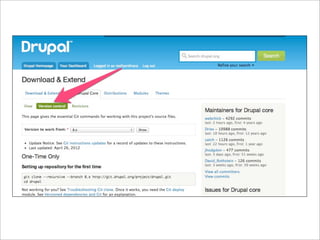
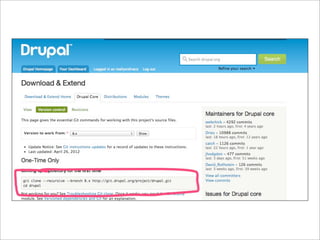
• now entire Drupal project and all modules,
  distributions and themes use Git
So what’s Git?

• initially created in 2005 by Linus Torvalds
  for Linux kernel development
• written mostly in C
• it’s a *distributed* version control system,
  which means...
• every Git working directory contains the
  complete repository and history and full
  revision tracking capabilities
• you’re not dependent on a central server
  and you don’t have to be online
• it’s rippingly fast - much faster than SVN,
  CVS, and other systems that have a lot of
  network latency
• snapshot-based
What’s a repository?

• it’s a directory that contains all of the data
  and metadata for your Git-controlled
  project
• called .git/ and it resides in your Drupal site
  root directory
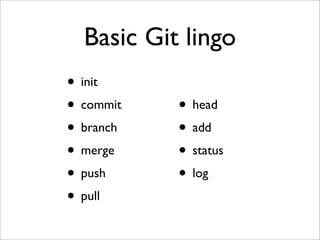
Basic Git lingo
• init
• commit   • head
• branch   • add
• merge    • status
• push     • log
• pull
Shut up already how do I start
Git thee to a command line

• there are some GUI applications for Git,
  but it’s essentially a command line tool
• it’s by far the most fun to use it on the
  command line
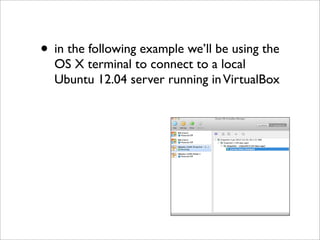
• in the following example we’ll be using the
  OS X terminal to connect to a local
  Ubuntu 12.04 server running in VirtualBox
• we’re going to
  a) install Git on the server
  b) set up a new Drupal site
  c) put the site into a local Git repository
     (repo)
  d) create a remote on GitHub
  e) make a commit locally and push it to the
     remote GitHub repo
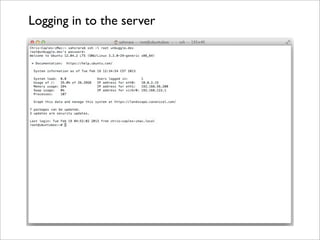
Logging in to the server
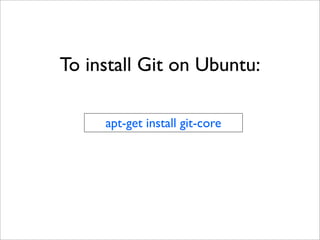
To install Git on Ubuntu:

     apt-get install git-core
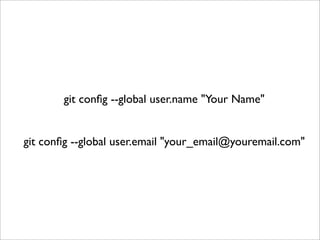
Set up credentials
You need to let Git know who you are so it
can label the commits you make.
So type...
git config --global user.name "Your Name"


git config --global user.email "your_email@youremail.com"
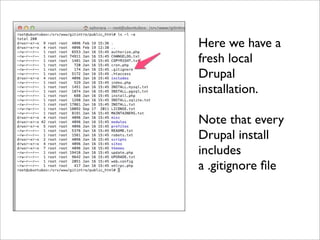
Here we have a
fresh local
Drupal
installation.

Note that every
Drupal install
includes
a .gitignore file
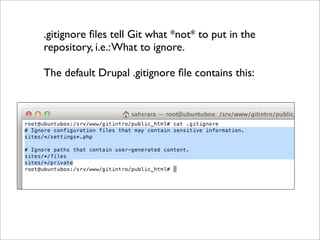
.gitignore files tell Git what *not* to put in the
repository, i.e.: What to ignore.

The default Drupal .gitignore file contains this:
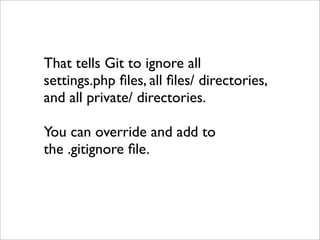
That tells Git to ignore all
settings.php files, all files/ directories,
and all private/ directories.

You can override and add to
the .gitignore file.
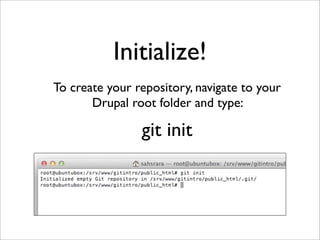
Initialize!
To create your repository, navigate to your
       Drupal root folder and type:

                git init
Check status
The Git repository starts out empty.You’ll
          need to add files to it.
    But first - check the status. Type:

              git status
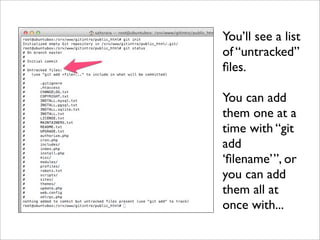
You’ll see a list
of “untracked”
files.

You can add
them one at a
time with “git
add
‘filename’”, or
you can add
them all at
once with...
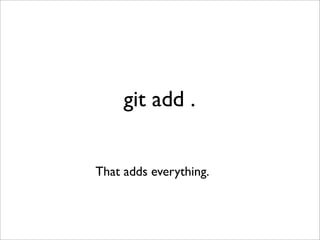
git add .


That adds everything.
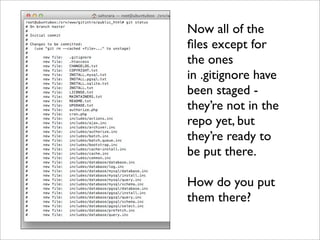
Now all of the
files except for
the ones
in .gitignore have
been staged -
they’re not in the
repo yet, but
they’re ready to
be put there.

How do you put
them there?
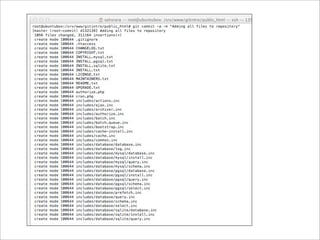
git commit
     Actually you’ll want to type:
git commit -m “Some text describing
           your commit”
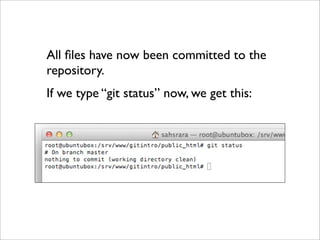
All files have now been committed to the
repository.
If we type “git status” now, we get this:
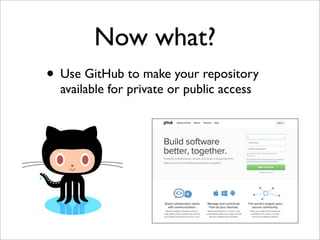
Now what?
• Use GitHub to make your repository
  available for private or public access
Do I have to use GitHub?
• No, but it’s really cool and slightly easier
  than setting up your own Git server
• So! - create an account if you don’t have
  one (it’s free)
• login
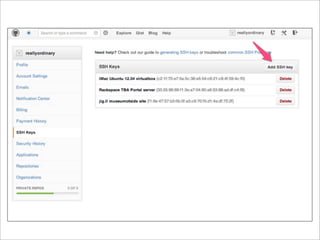
• set up your SSH keys
SSH keys?
Entering your SSH keys establishes a trusted
connection between your GitHub account
and your development server(s), enabling
you to push and pull commits without having
to constantly enter your login information.
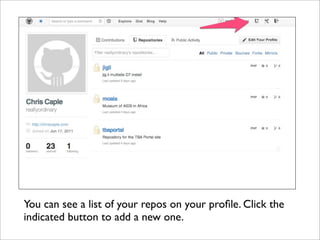
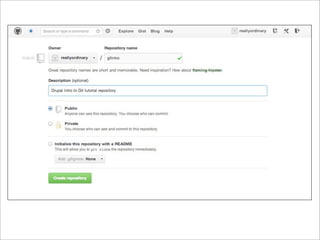
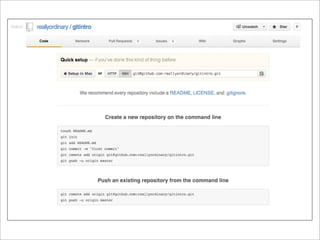
You can see a list of your repos on your profile. Click the
indicated button to add a new one.
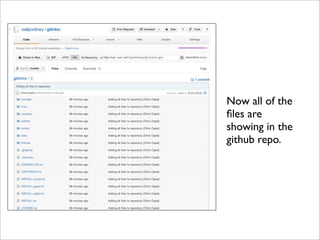
Now all of the
files are
showing in the
github repo.
Dev to GitHub
• make a change on your local site and push
  the change to the GitHub repo
• in this case we’re going to install five
  modules - ctools, features, panels, token,
  and views
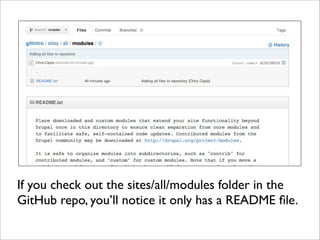
If you check out the sites/all/modules folder in the
GitHub repo, you’ll notice it only has a README file.
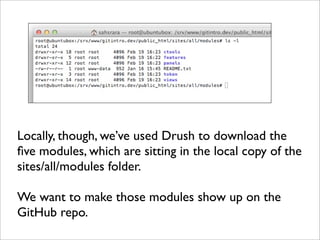
Locally, though, we’ve used Drush to download the
five modules, which are sitting in the local copy of the
sites/all/modules folder.

We want to make those modules show up on the
GitHub repo.
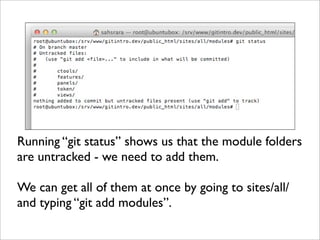
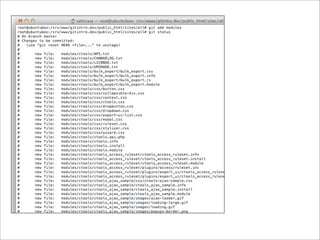
Running “git status” shows us that the module folders
are untracked - we need to add them.

We can get all of them at once by going to sites/all/
and typing “git add modules”.
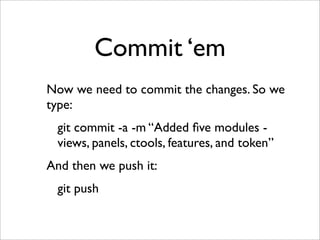
Commit ‘em
Now we need to commit the changes. So we
type:
 git commit -a -m “Added five modules -
 views, panels, ctools, features, and token”
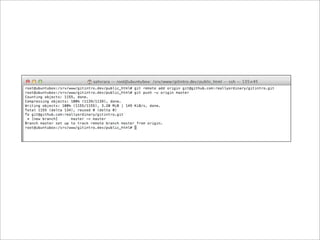
And then we push it:
 git push
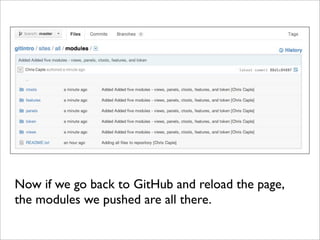
Now if we go back to GitHub and reload the page,
the modules we pushed are all there.

Intro to Git for Drupal 7

  • 1.
    Intro to Gitfor Drupal Or: How I Learned To Stop Worrying and Love Version Control
  • 2.
    What’s a versioncontrol system? • An application that allows you to record changes to your codebase in a structured and controlled fashion
  • 3.
    Why do Ineed that? • makes it way easier to undo errors / roll back to earlier versions of code • makes it way easier to share a code base between developers without creating conflicts
  • 4.
    • makes itwaaaaay way easier to deploy changes from development to staging to production environments
  • 5.
    Analogy: • Using Drupalwithout a version control system is like rock climbing without any safety gear
  • 6.
    • You maybe able to get away with it for awhile, but if you slip, you’re going to die.
  • 7.
    Some popular versioncontrol systems • CVS - Concurrent Versions System • SVN - SubVersioN • Git • Mercurial • Bazaar • LibreSource
  • 8.
    Drupal: From CVSto Git • drupal.org used to have all module and project code under CVS • Drupal’s use of CVS system began January 15, 2001 with check in of Drupal 3.0.0 by Dries Buytaert
  • 9.
    • worked greatfor a few years • over time CVS development stagnated • other systems began to appear, newer and hotter • decision to switch from CVS to Git was made in 2010
  • 10.
    • Drupal officiallyswitched from CVS to Git in 2011 on February 24 at 6:08 pm EST • excellent obituary for CVS by Larry Garfield (Crell - http://drupal.org/user/ 26398) at http://www.garfieldtech.com/ blog/cvs-obituary • now entire Drupal project and all modules, distributions and themes use Git
  • 14.
    So what’s Git? •initially created in 2005 by Linus Torvalds for Linux kernel development • written mostly in C • it’s a *distributed* version control system, which means...
  • 15.
    • every Gitworking directory contains the complete repository and history and full revision tracking capabilities • you’re not dependent on a central server and you don’t have to be online • it’s rippingly fast - much faster than SVN, CVS, and other systems that have a lot of network latency • snapshot-based
  • 16.
    What’s a repository? •it’s a directory that contains all of the data and metadata for your Git-controlled project • called .git/ and it resides in your Drupal site root directory
  • 17.
    Basic Git lingo •init • commit • head • branch • add • merge • status • push • log • pull
  • 18.
    Shut up alreadyhow do I start
  • 19.
    Git thee toa command line • there are some GUI applications for Git, but it’s essentially a command line tool • it’s by far the most fun to use it on the command line
  • 20.
    • in thefollowing example we’ll be using the OS X terminal to connect to a local Ubuntu 12.04 server running in VirtualBox
  • 21.
    • we’re goingto a) install Git on the server b) set up a new Drupal site c) put the site into a local Git repository (repo) d) create a remote on GitHub e) make a commit locally and push it to the remote GitHub repo
  • 22.
    Logging in tothe server
  • 23.
    To install Giton Ubuntu: apt-get install git-core
  • 24.
    Set up credentials Youneed to let Git know who you are so it can label the commits you make. So type...
  • 25.
    git config --globaluser.name "Your Name" git config --global user.email "your_email@youremail.com"
  • 26.
    Here we havea fresh local Drupal installation. Note that every Drupal install includes a .gitignore file
  • 27.
    .gitignore files tellGit what *not* to put in the repository, i.e.: What to ignore. The default Drupal .gitignore file contains this:
  • 28.
    That tells Gitto ignore all settings.php files, all files/ directories, and all private/ directories. You can override and add to the .gitignore file.
  • 29.
    Initialize! To create yourrepository, navigate to your Drupal root folder and type: git init
  • 30.
    Check status The Gitrepository starts out empty.You’ll need to add files to it. But first - check the status. Type: git status
  • 31.
    You’ll see alist of “untracked” files. You can add them one at a time with “git add ‘filename’”, or you can add them all at once with...
  • 32.
    git add . Thatadds everything.
  • 33.
    Now all ofthe files except for the ones in .gitignore have been staged - they’re not in the repo yet, but they’re ready to be put there. How do you put them there?
  • 34.
    git commit Actually you’ll want to type: git commit -m “Some text describing your commit”
  • 36.
    All files havenow been committed to the repository. If we type “git status” now, we get this:
  • 37.
    Now what? • UseGitHub to make your repository available for private or public access
  • 38.
    Do I haveto use GitHub? • No, but it’s really cool and slightly easier than setting up your own Git server • So! - create an account if you don’t have one (it’s free) • login • set up your SSH keys
  • 39.
    SSH keys? Entering yourSSH keys establishes a trusted connection between your GitHub account and your development server(s), enabling you to push and pull commits without having to constantly enter your login information.
  • 41.
    You can seea list of your repos on your profile. Click the indicated button to add a new one.
  • 45.
    Now all ofthe files are showing in the github repo.
  • 46.
    Dev to GitHub •make a change on your local site and push the change to the GitHub repo • in this case we’re going to install five modules - ctools, features, panels, token, and views
  • 47.
    If you checkout the sites/all/modules folder in the GitHub repo, you’ll notice it only has a README file.
  • 48.
    Locally, though, we’veused Drush to download the five modules, which are sitting in the local copy of the sites/all/modules folder. We want to make those modules show up on the GitHub repo.
  • 49.
    Running “git status”shows us that the module folders are untracked - we need to add them. We can get all of them at once by going to sites/all/ and typing “git add modules”.
  • 51.
    Commit ‘em Now weneed to commit the changes. So we type: git commit -a -m “Added five modules - views, panels, ctools, features, and token” And then we push it: git push
  • 52.
    Now if wego back to GitHub and reload the page, the modules we pushed are all there.