

Configuring
CRM-2016
Internet Facing
Deployment
Microsoft
Dynamics
CRM
Part -
1
This PPT covers all the steps you have to follow to configure Internet facing
deployment (IFD) for a CRM 2016 On-premise deployment
Before we proceed here are a few details of the environment.
• CRM Server 2016 Installed on Windows Server 2012R2
• ADFS 2.1 on a separate box on Windows Server 2012R2
With AD FS 2.0, you had to download and install the AD FS 2.0 software to deploy
your AD FS server infrastructure.
ADFS 2.1 was released to Windows Server 2012rR2 as part of the operating system
and therefore can be installed as a Role from Server Manager.
Important
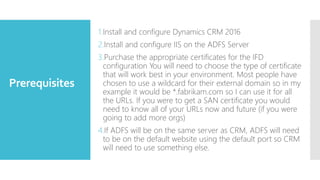
Prerequisites
1.Install and configure Dynamics CRM 2016
2.Install and configure IIS on the ADFS Server
3.Purchase the appropriate certificates for the IFD
configuration You will need to choose the type of certificate
that will work best in your environment. Most people have
chosen to use a wildcard for their external domain so in my
example it would be *.fabrikam.com so I can use it for all
the URLs. If you were to get a SAN certificate you would
need to know all of your URLs now and future (if you were
going to add more orgs)
4.If ADFS will be on the same server as CRM, ADFS will need
to be on the default website using the default port so CRM
will need to use something else.
AGENDA
 Binding Certificates
 Setup ADFS
 DNS Configuration
 Configuration CRM server for claims based authentication
 Configuration CRM server for IFD
Topics Covering
Binding
Certificate
After you have obtained and installed a certificate,
the certificate must be bound to the default Web site
before you can use AD FS
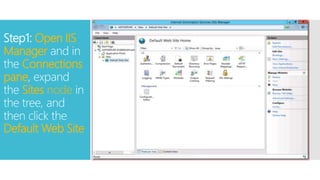
Step1: Open IIS
Manager and in
the Connections
pane, expand
the Sites node in
the tree, and
then click the
Default Web Site
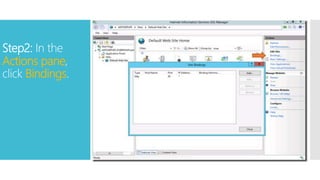
Step2: In the
Actions pane,
click Bindings.
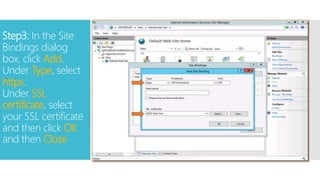
Step3: In the Site
Bindings dialog
box, click Add.
Under Type, select
https.
Under SSL
certificate, select
your SSL certificate
and then click OK
and then Close
On the CRM
2016 Server
When enabling claims-based authentication, the
Dynamics CRM Server 2016 Web site must be
accessible via HTTPS. You must bind your SSL
certificate to the Dynamics CRM Server 2016 Web
site.
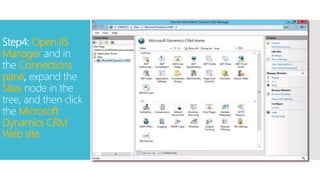
Step4: Open IIS
Manager and in
the Connections
pane, expand the
Sites node in the
tree, and then click
the Microsoft
Dynamics CRM
Web site
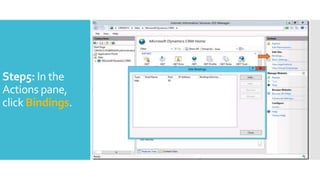
Step5: In the
Actions pane,
click Bindings.
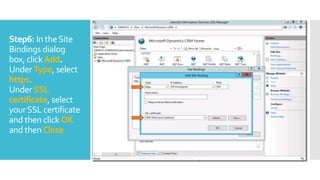
Step6: In theSite
Bindings dialog
box, clickAdd.
Under Type, select
https.
Under SSL
certificate, select
yourSSL certificate
and then click OK
and thenClose
Step7:TheCRMAppPool
accountandthe Microsoft
DynamicsCRMencryption
certificate
TheCRMAppPoolaccount
willneedtohaverightsto
thecertificatebeingused
fortheCRMwebsite.Ifthe
applicationpoolisrunning
asNetworkServiceasinthe
examplethenyouwillneed
togiveNetworkService
readrightstothat
certificate.
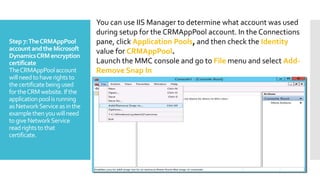
You can use IIS Manager to determine what account was used
during setup for the CRMAppPool account. In the Connections
pane, click Application Pools, and then check the Identity
value for CRMAppPool.
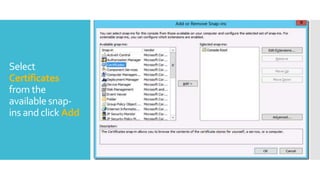
Launch the MMC console and go to File menu and select Add-
Remove Snap In
Select
Certificates
from the
availablesnap-
ins and click Add
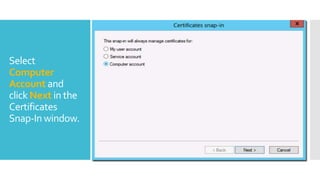
Select
Computer
Account and
click Next in the
Certificates
Snap-In window.
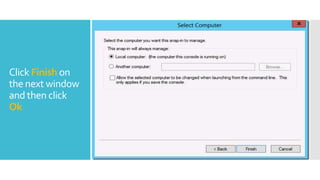
Click Finish on
the next window
and then click
Ok
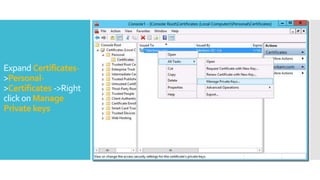
Expand Certificates-
>Personal-
>Certificates ->Right
click on Manage
Private keys
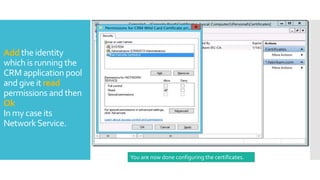
Add the identity
which is running the
CRM application pool
and give it read
permissions and then
Ok
In my case its
NetworkService.
You are now done configuring the certificates.
….. Continue Part -2 : Setup ADFS

Part 1 - Binding Certificates (IFD)