IBM 
BlueMix 
Workshop 
– 
Internet 
of 
Things 
Lab 
Node-­‐RED 
-­‐ 
Sample 
Application 
It's easy to build an application with Node-RED and use the data that you've 
published to the IBM Internet of Things cloud. This Lab shows you how. The Lab has 
a ready-made flow that processes temperature readings from a simulated device. The 
flows checks these readings against a threshold, then tells you whether the 
temperature is safe. Imagine that we're monitoring a CPU temperature from a real 
device. 
Step 
1 
– 
Deploy 
the 
Internet 
of 
Things 
boilerplate 
• Login to Bluemix (https://ace.ng.bluemix.net) 
• Select the ‘CATALOG’ tab 
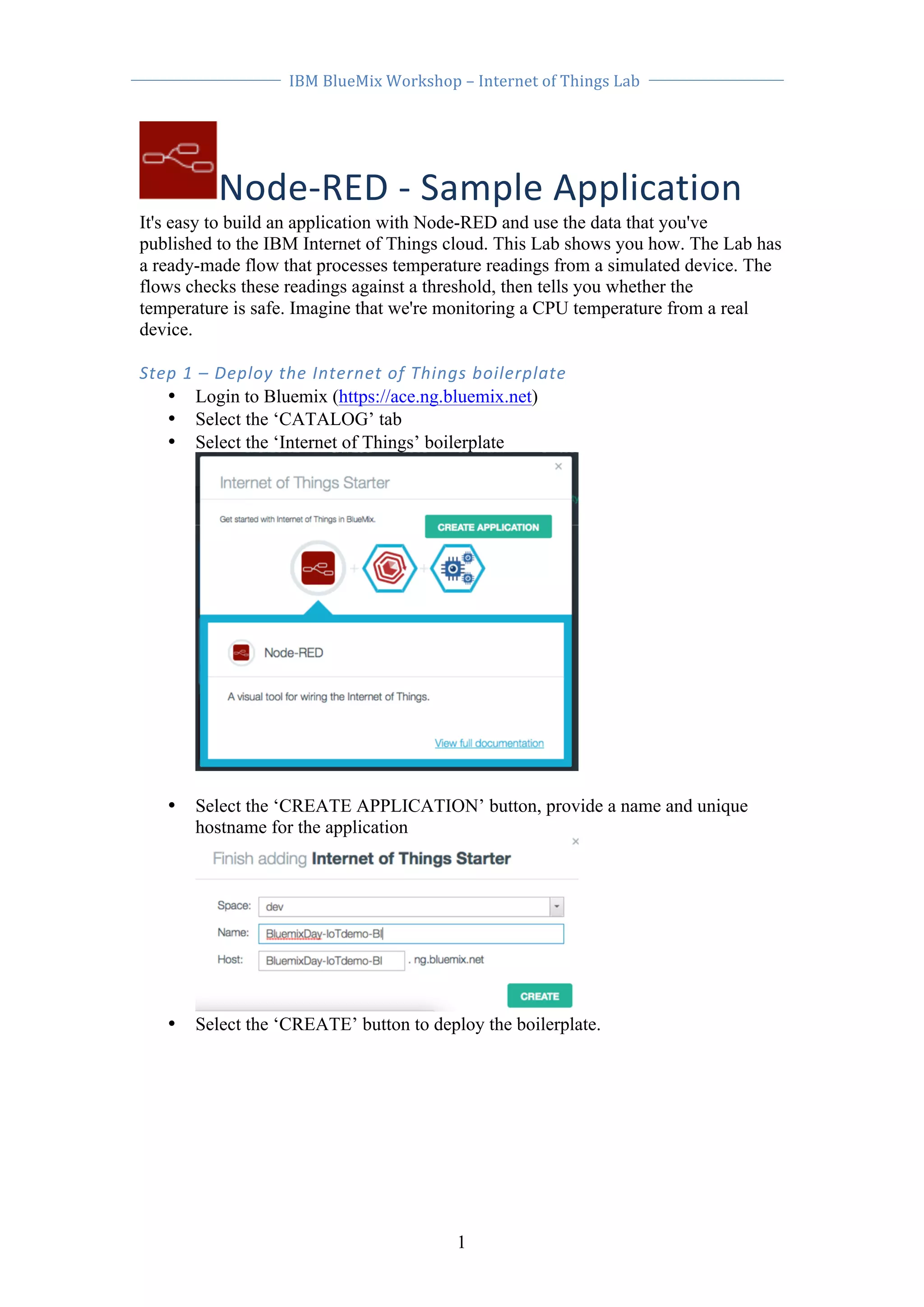
• Select the ‘Internet of Things’ boilerplate 
• Select the ‘CREATE APPLICATION’ button, provide a name and unique 
1 
hostname for the application 
• Select the ‘CREATE’ button to deploy the boilerplate.
IBM 
BlueMix 
Workshop 
– 
Internet 
of 
Things 
Lab 
Step 
2 
– 
Launch 
the 
Node-­‐RED 
flow 
editor 
• When the application is deployed and is running click the route to open the 
2 
deployed application 
• The Node-RED application will open in your browser. Select the ‘Got to your 
Node-RED flow editor’ button 
Step 
3 
– 
Import 
the 
sample 
flow 
This step imports the sample flow to the Node-RED editor. Node-RED flows can be 
imported and exported as JSON text, so to import the flow you are going to copy the 
flow below and import it to Node-RED 
------------------------------Select below this line----------------------------------------------- 
[{"id": "f9a7b43b.065848","type": "iot","name": "","deviceId": 
"00:00:00:00:00:00","messageType": "*","x": 155,"y": 239,"z": 
"65624723.9a9db8","wires": [["9db76969.624898","9e041be9.61fbe8"]]}, 
{"id": "9db76969.624898","type": "function","name": "temp","func": 
"return {payload:msg.payload.d.temp};","outputs": 1,"x": 318.5,"y": 
237,"z": "65624723.9a9db8","wires": [["2b6f31bc.d490ce"]]}, {"id": 
"2b6f31bc.d490ce","type": "switch","name": "temp thresh","property": 
"payload","rules": [{"t": "lte","v": "40"},{"t": "gt","v": 
"40"}],"checkall": "true","outputs": 2,"x": 467.5,"y": 238,"z": 
"65624723.9a9db8","wires": [["34b29de.fcb4d62"], 
["bb90881b.446f78"]]},{"id": "10cf85ac.ef307a","type": 
"debug","name": "cpu status","active": true,"complete": "false","x": 
778.5,"y": 235,"z": "65624723.9a9db8","wires": []},{"id": 
"9e041be9.61fbe8","type": "debug","name": "device data","active": 
false,"complete": "false","x": 318.5,"y": 148,"z": "65624723.9a9db8", 
"wires": []},{"id": "34b29de.fcb4d62","type": "template","name": 
"safe","template": "Temperature ({{payload}}) within safe limits", 
"x": 631.5,"y": 189,"z": "65624723.9a9db8","wires": [[ 
"10cf85ac.ef307a"]]},{"id": "bb90881b.446f78","type": "template", 
"name": "danger","template": "Temperature ({{payload}}) critical", 
"x": 630.5,"y": 283,"z": "65624723.9a9db8","wires": 
[["10cf85ac.ef307a"]]}] 
------------------------------Select above this line----------------------------------------------- 
• Select the text above and copy to you system clipboard 
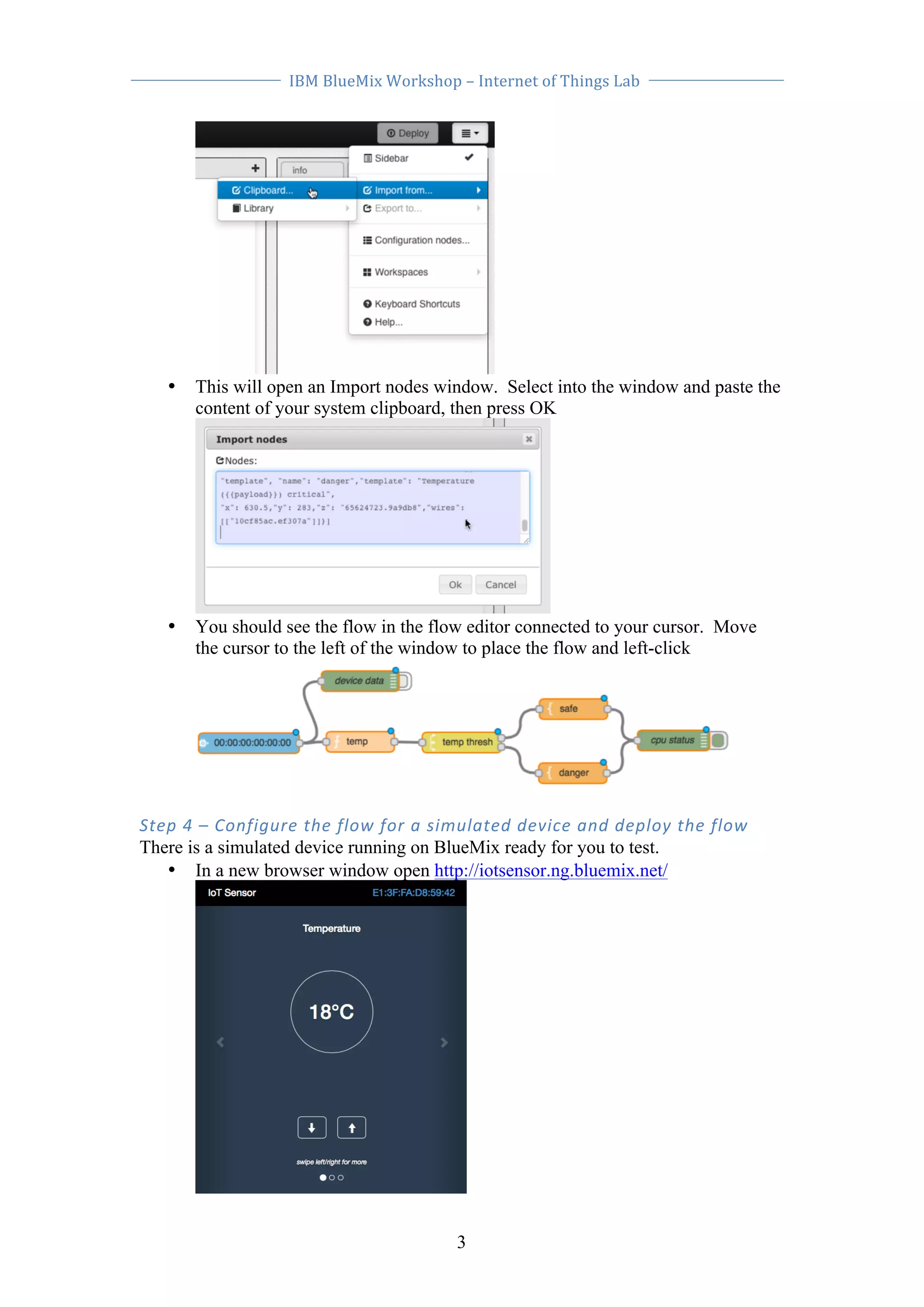
• In the Node-RED flow editor select the menu (upper right of screen). Select 
‘Import from…’ then ‘Clipboard…’
IBM 
BlueMix 
Workshop 
– 
Internet 
of 
Things 
Lab 
• This will open an Import nodes window. Select into the window and paste the 
content of your system clipboard, then press OK 
• You should see the flow in the flow editor connected to your cursor. Move 
the cursor to the left of the window to place the flow and left-click 
Step 
4 
– 
Configure 
the 
flow 
for 
a 
simulated 
device 
and 
deploy 
the 
flow 
There is a simulated device running on BlueMix ready for you to test. 
• In a new browser window open http://iotsensor.ng.bluemix.net/ 
3
IBM 
BlueMix 
Workshop 
– 
Internet 
of 
Things 
Lab 
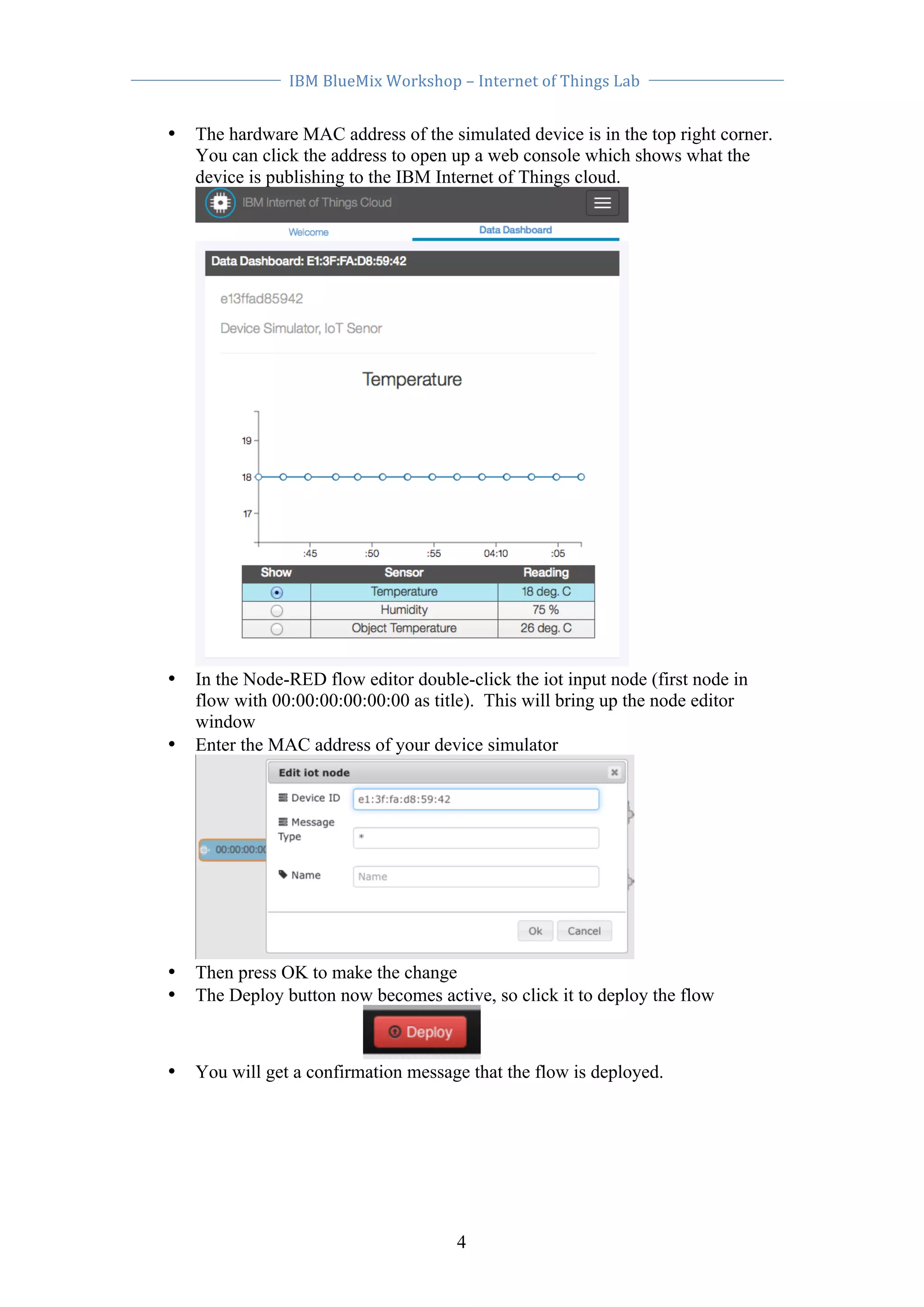
• The hardware MAC address of the simulated device is in the top right corner. 
You can click the address to open up a web console which shows what the 
device is publishing to the IBM Internet of Things cloud. 
• In the Node-RED flow editor double-click the iot input node (first node in 
flow with 00:00:00:00:00:00 as title). This will bring up the node editor 
window 
• Enter the MAC address of your device simulator 
• Then press OK to make the change 
• The Deploy button now becomes active, so click it to deploy the flow 
• You will get a confirmation message that the flow is deployed. 
4
IBM 
BlueMix 
Workshop 
– 
Internet 
of 
Things 
Lab 
5 
Step 
5 
– 
Test 
the 
flow 
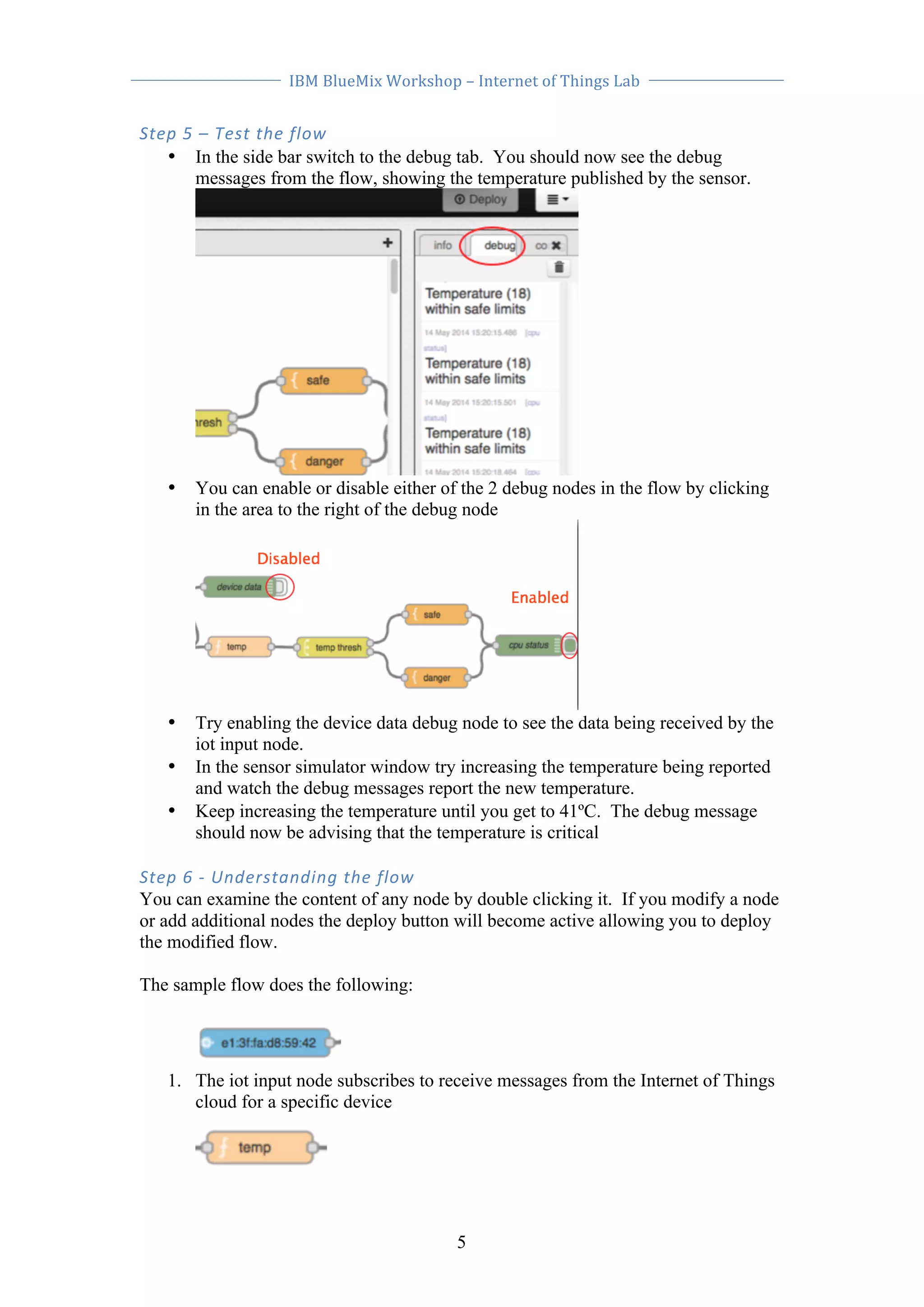
• In the side bar switch to the debug tab. You should now see the debug 
messages from the flow, showing the temperature published by the sensor. 
• You can enable or disable either of the 2 debug nodes in the flow by clicking 
in the area to the right of the debug node 
• Try enabling the device data debug node to see the data being received by the 
iot input node. 
• In the sensor simulator window try increasing the temperature being reported 
and watch the debug messages report the new temperature. 
• Keep increasing the temperature until you get to 41ºC. The debug message 
should now be advising that the temperature is critical 
Step 
6 
-­‐ 
Understanding 
the 
flow 
You can examine the content of any node by double clicking it. If you modify a node 
or add additional nodes the deploy button will become active allowing you to deploy 
the modified flow. 
The sample flow does the following: 
1. The iot input node subscribes to receive messages from the Internet of Things 
cloud for a specific device
IBM 
BlueMix 
Workshop 
– 
Internet 
of 
Things 
Lab 
2. A function node takes the data from the iot node and extracts the temperature 
6 
from the message 
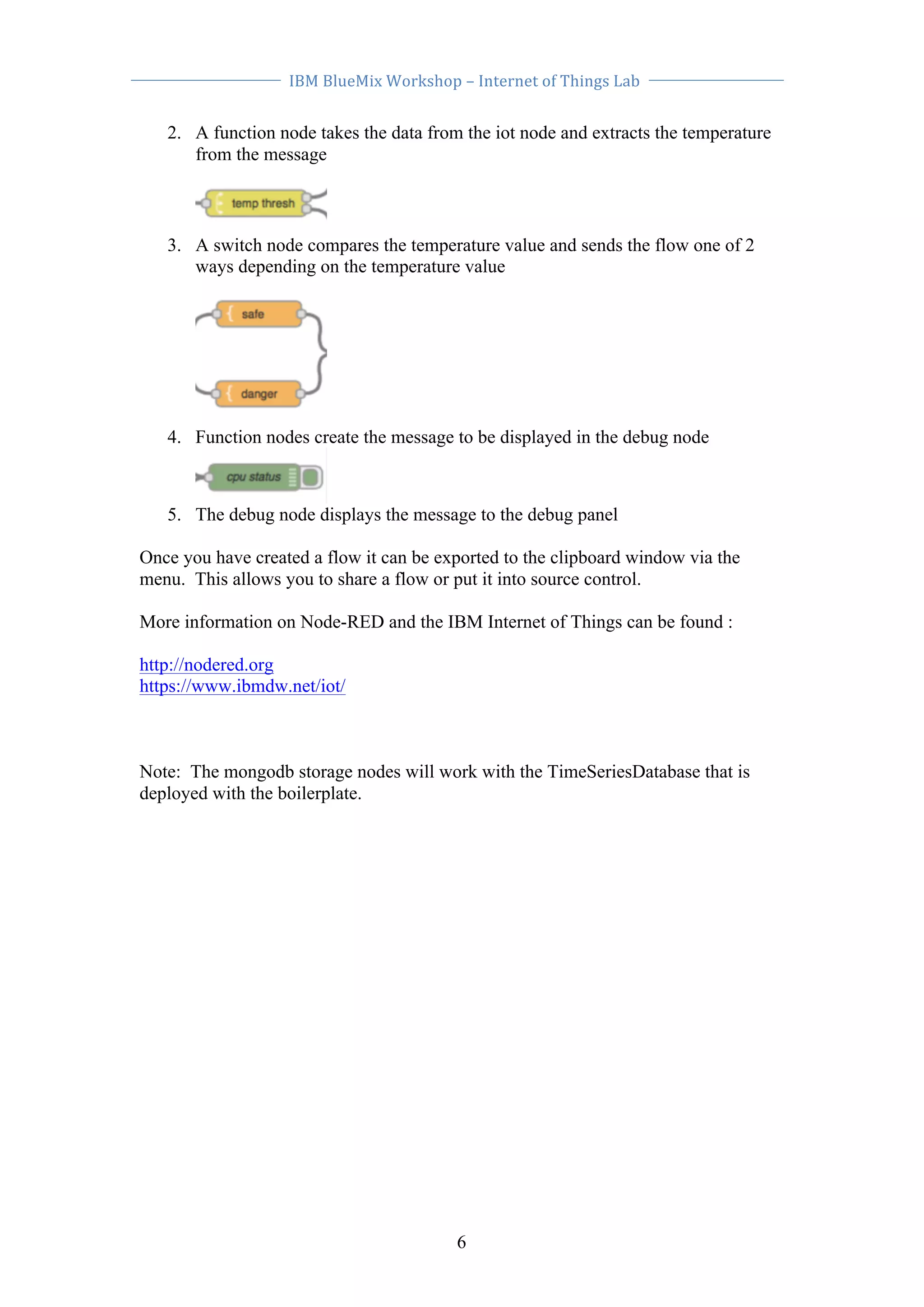
3. A switch node compares the temperature value and sends the flow one of 2 
ways depending on the temperature value 
4. Function nodes create the message to be displayed in the debug node 
5. The debug node displays the message to the debug panel 
Once you have created a flow it can be exported to the clipboard window via the 
menu. This allows you to share a flow or put it into source control. 
More information on Node-RED and the IBM Internet of Things can be found : 
http://nodered.org 
https://www.ibmdw.net/iot/ 
Note: The mongodb storage nodes will work with the TimeSeriesDatabase that is 
deployed with the boilerplate.

Internet of Things exercise on IBM Bluemix

  • 1.
    IBM BlueMix Workshop – Internet of Things Lab Node-­‐RED -­‐ Sample Application It's easy to build an application with Node-RED and use the data that you've published to the IBM Internet of Things cloud. This Lab shows you how. The Lab has a ready-made flow that processes temperature readings from a simulated device. The flows checks these readings against a threshold, then tells you whether the temperature is safe. Imagine that we're monitoring a CPU temperature from a real device. Step 1 – Deploy the Internet of Things boilerplate • Login to Bluemix (https://ace.ng.bluemix.net) • Select the ‘CATALOG’ tab • Select the ‘Internet of Things’ boilerplate • Select the ‘CREATE APPLICATION’ button, provide a name and unique 1 hostname for the application • Select the ‘CREATE’ button to deploy the boilerplate.
  • 2.
    IBM BlueMix Workshop – Internet of Things Lab Step 2 – Launch the Node-­‐RED flow editor • When the application is deployed and is running click the route to open the 2 deployed application • The Node-RED application will open in your browser. Select the ‘Got to your Node-RED flow editor’ button Step 3 – Import the sample flow This step imports the sample flow to the Node-RED editor. Node-RED flows can be imported and exported as JSON text, so to import the flow you are going to copy the flow below and import it to Node-RED ------------------------------Select below this line----------------------------------------------- [{"id": "f9a7b43b.065848","type": "iot","name": "","deviceId": "00:00:00:00:00:00","messageType": "*","x": 155,"y": 239,"z": "65624723.9a9db8","wires": [["9db76969.624898","9e041be9.61fbe8"]]}, {"id": "9db76969.624898","type": "function","name": "temp","func": "return {payload:msg.payload.d.temp};","outputs": 1,"x": 318.5,"y": 237,"z": "65624723.9a9db8","wires": [["2b6f31bc.d490ce"]]}, {"id": "2b6f31bc.d490ce","type": "switch","name": "temp thresh","property": "payload","rules": [{"t": "lte","v": "40"},{"t": "gt","v": "40"}],"checkall": "true","outputs": 2,"x": 467.5,"y": 238,"z": "65624723.9a9db8","wires": [["34b29de.fcb4d62"], ["bb90881b.446f78"]]},{"id": "10cf85ac.ef307a","type": "debug","name": "cpu status","active": true,"complete": "false","x": 778.5,"y": 235,"z": "65624723.9a9db8","wires": []},{"id": "9e041be9.61fbe8","type": "debug","name": "device data","active": false,"complete": "false","x": 318.5,"y": 148,"z": "65624723.9a9db8", "wires": []},{"id": "34b29de.fcb4d62","type": "template","name": "safe","template": "Temperature ({{payload}}) within safe limits", "x": 631.5,"y": 189,"z": "65624723.9a9db8","wires": [[ "10cf85ac.ef307a"]]},{"id": "bb90881b.446f78","type": "template", "name": "danger","template": "Temperature ({{payload}}) critical", "x": 630.5,"y": 283,"z": "65624723.9a9db8","wires": [["10cf85ac.ef307a"]]}] ------------------------------Select above this line----------------------------------------------- • Select the text above and copy to you system clipboard • In the Node-RED flow editor select the menu (upper right of screen). Select ‘Import from…’ then ‘Clipboard…’
  • 3.
    IBM BlueMix Workshop – Internet of Things Lab • This will open an Import nodes window. Select into the window and paste the content of your system clipboard, then press OK • You should see the flow in the flow editor connected to your cursor. Move the cursor to the left of the window to place the flow and left-click Step 4 – Configure the flow for a simulated device and deploy the flow There is a simulated device running on BlueMix ready for you to test. • In a new browser window open http://iotsensor.ng.bluemix.net/ 3
  • 4.
    IBM BlueMix Workshop – Internet of Things Lab • The hardware MAC address of the simulated device is in the top right corner. You can click the address to open up a web console which shows what the device is publishing to the IBM Internet of Things cloud. • In the Node-RED flow editor double-click the iot input node (first node in flow with 00:00:00:00:00:00 as title). This will bring up the node editor window • Enter the MAC address of your device simulator • Then press OK to make the change • The Deploy button now becomes active, so click it to deploy the flow • You will get a confirmation message that the flow is deployed. 4
  • 5.
    IBM BlueMix Workshop – Internet of Things Lab 5 Step 5 – Test the flow • In the side bar switch to the debug tab. You should now see the debug messages from the flow, showing the temperature published by the sensor. • You can enable or disable either of the 2 debug nodes in the flow by clicking in the area to the right of the debug node • Try enabling the device data debug node to see the data being received by the iot input node. • In the sensor simulator window try increasing the temperature being reported and watch the debug messages report the new temperature. • Keep increasing the temperature until you get to 41ºC. The debug message should now be advising that the temperature is critical Step 6 -­‐ Understanding the flow You can examine the content of any node by double clicking it. If you modify a node or add additional nodes the deploy button will become active allowing you to deploy the modified flow. The sample flow does the following: 1. The iot input node subscribes to receive messages from the Internet of Things cloud for a specific device
  • 6.
    IBM BlueMix Workshop – Internet of Things Lab 2. A function node takes the data from the iot node and extracts the temperature 6 from the message 3. A switch node compares the temperature value and sends the flow one of 2 ways depending on the temperature value 4. Function nodes create the message to be displayed in the debug node 5. The debug node displays the message to the debug panel Once you have created a flow it can be exported to the clipboard window via the menu. This allows you to share a flow or put it into source control. More information on Node-RED and the IBM Internet of Things can be found : http://nodered.org https://www.ibmdw.net/iot/ Note: The mongodb storage nodes will work with the TimeSeriesDatabase that is deployed with the boilerplate.