VISUAL BASIC
SubmittedBy:
HappyNezzaB.Aranjuez
10–Einstein
SubmittedTo:
Mrs.RowenaA.Reyes
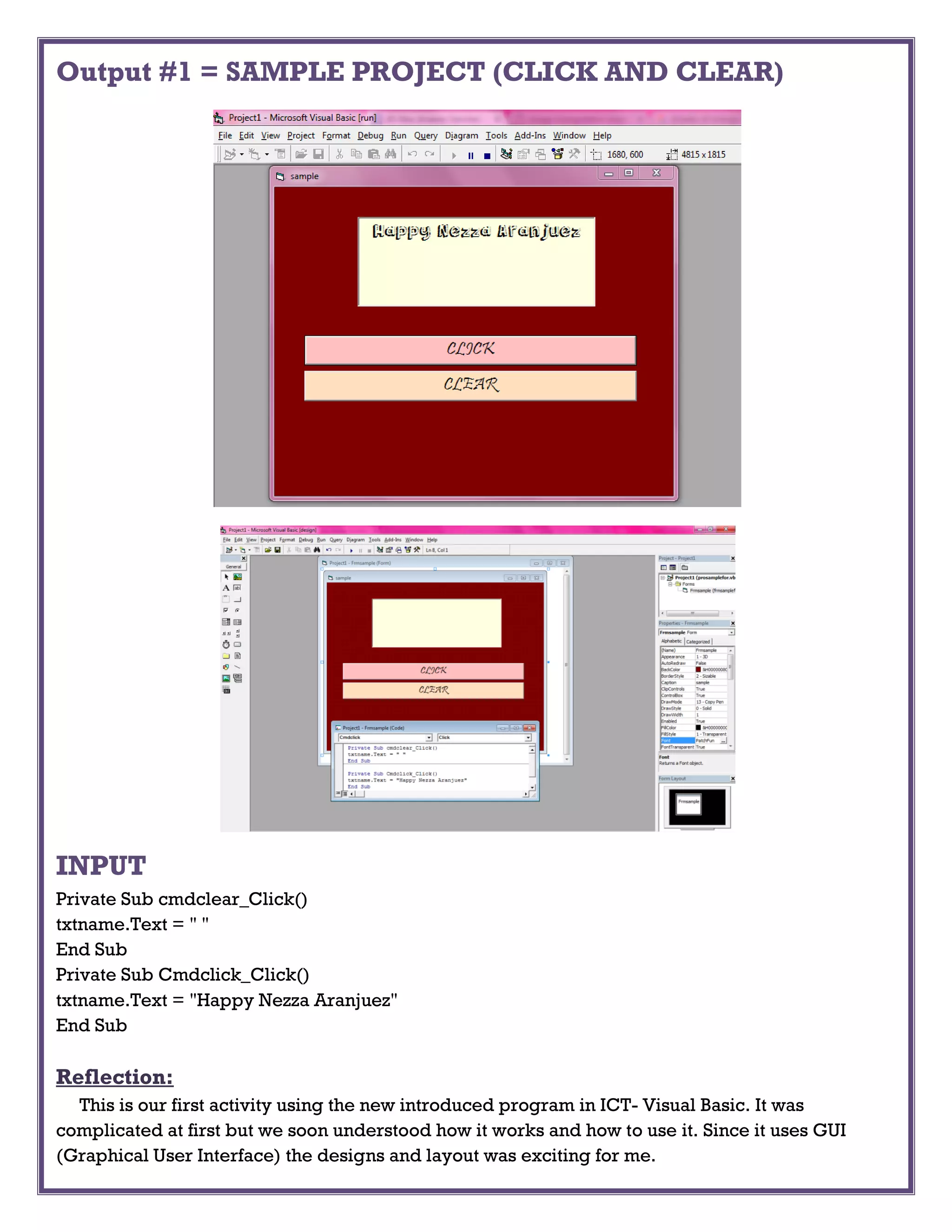
Output #1 = SAMPLE PROJECT (CLICK AND CLEAR)
INPUT
Private Sub cmdclear_Click()
txtname.Text = " "
End Sub
Private Sub Cmdclick_Click()
txtname.Text = "Happy Nezza Aranjuez"
End Sub
Reflection:
This is our first activity using the new introduced program in ICT- Visual Basic. It was
complicated at first but we soon understood how it works and how to use it. Since it uses GUI
(Graphical User Interface) the designs and layout was exciting for me.
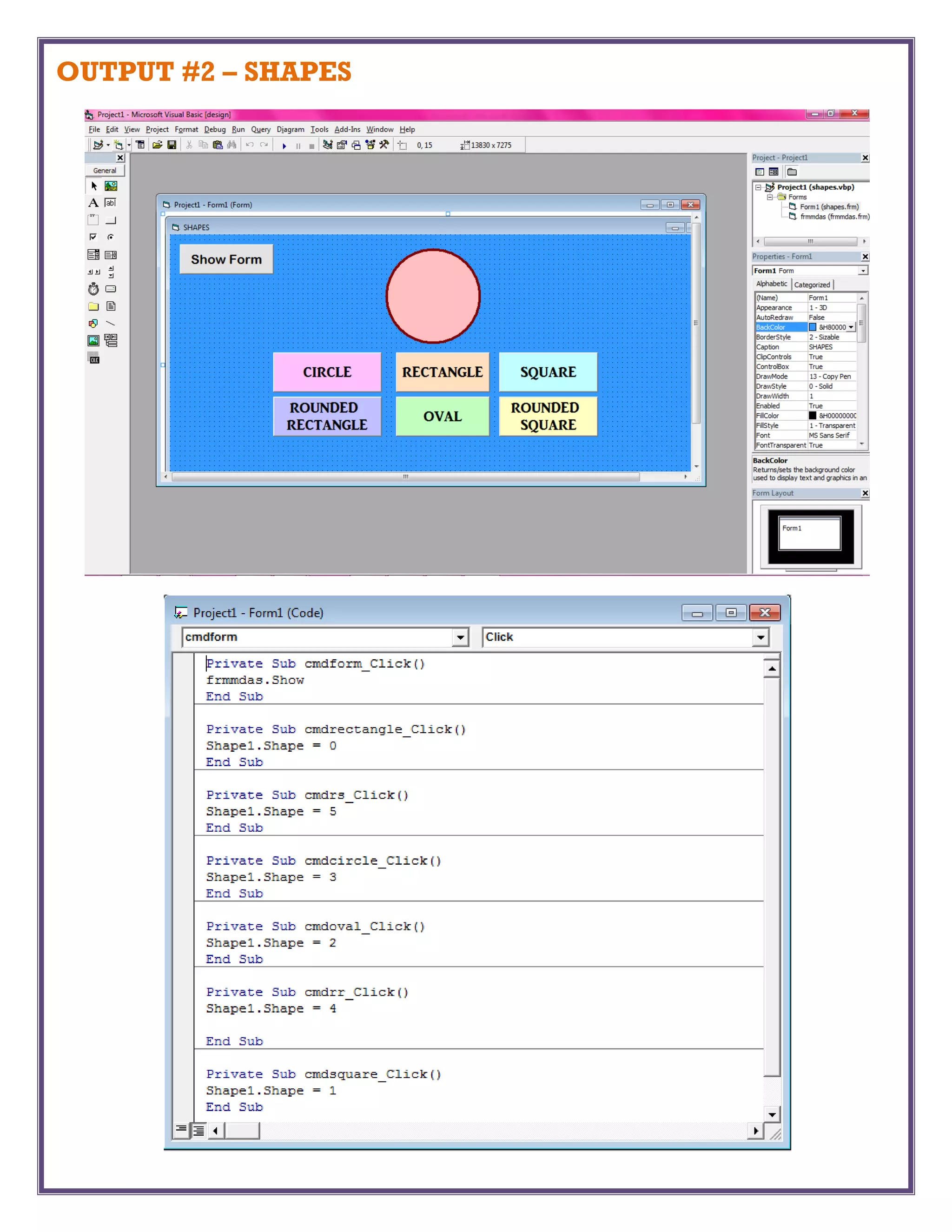
OUTPUT #2 – SHAPES
INPUT
Private Sub cmdform_Click()
frmmdas.Show
End Sub
Private Sub cmdrectangle_Click()
Shape1.Shape = 0
End Sub
Private Sub cmdrs_Click()
Shape1.Shape = 5
End Sub
Private Sub cmdcircle_Click()
Shape1.Shape = 3
End Sub
Private Sub cmdoval_Click()
Shape1.Shape = 2
End Sub
Private Sub cmdrr_Click()
Shape1.Shape = 4
End Sub
Private Sub cmdsquare_Click()
Shape1.Shape = 1
End Sub
Reflection:
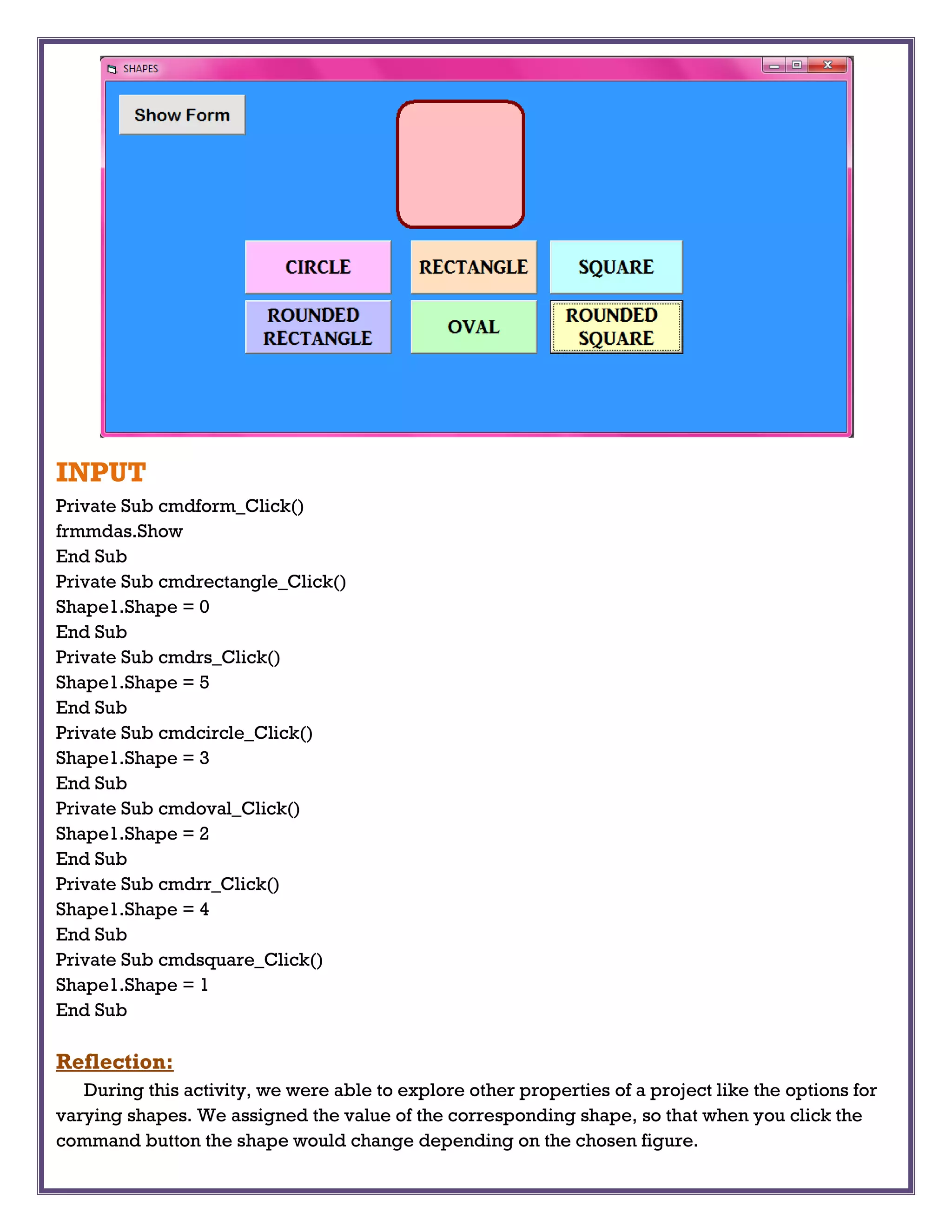
During this activity, we were able to explore other properties of a project like the options for
varying shapes. We assigned the value of the corresponding shape, so that when you click the
command button the shape would change depending on the chosen figure.
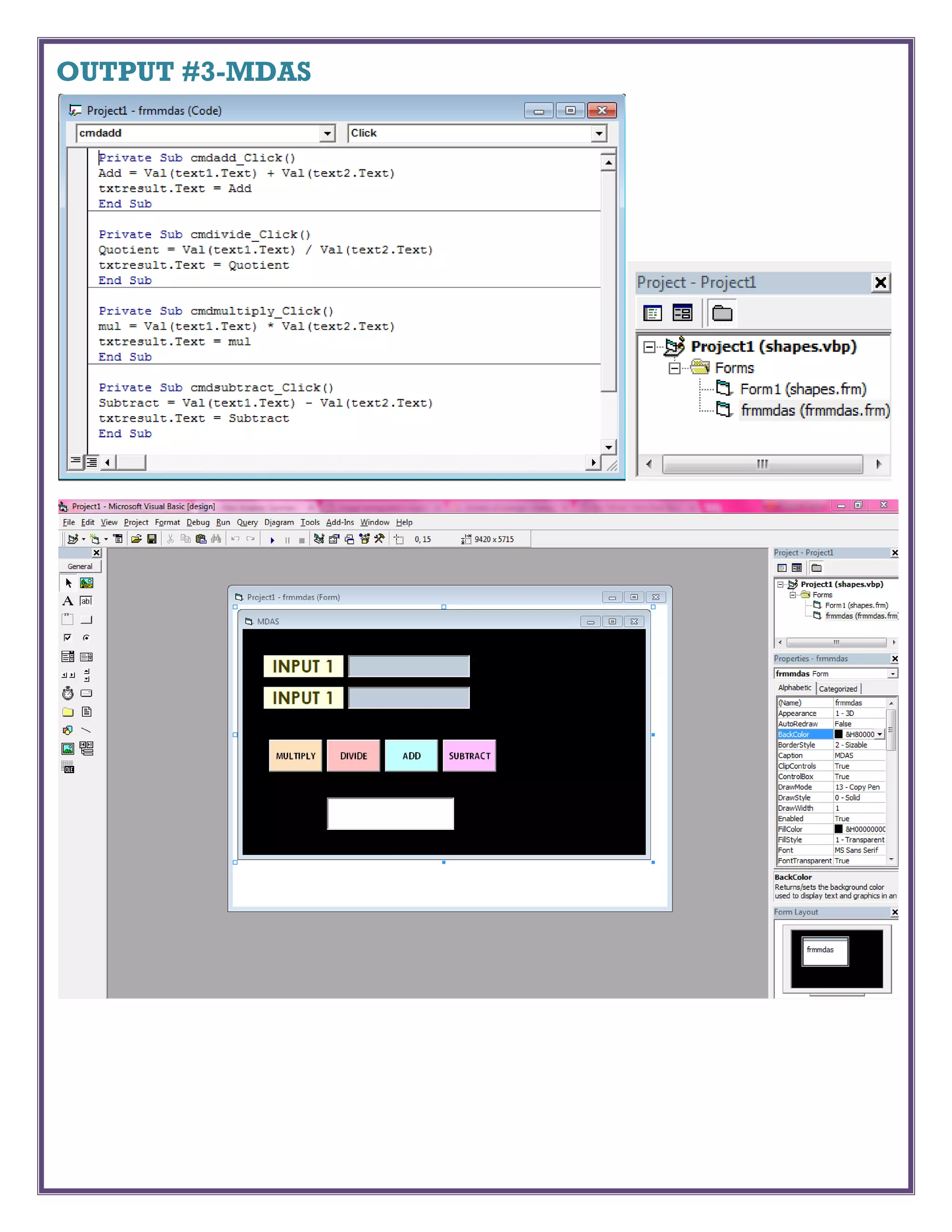
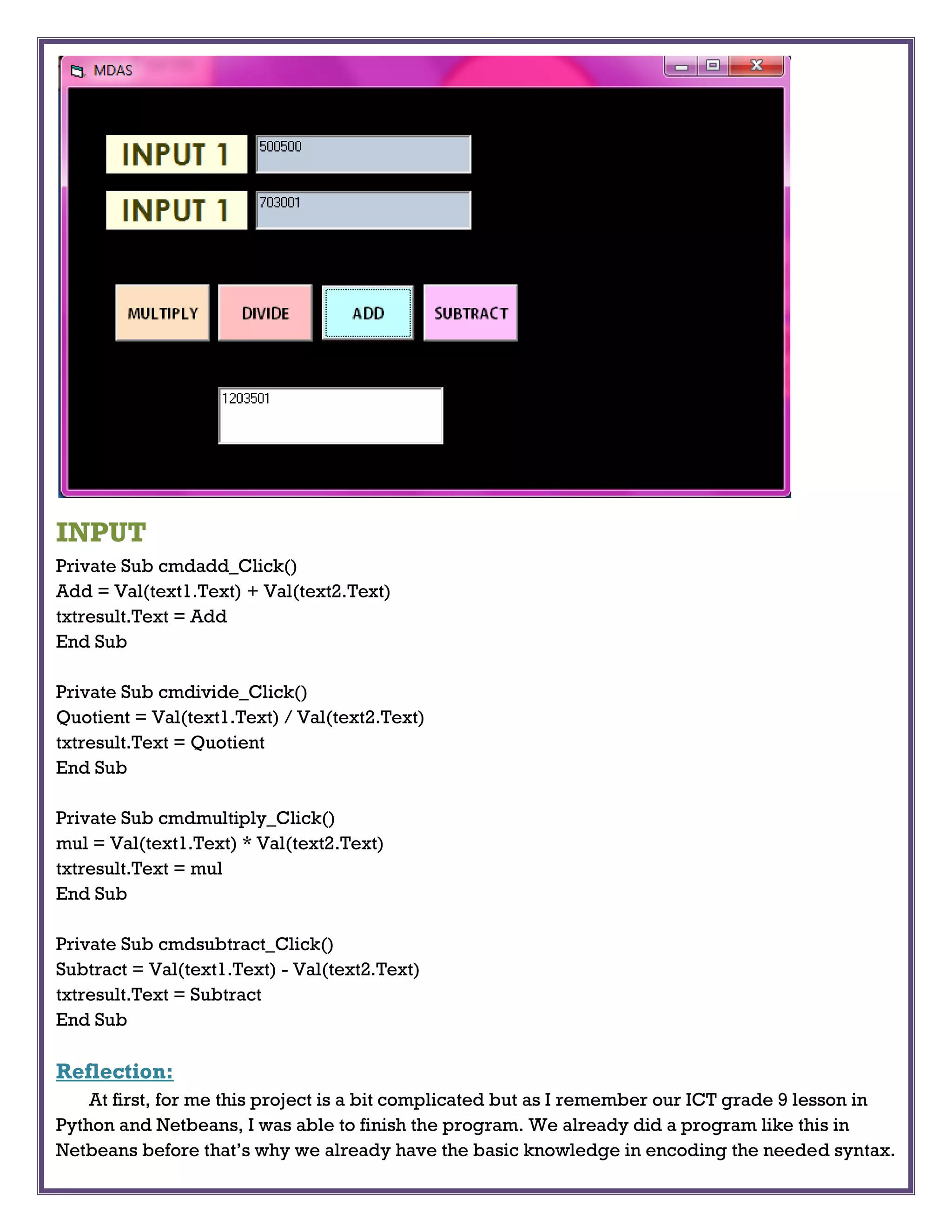
OUTPUT #3-MDAS
INPUT
Private Sub cmdadd_Click()
Add = Val(text1.Text) + Val(text2.Text)
txtresult.Text = Add
End Sub
Private Sub cmdivide_Click()
Quotient = Val(text1.Text) / Val(text2.Text)
txtresult.Text = Quotient
End Sub
Private Sub cmdmultiply_Click()
mul = Val(text1.Text) * Val(text2.Text)
txtresult.Text = mul
End Sub
Private Sub cmdsubtract_Click()
Subtract = Val(text1.Text) - Val(text2.Text)
txtresult.Text = Subtract
End Sub
Reflection:
At first, for me this project is a bit complicated but as I remember our ICT grade 9 lesson in
Python and Netbeans, I was able to finish the program. We already did a program like this in
Netbeans before that’s why we already have the basic knowledge in encoding the needed syntax.
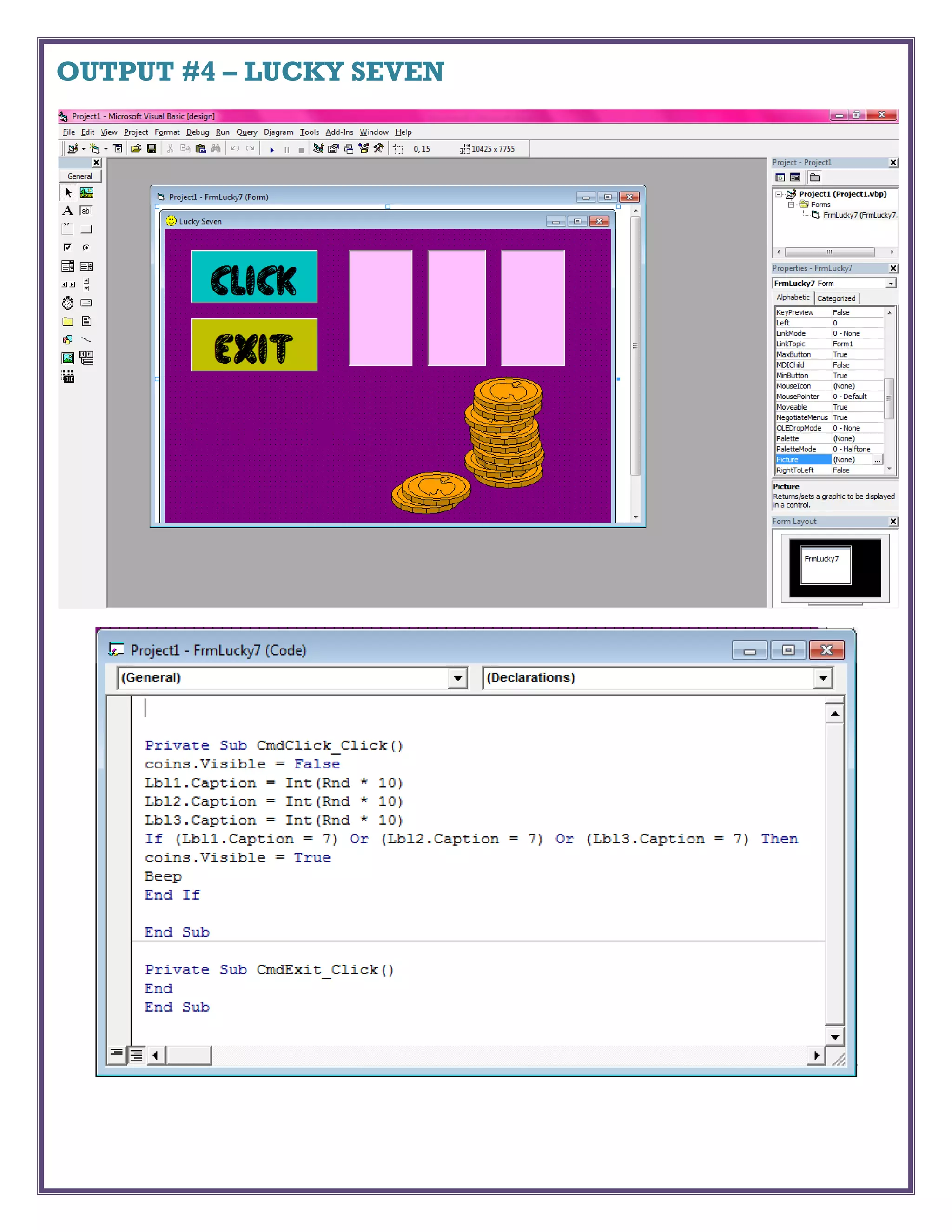
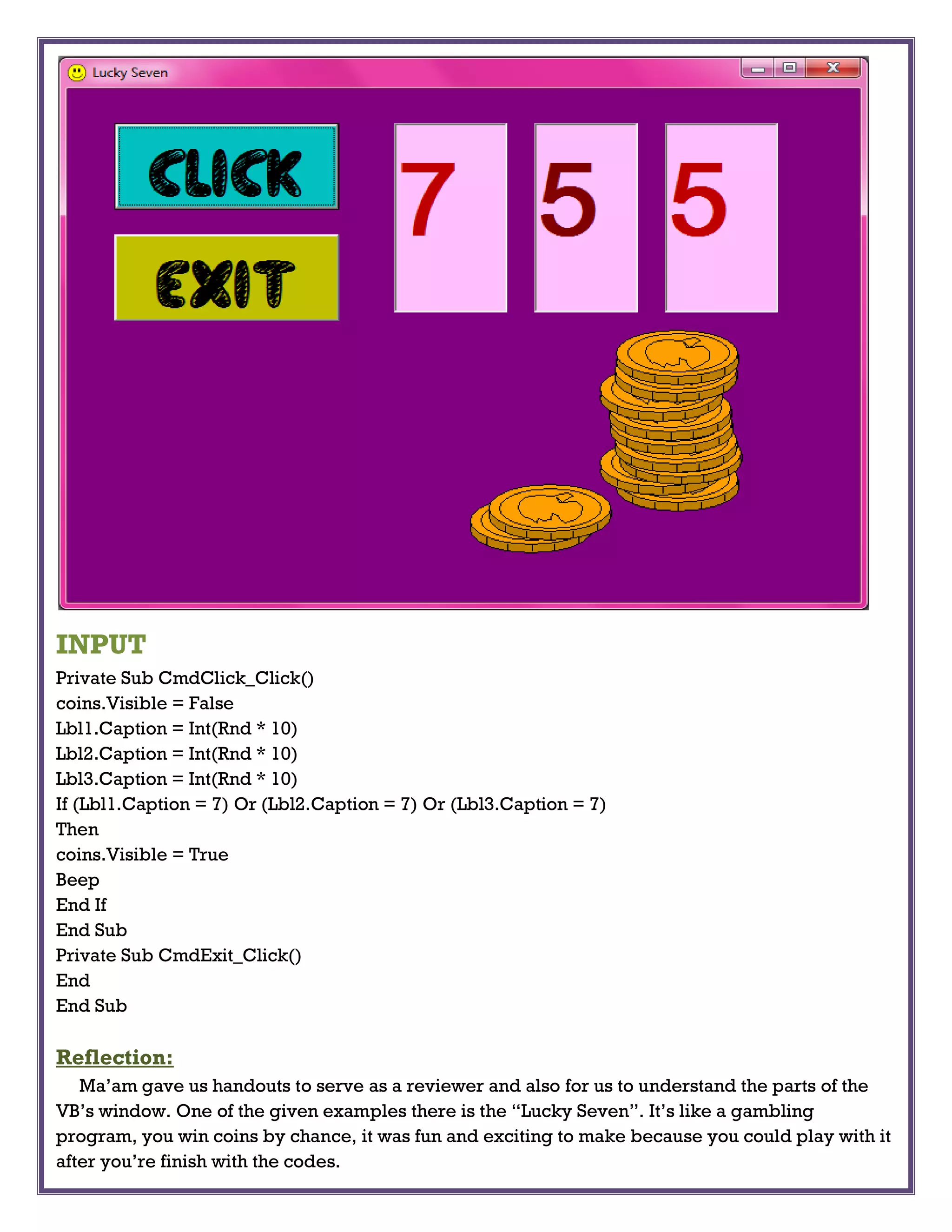
OUTPUT #4 – LUCKY SEVEN
INPUT
Private Sub CmdClick_Click()
coins.Visible = False
Lbl1.Caption = Int(Rnd * 10)
Lbl2.Caption = Int(Rnd * 10)
Lbl3.Caption = Int(Rnd * 10)
If (Lbl1.Caption = 7) Or (Lbl2.Caption = 7) Or (Lbl3.Caption = 7)
Then
coins.Visible = True
Beep
End If
End Sub
Private Sub CmdExit_Click()
End
End Sub
Reflection:
Ma’am gave us handouts to serve as a reviewer and also for us to understand the parts of the
VB’s window. One of the given examples there is the “Lucky Seven”. It’s like a gambling
program, you win coins by chance, it was fun and exciting to make because you could play with it
after you’re finish with the codes.
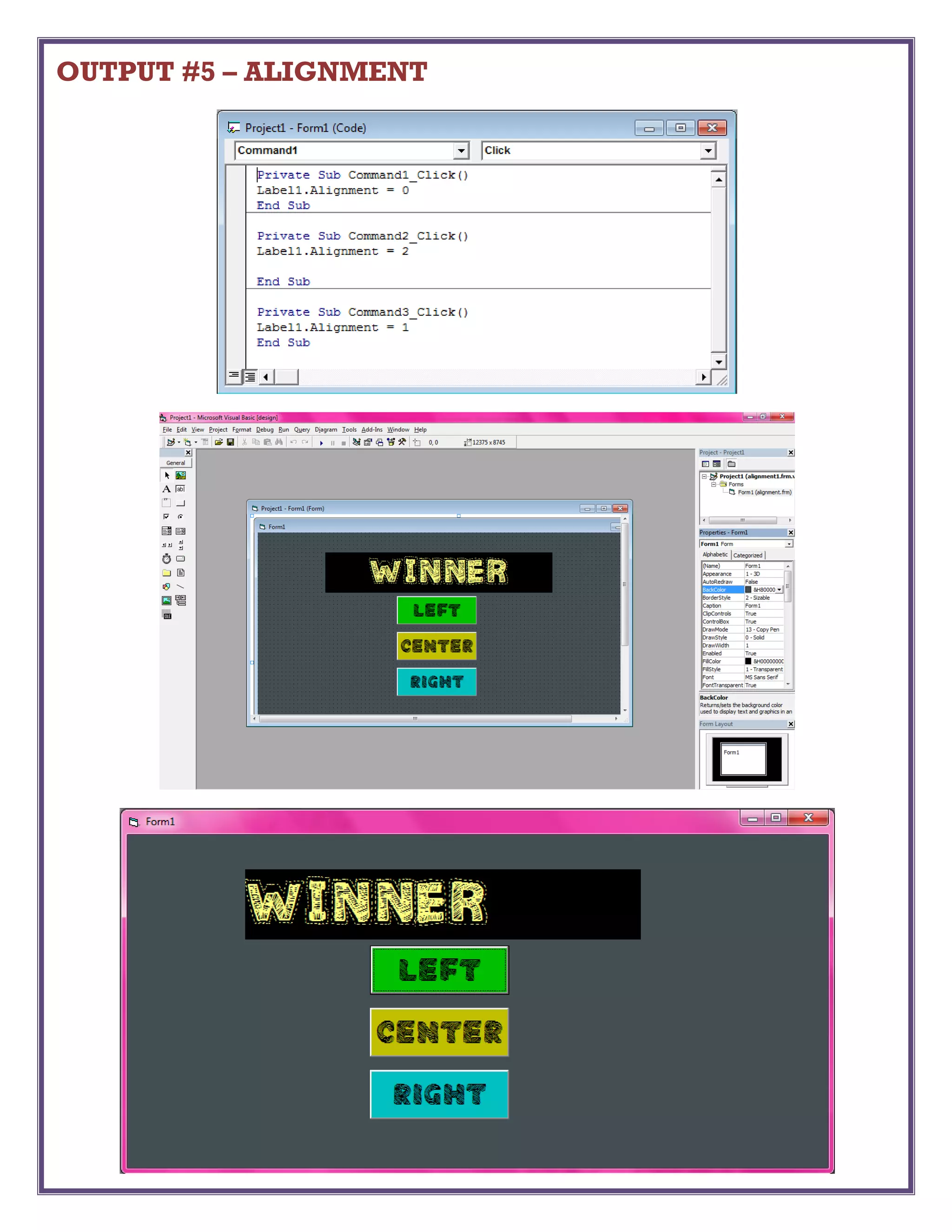
OUTPUT #5 – ALIGNMENT
INPUT
Private Sub Command1_Click()
Label1.Alignment = 0
End Sub
Private Sub Command2_Click()
Label1.Alignment = 2
End Sub
Private Sub Command3_Click()
Label1.Alignment = 1
End Sub
Reflection:
We didn’t have enough time to discuss about this but still we understood what to do. In this
project, one property is emphasized, the alignment of the text. And again, you just need to assign
the matching value to the type of alignment.
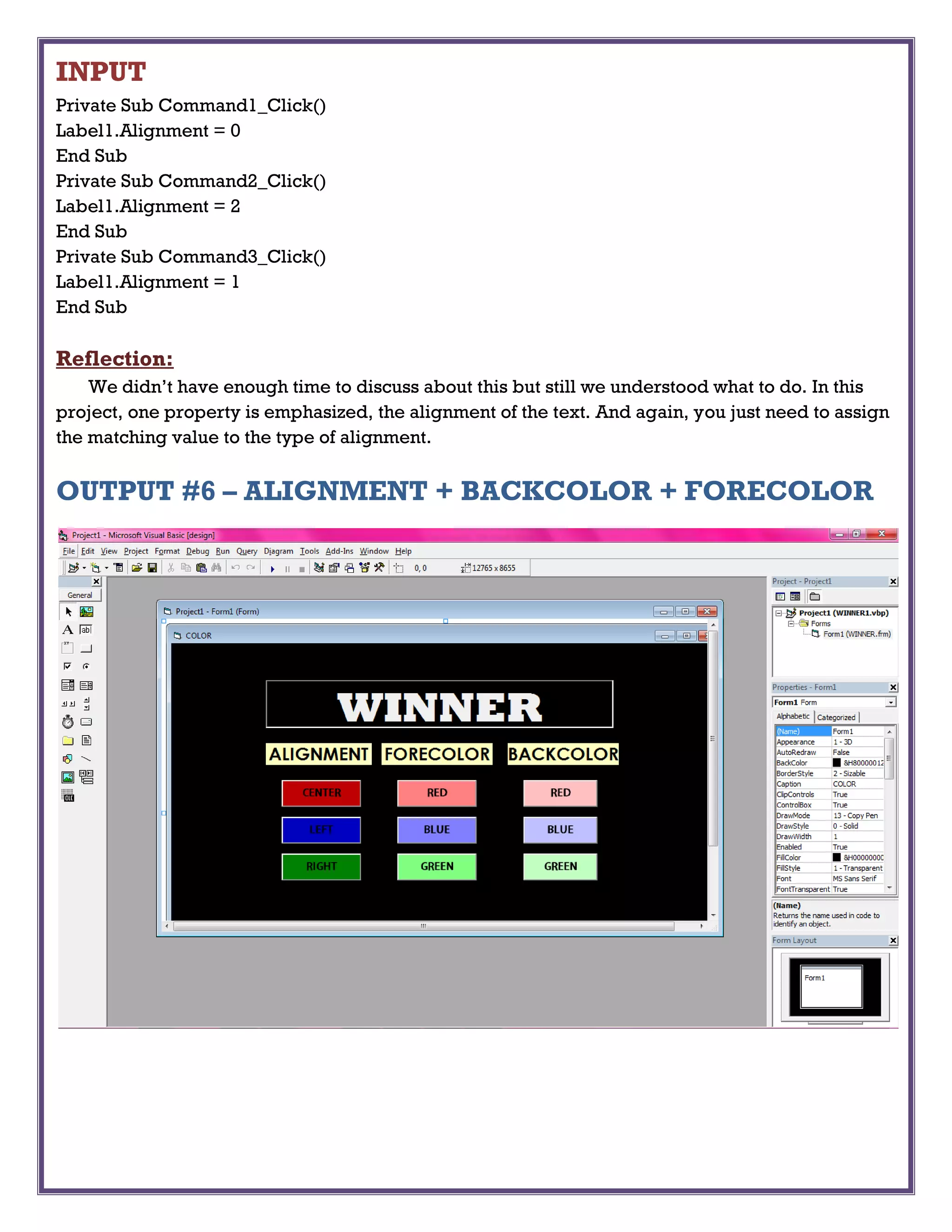
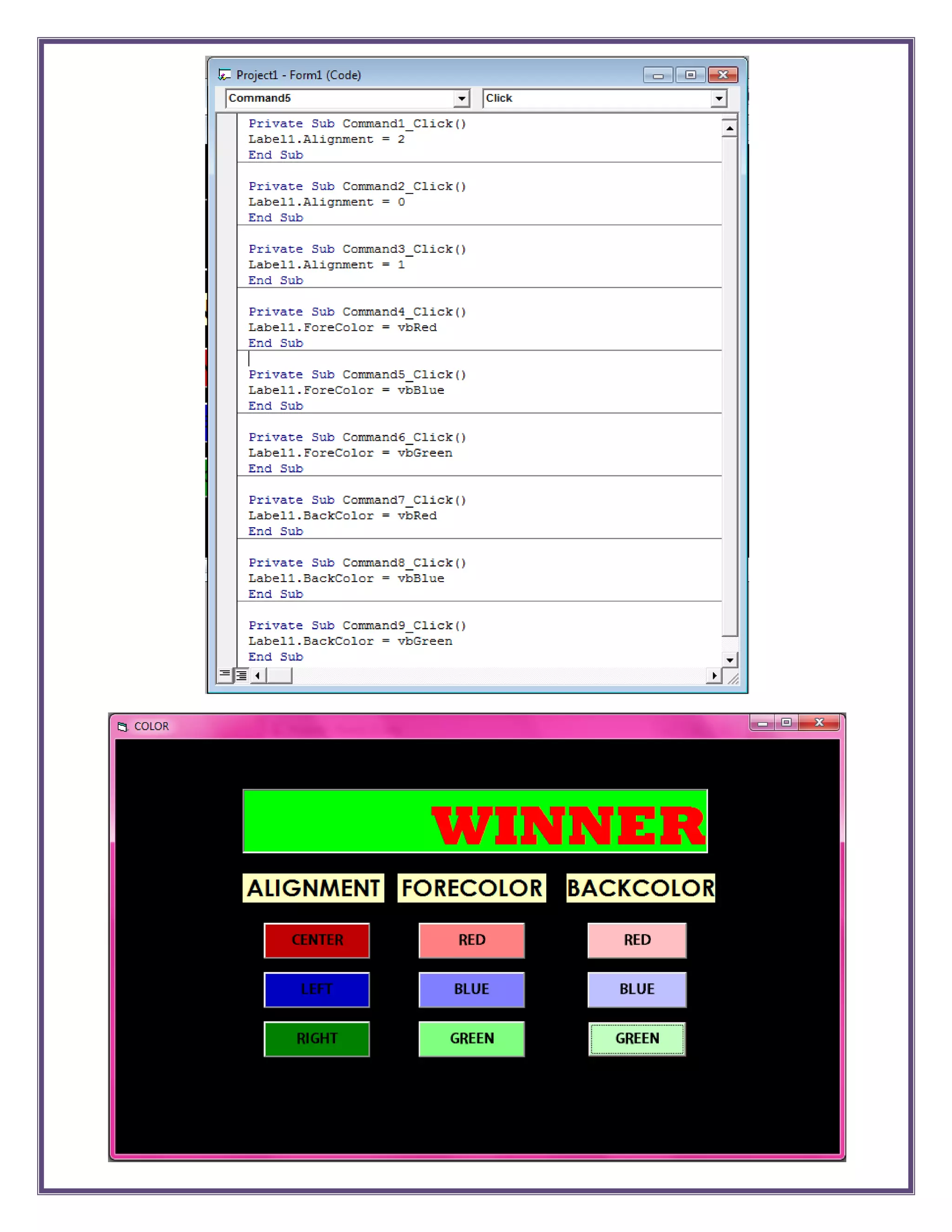
OUTPUT #6 – ALIGNMENT + BACKCOLOR + FORECOLOR
INPUT
Private Sub Command1_Click()
Label1.Alignment = 2
End Sub
Private Sub Command2_Click()
Label1.Alignment = 0
End Sub
Private Sub Command3_Click()
Label1.Alignment = 1
End Sub
Private Sub Command4_Click()
Label1.ForeColor = vbRed
End Sub
Private Sub Command5_Click()
Label1.ForeColor = vbBlue
End Sub
Private Sub Command6_Click()
Label1.ForeColor = vbGreen
End Sub
Private Sub Command7_Click()
Label1.BackColor = vbRed
End Sub
Private Sub Command8_Click()
Label1.BackColor = vbBlue
End Sub
Private Sub Command9_Click()
Label1.BackColor = vbGreen
End Sub
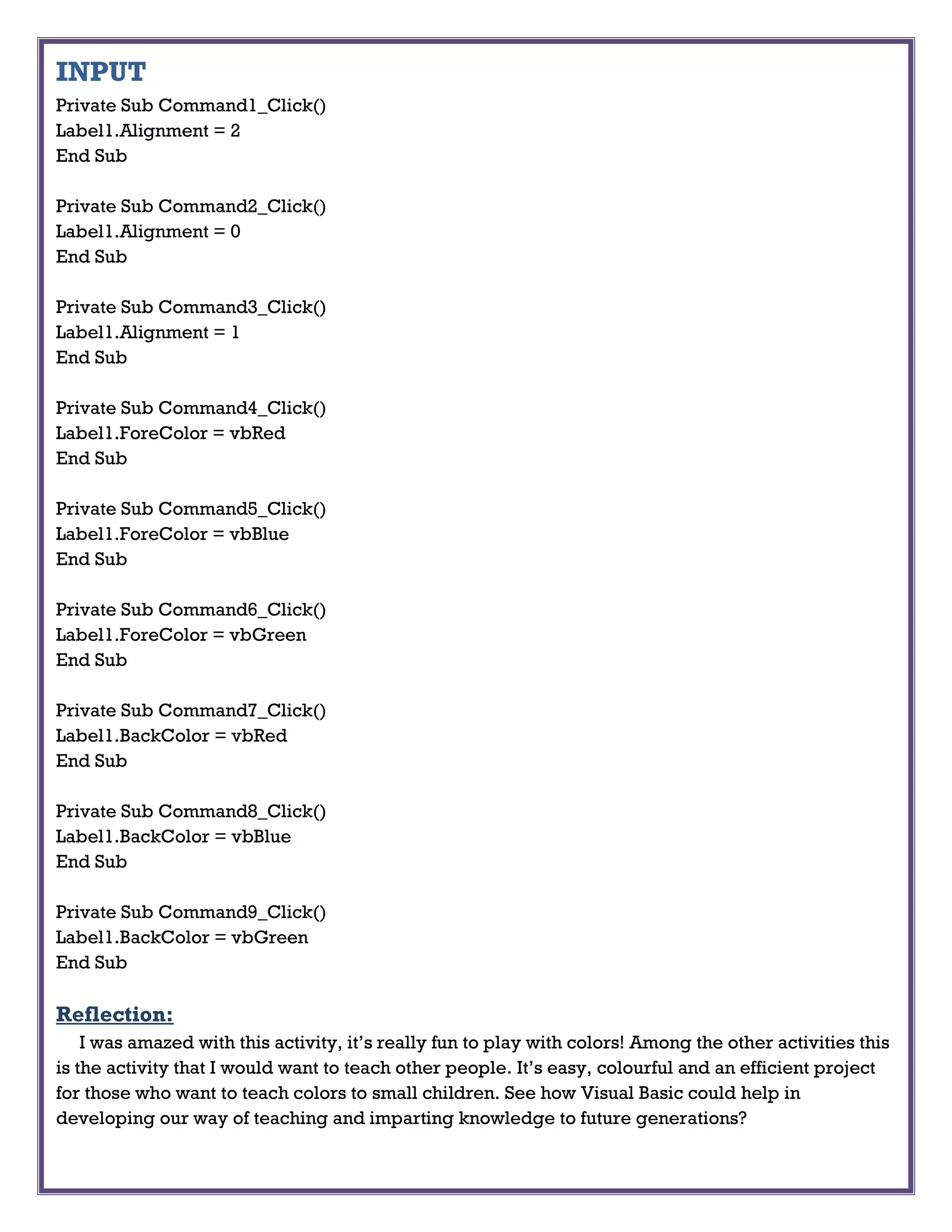
Reflection:
I was amazed with this activity, it’s really fun to play with colors! Among the other activities this
is the activity that I would want to teach other people. It’s easy, colourful and an efficient project
for those who want to teach colors to small children. See how Visual Basic could help in
developing our way of teaching and imparting knowledge to future generations?
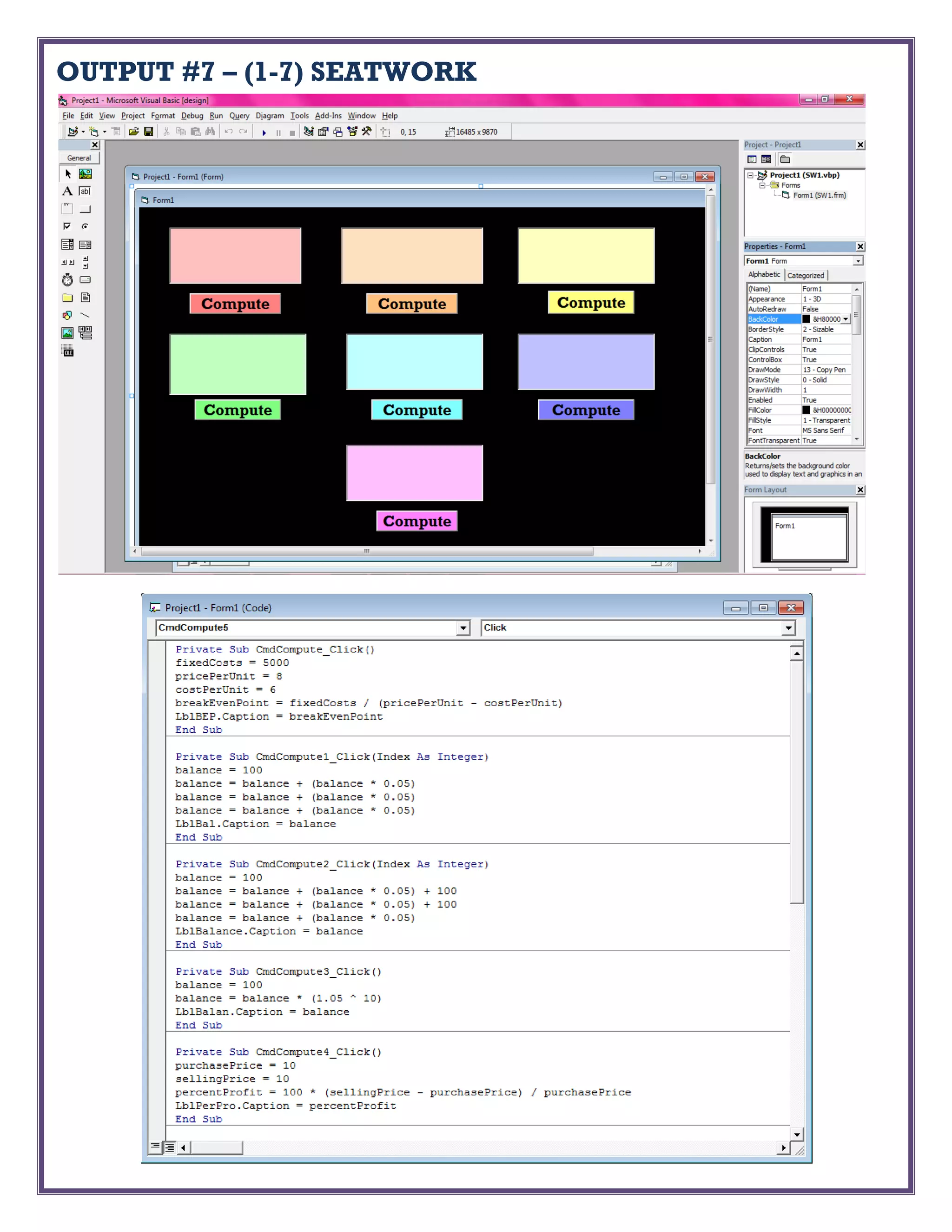
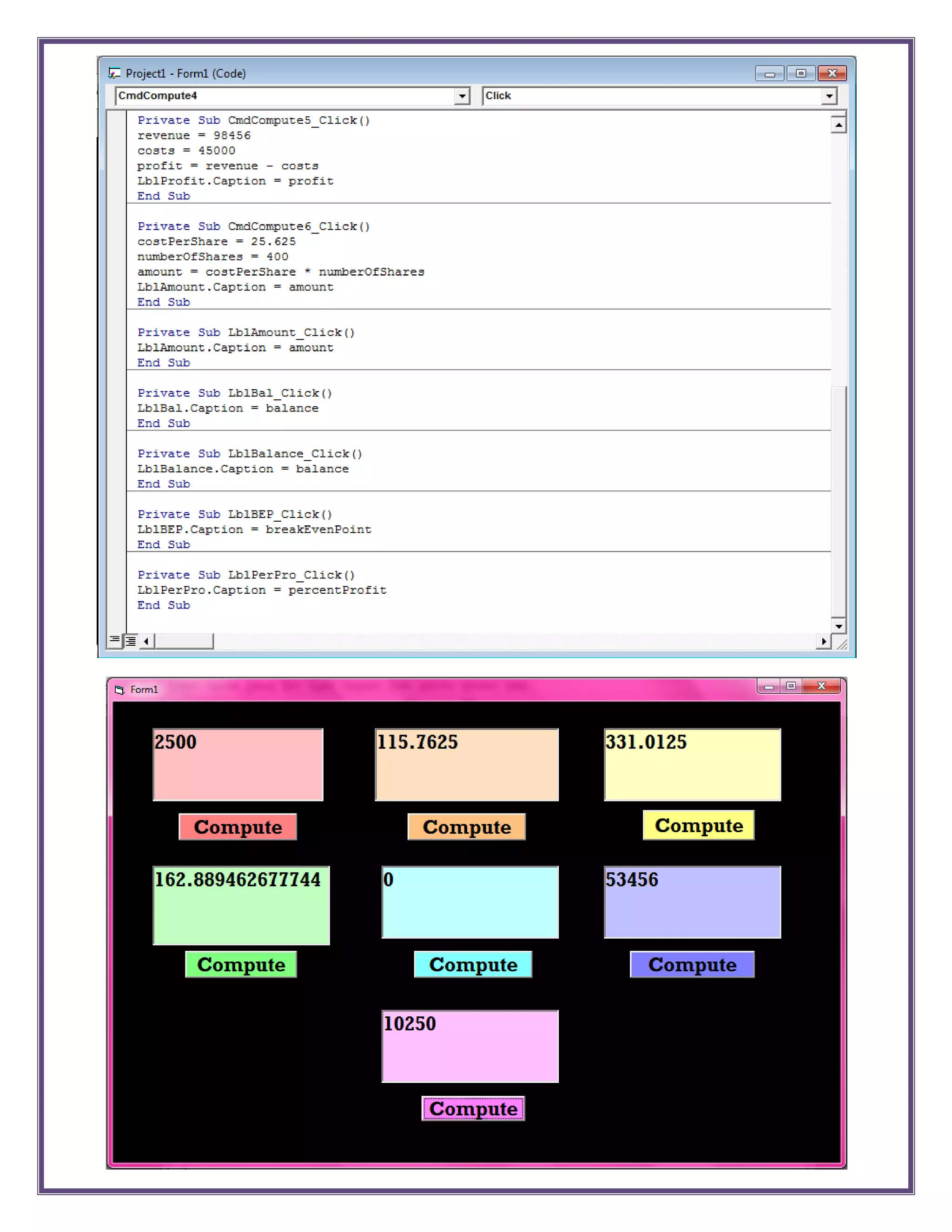
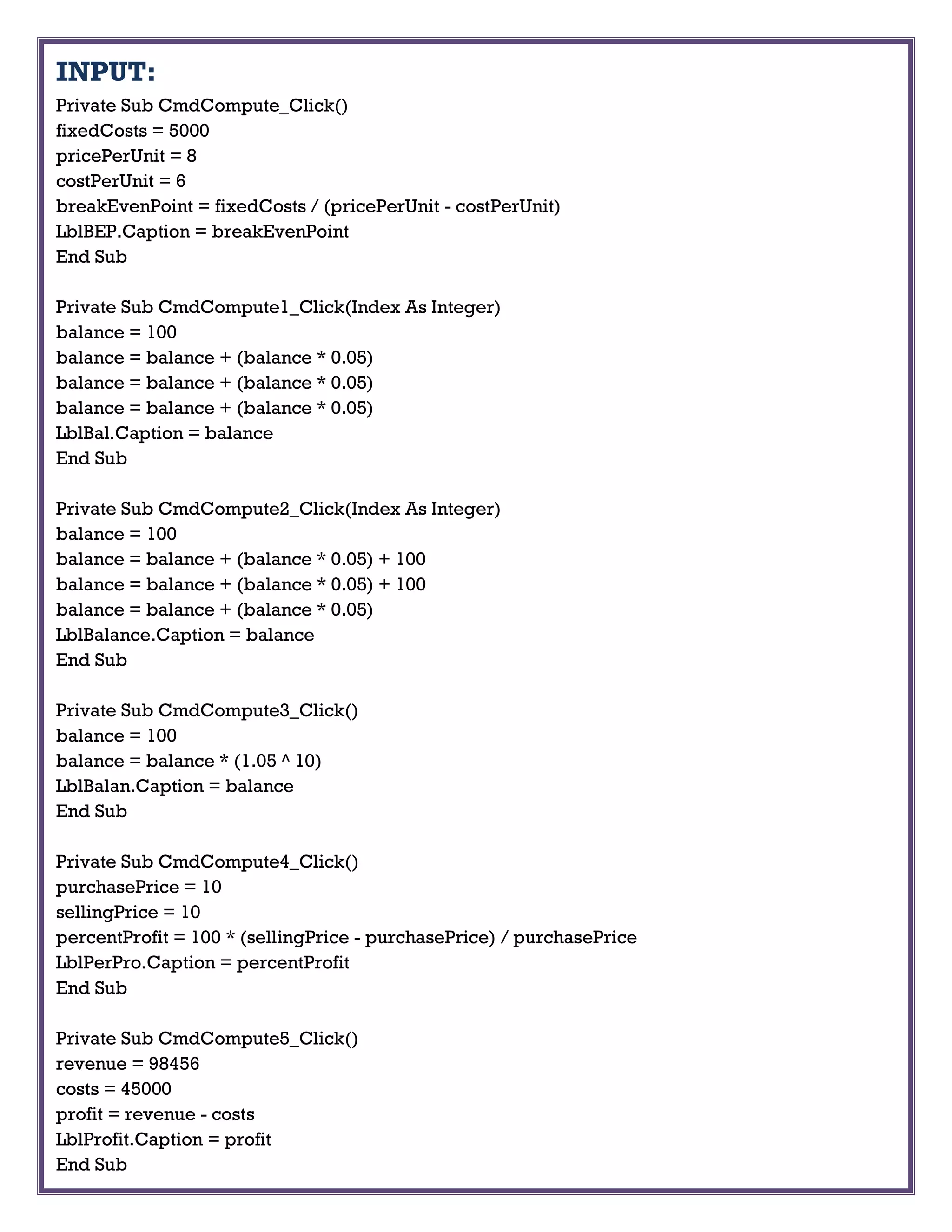
OUTPUT #7 – (1-7) SEATWORK
INPUT:
Private Sub CmdCompute_Click()
fixedCosts = 5000
pricePerUnit = 8
costPerUnit = 6
breakEvenPoint = fixedCosts / (pricePerUnit - costPerUnit)
LblBEP.Caption = breakEvenPoint
End Sub
Private Sub CmdCompute1_Click(Index As Integer)
balance = 100
balance = balance + (balance * 0.05)
LblBal.Caption = balance
End Sub
Private Sub CmdCompute2_Click(Index As Integer)
balance = 100
balance = balance + (balance * 0.05) + 100
balance = balance + (balance * 0.05)
LblBalance.Caption = balance
End Sub
Private Sub CmdCompute3_Click()
balance = 100
balance = balance * (1.05 ^ 10)
LblBalan.Caption = balance
End Sub
Private Sub CmdCompute4_Click()
purchasePrice = 10
sellingPrice = 10
percentProfit = 100 * (sellingPrice - purchasePrice) / purchasePrice
LblPerPro.Caption = percentProfit
End Sub
Private Sub CmdCompute5_Click()
revenue = 98456
costs = 45000
profit = revenue - costs
LblProfit.Caption = profit
End Sub
Private Sub CmdCompute6_Click()
costPerShare = 25.625
numberOfShares = 400
amount = costPerShare * numberOfShares
LblAmount.Caption = amount
End Sub
Private Sub LblAmount_Click()
LblAmount.Caption = amount
End Sub
Private Sub LblBal_Click()
LblBal.Caption = balance
End Sub
Private Sub LblBalance_Click()
LblBalance.Caption = balance
End Sub
Private Sub LblBEP_Click()
LblBEP.Caption = breakEvenPoint
End Sub
Private Sub LblPerPro_Click()
LblPerPro.Caption = percentProfit
End Sub
Reflection:
It may be a long activity but through
this activity I was able to further
understand the operations and the
caption element of Visual Basic. The
difference of a label from a textbox and
from a caption, I was able to realize all
of it. Not only that but we tackled more
process of computation here, like
percentage and raising a number to a
certain power. Moreover, we also
assigned variables here.
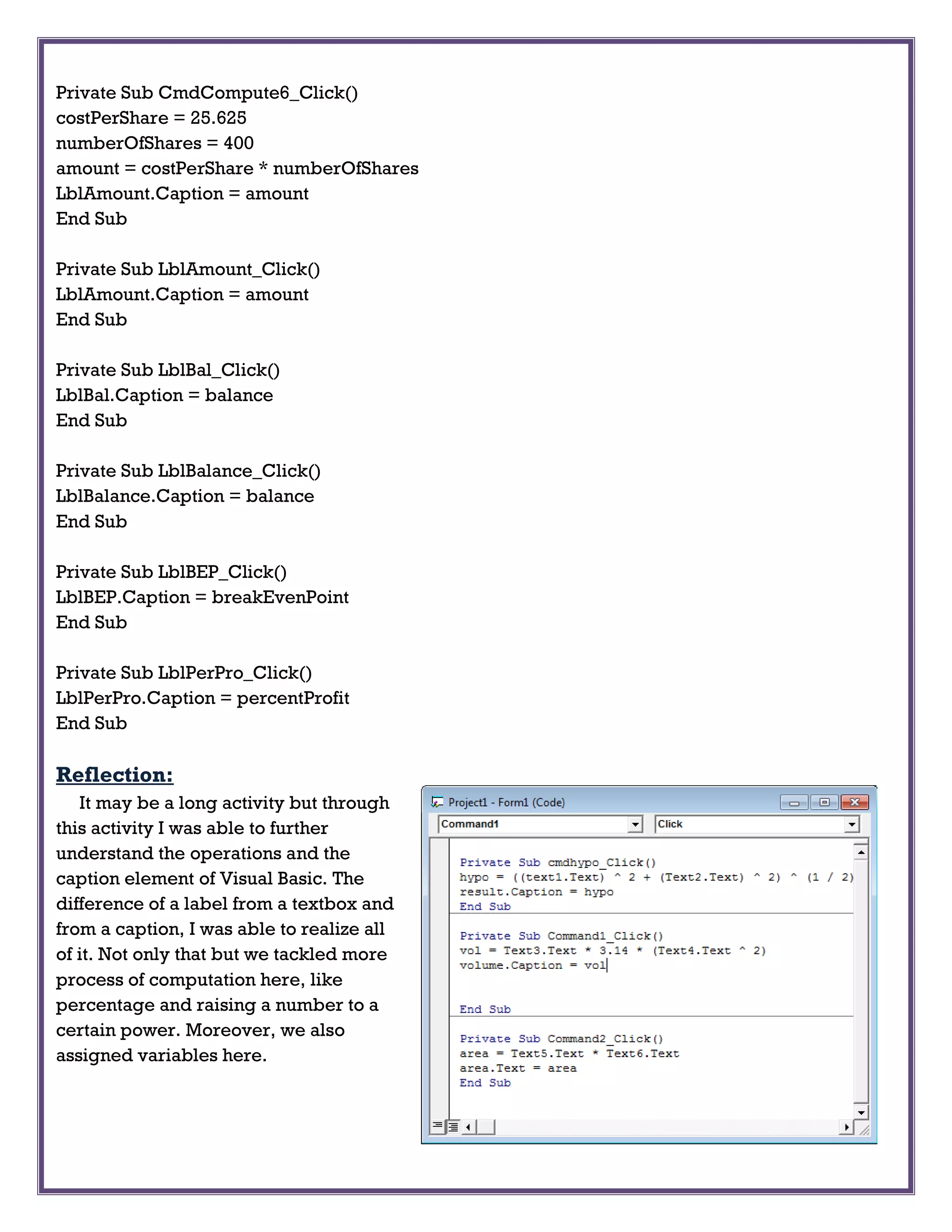
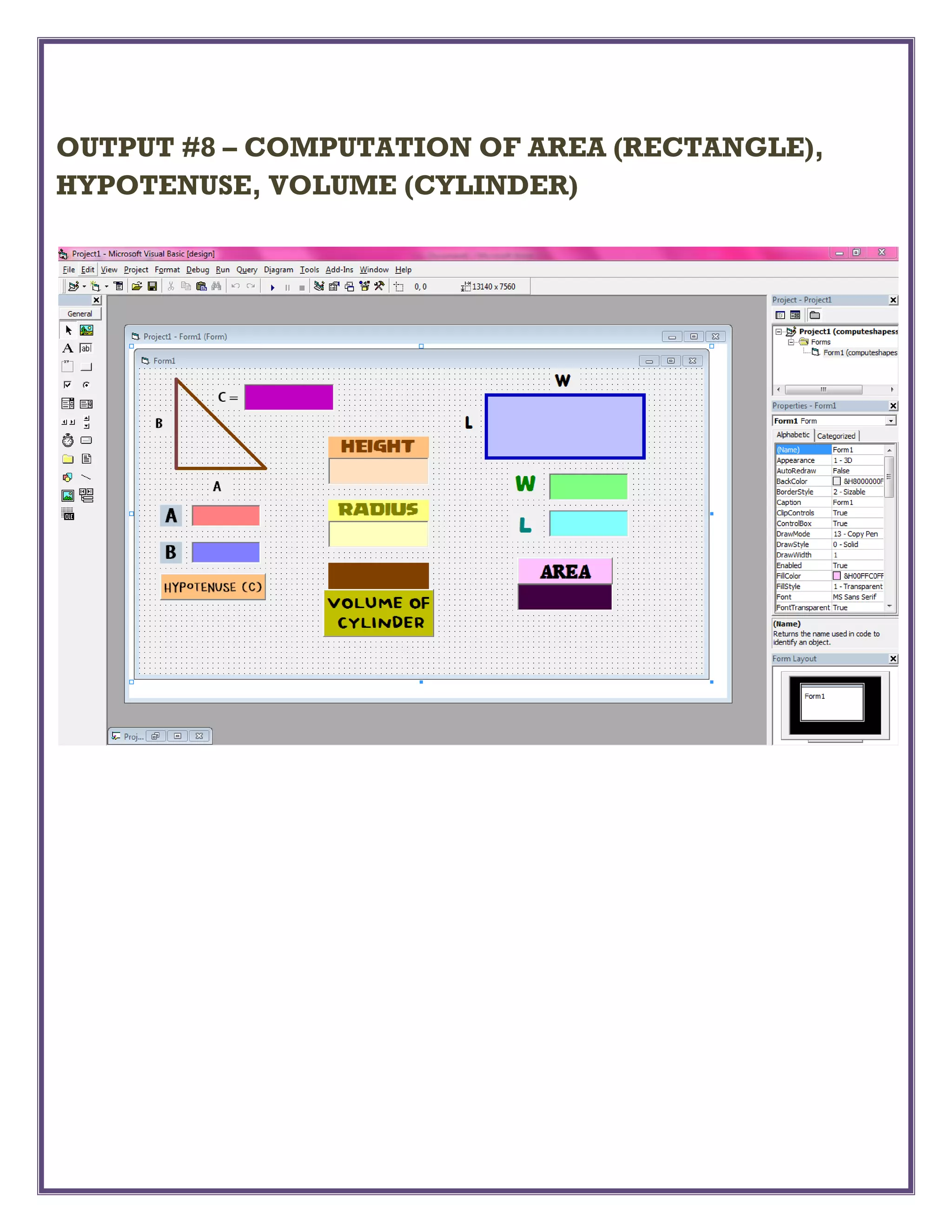
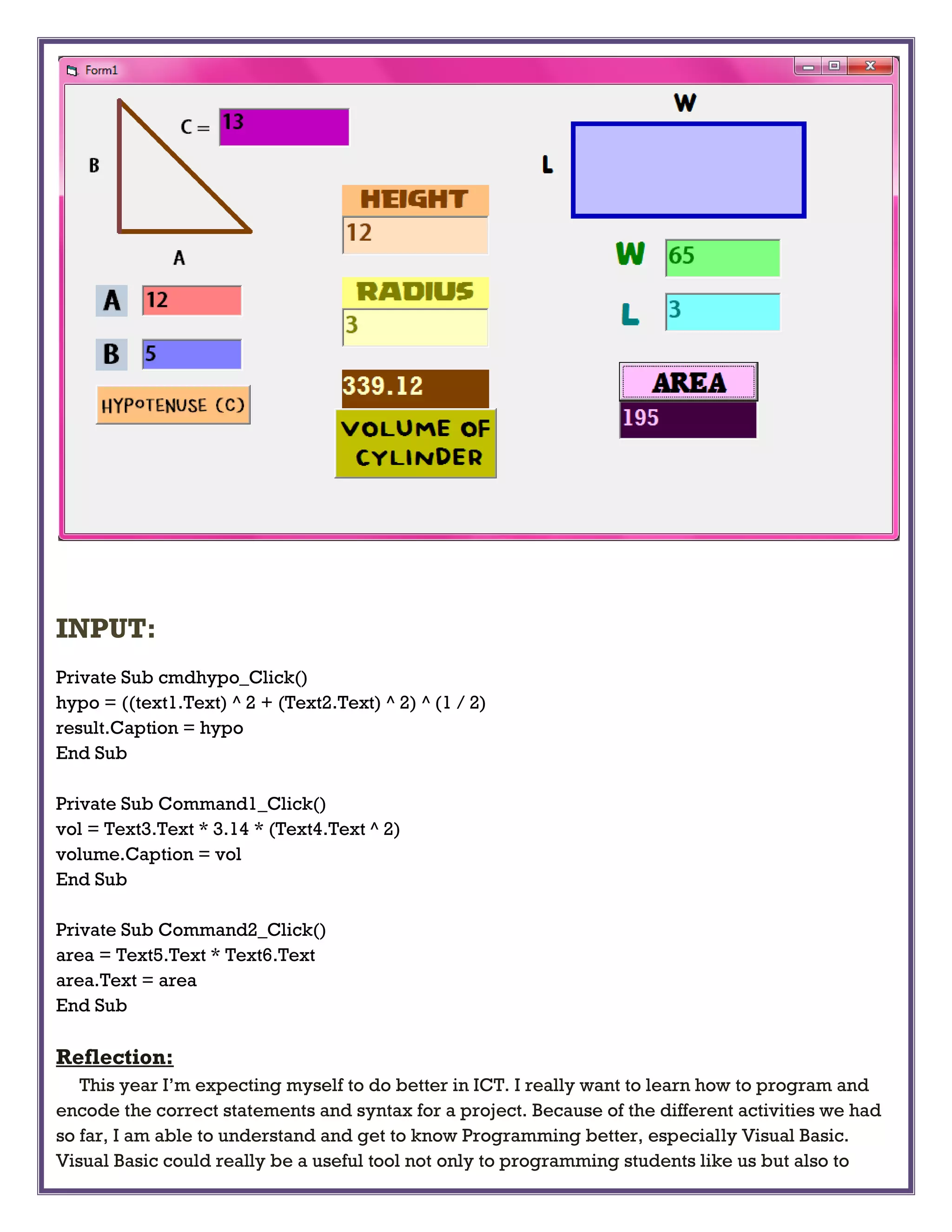
OUTPUT #8 – COMPUTATION OF AREA (RECTANGLE),
HYPOTENUSE, VOLUME (CYLINDER)
INPUT:
Private Sub cmdhypo_Click()
hypo = ((text1.Text) ^ 2 + (Text2.Text) ^ 2) ^ (1 / 2)
result.Caption = hypo
End Sub
Private Sub Command1_Click()
vol = Text3.Text * 3.14 * (Text4.Text ^ 2)
volume.Caption = vol
End Sub
Private Sub Command2_Click()
area = Text5.Text * Text6.Text
area.Text = area
End Sub
Reflection:
This year I’m expecting myself to do better in ICT. I really want to learn how to program and
encode the correct statements and syntax for a project. Because of the different activities we had
so far, I am able to understand and get to know Programming better, especially Visual Basic.
Visual Basic could really be a useful tool not only to programming students like us but also to
those who needs a glimpse of technology. Based on the activities that we have done in Mrs.
Reyes’ class, I have been always fascinated with what program we’re going to do next, even if I
don’t finish it on time I still get enthusiastic with every activity she gives us. I hope other
unfortunate students could also experience the benefits we got so far because technology is on
our side. We just need to use it for improvement and development purposes not for distraction
and situation-worsening purposes.

Ict project pdf

  • 1.
  • 2.
    Output #1 =SAMPLE PROJECT (CLICK AND CLEAR) INPUT Private Sub cmdclear_Click() txtname.Text = " " End Sub Private Sub Cmdclick_Click() txtname.Text = "Happy Nezza Aranjuez" End Sub Reflection: This is our first activity using the new introduced program in ICT- Visual Basic. It was complicated at first but we soon understood how it works and how to use it. Since it uses GUI (Graphical User Interface) the designs and layout was exciting for me.
  • 3.
  • 4.
    INPUT Private Sub cmdform_Click() frmmdas.Show EndSub Private Sub cmdrectangle_Click() Shape1.Shape = 0 End Sub Private Sub cmdrs_Click() Shape1.Shape = 5 End Sub Private Sub cmdcircle_Click() Shape1.Shape = 3 End Sub Private Sub cmdoval_Click() Shape1.Shape = 2 End Sub Private Sub cmdrr_Click() Shape1.Shape = 4 End Sub Private Sub cmdsquare_Click() Shape1.Shape = 1 End Sub Reflection: During this activity, we were able to explore other properties of a project like the options for varying shapes. We assigned the value of the corresponding shape, so that when you click the command button the shape would change depending on the chosen figure.
  • 5.
  • 6.
    INPUT Private Sub cmdadd_Click() Add= Val(text1.Text) + Val(text2.Text) txtresult.Text = Add End Sub Private Sub cmdivide_Click() Quotient = Val(text1.Text) / Val(text2.Text) txtresult.Text = Quotient End Sub Private Sub cmdmultiply_Click() mul = Val(text1.Text) * Val(text2.Text) txtresult.Text = mul End Sub Private Sub cmdsubtract_Click() Subtract = Val(text1.Text) - Val(text2.Text) txtresult.Text = Subtract End Sub Reflection: At first, for me this project is a bit complicated but as I remember our ICT grade 9 lesson in Python and Netbeans, I was able to finish the program. We already did a program like this in Netbeans before that’s why we already have the basic knowledge in encoding the needed syntax.
  • 7.
    OUTPUT #4 –LUCKY SEVEN
  • 8.
    INPUT Private Sub CmdClick_Click() coins.Visible= False Lbl1.Caption = Int(Rnd * 10) Lbl2.Caption = Int(Rnd * 10) Lbl3.Caption = Int(Rnd * 10) If (Lbl1.Caption = 7) Or (Lbl2.Caption = 7) Or (Lbl3.Caption = 7) Then coins.Visible = True Beep End If End Sub Private Sub CmdExit_Click() End End Sub Reflection: Ma’am gave us handouts to serve as a reviewer and also for us to understand the parts of the VB’s window. One of the given examples there is the “Lucky Seven”. It’s like a gambling program, you win coins by chance, it was fun and exciting to make because you could play with it after you’re finish with the codes.
  • 9.
    OUTPUT #5 –ALIGNMENT
  • 10.
    INPUT Private Sub Command1_Click() Label1.Alignment= 0 End Sub Private Sub Command2_Click() Label1.Alignment = 2 End Sub Private Sub Command3_Click() Label1.Alignment = 1 End Sub Reflection: We didn’t have enough time to discuss about this but still we understood what to do. In this project, one property is emphasized, the alignment of the text. And again, you just need to assign the matching value to the type of alignment. OUTPUT #6 – ALIGNMENT + BACKCOLOR + FORECOLOR
  • 12.
    INPUT Private Sub Command1_Click() Label1.Alignment= 2 End Sub Private Sub Command2_Click() Label1.Alignment = 0 End Sub Private Sub Command3_Click() Label1.Alignment = 1 End Sub Private Sub Command4_Click() Label1.ForeColor = vbRed End Sub Private Sub Command5_Click() Label1.ForeColor = vbBlue End Sub Private Sub Command6_Click() Label1.ForeColor = vbGreen End Sub Private Sub Command7_Click() Label1.BackColor = vbRed End Sub Private Sub Command8_Click() Label1.BackColor = vbBlue End Sub Private Sub Command9_Click() Label1.BackColor = vbGreen End Sub Reflection: I was amazed with this activity, it’s really fun to play with colors! Among the other activities this is the activity that I would want to teach other people. It’s easy, colourful and an efficient project for those who want to teach colors to small children. See how Visual Basic could help in developing our way of teaching and imparting knowledge to future generations?
  • 13.
    OUTPUT #7 –(1-7) SEATWORK
  • 15.
    INPUT: Private Sub CmdCompute_Click() fixedCosts= 5000 pricePerUnit = 8 costPerUnit = 6 breakEvenPoint = fixedCosts / (pricePerUnit - costPerUnit) LblBEP.Caption = breakEvenPoint End Sub Private Sub CmdCompute1_Click(Index As Integer) balance = 100 balance = balance + (balance * 0.05) balance = balance + (balance * 0.05) balance = balance + (balance * 0.05) LblBal.Caption = balance End Sub Private Sub CmdCompute2_Click(Index As Integer) balance = 100 balance = balance + (balance * 0.05) + 100 balance = balance + (balance * 0.05) + 100 balance = balance + (balance * 0.05) LblBalance.Caption = balance End Sub Private Sub CmdCompute3_Click() balance = 100 balance = balance * (1.05 ^ 10) LblBalan.Caption = balance End Sub Private Sub CmdCompute4_Click() purchasePrice = 10 sellingPrice = 10 percentProfit = 100 * (sellingPrice - purchasePrice) / purchasePrice LblPerPro.Caption = percentProfit End Sub Private Sub CmdCompute5_Click() revenue = 98456 costs = 45000 profit = revenue - costs LblProfit.Caption = profit End Sub
  • 16.
    Private Sub CmdCompute6_Click() costPerShare= 25.625 numberOfShares = 400 amount = costPerShare * numberOfShares LblAmount.Caption = amount End Sub Private Sub LblAmount_Click() LblAmount.Caption = amount End Sub Private Sub LblBal_Click() LblBal.Caption = balance End Sub Private Sub LblBalance_Click() LblBalance.Caption = balance End Sub Private Sub LblBEP_Click() LblBEP.Caption = breakEvenPoint End Sub Private Sub LblPerPro_Click() LblPerPro.Caption = percentProfit End Sub Reflection: It may be a long activity but through this activity I was able to further understand the operations and the caption element of Visual Basic. The difference of a label from a textbox and from a caption, I was able to realize all of it. Not only that but we tackled more process of computation here, like percentage and raising a number to a certain power. Moreover, we also assigned variables here.
  • 17.
    OUTPUT #8 –COMPUTATION OF AREA (RECTANGLE), HYPOTENUSE, VOLUME (CYLINDER)
  • 18.
    INPUT: Private Sub cmdhypo_Click() hypo= ((text1.Text) ^ 2 + (Text2.Text) ^ 2) ^ (1 / 2) result.Caption = hypo End Sub Private Sub Command1_Click() vol = Text3.Text * 3.14 * (Text4.Text ^ 2) volume.Caption = vol End Sub Private Sub Command2_Click() area = Text5.Text * Text6.Text area.Text = area End Sub Reflection: This year I’m expecting myself to do better in ICT. I really want to learn how to program and encode the correct statements and syntax for a project. Because of the different activities we had so far, I am able to understand and get to know Programming better, especially Visual Basic. Visual Basic could really be a useful tool not only to programming students like us but also to
  • 19.
    those who needsa glimpse of technology. Based on the activities that we have done in Mrs. Reyes’ class, I have been always fascinated with what program we’re going to do next, even if I don’t finish it on time I still get enthusiastic with every activity she gives us. I hope other unfortunate students could also experience the benefits we got so far because technology is on our side. We just need to use it for improvement and development purposes not for distraction and situation-worsening purposes.