
Introduction:


 The objective of this presentation is to discuss DO’S and
  DON’TS in using the computer.

 To discuss the basic parts of a computer.

 And to guide you about proper handling of your computer.
Computer
Usage Policy


               Presented by:
               MIS
Company Policy
 The computer is a company property and the MIS has the right to monitor
  these computers at any time. Therefore, users should not have any
  expectation of privacy as to the use of company computers.

 The primary purpose of the personal computer is to conduct official
  business.

 Users of personal computers may not load, download or distribute pirated
  software or pirated data from any source, nor any inappropriate images.

 The company has the right to inspect all files stored in networks and
  computers owned by Maxicare.

         Users are to ensure access to personal computers is
          secure and limited to Maxicare employees for official
          business.
Company Policy
 Keep the machine clean and in good working condition.
 The employees are not allowed to put stickers or any parts of the PC.
 Users should not tamper any computer peripherals intentionally.
 Avoid removing Computer peripherals without asking assistance from
  the MIS department.
 The employee can be held accountable for unauthorized or illegal use
  of the company owned personal computers.
 Avoid saving files unrelated to business, (e.g., Personal
  Pictures, Pornographic Materials, Music and etc.)
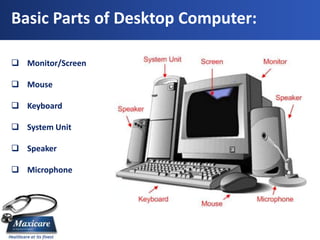
Basic Parts of Desktop Computer:

 Monitor/Screen

 Mouse

 Keyboard

 System Unit

 Speaker

 Microphone
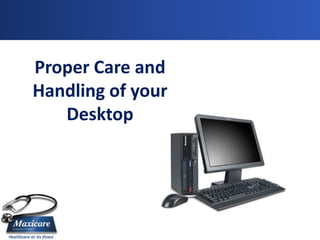
Proper Care and
Handling of your
   Desktop
Proper Handling of Desktop
Do’s:
 Shut down your computer unit properly before leaving your
  working area.
 Place desktop on a flat and stable surface
 Always keep your computer clean and dry, avoid using it with wet
  hands.

 Always disconnect the desktop from the power outlet and
   disconnect peripherals before attempting to clean your desktop
   or any of its components.
Proper Handling of Desktop

Don’ts:
  Keep liquids away from your Desktop.
  Not having an available antivirus software would help
  Keep food away from your computer.
  Don't pull on the power cord
  Don't roll your chair over the computer cord
  Avoid placing heavy materials, such as books, personal things
   etc, on top of your computer
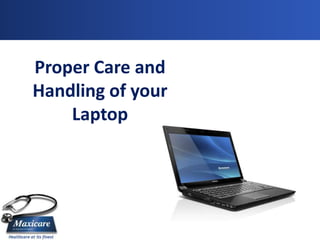
Proper Care and
Handling of your
    Laptop
Proper Handling of Laptop

Do’s:
   Use both hands when lifting and moving your laptop.
   Close the screen and unplug the power supply when moving the laptop.
   Keep liquids away from your laptop.
   Keep food away from your laptop.
   Always keep your hands clean while using your laptop.
Proper Handling of Laptop
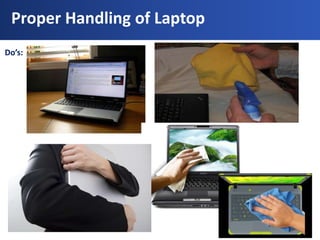
Do’s:
Proper Handling of Laptop

Don’ts:
 Never lift your computer by the screen!
 Never travel places with your screen open; keep it closed to prevent damage
  to the screen.
 Never carry your laptop with a bunch of books or anything heavy on top of it.
  This can cause damage to the screen or even the internal components if it
  flexes enough.
 Be careful not to place objects such as pencils or highlighters inside of the
  machine when you close it
Proper Handling of Laptop
Don’ts:
Proper Handling of Laptop
Don’ts:
How to avoid these common laptop problems
Dropped Laptop:
   Carry the computer with both hands. ALWAYS!
   Place laptop on a flat, stable surface.
   Avoid placing the laptop near the edge of a desk or workspace.
   Be careful that wires or power cords do not pull the laptop off the surface.


Cracked Screen:

 Do not put books or any heavy objects on top of laptop or laptop case.
 Do not close a laptop with pens, pencils, or papers inside.


Broken Hinges:
 Open the laptop by depressing the button on the front edge and softly
  lifting the lid from each side. Do not slam the lid shut.
Proper cleaning of your laptop:


You should occasionally clean your computer as follows:

 Use a soft lint-free cloth moistened with non-alkaline detergent to wipe the
  exterior of the computer.

 Don't spray cleaner directly on the display or keyboard.

 Gently wipe the LCD with a dry, soft lint-free cloth. If a stain
  remains, moisten the cloth with LCD cleaner and wipe it again. Be sure to
  dry the LCD before closing it.
How to protect your screen:
The laptop screens can be damaged if subjected to rough treatment. The
screens are particularly sensitive to damage from excessive pressure on the
screen.

Do not lean on the top of the laptop when it is closed.

Do not place anything in the carrying case that will press against the cover.

Do not poke the screen.

Do not place anything on the keyboard before closing the lid (e.g.
pens, pencils, or disks).
Charger Care:


 Avoid bending the charger's cord at sharp angles.

 Position your charger so that you won't roll over the cord with a chair, or
  catch the cord in the sharp edges of desk drawers.

 Disconnect all connected cords, USB memory and any adapters before
  putting your laptop into a carrying case or bag.
Tips for Longer-Lasting Laptop Batteries
Keep it cool.
   •Heat is the primary killer of batteries.
   •Be careful not to let your laptop overheat.
Recondition your battery regularly.
   •Turn off your screen saver and any other power management tools
   which put your PC to sleep.
   •Fully charge the laptop, and then let it run all the way down — right
   until it powers down due to lack of juice.
   •Then charge it back up again and restore your power management
   stuff. Do this every few months (such as three times a year).
Remove it when you're not using it.
   •When you leave your laptop plugged in at your desk all day every
   day, the battery never gets a chance to discharge and recharge —
   which is critical to its long-term health.
   •Remove the battery. As long as your laptop is connected to AC
   power, the battery isn't necessary; it'll run without it. Just remember
   to pop it back in before you take your laptop on the go.
Remember:
*Following these ergonomic guidelines can help you prevent
common problems such as breaking, failure and physical damage
to the equipment.

*And in most cases, corrective measures are relatively simple and
inexpensive.

* Computing devices provided by the MIS department are
exclusive property of the company and as such, should be handled
responsibly.
THANK YOU!

ICT Laptop and Desktop Policy Final

  • 2.
    Introduction:  The objectiveof this presentation is to discuss DO’S and DON’TS in using the computer.  To discuss the basic parts of a computer.  And to guide you about proper handling of your computer.
  • 3.
    Computer Usage Policy Presented by: MIS
  • 4.
    Company Policy  Thecomputer is a company property and the MIS has the right to monitor these computers at any time. Therefore, users should not have any expectation of privacy as to the use of company computers.  The primary purpose of the personal computer is to conduct official business.  Users of personal computers may not load, download or distribute pirated software or pirated data from any source, nor any inappropriate images.  The company has the right to inspect all files stored in networks and computers owned by Maxicare.  Users are to ensure access to personal computers is secure and limited to Maxicare employees for official business.
  • 5.
    Company Policy  Keepthe machine clean and in good working condition.  The employees are not allowed to put stickers or any parts of the PC.  Users should not tamper any computer peripherals intentionally.  Avoid removing Computer peripherals without asking assistance from the MIS department.  The employee can be held accountable for unauthorized or illegal use of the company owned personal computers.  Avoid saving files unrelated to business, (e.g., Personal Pictures, Pornographic Materials, Music and etc.)
  • 6.
    Basic Parts ofDesktop Computer:  Monitor/Screen  Mouse  Keyboard  System Unit  Speaker  Microphone
  • 7.
    Proper Care and Handlingof your Desktop
  • 8.
    Proper Handling ofDesktop Do’s:  Shut down your computer unit properly before leaving your working area.  Place desktop on a flat and stable surface  Always keep your computer clean and dry, avoid using it with wet hands.  Always disconnect the desktop from the power outlet and disconnect peripherals before attempting to clean your desktop or any of its components.
  • 9.
    Proper Handling ofDesktop Don’ts:  Keep liquids away from your Desktop.  Not having an available antivirus software would help  Keep food away from your computer.  Don't pull on the power cord  Don't roll your chair over the computer cord  Avoid placing heavy materials, such as books, personal things etc, on top of your computer
  • 10.
  • 11.
    Proper Handling ofLaptop Do’s:  Use both hands when lifting and moving your laptop.  Close the screen and unplug the power supply when moving the laptop.  Keep liquids away from your laptop.  Keep food away from your laptop.  Always keep your hands clean while using your laptop.
  • 12.
    Proper Handling ofLaptop Do’s:
  • 13.
    Proper Handling ofLaptop Don’ts:  Never lift your computer by the screen!  Never travel places with your screen open; keep it closed to prevent damage to the screen.  Never carry your laptop with a bunch of books or anything heavy on top of it. This can cause damage to the screen or even the internal components if it flexes enough.  Be careful not to place objects such as pencils or highlighters inside of the machine when you close it
  • 14.
    Proper Handling ofLaptop Don’ts:
  • 15.
    Proper Handling ofLaptop Don’ts:
  • 16.
    How to avoidthese common laptop problems Dropped Laptop:  Carry the computer with both hands. ALWAYS!  Place laptop on a flat, stable surface.  Avoid placing the laptop near the edge of a desk or workspace.  Be careful that wires or power cords do not pull the laptop off the surface. Cracked Screen:  Do not put books or any heavy objects on top of laptop or laptop case.  Do not close a laptop with pens, pencils, or papers inside. Broken Hinges:  Open the laptop by depressing the button on the front edge and softly lifting the lid from each side. Do not slam the lid shut.
  • 17.
    Proper cleaning ofyour laptop: You should occasionally clean your computer as follows:  Use a soft lint-free cloth moistened with non-alkaline detergent to wipe the exterior of the computer.  Don't spray cleaner directly on the display or keyboard.  Gently wipe the LCD with a dry, soft lint-free cloth. If a stain remains, moisten the cloth with LCD cleaner and wipe it again. Be sure to dry the LCD before closing it.
  • 18.
    How to protectyour screen: The laptop screens can be damaged if subjected to rough treatment. The screens are particularly sensitive to damage from excessive pressure on the screen. Do not lean on the top of the laptop when it is closed. Do not place anything in the carrying case that will press against the cover. Do not poke the screen. Do not place anything on the keyboard before closing the lid (e.g. pens, pencils, or disks).
  • 19.
    Charger Care:  Avoidbending the charger's cord at sharp angles.  Position your charger so that you won't roll over the cord with a chair, or catch the cord in the sharp edges of desk drawers.  Disconnect all connected cords, USB memory and any adapters before putting your laptop into a carrying case or bag.
  • 20.
    Tips for Longer-LastingLaptop Batteries Keep it cool. •Heat is the primary killer of batteries. •Be careful not to let your laptop overheat. Recondition your battery regularly. •Turn off your screen saver and any other power management tools which put your PC to sleep. •Fully charge the laptop, and then let it run all the way down — right until it powers down due to lack of juice. •Then charge it back up again and restore your power management stuff. Do this every few months (such as three times a year). Remove it when you're not using it. •When you leave your laptop plugged in at your desk all day every day, the battery never gets a chance to discharge and recharge — which is critical to its long-term health. •Remove the battery. As long as your laptop is connected to AC power, the battery isn't necessary; it'll run without it. Just remember to pop it back in before you take your laptop on the go.
  • 21.
    Remember: *Following these ergonomicguidelines can help you prevent common problems such as breaking, failure and physical damage to the equipment. *And in most cases, corrective measures are relatively simple and inexpensive. * Computing devices provided by the MIS department are exclusive property of the company and as such, should be handled responsibly.
  • 22.