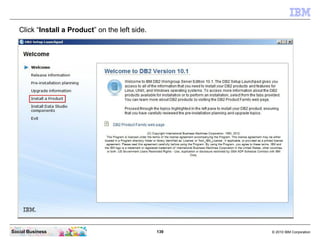
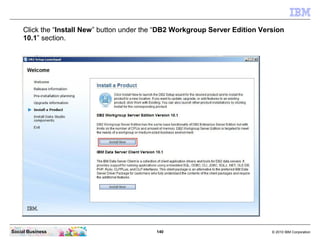
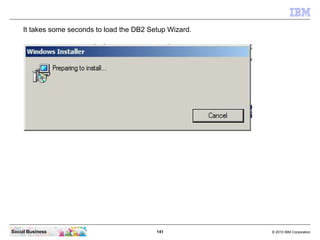
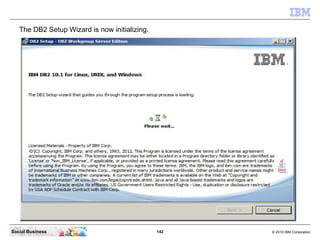
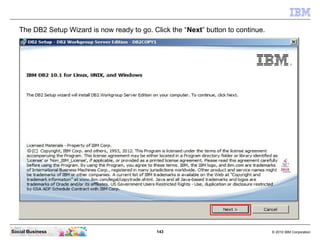
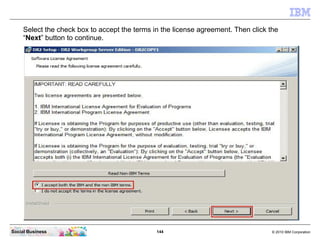
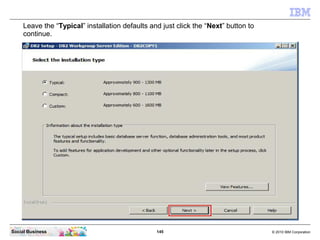
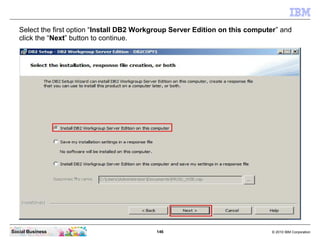
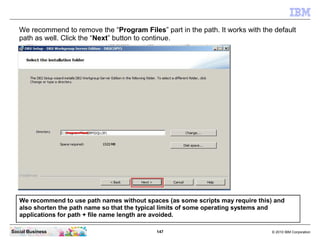
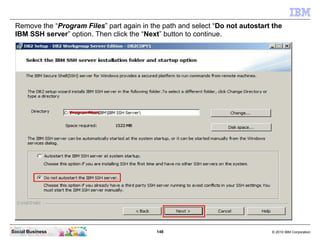
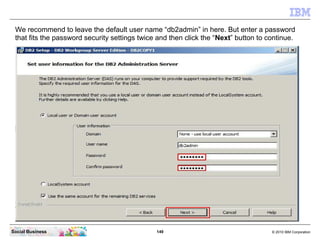
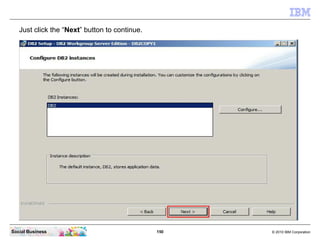
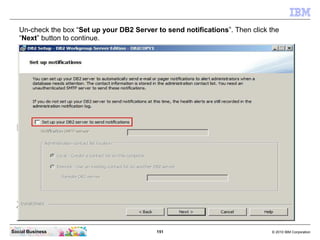
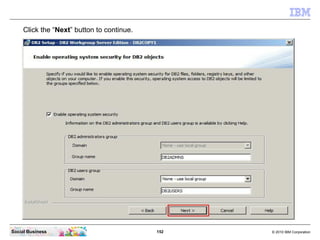
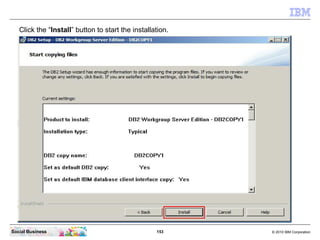
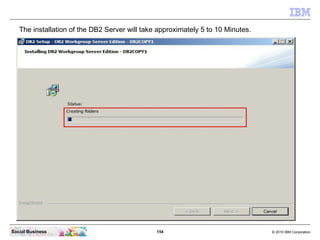
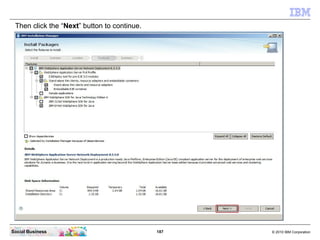
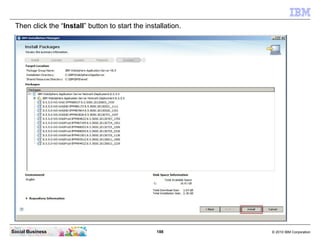
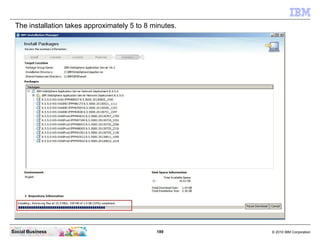
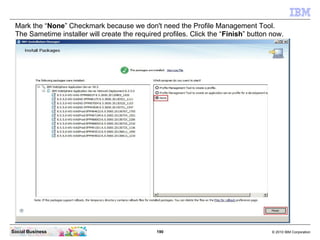
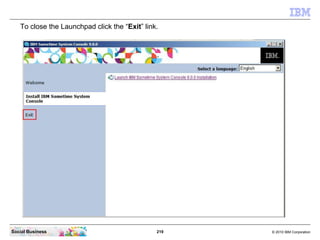
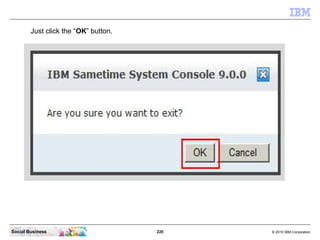
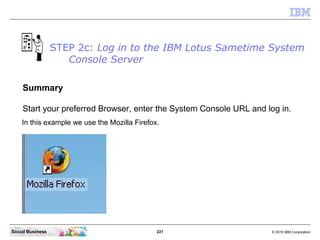
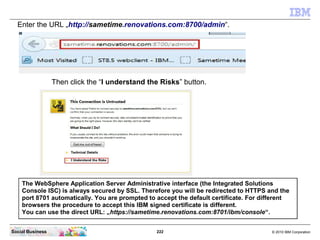
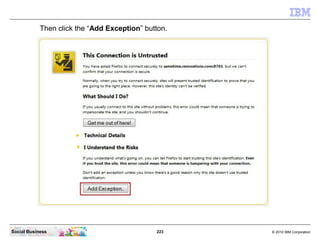
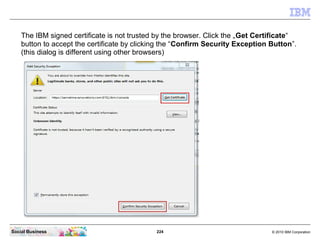
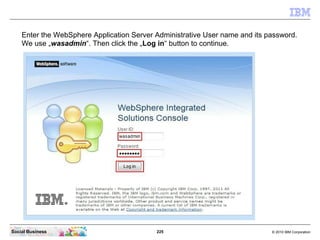
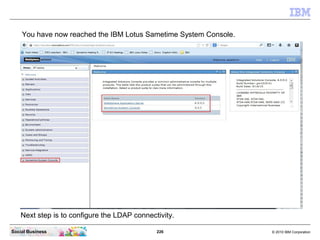
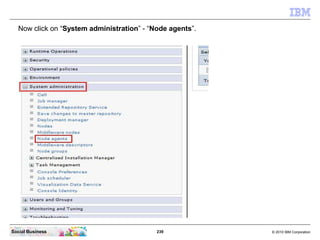
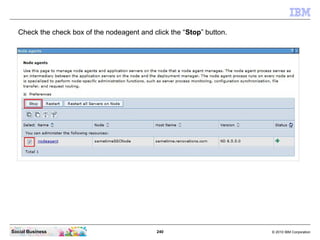
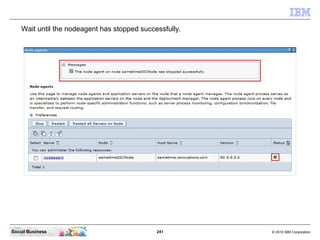
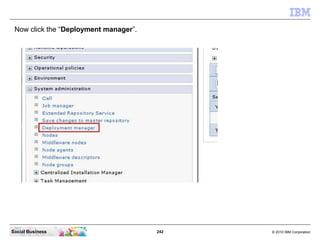
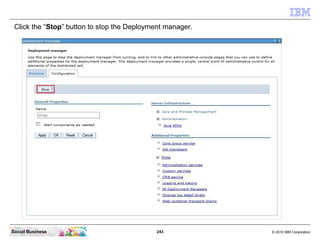
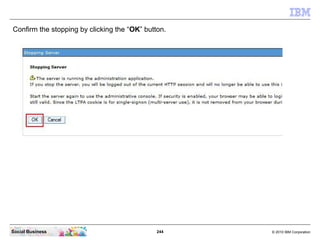
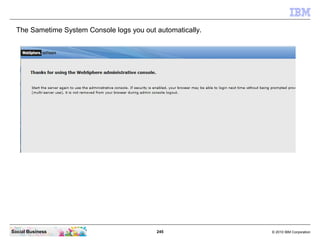
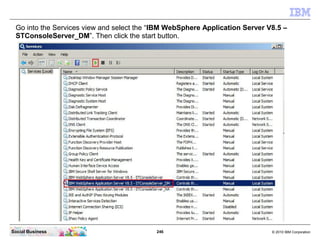
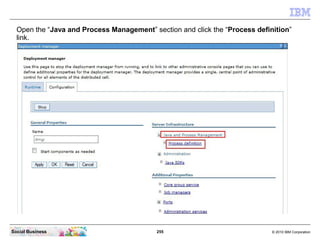
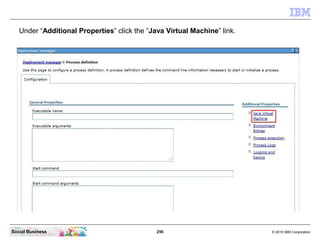
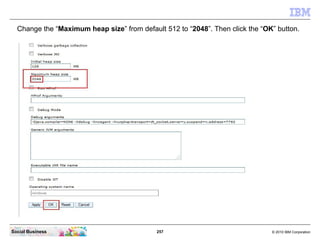
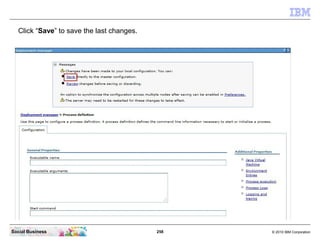
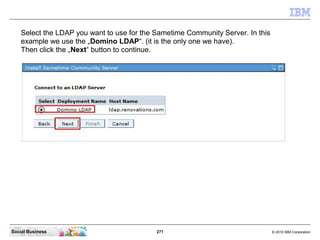
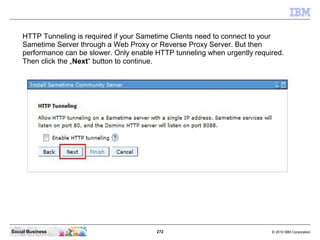
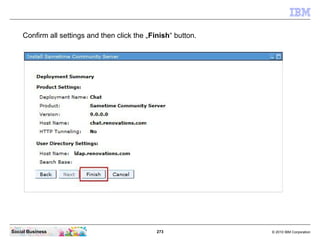
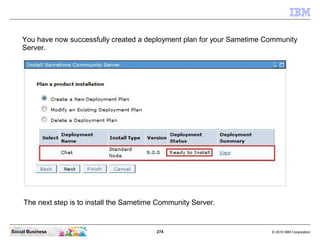
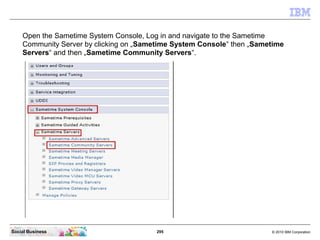
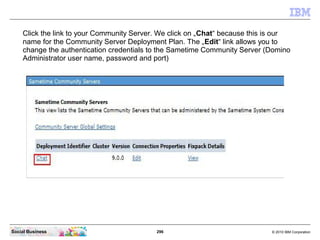
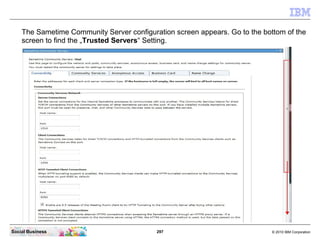
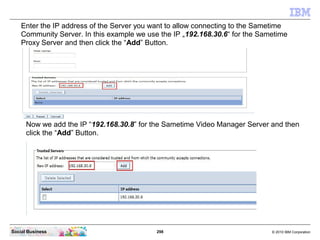
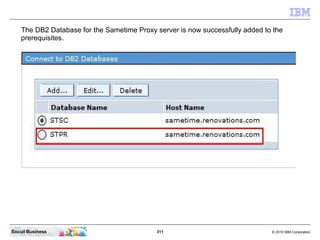
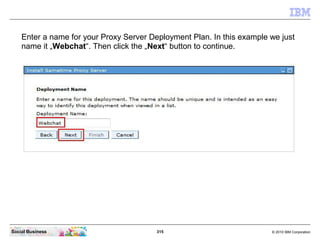
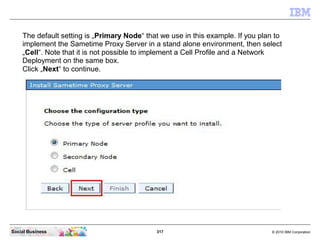
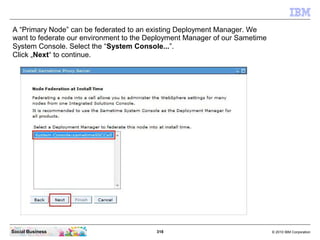
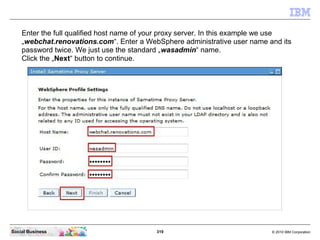
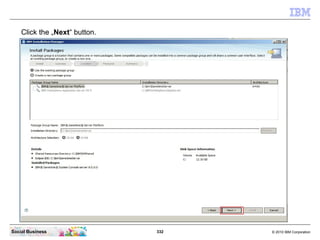
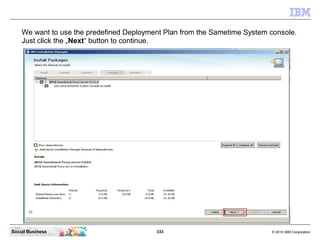
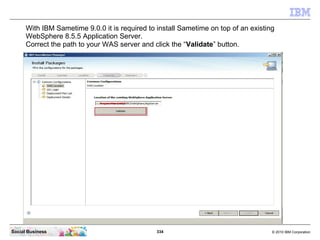
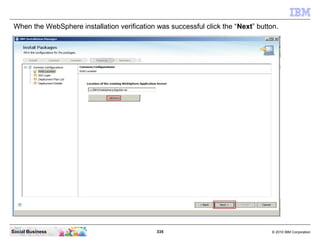
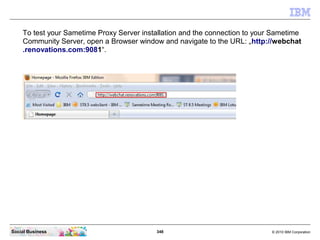
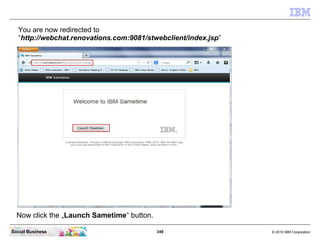
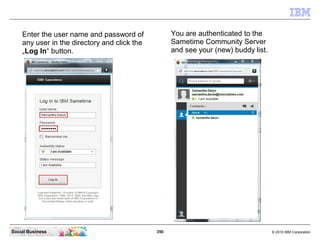
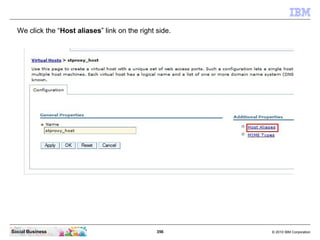
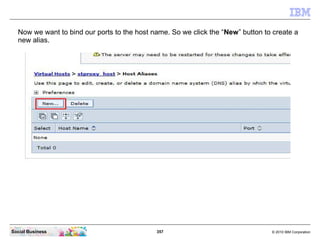
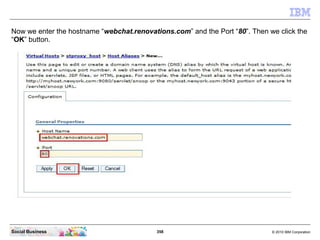
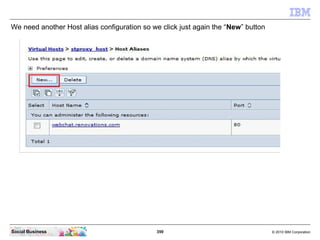
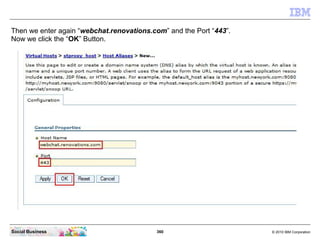
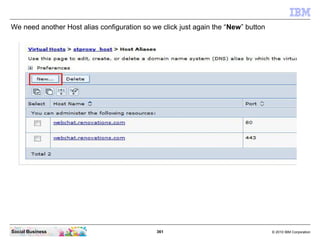
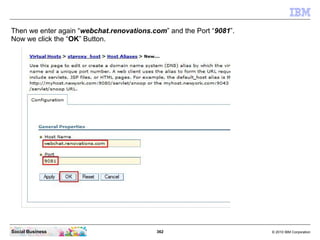
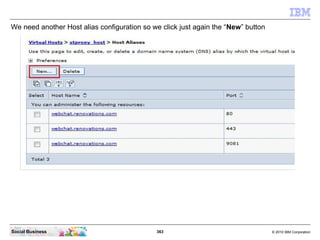
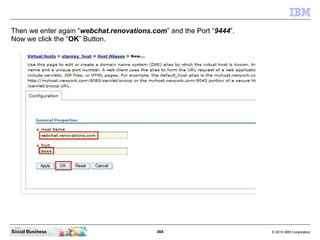
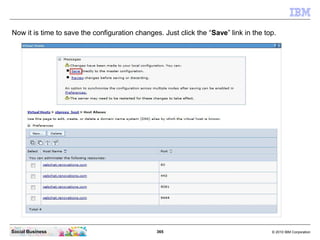
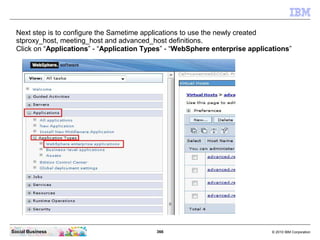
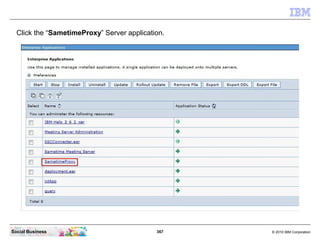
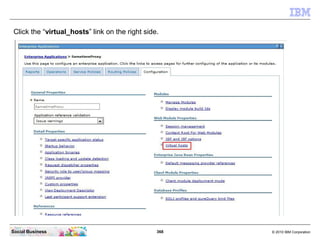
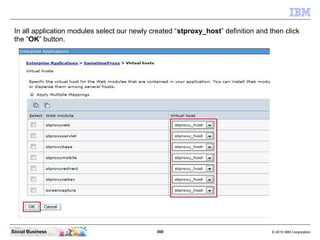
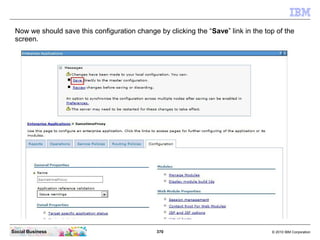
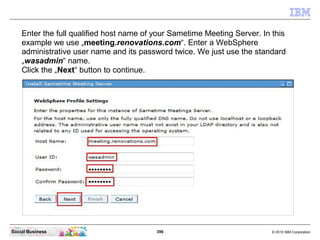
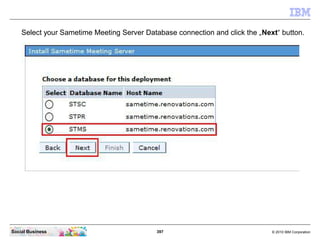
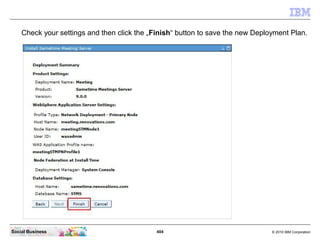
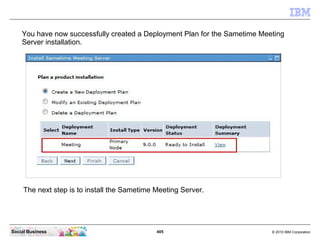
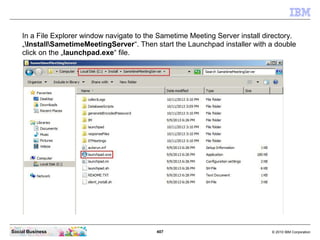
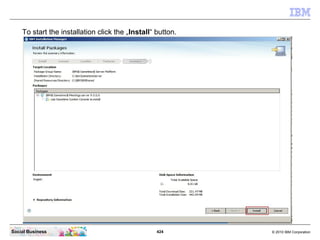
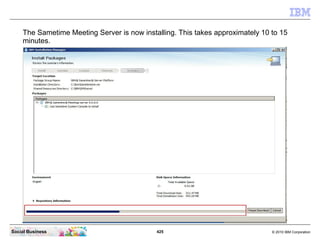
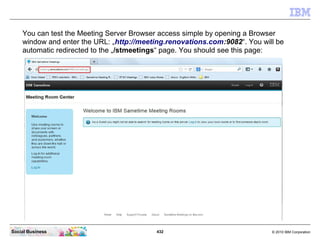
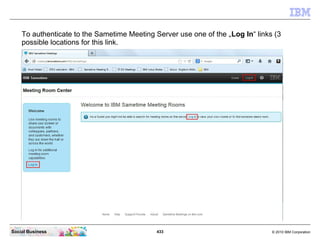
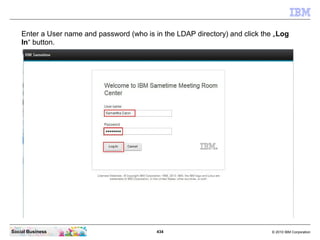
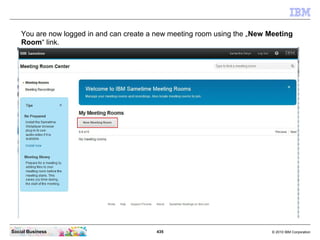
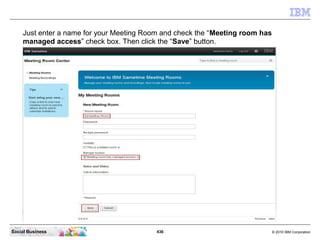
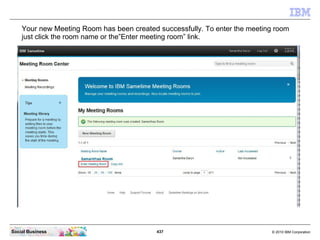
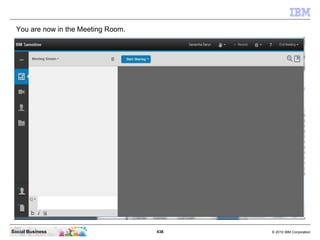
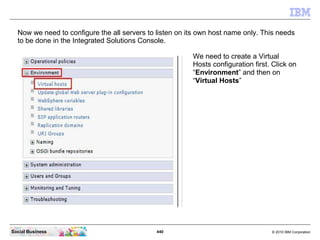
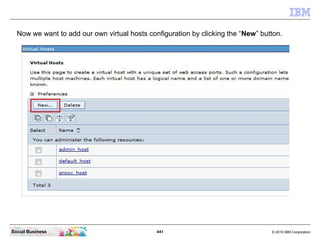
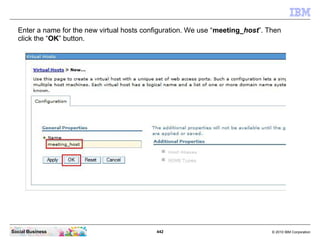
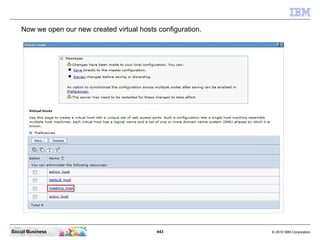
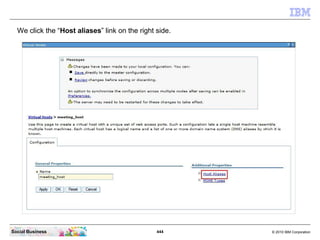
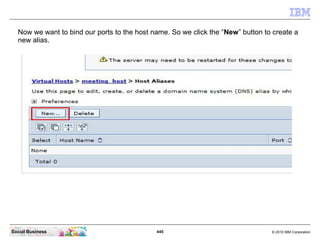
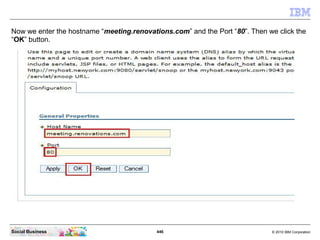
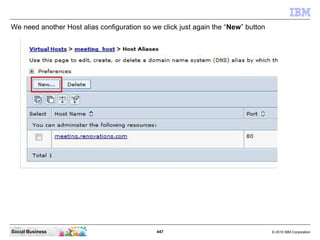
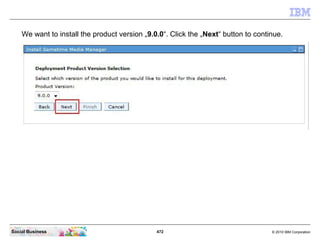
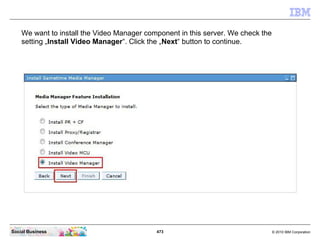
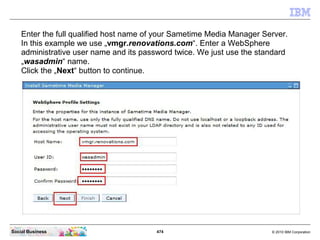
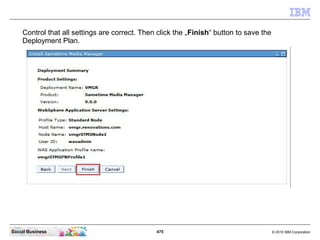
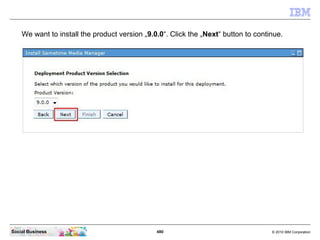
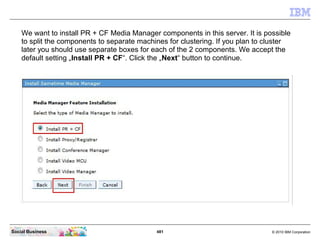
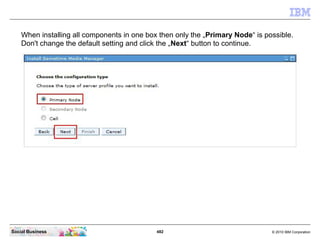
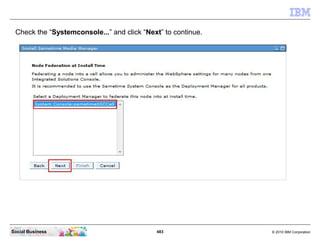
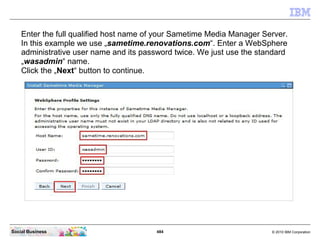
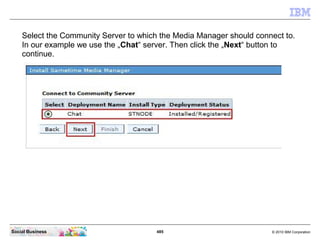
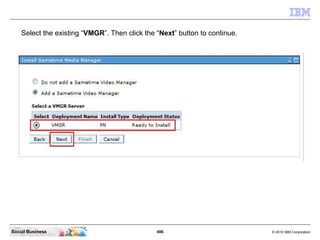
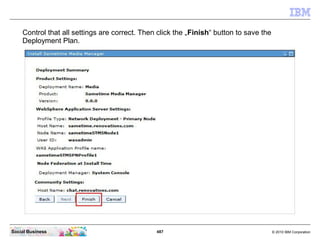
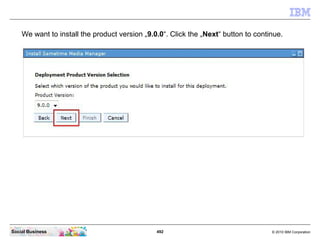
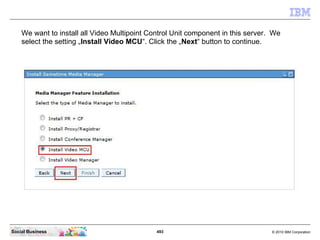
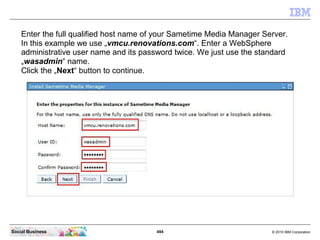
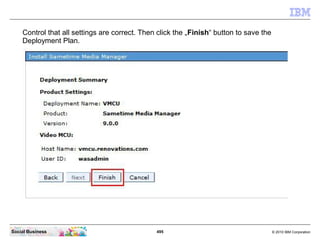
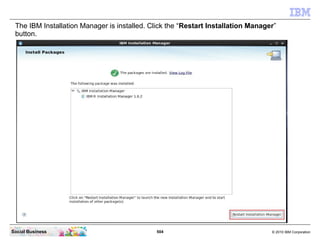
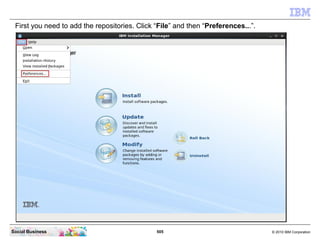
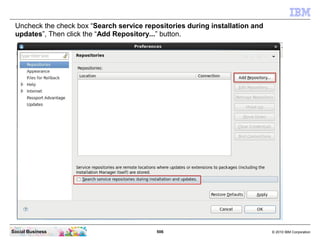
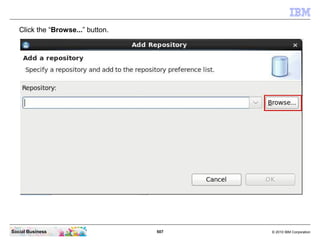
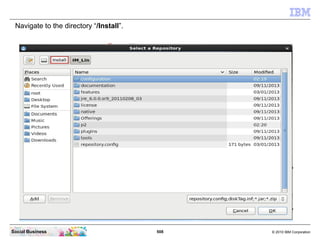
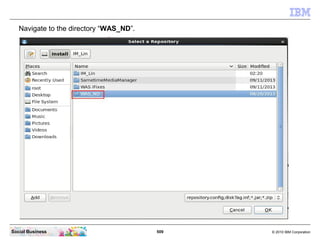
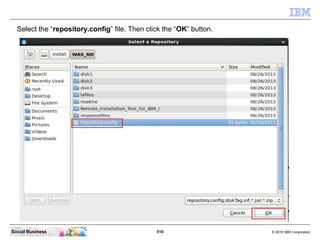
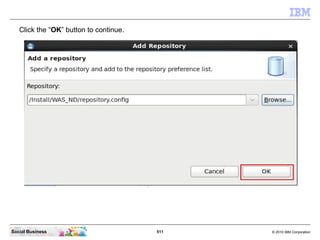
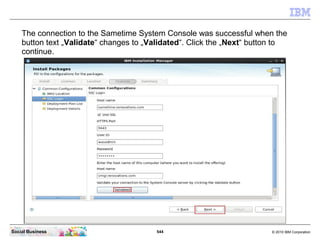
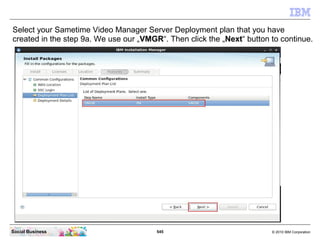
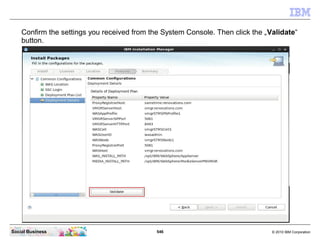
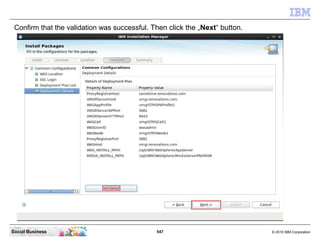
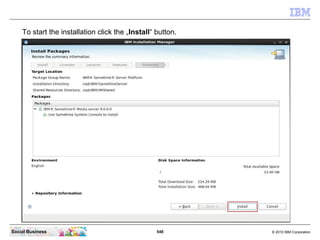
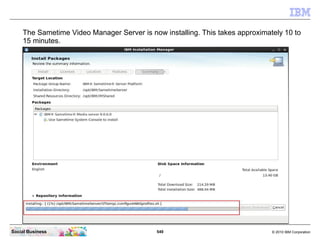
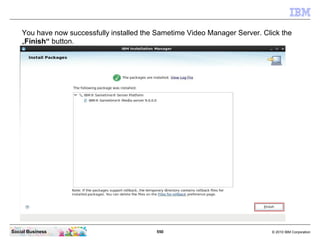
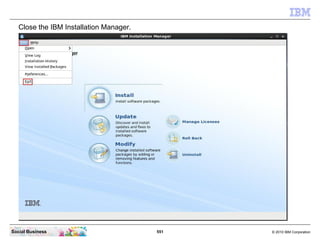
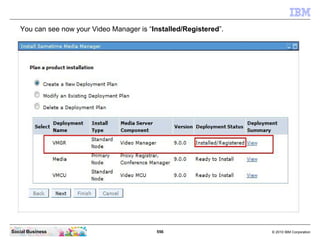
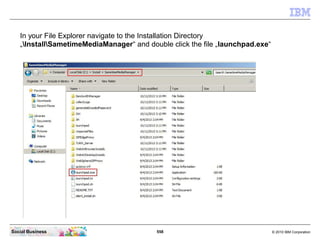
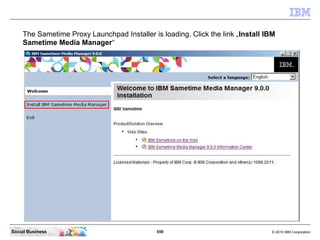
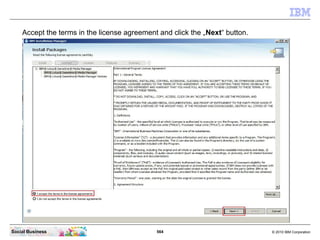
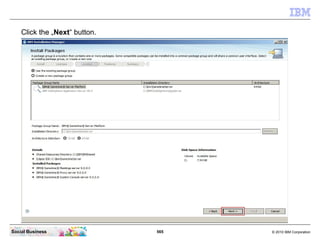
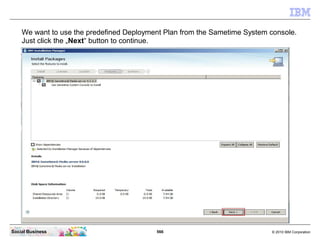
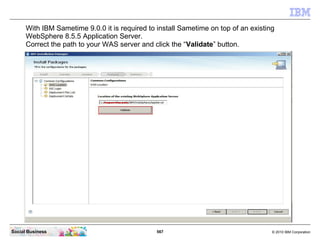
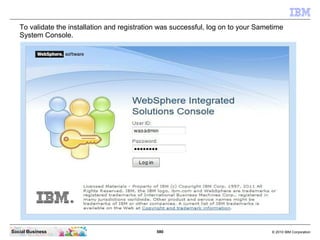
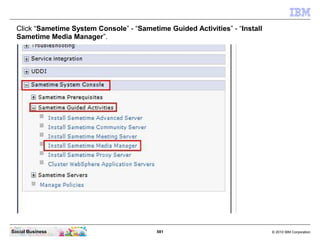
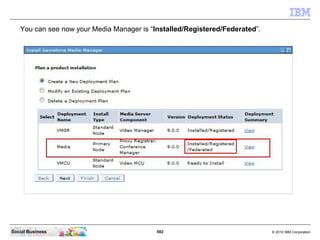
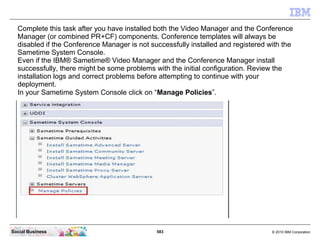
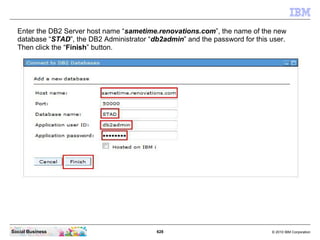
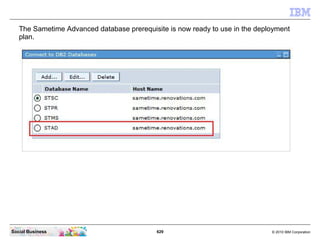
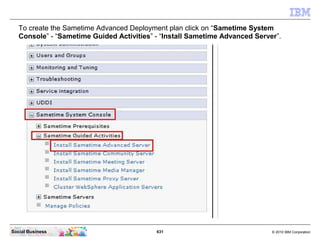
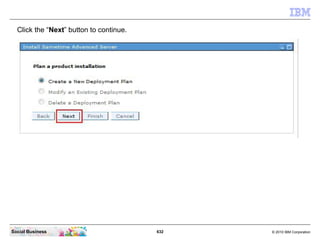
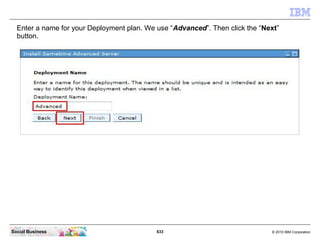
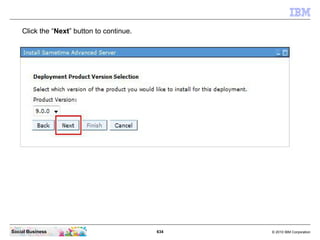
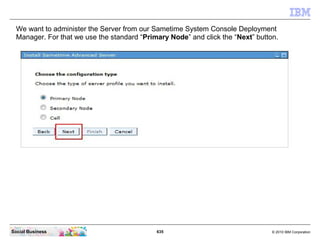
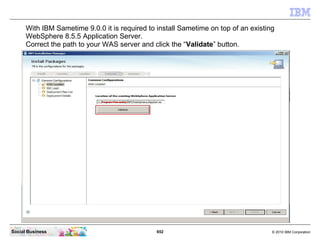
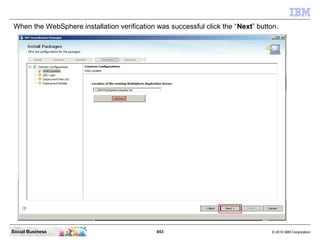
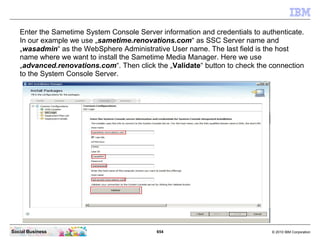
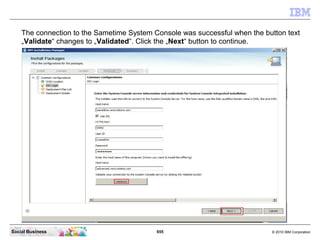
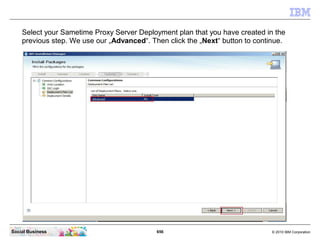
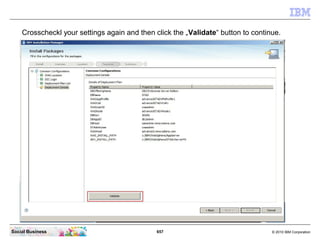
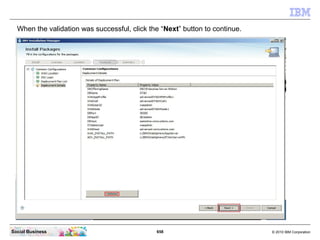
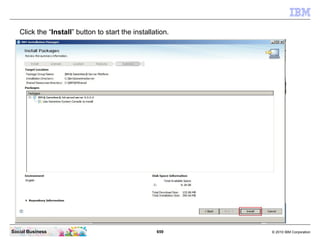
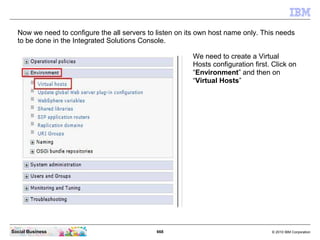
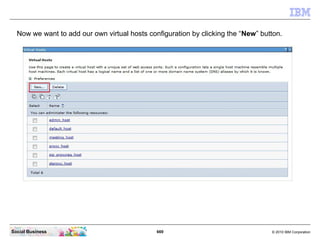
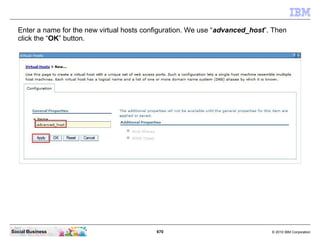
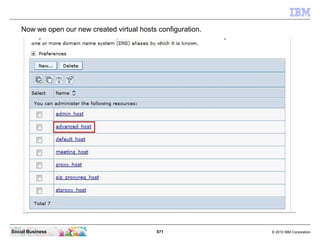
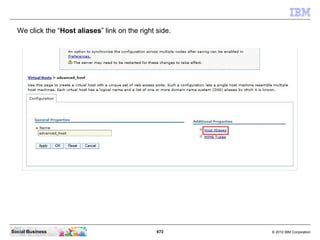
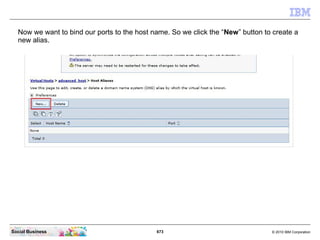
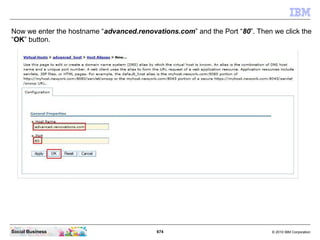
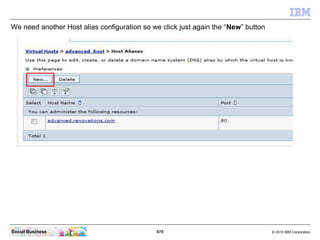
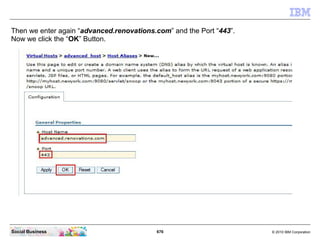
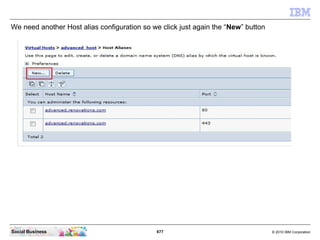
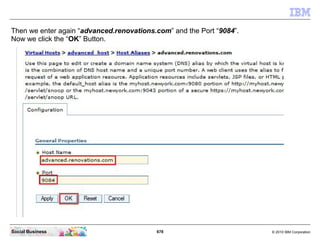
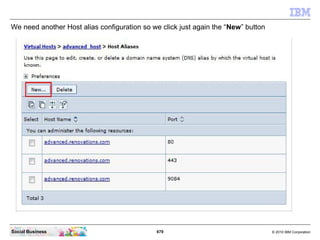
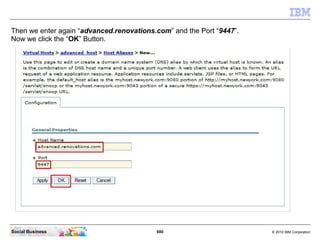
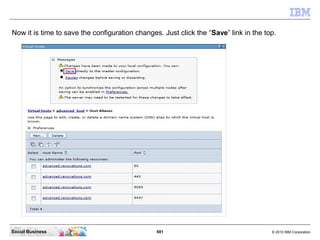
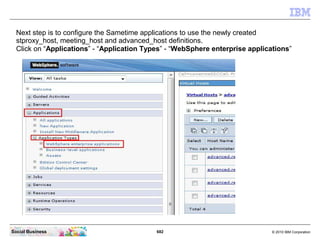
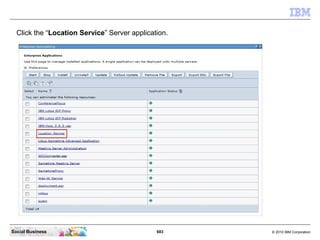
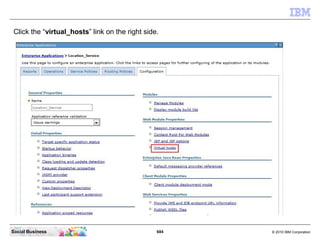
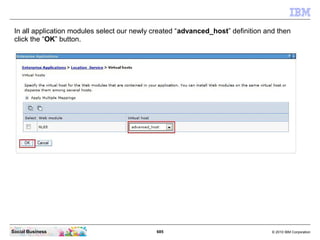
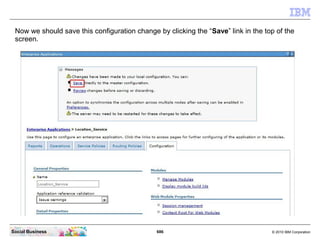
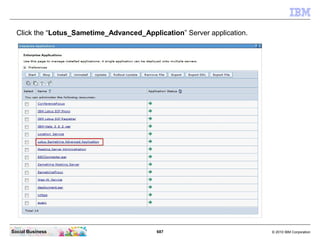
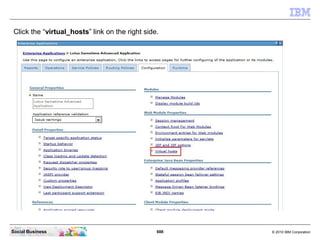
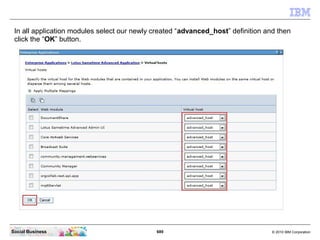
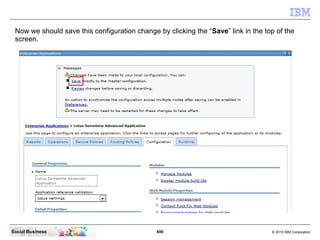
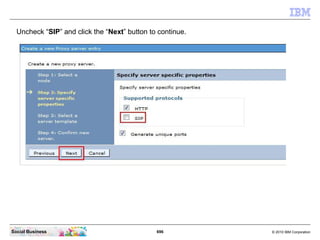
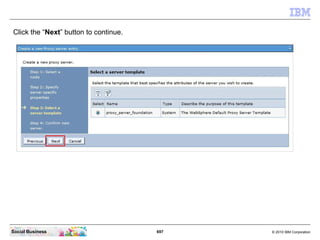
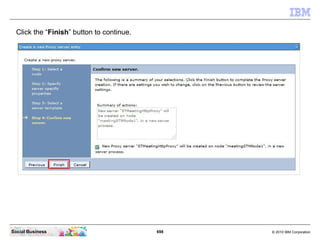
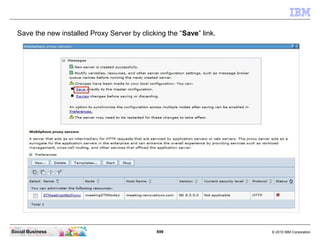
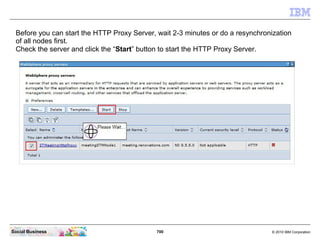
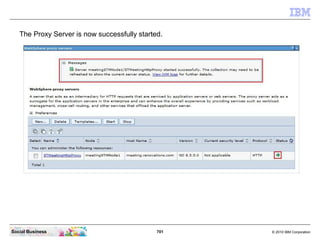
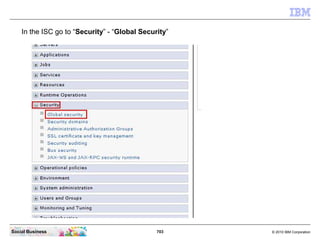
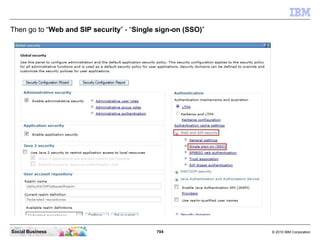
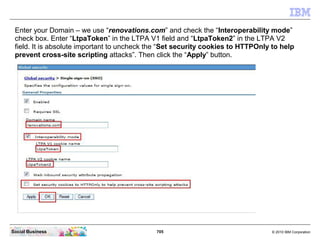
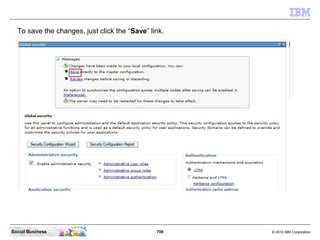
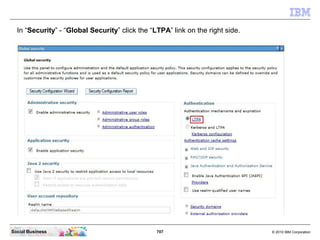
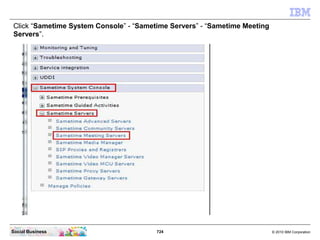
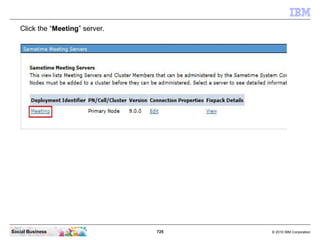
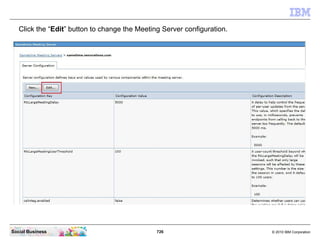
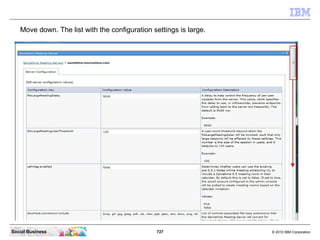
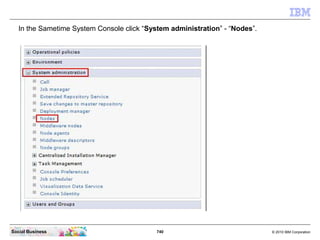
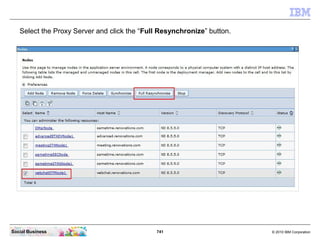
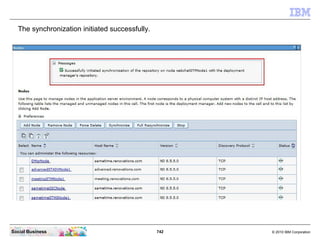
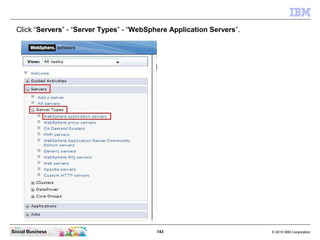
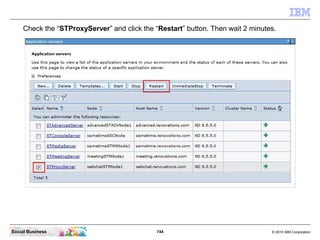
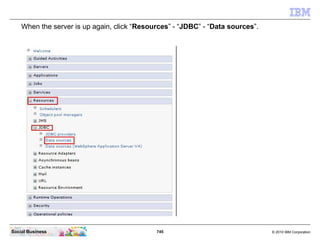
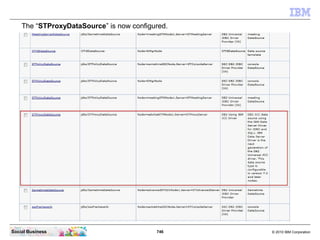
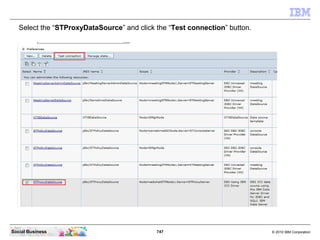
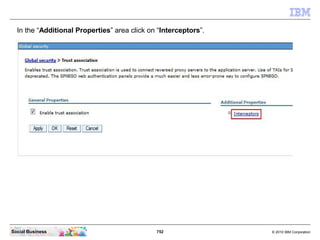
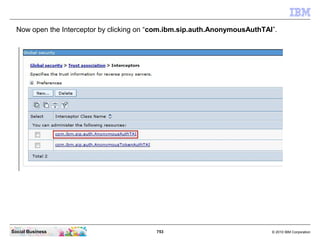
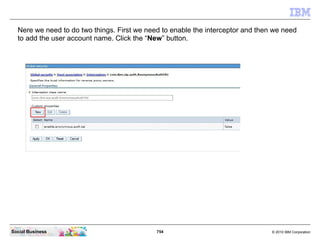
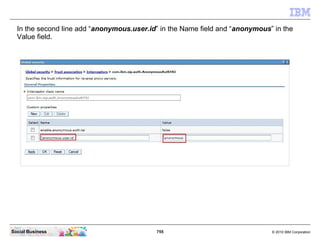
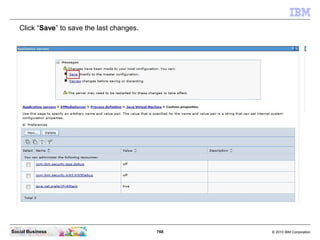
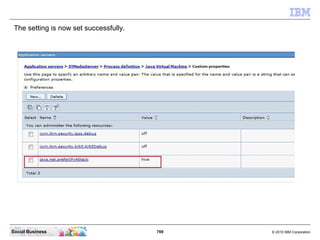
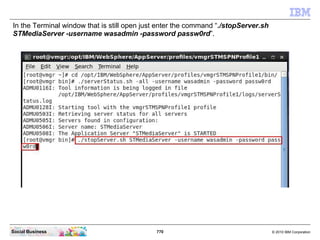
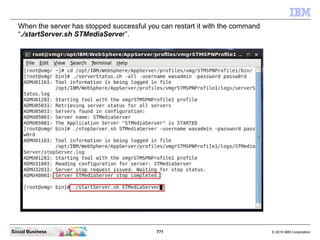
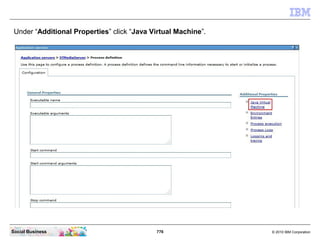
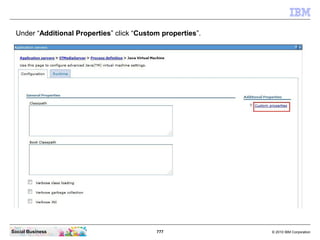
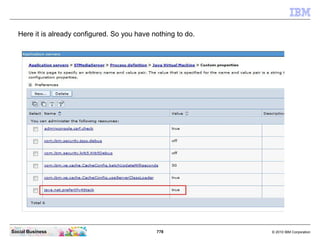
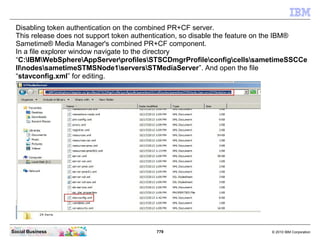
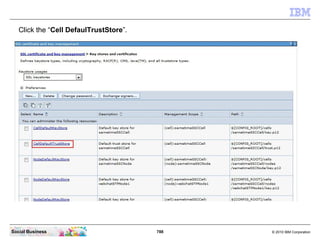
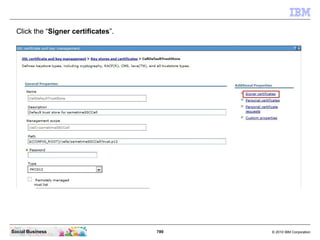
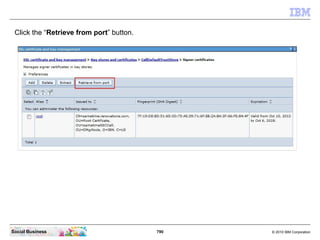
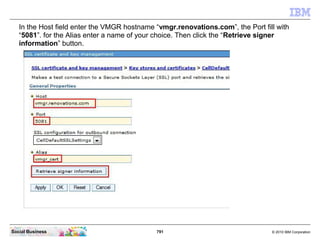
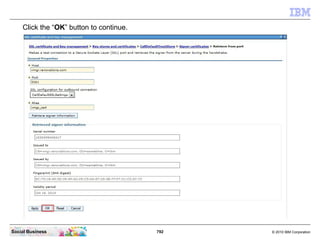
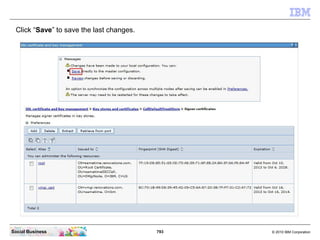
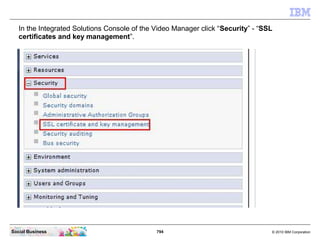
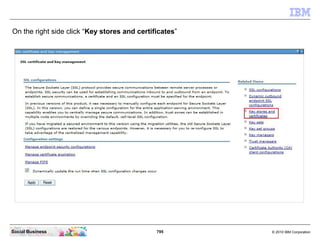
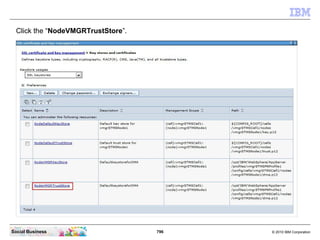
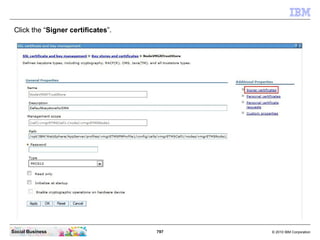
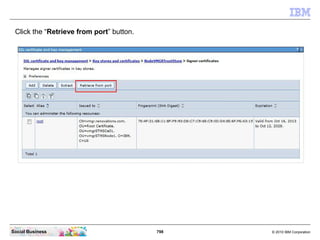
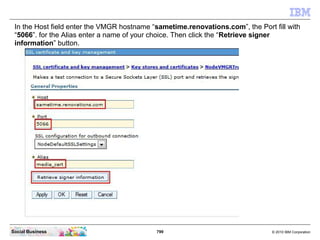
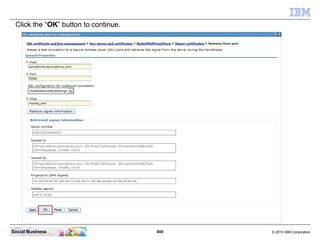
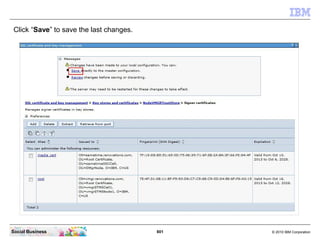
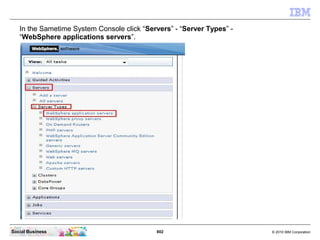
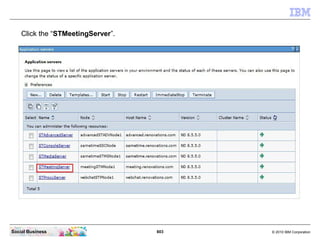
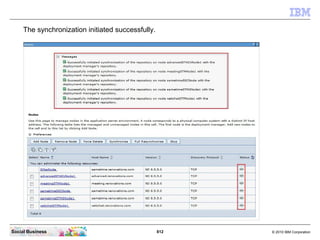
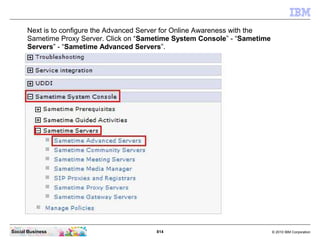
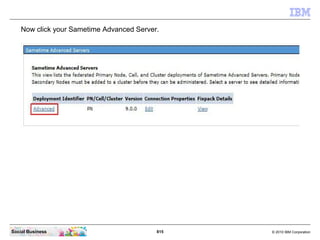
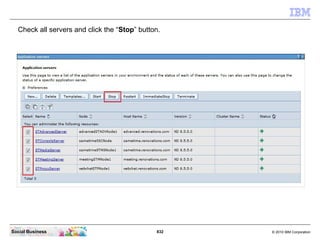
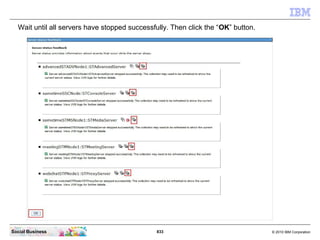
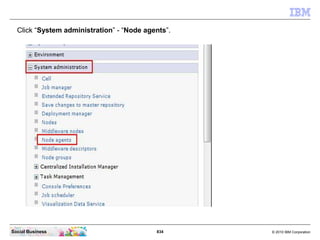
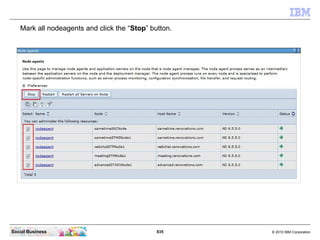
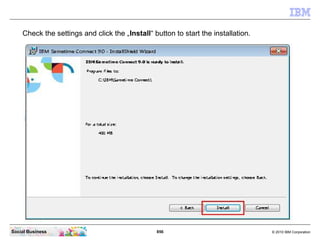
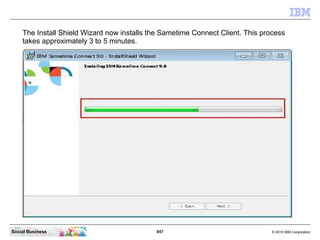
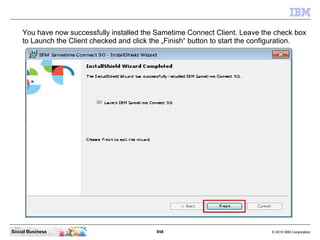
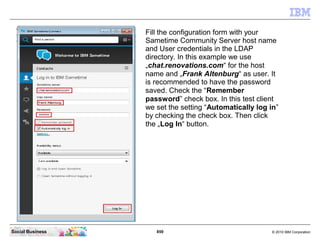
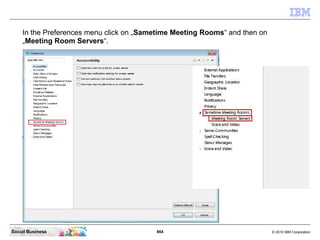
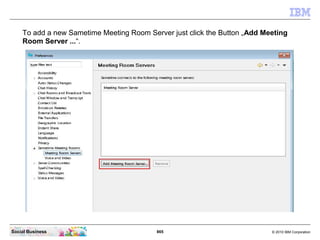
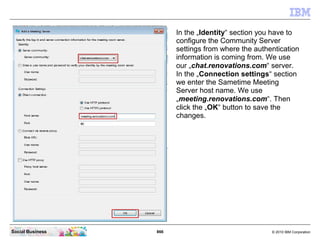
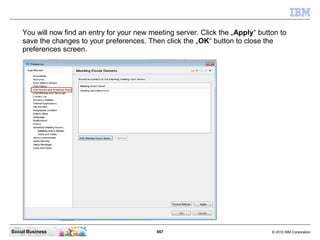
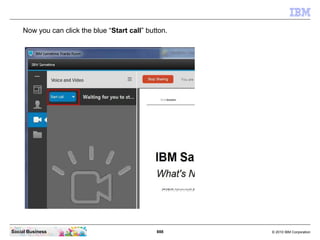
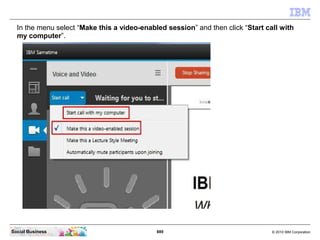
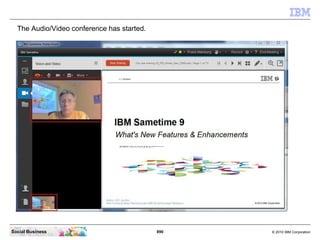
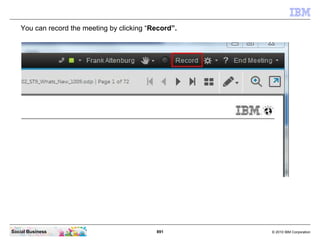
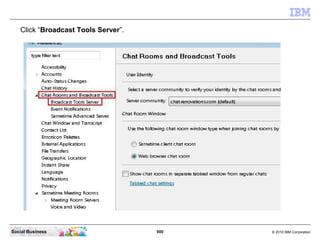
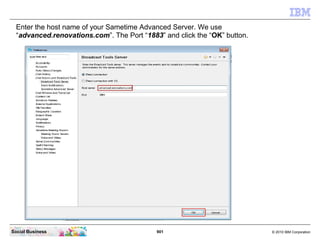
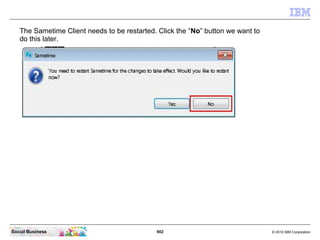
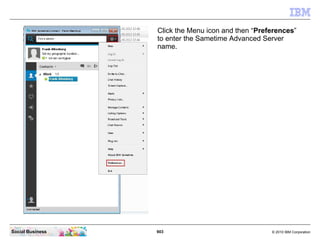
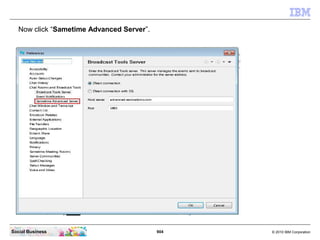
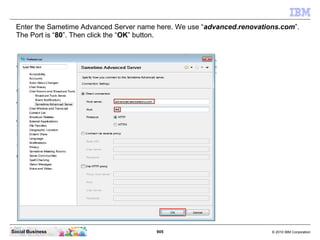
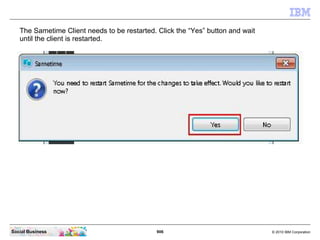
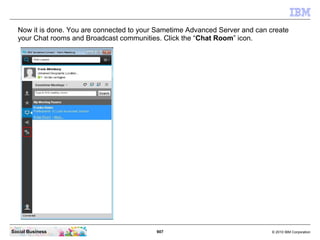
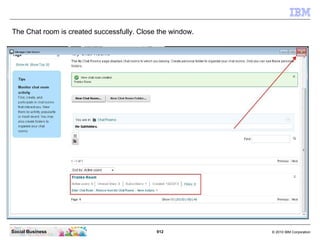
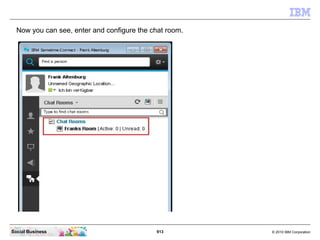
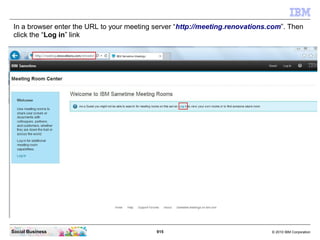
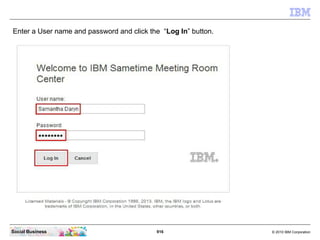
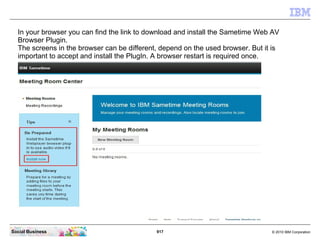
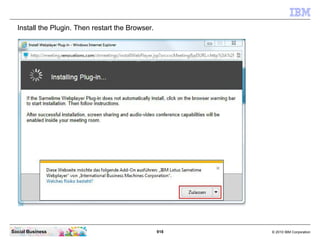
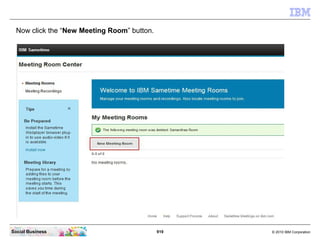
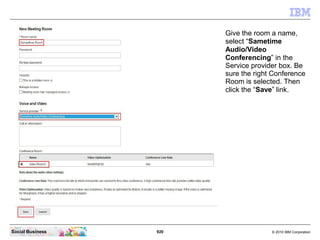
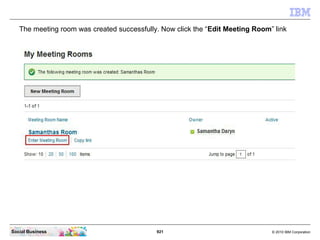
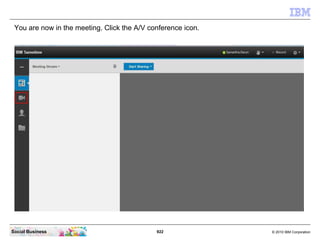
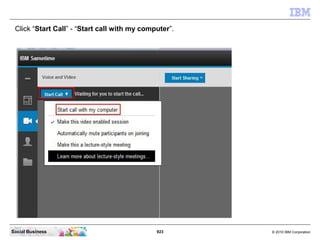
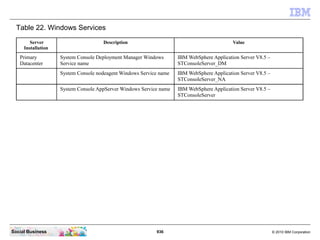
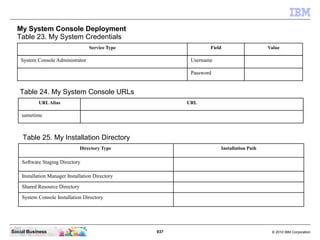
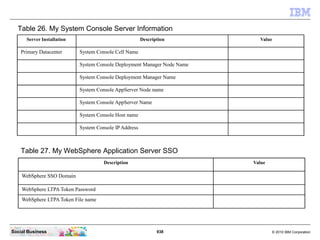
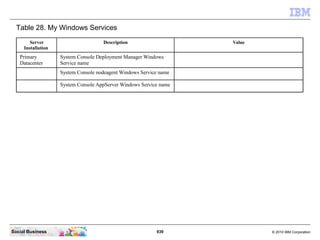
© 2009 IBM Corporation
Social Business
IBM Collaboration Solutions
IBM Sametime 9 Complete
Basic Features Installation
From Zero To Hero
Frank Altenburg SME for IBM Social Collaboration
Software @ IBM
Version 1.0 November, 10. 2013 - for Domino LDAP
2 © 2010 IBM CorporationSocial Business
About the Author
Frank Altenburg is a Certified Senior Field Support Engineer and
Subject Matter Expert for IBM Social Collaboration Software in the
Accelerated Value Program (AVP) organization in Germany, which
delivers a proactive, cost-reducing, and productivity enhancing advisory
service. Frank has more than 15 years experience supporting Lotus
products predominately on customer sites. For over 10 years Frank has
specialized his skills in the IBM Sametime Product family. As a leader
of the European IBM Sametime and IBM Connections Communities,
Frank is an evangelist for the IBM Social Collaboration business and is
a regular presenter at Lotusphere since 2008. He has presented at
many events all around the world. Frank is the author of the "From Zero
To Hero" document series for IBM Sametime and IBM Connections.
Frank can be found on Facebook, Twitter or his blog.
3 © 2010 IBM CorporationSocial Business
Agenda
● Introduction
● What's new in IBM Sametime 9
● Components of IBM Sametime 9
● Requirements for a IBM Sametime 9 Complete Deployment
● Architecture of a IBM Sametime 9 Complete POC deployment
● The 9 steps to a IBM Sametime 9 Complete POC deployment
4 © 2010 IBM CorporationSocial Business
Introduction
This document
● Describes how to implement, in a very fast way, the infrastructure for a small
deployment of a IBM Sametime 9 Complete environment.
● It is designed for a Proof of Concept, Proof of Technology or a small test pilot
deployment only.
● It does not contain information how to implement a high available infrastructure.
● You can start with this document just to "make your bosses happy". But to make the
system available for a larger number of users, it is recommended to invite IBM
Services to plan and implement a clustered IBM Connections infrastructure in your
organization that is fully supported.
● The Author has tested this scenario with the hardware specification and software
components described in this document.
● The content in this guide is taken mostly from the official Product Documentation. It is
reduced to what your really need and extended with some additional information and
experiences.
● You can use the official IBM support channels for any issue you raise when you use
just this document to install your IBM Sametime servers. All instructions in this
document are based on the official documentation wiki.
● You need IBM Sametime Complete licenses to download the code from Passport
Advantage and to install and use this software.
5 © 2010 IBM CorporationSocial Business
Agenda
● Introduction
● What's new in IBM Sametime 9
● Components of IBM Sametime 9
● Requirements for a IBM Sametime 9 Complete Deployment
● Architecture of a IBM Sametime 9 Complete POC deployment
● The 9 steps to a IBM Sametime 9 Complete POC deployment
6 © 2010 IBM CorporationSocial Business
Sametime 9 - New User Interface (UI)
● A modernized user experience
● A significant and very interesting
makeover
● Rich communications
● Voice is required, video is strategic
● Mobile
● Primary and first for delivering
innovation
● Enhancing the social experience
● A major differentiator and a
tangible competitive advantage
● Platform and feature enhancements
● Updates, fixes, improvements...
● New packaging
● Simpler and easier to sell
● Cloud first
● A fluid, more agile delivery model
7 © 2010 IBM CorporationSocial Business
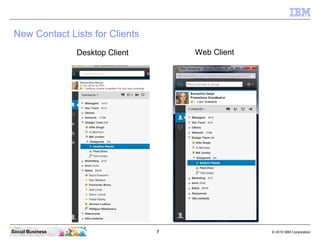
New Contact Lists for Clients
Desktop Client Web Client
8 © 2010 IBM CorporationSocial Business
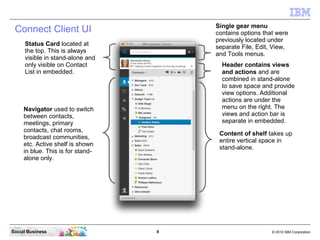
Status Card located at
the top. This is always
visible in stand-alone and
only visible on Contact
List in embedded.
Navigator used to switch
between contacts,
meetings, primary
contacts, chat rooms,
broadcast communities,
etc. Active shelf is shown
in blue. This is for stand-
alone only.
Header contains views
and actions and are
combined in stand-alone
to save space and provide
view options. Additional
actions are under the
menu on the right. The
views and action bar is
separate in embedded.
Single gear menu
contains options that were
previously located under
separate File, Edit, View,
and Tools menus.
Connect Client UI
Content of shelf takes up
entire vertical space in
stand-alone.
9 © 2010 IBM CorporationSocial Business
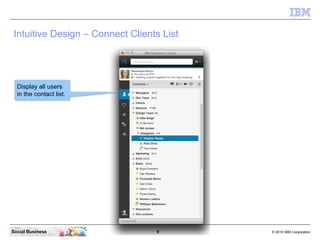
Intuitive Design – Connect Clients List
Display all users
in the contact list.
Display all users
in the contact list.
10 © 2010 IBM CorporationSocial Business
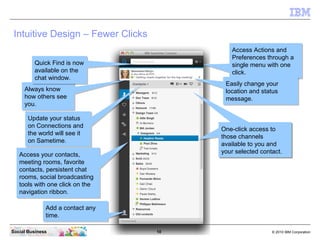
Always know
how others see
you.
Always know
how others see
you.
Access your contacts,
meeting rooms, favorite
contacts, persistent chat
rooms, social broadcasting
tools with one click on the
navigation ribbon.
Access your contacts,
meeting rooms, favorite
contacts, persistent chat
rooms, social broadcasting
tools with one click on the
navigation ribbon.
Access Actions and
Preferences through a
single menu with one
click.
Access Actions and
Preferences through a
single menu with one
click.
Add a contact any
time.
Add a contact any
time.
Intuitive Design – Fewer Clicks
One-click access to
channels available to
you and your selected
contact
One-click access to
channels available to
you and your selected
contact
One-click access to
those channels
available to you and
your selected contact.
One-click access to
those channels
available to you and
your selected contact.
Easily change your
location and status
message.
Easily change your
location and status
message.
Update your status
on Connections and
the world will see it
on Sametime.
Update your status
on Connections and
the world will see it
on Sametime.
Quick Find is now
available on the
chat window.
Quick Find is now
available on the
chat window.
11 © 2010 IBM CorporationSocial Business
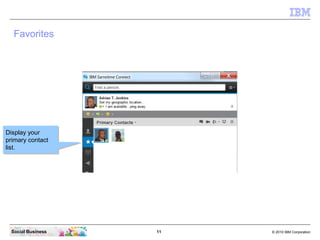
Favorites
Display your
primary contact
list.
Display your
primary contact
list.
12 © 2010 IBM CorporationSocial Business
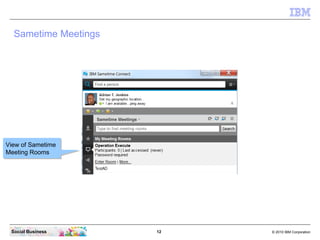
Sametime Meetings
View of Sametime
Meeting Rooms
View of Sametime
Meeting Rooms
13 © 2010 IBM CorporationSocial Business
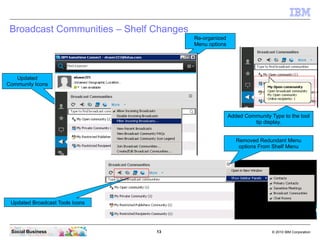
Broadcast Communities – Shelf Changes
Updated
Community Icons
Re-organized
Menu options
Removed Redundant Menu
options From Shelf Menu
Updated Broadcast Tools Icons
Added Community Type to the tool
tip display.
14 © 2010 IBM CorporationSocial Business
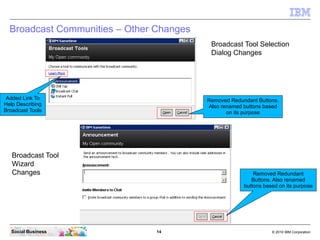
Broadcast Communities – Other Changes
Added Link To
Help Describing
Broadcast Tools
Removed Redundant Buttons.
Also renamed buttons based
on its purpose
Removed Redundant
Buttons. Also renamed
buttons based on its purpose
Broadcast Tool
Wizard
Changes
Broadcast Tool Selection
Dialog Changes
15 © 2010 IBM CorporationSocial Business
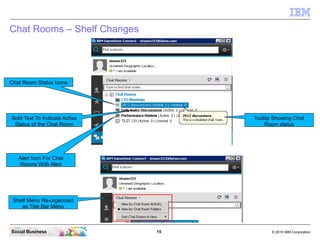
Chat Rooms – Shelf Changes
Chat Room Status Icons
Alert Icon For Chat
Rooms With Alert
Bold Text To Indicate Active
Status of the Chat Room
Tooltip Showing Chat
Room status
Shelf Menu Re-organized
as Title Bar Menu
16 © 2010 IBM CorporationSocial Business
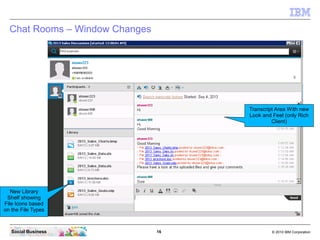
Chat Rooms – Window Changes
Transcript Area With new
Look and Feel (only Rich
Client)
New Library
Shelf showing
File Icons based
on the File Types
17 © 2010 IBM CorporationSocial Business
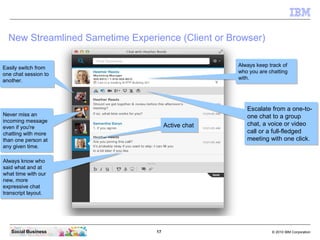
New Streamlined Sametime Experience (Client or Browser)
Always keep track of
who you are chatting
with.
Always keep track of
who you are chatting
with.
Never miss an
incoming message
even if you're
chatting with more
than one person at
any given time.
Never miss an
incoming message
even if you're
chatting with more
than one person at
any given time.
Always know who
said what and at
what time with our
new, more
expressive chat
transcript layout.
Always know who
said what and at
what time with our
new, more
expressive chat
transcript layout.
Easily switch from
one chat session to
another.
Easily switch from
one chat session to
another.
Active chatActive chat
Escalate from a one-to-
one chat to a group
chat, a voice or video
call or a full-fledged
meeting with one click.
Escalate from a one-to-
one chat to a group
chat, a voice or video
call or a full-fledged
meeting with one click.
18 © 2010 IBM CorporationSocial Business
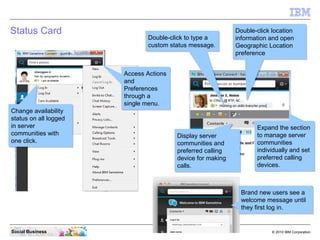
Status Card
Double-click to type a
custom status message.
Double-click to type a
custom status message.
Double-click location
information and open
Geographic Location
preference
Double-click location
information and open
Geographic Location
preference
Display server
communities and
preferred calling
device for making
calls.
Display server
communities and
preferred calling
device for making
calls.
Access Actions
and
Preferences
through a
single menu.
Access Actions
and
Preferences
through a
single menu.
Change availability
status on all logged
in server
communities with
one click.
Change availability
status on all logged
in server
communities with
one click.
Expand the section
to manage server
communities
individually and set
preferred calling
devices.
Expand the section
to manage server
communities
individually and set
preferred calling
devices.
Brand new users see a
welcome message until
they first log in.
Brand new users see a
welcome message until
they first log in.
19 © 2010 IBM CorporationSocial Business
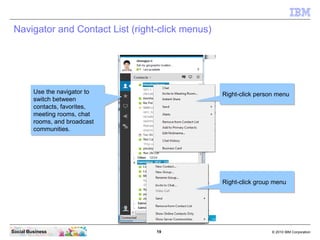
Navigator and Contact List (right-click menus)
Use the navigator to
switch between
contacts, favorites,
meeting rooms, chat
rooms, and broadcast
communities.
Use the navigator to
switch between
contacts, favorites,
meeting rooms, chat
rooms, and broadcast
communities.
Right-click person menuRight-click person menu
Right-click group menuRight-click group menu
20 © 2010 IBM CorporationSocial Business
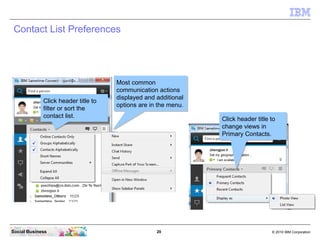
Contact List Preferences
Click header title to
filter or sort the
contact list.
Click header title to
filter or sort the
contact list.
Most common
communication actions
displayed and additional
options are in the menu.
Most common
communication actions
displayed and additional
options are in the menu.
Click header title to
change views in
Primary Contacts.
Click header title to
change views in
Primary Contacts.
21 © 2010 IBM CorporationSocial Business
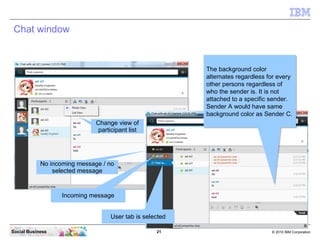
Chat window
The background color
alternates regardless for every
other persons regardless of
who the sender is. It is not
attached to a specific sender.
Sender A would have same
background color as Sender C.
The background color
alternates regardless for every
other persons regardless of
who the sender is. It is not
attached to a specific sender.
Sender A would have same
background color as Sender C.
No incoming message / no
selected message
Incoming message
User tab is selected
Change view of
participant list
22 © 2010 IBM CorporationSocial Business
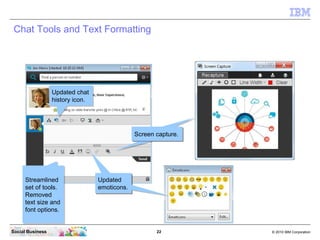
Chat Tools and Text Formatting
Screen capture.Screen capture.
Updated
emoticons.
Updated
emoticons.
Updated chat
history icon.
Updated chat
history icon.
Streamlined
set of tools.
Removed
text size and
font options.
Streamlined
set of tools.
Removed
text size and
font options.
Screen capture.Screen capture.
Updated
emoticons.
Updated
emoticons.
23 © 2010 IBM CorporationSocial Business
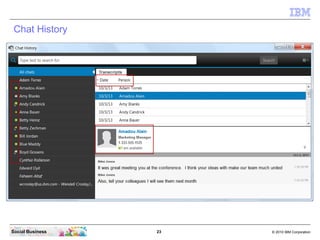
Chat History
24 © 2010 IBM CorporationSocial Business
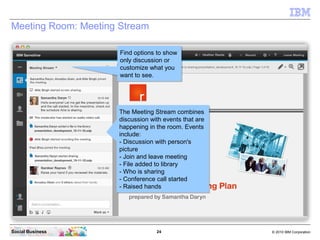
Meeting Room: Meeting Stream
The Meeting Stream combines
discussion with events that are
happening in the room. Events
include:
- Discussion with person's
picture
- Join and leave meeting
- File added to library
- Who is sharing
- Conference call started
- Raised hands
The Meeting Stream combines
discussion with events that are
happening in the room. Events
include:
- Discussion with person's
picture
- Join and leave meeting
- File added to library
- Who is sharing
- Conference call started
- Raised hands
Find options to show
only discussion or
customize what you
want to see.
Find options to show
only discussion or
customize what you
want to see.
25 © 2010 IBM CorporationSocial Business
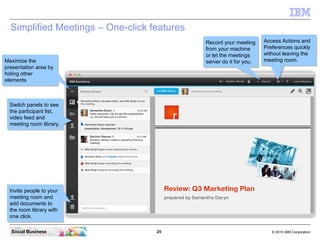
Simplified Meetings – One-click features
Switch panels to see
the participant list,
video feed and
meeting room library.
Switch panels to see
the participant list,
video feed and
meeting room library.
Invite people to your
meeting room and
add documents to
the room library with
one click.
Invite people to your
meeting room and
add documents to
the room library with
one click.
Maximize the
presentation area by
hiding other
elements
Maximize the
presentation area by
hiding other
elements
Access Actions and
Preferences quickly
without leaving the
meeting room.
Access Actions and
Preferences quickly
without leaving the
meeting room.
Record your meeting
from your machine
or let the meetings
server do it for you.
Record your meeting
from your machine
or let the meetings
server do it for you.
26 © 2010 IBM CorporationSocial Business
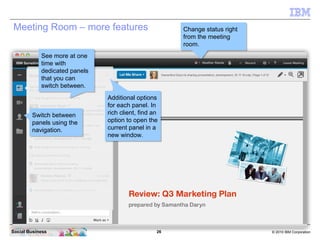
Meeting Room – more features
Switch between
panels using the
navigation.
Switch between
panels using the
navigation.
See more at one
time with
dedicated panels
that you can
switch between.
See more at one
time with
dedicated panels
that you can
switch between.
Change status right
from the meeting
room.
Change status right
from the meeting
room.
Additional options
for each panel. In
rich client, find an
option to open the
current panel in a
new window.
Additional options
for each panel. In
rich client, find an
option to open the
current panel in a
new window.
27 © 2010 IBM CorporationSocial Business
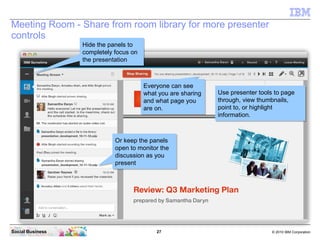
Meeting Room - Share from room library for more presenter
controls
Use presenter tools to page
through, view thumbnails,
point to, or highlight
information.
Use presenter tools to page
through, view thumbnails,
point to, or highlight
information.
Everyone can see
what you are sharing
and what page you
are on.
Everyone can see
what you are sharing
and what page you
are on.
Or keep the panels
open to monitor the
discussion as you
present
Or keep the panels
open to monitor the
discussion as you
present
Hide the panels to
completely focus on
the presentation
Hide the panels to
completely focus on
the presentation
28 © 2010 IBM CorporationSocial Business
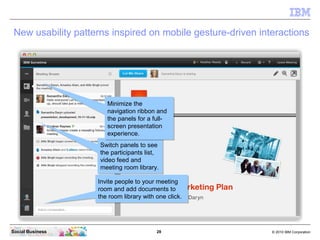
New usability patterns inspired on mobile gesture-driven interactions
Switch panels to see
the participants list,
video feed and
meeting room library.
Switch panels to see
the participants list,
video feed and
meeting room library.
Invite people to your meeting
room and add documents to
the room library with one click.
Invite people to your meeting
room and add documents to
the room library with one click.
Minimize the
navigation ribbon and
the panels for a full-
screen presentation
experience.
Minimize the
navigation ribbon and
the panels for a full-
screen presentation
experience.
29 © 2010 IBM CorporationSocial Business
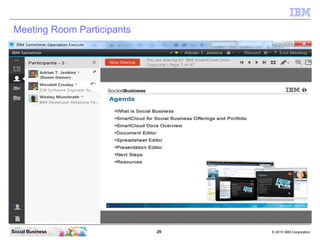
Meeting Room Participants
30 © 2010 IBM CorporationSocial Business
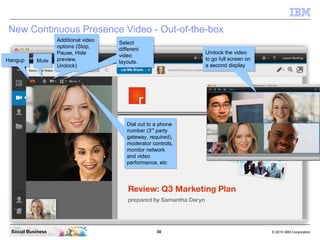
MuteMute
Additional video
options (Stop,
Pause, Hide
preview,
Undock)
Additional video
options (Stop,
Pause, Hide
preview,
Undock)
HangupHangup
Select
different
video
layouts.
Select
different
video
layouts.
New Continuous Presence Video - Out-of-the-box
Undock the video
to go full screen on
a second display
Undock the video
to go full screen on
a second display
Dial out to a phone
number (3rd
party
gateway, required),
moderator controls,
monitor network
and video
performance, etc
Dial out to a phone
number (3rd
party
gateway, required),
moderator controls,
monitor network
and video
performance, etc
31 © 2010 IBM CorporationSocial Business
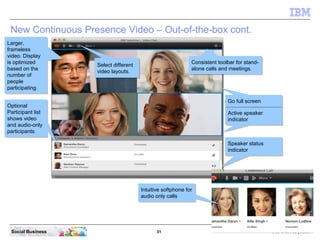
Optional
Participant list
shows video
and audio-only
participants
Optional
Participant list
shows video
and audio-only
participants
Select different
video layouts.
Select different
video layouts.
Larger,
frameless
video. Display
is optimized
based on the
number of
people
participating.
Larger,
frameless
video. Display
is optimized
based on the
number of
people
participating.
Consistent toolbar for stand-
alone calls and meetings.
Consistent toolbar for stand-
alone calls and meetings.
Active speaker
indicator
Active speaker
indicator
New Continuous Presence Video – Out-of-the-box cont.
Intuitive softphone for
audio only calls
Intuitive softphone for
audio only calls
Speaker status
indicator
Speaker status
indicator
Go full screenGo full screen
32 © 2010 IBM CorporationSocial Business
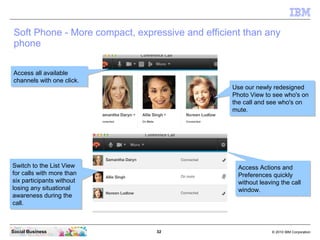
Soft Phone - More compact, expressive and efficient than any
phone
Access all available
channels with one click.
Access all available
channels with one click.
Switch to the List View
for calls with more than
six participants without
losing any situational
awareness during the
call.
Switch to the List View
for calls with more than
six participants without
losing any situational
awareness during the
call.
Use our newly redesigned
Photo View to see who's on
the call and see who's on
mute.
Use our newly redesigned
Photo View to see who's on
the call and see who's on
mute.
Access Actions and
Preferences quickly
without leaving the call
window.
Access Actions and
Preferences quickly
without leaving the call
window.
33 © 2010 IBM CorporationSocial Business
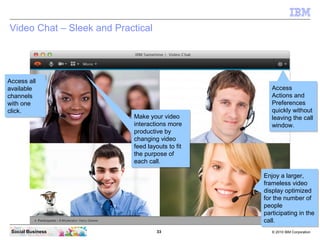
Video Chat – Sleek and Practical
Access all
available
channels
with one
click.
Access all
available
channels
with one
click.
Make your video
interactions more
productive by
changing video
feed layouts to fit
the purpose of
each call.
Make your video
interactions more
productive by
changing video
feed layouts to fit
the purpose of
each call.
Access
Actions and
Preferences
quickly without
leaving the call
window.
Access
Actions and
Preferences
quickly without
leaving the call
window.
Enjoy a larger,
frameless video
display optimized
for the number of
people
participating in the
call.
Enjoy a larger,
frameless video
display optimized
for the number of
people
participating in the
call.
34 © 2010 IBM CorporationSocial Business
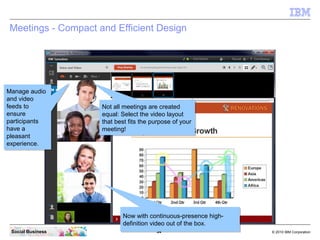
Meetings - Compact and Efficient Design
Manage audio
and video
feeds to
ensure
participants
have a
pleasant
experience.
Manage audio
and video
feeds to
ensure
participants
have a
pleasant
experience.
Not all meetings are created
equal: Select the video layout
that best fits the purpose of your
meeting!
Not all meetings are created
equal: Select the video layout
that best fits the purpose of your
meeting!
Now with continuous-presence high-
definition video out of the box.
Now with continuous-presence high-
definition video out of the box.
35 © 2010 IBM CorporationSocial Business
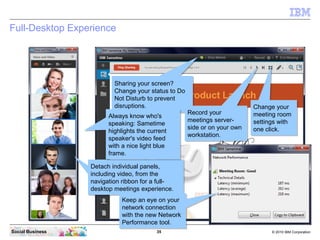
Full-Desktop Experience
Detach individual panels,
including video, from the
navigation ribbon for a full-
desktop meetings experience.
Detach individual panels,
including video, from the
navigation ribbon for a full-
desktop meetings experience.
Sharing your screen?
Change your status to Do
Not Disturb to prevent
disruptions.
Sharing your screen?
Change your status to Do
Not Disturb to prevent
disruptions.
Record your
meetings server-
side or on your own
workstation.
Record your
meetings server-
side or on your own
workstation.
Change your
meeting room
settings with
one click.
Change your
meeting room
settings with
one click.
Keep an eye on your
network connection
with the new Network
Performance tool.
Keep an eye on your
network connection
with the new Network
Performance tool.
Always know who's
speaking: Sametime
highlights the current
speaker's video feed
with a nice light blue
frame.
Always know who's
speaking: Sametime
highlights the current
speaker's video feed
with a nice light blue
frame.
36 © 2010 IBM CorporationSocial Business
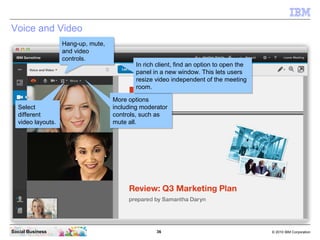
Voice and Video
Select
different
video layouts.
Select
different
video layouts.
Hang-up, mute,
and video
controls.
Hang-up, mute,
and video
controls.
More options
including moderator
controls, such as
mute all.
More options
including moderator
controls, such as
mute all.
In rich client, find an option to open the
panel in a new window. This lets users
resize video independent of the meeting
room.
In rich client, find an option to open the
panel in a new window. This lets users
resize video independent of the meeting
room.
37 © 2010 IBM CorporationSocial Business
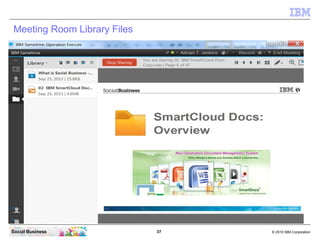
Meeting Room Library Files
38 © 2010 IBM CorporationSocial Business
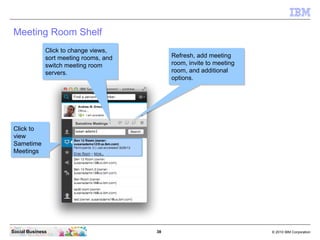
Meeting Room Shelf
Click to
view
Sametime
Meetings
Click to
view
Sametime
Meetings
Refresh, add meeting
room, invite to meeting
room, and additional
options.
Refresh, add meeting
room, invite to meeting
room, and additional
options.
Click to change views,
sort meeting rooms, and
switch meeting room
servers.
Click to change views,
sort meeting rooms, and
switch meeting room
servers.
39 © 2010 IBM CorporationSocial Business
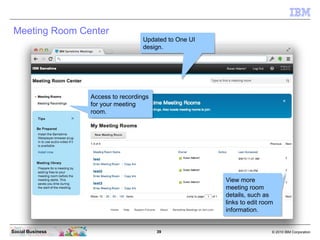
Meeting Room Center
Updated to One UI
design.
Updated to One UI
design.
Access to recordings
for your meeting
room.
Access to recordings
for your meeting
room.
View more
meeting room
details, such as
links to edit room
information.
View more
meeting room
details, such as
links to edit room
information.
40 © 2010 IBM CorporationSocial Business
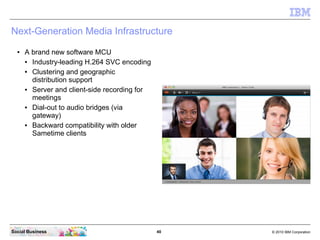
Next-Generation Media Infrastructure
● A brand new software MCU
● Industry-leading H.264 SVC encoding
● Clustering and geographic
distribution support
● Server and client-side recording for
meetings
● Dial-out to audio bridges (via
gateway)
● Backward compatibility with older
Sametime clients
41 © 2010 IBM CorporationSocial Business
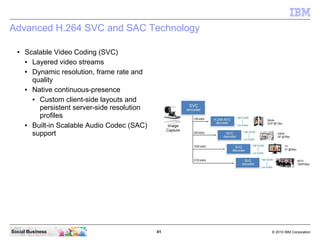
Advanced H.264 SVC and SAC Technology
● Scalable Video Coding (SVC)
● Layered video streams
● Dynamic resolution, frame rate and
quality
● Native continuous-presence
● Custom client-side layouts and
persistent server-side resolution
profiles
● Built-in Scalable Audio Codec (SAC)
support
42 © 2010 IBM CorporationSocial Business
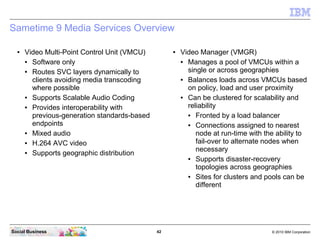
Sametime 9 Media Services Overview
● Video Multi-Point Control Unit (VMCU)
● Software only
● Routes SVC layers dynamically to
clients avoiding media transcoding
where possible
● Supports Scalable Audio Coding
● Provides interoperability with
previous-generation standards-based
endpoints
● Mixed audio
● H.264 AVC video
● Supports geographic distribution
● Video Manager (VMGR)
● Manages a pool of VMCUs within a
single or across geographies
● Balances loads across VMCUs based
on policy, load and user proximity
● Can be clustered for scalability and
reliability
● Fronted by a load balancer
● Connections assigned to nearest
node at run-time with the ability to
fail-over to alternate nodes when
necessary
● Supports disaster-recovery
topologies across geographies
● Sites for clusters and pools can be
different
43 © 2010 IBM CorporationSocial Business
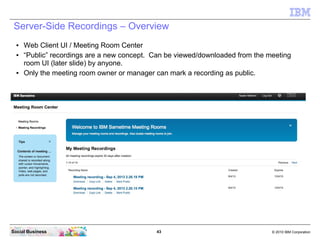
Server-Side Recordings – Overview
● Web Client UI / Meeting Room Center
● “Public” recordings are a new concept. Can be viewed/downloaded from the meeting
room UI (later slide) by anyone.
● Only the meeting room owner or manager can mark a recording as public.
44 © 2010 IBM CorporationSocial Business
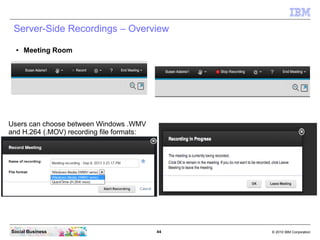
Server-Side Recordings – Overview
● Meeting Room
Users can choose between Windows .WMV
and H.264 (.MOV) recording file formats:
45 © 2010 IBM CorporationSocial Business
Social features included in this release
● Integration with IBM Connections
● Meetings integration with Files
● Integration with Profiles on mobile apps
● Improvements to community features
● One UI alignment
● Improved notifications and alerts for
persistent chat rooms
● New policies for managing screen
sharing
46 © 2010 IBM CorporationSocial Business
Sametime 9 Meetings – Files Integration (Features and UI)
● Overview
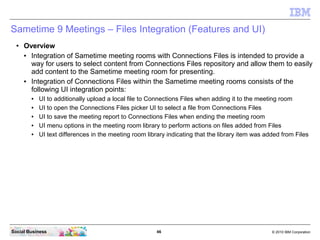
● Integration of Sametime meeting rooms with Connections Files is intended to provide a
way for users to select content from Connections Files repository and allow them to easily
add content to the Sametime meeting room for presenting.
● Integration of Connections Files within the Sametime meeting rooms consists of the
following UI integration points:
● UI to additionally upload a local file to Connections Files when adding it to the meeting room
● UI to open the Connections Files picker UI to select a file from Connections Files
● UI to save the meeting report to Connections Files when ending the meeting room
● UI menu options in the meeting room library to perform actions on files added from Files
● UI text differences in the meeting room library indicating that the library item was added from Files
47 © 2010 IBM CorporationSocial Business
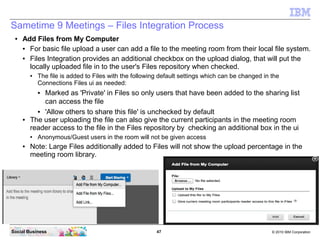
● Add Files from My Computer
● For basic file upload a user can add a file to the meeting room from their local file system.
● Files Integration provides an additional checkbox on the upload dialog, that will put the
locally uploaded file in to the user's Files repository when checked.
● The file is added to Files with the following default settings which can be changed in the
Connections Files ui as needed:
● Marked as 'Private' in Files so only users that have been added to the sharing list
can access the file
● 'Allow others to share this file' is unchecked by default
● The user uploading the file can also give the current participants in the meeting room
reader access to the file in the Files repository by checking an additional box in the ui
● Anonymous/Guest users in the room will not be given access
● Note: Large Files additionally added to Files will not show the upload percentage in the
meeting room library.
Sametime 9 Meetings – Files Integration Process
48 © 2010 IBM CorporationSocial Business
Platform and Feature Enhancements
● Community Server
● Multitenancy support
● VS2010 support
● STResolve domain list as table
● Optimized searching for email
addresses
● Gateway
● XMPP TLS support
● Support for custom properties
● Community status indicators
● Replacing Dynacache/CEI with
JMS
● Meetings Server
● Connections Files integration (Web
client)
● File conversion enhancements
● Native browser plug-in for Mac OS
● One UI alignment (UIM and Web
clients)
● Remote control through server
● Server-side recordings
● Meetings SDK
49 © 2010 IBM CorporationSocial Business
Platform and Feature Enhancements
● UIM client
● One UI alignment
● User experience simplification
● Component recognition in chat rooms
● Unique client-side error messages
● SDK updates
● Proxy and Web Chat client
● One UI alignment
● Auto-status changes
● Single file transfer and screen
capture
● Dock/Footer Widget
● Display online contacts only
● Updates for mobile client support
● SDK updates
50 © 2010 IBM CorporationSocial Business
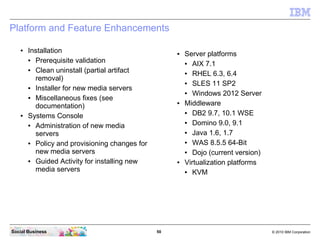
Platform and Feature Enhancements
● Installation
● Prerequisite validation
● Clean uninstall (partial artifact
removal)
● Installer for new media servers
● Miscellaneous fixes (see
documentation)
● Systems Console
● Administration of new media
servers
● Policy and provisioning changes for
new media servers
● Guided Activity for installing new
media servers
● Server platforms
● AIX 7.1
● RHEL 6.3, 6.4
● SLES 11 SP2
● Windows 2012 Server
● Middleware
● DB2 9.7, 10.1 WSE
● Domino 9.0, 9.1
● Java 1.6, 1.7
● WAS 8.5.5 64-Bit
● Dojo (current version)
● Virtualization platforms
● KVM
51 © 2010 IBM CorporationSocial Business
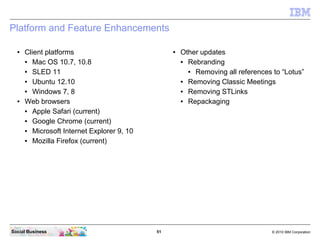
Platform and Feature Enhancements
● Client platforms
● Mac OS 10.7, 10.8
● SLED 11
● Ubuntu 12.10
● Windows 7, 8
● Web browsers
● Apple Safari (current)
● Google Chrome (current)
● Microsoft Internet Explorer 9, 10
● Mozilla Firefox (current)
● Other updates
● Rebranding
● Removing all references to “Lotus”
● Removing Classic Meetings
● Removing STLinks
● Repackaging
52 © 2010 IBM CorporationSocial Business
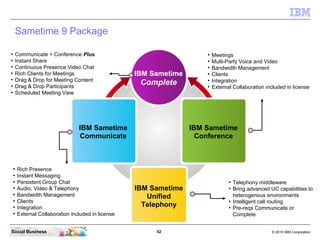
Sametime 9 Package
●
Communicate + Conference Plus
●
Instant Share
●
Continuous Presence Video Chat
●
Rich Clients for Meetings
●
Drag & Drop for Meeting Content
●
Drag & Drop Participants
●
Scheduled Meeting View
●
Rich Presence
●
Instant Messaging
●
Persistent Group Chat
●
Audio, Video & Telephony
●
Bandwidth Management
●
Clients
●
Integration
●
External Collaboration included in license
●
Meetings
●
Multi-Party Voice and Video
●
Bandwidth Management
●
Clients
●
Integration
●
External Collaboration included in license
IBM Sametime
Complete
IBM Sametime
Communicate
IBM Sametime
Conference
IBM Sametime
Unified
Telephony
●
Telephony middleware
●
Bring advanced UC capabilities to
heterogenous environments
●
Intelligent call routing
●
Pre-reqs Communicate or
Complete
53 © 2010 IBM CorporationSocial Business
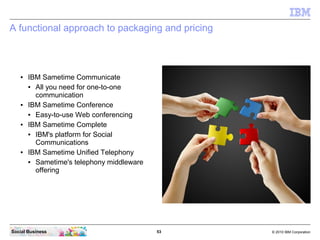
A functional approach to packaging and pricing
● IBM Sametime Communicate
● All you need for one-to-one
communication
● IBM Sametime Conference
● Easy-to-use Web conferencing
● IBM Sametime Complete
● IBM's platform for Social
Communications
● IBM Sametime Unified Telephony
● Sametime's telephony middleware
offering
54 © 2010 IBM CorporationSocial Business
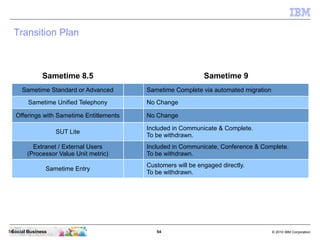
Transition Plan
54
Sametime 8.5 Sametime 9
Sametime Standard or Advanced Sametime Complete via automated migration
Sametime Unified Telephony No Change
Offerings with Sametime Entitlements No Change
SUT Lite
Included in Communicate & Complete.
To be withdrawn.
Extranet / External Users
(Processor Value Unit metric)
Included in Communicate, Conference & Complete.
To be withdrawn.
Sametime Entry
Customers will be engaged directly.
To be withdrawn.
55 © 2010 IBM CorporationSocial Business
Agenda
● Introduction
● What's new in IBM Sametime 9
● Components of IBM Sametime 9
● Requirements for a IBM Sametime 9 Complete Deployment
● Architecture of a IBM Sametime 9 Complete POC deployment
● The 9 steps to a IBM Sametime 9 Complete POC deployment
56 © 2010 IBM CorporationSocial Business
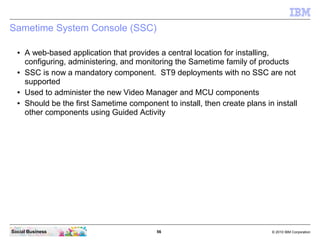
Sametime System Console (SSC)
● A web-based application that provides a central location for installing,
configuring, administering, and monitoring the Sametime family of products
● SSC is now a mandatory component. ST9 deployments with no SSC are not
supported
● Used to administer the new Video Manager and MCU components
● Should be the first Sametime component to install, then create plans in install
other components using Guided Activity
57 © 2010 IBM CorporationSocial Business
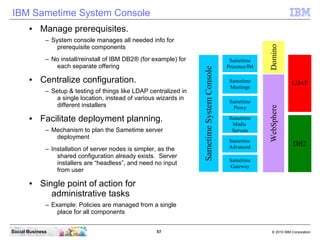
IBM Sametime System Console
Sametime
Presence/IM
Sametime
Meetings
Sametime
Proxy
Sametime
Media
Servers
Sametime
Gateway
DominoWebSphere
DB2
LDAP
Sametime
Advanced
SametimeSystemConsole
● Manage prerequisites.
– System console manages all needed info for
prerequisite components
– No install/reinstall of IBM DB2® (for example) for
each separate offering
● Centralize configuration.
– Setup & testing of things like LDAP centralized in
a single location, instead of various wizards in
different installers
● Facilitate deployment planning.
– Mechanism to plan the Sametime server
deployment
– Installation of server nodes is simpler, as the
shared configuration already exists. Server
installers are “headless”, and need no input
from user
● Single point of action for
administrative tasks
– Example: Policies are managed from a single
place for all components
58 © 2010 IBM CorporationSocial Business
Community Server
● Provides fundamental presence and chat services to all Sametime components
and applications. Communication with the Community Server is performed
using the VP (Virtual Places) protocol. Places, a multi-user session service, are
used in multi-way chats and in all audio/video calls
● The Community Server is required for Sametime Conference only if audio and
video is used or if awareness is enabled in the conference. If you only use
Sametime Conference without audio and video and without awareness
information, the Community Server is not required
● Community Server can be installed without the System Console, but after install
it must be registered with the System Console
● Classic meetings are removed and no longer supported
● Legacy policies (stpolicy.nsf) are no longer supported
● Community Server with native Domino directory support added in SSC
● Community Server that uses native Domino Directory must be registered with
SSC
59 © 2010 IBM CorporationSocial Business
Mux Server
● A Mux (multiplexer) server installed on a separate computer removes the
connection-handling load from the Community Server. A stand-alone Mux
enables the Community Server to handle a larger number of users and improve
its stability
● Use of a Mux Server in front of the Community Server for authentication and
scaling can increase capacity significantly
60 © 2010 IBM CorporationSocial Business
Sametime Proxy Server
● Provides HTTP protocol access to Sametime VP protocol services, including
presence and chat, as well as audio and video calls. These HTTP services are
used by mobile and web clients, as well as by any other application built using
the Sametime Proxy SDK, such as the Sametime Meeting Client (for live
names)
● Clients that utilize the Proxy Server include
● Web browser client
● Mobile clients (Android / iOS)
61 © 2010 IBM CorporationSocial Business
Advanced Server
● Supports persistent chat rooms, which are accessed using HTTP, and topic-
based subscription accessed via MQTT (MQ Telemetry Transport) protocol.
● Sametime capabilities that utilize this server include
● Persistent chat rooms
● Skill Tap
● Broadcast chat
● Broadcast communities
● Instant polls
● Instant share
62 © 2010 IBM CorporationSocial Business
Advanced Server Continued
● Sametime® Advanced is now “Sametime Chat Rooms and Broadcast
Communities”
● Bundled with Sametime Communicate - No requirement to buy a separate
license
● UI Updated as per the One UI standard to modernize the user interface
and associated interactions
● Server is deployed on to WebSphere Network Deployment 8.5.5 and uses
DB2 Enterprise Edition 10.1 or above
● Main Focus of this Release is to improve the Overall Quality of the Existing
Features
● There are many changes done for Clients like Pictet and Fidelity, which are
now part of this release also
● Location Services Remains the Same
● No New Functions to Broadcast Communities, Chat Rooms and Instant
Share
63 © 2010 IBM CorporationSocial Business
Meeting Server
● Provides data- and document-sharing conferences using HTTP protocol
● Meeting server has four main roles
● Basic Meeting Server
● Document Conversion Server
● Recording Capturing Server
● Recording Renderer Server
● Renderer is Windows ONLY
● Capturer/Base are supported on Windows/Linux/AIX
64 © 2010 IBM CorporationSocial Business
Gateway Server
● Provides the capability of presence and chat federation with remote Sametime
communities, Microsoft Lync communities, XMPP-compliant communities, GoogleTalk
and AOL
● The Sametime Gateway runs on WebSphere Application Server. It is a platform for
sharing presence and real-time collaboration with external instant messaging
communities
● Use to connect with the following communities
● Sametime communities deployed outside of your firewall
● AOL Instant Messenger
● Google Talk
● Jabber
● Microsoft Lync
65 © 2010 IBM CorporationSocial Business
WebSphere SIP Proxy Server
● A SIP proxy server that ships with WebSphere Application Server and is part of the
WebSphere Application Server clustering solution
● Created in the Integration Solutions Console, a WebSphere Proxy Server enabled for SIP
acts as the initial point of entry, after the firewall, for SIP messages that flow into and out
of the enterprise
● Used to route SIP traffic to backend SIP Media Manager cluster members (Conference
Manager or SIP Registrar/Proxy), and is mapped to a specific cluster of them.
66 © 2010 IBM CorporationSocial Business
WebSphere HTTP Proxy Server
● An HTTP proxy server that ships with WebSphere Application Server and is part of the
WebSphere Application Server clustering solution
● Created in the Integration Solutions Console, a WebSphere Proxy Server enabled for
HTTP is responsible for HTTP routing in front of application servers such as the Meeting
Server and Advanced Server.
67 © 2010 IBM CorporationSocial Business
Telephony Control Server (SUT)
● The Telephony Control Server provides the unified number service and handles all
incoming call routing in a Sametime Unified Telephony deployment.
68 © 2010 IBM CorporationSocial Business
Telephony Application Server (SUT)
● The Telephony Application Server provides telephony services to Sametime Unified
Telephony users through the Sametime Connect client. The Telephony Application Server
interfaces with the Sametime Community Server, the LDAP directory, and the Telephony
Control Servers.
69 © 2010 IBM CorporationSocial Business
Media Manager
Media Manager consists of four components
● Proxy Registrar
● Conference Manager
● Sametime Video Manager (NEW)
● Sametime Video Multi point Control Unity (NEW)
● PacketSwitcher has been replaced by the Video Manager and MCU components
70 © 2010 IBM CorporationSocial Business
Media Manager Changes
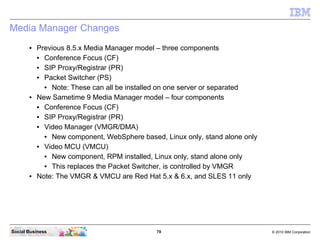
● Previous 8.5.x Media Manager model – three components
● Conference Focus (CF)
● SIP Proxy/Registrar (PR)
● Packet Switcher (PS)
● Note: These can all be installed on one server or separated
● New Sametime 9 Media Manager model – four components
● Conference Focus (CF)
● SIP Proxy/Registrar (PR)
● Video Manager (VMGR/DMA)
● New component, WebSphere based, Linux only, stand alone only
● Video MCU (VMCU)
● New component, RPM installed, Linux only, stand alone only
● This replaces the Packet Switcher, is controlled by VMGR
● Note: The VMGR & VMCU are Red Hat 5.x & 6.x, and SLES 11 only
71 © 2010 IBM CorporationSocial Business
Media Manager (CF+SP/R)
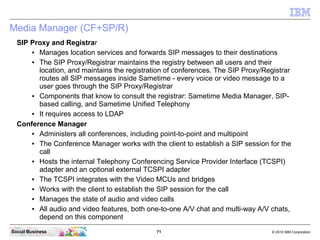
SIP Proxy and Registrar
● Manages location services and forwards SIP messages to their destinations
● The SIP Proxy/Registrar maintains the registry between all users and their
location, and maintains the registration of conferences. The SIP Proxy/Registrar
routes all SIP messages inside Sametime - every voice or video message to a
user goes through the SIP Proxy/Registrar
● Components that know to consult the registrar: Sametime Media Manager, SIP-
based calling, and Sametime Unified Telephony
● It requires access to LDAP
Conference Manager
● Administers all conferences, including point-to-point and multipoint
● The Conference Manager works with the client to establish a SIP session for the
call
● Hosts the internal Telephony Conferencing Service Provider Interface (TCSPI)
adapter and an optional external TCSPI adapter
● The TCSPI integrates with the Video MCUs and bridges
● Works with the client to establish the SIP session for the call
● Manages the state of audio and video calls
● All audio and video features, both one-to-one A/V chat and multi-way A/V chats,
depend on this component
72 © 2010 IBM CorporationSocial Business
Video Manager – New To Sametime 9
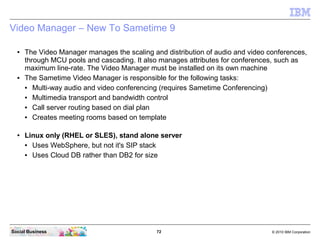
● The Video Manager manages the scaling and distribution of audio and video conferences,
through MCU pools and cascading. It also manages attributes for conferences, such as
maximum line-rate. The Video Manager must be installed on its own machine
● The Sametime Video Manager is responsible for the following tasks:
● Multi-way audio and video conferencing (requires Sametime Conferencing)
● Multimedia transport and bandwidth control
● Call server routing based on dial plan
● Creates meeting rooms based on template
● Linux only (RHEL or SLES), stand alone server
● Uses WebSphere, but not it's SIP stack
● Uses Cloud DB rather than DB2 for size
73 © 2010 IBM CorporationSocial Business
Video Multipoint Control Unit (MCU) – New To Sametime 9
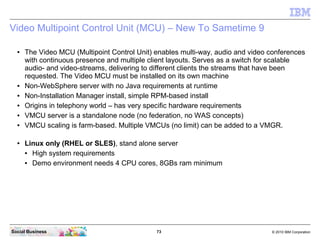
● The Video MCU (Multipoint Control Unit) enables multi-way, audio and video conferences
with continuous presence and multiple client layouts. Serves as a switch for scalable
audio- and video-streams, delivering to different clients the streams that have been
requested. The Video MCU must be installed on its own machine
● Non-WebSphere server with no Java requirements at runtime
● Non-Installation Manager install, simple RPM-based install
● Origins in telephony world – has very specific hardware requirements
● VMCU server is a standalone node (no federation, no WAS concepts)
● VMCU scaling is farm-based. Multiple VMCUs (no limit) can be added to a VMGR.
● Linux only (RHEL or SLES), stand alone server
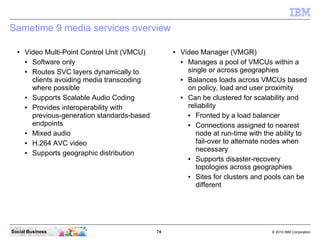
● High system requirements
● Demo environment needs 4 CPU cores, 8GBs ram minimum
74 © 2010 IBM CorporationSocial Business
Sametime 9 media services overview
● Video Multi-Point Control Unit (VMCU)
● Software only
● Routes SVC layers dynamically to
clients avoiding media transcoding
where possible
● Supports Scalable Audio Coding
● Provides interoperability with
previous-generation standards-based
endpoints
● Mixed audio
● H.264 AVC video
● Supports geographic distribution
● Video Manager (VMGR)
● Manages a pool of VMCUs within a
single or across geographies
● Balances loads across VMCUs based
on policy, load and user proximity
● Can be clustered for scalability and
reliability
● Fronted by a load balancer
● Connections assigned to nearest
node at run-time with the ability to
fail-over to alternate nodes when
necessary
● Supports disaster-recovery
topologies across geographies
● Sites for clusters and pools can be
different
75 © 2010 IBM CorporationSocial Business
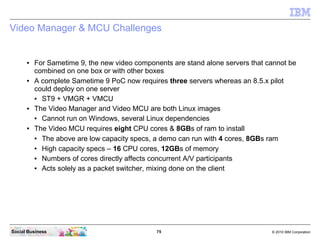
Video Manager & MCU Challenges
● For Sametime 9, the new video components are stand alone servers that cannot be
combined on one box or with other boxes
● A complete Sametime 9 PoC now requires three servers whereas an 8.5.x pilot
could deploy on one server
● ST9 + VMGR + VMCU
● The Video Manager and Video MCU are both Linux images
● Cannot run on Windows, several Linux dependencies
● The Video MCU requires eight CPU cores & 8GBs of ram to install
● The above are low capacity specs, a demo can run with 4 cores, 8GBs ram
● High capacity specs – 16 CPU cores, 12GBs of memory
● Numbers of cores directly affects concurrent A/V participants
● Acts solely as a packet switcher, mixing done on the client
76 © 2010 IBM CorporationSocial Business
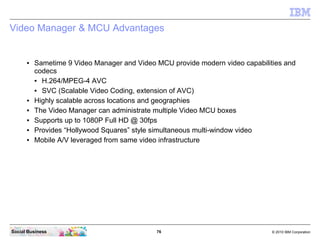
Video Manager & MCU Advantages
● Sametime 9 Video Manager and Video MCU provide modern video capabilities and
codecs
● H.264/MPEG-4 AVC
● SVC (Scalable Video Coding, extension of AVC)
● Highly scalable across locations and geographies
● The Video Manager can administrate multiple Video MCU boxes
● Supports up to 1080P Full HD @ 30fps
● Provides “Hollywood Squares” style simultaneous multi-window video
● Mobile A/V leveraged from same video infrastructure
77 © 2010 IBM CorporationSocial Business
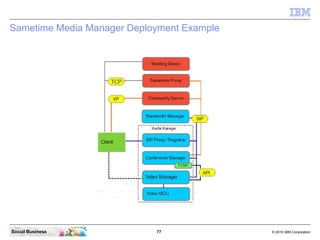
Sametime Media Manager Deployment Example
78 © 2010 IBM CorporationSocial Business
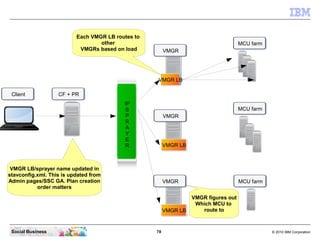
VMGR LB
VMGR LB
VMGR LB
IP
S
P
R
A
Y
E
R
CF + PR
VMGR
VMGR
VMGR
MCU farm
MCU farm
MCU farm
VMGR LB/sprayer name updated in
stavconfig.xml. This is updated from
Admin pages/SSC GA. Plan creation
order matters
Each VMGR LB routes to
other
VMGRs based on load
VMGR figures out
Which MCU to
route to
Client
79 © 2010 IBM CorporationSocial Business
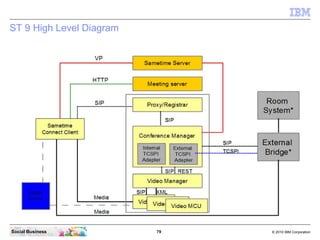
ST 9 High Level Diagram
80 © 2010 IBM CorporationSocial Business
Sametime Audio/Video for External Users
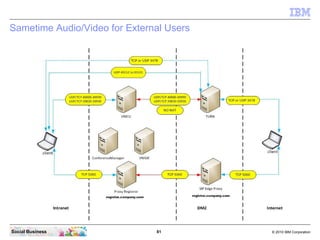
● We need to enable External clients for:
● NAT Traversal
● Firewall Traversal
● SIP Registration
● We do this by deploying:
● Sametime TURN Server
● Sametime SIP EDGE Proxy
● How do web client users get Media Services?
● When you enable the Meeting Services for awareness through STProxy
● The Sametime Proxy server provides the “web av” client plugin to the end user
● IF awareness is working
● AND a conference Manager has connected to the Community Server the user is
connected to (through STproxy)
81 © 2010 IBM CorporationSocial Business
Sametime Audio/Video for External Users
82 © 2010 IBM CorporationSocial Business
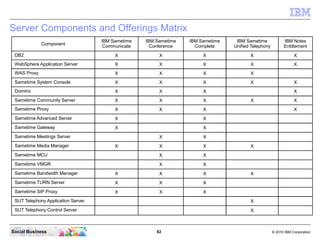
Server Components and Offerings Matrix
Component
IBM Sametime
Communicate
IBM Sametime
Conference
IBM Sametime
Complete
IBM Sametime
Unified Telephony
IBM Notes
Entitlement
DB2 X X X X X
WebSphere Application Server X X X X X
WAS Proxy X X X X
Sametime System Console X X X X X
Domino X X X X
Sametime Community Server X X X X X
Sametime Proxy X X X X
Sametime Advanced Server X X
Sametime Gateway X X
Sametime Meetings Server X X
Sametime Media Manager X X X X
Sametime MCU X X
Sametime VMGR X X
Sametime Bandwidth Manager X X X X
Sametime TURN Server X X X
Sametime SIP Proxy X X X
SUT Telephony Application Server X
SUT Telephony Control Server X
83 © 2010 IBM CorporationSocial Business
Agenda
● Introduction
● What's new in IBM Sametime 9
● Components of IBM Sametime 9
● Requirements for a IBM Sametime 9 Complete Deployment
● Architecture of a IBM Sametime 9 Complete POC deployment
● The 9 steps to a IBM Sametime 9 Complete POC deployment
84 © 2010 IBM CorporationSocial Business
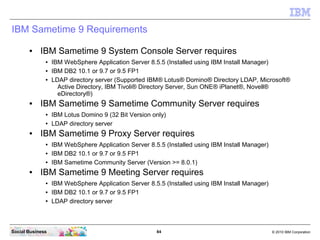
IBM Sametime 9 Requirements
● IBM Sametime 9 System Console Server requires
● IBM WebSphere Application Server 8.5.5 (Installed using IBM Install Manager)
● IBM DB2 10.1 or 9.7 or 9.5 FP1
● LDAP directory server (Supported IBM® Lotus® Domino® Directory LDAP, Microsoft®
Active Directory, IBM Tivoli® Directory Server, Sun ONE® iPlanet®, Novell®
eDirectory®)
● IBM Sametime 9 Sametime Community Server requires
● IBM Lotus Domino 9 (32 Bit Version only)
● LDAP directory server
● IBM Sametime 9 Proxy Server requires
● IBM WebSphere Application Server 8.5.5 (Installed using IBM Install Manager)
● IBM DB2 10.1 or 9.7 or 9.5 FP1
● IBM Sametime Community Server (Version >= 8.0.1)
● IBM Sametime 9 Meeting Server requires
● IBM WebSphere Application Server 8.5.5 (Installed using IBM Install Manager)
● IBM DB2 10.1 or 9.7 or 9.5 FP1
● LDAP directory server
85 © 2010 IBM CorporationSocial Business
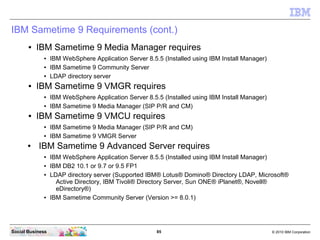
IBM Sametime 9 Requirements (cont.)
● IBM Sametime 9 Media Manager requires
● IBM WebSphere Application Server 8.5.5 (Installed using IBM Install Manager)
● IBM Sametime 9 Community Server
● LDAP directory server
● IBM Sametime 9 VMGR requires
● IBM WebSphere Application Server 8.5.5 (Installed using IBM Install Manager)
● IBM Sametime 9 Media Manager (SIP P/R and CM)
● IBM Sametime 9 VMCU requires
● IBM Sametime 9 Media Manager (SIP P/R and CM)
● IBM Sametime 9 VMGR Server
● IBM Sametime 9 Advanced Server requires
● IBM WebSphere Application Server 8.5.5 (Installed using IBM Install Manager)
● IBM DB2 10.1 or 9.7 or 9.5 FP1
● LDAP directory server (Supported IBM® Lotus® Domino® Directory LDAP, Microsoft®
Active Directory, IBM Tivoli® Directory Server, Sun ONE® iPlanet®, Novell®
eDirectory®)
● IBM Sametime Community Server (Version >= 8.0.1)
86 © 2010 IBM CorporationSocial Business
Minimum Hardware Requirements
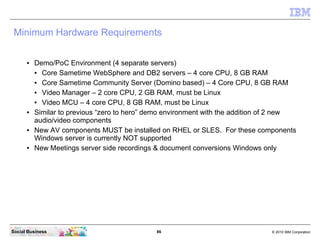
● Demo/PoC Environment (4 separate servers)
● Core Sametime WebSphere and DB2 servers – 4 core CPU, 8 GB RAM
● Core Sametime Community Server (Domino based) – 4 Core CPU, 8 GB RAM
● Video Manager – 2 core CPU, 2 GB RAM, must be Linux
● Video MCU – 4 core CPU, 8 GB RAM, must be Linux
● Similar to previous “zero to hero” demo environment with the addition of 2 new
audio/video components
● New AV components MUST be installed on RHEL or SLES. For these components
Windows server is currently NOT supported
● New Meetings server side recordings & document conversions Windows only
87 © 2010 IBM CorporationSocial Business
Video Manager and MCU System Requirements
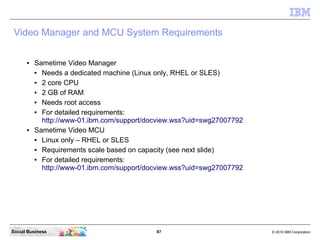
● Sametime Video Manager
● Needs a dedicated machine (Linux only, RHEL or SLES)
● 2 core CPU
● 2 GB of RAM
● Needs root access
● For detailed requirements:
http://www-01.ibm.com/support/docview.wss?uid=swg27007792
● Sametime Video MCU
● Linux only – RHEL or SLES
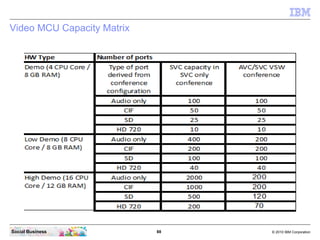
● Requirements scale based on capacity (see next slide)
● For detailed requirements:
http://www-01.ibm.com/support/docview.wss?uid=swg27007792
88 © 2010 IBM CorporationSocial Business
Video MCU Capacity Matrix
89 © 2010 IBM CorporationSocial Business
Other requirements
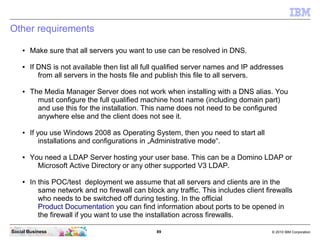
● Make sure that all servers you want to use can be resolved in DNS.
● If DNS is not available then list all full qualified server names and IP addresses
from all servers in the hosts file and publish this file to all servers.
● The Media Manager Server does not work when installing with a DNS alias. You
must configure the full qualified machine host name (including domain part)
and use this for the installation. This name does not need to be configured
anywhere else and the client does not see it.
● If you use Windows 2008 as Operating System, then you need to start all
installations and configurations in „Administrative mode“.
● You need a LDAP Server hosting your user base. This can be a Domino LDAP or
Microsoft Active Directory or any other supported V3 LDAP.
● In this POC/test deployment we assume that all servers and clients are in the
same network and no firewall can block any traffic. This includes client firewalls
who needs to be switched off during testing. In the official
Product Documentation you can find information about ports to be opened in
the firewall if you want to use the installation across firewalls.
90 © 2010 IBM CorporationSocial Business
Other requirements (continued)
● If your Operating System settings is not English, then it is recommended to
change the regional settings and language to English.
● Check the Date and Time settings of all servers you want to install. The time
difference has to be less then 1 minute. Or the federation step fails during the
installation. We recommend to configure a time server synchronization on all
boxes.
● Check that the “SELINUX” parameter is set to “disabled” in all LINUX boxes.
This can be found in “/etc/sysconfig/selinux”.
● Check that the hosts file (can be found in “/etc/hosts” does not contain an entry
with the IP address “127.0.0.1” and your host name of the box. The Federation
will fail. Remark this line or remove it.
91 © 2010 IBM CorporationSocial Business
Required files for a deployment on Windows / Linux
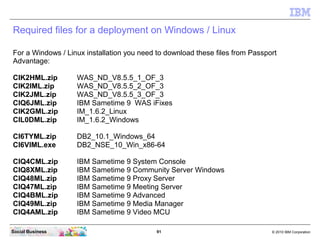
For a Windows / Linux installation you need to download these files from Passport
Advantage:
CIK2HML.zip WAS_ND_V8.5.5_1_OF_3
CIK2IML.zip WAS_ND_V8.5.5_2_OF_3
CIK2JML.zip WAS_ND_V8.5.5_3_OF_3
CIQ6JML.zip IBM Sametime 9 WAS iFixes
CIK2GML.zip IM_1.6.2_Linux
CIL0DML.zip IM_1.6.2_Windows
CI6TYML.zip DB2_10.1_Windows_64
CI6VIML.exe DB2_NSE_10_Win_x86-64
CIQ4CML.zip IBM Sametime 9 System Console
CIQ8XML.zip IBM Sametime 9 Community Server Windows
CIQ48ML.zip IBM Sametime 9 Proxy Server
CIQ47ML.zip IBM Sametime 9 Meeting Server
CIQ4BML.zip IBM Sametime 9 Advanced
CIQ49ML.zip IBM Sametime 9 Media Manager
CIQ4AML.zip IBM Sametime 9 Video MCU
92 © 2010 IBM CorporationSocial Business
Required files for a deployment on Windows / Linux
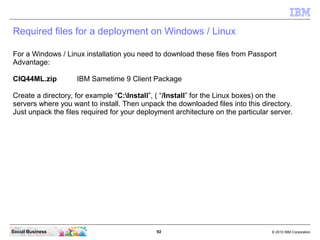
For a Windows / Linux installation you need to download these files from Passport
Advantage:
CIQ44ML.zip IBM Sametime 9 Client Package
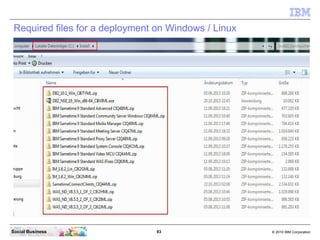
Create a directory, for example “C:Install”, ( “/Install” for the Linux boxes) on the
servers where you want to install. Then unpack the downloaded files into this directory.
Just unpack the files required for your deployment architecture on the particular server.
93 © 2010 IBM CorporationSocial Business
Required files for a deployment on Windows / Linux
94 © 2010 IBM CorporationSocial Business
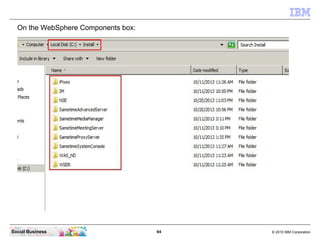
On the WebSphere Components box:
95 © 2010 IBM CorporationSocial Business
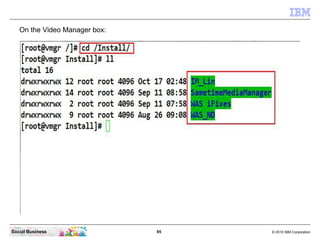
On the Video Manager box:
96 © 2010 IBM CorporationSocial Business
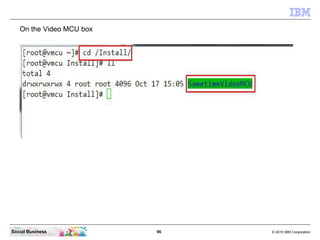
On the Video MCU box
97 © 2010 IBM CorporationSocial Business
Agenda
● Introduction
● What's new in IBM Sametime 9
● Components of IBM Sametime 9
● Requirements for a IBM Sametime 9 Complete Deployment
● Architecture of a IBM Sametime 9 Complete POC deployment
● The 9 steps to a IBM Sametime 9 Complete POC deployment
98 © 2010 IBM CorporationSocial Business
The IBM Sametime 9 Complete Components we will cover
In this Basic Features Part:
● IBM DB2 Database Server
● IBM Sametime System Console
● IBM Sametime Community Server
● IBM Sametime Proxy Server
● IBM Sametime Meeting Server
● IBM Sametime Media Manager
● IBM Sametime VMGR
● IBM Sametime VMCU
● IBM Sametime Advanced Server (optional)
● IBM Sametime Connect Client
In the Extended Features Part:
● IBM Sametime Community MUX (optional)
● IBM secure DMZ HTTP Proxy
● IBM Sametime SIP Edge Proxy
● IBM Sametime TURN Server
● IBM Sametime Bandwidth Manager
● IBM Sametime Gateway
99 © 2010 IBM CorporationSocial Business
IBM Sametime 9 Complete - our POC / Test recommendation
Compared with the last version of this document installing IBM Lotus
Sametime 8.5.2, we have changed again our recommendation for a
POC / test deployment.
The reason for the change is the availability of new features in
installation methods as well as our increased experience and many
successful installations using this method in the last months.
It is known that implementing several components, who provides web
services on one box, require special network configuration. The
services needs to be bind to dedicated IP addresses or ports. This
configuration is described fully and detailed later here in the
document.
The Sametime Advanced Server in this POC / test deployment is
optional.
100 © 2010 IBM CorporationSocial Business
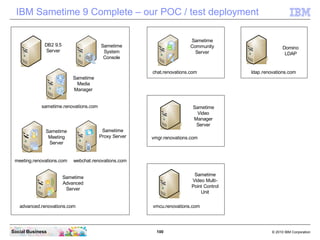
IBM Sametime 9 Complete – our POC / test deployment
Domino
LDAP
ldap.renovations.com
DB2 9.5
Server
Sametime
System
Console
Sametime
Meeting
Server
webchat.renovations.com
Sametime
Proxy Server
meeting.renovations.com
Sametime
Media
Manager
sametime.renovations.com
Sametime
Community
Server
chat.renovations.com
Sametime
Advanced
Server
advanced.renovations.com
vmgr.renovations.com
vmcu.renovations.com
Sametime
Video
Manager
Server
Sametime
Video Multi-
Point Control
Unit
101 © 2010 IBM CorporationSocial Business
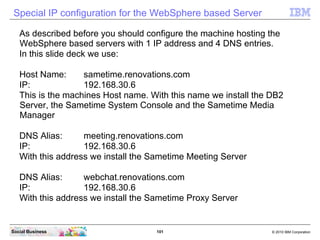
Special IP configuration for the WebSphere based Server
As described before you should configure the machine hosting the
WebSphere based servers with 1 IP address and 4 DNS entries.
In this slide deck we use:
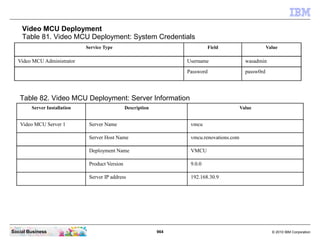
Host Name: sametime.renovations.com
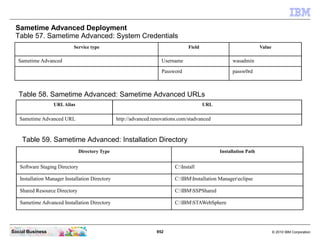
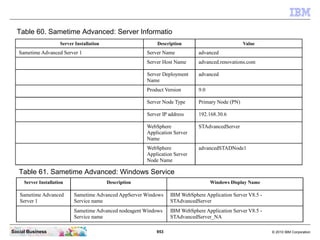
IP: 192.168.30.6
This is the machines Host name. With this name we install the DB2
Server, the Sametime System Console and the Sametime Media
Manager
DNS Alias: meeting.renovations.com
IP: 192.168.30.6
With this address we install the Sametime Meeting Server
DNS Alias: webchat.renovations.com
IP: 192.168.30.6
With this address we install the Sametime Proxy Server
102 © 2010 IBM CorporationSocial Business
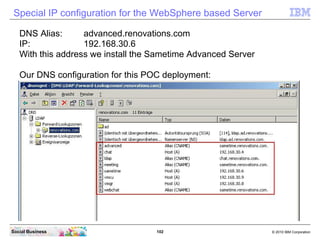
Special IP configuration for the WebSphere based Server
DNS Alias: advanced.renovations.com
IP: 192.168.30.6
With this address we install the Sametime Advanced Server
Our DNS configuration for this POC deployment:
103 © 2010 IBM CorporationSocial Business
Required technical users for IBM Sametime 9
IBM Sametime requires some technical users for components to
communicate in an authenticated mode. All of this users should be
configured so that the password never expires and never needs to be
changed.
db2admin
This user is created during installation of the DB2 server in the
Operating System. Do not create this user in advance.
It is the user for all IBM Sametime related components using DB2 to
access their databases. Be sure to match the password policy
requirements of the OS.
wasadmin
This is the user to access the IBM WebSphere components and to
administer the system. This user must not exist in your LDAP directory.
It is created during WebSphere installation in a local file repository. You
can use the same user name and password for all components (makes
it easier) or different names and passwords. But again, it does not work
when this user exists in the LDAP.
104 © 2010 IBM CorporationSocial Business
Required technical users for IBM Sametime 8.5.2 (cont)
Domino Administrator
This user is created during installation of Domino for the IBM Sametime
Community Server. It is a best practice to not use a existing
administrative account because it is the account with that the IBM
Sametime System Console communicates with the Community Server.
LDAP Bind
This is a user account in your LDAP directory. This account is used to
connect in authenticated mode to the LDAP server to get all required
attributes. It is possible to connect anonymously to the LDAP but then it
does not work with some LDAP systems or the LDAP server requires
special configuration to allow anonymous bind.
105 © 2010 IBM CorporationSocial Business
Starting and stopping the WebSphere based Server
In this POC / test deployment we install and configure all WebSphere
based Sametime servers using a single Cell. Then it is easy to
administer all of them using just one administrative interface. (The
Integrated Solutions Console of the Sametime System Console)
With Sametime 8.5.1 the services where created automatically for all
servers because we used for all of them a separate “Cell Profile”
deployment. Starting with IBM Sametime 8.5.2 we use the Network
deployment method by implementing all servers as a Primary Node
federated to the Deployment Manager of the Sametime System
Console Server in just one Cell.
Using this method the installer does not create some services in the
Windows operating system. We need to manually create these
services. All the required steps are described in detail, later in this
slide deck.
106 © 2010 IBM CorporationSocial Business
Audio/Video Plug-In for Browser access to Meeting Rooms
The IBM Sametime WebAV Plug-In is shipped with the Media Manager in
two formats.
1.) Download Version
This version files needs to be copied onto a Web Server that can be
accessed by the Browser from the client who want to access the Meetings
using Audio and Video services. This could be the Domino based
Sametime Community Server, the Sametime Proxy Server or the Sametime
Meeting Server or any other web server in your organization.
In this POC / test deployment recommendation we use the Sametime Proxy
server for this service. (This is default)
To download and install this Plug-In it is required to have Administrative
access rights on Windows 7. With all other OS the user right is enough
2.) Deployment Version
This version can be deployed using your preferred deployment tool. It
contains a MSI installer file. But be careful in some operating systems as
Windows 7, it is required to install this version with administrative rights.
107 © 2010 IBM CorporationSocial Business
Agenda
● Introduction
● What's new in IBM Sametime 9
● Components of IBM Sametime 9
● Requirements for a IBM Sametime 9 Complete Deployment
● Architecture of a IBM Sametime 9 Complete POC deployment
● The 9 steps to a IBM Sametime 9 Complete POC deployment
108 © 2010 IBM CorporationSocial Business
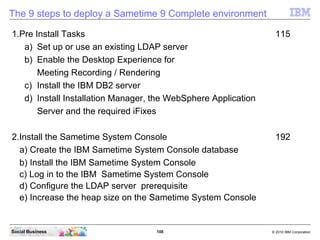
The 9 steps to deploy a Sametime 9 Complete environment
1.Pre Install Tasks 115
a) Set up or use an existing LDAP server
b) Enable the Desktop Experience for
Meeting Recording / Rendering
c) Install the IBM DB2 server
d) Install Installation Manager, the WebSphere Application
Server and the required iFixes
2.Install the Sametime System Console 192
a) Create the IBM Sametime System Console database
b) Install the IBM Sametime System Console
c) Log in to the IBM Sametime System Console
d) Configure the LDAP server prerequisite
e) Increase the heap size on the Sametime System Console
109 © 2010 IBM CorporationSocial Business
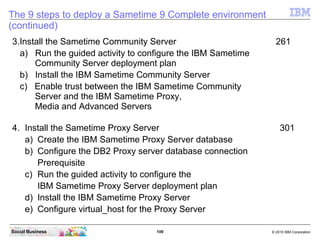
The 9 steps to deploy a Sametime 9 Complete environment
(continued)
3.Install the Sametime Community Server 261
a) Run the guided activity to configure the IBM Sametime
Community Server deployment plan
b) Install the IBM Sametime Community Server
c) Enable trust between the IBM Sametime Community
Server and the IBM Sametime Proxy,
Media and Advanced Servers
4. Install the Sametime Proxy Server 301
a) Create the IBM Sametime Proxy Server database
b) Configure the DB2 Proxy server database connection
Prerequisite
c) Run the guided activity to configure the
IBM Sametime Proxy Server deployment plan
d) Install the IBM Sametime Proxy Server
e) Configure virtual_host for the Proxy Server
110 © 2010 IBM CorporationSocial Business
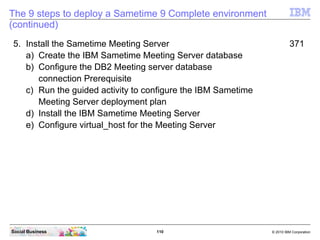
The 9 steps to deploy a Sametime 9 Complete environment
(continued)
5. Install the Sametime Meeting Server 371
a) Create the IBM Sametime Meeting Server database
b) Configure the DB2 Meeting server database
connection Prerequisite
c) Run the guided activity to configure the IBM Sametime
Meeting Server deployment plan
d) Install the IBM Sametime Meeting Server
e) Configure virtual_host for the Meeting Server
111 © 2010 IBM CorporationSocial Business
The 9 steps to deploy a Sametime 9 Complete environment
(continued)
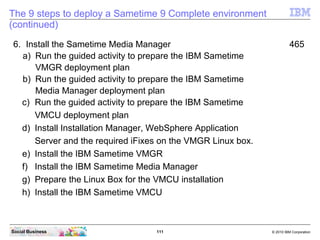
6. Install the Sametime Media Manager 465
a) Run the guided activity to prepare the IBM Sametime
VMGR deployment plan
b) Run the guided activity to prepare the IBM Sametime
Media Manager deployment plan
c) Run the guided activity to prepare the IBM Sametime
VMCU deployment plan
d) Install Installation Manager, WebSphere Application
Server and the required iFixes on the VMGR Linux box.
e) Install the IBM Sametime VMGR
f) Install the IBM Sametime Media Manager
g) Prepare the Linux Box for the VMCU installation
h) Install the IBM Sametime VMCU
112 © 2010 IBM CorporationSocial Business
The 9 steps to deploy a Sametime 9 Complete environment
(continued)
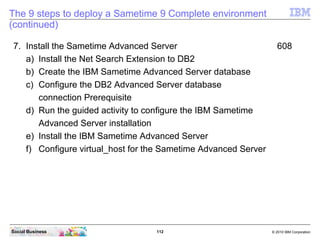
7. Install the Sametime Advanced Server 608
a) Install the Net Search Extension to DB2
b) Create the IBM Sametime Advanced Server database
c) Configure the DB2 Advanced Server database
connection Prerequisite
d) Run the guided activity to configure the IBM Sametime
Advanced Server installation
e) Install the IBM Sametime Advanced Server
f) Configure virtual_host for the Sametime Advanced Server
113 © 2010 IBM CorporationSocial Business
The 9 steps to deploy a Sametime 9 Complete environment
(continued)
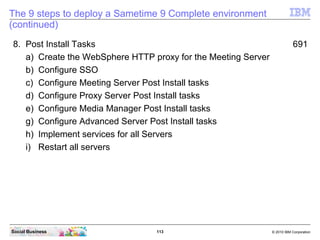
8. Post Install Tasks 691
a) Create the WebSphere HTTP proxy for the Meeting Server
b) Configure SSO
c) Configure Meeting Server Post Install tasks
d) Configure Proxy Server Post Install tasks
e) Configure Media Manager Post Install tasks
g) Configure Advanced Server Post Install tasks
h) Implement services for all Servers
i) Restart all servers
114 © 2010 IBM CorporationSocial Business
The 9 steps to deploy a Sametime 9 Complete environment
(continued)
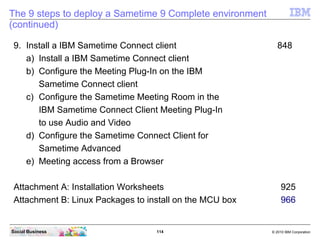
9. Install a IBM Sametime Connect client 848
a) Install a IBM Sametime Connect client
b) Configure the Meeting Plug-In on the IBM
Sametime Connect client
c) Configure the Sametime Meeting Room in the
IBM Sametime Connect Client Meeting Plug-In
to use Audio and Video
d) Configure the Sametime Connect Client for
Sametime Advanced
e) Meeting access from a Browser
Attachment A: Installation Worksheets 925
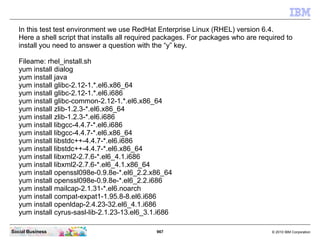
Attachment B: Linux Packages to install on the MCU box 966
115 © 2010 IBM CorporationSocial Business
STEP 1: Pre Install Tasks
Summary
This step installs and configured the Pre Requisites before you can start
to install the Sametime 9 server components.
a) Set up or use an existing LDAP server
b) Enable the Desktop Experience for
Meeting Recording / Rendering
c) Install the IBM DB2 server
d) Install Installation Manager, the WebSphere Application
Server and the required iFixes
116 © 2010 IBM CorporationSocial Business
STEP 1a: Setup an LDAP Server
Summary
This step installs or identifies the LDAP server containing the User
directory you want to use for your Sametime implementation.
117 © 2010 IBM CorporationSocial Business
The LDAP Server
In most environments a LDAP server is already present. If you use Domino it is simple to
just enable LDAP on one of the Domino Directory Servers. If you use an existing LDAP
Server other than Domino, it is important to use a V3 compliant LDAP.
Make sure you have all relevant data from the LDAP system. (use ldapsearch, Apache
LDAP studio or another LDAP browser to get the relevant LDAP information - an LDIF
extract of a user and a group)
A security related recommendation is to have a Bind DN. This means a user record in
the LDAP that can be used for authenticated access to the data in the LDAP server. We
use the „LDAP Bind“ user in this example.
This is a technical user. His password should never expire. Otherwise the systems can
not connect to the LDAP server anymore when this password is expired.
The LDAP connection can be configured with SSL encryption. To configure your
Sametime Servers connecting to LDAP with SSL (LDAPS), additional steps are
required. Make sure that you have access to the required certificate. But we recommend
to start without SSL and when all components work, start implementing LDAPS.
In this example we use an existing Domino LDAP Server. If you plan to use other LDAP
servers then step 7 can be different, dependent on the used LDAP directory.
See the Sametime Product Documentation for more details.
More Information and recommendations can be found in the Product Documentation.
118 © 2010 IBM CorporationSocial Business
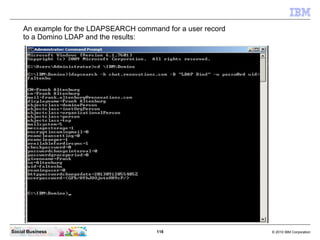
An example for the LDAPSEARCH command for a user record
to a Domino LDAP and the results:
119 © 2010 IBM CorporationSocial Business
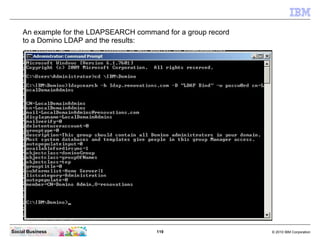
An example for the LDAPSEARCH command for a group record
to a Domino LDAP and the results:
120 © 2010 IBM CorporationSocial Business
STEP 1b: Enable the Desktop Experience for Meeting
Recording / Rendering
Summary
This step enables the “Desktop Experience” feature in the Microsoft
Windows Server system to get the required libraries for the meeting
recording rendering feature.
121 © 2010 IBM CorporationSocial Business
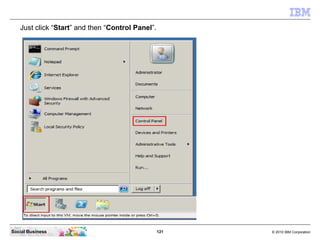
Just click “Start” and then “Control Panel”.
122 © 2010 IBM CorporationSocial Business
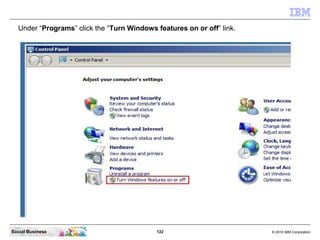
Under “Programs” click the “Turn Windows features on or off” link.
123 © 2010 IBM CorporationSocial Business
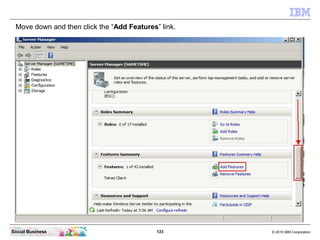
Move down and then click the “Add Features” link.
124 © 2010 IBM CorporationSocial Business
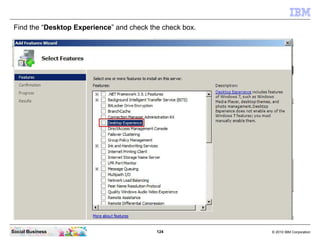
Find the “Desktop Experience” and check the check box.
125 © 2010 IBM CorporationSocial Business
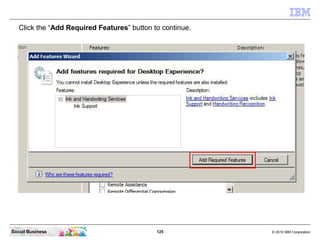
Click the “Add Required Features” button to continue.
126 © 2010 IBM CorporationSocial Business
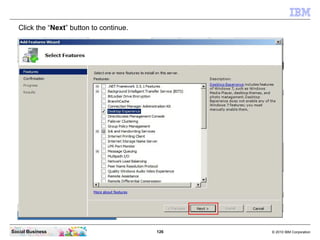
Click the “Next” button to continue.
127 © 2010 IBM CorporationSocial Business
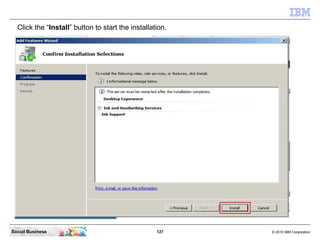
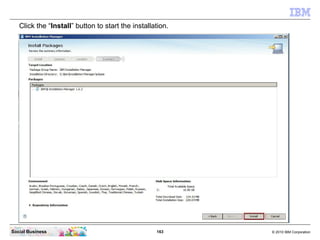
Click the “Install” button to start the installation.
128 © 2010 IBM CorporationSocial Business
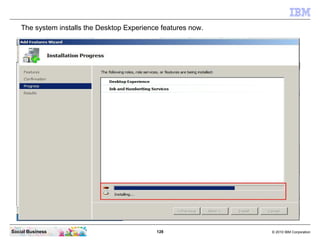
The system installs the Desktop Experience features now.
129 © 2010 IBM CorporationSocial Business
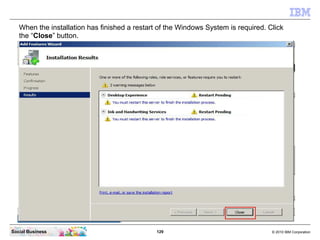
When the installation has finished a restart of the Windows System is required. Click
the “Close” button.
130 © 2010 IBM CorporationSocial Business
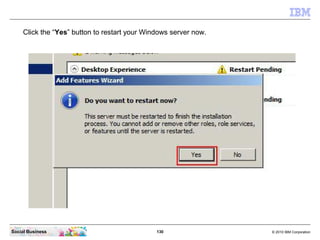
Click the “Yes” button to restart your Windows server now.
131 © 2010 IBM CorporationSocial Business
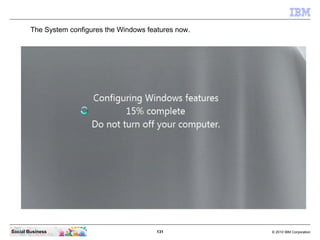
The System configures the Windows features now.
132 © 2010 IBM CorporationSocial Business
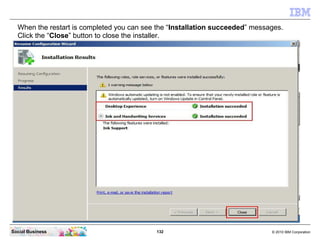
When the restart is completed you can see the “Installation succeeded” messages.
Click the “Close” button to close the installer.
133 © 2010 IBM CorporationSocial Business
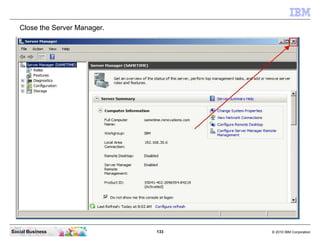
Close the Server Manager.
134 © 2010 IBM CorporationSocial Business
STEP 1c: Install the IBM DB2 Server
Summary
This step installs the IBM DB2 10.1 Server.
135 © 2010 IBM CorporationSocial Business
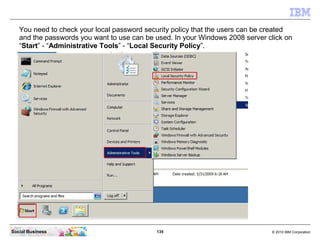
You need to check your local password security policy that the users can be created
and the passwords you want to use can be used. In your Windows 2008 server click on
“Start” - “Administrative Tools” - “Local Security Policy”.
136 © 2010 IBM CorporationSocial Business
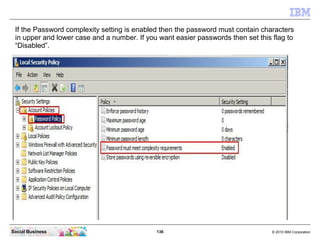
If the Password complexity setting is enabled then the password must contain characters
in upper and lower case and a number. If you want easier passwords then set this flag to
“Disabled”.
137 © 2010 IBM CorporationSocial Business
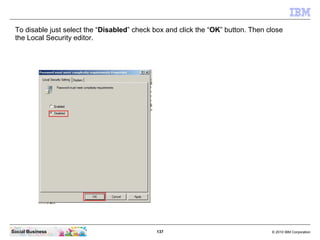
To disable just select the “Disabled” check box and click the “OK” button. Then close
the Local Security editor.
138 © 2010 IBM CorporationSocial Business
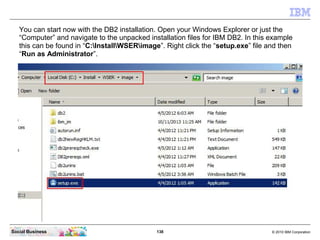
You can start now with the DB2 installation. Open your Windows Explorer or just the
“Computer” and navigate to the unpacked installation files for IBM DB2. In this example
this can be found in “C:InstallWSERimage”. Right click the “setup.exe” file and then
“Run as Administrator”.
139 © 2010 IBM CorporationSocial Business
Click “Install a Product” on the left side.
140 © 2010 IBM CorporationSocial Business
Click the “Install New” button under the “DB2 Workgroup Server Edition Version
10.1” section.
141 © 2010 IBM CorporationSocial Business
It takes some seconds to load the DB2 Setup Wizard.
142 © 2010 IBM CorporationSocial Business
The DB2 Setup Wizard is now initializing.
143 © 2010 IBM CorporationSocial Business
The DB2 Setup Wizard is now ready to go. Click the “Next” button to continue.
144 © 2010 IBM CorporationSocial Business
Select the check box to accept the terms in the license agreement. Then click the
“Next” button to continue.
145 © 2010 IBM CorporationSocial Business
Leave the “Typical” installation defaults and just click the “Next” button to
continue.
146 © 2010 IBM CorporationSocial Business
Select the first option “Install DB2 Workgroup Server Edition on this computer” and
click the “Next” button to continue.
147 © 2010 IBM CorporationSocial Business
We recommend to remove the “Program Files” part in the path. It works with the default
path as well. Click the “Next” button to continue.
We recommend to use path names without spaces (as some scripts may require this) and
also shorten the path name so that the typical limits of some operating systems and
applications for path + file name length are avoided.
148 © 2010 IBM CorporationSocial Business
Remove the “Program Files” part again in the path and select “Do not autostart the
IBM SSH server” option. Then click the “Next” button to continue.
149 © 2010 IBM CorporationSocial Business
We recommend to leave the default user name “db2admin” in here. But enter a password
that fits the password security settings twice and then click the “Next” button to continue.
150 © 2010 IBM CorporationSocial Business
Just click the “Next” button to continue.
151 © 2010 IBM CorporationSocial Business
Un-check the box “Set up your DB2 Server to send notifications”. Then click the
“Next” button to continue.
152 © 2010 IBM CorporationSocial Business
Click the “Next” button to continue.
153 © 2010 IBM CorporationSocial Business
Click the “Install” button to start the installation.
154 © 2010 IBM CorporationSocial Business
The installation of the DB2 Server will take approximately 5 to 10 Minutes.
155 © 2010 IBM CorporationSocial Business
Important to know...
Your DB2 Database Server is a sensitive component in your Sametime
Environment.
It stores all the predefined configuration data and holds the information how to
communicate with your servers for administration and maintenance.
We highly recommend to make regularly a backup of your DB2 database using a
DB2 aware backup software, or export data and backup the exported data.
It is possible to implement your DB2 Server for high availability and load balancing
using DB2 methods.
For more information check into the DB2 InfoCenter, or download and read the
RedBook „High Availability and Disaster Recovery Options for DB2 on
Linux, UNIX, and Windows“
The steps to create a DB2 database need the database name as a
command line parameter. We would recommend using a CMD command
line window to enter this commands.
156 © 2010 IBM CorporationSocial Business
Click the “Finish” button to end the Installation Wizard.
157 © 2010 IBM CorporationSocial Business
After some seconds this “DB2 First Steps” window appears. You can close it.
158 © 2010 IBM CorporationSocial Business
STEP 1d: Install Installation Manager, the
WebSphere Application Server and the required
iFixes
Summary
This step installs the WebSphere Application Server basics.
159 © 2010 IBM CorporationSocial Business
Starting with IBM Sametime 8.5 the System is installed using the IBM Installation Manager.
For IBM Sametime 9 we use the IBM Installation Manager release 1.6.2. Navigate to the
directory “C:InstallIM”. Then right click the file “install.exe” and select “Run as
Administrator”.
160 © 2010 IBM CorporationSocial Business
Click the “Next” button to continue.
161 © 2010 IBM CorporationSocial Business
Select “I accept the terms in the license agreement”. Then click the “Next” button to
continue.
162 © 2010 IBM CorporationSocial Business
Remove the “Program Files/” part in the path. Then click the “Next” button to
continue.
163 © 2010 IBM CorporationSocial Business
Click the “Install” button to start the installation.
164 © 2010 IBM CorporationSocial Business
The IBM Installation Manager is installing. This step takes approximately 60 to 90 seconds.
165 © 2010 IBM CorporationSocial Business
The IBM Installation Manager is installed. Click the “Restart Installation Manager”
button.
166 © 2010 IBM CorporationSocial Business
First you need to add the repositories. Click “File” and then “Preferences...”.
167 © 2010 IBM CorporationSocial Business
Uncheck the check box “Search service repositories during installation and
updates”, Then click the “Add Repository...” button.
168 © 2010 IBM CorporationSocial Business
Click the “Browse...” button.
169 © 2010 IBM CorporationSocial Business
Navigate to the directory “C:InstallWAS_ND” and select the “repository.config” file.
Then click the “Open” button.
170 © 2010 IBM CorporationSocial Business
Click the “OK” button to continue.
171 © 2010 IBM CorporationSocial Business
Click again the “Add Repository...” button.
172 © 2010 IBM CorporationSocial Business
Click the “Browse...” button.
173 © 2010 IBM CorporationSocial Business
Navigate to the directory “C:InstalliFixes” and select the “8.5.5-WS-WAS-
IFPM88937.zip” file. Then click the “Open” button.
174 © 2010 IBM CorporationSocial Business
Click the “OK” button to continue.
175 © 2010 IBM CorporationSocial Business
Click again the “Add Repository...” button.
176 © 2010 IBM CorporationSocial Business
Click the “Browse...” button.
177 © 2010 IBM CorporationSocial Business
Navigate to the directory “C:InstalliFixes” and select the “8.5.5-WS-WASND-
IFPM86173.zip” file. Then click the “Open” button. Continue this procedure until you
have added all 11 iFixes.
178 © 2010 IBM CorporationSocial Business
Click the “OK” button to continue.
179 © 2010 IBM CorporationSocial Business
When you have added all 11 iFixes click the “OK” button to continue.
180 © 2010 IBM CorporationSocial Business
Now click on “Install”.
181 © 2010 IBM CorporationSocial Business
Check both check boxes. Then click the “Next” button to continue.
182 © 2010 IBM CorporationSocial Business
Check all check boxes. Then click the “Next” button to continue.
183 © 2010 IBM CorporationSocial Business
Select “I accept the terms in the license agreement”. Then click the “Next” button to
continue.
184 © 2010 IBM CorporationSocial Business
Remove the “Program Files/” part in the path. Then click the “Next” button to continue.
185 © 2010 IBM CorporationSocial Business
Again remove the “Program Files” part in the path. Then click the “Next” button to
continue.
186 © 2010 IBM CorporationSocial Business
Then click the “Next” button to continue.
187 © 2010 IBM CorporationSocial Business
Then click the “Next” button to continue.
188 © 2010 IBM CorporationSocial Business
Then click the “Install” button to start the installation.
189 © 2010 IBM CorporationSocial Business
The installation takes approximately 5 to 8 minutes.
190 © 2010 IBM CorporationSocial Business
Mark the “None” Checkmark because we don't need the Profile Management Tool.
The Sametime installer will create the required profiles. Click the “Finish” button now.
191 © 2010 IBM CorporationSocial Business
Close the Installation Manager now.
192 © 2010 IBM CorporationSocial Business
STEP 2: Install the IBM Sametime System Console
Server
Summary
This step installs the Sametime System Console Server.
The Sametime System Console installation requires to perform this sub tasks:
a) Create the IBM Sametime System Console database
b) Install the IBM Sametime System Console
c) Log in to the IBM Sametime System Console
d) Configure the LDAP server prerequisite
e) Increase the heap size on the Sametime System Console
193 © 2010 IBM CorporationSocial Business
STEP 2a: Create a DB2 Database for the Sametime
System Console
Summary
This step creates the Sametime System Console Database on the DB2
Server.
If you want to use a dedicated DB2 server or if you already have a DB2
10.1 Server environment available, you can find the Database creation
scripts in the particular installer directory of the Sametime System
Console, Sametime Proxy Server, Sametime Advanced Server and the
Sametime Meeting Server.
194 © 2010 IBM CorporationSocial Business
Open a new DB2 CMD line window because then the newly set environment variables
during the DB2 Server installation are in place. Click “Start” - “All Programs” - “IBM DB2”
- “DB2COPY1 (Default)” - “Command Window - Administrator”
195 © 2010 IBM CorporationSocial Business
Enter the command “cd
InstallSametimeSystemConsoleDatabaseScriptsSystemConsole”.
Do not copy and paste any commands from this document into your CMD line. This does not
work because this would copy some special characters.
196 © 2010 IBM CorporationSocial Business
Enter the command “createSCDb.bat STSC db2admin”.
The name of the database should not be the name of the Sametime System Console Server. If
your SSC is named „stsc.renovations.com“ then you can not name the database STSC. Then
you need to use another name for example „STSCDB“. In this example we use
„meeting.renovations.com“. So we don't have any issue with the Database Name „STSC“.
197 © 2010 IBM CorporationSocial Business
The DB2 database is now created and configured. Be sure that you see „The
SQL command completed successfully.“ response after every command.
If you don't see this responses or get an error message, be sure that your DB2
server is up and running (listening on Port 50.000 or 50.001) and you are
authenticated with the correct user and password.
198 © 2010 IBM CorporationSocial Business
If corporate policy prevents the DB2 application user ID from having administrator rights to
the DB2 server, perform these additional steps after creating the database and before
installing the Sametime System Console.
Connect to the system console database (for example, STSC). Then enter the
createSchedTable.ddl command to create additional tables in the database.
Run these commands in the DB2 command line window:
“db2 connect to STSC”
“db2 -tf createSchedTable.ddl”
“db2 disconnect STSC”
199 © 2010 IBM CorporationSocial Business
STEP 2b: Install the IBM Sametime System Console
Server
Summary
This step installs the Sametime System Console Server.
Before you begin
1. If the computer where you will install the Sametime System Console supports both
IPv4 and IPv6 addressing, map the addresses to the same host name to generate
matching SSL certificates.
2. Check the hosts file and remove any lines that start with the following:
● 127.0.0.1 fully_qualified_domain_name short_name
● ::1 fully_qualified_domain_name short_name
3. An issue with WebSphere® Application Server causes the server installation to fail
if these lines are in the file. Save the file if you make changes.
200 © 2010 IBM CorporationSocial Business
Navigate to the „C:InstallSametimeSystemConsole“ directory and double
click the „launchpad.exe“ file.
201 © 2010 IBM CorporationSocial Business
The Sametime 9.0.0 Launchpad opens. Click the „Install IBM Lotus
Sametime System Console“ link on the left side.
202 © 2010 IBM CorporationSocial Business
Now click the link „Launch IBM Lotus Sametime System Console 9.0.0
Installation“
203 © 2010 IBM CorporationSocial Business
Click the „Install“ icon to start the installation.
204 © 2010 IBM CorporationSocial Business
Select „IBM Sametime System Console server“ and „Version 9.0.0.0“. Then click the
„Next“ button to continue.
205 © 2010 IBM CorporationSocial Business
Accept the terms in the license agreement and click the „Next“ button to continue.
206 © 2010 IBM CorporationSocial Business
Enter the correct path (remove „Program Files“ and click the „Next“ button to continue.
The Package group is the installation destination for the IBM Lotus WebSphere base files. The
first installation requires the creation of a new package group. If you install more WebSphere
based applications on the same hardware (like the Sametime Proxy Server and the Sametime
Meeting Server) they can use the existing package group. Then you cannot change the
installation path.
207 © 2010 IBM CorporationSocial Business
Click the „Next“ button to continue.
208 © 2010 IBM CorporationSocial Business
With Sametime 9.0, WebSphere has to be already installed before you can install
a Sametime Component. Select the directory to where WAS has been installed
and click the “Validate” button.
209 © 2010 IBM CorporationSocial Business
The WebSphere installation has been successfully validated. Click the “Next” button to
continue.
210 © 2010 IBM CorporationSocial Business
In this screen you define the WebSphere Application Server administrative user. You
need to authenticate with this user to access the Sametime System Console. It is
important that this user does not exist in your LDAP. In this example we use the
standard „wasadmin“. Enter the password twice and click the „Next“ button to continue.
211 © 2010 IBM CorporationSocial Business
Enter the host name of your DB2 server and the DB2 Administrator password. In this
example we have installed the DB2 server on the „sametime.renovations.com“ server.
Then click the „Validate“ button to continue.
212 © 2010 IBM CorporationSocial Business
If the DB2 connection was successful, then you should see that the text in the button
has changed to „Validated“. Now click the „Next“ button to continue.
213 © 2010 IBM CorporationSocial Business
Click the „Install“ button to install the Sametime System Console Server.
214 © 2010 IBM CorporationSocial Business
The Installation Manager now installs the Sametime System Console. This
step can take approximately 10 to 15 Minutes.
215 © 2010 IBM CorporationSocial Business
Important to know...
If you plan to use the IBM Lotus Sametime System Console, you should install this part
first. But it is possible to add an already installed Sametime Server to the System
Console for managing and administration. This can be done with every new Sametime
component.
By the way, if you lose your already installed System Console server, you can revert it
back by installing a new one and add the already installed Sametime components to it
using post install registration utilities. Can be found in <product install root>/console
directory)
Be sure to make a backup of all related data and files (DB2 and WebSphere) because
it is much faster to restore a backup if a failure occurs.
You will see that it is worth to learn about the Sametime System Console and use it
very soon!
216 © 2010 IBM CorporationSocial Business
Director on Windows 2008: C:UsersAll UsersIBMInstallation Managerlogsant
In this directory is the log file where the installer logs its progress. The file increases up
to approximately 340 KBytes.
The last step is to configure the services and some post install tasks.
217 © 2010 IBM CorporationSocial Business
The Sametime System Console server has installed successfully. Click the „Finish“
button and close the Installation Manager and the Launchpad.
218 © 2010 IBM CorporationSocial Business
Close the IBM Installation Manager.
219 © 2010 IBM CorporationSocial Business
To close the Launchpad click the “Exit” link.
220 © 2010 IBM CorporationSocial Business
Just click the “OK” button.
221 © 2010 IBM CorporationSocial Business
STEP 2c: Log in to the IBM Lotus Sametime System
Console Server
Summary
Start your preferred Browser, enter the System Console URL and log in.
In this example we use the Mozilla Firefox.
222 © 2010 IBM CorporationSocial Business
Enter the URL „http://sametime.renovations.com:8700/admin“.
The WebSphere Application Server Administrative interface (the Integrated Solutions
Console ISC) is always secured by SSL. Therefore you will be redirected to HTTPS and the
port 8701 automatically. You are prompted to accept the default certificate. For different
browsers the procedure to accept this IBM signed certificate is different.
You can use the direct URL: „https://sametime.renovations.com:8701/ibm/console“.
Then click the “I understand the Risks” button.
223 © 2010 IBM CorporationSocial Business
Then click the “Add Exception” button.
224 © 2010 IBM CorporationSocial Business
The IBM signed certificate is not trusted by the browser. Click the „Get Certificate“
button to accept the certificate by clicking the “Confirm Security Exception Button”.
(this dialog is different using other browsers)
225 © 2010 IBM CorporationSocial Business
Enter the WebSphere Application Server Administrative User name and its password.
We use „wasadmin“. Then click the „Log in“ button to continue.
226 © 2010 IBM CorporationSocial Business
You have now reached the IBM Lotus Sametime System Console.
Next step is to configure the LDAP connectivity.
227 © 2010 IBM CorporationSocial Business
STEP 2d: Configure the „Connect to LDAP Server“
Prerequisite.
Summary
In this step you configure the LDAP connectivity in the Sametime System
Console. This is used for the Sametime Community Server installation as
well as in the Sametime Meeting Server and Media Manager installation.
You can change this LDAP connectivity later. But this will not apply to any
Deployment Plan or to any already installed server. Any changes needs to
be done in the servers configuration directly. (Community, Meeting,
Media) This is only for the first installation of the servers before creating
the Deployment Plan.
228 © 2010 IBM CorporationSocial Business
Now click the „Sametime Prerequisites“ link.
Next click the „Connect to LDAP Servers“ link.
Click the „Sametime System Console“ link.
229 © 2010 IBM CorporationSocial Business
On any Sametime System
Console Screen you can
find additional information
on the middle part of the
page. There are Links to the
official Sametime InfoCenter
for the particular step you
want to do next.
230 © 2010 IBM CorporationSocial Business
To connect to an LDAP server click the „Add“ button to continue.
231 © 2010 IBM CorporationSocial Business
Configure the LDAP connectivity
information on this screen.
- The Deployment Name can be anything
describing this LDAP connection.
- The Host name should be the Full
Qualified Host name. The Port depends
on the LDAP.
- An Domino LDAP Server normally uses
the Port 389. Other LDAP Systems use
maybe use other ports.
- Do not use the secure connection
unless you have imported the certificate
from the LDAP server.
- The Bind Distinguished Name should
be the full qualified Distinguished Name
(DN) of the Bind user.
Click the „Next“ button to continue.
232 © 2010 IBM CorporationSocial Business
The system now connects to the LDAP server, authenticates and requests the LDAP
parameters. It detects the possible Base DN's and the Directory type.
Select the right Base DN on this screen. With Domino LDAP the “LDAP base entry”
has to be empty. You can check the „Configure advanced LDAP settings“ checkbox
to see more LDAP parameters. Click the „Next“ button to continue.
233 © 2010 IBM CorporationSocial Business
Click the „Finish“ button to save the settings and configure the
LDAP connection in the Symetime System Console Server.
234 © 2010 IBM CorporationSocial Business
The LDAP connection is now successfully created and the Sametime System
Console server configured. This is a mayor security configuration change that
requires a WebSphere server restart.
235 © 2010 IBM CorporationSocial Business
Click on “Servers” - “Server Types” - “WebSphere application servers”.
236 © 2010 IBM CorporationSocial Business
Select the “STConsoleServer” and then click the “Stop” button.
237 © 2010 IBM CorporationSocial Business
Check the check box “Do not show this message again” and click the “OK” button.
238 © 2010 IBM CorporationSocial Business
Wait until the server has stopped successfully. Then click the “OK” button.
239 © 2010 IBM CorporationSocial Business
Now click on “System administration” - “Node agents”.
240 © 2010 IBM CorporationSocial Business
Check the check box of the nodeagent and click the “Stop” button.
241 © 2010 IBM CorporationSocial Business
Wait until the nodeagent has stopped successfully.
242 © 2010 IBM CorporationSocial Business
Now click the “Deployment manager”.
243 © 2010 IBM CorporationSocial Business
Click the “Stop” button to stop the Deployment manager.
244 © 2010 IBM CorporationSocial Business
Confirm the stopping by clicking the “OK” button.
245 © 2010 IBM CorporationSocial Business
The Sametime System Console logs you out automatically.
246 © 2010 IBM CorporationSocial Business
Go into the Services view and select the “IBM WebSphere Application Server V8.5 –
STConsoleServer_DM”. Then click the start button.
247 © 2010 IBM CorporationSocial Business
The service is now starting.
248 © 2010 IBM CorporationSocial Business
Start the “...STConsoleServer_NA” service.
249 © 2010 IBM CorporationSocial Business
Start the “...STConsoleServer” service.
250 © 2010 IBM CorporationSocial Business
All 3 services for the Sametime System Console are now started.
251 © 2010 IBM CorporationSocial Business
Refresh your browser.
252 © 2010 IBM CorporationSocial Business
STEP 2e: Increase the heap size on the Sametime
System Console
Summary
To ensure that the IBM® Sametime® System Console can properly
support all of the Sametime servers that use it as a deployment manager,
increase the heap size of the IBM WebSphere® Application Server
deployment manager. Complete this task before attempting to install other
Sametime servers.
253 © 2010 IBM CorporationSocial Business
Log On to your Sametime System Console using your WebSphere administrator user
account and password
254 © 2010 IBM CorporationSocial Business
Click on “System Administration” - “Deployment manager”.
255 © 2010 IBM CorporationSocial Business
Open the “Java and Process Management” section and click the “Process definition”
link.
256 © 2010 IBM CorporationSocial Business
Under “Additional Properties” click the “Java Virtual Machine” link.
257 © 2010 IBM CorporationSocial Business
Change the “Maximum heap size” from default 512 to “2048”. Then click the “OK” button.
258 © 2010 IBM CorporationSocial Business
Click “Save” to save the last changes.
259 © 2010 IBM CorporationSocial Business
Log out from the Sametime System Console.
260 © 2010 IBM CorporationSocial Business
In the Services window select the “...STConsoleServer_DM” and click the restart button.
261 © 2010 IBM CorporationSocial Business
STEP 3: Install the IBM Sametime Community
Server
Summary
In this step you install the IBM Lotus Sametime Community Server using the Sametime
System Console.
This step is split into these sub tasks:
a) Run the guided activity to configure the IBM Sametime
Community Server deployment plan
b) Install the IBM Sametime Community Server
c) Enable trust between the IBM Sametime Community
Server and the IBM Sametime Proxy,
Media and Advanced Servers
If you use a Windows 2008 or 2012 server it is recommended to disable unused TCP
global settings. The instructions for can be found in the Product Documentation.
262 © 2010 IBM CorporationSocial Business
Domino Server Installation & Configuration
 Before installing a Sametime Community server:
– Install Domino Enterprise Server 32-bit
– Start the Lotus Domino server to finish the configuration process and selecting HTTP
and LDAP server tasks (Note: if you have another LDAP server you will not need
Domino LDAP)
– Once setup is complete, start the server once to initialize databases
262
263 © 2010 IBM CorporationSocial Business
Important to know...
Configure your Domino Server hosting the Sametime Community Server in a
separate Domain. Do not implement this server in your existing Mail Domain.
● You are version independent and can use another domino version then in your
Mail Domain
● You are independent in the Directory Design and can use a standard design
or a newer design
● Your Domino Directory is empty – it does not contain any users. Makes it
easier to implement LDAP
● Add all your collaboration servers (Sametime and/or QuickR) into this Domain
● You can use an existing certifier from your production mail domain to register
the server ID. Then you don't need cross certification, can access the server
from your Admin Client and Notes Client SSO to Sametime works without any
additional configuration
● You can copy an existing SSO LtpaToken Document from your Production
Domain to your Collaboration Domain. Add the Sametime Server(s) first and
then copy the document.
264 © 2010 IBM CorporationSocial Business
STEP 3a: Run the Guided Activity to configure the
IBM Sametime Community Server deployment
plan
Summary
This guided activity takes you through the steps of creating a deployment
plan, which collects information that pre-populates installation screens.
265 © 2010 IBM CorporationSocial Business
Be sure that your Domino Server is up and running and the HTTP Task is started.
266 © 2010 IBM CorporationSocial Business
Start your Browser now and connect to the Sametime System Console. Then login as
described in Step 7.
Now click on „Sametime System Console“ and then „Guided Activities“.Then click the
„Install Sametime Community Server“ link.
267 © 2010 IBM CorporationSocial Business
Confirm that „Create a New Deployment Plan“ is checked and click the „Next“ button.
268 © 2010 IBM CorporationSocial Business
Enter a name for your Community Server Deployment Plan. In this example we just
name it „Chat“. Then click the „Next“ button to continue.
269 © 2010 IBM CorporationSocial Business
We want to install the Product Version 9.0.0. Leave it as it is and just click the „Next“
button.
270 © 2010 IBM CorporationSocial Business
Enter the Host name of your running Domino Server. The port should only be changed
if your Domino HTTP task listens on another port. Enter the Domino Administrators
User ID and the password. In this example we use „Domino Admin“. Click the „Next“
button to continue.
271 © 2010 IBM CorporationSocial Business
Select the LDAP you want to use for the Sametime Community Server. In this
example we use the „Domino LDAP“. (it is the only one we have).
Then click the „Next“ button to continue.
272 © 2010 IBM CorporationSocial Business
HTTP Tunneling is required if your Sametime Clients need to connect to your
Sametime Server through a Web Proxy or Reverse Proxy Server. But then
performance can be slower. Only enable HTTP tunneling when urgently required.
Then click the „Next“ button to continue.
273 © 2010 IBM CorporationSocial Business
Confirm all settings and then click the „Finish“ button.
274 © 2010 IBM CorporationSocial Business
You have now successfully created a deployment plan for your Sametime Community
Server.
The next step is to install the Sametime Community Server.
275 © 2010 IBM CorporationSocial Business
STEP 3b: Install the IBM Sametime Community
Server
Summary
In this step you install the IBM Lotus Sametime Community Server using the Sametime
System Console.
Before you can start the installation you need to quit the Lotus Domino Server.
276 © 2010 IBM CorporationSocial Business
Click “File” - “Stop Server...” in the Lotus Domino Console.
277 © 2010 IBM CorporationSocial Business
Confirm the server stop by clicking the “Yes” button.
278 © 2010 IBM CorporationSocial Business
Now click “File” and “Exit”.
279 © 2010 IBM CorporationSocial Business
Check the check box to stop the Server Controller and click the “Yes” button.
280 © 2010 IBM CorporationSocial Business
When the Domino Console has disappeared you can open a File Explorer window and
navigate to the installation directory. In this example we use:
„C:InstallSametimeStandardServerServer“.
Then double click the file „setupwin32.exe“
281 © 2010 IBM CorporationSocial Business
The Lotus Install Shield Wizard is starting up.
Confirm the English language or select your preferred language for the installer. Then
click the „OK“ button.
282 © 2010 IBM CorporationSocial Business
Click the „Next“ button to continue.
283 © 2010 IBM CorporationSocial Business
Accept the terms in the license agreement and click the „Next“ button.
284 © 2010 IBM CorporationSocial Business
We want to install the Sametime Community Server using the predefined Deployment
Plan in the Sametime System Console. To go this way just accept the default „Yes“
answer and click the „Next“ button.
285 © 2010 IBM CorporationSocial Business
Enter the Host name of the Sametime System Console. In this example we use
„sametime.renovations.com“ because we have installed the SSC on this host.
The default port for communication is „9443“ (using SSL encryption) Port „9080“ would
be in use for un-encrypted communication. The WebSphere Administrative User and
password is required. We use our standard user name „wasadmin“. The last field is
the local host name where you want to install your Sametime Community Server.
By default it just displays the host name. Add the domain to get the full qualified host
name in the field. We use „chat.renovations.com“. Then click the „Next“ button.
286 © 2010 IBM CorporationSocial Business
Select the Deployment plan that you have created for your Community Server. We
use the „Chat“ plan. Then click the „Next“ button.
287 © 2010 IBM CorporationSocial Business
Crosscheck that all settings are correct. Then click the „Install“ button.
288 © 2010 IBM CorporationSocial Business
The Install Shield Wizard is now installing the Lotus Sametime Community Server on
top of your existing Domino Server installation using the predefined Settings from the
Deployment Plan in the Sametime System Console. This step takes approximately 2 –
3 Minutes.
289 © 2010 IBM CorporationSocial Business
Important to know...
The Sametime Community Server Deployment Plan Guided Activity checks the
existence of the Domino Administrator user ID and that this user can authenticate
with its HTTP password.
Therefore it is required to install the Domino Server before the Sametime
Community Server Deployment Plan is created.
It is possible to change this credentials if the Domino Administrator user changes.
This can be done in the Sametime System Console.
290 © 2010 IBM CorporationSocial Business
Important to know...
The Sametime 9.0 Community Server reads the policy configuration from the
Sametime System Console during startup and then every hour.
(This can be configured)
The first startup of the Sametime Community Servers requires the SSC to get the
Policy configuration. Then it caches this data in the local „policies.user.xml“ file.
This can be found in the Domino program directory. This means the Sametime
Community Server can start and run even if the SSC is not available.
291 © 2010 IBM CorporationSocial Business
When the installation was successfully click the „Finish“ button.
292 © 2010 IBM CorporationSocial Business
Be sure “Yes, restart my computer” is selected. Then click the “Finish” button.
293 © 2010 IBM CorporationSocial Business
Confirm that all Sametime related Services (HTTP JVM and Sametime Services) start
up correctly. A full start of a Sametime Server with all tasks can take up to 5 Minutes.
You can check the „Task Manager“ and there the „Processes“ view to check that all
28 Tasks starting with the letters „ST...“ are started.
294 © 2010 IBM CorporationSocial Business
Summary
In this step you configure the Sametime Community Server to trust the Sametime
proxy Server.
The Sametime Proxy Server, Media Manager and Advanced Server need to
connect to the Sametime Community Server on the Virtual Places (VP) Server
Port 1516. Normally a Sametime Community Server only allows this connection if
the connecting server is known (another Sametime Server in the same
Community) or is trusted in the Trusted IP's field in the configuration database.
Other Servers you need to trust can be BlackBerry Servers, the Sametime
Gateway, Sametime Media Manager, Sametime Advanced Server, SUT Server,
WebSphere Portal Server or other servers who want to connect using the VP
Server protocol.
STEP 3c: Enable Trust between the Sametime
Community Server, the Sametime Proxy Server,
the Media Manager and the Sametime Advanced
Server
295 © 2010 IBM CorporationSocial Business
Open the Sametime System Console, Log in and navigate to the Sametime
Community Server by clicking on „Sametime System Console“ then „Sametime
Servers“ and then „Sametime Community Servers“.
296 © 2010 IBM CorporationSocial Business
Click the link to your Community Server. We click on „Chat“ because this is our
name for the Community Server Deployment Plan. The „Edit“ link allows you to
change the authentication credentials to the Sametime Community Server (Domino
Administrator user name, password and port)
297 © 2010 IBM CorporationSocial Business
The Sametime Community Server configuration screen appears. Go to the bottom of the
screen to find the „Trusted Servers“ Setting.
298 © 2010 IBM CorporationSocial Business
Enter the IP address of the Server you want to allow connecting to the Sametime
Community Server. In this example we use the IP „192.168.30.6“ for the Sametime
Proxy Server and then click the “Add” Button.
Now we add the IP “192.168.30.8” for the Sametime Video Manager Server and then
click the “Add” Button.
299 © 2010 IBM CorporationSocial Business
We have now added all required IP addresses for this pilot deployment. Now click
“OK” to continue.
300 © 2010 IBM CorporationSocial Business
The Sametime Community Server requires a Server restart for most of the configuration
changes.
Now restart the Sametime Community Server by entering the command „restart server“
in the Domino Console window. Never use this command in a production Sametime
server because it can happen that not all Sametime tasks are stopped before the
domino server restarts. This can cause massive problems for starting the Sametime
Services. Stop your Domino Server using the “Quit” command or by stopping the
“Lotus Domino Service”. Wait until all ST... Tasks disappeared in your TaskManager.
Then restart the Domino Server again.
It takes up to 5 Minutes until the Sametime Community Server is completely
restarted and all 41 Sametime tasks are again active.
301 © 2010 IBM CorporationSocial Business
Summary
This step installs the Sametime Proxy Server. It is split into these sub tasks:
a) Create the IBM Sametime Proxy Server database
b) Configure the DB2 Proxy server database connection
Prerequisite
c) Run the guided activity to configure the
IBM Sametime Proxy Server deployment plan
d) Install the IBM Sametime Proxy Server
e) Configure virtual_host for the Proxy Server
STEP 4: Install the IBM Sametime Proxy Server
302 © 2010 IBM CorporationSocial Business
The IBM® Sametime® Proxy Server enables browser-based clients to participate in
Sametime instant messaging and online meetings. In addition, the Sametime Proxy Server
works with Sametime Community Server or IBM Connections to enable the business card
feature in Sametime, and with Sametime Unified Telephony or other TCSPI-enabled
products to enable the Sametime click-to-call feature. The Sametime Proxy Server also
provides live names awareness and can replace the Links Toolkit used in earlier releases of
Sametime. Read the system requirements to ensure that you know the minimum supported
software requirements.
Important: If you will be supporting the use of LiveNames in your Sametime deployment,
you should deploy all Sametime Meeting Servers and Sametime Proxy Servers within the
same subnet. It is suggested that you configure WebSphere® Application Server Network
Deployment with a single subnet for network traffic. You can use one Network interface card
(NIC) on a physical machine or logical partition (LPAR). You can also reference a single
Domain name system (DNS) server in the network configuration for the physical machine or
LPAR.
303 © 2010 IBM CorporationSocial Business
Summary
This step is to create and configure the DB2 Database for the Sametime Proxy
Server. This database is required to cache the Sametime messages sent to iOS
mobile devices.
STEP 4a: Create the DB2 Database for the
Sametime Proxy Server
304 © 2010 IBM CorporationSocial Business
Start a DB2 Command Window by clicking “Start” - “All Programs” - “IBM DB2” -
“DB2COPY1 (Default)” - “Command Window - Administrator”.
305 © 2010 IBM CorporationSocial Business
Next is to create the database in the DB2 Server. If your DB2 Server is on a separate
machine or on another machine, then you need to copy the database creation script
files to this server first. Copy the files “createProxyDb.bat” and “proxyServer.ddl” to a
directory on your DB2 Server.
In the DB2 CMD window navigate to this directory. In this Zero to Hero example we
use just “cd C:InstallIBM Sametime Proxy ServerDatabaseScriptsProxyServer”.
Then run the database creation script with the command: “createProxyDb.bat STPR
db2admin”. The term “STPR” is the name of the database and “db2admin” is the DB2
Database Server Administrator.
306 © 2010 IBM CorporationSocial Business
Be sure that you see the “...command completed successfully” message after all
commands.
307 © 2010 IBM CorporationSocial Business
Summary
Use the IBM® Sametime® System Console to connect to the IBM DB2® database that you
created for Sametime Proxy Server, Sametime Meeting Server, Sametime Advanced
Server, or Sametime Gateway Server. Complete this task before you install the
corresponding server. If you installed the server without using the Sametime System
Console, complete this procedure before registering the server with the Sametime System
Console.
STEP 4b: Configure the DB2 Proxy server database
connection prerequisite
308 © 2010 IBM CorporationSocial Business
In your Sametime System Console click “Sametime System Console” - “Sametime
Prerequisites” and then “Connect to DB2 Database”.
309 © 2010 IBM CorporationSocial Business
Click the “Add...” button to create a new prerequisite configuration.
310 © 2010 IBM CorporationSocial Business
File the fields “Host name” with your DB2 Server name, “Database name” with the
name of the just created database. The “Application user ID” is your db2admin user
and its password. Then click the “Finish” button.
311 © 2010 IBM CorporationSocial Business
The DB2 Database for the Sametime Proxy server is now successfully added to the
prerequisites.
312 © 2010 IBM CorporationSocial Business
Summary
This guided activity takes you through the steps of creating a deployment plan,
which collects information that pre-populates installation screens for IBM®
Sametime® Proxy Server.
Before you begin
If you are using this guided activity to install an older Sametime version then 9.0,
you must follow the documentation of your version in the Sametime wiki to
ensure that the instructions are correct for your deployment.
The following servers must be installed and running:
● LDAP server
● Sametime Community Server
STEP 4c: Run the guided activity to configure the
IBM Sametime Proxy Server deployment plan
313 © 2010 IBM CorporationSocial Business
In the Sametime System Console click on „Sametime System Console“, then on
„Sametime Guided Activities“ and then click „Install Sametime Proxy Server“.
314 © 2010 IBM CorporationSocial Business
Confirm that „Create a New Deployment Plan“ is checked and click the „Next“
button.
315 © 2010 IBM CorporationSocial Business
Enter a name for your Proxy Server Deployment Plan. In this example we just
name it „Webchat“. Then click the „Next“ button to continue.
316 © 2010 IBM CorporationSocial Business
We want to install the actual version 9.0.0. just click the „Next“ button to continue.
317 © 2010 IBM CorporationSocial Business
The default setting is „Primary Node“ that we use in this example. If you plan to
implement the Sametime Proxy Server in a stand alone environment, then select
„Cell“. Note that it is not possible to implement a Cell Profile and a Network
Deployment on the same box.
Click „Next“ to continue.
318 © 2010 IBM CorporationSocial Business
A “Primary Node” can be federated to an existing Deployment Manager. We
want to federate our environment to the Deployment Manager of our Sametime
System Console. Select the “System Console...”.
Click „Next“ to continue.
319 © 2010 IBM CorporationSocial Business
Enter the full qualified host name of your proxy server. In this example we use
„webchat.renovations.com“. Enter a WebSphere administrative user name and its
password twice. We just use the standard „wasadmin“ name.
Click the „Next“ button to continue.
320 © 2010 IBM CorporationSocial Business
Select the Community Server you want your Proxy Server to connect to. You need to
connect only to one Community Server. The Proxy Server gets information about
other Servers in the community and connects to this servers automatic. (Don't forget
to enable trust on the other servers as well) In this example we just select the „Chat“
server. Then click „Next“ to continue.
321 © 2010 IBM CorporationSocial Business
Select the “STPR” database. Then click the “Next” button to continue.
322 © 2010 IBM CorporationSocial Business
Control your settings and if all is correct click the „Finish“ button to save the new
deployment plan.
323 © 2010 IBM CorporationSocial Business
We have now successfully created our Sametime Proxy Server deployment plan.
324 © 2010 IBM CorporationSocial Business
Summary
This step installs the Sametime Proxy Server using the pre-defined Deployment
plan in the Sametime System Console.
STEP 4d: Install the IBM Sametime Proxy Server
using the predefined deployment plan
325 © 2010 IBM CorporationSocial Business
Navigate to the Installation Directory and start the launchpad installer. We use a
Windows CMD command window and enter the commands: „cd
InstallSametimeProxyServer“ and just „launchpad“
326 © 2010 IBM CorporationSocial Business
The Sametime Proxy Launchpad Installer is loading. Click the link „Install IBM
Sametime Proxy Server“
327 © 2010 IBM CorporationSocial Business
Now click the link „Launch IBM Sametime Proxy Server 9.0.0 Installation“
328 © 2010 IBM CorporationSocial Business
The IBM Installation Manager is loading.
329 © 2010 IBM CorporationSocial Business
To Install the Sametime Proxy Server click the „Install“ icon.
330 © 2010 IBM CorporationSocial Business
Check the „IBM Sametime Proxy server“ and „Version 9.0.0“ entries. They are
unchecked by default. Then click the „Next“ button.
331 © 2010 IBM CorporationSocial Business
Accept the terms in the license agreement and click the „Next“ button.
332 © 2010 IBM CorporationSocial Business
Click the „Next“ button.
333 © 2010 IBM CorporationSocial Business
We want to use the predefined Deployment Plan from the Sametime System console.
Just click the „Next“ button to continue.
334 © 2010 IBM CorporationSocial Business
With IBM Sametime 9.0.0 it is required to install Sametime on top of an existing
WebSphere 8.5.5 Application Server.
Correct the path to your WAS server and click the “Validate” button.
335 © 2010 IBM CorporationSocial Business
When the WebSphere installation verification was successful click the “Next” button.
336 © 2010 IBM CorporationSocial Business
Enter the Sametime System Console Server information and credentials to authenticate.
In our example we use „sametime.renovations.com“ as SSC Server name and
„wasadmin“ as the WebSphere Administrative User name. The last field is the host
name where we want to install the Sametime Proxy Server. Here we use
„webchat.renovations.com“. Then click the „Validate“ button to check the connection
to the System Console Server.
337 © 2010 IBM CorporationSocial Business
The connection to the Sametime System Console was successful when the button text
„Validate“ changes to „Validated“. Click the „Next“ button to continue.
338 © 2010 IBM CorporationSocial Business
Select your Sametime Proxy Server Deployment plan that you have created in the
previous step. We use our „Webchat“. Then click the „Next“ button to continue.
339 © 2010 IBM CorporationSocial Business
Crosscheckl your settings again and then click the „Validate“ button to continue.
340 © 2010 IBM CorporationSocial Business
Crosscheck your settings again and then click the „Next“ button to continue.
341 © 2010 IBM CorporationSocial Business
Start the installation by clicking the „Install“ button.
342 © 2010 IBM CorporationSocial Business
The Sametime Proxy Server is now installing. This step takes approximately 10 to 15
minutes.
343 © 2010 IBM CorporationSocial Business
Important to know...
The Sametime Proxy Server:
● does not need a LDAP connection
● is a Web Interface for browser access to the Sametime Community Services
●Looks like a Web based Sametime Connect Client
● supplies the new Web API for Web based application integration
● can be connected to existing older Sametime Servers
● can be connected to a community cluster
You can have one or more Proxies in your organization
You can implement one or more Proxies and cluster them
● using the WebSphere Cluster Method (Network Deployment)
● individual Proxies with a Load Balancer or RRDNS in front of them
By default the Sametime Proxy Server installs to use Port 9080 and 9443 (SSL).
If you want to use Port 80 and 443 you need to enter the Sametime System Console and
change the port settings in the Application Server. You can apply this change
when the installation has finished successfully.
344 © 2010 IBM CorporationSocial Business
When the Sametime Proxy Server has installed successfully just click the „Finish“
button and exit the Installation Manager and Launchpad.
345 © 2010 IBM CorporationSocial Business
Close the IBM Installation Manager.
346 © 2010 IBM CorporationSocial Business
To close the Launchpad click the “Exit” link.
347 © 2010 IBM CorporationSocial Business
Just click the “OK” button.
348 © 2010 IBM CorporationSocial Business
To test your Sametime Proxy Server installation and the connection to your Sametime
Community Server, open a Browser window and navigate to the URL: „http://webchat
.renovations.com:9081“.
349 © 2010 IBM CorporationSocial Business
Now click the „Launch Sametime“ button.
You are now redirected to
“http://webchat.renovations.com:9081/stwebclient/index.jsp”
350 © 2010 IBM CorporationSocial Business
Enter the user name and password of
any user in the directory and click the
„Log In“ button.
You are authenticated to the
Sametime Community Server
and see your (new) buddy list.
351 © 2010 IBM CorporationSocial Business
Summary
Configure virtual hosts on the Sametime Proxy, Sametime Meeting and
Sametime Advanced Servers to avoid routing conflicts by the WebSphere HTTP
Proxy.
STEP 4e: Configure virtual hosts
352 © 2010 IBM CorporationSocial Business
Now we need to configure the all servers to listen on its own host name only. This needs
to be done in the Integrated Solutions Console.
We need to create a Virtual
Hosts configuration first. Click on
“Environment” and then on
“Virtual Hosts”
353 © 2010 IBM CorporationSocial Business
Now we want to add our own virtual hosts configuration by clicking the “New” button.
354 © 2010 IBM CorporationSocial Business
Enter a name for the new virtual hosts configuration. We use “stproxy_host”. Then
click the “OK” button.
355 © 2010 IBM CorporationSocial Business
Now we open our new created virtual hosts configuration.
356 © 2010 IBM CorporationSocial Business
We click the “Host aliases” link on the right side.
357 © 2010 IBM CorporationSocial Business
Now we want to bind our ports to the host name. So we click the “New” button to create a
new alias.
358 © 2010 IBM CorporationSocial Business
Now we enter the hostname “webchat.renovations.com” and the Port “80”. Then we click the
“OK” button.
359 © 2010 IBM CorporationSocial Business
We need another Host alias configuration so we click just again the “New” button
360 © 2010 IBM CorporationSocial Business
Then we enter again “webchat.renovations.com” and the Port “443”.
Now we click the “OK” Button.
361 © 2010 IBM CorporationSocial Business
We need another Host alias configuration so we click just again the “New” button
362 © 2010 IBM CorporationSocial Business
Then we enter again “webchat.renovations.com” and the Port “9081”.
Now we click the “OK” Button.
363 © 2010 IBM CorporationSocial Business
We need another Host alias configuration so we click just again the “New” button
364 © 2010 IBM CorporationSocial Business
Then we enter again “webchat.renovations.com” and the Port “9444”.
Now we click the “OK” Button.
365 © 2010 IBM CorporationSocial Business
Now it is time to save the configuration changes. Just click the “Save” link in the top.
366 © 2010 IBM CorporationSocial Business
Next step is to configure the Sametime applications to use the newly created
stproxy_host, meeting_host and advanced_host definitions.
Click on “Applications” - “Application Types” - “WebSphere enterprise applications”
367 © 2010 IBM CorporationSocial Business
Click the “SametimeProxy” Server application.
368 © 2010 IBM CorporationSocial Business
Click the “virtual_hosts” link on the right side.
369 © 2010 IBM CorporationSocial Business
In all application modules select our newly created “stproxy_host” definition and then click
the “OK” button.
370 © 2010 IBM CorporationSocial Business
Now we should save this configuration change by clicking the “Save” link in the top of the
screen.
371 © 2010 IBM CorporationSocial Business
Summary
Meeting features are provided primarily by the IBM® Sametime® Meeting
Server, which creates online "meeting rooms" where users can present
information and share applications. If you deploy the Sametime Media Manager,
conferences can include audio and video features as well.
To install the Sametime Meeting Server these sub tasks are required:
a) Create the IBM Sametime Meeting Server database
b) Configure the DB2 Meeting server database
connection Prerequisite
c) Run the guided activity to configure the IBM Sametime
Meeting Server deployment plan
d) Install the IBM Sametime Meeting Server
e) Configure virtual_host for the Meeting Server
STEP 5: Install the IBM Sametime Meeting Server
372 © 2010 IBM CorporationSocial Business
Summary
In this step you create the third DB2 Database that is required for the Sametime
Meeting Server.
STEP 5a: Create the IBM Sametime Meeting Server
database
373 © 2010 IBM CorporationSocial Business
In the CMD command line window that you have used before, navigate to the
Sametime Meeting Server installation directory. We use the „cd
InstallSametimeMeetingServerDatabaseScriptsMeetingServer“ command.
Then enter the command to create the Meeting Database. We use the Database
name „STMS“ and enter the command: „createMeetingDb.bat STMS db2admin“
The name of the database should not be the name of the Sametime Meeting Server. If your
Meeting Server is named „stms.renovations.com“ then you can not name the database
STMS. Then you need to use another name for example „STMSDB“. In this example we use
„meeting.renovations.com“. So we don't have any issue with the Database Name „STMS“.
374 © 2010 IBM CorporationSocial Business
The Database creation takes approximately 2 – 3 minutes. You should confirm that
the database is created and configured successfully. Check that you find the message
„The SQL command completed successfully“ after every command.
375 © 2010 IBM CorporationSocial Business
Summary
Use the IBM® Sametime® System Console to connect to the IBM DB2®
database that you created for Sametime Proxy Server, Sametime Meeting
Server, Sametime Advanced Server, or Sametime Gateway Server. Complete
this task before you install the corresponding server. If you installed the server
without using the Sametime System Console, complete this procedure before
registering the server with the Sametime System Console.
STEP 5b: Configure the “Connect to DB2 Database”
prerequisite for the Sametime Meeting Server
Database
376 © 2010 IBM CorporationSocial Business
In your Sametime System Console click on „Sametime System Console“
then „Sametime Prerequisites“ and then „Connect to DB2 Database“.
377 © 2010 IBM CorporationSocial Business
Click the „Add“ button.
378 © 2010 IBM CorporationSocial Business
Fill the form with your DB2 Servers host name, the name of the Database you
created in the previous step and the DB2 Administrator credentials. In this example
we use „sametime.renovations.com“ for the DB2 Server host name, „STMS“ for
the Database Name and „db2admin“ for the DB2 administrative user name. In
some installations (on Linux) the access port can be „50001“ or different.
Then click the „Finish“ button to save your settings.
379 © 2010 IBM CorporationSocial Business
You have now created successfully your DB2 Database connection for the Sametime
Meeting Server database.
The next step is to create a deployment plan for your Sametime Meeting Server.
380 © 2010 IBM CorporationSocial Business
Summary
This step is to preconfigure the settings for the Sametime Meeting Server
installation.
STEP 5c: Run the guided activity to configure the
IBM Sametime Meeting Server deployment plan
381 © 2010 IBM CorporationSocial Business
In your Sametime System Console click on „Sametime System Console“ then
„Sametime Guided Activities“ and then on „Install Sametime Meeting Server“.
382 © 2010 IBM CorporationSocial Business
Use the first entry „Create a New Deployment Plan“ and click the „Next“ button.
383 © 2010 IBM CorporationSocial Business
Enter a name for your Meeting Server Deployment Plan. In this example we use
„Meeting“. Then click the „Next“ button to continue.
384 © 2010 IBM CorporationSocial Business
We want to install the product version „9.0.0“. Click the „Next“ button to continue.
385 © 2010 IBM CorporationSocial Business
Meeting Server Roles Configuration.
Select one or more roles for this Meeting Server to perform, and then click “Next”:
● Configure Base Meeting Server
A Base Meeting Server hosts online meetings.
● Configure Meeting Document Converter
A Meeting Document Converter transforms files (stored in the Meeting Room
Library) for optimal display. Typically, Meeting Servers that run on Microsoft™
Windows™ do not require conversion services because documents and
presentations display clearly without any intervention.
● Configure Meeting Recording Capturer
A Meeting Recording Capturer hosts the real-time recording feature for online
meetings. If you want to enable recorded meetings, then at least one Meeting
Server must be configured with this role.
● Configure Meeting Recording Renderer
A Meeting Recording Renderer opens files stored by the Capture Server,
transforms them into movie files, and stores the files so that users can download
and view them.
386 © 2010 IBM CorporationSocial Business
Setting Description
URL for remote Recording
Capturer server
Provide the URL of a Meeting Server that is
configured with the Recording Capturer role.
To support the recording feature, the Meeting Server
must communicate with the Recording Capturer
server. In small deployments, these two servers are
typically installed on the same computer and this URL
is not needed. In large deployments, best practice is
to install the Recording Capturer on a different
computer from the Base Meeting Server (the
Recording Capturer can share a computer with the
Recording Renderer), and provide this URL to enable
communications. If you deploy multiple Recording
Capturer servers, this URL points to the load balancer
that fronts them.
Base Meeting Server
387 © 2010 IBM CorporationSocial Business
Meeting Document Converter
A Meeting Document Converter transforms files (stored in the Meeting Room Library) for
optimal display. Document conversion is supported directly on the Meeting Server on IBM
AIX®, IBM i, Windows™, and all Linux™ servers except for those running on IBM System
z®. To ensure optimal display of files, you can deploy an additional Meeting Server and
configure it to perform the Document Converter role. Typically, Meeting Servers that run on
Microsoft™ Windows do not require conversion services because documents and
presentations display clearly without any intervention.
Setting Description
Document Converter Server URL Provide the URL of a Meeting Server that is
configured with the Document Converter
Server role.
Meeting Server URL Provide the URL a Meeting Server that is
configured with the Base Meeting Server
role.
If the Document Converter Server is also
being configured with the Base Meeting
Server role, use the same URL that you
provided in the Meeting Server URL field. If
you deploy multiple Base Meeting Servers,
this URL points to the load balancer that
fronts them.
388 © 2010 IBM CorporationSocial Business
Meeting Recording Capturer
A Meeting Recording Capturer hosts the real-time recording feature for online meetings. If
you want to enable recorded meetings, then at least one Meeting Server must be configured
with this role.
Setting Description
Capture Server URL Provide the URL of a Meeting Server that is configured
with the Capture Server role and will record online
meetings.
The Render Server uses this URL to access the
recordings and transform them into movie files that users
can view.
Maximum recording duration in
minutes
Specify the maximum allowed length of a recording.
URL of the Meeting Server that
is configured with the Base
Meeting Server role
Provide the URL a Meeting Server that is configured with
the Base Meeting Server role.
If the Capture Server is also being configured with the
Base Meeting Server role, use the same URL that you
provided in the Meeting Server URL field. If you deploy
multiple Base Meeting Servers, this URL points to the
load balancer that fronts them.
389 © 2010 IBM CorporationSocial Business
Directory where Capture files
will be stored
Provide the path to the shared file system where the
Capture Server will store recorded meetings. This is the
location where you will store Capture files, which contain
recorded meetings in their raw format.
If the Capture Server and the Render Server reside on the
same computer, this location can be a directory that both
servers can access and you can provide the absolute path
here. If the servers reside on different computers, this
location must be a shared drive on the network; for
example://shareddiskserver/capture , and must be
accessible to both servers. Make sure that the drive is
available whenever the server is restarted.
User ID for Capture Server to
record meetings
Create a user ID for the Capture Server to use while
recording meetings.
Sametime meetings do not allow anonymous users, so the
Capture Server requires a valid user account to be able to
"attend" and record meetings. The user you specify here is
create only for the purposes of recording meetings and
does not need to exist in the LDAP directory.
Password for Capture Server Create a password for the Capture Server user ID.
390 © 2010 IBM CorporationSocial Business
Meeting Recording Renderer
A Meeting Recording Renderer opens files stored by the Capture Server, transforms them
into movie files, and stores the files so that users can download and view them.
Setting Description
Directory where Render files
will be stored
Provide the path to the location where the Render Server
will store movie files.
This is the location where you will store Render files,
which are Capture files that have been transformed to
movie format. If you store the files on the computer
hosting the Render Server, provide the absolute path. If
you are using a remote storage location, make sure that it
is available whenever the Render server is restarted.
Horizontal resolution in output
movie files
Specify the width, in pixels, of the displayed recording.
The most common display resolution uses 720 pixels for
the width.
Vertical resolution in output
movie files
Specify the height, in pixels, of the displayed recording.
The most common display resolution uses 1028 pixels for
the height.
391 © 2010 IBM CorporationSocial Business
Number of days that recordings
are valid for download
Specify how long recorded meetings should remain
available for users to download.
If many users record meetings, the number of stored
Render files will grow quickly. You can conserve disk space
by specifying how long each recorded meeting will be
available for users to download. When this time period
ends, the files "expire" and are eventually deleted from the
server. After the download period ends, you should plan to
archive expired recordings to another location in case users
need to retrieve them later.
Number of days until expired
recordings are deleted
Specify how long expired recordings should be saved;
when the time expires, the recordings will be deleted.
An expired recording is no longer valid for download, but
you should not delete it until you have archived it. To allow
time for archiving, specify how many days expired
recordings should be saved in the Render Server's storage
location before they are automatically deleted.
392 © 2010 IBM CorporationSocial Business
Number of simultaneous
renders allowed per processor
core
Specify the number of renders that will be allowed to run at
the same time on each processor core; typically this is
limited to 2 renders on each processor core.
A render can process one recorded meeting at a time.
Allowing too few simultaneous renders limits the number of
recordings that can be transformed at once, and may result
in a backlog of unprocessed recordings. Allowing too many
simultaneous renders reduces server performance, which
can also result in a backlog of unprocessed recordings.
Choose an appropriate setting for your environment.
Remember that if there are multiple processor cores on the
Render Server, each core will allow the specified number of
simultaneous renders.
393 © 2010 IBM CorporationSocial Business
In this example deployment we check “Configure Base Meeting Server”, “Configure
Meeting Recording Capturer” and “Configure Meeting Recording Renderer”. Then
click the “Next” button to continue.
394 © 2010 IBM CorporationSocial Business
Leave the default „Primary Node“ checked and click the „Next“ button to continue.
395 © 2010 IBM CorporationSocial Business
Check the “Systemconsole...” and click “Next” to continue.
396 © 2010 IBM CorporationSocial Business
Enter the full qualified host name of your Sametime Meeting Server. In this
example we use „meeting.renovations.com“. Enter a WebSphere
administrative user name and its password twice. We just use the standard
„wasadmin“ name.
Click the „Next“ button to continue.
397 © 2010 IBM CorporationSocial Business
Select your Sametime Meeting Server Database connection and click the „Next“ button.
398 © 2010 IBM CorporationSocial Business
Meeting Server Configuration Information.
Fill in configuration information for each of the Meeting Server roles that you selected, and
click Next.
Base Meeting Server
● URL for remote Recording Capturer server
Provide the URL of a Meeting Server that is configured with the Recording Capturer
role. If you deploy multiple Recording Capturer servers, this URL points to the load
balancer that fronts them.
Document Conversion Server
● Document Converter Server URL
Provide the URL of a Meeting Server that is configured with the Document Converter
Server role.
● Meeting Server URL
Provide the URL a Meeting Server that is configured with the Base Meeting Server role.
If the Document Converter Server is also being configured with the Base Meeting
Server role, use the same URL that you provided in the Meeting Server URL field. If
you deploy multiple Base Meeting Servers, this URL points to the load balancer that
fronts them.
399 © 2010 IBM CorporationSocial Business
Capture Server
● Capture Server URL
Provide the URL of a Meeting Server that is configured with the Capture Server role
and will record online meetings.
● Maximum recording duration
Specify the maximum allowed length of a recording, in minutes.
● URL of the Meeting Server that is configured with the Base Meeting Server role
Provide the URL a Meeting Server that is configured with the Base Meeting Server
role. If the Capture Server is also being configured with the Base Meeting Server role,
use the same URL that you provided in the Meeting Server URL field. If you deploy
multiple Base Meeting Servers, this URL points to the load balancer that fronts them.
● Directory where Capture files will be stored
Provide the path to the shared file system where the Capture Server will store
recorded meetings. This is the location where you will store Capture files, which
contain recorded meetings in their raw format.
● User ID for Capture Server to record meetings
Create a user ID for the Capture Server to use while recording meetings.
● Password for Capture Server
Create a password for the Capture Server user ID.
● Hostname for the local audio capture application
This host name must be resolvable and routable from the SIP Proxy/Registrar.
400 © 2010 IBM CorporationSocial Business
This is typically the same host name as the Capture Server that you are deploying; it
uniquely identifies the local Capture Server that is recording meetings.
● Port on which the local audio record application listens for SIP invitations
This is the port that the Capture Server is listening on for communications from the SIP
Proxy/Registrar. Typically this is port 5060 (unsecured communications) or
● 5061 (encrypted communications).
● Audio Recorder IP with outbound connectivity to TURN/MCU
Provide the IP address that is configured for outbound access to the Video MCU.
● SIP Proxy/Registrar host
Provide the fully qualified host name of the preferred SIP Proxy/Registrar server.
● SIP Proxy/Registrar port
Provide the port number of the preferred SIP Proxy/Registrar server.
● SIP Proxy/Registrar transport
Select the preferred transport protocol.
● TURN host
Optional. Provide the fully qualified host name of the TURN Server.
● TURN transport
Optional. Select the preferred transport protocol, and then do the following:
● If you selected TLS, click TURN uses TLS.
● If you selected TCP or UDP, provide the TURN Server's port number.
401 © 2010 IBM CorporationSocial Business
Render Server
● Directory where Render files will be stored
Provide the path to the location where the Render Server will store movie files.
● Horizontal resolution in output movie files
Specify the width, in pixels, of the displayed recording. The most common display
resolution uses 720 pixels for the width.
● Vertical resolution in output movie files
Specify the height, in pixels, of the displayed recording. The most common display
resolution uses 1028 pixels for the height.
● Number of days that recordings are valid for download
Specify how long recorded meetings should remain available for users to download.
● Number of days until expired recordings are deleted
Specify how long expired recordings should be saved; when the time expires, the
recordings will be deleted.
● Number of simultaneous renders allowed per processor core
Specify the number of renders that will be allowed to run at the same time on each
processor core; typically this is limited to 2 renders on each processor core.
402 © 2010 IBM CorporationSocial Business
The field “URL for remote capture
server” should be empty.
The field “Document Conversion
Server URL” needs to be filled or
the Deployment Plan can not be
saved. But later this content will be
removed in the meeting server post
install tasks.
Fix the URL in the fields “Capture
Server URL” and “URL of the
Meeting Server....”.
Enter your password for the strecbot
user.
Fill the “Hostname for the local
audio capture application...”.
The “Port on which the local audio
recorder application listens...” has
to be 5064 in this installation – the
SIP Default Host Secure of the
STMeetingServer.
And the “Audio Recorder IP with
outbound connectivity...” should
be the IP address of your Meeting
Server.
403 © 2010 IBM CorporationSocial Business
The field “SIP
Proxy/Registrar host” and
“SIP Proxy/Registrar port”
have to be configured with
the host name of your Media
Manager SIP P/R / CF
system. The Port for TLS is
normally 5081. The “SIP
Proxy/Registrar transport”
should be changed to TLS.
Then click the “Next” button
to continue.
404 © 2010 IBM CorporationSocial Business
Check your settings and then click the „Finish“ button to save the new Deployment Plan.
405 © 2010 IBM CorporationSocial Business
You have now successfully created a Deployment Plan for the Sametime Meeting
Server installation.
The next step is to install the Sametime Meeting Server.
406 © 2010 IBM CorporationSocial Business
Summary
In this step you install the Sametime Meeting Server using the preconfigured
settings in the deployment plan on the Sametime System Console.
STEP 5d: Install the IBM Sametime Meeting Server
407 © 2010 IBM CorporationSocial Business
In a File Explorer window navigate to the Sametime Meeting Server install directory.
„InstallSametimeMeetingServer“. Then start the Launchpad installer with a double
click on the „launchpad.exe“ file.
408 © 2010 IBM CorporationSocial Business
Click the „Install IBM Sametime Meeting Server“ link.
409 © 2010 IBM CorporationSocial Business
Click the „Launch IBM Sametime Meeting Server 9.0.0 Installation“ link.
410 © 2010 IBM CorporationSocial Business
The Installation Manager is starting loading.
411 © 2010 IBM CorporationSocial Business
Just click the „Install“ icon to start the Sametime Meeting Server installation.
412 © 2010 IBM CorporationSocial Business
Check the „IBM Sametime Meetings server“ and „Version 9.0.0“ entries.
They are unchecked by default. Then click the „Next“ button.
413 © 2010 IBM CorporationSocial Business
Accept the terms in the license agreement and click the „Next“ button.
414 © 2010 IBM CorporationSocial Business
Because we have already installed a WebSphere based Sametime Server on this box,
(The Sametime System Console) we can reuse the installed binaries. The installer
detects this and checks the „Use the existing package group“. And therefore the
path is greyed and can not be changed. Click the „Next“ button to continue.
415 © 2010 IBM CorporationSocial Business
We want to use the predefined Deployment Plan from the Sametime System Console.
Click the „Next“ button to continue.
416 © 2010 IBM CorporationSocial Business
We have to use the existing WebSphere Application Server installation so we
need to adjust the path and then click the “Validate” button.
417 © 2010 IBM CorporationSocial Business
When the validation was successful, just click the “Next” button.
418 © 2010 IBM CorporationSocial Business
Enter the Sametime System Console Server information and credentials to authenticate.
In our example we use „sametime.renovations.com“ as SSC Server name and
„wasadmin“ as the WebSphere Administrative User name. The last field is the host
name where we want to install the Sametime Meeting Server. Here we use
„meeting.renovations.com“. Then click the „Validate“ button to check the connection
to the System Console Server.
419 © 2010 IBM CorporationSocial Business
The connection to the Sametime System Console was successful when the
button text „Validate“ changes to „Validated“. Click the „Next“ button to
continue.
420 © 2010 IBM CorporationSocial Business
Select your Sametime Meeting Server Deployment plan that you have created in
the previous step. We use our „Meeting“. Then click the „Next“ button to continue.
421 © 2010 IBM CorporationSocial Business
Confirm the settings you received from the System Console. Then click the „Validate“
button.
422 © 2010 IBM CorporationSocial Business
Confirm that the validation was successful. Then click the „Next“ button.
423 © 2010 IBM CorporationSocial Business
There is one important step missing. The validation does not check if the required directories
for recording and rendering exists. Create them now by opening a file explorer window.
Create the subdirectories “C:STCapture” and “C:STRender”. It is important to create
these directories manually now or the installation will fail after some seconds!!!
424 © 2010 IBM CorporationSocial Business
To start the installation click the „Install“ button.
425 © 2010 IBM CorporationSocial Business
The Sametime Meeting Server is now installing. This takes approximately 10 to 15
minutes.
426 © 2010 IBM CorporationSocial Business
Important to know...
To configure LiveName integration in the Browser Meeting interface, SSO between the
Community Server and the Meeting Server is required.
The LTPA Token has to be exported from the Meeting Server and imported in the
community server. Live Name Integration works over the REST API in the Proxy Server.
You can find the required steps in the Sametime InfoCenter. We will configure this setting
when the Meeting Server, the Community Server, the Media Manager and the Proxy
Server have been installed successfully.
No Connectivity is required between the Meeting Server and the Media Manager.
Audio and Video is possible only with the Sametime Connect Client Version 8.5 or newer
(Stand alone or Notes embedded client) and with the supported Browsers using the IBM
WebAV plugin. The Sametime client first connects to the Community Server. From there it
receives the connectivity information to other servers. Then it connects to the Media
Manager with SIP protocol. The WebAV plugin connects to the Proxy Server and receives
the media manager contact information from there. Then it contacts the Media Manager
using the SIP protocol as well. If NAT is in place and the TURN server needs to be used,
then all clients contact the TURN server.
427 © 2010 IBM CorporationSocial Business
Important to know...
The Meeting Server can be clustered using the WebSphere Network Deployment. This
can be configured and deployed with the Sametime System Console.
The new Sametime Meeting Server consists of two components.
- the Meeting Server
- the Meeting HTTP Proxy
Clustering means that a meeting room is running only on one server at a time. The
Meeting Proxy servers have the information on which Meeting Server instance the
Meeting Room is running and forward incoming requests to the right server. Meeting
data are stored only in the database. In case of a fail over the Meeting Room will be
started on another Meeting Server in the cluster immediately.
For external access a separate Sametime Meeting Server in your DMZ is recommended
for better security.
428 © 2010 IBM CorporationSocial Business
You have now successfully installed the Sametime Meeting Server. Click the „Finish“
button and exit the Installation Manager and Launchpad.
429 © 2010 IBM CorporationSocial Business
Close the IBM Installation Manager.
430 © 2010 IBM CorporationSocial Business
To close the Launchpad click the “Exit” link.
431 © 2010 IBM CorporationSocial Business
Just click the “OK” button.
432 © 2010 IBM CorporationSocial Business
You can test the Meeting Server Browser access simple by opening a Browser
window and enter the URL: „http://meeting.renovations.com:9082“. You will be
automatic redirected to the „/stmeetings“ page. You should see this page:
433 © 2010 IBM CorporationSocial Business
To authenticate to the Sametime Meeting Server use one of the „Log In“ links (3
possible locations for this link.
434 © 2010 IBM CorporationSocial Business
Enter a User name and password (who is in the LDAP directory) and click the „Log
In“ button.
435 © 2010 IBM CorporationSocial Business
You are now logged in and can create a new meeting room using the „New Meeting
Room“ link.
436 © 2010 IBM CorporationSocial Business
Just enter a name for your Meeting Room and check the “Meeting room has
managed access” check box. Then click the “Save” button.
437 © 2010 IBM CorporationSocial Business
Your new Meeting Room has been created successfully. To enter the meeting room
just click the room name or the”Enter meeting room” link.
438 © 2010 IBM CorporationSocial Business
You are now in the Meeting Room.
439 © 2010 IBM CorporationSocial Business
Summary
Configure virtual hosts on the Sametime Proxy, Sametime Meeting and
Sametime Advanced Servers to avoid routing conflicts by the WebSphere HTTP
Proxy.
STEP 5e: Configure virtual hosts
440 © 2010 IBM CorporationSocial Business
Now we need to configure the all servers to listen on its own host name only. This needs
to be done in the Integrated Solutions Console.
We need to create a Virtual
Hosts configuration first. Click on
“Environment” and then on
“Virtual Hosts”
441 © 2010 IBM CorporationSocial Business
Now we want to add our own virtual hosts configuration by clicking the “New” button.
442 © 2010 IBM CorporationSocial Business
Enter a name for the new virtual hosts configuration. We use “meeting_host”. Then
click the “OK” button.
443 © 2010 IBM CorporationSocial Business
Now we open our new created virtual hosts configuration.
444 © 2010 IBM CorporationSocial Business
We click the “Host aliases” link on the right side.
445 © 2010 IBM CorporationSocial Business
Now we want to bind our ports to the host name. So we click the “New” button to create a
new alias.
446 © 2010 IBM CorporationSocial Business
Now we enter the hostname “meeting.renovations.com” and the Port “80”. Then we click the
“OK” button.
447 © 2010 IBM CorporationSocial Business
We need another Host alias configuration so we click just again the “New” button
448 © 2010 IBM CorporationSocial Business
Then we enter again “meeting.renovations.com” and the Port “443”.
Now we click the “OK” Button.
449 © 2010 IBM CorporationSocial Business
We need another Host alias configuration so we click just again the “New” button
450 © 2010 IBM CorporationSocial Business
Then we enter again “meeting.renovations.com” and the Port “9082”.
Now we click the “OK” Button.
451 © 2010 IBM CorporationSocial Business
We need another Host alias configuration so we click just again the “New” button
452 © 2010 IBM CorporationSocial Business
Then we enter again “meeting.renovations.com” and the Port “9445”.
Now we click the “OK” Button.
453 © 2010 IBM CorporationSocial Business
We need another Host alias configuration so we click just again the “New” button
454 © 2010 IBM CorporationSocial Business
Then we enter again “meeting.renovations.com” and the Port “5064”.
Now we click the “OK” Button.
455 © 2010 IBM CorporationSocial Business
Now it is time to save the configuration changes. Just click the “Save” link in the top.
456 © 2010 IBM CorporationSocial Business
Next step is to configure the Sametime applications to use the newly created
stproxy_host, meeting_host and advanced_host definitions.
Click on “Applications” - “Application Types” - “WebSphere enterprise applications”
457 © 2010 IBM CorporationSocial Business
Click the “Meeting_Server_Administration” Server application.
458 © 2010 IBM CorporationSocial Business
Click the “virtual_hosts” link on the right side.
459 © 2010 IBM CorporationSocial Business
In all application modules select our newly created “meeting_host” definition and then
click the “OK” button.
460 © 2010 IBM CorporationSocial Business
Now we should save this configuration change by clicking the “Save” link in the top of the
screen.
461 © 2010 IBM CorporationSocial Business
Click the “Sametime_Meeting_Server” Server application.
462 © 2010 IBM CorporationSocial Business
Click the “virtual_hosts” link on the right side.
463 © 2010 IBM CorporationSocial Business
In all application modules select our newly created “meeting_host” definition and then
click the “OK” button.
464 © 2010 IBM CorporationSocial Business
Now we should save this configuration change by clicking the “Save” link in the top of the
screen.
465 © 2010 IBM CorporationSocial Business
Summary
Audio and video features are provided primarily by the IBM® Sametime® Media Manager,
which supports point-to-point and multipoint calls. The Sametime Media Manager uses
standard audio and video codecs so that it works with products from other audio and video
vendors.
This task is split into these sub tasks:
a) Run the guided activity to prepare the IBM Sametime
VMGR deployment plan
b) Run the guided activity to prepare the IBM Sametime
Media Manager deployment plan
c) Run the guided activity to prepare the IBM Sametime
VMCU deployment plan
d) Install Installation Manager, WebSphere Application
Server and the required iFixes on the VMGR Linux box.
e) Install the IBM Sametime VMGR
f) Install the IBM Sametime Media Manager
g) Prepare the Linux Box for the VMCU installation
h) Install the IBM Sametime VMCU
STEP 6: Install the IBM Sametime Media Manager
Server
466 © 2010 IBM CorporationSocial Business
About this task
Complete the tasks in the following topics to install a Sametime Media Manager and
supporting servers:
Important: If you will install the SIP Proxy/Registrar and Conference Manager components
on separate computers, you must create the SIP Proxy/Registrar's deployment plan before
you create the Video Manager's deployment plan.
The sequence for creating deployment plans depends on your Media Manager topology:
● Separate SIP Proxy/Registrar and Conference Manager components:
1. SIP Proxy/Registrar
2. Video Manager
3. Conference Manager
4 Video MCU
●
● Combined SIP Proxy/Registrar and Conference Manager on one computer:
1. Video Manager
2. Combined SIP Proxy/Registrar and Conference Manager ("PR+CF" option)
3. Video MCU
In this POC / test installation we use the second option and install the SIP Proxy/Registrar
and the Conference Manager on one computer.
467 © 2010 IBM CorporationSocial Business
Log on to your Sametime System Console.
468 © 2010 IBM CorporationSocial Business
Summary
Install the IBM® Sametime® Media Manager's Video Manager component.
Remember that the Video Manager is available only on Linux™, and only with
the Sametime Conference and Sametime Complete offerings. If you are
deploying Sametime Communicate, the Video Manager is included in the
Sametime Media Manager package but cannot be deployed because it is
dependent on the Video MCU component, which is not included in that package.
Use the IBM Sametime System Console to prepare a deployment plan for
installing a Sametime Media Manager's Video Manager component. The guided
activity prompts you for installation information and saves it in a deployment plan
that you use while installing the Video Manager.
STEP 6a: Run the guided activity to prepare the IBM
Sametime Video Manager Deployment plan
469 © 2010 IBM CorporationSocial Business
In your Sametime System Console click on „Sametime System Console“ then
„Sametime Guided Activities“ and then „Install Sametime Media Manager“
470 © 2010 IBM CorporationSocial Business
We want to „Create a New Deployment Plan“ for the Sametime Media Manager. Click
the „Next“ button to continue.
471 © 2010 IBM CorporationSocial Business
Enter a name for your Media Manager Deployment. In this example we use „VMGR“.
Then click the „Next“ button to continue.
472 © 2010 IBM CorporationSocial Business
We want to install the product version „9.0.0“. Click the „Next“ button to continue.
473 © 2010 IBM CorporationSocial Business
We want to install the Video Manager component in this server. We check the
setting „Install Video Manager“. Click the „Next“ button to continue.
474 © 2010 IBM CorporationSocial Business
Enter the full qualified host name of your Sametime Media Manager Server.
In this example we use „vmgr.renovations.com“. Enter a WebSphere
administrative user name and its password twice. We just use the standard
„wasadmin“ name.
Click the „Next“ button to continue.
475 © 2010 IBM CorporationSocial Business
Control that all settings are correct. Then click the „Finish“ button to save the
Deployment Plan.
476 © 2010 IBM CorporationSocial Business
You have now successfully created the Sametime Video Manager Deployment Plan.
477 © 2010 IBM CorporationSocial Business
Summary
Install the IBM® Sametime® Media Manager's SIP Proxy/Registrar component
and Conference Manager component on the same computer. Installing the two
components on the same computer requires you to create a specialized
deployment plan before using it to install each of the individual components. The
combined components cannot be clustered for high availability; if you expect to
require clustering in the future, you should install the SIP Proxy/Registrar and the
Conference Manager on separate computers now.
Use the IBM Sametime System Console to prepare a deployment plan for
installing a Sametime Media Manager's combined PR+CF (SIP Proxy/Registrar
and Conference Manager) components. The guided activity prompts you for
installation information and saves it in a deployment plan that you use while
installing first the SIP Proxy/Registrar and then the Conference Manager.
STEP 6b: Run the guided activity to prepare the IBM
Sametime Media Manager Deployment plan
478 © 2010 IBM CorporationSocial Business
We want to „Create a New Deployment Plan“ for the Sametime Media Manager. Click
the „Next“ button to continue.
479 © 2010 IBM CorporationSocial Business
Enter a name for your Media Manager Deployment. In this example we use „Media“.
Then click the „Next“ button to continue.
480 © 2010 IBM CorporationSocial Business
We want to install the product version „9.0.0“. Click the „Next“ button to continue.
481 © 2010 IBM CorporationSocial Business
We want to install PR + CF Media Manager components in this server. It is possible
to split the components to separate machines for clustering. If you plan to cluster
later you should use separate boxes for each of the 2 components. We accept the
default setting „Install PR + CF“. Click the „Next“ button to continue.
482 © 2010 IBM CorporationSocial Business
When installing all components in one box then only the „Primary Node“ is possible.
Don't change the default setting and click the „Next“ button to continue.
483 © 2010 IBM CorporationSocial Business
Check the “Systemconsole...” and click “Next” to continue.
484 © 2010 IBM CorporationSocial Business
Enter the full qualified host name of your Sametime Media Manager Server.
In this example we use „sametime.renovations.com“. Enter a WebSphere
administrative user name and its password twice. We just use the standard
„wasadmin“ name.
Click the „Next“ button to continue.
485 © 2010 IBM CorporationSocial Business
Select the Community Server to which the Media Manager should connect to.
In our example we use the „Chat“ server. Then click the „Next“ button to
continue.
486 © 2010 IBM CorporationSocial Business
Select the existing “VMGR”. Then click the “Next” button to continue.
487 © 2010 IBM CorporationSocial Business
Control that all settings are correct. Then click the „Finish“ button to save the
Deployment Plan.
488 © 2010 IBM CorporationSocial Business
You have now successfully created the Sametime Media Manager Deployment Plan.
489 © 2010 IBM CorporationSocial Business
Summary
Install the IBM® Sametime® Media Manager's Video MCU component.
Remember that the Video MCU is available only on Linux™, and only with the
Sametime Conference and Sametime Complete offerings.
Use the IBM Sametime System Console to prepare a deployment plan for
installing a Sametime Media Manager's Video MCU component. The guided
activity prompts you for installation information and saves it in a deployment plan
that you use while installing the Video MCU.
STEP 6c: Run the guided activity to prepare the IBM
Sametime Multipoint Control Unit Deployment
plan
490 © 2010 IBM CorporationSocial Business
We want to „Create a New Deployment Plan“ for the Sametime Media Manager. Click
the „Next“ button to continue.
491 © 2010 IBM CorporationSocial Business
Enter a name for your Media Manager Deployment. In this example we use „VMCU“.
Then click the „Next“ button to continue.
492 © 2010 IBM CorporationSocial Business
We want to install the product version „9.0.0“. Click the „Next“ button to continue.
493 © 2010 IBM CorporationSocial Business
We want to install all Video Multipoint Control Unit component in this server. We
select the setting „Install Video MCU“. Click the „Next“ button to continue.
494 © 2010 IBM CorporationSocial Business
Enter the full qualified host name of your Sametime Media Manager Server.
In this example we use „vmcu.renovations.com“. Enter a WebSphere
administrative user name and its password twice. We just use the standard
„wasadmin“ name.
Click the „Next“ button to continue.
495 © 2010 IBM CorporationSocial Business
Control that all settings are correct. Then click the „Finish“ button to save the
Deployment Plan.
496 © 2010 IBM CorporationSocial Business
You have now successfully created all Deployment Plans for the Sametime Media
Manager .
497 © 2010 IBM CorporationSocial Business
Summary
In this step you install the required WebSphere Application Server base platform
for the IBM Sametime 9.0 Video Manager installation.
STEP 6d: Install the IBM IBM Installation Manager,
WebSphere Application Server and the required
iFixes on the VMGR Linux box
498 © 2010 IBM CorporationSocial Business
Before you can start the installation you should disable SELINUX and the Firewall on
your Linux box. More information about how to disable these services can be found in
the product documentation of your Linux distribution.
499 © 2010 IBM CorporationSocial Business
Starting with IBM Sametime 8.5 the System is installed using the IBM Installation Manager.
For IBM Sametime 9 we use the IBM Installation Manager release 1.6.2. In a terminal
window navigate to the directory “/Install/IM”. Then start the installer with the command
“./install”.
500 © 2010 IBM CorporationSocial Business
Click the “Next” button to continue.
501 © 2010 IBM CorporationSocial Business
Select “I accept the terms in the license agreement”. Then click the “Next” button to
continue.
502 © 2010 IBM CorporationSocial Business
Click the “Next” button to continue.
503 © 2010 IBM CorporationSocial Business
Click the “Install” button to start the installation.
The IBM Installation Manager is installing. This step takes approximately 60 to 90 seconds.
504 © 2010 IBM CorporationSocial Business
The IBM Installation Manager is installed. Click the “Restart Installation Manager”
button.
505 © 2010 IBM CorporationSocial Business
First you need to add the repositories. Click “File” and then “Preferences...”.
506 © 2010 IBM CorporationSocial Business
Uncheck the check box “Search service repositories during installation and
updates”, Then click the “Add Repository...” button.
507 © 2010 IBM CorporationSocial Business
Click the “Browse...” button.
508 © 2010 IBM CorporationSocial Business
Navigate to the directory “/Install”.
509 © 2010 IBM CorporationSocial Business
Navigate to the directory “WAS_ND”.
510 © 2010 IBM CorporationSocial Business
Select the “repository.config” file. Then click the “OK” button.
511 © 2010 IBM CorporationSocial Business
Click the “OK” button to continue.
512 © 2010 IBM CorporationSocial Business
Click again the “Add Repository...” button.
513 © 2010 IBM CorporationSocial Business
Click the “Browse...” button.
514 © 2010 IBM CorporationSocial Business
Navigate to the directory “/Install”.
515 © 2010 IBM CorporationSocial Business
Navigate to the directory “/WAS_iFixes”
516 © 2010 IBM CorporationSocial Business
Select the “8.5.5-WS-WAS-IFPM88937.zip” file. Then click the “Open” button.
Repeat the steps from page 462 to 465 until you have added all 11 iFixes.
517 © 2010 IBM CorporationSocial Business
When you have added all 11 iFixes click the “OK” button to continue.
518 © 2010 IBM CorporationSocial Business
Now click on “Install”.
519 © 2010 IBM CorporationSocial Business
Check both check boxes. Then click the “Next” button to continue.
520 © 2010 IBM CorporationSocial Business
Check all check boxes. Then click the “Next” button to continue.
521 © 2010 IBM CorporationSocial Business
Select “I accept the terms in the license agreement”. Then click the “Next” button to
continue.
522 © 2010 IBM CorporationSocial Business
Click the “Next” button to continue.
523 © 2010 IBM CorporationSocial Business
Click the “Next” button to continue.
524 © 2010 IBM CorporationSocial Business
Then click the “Next” button to continue.
525 © 2010 IBM CorporationSocial Business
Then click the “Next” button to continue.
526 © 2010 IBM CorporationSocial Business
Then click the “Install” button to start the installation.
527 © 2010 IBM CorporationSocial Business
The installation takes approximately 5 to 8 minutes.
528 © 2010 IBM CorporationSocial Business
Mark the “None” check mark because we don't need the Profile Management Tool.
The Sametime installer will create the required profiles. Click the “Finish” button now.
529 © 2010 IBM CorporationSocial Business
Close the Installation Manager now.
530 © 2010 IBM CorporationSocial Business
Summary
Install the IBM® Sametime® Media Manager's Video Manager component.
Remember that the Video Manager is available only on Linux™, and only with
the Sametime Conference and Sametime Complete offerings. If you are
deploying Sametime Communicate, the Video Manager is included in the
Sametime Media Manager package but will not function correctly.
STEP 6e: Install the IBM Sametime Video Manager
Server
531 © 2010 IBM CorporationSocial Business
Open a Terminal window and enter the command “sudo /usr/sbin/visudo”.
532 © 2010 IBM CorporationSocial Business
Switch to “Insert” mode just with the “i” key. Then move down in the file until you find
the “requiretty” setting.
Do one of the following:
● If the “Defaults !requiretty“ statement appears in the file, leave it alone.
● If the “Defaults requiretty“ statement appears in the file, change it to
“Defaults !requiretty“ by inserting the ! character.
● If there is no Defaults requiretty or Defaults !requiretty statement in the file, add
the “Defaults !requiretty“ statement.
Then save and close the file. Hit the “ESC” key then the command “:wq”
533 © 2010 IBM CorporationSocial Business
In the terminal window navigate to the directory “cd /Install/SametimeMediaManager”.
Then start the installer with the command “./launchpad.sh”.
534 © 2010 IBM CorporationSocial Business
Click the „Install IBM Sametime Media Manager“ link.
535 © 2010 IBM CorporationSocial Business
Click the „Launch IBM Sametime Media Manager 9.0.0 Installation“ link.
536 © 2010 IBM CorporationSocial Business
Just click the „Install“ icon to start the Sametime Media Manager Server installation.
537 © 2010 IBM CorporationSocial Business
Check the „IBM Sametime Media server“ and „Version 9.0.0.0“ entries. They
are unchecked by default. Then click the „Next“ button.
538 © 2010 IBM CorporationSocial Business
Accept the terms in the license agreement and click the „Next“ button.
539 © 2010 IBM CorporationSocial Business
Click the „Next“ button to continue.
540 © 2010 IBM CorporationSocial Business
We want to use the predefined Deployment Plan from the Sametime System Console.
Click the „Next“ button to continue.
541 © 2010 IBM CorporationSocial Business
We have to use the existing WebSphere Application Server installation so we
need to adjust the path and then click the “Validate” button.
542 © 2010 IBM CorporationSocial Business
When the validation was successful, just click the “Next” button.
543 © 2010 IBM CorporationSocial Business
Enter the Sametime System Console Server information and credentials to authenticate.
In our example we use „sametime.renovations.com“ as SSC Server name and
„wasadmin“ as the WebSphere Administrative User name. The last field is the host
name where we want to install the Sametime Video Manager Server. Here we use
„vmgr.renovations.com“. Then click the „Validate“ button to check the connection to
the System Console Server.
544 © 2010 IBM CorporationSocial Business
The connection to the Sametime System Console was successful when the
button text „Validate“ changes to „Validated“. Click the „Next“ button to
continue.
545 © 2010 IBM CorporationSocial Business
Select your Sametime Video Manager Server Deployment plan that you have
created in the step 9a. We use our „VMGR“. Then click the „Next“ button to continue.
546 © 2010 IBM CorporationSocial Business
Confirm the settings you received from the System Console. Then click the „Validate“
button.
547 © 2010 IBM CorporationSocial Business
Confirm that the validation was successful. Then click the „Next“ button.
548 © 2010 IBM CorporationSocial Business
To start the installation click the „Install“ button.
549 © 2010 IBM CorporationSocial Business
The Sametime Video Manager Server is now installing. This takes approximately 10 to
15 minutes.
550 © 2010 IBM CorporationSocial Business
You have now successfully installed the Sametime Video Manager Server. Click the
„Finish“ button.
551 © 2010 IBM CorporationSocial Business
Close the IBM Installation Manager.
552 © 2010 IBM CorporationSocial Business
To close the Launchpad click the “Exit” link.
553 © 2010 IBM CorporationSocial Business
Just click the “OK” button.
554 © 2010 IBM CorporationSocial Business
To confirm the Sametime Video Manager was installed and registered successfully,
open a browser and log on to your Sametime System Console.
555 © 2010 IBM CorporationSocial Business
Click “Sametime System Console” - “Sametime Guided Activities” - “Install
Sametime Media Manager”.
556 © 2010 IBM CorporationSocial Business
You can see now your Video Manager is “Installed/Registered”.
557 © 2010 IBM CorporationSocial Business
Summary
Use IBM Installation Manager to install a IBM Sametime Media Manager's SIP
Proxy/Registrar and Conference Manager components on the same computer.
Installing the two components on the same computer requires you to create a
specialized deployment plan before using it to install each of the individual
components. The combined components cannot be clustered for high availability;
if you expect to require clustering in the future, you should install the SIP
Proxy/Registrar and the Conference Manager on separate computers.
STEP 6f: Install the IBM Sametime Media Manager
Server
558 © 2010 IBM CorporationSocial Business
In your File Explorer navigate to the Installation Directory
„InstallSametimeMediaManager“ and double click the file „launchpad.exe“
559 © 2010 IBM CorporationSocial Business
The Sametime Proxy Launchpad Installer is loading. Click the link „Install IBM
Sametime Media Manager“
560 © 2010 IBM CorporationSocial Business
Now click the link „Launch IBM Sametime Media Manager 9.0.0 Installation“
561 © 2010 IBM CorporationSocial Business
The IBM Installation Manager is loading.
562 © 2010 IBM CorporationSocial Business
To Install the Sametime Media Manager click the „Install“ icon.
563 © 2010 IBM CorporationSocial Business
Check the „IBM Sametime Pmedia Manager“ and „Version 9.0.0“ entries. They are
unchecked by default. Then click the „Next“ button.
564 © 2010 IBM CorporationSocial Business
Accept the terms in the license agreement and click the „Next“ button.
565 © 2010 IBM CorporationSocial Business
Click the „Next“ button.
566 © 2010 IBM CorporationSocial Business
We want to use the predefined Deployment Plan from the Sametime System console.
Just click the „Next“ button to continue.
567 © 2010 IBM CorporationSocial Business
With IBM Sametime 9.0.0 it is required to install Sametime on top of an existing
WebSphere 8.5.5 Application Server.
Correct the path to your WAS server and click the “Validate” button.
568 © 2010 IBM CorporationSocial Business
When the WebSphere installation verification was successful click the “Next” button.
569 © 2010 IBM CorporationSocial Business
Enter the Sametime System Console Server information and credentials to authenticate.
In our example we use „sametime.renovations.com“ as SSC Server name and
„wasadmin“ as the WebSphere Administrative User name. The last field is the host
name where we want to install the Sametime Media Manager. Here we use
„sametime.renovations.com“. Then click the „Validate“ button to check the connection
to the System Console Server.
570 © 2010 IBM CorporationSocial Business
The connection to the Sametime System Console was successful when the button text
„Validate“ changes to „Validated“. Click the „Next“ button to continue.
571 © 2010 IBM CorporationSocial Business
Select your Sametime Proxy Server Deployment plan that you have created in the
previous step. We use our „Media“. Then click the „Next“ button to continue.
572 © 2010 IBM CorporationSocial Business
Crosscheckl your settings again and then click the „Validate“ button to continue.
573 © 2010 IBM CorporationSocial Business
Crosscheck your settings again and then click the „Next“ button to continue.
574 © 2010 IBM CorporationSocial Business
Start the installation by clicking the „Install“ button.
575 © 2010 IBM CorporationSocial Business
The Sametime Media Manager is now installing. This step takes approximately 10 to
15 minutes.
576 © 2010 IBM CorporationSocial Business
When the Sametime Media Manager has installed successfully just click the „Finish“
button and exit the Installation Manager and Launchpad.
577 © 2010 IBM CorporationSocial Business
Close the IBM Installation Manager.
578 © 2010 IBM CorporationSocial Business
To close the Launchpad click the “Exit” link.
579 © 2010 IBM CorporationSocial Business
Just click the “OK” button.
580 © 2010 IBM CorporationSocial Business
To validate the installation and registration was successful, log on to your Sametime
System Console.
581 © 2010 IBM CorporationSocial Business
Click “Sametime System Console” - “Sametime Guided Activities” - “Install
Sametime Media Manager”.
582 © 2010 IBM CorporationSocial Business
You can see now your Media Manager is “Installed/Registered/Federated”.
583 © 2010 IBM CorporationSocial Business
Complete this task after you have installed both the Video Manager and the Conference
Manager (or combined PR+CF) components. Conference templates will always be
disabled if the Conference Manager is not successfully installed and registered with the
Sametime System Console.
Even if the IBM® Sametime® Video Manager and the Conference Manager install
successfully, there might be some problems with the initial configuration. Review the
installation logs and correct problems before attempting to continue with your
deployment.
In your Sametime System Console click on “Manage Policies”.
584 © 2010 IBM CorporationSocial Business
Click the “Media Manager” tab.
585 © 2010 IBM CorporationSocial Business
Click the “Edit...” button.
586 © 2010 IBM CorporationSocial Business
Confirm that the connection to the Sametime Video Manager was successful. If you see
any other message you can find instructions to fix the issue in the Product Documentation.
587 © 2010 IBM CorporationSocial Business
Summary
In this step you prepare your Linux box for the IBM Sametime 9.0 Video
Multipoint Control Unit installation.
The Linux box for the Sametime Video MCU requires to install some additional
packages and libraries before you can install the VMCU software package.
STEP 6g: Prepare the Linux box for the VMCU
installation
588 © 2010 IBM CorporationSocial Business
Open a Terminal window and enter the command “yum install dialog”.
589 © 2010 IBM CorporationSocial Business
When prompted just hit the “y” key for yes.
590 © 2010 IBM CorporationSocial Business
The first package was installed successfully.
591 © 2010 IBM CorporationSocial Business
Now install the JAVA package with the command “yum install java”.
592 © 2010 IBM CorporationSocial Business
The Java package is now installed.
593 © 2010 IBM CorporationSocial Business
Additional OS libraries needs to be installed now. Each RPM's file name includes a version
number in the format X.X.X.Y, where X is a mandatory level that cannot be changed, and Y
is a minimum level. If your RPM has a higher level for the value in the Y position, you can
use it. For a RHEL 6.x Linux box install these following packages. For any other supported
Linux OS see the Product Documentation.
Install these RPMs in the sequence in which they are listed here.
yum install glibc-2.12-1.*.el6.x86_64
yum install glibc-2.12-1.*.el6.i686
yum install glibc-common-2.12-1.*.el6.x86_64
yum install zlib-1.2.3-*.el6.x86_64
yum install zlib-1.2.3-*.el6.i686
yum install libgcc-4.4.7-*.el6.i686
yum install libgcc-4.4.7-*.el6.x86_64
yum install libstdc++-4.4.7-*.el6.i686
yum install libstdc++-4.4.7-*.el6.x86_64
yum install libxml2-2.7.6-*.el6_4.1.i686
yum install libxml2-2.7.6-*.el6_4.1.x86_64
yum install openssl098e-0.9.8e-*.el6_2.2.x86_64
yum install openssl098e-0.9.8e-*.el6_2.2.i686
yum install mailcap-2.1.31-*.el6.noarch
yum install compat-expat1-1.95.8-8.el6.i686
If the Video MCU does not function correctly, install these additional RPMs:
yum install openldap-2.4.23-32.el6_4.1.i686
yum install cyrus-sasl-lib-2.1.23-13.el6_3.1.i686
594 © 2010 IBM CorporationSocial Business
Summary
In this step you install the Sametime 9.0 Video Multipoint Control Unit.
STEP 6h: Install the IBM Sametime Video MCU
595 © 2010 IBM CorporationSocial Business
Edit the “console.properties” file to allow the MCU installer to read the Sametime
Deployment Plan from the Sametime System Console. Start a Terminal window and
change to the installation directory. “cd /Install/SametimeVideoMCU/”. Then enter the
command “vi console.properties”.
596 © 2010 IBM CorporationSocial Business
Fill the fields “SSCHostName”, “SSCUserName”, “SSCPassword”, “depName”,
“localHostName” and “JAVA_HOME”. Then save and close the file.
Note: For the JAVA_HOME setting, the value /bin/java is automatically appended to the
path you provide. For example, if you installed Java™ at /opt/sun/bin/java, then you
should type /opt/sun for the JAVA_HOME value.
597 © 2010 IBM CorporationSocial Business
Start the installation with the command “./installvideomcu_RHEL6.sh”.
598 © 2010 IBM CorporationSocial Business
The installer installs several RPM packages.
599 © 2010 IBM CorporationSocial Business
Close to the end he stops and restarts the Video MCU service and continues
with the last RPM that registers the MCU in the Sametime System Console.
600 © 2010 IBM CorporationSocial Business
Be sure that you can see these messages at the end of the installation in your terminal
screen as well.
601 © 2010 IBM CorporationSocial Business
To add the new installed Video MCU in the Video Manager, log on to the Sametime
System Console.
602 © 2010 IBM CorporationSocial Business
Click “Sametime System Console” - “Sametime Servers” - “Sametime Video Manager
Servers”.
603 © 2010 IBM CorporationSocial Business
Click your already installed Video Manager Server Name.
604 © 2010 IBM CorporationSocial Business
Click the “Configure the Video MCU” link.
605 © 2010 IBM CorporationSocial Business
Click the “Add New Video MCU” button.
606 © 2010 IBM CorporationSocial Business
Fill all fields with the correct data and click the “OK” button.
607 © 2010 IBM CorporationSocial Business
Your Video MCU is now added successfully. Click the “Back” button to continue.
608 © 2010 IBM CorporationSocial Business
Summary
The IBM® Sametime® Advanced Server adds features including persistent chat
rooms, broadcasts, multiple-file transfers, instant share, and organization tree
views to a Sametime deployment.
This installation is split into these sub tasks:
a) Install the Net Search Extension to DB2
b) Create the IBM Sametime Advanced Server database
c) Configure the DB2 Advanced Server database
connection Prerequisite
d) Run the guided activity to configure the IBM Sametime
Advanced Server installation
e) Install the IBM Sametime Advanced Server
f) Configure virtual_host for the Sametime Advanced Server
STEP 7: Install the IBM Sametime Advanced Server
(Optional)
609 © 2010 IBM CorporationSocial Business
Summary
In this step you install the NET Search Extension for the DB2 Server. This
component is required for Sametime Advanced to do a full text search in the
Knowledgebase Database.
STEP 7a: Install the DB2 NET Search Extension for
Sametime Advanced (Optional)
610 © 2010 IBM CorporationSocial Business
You should have unpacked the DB2 Net Search package. Go to the Directory
“InstallNSENSEimagewindows64install” and start the “setup.exe” program there.
611 © 2010 IBM CorporationSocial Business
The default Language is “English”. Just click the “Next” button to continue.
612 © 2010 IBM CorporationSocial Business
Click the “Next” button to continue.
613 © 2010 IBM CorporationSocial Business
Accept the license agreement by clicking the “Accept” button.
614 © 2010 IBM CorporationSocial Business
Select your Database Instance “DB2COPY1” and click the “Next” button to continue.
615 © 2010 IBM CorporationSocial Business
Click the “Next” button to continue.
616 © 2010 IBM CorporationSocial Business
Enter the user name and password of your “db2admin” user and click the “Next” button.
617 © 2010 IBM CorporationSocial Business
The Net Search Extender is installing. When finished click the “Finish” button.
618 © 2010 IBM CorporationSocial Business
Go to the Services and setup the newly added service for the NSE to “Automatic”
and start it.
619 © 2010 IBM CorporationSocial Business
The DB2EXT service has to be started for the creation of the Search Index of the
Sametime Advanced Database.
620 © 2010 IBM CorporationSocial Business
Summary
In this step you create the DB2 database for Sametime Advanced and the fulltext
index for the search functionality.
STEP 7b: Create the Sametime Advanced DB2
Database (Optional)
621 © 2010 IBM CorporationSocial Business
In a new DB2 Command Window navigate to the
“InstallSametimeAdvancedServerDatabaseScriptsAdvancedServer” directory and
create the “STAD” database with the command “createAdvancedDb.bat STAD
db2admin”.
622 © 2010 IBM CorporationSocial Business
Confirm that the script was running successfully.
623 © 2010 IBM CorporationSocial Business
Now run the full text creation script with the command “dbtext.bat STAD”
624 © 2010 IBM CorporationSocial Business
Confirm that the script was running successfully.
625 © 2010 IBM CorporationSocial Business
Summary
In this step you configure the DB2 Prerequisite in the Sametime System Console
for the Sametime Advanced Server.
STEP 7c: Configure the DB2 Prerequisite for the
Sametime Advanced DB2 Database (Optional)
626 © 2010 IBM CorporationSocial Business
Open your Sametime System Console and navigate to “Sametime System Console” -
“Sametime Prerequisites” - “Connect to DB2 Databases”.
627 © 2010 IBM CorporationSocial Business
To add the new Sametime Advanced Database click the “Add” button.
628 © 2010 IBM CorporationSocial Business
Enter the DB2 Server host name “sametime.renovations.com”, the name of the new
database “STAD”, the DB2 Administrator “db2admin” and the password for this user.
Then click the “Finish” button.
629 © 2010 IBM CorporationSocial Business
The Sametime Advanced database prerequisite is now ready to use in the deployment
plan.
630 © 2010 IBM CorporationSocial Business
Summary
In this step you use the Guided Activity to create the Deployment Plan for the
Sametime Advanced Server installation.
STEP 7d: Use a Guided Activity to configure the
Deployment Plan for the Sametime Advanced
Server (Optional)
631 © 2010 IBM CorporationSocial Business
To create the Sametime Advanced Deployment plan click on “Sametime System
Console” - “Sametime Guided Activities” - “Install Sametime Advanced Server”.
632 © 2010 IBM CorporationSocial Business
Click the “Next” button to continue.
633 © 2010 IBM CorporationSocial Business
Enter a name for your Deployment plan. We use “Advanced”. Then click the “Next”
button.
634 © 2010 IBM CorporationSocial Business
Click the “Next” button to continue.
635 © 2010 IBM CorporationSocial Business
We want to administer the Server from our Sametime System Console Deployment
Manager. For that we use the standard “Primary Node” and click the “Next” button.
636 © 2010 IBM CorporationSocial Business
Select the “Systemconsole... Cell” and click the “Next” button.
637 © 2010 IBM CorporationSocial Business
Now you need to enter the host name for the Sametime Advanced Server. We use
“advanced.renovations.com” the WebSphere Administrator “wasadmin” and its password
twice. Then click the “Next” button.
638 © 2010 IBM CorporationSocial Business
Here you need to configure the Sametime Advanced chat room administrator. We just use
our WebSphere Administrator “wasadmin”. So we just check the check box and click the
“Next” button.
639 © 2010 IBM CorporationSocial Business
Select the Sametime Advanced Database prerequisite. We use our “STADV” entry.
Then click the “Next” button.
640 © 2010 IBM CorporationSocial Business
Confirm that all settings are correct. Then click the “Finish” button.
641 © 2010 IBM CorporationSocial Business
You have now successfully created the deployment plan for your Sametime Advanced
Server.
642 © 2010 IBM CorporationSocial Business
Summary
In this step you install the Sametime 9.0.0 Advanced Server.
STEP 7e: Install the IBM Sametime Advanced Server
(Optional)
643 © 2010 IBM CorporationSocial Business
Navigate to the directory where you have unpacked the Sametime Advanced Installer files
“InstallSametimeAdvancedServer”. Then start the Launchpad Installer by starting
“launchpad.exe”.
644 © 2010 IBM CorporationSocial Business
The Launchpad Installer is starting up. Click the link “Install IBM Sametime Advanced
Server”.
645 © 2010 IBM CorporationSocial Business
Now start the Install Manager for Sametime by clicking the “Launch IBM Sametime
Advanced 9.0.0 Installation”.
646 © 2010 IBM CorporationSocial Business
The IBM Installation Manager is starting up
647 © 2010 IBM CorporationSocial Business
Click the “Install” button to continue.
648 © 2010 IBM CorporationSocial Business
Select “IBM Sametime Advanced Server” and “Version 9.0.0.0”. Then click the “Next”
button to continue.
649 © 2010 IBM CorporationSocial Business
Accept the terms in the license agreement and click the “Next” button to continue.
650 © 2010 IBM CorporationSocial Business
Click the “Next” button to continue.
651 © 2010 IBM CorporationSocial Business
Click the “Next” button to continue.
652 © 2010 IBM CorporationSocial Business
With IBM Sametime 9.0.0 it is required to install Sametime on top of an existing
WebSphere 8.5.5 Application Server.
Correct the path to your WAS server and click the “Validate” button.
653 © 2010 IBM CorporationSocial Business
When the WebSphere installation verification was successful click the “Next” button.
654 © 2010 IBM CorporationSocial Business
Enter the Sametime System Console Server information and credentials to authenticate.
In our example we use „sametime.renovations.com“ as SSC Server name and
„wasadmin“ as the WebSphere Administrative User name. The last field is the host
name where we want to install the Sametime Media Manager. Here we use
„advanced.renovations.com“. Then click the „Validate“ button to check the connection
to the System Console Server.
655 © 2010 IBM CorporationSocial Business
The connection to the Sametime System Console was successful when the button text
„Validate“ changes to „Validated“. Click the „Next“ button to continue.
656 © 2010 IBM CorporationSocial Business
Select your Sametime Proxy Server Deployment plan that you have created in the
previous step. We use our „Advanced“. Then click the „Next“ button to continue.
657 © 2010 IBM CorporationSocial Business
Crosscheckl your settings again and then click the „Validate“ button to continue.
658 © 2010 IBM CorporationSocial Business
When the validation was successful, click the “Next” button to continue.
659 © 2010 IBM CorporationSocial Business
Click the “Install” button to start the installation.
660 © 2010 IBM CorporationSocial Business
The Install Manager is now installing your Sametime Advanced Server.
661 © 2010 IBM CorporationSocial Business
Your Sametime Advanced Server has installed successfully. Click the “Finish” button.
662 © 2010 IBM CorporationSocial Business
Close the IBM Installation Manager.
663 © 2010 IBM CorporationSocial Business
To close the Launchpad click the “Exit” link.
664 © 2010 IBM CorporationSocial Business
Just click the “OK” button.
665 © 2010 IBM CorporationSocial Business
To check the functionality of your Sametime Advanced server open a Browser and
navigate to “http://advanced.renovations.com:9084/stadvanced”.
666 © 2010 IBM CorporationSocial Business
You should see this page. If you want, you can log in and create a persistent chat room now.
667 © 2010 IBM CorporationSocial Business
Summary
Configure virtual hosts on the Sametime Proxy, Sametime Meeting and
Sametime Advanced Servers to avoid routing conflicts by the WebSphere HTTP
Proxy.
STEP 7f: Configure virtual hosts (Optional)
668 © 2010 IBM CorporationSocial Business
Now we need to configure the all servers to listen on its own host name only. This needs
to be done in the Integrated Solutions Console.
We need to create a Virtual
Hosts configuration first. Click on
“Environment” and then on
“Virtual Hosts”
669 © 2010 IBM CorporationSocial Business
Now we want to add our own virtual hosts configuration by clicking the “New” button.
670 © 2010 IBM CorporationSocial Business
Enter a name for the new virtual hosts configuration. We use “advanced_host”. Then
click the “OK” button.
671 © 2010 IBM CorporationSocial Business
Now we open our new created virtual hosts configuration.
672 © 2010 IBM CorporationSocial Business
We click the “Host aliases” link on the right side.
673 © 2010 IBM CorporationSocial Business
Now we want to bind our ports to the host name. So we click the “New” button to create a
new alias.
674 © 2010 IBM CorporationSocial Business
Now we enter the hostname “advanced.renovations.com” and the Port “80”. Then we click the
“OK” button.
675 © 2010 IBM CorporationSocial Business
We need another Host alias configuration so we click just again the “New” button
676 © 2010 IBM CorporationSocial Business
Then we enter again “advanced.renovations.com” and the Port “443”.
Now we click the “OK” Button.
677 © 2010 IBM CorporationSocial Business
We need another Host alias configuration so we click just again the “New” button
678 © 2010 IBM CorporationSocial Business
Then we enter again “advanced.renovations.com” and the Port “9084”.
Now we click the “OK” Button.
679 © 2010 IBM CorporationSocial Business
We need another Host alias configuration so we click just again the “New” button
680 © 2010 IBM CorporationSocial Business
Then we enter again “advanced.renovations.com” and the Port “9447”.
Now we click the “OK” Button.
681 © 2010 IBM CorporationSocial Business
Now it is time to save the configuration changes. Just click the “Save” link in the top.
682 © 2010 IBM CorporationSocial Business
Next step is to configure the Sametime applications to use the newly created
stproxy_host, meeting_host and advanced_host definitions.
Click on “Applications” - “Application Types” - “WebSphere enterprise applications”
683 © 2010 IBM CorporationSocial Business
Click the “Location Service” Server application.
684 © 2010 IBM CorporationSocial Business
Click the “virtual_hosts” link on the right side.
685 © 2010 IBM CorporationSocial Business
In all application modules select our newly created “advanced_host” definition and then
click the “OK” button.
686 © 2010 IBM CorporationSocial Business
Now we should save this configuration change by clicking the “Save” link in the top of the
screen.
687 © 2010 IBM CorporationSocial Business
Click the “Lotus_Sametime_Advanced_Application” Server application.
688 © 2010 IBM CorporationSocial Business
Click the “virtual_hosts” link on the right side.
689 © 2010 IBM CorporationSocial Business
In all application modules select our newly created “advanced_host” definition and then
click the “OK” button.
690 © 2010 IBM CorporationSocial Business
Now we should save this configuration change by clicking the “Save” link in the top of the
screen.
691 © 2010 IBM CorporationSocial Business
Summary
The installation of all the components is finished now. But some post install
configuration steps are required to get all components working together
completely.
a) Create the WebSphere HTTP proxy for the Meeting Server
b) Configure SSO
c) Configure Meeting Server Post Install tasks
d) Configure Proxy Server Post Install tasks
e) Configure Media Manager Post Install tasks
f) Configure Advanced Server Post Install tasks
g) Implement services for all IBM WebSphere based IBM Sametime Servers
h) Restart all servers
STEP 8: Post Install Tasks
692 © 2010 IBM CorporationSocial Business
Summary
In this step you configure a WebSphere HTTP Proxy Server for caching on the
Sametime Meeting Server node.
STEP 8a: Create the WebSphere HTTP proxy for the
Sametime Meeting Server
693 © 2010 IBM CorporationSocial Business
Now we need to create the WebSphere HTTP Proxy Server for our Sametime
environment. Click on “Servers” - “Server Types” - “WebSphere proxy servers”
694 © 2010 IBM CorporationSocial Business
We want to create a new Proxy Server. So click the “New” button.
695 © 2010 IBM CorporationSocial Business
Select the Sametime Meeting Server Node “meetingSTMNode1” and enter a name for the
HTTP Proxy Server. We recommend to use “STMeetingHttpProxy”. Then click the “Next”
button.
696 © 2010 IBM CorporationSocial Business
Uncheck “SIP” and click the “Next” button to continue.
697 © 2010 IBM CorporationSocial Business
Click the “Next” button to continue.
698 © 2010 IBM CorporationSocial Business
Click the “Finish” button to continue.
699 © 2010 IBM CorporationSocial Business
Save the new installed Proxy Server by clicking the “Save” link.
700 © 2010 IBM CorporationSocial Business
Before you can start the HTTP Proxy Server, wait 2-3 minutes or do a resynchronization
of all nodes first.
Check the server and click the “Start” button to start the HTTP Proxy Server.
701 © 2010 IBM CorporationSocial Business
The Proxy Server is now successfully started.
702 © 2010 IBM CorporationSocial Business
Summary
In this step you configure Single Sign On (SSO) between the Sametime
Community Server and the WebSphere based servers.
STEP 8b: Configure Single-Sign-On (SSO) between
all components
703 © 2010 IBM CorporationSocial Business
In the ISC go to “Security” - “Global Security”
704 © 2010 IBM CorporationSocial Business
Then go to “Web and SIP security” - “Single sign-on (SSO)”
705 © 2010 IBM CorporationSocial Business
Enter your Domain – we use “renovations.com” and check the “Interoperability mode”
check box. Enter “LtpaToken” in the LTPA V1 field and “LtpaToken2” in the LTPA V2
field. It is absolute important to uncheck the “Set security cookies to HTTPOnly to help
prevent cross-site scripting attacks”. Then click the “Apply” button.
706 © 2010 IBM CorporationSocial Business
To save the changes, just click the “Save” link.
707 © 2010 IBM CorporationSocial Business
In “Security” - “Global Security” click the “LTPA” link on the right side.
708 © 2010 IBM CorporationSocial Business
Enter a password for your LTPA Token Key twice, the path where to store the key file –
we use “c:tempLTPA_token.key” - and then click the “Export Keys” button.
709 © 2010 IBM CorporationSocial Business
The Key file is now stored on the local hard disk of the System Console Server.
710 © 2010 IBM CorporationSocial Business
To save the changes, just click the “Save” link.
711 © 2010 IBM CorporationSocial Business
In the Global Security Screen click the “Apply” button
712 © 2010 IBM CorporationSocial Business
Click “Save” to save the last security changes to the master configuration repository.
713 © 2010 IBM CorporationSocial Business
Now we need to import the Key file to the Domino based Sametime Community
Server. Start your Domino Administrator and open the Domino Directory on the
Sametime Community Server. Then click into “Servers” - “Web Configurations” and
open the Document “Web SSO Configuration for LtpaToken”
714 © 2010 IBM CorporationSocial Business
Click the “Edit SSO Configuration” button. If you get a warning saying you can
not access parts of the document, then you need to open the document directly
on the Sametime Server using the Server ID file. (start nlnotes.exe)
715 © 2010 IBM CorporationSocial Business
First set the “Expiration” to “120” minutes.
Click the “Keys” button and then the “Import WebSphere LTPA Keys” entry.
716 © 2010 IBM CorporationSocial Business
Yes we want to overwrite the existing Key. Click the “OK” button.
Copy the Keyfile that you have exported in the previous step to the Sametime Community
Server machine and enter the path to this key here. If you have copied the key just use
“c:tempLTPA_token.key” or just “sametime.renovations.comc$tempLTPA_token.key”
Then click the “OK” button.
Enter the password for the key and click the “OK” button.
717 © 2010 IBM CorporationSocial Business
You should get this message now if the path to the file and the
password was correct.
718 © 2010 IBM CorporationSocial Business
Change the Token Format...
719 © 2010 IBM CorporationSocial Business
Select “LtpaToken and LtpaToken2...” and click the “OK” button.
720 © 2010 IBM CorporationSocial Business
Set the “Expiration (minutes)” to “120” and then click the “Save & Close” button.
721 © 2010 IBM CorporationSocial Business
Last step is to restart the domino server for the changes take effect. Enter the
command “restart server”. (but don't do this in a production Sametime Server. You
know...)
722 © 2010 IBM CorporationSocial Business
Summary
These Post Install tasks are required that the Meeting Server is fully functional
with all features. This includes:
- Configure Slide conversion and awareness
- Configure Meeting Recording and Rendering
- Configure the use of the IBM WebAV Browser plugin
STEP 8c: Configure Meeting Server Post Install tasks
723 © 2010 IBM CorporationSocial Business
Log On to the Sametime System Console.
724 © 2010 IBM CorporationSocial Business
Click “Sametime System Console” - “Sametime Servers” - “Sametime Meeting
Servers”.
725 © 2010 IBM CorporationSocial Business
Click the “Meeting” server.
726 © 2010 IBM CorporationSocial Business
Click the “Edit” button to change the Meeting Server configuration.
727 © 2010 IBM CorporationSocial Business
Move down. The list with the configuration settings is large.
728 © 2010 IBM CorporationSocial Business
Empty the field “docshare.remote.url”. We don't need that because the document
conversion is done locally.
729 © 2010 IBM CorporationSocial Business
Fill the fields “meetingroomcenter.stProxyAddress” and
“meetingroomcenter.stProxySSLAddress” with the correct URL's to your
Sametime Proxy Server.
730 © 2010 IBM CorporationSocial Business
Be sure the field “recording.render.serverAddress” is filled with the right url and port
of your Sametime Meeting Server. Then click the “Apply” button.
731 © 2010 IBM CorporationSocial Business
Now click the “OK” button.
732 © 2010 IBM CorporationSocial Business
Summary
This step configures the Sametime Proxy Server to use the Proxy Database.
This step should normally be done in the installation. But for an unknown reason
the installer does not do this configuration step.
STEP 8d: Configure Proxy Server Post Install tasks
733 © 2010 IBM CorporationSocial Business
Log on to the Sametime System Console.
734 © 2010 IBM CorporationSocial Business
Click “Resources” - “JDBC” - “Data sources”.
735 © 2010 IBM CorporationSocial Business
There is no Data source for the Sametime Proxy Server.
736 © 2010 IBM CorporationSocial Business
Open a File Explorer window and navigate to the directory
“C:IBMWebSphereSTPServerPNSametimeProxyOfferingSametimeServerSTP
roxyproxy”. Then open the file “proxy.properties” for editing.
737 © 2010 IBM CorporationSocial Business
Just fill the “db2admin” users password. Then save and close the file.
738 © 2010 IBM CorporationSocial Business
In a CMD line window go the directory “cd IBMWebSphereSTPServerPN”. Then
enter the long command: “..AppServerprofileswebchatSTPProfile1binwsadmin-
bat -lang jython -user wasadmin -password passw0rd -f
“C:IBMWebSphereSTPServerPNproxyDBSetup.py”
“C:IBMWebSphereSTPServerPNSametimeProxyServerOfferingSametimeServe
rSTProxyproxyproxy.properties”.
739 © 2010 IBM CorporationSocial Business
Confirm the command was running successfully.
740 © 2010 IBM CorporationSocial Business
In the Sametime System Console click “System administration” - “Nodes”.
741 © 2010 IBM CorporationSocial Business
Select the Proxy Server and click the “Full Resynchronize” button.
742 © 2010 IBM CorporationSocial Business
The synchronization initiated successfully.
743 © 2010 IBM CorporationSocial Business
Click “Servers” - “Server Types” - “WebSphere Application Servers”.
744 © 2010 IBM CorporationSocial Business
Check the “STProxyServer” and click the “Restart” button. Then wait 2 minutes.
745 © 2010 IBM CorporationSocial Business
When the server is up again, click “Resources” - “JDBC” - “Data sources”.
746 © 2010 IBM CorporationSocial Business
The “STProxyDataSource” is now configured.
747 © 2010 IBM CorporationSocial Business
Select the “STProxyDataSource” and click the “Test connection” button.
748 © 2010 IBM CorporationSocial Business
The test connection operation was successful.
749 © 2010 IBM CorporationSocial Business
Summary
In this step you configure the Media Manager components to work properly.
- Configure Anonymous Access to A/V services
- Disable IPV6 in the VMGR and Media Manager
- exchange certificates between VMGR and Media Manager
STEP 8e: Configure Media Manager Post Install tasks
750 © 2010 IBM CorporationSocial Business
Next is to configure a Trust Assosiation Interceptor with this anonymous user account.
In the ISC click on “Security” and then “Global Security”
751 © 2010 IBM CorporationSocial Business
Now click on “Web and SIP Security” and then on “Trust association”.
752 © 2010 IBM CorporationSocial Business
In the “Additional Properties” area click on “Interceptors”.
753 © 2010 IBM CorporationSocial Business
Now open the Interceptor by clicking on “com.ibm.sip.auth.AnonymousAuthTAI”.
754 © 2010 IBM CorporationSocial Business
Nere we need to do two things. First we need to enable the interceptor and then we need
to add the user account name. Click the “New” button.
755 © 2010 IBM CorporationSocial Business
In the second line add “anonymous.user.id” in the Name field and “anonymous” in the
Value field.
756 © 2010 IBM CorporationSocial Business
Select the “enable.anonymous.auth.tai” and click the “Edit” button.
757 © 2010 IBM CorporationSocial Business
Set the “enable.anonymous.auth.tai” to”true” (remove “false” and enter “true”).
Then click the “OK” button.
758 © 2010 IBM CorporationSocial Business
Click the “Save” link to save your last changes.
759 © 2010 IBM CorporationSocial Business
Disable IPv6 addressing support for the IBM® WebSphere® Application Server on which
the Media Manager components are hosted. This task is required for all operating
systems.
In the Browser open the VMGR Integrated Solutions Console with the URL
“http://vmgr.renovations.com:9060/admin”.
760 © 2010 IBM CorporationSocial Business
Log in to the Integrated Solutions Console of the VMGR server.
761 © 2010 IBM CorporationSocial Business
Click “Servers” - “Server Types” - “WebSphere application servers”.
762 © 2010 IBM CorporationSocial Business
Click the “STMediaServer”.
763 © 2010 IBM CorporationSocial Business
Under “Server Infrastructure” click “Java and Process Management” - “Process Definition”.
764 © 2010 IBM CorporationSocial Business
Under “Additional Properties” click “Java Virtual Machine”.
765 © 2010 IBM CorporationSocial Business
Under “Additional Properties” click “Custom properties”.
766 © 2010 IBM CorporationSocial Business
Create a new custom property by clicking the “New...” button.
767 © 2010 IBM CorporationSocial Business
In the “Name” field enter the string”java.net.prefereIPv4Stack”, and in the field “Value”
enter “true”. Then click the “OK” button.
768 © 2010 IBM CorporationSocial Business
Click “Save” to save the last changes.
769 © 2010 IBM CorporationSocial Business
The setting is now set successfully.
770 © 2010 IBM CorporationSocial Business
In the Terminal window that is still open just enter the command “./stopServer.sh
STMediaServer -username wasadmin -password passw0rd”.
771 © 2010 IBM CorporationSocial Business
When the server has stopped successful you can restart it with the command
“./startServer.sh STMediaServer”.
772 © 2010 IBM CorporationSocial Business
Wait until the server has started successfully.
773 © 2010 IBM CorporationSocial Business
Disable IPv6 addressing support for the IBM® WebSphere® Application Server on which
the Media Manager components are hosted. This task is required for all operating
systems.
In your Sametime System Console click “Servers” - “Server Types” - “WebSphere
application servers”.
774 © 2010 IBM CorporationSocial Business
Click the “STMediaServer”.
775 © 2010 IBM CorporationSocial Business
Under “Server Infrastructure” click “Java and Process Management” - “Process Definition”.
776 © 2010 IBM CorporationSocial Business
Under “Additional Properties” click “Java Virtual Machine”.
777 © 2010 IBM CorporationSocial Business
Under “Additional Properties” click “Custom properties”.
778 © 2010 IBM CorporationSocial Business
Here it is already configured. So you have nothing to do.
779 © 2010 IBM CorporationSocial Business
Disabling token authentication on the combined PR+CF server.
This release does not support token authentication, so disable the feature on the IBM®
Sametime® Media Manager's combined PR+CF component.
In a file explorer window navigate to the directory
“C:IBMWebSphereAppServerprofilesSTSCDmgrProfileconfigcellssametimeSSCCe
llnodessametimeSTMSNode1serversSTMediaServer”. And open the file
“stavconfig.xml” for editing.
780 © 2010 IBM CorporationSocial Business
Find the line with the “TURNTokenAuthEnabled” setting. Set the value to “false”.
781 © 2010 IBM CorporationSocial Business
Changing the default authentication method for clients. When users select "Remember
password" on the Login screen, the IBM® Sametime® SIP Proxy and Registrar server
assumes the client and server are using Basic authentication. To change to either LTPA
authentication or to disable authentication, edit the value for SIPAuthenticationType in the
stavconfig.xml file.
Find the setting “SIPAuthenticationType”
782 © 2010 IBM CorporationSocial Business
Change the value from “Basic” to “LTPA”. Then save and close the file.
783 © 2010 IBM CorporationSocial Business
Click “System administration” - “Nodes”.
784 © 2010 IBM CorporationSocial Business
Check all five nodes and click the “Full Resynchronization” button.
785 © 2010 IBM CorporationSocial Business
The synchronisation started successfully for all nodes.
786 © 2010 IBM CorporationSocial Business
Exchanging certificates between the Conference Manager and the Video Manager
If your IBM® Sametime® deployment includes both a Conference Manager and a
Video Manager, configure trust between the two servers by exchanging their SSL
certificates.
In the Sametime System Console click “Security” - “SSL certificates and key
management”.
787 © 2010 IBM CorporationSocial Business
On the right side click “Key stores and certificates”
788 © 2010 IBM CorporationSocial Business
Click the “Cell DefaulTrustStore”.
789 © 2010 IBM CorporationSocial Business
Click the “Signer certificates”.
790 © 2010 IBM CorporationSocial Business
Click the “Retrieve from port” button.
791 © 2010 IBM CorporationSocial Business
In the Host field enter the VMGR hostname “vmgr.renovations.com”, the Port fill with
“5081”. for the Alias enter a name of your choice. Then click the “Retrieve signer
information” button.
792 © 2010 IBM CorporationSocial Business
Click the “OK” button to continue.
793 © 2010 IBM CorporationSocial Business
Click “Save” to save the last changes.
794 © 2010 IBM CorporationSocial Business
In the Integrated Solutions Console of the Video Manager click “Security” - “SSL
certificates and key management”.
795 © 2010 IBM CorporationSocial Business
On the right side click “Key stores and certificates”
796 © 2010 IBM CorporationSocial Business
Click the “NodeVMGRTrustStore”.
797 © 2010 IBM CorporationSocial Business
Click the “Signer certificates”.
798 © 2010 IBM CorporationSocial Business
Click the “Retrieve from port” button.
799 © 2010 IBM CorporationSocial Business
In the Host field enter the VMGR hostname “sametime.renovations.com”, the Port fill with
“5066”. for the Alias enter a name of your choice. Then click the “Retrieve signer
information” button.
800 © 2010 IBM CorporationSocial Business
Click the “OK” button to continue.
801 © 2010 IBM CorporationSocial Business
Click “Save” to save the last changes.
802 © 2010 IBM CorporationSocial Business
In the Sametime System Console click “Servers” - “Server Types” -
“WebSphere applications servers”.
803 © 2010 IBM CorporationSocial Business
Click the “STMeetingServer”.
804 © 2010 IBM CorporationSocial Business
Click “Ports”.
805 © 2010 IBM CorporationSocial Business
The “SIP_DEFAULTHOST_SECURE” port “5064” should be remembered later.
806 © 2010 IBM CorporationSocial Business
In a file explorer window navigate to the directory
“C:IBMWebSphereAppServerprofilesSTSCDmgrProfileconfigcellssametimeS
SCCellnodessametimeSTMSNode1serversSTMediaServer”. And open the file
“stavconfig.xml” for editing.
807 © 2010 IBM CorporationSocial Business
The values of the configuration settings “SIPProxyServerHost”, “SIPProxyServerPort”
and “SIPProxyServerTransportProtocol” should be remembered later.
808 © 2010 IBM CorporationSocial Business
In a file explorer window navigate to the directory
“C:IBMWebSphereAppServerprofilesSTSCDmgrProfileconfigcellssametimeSS
CCellnodesmeetingSTMNode1serversSTMeetingServer”. And open the file
“stavrecorder-config.xml” for editing.
809 © 2010 IBM CorporationSocial Business
The field “recorderServerHost” is the DNS Name of the Meeting Server.
The field “recorderServerPort is the SIP_DEFAULTHOST_SECURE from the Meeting Server.
The field “proxyServerHost” is the DNS name of the Sametime Media Manager SIP-P/R.
The field “proxyServerPort” is the SIP_PROXY_HOST_SECURE from the SIP-P/R.
The field “sipTransportProtocol” should be set equal then the transport in the SIP-P/R.
The field “preferredOutboundIP” is the IP address of the Meeting Server.
The field “isEncryptionEnabled” should be set to “true” if TLS is the Transport protocol.
810 © 2010 IBM CorporationSocial Business
Now click “System administration” - “Nodes”.
811 © 2010 IBM CorporationSocial Business
Select all servers and click the “Full Resynchronize” button.
812 © 2010 IBM CorporationSocial Business
The synchronization initiated successfully.
813 © 2010 IBM CorporationSocial Business
Summary
In this step you configure the port binding, the HTTP proxy for Sametime
Advanced and the automatic start and stop of the Sametime Advanced Server
components.
STEP 8f: Configure Advanced Server Post Install
tasks (Optional)
814 © 2010 IBM CorporationSocial Business
Next is to configure the Advanced Server for Online Awareness with the
Sametime Proxy Server. Click on “Sametime System Console” - “Sametime
Servers” - “Sametime Advanced Servers”.
815 © 2010 IBM CorporationSocial Business
Now click your Sametime Advanced Server.
816 © 2010 IBM CorporationSocial Business
In the Sametime Proxy Server configuration enter “webchat.renovations.com” in the
Host Name field and the Port “80”. then click the “Save” button.
817 © 2010 IBM CorporationSocial Business
Summary
The most Nodeagents and the HTTP Proxy Server have not created services in
the Windows System during installations. For this services can start up
automatically during a Windows restart, then need to be created manually.
In the WebSphere installation is a tool called „wasservice.exe“ with that it is
possible to create this services.
STEP 8g: Implement services for all IBM WebSphere
based Sametime Servers
818 © 2010 IBM CorporationSocial Business
The most Node Agents and the WebSphere HTTP Proxy Servers services are missing.
819 © 2010 IBM CorporationSocial Business
In a CMD line window navigate to the WebSphere binaries directory with the command
“cd IBMWebSphereAppServerBin”. Then enter the command “wasservice -add
STAdvancedServer_NA -serverName nodeagent -profilePath
C:IBMWebSphereAppServerprofilesadvancedSTADVPNProfile1 -stopargs “-
username wasadmin -password passw0rd” -encodeParams”.
820 © 2010 IBM CorporationSocial Business
Then enter the command “wasservice -add STMediaServer_NA -serverName
nodeagent -profilePath
C:IBMWebSphereAppServerprofilessametimSTMSPNProfile1 -stopargs “-
username wasadmin -password passw0rd” -encodeParams”.
821 © 2010 IBM CorporationSocial Business
Then enter the command “wasservice -add STMeetingServer_NA -serverName
nodeagent -profilePath
C:IBMWebSphereAppServerprofilesmeetingSTMPNProfile1 -stopargs “-
username wasadmin -password passw0rd” -encodeParams”.
822 © 2010 IBM CorporationSocial Business
Then enter the command “wasservice -add STMeetingServer_WSP -serverName
STMeetingHttpProxy -profilePath
C:IBMWebSphereAppServerprofilesmeetingSTMPNProfile1 -stopargs “-
username wasadmin -password passw0rd” -encodeParams”.
823 © 2010 IBM CorporationSocial Business
Then enter the command “wasservice -add STProxyServer_NA -serverName
nodeagent -profilePath
C:IBMWebSphereAppServerprofileswebchatSTPPNProfile1 -stopargs “-
username wasadmin -password passw0rd” -encodeParams”.
824 © 2010 IBM CorporationSocial Business
In the Services view click the “F5” key to refresh the view. Then you should see all
newly created services.
825 © 2010 IBM CorporationSocial Business
Set the DB2 Net Search Extension service and all WebSphere services to “Automaic”.
826 © 2010 IBM CorporationSocial Business
Summary
When all components are installed and configured successfully, it is
recommended to stop all servers, then backup or snapshot the virtual machines
and then restart all servers to see if all services are still working.
STEP 8h: Restart all servers
827 © 2010 IBM CorporationSocial Business
Log On to the Sametime System Console.
828 © 2010 IBM CorporationSocial Business
Click “Servers” - “Server Types” - “WebSphere proxy servers”.
829 © 2010 IBM CorporationSocial Business
Select the “STMeetingHttpProxy” servr and click the “Stop” button.
830 © 2010 IBM CorporationSocial Business
The server has stopped successfully.
831 © 2010 IBM CorporationSocial Business
Click “Servers” - “Server Types” - “WebSphere application servers”.
832 © 2010 IBM CorporationSocial Business
Check all servers and click the “Stop” button.
833 © 2010 IBM CorporationSocial Business
Wait until all servers have stopped successfully. Then click the “OK” button.
834 © 2010 IBM CorporationSocial Business
Click “System administration” - “Node agents”.
835 © 2010 IBM CorporationSocial Business
Mark all nodeagents and click the “Stop” button.
836 © 2010 IBM CorporationSocial Business
All Node agents are stopped successfully.
837 © 2010 IBM CorporationSocial Business
Click the “Deployment manager”.
838 © 2010 IBM CorporationSocial Business
Click the “Stop” button to stop the Deployment Manager.
839 © 2010 IBM CorporationSocial Business
Confirm by clicking the “OK” button.
840 © 2010 IBM CorporationSocial Business
The Deployment Manager has been stopped successfully. Now you
can shut down the Windows System, make a backup or snapshot and
restart the Windows Server again.
841 © 2010 IBM CorporationSocial Business
On the Video Manager Linux box open a Terminal window and change the directory
with the command “cd
/opt/IBM/WebSphere/AppServer/profiles/vmgrSTMSPNProfile1/bin”. Then enter
the command “./stopServer.sh STMediaServer -username wasadmin -password
passw0rd”. Wait until the STMediaServer has been stopped.
Then shut down the Linux system (shutdown -h now) do a backup or snapshot and
restart the Linux OS.
842 © 2010 IBM CorporationSocial Business
On the Video MCU Linux box, open a Terminal window and enter the command
“service soft_mcu stop”. When the service is stopped you can shutdown the Linux
OS (shutdown -h now) do a backup or snapshot and then restart the Linux OS again.
843 © 2010 IBM CorporationSocial Business
To stop the Domino based Sametime Community Server just enter a “quit” command in
the console. Wait until the Domino Server is shut down. Then stop the Windows OS, do a
backup or snapshot and restart the Windows OS again. Wait until all Sametime related
tasks have been started successfully.
844 © 2010 IBM CorporationSocial Business
The Windows Server with all WebSphere based Sametime components is now started
completely. How long did it take until all services are started and the CPU Usage in the
Task Manager shows nearly 0%?
845 © 2010 IBM CorporationSocial Business
To start the Video MCU open a Terminal window and enter the command “service
soft_mcu start”. You can check the status with the command “service soft_mcu
status”.
846 © 2010 IBM CorporationSocial Business
To start the Vodeo Manager you have to start the SolidDB first. Open a Terminal window
and change to the SolidDB directory with the command “cd /opt/solidDB/soliddb-
7.0/bin/”. Then enter the command “solid -c /opt/solidDB/soliddb-
7.0/eval_kit/standalone/” to start the database.
847 © 2010 IBM CorporationSocial Business
To start the Video Manager Server change to the profile directory with the command
“cd /opt/IBM/WebSphere/AppServer/profiles/vmgrSTMSPNProfile1/bin”. Then enter
the command “./startServer.sh STMediaServer”. Wait until the server is started
successfully.
848 © 2010 IBM CorporationSocial Business
Summary
In this step you install the Sametime 9 Connect Client and configure it for
Meetings, Audio and Video usage and for Sametime Advanced services.
a) Install a IBM Sametime Connect client
b) Configure the Meeting Plug-In on the IBM
Sametime Connect client
c) Configure the Sametime Meeting Room in the
IBM Sametime Connect Client Meeting Plug-In
to use Audio and Video
d) Configure the Sametime Connect Client for
Sametime Advanced
e) Meeting access from a Browser
STEP 9: Install the IBM Sametime Connect Client
849 © 2010 IBM CorporationSocial Business
Summary
In this step you install the Sametime 9 Connect Client.
STEP 9a: Install the IBM Sametime Connect Client
850 © 2010 IBM CorporationSocial Business
Navigate to the installation directory. We use a File Explorer window and navigate to
the directory:
„InstallSametimeConnectClients_CIQ44MLsametimecilent.standaloneWindow
s“. Then start the installer by starting the „sametime.standard.win32_20130911-
1333.exe“ file.
851 © 2010 IBM CorporationSocial Business
We want the installation files to be stored in a temporary directory. So we use the
default setting. Then click the „Next“ button.
852 © 2010 IBM CorporationSocial Business
The installation files are now extracted.
853 © 2010 IBM CorporationSocial Business
Select your preferred language for the installation and click the „OK“ button.
854 © 2010 IBM CorporationSocial Business
The Lotus Sametime Connect Install Shield Wizard has started. Click the „Next“
button to continue.
855 © 2010 IBM CorporationSocial Business
My recommendation again is to remove the „Program Files“ part of the path and then
click the „Next“ button to continue.
856 © 2010 IBM CorporationSocial Business
Check the settings and click the „Install“ button to start the installation.
857 © 2010 IBM CorporationSocial Business
The Install Shield Wizard now installs the Sametime Connect Client. This process
takes approximately 3 to 5 minutes.
858 © 2010 IBM CorporationSocial Business
You have now successfully installed the Sametime Connect Client. Leave the check box
to Launch the Client checked and click the „Finish“ button to start the configuration.
859 © 2010 IBM CorporationSocial Business
Fill the configuration form with your
Sametime Community Server host name
and User credentials in the LDAP
directory. In this example we use
„chat.renovations.com“ for the host
name and „Frank Altenburg“ as user. It
is recommended to have the password
saved. Check the “Remember
password” check box. In this test client
we set the setting “Automatically log in”
by checking the check box. Then click
the „Log In“ button.
860 © 2010 IBM CorporationSocial Business
After some seconds the question for saving
chat transcripts will pop up. To make it easy
just click the „No“ button. This can be
configured later.
861 © 2010 IBM CorporationSocial Business
You have now successfully installed the Sametime Connect Client Version 9.0.0.
The next step is to configure the Sametime
Meetings Plugin
862 © 2010 IBM CorporationSocial Business
Summary
In this step you configure your Sametime Meetings Plugin to connect to your
Meeting Server.
STEP 9b: Configure the IBM Sametime Connect
Client Meeting Plugin
863 © 2010 IBM CorporationSocial Business
In your Sametime Connect Client click
on „Menu“ button and then in the
menu on „Preferences“.
864 © 2010 IBM CorporationSocial Business
In the Preferences menu click on „Sametime Meeting Rooms“ and then on
„Meeting Room Servers“.
865 © 2010 IBM CorporationSocial Business
To add a new Sametime Meeting Room Server just click the Button „Add Meeting
Room Server ...“.
866 © 2010 IBM CorporationSocial Business
In the „Identity“ section you have to
configure the Community Server
settings from where the authentication
information is coming from. We use
our „chat.renovations.com“ server.
In the „Connection settings“ section
we enter the Sametime Meeting
Server host name. We use
„meeting.renovations.com“. Then
click the „OK“ button to save the
changes.
867 © 2010 IBM CorporationSocial Business
You will now find an entry for your new meeting server. Click the „Apply“ button to
save the changes to your preferences. Then click the „OK“ button to close the
preferences screen.
868 © 2010 IBM CorporationSocial Business
Open the Sametime Meetings Plugin.
869 © 2010 IBM CorporationSocial Business
Click the “New Meetingroom” button.
870 © 2010 IBM CorporationSocial Business
Give the new room a name. Check the check box “Meeting room has managed
access” and click the “Save” button.
871 © 2010 IBM CorporationSocial Business
The new meeting room was created successfully.
872 © 2010 IBM CorporationSocial Business
Click the “Enter Room” link.
873 © 2010 IBM CorporationSocial Business
You are now in the meeting room. Click the People icon,
874 © 2010 IBM CorporationSocial Business
Here you can see all participants and their online status.
875 © 2010 IBM CorporationSocial Business
Now click the “Library” button.
876 © 2010 IBM CorporationSocial Business
Click the “Add a document” icon.
877 © 2010 IBM CorporationSocial Business
Browse your directory and select a file. Then click the “OK” button.
878 © 2010 IBM CorporationSocial Business
The file is uploaded and the converter service is converting the
document.
879 © 2010 IBM CorporationSocial Business
The file is now converted successfully.
880 © 2010 IBM CorporationSocial Business
Click the file and then the “Share” button.
881 © 2010 IBM CorporationSocial Business
The File sharing has started.
882 © 2010 IBM CorporationSocial Business
Summary
In this step you configure your Sametime Meeting Room to use Audio and Video
features over the Media Manager Server.
STEP 9c: Configure the Sametime Meeting Room to
use Audio and Video
883 © 2010 IBM CorporationSocial Business
Click the “Video Conference” icon.
884 © 2010 IBM CorporationSocial Business
The meeting room was not configured for Voice and Video. Click the “Settings” icon.
885 © 2010 IBM CorporationSocial Business
Click the “Change Room Settings...” entry.
886 © 2010 IBM CorporationSocial Business
Click the “Voice and Video” button.
887 © 2010 IBM CorporationSocial Business
In the “Service Provider” selection box select “Sametime Audio/Video Conferencing”.
Then click the “OK” button.
888 © 2010 IBM CorporationSocial Business
Now you can click the blue “Start call” button.
889 © 2010 IBM CorporationSocial Business
In the menu select “Make this a video-enabled session” and then click “Start call with
my computer”.
890 © 2010 IBM CorporationSocial Business
The Audio/Video conference has started.
891 © 2010 IBM CorporationSocial Business
You can record the meeting by clicking “Record”.
892 © 2010 IBM CorporationSocial Business
Recording is started. Do your meeting, talk, present, what ever you want.
893 © 2010 IBM CorporationSocial Business
To stop recording click the “Stop recording” button.
Confirm stopping the recording with the “Stop Recording” button
894 © 2010 IBM CorporationSocial Business
End the meeting with the “End Meeting” button. Then click
“End Meeting for All”.
Confirm to end the meeting with the “End Meeting” button.
895 © 2010 IBM CorporationSocial Business
Now click the “More” link and then click “View Recordings...”
896 © 2010 IBM CorporationSocial Business
Select the recording and click the “Download Selected” button. When the
download has finished click the “Close” button.
897 © 2010 IBM CorporationSocial Business
Summary
In this step you configure your Sametime Connect Client to use and connect to
the Sametime Advanced Server.
STEP 9d: Configure the Sametime Connect Client to
use Sametime Advanced
898 © 2010 IBM CorporationSocial Business
Click the Menu icon and then “Preferences” to
enter the Sametime Advanced Server name.
899 © 2010 IBM CorporationSocial Business
In the Preferences menu click “Chat Rooms and Broadcast Tools”.
900 © 2010 IBM CorporationSocial Business
Click “Broadcast Tools Server”.
901 © 2010 IBM CorporationSocial Business
Enter the host name of your Sametime Advanced Server. We use
“advanced.renovations.com”. The Port “1883” and click the “OK” button.
902 © 2010 IBM CorporationSocial Business
The Sametime Client needs to be restarted. Click the “No” button we want to
do this later.
903 © 2010 IBM CorporationSocial Business
Click the Menu icon and then “Preferences”
to enter the Sametime Advanced Server
name.
904 © 2010 IBM CorporationSocial Business
Now click “Sametime Advanced Server”.
905 © 2010 IBM CorporationSocial Business
Enter the Sametime Advanced Server name here. We use “advanced.renovations.com”.
The Port is “80”. Then click the “OK” button.
906 © 2010 IBM CorporationSocial Business
The Sametime Client needs to be restarted. Click the “Yes” button and wait
until the client is restarted.
907 © 2010 IBM CorporationSocial Business
Now it is done. You are connected to your Sametime Advanced Server and can create
your Chat rooms and Broadcast communities. Click the “Chat Room” icon.
908 © 2010 IBM CorporationSocial Business
Now click the “Create new Chat Room” icon.
909 © 2010 IBM CorporationSocial Business
Click the “New Chat Room...” button.
910 © 2010 IBM CorporationSocial Business
Give the room a name...
911 © 2010 IBM CorporationSocial Business
… and click the “Save” button.
912 © 2010 IBM CorporationSocial Business
The Chat room is created successfully. Close the window.
913 © 2010 IBM CorporationSocial Business
Now you can see, enter and configure the chat room.
914 © 2010 IBM CorporationSocial Business
Summary
In this step see how meetings work from a browser with Audio and Video.
STEP 9e: Meeting access from Browser
915 © 2010 IBM CorporationSocial Business
In a browser enter the URL to your meeting server “http://meeting.renovations.com”. Then
click the “Log in” link
916 © 2010 IBM CorporationSocial Business
Enter a User name and password and click the “Log In” button.
917 © 2010 IBM CorporationSocial Business
In your browser you can find the link to download and install the Sametime Web AV
Browser Plugin.
The screens in the browser can be different, depend on the used browser. But it is
important to accept and install the PlugIn. A browser restart is required once.
918 © 2010 IBM CorporationSocial Business
Install the Plugin. Then restart the Browser.
919 © 2010 IBM CorporationSocial Business
Now click the “New Meeting Room” button.
920 © 2010 IBM CorporationSocial Business
Give the room a name,
select “Sametime
Audio/Video
Conferencing” in the
Service provider box. Be
sure the right Conference
Room is selected. Then
click the “Save” link.
921 © 2010 IBM CorporationSocial Business
The meeting room was created successfully. Now click the “Edit Meeting Room” link
922 © 2010 IBM CorporationSocial Business
You are now in the meeting. Click the A/V conference icon.
923 © 2010 IBM CorporationSocial Business
Click “Start Call” - “Start call with my computer”.
924 © 2010 IBM CorporationSocial Business
The Audio / Video conference has started.
925 © 2010 IBM CorporationSocial Business
Summary
Before you install, print this topic to create your own deployment checklist with
DNS-registered host names, database names, IP addresses, ports to open, and
credentials. The checklist contains sample tables already filled out, and blank
tables for you to fill out.
ATTACHMENT A: Installation Worksheets
926 © 2010 IBM CorporationSocial Business
Server
Name
Number
of CPUs
Memor
y (MB)
C Drive space
required (GB)
DNS- registered server host
name
Static IP
Address
assigned to
server
Purpose
sametime 4 8192 75 sametime.renovations.com
webchat.renovations.com
meeting.renovations.com
advanced.renovations.com
192.168.30.6 DB2 Server
Sametime System Console
Sametime Proxy Server
Sametime Meetings Server
Media Manager – Proxy
Registrar & Conference
Manager
Sametime Advanced Server
chat 4 8192 45 chat.renovations.com 192.168.30.4 Community Server
vmgr 2 2048 45 vmgr.renovations.com 192.168.30.8 Media Manager – Video
Manager Server
vmcu 4 8192 45 vmcu.renovations.com 192.168.30.9 Media Manager – MCU
Server host names and IP addresses
Table 1. Server host names and IP addresses
927 © 2010 IBM CorporationSocial Business
Table 2. My Server host names and IP addresses
Server
Name
Number of
CPUs
Memory
(MB)
C Drive space
required (GB)
D Drive space
required (GB)
DNS- registered
server host name
Static IP
Address
assigned to
server
Purpose
928 © 2010 IBM CorporationSocial Business
LDAP server information
Table 3. LDAP server Credentials
Credential Value Description
LDAP Administrator LDAP Bind LDAP given name
passw0rd LDAP administrator password
CN=LDAP Bind,O=Renovations LDAP administrator distinguished name
LDAP Bind/Renovations LDAP Administrator LDAP Notes Distinguished Name
Table 4. LDAP Server Designation
Server Designation Host name IP Address Port
Primary LDAP Server ldap.renovations.com 192.168.30.20 389
Table 5. LDAP Deployment Plan for the Sametime System Consol
Value Description
Renovations LDAP Name of the LDAP Deployment Plan
929 © 2010 IBM CorporationSocial Business
My LDAP server information
Table 6. My LDAP server Credentials
Credential Value Description
LDAP Administrator LDAP given name
LDAP administrator password
LDAP administrator distinguished name
LDAP Administrator LDAP Notes Distinguished Name
Table 7. My LDAP Server Designation
Server Designation Host name IP Address Port
Primary LDAP Server
Table 8. My LDAP Deployment Plan for the Sametime System Consol
Value Description
Name of the LDAP Deployment Plan
930 © 2010 IBM CorporationSocial Business
IBM DB2 Server Information
Table 9. System Credentials
Service Type Field Value
DB2 Administrator Username db2admin
Password passw0rd
Table 10. Installation Directory
Directory Type Installation Path
Software Staging Directory C:Installwser
IBM DB2 Directory C:IBMSQLLIB
Table 11. Server Designatio
Server Designation Host name IP Address Port
Primary IBM DB2 Server sametime.renovations.com 192.168.30.6 50000
931 © 2010 IBM CorporationSocial Business
Table 12. Registered Databases
Database Description Database Name
Sametime System Console Database STSC
Sametime Meeting Server Database STMS
Sametime Proxy Database STPR
Sametime Advanced Database STAD
Sametime Gateway Database STGW
Sametime Bandwidth Manager Database STBW
932 © 2010 IBM CorporationSocial Business
My IBM DB2 Server Information
Table 13. My System Credentials
Service Type Field Value
DB2 Administrator Username
Password
Table 14. My Installation Directory
Directory Type Installation Path
Software Staging Directory
IBM DB2 Directory
Table 15. My Server Designatio
Server Designation Host name IP Address Port
Primary IBM DB2 Server
933 © 2010 IBM CorporationSocial Business
Table 16. My Registered Databases
Database Description Database Name
Sametime System Console Database
Sametime Meeting Server Database
Sametime Proxy Database
Sametime Advanced Database
Sametime Gateway Database
Sametime Bandwidth Manager Database
934 © 2010 IBM CorporationSocial Business
System Console Deployment
Table 17. System Credentials
Service Type Field Value
System Console Administrator Username wasadmin
Password passw0rd
Table 18. System Console URLs
URLAlias URL
sametime http://sametime.renovations.com:8700/admin
Table 19. Installation Directory
Directory Type Installation Path
Software Staging Directory C:Install
Installation Manager Installation Directory C:IBMInstallation Managereclipse
Shared Resource Directory C:IBMSSPShared
System Console Installation Directory C:IBMSSCWebSphere
935 © 2010 IBM CorporationSocial Business
Table 20. System Console Server Information
Server Installation Description Value
Primary Datacenter System Console Cell Name SSCCell
System Console Deployment Manager Node Name DMgrNode
System Console Deployment Manager Name dmgr
System Console AppServer Node name SSCNode
System Console AppServer Name STConsoleServer
System Console Host name sametime.renovations.com
System Console IP Address 192.168.30.6
Table 21. WebSphere Application Server SSO
Description Value
WebSphere SSO Domain renovations.com
WebSphere LTPA Token Password passw0rd
WebSphere LTPA Token File name ltpa_token.key
936 © 2010 IBM CorporationSocial Business
Table 22. Windows Services
Server
Installation
Description Value
Primary
Datacenter
System Console Deployment Manager Windows
Service name
IBM WebSphere Application Server V8.5 –
STConsoleServer_DM
System Console nodeagent Windows Service name IBM WebSphere Application Server V8.5 –
STConsoleServer_NA
System Console AppServer Windows Service name IBM WebSphere Application Server V8.5 –
STConsoleServer
937 © 2010 IBM CorporationSocial Business
My System Console Deployment
Table 23. My System Credentials
Service Type Field Value
System Console Administrator Username
Password
Table 24. My System Console URLs
URLAlias URL
sametime
Table 25. My Installation Directory
Directory Type Installation Path
Software Staging Directory
Installation Manager Installation Directory
Shared Resource Directory
System Console Installation Directory
938 © 2010 IBM CorporationSocial Business
Table 26. My System Console Server Information
Server Installation Description Value
Primary Datacenter System Console Cell Name
System Console Deployment Manager Node Name
System Console Deployment Manager Name
System Console AppServer Node name
System Console AppServer Name
System Console Host name
System Console IP Address
Table 27. My WebSphere Application Server SSO
Description Value
WebSphere SSO Domain
WebSphere LTPA Token Password
WebSphere LTPA Token File name
939 © 2010 IBM CorporationSocial Business
Table 28. My Windows Services
Server
Installation
Description Value
Primary
Datacenter
System Console Deployment Manager Windows
Service name
System Console nodeagent Windows Service name
System Console AppServer Windows Service name
940 © 2010 IBM CorporationSocial Business
Community Server Deployment
Table 29. Community Server System Credentials
Server Type Field Value
Primary Datacenter Full Name Domino Admin
Password passw0rd
Notes DN Domino Admin/Renovations
LDAP DN CN=Domino Admin,O=Renovations
Shortname dadmin
Table 30. Community Server Installation Directory
Directory Type Installation Path
Software Staging C:Install
Directory Domino Program Directory C:IBMLotusDomino
Domino Data Directory C:IBMLotusDominoData
941 © 2010 IBM CorporationSocial Business
Table 31. Community Server Information
Server Installation Description Value
Domino Administrative Server Domino Admin Server Notes Name chat/Renovations
Domino Admin Server Host name chat.renovations.com
Domino SSO Domain .renovations.com
Community Server 1 CSServer Name chat
CSServer Host name chat.renovations.com
CSServer Deployment Name chat
CSServer Canonical Name CN=chat/O=Renovations
CSServer Hierarchical Name chat/Renovations
Table 32. Community Server Domino Certifier
Description Value
Domino Cert Id File cert.id
Domino Cert Password passw0rd
Domino Domain Name Renovations
942 © 2010 IBM CorporationSocial Business
My Community Server Deployment
Table 33. My Community Server System Credentials
Server Type Field Value
Primary Datacenter Full Name
Password
Notes DN
LDAP DN
Shortname
Table 34. My Community Server Installation Directory
Directory Type Installation Path
Software Staging
Directory Domino Program Directory
Domino Data Directory
943 © 2010 IBM CorporationSocial Business
Table 35. My Community Server Information
Server Installation Description Value
Domino Administrative Server Domino Admin Server Notes Name
Domino Admin Server Host name
Domino SSO Domain
Community Server 1 CSServer Name
CSServer Host name
CSServer Deployment Name
CSServer Canonical Name
CSServer Hierarchical Name
Table 36. My Community Server Domino Certifier
Description Value
Domino Cert Id File
Domino Cert Password
Domino Domain Name
944 © 2010 IBM CorporationSocial Business
Sametime Proxy Server Deployment
Table 37. Sametime Proxy Server: System Credentials
Service Type Field Value
Sametime Proxy Administrator Username wasadmin
Password passw0rd
Table 38. Sametime Proxy Server: Sametime Proxy URLs
URLAlias Type URL
Desktop Sametime Proxy Client Virtual
Host
http://<STPVHOST>/stwebclient/index.jsp
Desktop Sametime Proxy Client AppServer http://<STPServer>/stwebclient/index.jsp
iOS Sametime Proxy Client Virtual
Host
http://<STPVHOST>/stwebclient/iphone_index.jsp
iOS Sametime Proxy Client AppServer http://<STPServer>/stwebclient/iphone_index.jsp
Table 39. Sametime Proxy Server: Installation Directory
Directory Type Installation Path
Desktop Sametime Proxy Client C:Install
Desktop Sametime Proxy Client C:IBMInstallation Managereclipse
iOS Sametime Proxy Client C:IBMSSPShared
iOS Sametime Proxy Client C:IBMSTPWebSphere
945 © 2010 IBM CorporationSocial Business
Table 40. Sametime Proxy Server: Server Information
Server Information Value Description
Sametime Proxy
Server 1
webchat Server Name
webchat.renovations.com Server Host name
webchat Server Deployment Name
9.0 Product Version
Primary Node (PN) Server Node Type
chat Community Server (Select a Community Server which is in the same data
center as the Sametime Proxy Server
STProxyServer WebSphere Application Server Name
webchatSTPNode1 WebSphere Application Profile Name
webchatSTPPNProfile1 WebSphere Application Node Name
Table 41. Sametime Proxy Server: Windows Services
Server Installation Description Windows Display Name
Sametime Proxy
Server 1
Sametime Proxy AppServer Windows
Service name
IBM WebSphere Application Server V8.5 – STProxyServer
Sametime Proxy nodeagent Windows
Service name
IBM WebSphere Application Server V8.5 –
STProxyServer_NA
946 © 2010 IBM CorporationSocial Business
My Sametime Proxy Server Deployment
Table 42. My Sametime Proxy Server: System Credentials
Service Type Field Value
Sametime Proxy Administrator Username
Password
Table 43. My Sametime Proxy Server: Sametime Proxy URLs
URLAlias Type URL
Desktop Sametime Proxy Client Virtual
Host
Desktop Sametime Proxy Client AppServer
iOS Sametime Proxy Client Virtual
Host
iOS Sametime Proxy Client AppServer
Table 44. My Sametime Proxy Server: Installation Directory
Directory Type Installation Path
Desktop Sametime Proxy Client
iOS Sametime Proxy Client
947 © 2010 IBM CorporationSocial Business
Table 45. My Sametime Proxy Server: Server Information
Server Information Value Description
Sametime Proxy
Server 1
Server Name
Server Host name
Server Deployment Name
Product Version
Server Node Type
Community Server (Select a Community Server which is in the same data
center as the Sametime Proxy Server
WebSphere Application Server Name
WebSphere Application Profile Name
WebSphere Application Node Name
Table 46. My Sametime Proxy Server: Windows Services
Server Installation Description Windows Display Name
Sametime Proxy
Server 1
Sametime Proxy AppServer Windows
Service name
Sametime Proxy nodeagent Windows
Service name
948 © 2010 IBM CorporationSocial Business
Sametime Meeting Deployment
Table 47. Sametime Meeting Deployment: System Credential
Service Type Field Value
Sametime Meetings Administrator Username wasadmin
Password passw0rd
Table 48. Sametime Meeting Deployment: Sametime Meeting URLs
URLAlias Type URL
Sametime Meetings Virtual Host http://<MTGVHOST>:<MTGVPORT_HTTP>/stmeetings
Sametime Meetings AppServer http://<MTGServer#Hostname>:<MTGVPORT_HTTP>/stmeetings
Table 49. Sametime Meeting Deployment: Installation Directory
Directory Type Installation Path
Software Staging Directory C:Software
Installation Manager Installation Directory C:IBMInstallation Managereclipse
Shared Resource Directory C:IBMSSPShared
Sametime Meeting Installation Directory C:IBMMTGWebSphere
949 © 2010 IBM CorporationSocial Business
Table 50. Sametime Meeting Deployment: Server Information
Server Installation Description Value
Sametime Meetings Server 1 Server Name meeting
Server Host Name meeting.renovations.com
Server Deployment
Name
meeting
Product Version 9.0.0
Server Node Type Primary Node (PN)
Server IP address 192.168.30.6
Table 51. Sametime Meeting Deployment: Windows Service
Server Installation Description Windows Display Name
Sametime Proxy
Server 1
Sametime Meetings AppServer Windows
Service name
IBM WebSphere Application Server V8.5 -
STMeetingServer
Sametime Meetings nodeagent Windows
Service name
IBM WebSphere Application Server V8.5 -
STMeetingServer_NA
Sametime Meetings WebSphere Proxy
Windows Service name
IBM WebSphere Application Server V8.5 -
STMeetingServer_WSP
950 © 2010 IBM CorporationSocial Business
My Sametime Meeting Deployment
Table 52. My Sametime Meeting Deployment: System Credential
Service Type Field Value
Sametime Meetings Administrator Username
Password
Table 53. My Sametime Meeting Deployment: Sametime Meeting URLs
URLAlias Type URL
Sametime Meetings Virtual Host
Sametime Meetings AppServer
Table 54. My Sametime Meeting Deployment: Installation Directory
Directory Type Installation Path
Software Staging Directory
Installation Manager Installation Directory
Shared Resource Directory
Sametime Meeting Installation Directory
951 © 2010 IBM CorporationSocial Business
Table 55. My Sametime Meeting Deployment: Server Information
Server Installation Description Value
Sametime Meetings Server 1 Server Name
Server Host Name
Server Deployment
Name
Product Version
Server Node Type
Server IP address
Table 56. My Sametime Meeting Deployment: Windows Service
Server Installation Description Windows Display Name
Sametime Proxy
Server 1
Sametime Meetings AppServer Windows
Service name
Sametime Meetings nodeagent Windows
Service name
Sametime Meetings WebSphere Proxy
Windows Service name
952 © 2010 IBM CorporationSocial Business
Sametime Advanced Deployment
Table 57. Sametime Advanced: System Credentials
Service type Field Value
Sametime Advanced Username wasadmin
Password passw0rd
Table 58. Sametime Advanced: Sametime Advanced URLs
URLAlias URL
Sametime Advanced URL http://advanced.renovations.com/stadvanced
Table 59. Sametime Advanced: Installation Directory
Directory Type Installation Path
Software Staging Directory C:Install
Installation Manager Installation Directory C:IBMInstallation Managereclipse
Shared Resource Directory C:IBMSSPShared
Sametime Advanced Installation Directory C:IBMSTAWebSphere
953 © 2010 IBM CorporationSocial Business
Table 60. Sametime Advanced: Server Informatio
Server Installation Description Value
Sametime Advanced Server 1 Server Name advanced
Server Host Name advanced.renovations.com
Server Deployment
Name
advanced
Product Version 9.0
Server Node Type Primary Node (PN)
Server IP address 192.168.30.6
WebSphere
Application Server
Name
STAdvancedServer
WebSphere
Application Server
Node Name
advancedSTADNode1
Table 61. Sametime Advanced: Windows Service
Server Installation Description Windows Display Name
Sametime Advanced
Server 1
Sametime Advanced AppServer Windows
Service name
IBM WebSphere Application Server V8.5 -
STAdvancedServer
Sametime Advanced nodeagent Windows
Service name
IBM WebSphere Application Server V8.5 -
STAdvancedServer_NA
954 © 2010 IBM CorporationSocial Business
My Sametime Advanced Deployment
Table 62. My Sametime Advanced: System Credentials
Service type Field Value
Sametime Advanced Username
Password
Table 63. My Sametime Advanced: Sametime Advanced URLs
URLAlias URL
Sametime Advanced URL
Table 64. My Sametime Advanced: Installation Directory
Directory Type Installation Path
Software Staging Directory
Installation Manager Installation Directory
Shared Resource Directory
Sametime Advanced Installation Directory
955 © 2010 IBM CorporationSocial Business
Table 65. Sametime Advanced: Server Informatio
Server Installation Description Value
Sametime Advanced Server 1 Server Name
Server Host Name
Server Deployment
Name
Product Version
Server Node Type
Server IP address
WebSphere
Application Server
Name
WebSphere
Application Server
Node Name
Table 66. Sametime Advanced: Windows Service
Server Installation Description Windows Display Name
Sametime Advanced
Server 1
Sametime Advanced AppServer Windows
Service name
Sametime Advanced nodeagent Windows
Service name
956 © 2010 IBM CorporationSocial Business
Media Manager Deployment – SIP Proxy Registrar / Conference Focus
Table 67. Sample Media Manager Deployment - PR/CF: System Credentials
Service Type Field Value
SIP Proxy Registrar Administrator Username wasadmin
Password pasw0rd
Table 68. Sample Media Manager Deployment - PR/CF: Installation Directory
Directory Type Installation Path
Software Staging Directory C:Install
Installation Manager Installation Directory C:IBMInstallation Managereclipse
Shared Resource Directory C:IBMSSPShared
Sametime Meeting Installation Directory C:IBMAVPRWebSphere
957 © 2010 IBM CorporationSocial Business
Server Installation Description Value
Media Manager - SIP Proxy Registrar Server 1 Server Name sametime
Server Host Name sametime.renovations.com
Deployment Name Media
Product Version 9.0
Server Node Type Primary Node (PN)
Server IP address 192.168.30.6
WebSphere Server Name STMediaServer
Table 69. Sample Media Manager Deployment - PR/CF: Server Information
Table 70. Sample Media Manager Deployment - PR/CF: Windows Services
Server Installation Description Windows Display Name
SIP Proxy Registrar
Server 1
Media Manager AppServer Windows
Service name
IBM WebSphere Application Server V8.5 - STMediaServer
Media Manager nodeagent Windows
Service name
IBM WebSphere Application Server V8.5 -
STMediaServer_NA
958 © 2010 IBM CorporationSocial Business
My Media Manager Deployment – SIP Proxy Registrar / Conference Focus
Table 71. My Sample Media Manager Deployment - PR/CF: System Credentials
Service Type Field Value
SIP Proxy Registrar Administrator Username
Password
Table 72. My Sample Media Manager Deployment - PR/CF: Installation Directory
Directory Type Installation Path
Software Staging Directory
Installation Manager Installation Directory
Shared Resource Directory
Sametime Meeting Installation Directory
959 © 2010 IBM CorporationSocial Business
Server Installation Description Value
Media Manager - SIP Proxy Registrar Server 1 Server Name
Server Host Name
Deployment Name
Product Version
Server Node Type
Server IP address
WebSphere Server Name
Table 73. My Sample Media Manager Deployment - PR/CF: Server Information
Table 74. My Sample Media Manager Deployment - PR/CF: Windows Services
Server Installation Description Windows Display Name
SIP Proxy Registrar
Server 1
Media Manager AppServer Windows
Service name
Media Manager nodeagent Windows
Service name
960 © 2010 IBM CorporationSocial Business
Video Manager Deployment
Table 75. Video Manager Deployment: System Credentials
Service Type Field Value
Sametime Video Manager Administrator Username wasadmin
Password passw0rd
Table 76. Video Manager Deployment: Installation Directory
Directory Type Installation Path
Software Staging Directory /Install
Installation Manager Installation Directory /opt/IBM/Installation Manager/eclipse
Shared Resource Directory /opt/IBM/SSPShared
Video Manager Installation Directory /opt/IBM/AVVMWebSphere
961 © 2010 IBM CorporationSocial Business
Table 77. Video Manager Deployment: Server Information
Server Installation Description Value
Video Manager Server 1 Server Name vmgr
Host Name vmgr.renovations.com
Deployment Name VMGR
Product Version 9.0.0
Server Node Type Primary Node (PN)
Server IP address 192.168.30.8
WebSphere Server Name STMediaServer
WebSphere Node Name vmgrSTMSNode1
962 © 2010 IBM CorporationSocial Business
My Video Manager Deployment
Table 78. My Video Manager Deployment: System Credentials
Service Type Field Value
Sametime Video Manager Administrator Username
Password
Table 79. My Video Manager Deployment: Installation Directory
Directory Type Installation Path
Software Staging Directory
Installation Manager Installation Directory
Shared Resource Directory
Video Manager Installation Directory
963 © 2010 IBM CorporationSocial Business
Table 80. My Video Manager Deployment: Server Information
Server Installation Description Value
Video Manager Server 1 Server Name
Host Name
Deployment Name
Product Version
Server Node Type
Server IP address
WebSphere Server Name
WebSphere Node Name
964 © 2010 IBM CorporationSocial Business
Video MCU Deployment
Table 81. Video MCU Deployment: System Credentials
Service Type Field Value
Video MCU Administrator Username wasadmin
Password passw0rd
Table 82. Video MCU Deployment: Server Information
Server Installation Description Value
Video MCU Server 1 Server Name vmcu
Server Host Name vmcu.renovations.com
Deployment Name VMCU
Product Version 9.0.0
Server IP address 192.168.30.9
965 © 2010 IBM CorporationSocial Business
My Video MCU Deployment
Table 83. My Video MCU Deployment: System Credentials
Service Type Field Value
Video MCU Administrator Username
Password
Table 84. My Video MCU Deployment: Server Information
Server Installation Description Value
Video MCU Server 1 Server Name
Server Host Name
Deployment Name
Product Version
Server IP address
966 © 2010 IBM CorporationSocial Business
Summary
Before you can install the Video Multipoint Control Unit server, you have to
update the OS with some required libraries. A complete list can be found in the
Product Documentation.
ATTACHMENT B: Linux Packages to install on the
MCU box
967 © 2010 IBM CorporationSocial Business
In this test test environment we use RedHat Enterprise Linux (RHEL) version 6.4.
Here a shell script that installs all required packages. For packages who are required to
install you need to answer a question with the “y” key.
Fileame: rhel_install.sh
yum install dialog
yum install java
yum install glibc-2.12-1.*.el6.x86_64
yum install glibc-2.12-1.*.el6.i686
yum install glibc-common-2.12-1.*.el6.x86_64
yum install zlib-1.2.3-*.el6.x86_64
yum install zlib-1.2.3-*.el6.i686
yum install libgcc-4.4.7-*.el6.i686
yum install libgcc-4.4.7-*.el6.x86_64
yum install libstdc++-4.4.7-*.el6.i686
yum install libstdc++-4.4.7-*.el6.x86_64
yum install libxml2-2.7.6-*.el6_4.1.i686
yum install libxml2-2.7.6-*.el6_4.1.x86_64
yum install openssl098e-0.9.8e-*.el6_2.2.x86_64
yum install openssl098e-0.9.8e-*.el6_2.2.i686
yum install mailcap-2.1.31-*.el6.noarch
yum install compat-expat1-1.95.8-8.el6.i686
yum install openldap-2.4.23-32.el6_4.1.i686
yum install cyrus-sasl-lib-2.1.23-13.el6_3.1.i686
968 © 2010 IBM CorporationSocial Business
Additional Steps after the installation:
Some additional Tuning steps can be done after all components are installed. You
should consult the Sametime Product Documentation in the Internet about this steps
here:
Performance Tuning
If you want to implement SSL to access your Sametime Meeting or Sametime Proxy
Server, additional configuration steps are required. See the Lotus Sametime InfoCenter
for more details or contact the author of this document.
969 © 2010 IBM CorporationSocial Business
And a special thank you to all those who contributed
in various ways to the production of this
presentation.
Danke schoen!
Thank you!
Merci beaucoup!
Grazie!
Muchas gracias!
Toa chie!
Domo arigato!
Spasibo!
Shukran gazilan!
970 © 2010 IBM CorporationSocial Business
Legal Disclaimer
© IBM Corporation 2013. All Rights Reserved.
The information contained in this publication is provided for informational purposes only. While efforts were made to verify the completeness and accuracy of the information contained in this publication, it is
provided AS IS without warranty of any kind, express or implied. In addition, this information is based on IBM’s current product plans and strategy, which are subject to change by IBM without notice. IBM shall
not be responsible for any damages arising out of the use of, or otherwise related to, this publication or any other materials. Nothing contained in this publication is intended to, nor shall have the effect of,
creating any warranties or representations from IBM or its suppliers or licensors, or altering the terms and conditions of the applicable license agreement governing the use of IBM software.
References in this presentation to IBM products, programs, or services do not imply that they will be available in all countries in which IBM operates. Product release dates and/or capabilities referenced in this
presentation may change at any time at IBM’s sole discretion based on market opportunities or other factors, and are not intended to be a commitment to future product or feature availability in any way.
Nothing contained in these materials is intended to, nor shall have the effect of, stating or implying that any activities undertaken by you will result in any specific sales, revenue growth or other results.
Performance is based on measurements and projections using standard IBM benchmarks in a controlled environment. The actual throughput or performance that any user will experience will vary depending
upon many factors, including considerations such as the amount of multiprogramming in the user's job stream, the I/O configuration, the storage configuration, and the workload processed. Therefore, no
assurance can be given that an individual user will achieve results similar to those stated here.
All customer examples described are presented as illustrations of how those customers have used IBM products and the results they may have achieved. Actual environmental costs and performance
characteristics may vary by customer.
IBM, the IBM logo, Lotus, Lotus Notes, Notes, Domino, Quickr, Sametime, WebSphere, UC2, PartnerWorld and Lotusphere are trademarks of International Business Machines Corporation in the United
States, other countries, or both. Unyte is a trademark of WebDialogs, Inc., in the United States, other countries, or both.
Adobe, the Adobe logo, PostScript, and the PostScript logo are either registered trademarks or trademarks of Adobe Systems Incorporated in the United States, and/or other countries.
Java and all Java-based trademarks are trademarks of Sun Microsystems, Inc. in the United States, other countries, or both.
Microsoft and Windows are trademarks of Microsoft Corporation in the United States, other countries, or both.
Intel, Intel Centrino, Celeron, Intel Xeon, Intel SpeedStep, Itanium, and Pentium are trademarks or registered trademarks of Intel Corporation or its subsidiaries in the United States and other countries.
UNIX is a registered trademark of The Open Group in the United States and other countries.
Linux is a registered trademark of Linus Torvalds in the United States, other countries, or both.
Other company, product, or service names may be trademarks or service marks of others.

IBM Sametime 9 Complete - Basic Features Installation

  • 1.
    © 2009 IBMCorporation Social Business IBM Collaboration Solutions IBM Sametime 9 Complete Basic Features Installation From Zero To Hero Frank Altenburg SME for IBM Social Collaboration Software @ IBM Version 1.0 November, 10. 2013 - for Domino LDAP
  • 2.
    2 © 2010IBM CorporationSocial Business About the Author Frank Altenburg is a Certified Senior Field Support Engineer and Subject Matter Expert for IBM Social Collaboration Software in the Accelerated Value Program (AVP) organization in Germany, which delivers a proactive, cost-reducing, and productivity enhancing advisory service. Frank has more than 15 years experience supporting Lotus products predominately on customer sites. For over 10 years Frank has specialized his skills in the IBM Sametime Product family. As a leader of the European IBM Sametime and IBM Connections Communities, Frank is an evangelist for the IBM Social Collaboration business and is a regular presenter at Lotusphere since 2008. He has presented at many events all around the world. Frank is the author of the "From Zero To Hero" document series for IBM Sametime and IBM Connections. Frank can be found on Facebook, Twitter or his blog.
  • 3.
    3 © 2010IBM CorporationSocial Business Agenda ● Introduction ● What's new in IBM Sametime 9 ● Components of IBM Sametime 9 ● Requirements for a IBM Sametime 9 Complete Deployment ● Architecture of a IBM Sametime 9 Complete POC deployment ● The 9 steps to a IBM Sametime 9 Complete POC deployment
  • 4.
    4 © 2010IBM CorporationSocial Business Introduction This document ● Describes how to implement, in a very fast way, the infrastructure for a small deployment of a IBM Sametime 9 Complete environment. ● It is designed for a Proof of Concept, Proof of Technology or a small test pilot deployment only. ● It does not contain information how to implement a high available infrastructure. ● You can start with this document just to "make your bosses happy". But to make the system available for a larger number of users, it is recommended to invite IBM Services to plan and implement a clustered IBM Connections infrastructure in your organization that is fully supported. ● The Author has tested this scenario with the hardware specification and software components described in this document. ● The content in this guide is taken mostly from the official Product Documentation. It is reduced to what your really need and extended with some additional information and experiences. ● You can use the official IBM support channels for any issue you raise when you use just this document to install your IBM Sametime servers. All instructions in this document are based on the official documentation wiki. ● You need IBM Sametime Complete licenses to download the code from Passport Advantage and to install and use this software.
  • 5.
    5 © 2010IBM CorporationSocial Business Agenda ● Introduction ● What's new in IBM Sametime 9 ● Components of IBM Sametime 9 ● Requirements for a IBM Sametime 9 Complete Deployment ● Architecture of a IBM Sametime 9 Complete POC deployment ● The 9 steps to a IBM Sametime 9 Complete POC deployment
  • 6.
    6 © 2010IBM CorporationSocial Business Sametime 9 - New User Interface (UI) ● A modernized user experience ● A significant and very interesting makeover ● Rich communications ● Voice is required, video is strategic ● Mobile ● Primary and first for delivering innovation ● Enhancing the social experience ● A major differentiator and a tangible competitive advantage ● Platform and feature enhancements ● Updates, fixes, improvements... ● New packaging ● Simpler and easier to sell ● Cloud first ● A fluid, more agile delivery model
  • 7.
    7 © 2010IBM CorporationSocial Business New Contact Lists for Clients Desktop Client Web Client
  • 8.
    8 © 2010IBM CorporationSocial Business Status Card located at the top. This is always visible in stand-alone and only visible on Contact List in embedded. Navigator used to switch between contacts, meetings, primary contacts, chat rooms, broadcast communities, etc. Active shelf is shown in blue. This is for stand- alone only. Header contains views and actions and are combined in stand-alone to save space and provide view options. Additional actions are under the menu on the right. The views and action bar is separate in embedded. Single gear menu contains options that were previously located under separate File, Edit, View, and Tools menus. Connect Client UI Content of shelf takes up entire vertical space in stand-alone.
  • 9.
    9 © 2010IBM CorporationSocial Business Intuitive Design – Connect Clients List Display all users in the contact list. Display all users in the contact list.
  • 10.
    10 © 2010IBM CorporationSocial Business Always know how others see you. Always know how others see you. Access your contacts, meeting rooms, favorite contacts, persistent chat rooms, social broadcasting tools with one click on the navigation ribbon. Access your contacts, meeting rooms, favorite contacts, persistent chat rooms, social broadcasting tools with one click on the navigation ribbon. Access Actions and Preferences through a single menu with one click. Access Actions and Preferences through a single menu with one click. Add a contact any time. Add a contact any time. Intuitive Design – Fewer Clicks One-click access to channels available to you and your selected contact One-click access to channels available to you and your selected contact One-click access to those channels available to you and your selected contact. One-click access to those channels available to you and your selected contact. Easily change your location and status message. Easily change your location and status message. Update your status on Connections and the world will see it on Sametime. Update your status on Connections and the world will see it on Sametime. Quick Find is now available on the chat window. Quick Find is now available on the chat window.
  • 11.
    11 © 2010IBM CorporationSocial Business Favorites Display your primary contact list. Display your primary contact list.
  • 12.
    12 © 2010IBM CorporationSocial Business Sametime Meetings View of Sametime Meeting Rooms View of Sametime Meeting Rooms
  • 13.
    13 © 2010IBM CorporationSocial Business Broadcast Communities – Shelf Changes Updated Community Icons Re-organized Menu options Removed Redundant Menu options From Shelf Menu Updated Broadcast Tools Icons Added Community Type to the tool tip display.
  • 14.
    14 © 2010IBM CorporationSocial Business Broadcast Communities – Other Changes Added Link To Help Describing Broadcast Tools Removed Redundant Buttons. Also renamed buttons based on its purpose Removed Redundant Buttons. Also renamed buttons based on its purpose Broadcast Tool Wizard Changes Broadcast Tool Selection Dialog Changes
  • 15.
    15 © 2010IBM CorporationSocial Business Chat Rooms – Shelf Changes Chat Room Status Icons Alert Icon For Chat Rooms With Alert Bold Text To Indicate Active Status of the Chat Room Tooltip Showing Chat Room status Shelf Menu Re-organized as Title Bar Menu
  • 16.
    16 © 2010IBM CorporationSocial Business Chat Rooms – Window Changes Transcript Area With new Look and Feel (only Rich Client) New Library Shelf showing File Icons based on the File Types
  • 17.
    17 © 2010IBM CorporationSocial Business New Streamlined Sametime Experience (Client or Browser) Always keep track of who you are chatting with. Always keep track of who you are chatting with. Never miss an incoming message even if you're chatting with more than one person at any given time. Never miss an incoming message even if you're chatting with more than one person at any given time. Always know who said what and at what time with our new, more expressive chat transcript layout. Always know who said what and at what time with our new, more expressive chat transcript layout. Easily switch from one chat session to another. Easily switch from one chat session to another. Active chatActive chat Escalate from a one-to- one chat to a group chat, a voice or video call or a full-fledged meeting with one click. Escalate from a one-to- one chat to a group chat, a voice or video call or a full-fledged meeting with one click.
  • 18.
    18 © 2010IBM CorporationSocial Business Status Card Double-click to type a custom status message. Double-click to type a custom status message. Double-click location information and open Geographic Location preference Double-click location information and open Geographic Location preference Display server communities and preferred calling device for making calls. Display server communities and preferred calling device for making calls. Access Actions and Preferences through a single menu. Access Actions and Preferences through a single menu. Change availability status on all logged in server communities with one click. Change availability status on all logged in server communities with one click. Expand the section to manage server communities individually and set preferred calling devices. Expand the section to manage server communities individually and set preferred calling devices. Brand new users see a welcome message until they first log in. Brand new users see a welcome message until they first log in.
  • 19.
    19 © 2010IBM CorporationSocial Business Navigator and Contact List (right-click menus) Use the navigator to switch between contacts, favorites, meeting rooms, chat rooms, and broadcast communities. Use the navigator to switch between contacts, favorites, meeting rooms, chat rooms, and broadcast communities. Right-click person menuRight-click person menu Right-click group menuRight-click group menu
  • 20.
    20 © 2010IBM CorporationSocial Business Contact List Preferences Click header title to filter or sort the contact list. Click header title to filter or sort the contact list. Most common communication actions displayed and additional options are in the menu. Most common communication actions displayed and additional options are in the menu. Click header title to change views in Primary Contacts. Click header title to change views in Primary Contacts.
  • 21.
    21 © 2010IBM CorporationSocial Business Chat window The background color alternates regardless for every other persons regardless of who the sender is. It is not attached to a specific sender. Sender A would have same background color as Sender C. The background color alternates regardless for every other persons regardless of who the sender is. It is not attached to a specific sender. Sender A would have same background color as Sender C. No incoming message / no selected message Incoming message User tab is selected Change view of participant list
  • 22.
    22 © 2010IBM CorporationSocial Business Chat Tools and Text Formatting Screen capture.Screen capture. Updated emoticons. Updated emoticons. Updated chat history icon. Updated chat history icon. Streamlined set of tools. Removed text size and font options. Streamlined set of tools. Removed text size and font options. Screen capture.Screen capture. Updated emoticons. Updated emoticons.
  • 23.
    23 © 2010IBM CorporationSocial Business Chat History
  • 24.
    24 © 2010IBM CorporationSocial Business Meeting Room: Meeting Stream The Meeting Stream combines discussion with events that are happening in the room. Events include: - Discussion with person's picture - Join and leave meeting - File added to library - Who is sharing - Conference call started - Raised hands The Meeting Stream combines discussion with events that are happening in the room. Events include: - Discussion with person's picture - Join and leave meeting - File added to library - Who is sharing - Conference call started - Raised hands Find options to show only discussion or customize what you want to see. Find options to show only discussion or customize what you want to see.
  • 25.
    25 © 2010IBM CorporationSocial Business Simplified Meetings – One-click features Switch panels to see the participant list, video feed and meeting room library. Switch panels to see the participant list, video feed and meeting room library. Invite people to your meeting room and add documents to the room library with one click. Invite people to your meeting room and add documents to the room library with one click. Maximize the presentation area by hiding other elements Maximize the presentation area by hiding other elements Access Actions and Preferences quickly without leaving the meeting room. Access Actions and Preferences quickly without leaving the meeting room. Record your meeting from your machine or let the meetings server do it for you. Record your meeting from your machine or let the meetings server do it for you.
  • 26.
    26 © 2010IBM CorporationSocial Business Meeting Room – more features Switch between panels using the navigation. Switch between panels using the navigation. See more at one time with dedicated panels that you can switch between. See more at one time with dedicated panels that you can switch between. Change status right from the meeting room. Change status right from the meeting room. Additional options for each panel. In rich client, find an option to open the current panel in a new window. Additional options for each panel. In rich client, find an option to open the current panel in a new window.
  • 27.
    27 © 2010IBM CorporationSocial Business Meeting Room - Share from room library for more presenter controls Use presenter tools to page through, view thumbnails, point to, or highlight information. Use presenter tools to page through, view thumbnails, point to, or highlight information. Everyone can see what you are sharing and what page you are on. Everyone can see what you are sharing and what page you are on. Or keep the panels open to monitor the discussion as you present Or keep the panels open to monitor the discussion as you present Hide the panels to completely focus on the presentation Hide the panels to completely focus on the presentation
  • 28.
    28 © 2010IBM CorporationSocial Business New usability patterns inspired on mobile gesture-driven interactions Switch panels to see the participants list, video feed and meeting room library. Switch panels to see the participants list, video feed and meeting room library. Invite people to your meeting room and add documents to the room library with one click. Invite people to your meeting room and add documents to the room library with one click. Minimize the navigation ribbon and the panels for a full- screen presentation experience. Minimize the navigation ribbon and the panels for a full- screen presentation experience.
  • 29.
    29 © 2010IBM CorporationSocial Business Meeting Room Participants
  • 30.
    30 © 2010IBM CorporationSocial Business MuteMute Additional video options (Stop, Pause, Hide preview, Undock) Additional video options (Stop, Pause, Hide preview, Undock) HangupHangup Select different video layouts. Select different video layouts. New Continuous Presence Video - Out-of-the-box Undock the video to go full screen on a second display Undock the video to go full screen on a second display Dial out to a phone number (3rd party gateway, required), moderator controls, monitor network and video performance, etc Dial out to a phone number (3rd party gateway, required), moderator controls, monitor network and video performance, etc
  • 31.
    31 © 2010IBM CorporationSocial Business Optional Participant list shows video and audio-only participants Optional Participant list shows video and audio-only participants Select different video layouts. Select different video layouts. Larger, frameless video. Display is optimized based on the number of people participating. Larger, frameless video. Display is optimized based on the number of people participating. Consistent toolbar for stand- alone calls and meetings. Consistent toolbar for stand- alone calls and meetings. Active speaker indicator Active speaker indicator New Continuous Presence Video – Out-of-the-box cont. Intuitive softphone for audio only calls Intuitive softphone for audio only calls Speaker status indicator Speaker status indicator Go full screenGo full screen
  • 32.
    32 © 2010IBM CorporationSocial Business Soft Phone - More compact, expressive and efficient than any phone Access all available channels with one click. Access all available channels with one click. Switch to the List View for calls with more than six participants without losing any situational awareness during the call. Switch to the List View for calls with more than six participants without losing any situational awareness during the call. Use our newly redesigned Photo View to see who's on the call and see who's on mute. Use our newly redesigned Photo View to see who's on the call and see who's on mute. Access Actions and Preferences quickly without leaving the call window. Access Actions and Preferences quickly without leaving the call window.
  • 33.
    33 © 2010IBM CorporationSocial Business Video Chat – Sleek and Practical Access all available channels with one click. Access all available channels with one click. Make your video interactions more productive by changing video feed layouts to fit the purpose of each call. Make your video interactions more productive by changing video feed layouts to fit the purpose of each call. Access Actions and Preferences quickly without leaving the call window. Access Actions and Preferences quickly without leaving the call window. Enjoy a larger, frameless video display optimized for the number of people participating in the call. Enjoy a larger, frameless video display optimized for the number of people participating in the call.
  • 34.
    34 © 2010IBM CorporationSocial Business Meetings - Compact and Efficient Design Manage audio and video feeds to ensure participants have a pleasant experience. Manage audio and video feeds to ensure participants have a pleasant experience. Not all meetings are created equal: Select the video layout that best fits the purpose of your meeting! Not all meetings are created equal: Select the video layout that best fits the purpose of your meeting! Now with continuous-presence high- definition video out of the box. Now with continuous-presence high- definition video out of the box.
  • 35.
    35 © 2010IBM CorporationSocial Business Full-Desktop Experience Detach individual panels, including video, from the navigation ribbon for a full- desktop meetings experience. Detach individual panels, including video, from the navigation ribbon for a full- desktop meetings experience. Sharing your screen? Change your status to Do Not Disturb to prevent disruptions. Sharing your screen? Change your status to Do Not Disturb to prevent disruptions. Record your meetings server- side or on your own workstation. Record your meetings server- side or on your own workstation. Change your meeting room settings with one click. Change your meeting room settings with one click. Keep an eye on your network connection with the new Network Performance tool. Keep an eye on your network connection with the new Network Performance tool. Always know who's speaking: Sametime highlights the current speaker's video feed with a nice light blue frame. Always know who's speaking: Sametime highlights the current speaker's video feed with a nice light blue frame.
  • 36.
    36 © 2010IBM CorporationSocial Business Voice and Video Select different video layouts. Select different video layouts. Hang-up, mute, and video controls. Hang-up, mute, and video controls. More options including moderator controls, such as mute all. More options including moderator controls, such as mute all. In rich client, find an option to open the panel in a new window. This lets users resize video independent of the meeting room. In rich client, find an option to open the panel in a new window. This lets users resize video independent of the meeting room.
  • 37.
    37 © 2010IBM CorporationSocial Business Meeting Room Library Files
  • 38.
    38 © 2010IBM CorporationSocial Business Meeting Room Shelf Click to view Sametime Meetings Click to view Sametime Meetings Refresh, add meeting room, invite to meeting room, and additional options. Refresh, add meeting room, invite to meeting room, and additional options. Click to change views, sort meeting rooms, and switch meeting room servers. Click to change views, sort meeting rooms, and switch meeting room servers.
  • 39.
    39 © 2010IBM CorporationSocial Business Meeting Room Center Updated to One UI design. Updated to One UI design. Access to recordings for your meeting room. Access to recordings for your meeting room. View more meeting room details, such as links to edit room information. View more meeting room details, such as links to edit room information.
  • 40.
    40 © 2010IBM CorporationSocial Business Next-Generation Media Infrastructure ● A brand new software MCU ● Industry-leading H.264 SVC encoding ● Clustering and geographic distribution support ● Server and client-side recording for meetings ● Dial-out to audio bridges (via gateway) ● Backward compatibility with older Sametime clients
  • 41.
    41 © 2010IBM CorporationSocial Business Advanced H.264 SVC and SAC Technology ● Scalable Video Coding (SVC) ● Layered video streams ● Dynamic resolution, frame rate and quality ● Native continuous-presence ● Custom client-side layouts and persistent server-side resolution profiles ● Built-in Scalable Audio Codec (SAC) support
  • 42.
    42 © 2010IBM CorporationSocial Business Sametime 9 Media Services Overview ● Video Multi-Point Control Unit (VMCU) ● Software only ● Routes SVC layers dynamically to clients avoiding media transcoding where possible ● Supports Scalable Audio Coding ● Provides interoperability with previous-generation standards-based endpoints ● Mixed audio ● H.264 AVC video ● Supports geographic distribution ● Video Manager (VMGR) ● Manages a pool of VMCUs within a single or across geographies ● Balances loads across VMCUs based on policy, load and user proximity ● Can be clustered for scalability and reliability ● Fronted by a load balancer ● Connections assigned to nearest node at run-time with the ability to fail-over to alternate nodes when necessary ● Supports disaster-recovery topologies across geographies ● Sites for clusters and pools can be different
  • 43.
    43 © 2010IBM CorporationSocial Business Server-Side Recordings – Overview ● Web Client UI / Meeting Room Center ● “Public” recordings are a new concept. Can be viewed/downloaded from the meeting room UI (later slide) by anyone. ● Only the meeting room owner or manager can mark a recording as public.
  • 44.
    44 © 2010IBM CorporationSocial Business Server-Side Recordings – Overview ● Meeting Room Users can choose between Windows .WMV and H.264 (.MOV) recording file formats:
  • 45.
    45 © 2010IBM CorporationSocial Business Social features included in this release ● Integration with IBM Connections ● Meetings integration with Files ● Integration with Profiles on mobile apps ● Improvements to community features ● One UI alignment ● Improved notifications and alerts for persistent chat rooms ● New policies for managing screen sharing
  • 46.
    46 © 2010IBM CorporationSocial Business Sametime 9 Meetings – Files Integration (Features and UI) ● Overview ● Integration of Sametime meeting rooms with Connections Files is intended to provide a way for users to select content from Connections Files repository and allow them to easily add content to the Sametime meeting room for presenting. ● Integration of Connections Files within the Sametime meeting rooms consists of the following UI integration points: ● UI to additionally upload a local file to Connections Files when adding it to the meeting room ● UI to open the Connections Files picker UI to select a file from Connections Files ● UI to save the meeting report to Connections Files when ending the meeting room ● UI menu options in the meeting room library to perform actions on files added from Files ● UI text differences in the meeting room library indicating that the library item was added from Files
  • 47.
    47 © 2010IBM CorporationSocial Business ● Add Files from My Computer ● For basic file upload a user can add a file to the meeting room from their local file system. ● Files Integration provides an additional checkbox on the upload dialog, that will put the locally uploaded file in to the user's Files repository when checked. ● The file is added to Files with the following default settings which can be changed in the Connections Files ui as needed: ● Marked as 'Private' in Files so only users that have been added to the sharing list can access the file ● 'Allow others to share this file' is unchecked by default ● The user uploading the file can also give the current participants in the meeting room reader access to the file in the Files repository by checking an additional box in the ui ● Anonymous/Guest users in the room will not be given access ● Note: Large Files additionally added to Files will not show the upload percentage in the meeting room library. Sametime 9 Meetings – Files Integration Process
  • 48.
    48 © 2010IBM CorporationSocial Business Platform and Feature Enhancements ● Community Server ● Multitenancy support ● VS2010 support ● STResolve domain list as table ● Optimized searching for email addresses ● Gateway ● XMPP TLS support ● Support for custom properties ● Community status indicators ● Replacing Dynacache/CEI with JMS ● Meetings Server ● Connections Files integration (Web client) ● File conversion enhancements ● Native browser plug-in for Mac OS ● One UI alignment (UIM and Web clients) ● Remote control through server ● Server-side recordings ● Meetings SDK
  • 49.
    49 © 2010IBM CorporationSocial Business Platform and Feature Enhancements ● UIM client ● One UI alignment ● User experience simplification ● Component recognition in chat rooms ● Unique client-side error messages ● SDK updates ● Proxy and Web Chat client ● One UI alignment ● Auto-status changes ● Single file transfer and screen capture ● Dock/Footer Widget ● Display online contacts only ● Updates for mobile client support ● SDK updates
  • 50.
    50 © 2010IBM CorporationSocial Business Platform and Feature Enhancements ● Installation ● Prerequisite validation ● Clean uninstall (partial artifact removal) ● Installer for new media servers ● Miscellaneous fixes (see documentation) ● Systems Console ● Administration of new media servers ● Policy and provisioning changes for new media servers ● Guided Activity for installing new media servers ● Server platforms ● AIX 7.1 ● RHEL 6.3, 6.4 ● SLES 11 SP2 ● Windows 2012 Server ● Middleware ● DB2 9.7, 10.1 WSE ● Domino 9.0, 9.1 ● Java 1.6, 1.7 ● WAS 8.5.5 64-Bit ● Dojo (current version) ● Virtualization platforms ● KVM
  • 51.
    51 © 2010IBM CorporationSocial Business Platform and Feature Enhancements ● Client platforms ● Mac OS 10.7, 10.8 ● SLED 11 ● Ubuntu 12.10 ● Windows 7, 8 ● Web browsers ● Apple Safari (current) ● Google Chrome (current) ● Microsoft Internet Explorer 9, 10 ● Mozilla Firefox (current) ● Other updates ● Rebranding ● Removing all references to “Lotus” ● Removing Classic Meetings ● Removing STLinks ● Repackaging
  • 52.
    52 © 2010IBM CorporationSocial Business Sametime 9 Package ● Communicate + Conference Plus ● Instant Share ● Continuous Presence Video Chat ● Rich Clients for Meetings ● Drag & Drop for Meeting Content ● Drag & Drop Participants ● Scheduled Meeting View ● Rich Presence ● Instant Messaging ● Persistent Group Chat ● Audio, Video & Telephony ● Bandwidth Management ● Clients ● Integration ● External Collaboration included in license ● Meetings ● Multi-Party Voice and Video ● Bandwidth Management ● Clients ● Integration ● External Collaboration included in license IBM Sametime Complete IBM Sametime Communicate IBM Sametime Conference IBM Sametime Unified Telephony ● Telephony middleware ● Bring advanced UC capabilities to heterogenous environments ● Intelligent call routing ● Pre-reqs Communicate or Complete
  • 53.
    53 © 2010IBM CorporationSocial Business A functional approach to packaging and pricing ● IBM Sametime Communicate ● All you need for one-to-one communication ● IBM Sametime Conference ● Easy-to-use Web conferencing ● IBM Sametime Complete ● IBM's platform for Social Communications ● IBM Sametime Unified Telephony ● Sametime's telephony middleware offering
  • 54.
    54 © 2010IBM CorporationSocial Business Transition Plan 54 Sametime 8.5 Sametime 9 Sametime Standard or Advanced Sametime Complete via automated migration Sametime Unified Telephony No Change Offerings with Sametime Entitlements No Change SUT Lite Included in Communicate & Complete. To be withdrawn. Extranet / External Users (Processor Value Unit metric) Included in Communicate, Conference & Complete. To be withdrawn. Sametime Entry Customers will be engaged directly. To be withdrawn.
  • 55.
    55 © 2010IBM CorporationSocial Business Agenda ● Introduction ● What's new in IBM Sametime 9 ● Components of IBM Sametime 9 ● Requirements for a IBM Sametime 9 Complete Deployment ● Architecture of a IBM Sametime 9 Complete POC deployment ● The 9 steps to a IBM Sametime 9 Complete POC deployment
  • 56.
    56 © 2010IBM CorporationSocial Business Sametime System Console (SSC) ● A web-based application that provides a central location for installing, configuring, administering, and monitoring the Sametime family of products ● SSC is now a mandatory component. ST9 deployments with no SSC are not supported ● Used to administer the new Video Manager and MCU components ● Should be the first Sametime component to install, then create plans in install other components using Guided Activity
  • 57.
    57 © 2010IBM CorporationSocial Business IBM Sametime System Console Sametime Presence/IM Sametime Meetings Sametime Proxy Sametime Media Servers Sametime Gateway DominoWebSphere DB2 LDAP Sametime Advanced SametimeSystemConsole ● Manage prerequisites. – System console manages all needed info for prerequisite components – No install/reinstall of IBM DB2® (for example) for each separate offering ● Centralize configuration. – Setup & testing of things like LDAP centralized in a single location, instead of various wizards in different installers ● Facilitate deployment planning. – Mechanism to plan the Sametime server deployment – Installation of server nodes is simpler, as the shared configuration already exists. Server installers are “headless”, and need no input from user ● Single point of action for administrative tasks – Example: Policies are managed from a single place for all components
  • 58.
    58 © 2010IBM CorporationSocial Business Community Server ● Provides fundamental presence and chat services to all Sametime components and applications. Communication with the Community Server is performed using the VP (Virtual Places) protocol. Places, a multi-user session service, are used in multi-way chats and in all audio/video calls ● The Community Server is required for Sametime Conference only if audio and video is used or if awareness is enabled in the conference. If you only use Sametime Conference without audio and video and without awareness information, the Community Server is not required ● Community Server can be installed without the System Console, but after install it must be registered with the System Console ● Classic meetings are removed and no longer supported ● Legacy policies (stpolicy.nsf) are no longer supported ● Community Server with native Domino directory support added in SSC ● Community Server that uses native Domino Directory must be registered with SSC
  • 59.
    59 © 2010IBM CorporationSocial Business Mux Server ● A Mux (multiplexer) server installed on a separate computer removes the connection-handling load from the Community Server. A stand-alone Mux enables the Community Server to handle a larger number of users and improve its stability ● Use of a Mux Server in front of the Community Server for authentication and scaling can increase capacity significantly
  • 60.
    60 © 2010IBM CorporationSocial Business Sametime Proxy Server ● Provides HTTP protocol access to Sametime VP protocol services, including presence and chat, as well as audio and video calls. These HTTP services are used by mobile and web clients, as well as by any other application built using the Sametime Proxy SDK, such as the Sametime Meeting Client (for live names) ● Clients that utilize the Proxy Server include ● Web browser client ● Mobile clients (Android / iOS)
  • 61.
    61 © 2010IBM CorporationSocial Business Advanced Server ● Supports persistent chat rooms, which are accessed using HTTP, and topic- based subscription accessed via MQTT (MQ Telemetry Transport) protocol. ● Sametime capabilities that utilize this server include ● Persistent chat rooms ● Skill Tap ● Broadcast chat ● Broadcast communities ● Instant polls ● Instant share
  • 62.
    62 © 2010IBM CorporationSocial Business Advanced Server Continued ● Sametime® Advanced is now “Sametime Chat Rooms and Broadcast Communities” ● Bundled with Sametime Communicate - No requirement to buy a separate license ● UI Updated as per the One UI standard to modernize the user interface and associated interactions ● Server is deployed on to WebSphere Network Deployment 8.5.5 and uses DB2 Enterprise Edition 10.1 or above ● Main Focus of this Release is to improve the Overall Quality of the Existing Features ● There are many changes done for Clients like Pictet and Fidelity, which are now part of this release also ● Location Services Remains the Same ● No New Functions to Broadcast Communities, Chat Rooms and Instant Share
  • 63.
    63 © 2010IBM CorporationSocial Business Meeting Server ● Provides data- and document-sharing conferences using HTTP protocol ● Meeting server has four main roles ● Basic Meeting Server ● Document Conversion Server ● Recording Capturing Server ● Recording Renderer Server ● Renderer is Windows ONLY ● Capturer/Base are supported on Windows/Linux/AIX
  • 64.
    64 © 2010IBM CorporationSocial Business Gateway Server ● Provides the capability of presence and chat federation with remote Sametime communities, Microsoft Lync communities, XMPP-compliant communities, GoogleTalk and AOL ● The Sametime Gateway runs on WebSphere Application Server. It is a platform for sharing presence and real-time collaboration with external instant messaging communities ● Use to connect with the following communities ● Sametime communities deployed outside of your firewall ● AOL Instant Messenger ● Google Talk ● Jabber ● Microsoft Lync
  • 65.
    65 © 2010IBM CorporationSocial Business WebSphere SIP Proxy Server ● A SIP proxy server that ships with WebSphere Application Server and is part of the WebSphere Application Server clustering solution ● Created in the Integration Solutions Console, a WebSphere Proxy Server enabled for SIP acts as the initial point of entry, after the firewall, for SIP messages that flow into and out of the enterprise ● Used to route SIP traffic to backend SIP Media Manager cluster members (Conference Manager or SIP Registrar/Proxy), and is mapped to a specific cluster of them.
  • 66.
    66 © 2010IBM CorporationSocial Business WebSphere HTTP Proxy Server ● An HTTP proxy server that ships with WebSphere Application Server and is part of the WebSphere Application Server clustering solution ● Created in the Integration Solutions Console, a WebSphere Proxy Server enabled for HTTP is responsible for HTTP routing in front of application servers such as the Meeting Server and Advanced Server.
  • 67.
    67 © 2010IBM CorporationSocial Business Telephony Control Server (SUT) ● The Telephony Control Server provides the unified number service and handles all incoming call routing in a Sametime Unified Telephony deployment.
  • 68.
    68 © 2010IBM CorporationSocial Business Telephony Application Server (SUT) ● The Telephony Application Server provides telephony services to Sametime Unified Telephony users through the Sametime Connect client. The Telephony Application Server interfaces with the Sametime Community Server, the LDAP directory, and the Telephony Control Servers.
  • 69.
    69 © 2010IBM CorporationSocial Business Media Manager Media Manager consists of four components ● Proxy Registrar ● Conference Manager ● Sametime Video Manager (NEW) ● Sametime Video Multi point Control Unity (NEW) ● PacketSwitcher has been replaced by the Video Manager and MCU components
  • 70.
    70 © 2010IBM CorporationSocial Business Media Manager Changes ● Previous 8.5.x Media Manager model – three components ● Conference Focus (CF) ● SIP Proxy/Registrar (PR) ● Packet Switcher (PS) ● Note: These can all be installed on one server or separated ● New Sametime 9 Media Manager model – four components ● Conference Focus (CF) ● SIP Proxy/Registrar (PR) ● Video Manager (VMGR/DMA) ● New component, WebSphere based, Linux only, stand alone only ● Video MCU (VMCU) ● New component, RPM installed, Linux only, stand alone only ● This replaces the Packet Switcher, is controlled by VMGR ● Note: The VMGR & VMCU are Red Hat 5.x & 6.x, and SLES 11 only
  • 71.
    71 © 2010IBM CorporationSocial Business Media Manager (CF+SP/R) SIP Proxy and Registrar ● Manages location services and forwards SIP messages to their destinations ● The SIP Proxy/Registrar maintains the registry between all users and their location, and maintains the registration of conferences. The SIP Proxy/Registrar routes all SIP messages inside Sametime - every voice or video message to a user goes through the SIP Proxy/Registrar ● Components that know to consult the registrar: Sametime Media Manager, SIP- based calling, and Sametime Unified Telephony ● It requires access to LDAP Conference Manager ● Administers all conferences, including point-to-point and multipoint ● The Conference Manager works with the client to establish a SIP session for the call ● Hosts the internal Telephony Conferencing Service Provider Interface (TCSPI) adapter and an optional external TCSPI adapter ● The TCSPI integrates with the Video MCUs and bridges ● Works with the client to establish the SIP session for the call ● Manages the state of audio and video calls ● All audio and video features, both one-to-one A/V chat and multi-way A/V chats, depend on this component
  • 72.
    72 © 2010IBM CorporationSocial Business Video Manager – New To Sametime 9 ● The Video Manager manages the scaling and distribution of audio and video conferences, through MCU pools and cascading. It also manages attributes for conferences, such as maximum line-rate. The Video Manager must be installed on its own machine ● The Sametime Video Manager is responsible for the following tasks: ● Multi-way audio and video conferencing (requires Sametime Conferencing) ● Multimedia transport and bandwidth control ● Call server routing based on dial plan ● Creates meeting rooms based on template ● Linux only (RHEL or SLES), stand alone server ● Uses WebSphere, but not it's SIP stack ● Uses Cloud DB rather than DB2 for size
  • 73.
    73 © 2010IBM CorporationSocial Business Video Multipoint Control Unit (MCU) – New To Sametime 9 ● The Video MCU (Multipoint Control Unit) enables multi-way, audio and video conferences with continuous presence and multiple client layouts. Serves as a switch for scalable audio- and video-streams, delivering to different clients the streams that have been requested. The Video MCU must be installed on its own machine ● Non-WebSphere server with no Java requirements at runtime ● Non-Installation Manager install, simple RPM-based install ● Origins in telephony world – has very specific hardware requirements ● VMCU server is a standalone node (no federation, no WAS concepts) ● VMCU scaling is farm-based. Multiple VMCUs (no limit) can be added to a VMGR. ● Linux only (RHEL or SLES), stand alone server ● High system requirements ● Demo environment needs 4 CPU cores, 8GBs ram minimum
  • 74.
    74 © 2010IBM CorporationSocial Business Sametime 9 media services overview ● Video Multi-Point Control Unit (VMCU) ● Software only ● Routes SVC layers dynamically to clients avoiding media transcoding where possible ● Supports Scalable Audio Coding ● Provides interoperability with previous-generation standards-based endpoints ● Mixed audio ● H.264 AVC video ● Supports geographic distribution ● Video Manager (VMGR) ● Manages a pool of VMCUs within a single or across geographies ● Balances loads across VMCUs based on policy, load and user proximity ● Can be clustered for scalability and reliability ● Fronted by a load balancer ● Connections assigned to nearest node at run-time with the ability to fail-over to alternate nodes when necessary ● Supports disaster-recovery topologies across geographies ● Sites for clusters and pools can be different
  • 75.
    75 © 2010IBM CorporationSocial Business Video Manager & MCU Challenges ● For Sametime 9, the new video components are stand alone servers that cannot be combined on one box or with other boxes ● A complete Sametime 9 PoC now requires three servers whereas an 8.5.x pilot could deploy on one server ● ST9 + VMGR + VMCU ● The Video Manager and Video MCU are both Linux images ● Cannot run on Windows, several Linux dependencies ● The Video MCU requires eight CPU cores & 8GBs of ram to install ● The above are low capacity specs, a demo can run with 4 cores, 8GBs ram ● High capacity specs – 16 CPU cores, 12GBs of memory ● Numbers of cores directly affects concurrent A/V participants ● Acts solely as a packet switcher, mixing done on the client
  • 76.
    76 © 2010IBM CorporationSocial Business Video Manager & MCU Advantages ● Sametime 9 Video Manager and Video MCU provide modern video capabilities and codecs ● H.264/MPEG-4 AVC ● SVC (Scalable Video Coding, extension of AVC) ● Highly scalable across locations and geographies ● The Video Manager can administrate multiple Video MCU boxes ● Supports up to 1080P Full HD @ 30fps ● Provides “Hollywood Squares” style simultaneous multi-window video ● Mobile A/V leveraged from same video infrastructure
  • 77.
    77 © 2010IBM CorporationSocial Business Sametime Media Manager Deployment Example
  • 78.
    78 © 2010IBM CorporationSocial Business VMGR LB VMGR LB VMGR LB IP S P R A Y E R CF + PR VMGR VMGR VMGR MCU farm MCU farm MCU farm VMGR LB/sprayer name updated in stavconfig.xml. This is updated from Admin pages/SSC GA. Plan creation order matters Each VMGR LB routes to other VMGRs based on load VMGR figures out Which MCU to route to Client
  • 79.
    79 © 2010IBM CorporationSocial Business ST 9 High Level Diagram
  • 80.
    80 © 2010IBM CorporationSocial Business Sametime Audio/Video for External Users ● We need to enable External clients for: ● NAT Traversal ● Firewall Traversal ● SIP Registration ● We do this by deploying: ● Sametime TURN Server ● Sametime SIP EDGE Proxy ● How do web client users get Media Services? ● When you enable the Meeting Services for awareness through STProxy ● The Sametime Proxy server provides the “web av” client plugin to the end user ● IF awareness is working ● AND a conference Manager has connected to the Community Server the user is connected to (through STproxy)
  • 81.
    81 © 2010IBM CorporationSocial Business Sametime Audio/Video for External Users
  • 82.
    82 © 2010IBM CorporationSocial Business Server Components and Offerings Matrix Component IBM Sametime Communicate IBM Sametime Conference IBM Sametime Complete IBM Sametime Unified Telephony IBM Notes Entitlement DB2 X X X X X WebSphere Application Server X X X X X WAS Proxy X X X X Sametime System Console X X X X X Domino X X X X Sametime Community Server X X X X X Sametime Proxy X X X X Sametime Advanced Server X X Sametime Gateway X X Sametime Meetings Server X X Sametime Media Manager X X X X Sametime MCU X X Sametime VMGR X X Sametime Bandwidth Manager X X X X Sametime TURN Server X X X Sametime SIP Proxy X X X SUT Telephony Application Server X SUT Telephony Control Server X
  • 83.
    83 © 2010IBM CorporationSocial Business Agenda ● Introduction ● What's new in IBM Sametime 9 ● Components of IBM Sametime 9 ● Requirements for a IBM Sametime 9 Complete Deployment ● Architecture of a IBM Sametime 9 Complete POC deployment ● The 9 steps to a IBM Sametime 9 Complete POC deployment
  • 84.
    84 © 2010IBM CorporationSocial Business IBM Sametime 9 Requirements ● IBM Sametime 9 System Console Server requires ● IBM WebSphere Application Server 8.5.5 (Installed using IBM Install Manager) ● IBM DB2 10.1 or 9.7 or 9.5 FP1 ● LDAP directory server (Supported IBM® Lotus® Domino® Directory LDAP, Microsoft® Active Directory, IBM Tivoli® Directory Server, Sun ONE® iPlanet®, Novell® eDirectory®) ● IBM Sametime 9 Sametime Community Server requires ● IBM Lotus Domino 9 (32 Bit Version only) ● LDAP directory server ● IBM Sametime 9 Proxy Server requires ● IBM WebSphere Application Server 8.5.5 (Installed using IBM Install Manager) ● IBM DB2 10.1 or 9.7 or 9.5 FP1 ● IBM Sametime Community Server (Version >= 8.0.1) ● IBM Sametime 9 Meeting Server requires ● IBM WebSphere Application Server 8.5.5 (Installed using IBM Install Manager) ● IBM DB2 10.1 or 9.7 or 9.5 FP1 ● LDAP directory server
  • 85.
    85 © 2010IBM CorporationSocial Business IBM Sametime 9 Requirements (cont.) ● IBM Sametime 9 Media Manager requires ● IBM WebSphere Application Server 8.5.5 (Installed using IBM Install Manager) ● IBM Sametime 9 Community Server ● LDAP directory server ● IBM Sametime 9 VMGR requires ● IBM WebSphere Application Server 8.5.5 (Installed using IBM Install Manager) ● IBM Sametime 9 Media Manager (SIP P/R and CM) ● IBM Sametime 9 VMCU requires ● IBM Sametime 9 Media Manager (SIP P/R and CM) ● IBM Sametime 9 VMGR Server ● IBM Sametime 9 Advanced Server requires ● IBM WebSphere Application Server 8.5.5 (Installed using IBM Install Manager) ● IBM DB2 10.1 or 9.7 or 9.5 FP1 ● LDAP directory server (Supported IBM® Lotus® Domino® Directory LDAP, Microsoft® Active Directory, IBM Tivoli® Directory Server, Sun ONE® iPlanet®, Novell® eDirectory®) ● IBM Sametime Community Server (Version >= 8.0.1)
  • 86.
    86 © 2010IBM CorporationSocial Business Minimum Hardware Requirements ● Demo/PoC Environment (4 separate servers) ● Core Sametime WebSphere and DB2 servers – 4 core CPU, 8 GB RAM ● Core Sametime Community Server (Domino based) – 4 Core CPU, 8 GB RAM ● Video Manager – 2 core CPU, 2 GB RAM, must be Linux ● Video MCU – 4 core CPU, 8 GB RAM, must be Linux ● Similar to previous “zero to hero” demo environment with the addition of 2 new audio/video components ● New AV components MUST be installed on RHEL or SLES. For these components Windows server is currently NOT supported ● New Meetings server side recordings & document conversions Windows only
  • 87.
    87 © 2010IBM CorporationSocial Business Video Manager and MCU System Requirements ● Sametime Video Manager ● Needs a dedicated machine (Linux only, RHEL or SLES) ● 2 core CPU ● 2 GB of RAM ● Needs root access ● For detailed requirements: http://www-01.ibm.com/support/docview.wss?uid=swg27007792 ● Sametime Video MCU ● Linux only – RHEL or SLES ● Requirements scale based on capacity (see next slide) ● For detailed requirements: http://www-01.ibm.com/support/docview.wss?uid=swg27007792
  • 88.
    88 © 2010IBM CorporationSocial Business Video MCU Capacity Matrix
  • 89.
    89 © 2010IBM CorporationSocial Business Other requirements ● Make sure that all servers you want to use can be resolved in DNS. ● If DNS is not available then list all full qualified server names and IP addresses from all servers in the hosts file and publish this file to all servers. ● The Media Manager Server does not work when installing with a DNS alias. You must configure the full qualified machine host name (including domain part) and use this for the installation. This name does not need to be configured anywhere else and the client does not see it. ● If you use Windows 2008 as Operating System, then you need to start all installations and configurations in „Administrative mode“. ● You need a LDAP Server hosting your user base. This can be a Domino LDAP or Microsoft Active Directory or any other supported V3 LDAP. ● In this POC/test deployment we assume that all servers and clients are in the same network and no firewall can block any traffic. This includes client firewalls who needs to be switched off during testing. In the official Product Documentation you can find information about ports to be opened in the firewall if you want to use the installation across firewalls.
  • 90.
    90 © 2010IBM CorporationSocial Business Other requirements (continued) ● If your Operating System settings is not English, then it is recommended to change the regional settings and language to English. ● Check the Date and Time settings of all servers you want to install. The time difference has to be less then 1 minute. Or the federation step fails during the installation. We recommend to configure a time server synchronization on all boxes. ● Check that the “SELINUX” parameter is set to “disabled” in all LINUX boxes. This can be found in “/etc/sysconfig/selinux”. ● Check that the hosts file (can be found in “/etc/hosts” does not contain an entry with the IP address “127.0.0.1” and your host name of the box. The Federation will fail. Remark this line or remove it.
  • 91.
    91 © 2010IBM CorporationSocial Business Required files for a deployment on Windows / Linux For a Windows / Linux installation you need to download these files from Passport Advantage: CIK2HML.zip WAS_ND_V8.5.5_1_OF_3 CIK2IML.zip WAS_ND_V8.5.5_2_OF_3 CIK2JML.zip WAS_ND_V8.5.5_3_OF_3 CIQ6JML.zip IBM Sametime 9 WAS iFixes CIK2GML.zip IM_1.6.2_Linux CIL0DML.zip IM_1.6.2_Windows CI6TYML.zip DB2_10.1_Windows_64 CI6VIML.exe DB2_NSE_10_Win_x86-64 CIQ4CML.zip IBM Sametime 9 System Console CIQ8XML.zip IBM Sametime 9 Community Server Windows CIQ48ML.zip IBM Sametime 9 Proxy Server CIQ47ML.zip IBM Sametime 9 Meeting Server CIQ4BML.zip IBM Sametime 9 Advanced CIQ49ML.zip IBM Sametime 9 Media Manager CIQ4AML.zip IBM Sametime 9 Video MCU
  • 92.
    92 © 2010IBM CorporationSocial Business Required files for a deployment on Windows / Linux For a Windows / Linux installation you need to download these files from Passport Advantage: CIQ44ML.zip IBM Sametime 9 Client Package Create a directory, for example “C:Install”, ( “/Install” for the Linux boxes) on the servers where you want to install. Then unpack the downloaded files into this directory. Just unpack the files required for your deployment architecture on the particular server.
  • 93.
    93 © 2010IBM CorporationSocial Business Required files for a deployment on Windows / Linux
  • 94.
    94 © 2010IBM CorporationSocial Business On the WebSphere Components box:
  • 95.
    95 © 2010IBM CorporationSocial Business On the Video Manager box:
  • 96.
    96 © 2010IBM CorporationSocial Business On the Video MCU box
  • 97.
    97 © 2010IBM CorporationSocial Business Agenda ● Introduction ● What's new in IBM Sametime 9 ● Components of IBM Sametime 9 ● Requirements for a IBM Sametime 9 Complete Deployment ● Architecture of a IBM Sametime 9 Complete POC deployment ● The 9 steps to a IBM Sametime 9 Complete POC deployment
  • 98.
    98 © 2010IBM CorporationSocial Business The IBM Sametime 9 Complete Components we will cover In this Basic Features Part: ● IBM DB2 Database Server ● IBM Sametime System Console ● IBM Sametime Community Server ● IBM Sametime Proxy Server ● IBM Sametime Meeting Server ● IBM Sametime Media Manager ● IBM Sametime VMGR ● IBM Sametime VMCU ● IBM Sametime Advanced Server (optional) ● IBM Sametime Connect Client In the Extended Features Part: ● IBM Sametime Community MUX (optional) ● IBM secure DMZ HTTP Proxy ● IBM Sametime SIP Edge Proxy ● IBM Sametime TURN Server ● IBM Sametime Bandwidth Manager ● IBM Sametime Gateway
  • 99.
    99 © 2010IBM CorporationSocial Business IBM Sametime 9 Complete - our POC / Test recommendation Compared with the last version of this document installing IBM Lotus Sametime 8.5.2, we have changed again our recommendation for a POC / test deployment. The reason for the change is the availability of new features in installation methods as well as our increased experience and many successful installations using this method in the last months. It is known that implementing several components, who provides web services on one box, require special network configuration. The services needs to be bind to dedicated IP addresses or ports. This configuration is described fully and detailed later here in the document. The Sametime Advanced Server in this POC / test deployment is optional.
  • 100.
    100 © 2010IBM CorporationSocial Business IBM Sametime 9 Complete – our POC / test deployment Domino LDAP ldap.renovations.com DB2 9.5 Server Sametime System Console Sametime Meeting Server webchat.renovations.com Sametime Proxy Server meeting.renovations.com Sametime Media Manager sametime.renovations.com Sametime Community Server chat.renovations.com Sametime Advanced Server advanced.renovations.com vmgr.renovations.com vmcu.renovations.com Sametime Video Manager Server Sametime Video Multi- Point Control Unit
  • 101.
    101 © 2010IBM CorporationSocial Business Special IP configuration for the WebSphere based Server As described before you should configure the machine hosting the WebSphere based servers with 1 IP address and 4 DNS entries. In this slide deck we use: Host Name: sametime.renovations.com IP: 192.168.30.6 This is the machines Host name. With this name we install the DB2 Server, the Sametime System Console and the Sametime Media Manager DNS Alias: meeting.renovations.com IP: 192.168.30.6 With this address we install the Sametime Meeting Server DNS Alias: webchat.renovations.com IP: 192.168.30.6 With this address we install the Sametime Proxy Server
  • 102.
    102 © 2010IBM CorporationSocial Business Special IP configuration for the WebSphere based Server DNS Alias: advanced.renovations.com IP: 192.168.30.6 With this address we install the Sametime Advanced Server Our DNS configuration for this POC deployment:
  • 103.
    103 © 2010IBM CorporationSocial Business Required technical users for IBM Sametime 9 IBM Sametime requires some technical users for components to communicate in an authenticated mode. All of this users should be configured so that the password never expires and never needs to be changed. db2admin This user is created during installation of the DB2 server in the Operating System. Do not create this user in advance. It is the user for all IBM Sametime related components using DB2 to access their databases. Be sure to match the password policy requirements of the OS. wasadmin This is the user to access the IBM WebSphere components and to administer the system. This user must not exist in your LDAP directory. It is created during WebSphere installation in a local file repository. You can use the same user name and password for all components (makes it easier) or different names and passwords. But again, it does not work when this user exists in the LDAP.
  • 104.
    104 © 2010IBM CorporationSocial Business Required technical users for IBM Sametime 8.5.2 (cont) Domino Administrator This user is created during installation of Domino for the IBM Sametime Community Server. It is a best practice to not use a existing administrative account because it is the account with that the IBM Sametime System Console communicates with the Community Server. LDAP Bind This is a user account in your LDAP directory. This account is used to connect in authenticated mode to the LDAP server to get all required attributes. It is possible to connect anonymously to the LDAP but then it does not work with some LDAP systems or the LDAP server requires special configuration to allow anonymous bind.
  • 105.
    105 © 2010IBM CorporationSocial Business Starting and stopping the WebSphere based Server In this POC / test deployment we install and configure all WebSphere based Sametime servers using a single Cell. Then it is easy to administer all of them using just one administrative interface. (The Integrated Solutions Console of the Sametime System Console) With Sametime 8.5.1 the services where created automatically for all servers because we used for all of them a separate “Cell Profile” deployment. Starting with IBM Sametime 8.5.2 we use the Network deployment method by implementing all servers as a Primary Node federated to the Deployment Manager of the Sametime System Console Server in just one Cell. Using this method the installer does not create some services in the Windows operating system. We need to manually create these services. All the required steps are described in detail, later in this slide deck.
  • 106.
    106 © 2010IBM CorporationSocial Business Audio/Video Plug-In for Browser access to Meeting Rooms The IBM Sametime WebAV Plug-In is shipped with the Media Manager in two formats. 1.) Download Version This version files needs to be copied onto a Web Server that can be accessed by the Browser from the client who want to access the Meetings using Audio and Video services. This could be the Domino based Sametime Community Server, the Sametime Proxy Server or the Sametime Meeting Server or any other web server in your organization. In this POC / test deployment recommendation we use the Sametime Proxy server for this service. (This is default) To download and install this Plug-In it is required to have Administrative access rights on Windows 7. With all other OS the user right is enough 2.) Deployment Version This version can be deployed using your preferred deployment tool. It contains a MSI installer file. But be careful in some operating systems as Windows 7, it is required to install this version with administrative rights.
  • 107.
    107 © 2010IBM CorporationSocial Business Agenda ● Introduction ● What's new in IBM Sametime 9 ● Components of IBM Sametime 9 ● Requirements for a IBM Sametime 9 Complete Deployment ● Architecture of a IBM Sametime 9 Complete POC deployment ● The 9 steps to a IBM Sametime 9 Complete POC deployment
  • 108.
    108 © 2010IBM CorporationSocial Business The 9 steps to deploy a Sametime 9 Complete environment 1.Pre Install Tasks 115 a) Set up or use an existing LDAP server b) Enable the Desktop Experience for Meeting Recording / Rendering c) Install the IBM DB2 server d) Install Installation Manager, the WebSphere Application Server and the required iFixes 2.Install the Sametime System Console 192 a) Create the IBM Sametime System Console database b) Install the IBM Sametime System Console c) Log in to the IBM Sametime System Console d) Configure the LDAP server prerequisite e) Increase the heap size on the Sametime System Console
  • 109.
    109 © 2010IBM CorporationSocial Business The 9 steps to deploy a Sametime 9 Complete environment (continued) 3.Install the Sametime Community Server 261 a) Run the guided activity to configure the IBM Sametime Community Server deployment plan b) Install the IBM Sametime Community Server c) Enable trust between the IBM Sametime Community Server and the IBM Sametime Proxy, Media and Advanced Servers 4. Install the Sametime Proxy Server 301 a) Create the IBM Sametime Proxy Server database b) Configure the DB2 Proxy server database connection Prerequisite c) Run the guided activity to configure the IBM Sametime Proxy Server deployment plan d) Install the IBM Sametime Proxy Server e) Configure virtual_host for the Proxy Server
  • 110.
    110 © 2010IBM CorporationSocial Business The 9 steps to deploy a Sametime 9 Complete environment (continued) 5. Install the Sametime Meeting Server 371 a) Create the IBM Sametime Meeting Server database b) Configure the DB2 Meeting server database connection Prerequisite c) Run the guided activity to configure the IBM Sametime Meeting Server deployment plan d) Install the IBM Sametime Meeting Server e) Configure virtual_host for the Meeting Server
  • 111.
    111 © 2010IBM CorporationSocial Business The 9 steps to deploy a Sametime 9 Complete environment (continued) 6. Install the Sametime Media Manager 465 a) Run the guided activity to prepare the IBM Sametime VMGR deployment plan b) Run the guided activity to prepare the IBM Sametime Media Manager deployment plan c) Run the guided activity to prepare the IBM Sametime VMCU deployment plan d) Install Installation Manager, WebSphere Application Server and the required iFixes on the VMGR Linux box. e) Install the IBM Sametime VMGR f) Install the IBM Sametime Media Manager g) Prepare the Linux Box for the VMCU installation h) Install the IBM Sametime VMCU
  • 112.
    112 © 2010IBM CorporationSocial Business The 9 steps to deploy a Sametime 9 Complete environment (continued) 7. Install the Sametime Advanced Server 608 a) Install the Net Search Extension to DB2 b) Create the IBM Sametime Advanced Server database c) Configure the DB2 Advanced Server database connection Prerequisite d) Run the guided activity to configure the IBM Sametime Advanced Server installation e) Install the IBM Sametime Advanced Server f) Configure virtual_host for the Sametime Advanced Server
  • 113.
    113 © 2010IBM CorporationSocial Business The 9 steps to deploy a Sametime 9 Complete environment (continued) 8. Post Install Tasks 691 a) Create the WebSphere HTTP proxy for the Meeting Server b) Configure SSO c) Configure Meeting Server Post Install tasks d) Configure Proxy Server Post Install tasks e) Configure Media Manager Post Install tasks g) Configure Advanced Server Post Install tasks h) Implement services for all Servers i) Restart all servers
  • 114.
    114 © 2010IBM CorporationSocial Business The 9 steps to deploy a Sametime 9 Complete environment (continued) 9. Install a IBM Sametime Connect client 848 a) Install a IBM Sametime Connect client b) Configure the Meeting Plug-In on the IBM Sametime Connect client c) Configure the Sametime Meeting Room in the IBM Sametime Connect Client Meeting Plug-In to use Audio and Video d) Configure the Sametime Connect Client for Sametime Advanced e) Meeting access from a Browser Attachment A: Installation Worksheets 925 Attachment B: Linux Packages to install on the MCU box 966
  • 115.
    115 © 2010IBM CorporationSocial Business STEP 1: Pre Install Tasks Summary This step installs and configured the Pre Requisites before you can start to install the Sametime 9 server components. a) Set up or use an existing LDAP server b) Enable the Desktop Experience for Meeting Recording / Rendering c) Install the IBM DB2 server d) Install Installation Manager, the WebSphere Application Server and the required iFixes
  • 116.
    116 © 2010IBM CorporationSocial Business STEP 1a: Setup an LDAP Server Summary This step installs or identifies the LDAP server containing the User directory you want to use for your Sametime implementation.
  • 117.
    117 © 2010IBM CorporationSocial Business The LDAP Server In most environments a LDAP server is already present. If you use Domino it is simple to just enable LDAP on one of the Domino Directory Servers. If you use an existing LDAP Server other than Domino, it is important to use a V3 compliant LDAP. Make sure you have all relevant data from the LDAP system. (use ldapsearch, Apache LDAP studio or another LDAP browser to get the relevant LDAP information - an LDIF extract of a user and a group) A security related recommendation is to have a Bind DN. This means a user record in the LDAP that can be used for authenticated access to the data in the LDAP server. We use the „LDAP Bind“ user in this example. This is a technical user. His password should never expire. Otherwise the systems can not connect to the LDAP server anymore when this password is expired. The LDAP connection can be configured with SSL encryption. To configure your Sametime Servers connecting to LDAP with SSL (LDAPS), additional steps are required. Make sure that you have access to the required certificate. But we recommend to start without SSL and when all components work, start implementing LDAPS. In this example we use an existing Domino LDAP Server. If you plan to use other LDAP servers then step 7 can be different, dependent on the used LDAP directory. See the Sametime Product Documentation for more details. More Information and recommendations can be found in the Product Documentation.
  • 118.
    118 © 2010IBM CorporationSocial Business An example for the LDAPSEARCH command for a user record to a Domino LDAP and the results:
  • 119.
    119 © 2010IBM CorporationSocial Business An example for the LDAPSEARCH command for a group record to a Domino LDAP and the results:
  • 120.
    120 © 2010IBM CorporationSocial Business STEP 1b: Enable the Desktop Experience for Meeting Recording / Rendering Summary This step enables the “Desktop Experience” feature in the Microsoft Windows Server system to get the required libraries for the meeting recording rendering feature.
  • 121.
    121 © 2010IBM CorporationSocial Business Just click “Start” and then “Control Panel”.
  • 122.
    122 © 2010IBM CorporationSocial Business Under “Programs” click the “Turn Windows features on or off” link.
  • 123.
    123 © 2010IBM CorporationSocial Business Move down and then click the “Add Features” link.
  • 124.
    124 © 2010IBM CorporationSocial Business Find the “Desktop Experience” and check the check box.
  • 125.
    125 © 2010IBM CorporationSocial Business Click the “Add Required Features” button to continue.
  • 126.
    126 © 2010IBM CorporationSocial Business Click the “Next” button to continue.
  • 127.
    127 © 2010IBM CorporationSocial Business Click the “Install” button to start the installation.
  • 128.
    128 © 2010IBM CorporationSocial Business The system installs the Desktop Experience features now.
  • 129.
    129 © 2010IBM CorporationSocial Business When the installation has finished a restart of the Windows System is required. Click the “Close” button.
  • 130.
    130 © 2010IBM CorporationSocial Business Click the “Yes” button to restart your Windows server now.
  • 131.
    131 © 2010IBM CorporationSocial Business The System configures the Windows features now.
  • 132.
    132 © 2010IBM CorporationSocial Business When the restart is completed you can see the “Installation succeeded” messages. Click the “Close” button to close the installer.
  • 133.
    133 © 2010IBM CorporationSocial Business Close the Server Manager.
  • 134.
    134 © 2010IBM CorporationSocial Business STEP 1c: Install the IBM DB2 Server Summary This step installs the IBM DB2 10.1 Server.
  • 135.
    135 © 2010IBM CorporationSocial Business You need to check your local password security policy that the users can be created and the passwords you want to use can be used. In your Windows 2008 server click on “Start” - “Administrative Tools” - “Local Security Policy”.
  • 136.
    136 © 2010IBM CorporationSocial Business If the Password complexity setting is enabled then the password must contain characters in upper and lower case and a number. If you want easier passwords then set this flag to “Disabled”.
  • 137.
    137 © 2010IBM CorporationSocial Business To disable just select the “Disabled” check box and click the “OK” button. Then close the Local Security editor.
  • 138.
    138 © 2010IBM CorporationSocial Business You can start now with the DB2 installation. Open your Windows Explorer or just the “Computer” and navigate to the unpacked installation files for IBM DB2. In this example this can be found in “C:InstallWSERimage”. Right click the “setup.exe” file and then “Run as Administrator”.
  • 139.
    139 © 2010IBM CorporationSocial Business Click “Install a Product” on the left side.
  • 140.
    140 © 2010IBM CorporationSocial Business Click the “Install New” button under the “DB2 Workgroup Server Edition Version 10.1” section.
  • 141.
    141 © 2010IBM CorporationSocial Business It takes some seconds to load the DB2 Setup Wizard.
  • 142.
    142 © 2010IBM CorporationSocial Business The DB2 Setup Wizard is now initializing.
  • 143.
    143 © 2010IBM CorporationSocial Business The DB2 Setup Wizard is now ready to go. Click the “Next” button to continue.
  • 144.
    144 © 2010IBM CorporationSocial Business Select the check box to accept the terms in the license agreement. Then click the “Next” button to continue.
  • 145.
    145 © 2010IBM CorporationSocial Business Leave the “Typical” installation defaults and just click the “Next” button to continue.
  • 146.
    146 © 2010IBM CorporationSocial Business Select the first option “Install DB2 Workgroup Server Edition on this computer” and click the “Next” button to continue.
  • 147.
    147 © 2010IBM CorporationSocial Business We recommend to remove the “Program Files” part in the path. It works with the default path as well. Click the “Next” button to continue. We recommend to use path names without spaces (as some scripts may require this) and also shorten the path name so that the typical limits of some operating systems and applications for path + file name length are avoided.
  • 148.
    148 © 2010IBM CorporationSocial Business Remove the “Program Files” part again in the path and select “Do not autostart the IBM SSH server” option. Then click the “Next” button to continue.
  • 149.
    149 © 2010IBM CorporationSocial Business We recommend to leave the default user name “db2admin” in here. But enter a password that fits the password security settings twice and then click the “Next” button to continue.
  • 150.
    150 © 2010IBM CorporationSocial Business Just click the “Next” button to continue.
  • 151.
    151 © 2010IBM CorporationSocial Business Un-check the box “Set up your DB2 Server to send notifications”. Then click the “Next” button to continue.
  • 152.
    152 © 2010IBM CorporationSocial Business Click the “Next” button to continue.
  • 153.
    153 © 2010IBM CorporationSocial Business Click the “Install” button to start the installation.
  • 154.
    154 © 2010IBM CorporationSocial Business The installation of the DB2 Server will take approximately 5 to 10 Minutes.
  • 155.
    155 © 2010IBM CorporationSocial Business Important to know... Your DB2 Database Server is a sensitive component in your Sametime Environment. It stores all the predefined configuration data and holds the information how to communicate with your servers for administration and maintenance. We highly recommend to make regularly a backup of your DB2 database using a DB2 aware backup software, or export data and backup the exported data. It is possible to implement your DB2 Server for high availability and load balancing using DB2 methods. For more information check into the DB2 InfoCenter, or download and read the RedBook „High Availability and Disaster Recovery Options for DB2 on Linux, UNIX, and Windows“ The steps to create a DB2 database need the database name as a command line parameter. We would recommend using a CMD command line window to enter this commands.
  • 156.
    156 © 2010IBM CorporationSocial Business Click the “Finish” button to end the Installation Wizard.
  • 157.
    157 © 2010IBM CorporationSocial Business After some seconds this “DB2 First Steps” window appears. You can close it.
  • 158.
    158 © 2010IBM CorporationSocial Business STEP 1d: Install Installation Manager, the WebSphere Application Server and the required iFixes Summary This step installs the WebSphere Application Server basics.
  • 159.
    159 © 2010IBM CorporationSocial Business Starting with IBM Sametime 8.5 the System is installed using the IBM Installation Manager. For IBM Sametime 9 we use the IBM Installation Manager release 1.6.2. Navigate to the directory “C:InstallIM”. Then right click the file “install.exe” and select “Run as Administrator”.
  • 160.
    160 © 2010IBM CorporationSocial Business Click the “Next” button to continue.
  • 161.
    161 © 2010IBM CorporationSocial Business Select “I accept the terms in the license agreement”. Then click the “Next” button to continue.
  • 162.
    162 © 2010IBM CorporationSocial Business Remove the “Program Files/” part in the path. Then click the “Next” button to continue.
  • 163.
    163 © 2010IBM CorporationSocial Business Click the “Install” button to start the installation.
  • 164.
    164 © 2010IBM CorporationSocial Business The IBM Installation Manager is installing. This step takes approximately 60 to 90 seconds.
  • 165.
    165 © 2010IBM CorporationSocial Business The IBM Installation Manager is installed. Click the “Restart Installation Manager” button.
  • 166.
    166 © 2010IBM CorporationSocial Business First you need to add the repositories. Click “File” and then “Preferences...”.
  • 167.
    167 © 2010IBM CorporationSocial Business Uncheck the check box “Search service repositories during installation and updates”, Then click the “Add Repository...” button.
  • 168.
    168 © 2010IBM CorporationSocial Business Click the “Browse...” button.
  • 169.
    169 © 2010IBM CorporationSocial Business Navigate to the directory “C:InstallWAS_ND” and select the “repository.config” file. Then click the “Open” button.
  • 170.
    170 © 2010IBM CorporationSocial Business Click the “OK” button to continue.
  • 171.
    171 © 2010IBM CorporationSocial Business Click again the “Add Repository...” button.
  • 172.
    172 © 2010IBM CorporationSocial Business Click the “Browse...” button.
  • 173.
    173 © 2010IBM CorporationSocial Business Navigate to the directory “C:InstalliFixes” and select the “8.5.5-WS-WAS- IFPM88937.zip” file. Then click the “Open” button.
  • 174.
    174 © 2010IBM CorporationSocial Business Click the “OK” button to continue.
  • 175.
    175 © 2010IBM CorporationSocial Business Click again the “Add Repository...” button.
  • 176.
    176 © 2010IBM CorporationSocial Business Click the “Browse...” button.
  • 177.
    177 © 2010IBM CorporationSocial Business Navigate to the directory “C:InstalliFixes” and select the “8.5.5-WS-WASND- IFPM86173.zip” file. Then click the “Open” button. Continue this procedure until you have added all 11 iFixes.
  • 178.
    178 © 2010IBM CorporationSocial Business Click the “OK” button to continue.
  • 179.
    179 © 2010IBM CorporationSocial Business When you have added all 11 iFixes click the “OK” button to continue.
  • 180.
    180 © 2010IBM CorporationSocial Business Now click on “Install”.
  • 181.
    181 © 2010IBM CorporationSocial Business Check both check boxes. Then click the “Next” button to continue.
  • 182.
    182 © 2010IBM CorporationSocial Business Check all check boxes. Then click the “Next” button to continue.
  • 183.
    183 © 2010IBM CorporationSocial Business Select “I accept the terms in the license agreement”. Then click the “Next” button to continue.
  • 184.
    184 © 2010IBM CorporationSocial Business Remove the “Program Files/” part in the path. Then click the “Next” button to continue.
  • 185.
    185 © 2010IBM CorporationSocial Business Again remove the “Program Files” part in the path. Then click the “Next” button to continue.
  • 186.
    186 © 2010IBM CorporationSocial Business Then click the “Next” button to continue.
  • 187.
    187 © 2010IBM CorporationSocial Business Then click the “Next” button to continue.
  • 188.
    188 © 2010IBM CorporationSocial Business Then click the “Install” button to start the installation.
  • 189.
    189 © 2010IBM CorporationSocial Business The installation takes approximately 5 to 8 minutes.
  • 190.
    190 © 2010IBM CorporationSocial Business Mark the “None” Checkmark because we don't need the Profile Management Tool. The Sametime installer will create the required profiles. Click the “Finish” button now.
  • 191.
    191 © 2010IBM CorporationSocial Business Close the Installation Manager now.
  • 192.
    192 © 2010IBM CorporationSocial Business STEP 2: Install the IBM Sametime System Console Server Summary This step installs the Sametime System Console Server. The Sametime System Console installation requires to perform this sub tasks: a) Create the IBM Sametime System Console database b) Install the IBM Sametime System Console c) Log in to the IBM Sametime System Console d) Configure the LDAP server prerequisite e) Increase the heap size on the Sametime System Console
  • 193.
    193 © 2010IBM CorporationSocial Business STEP 2a: Create a DB2 Database for the Sametime System Console Summary This step creates the Sametime System Console Database on the DB2 Server. If you want to use a dedicated DB2 server or if you already have a DB2 10.1 Server environment available, you can find the Database creation scripts in the particular installer directory of the Sametime System Console, Sametime Proxy Server, Sametime Advanced Server and the Sametime Meeting Server.
  • 194.
    194 © 2010IBM CorporationSocial Business Open a new DB2 CMD line window because then the newly set environment variables during the DB2 Server installation are in place. Click “Start” - “All Programs” - “IBM DB2” - “DB2COPY1 (Default)” - “Command Window - Administrator”
  • 195.
    195 © 2010IBM CorporationSocial Business Enter the command “cd InstallSametimeSystemConsoleDatabaseScriptsSystemConsole”. Do not copy and paste any commands from this document into your CMD line. This does not work because this would copy some special characters.
  • 196.
    196 © 2010IBM CorporationSocial Business Enter the command “createSCDb.bat STSC db2admin”. The name of the database should not be the name of the Sametime System Console Server. If your SSC is named „stsc.renovations.com“ then you can not name the database STSC. Then you need to use another name for example „STSCDB“. In this example we use „meeting.renovations.com“. So we don't have any issue with the Database Name „STSC“.
  • 197.
    197 © 2010IBM CorporationSocial Business The DB2 database is now created and configured. Be sure that you see „The SQL command completed successfully.“ response after every command. If you don't see this responses or get an error message, be sure that your DB2 server is up and running (listening on Port 50.000 or 50.001) and you are authenticated with the correct user and password.
  • 198.
    198 © 2010IBM CorporationSocial Business If corporate policy prevents the DB2 application user ID from having administrator rights to the DB2 server, perform these additional steps after creating the database and before installing the Sametime System Console. Connect to the system console database (for example, STSC). Then enter the createSchedTable.ddl command to create additional tables in the database. Run these commands in the DB2 command line window: “db2 connect to STSC” “db2 -tf createSchedTable.ddl” “db2 disconnect STSC”
  • 199.
    199 © 2010IBM CorporationSocial Business STEP 2b: Install the IBM Sametime System Console Server Summary This step installs the Sametime System Console Server. Before you begin 1. If the computer where you will install the Sametime System Console supports both IPv4 and IPv6 addressing, map the addresses to the same host name to generate matching SSL certificates. 2. Check the hosts file and remove any lines that start with the following: ● 127.0.0.1 fully_qualified_domain_name short_name ● ::1 fully_qualified_domain_name short_name 3. An issue with WebSphere® Application Server causes the server installation to fail if these lines are in the file. Save the file if you make changes.
  • 200.
    200 © 2010IBM CorporationSocial Business Navigate to the „C:InstallSametimeSystemConsole“ directory and double click the „launchpad.exe“ file.
  • 201.
    201 © 2010IBM CorporationSocial Business The Sametime 9.0.0 Launchpad opens. Click the „Install IBM Lotus Sametime System Console“ link on the left side.
  • 202.
    202 © 2010IBM CorporationSocial Business Now click the link „Launch IBM Lotus Sametime System Console 9.0.0 Installation“
  • 203.
    203 © 2010IBM CorporationSocial Business Click the „Install“ icon to start the installation.
  • 204.
    204 © 2010IBM CorporationSocial Business Select „IBM Sametime System Console server“ and „Version 9.0.0.0“. Then click the „Next“ button to continue.
  • 205.
    205 © 2010IBM CorporationSocial Business Accept the terms in the license agreement and click the „Next“ button to continue.
  • 206.
    206 © 2010IBM CorporationSocial Business Enter the correct path (remove „Program Files“ and click the „Next“ button to continue. The Package group is the installation destination for the IBM Lotus WebSphere base files. The first installation requires the creation of a new package group. If you install more WebSphere based applications on the same hardware (like the Sametime Proxy Server and the Sametime Meeting Server) they can use the existing package group. Then you cannot change the installation path.
  • 207.
    207 © 2010IBM CorporationSocial Business Click the „Next“ button to continue.
  • 208.
    208 © 2010IBM CorporationSocial Business With Sametime 9.0, WebSphere has to be already installed before you can install a Sametime Component. Select the directory to where WAS has been installed and click the “Validate” button.
  • 209.
    209 © 2010IBM CorporationSocial Business The WebSphere installation has been successfully validated. Click the “Next” button to continue.
  • 210.
    210 © 2010IBM CorporationSocial Business In this screen you define the WebSphere Application Server administrative user. You need to authenticate with this user to access the Sametime System Console. It is important that this user does not exist in your LDAP. In this example we use the standard „wasadmin“. Enter the password twice and click the „Next“ button to continue.
  • 211.
    211 © 2010IBM CorporationSocial Business Enter the host name of your DB2 server and the DB2 Administrator password. In this example we have installed the DB2 server on the „sametime.renovations.com“ server. Then click the „Validate“ button to continue.
  • 212.
    212 © 2010IBM CorporationSocial Business If the DB2 connection was successful, then you should see that the text in the button has changed to „Validated“. Now click the „Next“ button to continue.
  • 213.
    213 © 2010IBM CorporationSocial Business Click the „Install“ button to install the Sametime System Console Server.
  • 214.
    214 © 2010IBM CorporationSocial Business The Installation Manager now installs the Sametime System Console. This step can take approximately 10 to 15 Minutes.
  • 215.
    215 © 2010IBM CorporationSocial Business Important to know... If you plan to use the IBM Lotus Sametime System Console, you should install this part first. But it is possible to add an already installed Sametime Server to the System Console for managing and administration. This can be done with every new Sametime component. By the way, if you lose your already installed System Console server, you can revert it back by installing a new one and add the already installed Sametime components to it using post install registration utilities. Can be found in <product install root>/console directory) Be sure to make a backup of all related data and files (DB2 and WebSphere) because it is much faster to restore a backup if a failure occurs. You will see that it is worth to learn about the Sametime System Console and use it very soon!
  • 216.
    216 © 2010IBM CorporationSocial Business Director on Windows 2008: C:UsersAll UsersIBMInstallation Managerlogsant In this directory is the log file where the installer logs its progress. The file increases up to approximately 340 KBytes. The last step is to configure the services and some post install tasks.
  • 217.
    217 © 2010IBM CorporationSocial Business The Sametime System Console server has installed successfully. Click the „Finish“ button and close the Installation Manager and the Launchpad.
  • 218.
    218 © 2010IBM CorporationSocial Business Close the IBM Installation Manager.
  • 219.
    219 © 2010IBM CorporationSocial Business To close the Launchpad click the “Exit” link.
  • 220.
    220 © 2010IBM CorporationSocial Business Just click the “OK” button.
  • 221.
    221 © 2010IBM CorporationSocial Business STEP 2c: Log in to the IBM Lotus Sametime System Console Server Summary Start your preferred Browser, enter the System Console URL and log in. In this example we use the Mozilla Firefox.
  • 222.
    222 © 2010IBM CorporationSocial Business Enter the URL „http://sametime.renovations.com:8700/admin“. The WebSphere Application Server Administrative interface (the Integrated Solutions Console ISC) is always secured by SSL. Therefore you will be redirected to HTTPS and the port 8701 automatically. You are prompted to accept the default certificate. For different browsers the procedure to accept this IBM signed certificate is different. You can use the direct URL: „https://sametime.renovations.com:8701/ibm/console“. Then click the “I understand the Risks” button.
  • 223.
    223 © 2010IBM CorporationSocial Business Then click the “Add Exception” button.
  • 224.
    224 © 2010IBM CorporationSocial Business The IBM signed certificate is not trusted by the browser. Click the „Get Certificate“ button to accept the certificate by clicking the “Confirm Security Exception Button”. (this dialog is different using other browsers)
  • 225.
    225 © 2010IBM CorporationSocial Business Enter the WebSphere Application Server Administrative User name and its password. We use „wasadmin“. Then click the „Log in“ button to continue.
  • 226.
    226 © 2010IBM CorporationSocial Business You have now reached the IBM Lotus Sametime System Console. Next step is to configure the LDAP connectivity.
  • 227.
    227 © 2010IBM CorporationSocial Business STEP 2d: Configure the „Connect to LDAP Server“ Prerequisite. Summary In this step you configure the LDAP connectivity in the Sametime System Console. This is used for the Sametime Community Server installation as well as in the Sametime Meeting Server and Media Manager installation. You can change this LDAP connectivity later. But this will not apply to any Deployment Plan or to any already installed server. Any changes needs to be done in the servers configuration directly. (Community, Meeting, Media) This is only for the first installation of the servers before creating the Deployment Plan.
  • 228.
    228 © 2010IBM CorporationSocial Business Now click the „Sametime Prerequisites“ link. Next click the „Connect to LDAP Servers“ link. Click the „Sametime System Console“ link.
  • 229.
    229 © 2010IBM CorporationSocial Business On any Sametime System Console Screen you can find additional information on the middle part of the page. There are Links to the official Sametime InfoCenter for the particular step you want to do next.
  • 230.
    230 © 2010IBM CorporationSocial Business To connect to an LDAP server click the „Add“ button to continue.
  • 231.
    231 © 2010IBM CorporationSocial Business Configure the LDAP connectivity information on this screen. - The Deployment Name can be anything describing this LDAP connection. - The Host name should be the Full Qualified Host name. The Port depends on the LDAP. - An Domino LDAP Server normally uses the Port 389. Other LDAP Systems use maybe use other ports. - Do not use the secure connection unless you have imported the certificate from the LDAP server. - The Bind Distinguished Name should be the full qualified Distinguished Name (DN) of the Bind user. Click the „Next“ button to continue.
  • 232.
    232 © 2010IBM CorporationSocial Business The system now connects to the LDAP server, authenticates and requests the LDAP parameters. It detects the possible Base DN's and the Directory type. Select the right Base DN on this screen. With Domino LDAP the “LDAP base entry” has to be empty. You can check the „Configure advanced LDAP settings“ checkbox to see more LDAP parameters. Click the „Next“ button to continue.
  • 233.
    233 © 2010IBM CorporationSocial Business Click the „Finish“ button to save the settings and configure the LDAP connection in the Symetime System Console Server.
  • 234.
    234 © 2010IBM CorporationSocial Business The LDAP connection is now successfully created and the Sametime System Console server configured. This is a mayor security configuration change that requires a WebSphere server restart.
  • 235.
    235 © 2010IBM CorporationSocial Business Click on “Servers” - “Server Types” - “WebSphere application servers”.
  • 236.
    236 © 2010IBM CorporationSocial Business Select the “STConsoleServer” and then click the “Stop” button.
  • 237.
    237 © 2010IBM CorporationSocial Business Check the check box “Do not show this message again” and click the “OK” button.
  • 238.
    238 © 2010IBM CorporationSocial Business Wait until the server has stopped successfully. Then click the “OK” button.
  • 239.
    239 © 2010IBM CorporationSocial Business Now click on “System administration” - “Node agents”.
  • 240.
    240 © 2010IBM CorporationSocial Business Check the check box of the nodeagent and click the “Stop” button.
  • 241.
    241 © 2010IBM CorporationSocial Business Wait until the nodeagent has stopped successfully.
  • 242.
    242 © 2010IBM CorporationSocial Business Now click the “Deployment manager”.
  • 243.
    243 © 2010IBM CorporationSocial Business Click the “Stop” button to stop the Deployment manager.
  • 244.
    244 © 2010IBM CorporationSocial Business Confirm the stopping by clicking the “OK” button.
  • 245.
    245 © 2010IBM CorporationSocial Business The Sametime System Console logs you out automatically.
  • 246.
    246 © 2010IBM CorporationSocial Business Go into the Services view and select the “IBM WebSphere Application Server V8.5 – STConsoleServer_DM”. Then click the start button.
  • 247.
    247 © 2010IBM CorporationSocial Business The service is now starting.
  • 248.
    248 © 2010IBM CorporationSocial Business Start the “...STConsoleServer_NA” service.
  • 249.
    249 © 2010IBM CorporationSocial Business Start the “...STConsoleServer” service.
  • 250.
    250 © 2010IBM CorporationSocial Business All 3 services for the Sametime System Console are now started.
  • 251.
    251 © 2010IBM CorporationSocial Business Refresh your browser.
  • 252.
    252 © 2010IBM CorporationSocial Business STEP 2e: Increase the heap size on the Sametime System Console Summary To ensure that the IBM® Sametime® System Console can properly support all of the Sametime servers that use it as a deployment manager, increase the heap size of the IBM WebSphere® Application Server deployment manager. Complete this task before attempting to install other Sametime servers.
  • 253.
    253 © 2010IBM CorporationSocial Business Log On to your Sametime System Console using your WebSphere administrator user account and password
  • 254.
    254 © 2010IBM CorporationSocial Business Click on “System Administration” - “Deployment manager”.
  • 255.
    255 © 2010IBM CorporationSocial Business Open the “Java and Process Management” section and click the “Process definition” link.
  • 256.
    256 © 2010IBM CorporationSocial Business Under “Additional Properties” click the “Java Virtual Machine” link.
  • 257.
    257 © 2010IBM CorporationSocial Business Change the “Maximum heap size” from default 512 to “2048”. Then click the “OK” button.
  • 258.
    258 © 2010IBM CorporationSocial Business Click “Save” to save the last changes.
  • 259.
    259 © 2010IBM CorporationSocial Business Log out from the Sametime System Console.
  • 260.
    260 © 2010IBM CorporationSocial Business In the Services window select the “...STConsoleServer_DM” and click the restart button.
  • 261.
    261 © 2010IBM CorporationSocial Business STEP 3: Install the IBM Sametime Community Server Summary In this step you install the IBM Lotus Sametime Community Server using the Sametime System Console. This step is split into these sub tasks: a) Run the guided activity to configure the IBM Sametime Community Server deployment plan b) Install the IBM Sametime Community Server c) Enable trust between the IBM Sametime Community Server and the IBM Sametime Proxy, Media and Advanced Servers If you use a Windows 2008 or 2012 server it is recommended to disable unused TCP global settings. The instructions for can be found in the Product Documentation.
  • 262.
    262 © 2010IBM CorporationSocial Business Domino Server Installation & Configuration  Before installing a Sametime Community server: – Install Domino Enterprise Server 32-bit – Start the Lotus Domino server to finish the configuration process and selecting HTTP and LDAP server tasks (Note: if you have another LDAP server you will not need Domino LDAP) – Once setup is complete, start the server once to initialize databases 262
  • 263.
    263 © 2010IBM CorporationSocial Business Important to know... Configure your Domino Server hosting the Sametime Community Server in a separate Domain. Do not implement this server in your existing Mail Domain. ● You are version independent and can use another domino version then in your Mail Domain ● You are independent in the Directory Design and can use a standard design or a newer design ● Your Domino Directory is empty – it does not contain any users. Makes it easier to implement LDAP ● Add all your collaboration servers (Sametime and/or QuickR) into this Domain ● You can use an existing certifier from your production mail domain to register the server ID. Then you don't need cross certification, can access the server from your Admin Client and Notes Client SSO to Sametime works without any additional configuration ● You can copy an existing SSO LtpaToken Document from your Production Domain to your Collaboration Domain. Add the Sametime Server(s) first and then copy the document.
  • 264.
    264 © 2010IBM CorporationSocial Business STEP 3a: Run the Guided Activity to configure the IBM Sametime Community Server deployment plan Summary This guided activity takes you through the steps of creating a deployment plan, which collects information that pre-populates installation screens.
  • 265.
    265 © 2010IBM CorporationSocial Business Be sure that your Domino Server is up and running and the HTTP Task is started.
  • 266.
    266 © 2010IBM CorporationSocial Business Start your Browser now and connect to the Sametime System Console. Then login as described in Step 7. Now click on „Sametime System Console“ and then „Guided Activities“.Then click the „Install Sametime Community Server“ link.
  • 267.
    267 © 2010IBM CorporationSocial Business Confirm that „Create a New Deployment Plan“ is checked and click the „Next“ button.
  • 268.
    268 © 2010IBM CorporationSocial Business Enter a name for your Community Server Deployment Plan. In this example we just name it „Chat“. Then click the „Next“ button to continue.
  • 269.
    269 © 2010IBM CorporationSocial Business We want to install the Product Version 9.0.0. Leave it as it is and just click the „Next“ button.
  • 270.
    270 © 2010IBM CorporationSocial Business Enter the Host name of your running Domino Server. The port should only be changed if your Domino HTTP task listens on another port. Enter the Domino Administrators User ID and the password. In this example we use „Domino Admin“. Click the „Next“ button to continue.
  • 271.
    271 © 2010IBM CorporationSocial Business Select the LDAP you want to use for the Sametime Community Server. In this example we use the „Domino LDAP“. (it is the only one we have). Then click the „Next“ button to continue.
  • 272.
    272 © 2010IBM CorporationSocial Business HTTP Tunneling is required if your Sametime Clients need to connect to your Sametime Server through a Web Proxy or Reverse Proxy Server. But then performance can be slower. Only enable HTTP tunneling when urgently required. Then click the „Next“ button to continue.
  • 273.
    273 © 2010IBM CorporationSocial Business Confirm all settings and then click the „Finish“ button.
  • 274.
    274 © 2010IBM CorporationSocial Business You have now successfully created a deployment plan for your Sametime Community Server. The next step is to install the Sametime Community Server.
  • 275.
    275 © 2010IBM CorporationSocial Business STEP 3b: Install the IBM Sametime Community Server Summary In this step you install the IBM Lotus Sametime Community Server using the Sametime System Console. Before you can start the installation you need to quit the Lotus Domino Server.
  • 276.
    276 © 2010IBM CorporationSocial Business Click “File” - “Stop Server...” in the Lotus Domino Console.
  • 277.
    277 © 2010IBM CorporationSocial Business Confirm the server stop by clicking the “Yes” button.
  • 278.
    278 © 2010IBM CorporationSocial Business Now click “File” and “Exit”.
  • 279.
    279 © 2010IBM CorporationSocial Business Check the check box to stop the Server Controller and click the “Yes” button.
  • 280.
    280 © 2010IBM CorporationSocial Business When the Domino Console has disappeared you can open a File Explorer window and navigate to the installation directory. In this example we use: „C:InstallSametimeStandardServerServer“. Then double click the file „setupwin32.exe“
  • 281.
    281 © 2010IBM CorporationSocial Business The Lotus Install Shield Wizard is starting up. Confirm the English language or select your preferred language for the installer. Then click the „OK“ button.
  • 282.
    282 © 2010IBM CorporationSocial Business Click the „Next“ button to continue.
  • 283.
    283 © 2010IBM CorporationSocial Business Accept the terms in the license agreement and click the „Next“ button.
  • 284.
    284 © 2010IBM CorporationSocial Business We want to install the Sametime Community Server using the predefined Deployment Plan in the Sametime System Console. To go this way just accept the default „Yes“ answer and click the „Next“ button.
  • 285.
    285 © 2010IBM CorporationSocial Business Enter the Host name of the Sametime System Console. In this example we use „sametime.renovations.com“ because we have installed the SSC on this host. The default port for communication is „9443“ (using SSL encryption) Port „9080“ would be in use for un-encrypted communication. The WebSphere Administrative User and password is required. We use our standard user name „wasadmin“. The last field is the local host name where you want to install your Sametime Community Server. By default it just displays the host name. Add the domain to get the full qualified host name in the field. We use „chat.renovations.com“. Then click the „Next“ button.
  • 286.
    286 © 2010IBM CorporationSocial Business Select the Deployment plan that you have created for your Community Server. We use the „Chat“ plan. Then click the „Next“ button.
  • 287.
    287 © 2010IBM CorporationSocial Business Crosscheck that all settings are correct. Then click the „Install“ button.
  • 288.
    288 © 2010IBM CorporationSocial Business The Install Shield Wizard is now installing the Lotus Sametime Community Server on top of your existing Domino Server installation using the predefined Settings from the Deployment Plan in the Sametime System Console. This step takes approximately 2 – 3 Minutes.
  • 289.
    289 © 2010IBM CorporationSocial Business Important to know... The Sametime Community Server Deployment Plan Guided Activity checks the existence of the Domino Administrator user ID and that this user can authenticate with its HTTP password. Therefore it is required to install the Domino Server before the Sametime Community Server Deployment Plan is created. It is possible to change this credentials if the Domino Administrator user changes. This can be done in the Sametime System Console.
  • 290.
    290 © 2010IBM CorporationSocial Business Important to know... The Sametime 9.0 Community Server reads the policy configuration from the Sametime System Console during startup and then every hour. (This can be configured) The first startup of the Sametime Community Servers requires the SSC to get the Policy configuration. Then it caches this data in the local „policies.user.xml“ file. This can be found in the Domino program directory. This means the Sametime Community Server can start and run even if the SSC is not available.
  • 291.
    291 © 2010IBM CorporationSocial Business When the installation was successfully click the „Finish“ button.
  • 292.
    292 © 2010IBM CorporationSocial Business Be sure “Yes, restart my computer” is selected. Then click the “Finish” button.
  • 293.
    293 © 2010IBM CorporationSocial Business Confirm that all Sametime related Services (HTTP JVM and Sametime Services) start up correctly. A full start of a Sametime Server with all tasks can take up to 5 Minutes. You can check the „Task Manager“ and there the „Processes“ view to check that all 28 Tasks starting with the letters „ST...“ are started.
  • 294.
    294 © 2010IBM CorporationSocial Business Summary In this step you configure the Sametime Community Server to trust the Sametime proxy Server. The Sametime Proxy Server, Media Manager and Advanced Server need to connect to the Sametime Community Server on the Virtual Places (VP) Server Port 1516. Normally a Sametime Community Server only allows this connection if the connecting server is known (another Sametime Server in the same Community) or is trusted in the Trusted IP's field in the configuration database. Other Servers you need to trust can be BlackBerry Servers, the Sametime Gateway, Sametime Media Manager, Sametime Advanced Server, SUT Server, WebSphere Portal Server or other servers who want to connect using the VP Server protocol. STEP 3c: Enable Trust between the Sametime Community Server, the Sametime Proxy Server, the Media Manager and the Sametime Advanced Server
  • 295.
    295 © 2010IBM CorporationSocial Business Open the Sametime System Console, Log in and navigate to the Sametime Community Server by clicking on „Sametime System Console“ then „Sametime Servers“ and then „Sametime Community Servers“.
  • 296.
    296 © 2010IBM CorporationSocial Business Click the link to your Community Server. We click on „Chat“ because this is our name for the Community Server Deployment Plan. The „Edit“ link allows you to change the authentication credentials to the Sametime Community Server (Domino Administrator user name, password and port)
  • 297.
    297 © 2010IBM CorporationSocial Business The Sametime Community Server configuration screen appears. Go to the bottom of the screen to find the „Trusted Servers“ Setting.
  • 298.
    298 © 2010IBM CorporationSocial Business Enter the IP address of the Server you want to allow connecting to the Sametime Community Server. In this example we use the IP „192.168.30.6“ for the Sametime Proxy Server and then click the “Add” Button. Now we add the IP “192.168.30.8” for the Sametime Video Manager Server and then click the “Add” Button.
  • 299.
    299 © 2010IBM CorporationSocial Business We have now added all required IP addresses for this pilot deployment. Now click “OK” to continue.
  • 300.
    300 © 2010IBM CorporationSocial Business The Sametime Community Server requires a Server restart for most of the configuration changes. Now restart the Sametime Community Server by entering the command „restart server“ in the Domino Console window. Never use this command in a production Sametime server because it can happen that not all Sametime tasks are stopped before the domino server restarts. This can cause massive problems for starting the Sametime Services. Stop your Domino Server using the “Quit” command or by stopping the “Lotus Domino Service”. Wait until all ST... Tasks disappeared in your TaskManager. Then restart the Domino Server again. It takes up to 5 Minutes until the Sametime Community Server is completely restarted and all 41 Sametime tasks are again active.
  • 301.
    301 © 2010IBM CorporationSocial Business Summary This step installs the Sametime Proxy Server. It is split into these sub tasks: a) Create the IBM Sametime Proxy Server database b) Configure the DB2 Proxy server database connection Prerequisite c) Run the guided activity to configure the IBM Sametime Proxy Server deployment plan d) Install the IBM Sametime Proxy Server e) Configure virtual_host for the Proxy Server STEP 4: Install the IBM Sametime Proxy Server
  • 302.
    302 © 2010IBM CorporationSocial Business The IBM® Sametime® Proxy Server enables browser-based clients to participate in Sametime instant messaging and online meetings. In addition, the Sametime Proxy Server works with Sametime Community Server or IBM Connections to enable the business card feature in Sametime, and with Sametime Unified Telephony or other TCSPI-enabled products to enable the Sametime click-to-call feature. The Sametime Proxy Server also provides live names awareness and can replace the Links Toolkit used in earlier releases of Sametime. Read the system requirements to ensure that you know the minimum supported software requirements. Important: If you will be supporting the use of LiveNames in your Sametime deployment, you should deploy all Sametime Meeting Servers and Sametime Proxy Servers within the same subnet. It is suggested that you configure WebSphere® Application Server Network Deployment with a single subnet for network traffic. You can use one Network interface card (NIC) on a physical machine or logical partition (LPAR). You can also reference a single Domain name system (DNS) server in the network configuration for the physical machine or LPAR.
  • 303.
    303 © 2010IBM CorporationSocial Business Summary This step is to create and configure the DB2 Database for the Sametime Proxy Server. This database is required to cache the Sametime messages sent to iOS mobile devices. STEP 4a: Create the DB2 Database for the Sametime Proxy Server
  • 304.
    304 © 2010IBM CorporationSocial Business Start a DB2 Command Window by clicking “Start” - “All Programs” - “IBM DB2” - “DB2COPY1 (Default)” - “Command Window - Administrator”.
  • 305.
    305 © 2010IBM CorporationSocial Business Next is to create the database in the DB2 Server. If your DB2 Server is on a separate machine or on another machine, then you need to copy the database creation script files to this server first. Copy the files “createProxyDb.bat” and “proxyServer.ddl” to a directory on your DB2 Server. In the DB2 CMD window navigate to this directory. In this Zero to Hero example we use just “cd C:InstallIBM Sametime Proxy ServerDatabaseScriptsProxyServer”. Then run the database creation script with the command: “createProxyDb.bat STPR db2admin”. The term “STPR” is the name of the database and “db2admin” is the DB2 Database Server Administrator.
  • 306.
    306 © 2010IBM CorporationSocial Business Be sure that you see the “...command completed successfully” message after all commands.
  • 307.
    307 © 2010IBM CorporationSocial Business Summary Use the IBM® Sametime® System Console to connect to the IBM DB2® database that you created for Sametime Proxy Server, Sametime Meeting Server, Sametime Advanced Server, or Sametime Gateway Server. Complete this task before you install the corresponding server. If you installed the server without using the Sametime System Console, complete this procedure before registering the server with the Sametime System Console. STEP 4b: Configure the DB2 Proxy server database connection prerequisite
  • 308.
    308 © 2010IBM CorporationSocial Business In your Sametime System Console click “Sametime System Console” - “Sametime Prerequisites” and then “Connect to DB2 Database”.
  • 309.
    309 © 2010IBM CorporationSocial Business Click the “Add...” button to create a new prerequisite configuration.
  • 310.
    310 © 2010IBM CorporationSocial Business File the fields “Host name” with your DB2 Server name, “Database name” with the name of the just created database. The “Application user ID” is your db2admin user and its password. Then click the “Finish” button.
  • 311.
    311 © 2010IBM CorporationSocial Business The DB2 Database for the Sametime Proxy server is now successfully added to the prerequisites.
  • 312.
    312 © 2010IBM CorporationSocial Business Summary This guided activity takes you through the steps of creating a deployment plan, which collects information that pre-populates installation screens for IBM® Sametime® Proxy Server. Before you begin If you are using this guided activity to install an older Sametime version then 9.0, you must follow the documentation of your version in the Sametime wiki to ensure that the instructions are correct for your deployment. The following servers must be installed and running: ● LDAP server ● Sametime Community Server STEP 4c: Run the guided activity to configure the IBM Sametime Proxy Server deployment plan
  • 313.
    313 © 2010IBM CorporationSocial Business In the Sametime System Console click on „Sametime System Console“, then on „Sametime Guided Activities“ and then click „Install Sametime Proxy Server“.
  • 314.
    314 © 2010IBM CorporationSocial Business Confirm that „Create a New Deployment Plan“ is checked and click the „Next“ button.
  • 315.
    315 © 2010IBM CorporationSocial Business Enter a name for your Proxy Server Deployment Plan. In this example we just name it „Webchat“. Then click the „Next“ button to continue.
  • 316.
    316 © 2010IBM CorporationSocial Business We want to install the actual version 9.0.0. just click the „Next“ button to continue.
  • 317.
    317 © 2010IBM CorporationSocial Business The default setting is „Primary Node“ that we use in this example. If you plan to implement the Sametime Proxy Server in a stand alone environment, then select „Cell“. Note that it is not possible to implement a Cell Profile and a Network Deployment on the same box. Click „Next“ to continue.
  • 318.
    318 © 2010IBM CorporationSocial Business A “Primary Node” can be federated to an existing Deployment Manager. We want to federate our environment to the Deployment Manager of our Sametime System Console. Select the “System Console...”. Click „Next“ to continue.
  • 319.
    319 © 2010IBM CorporationSocial Business Enter the full qualified host name of your proxy server. In this example we use „webchat.renovations.com“. Enter a WebSphere administrative user name and its password twice. We just use the standard „wasadmin“ name. Click the „Next“ button to continue.
  • 320.
    320 © 2010IBM CorporationSocial Business Select the Community Server you want your Proxy Server to connect to. You need to connect only to one Community Server. The Proxy Server gets information about other Servers in the community and connects to this servers automatic. (Don't forget to enable trust on the other servers as well) In this example we just select the „Chat“ server. Then click „Next“ to continue.
  • 321.
    321 © 2010IBM CorporationSocial Business Select the “STPR” database. Then click the “Next” button to continue.
  • 322.
    322 © 2010IBM CorporationSocial Business Control your settings and if all is correct click the „Finish“ button to save the new deployment plan.
  • 323.
    323 © 2010IBM CorporationSocial Business We have now successfully created our Sametime Proxy Server deployment plan.
  • 324.
    324 © 2010IBM CorporationSocial Business Summary This step installs the Sametime Proxy Server using the pre-defined Deployment plan in the Sametime System Console. STEP 4d: Install the IBM Sametime Proxy Server using the predefined deployment plan
  • 325.
    325 © 2010IBM CorporationSocial Business Navigate to the Installation Directory and start the launchpad installer. We use a Windows CMD command window and enter the commands: „cd InstallSametimeProxyServer“ and just „launchpad“
  • 326.
    326 © 2010IBM CorporationSocial Business The Sametime Proxy Launchpad Installer is loading. Click the link „Install IBM Sametime Proxy Server“
  • 327.
    327 © 2010IBM CorporationSocial Business Now click the link „Launch IBM Sametime Proxy Server 9.0.0 Installation“
  • 328.
    328 © 2010IBM CorporationSocial Business The IBM Installation Manager is loading.
  • 329.
    329 © 2010IBM CorporationSocial Business To Install the Sametime Proxy Server click the „Install“ icon.
  • 330.
    330 © 2010IBM CorporationSocial Business Check the „IBM Sametime Proxy server“ and „Version 9.0.0“ entries. They are unchecked by default. Then click the „Next“ button.
  • 331.
    331 © 2010IBM CorporationSocial Business Accept the terms in the license agreement and click the „Next“ button.
  • 332.
    332 © 2010IBM CorporationSocial Business Click the „Next“ button.
  • 333.
    333 © 2010IBM CorporationSocial Business We want to use the predefined Deployment Plan from the Sametime System console. Just click the „Next“ button to continue.
  • 334.
    334 © 2010IBM CorporationSocial Business With IBM Sametime 9.0.0 it is required to install Sametime on top of an existing WebSphere 8.5.5 Application Server. Correct the path to your WAS server and click the “Validate” button.
  • 335.
    335 © 2010IBM CorporationSocial Business When the WebSphere installation verification was successful click the “Next” button.
  • 336.
    336 © 2010IBM CorporationSocial Business Enter the Sametime System Console Server information and credentials to authenticate. In our example we use „sametime.renovations.com“ as SSC Server name and „wasadmin“ as the WebSphere Administrative User name. The last field is the host name where we want to install the Sametime Proxy Server. Here we use „webchat.renovations.com“. Then click the „Validate“ button to check the connection to the System Console Server.
  • 337.
    337 © 2010IBM CorporationSocial Business The connection to the Sametime System Console was successful when the button text „Validate“ changes to „Validated“. Click the „Next“ button to continue.
  • 338.
    338 © 2010IBM CorporationSocial Business Select your Sametime Proxy Server Deployment plan that you have created in the previous step. We use our „Webchat“. Then click the „Next“ button to continue.
  • 339.
    339 © 2010IBM CorporationSocial Business Crosscheckl your settings again and then click the „Validate“ button to continue.
  • 340.
    340 © 2010IBM CorporationSocial Business Crosscheck your settings again and then click the „Next“ button to continue.
  • 341.
    341 © 2010IBM CorporationSocial Business Start the installation by clicking the „Install“ button.
  • 342.
    342 © 2010IBM CorporationSocial Business The Sametime Proxy Server is now installing. This step takes approximately 10 to 15 minutes.
  • 343.
    343 © 2010IBM CorporationSocial Business Important to know... The Sametime Proxy Server: ● does not need a LDAP connection ● is a Web Interface for browser access to the Sametime Community Services ●Looks like a Web based Sametime Connect Client ● supplies the new Web API for Web based application integration ● can be connected to existing older Sametime Servers ● can be connected to a community cluster You can have one or more Proxies in your organization You can implement one or more Proxies and cluster them ● using the WebSphere Cluster Method (Network Deployment) ● individual Proxies with a Load Balancer or RRDNS in front of them By default the Sametime Proxy Server installs to use Port 9080 and 9443 (SSL). If you want to use Port 80 and 443 you need to enter the Sametime System Console and change the port settings in the Application Server. You can apply this change when the installation has finished successfully.
  • 344.
    344 © 2010IBM CorporationSocial Business When the Sametime Proxy Server has installed successfully just click the „Finish“ button and exit the Installation Manager and Launchpad.
  • 345.
    345 © 2010IBM CorporationSocial Business Close the IBM Installation Manager.
  • 346.
    346 © 2010IBM CorporationSocial Business To close the Launchpad click the “Exit” link.
  • 347.
    347 © 2010IBM CorporationSocial Business Just click the “OK” button.
  • 348.
    348 © 2010IBM CorporationSocial Business To test your Sametime Proxy Server installation and the connection to your Sametime Community Server, open a Browser window and navigate to the URL: „http://webchat .renovations.com:9081“.
  • 349.
    349 © 2010IBM CorporationSocial Business Now click the „Launch Sametime“ button. You are now redirected to “http://webchat.renovations.com:9081/stwebclient/index.jsp”
  • 350.
    350 © 2010IBM CorporationSocial Business Enter the user name and password of any user in the directory and click the „Log In“ button. You are authenticated to the Sametime Community Server and see your (new) buddy list.
  • 351.
    351 © 2010IBM CorporationSocial Business Summary Configure virtual hosts on the Sametime Proxy, Sametime Meeting and Sametime Advanced Servers to avoid routing conflicts by the WebSphere HTTP Proxy. STEP 4e: Configure virtual hosts
  • 352.
    352 © 2010IBM CorporationSocial Business Now we need to configure the all servers to listen on its own host name only. This needs to be done in the Integrated Solutions Console. We need to create a Virtual Hosts configuration first. Click on “Environment” and then on “Virtual Hosts”
  • 353.
    353 © 2010IBM CorporationSocial Business Now we want to add our own virtual hosts configuration by clicking the “New” button.
  • 354.
    354 © 2010IBM CorporationSocial Business Enter a name for the new virtual hosts configuration. We use “stproxy_host”. Then click the “OK” button.
  • 355.
    355 © 2010IBM CorporationSocial Business Now we open our new created virtual hosts configuration.
  • 356.
    356 © 2010IBM CorporationSocial Business We click the “Host aliases” link on the right side.
  • 357.
    357 © 2010IBM CorporationSocial Business Now we want to bind our ports to the host name. So we click the “New” button to create a new alias.
  • 358.
    358 © 2010IBM CorporationSocial Business Now we enter the hostname “webchat.renovations.com” and the Port “80”. Then we click the “OK” button.
  • 359.
    359 © 2010IBM CorporationSocial Business We need another Host alias configuration so we click just again the “New” button
  • 360.
    360 © 2010IBM CorporationSocial Business Then we enter again “webchat.renovations.com” and the Port “443”. Now we click the “OK” Button.
  • 361.
    361 © 2010IBM CorporationSocial Business We need another Host alias configuration so we click just again the “New” button
  • 362.
    362 © 2010IBM CorporationSocial Business Then we enter again “webchat.renovations.com” and the Port “9081”. Now we click the “OK” Button.
  • 363.
    363 © 2010IBM CorporationSocial Business We need another Host alias configuration so we click just again the “New” button
  • 364.
    364 © 2010IBM CorporationSocial Business Then we enter again “webchat.renovations.com” and the Port “9444”. Now we click the “OK” Button.
  • 365.
    365 © 2010IBM CorporationSocial Business Now it is time to save the configuration changes. Just click the “Save” link in the top.
  • 366.
    366 © 2010IBM CorporationSocial Business Next step is to configure the Sametime applications to use the newly created stproxy_host, meeting_host and advanced_host definitions. Click on “Applications” - “Application Types” - “WebSphere enterprise applications”
  • 367.
    367 © 2010IBM CorporationSocial Business Click the “SametimeProxy” Server application.
  • 368.
    368 © 2010IBM CorporationSocial Business Click the “virtual_hosts” link on the right side.
  • 369.
    369 © 2010IBM CorporationSocial Business In all application modules select our newly created “stproxy_host” definition and then click the “OK” button.
  • 370.
    370 © 2010IBM CorporationSocial Business Now we should save this configuration change by clicking the “Save” link in the top of the screen.
  • 371.
    371 © 2010IBM CorporationSocial Business Summary Meeting features are provided primarily by the IBM® Sametime® Meeting Server, which creates online "meeting rooms" where users can present information and share applications. If you deploy the Sametime Media Manager, conferences can include audio and video features as well. To install the Sametime Meeting Server these sub tasks are required: a) Create the IBM Sametime Meeting Server database b) Configure the DB2 Meeting server database connection Prerequisite c) Run the guided activity to configure the IBM Sametime Meeting Server deployment plan d) Install the IBM Sametime Meeting Server e) Configure virtual_host for the Meeting Server STEP 5: Install the IBM Sametime Meeting Server
  • 372.
    372 © 2010IBM CorporationSocial Business Summary In this step you create the third DB2 Database that is required for the Sametime Meeting Server. STEP 5a: Create the IBM Sametime Meeting Server database
  • 373.
    373 © 2010IBM CorporationSocial Business In the CMD command line window that you have used before, navigate to the Sametime Meeting Server installation directory. We use the „cd InstallSametimeMeetingServerDatabaseScriptsMeetingServer“ command. Then enter the command to create the Meeting Database. We use the Database name „STMS“ and enter the command: „createMeetingDb.bat STMS db2admin“ The name of the database should not be the name of the Sametime Meeting Server. If your Meeting Server is named „stms.renovations.com“ then you can not name the database STMS. Then you need to use another name for example „STMSDB“. In this example we use „meeting.renovations.com“. So we don't have any issue with the Database Name „STMS“.
  • 374.
    374 © 2010IBM CorporationSocial Business The Database creation takes approximately 2 – 3 minutes. You should confirm that the database is created and configured successfully. Check that you find the message „The SQL command completed successfully“ after every command.
  • 375.
    375 © 2010IBM CorporationSocial Business Summary Use the IBM® Sametime® System Console to connect to the IBM DB2® database that you created for Sametime Proxy Server, Sametime Meeting Server, Sametime Advanced Server, or Sametime Gateway Server. Complete this task before you install the corresponding server. If you installed the server without using the Sametime System Console, complete this procedure before registering the server with the Sametime System Console. STEP 5b: Configure the “Connect to DB2 Database” prerequisite for the Sametime Meeting Server Database
  • 376.
    376 © 2010IBM CorporationSocial Business In your Sametime System Console click on „Sametime System Console“ then „Sametime Prerequisites“ and then „Connect to DB2 Database“.
  • 377.
    377 © 2010IBM CorporationSocial Business Click the „Add“ button.
  • 378.
    378 © 2010IBM CorporationSocial Business Fill the form with your DB2 Servers host name, the name of the Database you created in the previous step and the DB2 Administrator credentials. In this example we use „sametime.renovations.com“ for the DB2 Server host name, „STMS“ for the Database Name and „db2admin“ for the DB2 administrative user name. In some installations (on Linux) the access port can be „50001“ or different. Then click the „Finish“ button to save your settings.
  • 379.
    379 © 2010IBM CorporationSocial Business You have now created successfully your DB2 Database connection for the Sametime Meeting Server database. The next step is to create a deployment plan for your Sametime Meeting Server.
  • 380.
    380 © 2010IBM CorporationSocial Business Summary This step is to preconfigure the settings for the Sametime Meeting Server installation. STEP 5c: Run the guided activity to configure the IBM Sametime Meeting Server deployment plan
  • 381.
    381 © 2010IBM CorporationSocial Business In your Sametime System Console click on „Sametime System Console“ then „Sametime Guided Activities“ and then on „Install Sametime Meeting Server“.
  • 382.
    382 © 2010IBM CorporationSocial Business Use the first entry „Create a New Deployment Plan“ and click the „Next“ button.
  • 383.
    383 © 2010IBM CorporationSocial Business Enter a name for your Meeting Server Deployment Plan. In this example we use „Meeting“. Then click the „Next“ button to continue.
  • 384.
    384 © 2010IBM CorporationSocial Business We want to install the product version „9.0.0“. Click the „Next“ button to continue.
  • 385.
    385 © 2010IBM CorporationSocial Business Meeting Server Roles Configuration. Select one or more roles for this Meeting Server to perform, and then click “Next”: ● Configure Base Meeting Server A Base Meeting Server hosts online meetings. ● Configure Meeting Document Converter A Meeting Document Converter transforms files (stored in the Meeting Room Library) for optimal display. Typically, Meeting Servers that run on Microsoft™ Windows™ do not require conversion services because documents and presentations display clearly without any intervention. ● Configure Meeting Recording Capturer A Meeting Recording Capturer hosts the real-time recording feature for online meetings. If you want to enable recorded meetings, then at least one Meeting Server must be configured with this role. ● Configure Meeting Recording Renderer A Meeting Recording Renderer opens files stored by the Capture Server, transforms them into movie files, and stores the files so that users can download and view them.
  • 386.
    386 © 2010IBM CorporationSocial Business Setting Description URL for remote Recording Capturer server Provide the URL of a Meeting Server that is configured with the Recording Capturer role. To support the recording feature, the Meeting Server must communicate with the Recording Capturer server. In small deployments, these two servers are typically installed on the same computer and this URL is not needed. In large deployments, best practice is to install the Recording Capturer on a different computer from the Base Meeting Server (the Recording Capturer can share a computer with the Recording Renderer), and provide this URL to enable communications. If you deploy multiple Recording Capturer servers, this URL points to the load balancer that fronts them. Base Meeting Server
  • 387.
    387 © 2010IBM CorporationSocial Business Meeting Document Converter A Meeting Document Converter transforms files (stored in the Meeting Room Library) for optimal display. Document conversion is supported directly on the Meeting Server on IBM AIX®, IBM i, Windows™, and all Linux™ servers except for those running on IBM System z®. To ensure optimal display of files, you can deploy an additional Meeting Server and configure it to perform the Document Converter role. Typically, Meeting Servers that run on Microsoft™ Windows do not require conversion services because documents and presentations display clearly without any intervention. Setting Description Document Converter Server URL Provide the URL of a Meeting Server that is configured with the Document Converter Server role. Meeting Server URL Provide the URL a Meeting Server that is configured with the Base Meeting Server role. If the Document Converter Server is also being configured with the Base Meeting Server role, use the same URL that you provided in the Meeting Server URL field. If you deploy multiple Base Meeting Servers, this URL points to the load balancer that fronts them.
  • 388.
    388 © 2010IBM CorporationSocial Business Meeting Recording Capturer A Meeting Recording Capturer hosts the real-time recording feature for online meetings. If you want to enable recorded meetings, then at least one Meeting Server must be configured with this role. Setting Description Capture Server URL Provide the URL of a Meeting Server that is configured with the Capture Server role and will record online meetings. The Render Server uses this URL to access the recordings and transform them into movie files that users can view. Maximum recording duration in minutes Specify the maximum allowed length of a recording. URL of the Meeting Server that is configured with the Base Meeting Server role Provide the URL a Meeting Server that is configured with the Base Meeting Server role. If the Capture Server is also being configured with the Base Meeting Server role, use the same URL that you provided in the Meeting Server URL field. If you deploy multiple Base Meeting Servers, this URL points to the load balancer that fronts them.
  • 389.
    389 © 2010IBM CorporationSocial Business Directory where Capture files will be stored Provide the path to the shared file system where the Capture Server will store recorded meetings. This is the location where you will store Capture files, which contain recorded meetings in their raw format. If the Capture Server and the Render Server reside on the same computer, this location can be a directory that both servers can access and you can provide the absolute path here. If the servers reside on different computers, this location must be a shared drive on the network; for example://shareddiskserver/capture , and must be accessible to both servers. Make sure that the drive is available whenever the server is restarted. User ID for Capture Server to record meetings Create a user ID for the Capture Server to use while recording meetings. Sametime meetings do not allow anonymous users, so the Capture Server requires a valid user account to be able to "attend" and record meetings. The user you specify here is create only for the purposes of recording meetings and does not need to exist in the LDAP directory. Password for Capture Server Create a password for the Capture Server user ID.
  • 390.
    390 © 2010IBM CorporationSocial Business Meeting Recording Renderer A Meeting Recording Renderer opens files stored by the Capture Server, transforms them into movie files, and stores the files so that users can download and view them. Setting Description Directory where Render files will be stored Provide the path to the location where the Render Server will store movie files. This is the location where you will store Render files, which are Capture files that have been transformed to movie format. If you store the files on the computer hosting the Render Server, provide the absolute path. If you are using a remote storage location, make sure that it is available whenever the Render server is restarted. Horizontal resolution in output movie files Specify the width, in pixels, of the displayed recording. The most common display resolution uses 720 pixels for the width. Vertical resolution in output movie files Specify the height, in pixels, of the displayed recording. The most common display resolution uses 1028 pixels for the height.
  • 391.
    391 © 2010IBM CorporationSocial Business Number of days that recordings are valid for download Specify how long recorded meetings should remain available for users to download. If many users record meetings, the number of stored Render files will grow quickly. You can conserve disk space by specifying how long each recorded meeting will be available for users to download. When this time period ends, the files "expire" and are eventually deleted from the server. After the download period ends, you should plan to archive expired recordings to another location in case users need to retrieve them later. Number of days until expired recordings are deleted Specify how long expired recordings should be saved; when the time expires, the recordings will be deleted. An expired recording is no longer valid for download, but you should not delete it until you have archived it. To allow time for archiving, specify how many days expired recordings should be saved in the Render Server's storage location before they are automatically deleted.
  • 392.
    392 © 2010IBM CorporationSocial Business Number of simultaneous renders allowed per processor core Specify the number of renders that will be allowed to run at the same time on each processor core; typically this is limited to 2 renders on each processor core. A render can process one recorded meeting at a time. Allowing too few simultaneous renders limits the number of recordings that can be transformed at once, and may result in a backlog of unprocessed recordings. Allowing too many simultaneous renders reduces server performance, which can also result in a backlog of unprocessed recordings. Choose an appropriate setting for your environment. Remember that if there are multiple processor cores on the Render Server, each core will allow the specified number of simultaneous renders.
  • 393.
    393 © 2010IBM CorporationSocial Business In this example deployment we check “Configure Base Meeting Server”, “Configure Meeting Recording Capturer” and “Configure Meeting Recording Renderer”. Then click the “Next” button to continue.
  • 394.
    394 © 2010IBM CorporationSocial Business Leave the default „Primary Node“ checked and click the „Next“ button to continue.
  • 395.
    395 © 2010IBM CorporationSocial Business Check the “Systemconsole...” and click “Next” to continue.
  • 396.
    396 © 2010IBM CorporationSocial Business Enter the full qualified host name of your Sametime Meeting Server. In this example we use „meeting.renovations.com“. Enter a WebSphere administrative user name and its password twice. We just use the standard „wasadmin“ name. Click the „Next“ button to continue.
  • 397.
    397 © 2010IBM CorporationSocial Business Select your Sametime Meeting Server Database connection and click the „Next“ button.
  • 398.
    398 © 2010IBM CorporationSocial Business Meeting Server Configuration Information. Fill in configuration information for each of the Meeting Server roles that you selected, and click Next. Base Meeting Server ● URL for remote Recording Capturer server Provide the URL of a Meeting Server that is configured with the Recording Capturer role. If you deploy multiple Recording Capturer servers, this URL points to the load balancer that fronts them. Document Conversion Server ● Document Converter Server URL Provide the URL of a Meeting Server that is configured with the Document Converter Server role. ● Meeting Server URL Provide the URL a Meeting Server that is configured with the Base Meeting Server role. If the Document Converter Server is also being configured with the Base Meeting Server role, use the same URL that you provided in the Meeting Server URL field. If you deploy multiple Base Meeting Servers, this URL points to the load balancer that fronts them.
  • 399.
    399 © 2010IBM CorporationSocial Business Capture Server ● Capture Server URL Provide the URL of a Meeting Server that is configured with the Capture Server role and will record online meetings. ● Maximum recording duration Specify the maximum allowed length of a recording, in minutes. ● URL of the Meeting Server that is configured with the Base Meeting Server role Provide the URL a Meeting Server that is configured with the Base Meeting Server role. If the Capture Server is also being configured with the Base Meeting Server role, use the same URL that you provided in the Meeting Server URL field. If you deploy multiple Base Meeting Servers, this URL points to the load balancer that fronts them. ● Directory where Capture files will be stored Provide the path to the shared file system where the Capture Server will store recorded meetings. This is the location where you will store Capture files, which contain recorded meetings in their raw format. ● User ID for Capture Server to record meetings Create a user ID for the Capture Server to use while recording meetings. ● Password for Capture Server Create a password for the Capture Server user ID. ● Hostname for the local audio capture application This host name must be resolvable and routable from the SIP Proxy/Registrar.
  • 400.
    400 © 2010IBM CorporationSocial Business This is typically the same host name as the Capture Server that you are deploying; it uniquely identifies the local Capture Server that is recording meetings. ● Port on which the local audio record application listens for SIP invitations This is the port that the Capture Server is listening on for communications from the SIP Proxy/Registrar. Typically this is port 5060 (unsecured communications) or ● 5061 (encrypted communications). ● Audio Recorder IP with outbound connectivity to TURN/MCU Provide the IP address that is configured for outbound access to the Video MCU. ● SIP Proxy/Registrar host Provide the fully qualified host name of the preferred SIP Proxy/Registrar server. ● SIP Proxy/Registrar port Provide the port number of the preferred SIP Proxy/Registrar server. ● SIP Proxy/Registrar transport Select the preferred transport protocol. ● TURN host Optional. Provide the fully qualified host name of the TURN Server. ● TURN transport Optional. Select the preferred transport protocol, and then do the following: ● If you selected TLS, click TURN uses TLS. ● If you selected TCP or UDP, provide the TURN Server's port number.
  • 401.
    401 © 2010IBM CorporationSocial Business Render Server ● Directory where Render files will be stored Provide the path to the location where the Render Server will store movie files. ● Horizontal resolution in output movie files Specify the width, in pixels, of the displayed recording. The most common display resolution uses 720 pixels for the width. ● Vertical resolution in output movie files Specify the height, in pixels, of the displayed recording. The most common display resolution uses 1028 pixels for the height. ● Number of days that recordings are valid for download Specify how long recorded meetings should remain available for users to download. ● Number of days until expired recordings are deleted Specify how long expired recordings should be saved; when the time expires, the recordings will be deleted. ● Number of simultaneous renders allowed per processor core Specify the number of renders that will be allowed to run at the same time on each processor core; typically this is limited to 2 renders on each processor core.
  • 402.
    402 © 2010IBM CorporationSocial Business The field “URL for remote capture server” should be empty. The field “Document Conversion Server URL” needs to be filled or the Deployment Plan can not be saved. But later this content will be removed in the meeting server post install tasks. Fix the URL in the fields “Capture Server URL” and “URL of the Meeting Server....”. Enter your password for the strecbot user. Fill the “Hostname for the local audio capture application...”. The “Port on which the local audio recorder application listens...” has to be 5064 in this installation – the SIP Default Host Secure of the STMeetingServer. And the “Audio Recorder IP with outbound connectivity...” should be the IP address of your Meeting Server.
  • 403.
    403 © 2010IBM CorporationSocial Business The field “SIP Proxy/Registrar host” and “SIP Proxy/Registrar port” have to be configured with the host name of your Media Manager SIP P/R / CF system. The Port for TLS is normally 5081. The “SIP Proxy/Registrar transport” should be changed to TLS. Then click the “Next” button to continue.
  • 404.
    404 © 2010IBM CorporationSocial Business Check your settings and then click the „Finish“ button to save the new Deployment Plan.
  • 405.
    405 © 2010IBM CorporationSocial Business You have now successfully created a Deployment Plan for the Sametime Meeting Server installation. The next step is to install the Sametime Meeting Server.
  • 406.
    406 © 2010IBM CorporationSocial Business Summary In this step you install the Sametime Meeting Server using the preconfigured settings in the deployment plan on the Sametime System Console. STEP 5d: Install the IBM Sametime Meeting Server
  • 407.
    407 © 2010IBM CorporationSocial Business In a File Explorer window navigate to the Sametime Meeting Server install directory. „InstallSametimeMeetingServer“. Then start the Launchpad installer with a double click on the „launchpad.exe“ file.
  • 408.
    408 © 2010IBM CorporationSocial Business Click the „Install IBM Sametime Meeting Server“ link.
  • 409.
    409 © 2010IBM CorporationSocial Business Click the „Launch IBM Sametime Meeting Server 9.0.0 Installation“ link.
  • 410.
    410 © 2010IBM CorporationSocial Business The Installation Manager is starting loading.
  • 411.
    411 © 2010IBM CorporationSocial Business Just click the „Install“ icon to start the Sametime Meeting Server installation.
  • 412.
    412 © 2010IBM CorporationSocial Business Check the „IBM Sametime Meetings server“ and „Version 9.0.0“ entries. They are unchecked by default. Then click the „Next“ button.
  • 413.
    413 © 2010IBM CorporationSocial Business Accept the terms in the license agreement and click the „Next“ button.
  • 414.
    414 © 2010IBM CorporationSocial Business Because we have already installed a WebSphere based Sametime Server on this box, (The Sametime System Console) we can reuse the installed binaries. The installer detects this and checks the „Use the existing package group“. And therefore the path is greyed and can not be changed. Click the „Next“ button to continue.
  • 415.
    415 © 2010IBM CorporationSocial Business We want to use the predefined Deployment Plan from the Sametime System Console. Click the „Next“ button to continue.
  • 416.
    416 © 2010IBM CorporationSocial Business We have to use the existing WebSphere Application Server installation so we need to adjust the path and then click the “Validate” button.
  • 417.
    417 © 2010IBM CorporationSocial Business When the validation was successful, just click the “Next” button.
  • 418.
    418 © 2010IBM CorporationSocial Business Enter the Sametime System Console Server information and credentials to authenticate. In our example we use „sametime.renovations.com“ as SSC Server name and „wasadmin“ as the WebSphere Administrative User name. The last field is the host name where we want to install the Sametime Meeting Server. Here we use „meeting.renovations.com“. Then click the „Validate“ button to check the connection to the System Console Server.
  • 419.
    419 © 2010IBM CorporationSocial Business The connection to the Sametime System Console was successful when the button text „Validate“ changes to „Validated“. Click the „Next“ button to continue.
  • 420.
    420 © 2010IBM CorporationSocial Business Select your Sametime Meeting Server Deployment plan that you have created in the previous step. We use our „Meeting“. Then click the „Next“ button to continue.
  • 421.
    421 © 2010IBM CorporationSocial Business Confirm the settings you received from the System Console. Then click the „Validate“ button.
  • 422.
    422 © 2010IBM CorporationSocial Business Confirm that the validation was successful. Then click the „Next“ button.
  • 423.
    423 © 2010IBM CorporationSocial Business There is one important step missing. The validation does not check if the required directories for recording and rendering exists. Create them now by opening a file explorer window. Create the subdirectories “C:STCapture” and “C:STRender”. It is important to create these directories manually now or the installation will fail after some seconds!!!
  • 424.
    424 © 2010IBM CorporationSocial Business To start the installation click the „Install“ button.
  • 425.
    425 © 2010IBM CorporationSocial Business The Sametime Meeting Server is now installing. This takes approximately 10 to 15 minutes.
  • 426.
    426 © 2010IBM CorporationSocial Business Important to know... To configure LiveName integration in the Browser Meeting interface, SSO between the Community Server and the Meeting Server is required. The LTPA Token has to be exported from the Meeting Server and imported in the community server. Live Name Integration works over the REST API in the Proxy Server. You can find the required steps in the Sametime InfoCenter. We will configure this setting when the Meeting Server, the Community Server, the Media Manager and the Proxy Server have been installed successfully. No Connectivity is required between the Meeting Server and the Media Manager. Audio and Video is possible only with the Sametime Connect Client Version 8.5 or newer (Stand alone or Notes embedded client) and with the supported Browsers using the IBM WebAV plugin. The Sametime client first connects to the Community Server. From there it receives the connectivity information to other servers. Then it connects to the Media Manager with SIP protocol. The WebAV plugin connects to the Proxy Server and receives the media manager contact information from there. Then it contacts the Media Manager using the SIP protocol as well. If NAT is in place and the TURN server needs to be used, then all clients contact the TURN server.
  • 427.
    427 © 2010IBM CorporationSocial Business Important to know... The Meeting Server can be clustered using the WebSphere Network Deployment. This can be configured and deployed with the Sametime System Console. The new Sametime Meeting Server consists of two components. - the Meeting Server - the Meeting HTTP Proxy Clustering means that a meeting room is running only on one server at a time. The Meeting Proxy servers have the information on which Meeting Server instance the Meeting Room is running and forward incoming requests to the right server. Meeting data are stored only in the database. In case of a fail over the Meeting Room will be started on another Meeting Server in the cluster immediately. For external access a separate Sametime Meeting Server in your DMZ is recommended for better security.
  • 428.
    428 © 2010IBM CorporationSocial Business You have now successfully installed the Sametime Meeting Server. Click the „Finish“ button and exit the Installation Manager and Launchpad.
  • 429.
    429 © 2010IBM CorporationSocial Business Close the IBM Installation Manager.
  • 430.
    430 © 2010IBM CorporationSocial Business To close the Launchpad click the “Exit” link.
  • 431.
    431 © 2010IBM CorporationSocial Business Just click the “OK” button.
  • 432.
    432 © 2010IBM CorporationSocial Business You can test the Meeting Server Browser access simple by opening a Browser window and enter the URL: „http://meeting.renovations.com:9082“. You will be automatic redirected to the „/stmeetings“ page. You should see this page:
  • 433.
    433 © 2010IBM CorporationSocial Business To authenticate to the Sametime Meeting Server use one of the „Log In“ links (3 possible locations for this link.
  • 434.
    434 © 2010IBM CorporationSocial Business Enter a User name and password (who is in the LDAP directory) and click the „Log In“ button.
  • 435.
    435 © 2010IBM CorporationSocial Business You are now logged in and can create a new meeting room using the „New Meeting Room“ link.
  • 436.
    436 © 2010IBM CorporationSocial Business Just enter a name for your Meeting Room and check the “Meeting room has managed access” check box. Then click the “Save” button.
  • 437.
    437 © 2010IBM CorporationSocial Business Your new Meeting Room has been created successfully. To enter the meeting room just click the room name or the”Enter meeting room” link.
  • 438.
    438 © 2010IBM CorporationSocial Business You are now in the Meeting Room.
  • 439.
    439 © 2010IBM CorporationSocial Business Summary Configure virtual hosts on the Sametime Proxy, Sametime Meeting and Sametime Advanced Servers to avoid routing conflicts by the WebSphere HTTP Proxy. STEP 5e: Configure virtual hosts
  • 440.
    440 © 2010IBM CorporationSocial Business Now we need to configure the all servers to listen on its own host name only. This needs to be done in the Integrated Solutions Console. We need to create a Virtual Hosts configuration first. Click on “Environment” and then on “Virtual Hosts”
  • 441.
    441 © 2010IBM CorporationSocial Business Now we want to add our own virtual hosts configuration by clicking the “New” button.
  • 442.
    442 © 2010IBM CorporationSocial Business Enter a name for the new virtual hosts configuration. We use “meeting_host”. Then click the “OK” button.
  • 443.
    443 © 2010IBM CorporationSocial Business Now we open our new created virtual hosts configuration.
  • 444.
    444 © 2010IBM CorporationSocial Business We click the “Host aliases” link on the right side.
  • 445.
    445 © 2010IBM CorporationSocial Business Now we want to bind our ports to the host name. So we click the “New” button to create a new alias.
  • 446.
    446 © 2010IBM CorporationSocial Business Now we enter the hostname “meeting.renovations.com” and the Port “80”. Then we click the “OK” button.
  • 447.
    447 © 2010IBM CorporationSocial Business We need another Host alias configuration so we click just again the “New” button
  • 448.
    448 © 2010IBM CorporationSocial Business Then we enter again “meeting.renovations.com” and the Port “443”. Now we click the “OK” Button.
  • 449.
    449 © 2010IBM CorporationSocial Business We need another Host alias configuration so we click just again the “New” button
  • 450.
    450 © 2010IBM CorporationSocial Business Then we enter again “meeting.renovations.com” and the Port “9082”. Now we click the “OK” Button.
  • 451.
    451 © 2010IBM CorporationSocial Business We need another Host alias configuration so we click just again the “New” button
  • 452.
    452 © 2010IBM CorporationSocial Business Then we enter again “meeting.renovations.com” and the Port “9445”. Now we click the “OK” Button.
  • 453.
    453 © 2010IBM CorporationSocial Business We need another Host alias configuration so we click just again the “New” button
  • 454.
    454 © 2010IBM CorporationSocial Business Then we enter again “meeting.renovations.com” and the Port “5064”. Now we click the “OK” Button.
  • 455.
    455 © 2010IBM CorporationSocial Business Now it is time to save the configuration changes. Just click the “Save” link in the top.
  • 456.
    456 © 2010IBM CorporationSocial Business Next step is to configure the Sametime applications to use the newly created stproxy_host, meeting_host and advanced_host definitions. Click on “Applications” - “Application Types” - “WebSphere enterprise applications”
  • 457.
    457 © 2010IBM CorporationSocial Business Click the “Meeting_Server_Administration” Server application.
  • 458.
    458 © 2010IBM CorporationSocial Business Click the “virtual_hosts” link on the right side.
  • 459.
    459 © 2010IBM CorporationSocial Business In all application modules select our newly created “meeting_host” definition and then click the “OK” button.
  • 460.
    460 © 2010IBM CorporationSocial Business Now we should save this configuration change by clicking the “Save” link in the top of the screen.
  • 461.
    461 © 2010IBM CorporationSocial Business Click the “Sametime_Meeting_Server” Server application.
  • 462.
    462 © 2010IBM CorporationSocial Business Click the “virtual_hosts” link on the right side.
  • 463.
    463 © 2010IBM CorporationSocial Business In all application modules select our newly created “meeting_host” definition and then click the “OK” button.
  • 464.
    464 © 2010IBM CorporationSocial Business Now we should save this configuration change by clicking the “Save” link in the top of the screen.
  • 465.
    465 © 2010IBM CorporationSocial Business Summary Audio and video features are provided primarily by the IBM® Sametime® Media Manager, which supports point-to-point and multipoint calls. The Sametime Media Manager uses standard audio and video codecs so that it works with products from other audio and video vendors. This task is split into these sub tasks: a) Run the guided activity to prepare the IBM Sametime VMGR deployment plan b) Run the guided activity to prepare the IBM Sametime Media Manager deployment plan c) Run the guided activity to prepare the IBM Sametime VMCU deployment plan d) Install Installation Manager, WebSphere Application Server and the required iFixes on the VMGR Linux box. e) Install the IBM Sametime VMGR f) Install the IBM Sametime Media Manager g) Prepare the Linux Box for the VMCU installation h) Install the IBM Sametime VMCU STEP 6: Install the IBM Sametime Media Manager Server
  • 466.
    466 © 2010IBM CorporationSocial Business About this task Complete the tasks in the following topics to install a Sametime Media Manager and supporting servers: Important: If you will install the SIP Proxy/Registrar and Conference Manager components on separate computers, you must create the SIP Proxy/Registrar's deployment plan before you create the Video Manager's deployment plan. The sequence for creating deployment plans depends on your Media Manager topology: ● Separate SIP Proxy/Registrar and Conference Manager components: 1. SIP Proxy/Registrar 2. Video Manager 3. Conference Manager 4 Video MCU ● ● Combined SIP Proxy/Registrar and Conference Manager on one computer: 1. Video Manager 2. Combined SIP Proxy/Registrar and Conference Manager ("PR+CF" option) 3. Video MCU In this POC / test installation we use the second option and install the SIP Proxy/Registrar and the Conference Manager on one computer.
  • 467.
    467 © 2010IBM CorporationSocial Business Log on to your Sametime System Console.
  • 468.
    468 © 2010IBM CorporationSocial Business Summary Install the IBM® Sametime® Media Manager's Video Manager component. Remember that the Video Manager is available only on Linux™, and only with the Sametime Conference and Sametime Complete offerings. If you are deploying Sametime Communicate, the Video Manager is included in the Sametime Media Manager package but cannot be deployed because it is dependent on the Video MCU component, which is not included in that package. Use the IBM Sametime System Console to prepare a deployment plan for installing a Sametime Media Manager's Video Manager component. The guided activity prompts you for installation information and saves it in a deployment plan that you use while installing the Video Manager. STEP 6a: Run the guided activity to prepare the IBM Sametime Video Manager Deployment plan
  • 469.
    469 © 2010IBM CorporationSocial Business In your Sametime System Console click on „Sametime System Console“ then „Sametime Guided Activities“ and then „Install Sametime Media Manager“
  • 470.
    470 © 2010IBM CorporationSocial Business We want to „Create a New Deployment Plan“ for the Sametime Media Manager. Click the „Next“ button to continue.
  • 471.
    471 © 2010IBM CorporationSocial Business Enter a name for your Media Manager Deployment. In this example we use „VMGR“. Then click the „Next“ button to continue.
  • 472.
    472 © 2010IBM CorporationSocial Business We want to install the product version „9.0.0“. Click the „Next“ button to continue.
  • 473.
    473 © 2010IBM CorporationSocial Business We want to install the Video Manager component in this server. We check the setting „Install Video Manager“. Click the „Next“ button to continue.
  • 474.
    474 © 2010IBM CorporationSocial Business Enter the full qualified host name of your Sametime Media Manager Server. In this example we use „vmgr.renovations.com“. Enter a WebSphere administrative user name and its password twice. We just use the standard „wasadmin“ name. Click the „Next“ button to continue.
  • 475.
    475 © 2010IBM CorporationSocial Business Control that all settings are correct. Then click the „Finish“ button to save the Deployment Plan.
  • 476.
    476 © 2010IBM CorporationSocial Business You have now successfully created the Sametime Video Manager Deployment Plan.
  • 477.
    477 © 2010IBM CorporationSocial Business Summary Install the IBM® Sametime® Media Manager's SIP Proxy/Registrar component and Conference Manager component on the same computer. Installing the two components on the same computer requires you to create a specialized deployment plan before using it to install each of the individual components. The combined components cannot be clustered for high availability; if you expect to require clustering in the future, you should install the SIP Proxy/Registrar and the Conference Manager on separate computers now. Use the IBM Sametime System Console to prepare a deployment plan for installing a Sametime Media Manager's combined PR+CF (SIP Proxy/Registrar and Conference Manager) components. The guided activity prompts you for installation information and saves it in a deployment plan that you use while installing first the SIP Proxy/Registrar and then the Conference Manager. STEP 6b: Run the guided activity to prepare the IBM Sametime Media Manager Deployment plan
  • 478.
    478 © 2010IBM CorporationSocial Business We want to „Create a New Deployment Plan“ for the Sametime Media Manager. Click the „Next“ button to continue.
  • 479.
    479 © 2010IBM CorporationSocial Business Enter a name for your Media Manager Deployment. In this example we use „Media“. Then click the „Next“ button to continue.
  • 480.
    480 © 2010IBM CorporationSocial Business We want to install the product version „9.0.0“. Click the „Next“ button to continue.
  • 481.
    481 © 2010IBM CorporationSocial Business We want to install PR + CF Media Manager components in this server. It is possible to split the components to separate machines for clustering. If you plan to cluster later you should use separate boxes for each of the 2 components. We accept the default setting „Install PR + CF“. Click the „Next“ button to continue.
  • 482.
    482 © 2010IBM CorporationSocial Business When installing all components in one box then only the „Primary Node“ is possible. Don't change the default setting and click the „Next“ button to continue.
  • 483.
    483 © 2010IBM CorporationSocial Business Check the “Systemconsole...” and click “Next” to continue.
  • 484.
    484 © 2010IBM CorporationSocial Business Enter the full qualified host name of your Sametime Media Manager Server. In this example we use „sametime.renovations.com“. Enter a WebSphere administrative user name and its password twice. We just use the standard „wasadmin“ name. Click the „Next“ button to continue.
  • 485.
    485 © 2010IBM CorporationSocial Business Select the Community Server to which the Media Manager should connect to. In our example we use the „Chat“ server. Then click the „Next“ button to continue.
  • 486.
    486 © 2010IBM CorporationSocial Business Select the existing “VMGR”. Then click the “Next” button to continue.
  • 487.
    487 © 2010IBM CorporationSocial Business Control that all settings are correct. Then click the „Finish“ button to save the Deployment Plan.
  • 488.
    488 © 2010IBM CorporationSocial Business You have now successfully created the Sametime Media Manager Deployment Plan.
  • 489.
    489 © 2010IBM CorporationSocial Business Summary Install the IBM® Sametime® Media Manager's Video MCU component. Remember that the Video MCU is available only on Linux™, and only with the Sametime Conference and Sametime Complete offerings. Use the IBM Sametime System Console to prepare a deployment plan for installing a Sametime Media Manager's Video MCU component. The guided activity prompts you for installation information and saves it in a deployment plan that you use while installing the Video MCU. STEP 6c: Run the guided activity to prepare the IBM Sametime Multipoint Control Unit Deployment plan
  • 490.
    490 © 2010IBM CorporationSocial Business We want to „Create a New Deployment Plan“ for the Sametime Media Manager. Click the „Next“ button to continue.
  • 491.
    491 © 2010IBM CorporationSocial Business Enter a name for your Media Manager Deployment. In this example we use „VMCU“. Then click the „Next“ button to continue.
  • 492.
    492 © 2010IBM CorporationSocial Business We want to install the product version „9.0.0“. Click the „Next“ button to continue.
  • 493.
    493 © 2010IBM CorporationSocial Business We want to install all Video Multipoint Control Unit component in this server. We select the setting „Install Video MCU“. Click the „Next“ button to continue.
  • 494.
    494 © 2010IBM CorporationSocial Business Enter the full qualified host name of your Sametime Media Manager Server. In this example we use „vmcu.renovations.com“. Enter a WebSphere administrative user name and its password twice. We just use the standard „wasadmin“ name. Click the „Next“ button to continue.
  • 495.
    495 © 2010IBM CorporationSocial Business Control that all settings are correct. Then click the „Finish“ button to save the Deployment Plan.
  • 496.
    496 © 2010IBM CorporationSocial Business You have now successfully created all Deployment Plans for the Sametime Media Manager .
  • 497.
    497 © 2010IBM CorporationSocial Business Summary In this step you install the required WebSphere Application Server base platform for the IBM Sametime 9.0 Video Manager installation. STEP 6d: Install the IBM IBM Installation Manager, WebSphere Application Server and the required iFixes on the VMGR Linux box
  • 498.
    498 © 2010IBM CorporationSocial Business Before you can start the installation you should disable SELINUX and the Firewall on your Linux box. More information about how to disable these services can be found in the product documentation of your Linux distribution.
  • 499.
    499 © 2010IBM CorporationSocial Business Starting with IBM Sametime 8.5 the System is installed using the IBM Installation Manager. For IBM Sametime 9 we use the IBM Installation Manager release 1.6.2. In a terminal window navigate to the directory “/Install/IM”. Then start the installer with the command “./install”.
  • 500.
    500 © 2010IBM CorporationSocial Business Click the “Next” button to continue.
  • 501.
    501 © 2010IBM CorporationSocial Business Select “I accept the terms in the license agreement”. Then click the “Next” button to continue.
  • 502.
    502 © 2010IBM CorporationSocial Business Click the “Next” button to continue.
  • 503.
    503 © 2010IBM CorporationSocial Business Click the “Install” button to start the installation. The IBM Installation Manager is installing. This step takes approximately 60 to 90 seconds.
  • 504.
    504 © 2010IBM CorporationSocial Business The IBM Installation Manager is installed. Click the “Restart Installation Manager” button.
  • 505.
    505 © 2010IBM CorporationSocial Business First you need to add the repositories. Click “File” and then “Preferences...”.
  • 506.
    506 © 2010IBM CorporationSocial Business Uncheck the check box “Search service repositories during installation and updates”, Then click the “Add Repository...” button.
  • 507.
    507 © 2010IBM CorporationSocial Business Click the “Browse...” button.
  • 508.
    508 © 2010IBM CorporationSocial Business Navigate to the directory “/Install”.
  • 509.
    509 © 2010IBM CorporationSocial Business Navigate to the directory “WAS_ND”.
  • 510.
    510 © 2010IBM CorporationSocial Business Select the “repository.config” file. Then click the “OK” button.
  • 511.
    511 © 2010IBM CorporationSocial Business Click the “OK” button to continue.
  • 512.
    512 © 2010IBM CorporationSocial Business Click again the “Add Repository...” button.
  • 513.
    513 © 2010IBM CorporationSocial Business Click the “Browse...” button.
  • 514.
    514 © 2010IBM CorporationSocial Business Navigate to the directory “/Install”.
  • 515.
    515 © 2010IBM CorporationSocial Business Navigate to the directory “/WAS_iFixes”
  • 516.
    516 © 2010IBM CorporationSocial Business Select the “8.5.5-WS-WAS-IFPM88937.zip” file. Then click the “Open” button. Repeat the steps from page 462 to 465 until you have added all 11 iFixes.
  • 517.
    517 © 2010IBM CorporationSocial Business When you have added all 11 iFixes click the “OK” button to continue.
  • 518.
    518 © 2010IBM CorporationSocial Business Now click on “Install”.
  • 519.
    519 © 2010IBM CorporationSocial Business Check both check boxes. Then click the “Next” button to continue.
  • 520.
    520 © 2010IBM CorporationSocial Business Check all check boxes. Then click the “Next” button to continue.
  • 521.
    521 © 2010IBM CorporationSocial Business Select “I accept the terms in the license agreement”. Then click the “Next” button to continue.
  • 522.
    522 © 2010IBM CorporationSocial Business Click the “Next” button to continue.
  • 523.
    523 © 2010IBM CorporationSocial Business Click the “Next” button to continue.
  • 524.
    524 © 2010IBM CorporationSocial Business Then click the “Next” button to continue.
  • 525.
    525 © 2010IBM CorporationSocial Business Then click the “Next” button to continue.
  • 526.
    526 © 2010IBM CorporationSocial Business Then click the “Install” button to start the installation.
  • 527.
    527 © 2010IBM CorporationSocial Business The installation takes approximately 5 to 8 minutes.
  • 528.
    528 © 2010IBM CorporationSocial Business Mark the “None” check mark because we don't need the Profile Management Tool. The Sametime installer will create the required profiles. Click the “Finish” button now.
  • 529.
    529 © 2010IBM CorporationSocial Business Close the Installation Manager now.
  • 530.
    530 © 2010IBM CorporationSocial Business Summary Install the IBM® Sametime® Media Manager's Video Manager component. Remember that the Video Manager is available only on Linux™, and only with the Sametime Conference and Sametime Complete offerings. If you are deploying Sametime Communicate, the Video Manager is included in the Sametime Media Manager package but will not function correctly. STEP 6e: Install the IBM Sametime Video Manager Server
  • 531.
    531 © 2010IBM CorporationSocial Business Open a Terminal window and enter the command “sudo /usr/sbin/visudo”.
  • 532.
    532 © 2010IBM CorporationSocial Business Switch to “Insert” mode just with the “i” key. Then move down in the file until you find the “requiretty” setting. Do one of the following: ● If the “Defaults !requiretty“ statement appears in the file, leave it alone. ● If the “Defaults requiretty“ statement appears in the file, change it to “Defaults !requiretty“ by inserting the ! character. ● If there is no Defaults requiretty or Defaults !requiretty statement in the file, add the “Defaults !requiretty“ statement. Then save and close the file. Hit the “ESC” key then the command “:wq”
  • 533.
    533 © 2010IBM CorporationSocial Business In the terminal window navigate to the directory “cd /Install/SametimeMediaManager”. Then start the installer with the command “./launchpad.sh”.
  • 534.
    534 © 2010IBM CorporationSocial Business Click the „Install IBM Sametime Media Manager“ link.
  • 535.
    535 © 2010IBM CorporationSocial Business Click the „Launch IBM Sametime Media Manager 9.0.0 Installation“ link.
  • 536.
    536 © 2010IBM CorporationSocial Business Just click the „Install“ icon to start the Sametime Media Manager Server installation.
  • 537.
    537 © 2010IBM CorporationSocial Business Check the „IBM Sametime Media server“ and „Version 9.0.0.0“ entries. They are unchecked by default. Then click the „Next“ button.
  • 538.
    538 © 2010IBM CorporationSocial Business Accept the terms in the license agreement and click the „Next“ button.
  • 539.
    539 © 2010IBM CorporationSocial Business Click the „Next“ button to continue.
  • 540.
    540 © 2010IBM CorporationSocial Business We want to use the predefined Deployment Plan from the Sametime System Console. Click the „Next“ button to continue.
  • 541.
    541 © 2010IBM CorporationSocial Business We have to use the existing WebSphere Application Server installation so we need to adjust the path and then click the “Validate” button.
  • 542.
    542 © 2010IBM CorporationSocial Business When the validation was successful, just click the “Next” button.
  • 543.
    543 © 2010IBM CorporationSocial Business Enter the Sametime System Console Server information and credentials to authenticate. In our example we use „sametime.renovations.com“ as SSC Server name and „wasadmin“ as the WebSphere Administrative User name. The last field is the host name where we want to install the Sametime Video Manager Server. Here we use „vmgr.renovations.com“. Then click the „Validate“ button to check the connection to the System Console Server.
  • 544.
    544 © 2010IBM CorporationSocial Business The connection to the Sametime System Console was successful when the button text „Validate“ changes to „Validated“. Click the „Next“ button to continue.
  • 545.
    545 © 2010IBM CorporationSocial Business Select your Sametime Video Manager Server Deployment plan that you have created in the step 9a. We use our „VMGR“. Then click the „Next“ button to continue.
  • 546.
    546 © 2010IBM CorporationSocial Business Confirm the settings you received from the System Console. Then click the „Validate“ button.
  • 547.
    547 © 2010IBM CorporationSocial Business Confirm that the validation was successful. Then click the „Next“ button.
  • 548.
    548 © 2010IBM CorporationSocial Business To start the installation click the „Install“ button.
  • 549.
    549 © 2010IBM CorporationSocial Business The Sametime Video Manager Server is now installing. This takes approximately 10 to 15 minutes.
  • 550.
    550 © 2010IBM CorporationSocial Business You have now successfully installed the Sametime Video Manager Server. Click the „Finish“ button.
  • 551.
    551 © 2010IBM CorporationSocial Business Close the IBM Installation Manager.
  • 552.
    552 © 2010IBM CorporationSocial Business To close the Launchpad click the “Exit” link.
  • 553.
    553 © 2010IBM CorporationSocial Business Just click the “OK” button.
  • 554.
    554 © 2010IBM CorporationSocial Business To confirm the Sametime Video Manager was installed and registered successfully, open a browser and log on to your Sametime System Console.
  • 555.
    555 © 2010IBM CorporationSocial Business Click “Sametime System Console” - “Sametime Guided Activities” - “Install Sametime Media Manager”.
  • 556.
    556 © 2010IBM CorporationSocial Business You can see now your Video Manager is “Installed/Registered”.
  • 557.
    557 © 2010IBM CorporationSocial Business Summary Use IBM Installation Manager to install a IBM Sametime Media Manager's SIP Proxy/Registrar and Conference Manager components on the same computer. Installing the two components on the same computer requires you to create a specialized deployment plan before using it to install each of the individual components. The combined components cannot be clustered for high availability; if you expect to require clustering in the future, you should install the SIP Proxy/Registrar and the Conference Manager on separate computers. STEP 6f: Install the IBM Sametime Media Manager Server
  • 558.
    558 © 2010IBM CorporationSocial Business In your File Explorer navigate to the Installation Directory „InstallSametimeMediaManager“ and double click the file „launchpad.exe“
  • 559.
    559 © 2010IBM CorporationSocial Business The Sametime Proxy Launchpad Installer is loading. Click the link „Install IBM Sametime Media Manager“
  • 560.
    560 © 2010IBM CorporationSocial Business Now click the link „Launch IBM Sametime Media Manager 9.0.0 Installation“
  • 561.
    561 © 2010IBM CorporationSocial Business The IBM Installation Manager is loading.
  • 562.
    562 © 2010IBM CorporationSocial Business To Install the Sametime Media Manager click the „Install“ icon.
  • 563.
    563 © 2010IBM CorporationSocial Business Check the „IBM Sametime Pmedia Manager“ and „Version 9.0.0“ entries. They are unchecked by default. Then click the „Next“ button.
  • 564.
    564 © 2010IBM CorporationSocial Business Accept the terms in the license agreement and click the „Next“ button.
  • 565.
    565 © 2010IBM CorporationSocial Business Click the „Next“ button.
  • 566.
    566 © 2010IBM CorporationSocial Business We want to use the predefined Deployment Plan from the Sametime System console. Just click the „Next“ button to continue.
  • 567.
    567 © 2010IBM CorporationSocial Business With IBM Sametime 9.0.0 it is required to install Sametime on top of an existing WebSphere 8.5.5 Application Server. Correct the path to your WAS server and click the “Validate” button.
  • 568.
    568 © 2010IBM CorporationSocial Business When the WebSphere installation verification was successful click the “Next” button.
  • 569.
    569 © 2010IBM CorporationSocial Business Enter the Sametime System Console Server information and credentials to authenticate. In our example we use „sametime.renovations.com“ as SSC Server name and „wasadmin“ as the WebSphere Administrative User name. The last field is the host name where we want to install the Sametime Media Manager. Here we use „sametime.renovations.com“. Then click the „Validate“ button to check the connection to the System Console Server.
  • 570.
    570 © 2010IBM CorporationSocial Business The connection to the Sametime System Console was successful when the button text „Validate“ changes to „Validated“. Click the „Next“ button to continue.
  • 571.
    571 © 2010IBM CorporationSocial Business Select your Sametime Proxy Server Deployment plan that you have created in the previous step. We use our „Media“. Then click the „Next“ button to continue.
  • 572.
    572 © 2010IBM CorporationSocial Business Crosscheckl your settings again and then click the „Validate“ button to continue.
  • 573.
    573 © 2010IBM CorporationSocial Business Crosscheck your settings again and then click the „Next“ button to continue.
  • 574.
    574 © 2010IBM CorporationSocial Business Start the installation by clicking the „Install“ button.
  • 575.
    575 © 2010IBM CorporationSocial Business The Sametime Media Manager is now installing. This step takes approximately 10 to 15 minutes.
  • 576.
    576 © 2010IBM CorporationSocial Business When the Sametime Media Manager has installed successfully just click the „Finish“ button and exit the Installation Manager and Launchpad.
  • 577.
    577 © 2010IBM CorporationSocial Business Close the IBM Installation Manager.
  • 578.
    578 © 2010IBM CorporationSocial Business To close the Launchpad click the “Exit” link.
  • 579.
    579 © 2010IBM CorporationSocial Business Just click the “OK” button.
  • 580.
    580 © 2010IBM CorporationSocial Business To validate the installation and registration was successful, log on to your Sametime System Console.
  • 581.
    581 © 2010IBM CorporationSocial Business Click “Sametime System Console” - “Sametime Guided Activities” - “Install Sametime Media Manager”.
  • 582.
    582 © 2010IBM CorporationSocial Business You can see now your Media Manager is “Installed/Registered/Federated”.
  • 583.
    583 © 2010IBM CorporationSocial Business Complete this task after you have installed both the Video Manager and the Conference Manager (or combined PR+CF) components. Conference templates will always be disabled if the Conference Manager is not successfully installed and registered with the Sametime System Console. Even if the IBM® Sametime® Video Manager and the Conference Manager install successfully, there might be some problems with the initial configuration. Review the installation logs and correct problems before attempting to continue with your deployment. In your Sametime System Console click on “Manage Policies”.
  • 584.
    584 © 2010IBM CorporationSocial Business Click the “Media Manager” tab.
  • 585.
    585 © 2010IBM CorporationSocial Business Click the “Edit...” button.
  • 586.
    586 © 2010IBM CorporationSocial Business Confirm that the connection to the Sametime Video Manager was successful. If you see any other message you can find instructions to fix the issue in the Product Documentation.
  • 587.
    587 © 2010IBM CorporationSocial Business Summary In this step you prepare your Linux box for the IBM Sametime 9.0 Video Multipoint Control Unit installation. The Linux box for the Sametime Video MCU requires to install some additional packages and libraries before you can install the VMCU software package. STEP 6g: Prepare the Linux box for the VMCU installation
  • 588.
    588 © 2010IBM CorporationSocial Business Open a Terminal window and enter the command “yum install dialog”.
  • 589.
    589 © 2010IBM CorporationSocial Business When prompted just hit the “y” key for yes.
  • 590.
    590 © 2010IBM CorporationSocial Business The first package was installed successfully.
  • 591.
    591 © 2010IBM CorporationSocial Business Now install the JAVA package with the command “yum install java”.
  • 592.
    592 © 2010IBM CorporationSocial Business The Java package is now installed.
  • 593.
    593 © 2010IBM CorporationSocial Business Additional OS libraries needs to be installed now. Each RPM's file name includes a version number in the format X.X.X.Y, where X is a mandatory level that cannot be changed, and Y is a minimum level. If your RPM has a higher level for the value in the Y position, you can use it. For a RHEL 6.x Linux box install these following packages. For any other supported Linux OS see the Product Documentation. Install these RPMs in the sequence in which they are listed here. yum install glibc-2.12-1.*.el6.x86_64 yum install glibc-2.12-1.*.el6.i686 yum install glibc-common-2.12-1.*.el6.x86_64 yum install zlib-1.2.3-*.el6.x86_64 yum install zlib-1.2.3-*.el6.i686 yum install libgcc-4.4.7-*.el6.i686 yum install libgcc-4.4.7-*.el6.x86_64 yum install libstdc++-4.4.7-*.el6.i686 yum install libstdc++-4.4.7-*.el6.x86_64 yum install libxml2-2.7.6-*.el6_4.1.i686 yum install libxml2-2.7.6-*.el6_4.1.x86_64 yum install openssl098e-0.9.8e-*.el6_2.2.x86_64 yum install openssl098e-0.9.8e-*.el6_2.2.i686 yum install mailcap-2.1.31-*.el6.noarch yum install compat-expat1-1.95.8-8.el6.i686 If the Video MCU does not function correctly, install these additional RPMs: yum install openldap-2.4.23-32.el6_4.1.i686 yum install cyrus-sasl-lib-2.1.23-13.el6_3.1.i686
  • 594.
    594 © 2010IBM CorporationSocial Business Summary In this step you install the Sametime 9.0 Video Multipoint Control Unit. STEP 6h: Install the IBM Sametime Video MCU
  • 595.
    595 © 2010IBM CorporationSocial Business Edit the “console.properties” file to allow the MCU installer to read the Sametime Deployment Plan from the Sametime System Console. Start a Terminal window and change to the installation directory. “cd /Install/SametimeVideoMCU/”. Then enter the command “vi console.properties”.
  • 596.
    596 © 2010IBM CorporationSocial Business Fill the fields “SSCHostName”, “SSCUserName”, “SSCPassword”, “depName”, “localHostName” and “JAVA_HOME”. Then save and close the file. Note: For the JAVA_HOME setting, the value /bin/java is automatically appended to the path you provide. For example, if you installed Java™ at /opt/sun/bin/java, then you should type /opt/sun for the JAVA_HOME value.
  • 597.
    597 © 2010IBM CorporationSocial Business Start the installation with the command “./installvideomcu_RHEL6.sh”.
  • 598.
    598 © 2010IBM CorporationSocial Business The installer installs several RPM packages.
  • 599.
    599 © 2010IBM CorporationSocial Business Close to the end he stops and restarts the Video MCU service and continues with the last RPM that registers the MCU in the Sametime System Console.
  • 600.
    600 © 2010IBM CorporationSocial Business Be sure that you can see these messages at the end of the installation in your terminal screen as well.
  • 601.
    601 © 2010IBM CorporationSocial Business To add the new installed Video MCU in the Video Manager, log on to the Sametime System Console.
  • 602.
    602 © 2010IBM CorporationSocial Business Click “Sametime System Console” - “Sametime Servers” - “Sametime Video Manager Servers”.
  • 603.
    603 © 2010IBM CorporationSocial Business Click your already installed Video Manager Server Name.
  • 604.
    604 © 2010IBM CorporationSocial Business Click the “Configure the Video MCU” link.
  • 605.
    605 © 2010IBM CorporationSocial Business Click the “Add New Video MCU” button.
  • 606.
    606 © 2010IBM CorporationSocial Business Fill all fields with the correct data and click the “OK” button.
  • 607.
    607 © 2010IBM CorporationSocial Business Your Video MCU is now added successfully. Click the “Back” button to continue.
  • 608.
    608 © 2010IBM CorporationSocial Business Summary The IBM® Sametime® Advanced Server adds features including persistent chat rooms, broadcasts, multiple-file transfers, instant share, and organization tree views to a Sametime deployment. This installation is split into these sub tasks: a) Install the Net Search Extension to DB2 b) Create the IBM Sametime Advanced Server database c) Configure the DB2 Advanced Server database connection Prerequisite d) Run the guided activity to configure the IBM Sametime Advanced Server installation e) Install the IBM Sametime Advanced Server f) Configure virtual_host for the Sametime Advanced Server STEP 7: Install the IBM Sametime Advanced Server (Optional)
  • 609.
    609 © 2010IBM CorporationSocial Business Summary In this step you install the NET Search Extension for the DB2 Server. This component is required for Sametime Advanced to do a full text search in the Knowledgebase Database. STEP 7a: Install the DB2 NET Search Extension for Sametime Advanced (Optional)
  • 610.
    610 © 2010IBM CorporationSocial Business You should have unpacked the DB2 Net Search package. Go to the Directory “InstallNSENSEimagewindows64install” and start the “setup.exe” program there.
  • 611.
    611 © 2010IBM CorporationSocial Business The default Language is “English”. Just click the “Next” button to continue.
  • 612.
    612 © 2010IBM CorporationSocial Business Click the “Next” button to continue.
  • 613.
    613 © 2010IBM CorporationSocial Business Accept the license agreement by clicking the “Accept” button.
  • 614.
    614 © 2010IBM CorporationSocial Business Select your Database Instance “DB2COPY1” and click the “Next” button to continue.
  • 615.
    615 © 2010IBM CorporationSocial Business Click the “Next” button to continue.
  • 616.
    616 © 2010IBM CorporationSocial Business Enter the user name and password of your “db2admin” user and click the “Next” button.
  • 617.
    617 © 2010IBM CorporationSocial Business The Net Search Extender is installing. When finished click the “Finish” button.
  • 618.
    618 © 2010IBM CorporationSocial Business Go to the Services and setup the newly added service for the NSE to “Automatic” and start it.
  • 619.
    619 © 2010IBM CorporationSocial Business The DB2EXT service has to be started for the creation of the Search Index of the Sametime Advanced Database.
  • 620.
    620 © 2010IBM CorporationSocial Business Summary In this step you create the DB2 database for Sametime Advanced and the fulltext index for the search functionality. STEP 7b: Create the Sametime Advanced DB2 Database (Optional)
  • 621.
    621 © 2010IBM CorporationSocial Business In a new DB2 Command Window navigate to the “InstallSametimeAdvancedServerDatabaseScriptsAdvancedServer” directory and create the “STAD” database with the command “createAdvancedDb.bat STAD db2admin”.
  • 622.
    622 © 2010IBM CorporationSocial Business Confirm that the script was running successfully.
  • 623.
    623 © 2010IBM CorporationSocial Business Now run the full text creation script with the command “dbtext.bat STAD”
  • 624.
    624 © 2010IBM CorporationSocial Business Confirm that the script was running successfully.
  • 625.
    625 © 2010IBM CorporationSocial Business Summary In this step you configure the DB2 Prerequisite in the Sametime System Console for the Sametime Advanced Server. STEP 7c: Configure the DB2 Prerequisite for the Sametime Advanced DB2 Database (Optional)
  • 626.
    626 © 2010IBM CorporationSocial Business Open your Sametime System Console and navigate to “Sametime System Console” - “Sametime Prerequisites” - “Connect to DB2 Databases”.
  • 627.
    627 © 2010IBM CorporationSocial Business To add the new Sametime Advanced Database click the “Add” button.
  • 628.
    628 © 2010IBM CorporationSocial Business Enter the DB2 Server host name “sametime.renovations.com”, the name of the new database “STAD”, the DB2 Administrator “db2admin” and the password for this user. Then click the “Finish” button.
  • 629.
    629 © 2010IBM CorporationSocial Business The Sametime Advanced database prerequisite is now ready to use in the deployment plan.
  • 630.
    630 © 2010IBM CorporationSocial Business Summary In this step you use the Guided Activity to create the Deployment Plan for the Sametime Advanced Server installation. STEP 7d: Use a Guided Activity to configure the Deployment Plan for the Sametime Advanced Server (Optional)
  • 631.
    631 © 2010IBM CorporationSocial Business To create the Sametime Advanced Deployment plan click on “Sametime System Console” - “Sametime Guided Activities” - “Install Sametime Advanced Server”.
  • 632.
    632 © 2010IBM CorporationSocial Business Click the “Next” button to continue.
  • 633.
    633 © 2010IBM CorporationSocial Business Enter a name for your Deployment plan. We use “Advanced”. Then click the “Next” button.
  • 634.
    634 © 2010IBM CorporationSocial Business Click the “Next” button to continue.
  • 635.
    635 © 2010IBM CorporationSocial Business We want to administer the Server from our Sametime System Console Deployment Manager. For that we use the standard “Primary Node” and click the “Next” button.
  • 636.
    636 © 2010IBM CorporationSocial Business Select the “Systemconsole... Cell” and click the “Next” button.
  • 637.
    637 © 2010IBM CorporationSocial Business Now you need to enter the host name for the Sametime Advanced Server. We use “advanced.renovations.com” the WebSphere Administrator “wasadmin” and its password twice. Then click the “Next” button.
  • 638.
    638 © 2010IBM CorporationSocial Business Here you need to configure the Sametime Advanced chat room administrator. We just use our WebSphere Administrator “wasadmin”. So we just check the check box and click the “Next” button.
  • 639.
    639 © 2010IBM CorporationSocial Business Select the Sametime Advanced Database prerequisite. We use our “STADV” entry. Then click the “Next” button.
  • 640.
    640 © 2010IBM CorporationSocial Business Confirm that all settings are correct. Then click the “Finish” button.
  • 641.
    641 © 2010IBM CorporationSocial Business You have now successfully created the deployment plan for your Sametime Advanced Server.
  • 642.
    642 © 2010IBM CorporationSocial Business Summary In this step you install the Sametime 9.0.0 Advanced Server. STEP 7e: Install the IBM Sametime Advanced Server (Optional)
  • 643.
    643 © 2010IBM CorporationSocial Business Navigate to the directory where you have unpacked the Sametime Advanced Installer files “InstallSametimeAdvancedServer”. Then start the Launchpad Installer by starting “launchpad.exe”.
  • 644.
    644 © 2010IBM CorporationSocial Business The Launchpad Installer is starting up. Click the link “Install IBM Sametime Advanced Server”.
  • 645.
    645 © 2010IBM CorporationSocial Business Now start the Install Manager for Sametime by clicking the “Launch IBM Sametime Advanced 9.0.0 Installation”.
  • 646.
    646 © 2010IBM CorporationSocial Business The IBM Installation Manager is starting up
  • 647.
    647 © 2010IBM CorporationSocial Business Click the “Install” button to continue.
  • 648.
    648 © 2010IBM CorporationSocial Business Select “IBM Sametime Advanced Server” and “Version 9.0.0.0”. Then click the “Next” button to continue.
  • 649.
    649 © 2010IBM CorporationSocial Business Accept the terms in the license agreement and click the “Next” button to continue.
  • 650.
    650 © 2010IBM CorporationSocial Business Click the “Next” button to continue.
  • 651.
    651 © 2010IBM CorporationSocial Business Click the “Next” button to continue.
  • 652.
    652 © 2010IBM CorporationSocial Business With IBM Sametime 9.0.0 it is required to install Sametime on top of an existing WebSphere 8.5.5 Application Server. Correct the path to your WAS server and click the “Validate” button.
  • 653.
    653 © 2010IBM CorporationSocial Business When the WebSphere installation verification was successful click the “Next” button.
  • 654.
    654 © 2010IBM CorporationSocial Business Enter the Sametime System Console Server information and credentials to authenticate. In our example we use „sametime.renovations.com“ as SSC Server name and „wasadmin“ as the WebSphere Administrative User name. The last field is the host name where we want to install the Sametime Media Manager. Here we use „advanced.renovations.com“. Then click the „Validate“ button to check the connection to the System Console Server.
  • 655.
    655 © 2010IBM CorporationSocial Business The connection to the Sametime System Console was successful when the button text „Validate“ changes to „Validated“. Click the „Next“ button to continue.
  • 656.
    656 © 2010IBM CorporationSocial Business Select your Sametime Proxy Server Deployment plan that you have created in the previous step. We use our „Advanced“. Then click the „Next“ button to continue.
  • 657.
    657 © 2010IBM CorporationSocial Business Crosscheckl your settings again and then click the „Validate“ button to continue.
  • 658.
    658 © 2010IBM CorporationSocial Business When the validation was successful, click the “Next” button to continue.
  • 659.
    659 © 2010IBM CorporationSocial Business Click the “Install” button to start the installation.
  • 660.
    660 © 2010IBM CorporationSocial Business The Install Manager is now installing your Sametime Advanced Server.
  • 661.
    661 © 2010IBM CorporationSocial Business Your Sametime Advanced Server has installed successfully. Click the “Finish” button.
  • 662.
    662 © 2010IBM CorporationSocial Business Close the IBM Installation Manager.
  • 663.
    663 © 2010IBM CorporationSocial Business To close the Launchpad click the “Exit” link.
  • 664.
    664 © 2010IBM CorporationSocial Business Just click the “OK” button.
  • 665.
    665 © 2010IBM CorporationSocial Business To check the functionality of your Sametime Advanced server open a Browser and navigate to “http://advanced.renovations.com:9084/stadvanced”.
  • 666.
    666 © 2010IBM CorporationSocial Business You should see this page. If you want, you can log in and create a persistent chat room now.
  • 667.
    667 © 2010IBM CorporationSocial Business Summary Configure virtual hosts on the Sametime Proxy, Sametime Meeting and Sametime Advanced Servers to avoid routing conflicts by the WebSphere HTTP Proxy. STEP 7f: Configure virtual hosts (Optional)
  • 668.
    668 © 2010IBM CorporationSocial Business Now we need to configure the all servers to listen on its own host name only. This needs to be done in the Integrated Solutions Console. We need to create a Virtual Hosts configuration first. Click on “Environment” and then on “Virtual Hosts”
  • 669.
    669 © 2010IBM CorporationSocial Business Now we want to add our own virtual hosts configuration by clicking the “New” button.
  • 670.
    670 © 2010IBM CorporationSocial Business Enter a name for the new virtual hosts configuration. We use “advanced_host”. Then click the “OK” button.
  • 671.
    671 © 2010IBM CorporationSocial Business Now we open our new created virtual hosts configuration.
  • 672.
    672 © 2010IBM CorporationSocial Business We click the “Host aliases” link on the right side.
  • 673.
    673 © 2010IBM CorporationSocial Business Now we want to bind our ports to the host name. So we click the “New” button to create a new alias.
  • 674.
    674 © 2010IBM CorporationSocial Business Now we enter the hostname “advanced.renovations.com” and the Port “80”. Then we click the “OK” button.
  • 675.
    675 © 2010IBM CorporationSocial Business We need another Host alias configuration so we click just again the “New” button
  • 676.
    676 © 2010IBM CorporationSocial Business Then we enter again “advanced.renovations.com” and the Port “443”. Now we click the “OK” Button.
  • 677.
    677 © 2010IBM CorporationSocial Business We need another Host alias configuration so we click just again the “New” button
  • 678.
    678 © 2010IBM CorporationSocial Business Then we enter again “advanced.renovations.com” and the Port “9084”. Now we click the “OK” Button.
  • 679.
    679 © 2010IBM CorporationSocial Business We need another Host alias configuration so we click just again the “New” button
  • 680.
    680 © 2010IBM CorporationSocial Business Then we enter again “advanced.renovations.com” and the Port “9447”. Now we click the “OK” Button.
  • 681.
    681 © 2010IBM CorporationSocial Business Now it is time to save the configuration changes. Just click the “Save” link in the top.
  • 682.
    682 © 2010IBM CorporationSocial Business Next step is to configure the Sametime applications to use the newly created stproxy_host, meeting_host and advanced_host definitions. Click on “Applications” - “Application Types” - “WebSphere enterprise applications”
  • 683.
    683 © 2010IBM CorporationSocial Business Click the “Location Service” Server application.
  • 684.
    684 © 2010IBM CorporationSocial Business Click the “virtual_hosts” link on the right side.
  • 685.
    685 © 2010IBM CorporationSocial Business In all application modules select our newly created “advanced_host” definition and then click the “OK” button.
  • 686.
    686 © 2010IBM CorporationSocial Business Now we should save this configuration change by clicking the “Save” link in the top of the screen.
  • 687.
    687 © 2010IBM CorporationSocial Business Click the “Lotus_Sametime_Advanced_Application” Server application.
  • 688.
    688 © 2010IBM CorporationSocial Business Click the “virtual_hosts” link on the right side.
  • 689.
    689 © 2010IBM CorporationSocial Business In all application modules select our newly created “advanced_host” definition and then click the “OK” button.
  • 690.
    690 © 2010IBM CorporationSocial Business Now we should save this configuration change by clicking the “Save” link in the top of the screen.
  • 691.
    691 © 2010IBM CorporationSocial Business Summary The installation of all the components is finished now. But some post install configuration steps are required to get all components working together completely. a) Create the WebSphere HTTP proxy for the Meeting Server b) Configure SSO c) Configure Meeting Server Post Install tasks d) Configure Proxy Server Post Install tasks e) Configure Media Manager Post Install tasks f) Configure Advanced Server Post Install tasks g) Implement services for all IBM WebSphere based IBM Sametime Servers h) Restart all servers STEP 8: Post Install Tasks
  • 692.
    692 © 2010IBM CorporationSocial Business Summary In this step you configure a WebSphere HTTP Proxy Server for caching on the Sametime Meeting Server node. STEP 8a: Create the WebSphere HTTP proxy for the Sametime Meeting Server
  • 693.
    693 © 2010IBM CorporationSocial Business Now we need to create the WebSphere HTTP Proxy Server for our Sametime environment. Click on “Servers” - “Server Types” - “WebSphere proxy servers”
  • 694.
    694 © 2010IBM CorporationSocial Business We want to create a new Proxy Server. So click the “New” button.
  • 695.
    695 © 2010IBM CorporationSocial Business Select the Sametime Meeting Server Node “meetingSTMNode1” and enter a name for the HTTP Proxy Server. We recommend to use “STMeetingHttpProxy”. Then click the “Next” button.
  • 696.
    696 © 2010IBM CorporationSocial Business Uncheck “SIP” and click the “Next” button to continue.
  • 697.
    697 © 2010IBM CorporationSocial Business Click the “Next” button to continue.
  • 698.
    698 © 2010IBM CorporationSocial Business Click the “Finish” button to continue.
  • 699.
    699 © 2010IBM CorporationSocial Business Save the new installed Proxy Server by clicking the “Save” link.
  • 700.
    700 © 2010IBM CorporationSocial Business Before you can start the HTTP Proxy Server, wait 2-3 minutes or do a resynchronization of all nodes first. Check the server and click the “Start” button to start the HTTP Proxy Server.
  • 701.
    701 © 2010IBM CorporationSocial Business The Proxy Server is now successfully started.
  • 702.
    702 © 2010IBM CorporationSocial Business Summary In this step you configure Single Sign On (SSO) between the Sametime Community Server and the WebSphere based servers. STEP 8b: Configure Single-Sign-On (SSO) between all components
  • 703.
    703 © 2010IBM CorporationSocial Business In the ISC go to “Security” - “Global Security”
  • 704.
    704 © 2010IBM CorporationSocial Business Then go to “Web and SIP security” - “Single sign-on (SSO)”
  • 705.
    705 © 2010IBM CorporationSocial Business Enter your Domain – we use “renovations.com” and check the “Interoperability mode” check box. Enter “LtpaToken” in the LTPA V1 field and “LtpaToken2” in the LTPA V2 field. It is absolute important to uncheck the “Set security cookies to HTTPOnly to help prevent cross-site scripting attacks”. Then click the “Apply” button.
  • 706.
    706 © 2010IBM CorporationSocial Business To save the changes, just click the “Save” link.
  • 707.
    707 © 2010IBM CorporationSocial Business In “Security” - “Global Security” click the “LTPA” link on the right side.
  • 708.
    708 © 2010IBM CorporationSocial Business Enter a password for your LTPA Token Key twice, the path where to store the key file – we use “c:tempLTPA_token.key” - and then click the “Export Keys” button.
  • 709.
    709 © 2010IBM CorporationSocial Business The Key file is now stored on the local hard disk of the System Console Server.
  • 710.
    710 © 2010IBM CorporationSocial Business To save the changes, just click the “Save” link.
  • 711.
    711 © 2010IBM CorporationSocial Business In the Global Security Screen click the “Apply” button
  • 712.
    712 © 2010IBM CorporationSocial Business Click “Save” to save the last security changes to the master configuration repository.
  • 713.
    713 © 2010IBM CorporationSocial Business Now we need to import the Key file to the Domino based Sametime Community Server. Start your Domino Administrator and open the Domino Directory on the Sametime Community Server. Then click into “Servers” - “Web Configurations” and open the Document “Web SSO Configuration for LtpaToken”
  • 714.
    714 © 2010IBM CorporationSocial Business Click the “Edit SSO Configuration” button. If you get a warning saying you can not access parts of the document, then you need to open the document directly on the Sametime Server using the Server ID file. (start nlnotes.exe)
  • 715.
    715 © 2010IBM CorporationSocial Business First set the “Expiration” to “120” minutes. Click the “Keys” button and then the “Import WebSphere LTPA Keys” entry.
  • 716.
    716 © 2010IBM CorporationSocial Business Yes we want to overwrite the existing Key. Click the “OK” button. Copy the Keyfile that you have exported in the previous step to the Sametime Community Server machine and enter the path to this key here. If you have copied the key just use “c:tempLTPA_token.key” or just “sametime.renovations.comc$tempLTPA_token.key” Then click the “OK” button. Enter the password for the key and click the “OK” button.
  • 717.
    717 © 2010IBM CorporationSocial Business You should get this message now if the path to the file and the password was correct.
  • 718.
    718 © 2010IBM CorporationSocial Business Change the Token Format...
  • 719.
    719 © 2010IBM CorporationSocial Business Select “LtpaToken and LtpaToken2...” and click the “OK” button.
  • 720.
    720 © 2010IBM CorporationSocial Business Set the “Expiration (minutes)” to “120” and then click the “Save & Close” button.
  • 721.
    721 © 2010IBM CorporationSocial Business Last step is to restart the domino server for the changes take effect. Enter the command “restart server”. (but don't do this in a production Sametime Server. You know...)
  • 722.
    722 © 2010IBM CorporationSocial Business Summary These Post Install tasks are required that the Meeting Server is fully functional with all features. This includes: - Configure Slide conversion and awareness - Configure Meeting Recording and Rendering - Configure the use of the IBM WebAV Browser plugin STEP 8c: Configure Meeting Server Post Install tasks
  • 723.
    723 © 2010IBM CorporationSocial Business Log On to the Sametime System Console.
  • 724.
    724 © 2010IBM CorporationSocial Business Click “Sametime System Console” - “Sametime Servers” - “Sametime Meeting Servers”.
  • 725.
    725 © 2010IBM CorporationSocial Business Click the “Meeting” server.
  • 726.
    726 © 2010IBM CorporationSocial Business Click the “Edit” button to change the Meeting Server configuration.
  • 727.
    727 © 2010IBM CorporationSocial Business Move down. The list with the configuration settings is large.
  • 728.
    728 © 2010IBM CorporationSocial Business Empty the field “docshare.remote.url”. We don't need that because the document conversion is done locally.
  • 729.
    729 © 2010IBM CorporationSocial Business Fill the fields “meetingroomcenter.stProxyAddress” and “meetingroomcenter.stProxySSLAddress” with the correct URL's to your Sametime Proxy Server.
  • 730.
    730 © 2010IBM CorporationSocial Business Be sure the field “recording.render.serverAddress” is filled with the right url and port of your Sametime Meeting Server. Then click the “Apply” button.
  • 731.
    731 © 2010IBM CorporationSocial Business Now click the “OK” button.
  • 732.
    732 © 2010IBM CorporationSocial Business Summary This step configures the Sametime Proxy Server to use the Proxy Database. This step should normally be done in the installation. But for an unknown reason the installer does not do this configuration step. STEP 8d: Configure Proxy Server Post Install tasks
  • 733.
    733 © 2010IBM CorporationSocial Business Log on to the Sametime System Console.
  • 734.
    734 © 2010IBM CorporationSocial Business Click “Resources” - “JDBC” - “Data sources”.
  • 735.
    735 © 2010IBM CorporationSocial Business There is no Data source for the Sametime Proxy Server.
  • 736.
    736 © 2010IBM CorporationSocial Business Open a File Explorer window and navigate to the directory “C:IBMWebSphereSTPServerPNSametimeProxyOfferingSametimeServerSTP roxyproxy”. Then open the file “proxy.properties” for editing.
  • 737.
    737 © 2010IBM CorporationSocial Business Just fill the “db2admin” users password. Then save and close the file.
  • 738.
    738 © 2010IBM CorporationSocial Business In a CMD line window go the directory “cd IBMWebSphereSTPServerPN”. Then enter the long command: “..AppServerprofileswebchatSTPProfile1binwsadmin- bat -lang jython -user wasadmin -password passw0rd -f “C:IBMWebSphereSTPServerPNproxyDBSetup.py” “C:IBMWebSphereSTPServerPNSametimeProxyServerOfferingSametimeServe rSTProxyproxyproxy.properties”.
  • 739.
    739 © 2010IBM CorporationSocial Business Confirm the command was running successfully.
  • 740.
    740 © 2010IBM CorporationSocial Business In the Sametime System Console click “System administration” - “Nodes”.
  • 741.
    741 © 2010IBM CorporationSocial Business Select the Proxy Server and click the “Full Resynchronize” button.
  • 742.
    742 © 2010IBM CorporationSocial Business The synchronization initiated successfully.
  • 743.
    743 © 2010IBM CorporationSocial Business Click “Servers” - “Server Types” - “WebSphere Application Servers”.
  • 744.
    744 © 2010IBM CorporationSocial Business Check the “STProxyServer” and click the “Restart” button. Then wait 2 minutes.
  • 745.
    745 © 2010IBM CorporationSocial Business When the server is up again, click “Resources” - “JDBC” - “Data sources”.
  • 746.
    746 © 2010IBM CorporationSocial Business The “STProxyDataSource” is now configured.
  • 747.
    747 © 2010IBM CorporationSocial Business Select the “STProxyDataSource” and click the “Test connection” button.
  • 748.
    748 © 2010IBM CorporationSocial Business The test connection operation was successful.
  • 749.
    749 © 2010IBM CorporationSocial Business Summary In this step you configure the Media Manager components to work properly. - Configure Anonymous Access to A/V services - Disable IPV6 in the VMGR and Media Manager - exchange certificates between VMGR and Media Manager STEP 8e: Configure Media Manager Post Install tasks
  • 750.
    750 © 2010IBM CorporationSocial Business Next is to configure a Trust Assosiation Interceptor with this anonymous user account. In the ISC click on “Security” and then “Global Security”
  • 751.
    751 © 2010IBM CorporationSocial Business Now click on “Web and SIP Security” and then on “Trust association”.
  • 752.
    752 © 2010IBM CorporationSocial Business In the “Additional Properties” area click on “Interceptors”.
  • 753.
    753 © 2010IBM CorporationSocial Business Now open the Interceptor by clicking on “com.ibm.sip.auth.AnonymousAuthTAI”.
  • 754.
    754 © 2010IBM CorporationSocial Business Nere we need to do two things. First we need to enable the interceptor and then we need to add the user account name. Click the “New” button.
  • 755.
    755 © 2010IBM CorporationSocial Business In the second line add “anonymous.user.id” in the Name field and “anonymous” in the Value field.
  • 756.
    756 © 2010IBM CorporationSocial Business Select the “enable.anonymous.auth.tai” and click the “Edit” button.
  • 757.
    757 © 2010IBM CorporationSocial Business Set the “enable.anonymous.auth.tai” to”true” (remove “false” and enter “true”). Then click the “OK” button.
  • 758.
    758 © 2010IBM CorporationSocial Business Click the “Save” link to save your last changes.
  • 759.
    759 © 2010IBM CorporationSocial Business Disable IPv6 addressing support for the IBM® WebSphere® Application Server on which the Media Manager components are hosted. This task is required for all operating systems. In the Browser open the VMGR Integrated Solutions Console with the URL “http://vmgr.renovations.com:9060/admin”.
  • 760.
    760 © 2010IBM CorporationSocial Business Log in to the Integrated Solutions Console of the VMGR server.
  • 761.
    761 © 2010IBM CorporationSocial Business Click “Servers” - “Server Types” - “WebSphere application servers”.
  • 762.
    762 © 2010IBM CorporationSocial Business Click the “STMediaServer”.
  • 763.
    763 © 2010IBM CorporationSocial Business Under “Server Infrastructure” click “Java and Process Management” - “Process Definition”.
  • 764.
    764 © 2010IBM CorporationSocial Business Under “Additional Properties” click “Java Virtual Machine”.
  • 765.
    765 © 2010IBM CorporationSocial Business Under “Additional Properties” click “Custom properties”.
  • 766.
    766 © 2010IBM CorporationSocial Business Create a new custom property by clicking the “New...” button.
  • 767.
    767 © 2010IBM CorporationSocial Business In the “Name” field enter the string”java.net.prefereIPv4Stack”, and in the field “Value” enter “true”. Then click the “OK” button.
  • 768.
    768 © 2010IBM CorporationSocial Business Click “Save” to save the last changes.
  • 769.
    769 © 2010IBM CorporationSocial Business The setting is now set successfully.
  • 770.
    770 © 2010IBM CorporationSocial Business In the Terminal window that is still open just enter the command “./stopServer.sh STMediaServer -username wasadmin -password passw0rd”.
  • 771.
    771 © 2010IBM CorporationSocial Business When the server has stopped successful you can restart it with the command “./startServer.sh STMediaServer”.
  • 772.
    772 © 2010IBM CorporationSocial Business Wait until the server has started successfully.
  • 773.
    773 © 2010IBM CorporationSocial Business Disable IPv6 addressing support for the IBM® WebSphere® Application Server on which the Media Manager components are hosted. This task is required for all operating systems. In your Sametime System Console click “Servers” - “Server Types” - “WebSphere application servers”.
  • 774.
    774 © 2010IBM CorporationSocial Business Click the “STMediaServer”.
  • 775.
    775 © 2010IBM CorporationSocial Business Under “Server Infrastructure” click “Java and Process Management” - “Process Definition”.
  • 776.
    776 © 2010IBM CorporationSocial Business Under “Additional Properties” click “Java Virtual Machine”.
  • 777.
    777 © 2010IBM CorporationSocial Business Under “Additional Properties” click “Custom properties”.
  • 778.
    778 © 2010IBM CorporationSocial Business Here it is already configured. So you have nothing to do.
  • 779.
    779 © 2010IBM CorporationSocial Business Disabling token authentication on the combined PR+CF server. This release does not support token authentication, so disable the feature on the IBM® Sametime® Media Manager's combined PR+CF component. In a file explorer window navigate to the directory “C:IBMWebSphereAppServerprofilesSTSCDmgrProfileconfigcellssametimeSSCCe llnodessametimeSTMSNode1serversSTMediaServer”. And open the file “stavconfig.xml” for editing.
  • 780.
    780 © 2010IBM CorporationSocial Business Find the line with the “TURNTokenAuthEnabled” setting. Set the value to “false”.
  • 781.
    781 © 2010IBM CorporationSocial Business Changing the default authentication method for clients. When users select "Remember password" on the Login screen, the IBM® Sametime® SIP Proxy and Registrar server assumes the client and server are using Basic authentication. To change to either LTPA authentication or to disable authentication, edit the value for SIPAuthenticationType in the stavconfig.xml file. Find the setting “SIPAuthenticationType”
  • 782.
    782 © 2010IBM CorporationSocial Business Change the value from “Basic” to “LTPA”. Then save and close the file.
  • 783.
    783 © 2010IBM CorporationSocial Business Click “System administration” - “Nodes”.
  • 784.
    784 © 2010IBM CorporationSocial Business Check all five nodes and click the “Full Resynchronization” button.
  • 785.
    785 © 2010IBM CorporationSocial Business The synchronisation started successfully for all nodes.
  • 786.
    786 © 2010IBM CorporationSocial Business Exchanging certificates between the Conference Manager and the Video Manager If your IBM® Sametime® deployment includes both a Conference Manager and a Video Manager, configure trust between the two servers by exchanging their SSL certificates. In the Sametime System Console click “Security” - “SSL certificates and key management”.
  • 787.
    787 © 2010IBM CorporationSocial Business On the right side click “Key stores and certificates”
  • 788.
    788 © 2010IBM CorporationSocial Business Click the “Cell DefaulTrustStore”.
  • 789.
    789 © 2010IBM CorporationSocial Business Click the “Signer certificates”.
  • 790.
    790 © 2010IBM CorporationSocial Business Click the “Retrieve from port” button.
  • 791.
    791 © 2010IBM CorporationSocial Business In the Host field enter the VMGR hostname “vmgr.renovations.com”, the Port fill with “5081”. for the Alias enter a name of your choice. Then click the “Retrieve signer information” button.
  • 792.
    792 © 2010IBM CorporationSocial Business Click the “OK” button to continue.
  • 793.
    793 © 2010IBM CorporationSocial Business Click “Save” to save the last changes.
  • 794.
    794 © 2010IBM CorporationSocial Business In the Integrated Solutions Console of the Video Manager click “Security” - “SSL certificates and key management”.
  • 795.
    795 © 2010IBM CorporationSocial Business On the right side click “Key stores and certificates”
  • 796.
    796 © 2010IBM CorporationSocial Business Click the “NodeVMGRTrustStore”.
  • 797.
    797 © 2010IBM CorporationSocial Business Click the “Signer certificates”.
  • 798.
    798 © 2010IBM CorporationSocial Business Click the “Retrieve from port” button.
  • 799.
    799 © 2010IBM CorporationSocial Business In the Host field enter the VMGR hostname “sametime.renovations.com”, the Port fill with “5066”. for the Alias enter a name of your choice. Then click the “Retrieve signer information” button.
  • 800.
    800 © 2010IBM CorporationSocial Business Click the “OK” button to continue.
  • 801.
    801 © 2010IBM CorporationSocial Business Click “Save” to save the last changes.
  • 802.
    802 © 2010IBM CorporationSocial Business In the Sametime System Console click “Servers” - “Server Types” - “WebSphere applications servers”.
  • 803.
    803 © 2010IBM CorporationSocial Business Click the “STMeetingServer”.
  • 804.
    804 © 2010IBM CorporationSocial Business Click “Ports”.
  • 805.
    805 © 2010IBM CorporationSocial Business The “SIP_DEFAULTHOST_SECURE” port “5064” should be remembered later.
  • 806.
    806 © 2010IBM CorporationSocial Business In a file explorer window navigate to the directory “C:IBMWebSphereAppServerprofilesSTSCDmgrProfileconfigcellssametimeS SCCellnodessametimeSTMSNode1serversSTMediaServer”. And open the file “stavconfig.xml” for editing.
  • 807.
    807 © 2010IBM CorporationSocial Business The values of the configuration settings “SIPProxyServerHost”, “SIPProxyServerPort” and “SIPProxyServerTransportProtocol” should be remembered later.
  • 808.
    808 © 2010IBM CorporationSocial Business In a file explorer window navigate to the directory “C:IBMWebSphereAppServerprofilesSTSCDmgrProfileconfigcellssametimeSS CCellnodesmeetingSTMNode1serversSTMeetingServer”. And open the file “stavrecorder-config.xml” for editing.
  • 809.
    809 © 2010IBM CorporationSocial Business The field “recorderServerHost” is the DNS Name of the Meeting Server. The field “recorderServerPort is the SIP_DEFAULTHOST_SECURE from the Meeting Server. The field “proxyServerHost” is the DNS name of the Sametime Media Manager SIP-P/R. The field “proxyServerPort” is the SIP_PROXY_HOST_SECURE from the SIP-P/R. The field “sipTransportProtocol” should be set equal then the transport in the SIP-P/R. The field “preferredOutboundIP” is the IP address of the Meeting Server. The field “isEncryptionEnabled” should be set to “true” if TLS is the Transport protocol.
  • 810.
    810 © 2010IBM CorporationSocial Business Now click “System administration” - “Nodes”.
  • 811.
    811 © 2010IBM CorporationSocial Business Select all servers and click the “Full Resynchronize” button.
  • 812.
    812 © 2010IBM CorporationSocial Business The synchronization initiated successfully.
  • 813.
    813 © 2010IBM CorporationSocial Business Summary In this step you configure the port binding, the HTTP proxy for Sametime Advanced and the automatic start and stop of the Sametime Advanced Server components. STEP 8f: Configure Advanced Server Post Install tasks (Optional)
  • 814.
    814 © 2010IBM CorporationSocial Business Next is to configure the Advanced Server for Online Awareness with the Sametime Proxy Server. Click on “Sametime System Console” - “Sametime Servers” - “Sametime Advanced Servers”.
  • 815.
    815 © 2010IBM CorporationSocial Business Now click your Sametime Advanced Server.
  • 816.
    816 © 2010IBM CorporationSocial Business In the Sametime Proxy Server configuration enter “webchat.renovations.com” in the Host Name field and the Port “80”. then click the “Save” button.
  • 817.
    817 © 2010IBM CorporationSocial Business Summary The most Nodeagents and the HTTP Proxy Server have not created services in the Windows System during installations. For this services can start up automatically during a Windows restart, then need to be created manually. In the WebSphere installation is a tool called „wasservice.exe“ with that it is possible to create this services. STEP 8g: Implement services for all IBM WebSphere based Sametime Servers
  • 818.
    818 © 2010IBM CorporationSocial Business The most Node Agents and the WebSphere HTTP Proxy Servers services are missing.
  • 819.
    819 © 2010IBM CorporationSocial Business In a CMD line window navigate to the WebSphere binaries directory with the command “cd IBMWebSphereAppServerBin”. Then enter the command “wasservice -add STAdvancedServer_NA -serverName nodeagent -profilePath C:IBMWebSphereAppServerprofilesadvancedSTADVPNProfile1 -stopargs “- username wasadmin -password passw0rd” -encodeParams”.
  • 820.
    820 © 2010IBM CorporationSocial Business Then enter the command “wasservice -add STMediaServer_NA -serverName nodeagent -profilePath C:IBMWebSphereAppServerprofilessametimSTMSPNProfile1 -stopargs “- username wasadmin -password passw0rd” -encodeParams”.
  • 821.
    821 © 2010IBM CorporationSocial Business Then enter the command “wasservice -add STMeetingServer_NA -serverName nodeagent -profilePath C:IBMWebSphereAppServerprofilesmeetingSTMPNProfile1 -stopargs “- username wasadmin -password passw0rd” -encodeParams”.
  • 822.
    822 © 2010IBM CorporationSocial Business Then enter the command “wasservice -add STMeetingServer_WSP -serverName STMeetingHttpProxy -profilePath C:IBMWebSphereAppServerprofilesmeetingSTMPNProfile1 -stopargs “- username wasadmin -password passw0rd” -encodeParams”.
  • 823.
    823 © 2010IBM CorporationSocial Business Then enter the command “wasservice -add STProxyServer_NA -serverName nodeagent -profilePath C:IBMWebSphereAppServerprofileswebchatSTPPNProfile1 -stopargs “- username wasadmin -password passw0rd” -encodeParams”.
  • 824.
    824 © 2010IBM CorporationSocial Business In the Services view click the “F5” key to refresh the view. Then you should see all newly created services.
  • 825.
    825 © 2010IBM CorporationSocial Business Set the DB2 Net Search Extension service and all WebSphere services to “Automaic”.
  • 826.
    826 © 2010IBM CorporationSocial Business Summary When all components are installed and configured successfully, it is recommended to stop all servers, then backup or snapshot the virtual machines and then restart all servers to see if all services are still working. STEP 8h: Restart all servers
  • 827.
    827 © 2010IBM CorporationSocial Business Log On to the Sametime System Console.
  • 828.
    828 © 2010IBM CorporationSocial Business Click “Servers” - “Server Types” - “WebSphere proxy servers”.
  • 829.
    829 © 2010IBM CorporationSocial Business Select the “STMeetingHttpProxy” servr and click the “Stop” button.
  • 830.
    830 © 2010IBM CorporationSocial Business The server has stopped successfully.
  • 831.
    831 © 2010IBM CorporationSocial Business Click “Servers” - “Server Types” - “WebSphere application servers”.
  • 832.
    832 © 2010IBM CorporationSocial Business Check all servers and click the “Stop” button.
  • 833.
    833 © 2010IBM CorporationSocial Business Wait until all servers have stopped successfully. Then click the “OK” button.
  • 834.
    834 © 2010IBM CorporationSocial Business Click “System administration” - “Node agents”.
  • 835.
    835 © 2010IBM CorporationSocial Business Mark all nodeagents and click the “Stop” button.
  • 836.
    836 © 2010IBM CorporationSocial Business All Node agents are stopped successfully.
  • 837.
    837 © 2010IBM CorporationSocial Business Click the “Deployment manager”.
  • 838.
    838 © 2010IBM CorporationSocial Business Click the “Stop” button to stop the Deployment Manager.
  • 839.
    839 © 2010IBM CorporationSocial Business Confirm by clicking the “OK” button.
  • 840.
    840 © 2010IBM CorporationSocial Business The Deployment Manager has been stopped successfully. Now you can shut down the Windows System, make a backup or snapshot and restart the Windows Server again.
  • 841.
    841 © 2010IBM CorporationSocial Business On the Video Manager Linux box open a Terminal window and change the directory with the command “cd /opt/IBM/WebSphere/AppServer/profiles/vmgrSTMSPNProfile1/bin”. Then enter the command “./stopServer.sh STMediaServer -username wasadmin -password passw0rd”. Wait until the STMediaServer has been stopped. Then shut down the Linux system (shutdown -h now) do a backup or snapshot and restart the Linux OS.
  • 842.
    842 © 2010IBM CorporationSocial Business On the Video MCU Linux box, open a Terminal window and enter the command “service soft_mcu stop”. When the service is stopped you can shutdown the Linux OS (shutdown -h now) do a backup or snapshot and then restart the Linux OS again.
  • 843.
    843 © 2010IBM CorporationSocial Business To stop the Domino based Sametime Community Server just enter a “quit” command in the console. Wait until the Domino Server is shut down. Then stop the Windows OS, do a backup or snapshot and restart the Windows OS again. Wait until all Sametime related tasks have been started successfully.
  • 844.
    844 © 2010IBM CorporationSocial Business The Windows Server with all WebSphere based Sametime components is now started completely. How long did it take until all services are started and the CPU Usage in the Task Manager shows nearly 0%?
  • 845.
    845 © 2010IBM CorporationSocial Business To start the Video MCU open a Terminal window and enter the command “service soft_mcu start”. You can check the status with the command “service soft_mcu status”.
  • 846.
    846 © 2010IBM CorporationSocial Business To start the Vodeo Manager you have to start the SolidDB first. Open a Terminal window and change to the SolidDB directory with the command “cd /opt/solidDB/soliddb- 7.0/bin/”. Then enter the command “solid -c /opt/solidDB/soliddb- 7.0/eval_kit/standalone/” to start the database.
  • 847.
    847 © 2010IBM CorporationSocial Business To start the Video Manager Server change to the profile directory with the command “cd /opt/IBM/WebSphere/AppServer/profiles/vmgrSTMSPNProfile1/bin”. Then enter the command “./startServer.sh STMediaServer”. Wait until the server is started successfully.
  • 848.
    848 © 2010IBM CorporationSocial Business Summary In this step you install the Sametime 9 Connect Client and configure it for Meetings, Audio and Video usage and for Sametime Advanced services. a) Install a IBM Sametime Connect client b) Configure the Meeting Plug-In on the IBM Sametime Connect client c) Configure the Sametime Meeting Room in the IBM Sametime Connect Client Meeting Plug-In to use Audio and Video d) Configure the Sametime Connect Client for Sametime Advanced e) Meeting access from a Browser STEP 9: Install the IBM Sametime Connect Client
  • 849.
    849 © 2010IBM CorporationSocial Business Summary In this step you install the Sametime 9 Connect Client. STEP 9a: Install the IBM Sametime Connect Client
  • 850.
    850 © 2010IBM CorporationSocial Business Navigate to the installation directory. We use a File Explorer window and navigate to the directory: „InstallSametimeConnectClients_CIQ44MLsametimecilent.standaloneWindow s“. Then start the installer by starting the „sametime.standard.win32_20130911- 1333.exe“ file.
  • 851.
    851 © 2010IBM CorporationSocial Business We want the installation files to be stored in a temporary directory. So we use the default setting. Then click the „Next“ button.
  • 852.
    852 © 2010IBM CorporationSocial Business The installation files are now extracted.
  • 853.
    853 © 2010IBM CorporationSocial Business Select your preferred language for the installation and click the „OK“ button.
  • 854.
    854 © 2010IBM CorporationSocial Business The Lotus Sametime Connect Install Shield Wizard has started. Click the „Next“ button to continue.
  • 855.
    855 © 2010IBM CorporationSocial Business My recommendation again is to remove the „Program Files“ part of the path and then click the „Next“ button to continue.
  • 856.
    856 © 2010IBM CorporationSocial Business Check the settings and click the „Install“ button to start the installation.
  • 857.
    857 © 2010IBM CorporationSocial Business The Install Shield Wizard now installs the Sametime Connect Client. This process takes approximately 3 to 5 minutes.
  • 858.
    858 © 2010IBM CorporationSocial Business You have now successfully installed the Sametime Connect Client. Leave the check box to Launch the Client checked and click the „Finish“ button to start the configuration.
  • 859.
    859 © 2010IBM CorporationSocial Business Fill the configuration form with your Sametime Community Server host name and User credentials in the LDAP directory. In this example we use „chat.renovations.com“ for the host name and „Frank Altenburg“ as user. It is recommended to have the password saved. Check the “Remember password” check box. In this test client we set the setting “Automatically log in” by checking the check box. Then click the „Log In“ button.
  • 860.
    860 © 2010IBM CorporationSocial Business After some seconds the question for saving chat transcripts will pop up. To make it easy just click the „No“ button. This can be configured later.
  • 861.
    861 © 2010IBM CorporationSocial Business You have now successfully installed the Sametime Connect Client Version 9.0.0. The next step is to configure the Sametime Meetings Plugin
  • 862.
    862 © 2010IBM CorporationSocial Business Summary In this step you configure your Sametime Meetings Plugin to connect to your Meeting Server. STEP 9b: Configure the IBM Sametime Connect Client Meeting Plugin
  • 863.
    863 © 2010IBM CorporationSocial Business In your Sametime Connect Client click on „Menu“ button and then in the menu on „Preferences“.
  • 864.
    864 © 2010IBM CorporationSocial Business In the Preferences menu click on „Sametime Meeting Rooms“ and then on „Meeting Room Servers“.
  • 865.
    865 © 2010IBM CorporationSocial Business To add a new Sametime Meeting Room Server just click the Button „Add Meeting Room Server ...“.
  • 866.
    866 © 2010IBM CorporationSocial Business In the „Identity“ section you have to configure the Community Server settings from where the authentication information is coming from. We use our „chat.renovations.com“ server. In the „Connection settings“ section we enter the Sametime Meeting Server host name. We use „meeting.renovations.com“. Then click the „OK“ button to save the changes.
  • 867.
    867 © 2010IBM CorporationSocial Business You will now find an entry for your new meeting server. Click the „Apply“ button to save the changes to your preferences. Then click the „OK“ button to close the preferences screen.
  • 868.
    868 © 2010IBM CorporationSocial Business Open the Sametime Meetings Plugin.
  • 869.
    869 © 2010IBM CorporationSocial Business Click the “New Meetingroom” button.
  • 870.
    870 © 2010IBM CorporationSocial Business Give the new room a name. Check the check box “Meeting room has managed access” and click the “Save” button.
  • 871.
    871 © 2010IBM CorporationSocial Business The new meeting room was created successfully.
  • 872.
    872 © 2010IBM CorporationSocial Business Click the “Enter Room” link.
  • 873.
    873 © 2010IBM CorporationSocial Business You are now in the meeting room. Click the People icon,
  • 874.
    874 © 2010IBM CorporationSocial Business Here you can see all participants and their online status.
  • 875.
    875 © 2010IBM CorporationSocial Business Now click the “Library” button.
  • 876.
    876 © 2010IBM CorporationSocial Business Click the “Add a document” icon.
  • 877.
    877 © 2010IBM CorporationSocial Business Browse your directory and select a file. Then click the “OK” button.
  • 878.
    878 © 2010IBM CorporationSocial Business The file is uploaded and the converter service is converting the document.
  • 879.
    879 © 2010IBM CorporationSocial Business The file is now converted successfully.
  • 880.
    880 © 2010IBM CorporationSocial Business Click the file and then the “Share” button.
  • 881.
    881 © 2010IBM CorporationSocial Business The File sharing has started.
  • 882.
    882 © 2010IBM CorporationSocial Business Summary In this step you configure your Sametime Meeting Room to use Audio and Video features over the Media Manager Server. STEP 9c: Configure the Sametime Meeting Room to use Audio and Video
  • 883.
    883 © 2010IBM CorporationSocial Business Click the “Video Conference” icon.
  • 884.
    884 © 2010IBM CorporationSocial Business The meeting room was not configured for Voice and Video. Click the “Settings” icon.
  • 885.
    885 © 2010IBM CorporationSocial Business Click the “Change Room Settings...” entry.
  • 886.
    886 © 2010IBM CorporationSocial Business Click the “Voice and Video” button.
  • 887.
    887 © 2010IBM CorporationSocial Business In the “Service Provider” selection box select “Sametime Audio/Video Conferencing”. Then click the “OK” button.
  • 888.
    888 © 2010IBM CorporationSocial Business Now you can click the blue “Start call” button.
  • 889.
    889 © 2010IBM CorporationSocial Business In the menu select “Make this a video-enabled session” and then click “Start call with my computer”.
  • 890.
    890 © 2010IBM CorporationSocial Business The Audio/Video conference has started.
  • 891.
    891 © 2010IBM CorporationSocial Business You can record the meeting by clicking “Record”.
  • 892.
    892 © 2010IBM CorporationSocial Business Recording is started. Do your meeting, talk, present, what ever you want.
  • 893.
    893 © 2010IBM CorporationSocial Business To stop recording click the “Stop recording” button. Confirm stopping the recording with the “Stop Recording” button
  • 894.
    894 © 2010IBM CorporationSocial Business End the meeting with the “End Meeting” button. Then click “End Meeting for All”. Confirm to end the meeting with the “End Meeting” button.
  • 895.
    895 © 2010IBM CorporationSocial Business Now click the “More” link and then click “View Recordings...”
  • 896.
    896 © 2010IBM CorporationSocial Business Select the recording and click the “Download Selected” button. When the download has finished click the “Close” button.
  • 897.
    897 © 2010IBM CorporationSocial Business Summary In this step you configure your Sametime Connect Client to use and connect to the Sametime Advanced Server. STEP 9d: Configure the Sametime Connect Client to use Sametime Advanced
  • 898.
    898 © 2010IBM CorporationSocial Business Click the Menu icon and then “Preferences” to enter the Sametime Advanced Server name.
  • 899.
    899 © 2010IBM CorporationSocial Business In the Preferences menu click “Chat Rooms and Broadcast Tools”.
  • 900.
    900 © 2010IBM CorporationSocial Business Click “Broadcast Tools Server”.
  • 901.
    901 © 2010IBM CorporationSocial Business Enter the host name of your Sametime Advanced Server. We use “advanced.renovations.com”. The Port “1883” and click the “OK” button.
  • 902.
    902 © 2010IBM CorporationSocial Business The Sametime Client needs to be restarted. Click the “No” button we want to do this later.
  • 903.
    903 © 2010IBM CorporationSocial Business Click the Menu icon and then “Preferences” to enter the Sametime Advanced Server name.
  • 904.
    904 © 2010IBM CorporationSocial Business Now click “Sametime Advanced Server”.
  • 905.
    905 © 2010IBM CorporationSocial Business Enter the Sametime Advanced Server name here. We use “advanced.renovations.com”. The Port is “80”. Then click the “OK” button.
  • 906.
    906 © 2010IBM CorporationSocial Business The Sametime Client needs to be restarted. Click the “Yes” button and wait until the client is restarted.
  • 907.
    907 © 2010IBM CorporationSocial Business Now it is done. You are connected to your Sametime Advanced Server and can create your Chat rooms and Broadcast communities. Click the “Chat Room” icon.
  • 908.
    908 © 2010IBM CorporationSocial Business Now click the “Create new Chat Room” icon.
  • 909.
    909 © 2010IBM CorporationSocial Business Click the “New Chat Room...” button.
  • 910.
    910 © 2010IBM CorporationSocial Business Give the room a name...
  • 911.
    911 © 2010IBM CorporationSocial Business … and click the “Save” button.
  • 912.
    912 © 2010IBM CorporationSocial Business The Chat room is created successfully. Close the window.
  • 913.
    913 © 2010IBM CorporationSocial Business Now you can see, enter and configure the chat room.
  • 914.
    914 © 2010IBM CorporationSocial Business Summary In this step see how meetings work from a browser with Audio and Video. STEP 9e: Meeting access from Browser
  • 915.
    915 © 2010IBM CorporationSocial Business In a browser enter the URL to your meeting server “http://meeting.renovations.com”. Then click the “Log in” link
  • 916.
    916 © 2010IBM CorporationSocial Business Enter a User name and password and click the “Log In” button.
  • 917.
    917 © 2010IBM CorporationSocial Business In your browser you can find the link to download and install the Sametime Web AV Browser Plugin. The screens in the browser can be different, depend on the used browser. But it is important to accept and install the PlugIn. A browser restart is required once.
  • 918.
    918 © 2010IBM CorporationSocial Business Install the Plugin. Then restart the Browser.
  • 919.
    919 © 2010IBM CorporationSocial Business Now click the “New Meeting Room” button.
  • 920.
    920 © 2010IBM CorporationSocial Business Give the room a name, select “Sametime Audio/Video Conferencing” in the Service provider box. Be sure the right Conference Room is selected. Then click the “Save” link.
  • 921.
    921 © 2010IBM CorporationSocial Business The meeting room was created successfully. Now click the “Edit Meeting Room” link
  • 922.
    922 © 2010IBM CorporationSocial Business You are now in the meeting. Click the A/V conference icon.
  • 923.
    923 © 2010IBM CorporationSocial Business Click “Start Call” - “Start call with my computer”.
  • 924.
    924 © 2010IBM CorporationSocial Business The Audio / Video conference has started.
  • 925.
    925 © 2010IBM CorporationSocial Business Summary Before you install, print this topic to create your own deployment checklist with DNS-registered host names, database names, IP addresses, ports to open, and credentials. The checklist contains sample tables already filled out, and blank tables for you to fill out. ATTACHMENT A: Installation Worksheets
  • 926.
    926 © 2010IBM CorporationSocial Business Server Name Number of CPUs Memor y (MB) C Drive space required (GB) DNS- registered server host name Static IP Address assigned to server Purpose sametime 4 8192 75 sametime.renovations.com webchat.renovations.com meeting.renovations.com advanced.renovations.com 192.168.30.6 DB2 Server Sametime System Console Sametime Proxy Server Sametime Meetings Server Media Manager – Proxy Registrar & Conference Manager Sametime Advanced Server chat 4 8192 45 chat.renovations.com 192.168.30.4 Community Server vmgr 2 2048 45 vmgr.renovations.com 192.168.30.8 Media Manager – Video Manager Server vmcu 4 8192 45 vmcu.renovations.com 192.168.30.9 Media Manager – MCU Server host names and IP addresses Table 1. Server host names and IP addresses
  • 927.
    927 © 2010IBM CorporationSocial Business Table 2. My Server host names and IP addresses Server Name Number of CPUs Memory (MB) C Drive space required (GB) D Drive space required (GB) DNS- registered server host name Static IP Address assigned to server Purpose
  • 928.
    928 © 2010IBM CorporationSocial Business LDAP server information Table 3. LDAP server Credentials Credential Value Description LDAP Administrator LDAP Bind LDAP given name passw0rd LDAP administrator password CN=LDAP Bind,O=Renovations LDAP administrator distinguished name LDAP Bind/Renovations LDAP Administrator LDAP Notes Distinguished Name Table 4. LDAP Server Designation Server Designation Host name IP Address Port Primary LDAP Server ldap.renovations.com 192.168.30.20 389 Table 5. LDAP Deployment Plan for the Sametime System Consol Value Description Renovations LDAP Name of the LDAP Deployment Plan
  • 929.
    929 © 2010IBM CorporationSocial Business My LDAP server information Table 6. My LDAP server Credentials Credential Value Description LDAP Administrator LDAP given name LDAP administrator password LDAP administrator distinguished name LDAP Administrator LDAP Notes Distinguished Name Table 7. My LDAP Server Designation Server Designation Host name IP Address Port Primary LDAP Server Table 8. My LDAP Deployment Plan for the Sametime System Consol Value Description Name of the LDAP Deployment Plan
  • 930.
    930 © 2010IBM CorporationSocial Business IBM DB2 Server Information Table 9. System Credentials Service Type Field Value DB2 Administrator Username db2admin Password passw0rd Table 10. Installation Directory Directory Type Installation Path Software Staging Directory C:Installwser IBM DB2 Directory C:IBMSQLLIB Table 11. Server Designatio Server Designation Host name IP Address Port Primary IBM DB2 Server sametime.renovations.com 192.168.30.6 50000
  • 931.
    931 © 2010IBM CorporationSocial Business Table 12. Registered Databases Database Description Database Name Sametime System Console Database STSC Sametime Meeting Server Database STMS Sametime Proxy Database STPR Sametime Advanced Database STAD Sametime Gateway Database STGW Sametime Bandwidth Manager Database STBW
  • 932.
    932 © 2010IBM CorporationSocial Business My IBM DB2 Server Information Table 13. My System Credentials Service Type Field Value DB2 Administrator Username Password Table 14. My Installation Directory Directory Type Installation Path Software Staging Directory IBM DB2 Directory Table 15. My Server Designatio Server Designation Host name IP Address Port Primary IBM DB2 Server
  • 933.
    933 © 2010IBM CorporationSocial Business Table 16. My Registered Databases Database Description Database Name Sametime System Console Database Sametime Meeting Server Database Sametime Proxy Database Sametime Advanced Database Sametime Gateway Database Sametime Bandwidth Manager Database
  • 934.
    934 © 2010IBM CorporationSocial Business System Console Deployment Table 17. System Credentials Service Type Field Value System Console Administrator Username wasadmin Password passw0rd Table 18. System Console URLs URLAlias URL sametime http://sametime.renovations.com:8700/admin Table 19. Installation Directory Directory Type Installation Path Software Staging Directory C:Install Installation Manager Installation Directory C:IBMInstallation Managereclipse Shared Resource Directory C:IBMSSPShared System Console Installation Directory C:IBMSSCWebSphere
  • 935.
    935 © 2010IBM CorporationSocial Business Table 20. System Console Server Information Server Installation Description Value Primary Datacenter System Console Cell Name SSCCell System Console Deployment Manager Node Name DMgrNode System Console Deployment Manager Name dmgr System Console AppServer Node name SSCNode System Console AppServer Name STConsoleServer System Console Host name sametime.renovations.com System Console IP Address 192.168.30.6 Table 21. WebSphere Application Server SSO Description Value WebSphere SSO Domain renovations.com WebSphere LTPA Token Password passw0rd WebSphere LTPA Token File name ltpa_token.key
  • 936.
    936 © 2010IBM CorporationSocial Business Table 22. Windows Services Server Installation Description Value Primary Datacenter System Console Deployment Manager Windows Service name IBM WebSphere Application Server V8.5 – STConsoleServer_DM System Console nodeagent Windows Service name IBM WebSphere Application Server V8.5 – STConsoleServer_NA System Console AppServer Windows Service name IBM WebSphere Application Server V8.5 – STConsoleServer
  • 937.
    937 © 2010IBM CorporationSocial Business My System Console Deployment Table 23. My System Credentials Service Type Field Value System Console Administrator Username Password Table 24. My System Console URLs URLAlias URL sametime Table 25. My Installation Directory Directory Type Installation Path Software Staging Directory Installation Manager Installation Directory Shared Resource Directory System Console Installation Directory
  • 938.
    938 © 2010IBM CorporationSocial Business Table 26. My System Console Server Information Server Installation Description Value Primary Datacenter System Console Cell Name System Console Deployment Manager Node Name System Console Deployment Manager Name System Console AppServer Node name System Console AppServer Name System Console Host name System Console IP Address Table 27. My WebSphere Application Server SSO Description Value WebSphere SSO Domain WebSphere LTPA Token Password WebSphere LTPA Token File name
  • 939.
    939 © 2010IBM CorporationSocial Business Table 28. My Windows Services Server Installation Description Value Primary Datacenter System Console Deployment Manager Windows Service name System Console nodeagent Windows Service name System Console AppServer Windows Service name
  • 940.
    940 © 2010IBM CorporationSocial Business Community Server Deployment Table 29. Community Server System Credentials Server Type Field Value Primary Datacenter Full Name Domino Admin Password passw0rd Notes DN Domino Admin/Renovations LDAP DN CN=Domino Admin,O=Renovations Shortname dadmin Table 30. Community Server Installation Directory Directory Type Installation Path Software Staging C:Install Directory Domino Program Directory C:IBMLotusDomino Domino Data Directory C:IBMLotusDominoData
  • 941.
    941 © 2010IBM CorporationSocial Business Table 31. Community Server Information Server Installation Description Value Domino Administrative Server Domino Admin Server Notes Name chat/Renovations Domino Admin Server Host name chat.renovations.com Domino SSO Domain .renovations.com Community Server 1 CSServer Name chat CSServer Host name chat.renovations.com CSServer Deployment Name chat CSServer Canonical Name CN=chat/O=Renovations CSServer Hierarchical Name chat/Renovations Table 32. Community Server Domino Certifier Description Value Domino Cert Id File cert.id Domino Cert Password passw0rd Domino Domain Name Renovations
  • 942.
    942 © 2010IBM CorporationSocial Business My Community Server Deployment Table 33. My Community Server System Credentials Server Type Field Value Primary Datacenter Full Name Password Notes DN LDAP DN Shortname Table 34. My Community Server Installation Directory Directory Type Installation Path Software Staging Directory Domino Program Directory Domino Data Directory
  • 943.
    943 © 2010IBM CorporationSocial Business Table 35. My Community Server Information Server Installation Description Value Domino Administrative Server Domino Admin Server Notes Name Domino Admin Server Host name Domino SSO Domain Community Server 1 CSServer Name CSServer Host name CSServer Deployment Name CSServer Canonical Name CSServer Hierarchical Name Table 36. My Community Server Domino Certifier Description Value Domino Cert Id File Domino Cert Password Domino Domain Name
  • 944.
    944 © 2010IBM CorporationSocial Business Sametime Proxy Server Deployment Table 37. Sametime Proxy Server: System Credentials Service Type Field Value Sametime Proxy Administrator Username wasadmin Password passw0rd Table 38. Sametime Proxy Server: Sametime Proxy URLs URLAlias Type URL Desktop Sametime Proxy Client Virtual Host http://<STPVHOST>/stwebclient/index.jsp Desktop Sametime Proxy Client AppServer http://<STPServer>/stwebclient/index.jsp iOS Sametime Proxy Client Virtual Host http://<STPVHOST>/stwebclient/iphone_index.jsp iOS Sametime Proxy Client AppServer http://<STPServer>/stwebclient/iphone_index.jsp Table 39. Sametime Proxy Server: Installation Directory Directory Type Installation Path Desktop Sametime Proxy Client C:Install Desktop Sametime Proxy Client C:IBMInstallation Managereclipse iOS Sametime Proxy Client C:IBMSSPShared iOS Sametime Proxy Client C:IBMSTPWebSphere
  • 945.
    945 © 2010IBM CorporationSocial Business Table 40. Sametime Proxy Server: Server Information Server Information Value Description Sametime Proxy Server 1 webchat Server Name webchat.renovations.com Server Host name webchat Server Deployment Name 9.0 Product Version Primary Node (PN) Server Node Type chat Community Server (Select a Community Server which is in the same data center as the Sametime Proxy Server STProxyServer WebSphere Application Server Name webchatSTPNode1 WebSphere Application Profile Name webchatSTPPNProfile1 WebSphere Application Node Name Table 41. Sametime Proxy Server: Windows Services Server Installation Description Windows Display Name Sametime Proxy Server 1 Sametime Proxy AppServer Windows Service name IBM WebSphere Application Server V8.5 – STProxyServer Sametime Proxy nodeagent Windows Service name IBM WebSphere Application Server V8.5 – STProxyServer_NA
  • 946.
    946 © 2010IBM CorporationSocial Business My Sametime Proxy Server Deployment Table 42. My Sametime Proxy Server: System Credentials Service Type Field Value Sametime Proxy Administrator Username Password Table 43. My Sametime Proxy Server: Sametime Proxy URLs URLAlias Type URL Desktop Sametime Proxy Client Virtual Host Desktop Sametime Proxy Client AppServer iOS Sametime Proxy Client Virtual Host iOS Sametime Proxy Client AppServer Table 44. My Sametime Proxy Server: Installation Directory Directory Type Installation Path Desktop Sametime Proxy Client Desktop Sametime Proxy Client iOS Sametime Proxy Client iOS Sametime Proxy Client
  • 947.
    947 © 2010IBM CorporationSocial Business Table 45. My Sametime Proxy Server: Server Information Server Information Value Description Sametime Proxy Server 1 Server Name Server Host name Server Deployment Name Product Version Server Node Type Community Server (Select a Community Server which is in the same data center as the Sametime Proxy Server WebSphere Application Server Name WebSphere Application Profile Name WebSphere Application Node Name Table 46. My Sametime Proxy Server: Windows Services Server Installation Description Windows Display Name Sametime Proxy Server 1 Sametime Proxy AppServer Windows Service name Sametime Proxy nodeagent Windows Service name
  • 948.
    948 © 2010IBM CorporationSocial Business Sametime Meeting Deployment Table 47. Sametime Meeting Deployment: System Credential Service Type Field Value Sametime Meetings Administrator Username wasadmin Password passw0rd Table 48. Sametime Meeting Deployment: Sametime Meeting URLs URLAlias Type URL Sametime Meetings Virtual Host http://<MTGVHOST>:<MTGVPORT_HTTP>/stmeetings Sametime Meetings AppServer http://<MTGServer#Hostname>:<MTGVPORT_HTTP>/stmeetings Table 49. Sametime Meeting Deployment: Installation Directory Directory Type Installation Path Software Staging Directory C:Software Installation Manager Installation Directory C:IBMInstallation Managereclipse Shared Resource Directory C:IBMSSPShared Sametime Meeting Installation Directory C:IBMMTGWebSphere
  • 949.
    949 © 2010IBM CorporationSocial Business Table 50. Sametime Meeting Deployment: Server Information Server Installation Description Value Sametime Meetings Server 1 Server Name meeting Server Host Name meeting.renovations.com Server Deployment Name meeting Product Version 9.0.0 Server Node Type Primary Node (PN) Server IP address 192.168.30.6 Table 51. Sametime Meeting Deployment: Windows Service Server Installation Description Windows Display Name Sametime Proxy Server 1 Sametime Meetings AppServer Windows Service name IBM WebSphere Application Server V8.5 - STMeetingServer Sametime Meetings nodeagent Windows Service name IBM WebSphere Application Server V8.5 - STMeetingServer_NA Sametime Meetings WebSphere Proxy Windows Service name IBM WebSphere Application Server V8.5 - STMeetingServer_WSP
  • 950.
    950 © 2010IBM CorporationSocial Business My Sametime Meeting Deployment Table 52. My Sametime Meeting Deployment: System Credential Service Type Field Value Sametime Meetings Administrator Username Password Table 53. My Sametime Meeting Deployment: Sametime Meeting URLs URLAlias Type URL Sametime Meetings Virtual Host Sametime Meetings AppServer Table 54. My Sametime Meeting Deployment: Installation Directory Directory Type Installation Path Software Staging Directory Installation Manager Installation Directory Shared Resource Directory Sametime Meeting Installation Directory
  • 951.
    951 © 2010IBM CorporationSocial Business Table 55. My Sametime Meeting Deployment: Server Information Server Installation Description Value Sametime Meetings Server 1 Server Name Server Host Name Server Deployment Name Product Version Server Node Type Server IP address Table 56. My Sametime Meeting Deployment: Windows Service Server Installation Description Windows Display Name Sametime Proxy Server 1 Sametime Meetings AppServer Windows Service name Sametime Meetings nodeagent Windows Service name Sametime Meetings WebSphere Proxy Windows Service name
  • 952.
    952 © 2010IBM CorporationSocial Business Sametime Advanced Deployment Table 57. Sametime Advanced: System Credentials Service type Field Value Sametime Advanced Username wasadmin Password passw0rd Table 58. Sametime Advanced: Sametime Advanced URLs URLAlias URL Sametime Advanced URL http://advanced.renovations.com/stadvanced Table 59. Sametime Advanced: Installation Directory Directory Type Installation Path Software Staging Directory C:Install Installation Manager Installation Directory C:IBMInstallation Managereclipse Shared Resource Directory C:IBMSSPShared Sametime Advanced Installation Directory C:IBMSTAWebSphere
  • 953.
    953 © 2010IBM CorporationSocial Business Table 60. Sametime Advanced: Server Informatio Server Installation Description Value Sametime Advanced Server 1 Server Name advanced Server Host Name advanced.renovations.com Server Deployment Name advanced Product Version 9.0 Server Node Type Primary Node (PN) Server IP address 192.168.30.6 WebSphere Application Server Name STAdvancedServer WebSphere Application Server Node Name advancedSTADNode1 Table 61. Sametime Advanced: Windows Service Server Installation Description Windows Display Name Sametime Advanced Server 1 Sametime Advanced AppServer Windows Service name IBM WebSphere Application Server V8.5 - STAdvancedServer Sametime Advanced nodeagent Windows Service name IBM WebSphere Application Server V8.5 - STAdvancedServer_NA
  • 954.
    954 © 2010IBM CorporationSocial Business My Sametime Advanced Deployment Table 62. My Sametime Advanced: System Credentials Service type Field Value Sametime Advanced Username Password Table 63. My Sametime Advanced: Sametime Advanced URLs URLAlias URL Sametime Advanced URL Table 64. My Sametime Advanced: Installation Directory Directory Type Installation Path Software Staging Directory Installation Manager Installation Directory Shared Resource Directory Sametime Advanced Installation Directory
  • 955.
    955 © 2010IBM CorporationSocial Business Table 65. Sametime Advanced: Server Informatio Server Installation Description Value Sametime Advanced Server 1 Server Name Server Host Name Server Deployment Name Product Version Server Node Type Server IP address WebSphere Application Server Name WebSphere Application Server Node Name Table 66. Sametime Advanced: Windows Service Server Installation Description Windows Display Name Sametime Advanced Server 1 Sametime Advanced AppServer Windows Service name Sametime Advanced nodeagent Windows Service name
  • 956.
    956 © 2010IBM CorporationSocial Business Media Manager Deployment – SIP Proxy Registrar / Conference Focus Table 67. Sample Media Manager Deployment - PR/CF: System Credentials Service Type Field Value SIP Proxy Registrar Administrator Username wasadmin Password pasw0rd Table 68. Sample Media Manager Deployment - PR/CF: Installation Directory Directory Type Installation Path Software Staging Directory C:Install Installation Manager Installation Directory C:IBMInstallation Managereclipse Shared Resource Directory C:IBMSSPShared Sametime Meeting Installation Directory C:IBMAVPRWebSphere
  • 957.
    957 © 2010IBM CorporationSocial Business Server Installation Description Value Media Manager - SIP Proxy Registrar Server 1 Server Name sametime Server Host Name sametime.renovations.com Deployment Name Media Product Version 9.0 Server Node Type Primary Node (PN) Server IP address 192.168.30.6 WebSphere Server Name STMediaServer Table 69. Sample Media Manager Deployment - PR/CF: Server Information Table 70. Sample Media Manager Deployment - PR/CF: Windows Services Server Installation Description Windows Display Name SIP Proxy Registrar Server 1 Media Manager AppServer Windows Service name IBM WebSphere Application Server V8.5 - STMediaServer Media Manager nodeagent Windows Service name IBM WebSphere Application Server V8.5 - STMediaServer_NA
  • 958.
    958 © 2010IBM CorporationSocial Business My Media Manager Deployment – SIP Proxy Registrar / Conference Focus Table 71. My Sample Media Manager Deployment - PR/CF: System Credentials Service Type Field Value SIP Proxy Registrar Administrator Username Password Table 72. My Sample Media Manager Deployment - PR/CF: Installation Directory Directory Type Installation Path Software Staging Directory Installation Manager Installation Directory Shared Resource Directory Sametime Meeting Installation Directory
  • 959.
    959 © 2010IBM CorporationSocial Business Server Installation Description Value Media Manager - SIP Proxy Registrar Server 1 Server Name Server Host Name Deployment Name Product Version Server Node Type Server IP address WebSphere Server Name Table 73. My Sample Media Manager Deployment - PR/CF: Server Information Table 74. My Sample Media Manager Deployment - PR/CF: Windows Services Server Installation Description Windows Display Name SIP Proxy Registrar Server 1 Media Manager AppServer Windows Service name Media Manager nodeagent Windows Service name
  • 960.
    960 © 2010IBM CorporationSocial Business Video Manager Deployment Table 75. Video Manager Deployment: System Credentials Service Type Field Value Sametime Video Manager Administrator Username wasadmin Password passw0rd Table 76. Video Manager Deployment: Installation Directory Directory Type Installation Path Software Staging Directory /Install Installation Manager Installation Directory /opt/IBM/Installation Manager/eclipse Shared Resource Directory /opt/IBM/SSPShared Video Manager Installation Directory /opt/IBM/AVVMWebSphere
  • 961.
    961 © 2010IBM CorporationSocial Business Table 77. Video Manager Deployment: Server Information Server Installation Description Value Video Manager Server 1 Server Name vmgr Host Name vmgr.renovations.com Deployment Name VMGR Product Version 9.0.0 Server Node Type Primary Node (PN) Server IP address 192.168.30.8 WebSphere Server Name STMediaServer WebSphere Node Name vmgrSTMSNode1
  • 962.
    962 © 2010IBM CorporationSocial Business My Video Manager Deployment Table 78. My Video Manager Deployment: System Credentials Service Type Field Value Sametime Video Manager Administrator Username Password Table 79. My Video Manager Deployment: Installation Directory Directory Type Installation Path Software Staging Directory Installation Manager Installation Directory Shared Resource Directory Video Manager Installation Directory
  • 963.
    963 © 2010IBM CorporationSocial Business Table 80. My Video Manager Deployment: Server Information Server Installation Description Value Video Manager Server 1 Server Name Host Name Deployment Name Product Version Server Node Type Server IP address WebSphere Server Name WebSphere Node Name
  • 964.
    964 © 2010IBM CorporationSocial Business Video MCU Deployment Table 81. Video MCU Deployment: System Credentials Service Type Field Value Video MCU Administrator Username wasadmin Password passw0rd Table 82. Video MCU Deployment: Server Information Server Installation Description Value Video MCU Server 1 Server Name vmcu Server Host Name vmcu.renovations.com Deployment Name VMCU Product Version 9.0.0 Server IP address 192.168.30.9
  • 965.
    965 © 2010IBM CorporationSocial Business My Video MCU Deployment Table 83. My Video MCU Deployment: System Credentials Service Type Field Value Video MCU Administrator Username Password Table 84. My Video MCU Deployment: Server Information Server Installation Description Value Video MCU Server 1 Server Name Server Host Name Deployment Name Product Version Server IP address
  • 966.
    966 © 2010IBM CorporationSocial Business Summary Before you can install the Video Multipoint Control Unit server, you have to update the OS with some required libraries. A complete list can be found in the Product Documentation. ATTACHMENT B: Linux Packages to install on the MCU box
  • 967.
    967 © 2010IBM CorporationSocial Business In this test test environment we use RedHat Enterprise Linux (RHEL) version 6.4. Here a shell script that installs all required packages. For packages who are required to install you need to answer a question with the “y” key. Fileame: rhel_install.sh yum install dialog yum install java yum install glibc-2.12-1.*.el6.x86_64 yum install glibc-2.12-1.*.el6.i686 yum install glibc-common-2.12-1.*.el6.x86_64 yum install zlib-1.2.3-*.el6.x86_64 yum install zlib-1.2.3-*.el6.i686 yum install libgcc-4.4.7-*.el6.i686 yum install libgcc-4.4.7-*.el6.x86_64 yum install libstdc++-4.4.7-*.el6.i686 yum install libstdc++-4.4.7-*.el6.x86_64 yum install libxml2-2.7.6-*.el6_4.1.i686 yum install libxml2-2.7.6-*.el6_4.1.x86_64 yum install openssl098e-0.9.8e-*.el6_2.2.x86_64 yum install openssl098e-0.9.8e-*.el6_2.2.i686 yum install mailcap-2.1.31-*.el6.noarch yum install compat-expat1-1.95.8-8.el6.i686 yum install openldap-2.4.23-32.el6_4.1.i686 yum install cyrus-sasl-lib-2.1.23-13.el6_3.1.i686
  • 968.
    968 © 2010IBM CorporationSocial Business Additional Steps after the installation: Some additional Tuning steps can be done after all components are installed. You should consult the Sametime Product Documentation in the Internet about this steps here: Performance Tuning If you want to implement SSL to access your Sametime Meeting or Sametime Proxy Server, additional configuration steps are required. See the Lotus Sametime InfoCenter for more details or contact the author of this document.
  • 969.
    969 © 2010IBM CorporationSocial Business And a special thank you to all those who contributed in various ways to the production of this presentation. Danke schoen! Thank you! Merci beaucoup! Grazie! Muchas gracias! Toa chie! Domo arigato! Spasibo! Shukran gazilan!
  • 970.
    970 © 2010IBM CorporationSocial Business Legal Disclaimer © IBM Corporation 2013. All Rights Reserved. The information contained in this publication is provided for informational purposes only. While efforts were made to verify the completeness and accuracy of the information contained in this publication, it is provided AS IS without warranty of any kind, express or implied. In addition, this information is based on IBM’s current product plans and strategy, which are subject to change by IBM without notice. IBM shall not be responsible for any damages arising out of the use of, or otherwise related to, this publication or any other materials. Nothing contained in this publication is intended to, nor shall have the effect of, creating any warranties or representations from IBM or its suppliers or licensors, or altering the terms and conditions of the applicable license agreement governing the use of IBM software. References in this presentation to IBM products, programs, or services do not imply that they will be available in all countries in which IBM operates. Product release dates and/or capabilities referenced in this presentation may change at any time at IBM’s sole discretion based on market opportunities or other factors, and are not intended to be a commitment to future product or feature availability in any way. Nothing contained in these materials is intended to, nor shall have the effect of, stating or implying that any activities undertaken by you will result in any specific sales, revenue growth or other results. Performance is based on measurements and projections using standard IBM benchmarks in a controlled environment. The actual throughput or performance that any user will experience will vary depending upon many factors, including considerations such as the amount of multiprogramming in the user's job stream, the I/O configuration, the storage configuration, and the workload processed. Therefore, no assurance can be given that an individual user will achieve results similar to those stated here. All customer examples described are presented as illustrations of how those customers have used IBM products and the results they may have achieved. Actual environmental costs and performance characteristics may vary by customer. IBM, the IBM logo, Lotus, Lotus Notes, Notes, Domino, Quickr, Sametime, WebSphere, UC2, PartnerWorld and Lotusphere are trademarks of International Business Machines Corporation in the United States, other countries, or both. Unyte is a trademark of WebDialogs, Inc., in the United States, other countries, or both. Adobe, the Adobe logo, PostScript, and the PostScript logo are either registered trademarks or trademarks of Adobe Systems Incorporated in the United States, and/or other countries. Java and all Java-based trademarks are trademarks of Sun Microsystems, Inc. in the United States, other countries, or both. Microsoft and Windows are trademarks of Microsoft Corporation in the United States, other countries, or both. Intel, Intel Centrino, Celeron, Intel Xeon, Intel SpeedStep, Itanium, and Pentium are trademarks or registered trademarks of Intel Corporation or its subsidiaries in the United States and other countries. UNIX is a registered trademark of The Open Group in the United States and other countries. Linux is a registered trademark of Linus Torvalds in the United States, other countries, or both. Other company, product, or service names may be trademarks or service marks of others.