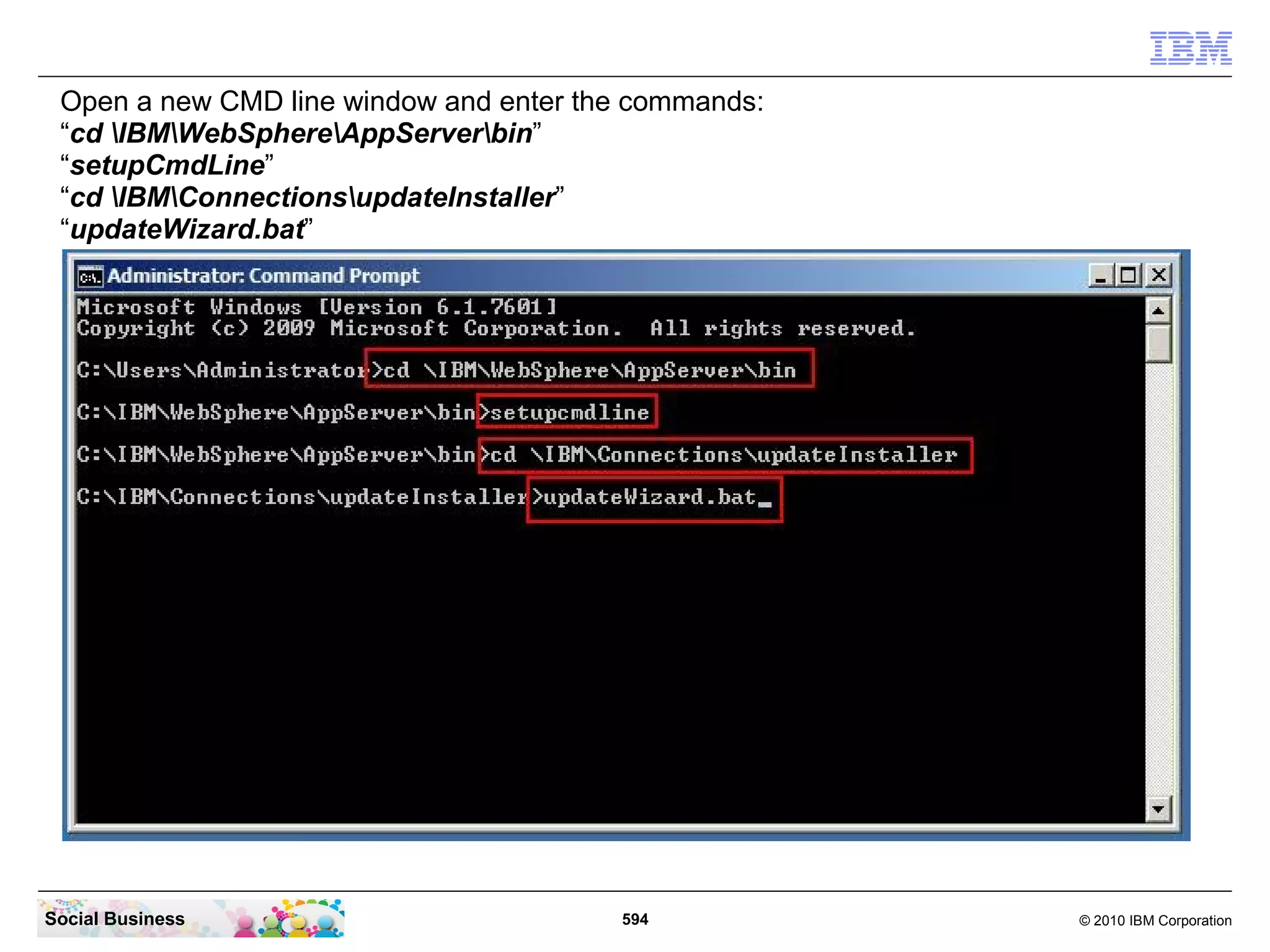
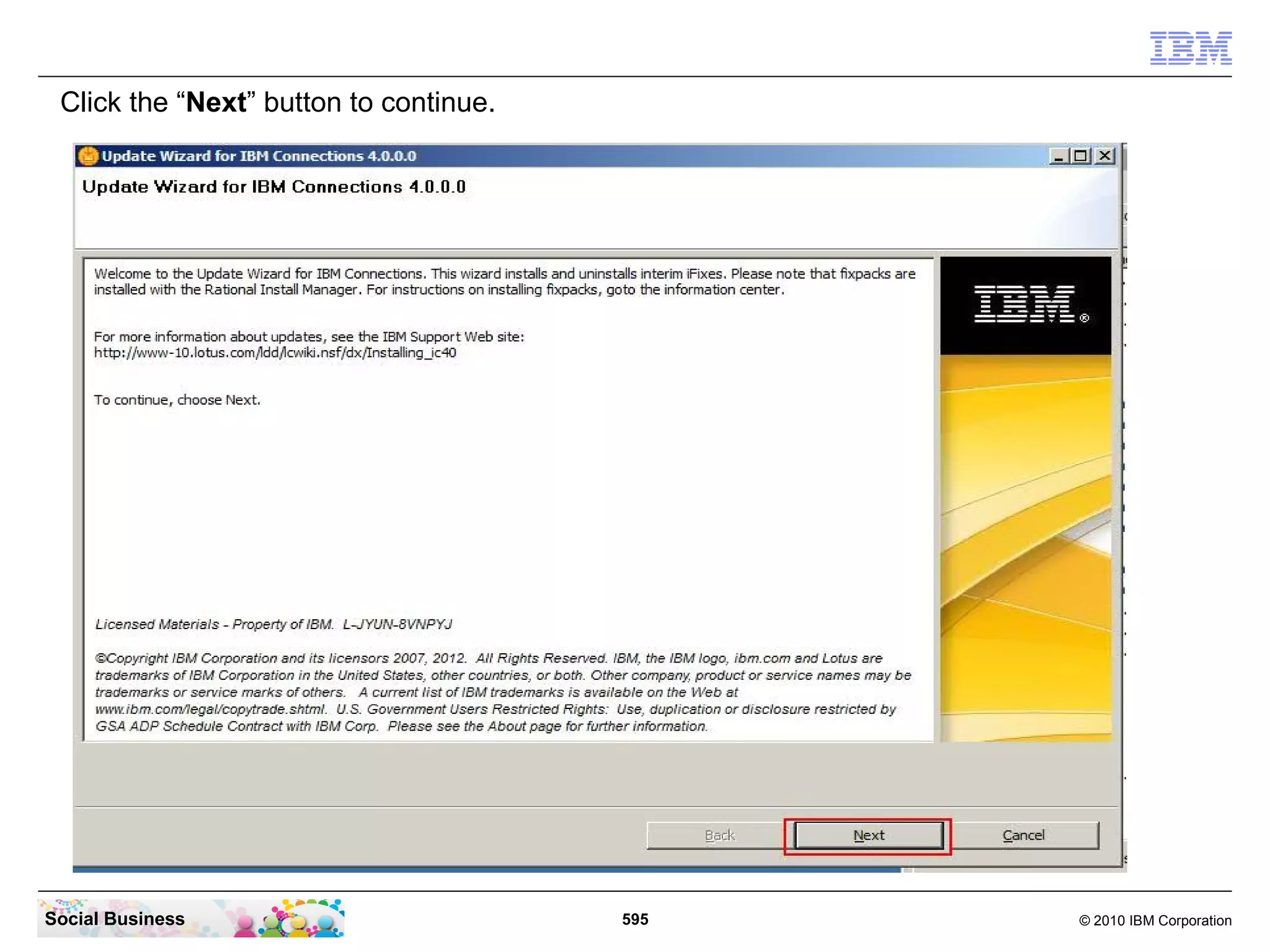
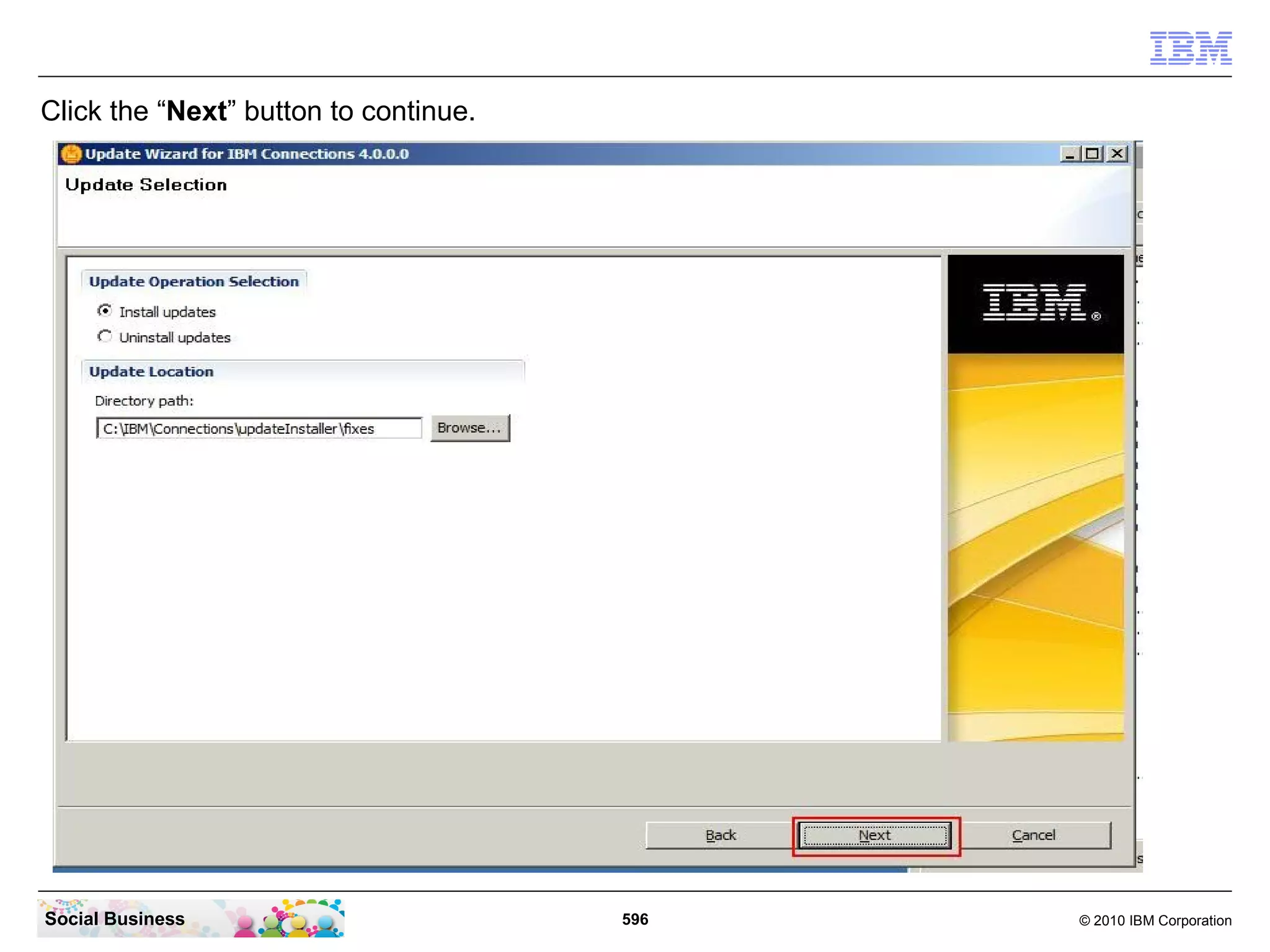
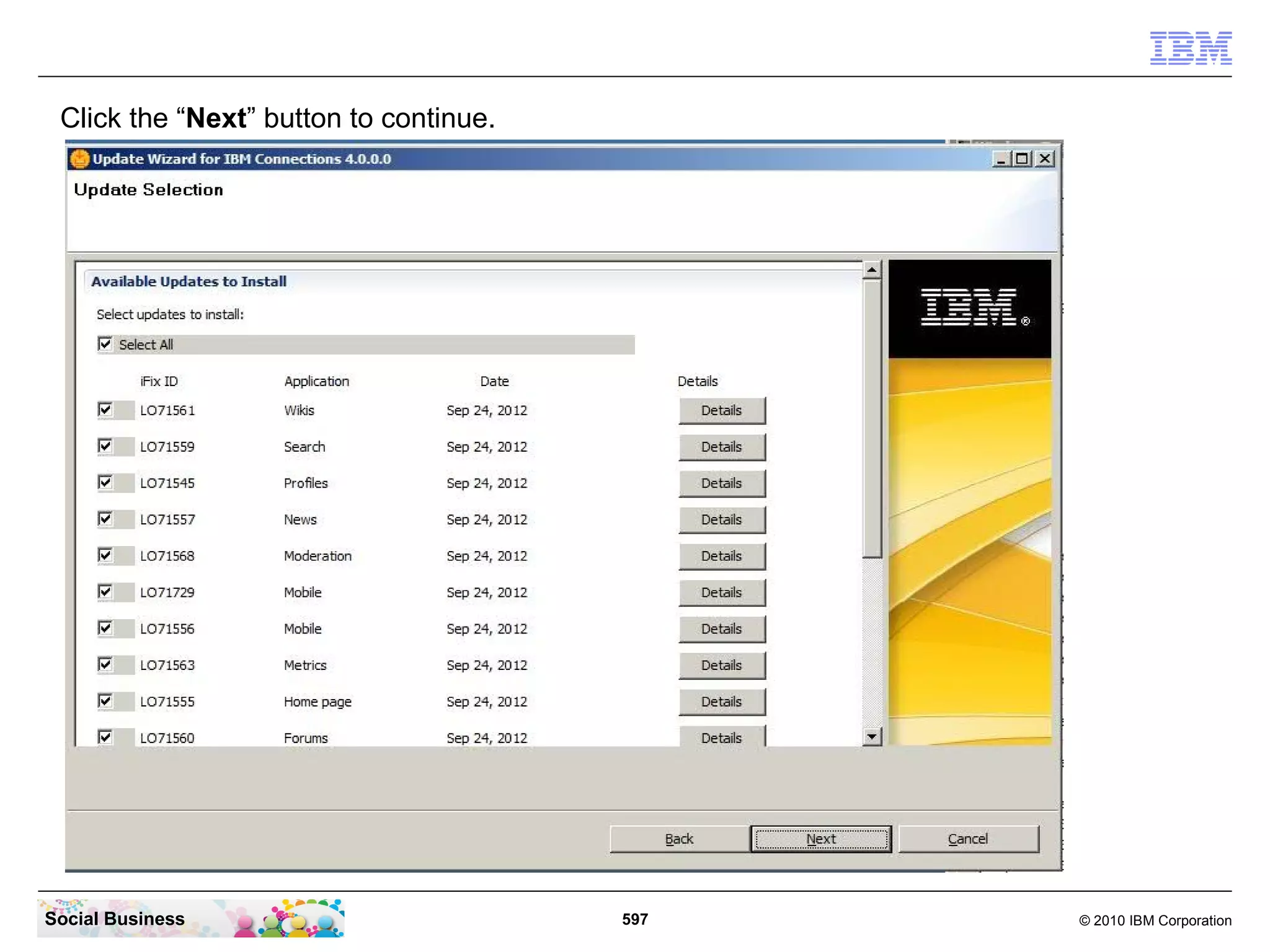
For Domino LDAP

IBM Collaboration Solutions


                                     IBM Connections 4.0
                                     Installation
                                     ”From Zero to Social Hero”
  Frank Altenburg | SME for IBM Sametime
  IBM Collaboration Solutions
  mailto:frank.altenburg@de.ibm.com

 Social Business


                              Version 1.16, released Jan. 11. 2013
                                                                     © 2009 IBM Corporation
Agenda


            ●     Introduction

            ●     Requirements for a IBM Connections 4.0 installation

            ●     Architecture of a IBM Connections 4.0 Server deployment

            ●     The 26 steps to a IBM Connections 4.0 Server deployment


Social Business                             2                           © 2010 IBM Corporation
Introduction
   This document
     ●  Describes how to implement, in a very fast way, the infrastructure for a small
        deployment of a IBM Connections 4.0 Server.
     ●  It is designed for a Proof of Concept, Proof of Technology or a small test pilot
        deployment only.
     ●  It does not contain information how to implement a high available infrastructure.
     ●  You can start with this document just to "make your bosses happy". But to make the
        system available for a larger number of users, it is recommended to invite IBM
        Services to plan and implement a clustered IBM Connections infrastructure in your
        organization that is fully supported.
     ●  The Author has tested this scenario with the hardware specification and software
        components described in this document.
     ●  You can use the official IBM support channels for any issue you raise when you use
        just this document to install your IBM Connections server. All instructions in this
        document are based on the official documentation wiki.
     ●  You need IBM Connections licenses to download the code from Passport Advantage
        and to install and use this software.


   WARNING: Do not use this document to install a
   production environment. This single server installation
   is not supported in a production environment.
Social Business                              3                                   © 2010 IBM Corporation
What is IBM Connections?

IBM® Connections is social networking software that consists of these applications: Activities,
Blogs, Bookmarks, Communities, Files, Forums, Home page, Metrics, Profiles, and Wikis.

Use the IBM Connections applications to accomplish the following goals:

  ●   Activities
        Collaboration tool for collecting, organizing, sharing, and reusing work that is related to
        a project goal.

  ●   Blogs
        Online journals that you can use to deliver timely information with a personal touch.
        You can use a blog to present your ideas and get feedback from others or learn from
        the expertise of others who blog.

  ● Bookmarks
      Social bookmarking tool for saving, organizing, and sharing Internet and intranet
      bookmarks. Discover bookmarks that have been created by others with similar interests
      and expertise.
  Note: The application was previously named Dogear.
Social Business                                  4                                      © 2010 IBM Corporation
What is IBM Connections? (cont)

  ●   Communities
        A website where people who share a common interest can interact with one another,
        share information, and exchange ideas. Community members can participate in
        community-specific activities and forums, and can share blogs, bookmarks, feeds, and
        files.

  ●   Files
         A common repository in which you can upload files and share them with others. Store
         versions of a file, view who has downloaded a file or commented on it, and see highly
         recommended files.

  ●   Forums
        A place to brainstorm and collect feedback on topics that are relevant to you and your
        colleagues. Statements and comments are collected in a format that captures the
        exchange of ideas and presents them as an ongoing conversation.


Social Business                                 5                                    © 2010 IBM Corporation
What is IBM Connections? (cont)

  ●   Home page
        A central location that provides a snapshot of the latest updates collected from IBM
        Connections. Perform in-context actions on entries in your activity stream, check the
        latest updates from the content and people that you are following, stay up to date with
        the latest notifications and updates that require a response from you, or post your own
        status updates.

  ●   Profiles
        Directory of the people in your organization, including the information you need to form
        and encourage effective networks across your organization.

  ●   Metrics
       Statistics tool that collects and displays information about how people use Connections
       applications. Community metrics show details on a particular community while global
       metrics show information across all of Connections.


Social Business                                 6                                    © 2010 IBM Corporation
What is IBM Connections? (cont)

  ●   Wikis
        A tool for creating wikis that individuals, groups, and communities can use to capture,
        share, and coauthor information. View page changes, recommendations, and
        comments.

Together, these tools will help you and your colleagues interact with one another more
effectively.


Social Business                                 7                                    © 2010 IBM Corporation
Administrators: Deploying the preview guide to your users
The IBM® Connections 4 preview guide is available for you to distribute to your users for new
installations and upgrades to IBM Connections 4. This guide is designed to help your users
become productive on the new software quickly, and to provide them with links to
documentation resources for further help. http://www-10.lotus.com/ldd/lcwiki.nsf

This guide provides the following information for this release:

  ●      Overview of several new applications
  ●      Important changes from the previous release
  ●      Familiar applications that remain the same
  ●      Links to product tours, reference cards, and product documentation
  ●      A few key productivity tips


Social Business                                 8                                  © 2010 IBM Corporation
Administrators: Deploying the preview guide to your users

You can download the preview guide from the IBM Connections wiki at
http://www-10.lotus.com/ldd/lcwiki.nsf

There are two files available to you:

  ●   An Adobe® PDF file, ready for emailing, printing, or distributing to your organization.
  ●   An IBM Symphony™ ODT file that can be customized for your organization; for example,
      you can add contact information for your Help Desk.

Note: This file includes instructions in blue text for customizing information. Remember to
remove these instructions before rolling out the file to your organization.

It is recommended that you distribute the guide to your users before their new IBM
Connections software is installed or updated.


Social Business                                9                                     © 2010 IBM Corporation
Audience

This Installation Guide assumes that you have prior experience with products that support
enterprise web applications.

IBM® Connections has dependencies on a number of other products. This guide assumes that
you have a basic knowledge of those products, including how to:

  ●   Install, configure, secure, and administer IBM WebSphere® Application Server.
  ●   Install IBM Tivoli® Directory Server, Microsoft® Active Directory, Sun Java™ System
      Directory Server, or IBM Lotus® Domino® LDAP directory, and then configure
      WebSphere Application Server to use that LDAP directory with federated repositories.
  ●   Create, manage, and drop IBM DB2®, Oracle, or Microsoft SQL Server databases.
  ●   Install IBM HTTP Server, and then configure it to interact with IBM WebSphere
      Application Server over HTTP and HTTPS.
  ●   Install and configure Cognos Business Intelligence and Cognos Transformer


Social Business                                10                                  © 2010 IBM Corporation
Agenda


            ●     Introduction

            ●     Requirements for a IBM Connections 4.0 installation

            ●     Architecture of a IBM Connections 4.0 Server deployment

            ●     The 26 steps to a IBM Connections 4.0 Server deployment


Social Business                             11                          © 2010 IBM Corporation
Detailed system requirements for IBM Connections

You can find the official IBM Connections 4.0 System Requirements here:

IBM Connections 4.0 system requirements (#7035893)

IBM Connections Mail 1.0 system requirements (for IBM Connections 4) (#7036069)


Social Business                              12                               © 2010 IBM Corporation
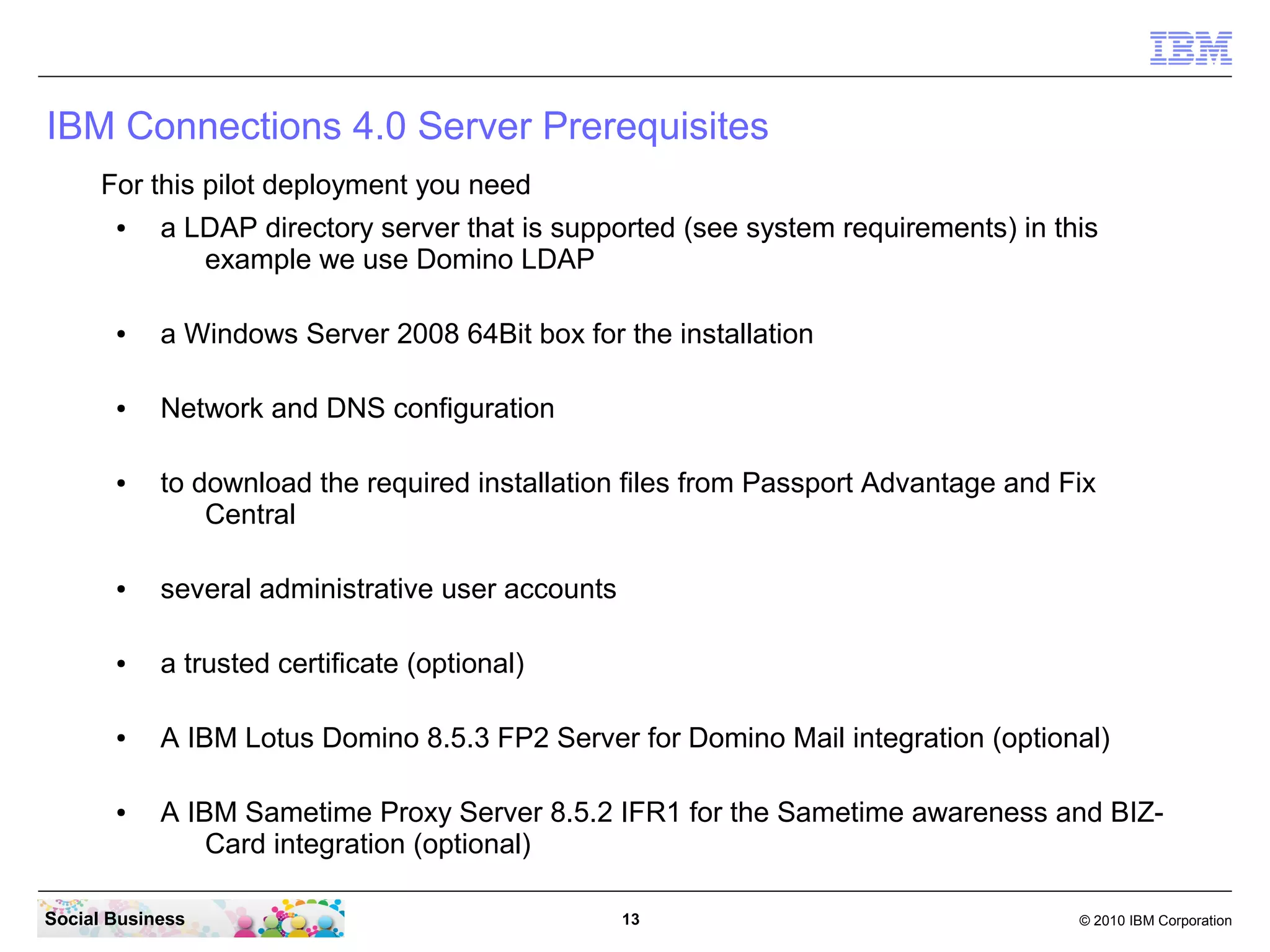
IBM Connections 4.0 Server Prerequisites
      For this pilot deployment you need
       ●    a LDAP directory server that is supported (see system requirements) in this
               example we use Domino LDAP

       ●    a Windows Server 2008 64Bit box for the installation

       ●    Network and DNS configuration

       ●    to download the required installation files from Passport Advantage and Fix
                Central

       ●    several administrative user accounts

       ●    a trusted certificate (optional)

       ●    A IBM Lotus Domino 8.5.3 FP2 Server for Domino Mail integration (optional)

       ●    A IBM Sametime Proxy Server 8.5.2 IFR1 for the Sametime awareness and BIZ-
                Card integration (optional)

Social Business                                    13                                © 2010 IBM Corporation
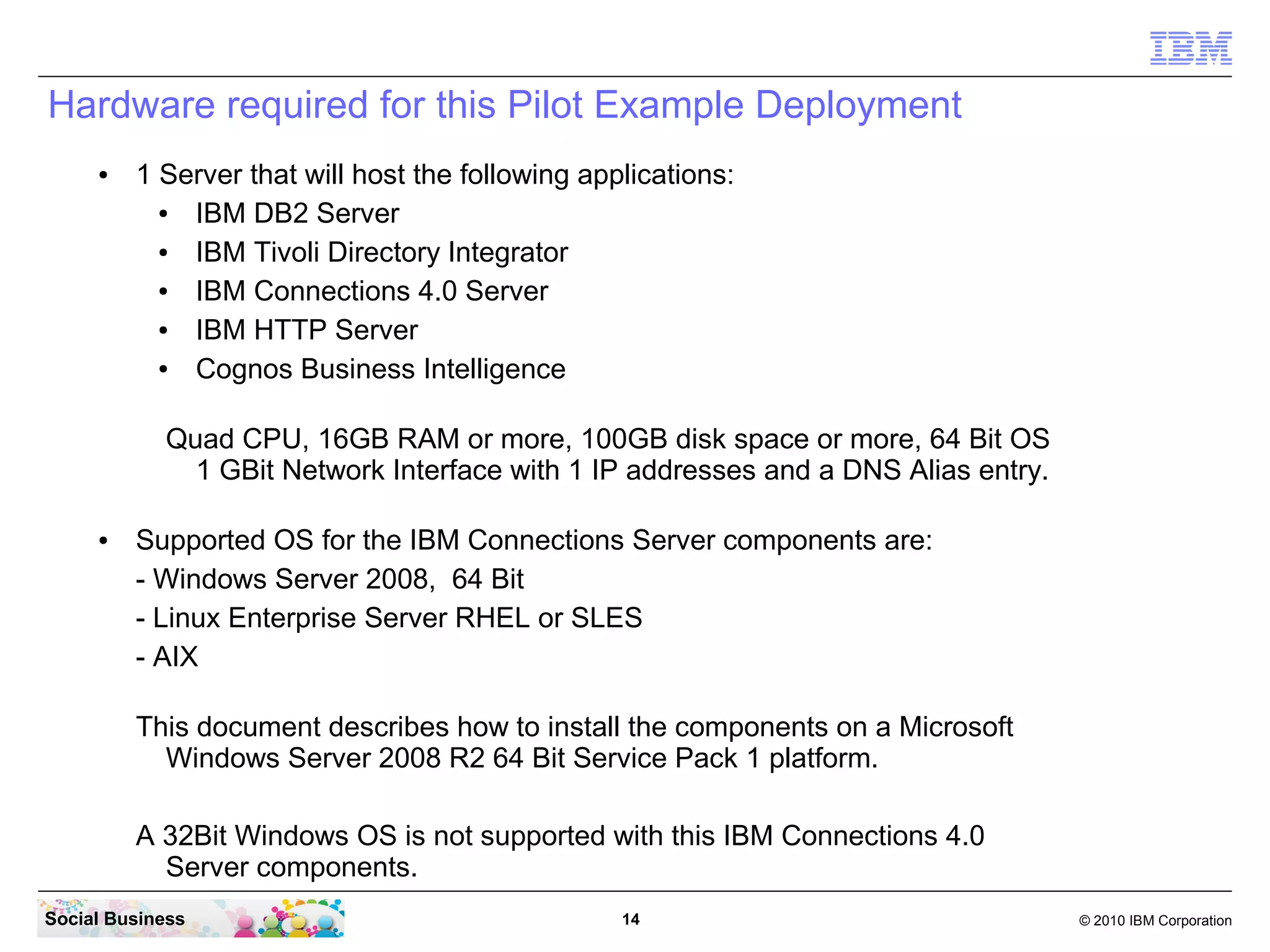
Hardware required for this Pilot Example Deployment
     ●   1 Server that will host the following applications:
           ● IBM DB2 Server
           ● IBM Tivoli Directory Integrator
           ● IBM Connections 4.0 Server
           ● IBM HTTP Server
           ● Cognos Business Intelligence

            Quad CPU, 16GB RAM or more, 100GB disk space or more, 64 Bit OS
              1 GBit Network Interface with 1 IP addresses and a DNS Alias entry.

     ●   Supported OS for the IBM Connections Server components are:
         - Windows Server 2008, 64 Bit
         - Linux Enterprise Server RHEL or SLES
         - AIX
         This document describes how to install the components on a Microsoft
           Windows Server 2008 R2 64 Bit Service Pack 1 platform.

         A 32Bit Windows OS is not supported with this IBM Connections 4.0
           Server components.
Social Business                                   14                                © 2010 IBM Corporation
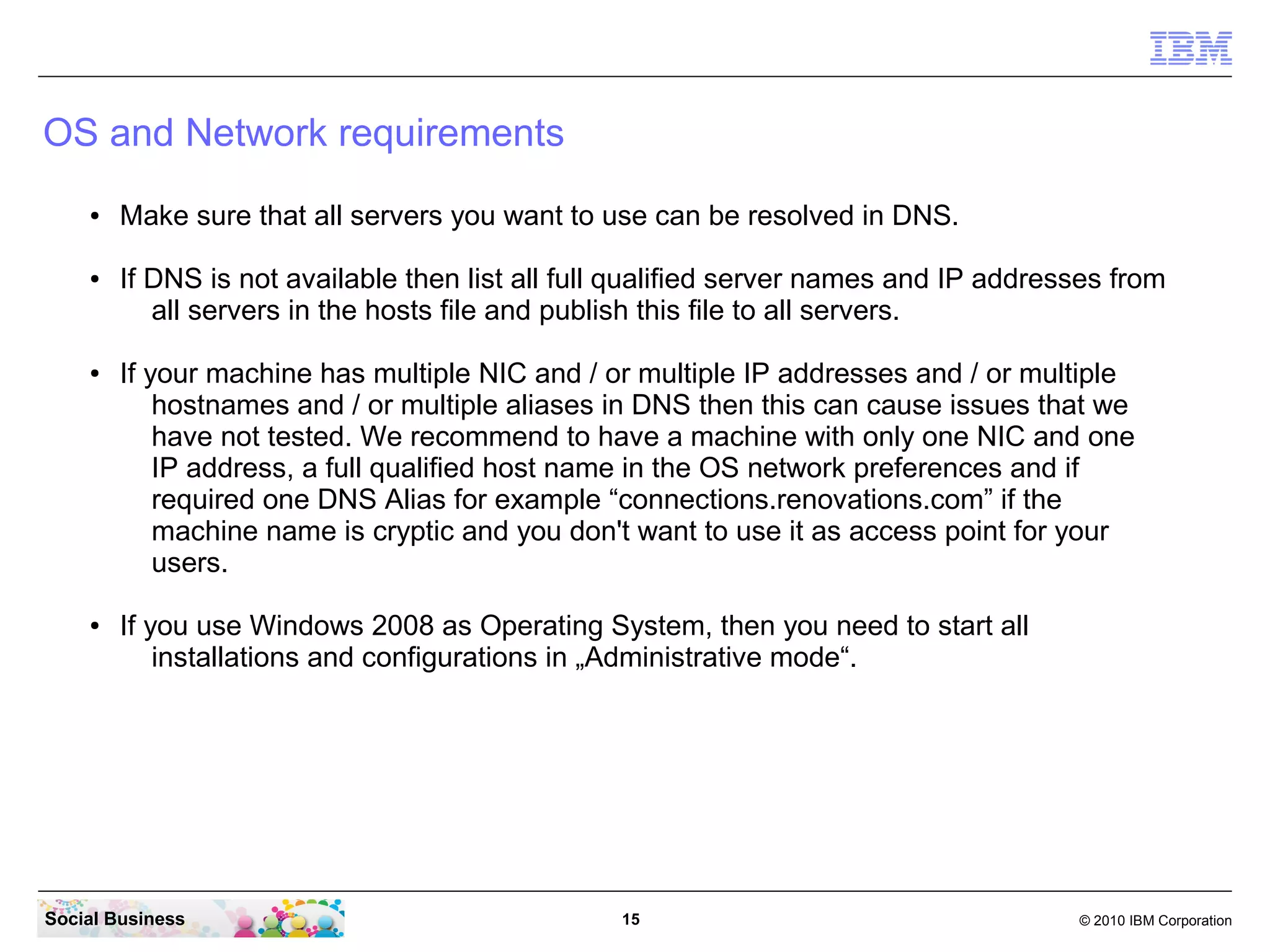
OS and Network requirements
    ●   Make sure that all servers you want to use can be resolved in DNS.

    ●   If DNS is not available then list all full qualified server names and IP addresses from
           all servers in the hosts file and publish this file to all servers.

    ●   If your machine has multiple NIC and / or multiple IP addresses and / or multiple
            hostnames and / or multiple aliases in DNS then this can cause issues that we
            have not tested. We recommend to have a machine with only one NIC and one
            IP address, a full qualified host name in the OS network preferences and if
            required one DNS Alias for example “connections.renovations.com” if the
            machine name is cryptic and you don't want to use it as access point for your
            users.

    ●   If you use Windows 2008 as Operating System, then you need to start all
            installations and configurations in „Administrative mode“.


Social Business                                  15                                    © 2010 IBM Corporation
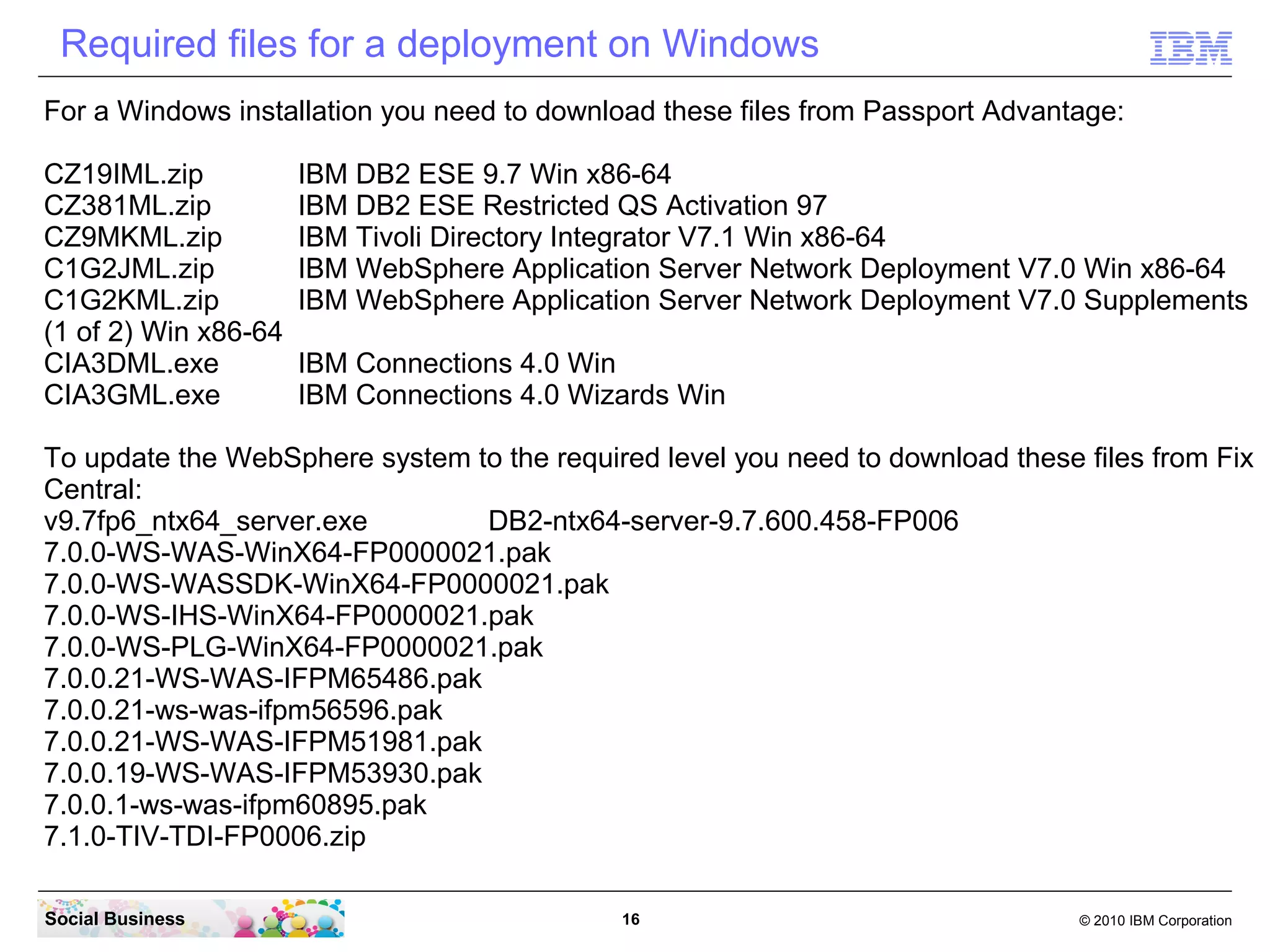
Required files for a deployment on Windows
For a Windows installation you need to download these files from Passport Advantage:

CZ19IML.zip           IBM DB2 ESE 9.7 Win x86-64
CZ381ML.zip           IBM DB2 ESE Restricted QS Activation 97
CZ9MKML.zip           IBM Tivoli Directory Integrator V7.1 Win x86-64
C1G2JML.zip           IBM WebSphere Application Server Network Deployment V7.0 Win x86-64
C1G2KML.zip           IBM WebSphere Application Server Network Deployment V7.0 Supplements
(1 of 2) Win x86-64
CIA3DML.exe           IBM Connections 4.0 Win
CIA3GML.exe           IBM Connections 4.0 Wizards Win

To update the WebSphere system to the required level you need to download these files from Fix
Central:
v9.7fp6_ntx64_server.exe        DB2-ntx64-server-9.7.600.458-FP006
7.0.0-WS-WAS-WinX64-FP0000021.pak
7.0.0-WS-WASSDK-WinX64-FP0000021.pak
7.0.0-WS-IHS-WinX64-FP0000021.pak
7.0.0-WS-PLG-WinX64-FP0000021.pak
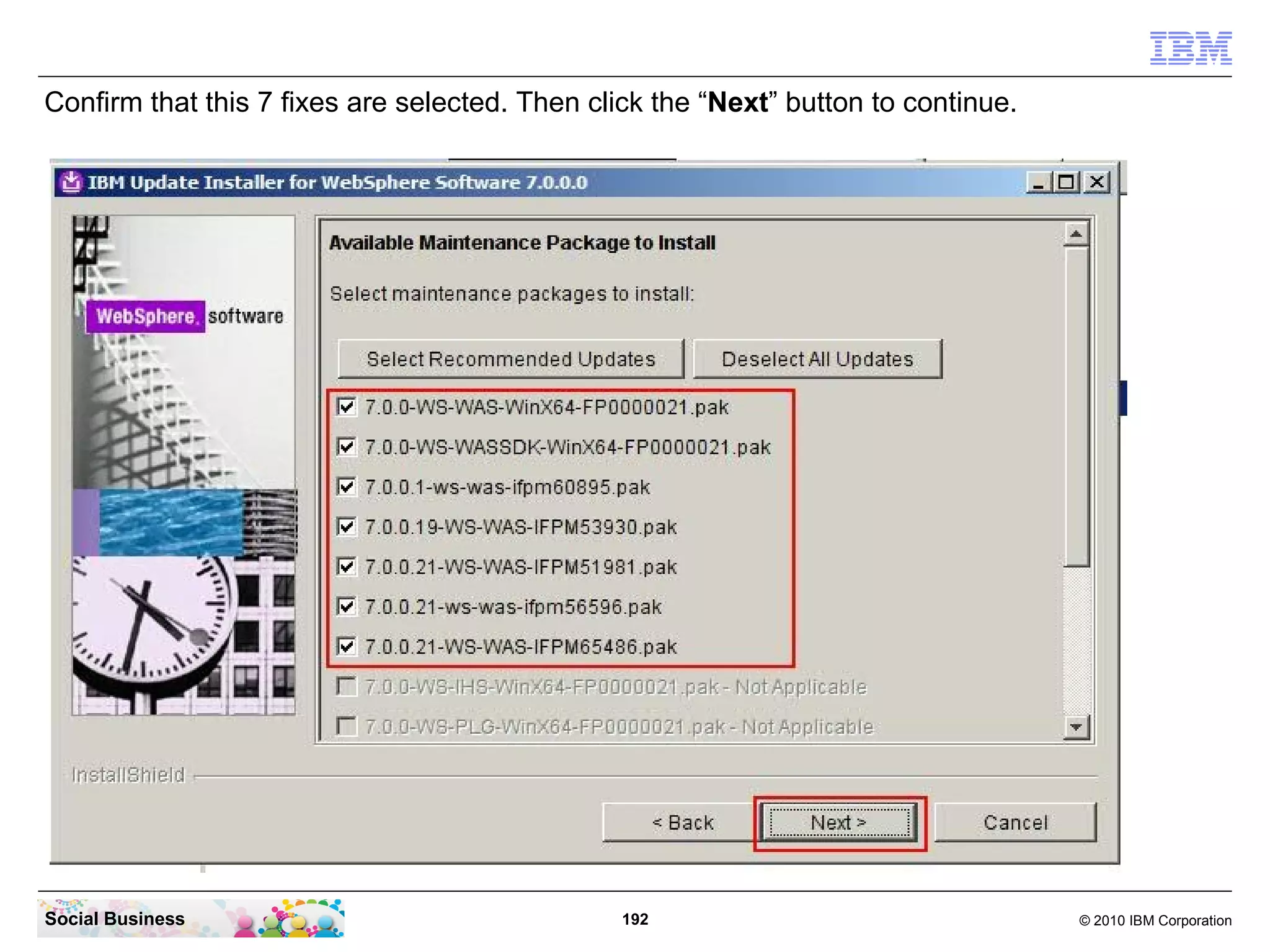
7.0.0.21-WS-WAS-IFPM65486.pak
7.0.0.21-ws-was-ifpm56596.pak
7.0.0.21-WS-WAS-IFPM51981.pak
7.0.0.19-WS-WAS-IFPM53930.pak
7.0.0.1-ws-was-ifpm60895.pak
7.1.0-TIV-TDI-FP0006.zip

Social Business                              16                                 © 2010 IBM Corporation
Required files for a deployment on Windows (cont)
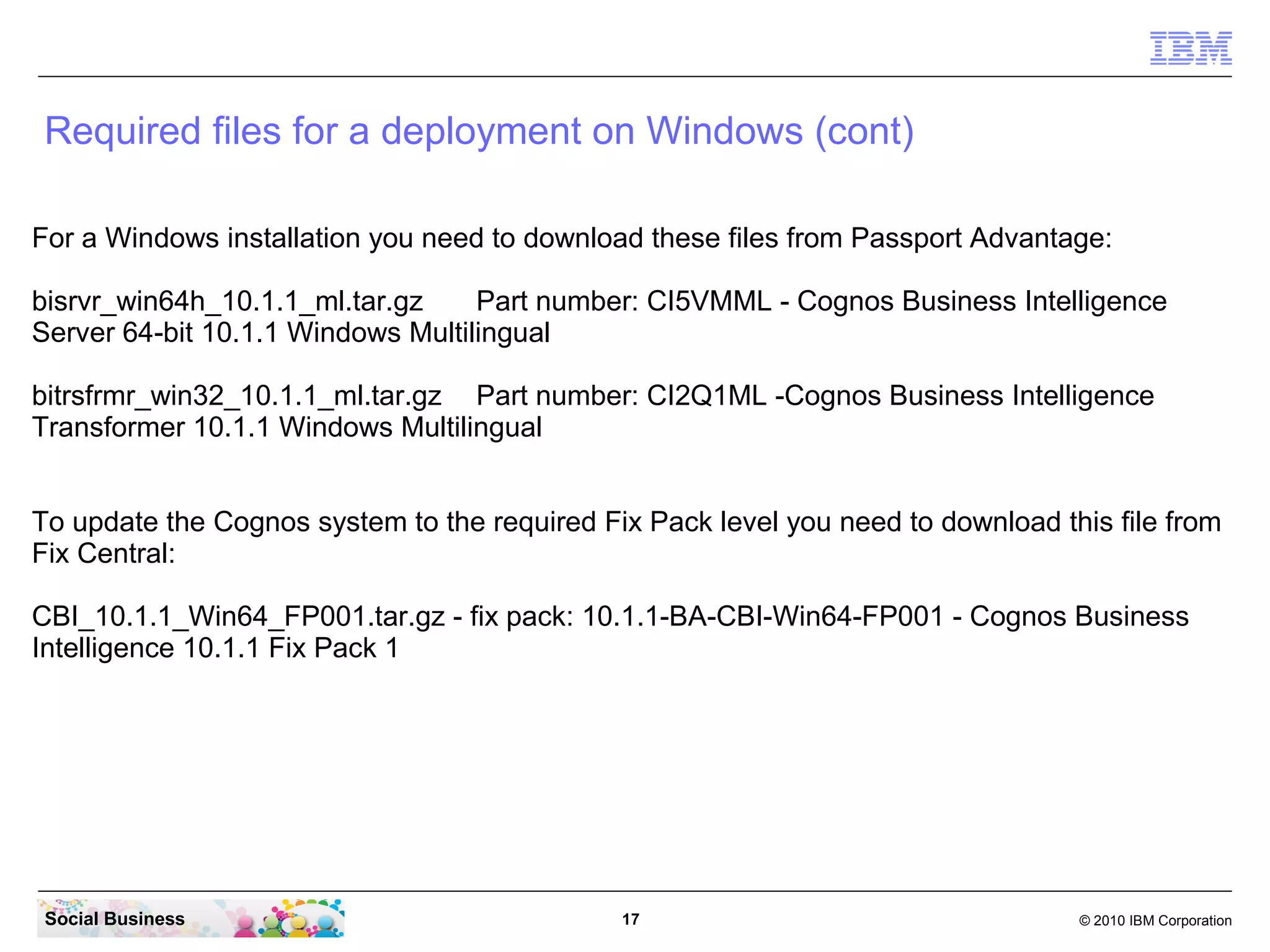
For a Windows installation you need to download these files from Passport Advantage:

bisrvr_win64h_10.1.1_ml.tar.gz Part number: CI5VMML - Cognos Business Intelligence
Server 64-bit 10.1.1 Windows Multilingual

bitrsfrmr_win32_10.1.1_ml.tar.gz Part number: CI2Q1ML -Cognos Business Intelligence
Transformer 10.1.1 Windows Multilingual


To update the Cognos system to the required Fix Pack level you need to download this file from
Fix Central:

CBI_10.1.1_Win64_FP001.tar.gz - fix pack: 10.1.1-BA-CBI-Win64-FP001 - Cognos Business
Intelligence 10.1.1 Fix Pack 1


For the Domino Social Mail integration you need to download this file from Greenhouse:

ICM1.0_FP1_allplattform_install.zip
This download can be found here. Log in with your Greenhouse ID and password. If you dont
have a Greenhouse ID you can join Greenhouse for free.
https://greenhouse.lotus.com/plugins/plugincatalog.nsf/assetDetails.xsp?
action=editDocument&documentId=31651AAAE1F4913685257A5F00548896&Login

 Social Business                              17                                  © 2010 IBM Corporation
Required files for a deployment on Windows
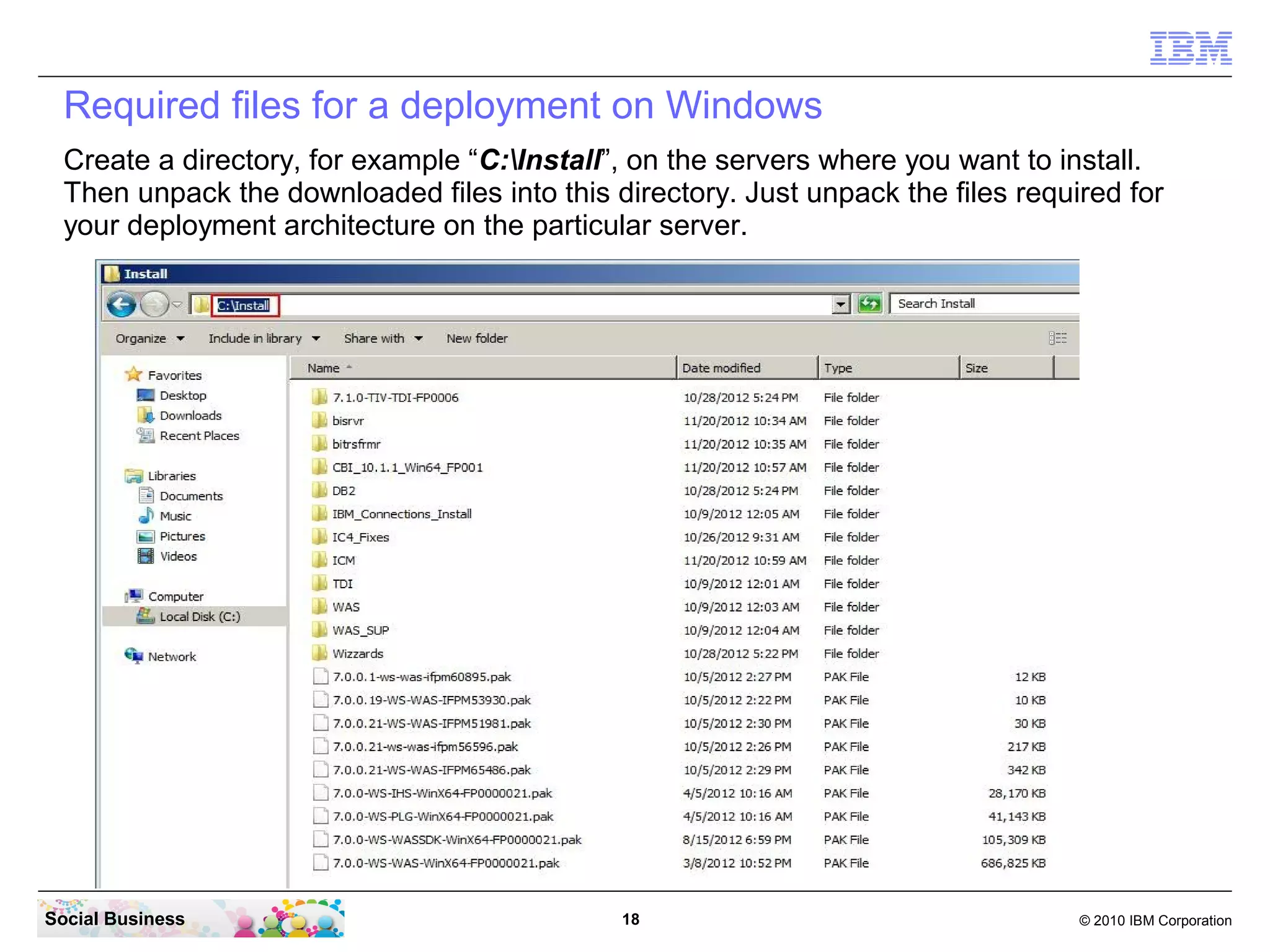
  Create a directory, for example “C:Install”, on the servers where you want to install.
  Then unpack the downloaded files into this directory. Just unpack the files required for
  your deployment architecture on the particular server.


Social Business                               18                                   © 2010 IBM Corporation
Required files for a deployment on Windows
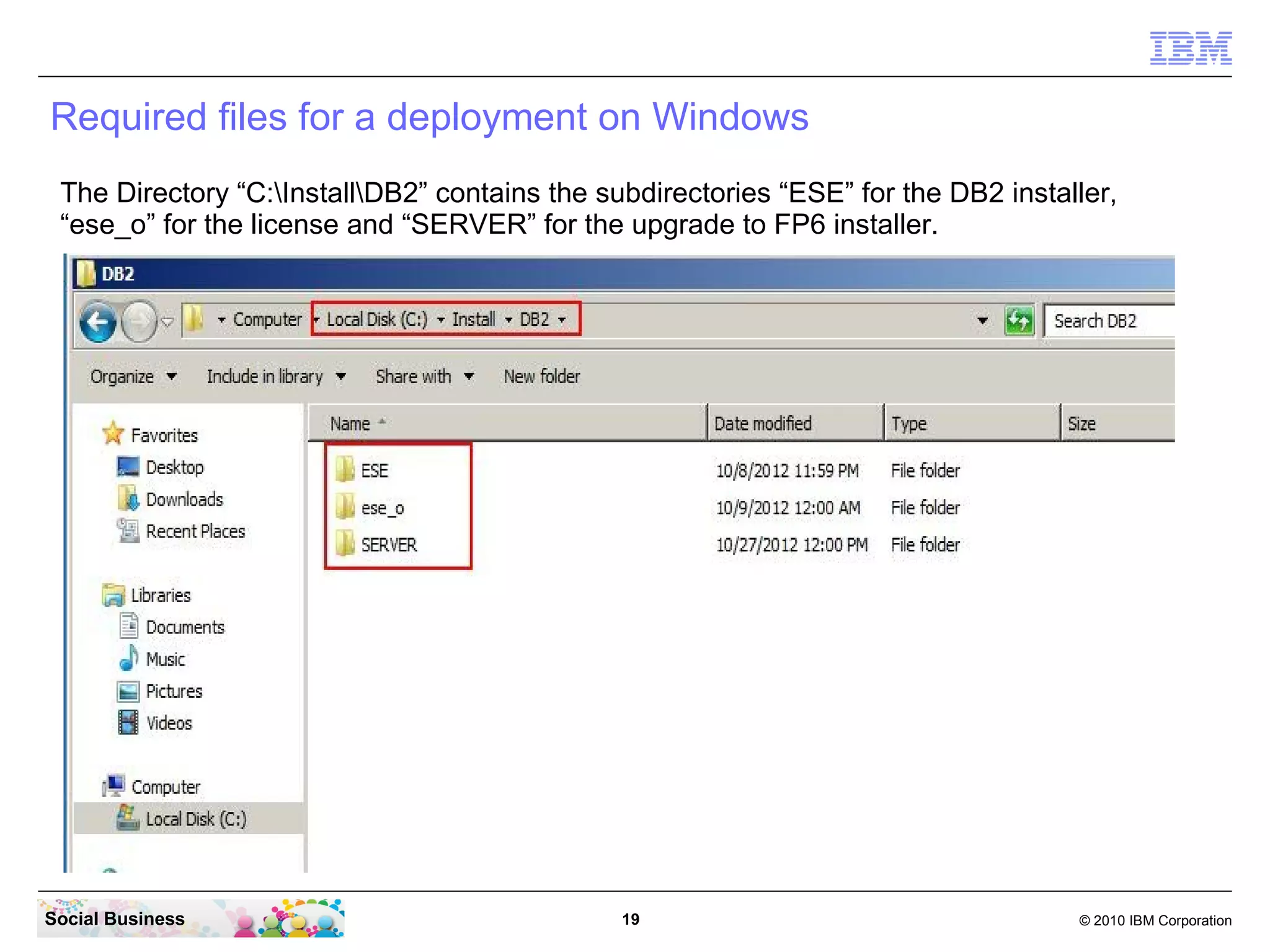
 The Directory “C:InstallDB2” contains the subdirectories “ESE” for the DB2 installer,
 “ese_o” for the license and “SERVER” for the upgrade to FP6 installer.


Social Business                                19                                   © 2010 IBM Corporation
Required files for a deployment on Windows
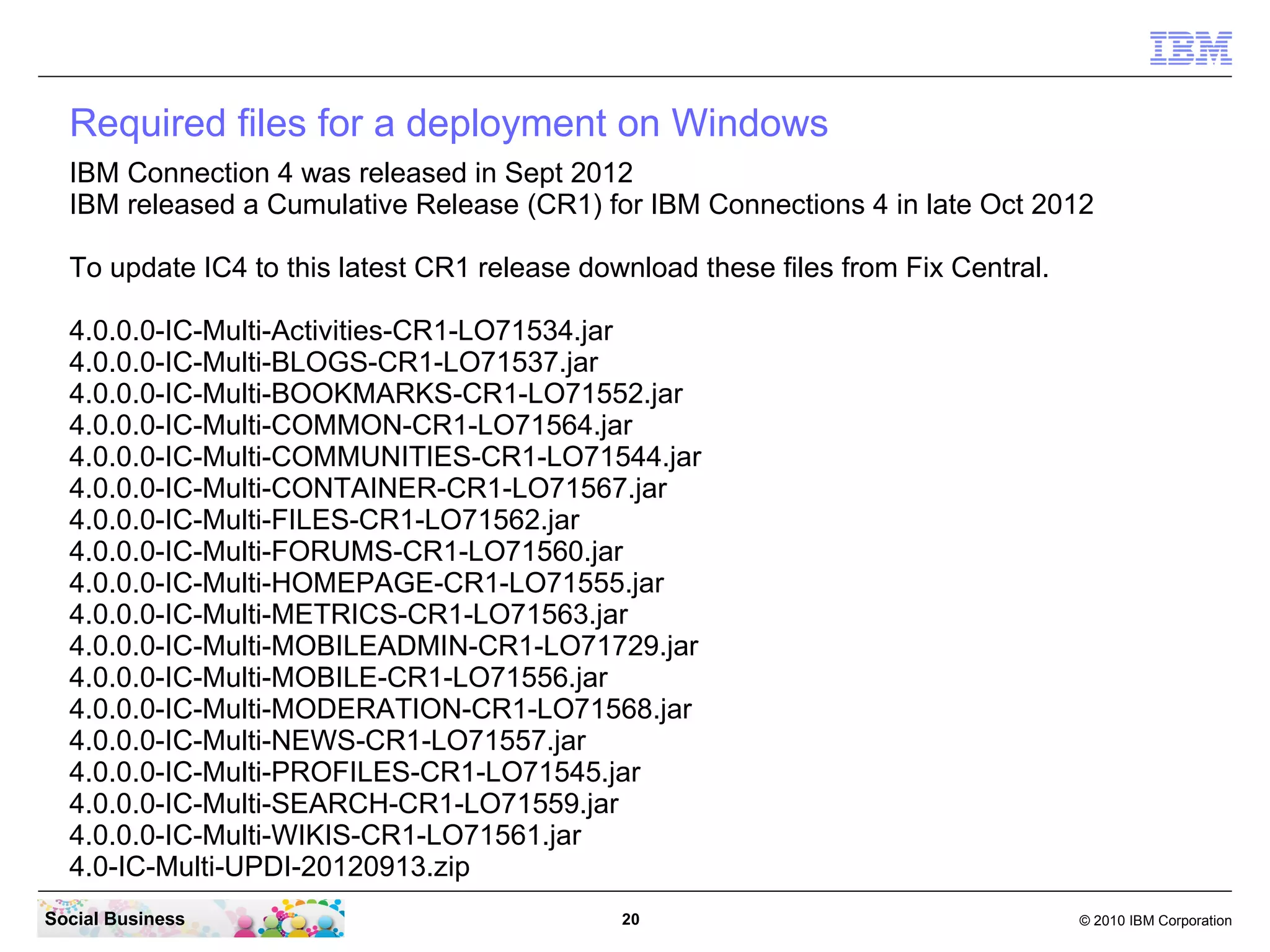
  IBM Connection 4 was released in Sept 2012
  IBM released a Cumulative Release (CR2) for IBM Connections 4 in late Dec 2012

  To update IC4 to this latest CR2 release download these files from Fix Central.
  4.0.0.0-IC-Multi-Activities-CR2-LO72170.jar
  4.0.0.0-IC-Multi-BLOGS-CR2-LO72170.jar
  4.0.0.0-IC-Multi-BOOKMARKS-CR2-LO72170.jar
  4.0.0.0-IC-Multi-COMMON-CR2-LO72170.jar
  4.0.0.0-IC-Multi-Communities-CR2-LO72170.jar
  4.0.0.0-IC-Multi-Container-CR2-LO72170.jar
  4.0.0.0-IC-Multi-Files-CR2-LO72170.jar
  4.0.0.0-IC-Multi-Forums-CR2-LO72170.jar
  4.0.0.0-IC-Multi-Homepage-CR2-LO72170.jar
  4.0.0.0-IC-Multi-Metrics-CR2-LO72170.jar
  4.0.0.0-IC-Multi-MobileAdmin-CR2-LO72170.jar
  4.0.0.0-IC-Multi-Mobile-CR2-LO72170.jar
  4.0.0.0-IC-Multi-Moderation-CR2-LO72170.jar
  4.0.0.0-IC-Multi-News-CR2-LO72170.jar
  4.0.0.0-IC-Multi-Profiles-CR2-LO72170.jar
  4.0.0.0-IC-Multi-Search-CR2-LO72170.jar
  4.0.0.0-IC-Multi-TDISOL-CR2-LO72170.zip
  4.0.0.0-IC-Multi-Wikis-CR2-LO72170.jar
  4.0-IC-Multi-UPDI-20121204.zip
  upgrade-40-40CR2.sql
Social Business                               20                                    © 2010 IBM Corporation
Required files for a deployment on Windows
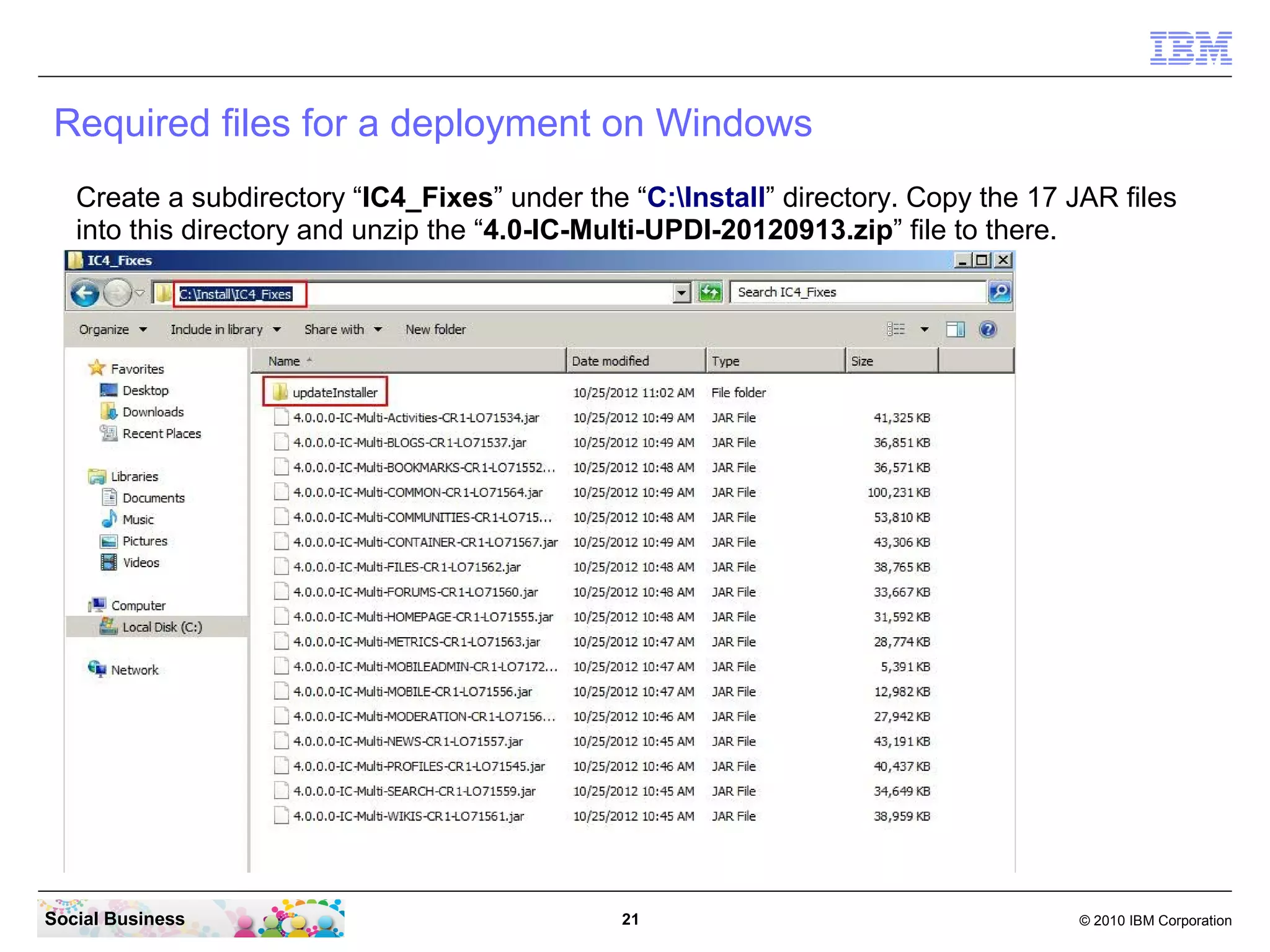
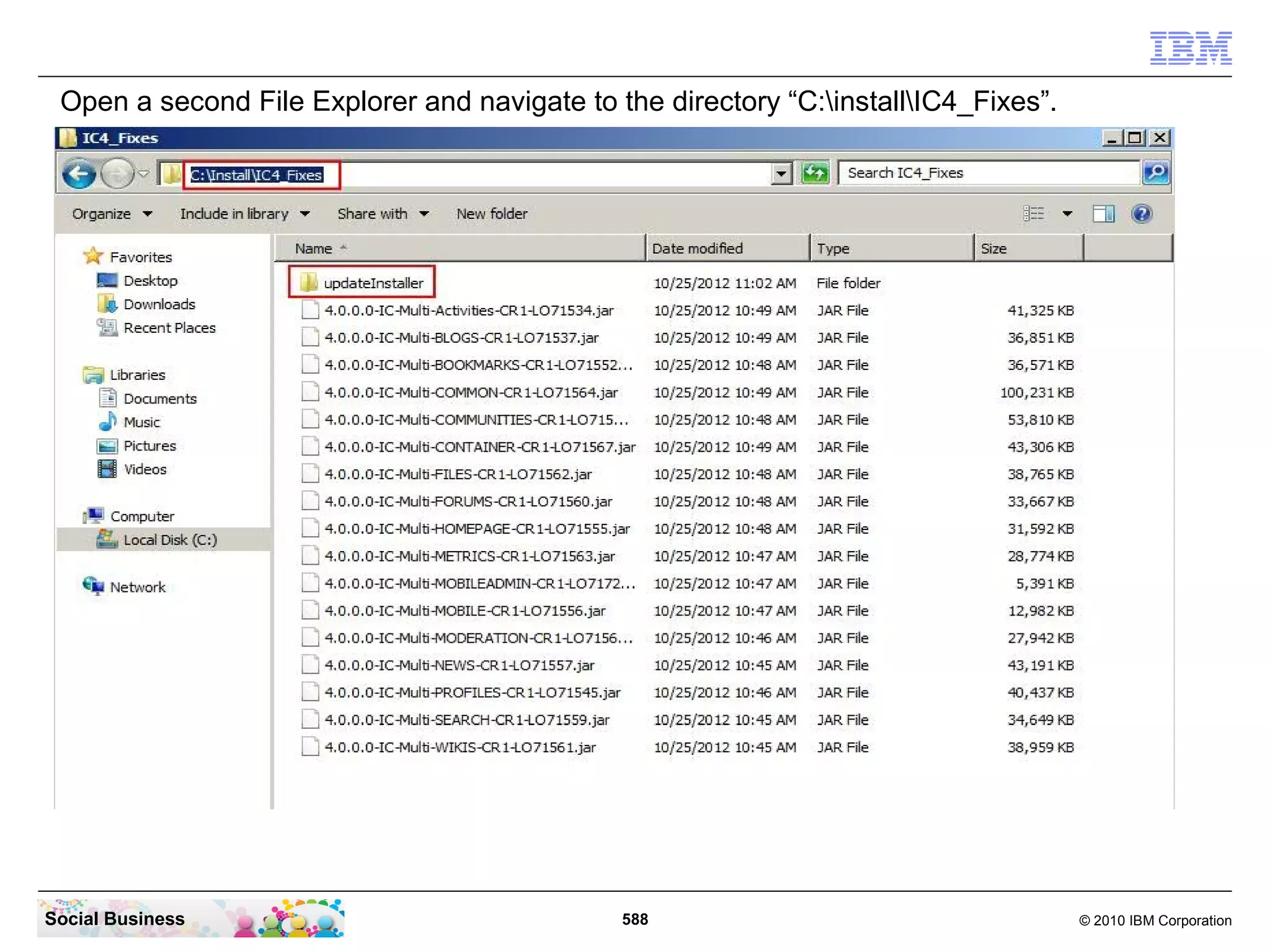
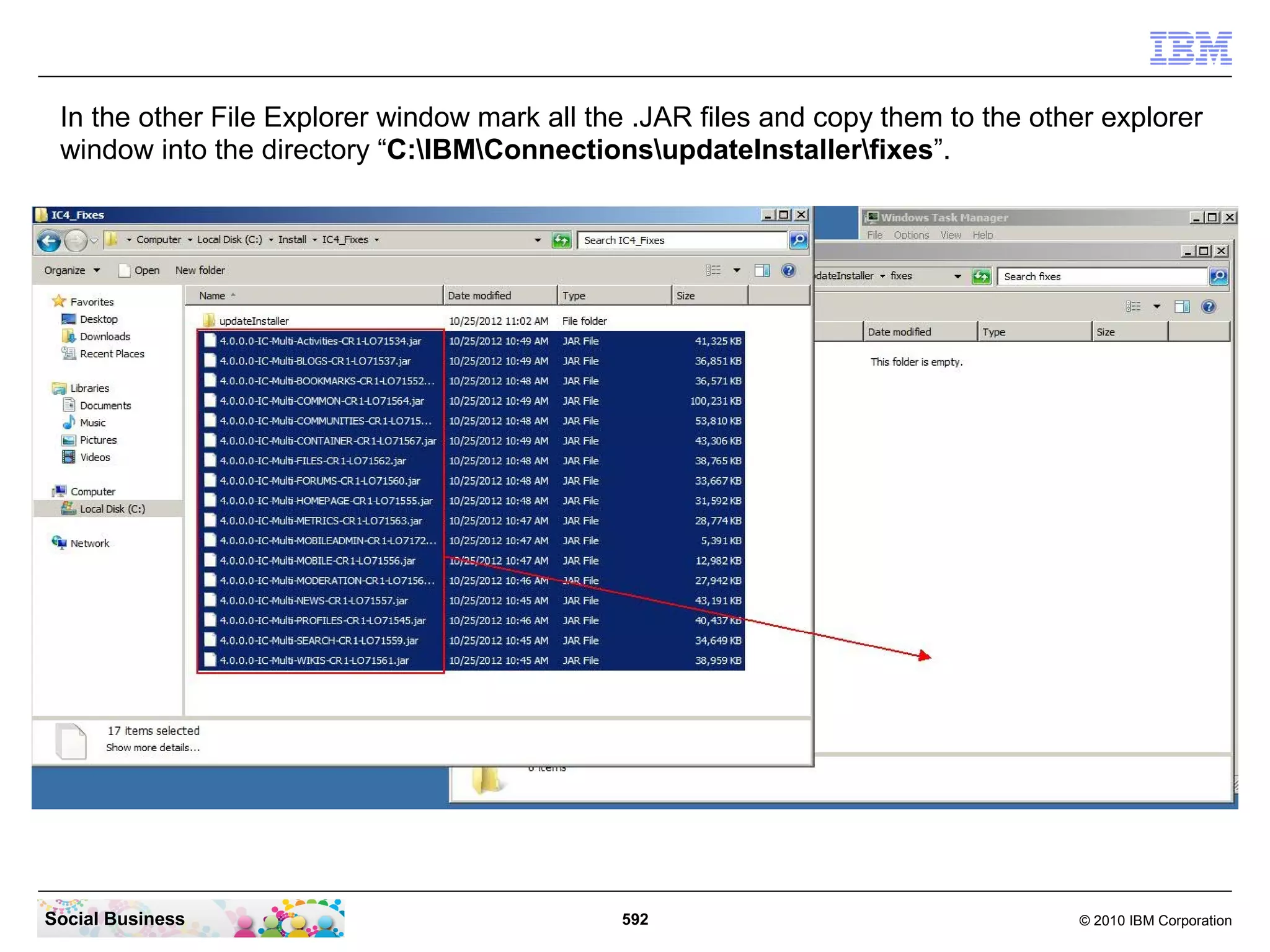
Create a subdirectory “IC4_Fixes” under the “C:Install” directory. Copy the 17 JAR files
into this directory and unzip the “4.0-IC-Multi-UPDI-20121204.zip” file to there. It
creates the “updateInstaller” subdirectory.


Social Business                               21                                   © 2010 IBM Corporation
Required technical users for IBM Connections 4.0
  IBM Connections requires some technical users for components to
  communicate in an authenticated mode. All of this users should be
  configured so that the password never expires and never needs to be
  changed.

  db2admin
  This user is created during installation of the DB2 server in the
  Operating System. Do not create this user in advance.
  It is the user for all IBM Connections related components using DB2 to
  access their databases. Be sure to match the password policy
  requirements of the OS.

  LCUSER
  This user is created manually after installation of the DB2 server in the
  Operating System. Do not create this user in advance.
  It is the user for all IBM Connections related components using DB2 to
  access their databases. Be sure to match the password policy
  requirements of the OS.


Social Business                        22                            © 2010 IBM Corporation
Required technical users for IBM Connections 4.0
  LDAP Bind
  This user is to send authenticated requests to your LDAP directory
  server. This is required to get back all required information from the
  LDAP.

  wasadmin
  This is the user to access the IBM WebSphere components and to
  administer the system. This user must not exist in your LDAP directory.
  It is created during WebSphere installation in a local file repository. You
  can use the same user name and password for all components (makes
  it easier) or different names and passwords. But again, it does not work
  when this user exists in the LDAP.

  ihsadmin
  This is the user to access the IBM HTTP Server components and to
  administer the system. This user must not exist in your LDAP directory.
  It is created during IHS installation in a local file repository. But again, it
  does not work when this user exists in the LDAP.


Social Business                          23                               © 2010 IBM Corporation
Required technical users for IBM Connections 4.0
  Cognos Admin
  This user is required to administer the Cognos Business Intelligence
  and Transformer components in your Connections installation. This
  user must be created in your LDAP directory and the password should
  never expire as all technical user accounts. Take note of the
  shortname of this user. This shortname is required later in the post
  install tasks for Cognos.


Social Business                     24                          © 2010 IBM Corporation
Agenda


            ●     Introduction

            ●     Requirements for a IBM Connections 4.0 installation

            ●     Architecture of a IBM Connections 4.0 Server deployment

            ●     The 26 steps to a IBM Connections 4.0 Server deployment


Social Business                             25                          © 2010 IBM Corporation
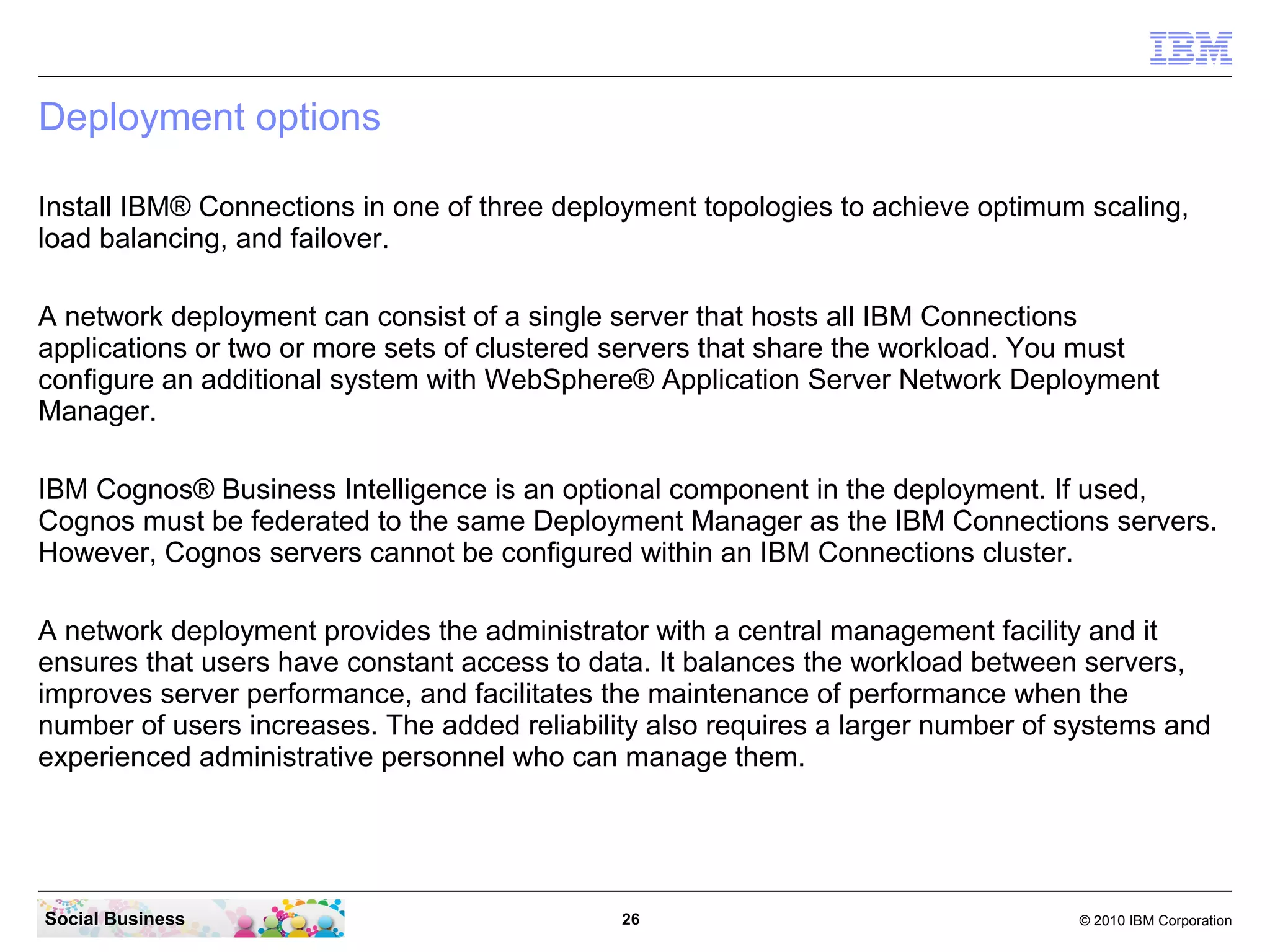
Deployment options

Install IBM® Connections in one of three deployment topologies to achieve optimum scaling,
load balancing, and failover.

A network deployment can consist of a single server that hosts all IBM Connections
applications or two or more sets of clustered servers that share the workload. You must
configure an additional system with WebSphere® Application Server Network Deployment
Manager.

IBM Cognos® Business Intelligence is an optional component in the deployment. If used,
Cognos must be federated to the same Deployment Manager as the IBM Connections servers.
However, Cognos servers cannot be configured within an IBM Connections cluster.

A network deployment provides the administrator with a central management facility and it
ensures that users have constant access to data. It balances the workload between servers,
improves server performance, and facilitates the maintenance of performance when the
number of users increases. The added reliability also requires a larger number of systems and
experienced administrative personnel who can manage them.


Social Business                               26                                  © 2010 IBM Corporation
When you are installing IBM Connections, you have three
deployment options:

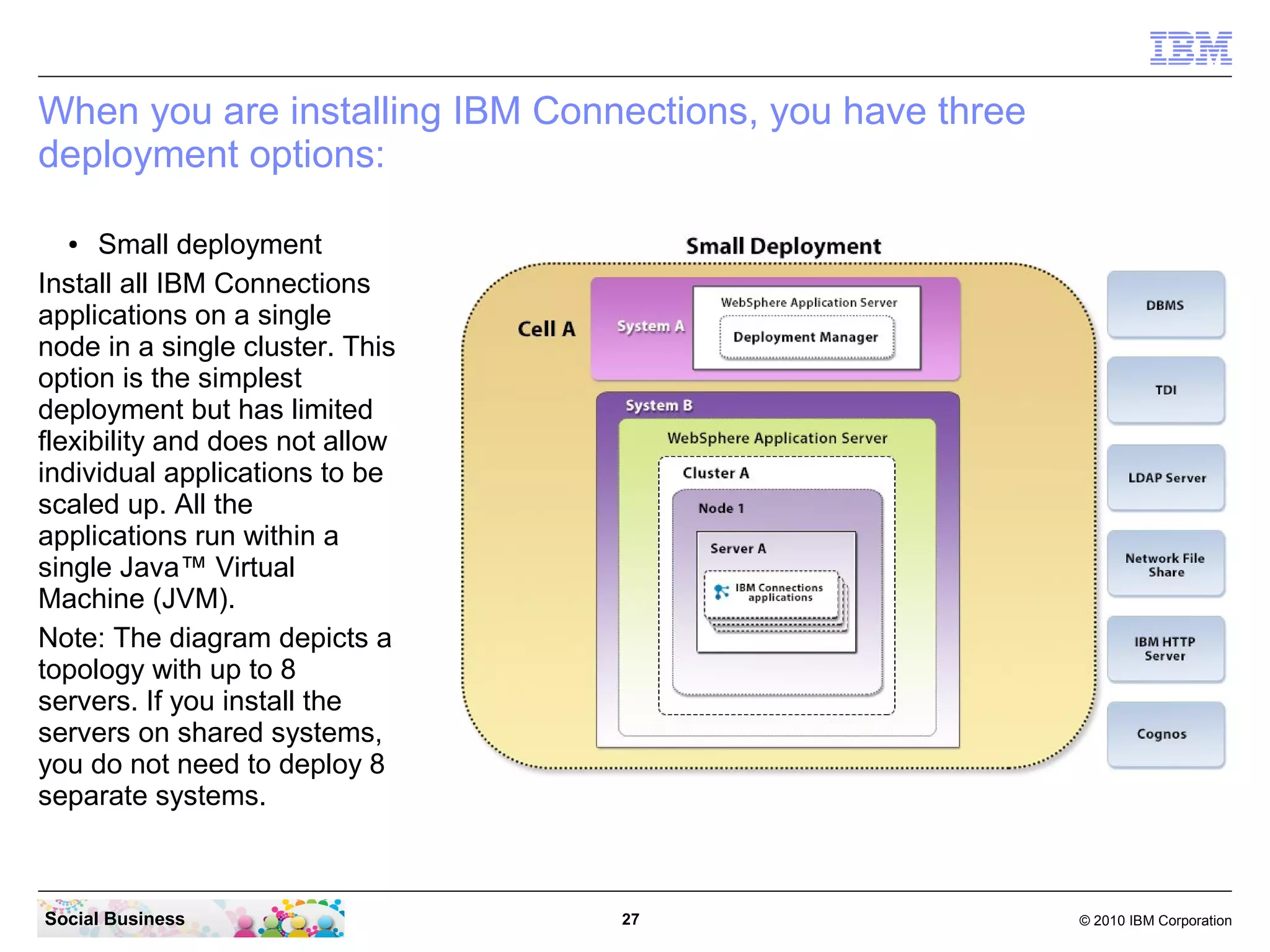
  ●   Small deployment
Install all IBM Connections
applications on a single
node in a single cluster. This
option is the simplest
deployment but has limited
flexibility and does not allow
individual applications to be
scaled up. All the
applications run within a
single Java™ Virtual
Machine (JVM).
Note: The diagram depicts a
topology with up to 8
servers. If you install the
servers on shared systems,
you do not need to deploy 8
separate systems.


Social Business                  27                       © 2010 IBM Corporation
●  Medium deployment
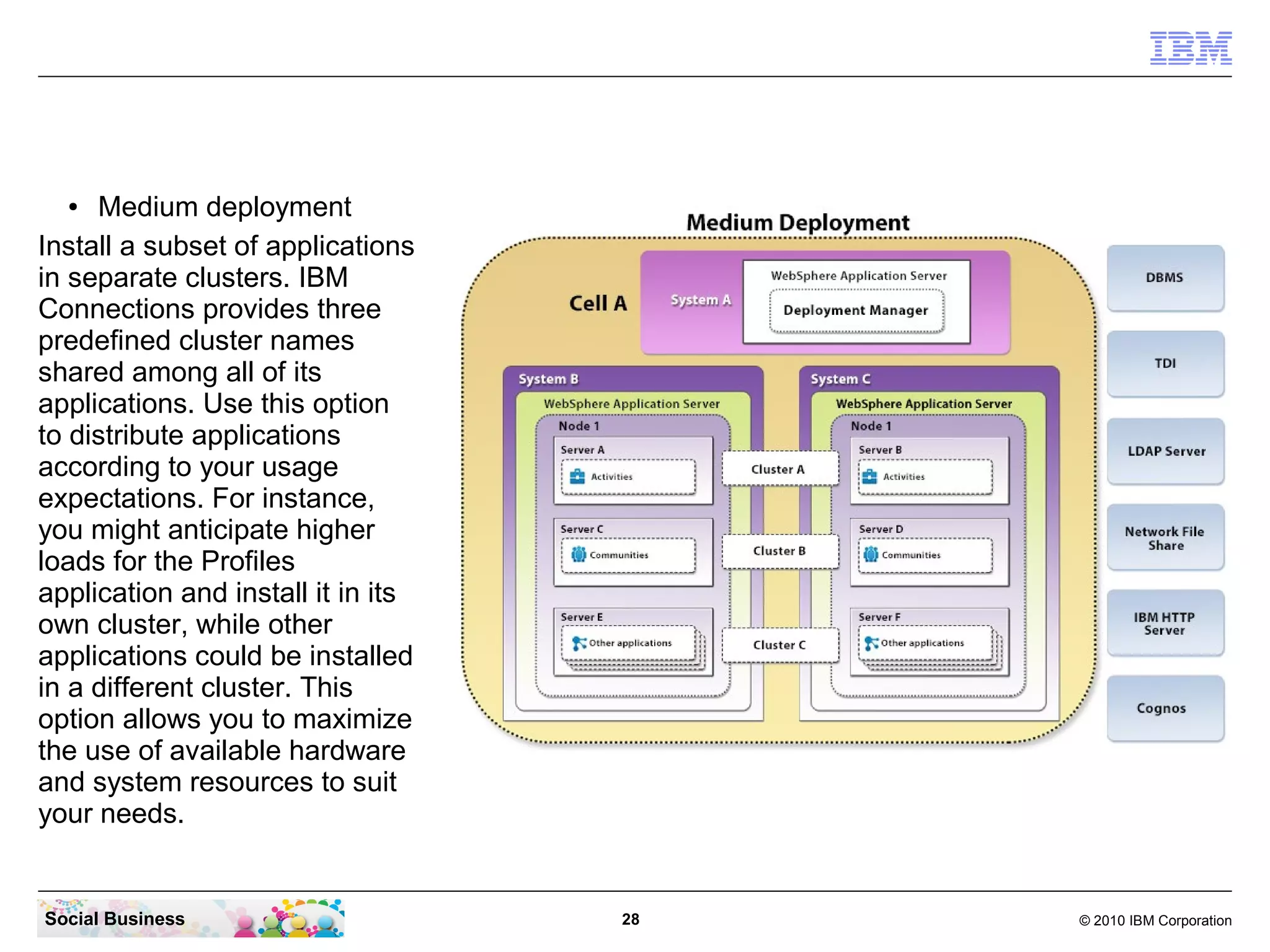
Install a subset of applications
in separate clusters. IBM
Connections provides three
predefined cluster names
shared among all of its
applications. Use this option
to distribute applications
according to your usage
expectations. For instance,
you might anticipate higher
loads for the Profiles
application and install it in its
own cluster, while other
applications could be installed
in a different cluster. This
option allows you to maximize
the use of available hardware
and system resources to suit
your needs.


Social Business                     28   © 2010 IBM Corporation
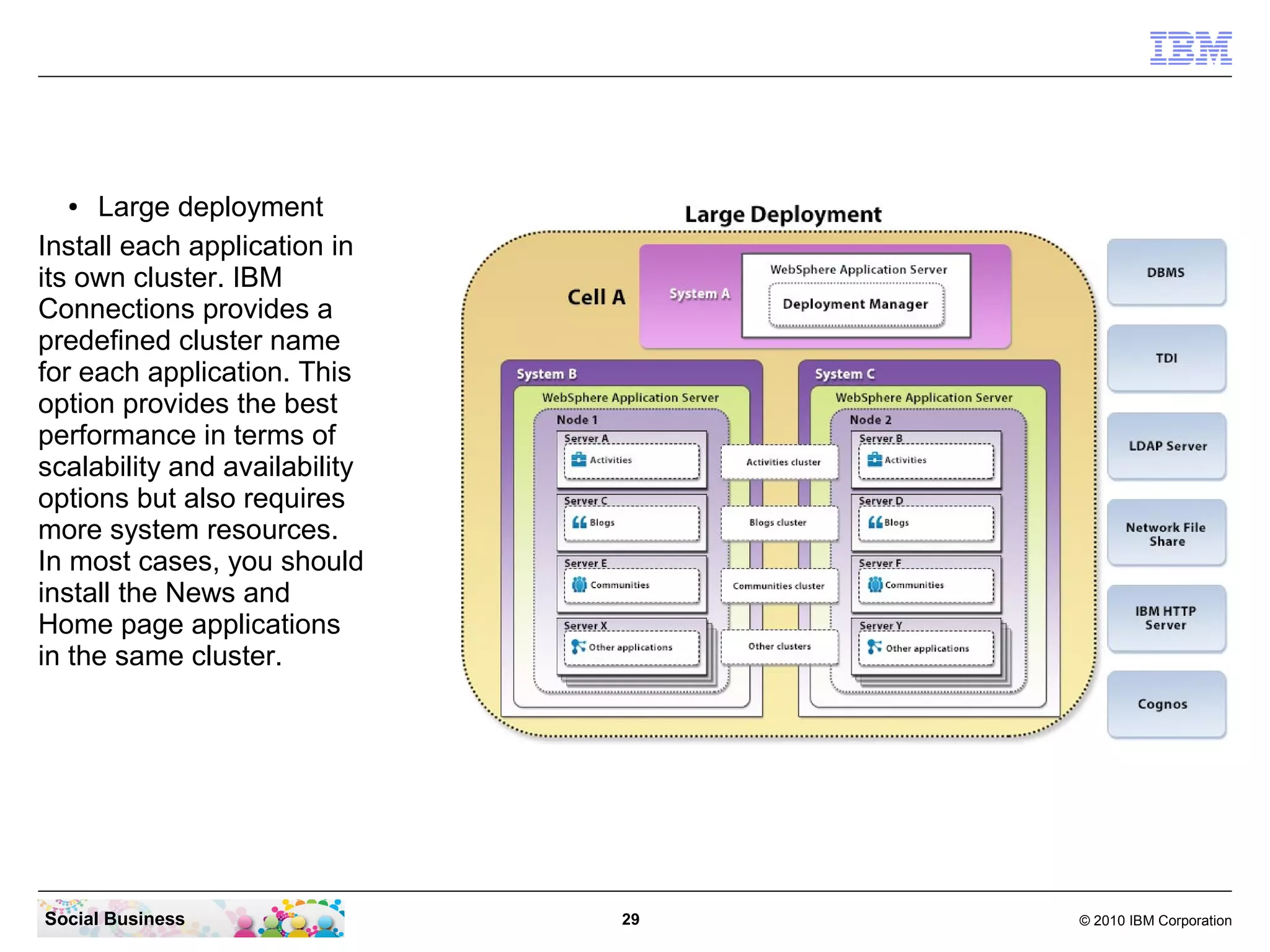
●  Large deployment
Install each application in
its own cluster. IBM
Connections provides a
predefined cluster name
for each application. This
option provides the best
performance in terms of
scalability and availability
options but also requires
more system resources.
In most cases, you should
install the News and
Home page applications
in the same cluster.


Social Business                29   © 2010 IBM Corporation
Different ways to a IBM Connections 4.0 Server deployment

     As you could see in the previous slides, you can install IBM Connections on one box
     and have up to nearly unlimited number of boxes for a really large high available
     deployment.

     The largest customer environment that I know is of more then 50 boxes where all 10
     IBM Connections components run on a cluster of 3 servers and a high available
     dedicated IBM HTTP Server in front.

     Everything between one box and many boxes is possible. For your production
     environment a detailed architecture design and sizing is urgently recommended.

     In this pilot we use just one box for the IBM Connections Server and we assume you
     have a already existing Domino LDAP with user data.

     To make the installation easier, this document describes how to install the Cognos
     components on the same box as the IBM Connections server. It is known that this
     scenario can cause performance issues. But for a small test environment, a POC or
     POT, performance is not the main factor.

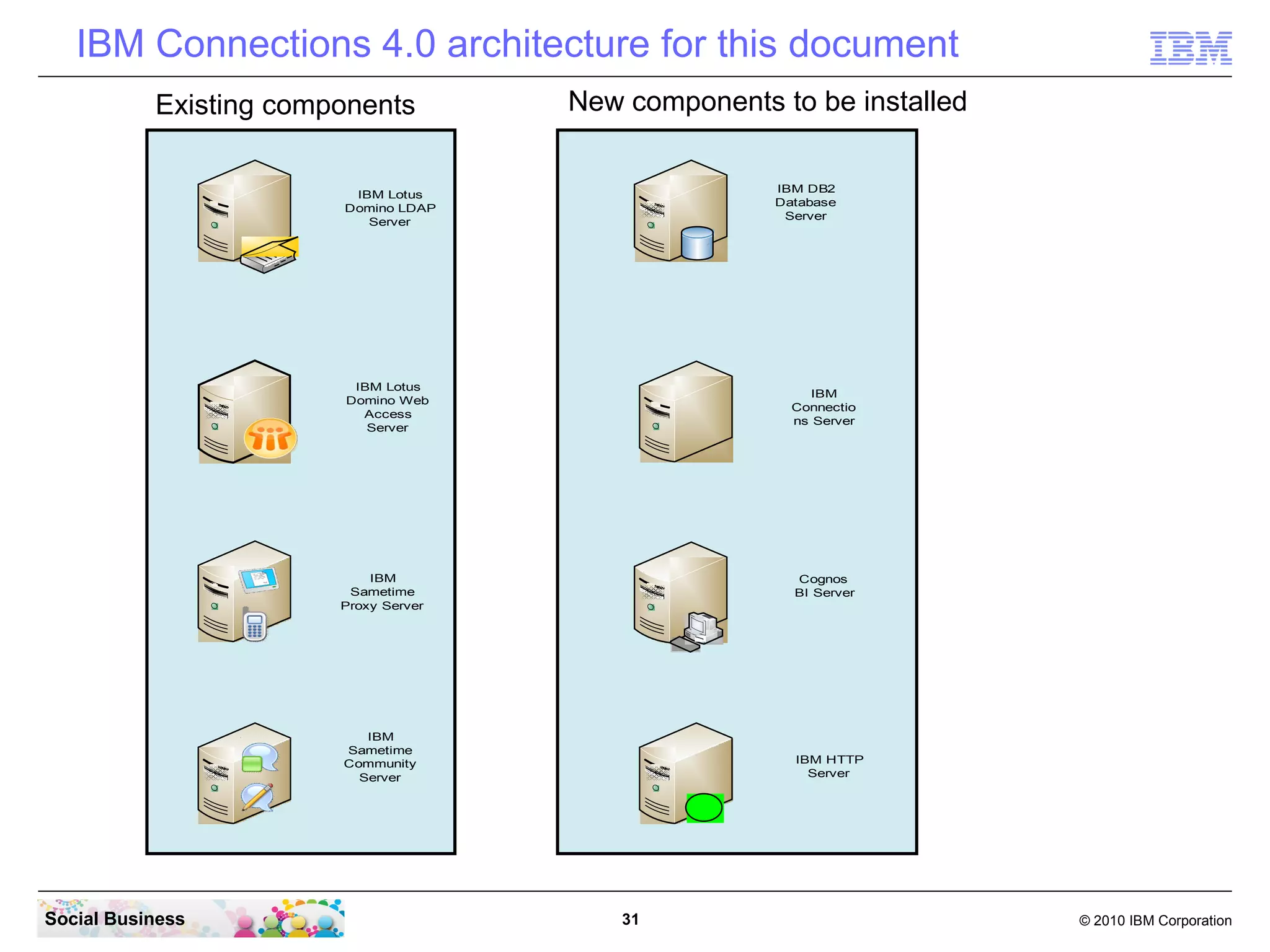
     We now will install one large box that will contain the DB2 Databases for all the IBM
     Connections Applications, the TDI to move personal data from the LDAP server to the
     People database, the Cognos Components, the IBM Connections server by itself and
     the IBM HTTP server for caching and SSL security in front.

Social Business                                30                                  © 2010 IBM Corporation
IBM Connections 4.0 architecture for this document
           Existing components         New components to be installed

                                                      IBM DB2
                         IBM Lotus
                                                      Database
                        Domino LDAP
                                                       Server
                           Server


                         IBM Lotus
                                                           IBM
                        Domino Web
                                                        Connectio
                          Access
                                                        ns Server
                           Server


                            IBM                         Cognos
                         Sametime                       BI Server
                        Proxy Server


                           IBM
                        Sametime
                        Community                       IBM HTTP
                          Server                          Server


Social Business                            31                           © 2010 IBM Corporation
Agenda


            ●     Introduction

            ●     Requirements for a IBM Connections 4.0 installation

            ●     Architecture of a IBM Connections 4.0 Server deployment

            ●     The 26 steps to a IBM Connections 4.0 Server deployment


Social Business                             32                          © 2010 IBM Corporation
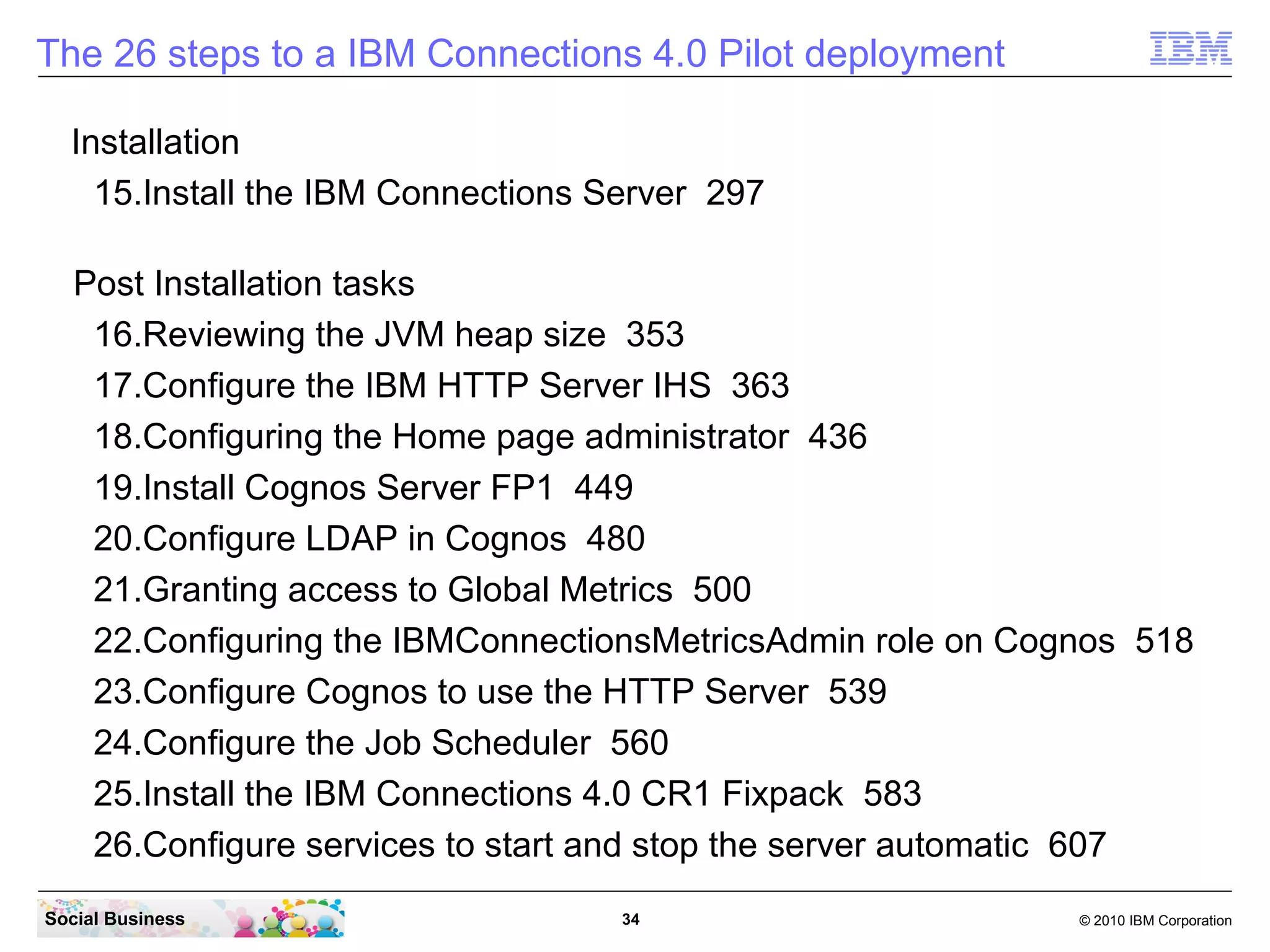
The 26 steps to a IBM Connections 4.0 Pilot deployment
  Pre Installation tasks
   1.Prepare your machine and the network 36
   2.Prepare your LDAP 39
   3.Install the IBM DB2 Server, add the license and create users 43
   4.Run the Database Creation Wizard 93
   5.Install IBM Tivoli Directory Integrator and update to FP6 108
   6.Run the Population Wizard 132
   7.Install IBM WebSphere Application Server, IHS and the Plugin 149
   8.Update WAS, IHS and Plugin to the required level 178
   9.Setup LDAP with Federated Repositories in WAS 212
   10.Create the Cognos administrator account 250
   11.Create a IBM WebSphere Application Server profile for Cognos 251
   12.Install the Cognos Business Intelligence and Transformer Server 255
   13.Federate Cognos 279
   14.Validate Cognos 292

Social Business                    33                           © 2010 IBM Corporation
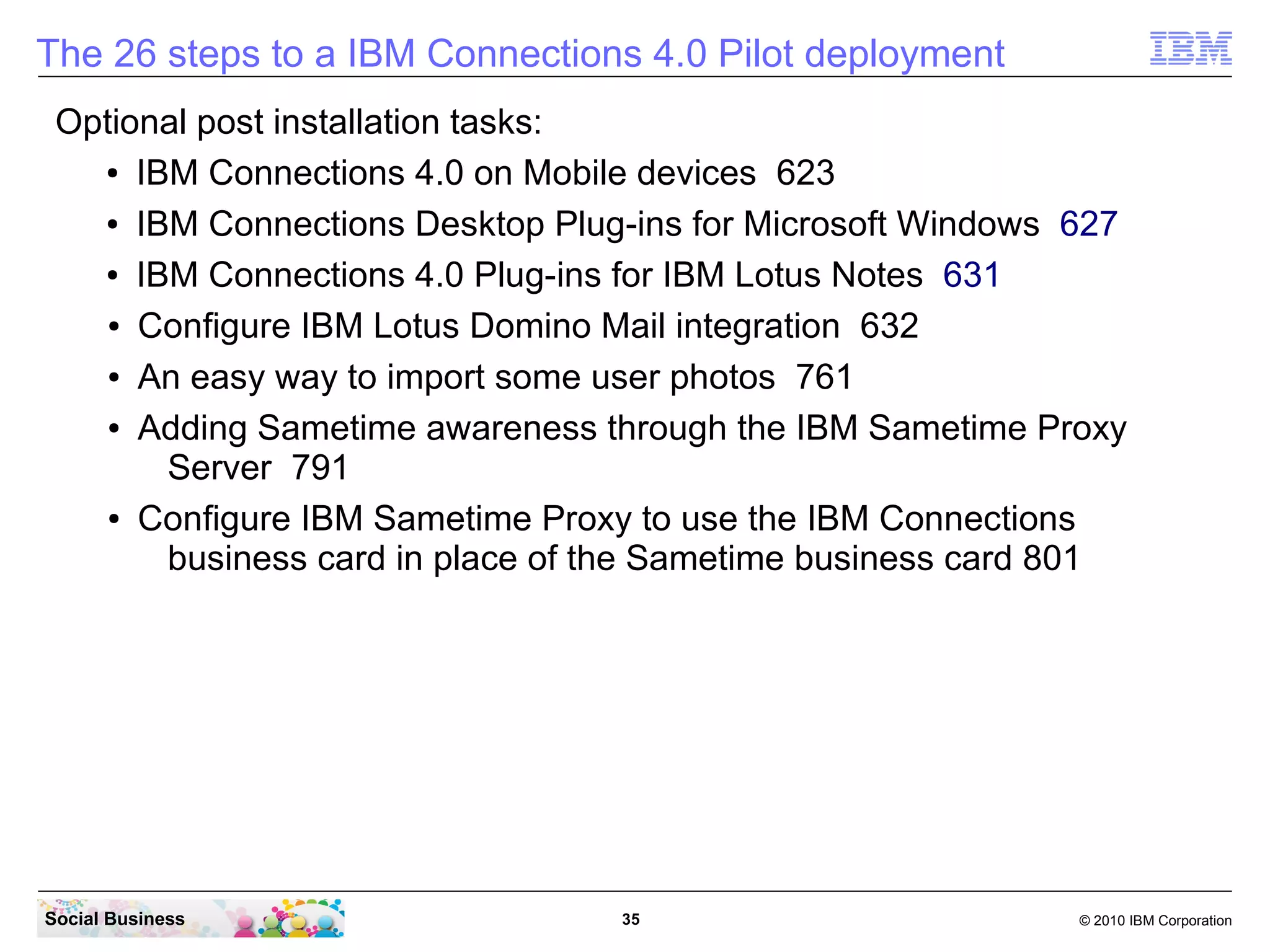
The 26 steps to a IBM Connections 4.0 Pilot deployment

  Installation
    15.Install the IBM Connections Server 297

   Post Installation tasks
    16.Reviewing the JVM heap size 353
    17.Configure the IBM HTTP Server IHS 363
    18.Configuring the Home page administrator 436
    19.Install Cognos Server FP1 449
    20.Configure LDAP in Cognos 480
    21.Granting access to Global Metrics 500
    22.Configuring the IBMConnectionsMetricsAdmin role on Cognos 518
    23.Configure Cognos to use the HTTP Server 539
    24.Configure the Job Scheduler 560
    25.Install the IBM Connections 4.0 CR2 Fixpack 583
    26.Configure services to start and stop the server automatic 610
Social Business                     34                       © 2010 IBM Corporation
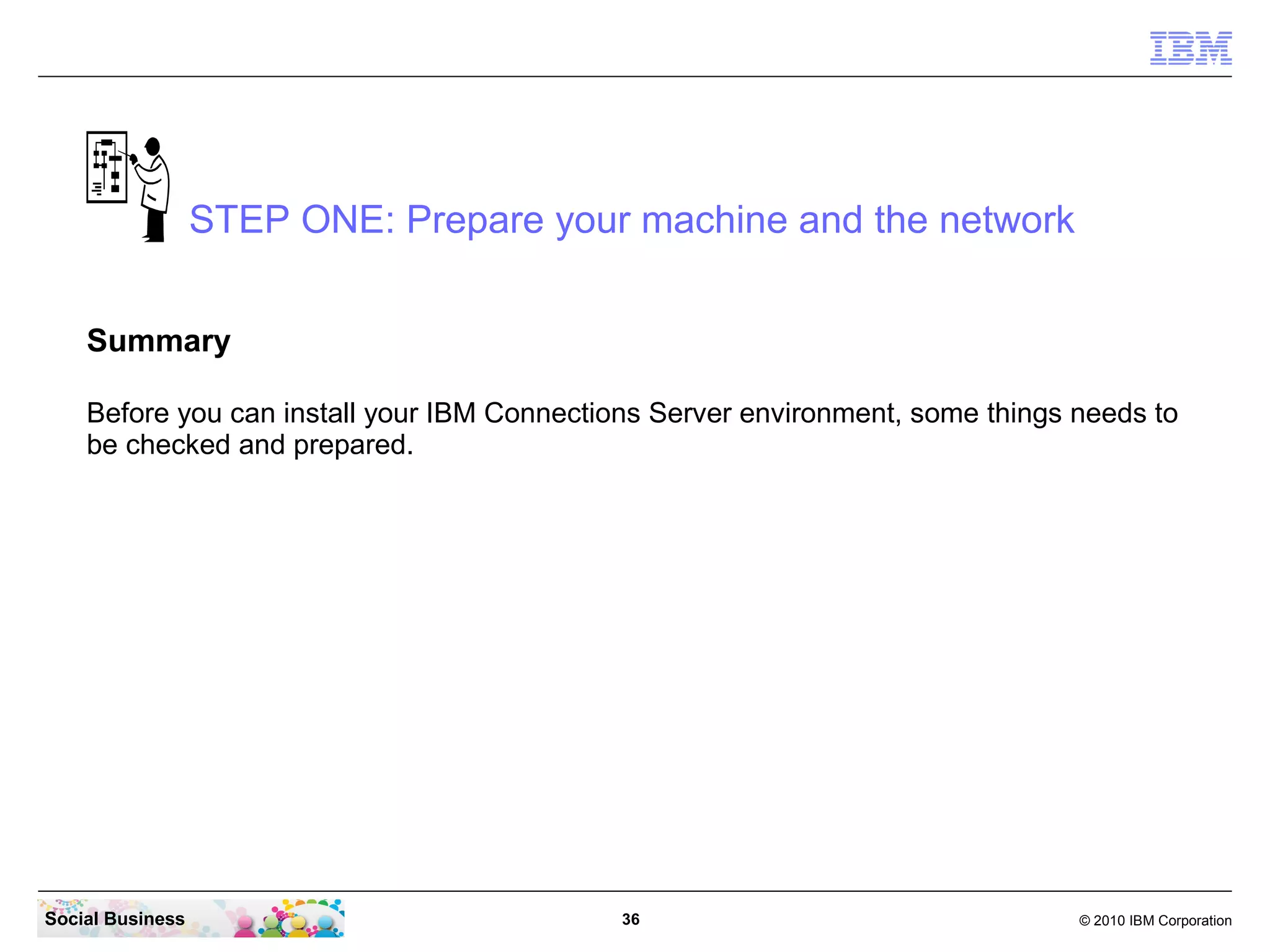
The 26 steps to a IBM Connections 4.0 Pilot deployment
 Optional post installation tasks:
   ● IBM Connections 4.0 on Mobile devices 626


   ● IBM Connections Desktop Plug-ins for Microsoft Windows 630


   ● IBM Connections 4.0 Plug-ins for IBM Lotus Notes 634


    ● Configure IBM Lotus Domino Social Mail integration 635


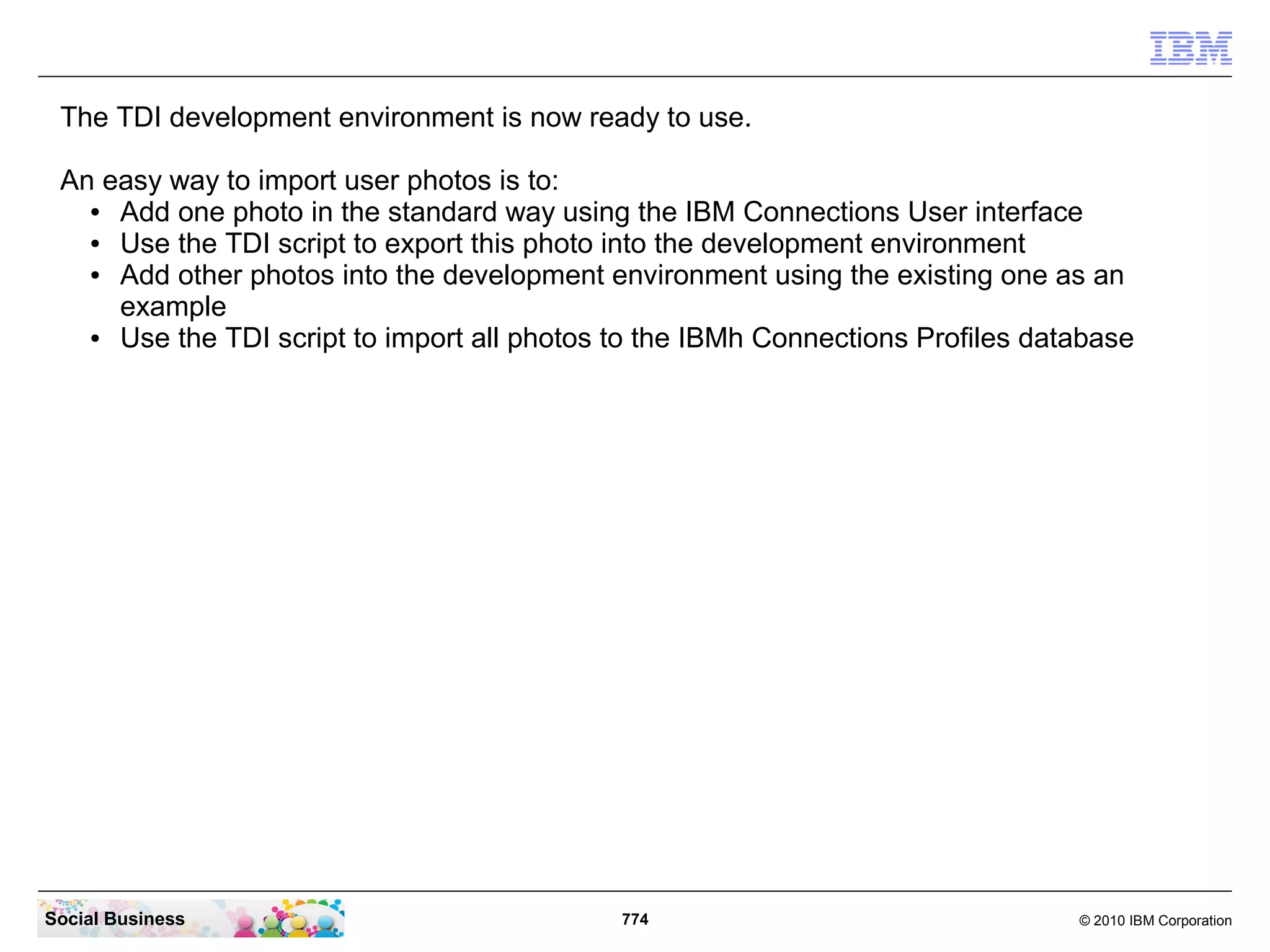
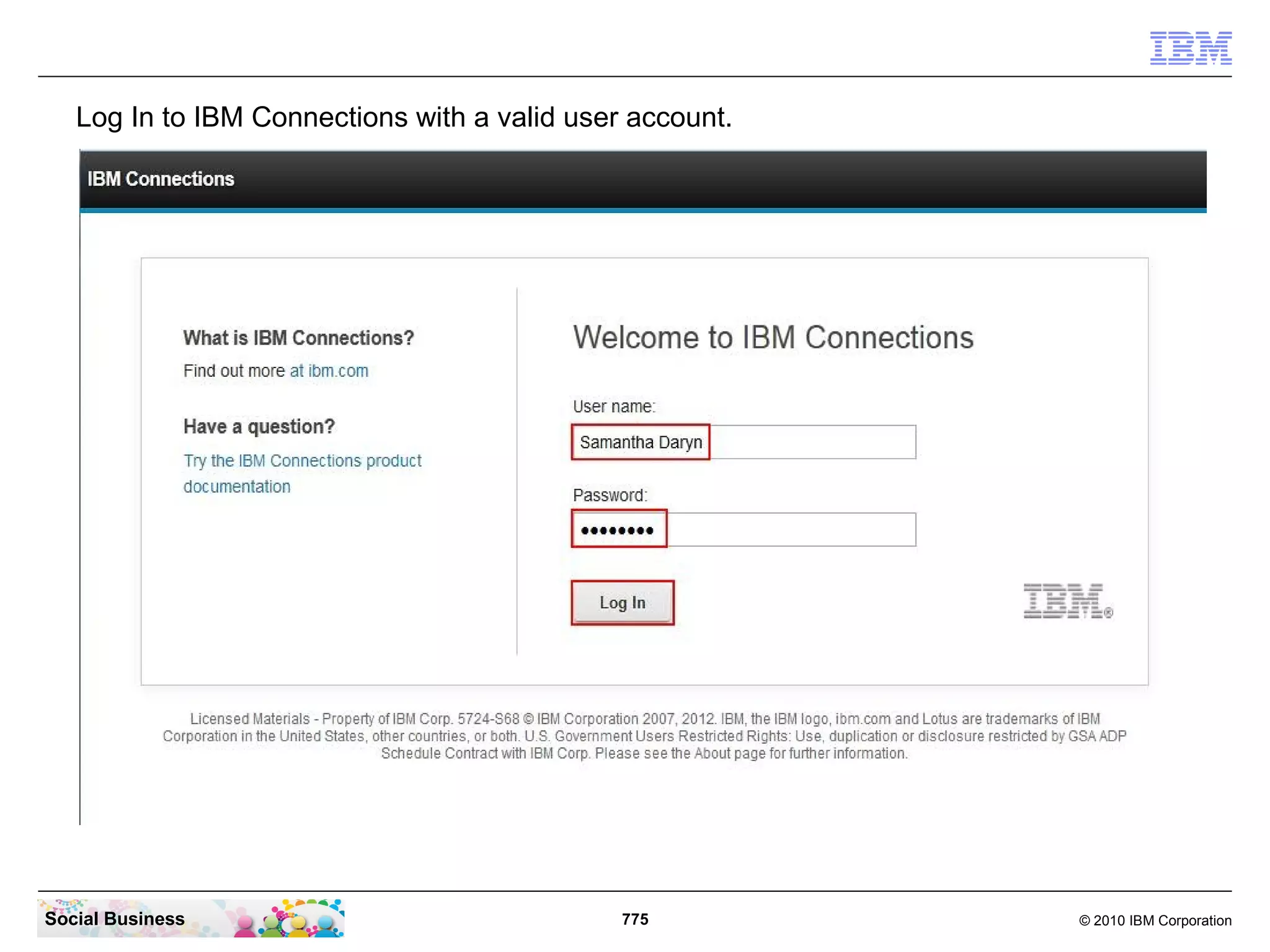
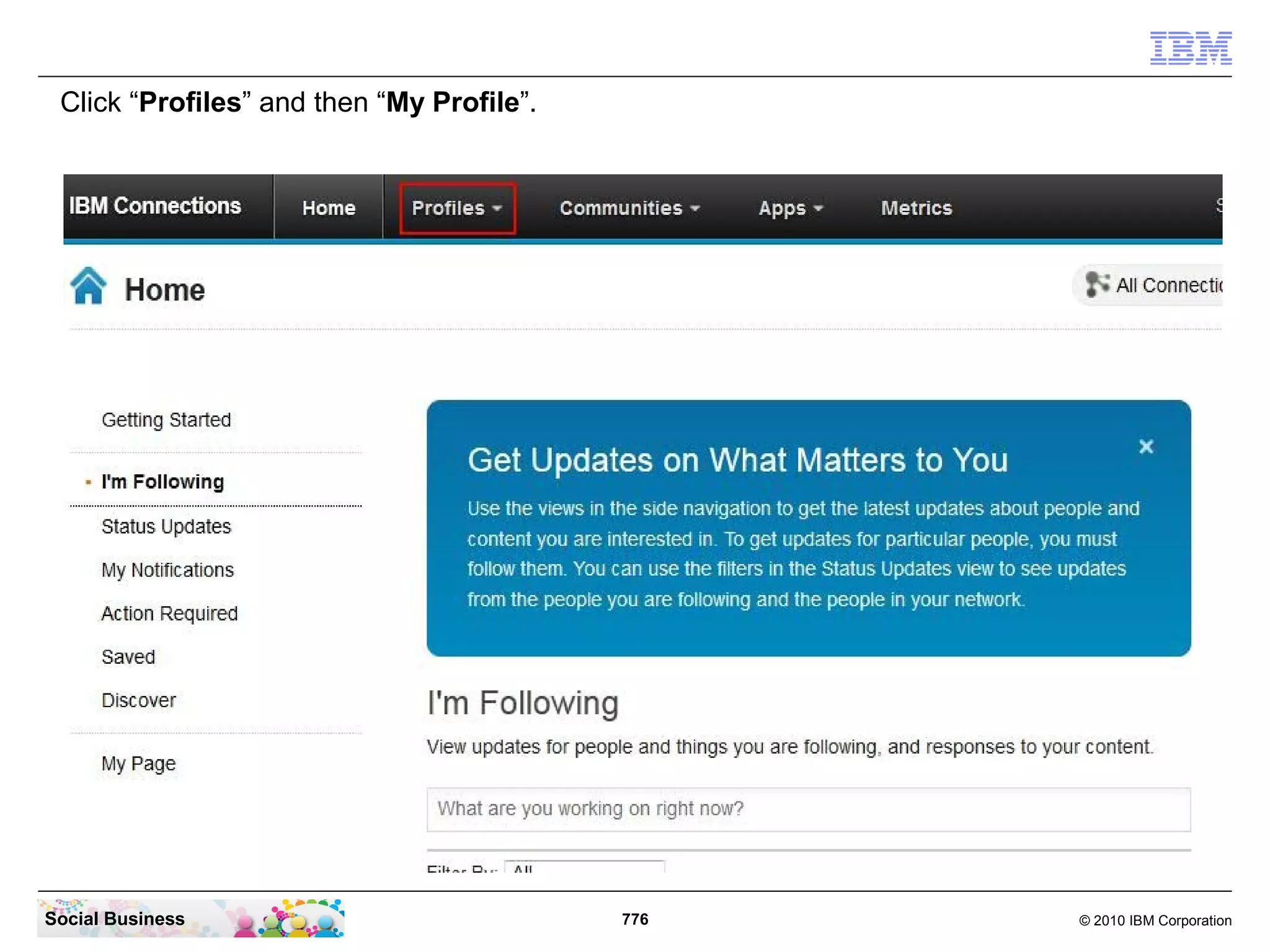
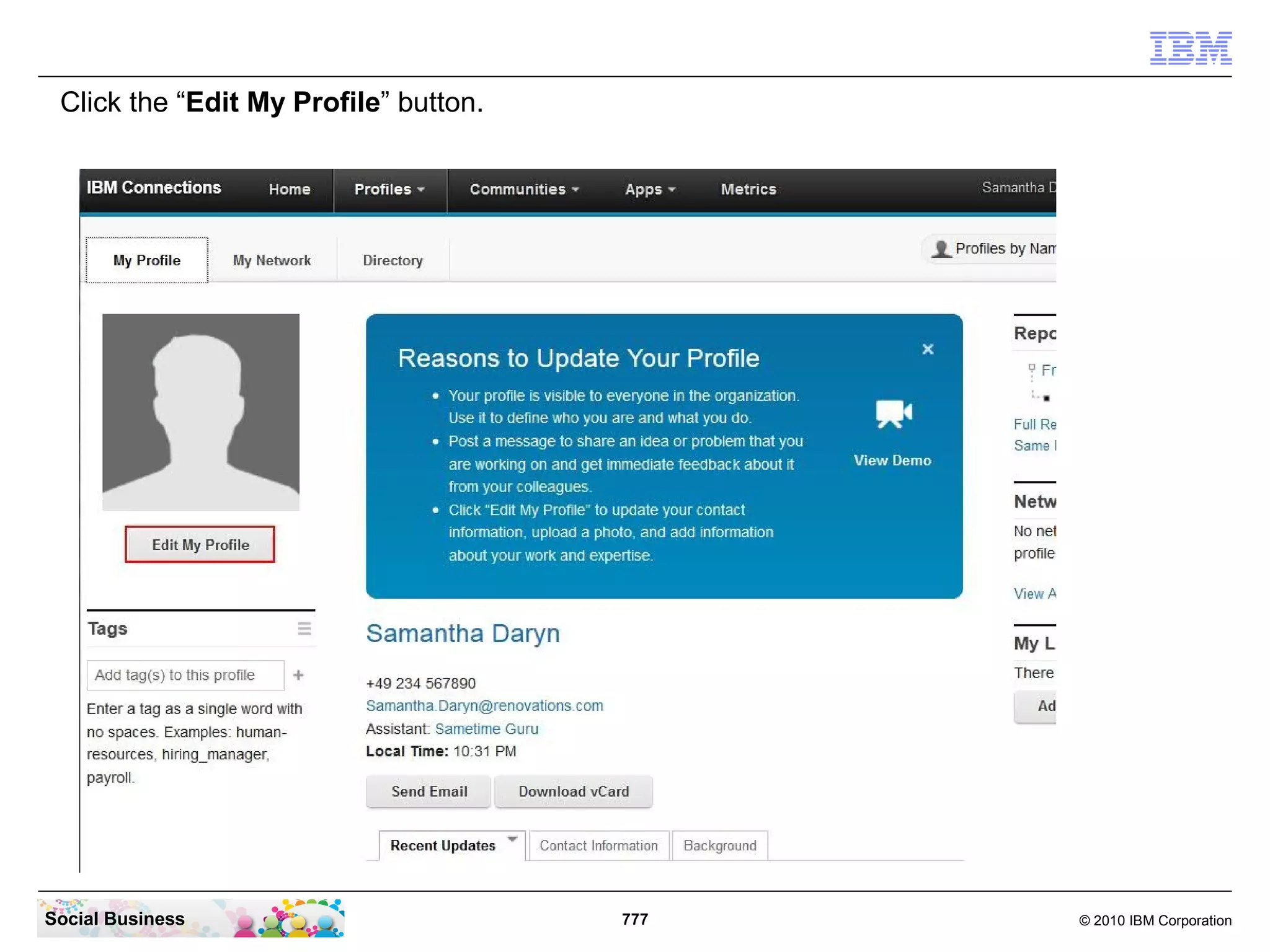
    ● An easy way to import some user photos 764


    ● Adding Sametime awareness through the IBM Sametime Proxy

       Server 796
    ● Configure IBM Sametime Proxy to use the IBM Connections

       business card in place of the Sametime business card 806

   Attachment:
     ● Worksheet for Connections 822


Social Business                    35                       © 2010 IBM Corporation
STEP ONE: Prepare your machine and the network


    Summary

    Before you can install your IBM Connections Server environment, some things needs to
    be checked and prepared.


Social Business                              36                                 © 2010 IBM Corporation
The machine that you run the IBM Connections 4.0 Server and the DB2 Database Server
 can be a virtual machine or a hardware box. Both work.

 It is possible to use Linux as OS, but this document describes how to install on Windows.

 If you use Linux you can use most parts of this document and most installation instructions
 and screen shots are identical. Mostly the paths are different.
 In Linux it is recommended to have the graphical system installed for this installation and
 then use a x-server on our client.

 These instructions work with Windows Server 2008 in 64Bit only. You can use the R2
 Version of the supported OS.

 Be sure that your Firewall Admin has opened all ports in the firewalls. Test all connections
 using the telnet command in a CMD line window.

 Be sure the used host names or DNS alias is listed in the DNS and can be used and
 resolved in the internet and in your intranet.


Social Business                                37                                   © 2010 IBM Corporation
More information can be found in the official IBM Connections
  Documentation at this URL:

  http://www-10.lotus.com/ldd/lcwiki.nsf/xpDocViewer.xsp?
  lookupName=IBM+Connections+4.0+documentation

  The IBM Connections Installation and the IBM Sametime Installation
  – “From Zero To Hero” documents can be found here:

  https://www-304.ibm.com/connections/blogs/sametimeguru/?
  lang=en_us


Social Business                      38                           © 2010 IBM Corporation
STEP TWO: Prepare your LDAP
    Before you begin
    Ensure that you have installed a supported LDAP directory. For more
    information about supported LDAP directories, see the IBM Connections
    detailed system requirements topic.

    To ensure that the Profiles population wizard can return the maximum number
    of records from your LDAP directory, set the Size Limit parameter in your
    LDAP configuration to match the number of users in the directory. For
    example, if your directory has 100,000 users, set this parameter to 100000.
    For more information, see the documentation for your LDAP directory. If you
    cannot set the Size Limit parameter, you could run the wizard multiple times.
    Alternatively, you could write a JavaScript™ function to split the original LDAP
    search filter, then run the collect_dns_iterate.bat file, and finally run the
    populate_from_dns_files.bat file.

    Note: For information about a limitation in environments with a Turkish locale,
    see the Base entry comparison for Turkish locale external link technote.
Social Business                            39                               © 2010 IBM Corporation
The LDAP Server
     In most environments a LDAP server is already present. If you use Domino it
     is simple to just enable LDAP on one of the Domino Directory Servers. If you
     use an existing LDAP Server other then Domino, it is important to use a V3
     compliant LDAP.

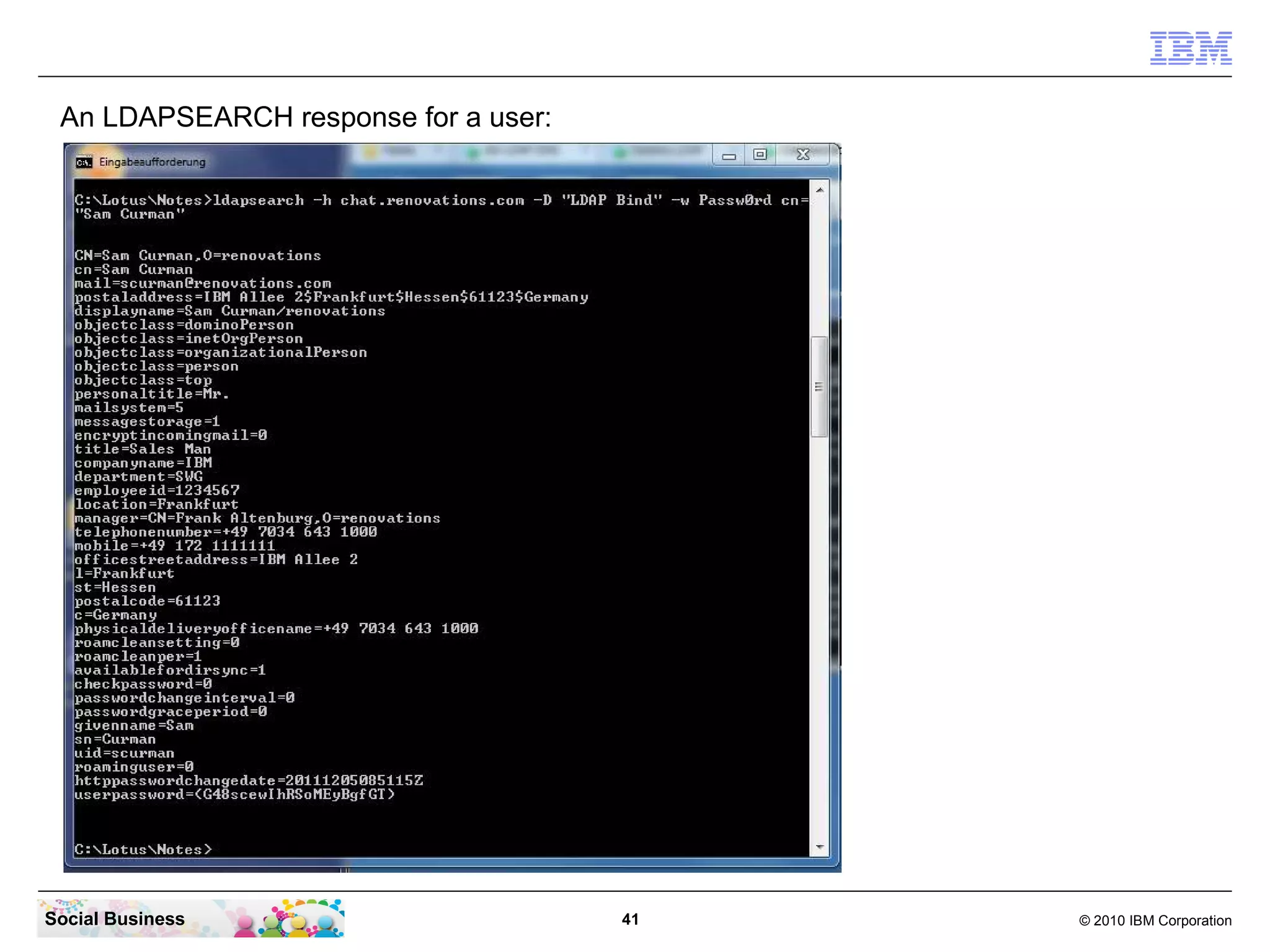
     Make sure you have all relevant data from the LDAP system. (use ldapsearch,
     Apache LDAP studio or another LDAP browser to get the relevant LDAP
     information - an LDIF extract of a user and a group)

     A security related recommendation is to have a Bind DN. This means a user
     record in the LDAP that can be used for authenticated access to the data in
     the LDAP server. We use the „LDAP Bind“ user in this example.
     This is a technical user. His password should never expire. Otherwise the
     systems can not connect to the LDAP server anymore when this password is
     expired.

     The LDAP connection can be configured with SSL encryption. To configure
     your Connections Servers connecting to LDAP with SSL (LDAPS), additional
     steps are required. Make sure that you have access to the required certificate.
     But we recommend to start without SSL and when all components work, start
     implementing LDAPS.

Social Business                           40                               © 2010 IBM Corporation
An LDAPSEARCH response for a user:


Social Business                       41   © 2010 IBM Corporation
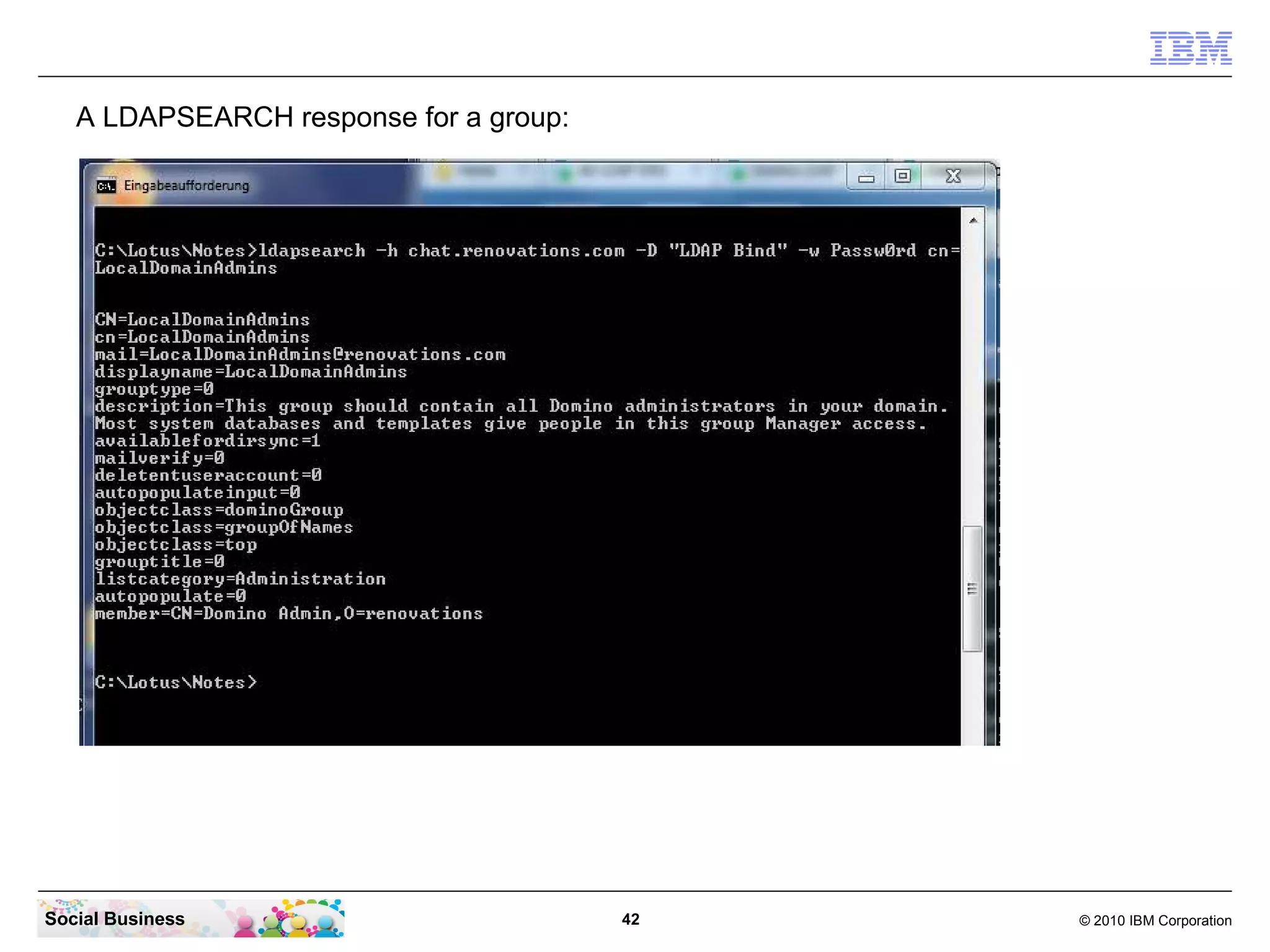
A LDAPSEARCH response for a group:


Social Business                         42   © 2010 IBM Corporation
STEP THREE: Install the IBM DB2 Server, add the
                     license and create users
    Summary

    This step installs the IBM DB2 Database Server release 9.7 and the FP6
    update, installs the license key into the server and then creates a user for
    IBM Connections to connect to the databases.


Social Business                          43                              © 2010 IBM Corporation
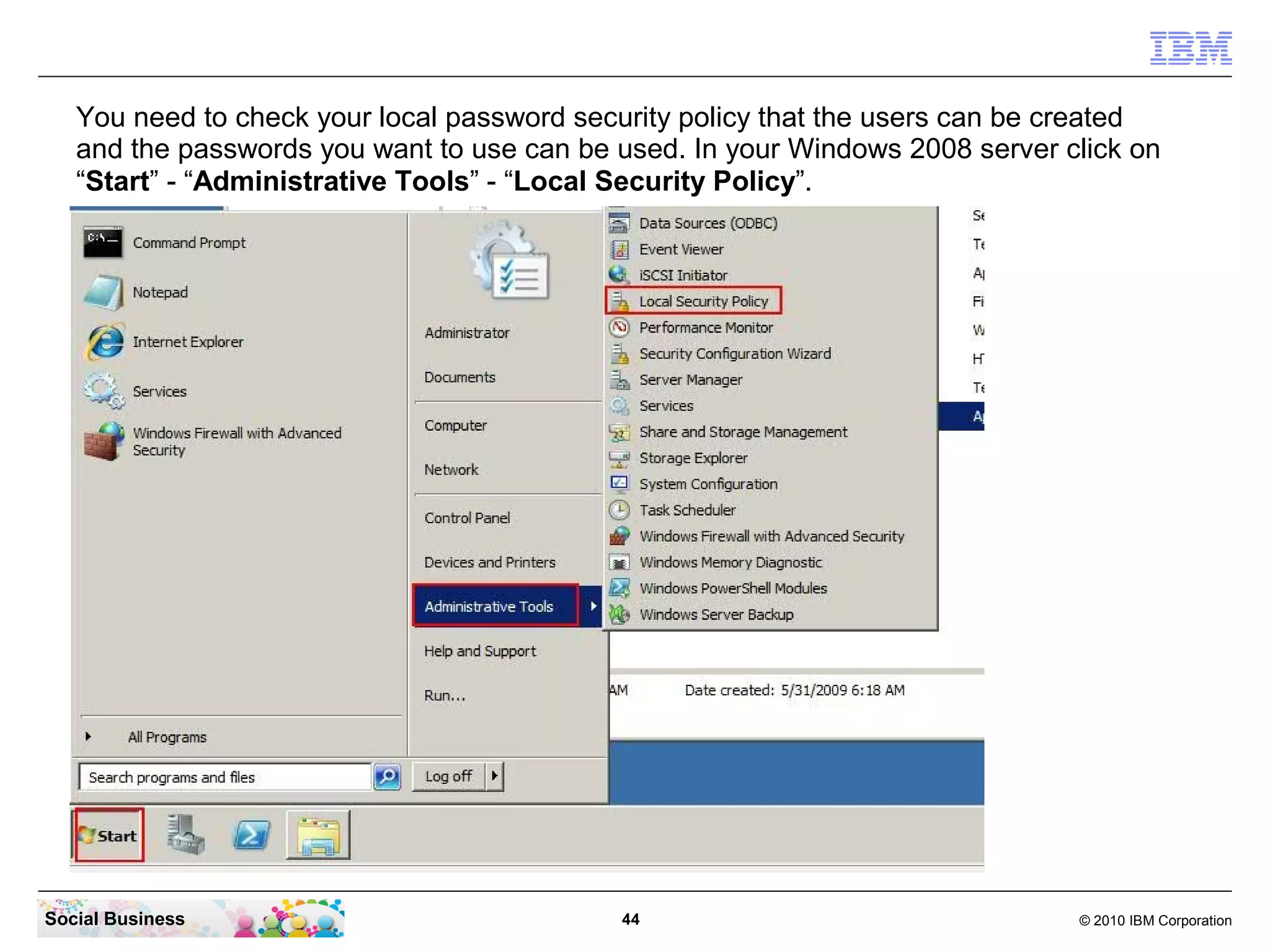
You need to check your local password security policy that the users can be created
   and the passwords you want to use can be used. In your Windows 2008 server click on
   “Start” - “Administrative Tools” - “Local Security Policy”.


Social Business                             44                                 © 2010 IBM Corporation
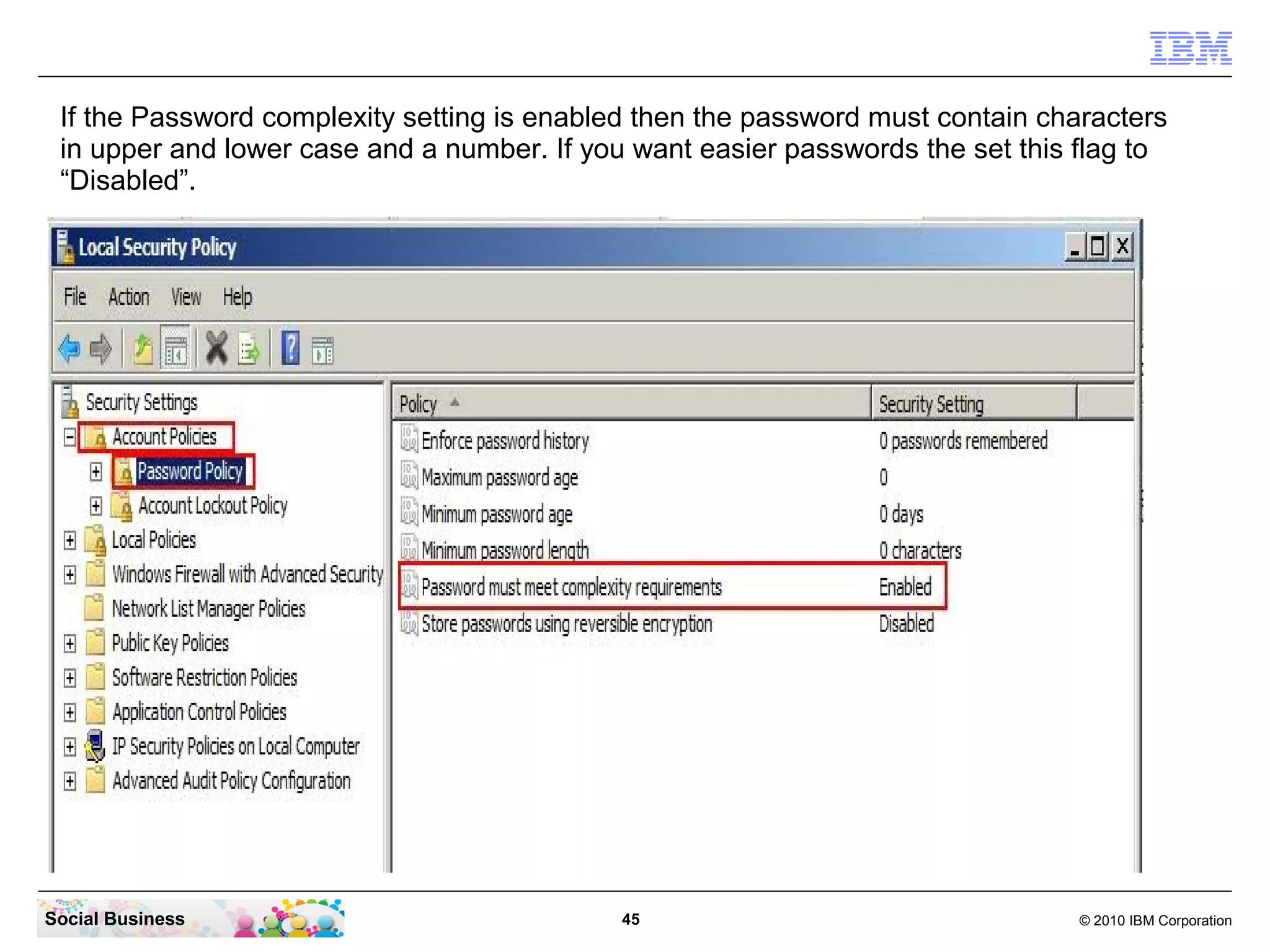
If the Password complexity setting is enabled then the password must contain characters
 in upper and lower case and a number. If you want easier passwords the set this flag to
 “Disabled”.


Social Business                              45                                  © 2010 IBM Corporation
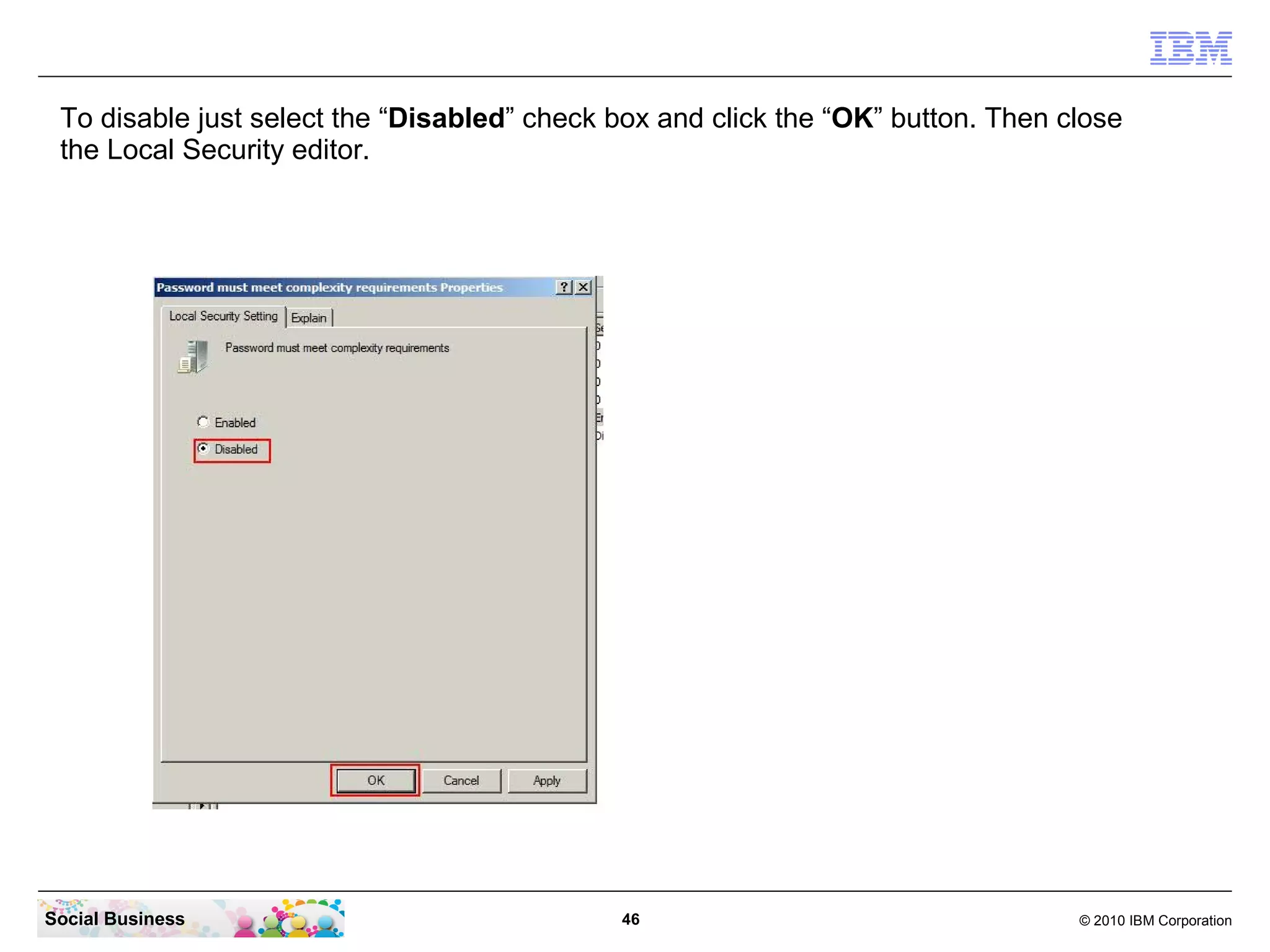
To disable just select the “Disabled” check box and click the “OK” button. Then close
 the Local Security editor.


Social Business                              46                                   © 2010 IBM Corporation
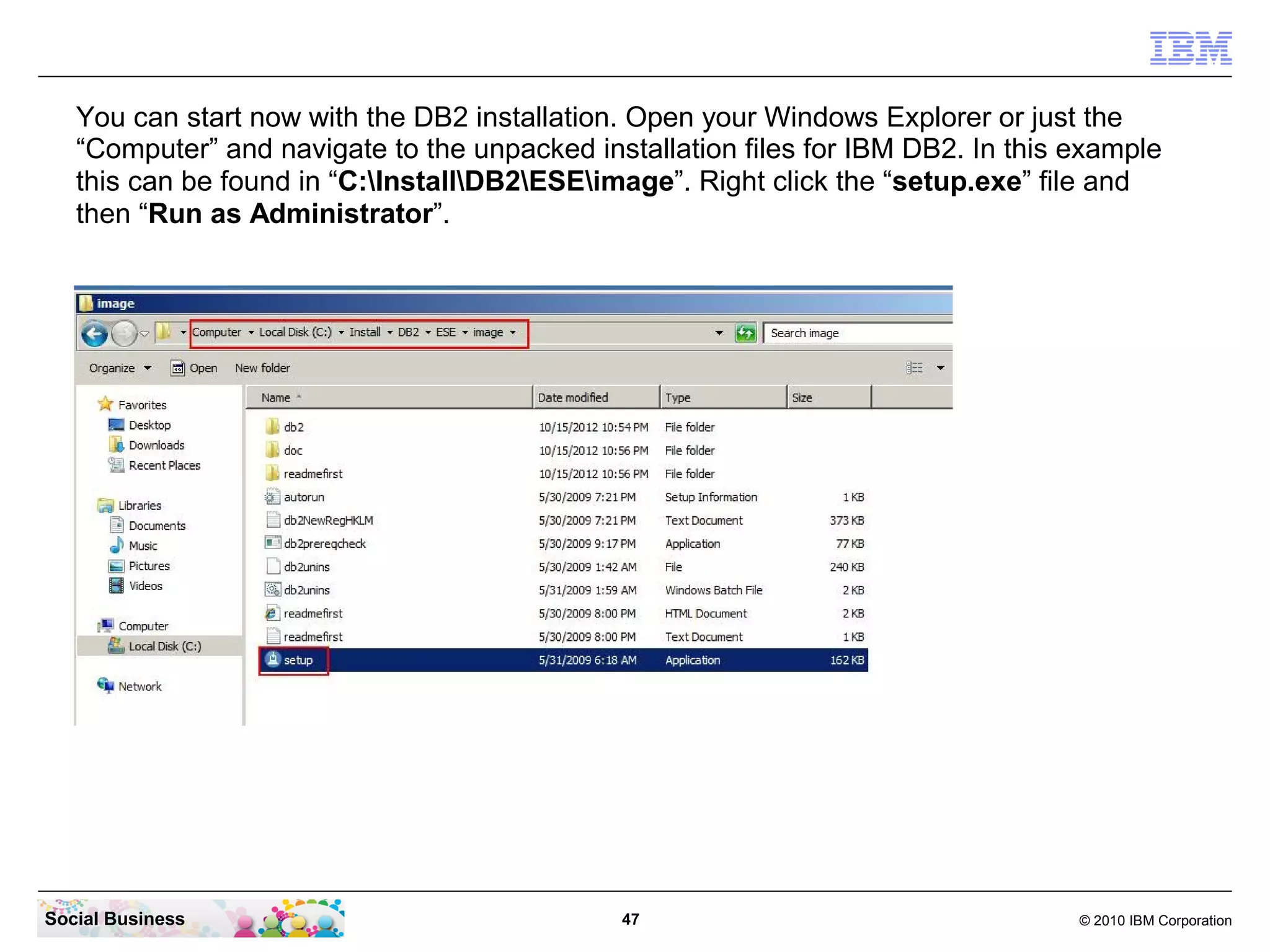
You can start now with the DB2 installation. Open your Windows Explorer or just the
   “Computer” and navigate to the unpacked installation files for IBM DB2. In this example
   this can be found in “C:InstallDB2ESEimage”. Right click the “setup.exe” file and
   then “Run as Administrator”.


Social Business                               47                                   © 2010 IBM Corporation
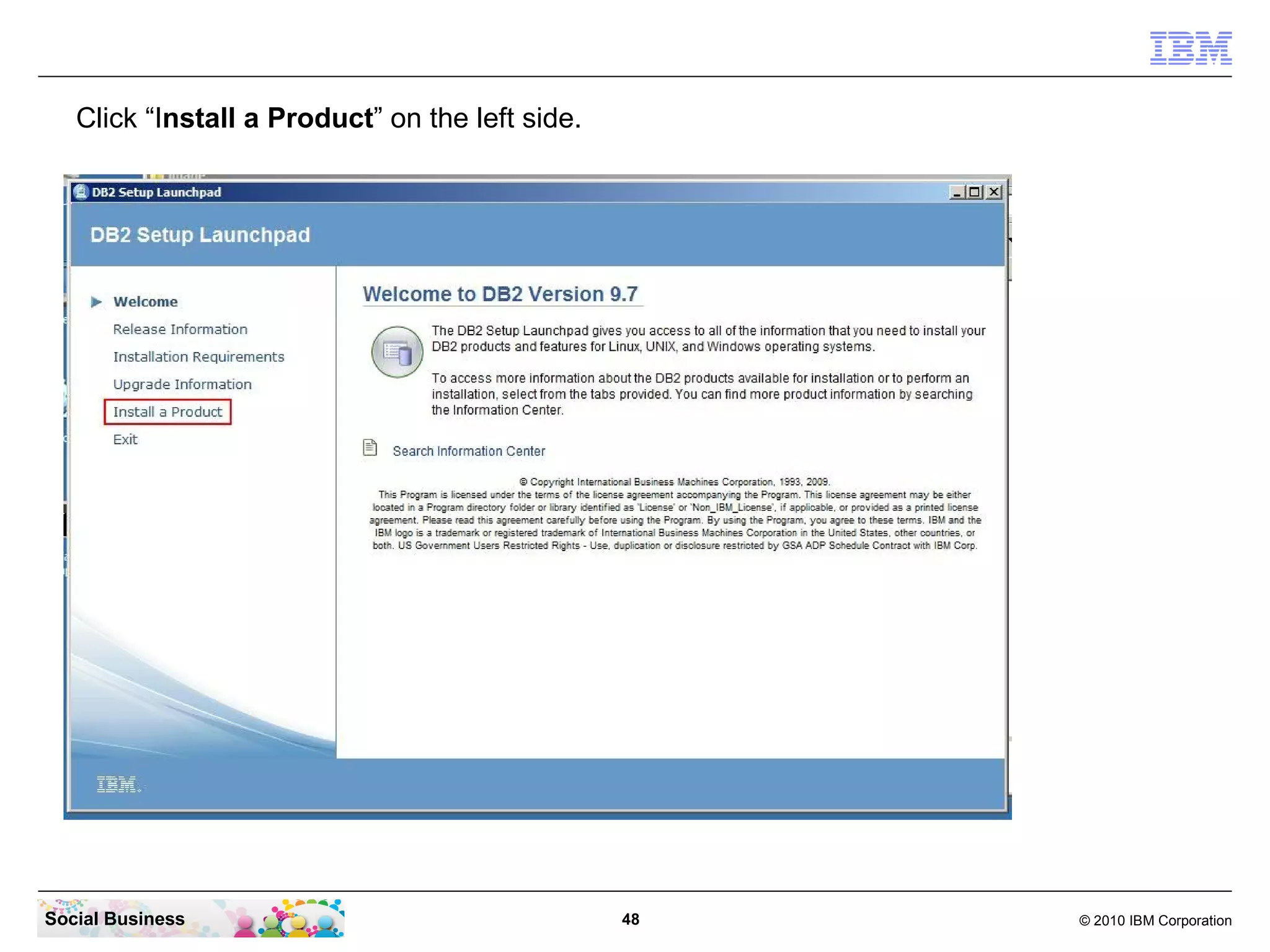
Click “Install a Product” on the left side.


Social Business                                  48   © 2010 IBM Corporation
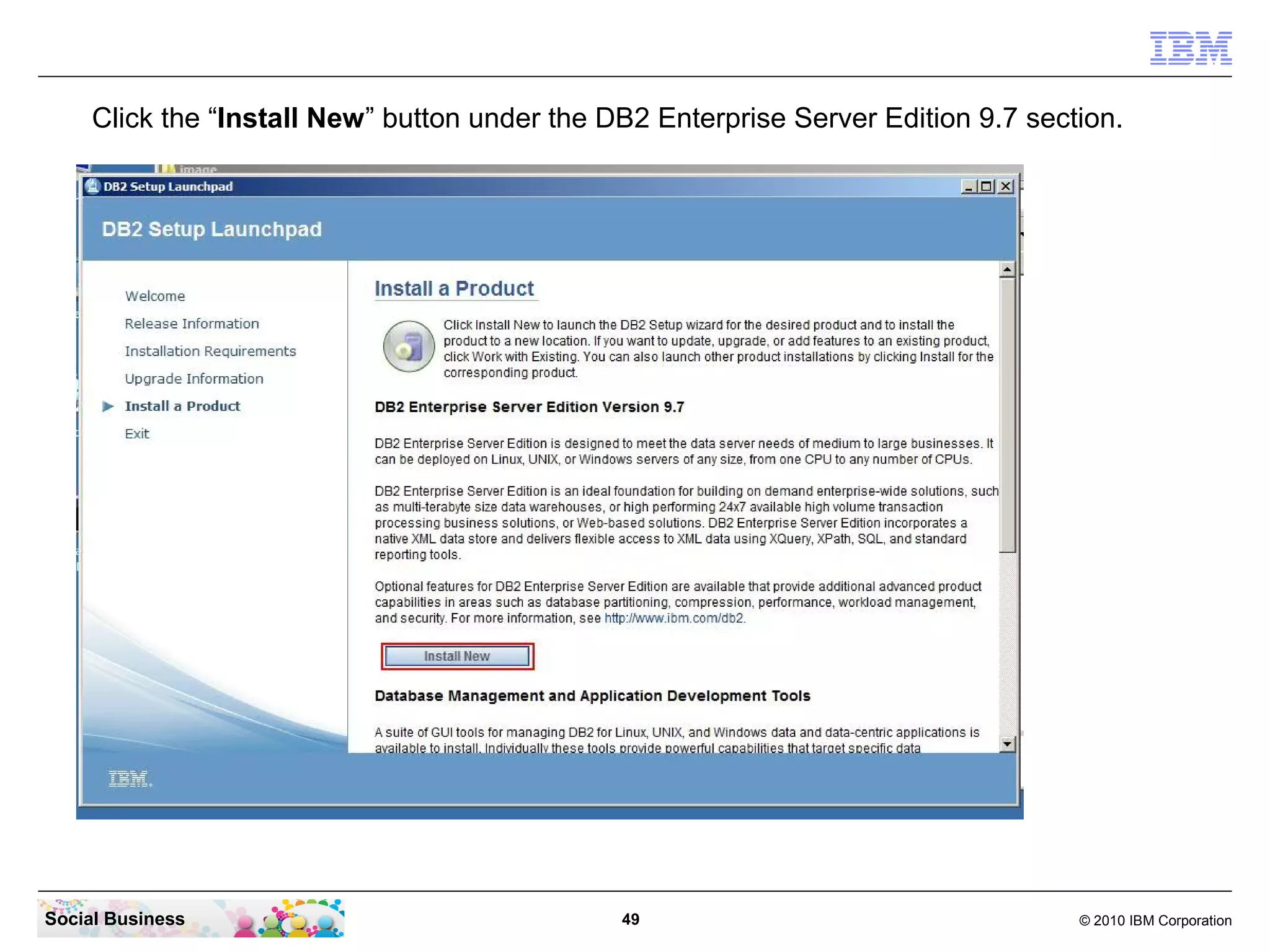
Click the “Install New” button under the DB2 Enterprise Server Edition 9.7 section.


Social Business                                49                                   © 2010 IBM Corporation
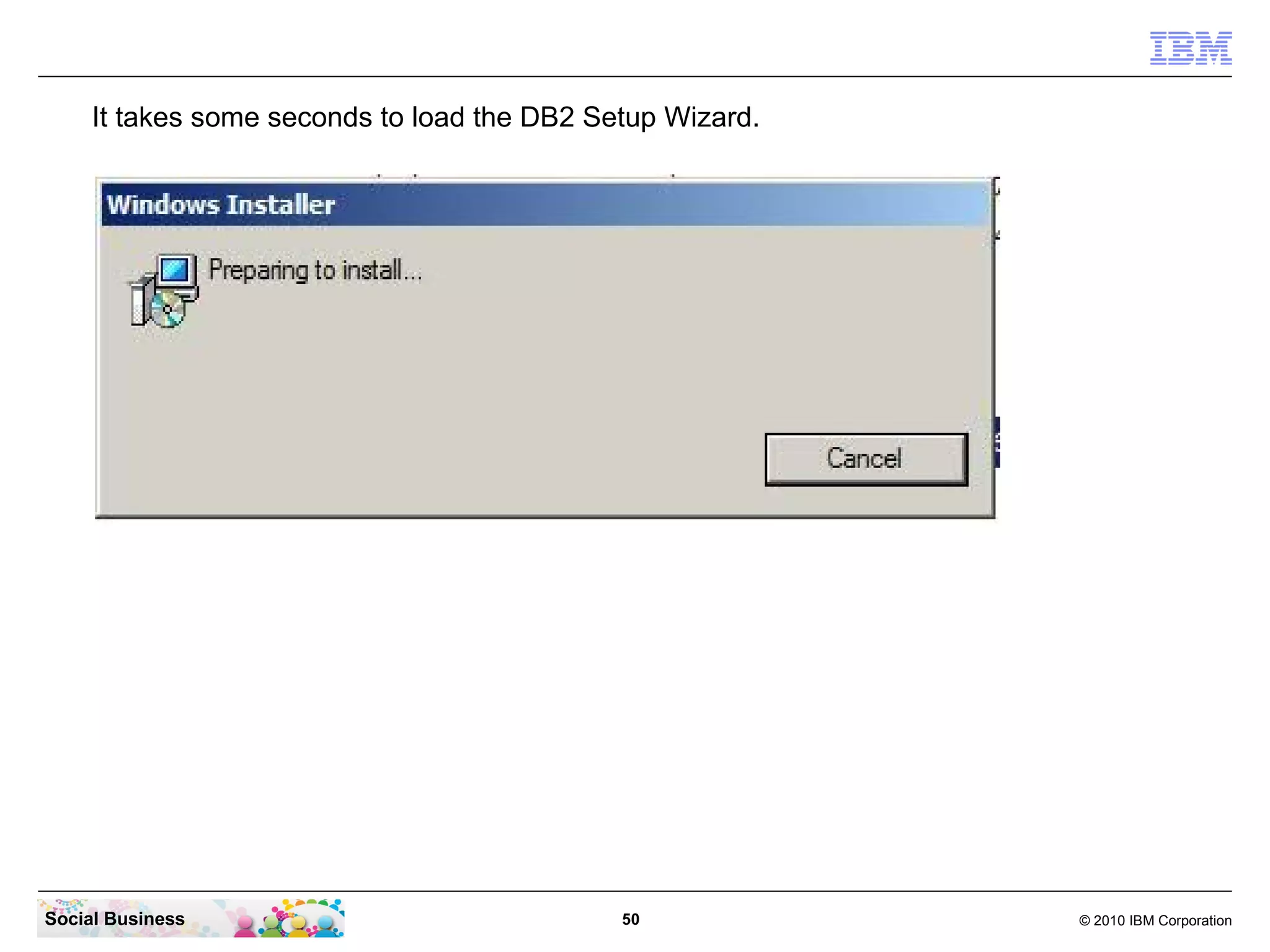
It takes some seconds to load the DB2 Setup Wizard.


Social Business                              50            © 2010 IBM Corporation
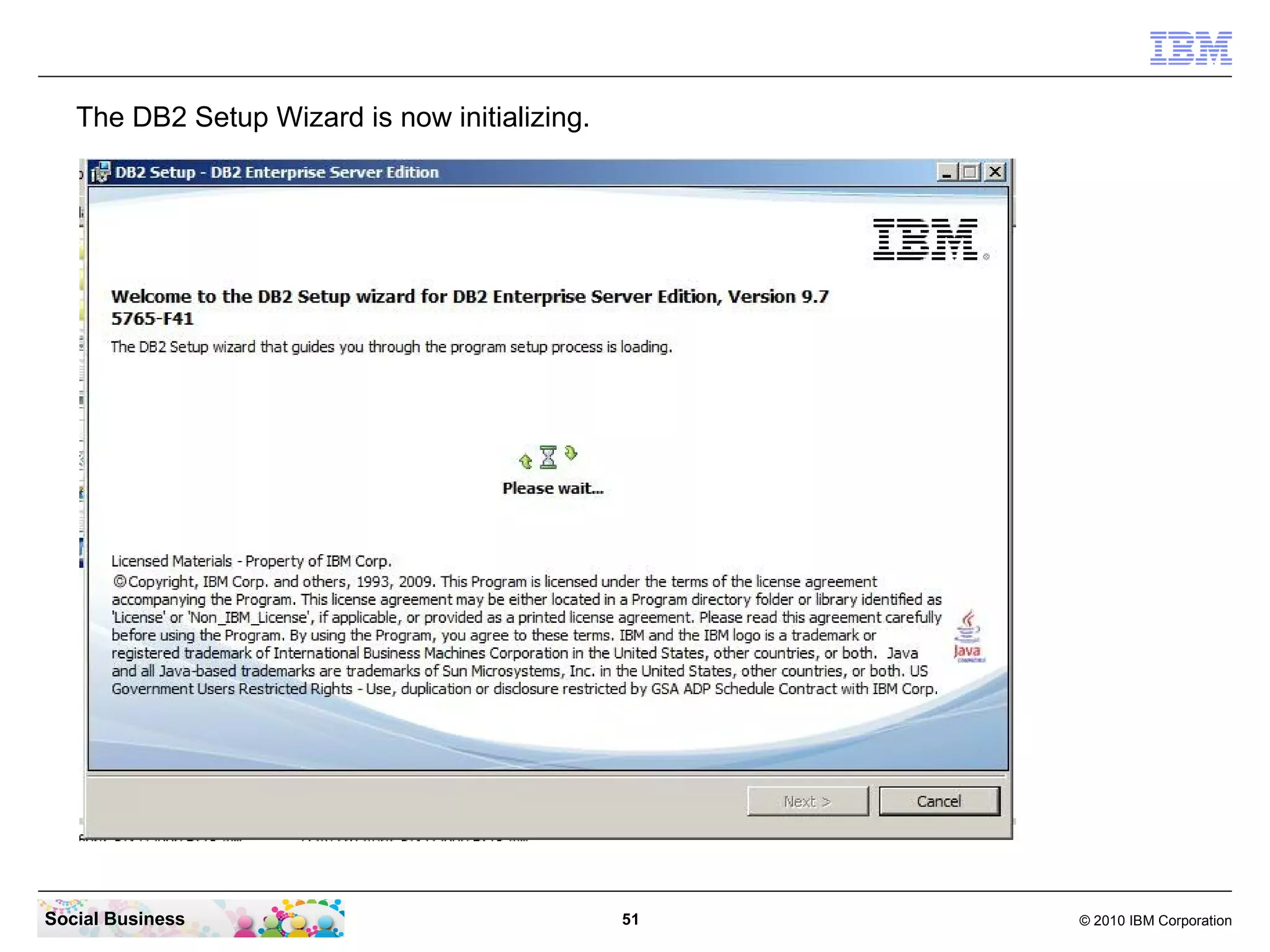
The DB2 Setup Wizard is now initializing.


Social Business                                51   © 2010 IBM Corporation
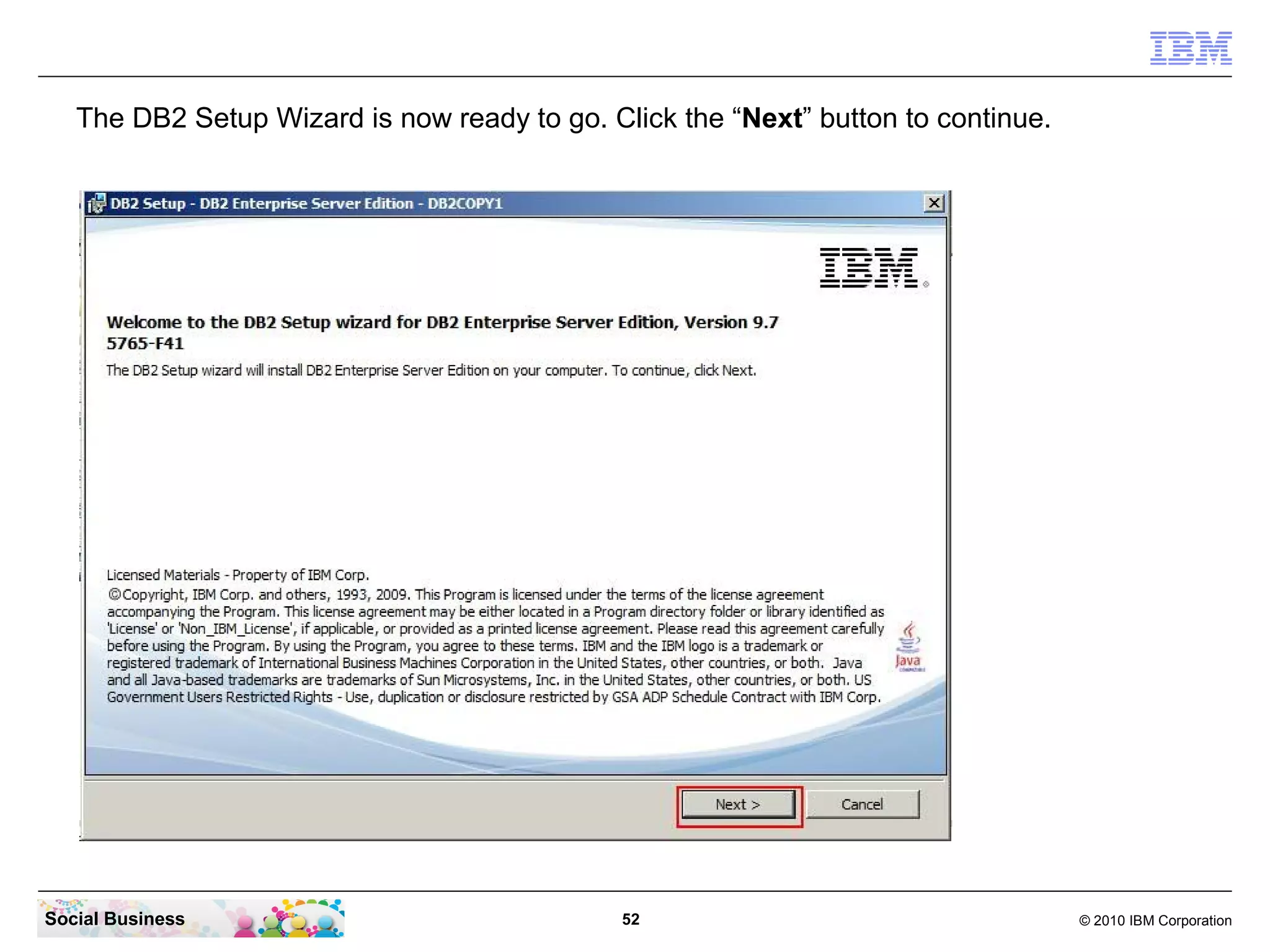
The DB2 Setup Wizard is now ready to go. Click the “Next” button to continue.


Social Business                               52                                   © 2010 IBM Corporation
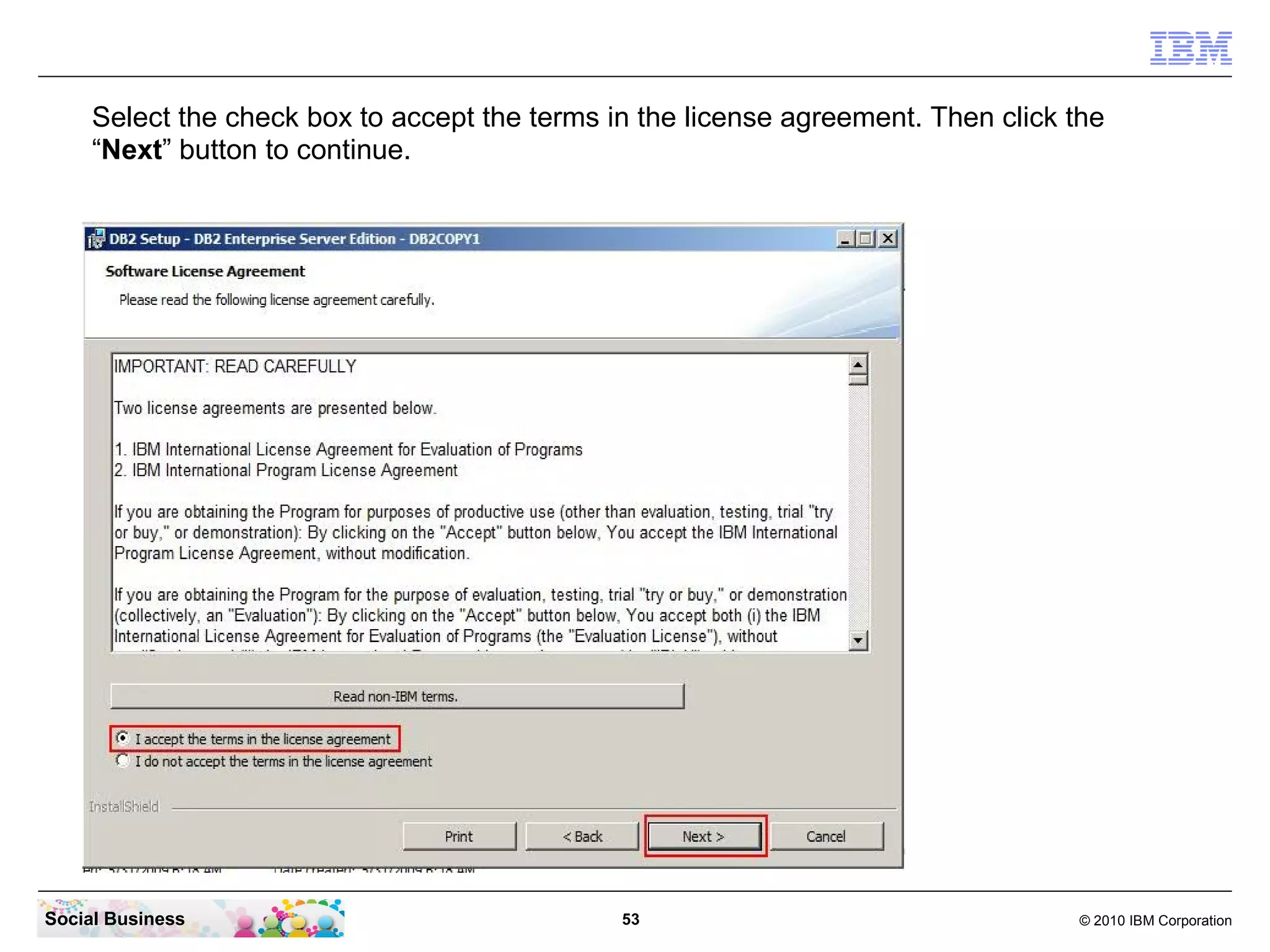
Select the check box to accept the terms in the license agreement. Then click the
     “Next” button to continue.


Social Business                                53                                  © 2010 IBM Corporation
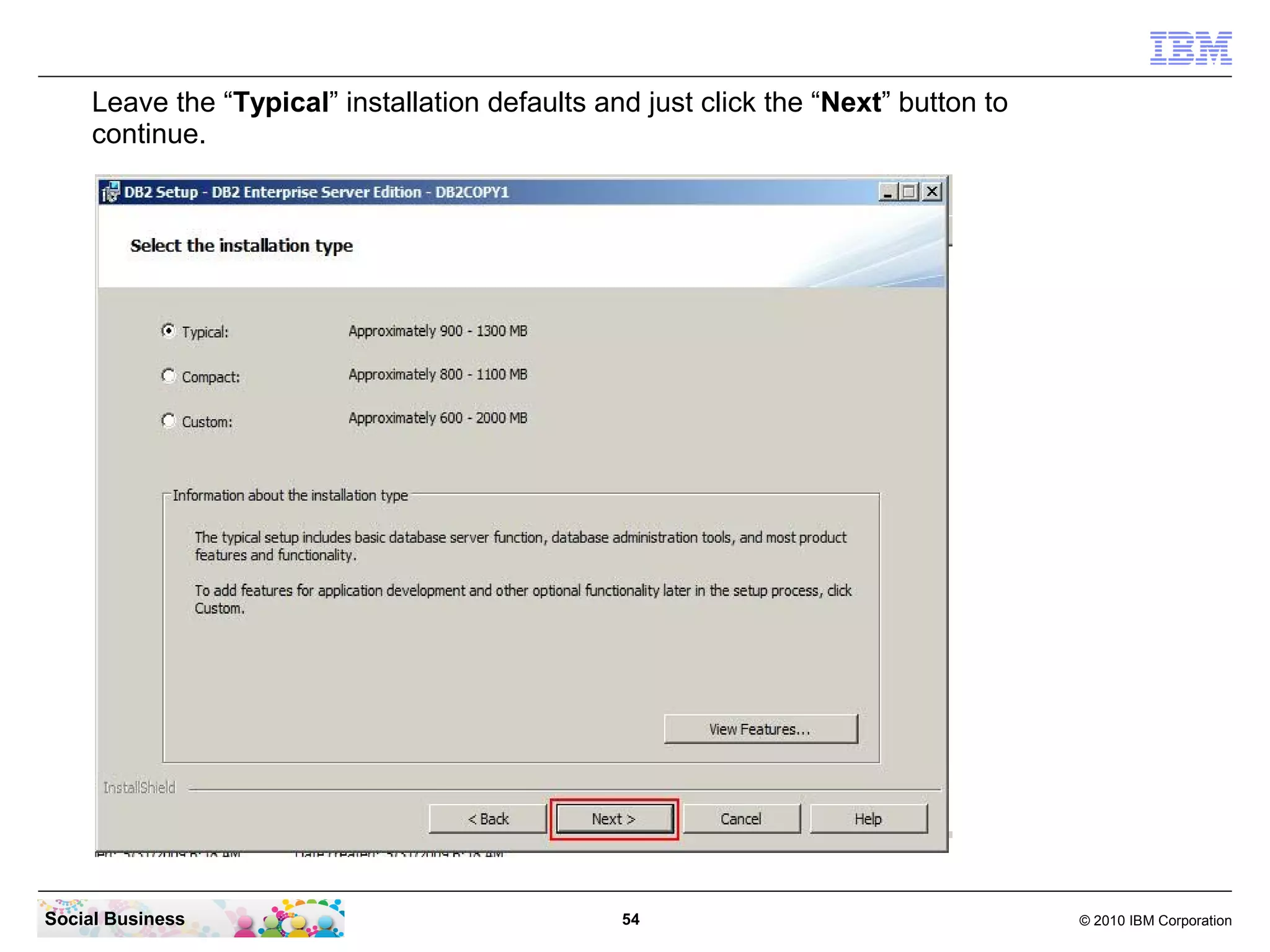
Leave the “Typical” installation defaults and just click the “Next” button to
     continue.


Social Business                                  54                                  © 2010 IBM Corporation
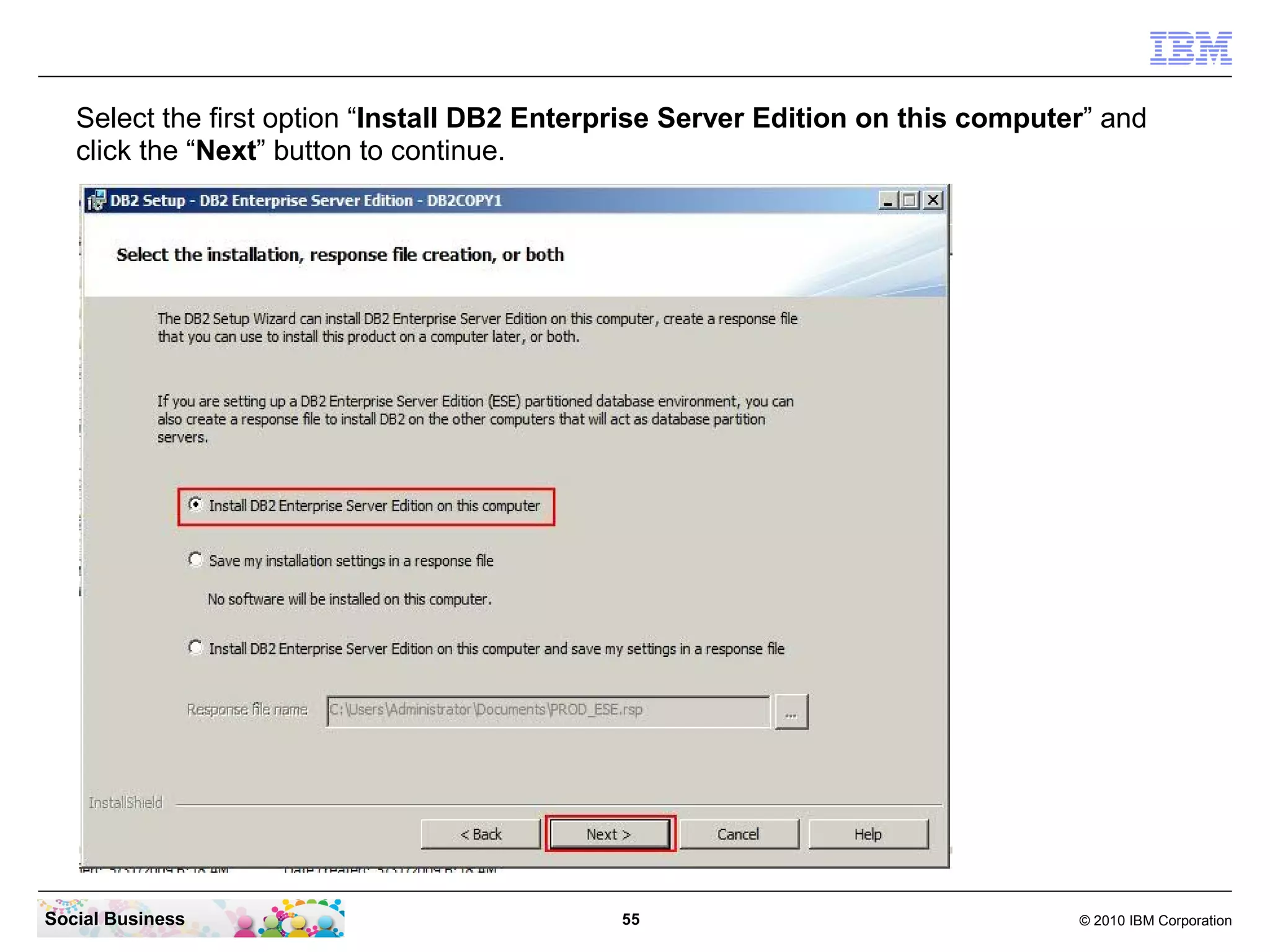
Select the first option “Install DB2 Enterprise Server Edition on this computer” and
   click the “Next” button to continue.


Social Business                              55                                  © 2010 IBM Corporation
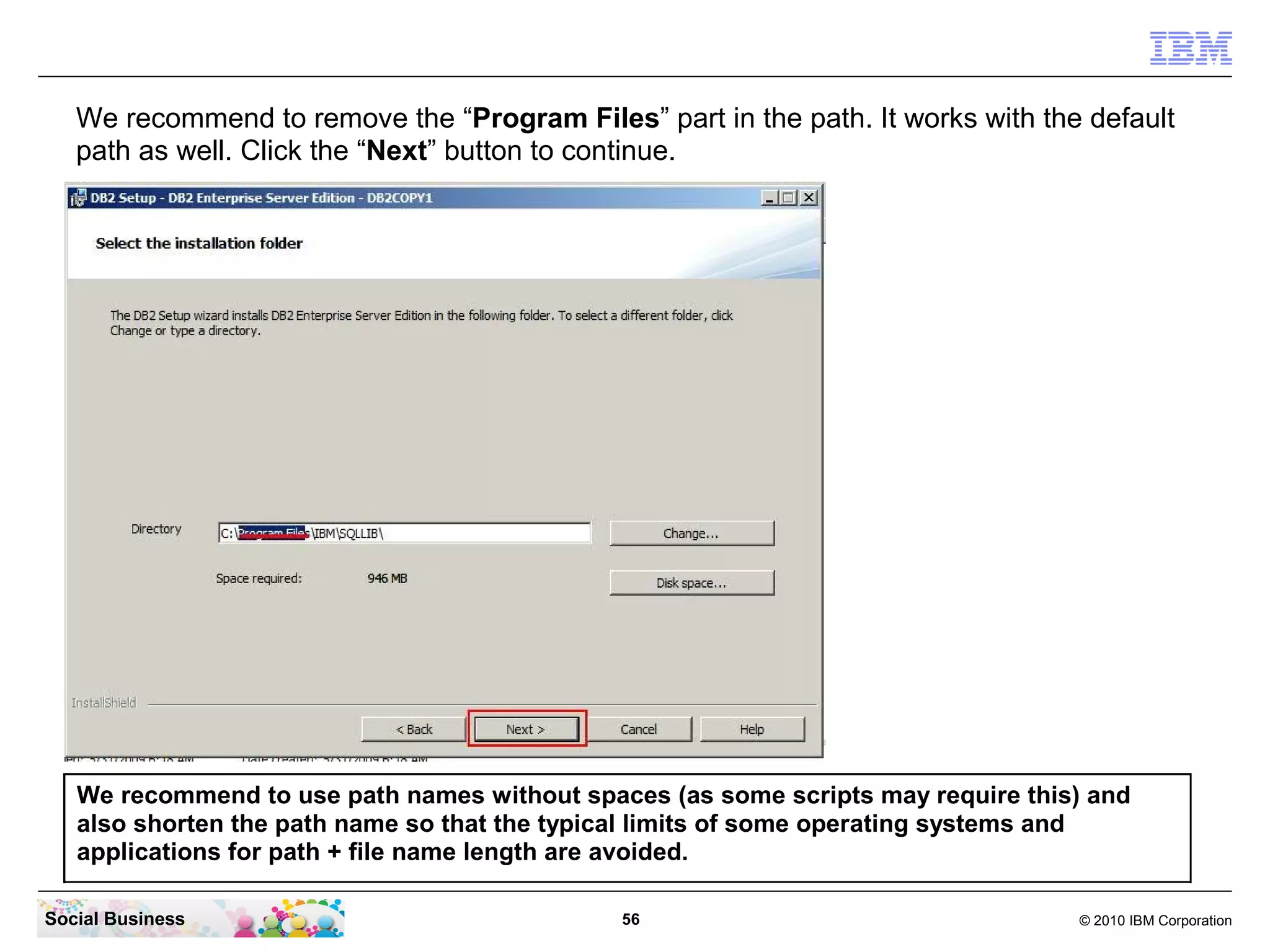
We recommend to remove the “Program Files” part in the path. It works with the default
   path as well. Click the “Next” button to continue.


   We recommend to use path names without spaces (as some scripts may require this) and
   also shorten the path name so that the typical limits of some operating systems and
   applications for path + file name length are avoided.

Social Business                               56                                  © 2010 IBM Corporation
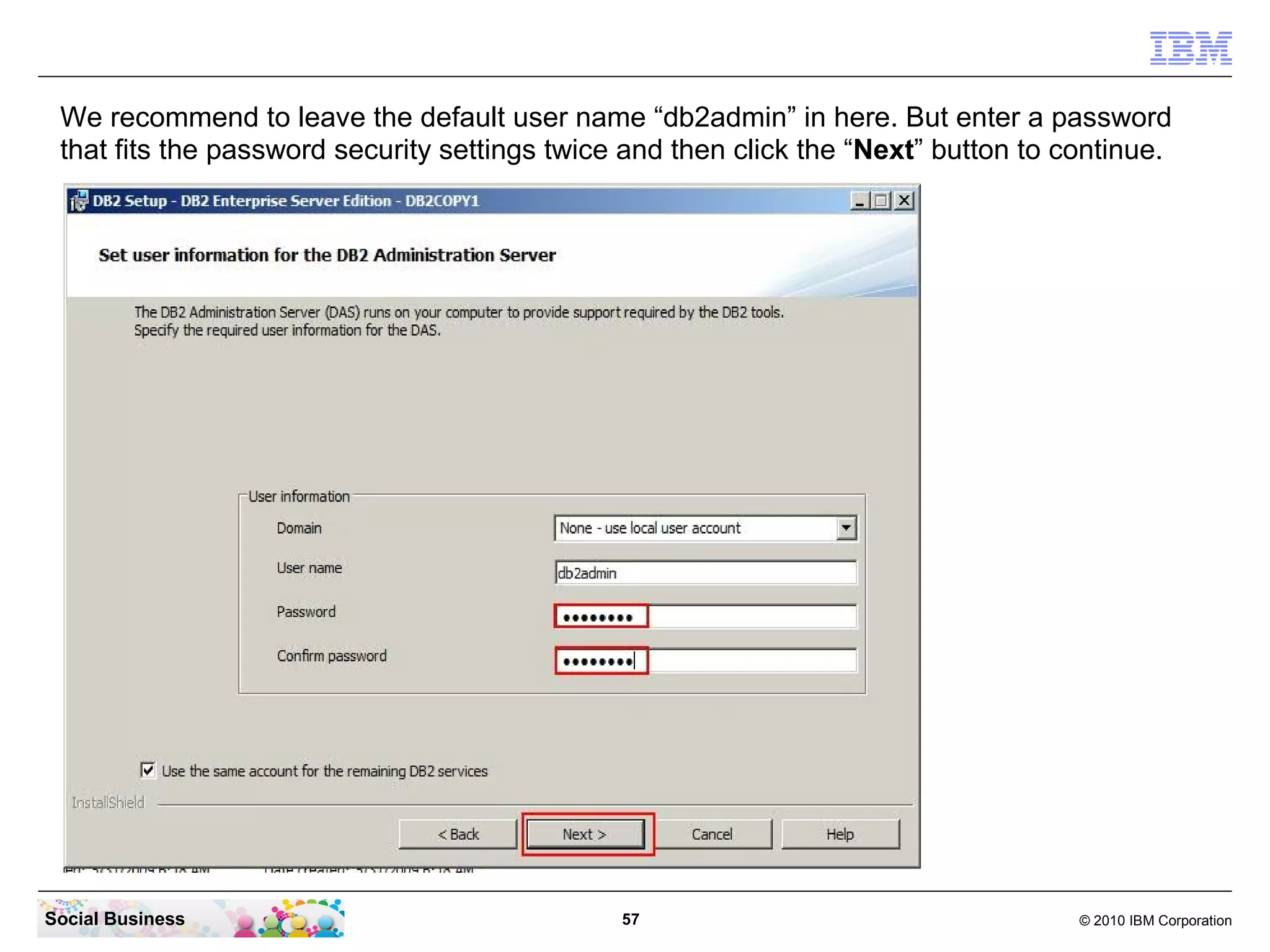
We recommend to leave the default user name “db2admin” in here. But enter a password
 that fits the password security settings twice and then click the “Next” button to continue.


Social Business                                57                                    © 2010 IBM Corporation
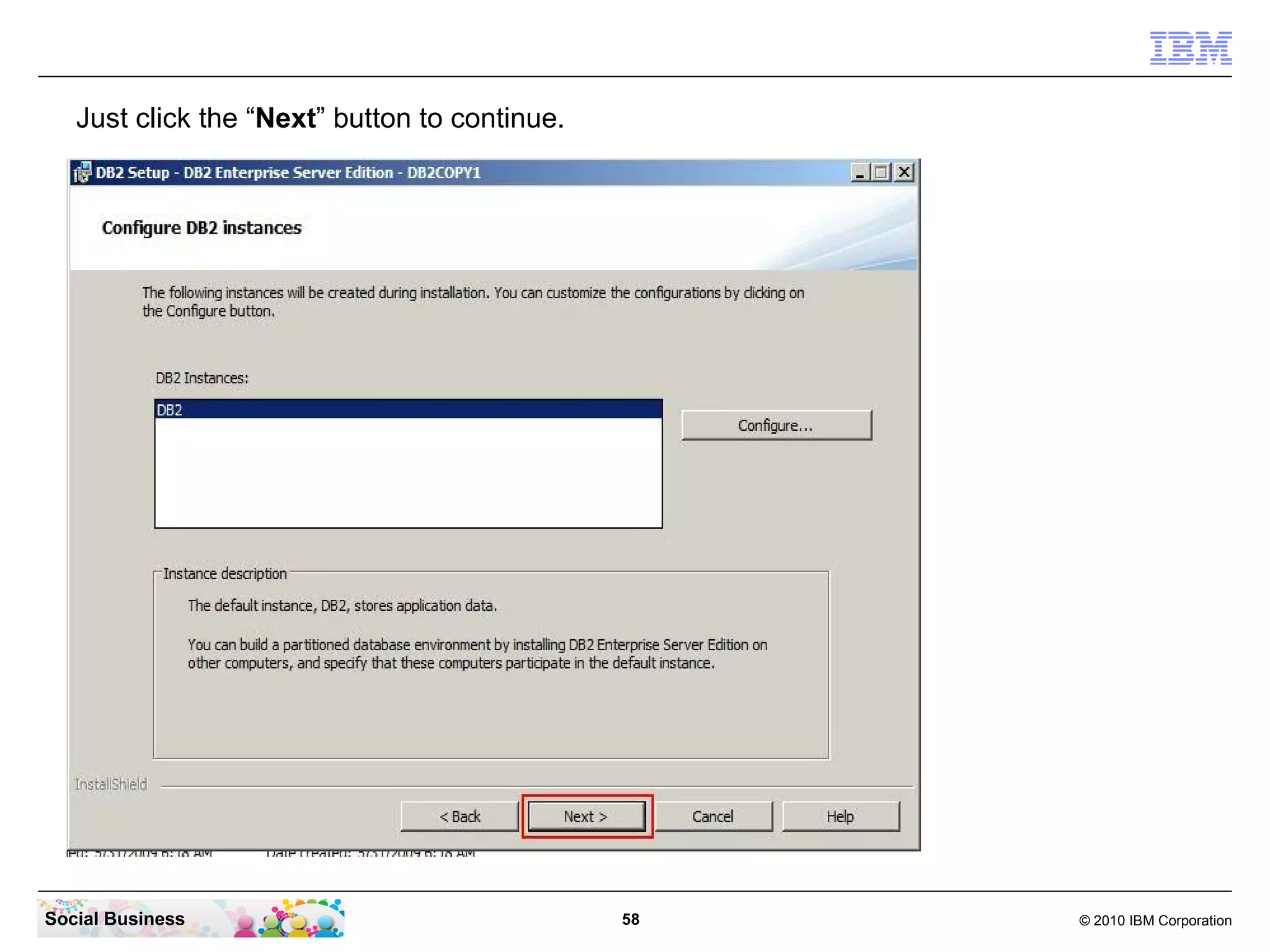
Just click the “Next” button to continue.


Social Business                                58   © 2010 IBM Corporation
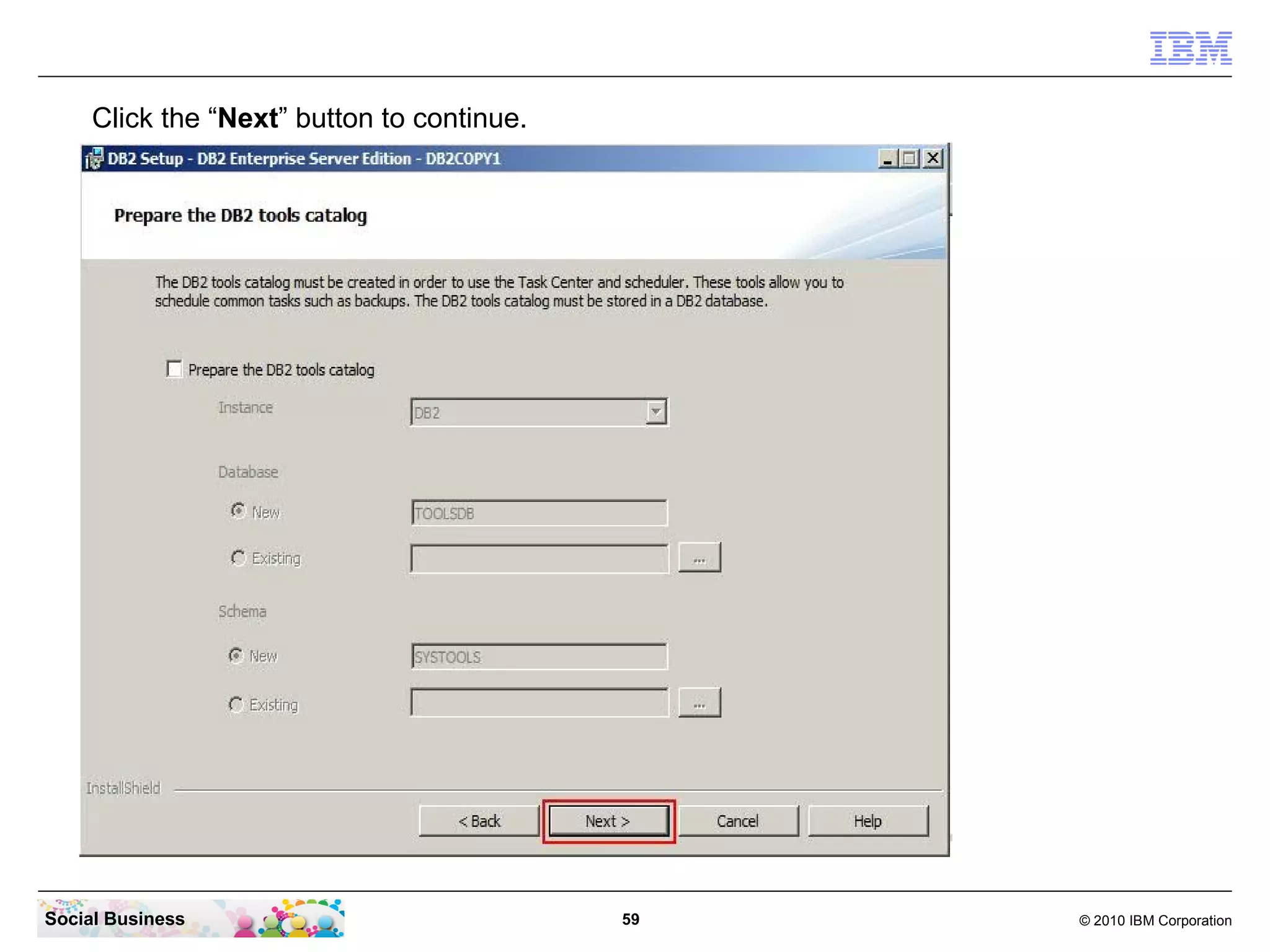
Click the “Next” button to continue.


Social Business                             59   © 2010 IBM Corporation
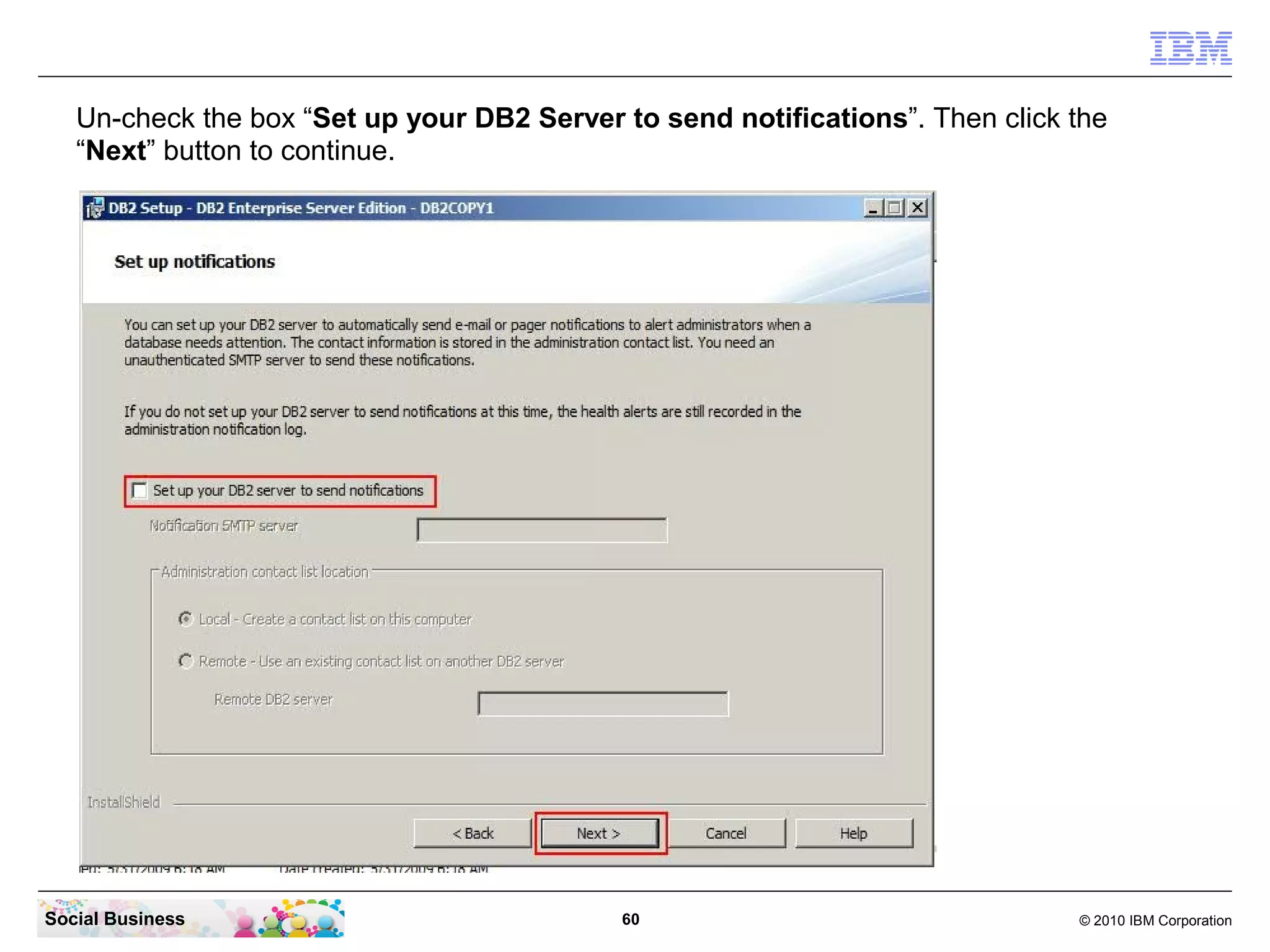
Un-check the box “Set up your DB2 Server to send notifications”. Then click the
   “Next” button to continue.


Social Business                             60                                 © 2010 IBM Corporation
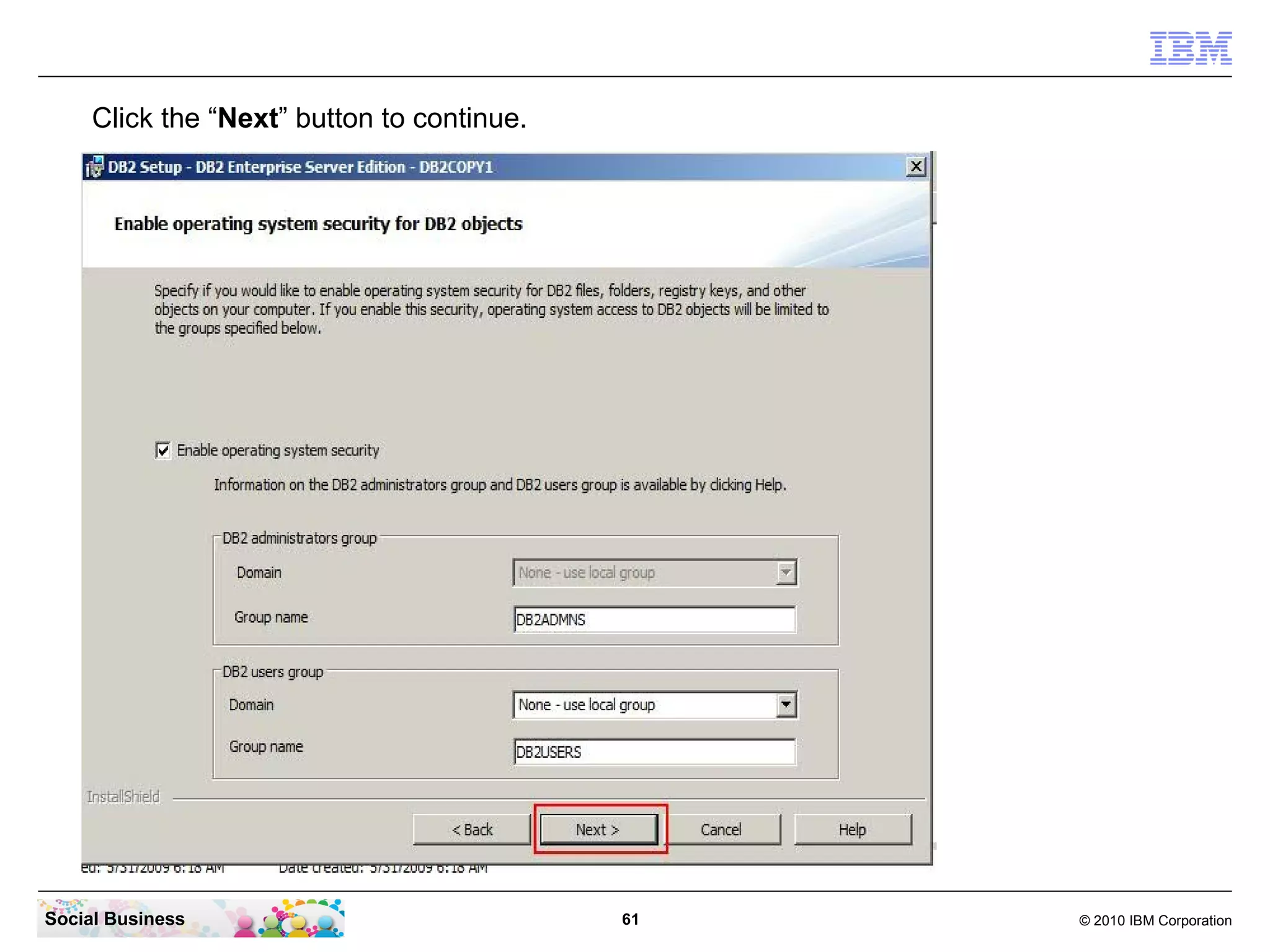
Click the “Next” button to continue.


Social Business                             61   © 2010 IBM Corporation
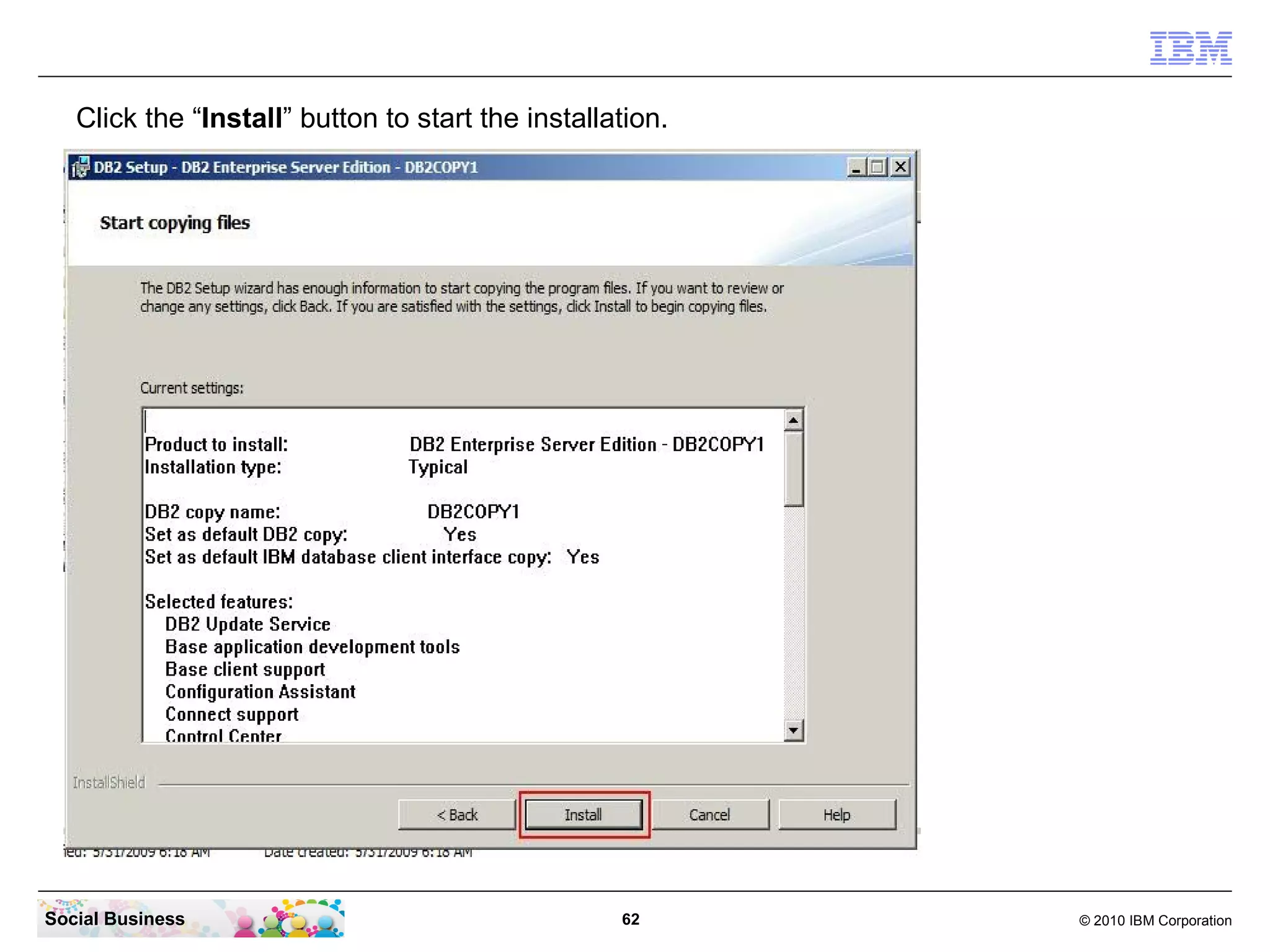
Click the “Install” button to start the installation.


Social Business                                    62      © 2010 IBM Corporation
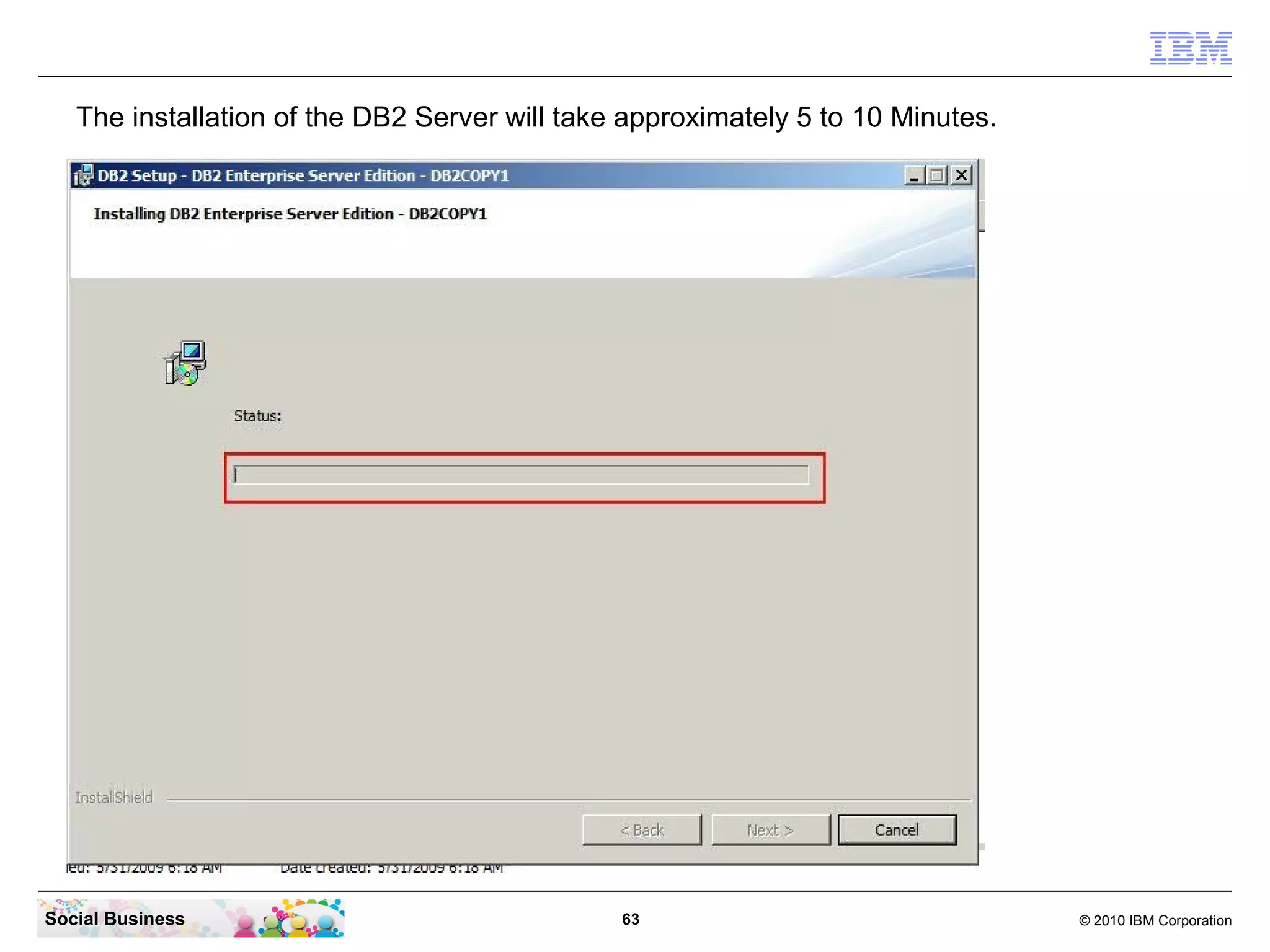
The installation of the DB2 Server will take approximately 5 to 10 Minutes.


Social Business                                63                                © 2010 IBM Corporation
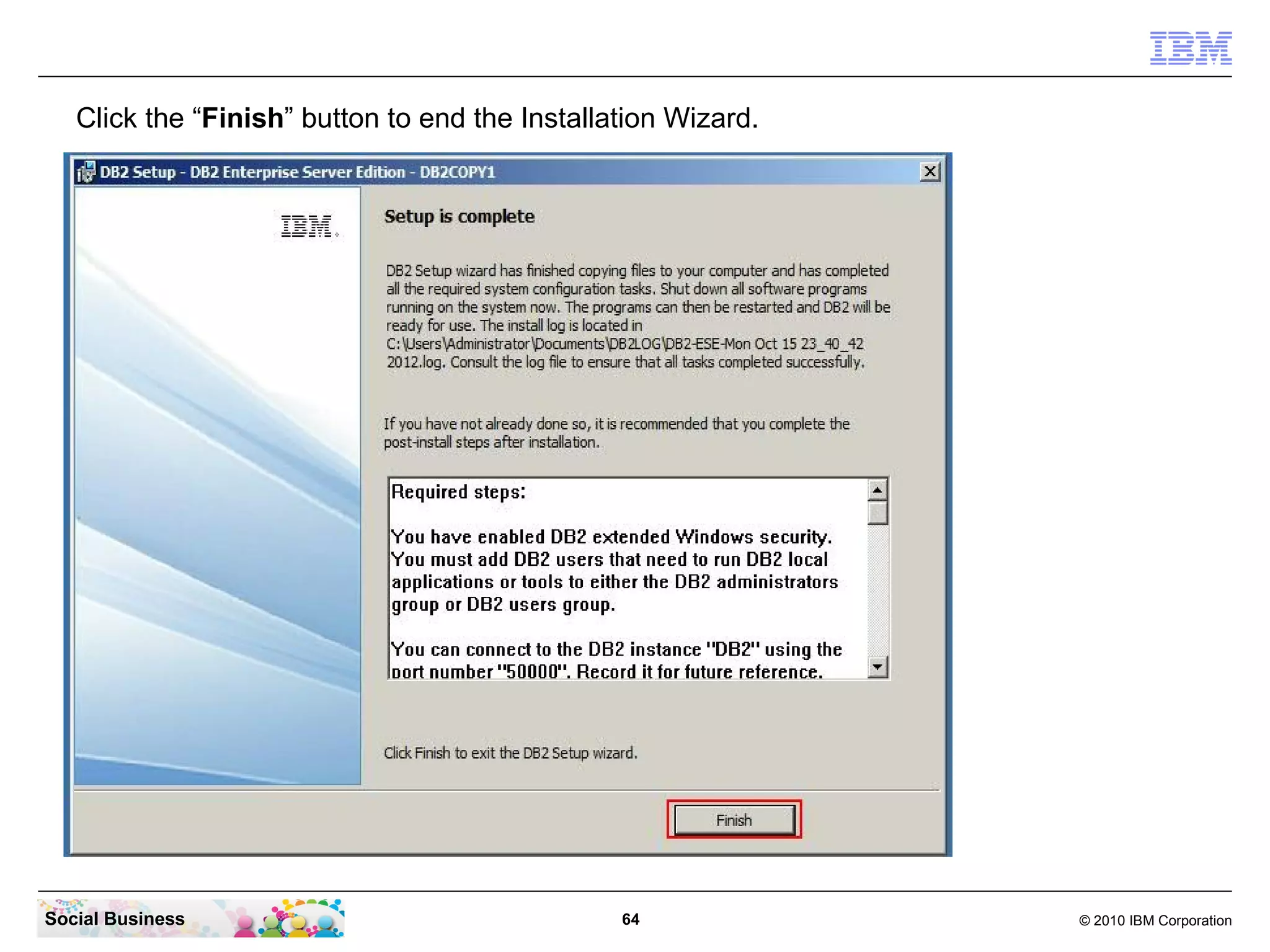
Click the “Finish” button to end the Installation Wizard.


Social Business                                 64             © 2010 IBM Corporation
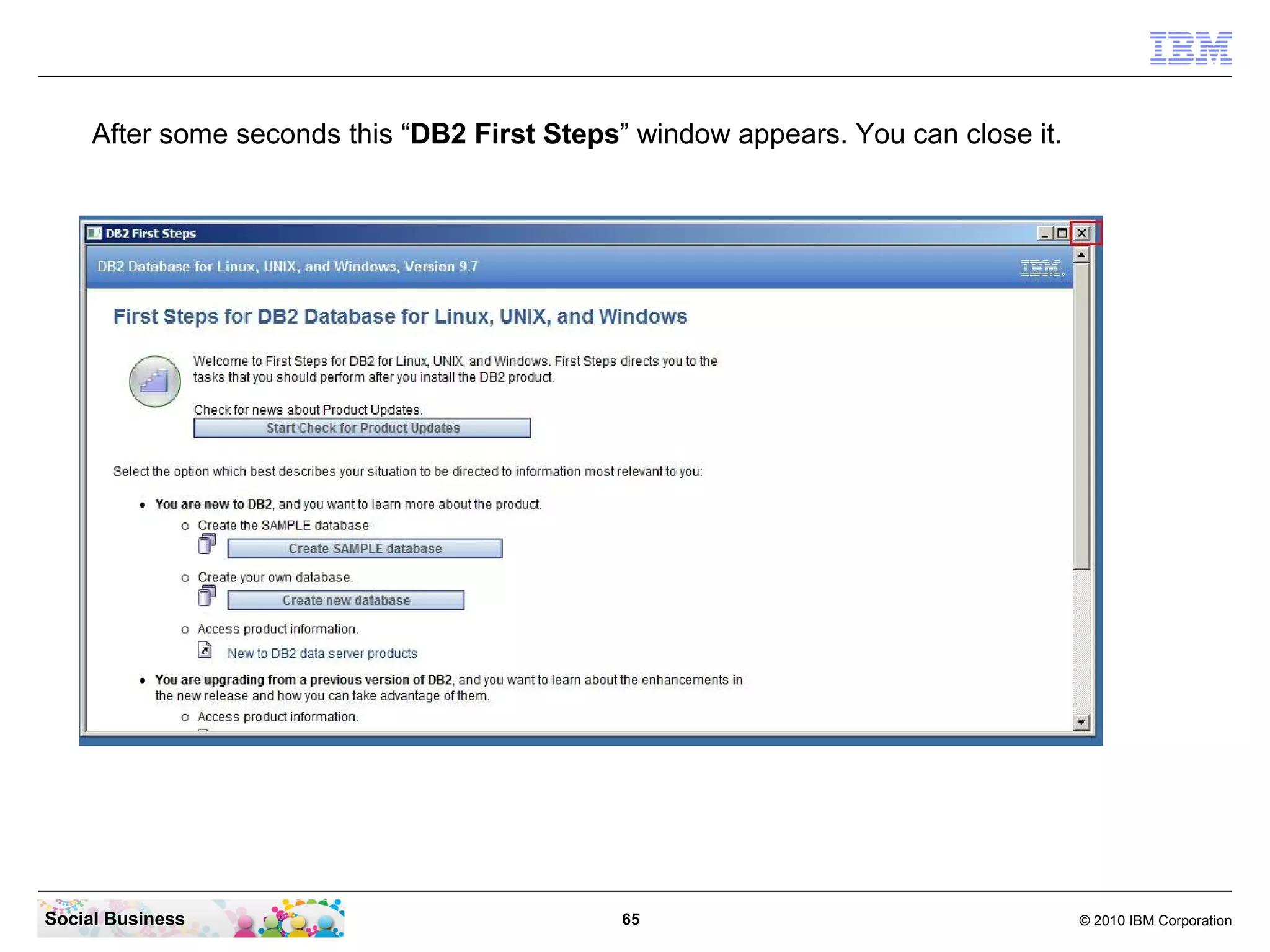
After some seconds this “DB2 First Steps” window appears. You can close it.


Social Business                              65                                    © 2010 IBM Corporation
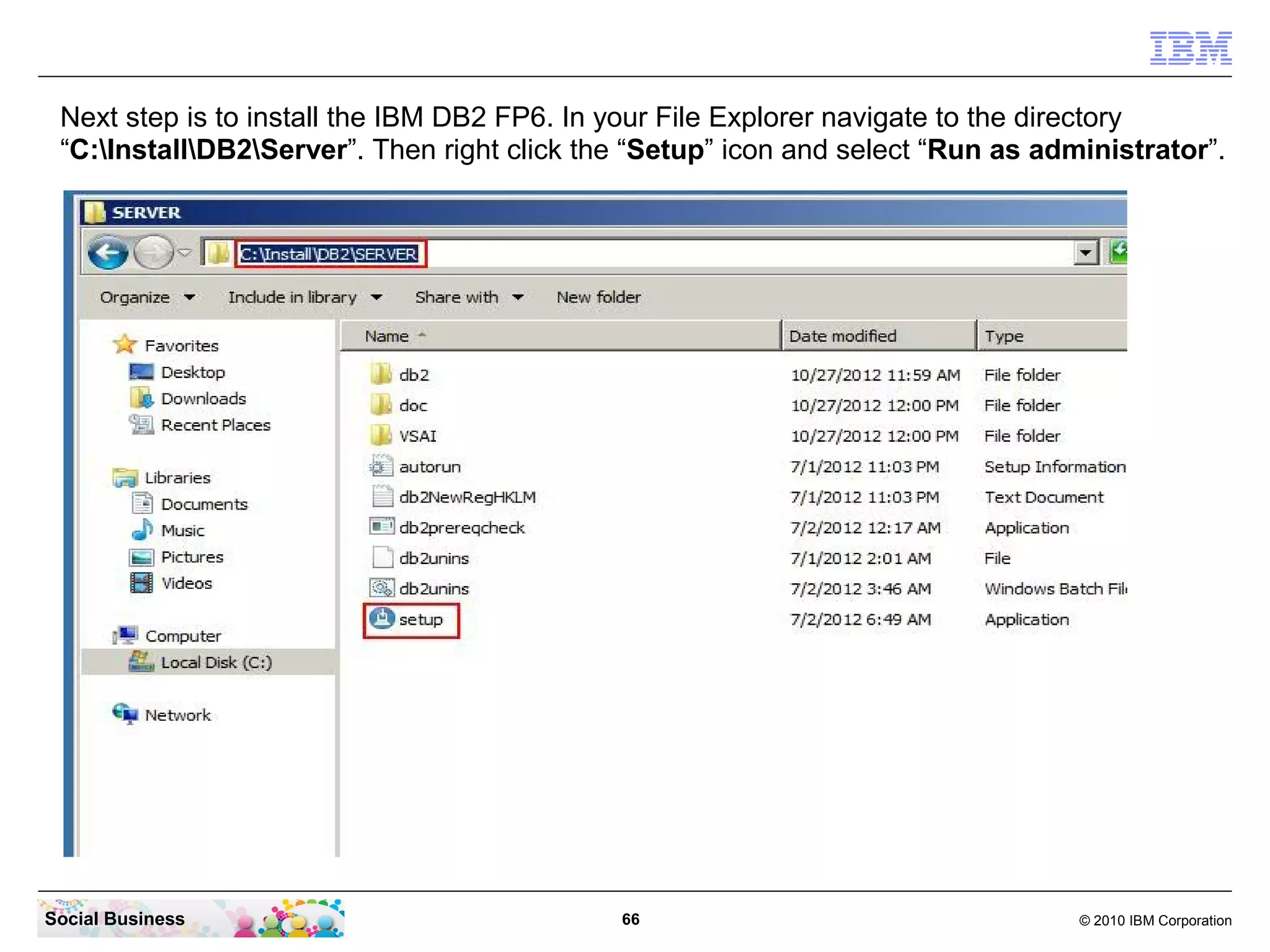
Next step is to install the IBM DB2 FP6. In your File Explorer navigate to the directory
 “C:InstallDB2Server”. Then right click the “Setup” icon and select “Run as administrator”.


Social Business                              66                                   © 2010 IBM Corporation
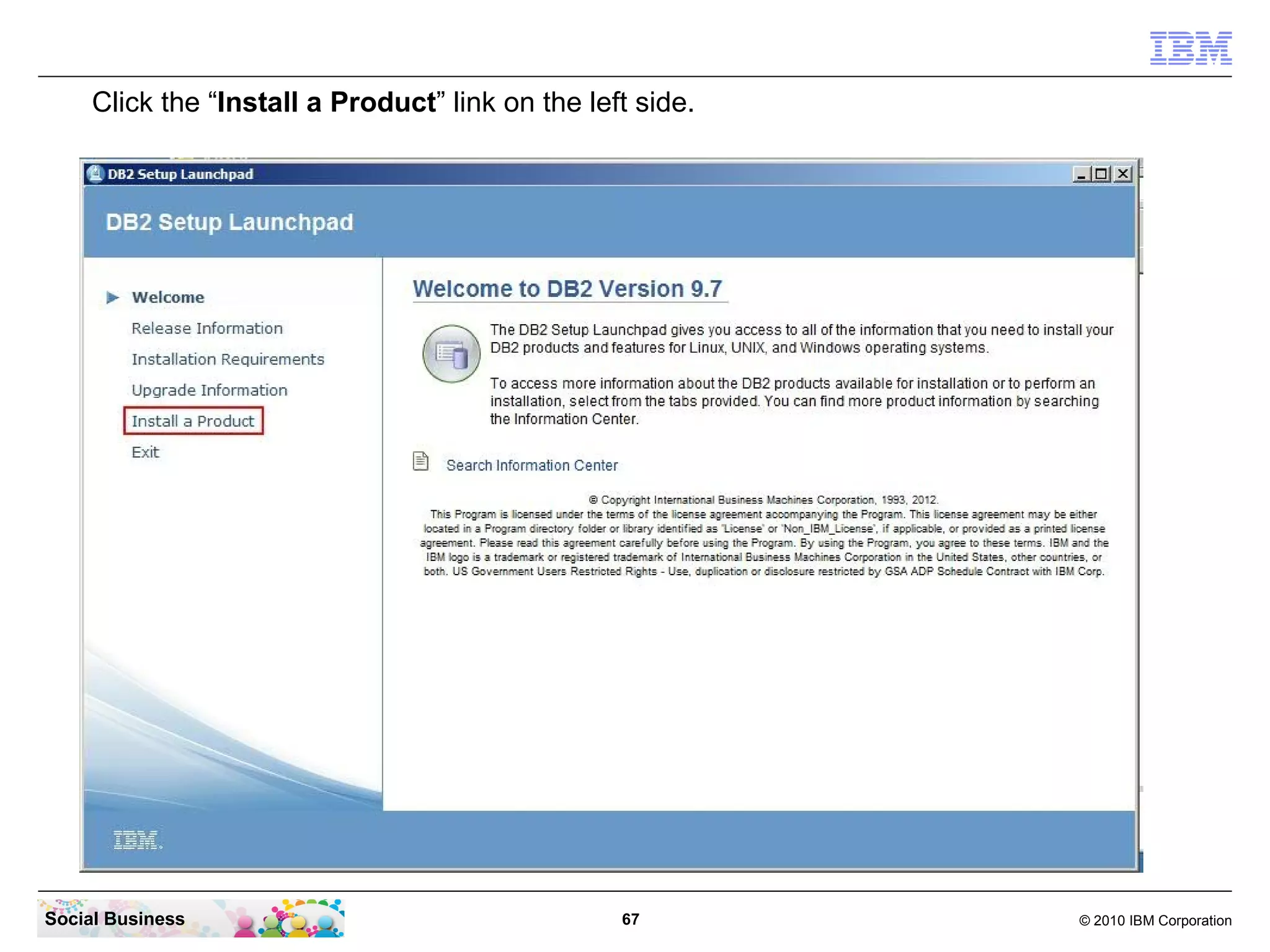
Click the “Install a Product” link on the left side.


Social Business                                   67        © 2010 IBM Corporation
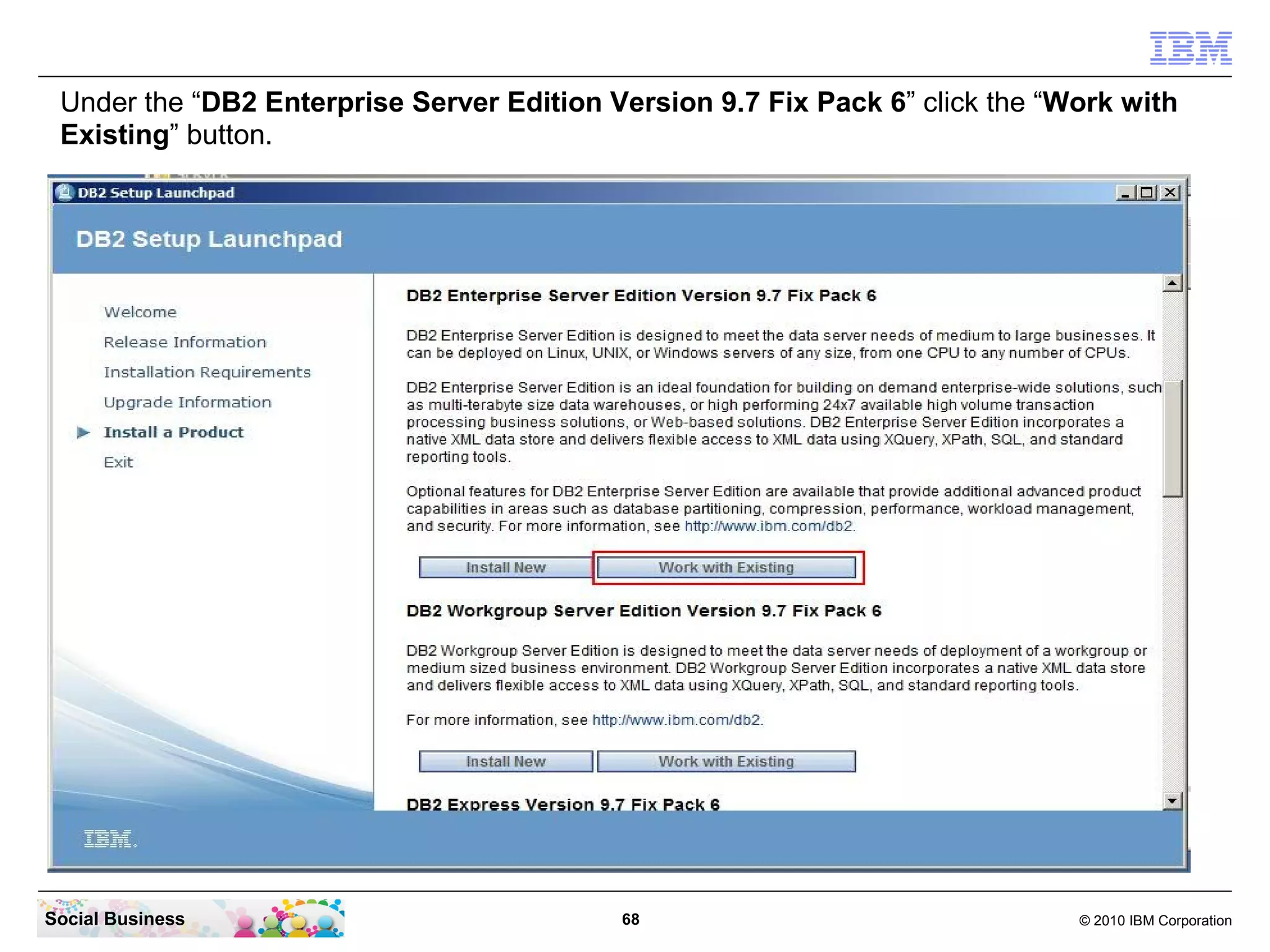
Under the “DB2 Enterprise Server Edition Version 9.7 Fix Pack 6” click the “Work with
 Existing” button.


Social Business                            68                                 © 2010 IBM Corporation
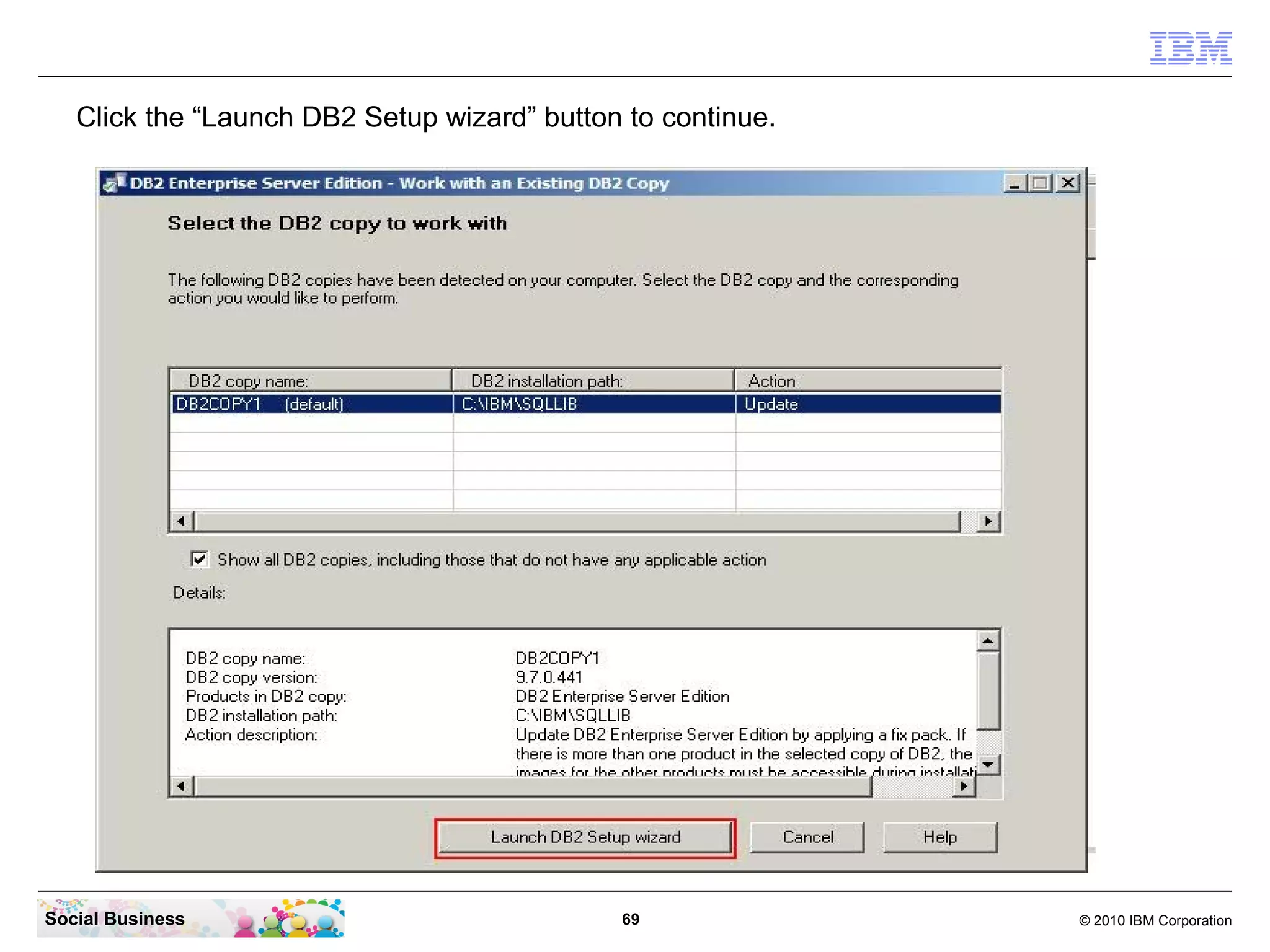
Click the “Launch DB2 Setup wizard” button to continue.


Social Business                              69              © 2010 IBM Corporation
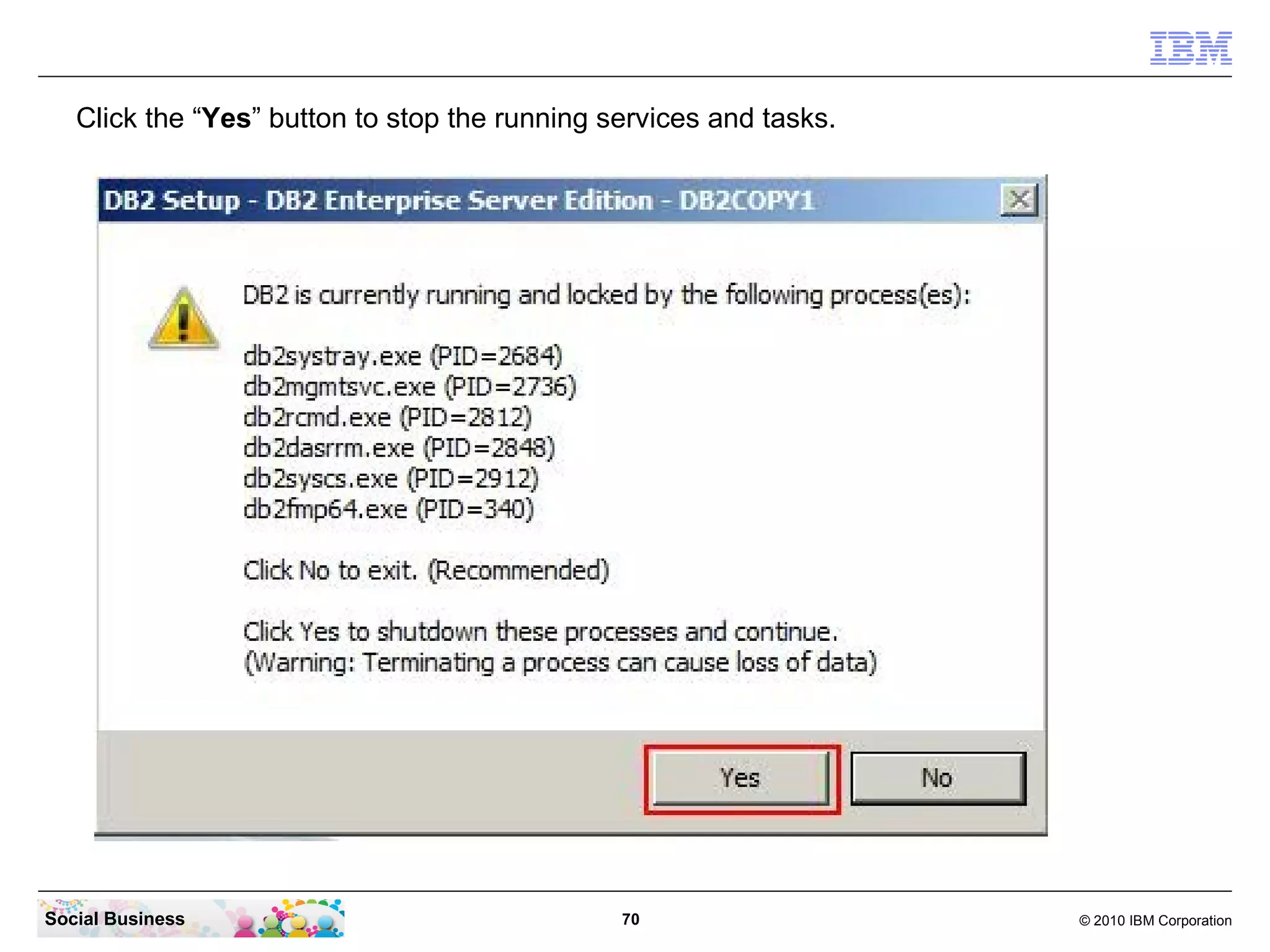
Click the “Yes” button to stop the running services and tasks.


Social Business                                70                   © 2010 IBM Corporation
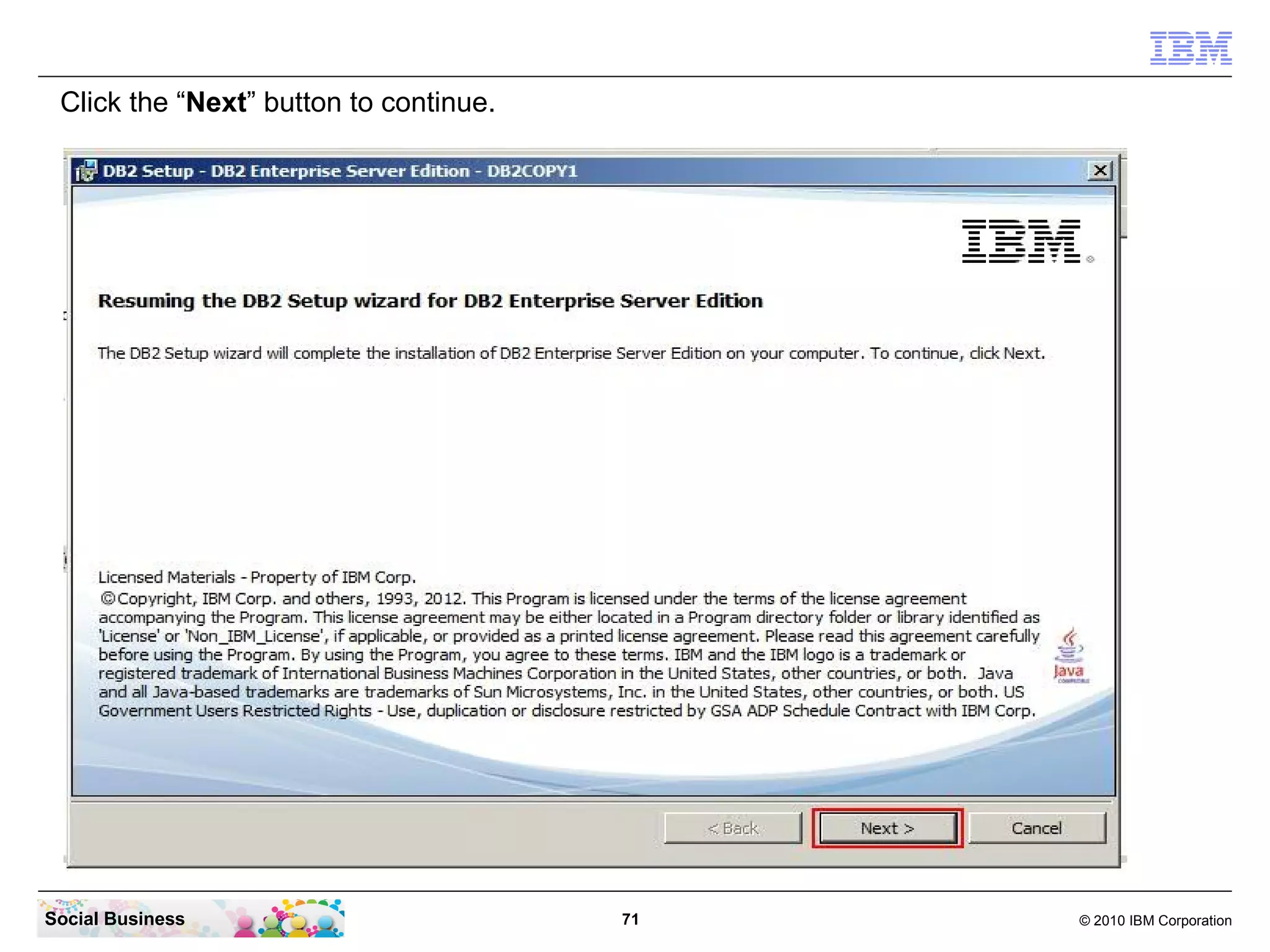
Click the “Next” button to continue.


Social Business                         71   © 2010 IBM Corporation
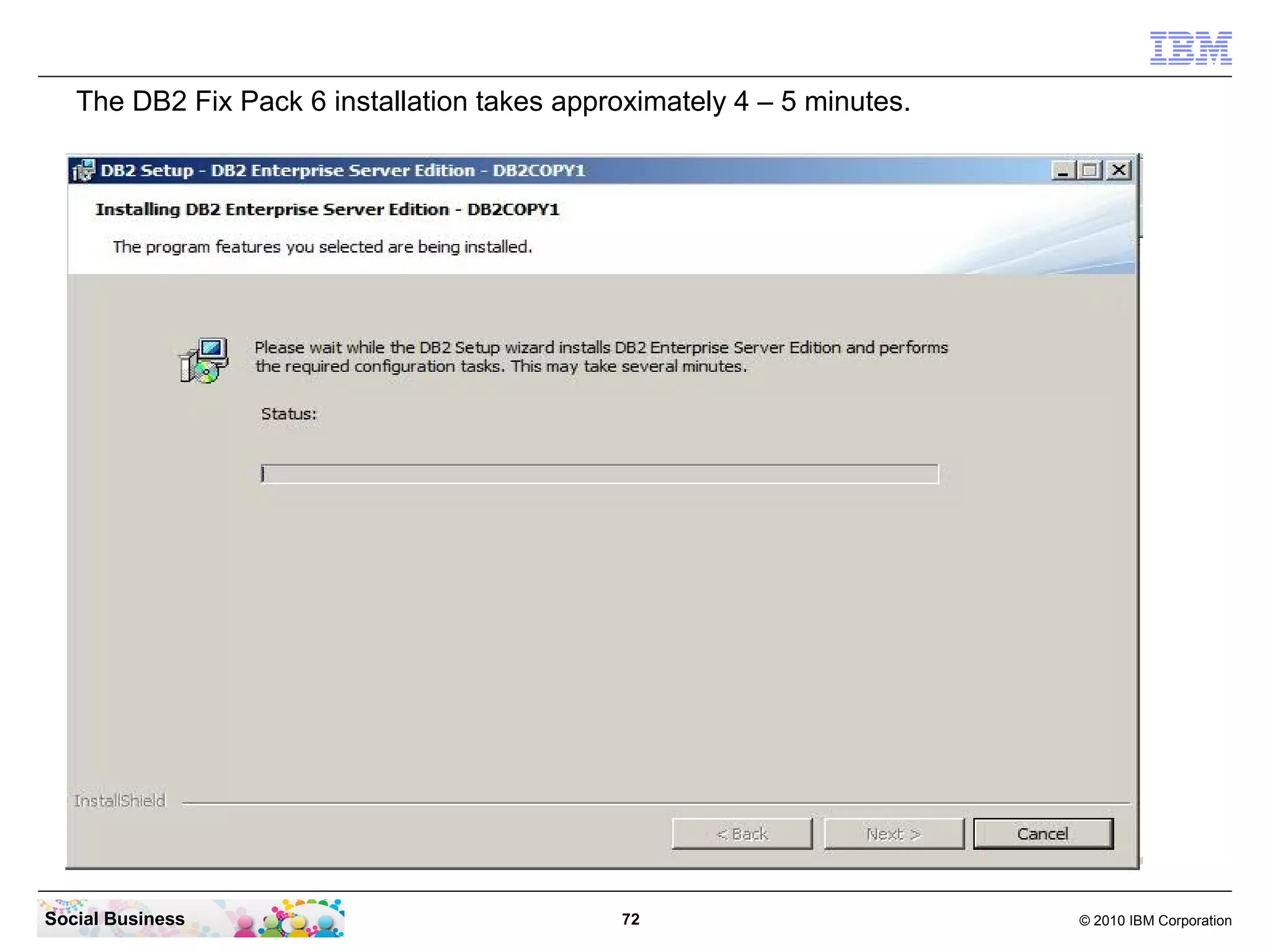
The DB2 Fix Pack 6 installation takes approximately 4 – 5 minutes.


Social Business                               72                        © 2010 IBM Corporation
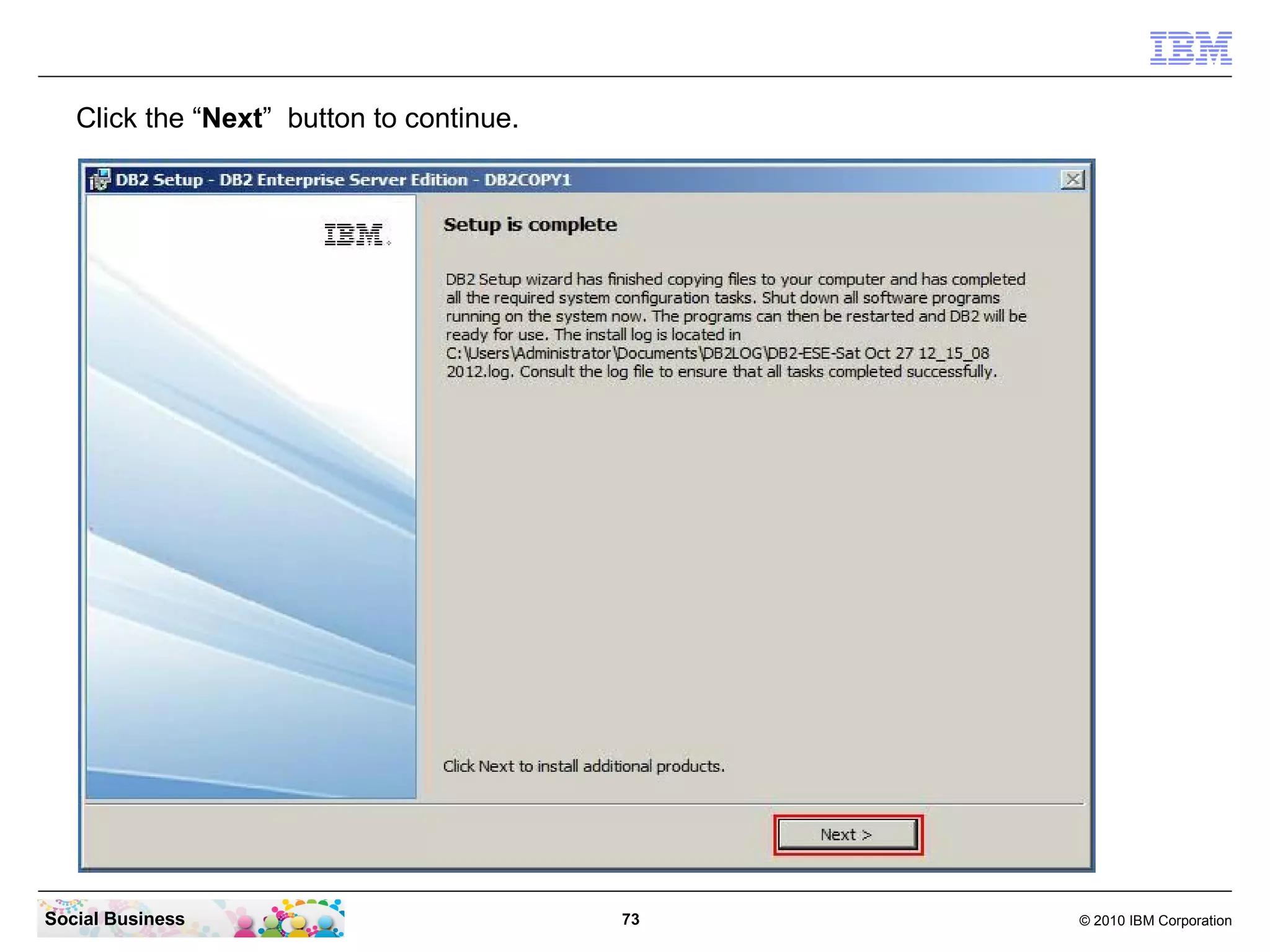
Click the “Next” button to continue.


Social Business                           73   © 2010 IBM Corporation
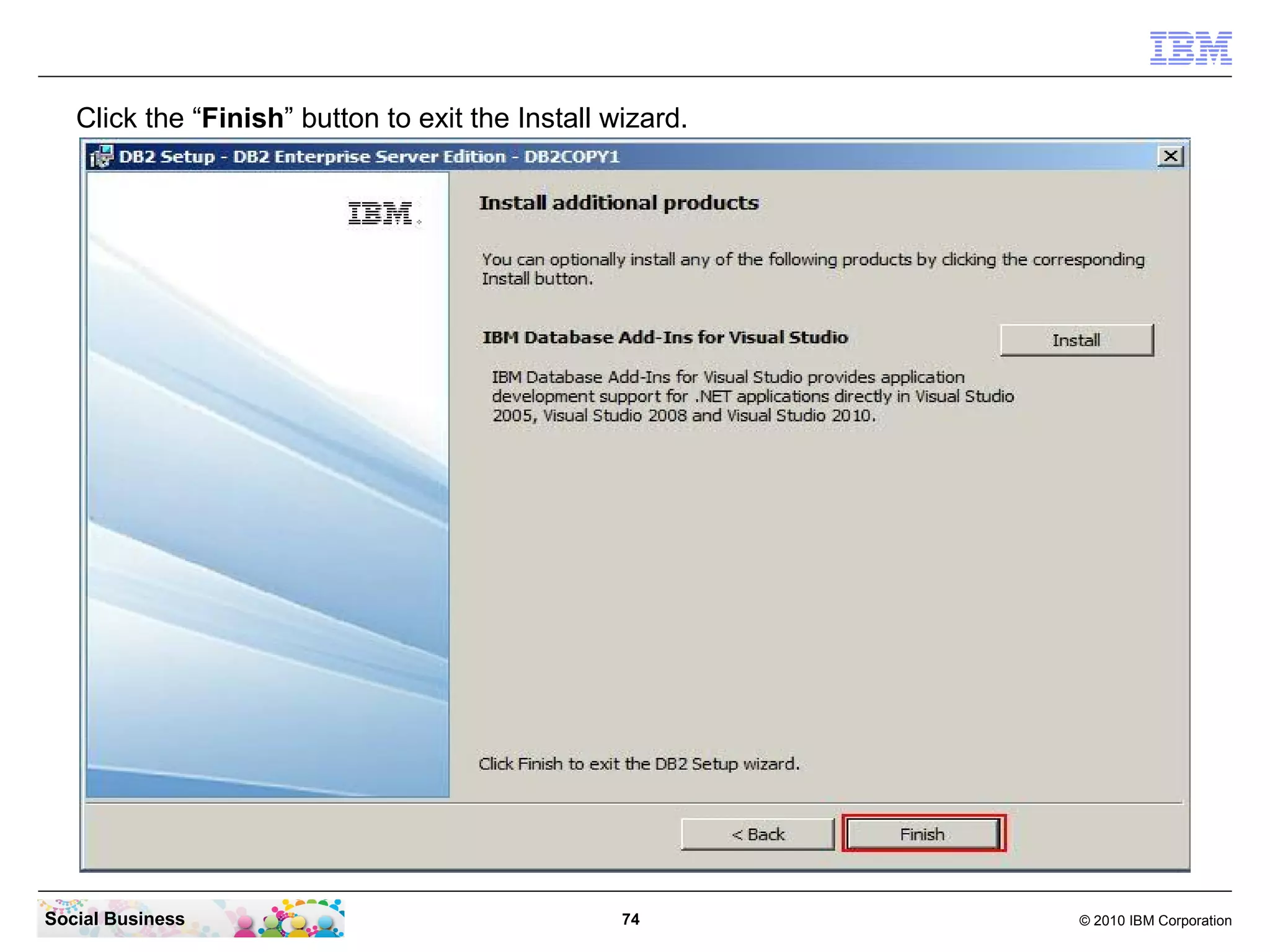
Click the “Finish” button to exit the Install wizard.


Social Business                                   74       © 2010 IBM Corporation
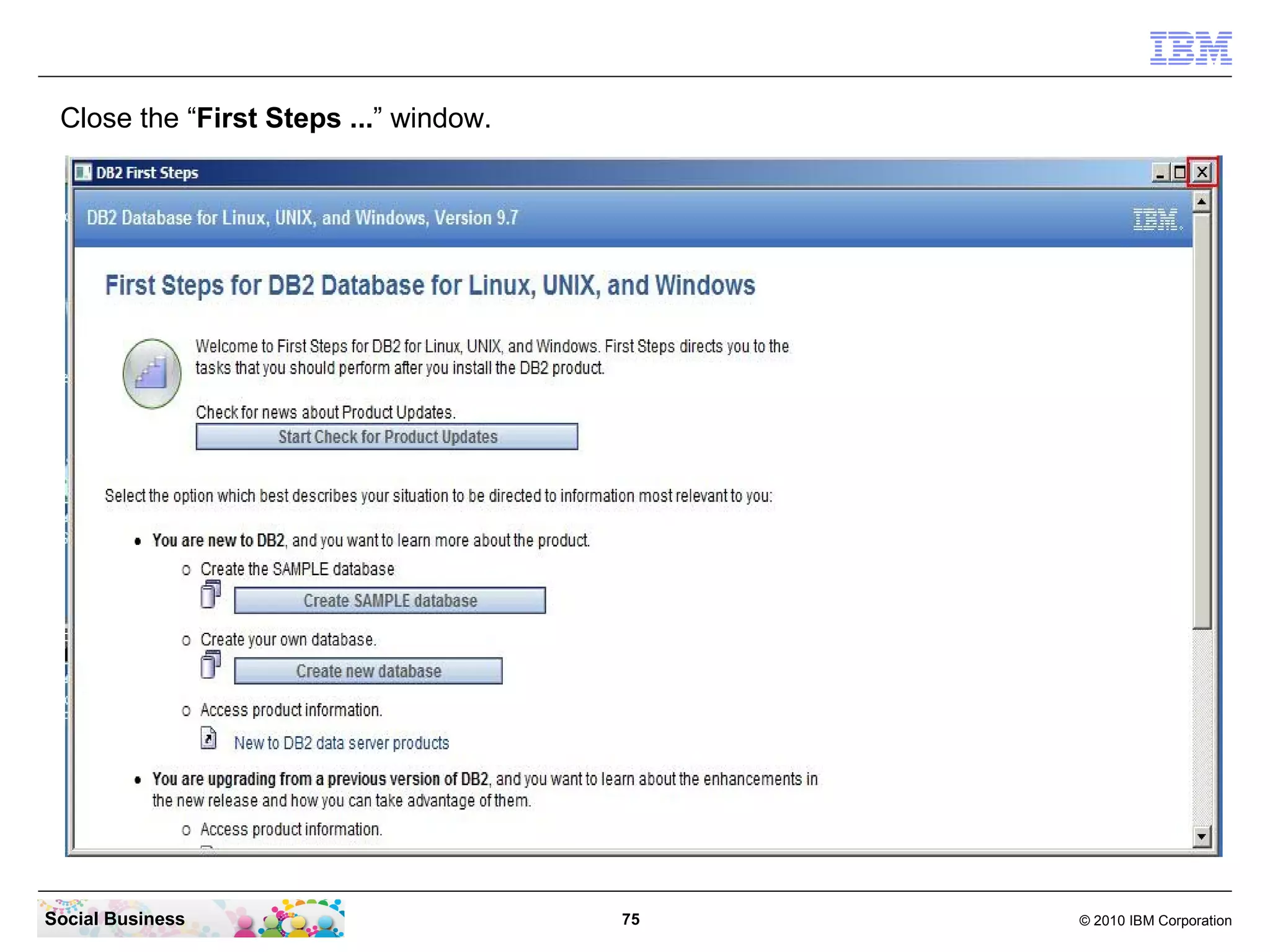
Close the “First Steps ...” window.


Social Business                        75   © 2010 IBM Corporation
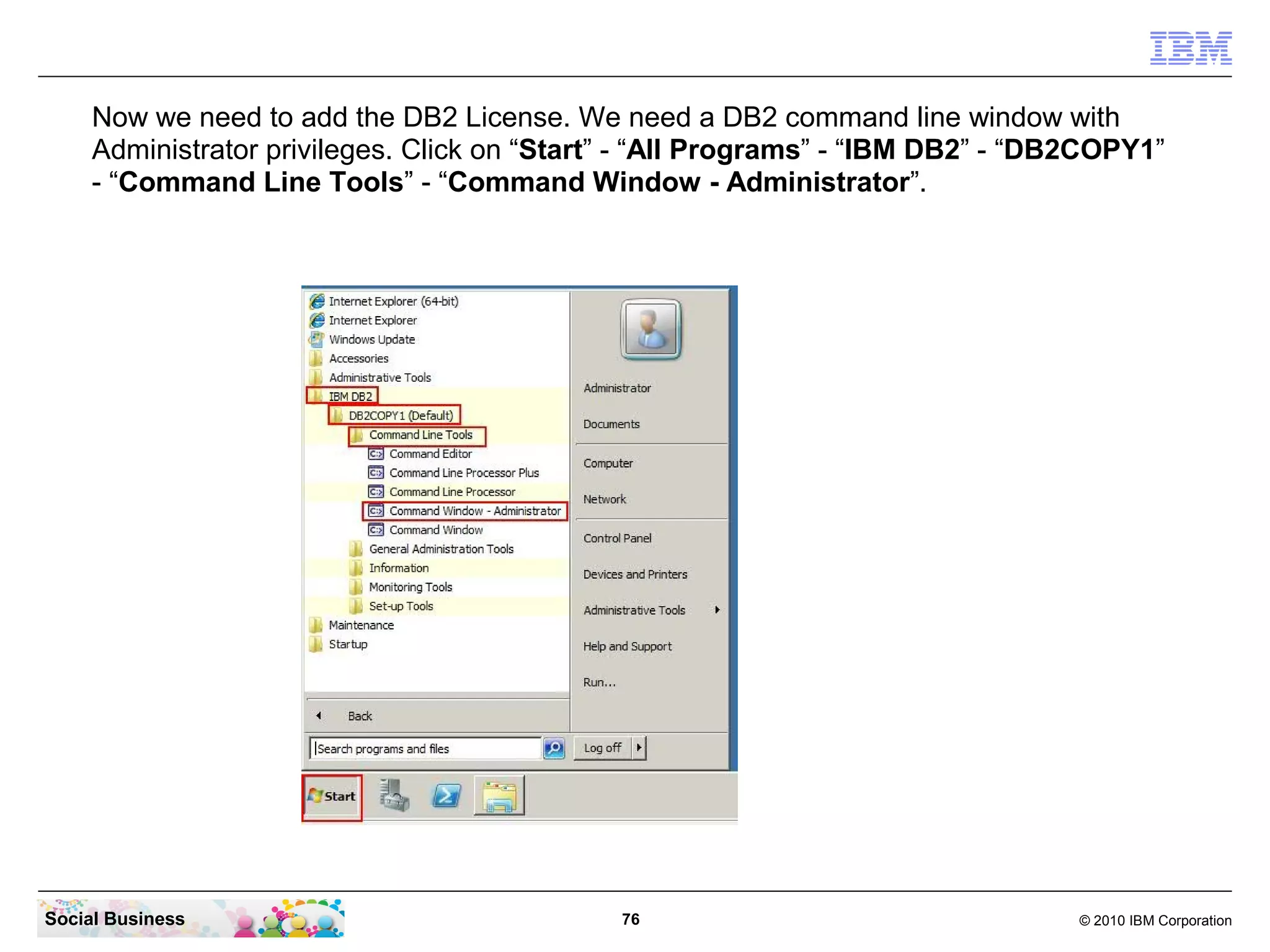
Now we need to add the DB2 License. We need a DB2 command line window with
     Administrator privileges. Click on “Start” - “All Programs” - “IBM DB2” - “DB2COPY1”
     - “Command Line Tools” - “Command Window - Administrator”.


Social Business                               76                                  © 2010 IBM Corporation
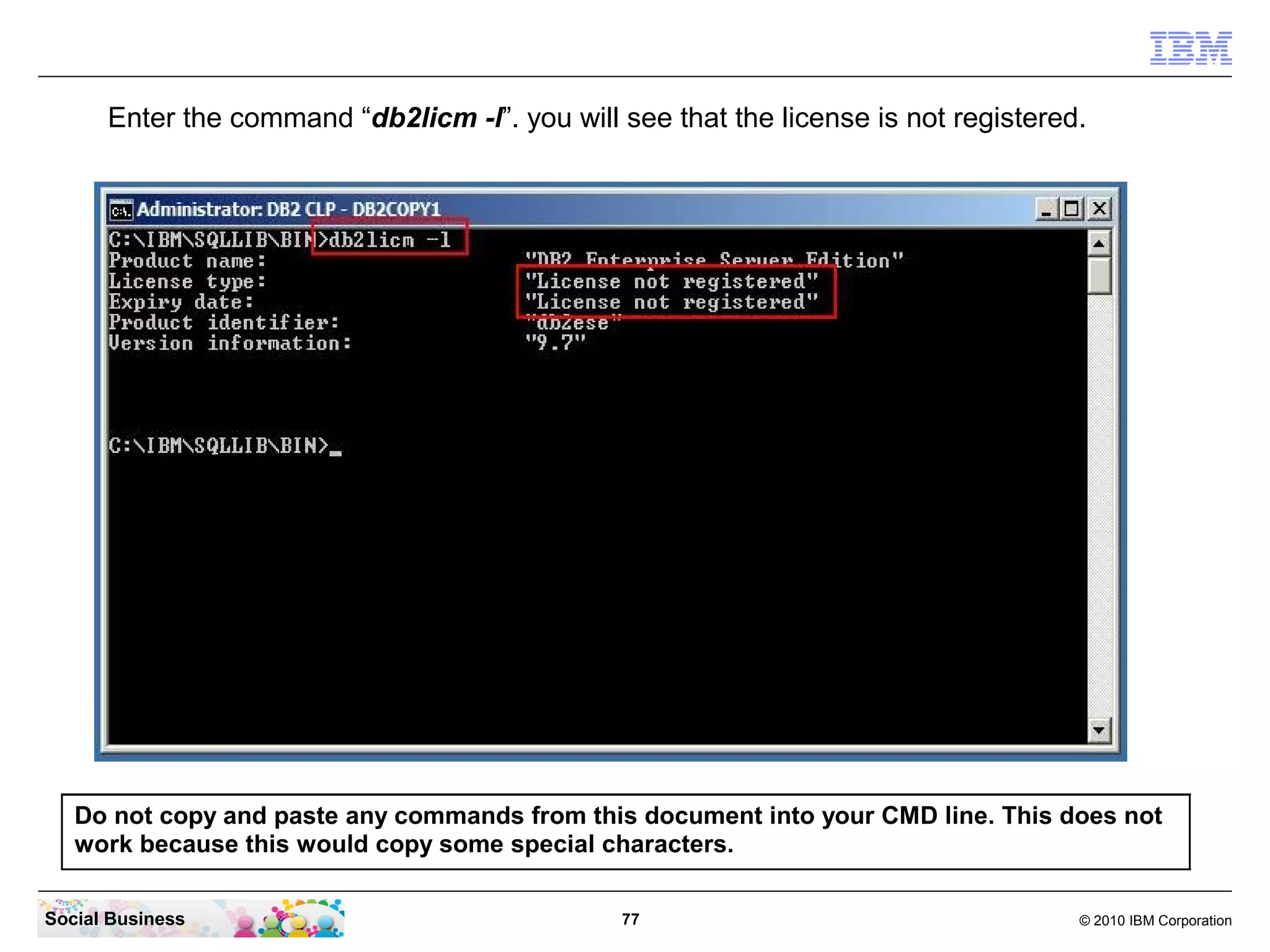
Enter the command “db2licm -l”. you will see that the license is not registered.


   Do not copy and paste any commands from this document into your CMD line. This does not
   work because this would copy some special characters.

Social Business                                 77                                   © 2010 IBM Corporation
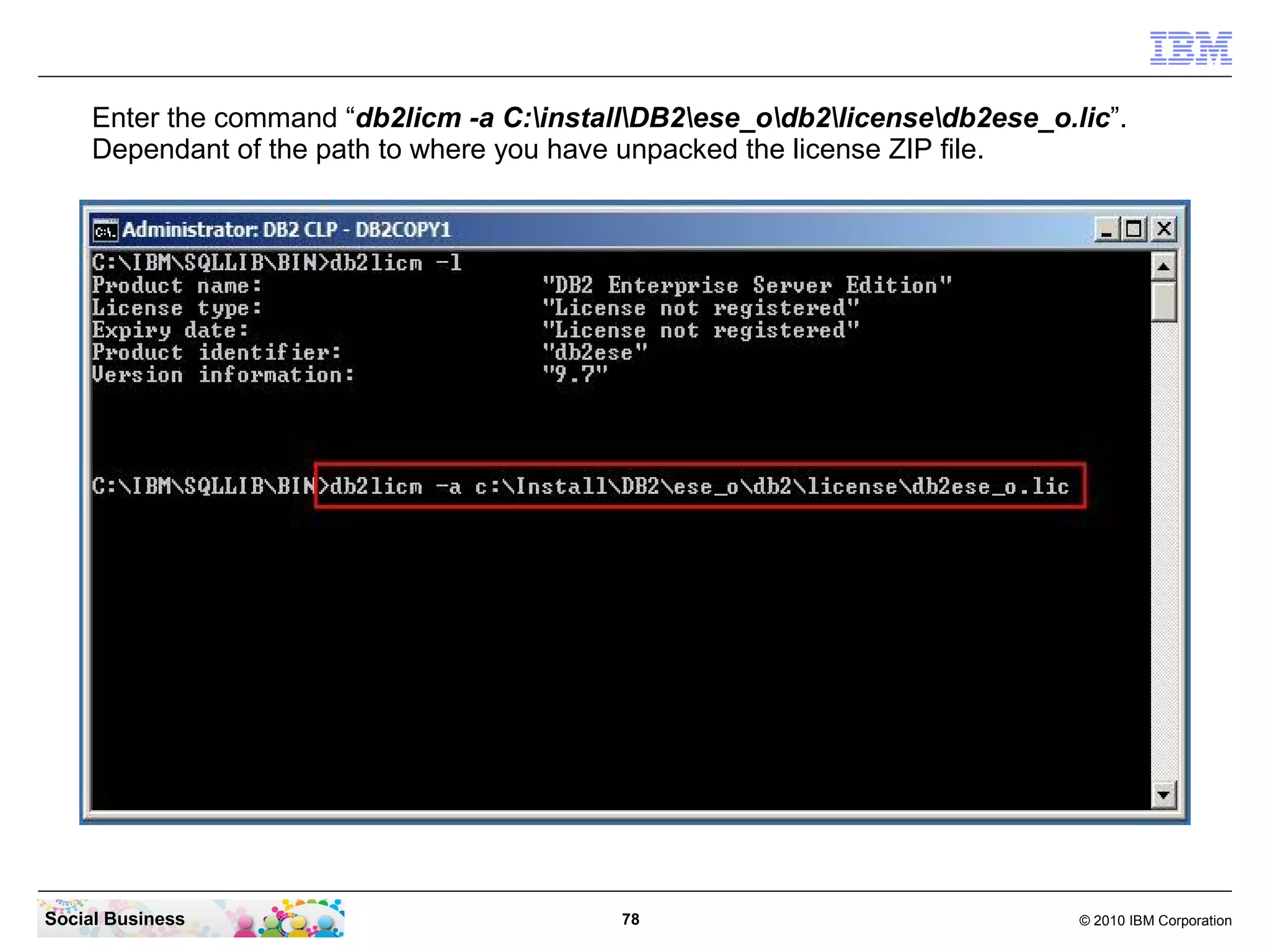
Enter the command “db2licm -a C:installDB2ese_odb2licensedb2ese_o.lic”.
     Dependant of the path to where you have unpacked the license ZIP file.


Social Business                             78                                © 2010 IBM Corporation
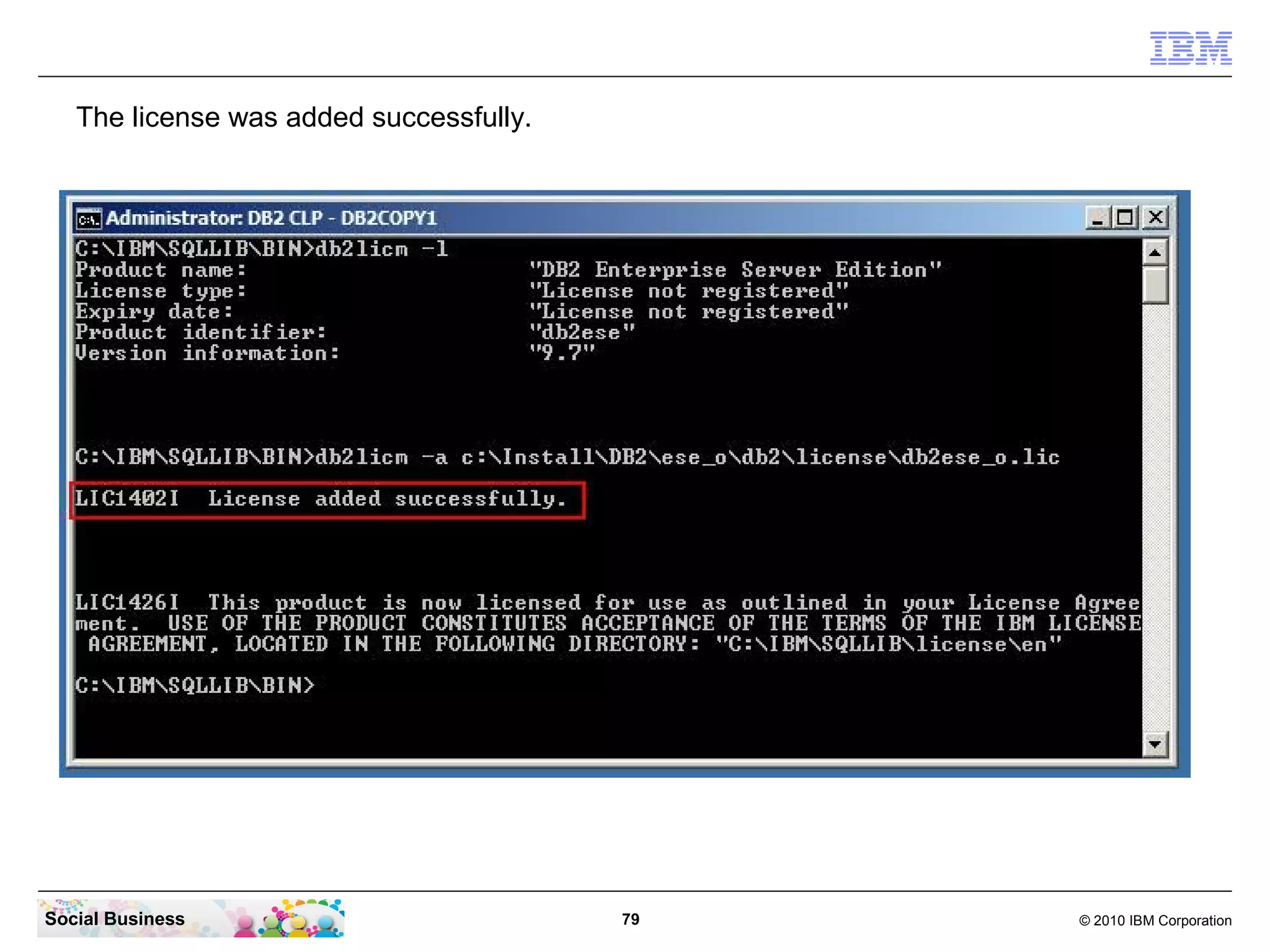
The license was added successfully.


Social Business                          79   © 2010 IBM Corporation
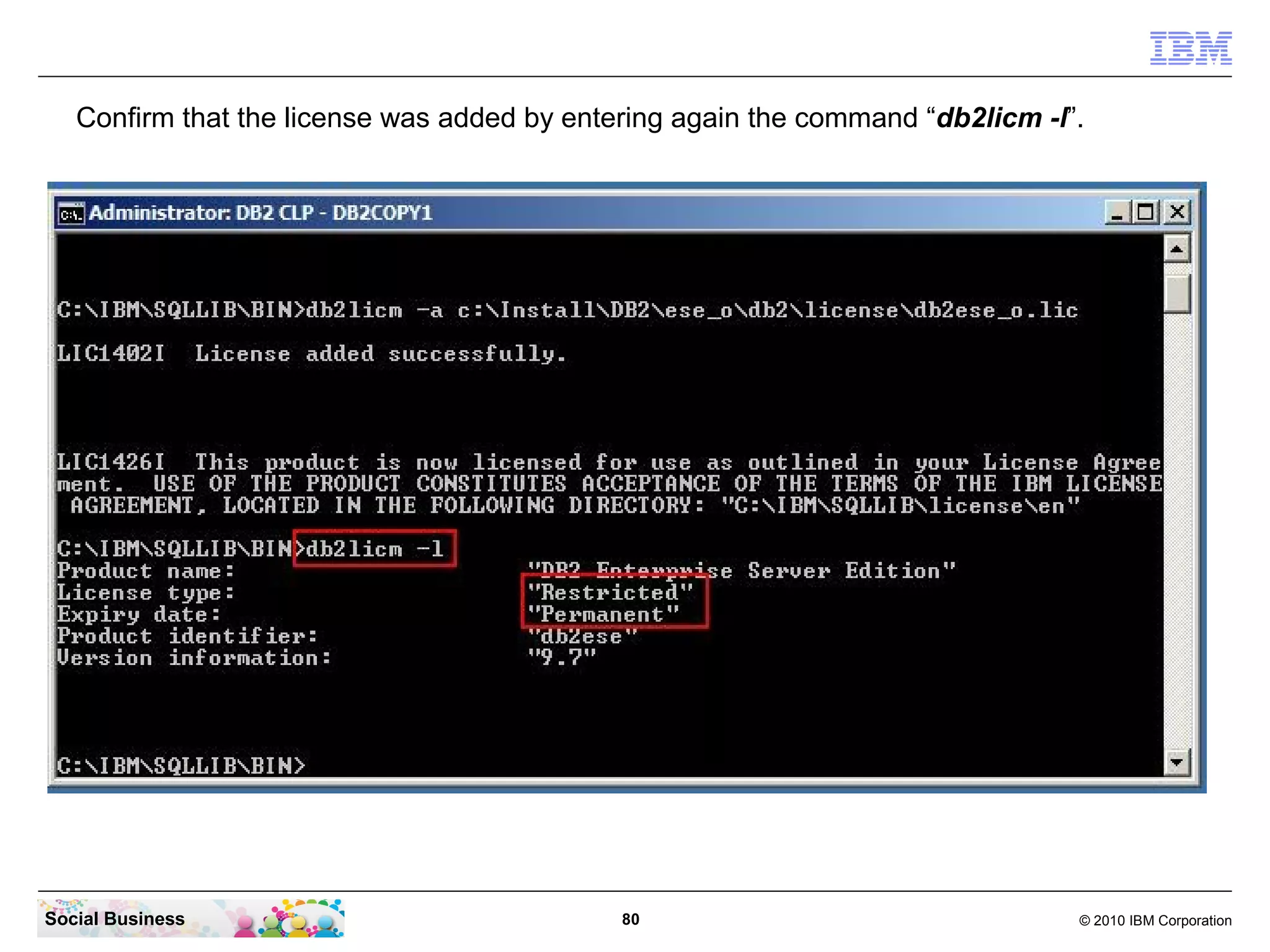
Confirm that the license was added by entering again the command “db2licm -l”.


Social Business                              80                                 © 2010 IBM Corporation
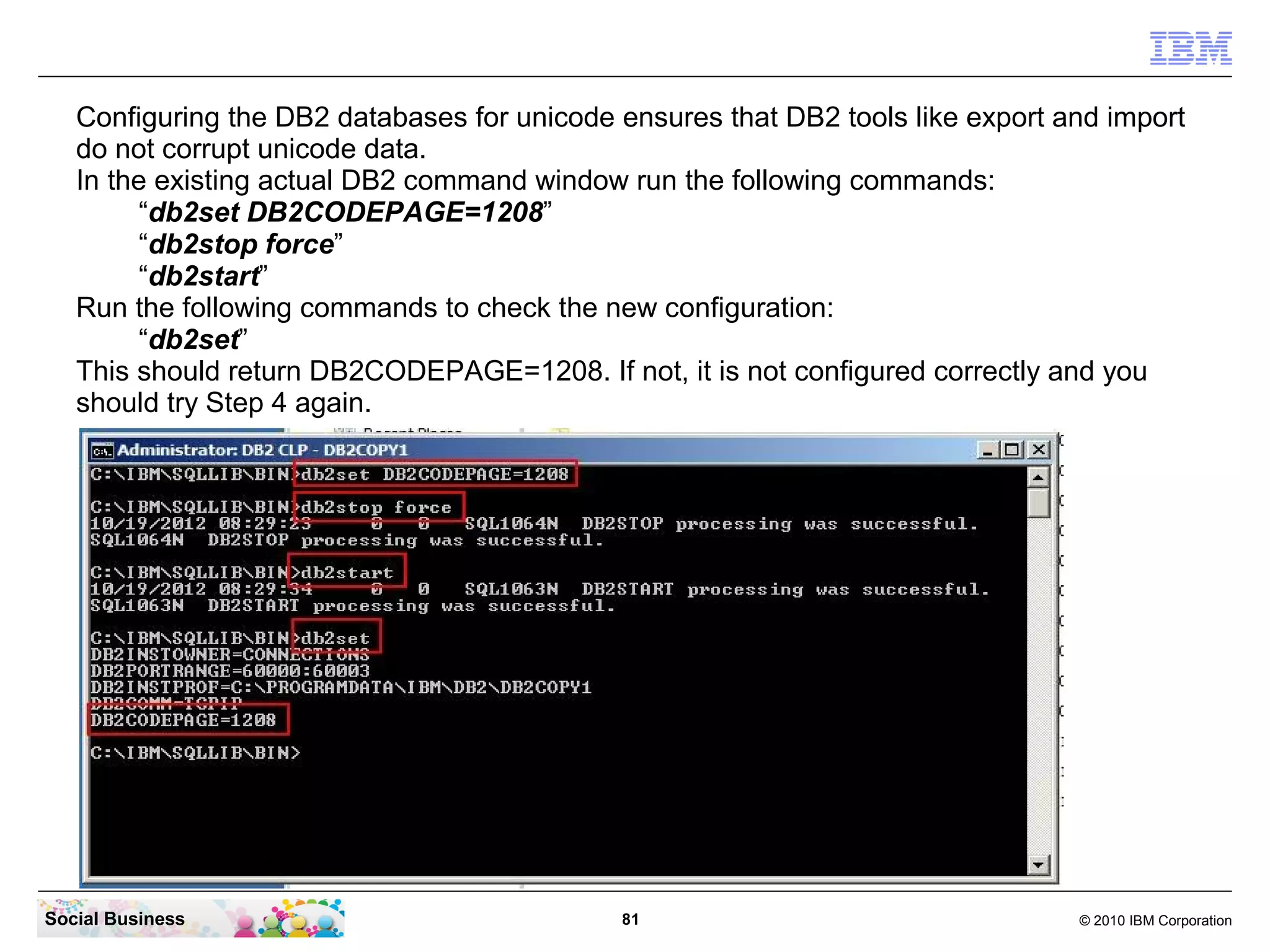
Configuring the DB2 databases for unicode ensures that DB2 tools like export and import
   do not corrupt unicode data.
   In the existing actual DB2 command window run the following commands:
        “db2set DB2CODEPAGE=1208”
        “db2stop force”
        “db2start”
   Run the following commands to check the new configuration:
        “db2set”
   This should return DB2CODEPAGE=1208. If not, it is not configured correctly and you
   should try Step 4 again.


Social Business                              81                                  © 2010 IBM Corporation
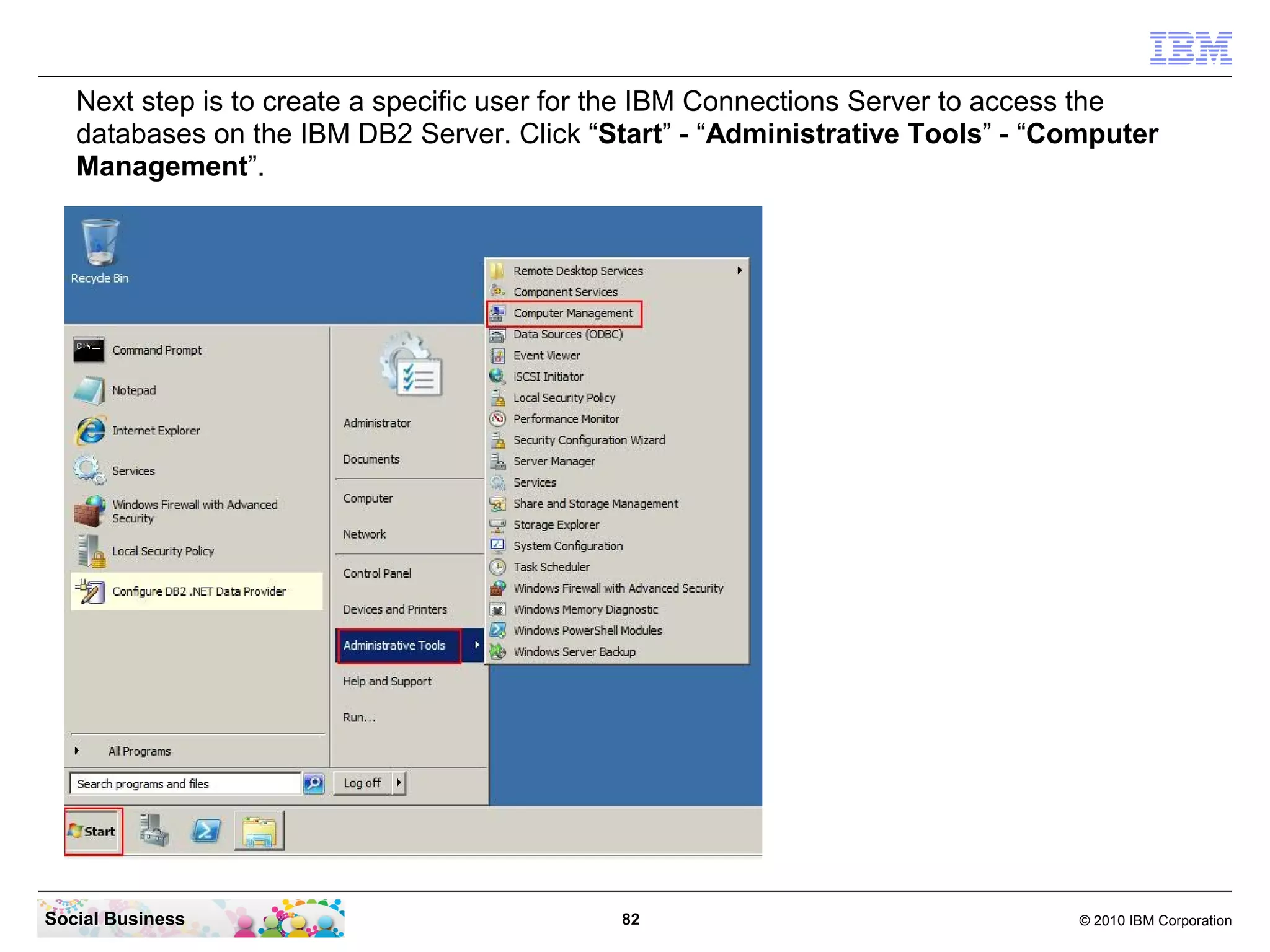
Next step is to create a specific user for the IBM Connections Server to access the
   databases on the IBM DB2 Server. Click “Start” - “Administrative Tools” - “Computer
   Management”.


Social Business                             82                                 © 2010 IBM Corporation
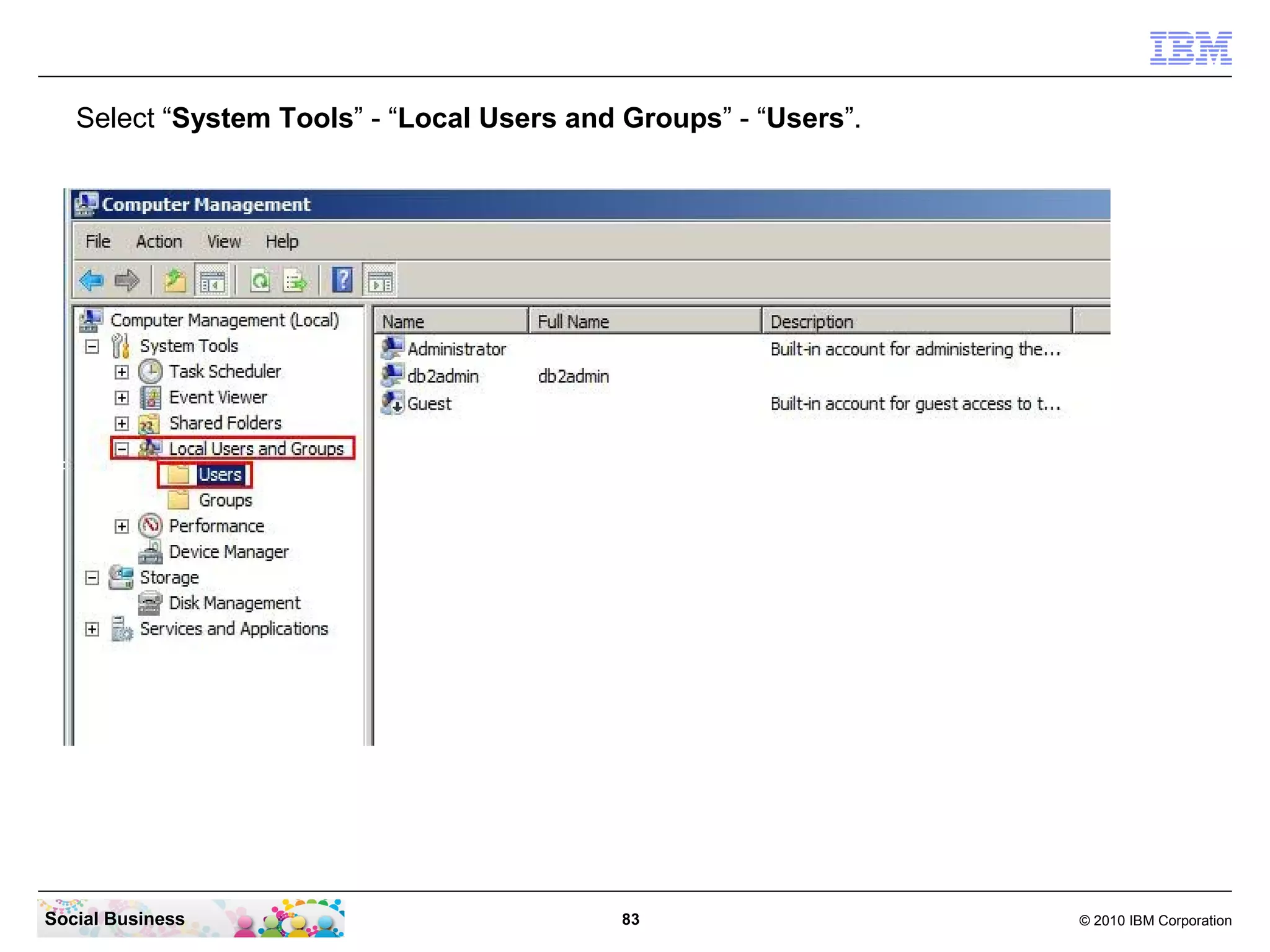
Select “System Tools” - “Local Users and Groups” - “Users”.


Social Business                             83                   © 2010 IBM Corporation
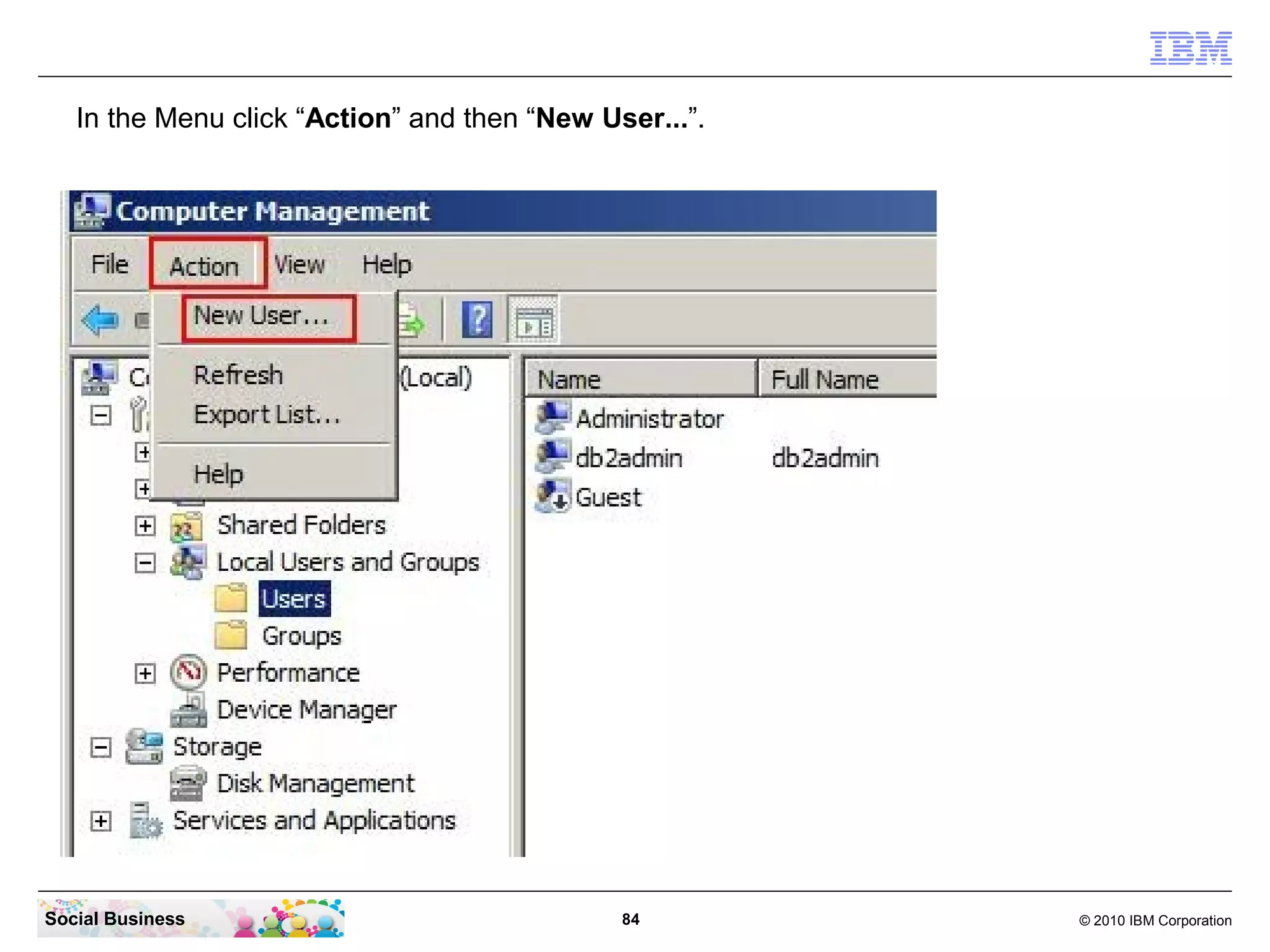
In the Menu click “Action” and then “New User...”.


Social Business                               84        © 2010 IBM Corporation
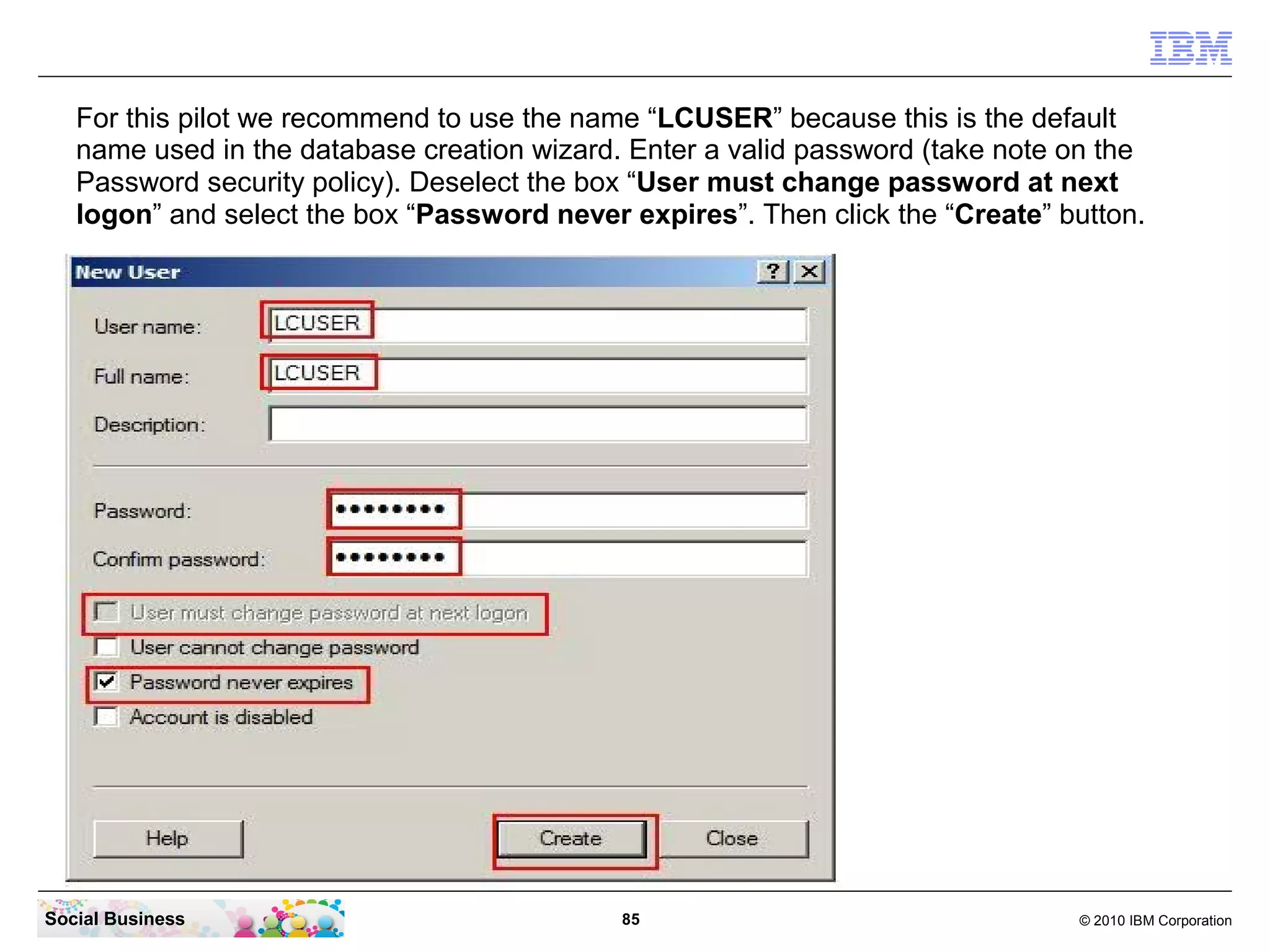
For this pilot we recommend to use the name “LCUSER” because this is the default
   name used in the database creation wizard. Enter a valid password (take note on the
   Password security policy). Deselect the box “User must change password at next
   logon” and select the box “Password never expires”. Then click the “Create” button.


Social Business                              85                                 © 2010 IBM Corporation
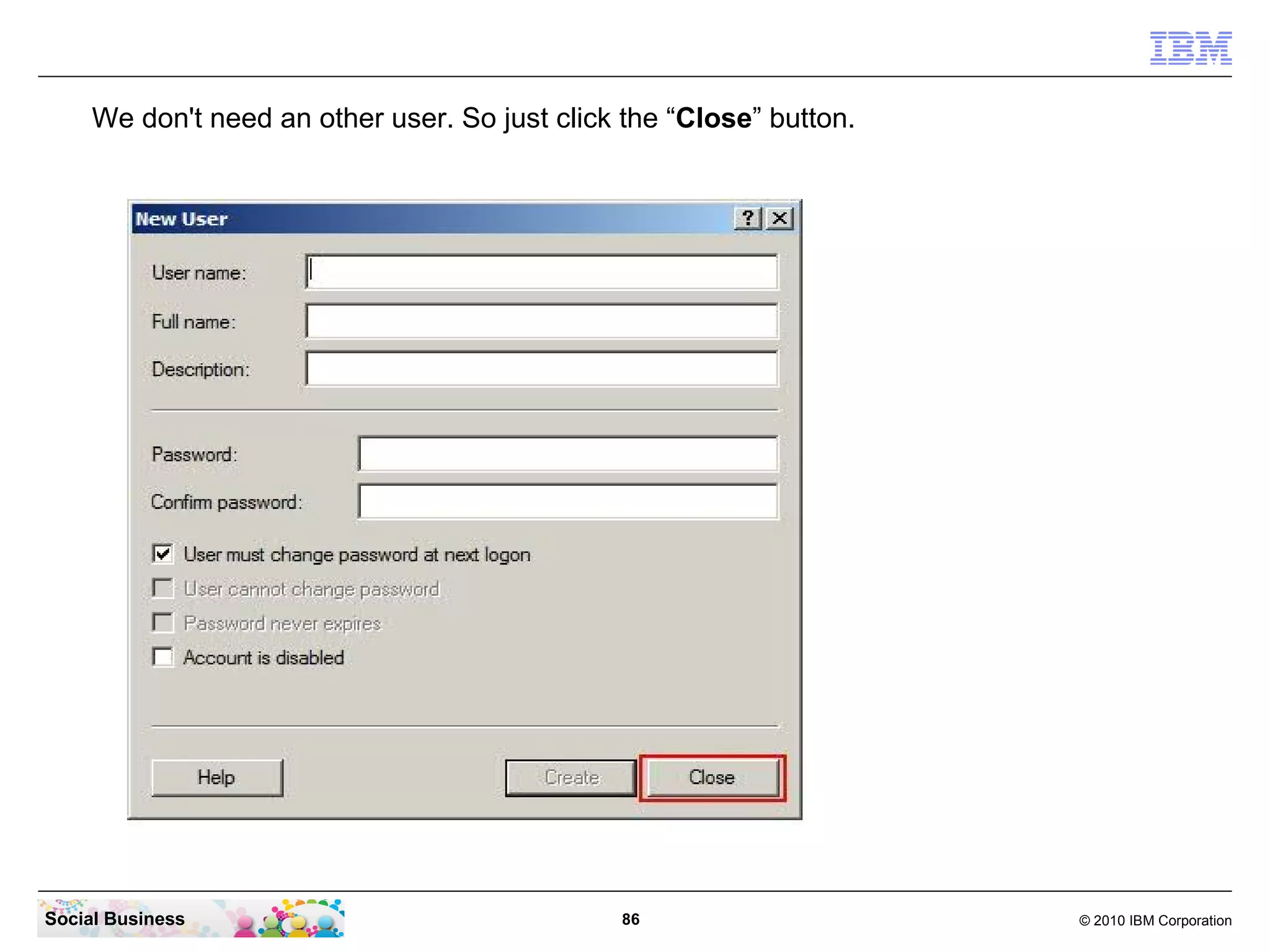
We don't need an other user. So just click the “Close” button.


Social Business                                 86                    © 2010 IBM Corporation
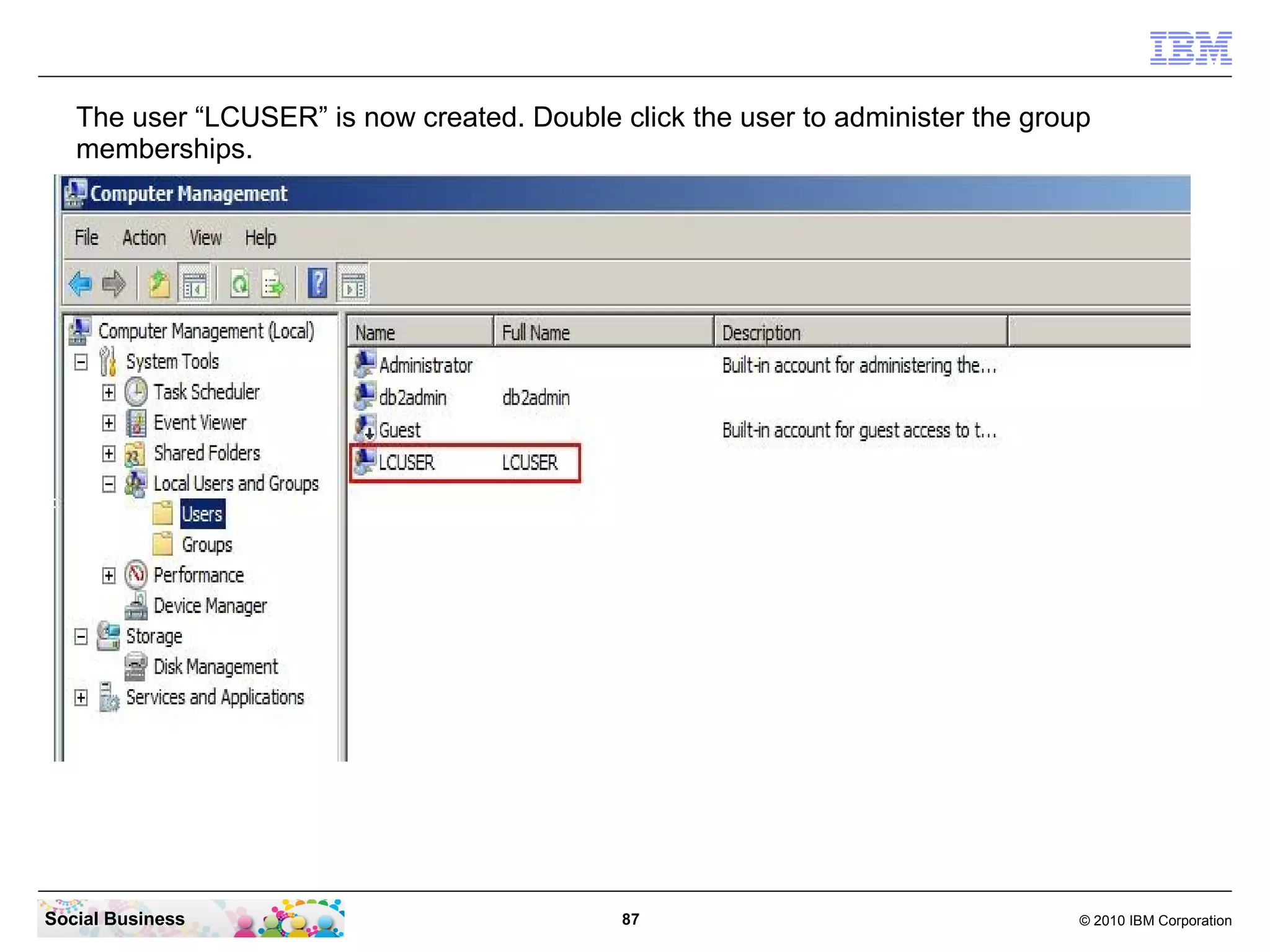
The user “LCUSER” is now created. Double click the user to administer the group
   memberships.


Social Business                              87                                  © 2010 IBM Corporation
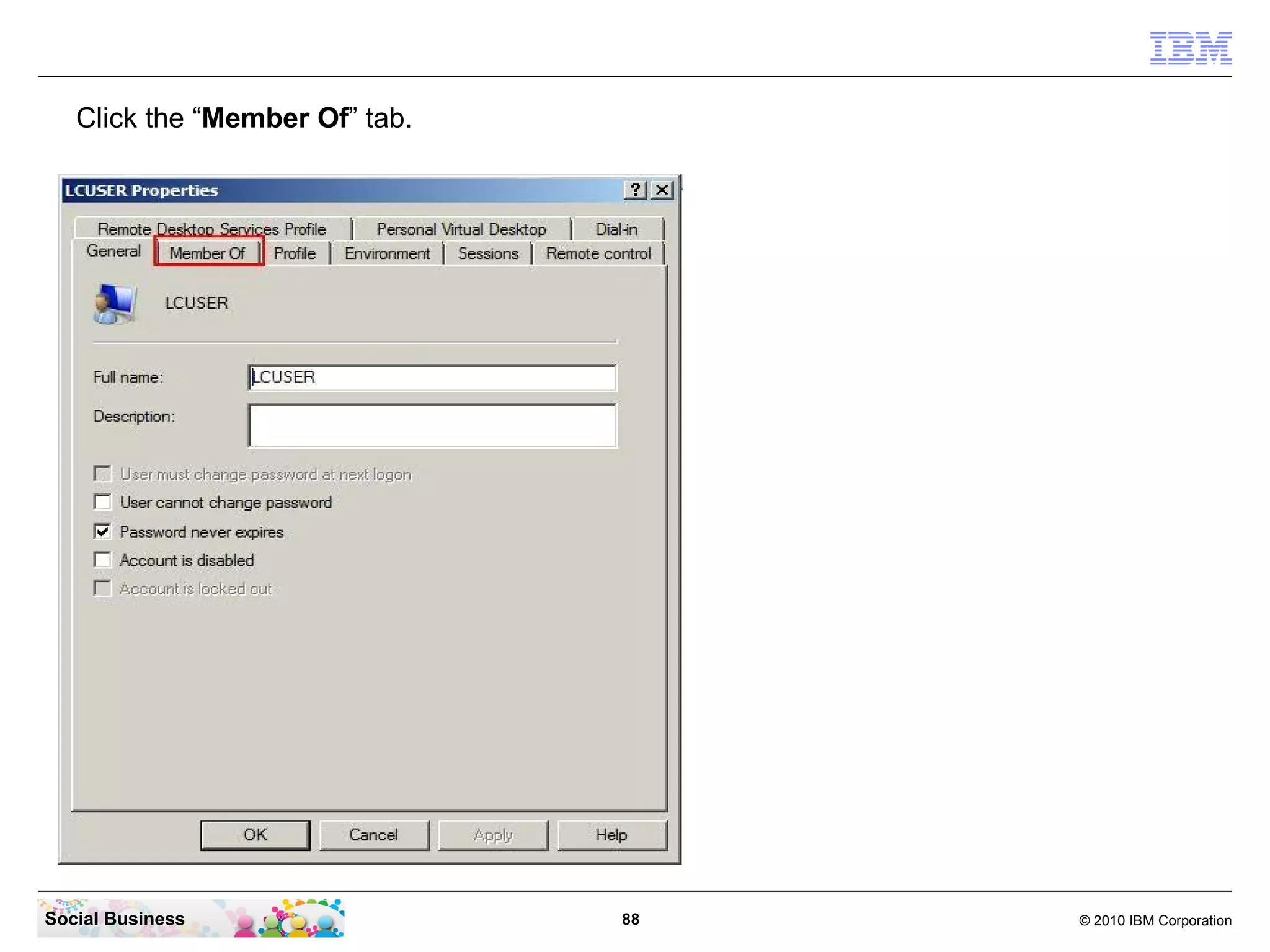
Click the “Member Of” tab.


Social Business                 88   © 2010 IBM Corporation
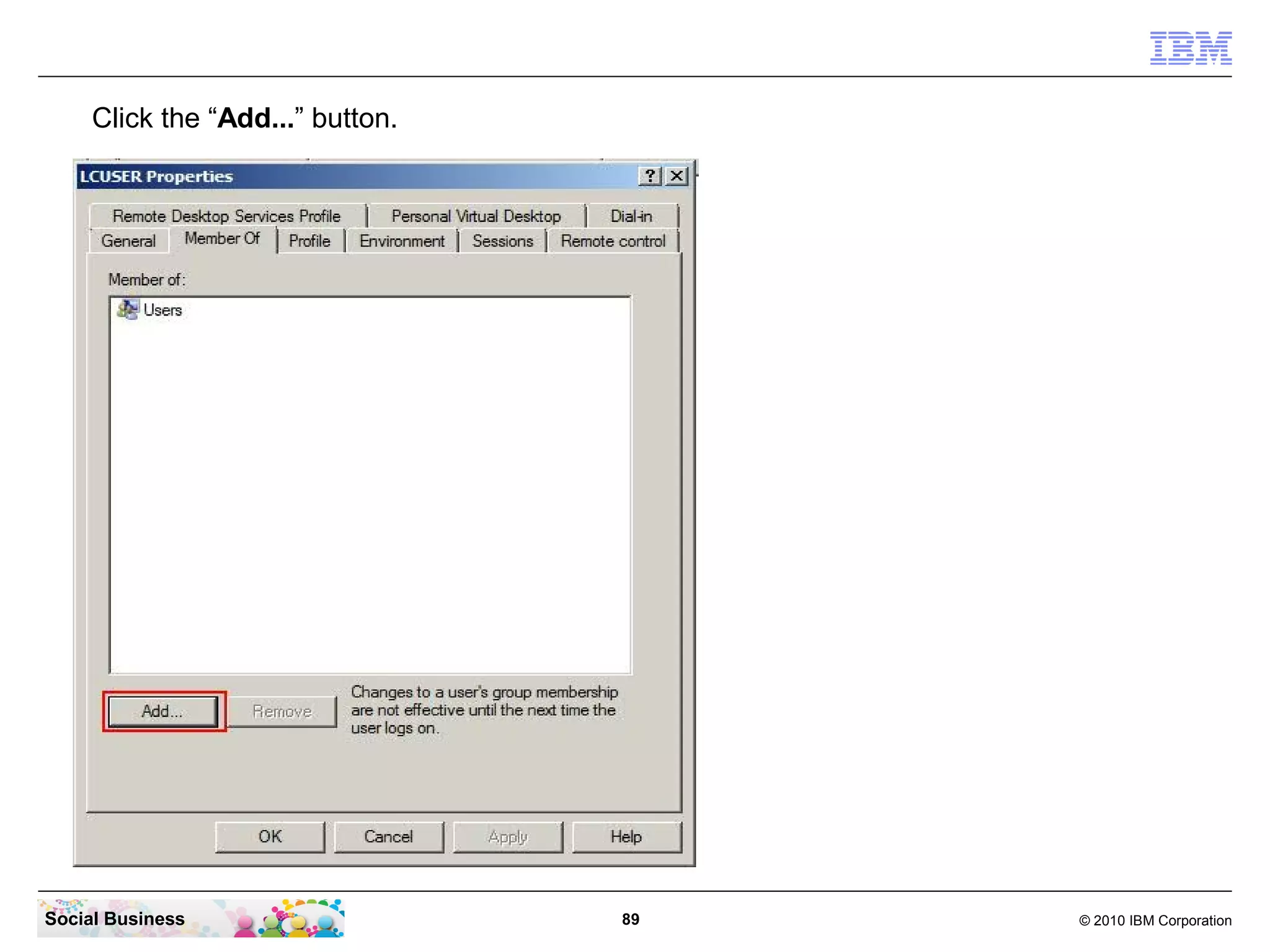
Click the “Add...” button.


Social Business                   89   © 2010 IBM Corporation
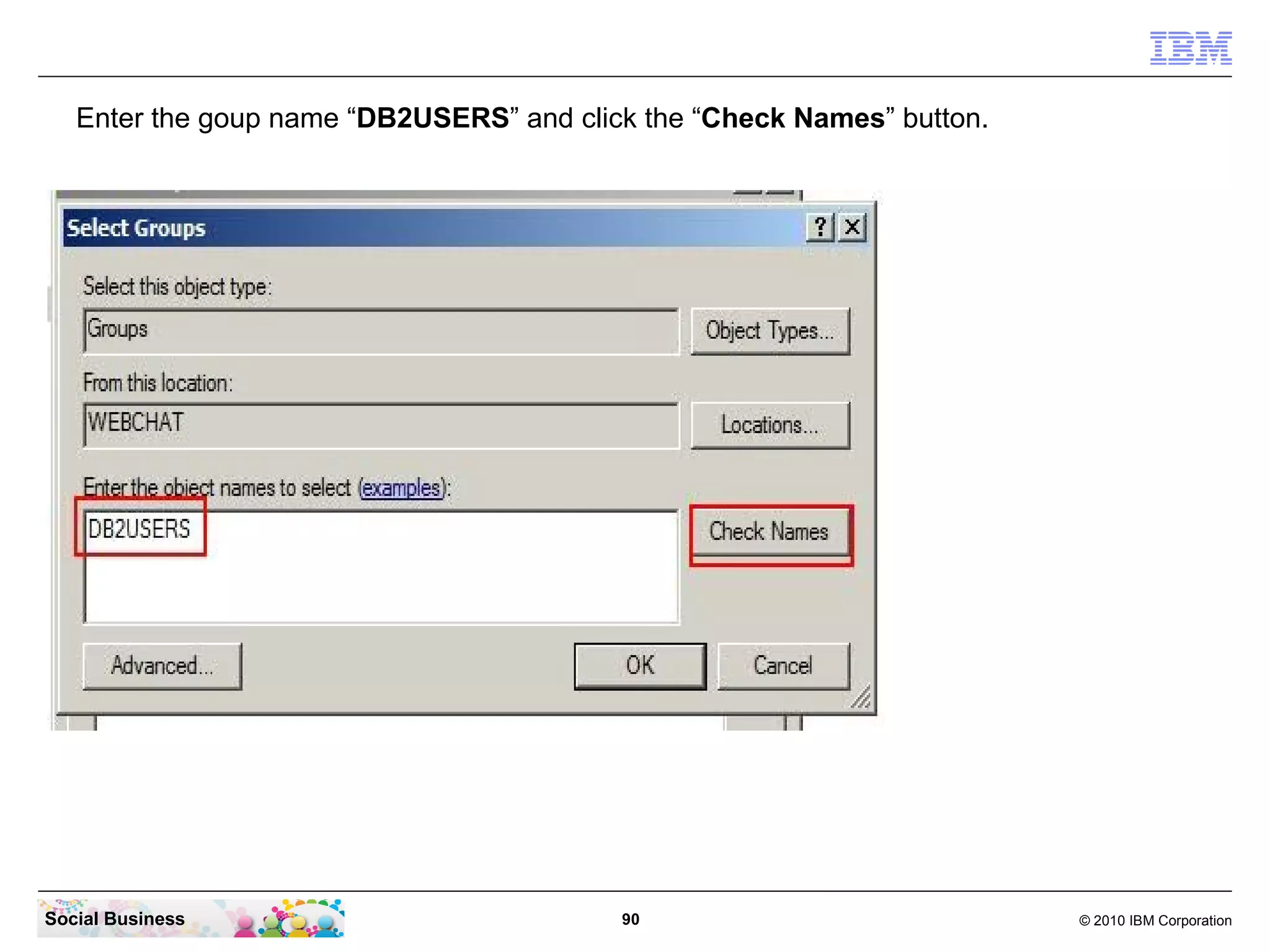
Enter the goup name “DB2USERS” and click the “Check Names” button.


Social Business                           90                            © 2010 IBM Corporation
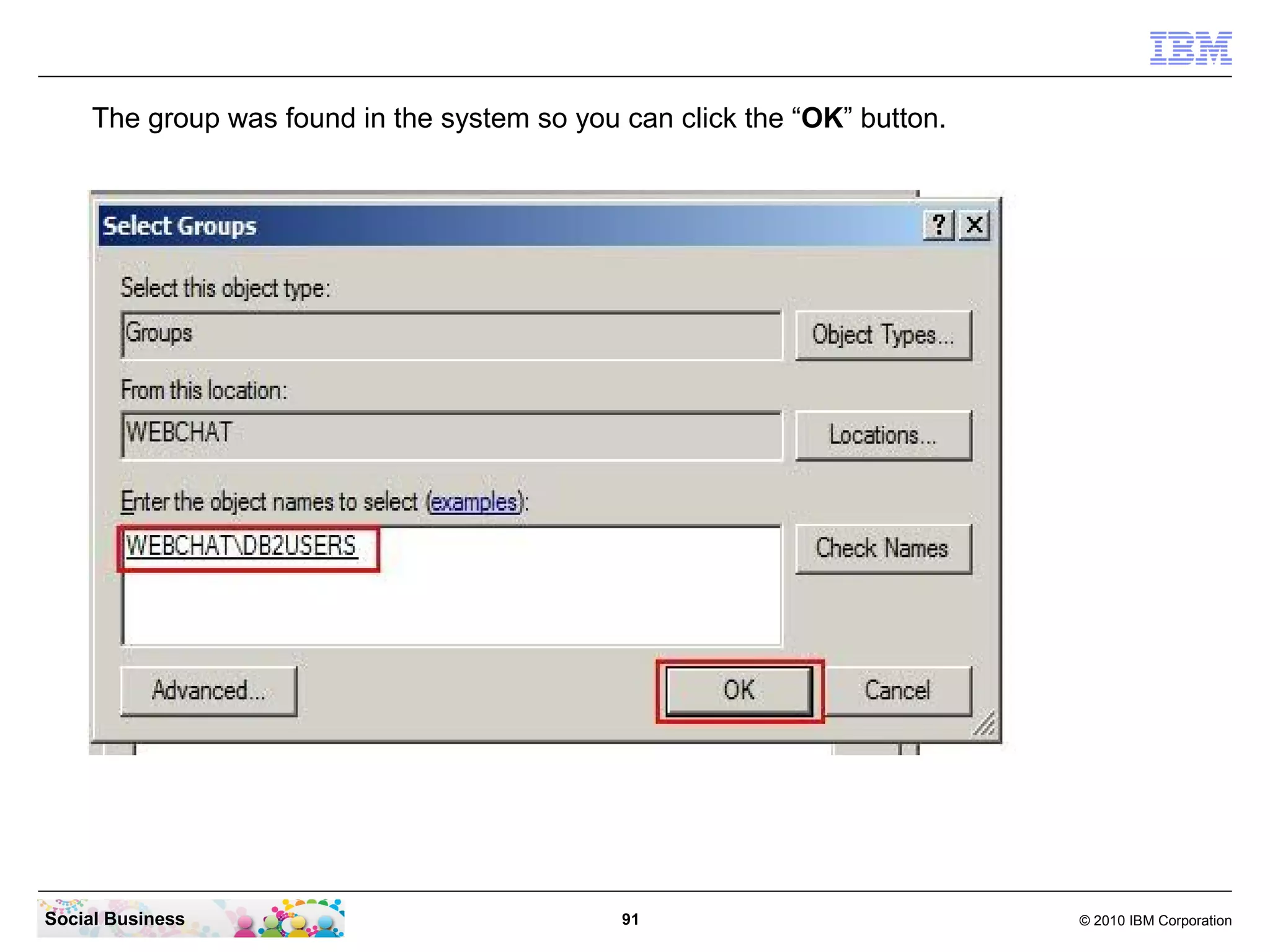
The group was found in the system so you can click the “OK” button.


Social Business                               91                           © 2010 IBM Corporation
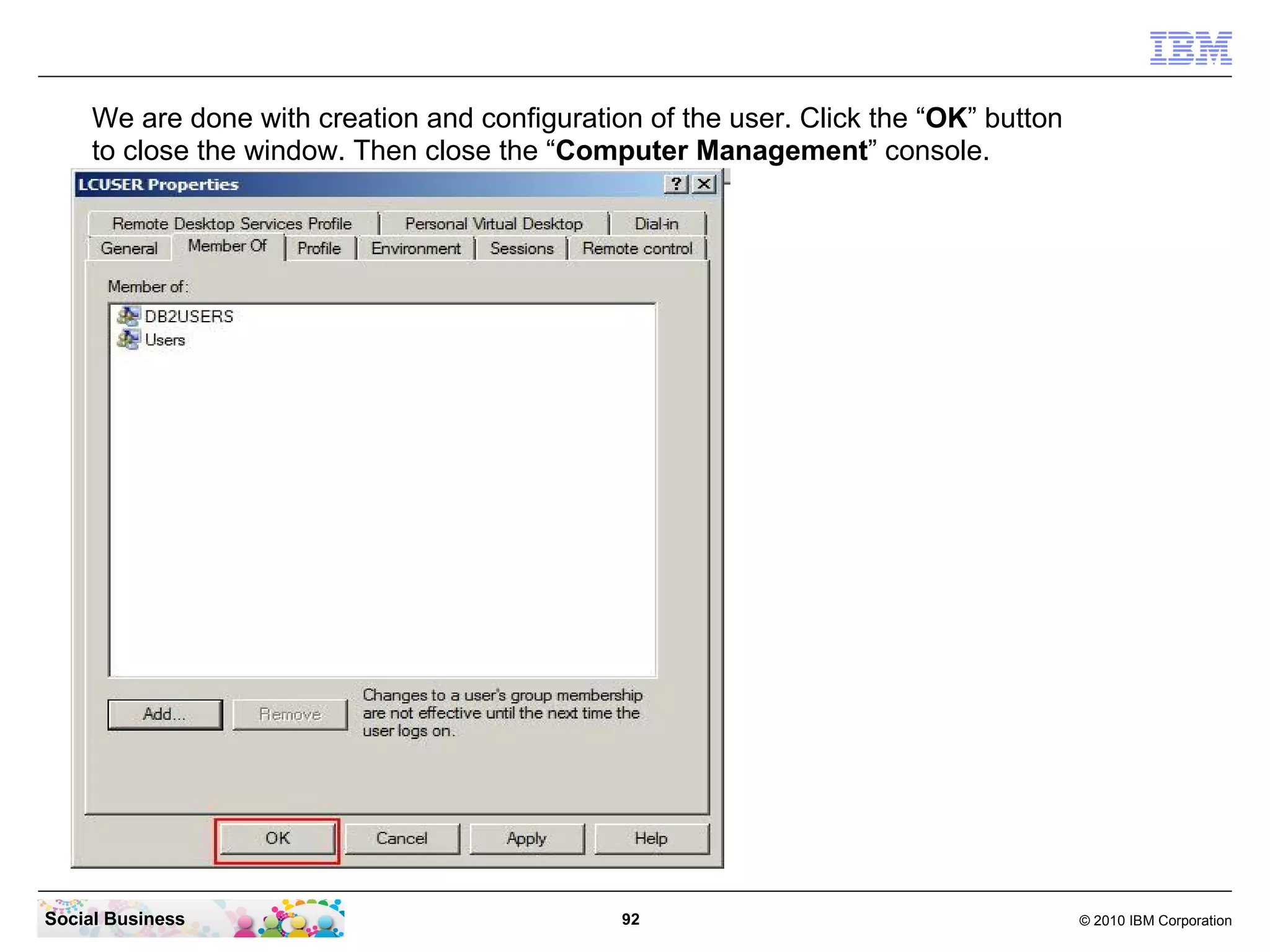
We are done with creation and configuration of the user. Click the “OK” button
     to close the window. Then close the “Computer Management” console.


Social Business                                92                                     © 2010 IBM Corporation
STEP FOUR: Run the Database Creation Wizard

    Summary

    When you are creating a database either with the database wizard or SQL
    scripts, you must log into the system where the database is hosted with
    the database administrator account. The default values for DB2® are
    db2admin on Microsoft™ Windows™.

    If you use only one database instance and if that instance includes other
    databases besides IBM Connections, configure the numdb parameter to
    match the total number of databases on the instance.


Social Business                         93                             © 2010 IBM Corporation
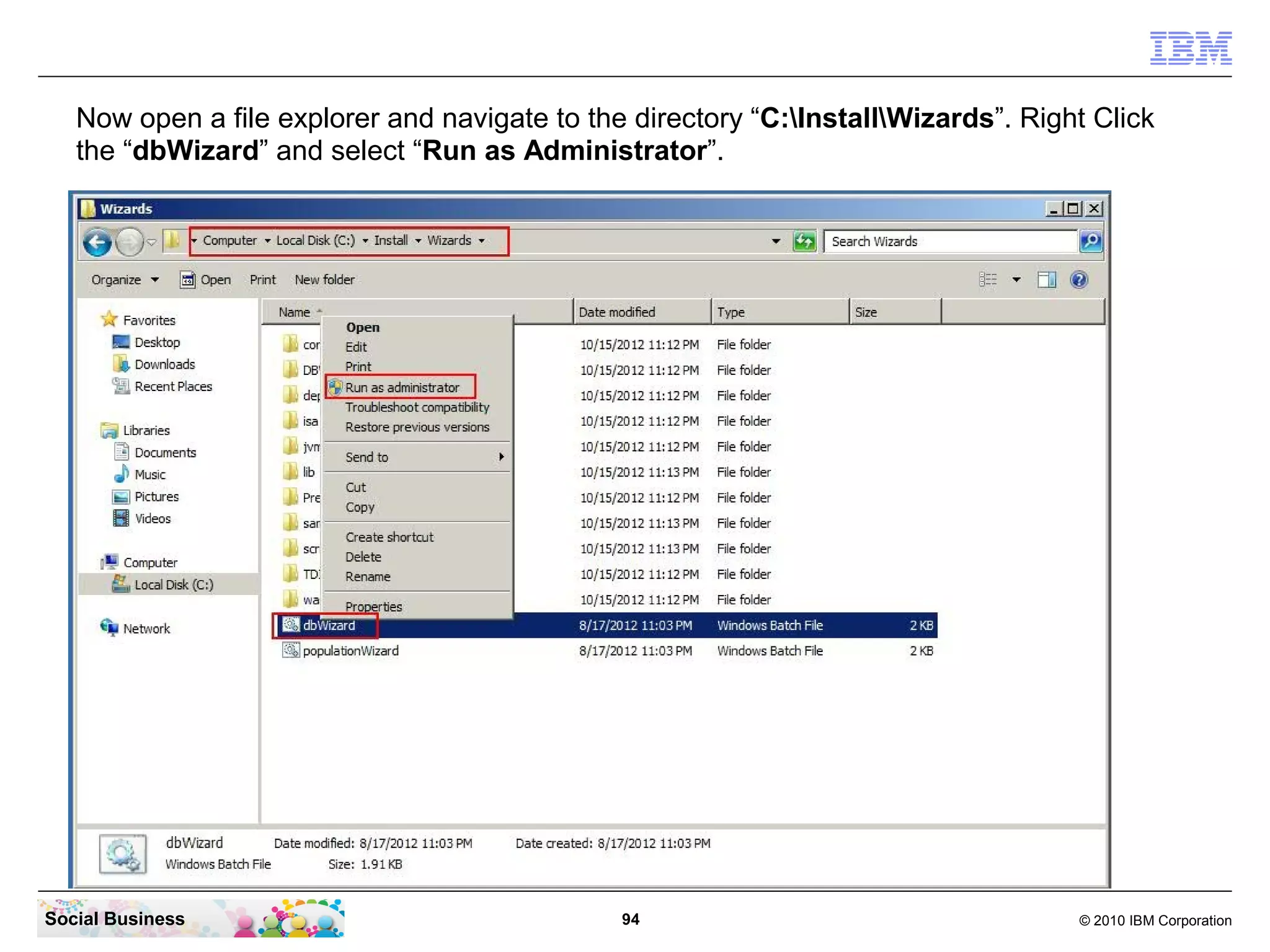
Now open a file explorer and navigate to the directory “C:InstallWizards”. Right Click
   the “dbWizard” and select “Run as Administrator”.


Social Business                                94                                   © 2010 IBM Corporation
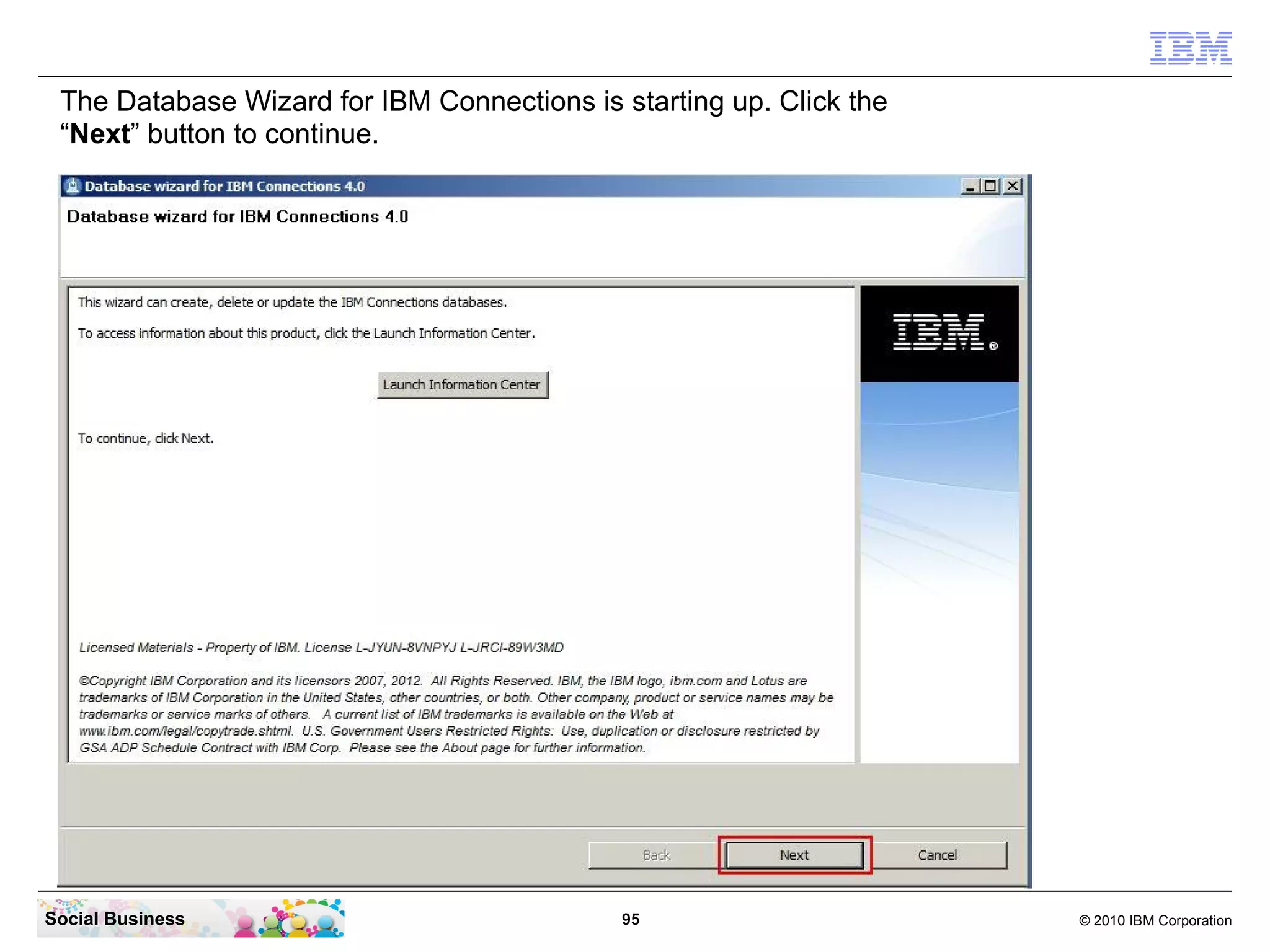
The Database Wizard for IBM Connections is starting up. Click the
 “Next” button to continue.


Social Business                              95                      © 2010 IBM Corporation
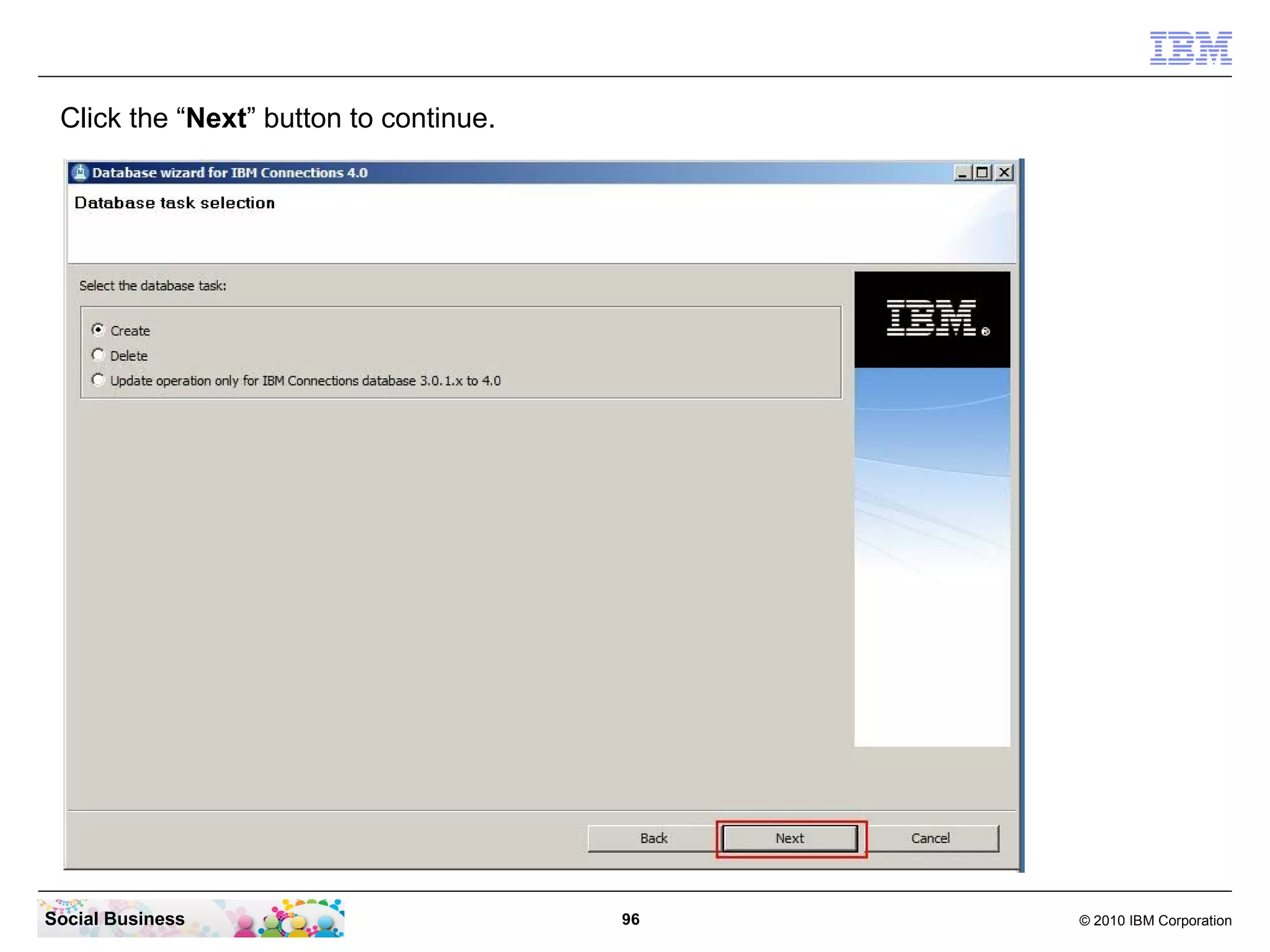
Click the “Next” button to continue.


Social Business                         96   © 2010 IBM Corporation
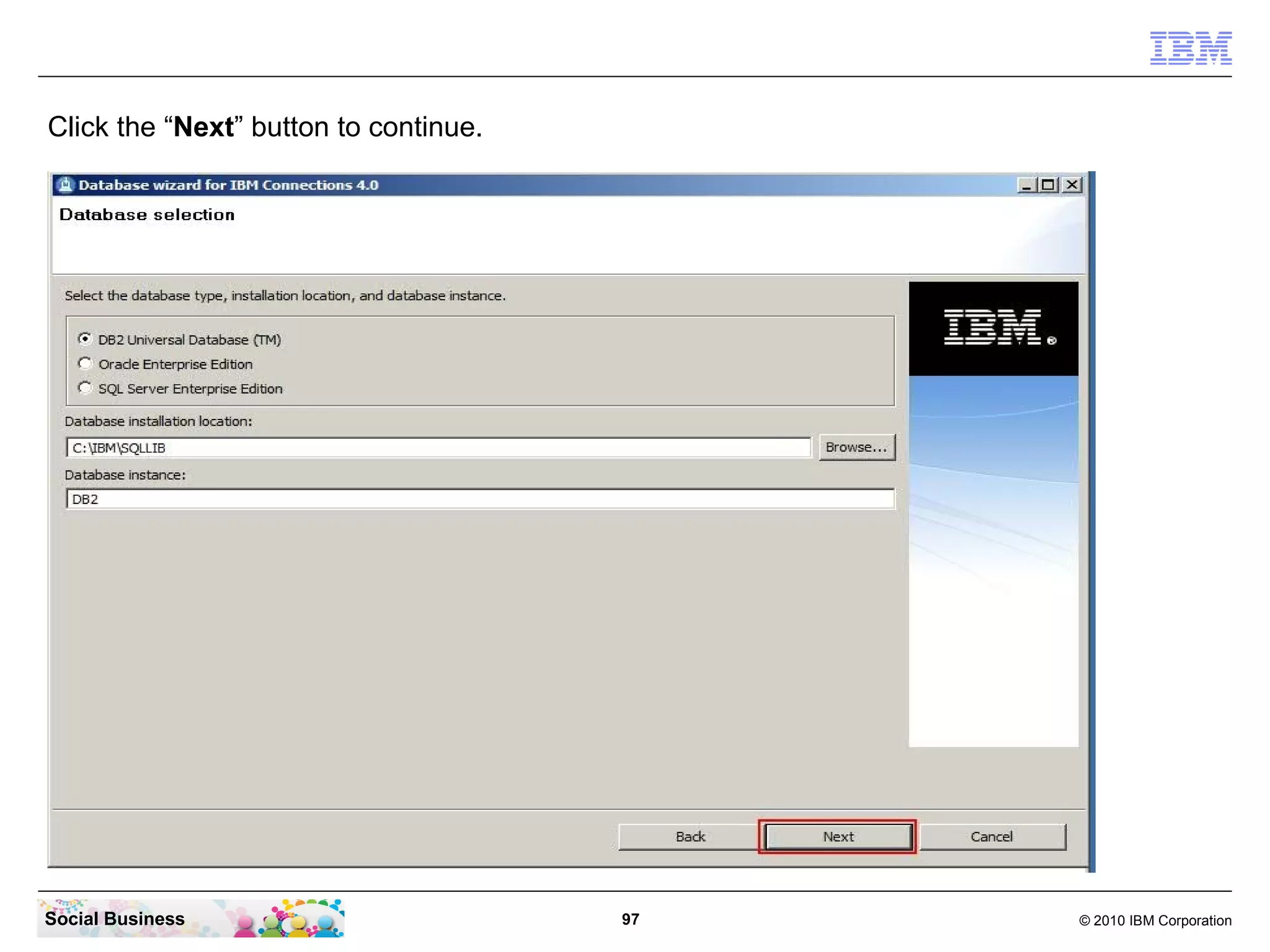
Click the “Next” button to continue.


Social Business                        97   © 2010 IBM Corporation
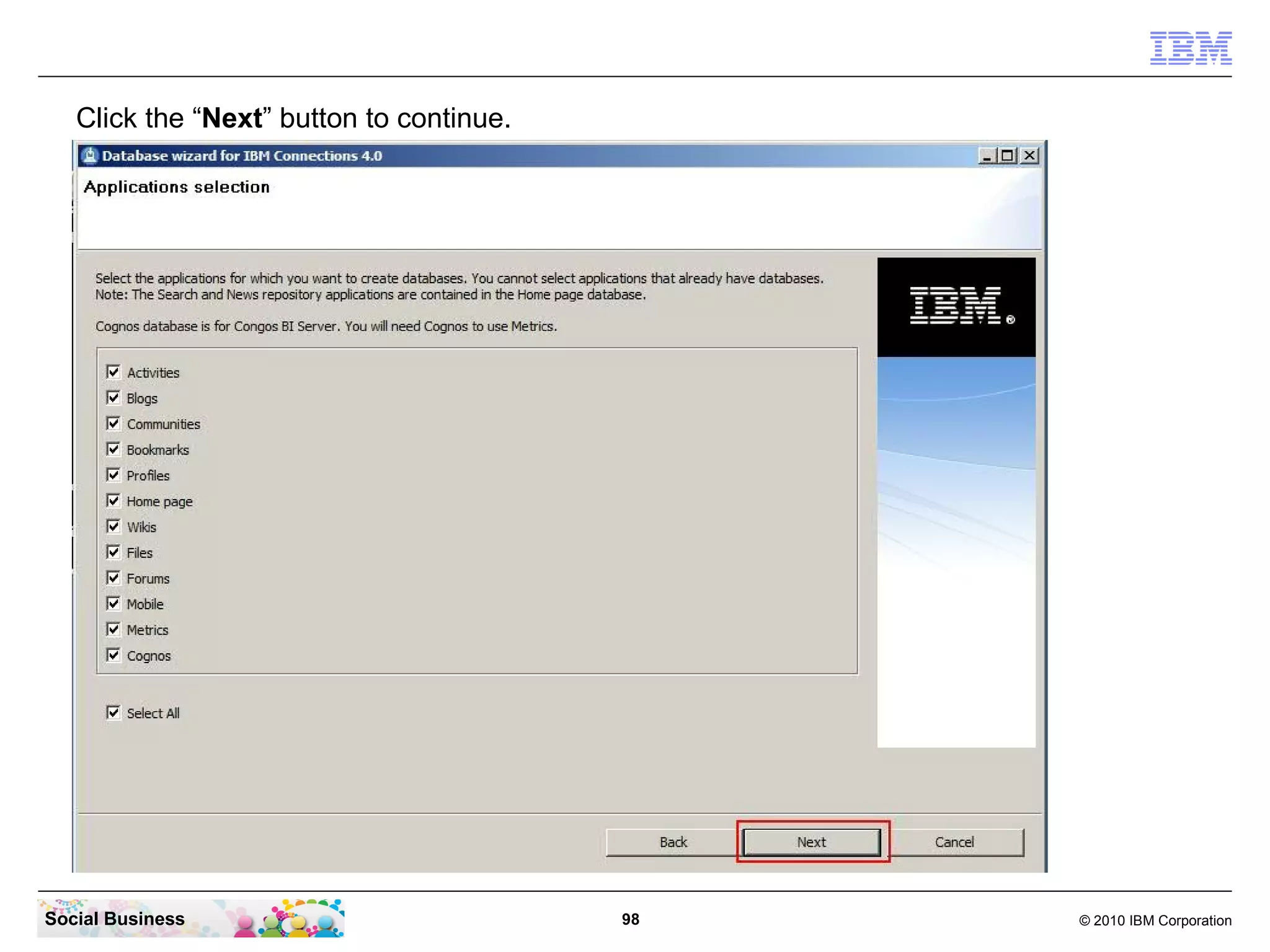
Click the “Next” button to continue.


Social Business                           98   © 2010 IBM Corporation
Click the “Create” button to continue.


Social Business                          99   © 2010 IBM Corporation
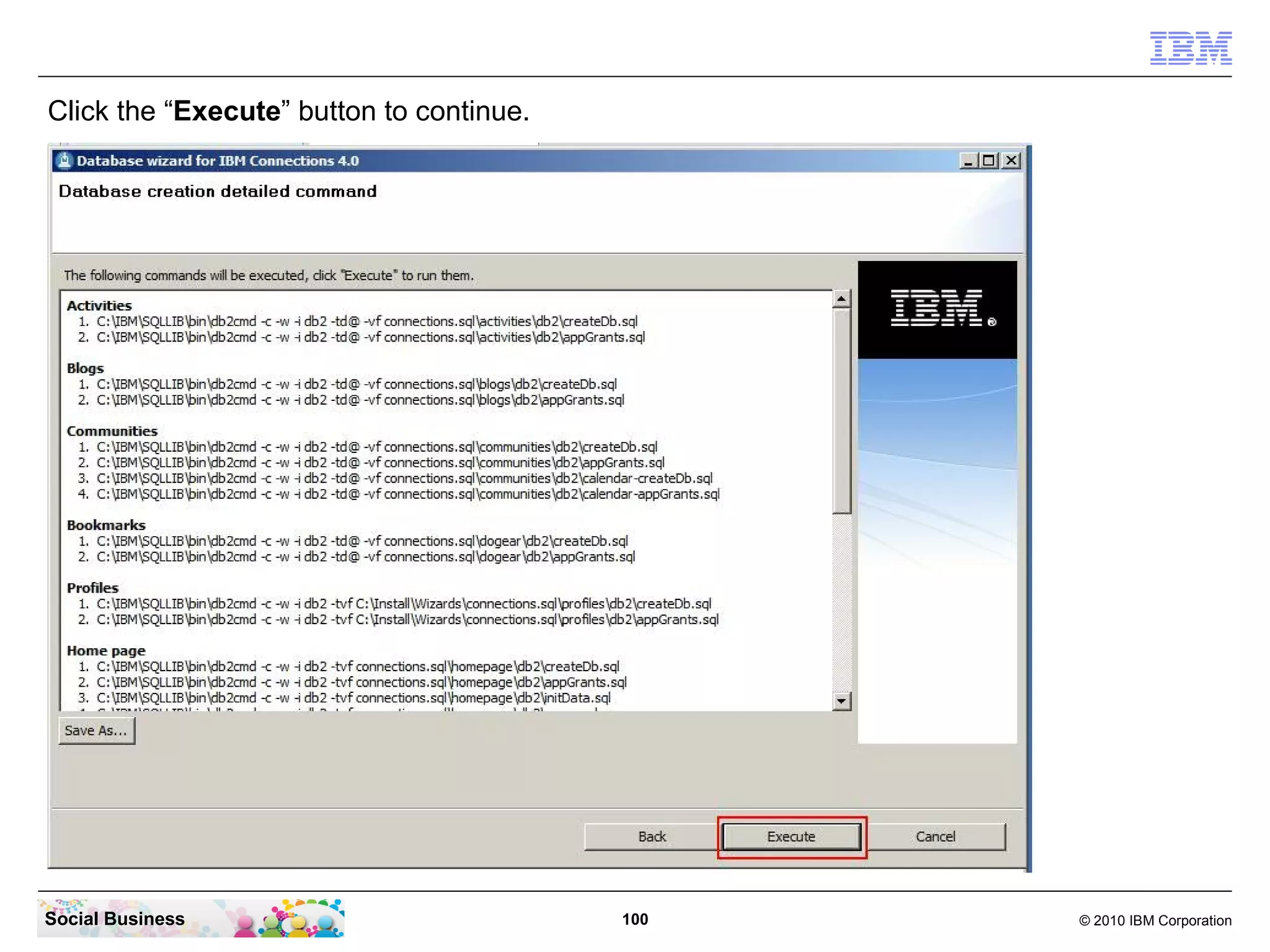
Click the “Execute” button to continue.


Social Business                           100   © 2010 IBM Corporation
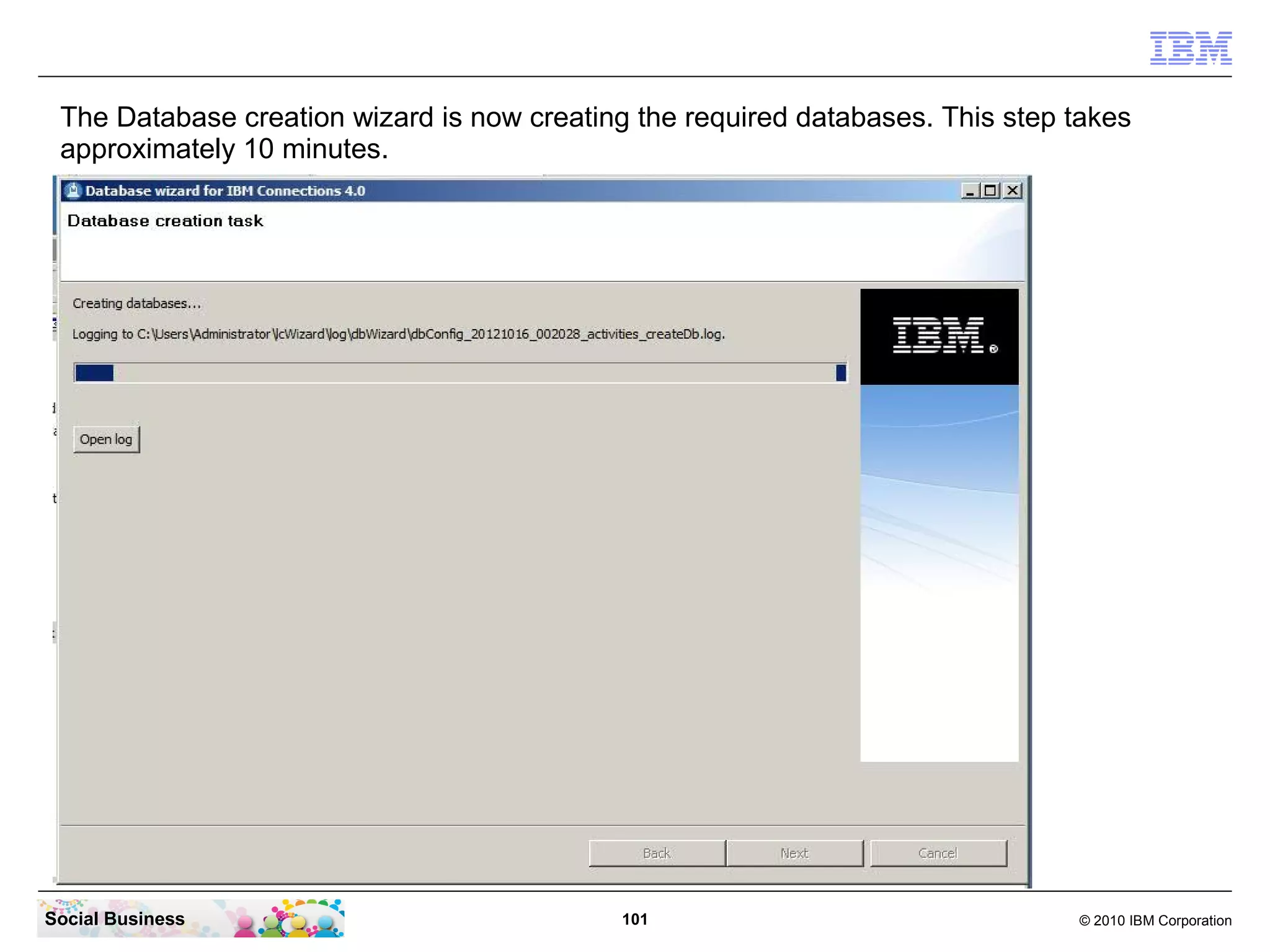
The Database creation wizard is now creating the required databases. This step takes
 approximately 10 minutes.


Social Business                              101                                © 2010 IBM Corporation
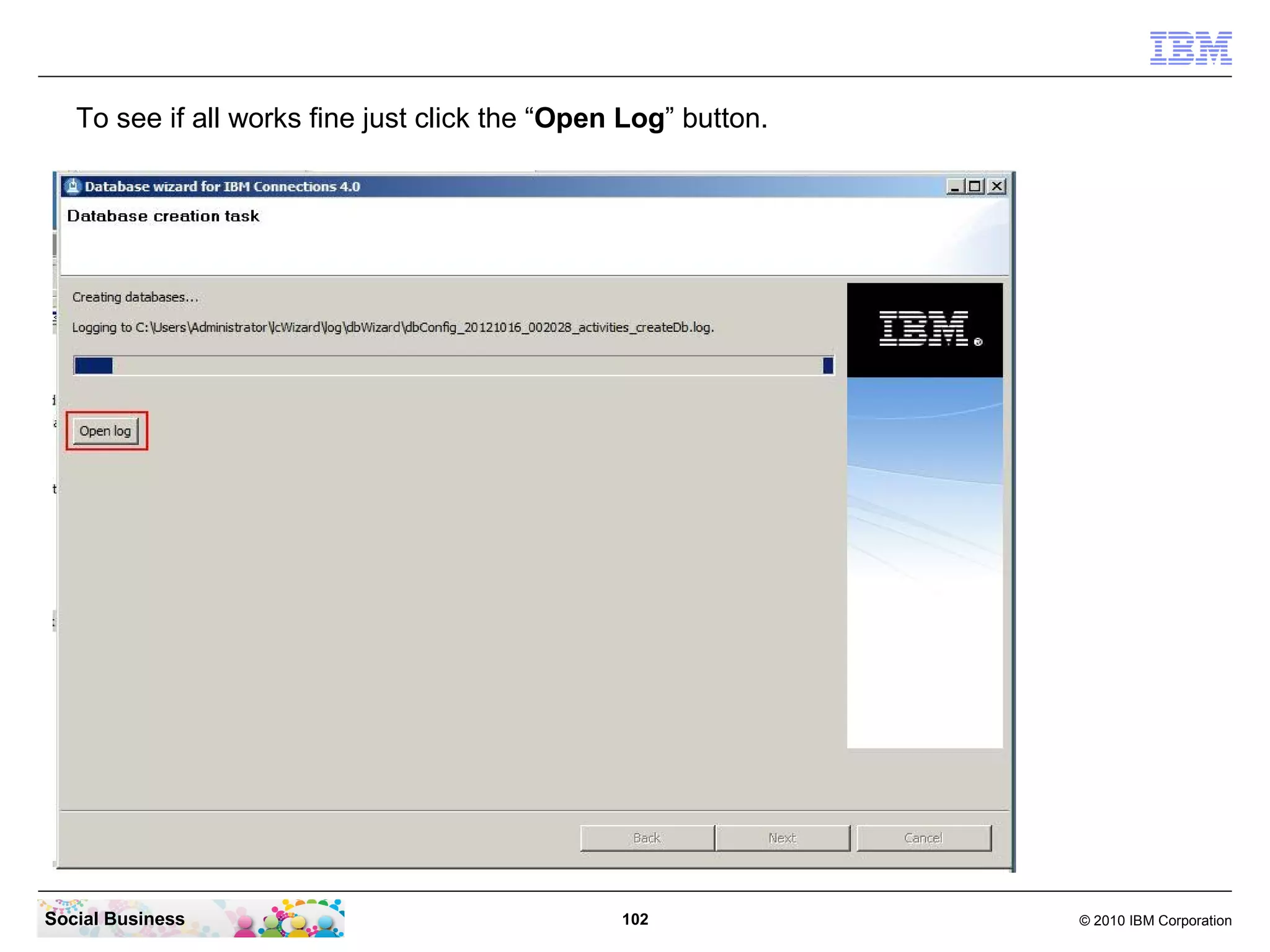
To see if all works fine just click the “Open Log” button.


Social Business                                 102             © 2010 IBM Corporation
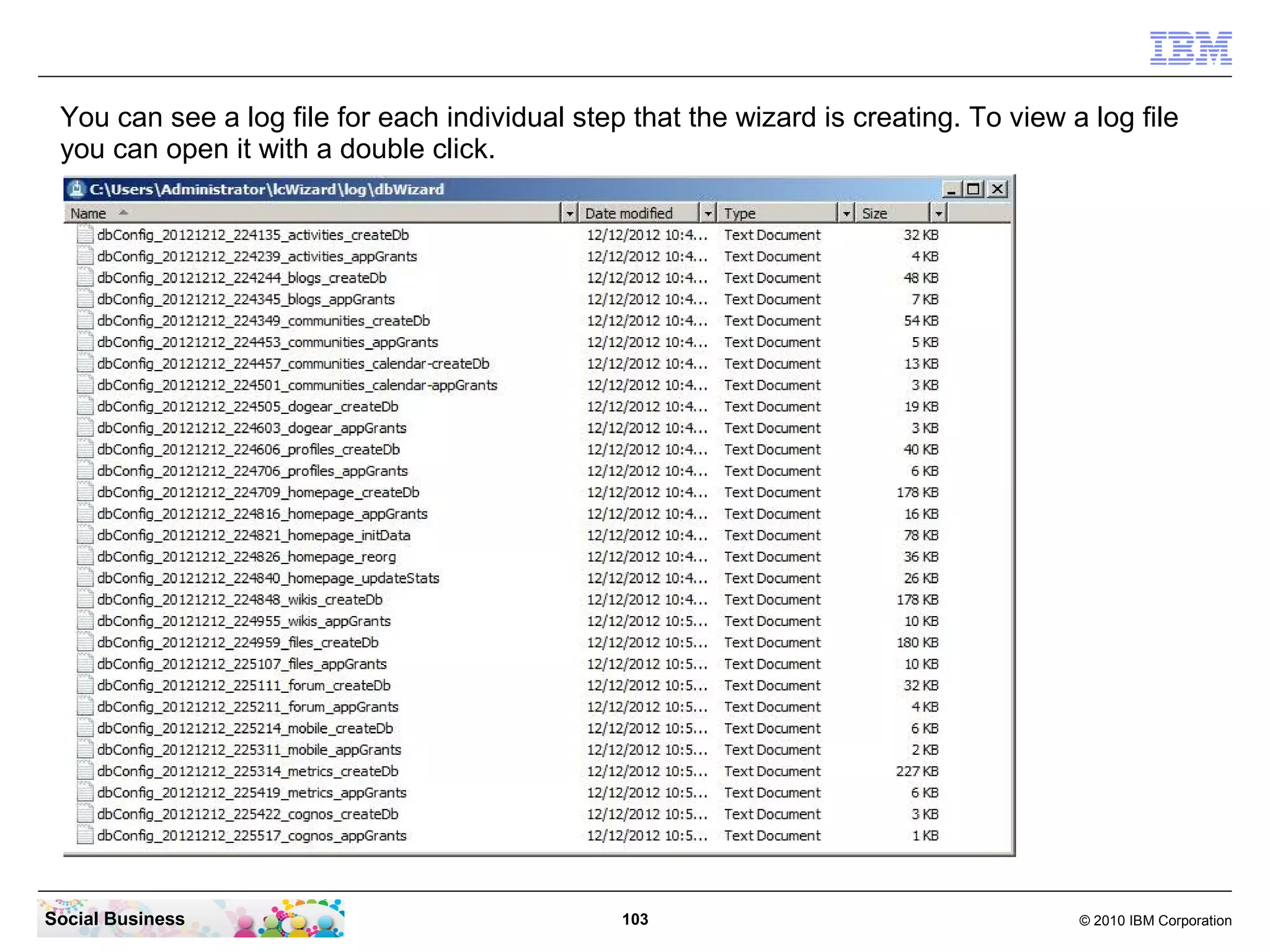
You can see a log file for each individual step that the wizard is creating. To view a log file
 you can open it with a double click.


Social Business                                 103                                    © 2010 IBM Corporation
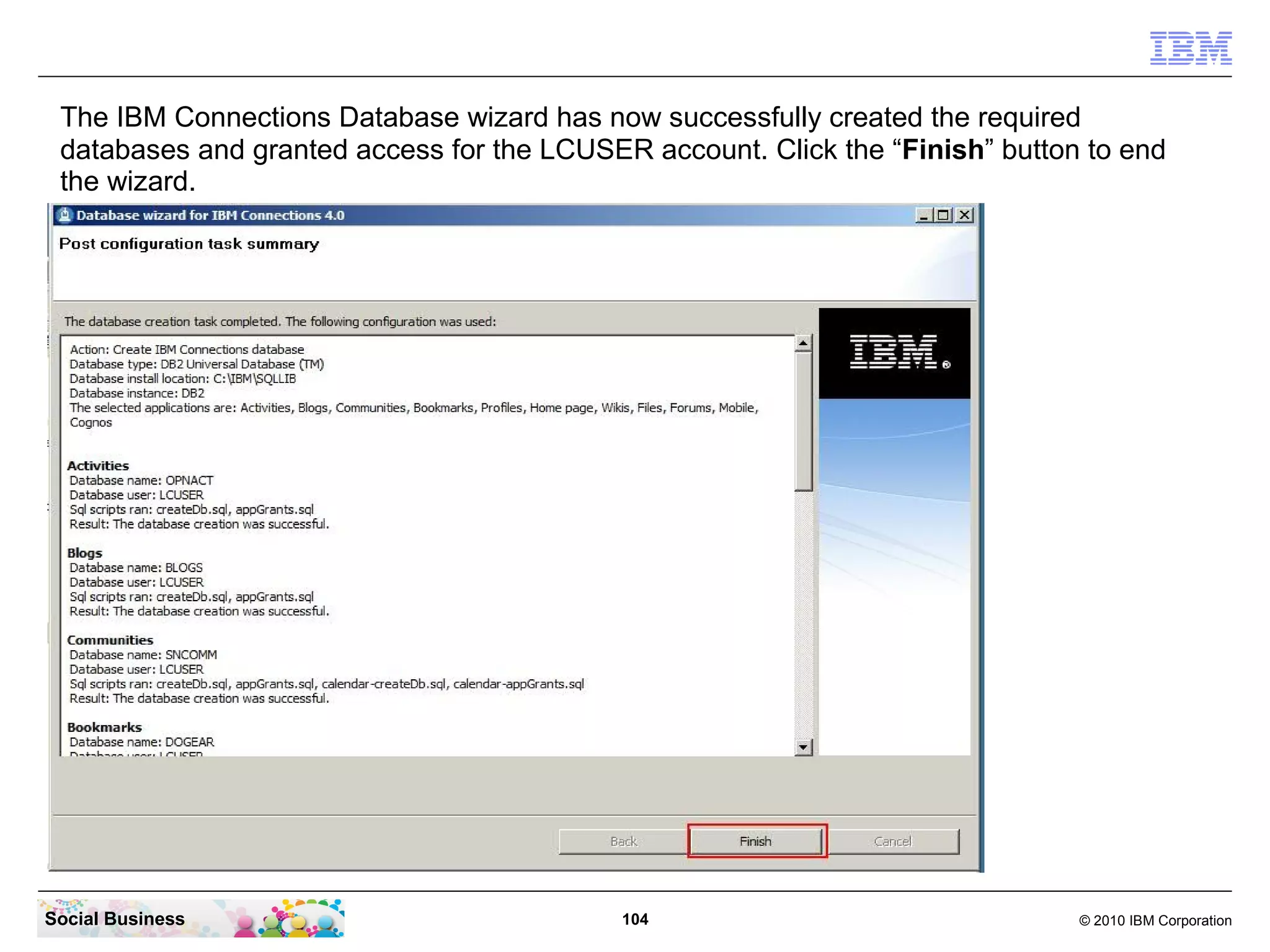
The IBM Connections Database wizard has now successfully created the required
 databases and granted access for the LCUSER account. Click the “Finish” button to end
 the wizard.


Social Business                             104                                © 2010 IBM Corporation
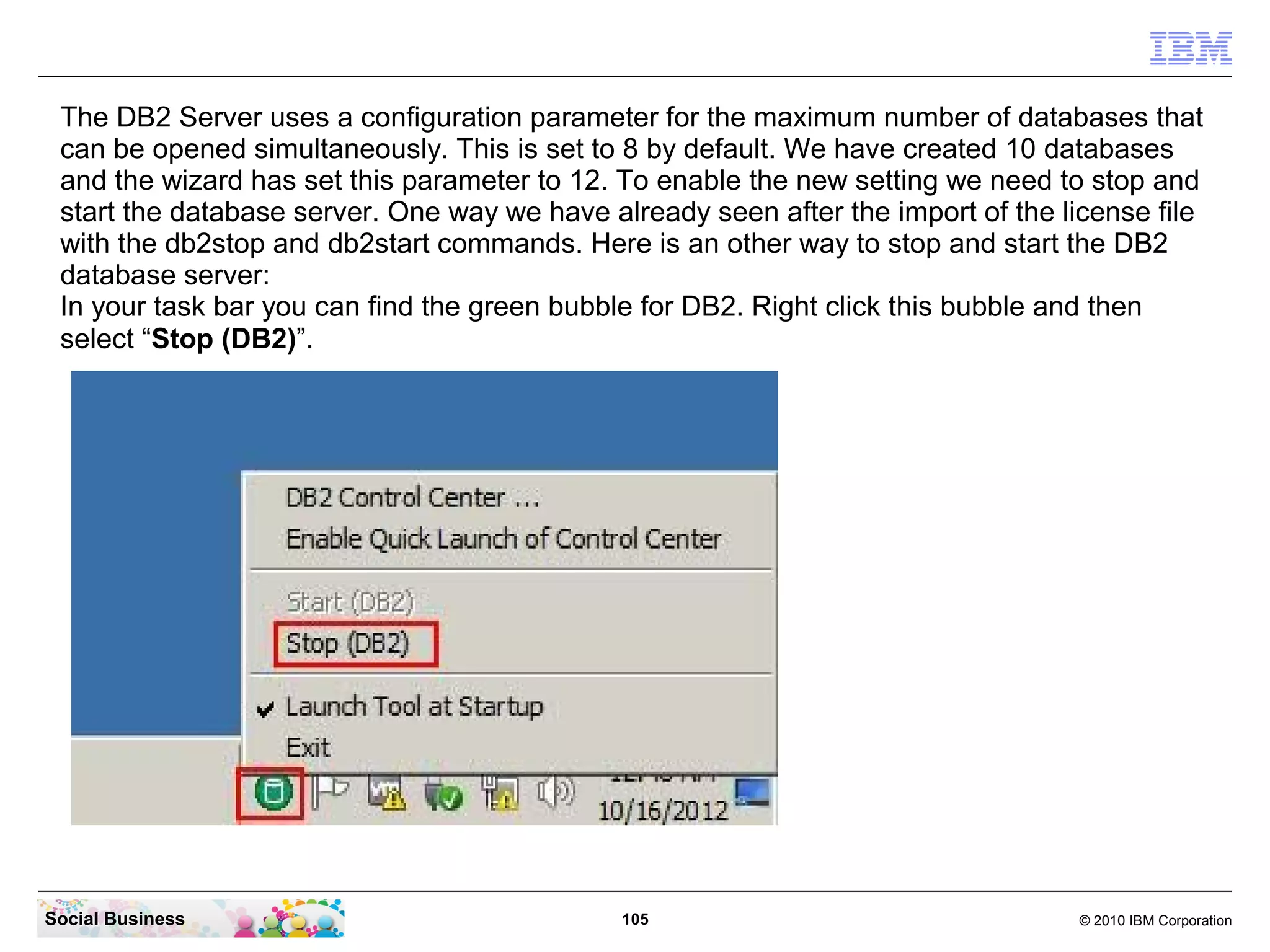
The DB2 Server uses a configuration parameter for the maximum number of databases that
 can be opened simultaneously. This is set to 8 by default. We have created 10 databases
 and the wizard has set this parameter to 12. To enable the new setting we need to stop and
 start the database server. One way we have already seen after the import of the license file
 with the db2stop and db2start commands. Here is an other way to stop and start the DB2
 database server:
 In your task bar you can find the green bubble for DB2. Right click this bubble and then
 select “Stop (DB2)”.


Social Business                               105                                  © 2010 IBM Corporation
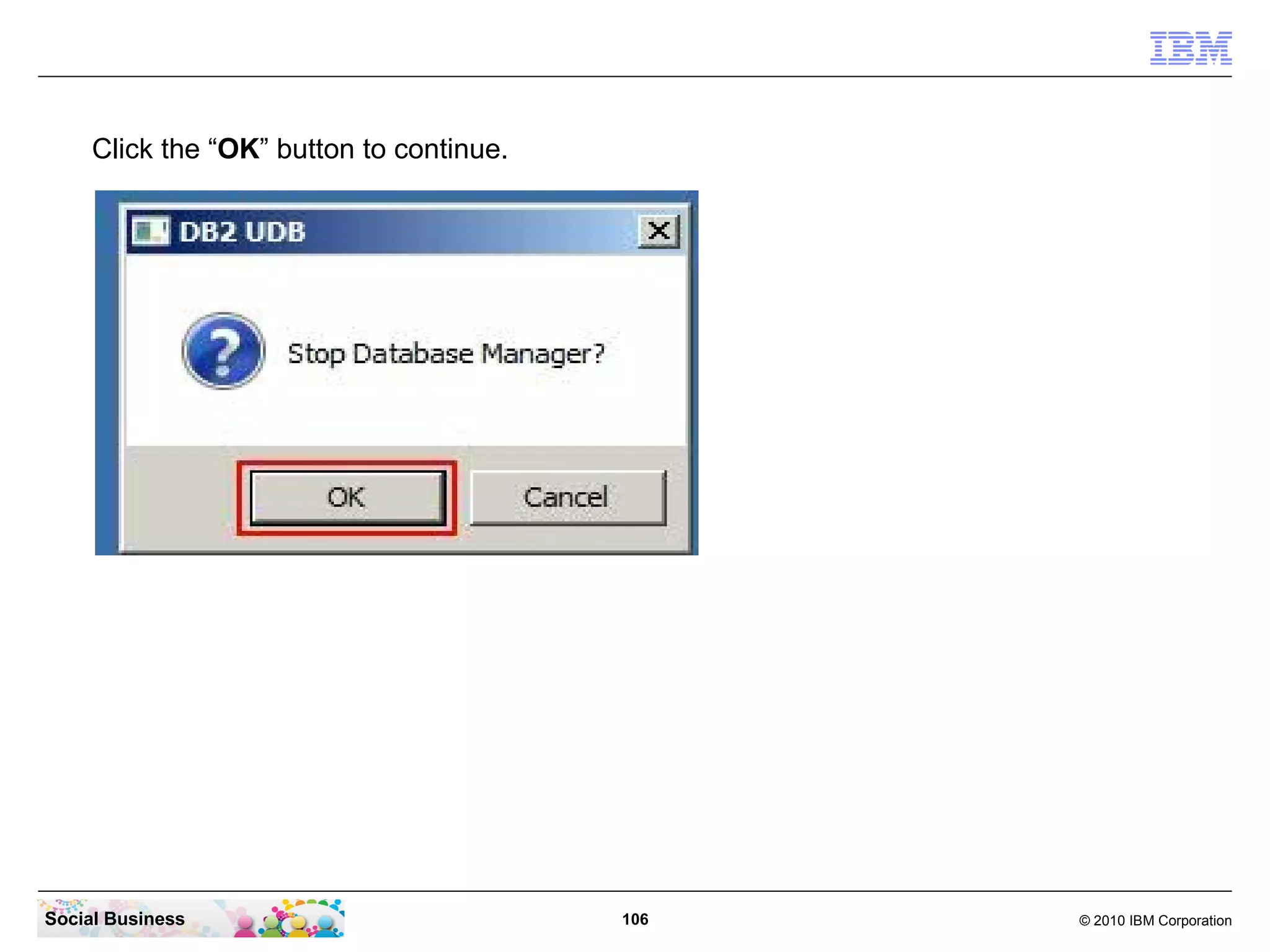
Click the “OK” button to continue.


Social Business                           106   © 2010 IBM Corporation
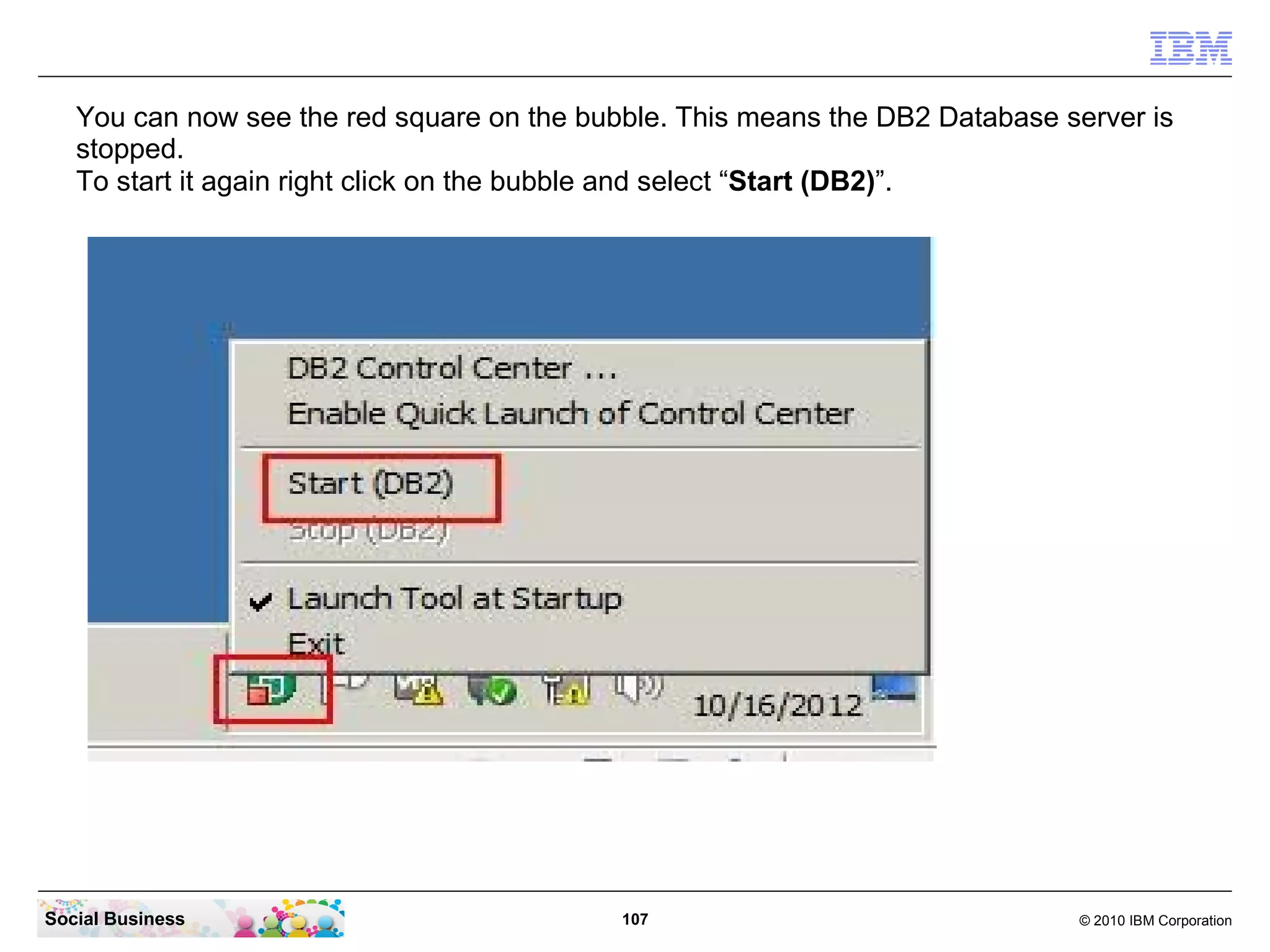
You can now see the red square on the bubble. This means the DB2 Database server is
   stopped.
   To start it again right click on the bubble and select “Start (DB2)”.


Social Business                             107                               © 2010 IBM Corporation
STEP FIVE: Install the IBM Tivoli Directory
                     Integrator and update to FP6

    Summary

    This step installs the Tivoli Directory Integrator component on your IBM
    Connections Server machine to fill your Profiles Database with predefined
    information from your LDAP and other sources.


Social Business                         108                           © 2010 IBM Corporation
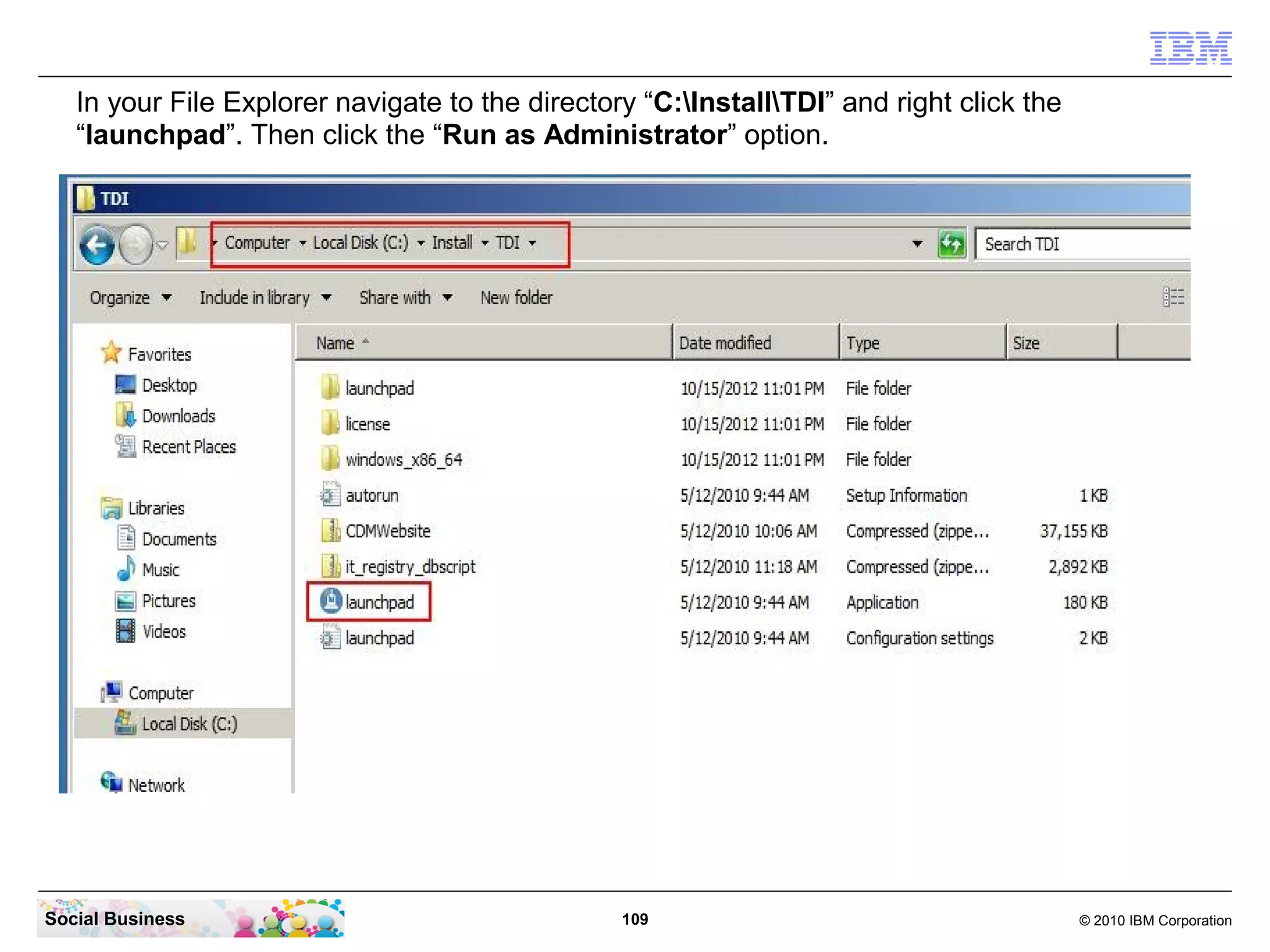
In your File Explorer navigate to the directory “C:InstallTDI” and right click the
   “launchpad”. Then click the “Run as Administrator” option.


Social Business                                  109                                      © 2010 IBM Corporation
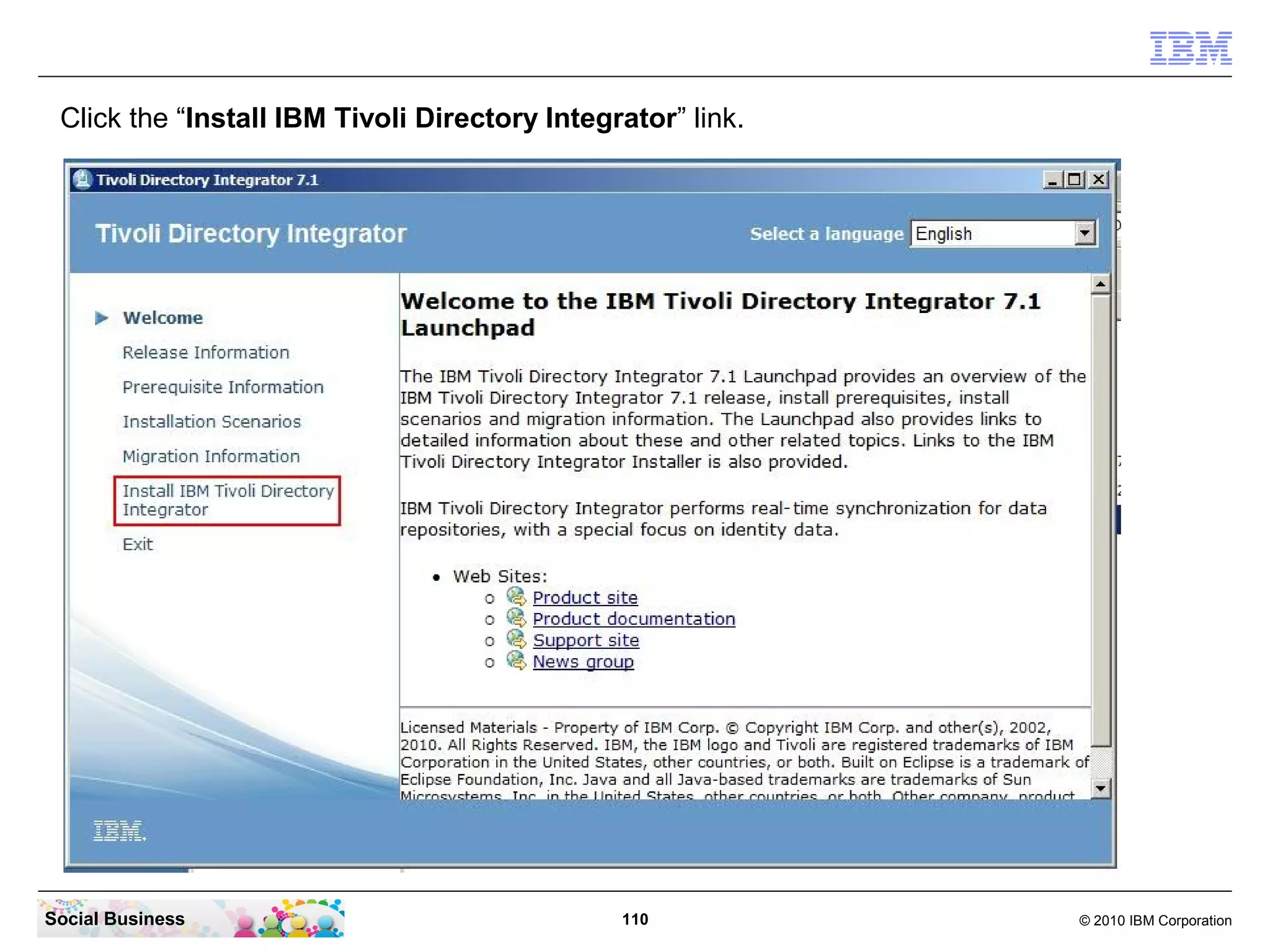
Click the “Install IBM Tivoli Directory Integrator” link.


Social Business                                110           © 2010 IBM Corporation
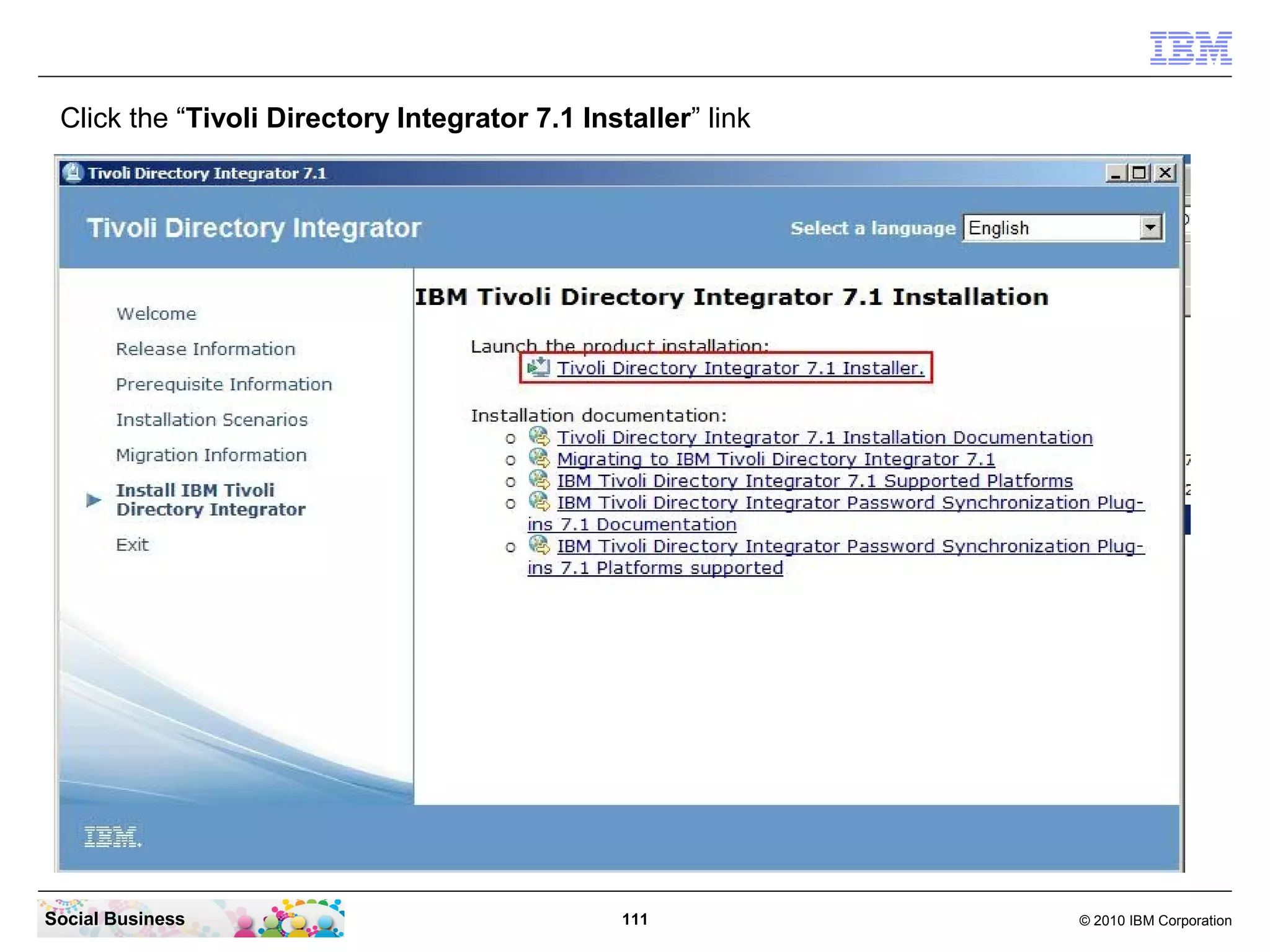
Click the “Tivoli Directory Integrator 7.1 Installer” link


Social Business                                 111           © 2010 IBM Corporation
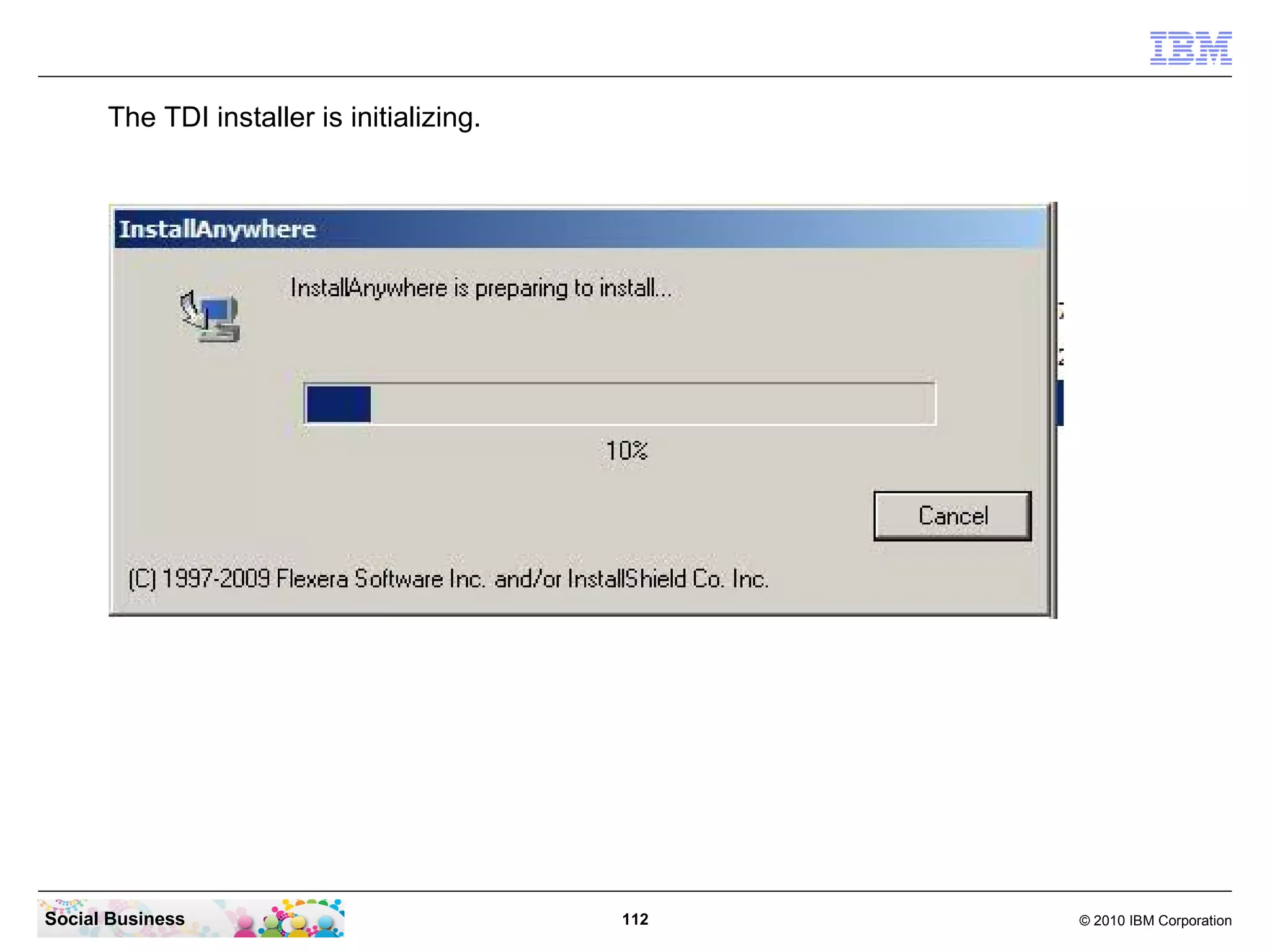
The TDI installer is initializing.


Social Business                            112   © 2010 IBM Corporation
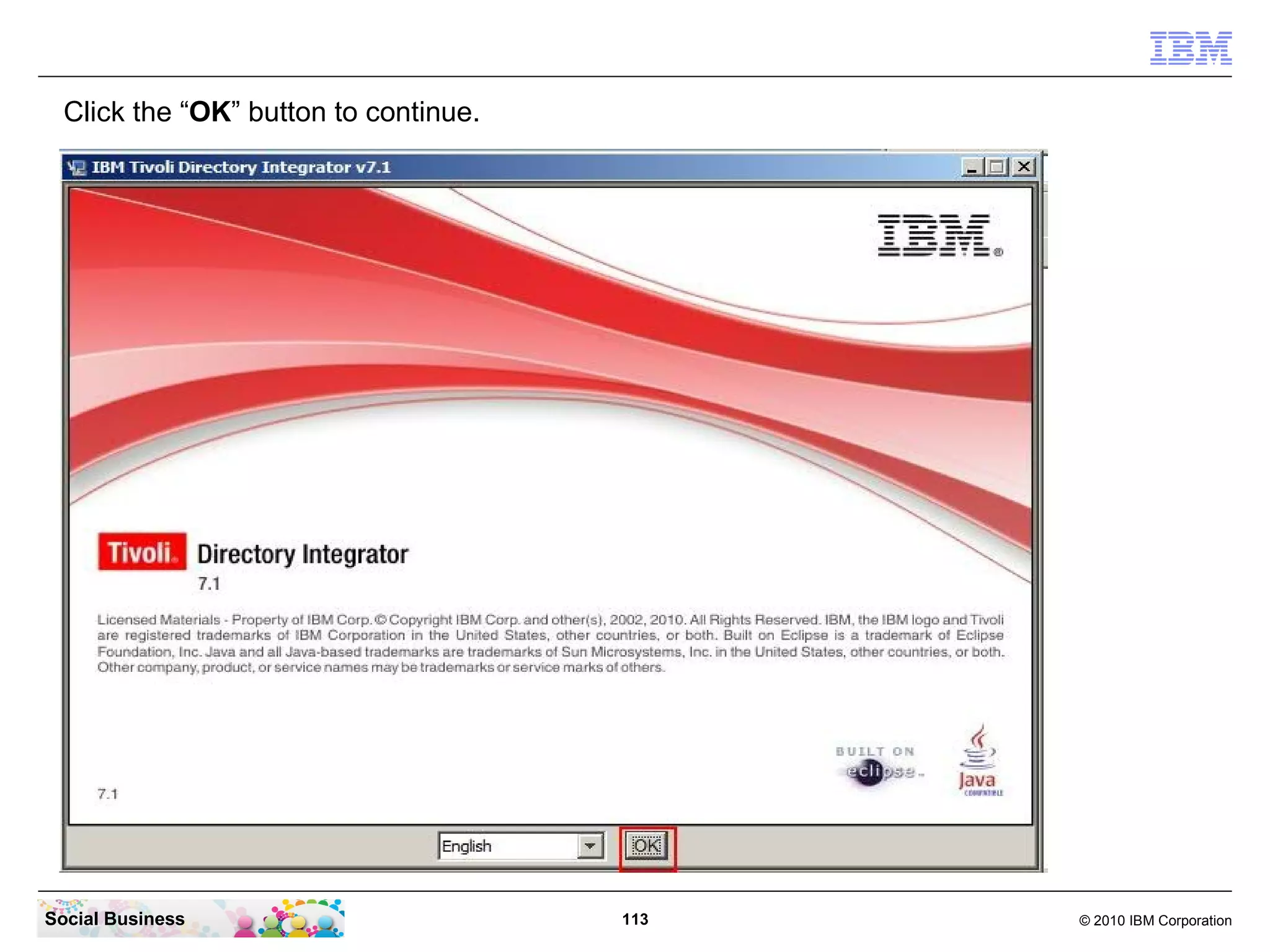
Click the “OK” button to continue.


Social Business                        113   © 2010 IBM Corporation
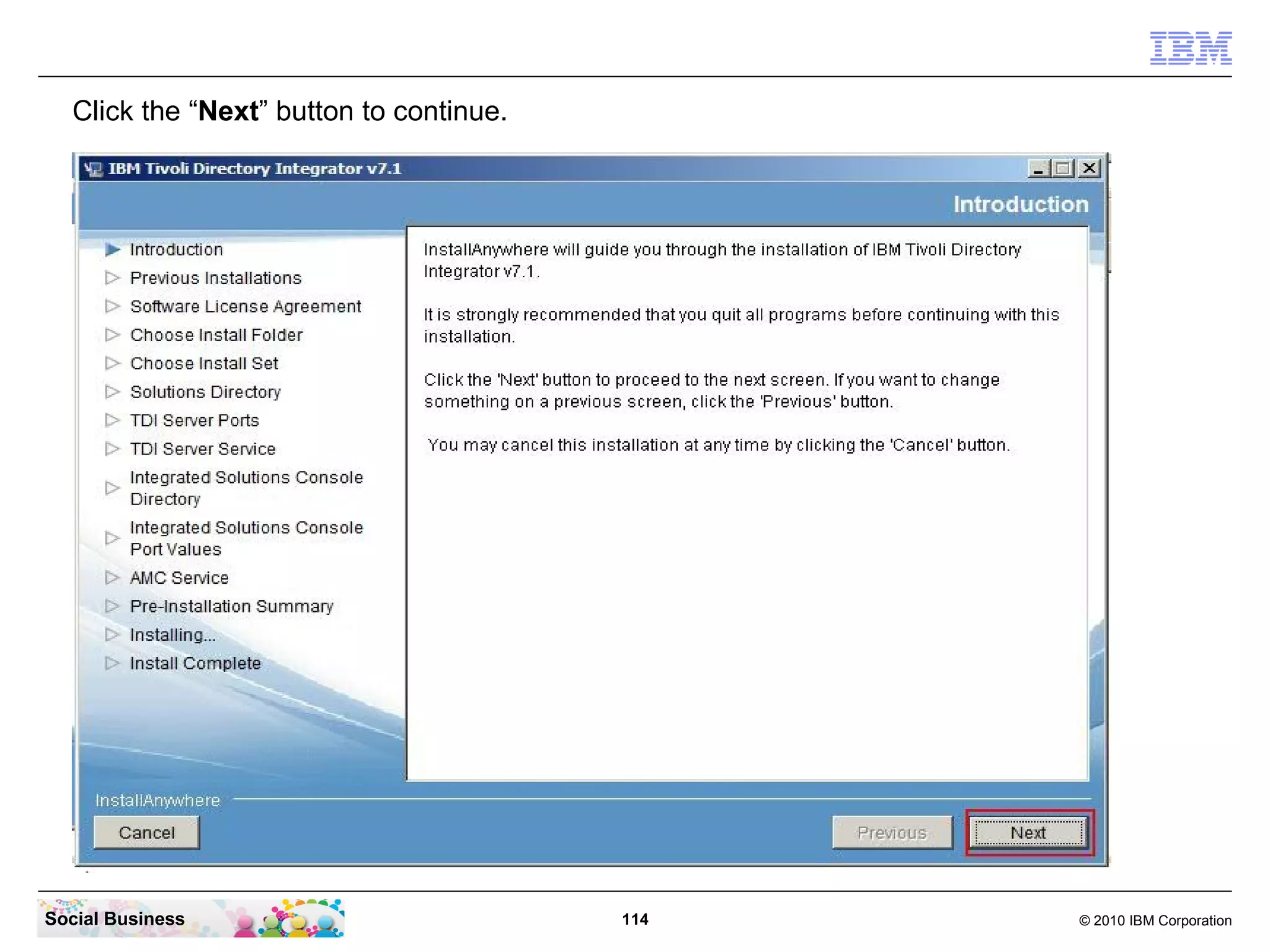
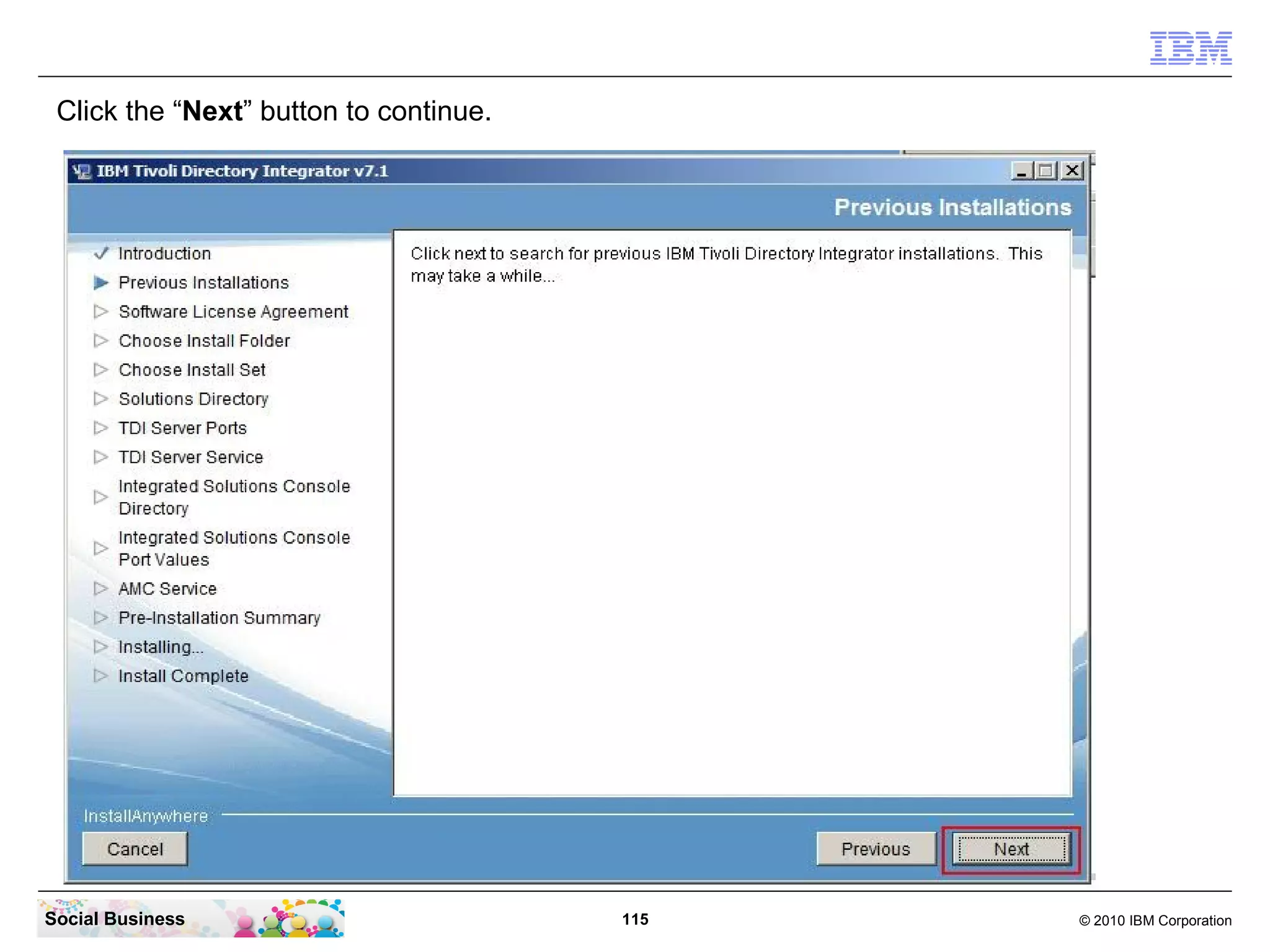
Click the “Next” button to continue.


Social Business                          114   © 2010 IBM Corporation
Click the “Next” button to continue.


Social Business                         115   © 2010 IBM Corporation
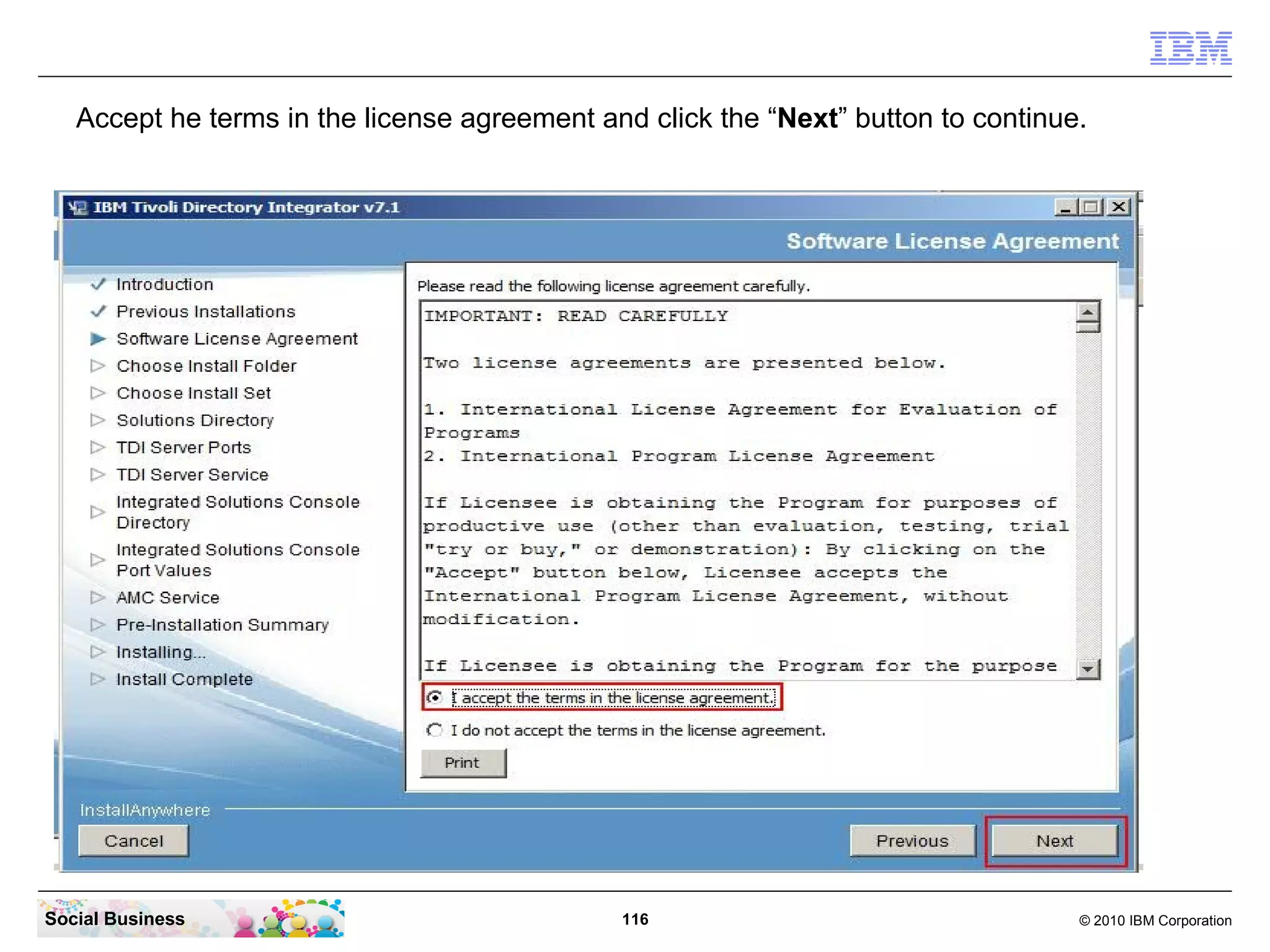
Accept he terms in the license agreement and click the “Next” button to continue.


Social Business                               116                                  © 2010 IBM Corporation
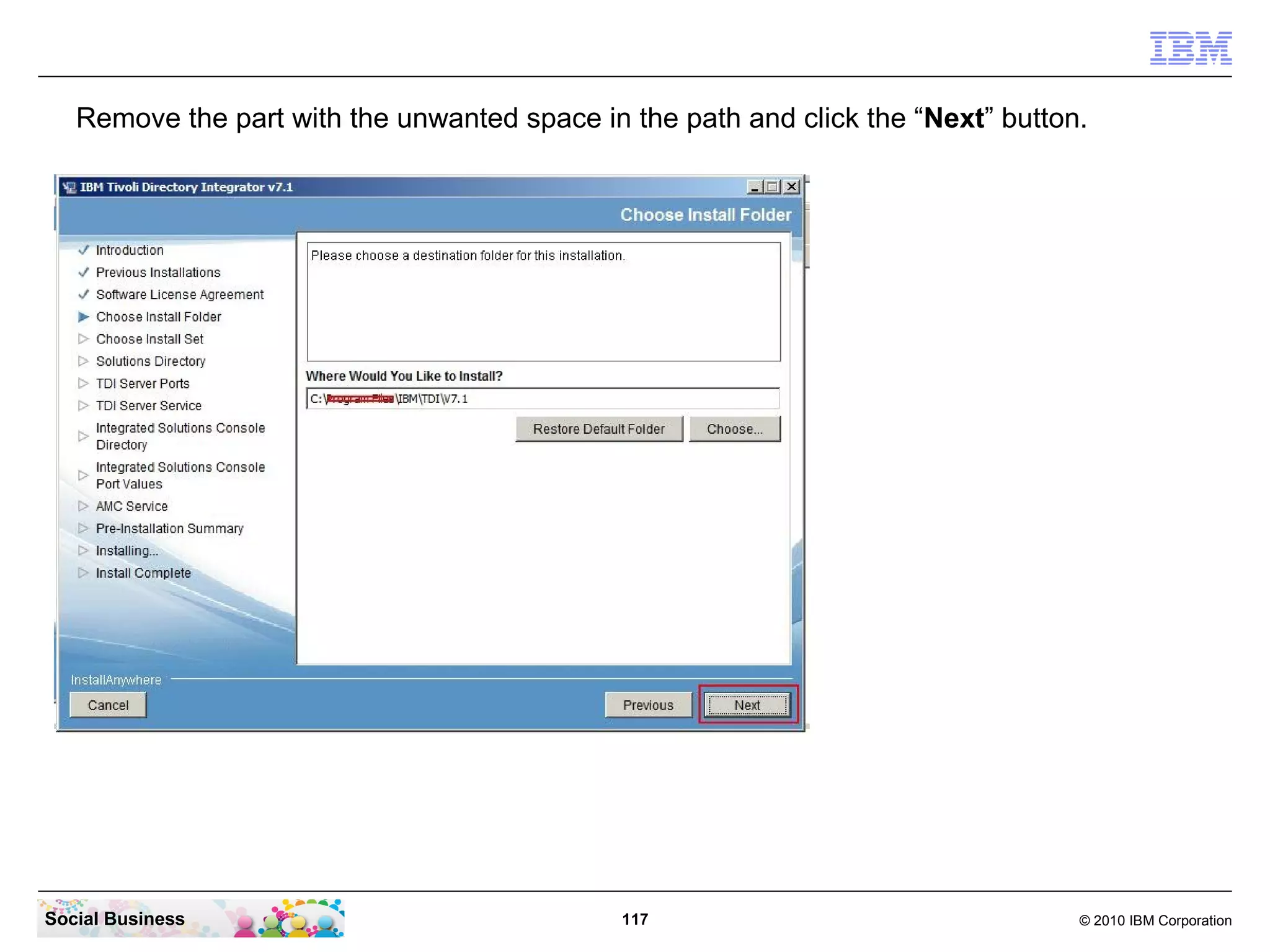
Remove the part with the unwanted space in the path and click the “Next” button.


Social Business                               117                                 © 2010 IBM Corporation
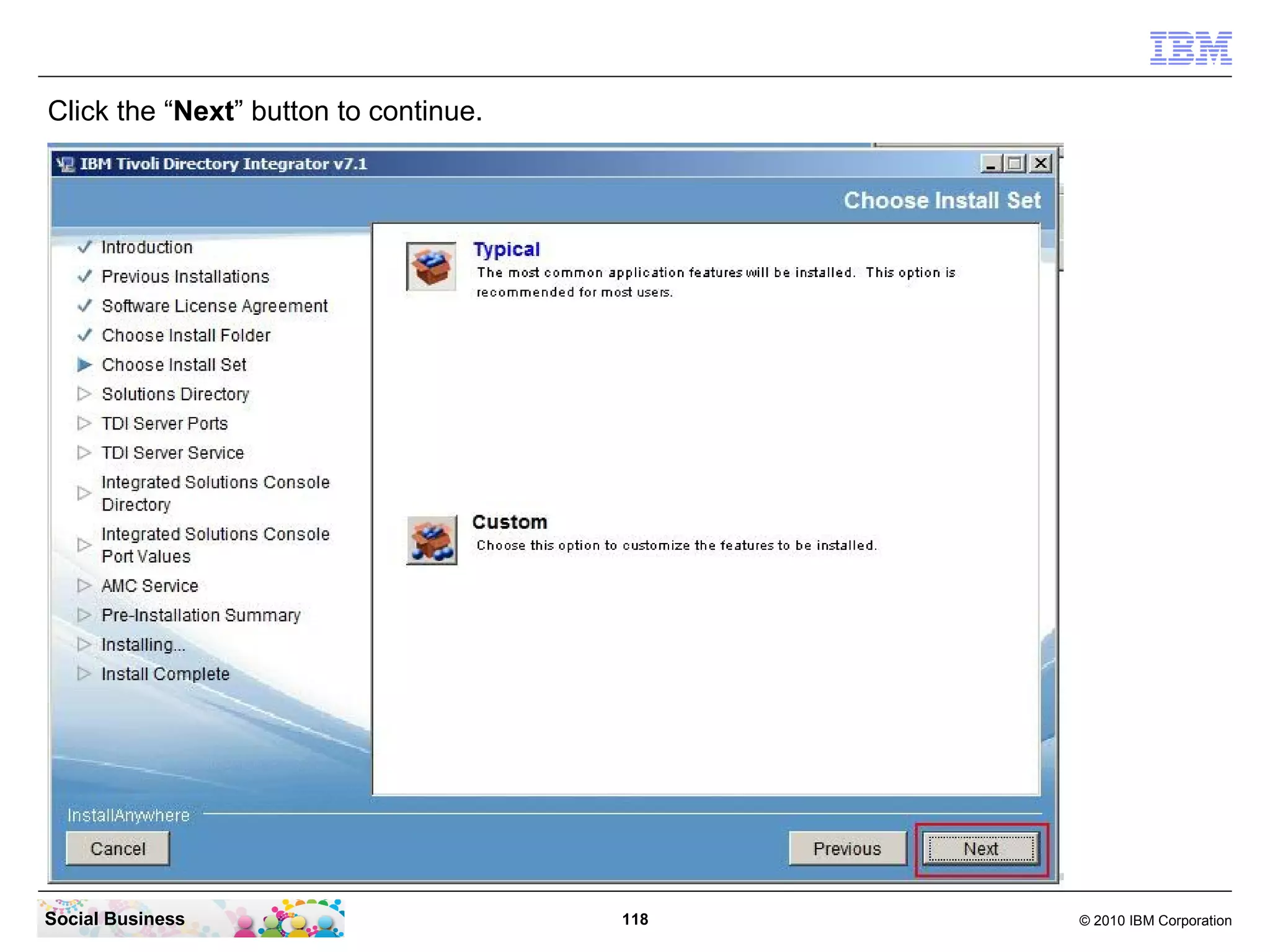
Click the “Next” button to continue.


Social Business                        118   © 2010 IBM Corporation
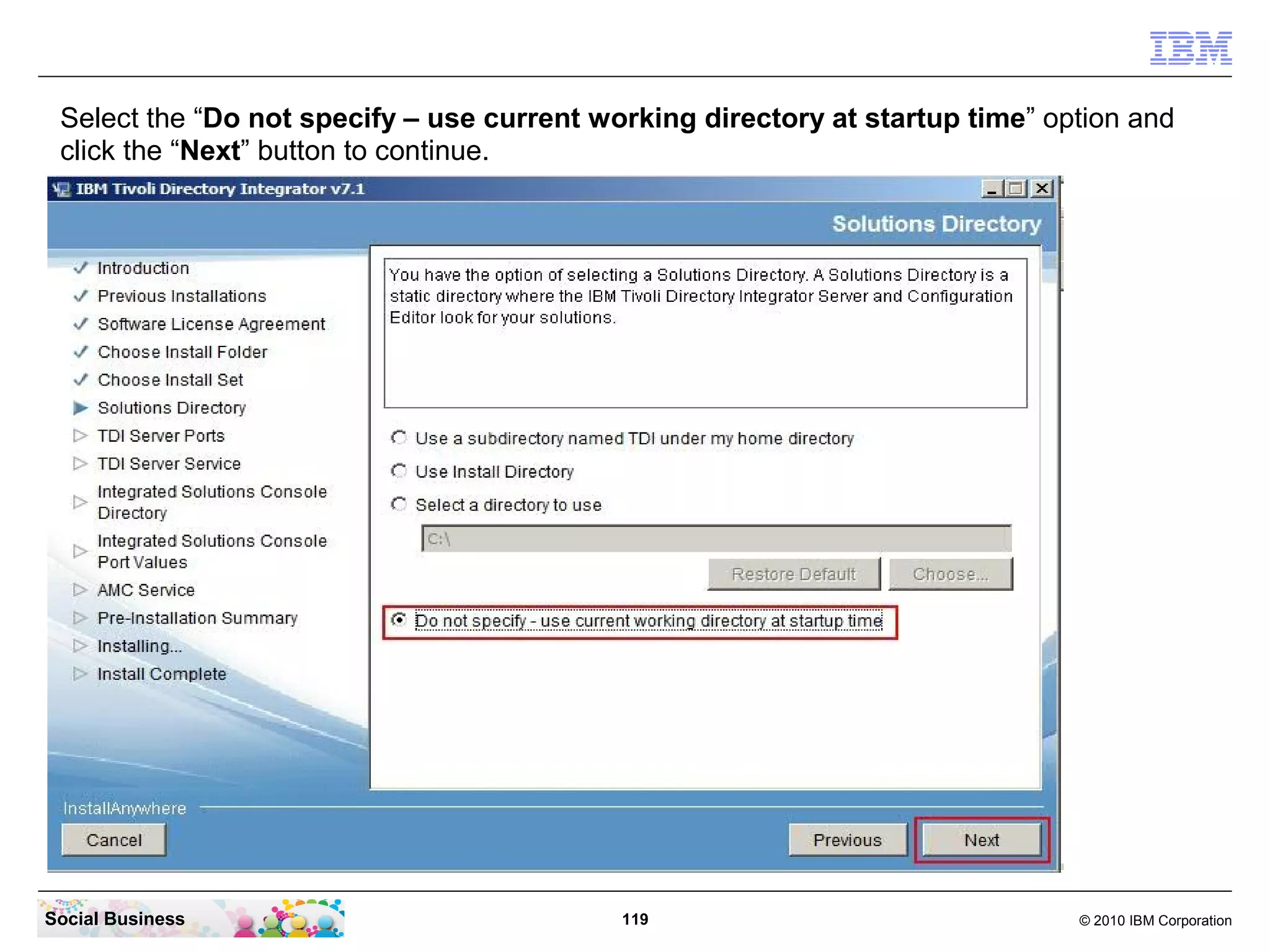
Select the “Do not specify – use current working directory at startup time” option and
 click the “Next” button to continue.


Social Business                             119                                © 2010 IBM Corporation
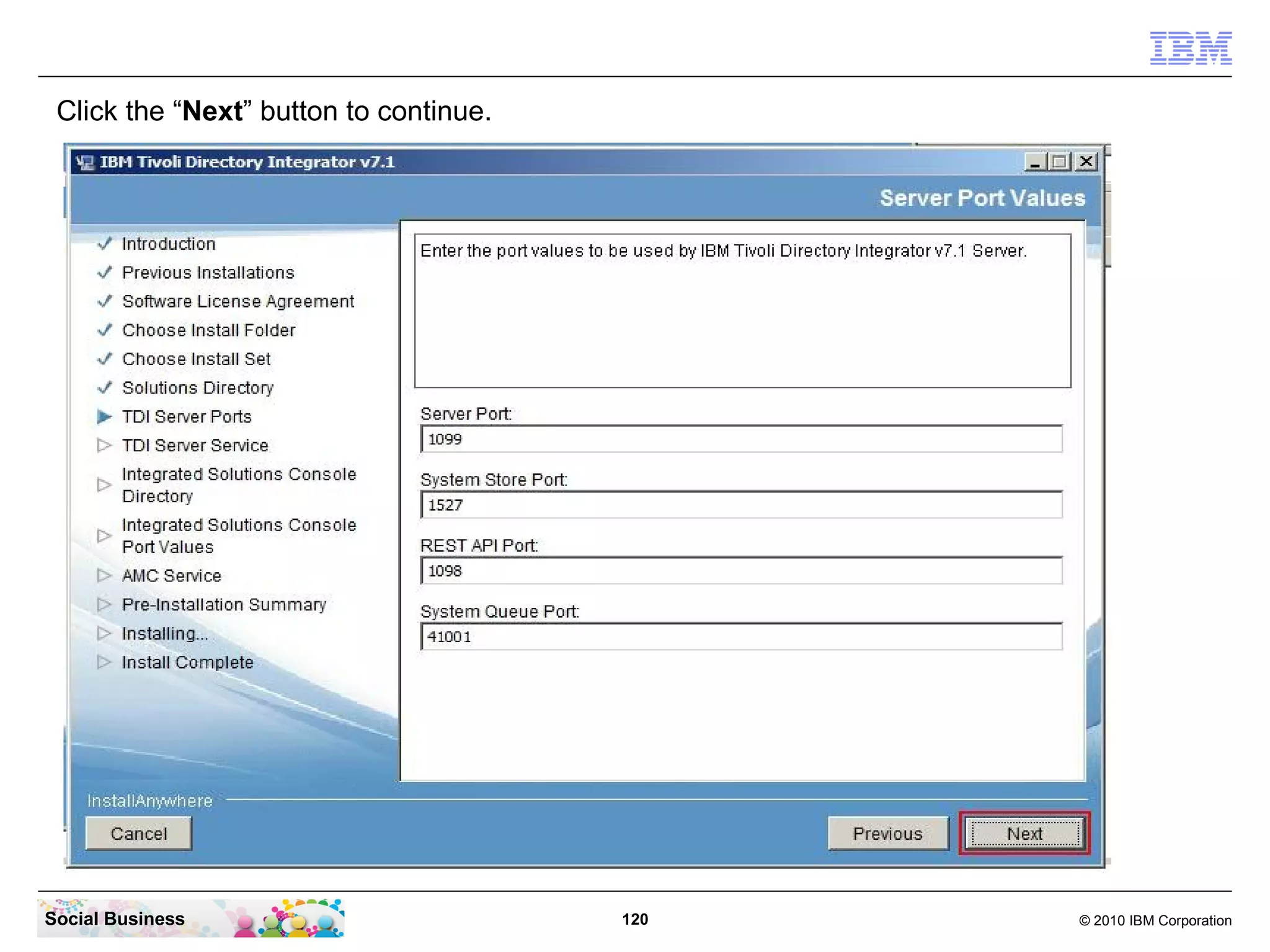
Click the “Next” button to continue.


Social Business                         120   © 2010 IBM Corporation
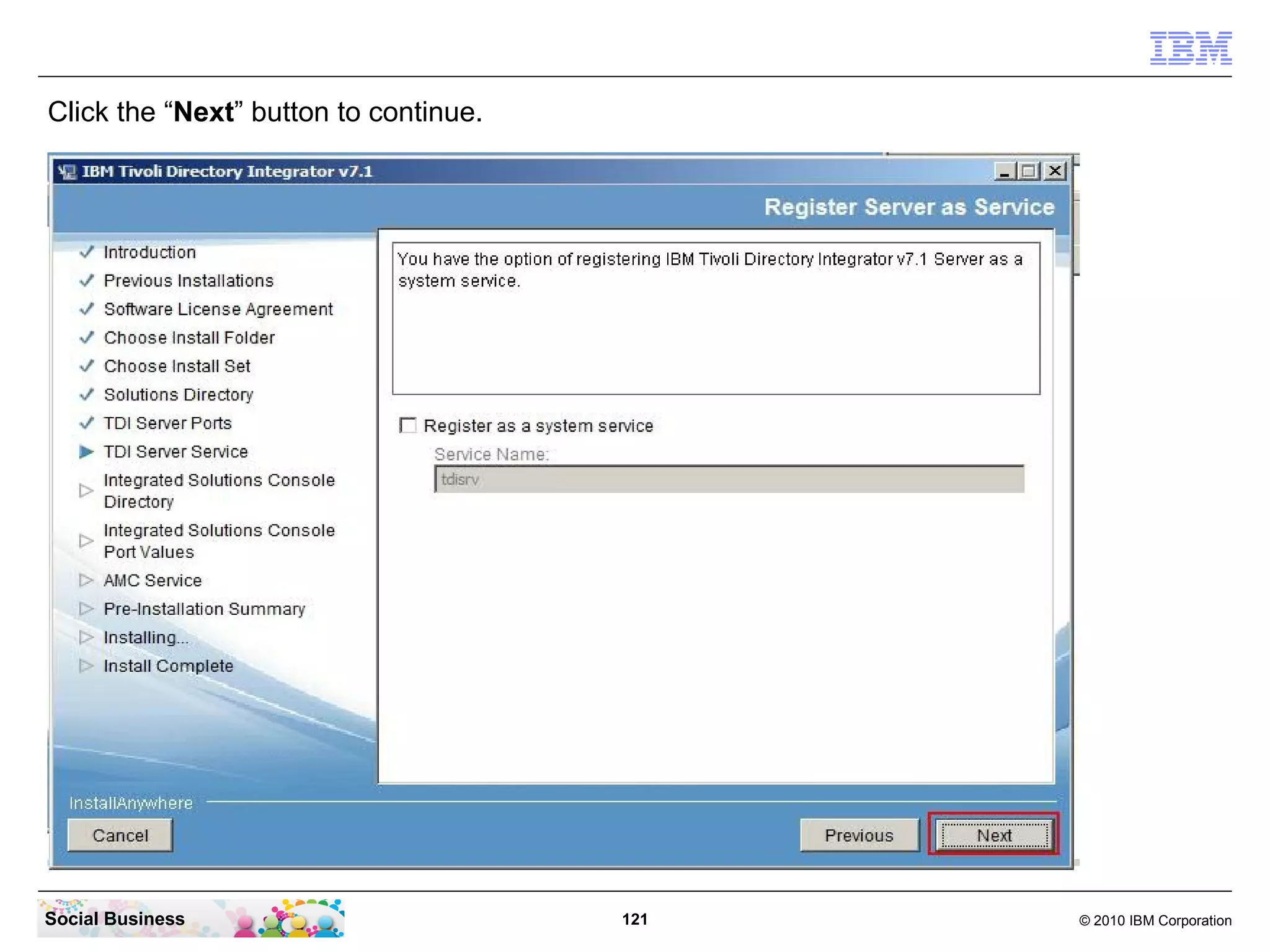
Click the “Next” button to continue.


Social Business                        121   © 2010 IBM Corporation
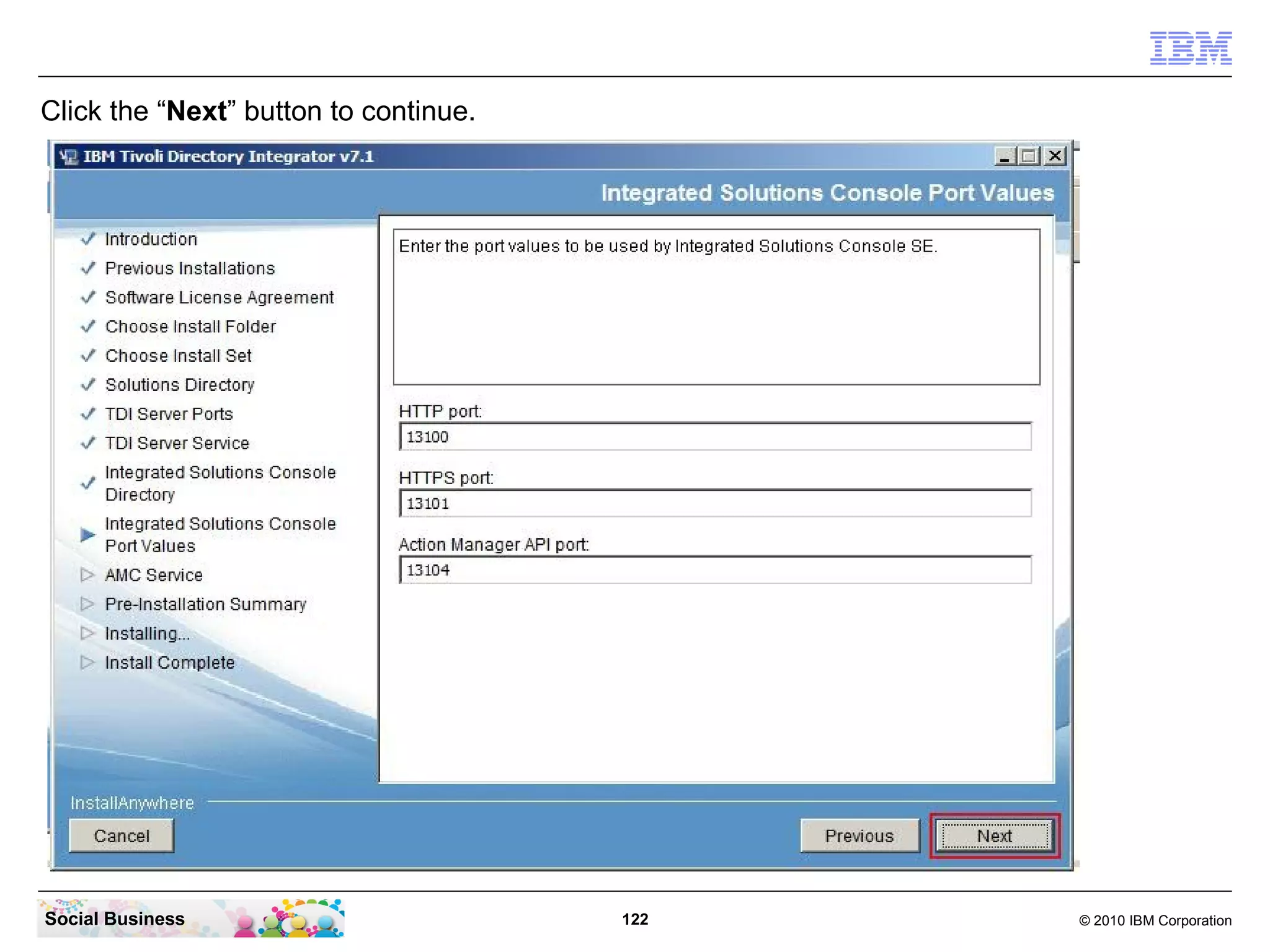
Click the “Next” button to continue.


Social Business                        122   © 2010 IBM Corporation
Click the “Next” button to continue.


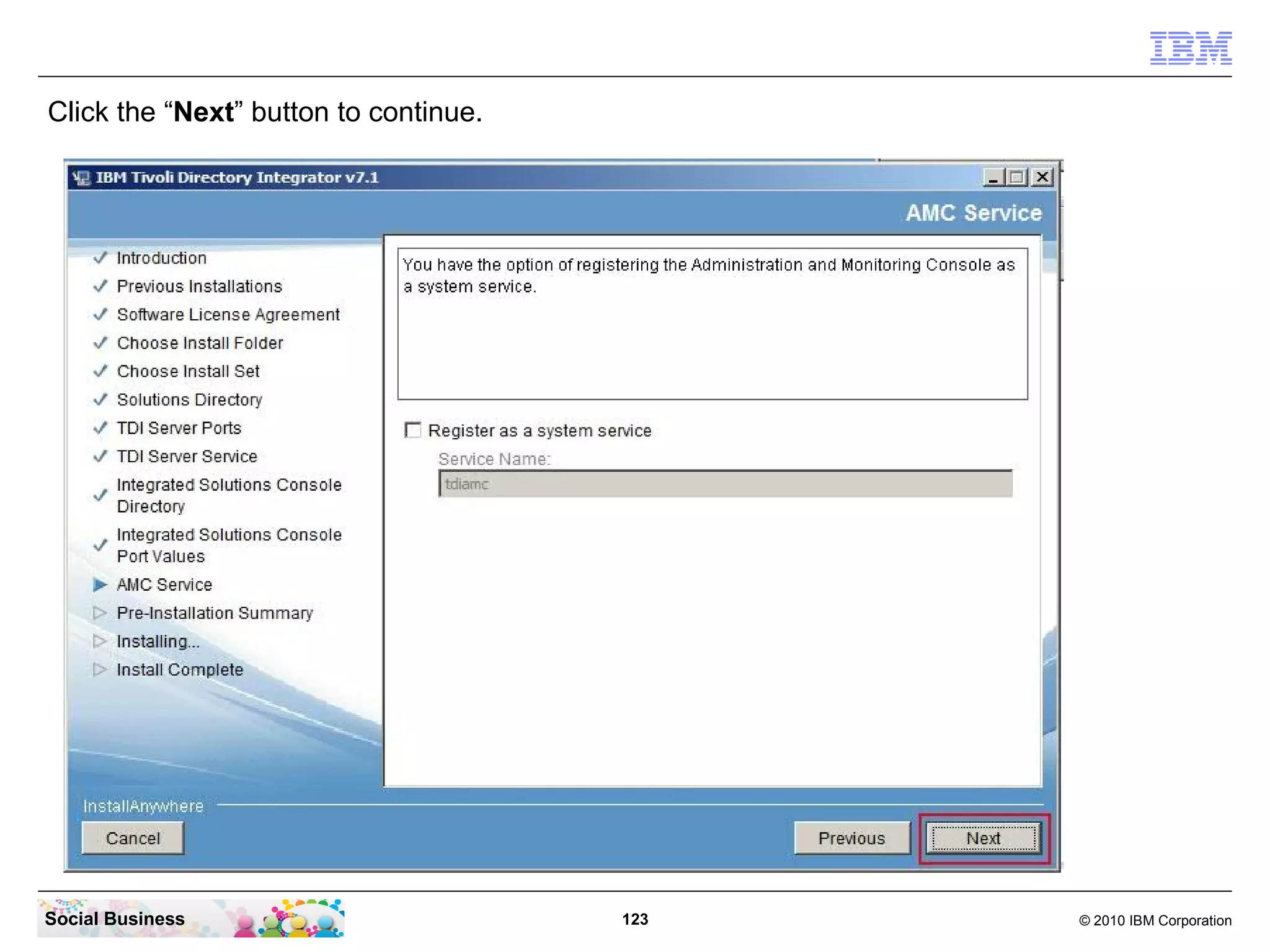
Social Business                        123   © 2010 IBM Corporation
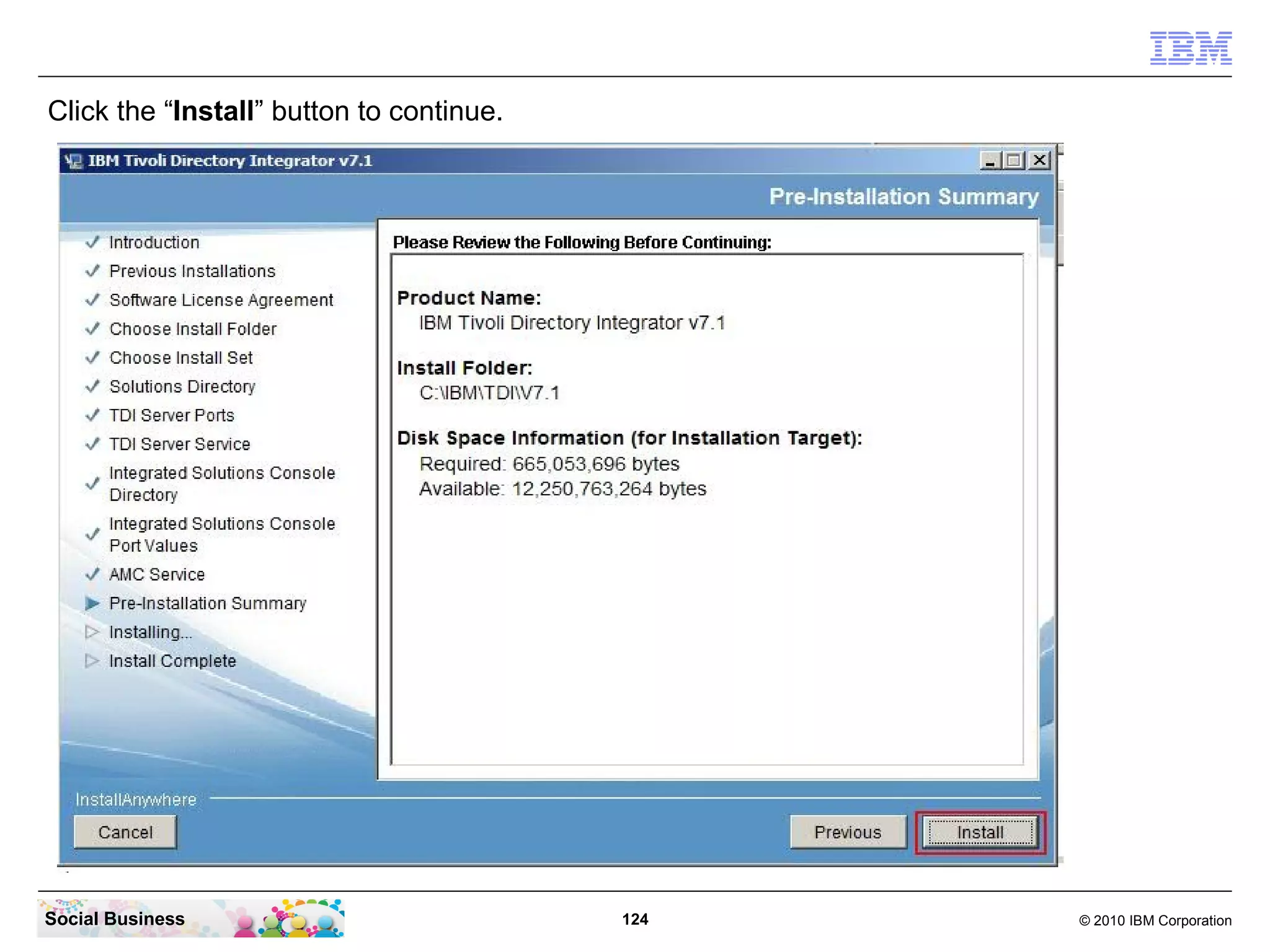
Click the “Install” button to continue.


Social Business                           124   © 2010 IBM Corporation
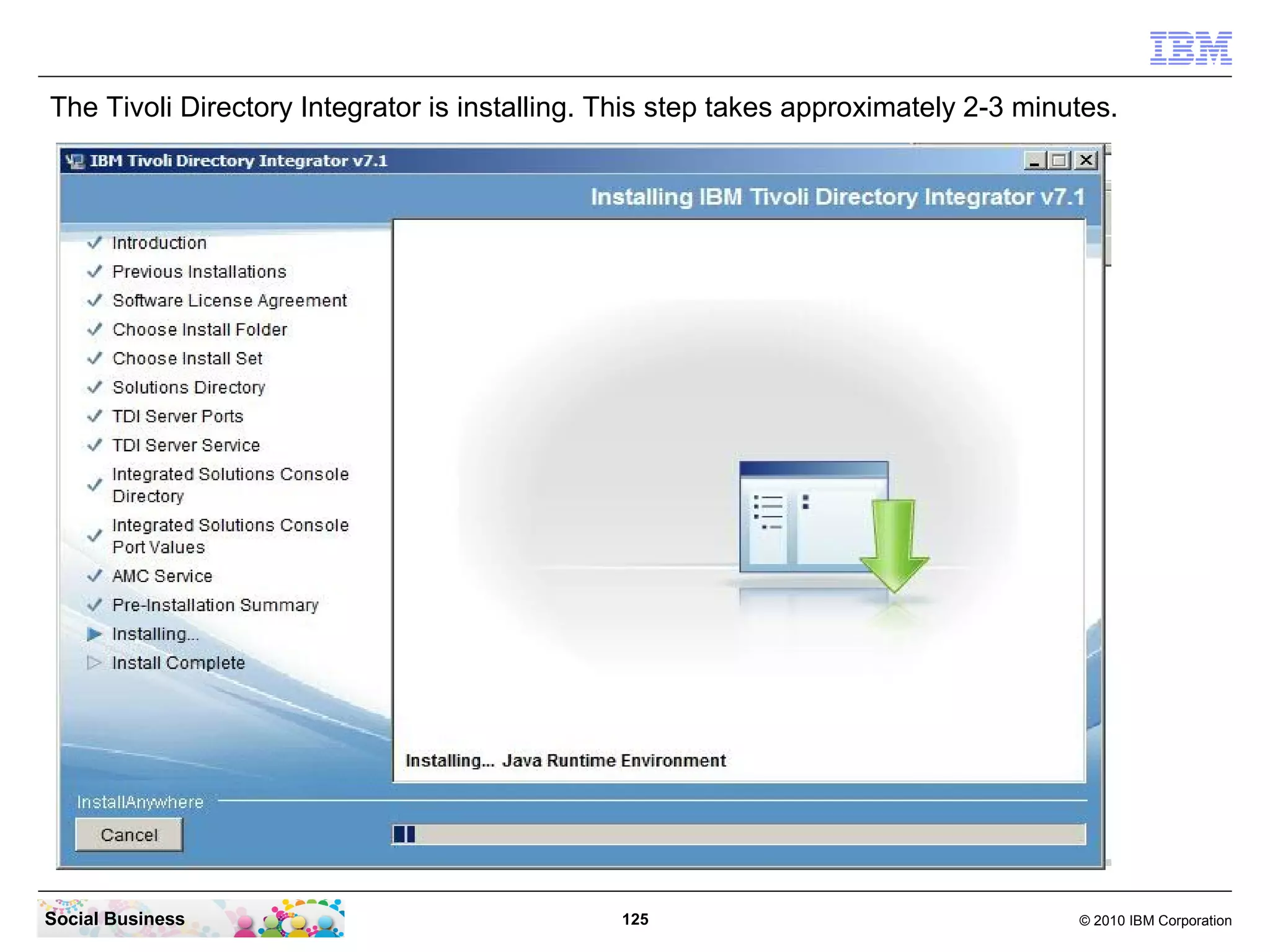
The Tivoli Directory Integrator is installing. This step takes approximately 2-3 minutes.


Social Business                                125                                   © 2010 IBM Corporation
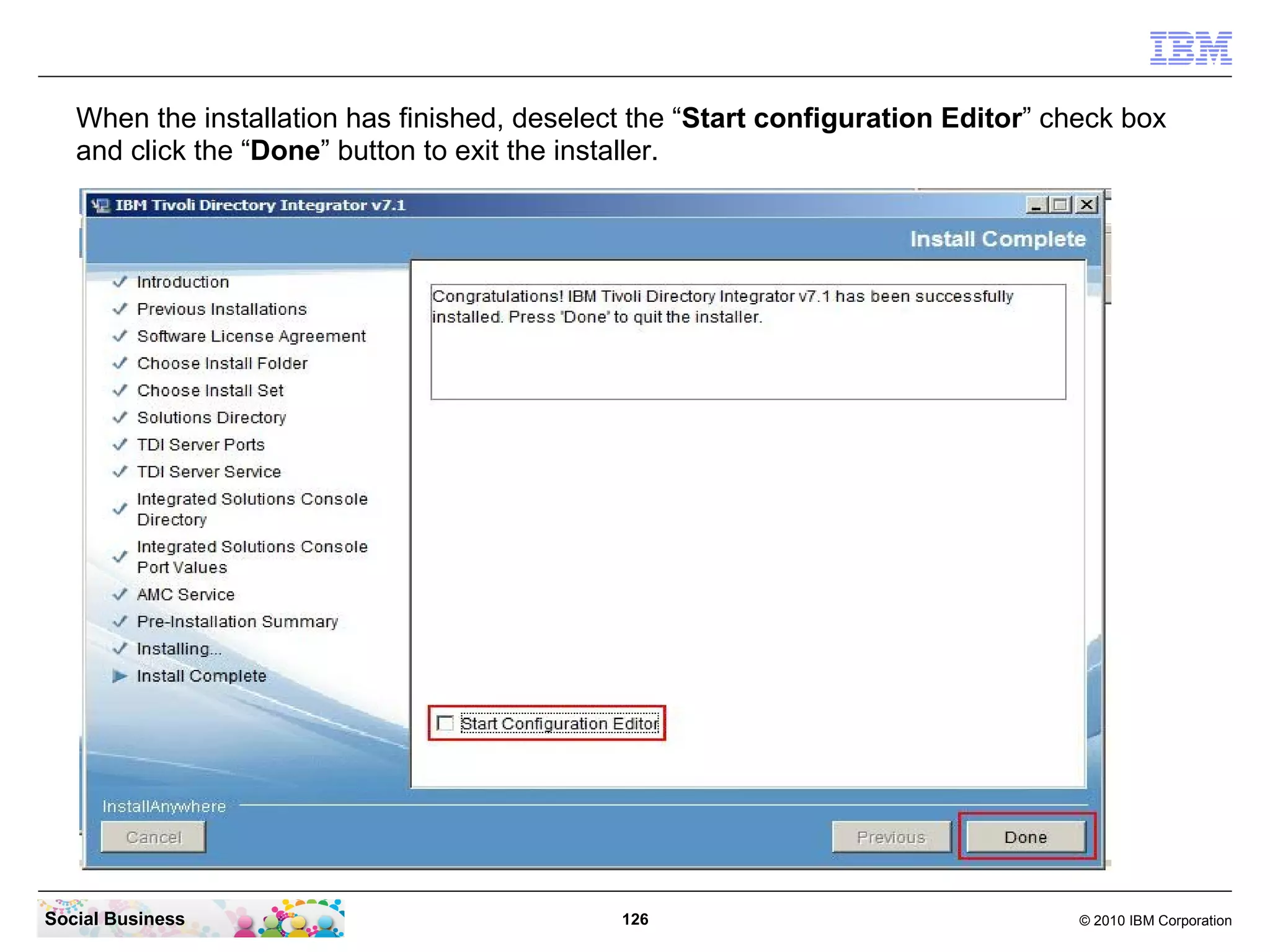
When the installation has finished, deselect the “Start configuration Editor” check box
   and click the “Done” button to exit the installer.


Social Business                               126                                  © 2010 IBM Corporation
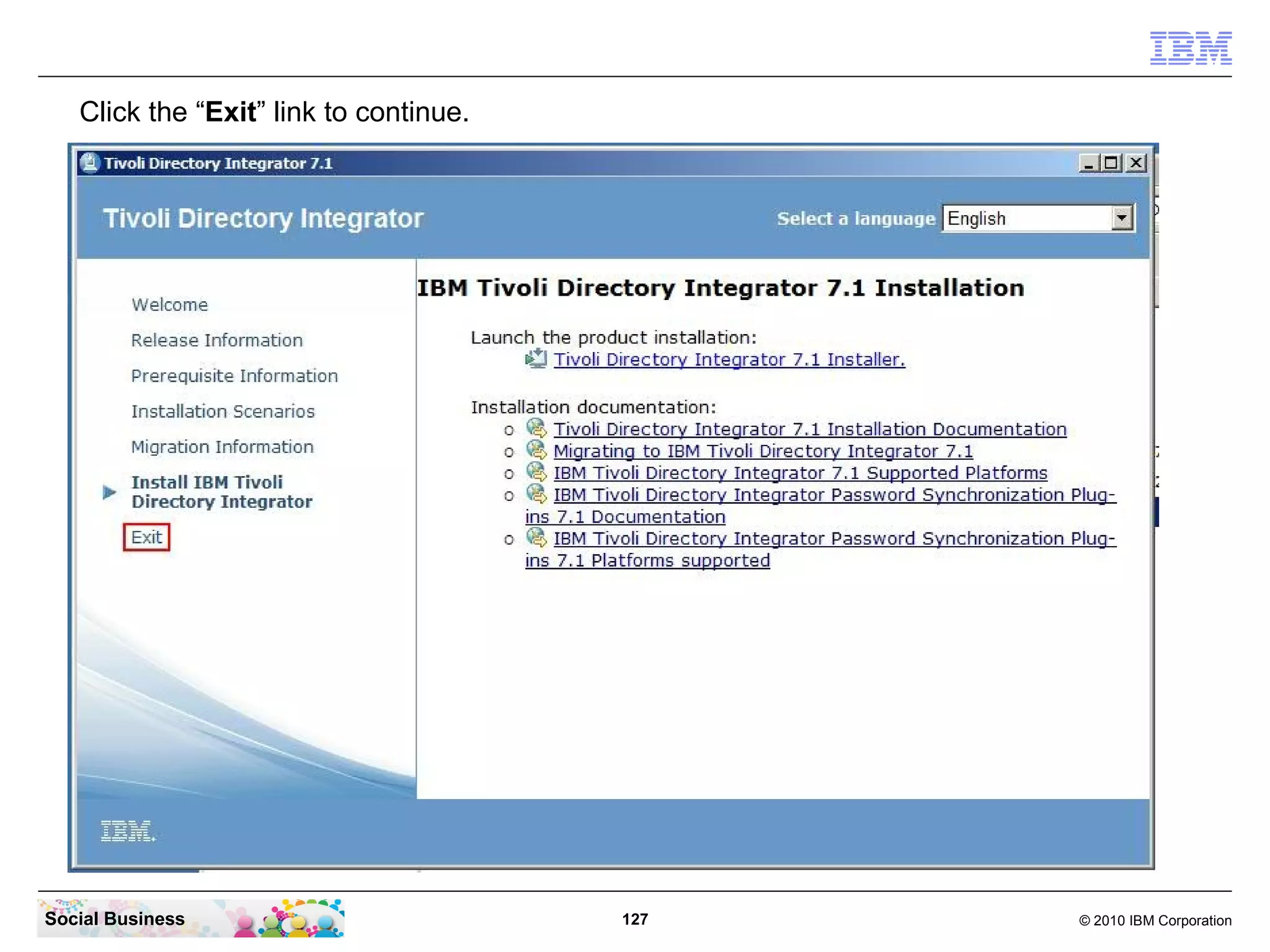
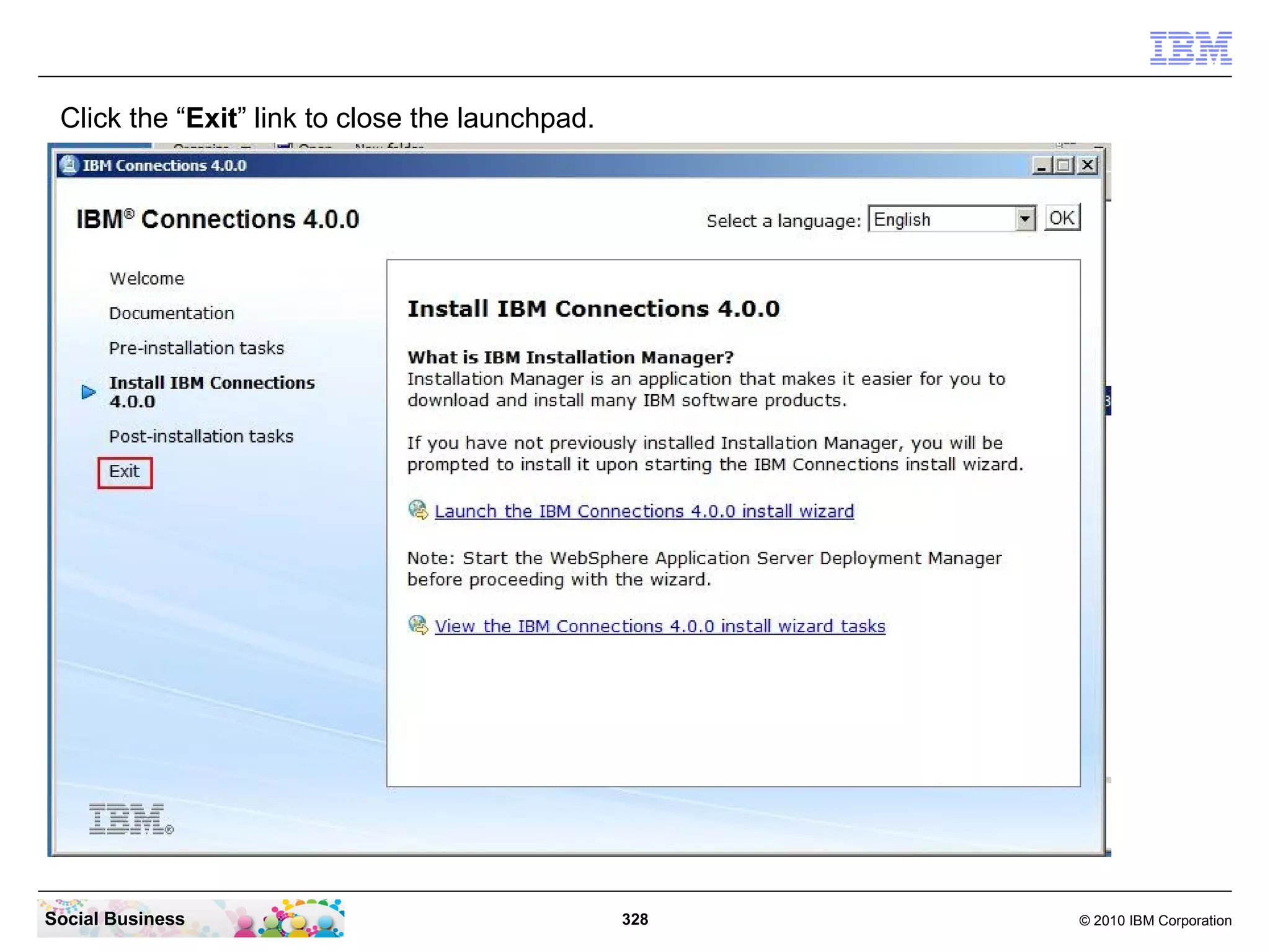
Click the “Exit” link to continue.


Social Business                         127   © 2010 IBM Corporation
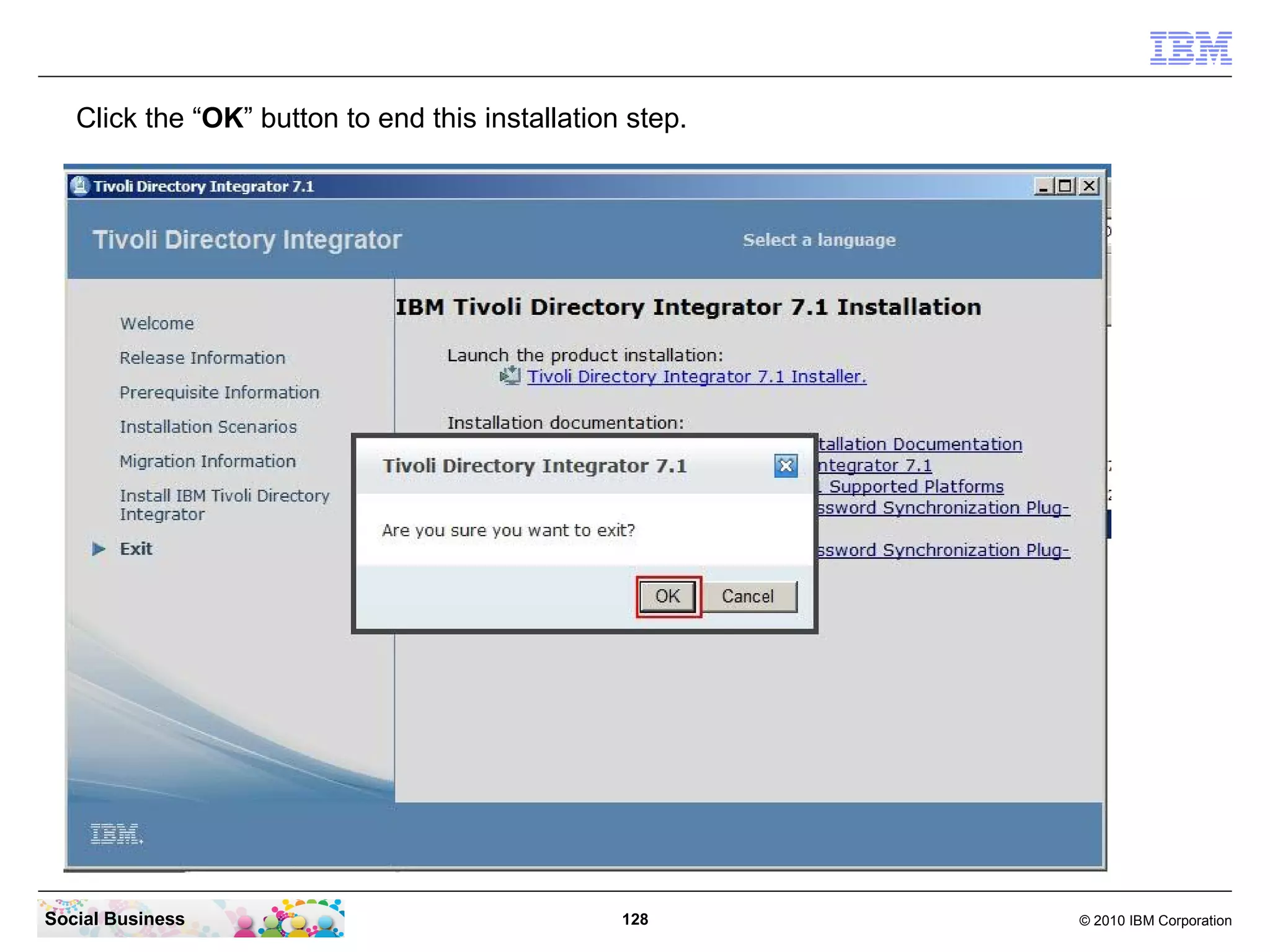
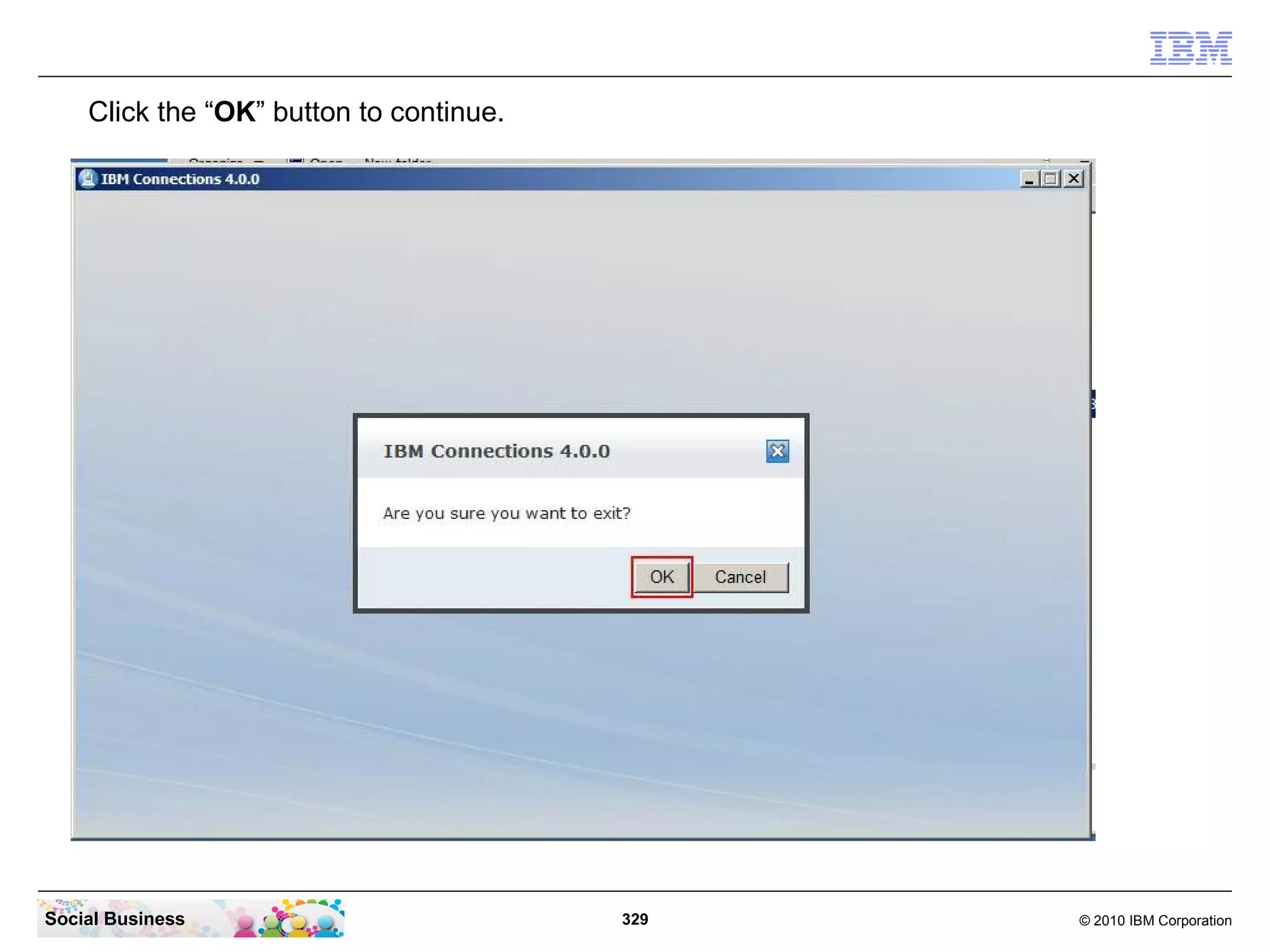
Click the “OK” button to end this installation step.


Social Business                                  128      © 2010 IBM Corporation
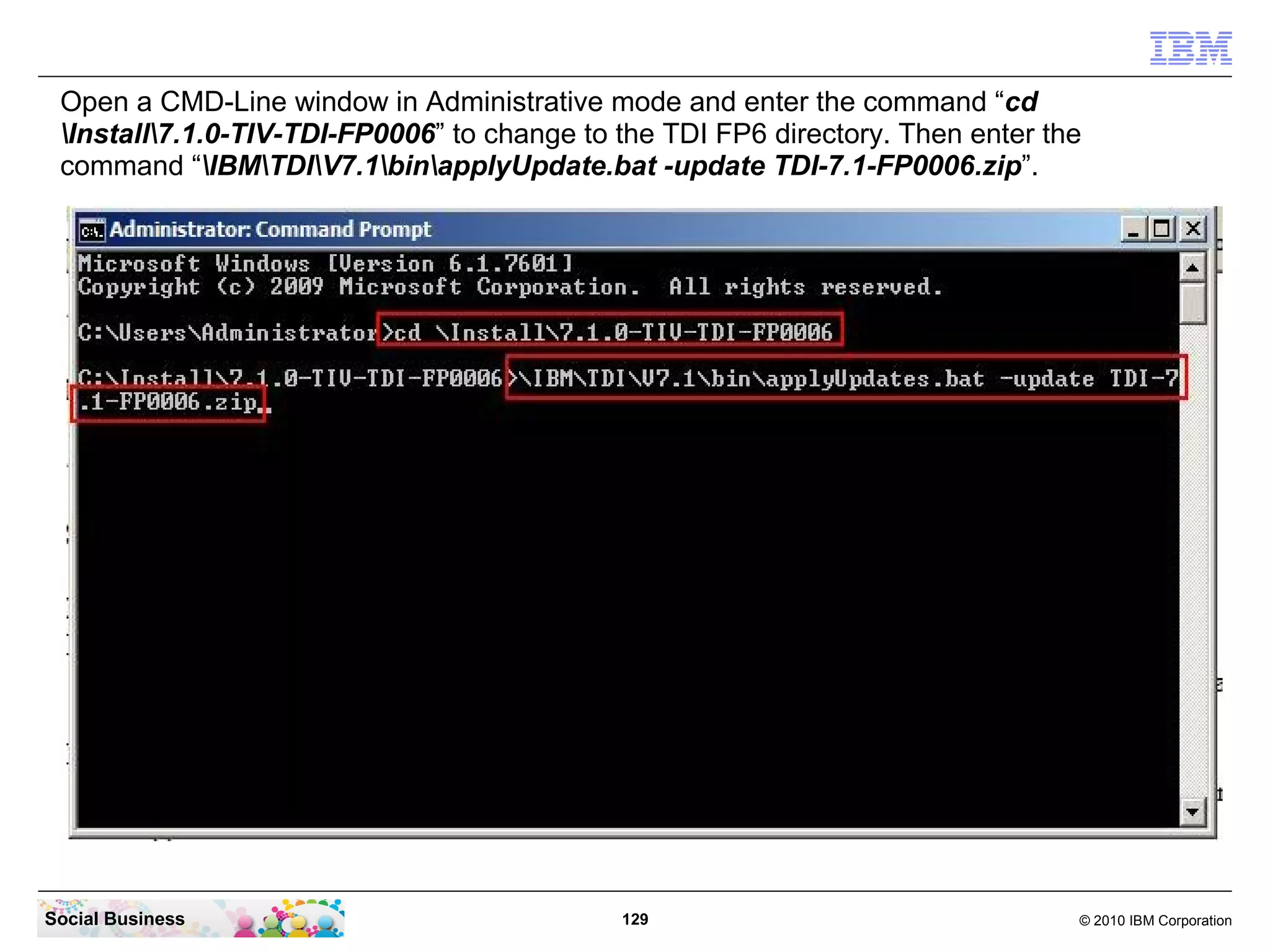
Open a CMD-Line window in Administrative mode and enter the command “cd
 Install7.1.0-TIV-TDI-FP0006” to change to the TDI FP6 directory. Then enter the
 command “IBMTDIV7.1binapplyUpdate.bat -update TDI-7.1-FP0006.zip”.


Social Business                              129                                 © 2010 IBM Corporation
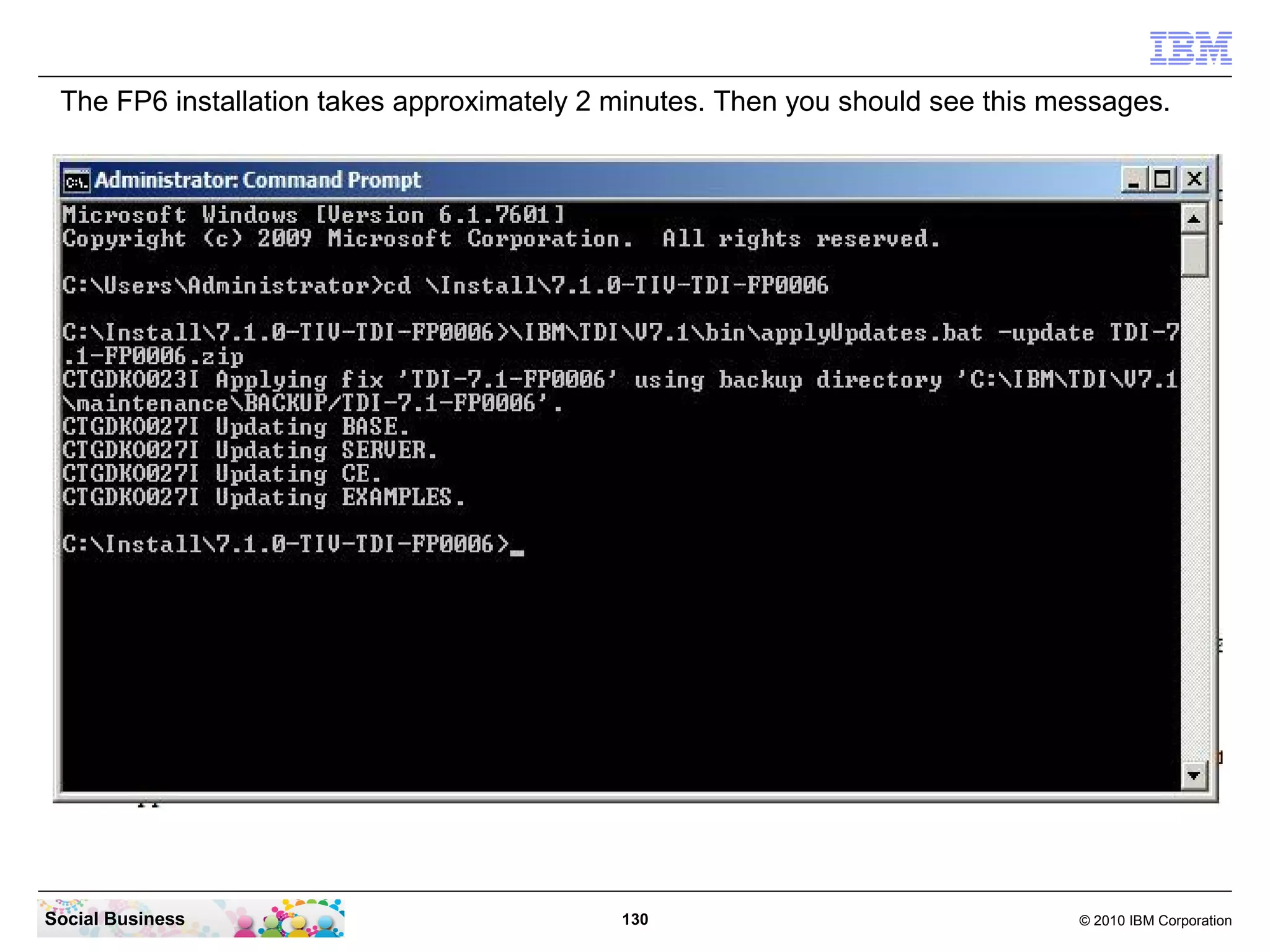
The FP6 installation takes approximately 2 minutes. Then you should see this messages.


Social Business                             130                                © 2010 IBM Corporation
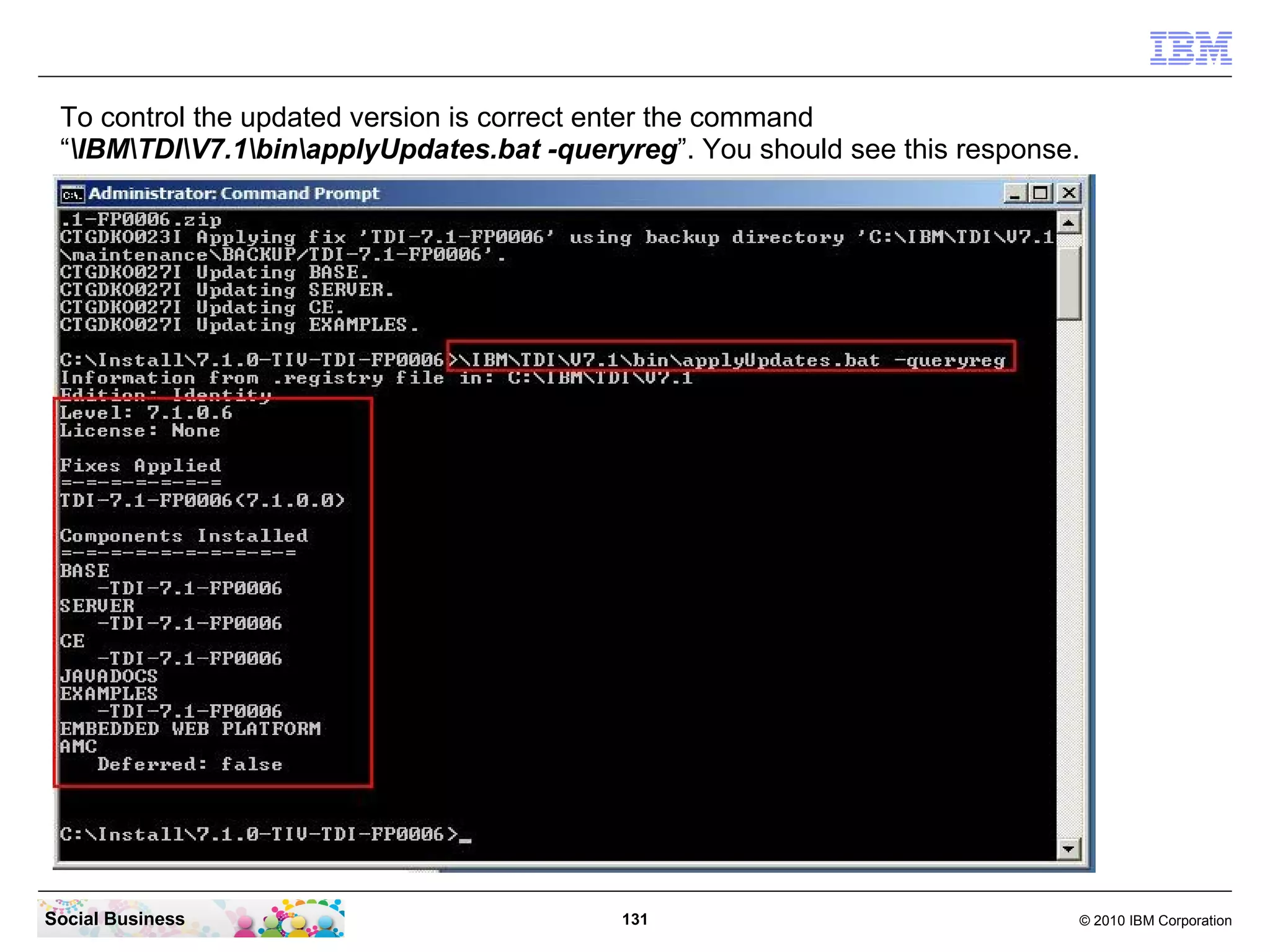
To control the updated version is correct enter the command
 “IBMTDIV7.1binapplyUpdates.bat -queryreg”. You should see this response.


Social Business                            131                               © 2010 IBM Corporation
STEP SIX: Run the Population Wizard


   Before you begin
   ● Spend time planning your Profiles population, integration, and customization.
   ● Involve all the relevant stakeholders at an early stage of the planning process.

   ● If possible, phase the Profiles rollout and get feedback from pilot users.

   ● Prepopulate Profiles photos.

   ● Plan for business card use and for Sametime® presence awareness.

   ● Ensure that Tivoli® Directory Integrator is correctly configured.

   ● Consider using Tivoli Directory Integrator to populate the LDAP and then to populate the

   Profiles database.


   In this example we make it simple by just running the population wizard and copy the data
   from the LDAP to the PEOPLE DB2 database.


Social Business                               132                                  © 2010 IBM Corporation
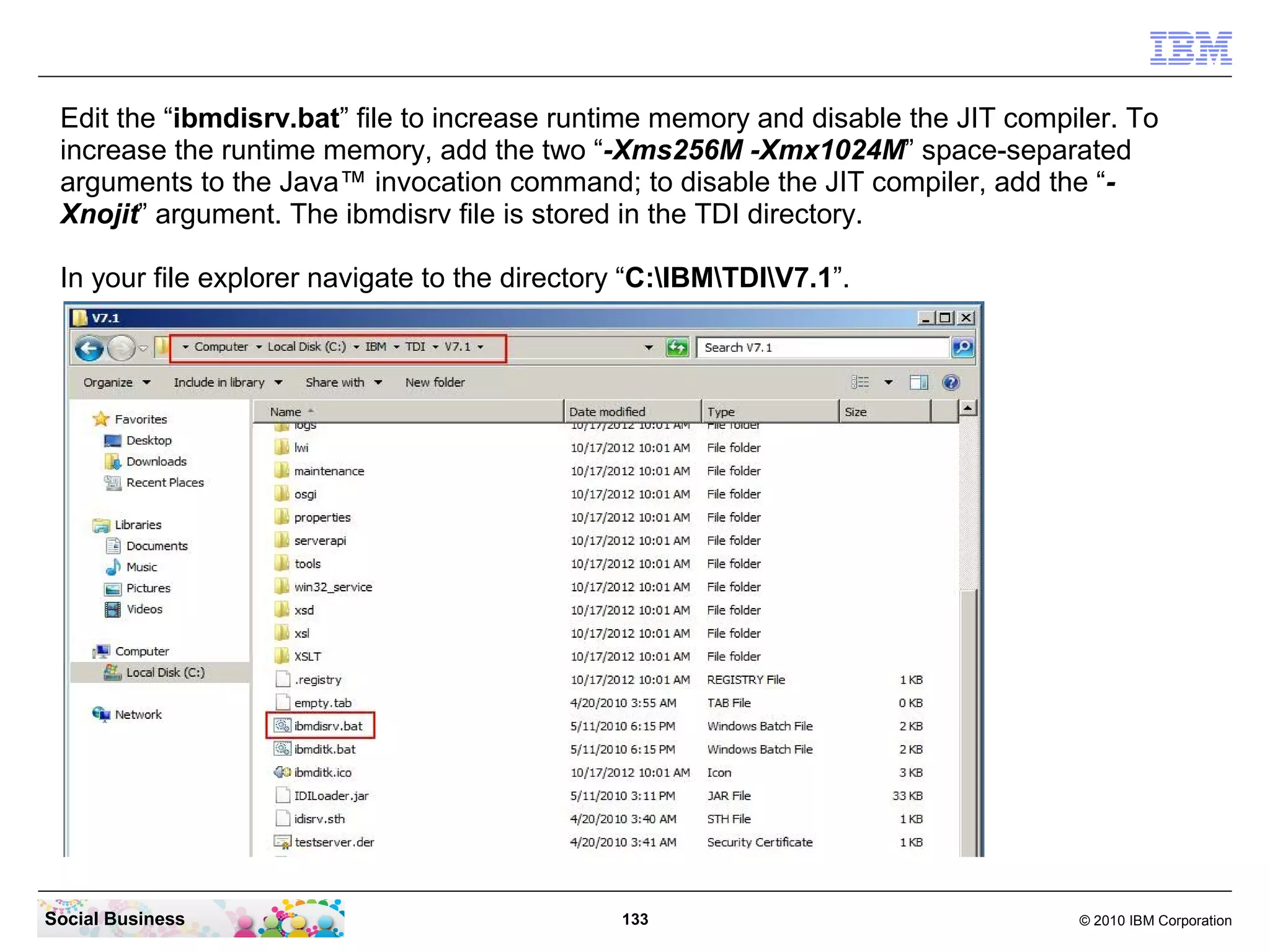
Edit the “ibmdisrv.bat” file to increase runtime memory and disable the JIT compiler. To
 increase the runtime memory, add the two “-Xms256M -Xmx1024M” space-separated
 arguments to the Java™ invocation command; to disable the JIT compiler, add the “-
 Xnojit” argument. The ibmdisrv file is stored in the TDI directory.

 In your file explorer navigate to the directory “C:IBMTDIV7.1”.


Social Business                                133                                © 2010 IBM Corporation
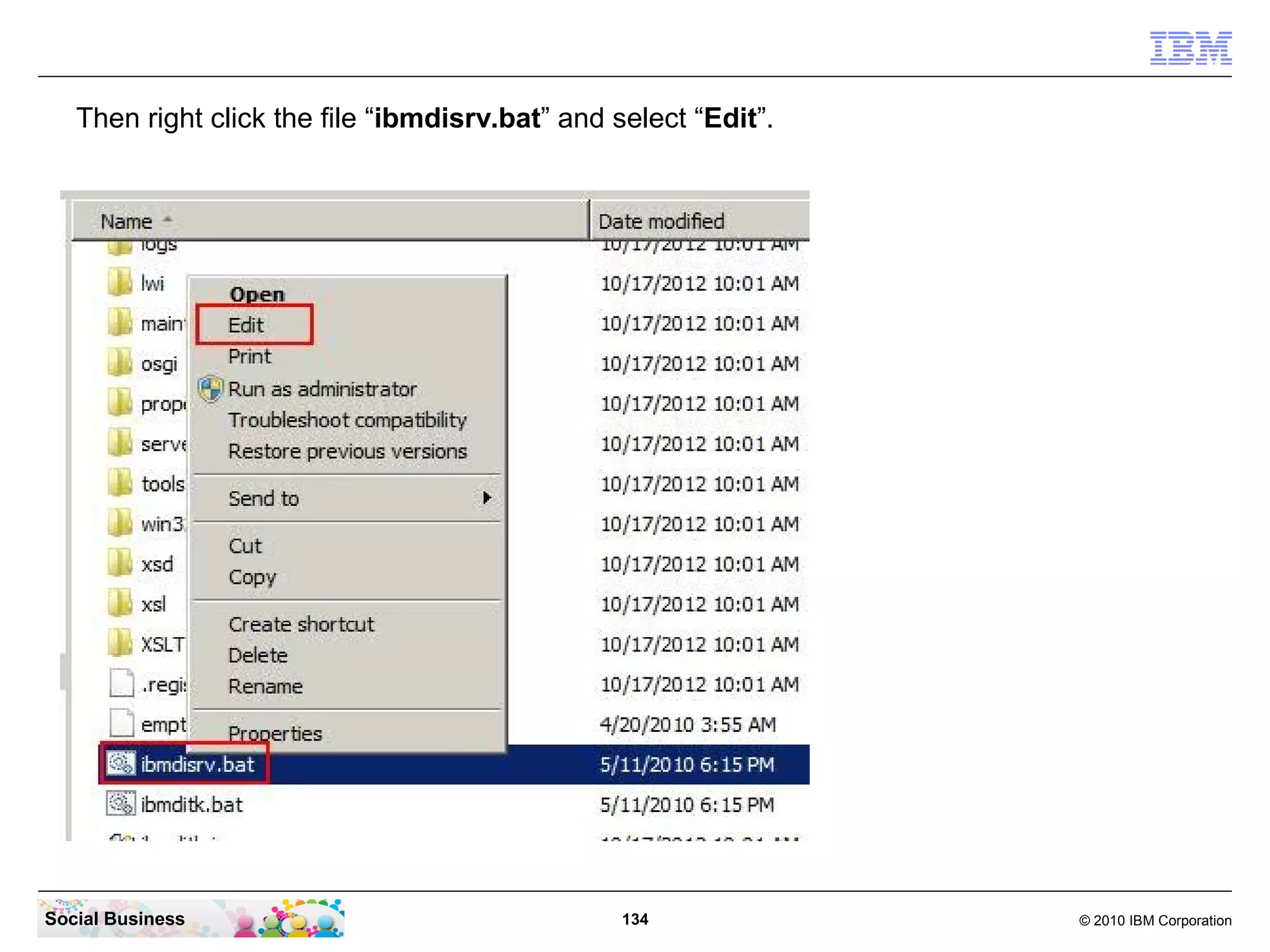
Then right click the file “ibmdisrv.bat” and select “Edit”.


Social Business                                  134             © 2010 IBM Corporation
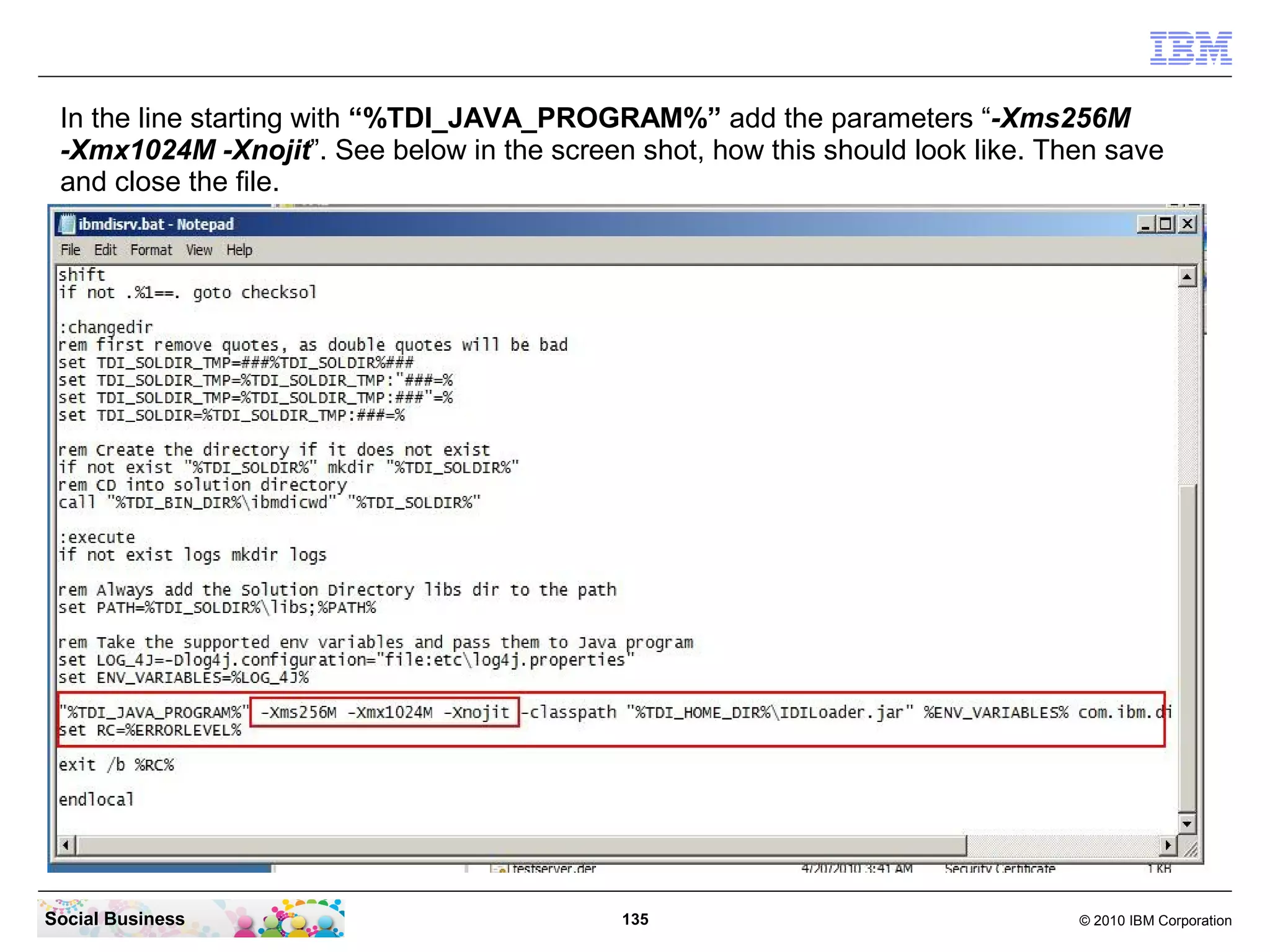
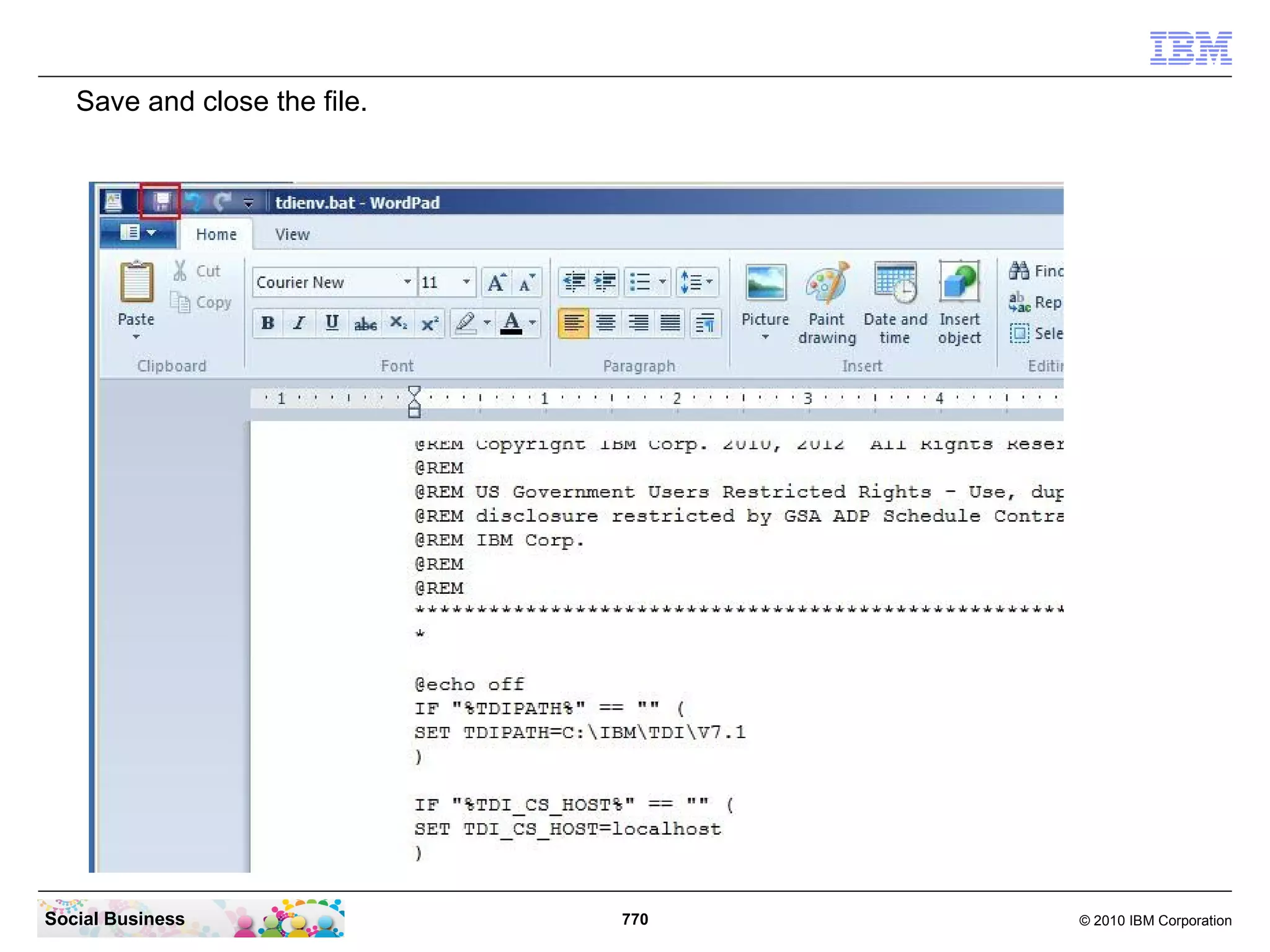
In the line starting with “%TDI_JAVA_PROGRAM%” add the parameters “-Xms256M
 -Xmx1024M -Xnojit”. See below in the screen shot, how this should look like. Then save
 and close the file.


Social Business                             135                                 © 2010 IBM Corporation
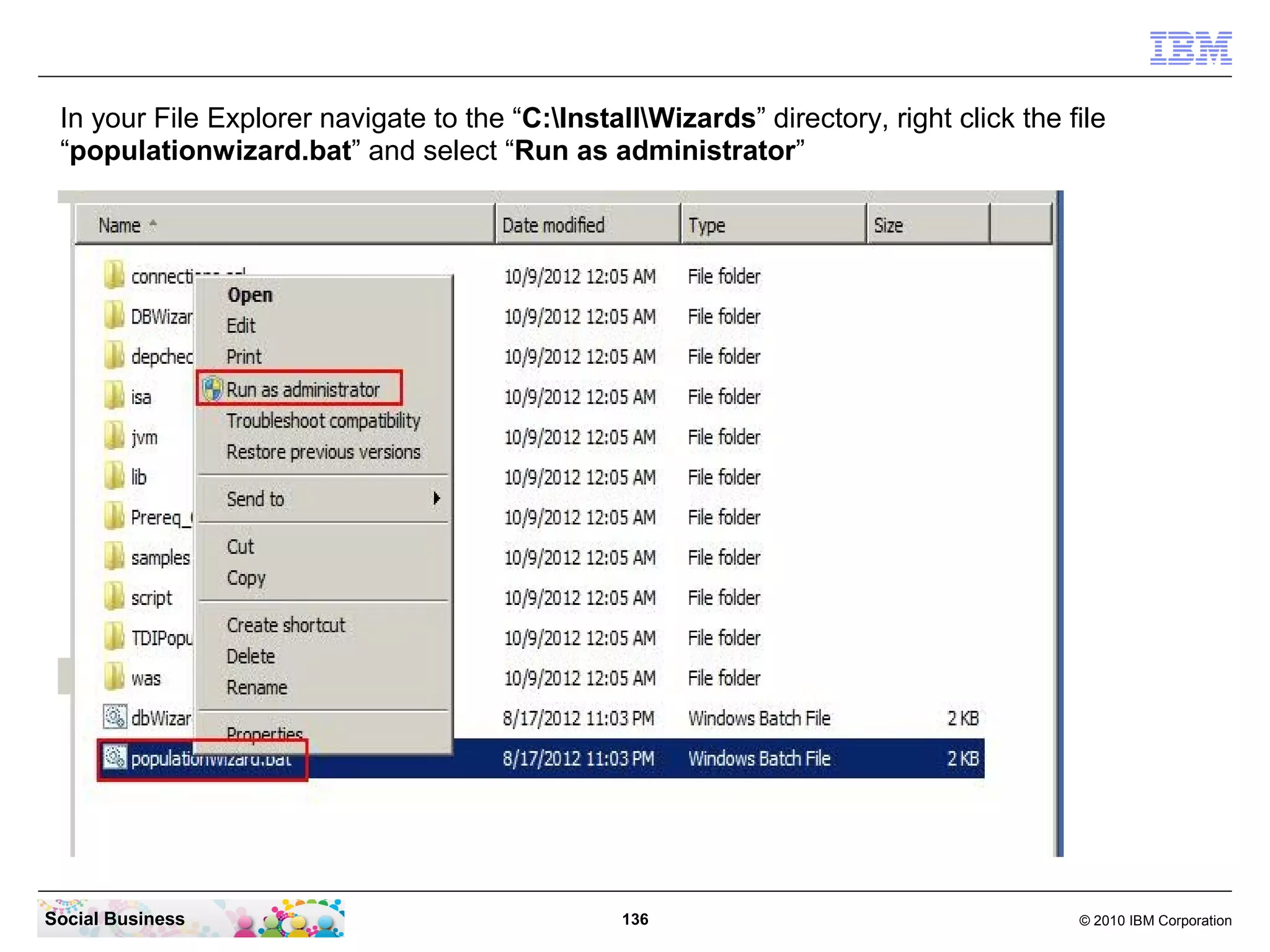
In your File Explorer navigate to the “C:InstallWizards” directory, right click the file
 “populationwizard.bat” and select “Run as administrator”


Social Business                                  136                                    © 2010 IBM Corporation
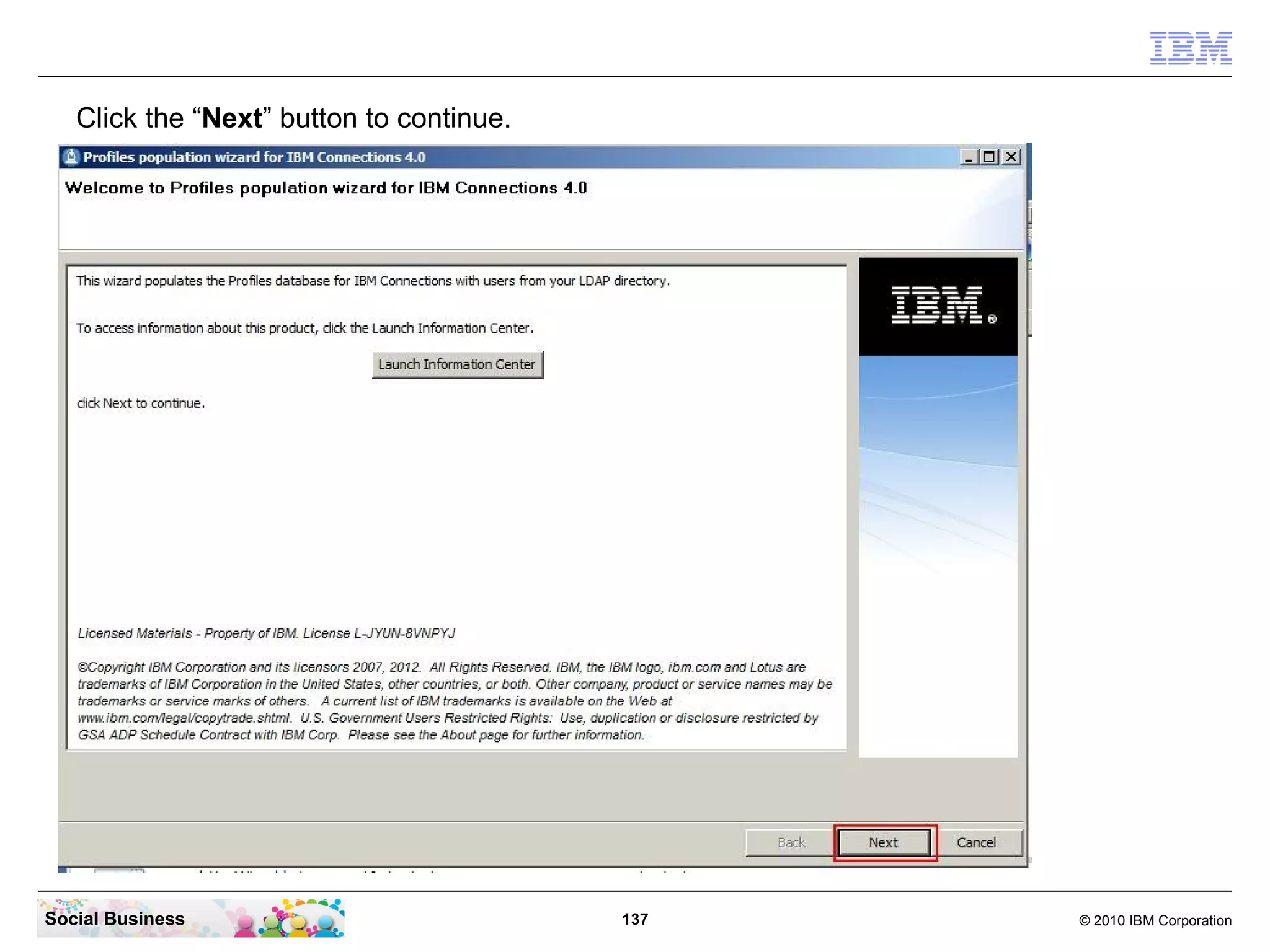
Click the “Next” button to continue.


Social Business                           137   © 2010 IBM Corporation
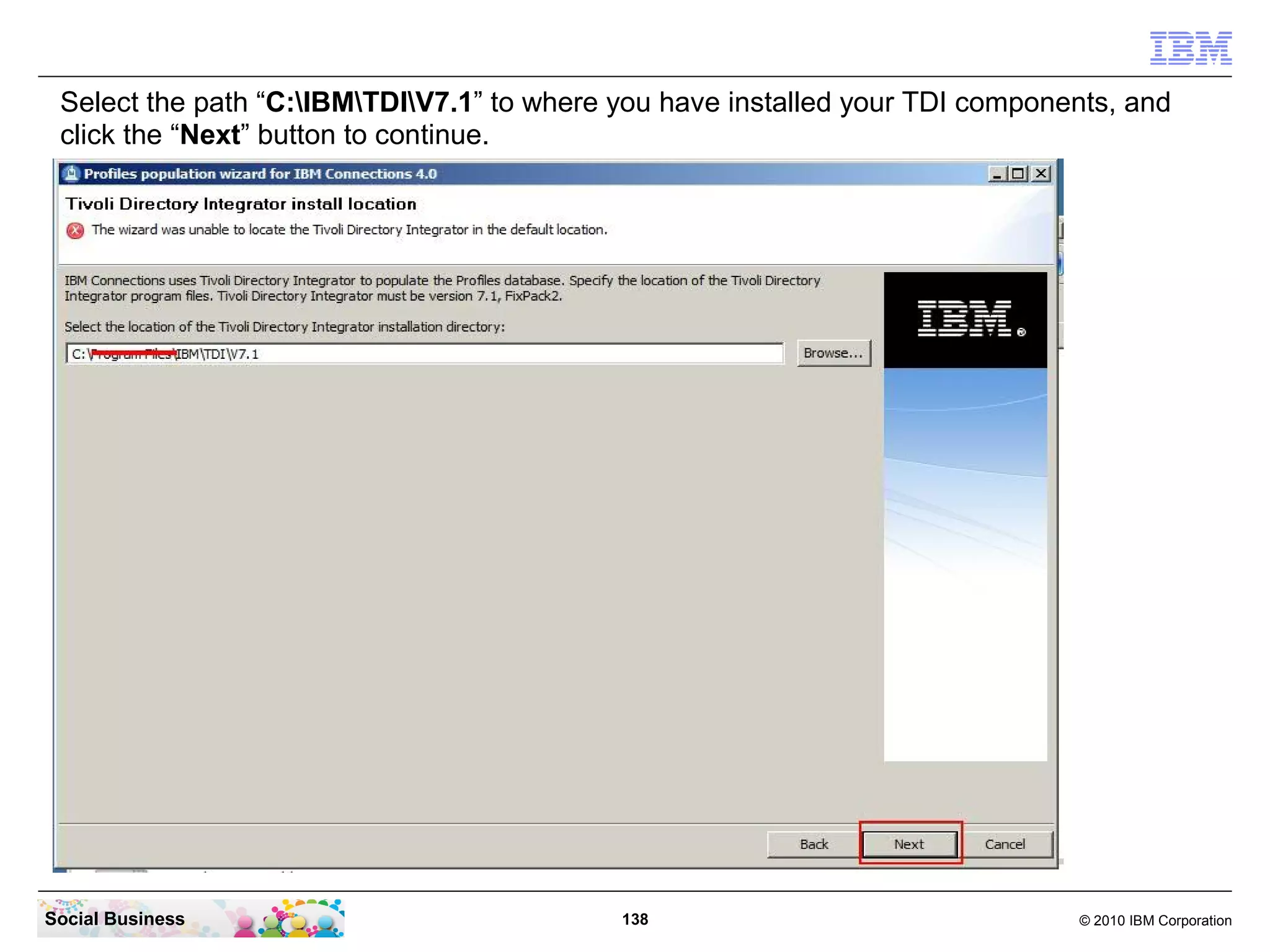
Select the path “C:IBMTDIV7.1” to where you have installed your TDI components, and
 click the “Next” button to continue.


Social Business                             138                                © 2010 IBM Corporation
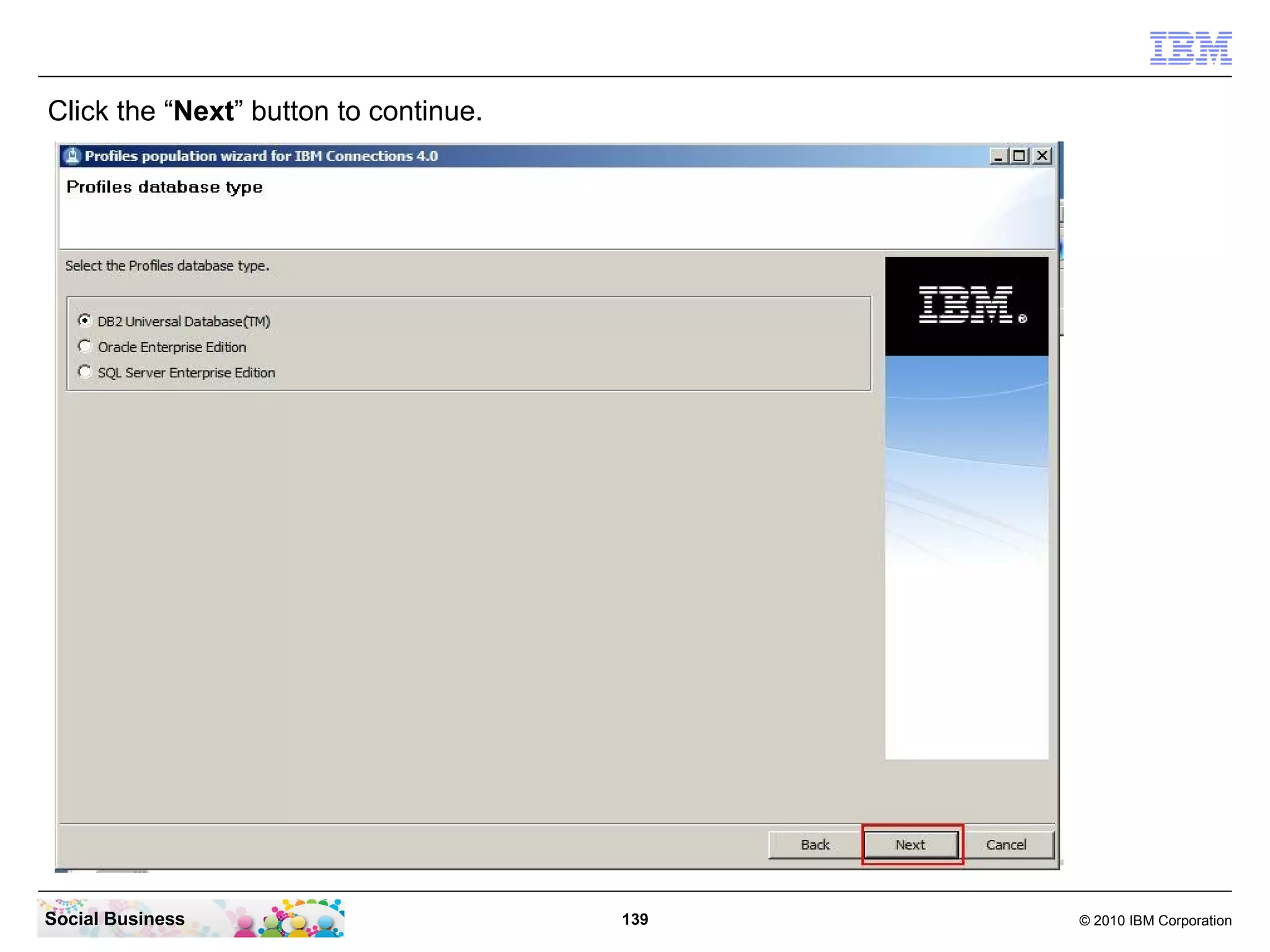
Click the “Next” button to continue.


Social Business                        139   © 2010 IBM Corporation
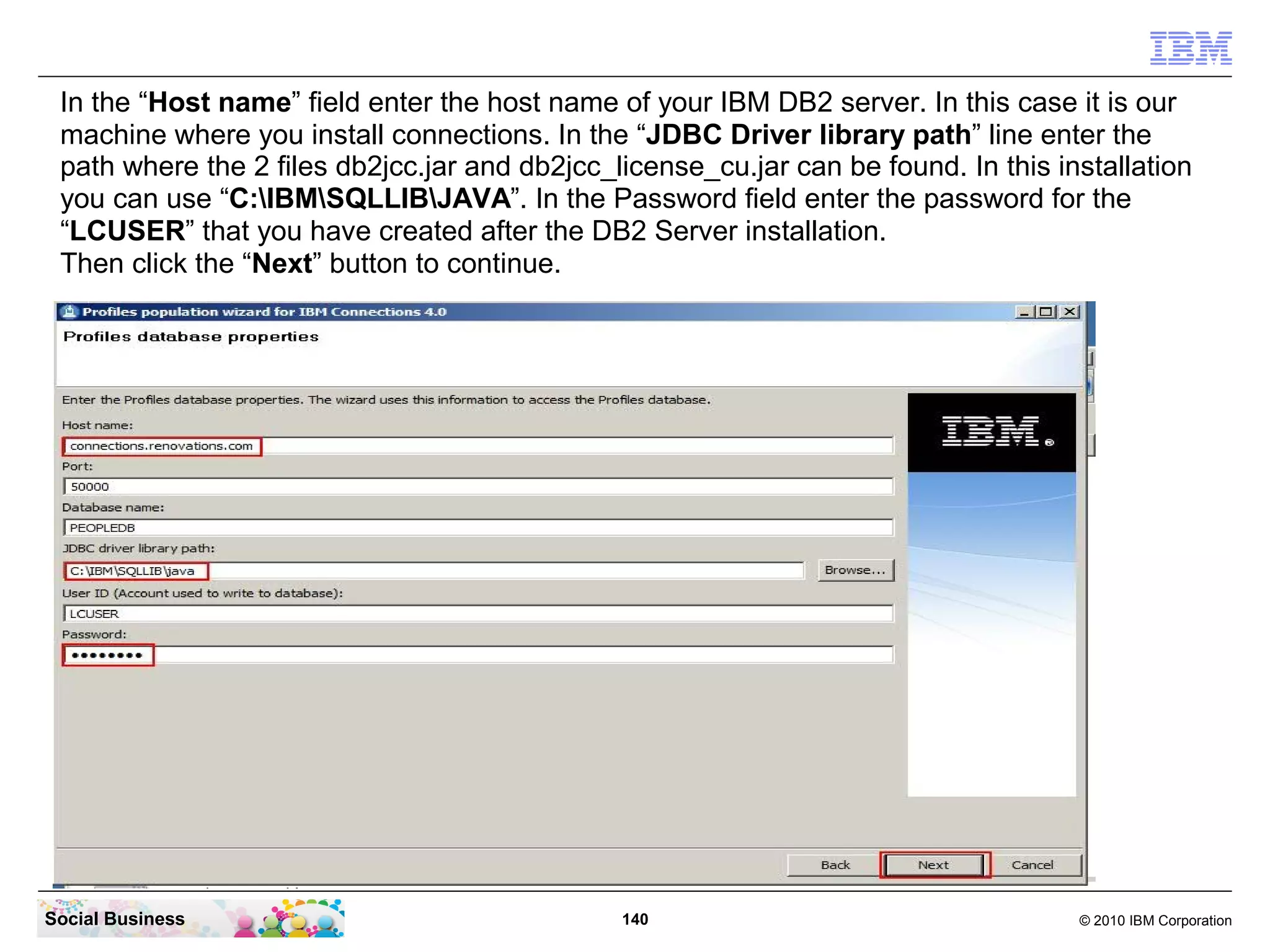
In the “Host name” field enter the host name of your IBM DB2 server. In this case it is our
 machine where you install connections. In the “JDBC Driver library path” line enter the
 path where the 2 files db2jcc.jar and db2jcc_license_cu.jar can be found. In this installation
 you can use “C:IBMSQLLIBJAVA”. In the Password field enter the password for the
 “LCUSER” that you have created after the DB2 Server installation.
 Then click the “Next” button to continue.


Social Business                                140                                   © 2010 IBM Corporation
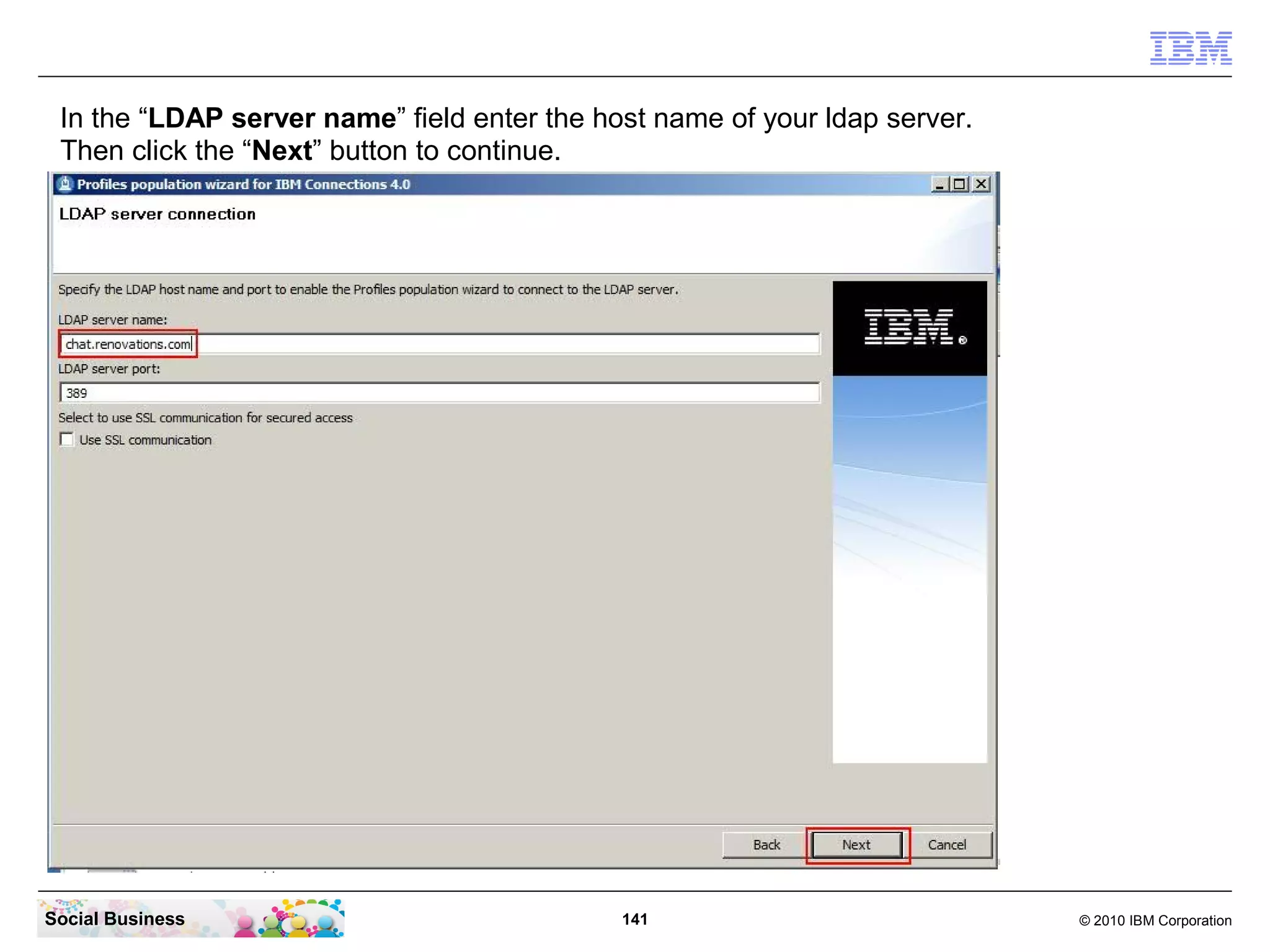
In the “LDAP server name” field enter the host name of your ldap server.
 Then click the “Next” button to continue.


Social Business                              141                            © 2010 IBM Corporation
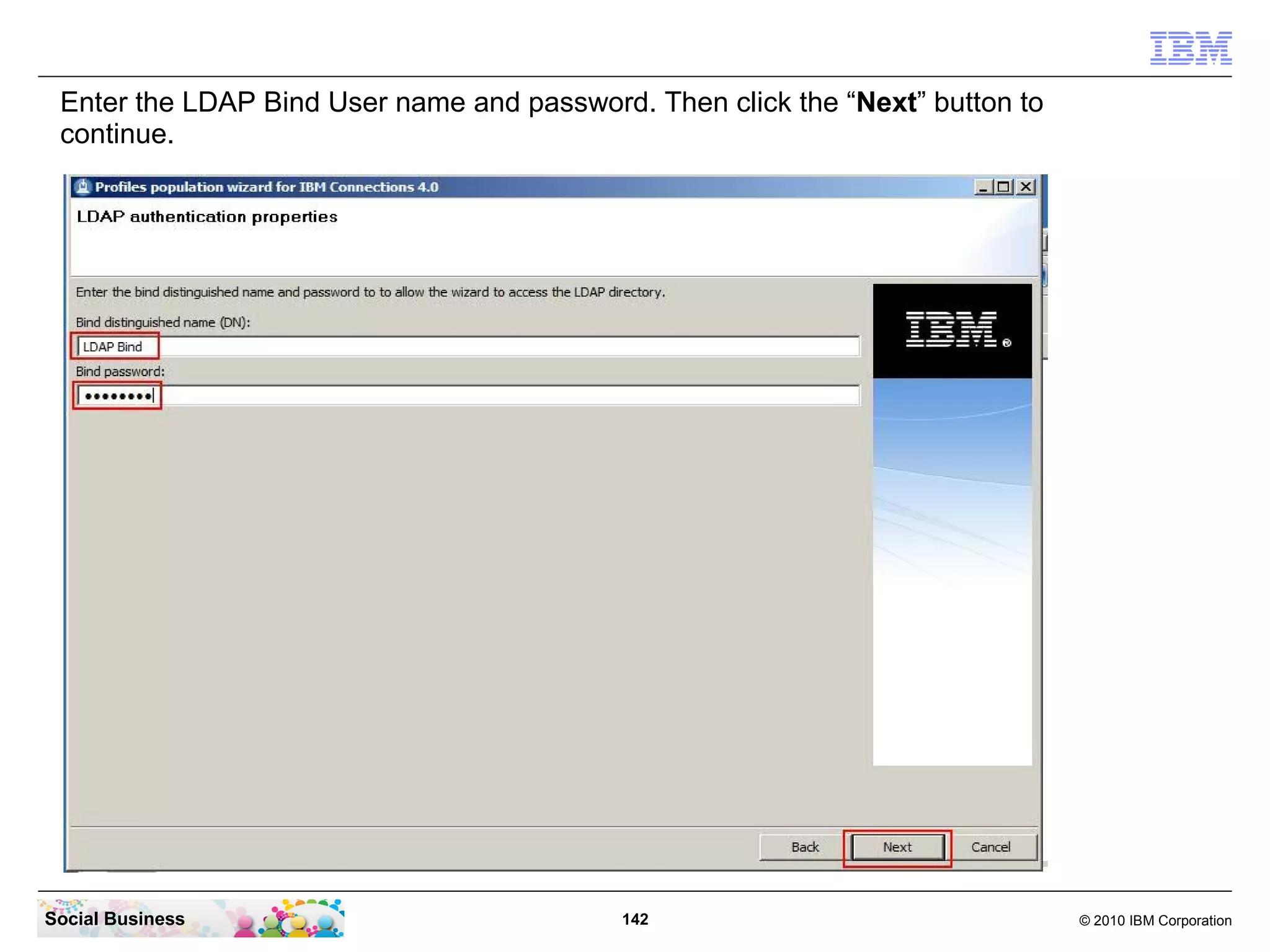
Enter the LDAP Bind User name and password. Then click the “Next” button to
 continue.


Social Business                            142                                 © 2010 IBM Corporation
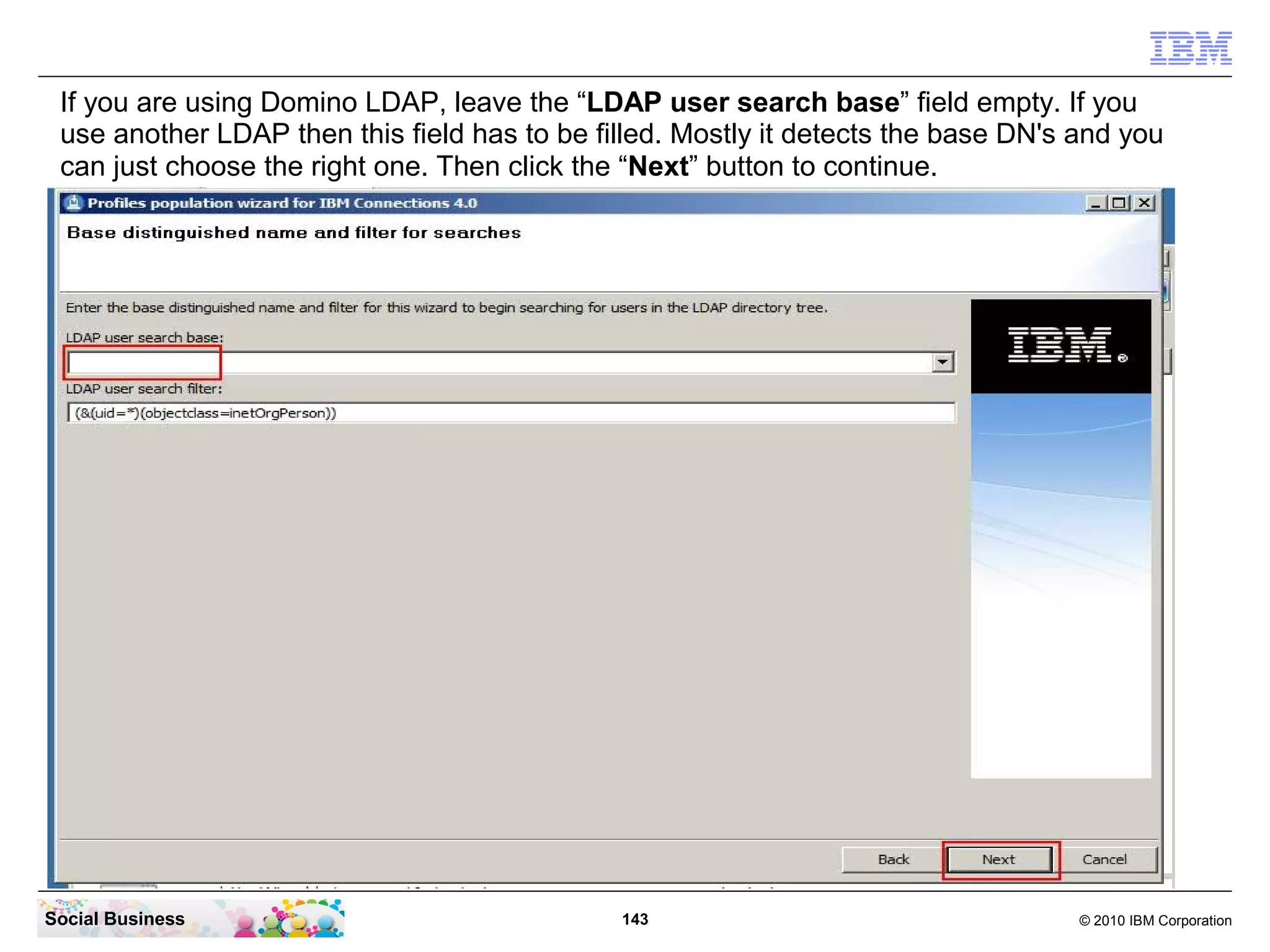
If you are using Domino LDAP, leave the “LDAP user search base” field empty. If you
 use another LDAP then this field has to be filled. Mostly it detects the base DN's and you
 can just choose the right one. Then click the “Next” button to continue.


Social Business                               143                                   © 2010 IBM Corporation
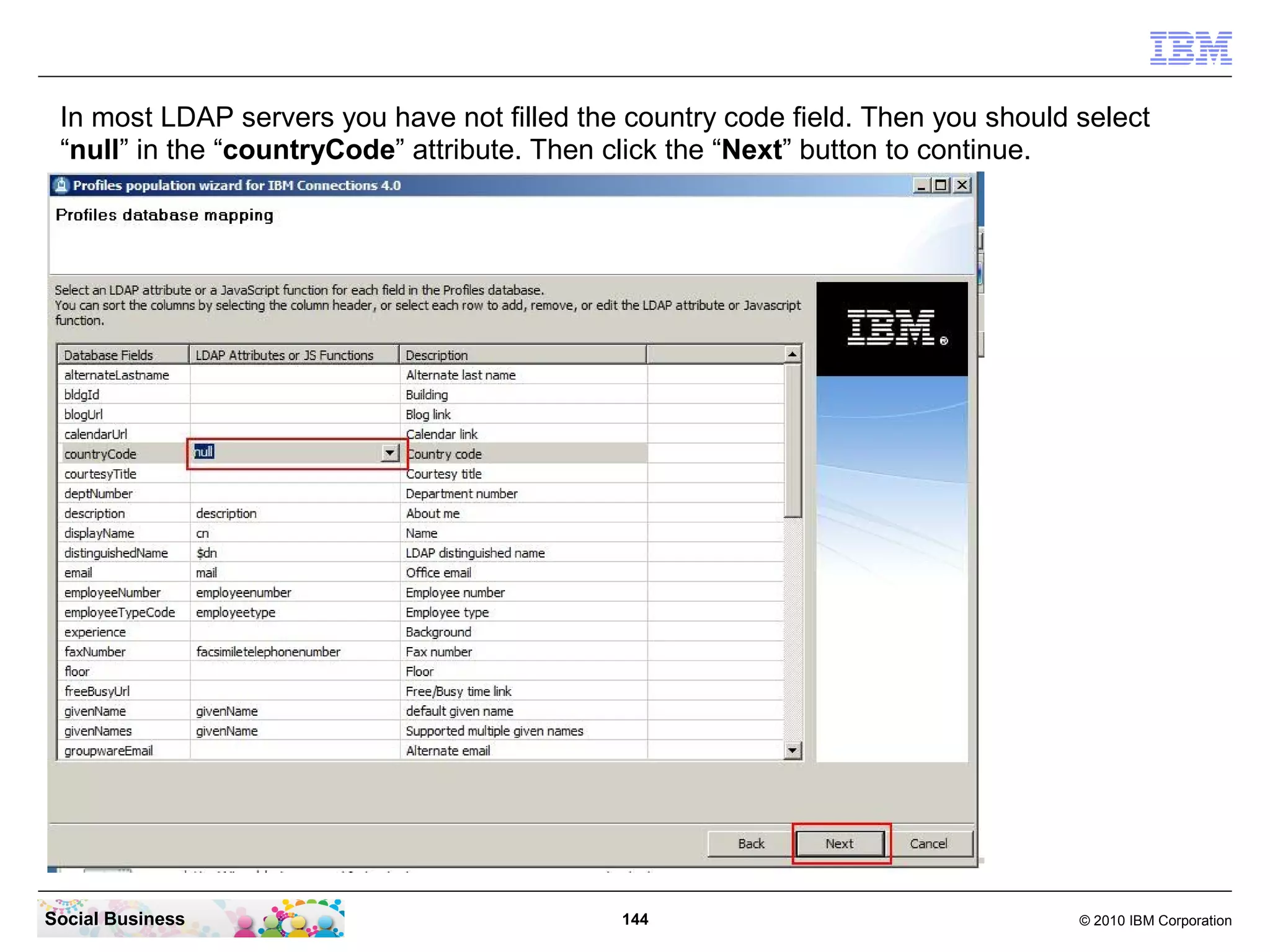
In most LDAP servers you have not filled the country code field. Then you should select
 “null” in the “countryCode” attribute. Then click the “Next” button to continue.


Social Business                              144                                  © 2010 IBM Corporation
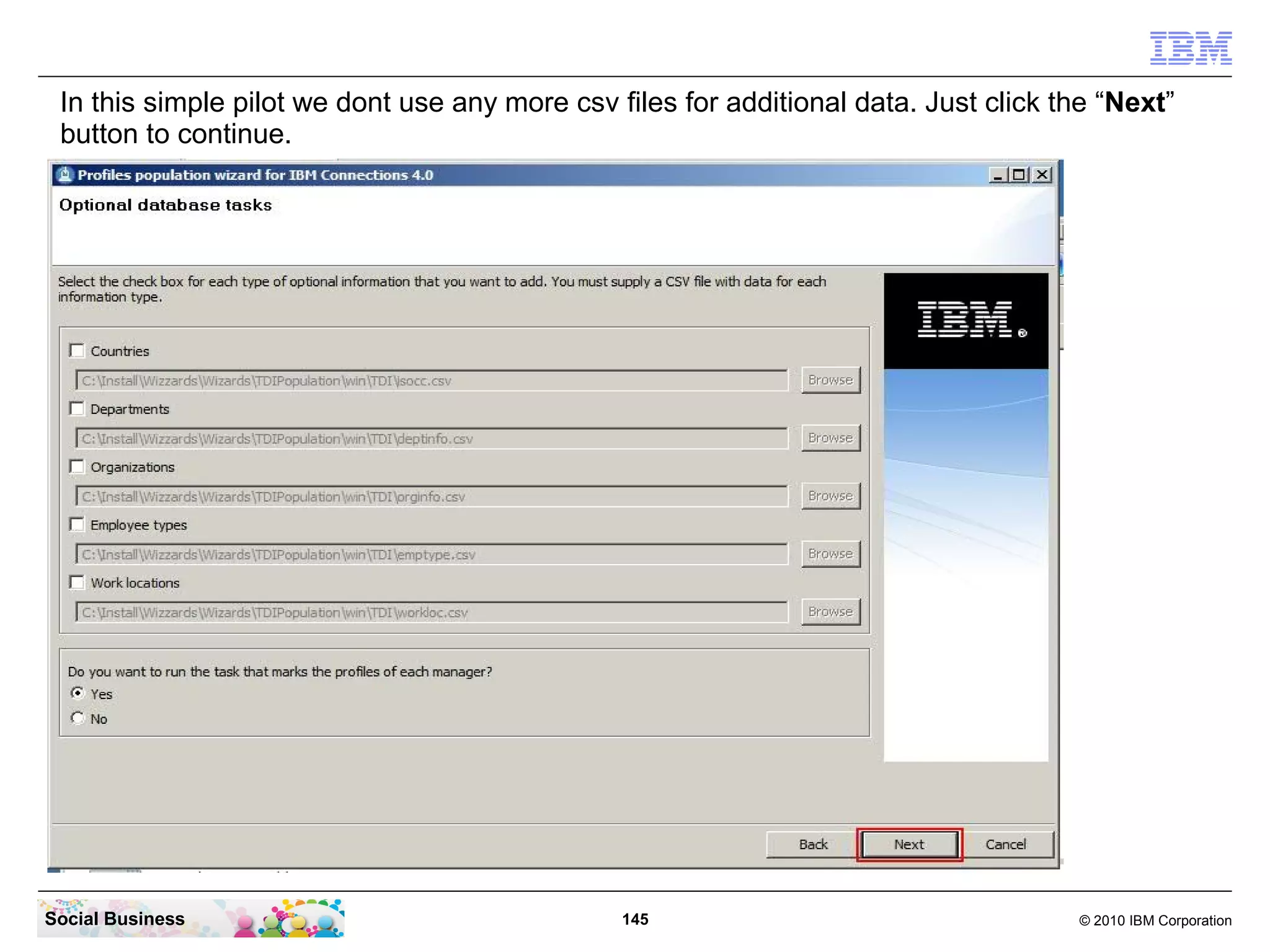
In this simple pilot we dont use any more csv files for additional data. Just click the “Next”
 button to continue.


Social Business                                 145                                   © 2010 IBM Corporation
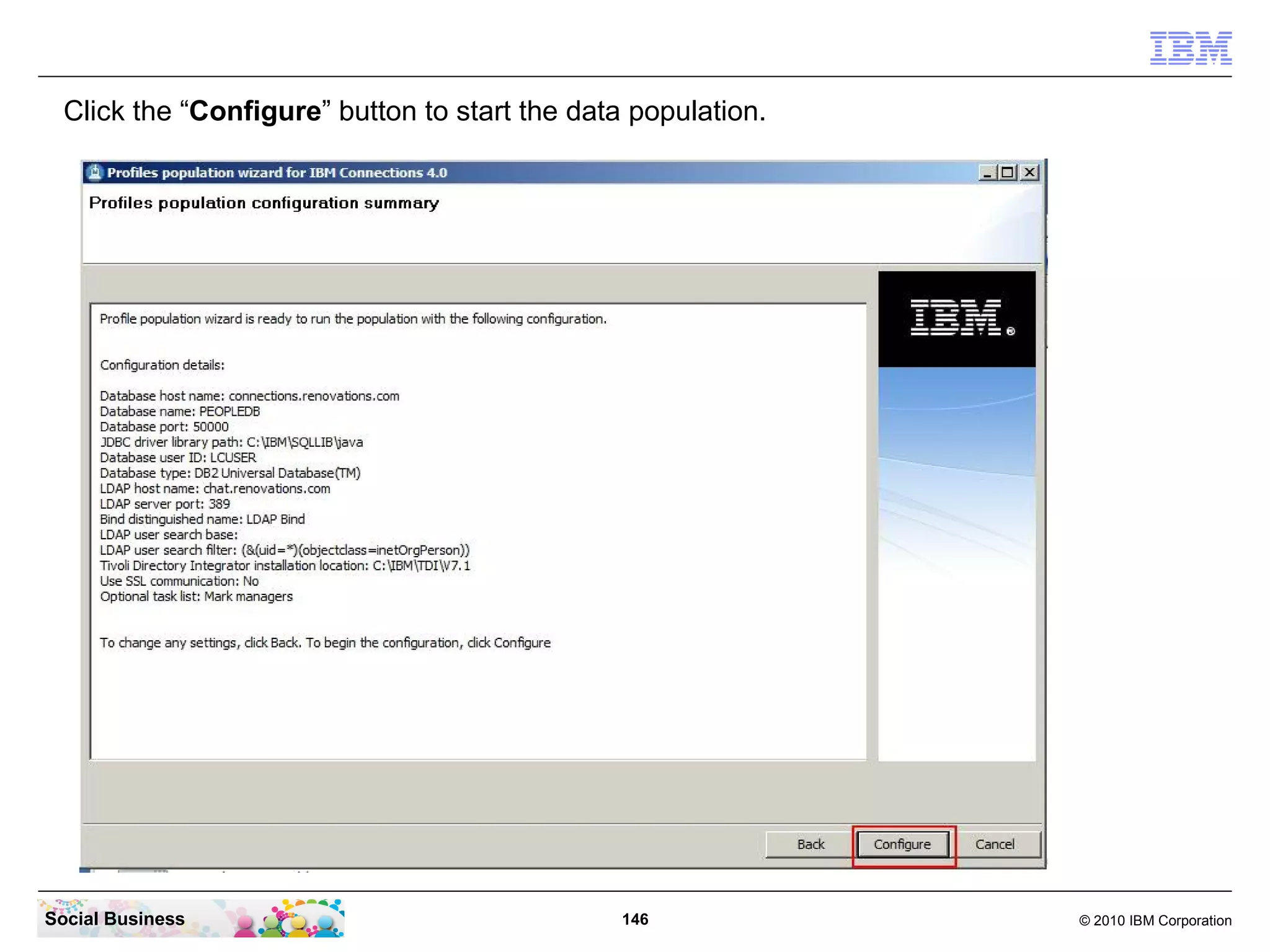
Click the “Configure” button to start the data population.


Social Business                                 146            © 2010 IBM Corporation
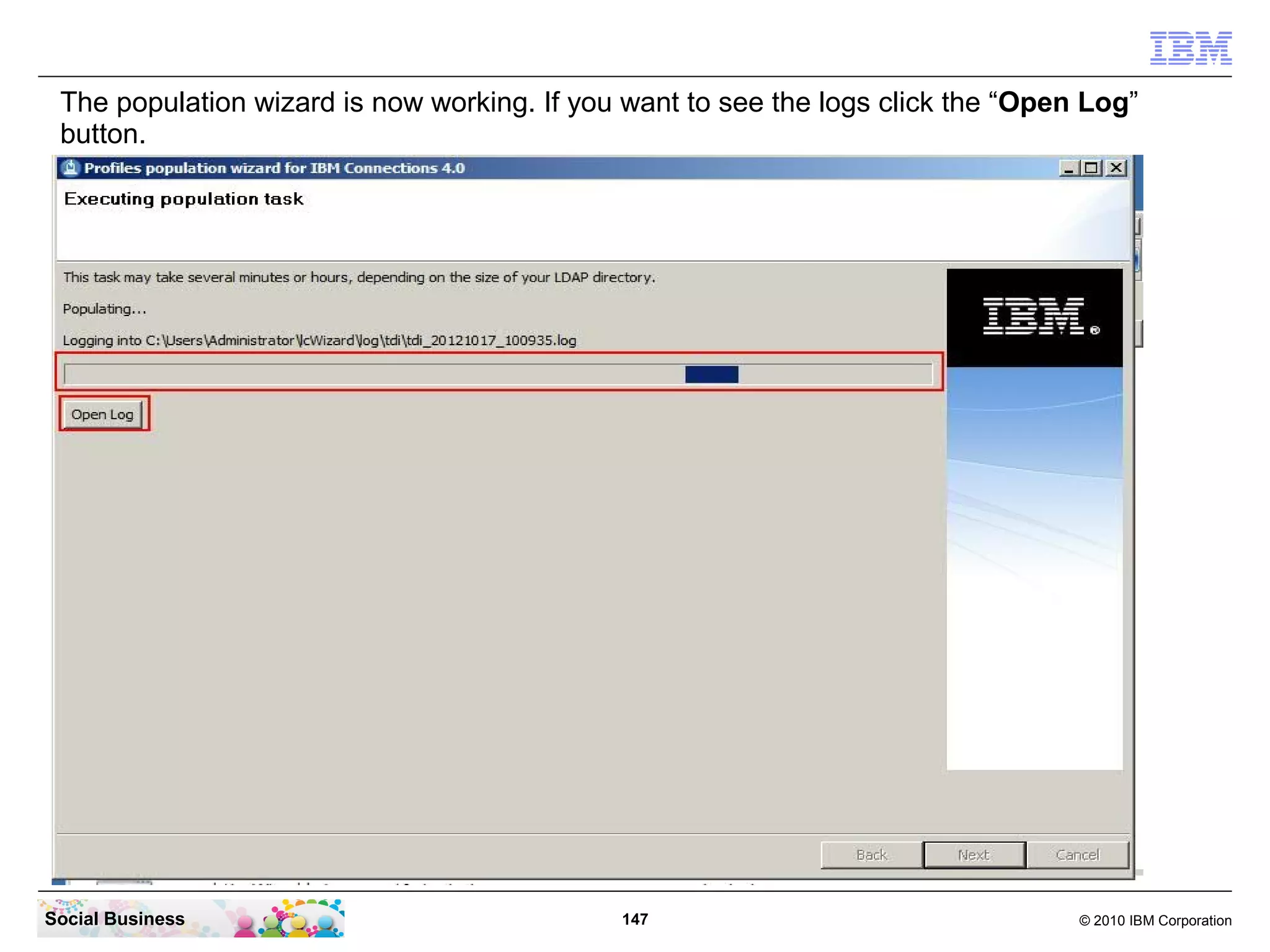
The population wizard is now working. If you want to see the logs click the “Open Log”
 button.


Social Business                              147                                  © 2010 IBM Corporation
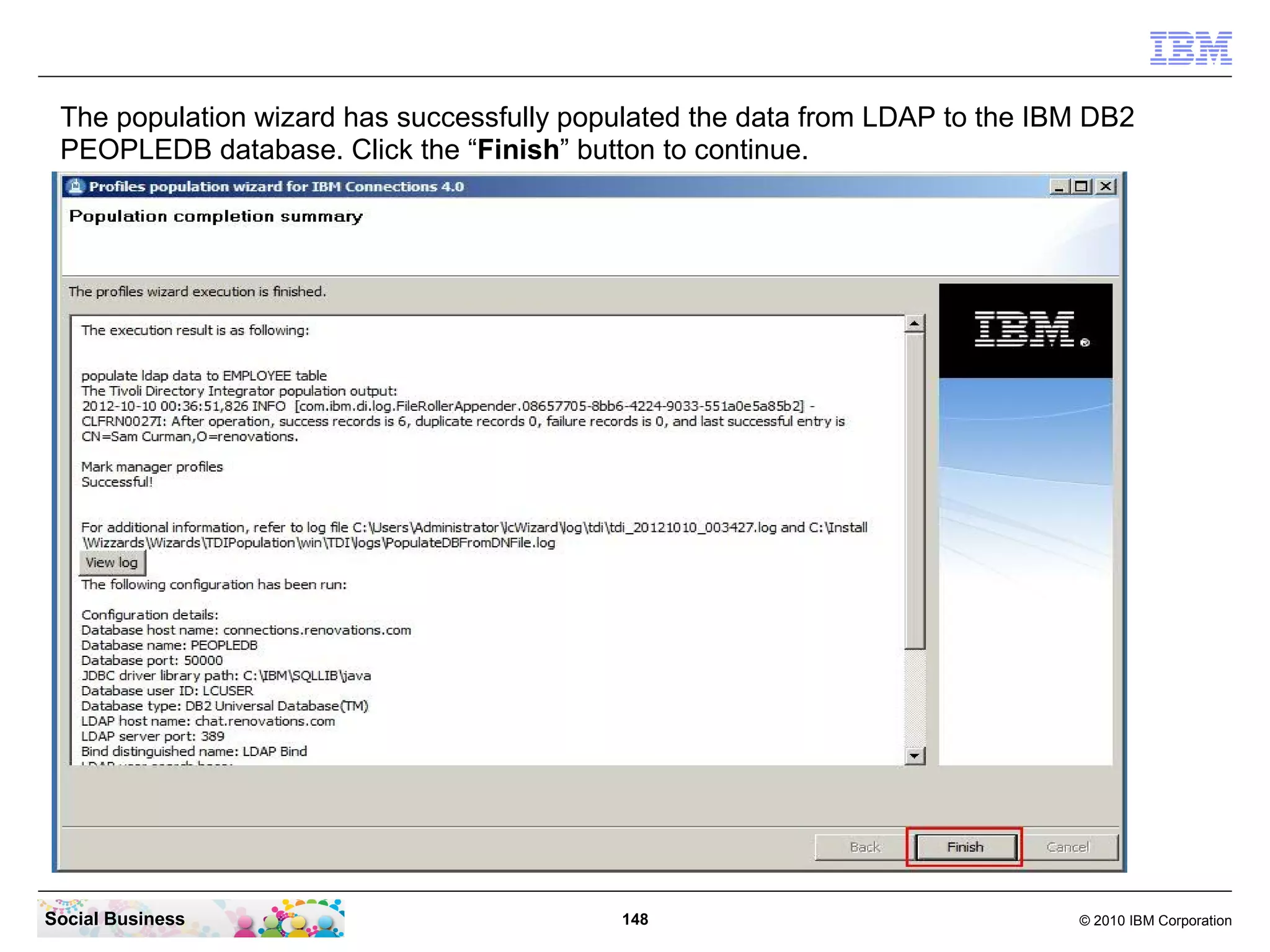
The population wizard has successfully populated the data from LDAP to the IBM DB2
 PEOPLEDB database. Click the “Finish” button to continue.


Social Business                            148                                © 2010 IBM Corporation
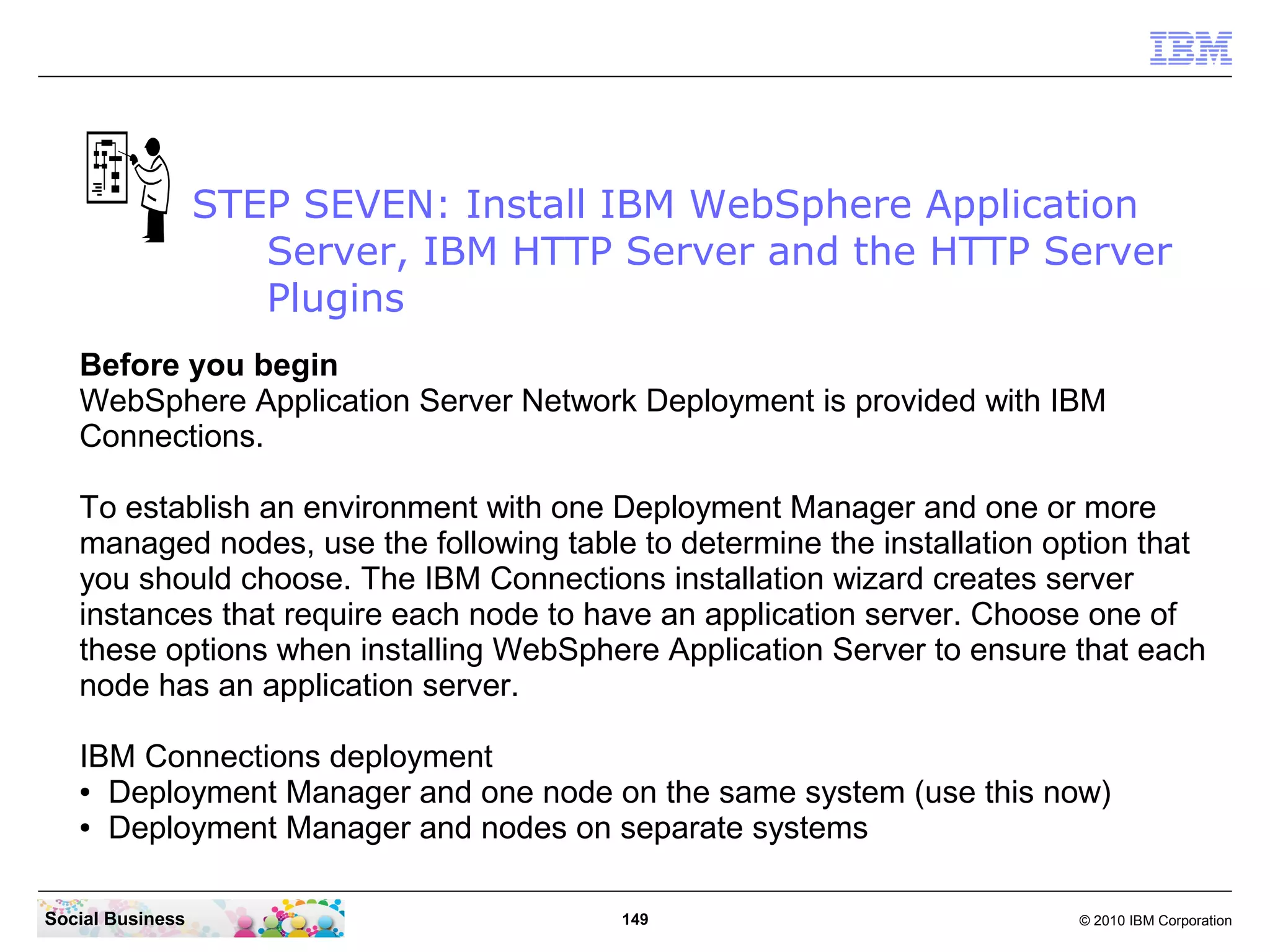
STEP SEVEN: Install IBM WebSphere Application
                     Server, IBM HTTP Server and the HTTP Server
                     Plugins
   Before you begin
   WebSphere Application Server Network Deployment is provided with IBM
   Connections.

   To establish an environment with one Deployment Manager and one or more
   managed nodes, use the following table to determine the installation option that
   you should choose. The IBM Connections installation wizard creates server
   instances that require each node to have an application server. Choose one of
   these options when installing WebSphere Application Server to ensure that each
   node has an application server.

   IBM Connections deployment
   ● Deployment Manager and one node on the same system (use this now)

   ● Deployment Manager and nodes on separate systems


Social Business                          149                              © 2010 IBM Corporation
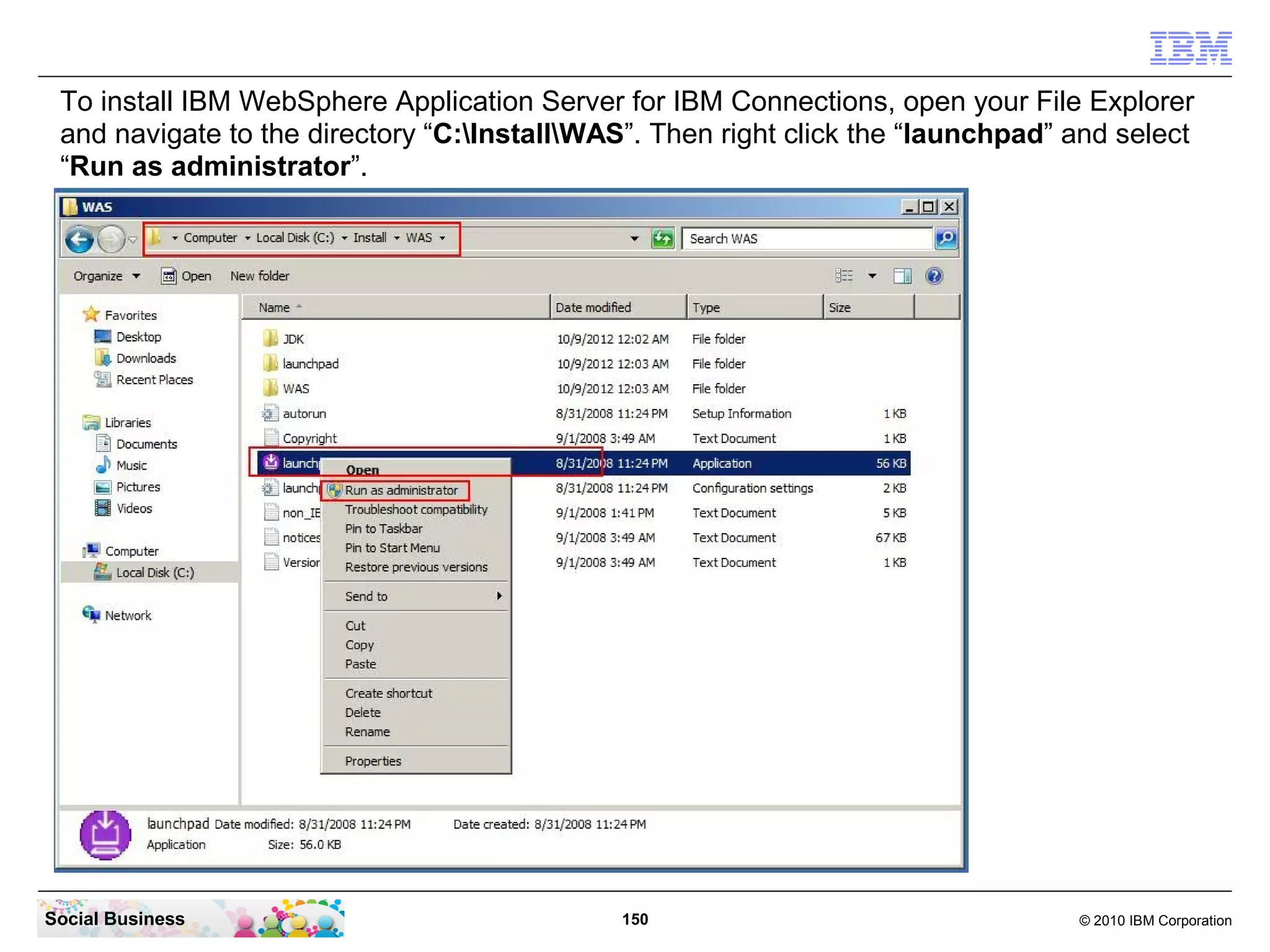
To install IBM WebSphere Application Server for IBM Connections, open your File Explorer
 and navigate to the directory “C:InstallWAS”. Then right click the “launchpad” and select
 “Run as administrator”.


Social Business                               150                                 © 2010 IBM Corporation
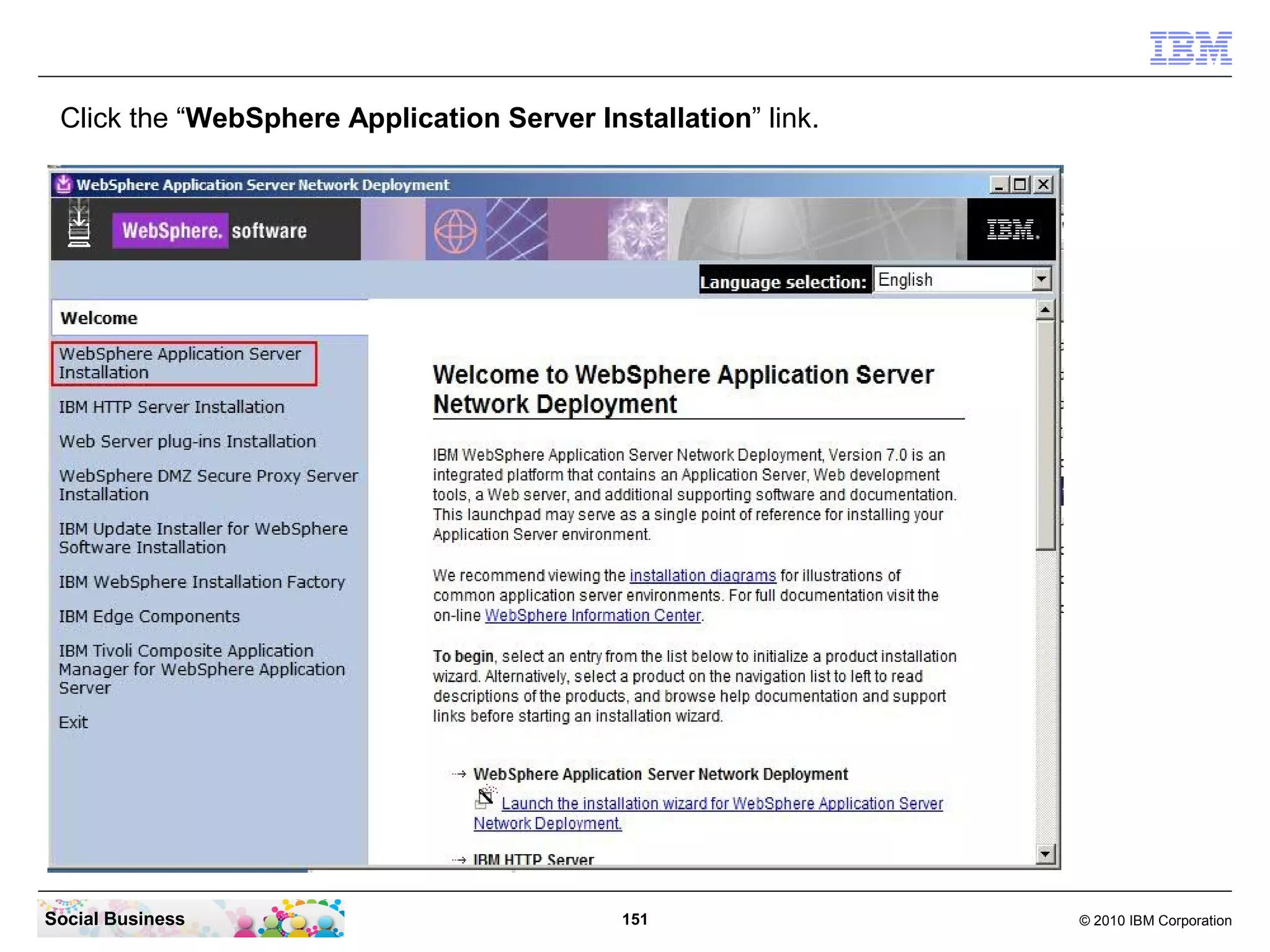
Click the “WebSphere Application Server Installation” link.


Social Business                             151                © 2010 IBM Corporation
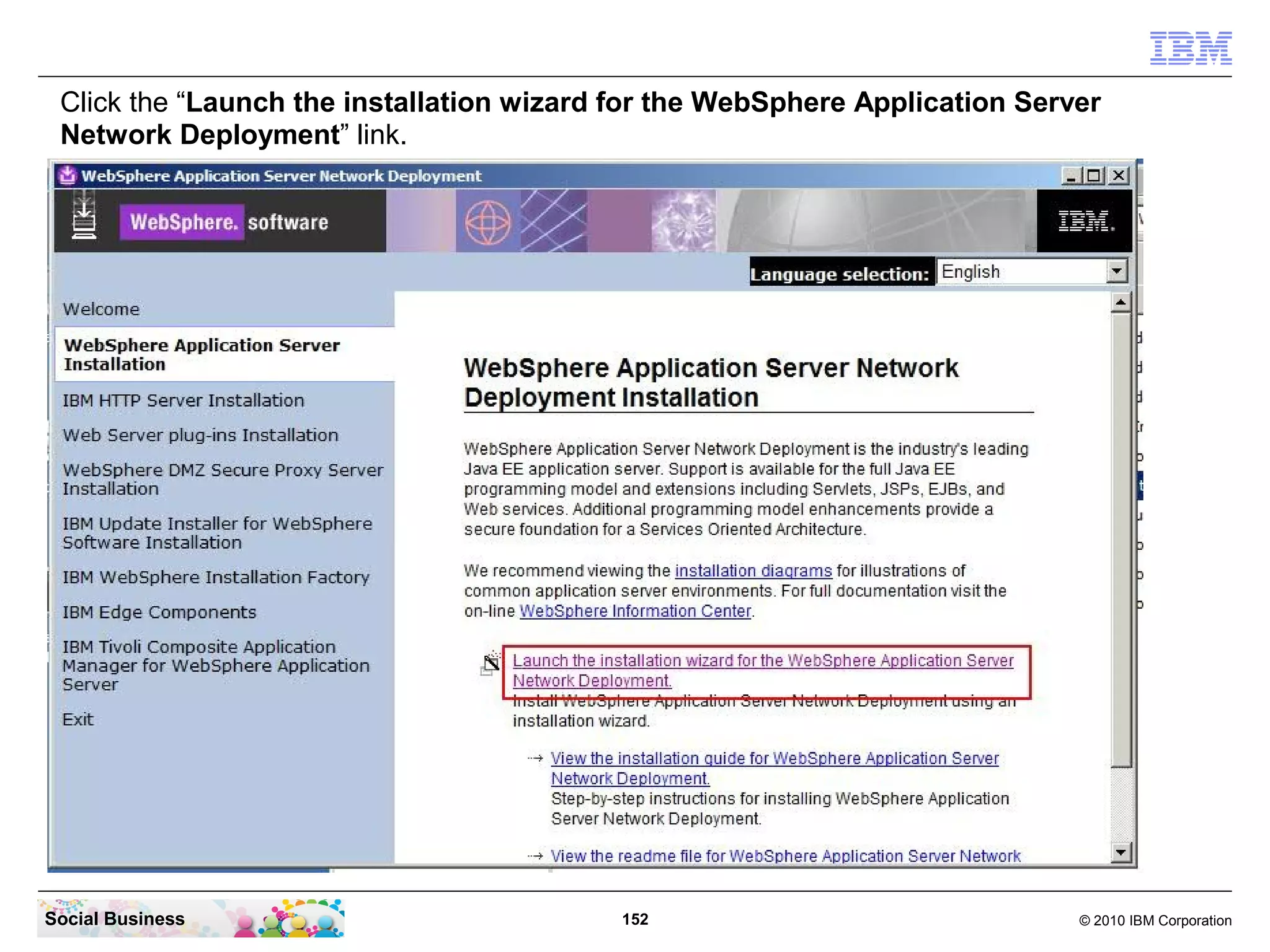
Click the “Launch the installation wizard for the WebSphere Application Server
 Network Deployment” link.


Social Business                            152                               © 2010 IBM Corporation
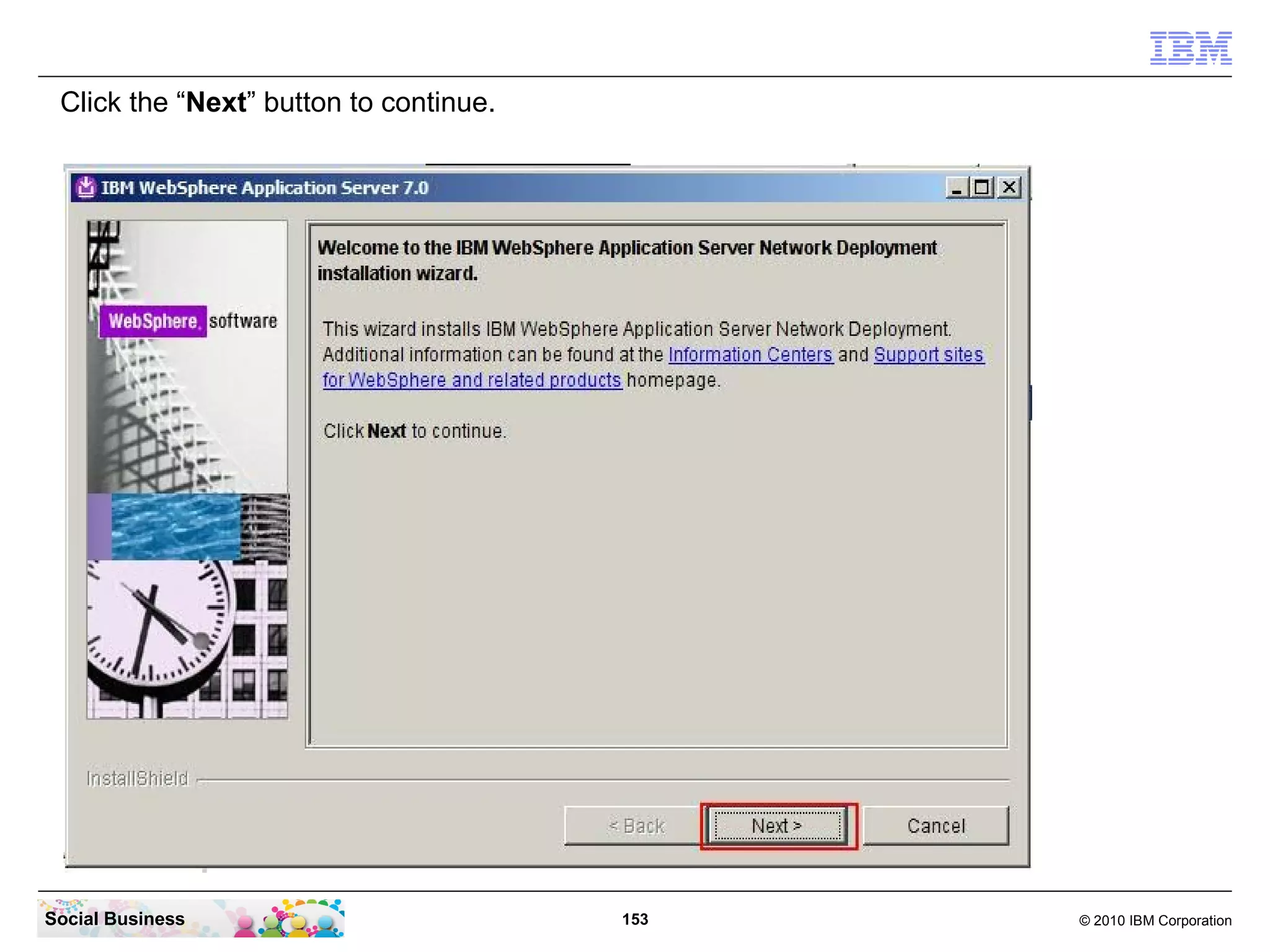
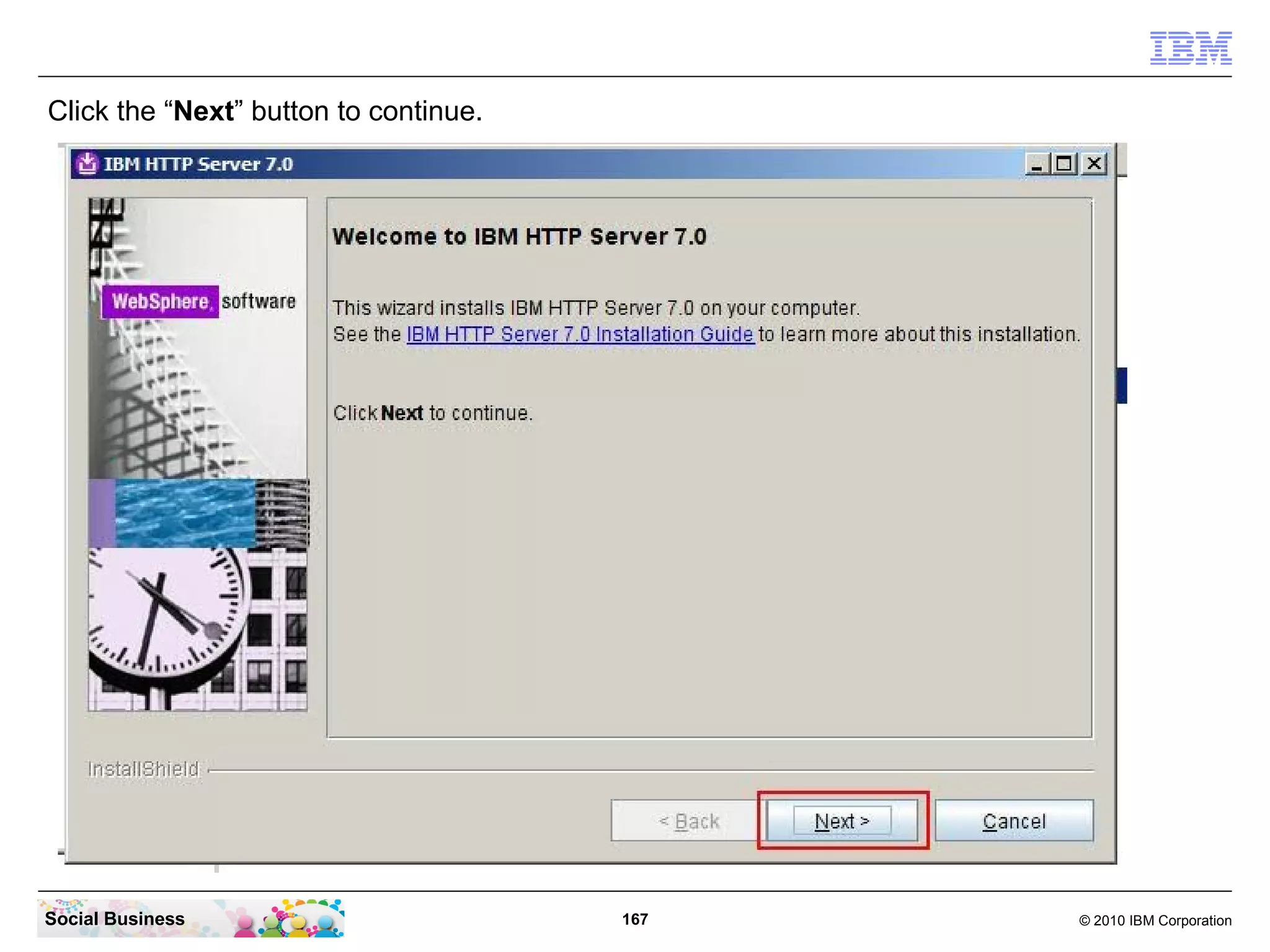
Click the “Next” button to continue.


Social Business                         153   © 2010 IBM Corporation
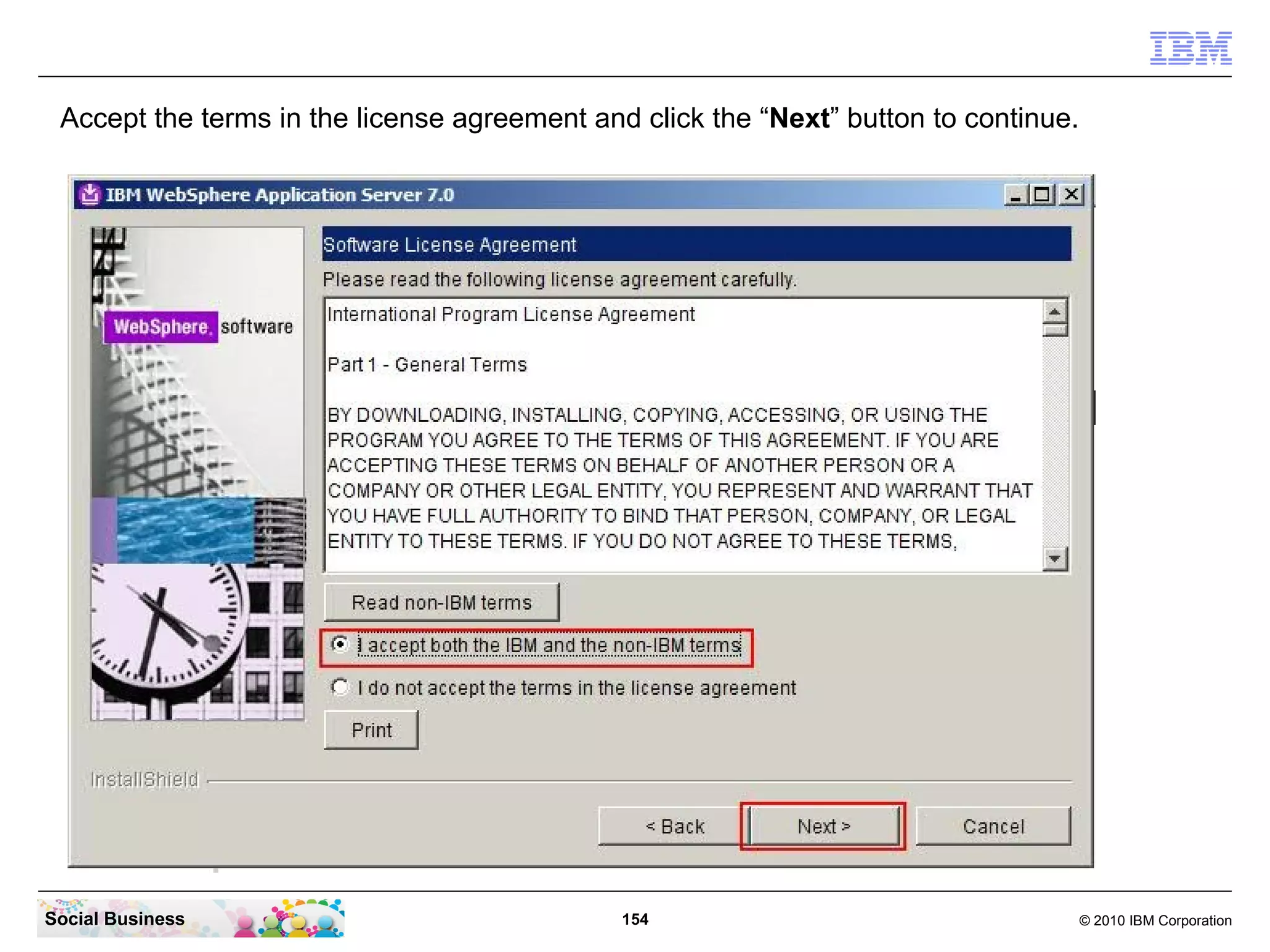
Accept the terms in the license agreement and click the “Next” button to continue.


Social Business                               154                                     © 2010 IBM Corporation
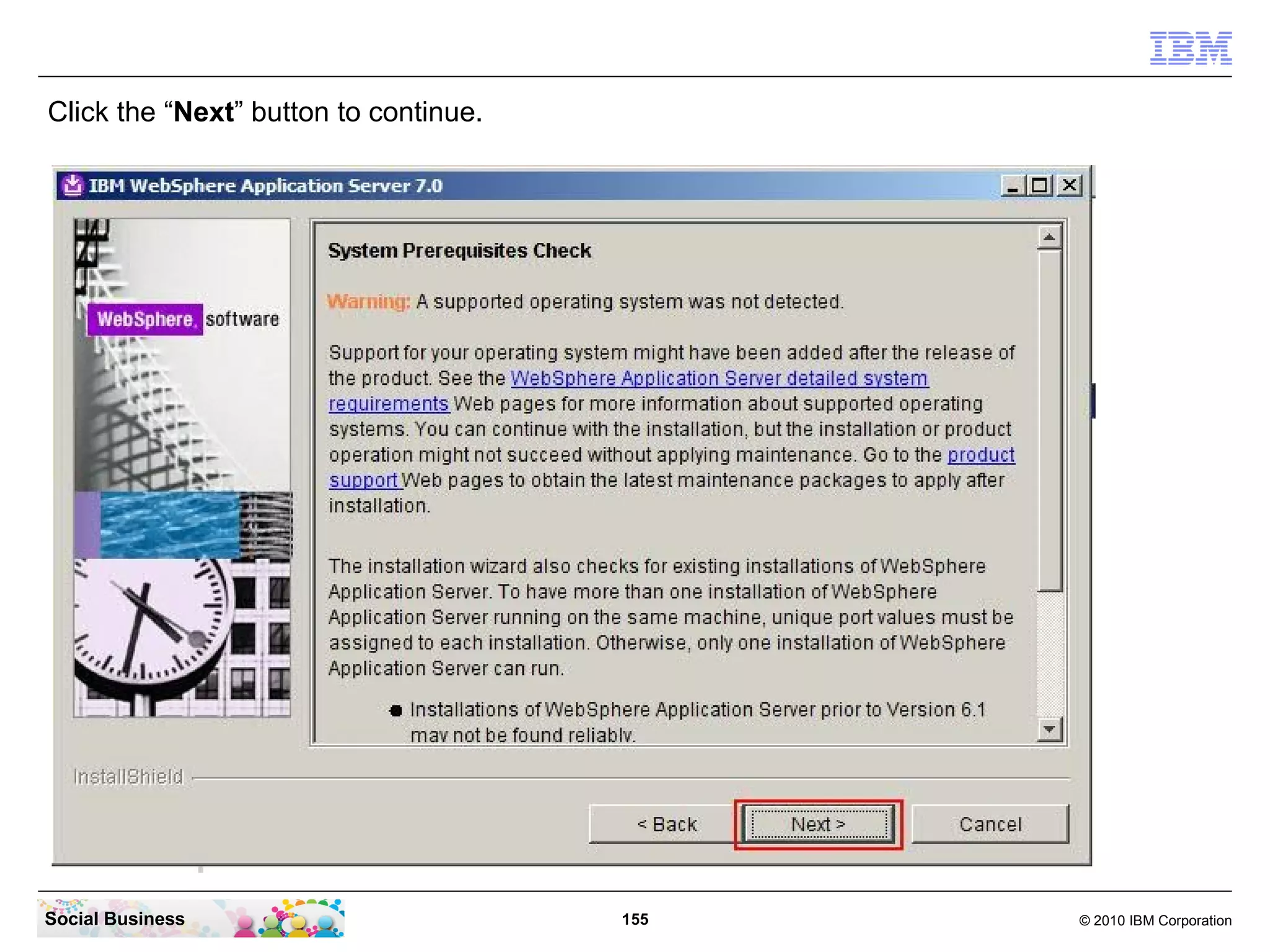
Click the “Next” button to continue.


Social Business                        155   © 2010 IBM Corporation
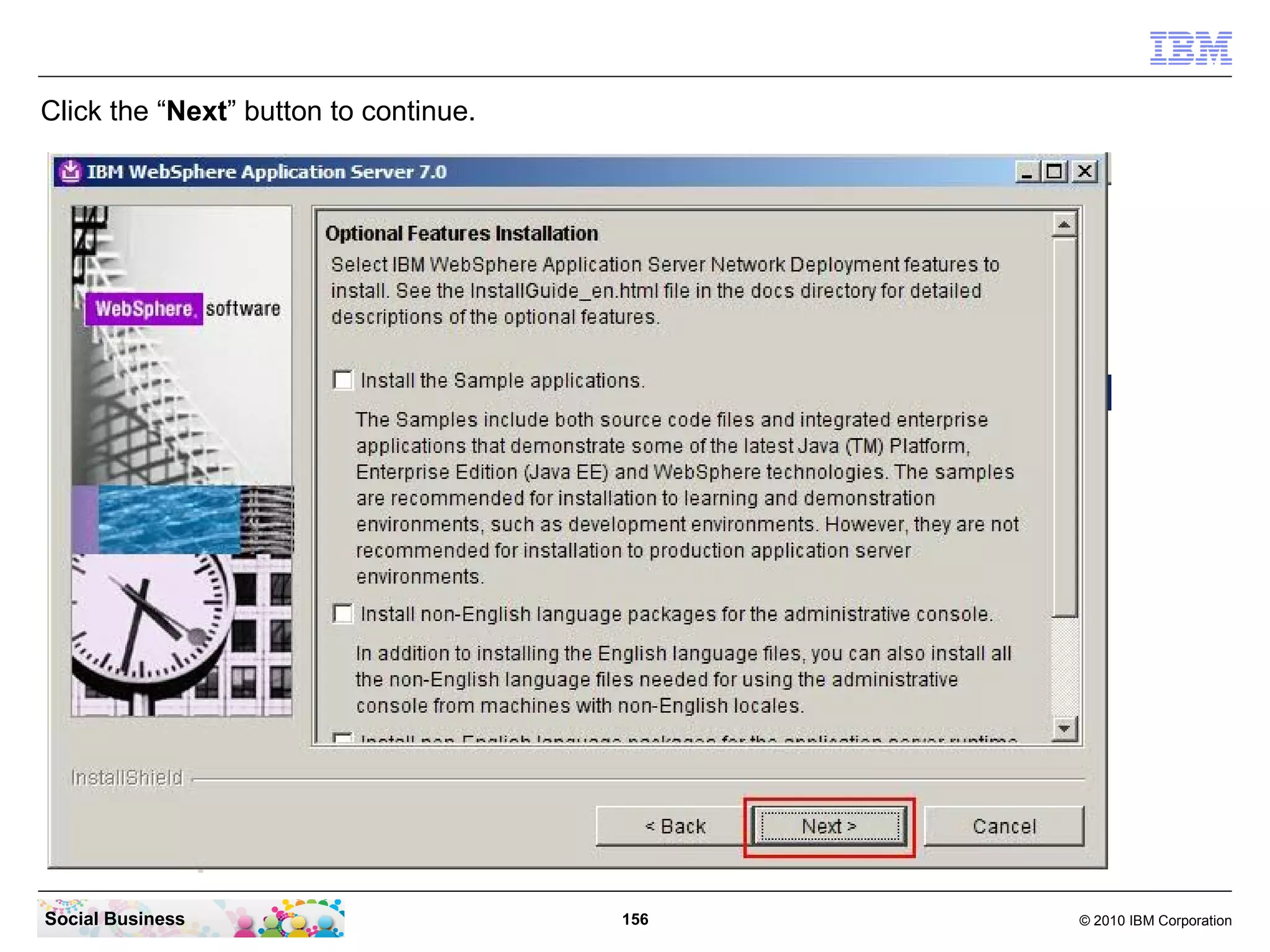
Click the “Next” button to continue.


Social Business                        156   © 2010 IBM Corporation
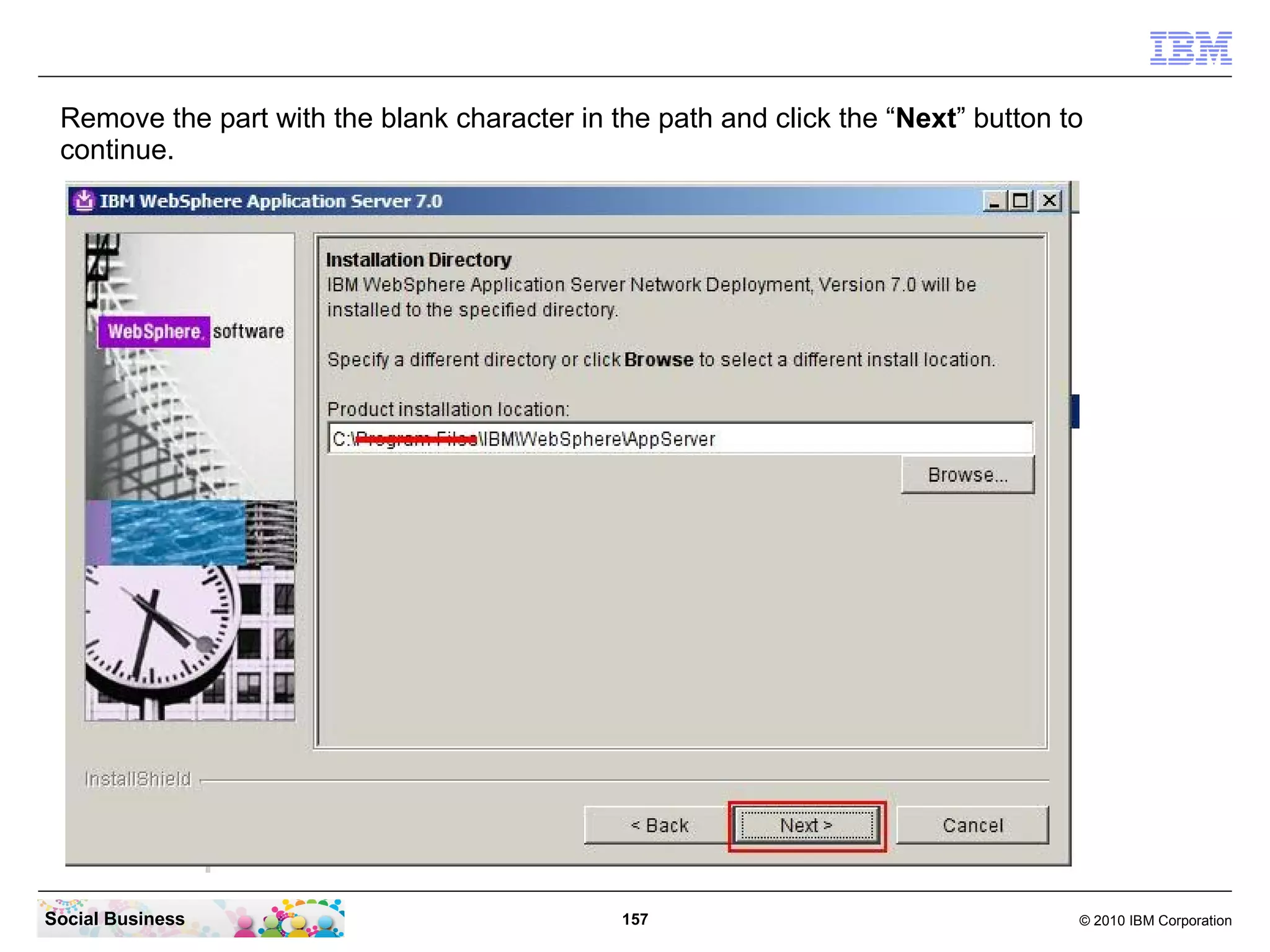
Remove the part with the blank character in the path and click the “Next” button to
 continue.


Social Business                               157                                  © 2010 IBM Corporation
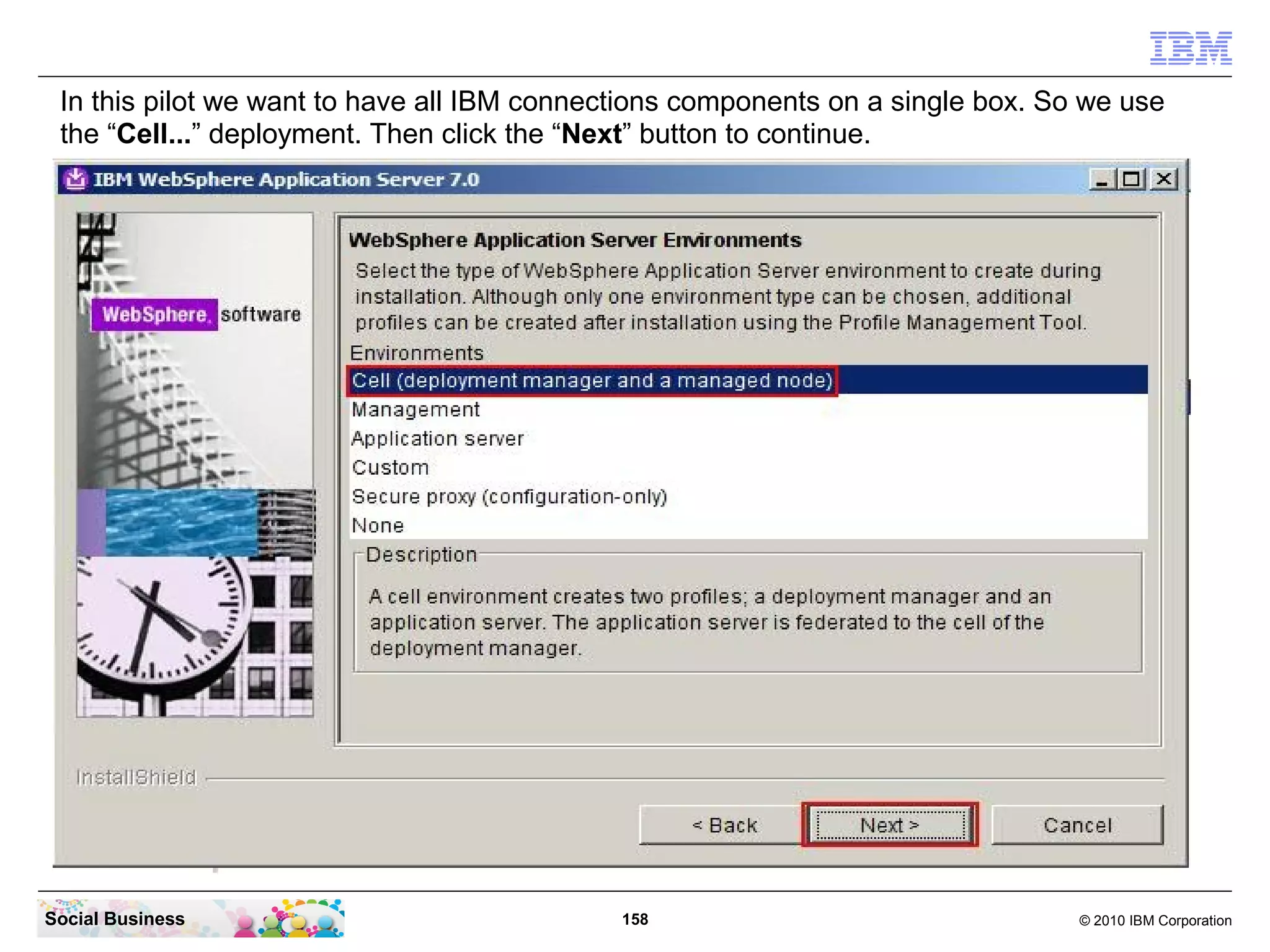
In this pilot we want to have all IBM connections components on a single box. So we use
 the “Cell...” deployment. Then click the “Next” button to continue.


Social Business                              158                                 © 2010 IBM Corporation
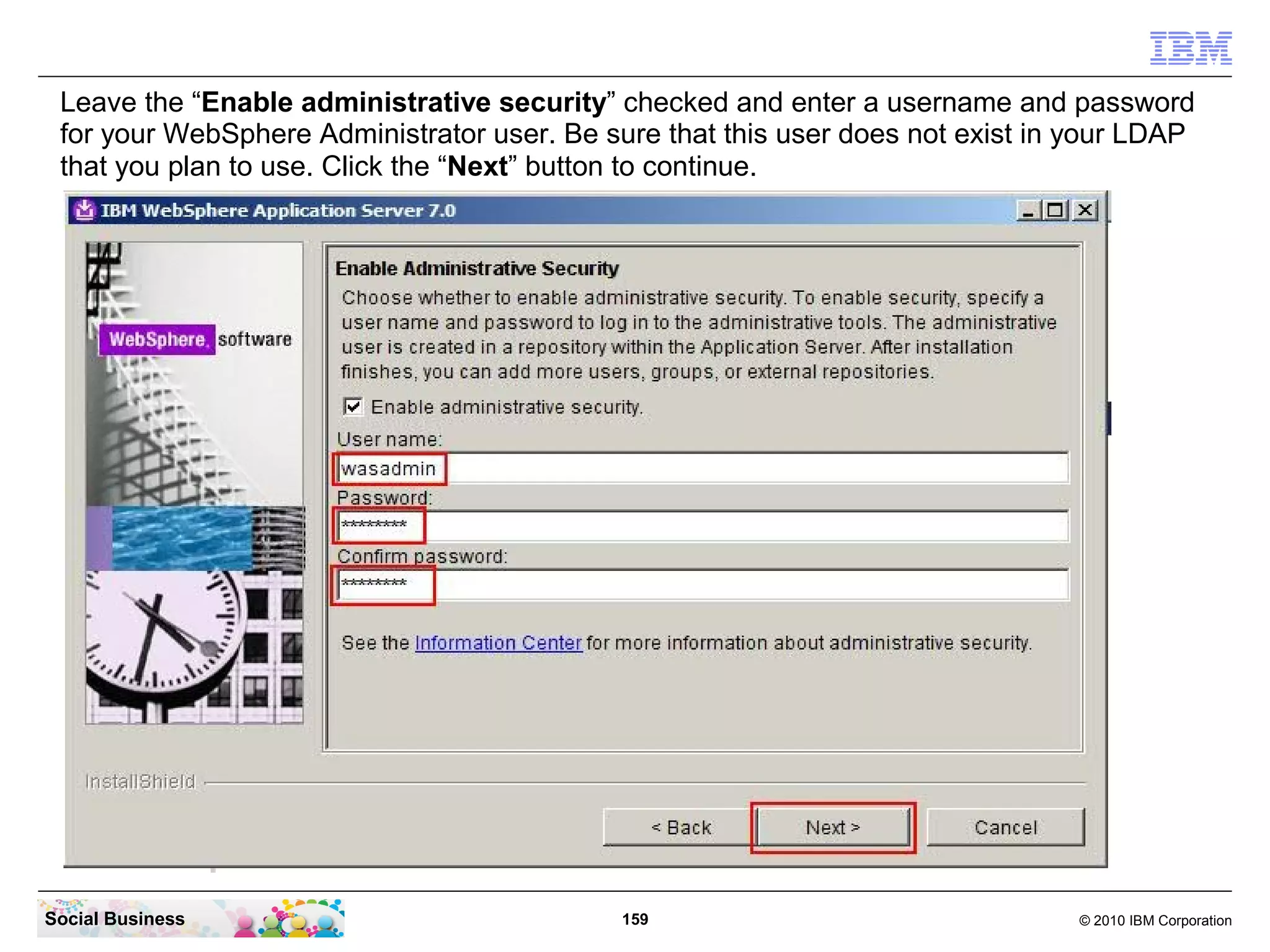
Leave the “Enable administrative security” checked and enter a username and password
 for your WebSphere Administrator user. Be sure that this user does not exist in your LDAP
 that you plan to use. Click the “Next” button to continue.


Social Business                              159                                © 2010 IBM Corporation
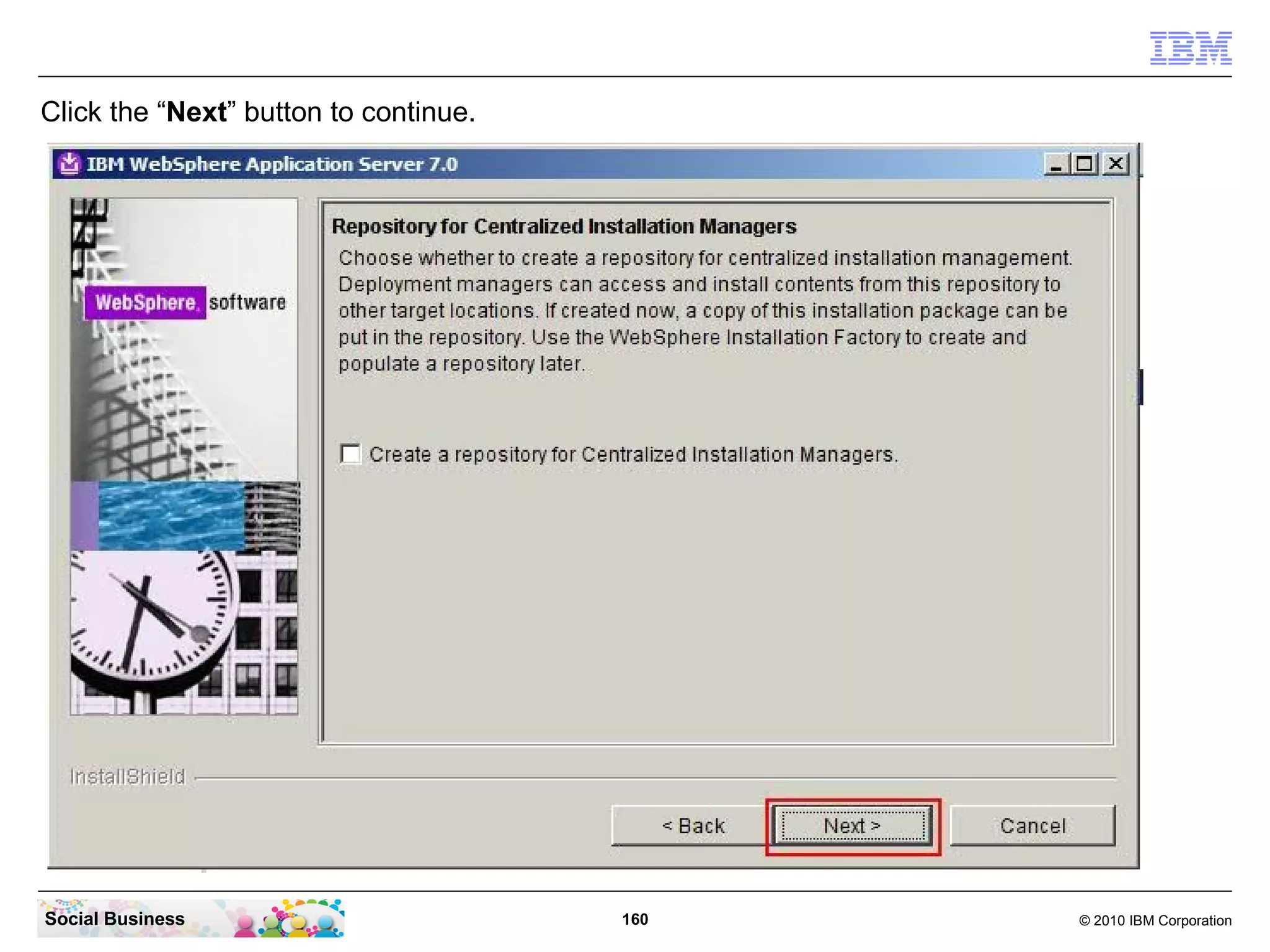
Click the “Next” button to continue.


Social Business                        160   © 2010 IBM Corporation
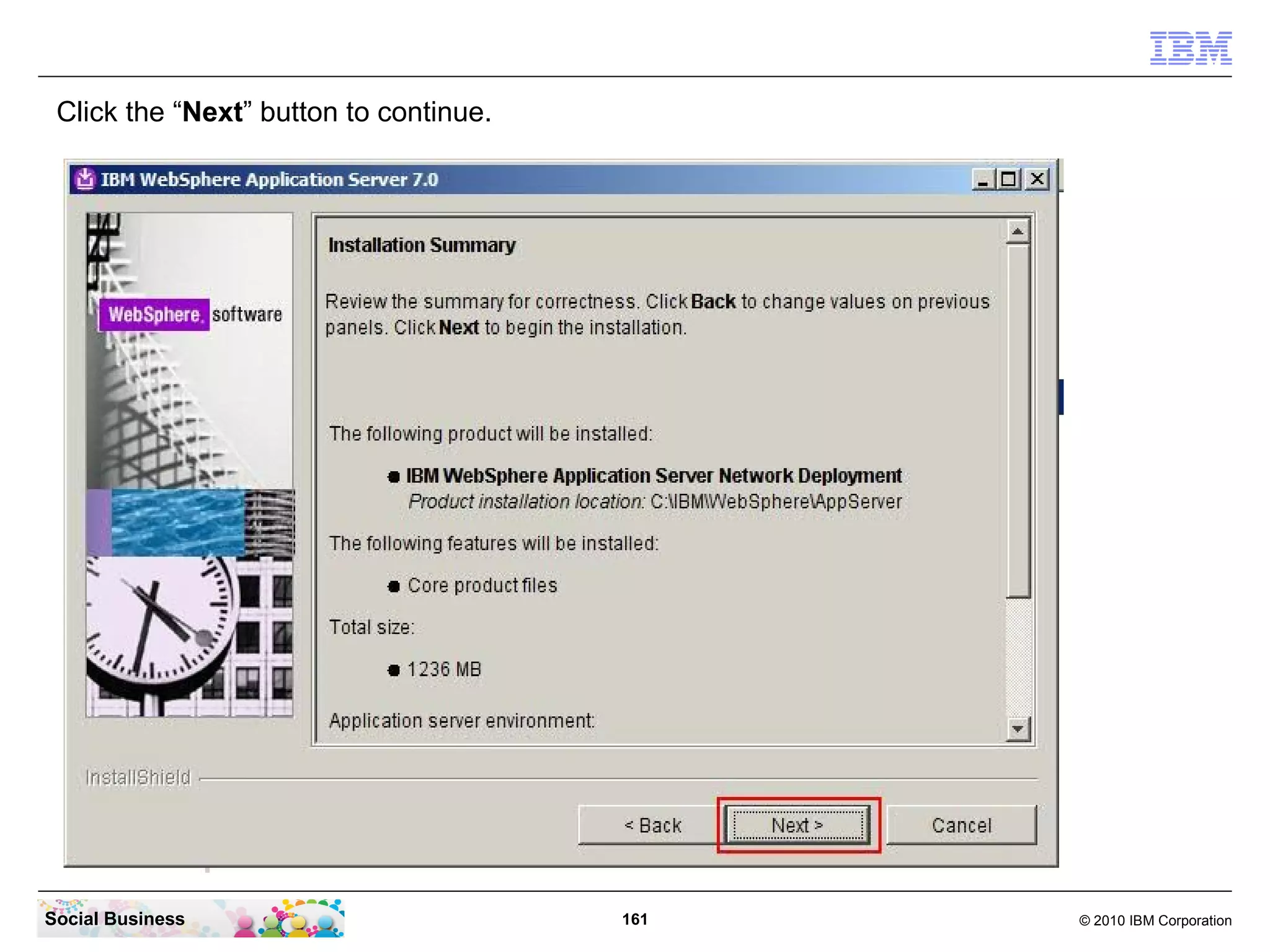
Click the “Next” button to continue.


Social Business                         161   © 2010 IBM Corporation
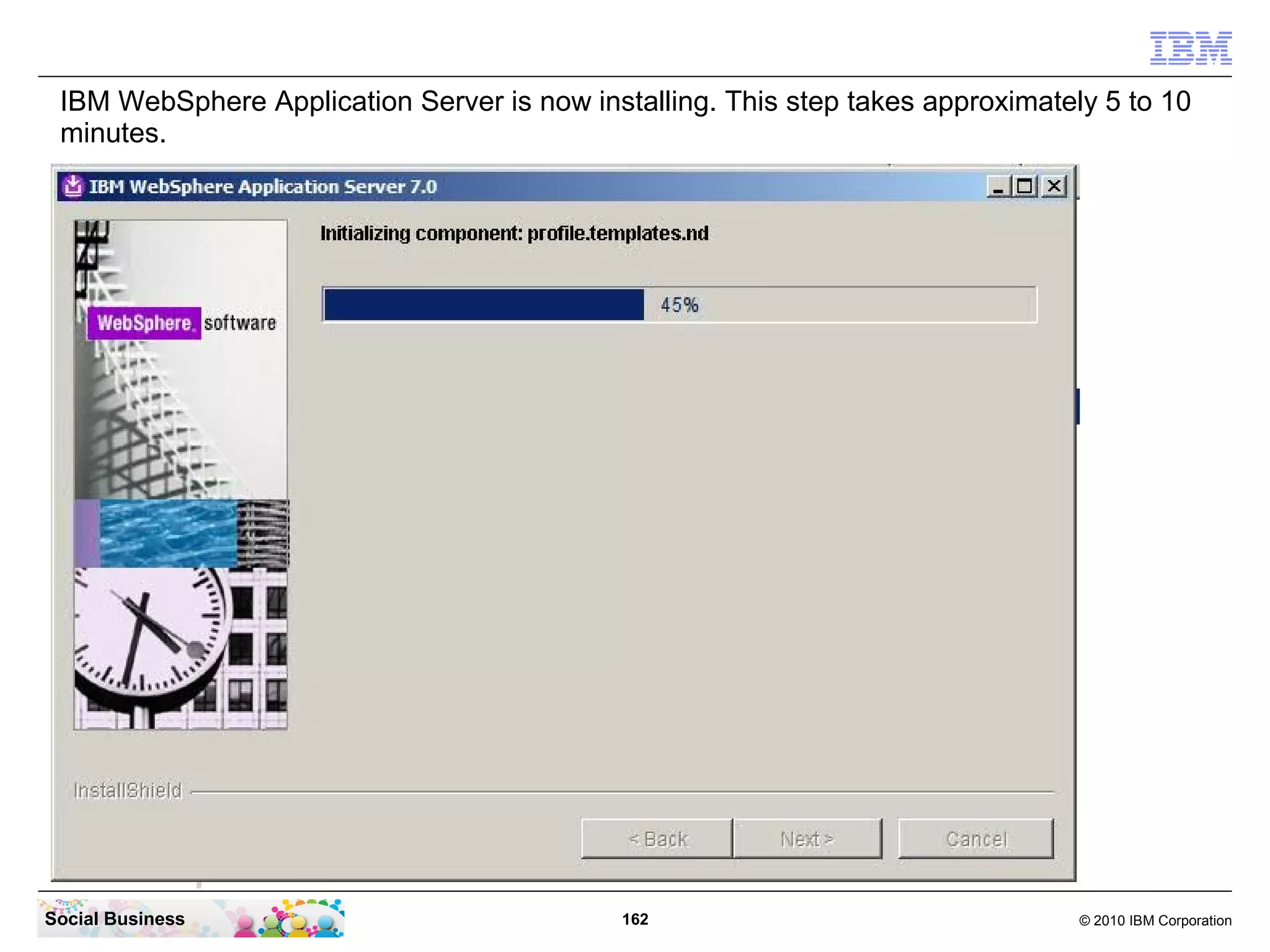
IBM WebSphere Application Server is now installing. This step takes approximately 5 to 10
 minutes.


Social Business                              162                                 © 2010 IBM Corporation
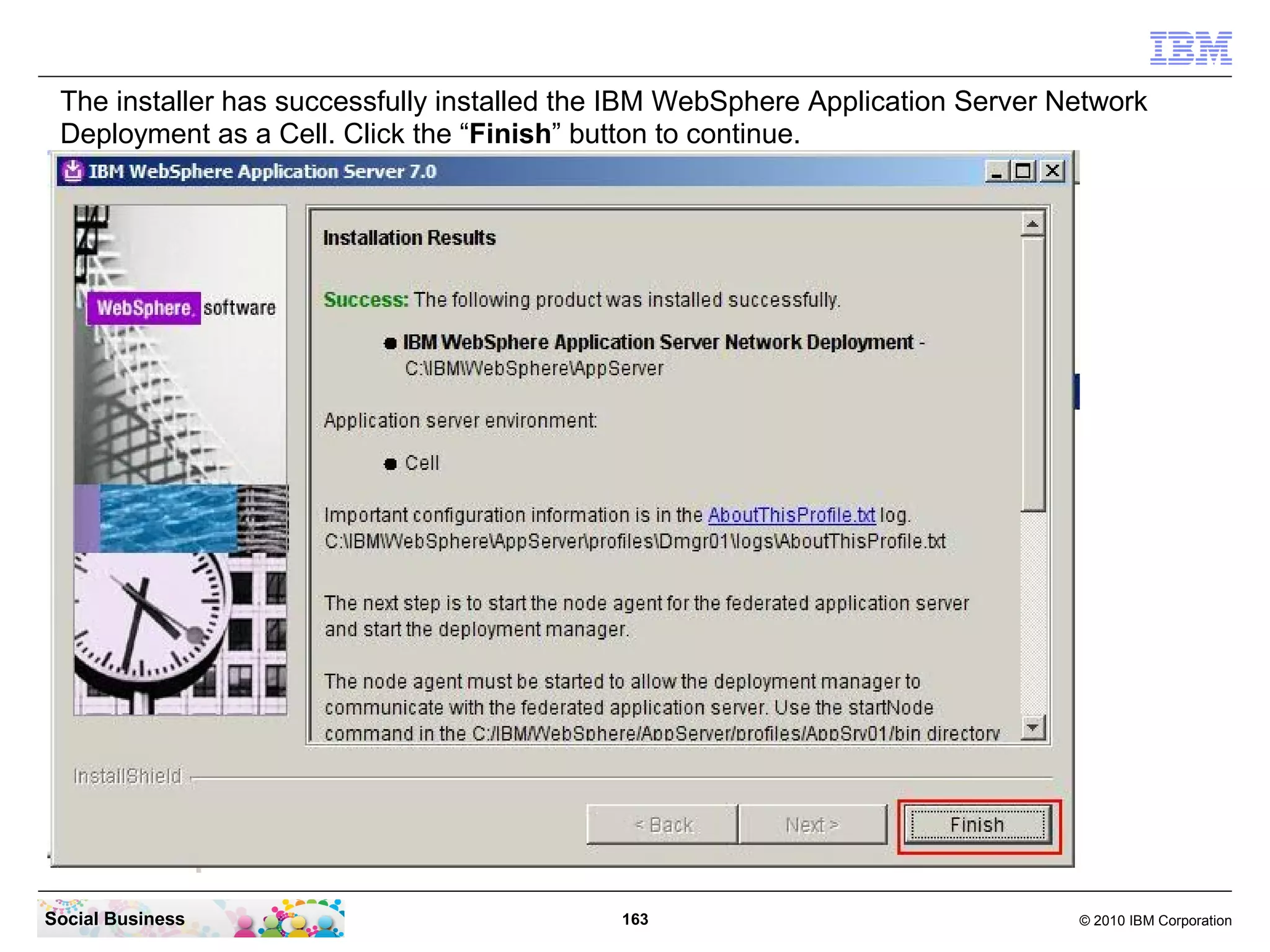
The installer has successfully installed the IBM WebSphere Application Server Network
 Deployment as a Cell. Click the “Finish” button to continue.


Social Business                             163                                 © 2010 IBM Corporation
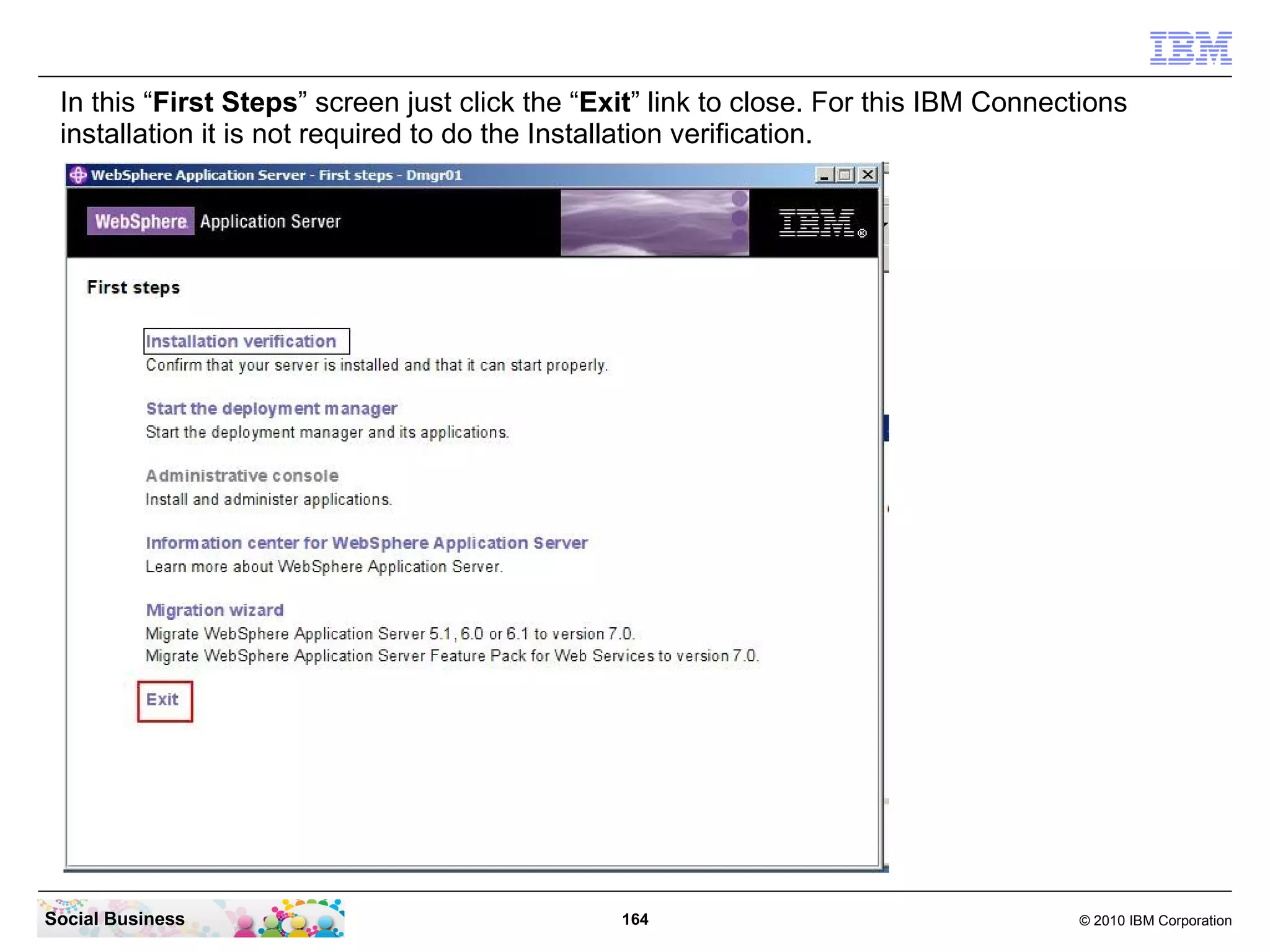
In this “First Steps” screen just click the “Exit” link to close. For this IBM Connections
 installation it is not required to do the Installation verification.


Social Business                                 164                                   © 2010 IBM Corporation
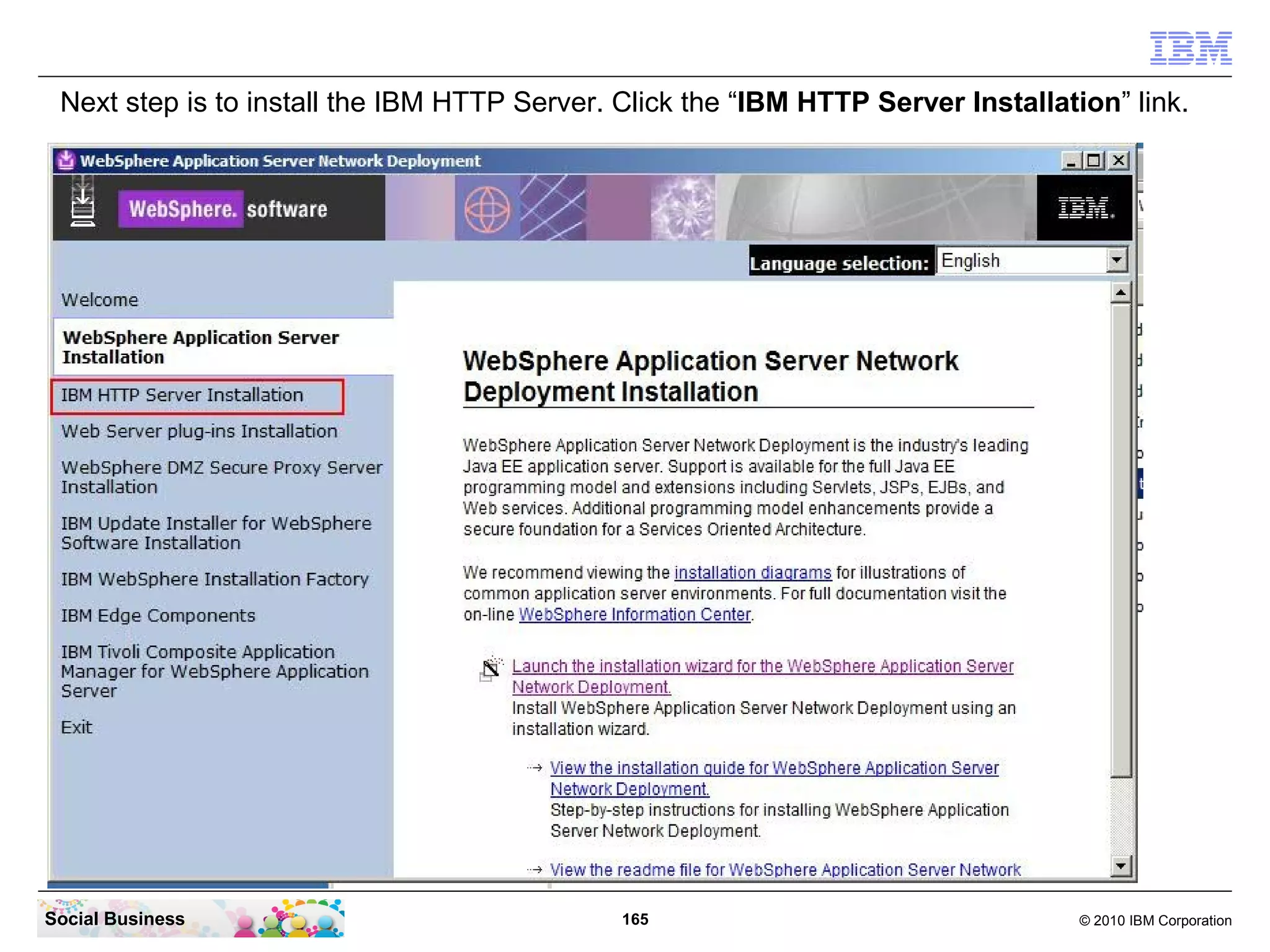
Next step is to install the IBM HTTP Server. Click the “IBM HTTP Server Installation” link.


Social Business                               165                                  © 2010 IBM Corporation
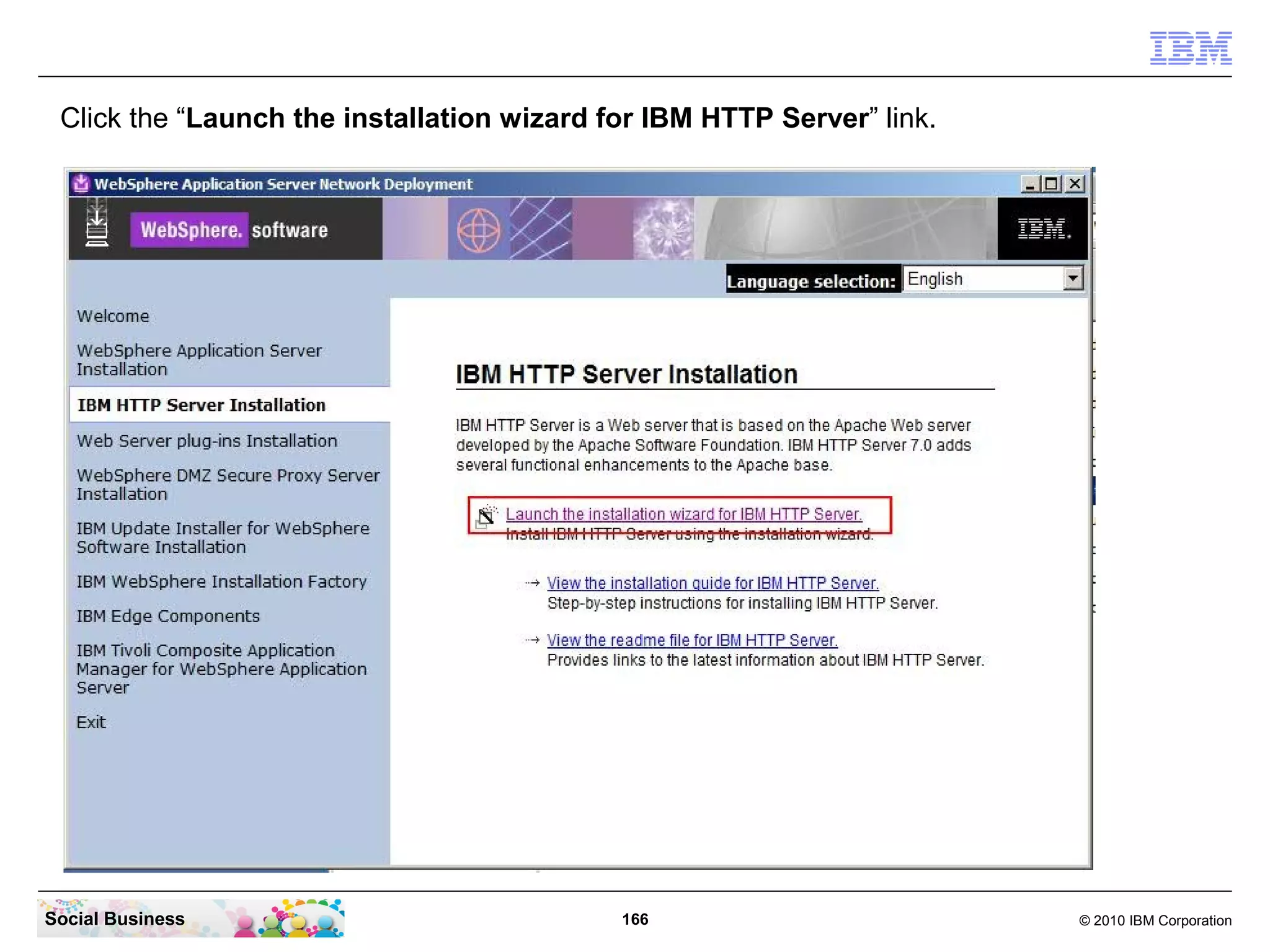
Click the “Launch the installation wizard for IBM HTTP Server” link.


Social Business                             166                         © 2010 IBM Corporation
Click the “Next” button to continue.


Social Business                        167   © 2010 IBM Corporation
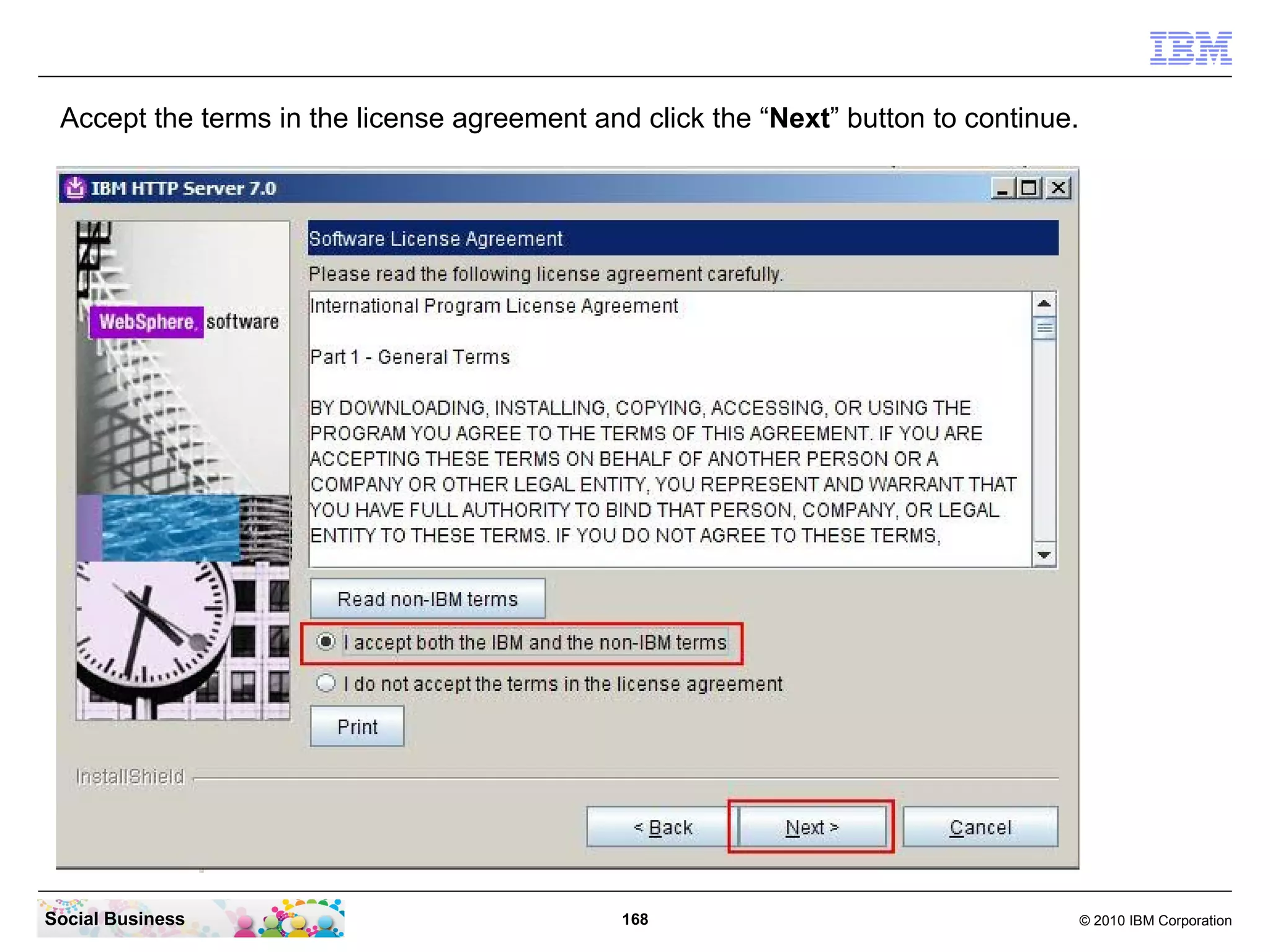
Accept the terms in the license agreement and click the “Next” button to continue.


Social Business                               168                                     © 2010 IBM Corporation
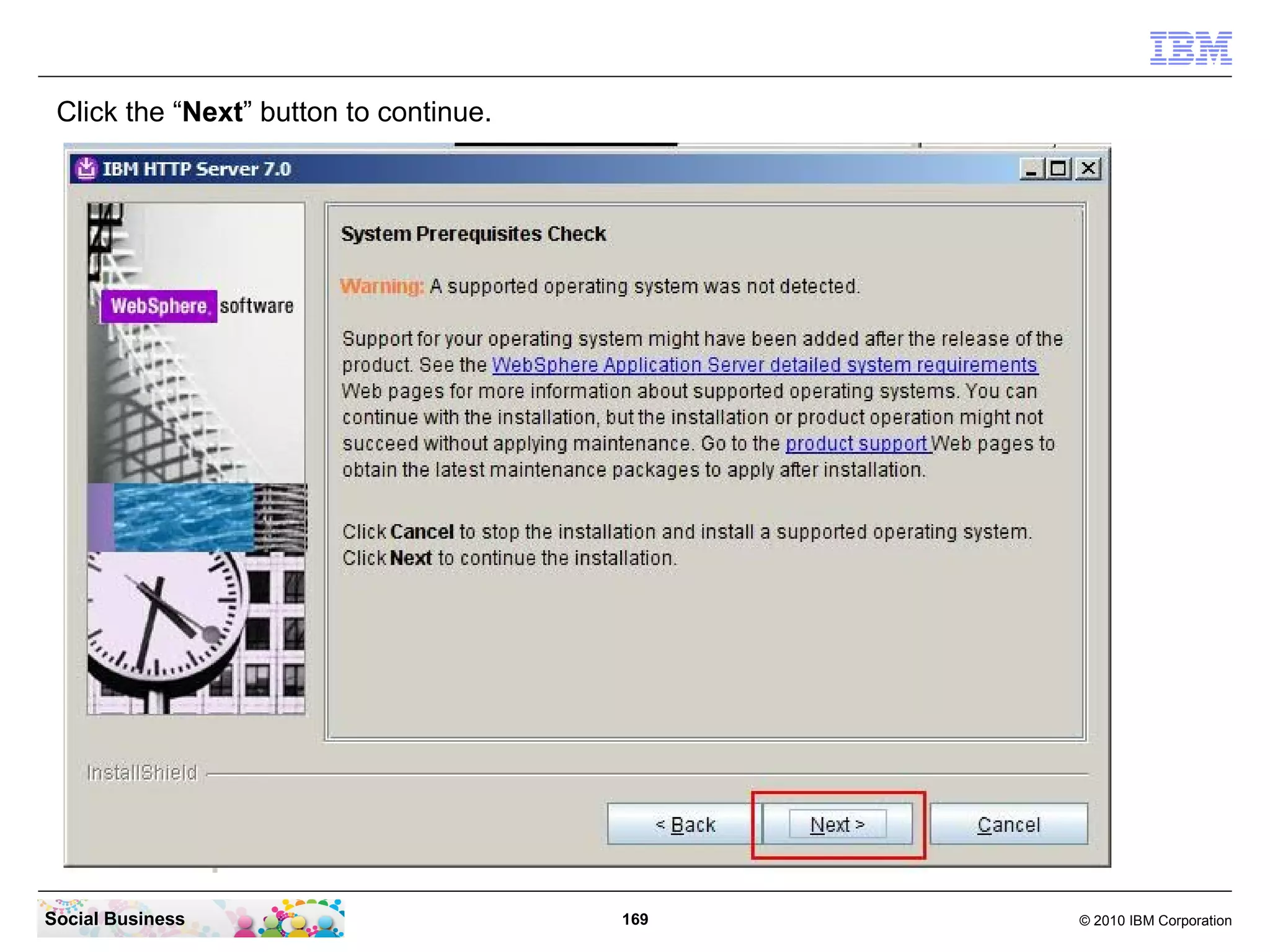
Click the “Next” button to continue.


Social Business                         169   © 2010 IBM Corporation
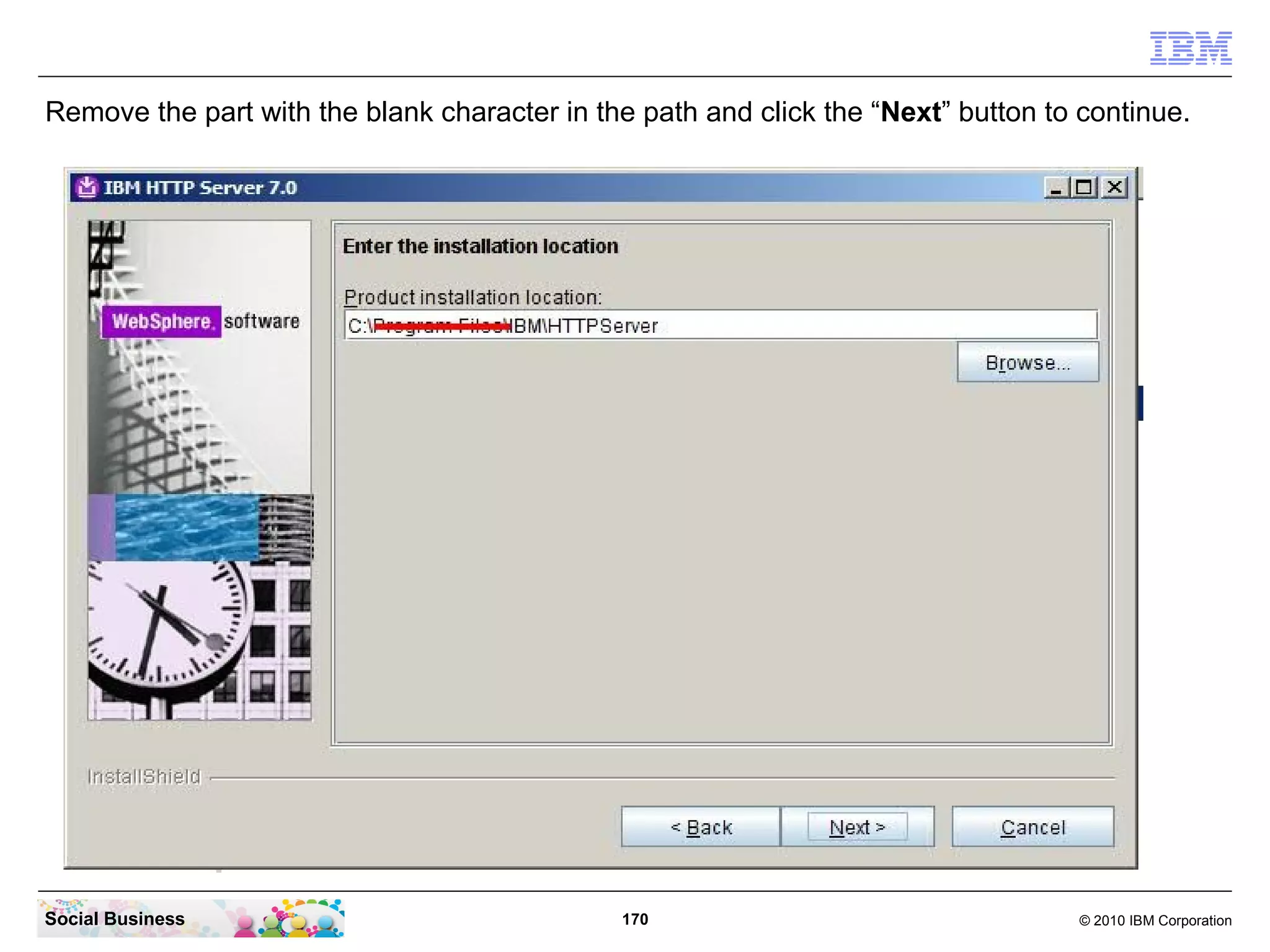
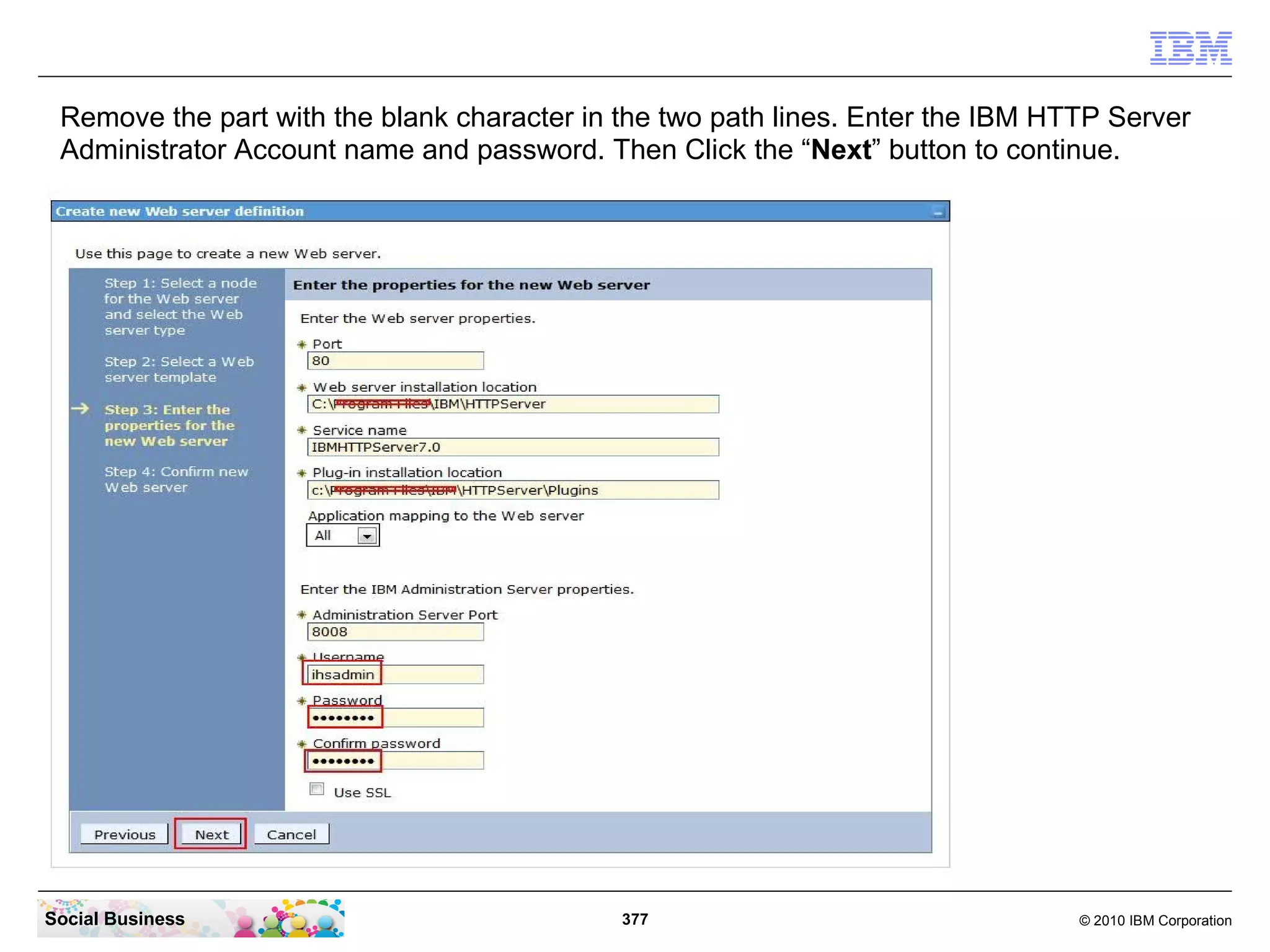
Remove the part with the blank character in the path and click the “Next” button to continue.


Social Business                               170                                  © 2010 IBM Corporation
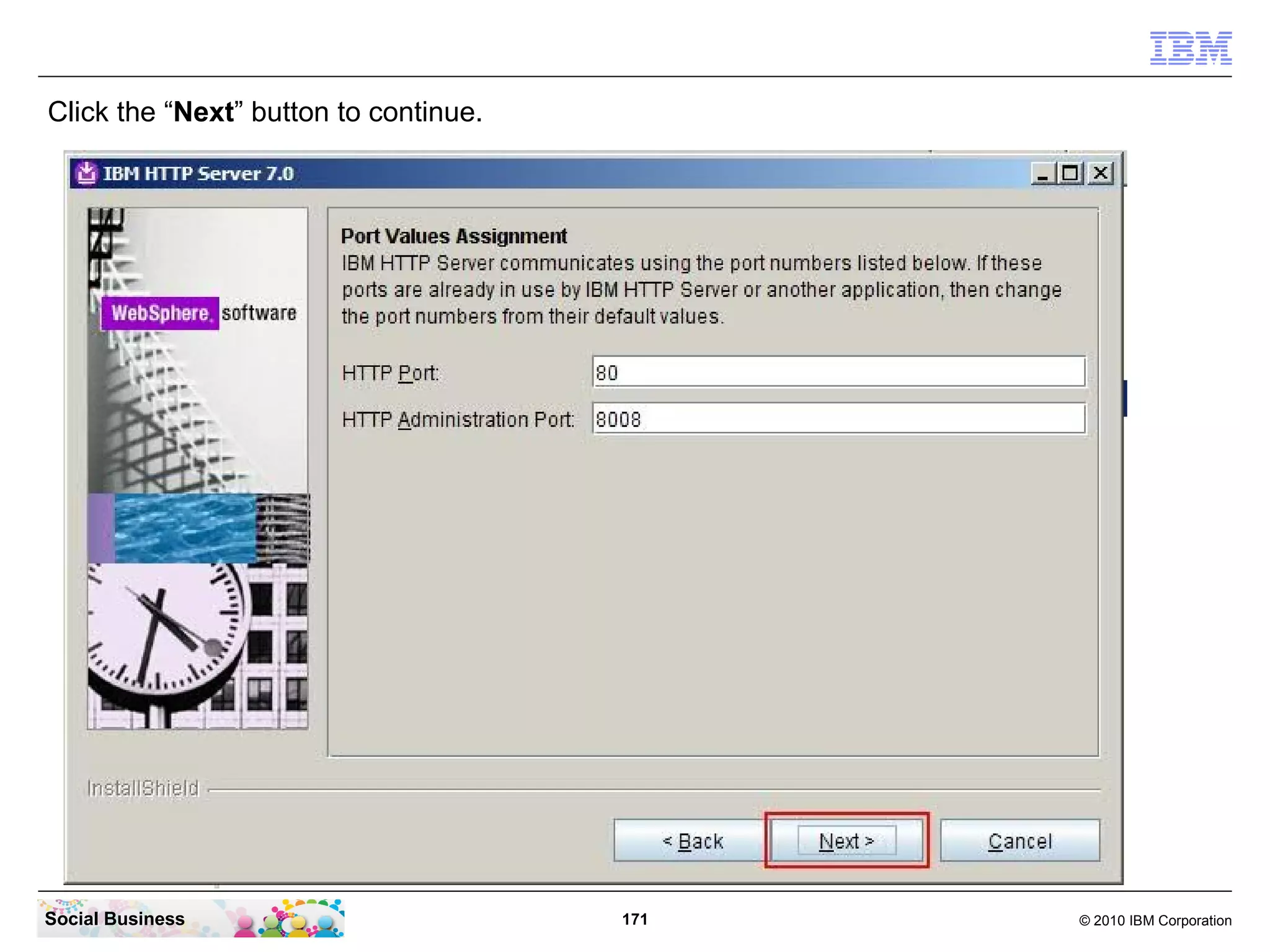
Click the “Next” button to continue.


Social Business                        171   © 2010 IBM Corporation
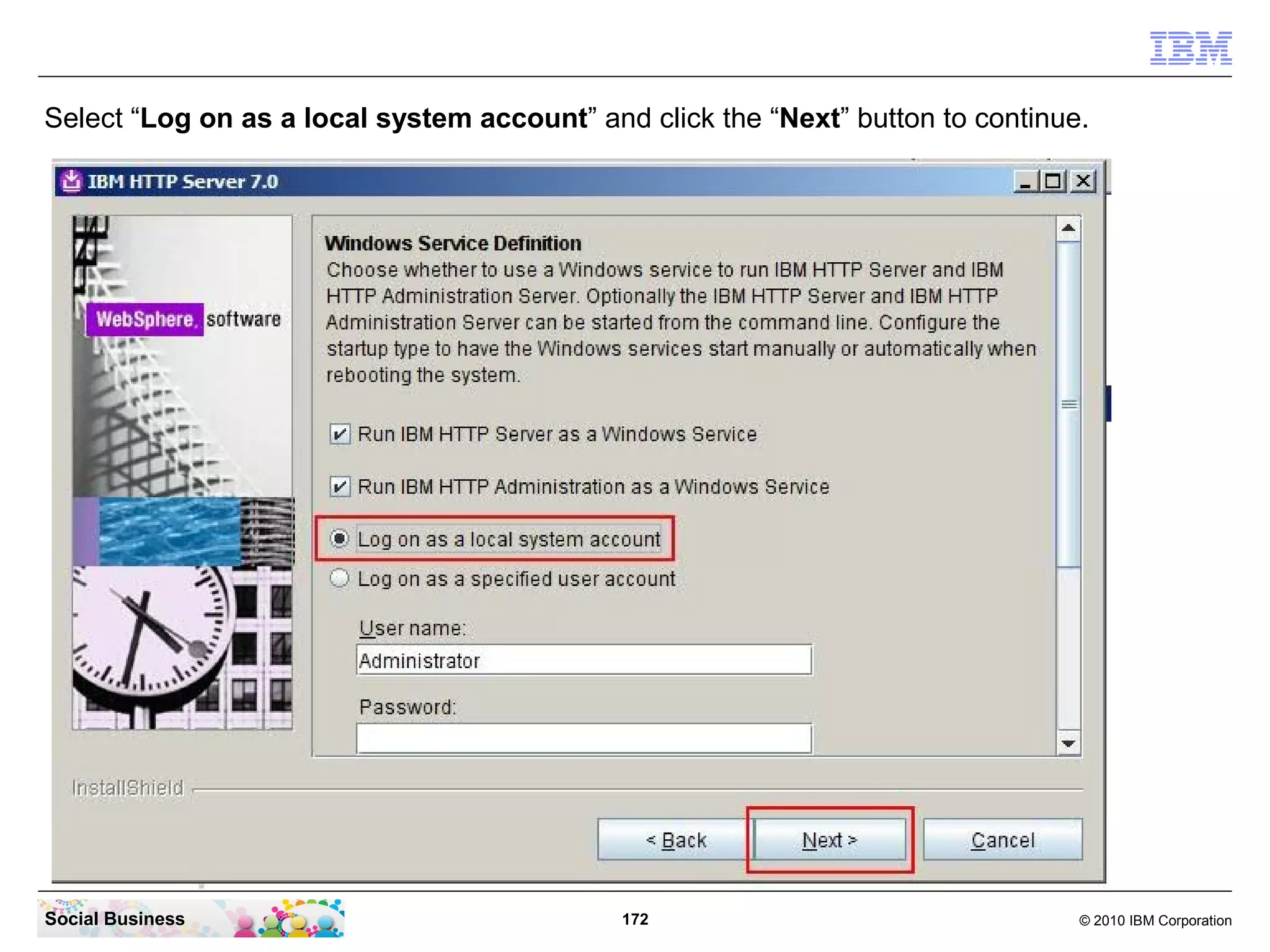
Select “Log on as a local system account” and click the “Next” button to continue.


Social Business                              172                                 © 2010 IBM Corporation
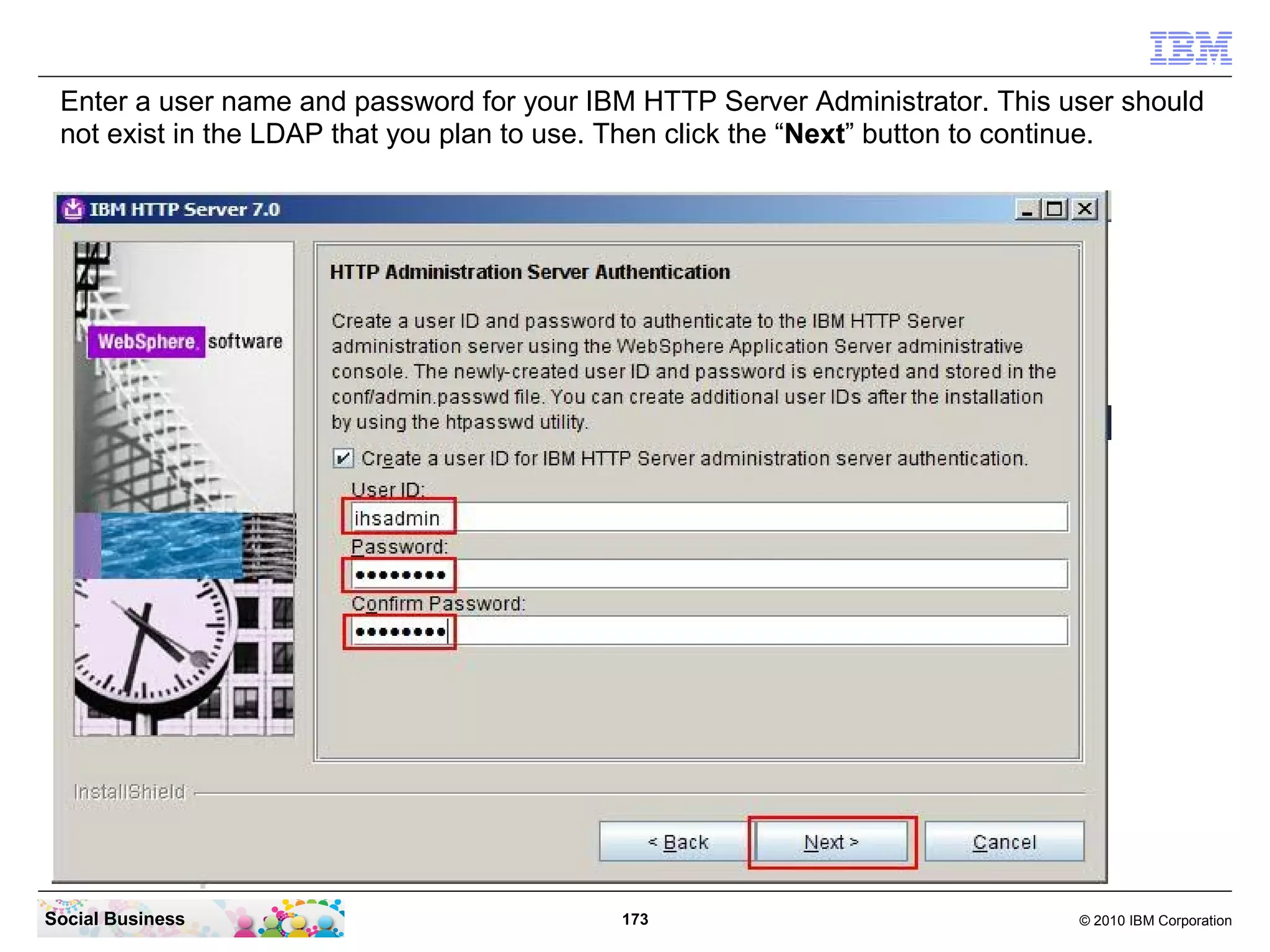
Enter a user name and password for your IBM HTTP Server Administrator. This user should
 not exist in the LDAP that you plan to use. Then click the “Next” button to continue.


Social Business                            173                                © 2010 IBM Corporation
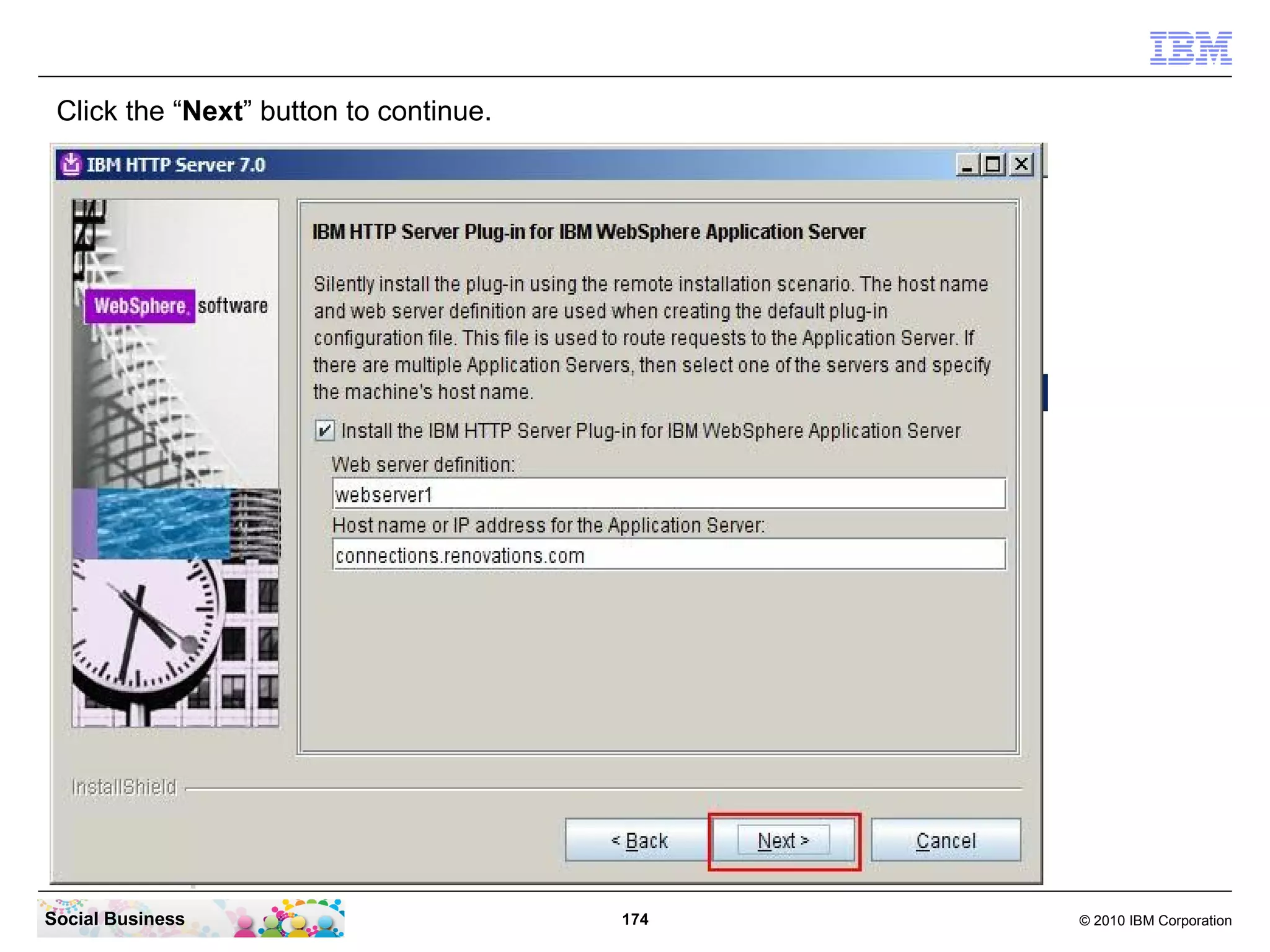
Click the “Next” button to continue.


Social Business                         174   © 2010 IBM Corporation
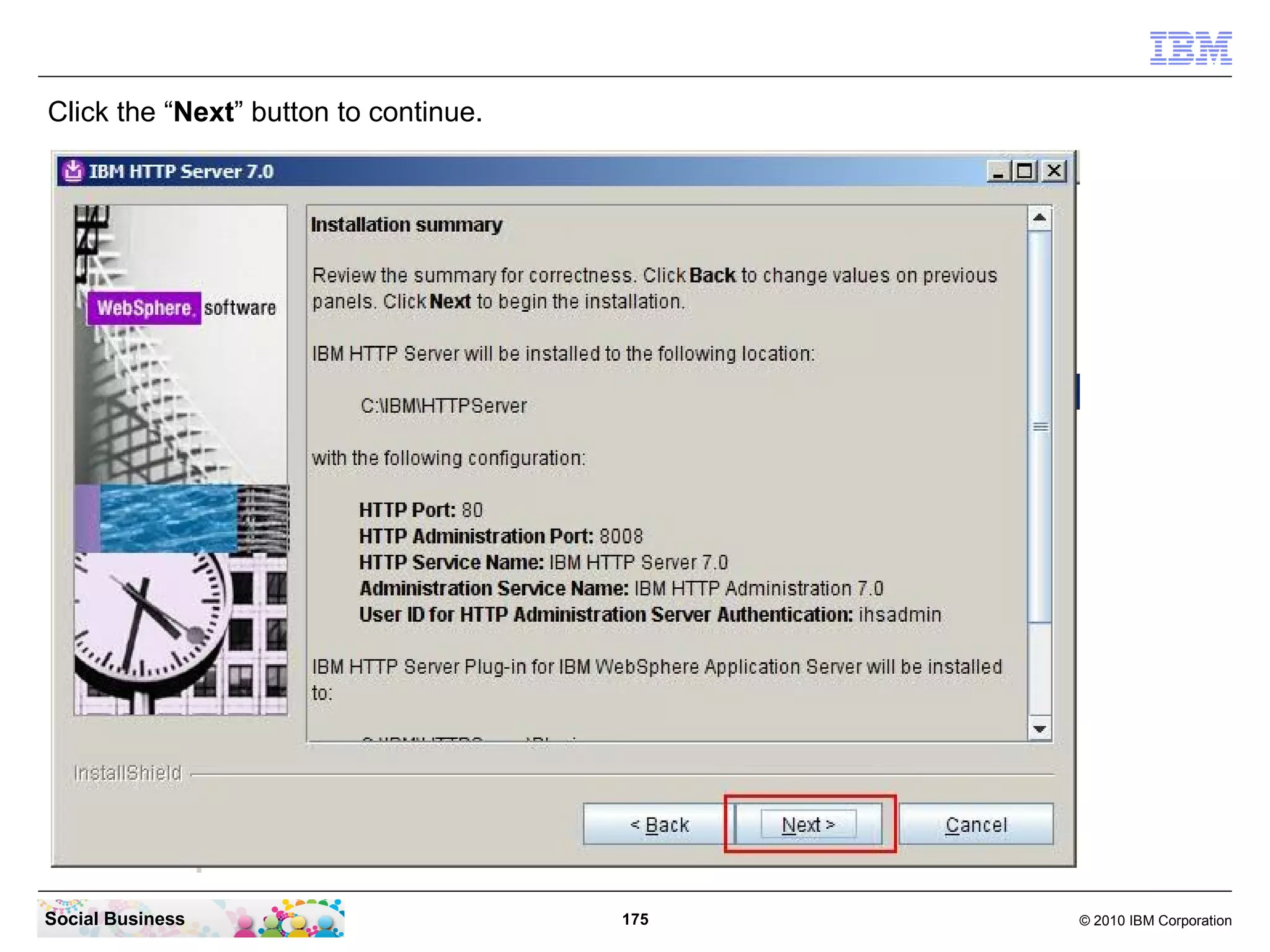
Click the “Next” button to continue.


Social Business                        175   © 2010 IBM Corporation
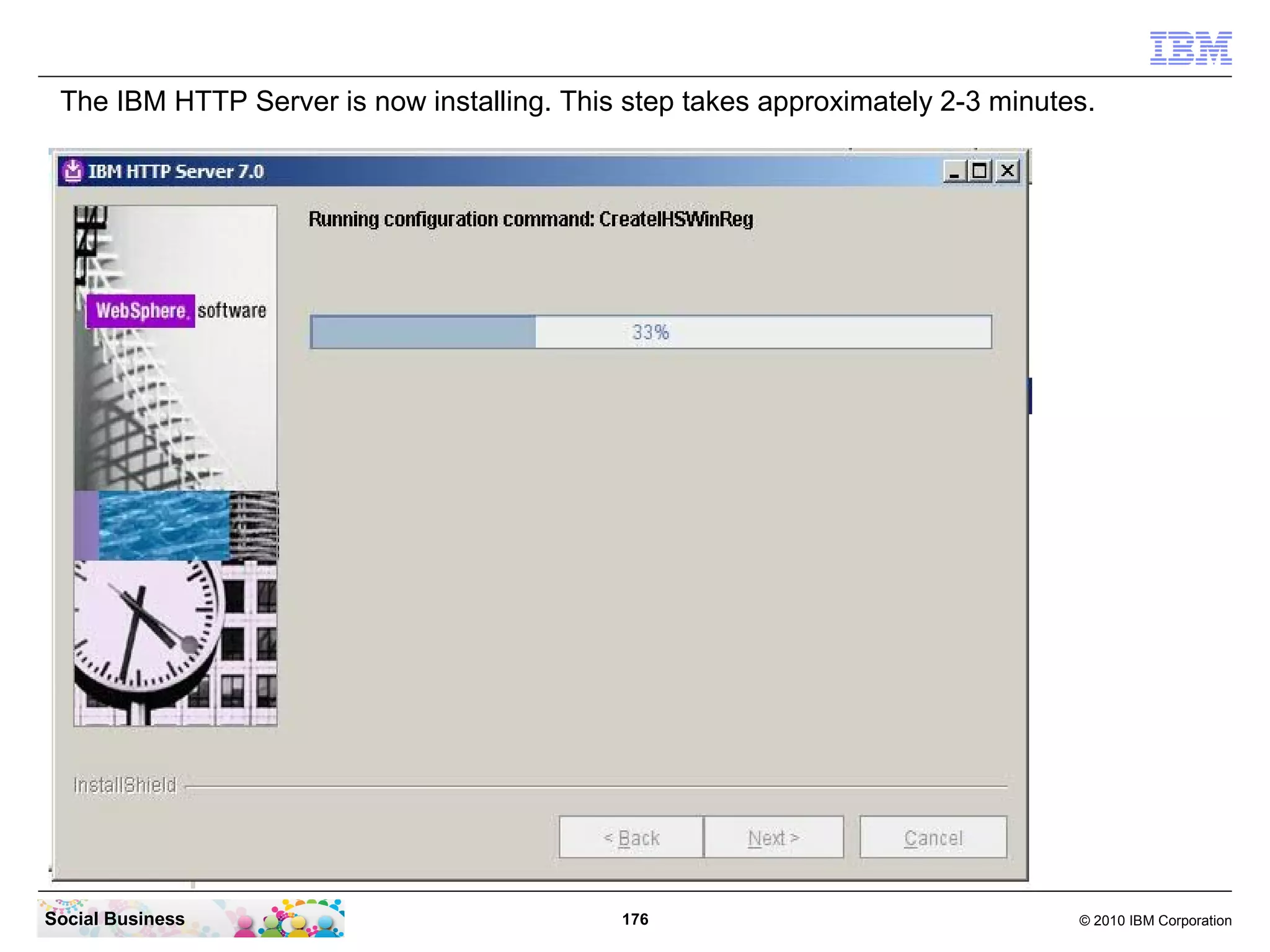
The IBM HTTP Server is now installing. This step takes approximately 2-3 minutes.


Social Business                             176                                 © 2010 IBM Corporation
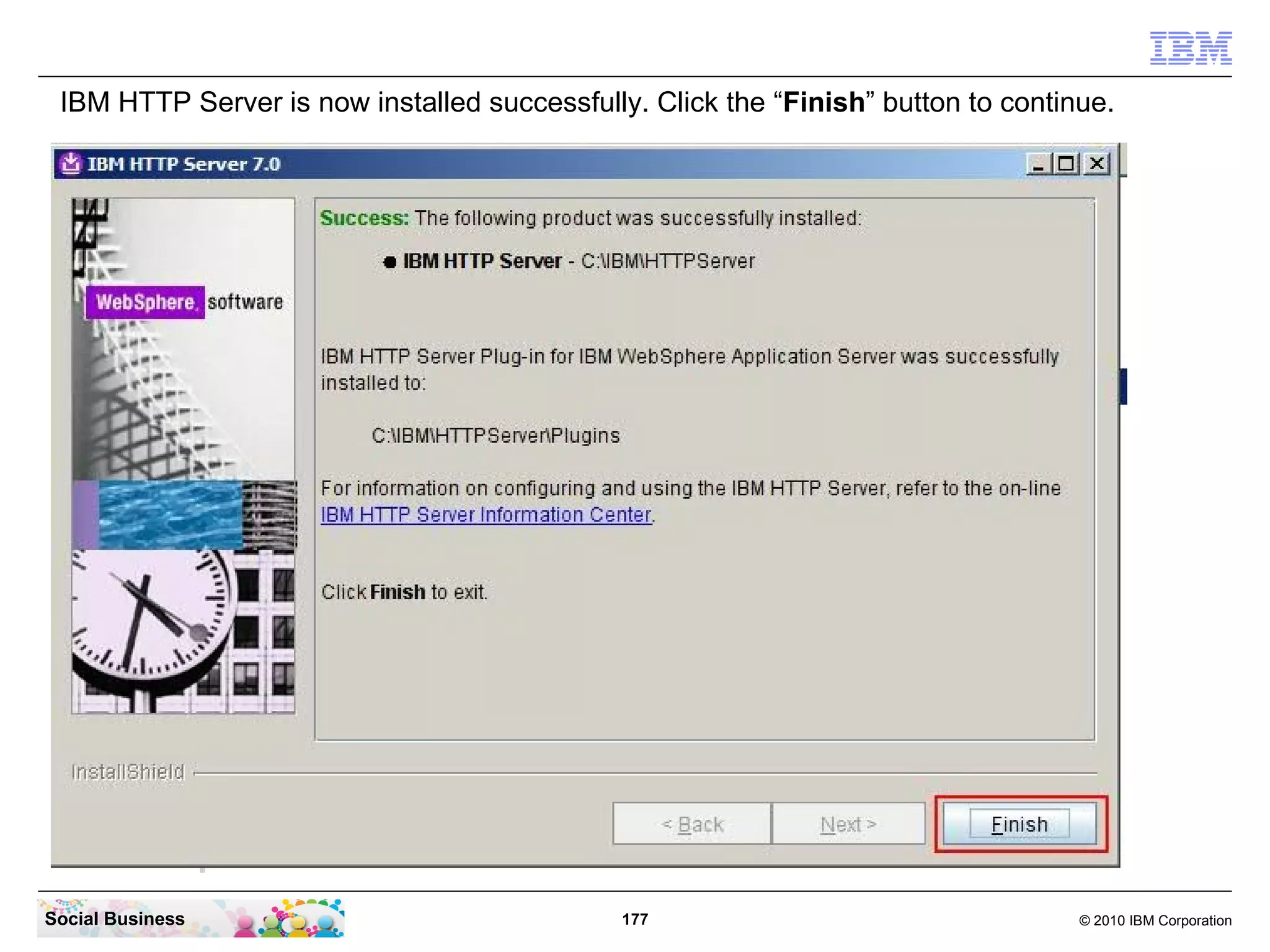
IBM HTTP Server is now installed successfully. Click the “Finish” button to continue.


Social Business                               177                                  © 2010 IBM Corporation
STEP EIGHT: Update IBM WebSphere Application
                     Server, IBM HTTP Server and the IHS Plugin to
                     the required level
   Summary

   In this step you install the IBM WebSphere Update Installer and update the
   already installed components (IBM WebSphere Application Server, IBM HTTP
   Server and IBM HTTP Server Plugin) to the required fix and patch level for IBM
   Connections 4.0.


Social Business                         178                              © 2010 IBM Corporation
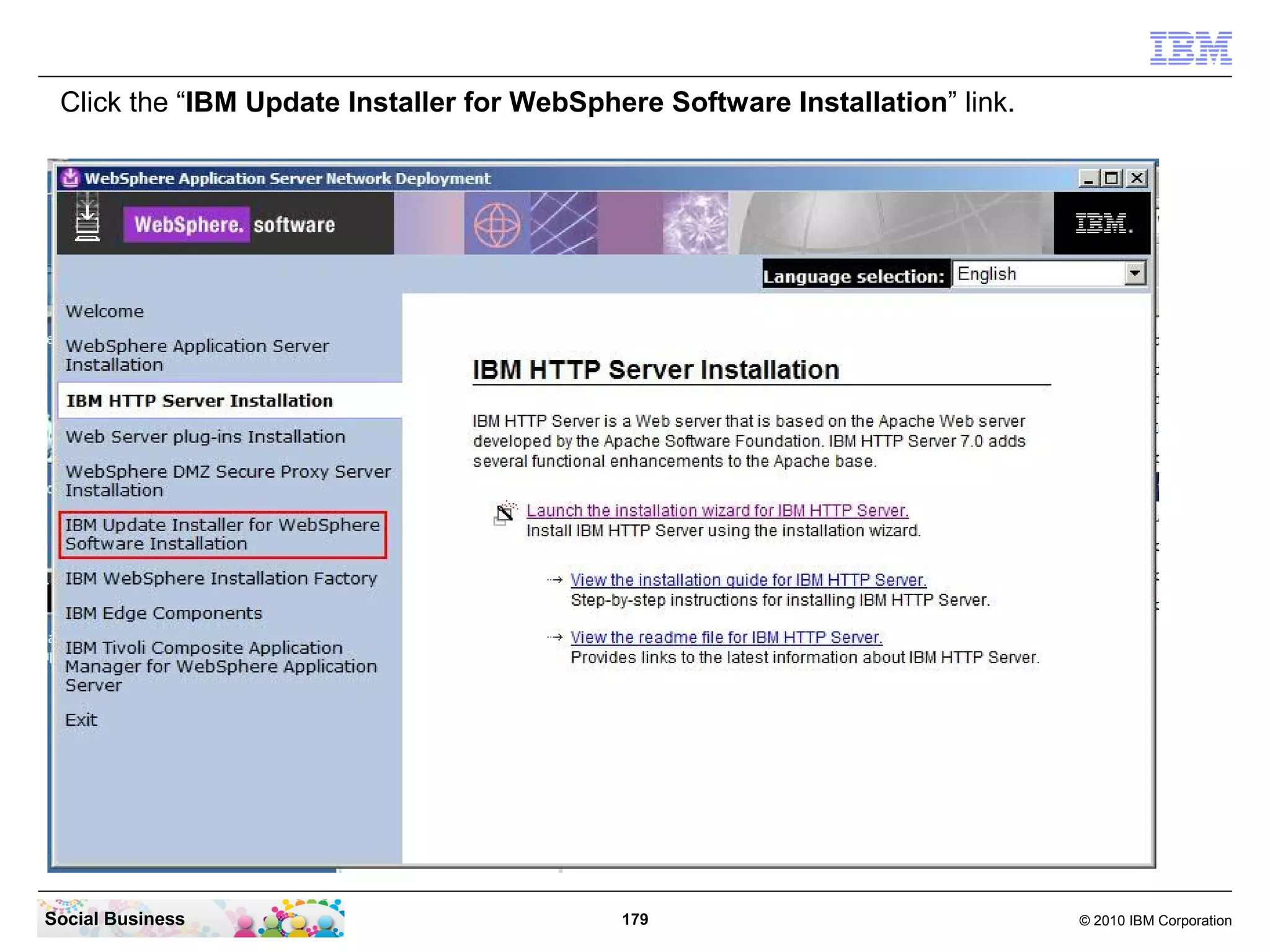
Click the “IBM Update Installer for WebSphere Software Installation” link.


Social Business                             179                               © 2010 IBM Corporation
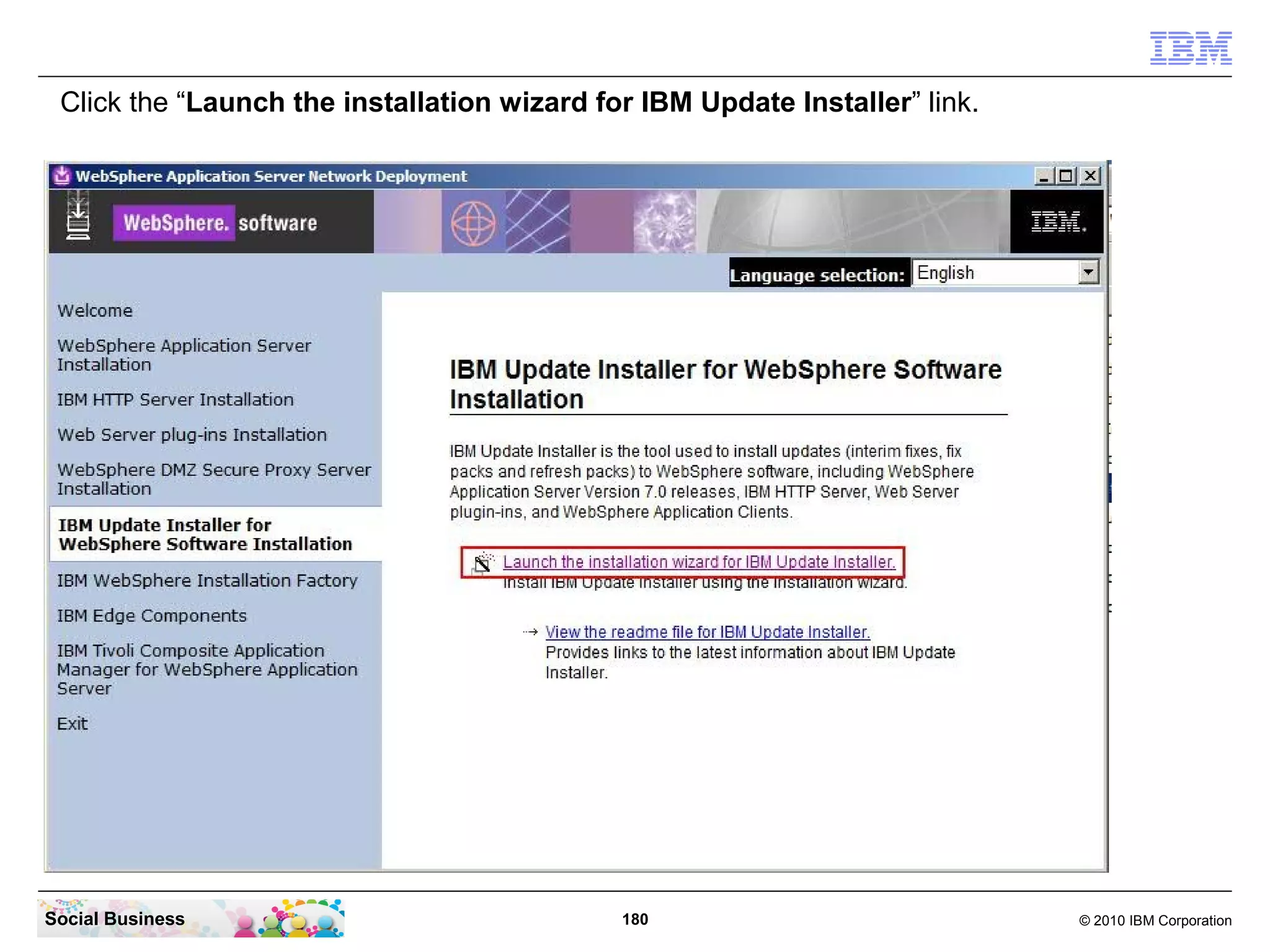
Click the “Launch the installation wizard for IBM Update Installer” link.


Social Business                              180                             © 2010 IBM Corporation
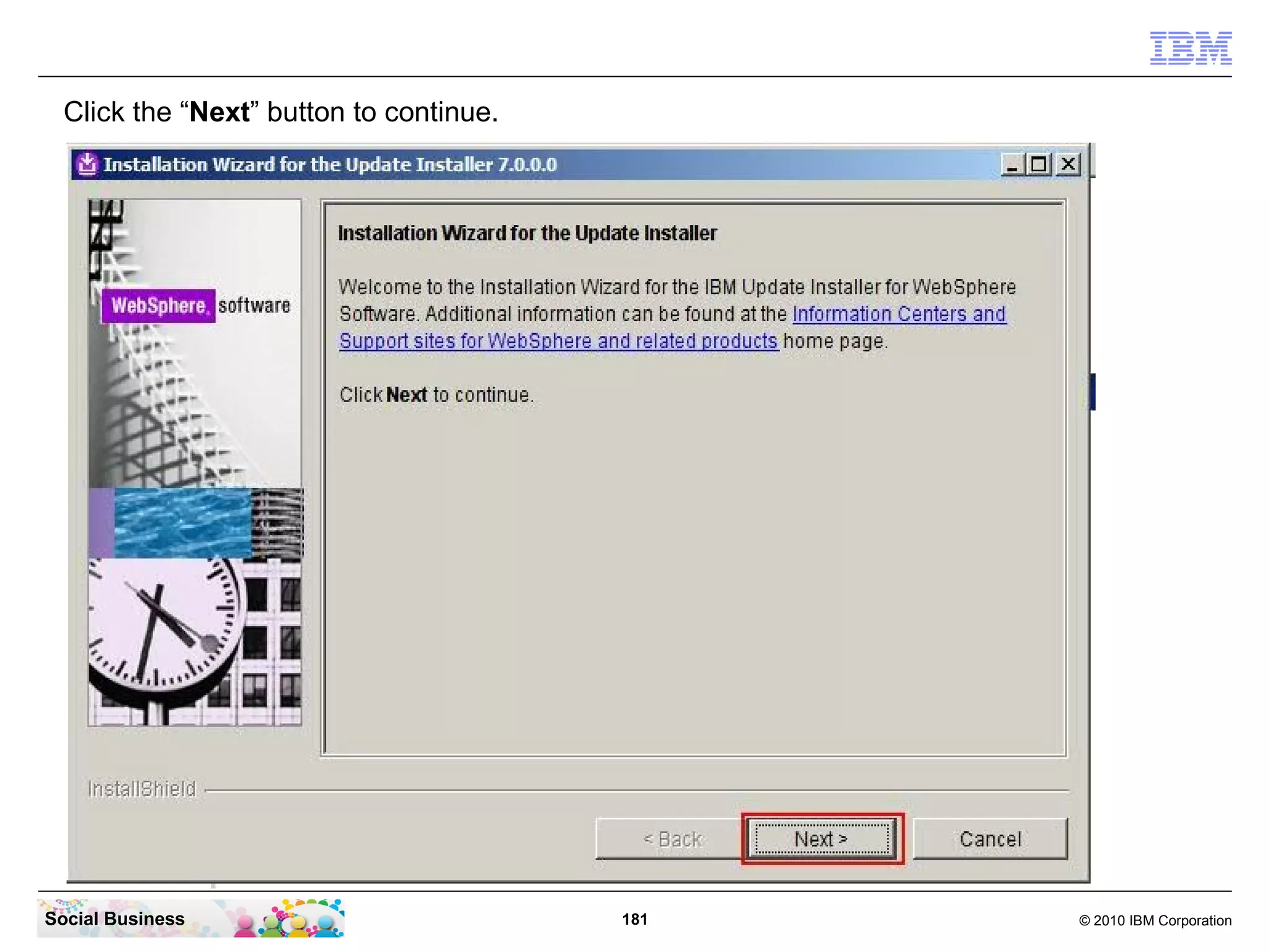
Click the “Next” button to continue.


Social Business                          181   © 2010 IBM Corporation
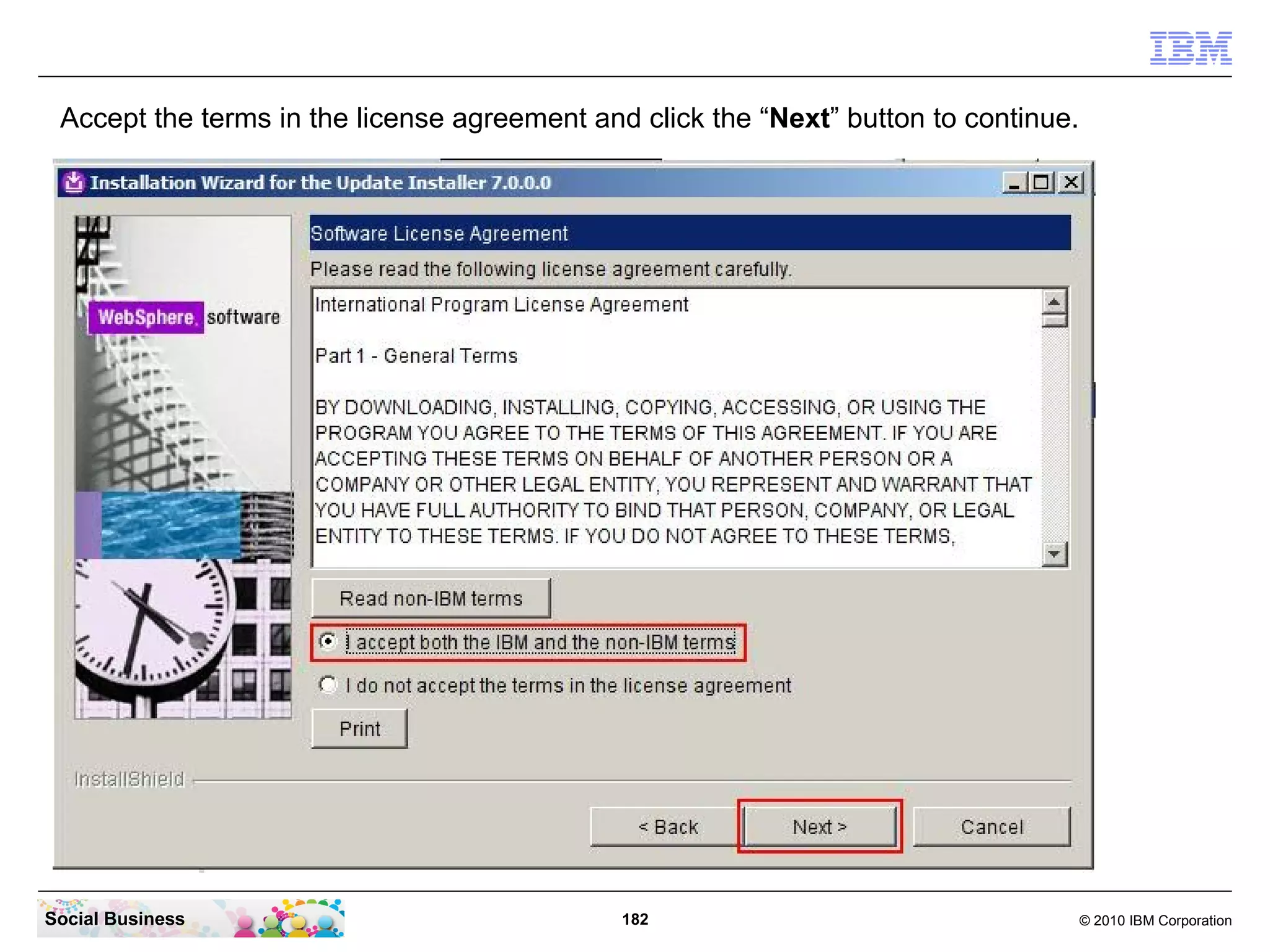
Accept the terms in the license agreement and click the “Next” button to continue.


Social Business                               182                                     © 2010 IBM Corporation
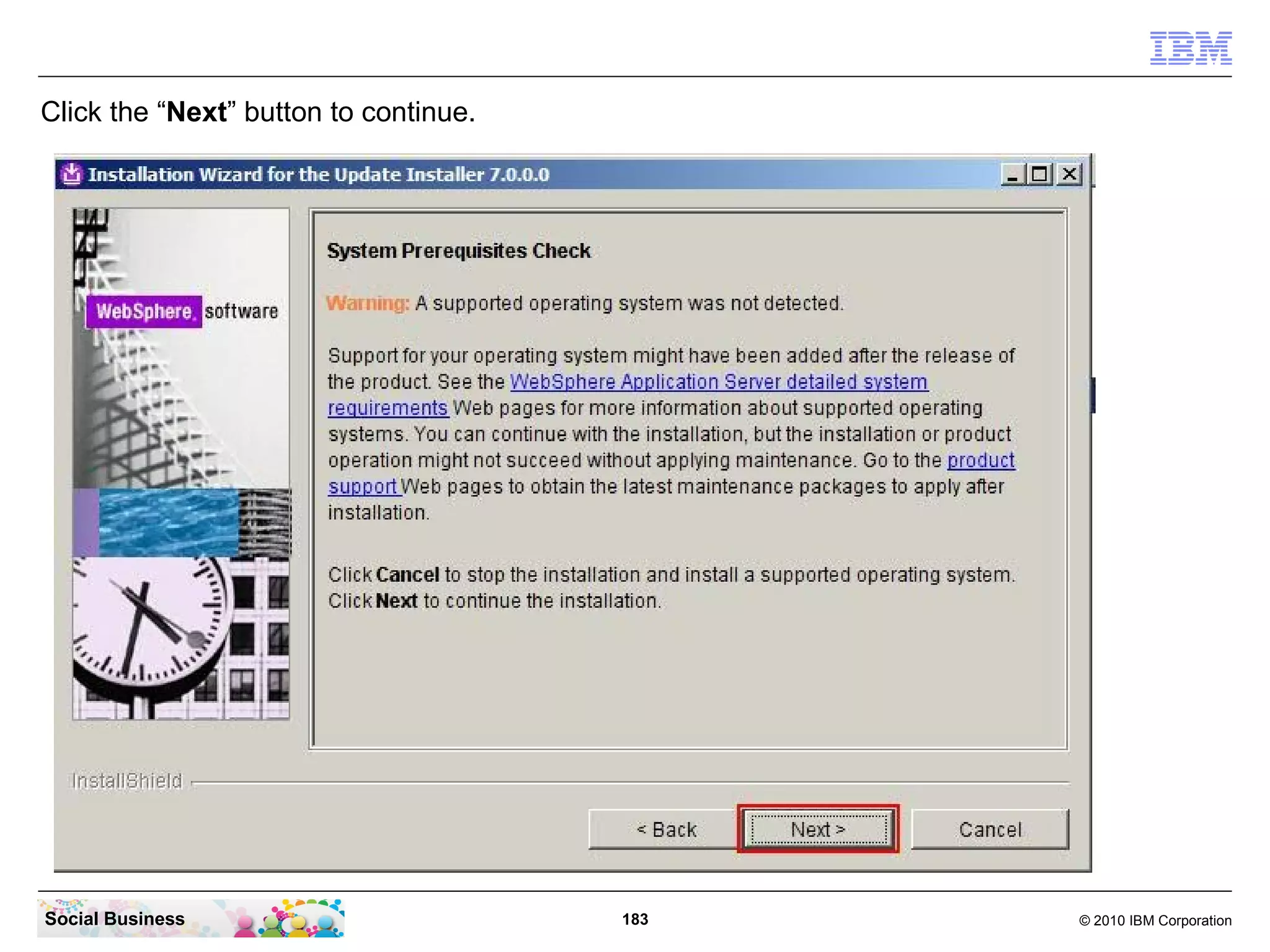
Click the “Next” button to continue.


Social Business                        183   © 2010 IBM Corporation
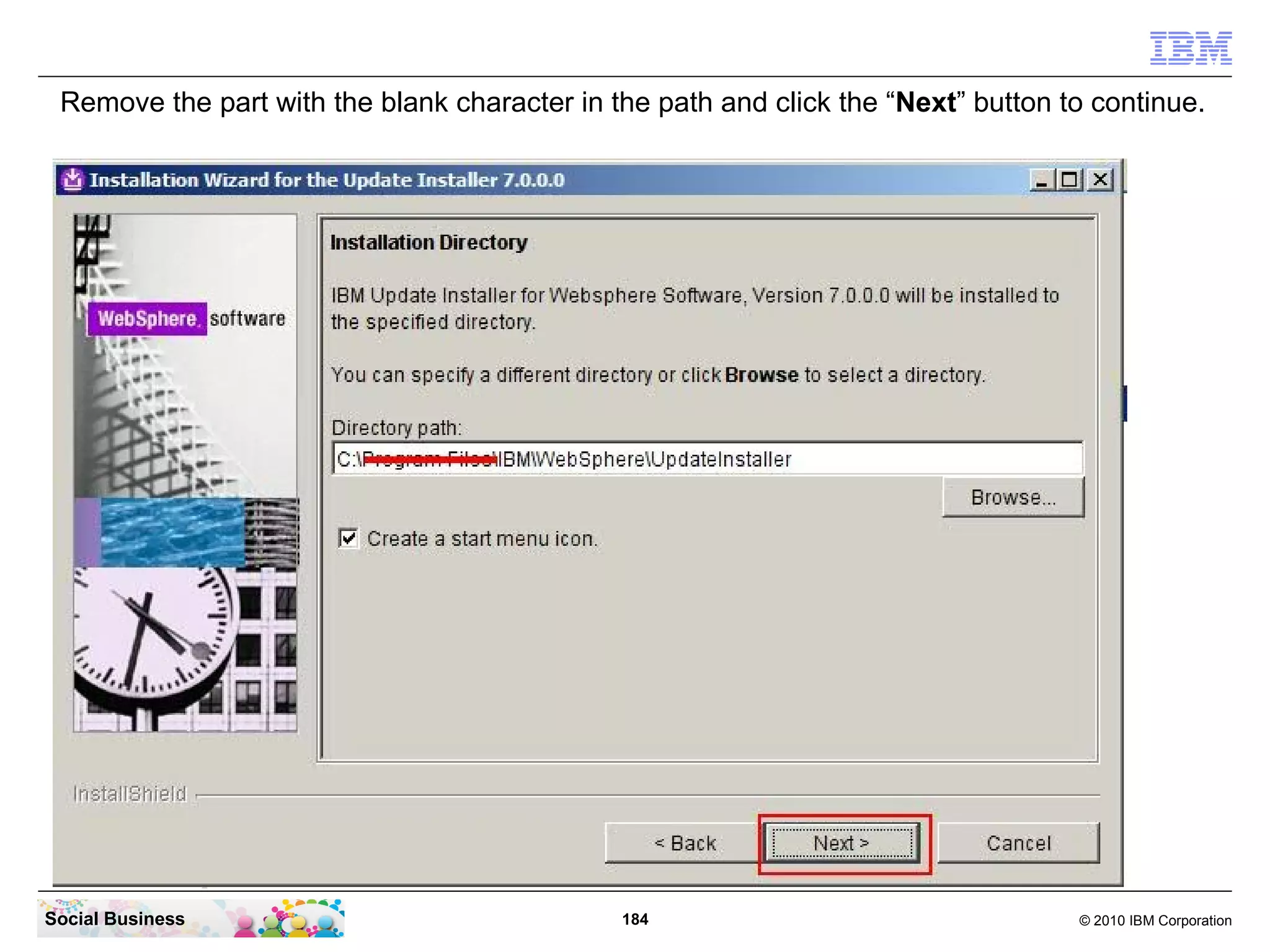
Remove the part with the blank character in the path and click the “Next” button to continue.


Social Business                               184                                  © 2010 IBM Corporation
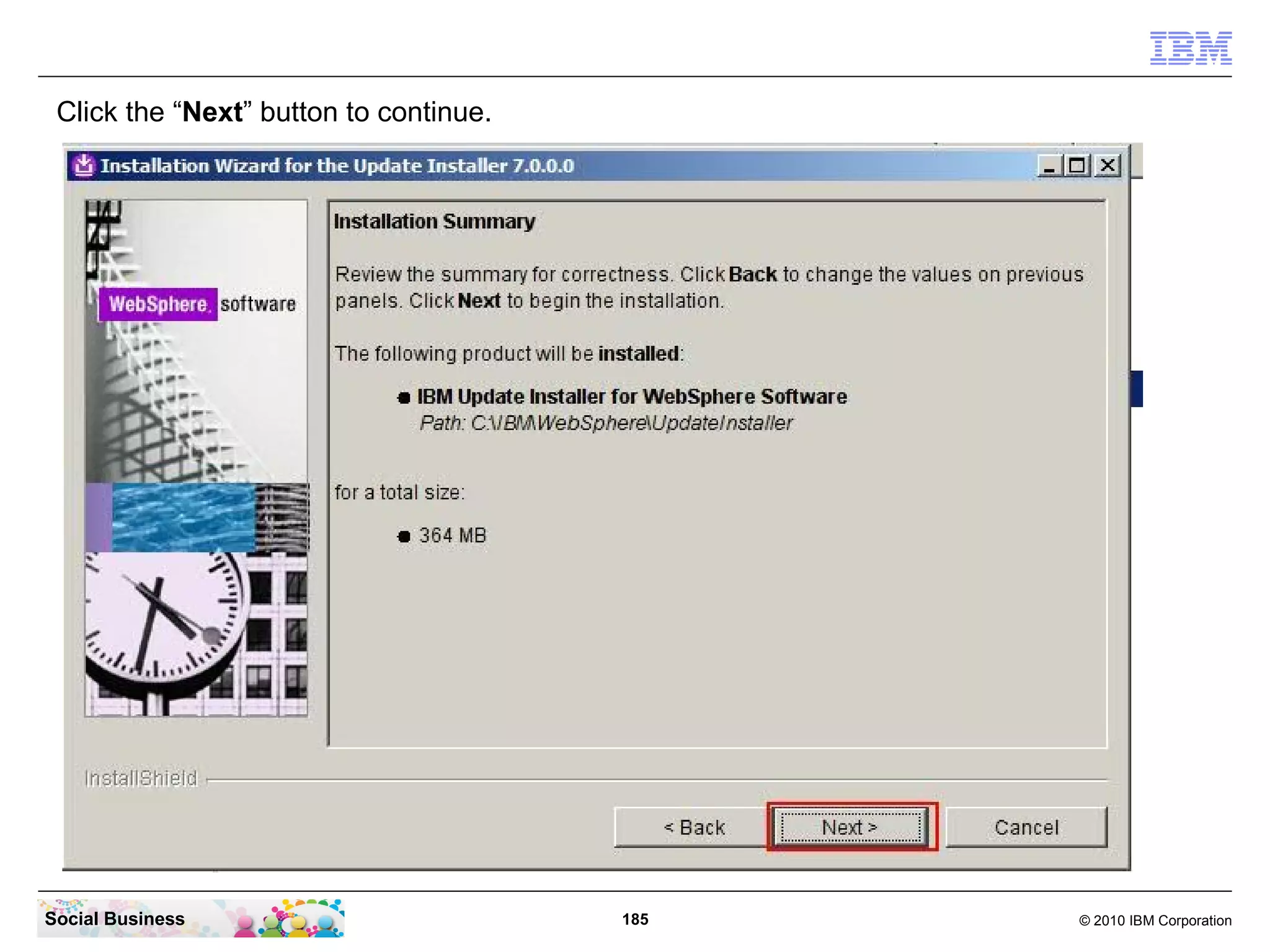
Click the “Next” button to continue.


Social Business                         185   © 2010 IBM Corporation
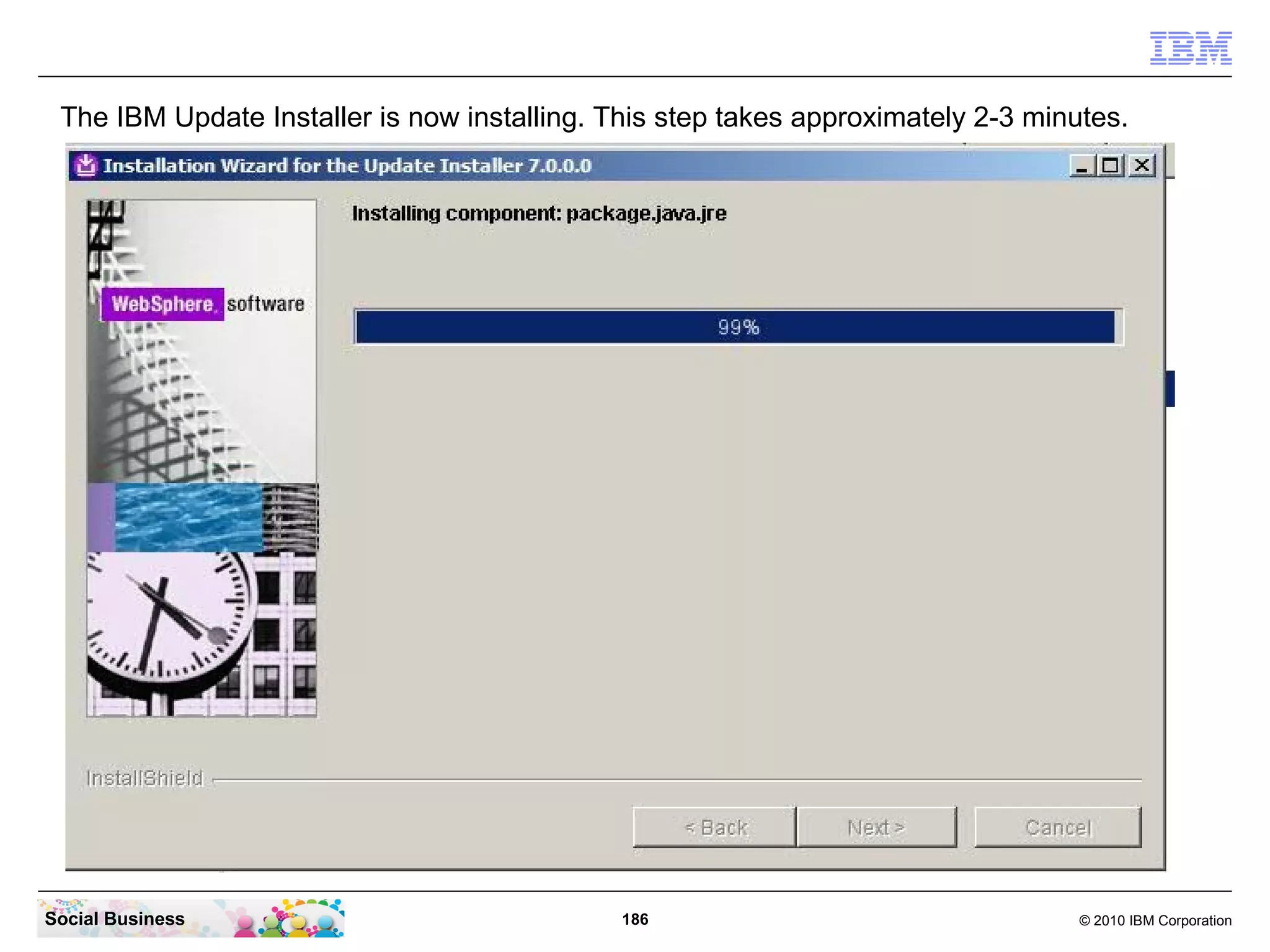
The IBM Update Installer is now installing. This step takes approximately 2-3 minutes.


Social Business                               186                                  © 2010 IBM Corporation
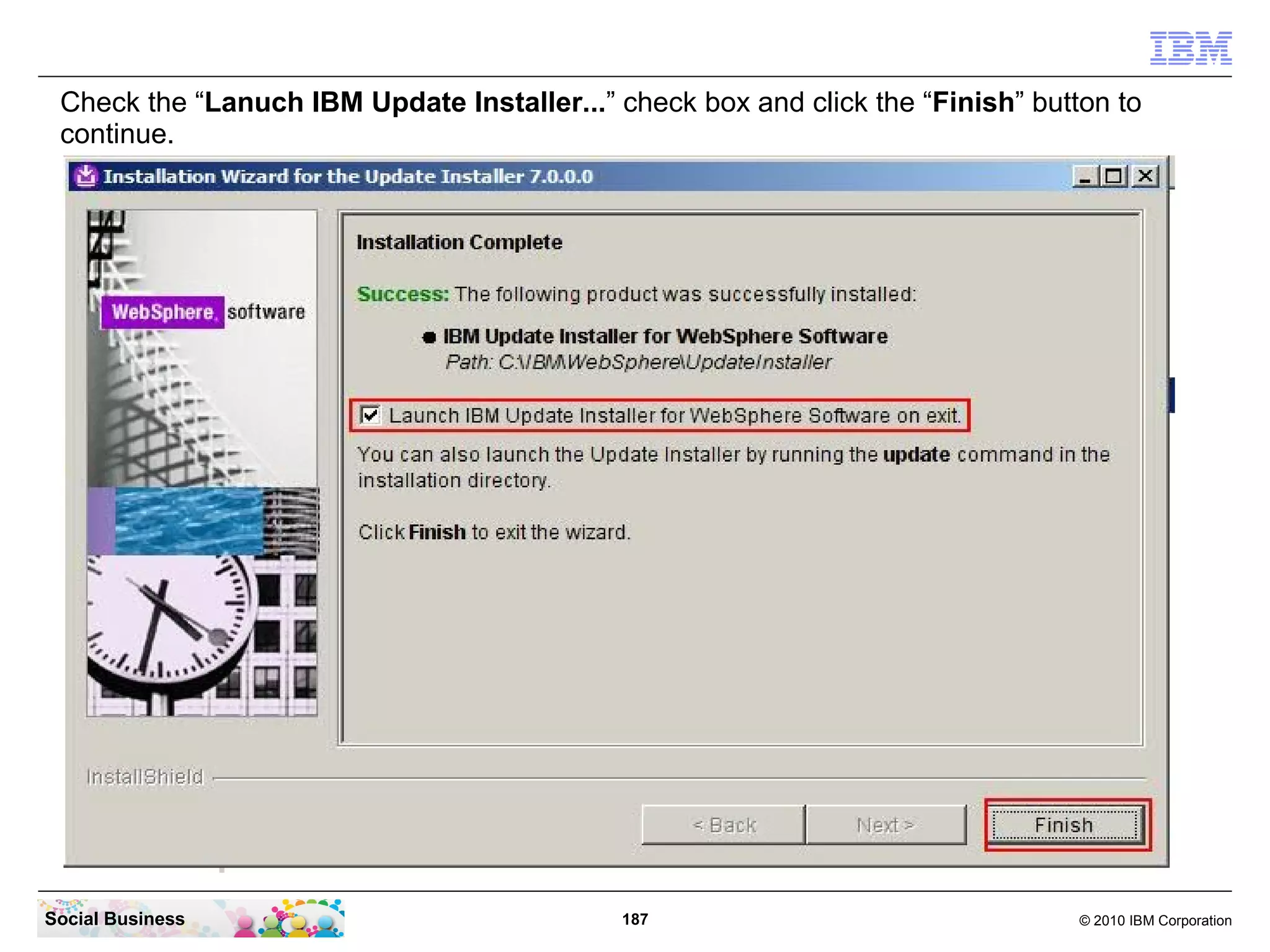
Check the “Lanuch IBM Update Installer...” check box and click the “Finish” button to
 continue.


Social Business                              187                                 © 2010 IBM Corporation
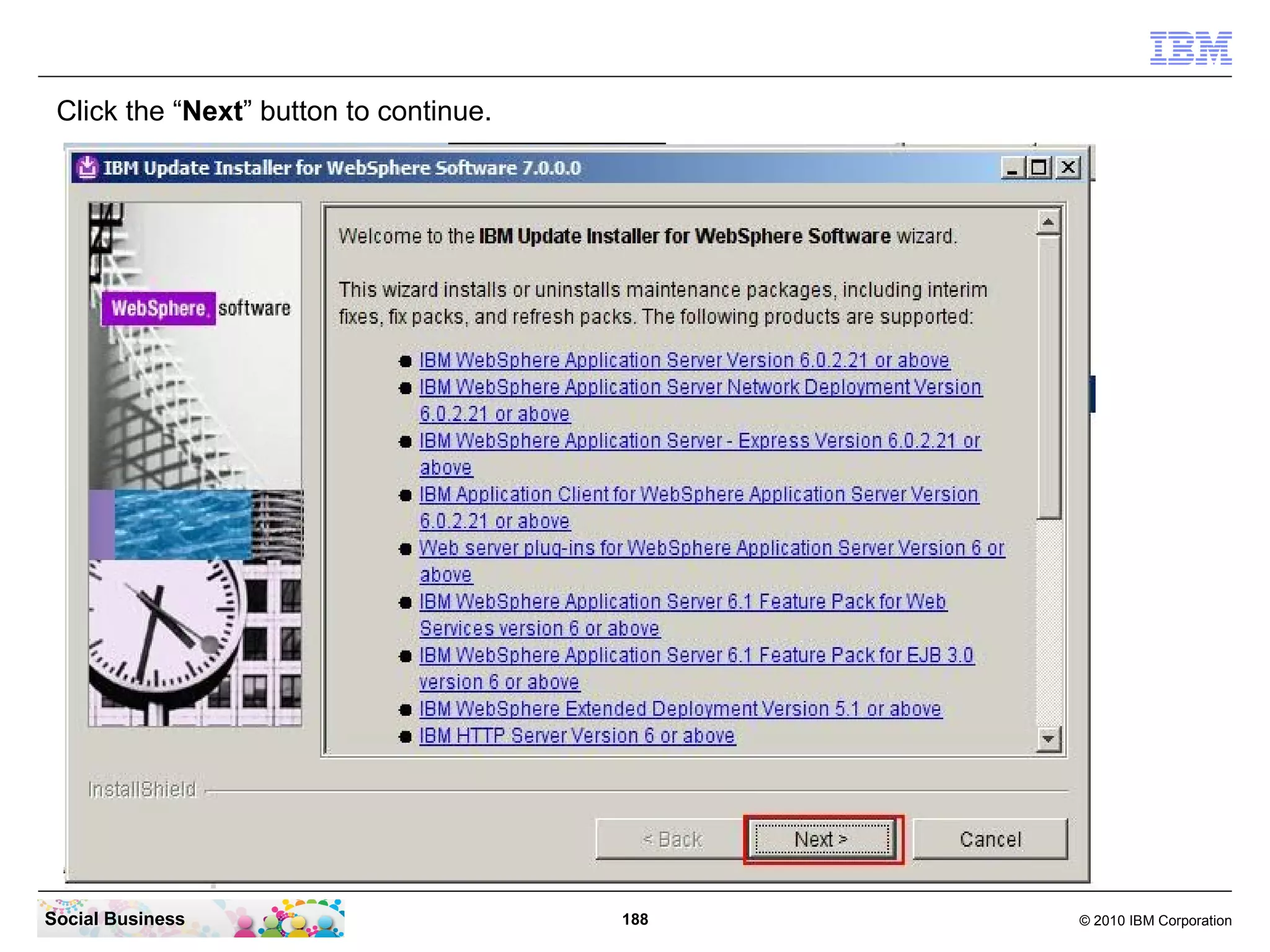
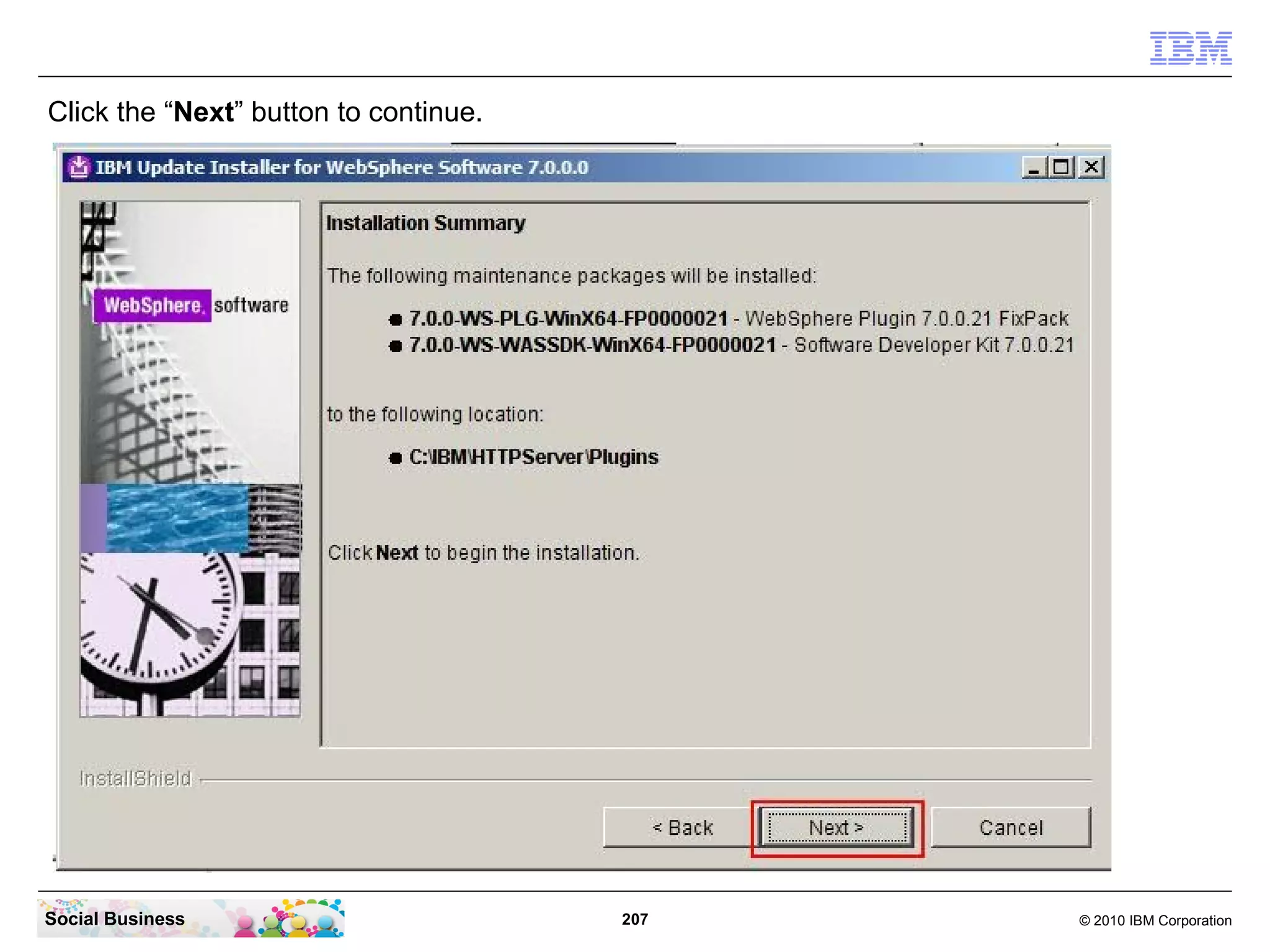
Click the “Next” button to continue.


Social Business                         188   © 2010 IBM Corporation
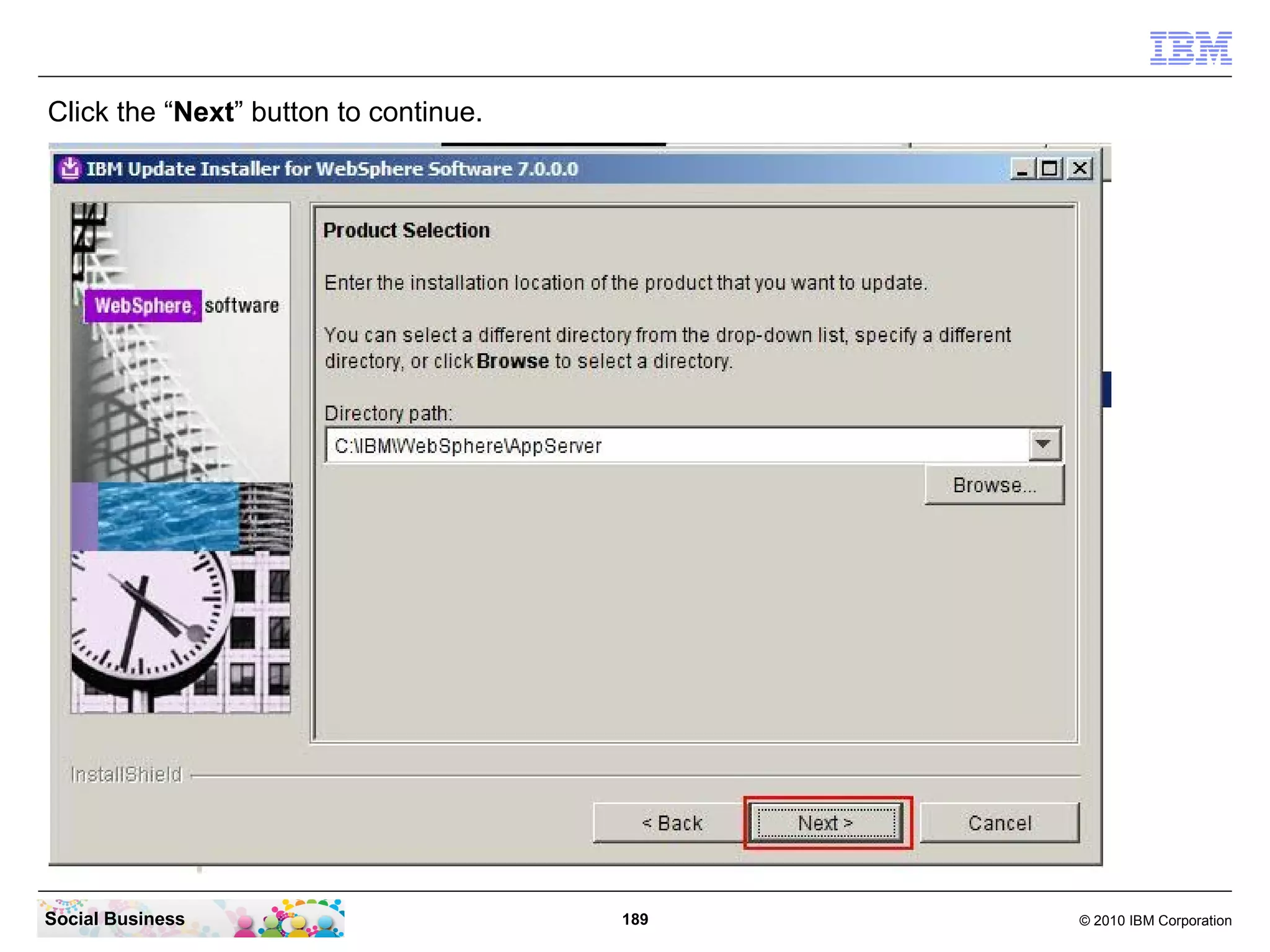
Click the “Next” button to continue.


Social Business                        189   © 2010 IBM Corporation
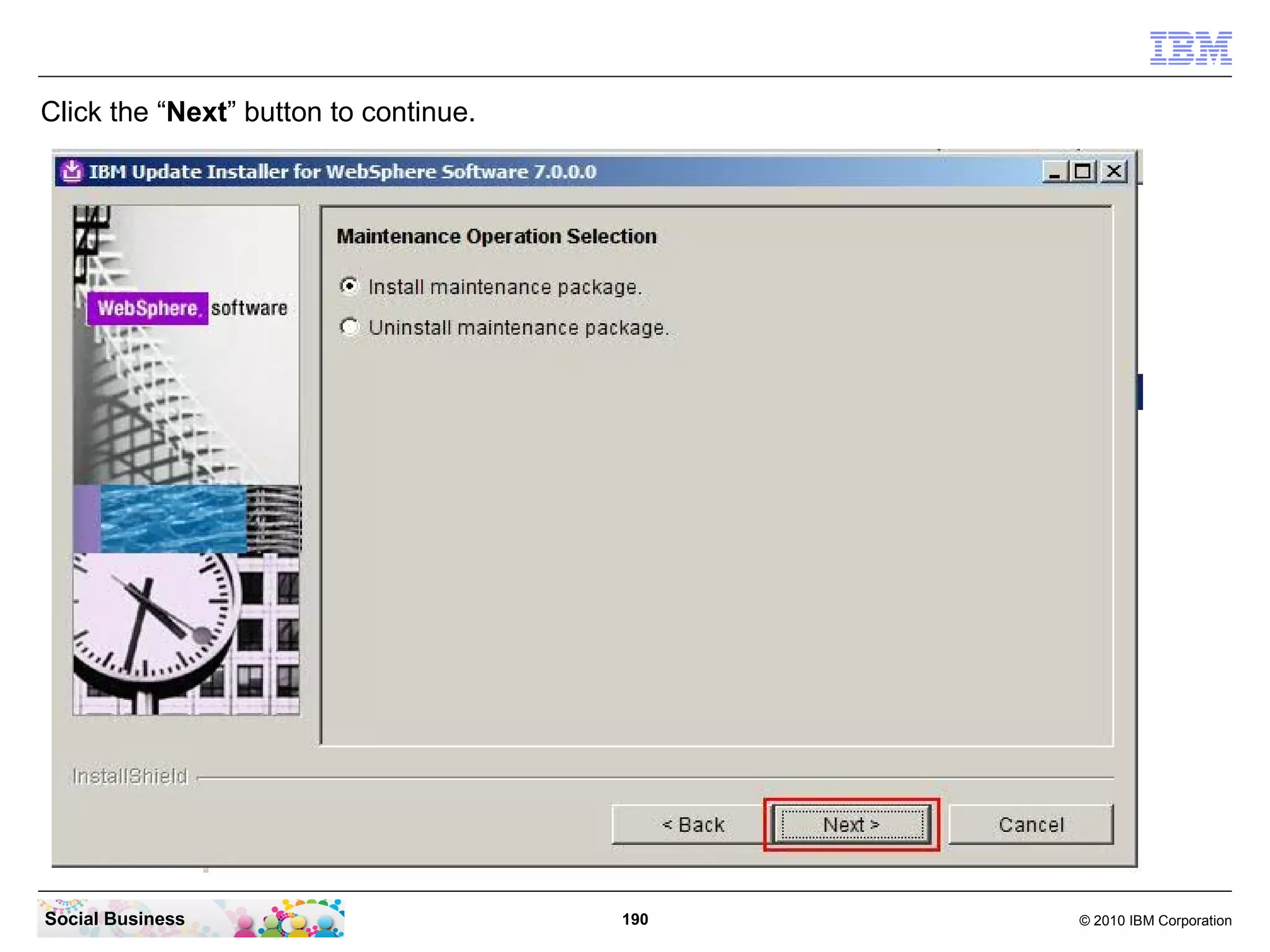
Click the “Next” button to continue.


Social Business                        190   © 2010 IBM Corporation
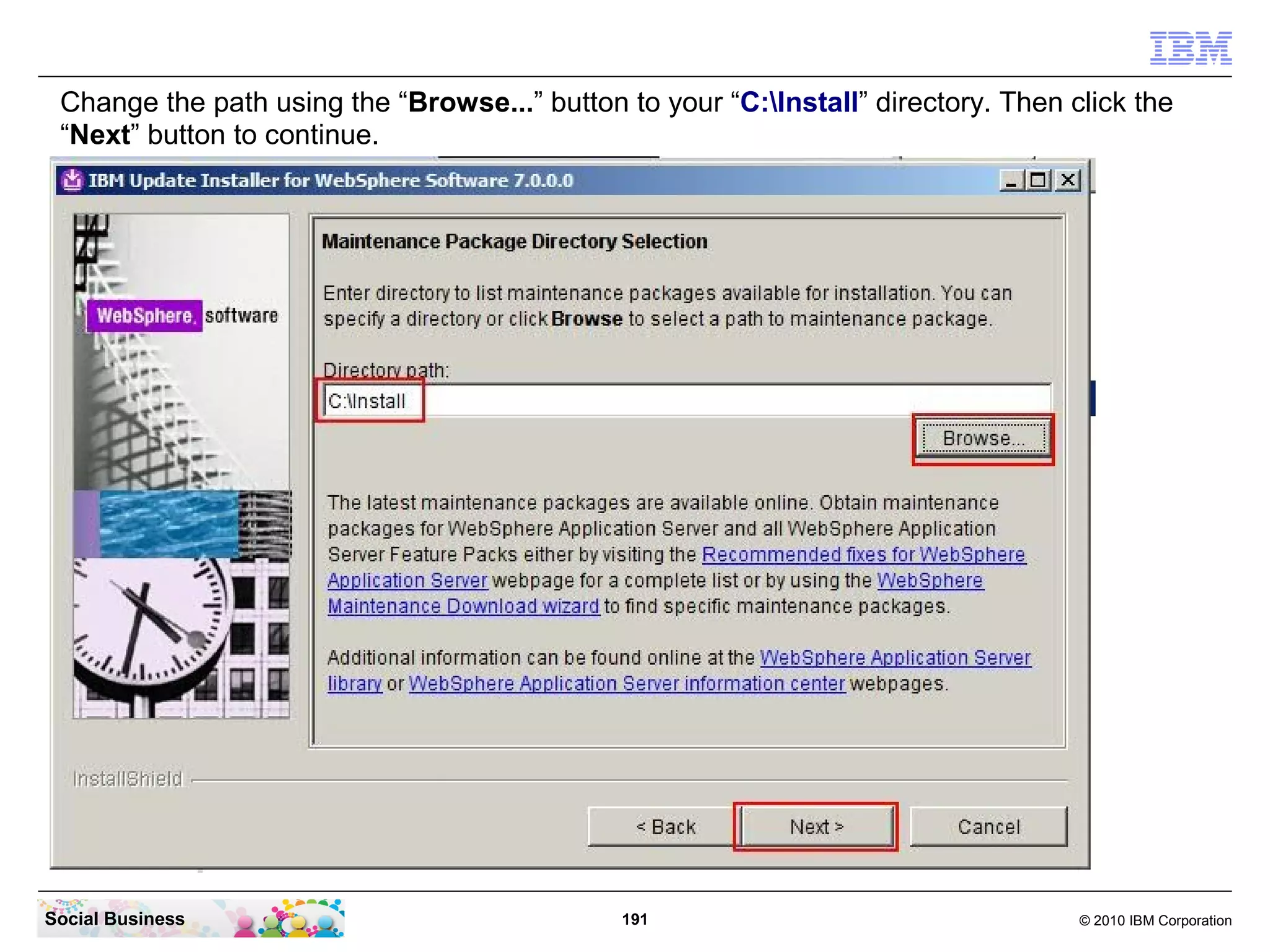
Change the path using the “Browse...” button to your “C:Install” directory. Then click the
 “Next” button to continue.


Social Business                               191                                   © 2010 IBM Corporation
Confirm that this 7 fixes are selected. Then click the “Next” button to continue.


Social Business                                 192                                 © 2010 IBM Corporation
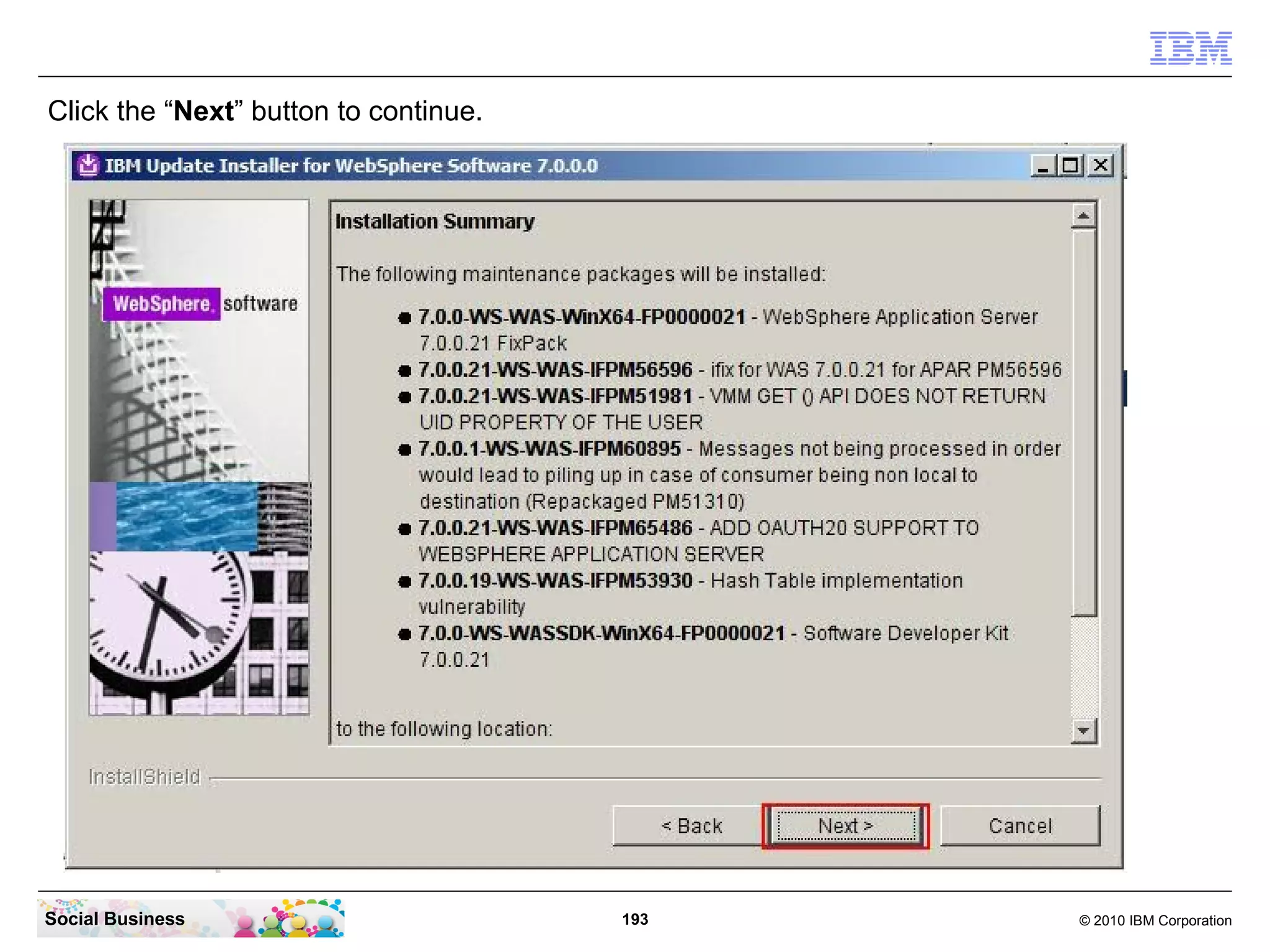
Click the “Next” button to continue.


Social Business                        193   © 2010 IBM Corporation
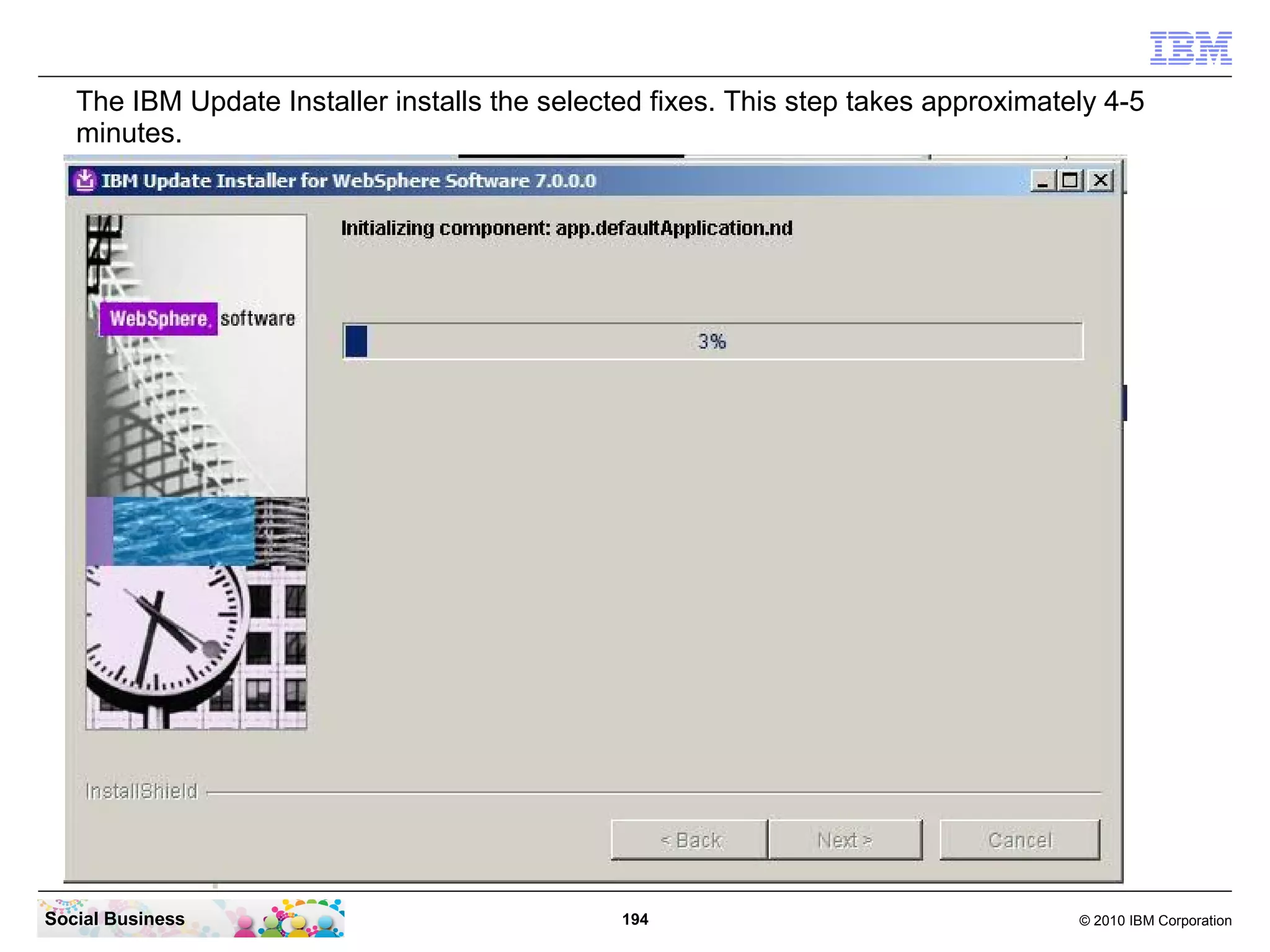
The IBM Update Installer installs the selected fixes. This step takes approximately 4-5
   minutes.


Social Business                                194                                  © 2010 IBM Corporation
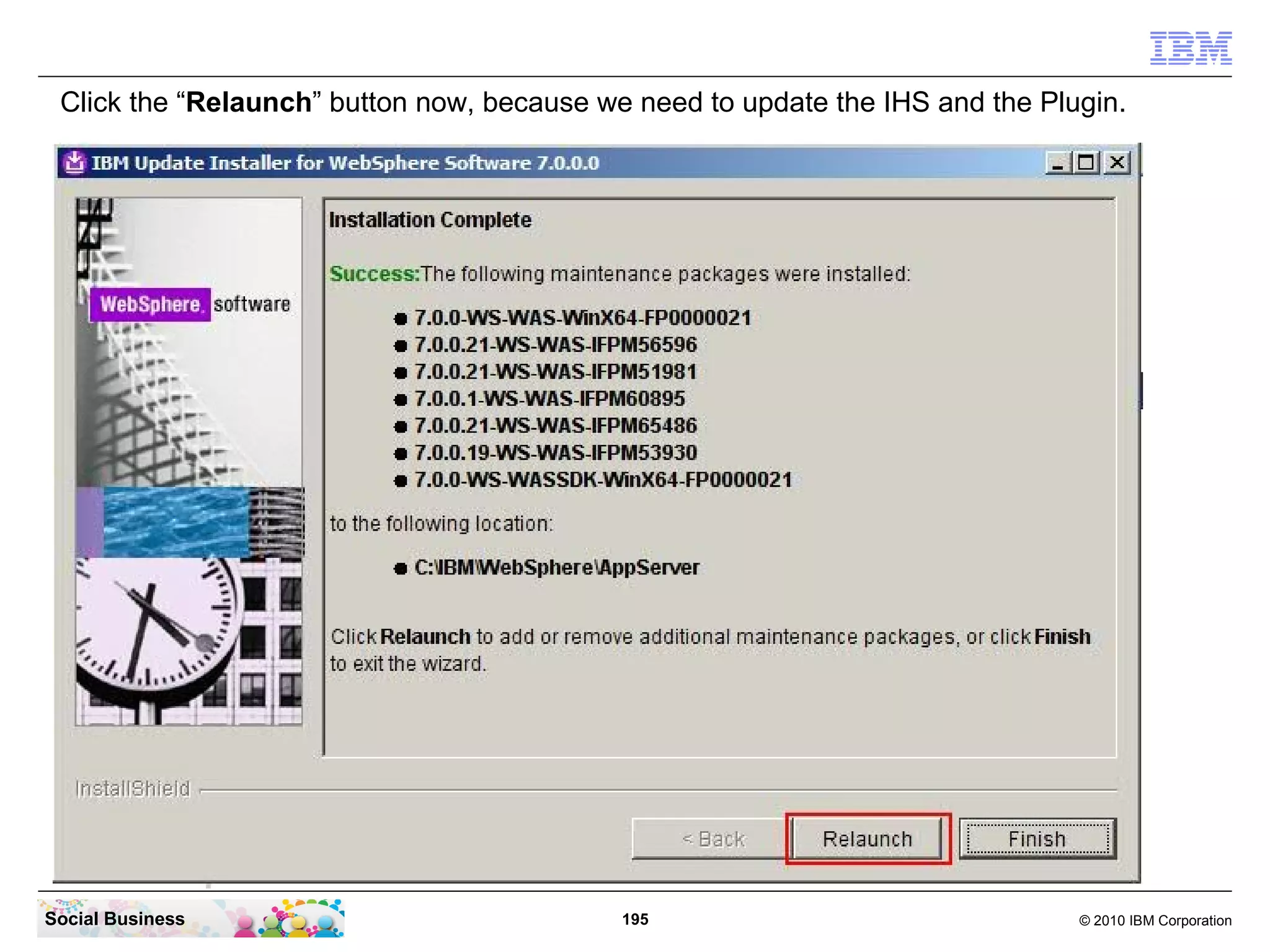
Click the “Relaunch” button now, because we need to update the IHS and the Plugin.


Social Business                             195                                © 2010 IBM Corporation
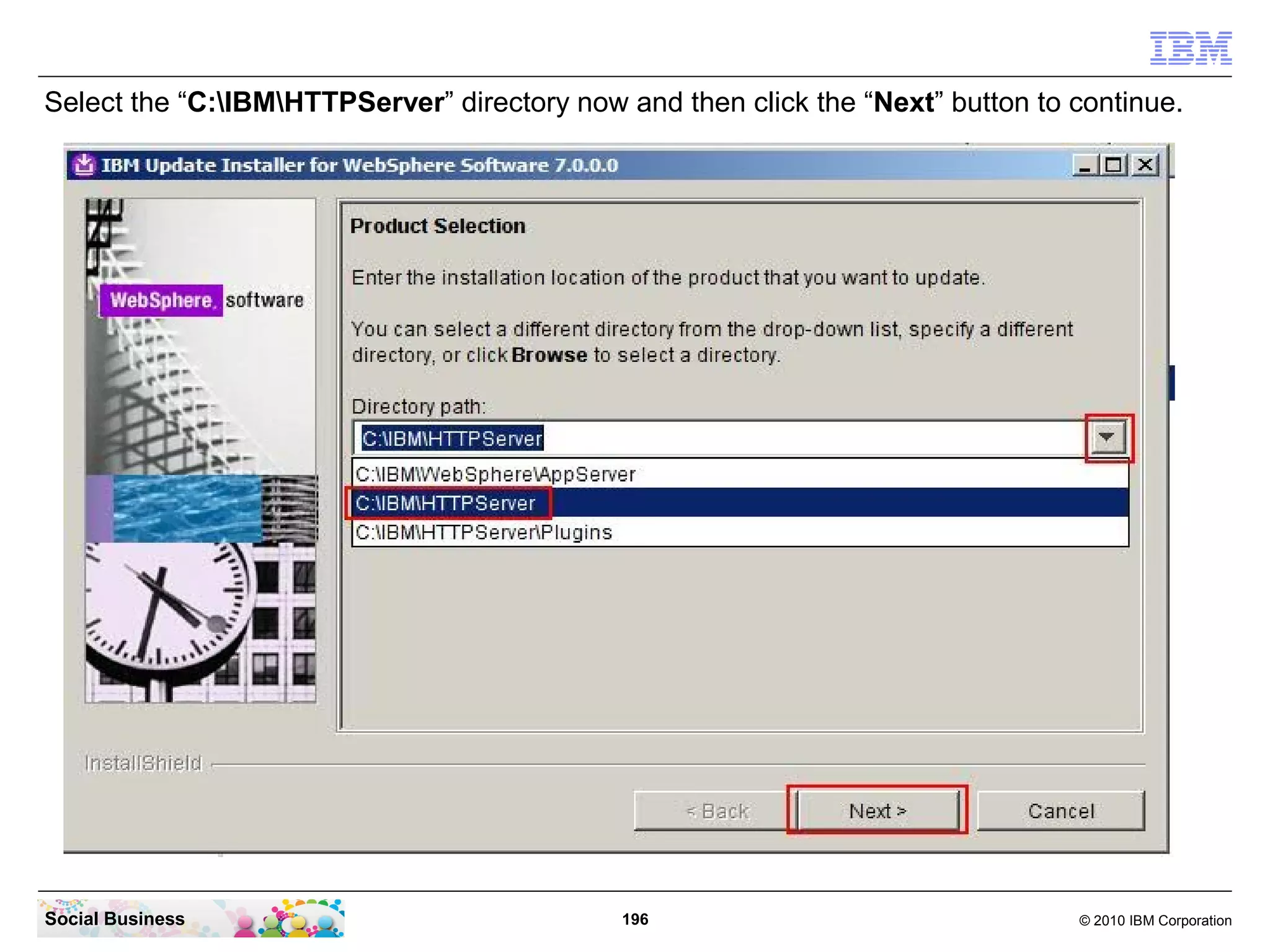
Select the “C:IBMHTTPServer” directory now and then click the “Next” button to continue.


Social Business                              196                                 © 2010 IBM Corporation
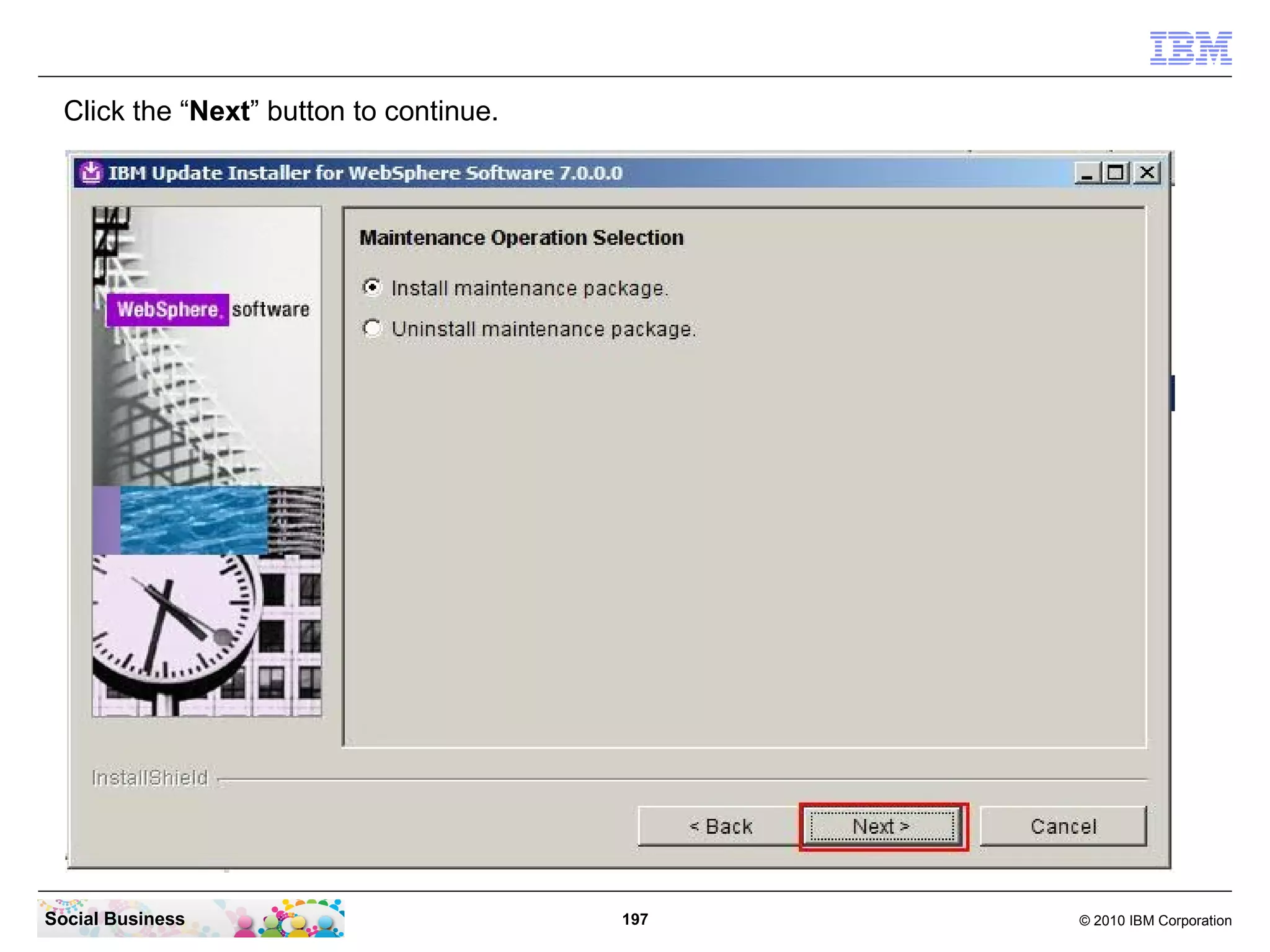
Click the “Next” button to continue.


Social Business                          197   © 2010 IBM Corporation
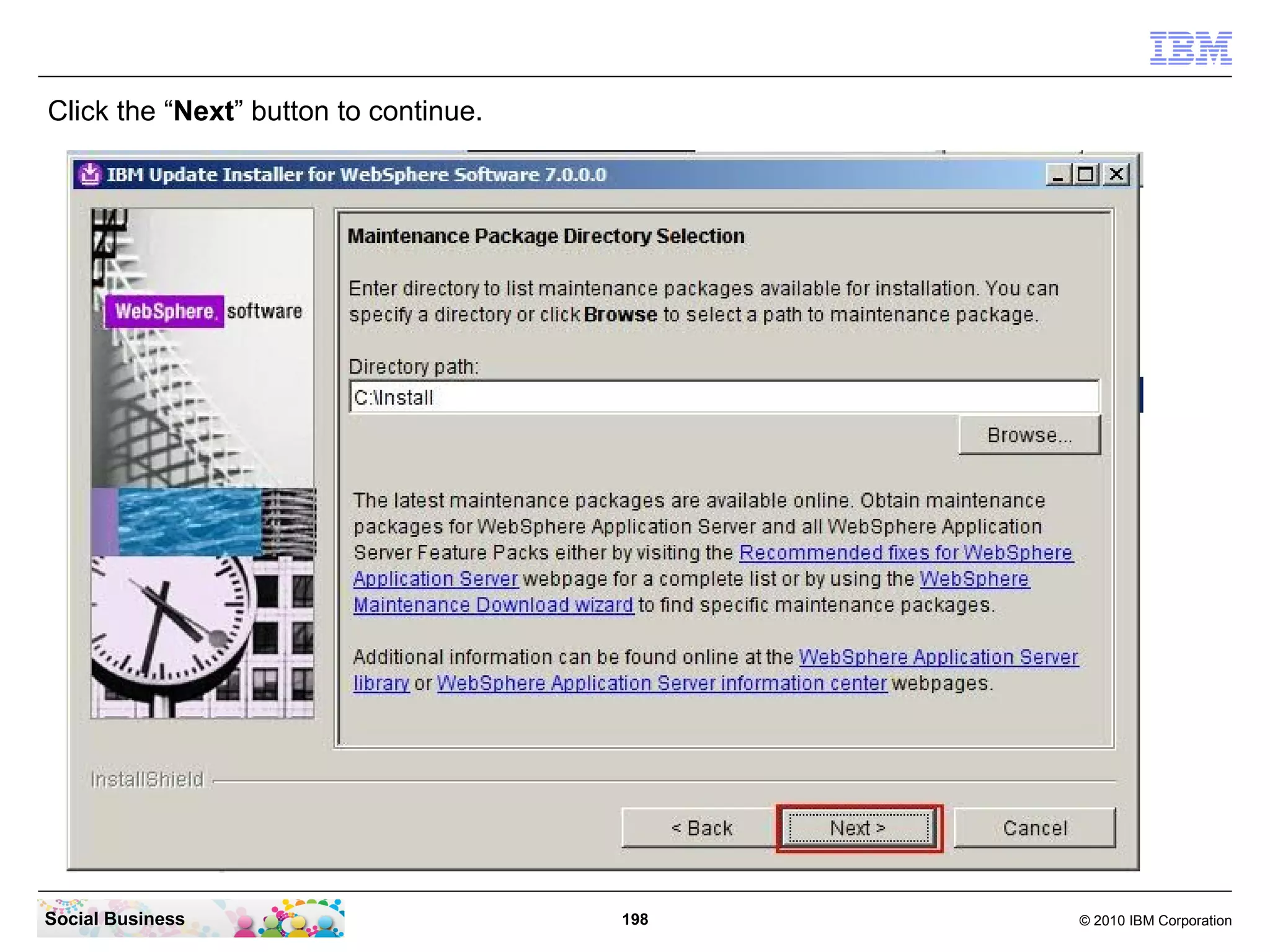
Click the “Next” button to continue.


Social Business                        198   © 2010 IBM Corporation
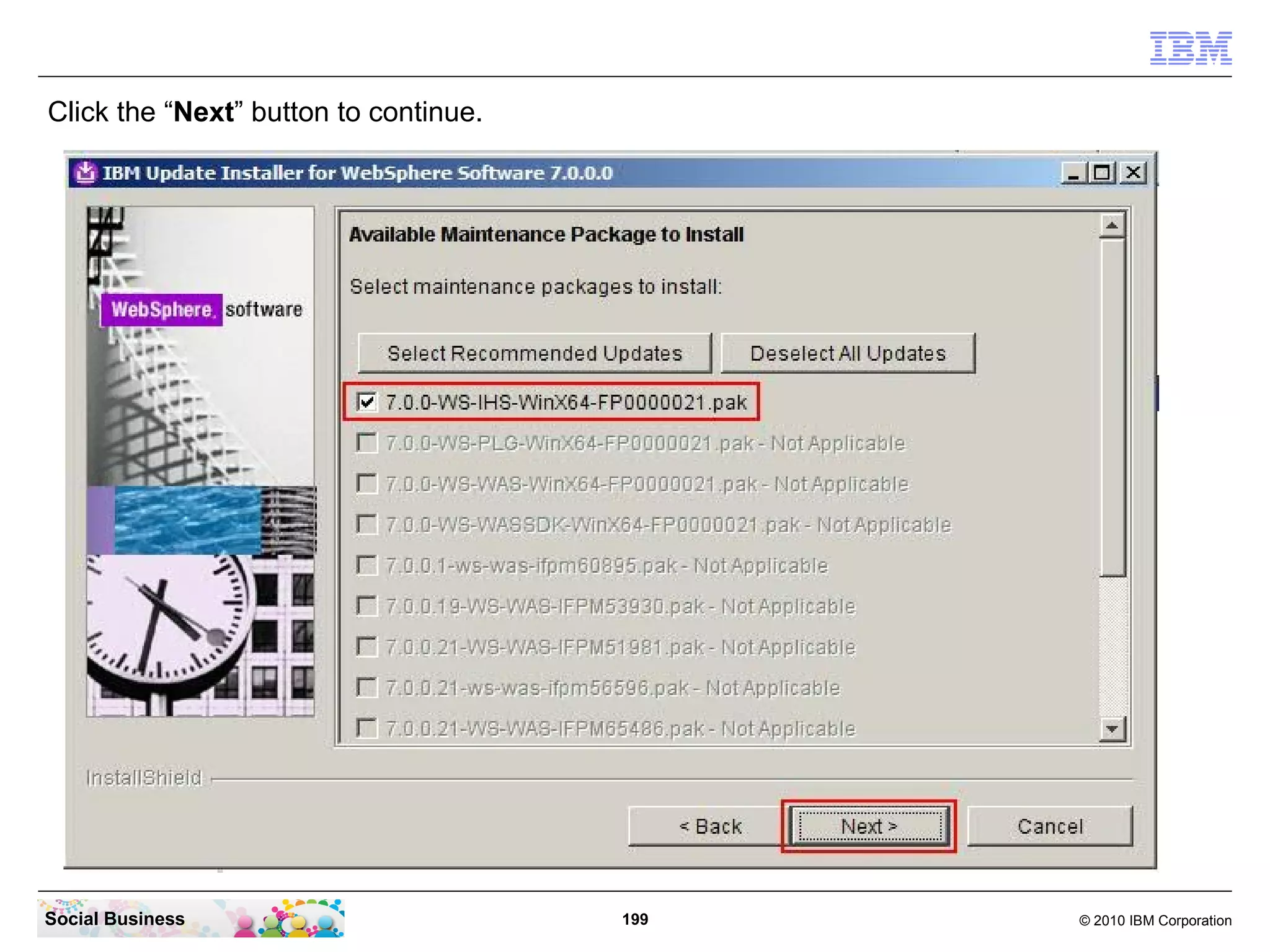
Click the “Next” button to continue.


Social Business                        199   © 2010 IBM Corporation
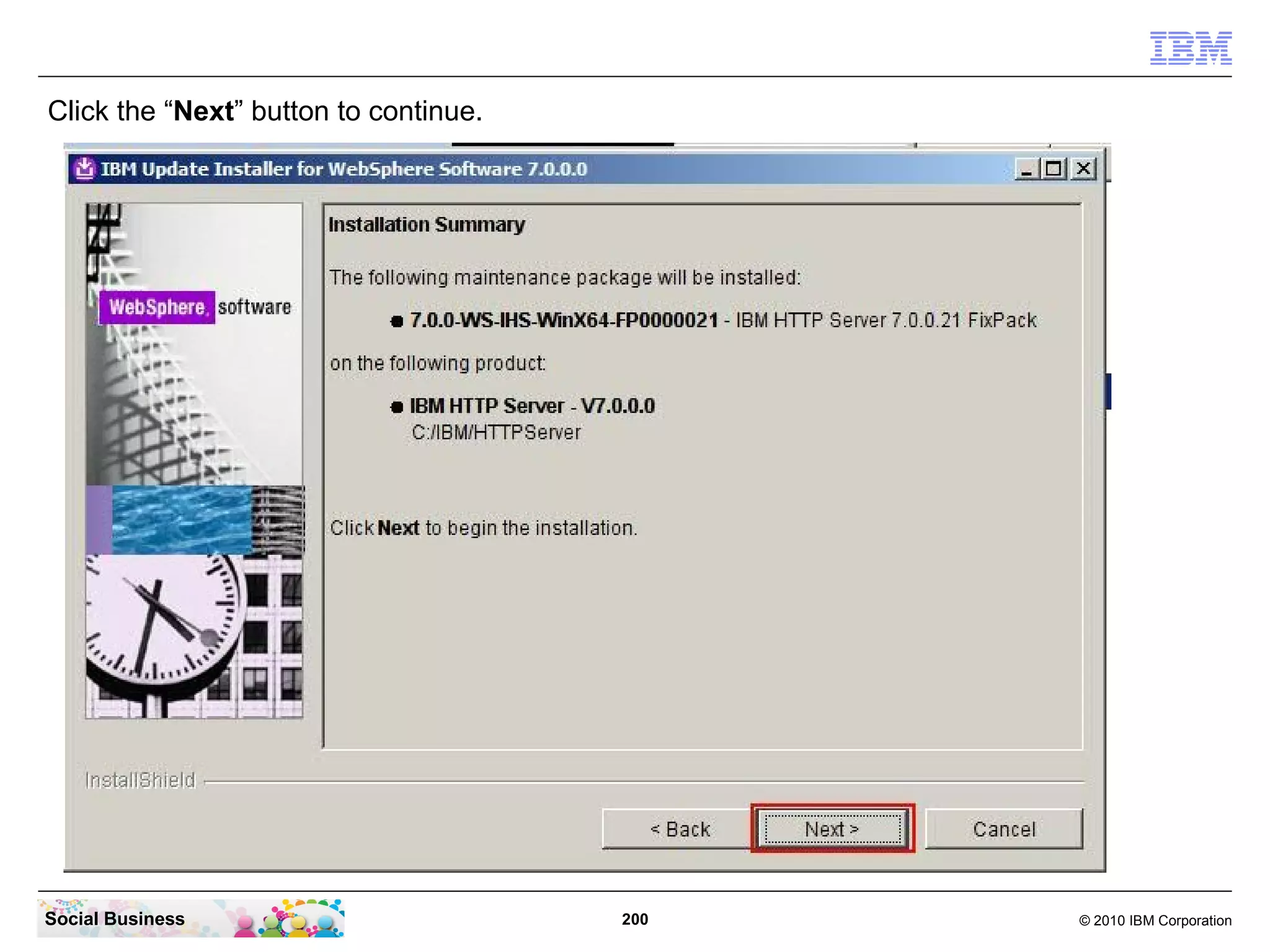
Click the “Next” button to continue.


Social Business                        200   © 2010 IBM Corporation
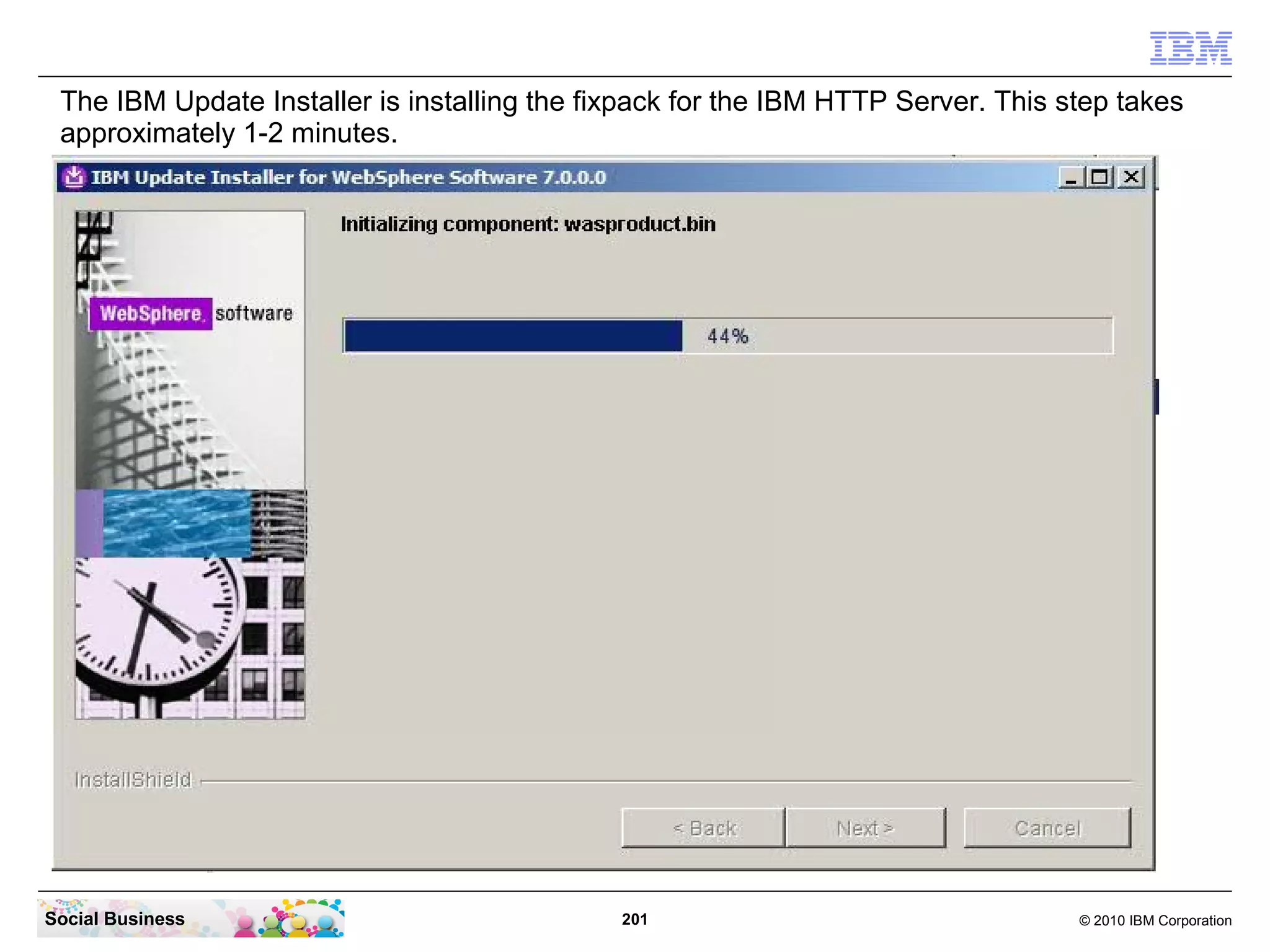
The IBM Update Installer is installing the fixpack for the IBM HTTP Server. This step takes
 approximately 1-2 minutes.


Social Business                               201                                  © 2010 IBM Corporation
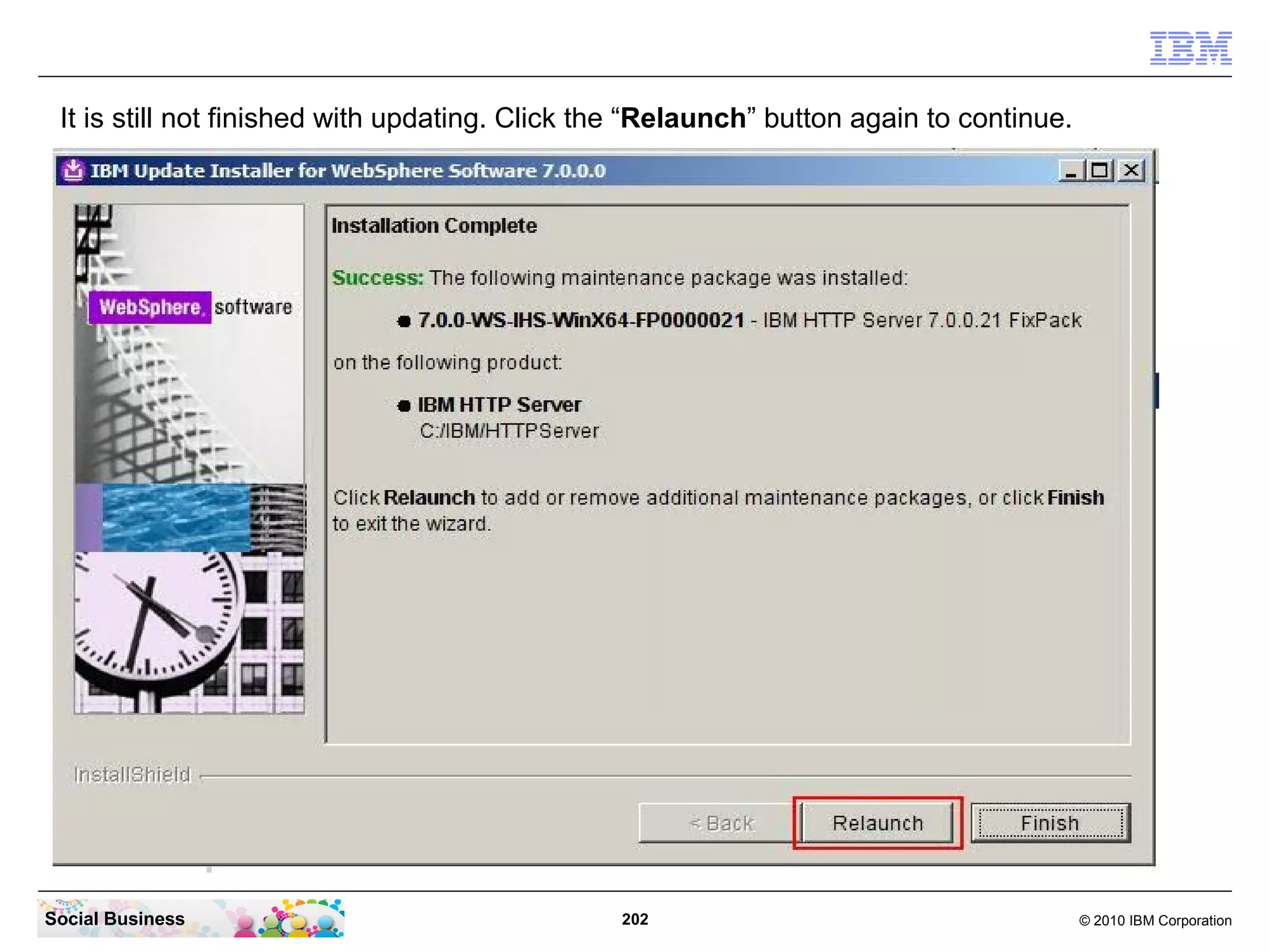
It is still not finished with updating. Click the “Relaunch” button again to continue.


Social Business                                 202                                       © 2010 IBM Corporation
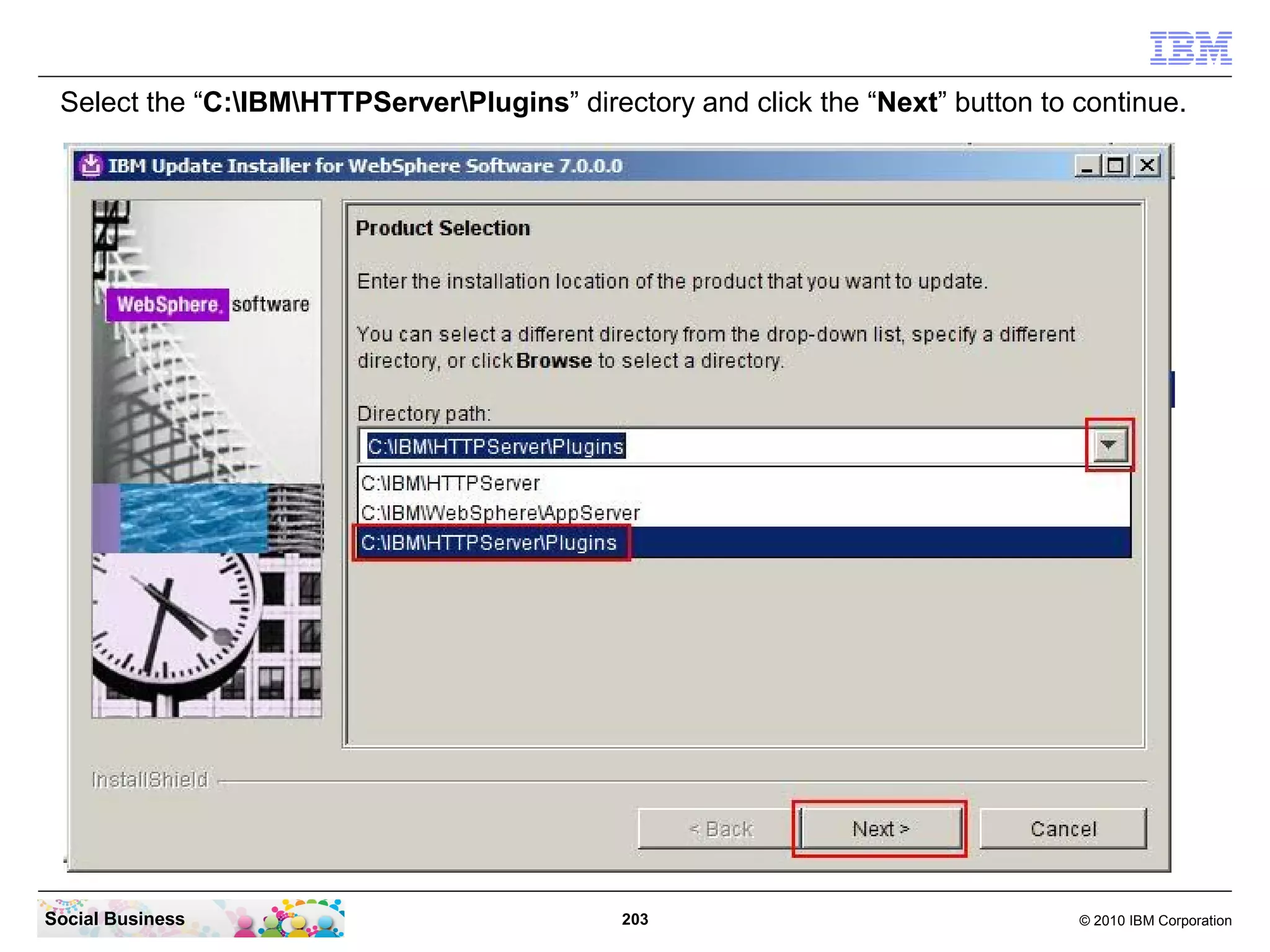
Select the “C:IBMHTTPServerPlugins” directory and click the “Next” button to continue.


Social Business                              203                                 © 2010 IBM Corporation
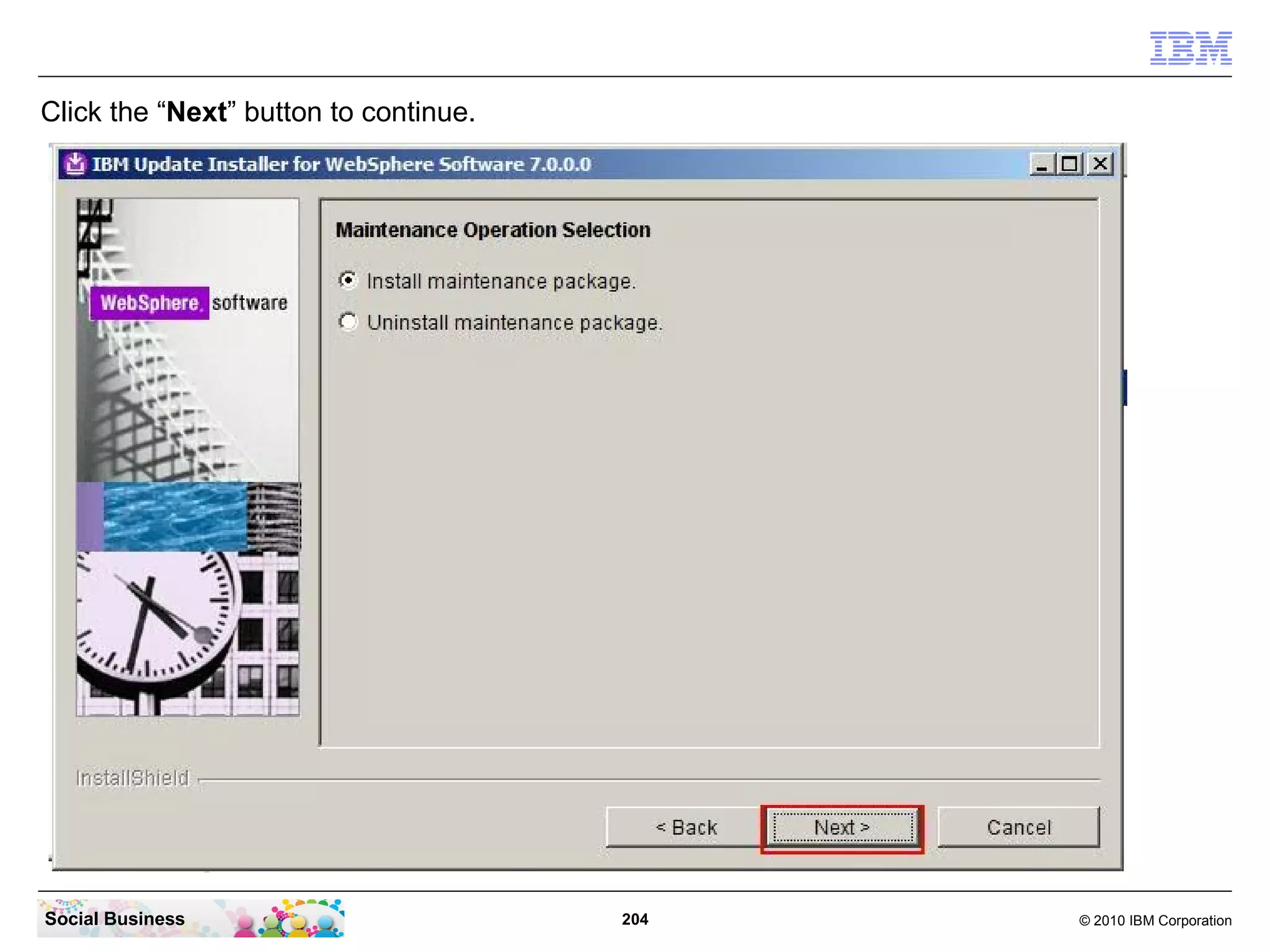
Click the “Next” button to continue.


Social Business                        204   © 2010 IBM Corporation
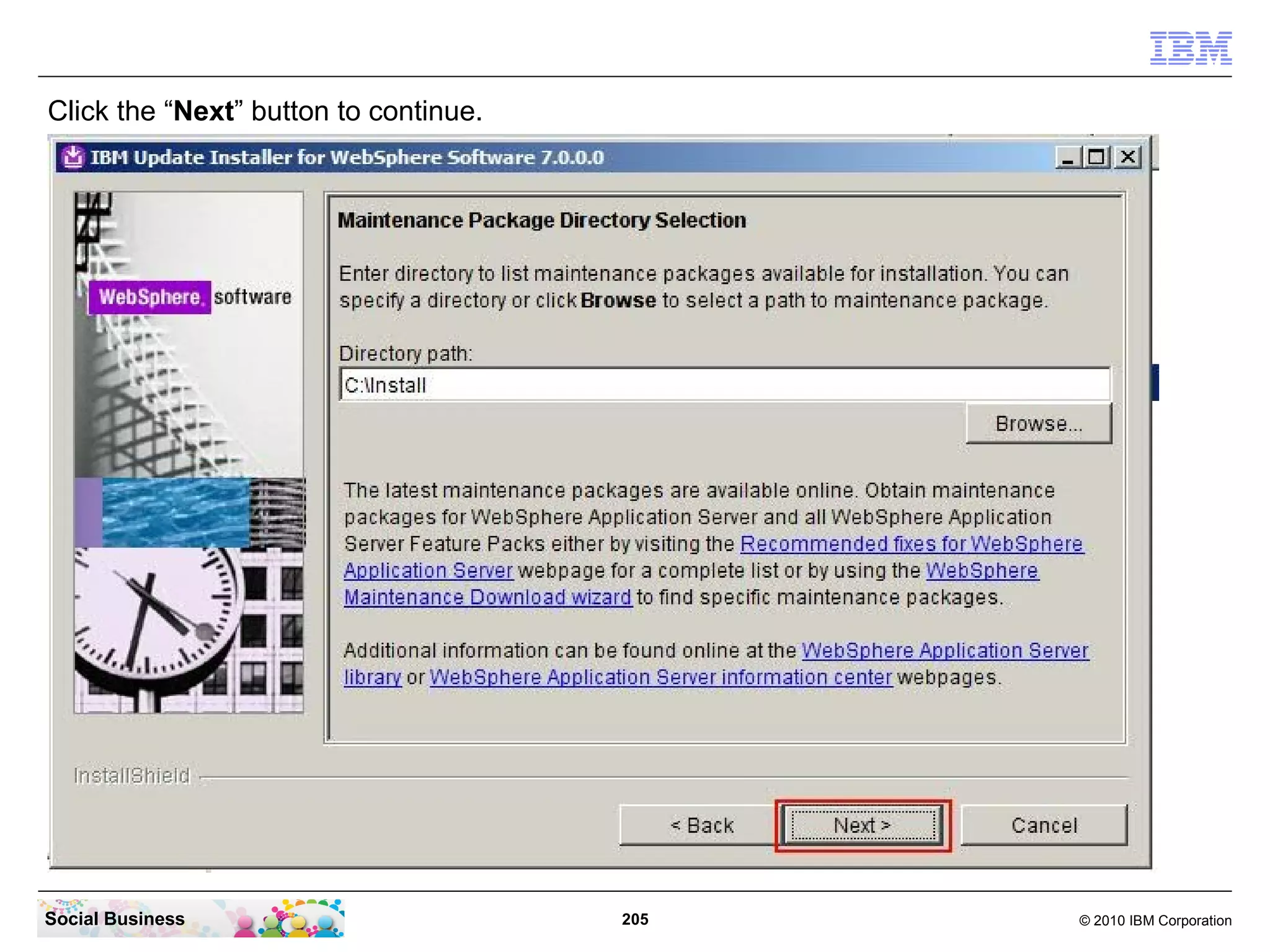
Click the “Next” button to continue.


Social Business                        205   © 2010 IBM Corporation
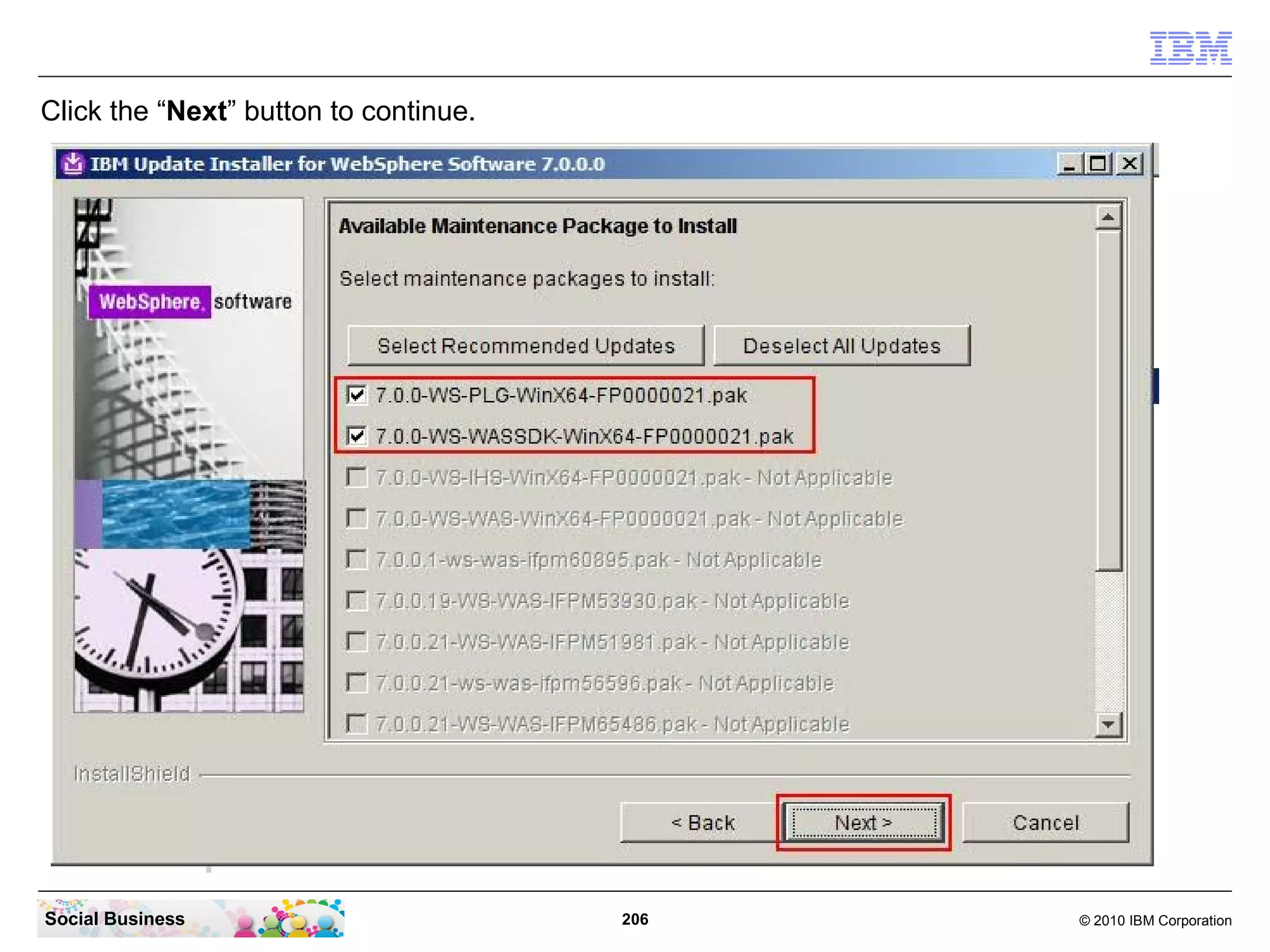
Click the “Next” button to continue.


Social Business                        206   © 2010 IBM Corporation
Click the “Next” button to continue.


Social Business                        207   © 2010 IBM Corporation
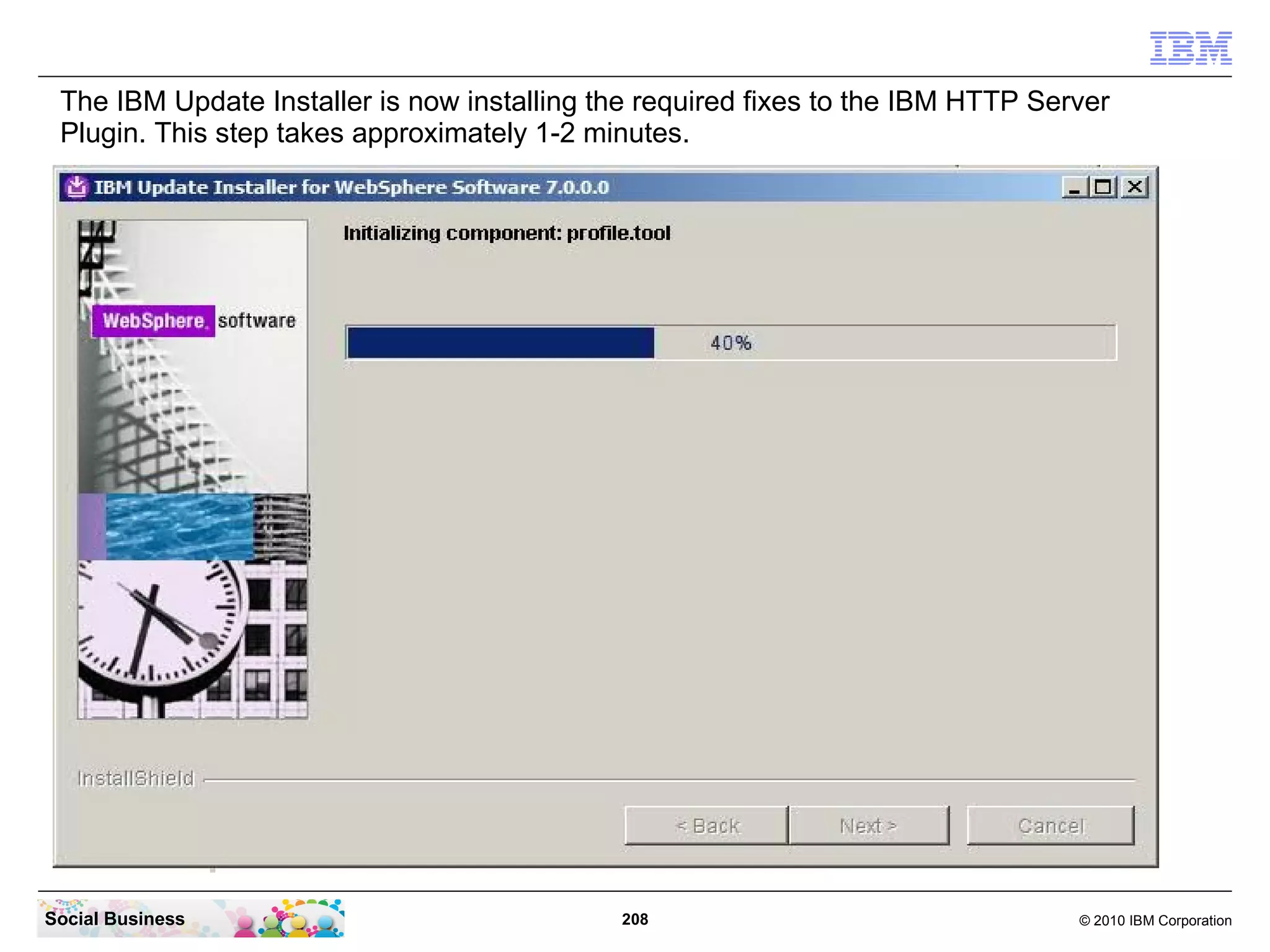
The IBM Update Installer is now installing the required fixes to the IBM HTTP Server
 Plugin. This step takes approximately 1-2 minutes.


Social Business                              208                                  © 2010 IBM Corporation
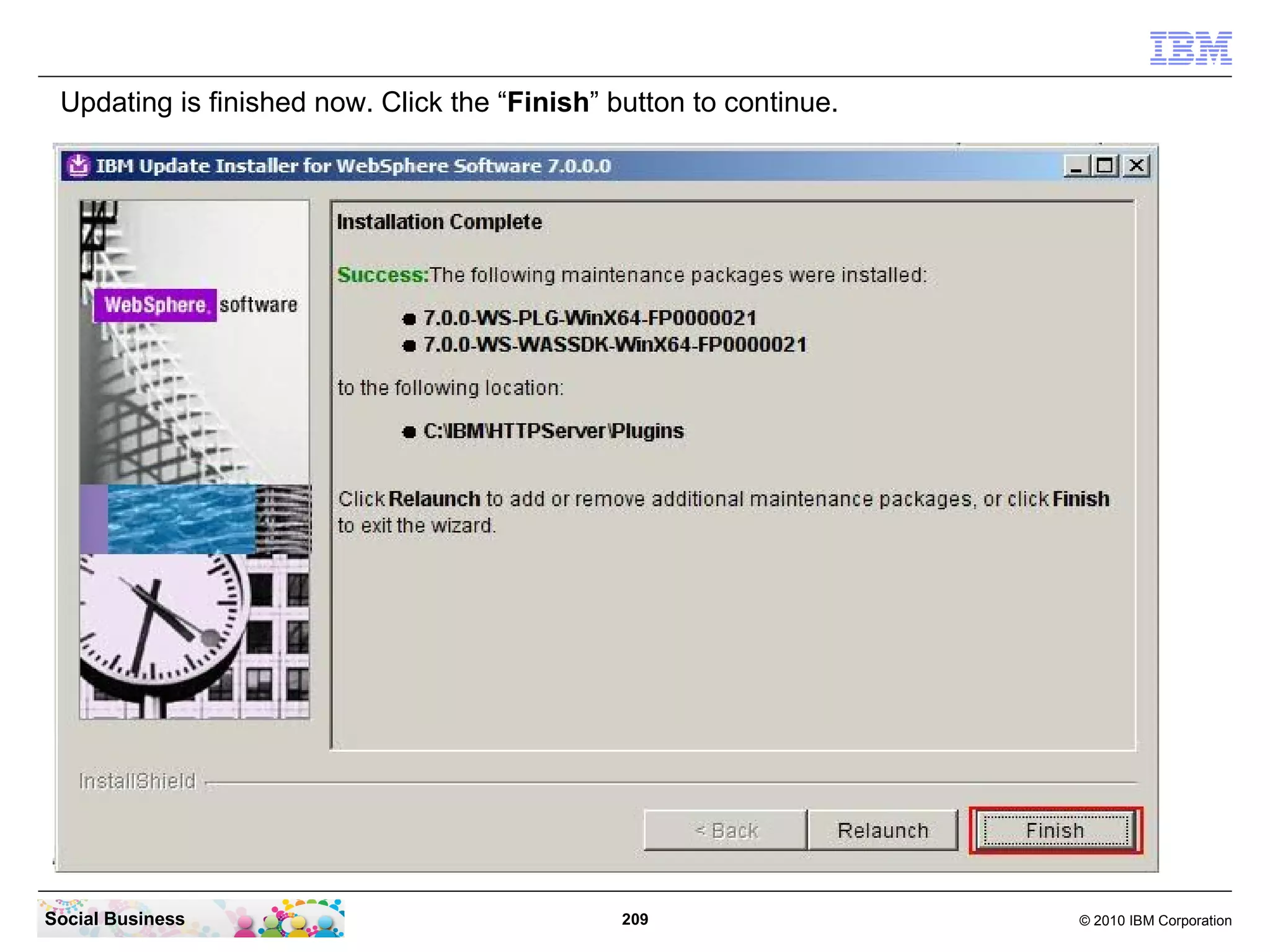
Updating is finished now. Click the “Finish” button to continue.


Social Business                                209                  © 2010 IBM Corporation
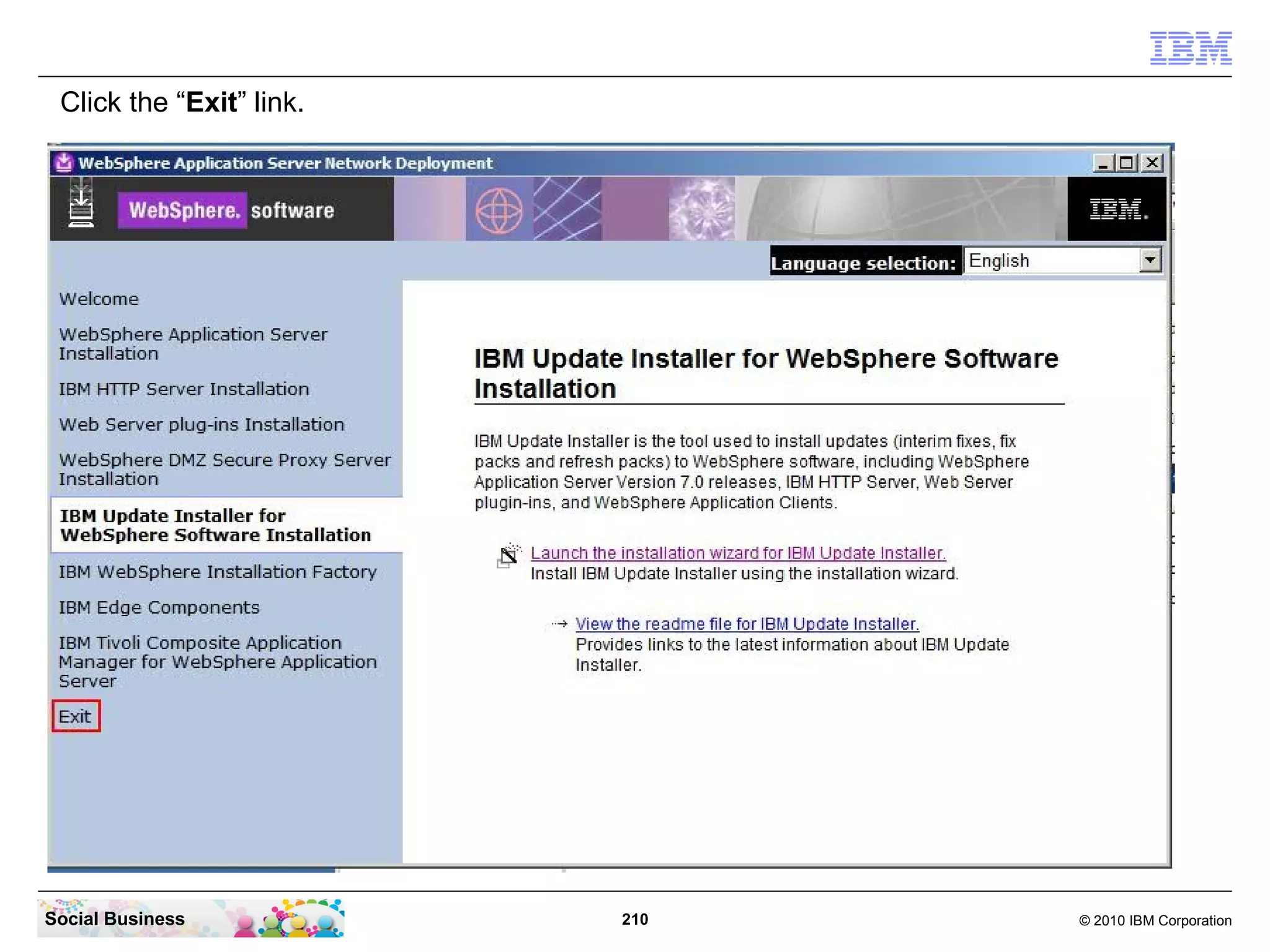
Click the “Exit” link.


Social Business           210   © 2010 IBM Corporation
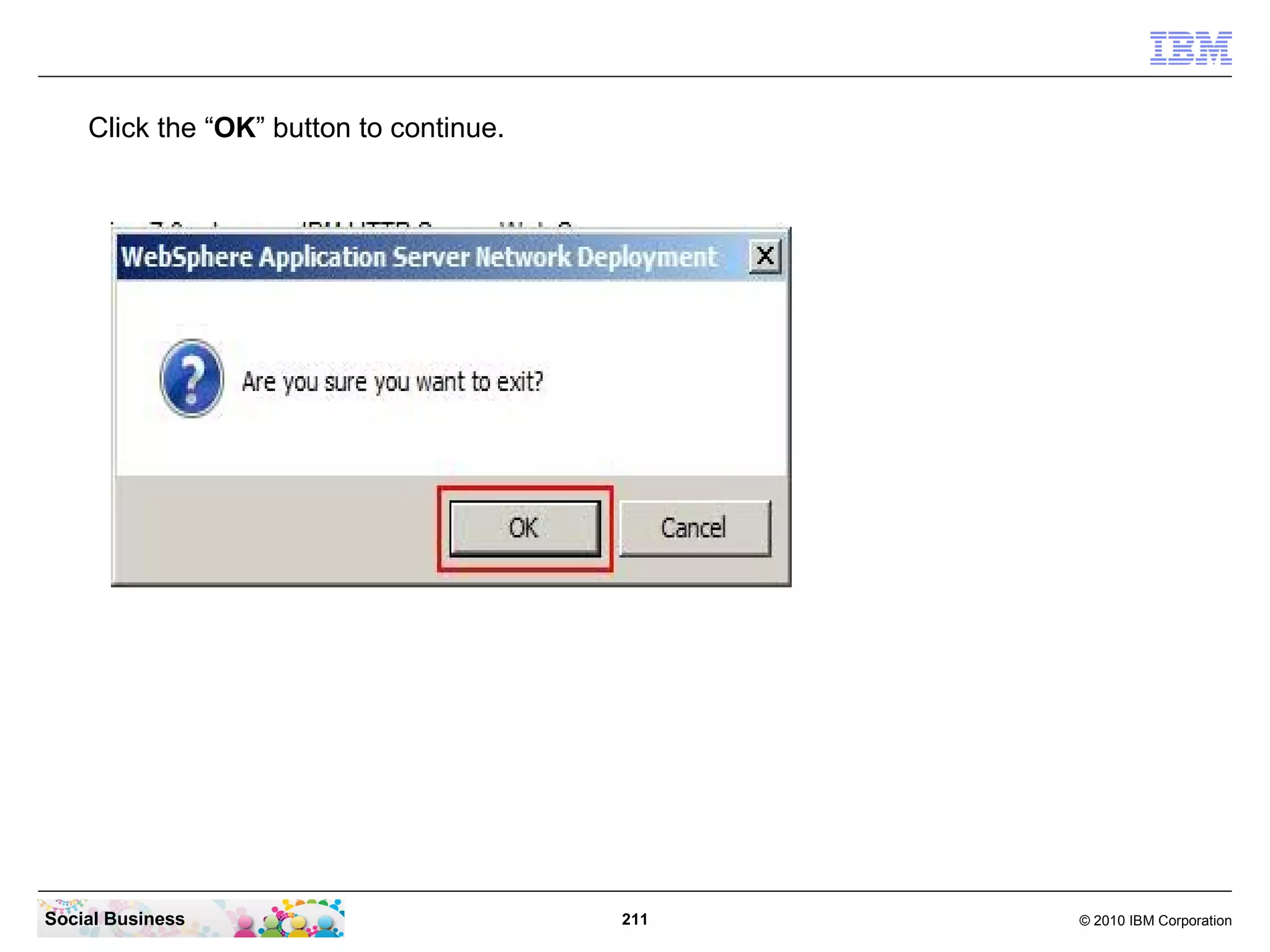
Click the “OK” button to continue.


Social Business                          211   © 2010 IBM Corporation
STEP NINE: Setup LDAP with Federated Repositories
                     in IBM WebSphere Application Server


    Summary

    Use this procedure to configure your installed WebSphere Server to connect
    to your LDAP server for user and group look-ups and for user authentication.

    In this document we use a Domino LDAP. If you plan to use Microsoft Active
    Directory LDAP then consult the AD LDAP version of this document.


Social Business                        212                            © 2010 IBM Corporation
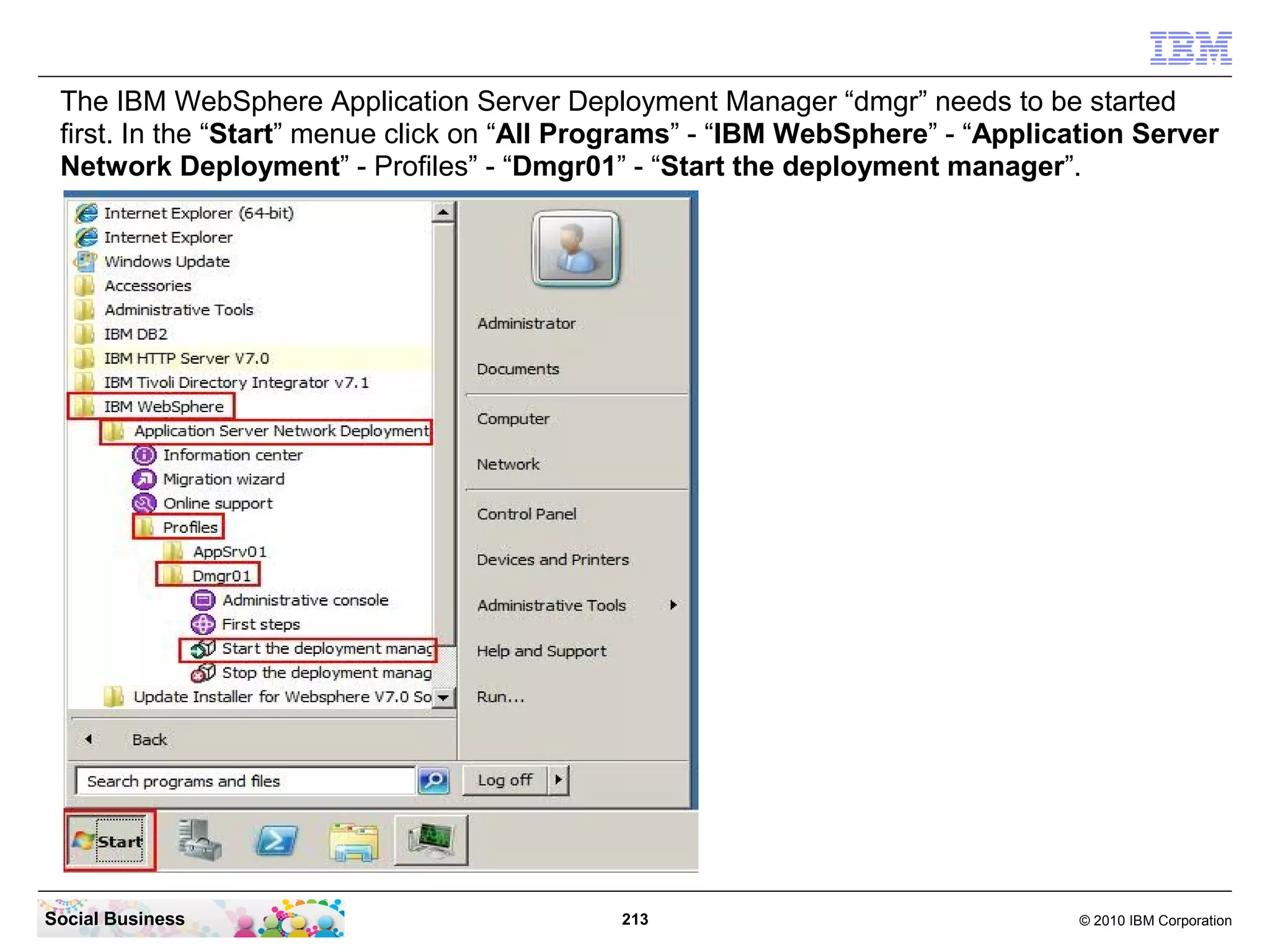
The IBM WebSphere Application Server Deployment Manager “dmgr” needs to be started
 first. In the “Start” menue click on “All Programs” - “IBM WebSphere” - “Application Server
 Network Deployment” - Profiles” - “Dmgr01” - “Start the deployment manager”.


Social Business                              213                                 © 2010 IBM Corporation
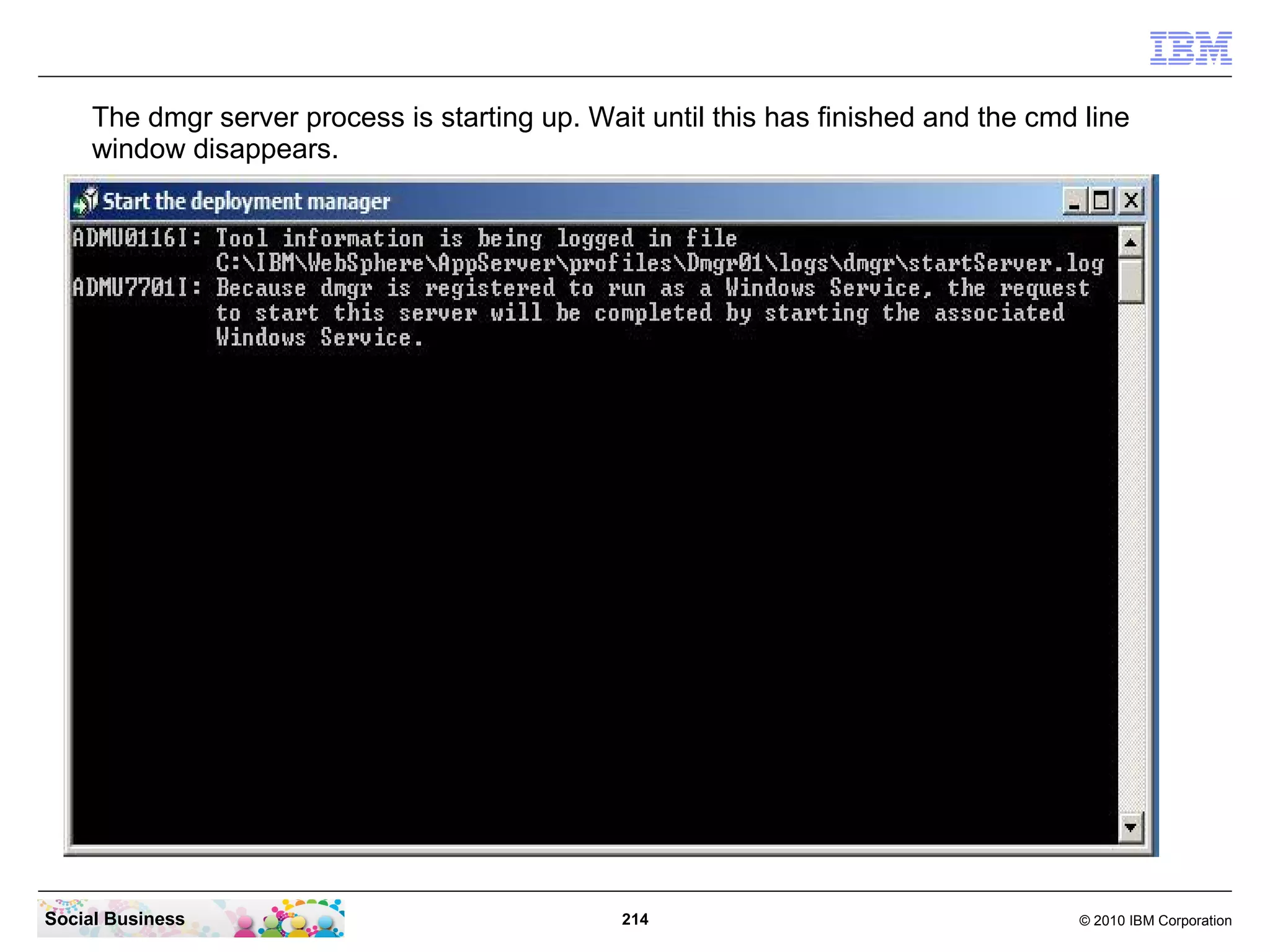
The dmgr server process is starting up. Wait until this has finished and the cmd line
     window disappears.


Social Business                                 214                                  © 2010 IBM Corporation
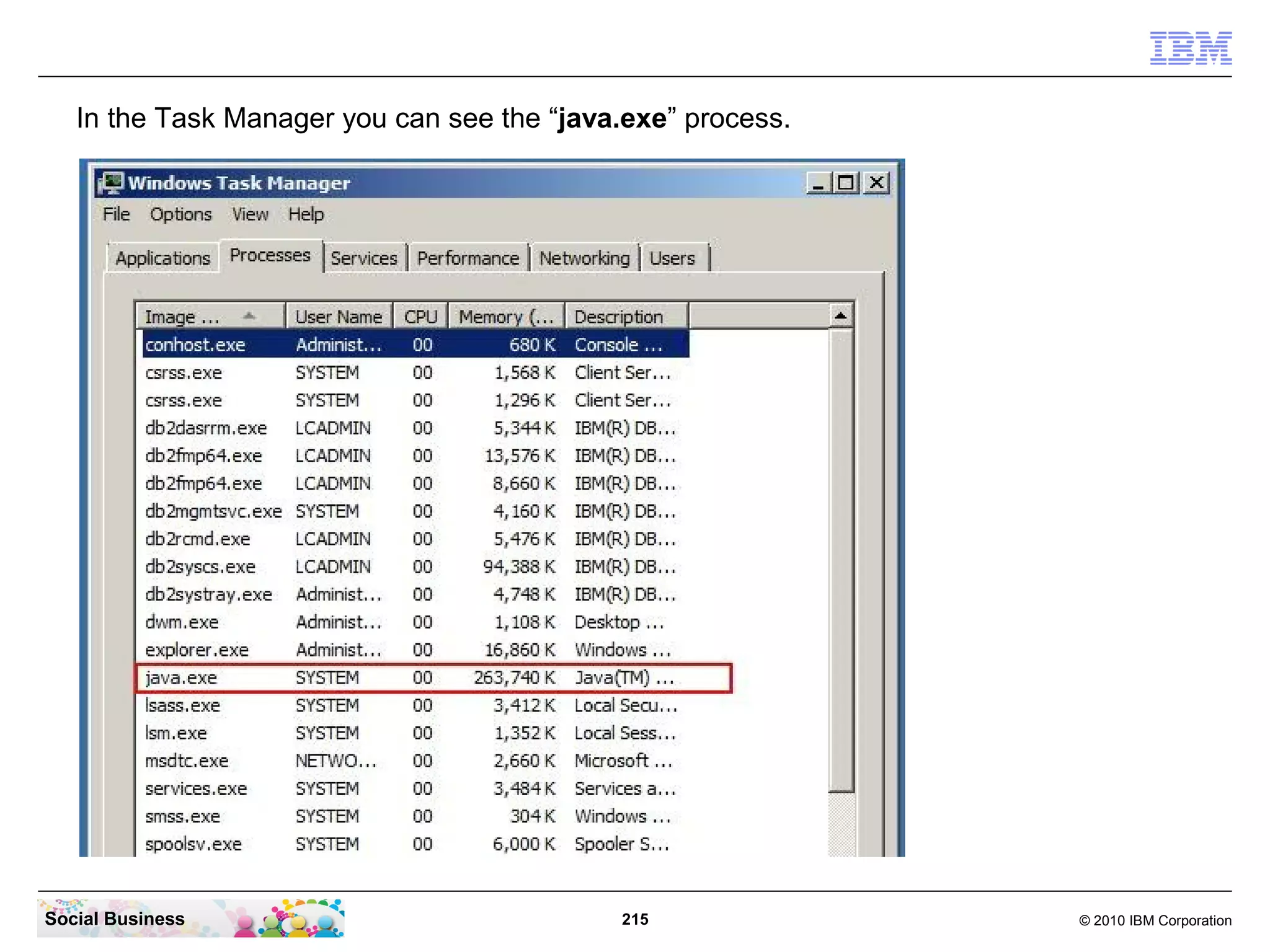
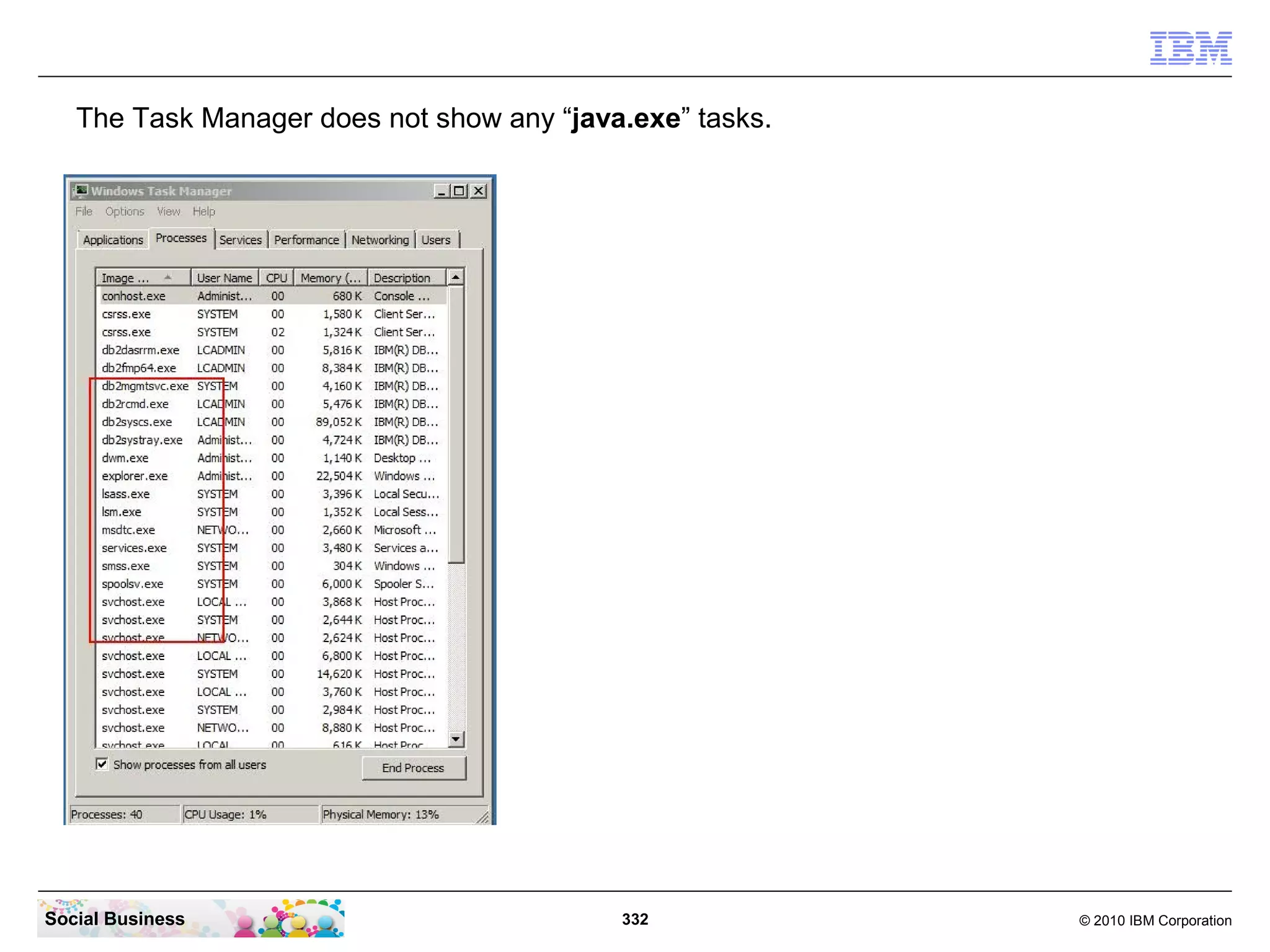
In the Task Manager you can see the “java.exe” process.


Social Business                             215              © 2010 IBM Corporation
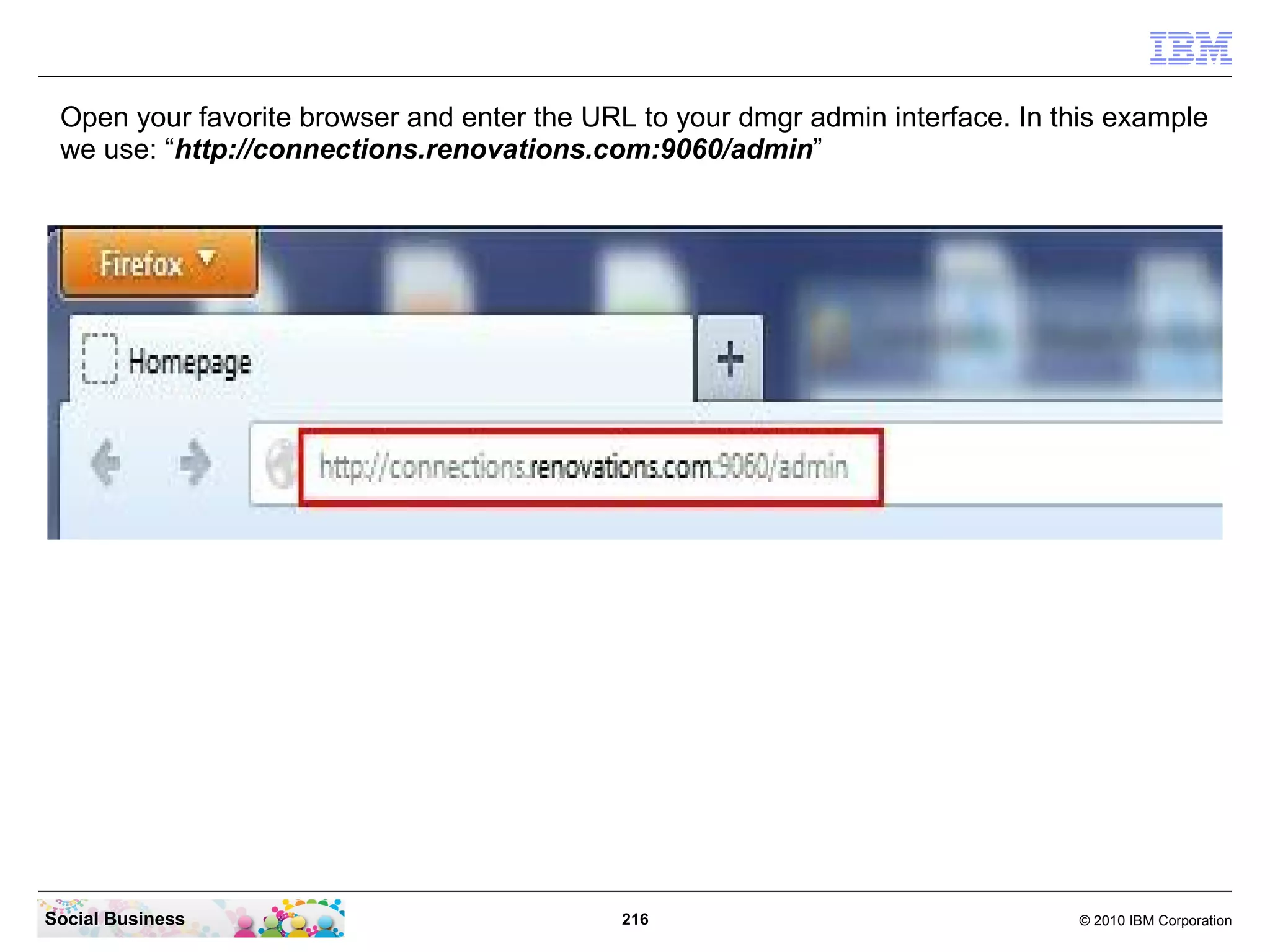
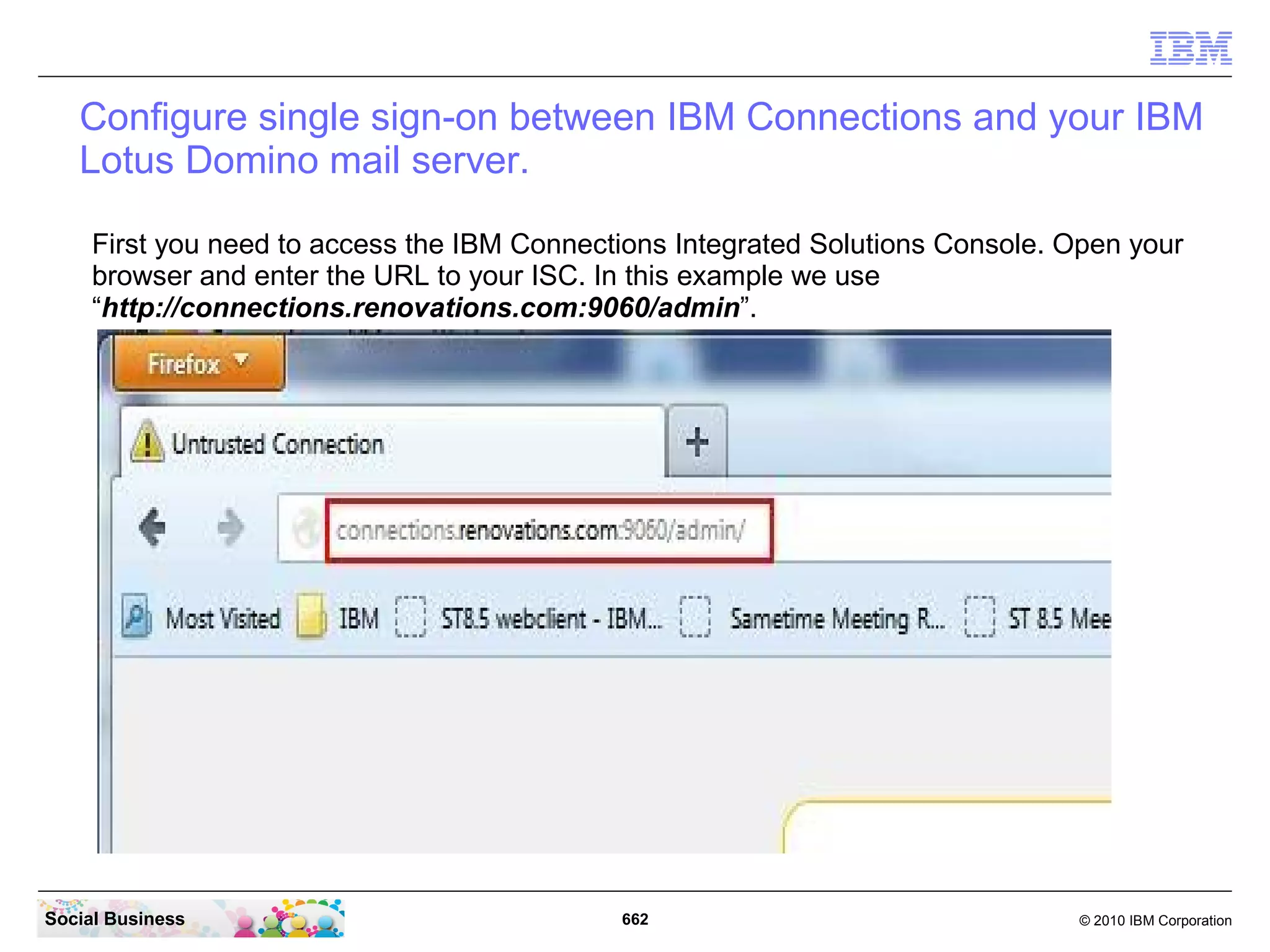
Open your favorite browser and enter the URL to your dmgr admin interface. In this example
 we use: “http://connections.renovations.com:9060/admin”


Social Business                              216                                © 2010 IBM Corporation
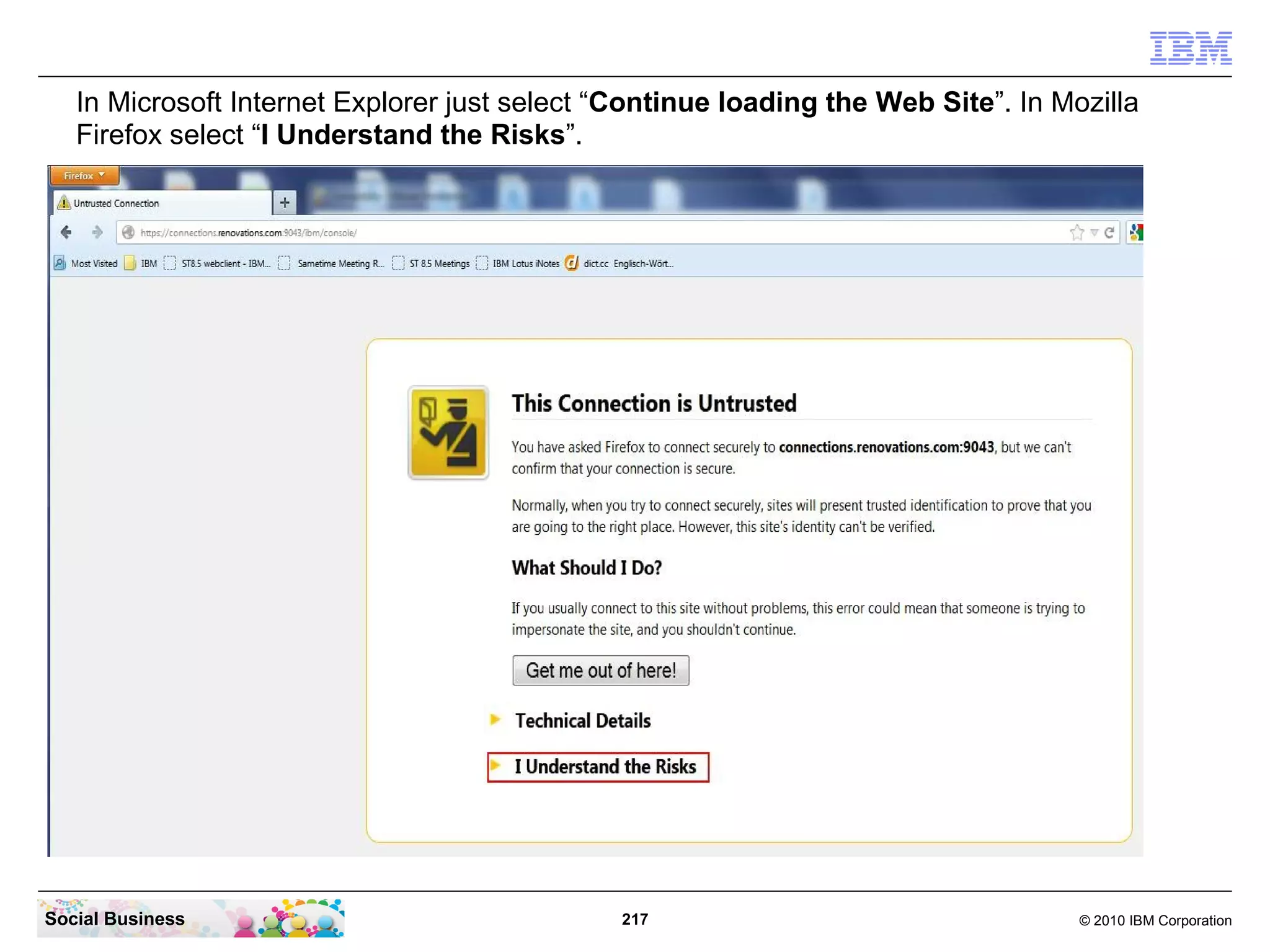
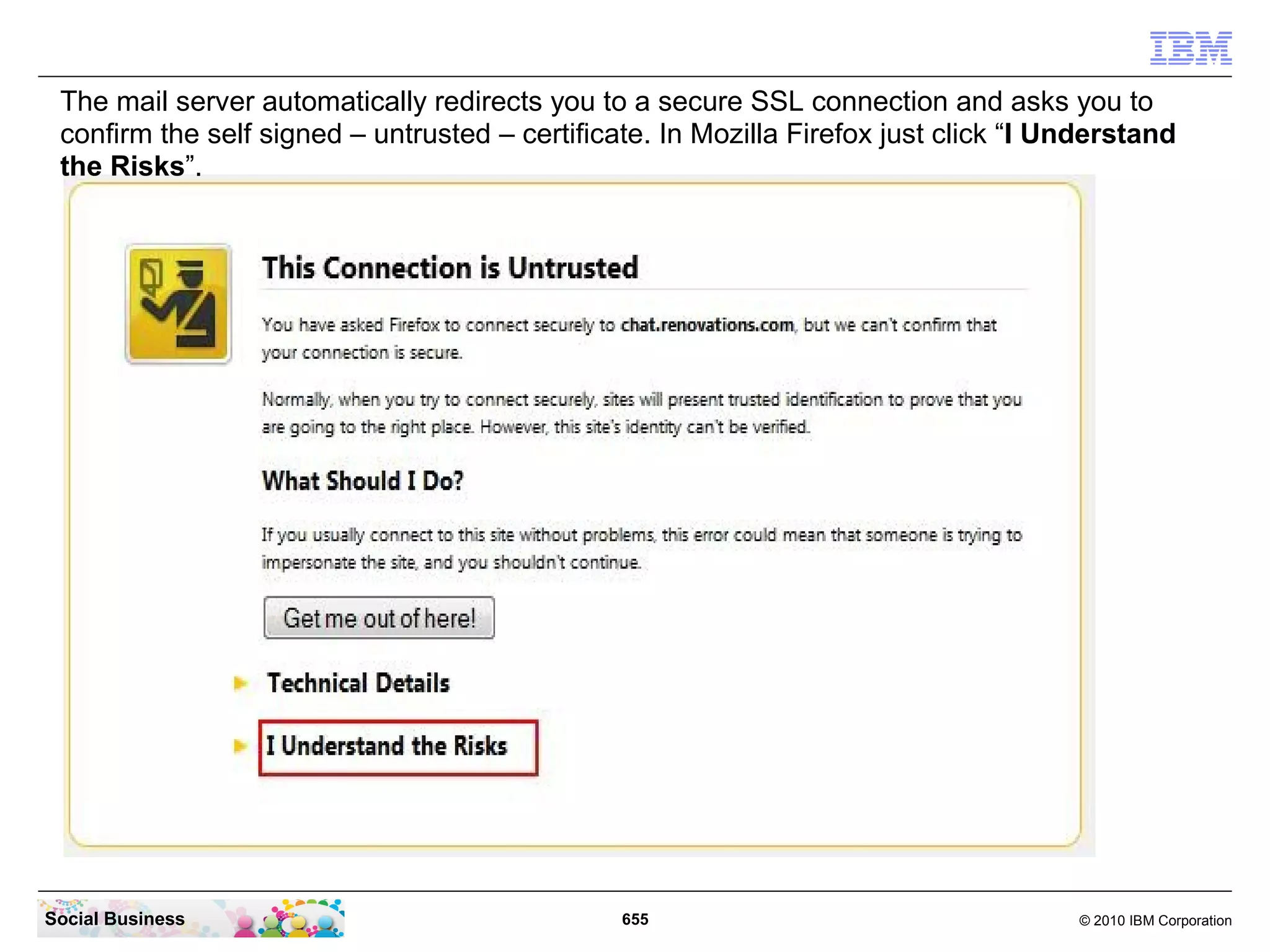
In Microsoft Internet Explorer just select “Continue loading the Web Site”. In Mozilla
   Firefox select “I Understand the Risks”.


Social Business                                217                                  © 2010 IBM Corporation
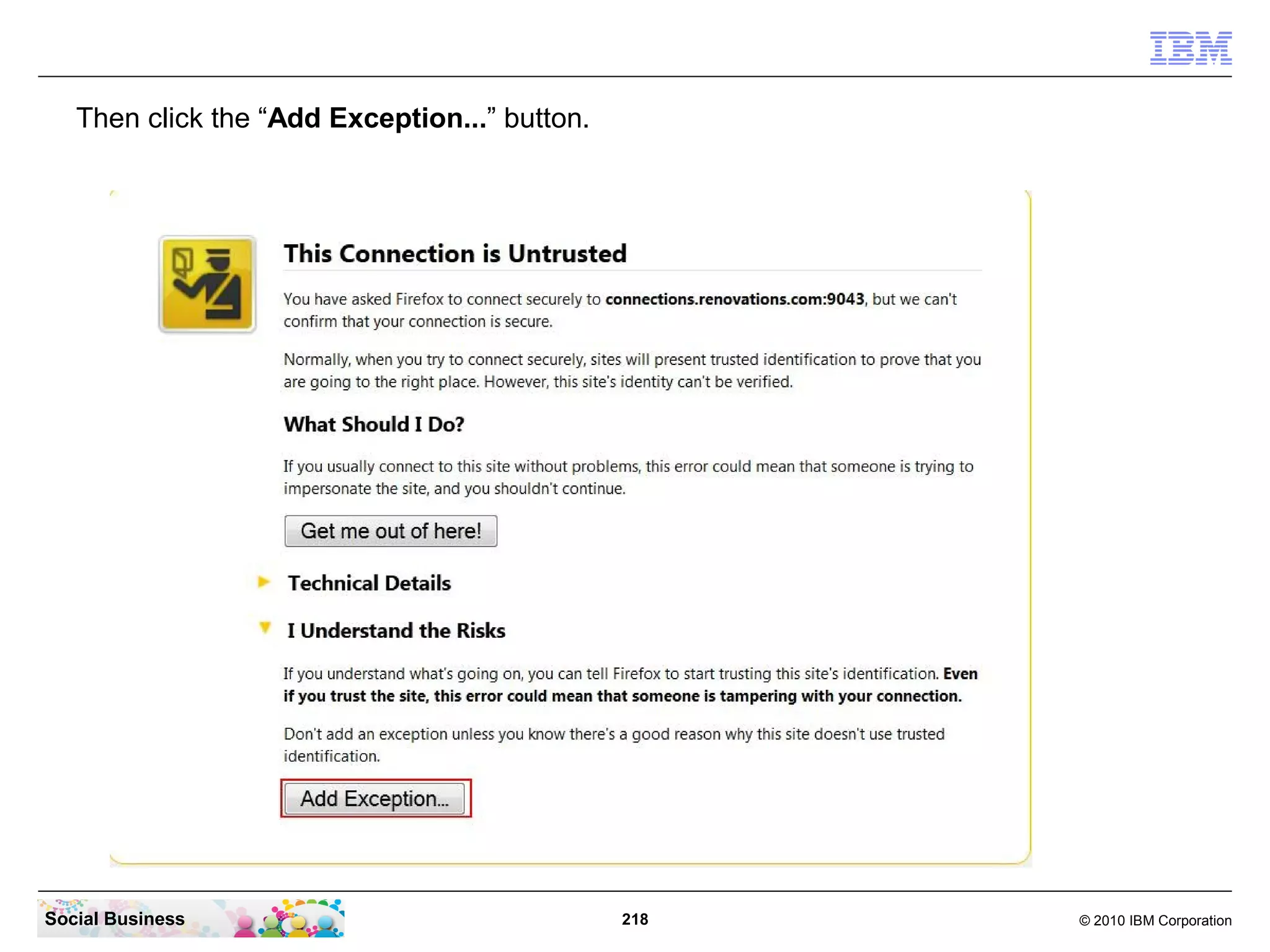
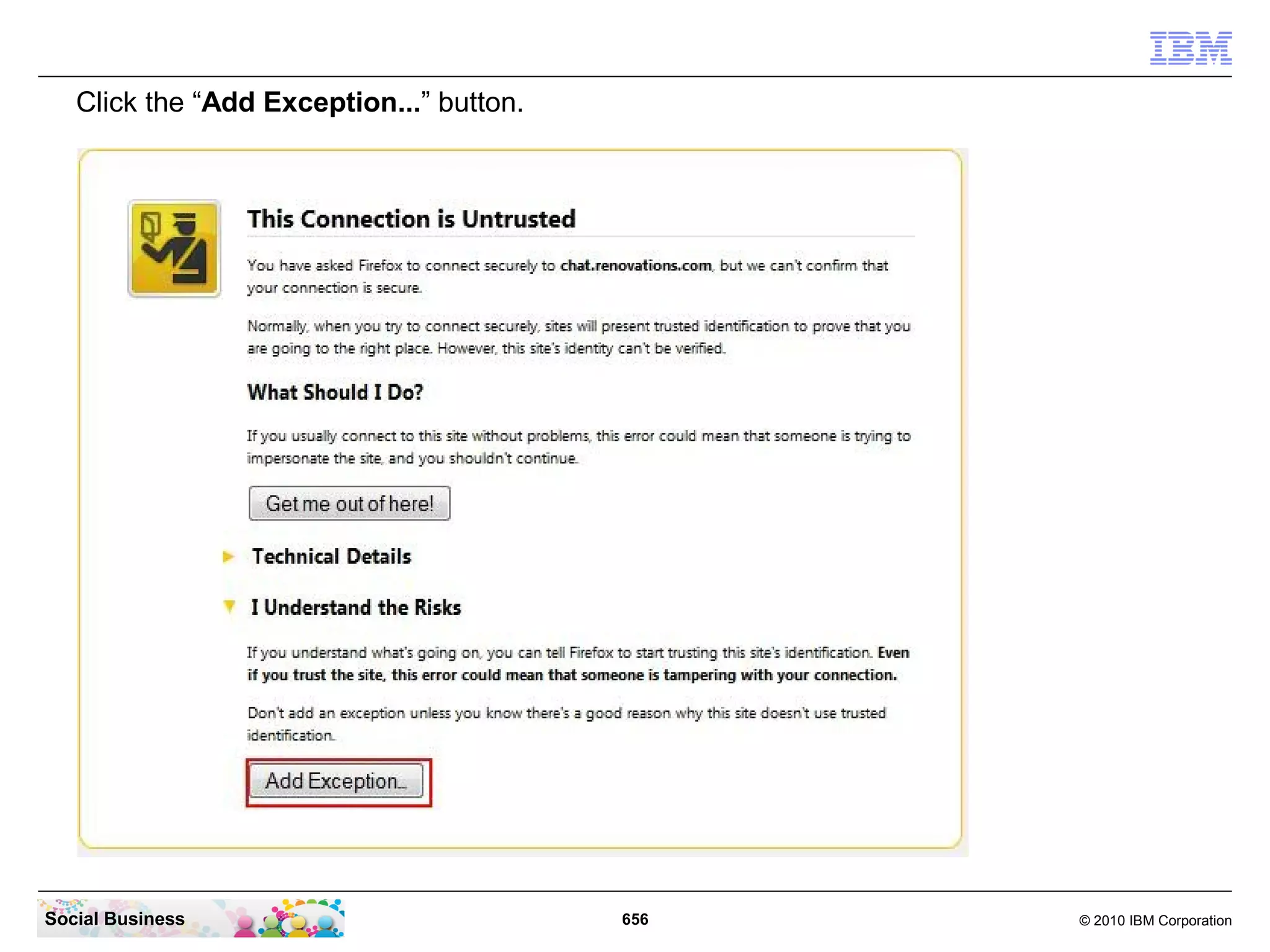
Then click the “Add Exception...” button.


Social Business                                218   © 2010 IBM Corporation
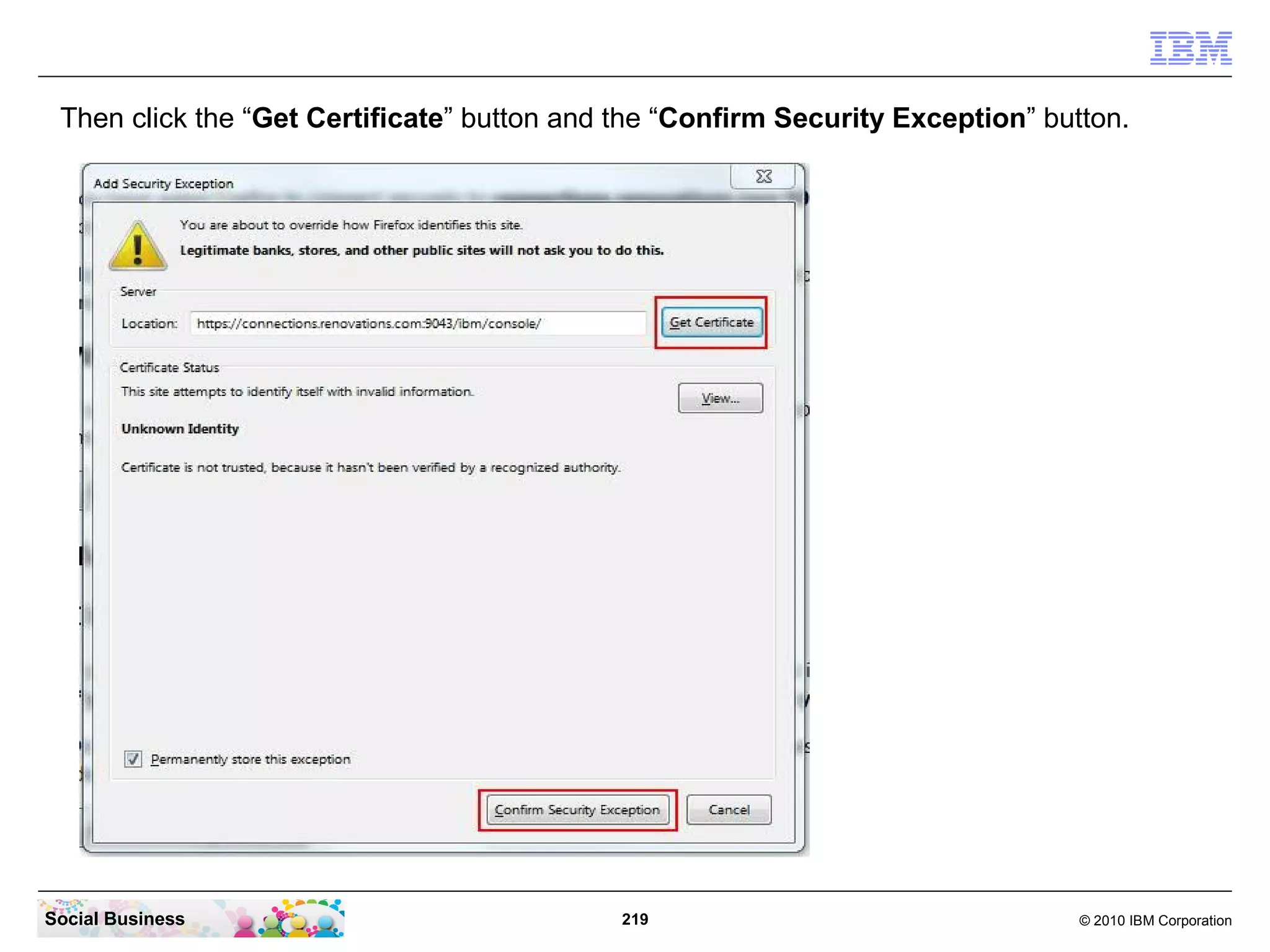
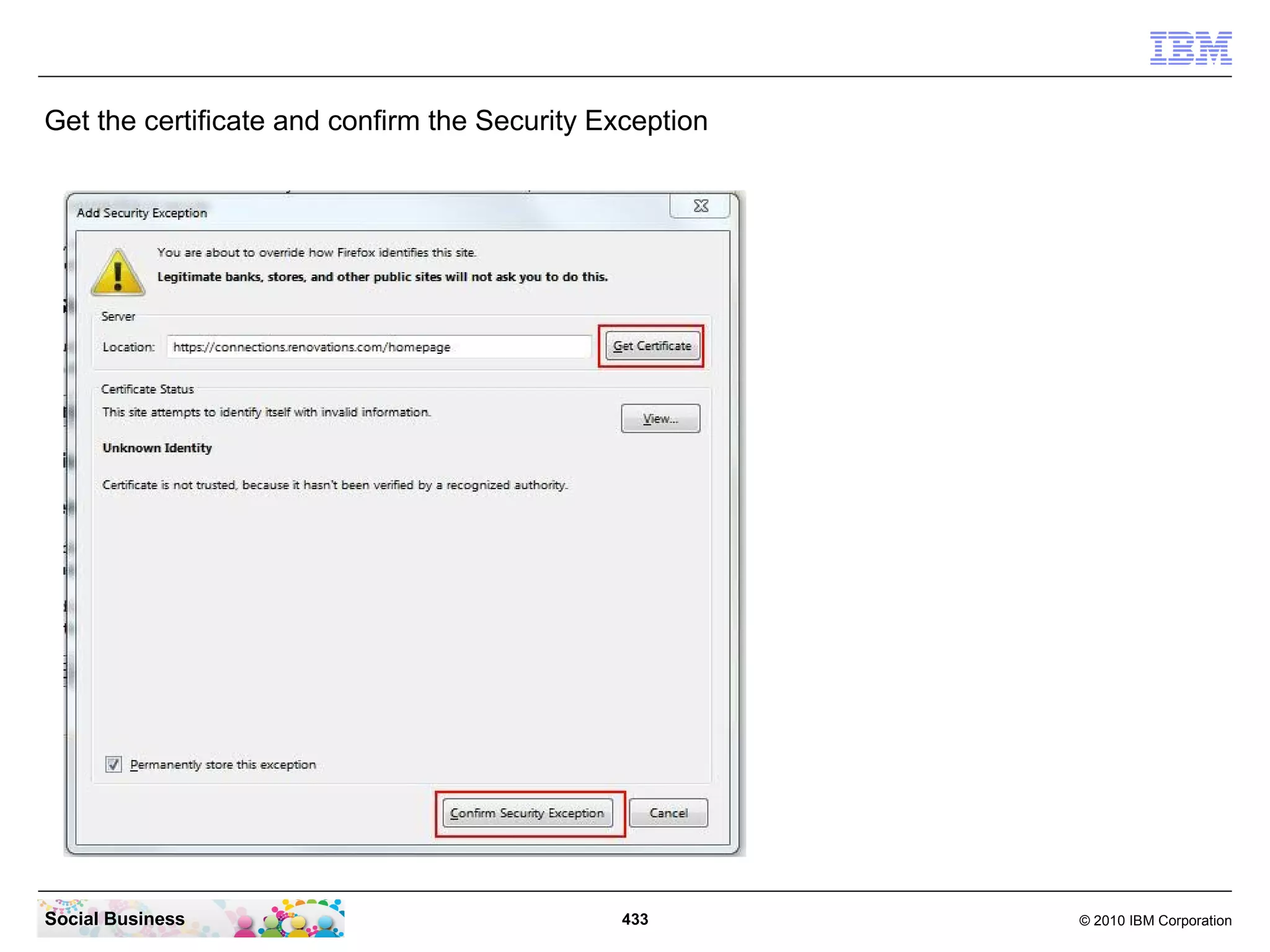
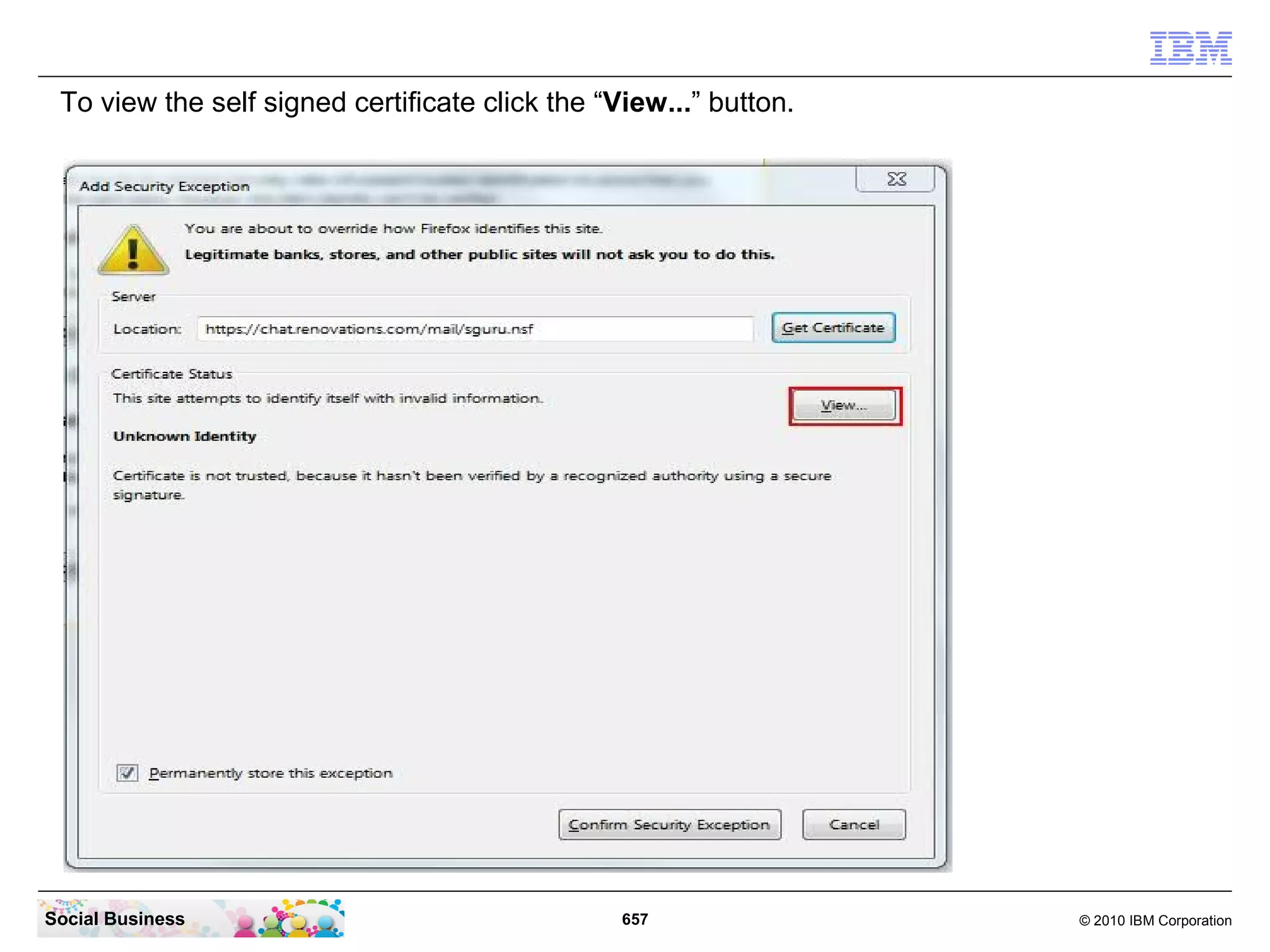
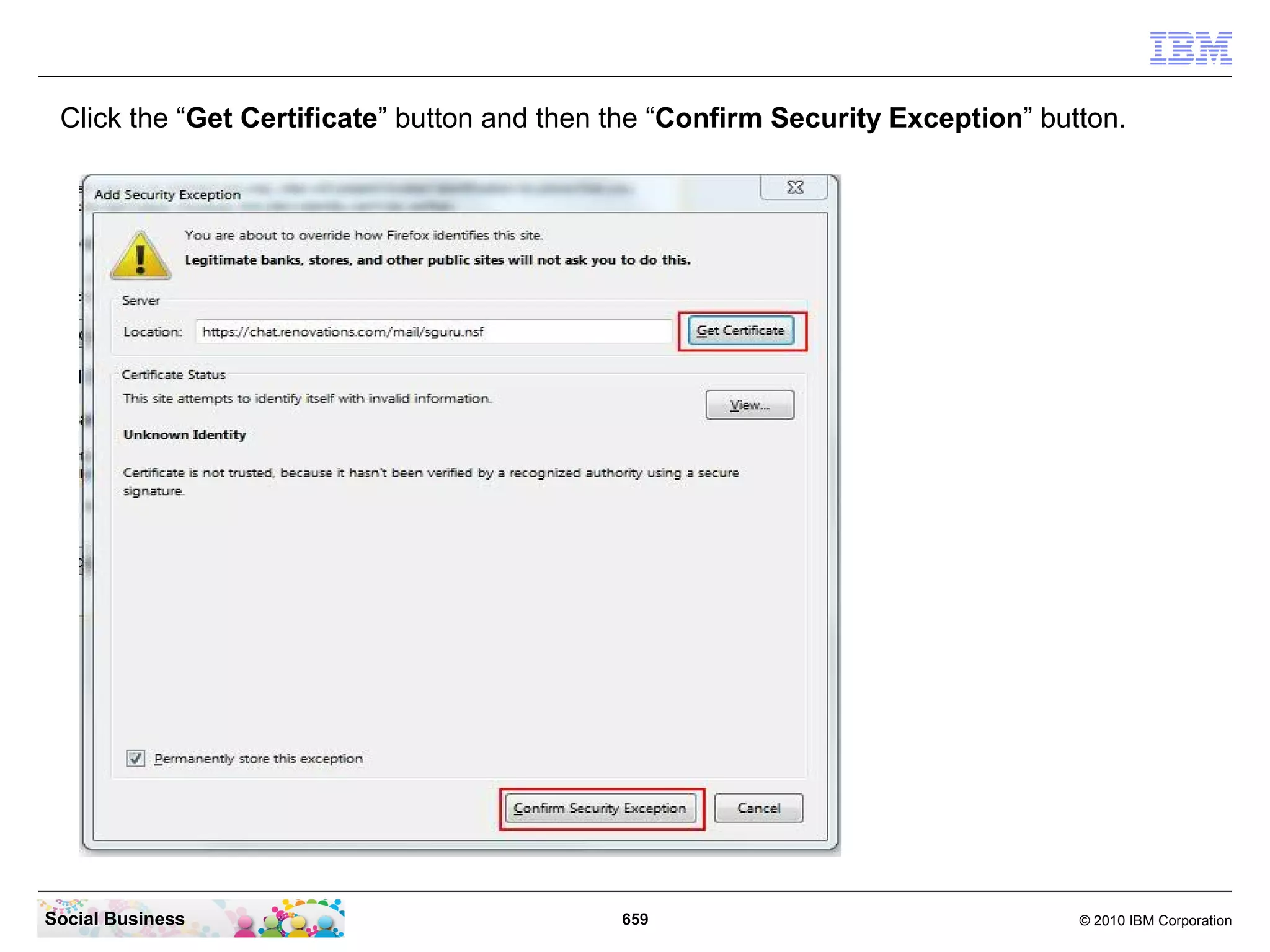
Then click the “Get Certificate” button and the “Confirm Security Exception” button.


Social Business                              219                                 © 2010 IBM Corporation
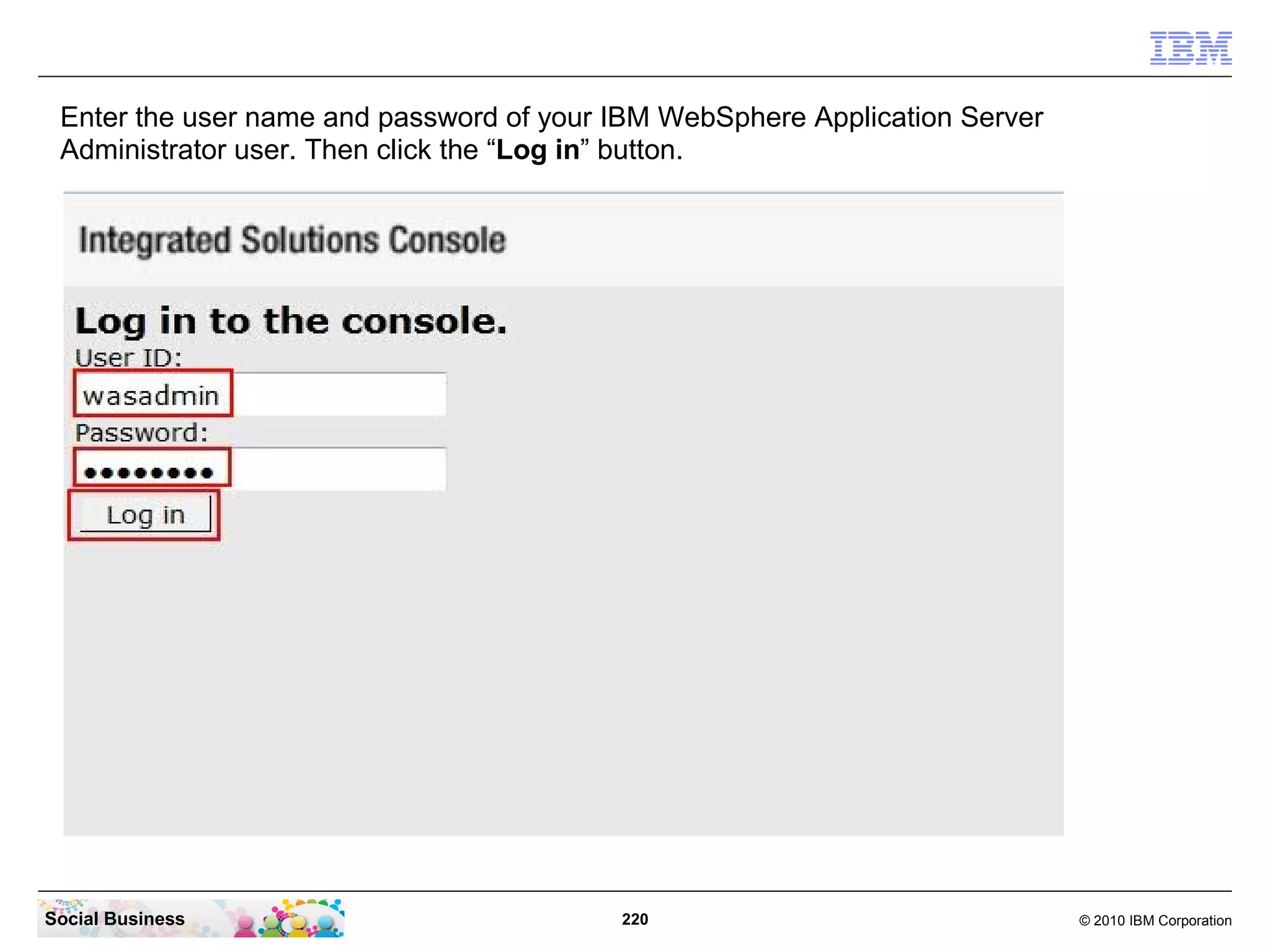
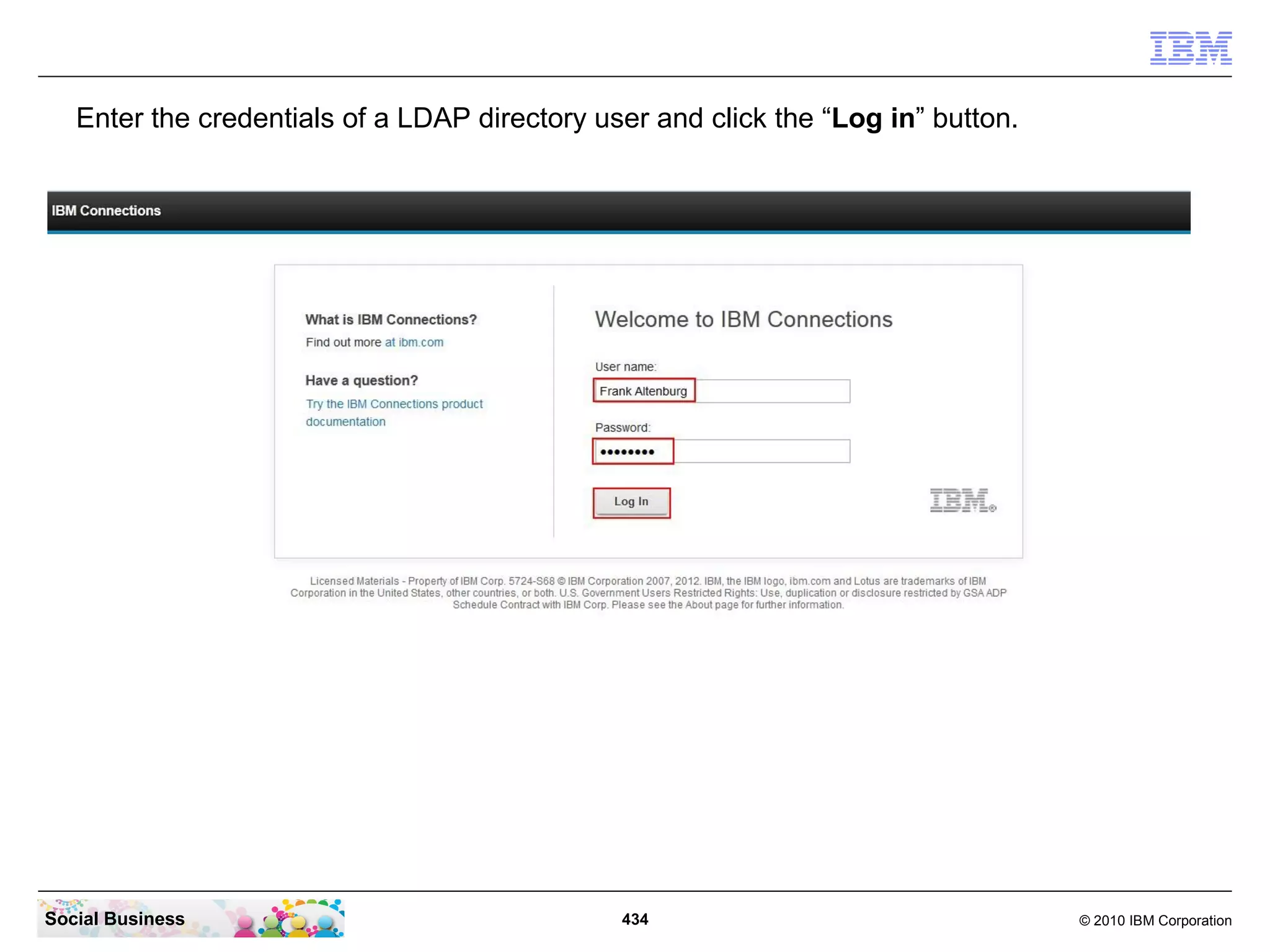
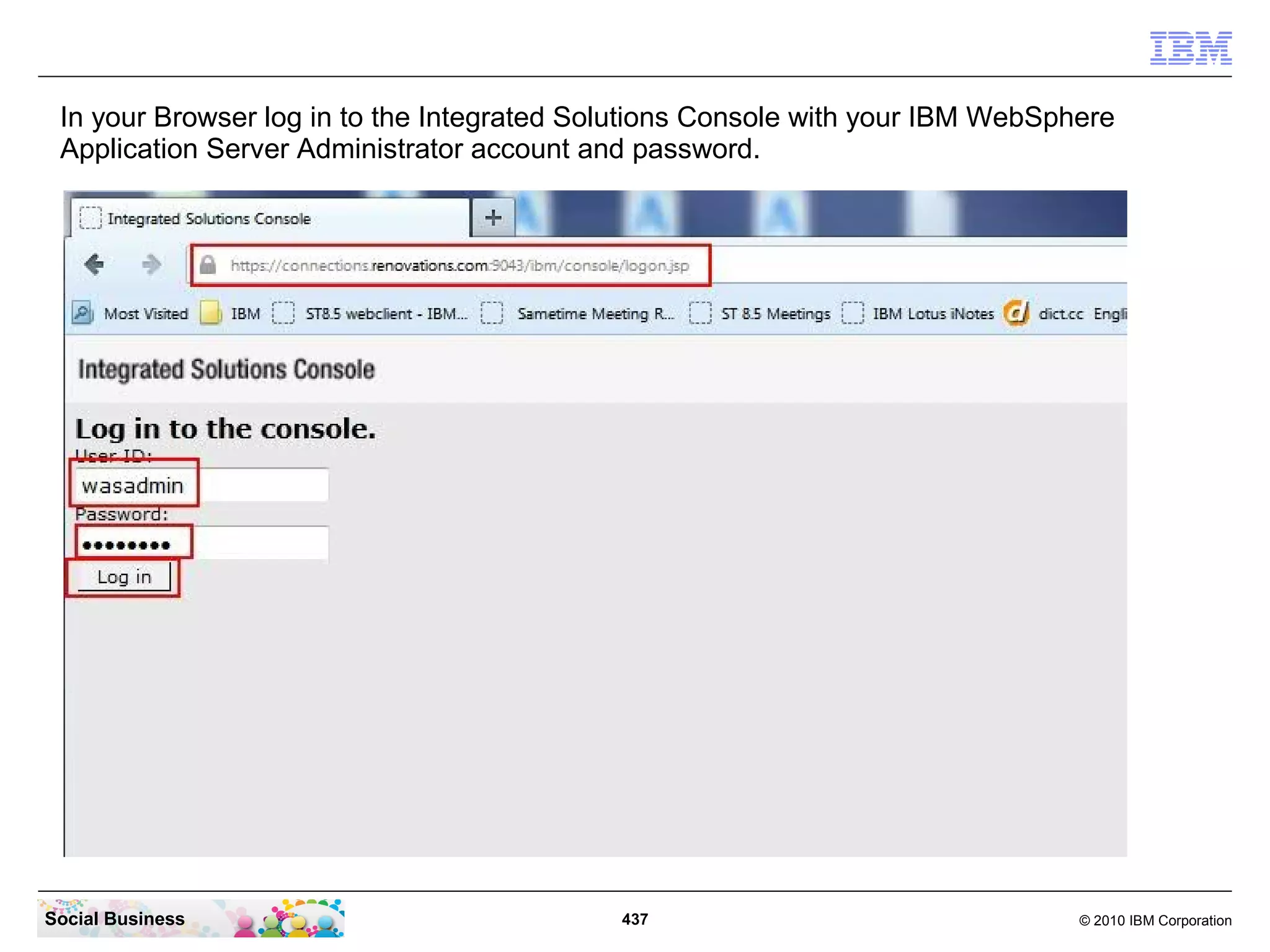
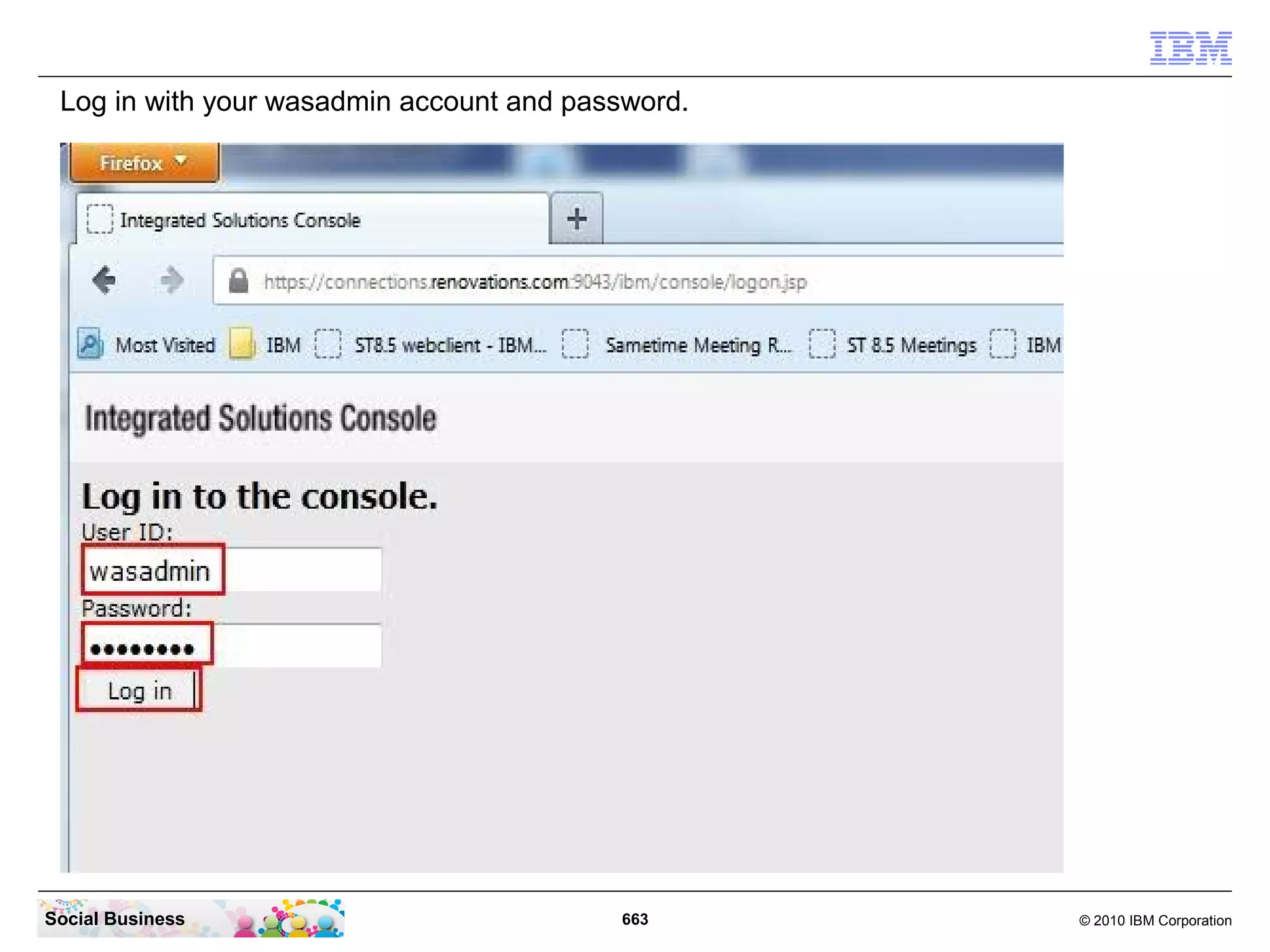
Enter the user name and password of your IBM WebSphere Application Server
 Administrator user. Then click the “Log in” button.


Social Business                           220                                © 2010 IBM Corporation
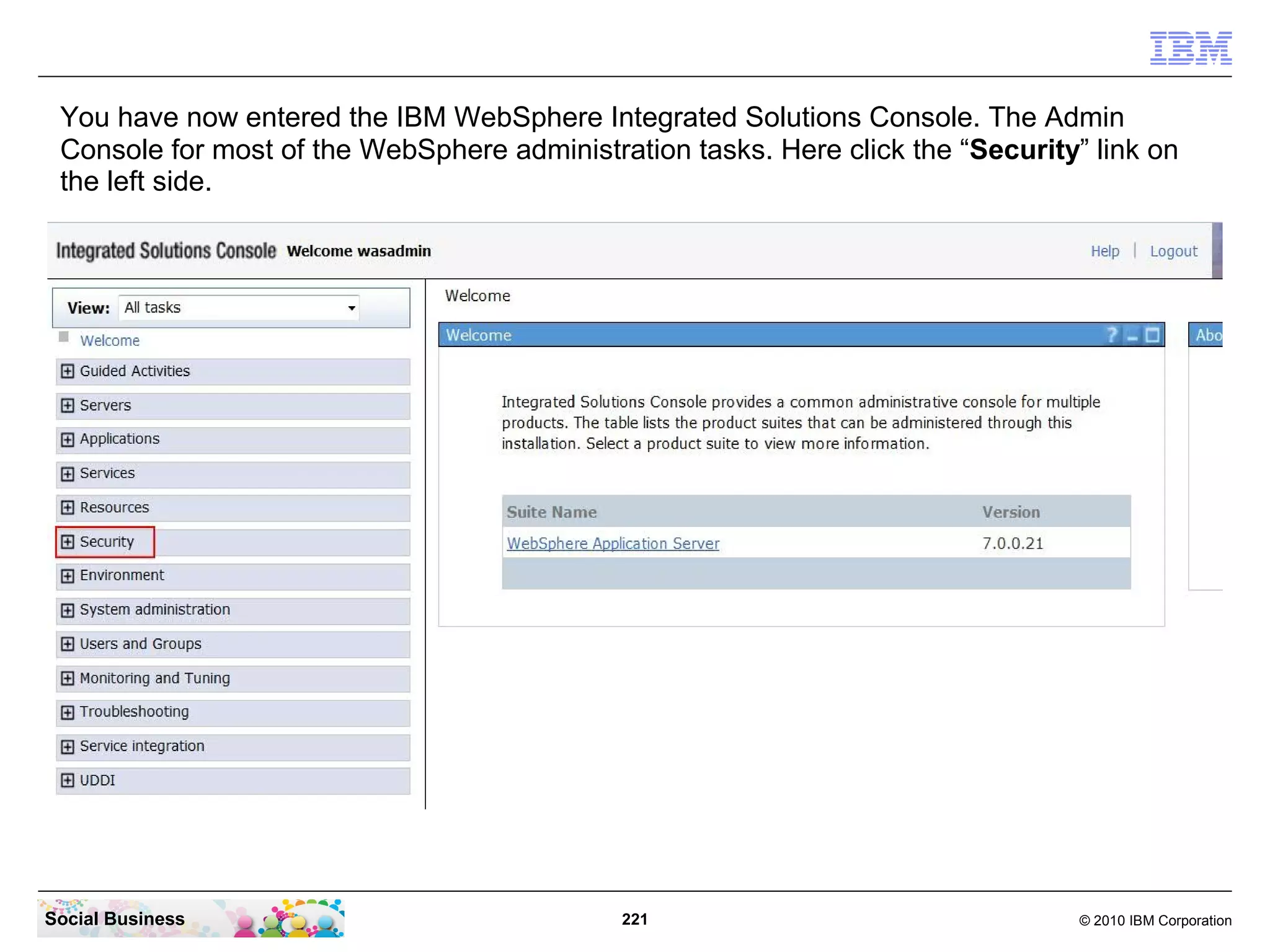
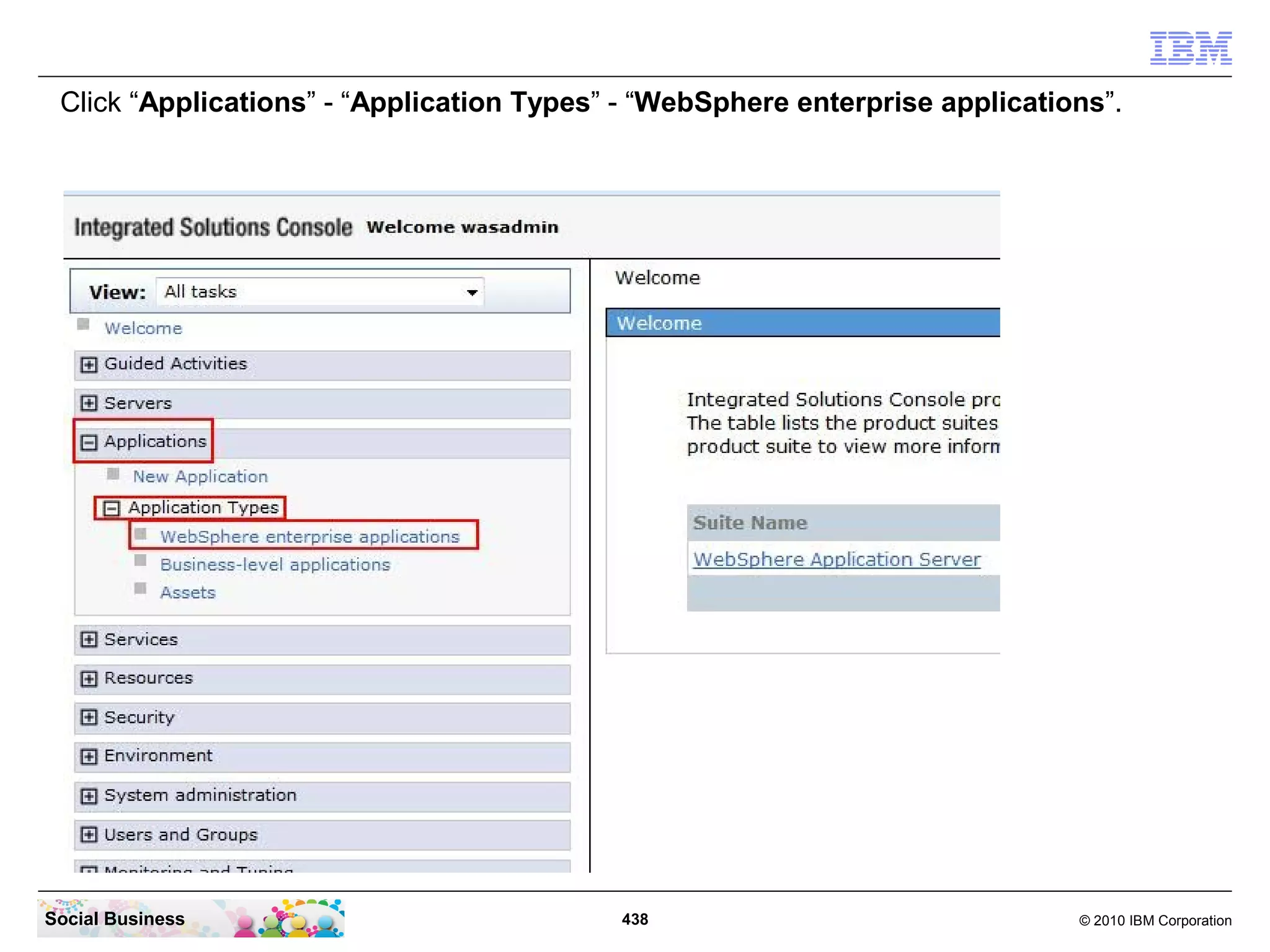
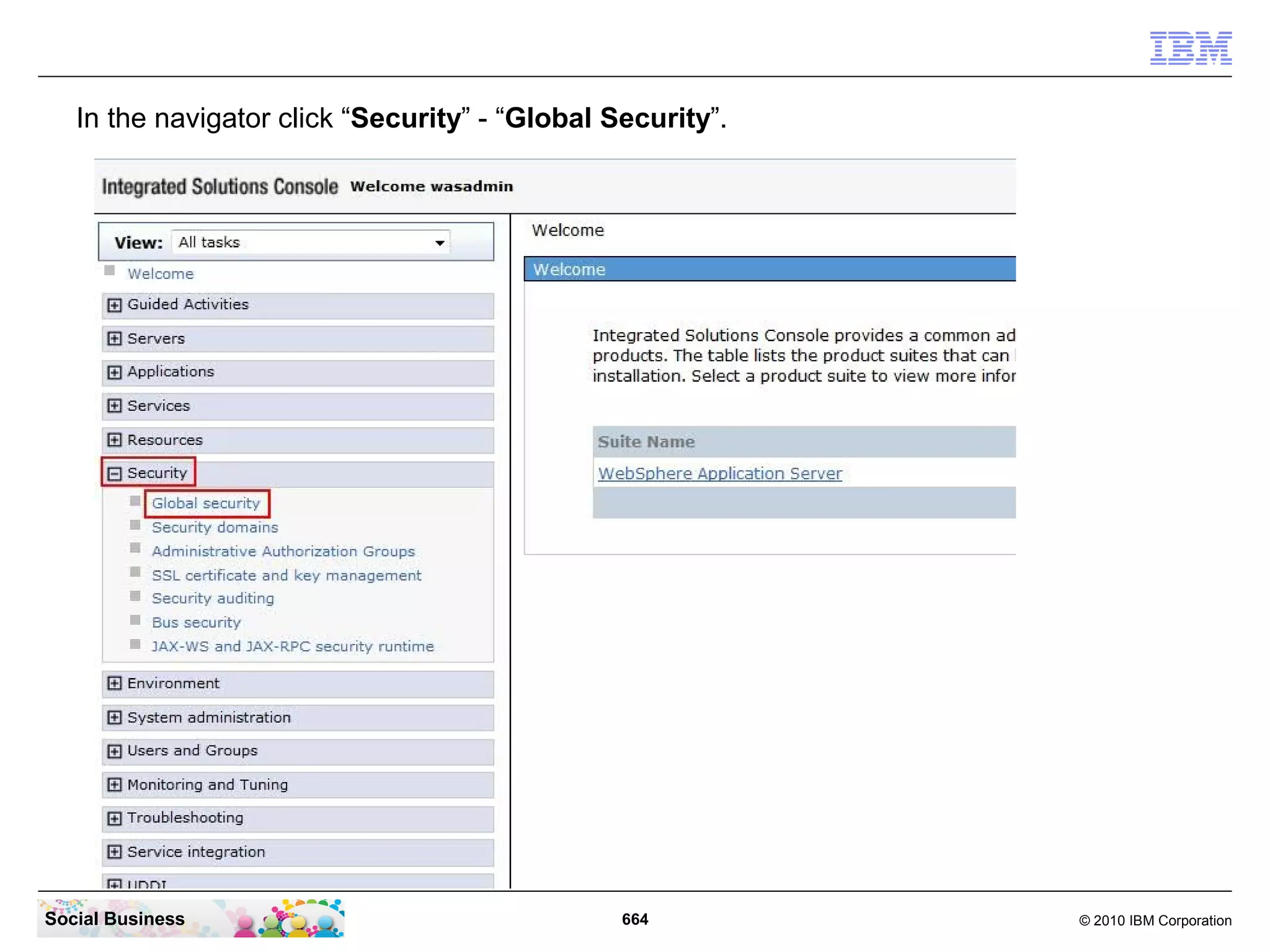
You have now entered the IBM WebSphere Integrated Solutions Console. The Admin
 Console for most of the WebSphere administration tasks. Here click the “Security” link on
 the left side.


Social Business                              221                                  © 2010 IBM Corporation
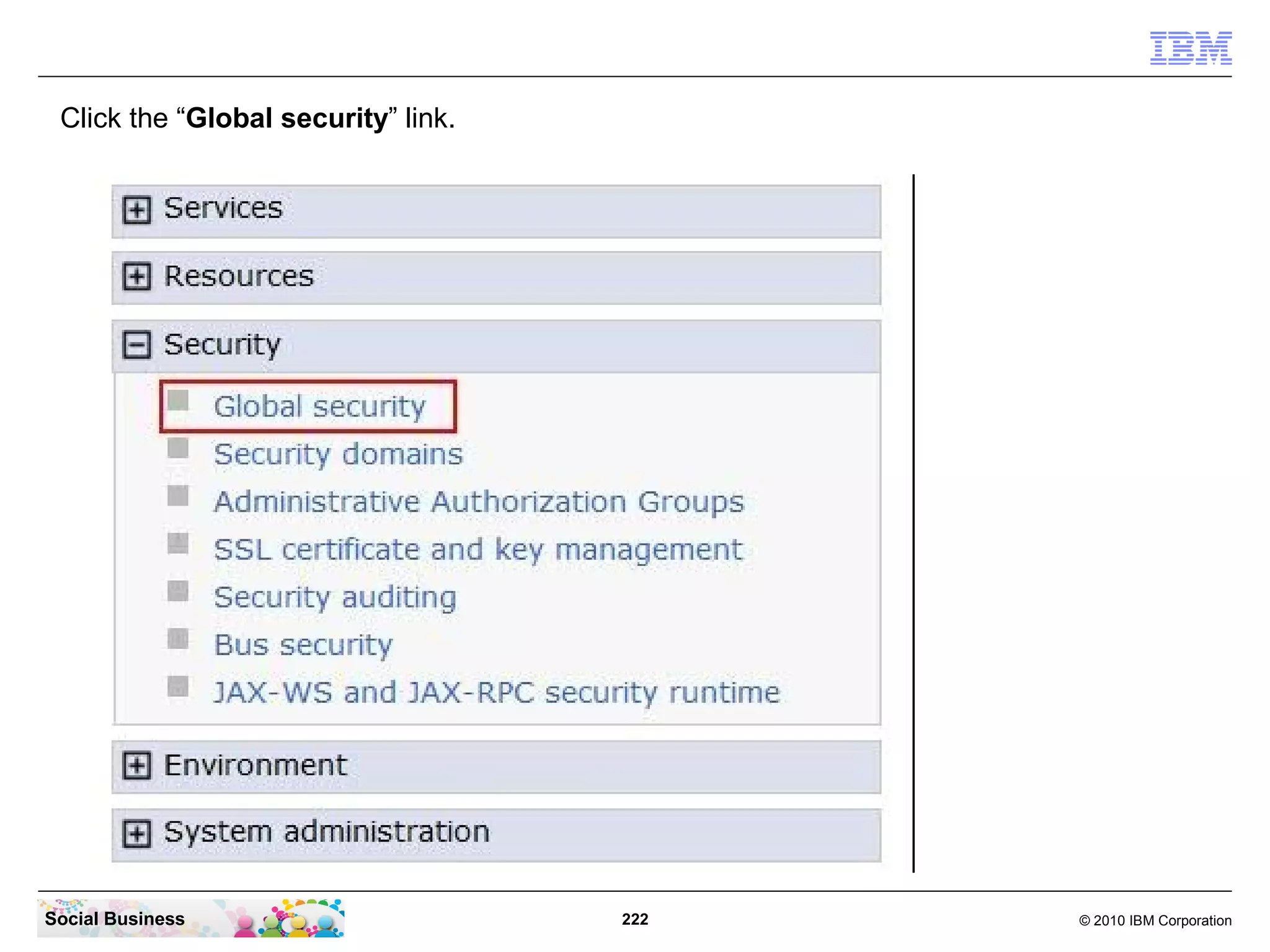
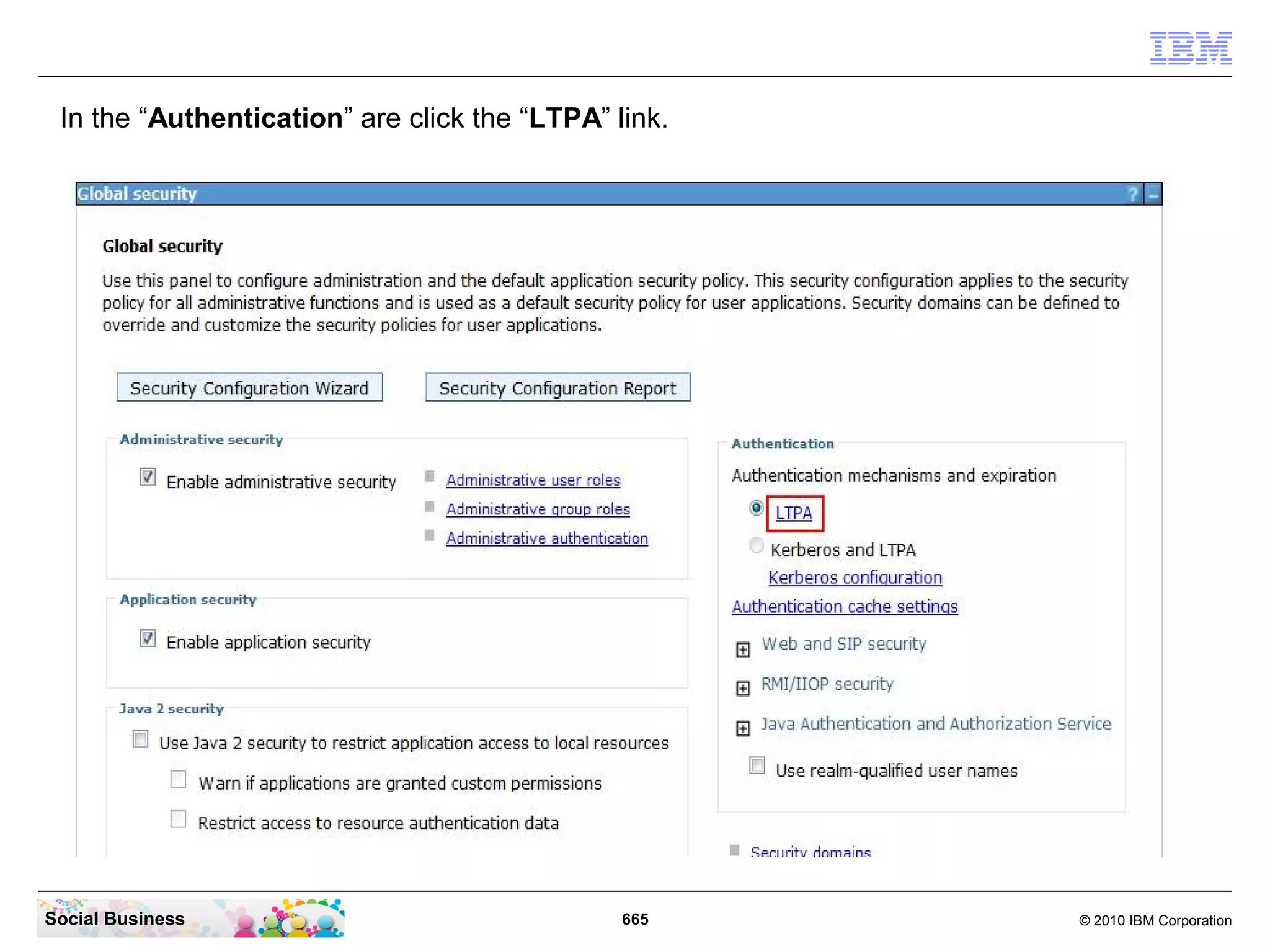
Click the “Global security” link.


Social Business                      222   © 2010 IBM Corporation
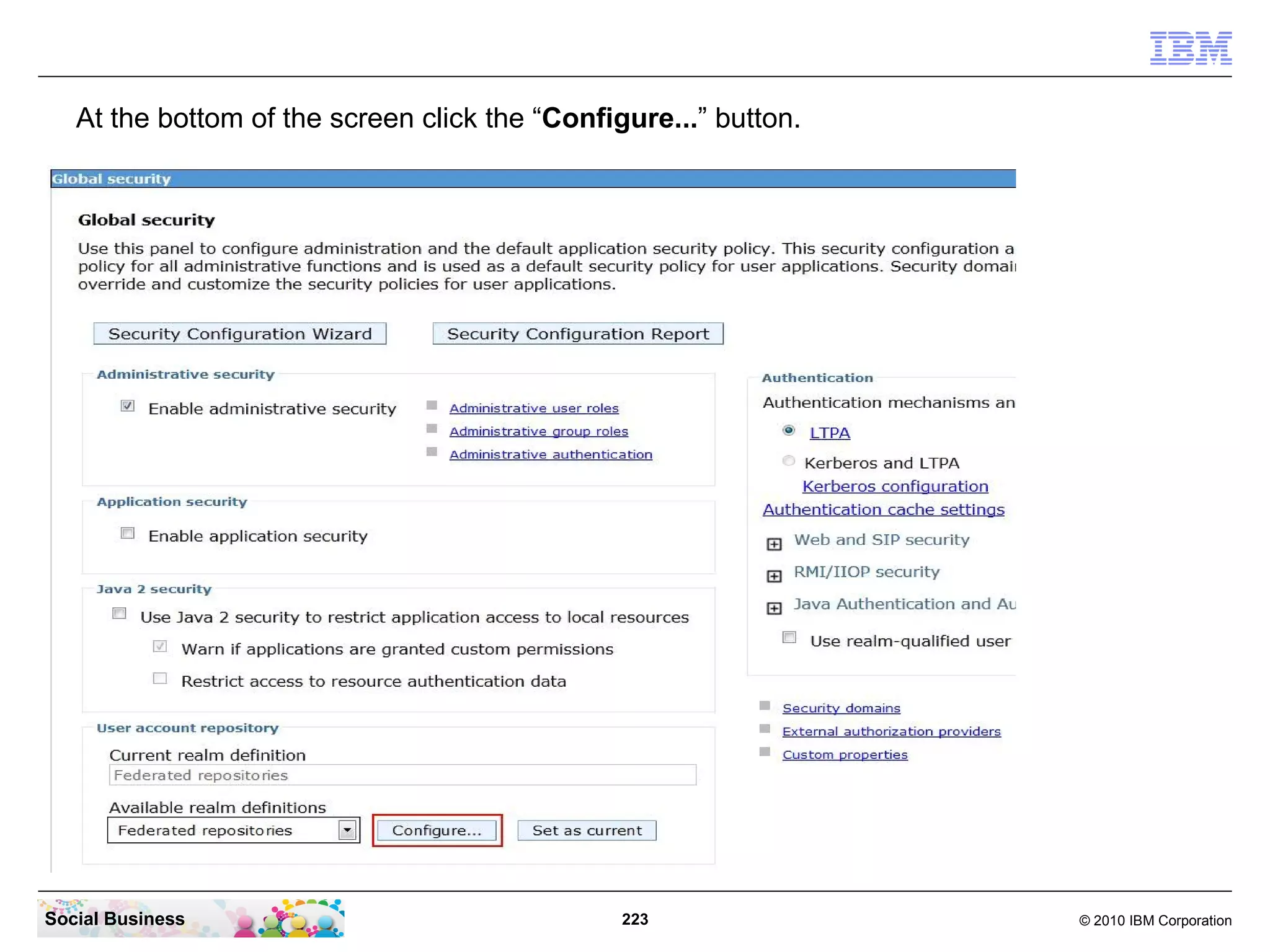
At the bottom of the screen click the “Configure...” button.


Social Business                                 223               © 2010 IBM Corporation
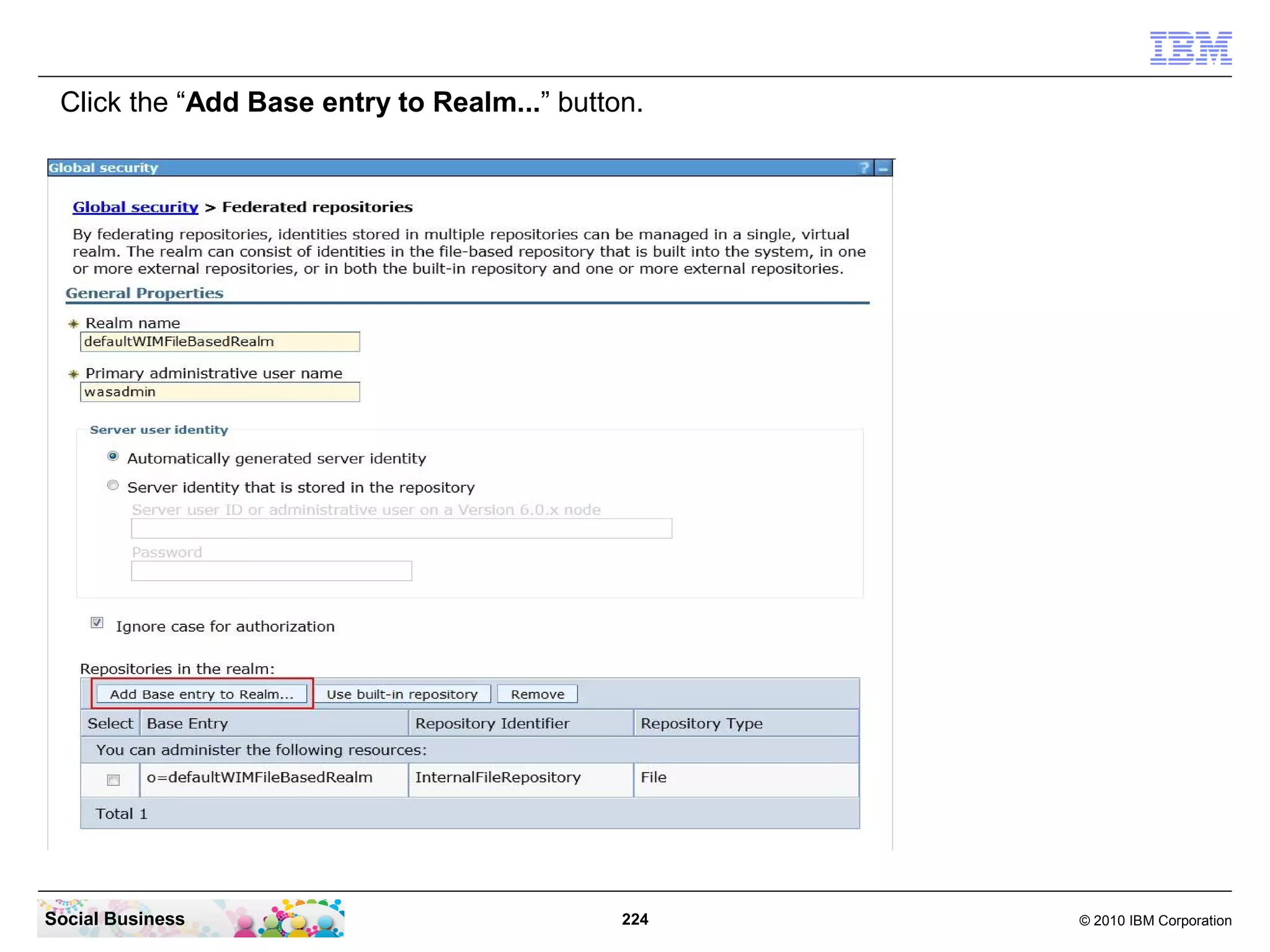
Click the “Add Base entry to Realm...” button.


Social Business                              224   © 2010 IBM Corporation
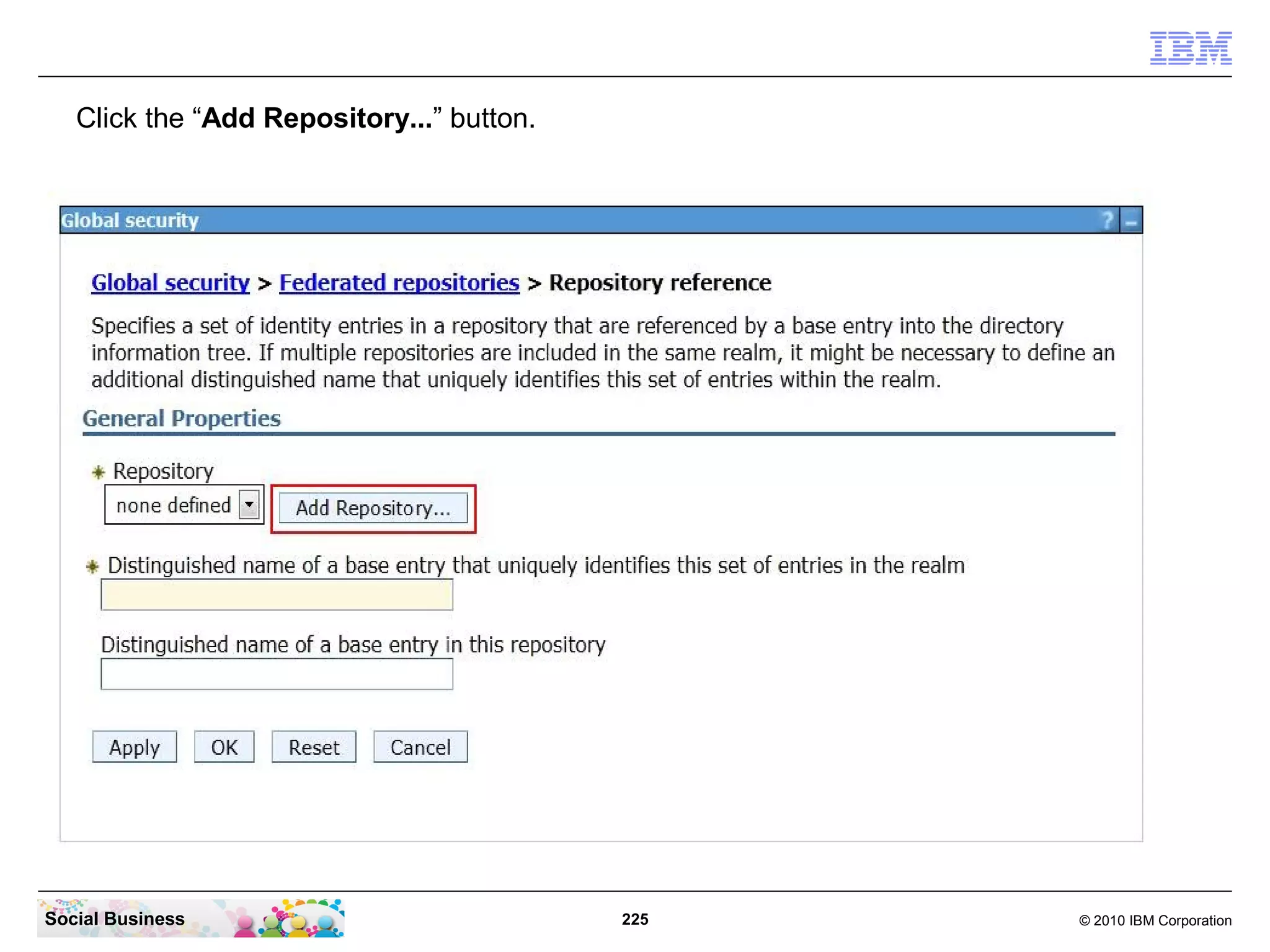
Click the “Add Repository...” button.


Social Business                            225   © 2010 IBM Corporation
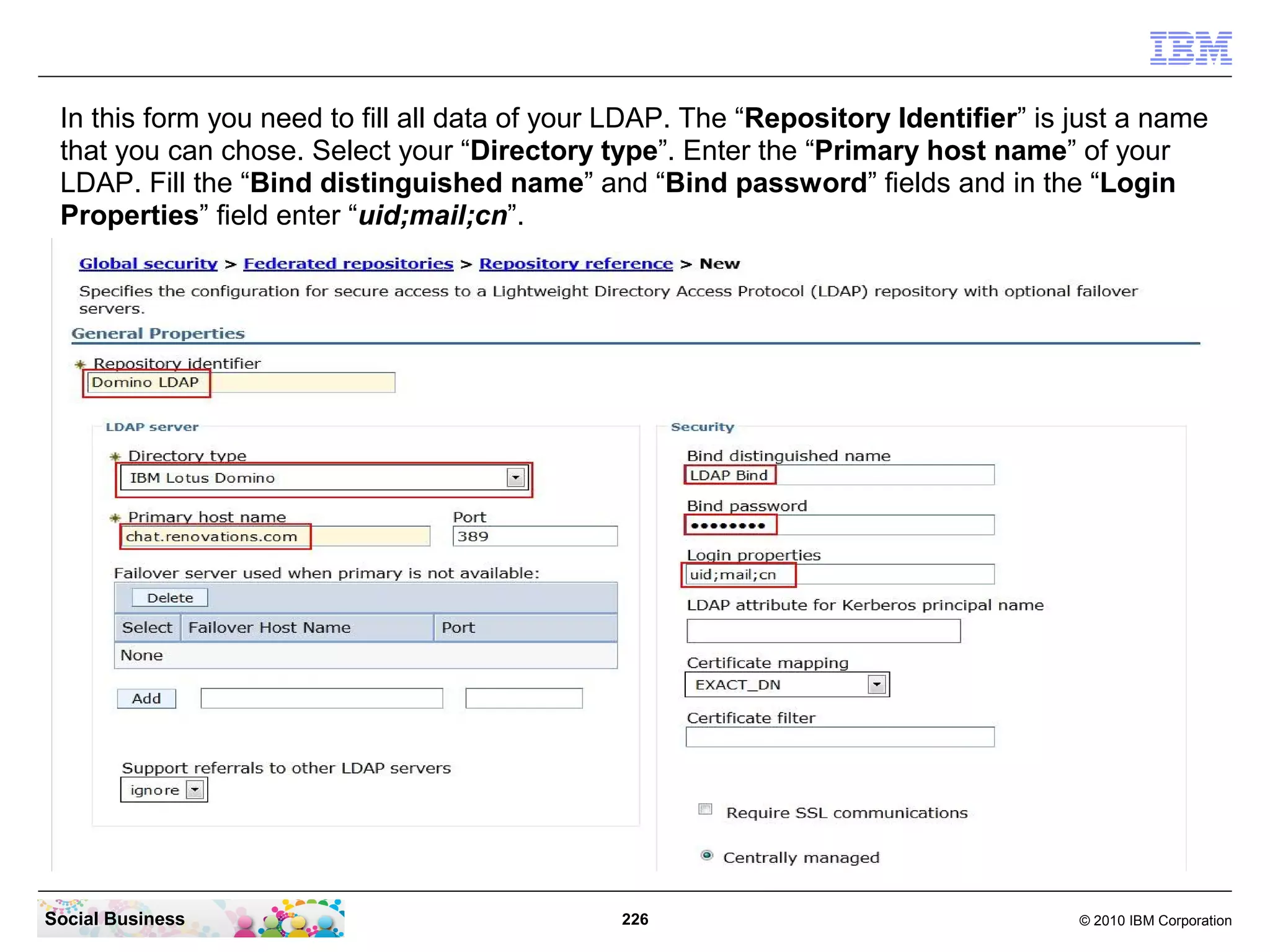
In this form you need to fill all data of your LDAP. The “Repository Identifier” is just a name
 that you can chose. Select your “Directory type”. Enter the “Primary host name” of your
 LDAP. Fill the “Bind distinguished name” and “Bind password” fields and in the “Login
 Properties” field enter “uid;mail;cn”.


Social Business                                226                                   © 2010 IBM Corporation
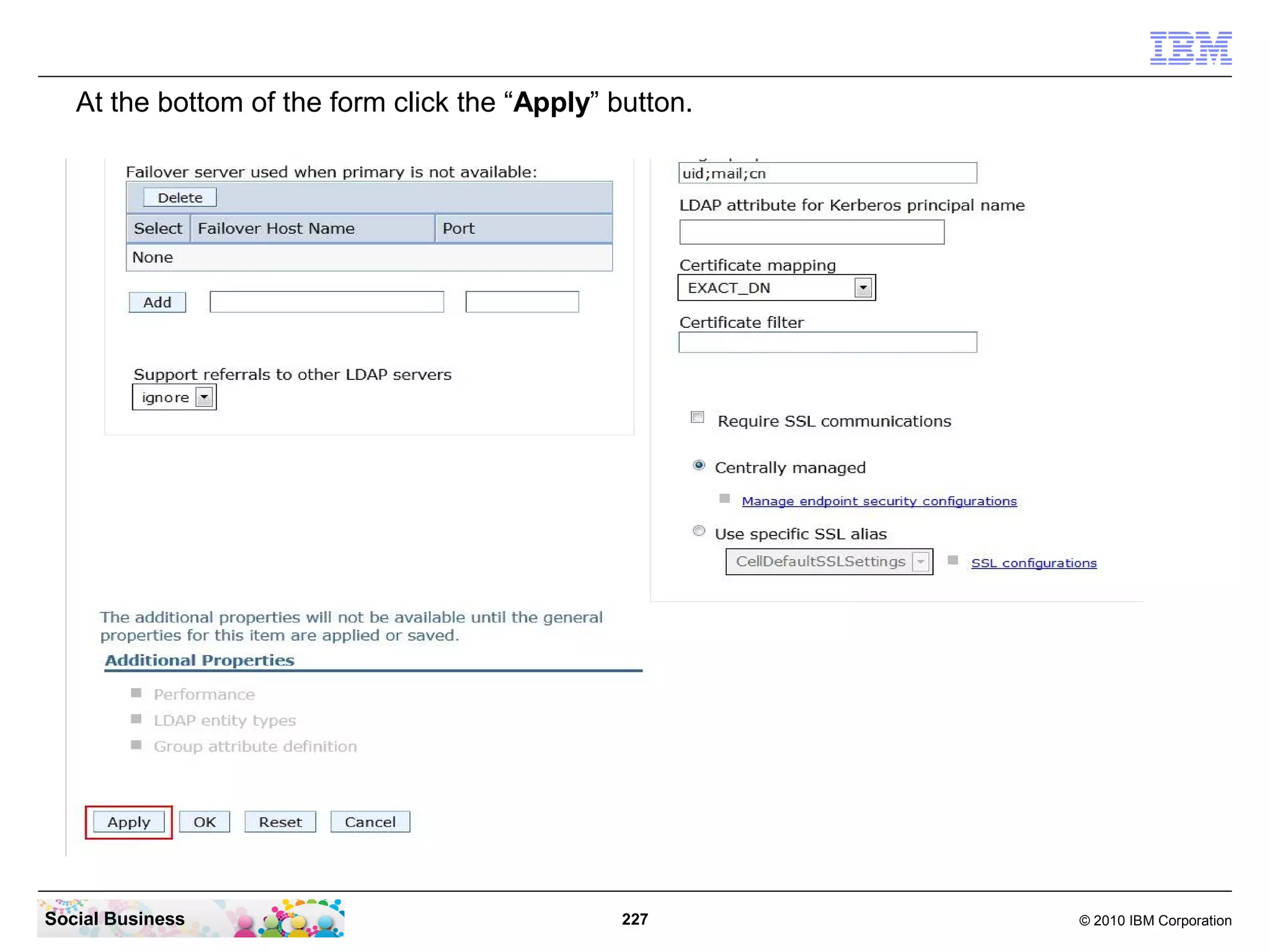
At the bottom of the form click the “Apply” button.


Social Business                                 227      © 2010 IBM Corporation
Click the “Save” link to save the configuration changes.


Social Business                               228           © 2010 IBM Corporation
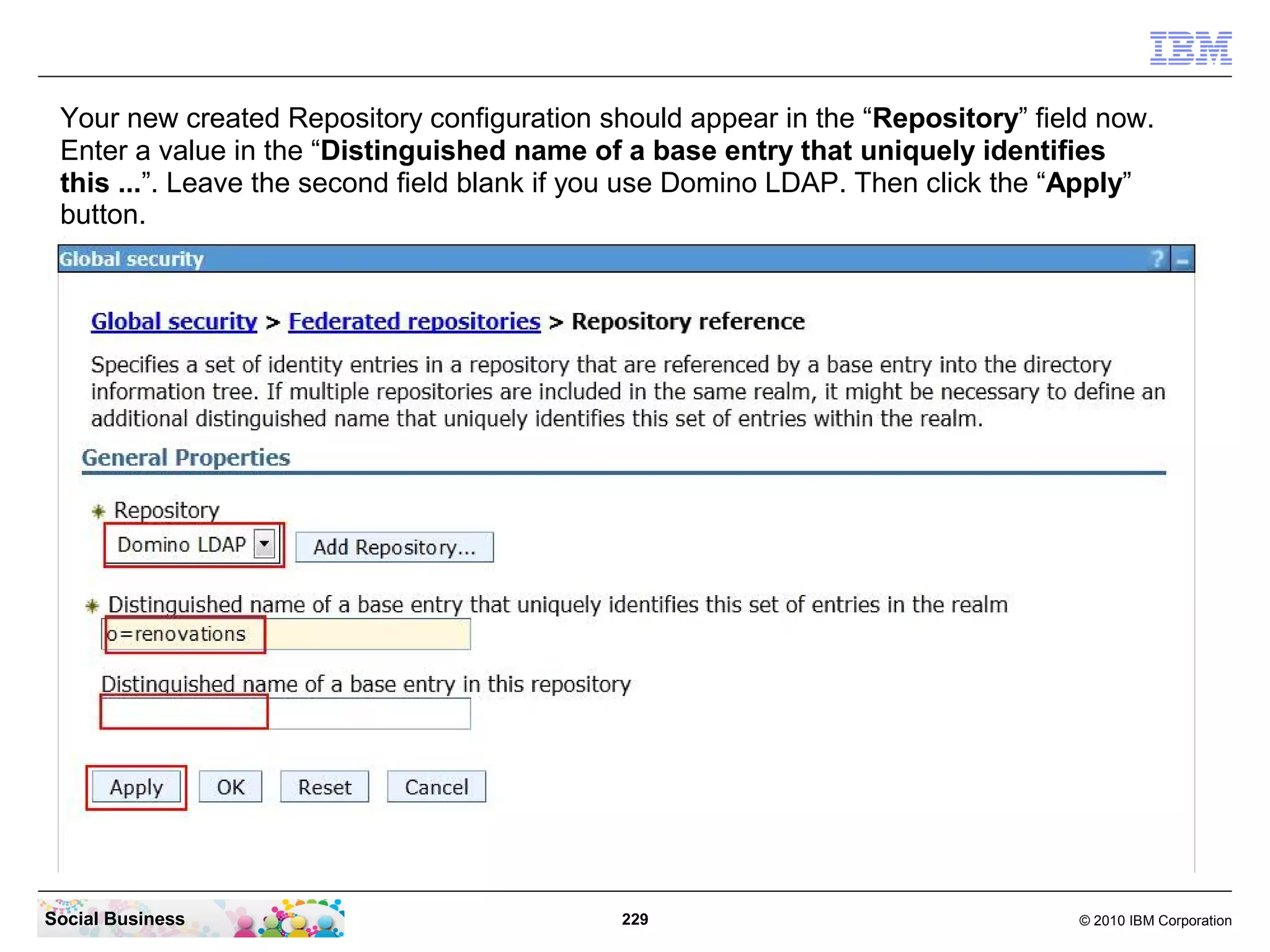
Your new created Repository configuration should appear in the “Repository” field now.
 Enter a value in the “Distinguished name of a base entry that uniquely identifies
 this ...”. Leave the second field blank if you use Domino LDAP. Then click the “Apply”
 button.


Social Business                              229                                 © 2010 IBM Corporation
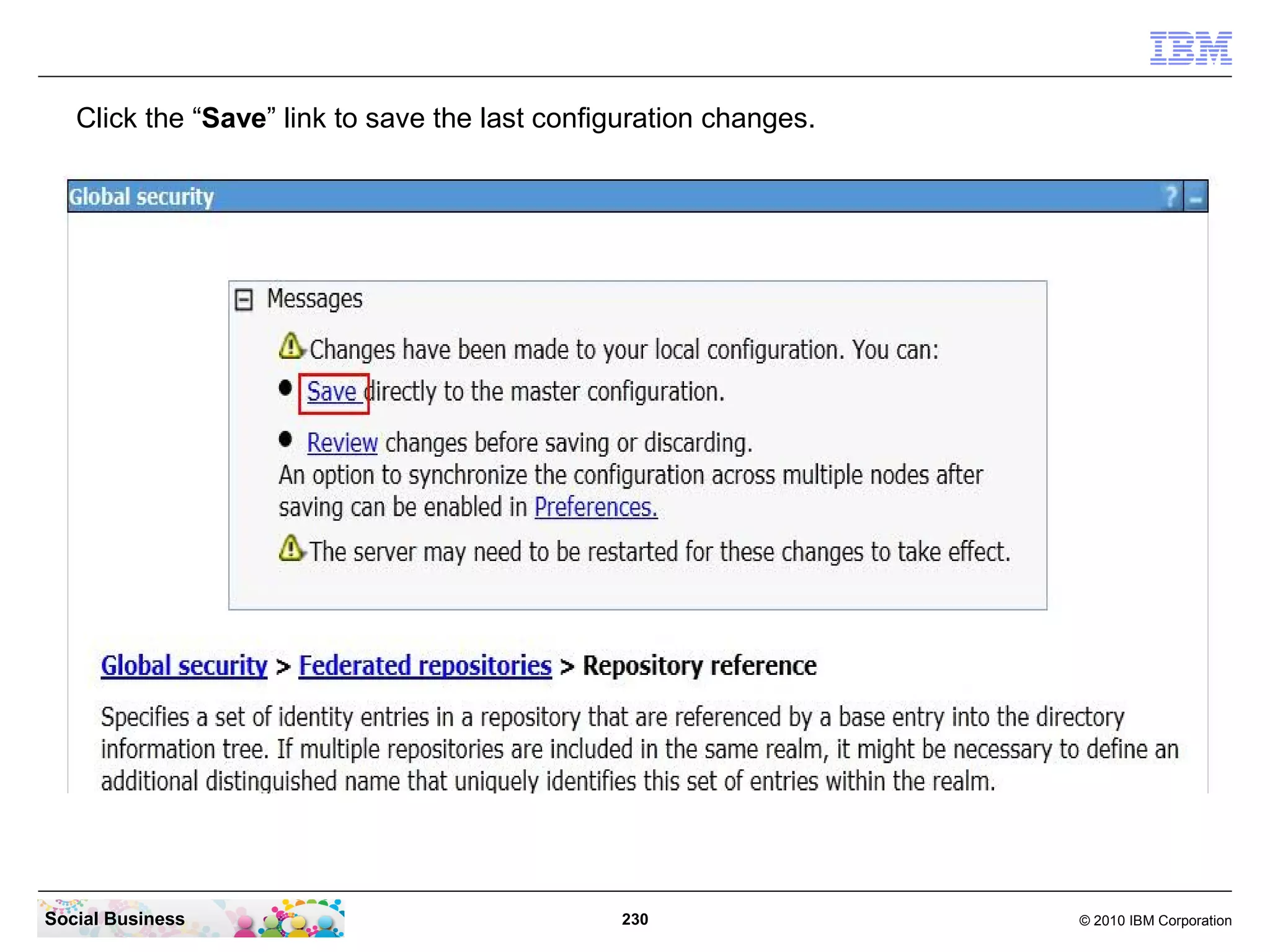
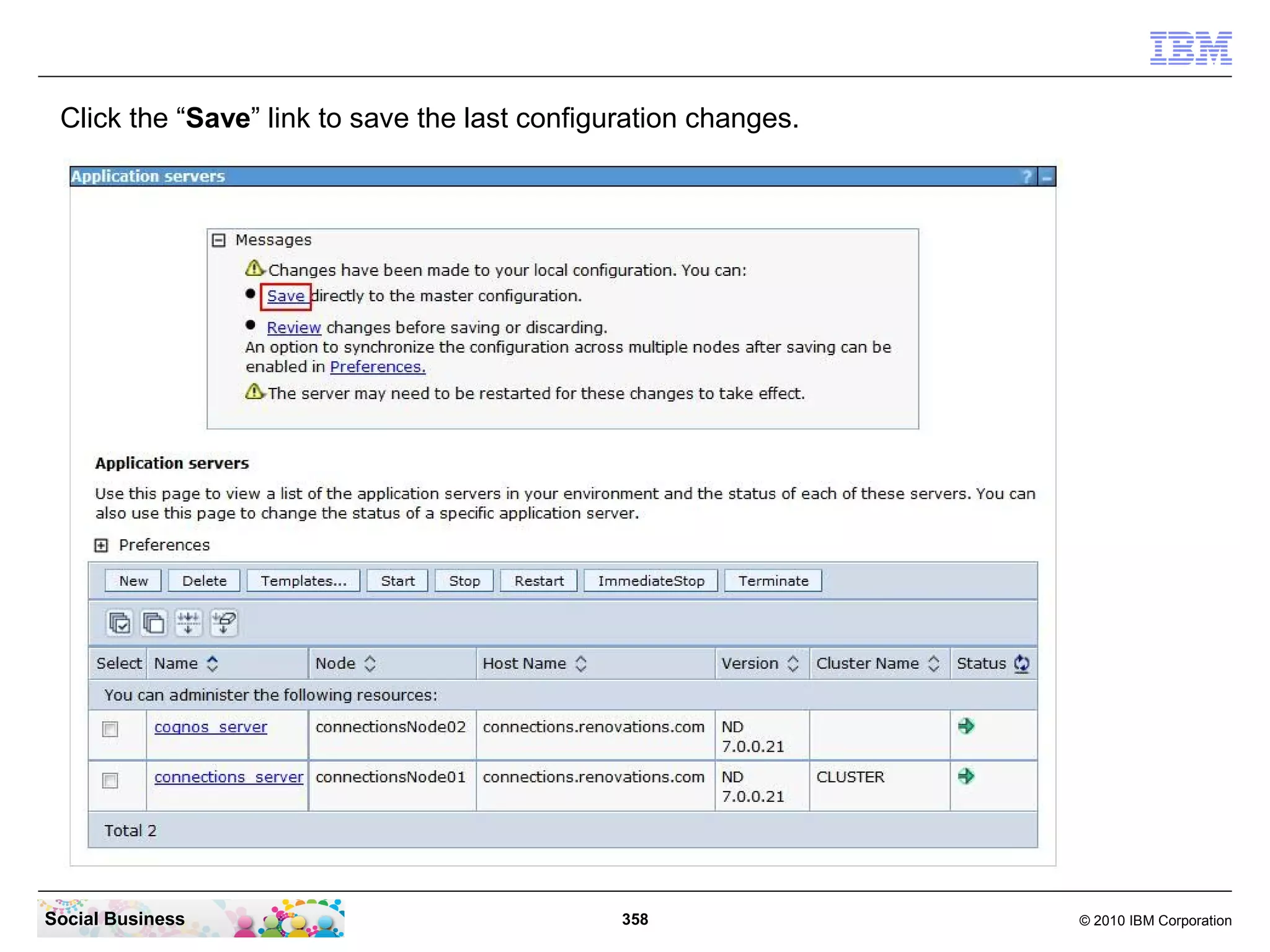
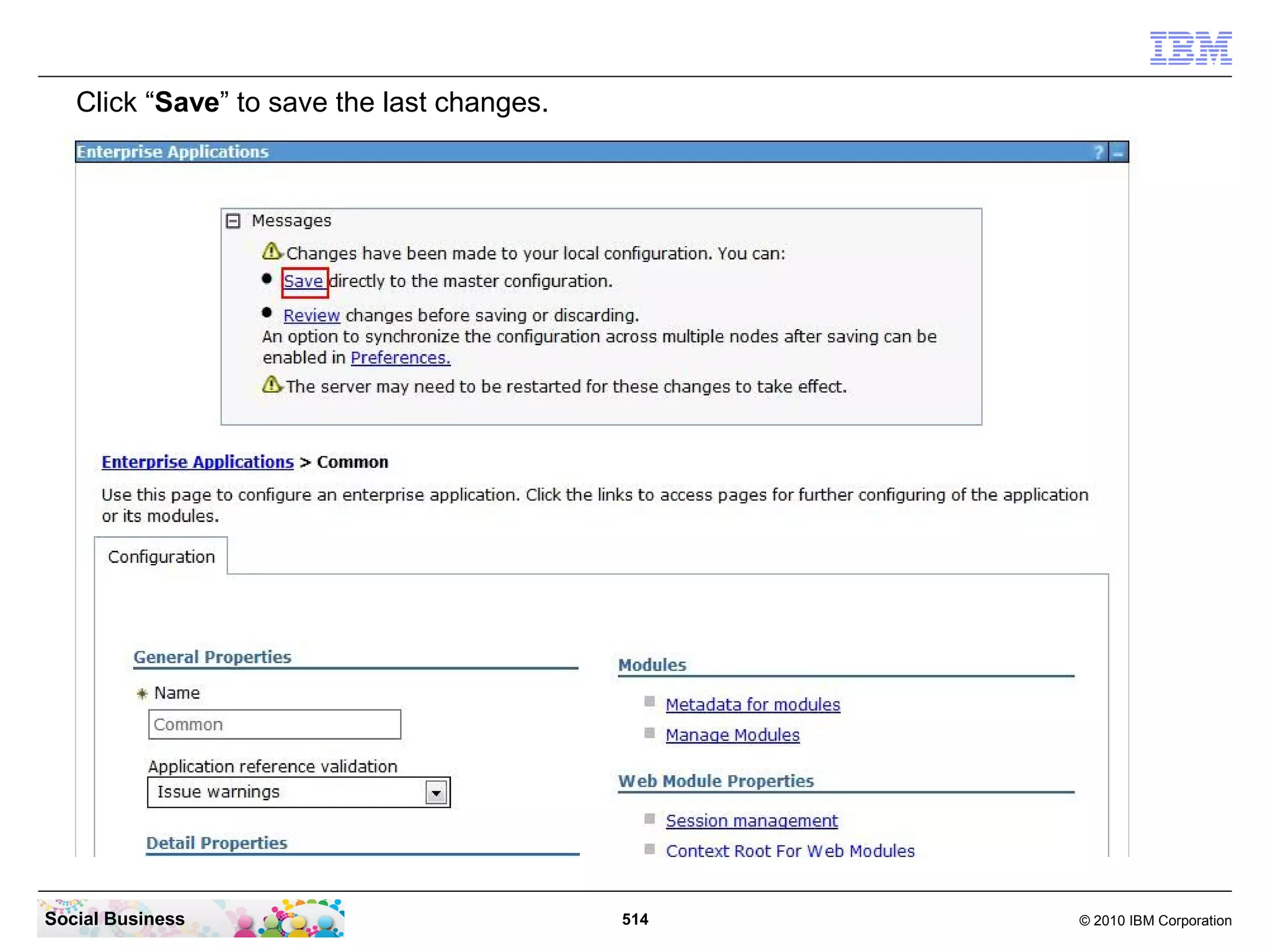
Click the “Save” link to save the last configuration changes.


Social Business                                 230                © 2010 IBM Corporation
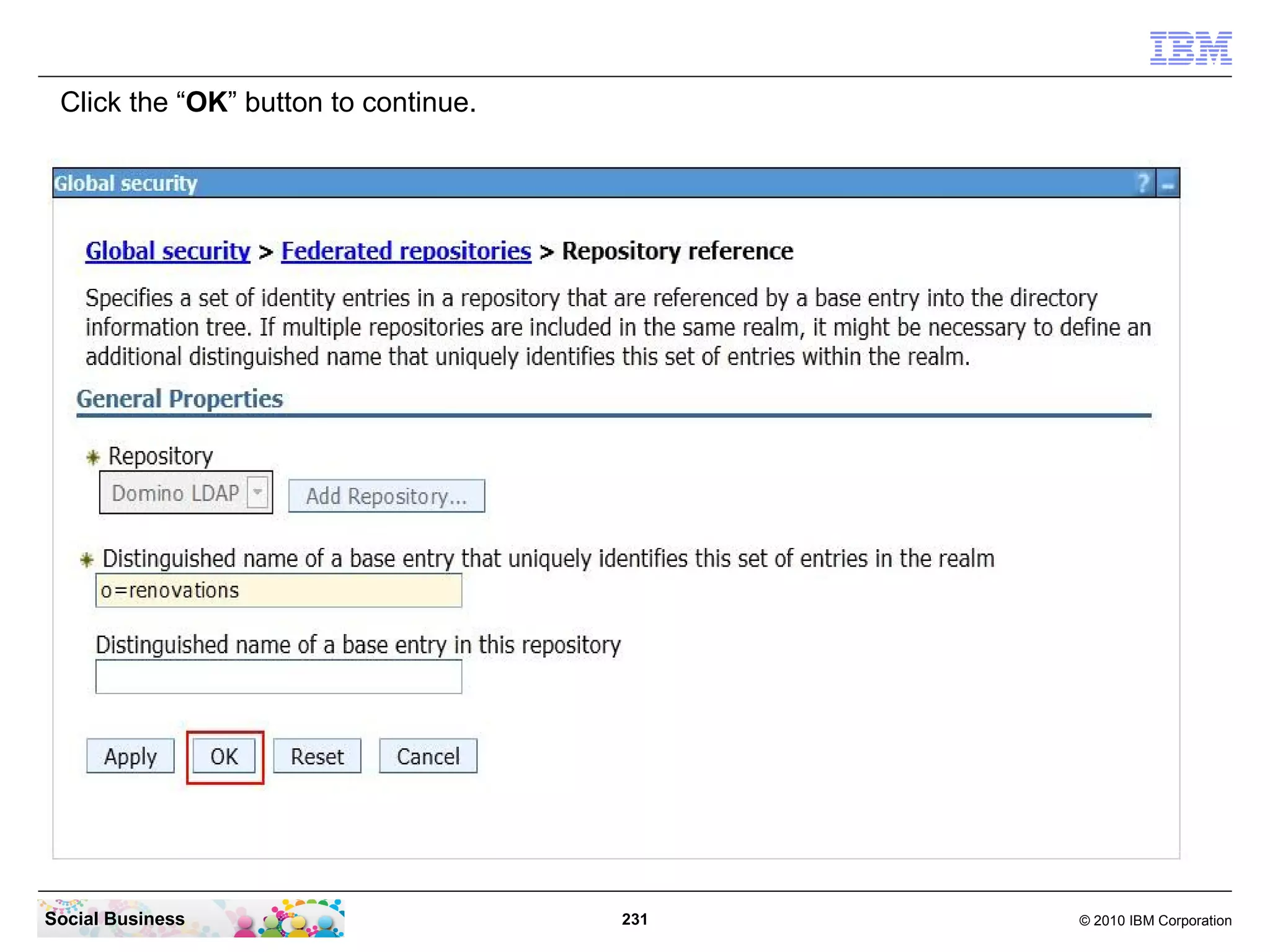
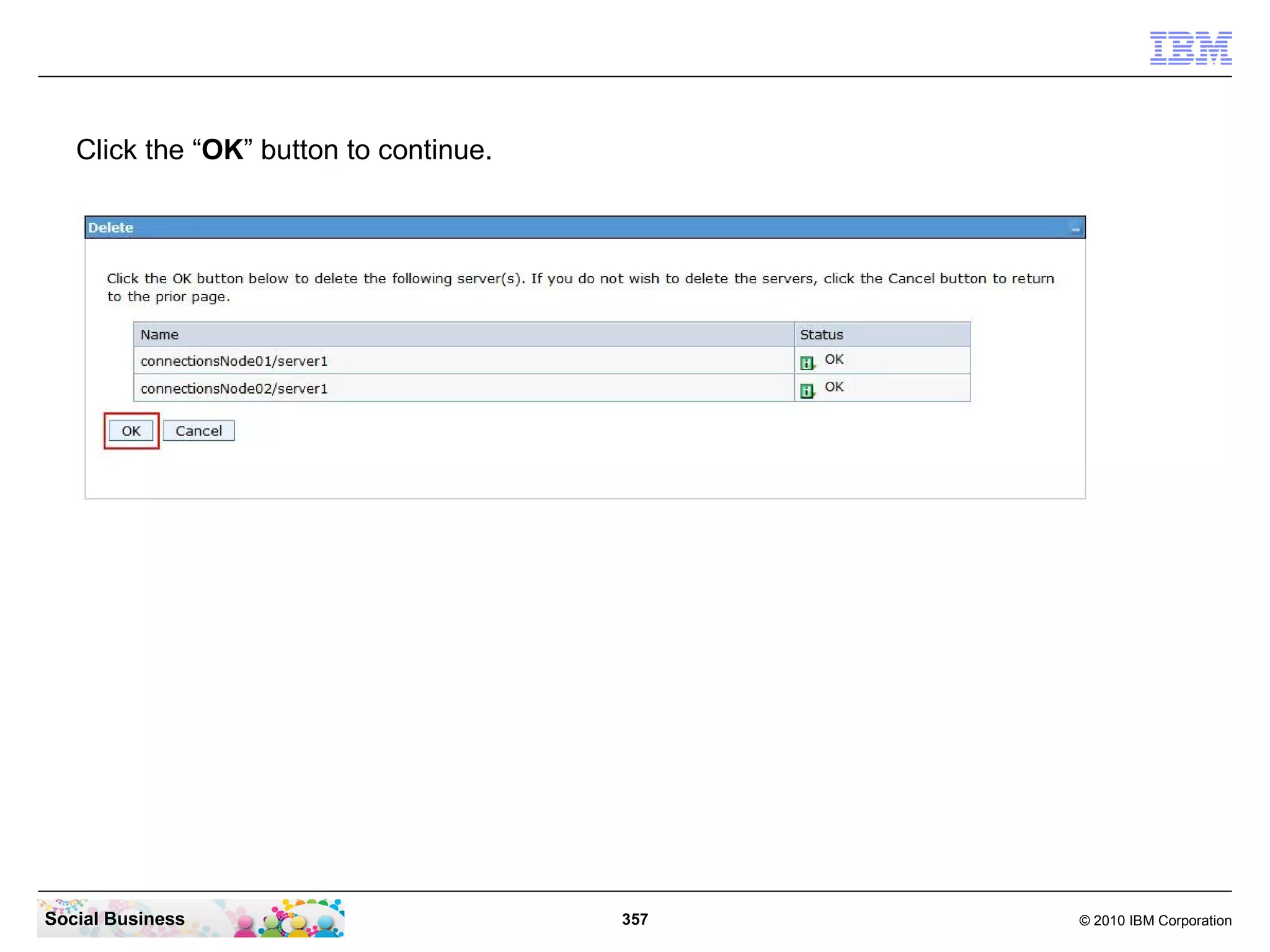
Click the “OK” button to continue.


Social Business                       231   © 2010 IBM Corporation
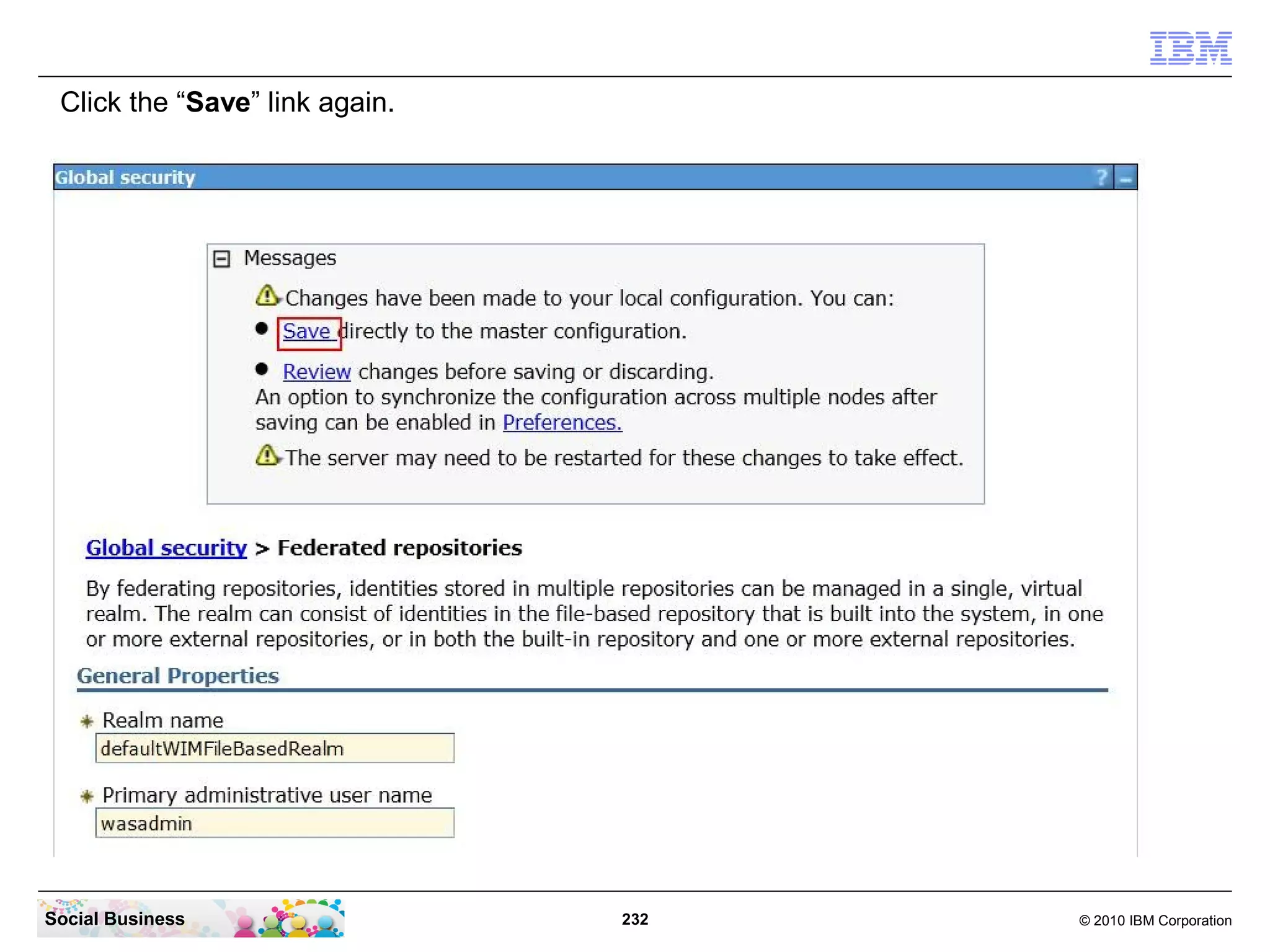
Click the “Save” link again.


Social Business                 232   © 2010 IBM Corporation
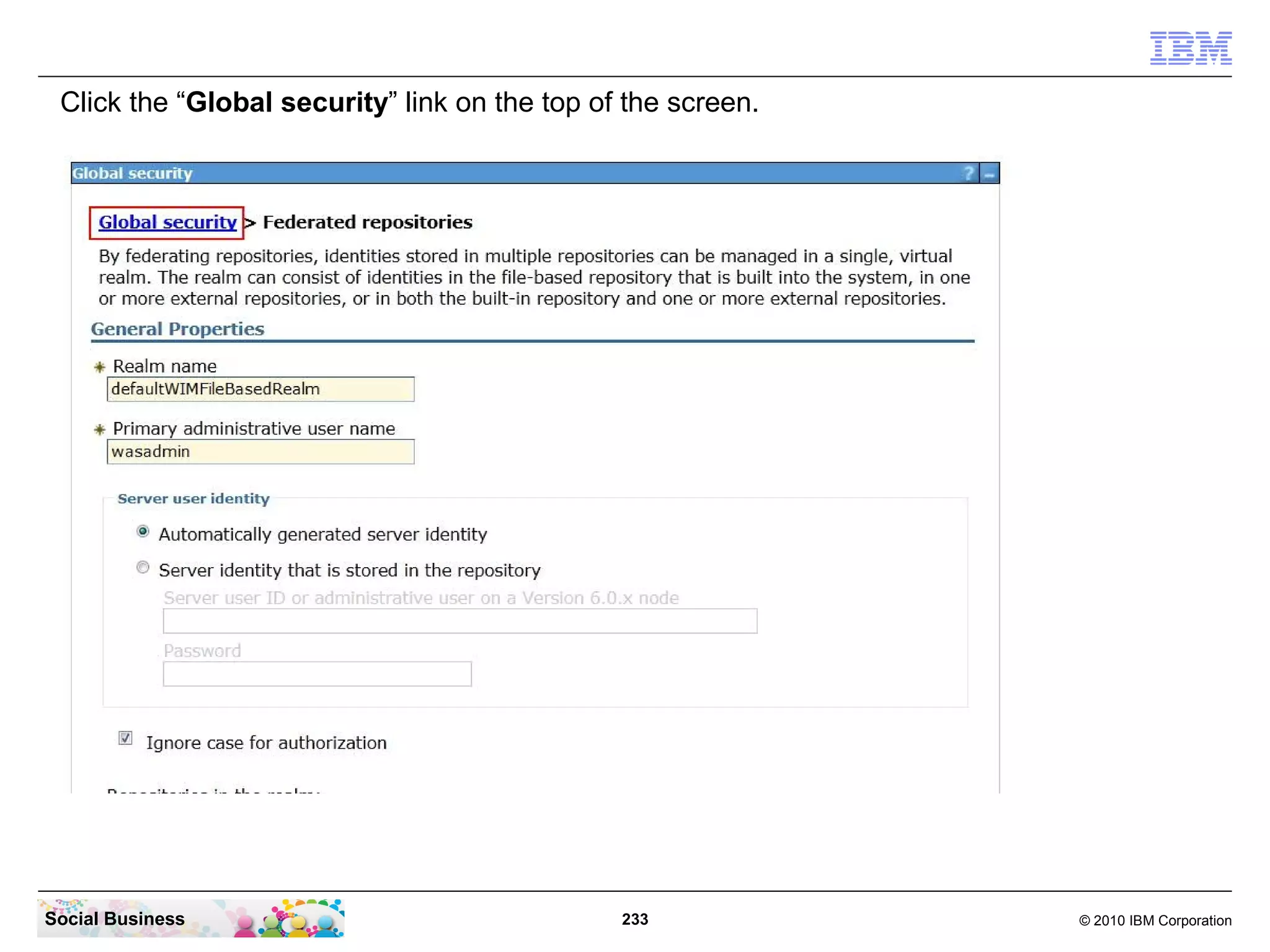
Click the “Global security” link on the top of the screen.


Social Business                                233            © 2010 IBM Corporation
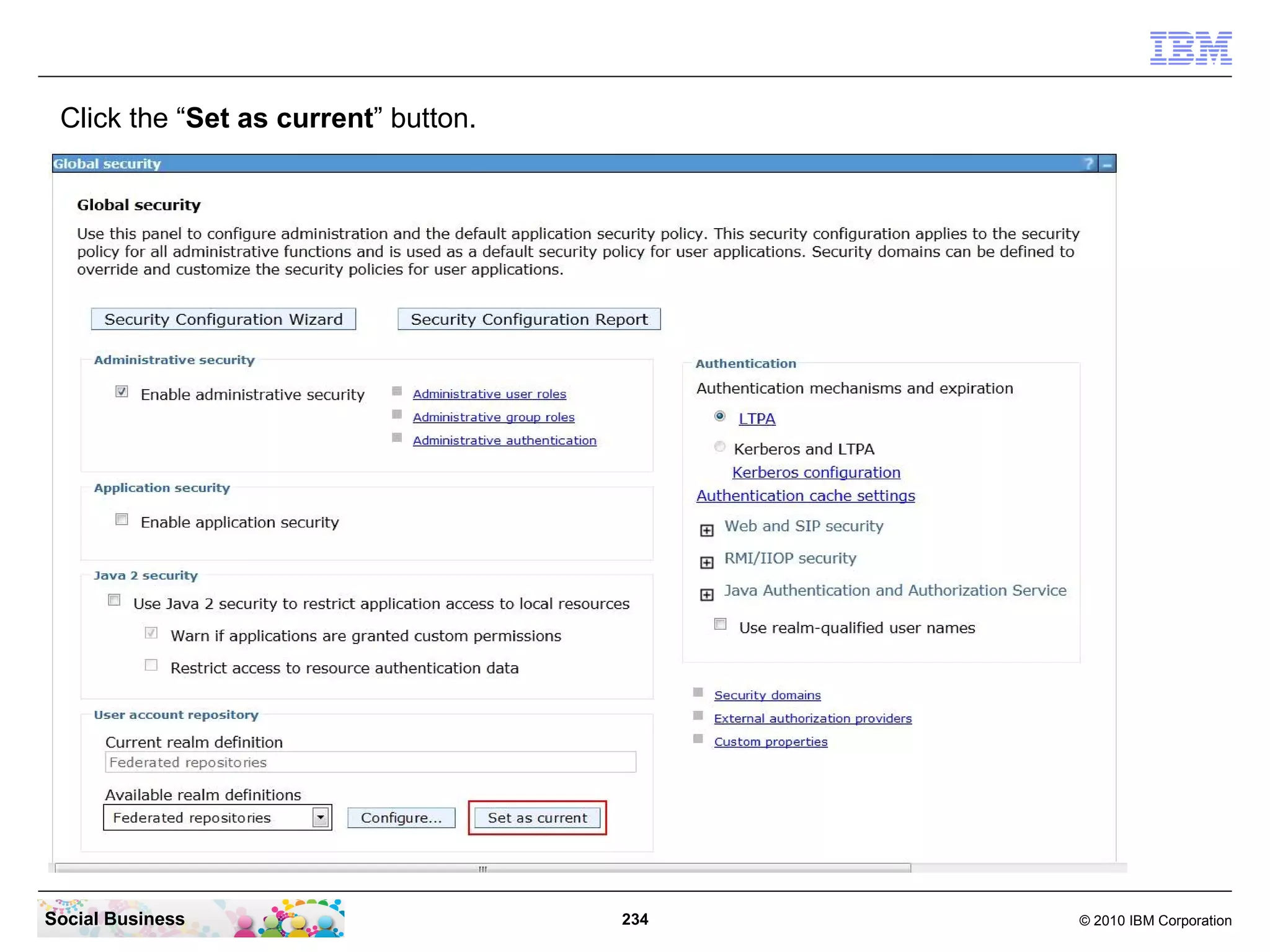
Click the “Set as current” button.


Social Business                       234   © 2010 IBM Corporation
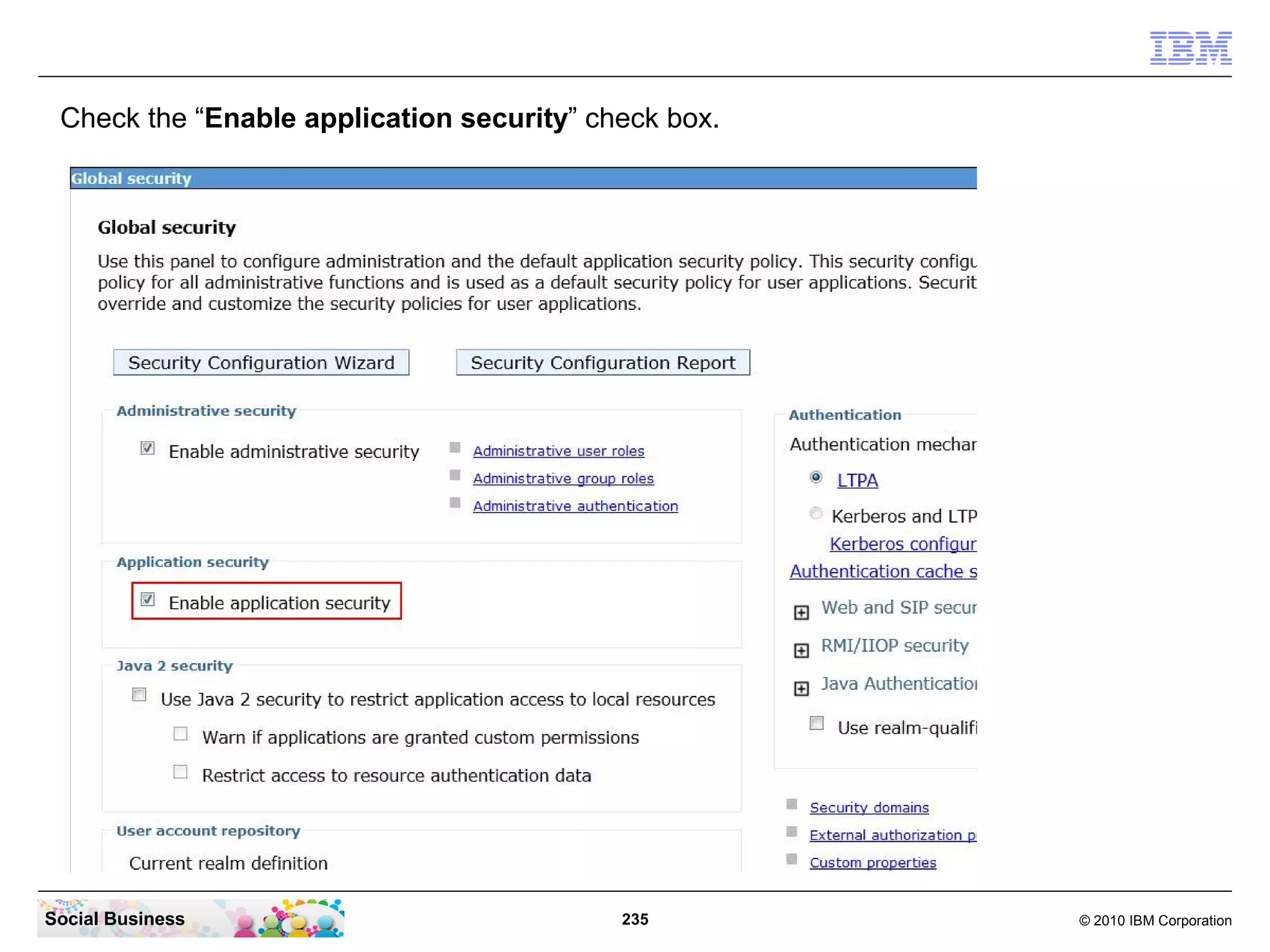
Check the “Enable application security” check box.


Social Business                            235        © 2010 IBM Corporation
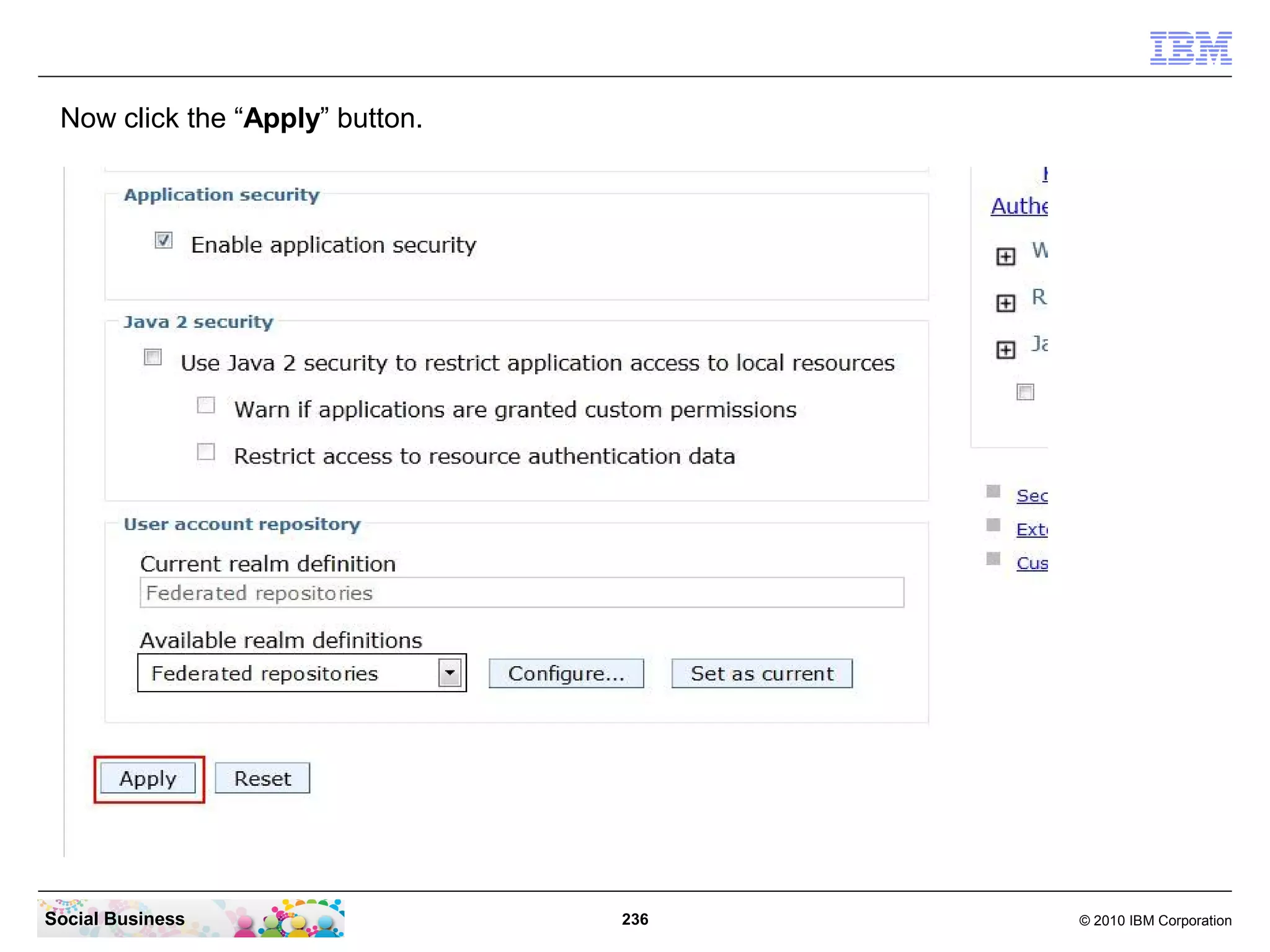
Now click the “Apply” button.


Social Business                  236   © 2010 IBM Corporation
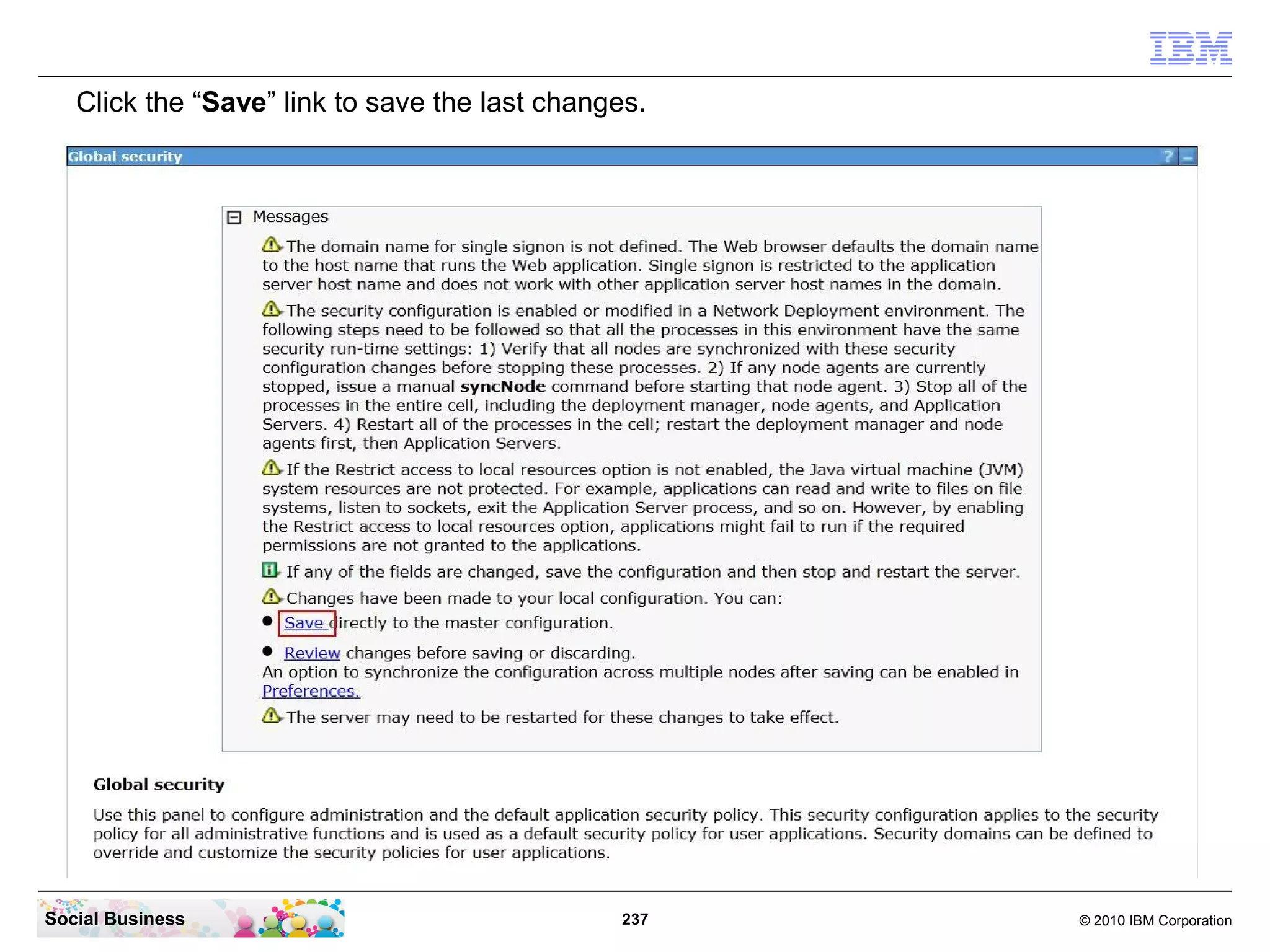
Click the “Save” link to save the last changes.


Social Business                                237   © 2010 IBM Corporation
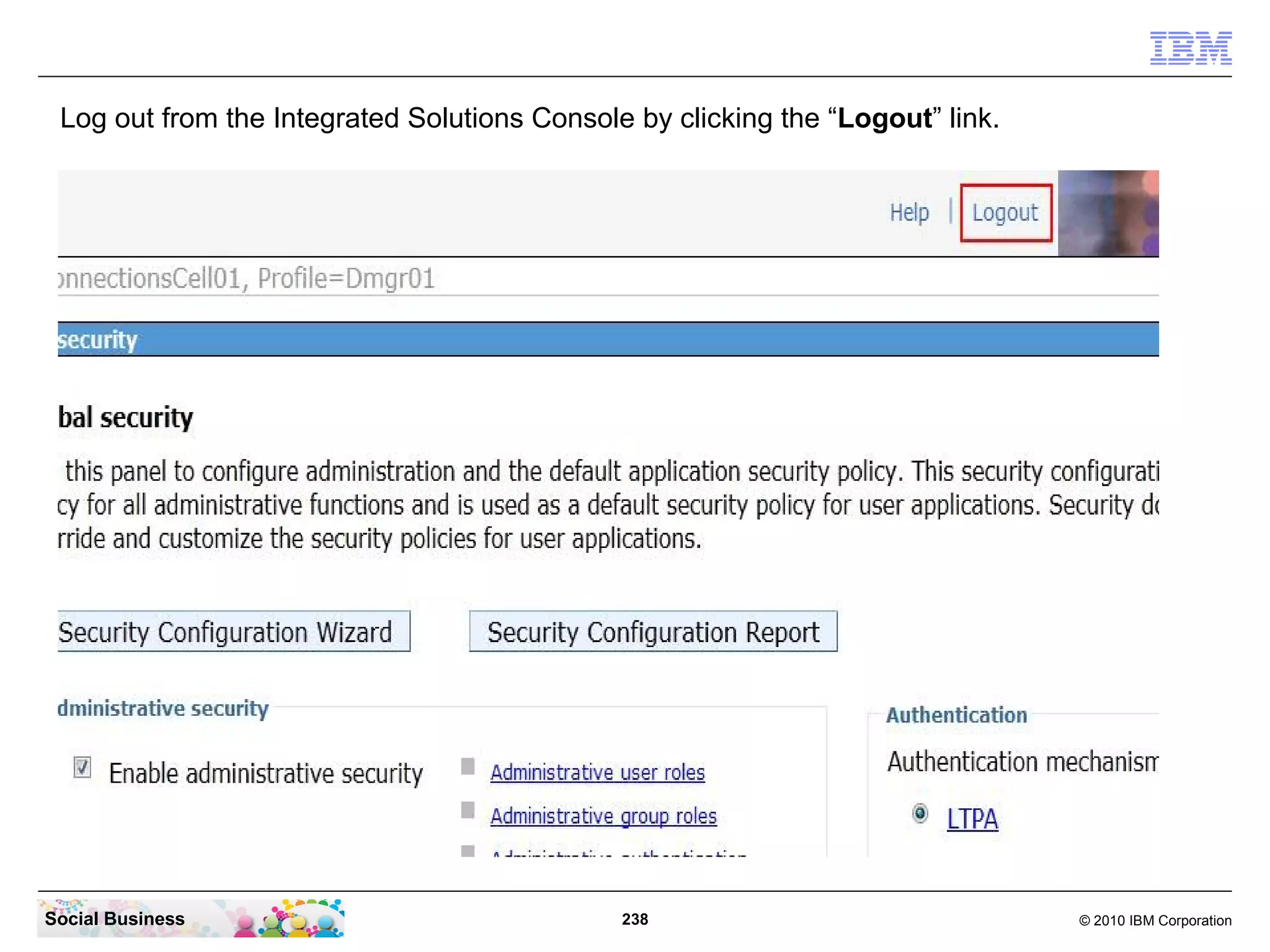
Log out from the Integrated Solutions Console by clicking the “Logout” link.


Social Business                               238                               © 2010 IBM Corporation
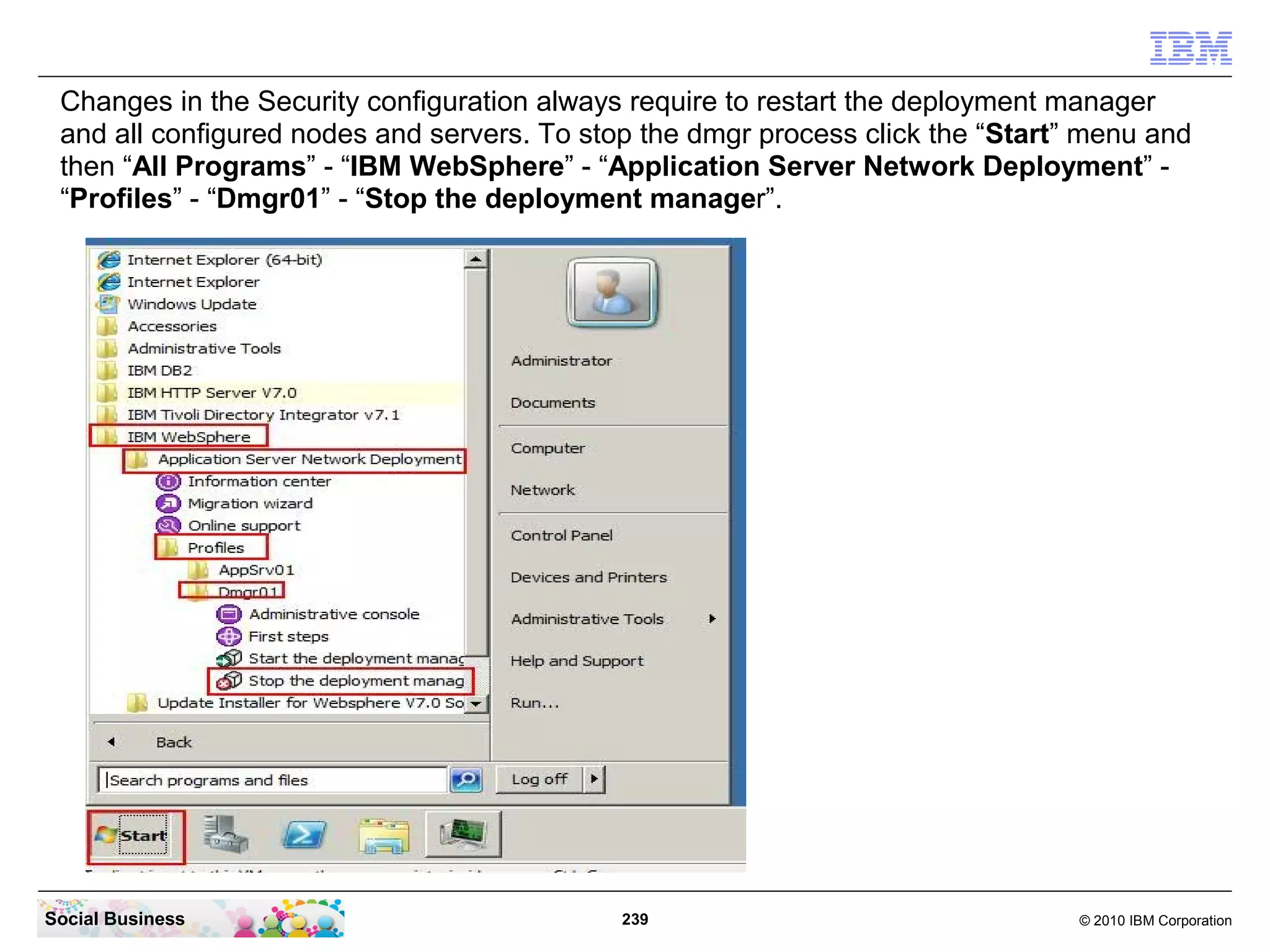
Changes in the Security configuration always require to restart the deployment manager
 and all configured nodes and servers. To stop the dmgr process click the “Start” menu and
 then “All Programs” - “IBM WebSphere” - “Application Server Network Deployment” -
 “Profiles” - “Dmgr01” - “Stop the deployment manager”.


Social Business                              239                                 © 2010 IBM Corporation
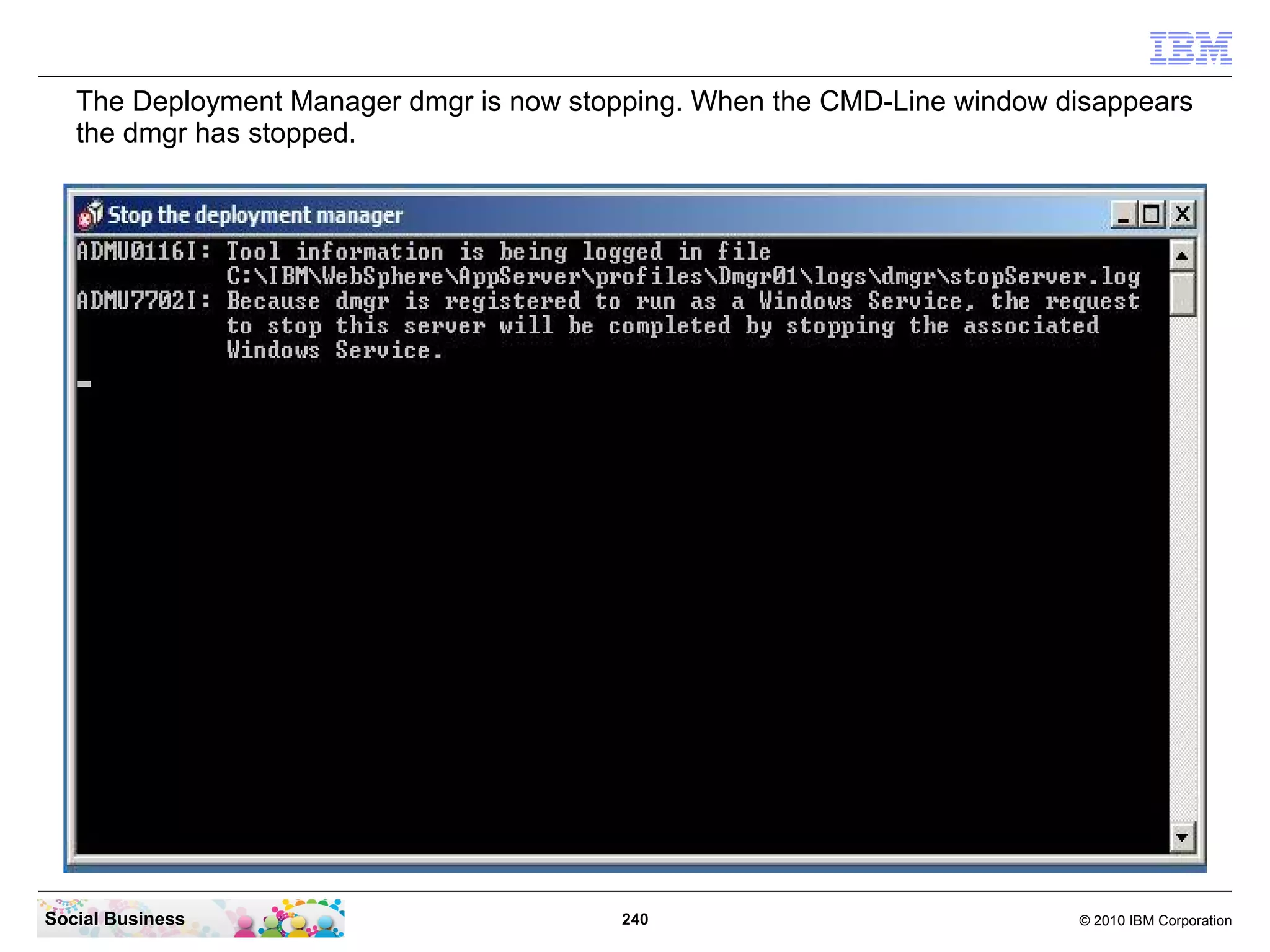
The Deployment Manager dmgr is now stopping. When the CMD-Line window disappears
   the dmgr has stopped.


Social Business                           240                             © 2010 IBM Corporation
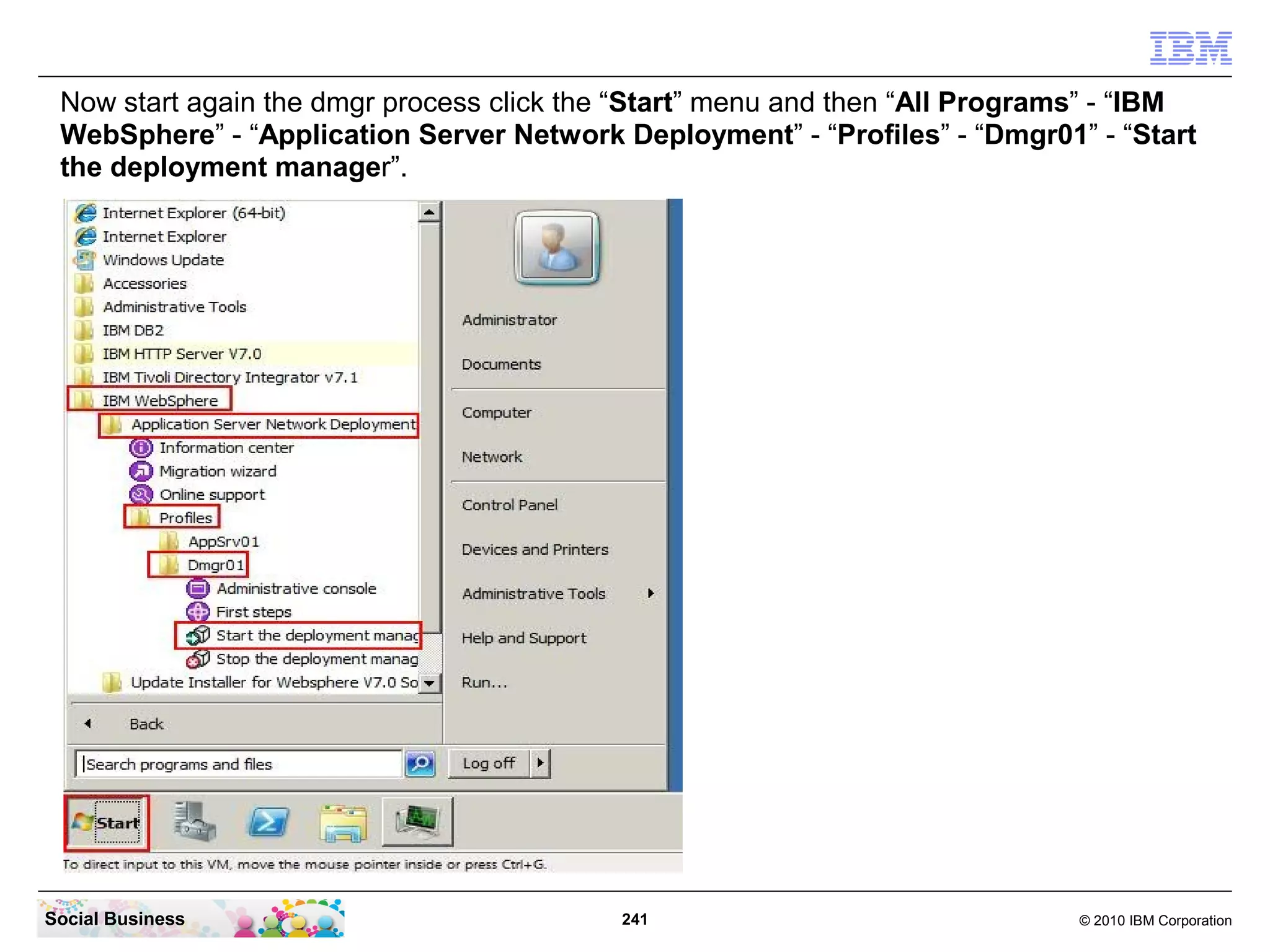
Now start again the dmgr process click the “Start” menu and then “All Programs” - “IBM
 WebSphere” - “Application Server Network Deployment” - “Profiles” - “Dmgr01” - “Start
 the deployment manager”.


Social Business                            241                                © 2010 IBM Corporation
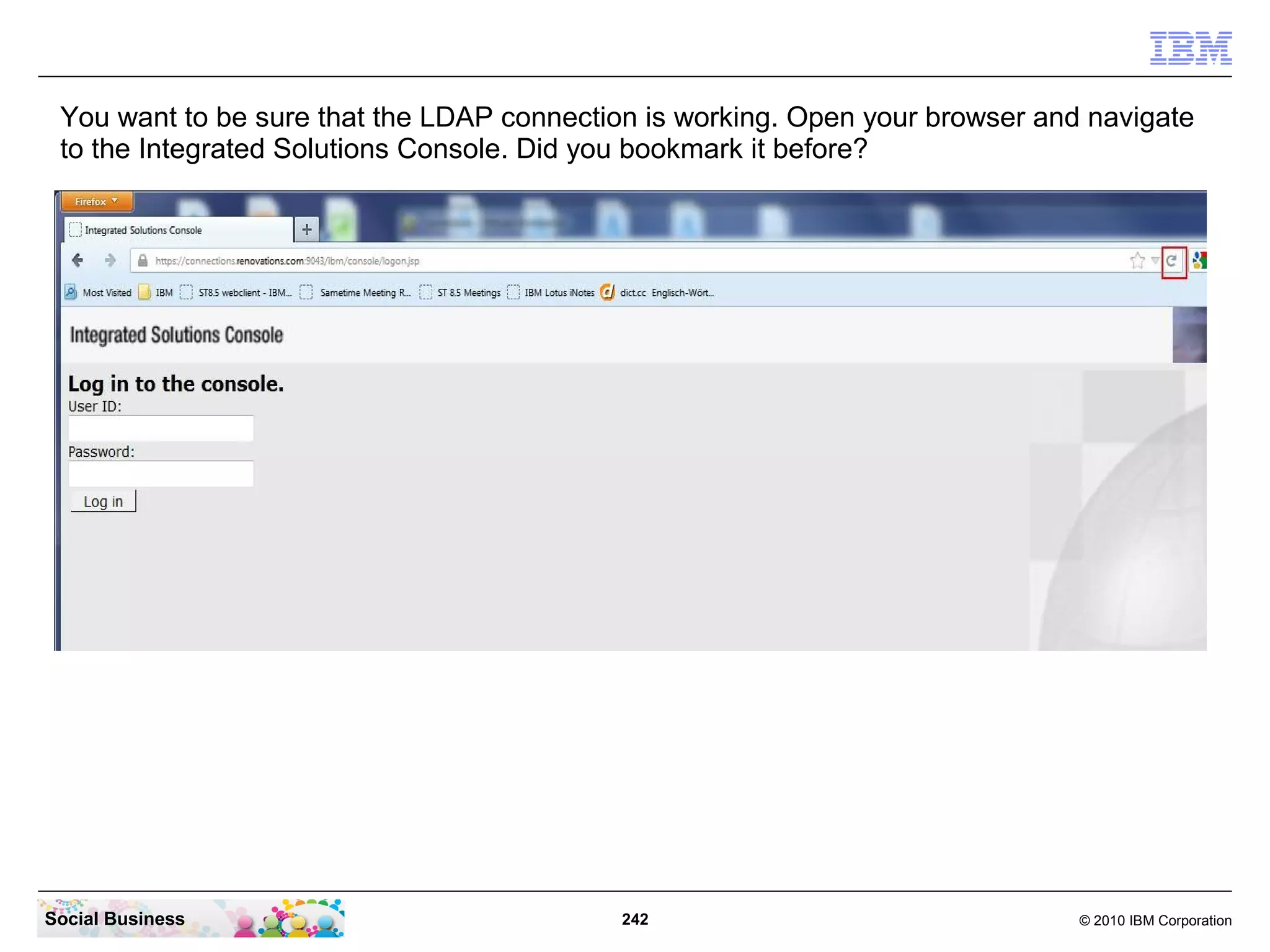
You want to be sure that the LDAP connection is working. Open your browser and navigate
 to the Integrated Solutions Console. Did you bookmark it before?


Social Business                             242                                © 2010 IBM Corporation
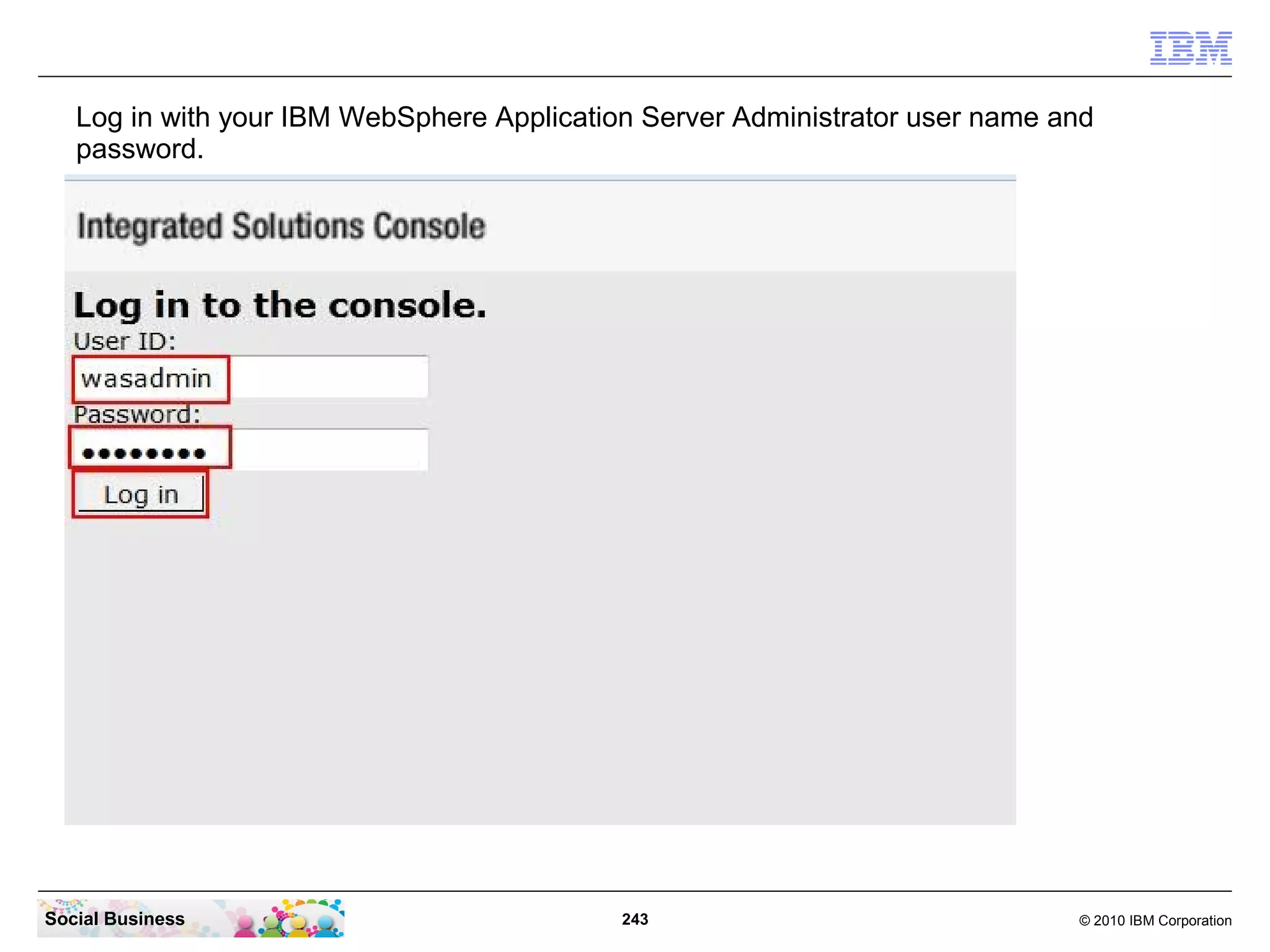
Log in with your IBM WebSphere Application Server Administrator user name and
   password.


Social Business                             243                               © 2010 IBM Corporation
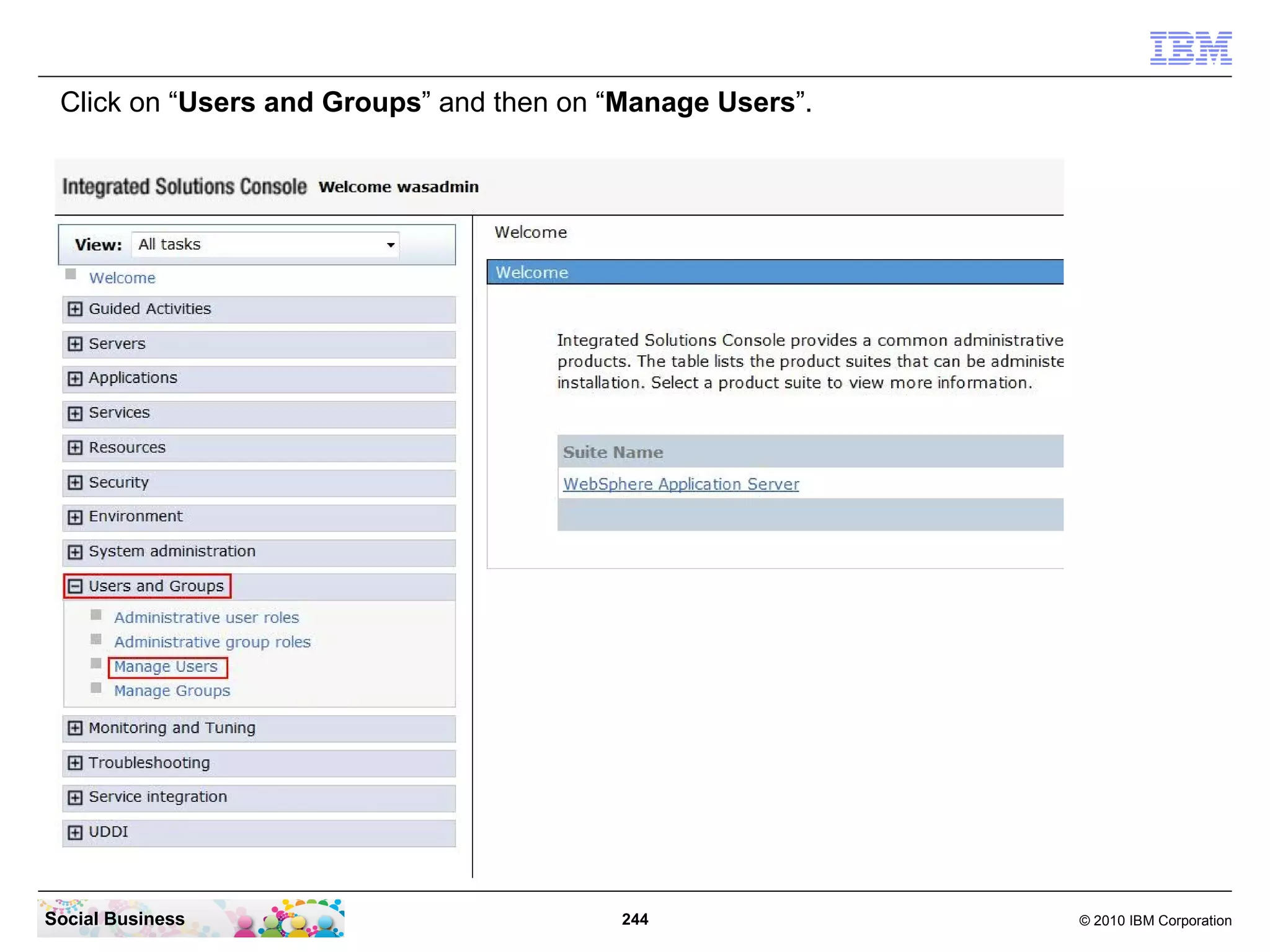
Click on “Users and Groups” and then on “Manage Users”.


Social Business                           244              © 2010 IBM Corporation
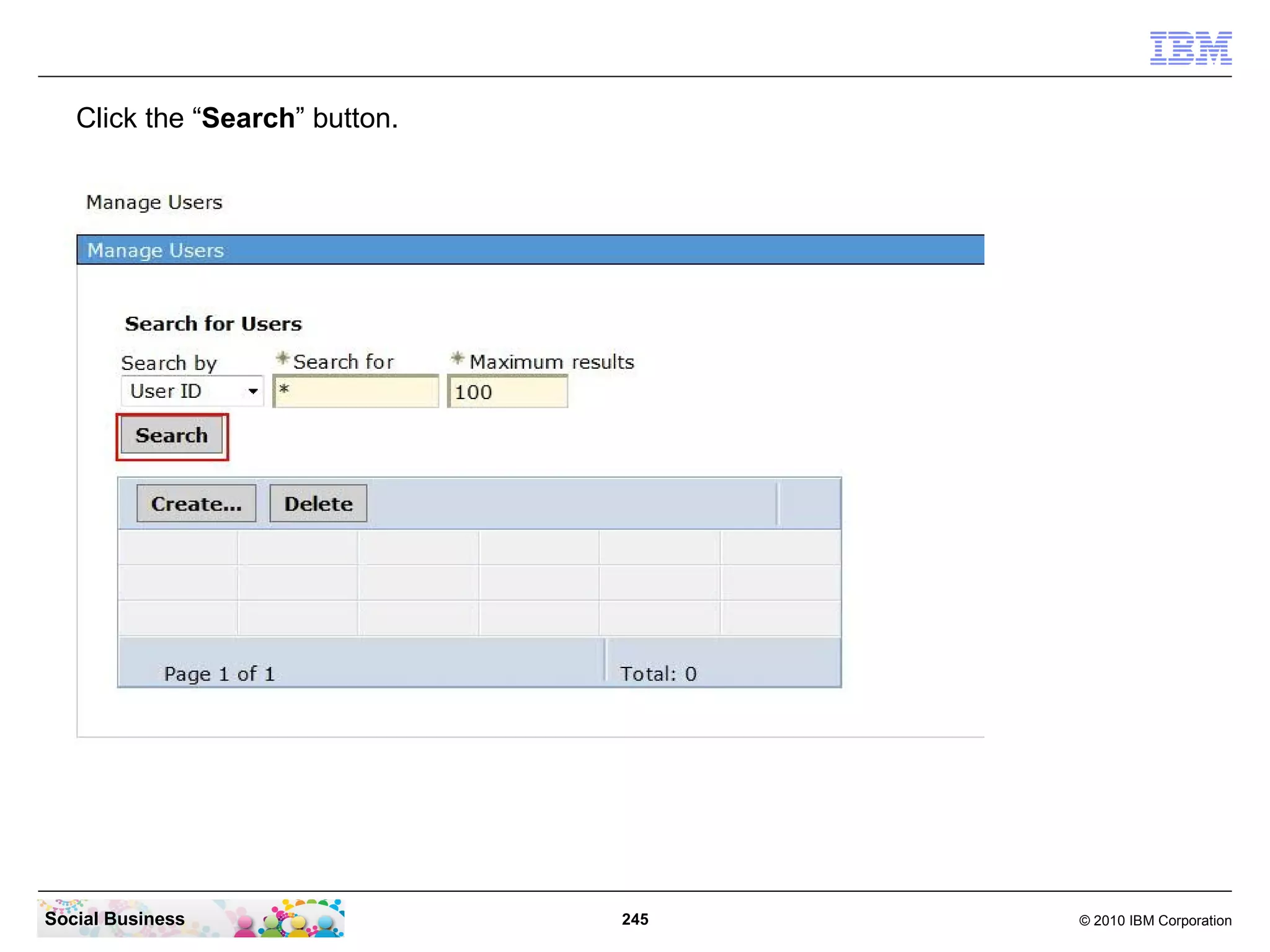
Click the “Search” button.


Social Business                 245   © 2010 IBM Corporation
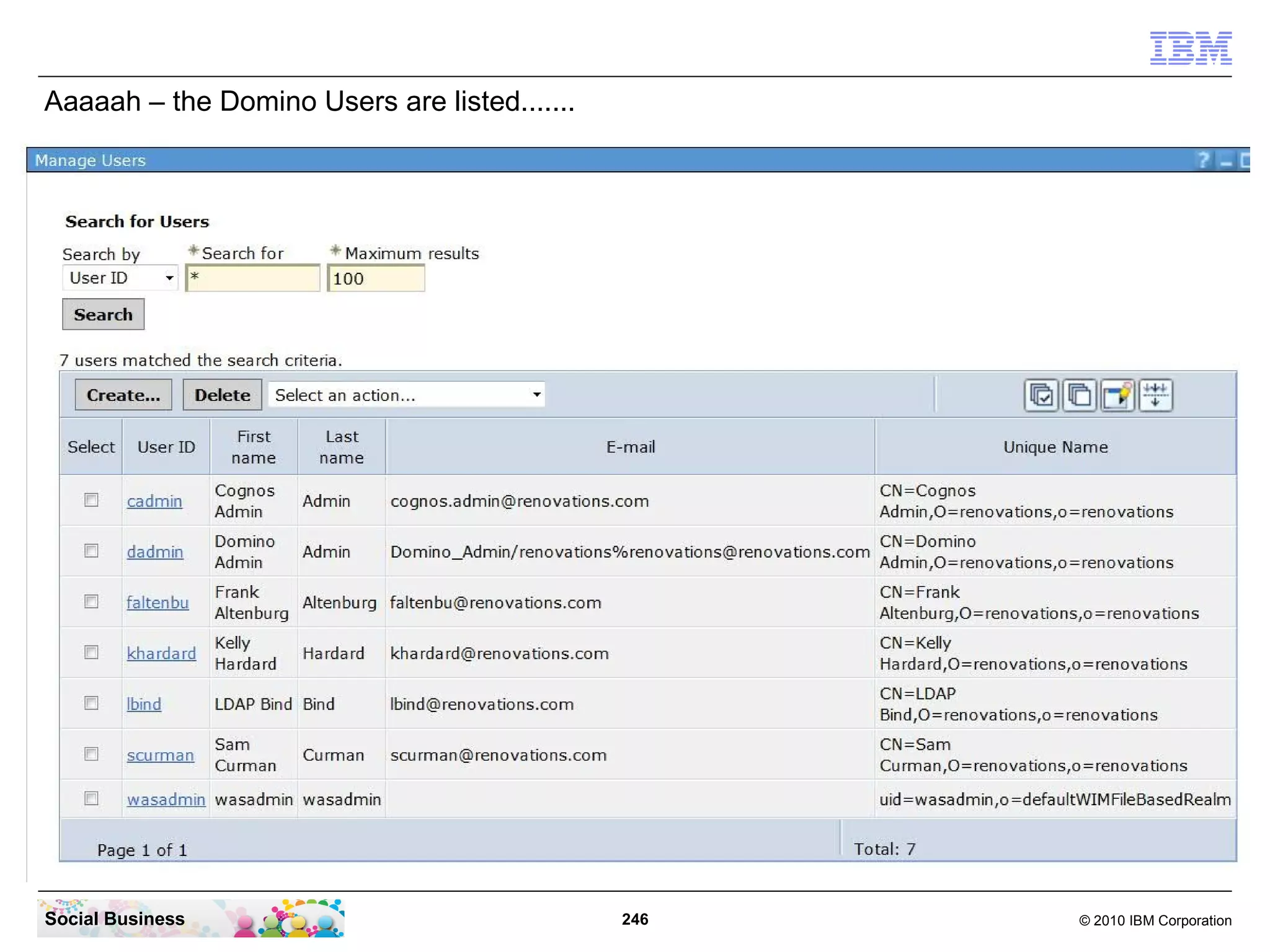
Aaaaah – the Domino Users are listed.......


Social Business                               246   © 2010 IBM Corporation
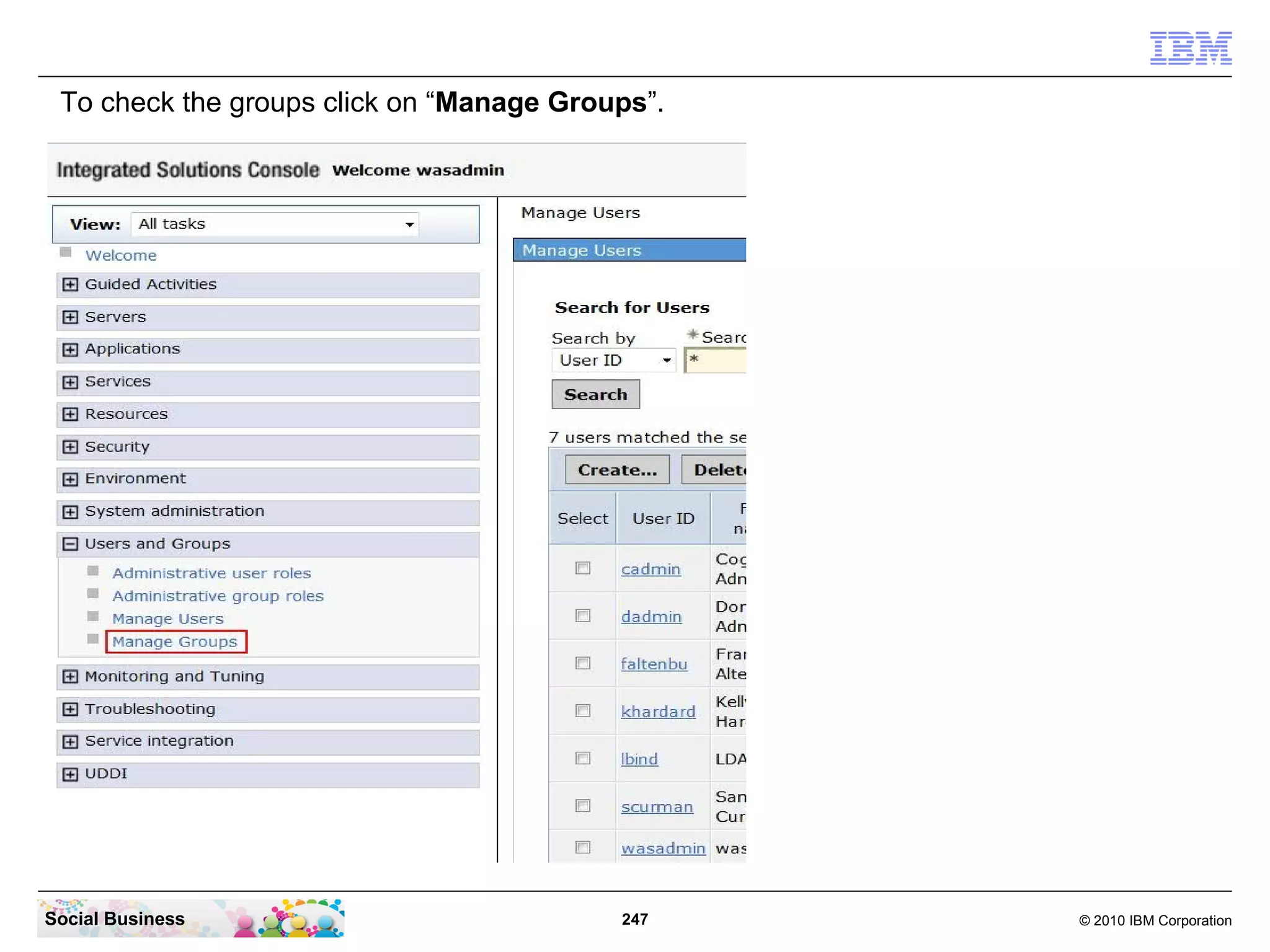
To check the groups click on “Manage Groups”.


Social Business                           247    © 2010 IBM Corporation
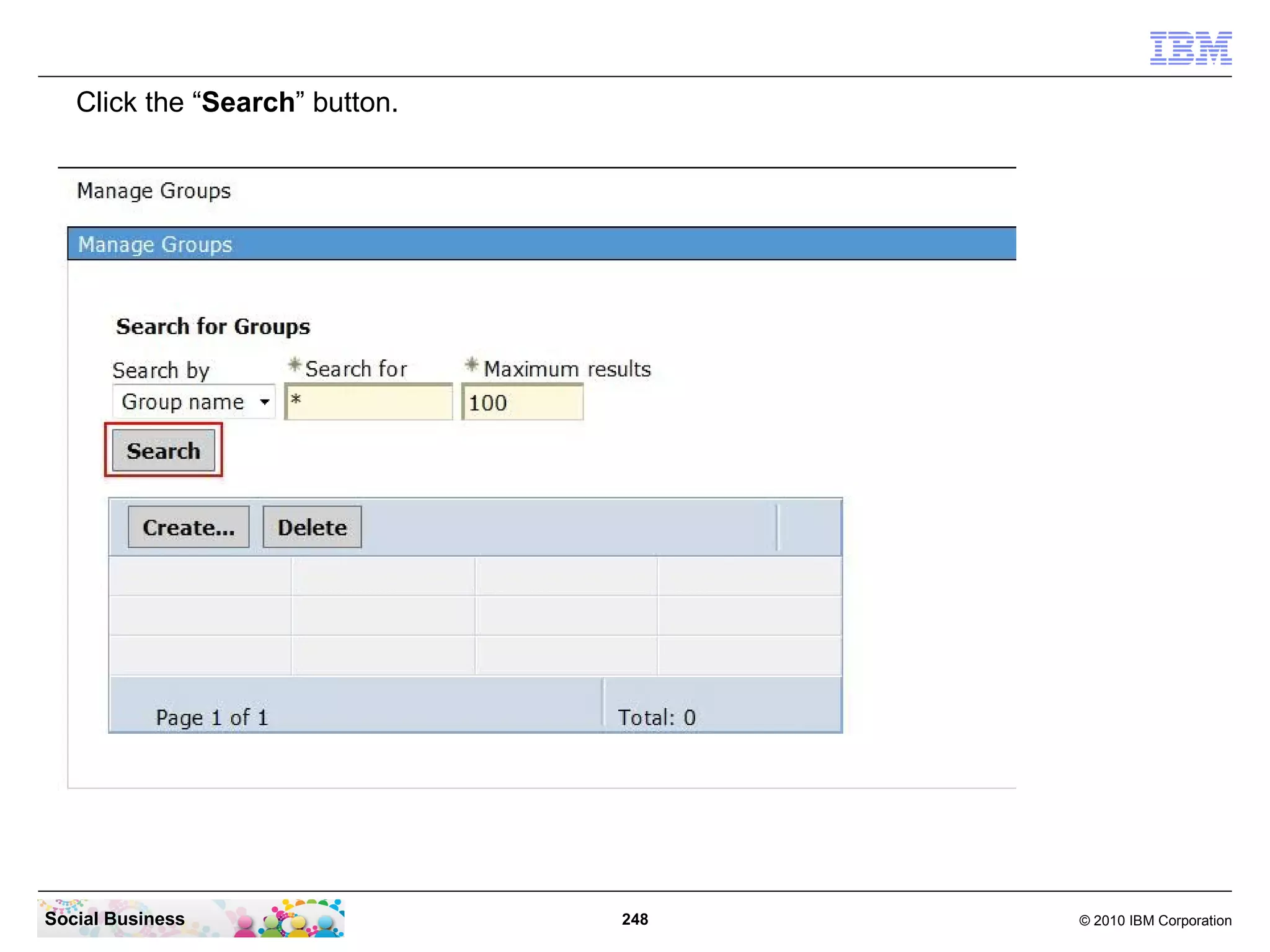
Click the “Search” button.


Social Business                 248   © 2010 IBM Corporation
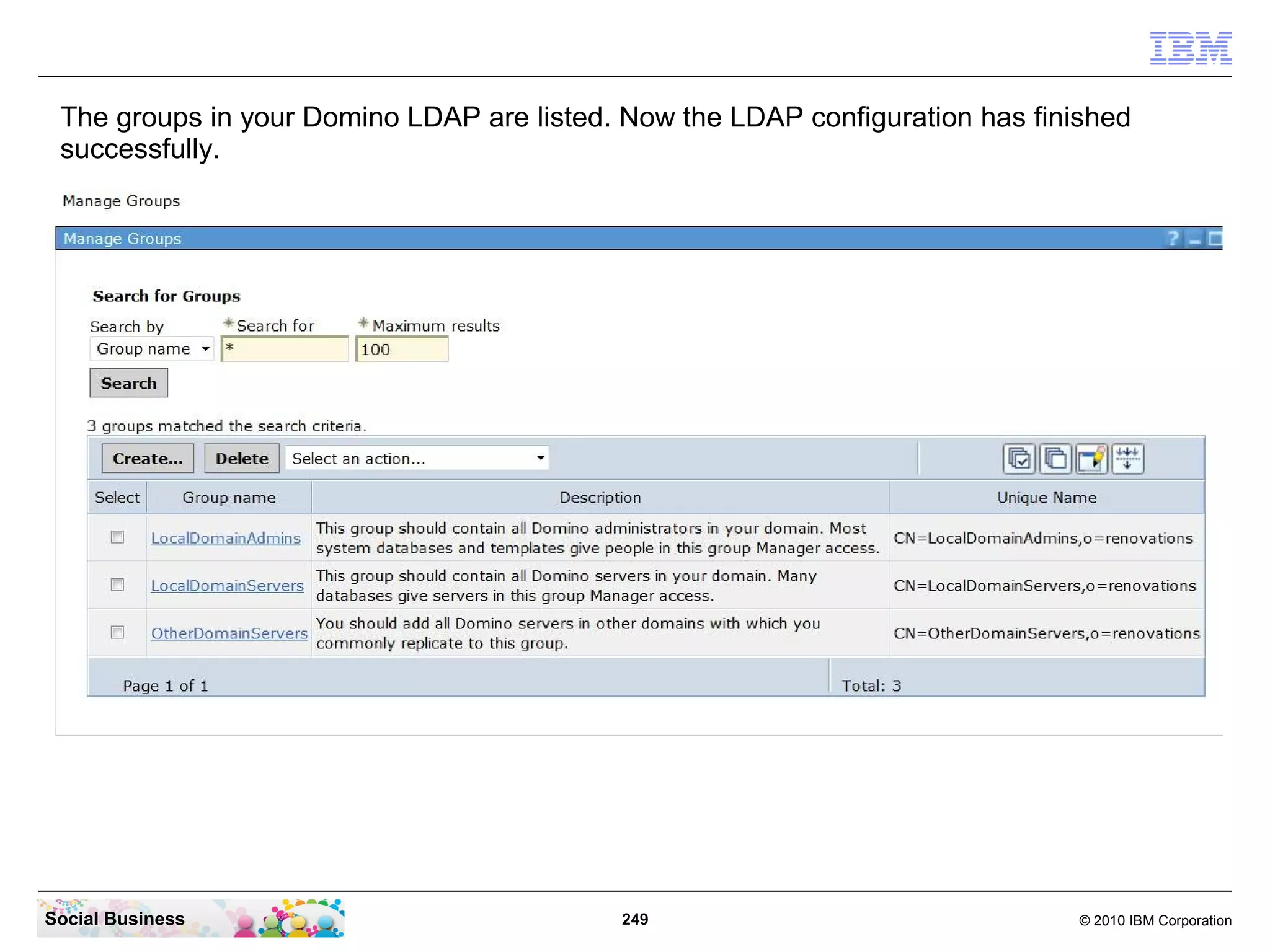
The groups in your Domino LDAP are listed. Now the LDAP configuration has finished
 successfully.


Social Business                             249                                © 2010 IBM Corporation
STEP TEN: Create the Cognos Administrator Account


   Attention: The Cognos administrator account must reside in the same LDAP
   directory used by IBM Connections.

   If you will use an existing LDAP account, take note of the user name and
   password. For example, if your organization already has a Cognos
   deployment, you might choose to use the same administrator account with
   Connections.

   If an acceptable account does not exist already, create it now; again, note
   the credentials for use later. The short name of this user needs to be used
   during the Cognos installation.


Social Business                         250                            © 2010 IBM Corporation
STEP ELEVEN: Create a WebSphere Application
                     Server profile for Cognos


    B e fo re y o u b e g in
    This documentation assumes you are deploying Cognos Business
    Intelligence before you install IBM Connections. If you choose to deploy
    Cognos later, you can ignore any Cognos-related validation errors during the
    Connections installation process and then return to this section later for
    instructions on deploying the Cognos components. Even if you are not
    deploying Cognos now, you can create the raw Metrics database and install
    the Metrics application so that Connections can immediately begin capturing
    event data for later use.


Social Business                        251                            © 2010 IBM Corporation
About this task

 IBM Connections requires a customized version of Cognos Business Intelligence, which is
 installed using the provided script. You cannot use previously deployed Cognos Business
 Intelligence components with the Metrics application. For best performance and in a
 production environment, use a separate computer for the customized version of Cognos
 Business Intelligence.
 In this small pilot we use the IBM Connections server to host the Cognos components.
 It is known that this scenario can cause performance issues during creation of metrics data
 in IBM Connections.

 The WebSphere node hosting the Cognos BI and Cognos Transformer server will be
 federated to the same dedicated Deployment Manager as your IBM Connections
 deployment. Do not use a WebSphere node that has already been federated to a different
 Deployment Manager.

 In this example we will use a server where the appropriate version of WebSphere
 Application Server Network Deployment is already deployed. You do not have to install it
 again; just create a new Application server profile for Cognos Business Intelligence as
 follows:


Social Business                               252                                 © 2010 IBM Corporation
Open a CMD line window in administrative mode and navigate to the Deployment Managers
 binary directory with the command “cd IBMWebSphereAppServerprofilesDmgr01bin”.
 Now you can create the profile with the command: “manageprofiles.bat -create
 -templatePath C:IBMWebSphereAppServerprofileTemplatesdefault
 -adminUserName wasadmin -adminPassword passw0rd”.


Social Business                           253                               © 2010 IBM Corporation
The profile “AppSrv02” was created successfully.


Social Business                             254     © 2010 IBM Corporation
STEP TWELVE: Install the Cognos Business
                     Intelligence and Transformer Server
  B e fo re y o u b e g in
  The following conditions must be satisfied to ensure that the Cognos
  Business Intelligence components installs correctly:

     ●
         The Cognos Content Store database must have been created on the
         database server, and that database server must be running (see
         Creating databases)
     ●
         The current server must reside within the same domain as the IBM
         Connections servers so you can enable SSO (Single Sign-On) as
         required for generating reports.
     ●
         The user running the Cognos installation script must have permissions
         to use the database client.

Social Business                          255                           © 2010 IBM Corporation
Open your file explorer and navigate to the directory
 “C:InstallIBM_Connections_InstallCognos”. There you can find the file
 “CognosConfig.zip”.


Social Business                             256                             © 2010 IBM Corporation
Right click the file and select “Extract All...” in the menu.


Social Business                                  257             © 2010 IBM Corporation
Edit the path to “C:InstallCognosConfig”.


Social Business                                  258   © 2010 IBM Corporation
Then click the “Extract” button.


Social Business                       259   © 2010 IBM Corporation
The ZIP file is now extracted.


Social Business                   260   © 2010 IBM Corporation
Now change to the directory “C:IBMSQLLIBJAVA” and mark the two files “db2jcc.jar”
 and “db2jcc_license_cu.jar”. Click “Ctrl-C” to copy the files into your dashboard.


Social Business                            261                                © 2010 IBM Corporation
Open a second file explorer window and navigate to the directory
 “C:InstallCognosConfigBI-CustomizationJDBC”. Then click “Ctrl-V” to copy the 2 files
 into the directory.


Social Business                             262                                 © 2010 IBM Corporation
Go back to the “C:InstallCognosConfig” directory and open the file “cognos-
 setup.properties” with your Editor. You can use Notepad or Wordpad.


Social Business                             263                                  © 2010 IBM Corporation
You need to fill this lines with relevant data:
 was.install.path                  “C:IBMWebSphereAppServer”
 was.profile.name                  “AppSrv02”
 was.local.admin.username          “wasadmin”
 was.local.admin.password          “passw0rd”
 was.fqdn.hostname                 “connections.renovations.com”
 cognos.was.node.name              “connectionsNode02”


Social Business                              264                   © 2010 IBM Corporation
cognos.biserver.issetup           “C:Installbisrvrwinx64hissetup.exe”
   cognos.transformer.issetup        “C:Installbitrsfrmrwin32issetup.exe”
   cognos.bisrvr.install.path        “C:IBMCognos64”
   cognos.transformer.install.path   “C:IBMCognos”


Social Business                             265                                 © 2010 IBM Corporation
cognos.admin.username   “cadmin” (!!! important – use the short name !!!)
     cognos.admin.password   “Passw0rd”
     cognos.cube.path        “C:IBMCognosPowerCubes”
     cognos.db.host          “connections.renovations.com:50000”
     cognos.db.password      “passw0rd”


Social Business                     266                                  © 2010 IBM Corporation
metrics.db.host       “connections.renovations.com:50000”
     metrics.db.password   “passw0rd”


Social Business                 267                              © 2010 IBM Corporation
Switch back to your CMD-Line window and navigate to the Cognos install directory with
   the command “cd InstallCognosConfig”. Then enter the command “cognos-
   setup.bat”.


Social Business                              268                                 © 2010 IBM Corporation
Cognos is now installing. This step can take up to 10 minutes.


Social Business                               269                 © 2010 IBM Corporation
The installation of Cognos was successful.


Social Business                                 270   © 2010 IBM Corporation
The last installation removed the passwords in the properties file. We have to fill them again
 for the cognos configuration. Switch back to the file explorer window and open again the file
 “cognos-setup.properties” with your editor.


Social Business                                271                                  © 2010 IBM Corporation
All the passwords where replaced with the string “*** PASSWORD REMOVED ***”.


Social Business                           272                              © 2010 IBM Corporation
There are 4 lines where you have to readd the password:
 “was.local.admin.password”


Social Business                             273            © 2010 IBM Corporation
“cognos.admin.password”


Social Business              274   © 2010 IBM Corporation
“cognos.db.password”
 “metrics.db.password”
 Then save and close the file.


Social Business                  275   © 2010 IBM Corporation
Switch back to your CMD line window and enter the command “cognos-configure.bat”.


Social Business                           276                               © 2010 IBM Corporation
The Cognos installer is now configuring Cognos. This step takes approximately 5 minutes.


Social Business                              277                                 © 2010 IBM Corporation
Cognos BI and Transformer are now configured successfully.


Social Business                            278                © 2010 IBM Corporation
STEP THIRTEEN: Federate the Cognos WebSphere
                     Application Server to the Connections Cell

     Before you begin
     Before attempting to federate the Cognos node to the Deployment Manager, make sure
     that:

        ●   The Deployment Manager is running.
        ●   The Cognos server is stopped (if you started it after installation, stop it now by
            stopping the IBM WebSphere Application Server hosting it).
        ●   The system clock on the Cognos server is set to within 1 minute of the time (and
            time zone) of the system clock on the Deployment Manager.
        ●   The Deployment Manager and the Cognos server are either both registered in the
            DNS or are referenced in each other’s etc/hosts file.

     About this task
     This task involves working on the newly installed Cognos Business Intelligence server to
     add the node to the Deployment Manager, and then working on the Deployment
     Manager to create virtual ports for the new node.


Social Business                                  279                                  © 2010 IBM Corporation
To check if the Cognos server is started, navigate to the connections profile with the
 command “cd IBMWebSphereAppServerprofilesAppSrv02bin”. Then enter the
 command “serverstatus -all -username wasadmin -password passw0rd”.
 You can see the server “cognos_server” is started.


Social Business                               280                                  © 2010 IBM Corporation
Stop the Cognos server with the command: “stopserver cognos_server -username
   wasadmin -password passw0rd”. Wait until the server stop is completed.


Social Business                           281                             © 2010 IBM Corporation
Now change to the Application Server binaries directory with the command “cd ......bin”.
   Then enter the command “addnode connections.renovations.com 8879 -profileName
   AppSrv02 -includeapps -username wasadmin -password passw0rd”.


Social Business                                282                                  © 2010 IBM Corporation
The server is now federating to the cell of the IBM Connections server. This step takes 2-3
 minutes.


Social Business                               283                                  © 2010 IBM Corporation
The node has been successfully federated.


Social Business                              284   © 2010 IBM Corporation
Log in to your WebSphere Integrated Solutions Console with your WAS Admin account and
 password.


Social Business                           285                                © 2010 IBM Corporation
Click “System administration” and then “Nodes”.


Social Business                            286       © 2010 IBM Corporation
Select the “connectionsNode02” node and click the “Full Resynchronize” button.


Social Business                            287                                © 2010 IBM Corporation
The synchronization was successfully initiated.


Social Business                               288   © 2010 IBM Corporation
Now click “Servers” - “Server Types” - “WebSphere application servers”.


Social Business                            289                             © 2010 IBM Corporation
Select the “cognos_server” and click the “Start” button.


Social Business                               290             © 2010 IBM Corporation
The server “cognos_server” is started successfully.


Social Business                               291          © 2010 IBM Corporation
STEP FOURTEEN: Validate the Cognos Server


     Before you begin
     Make sure the Cognos® server is running.

     About this task
     For configuration tips and information on troubleshooting the Cognos Business
     Intelligence installation, see Troubleshooting Cognos Business Intelligence.


Social Business                                 292                                  © 2010 IBM Corporation
Switch back to your Browser, logout from the ISC and then enter the URL
   “http://connections.renovations.com:9082/cognos/servlet”. You should get a screen
   like the one here in this screenshot.


Social Business                            293                               © 2010 IBM Corporation
Next test is to check the dispatcher. Enter the url
 “http://connections.renovations.com:9082/cognos/servlet/dispatch”.


Social Business                          294                          © 2010 IBM Corporation
Don't worry about the missing icons and the display not looking very good. This will work
   fine after the IBM Connections Installation. But to be sure all is working just click the
   “IBMConnectionsMetrics” link.


Social Business                                295                                  © 2010 IBM Corporation
If you see a page similar to this screen shot, then the installation was successful and you
 can continue with the next step.


Social Business                                296                                  © 2010 IBM Corporation
STEP FIFTEEN: Install the IBM Connections Server


    B e fo re y o u b e g in

    Ensure that you complete all the prerequisite tasks that are relevant for your
    environment. For more information, see the Before installing topic.

    A b o u t th is ta s k
    To install IBM Connections, run the IBM Installation Manager wizard on the
    system where the Deployment Manager is installed.


Social Business                          297                             © 2010 IBM Corporation
If an error occurs during installation, IBM Installation Manager cancels the installation and
 rolls back the installation files. Installation errors are usually caused by environment
 problems such as insufficient disk space, privilege issues, or corruption of a WebSphere®
 profile. If your installation is canceled, complete the following steps:

 ● Identify and resolve the error that caused the cancellation. After canceling the installation,
 IBM Installation Manager displays an error message with an error code. You can look up the
 error code in the Installation error messages topic or check the log files.

 ●   Restore the Deployment Manager profile from your backup.

 ●   Delete the connections_root directory.

 ●   Start this task again.


Social Business                                 298                                   © 2010 IBM Corporation
Do not stop the dmgr process. It must be running for the IBM Connections Server
 installation.
 Open your File Explorer and navigate to the directory
 “C:InstallIBM_Connections_Install”. Right click the “Launchpad” and select “Run as
 administrator”.


Social Business                             299                                © 2010 IBM Corporation
On the left side click “Install IBM Connections 4.0.0”.


Social Business                               300          © 2010 IBM Corporation
Click “Launch the IBM Connections 4.0.0 install wizard”.


Social Business                            301              © 2010 IBM Corporation
Click the “Next” button to continue.


Social Business                           302   © 2010 IBM Corporation
Accept the terms in the license agreement and click the “Next” button to continue.


Social Business                               303                                  © 2010 IBM Corporation
Remove the part with the blank character in both path fields and click the “Next” button to
 continue.


Social Business                               304                                   © 2010 IBM Corporation
Click the “Next” button to continue.


Social Business                         305   © 2010 IBM Corporation
Click the “Next” button to continue.


Social Business                         306   © 2010 IBM Corporation
Click the “Browse” button and select the IBM WebSphere Application Server directory
 “C:IBMWebSphereAppServer”. Then click the “OK” button.


Social Business                             307                                © 2010 IBM Corporation
Enter the host name of your Connections Server and the password of the IBM WebSphere
 Application Server Administrator. Then click the “Validate” button.


Social Business                           308                                © 2010 IBM Corporation
The install wizard checks the connectivity to the dmgr process of your
 WebSphere Application Server.


   When the validation was successful click the “OK” button to continue.


Social Business                               309                          © 2010 IBM Corporation
Click the “Next” button to continue.


Social Business                         310   © 2010 IBM Corporation
Select the first Deployment type “Small – all applications are grouped on the same
 cluster”.


Social Business                             311                                © 2010 IBM Corporation
Enter a name for the cluster. We just use “CLUSTER” in this example. Select the
   “connectionsNode01” node and enter a name for the server. In this example we use
   “connections_server”. Then click the “Next” button to continue.


Social Business                             312                               © 2010 IBM Corporation
Next step is to configure the IBM DB2 server and databases. Enter the name of your IBM
 DB2 server. We use just “connections.renovations.com” because the IBM DB2 Server is
 on the same box as the IBM Connections server. Select the path to the JDBC driver. Here it
 is “C:IBMSQLLIBjava”.


Social Business                              313                                 © 2010 IBM Corporation
Check the box “Use the same password for all applications” and enter the password of
 your “LCUSER” user that you have created after the IBM DB2 Server installation. Then click
 the “Validate” button.


Social Business                              314                                 © 2010 IBM Corporation
The install wizard is testing the connection to all required databases on the IBM DB2
 Server.


     When the validation was successful click the “OK” button.


Social Business                                315                                 © 2010 IBM Corporation
Click the “Next” button to continue.


Social Business                        316   © 2010 IBM Corporation
Enter the Cognos Administrator user name and password. Then click the “Load node
   info” button.


Social Business                            317                                © 2010 IBM Corporation
Select the “connectionsNode02”. Then click the “Validate” button.


Social Business                              318                       © 2010 IBM Corporation
The validation was successful. Click the “OK” button to continue.


Social Business                                319                     © 2010 IBM Corporation
Click the “Next” button to continue.


Social Business                           320   © 2010 IBM Corporation
Remove the part with the blank character in the two path lines and click the “Validate”
 button.


Social Business                               321                                  © 2010 IBM Corporation
When the validation was successful click the “OK” button to continue.


   It is known that the validation process is not consistent in the install wizard. Sometimes
   you get a button dialog “Validation successful” and sometime just the “Validation”
   button text that changes to “Validated”. Don't worry and take it as it is.


Social Business                                 322                                   © 2010 IBM Corporation
Click the “Next” button to continue.


Social Business                        323   © 2010 IBM Corporation
We use the standard notification setting. Just enter the host name of your SMTP messaging
 server. In this example we use “chat.renovations.com”. Then click the “Next” button.


Social Business                             324                                 © 2010 IBM Corporation
Click the “Install” button to continue.


Social Business                           325   © 2010 IBM Corporation
IBM Connections is now installing. This step takes approximately 60 to 90 minutes. A good
time to go for lunch.


Social Business                              326                                 © 2010 IBM Corporation
You have finished your lunch and can see this screen now? Fine, you are nearly done. Just
the Post Install Tasks need to be done. Click the “Finish” button to close the Install Manager.


Social Business                                327                                  © 2010 IBM Corporation
Click the “Exit” link to close the launchpad.


Social Business                                  328   © 2010 IBM Corporation
Click the “OK” button to continue.


Social Business                          329   © 2010 IBM Corporation
Open a CMD-Line window and navigate to the Cognos Application Server directory with the
 command “cd IBMWebSphereAppServerprofilesAppSrv02bin”. Then stop the
 Cognos Server with the command “stopserver cognos_server -username wasadmin
 -password passw0rd”. Next is to stop the nodeagent with the command “stopserver
 nodeagent -username wasadmin -password passw0rd”.


Social Business                            330                                © 2010 IBM Corporation
You need to restart your dmgr process. We did this already before. Click “Start” - “All
 Programs” - “IBM WebSphere” - “Application Server Network Deployment” - “Profiles” -
 “Dmgr01” - “Stop the deployment manager”.


Social Business                            331                                © 2010 IBM Corporation
The Task Manager does not show any “java.exe” tasks.


Social Business                            332            © 2010 IBM Corporation
And now starting the Deployment Manager. Click “Start” - “All Programs” - “IBM
 WebSphere” - “Application Server Network Deployment” - “Profiles” - “Dmgr01” -
 “Start the deployment manager”.


Social Business                           333                               © 2010 IBM Corporation
The installer has installed the IBM Connections Server into the existing node. You need to
 start the node. First you need to start the nodeagent and synchronize the configuration.
 Open a CMD line window and navigate to the profile directory with the command “cd
 ....AppSrv01bin”. Then enter the command “startnode”.


Social Business                               334                                 © 2010 IBM Corporation
The nodeagent has started successful.


Social Business                          335   © 2010 IBM Corporation
In the task manager you can see that the process db2syscs.exe now uses much more
 memory and 2 java.exe processes are running. One is the dmgr and the other is the
 nodeagent. They are consuming a lot of CPU time in the next minutes because they are
 synchronizing the configuration and the IBM Connections applications from the dmgr to the
 node.


Social Business                              336                                 © 2010 IBM Corporation
The synchronization process is starting automatically. You don't need to initiate it manually. To
check that it works, open a File Explorer and navigate to the directory
“C:IBMWebSphereAppServerprofilesAppSrv01installedAppsconnectionsCell01”. You
should see that the synchronization creates this 20 directories. Wait until all of them are
created and the 2 java.exe processes in the task manager don't consume CPU time anymore.


Social Business                                337                                   © 2010 IBM Corporation
Open your browser and navigate to the Integrated Solutions Console. Log in with your IBM
 WebSphere Application Server Administrator account.


Social Business                             338                                 © 2010 IBM Corporation
The official IBM Connections documentation says to do a full resynchronize. Lets do it to
 be sure all works properly. In the ISC navigate to “System administration” - “Nodes”.


Social Business                               339                                  © 2010 IBM Corporation
Select the “connectionsNode01” node and click the “Full Resynchronize” button.


Social Business                             340                               © 2010 IBM Corporation
The synchronization was initiated. This takes normally only some seconds. But wait a
 minute to be sure all works well.


Social Business                              341                                 © 2010 IBM Corporation
In the past we used the start menu to start and stop the dmgr service. Now we use an
   other method to start and stop the IBM WebSphere services. Reuse the CMD window
   from before and enter the command “stopserver nodeagent -username wasadmin
   -password passw0rd”. Where “wasadmin” is your IBM WebSphere Application Server
   Administrator name and “passw0rd” is the password for this user.


Social Business                              342                                © 2010 IBM Corporation
The nodeagent process has stopped successfully.


Social Business                             343      © 2010 IBM Corporation
Change to the dmgr profile with the command “cd ....Dmgr01bin” and enter the
 command “stopserver dmgr -username wasadmin -password passw0rd”. (see the
 previous slides regarding username and password)


Social Business                           344                               © 2010 IBM Corporation
The dmgr process has stopped successfully. Now restart it with the command
   “startserver dmgr”. You can use the command “startmanager” as well.


Social Business                             345                                 © 2010 IBM Corporation
The dmgr has started successfully. Now change to the application server directory with the
command “cd ....AppSrv02bin”. Then enter the command “startserver nodeagent”. You
can use the command “startnode” as well. Then start the Cognos Server with the command
“startserver cognos_server”.


Social Business                              346                                 © 2010 IBM Corporation
Next is to change to the IBM Connections Server profile with the command “cd
 ....AppSrv01bin”. Then start the nodeagent with the command “startserver nodeagent”.
 When the nodeagent has started successfully, start the IBM Connections Server with the
 command “startserver connections_server”.


Social Business                             347                                © 2010 IBM Corporation
Starting the connections server can take up to 5 minutes. Be sure that you don't see any
   java exceptions in your SystemOut.log.


Social Business                               348                                  © 2010 IBM Corporation
Lets have a look if your new installed IBM Connections Server works. Open your browser and
 enter the URL: “http://connections.renovations.com:9083/homepage”.


Social Business                             349                                © 2010 IBM Corporation
Enter the user name and password of a LDAP user and click the “Log In” button.


Social Business                             350                                   © 2010 IBM Corporation
Here we are. Select the “Do not show this screen at startup” and click the “My Page” link.


Social Business                              351                                 © 2010 IBM Corporation
Wow – Connections 4.0 is working. How long did you need for this installation?


Social Business                              352                                  © 2010 IBM Corporation
STEP SIXTEEN: Reviewing the JVM heap size

A b o ut th is ta s k

If you selected the Small or Medium deployment option when you installed IBM®
Connections, IBM Installation Manager set the Maximum Heap Size of the Java
Virtual Machine (JVM) on each application server. This setting is designed to avoid
out-of-memory errors.

Review the heap size on each server to ensure that you are allocating enough
memory for IBM Connections but also to ensure that you are not allocating more
memory than the physical capabilities of the systems where the JVMs are deployed.

Whether you installed a Small, Medium, or Large deployment of IBM Connections,
you should review the JVM heap sizes in your deployment and make adjustments, if
necessary.

To review the JVM heap size, complete the following steps:


Social Business                          353                             © 2010 IBM Corporation
Start your Browser and log in to the Integrated Solutions Console with your IBM WebSphere
 Application Server Administrator account.


Social Business                             354                                 © 2010 IBM Corporation
Click on “Servers” - “Server Types” - “WebSphere application servers”.


Social Business                            355                           © 2010 IBM Corporation
The test and demonstration server that was created during installation of the IBM
 WebSphere Application Server is not required anymore. Check both check boxes near the
 “server1” servers and click the “Delete” button.


Social Business                            356                                © 2010 IBM Corporation
Click the “OK” button to continue.


Social Business                         357   © 2010 IBM Corporation
Click the “Save” link to save the last configuration changes.


Social Business                                358               © 2010 IBM Corporation
Click the “connections_server” link.


Social Business                           359   © 2010 IBM Corporation
On the right side click “Java and Process Management” and then “Process definition”.


Social Business                            360                                © 2010 IBM Corporation
Click “Java Virtual Machine”.


Social Business                  361   © 2010 IBM Corporation
Check that the field “Maximum Heap Size” contains “2506” MB.


Social Business                            362                  © 2010 IBM Corporation
STEP SEVENTEEN: Configure the IBM HTTP Server
When you have successfully installed IBM Connections to run on WebSphere®
Application Server, you can configure IBM HTTP Server to handle web traffic by
completing the following tasks:

   1.Defining IBM HTTP Server
     Define IBM HTTP Server to manage web connections.

   2.Configuring IBM HTTP Server for SSL
     Configure IBM HTTP Server to use the SSL protocol.

   3.Adding certificates to the WebSphere trust store
     Import a self-signed IBM HTTP Server certificate into the default trust store of
     IBM WebSphere Application Server.

   4.Updating web addresses in IBM HTTP Server
     Update the web addresses that IBM HTTP Server uses to access IBM
     Connections applications.

Social Business                            363                               © 2010 IBM Corporation
Defining IBM HTTP Server
   Before you begin
   Install web server plug-ins for IBM HTTP Server, if they are not already installed. For more
   information, go to the Installing web server plug-in web site.

   About this task
   IBM Connections uses a web server as the entry point for all the applications.

   This procedure describes how to create a web server using the Integrated Solutions
   Console. There are other ways to create the web server. See the IBM WebSphere
   Application Server information center for more information.


Social Business                                364                                   © 2010 IBM Corporation
Go to your Services view and start the “IBM HTTP Administrator 7.0” service.


Social Business                             365                                © 2010 IBM Corporation
The service has now started successfully.


Social Business                              366   © 2010 IBM Corporation
In the Integrated Solutions Console Browser window click on “System Administration” -
 “Nodes”.


Social Business                             367                                © 2010 IBM Corporation
Click the “Add Node” button.


Social Business                 368   © 2010 IBM Corporation
Select “Unmanaged node” and click the “Next” button to continue.


Social Business                             369                     © 2010 IBM Corporation
Enter a name for this node and the host name of your connections server. In this example
 we use just “IHS_Node” and the connections server DNS name
 “connections.renovations.com”. Then click the “OK” button to continue.


Social Business                              370                                 © 2010 IBM Corporation
Click the “Save” link to save the last configuration changes.


Social Business                                 371                © 2010 IBM Corporation
The unmanaged “IHS_Node” is now created successfully.


Social Business                           372            © 2010 IBM Corporation
Now click “Servers” - “Server Types” - “Web servers”.


Social Business                             373          © 2010 IBM Corporation
Click the “New” button to create a new Web server.


Social Business                             374       © 2010 IBM Corporation
Select the just created “IHS_Node” node and enter a name for this Web server. We
 recommend to use the name “webserver1” because it is the standard. Then click the “Next”
 button to continue.


Social Business                             375                                © 2010 IBM Corporation
Click the “Next” button to continue.


Social Business                        376   © 2010 IBM Corporation
Remove the part with the blank character in the two path lines. Enter the IBM HTTP Server
 Administrator Account name and password. Then Click the “Next” button to continue.


Social Business                              377                                 © 2010 IBM Corporation
Click the “Finish” button to continue.


Social Business                           378   © 2010 IBM Corporation
Click the “Save” link to save the last configuration changes.


Social Business                                 379                © 2010 IBM Corporation
Click “System administration” - “Nodes”.


Social Business                             380   © 2010 IBM Corporation
Select all nodes and click the “Synchronize” button.


Social Business                              381        © 2010 IBM Corporation
Next click “Servers” - “Server Types” - “Web servers”.


Social Business                              382          © 2010 IBM Corporation
Select the “webserver1” and click the “Generate Plug-in” button.


Social Business                             383                     © 2010 IBM Corporation
The Web Server Plug-in configuration file was created successfully.


Social Business                               384                        © 2010 IBM Corporation
Select the “webserver1” again and click the “Propagate Plug-in” button.


Social Business                             385                             © 2010 IBM Corporation
The Web Server Plug-in configuration file was propagated successfully.


Social Business                              386                          © 2010 IBM Corporation
Open the web server configuration by clicking the “webserver1” link.


Social Business                              387                        © 2010 IBM Corporation
Click the “Plug-in properties” link on the right side.


Social Business                                 388       © 2010 IBM Corporation
Click the “Copy to Web server key store directory” button.


Social Business                             389               © 2010 IBM Corporation
The Plug-in keyring file is propagated successfully.


Social Business                                390      © 2010 IBM Corporation
Go back to “Servers” - “Server Types” - “Web servers”.


Social Business                             391             © 2010 IBM Corporation
Select the “webserver1” and click the “Start” button.


Social Business                                392         © 2010 IBM Corporation
The Web Server has started successfully.


Social Business                             393   © 2010 IBM Corporation
Configuring IBM HTTP Server for SSL
     About this task
     To support SSL, create a self-signed certificate and then configure IBM HTTP Server for
     SSL traffic. If you use this certificate in production, users might receiver warning
     messages from their browsers. In a typical production deployment, you would use a
     certificate from a trusted certificate authority.

     To configure IBM HTTP Server for SSL, complete the following steps:


Social Business                               394                                  © 2010 IBM Corporation
In your File explorer navigate to the directory “C:IBMHTTPServerjavajrebin”. Double
 click the “ikeyman” application.


Social Business                              395                                  © 2010 IBM Corporation
Click the button to create a new keyring file.


Social Business                                     396   © 2010 IBM Corporation
Enter a file name for the keyring file. In this example we use “key.kdb”. Select the location
   to save the keyring file. We use just “C:IBMHTTPServer” in this example. Then click the
   “OK” button to continue.


Social Business                                 397                                   © 2010 IBM Corporation
Enter a password twice to secure your keyring file. It is important to check the “Stash
   password to a file” option. Then click the “OK” button to continue.


Social Business                                398                                   © 2010 IBM Corporation
Click the “New Self Signed...” button.


Social Business                           399   © 2010 IBM Corporation
Give the certificate a name. In this example we use “Connections”. Then click the
   “OK” button to continue.


Social Business                               400                                 © 2010 IBM Corporation
The new self signed certificate is created and stored in the keyring file. Close the ikeyman
 application.


Social Business                                401                                  © 2010 IBM Corporation
In the File Explorer navigate to the directory “C:IBMHTTPServer”. There you can see the 3
 files that where created with the ikeyman application.


Social Business                              402                                 © 2010 IBM Corporation
In the Integrated Solutions Console navigate to “Servers” - “Server Types” - “Web servers”.


Social Business                              403                                 © 2010 IBM Corporation
Select the “webserver1” server and click the “Stop” button.


Social Business                               404                © 2010 IBM Corporation
The webserver1 has stopped successfully. Now click the “webserver1” link to open the
   configuration page.


Social Business                              405                                © 2010 IBM Corporation
On the right side click the “Configuration File” link.


Social Business                                 406       © 2010 IBM Corporation
At the end of the file add this lines:


Social Business                           407   © 2010 IBM Corporation
LoadModule ibm_ssl_module modules/mod_ibm_ssl.so

             <IfModule mod_ibm_ssl.c>

             Listen 0.0.0.0:443

             <VirtualHost *:443>

             ServerName connections.renovations.com

             #DocumentRoot C:IBMHTTPServerhtdocs

             SSLEnable

             </VirtualHost>

             </IfModule>

             SSLDisable

             Keyfile "C:IBMHTTPServerkey.kdb"

             SSLStashFile "C:IBMHTTPServerkey.sth"


Social Business                               408               © 2010 IBM Corporation
Click the “Apply” button to continue.


Social Business                            409   © 2010 IBM Corporation
Now click the “OK” button to close the editor.


Social Business                                410   © 2010 IBM Corporation
Click the “Web servers” link.


Social Business                  411   © 2010 IBM Corporation
Select the webserver1 and click the “Start” button.


Social Business                                412       © 2010 IBM Corporation
The Web server has started successfully.


Social Business                             413   © 2010 IBM Corporation
Logout from the Integrated Solutions Console


Social Business                              414   © 2010 IBM Corporation
The IBM Connections documentation contains two additional steps here:

     ●   Adding certificates to the WebSphere trust store
     ●   Adding certificates to IBM HTTP Server

     In a production environment, especially if the IBM HTTP server is on a separate box and
     communicates with the IBM WebSphere Application Server through the LAN, it is
     recommended to have this communication SSL encrypted. Then you need to configure
     these two additional steps.

     In this test environment we already have copied the keyring file from IBM WebSphere to
     the IHS server's Plugin directory in an earlier step, makes these 2 steps unnecessary.


Social Business                               415                                  © 2010 IBM Corporation
Updating web addresses in IBM HTTP Server
   By default, the web address that you enter to access IBM Connections applications
   includes the port number for each application. To avoid using port numbers, update the
   web addresses by editing the LotusConnections-config.xml file. IBM HTTP Server can
   then redirect requests to the appropriate port for each application.

   To update the web addresses to your IBM Connections applications, complete the
   following steps:


Social Business                               416                                 © 2010 IBM Corporation
First you need to stop your IBM Connections Application Server.
 Open a CMD Line window and navigate to the directory “cd
 C:IBMWebSphereAppServerprofilesDmgr01bin”. Then enter the command
 “stopserver connections_server -username wasadmin -password passw0rd”.
 Wait until the server has stopped.


Social Business                        417                             © 2010 IBM Corporation
When the server has stopped, change the directory to the Dmgr Profile directory with the
 command “cd IBMWebSphereAppServerprofilesDmgr01bin”. Then enter the
 command “wsadmin -lang jython -username wasadmin -password passw0rd”.


Social Business                              418                                  © 2010 IBM Corporation
The wsadmin command has started successfully. Now you can see the “wsadmin>”
 command prompt.


Social Business                          419                              © 2010 IBM Corporation
To initialize the Connections Administration enter the command
   “execfile(“..configbin_lc_adminconnectionsConfig.py”)”.


Social Business                              420                    © 2010 IBM Corporation
Then enter the command to check out the Connections Configuration file:
 “LCConfigService.checkOutConfig(“C:Install”,”connectionsCell01”)”.
 The first parameter in the command contains the destination directory. This directory must
 exist. If you use the “C:Install” directory you can be sure it exists. The second parameter in
 the command is the name of your Cell. It is based on the hostname of the machine. You
 can find it here: “C:IBMWebSphereAppServerprofilesDmgr01configcellsxxxxx”


Social Business                                 421                                   © 2010 IBM Corporation
Open your File Explorer and navigate to the directory “C:Install”. Then open the file
 “LotusConnections-config.xml” for editing.


Social Business                                422                                  © 2010 IBM Corporation
In this file you can find many lines containing the port number in the path. This needs to be
changed.


Social Business                                423                                   © 2010 IBM Corporation
Find the string
     ”http://connections.renovations.com:9083”
     Replace with
     ”http://connections.renovations.com”
     Click the “Replace All” button.


Social Business                            424   © 2010 IBM Corporation
Find the string
 ”https://connections.renovations.com:9446”
 Replace with
 ”https://connections.renovations.com”
 Click the “Replace All” button.


Social Business                          425   © 2010 IBM Corporation
Switch back to the CMD line window with the IBM Connections Config Admin console
   and enter the command: “LCConfigService.checkInConfig()”.


Social Business                             426                               © 2010 IBM Corporation
Enter the command “synchAllNodes()”.


Social Business                           427   © 2010 IBM Corporation
To exit the wsadmin console enter the command “exit”.


Social Business                              428             © 2010 IBM Corporation
Now you can start up your IBM Connections Application Server with the commands:
 “cd IBMWebSphereAppserverprofilesAppSrv01bin”.
 And then “startserver connections_server”.


Social Business                            429                                © 2010 IBM Corporation
Wait 5 minutes until the server is started completely. Then enter the URL
   “https://connections.renovations.com/homepage” in your Browser.


Social Business                               430                              © 2010 IBM Corporation
Understand the Risks


Social Business           431   © 2010 IBM Corporation
Add the exception


Social Business      432   © 2010 IBM Corporation
Get the certificate and confirm the Security Exception


Social Business                               433        © 2010 IBM Corporation
Enter the credentials of a LDAP directory user and click the “Log in” button.


Social Business                                434                                 © 2010 IBM Corporation
IBM Connections and the IBM HTTP Server are now configured successfully to use secure
 SSL connection.


Social Business                            435                               © 2010 IBM Corporation
STEP EIGHTEEN: Configuring the Home page
                     administrator
   B e fo re y o u b e g in
   IBM® Connections administrators must be dedicated users. Their only purpose
   should be application administration.

   About this task
   Only a Home page administrator can add, remove, enable, or disable widgets on
   the Home page. For more information, see the Administering the Home page
   from the user interface topic.

   Note: You can also create global administrators for any of the applications, for
   the purpose of managing content. For more information, see the Administering
   application content topic.

   To configure administrative access to the Home page application, complete the
   following steps:


Social Business                           436                              © 2010 IBM Corporation
In your Browser log in to the Integrated Solutions Console with your IBM WebSphere
 Application Server Administrator account and password.


Social Business                             437                                 © 2010 IBM Corporation
Click “Applications” - “Application Types” - “WebSphere enterprise applications”.


Social Business                            438                                © 2010 IBM Corporation
Click the “Homepage” application.


Social Business                        439   © 2010 IBM Corporation
In the “Detail Properties” section click the “Security roles to user/group mapping” link.


Social Business                              440                                  © 2010 IBM Corporation
Select the “admin” role and click the “Map Users...” button.


Social Business                                441                © 2010 IBM Corporation
Enter a name or part of a name in the “Search String” field and click the “Search” button.


Social Business                               442                                  © 2010 IBM Corporation
Select one of the names in the “Available” view and click the button to add it to the
 “Selected” view.


Social Business                                443                                   © 2010 IBM Corporation
The user name is now in the “Selected” view. Click the “OK” button to continue.


Social Business                              444                                   © 2010 IBM Corporation
The user is now listed in the “admin” role in the “Mapped Users” column. Click the “OK”
 button to continue.


Social Business                              445                                 © 2010 IBM Corporation
Click the “Save” link to save the last configuration changes.


Social Business                                446               © 2010 IBM Corporation
If you now login with this administrative user id to your connections server, you can see the
 “Administration” link on the left side.


Social Business                                447                                  © 2010 IBM Corporation
Here you can do some administrative configuration of the Homepage application.


Social Business                             448                                  © 2010 IBM Corporation
STEP NINETEEN: Install the Cognos FP1 Fixpack

     Before you begin
     Install Cognos Business Intelligence and federate the server to the IBM Connections
     Deployment Manager as explained in Installing Cognos Business Intelligence in the Pre-
     installation section of this documentation.

     For additional information on updating Cognos Business Intelligence with fix packs, see
     Installing Fix Packs in the Cognos information center.

     About this task
     Download the latest fix pack and apply it to the Cognos server. At a minimum, you will
     need to apply the fix pack listed below, but you should check with IBM Fix Central in case
     additional fix packs were made available after this documentation was published. Fix
     packs are cumulative; when you install the latest fix pack, it includes updates from all
     previous fix packs.


Social Business                                449                                  © 2010 IBM Corporation
Open a CMD line window and navigate to the Cognos Server profile with the command “cd
 IBMWebSphereAppServerprofilesAppSrv02bin”. Then stop the Cognos server with
 the command “stopserver cognos_server -username wasadmin -password
 passw0rd”.


Social Business                            450                               © 2010 IBM Corporation
Change to the FP1 directory with the command “cd
 InstallCBI_10.1.1_Win64_FP001winx64h”. Then start the FP installer with the
 command “issetup.exe”.


Social Business                             451                                   © 2010 IBM Corporation
The FP1 installer has started. Click the “Next” button to continue.


Social Business                                452                     © 2010 IBM Corporation
Agree to the license agreement. Then click the “Next” button to continue.


Social Business                               453                           © 2010 IBM Corporation
Change the Installation directory to “C:IBMCognos64”. Then click the “Next” button to
continue.


Social Business                               454                                 © 2010 IBM Corporation
Click the “Yes” button to continue.


Social Business                        455   © 2010 IBM Corporation
Click the “Next” button to continue.


Social Business                         456   © 2010 IBM Corporation
The Cognos FP1 is now installing. This step takes 3 to 5 minutes.


Social Business                              457                     © 2010 IBM Corporation
The installation has finished. Click the “Finish” button to exit the wizard.


Social Business                                 458                             © 2010 IBM Corporation
In your File Explorer navigate to the directory “C:InstallCognosConfig”. Then edit the file
 “cognos-setup.properties” with your editor.


Social Business                                459                                  © 2010 IBM Corporation
There are 4 lines in the file where you have to replace the string “*** PASSWORD
 REMOVED ***” with the right password. You did that already before. Then save and close
 the file.


Social Business                             460                                © 2010 IBM Corporation
Switch back to the CMD line window. Navigate to the Cognos Setup directory with the
 command “cd ....CognosConfig”. Then run the command “cognos-setup-update.bat”.


Social Business                            461                               © 2010 IBM Corporation
The Cognos Setup Update tool has successfully rebuild the Cognos application EAR file.


Social Business                             462                                 © 2010 IBM Corporation
Open your browser and connect to your ISC with the URL
 “http://connections.renovations.com:9080/admin”. Login with your WAS Admin account
 and password.


Social Business                          463                               © 2010 IBM Corporation
Click “Applications” - “Application Types” - “WebSphere enterprise applications”.


Social Business                            464                                © 2010 IBM Corporation
Select the “Cognos” application and click the “Update” button.


Social Business                              465                  © 2010 IBM Corporation
Select the option “Remote file system” and click the “Browse” button.


Social Business                              466                        © 2010 IBM Corporation
Select the “connectionsCellManager01”


Social Business                          467   © 2010 IBM Corporation
Change to the directory “C:IBMCognos64”. Then select the file “cognos.ear”.


Social Business                             468                                  © 2010 IBM Corporation
Click the “OK” button to continue.


Social Business                         469   © 2010 IBM Corporation
Click the “Next” button to continue.


Social Business                         470   © 2010 IBM Corporation
Click the “Next” button to continue.


Social Business                         471   © 2010 IBM Corporation
Click the “Next” button to continue.


Social Business                         472   © 2010 IBM Corporation
Click the “Next” button to continue.


Social Business                         473   © 2010 IBM Corporation
Click the “Finish” button to continue.


Social Business                           474   © 2010 IBM Corporation
Click the “Save” link to save the updated application.


Social Business                                475        © 2010 IBM Corporation
In your File Explorer navigate to the directory “C:InstallCognosConfig”. Then edit the file
 “cognos-setup.properties” with your editor.


Social Business                                476                                  © 2010 IBM Corporation
There are 4 lines in the file where you have to replace the string “*** PASSWORD
 REMOVED ***” with the right password. You did that already before. Then save and close
 the file.


Social Business                             477                                © 2010 IBM Corporation
Switch to the CMD line window and navigate to the Cognos Application Server directory with
 the command “cd IBMWebSphereAppServerprofilesAppSrv02bin”. Then start the
 Cognos server with the command “startserver cognos_server”. Wait approximately 3
 minutes until Cognos is started completely. Then change to the Cognos Install directory with
 the command “cd InstallCognosConfig”. Now run the command “cognos-configure-
 update.bat”.


Social Business                              478                                  © 2010 IBM Corporation
The Cognos Configuration Update has finished successfully.


Social Business                              479                © 2010 IBM Corporation
STEP TWENTY: Configuring support for LDAP
                     authentication for Cognos Business Intelligence
     About this task
     Configure Cognos Business Intelligence to use the same LDAP directory that IBM
     Connections uses for authentication. Configuring LDAP authentication involves disabling
     anonymous access and restricting access to the namespace. For information on LDAP
     authentication in Cognos, see Configuring IBM Cognos Components to Use LDAP.

     Attention: If you will be configuring LDAP authentication over SSL, see the IBM technote
     Configuring LDAPS (LDAP via SSL) for CRN/Cognos 8 (the technote also applies to later
     versions of the product).

     In this installation we use a Domino LDAP server, To configure this LDAP server type a
     separate document describes the required configuration. This document can be found
     here:

     http://www-
     10.lotus.com/ldd/lcwiki.nsf/dx/Configure_Metrics_of_Connection_4.0_to_work_with_Lotus
     _Domino_LDAP


Social Business                               480                                  © 2010 IBM Corporation
Switch to your CMD-line window and change to the Cognos BI server directory with the
 command “cd IBMCognos64bin64”. Then start the configuration tool with the command
 “cogconfigw.exe”.


Social Business                            481                               © 2010 IBM Corporation
The Cognos configuration tool is starting.


Social Business                               482   © 2010 IBM Corporation
In the Cognos confguration tool navigate to “Local Configuration” - “Security” -
“Authentication”


Social Business                               483                                  © 2010 IBM Corporation
Right-click “Authentication”. Then select “New resource” and “Namespace...”.


Social Business                            484                                  © 2010 IBM Corporation
In the “Name” field enter “Connections”, and in the “Type” field select “LDAP”. Then click
 the “OK” button.


Social Business                               485                                 © 2010 IBM Corporation
Fill this fields:
 Namespace ID                “IBMConnections”
 Host and port               “chat.renovations.com:389”
 Base Distinguished Name     “o=renovations”
 User lookup                 “(uid=${userID})”
 Use external identity       “True”
 External identity mapping   “(uid=${environment("REMOTE_USER")})”


Social Business                         486                          © 2010 IBM Corporation
In the “Bind User” dialog enter the LDAP Bind user ID and password twice. Then click
   the “OK” button.


Social Business                              487                                 © 2010 IBM Corporation
Size limit                      “0”
   Time out in seconds             “0”
   Folder mapping - Object class   “dominoOrganization”
   Group mapping -. Object class   “dominoGroup”
   Member                          “member”
   Name                            “mail”


Social Business                      488                  © 2010 IBM Corporation
Account object class   “dominoPerson”
   Name                   “uid”


Social Business                     489    © 2010 IBM Corporation
To save the changes click “File” and then “Save”.


Social Business                              490     © 2010 IBM Corporation
Confirm to see the green “OK” icon near all tasks. Then click the “Close” button.


Social Business                                491                                     © 2010 IBM Corporation
The LDAP connection can be tested by right click on the new “Connections” Namespace
 then select “Test” in the menu.


Social Business                           492                               © 2010 IBM Corporation
The LDAP connectivity test was successful. Click the “Close” button to continue.


Social Business                              493                                    © 2010 IBM Corporation
In the path “Local Configuration” - “Security” - “Authentication” - “Cognos” change the
setting of the “Allow anonymous access” to “False”.


Social Business                              494                                © 2010 IBM Corporation
Click “File” and then “Save” to save the changes.


Social Business                              495     © 2010 IBM Corporation
The configuration was saved successfully. Click the “Close” button to continue.


Social Business                               496                                  © 2010 IBM Corporation
To quit the configuration tool click “File” and then “Exit”.


Social Business                                  497            © 2010 IBM Corporation
It is important to click the “No” button in this dialog. The Yes button would create a “IBM
 Cognos” service, that is not required in this installation.


Social Business                                498                                   © 2010 IBM Corporation
To restart the Cognos server, switch back to your CMD line window. Change to the Cognos
 Application Server directory with the command “cd
 IBMWebSphereAppServerprofilesAppSrv02bin”. Then stop the server with the
 command “stopserver cognos_server -username wasadmin -password passw0rd”. To
 start the server enter the command “startserver cognos_server”.


Social Business                             499                                © 2010 IBM Corporation
STEP TWENTY-ONE: Granting access to Global
                     Metrics


      About this task
      Other than administrators, only the users assigned to the metrics-report-run role can
      access global metrics. Whenever a user with this authorization level views the global
      metrics, the report information is updated automatically.

      Note: The configuration in the “Common” application can be done to have the “Metrics”
      menu entry in the Navigation bar on the IBM Connections page frame. This task is not
      documented in the IBM Connections documentation wiki.

      Note: The next step in the IBM Connections documentation wiki “Granting access to
      community metrics” is not required because it is already configured for all users in the
      LDAP. If you want to limit this community Metrics to some users only, then you need to
      do this step. It is equal to the step described below, but with the “Community”
      application.


Social Business                                500                                  © 2010 IBM Corporation
Start your browser and connect to the WebSphere ISC with the URL
 “http://connections.renovations.com:9060/admin”. Log In with the WebSphere
 Administrator username and password.


Social Business                           501                                 © 2010 IBM Corporation
Click “Applications” - “Application Types” - “WebSphere enterprise applications”.


Social Business                            502                                © 2010 IBM Corporation
Click the “Metrics” application.


Social Business                     503   © 2010 IBM Corporation
Click the “Security roles to user/group mapping” link.


Social Business                             504           © 2010 IBM Corporation
Select the “metrics-report-run” role and click the “Map Special Subjects” button.


Social Business                              505                                 © 2010 IBM Corporation
Select “All Authenticated in Application's Realm”.


Social Business                             506       © 2010 IBM Corporation
Click the “OK” button to continue.


Social Business                       507   © 2010 IBM Corporation
Click “Save” to save the last changes.


Social Business                           508   © 2010 IBM Corporation
Click the “Common” application”


Social Business                    509   © 2010 IBM Corporation
Click the “Security roles to user/group mapping” link.


Social Business                              510         © 2010 IBM Corporation
Select the “metrics-report-run” role and click the “Map Special Subjects” button.


Social Business                              511                                    © 2010 IBM Corporation
Select “All Authenticated in Application's Realm”.


Social Business                             512       © 2010 IBM Corporation
Click the “OK” button to continue.


Social Business                       513   © 2010 IBM Corporation
Click “Save” to save the last changes.


Social Business                             514   © 2010 IBM Corporation
Click “System administration” - “Nodes”.


Social Business                             515   © 2010 IBM Corporation
Select both nodes and click the “Full Resynchronize” button.


Social Business                             516                 © 2010 IBM Corporation
Synchronization was initiated successfully.


Social Business                                  517   © 2010 IBM Corporation
STEP TWENTY-TWO: Configuring the
                     IBMConnectionsMetricsAdmin role on Cognos
   Before you begin
   Ensure that the LDAP directory that will be used with Cognos Business Intelligence has
   been set up. When configuring the IBMConnectionsMetricsAdmin role, you must be logged
   in using the Cognos administrator account specified in the cognos.admin.username setting
   of the cognos_setup.properties file. If the Cognos administrator cannot view and add other
   users, consult your LDAP administrator.

   About this task
   After you have configured LDAP authentication for Cognos Business Intelligence, you
   must configure the IBMConnectionsMetricsAdmin role so that specified LDAP users can
   access Cognos features.


Social Business                               518                                 © 2010 IBM Corporation
In particular, you will want to add the following users to this role:

    ●   The user assigned to the Cognos administrator account

        The Cognos administrator is the primary person responsible for configuring Cognos
        features and reports.

    ●   All users who have been assigned to the admin role for Connections

        Anyone tasked with administering the Connections deployment should have access to
        Cognos features to ensure they can manage the full deployment as needed.

    ●   All users who have been assigned to the metrics-report-run role

        Users who have been authorized to run global metrics reports require access to
        Cognos before they can work with the reports.


Social Business                                  519                               © 2010 IBM Corporation
Start your browser and enter the URL
 “http://connections.renovations.com:9082/cognos/servlet/dispatch/ext”.


Social Business                           520                             © 2010 IBM Corporation
Log in with your Cognos Administrator user name and password.


Social Business                            521                   © 2010 IBM Corporation
Click “Launch” and then “IBM Cognos Administration”.


Social Business                           522           © 2010 IBM Corporation
Click the “Security” tab.


Social Business              523   © 2010 IBM Corporation
Click the “Cognos” name.


Social Business             524   © 2010 IBM Corporation
Find the “IBMConnectionsMetricsAdmin” line and click the “More...” link.


Social Business                             525                             © 2010 IBM Corporation
Click the “Set properties” entry.


Social Business                      526   © 2010 IBM Corporation
Click the “Members” tab.


Social Business             527   © 2010 IBM Corporation
Click the “Add...” link.


Social Business               528   © 2010 IBM Corporation
Select the “Show users in the list” check box and click the “Connections” name.


Social Business                             529                                   © 2010 IBM Corporation
Select all users you want to be able to run Metrics and click the “move” button in the
 middle.


Social Business                                530                                  © 2010 IBM Corporation
Click the “OK” Button to continue.


Social Business                       531   © 2010 IBM Corporation
Click the “OK” Button to continue.


Social Business                         532   © 2010 IBM Corporation
Limit access to the System Administrators role by removing Everyone from the
   members list:
   Click the “more” button to go to the next page.


Social Business                                533                                © 2010 IBM Corporation
Find the “System Administrators” line and click the “More...” link.


Social Business                               534                      © 2010 IBM Corporation
Click the “Set properties” option.


Social Business                       535   © 2010 IBM Corporation
Click the “Members” tab.


Social Business             536   © 2010 IBM Corporation
Select the “Everyone” name and click the “Remove” link.


Social Business                             537            © 2010 IBM Corporation
Click the “OK” button to continue.


Social Business                       538   © 2010 IBM Corporation
STEP TWENTY-THREE: Configure Cognos to use
                     HTTP

     About this task
     Use the Cognos Configuration tool to specify settings that enable Cognos BI Server to
     operate with IBM HTTP Server.

     Note: The Cognos Configuration tool provides a graphical user interface. If your IBM
     AIX® or Linux™ server does not support a graphical user interface, see the topic
     Configuring HTTP manually for Cognos BI Server for instructions on configuring these
     settings manually.


Social Business                                539                                 © 2010 IBM Corporation
Switch to your CMD line window and navigate to the Cognos BI server directory with the
   command “cd IBMCognos64bin64”. Then start the configuration tool with the command
   “cogconfigw.exe”.


Social Business                             540                                © 2010 IBM Corporation
Under “Local Configuration” click “Environment”.


Social Business                            541      © 2010 IBM Corporation
In the line “Dispatcher URIs for gateway” click the Pencil button on the right.


Social Business                               542                                  © 2010 IBM Corporation
Replace the port “9082” with the port “80”


Social Business                                 543   © 2010 IBM Corporation
Click the “OK” button to continue.


Social Business                         544   © 2010 IBM Corporation
In the line “Dispatcher URI for external applications” change the port from “9082” to “80”.


Social Business                              545                                  © 2010 IBM Corporation
The port is now changed to “80”.


Social Business                       546   © 2010 IBM Corporation
Click “File” and then “Save”.


Social Business                 547   © 2010 IBM Corporation
The configuration change was saved successfully. Click the “Close” button to continue.


Social Business                              548                                 © 2010 IBM Corporation
To close the Cognos Configuration tool click “File” and then “Exit”.


Social Business                                549                      © 2010 IBM Corporation
Click the “No” button to continue.


Social Business                       550   © 2010 IBM Corporation
Change to the Cognos Transformer directory with the command “cd ....cognosbin”. Then
 start the Cognos Transformer configuration tool with the command “cogconfigw.exe”.


Social Business                            551                                © 2010 IBM Corporation
The Cognos Transformer configuration tool is starting up.


Social Business                              552             © 2010 IBM Corporation
Under “Local Configuration” click “Environment”.


Social Business                             553       © 2010 IBM Corporation
In the lines “Gateway URI” and “Dispatcher URI for external applications” change the
 Port from “9082” to “80”.


Social Business                            554                                © 2010 IBM Corporation
The port in the lines are now changed.


Social Business                           555   © 2010 IBM Corporation
Click “File” and “Save” to save the last changes.


Social Business                                556     © 2010 IBM Corporation
The changes are saved successfully. Click the “Close” button to continue.


Social Business                              557                             © 2010 IBM Corporation
Click “File” and “Exit” to close the Cognos Transformer configuration tool.


Social Business                               558                              © 2010 IBM Corporation
To restart the Cognos server, switch back to your CMD line window. Change to the Cognos
 Application Server directory with the command “cd
 IBMWebSphereAppServerprofilesAppSrv02bin”. Then stop the server with the
 command “stopserver cognos_server -username wasadmin -password passw0rd”. To
 start the server enter the command “startserver cognos_server”.


Social Business                             559                                © 2010 IBM Corporation
STEP TWENTY-FOUR: Configure the Job Scheduler


   About this task
   Finish configuring the job scheduler to run the Transformer periodically by adding the
   Windows Administrator credentials to the MetricsCubeDailyRefresh scheduler job.


Social Business                                560                                  © 2010 IBM Corporation
On OS level click “Start” - “Administrative Tools” - “Task Scheduler”.


Social Business                              561                         © 2010 IBM Corporation
In the Task Scheduler navigation tree click “Task Scheduler Library”.


Social Business                              562                         © 2010 IBM Corporation
Click the “MetricsCubeDailyRefresh” entry and then click “Properties”.


Social Business                             563                           © 2010 IBM Corporation
Click the “Change User or Group...” button.


Social Business                                564   © 2010 IBM Corporation
In the “Enter the object name to select” window enter the “Administrator” user and click
 the “Check Names” button.


Social Business                              565                                © 2010 IBM Corporation
Click the “OK” button to continue.


Social Business                       566   © 2010 IBM Corporation
Click the “OK” button to continue.


Social Business                       567   © 2010 IBM Corporation
Enter the Administrator password and click the “OK” button to continue.


Social Business                              568                           © 2010 IBM Corporation
Click the “MetricsCubeWeeklyRebuild” entry and then click “Properties”.


Social Business                             569                            © 2010 IBM Corporation
Click the “Change User or Group...” button.


Social Business                                570   © 2010 IBM Corporation
In the “Enter the object name to select” window enter the “Administrator” user and click
   the “Check Names” button.


Social Business                              571                                 © 2010 IBM Corporation
Click the “OK” button to continue.


Social Business                         572   © 2010 IBM Corporation
Click the “OK” button to continue.


Social Business                       573   © 2010 IBM Corporation
Enter the Administrator password and click the “OK” button to continue.


Social Business                              574                           © 2010 IBM Corporation
Click the “Run” option to create the Cognos Power Cubes configuration.


Social Business                             575                           © 2010 IBM Corporation
Select the “MetricsCubeDairyRun” task and click the “Run” option to create the
 Cognos Power Cubes configuration.


Social Business                             576                                   © 2010 IBM Corporation
Click “File” - “Exit”.


Social Business           577   © 2010 IBM Corporation
The Connections Server needs to be restarted now. Switch to the CMD line window and
 change to the Connections Application server directory with the command “cd
 ....AppSrv01bin”. Stop the Connections Server with the command “stopserver
 connections_server -username wasadmin -password passw0rd”. Now start the
 Connections server with the command “startserver connections_server”.


Social Business                            578                                © 2010 IBM Corporation
Start your browser and enter the URL
 “https://connections.renovations.com/homepage”.


Social Business                         579        © 2010 IBM Corporation
Log in with a directory user and his password.


Social Business                               580   © 2010 IBM Corporation
In the menu line click the “Metrics” entry.


Social Business                                581   © 2010 IBM Corporation
You can see the first data when the server was running for 24 hours.


Social Business                               582                      © 2010 IBM Corporation
STEP TWENTY-FIVE: Install the CR1 Fixpack

     General Information

     Updates for IBM Connections 4.0 are delivered via interim fixes called "Cumulative
     Refresh" (CR).

     Cumulative Refreshes (CRs) consists of a set of cumulative fixes, one for each IBM
     Connections application. The entire application is updated.

     The CR includes multiple code changes, bundled into a single package and verified
     together following IBM's interim fix delivery process.

     We recommend customers to apply the latest set of CR fixes as it becomes available.
     This ensures that all the applications in the IBM Connections environment are at the
     latest version. This in turn prevents the occurrence of known issues in your environment,
     increasing stability and minimizing downtime. It also helps expedite the resolution of
     newly reported issues.


Social Business                                583                                  © 2010 IBM Corporation
A list of the fixes included in the IBM Connections CR2 release can be found here:


   http://www-01.ibm.com/support/docview.wss?uid=swg21619050


   The Database upgrade script and install instructions can be found here:

   http://www-01.ibm.com/support/docview.wss?uid=swg21616619


Social Business                               584                                  © 2010 IBM Corporation
Stop the IBM Connections Server and the nodeagent. Open your CMD line window and
 navigate to the Connections Application server directory with the command “cd
 IBMWebSphereAppServerprofilesAppSrv01bin”. Then stop the server with the
 command “stopserver connections_server -username wasadmin -password
 passw0rd”. Stop the nodeagent with the command “stopserver nodeagent -username
 wasadmin -password passw0rd”.


Social Business                          585                               © 2010 IBM Corporation
Open your File Explorer and navigate to the directory “C:IBMConnections”. Rename the
 directory “updateInstaller” to “updateInstaller_old”.


Social Business                             586                                © 2010 IBM Corporation
The directory is now renamed.


Social Business                      587   © 2010 IBM Corporation
Open a second File Explorer and navigate to the directory “C:installIC4_Fixes”.


Social Business                              588                                     © 2010 IBM Corporation
Copy the “updateInstaller” folder to the other File Explorer window into the directory
 “C:IBMConnections”.


Social Business                               589                                   © 2010 IBM Corporation
The updateInstaller directory is now copied to the right directory in your IBM Connections
   installation.


Social Business                                590                                  © 2010 IBM Corporation
In the last File Explorer window navigate to the directory
 “C:IBMConnectionsupdateInstallerfixes”.


Social Business                                591            © 2010 IBM Corporation
In the other File Explorer window mark all the .JAR files and copy them to the other explorer
 window into the directory “C:IBMConnectionsupdateInstallerfixes”.


Social Business                               592                                  © 2010 IBM Corporation
The CR1 Fixpack files are now copied successfully to the target directory.


Social Business                               593                             © 2010 IBM Corporation
Open a new CMD line window and enter the commands:
 “cd IBMWebSphereAppServerbin”
 “setupCmdLine”
 “cd IBMConnectionsupdateInstaller”
 “updateWizard.bat”


Social Business                         594           © 2010 IBM Corporation
Click the “Next” button to continue.


Social Business                         595   © 2010 IBM Corporation
Click the “Next” button to continue.


Social Business                        596   © 2010 IBM Corporation
Click the “Next” button to continue.


Social Business                         597   © 2010 IBM Corporation
Click the “OK” button to continue.


Social Business                           598   © 2010 IBM Corporation
Enter the credentials of your IBM WebSphere Application Server administrator and click the
 “Next” button to continue.


Social Business                              599                                 © 2010 IBM Corporation
Click the “OK” button to continue.


Social Business                         600   © 2010 IBM Corporation
Click the “Install” button to continue.


Social Business                           601   © 2010 IBM Corporation
The Update Installer is installing the CR1 fixes. This step can take approximately 20 to 30
 minutes.


Social Business                               602                                   © 2010 IBM Corporation
The CR1 fixes are now installed successfully. Click the “Finish” button to continue.


Social Business                                603                                  © 2010 IBM Corporation
Open a new DB2 command line Window as administrator. Click on “Start” - “All
 Programms” - “IBM DB2” - “DB2COPY1 (Default)” - “Command Line Tools” - “Command
 Window - Administrator”.


Social Business                        604                             © 2010 IBM Corporation
Navigate to the Fixes directory with the command “cd IBMIC4_Fixes”. Then run the
 command “db2 -tvf upgrade-40-40CR2.sql”.


Social Business                             605                                 © 2010 IBM Corporation
Be sure that all SQL commands completed successfully.


Social Business                            606           © 2010 IBM Corporation
Go back to your CMD line window and change to the Connections Server profile directory
 with the command “cd IBMWebSphereAppServerprofilesAppSrv01bin”. Then start
 the nodeagent with the command “startserver nodeagent”.


Social Business                             607                                © 2010 IBM Corporation
Check your Task Manager – Processes view - and wait until the two “java.exe” processes
 do not consume any CPU time. The system synchronizes the changed applications into the
 application server. This can take up to 5 minutes.


Social Business                            608                                © 2010 IBM Corporation
Now you can start the Connections Server with the command “startserver
   connections_server”.


Social Business                             609                             © 2010 IBM Corporation
STEP TWENTY-SIX: Configure services to start and
                     stop the Cognos and Connections servers
                     automatic


    Summary

    By default, the IBM WebSphere server installer configures a service in the
    Windows OS only for the Deployment Manager. The Application Server
    services nodeagents, the Cognos Server and the IBM Connections
    Application Server are not configured as service. This step describes how to
    configure this additional services and how to configure the dependencies.


Social Business                         610                            © 2010 IBM Corporation
By default only the Deployment Manager only is configured as a service.


Social Business                              611                           © 2010 IBM Corporation
But before you can start the servers as Services, you must shut down
all servers manually. In your CMD line window enter this commands:

“cd ....AppSrv02bin”


Social Business                             612                        © 2010 IBM Corporation
”stopserver cognos_server
-username wasadmin -password
passw0rd”

”stopserver nodeagent
-username wasadmin -password
passw0rd”

”cd ....AppServer01bin”

”stopserver connections_server
-username wasadmin -password
passw0rd”

”stopserver nodeagent
-username wasadmin -password
passw0rd”

”cd ....Dmgr01bin”

”stopserver dmgr -username
wasadmin -password passw0rd”


 Social Business                 613   © 2010 IBM Corporation
We need the path to the Application Server profile. Open your File Explorer and navigate to
 the directory “C:IBMWebSphereAppServerprofilesAppSrv01”. Then click into the URL
 line and copy the path string into the clipboard with a “Ctrl-C”.


Social Business                              614                                  © 2010 IBM Corporation
Switch to your CMD line window. Navigate to the WebSphere bin directory with the
 command “cd ......bin”. Then enter the command “wasservice -add
 connectionsNodeagent -serverName nodeagent -profilePath “ then copy in the clipboard
 with the path. Then add “ -stopArgs “-username wasadmin -password passw0rd”
 -encodeParams”.
 When the command was running successfully you should see the message below.


Social Business                           615                              © 2010 IBM Corporation
Recall the command line and change just the 2 parameters to “connectionsServer” and
 “connections_server”.


Social Business                            616                               © 2010 IBM Corporation
Then enter the command “wasservice -add cognosNodeagent -serverName
   nodeagent -profilePath C:IBMWebSphereAppServerprofilesAppSrv02
   -stopArgs “-username wasadmin -password passw0rd” -encodeParams”.
   When the command was running successfully you should see the message below.


Social Business                           617                               © 2010 IBM Corporation
Recall the command line and change just the 2 parameters to “cognosServer” and
 “cognos_server”.


Social Business                            618                               © 2010 IBM Corporation
Four additional services are now created. Next step is to configure the dependencies.


Social Business                               619                                  © 2010 IBM Corporation
Switch back to the CMD line window and enter the command lines:
 “sc config “IBMWAS70Service – connectionsServer” depend= “IBMWAS70Service –
 connectionsNodeagent”

 “sc config “IBMWAS70Service – connectionsNodeagent” depend=
 “IBMWAS70Service – connectionsCellManager01”

 “sc config “IBMWAS70Service – cognosServer” depend= “IBMWAS70Service –
 cognosNodeagent”

 “sc config “IBMWAS70Service – cognosNodeagent” depend= “IBMWAS70Service –
 connectionsCellManager01”


Social Business                       620                            © 2010 IBM Corporation
The nodeagents depends on the dmgr, and the connections and cognos servers depends
 on their nodeagent.


Social Business                           621                              © 2010 IBM Corporation
The last step is to set all services to “Automatic”. Then the system should start up
   completely and automatic after a OS restart. Restart your OS now to be sure the automatic
   start of all WebSphere Application Servers works.


Social Business                               622                                 © 2010 IBM Corporation
After the system has completely restarted you should see all WebSphere services running.
 Be aware that starting all application servers can take up to 10 minutes.


Social Business                             623                                 © 2010 IBM Corporation
Congratulations, you have finished the required installation and configuration steps
     for your first IBM Connections 4.0 installation.

     You can publish the url of your server to the test or pilot users and see how the
     content in your IBM Connections Server grows as it becomes alive.

     As more people use the system and over time as users add content it will become
     clearer how valuable and successful this system is. A social software system grows
     with usage.

     The main messages are:
       ● Use the system with as MANY people as possible
       ● Use all Applications (services)
       ● Add Content
       ● Monitor usage
       ● Collect feedback from Users


Social Business                                 624                                      © 2010 IBM Corporation
Additional Steps after the installation:
    Some additional Post Install Tasks can be done after all components are installed. You
    should consult the IBM Connections Product Documentation about these tasks:

    http://www-10.lotus.com/ldd/lcwiki.nsf/xpDocViewer.xsp?
    lookupName=IBM+Connections+4.0+documentation#action=openDocument&res_title=
    Optional_postinstallation_tasks_ic40&content=pdcontent


Social Business                              625                                © 2010 IBM Corporation
Connections 4.0 on Mobile devices
   You can use the web browser on your mobile device to access the mobile version of IBM
   Connections. The mobile version optimizes the applications for use from a mobile device.
   It makes it easier for you to perform tasks with a minimal number of clicks.

   Instead of using the web version from a mobile device, you can also install native
   applications on the following devices:

      Android devices
      Apple iPhone
      Apple iPad
      Apple iPod Touch
      BlackBerry OS6 devices

   Search for the IBM Connections application from the Apple App Store, Android Market, or
   BlackBerry App World.


Social Business                                626                                  © 2010 IBM Corporation
How do I enable the mobile version?
   Before you begin

   Note: While it is possible to access IBM Connections by using the browser on your mobile
   device, IBM recommends that you use the IBM Connections native app instead. The native
   app is available for following mobile devices:

      Android
      Apple iOS
      BlackBerry

   Establish how mobile users will remotely and securely connect into your enterprise for IBM
   Connections mobile access from a device.

   If your enterprise requires the use of a VPN for mobile device remote access, Lotus Mobile
   Connect is a recommended option.


Social Business                               627                                  © 2010 IBM Corporation
How do I enable the mobile version?
   If you use signer certificates that are not already trusted by the web browser, install the
   SSL signer (trust) certificate on the mobile device. Standard certificate authorities, such as
   VeriSign, for example, are trusted by most web browsers, so you would not need to
   perform this step if you are using a certificate from a standard certificate authority. To
   install the SSL signer certificate on the mobile device, complete the following step:

      ● Apple iOS:
        Send an email to your users with the certificate provided as an attachment. Ask your
        users to open the attachment from the device. When they do, the device recognizes
        and installs the certificate.
      ● Devices that run on the Symbian operating system:

        Refer to the documentation for the device to find out how to install certificates.

   For example, to install a certificate on the Nokia S60 device, go to the Nokia website.

   When you install IBM Connections, select the option to install Mobile.

   Note: If you already installed IBM Connections, but did not select the Mobile application at
   the time, you can rerun the installation wizard in Modify mode.


Social Business                                 628                                   © 2010 IBM Corporation
How do I enable the mobile version?

   Instruct your users that they can access the mobile version of IBM Connections by
   completing the following steps:

   1)    Log in to your intranet from the mobile device.
   2)    Go to the following web address:

          http://hostname/mobile
            in this example we can use
            “http://connections.renovations.com/mobile”


   where hostname is the same server host name from which users access IBM Connections
   in a standard web browser.


Social Business                                  629                              © 2010 IBM Corporation
Installing plug-ins to use IBM Connections in other
   applications
   You can access your IBM Connections data from within other products by adding plug-ins
   to those other products.


      IBM Connections Desktop Plug-ins for Microsoft Windows
      Use the plug-ins to share files and information between Microsoft™ Windows™
      applications and IBM Connections.

      IBM Connections Plug-in for Microsoft SharePoint
      The IBM Connections Plug-in for Microsoft SharePoint brings IBM Connections
      applications such as searching by tag, searching by profile, and viewing business cards,
      into the SharePoint environment. Install the IBM Connections Widget for Microsoft
      SharePoint so that Connections users can access documents from a SharePoint server.


Social Business                                630                                 © 2010 IBM Corporation
IBM Connections Desktop Plug-ins for Microsoft
   Windows
   The IBM Connections Desktop Plug-ins Microsoft Windows supports:

   ●   IBM Connections 4.0
   ●   IBM Connections 3.0.1.1
   ●   Microsoft Windows XP SP3 (32-bit)
   ●   Windows Vista (32-bit)
   ●   Windows 7 SP1 (32-bit, 64-bit)
   ●   Microsoft Office 2007 Standard or higher (32-bit)2010 Standard or higher (32, 64-bit)
   ●   Microsoft Outlook 2007 Standard or higher (32-bit), 2010 Standard or higher (32, 64-bit)


Social Business                                631                                  © 2010 IBM Corporation
IBM Connections Desktop Plug-ins for Microsoft
   Windows
   The IBM Connections Desktop Plug-ins for Microsoft Windows provides the following
   features from Microsoft Windows Explorer:

   ●   Upload local files to IBM Connections from Windows Explorer or from your desktop
   ●   Share uploaded files with people, communities, or folders in IBM Connections
   ●   Work on files locally and publish them to IBM Connections
   ●   View people's contact details and get in touch with them
   ●   Pin, follow, or like IBM Connections files and folders
   ●   View or contribute comments for a file
   ●   Lock a file when you are editing it to prevent file conflicts
   ●   View and restore files from IBM Connections Trash
   ●   Share folders with IBM Connections Communities


Social Business                               632                                © 2010 IBM Corporation
Performing a user installation
   Procedure

      1) Download the plug-in from the IBM Connections catalog at the following web site:
            https://greenhouse.lotus.com/catalog

      2) Unzip the file.

      3) Double-click “IBMConnectionsDesktop.exe” to launch the installation program.

      4) Choose not to install the Microsoft Office or Microsoft Outlook plug-ins. In the Custom
         Setup panel, click the icon next to Microsoft Office or Microsoft Outlook, and then click
         “This feature will not be available” to not install those plug-ins. The Microsoft
         Explorer plug in is always installed.

      5) Click Finish to complete the installation.

      6) If prompted, reboot your computer.


Social Business                                   633                                  © 2010 IBM Corporation
IBM Connections 4.0 Plug-ins for Notes

 IBM has just released the latest IBM Connections 4.0 plug-ins for Notes. Unlike previous
 releases, IBM has now combined all of the Notes plug-ins into a single install.

 ●    NEW: attach a file to a status update
 ●    NEW: like / unlike a status update
 ●    NEW: Activity stream integration allows to monitor updates for all Connections services
 ●    NEW: search by people and communities
 ●    NEW Lock/unlock files
 ●    Support for Linux desktops

 You can download the new Plug-Ins from Greenhouse here:
 https://greenhouse.lotus.com/plugins/plugincatalog.nsf/assetDetails.xsp?
 action=editDocument&documentId=C1245802A721A20185257A9B005EFD52


Social Business                                634                                  © 2010 IBM Corporation
Configure IBM Lotus Domino Mail integration in
 IBM Connections 4.0

 Installation overview

    ●   Review the software and hardware requirements for the systems that host IBM
        Connections Mail. For more information, see IBM Connections Mail system
        requirements.
    ●   Install and configure IBM Connections 4.0.
    ●   Configure your IBM Lotus Domino Mail Server to use SSL with a self signed
        certificate.
    ●   Configure single sign-on between Connections and your mail servers. Import SSL
        certificates. Then verify that your settings are correct. For more information, see
        Preparing to install IBM Connections Mail.
    ●   Restart all Connections servers.
    ●   Download and install the required software. For more information, see Installing IBM
        Connections Mail.
    ●   Enable the mail and calendar icons, the discovery service, and the in-product help.
        Optionally, change preferences. For more information, see Configuring IBM
        Connections Mail.
    ●   Restart all Connections servers.


Social Business                                 635                                 © 2010 IBM Corporation
Configure your IBM Lotus Domino Mail Server to use SSL with a
 self signed certificate.
   If your IBM Lotus Domino Mail server is already configured to use a SSL certificate, then
   you can skip this step.
   In your IBM Lotus Notes Client login with an Admin ID and then click “File” - “Open” -
   “Lotus Notes Application”. Or just use the “Ctrl-O” combination on your keyboard.


Social Business                                636                                  © 2010 IBM Corporation
In the “Look in” field select your Mail Server. Then select the “Server Certificate Admin”
 database and click the “Open” button.


Social Business                               637                                  © 2010 IBM Corporation
Close the “About” page.


Social Business            638   © 2010 IBM Corporation
Click the last entry “Create Key Ring with Self-Signed Certificate”.


Social Business                              639                        © 2010 IBM Corporation
Fill the required fields:
 “Key Ring Password” and “Password Verify”. The “Common Name” is the DNS Host
 Name of your Mail server. The “Organization” the “State or Province” and “Country” fields
 needs to be filled. Take note of the “Key Ring File name”. This file name is required later.


Social Business                               640                                  © 2010 IBM Corporation
Confirm that you have entered all data correctly. Then click the “OK” button to continue.


Social Business                               641                                   © 2010 IBM Corporation
Close the “Server Certificate Admin” database.


Social Business                            642    © 2010 IBM Corporation
Open your Domino Directory to edit the Server document.


Social Business                             643            © 2010 IBM Corporation
Close the “About” page if it opens.


Social Business                        644   © 2010 IBM Corporation
In the navigator open “Configuration” - “Servers” and then click “All Server Documents”.


Social Business                             645                                 © 2010 IBM Corporation
Double click your Mail server to open the server document.


Social Business                              646              © 2010 IBM Corporation
In the server document click the “Ports” tab.


Social Business                                  647   © 2010 IBM Corporation
Now click the “Internet Ports...” tab.


Social Business                           648   © 2010 IBM Corporation
To edit the server document click the “Edit Server” button.


Social Business                               649              © 2010 IBM Corporation
In the “SSL key file name” field enter the name of your keyfile that you have created
   before.


Social Business                                650                                  © 2010 IBM Corporation
On the same page in the “Web” tab enable the “SSL port status”. Then click the “OK”
 button.


Social Business                             651                                © 2010 IBM Corporation
In the “TCP/IP port status” field change the setting to “Redirect to SSL”. Then click the
 “OK” button.


Social Business                               652                                  © 2010 IBM Corporation
Click the “Save & Close” button.


Social Business                     653   © 2010 IBM Corporation
To bring the last changes online just shut down the HTTP task. In your Server console
 enter the command “tell http q”.


Social Business                              654                                 © 2010 IBM Corporation
When the HTTP Server has shutdown enter the command “load http”.


Social Business                           655                         © 2010 IBM Corporation
The HTTP Server has started successfully.


Social Business                                656   © 2010 IBM Corporation
To test the new settings open your browser and enter the URL to one of your mail files
   like “http://chat.renovations.com/mail/sguru.nsf”.


Social Business                               657                                  © 2010 IBM Corporation
The mail server automatically redirects you to a secure SSL connection and asks you to
 confirm the self signed – untrusted – certificate. In Mozilla Firefox just click “I Understand
 the Risks”.


Social Business                                 658                                   © 2010 IBM Corporation
Click the “Add Exception...” button.


Social Business                           659   © 2010 IBM Corporation
To view the self signed certificate click the “View...” button.


Social Business                                  660               © 2010 IBM Corporation
Yes it is your self signed SSL certificated issued to your mail server. Click the “Close”
 button.


Social Business                                661                                    © 2010 IBM Corporation
Click the “Get Certificate” button and then the “Confirm Security Exception” button.


Social Business                              662                                 © 2010 IBM Corporation
Log in with the user ID and password of the mail file owner.


Social Business                                663                © 2010 IBM Corporation
You have now successfully reached the IBM Lotus Domino Web Access of the user using a
 secure SSL connection.


Social Business                           664                                © 2010 IBM Corporation
Configure single sign-on between IBM Connections and your IBM
   Lotus Domino mail server.

     First you need to access the IBM Connections Integrated Solutions Console. Open your
     browser and enter the URL to your ISC. In this example we use
     “http://connections.renovations.com:9060/admin”.


Social Business                              665                                 © 2010 IBM Corporation
Log in with your wasadmin account and password.


Social Business                           666      © 2010 IBM Corporation
In the navigator click “Security” - “Global Security”.


Social Business                                 667         © 2010 IBM Corporation
In the “Authentication” are click the “LTPA” link.


Social Business                                668    © 2010 IBM Corporation
Enter a password twice and the path to where you want to store the exported LTPA
   Token key file. Then click the “Export keys” button.


Social Business                              669                                © 2010 IBM Corporation
Confirm that the keys where successfully exported to the file.


Social Business                                670                  © 2010 IBM Corporation
Copy the LTPA Token file to your IBM Lotus Domino Client PC into a local directory.


Social Business                               671                                 © 2010 IBM Corporation
Now it is local on your PC.


Social Business                672   © 2010 IBM Corporation
Go back to your Lotus Notes client and open again your Server document.


Social Business                             673                            © 2010 IBM Corporation
In the Server document click the “Internet Protocols...” tab.


Social Business                                674                 © 2010 IBM Corporation
Now click the “Domino Web Engine” tab.


Social Business                           675   © 2010 IBM Corporation
To change the settings click the “Edit Server” button.


Social Business                               676         © 2010 IBM Corporation
In the “HTTP Session” area change the field “Session Authentication” from “Disabled” to
 “Multiple Server (SSO)”. Then click the “OK” button.


Social Business                             677                                © 2010 IBM Corporation
On the top of the Server Document click the “Create Web...” button and then the “SSO
 Configuration” menu option.


Social Business                             678                                 © 2010 IBM Corporation
In the “DNS Domain” field enter your DNS domain. Don't forget the prefix dot. Then click the
 small icon near the “Domino Server Names”.


Social Business                              679                                  © 2010 IBM Corporation
Select your Mail server and click the “Add” button. Then click the “OK” button.


Social Business                               680                                  © 2010 IBM Corporation
Now click on “Keys...” and then “Import WebSphere LTPA Keys”.


Social Business                           681                    © 2010 IBM Corporation
Enter the path and file name to the local LTPA Token Key file. Then click the “OK” button.


Social Business                                682                                 © 2010 IBM Corporation
Enter the key file password and click the “OK” button.


Social Business                               683         © 2010 IBM Corporation
Confirm that the import was successfully. Then click the “OK” button.


Social Business                               684                          © 2010 IBM Corporation
In the “WebSphere Information” section change the field “Token Format” to “LtpaToken
 and LtpaToken2 ...” Then click the “OK” button.


Social Business                           685                                © 2010 IBM Corporation
Now click the “Save & Close” button to save the last changes.


Social Business                              686                 © 2010 IBM Corporation
Back in the Domino server document click the “Save & Close” button to save the last
 changes.


Social Business                             687                                 © 2010 IBM Corporation
Reopen the server document now.


Social Business                    688   © 2010 IBM Corporation
Click again the “Internet Protocols...” tab.


Social Business                                   689   © 2010 IBM Corporation
And again click the “Domino Web Engine” tab.


Social Business                           690   © 2010 IBM Corporation
And once more click the “Edit Server” button.


Social Business                              691   © 2010 IBM Corporation
It is required to save and reopen the Server document so you can see the newly created
“Web SSO Configuration”. Select the “LtpaToken” and click the “OK” button.


Social Business                              692                                 © 2010 IBM Corporation
Click the “Save & Close” button to save the last changes.


Social Business                              693             © 2010 IBM Corporation
Normally it is ok to just restart the HTTP server. But in this case it is recommended to restart
 the full domino server.


Social Business                                694                                    © 2010 IBM Corporation
The next step is required only if you use Domino LDAP. On your IBM Connections Server
 open a file explorer and navigate to the directory
 “C:IBMWebSphereAppServerprofilesDmgr01configcellsconnectionsCell01wim
 config”. Now open the file “wimconfig.xml” in an editor. (use Notepad or Wordpad or any
 other installed editor)


Social Business                             695                                 © 2010 IBM Corporation
Now find the section “<config:realmConfiguration” and in here the line starting with
 “<config:uniqueUserIdMapping”


Social Business                              696                                  © 2010 IBM Corporation
Change the two parameters “uniqueName” to “externalName”. Then save and close the
 file.


Social Business                           697                              © 2010 IBM Corporation
In your Integrated Solutions Console browser window navigate to “System
 administration” - “Nodes”.


Social Business                             698                            © 2010 IBM Corporation
Select both nodes and click the “Full Resynchronize” button.


Social Business                             699                 © 2010 IBM Corporation
The “Full Resynchronize” action pushes the manually changed file from the Deployment
 Manager to the nodes.


Social Business                             700                                © 2010 IBM Corporation
Import SSL certificates
   Now click on “Security” - “SSL certificates and key management”.


Social Business                             701                       © 2010 IBM Corporation
In the “Related Items” section click the “Key stores and certificates” link.


Social Business                               702                               © 2010 IBM Corporation
Click the “CellDefaultTrustStore” link.


Social Business                            703   © 2010 IBM Corporation
Now click the “Signer certificates” link.


Social Business                              704   © 2010 IBM Corporation
Click the “Retrieve from port” button.


Social Business                           705   © 2010 IBM Corporation
Enter the Host name of your Mail server, the Port “443” and an alias for the certificate.
 Then click the “Retrieve signer information” button.


Social Business                                706                                   © 2010 IBM Corporation
Confirm the retrieved data and click the “Apply” button.


Social Business                                707            © 2010 IBM Corporation
Save the changes by clicking the “Save” link.


Social Business                                  708   © 2010 IBM Corporation
The certificate from the mail server is now succesfully added in WebSphere.


Social Business                              709                               © 2010 IBM Corporation
You need to restart all WebSphere
 servers and tasks. If you use the
 CMD-Line way enter this commands:

 stopserver cognos_server
 -username wasadmin -password
 passw0rd

 stopserver nodeagent -username
 wasadmin -password passw0rd

 cd ....AppServer01bin

 stopserver connections_server
 -username wasadmin -password
 passw0rd

 stopserver nodeagent -username
 wasadmin -password passw0rd

 cd ....Dmgr01bin

 stopserver dmgr -username
 wasadmin -password passw0rd

Social Business                      710   © 2010 IBM Corporation
And now start all servers using this
 commands:

 startserver dmgr

 cd ....AppSrv02bin

 startserver nodeagent

 startserver cognos_server

 cd ....AppSrv01bin

 startserver nodeagent

 startserver connections_server


Social Business                         711   © 2010 IBM Corporation
Verify that SSO between IBM Connections and your IBM Lotus
   Domino Mail server works
   Open your browser and enter the URL to your connections server. In our example we
   use: “https://connections.renovations.com/homepage”.


Social Business                             712                                © 2010 IBM Corporation
Log in with a user name and password.


Social Business                          713   © 2010 IBM Corporation
You are now successfully logged in to IBM Connections.


Social Business                             714           © 2010 IBM Corporation
In the URL line enter the URL to the mail file of the user who is logged in. In this example
 we use: “https://chat.renovations.com/mail/sdaryn.nsf”.


Social Business                                715                                   © 2010 IBM Corporation
If the system does not ask you again to authenticate, then the SSO configuration was
 successful.


Social Business                              716                                 © 2010 IBM Corporation
Installing IBM Connections Mail
   To start the Installation Manager click on “Start” - “All Programs” - “IBM Installation
   Manager” - “IBM Installation Manager”.


Social Business                                717                                   © 2010 IBM Corporation
Click “File” and then “Preferences”.


Social Business                         718   © 2010 IBM Corporation
Click the “Add Repository...” button.


Social Business                          719   © 2010 IBM Corporation
Click the “Browse” button.


Social Business                 720   © 2010 IBM Corporation
Navigate to the directory “C:InstallICM” and select the “repository.config” file. Then
 click the “Open” button.


Social Business                                721                                  © 2010 IBM Corporation
Confirm that the path is correct. Then click the “OK” button.


Social Business                                 722                © 2010 IBM Corporation
Click the “OK” button to continue.


Social Business                         723   © 2010 IBM Corporation
Click the “Install” entry.


Social Business               724   © 2010 IBM Corporation
Check the 2 check boxes and click the “Next” button to continue.


Social Business                               725                     © 2010 IBM Corporation
Accept the terms in the license agreement and click the “Next” button to continue.


Social Business                               726                                     © 2010 IBM Corporation
Correct the path and click the “Next” button to continue.


Social Business                                727           © 2010 IBM Corporation
Click the “Next” button to continue.


Social Business                         728   © 2010 IBM Corporation
Click the “Install” button to continue.


Social Business                              729   © 2010 IBM Corporation
IBM Connections Mail is now installing. This task takes only 2-3 minutes.


Social Business                               730                            © 2010 IBM Corporation
The installation has finished successful. Click the “Finish” button to continue.


Social Business                                731                                  © 2010 IBM Corporation
Close the IBM Installation Manager by clicking “File” and then “Exit”.


Social Business                               732                         © 2010 IBM Corporation
Enabling or disabling access to IBM Connections Mail
     In the Integrated Solutions Console click on “Applications” - “WebSphere enterprise
     applications”.


Social Business                               733                                © 2010 IBM Corporation
Click the “Common” application.


Social Business                      734   © 2010 IBM Corporation
Click the “Security role to user/group mapping” link.


Social Business                             735          © 2010 IBM Corporation
Select the “mail-user” role and click the “Map Special Subjects” button.


Social Business                               736                             © 2010 IBM Corporation
Select the “All Authenticated in Application's Realm” option.


Social Business                              737                   © 2010 IBM Corporation
Click the “OK” button to continue.


Social Business                       738   © 2010 IBM Corporation
Click “Save” to save the last changes.


Social Business                             739   © 2010 IBM Corporation
Enabling the discovery service for IBM Connections Mail
 In the folder in which you installed Connections Mail (“C:IBMConnections Mail”), locate
 the “socialmail-discovery-config-template.xml” and the “socialmail-discovery-
 config.xsd” file. Copy both files to the following folder:
 “C:IBMWebSphereAppServerprofilesDmgr01configcellsconnectionsCell01Lotu
 sConnections-config”.


Social Business                              740                                  © 2010 IBM Corporation
Rename the copied “socialmail-discovery-config-template.xml” file to “socialmail-
   discovery-config.xml”.


Social Business                             741                                © 2010 IBM Corporation
Open the file “socialmail-discovery.xml” in your editor. (you can use Notepad,
   Wordpad or any other text editor)


Social Business                               742                                   © 2010 IBM Corporation
In the socialmail-discovery-config.xml file, replace the example information with your
 information. For each server configuration in your environment, you must have a
 ServerConfig tag with a unique name attribute.
 Example:
 <ServerConfig name="domino-config">
       <ConfigType>DOMINO</ConfigType>
       <DirectoryServer>chat.renovations.com</DirectoryServer>
       <DirectoryServerDomino>chat.renovations.com</DirectoryServer>
       <DirectoryUser>LDAP Bind</DirectoryUser>
       <DirectoryPW>Passw0rd</DirectoryPW>
       <MailPattern type="renovations.com" />
 </ServerConfig>
 Then remove the unneeded examples. Now save and close the file.


Social Business                                743                                  © 2010 IBM Corporation
In the Integrated Solutions Console click “System Administration” - “Nodes”.


Social Business                             744                                 © 2010 IBM Corporation
Select the 2 nodes and click the “Full Resynchronize” button.


Social Business                              745                 © 2010 IBM Corporation
Synchronization was successful.


Social Business                    746   © 2010 IBM Corporation
Open your browser and enter the URL to your Connections Server
 “https://connections.renovations.com/homepage”.


Social Business                            747                    © 2010 IBM Corporation
Log in with a valid user name and password.


Social Business                              748   © 2010 IBM Corporation
Now enter the URL:
   “https://connections.renovations.com/connections/resources/discovery/DiscoverySe
   rvlet?email=samantha.daryn@renovations.com”. Use the email address of the user
   who logged in.


Social Business                          749                             © 2010 IBM Corporation
The discovery service should display the domino mail server name, the mail file and the path.


Social Business                               750                                 © 2010 IBM Corporation
In the menu line you can now see the icons for Mail and Calendar.


Social Business                              751                     © 2010 IBM Corporation
Enabling help for IBM Connections Mail
   Open a CMD line window and navigate to the directory
   “C:IBMWebSphereAppServerprofilesDmgr01bin”. Then enter the command
   “wsadmin -lang jython -username wasadmin -password passw0rd”.


Social Business                          752                             © 2010 IBM Corporation
Now enter the command “execfile(“connectionsConfig.py”)”.


Social Business                           753                  © 2010 IBM Corporation
To enable help for all applications enter the command:
   “LCConfigHelp.setHelp("c:/temp","activities","blogs","bookmarks","communities",
   "files","forums","homepage","profiles",“wikis“,“icmail“)”.


Social Business                          754                              © 2010 IBM Corporation
Switch back to your Integrated Solutions Console and click “Applications” -
 “WebSphere enterprise applications”.


Social Business                              755                               © 2010 IBM Corporation
Select the “Help” application and click the “Stop” button.


Social Business                                756            © 2010 IBM Corporation
The application Help is now stopped successfully.


Social Business                              757     © 2010 IBM Corporation
In the File explorer navigate to the directory
 “C:IBMWebSphereAppServerprofilesAppSrv01tempconnectionsNode01connecti
 ons_server”. Here delete the “Help” subdirectory.


Social Business                        758                            © 2010 IBM Corporation
Confirm that you really want to delete this directory with the “Yes” button.


Social Business                                 759                               © 2010 IBM Corporation
Switch back to the Integrated Solutions Console. Select the “Help” application and click the
 “Start” button.


Social Business                               760                                  © 2010 IBM Corporation
The Help application has started successfully.


Social Business                               761   © 2010 IBM Corporation
In your Connections Browser window click the Help Button ( the one with the questionmark
 ?)


Social Business                             762                                 © 2010 IBM Corporation
The Help window now shows the “Mail and Calendar” help.


Social Business                           763              © 2010 IBM Corporation
An easy way to import some user photos into the
 profiles

 About this task

 Adding users photos make IBM Connections more user friendly and will help increase
 acceptance of this Pilot.

 Be aware that all people using this system must agree to show their phots to others.

 The following task demonstrates an easy way to import a small number of user photos (no
 more than 50) into profiles for a IBM Connection Pilot. However, if you have more people
 and want an automated process for maintaining photos it is recommended to invite IBM
 Services to develop a solution that will fit your environment.


Social Business                               764                                 © 2010 IBM Corporation
Setting up your development environment
 About this task
 When you install IBM Connections, a set of Tivoli Directory Integrator (TDI) components are
 installed on your system. These components are used by the population wizard and other
 TDI tasks, such as the synchronization tasks, to populate and update the IBM Connections
 user directory. They are stored in a compressed file referred to as the TDI solution directory
 (tdisol.zip or tdisol.tar). With the CR2 fixpack you have downloaded the file 4.0.0.0-IC-Multi-
 TDISOL-CR2-LO72170.zip. Unzip this file first and use the tdisol.zip from there.

 The solution directory includes a set of connectors, which are standard TDI components
 that you can use to build your own TDI assembly lines when the assembly lines in the
 solution directory do not suit your needs. Your custom assembly lines can:

    ●   Use an available plug point, such as an alternate source for profiles data or custom
        delete processing
    ●   Create a stand-alone program to interact with the profiles, photos, pronunciation, or
        code sections of profiles through the available connectors.

 This section describes how to set up a development environment in which you can write
 your own assembly lines using the Profiles TDI connectors provided in the IBM Connections
 installation package.


Social Business                                  765                                  © 2010 IBM Corporation
Social Business   766   © 2010 IBM Corporation
Social Business   767   © 2010 IBM Corporation
Open your File Explorer and navigate to the directory “C:IBMConnectionsTDISOL”. Right
 click the file “tdisol.zip”. (you can use your own unzip tool if you have installed one)


Social Business                             768                                © 2010 IBM Corporation
In the menu click “Extract All...”.


Social Business                          769   © 2010 IBM Corporation
Enter the directory “C:IBMTDISOL” or any other directory you want to use. Then click the
 “Extract” button.


Social Business                              770                                  © 2010 IBM Corporation
Next step is to configure the TDI development environment. Open a CMD Line window with
Administrator rights and navigate to your TDI directory with the command “cd
C:IBMTDIV7.1”. Then enter the command “ibmidtk -s C:IBMTDISOLTDI”.


Social Business                            771                                © 2010 IBM Corporation
In the Workspace Launcher window just accept the default workspace path and click the
 “OK” button. Ignore the popup message and close the Workspace Launcher. It already has
 created the required “workspace” directory.


Social Business                            772                                © 2010 IBM Corporation
One of the batch files has a path to the TDI directory hard coded to “C:Program
 FilesIBMTDIV7.1”. If you have installed your environment to another drive or to another
 path then you need to change this hard coded path in the file “tdienv.bat”. To edit
 “tdienv.bat” it is best to use the wordpad or any other Editor, but not Notepad. Open a CMD
 line window and navigate to your Development Directory with the command “cd
 C:IBMTDISOLTDI”. Then enter the command “C:Program FilesWindows
 NTAccesorieswordpad.exe tdienv.bat”.


Social Business                              773                                  © 2010 IBM Corporation
Find the “SET TDIPATH” line and change the path to “C:IBMTDIV7.1”


Social Business                              774                            © 2010 IBM Corporation
Save and close the file.


Social Business               775   © 2010 IBM Corporation
The next step is to modify the properties file. Open your File Explorer and navigate to the
 “C:IBMTDISOLTDI” directory and open the file “profiles_tdi.properties”.


Social Business                                776                                  © 2010 IBM Corporation
Edit these fields with the right data:


Social Business                             777   © 2010 IBM Corporation
source_ldap_url=ldap://chat.renovations.com:389
   source_ldap_user_login=LDAP Bind
   {protect}-source_ldap_user_password=passw0rd
   [...]
   dbrepos_jdbc_url=jdbc:db2://connections.renovations.com:50000/peopledb
   dbrepos_jdbc_driver=com.ibm.db2.jcc.DB2Driver
   dbrepos_username=LCUSER
   {protect}-dbrepos_password=passw0rd
   [...]


Social Business                          778                                © 2010 IBM Corporation
The TDI development environment is now ready to use.

 An easy way to import user photos is to:
   ● Add one photo in the standard way using the IBM Connections User interface
   ● Use the TDI script to export this photo into the development environment
   ● Add other photos into the development environment using the existing one as an
     example
   ● Use the TDI script to import all photos to the IBMh Connections Profiles database


Social Business                              779                                 © 2010 IBM Corporation
Log In to IBM Connections with a valid user account.


Social Business                               780         © 2010 IBM Corporation
Click “Profiles” and then “My Profile”.


Social Business                            781   © 2010 IBM Corporation
Click the “Edit My Profile” button.


Social Business                        782   © 2010 IBM Corporation
Click the “Photo” tab.


Social Business             783   © 2010 IBM Corporation
Click the “Browse” button.


Social Business                 784   © 2010 IBM Corporation
Navigate to the directory where you have the photos and select the right photo file.
   Then click the “Open” button.


Social Business                                785                                   © 2010 IBM Corporation
Correct the display size and click the “Save and Close” button.


Social Business                               786                    © 2010 IBM Corporation
The user photo is now in the profile.


Social Business                            787   © 2010 IBM Corporation
Go back to your CMD line window and be sure to be in the “C:IBMTDISOLTDI”
   directory. Enter the command “dump_photos_to_files.bat”. Be sure to get the “success
   records is 1” message.


Social Business                             788                               © 2010 IBM Corporation
Navigate to the directory where the dump script has saved the photo file
   “C:IBMTDISOLTDIdump_photos” and copy your Photo files into this directory.


Social Business                             789                                © 2010 IBM Corporation
In the “C:IBMTDISOLTDI” directory open the file “collect_photos.in” for editing.


Social Business                               790                                  © 2010 IBM Corporation
Mark the 3 existing lines and copy them – five copies in this example. One copy for
 each user you want to add a photo.


Social Business                               791                                 © 2010 IBM Corporation
In this example there are now 6 records for user photos. Next is to modify these
   records with the right photo filenames and users short names.


Social Business                                792                                    © 2010 IBM Corporation
After editing it can look like this example. Save and close the file.


Social Business                                  793                       © 2010 IBM Corporation
Go back to your CMD line window and enter the command
   “load_photos_from_files.bat”. Be sure to see the message “success records is 6”.


Social Business                             794                               © 2010 IBM Corporation
In the IBM Connections user interface navigate to “Profiles” - “My Network”. Now you can
 see the photos in the “Do You Know” frame.


Social Business                             795                                 © 2010 IBM Corporation
Adding Sametime awareness through the
 Sametime Proxy Server
 Before you begin
 Note: This is an optional configuration.

 You must have the following software enabled to be able to add presence awareness to
 IBM Connections:

    ●   Domino® Server 8.5 or later
        Refer to Installing and setting up Domino servers.
    ●   IBM Sametime 8.5.2 Interim Feature Release 1 or later, with the Sametime System
        Console, Sametime Community Server, and Sametime Proxy Server components.
        Refer to the appropriate installation documentation for your Sametime product:
        ● Sametime Standard 8.5.2 Interim Feature Release 1
        ● Sametime Advanced 8.5.2 Interim Feature Release 1
        Attention: See the IBM Connections system requirements for details on interim fixes
        required for enabling Sametime awareness.

 Complete the following procedures before attempting to enable awareness.
   ● Enable single sign-on between the Domino environment and the IBM Connections
     server. See the following wiki article for details: http://www-
     10.lotus.com/ldd/lcwiki.nsf/dx/setting-up-single-sign-on-in-domino-environments

Social Business                                796                                  © 2010 IBM Corporation
About this task

 When you enable presence awareness using the Sametime Proxy server, a person's
 online status is indicated by a set of icons and an associated status message that is
 available from the person's profile and business card. Presence awareness tells you
 whether the person is available to chat, busy in a meeting, or away from their computer. In
 addition to seeing a person's availability, you can carry on a chat with that person even
 when no Sametime client is installed.

 SSL support: If you have configured the product to send traffic over SSL, presence
 awareness can be retrieved over SSL. For more information about enabling SSL for
 Sametime, refer to the documentation provided with the Sametime SDK, which is available
 from the following web site:
 http://www.ibm.com/developerworks/lotus/downloads/toolkits.html
 Note: After downloading the toolkit, the documentation can be found in the
 sdk/client/connectWebApi/doc/ConnectWebApiDevguide.pdf directory.


Social Business                               797                                  © 2010 IBM Corporation
Start the wsadmin client in a Administrator CMD-Line with the command:
   “cd IBMWebSphereAppServerprofilesDmgr01bin”
   “wsadmin -lang jython -username wasadmin -password passw0rd”


Social Business                              798                            © 2010 IBM Corporation
To access your configuration file enter the command: “execfile(“connectionsConfig.py”)”


Social Business                             799                                © 2010 IBM Corporation
Check out the configuration file with the command:
   “LCConfigService.checkOutConfig(“c:Install”,”connectionsCell01”)”


Social Business                           800                           © 2010 IBM Corporation
Open the file “C:InstallLotusConnections-config.xml” with a text editor.


Social Business                               801                               © 2010 IBM Corporation
Then find the string “sametimeProxy” and configure your Proxy Server URL and ssl URL's.


Social Business                            802                                © 2010 IBM Corporation
Save and close the LotusConnections-config.xml file. Then check in the file with the
 command: “LCConfigService.checkInConfig(“c:Install”,”connectionsCell01”)”
 Then enter the command “synchAllNodes()”
 To exit the wsadmin client just enter the command “exit”.


Social Business                             803                                 © 2010 IBM Corporation
Stop and restart all of the IBM Connections application servers.


Social Business                                 804                     © 2010 IBM Corporation
Confirm that this procedure worked by accessing one of the IBM Connections applications,
and then opening a person's business card. It may take a few seconds for the person's
presence information to display the first time. If you can start a chat with the person, then
enabling awareness through the proxy server was successfully completed.


Social Business                               805                                   © 2010 IBM Corporation
Configure your Sametime Proxy Server to use
 Connections as the business card server

 Overview

 There are two potential areas of integration where Connections features can be surfaced
 within Sametime:

    ●   Photos stored in Connections profiles can appear in Sametime web client instant
        message headers and Sametime business card.
    ●   Connections business card can be used in place of Sametime business card.

 Note that both of these require that email addresses are enabled on the Connections
 server. This is the default setting in a Connections deployment but to verify whether this has
 been disabled check LotusConnections-config.xml. There is a setting in this file called
 exposeEmail enabled which needs to be set to true for the following integration points to
 work.


Social Business                                806                                  © 2010 IBM Corporation
Displaying Connections profile photos in Sametime
 web client instant messages
 The following steps are required in order to display the photos stored in Connections
 profiles within the Sametime web client. Note that this configuration does not affect the
 Sametime Connect client.

    ●   Add a photoURL to the LDAP person records.
    ●   Configure the photoURL in the Sametime Community server.


Social Business                                807                                   © 2010 IBM Corporation
Add a photoURL to the LDAP person records
   The example environment uses the Domino directory as the LDAP. By default, person
   records contain a field named photoURL which is displayed in the Miscellaneous tab of
   the person record.


Social Business                              808                                 © 2010 IBM Corporation
Complete this field with a URL in the following format:
 http://Connections_hostname/profiles/photo.do?email=user_email_address
 For example, in the example environment the URL:
 “http://connections.renovations.com/profiles/photo.do?
 email=sametime.guru@renovations.com” when typed into a browser displays the photo
 associated with the account that has that email address.


Social Business                          809                              © 2010 IBM Corporation
Configure the photoURL in the Sametime
 Community server
 The contents of the Sametime business card is controlled by the userInfoConfig.xml file that
 is stored in the Domino program directory of the Sametime Community server.

 In order to use the photoURL field to generate the photo to display in the Sametime web
 chat headers and business card:

 Append the following line to the Details section

 <Details>
    <Detail Id="MailAddress" FieldName="mail" Type="text/plain"/>
    <Detail Id="Name" FieldName="cn" Type="text/plain"/>
    <Detail Id="Title" FieldName="title" Type="text/plain"/>
    <Detail Id="Location" FieldName="postalAddress" Type="text/plain"/>
    <Detail Id="Telephone" FieldName="telephoneNumber" Type="text/plain"/>
    <Detail Id="Company" FieldName="ou" Type="text/plain" />
    <Detail Id="Photo" FieldName="jpegPhoto" Type="image/jpeg" />
    <Detail Id="PhotoURL" FieldName="PhotoURL" Type="text/plain"/>
 </Details>


Social Business                                810                                 © 2010 IBM Corporation
Add PhotoURL as a parameter in both lines in the ParamSets section

   <ParamsSets>
      <Set SetId="0"
   params="MailAddress,Name,Title,Location,Telephone,Photo,PhotoURL,Company"/>
      <Set SetId="1"
   params="MailAddress,Name,Title,Location,Telephone,Photo,PhotoURL,Company"/>
   </ParamsSets>

   Save and close the UserInfoConfig.xml file.
   Then restart the Sametime Community Server.


Social Business                             811                          © 2010 IBM Corporation
To verify the configuration:

 1)Login to the Sametime web client (either using the Sametime 8.5.2 Proxy server or the
 Sametime 8.5.1.1 Proxy server) using the credentials of one of the LDAP users.
 2)Using a separate browser, login to the Sametime web client as a different LDAP user.
 3)From one of the browsers add the other user to the contact list (if not already added).
 4)Hover over the user's name and the Sametime business card should be displayed with the
 Connections profile photo.
 5)Start a chat with the user and the user's photo should appear in the header of the instant
 message.


Social Business                              812                                  © 2010 IBM Corporation
Configure to use the Connections business card in place of
 the Sametime business card
 Open your browser and enter the URL to your Sametime System Console:
 “http://sametime.renovations.com:8700/admin”
 Log in to the Sametime System Console with administrator privileges.


Social Business                           813                           © 2010 IBM Corporation
Click “Sametime System Console” -> “Sametime Servers” -> “Sametime Proxy
   Servers”.


Social Business                          814                             © 2010 IBM Corporation
Click the Sametime Proxy Server's link to open its Configuration page.


Social Business                              815                          © 2010 IBM Corporation
Under "General Properties" navigate to the "Business card server" section.


Social Business                             816                               © 2010 IBM Corporation
Click Connections Server and enter the server's address.
   The address for a Connections Profile server typically looks like this:
   “https://connections.renovations.com/profiles”


Social Business                                 817                          © 2010 IBM Corporation
Click “OK”, and then click “Apply”.


Social Business                          818   © 2010 IBM Corporation
Open your browser and login to the Sametime Proxy Server. Hover over a contact and see
 the business card changes after some seconds and shows the connections profile data.


Social Business                            819                                © 2010 IBM Corporation
If you click the icon left of the photo you get the connections menu. To see the profile of the
 contact just click the “Profile” link.


Social Business                                820                                    © 2010 IBM Corporation
A new Browser window opens and shows the Connections Profile of the contact.


Social Business                             821                                   © 2010 IBM Corporation
Worksheet for IBM Connections

      Recording installation data

      While installing and configuring IBM® Connections, it can be difficult to remember all
      the user IDs, passwords, server names, and other information that you need during
      and after installation. Print out and use this worksheet to record that data.


Social Business                                822                                   © 2010 IBM Corporation
Table 1. LDAP server details
                              LDAP data type                      Details
   LDAP server type and version For example: Lotus® Domino® 8.5

   Primary host name For example: domino_ldap.example.com

   Port For example: 389

   Bind distinguished name For example:
   cn=lcadmin,ou=People,dc=example,dc=com
   Bind password

   Certificate mapping

   Certificate filter

   Login attribute For example: mail or uid


Social Business                                         823                 © 2010 IBM Corporation
Table 2. WebSphere Application Server details
            WebSphere® Application Server item                               Details
   WebSphere Application Server version For example: V7.0 fix pack 21

   Installation location For example: C:IBMWebSphereAppServer

   Update installer location For example: C:IBMWebSphereUpdateInstaller

   Administrator ID For example: wsadmin

   Administrator password

   WebSphere Application Server URL For example:
   http://was.example.com:9060/ibm/console
   WebSphere Application Server secure URL For example:
   https://was.example.com:9043/ibm/console
   WebSphere Application Server host name

   HTTP transport port

   HTTPS transport port

   SOAP connector port

   Run application server as a service? (True/False)


Social Business                                           824                          © 2010 IBM Corporation
Table 3. Database server details
                              Database item                                Details
   Database type and version For example: Oracle Database 10g Enterprise
   Edition Release 2 10.2.0.4
   Database instance or service name

   Database server host name For example: database.example.com

   Port The default values are: DB2=50000; Oracle=1433; MS SQL
   Server=1523.
   JDBC driver fully qualified file path For example: C:IBMSQLLIB

   Database client name and version For example: MS SQL Server
   Management Studio Express® v9.0.2
   Database client user ID The default is db2admin.

   Database client user password

   DB2® administrators group (Windows® only) The default is DB2ADMNS.

   DB2 users group (Windows only) The default is DB2USERS.

   Activities database server host name

   Activities database server port number

   Activities database name. The default name is OPNACT.

Social Business                                             825                      © 2010 IBM Corporation
Table 3. Database server details
                               Database item                 Details
   Activities database application user ID

   Activities database application user password

   Blogs database server host name

   Blogs database server port number

   Blogs database name. The default name is BLOGS.

   Blogs database application user ID

   Blogs database application user password

   Cognos database server host name

   Cognos database server port number

   Cognos database name. The default name is COGNOS.

   Cognos database application user ID

   Cognos database application user password

   Communities database server host name


Social Business                                        826             © 2010 IBM Corporation
Table 3. Database server details
                              Database item                  Details
   Communities database server port number

   Communities database name The default name is SNCOMM.

   Communities database application user ID

   Communities database application user password

   Dogear database server host name

   Dogear database server port number

   Dogear database name. The default name is DOGEAR.

   Dogear database application user ID

   Dogear database application user password

   Files database server host name

   Files database server port number

   Files database name. The default name is FILES.

   Files database application user ID


Social Business                                        827             © 2010 IBM Corporation
Table 3. Database server details
                             Database item                  Details
   Files database application user password

   Forums database server host name

   Forums database server port number

   Forums database name. The default name is FORUM.

   Forums database application user ID

   Forums database application user password

   Home page database server host name

   Home page database server port number

   Home page database name. The default name is HOMEPAGE.

   Home page database application user ID

   Home page database application user password

   Metrics database server host name

   Metrics database server port number


Social Business                                       828             © 2010 IBM Corporation
Table 3. Database server details
                              Database item                    Details
   Metrics database name. The default name is METRICS.

   Metrics database application user ID

   Metrics database application user password

   Mobile database server host name

   Mobile database server port number

   Mobile database name. The default name is MOBILE.

   Mobile database application user ID

   Mobile database application user password

   Profiles database server host name

   Profiles database server port number

   Profiles database name. The default name is PEOPLEDB.

   Profiles database application user ID

   Profiles database application user password


Social Business                                          829             © 2010 IBM Corporation
Table 3. Database server details
                             Database item                 Details
   Wikis database server host name

   Wikis database server port number

   Wikis database name. The default name is WIKIS.

   Wikis database application user ID

   Wikis database application user password


Social Business                                      830             © 2010 IBM Corporation
Table 4. Tivoli Directory Integrator details
                  Tivoli® Directory Integrator item                             Details
   Tivoli Directory Integrator installation location For example: C:IBMTDI

   Tivoli Directory Integrator version. For example: 7.1 fix pack 2.

   Solutions Directory path For example: C:IBMTDISOLTDI


Social Business                                                831                        © 2010 IBM Corporation
Table 5. LDAP-Profiles mapping details
   Profiles database attribute           LDAP attribute       Profiles database
                                           (example)               column
   alternateLastname                null                  PROF_ALTERNATE_LAST_NAME

   bldgId                           null                  PROF_BUILDING_IDENTIFIER

   blogUrl                          null                  PROF_BLOG_URL

   calendarUrl                      null                  PROF_CALENDAR_URL

   countryCode                      c                     PROF_ISO_COUNTRY_CODE

   courtesyTitle                    null                  PROF_COURTESY_TITLE

   deptNumber                       null                  PROF_DEPARTMENT_NUMBER

   description                      description           PROF_DESCRIPTION

   displayName                      cn                    PROF_DISPLAY_NAME

   distinguishedName                $dn                   PROF_SOURCE_UID

   email                            mail                  PROF_MAIL

   employeeNumber                   employeenumber        PROF_EMPLOYEE_NUMBER

   employeeTypeCode                 employeetype          PROF_EMPLOYEE_TYPE

Social Business                                   832                           © 2010 IBM Corporation
Table 5. LDAP-Profiles mapping details
   Profiles database attribute         LDAP attribute              Profiles database
                                         (example)                      column
   experience                       null                       PROF_EXPERIENCE

   faxNumber                        facsimiletelephonenumber   PROF_FAX_TELEPHONE_NUMBER

   floor                            null                       PROF_FLOOR

   freeBusyUrl                      null                       PROF_FREEBUSY_URL

   givenName                        givenName                  PROF_GIVEN_NAME

   givenNames                       givenName

   groupwareEmail                   null                       PROF_GROUPWARE_EMAIL

   guid                             (Javascript function:      PROF_GUID
                                    {func_map_from_GUID})
   ipTelephoneNumber                null                       PROF_IP_TELEPHONE_NUMBER

   isManager                        null                       PROF_IS_MANAGER

   jobResp                          null                       PROF_JOBRESPONSIBILITIES

   loginId                          employeenumber             PROF_LOGIN and
                                                               PROF_LOGIN_LOWER
   logins                           null                       PROF_LOGIN

Social Business                                 833                                 © 2010 IBM Corporation
Table 5. LDAP-Profiles mapping details
   Profiles database attribute           LDAP attribute              Profiles database
                                           (example)                      column
   managerUid                       $manager_uid                 PROF_MANAGER_UID

                                    Note: This attribute
                                    represents a lookup of the
                                    UID of a manager using DN
                                    in the manager field.
   mobileNumber                     mobile                       PROF_MOBILE

   nativeFirstName                  null                         PROF_NATIVE_FIRST_NAME

   nativeLastName                   null                         PROF_NATIVE_LAST_NAME

   officeName                       physicaldeliveryofficename   PROF_PHYSICAL_DELIVERY_OFFIC
                                                                 E
   orgId                            ou                           PROF_ORGANIZATION_IDENTIFIER

   pagerId                          null                         PROF_PAGER_ID

   pagerNumber                      null                         PROF_PAGER

   pagerServiceProvider             null                         PROF_PAGER_SERVICE_PROVIDER

   pagerType                        null                         PROF_PAGER_TYPE


Social Business                                834                                    © 2010 IBM Corporation
Table 5. LDAP-Profiles mapping details
   Profiles database attribute           LDAP attribute               Profiles database
                                           (example)                       column
   preferredFirstName               null                          PROF_PREFERRED_FIRST_NAME

   preferredLanguage                preferredlanguage             PROF_PREFERRED_LANGUAGE

   preferredLastName                null                          PROF_PROF_PREFERRED_LAST_N
                                                                  AM
   profileType                      null                          PROF_TYPE

   secretaryUid                     $secretaryUid                 PROF_SECRETARY_UID

                                    Note: This attribute
                                    represents a lookup of the
                                    UID of a secretary using DN
                                    in the secretary field.
   shift                            null                          PROF_SHIFT

   surname                          sn                            PROF_SURNAME

   surnames                         sn                            PROF_SURNAME

   telephoneNumber                  telephonenumber               PROF_TELEPHONE_NUMBER

   timezone                         null                          PROF_TIMEZONE


Social Business                                835                                     © 2010 IBM Corporation
Table 5. LDAP-Profiles mapping details
   Profiles database attribute         LDAP attribute            Profiles database
                                         (example)                    column
   title                            null                     PROF_TITLE

   uid                              (Javascript function -   PROF_UID
                                    {func_map_to_db_UID})
   workLocationCode                 postallocation           PROF_WORK_LOCATION


Social Business                                 836                               © 2010 IBM Corporation
Table 6. IBM Connections details
                         IBM Connections item                                       Details
   IBM Connections installation location For example: C:IBMConnections

   Response file directory path. For example:
   C:IBMConnectionsInstallResponse.txt
   DNS host name For example: connections.example.com

   Choose: DNS MX Records or Java™ Mail Session?
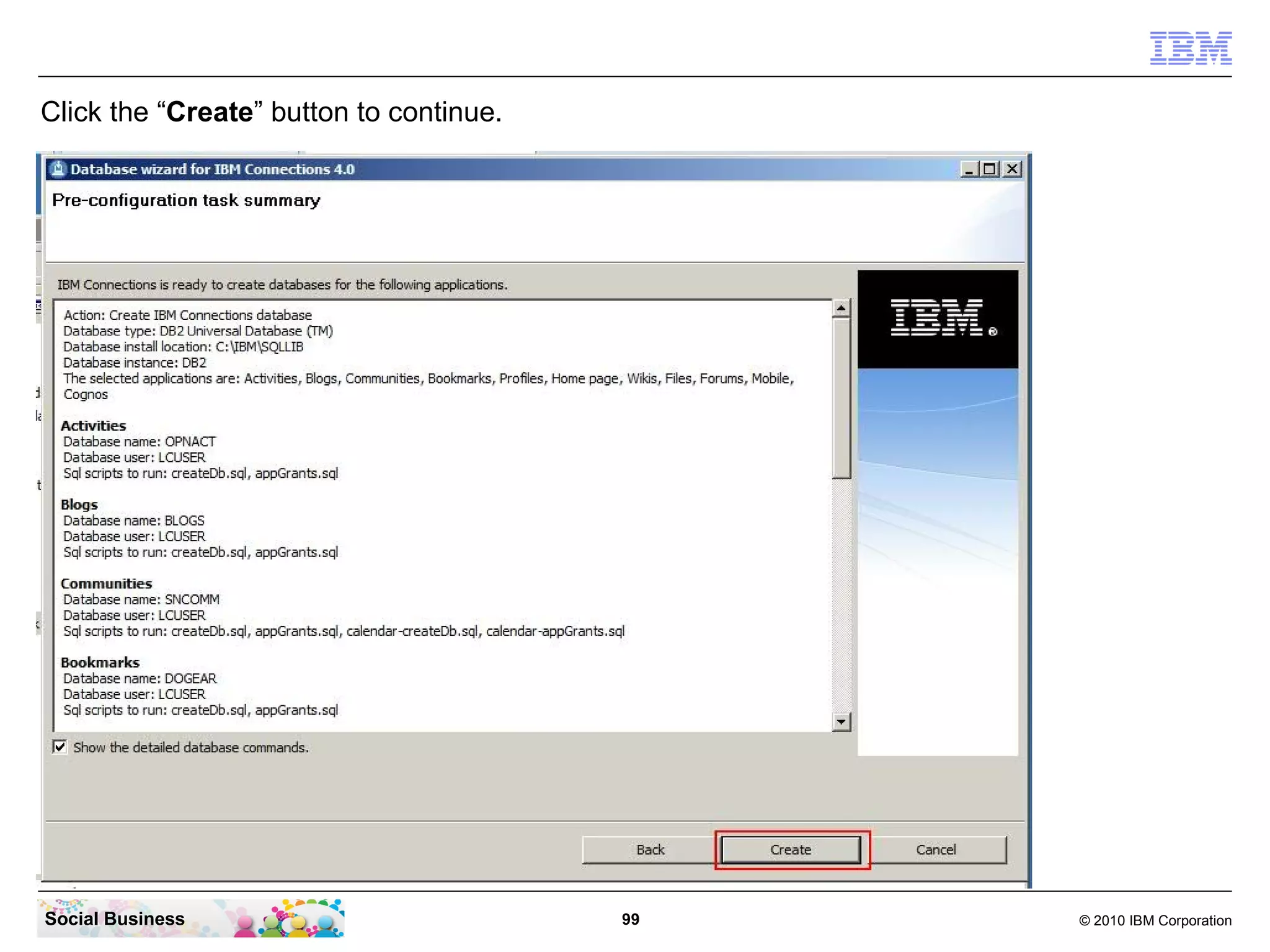
   DNS MX Records only: Local mail domain For example: example.com

   Java Mail Session only: DNS server name or SMTP relay host For example:
   dns.example.com; relayhost.example.com
   Domain name for Reply-to email address

   Suffix or prefix for Reply-to email address

   Server that receives Reply-to emails

   User name and password for that server

   URL and ports for admin and user access

   Note: You can look up the URLs for each application in the text files that the
   installation wizard generates. These files are located under the
   connections_root directory.


Social Business                                               837                             © 2010 IBM Corporation
Table 6. IBM Connections details
                           IBM Connections item                                 Details
   Activities server name

   Activities cluster member name

   Activities URL For example: http://www.example.com:9080/activities

   Activities secure URL For example: https://www.example.com:9446/activities

   Activities statistics files directory path

   Activities content files directory path

   Blogs server name

   Blogs cluster member name

   Blogs URL For example: http://www.example.com:9080/blogs

   Blogs secure URL For example: https://www.example.com:9446/blogs

   Blogs upload files directory path

   Bookmarks server name

   Bookmarks cluster member name


Social Business                                            838                            © 2010 IBM Corporation
Table 6. IBM Connections details
                         IBM Connections item                              Details
   Bookmarks URL For example: http://www.example.com:9080/dogear

   Bookmarks secure URL For example: https://www.example.com:9446/dogear

   Bookmarks favicon files directory path

   Communities server name

   Communities cluster member name

   Communities URL For example: http://www.example.com:9080/communities

   Communities secure URL For example:
   https://www.example.com:9446/communities
   Communities statistics files directory path

   Communities discussion forum content directory path

   Files server name

   Files cluster member name

   Files URL For example: http://www.example.com:9080/files

   Files secure URL For example: https://www.example.com:9446/files


Social Business                                          839                         © 2010 IBM Corporation
Table 6. IBM Connections details
                         IBM Connections item                           Details
   Files content store directory path

   Forums server name

   Forums cluster member name

   Forums URL For example: http://www.example.com:9080/forums

   Forums secure URL For example: https://www.example.com:9446/forums

   Forums content store directory path

   Home page server name

   Home page cluster member name

   Home page URL For example: http://www.example.com:9080/homepage

   Home page secure URL For example:
   https://www.example.com:9446/homepage
   Home page content store directory path

   Metrics server name

   Metrics cluster member name


Social Business                                        840                        © 2010 IBM Corporation
Table 6. IBM Connections details
                          IBM Connections item                              Details
   Moderation server name

   Moderation cluster member name

   Moderation URL For example: http://www.example.com:9080/moderation

   Moderation secure URL For example:
   https://www.example.com:9446/moderation
   Profiles server name

   Profiles cluster member name

   Profiles URL For example: http://www.example.com:9080/profiles

   Profiles secure URL For example: https://www.example.com:9446/profiles

   Profiles statistics files directory path

   Profiles cache directory path

   Search server name

   Search cluster member name

   Search dictionary directory path


Social Business                                           841                         © 2010 IBM Corporation
Table 6. IBM Connections details
                        IBM Connections item                          Details
   Search index directory path

   Wikis server name

   Wikis cluster member name

   Wikis URL For example: http://www.example.com:9080/wikis

   Wikis secure URL For example: https://www.example.com:9446/wikis

   Wikis content directory path


Social Business                                         842                     © 2010 IBM Corporation
Table 7. IBM HTTP Server details
                        IBM HTTP Server item                               Details
   IBM HTTP Server installation location For example: C:IBMHTTPServer

   IBM HTTP Server version For example: V7.0 fix pack 21.

   IBM HTTP Server httpd.conf file directory path For example:
   C:IBMHTTPServerconf
   web server definition name For example: webserver1

   web server plugin-cfg.xml file directory path For example:
   C:IBMHTTPServerPluginsconfigwebserver1
   IBM HTTP Server host name

   IBM HTTP Server fully qualified host name

   IBM HTTP Server IP address

   IBM HTTP Server communication port For example: 80

   IBM HTTP Server administration port For example: 8008

   Run IBM HTTP Server as a service? (Y/N)
   Run IBM HTTP administration as a service? (Y/N)


Social Business                                                 843                  © 2010 IBM Corporation
Table 7. IBM HTTP Server details
                      IBM HTTP Server item         Details
   IBM HTTP Server administrator ID

   IBM HTTP Server administrator password


Social Business                              844             © 2010 IBM Corporation
Table 8. Cognos BI Server and Transformer details
          Cognos BI Server and Transformer item                   Details
   Cognos BI Server and Transformer                    Refer to the cognos-
                                                       setup.properties file.


Social Business                             845                             © 2010 IBM Corporation
And a special thank you to all those who contributed
   in various ways to the production of this presentation.

                       Danke schoen!
                        Thank you!
                      Merci beaucoup!
                          Grazie!
                      Muchas gracias!
                         Toa chie!
                       Domo arigato!
                         Spasibo!
                      Shukran gazilan!


Social Business               846                    © 2010 IBM Corporation
Legal Disclaimer

      © IBM Corporation 2013. All Rights Reserved.
      The information contained in this publication is provided for informational purposes only. While efforts were made to verify the completeness and accuracy of the information contained in this publication, it is
      provided AS IS without warranty of any kind, express or implied. In addition, this information is based on IBM’s current product plans and strategy, which are subject to change by IBM without notice. IBM shall
      not be responsible for any damages arising out of the use of, or otherwise related to, this publication or any other materials. Nothing contained in this publication is intended to, nor shall have the effect of,
      creating any warranties or representations from IBM or its suppliers or licensors, or altering the terms and conditions of the applicable license agreement governing the use of IBM software.
      References in this presentation to IBM products, programs, or services do not imply that they will be available in all countries in which IBM operates. Product release dates and/or capabilities referenced in this
      presentation may change at any time at IBM’s sole discretion based on market opportunities or other factors, and are not intended to be a commitment to future product or feature availability in any way.
      Nothing contained in these materials is intended to, nor shall have the effect of, stating or implying that any activities undertaken by you will result in any specific sales, revenue growth or other results.

      Performance is based on measurements and projections using standard IBM benchmarks in a controlled environment. The actual throughput or performance that any user will experience will vary depending
      upon many factors, including considerations such as the amount of multiprogramming in the user's job stream, the I/O configuration, the storage configuration, and the workload processed. Therefore, no
      assurance can be given that an individual user will achieve results similar to those stated here.

      All customer examples described are presented as illustrations of how those customers have used IBM products and the results they may have achieved. Actual environmental costs and performance
      characteristics may vary by customer.

      IBM, the IBM logo, Lotus, Lotus Notes, Notes, Domino, Quickr, Sametime, WebSphere, UC2, PartnerWorld and Lotusphere are trademarks of International Business Machines Corporation in the United
      States, other countries, or both. Unyte is a trademark of WebDialogs, Inc., in the United States, other countries, or both.

      Adobe, the Adobe logo, PostScript, and the PostScript logo are either registered trademarks or trademarks of Adobe Systems Incorporated in the United States, and/or other countries.

      Java and all Java-based trademarks are trademarks of Sun Microsystems, Inc. in the United States, other countries, or both.

      Microsoft and Windows are trademarks of Microsoft Corporation in the United States, other countries, or both.

      Intel, Intel Centrino, Celeron, Intel Xeon, Intel SpeedStep, Itanium, and Pentium are trademarks or registered trademarks of Intel Corporation or its subsidiaries in the United States and other countries.

      UNIX is a registered trademark of The Open Group in the United States and other countries.

      Linux is a registered trademark of Linus Torvalds in the United States, other countries, or both.
      Other company, product, or service names may be trademarks or service marks of others.


Social Business                                                                                           847                                                                                  © 2010 IBM Corporation

IBM Connections 4.0 Installation - From Zero To Social Hero 1.16 for Domino LDAP

  • 1.
    For Domino LDAP IBMCollaboration Solutions IBM Connections 4.0 Installation ”From Zero to Social Hero” Frank Altenburg | SME for IBM Sametime IBM Collaboration Solutions mailto:frank.altenburg@de.ibm.com Social Business Version 1.16, released Jan. 11. 2013 © 2009 IBM Corporation
  • 2.
    Agenda ● Introduction ● Requirements for a IBM Connections 4.0 installation ● Architecture of a IBM Connections 4.0 Server deployment ● The 26 steps to a IBM Connections 4.0 Server deployment Social Business 2 © 2010 IBM Corporation
  • 3.
    Introduction This document ● Describes how to implement, in a very fast way, the infrastructure for a small deployment of a IBM Connections 4.0 Server. ● It is designed for a Proof of Concept, Proof of Technology or a small test pilot deployment only. ● It does not contain information how to implement a high available infrastructure. ● You can start with this document just to "make your bosses happy". But to make the system available for a larger number of users, it is recommended to invite IBM Services to plan and implement a clustered IBM Connections infrastructure in your organization that is fully supported. ● The Author has tested this scenario with the hardware specification and software components described in this document. ● You can use the official IBM support channels for any issue you raise when you use just this document to install your IBM Connections server. All instructions in this document are based on the official documentation wiki. ● You need IBM Connections licenses to download the code from Passport Advantage and to install and use this software. WARNING: Do not use this document to install a production environment. This single server installation is not supported in a production environment. Social Business 3 © 2010 IBM Corporation
  • 4.
    What is IBMConnections? IBM® Connections is social networking software that consists of these applications: Activities, Blogs, Bookmarks, Communities, Files, Forums, Home page, Metrics, Profiles, and Wikis. Use the IBM Connections applications to accomplish the following goals: ● Activities Collaboration tool for collecting, organizing, sharing, and reusing work that is related to a project goal. ● Blogs Online journals that you can use to deliver timely information with a personal touch. You can use a blog to present your ideas and get feedback from others or learn from the expertise of others who blog. ● Bookmarks Social bookmarking tool for saving, organizing, and sharing Internet and intranet bookmarks. Discover bookmarks that have been created by others with similar interests and expertise. Note: The application was previously named Dogear. Social Business 4 © 2010 IBM Corporation
  • 5.
    What is IBMConnections? (cont) ● Communities A website where people who share a common interest can interact with one another, share information, and exchange ideas. Community members can participate in community-specific activities and forums, and can share blogs, bookmarks, feeds, and files. ● Files A common repository in which you can upload files and share them with others. Store versions of a file, view who has downloaded a file or commented on it, and see highly recommended files. ● Forums A place to brainstorm and collect feedback on topics that are relevant to you and your colleagues. Statements and comments are collected in a format that captures the exchange of ideas and presents them as an ongoing conversation. Social Business 5 © 2010 IBM Corporation
  • 6.
    What is IBMConnections? (cont) ● Home page A central location that provides a snapshot of the latest updates collected from IBM Connections. Perform in-context actions on entries in your activity stream, check the latest updates from the content and people that you are following, stay up to date with the latest notifications and updates that require a response from you, or post your own status updates. ● Profiles Directory of the people in your organization, including the information you need to form and encourage effective networks across your organization. ● Metrics Statistics tool that collects and displays information about how people use Connections applications. Community metrics show details on a particular community while global metrics show information across all of Connections. Social Business 6 © 2010 IBM Corporation
  • 7.
    What is IBMConnections? (cont) ● Wikis A tool for creating wikis that individuals, groups, and communities can use to capture, share, and coauthor information. View page changes, recommendations, and comments. Together, these tools will help you and your colleagues interact with one another more effectively. Social Business 7 © 2010 IBM Corporation
  • 8.
    Administrators: Deploying thepreview guide to your users The IBM® Connections 4 preview guide is available for you to distribute to your users for new installations and upgrades to IBM Connections 4. This guide is designed to help your users become productive on the new software quickly, and to provide them with links to documentation resources for further help. http://www-10.lotus.com/ldd/lcwiki.nsf This guide provides the following information for this release: ● Overview of several new applications ● Important changes from the previous release ● Familiar applications that remain the same ● Links to product tours, reference cards, and product documentation ● A few key productivity tips Social Business 8 © 2010 IBM Corporation
  • 9.
    Administrators: Deploying thepreview guide to your users You can download the preview guide from the IBM Connections wiki at http://www-10.lotus.com/ldd/lcwiki.nsf There are two files available to you: ● An Adobe® PDF file, ready for emailing, printing, or distributing to your organization. ● An IBM Symphony™ ODT file that can be customized for your organization; for example, you can add contact information for your Help Desk. Note: This file includes instructions in blue text for customizing information. Remember to remove these instructions before rolling out the file to your organization. It is recommended that you distribute the guide to your users before their new IBM Connections software is installed or updated. Social Business 9 © 2010 IBM Corporation
  • 10.
    Audience This Installation Guideassumes that you have prior experience with products that support enterprise web applications. IBM® Connections has dependencies on a number of other products. This guide assumes that you have a basic knowledge of those products, including how to: ● Install, configure, secure, and administer IBM WebSphere® Application Server. ● Install IBM Tivoli® Directory Server, Microsoft® Active Directory, Sun Java™ System Directory Server, or IBM Lotus® Domino® LDAP directory, and then configure WebSphere Application Server to use that LDAP directory with federated repositories. ● Create, manage, and drop IBM DB2®, Oracle, or Microsoft SQL Server databases. ● Install IBM HTTP Server, and then configure it to interact with IBM WebSphere Application Server over HTTP and HTTPS. ● Install and configure Cognos Business Intelligence and Cognos Transformer Social Business 10 © 2010 IBM Corporation
  • 11.
    Agenda ● Introduction ● Requirements for a IBM Connections 4.0 installation ● Architecture of a IBM Connections 4.0 Server deployment ● The 26 steps to a IBM Connections 4.0 Server deployment Social Business 11 © 2010 IBM Corporation
  • 12.
    Detailed system requirementsfor IBM Connections You can find the official IBM Connections 4.0 System Requirements here: IBM Connections 4.0 system requirements (#7035893) IBM Connections Mail 1.0 system requirements (for IBM Connections 4) (#7036069) Social Business 12 © 2010 IBM Corporation
  • 13.
    IBM Connections 4.0Server Prerequisites For this pilot deployment you need ● a LDAP directory server that is supported (see system requirements) in this example we use Domino LDAP ● a Windows Server 2008 64Bit box for the installation ● Network and DNS configuration ● to download the required installation files from Passport Advantage and Fix Central ● several administrative user accounts ● a trusted certificate (optional) ● A IBM Lotus Domino 8.5.3 FP2 Server for Domino Mail integration (optional) ● A IBM Sametime Proxy Server 8.5.2 IFR1 for the Sametime awareness and BIZ- Card integration (optional) Social Business 13 © 2010 IBM Corporation
  • 14.
    Hardware required forthis Pilot Example Deployment ● 1 Server that will host the following applications: ● IBM DB2 Server ● IBM Tivoli Directory Integrator ● IBM Connections 4.0 Server ● IBM HTTP Server ● Cognos Business Intelligence Quad CPU, 16GB RAM or more, 100GB disk space or more, 64 Bit OS 1 GBit Network Interface with 1 IP addresses and a DNS Alias entry. ● Supported OS for the IBM Connections Server components are: - Windows Server 2008, 64 Bit - Linux Enterprise Server RHEL or SLES - AIX This document describes how to install the components on a Microsoft Windows Server 2008 R2 64 Bit Service Pack 1 platform. A 32Bit Windows OS is not supported with this IBM Connections 4.0 Server components. Social Business 14 © 2010 IBM Corporation
  • 15.
    OS and Networkrequirements ● Make sure that all servers you want to use can be resolved in DNS. ● If DNS is not available then list all full qualified server names and IP addresses from all servers in the hosts file and publish this file to all servers. ● If your machine has multiple NIC and / or multiple IP addresses and / or multiple hostnames and / or multiple aliases in DNS then this can cause issues that we have not tested. We recommend to have a machine with only one NIC and one IP address, a full qualified host name in the OS network preferences and if required one DNS Alias for example “connections.renovations.com” if the machine name is cryptic and you don't want to use it as access point for your users. ● If you use Windows 2008 as Operating System, then you need to start all installations and configurations in „Administrative mode“. Social Business 15 © 2010 IBM Corporation
  • 16.
    Required files fora deployment on Windows For a Windows installation you need to download these files from Passport Advantage: CZ19IML.zip IBM DB2 ESE 9.7 Win x86-64 CZ381ML.zip IBM DB2 ESE Restricted QS Activation 97 CZ9MKML.zip IBM Tivoli Directory Integrator V7.1 Win x86-64 C1G2JML.zip IBM WebSphere Application Server Network Deployment V7.0 Win x86-64 C1G2KML.zip IBM WebSphere Application Server Network Deployment V7.0 Supplements (1 of 2) Win x86-64 CIA3DML.exe IBM Connections 4.0 Win CIA3GML.exe IBM Connections 4.0 Wizards Win To update the WebSphere system to the required level you need to download these files from Fix Central: v9.7fp6_ntx64_server.exe DB2-ntx64-server-9.7.600.458-FP006 7.0.0-WS-WAS-WinX64-FP0000021.pak 7.0.0-WS-WASSDK-WinX64-FP0000021.pak 7.0.0-WS-IHS-WinX64-FP0000021.pak 7.0.0-WS-PLG-WinX64-FP0000021.pak 7.0.0.21-WS-WAS-IFPM65486.pak 7.0.0.21-ws-was-ifpm56596.pak 7.0.0.21-WS-WAS-IFPM51981.pak 7.0.0.19-WS-WAS-IFPM53930.pak 7.0.0.1-ws-was-ifpm60895.pak 7.1.0-TIV-TDI-FP0006.zip Social Business 16 © 2010 IBM Corporation
  • 17.
    Required files fora deployment on Windows (cont) For a Windows installation you need to download these files from Passport Advantage: bisrvr_win64h_10.1.1_ml.tar.gz Part number: CI5VMML - Cognos Business Intelligence Server 64-bit 10.1.1 Windows Multilingual bitrsfrmr_win32_10.1.1_ml.tar.gz Part number: CI2Q1ML -Cognos Business Intelligence Transformer 10.1.1 Windows Multilingual To update the Cognos system to the required Fix Pack level you need to download this file from Fix Central: CBI_10.1.1_Win64_FP001.tar.gz - fix pack: 10.1.1-BA-CBI-Win64-FP001 - Cognos Business Intelligence 10.1.1 Fix Pack 1 For the Domino Social Mail integration you need to download this file from Greenhouse: ICM1.0_FP1_allplattform_install.zip This download can be found here. Log in with your Greenhouse ID and password. If you dont have a Greenhouse ID you can join Greenhouse for free. https://greenhouse.lotus.com/plugins/plugincatalog.nsf/assetDetails.xsp? action=editDocument&documentId=31651AAAE1F4913685257A5F00548896&Login Social Business 17 © 2010 IBM Corporation
  • 18.
    Required files fora deployment on Windows Create a directory, for example “C:Install”, on the servers where you want to install. Then unpack the downloaded files into this directory. Just unpack the files required for your deployment architecture on the particular server. Social Business 18 © 2010 IBM Corporation
  • 19.
    Required files fora deployment on Windows The Directory “C:InstallDB2” contains the subdirectories “ESE” for the DB2 installer, “ese_o” for the license and “SERVER” for the upgrade to FP6 installer. Social Business 19 © 2010 IBM Corporation
  • 20.
    Required files fora deployment on Windows IBM Connection 4 was released in Sept 2012 IBM released a Cumulative Release (CR2) for IBM Connections 4 in late Dec 2012 To update IC4 to this latest CR2 release download these files from Fix Central. 4.0.0.0-IC-Multi-Activities-CR2-LO72170.jar 4.0.0.0-IC-Multi-BLOGS-CR2-LO72170.jar 4.0.0.0-IC-Multi-BOOKMARKS-CR2-LO72170.jar 4.0.0.0-IC-Multi-COMMON-CR2-LO72170.jar 4.0.0.0-IC-Multi-Communities-CR2-LO72170.jar 4.0.0.0-IC-Multi-Container-CR2-LO72170.jar 4.0.0.0-IC-Multi-Files-CR2-LO72170.jar 4.0.0.0-IC-Multi-Forums-CR2-LO72170.jar 4.0.0.0-IC-Multi-Homepage-CR2-LO72170.jar 4.0.0.0-IC-Multi-Metrics-CR2-LO72170.jar 4.0.0.0-IC-Multi-MobileAdmin-CR2-LO72170.jar 4.0.0.0-IC-Multi-Mobile-CR2-LO72170.jar 4.0.0.0-IC-Multi-Moderation-CR2-LO72170.jar 4.0.0.0-IC-Multi-News-CR2-LO72170.jar 4.0.0.0-IC-Multi-Profiles-CR2-LO72170.jar 4.0.0.0-IC-Multi-Search-CR2-LO72170.jar 4.0.0.0-IC-Multi-TDISOL-CR2-LO72170.zip 4.0.0.0-IC-Multi-Wikis-CR2-LO72170.jar 4.0-IC-Multi-UPDI-20121204.zip upgrade-40-40CR2.sql Social Business 20 © 2010 IBM Corporation
  • 21.
    Required files fora deployment on Windows Create a subdirectory “IC4_Fixes” under the “C:Install” directory. Copy the 17 JAR files into this directory and unzip the “4.0-IC-Multi-UPDI-20121204.zip” file to there. It creates the “updateInstaller” subdirectory. Social Business 21 © 2010 IBM Corporation
  • 22.
    Required technical usersfor IBM Connections 4.0 IBM Connections requires some technical users for components to communicate in an authenticated mode. All of this users should be configured so that the password never expires and never needs to be changed. db2admin This user is created during installation of the DB2 server in the Operating System. Do not create this user in advance. It is the user for all IBM Connections related components using DB2 to access their databases. Be sure to match the password policy requirements of the OS. LCUSER This user is created manually after installation of the DB2 server in the Operating System. Do not create this user in advance. It is the user for all IBM Connections related components using DB2 to access their databases. Be sure to match the password policy requirements of the OS. Social Business 22 © 2010 IBM Corporation
  • 23.
    Required technical usersfor IBM Connections 4.0 LDAP Bind This user is to send authenticated requests to your LDAP directory server. This is required to get back all required information from the LDAP. wasadmin This is the user to access the IBM WebSphere components and to administer the system. This user must not exist in your LDAP directory. It is created during WebSphere installation in a local file repository. You can use the same user name and password for all components (makes it easier) or different names and passwords. But again, it does not work when this user exists in the LDAP. ihsadmin This is the user to access the IBM HTTP Server components and to administer the system. This user must not exist in your LDAP directory. It is created during IHS installation in a local file repository. But again, it does not work when this user exists in the LDAP. Social Business 23 © 2010 IBM Corporation
  • 24.
    Required technical usersfor IBM Connections 4.0 Cognos Admin This user is required to administer the Cognos Business Intelligence and Transformer components in your Connections installation. This user must be created in your LDAP directory and the password should never expire as all technical user accounts. Take note of the shortname of this user. This shortname is required later in the post install tasks for Cognos. Social Business 24 © 2010 IBM Corporation
  • 25.
    Agenda ● Introduction ● Requirements for a IBM Connections 4.0 installation ● Architecture of a IBM Connections 4.0 Server deployment ● The 26 steps to a IBM Connections 4.0 Server deployment Social Business 25 © 2010 IBM Corporation
  • 26.
    Deployment options Install IBM®Connections in one of three deployment topologies to achieve optimum scaling, load balancing, and failover. A network deployment can consist of a single server that hosts all IBM Connections applications or two or more sets of clustered servers that share the workload. You must configure an additional system with WebSphere® Application Server Network Deployment Manager. IBM Cognos® Business Intelligence is an optional component in the deployment. If used, Cognos must be federated to the same Deployment Manager as the IBM Connections servers. However, Cognos servers cannot be configured within an IBM Connections cluster. A network deployment provides the administrator with a central management facility and it ensures that users have constant access to data. It balances the workload between servers, improves server performance, and facilitates the maintenance of performance when the number of users increases. The added reliability also requires a larger number of systems and experienced administrative personnel who can manage them. Social Business 26 © 2010 IBM Corporation
  • 27.
    When you areinstalling IBM Connections, you have three deployment options: ● Small deployment Install all IBM Connections applications on a single node in a single cluster. This option is the simplest deployment but has limited flexibility and does not allow individual applications to be scaled up. All the applications run within a single Java™ Virtual Machine (JVM). Note: The diagram depicts a topology with up to 8 servers. If you install the servers on shared systems, you do not need to deploy 8 separate systems. Social Business 27 © 2010 IBM Corporation
  • 28.
    ● Mediumdeployment Install a subset of applications in separate clusters. IBM Connections provides three predefined cluster names shared among all of its applications. Use this option to distribute applications according to your usage expectations. For instance, you might anticipate higher loads for the Profiles application and install it in its own cluster, while other applications could be installed in a different cluster. This option allows you to maximize the use of available hardware and system resources to suit your needs. Social Business 28 © 2010 IBM Corporation
  • 29.
    ● Largedeployment Install each application in its own cluster. IBM Connections provides a predefined cluster name for each application. This option provides the best performance in terms of scalability and availability options but also requires more system resources. In most cases, you should install the News and Home page applications in the same cluster. Social Business 29 © 2010 IBM Corporation
  • 30.
    Different ways toa IBM Connections 4.0 Server deployment As you could see in the previous slides, you can install IBM Connections on one box and have up to nearly unlimited number of boxes for a really large high available deployment. The largest customer environment that I know is of more then 50 boxes where all 10 IBM Connections components run on a cluster of 3 servers and a high available dedicated IBM HTTP Server in front. Everything between one box and many boxes is possible. For your production environment a detailed architecture design and sizing is urgently recommended. In this pilot we use just one box for the IBM Connections Server and we assume you have a already existing Domino LDAP with user data. To make the installation easier, this document describes how to install the Cognos components on the same box as the IBM Connections server. It is known that this scenario can cause performance issues. But for a small test environment, a POC or POT, performance is not the main factor. We now will install one large box that will contain the DB2 Databases for all the IBM Connections Applications, the TDI to move personal data from the LDAP server to the People database, the Cognos Components, the IBM Connections server by itself and the IBM HTTP server for caching and SSL security in front. Social Business 30 © 2010 IBM Corporation
  • 31.
    IBM Connections 4.0architecture for this document Existing components New components to be installed IBM DB2 IBM Lotus Database Domino LDAP Server Server IBM Lotus IBM Domino Web Connectio Access ns Server Server IBM Cognos Sametime BI Server Proxy Server IBM Sametime Community IBM HTTP Server Server Social Business 31 © 2010 IBM Corporation
  • 32.
    Agenda ● Introduction ● Requirements for a IBM Connections 4.0 installation ● Architecture of a IBM Connections 4.0 Server deployment ● The 26 steps to a IBM Connections 4.0 Server deployment Social Business 32 © 2010 IBM Corporation
  • 33.
    The 26 stepsto a IBM Connections 4.0 Pilot deployment Pre Installation tasks 1.Prepare your machine and the network 36 2.Prepare your LDAP 39 3.Install the IBM DB2 Server, add the license and create users 43 4.Run the Database Creation Wizard 93 5.Install IBM Tivoli Directory Integrator and update to FP6 108 6.Run the Population Wizard 132 7.Install IBM WebSphere Application Server, IHS and the Plugin 149 8.Update WAS, IHS and Plugin to the required level 178 9.Setup LDAP with Federated Repositories in WAS 212 10.Create the Cognos administrator account 250 11.Create a IBM WebSphere Application Server profile for Cognos 251 12.Install the Cognos Business Intelligence and Transformer Server 255 13.Federate Cognos 279 14.Validate Cognos 292 Social Business 33 © 2010 IBM Corporation
  • 34.
    The 26 stepsto a IBM Connections 4.0 Pilot deployment Installation 15.Install the IBM Connections Server 297 Post Installation tasks 16.Reviewing the JVM heap size 353 17.Configure the IBM HTTP Server IHS 363 18.Configuring the Home page administrator 436 19.Install Cognos Server FP1 449 20.Configure LDAP in Cognos 480 21.Granting access to Global Metrics 500 22.Configuring the IBMConnectionsMetricsAdmin role on Cognos 518 23.Configure Cognos to use the HTTP Server 539 24.Configure the Job Scheduler 560 25.Install the IBM Connections 4.0 CR2 Fixpack 583 26.Configure services to start and stop the server automatic 610 Social Business 34 © 2010 IBM Corporation
  • 35.
    The 26 stepsto a IBM Connections 4.0 Pilot deployment Optional post installation tasks: ● IBM Connections 4.0 on Mobile devices 626 ● IBM Connections Desktop Plug-ins for Microsoft Windows 630 ● IBM Connections 4.0 Plug-ins for IBM Lotus Notes 634 ● Configure IBM Lotus Domino Social Mail integration 635 ● An easy way to import some user photos 764 ● Adding Sametime awareness through the IBM Sametime Proxy Server 796 ● Configure IBM Sametime Proxy to use the IBM Connections business card in place of the Sametime business card 806 Attachment: ● Worksheet for Connections 822 Social Business 35 © 2010 IBM Corporation
  • 36.
    STEP ONE: Prepareyour machine and the network Summary Before you can install your IBM Connections Server environment, some things needs to be checked and prepared. Social Business 36 © 2010 IBM Corporation
  • 37.
    The machine thatyou run the IBM Connections 4.0 Server and the DB2 Database Server can be a virtual machine or a hardware box. Both work. It is possible to use Linux as OS, but this document describes how to install on Windows. If you use Linux you can use most parts of this document and most installation instructions and screen shots are identical. Mostly the paths are different. In Linux it is recommended to have the graphical system installed for this installation and then use a x-server on our client. These instructions work with Windows Server 2008 in 64Bit only. You can use the R2 Version of the supported OS. Be sure that your Firewall Admin has opened all ports in the firewalls. Test all connections using the telnet command in a CMD line window. Be sure the used host names or DNS alias is listed in the DNS and can be used and resolved in the internet and in your intranet. Social Business 37 © 2010 IBM Corporation
  • 38.
    More information canbe found in the official IBM Connections Documentation at this URL: http://www-10.lotus.com/ldd/lcwiki.nsf/xpDocViewer.xsp? lookupName=IBM+Connections+4.0+documentation The IBM Connections Installation and the IBM Sametime Installation – “From Zero To Hero” documents can be found here: https://www-304.ibm.com/connections/blogs/sametimeguru/? lang=en_us Social Business 38 © 2010 IBM Corporation
  • 39.
    STEP TWO: Prepareyour LDAP Before you begin Ensure that you have installed a supported LDAP directory. For more information about supported LDAP directories, see the IBM Connections detailed system requirements topic. To ensure that the Profiles population wizard can return the maximum number of records from your LDAP directory, set the Size Limit parameter in your LDAP configuration to match the number of users in the directory. For example, if your directory has 100,000 users, set this parameter to 100000. For more information, see the documentation for your LDAP directory. If you cannot set the Size Limit parameter, you could run the wizard multiple times. Alternatively, you could write a JavaScript™ function to split the original LDAP search filter, then run the collect_dns_iterate.bat file, and finally run the populate_from_dns_files.bat file. Note: For information about a limitation in environments with a Turkish locale, see the Base entry comparison for Turkish locale external link technote. Social Business 39 © 2010 IBM Corporation
  • 40.
    The LDAP Server In most environments a LDAP server is already present. If you use Domino it is simple to just enable LDAP on one of the Domino Directory Servers. If you use an existing LDAP Server other then Domino, it is important to use a V3 compliant LDAP. Make sure you have all relevant data from the LDAP system. (use ldapsearch, Apache LDAP studio or another LDAP browser to get the relevant LDAP information - an LDIF extract of a user and a group) A security related recommendation is to have a Bind DN. This means a user record in the LDAP that can be used for authenticated access to the data in the LDAP server. We use the „LDAP Bind“ user in this example. This is a technical user. His password should never expire. Otherwise the systems can not connect to the LDAP server anymore when this password is expired. The LDAP connection can be configured with SSL encryption. To configure your Connections Servers connecting to LDAP with SSL (LDAPS), additional steps are required. Make sure that you have access to the required certificate. But we recommend to start without SSL and when all components work, start implementing LDAPS. Social Business 40 © 2010 IBM Corporation
  • 41.
    An LDAPSEARCH responsefor a user: Social Business 41 © 2010 IBM Corporation
  • 42.
    A LDAPSEARCH responsefor a group: Social Business 42 © 2010 IBM Corporation
  • 43.
    STEP THREE: Installthe IBM DB2 Server, add the license and create users Summary This step installs the IBM DB2 Database Server release 9.7 and the FP6 update, installs the license key into the server and then creates a user for IBM Connections to connect to the databases. Social Business 43 © 2010 IBM Corporation
  • 44.
    You need tocheck your local password security policy that the users can be created and the passwords you want to use can be used. In your Windows 2008 server click on “Start” - “Administrative Tools” - “Local Security Policy”. Social Business 44 © 2010 IBM Corporation
  • 45.
    If the Passwordcomplexity setting is enabled then the password must contain characters in upper and lower case and a number. If you want easier passwords the set this flag to “Disabled”. Social Business 45 © 2010 IBM Corporation
  • 46.
    To disable justselect the “Disabled” check box and click the “OK” button. Then close the Local Security editor. Social Business 46 © 2010 IBM Corporation
  • 47.
    You can startnow with the DB2 installation. Open your Windows Explorer or just the “Computer” and navigate to the unpacked installation files for IBM DB2. In this example this can be found in “C:InstallDB2ESEimage”. Right click the “setup.exe” file and then “Run as Administrator”. Social Business 47 © 2010 IBM Corporation
  • 48.
    Click “Install aProduct” on the left side. Social Business 48 © 2010 IBM Corporation
  • 49.
    Click the “InstallNew” button under the DB2 Enterprise Server Edition 9.7 section. Social Business 49 © 2010 IBM Corporation
  • 50.
    It takes someseconds to load the DB2 Setup Wizard. Social Business 50 © 2010 IBM Corporation
  • 51.
    The DB2 SetupWizard is now initializing. Social Business 51 © 2010 IBM Corporation
  • 52.
    The DB2 SetupWizard is now ready to go. Click the “Next” button to continue. Social Business 52 © 2010 IBM Corporation
  • 53.
    Select the checkbox to accept the terms in the license agreement. Then click the “Next” button to continue. Social Business 53 © 2010 IBM Corporation
  • 54.
    Leave the “Typical”installation defaults and just click the “Next” button to continue. Social Business 54 © 2010 IBM Corporation
  • 55.
    Select the firstoption “Install DB2 Enterprise Server Edition on this computer” and click the “Next” button to continue. Social Business 55 © 2010 IBM Corporation
  • 56.
    We recommend toremove the “Program Files” part in the path. It works with the default path as well. Click the “Next” button to continue. We recommend to use path names without spaces (as some scripts may require this) and also shorten the path name so that the typical limits of some operating systems and applications for path + file name length are avoided. Social Business 56 © 2010 IBM Corporation
  • 57.
    We recommend toleave the default user name “db2admin” in here. But enter a password that fits the password security settings twice and then click the “Next” button to continue. Social Business 57 © 2010 IBM Corporation
  • 58.
    Just click the“Next” button to continue. Social Business 58 © 2010 IBM Corporation
  • 59.
    Click the “Next”button to continue. Social Business 59 © 2010 IBM Corporation
  • 60.
    Un-check the box“Set up your DB2 Server to send notifications”. Then click the “Next” button to continue. Social Business 60 © 2010 IBM Corporation
  • 61.
    Click the “Next”button to continue. Social Business 61 © 2010 IBM Corporation
  • 62.
    Click the “Install”button to start the installation. Social Business 62 © 2010 IBM Corporation
  • 63.
    The installation ofthe DB2 Server will take approximately 5 to 10 Minutes. Social Business 63 © 2010 IBM Corporation
  • 64.
    Click the “Finish”button to end the Installation Wizard. Social Business 64 © 2010 IBM Corporation
  • 65.
    After some secondsthis “DB2 First Steps” window appears. You can close it. Social Business 65 © 2010 IBM Corporation
  • 66.
    Next step isto install the IBM DB2 FP6. In your File Explorer navigate to the directory “C:InstallDB2Server”. Then right click the “Setup” icon and select “Run as administrator”. Social Business 66 © 2010 IBM Corporation
  • 67.
    Click the “Installa Product” link on the left side. Social Business 67 © 2010 IBM Corporation
  • 68.
    Under the “DB2Enterprise Server Edition Version 9.7 Fix Pack 6” click the “Work with Existing” button. Social Business 68 © 2010 IBM Corporation
  • 69.
    Click the “LaunchDB2 Setup wizard” button to continue. Social Business 69 © 2010 IBM Corporation
  • 70.
    Click the “Yes”button to stop the running services and tasks. Social Business 70 © 2010 IBM Corporation
  • 71.
    Click the “Next”button to continue. Social Business 71 © 2010 IBM Corporation
  • 72.
    The DB2 FixPack 6 installation takes approximately 4 – 5 minutes. Social Business 72 © 2010 IBM Corporation
  • 73.
    Click the “Next”button to continue. Social Business 73 © 2010 IBM Corporation
  • 74.
    Click the “Finish”button to exit the Install wizard. Social Business 74 © 2010 IBM Corporation
  • 75.
    Close the “FirstSteps ...” window. Social Business 75 © 2010 IBM Corporation
  • 76.
    Now we needto add the DB2 License. We need a DB2 command line window with Administrator privileges. Click on “Start” - “All Programs” - “IBM DB2” - “DB2COPY1” - “Command Line Tools” - “Command Window - Administrator”. Social Business 76 © 2010 IBM Corporation
  • 77.
    Enter the command“db2licm -l”. you will see that the license is not registered. Do not copy and paste any commands from this document into your CMD line. This does not work because this would copy some special characters. Social Business 77 © 2010 IBM Corporation
  • 78.
    Enter the command“db2licm -a C:installDB2ese_odb2licensedb2ese_o.lic”. Dependant of the path to where you have unpacked the license ZIP file. Social Business 78 © 2010 IBM Corporation
  • 79.
    The license wasadded successfully. Social Business 79 © 2010 IBM Corporation
  • 80.
    Confirm that thelicense was added by entering again the command “db2licm -l”. Social Business 80 © 2010 IBM Corporation
  • 81.
    Configuring the DB2databases for unicode ensures that DB2 tools like export and import do not corrupt unicode data. In the existing actual DB2 command window run the following commands: “db2set DB2CODEPAGE=1208” “db2stop force” “db2start” Run the following commands to check the new configuration: “db2set” This should return DB2CODEPAGE=1208. If not, it is not configured correctly and you should try Step 4 again. Social Business 81 © 2010 IBM Corporation
  • 82.
    Next step isto create a specific user for the IBM Connections Server to access the databases on the IBM DB2 Server. Click “Start” - “Administrative Tools” - “Computer Management”. Social Business 82 © 2010 IBM Corporation
  • 83.
    Select “System Tools”- “Local Users and Groups” - “Users”. Social Business 83 © 2010 IBM Corporation
  • 84.
    In the Menuclick “Action” and then “New User...”. Social Business 84 © 2010 IBM Corporation
  • 85.
    For this pilotwe recommend to use the name “LCUSER” because this is the default name used in the database creation wizard. Enter a valid password (take note on the Password security policy). Deselect the box “User must change password at next logon” and select the box “Password never expires”. Then click the “Create” button. Social Business 85 © 2010 IBM Corporation
  • 86.
    We don't needan other user. So just click the “Close” button. Social Business 86 © 2010 IBM Corporation
  • 87.
    The user “LCUSER”is now created. Double click the user to administer the group memberships. Social Business 87 © 2010 IBM Corporation
  • 88.
    Click the “MemberOf” tab. Social Business 88 © 2010 IBM Corporation
  • 89.
    Click the “Add...”button. Social Business 89 © 2010 IBM Corporation
  • 90.
    Enter the goupname “DB2USERS” and click the “Check Names” button. Social Business 90 © 2010 IBM Corporation
  • 91.
    The group wasfound in the system so you can click the “OK” button. Social Business 91 © 2010 IBM Corporation
  • 92.
    We are donewith creation and configuration of the user. Click the “OK” button to close the window. Then close the “Computer Management” console. Social Business 92 © 2010 IBM Corporation
  • 93.
    STEP FOUR: Runthe Database Creation Wizard Summary When you are creating a database either with the database wizard or SQL scripts, you must log into the system where the database is hosted with the database administrator account. The default values for DB2® are db2admin on Microsoft™ Windows™. If you use only one database instance and if that instance includes other databases besides IBM Connections, configure the numdb parameter to match the total number of databases on the instance. Social Business 93 © 2010 IBM Corporation
  • 94.
    Now open afile explorer and navigate to the directory “C:InstallWizards”. Right Click the “dbWizard” and select “Run as Administrator”. Social Business 94 © 2010 IBM Corporation
  • 95.
    The Database Wizardfor IBM Connections is starting up. Click the “Next” button to continue. Social Business 95 © 2010 IBM Corporation
  • 96.
    Click the “Next”button to continue. Social Business 96 © 2010 IBM Corporation
  • 97.
    Click the “Next”button to continue. Social Business 97 © 2010 IBM Corporation
  • 98.
    Click the “Next”button to continue. Social Business 98 © 2010 IBM Corporation
  • 99.
    Click the “Create”button to continue. Social Business 99 © 2010 IBM Corporation
  • 100.
    Click the “Execute”button to continue. Social Business 100 © 2010 IBM Corporation
  • 101.
    The Database creationwizard is now creating the required databases. This step takes approximately 10 minutes. Social Business 101 © 2010 IBM Corporation
  • 102.
    To see ifall works fine just click the “Open Log” button. Social Business 102 © 2010 IBM Corporation
  • 103.
    You can seea log file for each individual step that the wizard is creating. To view a log file you can open it with a double click. Social Business 103 © 2010 IBM Corporation
  • 104.
    The IBM ConnectionsDatabase wizard has now successfully created the required databases and granted access for the LCUSER account. Click the “Finish” button to end the wizard. Social Business 104 © 2010 IBM Corporation
  • 105.
    The DB2 Serveruses a configuration parameter for the maximum number of databases that can be opened simultaneously. This is set to 8 by default. We have created 10 databases and the wizard has set this parameter to 12. To enable the new setting we need to stop and start the database server. One way we have already seen after the import of the license file with the db2stop and db2start commands. Here is an other way to stop and start the DB2 database server: In your task bar you can find the green bubble for DB2. Right click this bubble and then select “Stop (DB2)”. Social Business 105 © 2010 IBM Corporation
  • 106.
    Click the “OK”button to continue. Social Business 106 © 2010 IBM Corporation
  • 107.
    You can nowsee the red square on the bubble. This means the DB2 Database server is stopped. To start it again right click on the bubble and select “Start (DB2)”. Social Business 107 © 2010 IBM Corporation
  • 108.
    STEP FIVE: Installthe IBM Tivoli Directory Integrator and update to FP6 Summary This step installs the Tivoli Directory Integrator component on your IBM Connections Server machine to fill your Profiles Database with predefined information from your LDAP and other sources. Social Business 108 © 2010 IBM Corporation
  • 109.
    In your FileExplorer navigate to the directory “C:InstallTDI” and right click the “launchpad”. Then click the “Run as Administrator” option. Social Business 109 © 2010 IBM Corporation
  • 110.
    Click the “InstallIBM Tivoli Directory Integrator” link. Social Business 110 © 2010 IBM Corporation
  • 111.
    Click the “TivoliDirectory Integrator 7.1 Installer” link Social Business 111 © 2010 IBM Corporation
  • 112.
    The TDI installeris initializing. Social Business 112 © 2010 IBM Corporation
  • 113.
    Click the “OK”button to continue. Social Business 113 © 2010 IBM Corporation
  • 114.
    Click the “Next”button to continue. Social Business 114 © 2010 IBM Corporation
  • 115.
    Click the “Next”button to continue. Social Business 115 © 2010 IBM Corporation
  • 116.
    Accept he termsin the license agreement and click the “Next” button to continue. Social Business 116 © 2010 IBM Corporation
  • 117.
    Remove the partwith the unwanted space in the path and click the “Next” button. Social Business 117 © 2010 IBM Corporation
  • 118.
    Click the “Next”button to continue. Social Business 118 © 2010 IBM Corporation
  • 119.
    Select the “Donot specify – use current working directory at startup time” option and click the “Next” button to continue. Social Business 119 © 2010 IBM Corporation
  • 120.
    Click the “Next”button to continue. Social Business 120 © 2010 IBM Corporation
  • 121.
    Click the “Next”button to continue. Social Business 121 © 2010 IBM Corporation
  • 122.
    Click the “Next”button to continue. Social Business 122 © 2010 IBM Corporation
  • 123.
    Click the “Next”button to continue. Social Business 123 © 2010 IBM Corporation
  • 124.
    Click the “Install”button to continue. Social Business 124 © 2010 IBM Corporation
  • 125.
    The Tivoli DirectoryIntegrator is installing. This step takes approximately 2-3 minutes. Social Business 125 © 2010 IBM Corporation
  • 126.
    When the installationhas finished, deselect the “Start configuration Editor” check box and click the “Done” button to exit the installer. Social Business 126 © 2010 IBM Corporation
  • 127.
    Click the “Exit”link to continue. Social Business 127 © 2010 IBM Corporation
  • 128.
    Click the “OK”button to end this installation step. Social Business 128 © 2010 IBM Corporation
  • 129.
    Open a CMD-Linewindow in Administrative mode and enter the command “cd Install7.1.0-TIV-TDI-FP0006” to change to the TDI FP6 directory. Then enter the command “IBMTDIV7.1binapplyUpdate.bat -update TDI-7.1-FP0006.zip”. Social Business 129 © 2010 IBM Corporation
  • 130.
    The FP6 installationtakes approximately 2 minutes. Then you should see this messages. Social Business 130 © 2010 IBM Corporation
  • 131.
    To control theupdated version is correct enter the command “IBMTDIV7.1binapplyUpdates.bat -queryreg”. You should see this response. Social Business 131 © 2010 IBM Corporation
  • 132.
    STEP SIX: Runthe Population Wizard Before you begin ● Spend time planning your Profiles population, integration, and customization. ● Involve all the relevant stakeholders at an early stage of the planning process. ● If possible, phase the Profiles rollout and get feedback from pilot users. ● Prepopulate Profiles photos. ● Plan for business card use and for Sametime® presence awareness. ● Ensure that Tivoli® Directory Integrator is correctly configured. ● Consider using Tivoli Directory Integrator to populate the LDAP and then to populate the Profiles database. In this example we make it simple by just running the population wizard and copy the data from the LDAP to the PEOPLE DB2 database. Social Business 132 © 2010 IBM Corporation
  • 133.
    Edit the “ibmdisrv.bat”file to increase runtime memory and disable the JIT compiler. To increase the runtime memory, add the two “-Xms256M -Xmx1024M” space-separated arguments to the Java™ invocation command; to disable the JIT compiler, add the “- Xnojit” argument. The ibmdisrv file is stored in the TDI directory. In your file explorer navigate to the directory “C:IBMTDIV7.1”. Social Business 133 © 2010 IBM Corporation
  • 134.
    Then right clickthe file “ibmdisrv.bat” and select “Edit”. Social Business 134 © 2010 IBM Corporation
  • 135.
    In the linestarting with “%TDI_JAVA_PROGRAM%” add the parameters “-Xms256M -Xmx1024M -Xnojit”. See below in the screen shot, how this should look like. Then save and close the file. Social Business 135 © 2010 IBM Corporation
  • 136.
    In your FileExplorer navigate to the “C:InstallWizards” directory, right click the file “populationwizard.bat” and select “Run as administrator” Social Business 136 © 2010 IBM Corporation
  • 137.
    Click the “Next”button to continue. Social Business 137 © 2010 IBM Corporation
  • 138.
    Select the path“C:IBMTDIV7.1” to where you have installed your TDI components, and click the “Next” button to continue. Social Business 138 © 2010 IBM Corporation
  • 139.
    Click the “Next”button to continue. Social Business 139 © 2010 IBM Corporation
  • 140.
    In the “Hostname” field enter the host name of your IBM DB2 server. In this case it is our machine where you install connections. In the “JDBC Driver library path” line enter the path where the 2 files db2jcc.jar and db2jcc_license_cu.jar can be found. In this installation you can use “C:IBMSQLLIBJAVA”. In the Password field enter the password for the “LCUSER” that you have created after the DB2 Server installation. Then click the “Next” button to continue. Social Business 140 © 2010 IBM Corporation
  • 141.
    In the “LDAPserver name” field enter the host name of your ldap server. Then click the “Next” button to continue. Social Business 141 © 2010 IBM Corporation
  • 142.
    Enter the LDAPBind User name and password. Then click the “Next” button to continue. Social Business 142 © 2010 IBM Corporation
  • 143.
    If you areusing Domino LDAP, leave the “LDAP user search base” field empty. If you use another LDAP then this field has to be filled. Mostly it detects the base DN's and you can just choose the right one. Then click the “Next” button to continue. Social Business 143 © 2010 IBM Corporation
  • 144.
    In most LDAPservers you have not filled the country code field. Then you should select “null” in the “countryCode” attribute. Then click the “Next” button to continue. Social Business 144 © 2010 IBM Corporation
  • 145.
    In this simplepilot we dont use any more csv files for additional data. Just click the “Next” button to continue. Social Business 145 © 2010 IBM Corporation
  • 146.
    Click the “Configure”button to start the data population. Social Business 146 © 2010 IBM Corporation
  • 147.
    The population wizardis now working. If you want to see the logs click the “Open Log” button. Social Business 147 © 2010 IBM Corporation
  • 148.
    The population wizardhas successfully populated the data from LDAP to the IBM DB2 PEOPLEDB database. Click the “Finish” button to continue. Social Business 148 © 2010 IBM Corporation
  • 149.
    STEP SEVEN: InstallIBM WebSphere Application Server, IBM HTTP Server and the HTTP Server Plugins Before you begin WebSphere Application Server Network Deployment is provided with IBM Connections. To establish an environment with one Deployment Manager and one or more managed nodes, use the following table to determine the installation option that you should choose. The IBM Connections installation wizard creates server instances that require each node to have an application server. Choose one of these options when installing WebSphere Application Server to ensure that each node has an application server. IBM Connections deployment ● Deployment Manager and one node on the same system (use this now) ● Deployment Manager and nodes on separate systems Social Business 149 © 2010 IBM Corporation
  • 150.
    To install IBMWebSphere Application Server for IBM Connections, open your File Explorer and navigate to the directory “C:InstallWAS”. Then right click the “launchpad” and select “Run as administrator”. Social Business 150 © 2010 IBM Corporation
  • 151.
    Click the “WebSphereApplication Server Installation” link. Social Business 151 © 2010 IBM Corporation
  • 152.
    Click the “Launchthe installation wizard for the WebSphere Application Server Network Deployment” link. Social Business 152 © 2010 IBM Corporation
  • 153.
    Click the “Next”button to continue. Social Business 153 © 2010 IBM Corporation
  • 154.
    Accept the termsin the license agreement and click the “Next” button to continue. Social Business 154 © 2010 IBM Corporation
  • 155.
    Click the “Next”button to continue. Social Business 155 © 2010 IBM Corporation
  • 156.
    Click the “Next”button to continue. Social Business 156 © 2010 IBM Corporation
  • 157.
    Remove the partwith the blank character in the path and click the “Next” button to continue. Social Business 157 © 2010 IBM Corporation
  • 158.
    In this pilotwe want to have all IBM connections components on a single box. So we use the “Cell...” deployment. Then click the “Next” button to continue. Social Business 158 © 2010 IBM Corporation
  • 159.
    Leave the “Enableadministrative security” checked and enter a username and password for your WebSphere Administrator user. Be sure that this user does not exist in your LDAP that you plan to use. Click the “Next” button to continue. Social Business 159 © 2010 IBM Corporation
  • 160.
    Click the “Next”button to continue. Social Business 160 © 2010 IBM Corporation
  • 161.
    Click the “Next”button to continue. Social Business 161 © 2010 IBM Corporation
  • 162.
    IBM WebSphere ApplicationServer is now installing. This step takes approximately 5 to 10 minutes. Social Business 162 © 2010 IBM Corporation
  • 163.
    The installer hassuccessfully installed the IBM WebSphere Application Server Network Deployment as a Cell. Click the “Finish” button to continue. Social Business 163 © 2010 IBM Corporation
  • 164.
    In this “FirstSteps” screen just click the “Exit” link to close. For this IBM Connections installation it is not required to do the Installation verification. Social Business 164 © 2010 IBM Corporation
  • 165.
    Next step isto install the IBM HTTP Server. Click the “IBM HTTP Server Installation” link. Social Business 165 © 2010 IBM Corporation
  • 166.
    Click the “Launchthe installation wizard for IBM HTTP Server” link. Social Business 166 © 2010 IBM Corporation
  • 167.
    Click the “Next”button to continue. Social Business 167 © 2010 IBM Corporation
  • 168.
    Accept the termsin the license agreement and click the “Next” button to continue. Social Business 168 © 2010 IBM Corporation
  • 169.
    Click the “Next”button to continue. Social Business 169 © 2010 IBM Corporation
  • 170.
    Remove the partwith the blank character in the path and click the “Next” button to continue. Social Business 170 © 2010 IBM Corporation
  • 171.
    Click the “Next”button to continue. Social Business 171 © 2010 IBM Corporation
  • 172.
    Select “Log onas a local system account” and click the “Next” button to continue. Social Business 172 © 2010 IBM Corporation
  • 173.
    Enter a username and password for your IBM HTTP Server Administrator. This user should not exist in the LDAP that you plan to use. Then click the “Next” button to continue. Social Business 173 © 2010 IBM Corporation
  • 174.
    Click the “Next”button to continue. Social Business 174 © 2010 IBM Corporation
  • 175.
    Click the “Next”button to continue. Social Business 175 © 2010 IBM Corporation
  • 176.
    The IBM HTTPServer is now installing. This step takes approximately 2-3 minutes. Social Business 176 © 2010 IBM Corporation
  • 177.
    IBM HTTP Serveris now installed successfully. Click the “Finish” button to continue. Social Business 177 © 2010 IBM Corporation
  • 178.
    STEP EIGHT: UpdateIBM WebSphere Application Server, IBM HTTP Server and the IHS Plugin to the required level Summary In this step you install the IBM WebSphere Update Installer and update the already installed components (IBM WebSphere Application Server, IBM HTTP Server and IBM HTTP Server Plugin) to the required fix and patch level for IBM Connections 4.0. Social Business 178 © 2010 IBM Corporation
  • 179.
    Click the “IBMUpdate Installer for WebSphere Software Installation” link. Social Business 179 © 2010 IBM Corporation
  • 180.
    Click the “Launchthe installation wizard for IBM Update Installer” link. Social Business 180 © 2010 IBM Corporation
  • 181.
    Click the “Next”button to continue. Social Business 181 © 2010 IBM Corporation
  • 182.
    Accept the termsin the license agreement and click the “Next” button to continue. Social Business 182 © 2010 IBM Corporation
  • 183.
    Click the “Next”button to continue. Social Business 183 © 2010 IBM Corporation
  • 184.
    Remove the partwith the blank character in the path and click the “Next” button to continue. Social Business 184 © 2010 IBM Corporation
  • 185.
    Click the “Next”button to continue. Social Business 185 © 2010 IBM Corporation
  • 186.
    The IBM UpdateInstaller is now installing. This step takes approximately 2-3 minutes. Social Business 186 © 2010 IBM Corporation
  • 187.
    Check the “LanuchIBM Update Installer...” check box and click the “Finish” button to continue. Social Business 187 © 2010 IBM Corporation
  • 188.
    Click the “Next”button to continue. Social Business 188 © 2010 IBM Corporation
  • 189.
    Click the “Next”button to continue. Social Business 189 © 2010 IBM Corporation
  • 190.
    Click the “Next”button to continue. Social Business 190 © 2010 IBM Corporation
  • 191.
    Change the pathusing the “Browse...” button to your “C:Install” directory. Then click the “Next” button to continue. Social Business 191 © 2010 IBM Corporation
  • 192.
    Confirm that this7 fixes are selected. Then click the “Next” button to continue. Social Business 192 © 2010 IBM Corporation
  • 193.
    Click the “Next”button to continue. Social Business 193 © 2010 IBM Corporation
  • 194.
    The IBM UpdateInstaller installs the selected fixes. This step takes approximately 4-5 minutes. Social Business 194 © 2010 IBM Corporation
  • 195.
    Click the “Relaunch”button now, because we need to update the IHS and the Plugin. Social Business 195 © 2010 IBM Corporation
  • 196.
    Select the “C:IBMHTTPServer”directory now and then click the “Next” button to continue. Social Business 196 © 2010 IBM Corporation
  • 197.
    Click the “Next”button to continue. Social Business 197 © 2010 IBM Corporation
  • 198.
    Click the “Next”button to continue. Social Business 198 © 2010 IBM Corporation
  • 199.
    Click the “Next”button to continue. Social Business 199 © 2010 IBM Corporation
  • 200.
    Click the “Next”button to continue. Social Business 200 © 2010 IBM Corporation
  • 201.
    The IBM UpdateInstaller is installing the fixpack for the IBM HTTP Server. This step takes approximately 1-2 minutes. Social Business 201 © 2010 IBM Corporation
  • 202.
    It is stillnot finished with updating. Click the “Relaunch” button again to continue. Social Business 202 © 2010 IBM Corporation
  • 203.
    Select the “C:IBMHTTPServerPlugins”directory and click the “Next” button to continue. Social Business 203 © 2010 IBM Corporation
  • 204.
    Click the “Next”button to continue. Social Business 204 © 2010 IBM Corporation
  • 205.
    Click the “Next”button to continue. Social Business 205 © 2010 IBM Corporation
  • 206.
    Click the “Next”button to continue. Social Business 206 © 2010 IBM Corporation
  • 207.
    Click the “Next”button to continue. Social Business 207 © 2010 IBM Corporation
  • 208.
    The IBM UpdateInstaller is now installing the required fixes to the IBM HTTP Server Plugin. This step takes approximately 1-2 minutes. Social Business 208 © 2010 IBM Corporation
  • 209.
    Updating is finishednow. Click the “Finish” button to continue. Social Business 209 © 2010 IBM Corporation
  • 210.
    Click the “Exit”link. Social Business 210 © 2010 IBM Corporation
  • 211.
    Click the “OK”button to continue. Social Business 211 © 2010 IBM Corporation
  • 212.
    STEP NINE: SetupLDAP with Federated Repositories in IBM WebSphere Application Server Summary Use this procedure to configure your installed WebSphere Server to connect to your LDAP server for user and group look-ups and for user authentication. In this document we use a Domino LDAP. If you plan to use Microsoft Active Directory LDAP then consult the AD LDAP version of this document. Social Business 212 © 2010 IBM Corporation
  • 213.
    The IBM WebSphereApplication Server Deployment Manager “dmgr” needs to be started first. In the “Start” menue click on “All Programs” - “IBM WebSphere” - “Application Server Network Deployment” - Profiles” - “Dmgr01” - “Start the deployment manager”. Social Business 213 © 2010 IBM Corporation
  • 214.
    The dmgr serverprocess is starting up. Wait until this has finished and the cmd line window disappears. Social Business 214 © 2010 IBM Corporation
  • 215.
    In the TaskManager you can see the “java.exe” process. Social Business 215 © 2010 IBM Corporation
  • 216.
    Open your favoritebrowser and enter the URL to your dmgr admin interface. In this example we use: “http://connections.renovations.com:9060/admin” Social Business 216 © 2010 IBM Corporation
  • 217.
    In Microsoft InternetExplorer just select “Continue loading the Web Site”. In Mozilla Firefox select “I Understand the Risks”. Social Business 217 © 2010 IBM Corporation
  • 218.
    Then click the“Add Exception...” button. Social Business 218 © 2010 IBM Corporation
  • 219.
    Then click the“Get Certificate” button and the “Confirm Security Exception” button. Social Business 219 © 2010 IBM Corporation
  • 220.
    Enter the username and password of your IBM WebSphere Application Server Administrator user. Then click the “Log in” button. Social Business 220 © 2010 IBM Corporation
  • 221.
    You have nowentered the IBM WebSphere Integrated Solutions Console. The Admin Console for most of the WebSphere administration tasks. Here click the “Security” link on the left side. Social Business 221 © 2010 IBM Corporation
  • 222.
    Click the “Globalsecurity” link. Social Business 222 © 2010 IBM Corporation
  • 223.
    At the bottomof the screen click the “Configure...” button. Social Business 223 © 2010 IBM Corporation
  • 224.
    Click the “AddBase entry to Realm...” button. Social Business 224 © 2010 IBM Corporation
  • 225.
    Click the “AddRepository...” button. Social Business 225 © 2010 IBM Corporation
  • 226.
    In this formyou need to fill all data of your LDAP. The “Repository Identifier” is just a name that you can chose. Select your “Directory type”. Enter the “Primary host name” of your LDAP. Fill the “Bind distinguished name” and “Bind password” fields and in the “Login Properties” field enter “uid;mail;cn”. Social Business 226 © 2010 IBM Corporation
  • 227.
    At the bottomof the form click the “Apply” button. Social Business 227 © 2010 IBM Corporation
  • 228.
    Click the “Save”link to save the configuration changes. Social Business 228 © 2010 IBM Corporation
  • 229.
    Your new createdRepository configuration should appear in the “Repository” field now. Enter a value in the “Distinguished name of a base entry that uniquely identifies this ...”. Leave the second field blank if you use Domino LDAP. Then click the “Apply” button. Social Business 229 © 2010 IBM Corporation
  • 230.
    Click the “Save”link to save the last configuration changes. Social Business 230 © 2010 IBM Corporation
  • 231.
    Click the “OK”button to continue. Social Business 231 © 2010 IBM Corporation
  • 232.
    Click the “Save”link again. Social Business 232 © 2010 IBM Corporation
  • 233.
    Click the “Globalsecurity” link on the top of the screen. Social Business 233 © 2010 IBM Corporation
  • 234.
    Click the “Setas current” button. Social Business 234 © 2010 IBM Corporation
  • 235.
    Check the “Enableapplication security” check box. Social Business 235 © 2010 IBM Corporation
  • 236.
    Now click the“Apply” button. Social Business 236 © 2010 IBM Corporation
  • 237.
    Click the “Save”link to save the last changes. Social Business 237 © 2010 IBM Corporation
  • 238.
    Log out fromthe Integrated Solutions Console by clicking the “Logout” link. Social Business 238 © 2010 IBM Corporation
  • 239.
    Changes in theSecurity configuration always require to restart the deployment manager and all configured nodes and servers. To stop the dmgr process click the “Start” menu and then “All Programs” - “IBM WebSphere” - “Application Server Network Deployment” - “Profiles” - “Dmgr01” - “Stop the deployment manager”. Social Business 239 © 2010 IBM Corporation
  • 240.
    The Deployment Managerdmgr is now stopping. When the CMD-Line window disappears the dmgr has stopped. Social Business 240 © 2010 IBM Corporation
  • 241.
    Now start againthe dmgr process click the “Start” menu and then “All Programs” - “IBM WebSphere” - “Application Server Network Deployment” - “Profiles” - “Dmgr01” - “Start the deployment manager”. Social Business 241 © 2010 IBM Corporation
  • 242.
    You want tobe sure that the LDAP connection is working. Open your browser and navigate to the Integrated Solutions Console. Did you bookmark it before? Social Business 242 © 2010 IBM Corporation
  • 243.
    Log in withyour IBM WebSphere Application Server Administrator user name and password. Social Business 243 © 2010 IBM Corporation
  • 244.
    Click on “Usersand Groups” and then on “Manage Users”. Social Business 244 © 2010 IBM Corporation
  • 245.
    Click the “Search”button. Social Business 245 © 2010 IBM Corporation
  • 246.
    Aaaaah – theDomino Users are listed....... Social Business 246 © 2010 IBM Corporation
  • 247.
    To check thegroups click on “Manage Groups”. Social Business 247 © 2010 IBM Corporation
  • 248.
    Click the “Search”button. Social Business 248 © 2010 IBM Corporation
  • 249.
    The groups inyour Domino LDAP are listed. Now the LDAP configuration has finished successfully. Social Business 249 © 2010 IBM Corporation
  • 250.
    STEP TEN: Createthe Cognos Administrator Account Attention: The Cognos administrator account must reside in the same LDAP directory used by IBM Connections. If you will use an existing LDAP account, take note of the user name and password. For example, if your organization already has a Cognos deployment, you might choose to use the same administrator account with Connections. If an acceptable account does not exist already, create it now; again, note the credentials for use later. The short name of this user needs to be used during the Cognos installation. Social Business 250 © 2010 IBM Corporation
  • 251.
    STEP ELEVEN: Createa WebSphere Application Server profile for Cognos B e fo re y o u b e g in This documentation assumes you are deploying Cognos Business Intelligence before you install IBM Connections. If you choose to deploy Cognos later, you can ignore any Cognos-related validation errors during the Connections installation process and then return to this section later for instructions on deploying the Cognos components. Even if you are not deploying Cognos now, you can create the raw Metrics database and install the Metrics application so that Connections can immediately begin capturing event data for later use. Social Business 251 © 2010 IBM Corporation
  • 252.
    About this task IBM Connections requires a customized version of Cognos Business Intelligence, which is installed using the provided script. You cannot use previously deployed Cognos Business Intelligence components with the Metrics application. For best performance and in a production environment, use a separate computer for the customized version of Cognos Business Intelligence. In this small pilot we use the IBM Connections server to host the Cognos components. It is known that this scenario can cause performance issues during creation of metrics data in IBM Connections. The WebSphere node hosting the Cognos BI and Cognos Transformer server will be federated to the same dedicated Deployment Manager as your IBM Connections deployment. Do not use a WebSphere node that has already been federated to a different Deployment Manager. In this example we will use a server where the appropriate version of WebSphere Application Server Network Deployment is already deployed. You do not have to install it again; just create a new Application server profile for Cognos Business Intelligence as follows: Social Business 252 © 2010 IBM Corporation
  • 253.
    Open a CMDline window in administrative mode and navigate to the Deployment Managers binary directory with the command “cd IBMWebSphereAppServerprofilesDmgr01bin”. Now you can create the profile with the command: “manageprofiles.bat -create -templatePath C:IBMWebSphereAppServerprofileTemplatesdefault -adminUserName wasadmin -adminPassword passw0rd”. Social Business 253 © 2010 IBM Corporation
  • 254.
    The profile “AppSrv02”was created successfully. Social Business 254 © 2010 IBM Corporation
  • 255.
    STEP TWELVE: Installthe Cognos Business Intelligence and Transformer Server B e fo re y o u b e g in The following conditions must be satisfied to ensure that the Cognos Business Intelligence components installs correctly: ● The Cognos Content Store database must have been created on the database server, and that database server must be running (see Creating databases) ● The current server must reside within the same domain as the IBM Connections servers so you can enable SSO (Single Sign-On) as required for generating reports. ● The user running the Cognos installation script must have permissions to use the database client. Social Business 255 © 2010 IBM Corporation
  • 256.
    Open your fileexplorer and navigate to the directory “C:InstallIBM_Connections_InstallCognos”. There you can find the file “CognosConfig.zip”. Social Business 256 © 2010 IBM Corporation
  • 257.
    Right click thefile and select “Extract All...” in the menu. Social Business 257 © 2010 IBM Corporation
  • 258.
    Edit the pathto “C:InstallCognosConfig”. Social Business 258 © 2010 IBM Corporation
  • 259.
    Then click the“Extract” button. Social Business 259 © 2010 IBM Corporation
  • 260.
    The ZIP fileis now extracted. Social Business 260 © 2010 IBM Corporation
  • 261.
    Now change tothe directory “C:IBMSQLLIBJAVA” and mark the two files “db2jcc.jar” and “db2jcc_license_cu.jar”. Click “Ctrl-C” to copy the files into your dashboard. Social Business 261 © 2010 IBM Corporation
  • 262.
    Open a secondfile explorer window and navigate to the directory “C:InstallCognosConfigBI-CustomizationJDBC”. Then click “Ctrl-V” to copy the 2 files into the directory. Social Business 262 © 2010 IBM Corporation
  • 263.
    Go back tothe “C:InstallCognosConfig” directory and open the file “cognos- setup.properties” with your Editor. You can use Notepad or Wordpad. Social Business 263 © 2010 IBM Corporation
  • 264.
    You need tofill this lines with relevant data: was.install.path “C:IBMWebSphereAppServer” was.profile.name “AppSrv02” was.local.admin.username “wasadmin” was.local.admin.password “passw0rd” was.fqdn.hostname “connections.renovations.com” cognos.was.node.name “connectionsNode02” Social Business 264 © 2010 IBM Corporation
  • 265.
    cognos.biserver.issetup “C:Installbisrvrwinx64hissetup.exe” cognos.transformer.issetup “C:Installbitrsfrmrwin32issetup.exe” cognos.bisrvr.install.path “C:IBMCognos64” cognos.transformer.install.path “C:IBMCognos” Social Business 265 © 2010 IBM Corporation
  • 266.
    cognos.admin.username “cadmin” (!!! important – use the short name !!!) cognos.admin.password “Passw0rd” cognos.cube.path “C:IBMCognosPowerCubes” cognos.db.host “connections.renovations.com:50000” cognos.db.password “passw0rd” Social Business 266 © 2010 IBM Corporation
  • 267.
    metrics.db.host “connections.renovations.com:50000” metrics.db.password “passw0rd” Social Business 267 © 2010 IBM Corporation
  • 268.
    Switch back toyour CMD-Line window and navigate to the Cognos install directory with the command “cd InstallCognosConfig”. Then enter the command “cognos- setup.bat”. Social Business 268 © 2010 IBM Corporation
  • 269.
    Cognos is nowinstalling. This step can take up to 10 minutes. Social Business 269 © 2010 IBM Corporation
  • 270.
    The installation ofCognos was successful. Social Business 270 © 2010 IBM Corporation
  • 271.
    The last installationremoved the passwords in the properties file. We have to fill them again for the cognos configuration. Switch back to the file explorer window and open again the file “cognos-setup.properties” with your editor. Social Business 271 © 2010 IBM Corporation
  • 272.
    All the passwordswhere replaced with the string “*** PASSWORD REMOVED ***”. Social Business 272 © 2010 IBM Corporation
  • 273.
    There are 4lines where you have to readd the password: “was.local.admin.password” Social Business 273 © 2010 IBM Corporation
  • 274.
  • 275.
    “cognos.db.password” “metrics.db.password” Thensave and close the file. Social Business 275 © 2010 IBM Corporation
  • 276.
    Switch back toyour CMD line window and enter the command “cognos-configure.bat”. Social Business 276 © 2010 IBM Corporation
  • 277.
    The Cognos installeris now configuring Cognos. This step takes approximately 5 minutes. Social Business 277 © 2010 IBM Corporation
  • 278.
    Cognos BI andTransformer are now configured successfully. Social Business 278 © 2010 IBM Corporation
  • 279.
    STEP THIRTEEN: Federatethe Cognos WebSphere Application Server to the Connections Cell Before you begin Before attempting to federate the Cognos node to the Deployment Manager, make sure that: ● The Deployment Manager is running. ● The Cognos server is stopped (if you started it after installation, stop it now by stopping the IBM WebSphere Application Server hosting it). ● The system clock on the Cognos server is set to within 1 minute of the time (and time zone) of the system clock on the Deployment Manager. ● The Deployment Manager and the Cognos server are either both registered in the DNS or are referenced in each other’s etc/hosts file. About this task This task involves working on the newly installed Cognos Business Intelligence server to add the node to the Deployment Manager, and then working on the Deployment Manager to create virtual ports for the new node. Social Business 279 © 2010 IBM Corporation
  • 280.
    To check ifthe Cognos server is started, navigate to the connections profile with the command “cd IBMWebSphereAppServerprofilesAppSrv02bin”. Then enter the command “serverstatus -all -username wasadmin -password passw0rd”. You can see the server “cognos_server” is started. Social Business 280 © 2010 IBM Corporation
  • 281.
    Stop the Cognosserver with the command: “stopserver cognos_server -username wasadmin -password passw0rd”. Wait until the server stop is completed. Social Business 281 © 2010 IBM Corporation
  • 282.
    Now change tothe Application Server binaries directory with the command “cd ......bin”. Then enter the command “addnode connections.renovations.com 8879 -profileName AppSrv02 -includeapps -username wasadmin -password passw0rd”. Social Business 282 © 2010 IBM Corporation
  • 283.
    The server isnow federating to the cell of the IBM Connections server. This step takes 2-3 minutes. Social Business 283 © 2010 IBM Corporation
  • 284.
    The node hasbeen successfully federated. Social Business 284 © 2010 IBM Corporation
  • 285.
    Log in toyour WebSphere Integrated Solutions Console with your WAS Admin account and password. Social Business 285 © 2010 IBM Corporation
  • 286.
    Click “System administration”and then “Nodes”. Social Business 286 © 2010 IBM Corporation
  • 287.
    Select the “connectionsNode02”node and click the “Full Resynchronize” button. Social Business 287 © 2010 IBM Corporation
  • 288.
    The synchronization wassuccessfully initiated. Social Business 288 © 2010 IBM Corporation
  • 289.
    Now click “Servers”- “Server Types” - “WebSphere application servers”. Social Business 289 © 2010 IBM Corporation
  • 290.
    Select the “cognos_server”and click the “Start” button. Social Business 290 © 2010 IBM Corporation
  • 291.
    The server “cognos_server”is started successfully. Social Business 291 © 2010 IBM Corporation
  • 292.
    STEP FOURTEEN: Validatethe Cognos Server Before you begin Make sure the Cognos® server is running. About this task For configuration tips and information on troubleshooting the Cognos Business Intelligence installation, see Troubleshooting Cognos Business Intelligence. Social Business 292 © 2010 IBM Corporation
  • 293.
    Switch back toyour Browser, logout from the ISC and then enter the URL “http://connections.renovations.com:9082/cognos/servlet”. You should get a screen like the one here in this screenshot. Social Business 293 © 2010 IBM Corporation
  • 294.
    Next test isto check the dispatcher. Enter the url “http://connections.renovations.com:9082/cognos/servlet/dispatch”. Social Business 294 © 2010 IBM Corporation
  • 295.
    Don't worry aboutthe missing icons and the display not looking very good. This will work fine after the IBM Connections Installation. But to be sure all is working just click the “IBMConnectionsMetrics” link. Social Business 295 © 2010 IBM Corporation
  • 296.
    If you seea page similar to this screen shot, then the installation was successful and you can continue with the next step. Social Business 296 © 2010 IBM Corporation
  • 297.
    STEP FIFTEEN: Installthe IBM Connections Server B e fo re y o u b e g in Ensure that you complete all the prerequisite tasks that are relevant for your environment. For more information, see the Before installing topic. A b o u t th is ta s k To install IBM Connections, run the IBM Installation Manager wizard on the system where the Deployment Manager is installed. Social Business 297 © 2010 IBM Corporation
  • 298.
    If an erroroccurs during installation, IBM Installation Manager cancels the installation and rolls back the installation files. Installation errors are usually caused by environment problems such as insufficient disk space, privilege issues, or corruption of a WebSphere® profile. If your installation is canceled, complete the following steps: ● Identify and resolve the error that caused the cancellation. After canceling the installation, IBM Installation Manager displays an error message with an error code. You can look up the error code in the Installation error messages topic or check the log files. ● Restore the Deployment Manager profile from your backup. ● Delete the connections_root directory. ● Start this task again. Social Business 298 © 2010 IBM Corporation
  • 299.
    Do not stopthe dmgr process. It must be running for the IBM Connections Server installation. Open your File Explorer and navigate to the directory “C:InstallIBM_Connections_Install”. Right click the “Launchpad” and select “Run as administrator”. Social Business 299 © 2010 IBM Corporation
  • 300.
    On the leftside click “Install IBM Connections 4.0.0”. Social Business 300 © 2010 IBM Corporation
  • 301.
    Click “Launch theIBM Connections 4.0.0 install wizard”. Social Business 301 © 2010 IBM Corporation
  • 302.
    Click the “Next”button to continue. Social Business 302 © 2010 IBM Corporation
  • 303.
    Accept the termsin the license agreement and click the “Next” button to continue. Social Business 303 © 2010 IBM Corporation
  • 304.
    Remove the partwith the blank character in both path fields and click the “Next” button to continue. Social Business 304 © 2010 IBM Corporation
  • 305.
    Click the “Next”button to continue. Social Business 305 © 2010 IBM Corporation
  • 306.
    Click the “Next”button to continue. Social Business 306 © 2010 IBM Corporation
  • 307.
    Click the “Browse”button and select the IBM WebSphere Application Server directory “C:IBMWebSphereAppServer”. Then click the “OK” button. Social Business 307 © 2010 IBM Corporation
  • 308.
    Enter the hostname of your Connections Server and the password of the IBM WebSphere Application Server Administrator. Then click the “Validate” button. Social Business 308 © 2010 IBM Corporation
  • 309.
    The install wizardchecks the connectivity to the dmgr process of your WebSphere Application Server. When the validation was successful click the “OK” button to continue. Social Business 309 © 2010 IBM Corporation
  • 310.
    Click the “Next”button to continue. Social Business 310 © 2010 IBM Corporation
  • 311.
    Select the firstDeployment type “Small – all applications are grouped on the same cluster”. Social Business 311 © 2010 IBM Corporation
  • 312.
    Enter a namefor the cluster. We just use “CLUSTER” in this example. Select the “connectionsNode01” node and enter a name for the server. In this example we use “connections_server”. Then click the “Next” button to continue. Social Business 312 © 2010 IBM Corporation
  • 313.
    Next step isto configure the IBM DB2 server and databases. Enter the name of your IBM DB2 server. We use just “connections.renovations.com” because the IBM DB2 Server is on the same box as the IBM Connections server. Select the path to the JDBC driver. Here it is “C:IBMSQLLIBjava”. Social Business 313 © 2010 IBM Corporation
  • 314.
    Check the box“Use the same password for all applications” and enter the password of your “LCUSER” user that you have created after the IBM DB2 Server installation. Then click the “Validate” button. Social Business 314 © 2010 IBM Corporation
  • 315.
    The install wizardis testing the connection to all required databases on the IBM DB2 Server. When the validation was successful click the “OK” button. Social Business 315 © 2010 IBM Corporation
  • 316.
    Click the “Next”button to continue. Social Business 316 © 2010 IBM Corporation
  • 317.
    Enter the CognosAdministrator user name and password. Then click the “Load node info” button. Social Business 317 © 2010 IBM Corporation
  • 318.
    Select the “connectionsNode02”.Then click the “Validate” button. Social Business 318 © 2010 IBM Corporation
  • 319.
    The validation wassuccessful. Click the “OK” button to continue. Social Business 319 © 2010 IBM Corporation
  • 320.
    Click the “Next”button to continue. Social Business 320 © 2010 IBM Corporation
  • 321.
    Remove the partwith the blank character in the two path lines and click the “Validate” button. Social Business 321 © 2010 IBM Corporation
  • 322.
    When the validationwas successful click the “OK” button to continue. It is known that the validation process is not consistent in the install wizard. Sometimes you get a button dialog “Validation successful” and sometime just the “Validation” button text that changes to “Validated”. Don't worry and take it as it is. Social Business 322 © 2010 IBM Corporation
  • 323.
    Click the “Next”button to continue. Social Business 323 © 2010 IBM Corporation
  • 324.
    We use thestandard notification setting. Just enter the host name of your SMTP messaging server. In this example we use “chat.renovations.com”. Then click the “Next” button. Social Business 324 © 2010 IBM Corporation
  • 325.
    Click the “Install”button to continue. Social Business 325 © 2010 IBM Corporation
  • 326.
    IBM Connections isnow installing. This step takes approximately 60 to 90 minutes. A good time to go for lunch. Social Business 326 © 2010 IBM Corporation
  • 327.
    You have finishedyour lunch and can see this screen now? Fine, you are nearly done. Just the Post Install Tasks need to be done. Click the “Finish” button to close the Install Manager. Social Business 327 © 2010 IBM Corporation
  • 328.
    Click the “Exit”link to close the launchpad. Social Business 328 © 2010 IBM Corporation
  • 329.
    Click the “OK”button to continue. Social Business 329 © 2010 IBM Corporation
  • 330.
    Open a CMD-Linewindow and navigate to the Cognos Application Server directory with the command “cd IBMWebSphereAppServerprofilesAppSrv02bin”. Then stop the Cognos Server with the command “stopserver cognos_server -username wasadmin -password passw0rd”. Next is to stop the nodeagent with the command “stopserver nodeagent -username wasadmin -password passw0rd”. Social Business 330 © 2010 IBM Corporation
  • 331.
    You need torestart your dmgr process. We did this already before. Click “Start” - “All Programs” - “IBM WebSphere” - “Application Server Network Deployment” - “Profiles” - “Dmgr01” - “Stop the deployment manager”. Social Business 331 © 2010 IBM Corporation
  • 332.
    The Task Managerdoes not show any “java.exe” tasks. Social Business 332 © 2010 IBM Corporation
  • 333.
    And now startingthe Deployment Manager. Click “Start” - “All Programs” - “IBM WebSphere” - “Application Server Network Deployment” - “Profiles” - “Dmgr01” - “Start the deployment manager”. Social Business 333 © 2010 IBM Corporation
  • 334.
    The installer hasinstalled the IBM Connections Server into the existing node. You need to start the node. First you need to start the nodeagent and synchronize the configuration. Open a CMD line window and navigate to the profile directory with the command “cd ....AppSrv01bin”. Then enter the command “startnode”. Social Business 334 © 2010 IBM Corporation
  • 335.
    The nodeagent hasstarted successful. Social Business 335 © 2010 IBM Corporation
  • 336.
    In the taskmanager you can see that the process db2syscs.exe now uses much more memory and 2 java.exe processes are running. One is the dmgr and the other is the nodeagent. They are consuming a lot of CPU time in the next minutes because they are synchronizing the configuration and the IBM Connections applications from the dmgr to the node. Social Business 336 © 2010 IBM Corporation
  • 337.
    The synchronization processis starting automatically. You don't need to initiate it manually. To check that it works, open a File Explorer and navigate to the directory “C:IBMWebSphereAppServerprofilesAppSrv01installedAppsconnectionsCell01”. You should see that the synchronization creates this 20 directories. Wait until all of them are created and the 2 java.exe processes in the task manager don't consume CPU time anymore. Social Business 337 © 2010 IBM Corporation
  • 338.
    Open your browserand navigate to the Integrated Solutions Console. Log in with your IBM WebSphere Application Server Administrator account. Social Business 338 © 2010 IBM Corporation
  • 339.
    The official IBMConnections documentation says to do a full resynchronize. Lets do it to be sure all works properly. In the ISC navigate to “System administration” - “Nodes”. Social Business 339 © 2010 IBM Corporation
  • 340.
    Select the “connectionsNode01”node and click the “Full Resynchronize” button. Social Business 340 © 2010 IBM Corporation
  • 341.
    The synchronization wasinitiated. This takes normally only some seconds. But wait a minute to be sure all works well. Social Business 341 © 2010 IBM Corporation
  • 342.
    In the pastwe used the start menu to start and stop the dmgr service. Now we use an other method to start and stop the IBM WebSphere services. Reuse the CMD window from before and enter the command “stopserver nodeagent -username wasadmin -password passw0rd”. Where “wasadmin” is your IBM WebSphere Application Server Administrator name and “passw0rd” is the password for this user. Social Business 342 © 2010 IBM Corporation
  • 343.
    The nodeagent processhas stopped successfully. Social Business 343 © 2010 IBM Corporation
  • 344.
    Change to thedmgr profile with the command “cd ....Dmgr01bin” and enter the command “stopserver dmgr -username wasadmin -password passw0rd”. (see the previous slides regarding username and password) Social Business 344 © 2010 IBM Corporation
  • 345.
    The dmgr processhas stopped successfully. Now restart it with the command “startserver dmgr”. You can use the command “startmanager” as well. Social Business 345 © 2010 IBM Corporation
  • 346.
    The dmgr hasstarted successfully. Now change to the application server directory with the command “cd ....AppSrv02bin”. Then enter the command “startserver nodeagent”. You can use the command “startnode” as well. Then start the Cognos Server with the command “startserver cognos_server”. Social Business 346 © 2010 IBM Corporation
  • 347.
    Next is tochange to the IBM Connections Server profile with the command “cd ....AppSrv01bin”. Then start the nodeagent with the command “startserver nodeagent”. When the nodeagent has started successfully, start the IBM Connections Server with the command “startserver connections_server”. Social Business 347 © 2010 IBM Corporation
  • 348.
    Starting the connectionsserver can take up to 5 minutes. Be sure that you don't see any java exceptions in your SystemOut.log. Social Business 348 © 2010 IBM Corporation
  • 349.
    Lets have alook if your new installed IBM Connections Server works. Open your browser and enter the URL: “http://connections.renovations.com:9083/homepage”. Social Business 349 © 2010 IBM Corporation
  • 350.
    Enter the username and password of a LDAP user and click the “Log In” button. Social Business 350 © 2010 IBM Corporation
  • 351.
    Here we are.Select the “Do not show this screen at startup” and click the “My Page” link. Social Business 351 © 2010 IBM Corporation
  • 352.
    Wow – Connections4.0 is working. How long did you need for this installation? Social Business 352 © 2010 IBM Corporation
  • 353.
    STEP SIXTEEN: Reviewingthe JVM heap size A b o ut th is ta s k If you selected the Small or Medium deployment option when you installed IBM® Connections, IBM Installation Manager set the Maximum Heap Size of the Java Virtual Machine (JVM) on each application server. This setting is designed to avoid out-of-memory errors. Review the heap size on each server to ensure that you are allocating enough memory for IBM Connections but also to ensure that you are not allocating more memory than the physical capabilities of the systems where the JVMs are deployed. Whether you installed a Small, Medium, or Large deployment of IBM Connections, you should review the JVM heap sizes in your deployment and make adjustments, if necessary. To review the JVM heap size, complete the following steps: Social Business 353 © 2010 IBM Corporation
  • 354.
    Start your Browserand log in to the Integrated Solutions Console with your IBM WebSphere Application Server Administrator account. Social Business 354 © 2010 IBM Corporation
  • 355.
    Click on “Servers”- “Server Types” - “WebSphere application servers”. Social Business 355 © 2010 IBM Corporation
  • 356.
    The test anddemonstration server that was created during installation of the IBM WebSphere Application Server is not required anymore. Check both check boxes near the “server1” servers and click the “Delete” button. Social Business 356 © 2010 IBM Corporation
  • 357.
    Click the “OK”button to continue. Social Business 357 © 2010 IBM Corporation
  • 358.
    Click the “Save”link to save the last configuration changes. Social Business 358 © 2010 IBM Corporation
  • 359.
    Click the “connections_server”link. Social Business 359 © 2010 IBM Corporation
  • 360.
    On the rightside click “Java and Process Management” and then “Process definition”. Social Business 360 © 2010 IBM Corporation
  • 361.
    Click “Java VirtualMachine”. Social Business 361 © 2010 IBM Corporation
  • 362.
    Check that thefield “Maximum Heap Size” contains “2506” MB. Social Business 362 © 2010 IBM Corporation
  • 363.
    STEP SEVENTEEN: Configurethe IBM HTTP Server When you have successfully installed IBM Connections to run on WebSphere® Application Server, you can configure IBM HTTP Server to handle web traffic by completing the following tasks: 1.Defining IBM HTTP Server Define IBM HTTP Server to manage web connections. 2.Configuring IBM HTTP Server for SSL Configure IBM HTTP Server to use the SSL protocol. 3.Adding certificates to the WebSphere trust store Import a self-signed IBM HTTP Server certificate into the default trust store of IBM WebSphere Application Server. 4.Updating web addresses in IBM HTTP Server Update the web addresses that IBM HTTP Server uses to access IBM Connections applications. Social Business 363 © 2010 IBM Corporation
  • 364.
    Defining IBM HTTPServer Before you begin Install web server plug-ins for IBM HTTP Server, if they are not already installed. For more information, go to the Installing web server plug-in web site. About this task IBM Connections uses a web server as the entry point for all the applications. This procedure describes how to create a web server using the Integrated Solutions Console. There are other ways to create the web server. See the IBM WebSphere Application Server information center for more information. Social Business 364 © 2010 IBM Corporation
  • 365.
    Go to yourServices view and start the “IBM HTTP Administrator 7.0” service. Social Business 365 © 2010 IBM Corporation
  • 366.
    The service hasnow started successfully. Social Business 366 © 2010 IBM Corporation
  • 367.
    In the IntegratedSolutions Console Browser window click on “System Administration” - “Nodes”. Social Business 367 © 2010 IBM Corporation
  • 368.
    Click the “AddNode” button. Social Business 368 © 2010 IBM Corporation
  • 369.
    Select “Unmanaged node”and click the “Next” button to continue. Social Business 369 © 2010 IBM Corporation
  • 370.
    Enter a namefor this node and the host name of your connections server. In this example we use just “IHS_Node” and the connections server DNS name “connections.renovations.com”. Then click the “OK” button to continue. Social Business 370 © 2010 IBM Corporation
  • 371.
    Click the “Save”link to save the last configuration changes. Social Business 371 © 2010 IBM Corporation
  • 372.
    The unmanaged “IHS_Node”is now created successfully. Social Business 372 © 2010 IBM Corporation
  • 373.
    Now click “Servers”- “Server Types” - “Web servers”. Social Business 373 © 2010 IBM Corporation
  • 374.
    Click the “New”button to create a new Web server. Social Business 374 © 2010 IBM Corporation
  • 375.
    Select the justcreated “IHS_Node” node and enter a name for this Web server. We recommend to use the name “webserver1” because it is the standard. Then click the “Next” button to continue. Social Business 375 © 2010 IBM Corporation
  • 376.
    Click the “Next”button to continue. Social Business 376 © 2010 IBM Corporation
  • 377.
    Remove the partwith the blank character in the two path lines. Enter the IBM HTTP Server Administrator Account name and password. Then Click the “Next” button to continue. Social Business 377 © 2010 IBM Corporation
  • 378.
    Click the “Finish”button to continue. Social Business 378 © 2010 IBM Corporation
  • 379.
    Click the “Save”link to save the last configuration changes. Social Business 379 © 2010 IBM Corporation
  • 380.
    Click “System administration”- “Nodes”. Social Business 380 © 2010 IBM Corporation
  • 381.
    Select all nodesand click the “Synchronize” button. Social Business 381 © 2010 IBM Corporation
  • 382.
    Next click “Servers”- “Server Types” - “Web servers”. Social Business 382 © 2010 IBM Corporation
  • 383.
    Select the “webserver1”and click the “Generate Plug-in” button. Social Business 383 © 2010 IBM Corporation
  • 384.
    The Web ServerPlug-in configuration file was created successfully. Social Business 384 © 2010 IBM Corporation
  • 385.
    Select the “webserver1”again and click the “Propagate Plug-in” button. Social Business 385 © 2010 IBM Corporation
  • 386.
    The Web ServerPlug-in configuration file was propagated successfully. Social Business 386 © 2010 IBM Corporation
  • 387.
    Open the webserver configuration by clicking the “webserver1” link. Social Business 387 © 2010 IBM Corporation
  • 388.
    Click the “Plug-inproperties” link on the right side. Social Business 388 © 2010 IBM Corporation
  • 389.
    Click the “Copyto Web server key store directory” button. Social Business 389 © 2010 IBM Corporation
  • 390.
    The Plug-in keyringfile is propagated successfully. Social Business 390 © 2010 IBM Corporation
  • 391.
    Go back to“Servers” - “Server Types” - “Web servers”. Social Business 391 © 2010 IBM Corporation
  • 392.
    Select the “webserver1”and click the “Start” button. Social Business 392 © 2010 IBM Corporation
  • 393.
    The Web Serverhas started successfully. Social Business 393 © 2010 IBM Corporation
  • 394.
    Configuring IBM HTTPServer for SSL About this task To support SSL, create a self-signed certificate and then configure IBM HTTP Server for SSL traffic. If you use this certificate in production, users might receiver warning messages from their browsers. In a typical production deployment, you would use a certificate from a trusted certificate authority. To configure IBM HTTP Server for SSL, complete the following steps: Social Business 394 © 2010 IBM Corporation
  • 395.
    In your Fileexplorer navigate to the directory “C:IBMHTTPServerjavajrebin”. Double click the “ikeyman” application. Social Business 395 © 2010 IBM Corporation
  • 396.
    Click the buttonto create a new keyring file. Social Business 396 © 2010 IBM Corporation
  • 397.
    Enter a filename for the keyring file. In this example we use “key.kdb”. Select the location to save the keyring file. We use just “C:IBMHTTPServer” in this example. Then click the “OK” button to continue. Social Business 397 © 2010 IBM Corporation
  • 398.
    Enter a passwordtwice to secure your keyring file. It is important to check the “Stash password to a file” option. Then click the “OK” button to continue. Social Business 398 © 2010 IBM Corporation
  • 399.
    Click the “NewSelf Signed...” button. Social Business 399 © 2010 IBM Corporation
  • 400.
    Give the certificatea name. In this example we use “Connections”. Then click the “OK” button to continue. Social Business 400 © 2010 IBM Corporation
  • 401.
    The new selfsigned certificate is created and stored in the keyring file. Close the ikeyman application. Social Business 401 © 2010 IBM Corporation
  • 402.
    In the FileExplorer navigate to the directory “C:IBMHTTPServer”. There you can see the 3 files that where created with the ikeyman application. Social Business 402 © 2010 IBM Corporation
  • 403.
    In the IntegratedSolutions Console navigate to “Servers” - “Server Types” - “Web servers”. Social Business 403 © 2010 IBM Corporation
  • 404.
    Select the “webserver1”server and click the “Stop” button. Social Business 404 © 2010 IBM Corporation
  • 405.
    The webserver1 hasstopped successfully. Now click the “webserver1” link to open the configuration page. Social Business 405 © 2010 IBM Corporation
  • 406.
    On the rightside click the “Configuration File” link. Social Business 406 © 2010 IBM Corporation
  • 407.
    At the endof the file add this lines: Social Business 407 © 2010 IBM Corporation
  • 408.
    LoadModule ibm_ssl_module modules/mod_ibm_ssl.so <IfModule mod_ibm_ssl.c> Listen 0.0.0.0:443 <VirtualHost *:443> ServerName connections.renovations.com #DocumentRoot C:IBMHTTPServerhtdocs SSLEnable </VirtualHost> </IfModule> SSLDisable Keyfile "C:IBMHTTPServerkey.kdb" SSLStashFile "C:IBMHTTPServerkey.sth" Social Business 408 © 2010 IBM Corporation
  • 409.
    Click the “Apply”button to continue. Social Business 409 © 2010 IBM Corporation
  • 410.
    Now click the“OK” button to close the editor. Social Business 410 © 2010 IBM Corporation
  • 411.
    Click the “Webservers” link. Social Business 411 © 2010 IBM Corporation
  • 412.
    Select the webserver1and click the “Start” button. Social Business 412 © 2010 IBM Corporation
  • 413.
    The Web serverhas started successfully. Social Business 413 © 2010 IBM Corporation
  • 414.
    Logout from theIntegrated Solutions Console Social Business 414 © 2010 IBM Corporation
  • 415.
    The IBM Connectionsdocumentation contains two additional steps here: ● Adding certificates to the WebSphere trust store ● Adding certificates to IBM HTTP Server In a production environment, especially if the IBM HTTP server is on a separate box and communicates with the IBM WebSphere Application Server through the LAN, it is recommended to have this communication SSL encrypted. Then you need to configure these two additional steps. In this test environment we already have copied the keyring file from IBM WebSphere to the IHS server's Plugin directory in an earlier step, makes these 2 steps unnecessary. Social Business 415 © 2010 IBM Corporation
  • 416.
    Updating web addressesin IBM HTTP Server By default, the web address that you enter to access IBM Connections applications includes the port number for each application. To avoid using port numbers, update the web addresses by editing the LotusConnections-config.xml file. IBM HTTP Server can then redirect requests to the appropriate port for each application. To update the web addresses to your IBM Connections applications, complete the following steps: Social Business 416 © 2010 IBM Corporation
  • 417.
    First you needto stop your IBM Connections Application Server. Open a CMD Line window and navigate to the directory “cd C:IBMWebSphereAppServerprofilesDmgr01bin”. Then enter the command “stopserver connections_server -username wasadmin -password passw0rd”. Wait until the server has stopped. Social Business 417 © 2010 IBM Corporation
  • 418.
    When the serverhas stopped, change the directory to the Dmgr Profile directory with the command “cd IBMWebSphereAppServerprofilesDmgr01bin”. Then enter the command “wsadmin -lang jython -username wasadmin -password passw0rd”. Social Business 418 © 2010 IBM Corporation
  • 419.
    The wsadmin commandhas started successfully. Now you can see the “wsadmin>” command prompt. Social Business 419 © 2010 IBM Corporation
  • 420.
    To initialize theConnections Administration enter the command “execfile(“..configbin_lc_adminconnectionsConfig.py”)”. Social Business 420 © 2010 IBM Corporation
  • 421.
    Then enter thecommand to check out the Connections Configuration file: “LCConfigService.checkOutConfig(“C:Install”,”connectionsCell01”)”. The first parameter in the command contains the destination directory. This directory must exist. If you use the “C:Install” directory you can be sure it exists. The second parameter in the command is the name of your Cell. It is based on the hostname of the machine. You can find it here: “C:IBMWebSphereAppServerprofilesDmgr01configcellsxxxxx” Social Business 421 © 2010 IBM Corporation
  • 422.
    Open your FileExplorer and navigate to the directory “C:Install”. Then open the file “LotusConnections-config.xml” for editing. Social Business 422 © 2010 IBM Corporation
  • 423.
    In this fileyou can find many lines containing the port number in the path. This needs to be changed. Social Business 423 © 2010 IBM Corporation
  • 424.
    Find the string ”http://connections.renovations.com:9083” Replace with ”http://connections.renovations.com” Click the “Replace All” button. Social Business 424 © 2010 IBM Corporation
  • 425.
    Find the string ”https://connections.renovations.com:9446” Replace with ”https://connections.renovations.com” Click the “Replace All” button. Social Business 425 © 2010 IBM Corporation
  • 426.
    Switch back tothe CMD line window with the IBM Connections Config Admin console and enter the command: “LCConfigService.checkInConfig()”. Social Business 426 © 2010 IBM Corporation
  • 427.
    Enter the command“synchAllNodes()”. Social Business 427 © 2010 IBM Corporation
  • 428.
    To exit thewsadmin console enter the command “exit”. Social Business 428 © 2010 IBM Corporation
  • 429.
    Now you canstart up your IBM Connections Application Server with the commands: “cd IBMWebSphereAppserverprofilesAppSrv01bin”. And then “startserver connections_server”. Social Business 429 © 2010 IBM Corporation
  • 430.
    Wait 5 minutesuntil the server is started completely. Then enter the URL “https://connections.renovations.com/homepage” in your Browser. Social Business 430 © 2010 IBM Corporation
  • 431.
    Understand the Risks SocialBusiness 431 © 2010 IBM Corporation
  • 432.
    Add the exception SocialBusiness 432 © 2010 IBM Corporation
  • 433.
    Get the certificateand confirm the Security Exception Social Business 433 © 2010 IBM Corporation
  • 434.
    Enter the credentialsof a LDAP directory user and click the “Log in” button. Social Business 434 © 2010 IBM Corporation
  • 435.
    IBM Connections andthe IBM HTTP Server are now configured successfully to use secure SSL connection. Social Business 435 © 2010 IBM Corporation
  • 436.
    STEP EIGHTEEN: Configuringthe Home page administrator B e fo re y o u b e g in IBM® Connections administrators must be dedicated users. Their only purpose should be application administration. About this task Only a Home page administrator can add, remove, enable, or disable widgets on the Home page. For more information, see the Administering the Home page from the user interface topic. Note: You can also create global administrators for any of the applications, for the purpose of managing content. For more information, see the Administering application content topic. To configure administrative access to the Home page application, complete the following steps: Social Business 436 © 2010 IBM Corporation
  • 437.
    In your Browserlog in to the Integrated Solutions Console with your IBM WebSphere Application Server Administrator account and password. Social Business 437 © 2010 IBM Corporation
  • 438.
    Click “Applications” -“Application Types” - “WebSphere enterprise applications”. Social Business 438 © 2010 IBM Corporation
  • 439.
    Click the “Homepage”application. Social Business 439 © 2010 IBM Corporation
  • 440.
    In the “DetailProperties” section click the “Security roles to user/group mapping” link. Social Business 440 © 2010 IBM Corporation
  • 441.
    Select the “admin”role and click the “Map Users...” button. Social Business 441 © 2010 IBM Corporation
  • 442.
    Enter a nameor part of a name in the “Search String” field and click the “Search” button. Social Business 442 © 2010 IBM Corporation
  • 443.
    Select one ofthe names in the “Available” view and click the button to add it to the “Selected” view. Social Business 443 © 2010 IBM Corporation
  • 444.
    The user nameis now in the “Selected” view. Click the “OK” button to continue. Social Business 444 © 2010 IBM Corporation
  • 445.
    The user isnow listed in the “admin” role in the “Mapped Users” column. Click the “OK” button to continue. Social Business 445 © 2010 IBM Corporation
  • 446.
    Click the “Save”link to save the last configuration changes. Social Business 446 © 2010 IBM Corporation
  • 447.
    If you nowlogin with this administrative user id to your connections server, you can see the “Administration” link on the left side. Social Business 447 © 2010 IBM Corporation
  • 448.
    Here you cando some administrative configuration of the Homepage application. Social Business 448 © 2010 IBM Corporation
  • 449.
    STEP NINETEEN: Installthe Cognos FP1 Fixpack Before you begin Install Cognos Business Intelligence and federate the server to the IBM Connections Deployment Manager as explained in Installing Cognos Business Intelligence in the Pre- installation section of this documentation. For additional information on updating Cognos Business Intelligence with fix packs, see Installing Fix Packs in the Cognos information center. About this task Download the latest fix pack and apply it to the Cognos server. At a minimum, you will need to apply the fix pack listed below, but you should check with IBM Fix Central in case additional fix packs were made available after this documentation was published. Fix packs are cumulative; when you install the latest fix pack, it includes updates from all previous fix packs. Social Business 449 © 2010 IBM Corporation
  • 450.
    Open a CMDline window and navigate to the Cognos Server profile with the command “cd IBMWebSphereAppServerprofilesAppSrv02bin”. Then stop the Cognos server with the command “stopserver cognos_server -username wasadmin -password passw0rd”. Social Business 450 © 2010 IBM Corporation
  • 451.
    Change to theFP1 directory with the command “cd InstallCBI_10.1.1_Win64_FP001winx64h”. Then start the FP installer with the command “issetup.exe”. Social Business 451 © 2010 IBM Corporation
  • 452.
    The FP1 installerhas started. Click the “Next” button to continue. Social Business 452 © 2010 IBM Corporation
  • 453.
    Agree to thelicense agreement. Then click the “Next” button to continue. Social Business 453 © 2010 IBM Corporation
  • 454.
    Change the Installationdirectory to “C:IBMCognos64”. Then click the “Next” button to continue. Social Business 454 © 2010 IBM Corporation
  • 455.
    Click the “Yes”button to continue. Social Business 455 © 2010 IBM Corporation
  • 456.
    Click the “Next”button to continue. Social Business 456 © 2010 IBM Corporation
  • 457.
    The Cognos FP1is now installing. This step takes 3 to 5 minutes. Social Business 457 © 2010 IBM Corporation
  • 458.
    The installation hasfinished. Click the “Finish” button to exit the wizard. Social Business 458 © 2010 IBM Corporation
  • 459.
    In your FileExplorer navigate to the directory “C:InstallCognosConfig”. Then edit the file “cognos-setup.properties” with your editor. Social Business 459 © 2010 IBM Corporation
  • 460.
    There are 4lines in the file where you have to replace the string “*** PASSWORD REMOVED ***” with the right password. You did that already before. Then save and close the file. Social Business 460 © 2010 IBM Corporation
  • 461.
    Switch back tothe CMD line window. Navigate to the Cognos Setup directory with the command “cd ....CognosConfig”. Then run the command “cognos-setup-update.bat”. Social Business 461 © 2010 IBM Corporation
  • 462.
    The Cognos SetupUpdate tool has successfully rebuild the Cognos application EAR file. Social Business 462 © 2010 IBM Corporation
  • 463.
    Open your browserand connect to your ISC with the URL “http://connections.renovations.com:9080/admin”. Login with your WAS Admin account and password. Social Business 463 © 2010 IBM Corporation
  • 464.
    Click “Applications” -“Application Types” - “WebSphere enterprise applications”. Social Business 464 © 2010 IBM Corporation
  • 465.
    Select the “Cognos”application and click the “Update” button. Social Business 465 © 2010 IBM Corporation
  • 466.
    Select the option“Remote file system” and click the “Browse” button. Social Business 466 © 2010 IBM Corporation
  • 467.
    Select the “connectionsCellManager01” SocialBusiness 467 © 2010 IBM Corporation
  • 468.
    Change to thedirectory “C:IBMCognos64”. Then select the file “cognos.ear”. Social Business 468 © 2010 IBM Corporation
  • 469.
    Click the “OK”button to continue. Social Business 469 © 2010 IBM Corporation
  • 470.
    Click the “Next”button to continue. Social Business 470 © 2010 IBM Corporation
  • 471.
    Click the “Next”button to continue. Social Business 471 © 2010 IBM Corporation
  • 472.
    Click the “Next”button to continue. Social Business 472 © 2010 IBM Corporation
  • 473.
    Click the “Next”button to continue. Social Business 473 © 2010 IBM Corporation
  • 474.
    Click the “Finish”button to continue. Social Business 474 © 2010 IBM Corporation
  • 475.
    Click the “Save”link to save the updated application. Social Business 475 © 2010 IBM Corporation
  • 476.
    In your FileExplorer navigate to the directory “C:InstallCognosConfig”. Then edit the file “cognos-setup.properties” with your editor. Social Business 476 © 2010 IBM Corporation
  • 477.
    There are 4lines in the file where you have to replace the string “*** PASSWORD REMOVED ***” with the right password. You did that already before. Then save and close the file. Social Business 477 © 2010 IBM Corporation
  • 478.
    Switch to theCMD line window and navigate to the Cognos Application Server directory with the command “cd IBMWebSphereAppServerprofilesAppSrv02bin”. Then start the Cognos server with the command “startserver cognos_server”. Wait approximately 3 minutes until Cognos is started completely. Then change to the Cognos Install directory with the command “cd InstallCognosConfig”. Now run the command “cognos-configure- update.bat”. Social Business 478 © 2010 IBM Corporation
  • 479.
    The Cognos ConfigurationUpdate has finished successfully. Social Business 479 © 2010 IBM Corporation
  • 480.
    STEP TWENTY: Configuringsupport for LDAP authentication for Cognos Business Intelligence About this task Configure Cognos Business Intelligence to use the same LDAP directory that IBM Connections uses for authentication. Configuring LDAP authentication involves disabling anonymous access and restricting access to the namespace. For information on LDAP authentication in Cognos, see Configuring IBM Cognos Components to Use LDAP. Attention: If you will be configuring LDAP authentication over SSL, see the IBM technote Configuring LDAPS (LDAP via SSL) for CRN/Cognos 8 (the technote also applies to later versions of the product). In this installation we use a Domino LDAP server, To configure this LDAP server type a separate document describes the required configuration. This document can be found here: http://www- 10.lotus.com/ldd/lcwiki.nsf/dx/Configure_Metrics_of_Connection_4.0_to_work_with_Lotus _Domino_LDAP Social Business 480 © 2010 IBM Corporation
  • 481.
    Switch to yourCMD-line window and change to the Cognos BI server directory with the command “cd IBMCognos64bin64”. Then start the configuration tool with the command “cogconfigw.exe”. Social Business 481 © 2010 IBM Corporation
  • 482.
    The Cognos configurationtool is starting. Social Business 482 © 2010 IBM Corporation
  • 483.
    In the Cognosconfguration tool navigate to “Local Configuration” - “Security” - “Authentication” Social Business 483 © 2010 IBM Corporation
  • 484.
    Right-click “Authentication”. Thenselect “New resource” and “Namespace...”. Social Business 484 © 2010 IBM Corporation
  • 485.
    In the “Name”field enter “Connections”, and in the “Type” field select “LDAP”. Then click the “OK” button. Social Business 485 © 2010 IBM Corporation
  • 486.
    Fill this fields: Namespace ID “IBMConnections” Host and port “chat.renovations.com:389” Base Distinguished Name “o=renovations” User lookup “(uid=${userID})” Use external identity “True” External identity mapping “(uid=${environment("REMOTE_USER")})” Social Business 486 © 2010 IBM Corporation
  • 487.
    In the “BindUser” dialog enter the LDAP Bind user ID and password twice. Then click the “OK” button. Social Business 487 © 2010 IBM Corporation
  • 488.
    Size limit “0” Time out in seconds “0” Folder mapping - Object class “dominoOrganization” Group mapping -. Object class “dominoGroup” Member “member” Name “mail” Social Business 488 © 2010 IBM Corporation
  • 489.
    Account object class “dominoPerson” Name “uid” Social Business 489 © 2010 IBM Corporation
  • 490.
    To save thechanges click “File” and then “Save”. Social Business 490 © 2010 IBM Corporation
  • 491.
    Confirm to seethe green “OK” icon near all tasks. Then click the “Close” button. Social Business 491 © 2010 IBM Corporation
  • 492.
    The LDAP connectioncan be tested by right click on the new “Connections” Namespace then select “Test” in the menu. Social Business 492 © 2010 IBM Corporation
  • 493.
    The LDAP connectivitytest was successful. Click the “Close” button to continue. Social Business 493 © 2010 IBM Corporation
  • 494.
    In the path“Local Configuration” - “Security” - “Authentication” - “Cognos” change the setting of the “Allow anonymous access” to “False”. Social Business 494 © 2010 IBM Corporation
  • 495.
    Click “File” andthen “Save” to save the changes. Social Business 495 © 2010 IBM Corporation
  • 496.
    The configuration wassaved successfully. Click the “Close” button to continue. Social Business 496 © 2010 IBM Corporation
  • 497.
    To quit theconfiguration tool click “File” and then “Exit”. Social Business 497 © 2010 IBM Corporation
  • 498.
    It is importantto click the “No” button in this dialog. The Yes button would create a “IBM Cognos” service, that is not required in this installation. Social Business 498 © 2010 IBM Corporation
  • 499.
    To restart theCognos server, switch back to your CMD line window. Change to the Cognos Application Server directory with the command “cd IBMWebSphereAppServerprofilesAppSrv02bin”. Then stop the server with the command “stopserver cognos_server -username wasadmin -password passw0rd”. To start the server enter the command “startserver cognos_server”. Social Business 499 © 2010 IBM Corporation
  • 500.
    STEP TWENTY-ONE: Grantingaccess to Global Metrics About this task Other than administrators, only the users assigned to the metrics-report-run role can access global metrics. Whenever a user with this authorization level views the global metrics, the report information is updated automatically. Note: The configuration in the “Common” application can be done to have the “Metrics” menu entry in the Navigation bar on the IBM Connections page frame. This task is not documented in the IBM Connections documentation wiki. Note: The next step in the IBM Connections documentation wiki “Granting access to community metrics” is not required because it is already configured for all users in the LDAP. If you want to limit this community Metrics to some users only, then you need to do this step. It is equal to the step described below, but with the “Community” application. Social Business 500 © 2010 IBM Corporation
  • 501.
    Start your browserand connect to the WebSphere ISC with the URL “http://connections.renovations.com:9060/admin”. Log In with the WebSphere Administrator username and password. Social Business 501 © 2010 IBM Corporation
  • 502.
    Click “Applications” -“Application Types” - “WebSphere enterprise applications”. Social Business 502 © 2010 IBM Corporation
  • 503.
    Click the “Metrics”application. Social Business 503 © 2010 IBM Corporation
  • 504.
    Click the “Securityroles to user/group mapping” link. Social Business 504 © 2010 IBM Corporation
  • 505.
    Select the “metrics-report-run”role and click the “Map Special Subjects” button. Social Business 505 © 2010 IBM Corporation
  • 506.
    Select “All Authenticatedin Application's Realm”. Social Business 506 © 2010 IBM Corporation
  • 507.
    Click the “OK”button to continue. Social Business 507 © 2010 IBM Corporation
  • 508.
    Click “Save” tosave the last changes. Social Business 508 © 2010 IBM Corporation
  • 509.
    Click the “Common”application” Social Business 509 © 2010 IBM Corporation
  • 510.
    Click the “Securityroles to user/group mapping” link. Social Business 510 © 2010 IBM Corporation
  • 511.
    Select the “metrics-report-run”role and click the “Map Special Subjects” button. Social Business 511 © 2010 IBM Corporation
  • 512.
    Select “All Authenticatedin Application's Realm”. Social Business 512 © 2010 IBM Corporation
  • 513.
    Click the “OK”button to continue. Social Business 513 © 2010 IBM Corporation
  • 514.
    Click “Save” tosave the last changes. Social Business 514 © 2010 IBM Corporation
  • 515.
    Click “System administration”- “Nodes”. Social Business 515 © 2010 IBM Corporation
  • 516.
    Select both nodesand click the “Full Resynchronize” button. Social Business 516 © 2010 IBM Corporation
  • 517.
    Synchronization was initiatedsuccessfully. Social Business 517 © 2010 IBM Corporation
  • 518.
    STEP TWENTY-TWO: Configuringthe IBMConnectionsMetricsAdmin role on Cognos Before you begin Ensure that the LDAP directory that will be used with Cognos Business Intelligence has been set up. When configuring the IBMConnectionsMetricsAdmin role, you must be logged in using the Cognos administrator account specified in the cognos.admin.username setting of the cognos_setup.properties file. If the Cognos administrator cannot view and add other users, consult your LDAP administrator. About this task After you have configured LDAP authentication for Cognos Business Intelligence, you must configure the IBMConnectionsMetricsAdmin role so that specified LDAP users can access Cognos features. Social Business 518 © 2010 IBM Corporation
  • 519.
    In particular, youwill want to add the following users to this role: ● The user assigned to the Cognos administrator account The Cognos administrator is the primary person responsible for configuring Cognos features and reports. ● All users who have been assigned to the admin role for Connections Anyone tasked with administering the Connections deployment should have access to Cognos features to ensure they can manage the full deployment as needed. ● All users who have been assigned to the metrics-report-run role Users who have been authorized to run global metrics reports require access to Cognos before they can work with the reports. Social Business 519 © 2010 IBM Corporation
  • 520.
    Start your browserand enter the URL “http://connections.renovations.com:9082/cognos/servlet/dispatch/ext”. Social Business 520 © 2010 IBM Corporation
  • 521.
    Log in withyour Cognos Administrator user name and password. Social Business 521 © 2010 IBM Corporation
  • 522.
    Click “Launch” andthen “IBM Cognos Administration”. Social Business 522 © 2010 IBM Corporation
  • 523.
    Click the “Security”tab. Social Business 523 © 2010 IBM Corporation
  • 524.
    Click the “Cognos”name. Social Business 524 © 2010 IBM Corporation
  • 525.
    Find the “IBMConnectionsMetricsAdmin”line and click the “More...” link. Social Business 525 © 2010 IBM Corporation
  • 526.
    Click the “Setproperties” entry. Social Business 526 © 2010 IBM Corporation
  • 527.
    Click the “Members”tab. Social Business 527 © 2010 IBM Corporation
  • 528.
    Click the “Add...”link. Social Business 528 © 2010 IBM Corporation
  • 529.
    Select the “Showusers in the list” check box and click the “Connections” name. Social Business 529 © 2010 IBM Corporation
  • 530.
    Select all usersyou want to be able to run Metrics and click the “move” button in the middle. Social Business 530 © 2010 IBM Corporation
  • 531.
    Click the “OK”Button to continue. Social Business 531 © 2010 IBM Corporation
  • 532.
    Click the “OK”Button to continue. Social Business 532 © 2010 IBM Corporation
  • 533.
    Limit access tothe System Administrators role by removing Everyone from the members list: Click the “more” button to go to the next page. Social Business 533 © 2010 IBM Corporation
  • 534.
    Find the “SystemAdministrators” line and click the “More...” link. Social Business 534 © 2010 IBM Corporation
  • 535.
    Click the “Setproperties” option. Social Business 535 © 2010 IBM Corporation
  • 536.
    Click the “Members”tab. Social Business 536 © 2010 IBM Corporation
  • 537.
    Select the “Everyone”name and click the “Remove” link. Social Business 537 © 2010 IBM Corporation
  • 538.
    Click the “OK”button to continue. Social Business 538 © 2010 IBM Corporation
  • 539.
    STEP TWENTY-THREE: ConfigureCognos to use HTTP About this task Use the Cognos Configuration tool to specify settings that enable Cognos BI Server to operate with IBM HTTP Server. Note: The Cognos Configuration tool provides a graphical user interface. If your IBM AIX® or Linux™ server does not support a graphical user interface, see the topic Configuring HTTP manually for Cognos BI Server for instructions on configuring these settings manually. Social Business 539 © 2010 IBM Corporation
  • 540.
    Switch to yourCMD line window and navigate to the Cognos BI server directory with the command “cd IBMCognos64bin64”. Then start the configuration tool with the command “cogconfigw.exe”. Social Business 540 © 2010 IBM Corporation
  • 541.
    Under “Local Configuration”click “Environment”. Social Business 541 © 2010 IBM Corporation
  • 542.
    In the line“Dispatcher URIs for gateway” click the Pencil button on the right. Social Business 542 © 2010 IBM Corporation
  • 543.
    Replace the port“9082” with the port “80” Social Business 543 © 2010 IBM Corporation
  • 544.
    Click the “OK”button to continue. Social Business 544 © 2010 IBM Corporation
  • 545.
    In the line“Dispatcher URI for external applications” change the port from “9082” to “80”. Social Business 545 © 2010 IBM Corporation
  • 546.
    The port isnow changed to “80”. Social Business 546 © 2010 IBM Corporation
  • 547.
    Click “File” andthen “Save”. Social Business 547 © 2010 IBM Corporation
  • 548.
    The configuration changewas saved successfully. Click the “Close” button to continue. Social Business 548 © 2010 IBM Corporation
  • 549.
    To close theCognos Configuration tool click “File” and then “Exit”. Social Business 549 © 2010 IBM Corporation
  • 550.
    Click the “No”button to continue. Social Business 550 © 2010 IBM Corporation
  • 551.
    Change to theCognos Transformer directory with the command “cd ....cognosbin”. Then start the Cognos Transformer configuration tool with the command “cogconfigw.exe”. Social Business 551 © 2010 IBM Corporation
  • 552.
    The Cognos Transformerconfiguration tool is starting up. Social Business 552 © 2010 IBM Corporation
  • 553.
    Under “Local Configuration”click “Environment”. Social Business 553 © 2010 IBM Corporation
  • 554.
    In the lines“Gateway URI” and “Dispatcher URI for external applications” change the Port from “9082” to “80”. Social Business 554 © 2010 IBM Corporation
  • 555.
    The port inthe lines are now changed. Social Business 555 © 2010 IBM Corporation
  • 556.
    Click “File” and“Save” to save the last changes. Social Business 556 © 2010 IBM Corporation
  • 557.
    The changes aresaved successfully. Click the “Close” button to continue. Social Business 557 © 2010 IBM Corporation
  • 558.
    Click “File” and“Exit” to close the Cognos Transformer configuration tool. Social Business 558 © 2010 IBM Corporation
  • 559.
    To restart theCognos server, switch back to your CMD line window. Change to the Cognos Application Server directory with the command “cd IBMWebSphereAppServerprofilesAppSrv02bin”. Then stop the server with the command “stopserver cognos_server -username wasadmin -password passw0rd”. To start the server enter the command “startserver cognos_server”. Social Business 559 © 2010 IBM Corporation
  • 560.
    STEP TWENTY-FOUR: Configurethe Job Scheduler About this task Finish configuring the job scheduler to run the Transformer periodically by adding the Windows Administrator credentials to the MetricsCubeDailyRefresh scheduler job. Social Business 560 © 2010 IBM Corporation
  • 561.
    On OS levelclick “Start” - “Administrative Tools” - “Task Scheduler”. Social Business 561 © 2010 IBM Corporation
  • 562.
    In the TaskScheduler navigation tree click “Task Scheduler Library”. Social Business 562 © 2010 IBM Corporation
  • 563.
    Click the “MetricsCubeDailyRefresh”entry and then click “Properties”. Social Business 563 © 2010 IBM Corporation
  • 564.
    Click the “ChangeUser or Group...” button. Social Business 564 © 2010 IBM Corporation
  • 565.
    In the “Enterthe object name to select” window enter the “Administrator” user and click the “Check Names” button. Social Business 565 © 2010 IBM Corporation
  • 566.
    Click the “OK”button to continue. Social Business 566 © 2010 IBM Corporation
  • 567.
    Click the “OK”button to continue. Social Business 567 © 2010 IBM Corporation
  • 568.
    Enter the Administratorpassword and click the “OK” button to continue. Social Business 568 © 2010 IBM Corporation
  • 569.
    Click the “MetricsCubeWeeklyRebuild”entry and then click “Properties”. Social Business 569 © 2010 IBM Corporation
  • 570.
    Click the “ChangeUser or Group...” button. Social Business 570 © 2010 IBM Corporation
  • 571.
    In the “Enterthe object name to select” window enter the “Administrator” user and click the “Check Names” button. Social Business 571 © 2010 IBM Corporation
  • 572.
    Click the “OK”button to continue. Social Business 572 © 2010 IBM Corporation
  • 573.
    Click the “OK”button to continue. Social Business 573 © 2010 IBM Corporation
  • 574.
    Enter the Administratorpassword and click the “OK” button to continue. Social Business 574 © 2010 IBM Corporation
  • 575.
    Click the “Run”option to create the Cognos Power Cubes configuration. Social Business 575 © 2010 IBM Corporation
  • 576.
    Select the “MetricsCubeDairyRun”task and click the “Run” option to create the Cognos Power Cubes configuration. Social Business 576 © 2010 IBM Corporation
  • 577.
    Click “File” -“Exit”. Social Business 577 © 2010 IBM Corporation
  • 578.
    The Connections Serverneeds to be restarted now. Switch to the CMD line window and change to the Connections Application server directory with the command “cd ....AppSrv01bin”. Stop the Connections Server with the command “stopserver connections_server -username wasadmin -password passw0rd”. Now start the Connections server with the command “startserver connections_server”. Social Business 578 © 2010 IBM Corporation
  • 579.
    Start your browserand enter the URL “https://connections.renovations.com/homepage”. Social Business 579 © 2010 IBM Corporation
  • 580.
    Log in witha directory user and his password. Social Business 580 © 2010 IBM Corporation
  • 581.
    In the menuline click the “Metrics” entry. Social Business 581 © 2010 IBM Corporation
  • 582.
    You can seethe first data when the server was running for 24 hours. Social Business 582 © 2010 IBM Corporation
  • 583.
    STEP TWENTY-FIVE: Installthe CR1 Fixpack General Information Updates for IBM Connections 4.0 are delivered via interim fixes called "Cumulative Refresh" (CR). Cumulative Refreshes (CRs) consists of a set of cumulative fixes, one for each IBM Connections application. The entire application is updated. The CR includes multiple code changes, bundled into a single package and verified together following IBM's interim fix delivery process. We recommend customers to apply the latest set of CR fixes as it becomes available. This ensures that all the applications in the IBM Connections environment are at the latest version. This in turn prevents the occurrence of known issues in your environment, increasing stability and minimizing downtime. It also helps expedite the resolution of newly reported issues. Social Business 583 © 2010 IBM Corporation
  • 584.
    A list ofthe fixes included in the IBM Connections CR2 release can be found here: http://www-01.ibm.com/support/docview.wss?uid=swg21619050 The Database upgrade script and install instructions can be found here: http://www-01.ibm.com/support/docview.wss?uid=swg21616619 Social Business 584 © 2010 IBM Corporation
  • 585.
    Stop the IBMConnections Server and the nodeagent. Open your CMD line window and navigate to the Connections Application server directory with the command “cd IBMWebSphereAppServerprofilesAppSrv01bin”. Then stop the server with the command “stopserver connections_server -username wasadmin -password passw0rd”. Stop the nodeagent with the command “stopserver nodeagent -username wasadmin -password passw0rd”. Social Business 585 © 2010 IBM Corporation
  • 586.
    Open your FileExplorer and navigate to the directory “C:IBMConnections”. Rename the directory “updateInstaller” to “updateInstaller_old”. Social Business 586 © 2010 IBM Corporation
  • 587.
    The directory isnow renamed. Social Business 587 © 2010 IBM Corporation
  • 588.
    Open a secondFile Explorer and navigate to the directory “C:installIC4_Fixes”. Social Business 588 © 2010 IBM Corporation
  • 589.
    Copy the “updateInstaller”folder to the other File Explorer window into the directory “C:IBMConnections”. Social Business 589 © 2010 IBM Corporation
  • 590.
    The updateInstaller directoryis now copied to the right directory in your IBM Connections installation. Social Business 590 © 2010 IBM Corporation
  • 591.
    In the lastFile Explorer window navigate to the directory “C:IBMConnectionsupdateInstallerfixes”. Social Business 591 © 2010 IBM Corporation
  • 592.
    In the otherFile Explorer window mark all the .JAR files and copy them to the other explorer window into the directory “C:IBMConnectionsupdateInstallerfixes”. Social Business 592 © 2010 IBM Corporation
  • 593.
    The CR1 Fixpackfiles are now copied successfully to the target directory. Social Business 593 © 2010 IBM Corporation
  • 594.
    Open a newCMD line window and enter the commands: “cd IBMWebSphereAppServerbin” “setupCmdLine” “cd IBMConnectionsupdateInstaller” “updateWizard.bat” Social Business 594 © 2010 IBM Corporation
  • 595.
    Click the “Next”button to continue. Social Business 595 © 2010 IBM Corporation
  • 596.
    Click the “Next”button to continue. Social Business 596 © 2010 IBM Corporation
  • 597.
    Click the “Next”button to continue. Social Business 597 © 2010 IBM Corporation
  • 598.
    Click the “OK”button to continue. Social Business 598 © 2010 IBM Corporation
  • 599.
    Enter the credentialsof your IBM WebSphere Application Server administrator and click the “Next” button to continue. Social Business 599 © 2010 IBM Corporation
  • 600.
    Click the “OK”button to continue. Social Business 600 © 2010 IBM Corporation
  • 601.
    Click the “Install”button to continue. Social Business 601 © 2010 IBM Corporation
  • 602.
    The Update Installeris installing the CR1 fixes. This step can take approximately 20 to 30 minutes. Social Business 602 © 2010 IBM Corporation
  • 603.
    The CR1 fixesare now installed successfully. Click the “Finish” button to continue. Social Business 603 © 2010 IBM Corporation
  • 604.
    Open a newDB2 command line Window as administrator. Click on “Start” - “All Programms” - “IBM DB2” - “DB2COPY1 (Default)” - “Command Line Tools” - “Command Window - Administrator”. Social Business 604 © 2010 IBM Corporation
  • 605.
    Navigate to theFixes directory with the command “cd IBMIC4_Fixes”. Then run the command “db2 -tvf upgrade-40-40CR2.sql”. Social Business 605 © 2010 IBM Corporation
  • 606.
    Be sure thatall SQL commands completed successfully. Social Business 606 © 2010 IBM Corporation
  • 607.
    Go back toyour CMD line window and change to the Connections Server profile directory with the command “cd IBMWebSphereAppServerprofilesAppSrv01bin”. Then start the nodeagent with the command “startserver nodeagent”. Social Business 607 © 2010 IBM Corporation
  • 608.
    Check your TaskManager – Processes view - and wait until the two “java.exe” processes do not consume any CPU time. The system synchronizes the changed applications into the application server. This can take up to 5 minutes. Social Business 608 © 2010 IBM Corporation
  • 609.
    Now you canstart the Connections Server with the command “startserver connections_server”. Social Business 609 © 2010 IBM Corporation
  • 610.
    STEP TWENTY-SIX: Configureservices to start and stop the Cognos and Connections servers automatic Summary By default, the IBM WebSphere server installer configures a service in the Windows OS only for the Deployment Manager. The Application Server services nodeagents, the Cognos Server and the IBM Connections Application Server are not configured as service. This step describes how to configure this additional services and how to configure the dependencies. Social Business 610 © 2010 IBM Corporation
  • 611.
    By default onlythe Deployment Manager only is configured as a service. Social Business 611 © 2010 IBM Corporation
  • 612.
    But before youcan start the servers as Services, you must shut down all servers manually. In your CMD line window enter this commands: “cd ....AppSrv02bin” Social Business 612 © 2010 IBM Corporation
  • 613.
    ”stopserver cognos_server -username wasadmin-password passw0rd” ”stopserver nodeagent -username wasadmin -password passw0rd” ”cd ....AppServer01bin” ”stopserver connections_server -username wasadmin -password passw0rd” ”stopserver nodeagent -username wasadmin -password passw0rd” ”cd ....Dmgr01bin” ”stopserver dmgr -username wasadmin -password passw0rd” Social Business 613 © 2010 IBM Corporation
  • 614.
    We need thepath to the Application Server profile. Open your File Explorer and navigate to the directory “C:IBMWebSphereAppServerprofilesAppSrv01”. Then click into the URL line and copy the path string into the clipboard with a “Ctrl-C”. Social Business 614 © 2010 IBM Corporation
  • 615.
    Switch to yourCMD line window. Navigate to the WebSphere bin directory with the command “cd ......bin”. Then enter the command “wasservice -add connectionsNodeagent -serverName nodeagent -profilePath “ then copy in the clipboard with the path. Then add “ -stopArgs “-username wasadmin -password passw0rd” -encodeParams”. When the command was running successfully you should see the message below. Social Business 615 © 2010 IBM Corporation
  • 616.
    Recall the commandline and change just the 2 parameters to “connectionsServer” and “connections_server”. Social Business 616 © 2010 IBM Corporation
  • 617.
    Then enter thecommand “wasservice -add cognosNodeagent -serverName nodeagent -profilePath C:IBMWebSphereAppServerprofilesAppSrv02 -stopArgs “-username wasadmin -password passw0rd” -encodeParams”. When the command was running successfully you should see the message below. Social Business 617 © 2010 IBM Corporation
  • 618.
    Recall the commandline and change just the 2 parameters to “cognosServer” and “cognos_server”. Social Business 618 © 2010 IBM Corporation
  • 619.
    Four additional servicesare now created. Next step is to configure the dependencies. Social Business 619 © 2010 IBM Corporation
  • 620.
    Switch back tothe CMD line window and enter the command lines: “sc config “IBMWAS70Service – connectionsServer” depend= “IBMWAS70Service – connectionsNodeagent” “sc config “IBMWAS70Service – connectionsNodeagent” depend= “IBMWAS70Service – connectionsCellManager01” “sc config “IBMWAS70Service – cognosServer” depend= “IBMWAS70Service – cognosNodeagent” “sc config “IBMWAS70Service – cognosNodeagent” depend= “IBMWAS70Service – connectionsCellManager01” Social Business 620 © 2010 IBM Corporation
  • 621.
    The nodeagents dependson the dmgr, and the connections and cognos servers depends on their nodeagent. Social Business 621 © 2010 IBM Corporation
  • 622.
    The last stepis to set all services to “Automatic”. Then the system should start up completely and automatic after a OS restart. Restart your OS now to be sure the automatic start of all WebSphere Application Servers works. Social Business 622 © 2010 IBM Corporation
  • 623.
    After the systemhas completely restarted you should see all WebSphere services running. Be aware that starting all application servers can take up to 10 minutes. Social Business 623 © 2010 IBM Corporation
  • 624.
    Congratulations, you havefinished the required installation and configuration steps for your first IBM Connections 4.0 installation. You can publish the url of your server to the test or pilot users and see how the content in your IBM Connections Server grows as it becomes alive. As more people use the system and over time as users add content it will become clearer how valuable and successful this system is. A social software system grows with usage. The main messages are: ● Use the system with as MANY people as possible ● Use all Applications (services) ● Add Content ● Monitor usage ● Collect feedback from Users Social Business 624 © 2010 IBM Corporation
  • 625.
    Additional Steps afterthe installation: Some additional Post Install Tasks can be done after all components are installed. You should consult the IBM Connections Product Documentation about these tasks: http://www-10.lotus.com/ldd/lcwiki.nsf/xpDocViewer.xsp? lookupName=IBM+Connections+4.0+documentation#action=openDocument&res_title= Optional_postinstallation_tasks_ic40&content=pdcontent Social Business 625 © 2010 IBM Corporation
  • 626.
    Connections 4.0 onMobile devices You can use the web browser on your mobile device to access the mobile version of IBM Connections. The mobile version optimizes the applications for use from a mobile device. It makes it easier for you to perform tasks with a minimal number of clicks. Instead of using the web version from a mobile device, you can also install native applications on the following devices: Android devices Apple iPhone Apple iPad Apple iPod Touch BlackBerry OS6 devices Search for the IBM Connections application from the Apple App Store, Android Market, or BlackBerry App World. Social Business 626 © 2010 IBM Corporation
  • 627.
    How do Ienable the mobile version? Before you begin Note: While it is possible to access IBM Connections by using the browser on your mobile device, IBM recommends that you use the IBM Connections native app instead. The native app is available for following mobile devices: Android Apple iOS BlackBerry Establish how mobile users will remotely and securely connect into your enterprise for IBM Connections mobile access from a device. If your enterprise requires the use of a VPN for mobile device remote access, Lotus Mobile Connect is a recommended option. Social Business 627 © 2010 IBM Corporation
  • 628.
    How do Ienable the mobile version? If you use signer certificates that are not already trusted by the web browser, install the SSL signer (trust) certificate on the mobile device. Standard certificate authorities, such as VeriSign, for example, are trusted by most web browsers, so you would not need to perform this step if you are using a certificate from a standard certificate authority. To install the SSL signer certificate on the mobile device, complete the following step: ● Apple iOS: Send an email to your users with the certificate provided as an attachment. Ask your users to open the attachment from the device. When they do, the device recognizes and installs the certificate. ● Devices that run on the Symbian operating system: Refer to the documentation for the device to find out how to install certificates. For example, to install a certificate on the Nokia S60 device, go to the Nokia website. When you install IBM Connections, select the option to install Mobile. Note: If you already installed IBM Connections, but did not select the Mobile application at the time, you can rerun the installation wizard in Modify mode. Social Business 628 © 2010 IBM Corporation
  • 629.
    How do Ienable the mobile version? Instruct your users that they can access the mobile version of IBM Connections by completing the following steps: 1) Log in to your intranet from the mobile device. 2) Go to the following web address: http://hostname/mobile in this example we can use “http://connections.renovations.com/mobile” where hostname is the same server host name from which users access IBM Connections in a standard web browser. Social Business 629 © 2010 IBM Corporation
  • 630.
    Installing plug-ins touse IBM Connections in other applications You can access your IBM Connections data from within other products by adding plug-ins to those other products. IBM Connections Desktop Plug-ins for Microsoft Windows Use the plug-ins to share files and information between Microsoft™ Windows™ applications and IBM Connections. IBM Connections Plug-in for Microsoft SharePoint The IBM Connections Plug-in for Microsoft SharePoint brings IBM Connections applications such as searching by tag, searching by profile, and viewing business cards, into the SharePoint environment. Install the IBM Connections Widget for Microsoft SharePoint so that Connections users can access documents from a SharePoint server. Social Business 630 © 2010 IBM Corporation
  • 631.
    IBM Connections DesktopPlug-ins for Microsoft Windows The IBM Connections Desktop Plug-ins Microsoft Windows supports: ● IBM Connections 4.0 ● IBM Connections 3.0.1.1 ● Microsoft Windows XP SP3 (32-bit) ● Windows Vista (32-bit) ● Windows 7 SP1 (32-bit, 64-bit) ● Microsoft Office 2007 Standard or higher (32-bit)2010 Standard or higher (32, 64-bit) ● Microsoft Outlook 2007 Standard or higher (32-bit), 2010 Standard or higher (32, 64-bit) Social Business 631 © 2010 IBM Corporation
  • 632.
    IBM Connections DesktopPlug-ins for Microsoft Windows The IBM Connections Desktop Plug-ins for Microsoft Windows provides the following features from Microsoft Windows Explorer: ● Upload local files to IBM Connections from Windows Explorer or from your desktop ● Share uploaded files with people, communities, or folders in IBM Connections ● Work on files locally and publish them to IBM Connections ● View people's contact details and get in touch with them ● Pin, follow, or like IBM Connections files and folders ● View or contribute comments for a file ● Lock a file when you are editing it to prevent file conflicts ● View and restore files from IBM Connections Trash ● Share folders with IBM Connections Communities Social Business 632 © 2010 IBM Corporation
  • 633.
    Performing a userinstallation Procedure 1) Download the plug-in from the IBM Connections catalog at the following web site: https://greenhouse.lotus.com/catalog 2) Unzip the file. 3) Double-click “IBMConnectionsDesktop.exe” to launch the installation program. 4) Choose not to install the Microsoft Office or Microsoft Outlook plug-ins. In the Custom Setup panel, click the icon next to Microsoft Office or Microsoft Outlook, and then click “This feature will not be available” to not install those plug-ins. The Microsoft Explorer plug in is always installed. 5) Click Finish to complete the installation. 6) If prompted, reboot your computer. Social Business 633 © 2010 IBM Corporation
  • 634.
    IBM Connections 4.0Plug-ins for Notes IBM has just released the latest IBM Connections 4.0 plug-ins for Notes. Unlike previous releases, IBM has now combined all of the Notes plug-ins into a single install. ● NEW: attach a file to a status update ● NEW: like / unlike a status update ● NEW: Activity stream integration allows to monitor updates for all Connections services ● NEW: search by people and communities ● NEW Lock/unlock files ● Support for Linux desktops You can download the new Plug-Ins from Greenhouse here: https://greenhouse.lotus.com/plugins/plugincatalog.nsf/assetDetails.xsp? action=editDocument&documentId=C1245802A721A20185257A9B005EFD52 Social Business 634 © 2010 IBM Corporation
  • 635.
    Configure IBM LotusDomino Mail integration in IBM Connections 4.0 Installation overview ● Review the software and hardware requirements for the systems that host IBM Connections Mail. For more information, see IBM Connections Mail system requirements. ● Install and configure IBM Connections 4.0. ● Configure your IBM Lotus Domino Mail Server to use SSL with a self signed certificate. ● Configure single sign-on between Connections and your mail servers. Import SSL certificates. Then verify that your settings are correct. For more information, see Preparing to install IBM Connections Mail. ● Restart all Connections servers. ● Download and install the required software. For more information, see Installing IBM Connections Mail. ● Enable the mail and calendar icons, the discovery service, and the in-product help. Optionally, change preferences. For more information, see Configuring IBM Connections Mail. ● Restart all Connections servers. Social Business 635 © 2010 IBM Corporation
  • 636.
    Configure your IBMLotus Domino Mail Server to use SSL with a self signed certificate. If your IBM Lotus Domino Mail server is already configured to use a SSL certificate, then you can skip this step. In your IBM Lotus Notes Client login with an Admin ID and then click “File” - “Open” - “Lotus Notes Application”. Or just use the “Ctrl-O” combination on your keyboard. Social Business 636 © 2010 IBM Corporation
  • 637.
    In the “Lookin” field select your Mail Server. Then select the “Server Certificate Admin” database and click the “Open” button. Social Business 637 © 2010 IBM Corporation
  • 638.
    Close the “About”page. Social Business 638 © 2010 IBM Corporation
  • 639.
    Click the lastentry “Create Key Ring with Self-Signed Certificate”. Social Business 639 © 2010 IBM Corporation
  • 640.
    Fill the requiredfields: “Key Ring Password” and “Password Verify”. The “Common Name” is the DNS Host Name of your Mail server. The “Organization” the “State or Province” and “Country” fields needs to be filled. Take note of the “Key Ring File name”. This file name is required later. Social Business 640 © 2010 IBM Corporation
  • 641.
    Confirm that youhave entered all data correctly. Then click the “OK” button to continue. Social Business 641 © 2010 IBM Corporation
  • 642.
    Close the “ServerCertificate Admin” database. Social Business 642 © 2010 IBM Corporation
  • 643.
    Open your DominoDirectory to edit the Server document. Social Business 643 © 2010 IBM Corporation
  • 644.
    Close the “About”page if it opens. Social Business 644 © 2010 IBM Corporation
  • 645.
    In the navigatoropen “Configuration” - “Servers” and then click “All Server Documents”. Social Business 645 © 2010 IBM Corporation
  • 646.
    Double click yourMail server to open the server document. Social Business 646 © 2010 IBM Corporation
  • 647.
    In the serverdocument click the “Ports” tab. Social Business 647 © 2010 IBM Corporation
  • 648.
    Now click the“Internet Ports...” tab. Social Business 648 © 2010 IBM Corporation
  • 649.
    To edit theserver document click the “Edit Server” button. Social Business 649 © 2010 IBM Corporation
  • 650.
    In the “SSLkey file name” field enter the name of your keyfile that you have created before. Social Business 650 © 2010 IBM Corporation
  • 651.
    On the samepage in the “Web” tab enable the “SSL port status”. Then click the “OK” button. Social Business 651 © 2010 IBM Corporation
  • 652.
    In the “TCP/IPport status” field change the setting to “Redirect to SSL”. Then click the “OK” button. Social Business 652 © 2010 IBM Corporation
  • 653.
    Click the “Save& Close” button. Social Business 653 © 2010 IBM Corporation
  • 654.
    To bring thelast changes online just shut down the HTTP task. In your Server console enter the command “tell http q”. Social Business 654 © 2010 IBM Corporation
  • 655.
    When the HTTPServer has shutdown enter the command “load http”. Social Business 655 © 2010 IBM Corporation
  • 656.
    The HTTP Serverhas started successfully. Social Business 656 © 2010 IBM Corporation
  • 657.
    To test thenew settings open your browser and enter the URL to one of your mail files like “http://chat.renovations.com/mail/sguru.nsf”. Social Business 657 © 2010 IBM Corporation
  • 658.
    The mail serverautomatically redirects you to a secure SSL connection and asks you to confirm the self signed – untrusted – certificate. In Mozilla Firefox just click “I Understand the Risks”. Social Business 658 © 2010 IBM Corporation
  • 659.
    Click the “AddException...” button. Social Business 659 © 2010 IBM Corporation
  • 660.
    To view theself signed certificate click the “View...” button. Social Business 660 © 2010 IBM Corporation
  • 661.
    Yes it isyour self signed SSL certificated issued to your mail server. Click the “Close” button. Social Business 661 © 2010 IBM Corporation
  • 662.
    Click the “GetCertificate” button and then the “Confirm Security Exception” button. Social Business 662 © 2010 IBM Corporation
  • 663.
    Log in withthe user ID and password of the mail file owner. Social Business 663 © 2010 IBM Corporation
  • 664.
    You have nowsuccessfully reached the IBM Lotus Domino Web Access of the user using a secure SSL connection. Social Business 664 © 2010 IBM Corporation
  • 665.
    Configure single sign-onbetween IBM Connections and your IBM Lotus Domino mail server. First you need to access the IBM Connections Integrated Solutions Console. Open your browser and enter the URL to your ISC. In this example we use “http://connections.renovations.com:9060/admin”. Social Business 665 © 2010 IBM Corporation
  • 666.
    Log in withyour wasadmin account and password. Social Business 666 © 2010 IBM Corporation
  • 667.
    In the navigatorclick “Security” - “Global Security”. Social Business 667 © 2010 IBM Corporation
  • 668.
    In the “Authentication”are click the “LTPA” link. Social Business 668 © 2010 IBM Corporation
  • 669.
    Enter a passwordtwice and the path to where you want to store the exported LTPA Token key file. Then click the “Export keys” button. Social Business 669 © 2010 IBM Corporation
  • 670.
    Confirm that thekeys where successfully exported to the file. Social Business 670 © 2010 IBM Corporation
  • 671.
    Copy the LTPAToken file to your IBM Lotus Domino Client PC into a local directory. Social Business 671 © 2010 IBM Corporation
  • 672.
    Now it islocal on your PC. Social Business 672 © 2010 IBM Corporation
  • 673.
    Go back toyour Lotus Notes client and open again your Server document. Social Business 673 © 2010 IBM Corporation
  • 674.
    In the Serverdocument click the “Internet Protocols...” tab. Social Business 674 © 2010 IBM Corporation
  • 675.
    Now click the“Domino Web Engine” tab. Social Business 675 © 2010 IBM Corporation
  • 676.
    To change thesettings click the “Edit Server” button. Social Business 676 © 2010 IBM Corporation
  • 677.
    In the “HTTPSession” area change the field “Session Authentication” from “Disabled” to “Multiple Server (SSO)”. Then click the “OK” button. Social Business 677 © 2010 IBM Corporation
  • 678.
    On the topof the Server Document click the “Create Web...” button and then the “SSO Configuration” menu option. Social Business 678 © 2010 IBM Corporation
  • 679.
    In the “DNSDomain” field enter your DNS domain. Don't forget the prefix dot. Then click the small icon near the “Domino Server Names”. Social Business 679 © 2010 IBM Corporation
  • 680.
    Select your Mailserver and click the “Add” button. Then click the “OK” button. Social Business 680 © 2010 IBM Corporation
  • 681.
    Now click on“Keys...” and then “Import WebSphere LTPA Keys”. Social Business 681 © 2010 IBM Corporation
  • 682.
    Enter the pathand file name to the local LTPA Token Key file. Then click the “OK” button. Social Business 682 © 2010 IBM Corporation
  • 683.
    Enter the keyfile password and click the “OK” button. Social Business 683 © 2010 IBM Corporation
  • 684.
    Confirm that theimport was successfully. Then click the “OK” button. Social Business 684 © 2010 IBM Corporation
  • 685.
    In the “WebSphereInformation” section change the field “Token Format” to “LtpaToken and LtpaToken2 ...” Then click the “OK” button. Social Business 685 © 2010 IBM Corporation
  • 686.
    Now click the“Save & Close” button to save the last changes. Social Business 686 © 2010 IBM Corporation
  • 687.
    Back in theDomino server document click the “Save & Close” button to save the last changes. Social Business 687 © 2010 IBM Corporation
  • 688.
    Reopen the serverdocument now. Social Business 688 © 2010 IBM Corporation
  • 689.
    Click again the“Internet Protocols...” tab. Social Business 689 © 2010 IBM Corporation
  • 690.
    And again clickthe “Domino Web Engine” tab. Social Business 690 © 2010 IBM Corporation
  • 691.
    And once moreclick the “Edit Server” button. Social Business 691 © 2010 IBM Corporation
  • 692.
    It is requiredto save and reopen the Server document so you can see the newly created “Web SSO Configuration”. Select the “LtpaToken” and click the “OK” button. Social Business 692 © 2010 IBM Corporation
  • 693.
    Click the “Save& Close” button to save the last changes. Social Business 693 © 2010 IBM Corporation
  • 694.
    Normally it isok to just restart the HTTP server. But in this case it is recommended to restart the full domino server. Social Business 694 © 2010 IBM Corporation
  • 695.
    The next stepis required only if you use Domino LDAP. On your IBM Connections Server open a file explorer and navigate to the directory “C:IBMWebSphereAppServerprofilesDmgr01configcellsconnectionsCell01wim config”. Now open the file “wimconfig.xml” in an editor. (use Notepad or Wordpad or any other installed editor) Social Business 695 © 2010 IBM Corporation
  • 696.
    Now find thesection “<config:realmConfiguration” and in here the line starting with “<config:uniqueUserIdMapping” Social Business 696 © 2010 IBM Corporation
  • 697.
    Change the twoparameters “uniqueName” to “externalName”. Then save and close the file. Social Business 697 © 2010 IBM Corporation
  • 698.
    In your IntegratedSolutions Console browser window navigate to “System administration” - “Nodes”. Social Business 698 © 2010 IBM Corporation
  • 699.
    Select both nodesand click the “Full Resynchronize” button. Social Business 699 © 2010 IBM Corporation
  • 700.
    The “Full Resynchronize”action pushes the manually changed file from the Deployment Manager to the nodes. Social Business 700 © 2010 IBM Corporation
  • 701.
    Import SSL certificates Now click on “Security” - “SSL certificates and key management”. Social Business 701 © 2010 IBM Corporation
  • 702.
    In the “RelatedItems” section click the “Key stores and certificates” link. Social Business 702 © 2010 IBM Corporation
  • 703.
    Click the “CellDefaultTrustStore”link. Social Business 703 © 2010 IBM Corporation
  • 704.
    Now click the“Signer certificates” link. Social Business 704 © 2010 IBM Corporation
  • 705.
    Click the “Retrievefrom port” button. Social Business 705 © 2010 IBM Corporation
  • 706.
    Enter the Hostname of your Mail server, the Port “443” and an alias for the certificate. Then click the “Retrieve signer information” button. Social Business 706 © 2010 IBM Corporation
  • 707.
    Confirm the retrieveddata and click the “Apply” button. Social Business 707 © 2010 IBM Corporation
  • 708.
    Save the changesby clicking the “Save” link. Social Business 708 © 2010 IBM Corporation
  • 709.
    The certificate fromthe mail server is now succesfully added in WebSphere. Social Business 709 © 2010 IBM Corporation
  • 710.
    You need torestart all WebSphere servers and tasks. If you use the CMD-Line way enter this commands: stopserver cognos_server -username wasadmin -password passw0rd stopserver nodeagent -username wasadmin -password passw0rd cd ....AppServer01bin stopserver connections_server -username wasadmin -password passw0rd stopserver nodeagent -username wasadmin -password passw0rd cd ....Dmgr01bin stopserver dmgr -username wasadmin -password passw0rd Social Business 710 © 2010 IBM Corporation
  • 711.
    And now startall servers using this commands: startserver dmgr cd ....AppSrv02bin startserver nodeagent startserver cognos_server cd ....AppSrv01bin startserver nodeagent startserver connections_server Social Business 711 © 2010 IBM Corporation
  • 712.
    Verify that SSObetween IBM Connections and your IBM Lotus Domino Mail server works Open your browser and enter the URL to your connections server. In our example we use: “https://connections.renovations.com/homepage”. Social Business 712 © 2010 IBM Corporation
  • 713.
    Log in witha user name and password. Social Business 713 © 2010 IBM Corporation
  • 714.
    You are nowsuccessfully logged in to IBM Connections. Social Business 714 © 2010 IBM Corporation
  • 715.
    In the URLline enter the URL to the mail file of the user who is logged in. In this example we use: “https://chat.renovations.com/mail/sdaryn.nsf”. Social Business 715 © 2010 IBM Corporation
  • 716.
    If the systemdoes not ask you again to authenticate, then the SSO configuration was successful. Social Business 716 © 2010 IBM Corporation
  • 717.
    Installing IBM ConnectionsMail To start the Installation Manager click on “Start” - “All Programs” - “IBM Installation Manager” - “IBM Installation Manager”. Social Business 717 © 2010 IBM Corporation
  • 718.
    Click “File” andthen “Preferences”. Social Business 718 © 2010 IBM Corporation
  • 719.
    Click the “AddRepository...” button. Social Business 719 © 2010 IBM Corporation
  • 720.
    Click the “Browse”button. Social Business 720 © 2010 IBM Corporation
  • 721.
    Navigate to thedirectory “C:InstallICM” and select the “repository.config” file. Then click the “Open” button. Social Business 721 © 2010 IBM Corporation
  • 722.
    Confirm that thepath is correct. Then click the “OK” button. Social Business 722 © 2010 IBM Corporation
  • 723.
    Click the “OK”button to continue. Social Business 723 © 2010 IBM Corporation
  • 724.
    Click the “Install”entry. Social Business 724 © 2010 IBM Corporation
  • 725.
    Check the 2check boxes and click the “Next” button to continue. Social Business 725 © 2010 IBM Corporation
  • 726.
    Accept the termsin the license agreement and click the “Next” button to continue. Social Business 726 © 2010 IBM Corporation
  • 727.
    Correct the pathand click the “Next” button to continue. Social Business 727 © 2010 IBM Corporation
  • 728.
    Click the “Next”button to continue. Social Business 728 © 2010 IBM Corporation
  • 729.
    Click the “Install”button to continue. Social Business 729 © 2010 IBM Corporation
  • 730.
    IBM Connections Mailis now installing. This task takes only 2-3 minutes. Social Business 730 © 2010 IBM Corporation
  • 731.
    The installation hasfinished successful. Click the “Finish” button to continue. Social Business 731 © 2010 IBM Corporation
  • 732.
    Close the IBMInstallation Manager by clicking “File” and then “Exit”. Social Business 732 © 2010 IBM Corporation
  • 733.
    Enabling or disablingaccess to IBM Connections Mail In the Integrated Solutions Console click on “Applications” - “WebSphere enterprise applications”. Social Business 733 © 2010 IBM Corporation
  • 734.
    Click the “Common”application. Social Business 734 © 2010 IBM Corporation
  • 735.
    Click the “Securityrole to user/group mapping” link. Social Business 735 © 2010 IBM Corporation
  • 736.
    Select the “mail-user”role and click the “Map Special Subjects” button. Social Business 736 © 2010 IBM Corporation
  • 737.
    Select the “AllAuthenticated in Application's Realm” option. Social Business 737 © 2010 IBM Corporation
  • 738.
    Click the “OK”button to continue. Social Business 738 © 2010 IBM Corporation
  • 739.
    Click “Save” tosave the last changes. Social Business 739 © 2010 IBM Corporation
  • 740.
    Enabling the discoveryservice for IBM Connections Mail In the folder in which you installed Connections Mail (“C:IBMConnections Mail”), locate the “socialmail-discovery-config-template.xml” and the “socialmail-discovery- config.xsd” file. Copy both files to the following folder: “C:IBMWebSphereAppServerprofilesDmgr01configcellsconnectionsCell01Lotu sConnections-config”. Social Business 740 © 2010 IBM Corporation
  • 741.
    Rename the copied“socialmail-discovery-config-template.xml” file to “socialmail- discovery-config.xml”. Social Business 741 © 2010 IBM Corporation
  • 742.
    Open the file“socialmail-discovery.xml” in your editor. (you can use Notepad, Wordpad or any other text editor) Social Business 742 © 2010 IBM Corporation
  • 743.
    In the socialmail-discovery-config.xmlfile, replace the example information with your information. For each server configuration in your environment, you must have a ServerConfig tag with a unique name attribute. Example: <ServerConfig name="domino-config"> <ConfigType>DOMINO</ConfigType> <DirectoryServer>chat.renovations.com</DirectoryServer> <DirectoryServerDomino>chat.renovations.com</DirectoryServer> <DirectoryUser>LDAP Bind</DirectoryUser> <DirectoryPW>Passw0rd</DirectoryPW> <MailPattern type="renovations.com" /> </ServerConfig> Then remove the unneeded examples. Now save and close the file. Social Business 743 © 2010 IBM Corporation
  • 744.
    In the IntegratedSolutions Console click “System Administration” - “Nodes”. Social Business 744 © 2010 IBM Corporation
  • 745.
    Select the 2nodes and click the “Full Resynchronize” button. Social Business 745 © 2010 IBM Corporation
  • 746.
    Synchronization was successful. SocialBusiness 746 © 2010 IBM Corporation
  • 747.
    Open your browserand enter the URL to your Connections Server “https://connections.renovations.com/homepage”. Social Business 747 © 2010 IBM Corporation
  • 748.
    Log in witha valid user name and password. Social Business 748 © 2010 IBM Corporation
  • 749.
    Now enter theURL: “https://connections.renovations.com/connections/resources/discovery/DiscoverySe rvlet?email=samantha.daryn@renovations.com”. Use the email address of the user who logged in. Social Business 749 © 2010 IBM Corporation
  • 750.
    The discovery serviceshould display the domino mail server name, the mail file and the path. Social Business 750 © 2010 IBM Corporation
  • 751.
    In the menuline you can now see the icons for Mail and Calendar. Social Business 751 © 2010 IBM Corporation
  • 752.
    Enabling help forIBM Connections Mail Open a CMD line window and navigate to the directory “C:IBMWebSphereAppServerprofilesDmgr01bin”. Then enter the command “wsadmin -lang jython -username wasadmin -password passw0rd”. Social Business 752 © 2010 IBM Corporation
  • 753.
    Now enter thecommand “execfile(“connectionsConfig.py”)”. Social Business 753 © 2010 IBM Corporation
  • 754.
    To enable helpfor all applications enter the command: “LCConfigHelp.setHelp("c:/temp","activities","blogs","bookmarks","communities", "files","forums","homepage","profiles",“wikis“,“icmail“)”. Social Business 754 © 2010 IBM Corporation
  • 755.
    Switch back toyour Integrated Solutions Console and click “Applications” - “WebSphere enterprise applications”. Social Business 755 © 2010 IBM Corporation
  • 756.
    Select the “Help”application and click the “Stop” button. Social Business 756 © 2010 IBM Corporation
  • 757.
    The application Helpis now stopped successfully. Social Business 757 © 2010 IBM Corporation
  • 758.
    In the Fileexplorer navigate to the directory “C:IBMWebSphereAppServerprofilesAppSrv01tempconnectionsNode01connecti ons_server”. Here delete the “Help” subdirectory. Social Business 758 © 2010 IBM Corporation
  • 759.
    Confirm that youreally want to delete this directory with the “Yes” button. Social Business 759 © 2010 IBM Corporation
  • 760.
    Switch back tothe Integrated Solutions Console. Select the “Help” application and click the “Start” button. Social Business 760 © 2010 IBM Corporation
  • 761.
    The Help applicationhas started successfully. Social Business 761 © 2010 IBM Corporation
  • 762.
    In your ConnectionsBrowser window click the Help Button ( the one with the questionmark ?) Social Business 762 © 2010 IBM Corporation
  • 763.
    The Help windownow shows the “Mail and Calendar” help. Social Business 763 © 2010 IBM Corporation
  • 764.
    An easy wayto import some user photos into the profiles About this task Adding users photos make IBM Connections more user friendly and will help increase acceptance of this Pilot. Be aware that all people using this system must agree to show their phots to others. The following task demonstrates an easy way to import a small number of user photos (no more than 50) into profiles for a IBM Connection Pilot. However, if you have more people and want an automated process for maintaining photos it is recommended to invite IBM Services to develop a solution that will fit your environment. Social Business 764 © 2010 IBM Corporation
  • 765.
    Setting up yourdevelopment environment About this task When you install IBM Connections, a set of Tivoli Directory Integrator (TDI) components are installed on your system. These components are used by the population wizard and other TDI tasks, such as the synchronization tasks, to populate and update the IBM Connections user directory. They are stored in a compressed file referred to as the TDI solution directory (tdisol.zip or tdisol.tar). With the CR2 fixpack you have downloaded the file 4.0.0.0-IC-Multi- TDISOL-CR2-LO72170.zip. Unzip this file first and use the tdisol.zip from there. The solution directory includes a set of connectors, which are standard TDI components that you can use to build your own TDI assembly lines when the assembly lines in the solution directory do not suit your needs. Your custom assembly lines can: ● Use an available plug point, such as an alternate source for profiles data or custom delete processing ● Create a stand-alone program to interact with the profiles, photos, pronunciation, or code sections of profiles through the available connectors. This section describes how to set up a development environment in which you can write your own assembly lines using the Profiles TDI connectors provided in the IBM Connections installation package. Social Business 765 © 2010 IBM Corporation
  • 766.
    Social Business 766 © 2010 IBM Corporation
  • 767.
    Social Business 767 © 2010 IBM Corporation
  • 768.
    Open your FileExplorer and navigate to the directory “C:IBMConnectionsTDISOL”. Right click the file “tdisol.zip”. (you can use your own unzip tool if you have installed one) Social Business 768 © 2010 IBM Corporation
  • 769.
    In the menuclick “Extract All...”. Social Business 769 © 2010 IBM Corporation
  • 770.
    Enter the directory“C:IBMTDISOL” or any other directory you want to use. Then click the “Extract” button. Social Business 770 © 2010 IBM Corporation
  • 771.
    Next step isto configure the TDI development environment. Open a CMD Line window with Administrator rights and navigate to your TDI directory with the command “cd C:IBMTDIV7.1”. Then enter the command “ibmidtk -s C:IBMTDISOLTDI”. Social Business 771 © 2010 IBM Corporation
  • 772.
    In the WorkspaceLauncher window just accept the default workspace path and click the “OK” button. Ignore the popup message and close the Workspace Launcher. It already has created the required “workspace” directory. Social Business 772 © 2010 IBM Corporation
  • 773.
    One of thebatch files has a path to the TDI directory hard coded to “C:Program FilesIBMTDIV7.1”. If you have installed your environment to another drive or to another path then you need to change this hard coded path in the file “tdienv.bat”. To edit “tdienv.bat” it is best to use the wordpad or any other Editor, but not Notepad. Open a CMD line window and navigate to your Development Directory with the command “cd C:IBMTDISOLTDI”. Then enter the command “C:Program FilesWindows NTAccesorieswordpad.exe tdienv.bat”. Social Business 773 © 2010 IBM Corporation
  • 774.
    Find the “SETTDIPATH” line and change the path to “C:IBMTDIV7.1” Social Business 774 © 2010 IBM Corporation
  • 775.
    Save and closethe file. Social Business 775 © 2010 IBM Corporation
  • 776.
    The next stepis to modify the properties file. Open your File Explorer and navigate to the “C:IBMTDISOLTDI” directory and open the file “profiles_tdi.properties”. Social Business 776 © 2010 IBM Corporation
  • 777.
    Edit these fieldswith the right data: Social Business 777 © 2010 IBM Corporation
  • 778.
    source_ldap_url=ldap://chat.renovations.com:389 source_ldap_user_login=LDAP Bind {protect}-source_ldap_user_password=passw0rd [...] dbrepos_jdbc_url=jdbc:db2://connections.renovations.com:50000/peopledb dbrepos_jdbc_driver=com.ibm.db2.jcc.DB2Driver dbrepos_username=LCUSER {protect}-dbrepos_password=passw0rd [...] Social Business 778 © 2010 IBM Corporation
  • 779.
    The TDI developmentenvironment is now ready to use. An easy way to import user photos is to: ● Add one photo in the standard way using the IBM Connections User interface ● Use the TDI script to export this photo into the development environment ● Add other photos into the development environment using the existing one as an example ● Use the TDI script to import all photos to the IBMh Connections Profiles database Social Business 779 © 2010 IBM Corporation
  • 780.
    Log In toIBM Connections with a valid user account. Social Business 780 © 2010 IBM Corporation
  • 781.
    Click “Profiles” andthen “My Profile”. Social Business 781 © 2010 IBM Corporation
  • 782.
    Click the “EditMy Profile” button. Social Business 782 © 2010 IBM Corporation
  • 783.
    Click the “Photo”tab. Social Business 783 © 2010 IBM Corporation
  • 784.
    Click the “Browse”button. Social Business 784 © 2010 IBM Corporation
  • 785.
    Navigate to thedirectory where you have the photos and select the right photo file. Then click the “Open” button. Social Business 785 © 2010 IBM Corporation
  • 786.
    Correct the displaysize and click the “Save and Close” button. Social Business 786 © 2010 IBM Corporation
  • 787.
    The user photois now in the profile. Social Business 787 © 2010 IBM Corporation
  • 788.
    Go back toyour CMD line window and be sure to be in the “C:IBMTDISOLTDI” directory. Enter the command “dump_photos_to_files.bat”. Be sure to get the “success records is 1” message. Social Business 788 © 2010 IBM Corporation
  • 789.
    Navigate to thedirectory where the dump script has saved the photo file “C:IBMTDISOLTDIdump_photos” and copy your Photo files into this directory. Social Business 789 © 2010 IBM Corporation
  • 790.
    In the “C:IBMTDISOLTDI”directory open the file “collect_photos.in” for editing. Social Business 790 © 2010 IBM Corporation
  • 791.
    Mark the 3existing lines and copy them – five copies in this example. One copy for each user you want to add a photo. Social Business 791 © 2010 IBM Corporation
  • 792.
    In this examplethere are now 6 records for user photos. Next is to modify these records with the right photo filenames and users short names. Social Business 792 © 2010 IBM Corporation
  • 793.
    After editing itcan look like this example. Save and close the file. Social Business 793 © 2010 IBM Corporation
  • 794.
    Go back toyour CMD line window and enter the command “load_photos_from_files.bat”. Be sure to see the message “success records is 6”. Social Business 794 © 2010 IBM Corporation
  • 795.
    In the IBMConnections user interface navigate to “Profiles” - “My Network”. Now you can see the photos in the “Do You Know” frame. Social Business 795 © 2010 IBM Corporation
  • 796.
    Adding Sametime awarenessthrough the Sametime Proxy Server Before you begin Note: This is an optional configuration. You must have the following software enabled to be able to add presence awareness to IBM Connections: ● Domino® Server 8.5 or later Refer to Installing and setting up Domino servers. ● IBM Sametime 8.5.2 Interim Feature Release 1 or later, with the Sametime System Console, Sametime Community Server, and Sametime Proxy Server components. Refer to the appropriate installation documentation for your Sametime product: ● Sametime Standard 8.5.2 Interim Feature Release 1 ● Sametime Advanced 8.5.2 Interim Feature Release 1 Attention: See the IBM Connections system requirements for details on interim fixes required for enabling Sametime awareness. Complete the following procedures before attempting to enable awareness. ● Enable single sign-on between the Domino environment and the IBM Connections server. See the following wiki article for details: http://www- 10.lotus.com/ldd/lcwiki.nsf/dx/setting-up-single-sign-on-in-domino-environments Social Business 796 © 2010 IBM Corporation
  • 797.
    About this task When you enable presence awareness using the Sametime Proxy server, a person's online status is indicated by a set of icons and an associated status message that is available from the person's profile and business card. Presence awareness tells you whether the person is available to chat, busy in a meeting, or away from their computer. In addition to seeing a person's availability, you can carry on a chat with that person even when no Sametime client is installed. SSL support: If you have configured the product to send traffic over SSL, presence awareness can be retrieved over SSL. For more information about enabling SSL for Sametime, refer to the documentation provided with the Sametime SDK, which is available from the following web site: http://www.ibm.com/developerworks/lotus/downloads/toolkits.html Note: After downloading the toolkit, the documentation can be found in the sdk/client/connectWebApi/doc/ConnectWebApiDevguide.pdf directory. Social Business 797 © 2010 IBM Corporation
  • 798.
    Start the wsadminclient in a Administrator CMD-Line with the command: “cd IBMWebSphereAppServerprofilesDmgr01bin” “wsadmin -lang jython -username wasadmin -password passw0rd” Social Business 798 © 2010 IBM Corporation
  • 799.
    To access yourconfiguration file enter the command: “execfile(“connectionsConfig.py”)” Social Business 799 © 2010 IBM Corporation
  • 800.
    Check out theconfiguration file with the command: “LCConfigService.checkOutConfig(“c:Install”,”connectionsCell01”)” Social Business 800 © 2010 IBM Corporation
  • 801.
    Open the file“C:InstallLotusConnections-config.xml” with a text editor. Social Business 801 © 2010 IBM Corporation
  • 802.
    Then find thestring “sametimeProxy” and configure your Proxy Server URL and ssl URL's. Social Business 802 © 2010 IBM Corporation
  • 803.
    Save and closethe LotusConnections-config.xml file. Then check in the file with the command: “LCConfigService.checkInConfig(“c:Install”,”connectionsCell01”)” Then enter the command “synchAllNodes()” To exit the wsadmin client just enter the command “exit”. Social Business 803 © 2010 IBM Corporation
  • 804.
    Stop and restartall of the IBM Connections application servers. Social Business 804 © 2010 IBM Corporation
  • 805.
    Confirm that thisprocedure worked by accessing one of the IBM Connections applications, and then opening a person's business card. It may take a few seconds for the person's presence information to display the first time. If you can start a chat with the person, then enabling awareness through the proxy server was successfully completed. Social Business 805 © 2010 IBM Corporation
  • 806.
    Configure your SametimeProxy Server to use Connections as the business card server Overview There are two potential areas of integration where Connections features can be surfaced within Sametime: ● Photos stored in Connections profiles can appear in Sametime web client instant message headers and Sametime business card. ● Connections business card can be used in place of Sametime business card. Note that both of these require that email addresses are enabled on the Connections server. This is the default setting in a Connections deployment but to verify whether this has been disabled check LotusConnections-config.xml. There is a setting in this file called exposeEmail enabled which needs to be set to true for the following integration points to work. Social Business 806 © 2010 IBM Corporation
  • 807.
    Displaying Connections profilephotos in Sametime web client instant messages The following steps are required in order to display the photos stored in Connections profiles within the Sametime web client. Note that this configuration does not affect the Sametime Connect client. ● Add a photoURL to the LDAP person records. ● Configure the photoURL in the Sametime Community server. Social Business 807 © 2010 IBM Corporation
  • 808.
    Add a photoURLto the LDAP person records The example environment uses the Domino directory as the LDAP. By default, person records contain a field named photoURL which is displayed in the Miscellaneous tab of the person record. Social Business 808 © 2010 IBM Corporation
  • 809.
    Complete this fieldwith a URL in the following format: http://Connections_hostname/profiles/photo.do?email=user_email_address For example, in the example environment the URL: “http://connections.renovations.com/profiles/photo.do? email=sametime.guru@renovations.com” when typed into a browser displays the photo associated with the account that has that email address. Social Business 809 © 2010 IBM Corporation
  • 810.
    Configure the photoURLin the Sametime Community server The contents of the Sametime business card is controlled by the userInfoConfig.xml file that is stored in the Domino program directory of the Sametime Community server. In order to use the photoURL field to generate the photo to display in the Sametime web chat headers and business card: Append the following line to the Details section <Details> <Detail Id="MailAddress" FieldName="mail" Type="text/plain"/> <Detail Id="Name" FieldName="cn" Type="text/plain"/> <Detail Id="Title" FieldName="title" Type="text/plain"/> <Detail Id="Location" FieldName="postalAddress" Type="text/plain"/> <Detail Id="Telephone" FieldName="telephoneNumber" Type="text/plain"/> <Detail Id="Company" FieldName="ou" Type="text/plain" /> <Detail Id="Photo" FieldName="jpegPhoto" Type="image/jpeg" /> <Detail Id="PhotoURL" FieldName="PhotoURL" Type="text/plain"/> </Details> Social Business 810 © 2010 IBM Corporation
  • 811.
    Add PhotoURL asa parameter in both lines in the ParamSets section <ParamsSets> <Set SetId="0" params="MailAddress,Name,Title,Location,Telephone,Photo,PhotoURL,Company"/> <Set SetId="1" params="MailAddress,Name,Title,Location,Telephone,Photo,PhotoURL,Company"/> </ParamsSets> Save and close the UserInfoConfig.xml file. Then restart the Sametime Community Server. Social Business 811 © 2010 IBM Corporation
  • 812.
    To verify theconfiguration: 1)Login to the Sametime web client (either using the Sametime 8.5.2 Proxy server or the Sametime 8.5.1.1 Proxy server) using the credentials of one of the LDAP users. 2)Using a separate browser, login to the Sametime web client as a different LDAP user. 3)From one of the browsers add the other user to the contact list (if not already added). 4)Hover over the user's name and the Sametime business card should be displayed with the Connections profile photo. 5)Start a chat with the user and the user's photo should appear in the header of the instant message. Social Business 812 © 2010 IBM Corporation
  • 813.
    Configure to usethe Connections business card in place of the Sametime business card Open your browser and enter the URL to your Sametime System Console: “http://sametime.renovations.com:8700/admin” Log in to the Sametime System Console with administrator privileges. Social Business 813 © 2010 IBM Corporation
  • 814.
    Click “Sametime SystemConsole” -> “Sametime Servers” -> “Sametime Proxy Servers”. Social Business 814 © 2010 IBM Corporation
  • 815.
    Click the SametimeProxy Server's link to open its Configuration page. Social Business 815 © 2010 IBM Corporation
  • 816.
    Under "General Properties"navigate to the "Business card server" section. Social Business 816 © 2010 IBM Corporation
  • 817.
    Click Connections Serverand enter the server's address. The address for a Connections Profile server typically looks like this: “https://connections.renovations.com/profiles” Social Business 817 © 2010 IBM Corporation
  • 818.
    Click “OK”, andthen click “Apply”. Social Business 818 © 2010 IBM Corporation
  • 819.
    Open your browserand login to the Sametime Proxy Server. Hover over a contact and see the business card changes after some seconds and shows the connections profile data. Social Business 819 © 2010 IBM Corporation
  • 820.
    If you clickthe icon left of the photo you get the connections menu. To see the profile of the contact just click the “Profile” link. Social Business 820 © 2010 IBM Corporation
  • 821.
    A new Browserwindow opens and shows the Connections Profile of the contact. Social Business 821 © 2010 IBM Corporation
  • 822.
    Worksheet for IBMConnections Recording installation data While installing and configuring IBM® Connections, it can be difficult to remember all the user IDs, passwords, server names, and other information that you need during and after installation. Print out and use this worksheet to record that data. Social Business 822 © 2010 IBM Corporation
  • 823.
    Table 1. LDAPserver details LDAP data type Details LDAP server type and version For example: Lotus® Domino® 8.5 Primary host name For example: domino_ldap.example.com Port For example: 389 Bind distinguished name For example: cn=lcadmin,ou=People,dc=example,dc=com Bind password Certificate mapping Certificate filter Login attribute For example: mail or uid Social Business 823 © 2010 IBM Corporation
  • 824.
    Table 2. WebSphereApplication Server details WebSphere® Application Server item Details WebSphere Application Server version For example: V7.0 fix pack 21 Installation location For example: C:IBMWebSphereAppServer Update installer location For example: C:IBMWebSphereUpdateInstaller Administrator ID For example: wsadmin Administrator password WebSphere Application Server URL For example: http://was.example.com:9060/ibm/console WebSphere Application Server secure URL For example: https://was.example.com:9043/ibm/console WebSphere Application Server host name HTTP transport port HTTPS transport port SOAP connector port Run application server as a service? (True/False) Social Business 824 © 2010 IBM Corporation
  • 825.
    Table 3. Databaseserver details Database item Details Database type and version For example: Oracle Database 10g Enterprise Edition Release 2 10.2.0.4 Database instance or service name Database server host name For example: database.example.com Port The default values are: DB2=50000; Oracle=1433; MS SQL Server=1523. JDBC driver fully qualified file path For example: C:IBMSQLLIB Database client name and version For example: MS SQL Server Management Studio Express® v9.0.2 Database client user ID The default is db2admin. Database client user password DB2® administrators group (Windows® only) The default is DB2ADMNS. DB2 users group (Windows only) The default is DB2USERS. Activities database server host name Activities database server port number Activities database name. The default name is OPNACT. Social Business 825 © 2010 IBM Corporation
  • 826.
    Table 3. Databaseserver details Database item Details Activities database application user ID Activities database application user password Blogs database server host name Blogs database server port number Blogs database name. The default name is BLOGS. Blogs database application user ID Blogs database application user password Cognos database server host name Cognos database server port number Cognos database name. The default name is COGNOS. Cognos database application user ID Cognos database application user password Communities database server host name Social Business 826 © 2010 IBM Corporation
  • 827.
    Table 3. Databaseserver details Database item Details Communities database server port number Communities database name The default name is SNCOMM. Communities database application user ID Communities database application user password Dogear database server host name Dogear database server port number Dogear database name. The default name is DOGEAR. Dogear database application user ID Dogear database application user password Files database server host name Files database server port number Files database name. The default name is FILES. Files database application user ID Social Business 827 © 2010 IBM Corporation
  • 828.
    Table 3. Databaseserver details Database item Details Files database application user password Forums database server host name Forums database server port number Forums database name. The default name is FORUM. Forums database application user ID Forums database application user password Home page database server host name Home page database server port number Home page database name. The default name is HOMEPAGE. Home page database application user ID Home page database application user password Metrics database server host name Metrics database server port number Social Business 828 © 2010 IBM Corporation
  • 829.
    Table 3. Databaseserver details Database item Details Metrics database name. The default name is METRICS. Metrics database application user ID Metrics database application user password Mobile database server host name Mobile database server port number Mobile database name. The default name is MOBILE. Mobile database application user ID Mobile database application user password Profiles database server host name Profiles database server port number Profiles database name. The default name is PEOPLEDB. Profiles database application user ID Profiles database application user password Social Business 829 © 2010 IBM Corporation
  • 830.
    Table 3. Databaseserver details Database item Details Wikis database server host name Wikis database server port number Wikis database name. The default name is WIKIS. Wikis database application user ID Wikis database application user password Social Business 830 © 2010 IBM Corporation
  • 831.
    Table 4. TivoliDirectory Integrator details Tivoli® Directory Integrator item Details Tivoli Directory Integrator installation location For example: C:IBMTDI Tivoli Directory Integrator version. For example: 7.1 fix pack 2. Solutions Directory path For example: C:IBMTDISOLTDI Social Business 831 © 2010 IBM Corporation
  • 832.
    Table 5. LDAP-Profilesmapping details Profiles database attribute LDAP attribute Profiles database (example) column alternateLastname null PROF_ALTERNATE_LAST_NAME bldgId null PROF_BUILDING_IDENTIFIER blogUrl null PROF_BLOG_URL calendarUrl null PROF_CALENDAR_URL countryCode c PROF_ISO_COUNTRY_CODE courtesyTitle null PROF_COURTESY_TITLE deptNumber null PROF_DEPARTMENT_NUMBER description description PROF_DESCRIPTION displayName cn PROF_DISPLAY_NAME distinguishedName $dn PROF_SOURCE_UID email mail PROF_MAIL employeeNumber employeenumber PROF_EMPLOYEE_NUMBER employeeTypeCode employeetype PROF_EMPLOYEE_TYPE Social Business 832 © 2010 IBM Corporation
  • 833.
    Table 5. LDAP-Profilesmapping details Profiles database attribute LDAP attribute Profiles database (example) column experience null PROF_EXPERIENCE faxNumber facsimiletelephonenumber PROF_FAX_TELEPHONE_NUMBER floor null PROF_FLOOR freeBusyUrl null PROF_FREEBUSY_URL givenName givenName PROF_GIVEN_NAME givenNames givenName groupwareEmail null PROF_GROUPWARE_EMAIL guid (Javascript function: PROF_GUID {func_map_from_GUID}) ipTelephoneNumber null PROF_IP_TELEPHONE_NUMBER isManager null PROF_IS_MANAGER jobResp null PROF_JOBRESPONSIBILITIES loginId employeenumber PROF_LOGIN and PROF_LOGIN_LOWER logins null PROF_LOGIN Social Business 833 © 2010 IBM Corporation
  • 834.
    Table 5. LDAP-Profilesmapping details Profiles database attribute LDAP attribute Profiles database (example) column managerUid $manager_uid PROF_MANAGER_UID Note: This attribute represents a lookup of the UID of a manager using DN in the manager field. mobileNumber mobile PROF_MOBILE nativeFirstName null PROF_NATIVE_FIRST_NAME nativeLastName null PROF_NATIVE_LAST_NAME officeName physicaldeliveryofficename PROF_PHYSICAL_DELIVERY_OFFIC E orgId ou PROF_ORGANIZATION_IDENTIFIER pagerId null PROF_PAGER_ID pagerNumber null PROF_PAGER pagerServiceProvider null PROF_PAGER_SERVICE_PROVIDER pagerType null PROF_PAGER_TYPE Social Business 834 © 2010 IBM Corporation
  • 835.
    Table 5. LDAP-Profilesmapping details Profiles database attribute LDAP attribute Profiles database (example) column preferredFirstName null PROF_PREFERRED_FIRST_NAME preferredLanguage preferredlanguage PROF_PREFERRED_LANGUAGE preferredLastName null PROF_PROF_PREFERRED_LAST_N AM profileType null PROF_TYPE secretaryUid $secretaryUid PROF_SECRETARY_UID Note: This attribute represents a lookup of the UID of a secretary using DN in the secretary field. shift null PROF_SHIFT surname sn PROF_SURNAME surnames sn PROF_SURNAME telephoneNumber telephonenumber PROF_TELEPHONE_NUMBER timezone null PROF_TIMEZONE Social Business 835 © 2010 IBM Corporation
  • 836.
    Table 5. LDAP-Profilesmapping details Profiles database attribute LDAP attribute Profiles database (example) column title null PROF_TITLE uid (Javascript function - PROF_UID {func_map_to_db_UID}) workLocationCode postallocation PROF_WORK_LOCATION Social Business 836 © 2010 IBM Corporation
  • 837.
    Table 6. IBMConnections details IBM Connections item Details IBM Connections installation location For example: C:IBMConnections Response file directory path. For example: C:IBMConnectionsInstallResponse.txt DNS host name For example: connections.example.com Choose: DNS MX Records or Java™ Mail Session? DNS MX Records only: Local mail domain For example: example.com Java Mail Session only: DNS server name or SMTP relay host For example: dns.example.com; relayhost.example.com Domain name for Reply-to email address Suffix or prefix for Reply-to email address Server that receives Reply-to emails User name and password for that server URL and ports for admin and user access Note: You can look up the URLs for each application in the text files that the installation wizard generates. These files are located under the connections_root directory. Social Business 837 © 2010 IBM Corporation
  • 838.
    Table 6. IBMConnections details IBM Connections item Details Activities server name Activities cluster member name Activities URL For example: http://www.example.com:9080/activities Activities secure URL For example: https://www.example.com:9446/activities Activities statistics files directory path Activities content files directory path Blogs server name Blogs cluster member name Blogs URL For example: http://www.example.com:9080/blogs Blogs secure URL For example: https://www.example.com:9446/blogs Blogs upload files directory path Bookmarks server name Bookmarks cluster member name Social Business 838 © 2010 IBM Corporation
  • 839.
    Table 6. IBMConnections details IBM Connections item Details Bookmarks URL For example: http://www.example.com:9080/dogear Bookmarks secure URL For example: https://www.example.com:9446/dogear Bookmarks favicon files directory path Communities server name Communities cluster member name Communities URL For example: http://www.example.com:9080/communities Communities secure URL For example: https://www.example.com:9446/communities Communities statistics files directory path Communities discussion forum content directory path Files server name Files cluster member name Files URL For example: http://www.example.com:9080/files Files secure URL For example: https://www.example.com:9446/files Social Business 839 © 2010 IBM Corporation
  • 840.
    Table 6. IBMConnections details IBM Connections item Details Files content store directory path Forums server name Forums cluster member name Forums URL For example: http://www.example.com:9080/forums Forums secure URL For example: https://www.example.com:9446/forums Forums content store directory path Home page server name Home page cluster member name Home page URL For example: http://www.example.com:9080/homepage Home page secure URL For example: https://www.example.com:9446/homepage Home page content store directory path Metrics server name Metrics cluster member name Social Business 840 © 2010 IBM Corporation
  • 841.
    Table 6. IBMConnections details IBM Connections item Details Moderation server name Moderation cluster member name Moderation URL For example: http://www.example.com:9080/moderation Moderation secure URL For example: https://www.example.com:9446/moderation Profiles server name Profiles cluster member name Profiles URL For example: http://www.example.com:9080/profiles Profiles secure URL For example: https://www.example.com:9446/profiles Profiles statistics files directory path Profiles cache directory path Search server name Search cluster member name Search dictionary directory path Social Business 841 © 2010 IBM Corporation
  • 842.
    Table 6. IBMConnections details IBM Connections item Details Search index directory path Wikis server name Wikis cluster member name Wikis URL For example: http://www.example.com:9080/wikis Wikis secure URL For example: https://www.example.com:9446/wikis Wikis content directory path Social Business 842 © 2010 IBM Corporation
  • 843.
    Table 7. IBMHTTP Server details IBM HTTP Server item Details IBM HTTP Server installation location For example: C:IBMHTTPServer IBM HTTP Server version For example: V7.0 fix pack 21. IBM HTTP Server httpd.conf file directory path For example: C:IBMHTTPServerconf web server definition name For example: webserver1 web server plugin-cfg.xml file directory path For example: C:IBMHTTPServerPluginsconfigwebserver1 IBM HTTP Server host name IBM HTTP Server fully qualified host name IBM HTTP Server IP address IBM HTTP Server communication port For example: 80 IBM HTTP Server administration port For example: 8008 Run IBM HTTP Server as a service? (Y/N) Run IBM HTTP administration as a service? (Y/N) Social Business 843 © 2010 IBM Corporation
  • 844.
    Table 7. IBMHTTP Server details IBM HTTP Server item Details IBM HTTP Server administrator ID IBM HTTP Server administrator password Social Business 844 © 2010 IBM Corporation
  • 845.
    Table 8. CognosBI Server and Transformer details Cognos BI Server and Transformer item Details Cognos BI Server and Transformer Refer to the cognos- setup.properties file. Social Business 845 © 2010 IBM Corporation
  • 846.
    And a specialthank you to all those who contributed in various ways to the production of this presentation. Danke schoen! Thank you! Merci beaucoup! Grazie! Muchas gracias! Toa chie! Domo arigato! Spasibo! Shukran gazilan! Social Business 846 © 2010 IBM Corporation
  • 847.
    Legal Disclaimer © IBM Corporation 2013. All Rights Reserved. The information contained in this publication is provided for informational purposes only. While efforts were made to verify the completeness and accuracy of the information contained in this publication, it is provided AS IS without warranty of any kind, express or implied. In addition, this information is based on IBM’s current product plans and strategy, which are subject to change by IBM without notice. IBM shall not be responsible for any damages arising out of the use of, or otherwise related to, this publication or any other materials. Nothing contained in this publication is intended to, nor shall have the effect of, creating any warranties or representations from IBM or its suppliers or licensors, or altering the terms and conditions of the applicable license agreement governing the use of IBM software. References in this presentation to IBM products, programs, or services do not imply that they will be available in all countries in which IBM operates. Product release dates and/or capabilities referenced in this presentation may change at any time at IBM’s sole discretion based on market opportunities or other factors, and are not intended to be a commitment to future product or feature availability in any way. Nothing contained in these materials is intended to, nor shall have the effect of, stating or implying that any activities undertaken by you will result in any specific sales, revenue growth or other results. Performance is based on measurements and projections using standard IBM benchmarks in a controlled environment. The actual throughput or performance that any user will experience will vary depending upon many factors, including considerations such as the amount of multiprogramming in the user's job stream, the I/O configuration, the storage configuration, and the workload processed. Therefore, no assurance can be given that an individual user will achieve results similar to those stated here. All customer examples described are presented as illustrations of how those customers have used IBM products and the results they may have achieved. Actual environmental costs and performance characteristics may vary by customer. IBM, the IBM logo, Lotus, Lotus Notes, Notes, Domino, Quickr, Sametime, WebSphere, UC2, PartnerWorld and Lotusphere are trademarks of International Business Machines Corporation in the United States, other countries, or both. Unyte is a trademark of WebDialogs, Inc., in the United States, other countries, or both. Adobe, the Adobe logo, PostScript, and the PostScript logo are either registered trademarks or trademarks of Adobe Systems Incorporated in the United States, and/or other countries. Java and all Java-based trademarks are trademarks of Sun Microsystems, Inc. in the United States, other countries, or both. Microsoft and Windows are trademarks of Microsoft Corporation in the United States, other countries, or both. Intel, Intel Centrino, Celeron, Intel Xeon, Intel SpeedStep, Itanium, and Pentium are trademarks or registered trademarks of Intel Corporation or its subsidiaries in the United States and other countries. UNIX is a registered trademark of The Open Group in the United States and other countries. Linux is a registered trademark of Linus Torvalds in the United States, other countries, or both. Other company, product, or service names may be trademarks or service marks of others. Social Business 847 © 2010 IBM Corporation