1283: My love-hate relationship with
IBM Domino Plug-ins
Teresa Deane Date – January 31, 2016
Introduction
• Veteran of Lotus, Iris, Groove, Microsoft, Teamstudio
• Currently at BCC
• Last spoke at LotuSphere 2000
• Expertise:
 Notes C++ API
 IBM Notes application development (forms and views)
Things we love to hate:
• Mondays
• Selfies
• Rude people
• Finals
• Boston Red Sox
• The Star Wars prequel trilogy
And………………………………….
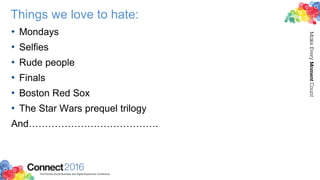
Big Hair from the 80s
Introduction to Plug-ins
• Terminology: Plug-ins, Features, Widgets
• Functionality: What can you do with Plug-ins?
• Developer Topics
 Development Tools: Eclipse
 Source Code: MANIFEST.MF, plugin.xml, Activator.java,
feature.xml, internationalization
• Administration Topics
 Deployment: Security (Policies), Widget Catalog, Site Database,
Third Party
Goals
• Introduce the concept of IBM Notes Plug-ins
• Demonstrate the Necessary Tools
• Create a Simple Plug-in
• Dissect the Files
• Discuss deployment options
• Resource List
Terminology
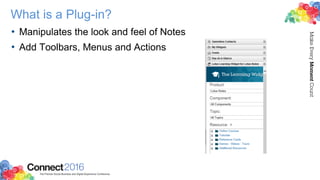
What is a Plug-in?
• Manipulates the look and feel of Notes
• Add Toolbars, Menus and Actions
Why a Plug-in?
• Written in Java
 Plenty of useful classes
 Reusable
 Object oriented
 Platform independent
• Call Native (DLL) files using JNI (Java Native Interface)
 Use the Lotus Notes API
What is a Widget?
• Tool that can consist of one or more components
• Provides functions to provision items to client systems
• App like component which delivers web like content based on
user or application input
• Can be used for a stand-alone feature by calling a feature
update site to initially deploy or later provision updates to a
client plug-in.
What is a Feature?
• Functionality that alters the look and feel of Notes
• Packages plug-ins for deployment
• Describes the plug-ins used
• Provides for versioning and licensing
Example Plug-ins
• Lotus Learn
• IBM Connections
• openntf
Development Tools
What do I need to begin?
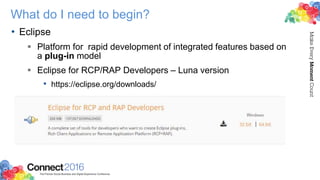
• Eclipse
 Platform for rapid development of integrated features based on
a plug-in model
 Eclipse for RCP/RAP Developers – Luna version
• https://eclipse.org/downloads/
Perspectives
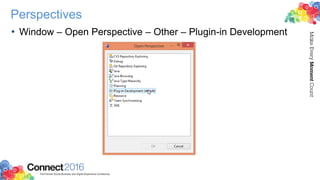
• Window – Open Perspective – Other – Plugin-in Development
How to Run Notes from Eclipse
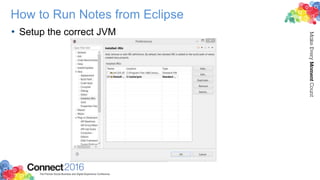
• Setup the correct JVM
How to Run Notes from Eclipse
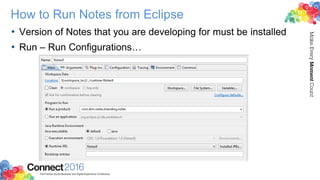
• Version of Notes that you are developing for must be installed
• Run – Run Configurations…
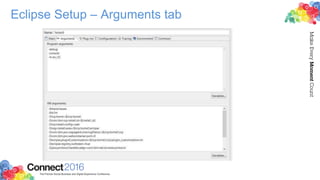
Eclipse Setup – Arguments tab
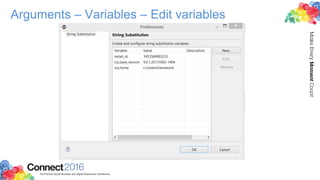
Arguments – Variables – Edit variables
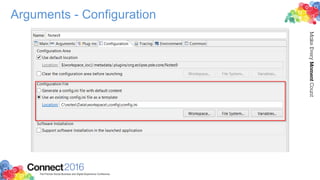
Arguments - Configuration
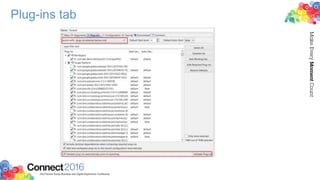
Plug-ins tab
Source Code
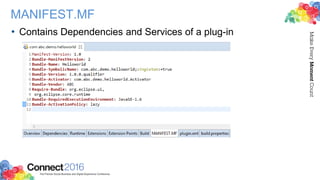
MANIFEST.MF
• Contains Dependencies and Services of a plug-in
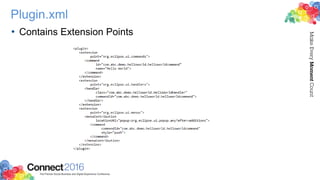
Plugin.xml
• Contains Extension Points
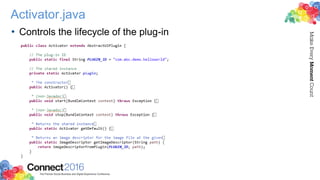
Activator.java
• Controls the lifecycle of the plug-in
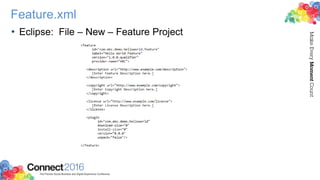
Feature.xml
• Eclipse: File – New – Feature Project
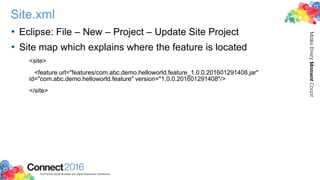
Site.xml
• Eclipse: File – New – Project – Update Site Project
• Site map which explains where the feature is located
<site>
<feature url="features/com.abc.demo.helloworld.feature_1.0.0.201601291408.jar"
id="com.abc.demo.helloworld.feature" version="1.0.0.201601291408"/>
</site>
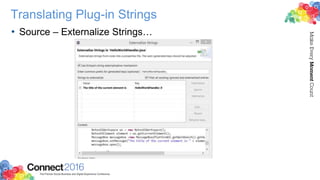
Translating Plug-in Strings
• Source – Externalize Strings…
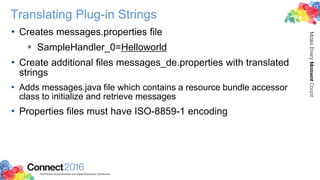
Translating Plug-in Strings
• Creates messages.properties file
 SampleHandler_0=Helloworld
• Create additional files messages_de.properties with translated
strings
• Adds messages.java file which contains a resource bundle accessor
class to initialize and retrieve messages
• Properties files must have ISO-8859-1 encoding
Demo Application
• Live presentation of building and running demo application
Deployment
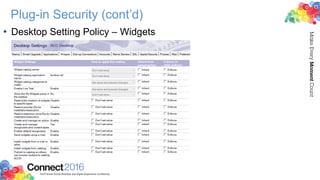
Plug-in Security (cont’d)
• Desktop Setting Policy – Widgets
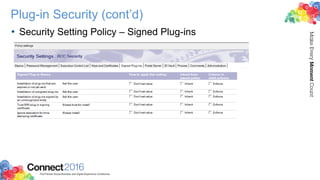
Plug-in Security (cont’d)
• Security Setting Policy – Signed Plug-ins
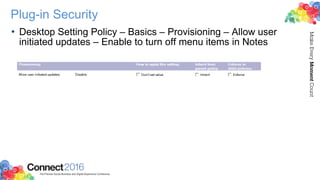
Plug-in Security
• Desktop Setting Policy – Basics – Provisioning – Allow user
initiated updates – Enable to turn off menu items in Notes
Deployment Steps
• Place the feature's valid Eclipse update site, containing the
signed features and plugins, in a central location
• Install or upgrade the server and client, create the widgets
catalog, and set widgets policy or preferences
• Create an NSF-based update site and import the Eclipse
update site
• Create the extension.xml that the widget will use to call the
feature's update site
Deployment steps (cont’d)
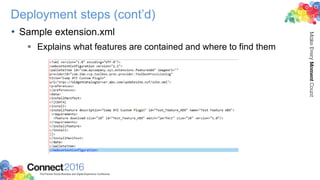
• Sample extension.xml
 Explains what features are contained and where to find them
Deployment steps (cont’d)
• Display the Widgets sidebar and verify or set catalog access
• Create the widget in the widgets catalog and attach its
extension.xml file to call the update site
• Test the widget by dragging it from the catalog view to your My
Widgets sidebar
• Communicate to users how to obtain the widget or inform them
that they will be automatically provisioned with the widget and
its feature
Deployment
• Update site template (ntf)
 Use this template to create an NSF-based update site to act as
an Eclipse update site hosted in a Notes application
• External update site (http)
Other Deployment Methods
• MSI Installer
• Third party tools (ClientGenie)
Resource List
• Eclipse.org
• IBM Redbook
• Tutorials Specific to Notes
• Internationalizing your plug-in
• Using JNI(Java Native Interface) to call C++ code
• Eclipse Notes Setup
Contact
• Teresa_deane@bcc.biz
• twitter: @teresa_deane
• www.bcchub.com
• Come see me in booth 435
Thank you
Acknowledgements and Disclaimers
Availability. References in this presentation to IBM products, programs, or services do not imply that they will be available in all countries in which IBM
operates.
The workshops, sessions and materials have been prepared by IBM or the session speakers and reflect their own views. They are provided for informational
purposes only, and are neither intended to, nor shall have the effect of being, legal or other guidance or advice to any participant. While efforts were made to
verify the completeness and accuracy of the information contained in this presentation, it is provided AS-IS without warranty of any kind, express or implied. IBM
shall not be responsible for any damages arising out of the use of, or otherwise related to, this presentation or any other materials. Nothing contained in this
presentation is intended to, nor shall have the effect of, creating any warranties or representations from IBM or its suppliers or licensors, or altering the terms
and conditions of the applicable license agreement governing the use of IBM software.
All customer examples described are presented as illustrations of how those customers have used IBM products and the results they may have achieved.
Actual environmental costs and performance characteristics may vary by customer. Nothing contained in these materials is intended to, nor shall have the effect
of, stating or implying that any activities undertaken by you will result in any specific sales, revenue growth or other results.
Acknowledgements and Disclaimers cont.
© © Copyright IBM Corporation 2016. All rights reserved.
• U.S. Government Users Restricted Rights - Use, duplication or disclosure restricted by GSA ADP Schedule Contract with IBM Corp.
• IBM, the IBM logo, ibm.com, and IBM Notes and IBM Connections are trademarks or registered trademarks of International Business Machines Corporation in
the United States, other countries, or both. If these and other IBM trademarked terms are marked on their first occurrence in this information with a trademark
symbol (® or ™), these symbols indicate U.S. registered or common law trademarks owned by IBM at the time this information was published. Such
trademarks may also be registered or common law trademarks in other countries. A current list of IBM trademarks is available on the Web at “Copyright and
trademark information” at www.ibm.com/legal/copytrade.shtml
• Eclipse is made available under the terms of the Eclipse Public License which is available at http://www.eclipse.org/legal/epl-v10.html
• ClientGenie is a registered trademark of BCC Unternehmensberatung GmbH, Frankfurter 80-82 Eschborn Germany
Other company, product, or service names may be trademarks or service marks of others.

IBM Connect 2016: Speaker Session with Teresa Deane, Senior Developer, BCC

  • 1.
    1283: My love-haterelationship with IBM Domino Plug-ins Teresa Deane Date – January 31, 2016
  • 2.
    Introduction • Veteran ofLotus, Iris, Groove, Microsoft, Teamstudio • Currently at BCC • Last spoke at LotuSphere 2000 • Expertise:  Notes C++ API  IBM Notes application development (forms and views)
  • 3.
    Things we loveto hate: • Mondays • Selfies • Rude people • Finals • Boston Red Sox • The Star Wars prequel trilogy And………………………………….
  • 4.
  • 5.
    Introduction to Plug-ins •Terminology: Plug-ins, Features, Widgets • Functionality: What can you do with Plug-ins? • Developer Topics  Development Tools: Eclipse  Source Code: MANIFEST.MF, plugin.xml, Activator.java, feature.xml, internationalization • Administration Topics  Deployment: Security (Policies), Widget Catalog, Site Database, Third Party
  • 6.
    Goals • Introduce theconcept of IBM Notes Plug-ins • Demonstrate the Necessary Tools • Create a Simple Plug-in • Dissect the Files • Discuss deployment options • Resource List
  • 7.
  • 8.
    What is aPlug-in? • Manipulates the look and feel of Notes • Add Toolbars, Menus and Actions
  • 9.
    Why a Plug-in? •Written in Java  Plenty of useful classes  Reusable  Object oriented  Platform independent • Call Native (DLL) files using JNI (Java Native Interface)  Use the Lotus Notes API
  • 10.
    What is aWidget? • Tool that can consist of one or more components • Provides functions to provision items to client systems • App like component which delivers web like content based on user or application input • Can be used for a stand-alone feature by calling a feature update site to initially deploy or later provision updates to a client plug-in.
  • 11.
    What is aFeature? • Functionality that alters the look and feel of Notes • Packages plug-ins for deployment • Describes the plug-ins used • Provides for versioning and licensing
  • 12.
    Example Plug-ins • LotusLearn • IBM Connections • openntf
  • 13.
  • 14.
    What do Ineed to begin? • Eclipse  Platform for rapid development of integrated features based on a plug-in model  Eclipse for RCP/RAP Developers – Luna version • https://eclipse.org/downloads/
  • 15.
    Perspectives • Window –Open Perspective – Other – Plugin-in Development
  • 16.
    How to RunNotes from Eclipse • Setup the correct JVM
  • 17.
    How to RunNotes from Eclipse • Version of Notes that you are developing for must be installed • Run – Run Configurations…
  • 18.
    Eclipse Setup –Arguments tab
  • 19.
    Arguments – Variables– Edit variables
  • 20.
  • 21.
  • 22.
  • 23.
    MANIFEST.MF • Contains Dependenciesand Services of a plug-in
  • 24.
  • 25.
    Activator.java • Controls thelifecycle of the plug-in
  • 26.
    Feature.xml • Eclipse: File– New – Feature Project
  • 27.
    Site.xml • Eclipse: File– New – Project – Update Site Project • Site map which explains where the feature is located <site> <feature url="features/com.abc.demo.helloworld.feature_1.0.0.201601291408.jar" id="com.abc.demo.helloworld.feature" version="1.0.0.201601291408"/> </site>
  • 28.
    Translating Plug-in Strings •Source – Externalize Strings…
  • 29.
    Translating Plug-in Strings •Creates messages.properties file  SampleHandler_0=Helloworld • Create additional files messages_de.properties with translated strings • Adds messages.java file which contains a resource bundle accessor class to initialize and retrieve messages • Properties files must have ISO-8859-1 encoding
  • 30.
    Demo Application • Livepresentation of building and running demo application
  • 31.
  • 32.
    Plug-in Security (cont’d) •Desktop Setting Policy – Widgets
  • 33.
    Plug-in Security (cont’d) •Security Setting Policy – Signed Plug-ins
  • 34.
    Plug-in Security • DesktopSetting Policy – Basics – Provisioning – Allow user initiated updates – Enable to turn off menu items in Notes
  • 35.
    Deployment Steps • Placethe feature's valid Eclipse update site, containing the signed features and plugins, in a central location • Install or upgrade the server and client, create the widgets catalog, and set widgets policy or preferences • Create an NSF-based update site and import the Eclipse update site • Create the extension.xml that the widget will use to call the feature's update site
  • 36.
    Deployment steps (cont’d) •Sample extension.xml  Explains what features are contained and where to find them
  • 37.
    Deployment steps (cont’d) •Display the Widgets sidebar and verify or set catalog access • Create the widget in the widgets catalog and attach its extension.xml file to call the update site • Test the widget by dragging it from the catalog view to your My Widgets sidebar • Communicate to users how to obtain the widget or inform them that they will be automatically provisioned with the widget and its feature
  • 38.
    Deployment • Update sitetemplate (ntf)  Use this template to create an NSF-based update site to act as an Eclipse update site hosted in a Notes application • External update site (http)
  • 39.
    Other Deployment Methods •MSI Installer • Third party tools (ClientGenie)
  • 40.
    Resource List • Eclipse.org •IBM Redbook • Tutorials Specific to Notes • Internationalizing your plug-in • Using JNI(Java Native Interface) to call C++ code • Eclipse Notes Setup
  • 41.
    Contact • Teresa_deane@bcc.biz • twitter:@teresa_deane • www.bcchub.com • Come see me in booth 435
  • 42.
  • 43.
    Acknowledgements and Disclaimers Availability.References in this presentation to IBM products, programs, or services do not imply that they will be available in all countries in which IBM operates. The workshops, sessions and materials have been prepared by IBM or the session speakers and reflect their own views. They are provided for informational purposes only, and are neither intended to, nor shall have the effect of being, legal or other guidance or advice to any participant. While efforts were made to verify the completeness and accuracy of the information contained in this presentation, it is provided AS-IS without warranty of any kind, express or implied. IBM shall not be responsible for any damages arising out of the use of, or otherwise related to, this presentation or any other materials. Nothing contained in this presentation is intended to, nor shall have the effect of, creating any warranties or representations from IBM or its suppliers or licensors, or altering the terms and conditions of the applicable license agreement governing the use of IBM software. All customer examples described are presented as illustrations of how those customers have used IBM products and the results they may have achieved. Actual environmental costs and performance characteristics may vary by customer. Nothing contained in these materials is intended to, nor shall have the effect of, stating or implying that any activities undertaken by you will result in any specific sales, revenue growth or other results.
  • 44.
    Acknowledgements and Disclaimerscont. © © Copyright IBM Corporation 2016. All rights reserved. • U.S. Government Users Restricted Rights - Use, duplication or disclosure restricted by GSA ADP Schedule Contract with IBM Corp. • IBM, the IBM logo, ibm.com, and IBM Notes and IBM Connections are trademarks or registered trademarks of International Business Machines Corporation in the United States, other countries, or both. If these and other IBM trademarked terms are marked on their first occurrence in this information with a trademark symbol (® or ™), these symbols indicate U.S. registered or common law trademarks owned by IBM at the time this information was published. Such trademarks may also be registered or common law trademarks in other countries. A current list of IBM trademarks is available on the Web at “Copyright and trademark information” at www.ibm.com/legal/copytrade.shtml • Eclipse is made available under the terms of the Eclipse Public License which is available at http://www.eclipse.org/legal/epl-v10.html • ClientGenie is a registered trademark of BCC Unternehmensberatung GmbH, Frankfurter 80-82 Eschborn Germany Other company, product, or service names may be trademarks or service marks of others.

Editor's Notes

  • #9 A plugin allows you to easily manipulate functionality in the Notes client by allowing you to add new functionality via tool bars menus and actions
  • #10 Plugin architechture is extensible, component based so you can do parallel development, open api, can apply good development practices
  • #11 App like component which deliver web like content based on user or application input For example, a widget can be used for a stand-alone feature by calling a feature update site to initially deploy or later provision updates to a client plug-in. 
  • #15 Speak about expeditor toolkit, client services application
  • #40 If you do not use policies, each client will have the Widgets UI (My Widgets sidebar panel, Widgets toolbar, and Tools > Widgets top-bar menus) turned off. After enabling the UI (File > Preferences > Widgets and checkmark the "Show Widget Toolbar and the My Widgets Sidebar panel option), each user has the freedom to create, email, publish and install widgets. To restrict users from doing these types of actions, you can use policies or plugin_customization.ini file settings.