Social Collaboration 39: "Vernetzte Informationswelt"
www.dnug.de
How I Learned To Stop Worrying And Love
Plugin Development
Heinz Ulrich Krause
BCC Unternehmensberatung GmbH
http://www.bcc.biz
IBM Client-Center, Zürich Altstetten, 13.11.2014
Social Collaboration 39: "Vernetzte Informationswelt“
www.dnug.de
• Administrator /Developer seit 1993
• Senior Software Architect bei BCC
• OpenNTF Contributor
• IBM Champion 2011/2012/2013/2014
• Blog http://www.eknori.de
• Notes Forum (http://www.atnotes.de)
Social Collaboration 39: "Vernetzte Informationswelt“
www.dnug.de
Agenda
• Types of Plugins
• What‘s All The Parts Needed ?
• Setup The Development Environment
• Run / Debug Configuration
• Build a simple Menue extension
• Build a Sidebar Plug-In
• Working with existing code
• Extension Points
• Deploy Plug-Ins
• Plug-In Security
Social Collaboration 39: "Vernetzte Informationswelt“
www.dnug.de
It‘s only one way of doing it …
And I know there's a few to
demonstrate the theory
Social Collaboration 39: "Vernetzte Informationswelt“
www.dnug.de
No animals were harmed
* during the making of
this presentation !
* That part comes, when you download the slides from http://slideshare.net
Social Collaboration 39: "Vernetzte Informationswelt“
www.dnug.de
Types of Plug-Ins
• Adding new items to a menue bar or a context
menue
• Display data in the Sidebar
– Ralf Petter: Document Spy: Admins little helper
http://www.everythingaboutit.eu/2014/08/document-spy-admins-little-
helper.html
• Execute code when the client starts, after the user
has logged in or when the client has shut down.
– Karsten Lehmann: Mindoo Xulrunner Prefs.js Management Plugin
http://www.openntf.org/main.nsf/project.xsp?r=project/Mindoo%20Xulrunner
%20Prefs.js%20Management%20Plugin/summary
ICON UK 2014 – Plugin Development
Download,
Install,
Configure
Social Collaboration 39: "Vernetzte Informationswelt“
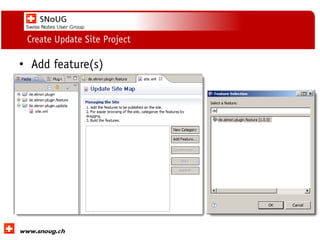
www.dnug.de
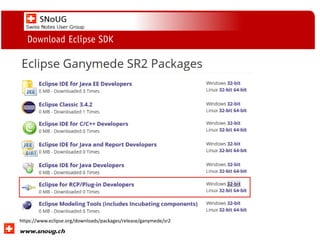
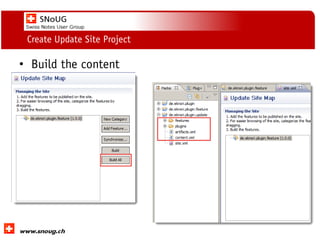
Download Eclipse SDK
https://www.eclipse.org/downloads/packages/release/ganymede/sr2
Social Collaboration 39: "Vernetzte Informationswelt“
www.dnug.de
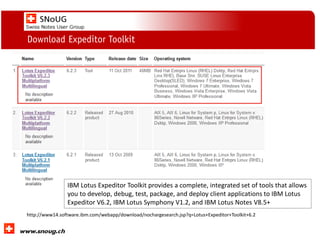
Download Expeditor Toolkit
IBM Lotus Expeditor Toolkit provides a complete, integrated set of tools that allows
you to develop, debug, test, package, and deploy client applications to IBM Lotus
Expeditor V6.2, IBM Lotus Symphony V1.2, and IBM Lotus Notes V8.5+
http://www14.software.ibm.com/webapp/download/nochargesearch.jsp?q=Lotus+Expeditor+Toolkit+6.2
Social Collaboration 39: "Vernetzte Informationswelt“
www.dnug.de
Unpack Eclipse and Expeditor
Social Collaboration 39: "Vernetzte Informationswelt“
www.dnug.de
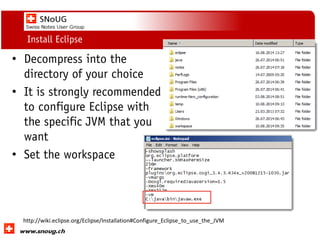
Install Eclipse
• Decompress into the
directory of your choice
• It is strongly recommended
to configure Eclipse with
the specific JVM that you
want
• Set the workspace
http://wiki.eclipse.org/Eclipse/Installation#Configure_Eclipse_to_use_the_JVM
Social Collaboration 39: "Vernetzte Informationswelt“
www.dnug.de
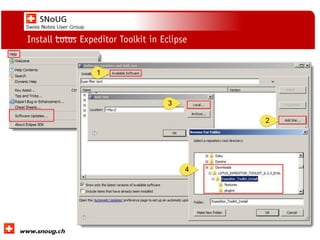
Install Lotus Expeditor Toolkit in Eclipse
Social Collaboration 39: "Vernetzte Informationswelt“
www.dnug.de
Configure Expeditor Toolkit
• Configure Test Environment
Social Collaboration 39: "Vernetzte Informationswelt“
www.dnug.de
Configure Expeditor Toolkit
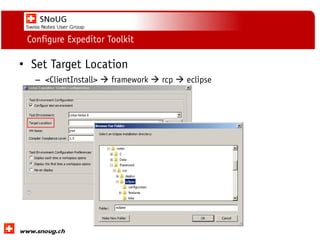
• Set Target Location
– <ClientInstall>  framework  rcp  eclipse
Social Collaboration 39: "Vernetzte Informationswelt“
www.dnug.de
Configure Expeditor Toolkit
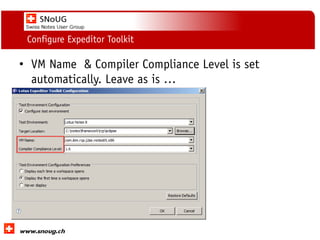
• VM Name & Compiler Compliance Level is set
automatically. Leave as is …
Social Collaboration 39: "Vernetzte Informationswelt“
www.dnug.de
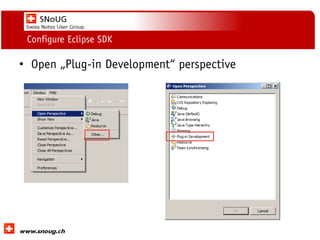
Configure Eclipse SDK
• Open „Plug-in Development“ perspective
Social Collaboration 39: "Vernetzte Informationswelt“
www.dnug.de
Configure Eclipse SDK
• Create Run Configuration(s)
Social Collaboration 39: "Vernetzte Informationswelt“
www.dnug.de
Create RunConfiguration / Main
Social Collaboration 39: "Vernetzte Informationswelt“
www.dnug.de
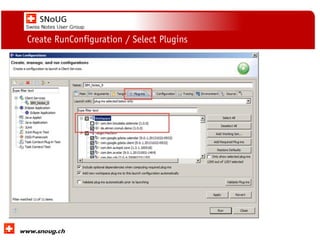
Create RunConfiguration / Select Plugins
ICON UK 2014 – Plugin Development
Build Your
First Plugin
Social Collaboration 39: "Vernetzte Informationswelt“
www.dnug.de
Create A Simple Menue Plugin
• Add a new menue
• Add a new menue entry
• Display a message
Social Collaboration 39: "Vernetzte Informationswelt“
www.dnug.de
Create A New Plug-In Project
• Alt + Shift + n
Social Collaboration 39: "Vernetzte Informationswelt“
www.dnug.de
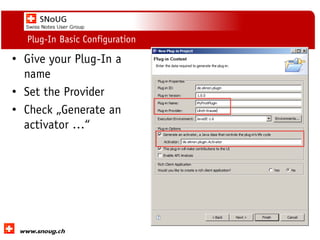
Plug-In Basic Configuration
• Give your Plug-In a
name
• Set the Provider
• Check „Generate an
activator …“
Social Collaboration 39: "Vernetzte Informationswelt“
www.dnug.de
Create From Template
• Select a template
Social Collaboration 39: "Vernetzte Informationswelt“
www.dnug.de
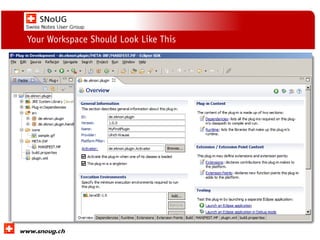
Your Workspace Should Look Like This
Social Collaboration 39: "Vernetzte Informationswelt“
www.dnug.de
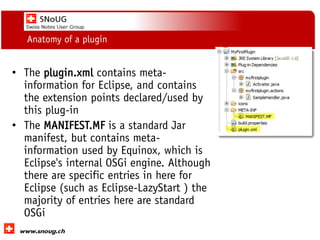
Anatomy of a plugin
• The plugin.xml contains meta-
information for Eclipse, and contains
the extension points declared/used by
this plug-in
• The MANIFEST.MF is a standard Jar
manifest, but contains meta-
information used by Equinox, which is
Eclipse's internal OSGi engine. Although
there are specific entries in here for
Eclipse (such as Eclipse-LazyStart ) the
majority of entries here are standard
OSGi
Social Collaboration 39: "Vernetzte Informationswelt“
www.dnug.de
Anatomy of a plugin
• The Activator is run when your plug-in
starts, and before any other code that's
defined in your bundle is used. You can
use this to initialise data structures,
start listening to network sockets etc.
It's also got a call when Eclipse shuts
down
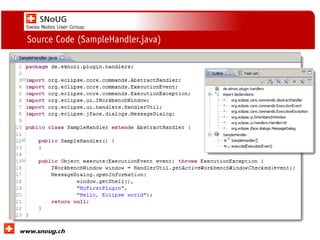
• Last (but not least), the SampleHandler
, which just prints out "Hello,
ConnectSCOTT2015" when you click
on the little blue Eclipse icon in the
toolbar.
Social Collaboration 39: "Vernetzte Informationswelt“
www.dnug.de
Source Code (SampleHandler.java)
Social Collaboration 39: "Vernetzte Informationswelt“
www.dnug.de
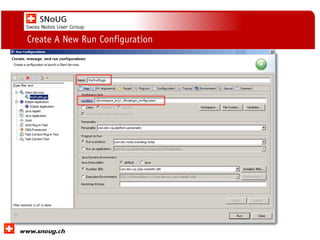
Create A New Run Configuration
Social Collaboration 39: "Vernetzte Informationswelt“
www.dnug.de
Create A New Run Configuration
Social Collaboration 39: "Vernetzte Informationswelt“
www.dnug.de
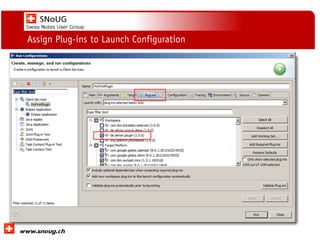
Assign Plug-ins to Launch Configuration
Social Collaboration 39: "Vernetzte Informationswelt“
www.dnug.de
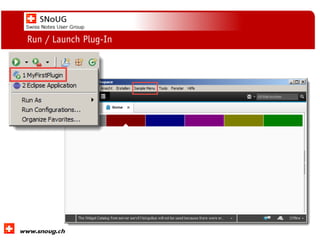
Run / Launch Plug-In
Social Collaboration 39: "Vernetzte Informationswelt“
www.dnug.de
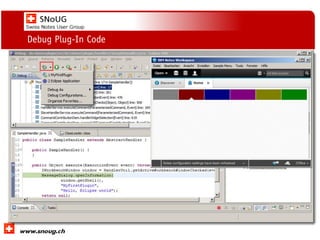
Debug Plug-In Code
ICON UK 2014 – Plugin Development
Create A
Sidebar
Plug-In
Social Collaboration 39: "Vernetzte Informationswelt“
www.dnug.de
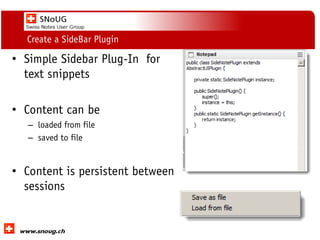
Create a SideBar Plugin
• Simple Sidebar Plug-In for
text snippets
• Content can be
– loaded from file
– saved to file
• Content is persistent between
sessions
Social Collaboration 39: "Vernetzte Informationswelt“
www.dnug.de
Create A Sidebar Plugin (cont)
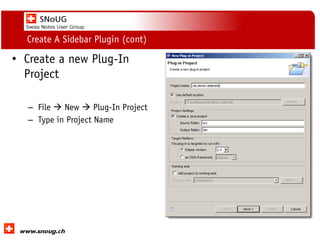
• Create a new Plug-In
Project
– File  New  Plug-In Project
– Type in Project Name
Social Collaboration 39: "Vernetzte Informationswelt“
www.dnug.de
Create A Sidebar Plugin (cont)
• Check „Generate An
Activator“
• Leave Defaults or set it to
a name of your choice.
• Depaends on how you
organize your code
• Click NEXT to use a wizard,
or FINISH to go do the
heavy lifting on your own
Social Collaboration 39: "Vernetzte Informationswelt“
www.dnug.de
Create A Sidebar Plugin (cont)
• Your project will look similar to the screenshot;
Extension section is empty
Social Collaboration 39: "Vernetzte Informationswelt“
www.dnug.de
Create A Sidebar Plugin (cont)
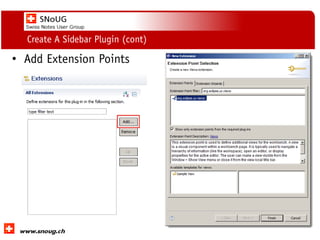
• Add Extension Points
Social Collaboration 39: "Vernetzte Informationswelt“
www.dnug.de
Create A Sidebar Plugin (cont)
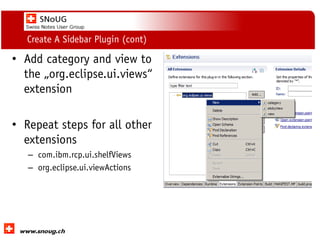
• Add category and view to
the „org.eclipse.ui.views“
extension
• Repeat steps for all other
extensions
– com.ibm.rcp.ui.shelfViews
– org.eclipse.ui.viewActions
Social Collaboration 39: "Vernetzte Informationswelt“
www.dnug.de
Create A Sidebar Plugin (cont)
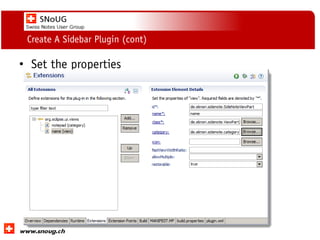
• Set the properties
Social Collaboration 39: "Vernetzte Informationswelt“
www.dnug.de
Create A Sidebar Plugin (cont)
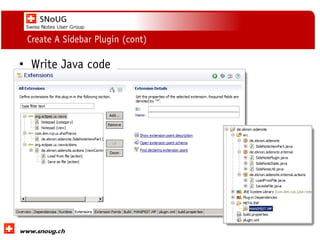
• Write Java code
ICON UK 2014 – Plugin Development
Working
With
Existing
Projects
Social Collaboration 39: "Vernetzte Informationswelt“
www.dnug.de
Working with existing projects
Social Collaboration 39: "Vernetzte Informationswelt“
www.dnug.de
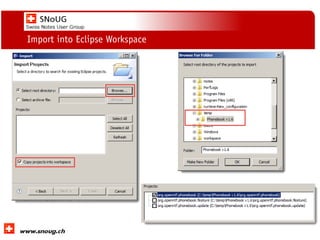
Import into Eclipse Workspace
Social Collaboration 39: "Vernetzte Informationswelt“
www.dnug.de
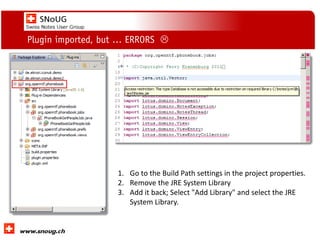
Plugin imported, but … ERRORS 
1. Go to the Build Path settings in the project properties.
2. Remove the JRE System Library
3. Add it back; Select "Add Library" and select the JRE
System Library.
ICON UK 2014 – Plugin Development
Extension
Points
Social Collaboration 39: "Vernetzte Informationswelt“
www.dnug.de
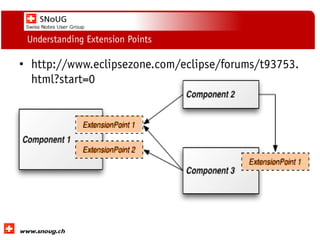
Understanding Extension Points
• http://www.eclipsezone.com/eclipse/forums/t93753.
html?start=0
Social Collaboration 39: "Vernetzte Informationswelt“
www.dnug.de
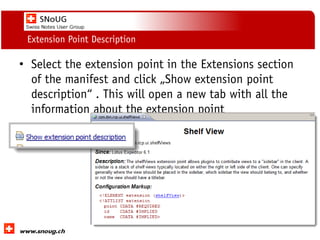
Extension Point Description
• Select the extension point in the Extensions section
of the manifest and click „Show extension point
description“ . This will open a new tab with all the
information about the extension point
ICON UK 2014 – Plugin Development
Plug-In
Provisioning
Social Collaboration 39: "Vernetzte Informationswelt“
www.dnug.de
Plug-In Provisioning Prerequisites
• Before we can install / deploy our plugin, we have to
do some additional work
– Create Feature Project
– Create Update Site Project
– Build Update Site content
Social Collaboration 39: "Vernetzte Informationswelt“
www.dnug.de
Create a new feature project
• An Eclipse feature project
contains features. A
feature describes a list of
plug-ins and other features
which can be understood
as a logical unit. It also
has a name, version
number and license
information assigned to it.
• A feature is described via a
feature.xml file
File  New  Feature Project
Social Collaboration 39: "Vernetzte Informationswelt“
www.dnug.de
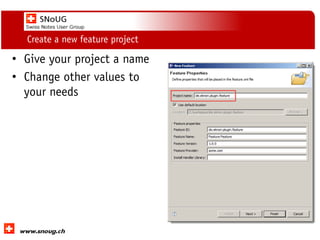
Create a new feature project
• Give your project a name
• Change other values to
your needs
Social Collaboration 39: "Vernetzte Informationswelt“
www.dnug.de
Create a new feature project
• Select the plug-in(s) from
the list.
• You can type in the name
to easily navigate to the
plug-in.
• Click Finish and Eclipse
will create the feature
project.
Social Collaboration 39: "Vernetzte Informationswelt“
www.dnug.de
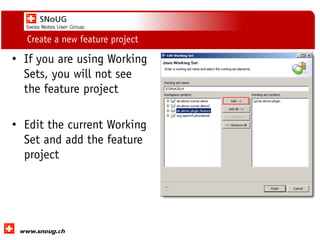
Create a new feature project
• If you are using Working
Sets, you will not see
the feature project
• Edit the current Working
Set and add the feature
project
Social Collaboration 39: "Vernetzte Informationswelt“
www.dnug.de
Your Workspace Should Look Like This
Social Collaboration 39: "Vernetzte Informationswelt“
www.dnug.de
Create Update Site Project
• The Update Site contains
feature and plug-in
versions for Eclipse project
releases.
Social Collaboration 39: "Vernetzte Informationswelt“
www.dnug.de
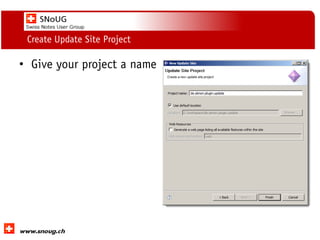
Create Update Site Project
• Give your project a name
Social Collaboration 39: "Vernetzte Informationswelt“
www.dnug.de
Create Update Site Project
• Add feature(s)
Social Collaboration 39: "Vernetzte Informationswelt“
www.dnug.de
Create Update Site Project
• Build the content
Social Collaboration 39: "Vernetzte Informationswelt“
www.dnug.de
Deploying Plugins
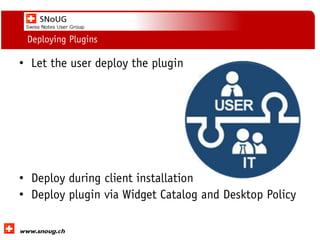
• Let the user deploy the plugin
• Deploy during client installation
• Deploy plugin via Widget Catalog and Desktop Policy
Social Collaboration 39: "Vernetzte Informationswelt“
www.dnug.de
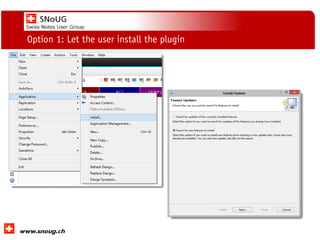
Option 1: Let the user install the plugin
Social Collaboration 39: "Vernetzte Informationswelt“
www.dnug.de
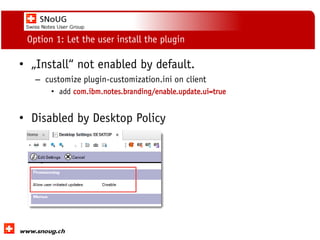
Option 1: Let the user install the plugin
• „Install“ not enabled by default.
– customize plugin-customization.ini on client
• add com.ibm.notes.branding/enable.update.ui=true
• Disabled by Desktop Policy
Social Collaboration 39: "Vernetzte Informationswelt“
www.dnug.de
Option 1: Let the user install the plugin
Social Collaboration 39: "Vernetzte Informationswelt“
www.dnug.de
Option 2: Deploy during client installation
• Customizing Notes install for features and plug-ins
on Windows and Mac *
*
Social Collaboration 39: "Vernetzte Informationswelt“
www.dnug.de
Option 2: Deploy during client installation
Social Collaboration 39: "Vernetzte Informationswelt“
www.dnug.de
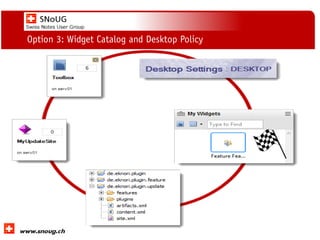
Option 3: Widget Catalog and Desktop Policy
Social Collaboration 39: "Vernetzte Informationswelt“
www.dnug.de
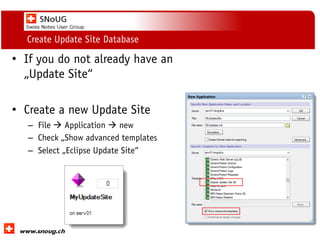
Create Update Site Database
• If you do not already have an
„Update Site“
• Create a new Update Site
– File  Application  new
– Check „Show advanced templates
– Select „Eclipse Update Site“
Social Collaboration 39: "Vernetzte Informationswelt“
www.dnug.de
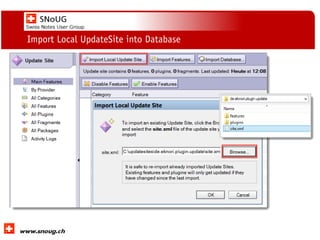
Import Local UpdateSite into Database
Social Collaboration 39: "Vernetzte Informationswelt“
www.dnug.de
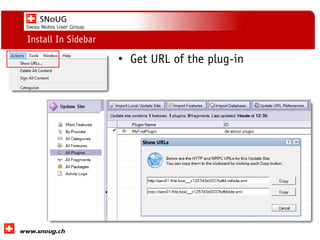
Install In Sidebar
• Get URL of the plug-in
Social Collaboration 39: "Vernetzte Informationswelt“
www.dnug.de
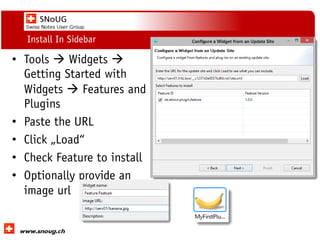
Install In Sidebar
• Tools  Widgets 
Getting Started with
Widgets  Features and
Plugins
• Paste the URL
• Click „Load“
• Check Feature to install
• Optionally provide an
image url
Social Collaboration 39: "Vernetzte Informationswelt“
www.dnug.de
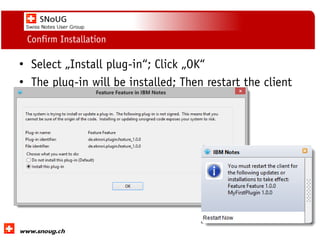
Confirm Installation
• Select „Install plug-in“; Click „OK“
• The plug-in will be installed; Then restart the client
Social Collaboration 39: "Vernetzte Informationswelt“
www.dnug.de
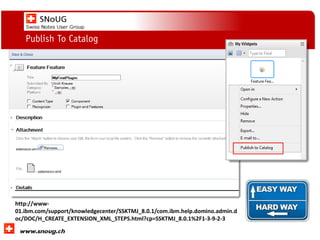
Publish To Catalog
http://www-
01.ibm.com/support/knowledgecenter/SSKTMJ_8.0.1/com.ibm.help.domino.admin.d
oc/DOC/H_CREATE_EXTENSION_XML_STEPS.html?cp=SSKTMJ_8.0.1%2F1-3-9-2-3
Social Collaboration 39: "Vernetzte Informationswelt“
www.dnug.de
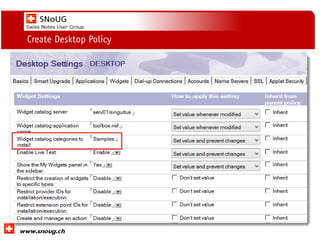
Create Desktop Policy
Social Collaboration 39: "Vernetzte Informationswelt“
www.dnug.de
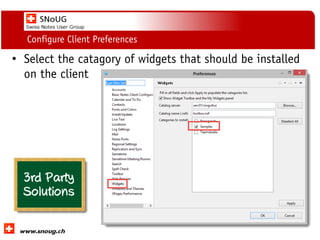
Configure Client Preferences
• Select the catagory of widgets that should be installed
on the client
Social Collaboration 39: "Vernetzte Informationswelt“
www.dnug.de
Option 3: Widget Catalog and Desktop Policy
Social Collaboration 39: "Vernetzte Informationswelt“
www.dnug.de
Sign Plugins
• End-to-End HOWTO guide for silently and
transparently provisioning and installing
Java extensions to Notes 8.5.1+ clients
using policies (Mikkel Heisterberg)
– http://lekkimworld.com/files/nllug/2009/demoscript_engl
ish_031120091142.pdf
• EntwicklerCamp 2011 - Signierung &
Verteilung von Plugins für den Notes Client
(René Winkelmeyer)
– Link
Social Collaboration 39: "Vernetzte Informationswelt“
www.dnug.de
Feedback gern auch per Email
ulrich_krause@bcc.biz
Fragen?
Social Collaboration 39: "Vernetzte Informationswelt“
www.dnug.de

Dr. Strangelove, or how I learned to love plug-in development - SNoUG 2014

  • 1.
    Social Collaboration 39:"Vernetzte Informationswelt" www.dnug.de How I Learned To Stop Worrying And Love Plugin Development Heinz Ulrich Krause BCC Unternehmensberatung GmbH http://www.bcc.biz IBM Client-Center, Zürich Altstetten, 13.11.2014
  • 2.
    Social Collaboration 39:"Vernetzte Informationswelt“ www.dnug.de • Administrator /Developer seit 1993 • Senior Software Architect bei BCC • OpenNTF Contributor • IBM Champion 2011/2012/2013/2014 • Blog http://www.eknori.de • Notes Forum (http://www.atnotes.de)
  • 3.
    Social Collaboration 39:"Vernetzte Informationswelt“ www.dnug.de Agenda • Types of Plugins • What‘s All The Parts Needed ? • Setup The Development Environment • Run / Debug Configuration • Build a simple Menue extension • Build a Sidebar Plug-In • Working with existing code • Extension Points • Deploy Plug-Ins • Plug-In Security
  • 4.
    Social Collaboration 39:"Vernetzte Informationswelt“ www.dnug.de It‘s only one way of doing it … And I know there's a few to demonstrate the theory
  • 5.
    Social Collaboration 39:"Vernetzte Informationswelt“ www.dnug.de No animals were harmed * during the making of this presentation ! * That part comes, when you download the slides from http://slideshare.net
  • 6.
    Social Collaboration 39:"Vernetzte Informationswelt“ www.dnug.de Types of Plug-Ins • Adding new items to a menue bar or a context menue • Display data in the Sidebar – Ralf Petter: Document Spy: Admins little helper http://www.everythingaboutit.eu/2014/08/document-spy-admins-little- helper.html • Execute code when the client starts, after the user has logged in or when the client has shut down. – Karsten Lehmann: Mindoo Xulrunner Prefs.js Management Plugin http://www.openntf.org/main.nsf/project.xsp?r=project/Mindoo%20Xulrunner %20Prefs.js%20Management%20Plugin/summary
  • 7.
    ICON UK 2014– Plugin Development Download, Install, Configure
  • 8.
    Social Collaboration 39:"Vernetzte Informationswelt“ www.dnug.de Download Eclipse SDK https://www.eclipse.org/downloads/packages/release/ganymede/sr2
  • 9.
    Social Collaboration 39:"Vernetzte Informationswelt“ www.dnug.de Download Expeditor Toolkit IBM Lotus Expeditor Toolkit provides a complete, integrated set of tools that allows you to develop, debug, test, package, and deploy client applications to IBM Lotus Expeditor V6.2, IBM Lotus Symphony V1.2, and IBM Lotus Notes V8.5+ http://www14.software.ibm.com/webapp/download/nochargesearch.jsp?q=Lotus+Expeditor+Toolkit+6.2
  • 10.
    Social Collaboration 39:"Vernetzte Informationswelt“ www.dnug.de Unpack Eclipse and Expeditor
  • 11.
    Social Collaboration 39:"Vernetzte Informationswelt“ www.dnug.de Install Eclipse • Decompress into the directory of your choice • It is strongly recommended to configure Eclipse with the specific JVM that you want • Set the workspace http://wiki.eclipse.org/Eclipse/Installation#Configure_Eclipse_to_use_the_JVM
  • 12.
    Social Collaboration 39:"Vernetzte Informationswelt“ www.dnug.de Install Lotus Expeditor Toolkit in Eclipse
  • 13.
    Social Collaboration 39:"Vernetzte Informationswelt“ www.dnug.de Configure Expeditor Toolkit • Configure Test Environment
  • 14.
    Social Collaboration 39:"Vernetzte Informationswelt“ www.dnug.de Configure Expeditor Toolkit • Set Target Location – <ClientInstall>  framework  rcp  eclipse
  • 15.
    Social Collaboration 39:"Vernetzte Informationswelt“ www.dnug.de Configure Expeditor Toolkit • VM Name & Compiler Compliance Level is set automatically. Leave as is …
  • 16.
    Social Collaboration 39:"Vernetzte Informationswelt“ www.dnug.de Configure Eclipse SDK • Open „Plug-in Development“ perspective
  • 17.
    Social Collaboration 39:"Vernetzte Informationswelt“ www.dnug.de Configure Eclipse SDK • Create Run Configuration(s)
  • 18.
    Social Collaboration 39:"Vernetzte Informationswelt“ www.dnug.de Create RunConfiguration / Main
  • 19.
    Social Collaboration 39:"Vernetzte Informationswelt“ www.dnug.de Create RunConfiguration / Select Plugins
  • 20.
    ICON UK 2014– Plugin Development Build Your First Plugin
  • 21.
    Social Collaboration 39:"Vernetzte Informationswelt“ www.dnug.de Create A Simple Menue Plugin • Add a new menue • Add a new menue entry • Display a message
  • 22.
    Social Collaboration 39:"Vernetzte Informationswelt“ www.dnug.de Create A New Plug-In Project • Alt + Shift + n
  • 23.
    Social Collaboration 39:"Vernetzte Informationswelt“ www.dnug.de Plug-In Basic Configuration • Give your Plug-In a name • Set the Provider • Check „Generate an activator …“
  • 24.
    Social Collaboration 39:"Vernetzte Informationswelt“ www.dnug.de Create From Template • Select a template
  • 25.
    Social Collaboration 39:"Vernetzte Informationswelt“ www.dnug.de Your Workspace Should Look Like This
  • 26.
    Social Collaboration 39:"Vernetzte Informationswelt“ www.dnug.de Anatomy of a plugin • The plugin.xml contains meta- information for Eclipse, and contains the extension points declared/used by this plug-in • The MANIFEST.MF is a standard Jar manifest, but contains meta- information used by Equinox, which is Eclipse's internal OSGi engine. Although there are specific entries in here for Eclipse (such as Eclipse-LazyStart ) the majority of entries here are standard OSGi
  • 27.
    Social Collaboration 39:"Vernetzte Informationswelt“ www.dnug.de Anatomy of a plugin • The Activator is run when your plug-in starts, and before any other code that's defined in your bundle is used. You can use this to initialise data structures, start listening to network sockets etc. It's also got a call when Eclipse shuts down • Last (but not least), the SampleHandler , which just prints out "Hello, ConnectSCOTT2015" when you click on the little blue Eclipse icon in the toolbar.
  • 28.
    Social Collaboration 39:"Vernetzte Informationswelt“ www.dnug.de Source Code (SampleHandler.java)
  • 29.
    Social Collaboration 39:"Vernetzte Informationswelt“ www.dnug.de Create A New Run Configuration
  • 30.
    Social Collaboration 39:"Vernetzte Informationswelt“ www.dnug.de Create A New Run Configuration
  • 31.
    Social Collaboration 39:"Vernetzte Informationswelt“ www.dnug.de Assign Plug-ins to Launch Configuration
  • 32.
    Social Collaboration 39:"Vernetzte Informationswelt“ www.dnug.de Run / Launch Plug-In
  • 33.
    Social Collaboration 39:"Vernetzte Informationswelt“ www.dnug.de Debug Plug-In Code
  • 34.
    ICON UK 2014– Plugin Development Create A Sidebar Plug-In
  • 35.
    Social Collaboration 39:"Vernetzte Informationswelt“ www.dnug.de Create a SideBar Plugin • Simple Sidebar Plug-In for text snippets • Content can be – loaded from file – saved to file • Content is persistent between sessions
  • 36.
    Social Collaboration 39:"Vernetzte Informationswelt“ www.dnug.de Create A Sidebar Plugin (cont) • Create a new Plug-In Project – File  New  Plug-In Project – Type in Project Name
  • 37.
    Social Collaboration 39:"Vernetzte Informationswelt“ www.dnug.de Create A Sidebar Plugin (cont) • Check „Generate An Activator“ • Leave Defaults or set it to a name of your choice. • Depaends on how you organize your code • Click NEXT to use a wizard, or FINISH to go do the heavy lifting on your own
  • 38.
    Social Collaboration 39:"Vernetzte Informationswelt“ www.dnug.de Create A Sidebar Plugin (cont) • Your project will look similar to the screenshot; Extension section is empty
  • 39.
    Social Collaboration 39:"Vernetzte Informationswelt“ www.dnug.de Create A Sidebar Plugin (cont) • Add Extension Points
  • 40.
    Social Collaboration 39:"Vernetzte Informationswelt“ www.dnug.de Create A Sidebar Plugin (cont) • Add category and view to the „org.eclipse.ui.views“ extension • Repeat steps for all other extensions – com.ibm.rcp.ui.shelfViews – org.eclipse.ui.viewActions
  • 41.
    Social Collaboration 39:"Vernetzte Informationswelt“ www.dnug.de Create A Sidebar Plugin (cont) • Set the properties
  • 42.
    Social Collaboration 39:"Vernetzte Informationswelt“ www.dnug.de Create A Sidebar Plugin (cont) • Write Java code
  • 43.
    ICON UK 2014– Plugin Development Working With Existing Projects
  • 44.
    Social Collaboration 39:"Vernetzte Informationswelt“ www.dnug.de Working with existing projects
  • 45.
    Social Collaboration 39:"Vernetzte Informationswelt“ www.dnug.de Import into Eclipse Workspace
  • 46.
    Social Collaboration 39:"Vernetzte Informationswelt“ www.dnug.de Plugin imported, but … ERRORS  1. Go to the Build Path settings in the project properties. 2. Remove the JRE System Library 3. Add it back; Select "Add Library" and select the JRE System Library.
  • 47.
    ICON UK 2014– Plugin Development Extension Points
  • 48.
    Social Collaboration 39:"Vernetzte Informationswelt“ www.dnug.de Understanding Extension Points • http://www.eclipsezone.com/eclipse/forums/t93753. html?start=0
  • 49.
    Social Collaboration 39:"Vernetzte Informationswelt“ www.dnug.de Extension Point Description • Select the extension point in the Extensions section of the manifest and click „Show extension point description“ . This will open a new tab with all the information about the extension point
  • 50.
    ICON UK 2014– Plugin Development Plug-In Provisioning
  • 51.
    Social Collaboration 39:"Vernetzte Informationswelt“ www.dnug.de Plug-In Provisioning Prerequisites • Before we can install / deploy our plugin, we have to do some additional work – Create Feature Project – Create Update Site Project – Build Update Site content
  • 52.
    Social Collaboration 39:"Vernetzte Informationswelt“ www.dnug.de Create a new feature project • An Eclipse feature project contains features. A feature describes a list of plug-ins and other features which can be understood as a logical unit. It also has a name, version number and license information assigned to it. • A feature is described via a feature.xml file File  New  Feature Project
  • 53.
    Social Collaboration 39:"Vernetzte Informationswelt“ www.dnug.de Create a new feature project • Give your project a name • Change other values to your needs
  • 54.
    Social Collaboration 39:"Vernetzte Informationswelt“ www.dnug.de Create a new feature project • Select the plug-in(s) from the list. • You can type in the name to easily navigate to the plug-in. • Click Finish and Eclipse will create the feature project.
  • 55.
    Social Collaboration 39:"Vernetzte Informationswelt“ www.dnug.de Create a new feature project • If you are using Working Sets, you will not see the feature project • Edit the current Working Set and add the feature project
  • 56.
    Social Collaboration 39:"Vernetzte Informationswelt“ www.dnug.de Your Workspace Should Look Like This
  • 57.
    Social Collaboration 39:"Vernetzte Informationswelt“ www.dnug.de Create Update Site Project • The Update Site contains feature and plug-in versions for Eclipse project releases.
  • 58.
    Social Collaboration 39:"Vernetzte Informationswelt“ www.dnug.de Create Update Site Project • Give your project a name
  • 59.
    Social Collaboration 39:"Vernetzte Informationswelt“ www.dnug.de Create Update Site Project • Add feature(s)
  • 60.
    Social Collaboration 39:"Vernetzte Informationswelt“ www.dnug.de Create Update Site Project • Build the content
  • 61.
    Social Collaboration 39:"Vernetzte Informationswelt“ www.dnug.de Deploying Plugins • Let the user deploy the plugin • Deploy during client installation • Deploy plugin via Widget Catalog and Desktop Policy
  • 62.
    Social Collaboration 39:"Vernetzte Informationswelt“ www.dnug.de Option 1: Let the user install the plugin
  • 63.
    Social Collaboration 39:"Vernetzte Informationswelt“ www.dnug.de Option 1: Let the user install the plugin • „Install“ not enabled by default. – customize plugin-customization.ini on client • add com.ibm.notes.branding/enable.update.ui=true • Disabled by Desktop Policy
  • 64.
    Social Collaboration 39:"Vernetzte Informationswelt“ www.dnug.de Option 1: Let the user install the plugin
  • 65.
    Social Collaboration 39:"Vernetzte Informationswelt“ www.dnug.de Option 2: Deploy during client installation • Customizing Notes install for features and plug-ins on Windows and Mac * *
  • 66.
    Social Collaboration 39:"Vernetzte Informationswelt“ www.dnug.de Option 2: Deploy during client installation
  • 67.
    Social Collaboration 39:"Vernetzte Informationswelt“ www.dnug.de Option 3: Widget Catalog and Desktop Policy
  • 68.
    Social Collaboration 39:"Vernetzte Informationswelt“ www.dnug.de Create Update Site Database • If you do not already have an „Update Site“ • Create a new Update Site – File  Application  new – Check „Show advanced templates – Select „Eclipse Update Site“
  • 69.
    Social Collaboration 39:"Vernetzte Informationswelt“ www.dnug.de Import Local UpdateSite into Database
  • 70.
    Social Collaboration 39:"Vernetzte Informationswelt“ www.dnug.de Install In Sidebar • Get URL of the plug-in
  • 71.
    Social Collaboration 39:"Vernetzte Informationswelt“ www.dnug.de Install In Sidebar • Tools  Widgets  Getting Started with Widgets  Features and Plugins • Paste the URL • Click „Load“ • Check Feature to install • Optionally provide an image url
  • 72.
    Social Collaboration 39:"Vernetzte Informationswelt“ www.dnug.de Confirm Installation • Select „Install plug-in“; Click „OK“ • The plug-in will be installed; Then restart the client
  • 73.
    Social Collaboration 39:"Vernetzte Informationswelt“ www.dnug.de Publish To Catalog http://www- 01.ibm.com/support/knowledgecenter/SSKTMJ_8.0.1/com.ibm.help.domino.admin.d oc/DOC/H_CREATE_EXTENSION_XML_STEPS.html?cp=SSKTMJ_8.0.1%2F1-3-9-2-3
  • 74.
    Social Collaboration 39:"Vernetzte Informationswelt“ www.dnug.de Create Desktop Policy
  • 75.
    Social Collaboration 39:"Vernetzte Informationswelt“ www.dnug.de Configure Client Preferences • Select the catagory of widgets that should be installed on the client
  • 76.
    Social Collaboration 39:"Vernetzte Informationswelt“ www.dnug.de Option 3: Widget Catalog and Desktop Policy
  • 77.
    Social Collaboration 39:"Vernetzte Informationswelt“ www.dnug.de Sign Plugins • End-to-End HOWTO guide for silently and transparently provisioning and installing Java extensions to Notes 8.5.1+ clients using policies (Mikkel Heisterberg) – http://lekkimworld.com/files/nllug/2009/demoscript_engl ish_031120091142.pdf • EntwicklerCamp 2011 - Signierung & Verteilung von Plugins für den Notes Client (René Winkelmeyer) – Link
  • 78.
    Social Collaboration 39:"Vernetzte Informationswelt“ www.dnug.de Feedback gern auch per Email ulrich_krause@bcc.biz Fragen?
  • 79.
    Social Collaboration 39:"Vernetzte Informationswelt“ www.dnug.de