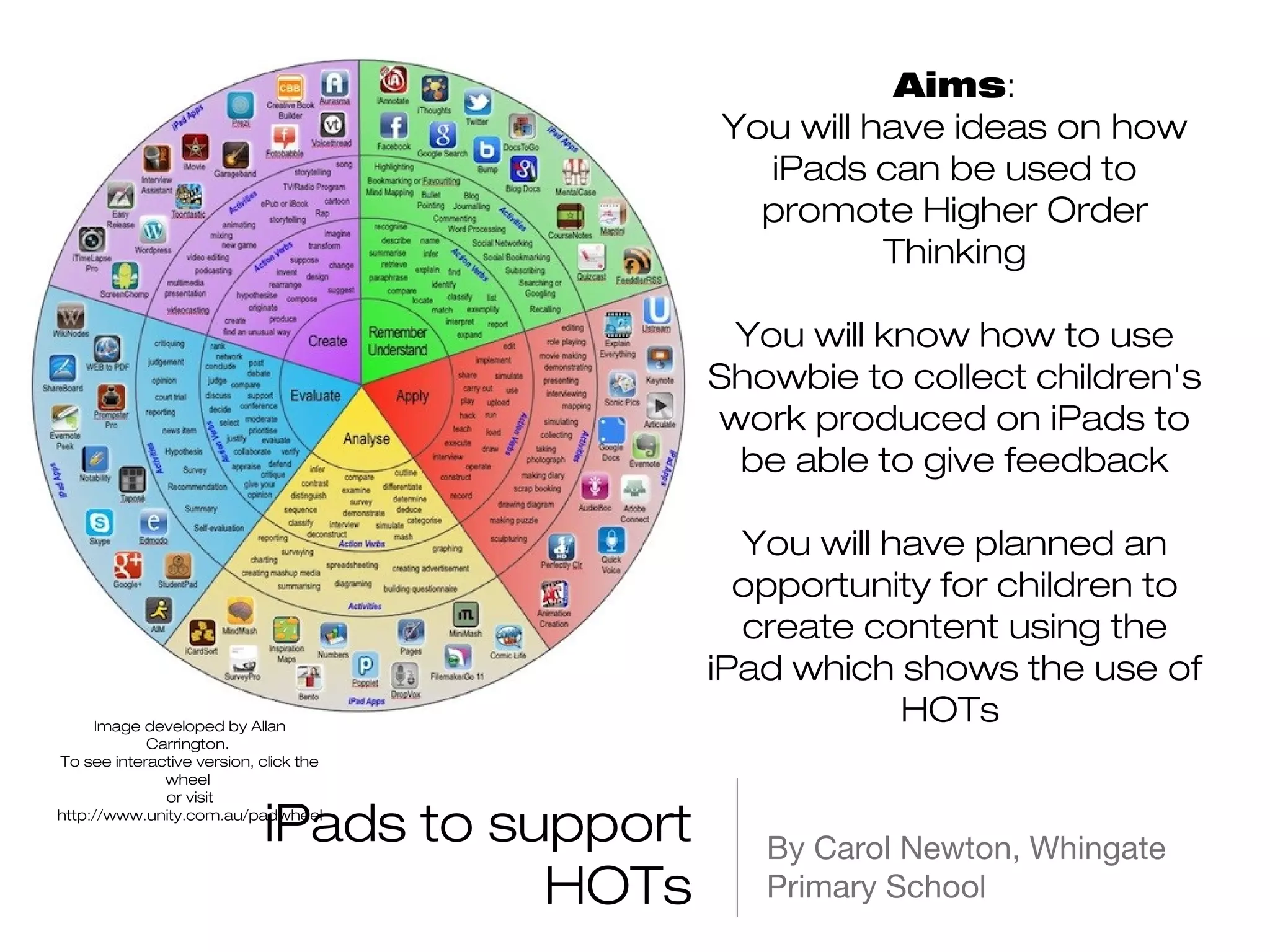
Aims:
                                               You will have ideas on how
                                                 iPads can be used to
                                                 promote Higher Order
                                                         Thinking

                                                You will know how to use
                                               Showbie to collect children's
                                               work produced on iPads to
                                                be able to give feedback

                                                 You will have planned an
                                                 opportunity for children to
                                                 create content using the
                                               iPad which shows the use of
     Image developed by Allan
                                                           HOTs
            Carrington.
To see interactive version, click the
              wheel
              or visit

                            iPads to support
http://www.unity.com.au/padwheel

                                                  By Carol Newton, Whingate
                                       HOTs       Primary School
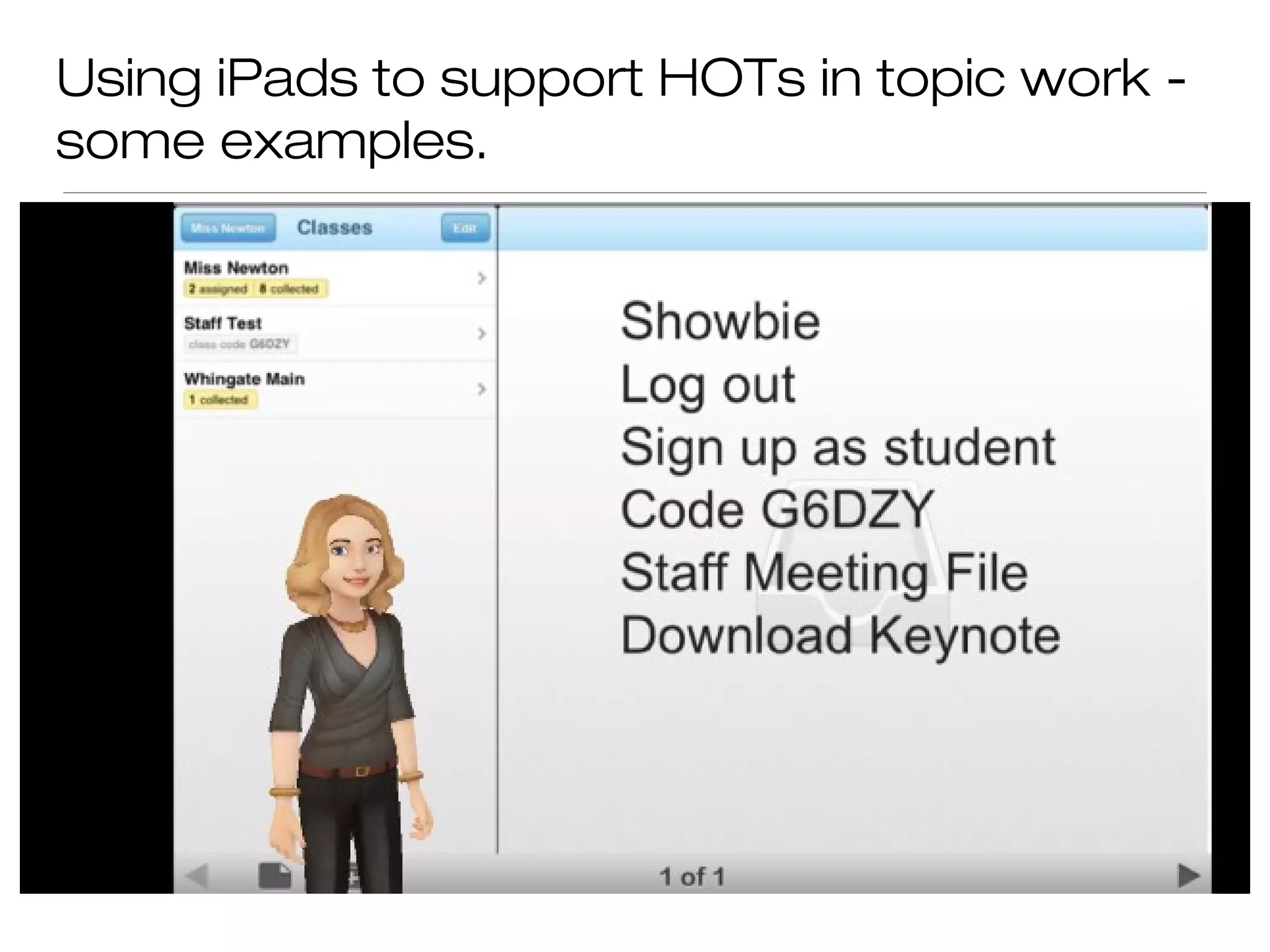
Using iPads to support HOTs in topic work -
some examples.
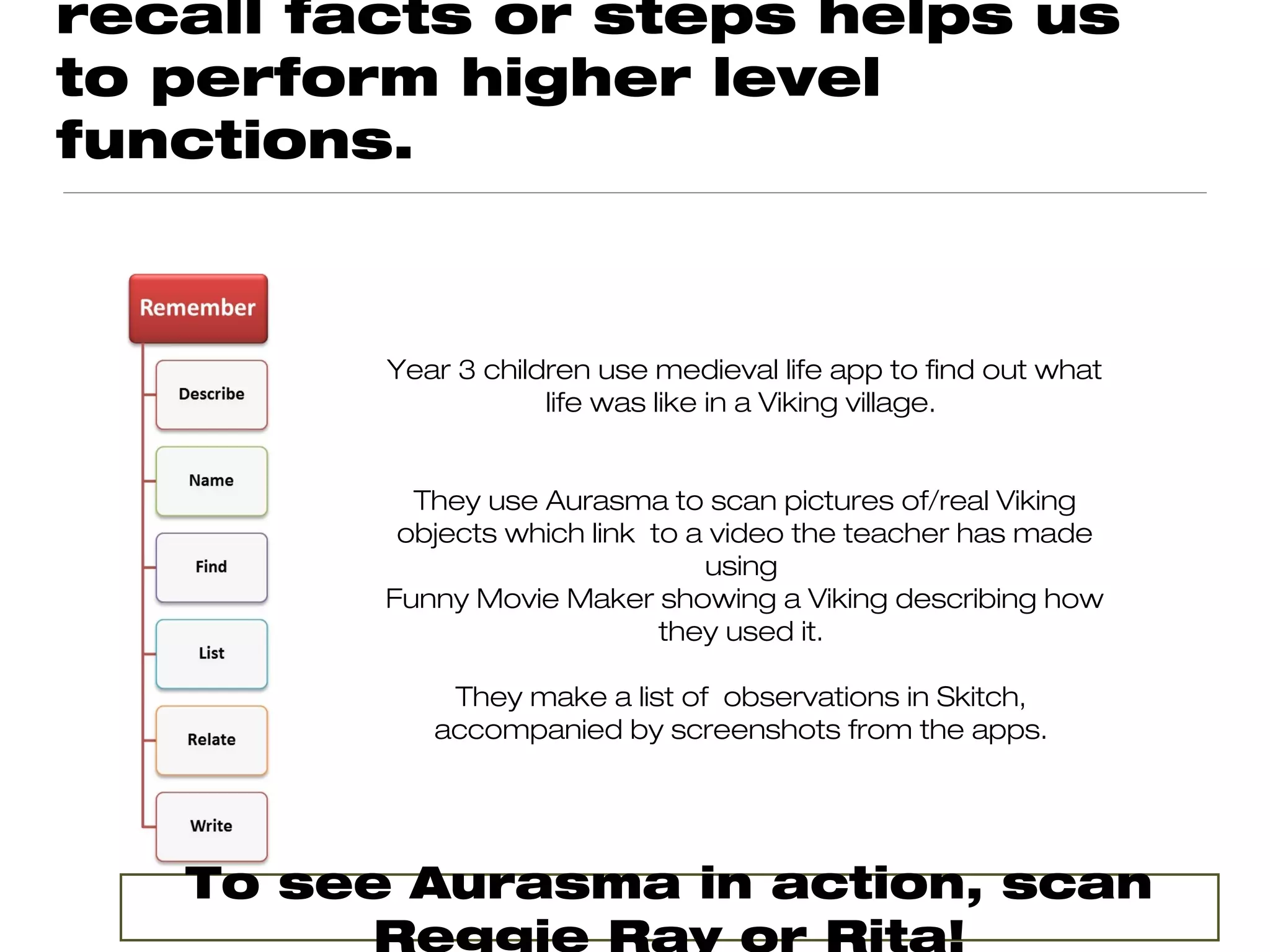
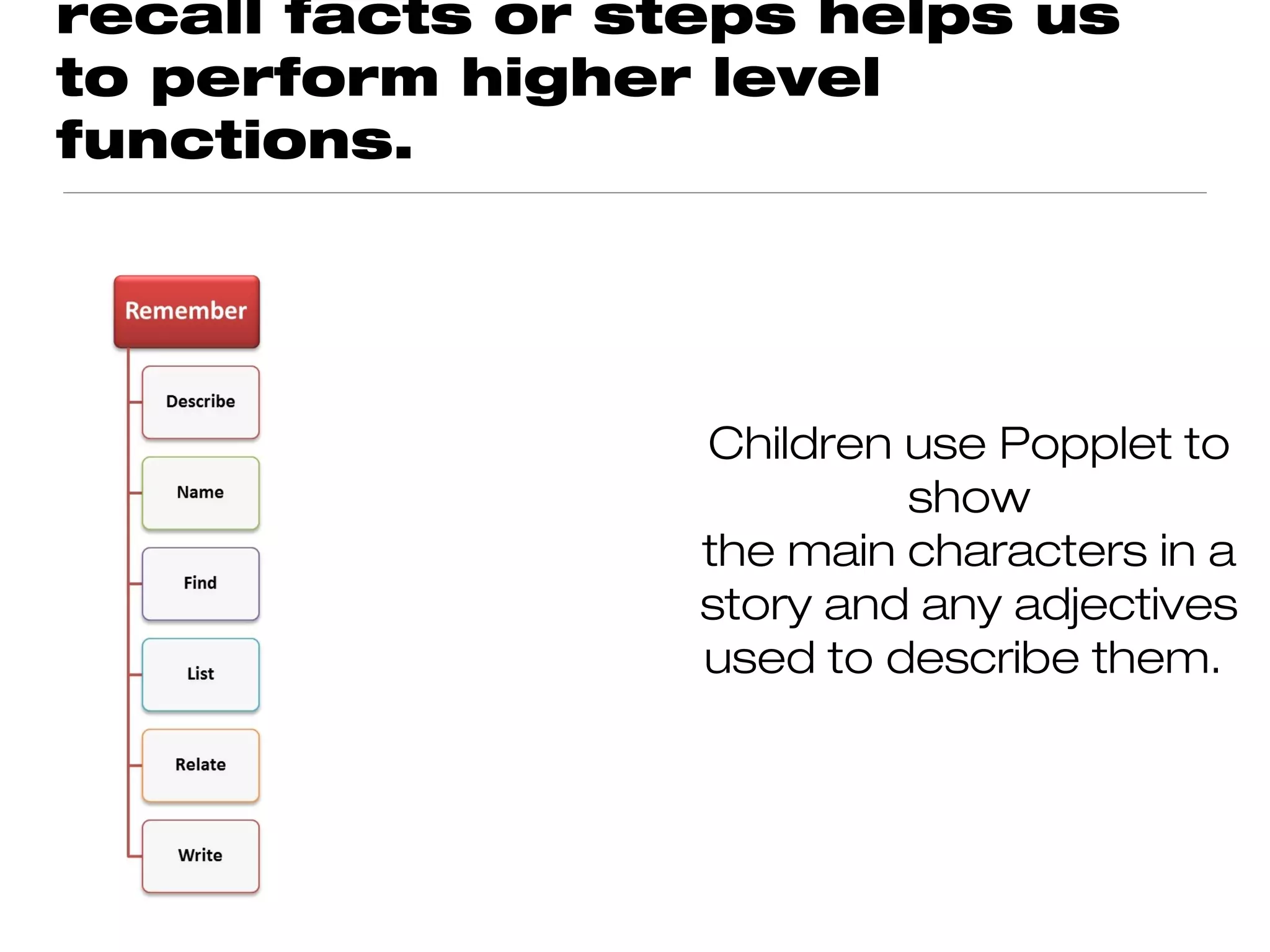
recall facts or steps helps us
to perform higher level
functions.


         Year 3 children use medieval life app to find out what
                     life was like in a Viking village.


           They use Aurasma to scan pictures of/real Viking
          objects which link to a video the teacher has made
                                 using
         Funny Movie Maker showing a Viking describing how
                              they used it.

             They make a list of observations in Skitch,
            accompanied by screenshots from the apps.


   To see Aurasma in action, scan
         Reggie Ray or Rita!
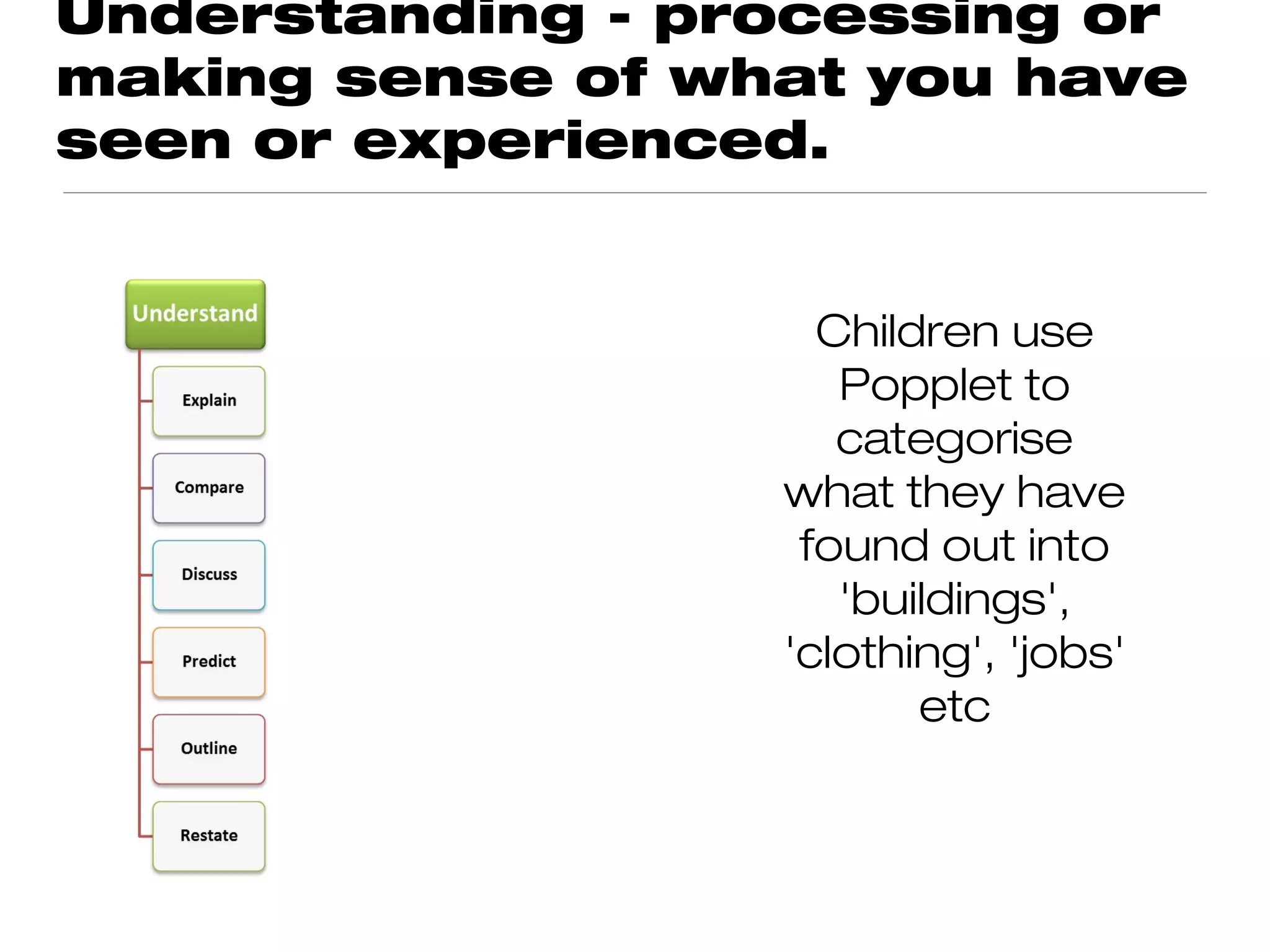
Understanding - processing or
making sense of what you have
seen or experienced.


                    Children use
                     Popplet to
                     categorise
                  what they have
                   found out into
                     'buildings',
                  'clothing', 'jobs'
                         etc
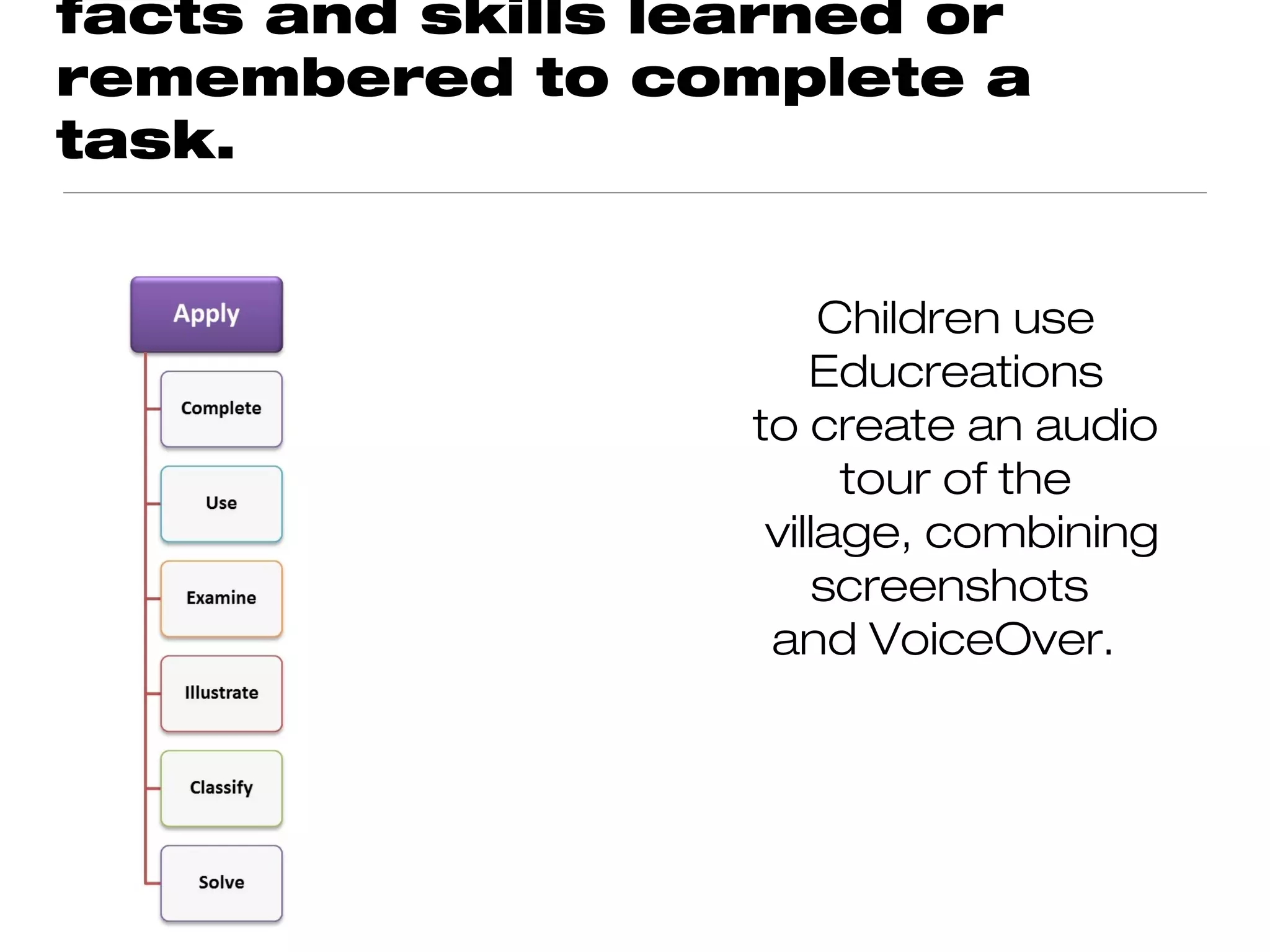
facts and skills learned or
remembered to complete a
task.


                        Children use
                       Educreations
                   to create an audio
                         tour of the
                    village, combining
                        screenshots
                    and VoiceOver.
relevance, distinguishing
relationships and recognising
structure of content.

                       They use
                     PicCollage to
                  present aspects of
                       Viking Life
                  alongside modern
                  day equivalents to
                  compare life in the
                   past to life now.
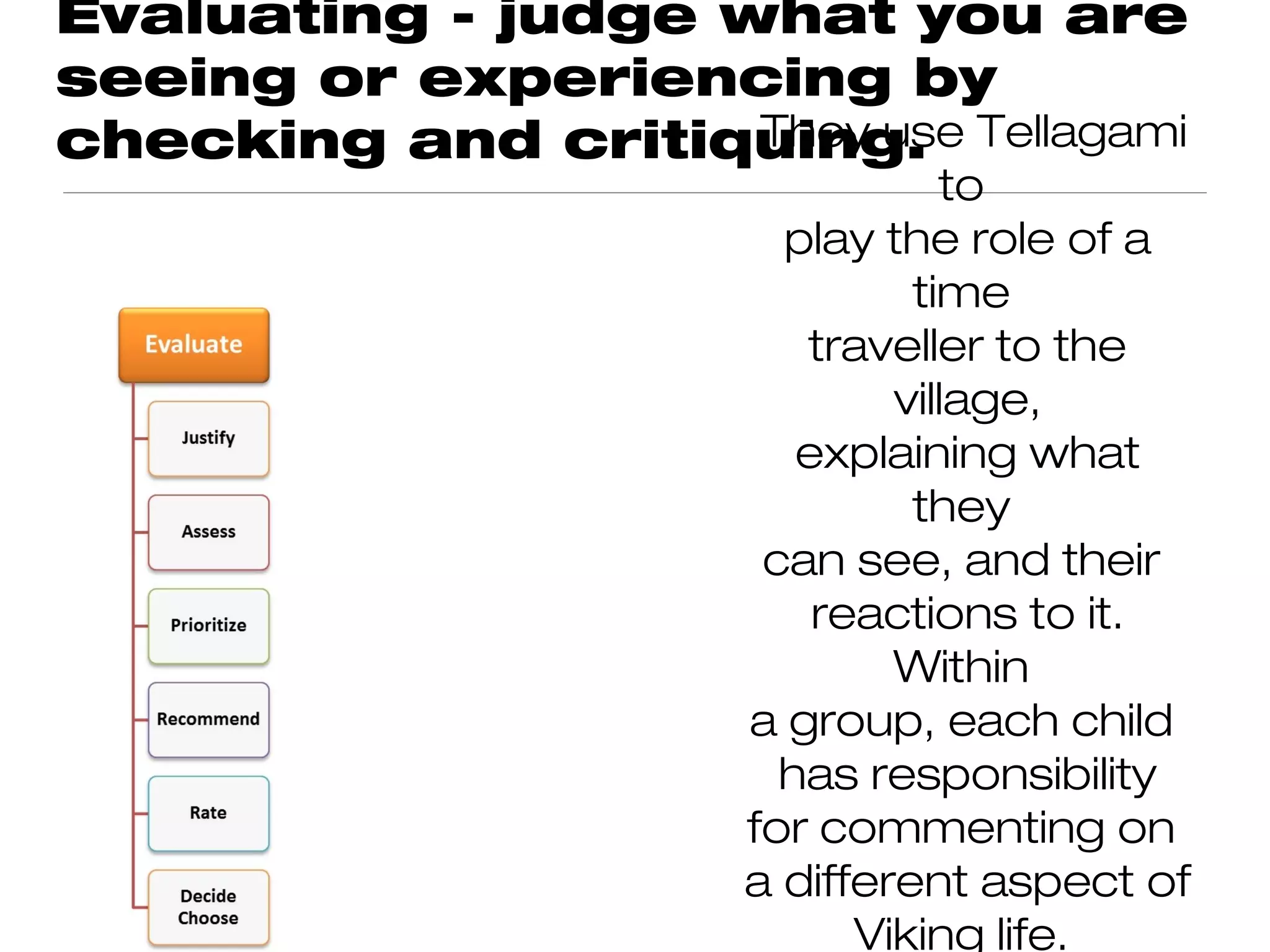
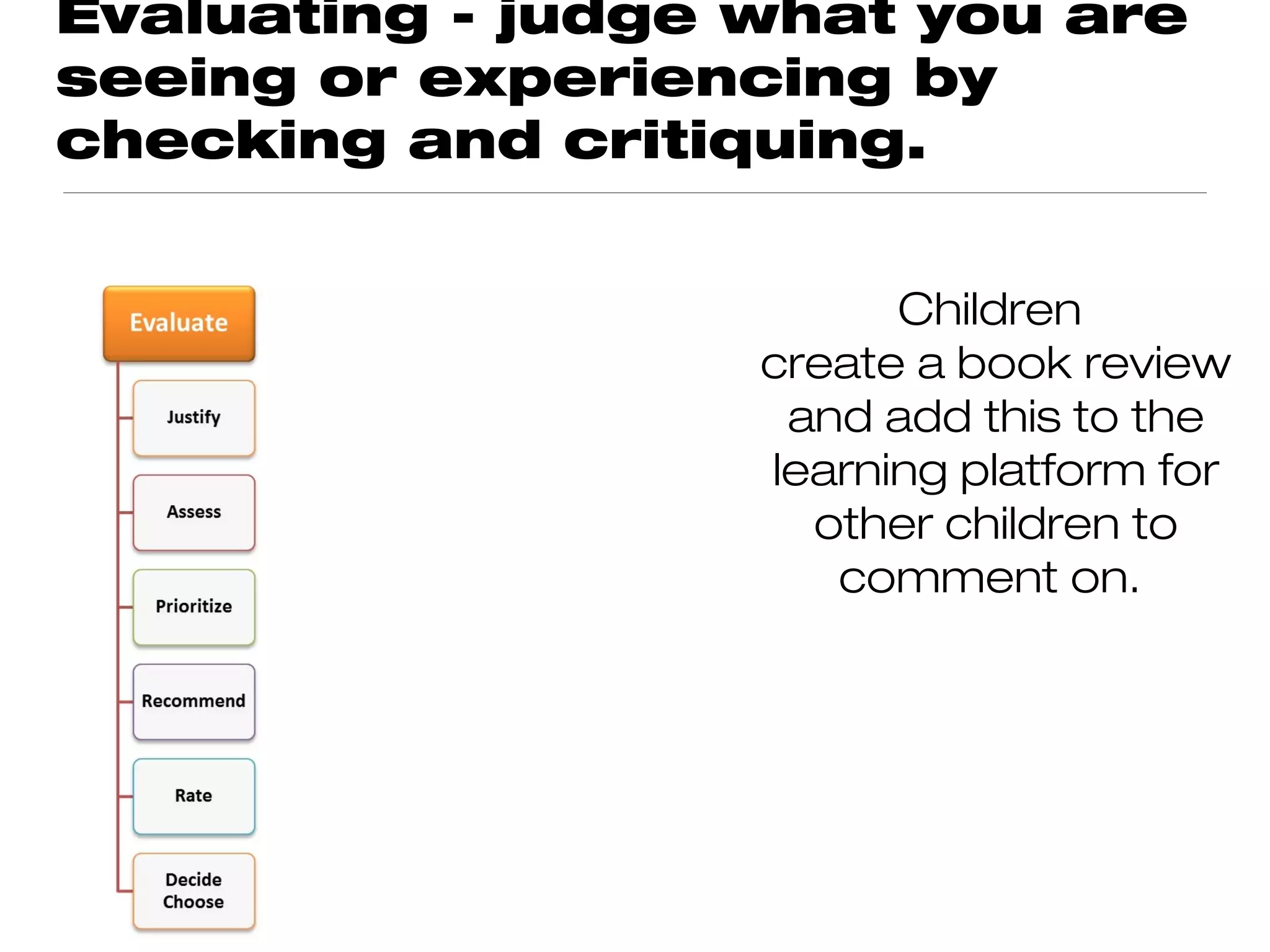
Evaluating - judge what you are
seeing or experiencing by
checking and critiquing. Tellagami
                    They use
                               to
                      play the role of a
                             time
                       traveller to the
                            village,
                       explaining what
                             they
                     can see, and their
                        reactions to it.
                            Within
                    a group, each child
                      has responsibility
                    for commenting on
                    a different aspect of
                          Viking life.
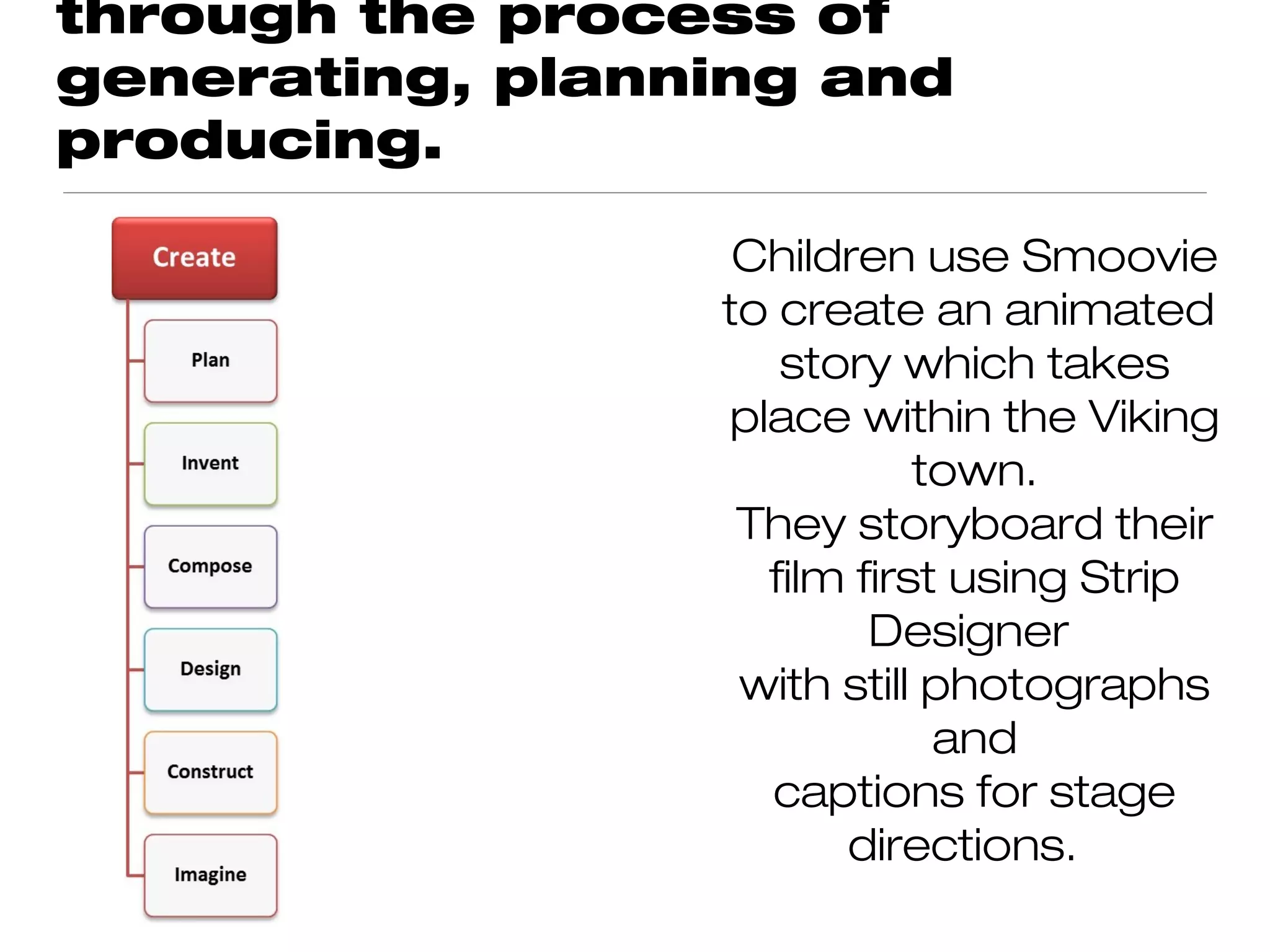
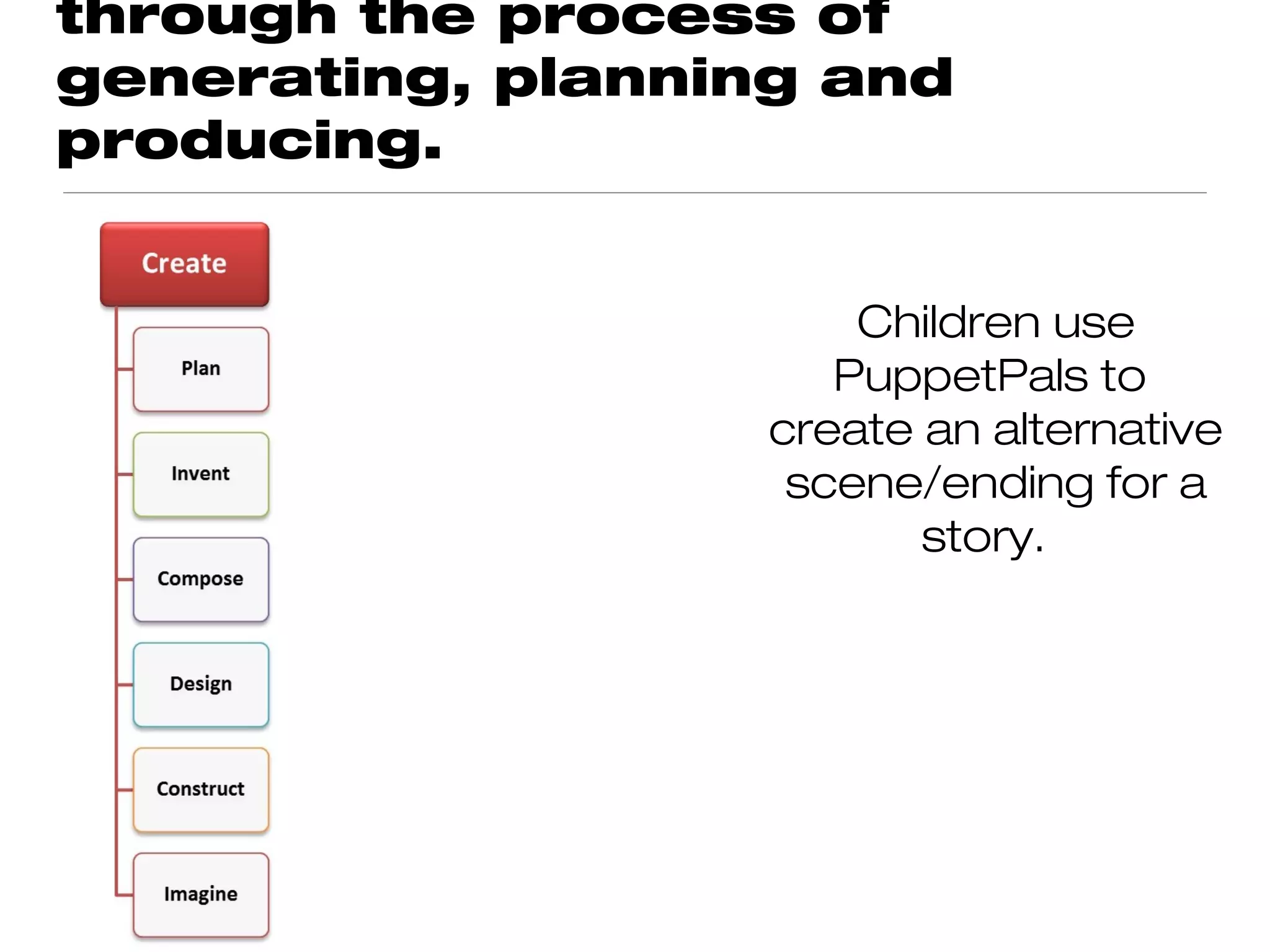
through the process of
generating, planning and
producing.

                  Children use Smoovie
                 to create an animated
                    story which takes
                 place within the Viking
                            town.
                  They storyboard their
                   film first using Strip
                         Designer
                  with still photographs
                             and
                   captions for stage
                       directions.
Using iPads to support HOTs in Reading
recall facts or steps helps us
to perform higher level
functions.


                  Children use Popplet to
                           show
                  the main characters in a
                  story and any adjectives
                  used to describe them.
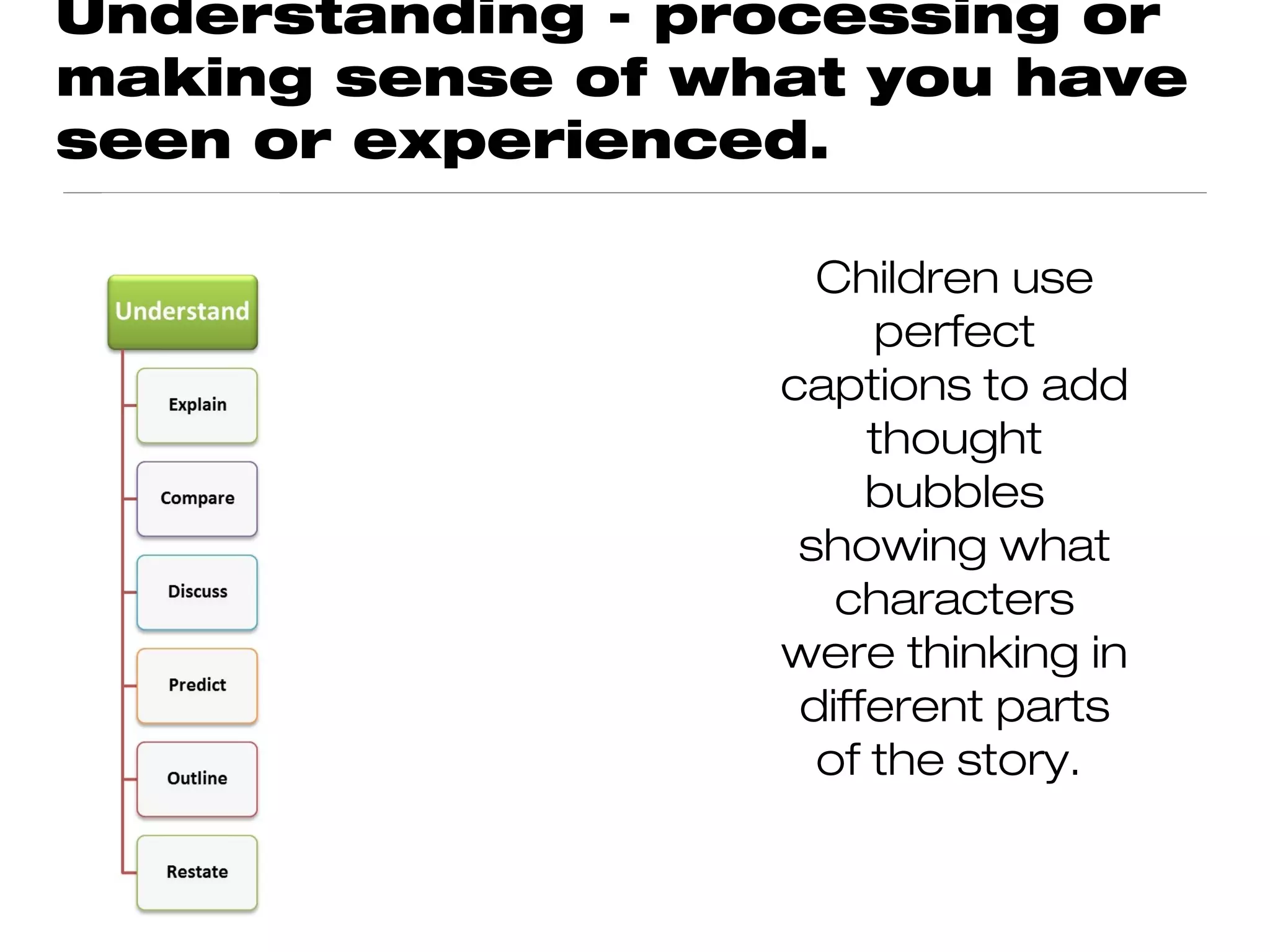
Understanding - processing or
making sense of what you have
seen or experienced.

                    Children use
                       perfect
                  captions to add
                       thought
                       bubbles
                   showing what
                     characters
                  were thinking in
                   different parts
                    of the story.
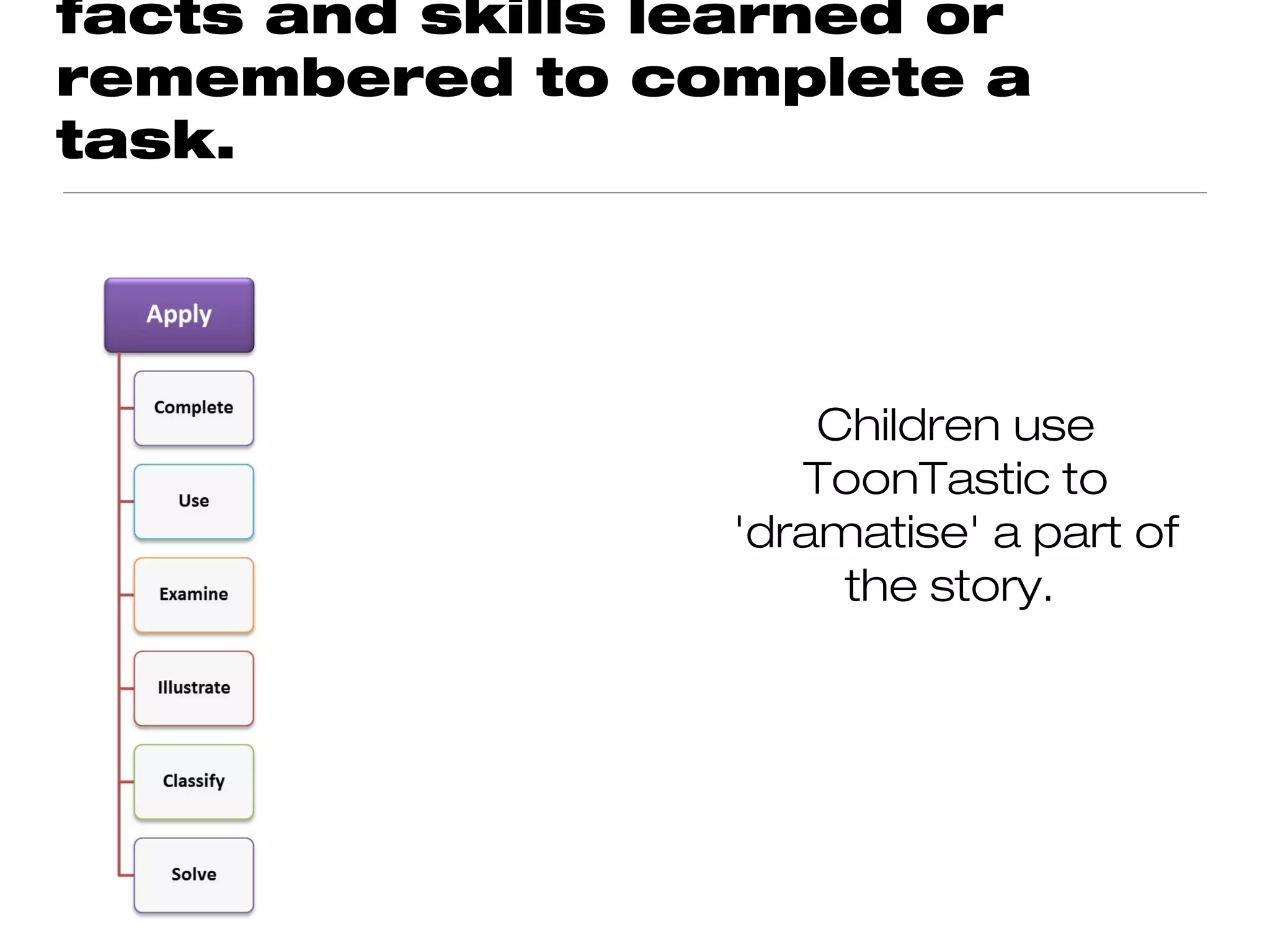
facts and skills learned or
remembered to complete a
task.


                      Children use
                     ToonTastic to
                  'dramatise' a part of
                       the story.
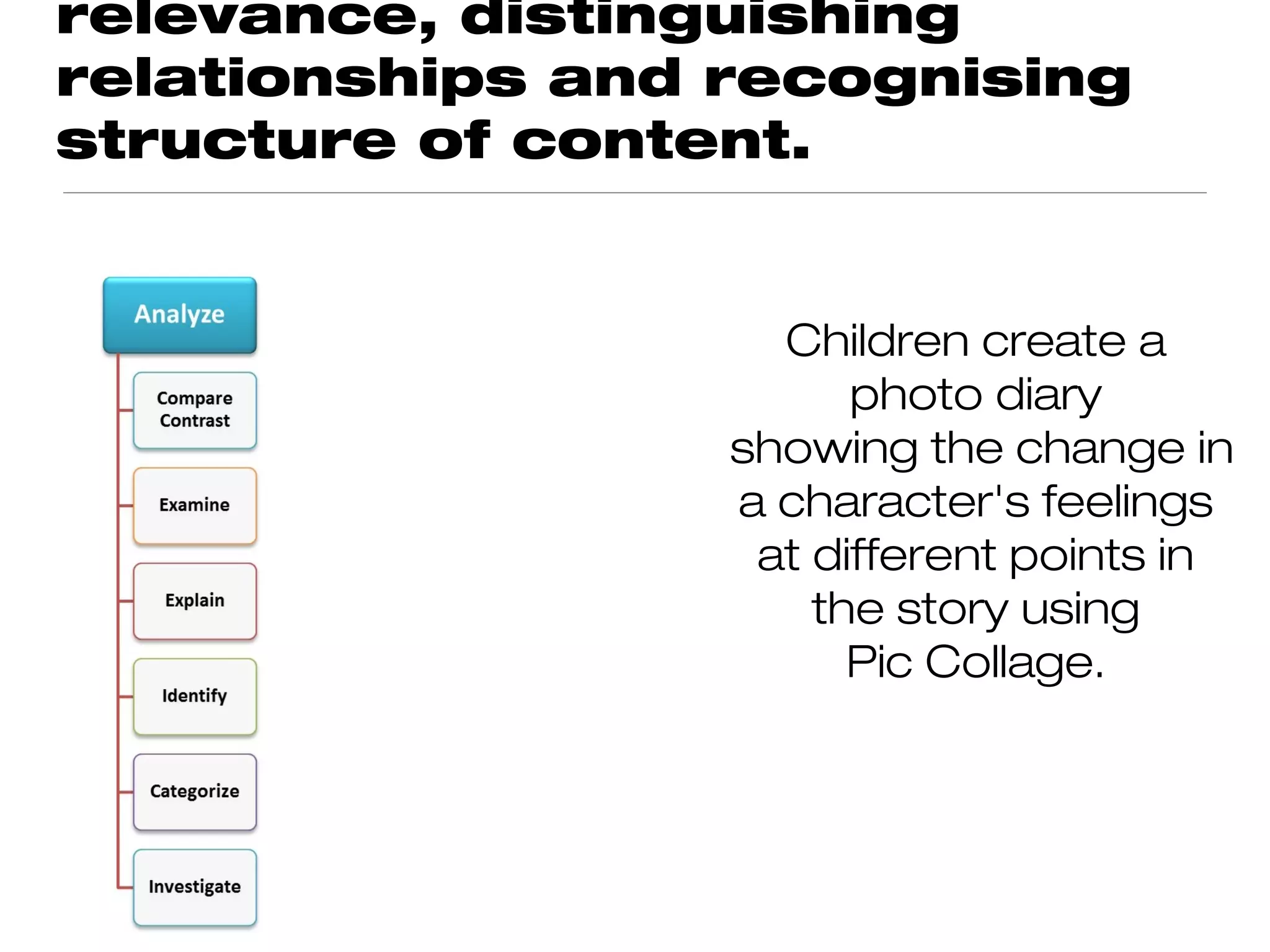
relevance, distinguishing
relationships and recognising
structure of content.


                    Children create a
                        photo diary
                  showing the change in
                  a character's feelings
                   at different points in
                      the story using
                        Pic Collage.
Evaluating - judge what you are
seeing or experiencing by
checking and critiquing.


                         Children
                   create a book review
                    and add this to the
                   learning platform for
                     other children to
                      comment on.
through the process of
generating, planning and
producing.


                       Children use
                      PuppetPals to
                   create an alternative
                    scene/ending for a
                          story.
Your Task - 1
   Have a look at some of the apps used for creating
              content mentioned today.

 Think of a way using one if these apps will enhance the
             learning in a forthcoming unit.

Note down your planned use of the app in Showbie. If you
     can, link it to an aspect of Bloom's Taxonomy.

     Downloading this presentation from Showbie and
   following the link on the first page will take you to an
 interactive version of the 'cog' visual, which will give you
            more ideas of apps you could use.
Your Task - 2
Go to the Learning Platform StaffRoom and read the instructions
                    for setting up Showbie.

 Follow the link in your LLN inbox to set up a teacher's Showbie
                              account.

On Safari, go to www.showbie.com and log in using your teacher
account. Create a class and make a note of your class code. Try
adding an assignment box ready for children to upload work into.

 Go to the Showbie app and log in using your teacher account.
  Create something using one of the apps mentioned in this
  presentation and then upload it into the shared file in your
                     assignment box.

Give your class code to a partner. Ask them to join your class and
              upload a file for you to feedback on.
Your Task - 3
 Log back into Showbie using your student login.

 Download the Learning Powers Self Assessment
             and open it in Pages.

  Edit the boxes to answer the questions then re
   upload it straight from Pages to Showbie (the
 instructions for this are on the learning platform)
Congratulations!
  You have just worked at your own pace using multiple
                           apps
                as part of your 'Workflow'!

    This is what we need to prepare our 21st Century
               Digital Native learners to do!

Click here to see the latest version of a video I first showed
in a staff meeting in 2007 - what has changed in that short
  time? And what are the possibilities in the next 6 years?

I pads to_support_ho_ts_copy[1]

  • 1.
    Aims: You will have ideas on how iPads can be used to promote Higher Order Thinking You will know how to use Showbie to collect children's work produced on iPads to be able to give feedback You will have planned an opportunity for children to create content using the iPad which shows the use of Image developed by Allan HOTs Carrington. To see interactive version, click the wheel or visit iPads to support http://www.unity.com.au/padwheel By Carol Newton, Whingate HOTs Primary School
  • 2.
    Using iPads tosupport HOTs in topic work - some examples.
  • 3.
    recall facts orsteps helps us to perform higher level functions. Year 3 children use medieval life app to find out what life was like in a Viking village. They use Aurasma to scan pictures of/real Viking objects which link to a video the teacher has made using Funny Movie Maker showing a Viking describing how they used it. They make a list of observations in Skitch, accompanied by screenshots from the apps. To see Aurasma in action, scan Reggie Ray or Rita!
  • 4.
    Understanding - processingor making sense of what you have seen or experienced. Children use Popplet to categorise what they have found out into 'buildings', 'clothing', 'jobs' etc
  • 5.
    facts and skillslearned or remembered to complete a task. Children use Educreations to create an audio tour of the village, combining screenshots and VoiceOver.
  • 6.
    relevance, distinguishing relationships andrecognising structure of content. They use PicCollage to present aspects of Viking Life alongside modern day equivalents to compare life in the past to life now.
  • 7.
    Evaluating - judgewhat you are seeing or experiencing by checking and critiquing. Tellagami They use to play the role of a time traveller to the village, explaining what they can see, and their reactions to it. Within a group, each child has responsibility for commenting on a different aspect of Viking life.
  • 8.
    through the processof generating, planning and producing. Children use Smoovie to create an animated story which takes place within the Viking town. They storyboard their film first using Strip Designer with still photographs and captions for stage directions.
  • 9.
    Using iPads tosupport HOTs in Reading
  • 10.
    recall facts orsteps helps us to perform higher level functions. Children use Popplet to show the main characters in a story and any adjectives used to describe them.
  • 11.
    Understanding - processingor making sense of what you have seen or experienced. Children use perfect captions to add thought bubbles showing what characters were thinking in different parts of the story.
  • 12.
    facts and skillslearned or remembered to complete a task. Children use ToonTastic to 'dramatise' a part of the story.
  • 13.
    relevance, distinguishing relationships andrecognising structure of content. Children create a photo diary showing the change in a character's feelings at different points in the story using Pic Collage.
  • 14.
    Evaluating - judgewhat you are seeing or experiencing by checking and critiquing. Children create a book review and add this to the learning platform for other children to comment on.
  • 15.
    through the processof generating, planning and producing. Children use PuppetPals to create an alternative scene/ending for a story.
  • 16.
    Your Task -1 Have a look at some of the apps used for creating content mentioned today. Think of a way using one if these apps will enhance the learning in a forthcoming unit. Note down your planned use of the app in Showbie. If you can, link it to an aspect of Bloom's Taxonomy. Downloading this presentation from Showbie and following the link on the first page will take you to an interactive version of the 'cog' visual, which will give you more ideas of apps you could use.
  • 17.
    Your Task -2 Go to the Learning Platform StaffRoom and read the instructions for setting up Showbie. Follow the link in your LLN inbox to set up a teacher's Showbie account. On Safari, go to www.showbie.com and log in using your teacher account. Create a class and make a note of your class code. Try adding an assignment box ready for children to upload work into. Go to the Showbie app and log in using your teacher account. Create something using one of the apps mentioned in this presentation and then upload it into the shared file in your assignment box. Give your class code to a partner. Ask them to join your class and upload a file for you to feedback on.
  • 18.
    Your Task -3 Log back into Showbie using your student login. Download the Learning Powers Self Assessment and open it in Pages. Edit the boxes to answer the questions then re upload it straight from Pages to Showbie (the instructions for this are on the learning platform)
  • 19.
    Congratulations! Youhave just worked at your own pace using multiple apps as part of your 'Workflow'! This is what we need to prepare our 21st Century Digital Native learners to do! Click here to see the latest version of a video I first showed in a staff meeting in 2007 - what has changed in that short time? And what are the possibilities in the next 6 years?