20 Facebook, Twitter,
LinkedIn & Pinterest
Features You Didn’t
Know Existed.
(But Totally Should!)
#smsecrets
You use these social
networks every day.
You use these social
networks every day.
1 Facebook
You use these social
networks every day.
1
2
Facebook
Twitter
You use these social
networks every day.
1
2
3
Facebook
Twitter
LinkedIn
You use these social
networks every day.
1
2
3
4
Facebook
Twitter
LinkedIn
Pinterest
But each of them is
constantly changing …
But each of them is
constantly changing …
and some of their coolest
features may have fallen
through the cracks.
To help you discover these
hidden treasures,
To help you discover these
hidden treasures,
here are 20 little-known
features on Facebook, Twitter,
LinkedIn, and Pinterest.
Let’s jump
right in.
FACEBOOK.
First up,
Save links for later.1
Ever seen articles in your News
Feed you wished you could
bookmark to read later?
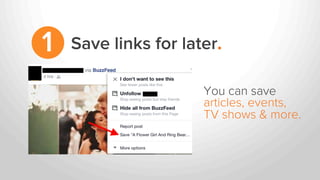
Save links for later.1
Ever seen articles in your News
Feed you wished you could
bookmark to read later?
Well … you actually can.
Save links for later.1
You can save
articles, events,
TV shows & more.
Save links for later.1
To access them,
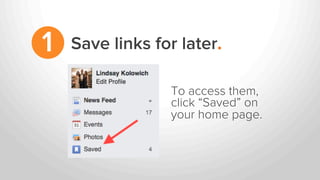
Save links for later.1
To access them,
click “Saved” on
your home page.
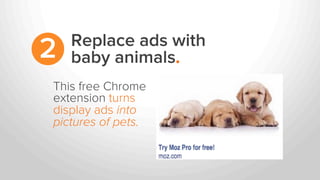
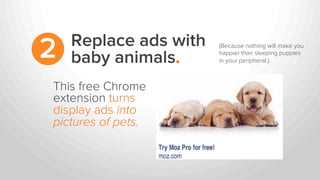
Replace ads with
baby animals.2
Replace ads with
baby animals.2
If you love baby animals
and hate banner ads,
Replace ads with
baby animals.2
If you love baby animals
and hate banner ads,
then you and
BabyAnimalBlocker are a
match made in heaven.
Replace ads with
baby animals.2
This free Chrome
extension
Replace ads with
baby animals.2
This free Chrome
extension turns
display ads into
pictures of pets.
Replace ads with
baby animals.2
This free Chrome
extension turns
display ads into
pictures of pets.
(Because nothing will make you
happier than sleeping puppies
in your peripheral.)	
  
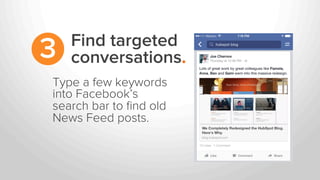
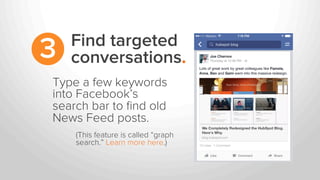
Find targeted
conversations.3
Find targeted
conversations.3
Type a few keywords
into Facebook’s
search bar to find old
News Feed posts.
Find targeted
conversations.3
Type a few keywords
into Facebook’s
search bar to find old
News Feed posts.
(This feature is called “graph
search.” Learn more here.)
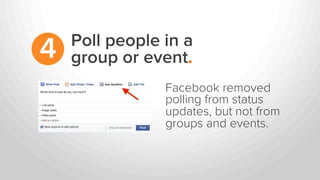
Poll people in a
group or event.4
Poll people in a
group or event.4
Facebook removed
polling from status
updates, but not from
groups and events.
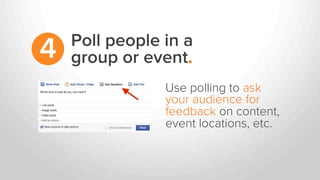
Poll people in a
group or event.4
Use polling to ask
your audience for
feedback on content,
event locations, etc.
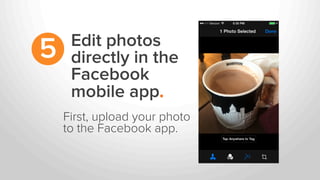
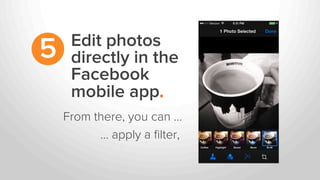
Edit photos
directly in the
Facebook
mobile app.
5
Edit photos
directly in the
Facebook
mobile app.
5
How?
Edit photos
directly in the
Facebook
mobile app.
5
First, upload your photo
to the Facebook app.
Edit photos
directly in the
Facebook
mobile app.
5
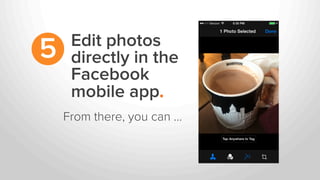
From there, you can …
Edit photos
directly in the
Facebook
mobile app.
5
From there, you can …
... apply a filter,
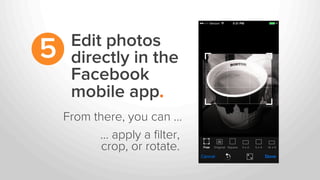
Edit photos
directly in the
Facebook
mobile app.
5
From there, you can …
... apply a filter,
crop, or rotate.
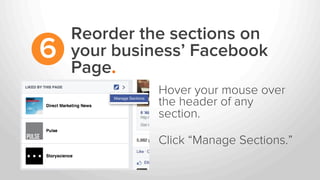
Reorder the sections on
your business’ Facebook
Page.
6
Reorder the sections on
your business’ Facebook
Page.
6
Want the “About” section
above “Photos”?
Reorder the sections on
your business’ Facebook
Page.
6
Want the “About” section
above “Photos”?
No problem.
Reorder the sections on
your business’ Facebook
Page.
6
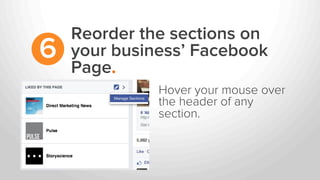
Hover your mouse over
the header of any
section.
Reorder the sections on
your business’ Facebook
Page.
6
Hover your mouse over
the header of any
section.
Click “Manage Sections.”
Reorder the sections on
your business’ Facebook
Page.
6
From there, drag to
reorder.
TWITTER.
Next up,
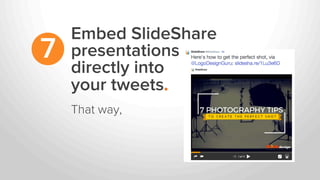
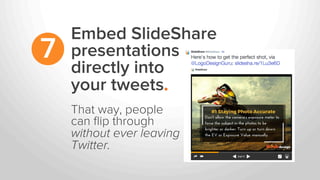
Embed SlideShare
presentations
directly into
your tweets.
7
Embed SlideShare
presentations
directly into
your tweets.
7
That way,
Embed SlideShare
presentations
directly into
your tweets.
7
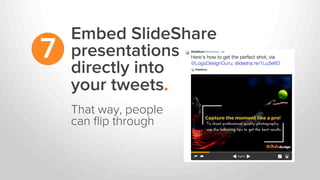
That way, people
can flip through
Embed SlideShare
presentations
directly into
your tweets.
7
That way, people
can flip through
without ever leaving
Twitter.
Embed SlideShare
presentations
directly into
your tweets.
7
All you have to do
is include a link to the
SlideShare in your tweet.
Embed SlideShare
presentations
directly into
your tweets.
7
All you have to do
is include a link to the
SlideShare in your tweet.
It will embed automatically.
Find out who’s
unfollowed you.8
This is especially useful for
brands who are building
their Twitter presence
Find out who’s
unfollowed you.8
This is especially useful for
brands who are building
their Twitter presence &
experimenting with voice,
Find out who’s
unfollowed you.8
This is especially useful for
brands who are building
their Twitter presence &
experimenting with voice,
posting times, etc.
Find out who’s
unfollowed you.8
If important, relevant people
are unfollowing you …
Find out who’s
unfollowed you.8
If important, relevant people
are unfollowing you …
(Such as influencers
in your industry)	
  
Find out who’s
unfollowed you.8
If important, relevant people
are unfollowing you …
… then you know your Twitter
strategy needs to change.
(Such as influencers
in your industry)	
  
Find out who’s
unfollowed you.8
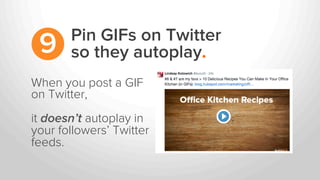
Pin GIFs on Twitter
so they autoplay.9
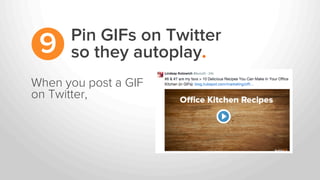
When you post a GIF
on Twitter,
Pin GIFs on Twitter
so they autoplay.9
When you post a GIF
on Twitter,
it doesn’t autoplay in
your followers’ Twitter
feeds.
Pin GIFs on Twitter
so they autoplay.9
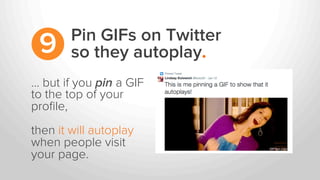
… but if you pin a GIF
to the top of your
profile,
Pin GIFs on Twitter
so they autoplay.9
… but if you pin a GIF
to the top of your
profile,
then it will autoplay
when people visit
your page.
Pin GIFs on Twitter
so they autoplay.9
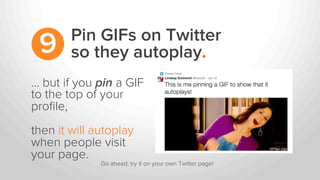
… but if you pin a GIF
to the top of your
profile,
then it will autoplay
when people visit
your page.
Go ahead, try it on your own Twitter page!	
  
Pin GIFs on Twitter
so they autoplay.9
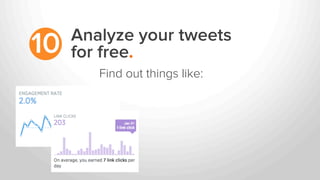
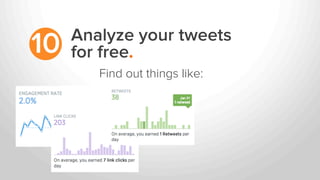
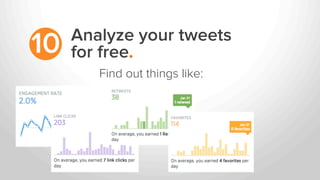
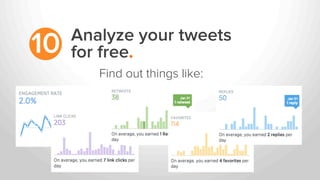
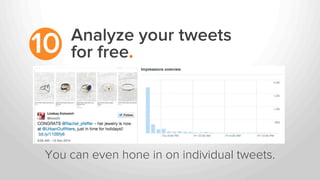
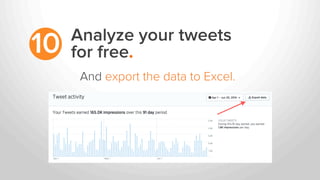
Analyze your tweets
for free.10
Analyze your tweets
for free.10
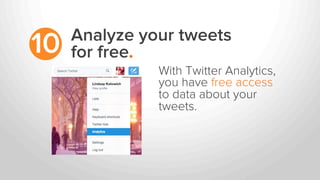
With Twitter Analytics,
you have free access
to data about your
tweets.
Analyze your tweets
for free.10
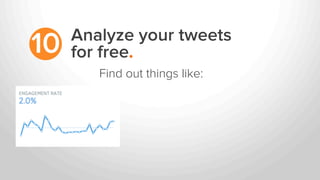
Find out things like:
Analyze your tweets
for free.10
Find out things like:
Analyze your tweets
for free.10
Find out things like:
Analyze your tweets
for free.10
Find out things like:
Analyze your tweets
for free.10
Find out things like:
Analyze your tweets
for free.10
Find out things like:
Analyze your tweets
for free.10
You can even hone in on individual tweets.

Analyze your tweets

for free.10
And export the data to Excel.
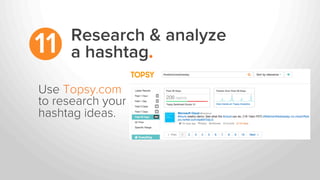
Research & analyze
a hashtag.11
Research & analyze
a hashtag.11
Have a hashtag in
mind for an
upcoming event?
Research & analyze
a hashtag.11
Use Topsy.com
to research your
hashtag ideas.
Research & analyze
a hashtag.11
You can find out …
Research & analyze
a hashtag.11
… whether others are using the
hashtag,
You can find out …
Research & analyze
a hashtag.11
… whether others are using the
hashtag, how often it’s being
used,
You can find out …
Research & analyze
a hashtag.11
… whether others are using the
hashtag, how often it’s being
used, and more.
You can find out …
Tag people in
Twitter photos.12
Tag people in
Twitter photos.12
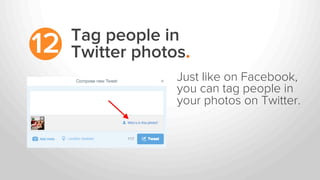
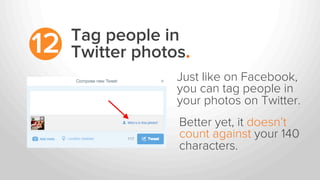
Just like on Facebook,
you can tag people in
your photos on Twitter.
Tag people in
Twitter photos.12
Just like on Facebook,
you can tag people in
your photos on Twitter.
Better yet, it doesn’t
count against your 140
characters.
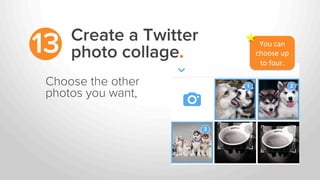
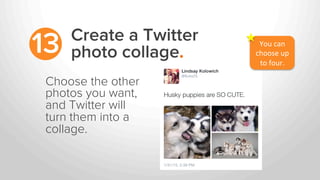
Create a Twitter
photo collage.13
Create a Twitter
photo collage.13
Choosing between 2, 3, or 4 photos
for a single tweet?
Create a Twitter
photo collage.13
Choosing between 2, 3, or 4 photos
for a single tweet?
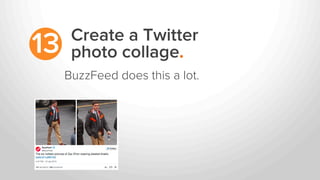
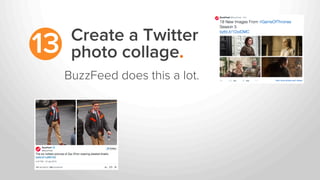
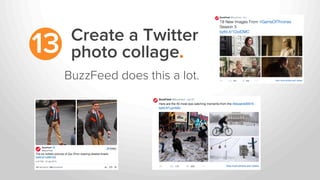
Turns out, you don’t have to choose.
Create a Twitter
photo collage.13
You can include up to 4 photos in
any one tweet (which automatically
turn into a collage).
Create a Twitter
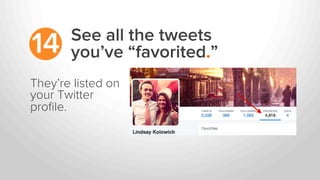
photo collage.13
BuzzFeed does this a lot.
Create a Twitter
photo collage.13
BuzzFeed does this a lot.
Create a Twitter
photo collage.13
BuzzFeed does this a lot.
Create a Twitter
photo collage.13
BuzzFeed does this a lot.
Create a Twitter
photo collage.13
How do you do it?
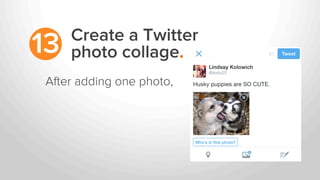
Create a Twitter
photo collage.13
After adding one photo,
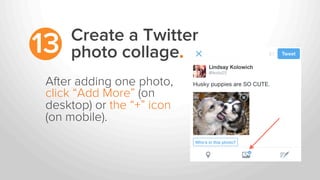
Create a Twitter
photo collage.13
After adding one photo,
click “Add More” (on
desktop) or the “+” icon
(on mobile).
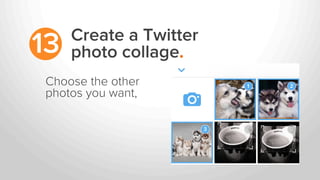
Create a Twitter
photo collage.13
Choose the other
photos you want,
Create a Twitter
photo collage.13
Choose the other
photos you want,
You	
  can	
  
choose	
  up	
  
to	
  four.	
  
Create a Twitter
photo collage.13
Choose the other
photos you want,
and Twitter will
turn them into a
collage.
You	
  can	
  
choose	
  up	
  
to	
  four.	
  
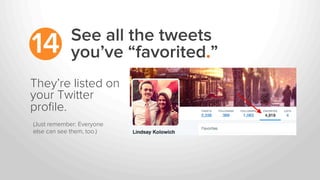
See all the tweets
you’ve “favorited.”14
See all the tweets
you’ve “favorited.”14
They’re listed on
your Twitter
profile.
See all the tweets
you’ve “favorited.”14
They’re listed on
your Twitter
profile.
(Just remember: Everyone
else can see them, too.)	
  
LINKEDIN.
Now, on to
Add hidden
relationship notes.15
Add hidden
relationship notes.15
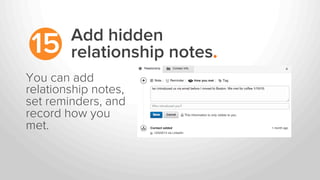
Never forget your boss’s kid’s name again.
Add hidden
relationship notes.15
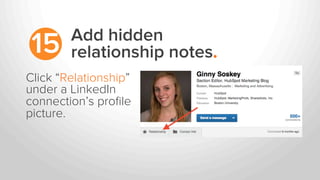
Click “Relationship”
under a LinkedIn
connection’s profile
picture.
Add hidden
relationship notes.15
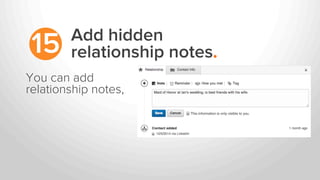
You can add
relationship notes,
Add hidden
relationship notes.15
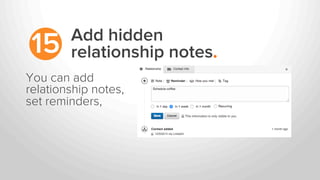
You can add
relationship notes,
set reminders,
Add hidden
relationship notes.15
You can add
relationship notes,
set reminders, and
record how you
met.
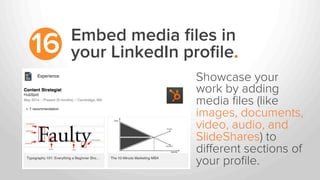
Embed media files in
your LinkedIn profile.16
Embed media files in
your LinkedIn profile.16
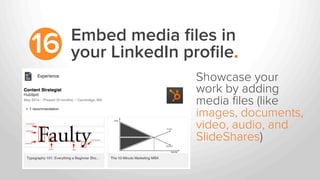
Showcase your
work by adding
media files
Embed media files in
your LinkedIn profile.16
Showcase your
work by adding
media files (like
images, documents,
video, audio, and
SlideShares)
Embed media files in
your LinkedIn profile.16
Showcase your
work by adding
media files (like
images, documents,
video, audio, and
SlideShares) to
different sections of
your profile.
Embed media files in
your LinkedIn profile.16
To add these media files,
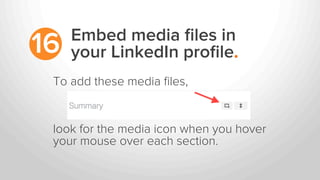
Embed media files in
your LinkedIn profile.16
To add these media files,
look for the media icon when you hover
your mouse over each section.
Save a job search.17
Save a job search (or ten).17
17
Searching for a job on LinkedIn
usually takes more than one login
session.
Save a job search (or ten).
17
Save your searches by clicking
“Save Search” at the top right-hand
corner of the page.
Save a job search (or ten).
Create a showcase page.18
Showcase pages are niche
company pages that branch off a
company’s main LinkedIn page.
Create a showcase page.18
Showcase pages are niche
company pages that branch off a
company’s main LinkedIn page.
They allow a company to promote
specific products
Create a showcase page.18
Showcase pages are niche
company pages that branch off a
company’s main LinkedIn page.
They allow a company to promote
specific products or market to
specific buyer personas.
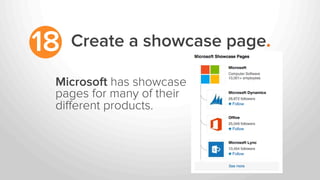
Create a showcase page.18
Microsoft has showcase
pages for many of their
different products.
PINTEREST.
Finally,
Use trackable links that
won’t be marked as spam.19
Use trackable links that
won’t be marked as spam.19
Pinterest tends to block shortened links.
Use trackable links that
won’t be marked as spam.19
So if you’ve been adding tracking cookies
to links and shortening them …
Use trackable links that
won’t be marked as spam.19
So if you’ve been adding tracking cookies
to links and shortening them …
… then your pins are probably
not linking anywhere.
Use trackable links that
won’t be marked as spam.19
So if you’ve been adding tracking cookies
to links and shortening them …
… then your pins are probably
not linking anywhere.
(Awkward.)	
  
Use trackable links that
won’t be marked as spam.19
But there’s good news!
Use trackable links that
won’t be marked as spam.19
But there’s good news!
Since a Pinterest pin’s URL isn’t visible
to viewers,
Use trackable links that
won’t be marked as spam.19
But there’s good news!
Since a Pinterest pin’s URL isn’t visible
to viewers, you don’t actually need to
shorten those trackable links.
Use trackable links that
won’t be marked as spam.19
All you need to do is create a long,
trackable link, and you’re done!
Use trackable links that
won’t be marked as spam.19
All you need to do is create a long,
trackable link, and you’re done!
(Learn how here.)
See who’s pinning
from your site.20
See who’s pinning
from your site.20
Ever wondered which specific Pinterest
users are pinning your stuff?
See who’s pinning
from your site.20
Here’s how:
See who’s pinning
from your site.20
1) Type this URL into your browser:
Here’s how:
See who’s pinning
from your site.20
1) Type this URL into your browser:
(But replace yourwebsite.com with your site’s web address.)	
  
Here’s how:
http://www.pinterest.com/source/yourwebsite.com/
See who’s pinning
from your site.20
http://www.pinterest.com/source/yourwebsite.com/
2) Press Enter.
1) Type this URL into your browser:
Here’s how:
(But replace yourwebsite.com with your site’s web address.)	
  
See who’s pinning
from your site.20
For example,
See who’s pinning
from your site.20
For example, to
see who’s pinning
from HubSpot’s
blog, we’d type in:
See who’s pinning
from your site.20
For example, to
see who’s pinning
from HubSpot’s
blog, we’d type in:
http://pinterest.com/source/blog.hubspot.com/
Want to learn more
social media tricks?
Want to learn more
social media tricks?
Download our ebook,
“How to Monitor
Social Media in 10
Minutes Per Day.”
#smsecrets

Hubspot Social Media Secrets