HOW TO INSERT A TABLE ON
YOUR HTML
GRADE 11: COMPUTER APPLICATIONS TECHNOLOGY
(CAT)
OBJECTIVES
At the end of this lesson, learners will be able to:
Define the term HTML
Explain HTML tags and how they function.
Organize the tags in a particular order to create a webpage
Develop a webpage and insert a table on it.
BASIC TERMS YOU ARE GOING TO USE IN THIS
LESSON
• HTML – Hypertext Markup Language that is used by the computer to create web pages. (Hailey,
2011)
• < >- these are the open tags, in between the tags we insert some text that perform certain function.
• </>- end tags are inserted after the open tags. They tell the computer where to end.
• <!doctype html> - is the first tag you use when creating a web page. The computer reads this tag as a
web page.
• <HTML></HTML> - is your second tag and it tells your browser that this is a HTML document.
• <title></title>- this tag gives your web browser a title.
• <style></style>- it defines style on your documents by specifying how the browser should display
specific information
• <h1></h1>- this tag gives your document a heading.
• <table></table> - is a table tag
• <tr></tr> defines a table row
• <th></th> defines the table header
• <td></td> defines the table cell
ORGANIZING YOUR TAGS
Table header: the first 3
headers in your rows
Information in the cells of your table.
They have to correspond with the
specific header.
Style: draws borders on your
table.
Notepad++ document
YOUR WEB PAGE
< tables</title>
<h1>Inserting a table on HTML</h1>
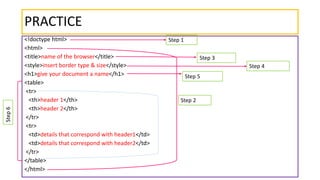
PRACTICE
<!doctype html>
<html>
<title>name of the browser</title>
<style>insert border type & size</style>
<h1>give your document a name</h1>
<table>
<tr>
<th>header 1</th>
<th>header 2</th>
</tr>
<tr>
<td>details that correspond with header1</td>
<td>details that correspond with header2</td>
</tr>
</table>
</html>
Step 1
Step 2
Step 3
Step 4
Step 5
Step6
INSTRUCTIONS
Enter the correct text where it is highlighted red. Write this information
on a notepad++ to create a webpage that has a table, follow the steps
accordingly and use correct tags to avoid any complications. You may
come up with your own details to fill in your table.
Make sure that you save your work from the notepad ++ with *html
extension. Open the browser and view your webpage
For more information on inserting table on HTML, click on the links
https://www.youtube.com/watch?v=y0Y51IK6nUg
REFERENCES
http://www.w3schools.com/html/default.asp

Html presentation

  • 1.
    HOW TO INSERTA TABLE ON YOUR HTML GRADE 11: COMPUTER APPLICATIONS TECHNOLOGY (CAT)
  • 2.
    OBJECTIVES At the endof this lesson, learners will be able to: Define the term HTML Explain HTML tags and how they function. Organize the tags in a particular order to create a webpage Develop a webpage and insert a table on it.
  • 3.
    BASIC TERMS YOUARE GOING TO USE IN THIS LESSON • HTML – Hypertext Markup Language that is used by the computer to create web pages. (Hailey, 2011) • < >- these are the open tags, in between the tags we insert some text that perform certain function. • </>- end tags are inserted after the open tags. They tell the computer where to end. • <!doctype html> - is the first tag you use when creating a web page. The computer reads this tag as a web page. • <HTML></HTML> - is your second tag and it tells your browser that this is a HTML document. • <title></title>- this tag gives your web browser a title. • <style></style>- it defines style on your documents by specifying how the browser should display specific information • <h1></h1>- this tag gives your document a heading. • <table></table> - is a table tag • <tr></tr> defines a table row • <th></th> defines the table header • <td></td> defines the table cell
  • 4.
    ORGANIZING YOUR TAGS Tableheader: the first 3 headers in your rows Information in the cells of your table. They have to correspond with the specific header. Style: draws borders on your table. Notepad++ document
  • 5.
    YOUR WEB PAGE <tables</title> <h1>Inserting a table on HTML</h1>
  • 6.
    PRACTICE <!doctype html> <html> <title>name ofthe browser</title> <style>insert border type & size</style> <h1>give your document a name</h1> <table> <tr> <th>header 1</th> <th>header 2</th> </tr> <tr> <td>details that correspond with header1</td> <td>details that correspond with header2</td> </tr> </table> </html> Step 1 Step 2 Step 3 Step 4 Step 5 Step6
  • 7.
    INSTRUCTIONS Enter the correcttext where it is highlighted red. Write this information on a notepad++ to create a webpage that has a table, follow the steps accordingly and use correct tags to avoid any complications. You may come up with your own details to fill in your table. Make sure that you save your work from the notepad ++ with *html extension. Open the browser and view your webpage For more information on inserting table on HTML, click on the links https://www.youtube.com/watch?v=y0Y51IK6nUg
  • 8.