How to use
Jing
To share images and short videos
from your computer screen
Jing captures
anything you see
on your computer screen
as an image
Subtitle
a short video
and lets you
Share them fast
First, You’ll need
to download
Jing…
Jing is available for
Windows or
Macintosh
for this Tutorial
Windows
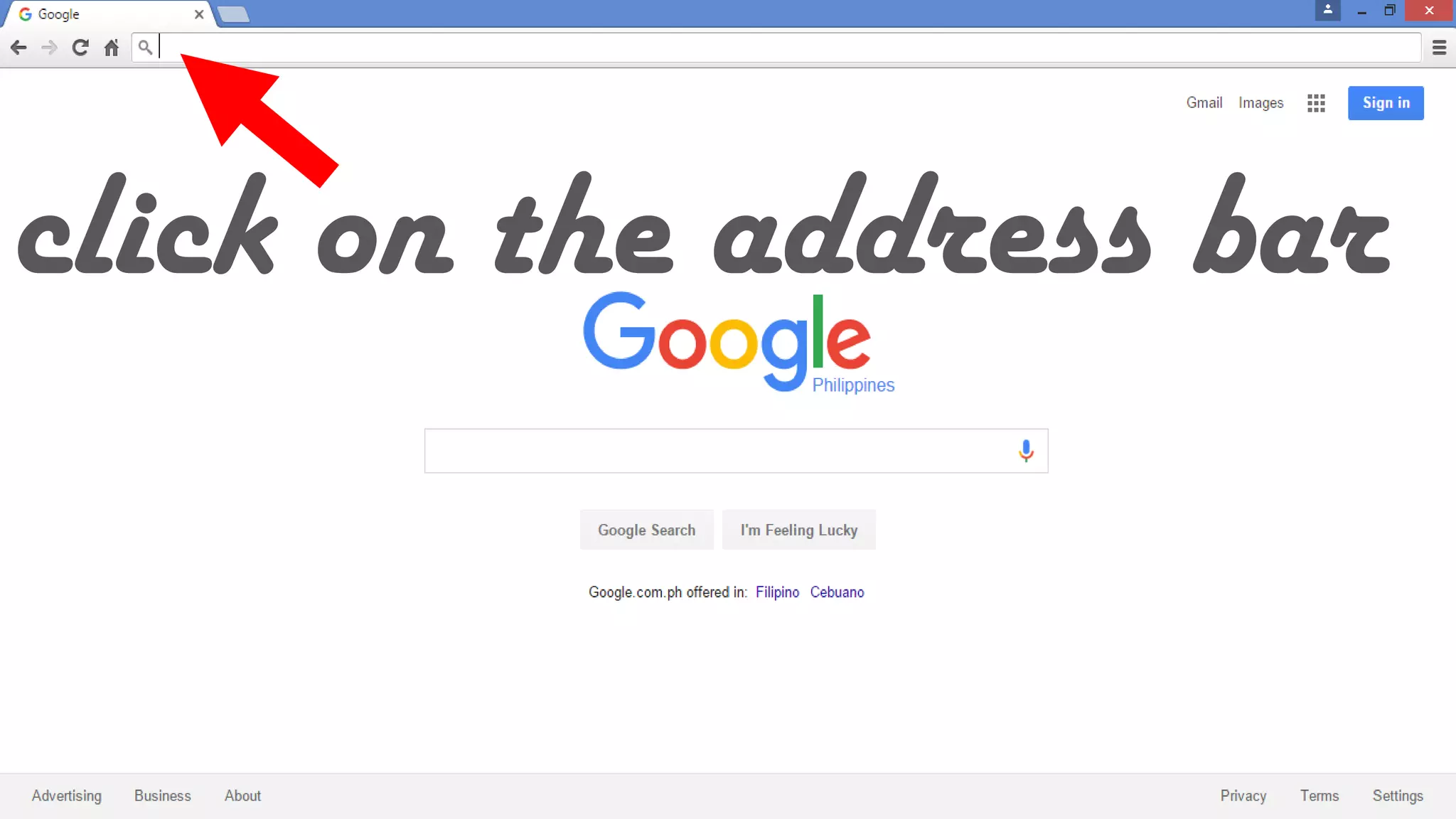
Open your browser
click on the address bar
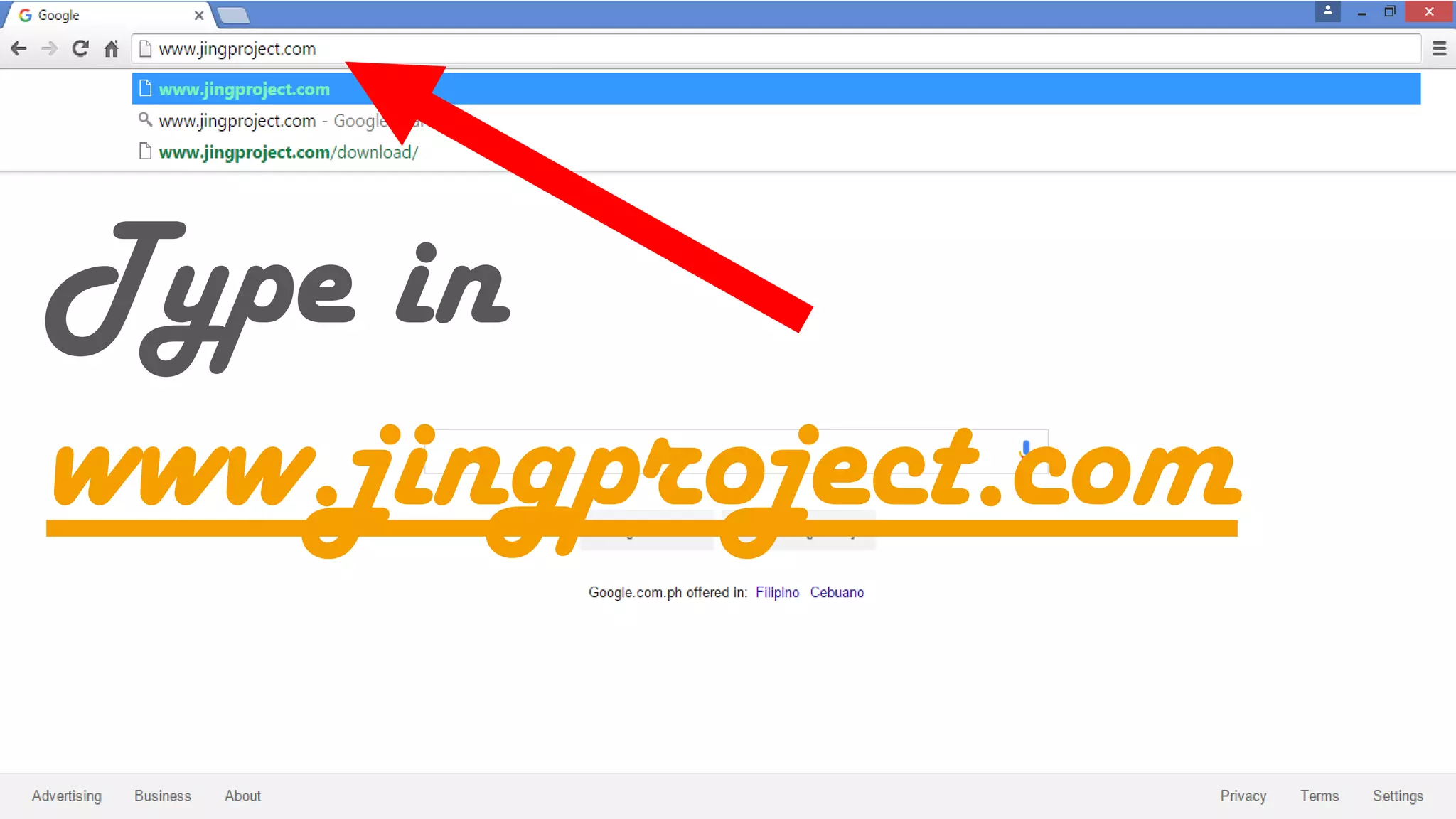
Type in
www.jingproject.com
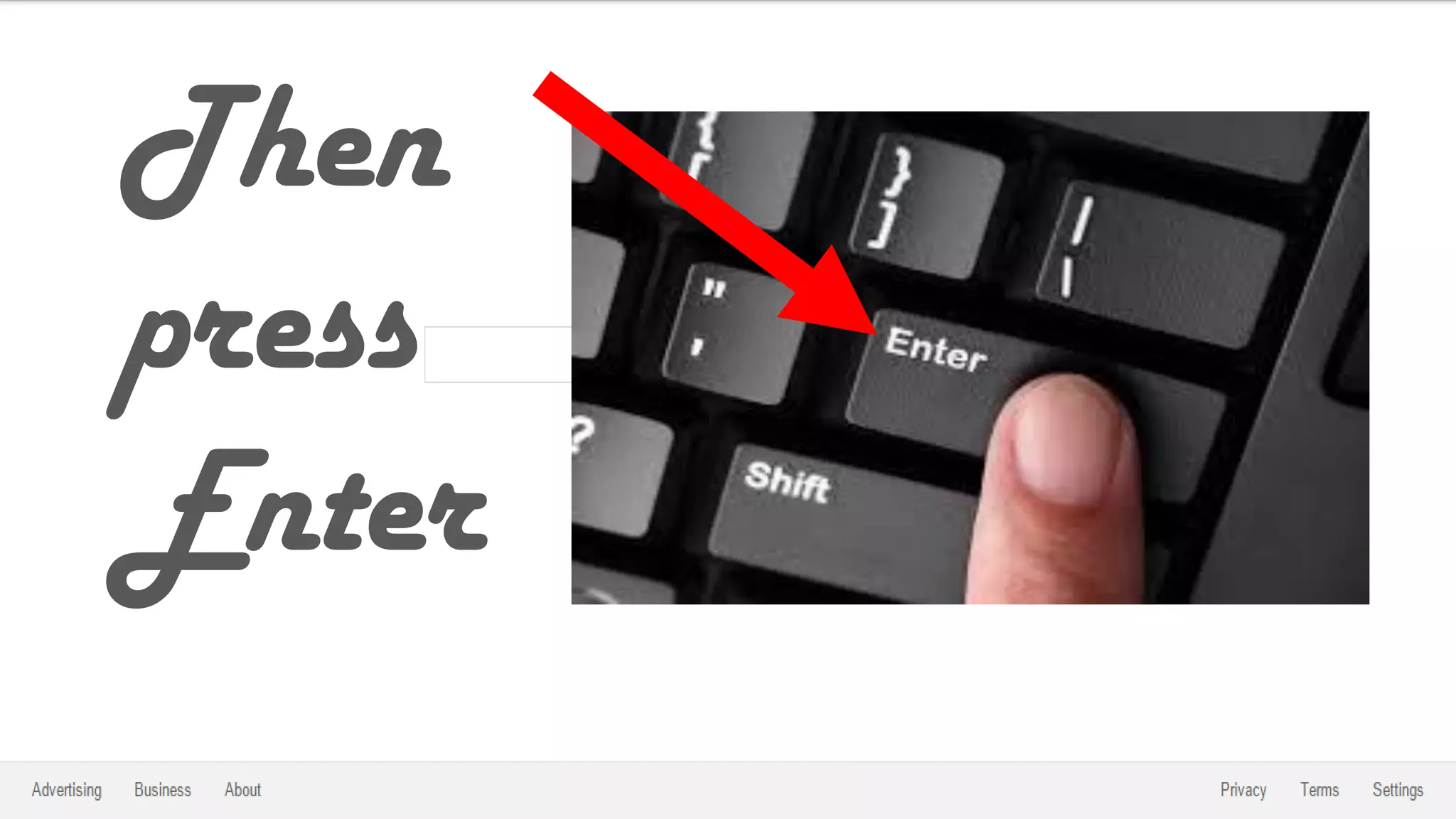
Then
press
Enter
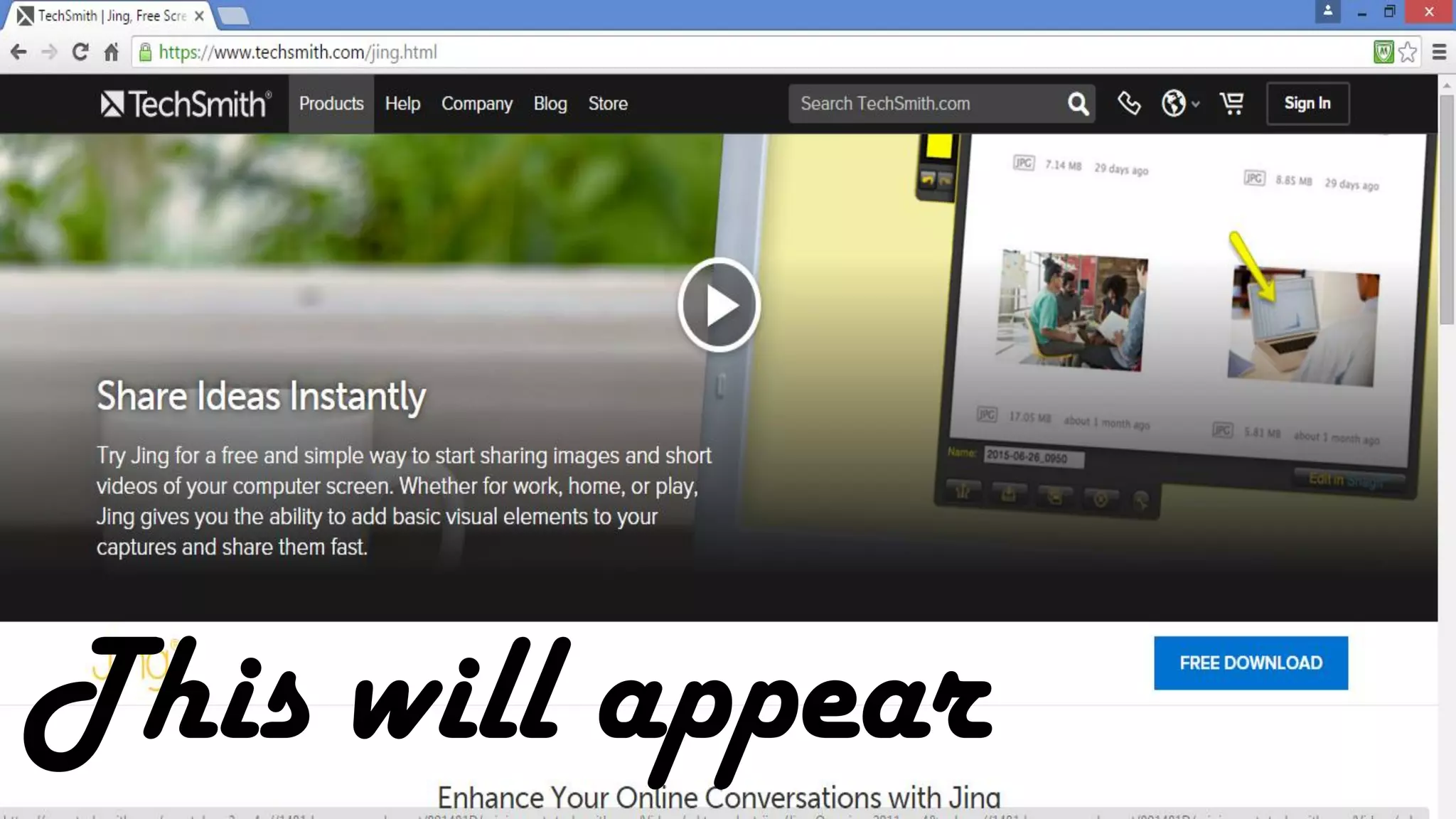
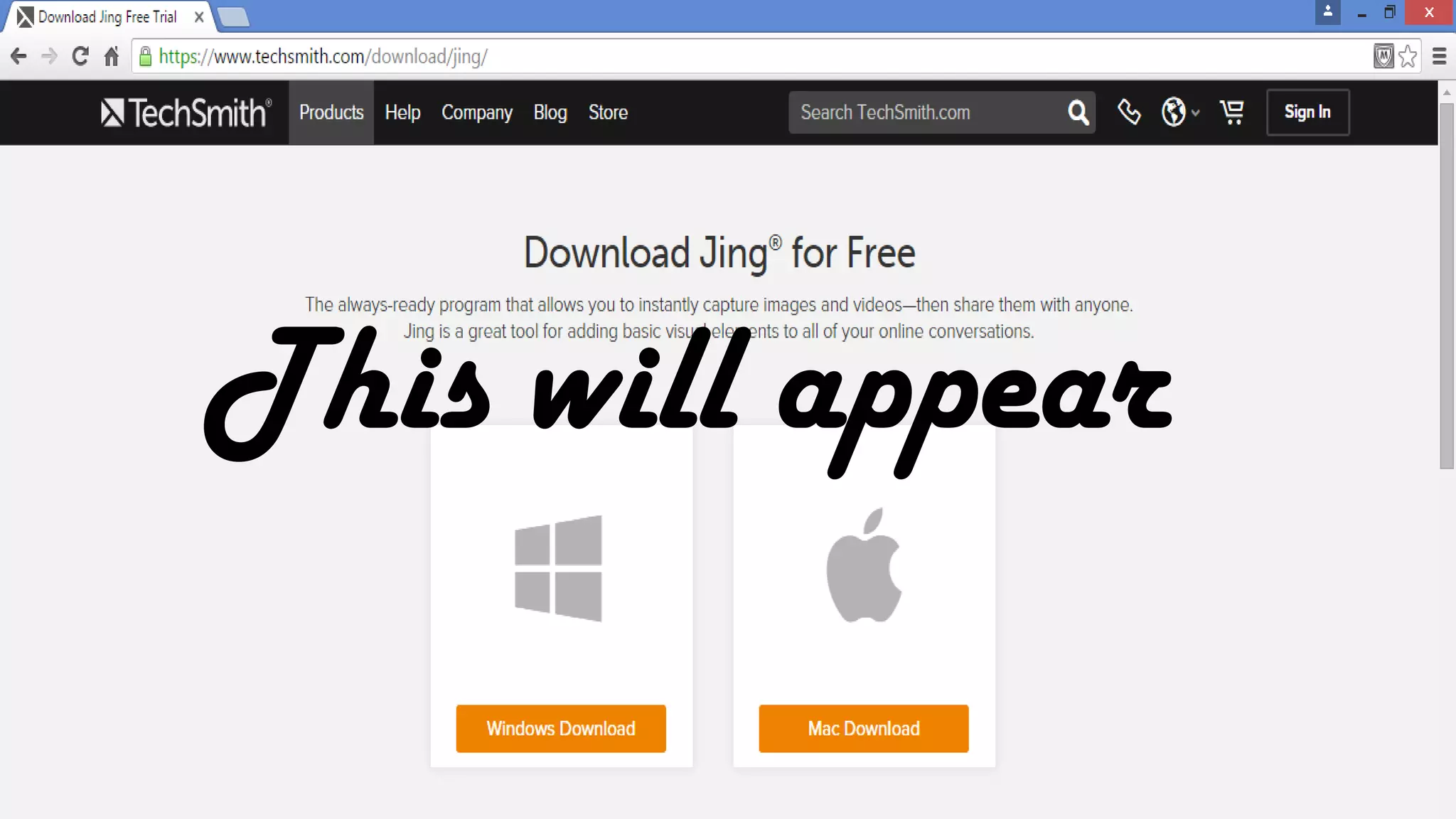
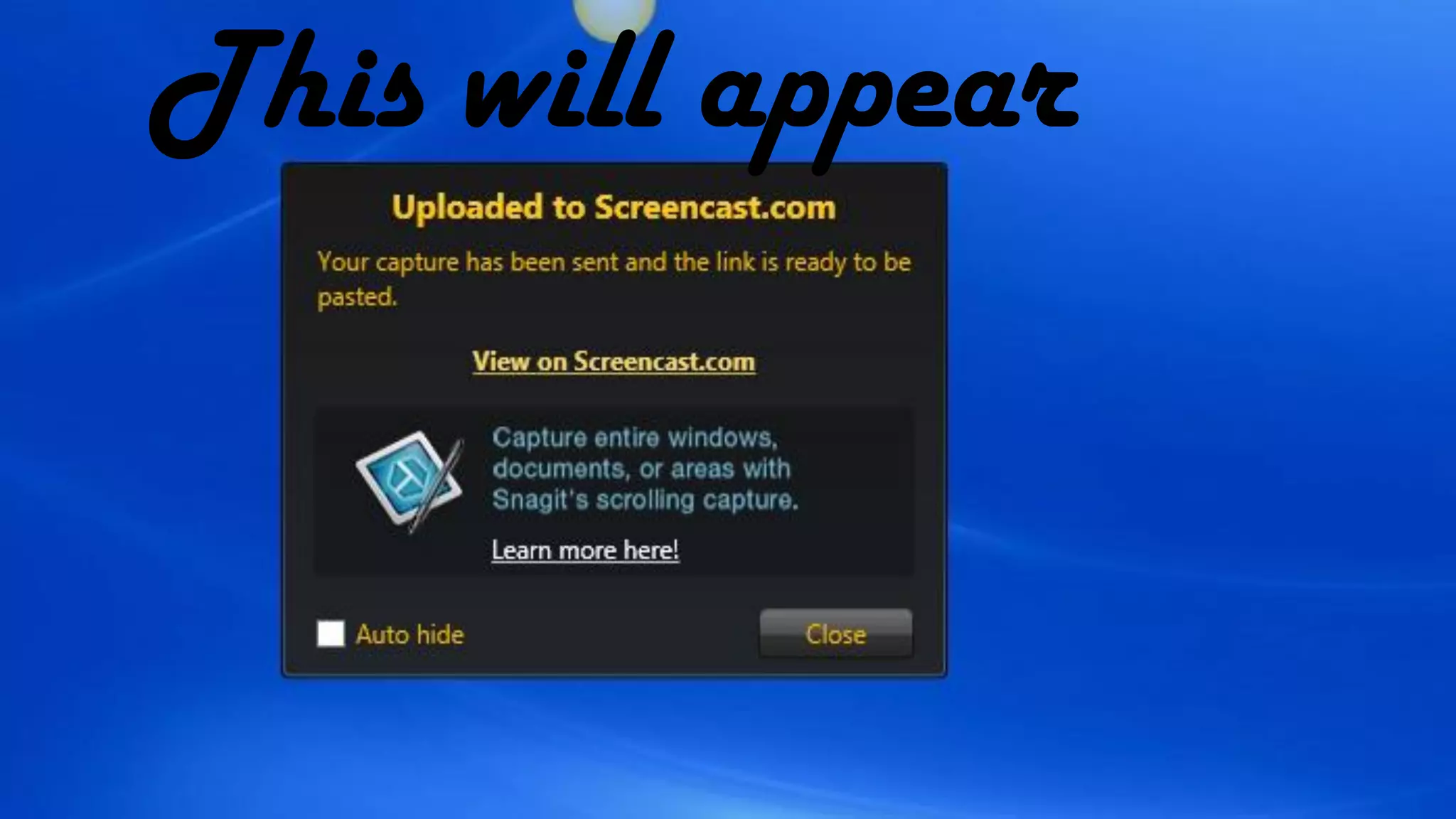
This will appear
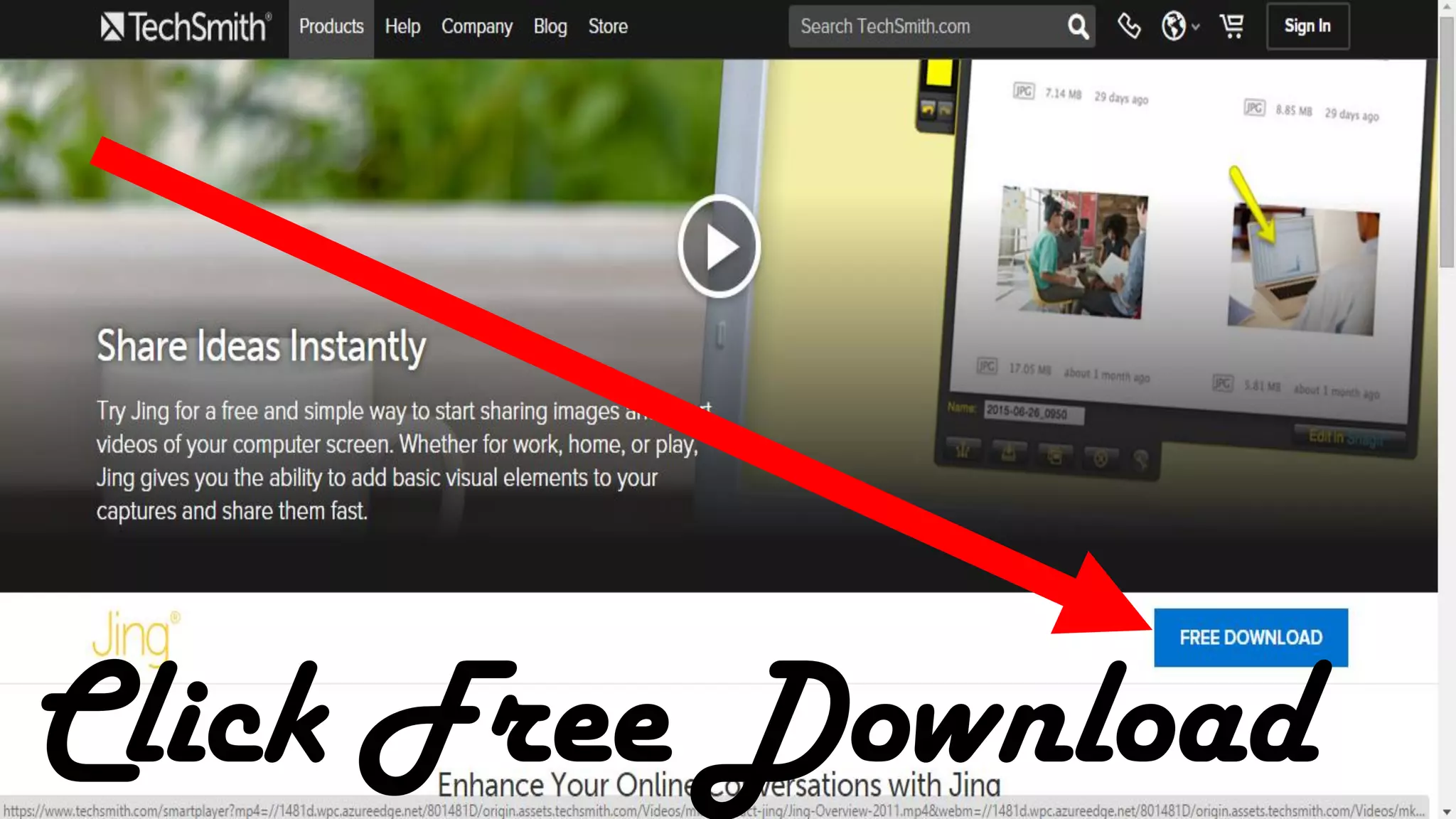
Click Free Download
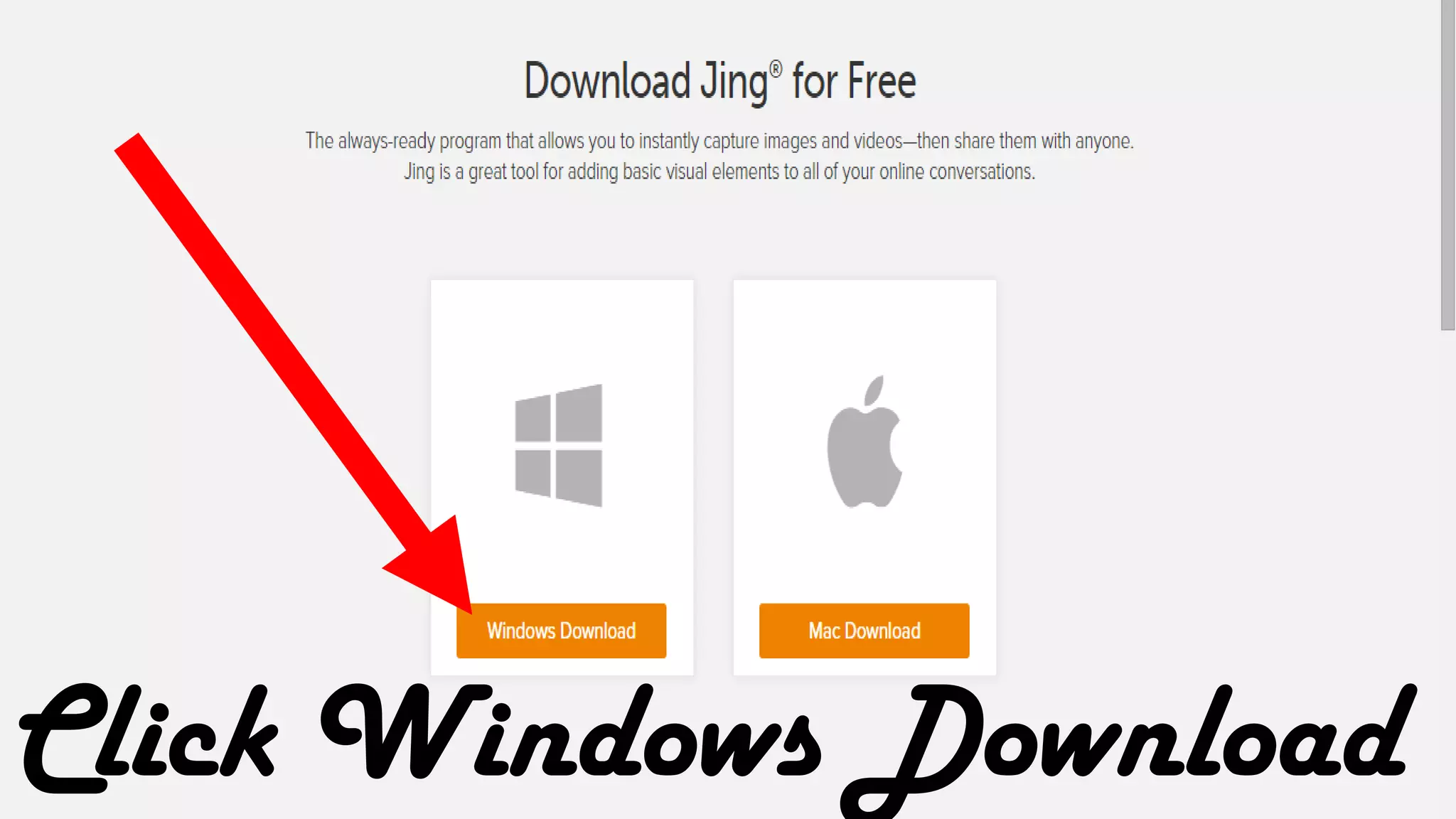
This will appear
Click Windows Download
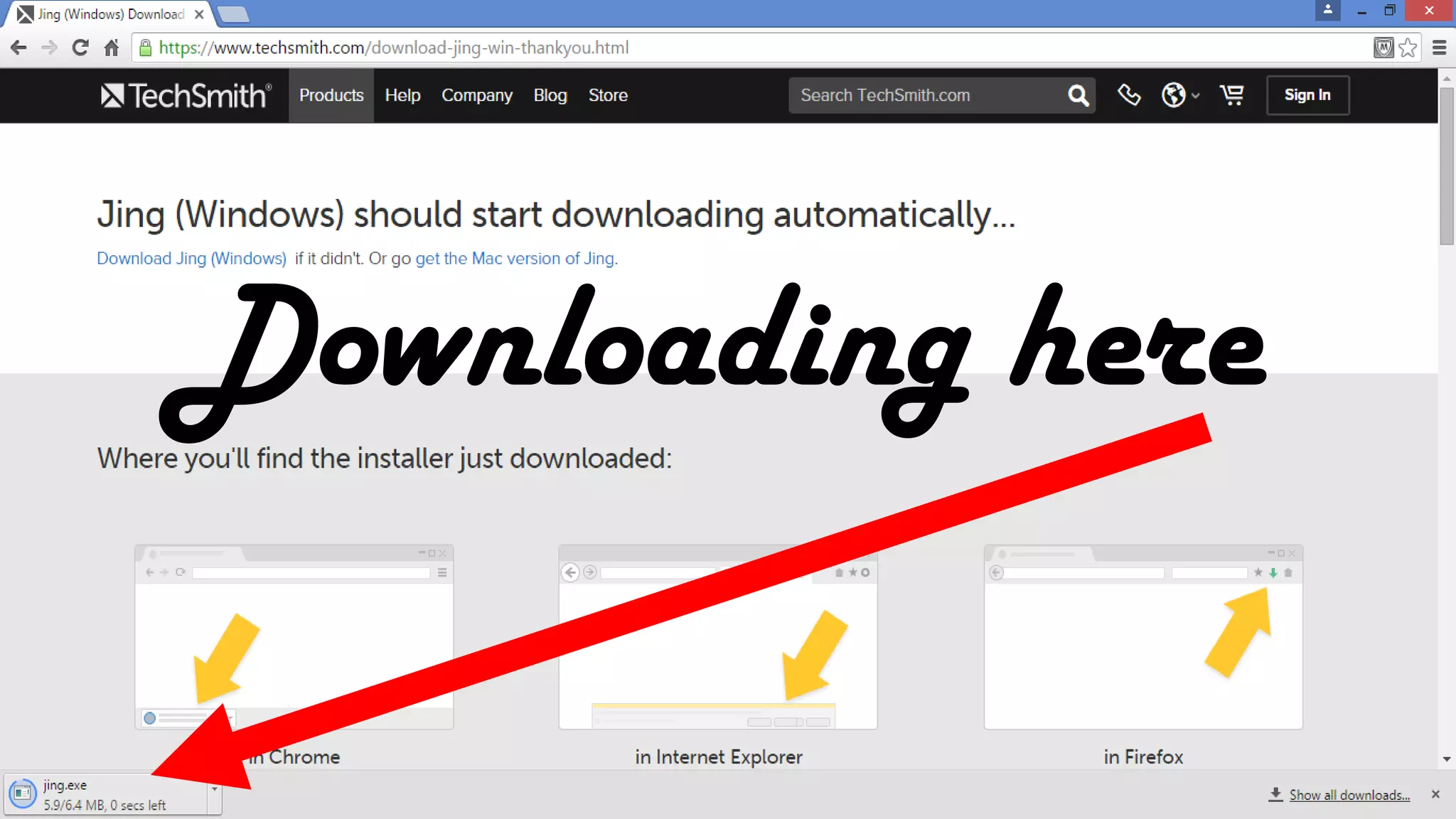
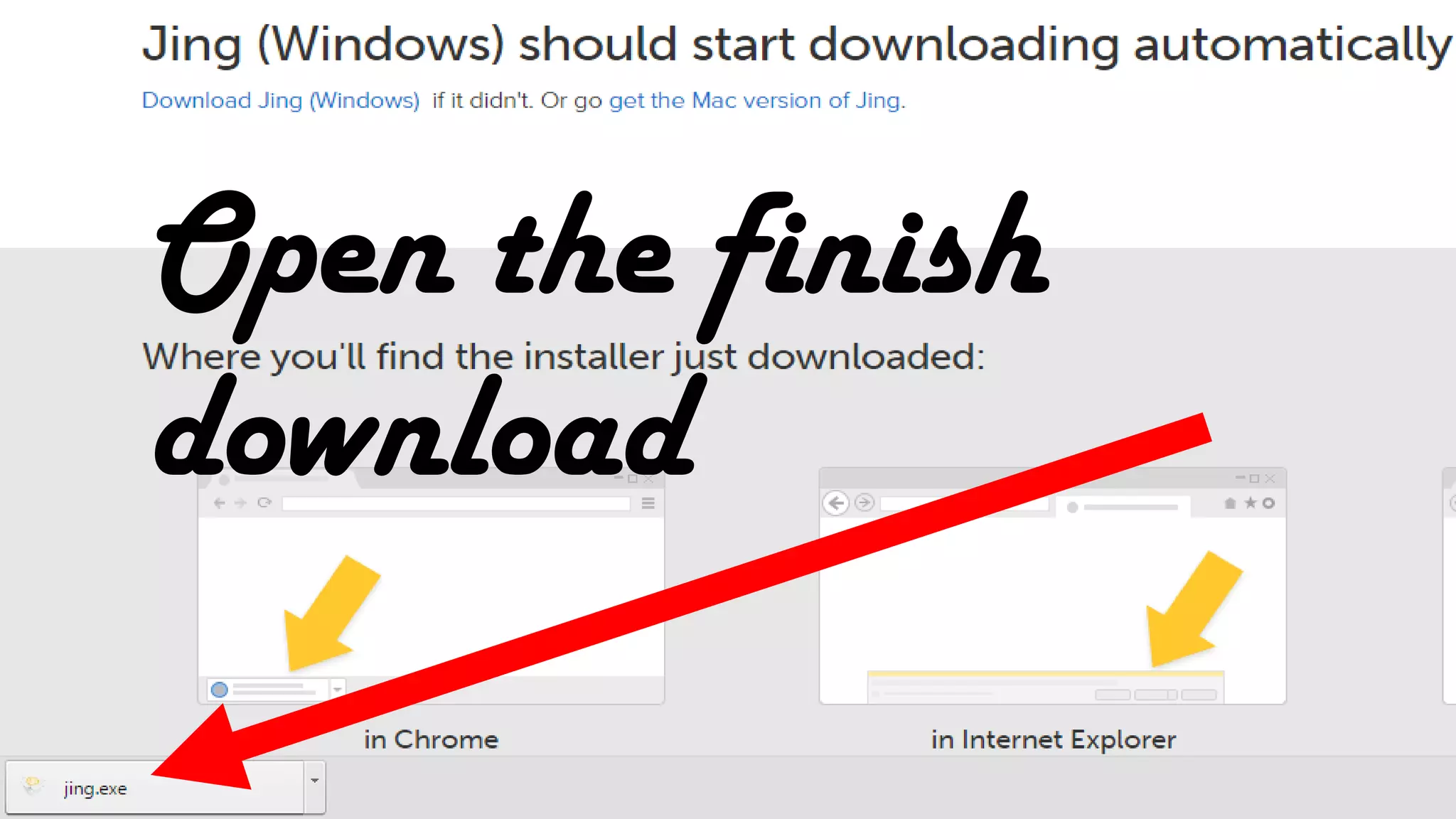
Downloading here
Open the finish
download
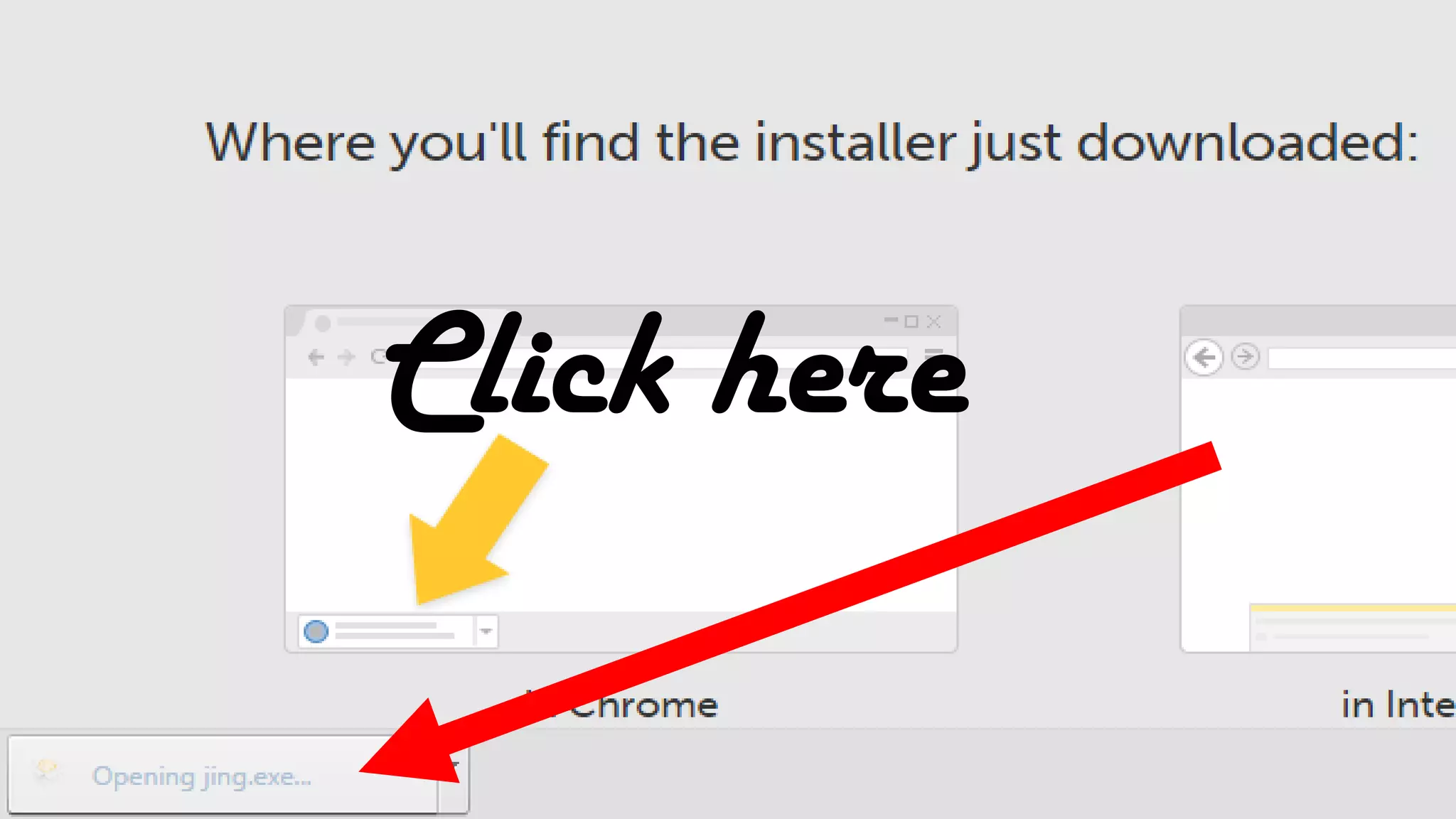
Click here
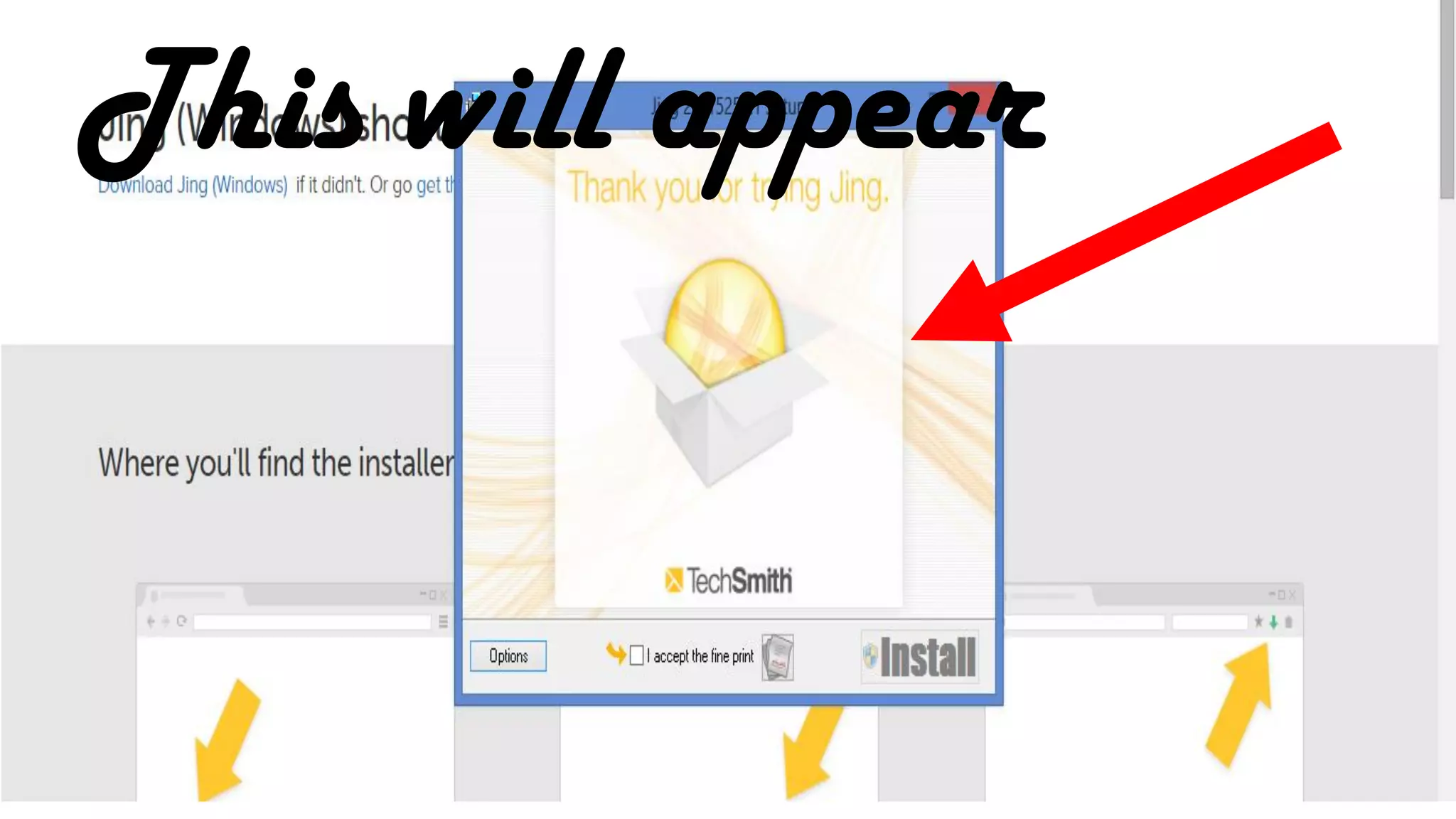
This will appear
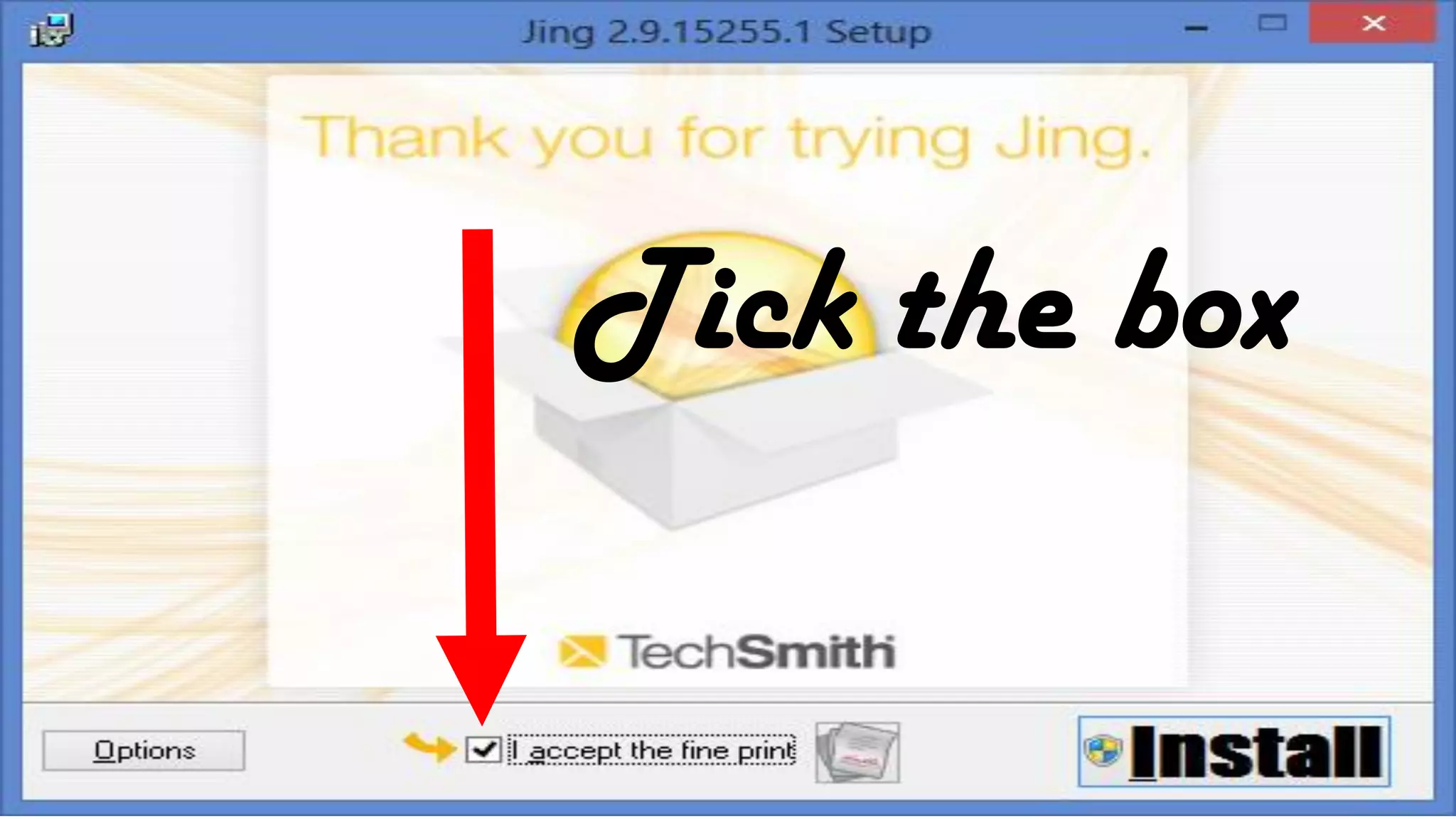
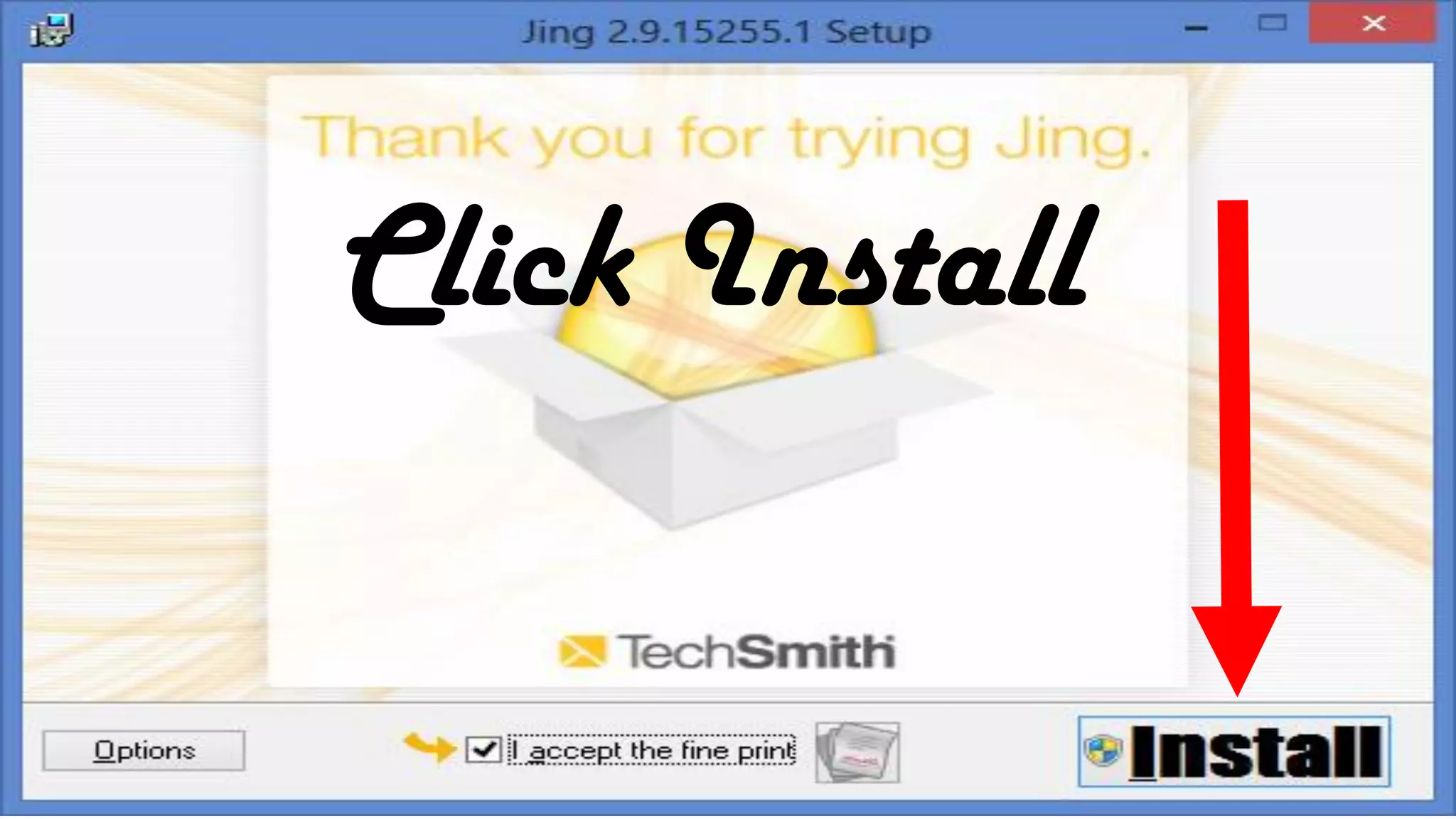
Tick the box
Click Install
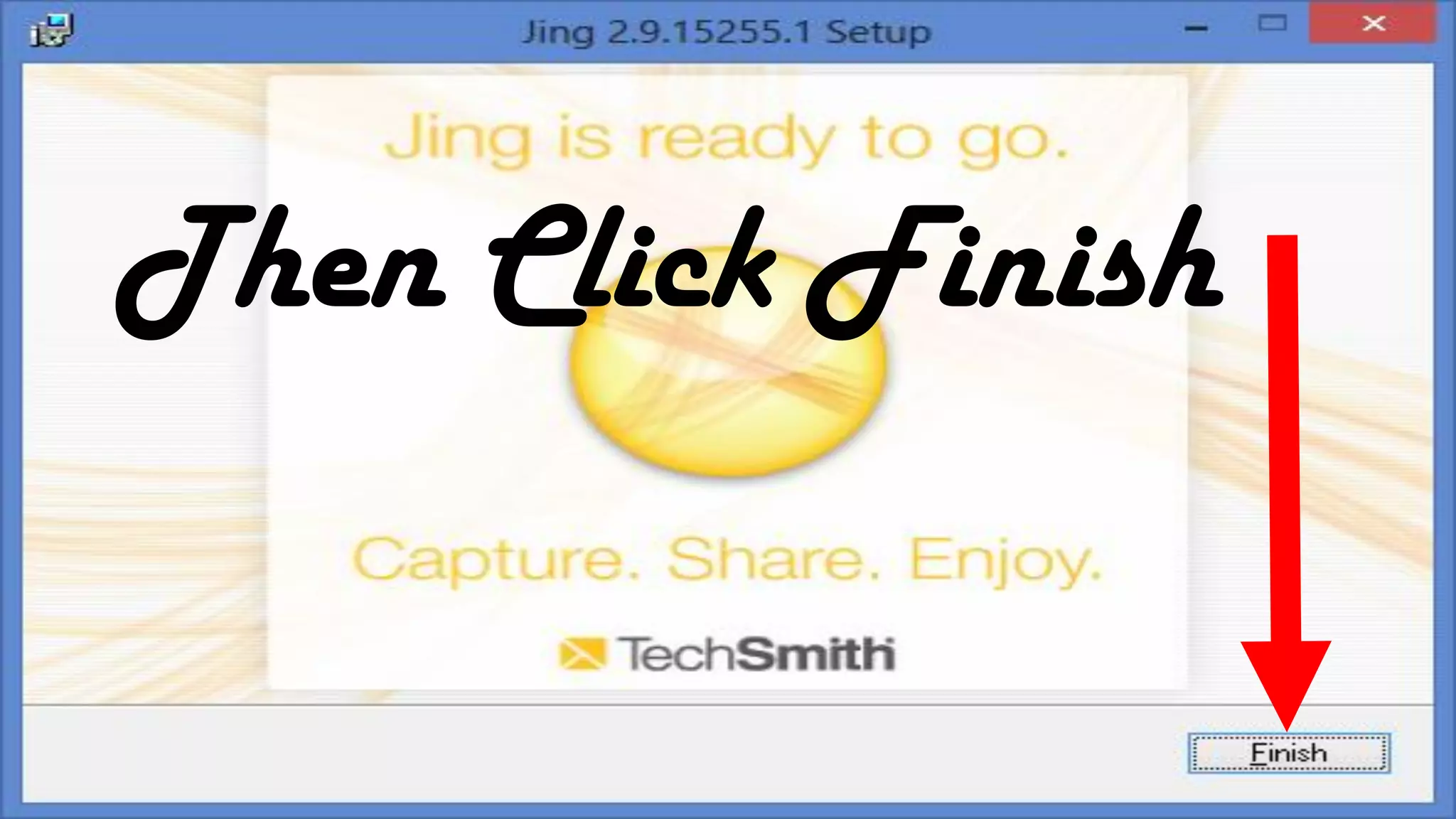
Then Click Finish
This will appear
Click Get Started
button
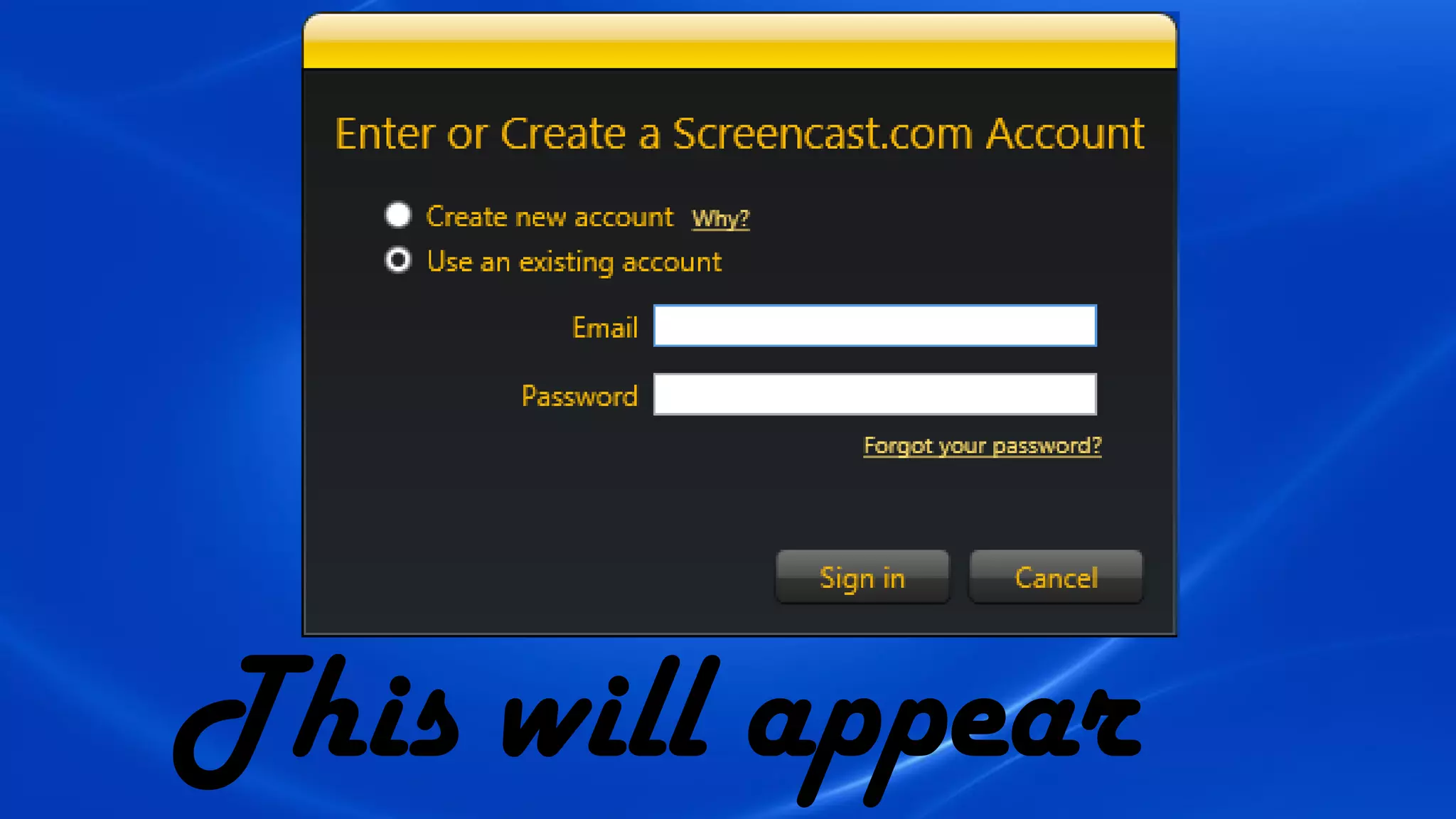
This will appear
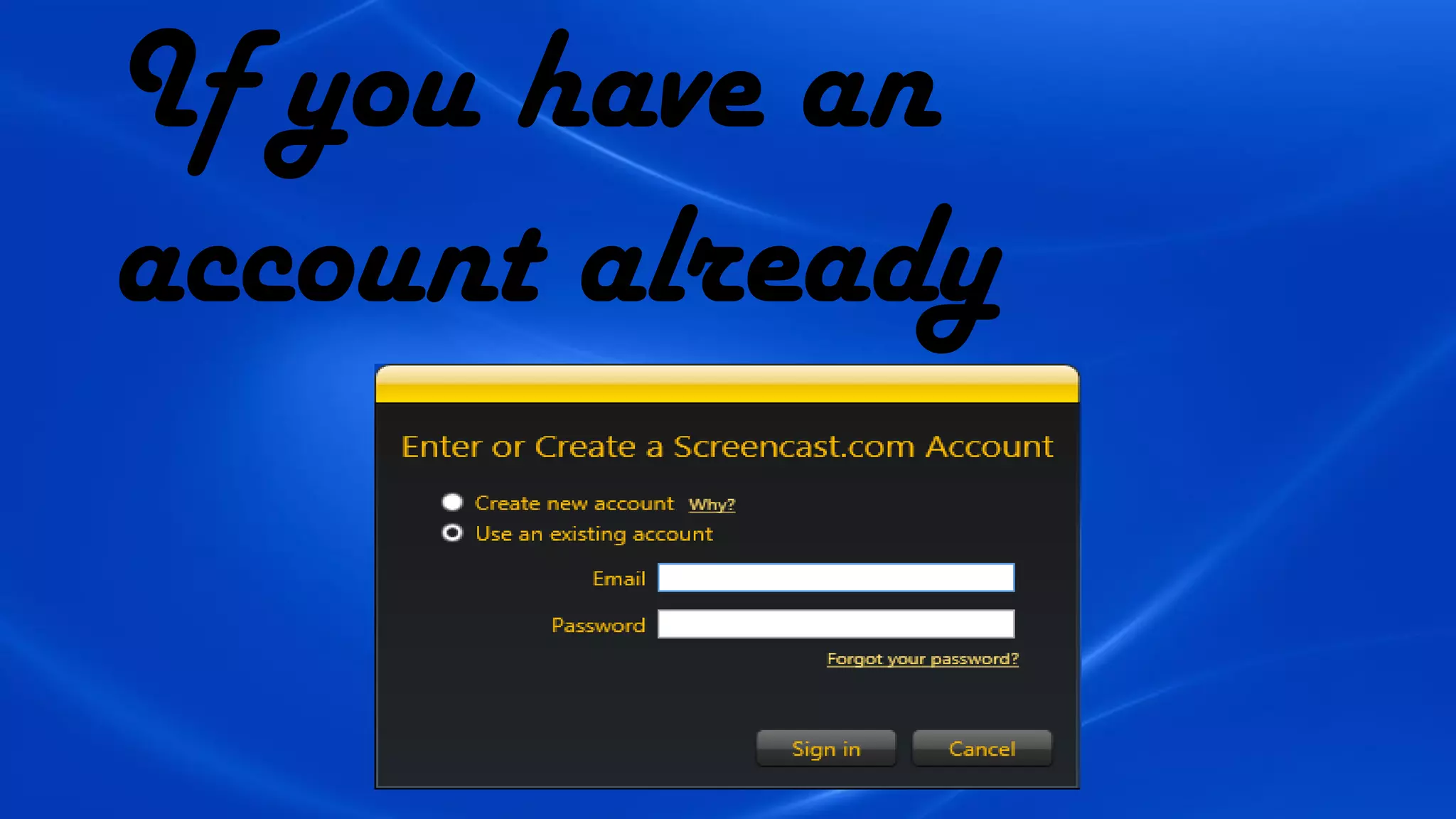
To use Jing you need
ScreenCast account
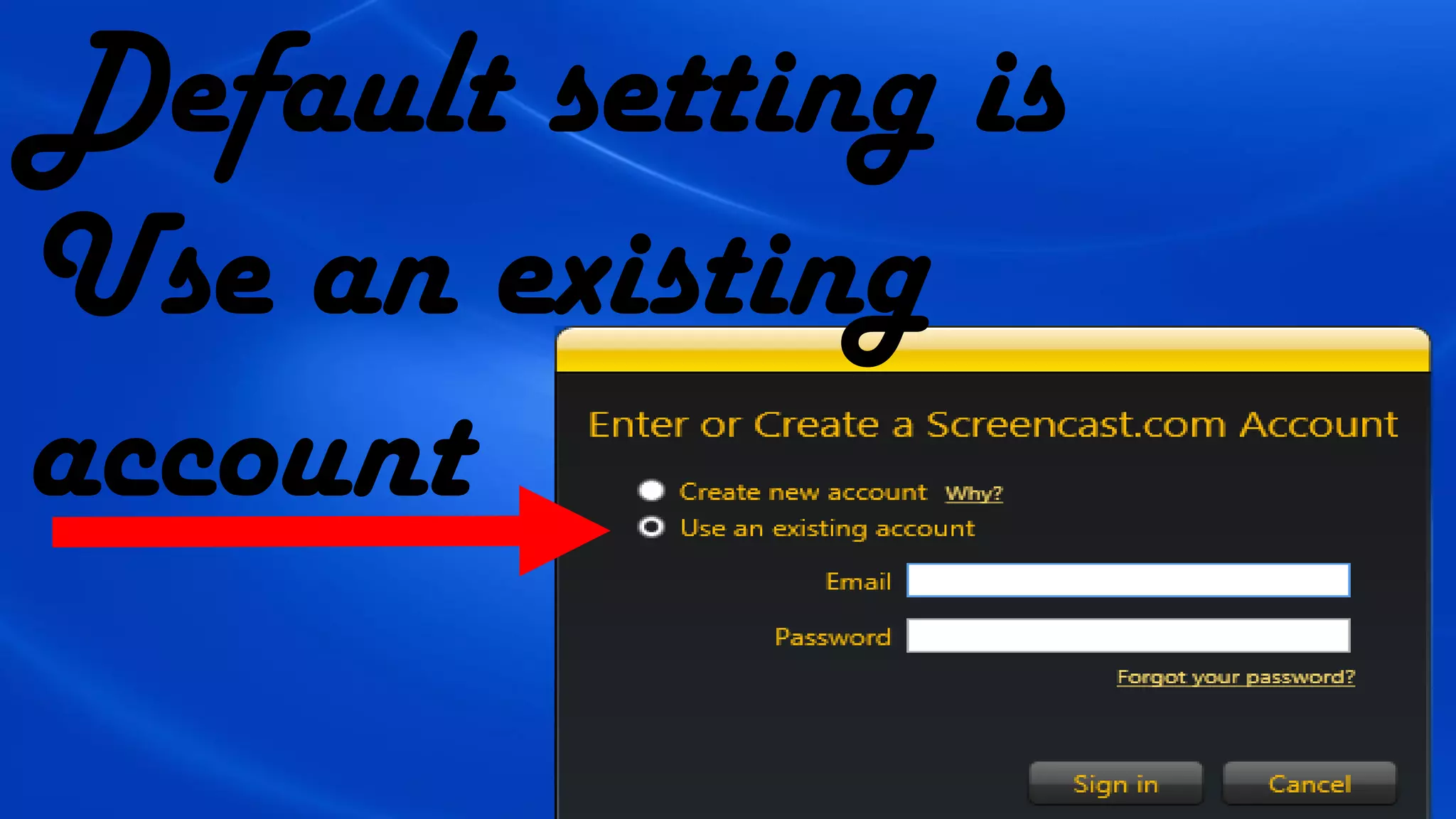
Default setting is
Use an existing
account
If you have an
account already
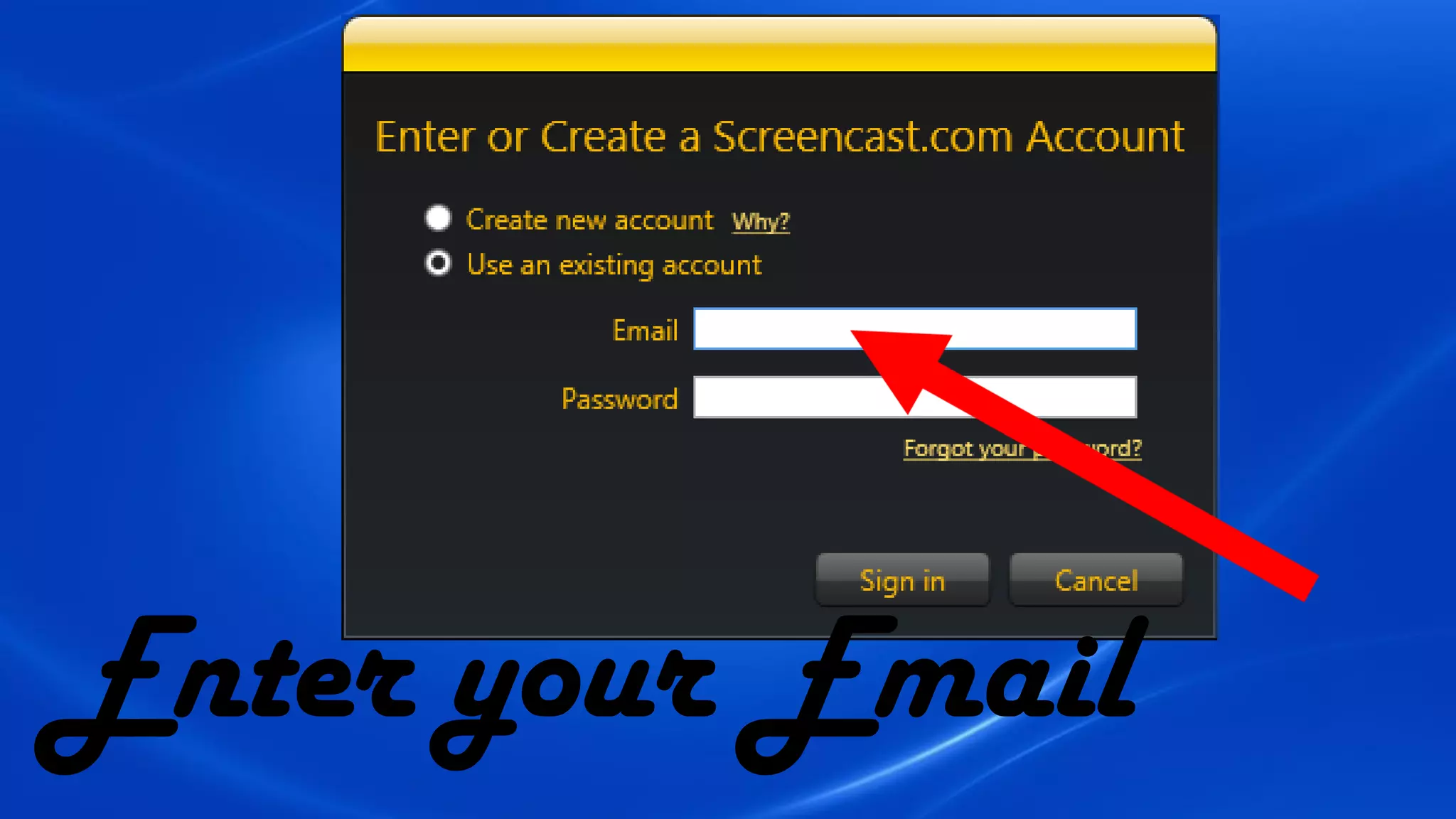
Enter your Email
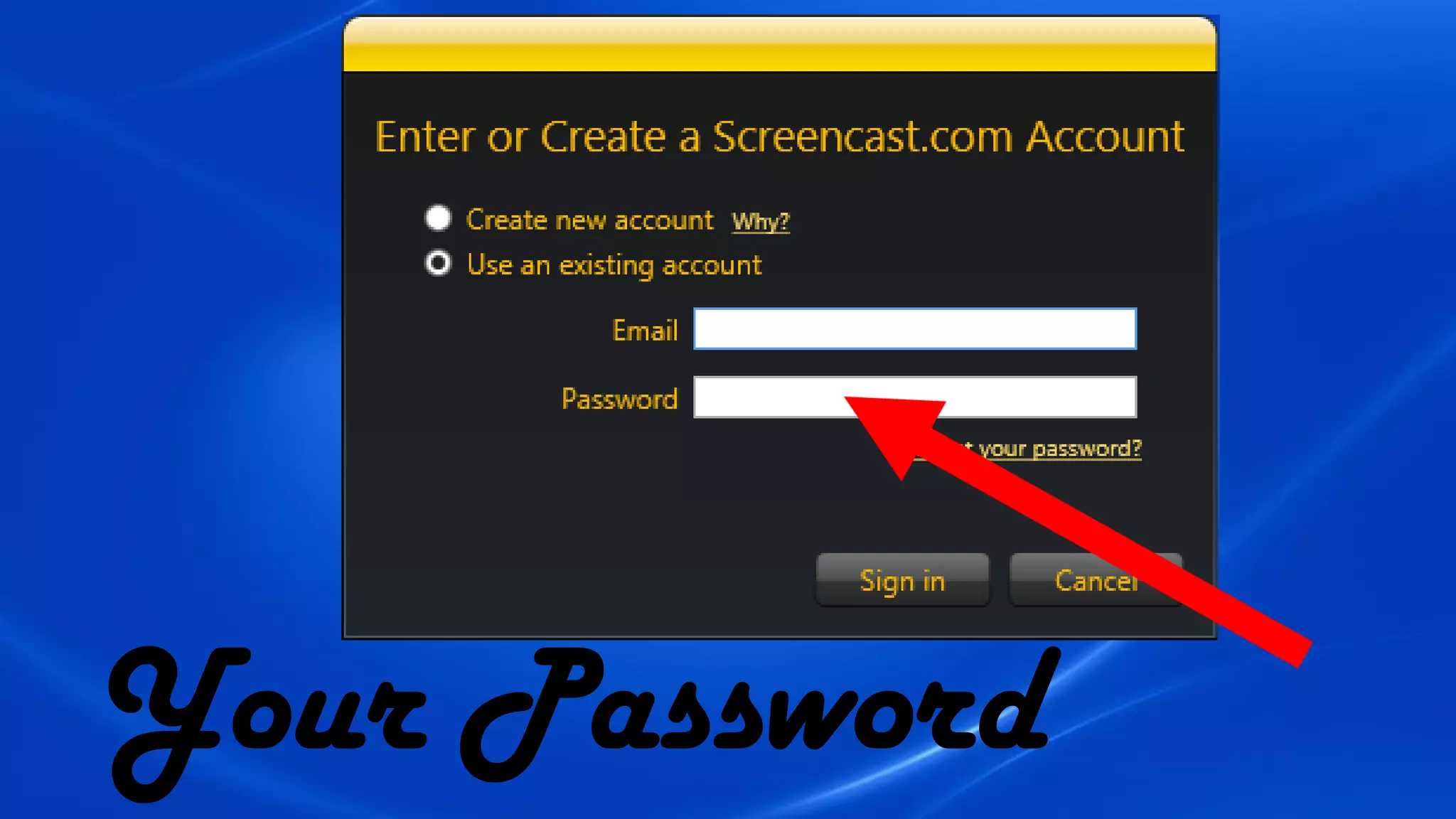
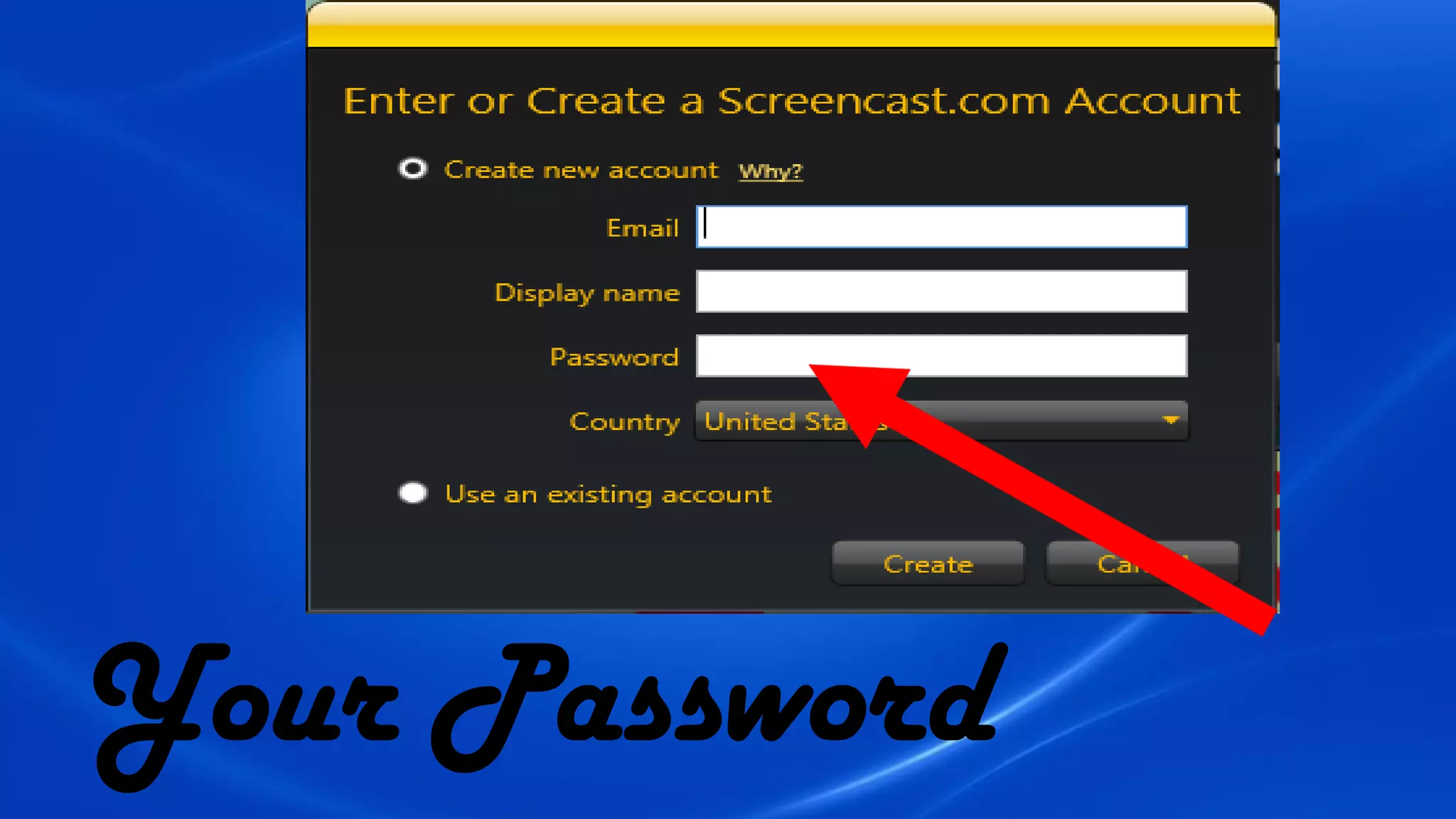
Your Password
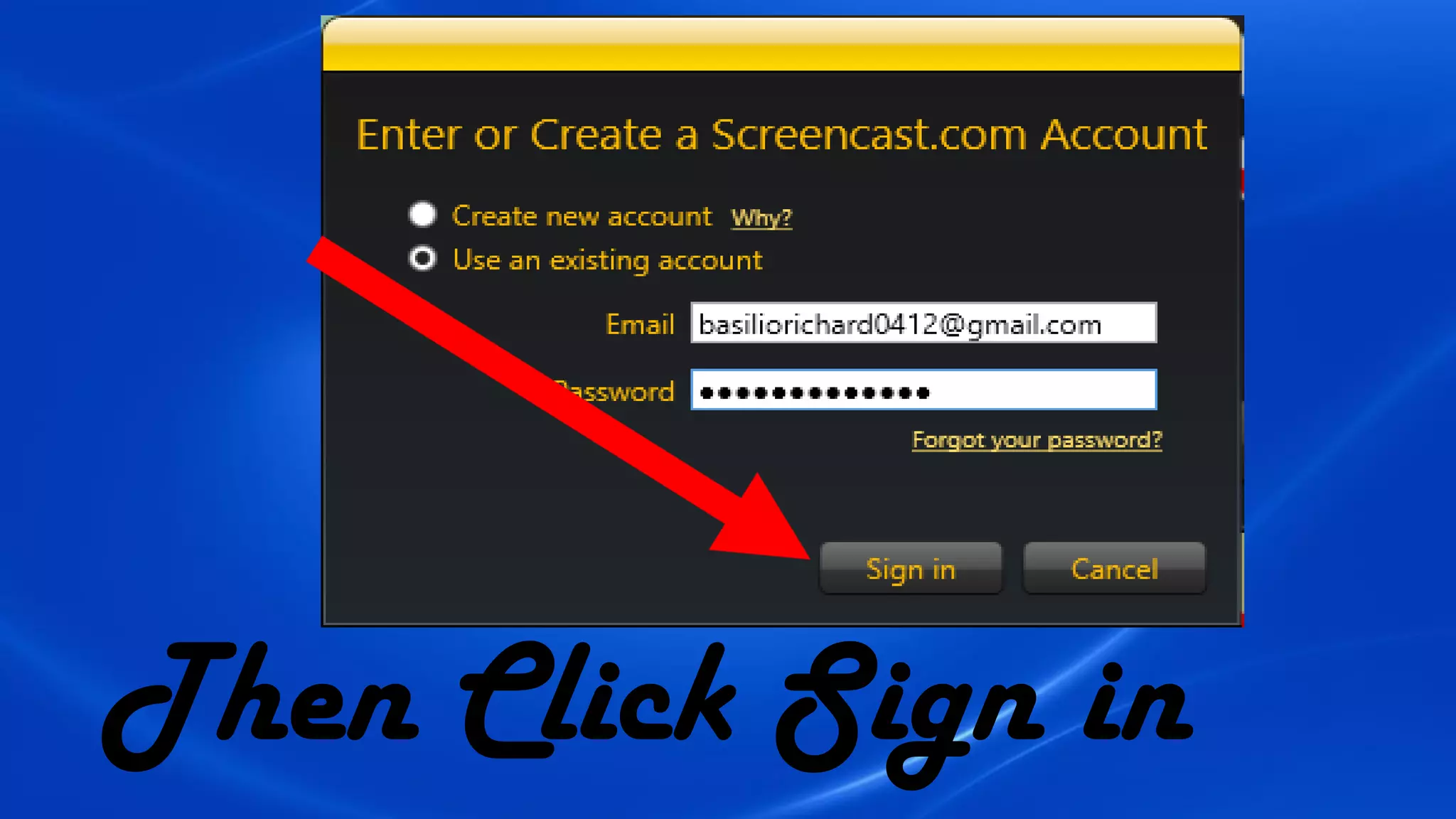
Then Click Sign in
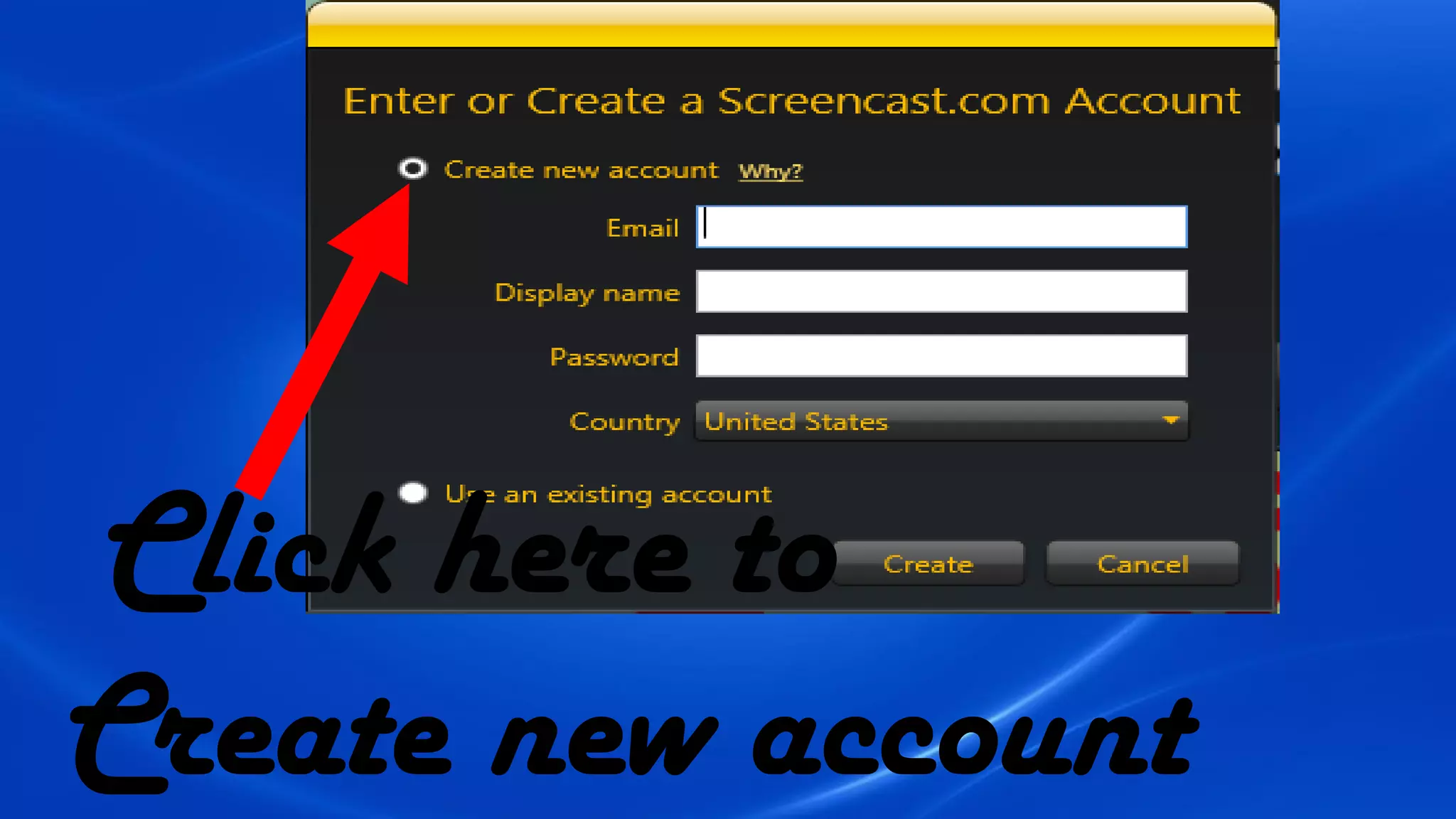
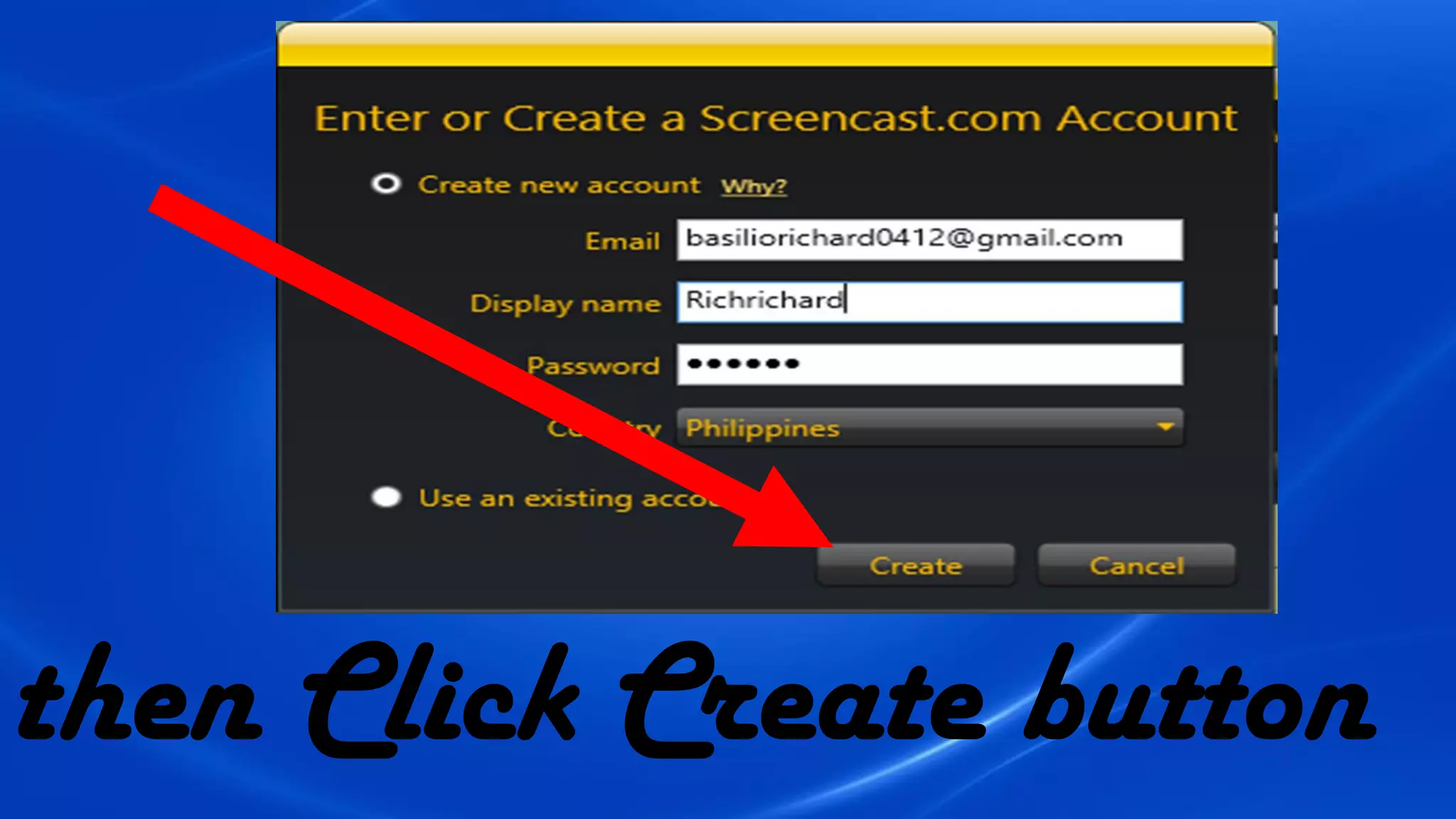
Click here to
Create new account
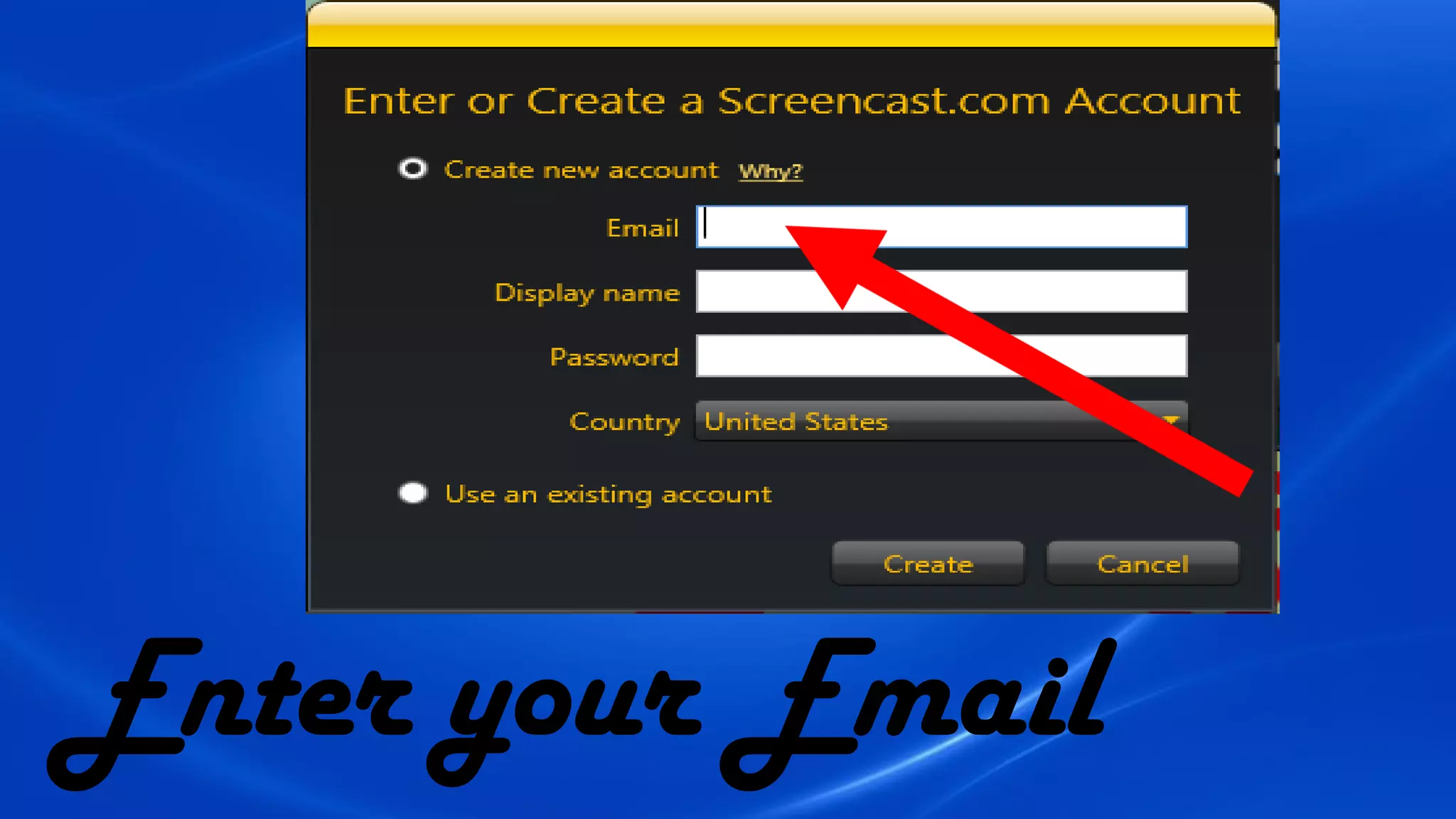
Enter your Email
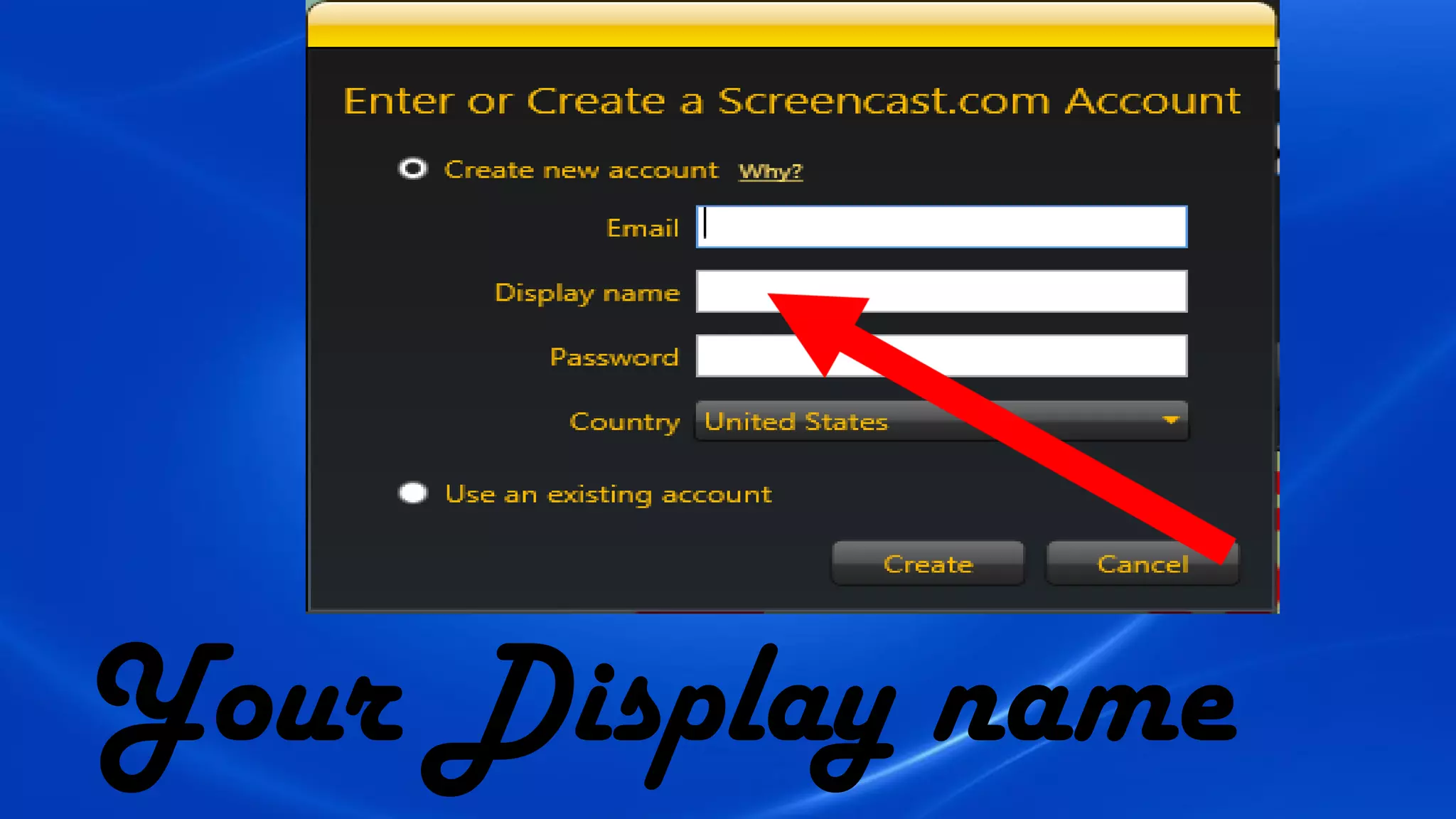
Your Display name
Your Password
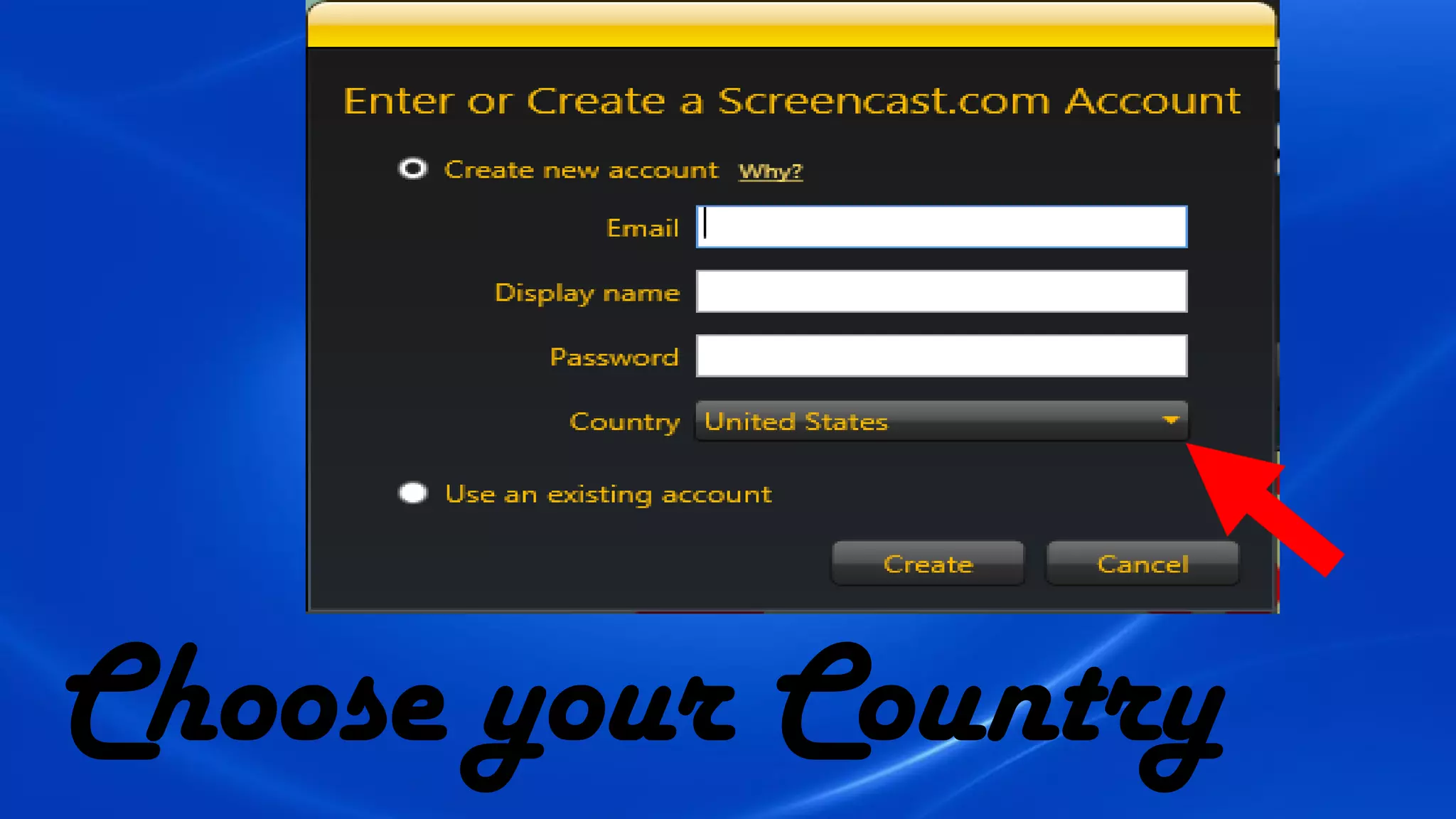
Choose your Country
then Click Create button
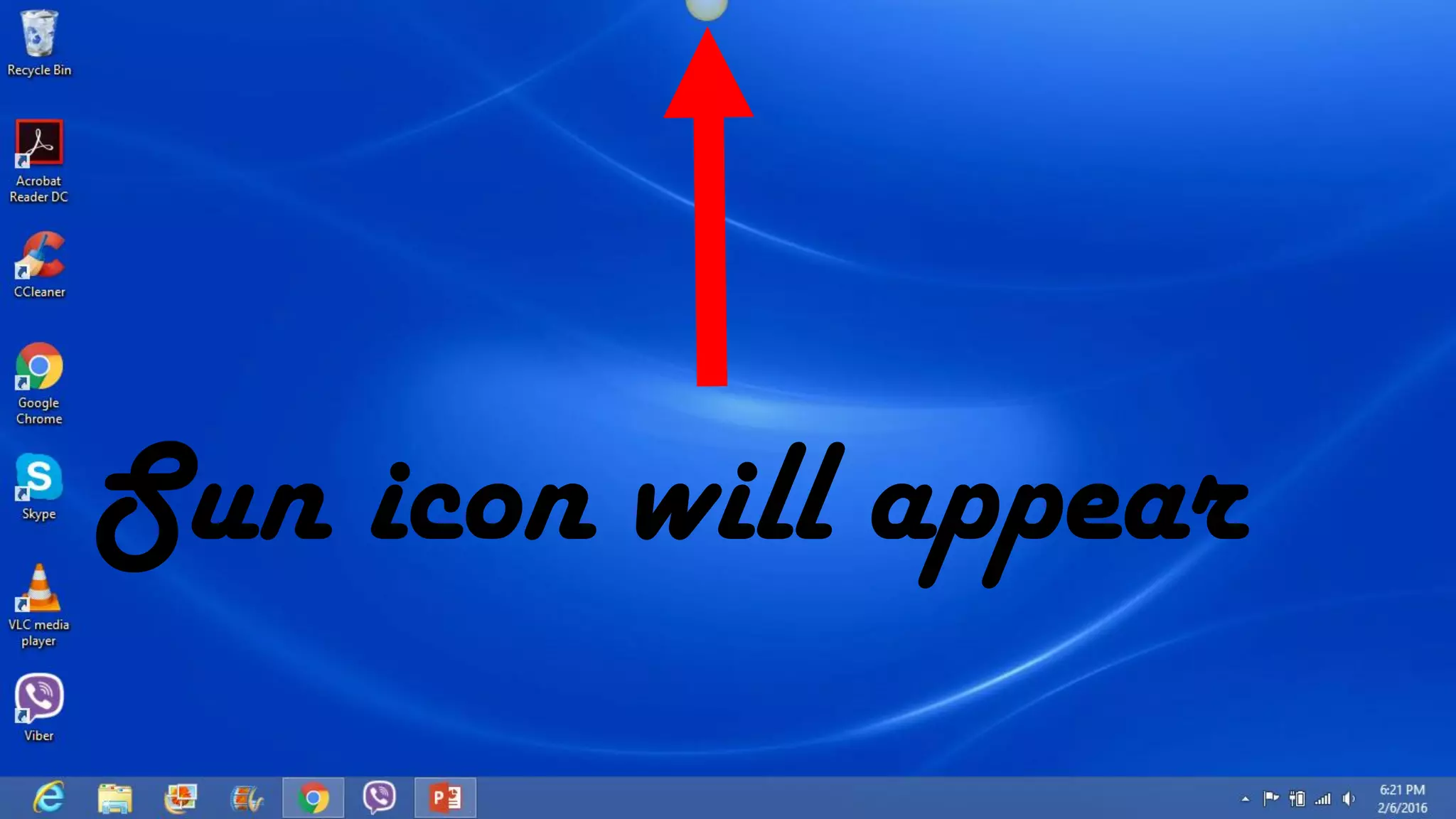
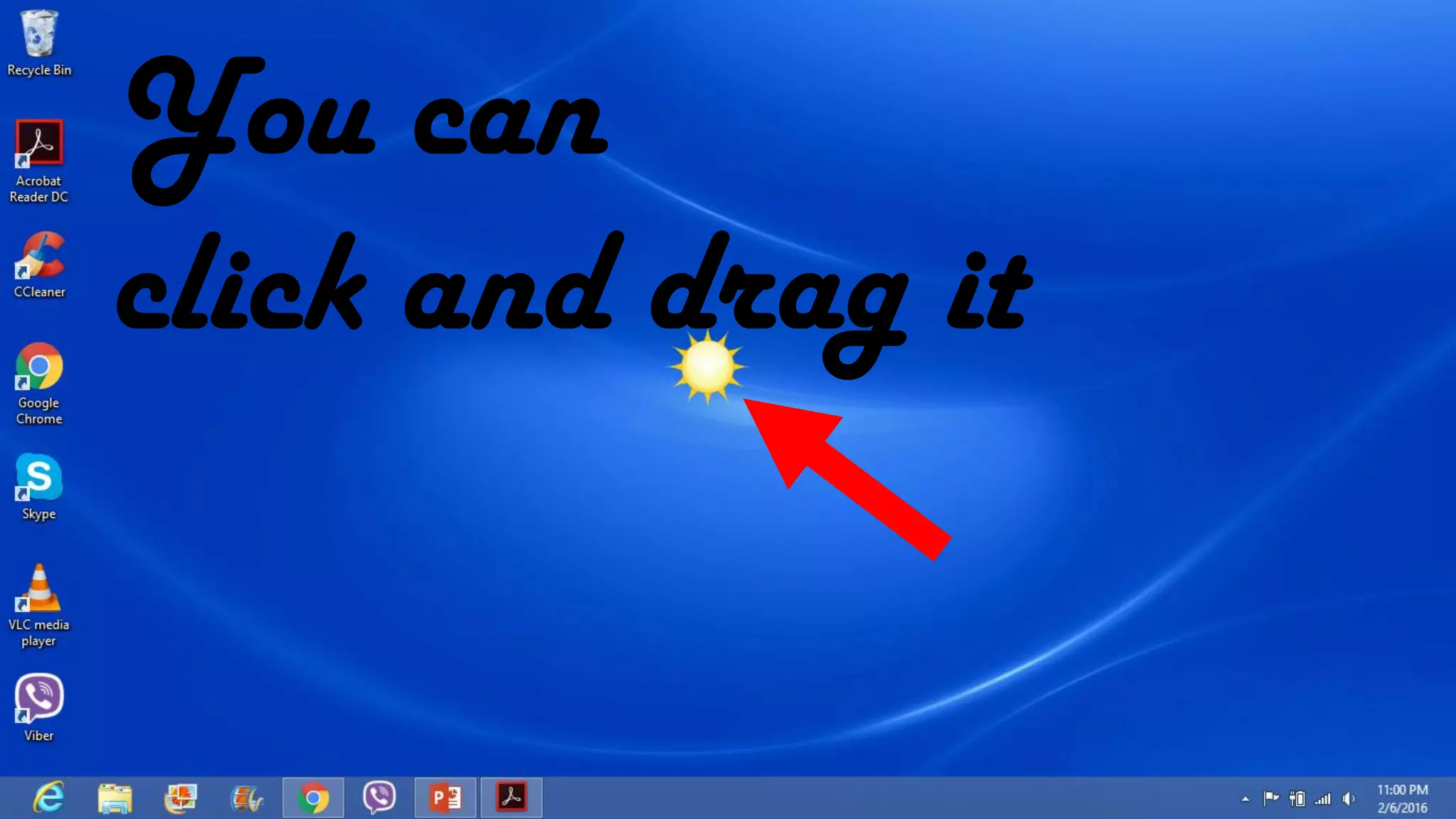
Sun icon will appear
You can
click and drag it
And place it
anywhere you
want
Before placing your
mouse cursor to the Sun
Open the window you
want to capture
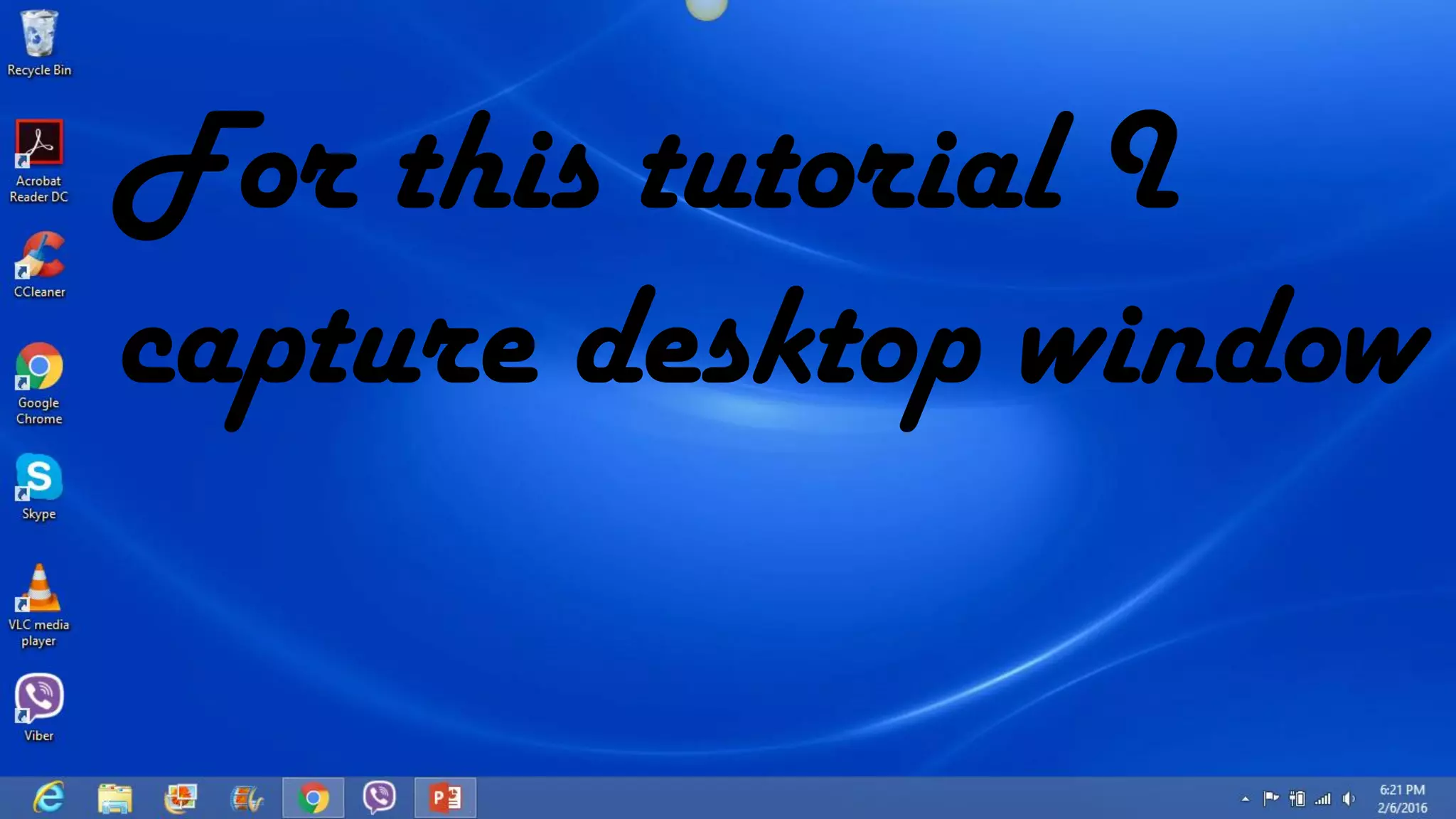
For this tutorial I
capture desktop window
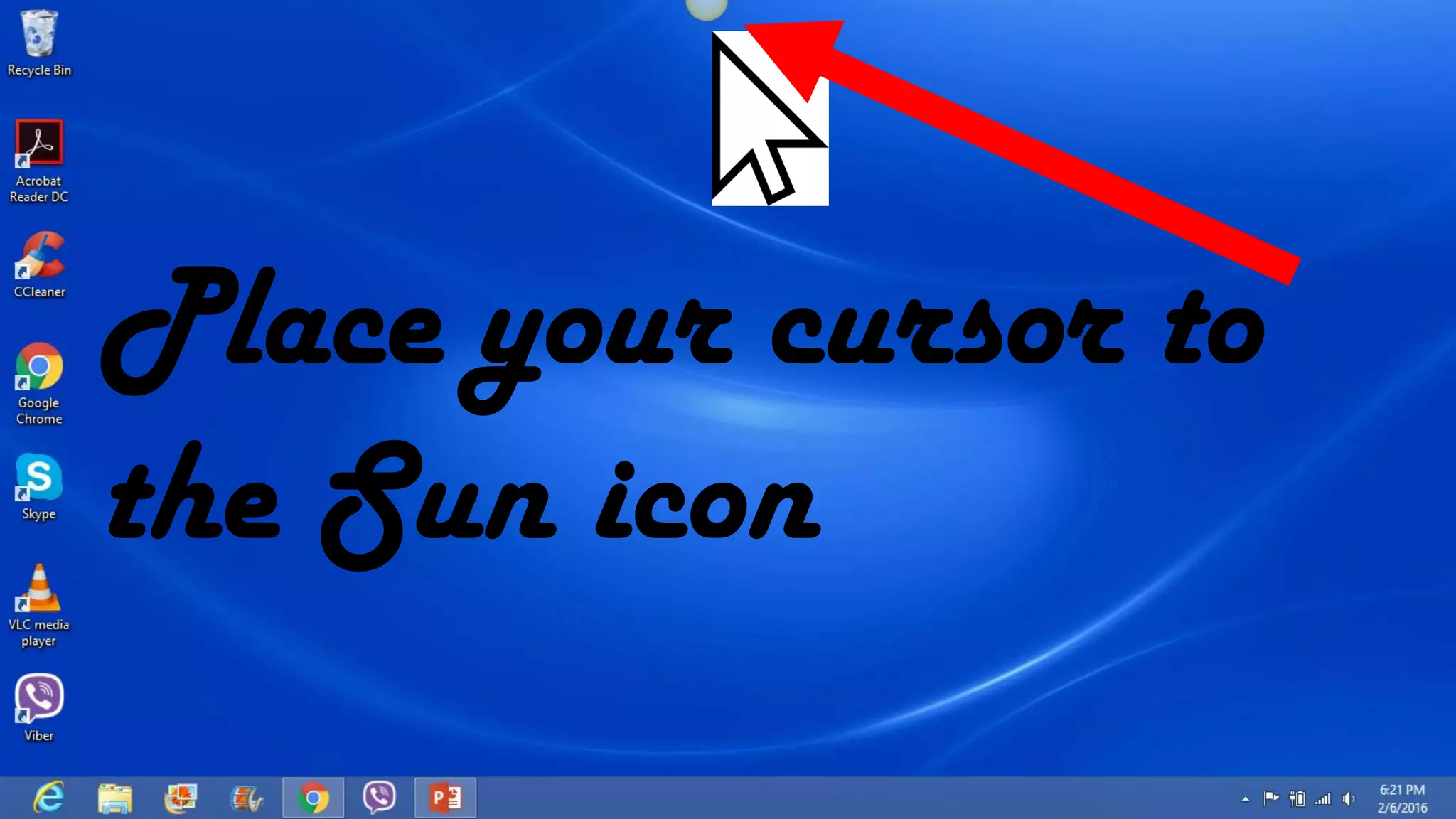
Place your cursor to
the Sun icon
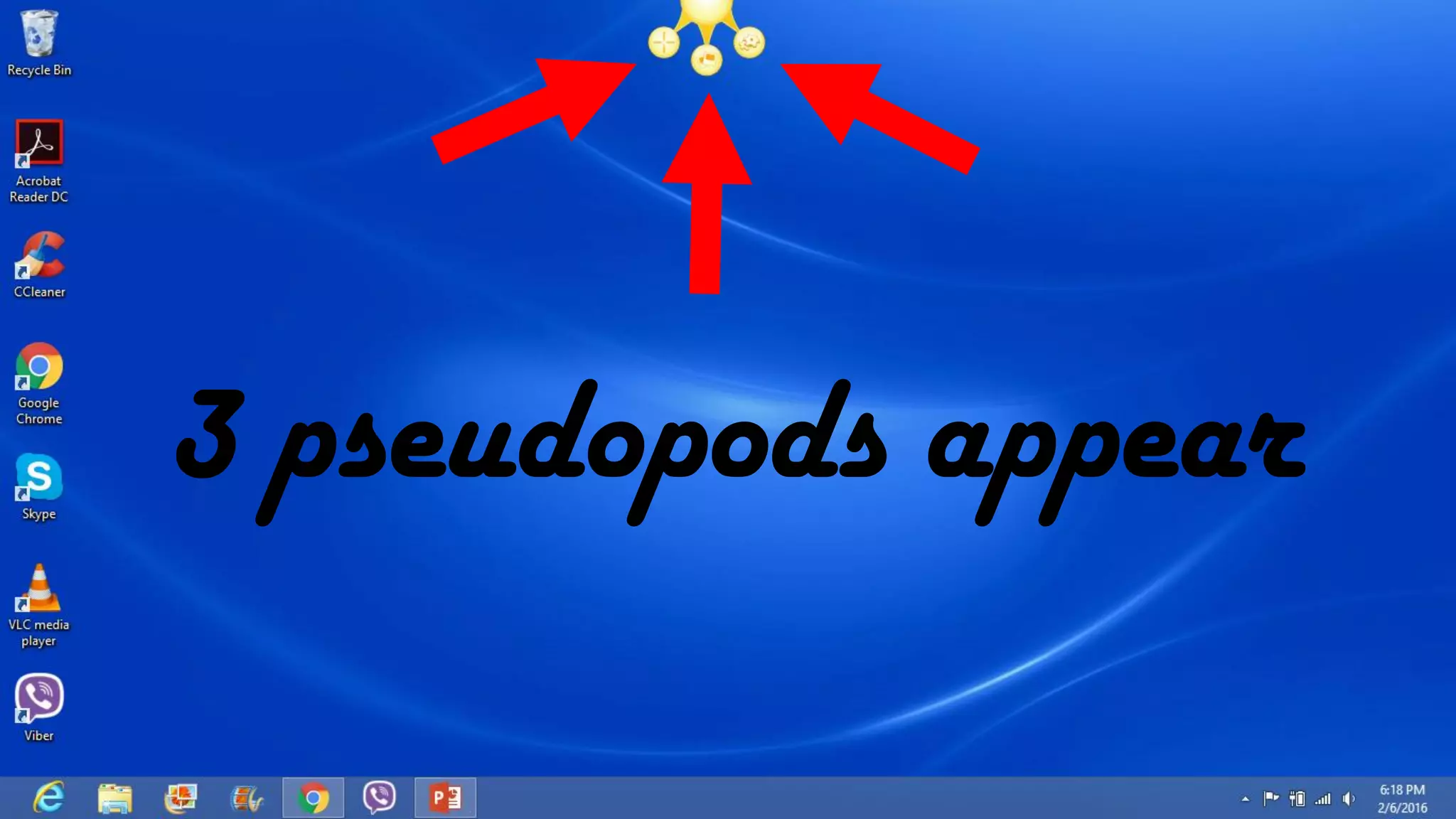
3 pseudopods appear
More
History
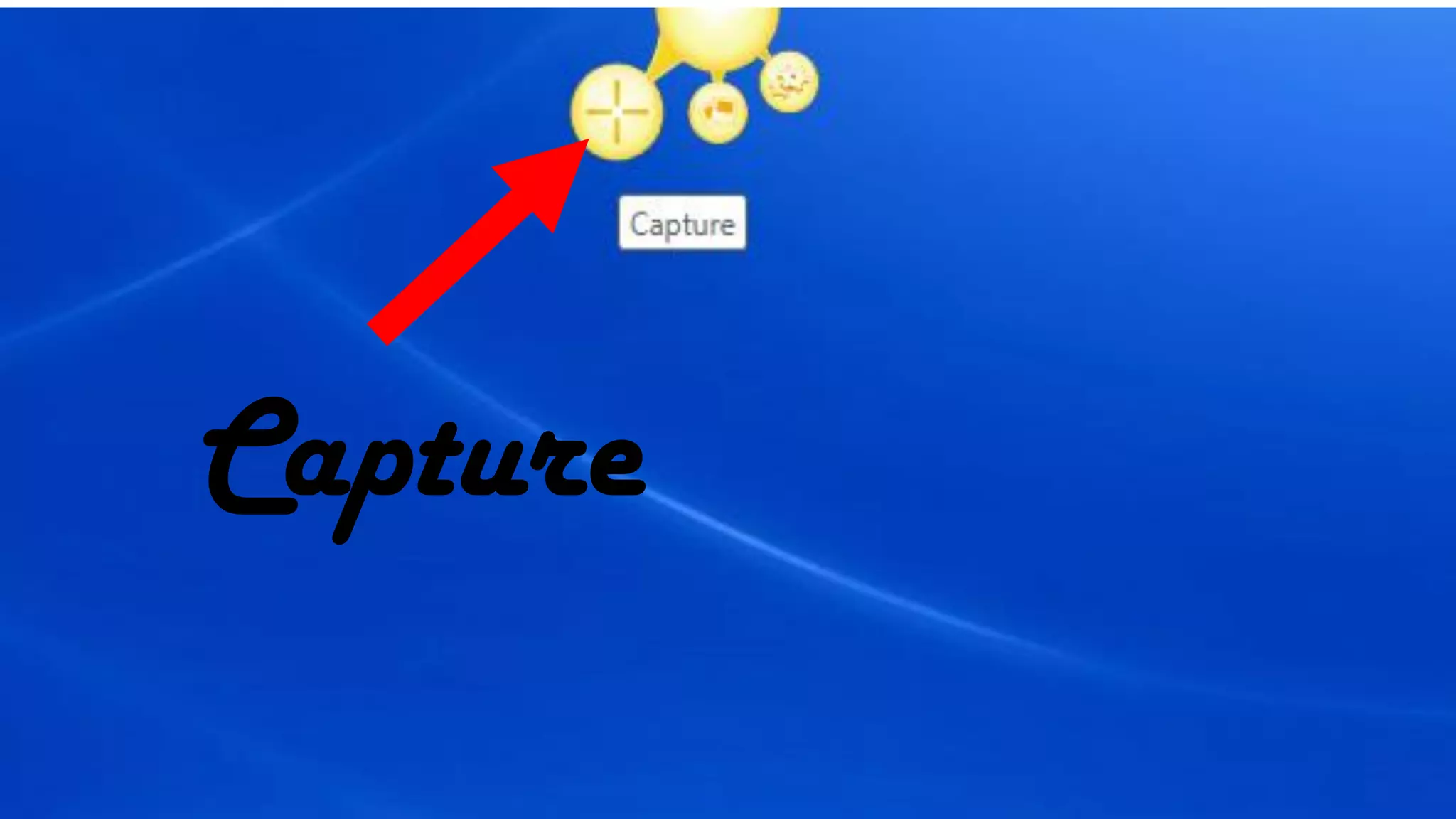
Capture
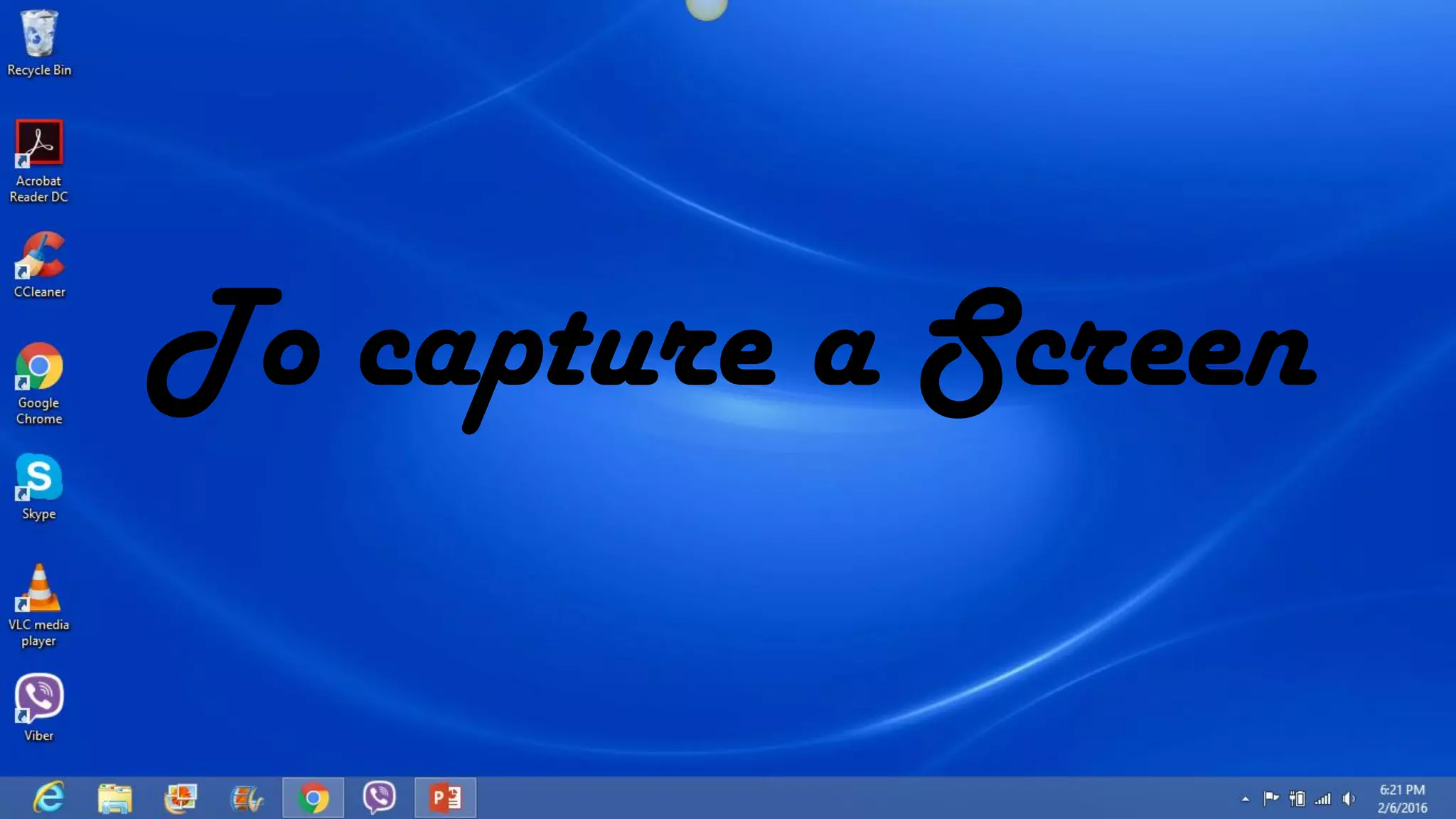
To capture a Screen
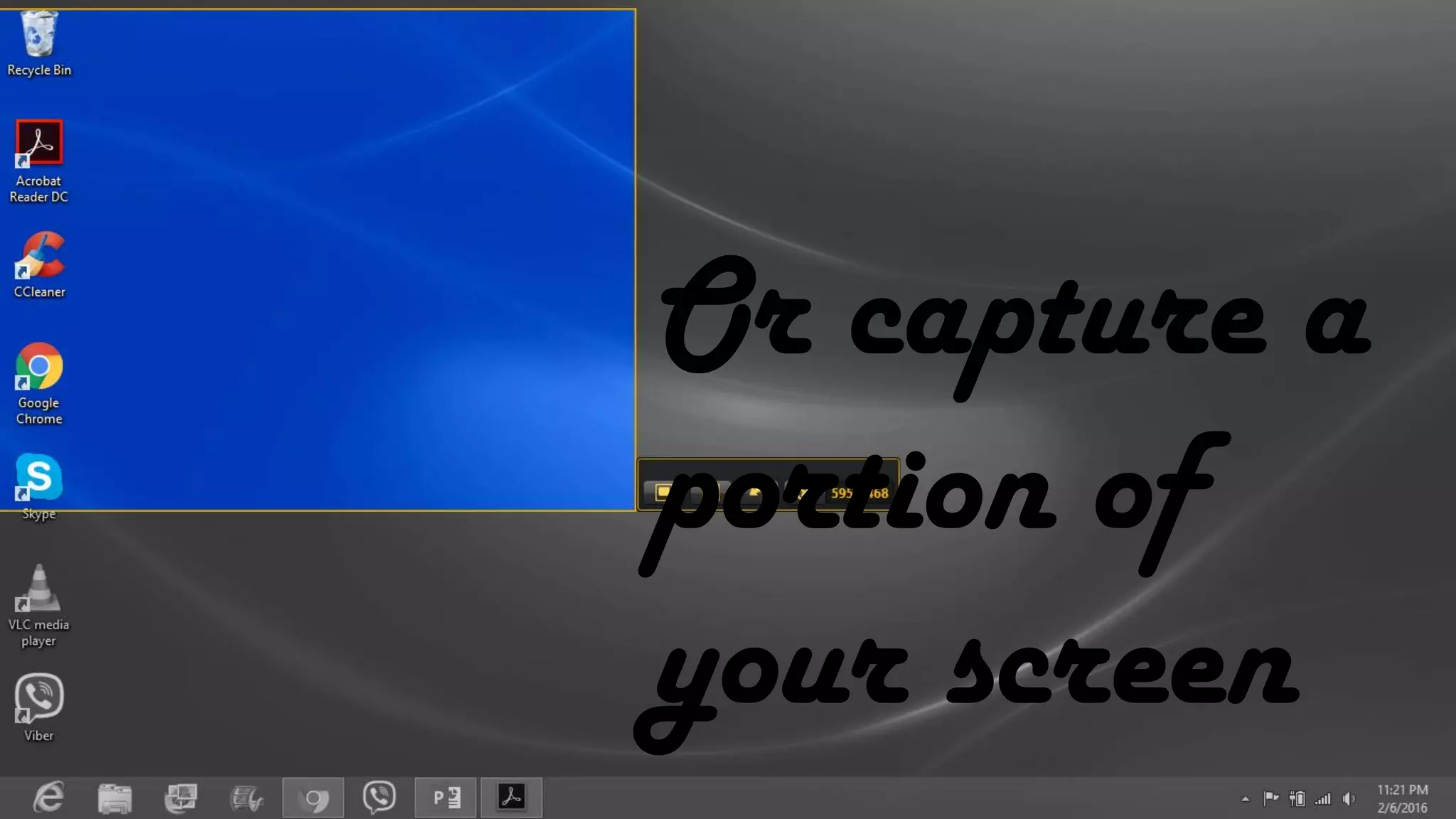
Or capture a
portion of
your screen
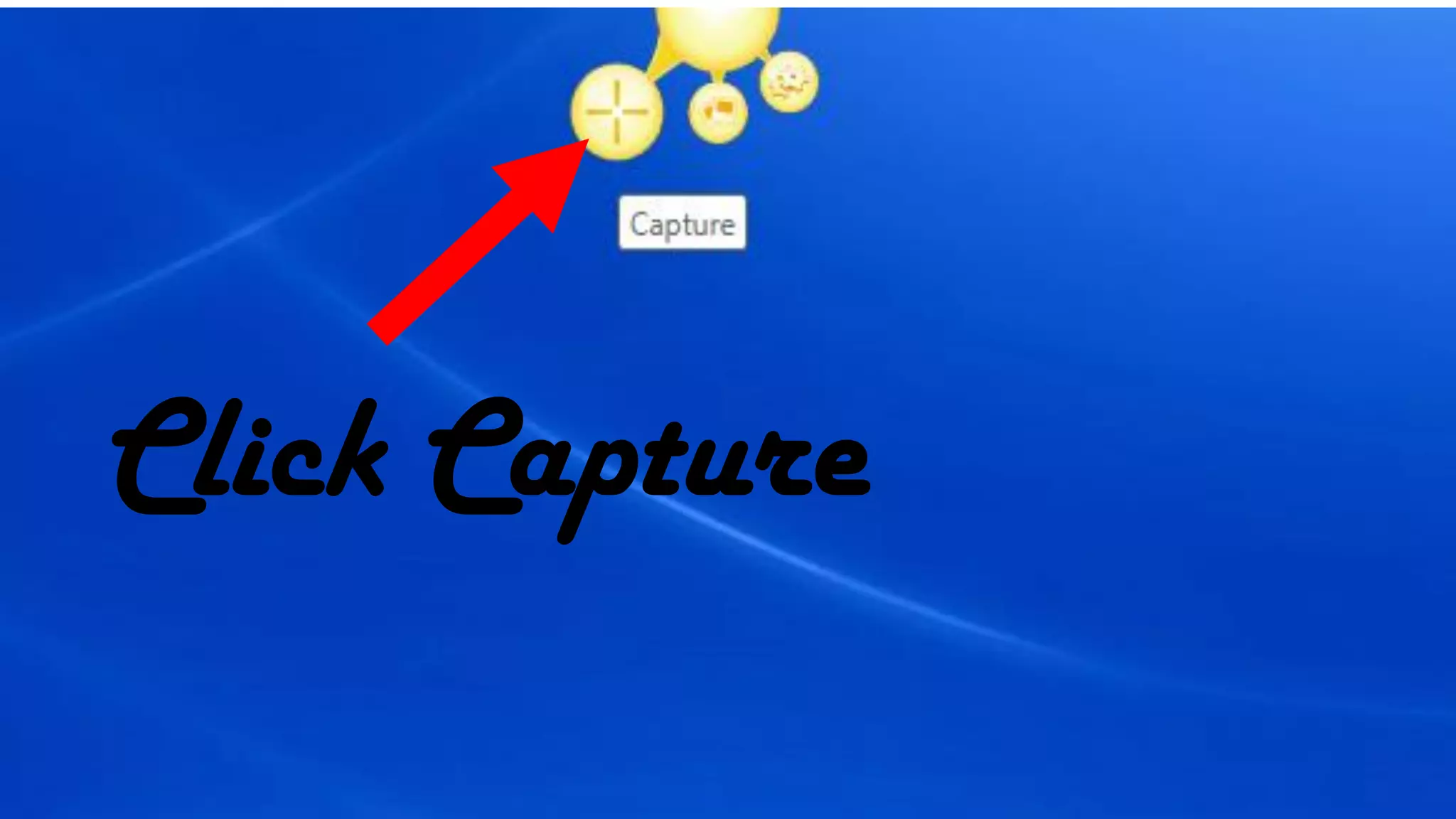
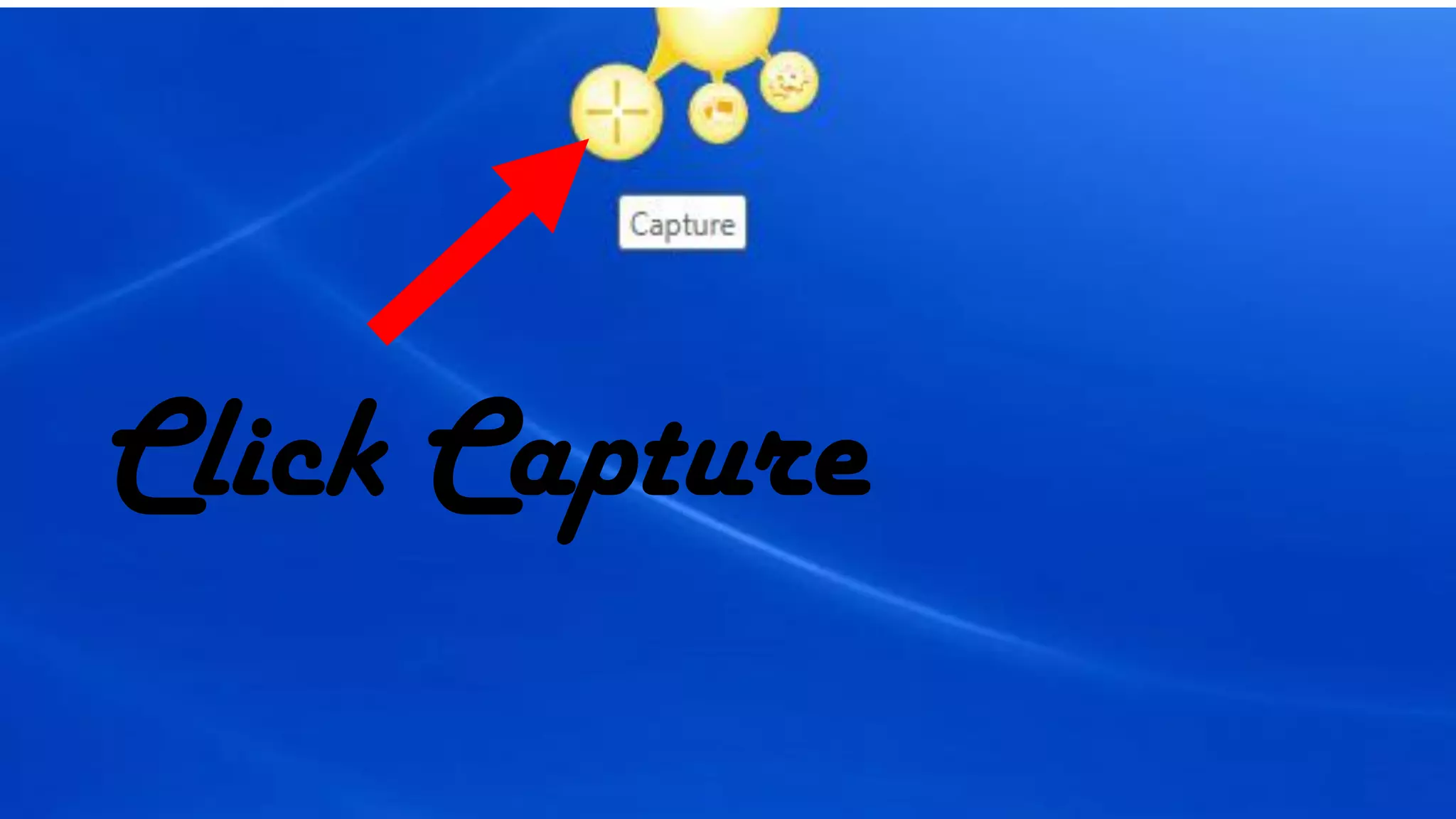
Click Capture
This will appear
Click
Capture
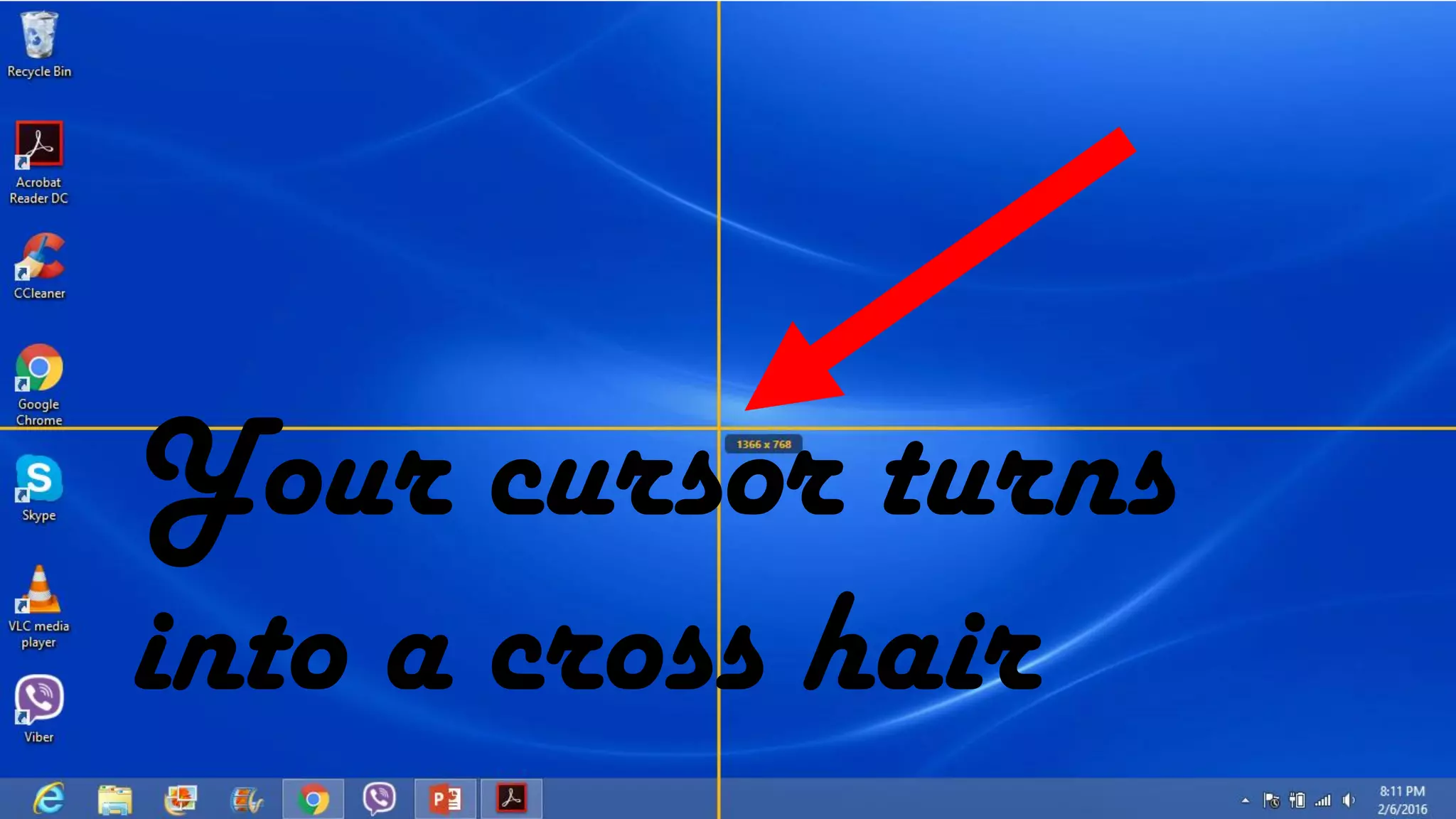
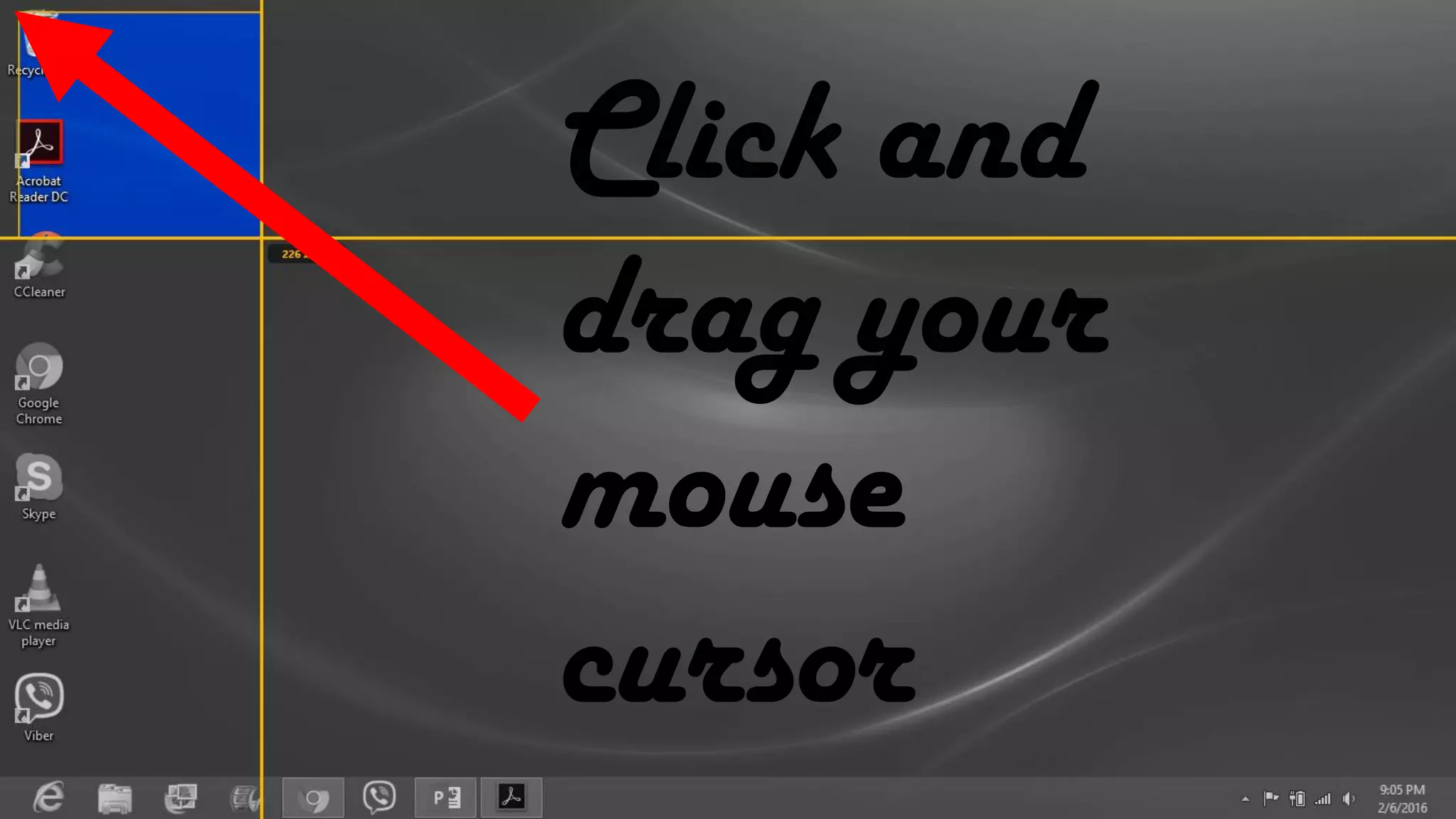
Your cursor turns
into a cross hair
Click and
drag your
mouse
cursor
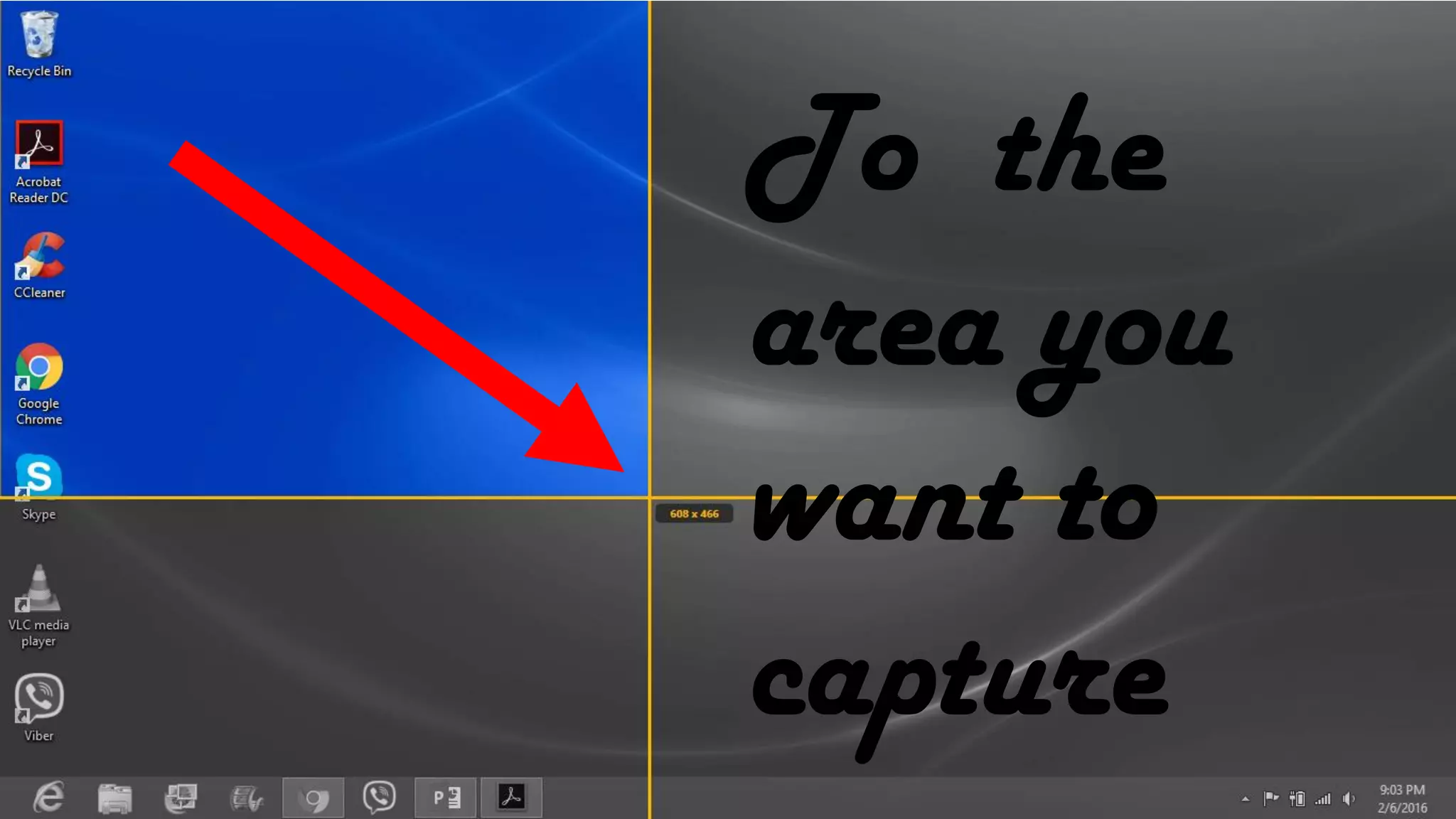
To the
area you
want to
capture
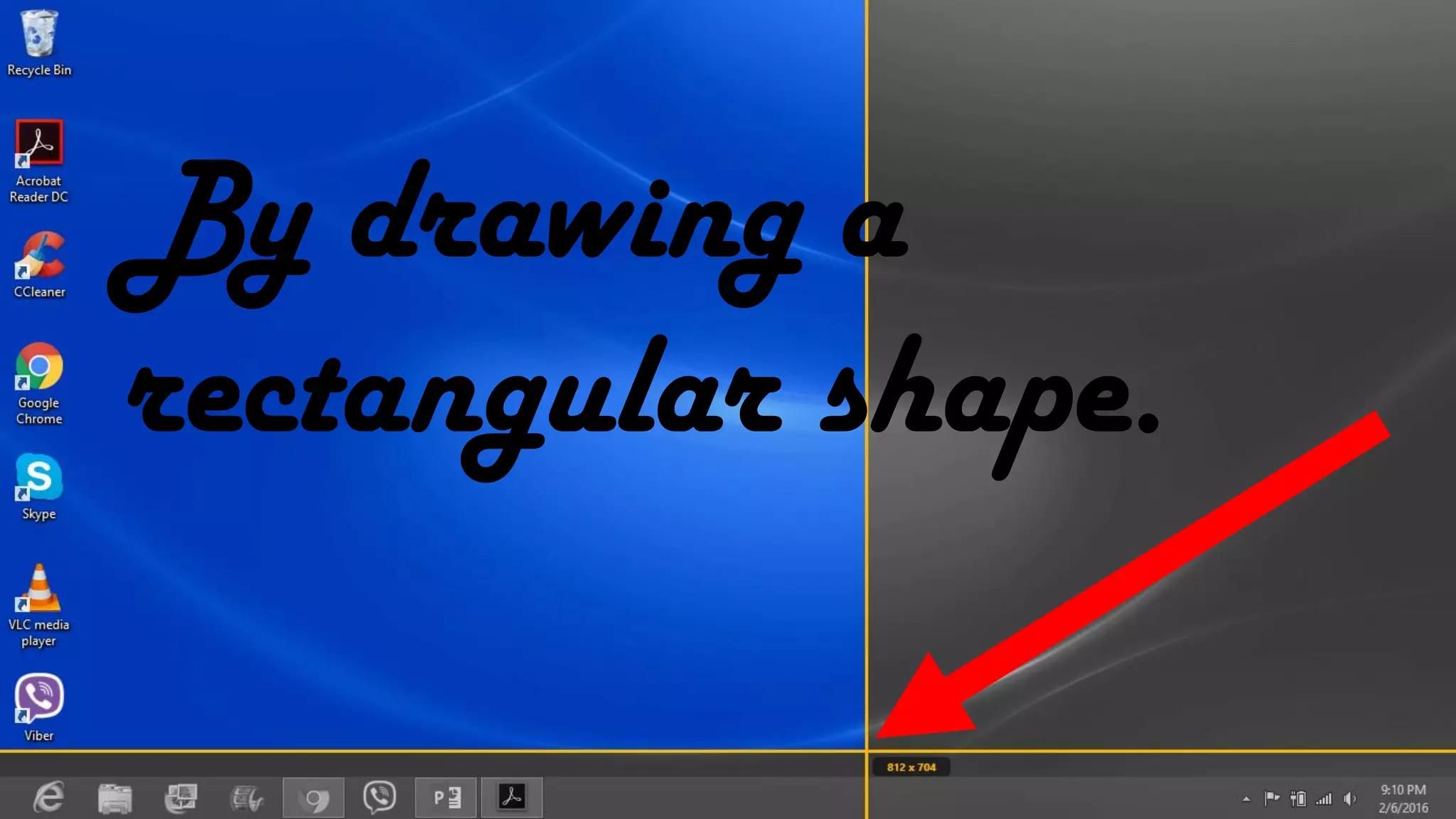
By drawing a
rectangular shape.
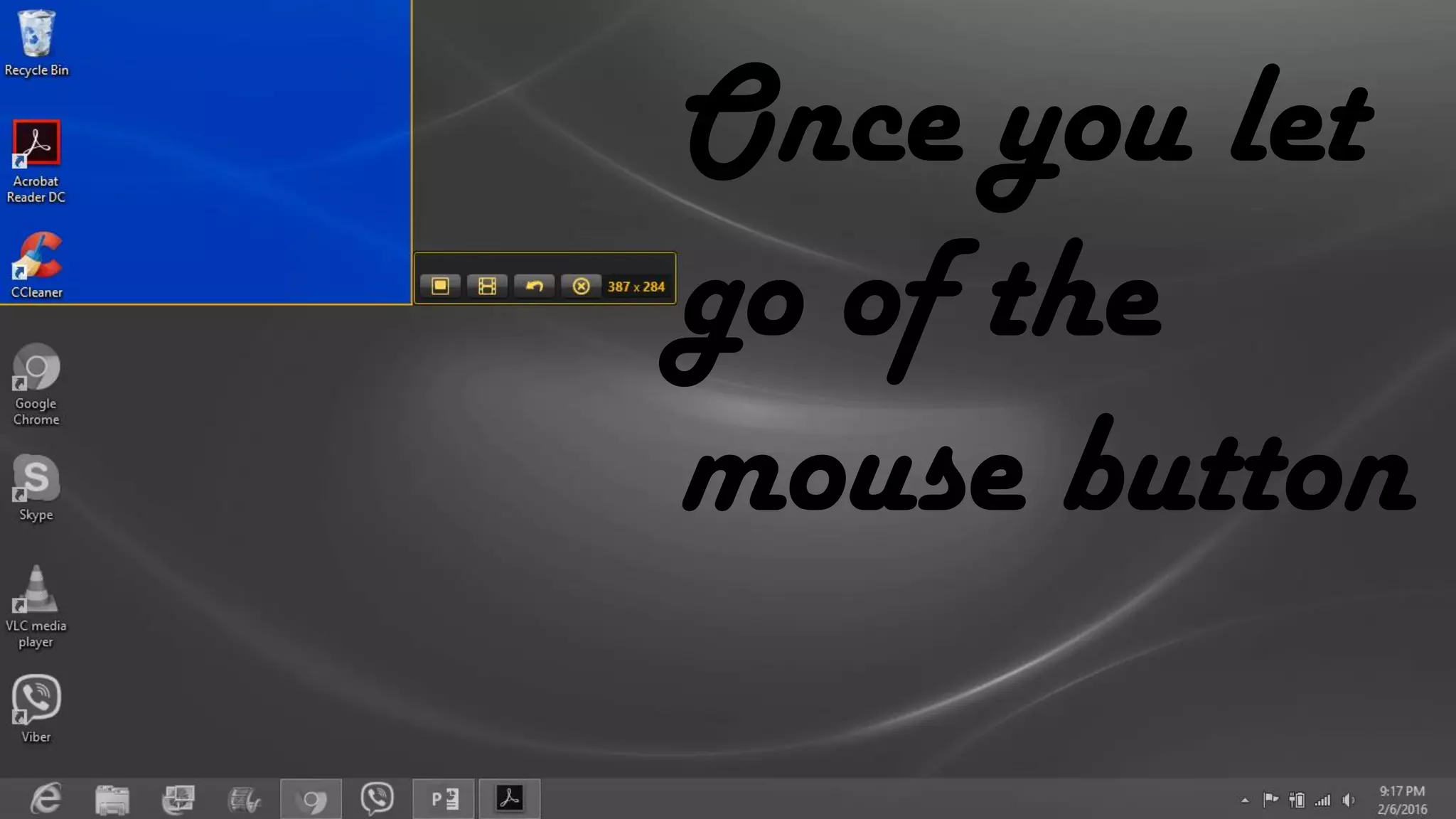
Once you let
go of the
mouse button
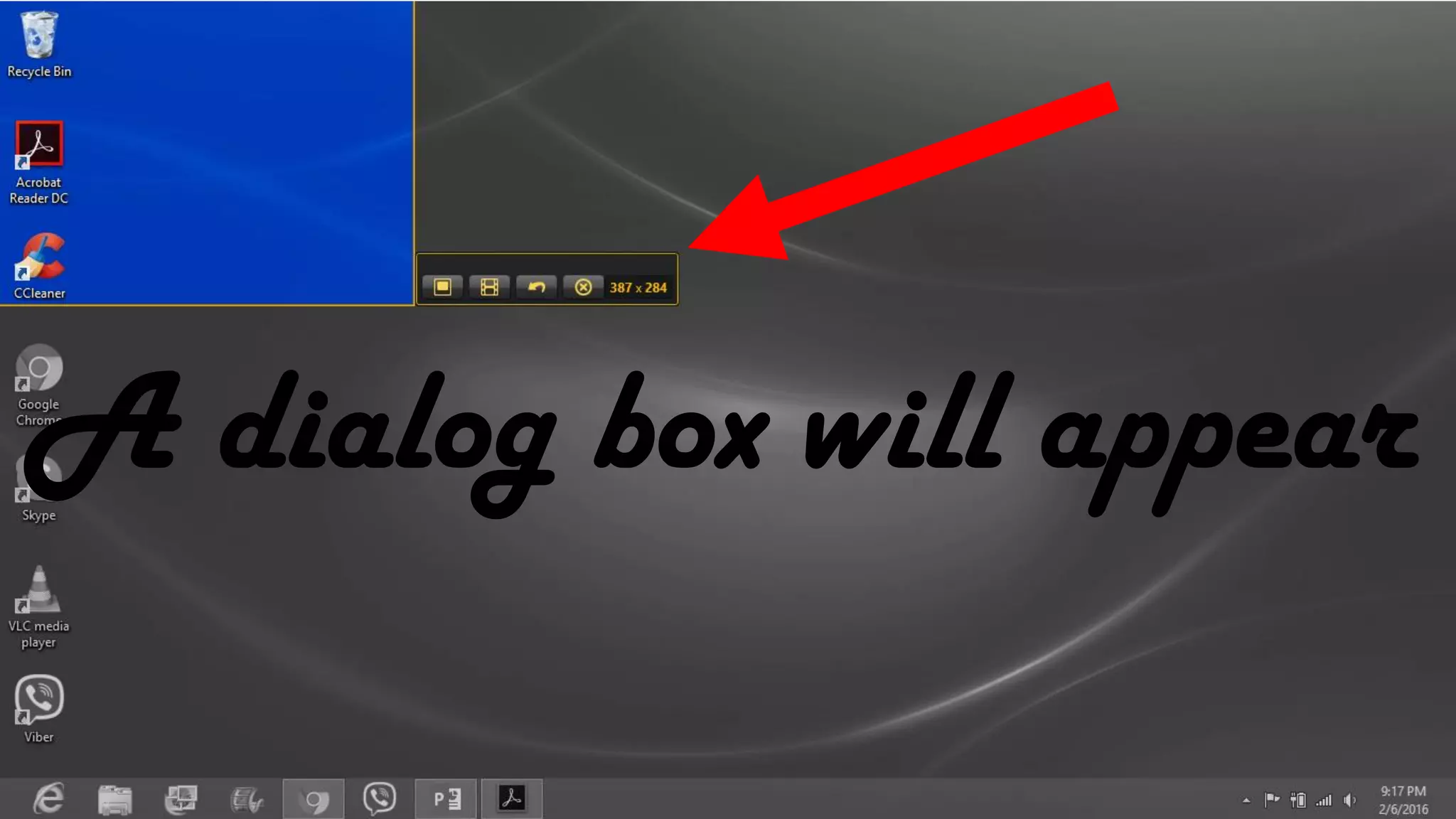
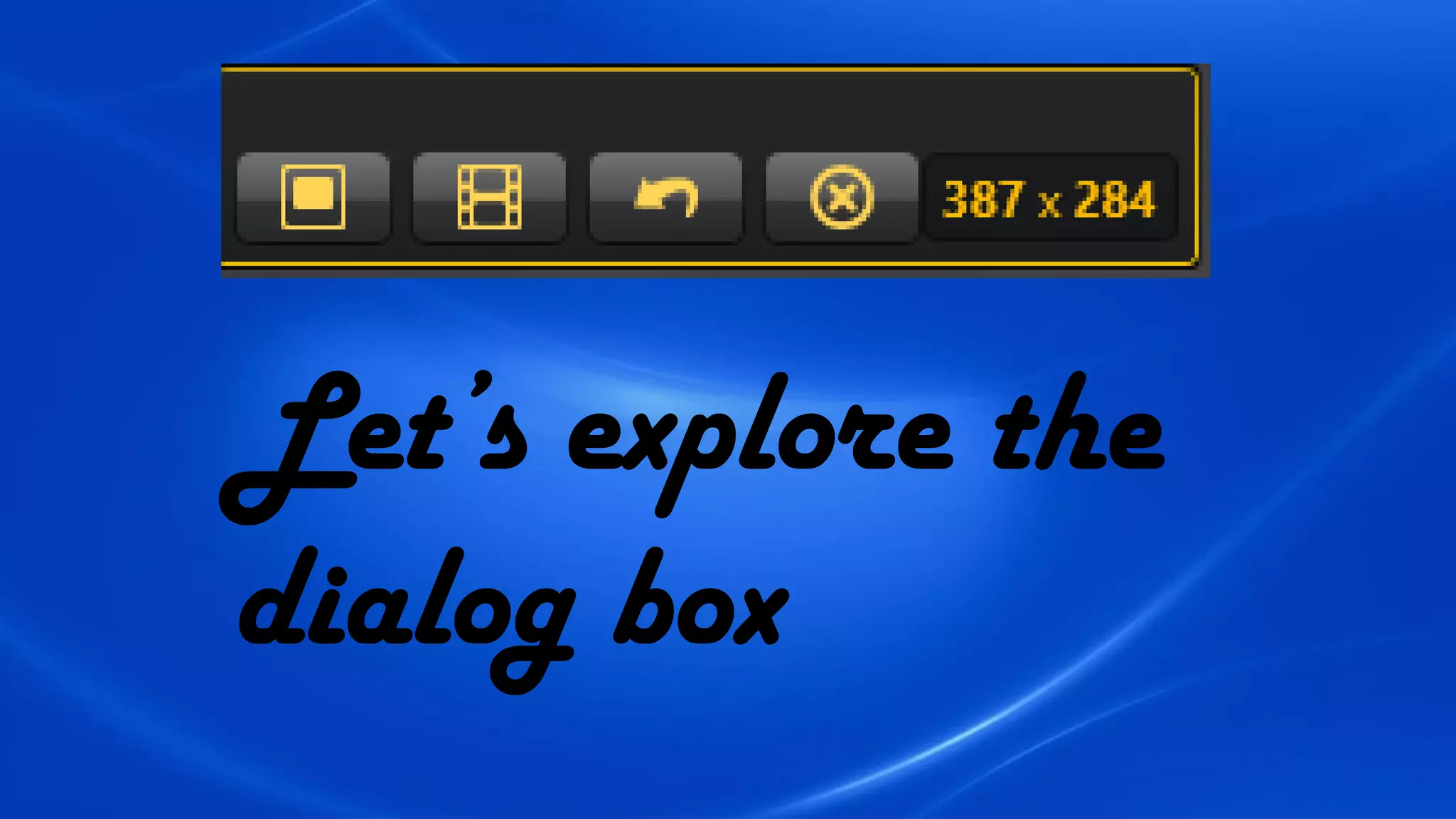
A dialog box will appear
Let’s explore the
dialog box
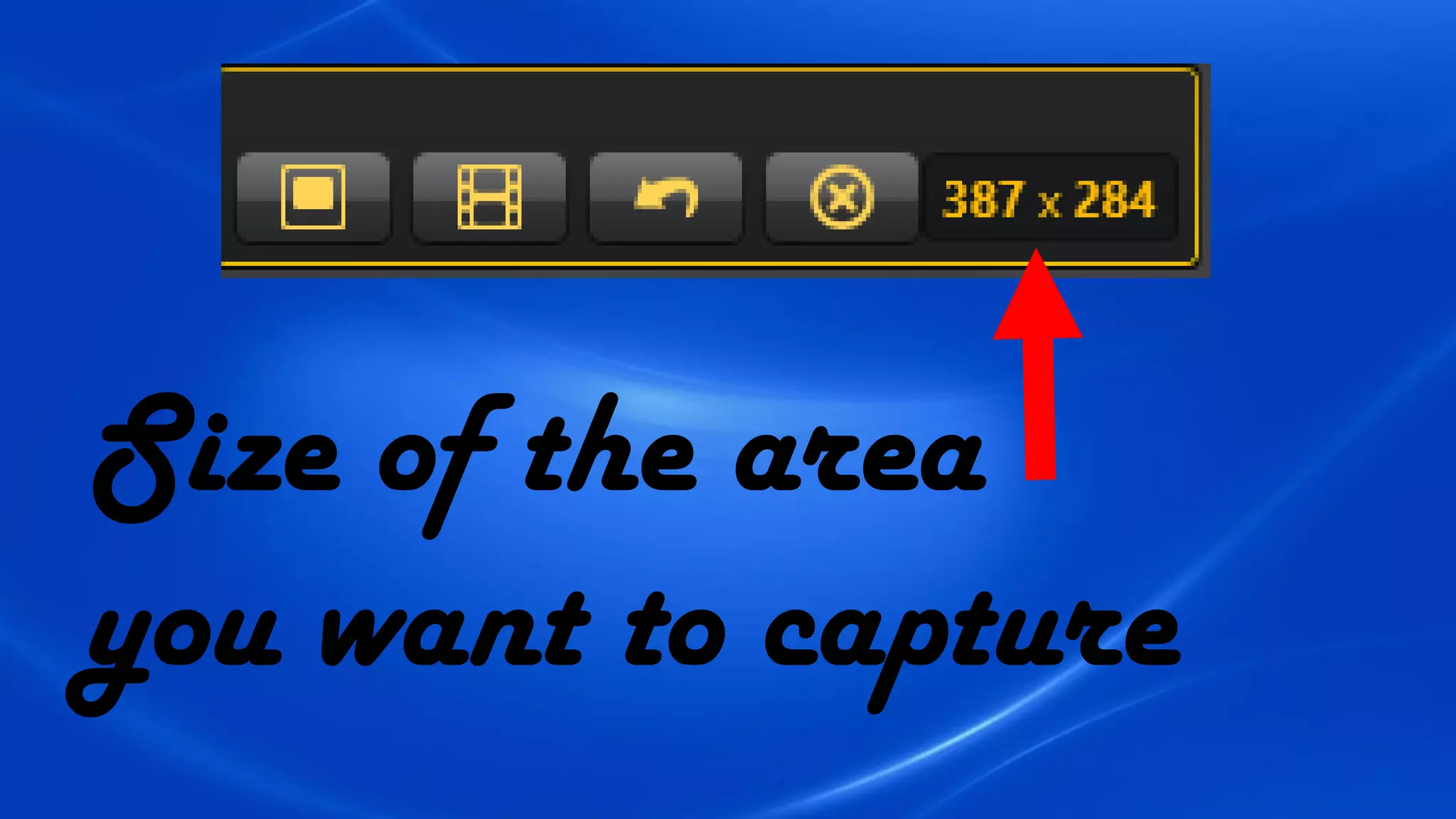
Size of the area
you want to capture
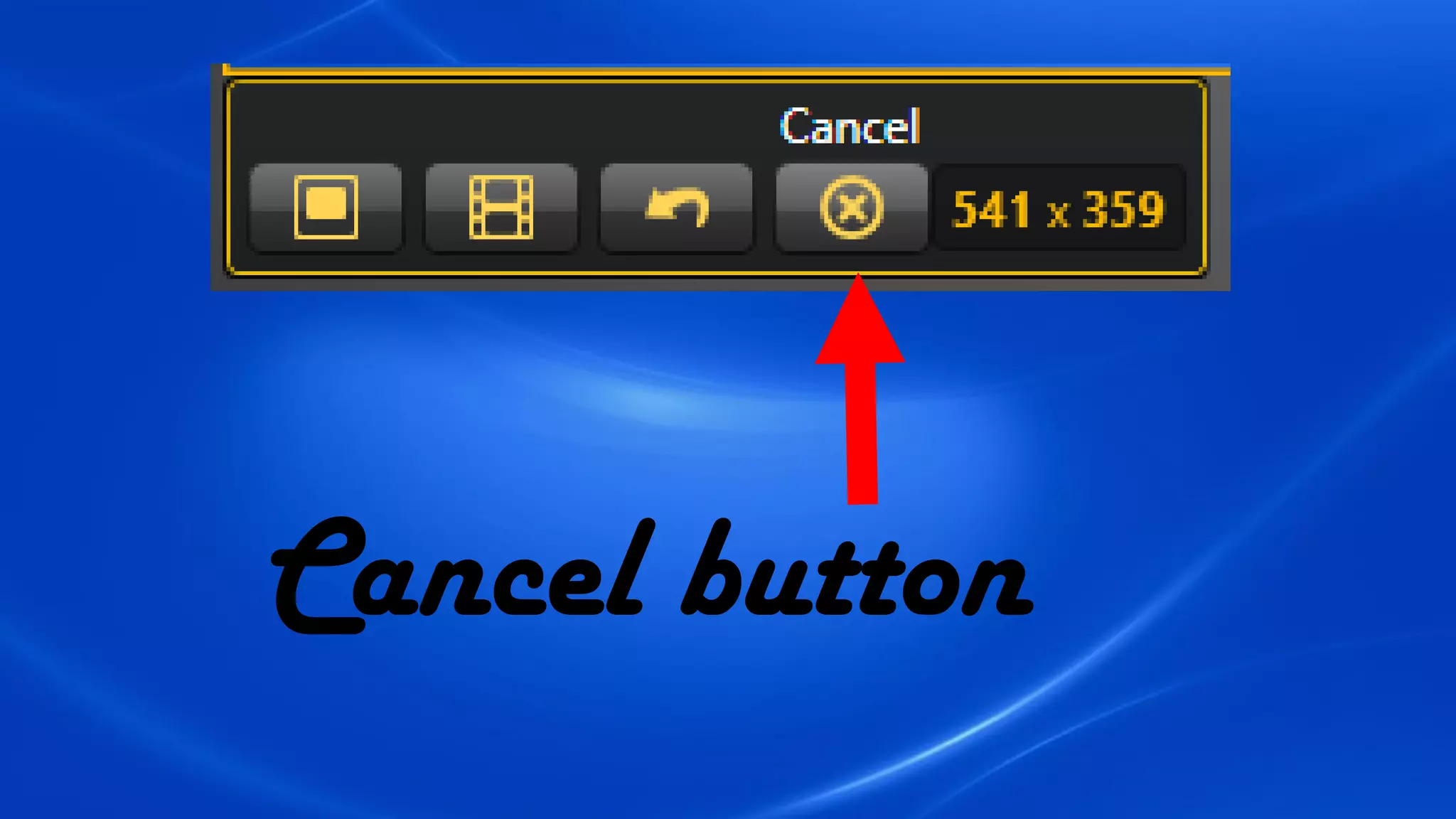
Cancel button
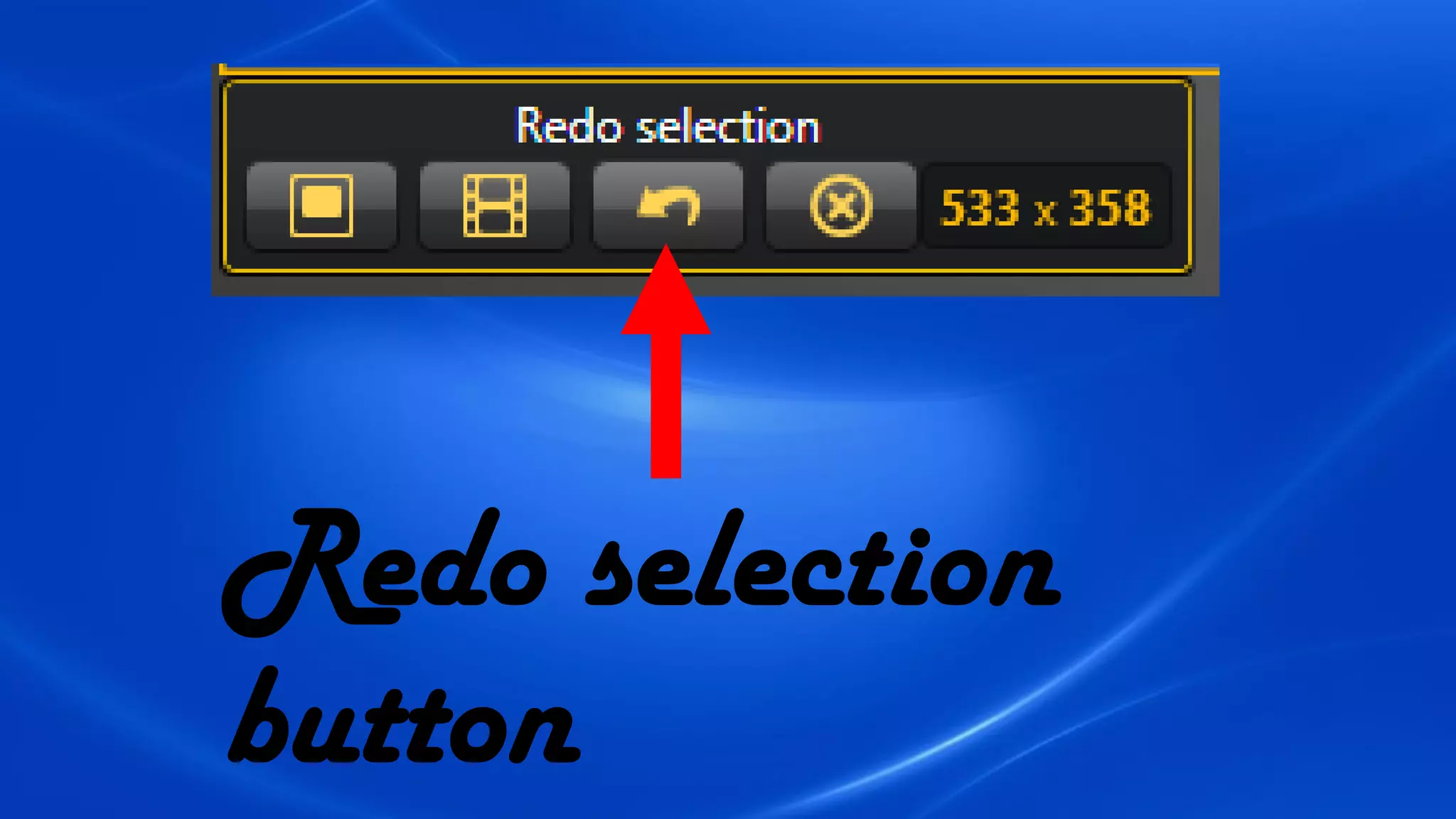
Redo selection
button
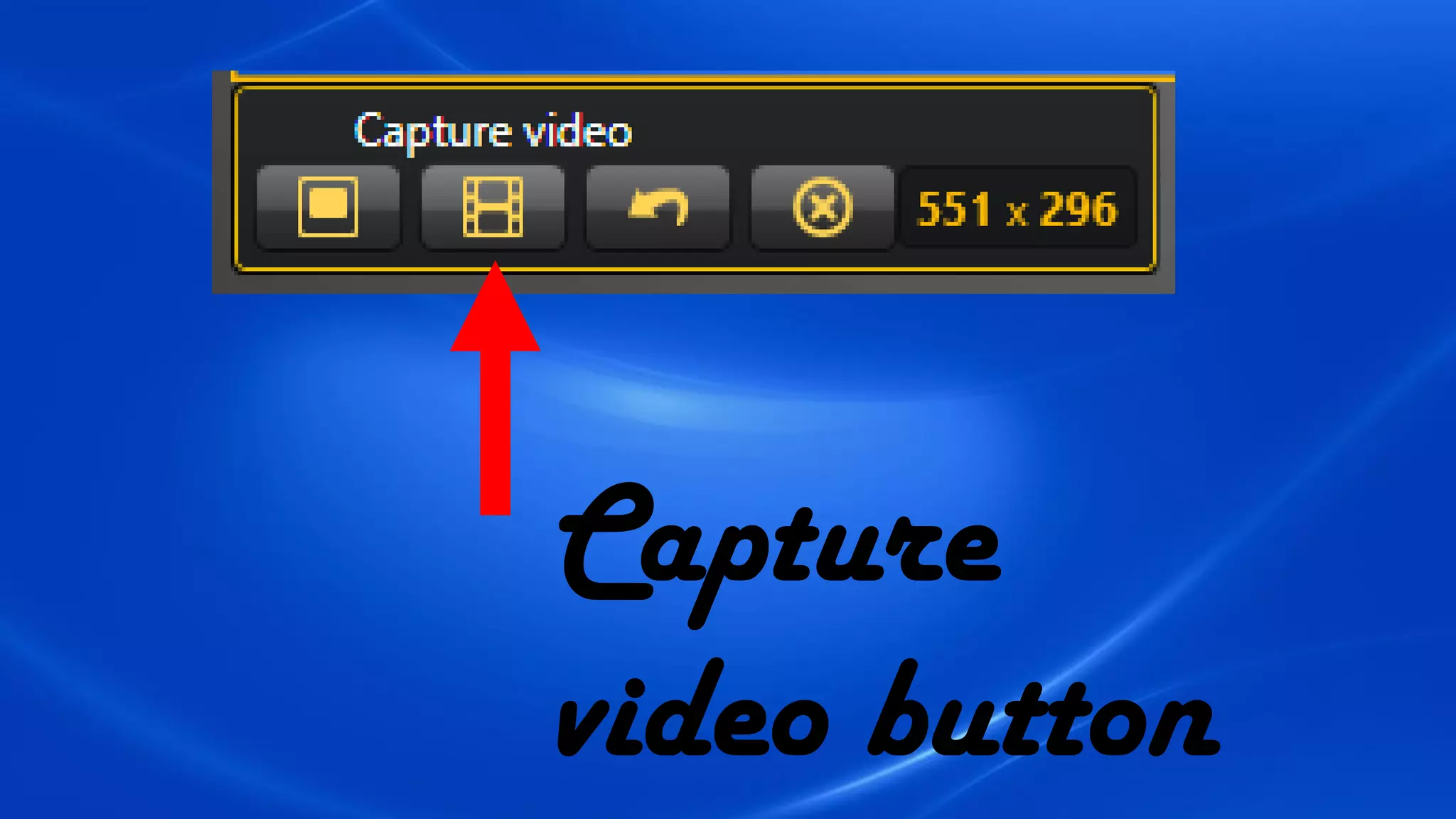
Capture
video button
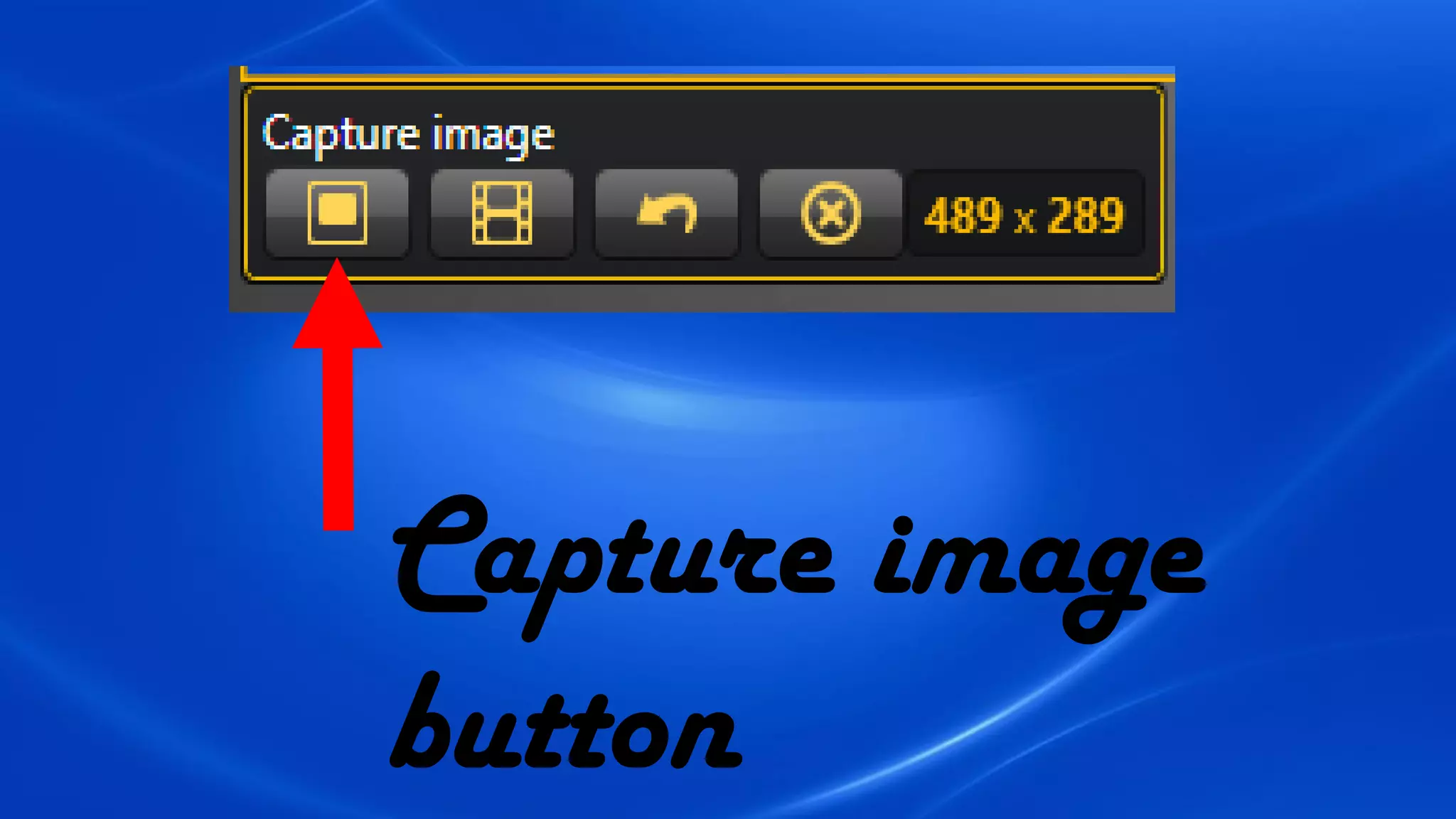
Capture image
button
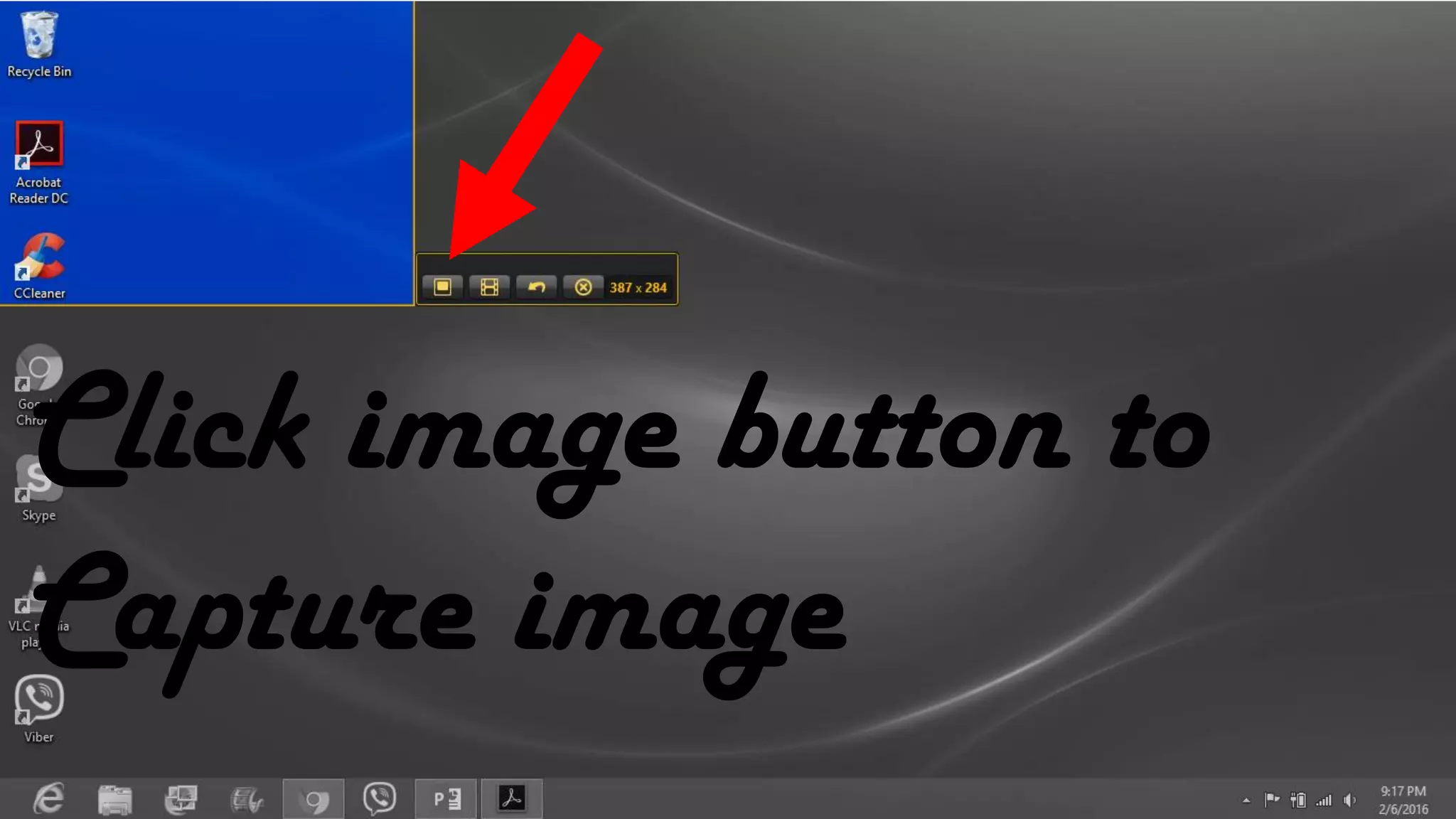
Click image button to
Capture image
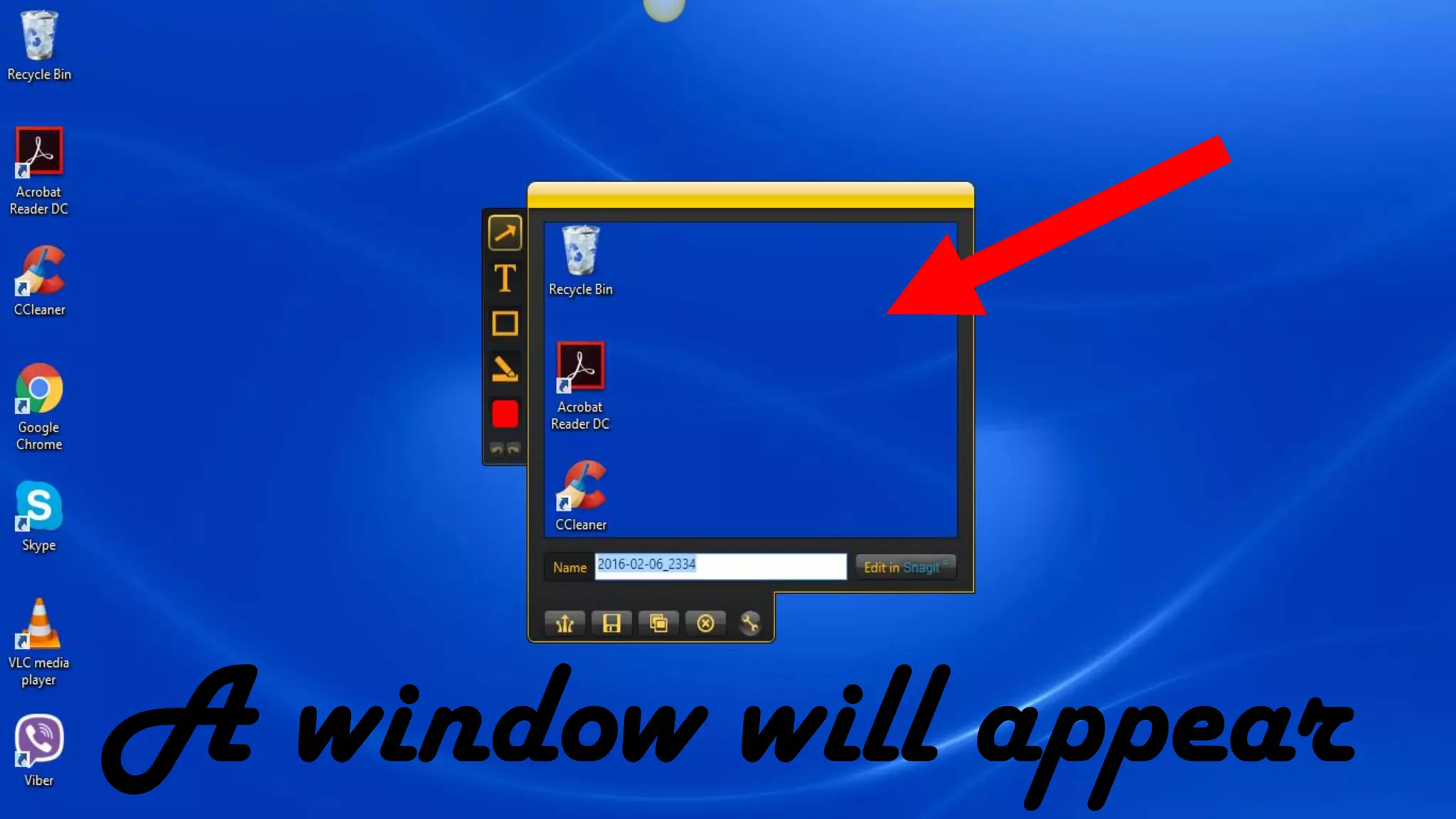
A window will appear
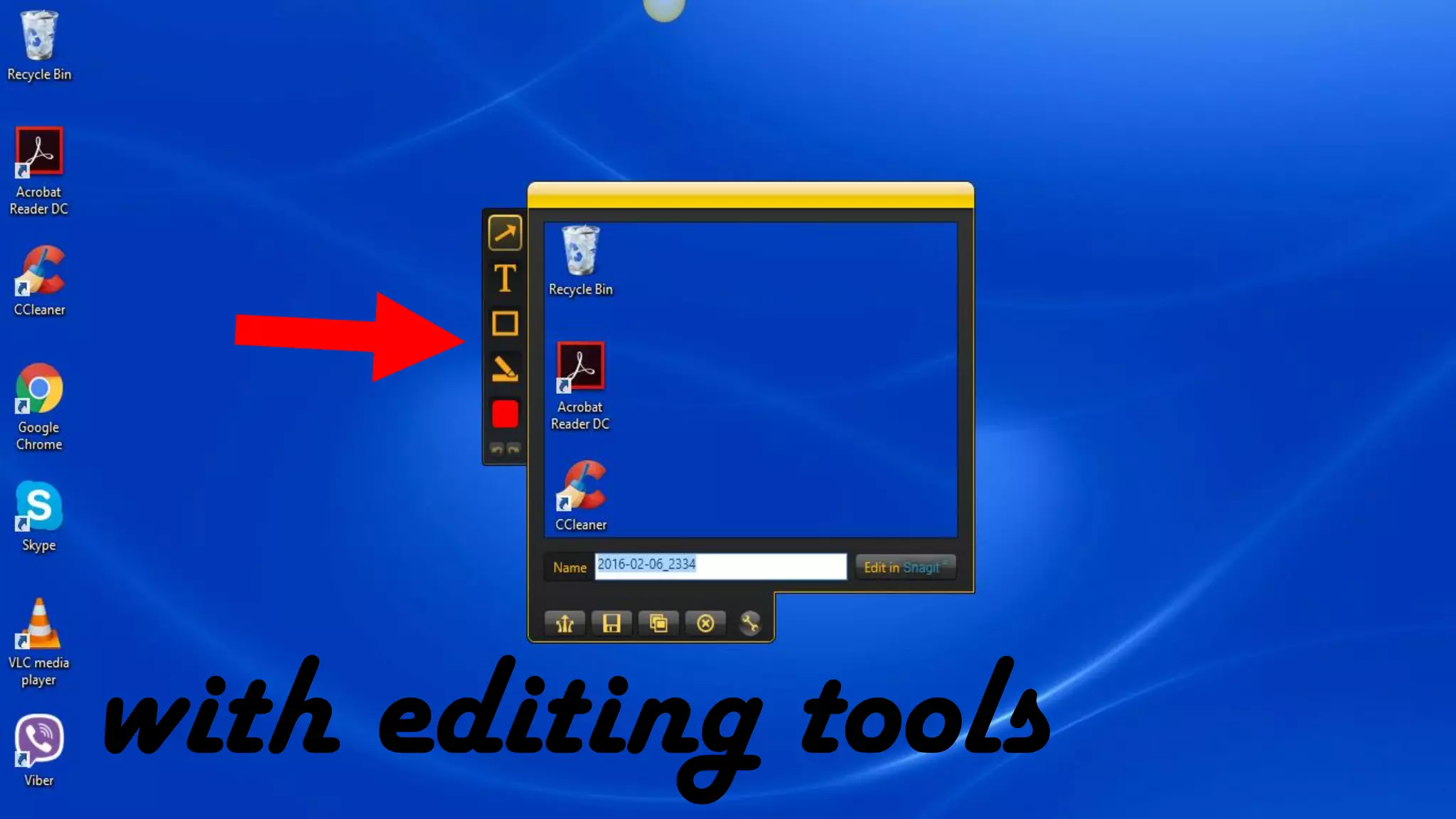
with editing tools
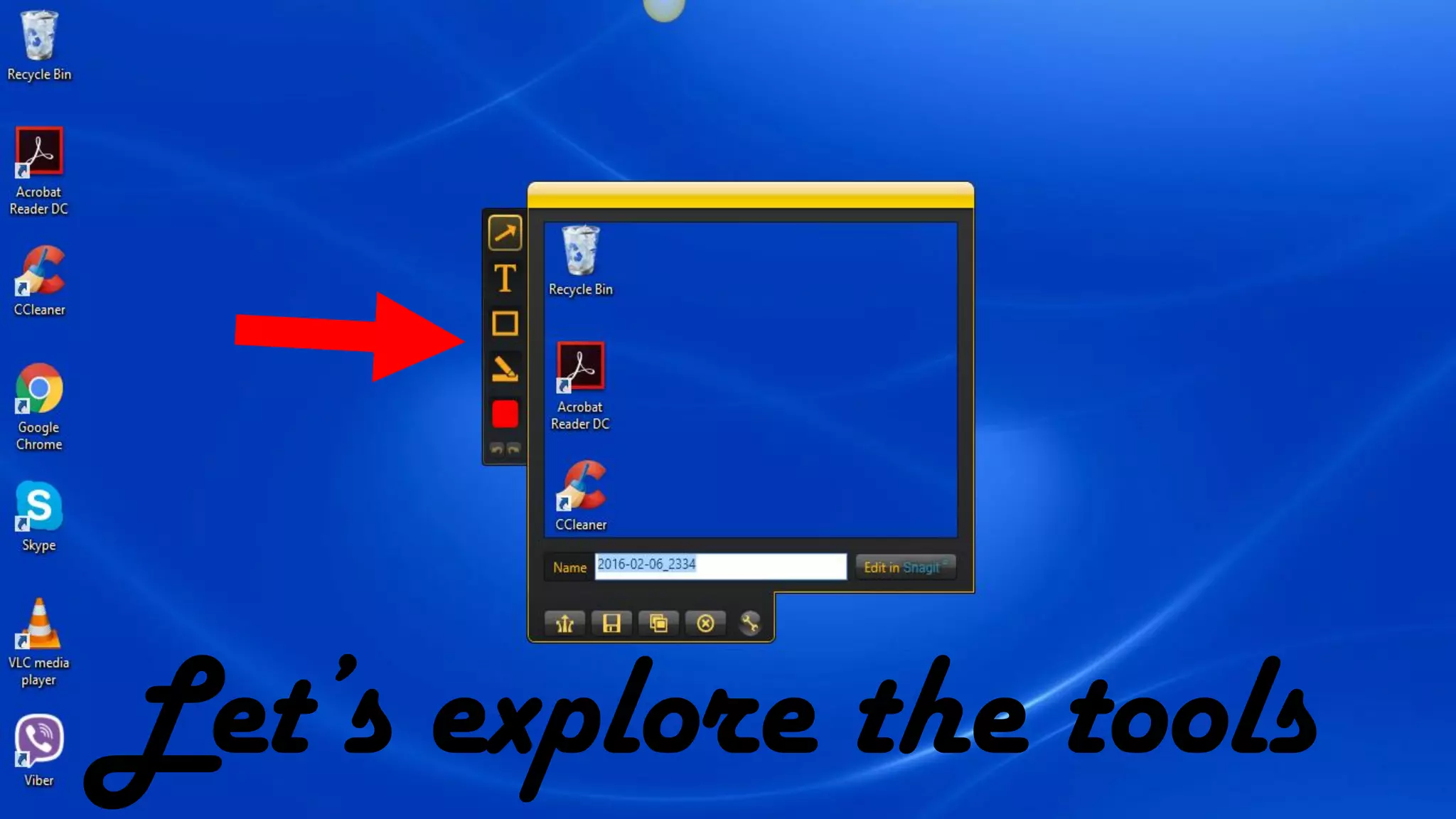
Let’s explore the tools
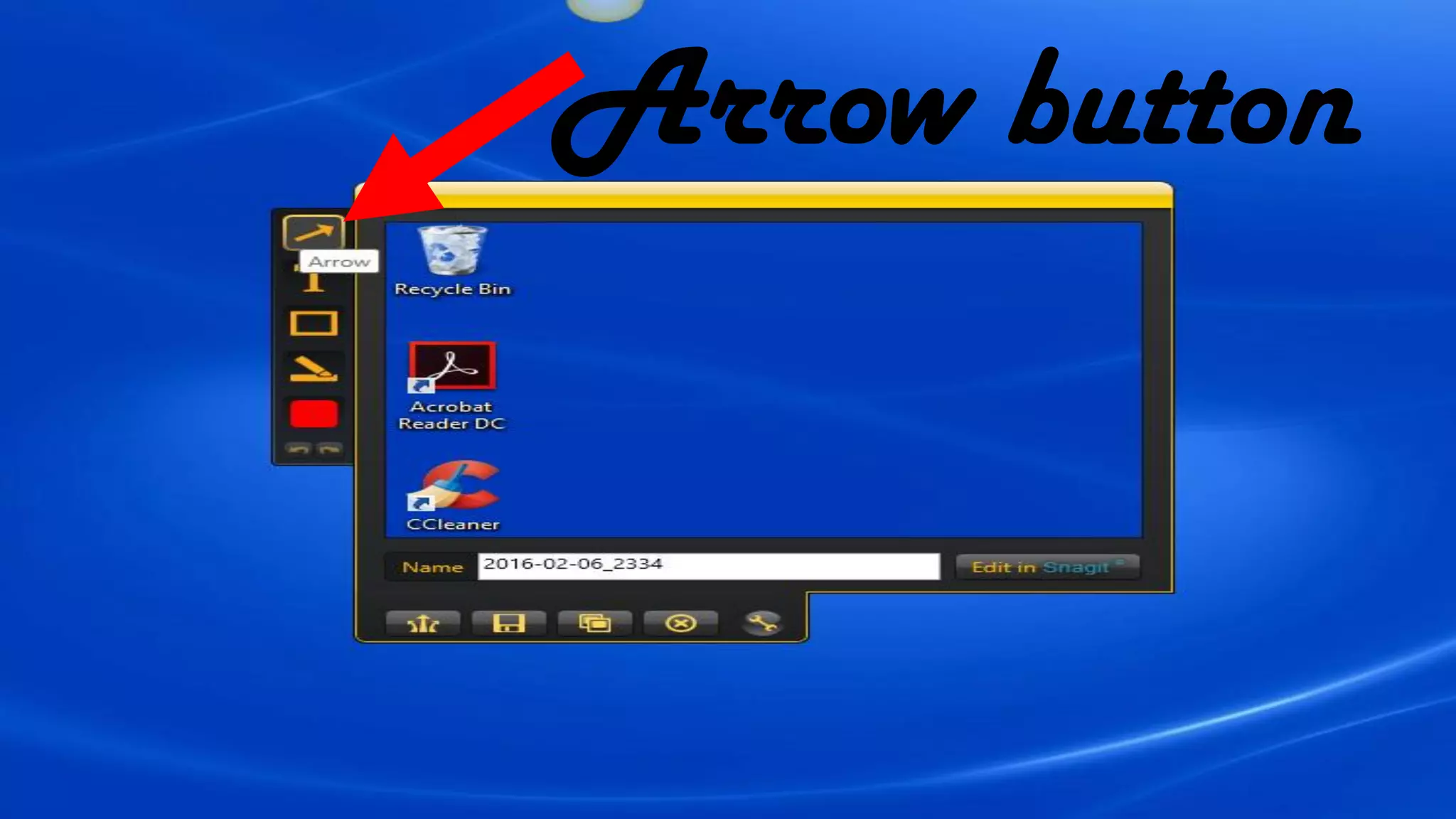
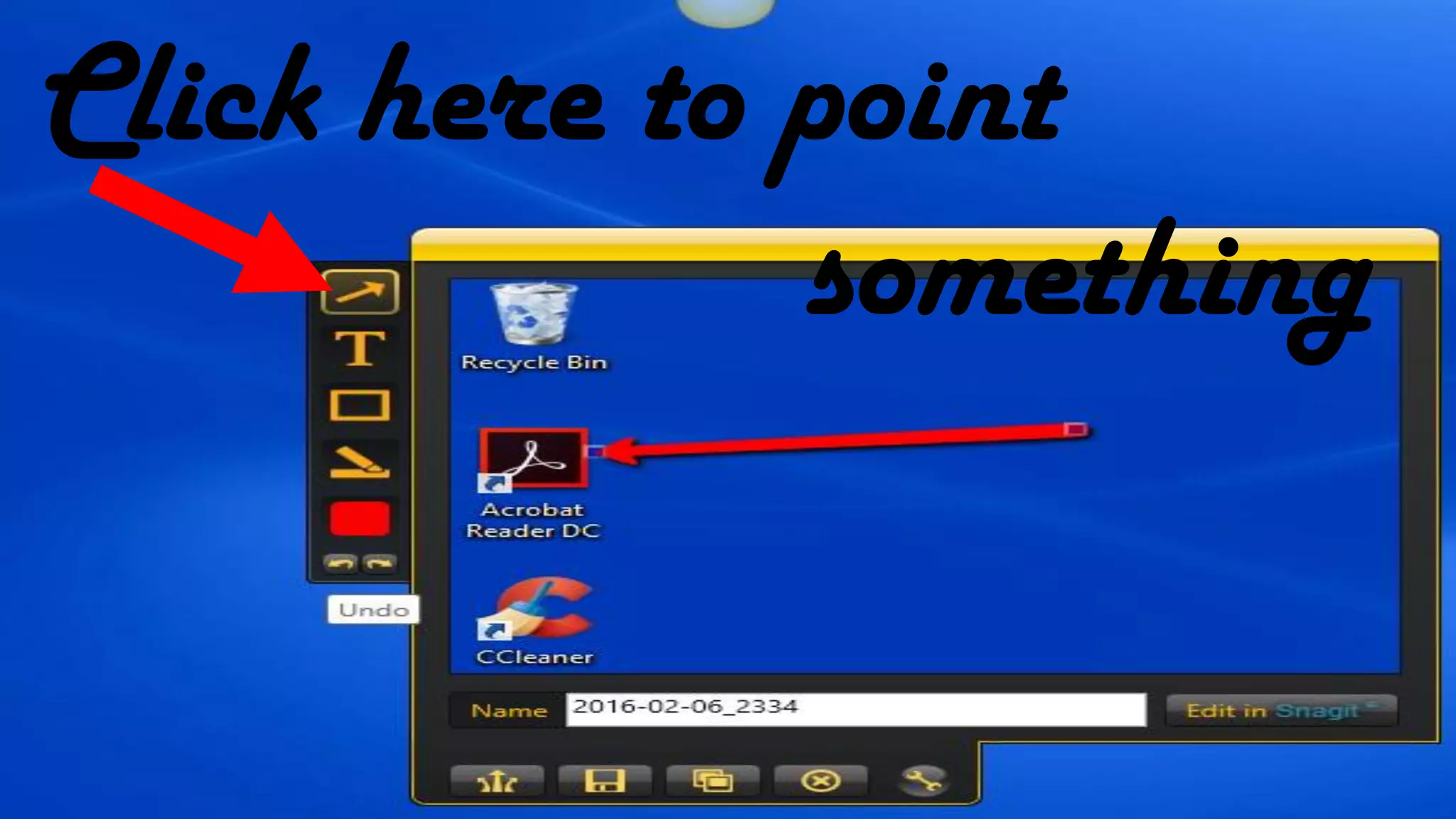
Arrow button
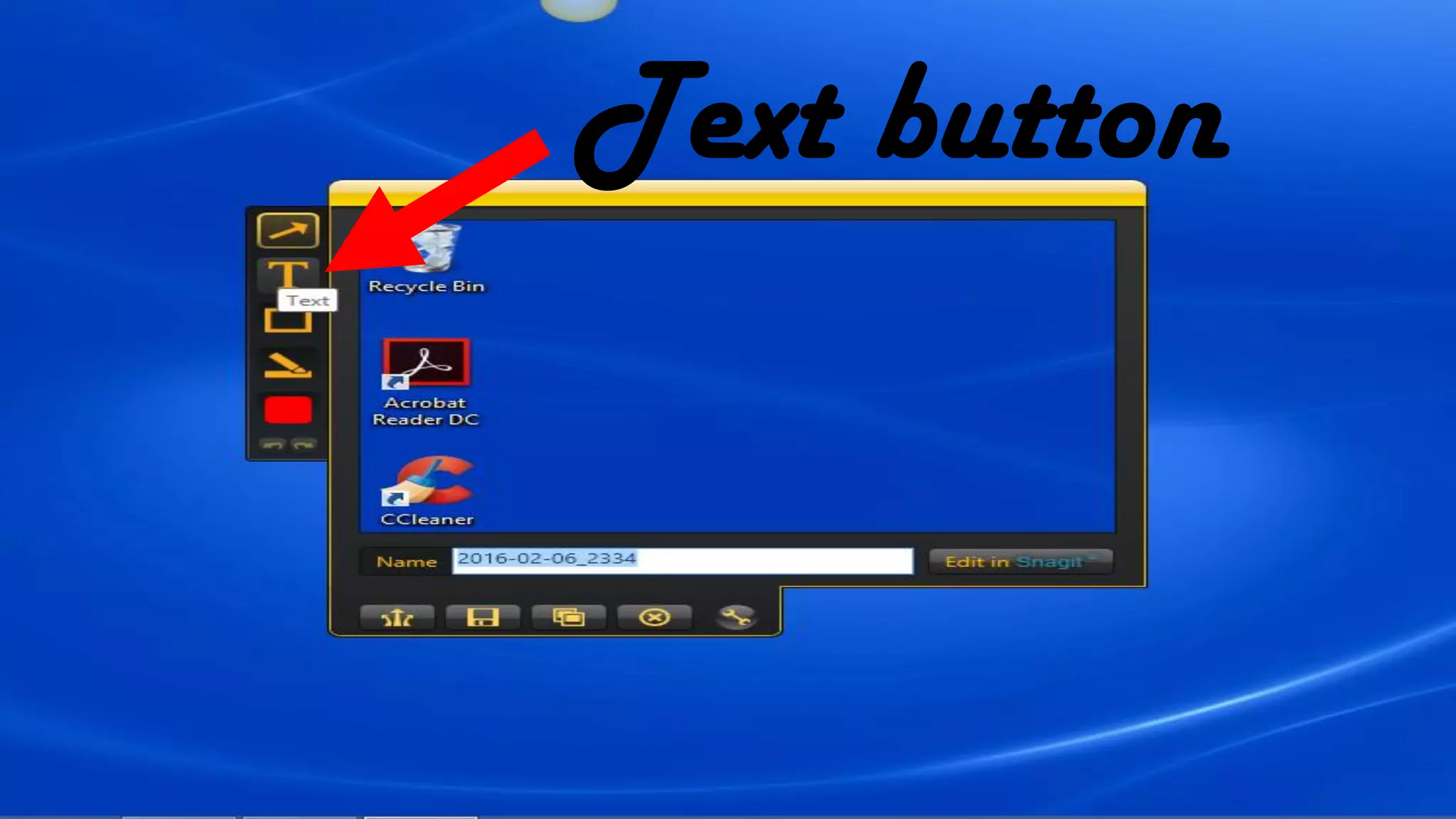
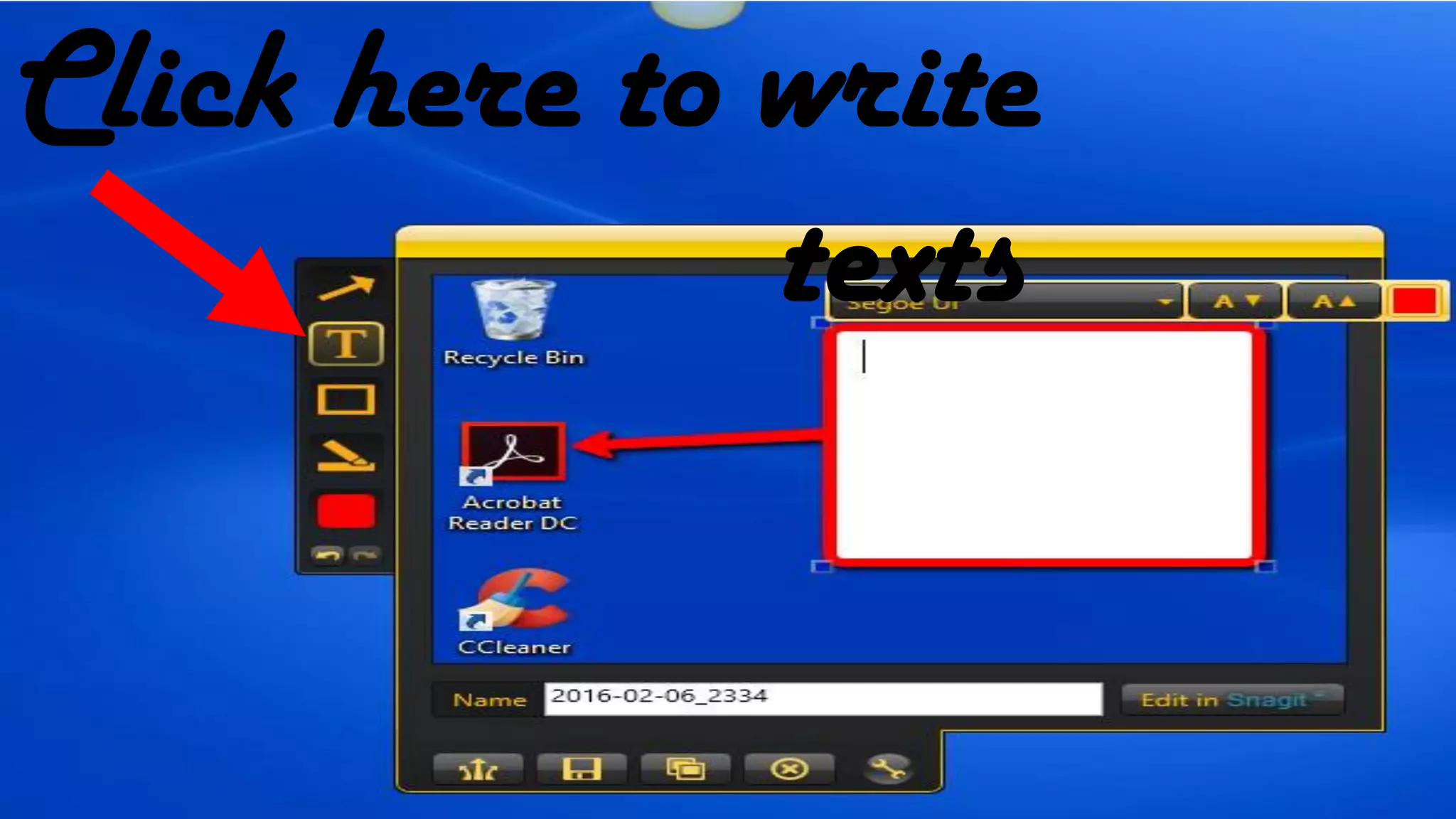
Text button
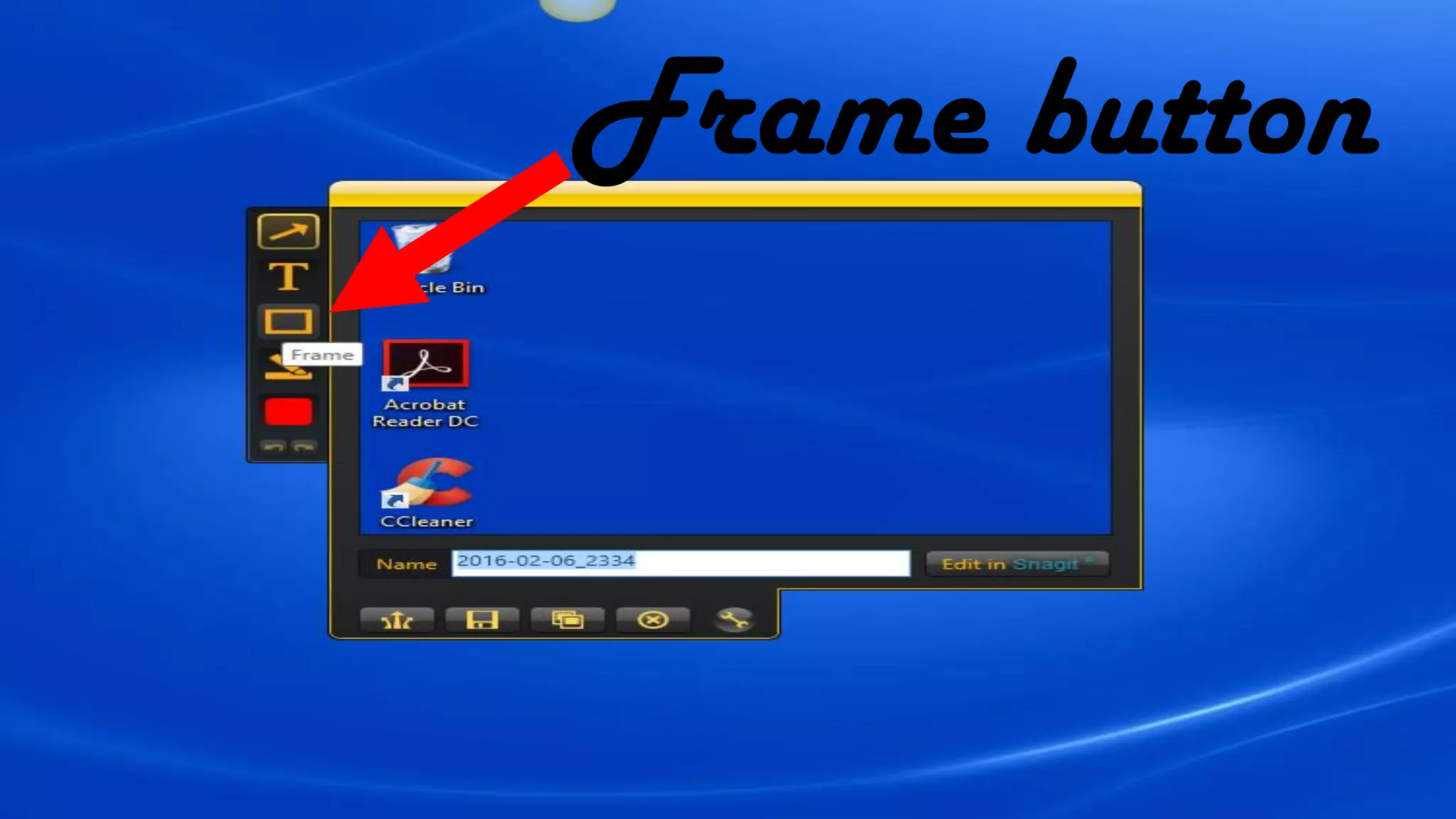
Frame button
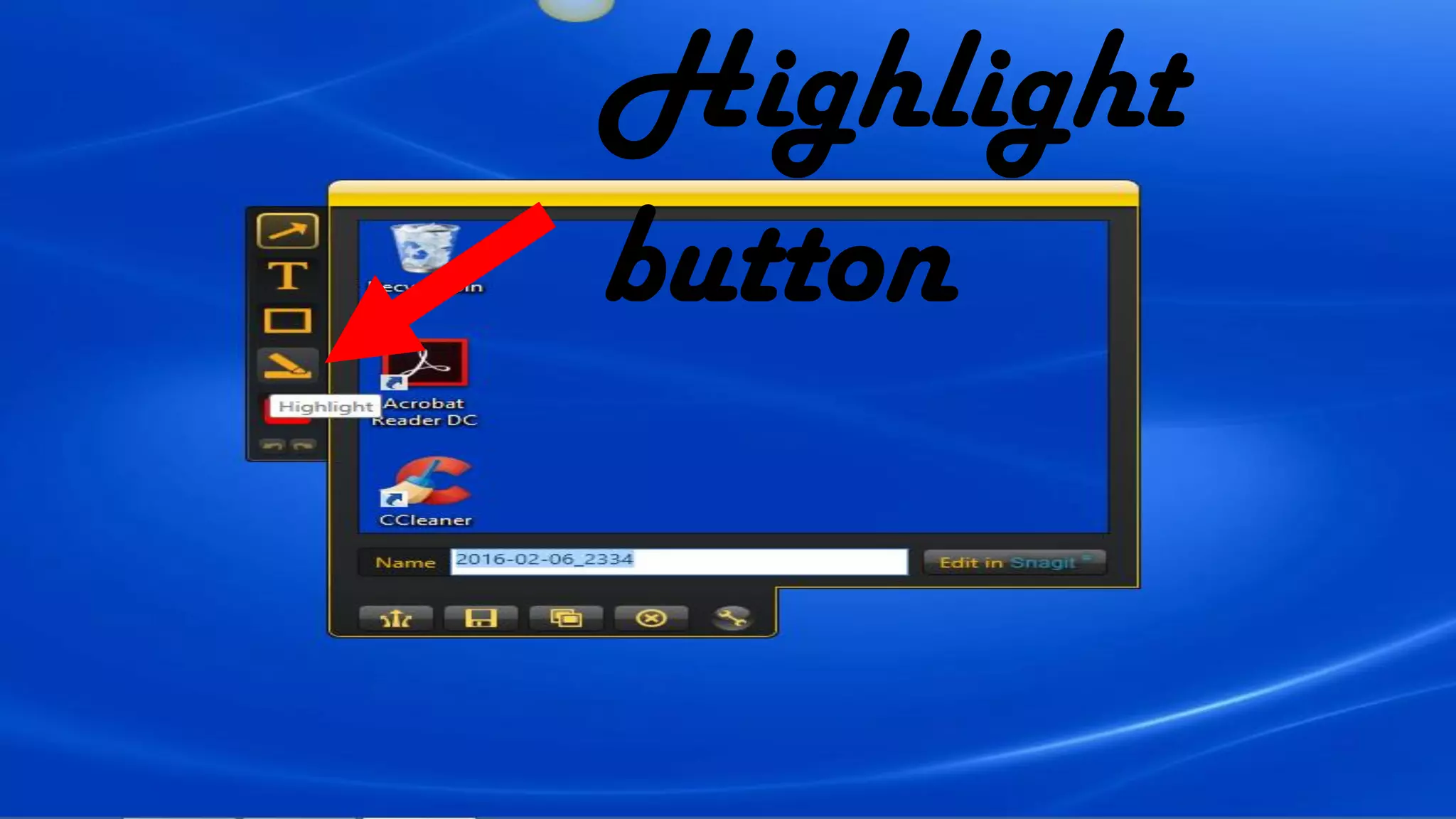
Highlight
button
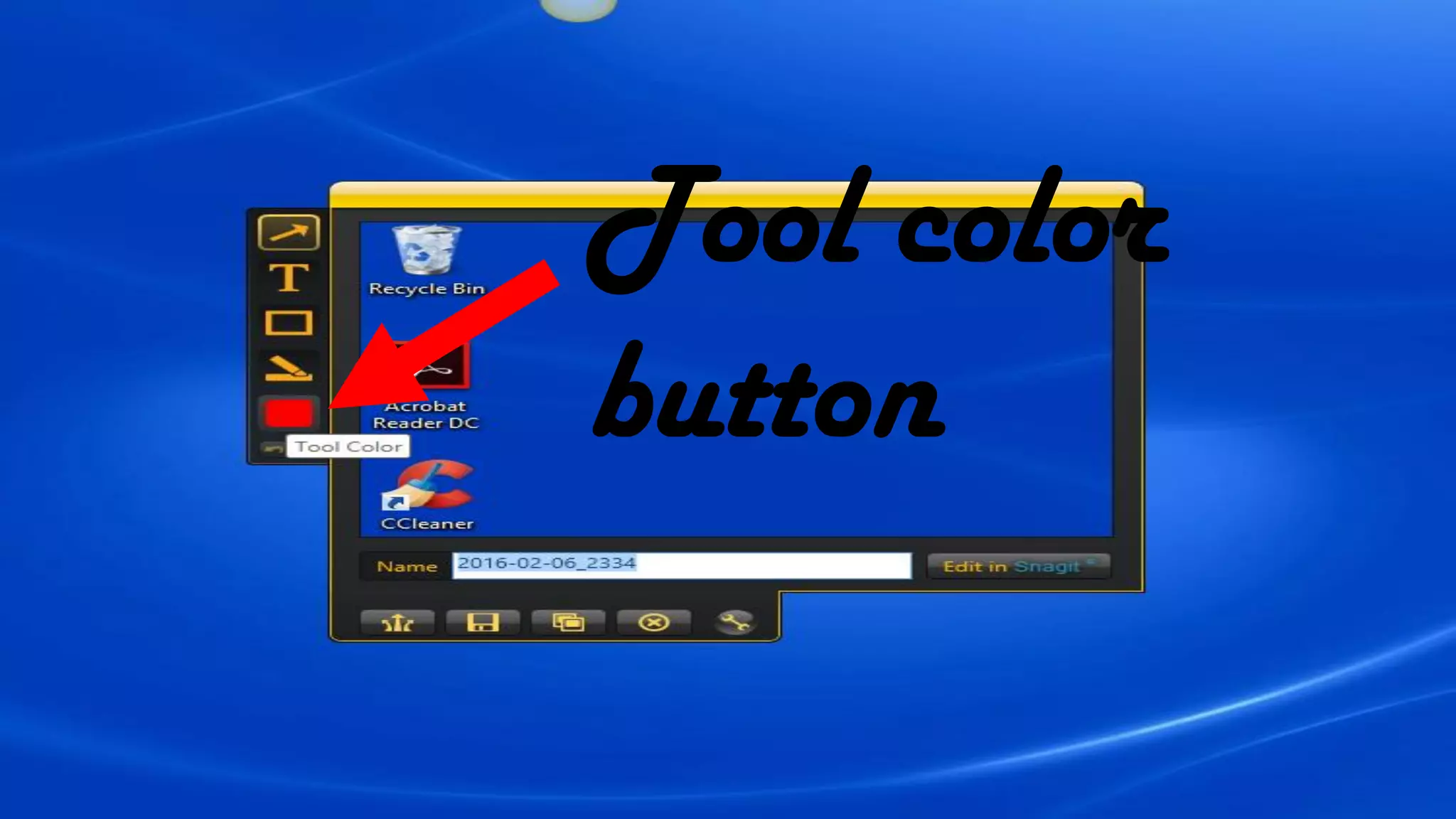
Tool color
button
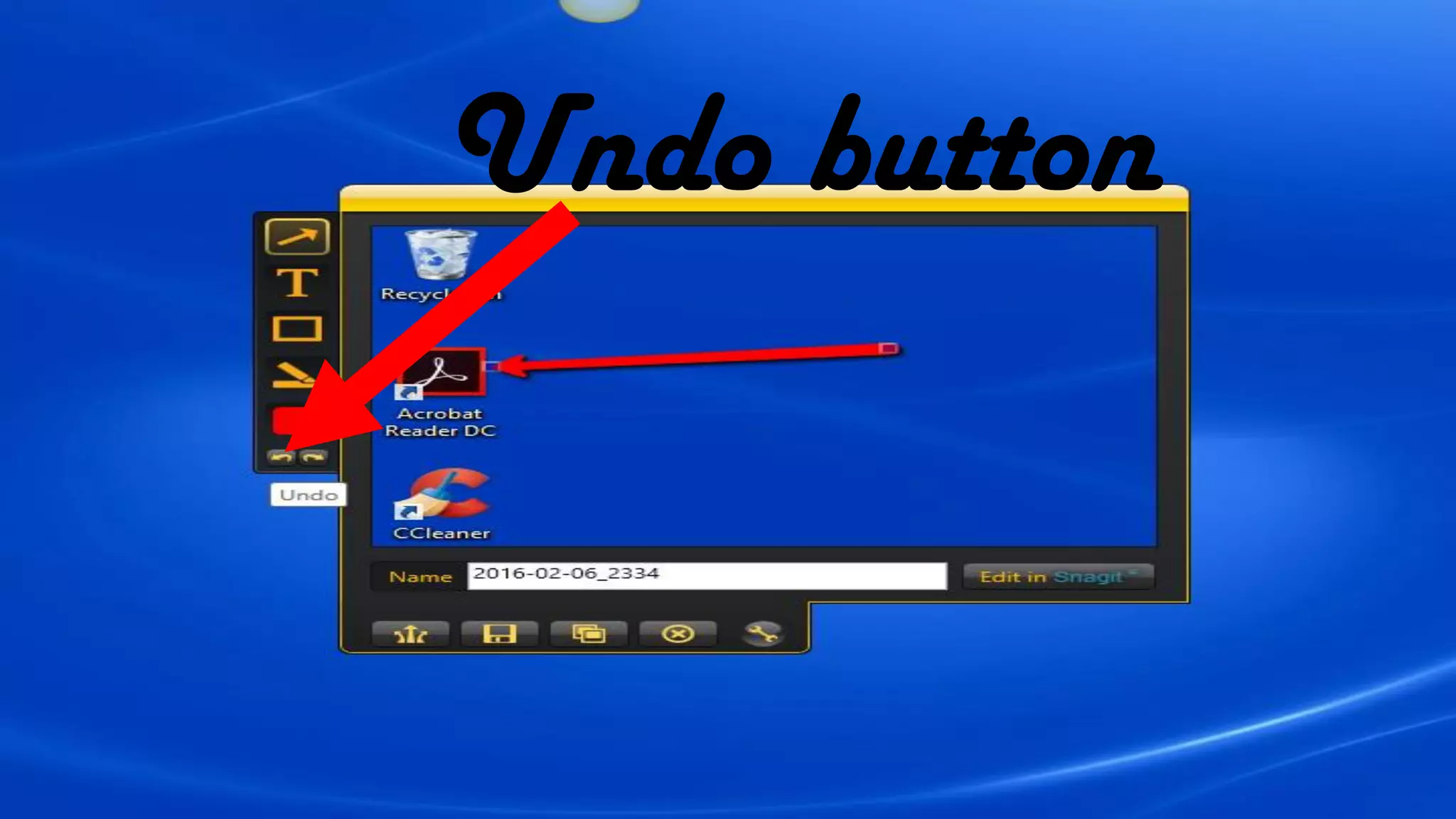
Undo button
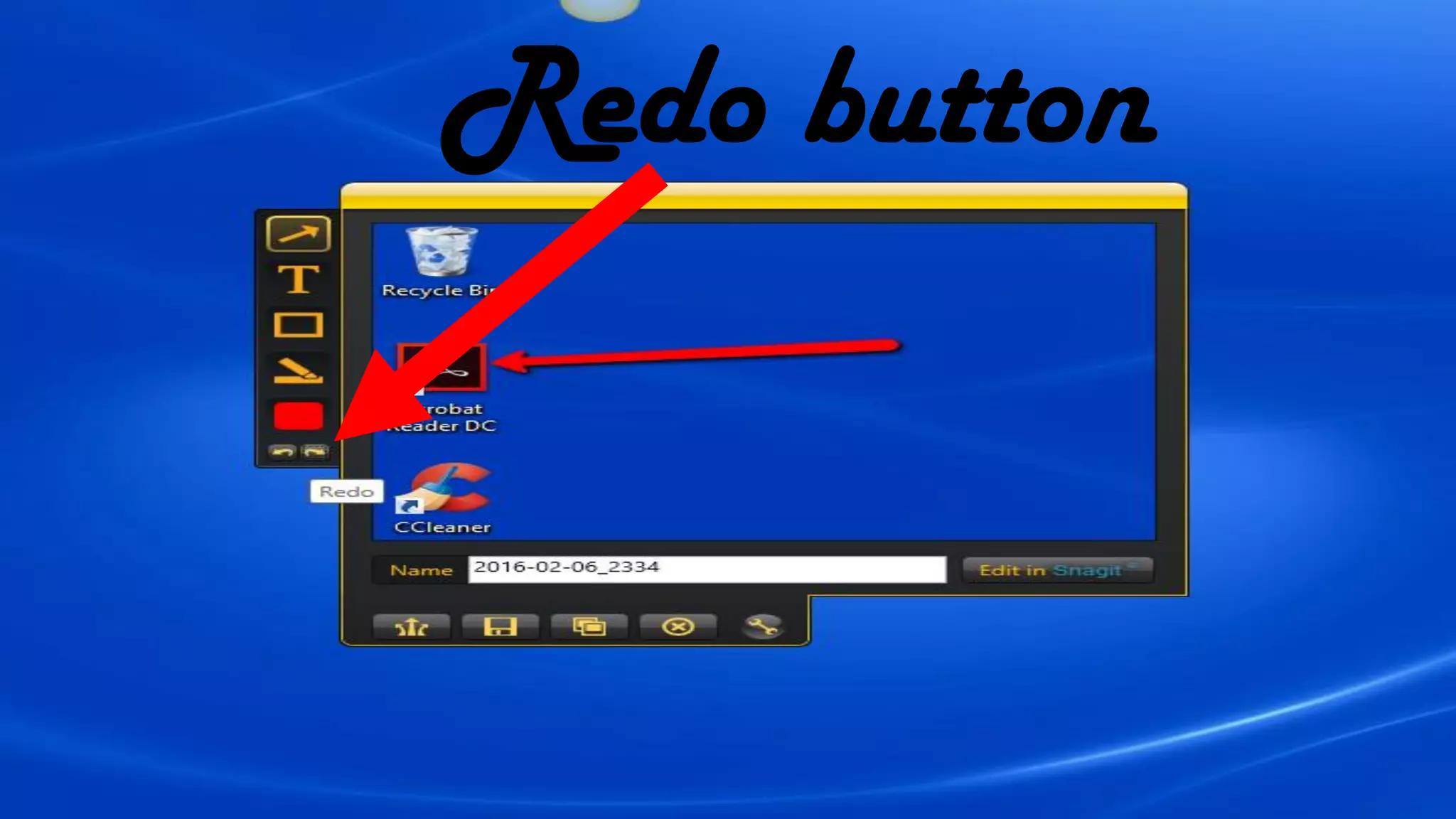
Redo button
Click here to point
something
Click here to write
texts
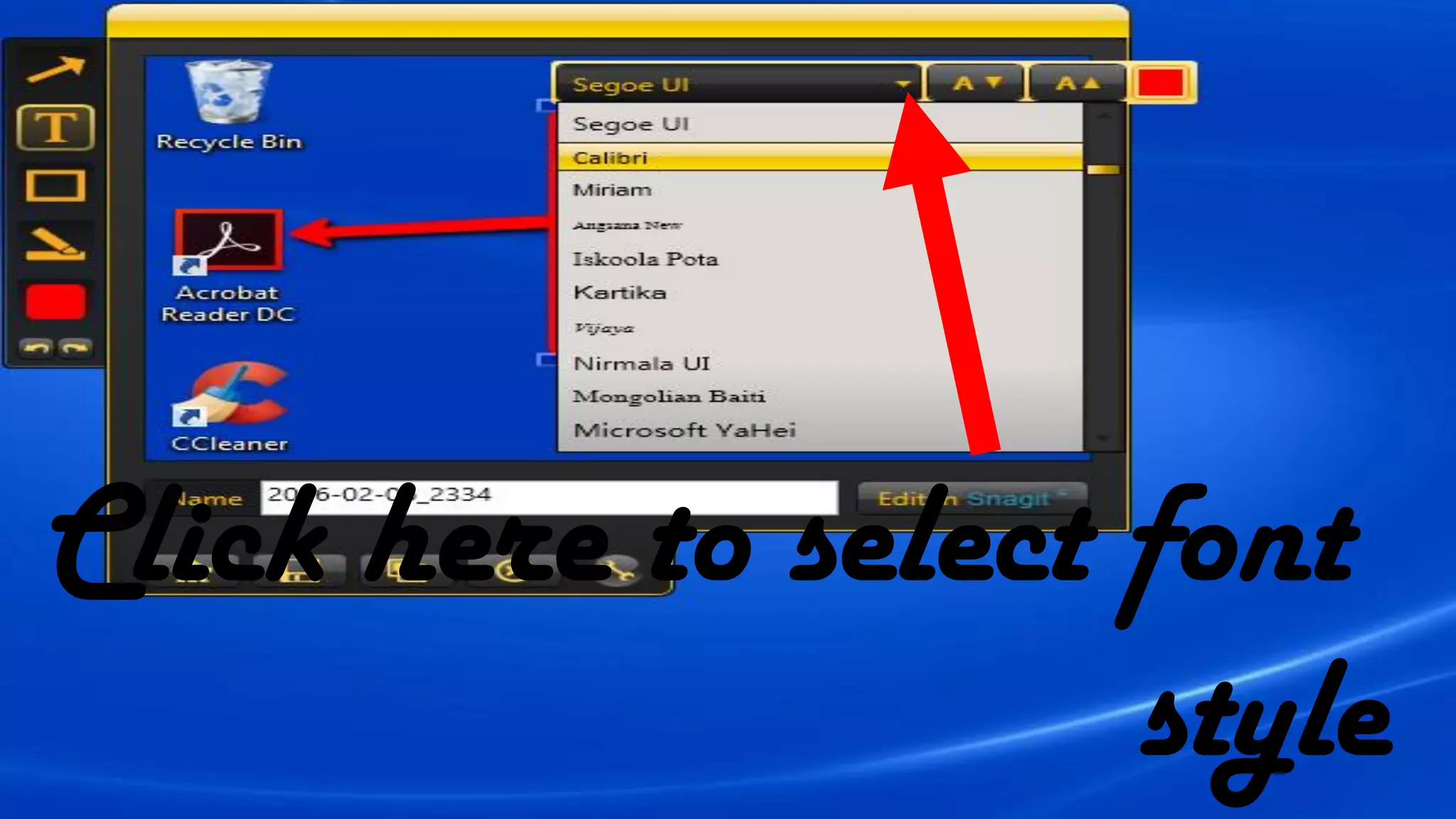
Click here to select font
style
Click here to increase
font size
Click here to decrease
font size
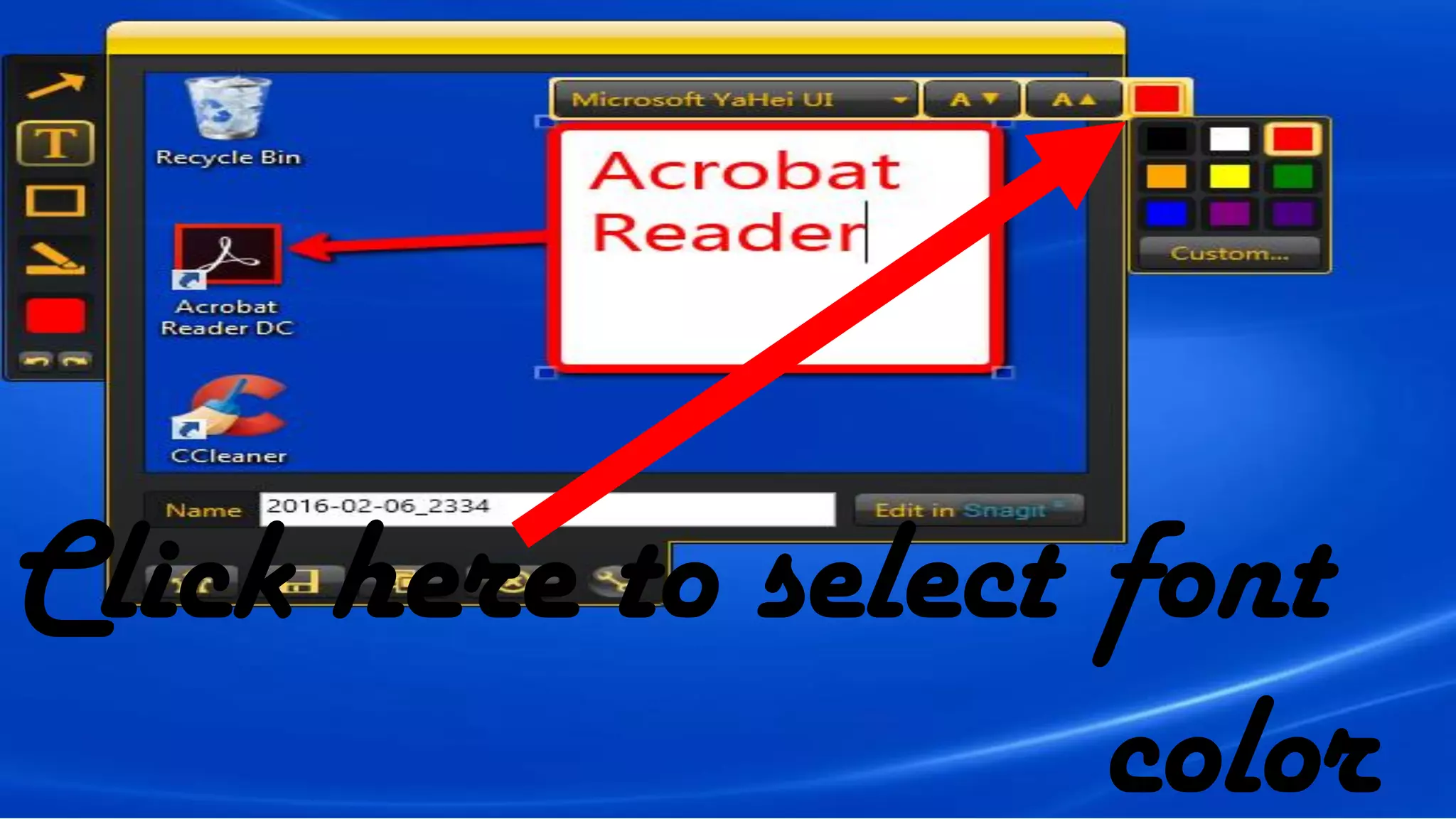
Click here to select font
color
Click here to make frame
Click here to highlight
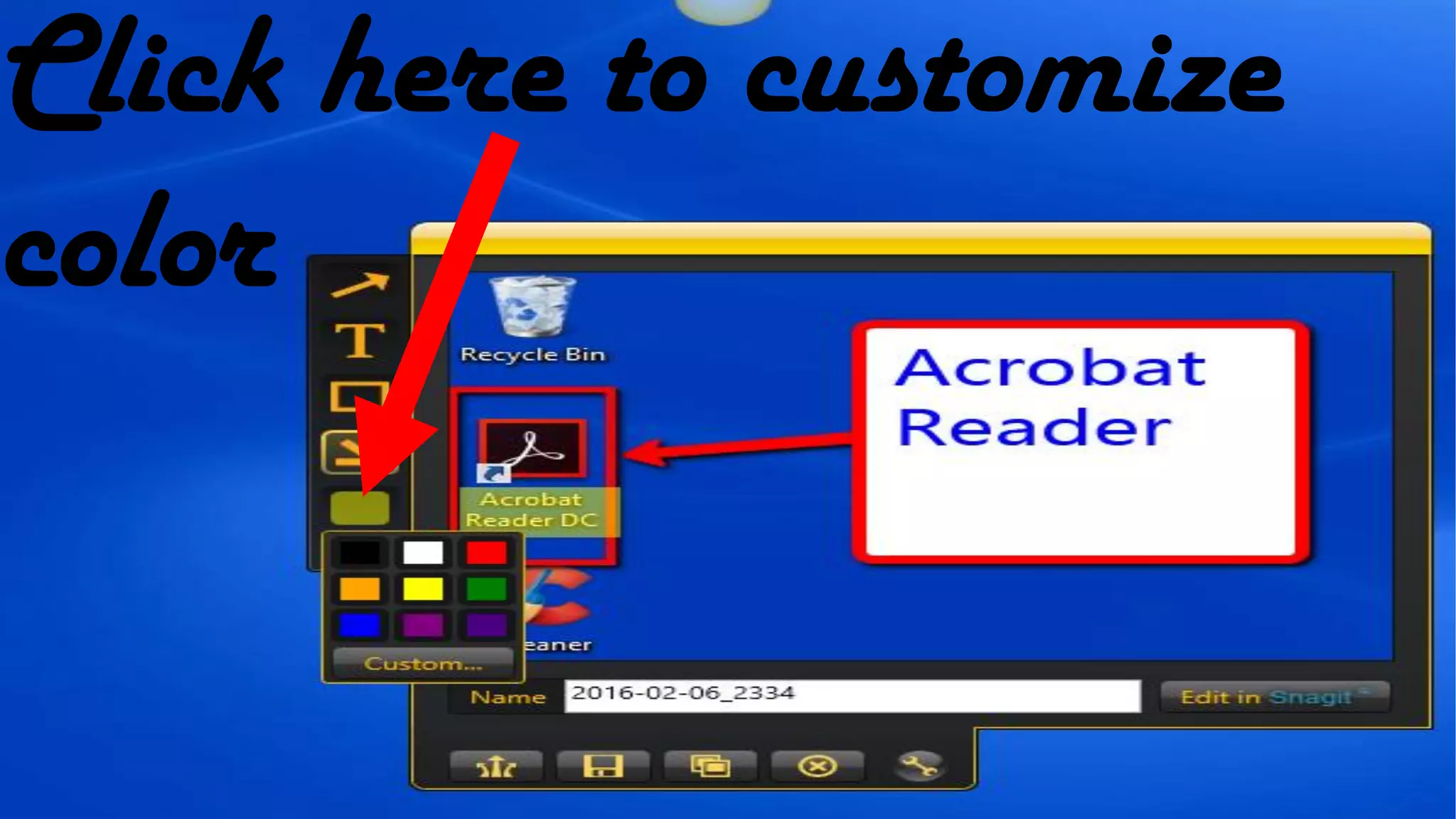
Click here to customize
color
Click here add title
Here are the Options
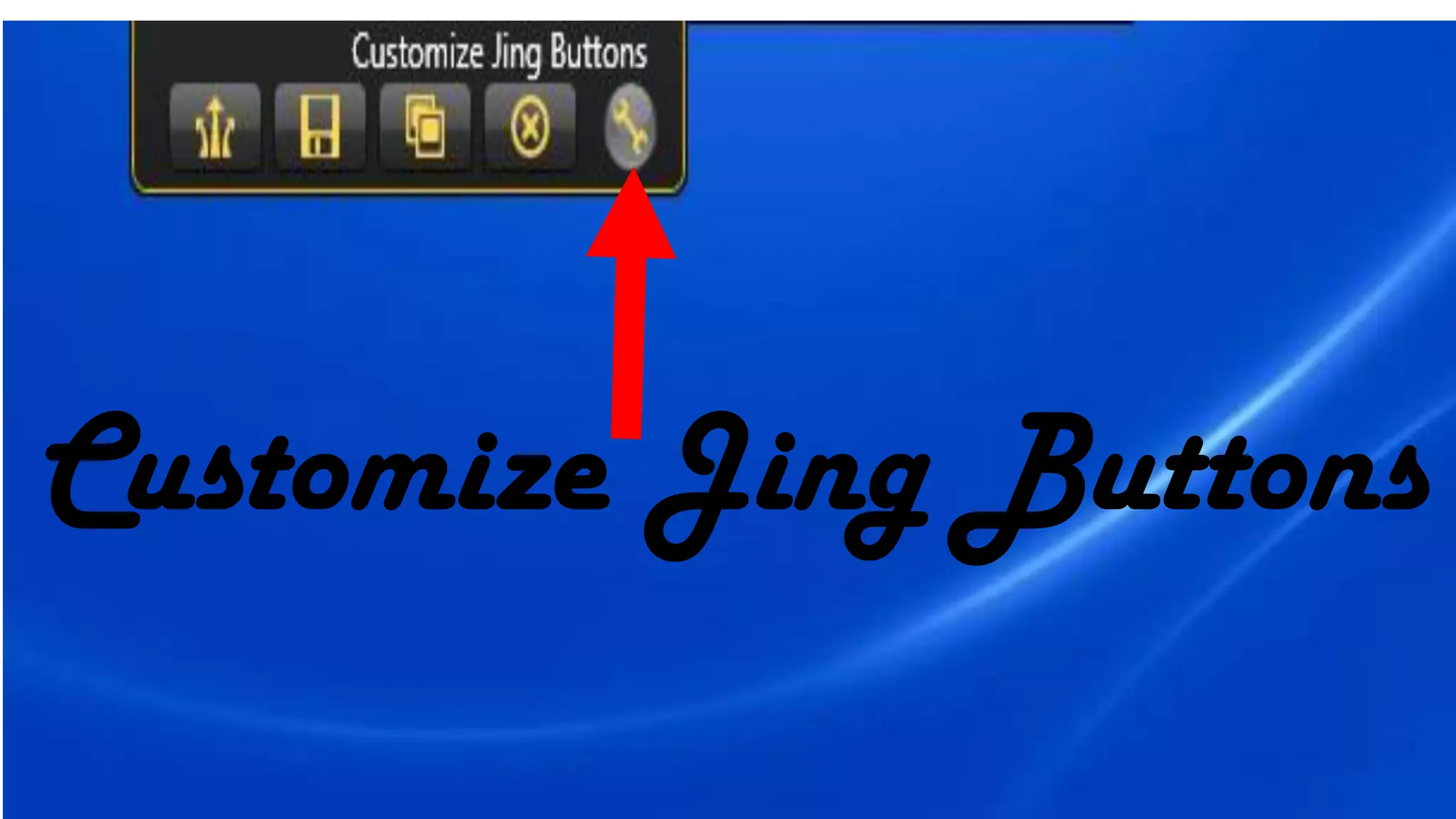
Customize Jing Buttons
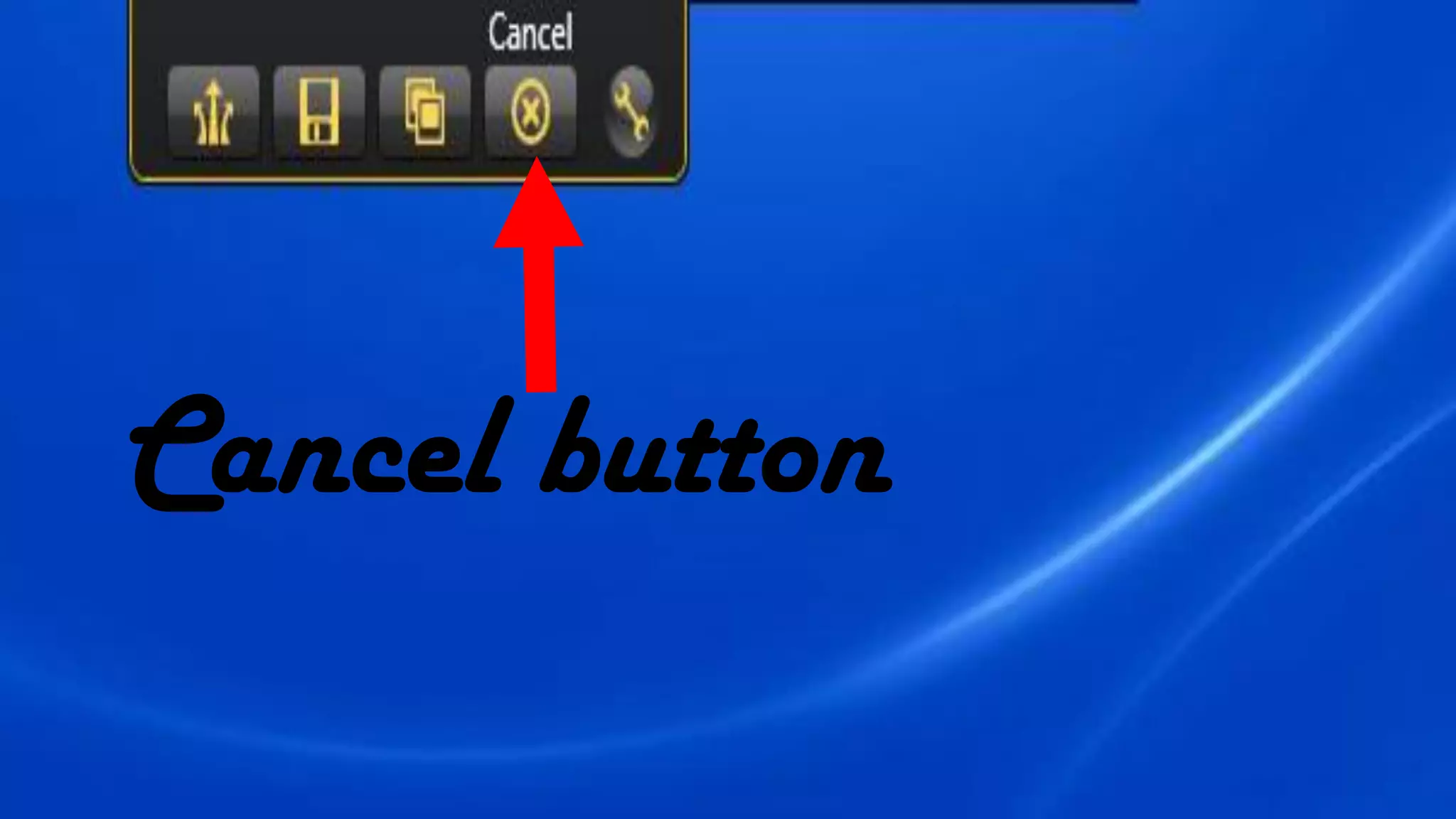
Cancel button
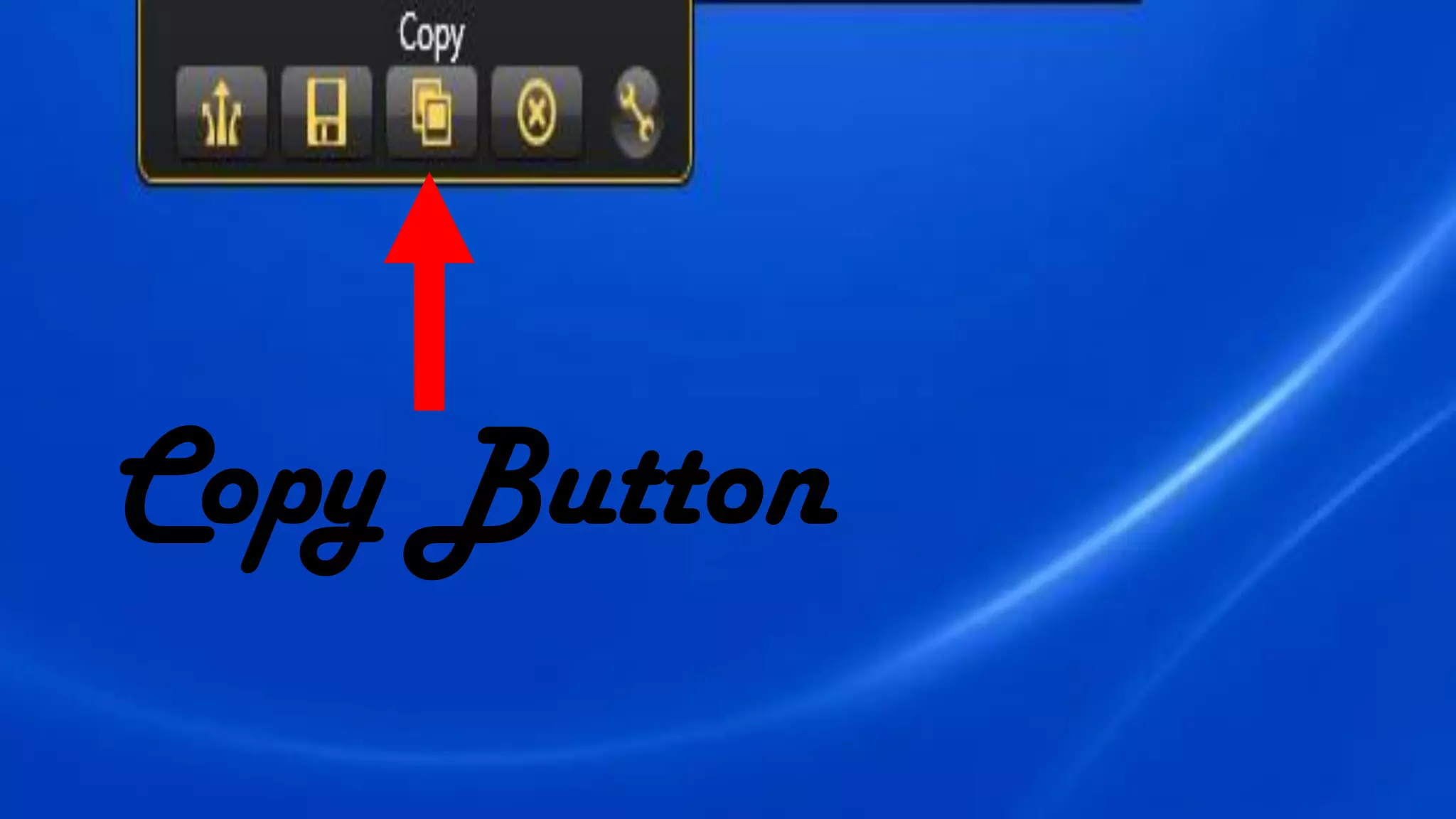
Copy Button
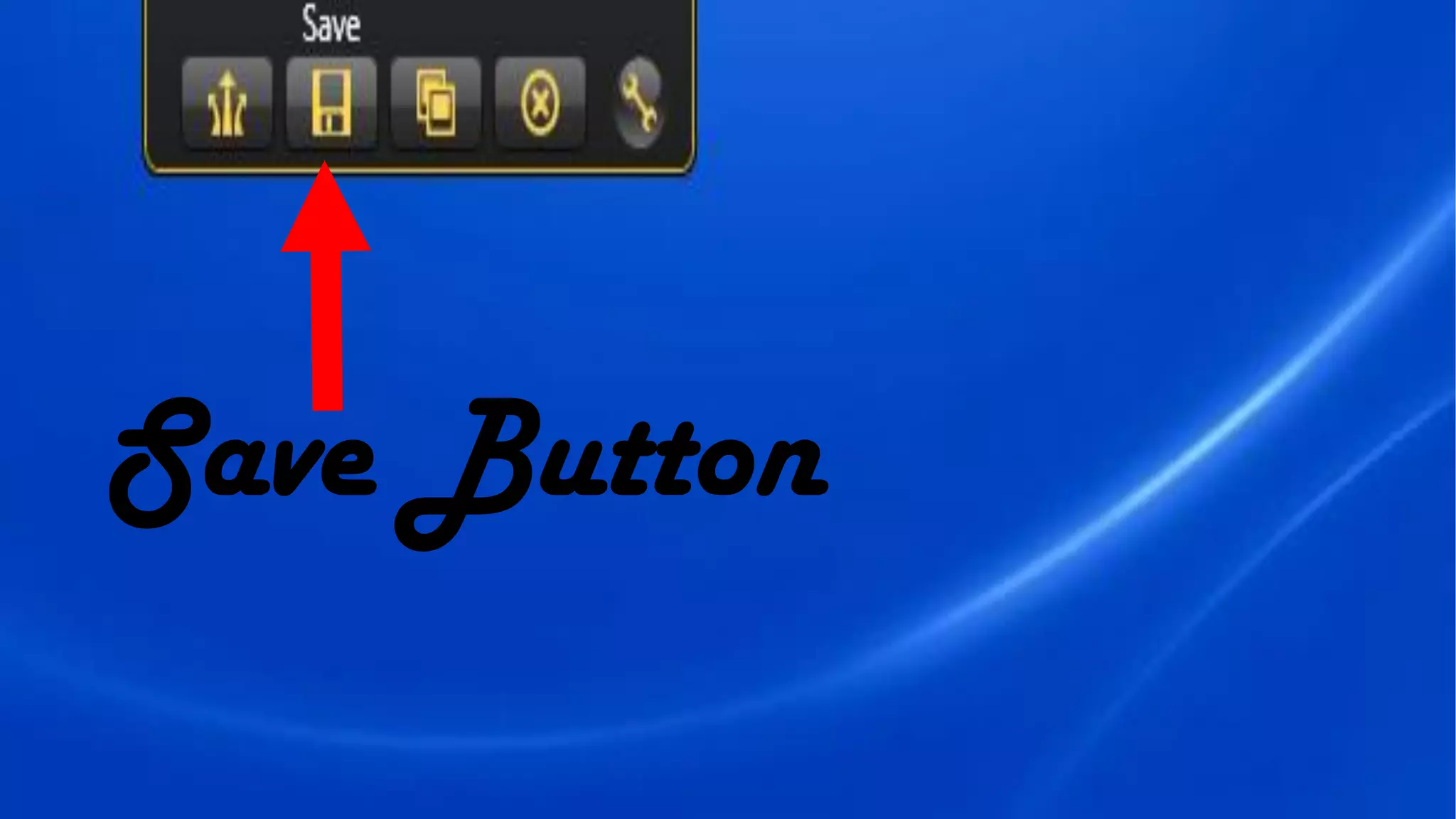
Save Button
Share via
Screencast.com
Button
Click here to Share via
Screencast.com
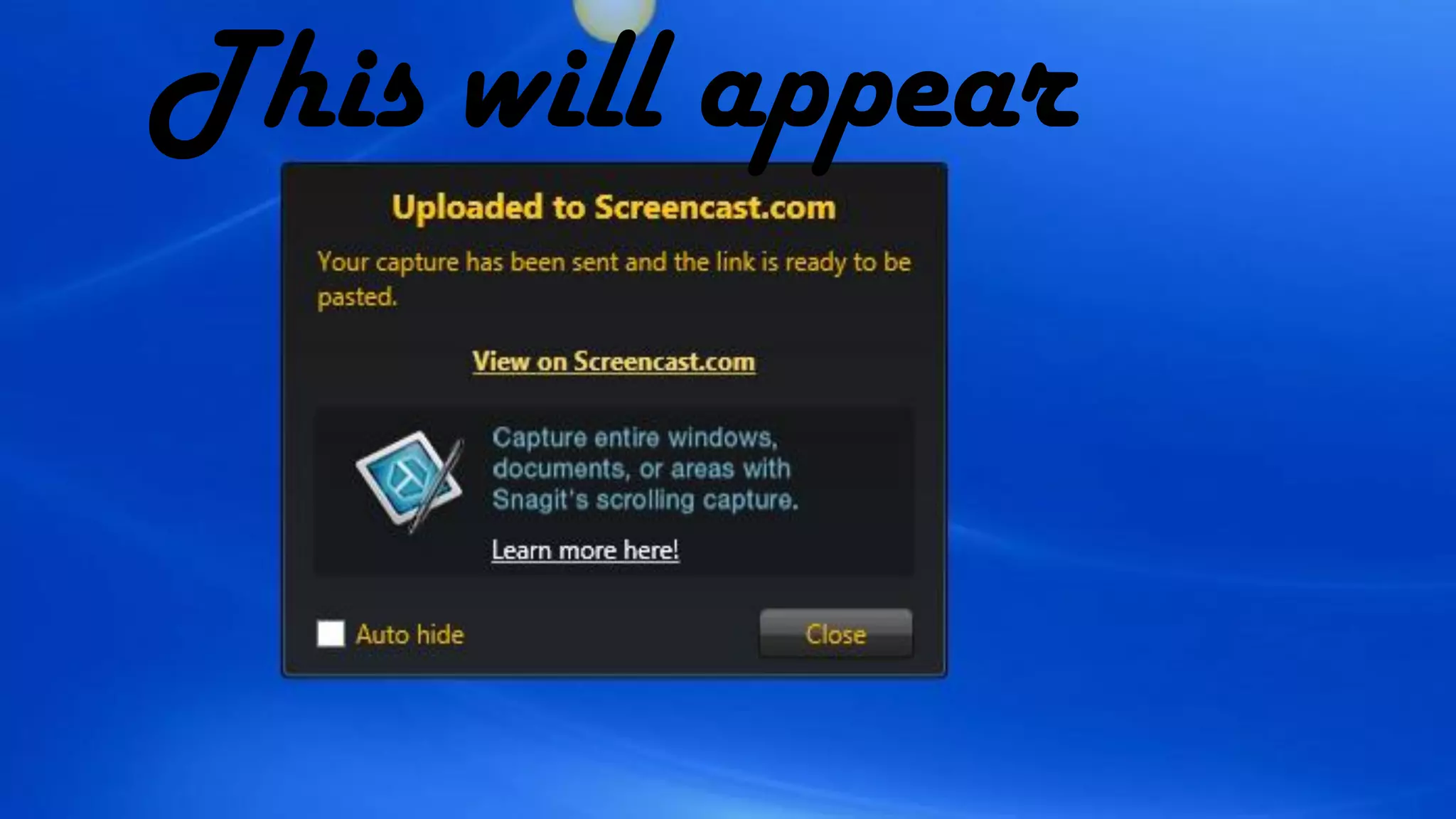
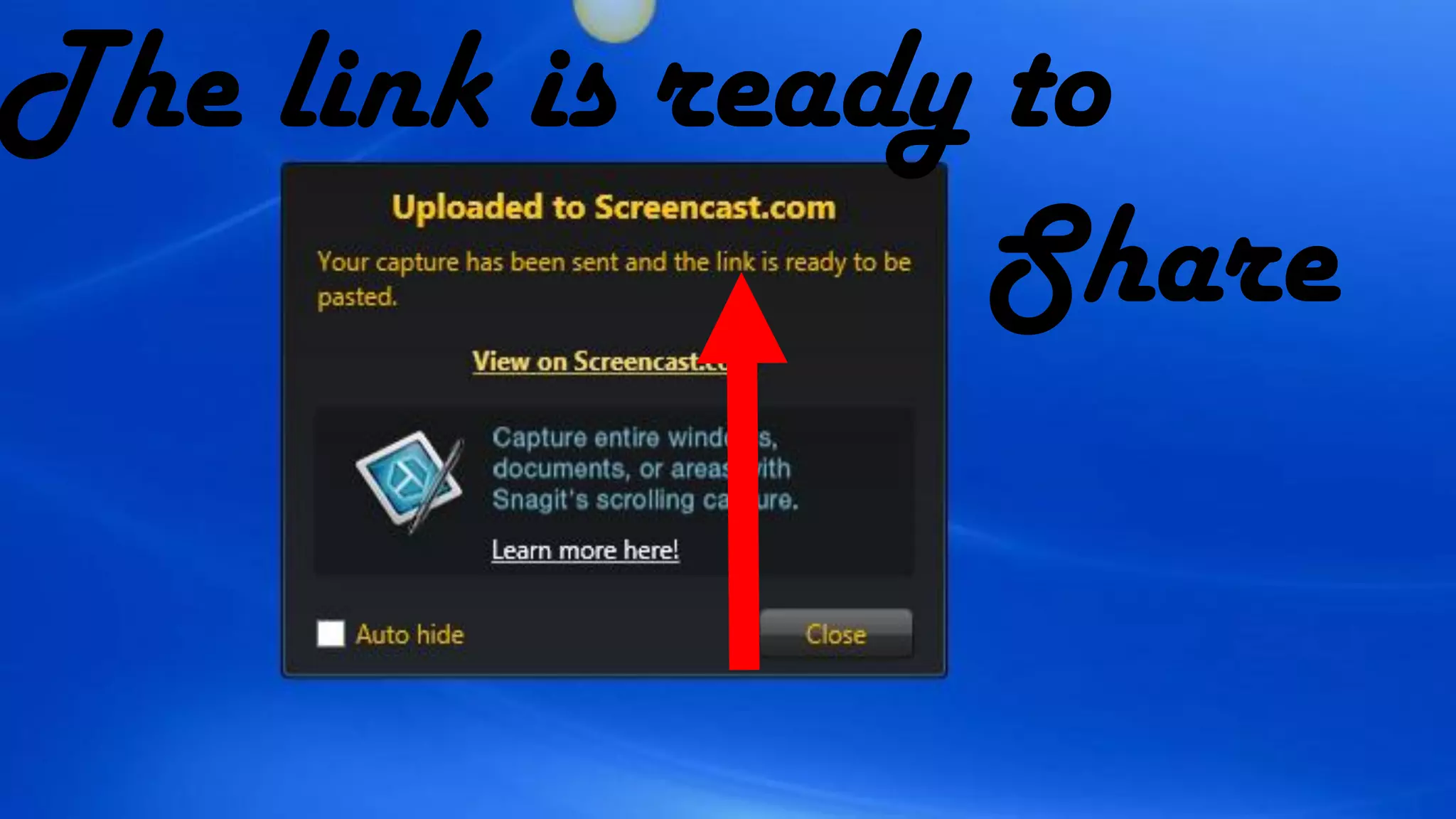
This will appear
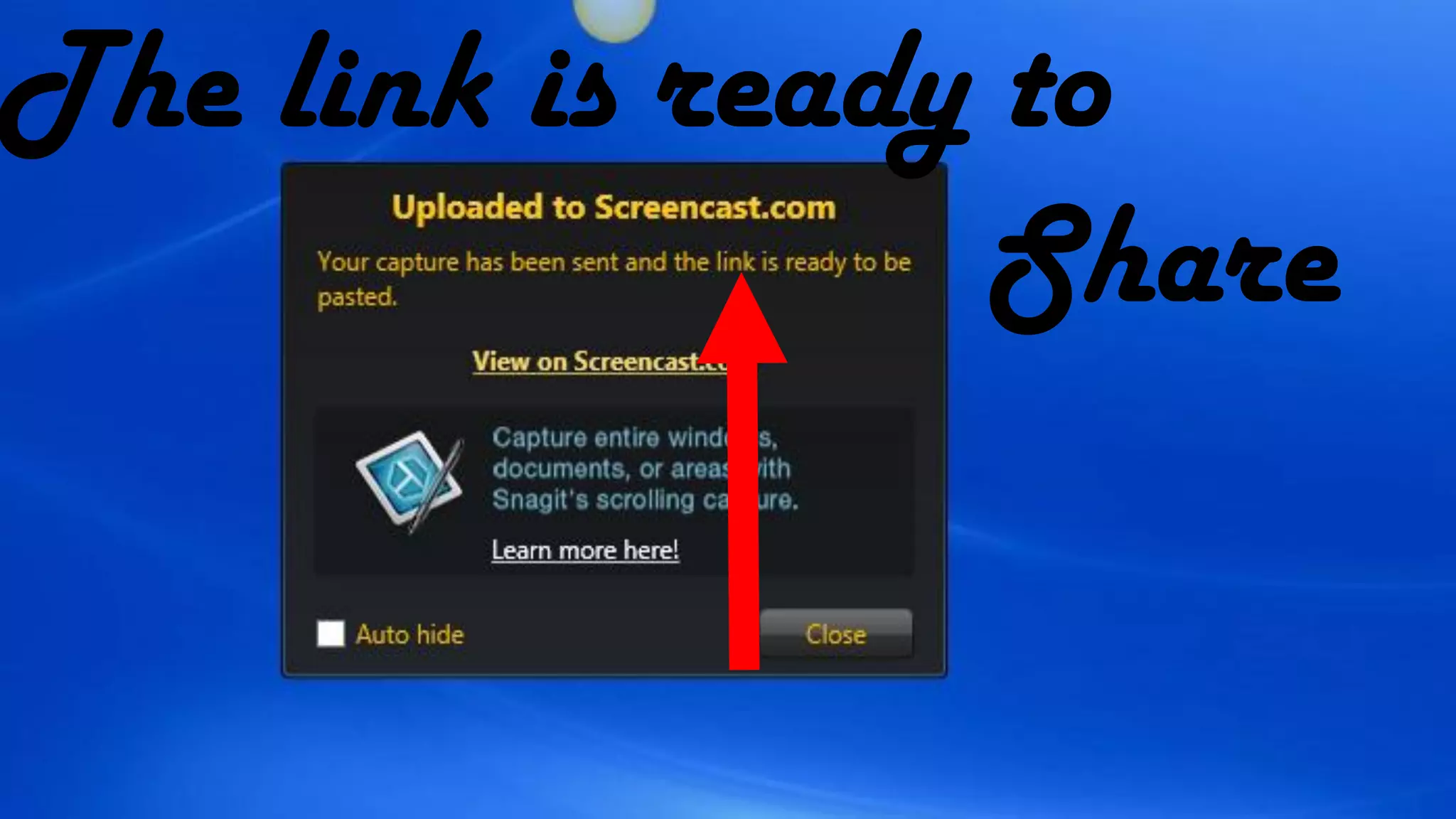
The link is ready to
Share
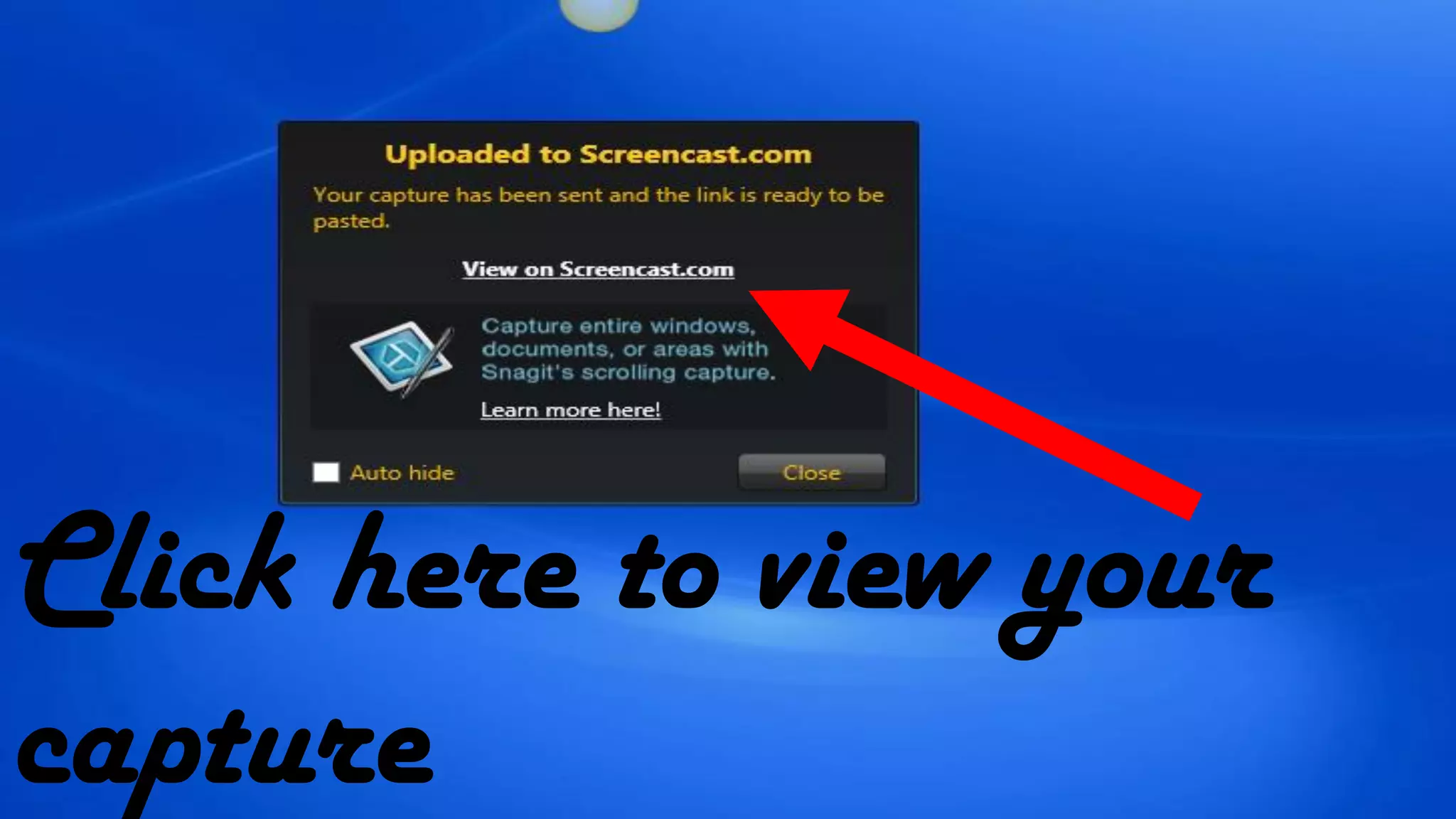
Click here to view your
capture
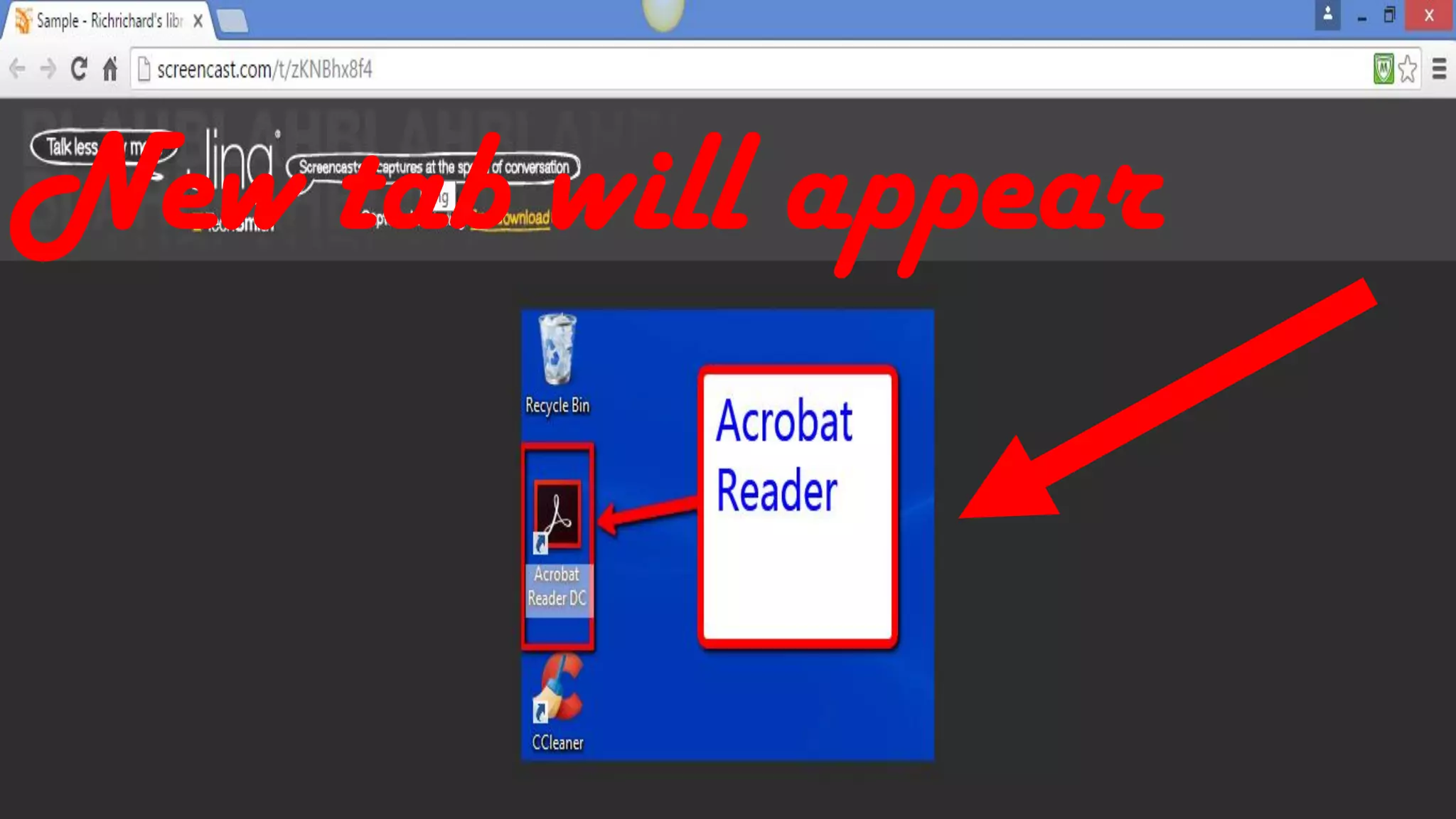
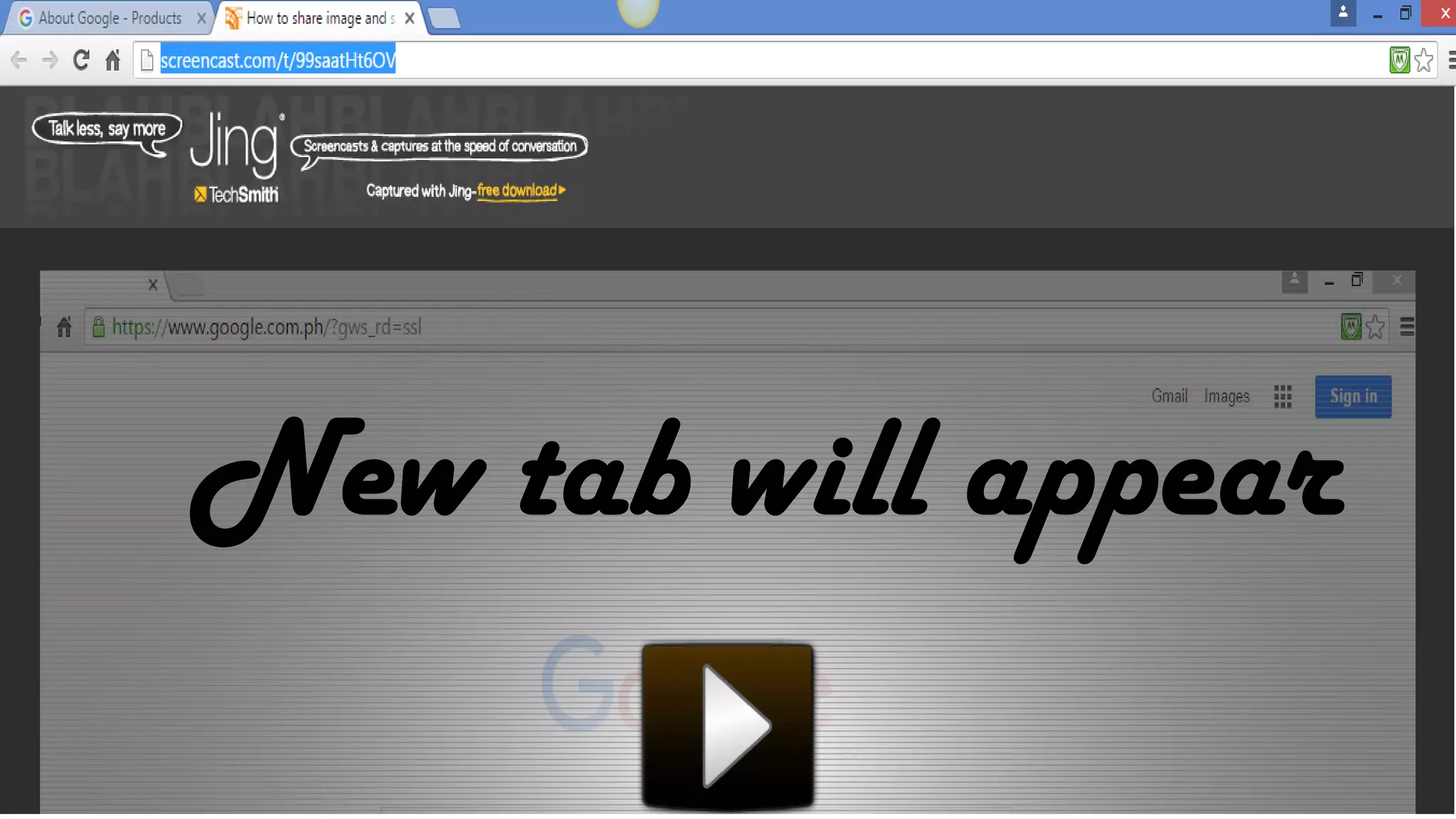
New tab will appear
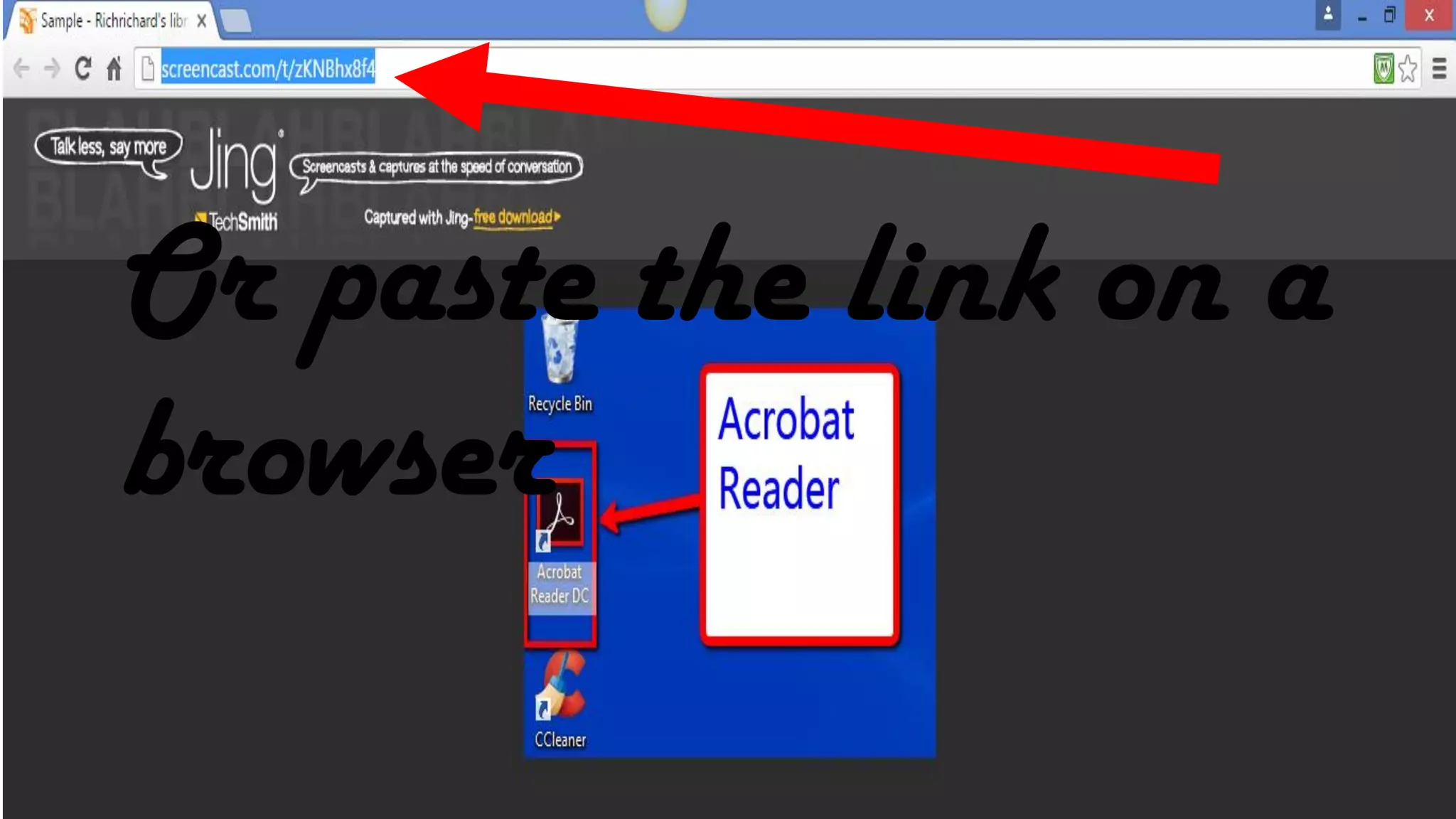
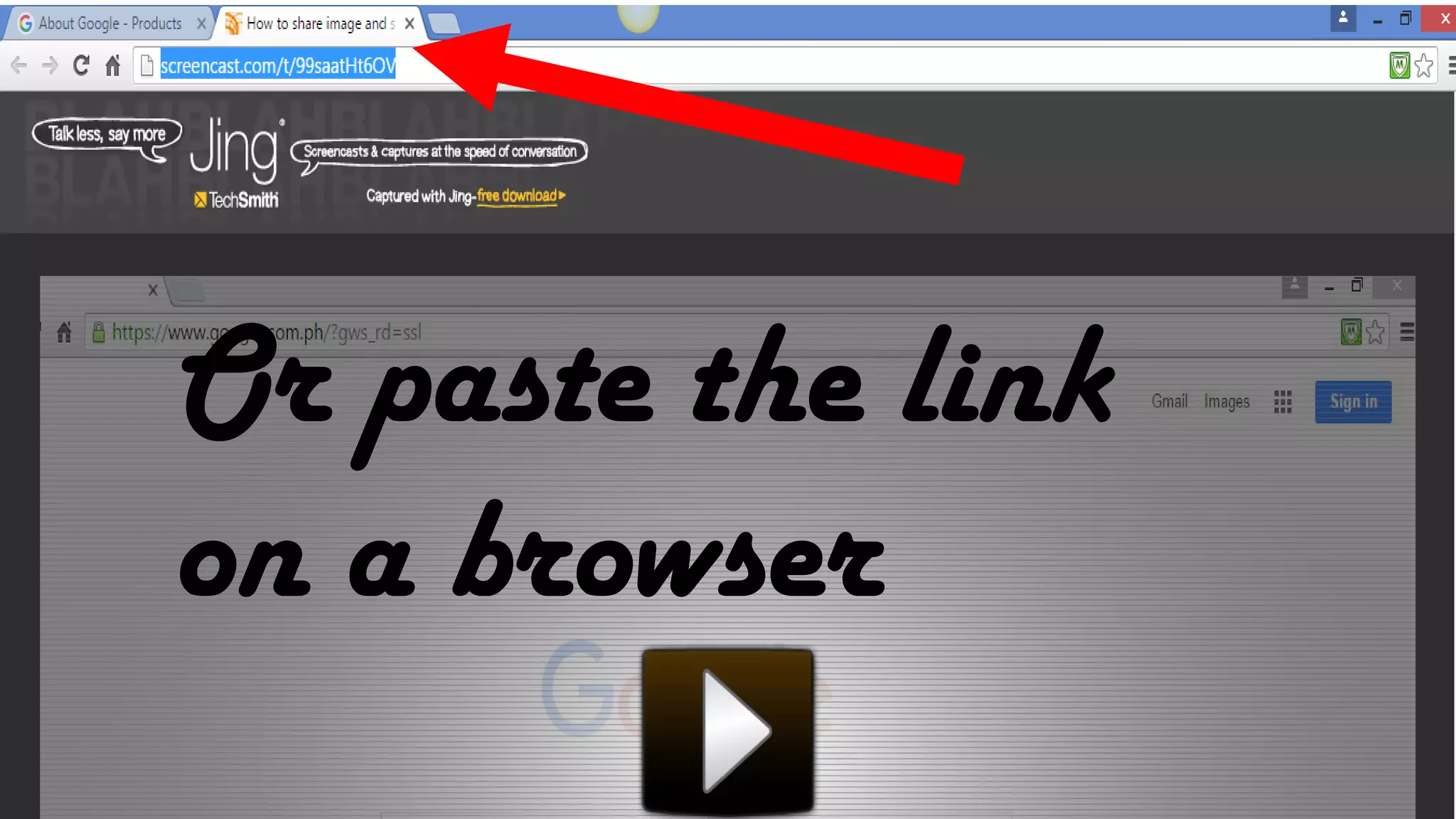
Or paste the link on a
browser
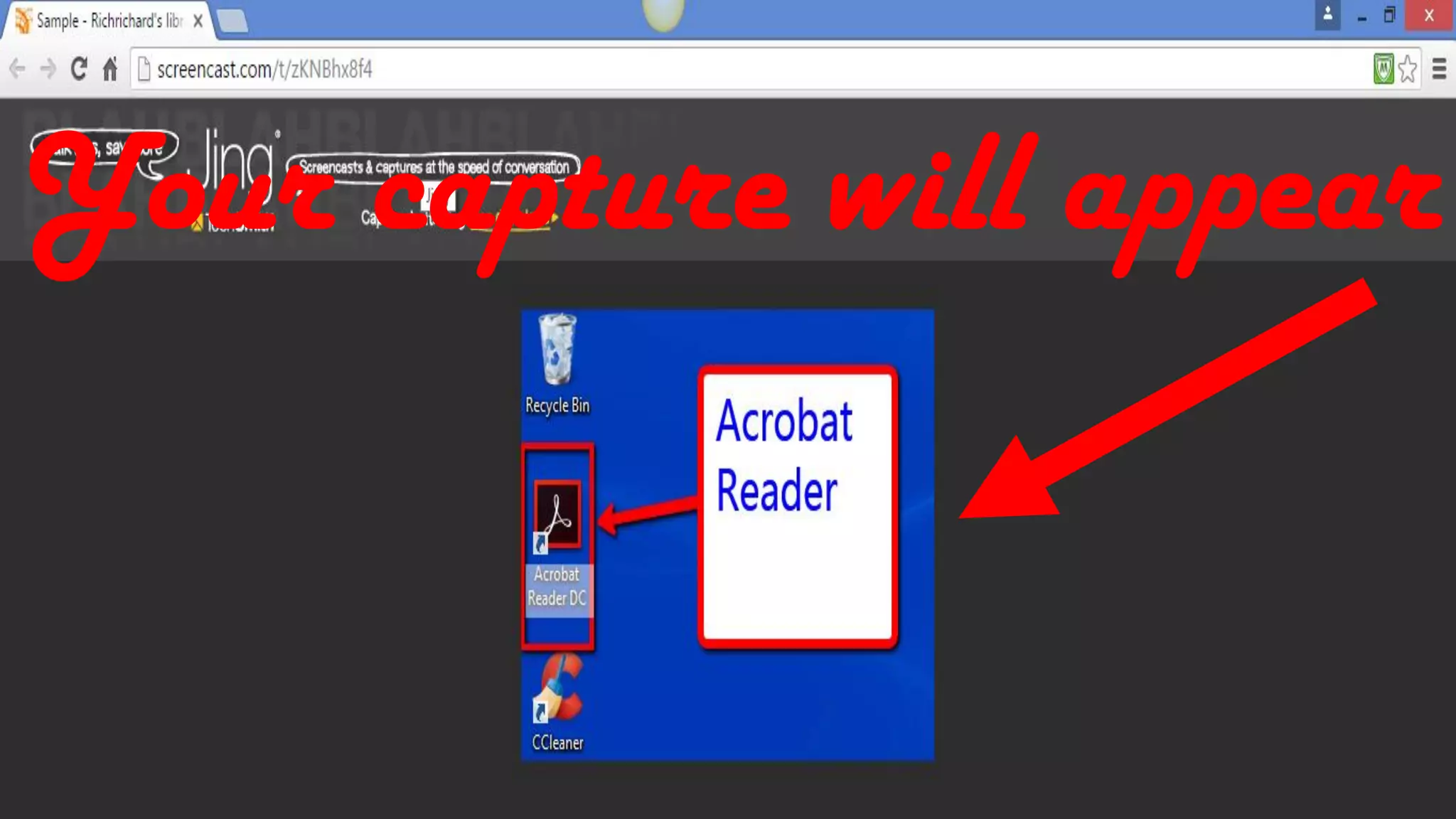
Your capture will appear
To capture a video
from my screen
Open the screen
I want to capture
For this tutorial
Google search window
Click here to open
Google search
window
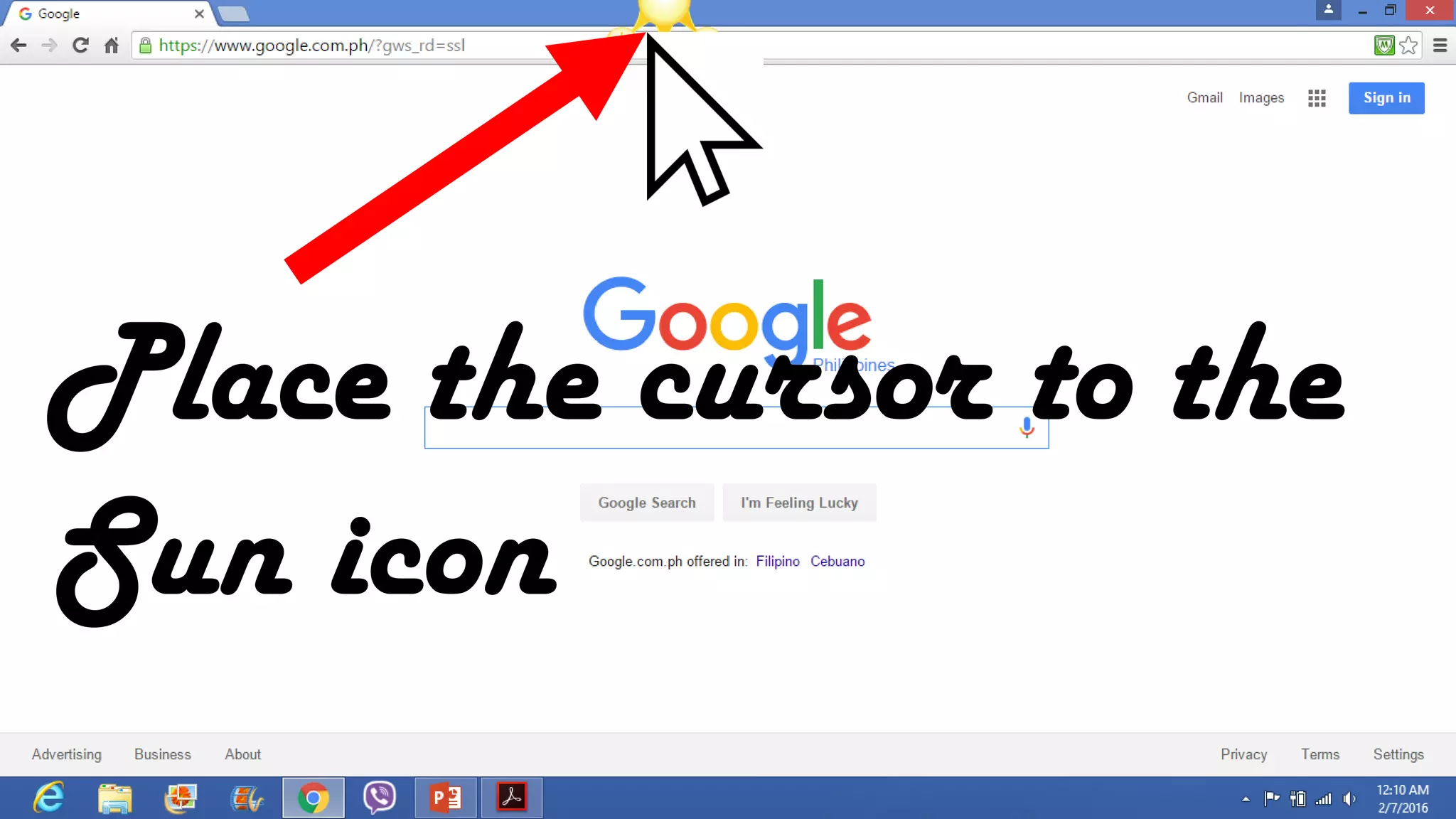
Place the cursor to the
Sun icon
Click Capture
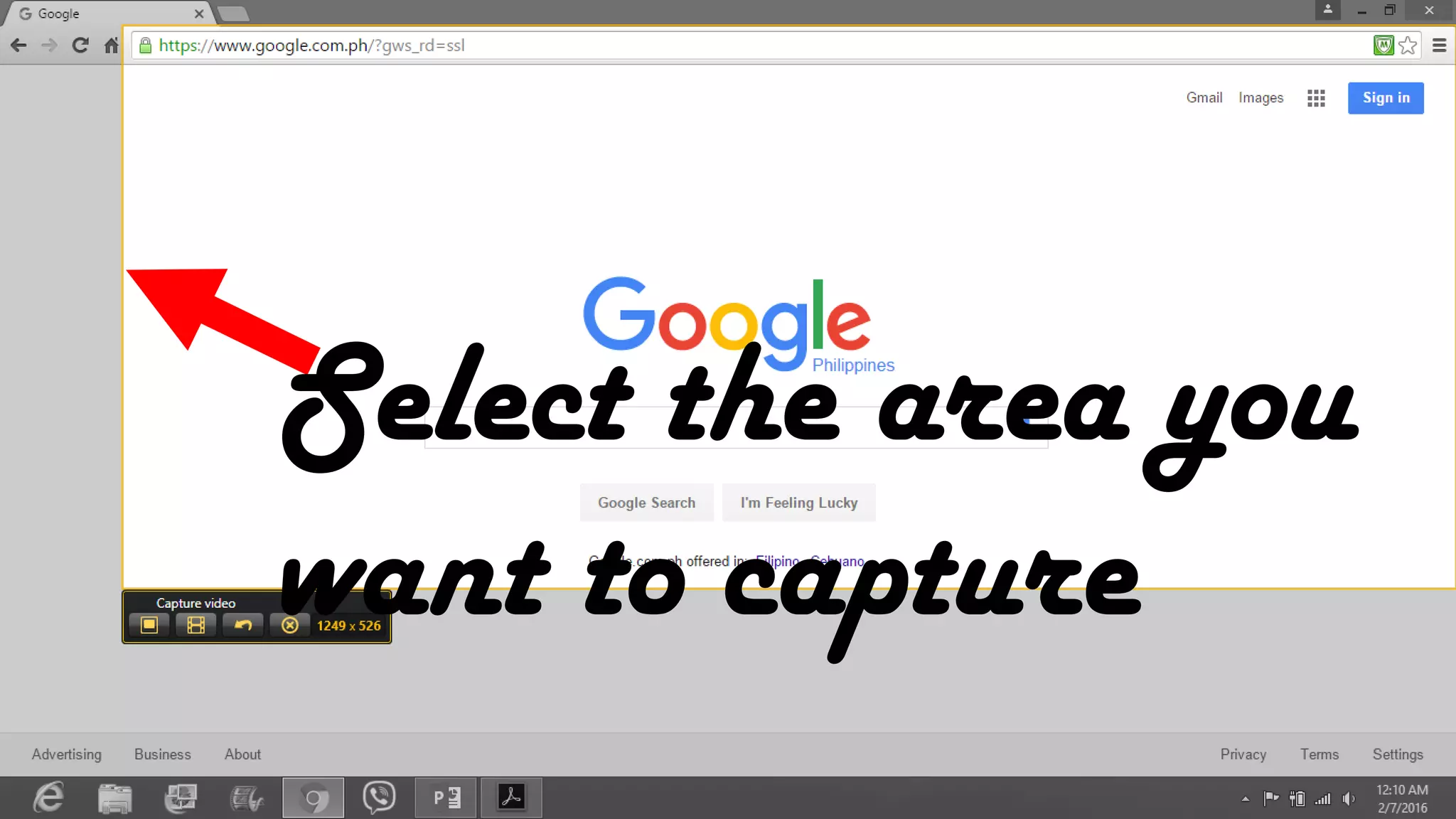
Select the area you
want to capture
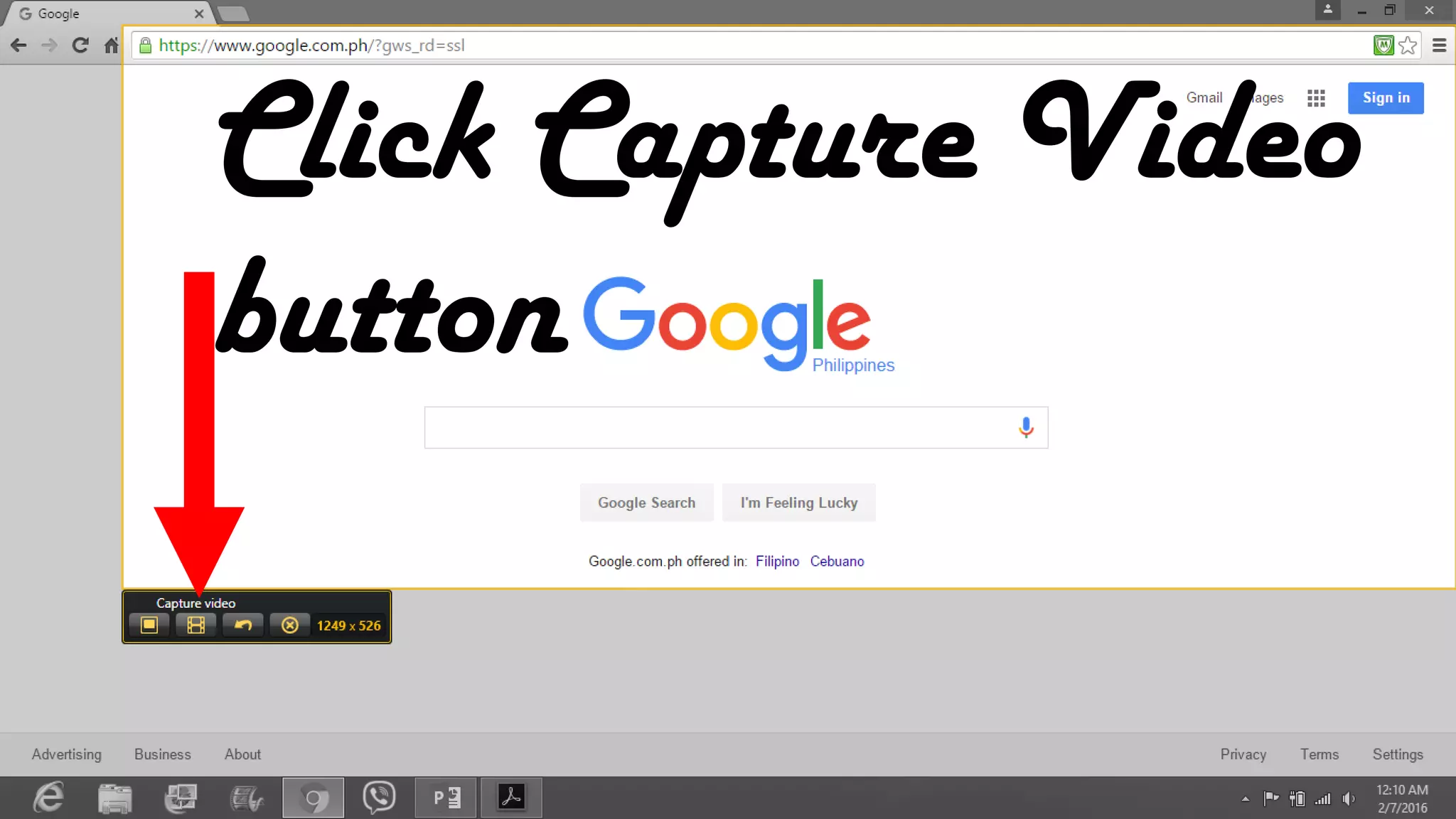
Click Capture Video
button
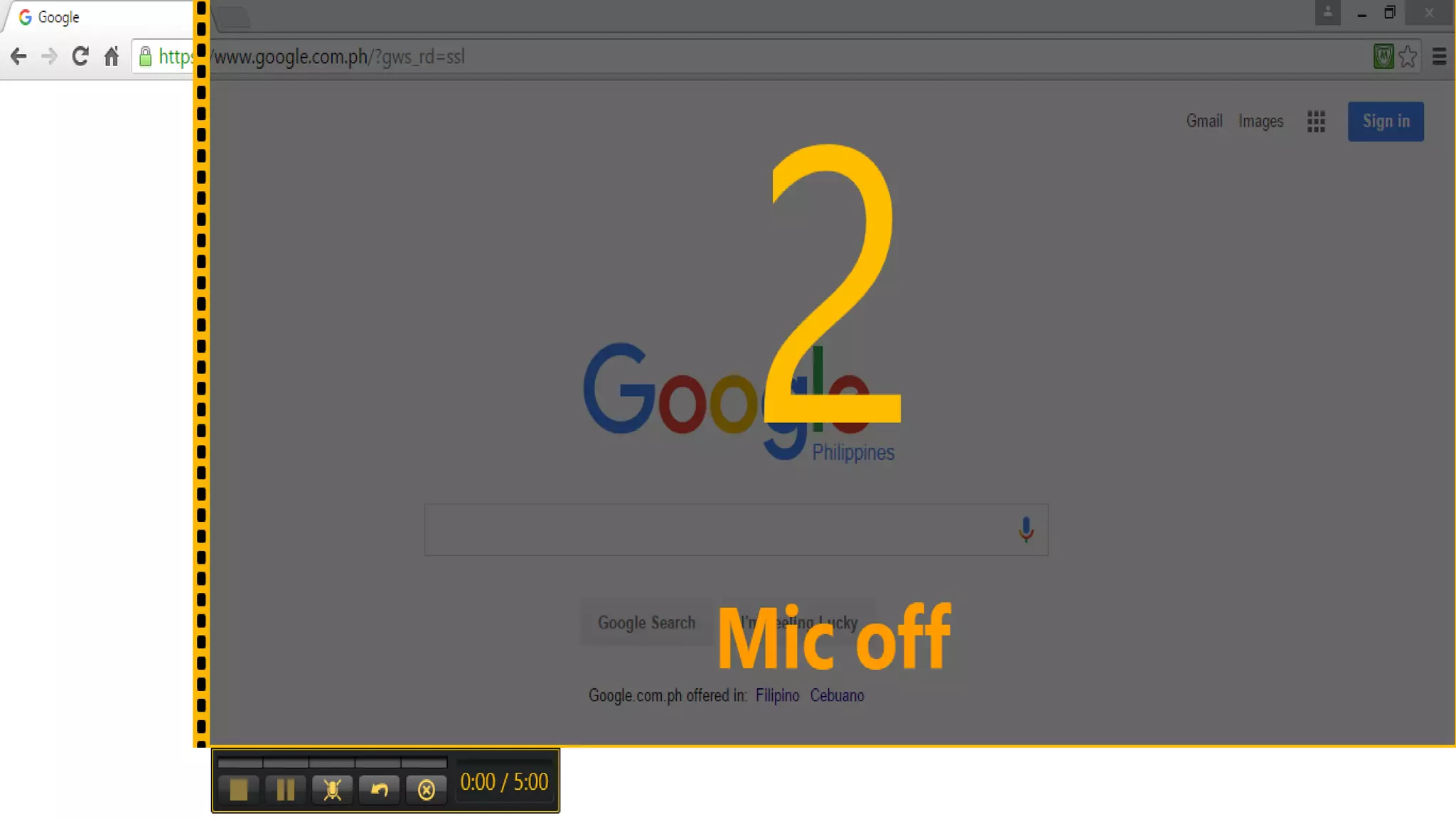
Countdown will appear
Then it will start to
record your screen
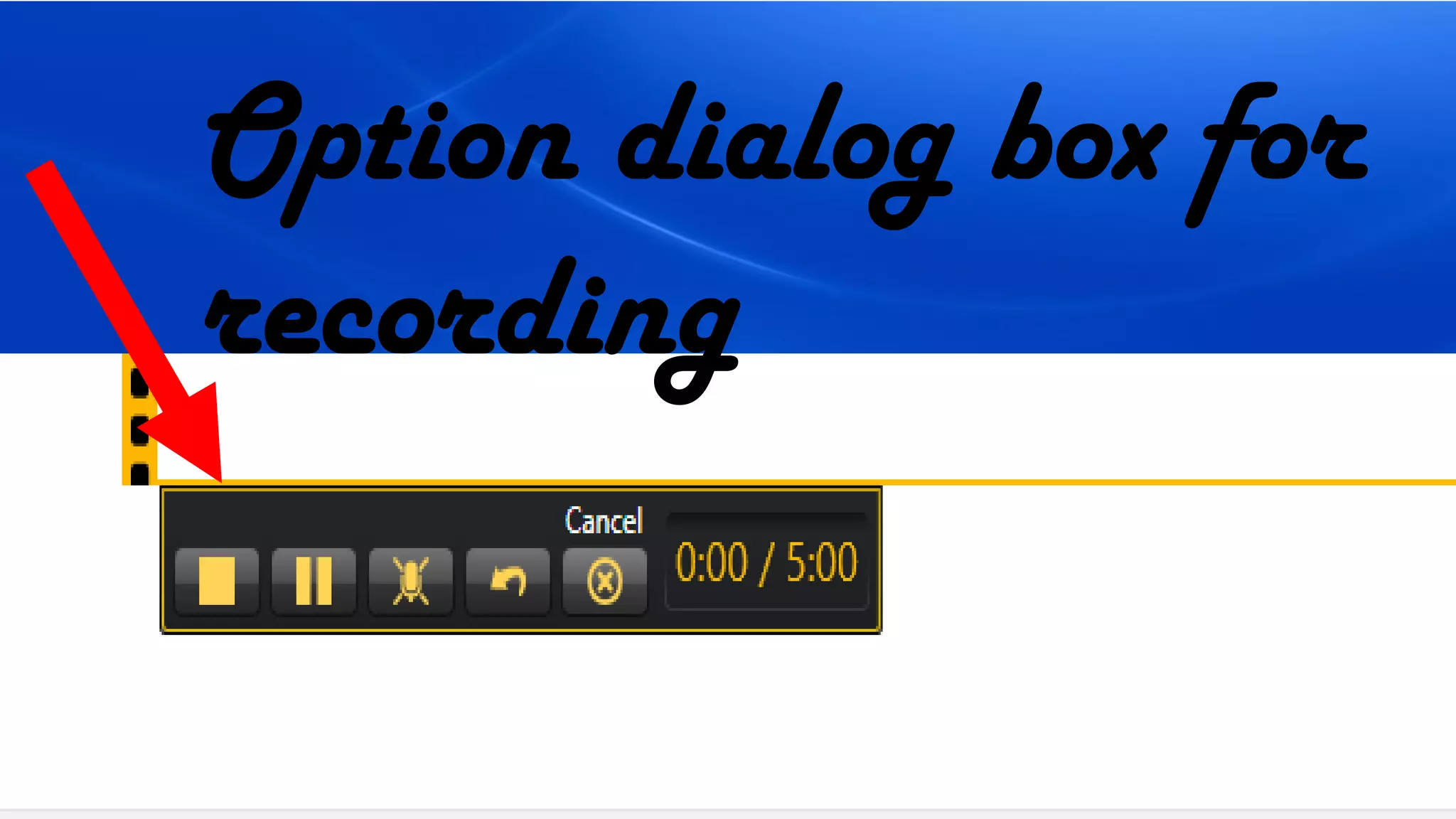
Option dialog box for
recording
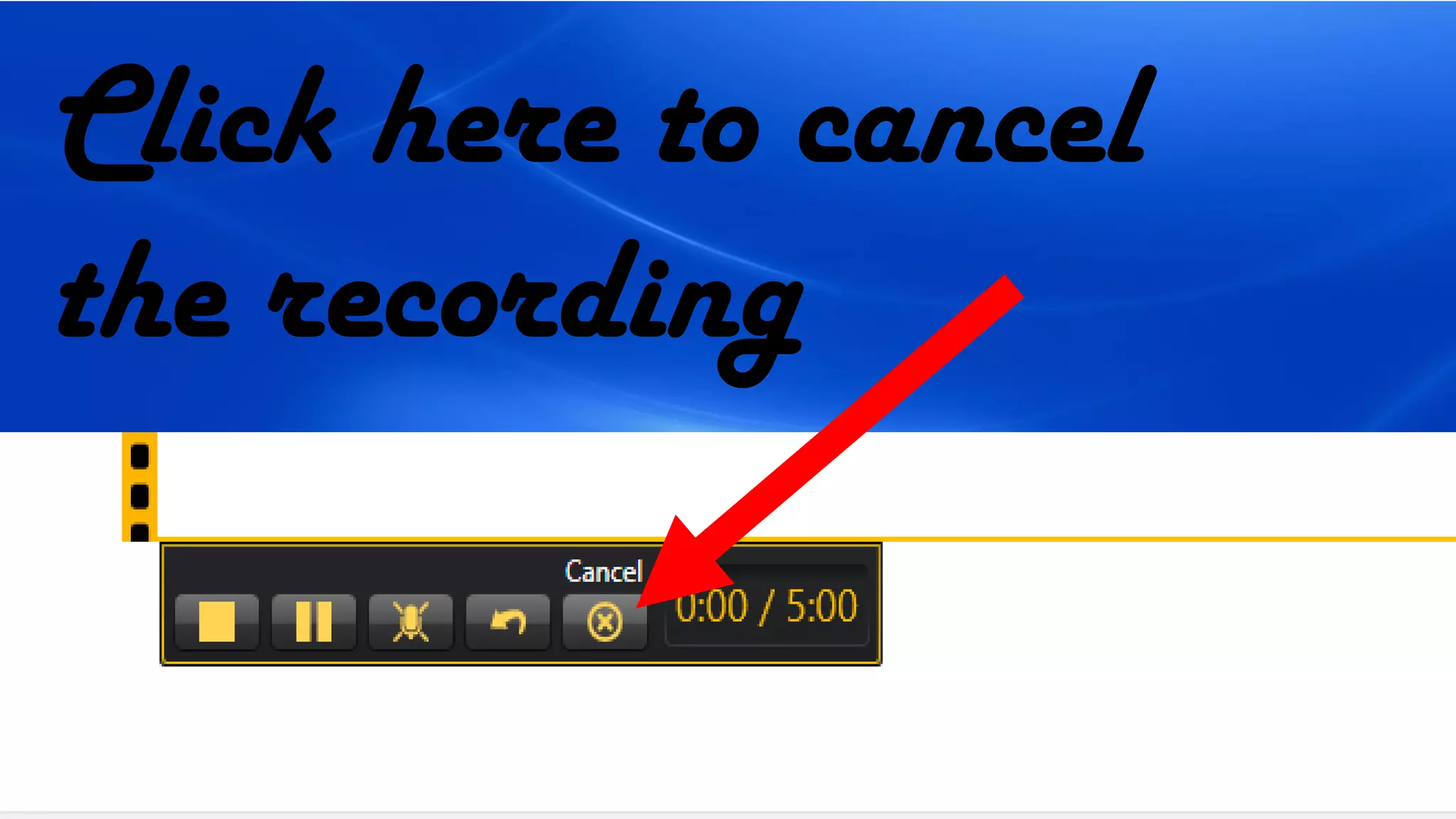
Click here to cancel
the recording
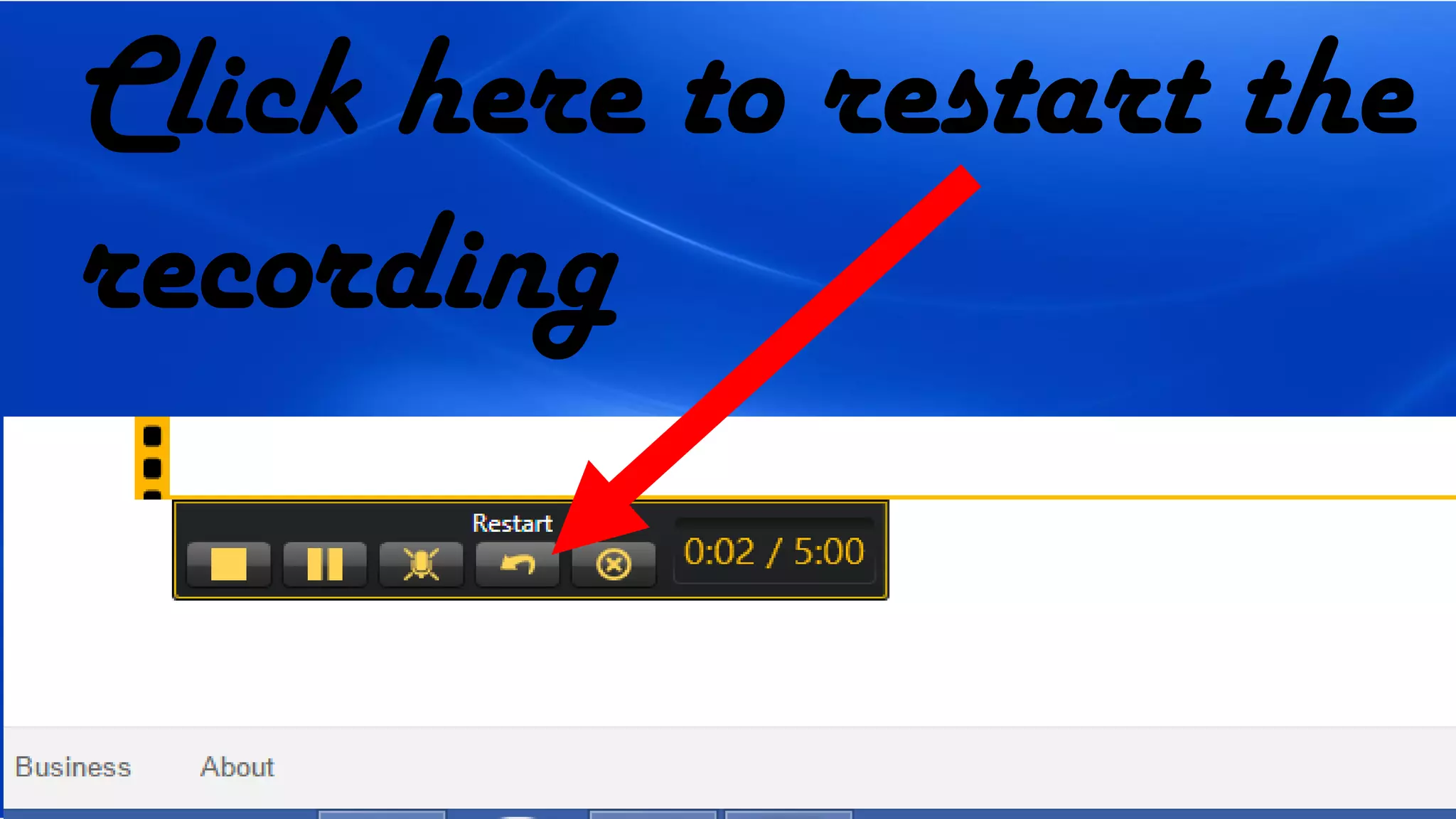
Click here to restart the
recording
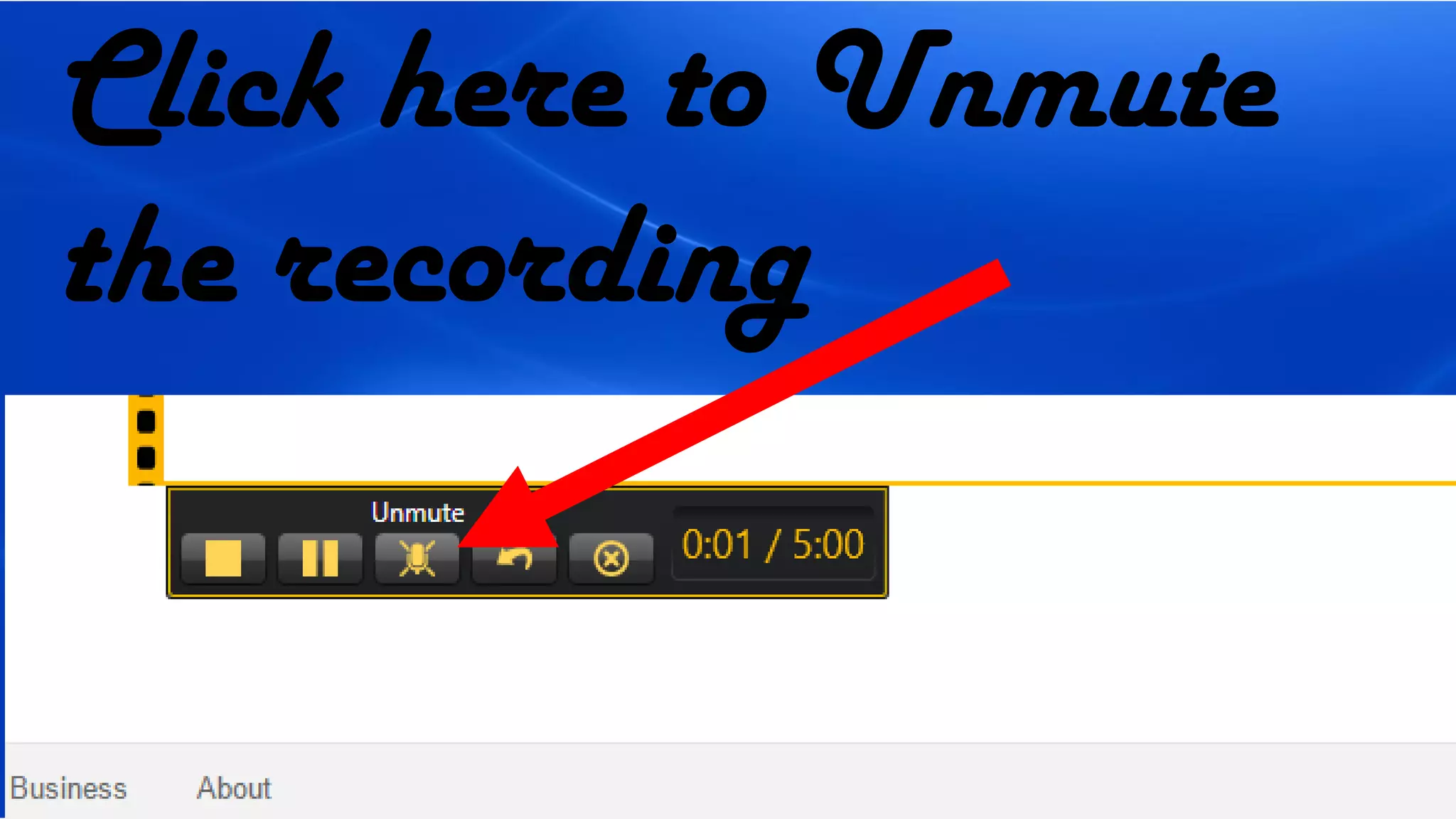
Click here to Unmute
the recording
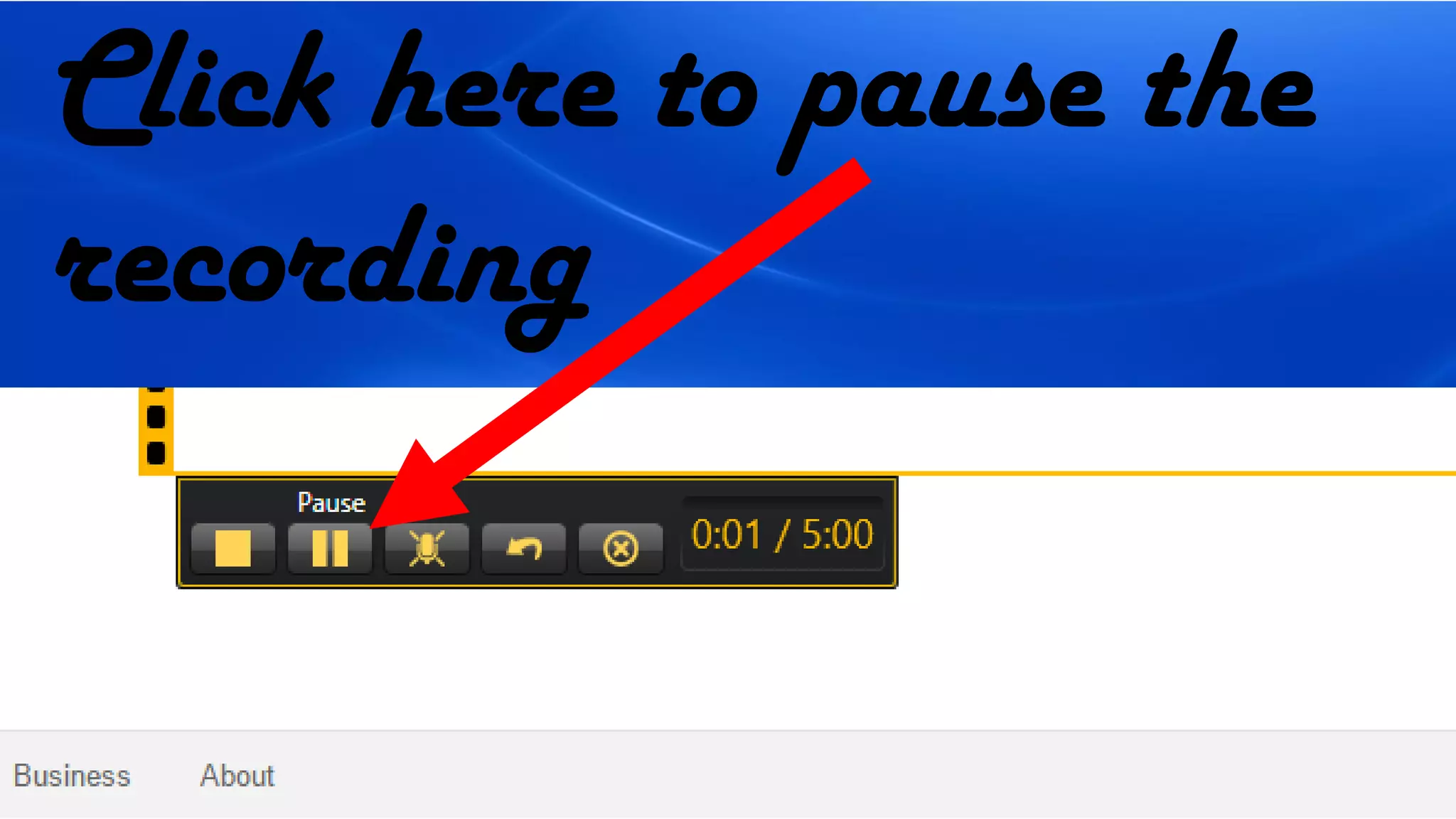
Click here to pause the
recording
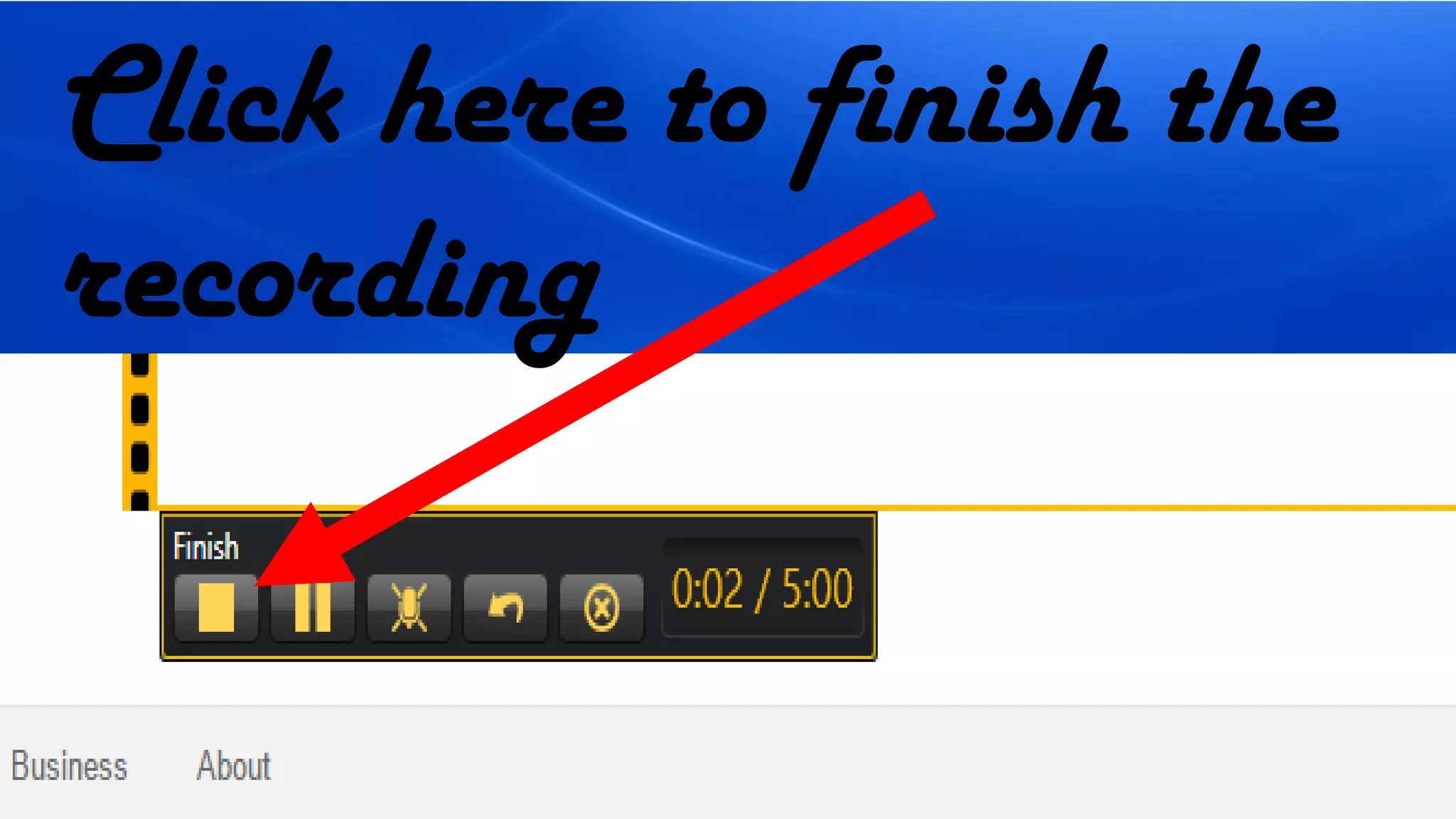
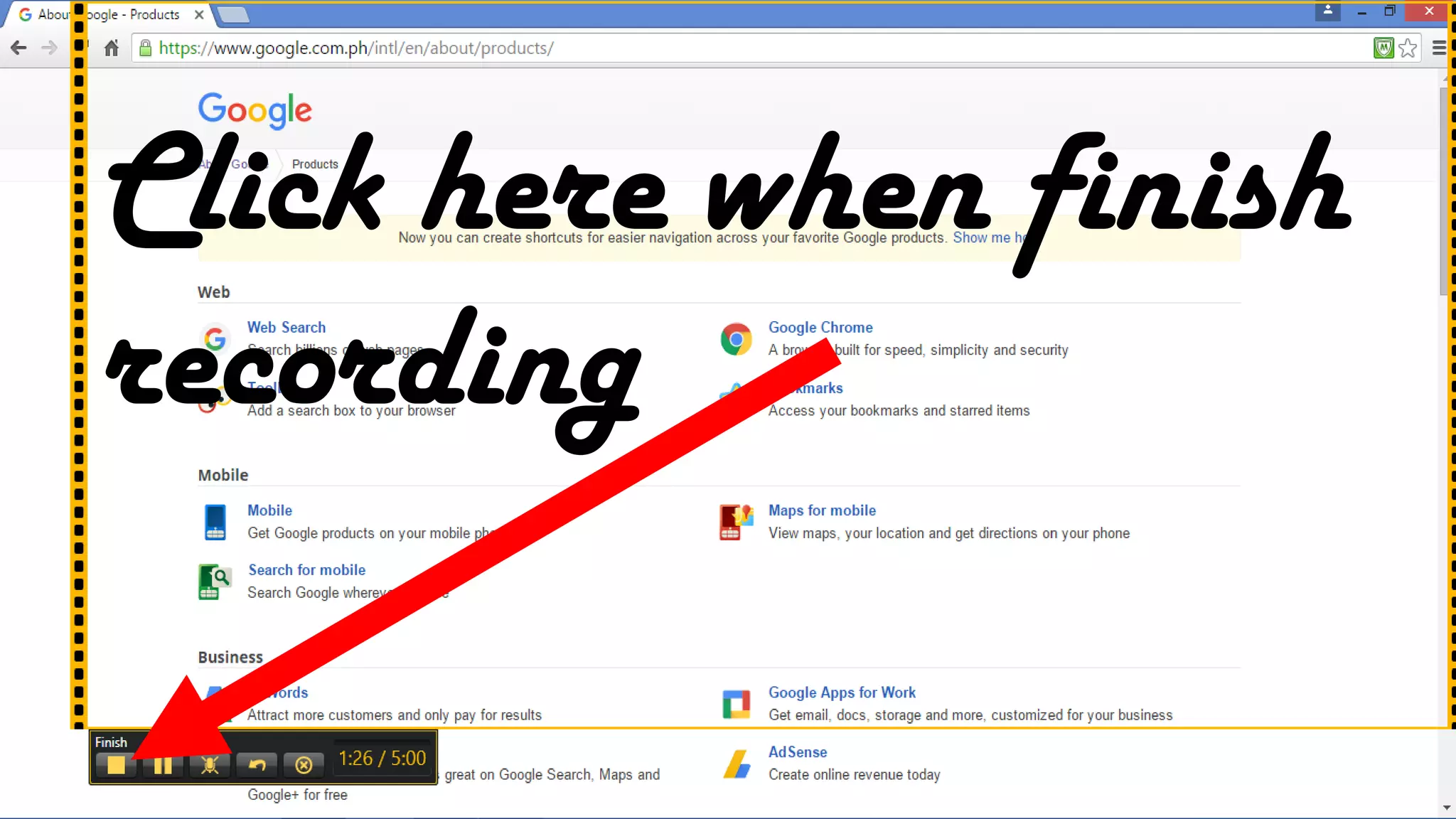
Click here to finish the
recording
Click here when finish
recording
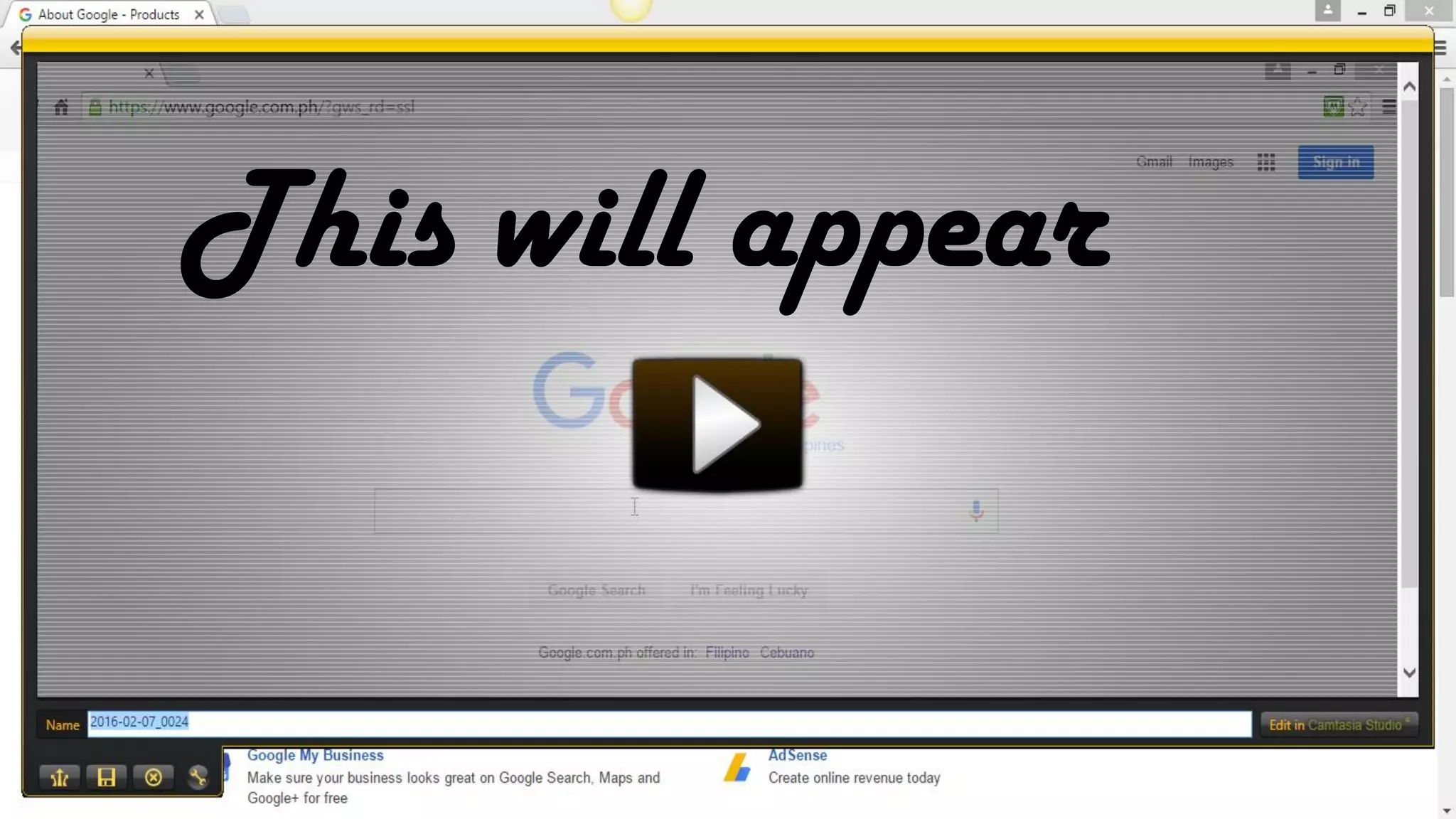
This will appear
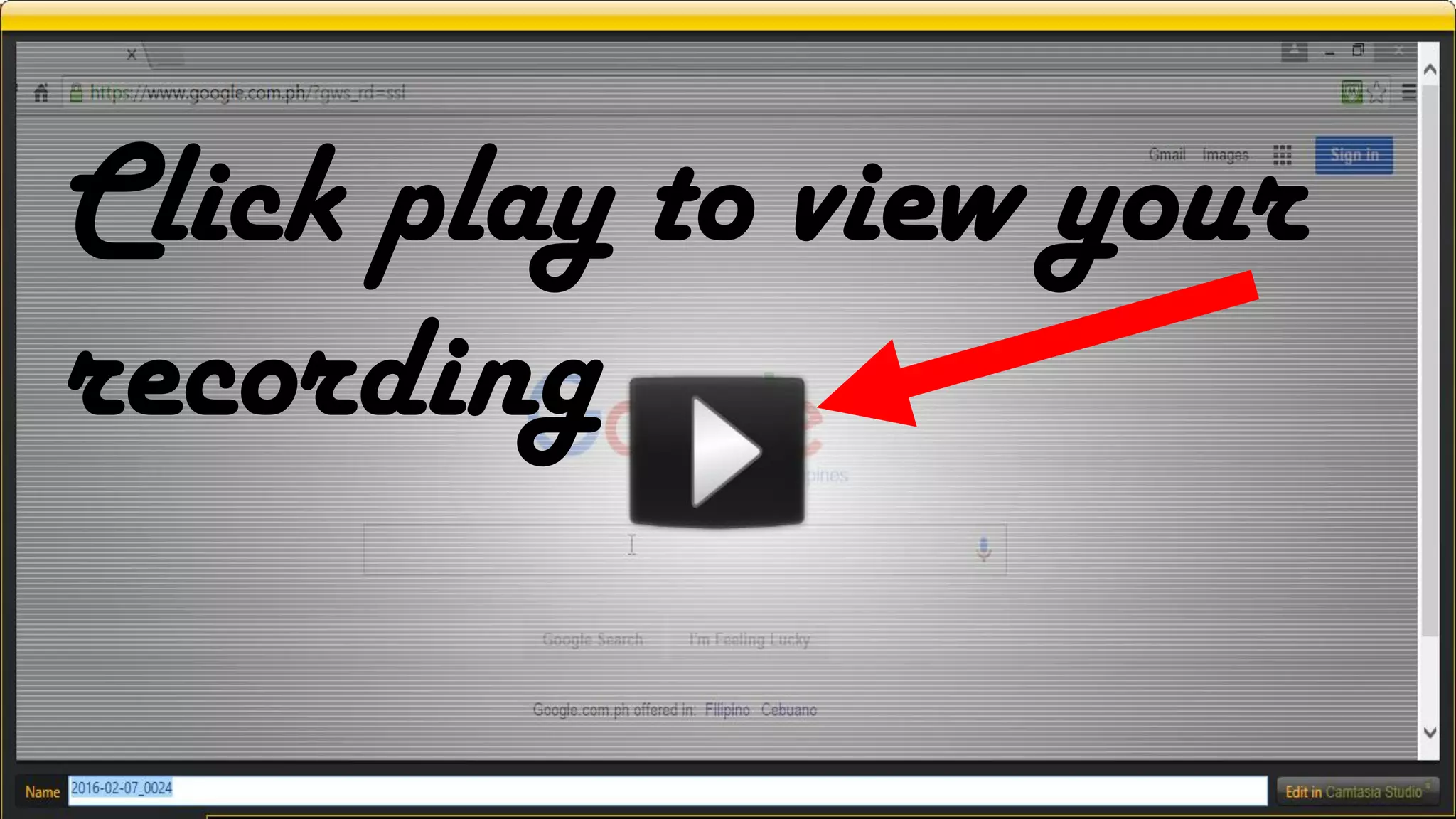
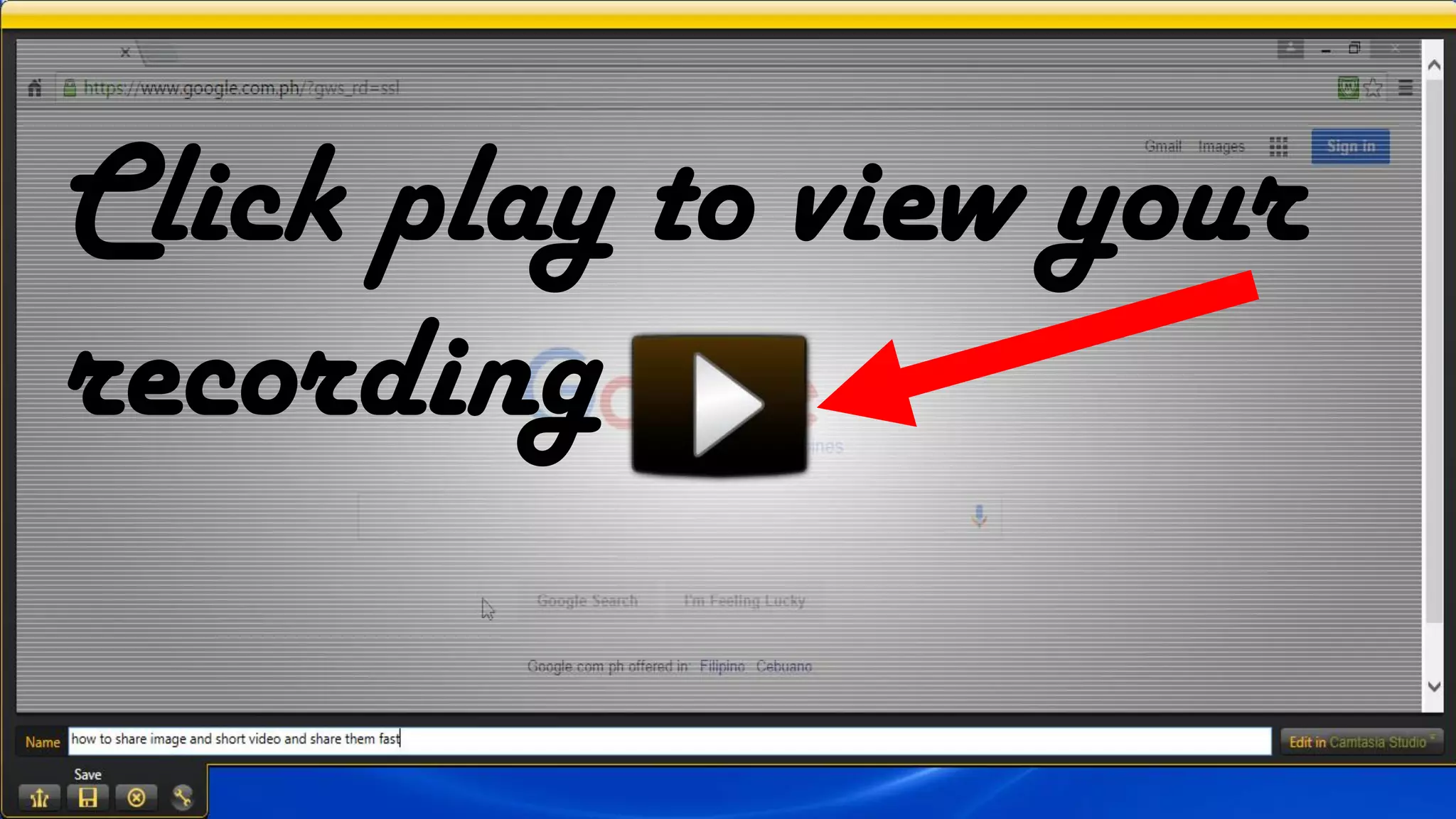
Click play to view your
recording
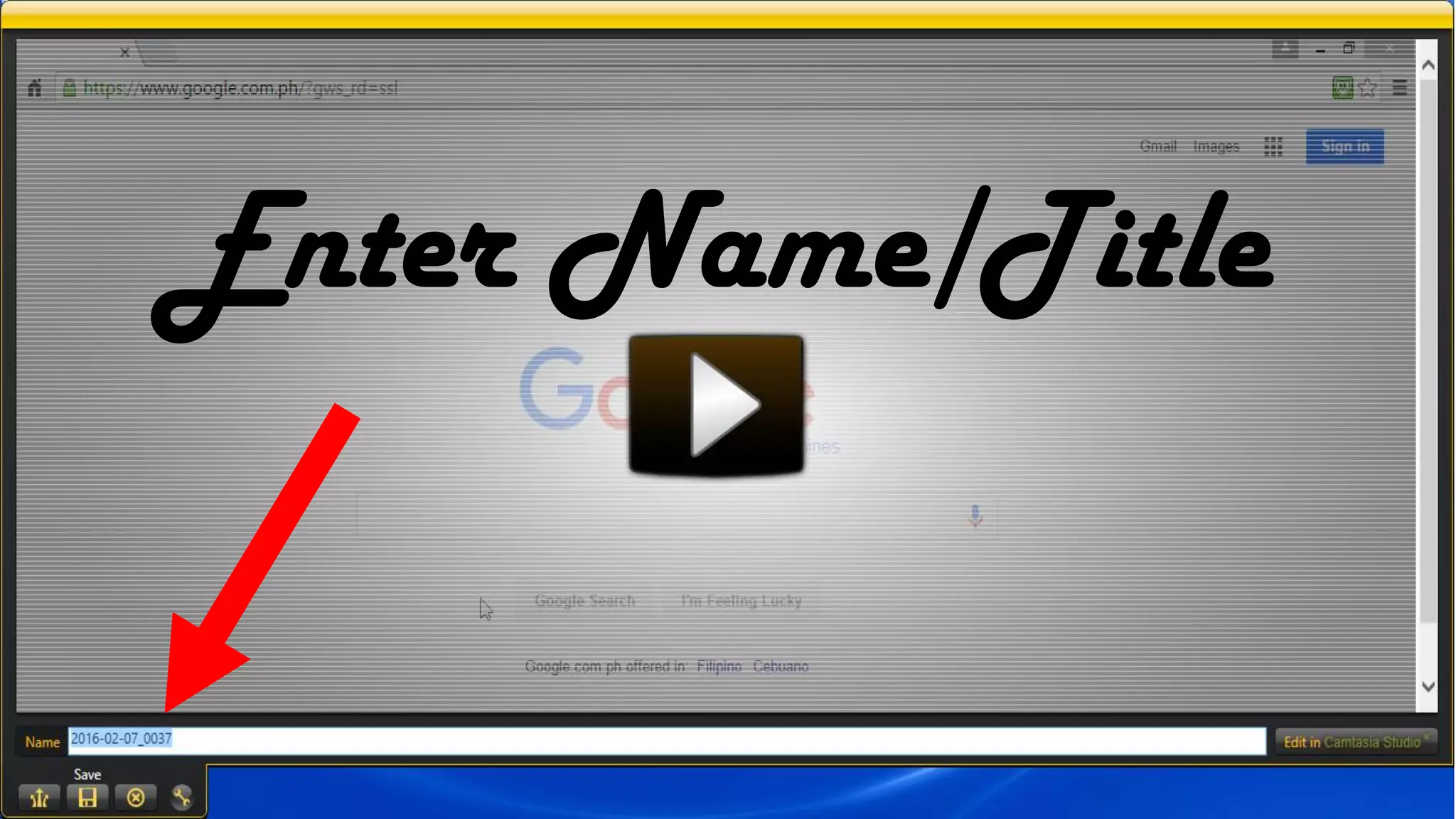
Enter Name/Title
Click here to Share
via Screencast.com
It will begin to upload
This will appear
The link is ready to
Share
Click here to view on
Screencast.com
New tab will appear
Or paste the link
on a browser
Click play to view your
recording
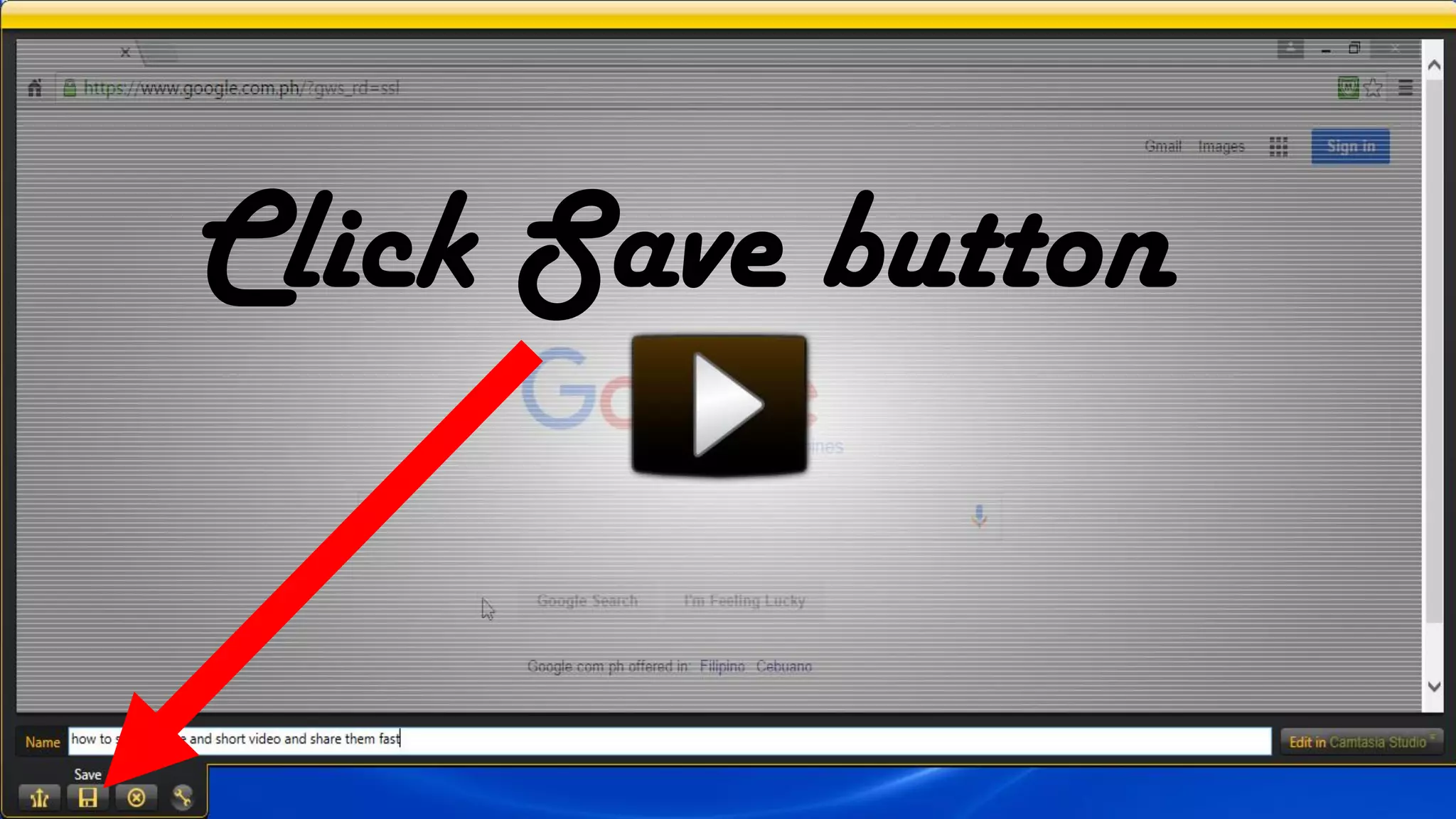
To Save your video on
your computer
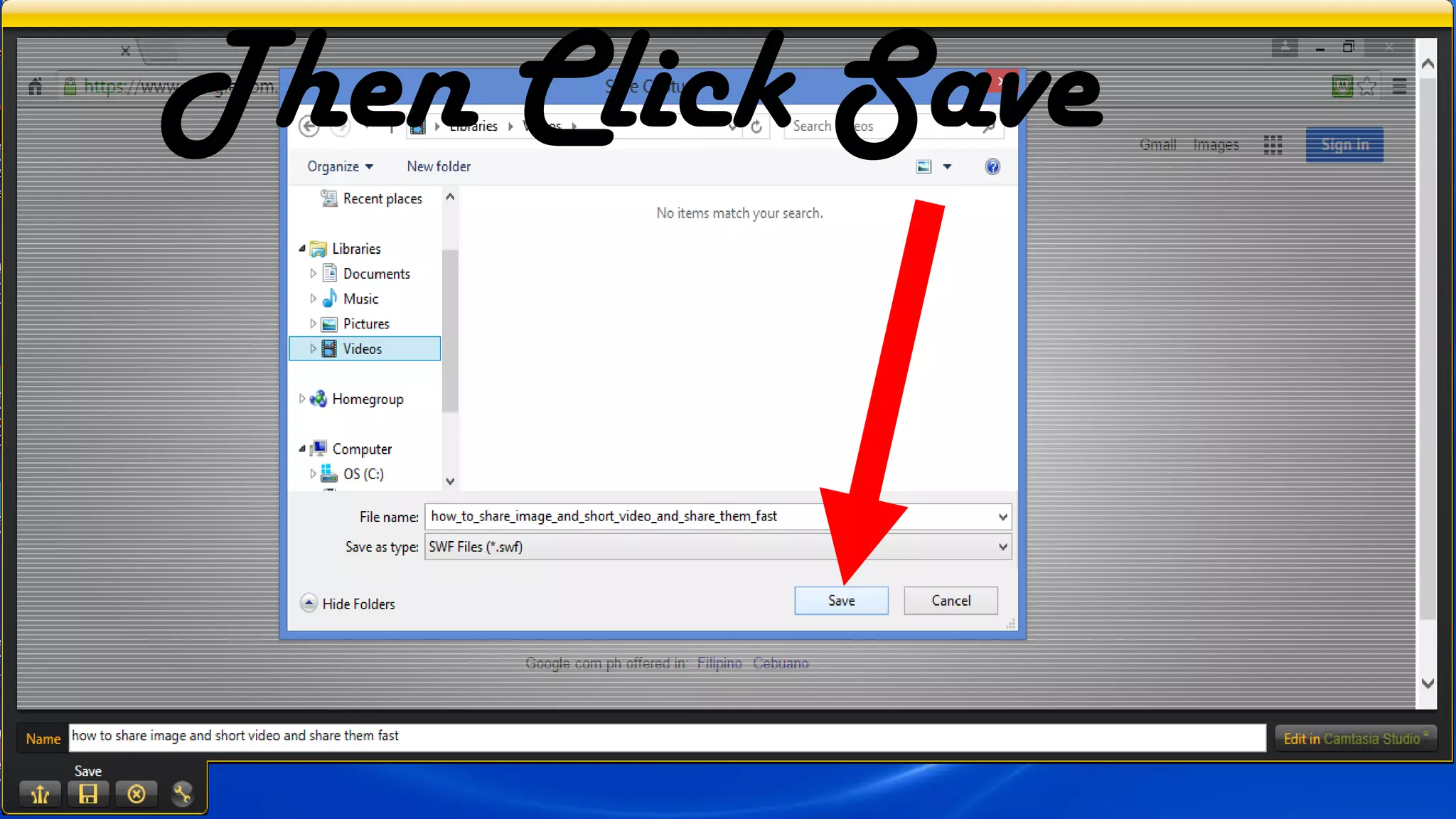
Click Save button
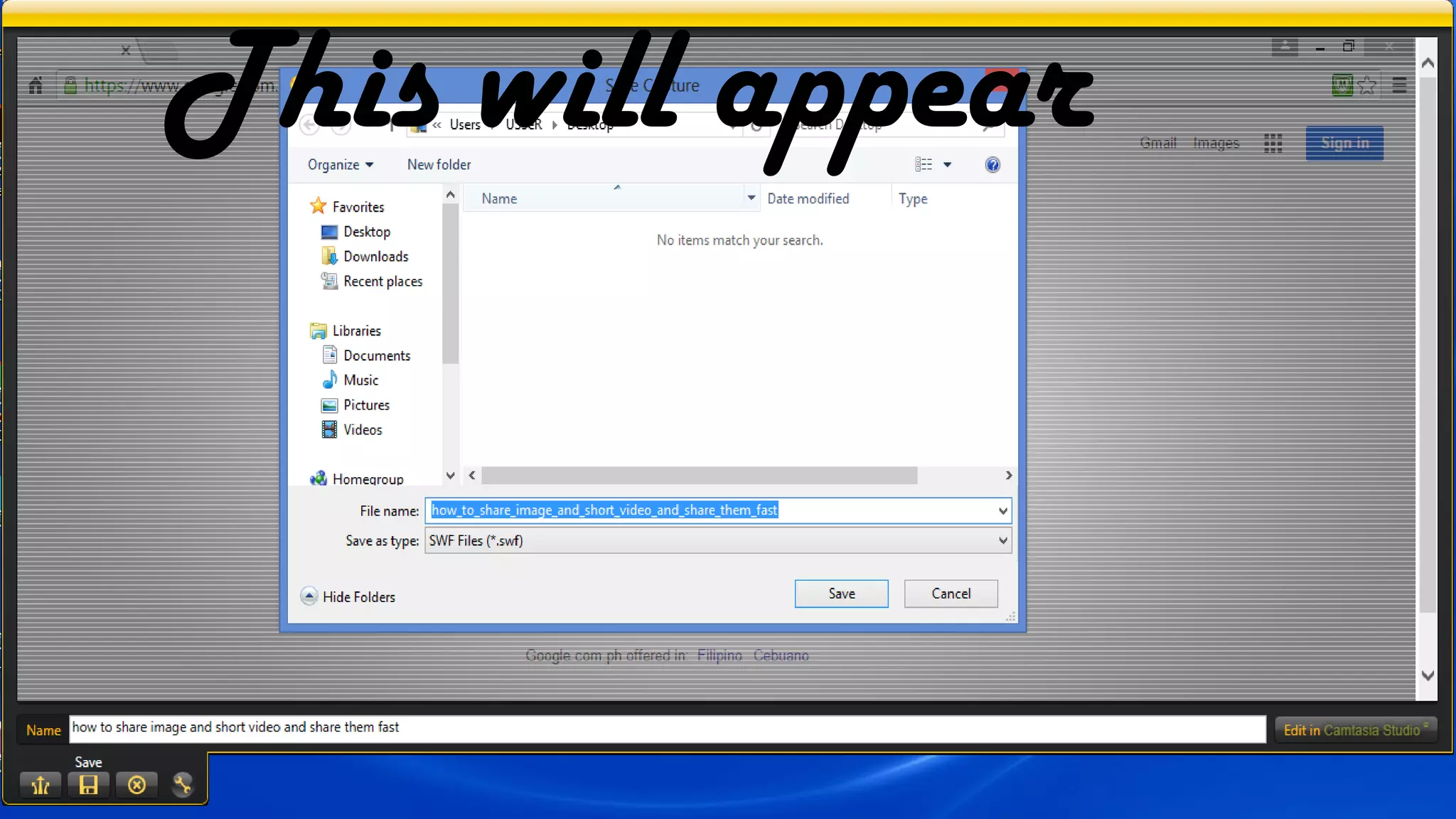
This will appear
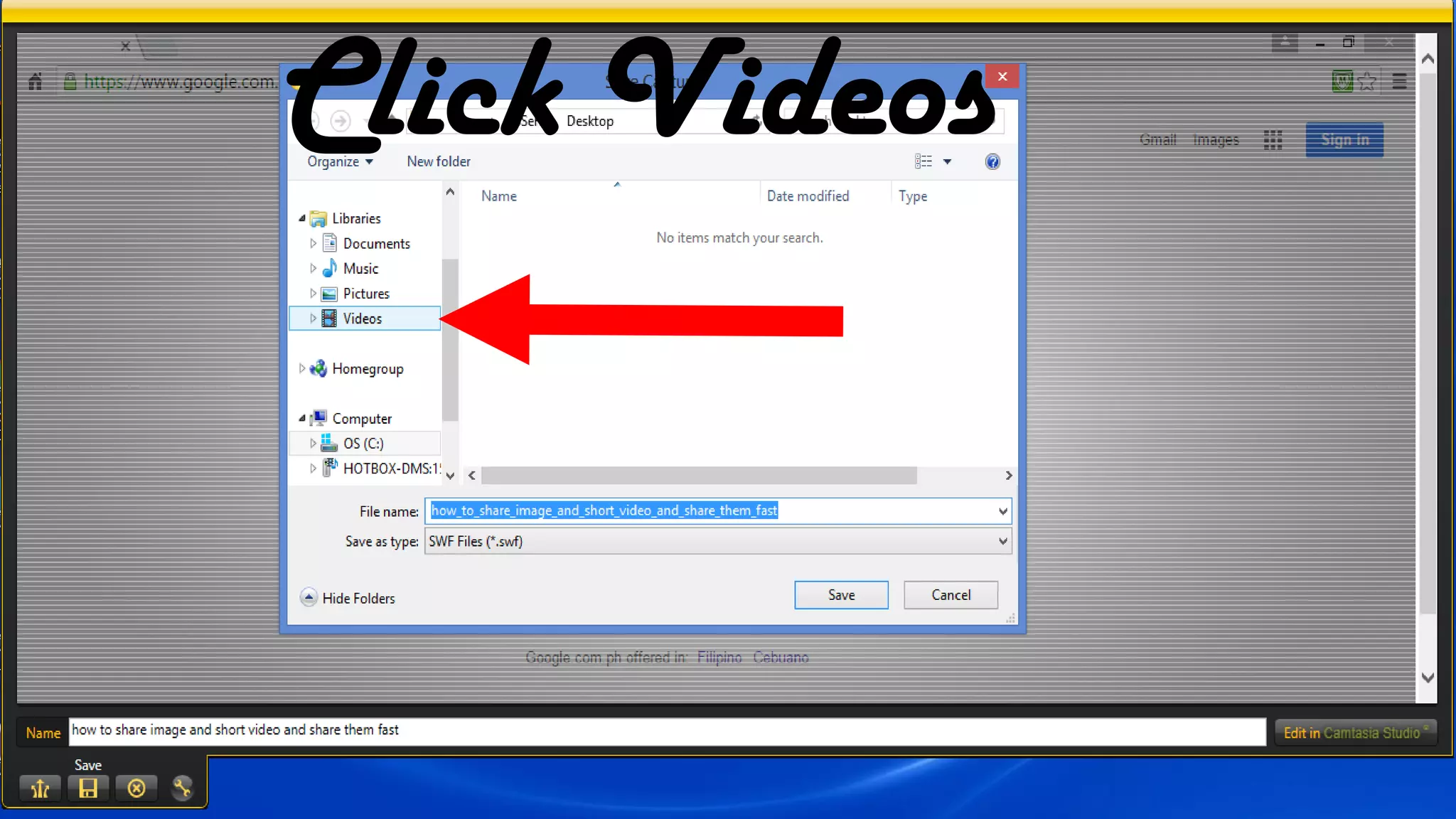
Click Videos
Then Click Save
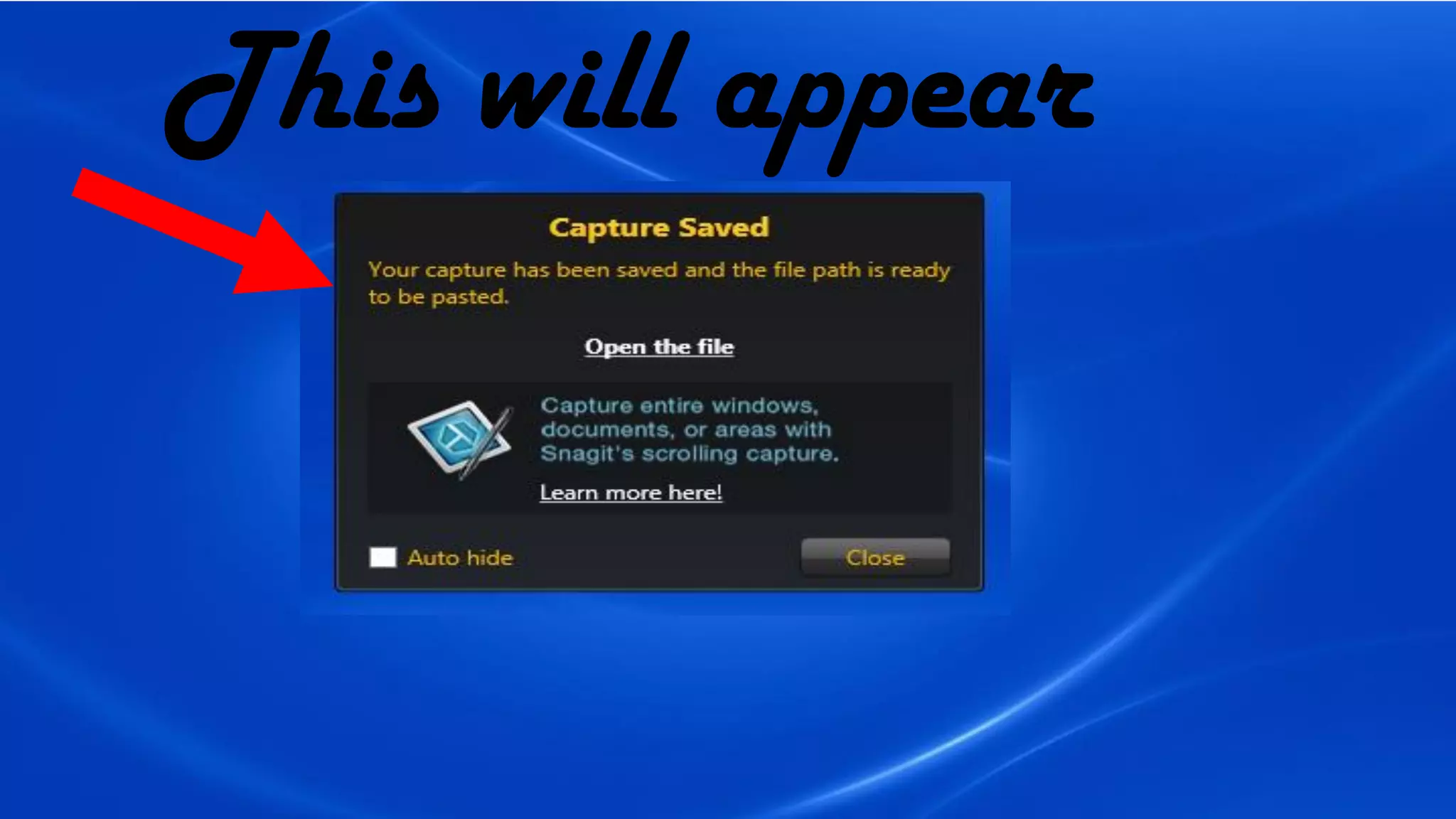
This will appear
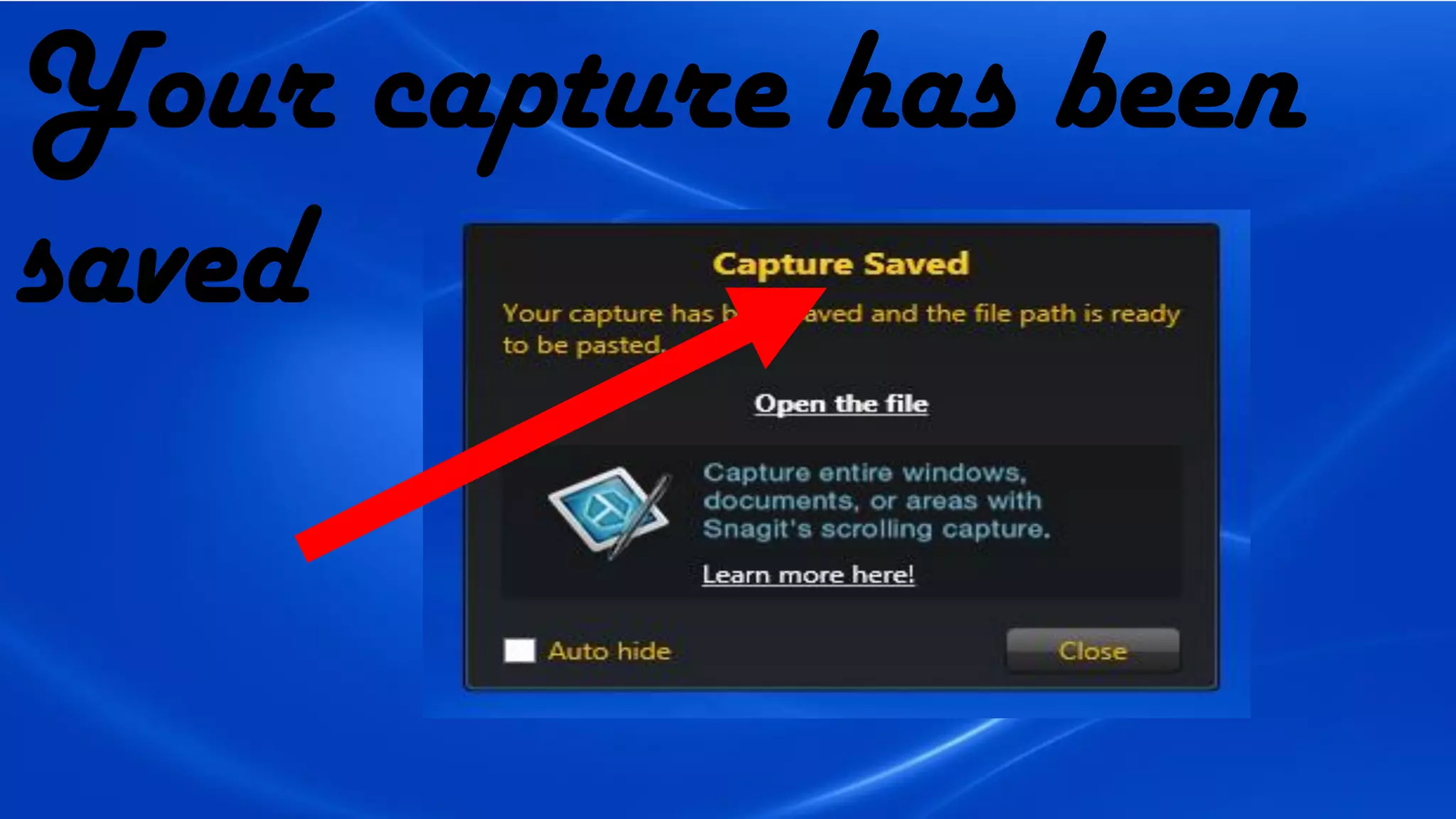
Your capture has been
saved
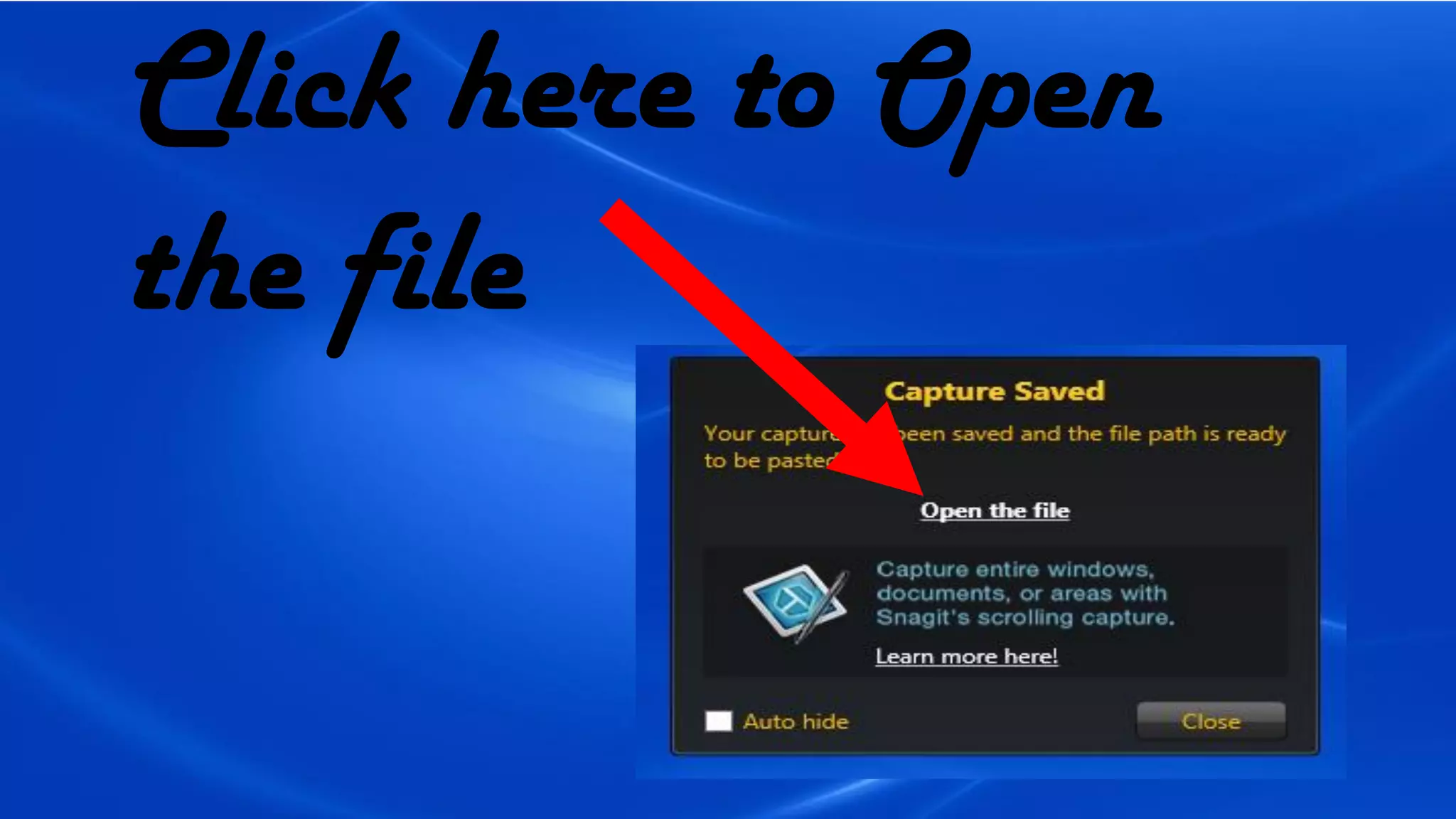
Click here to Open
the file
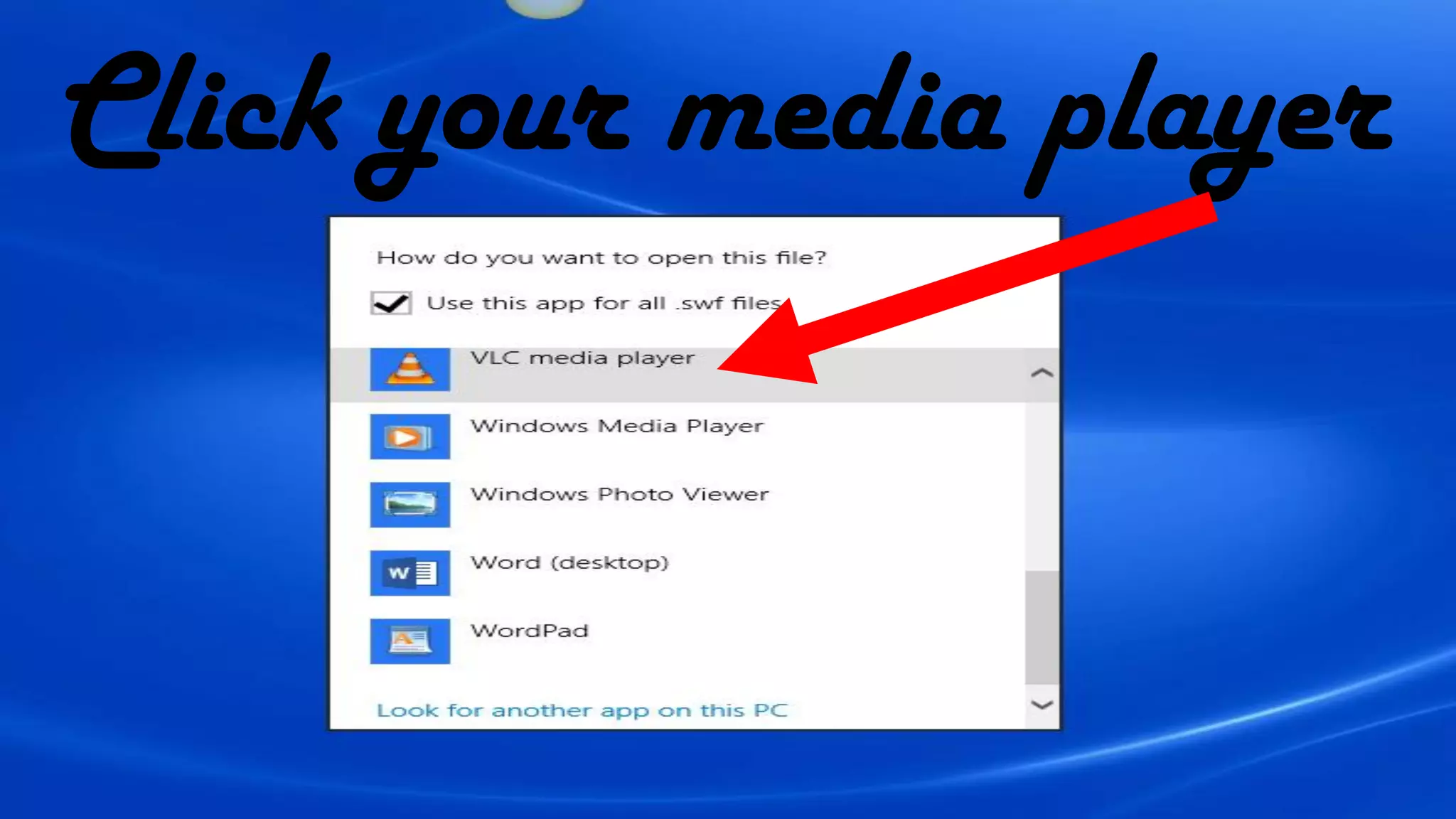
Click your media player
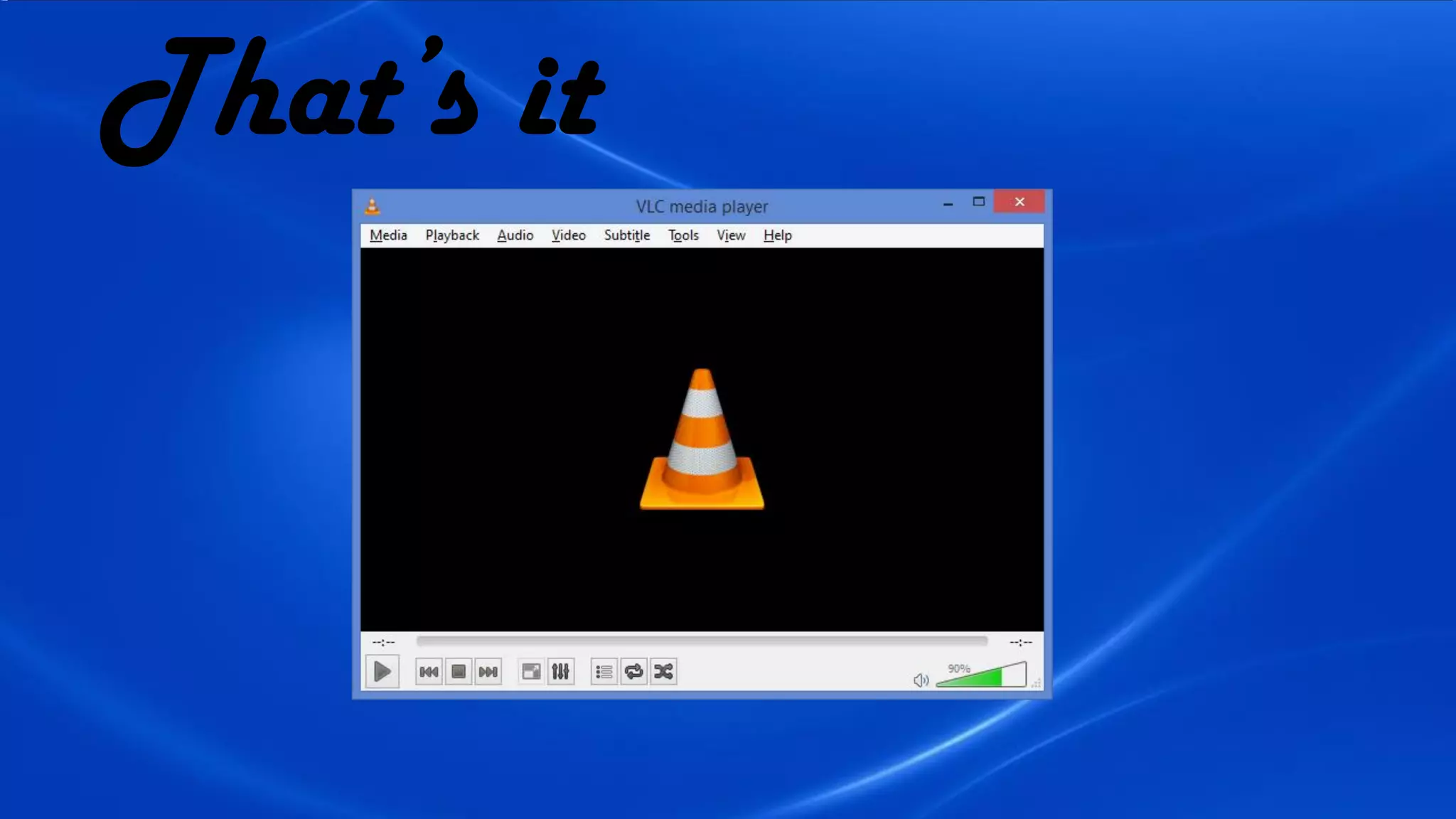
That’s it
To share image
Subtitle
To share a short
video
Share the Link
Mabuhay!

How to Use Jing to capture video_Social Media Wizard_RichardBasilio