How to use EasyWorship
with your Live Streaming
System
4 Ways to bring
your Camera into
EasyWorship
4 Ways to bring your camera into EasyWorship
1. USB Connection
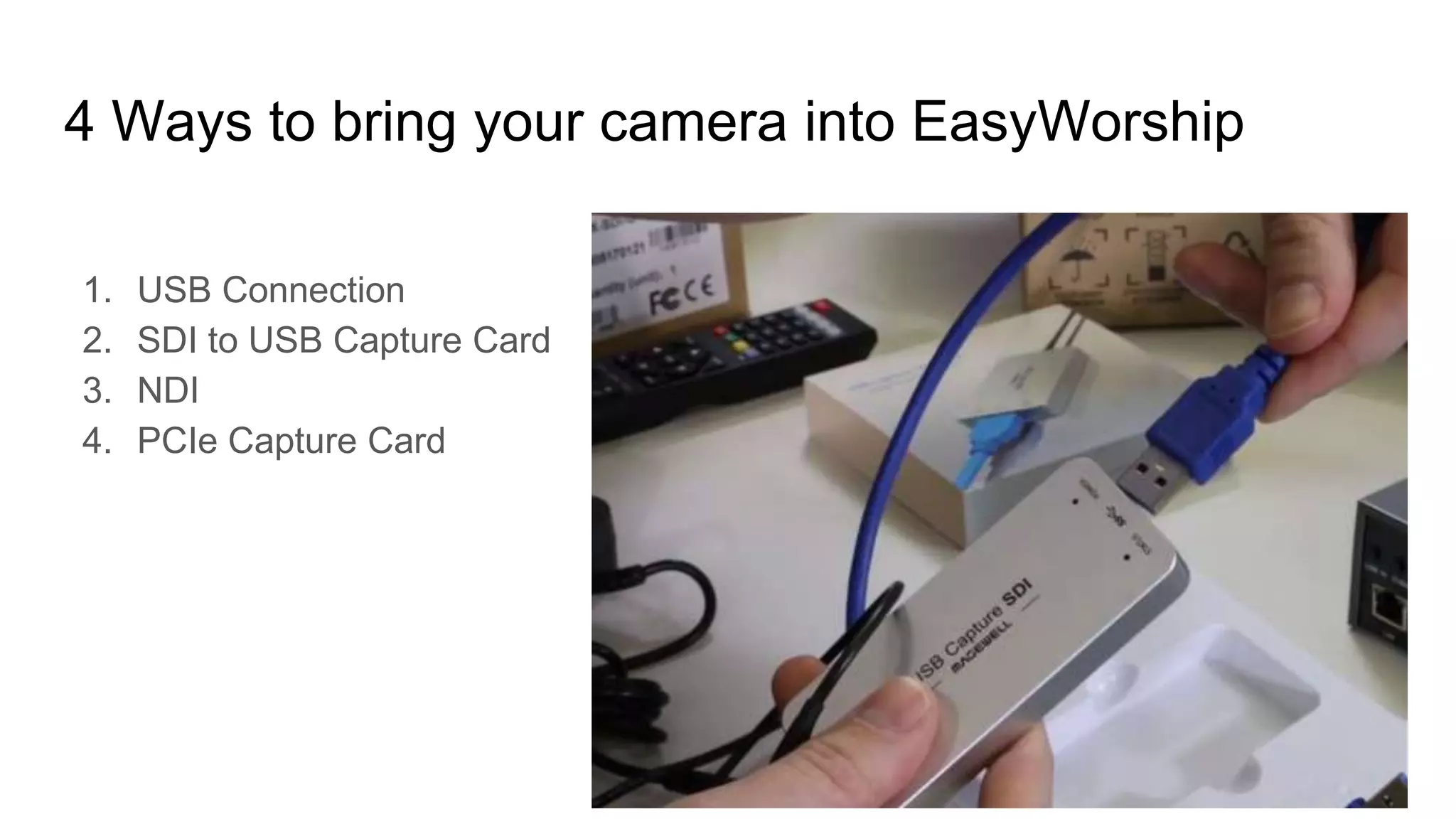
2. SDI to USB Capture Card
3. NDI
4. PCIe Capture Card
Connect a USB PTZOptics Camera
Perhaps the easiest and most
affordable way to get started.
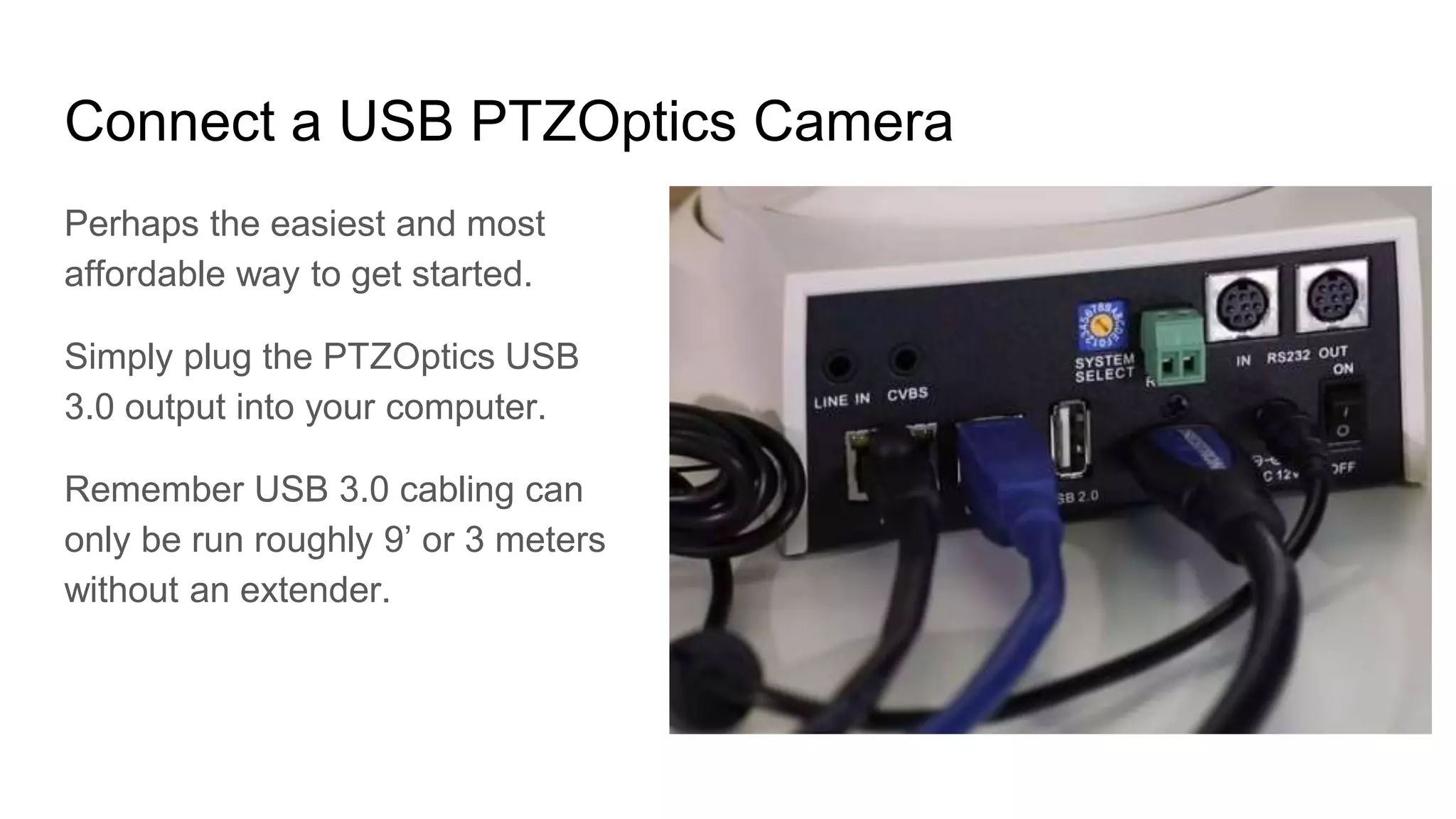
Simply plug the PTZOptics USB
3.0 output into your computer.
Remember USB 3.0 cabling can
only be run roughly 9’ or 3 meters
without an extender.
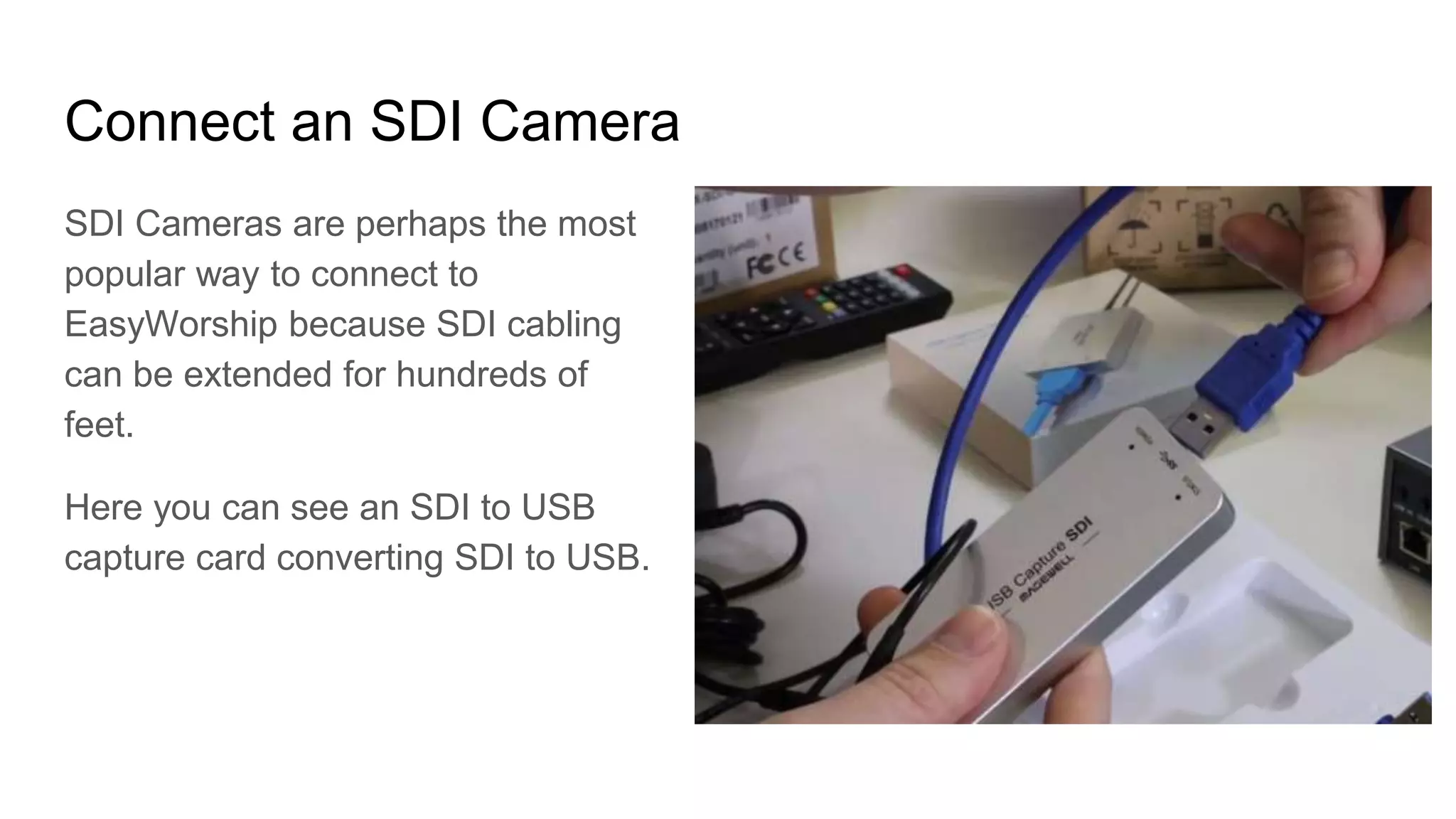
Connect an SDI Camera
SDI Cameras are perhaps the most
popular way to connect to
EasyWorship because SDI cabling
can be extended for hundreds of
feet.
Here you can see an SDI to USB
capture card converting SDI to USB.
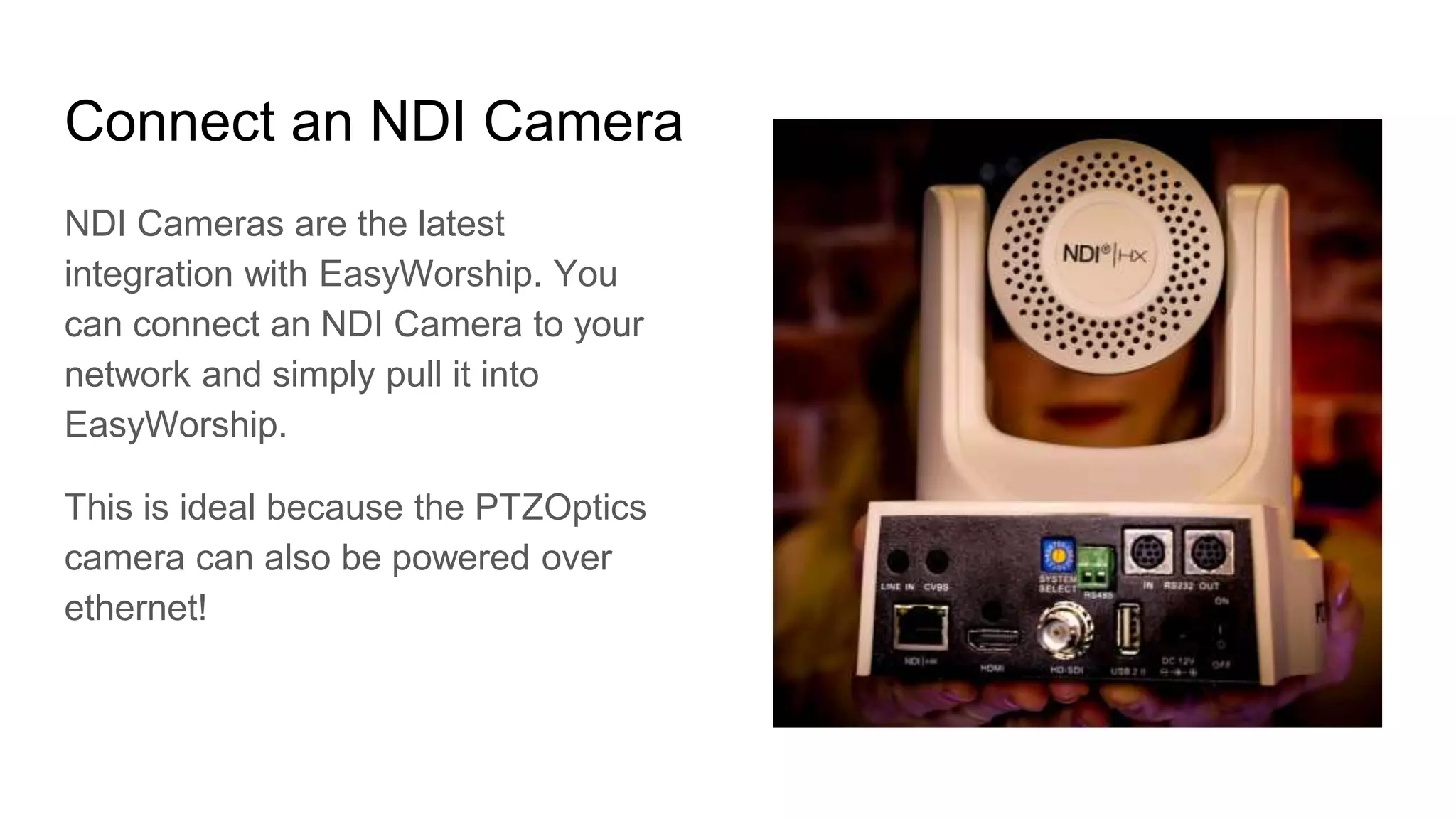
Connect an NDI Camera
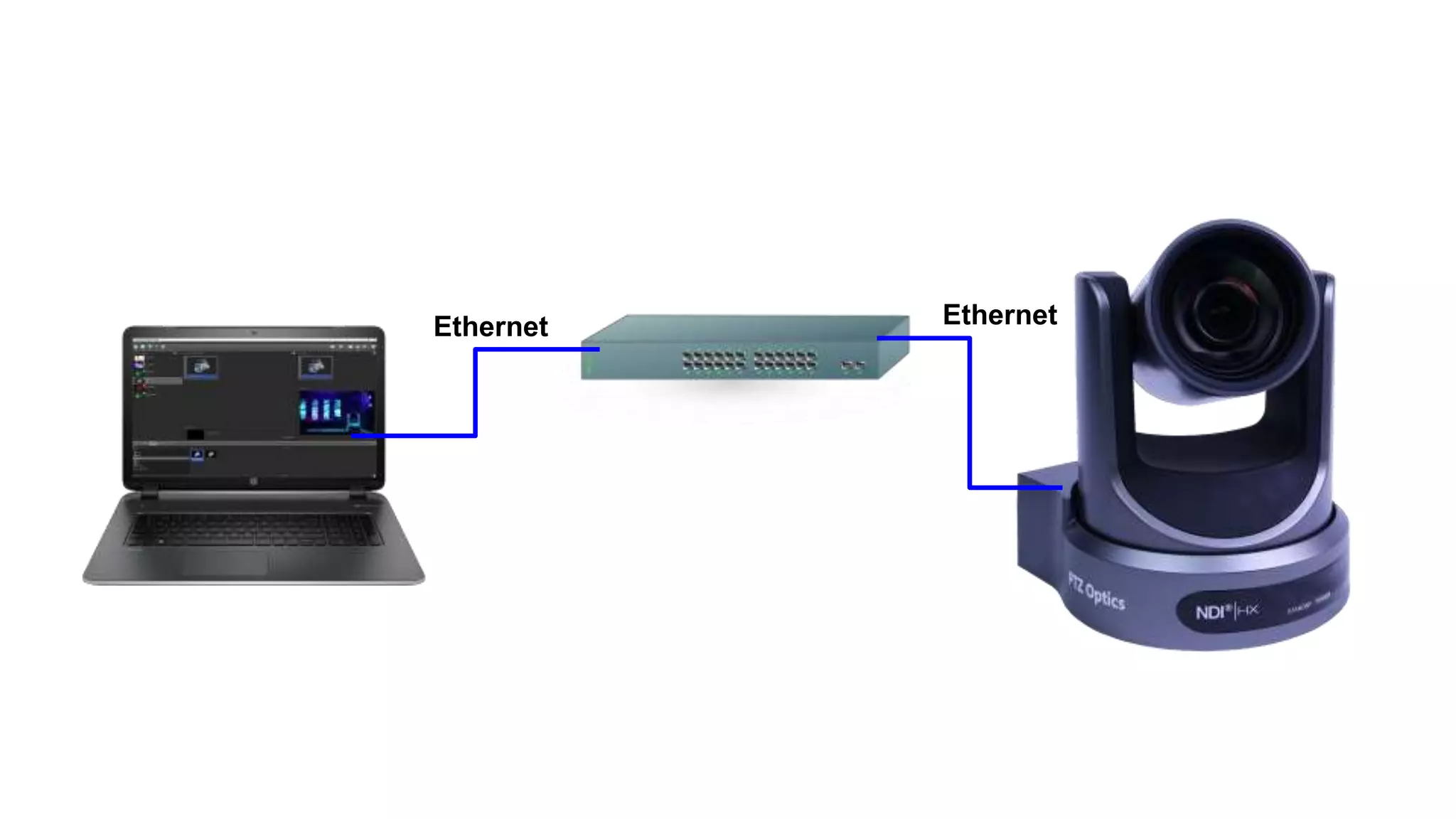
NDI Cameras are the latest
integration with EasyWorship. You
can connect an NDI Camera to your
network and simply pull it into
EasyWorship.
This is ideal because the PTZOptics
camera can also be powered over
ethernet!
Ethernet Ethernet
Adding Video
Outputs
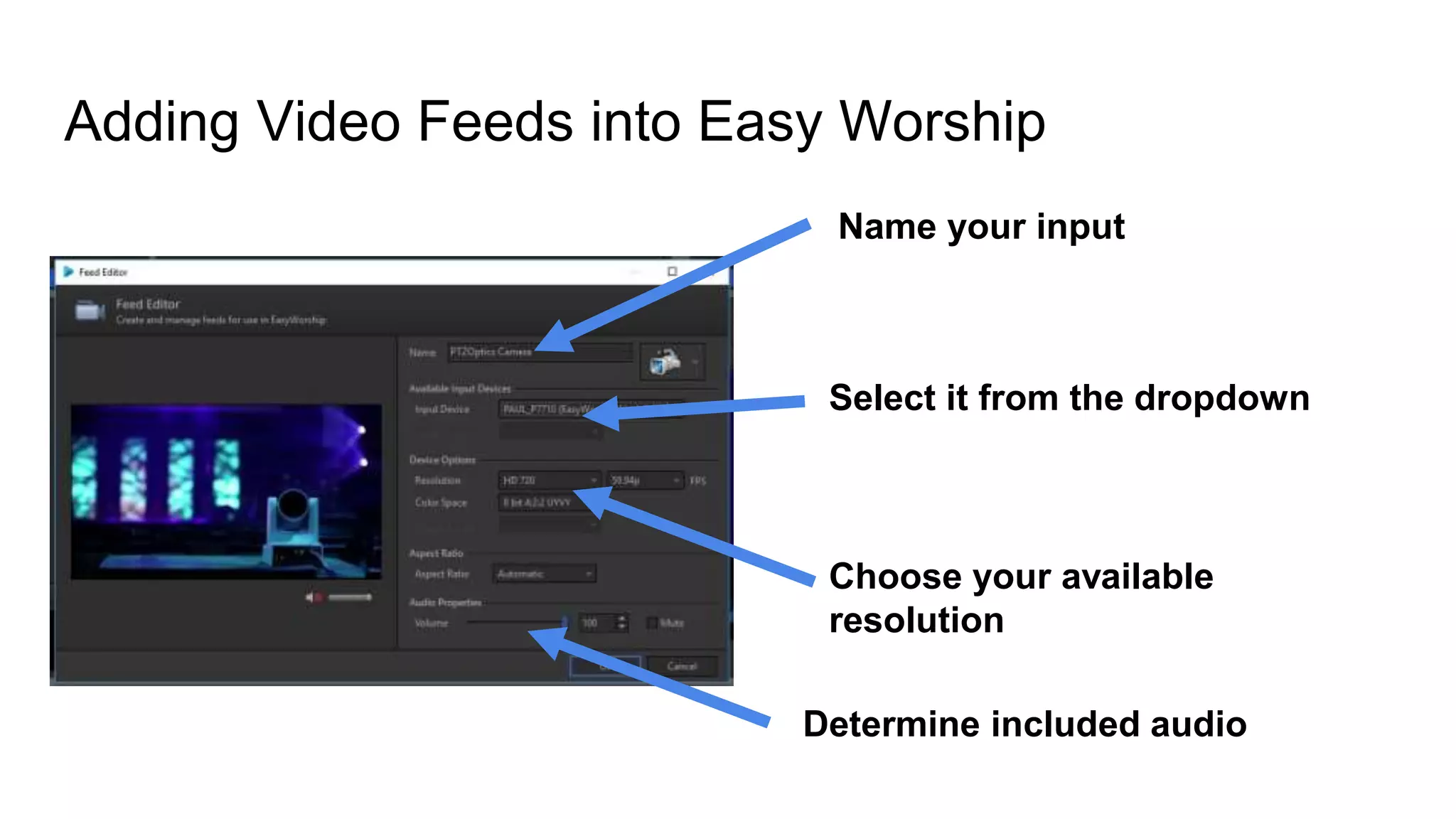
Adding Video Feeds into Easy Worship
Name your input
Select it from the dropdown
Choose your available
resolution
Determine included audio
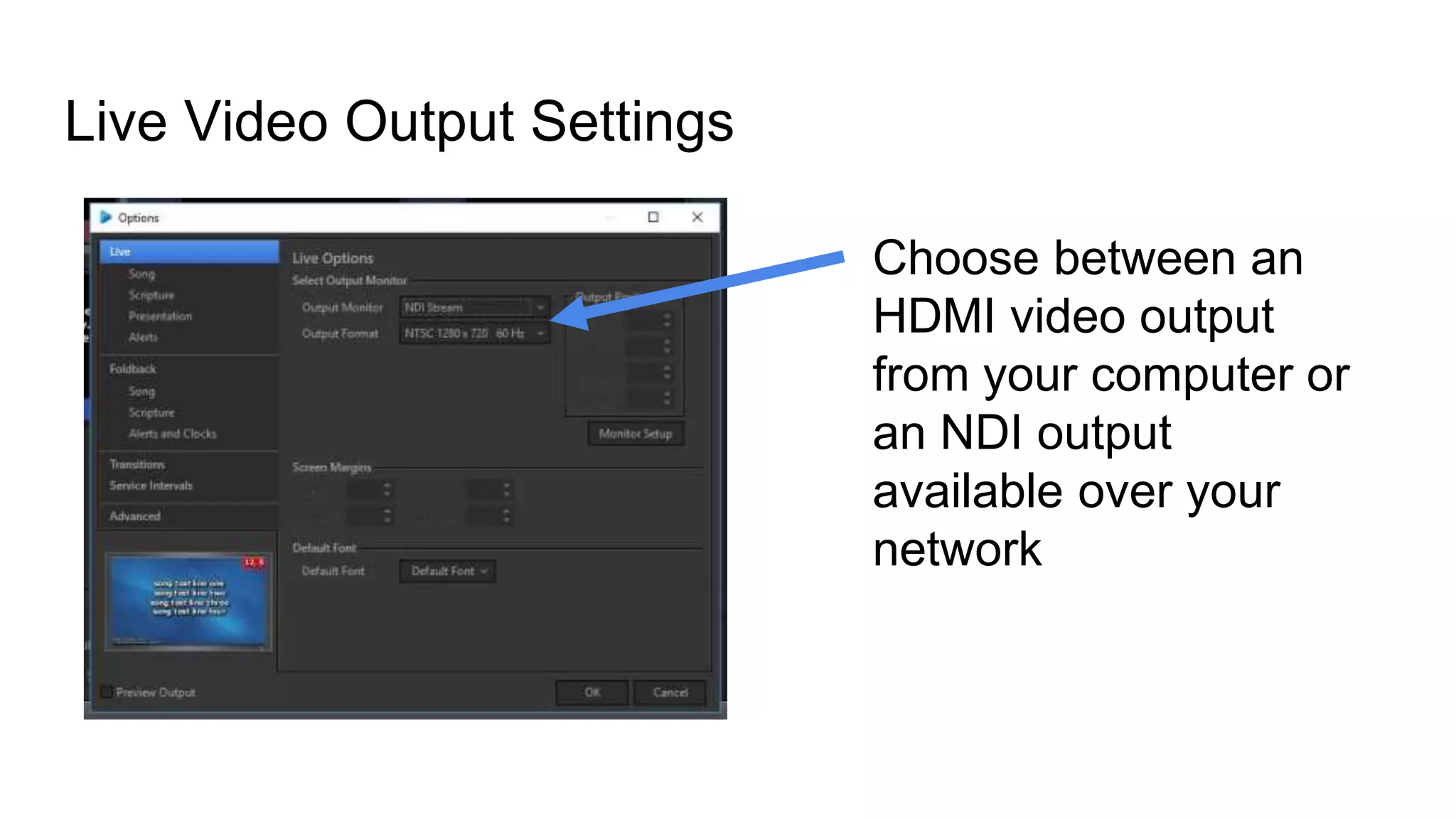
Live Video Output Settings
Choose between an
HDMI video output
from your computer or
an NDI output
available over your
network
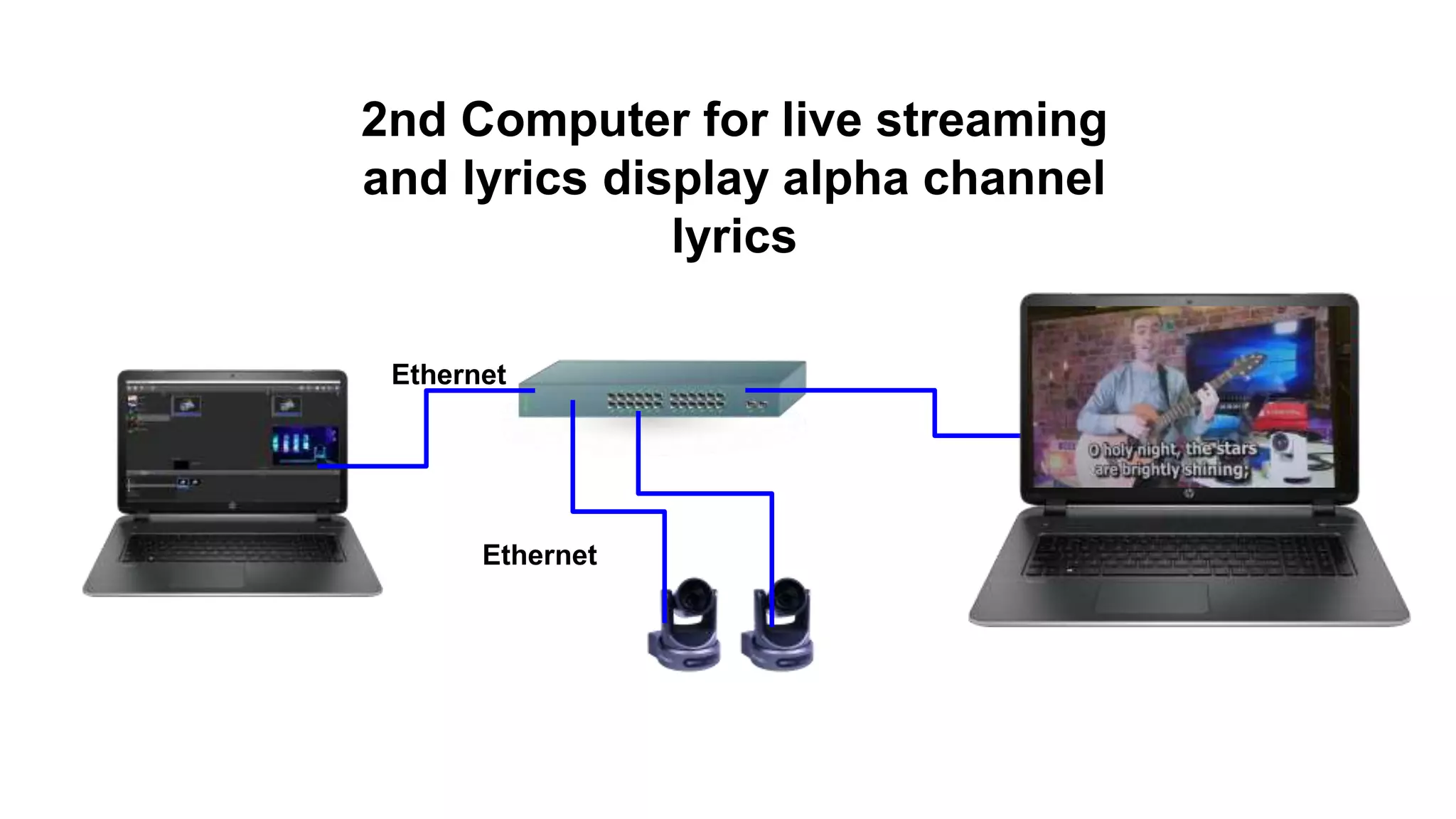
Ethernet
Ethernet
2nd Computer for live streaming
and lyrics display alpha channel
lyrics
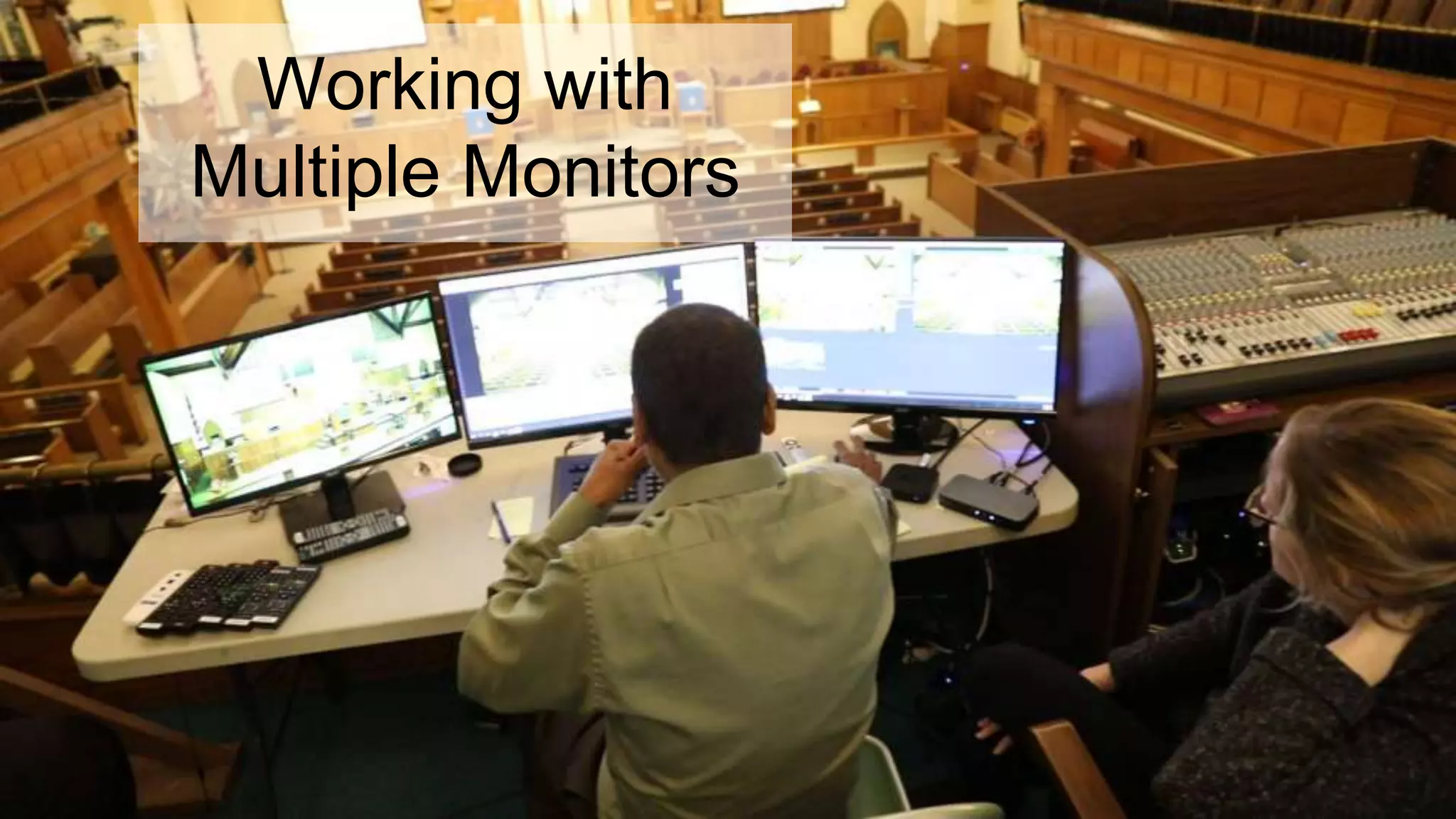
Working with
Multiple Monitors
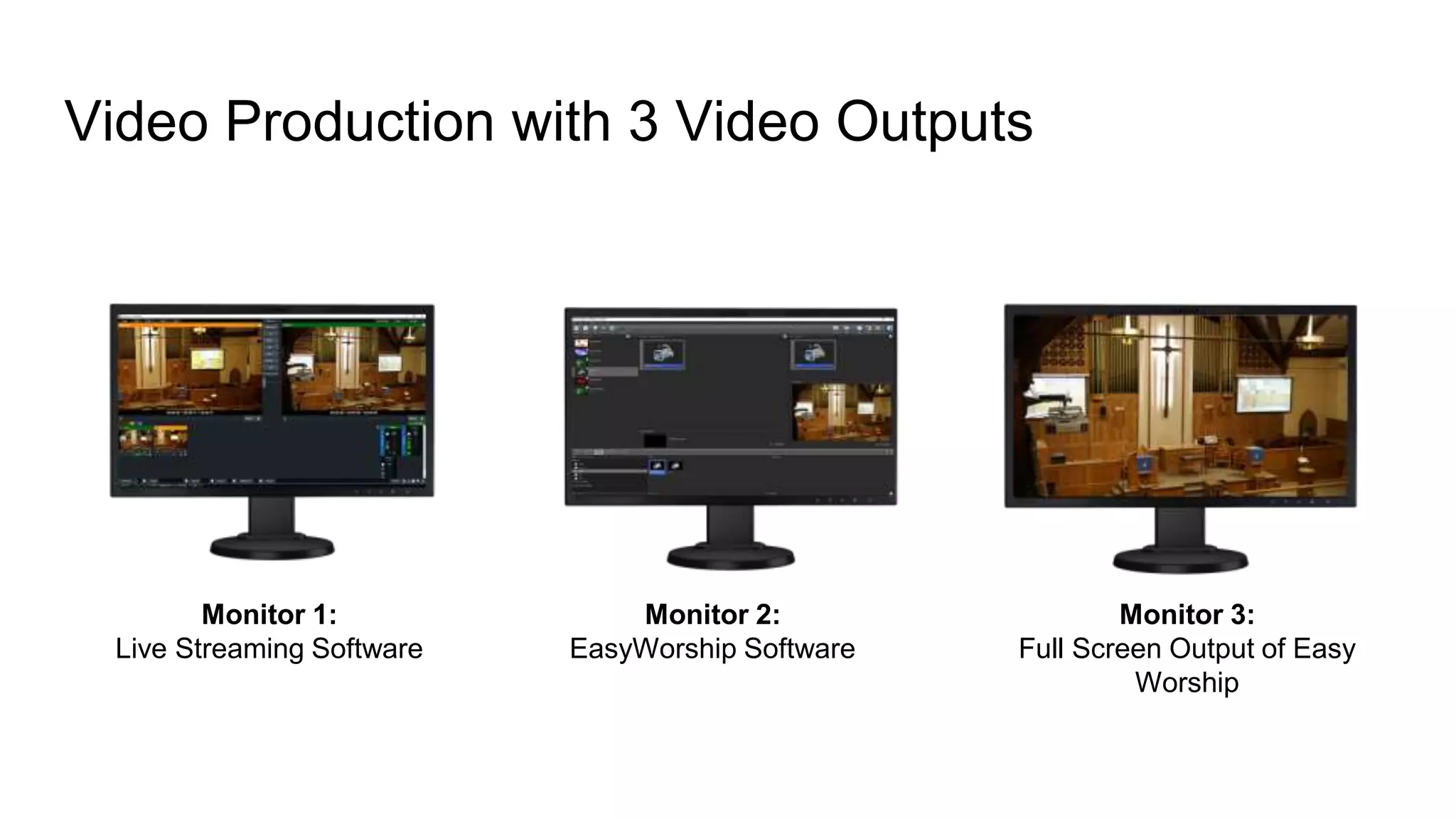
Video Production with 3 Video Outputs
Monitor 1:
Live Streaming Software
Monitor 2:
EasyWorship Software
Monitor 3:
Full Screen Output of Easy
Worship
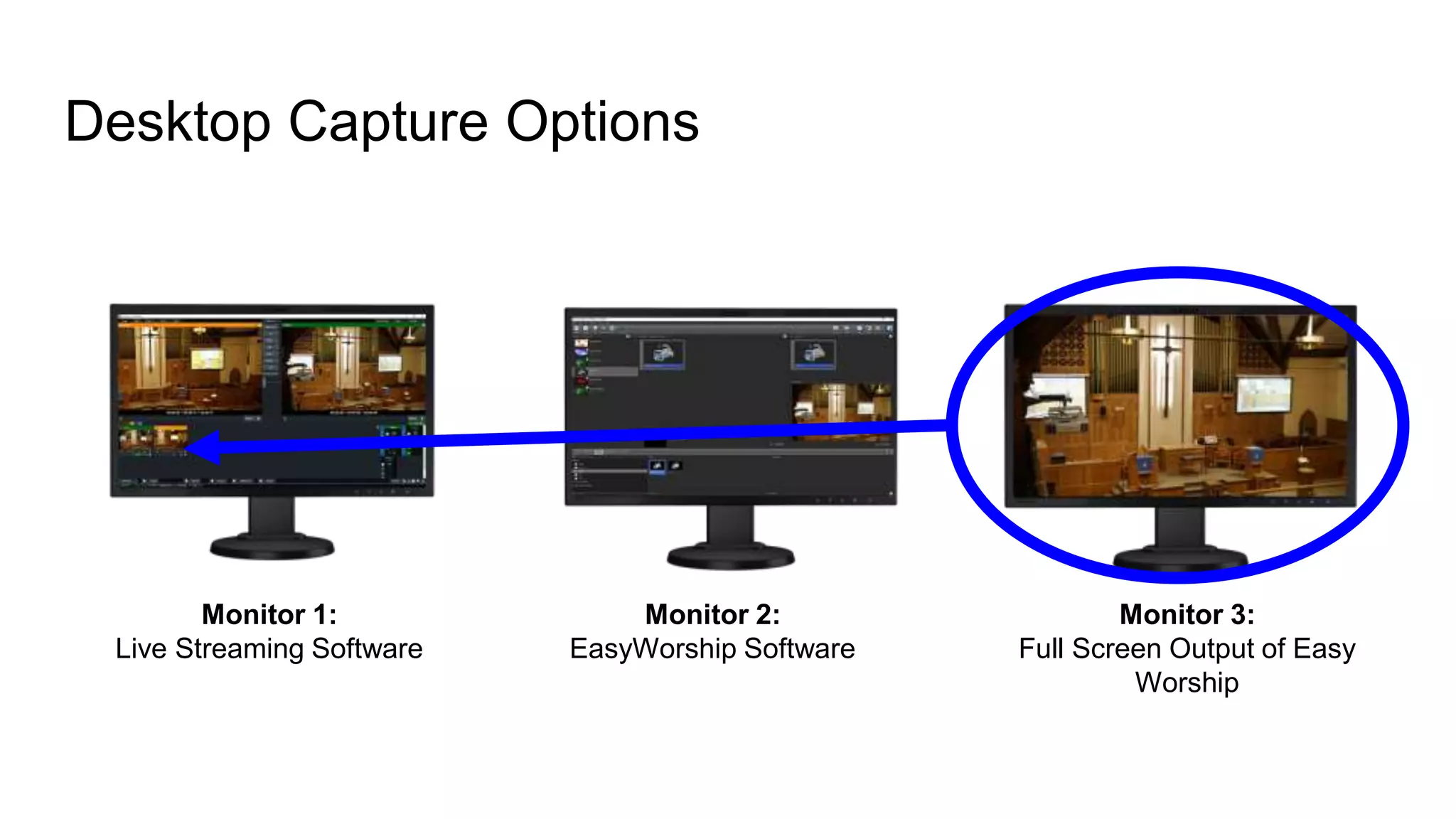
Desktop Capture Options
Monitor 1:
Live Streaming Software
Monitor 2:
EasyWorship Software
Monitor 3:
Full Screen Output of Easy
Worship
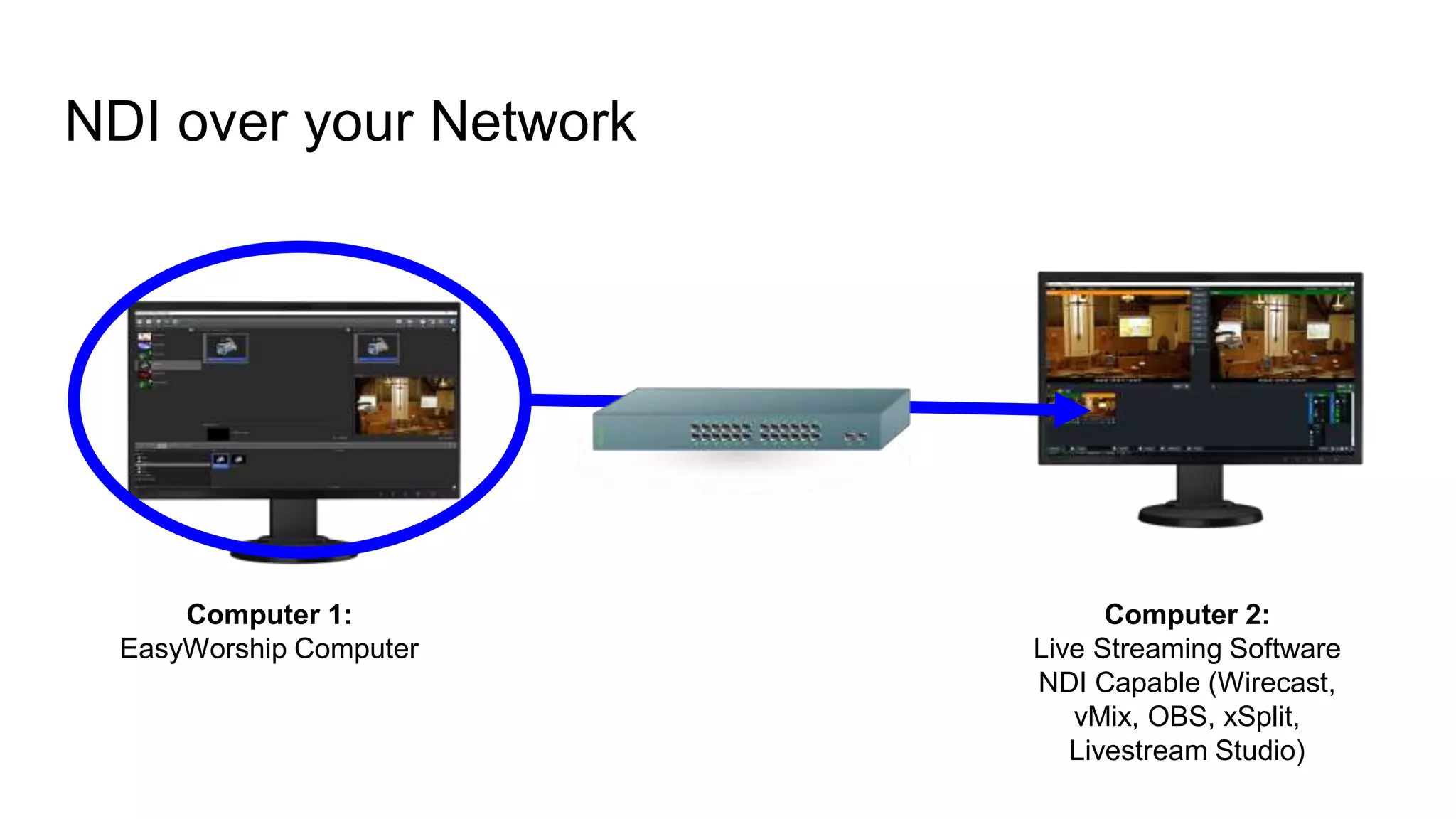
NDI over your Network
Computer 1:
EasyWorship Computer
Computer 2:
Live Streaming Software
NDI Capable (Wirecast,
vMix, OBS, xSplit,
Livestream Studio)
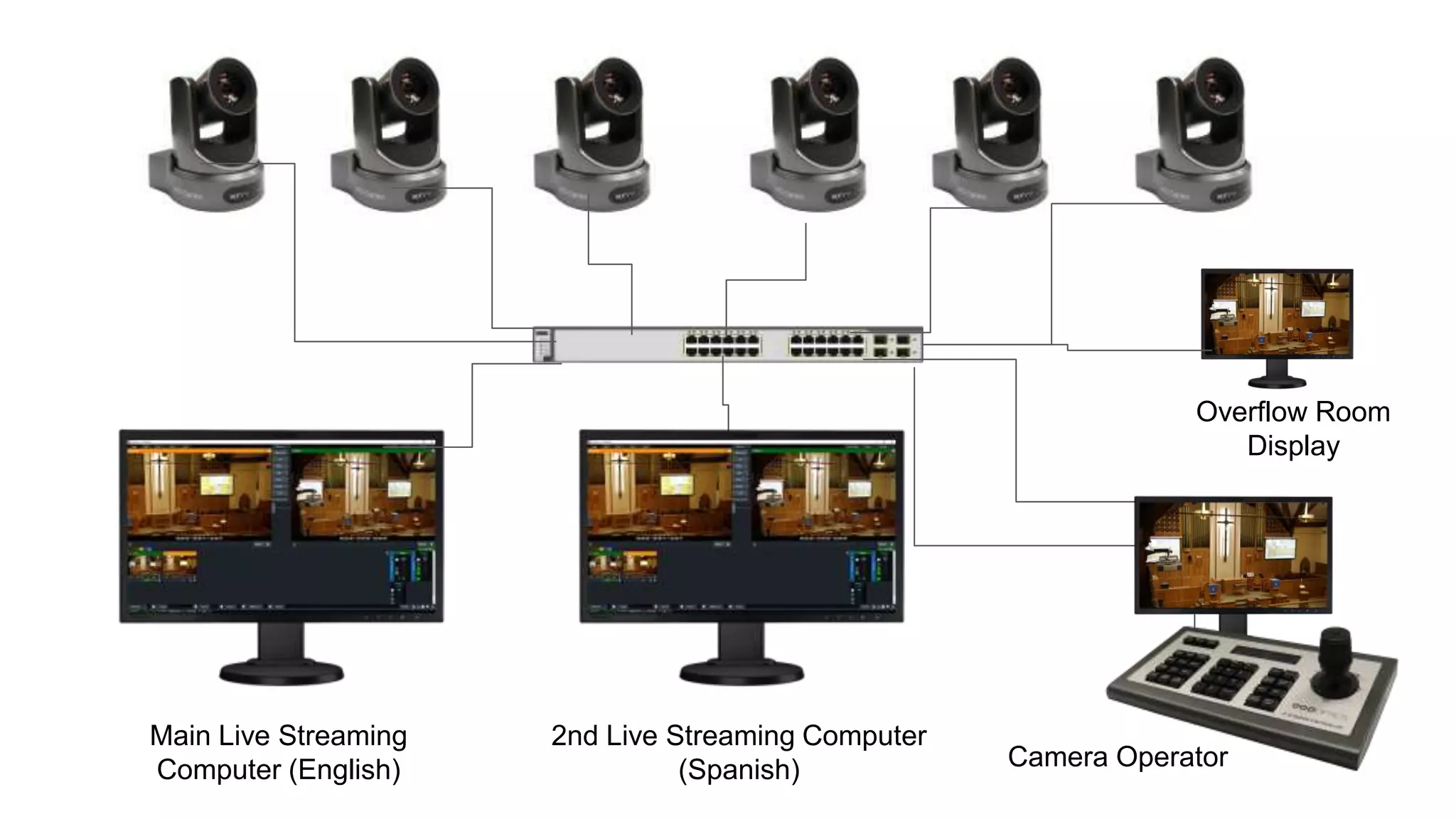
Main Live Streaming
Computer (English)
2nd Live Streaming Computer
(Spanish) Camera Operator
Overflow Room
Display

How to use easy worship 7 with your live streaming system

  • 1.
    How to useEasyWorship with your Live Streaming System
  • 2.
    4 Ways tobring your Camera into EasyWorship
  • 3.
    4 Ways tobring your camera into EasyWorship 1. USB Connection 2. SDI to USB Capture Card 3. NDI 4. PCIe Capture Card
  • 4.
    Connect a USBPTZOptics Camera Perhaps the easiest and most affordable way to get started. Simply plug the PTZOptics USB 3.0 output into your computer. Remember USB 3.0 cabling can only be run roughly 9’ or 3 meters without an extender.
  • 5.
    Connect an SDICamera SDI Cameras are perhaps the most popular way to connect to EasyWorship because SDI cabling can be extended for hundreds of feet. Here you can see an SDI to USB capture card converting SDI to USB.
  • 6.
    Connect an NDICamera NDI Cameras are the latest integration with EasyWorship. You can connect an NDI Camera to your network and simply pull it into EasyWorship. This is ideal because the PTZOptics camera can also be powered over ethernet!
  • 7.
  • 8.
  • 9.
    Adding Video Feedsinto Easy Worship Name your input Select it from the dropdown Choose your available resolution Determine included audio
  • 10.
    Live Video OutputSettings Choose between an HDMI video output from your computer or an NDI output available over your network
  • 11.
    Ethernet Ethernet 2nd Computer forlive streaming and lyrics display alpha channel lyrics
  • 12.
  • 13.
    Video Production with3 Video Outputs Monitor 1: Live Streaming Software Monitor 2: EasyWorship Software Monitor 3: Full Screen Output of Easy Worship
  • 14.
    Desktop Capture Options Monitor1: Live Streaming Software Monitor 2: EasyWorship Software Monitor 3: Full Screen Output of Easy Worship
  • 15.
    NDI over yourNetwork Computer 1: EasyWorship Computer Computer 2: Live Streaming Software NDI Capable (Wirecast, vMix, OBS, xSplit, Livestream Studio)
  • 17.
    Main Live Streaming Computer(English) 2nd Live Streaming Computer (Spanish) Camera Operator Overflow Room Display