
















How to Promote
Your Classes
Using Social
Media
Jeannine O’Neil
Owner
JO Social Branding

www.jeannineoneil.com
@Jeannine_ONeil
What is Social Media?

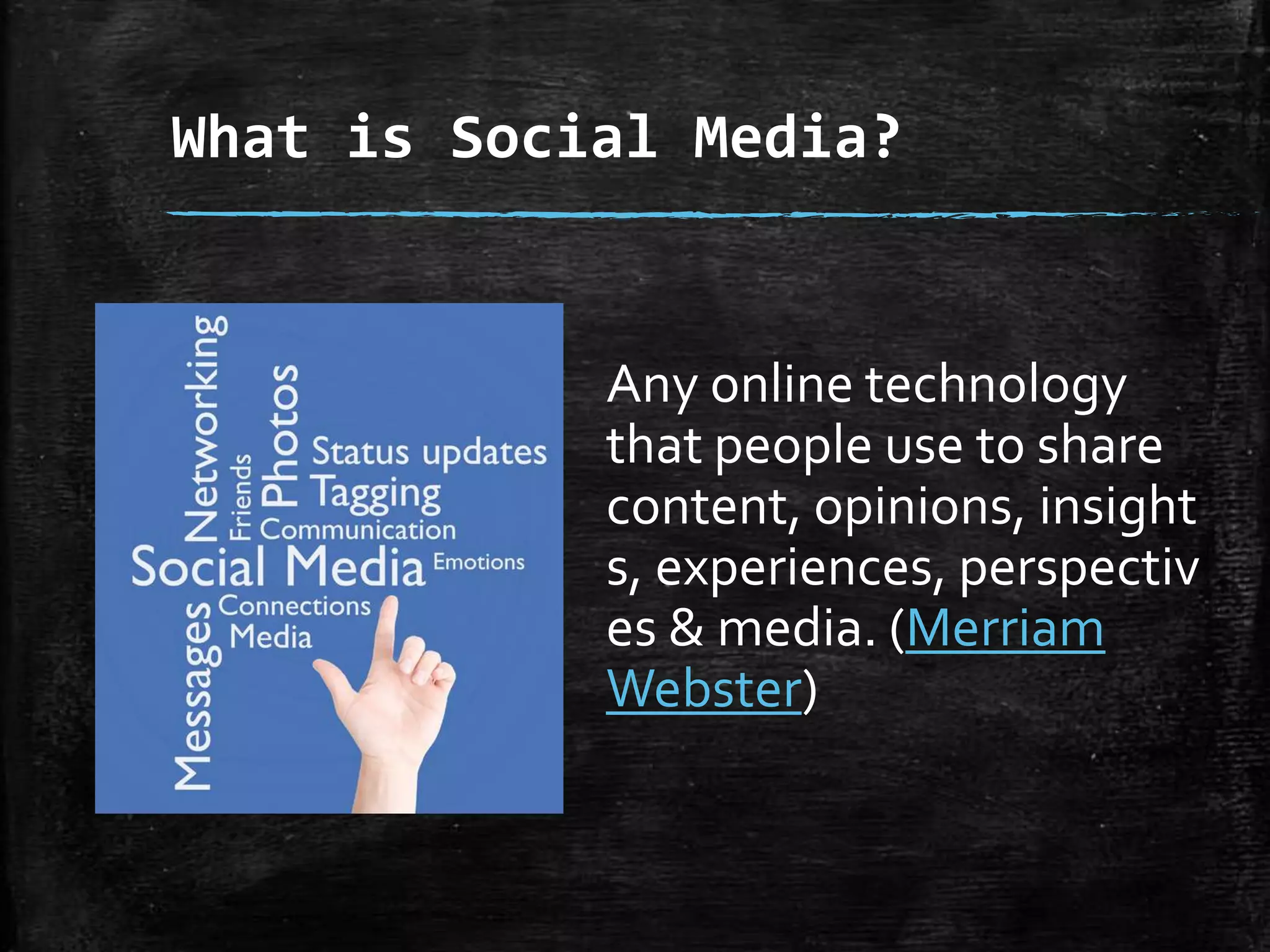
Any online technology
that people use to share
content, opinions,
insights, experiences,
perspectives & media.
(Merriam Webster)
What is Social Media?

REAL people.
REAL interactions.
REAL time.
Social Media is Content
and Content is King

The
Social Media
Machine
runs on
Content.
YOU Have CONTENT
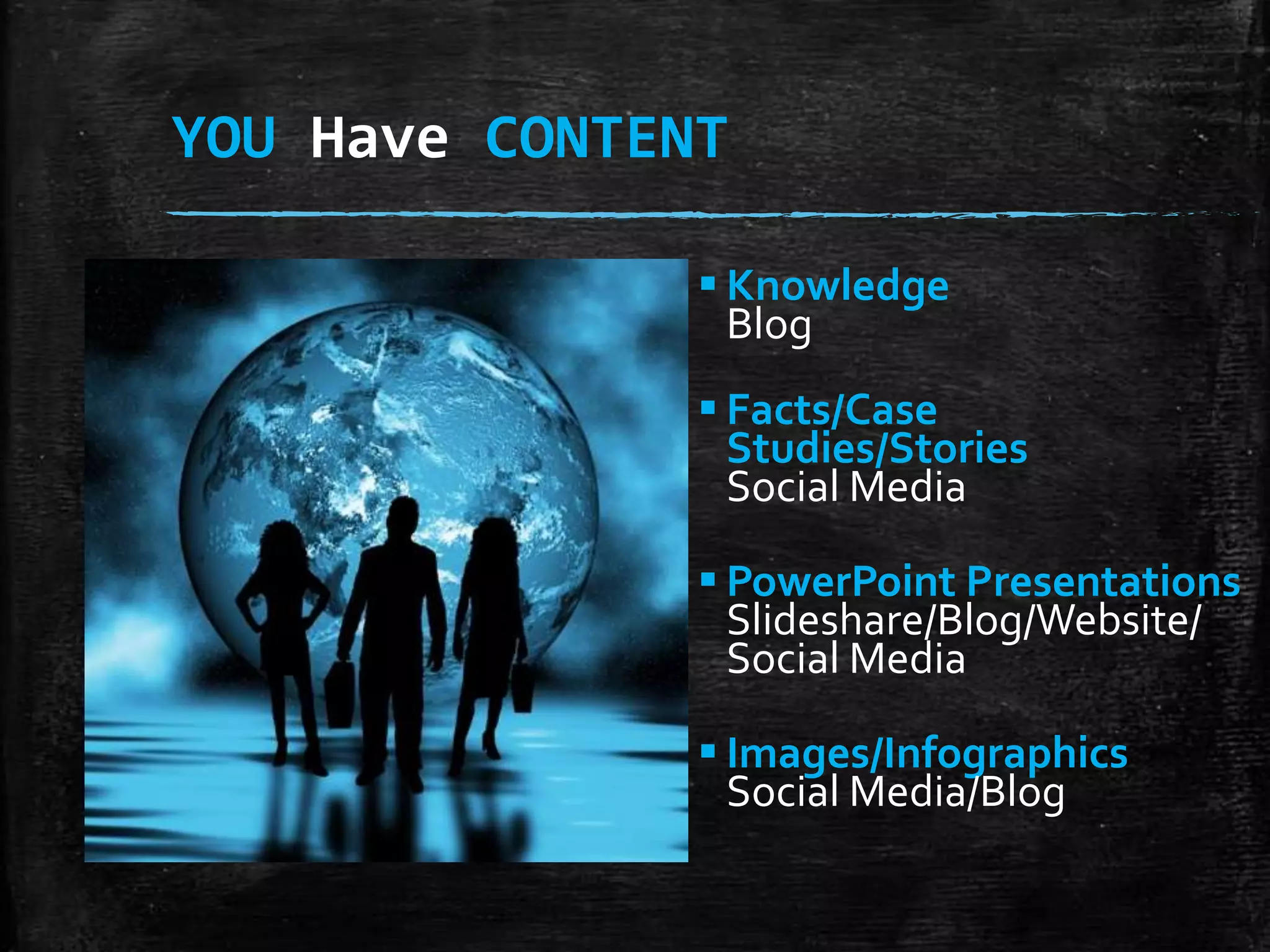
 Knowledge
Blog

 Facts/Case
Studies/Stories
Social Media
 PowerPoint Presentations
Slideshare/Blog/Website/
Social Media
 Images/Infographics
Social Media/Blog
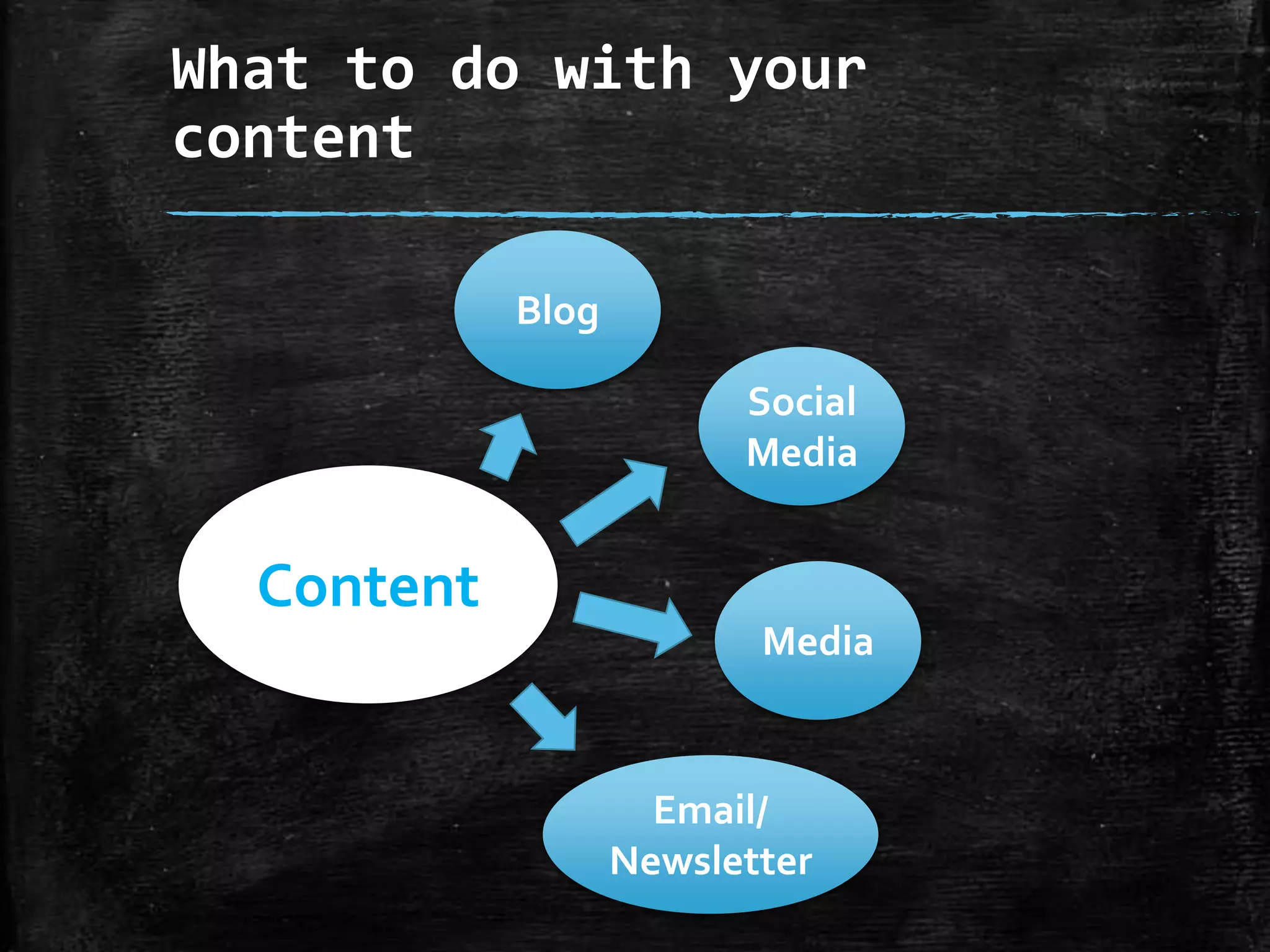
What to do with your
content
Blog
Social
Media

Content
Media

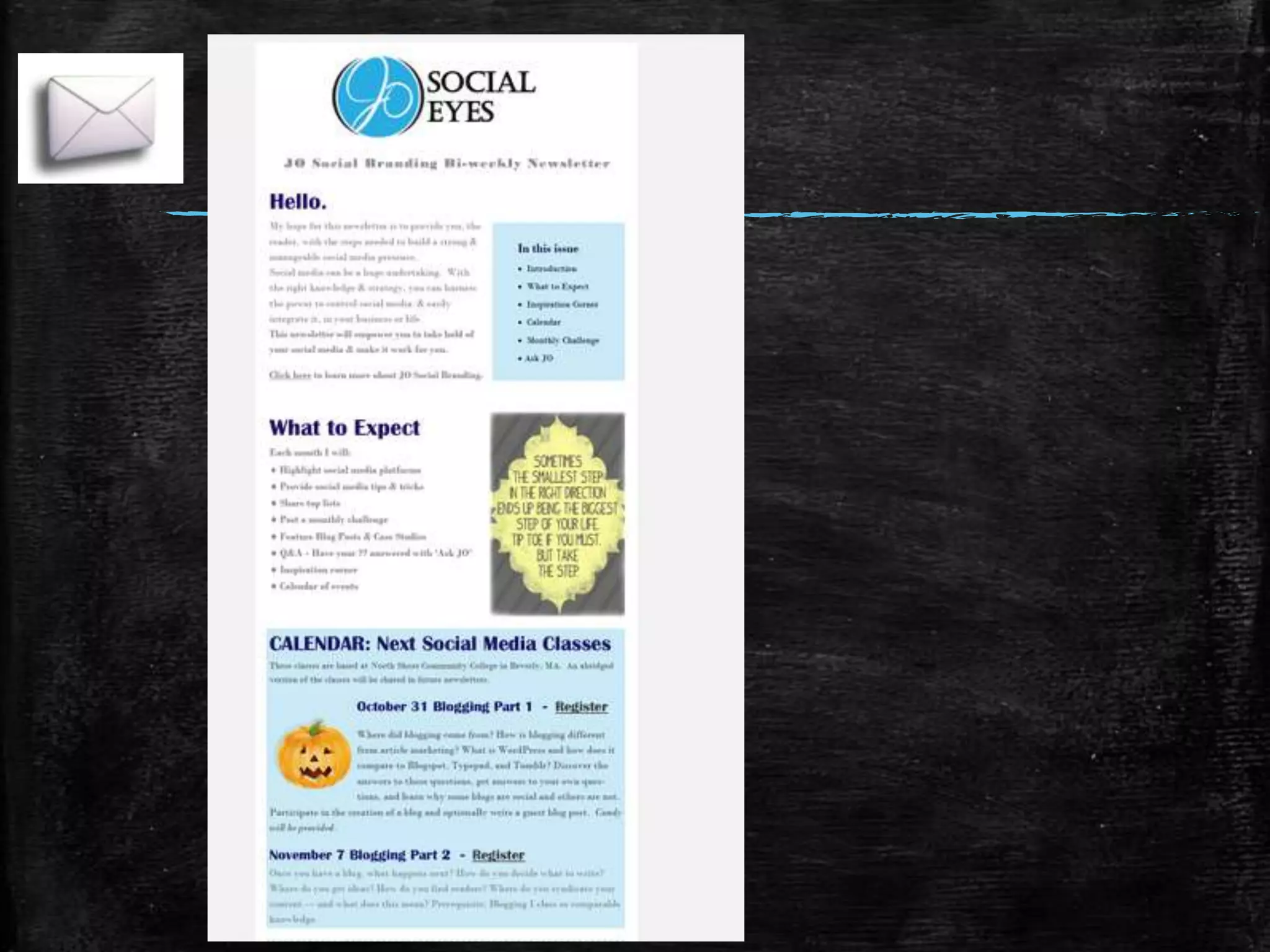
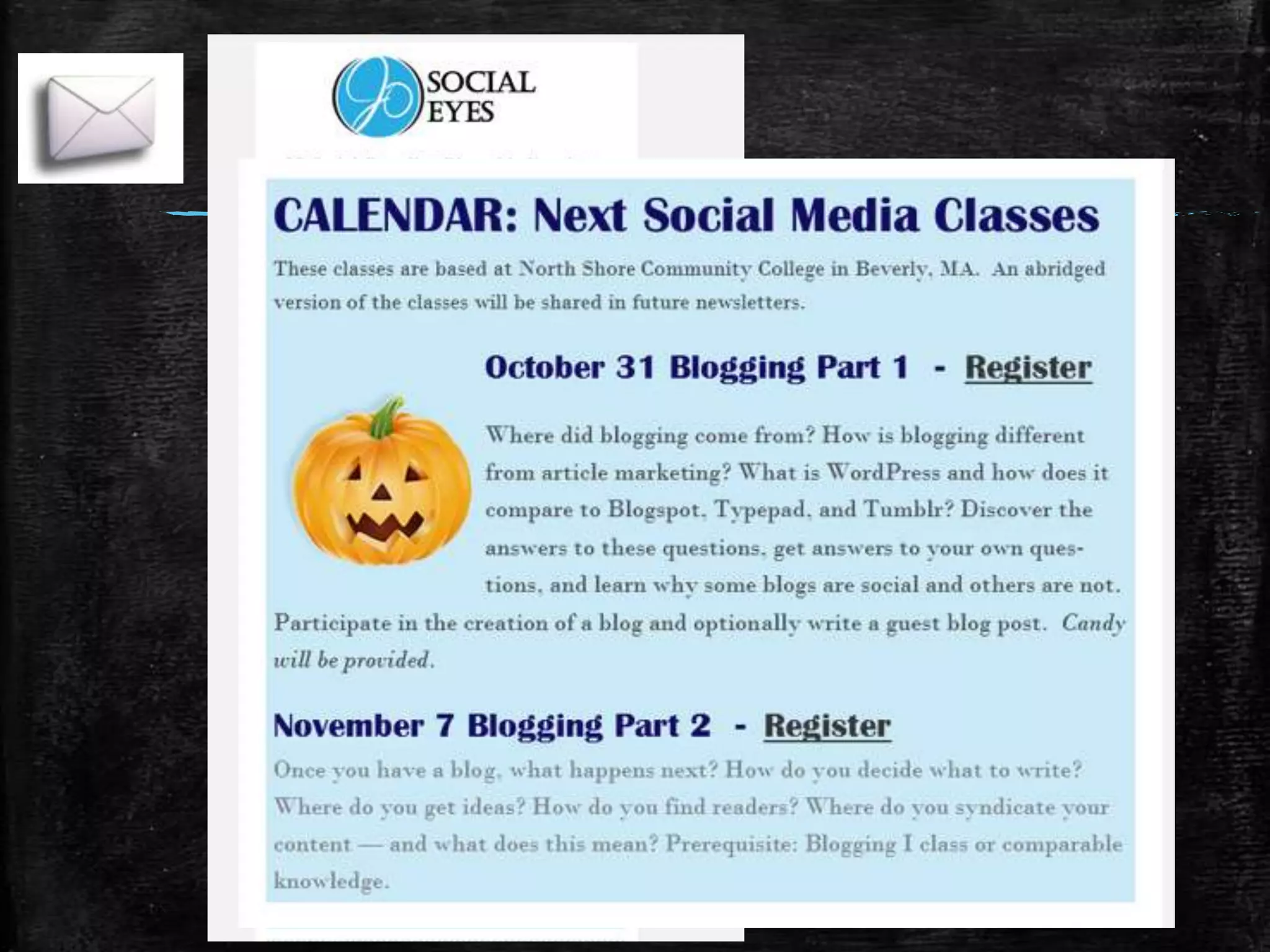
Email/
Newsletter
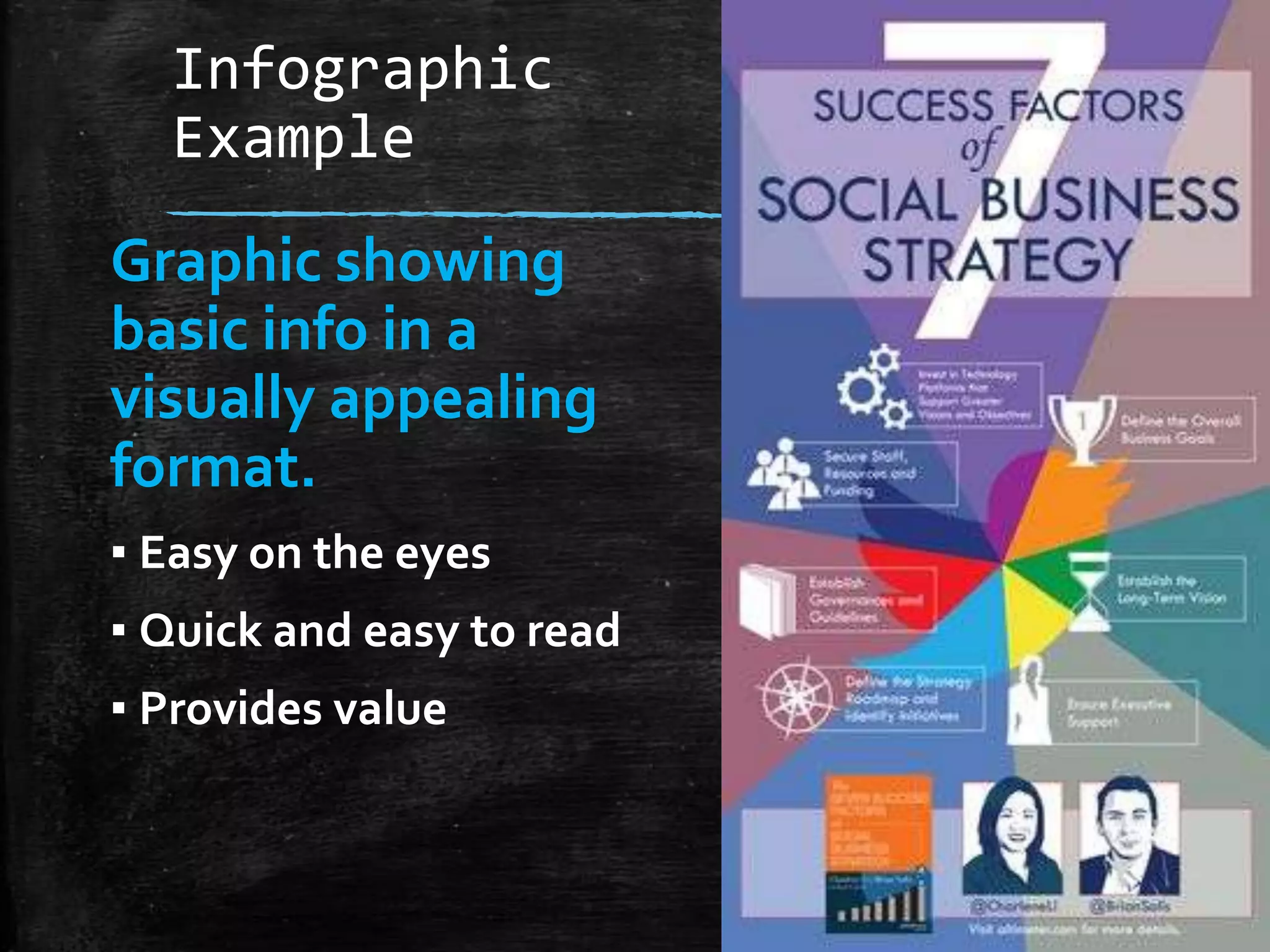
Infographic
Example

Graphic showing
basic info in a
visually appealing
format.
▪ Easy on the eyes
▪ Quick and easy to read
▪ Provides value
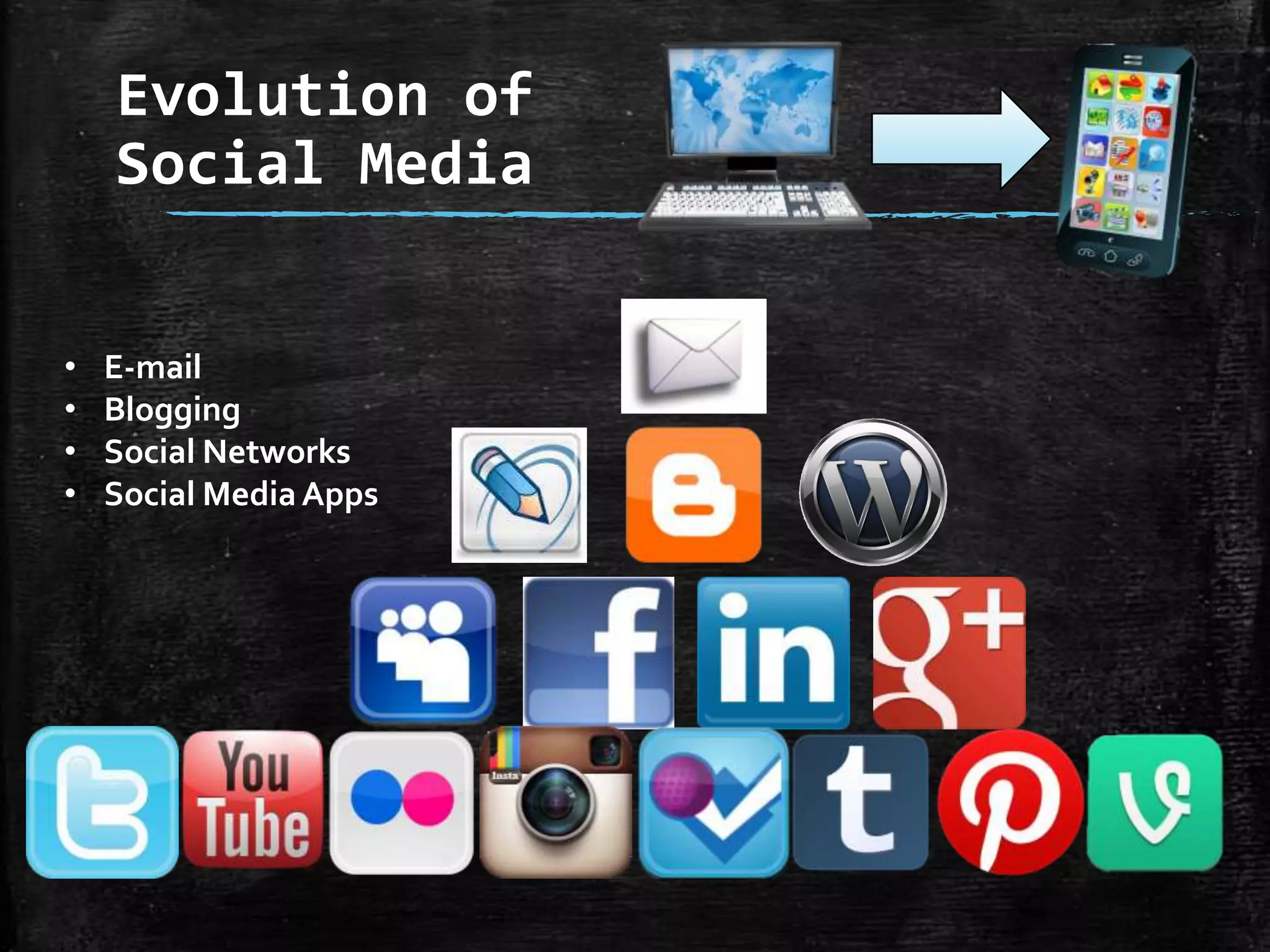
Evolution
of
Social
Media
Source: http://avalaunchmedia.com/history-of-social-media/Main.html
Evolution of
Social Media
•
•
•
•

E-mail
Blogging
Social Networks
Social Media Apps
The Key Players - Defined
Facebook is the Backyard Cookout of Social Media

Twitter is the Newsroom of Social Media

LinkedIn is the Networking/Cocktail Hour of Social Media
The Key Players - Defined
YouTube is the TV of Social Media

Foursquare is Business Directory/Phone Book of Social Media

Instagram is the Photo Booth of Social Media.
The Key Players - Defined

Wordpress is the Soapbox of Social Media

Pinterest is the Inspiration Corkboard of Social Media
Benefits of Social Media
In the Classroom
▪ Developing thought leadership.
▪ Ability to create more hands-on-learning
opportunities.
▪ Allow instructors to create deep and long

lasting relationships.
Benefits of Social Media
In the Classroom
▪ Move beyond the classroom.
▪ Allows past student and potential repeat
students to stay connected with your latest
news and events.
How I Promote My
Classes
Channels I Use
To Promote My Classes
Newsletter

LinkedIn

Blogging

Instagram

Facebook

Foursquare

Twitter

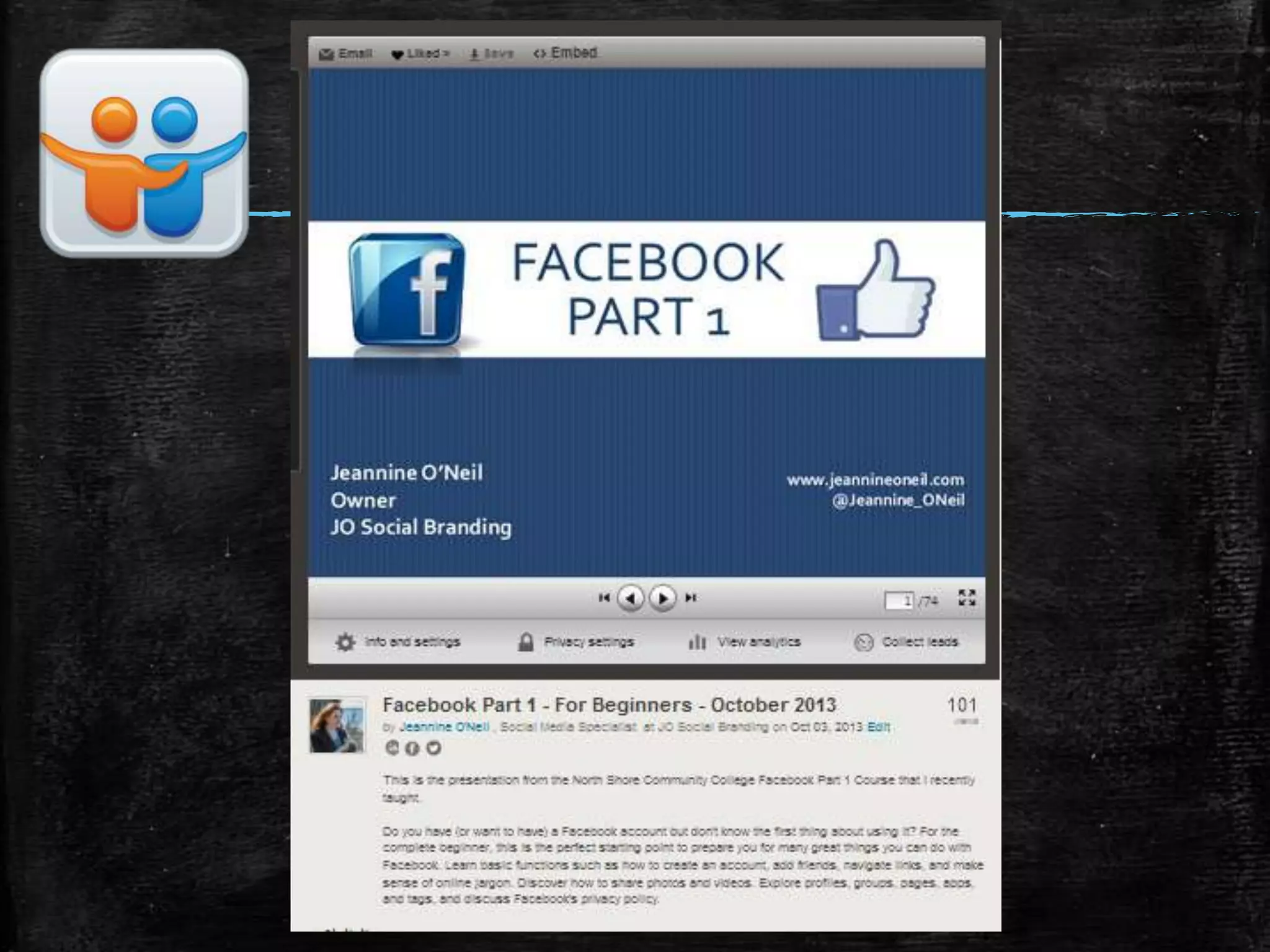
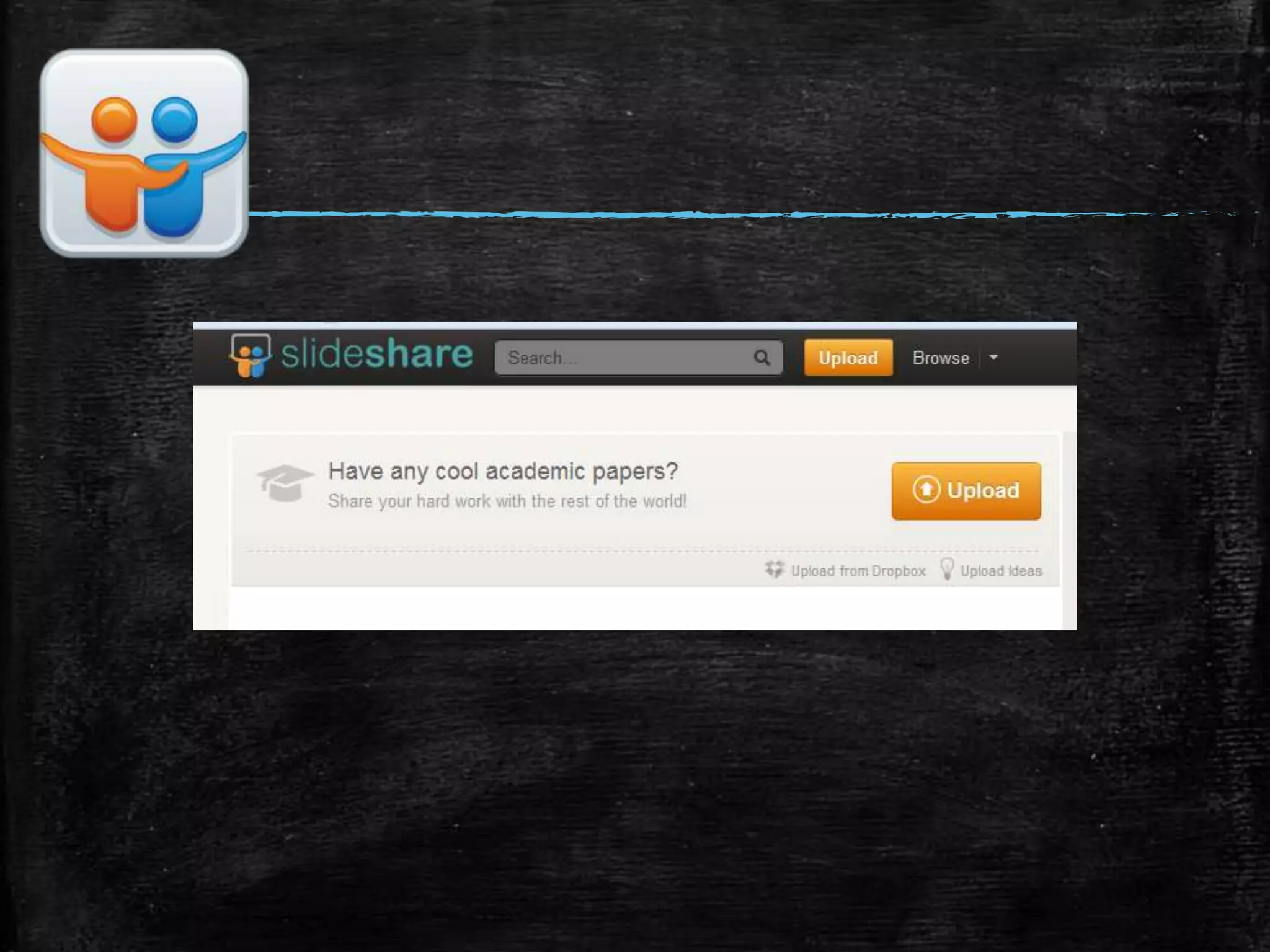
Slideshare
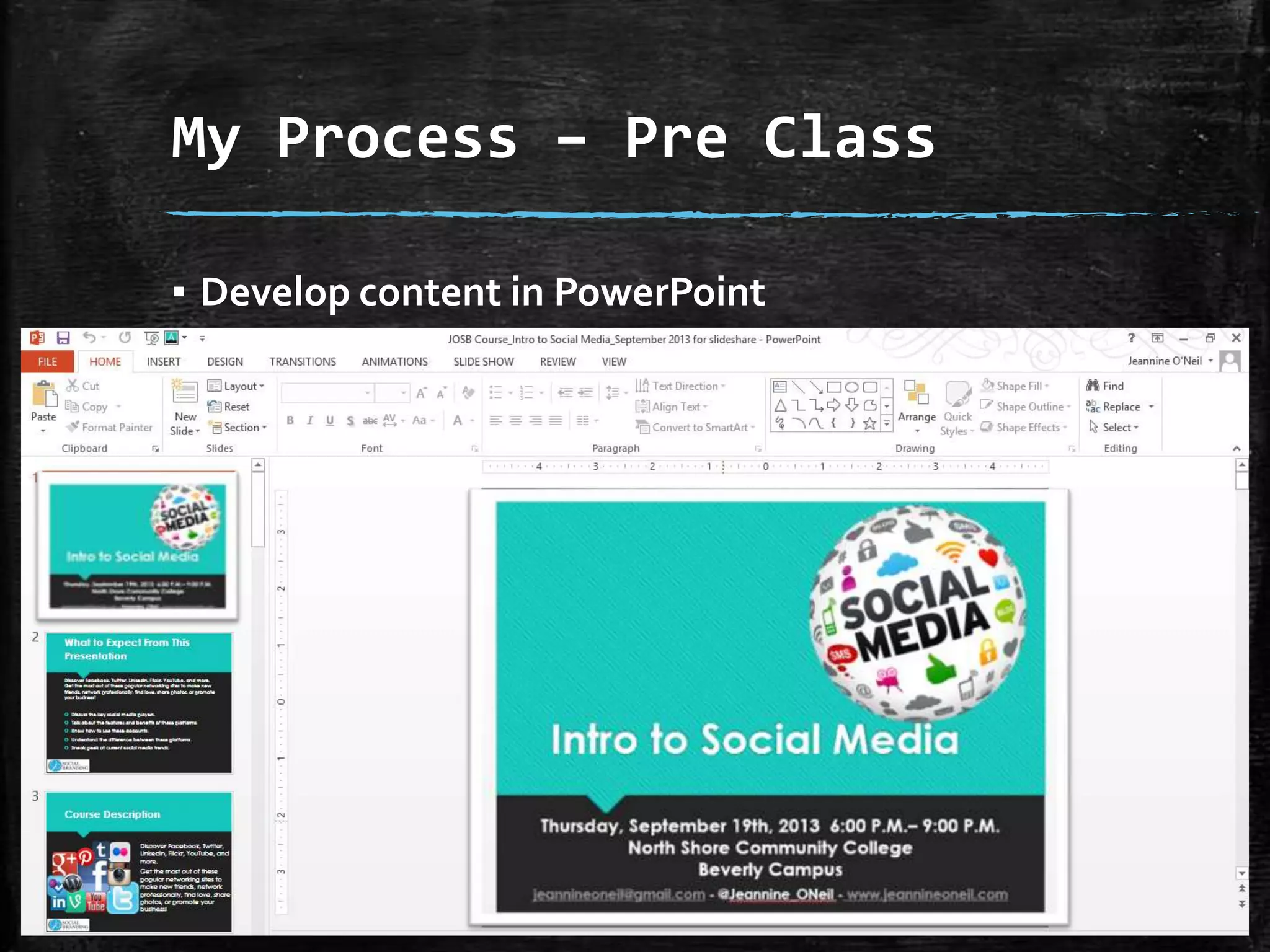
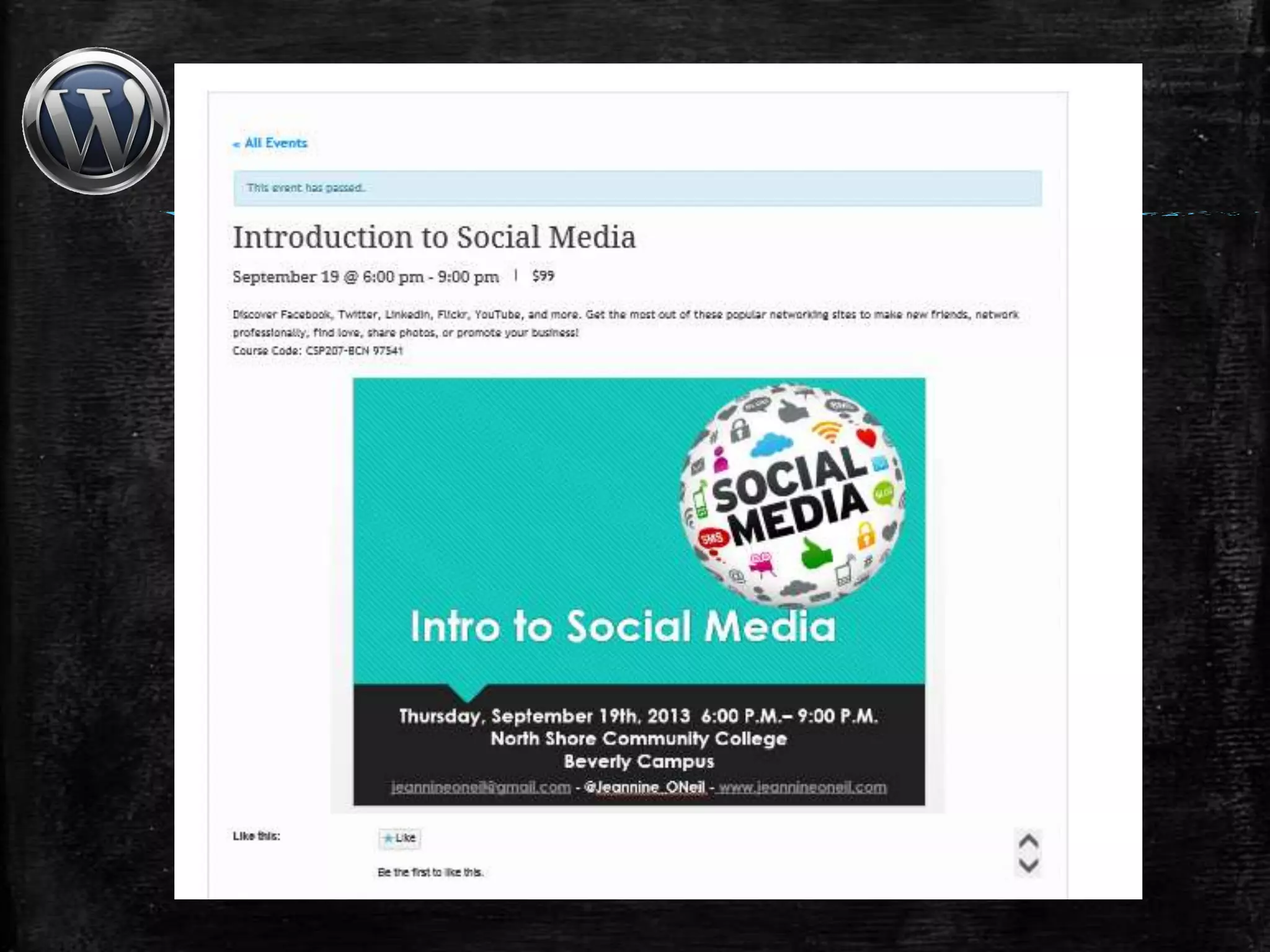
My Process – Pre Class
▪ Develop content in PowerPoint

▪ Take pictures from content (Post on Facebook,
Twitter, Website, Newsletter).
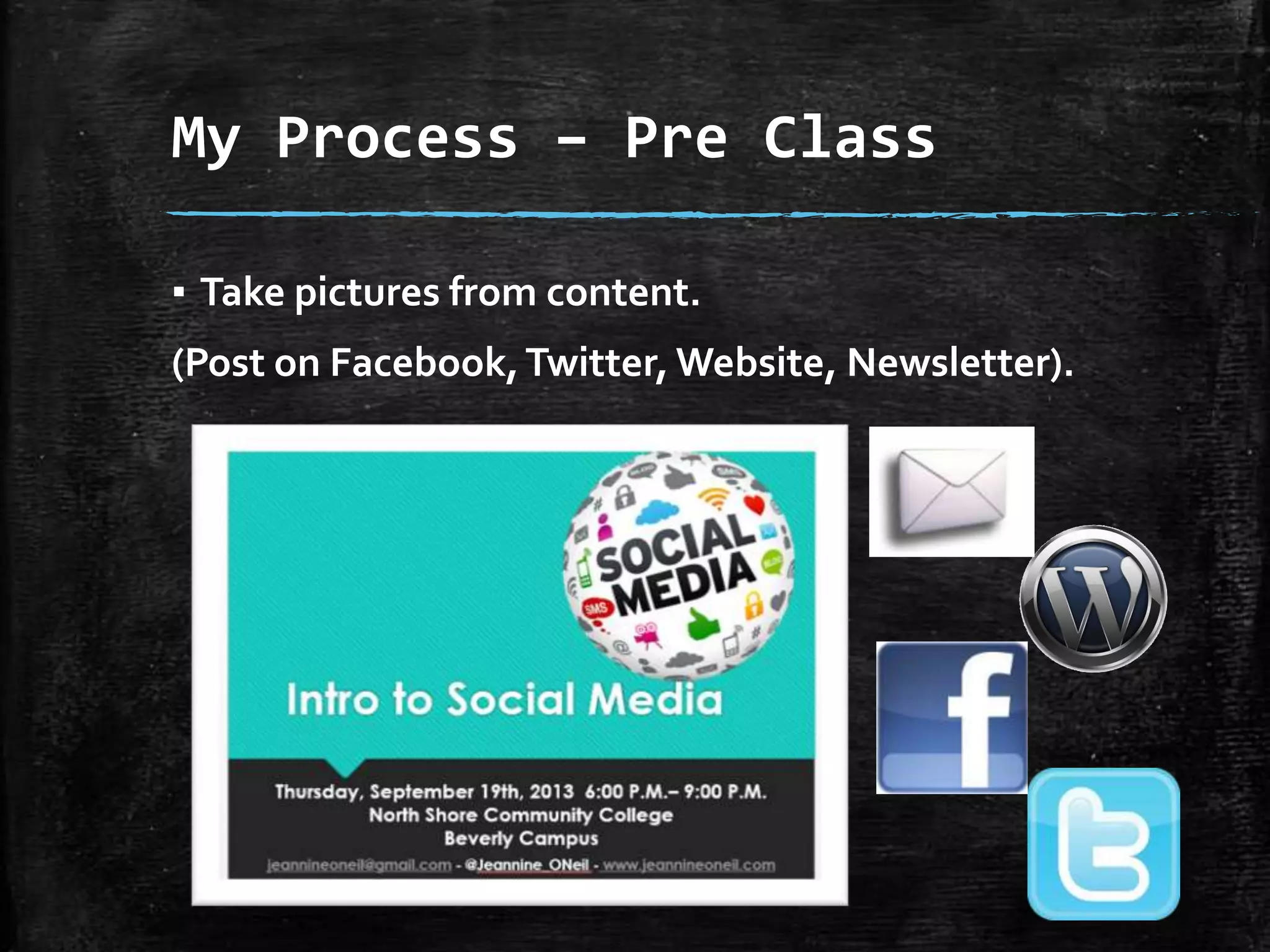
My Process – Pre Class
▪ Take pictures from content.

(Post on Facebook, Twitter, Website, Newsletter).
My Process – Pre Class
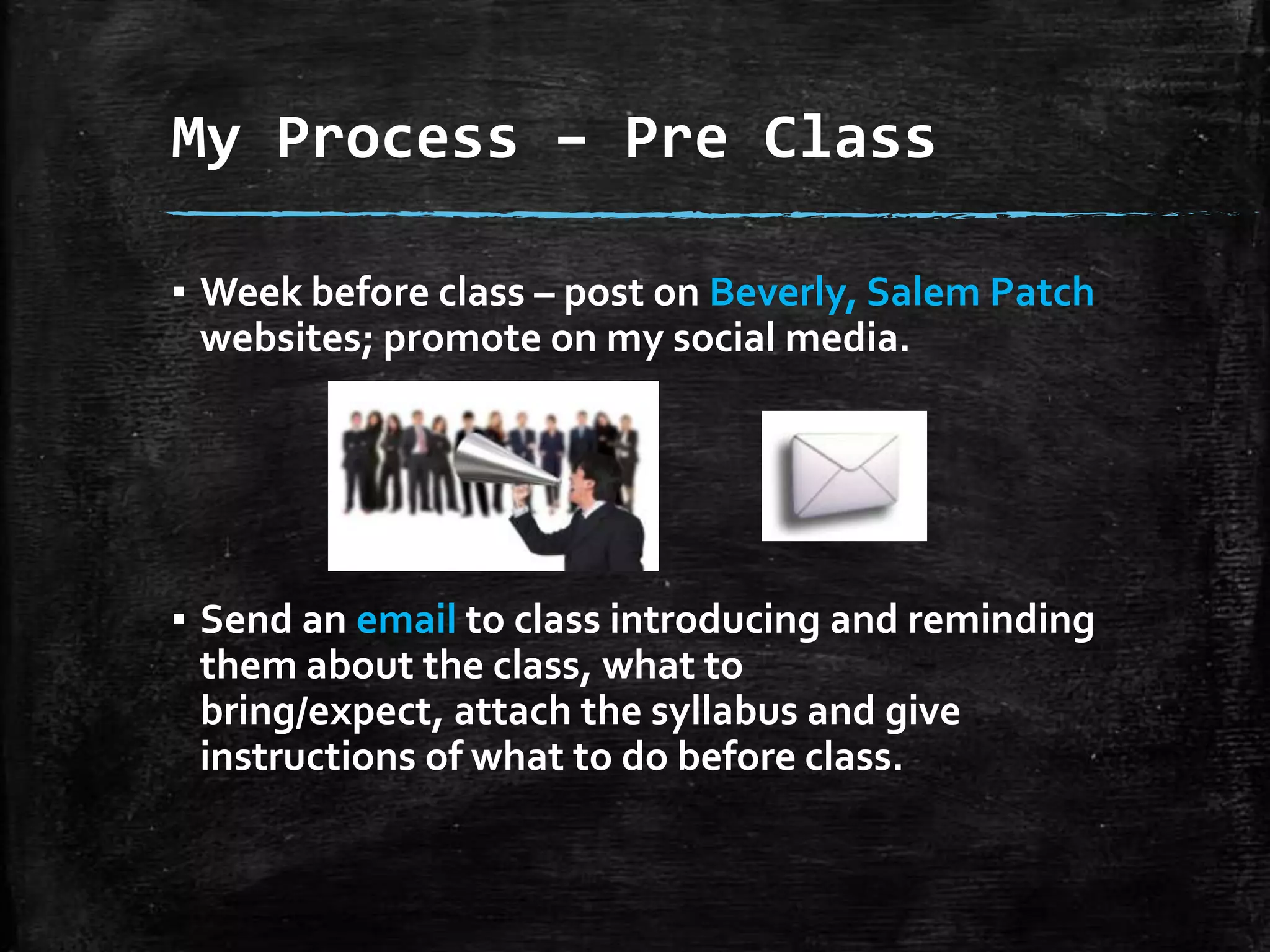
▪ Week before class – post on Beverly, Salem Patch
websites; promote on my social media.

▪ Send an email to class introducing and reminding
them about the class, what to bring/expect,
attach the syllabus and give instructions of what
to do before class.
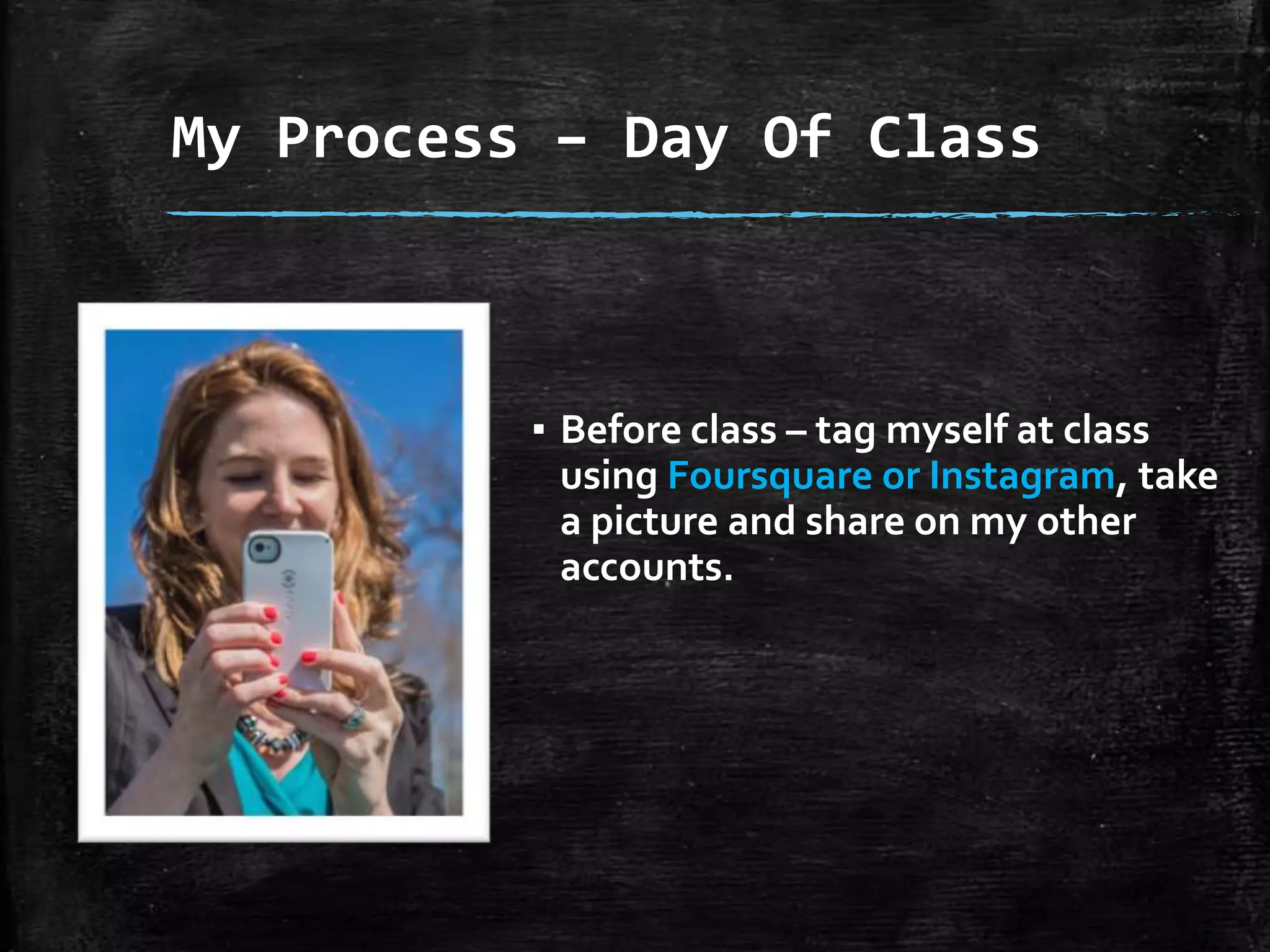
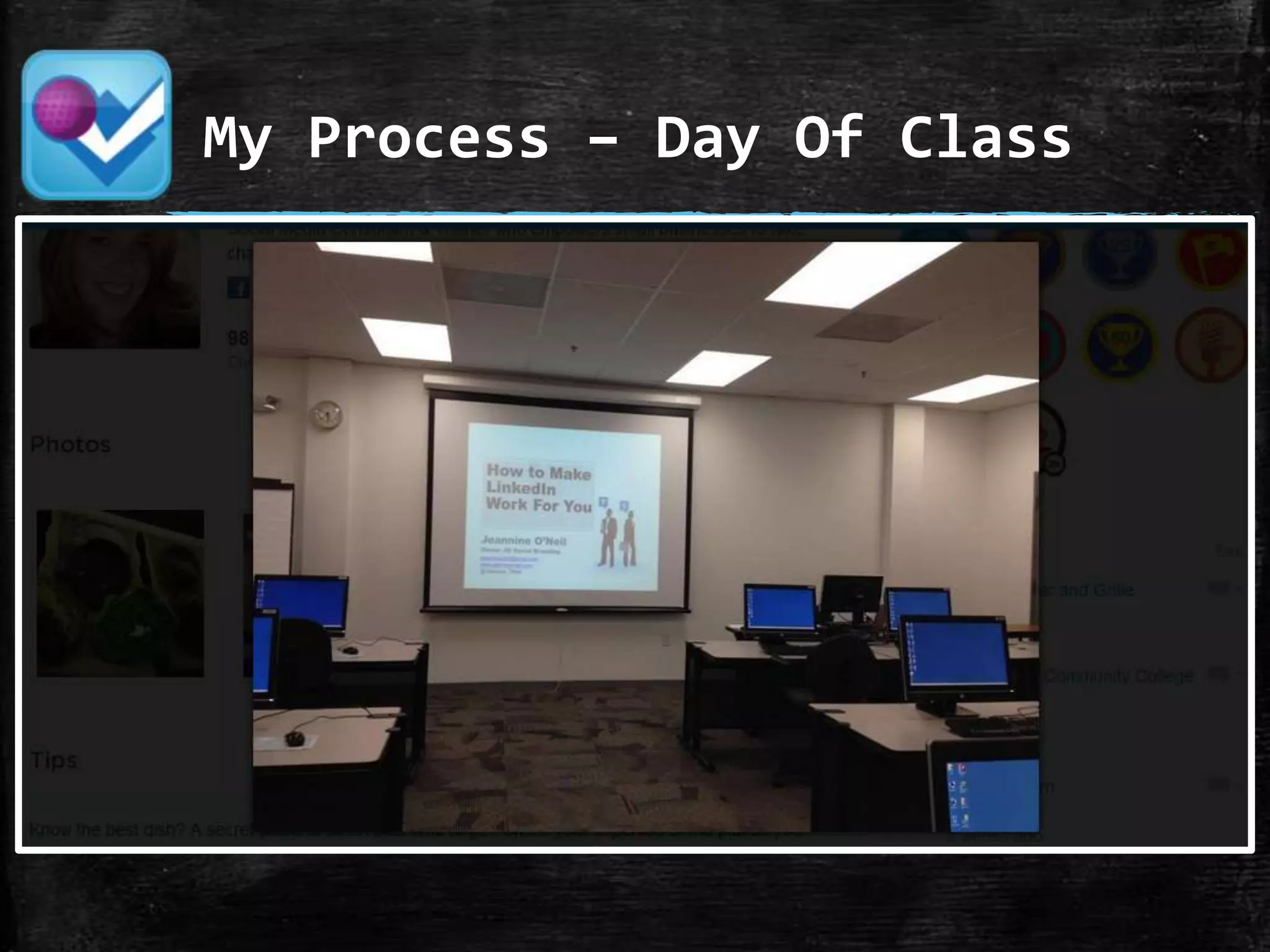
My Process – Day Of Class

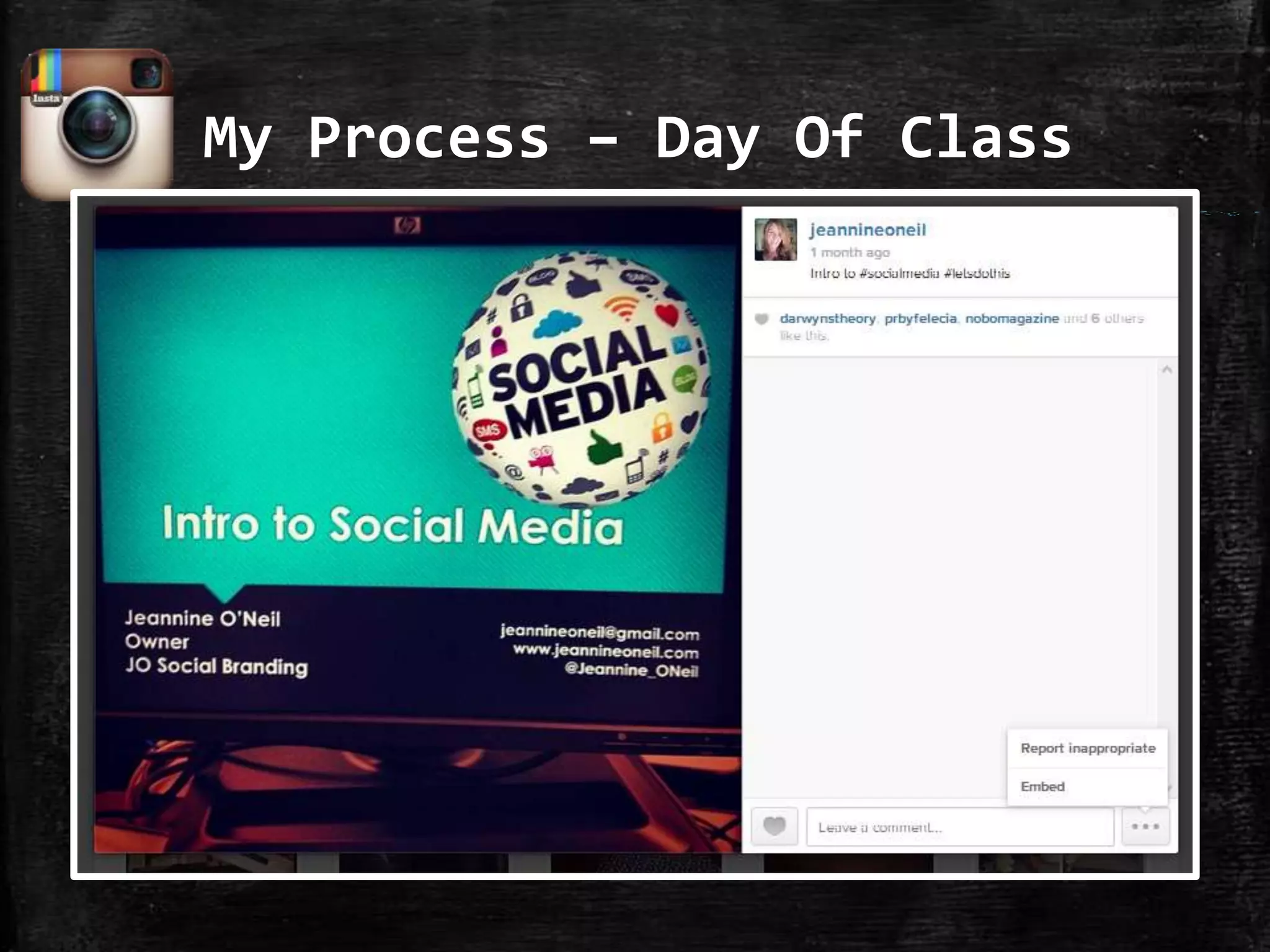
▪ Before class – tag myself at class
using Foursquare or Instagram, take
a picture and share on my other
accounts.
My Process – Day Of Class
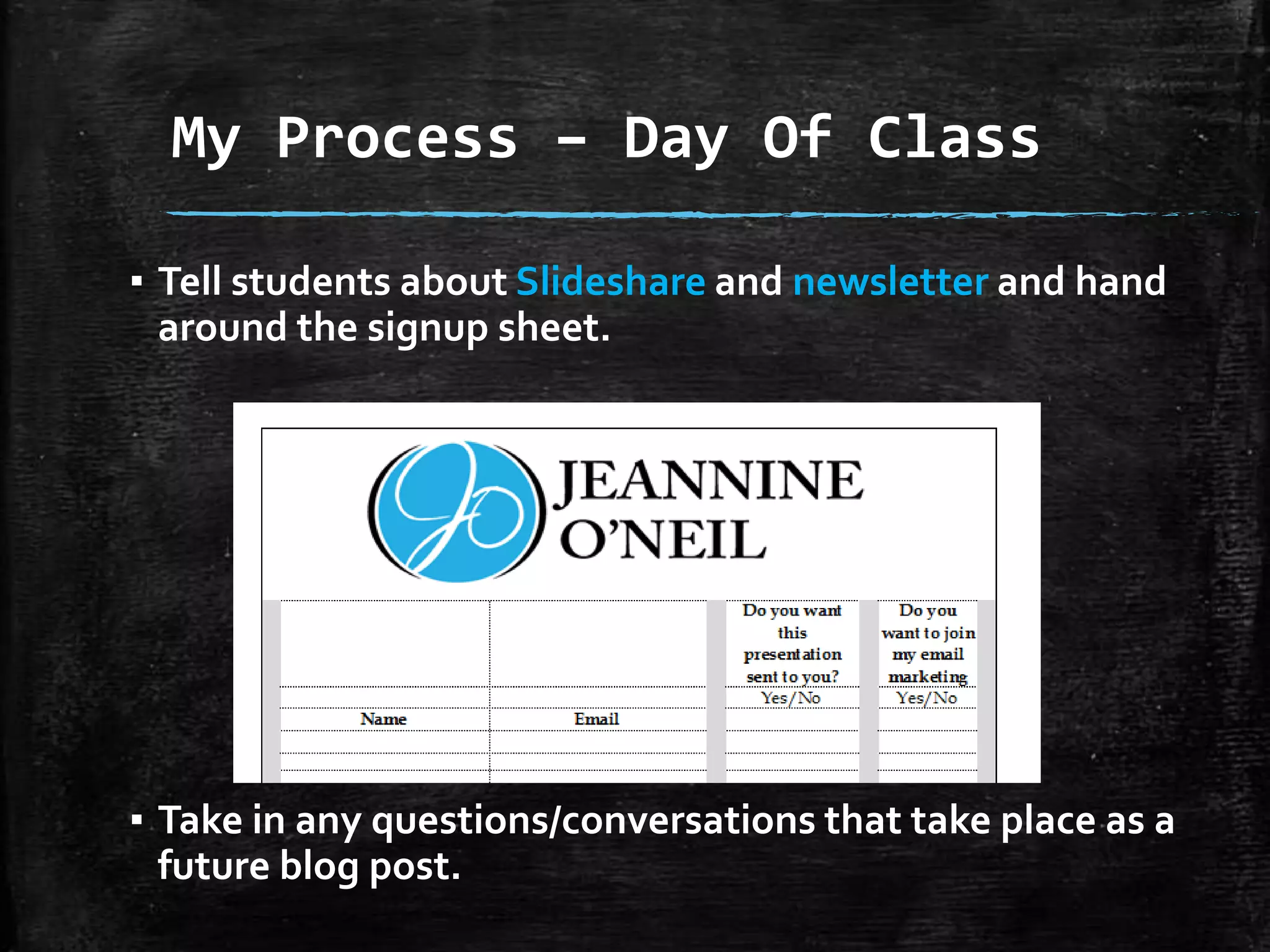
▪ Tell students about Slideshare and newsletter and hand
around the signup sheet.

▪ Take in any questions/conversations that take place as a
future blog post.
My Process – After Class
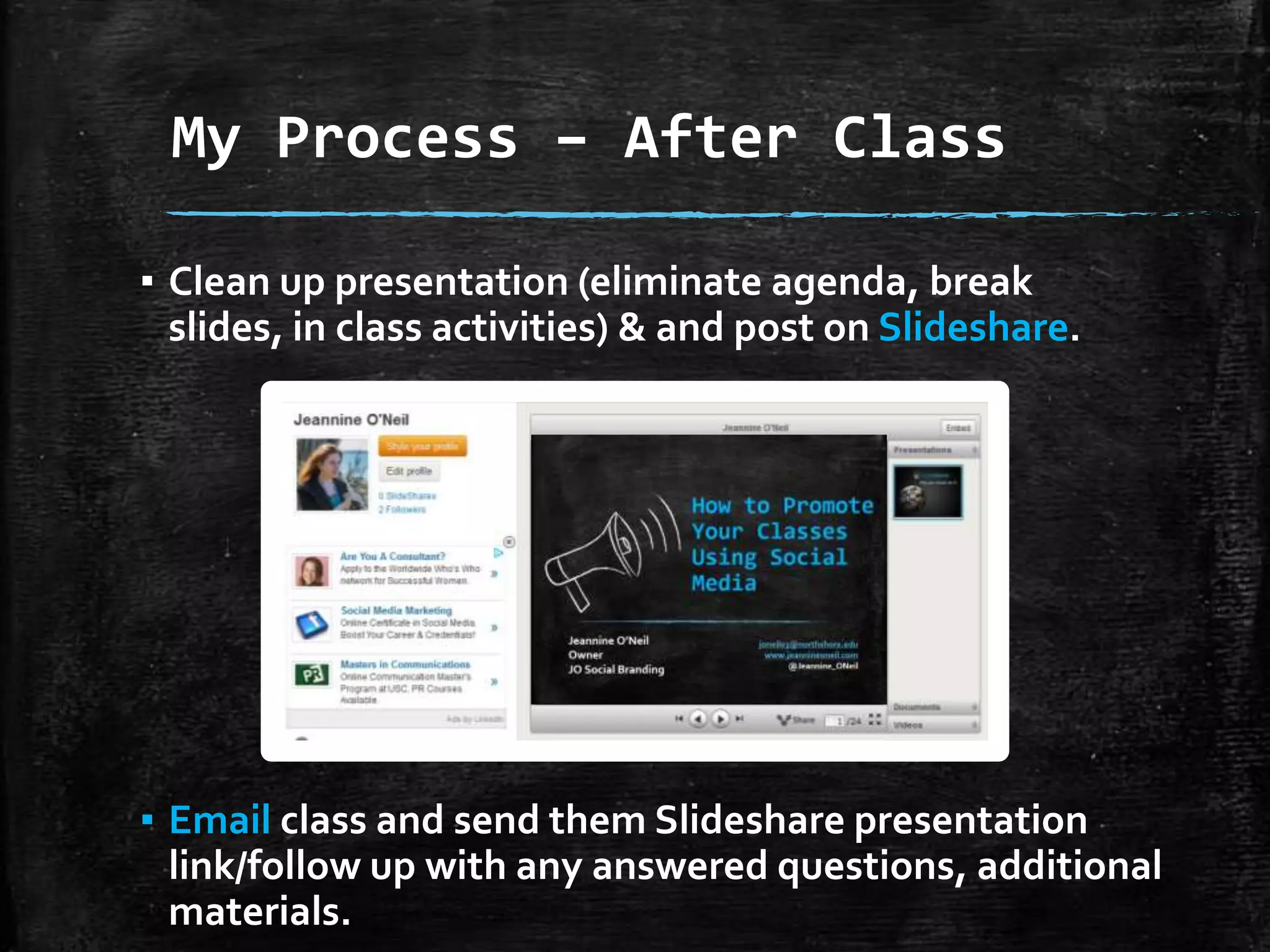
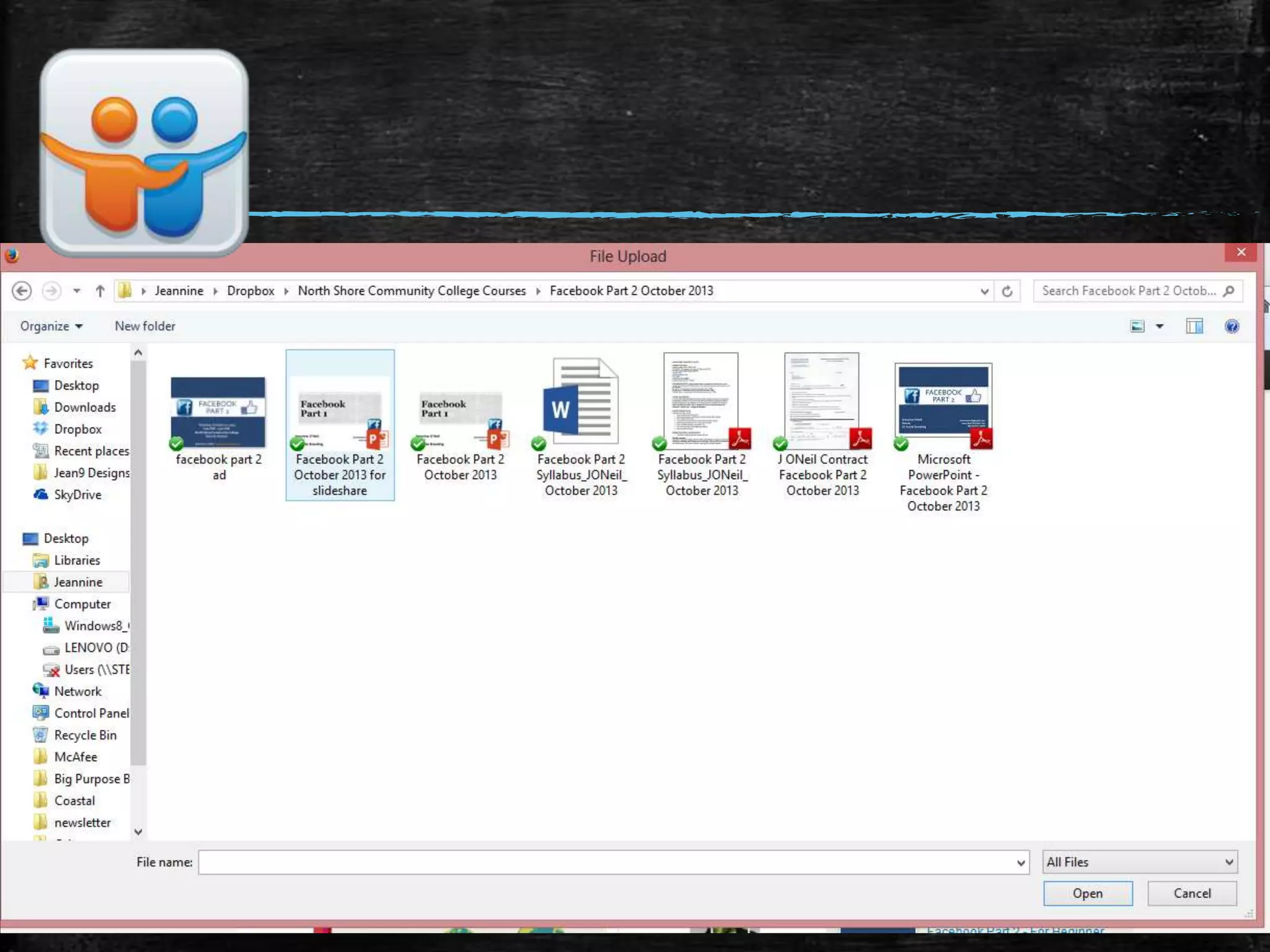
▪ Clean up presentation (eliminate agenda, break slides,
in class activities) & and post on Slideshare.

▪ Email class and send them Slideshare presentation
link/follow up with any answered questions, additional
materials.
My Process – After Class
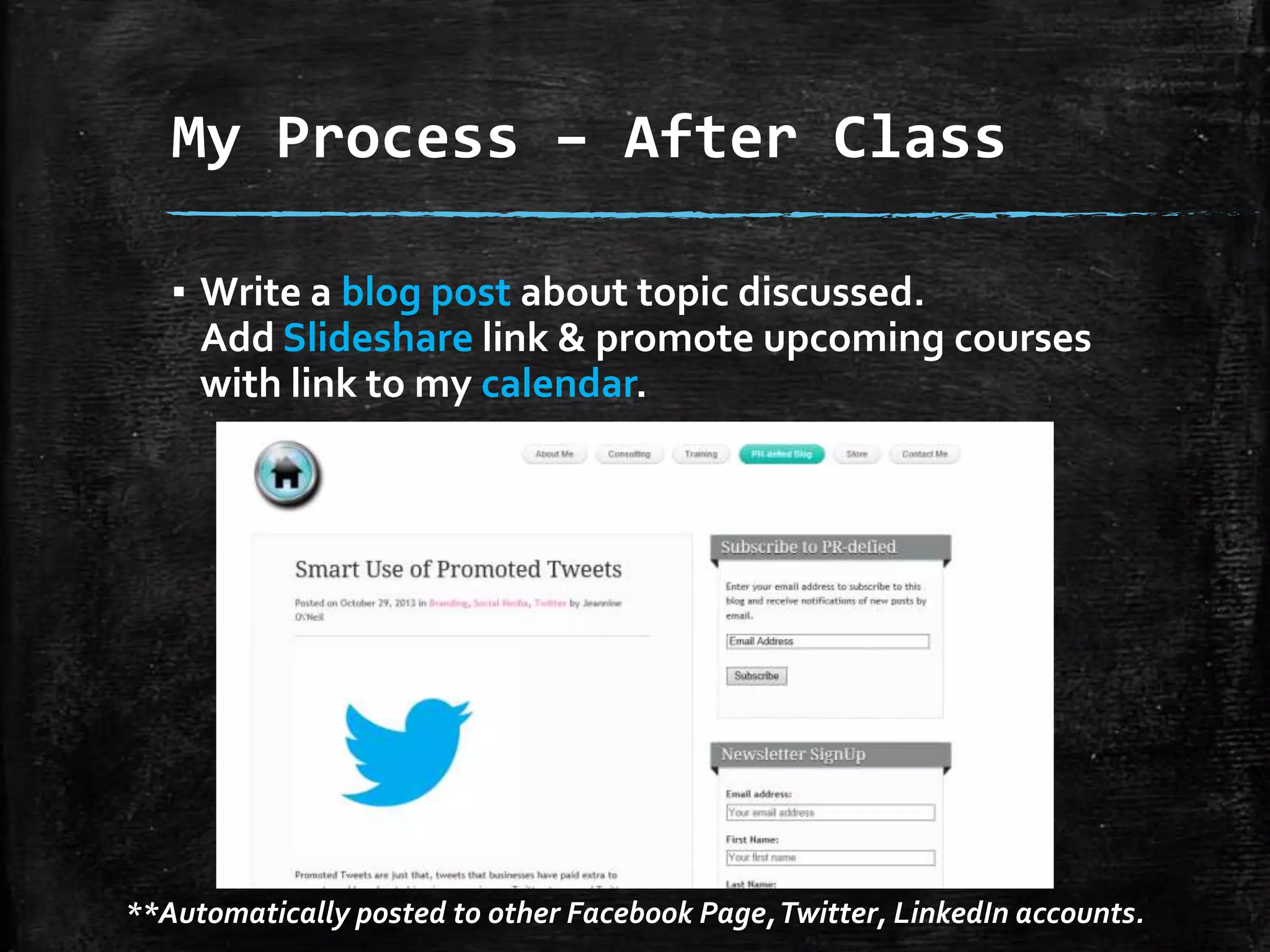
▪ Write a blog post about topic discussed.
Add Slideshare link & promote upcoming courses
with link to my calendar.

**Automatically posted to other Facebook Page, Twitter, LinkedIn accounts.
My Process – After Class
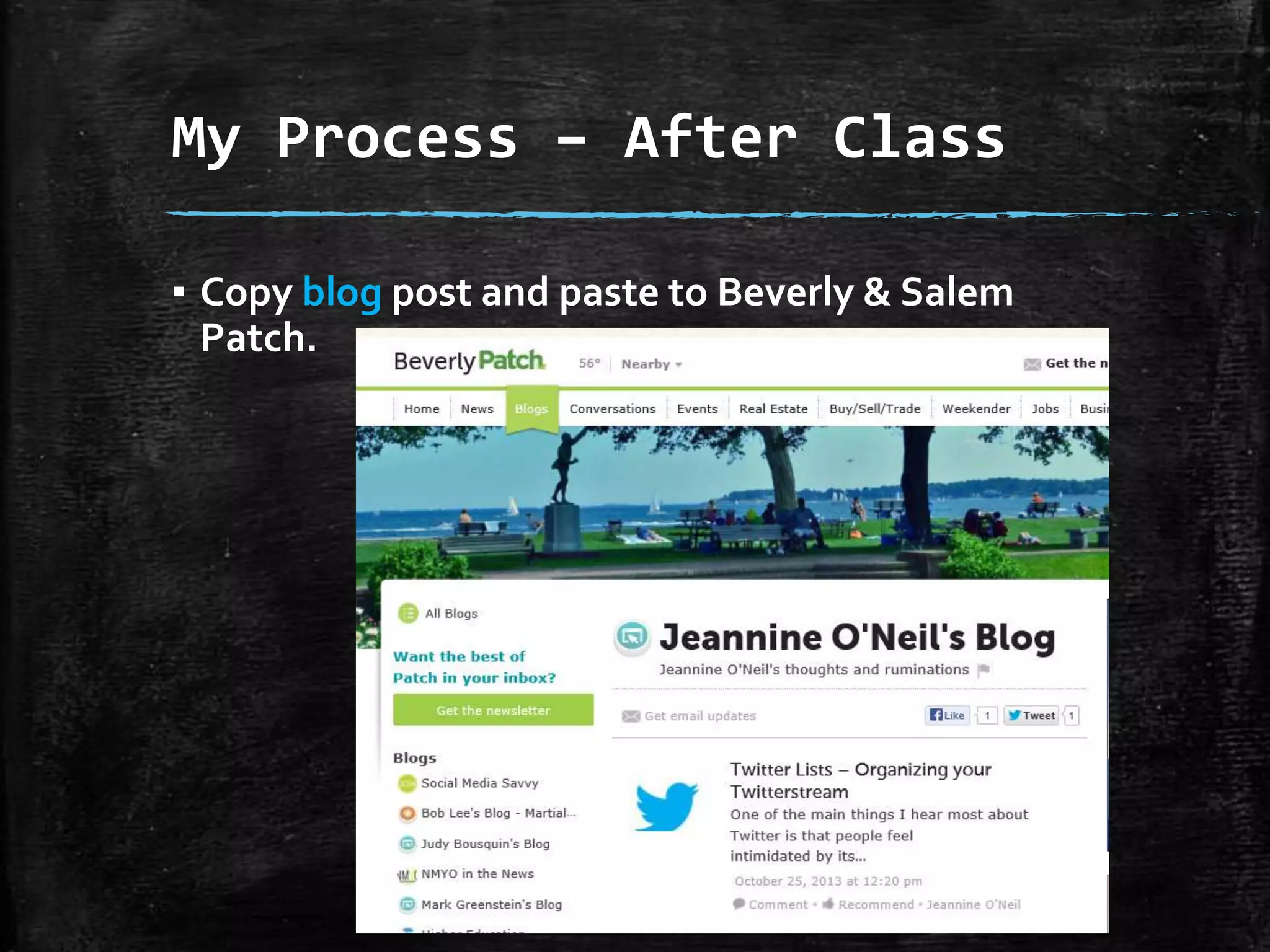
▪ Copy blog post and paste to Beverly & Salem
Patch.
My Process – After Class
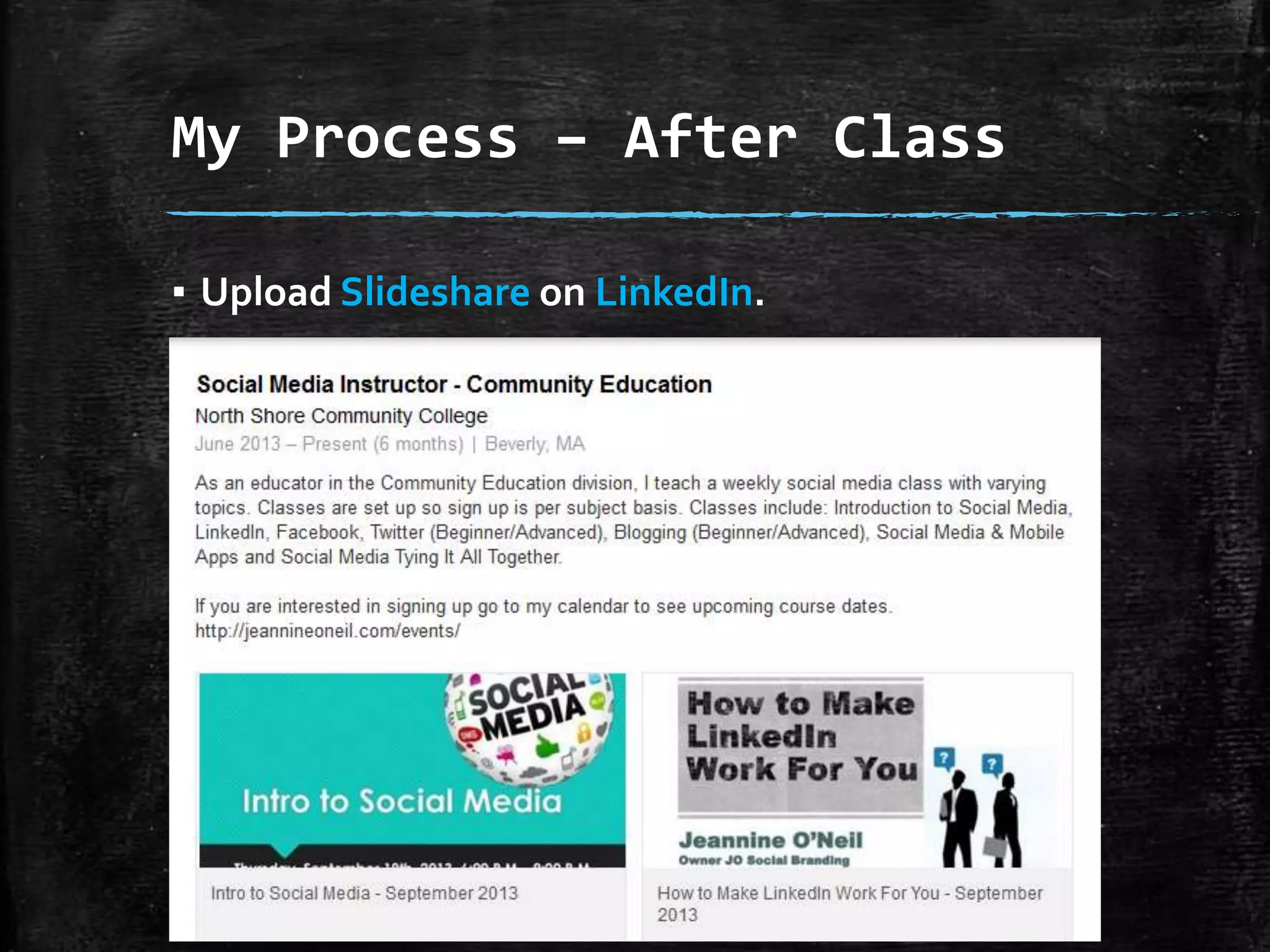
▪ Upload Slideshare on LinkedIn.
Social Media Tips
Facebook
Facebook
▪ Different Functions

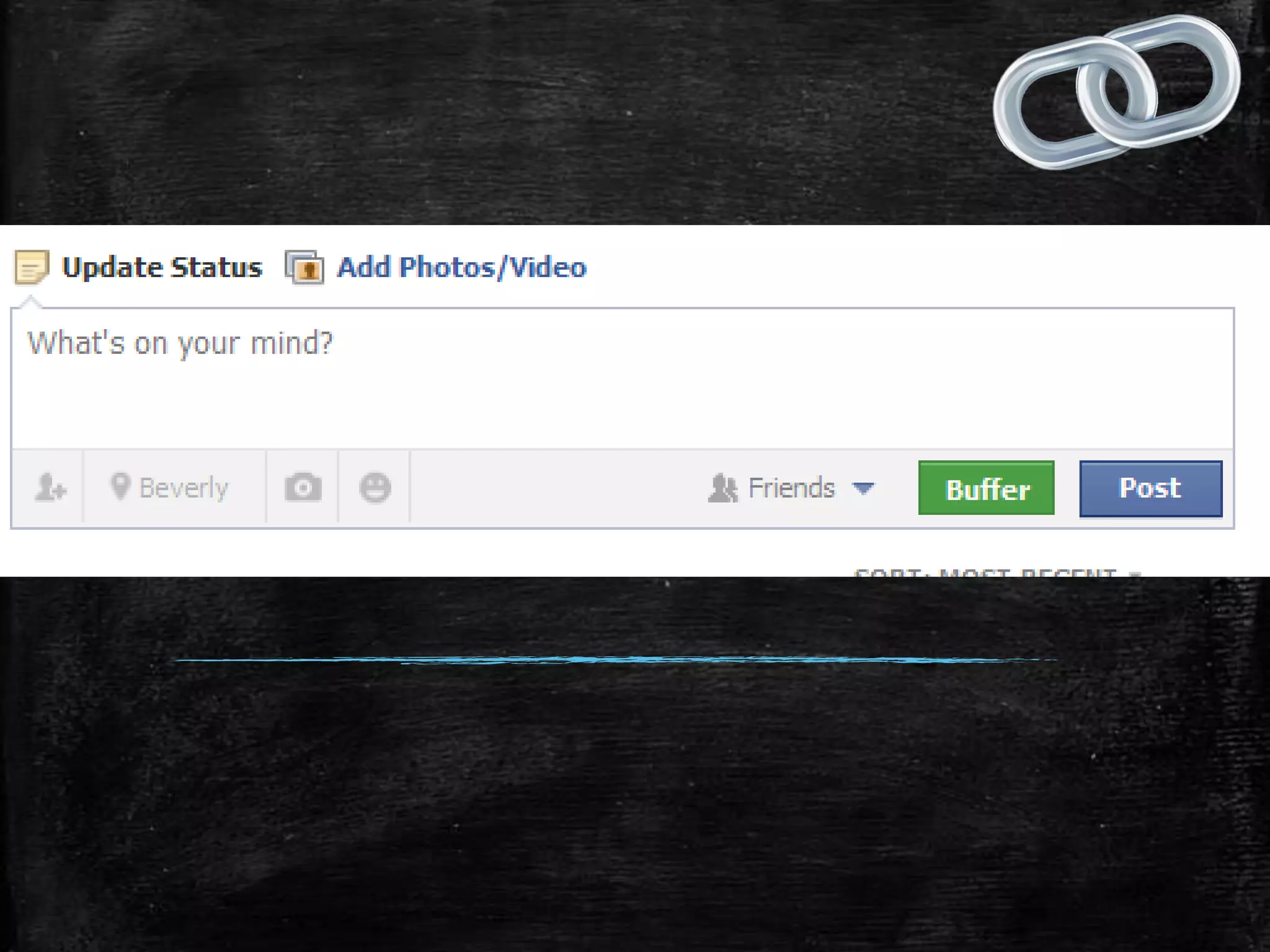
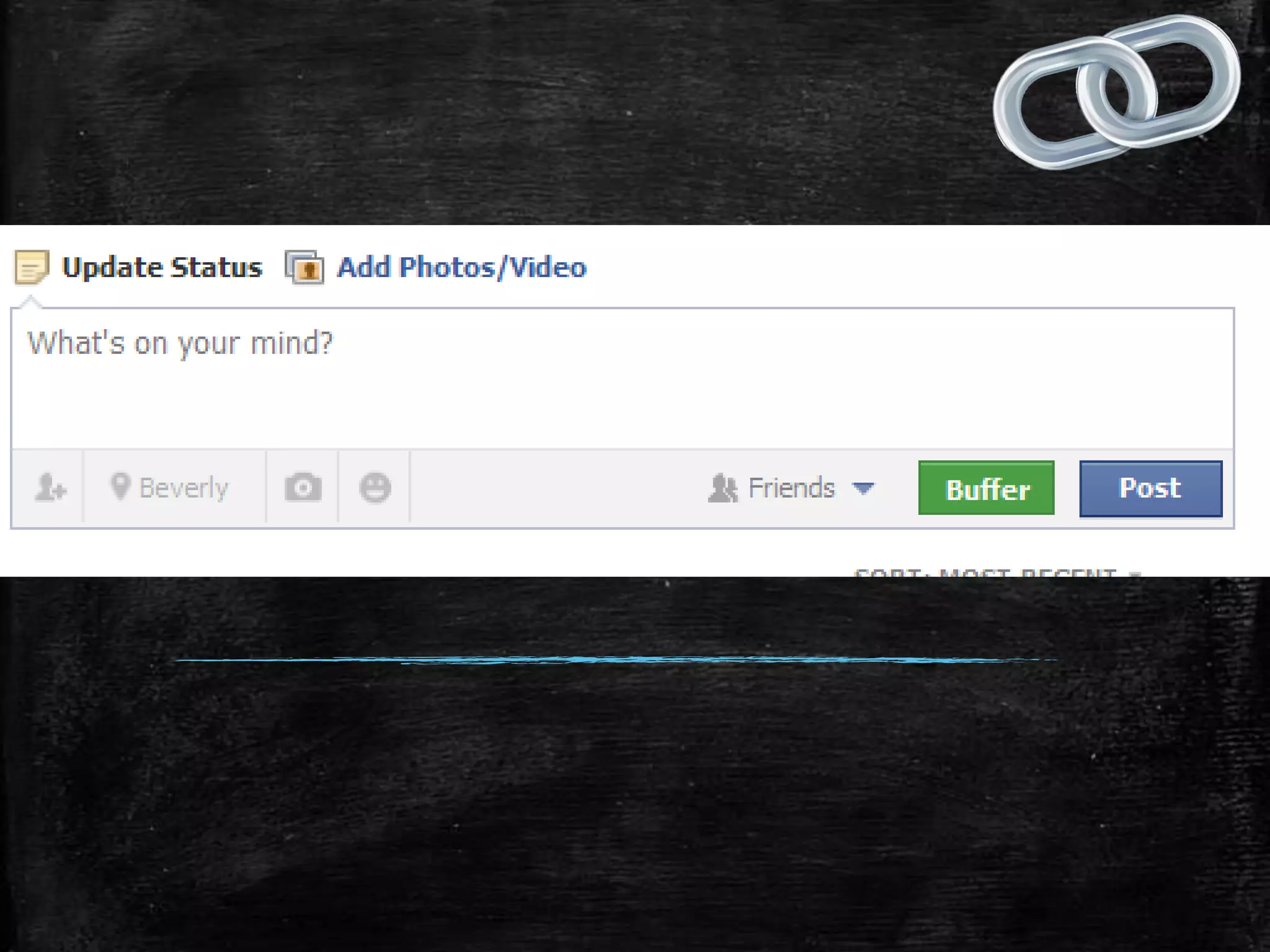
▪ How to Write a Status Update
▪ How to Post a Picture
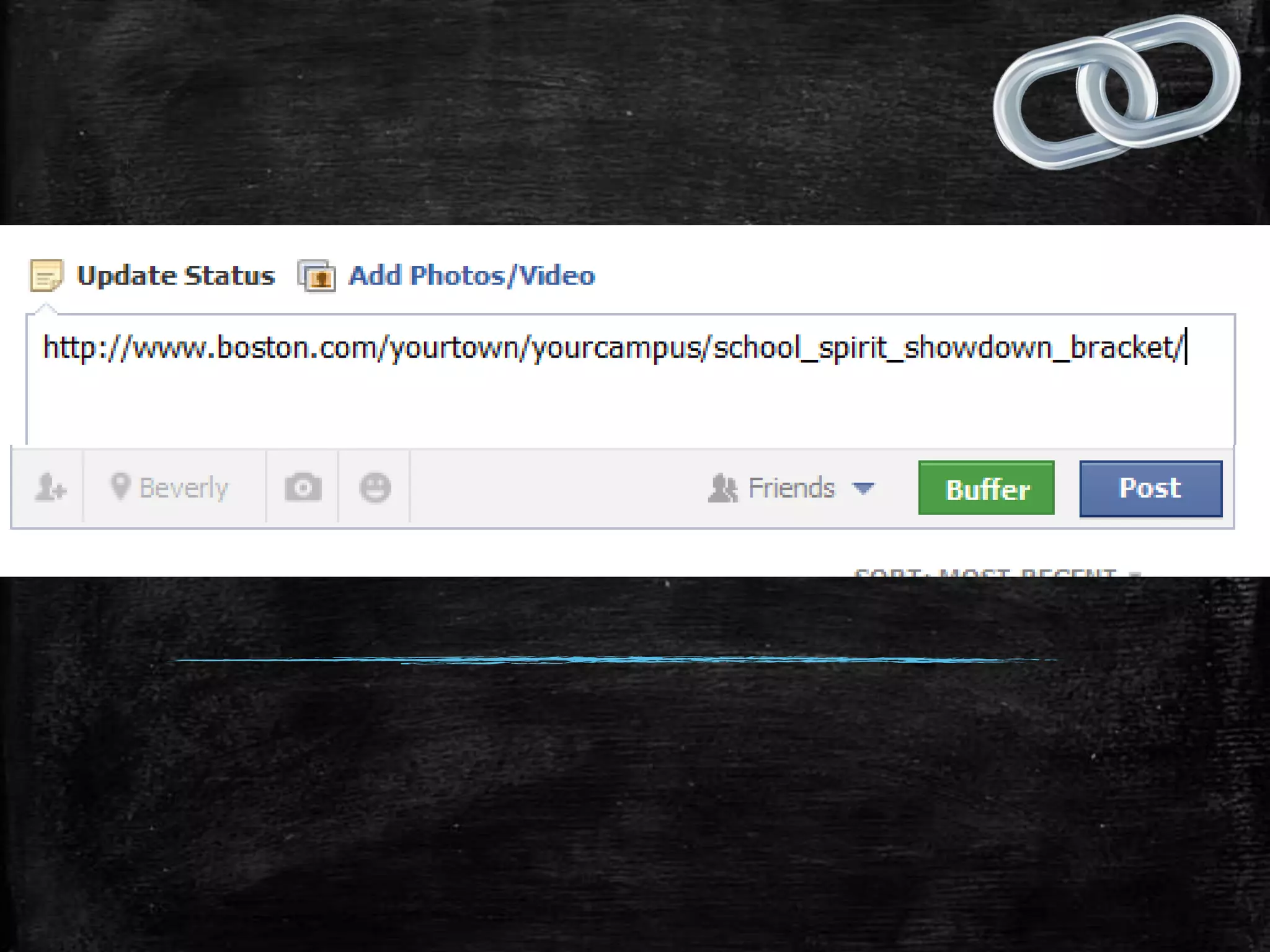
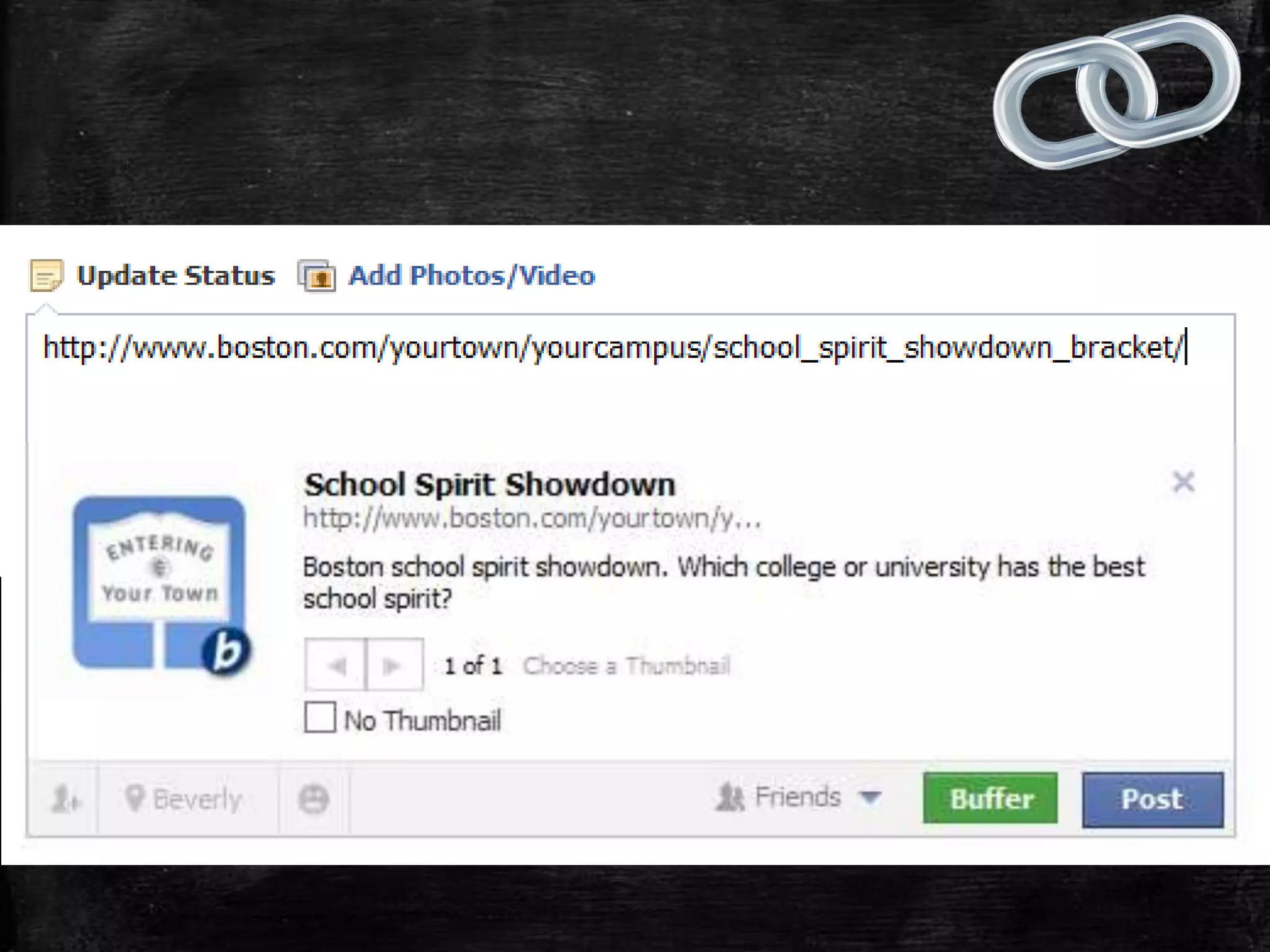
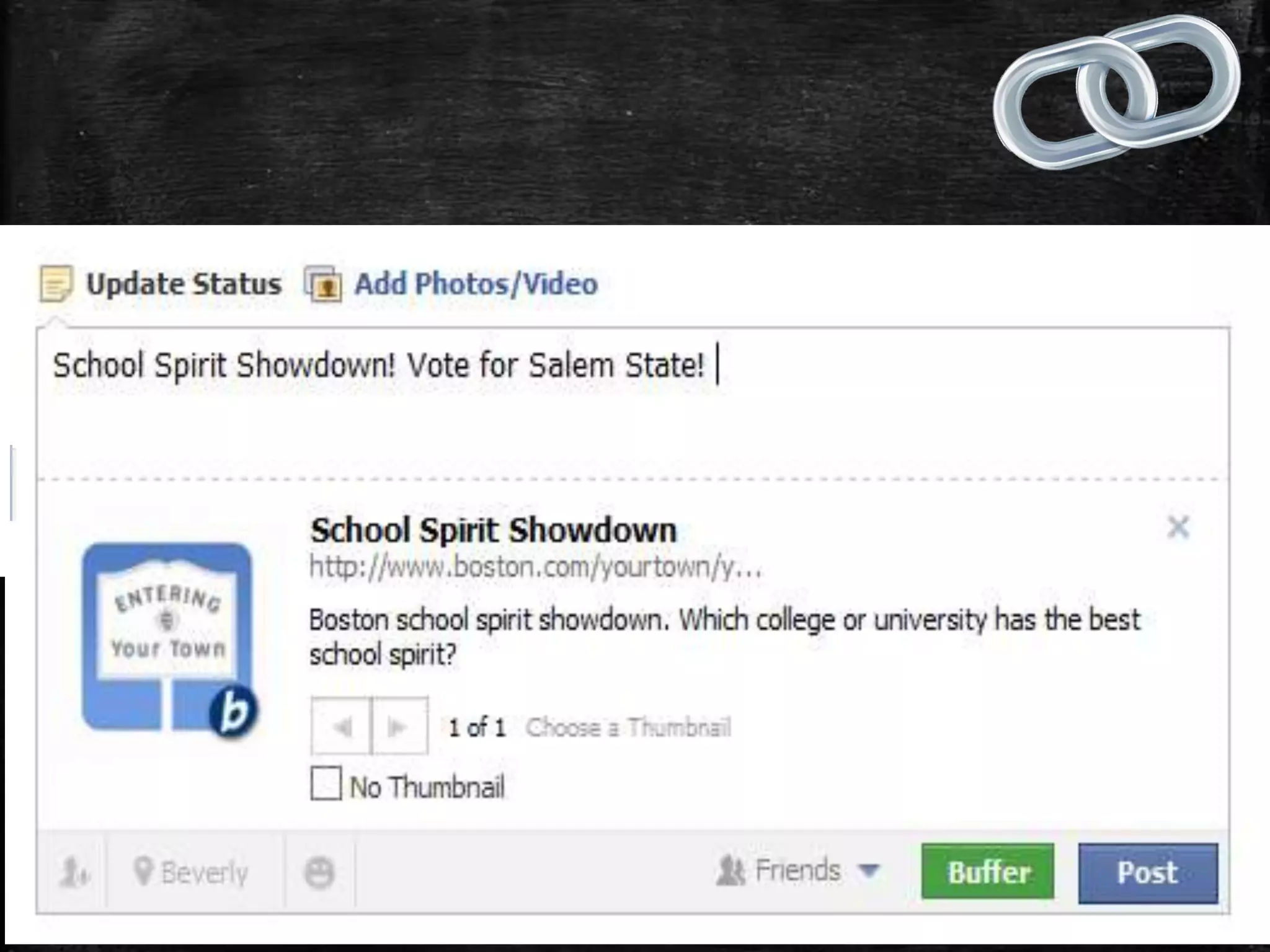
▪ How to Share a Link

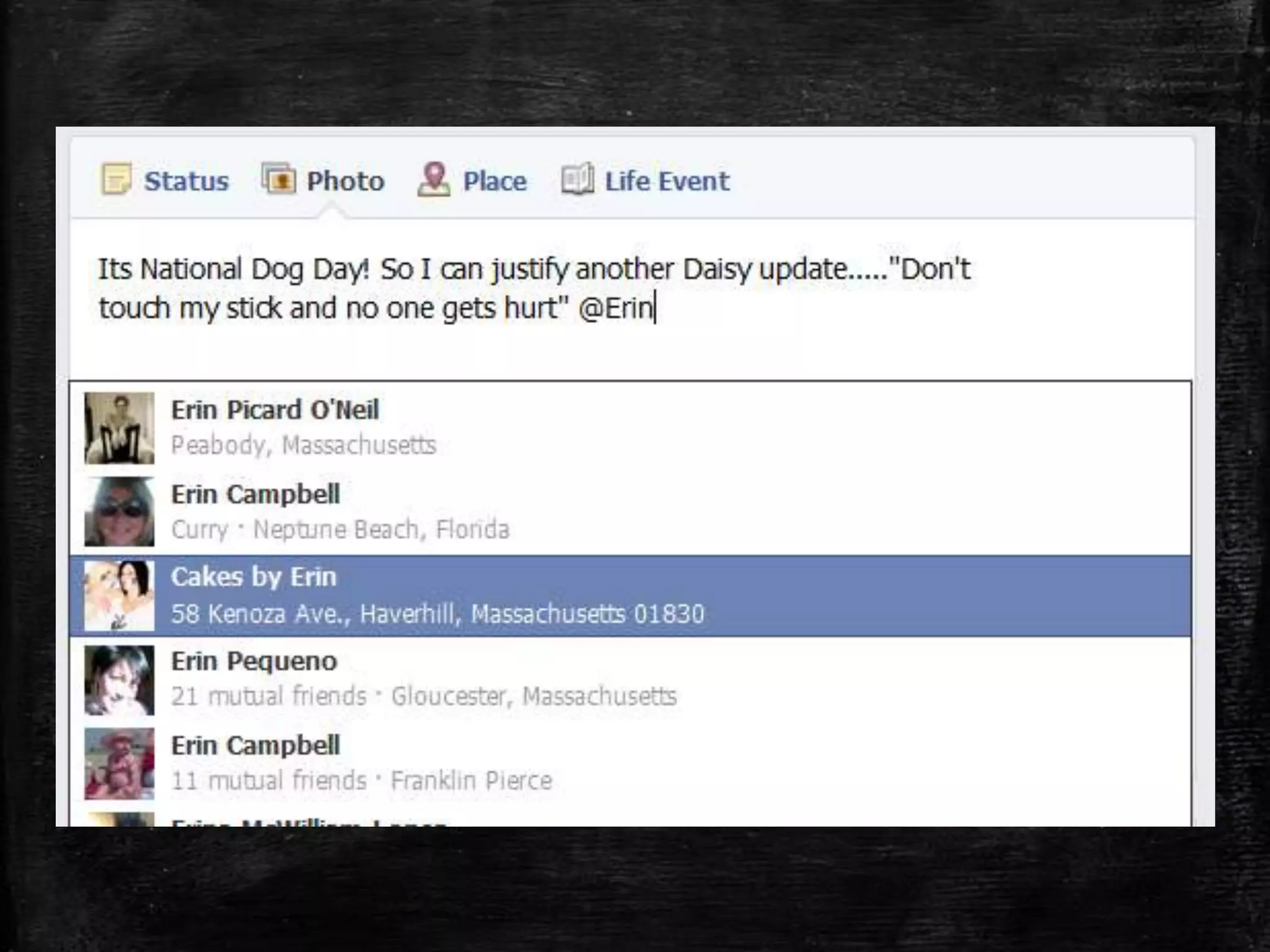
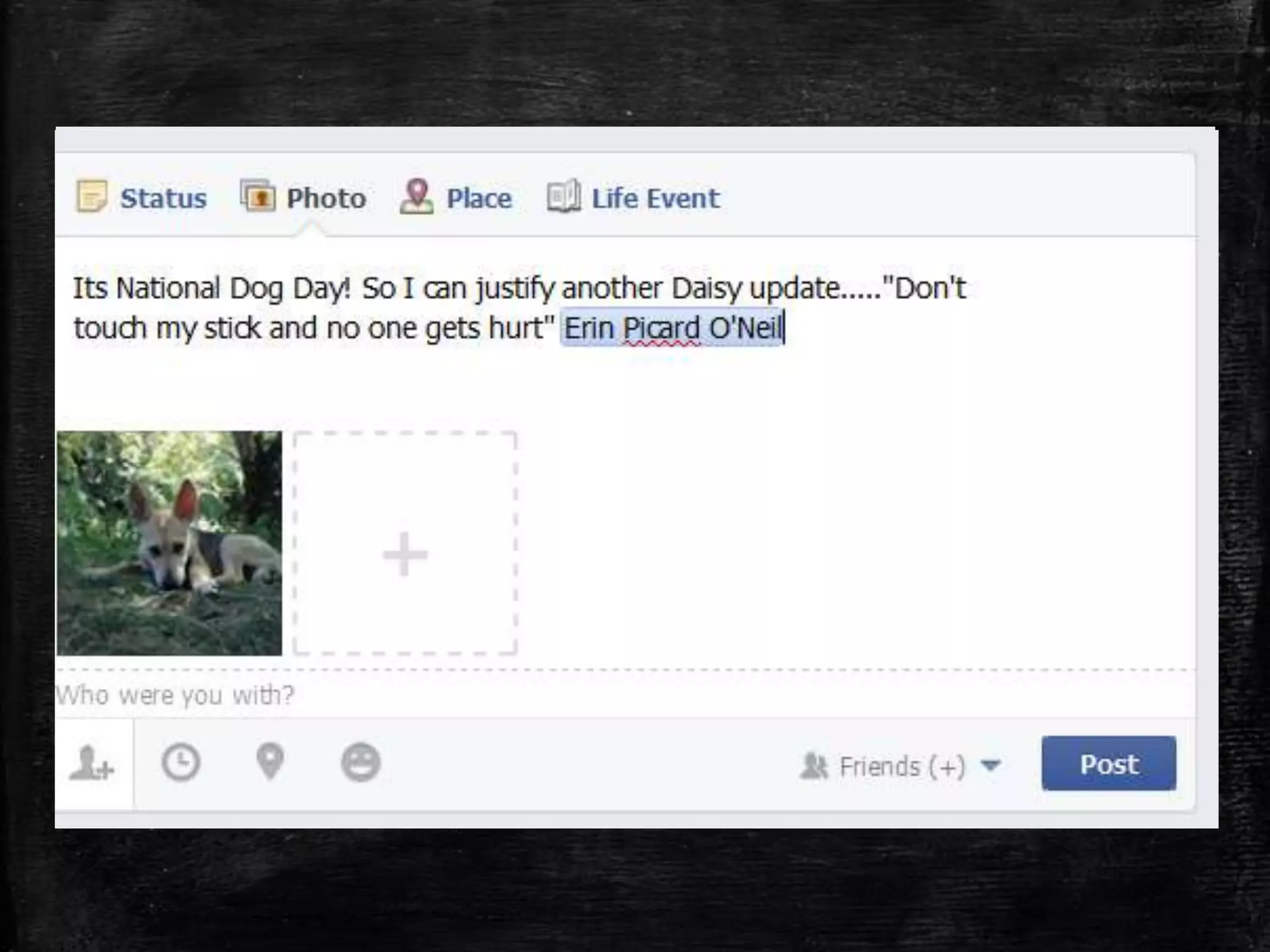
▪ How to Tag a Person
▪ What are Groups?
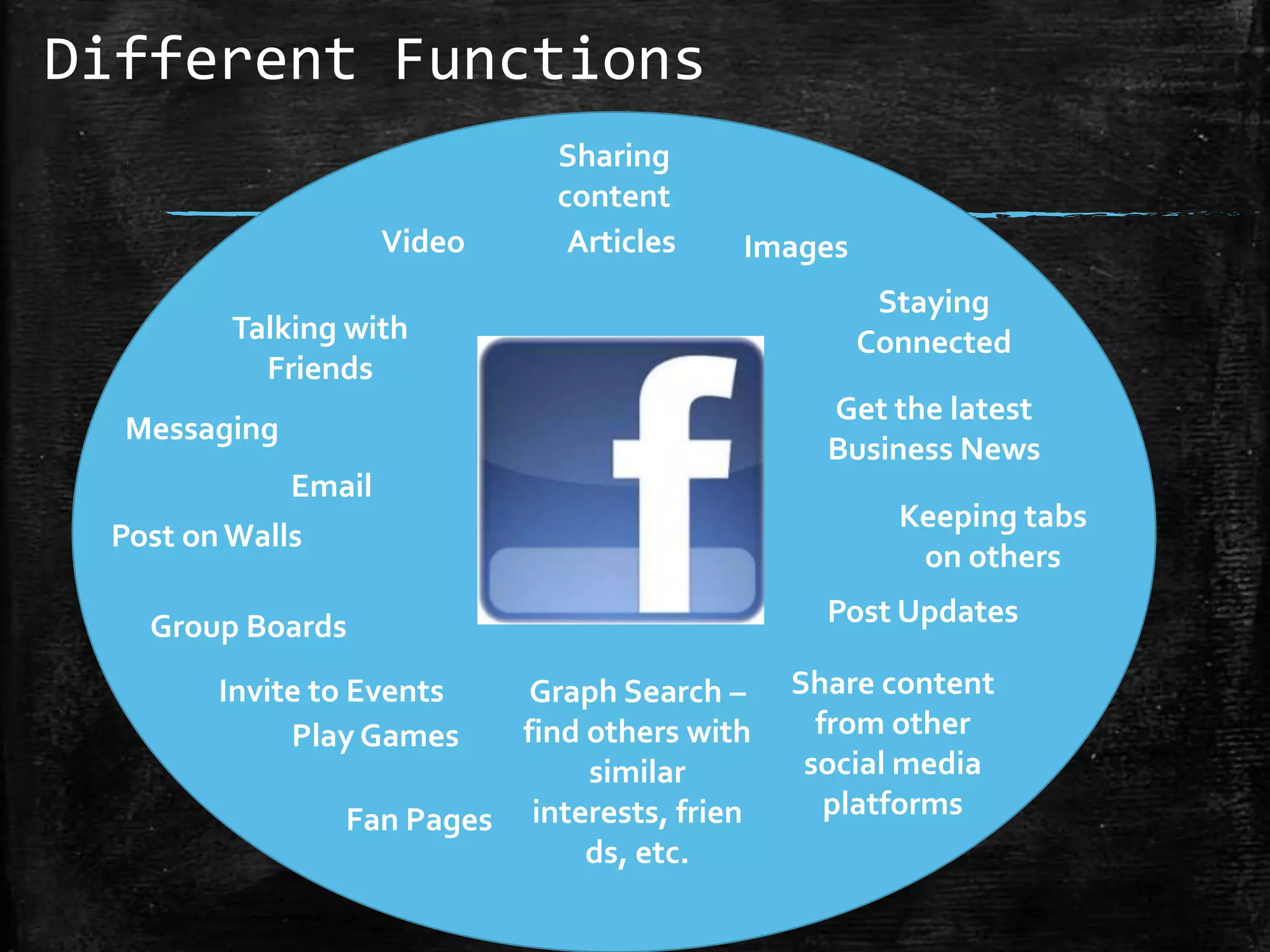
Different Functions
Video

Sharing
content
Articles

Images

Talking with
Friends

Staying
Connected
Get the latest
Business News

Messaging
Email
Post on Walls
Group Boards
Invite to Events
Play Games

Graph Search –
find others with
similar
Fan Pages interests, frien
ds, etc.

Keeping tabs
on others
Post Updates
Share content
from other
social media
platforms
Different Aspects

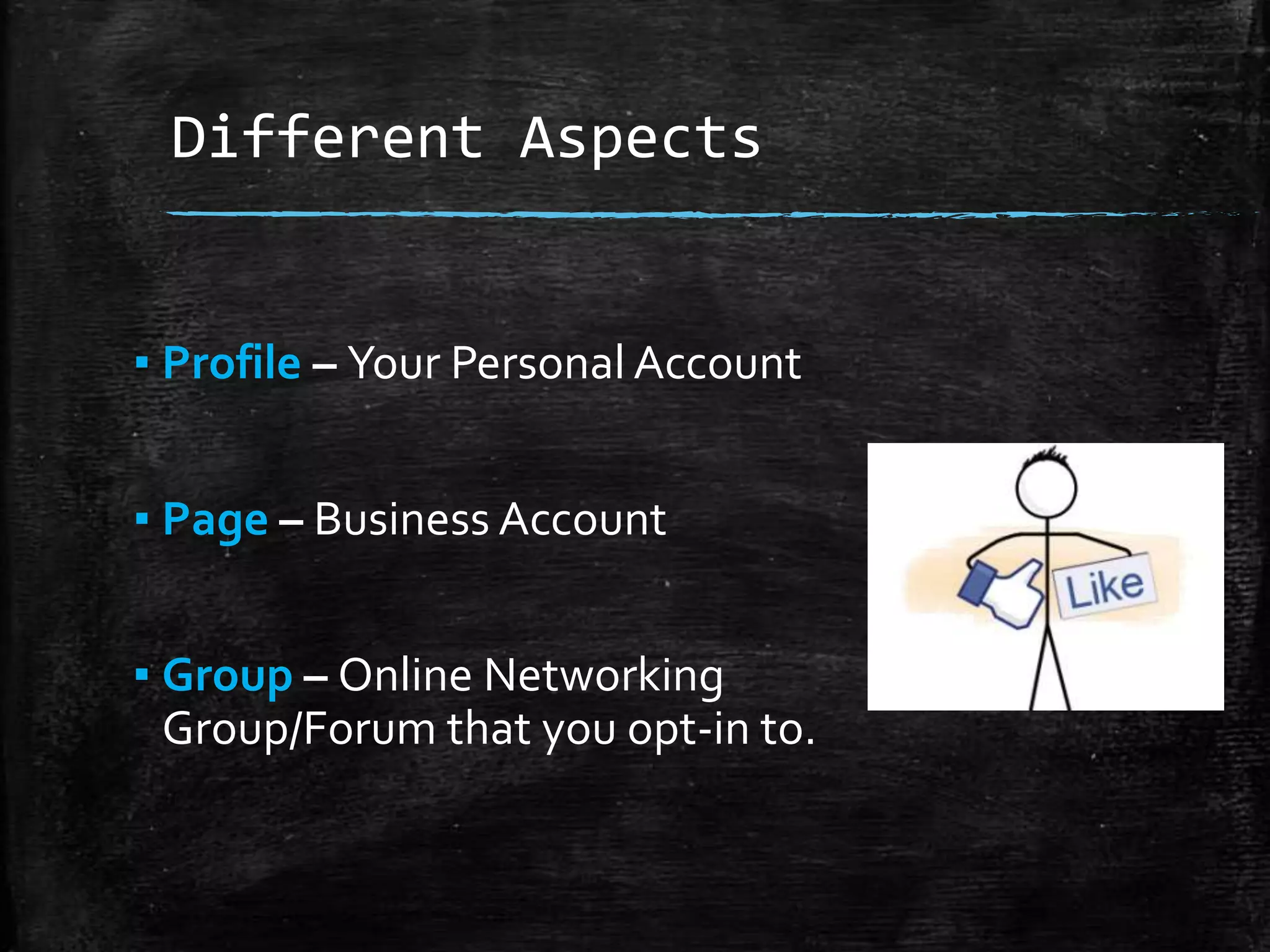
▪ Profile – Your Personal Account
▪ Page – Business Account

▪ Group – Online Networking
Group/Forum that you opt-in to.
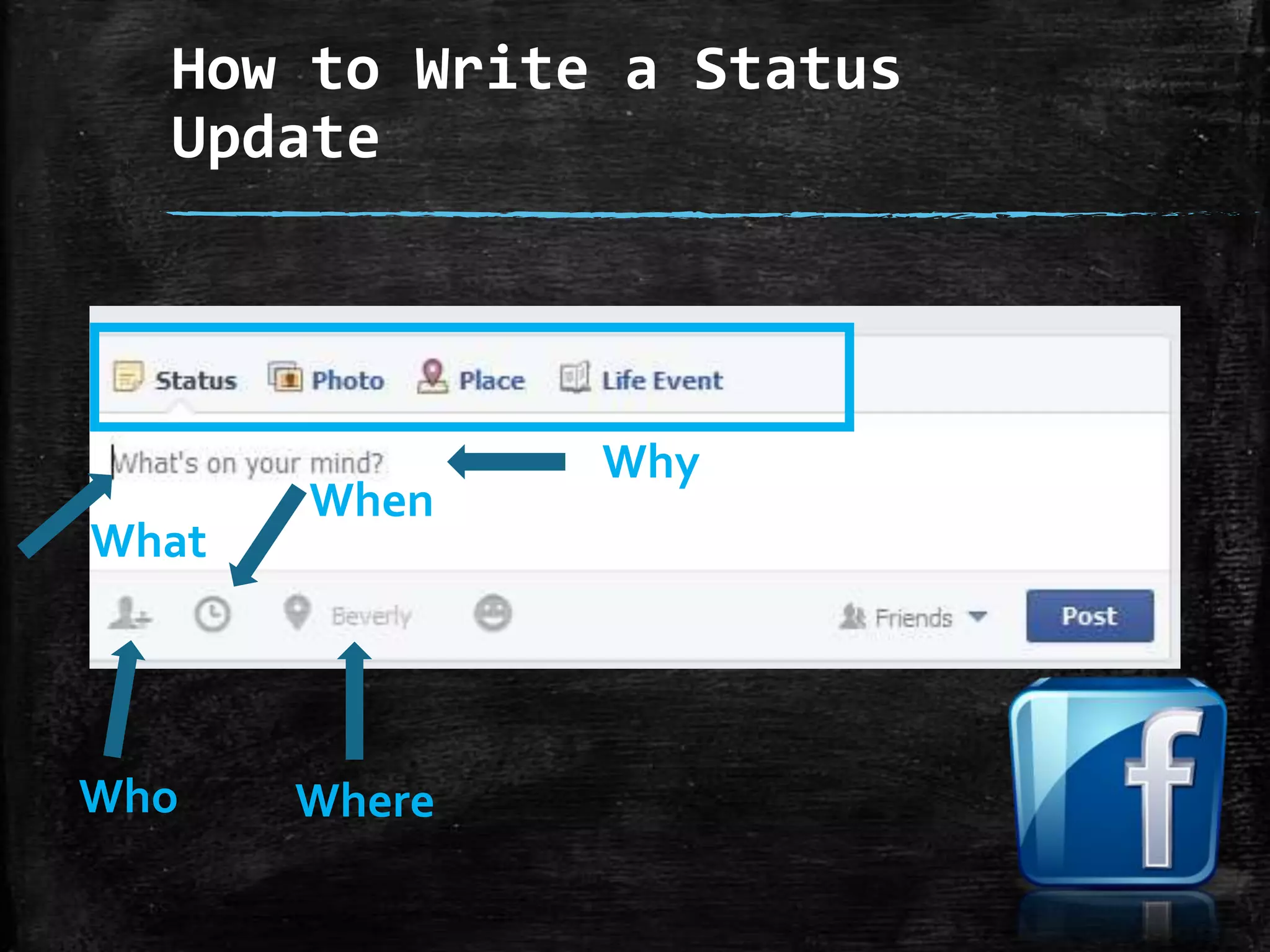
How to Write a Status
Update

What

Who

When

Where

Why
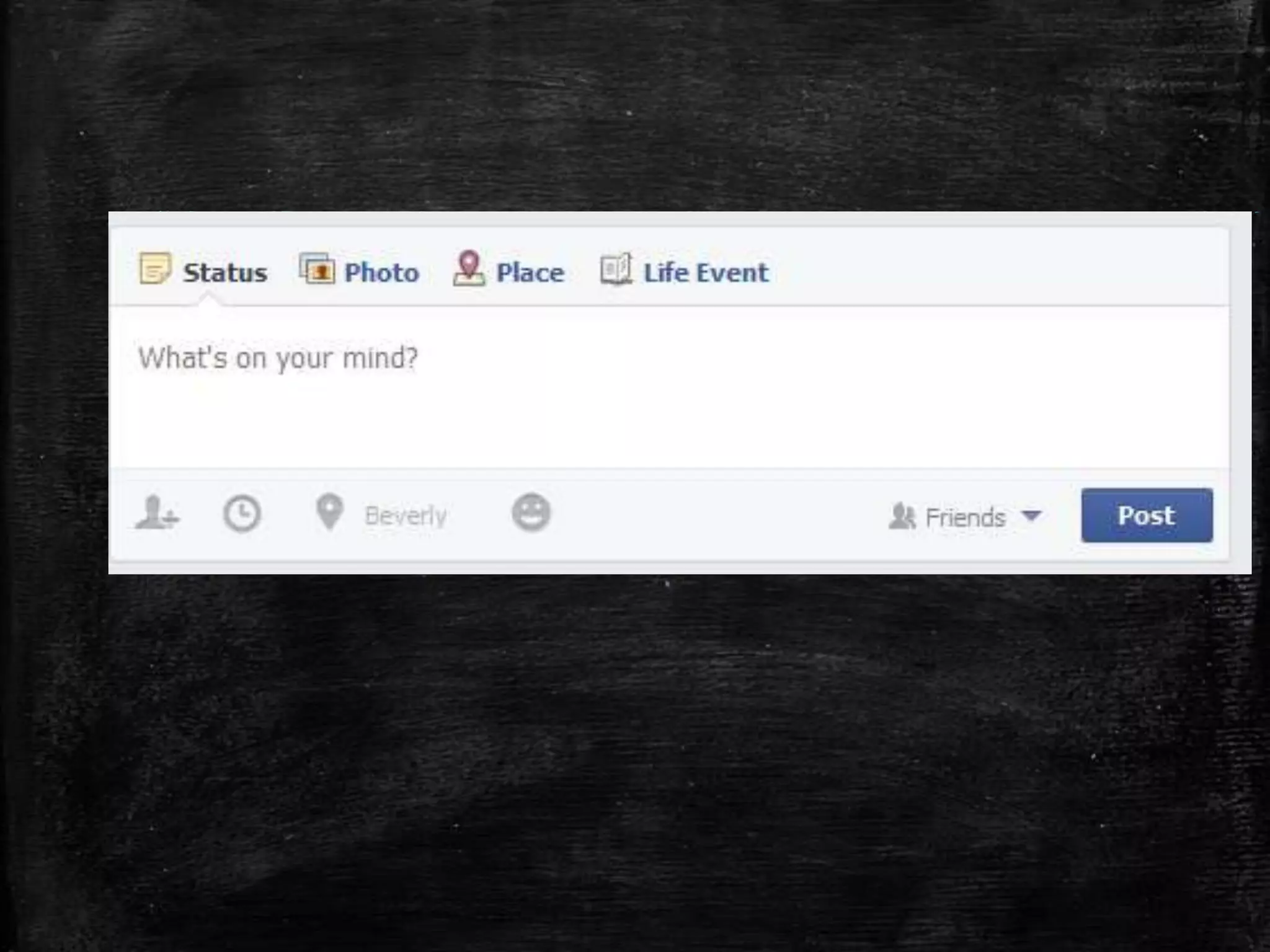
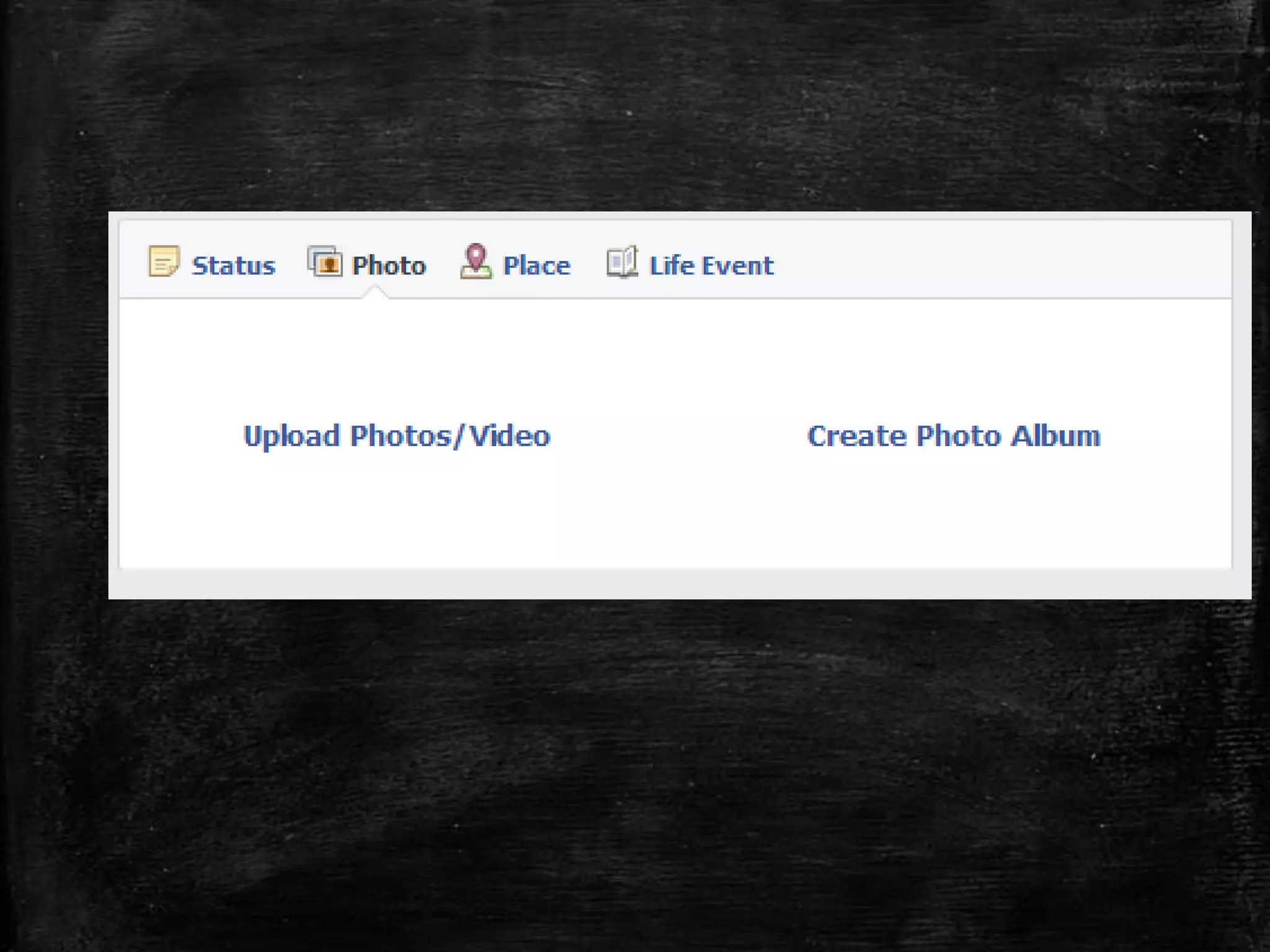
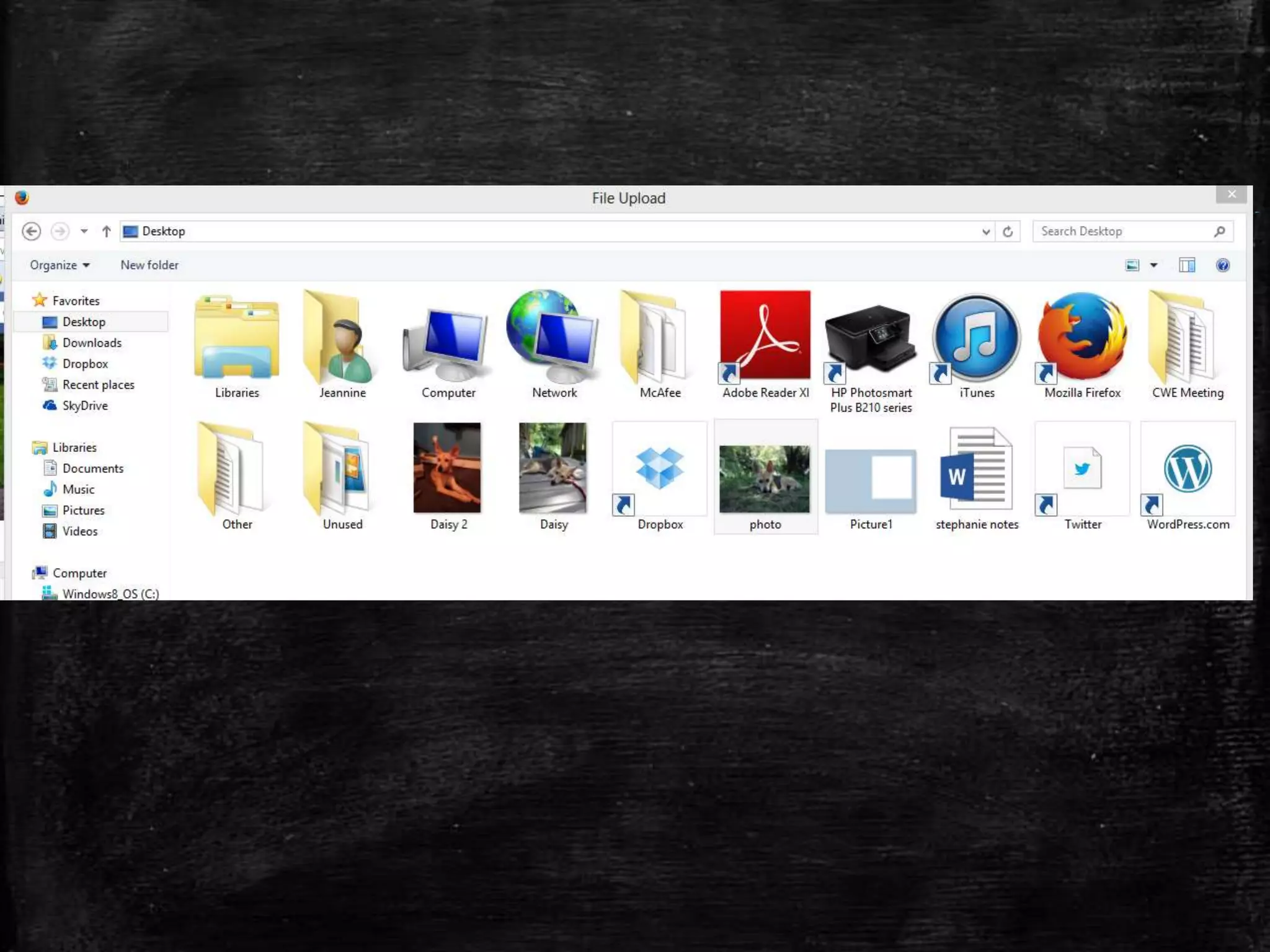
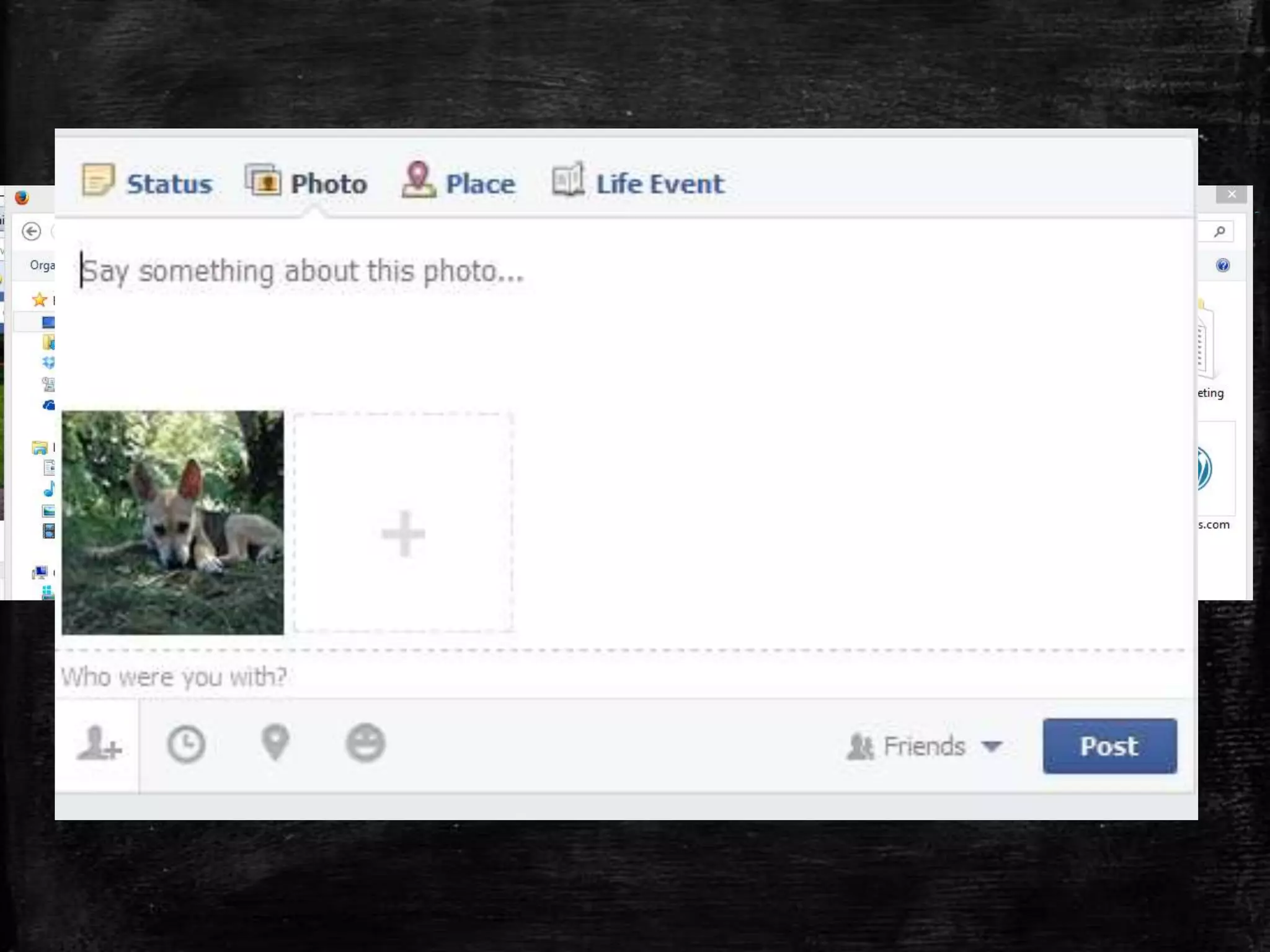
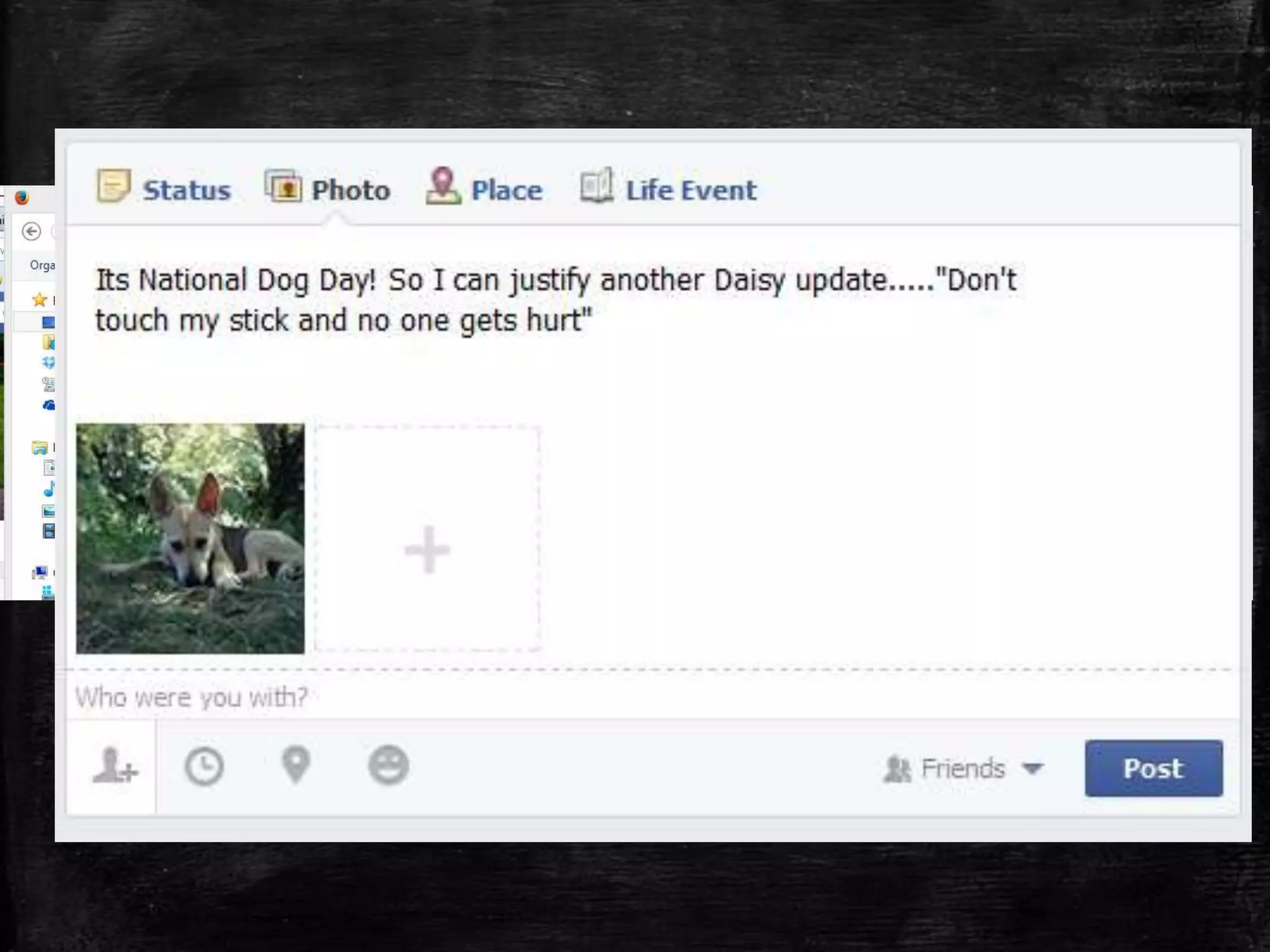
How to Upload a
Photo/Video
How to
Upload a Link
How to
Tag a Photo
What Are Groups?
Facebook Groups
Why Would I Participate?

• Connect students in your classroom
• Host a weekly discussion/question
• Share news, events, articles, assignments, project keys, etc.

• i.e. Chronicle is running a
segment tonight about “topic” –
try and catch it tonight…
Facebook Groups
Why Would I Participate?

Great way to:
• Connect & unify the class
• Make class more interactive
• Develop class discussions through tools

• Keep class on their toes 24/7 access.
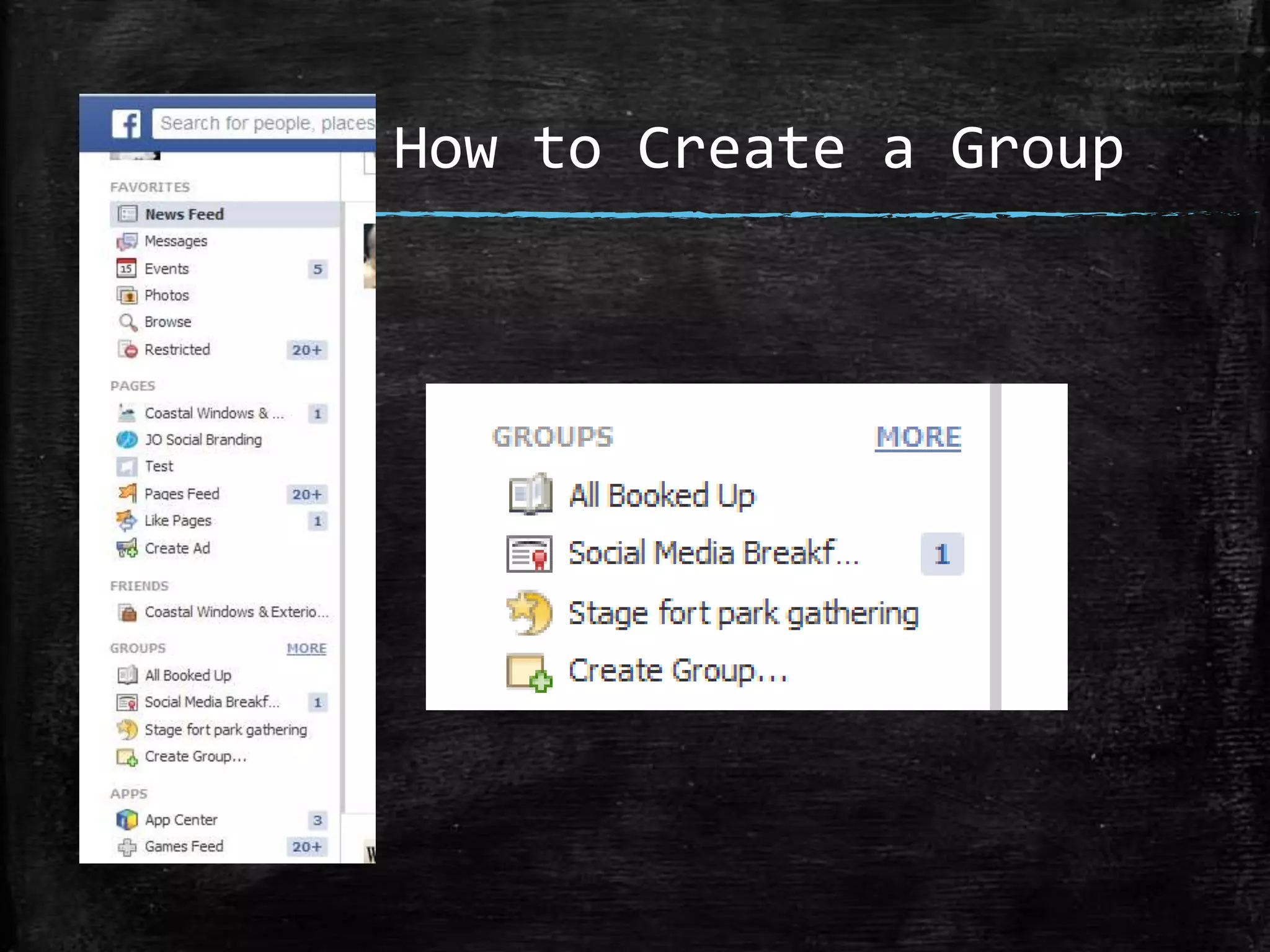
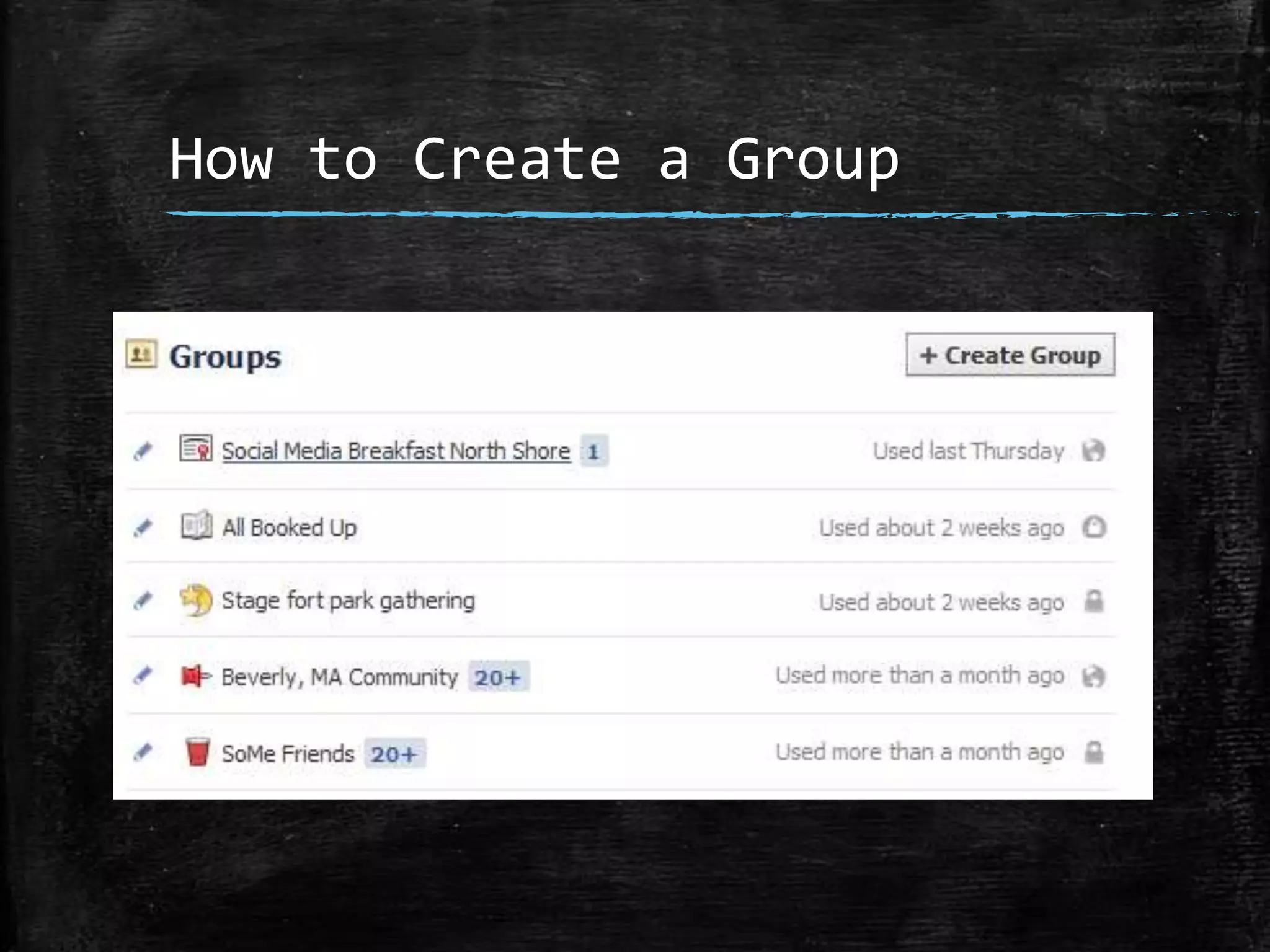
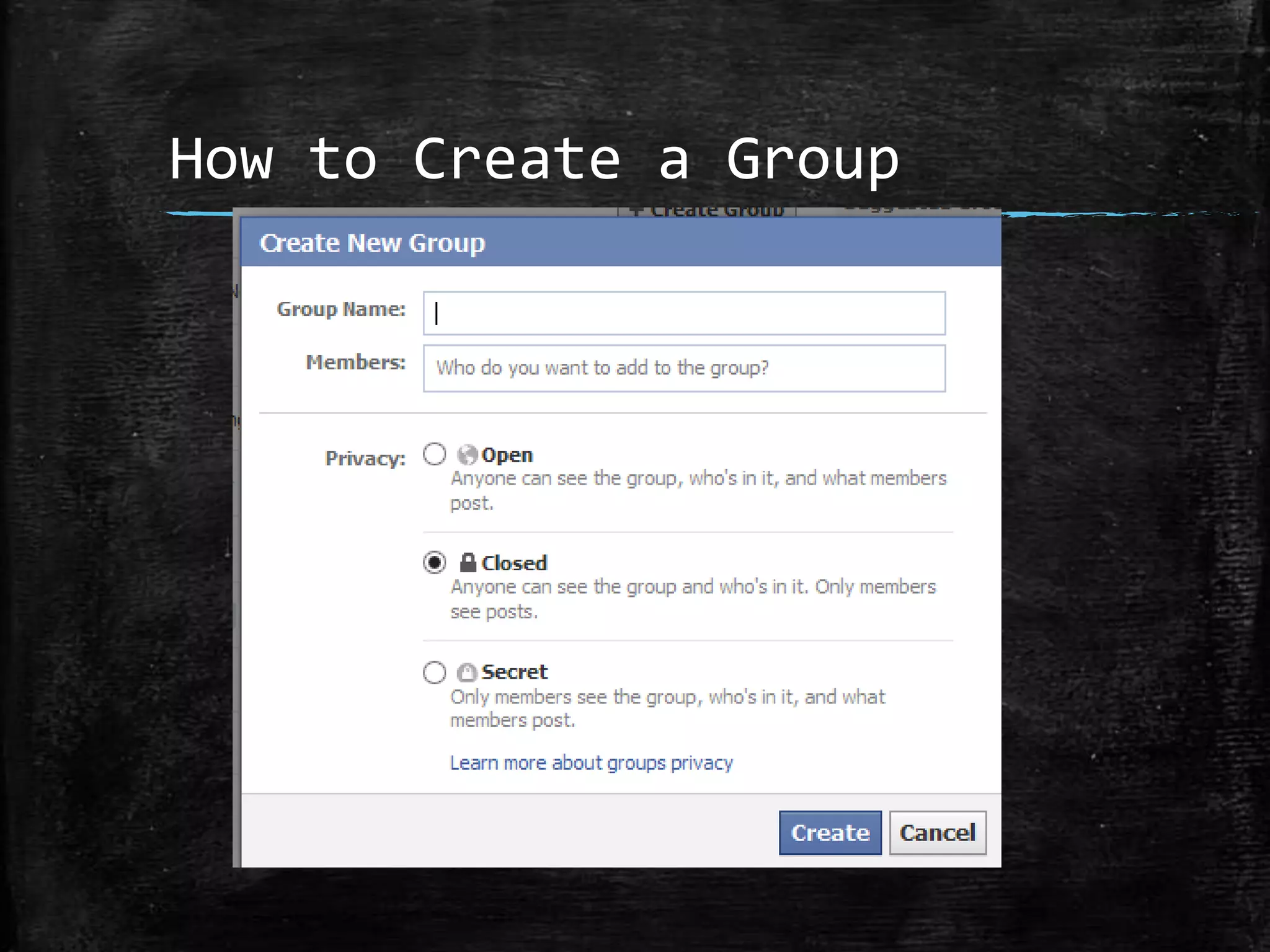
How to Create a Group
How to use Facebook to
Promote
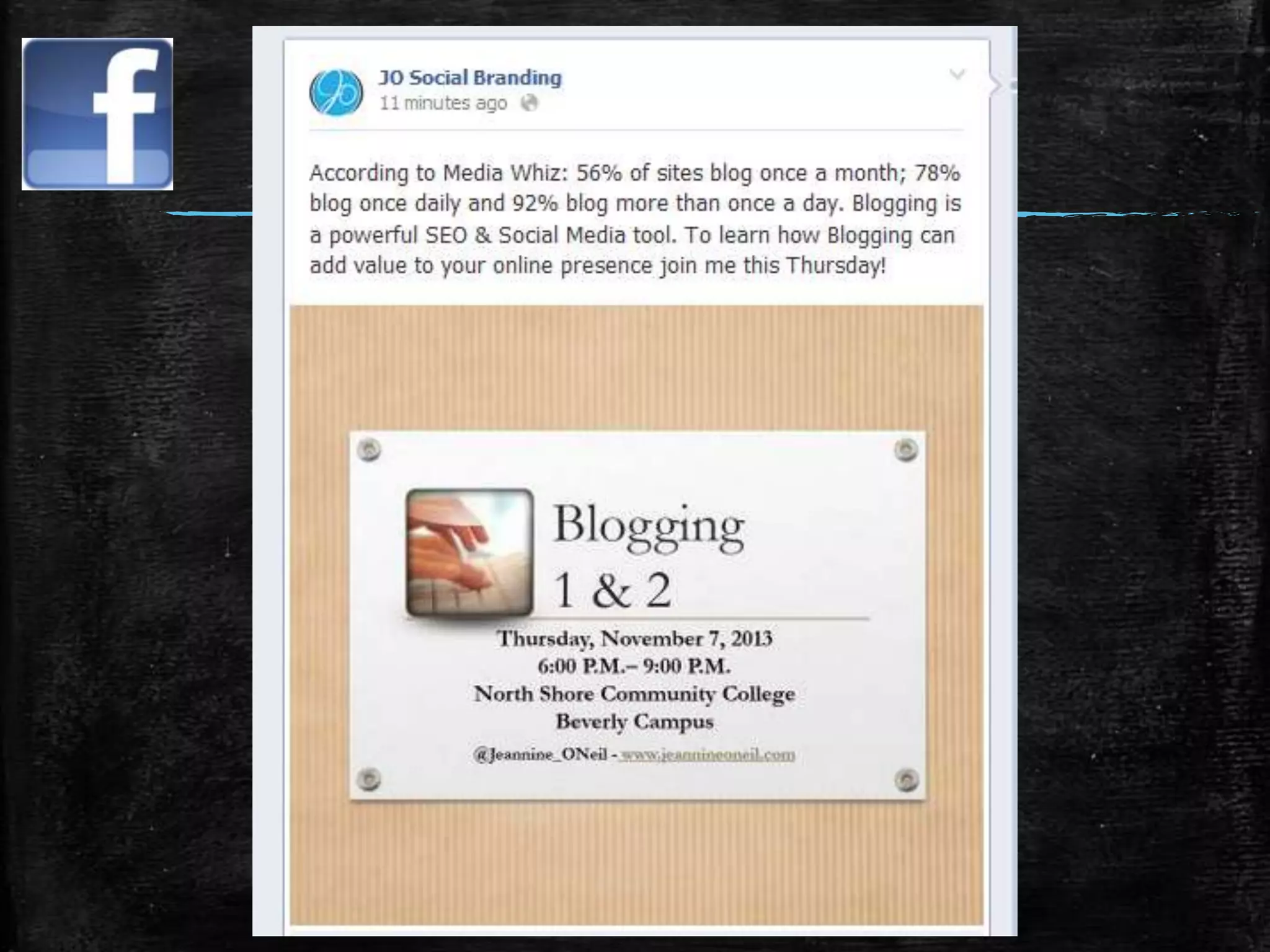
▪ Share course registration link.
▪ Take picture of presentation and
share as photo.
▪ Take a video and post about class
with link.
How to use Facebook to
Promote
▪ Share article Infographic.
▪ Post Slideshare link after class.
▪ Post Blog.
▪ Post Picture of class.
Twitter
Twitter
▪ What is Twitter/What is a Tweet
▪ How to Write a Tweet.
▪ How to Post a Picture.
▪ How to Share a Link?
▪ What are Hashtags and How Do I Use
Them?
▪ How To Correspond with Others.
What Is Twitter?
Twitter – What Is It?
Twitter is a social media information network and
microblogging service that allows users to “tweet” messagesbased posts of up to 140 characters.

Twitter’s mission is to create “a real-time information network
that connects you to the latest stories, ideas, opinions and
news about what you find interesting.” (twitter.com)
Twitter –
Why Would I Use It?

▪ You can share:

• Breaking News
• School/Class Updates
• Blog posts/website links/course registration links

• Business-related media (photos, articles, videos)
• Build relationships and communicate with students
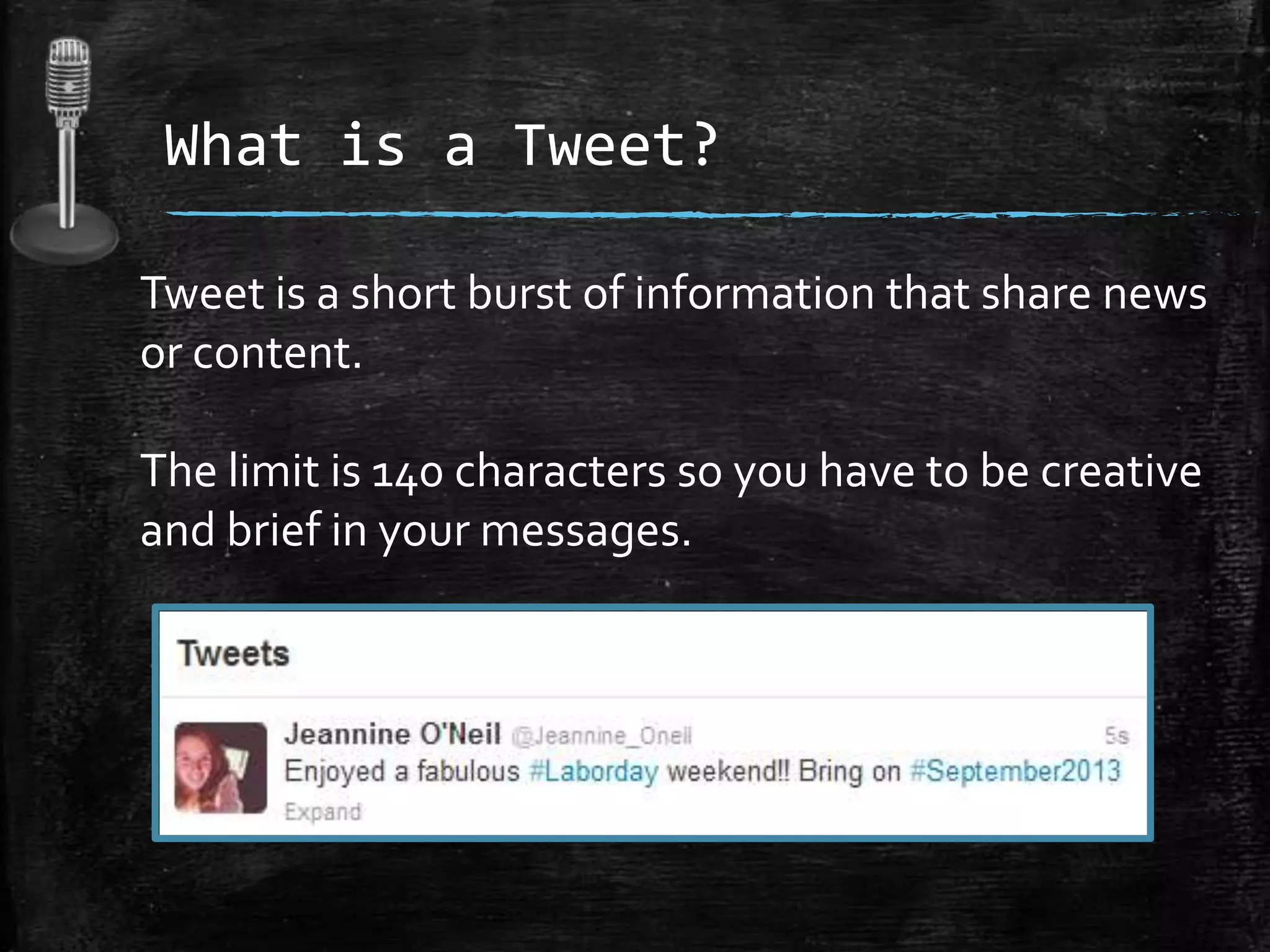
What Is A Tweet?
What is a Tweet?
Tweet is a short burst of information that share news
or content.

The limit is 140 characters so you have to be creative
and brief in your messages.
Hashtags (#) 101
What is a Hashtag (#)?

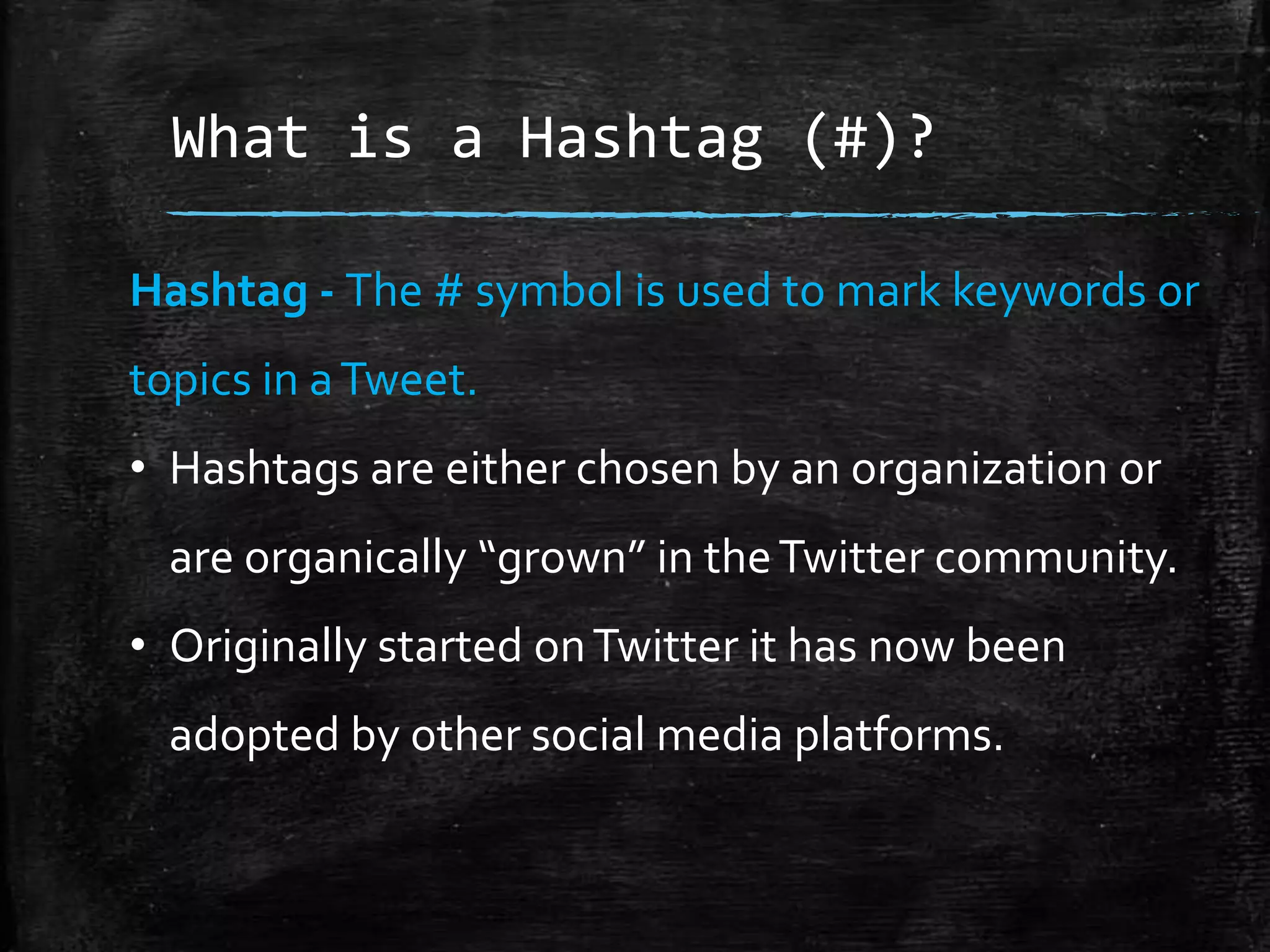
Hashtag - The # symbol is used to

mark keywords or topics in a Tweet.
What is a Hashtag (#)?
Hashtag - The # symbol is used to mark keywords or
topics in a Tweet.
• By marking a term/topic with a # it then becomes

searchable on Twitter.
• A way to track conversations surrounding a specific
topic.
What is a Hashtag (#)?
Hashtag - The # symbol is used to mark keywords or
topics in a Tweet.
• Hashtags are either chosen by an organization or

are organically “grown” in the Twitter community.
• Originally started on Twitter it has now been
adopted by other social media platforms.
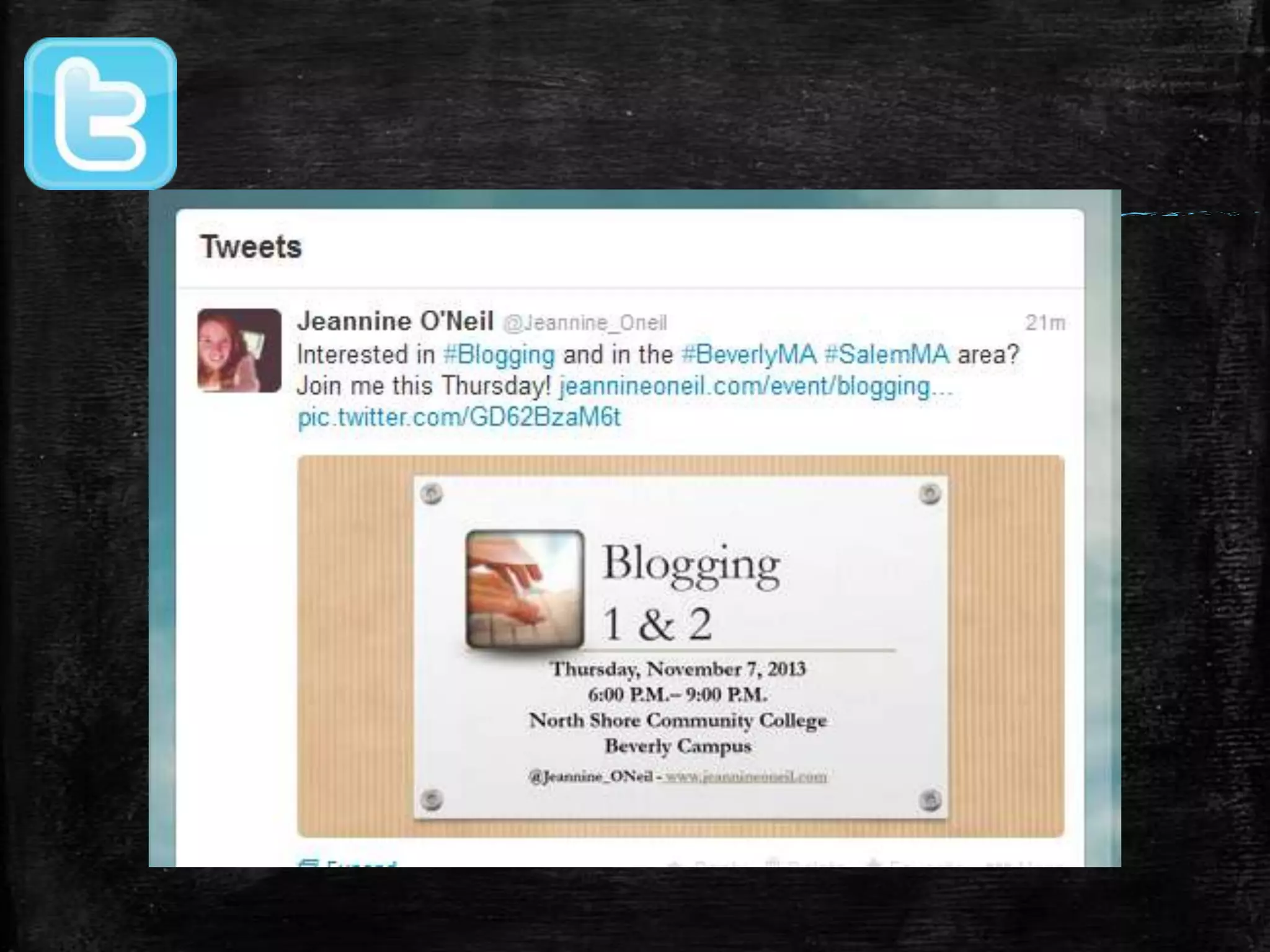
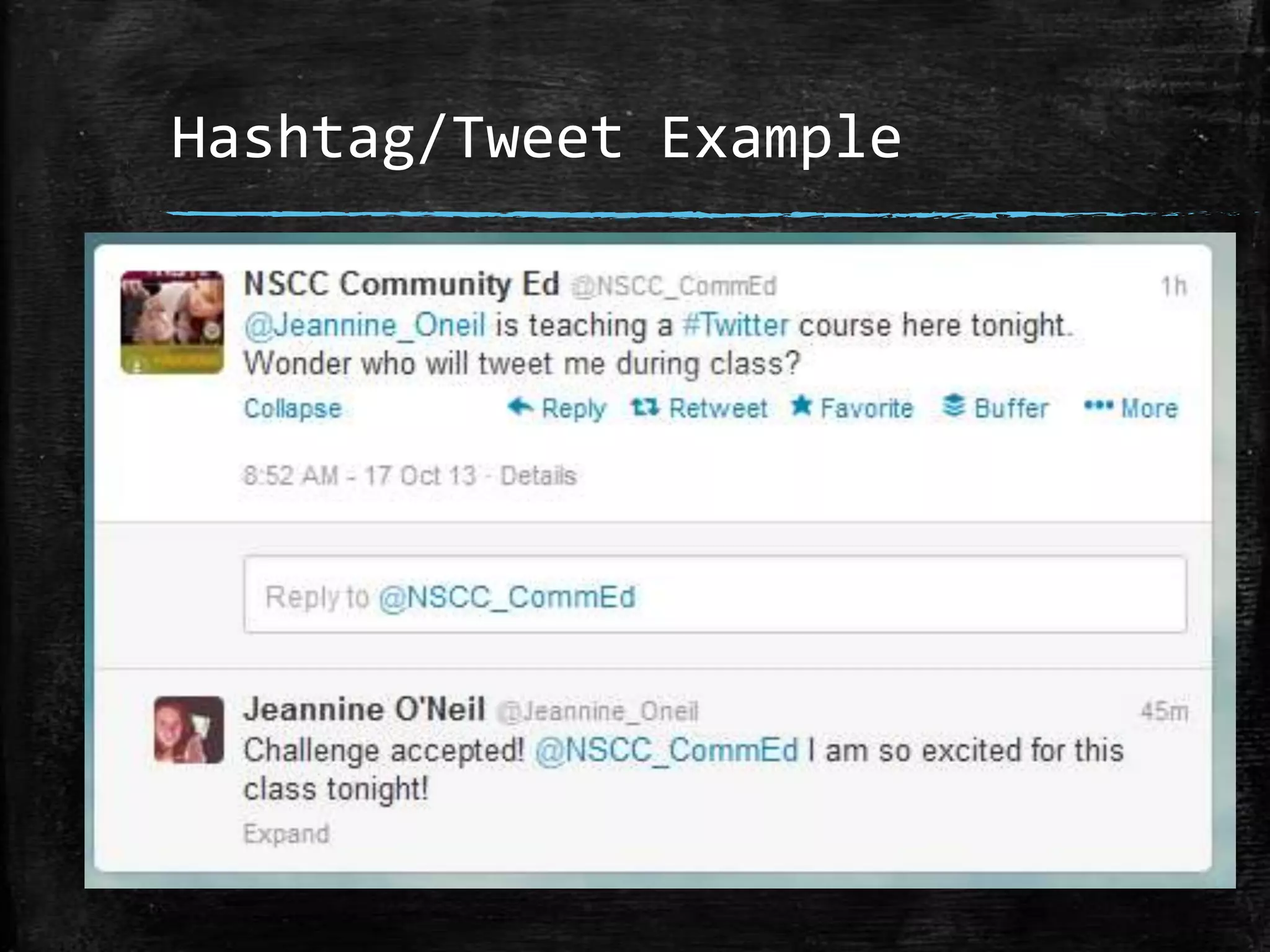
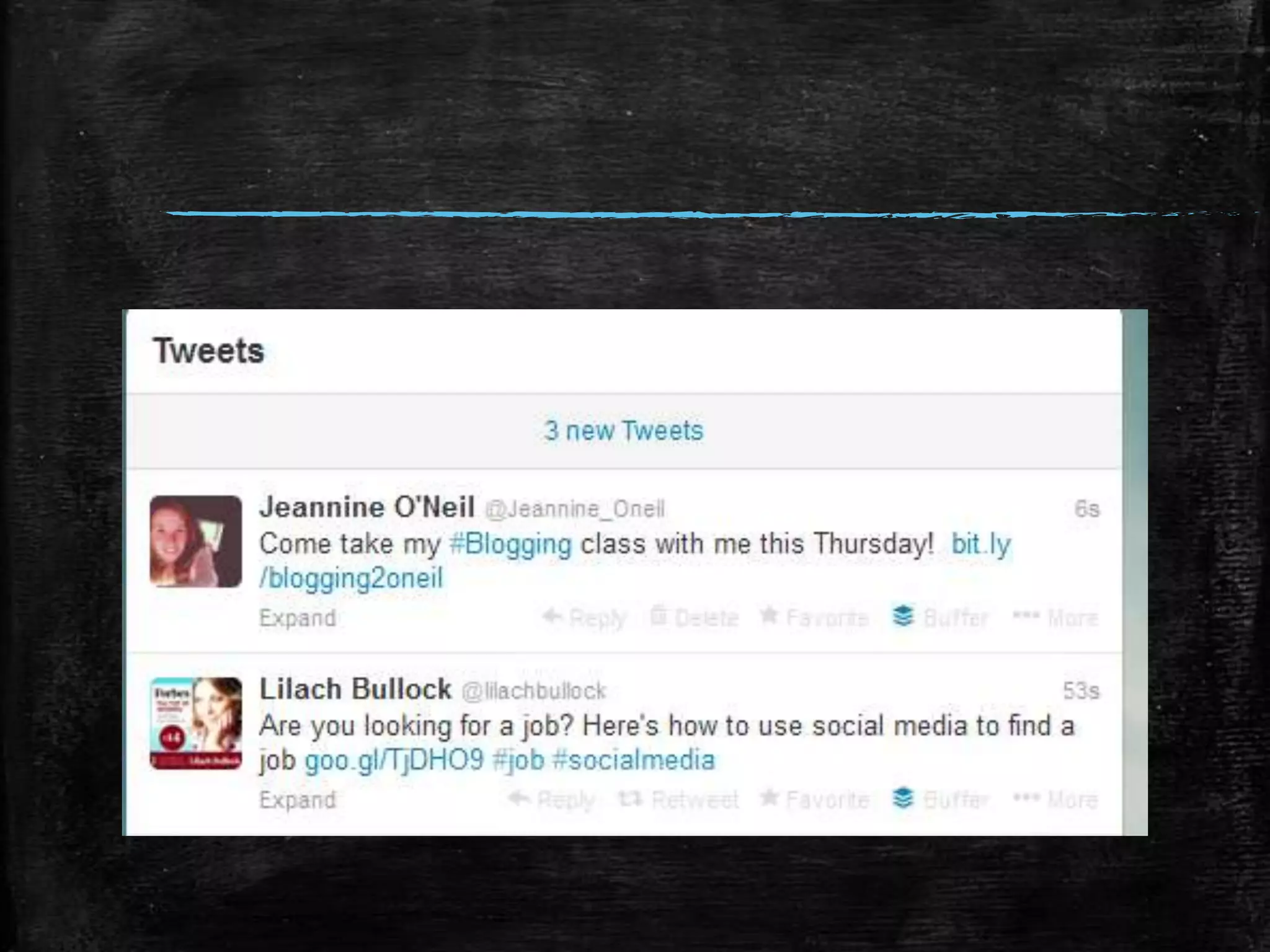
Hashtag/Tweet Example
Composing
a Tweet
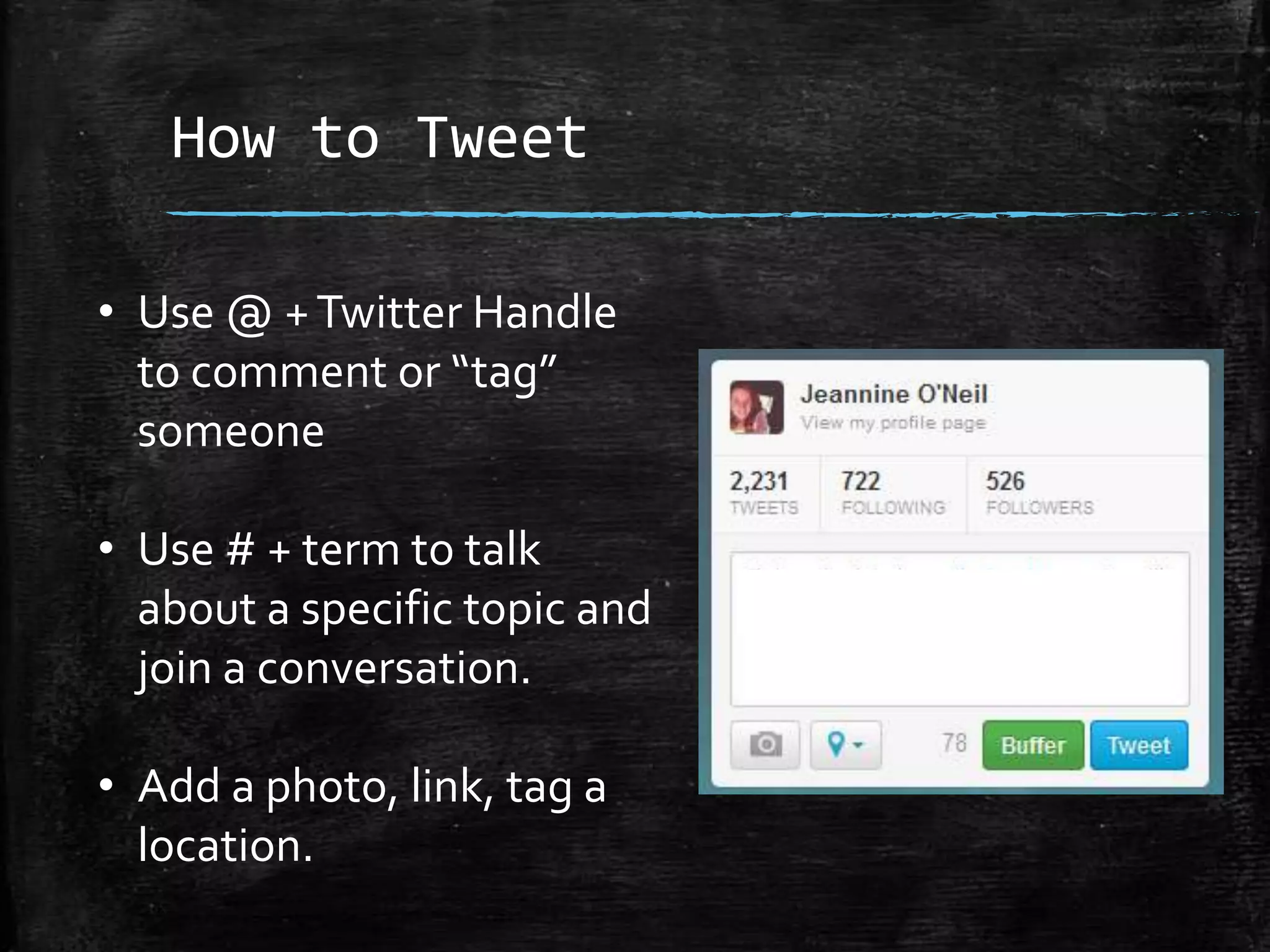
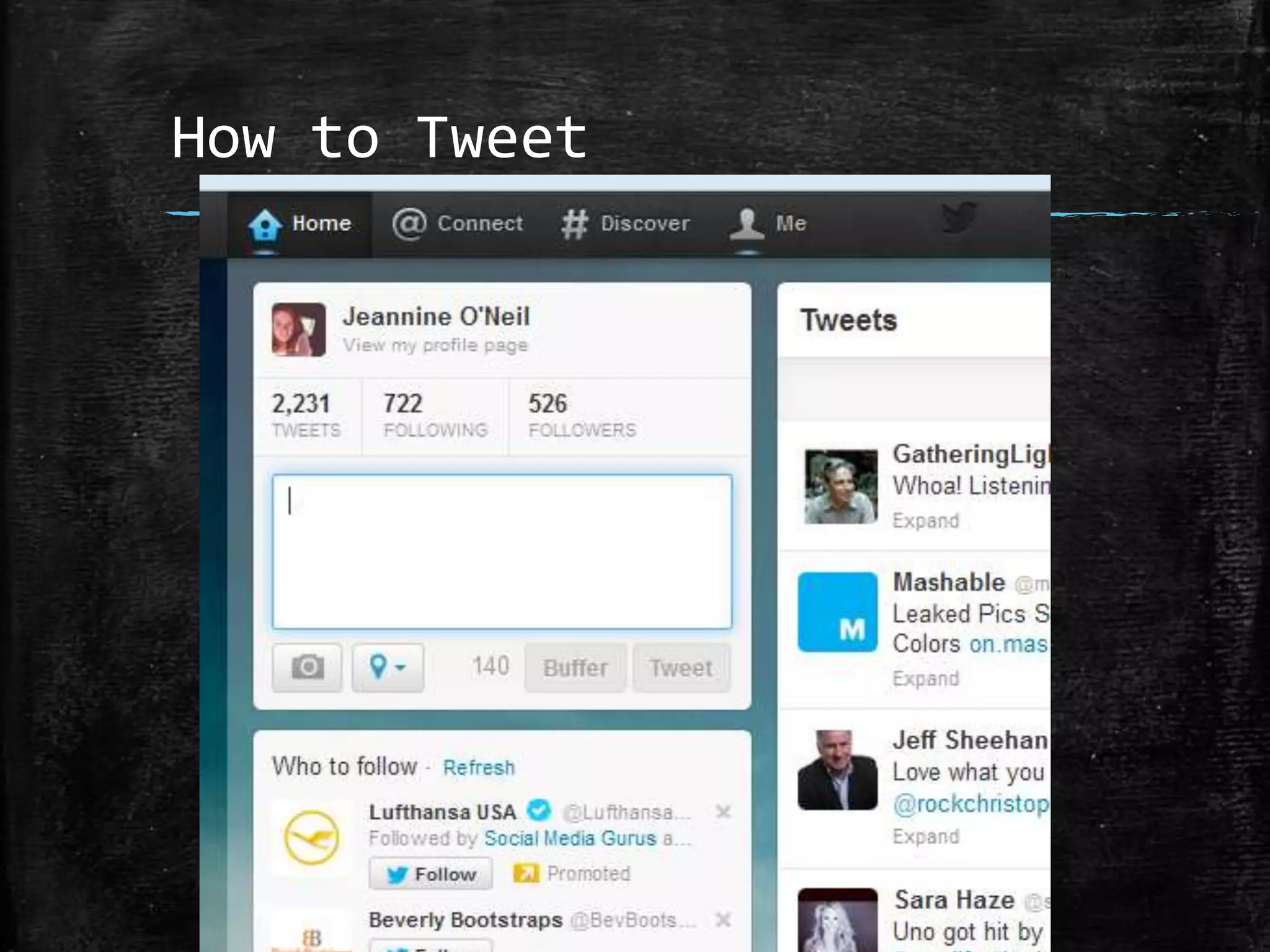
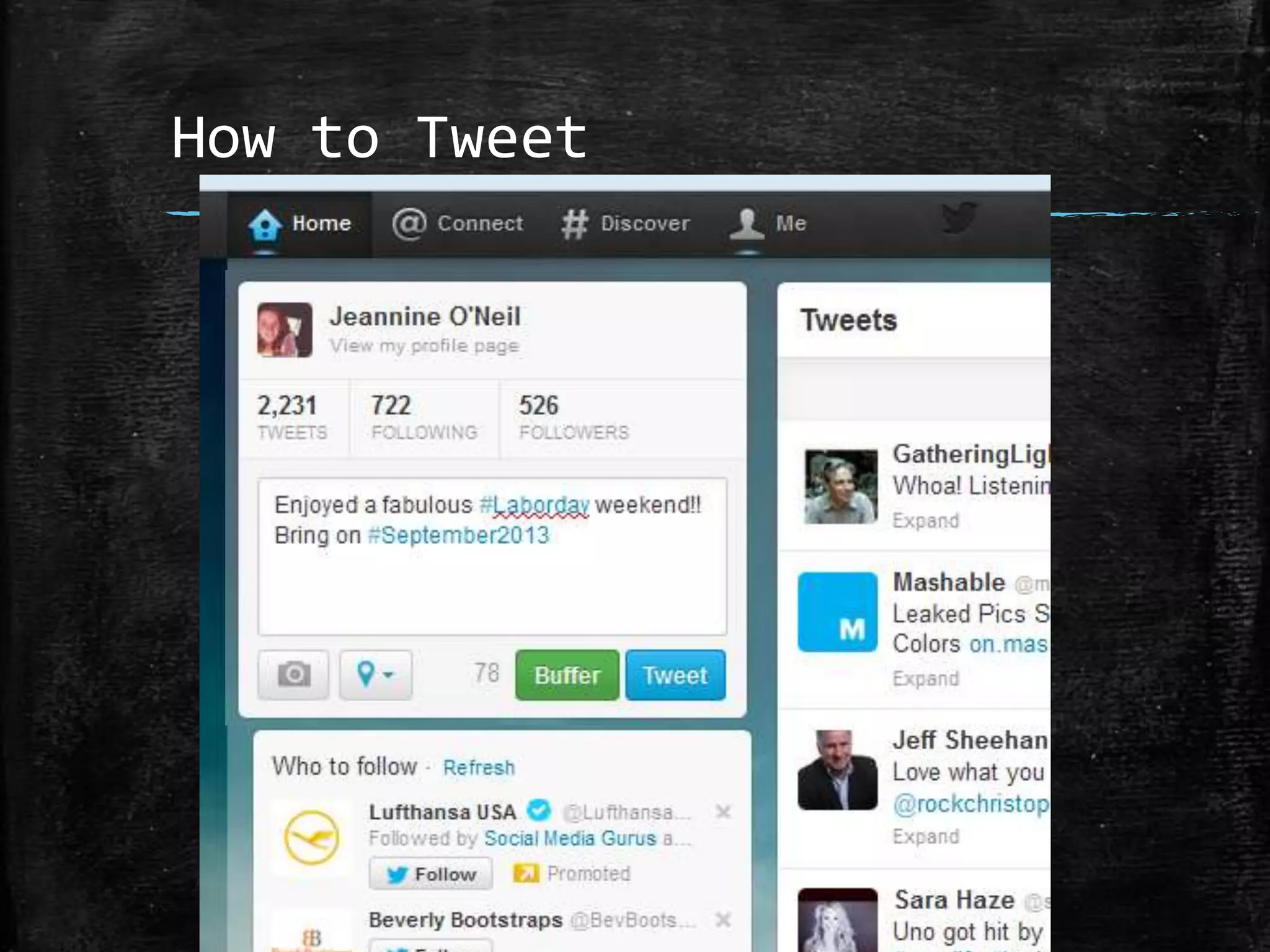
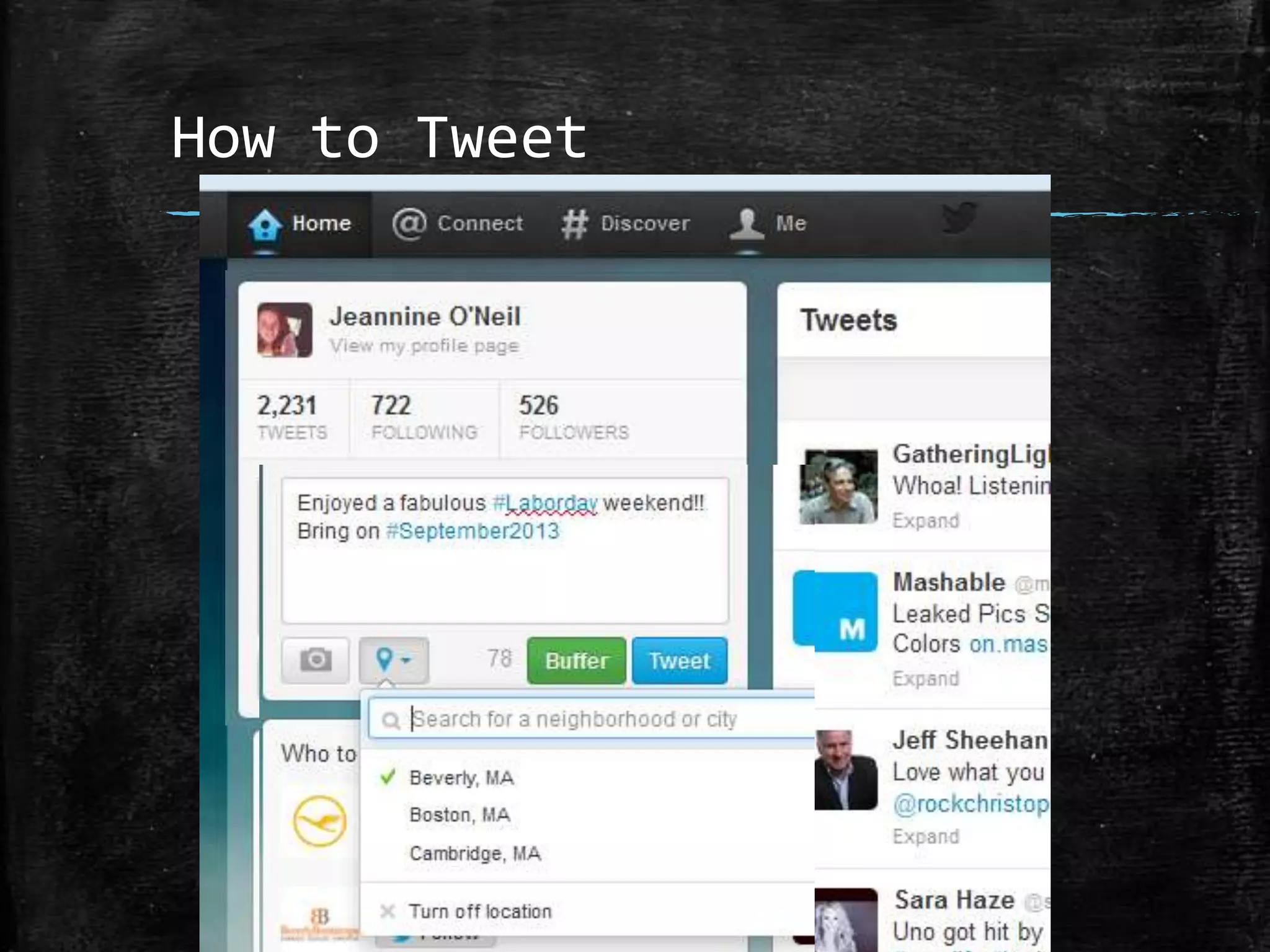
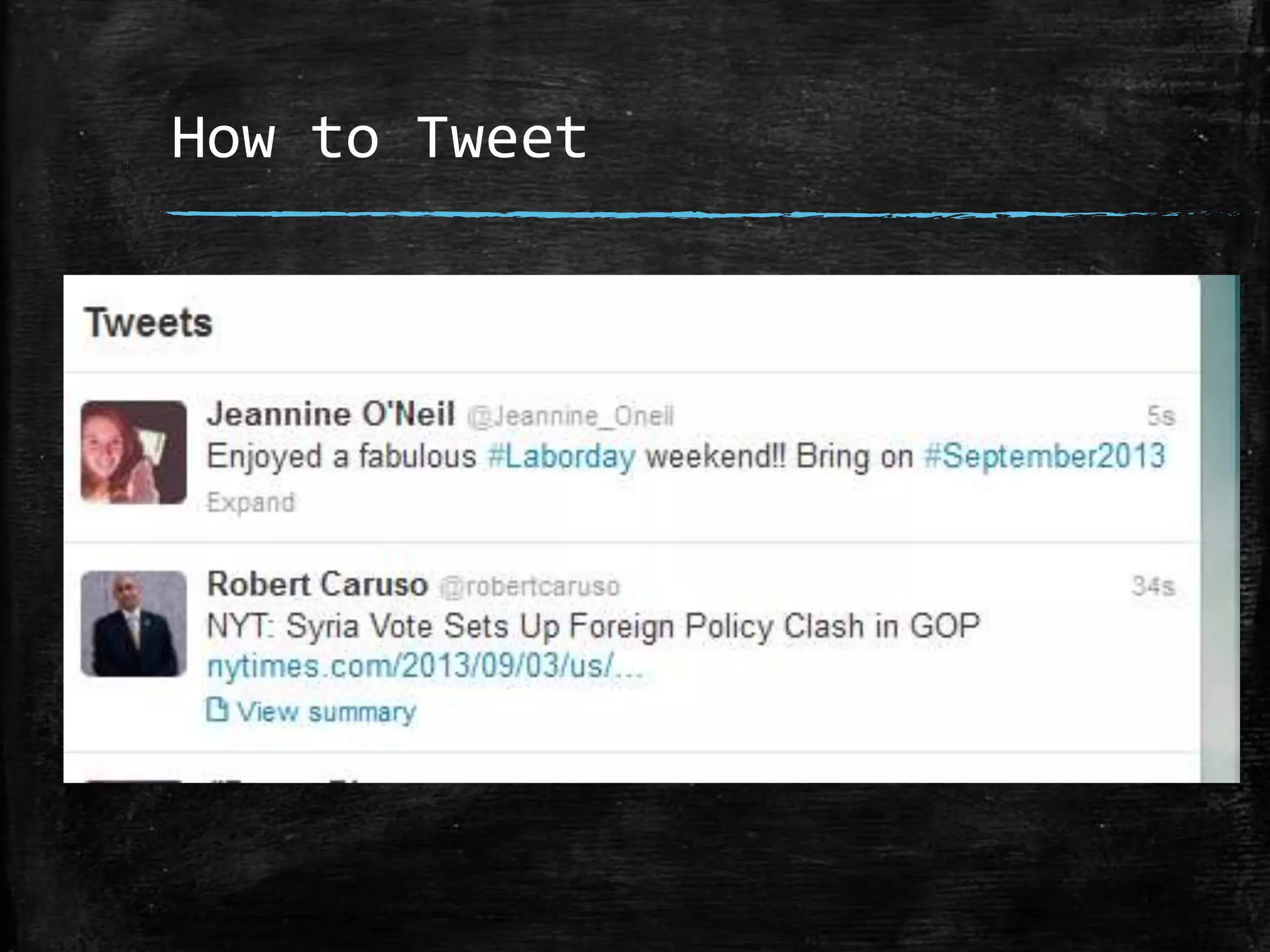
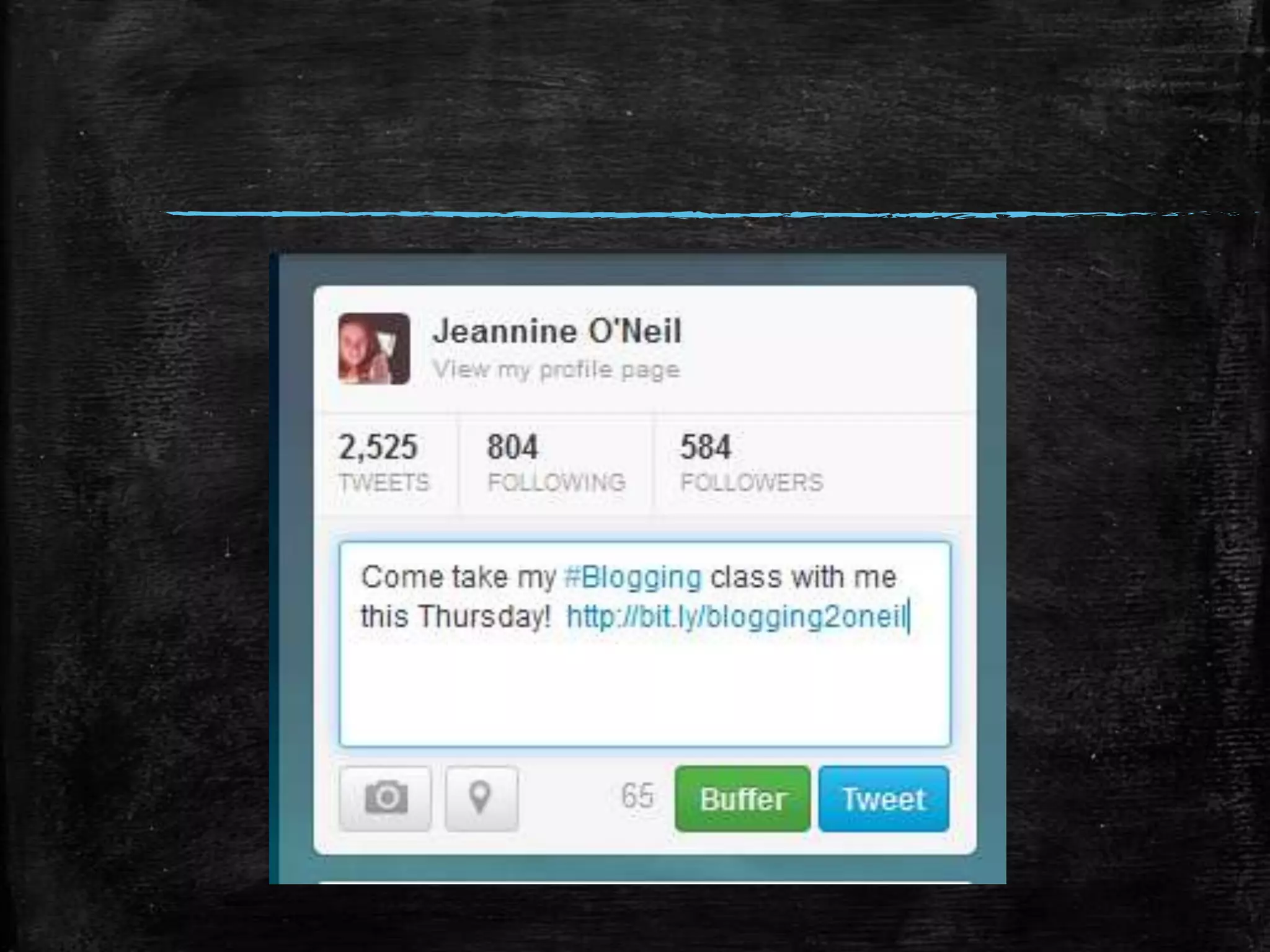
How to Tweet
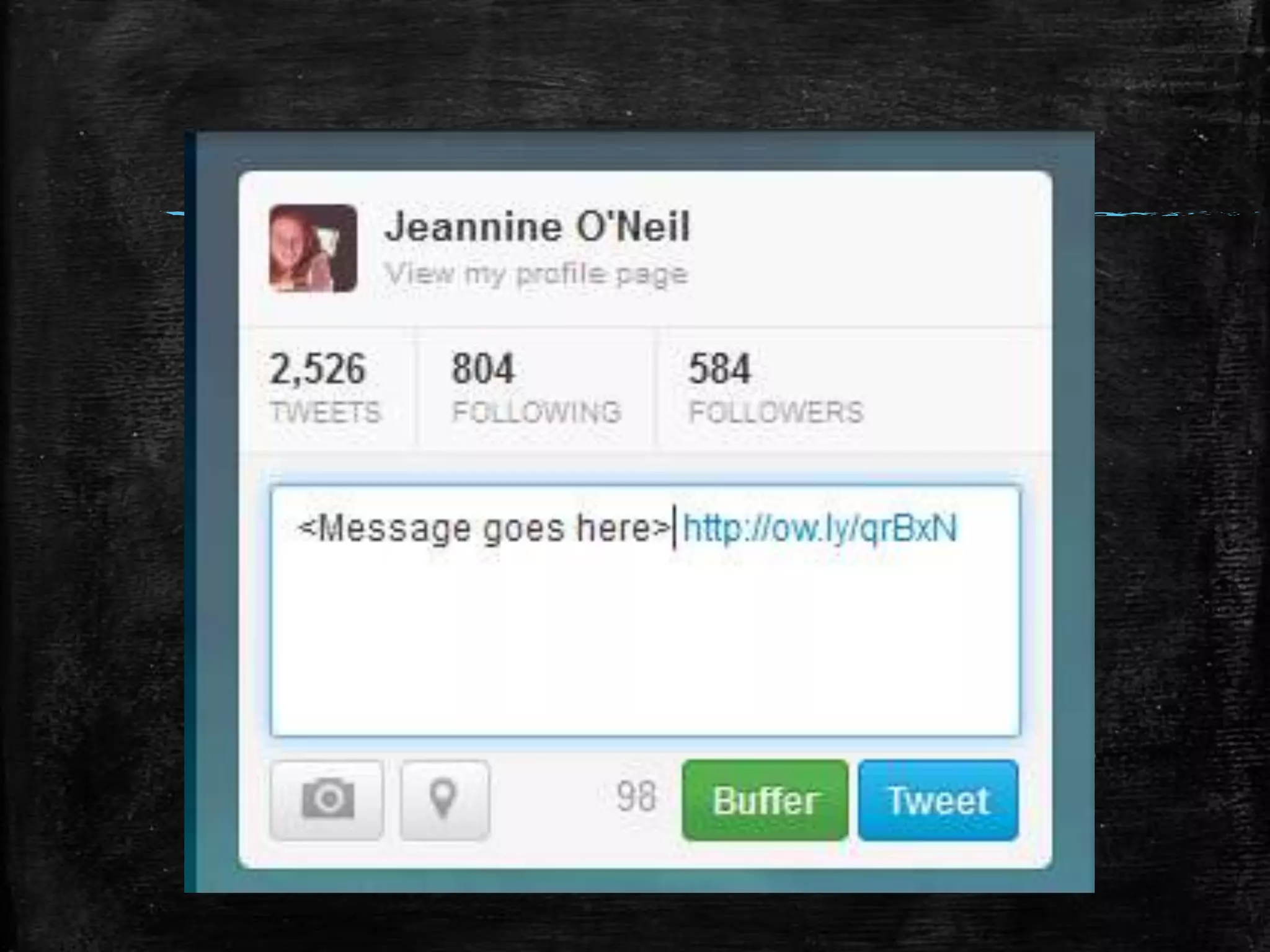
• Use @ + Twitter Handle
to comment or “tag”
someone
• Use # + term to talk
about a specific topic and
join a conversation.
• Add a photo, link, tag a
location.
How to Tweet
How to Tweet
How to Tweet
How to Tweet
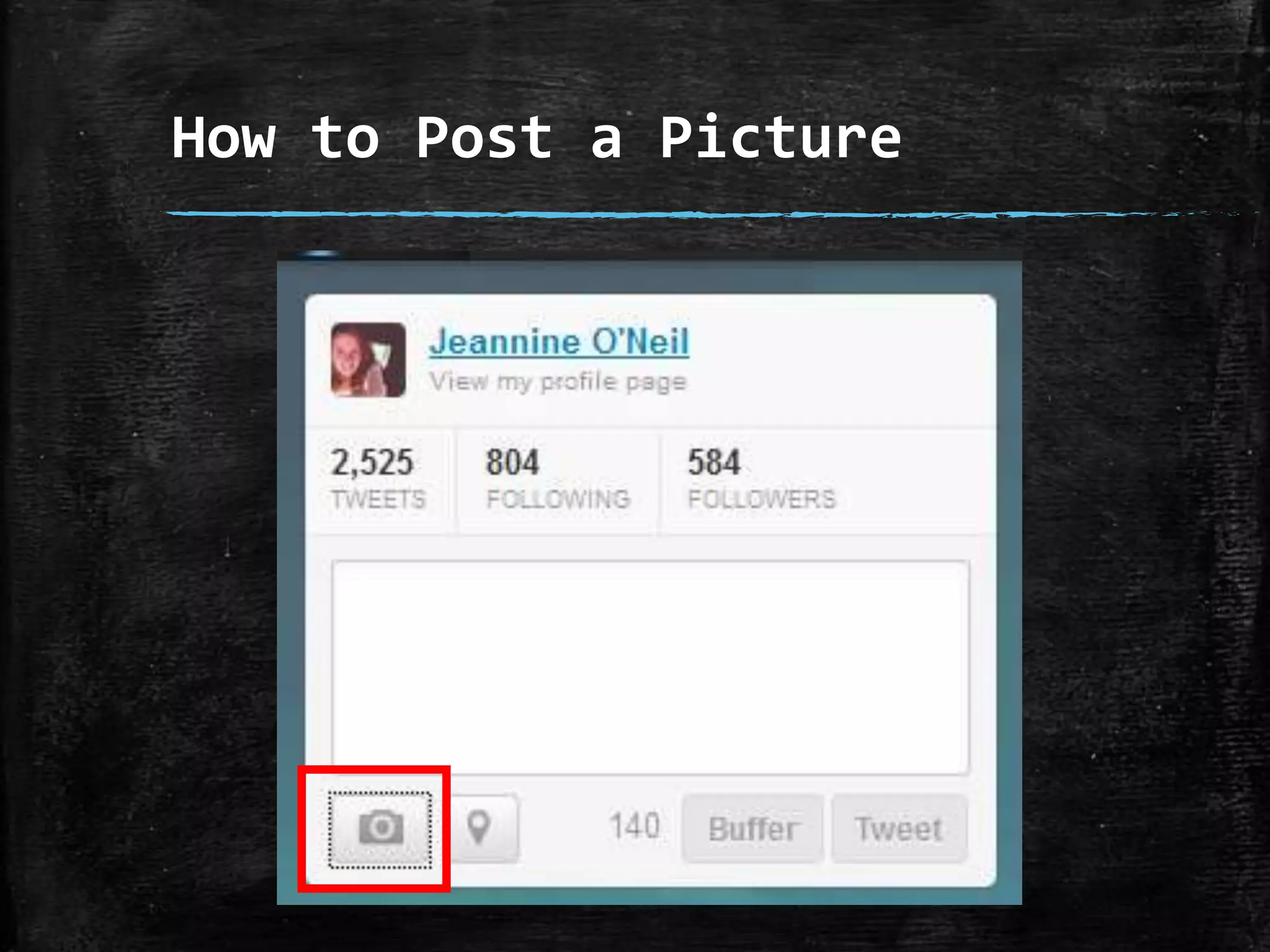
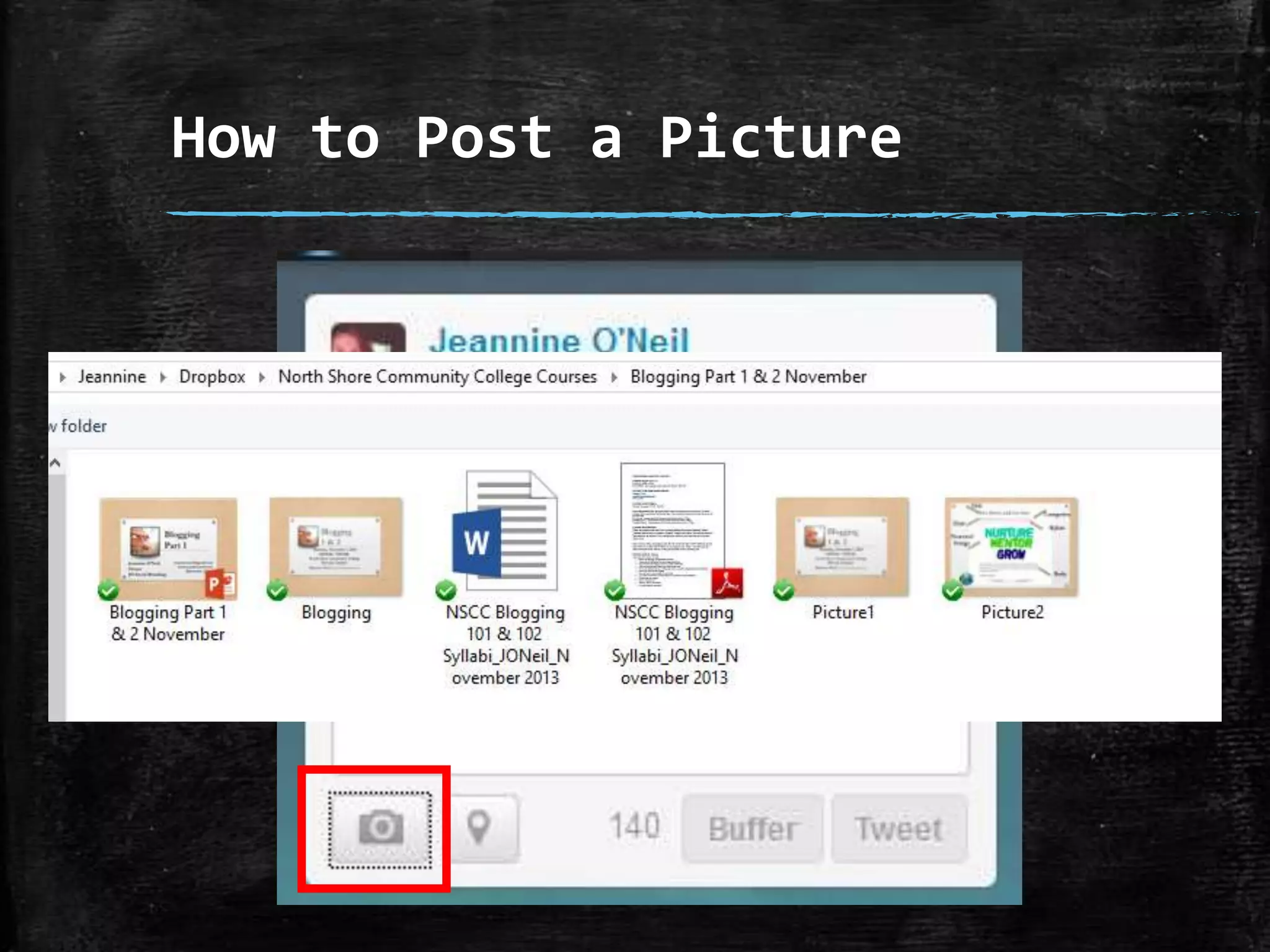
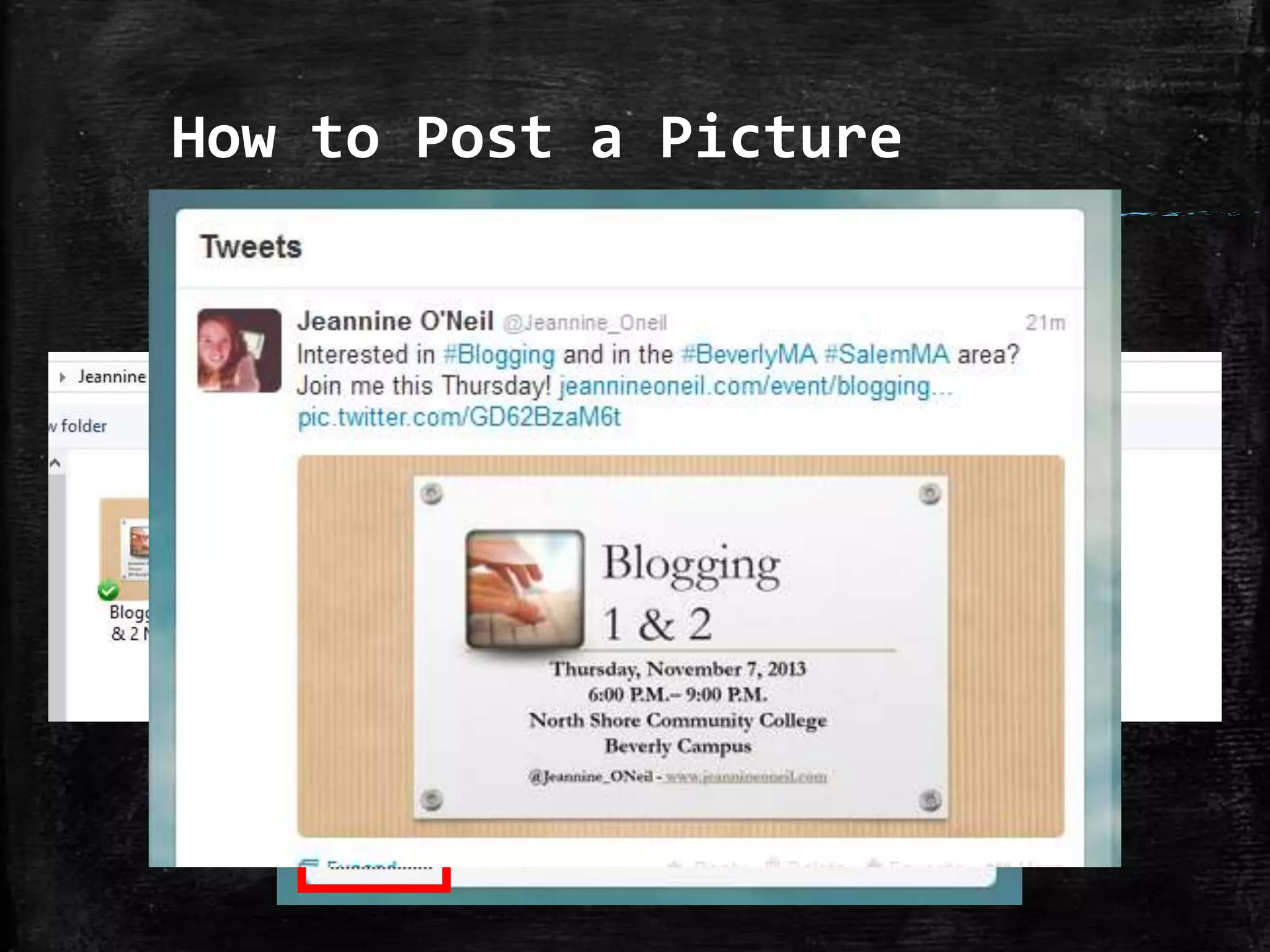
How To Post a Picture
How to Post a Picture
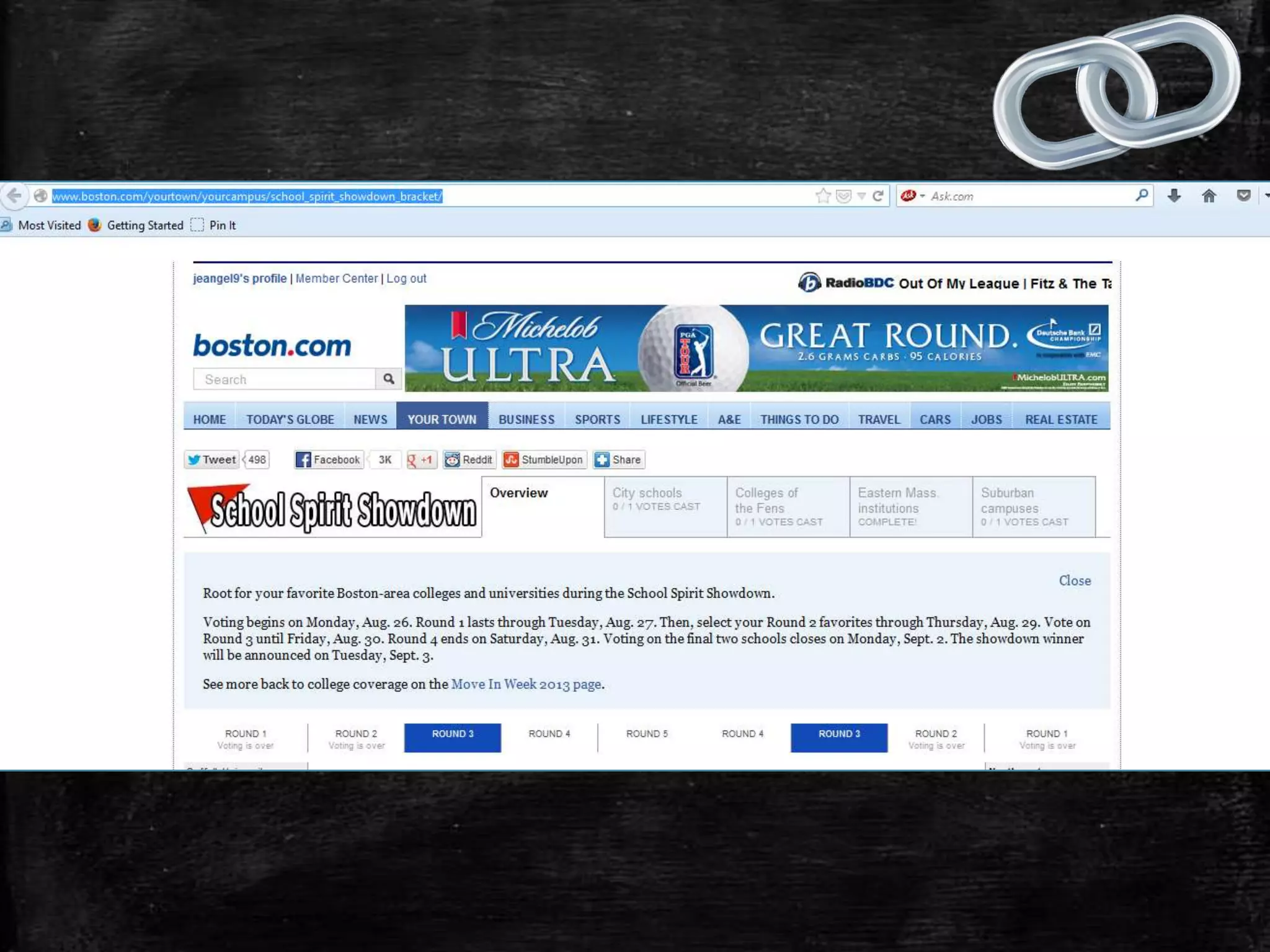
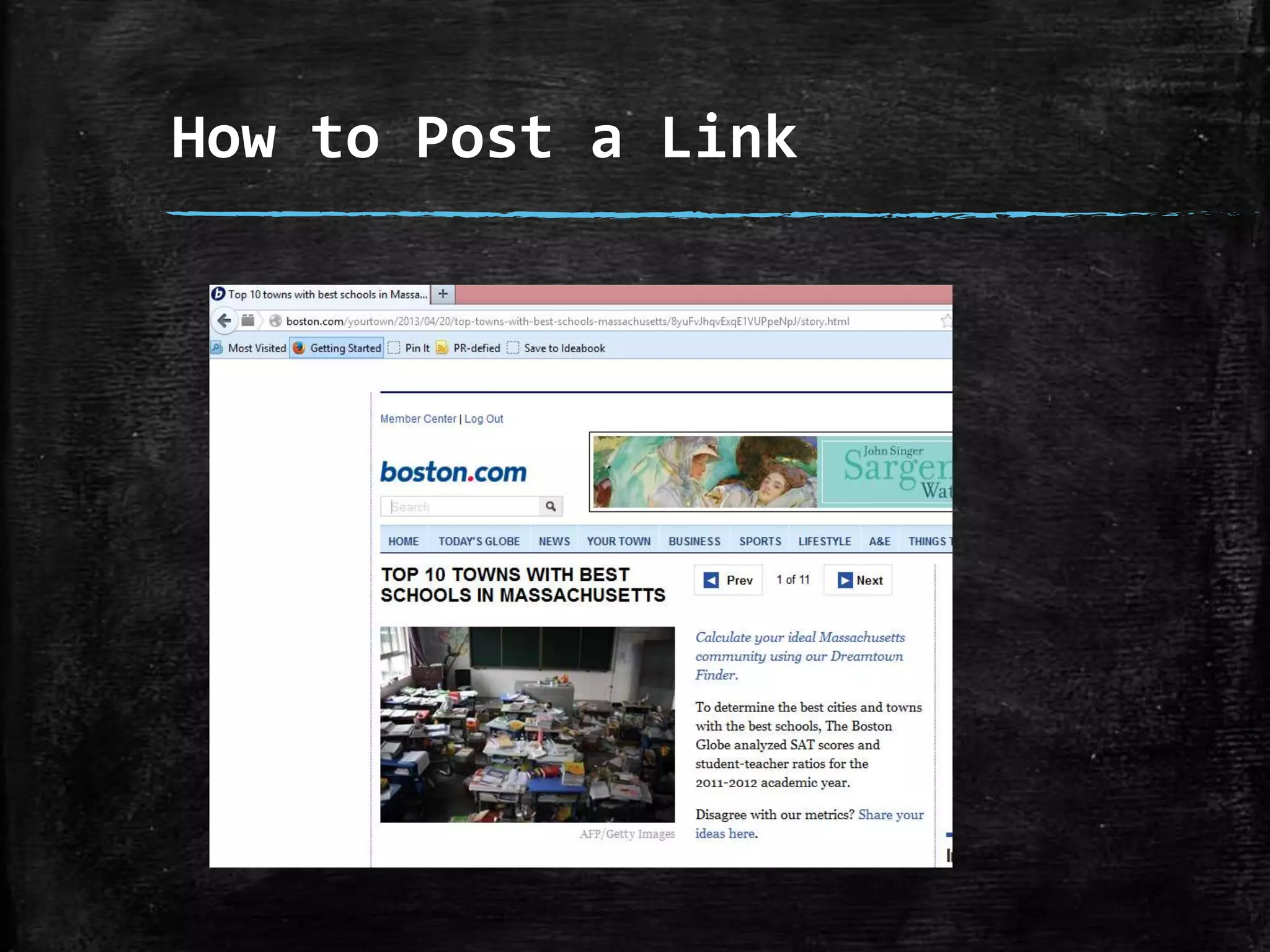
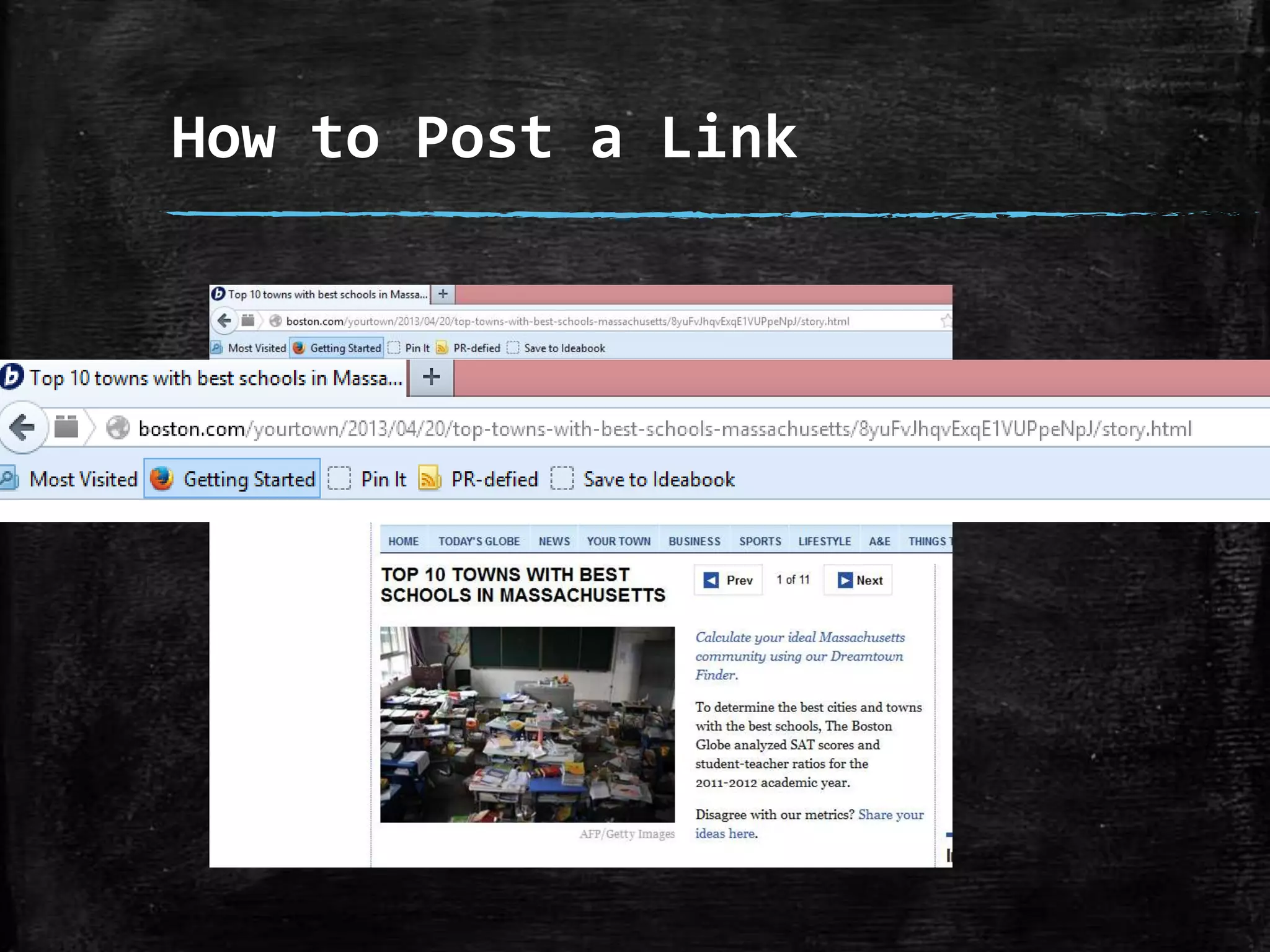
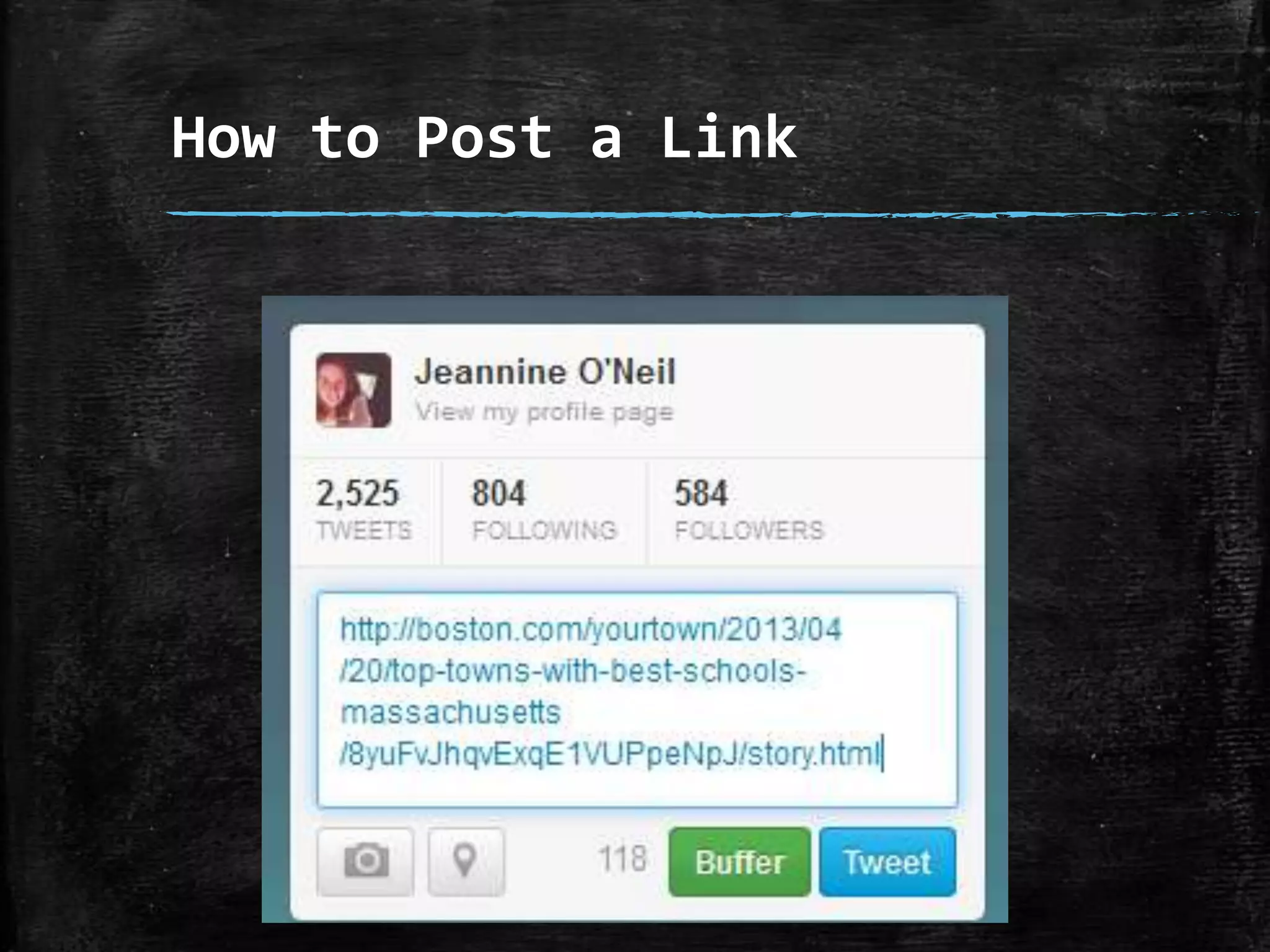
How To Post a Link
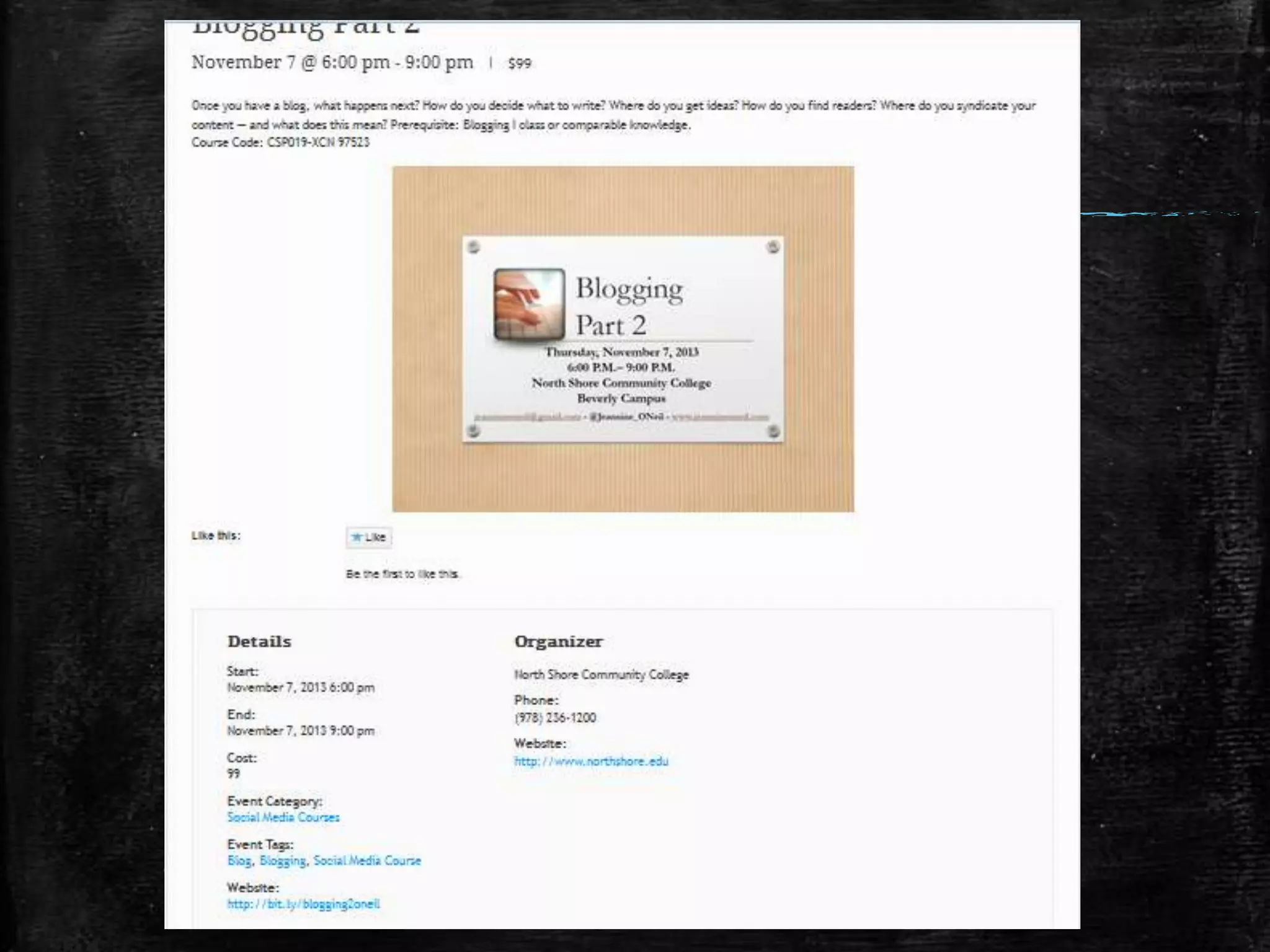
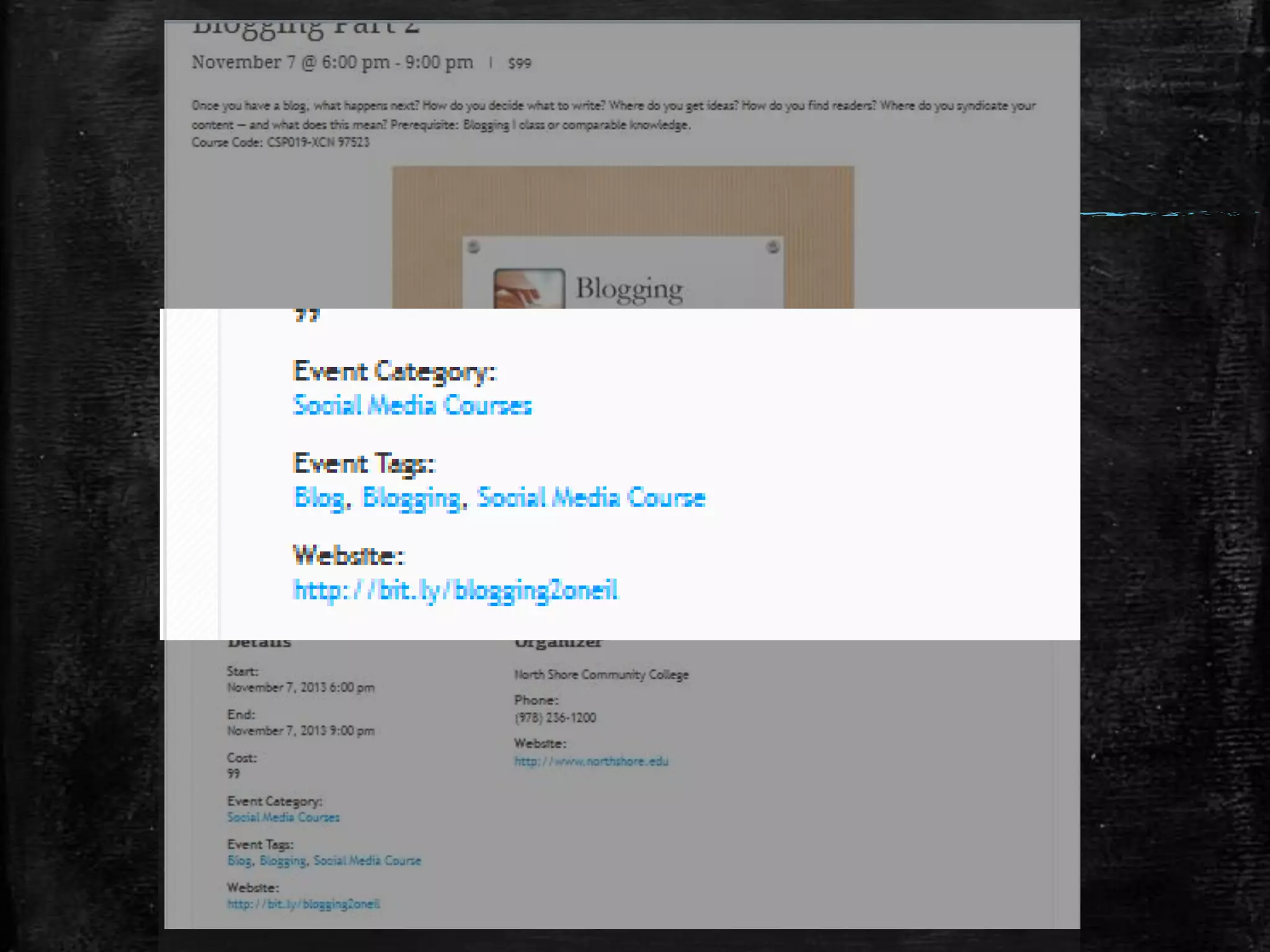
How to Shorten URLs
How to Post a Link
How to Post a Link
How to Post a Link
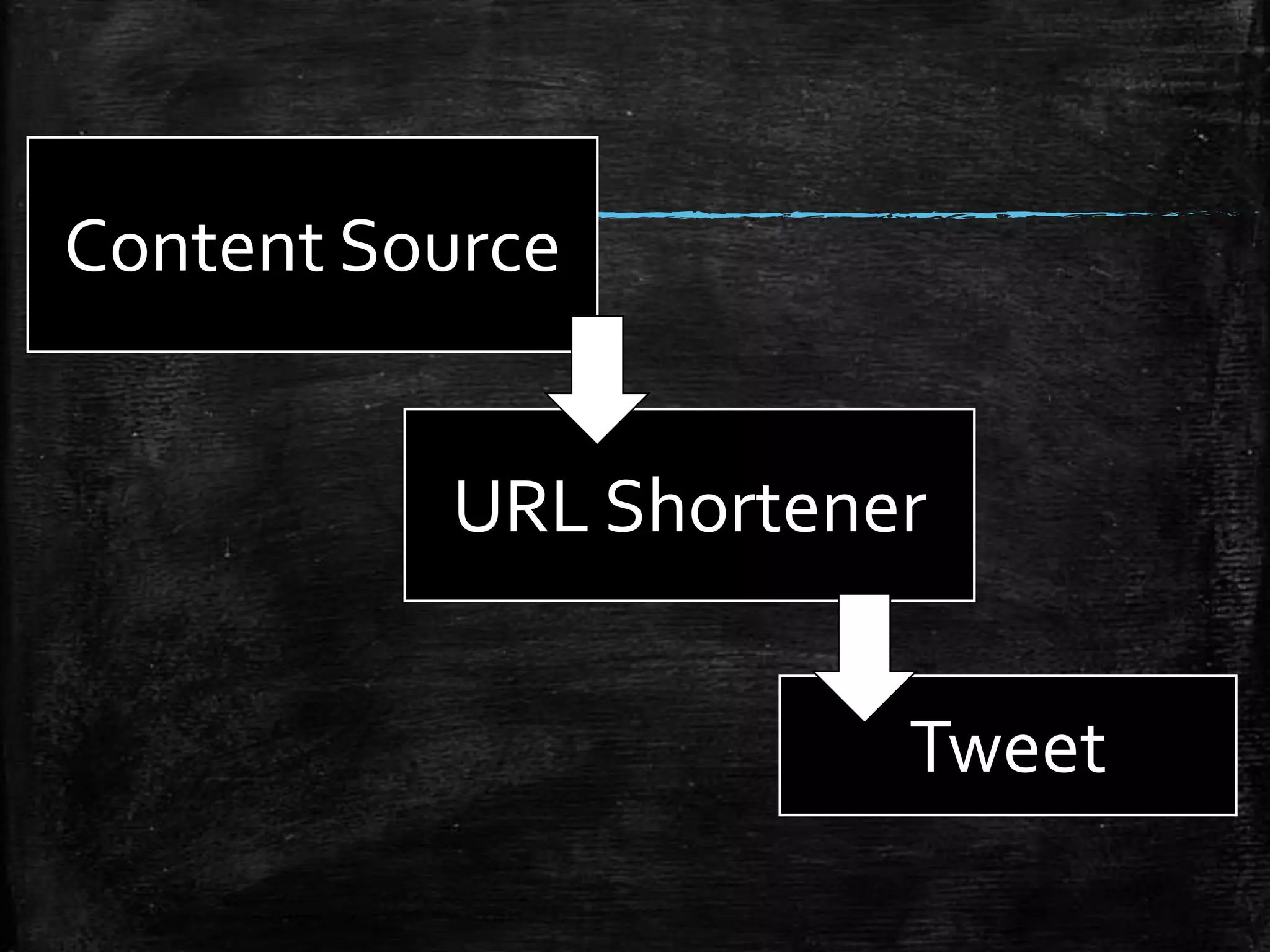
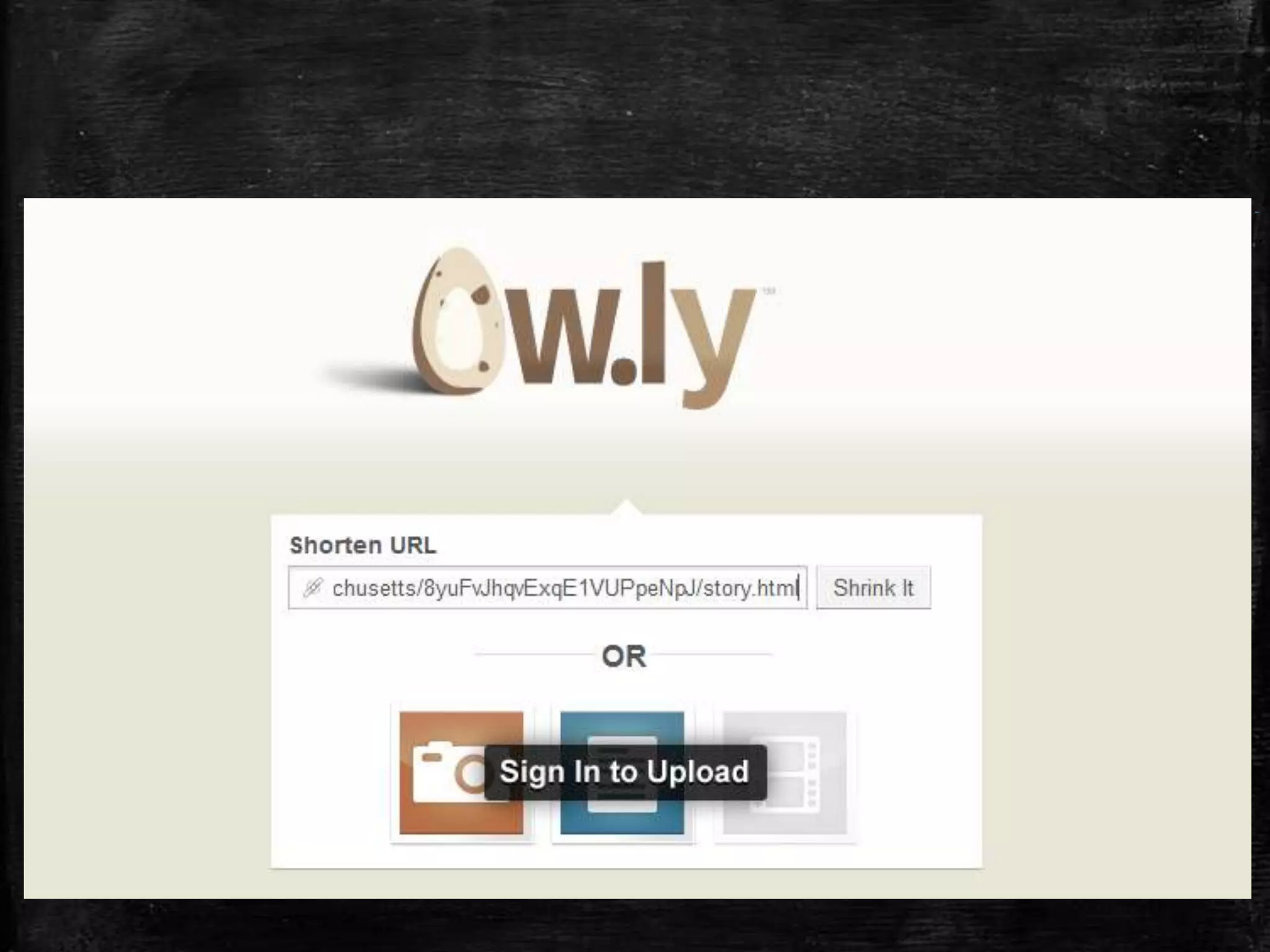
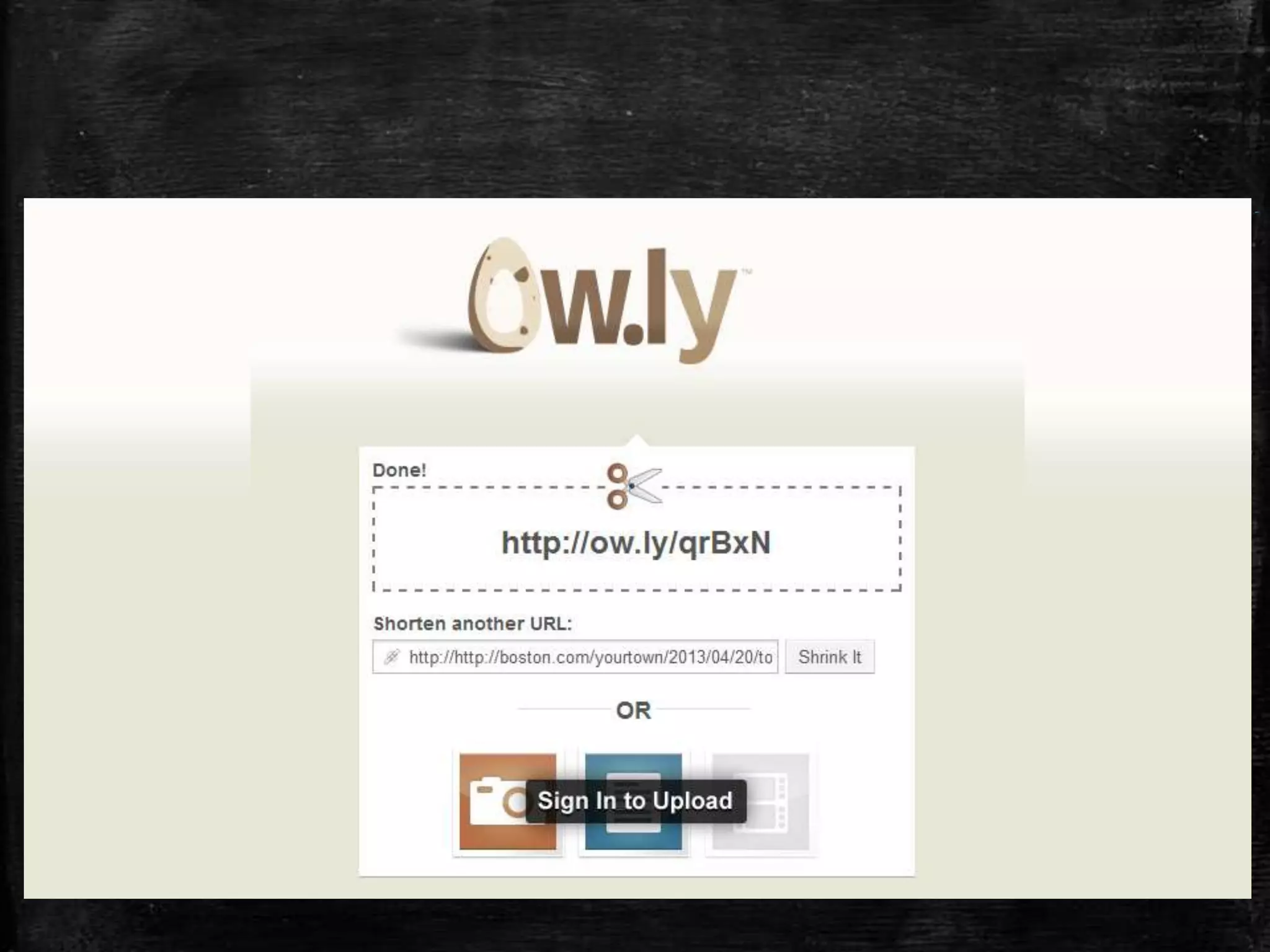
Content Source

URL Shortener
Tweet
Other URL
Shortener Tools
• You do not need an account to shorten your URL,
however if you create an account with them you can
track the analytics of each URL you have shortened.
Other URL
Shortener Tools
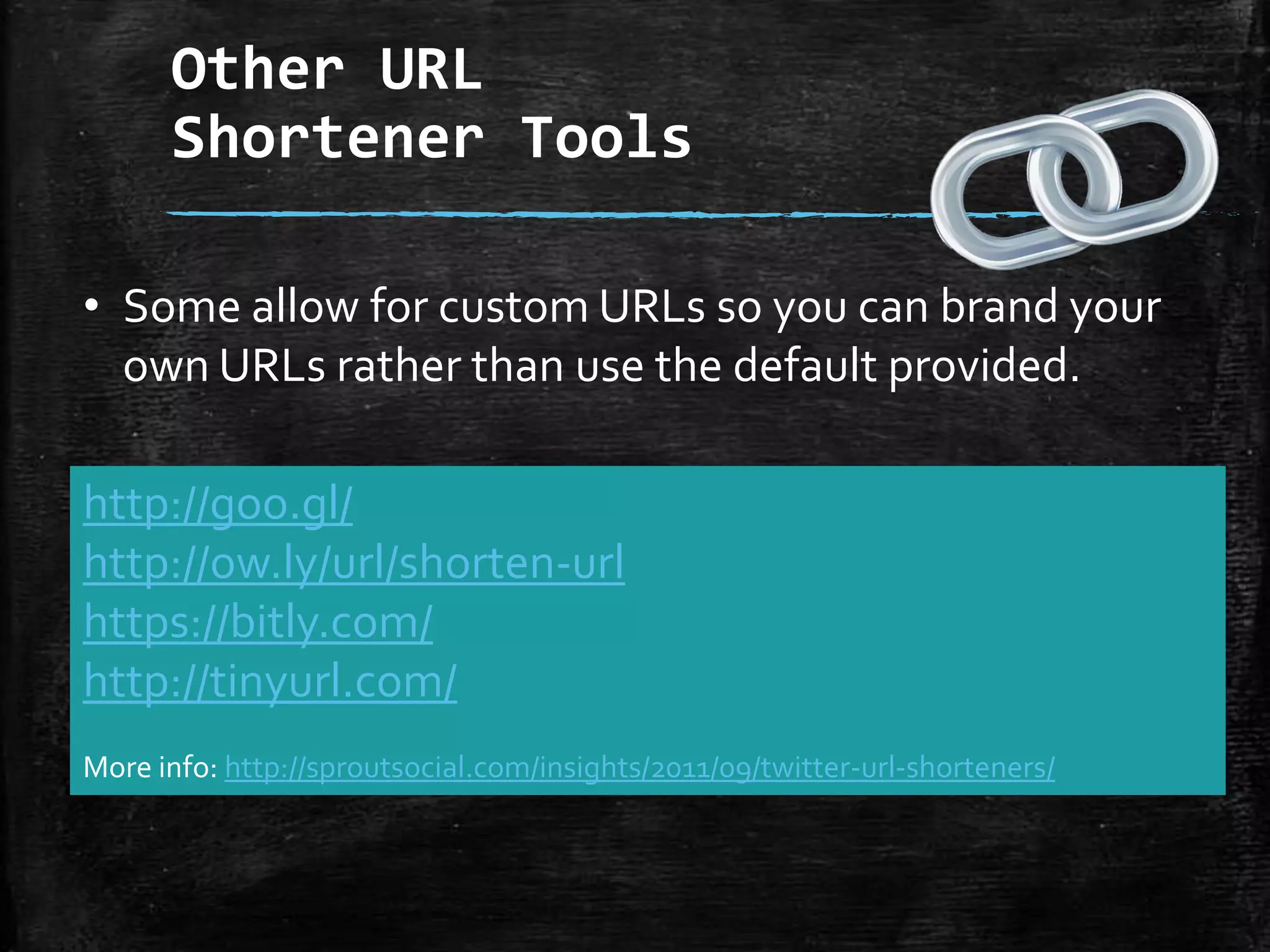
• Some allow for custom URLs so you can brand your
own URLs rather than use the default provided.
http://goo.gl/
http://ow.ly/url/shorten-url
https://bitly.com/
http://tinyurl.com/
More info: http://sproutsocial.com/insights/2011/09/twitter-url-shorteners/
Corresponding
With Others
There are many ways that you can talk with others
using Twitter.
Corresponding
With Others – Reply
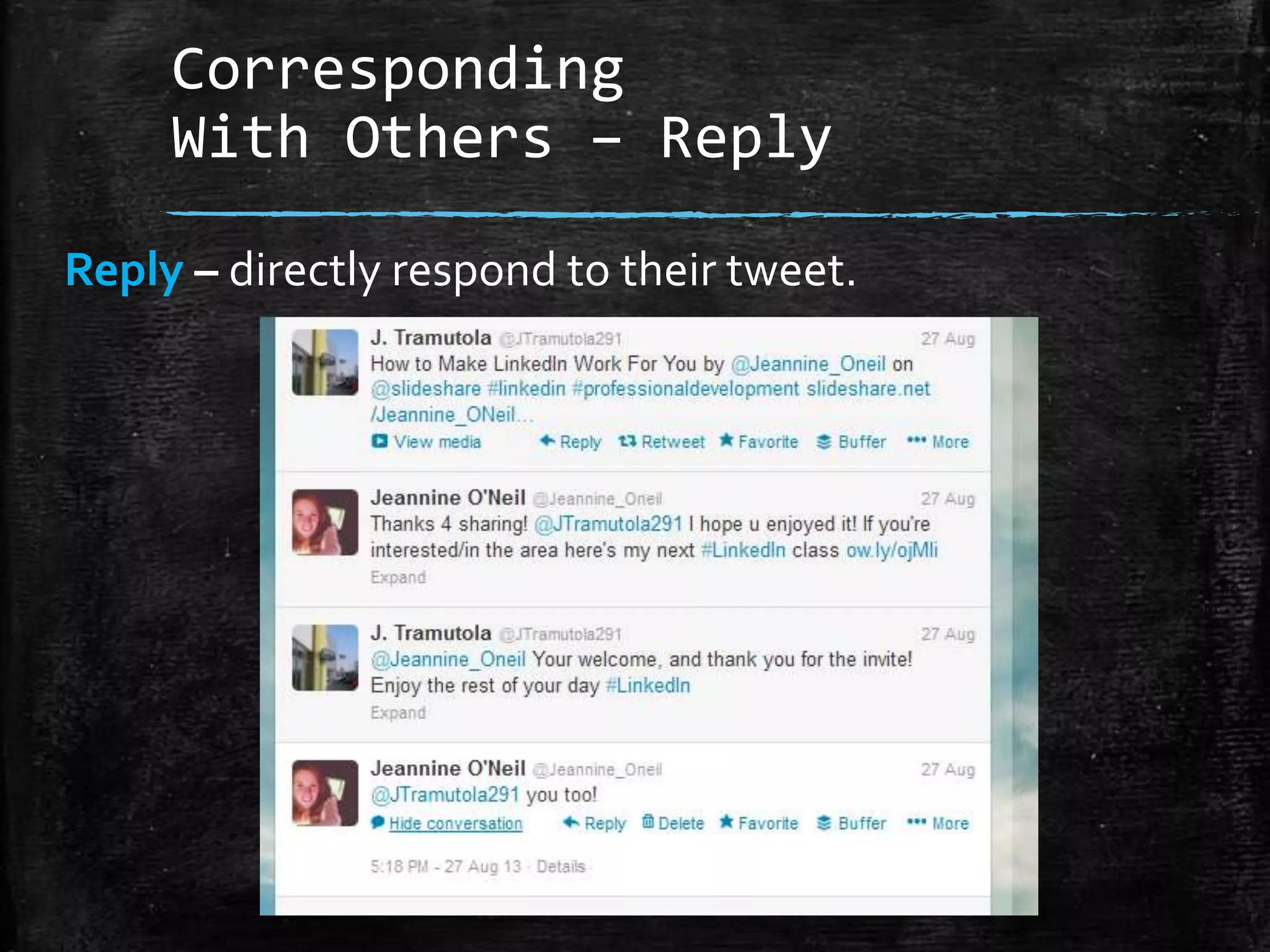
Reply – directly respond to their tweet.
Corresponding
With Others - Mention
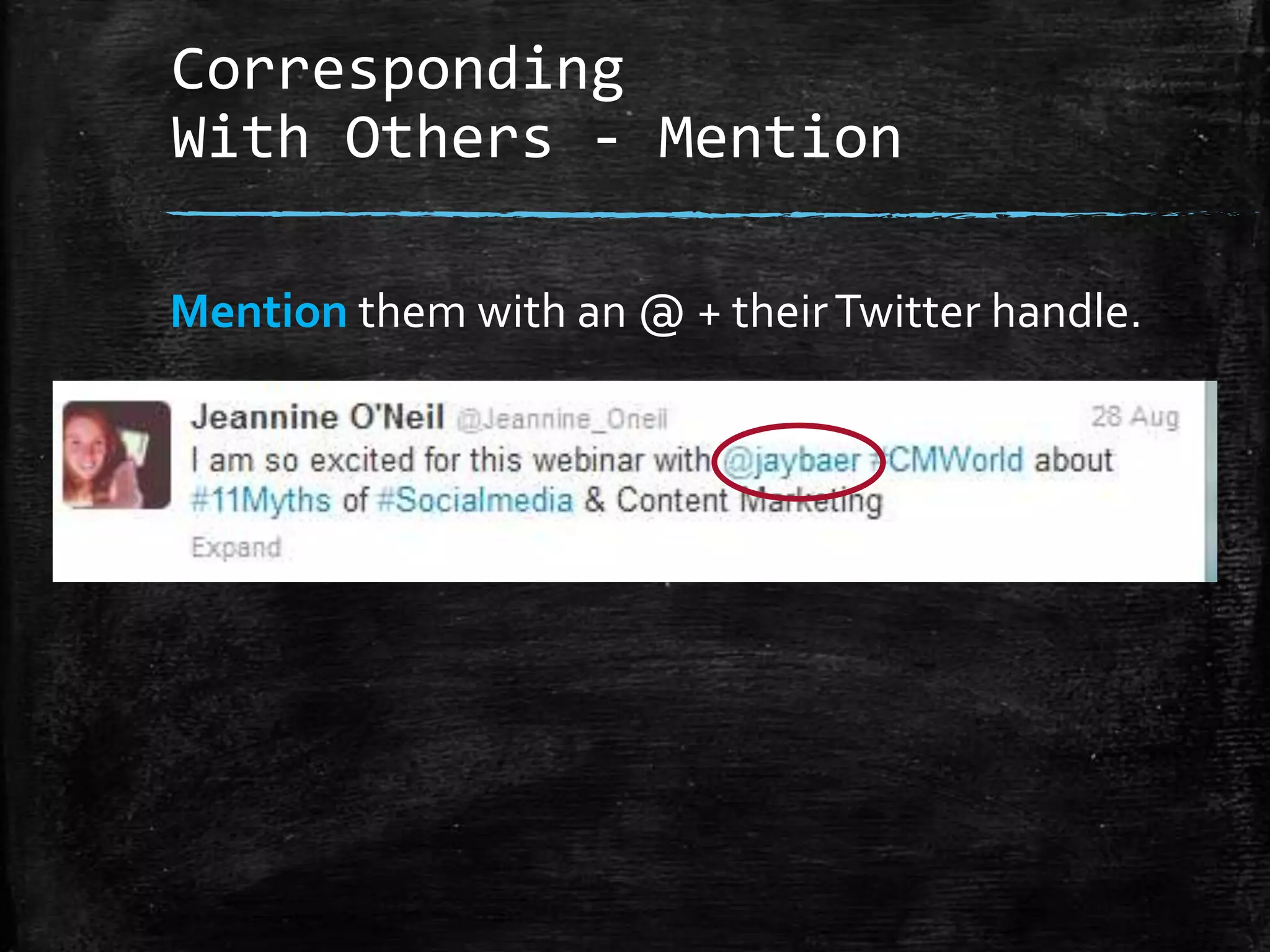
Mention them with an @ + their Twitter handle.
Corresponding With Others
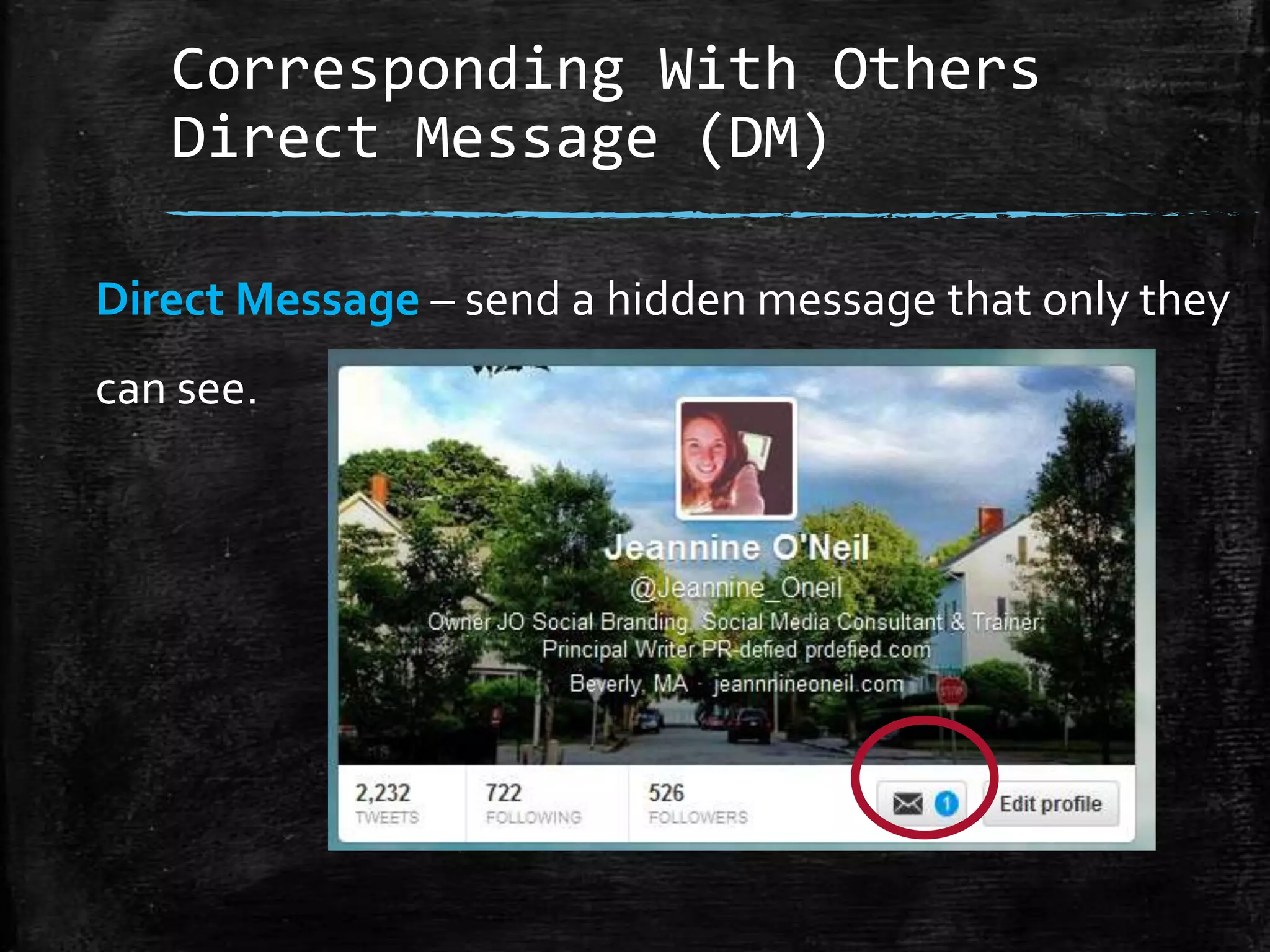
Direct Message (DM)
Direct Message – send a hidden message that only they
can see.
Corresponding With Others
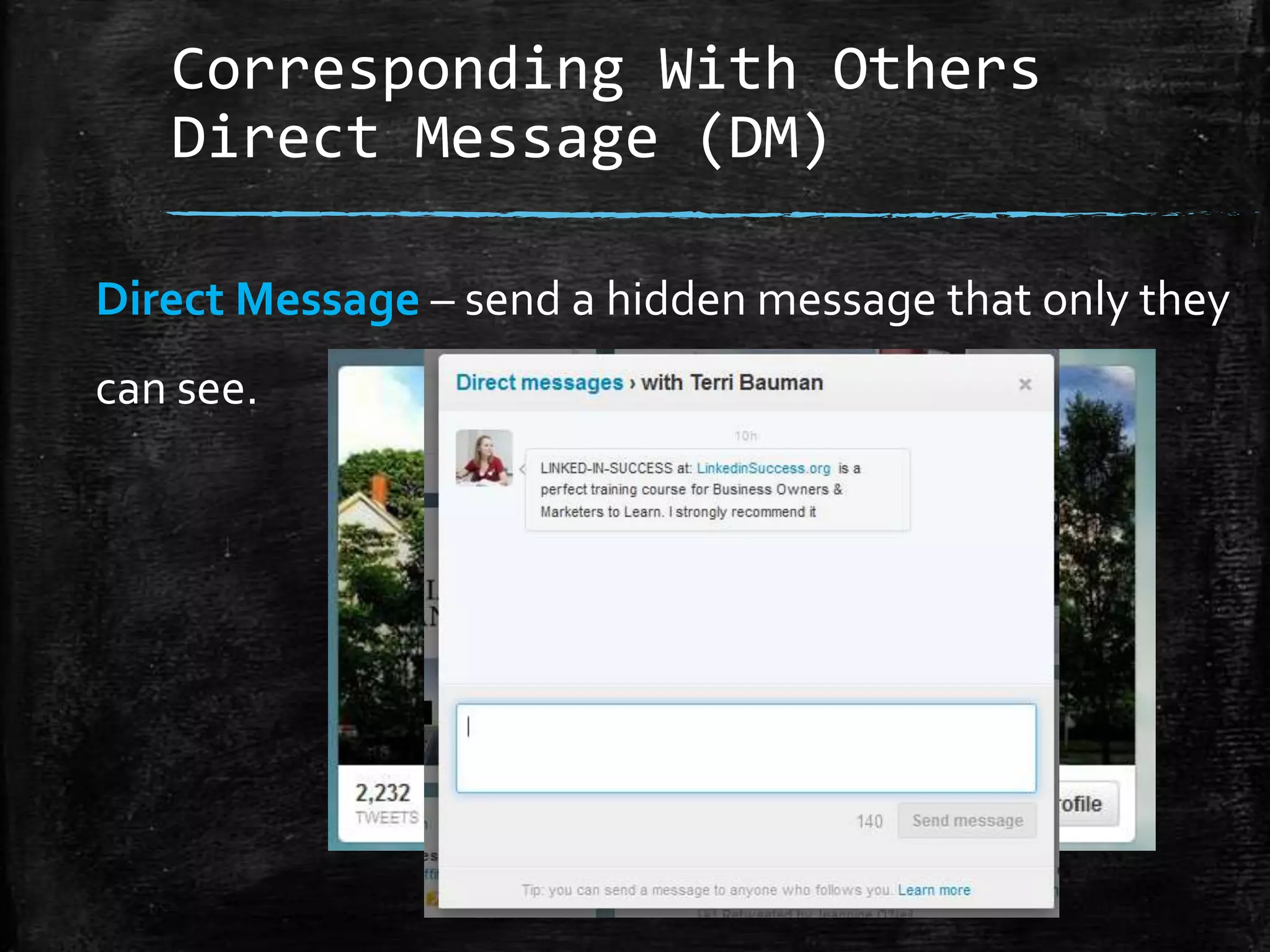
Direct Message (DM)
Direct Message – send a hidden message that only they
can see.
Corresponding
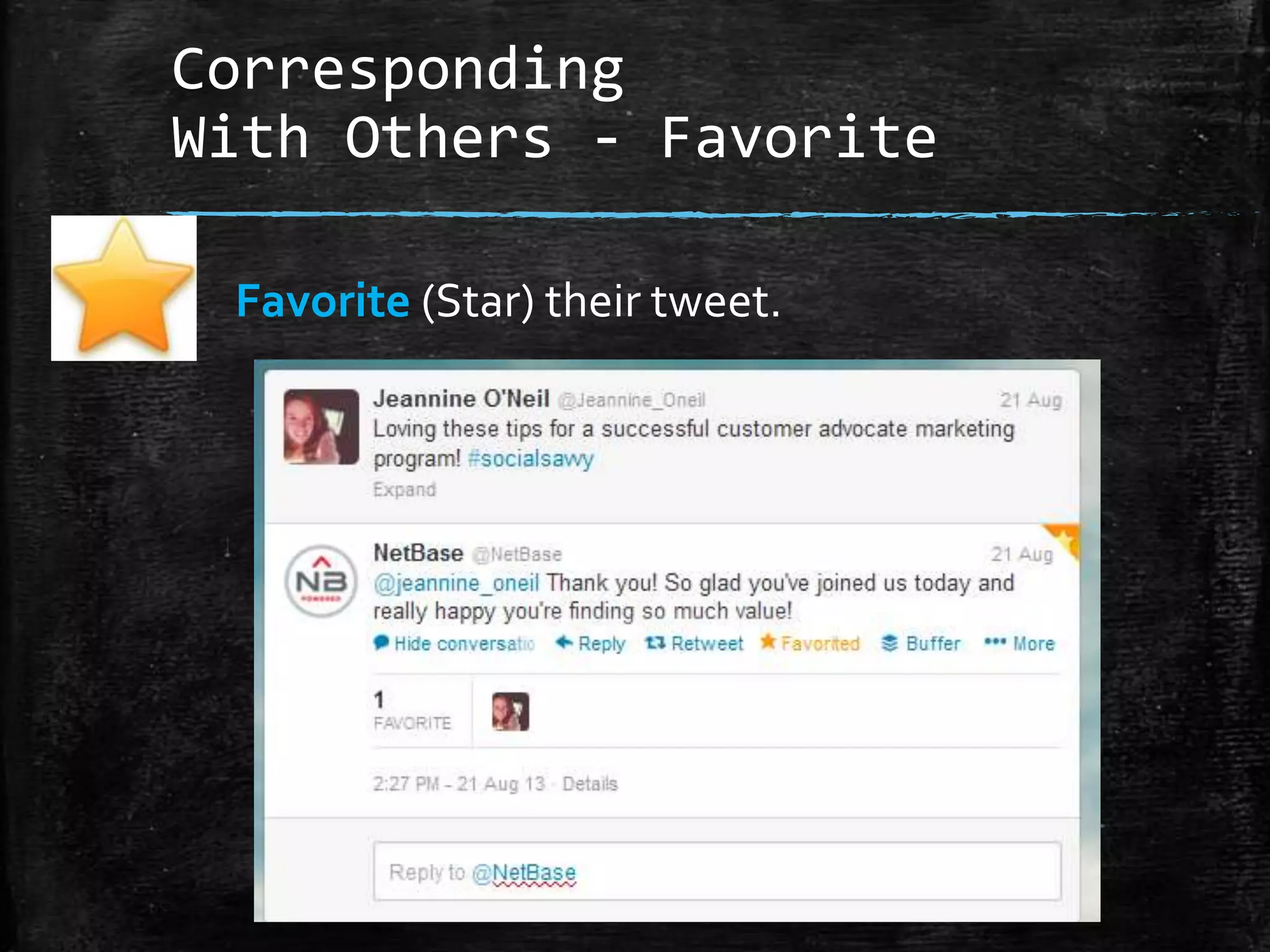
With Others - Favorite
Favorite (Star) their tweet.
Corresponding
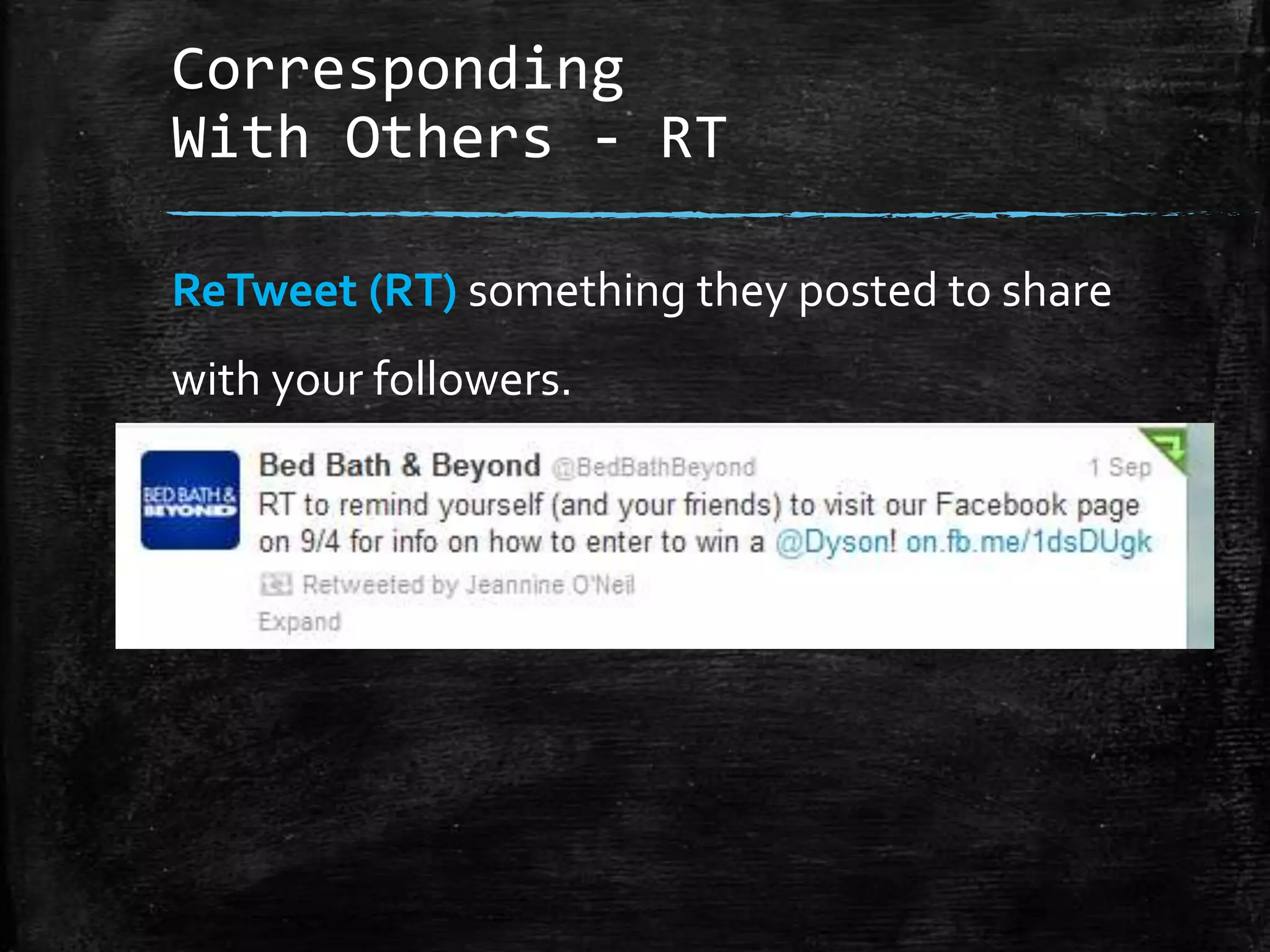
With Others - RT
ReTweet (RT) something they posted to share
with your followers.
Things to Think About When
Posting to Social Media
Find ways to create engagement:
▪ Images/video.
▪ Make it personal.
▪ Have enticing
conversations.
▪ Time your posts.
▪ Infographics.

▪ Top tips / top lists.
Other Ideas
Other Ideas
▪ Post a weekly question for
extra credit online.
▪ Weekly group discussion on
Facebook.
▪ Posting answer keys or
additional tools to help with
projects.
▪ Sharing fun infographics with
information about your
upcoming class
Blogging
Blogging is Social Media
It is the grandfather of current social media but plays
well with the newbies.
Use social media tools to
promote your blog content?
Facebook, LinkedIn, Twitter,
Media…
Blogging Platforms

Wordpress.com (Free)
Wordpress.org (Paid)

Blogger – owned by
Google

Tumblr

Medium
Blog Post Basics
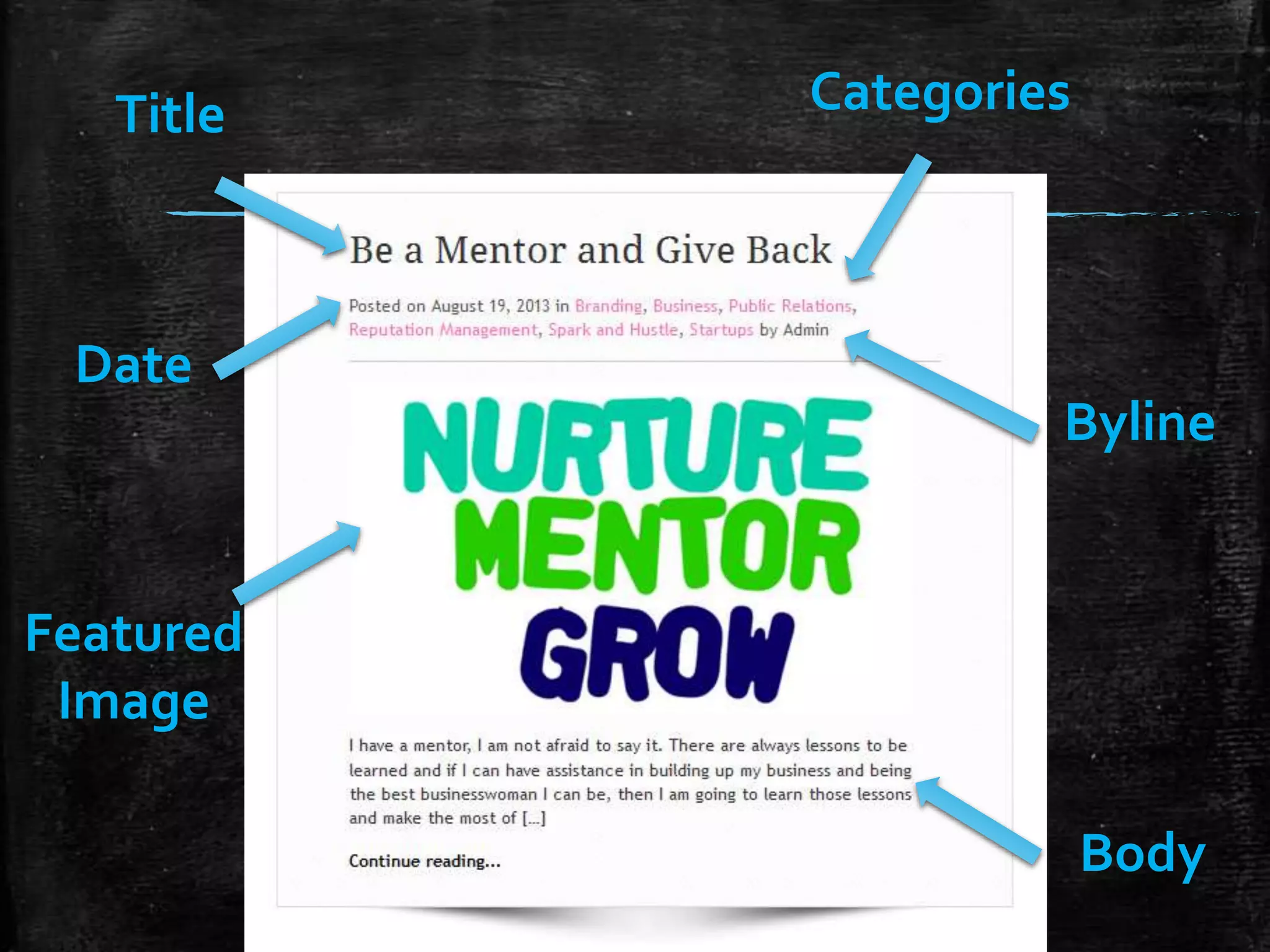
Title

Categories

Date
Byline

Featured
Image
Body
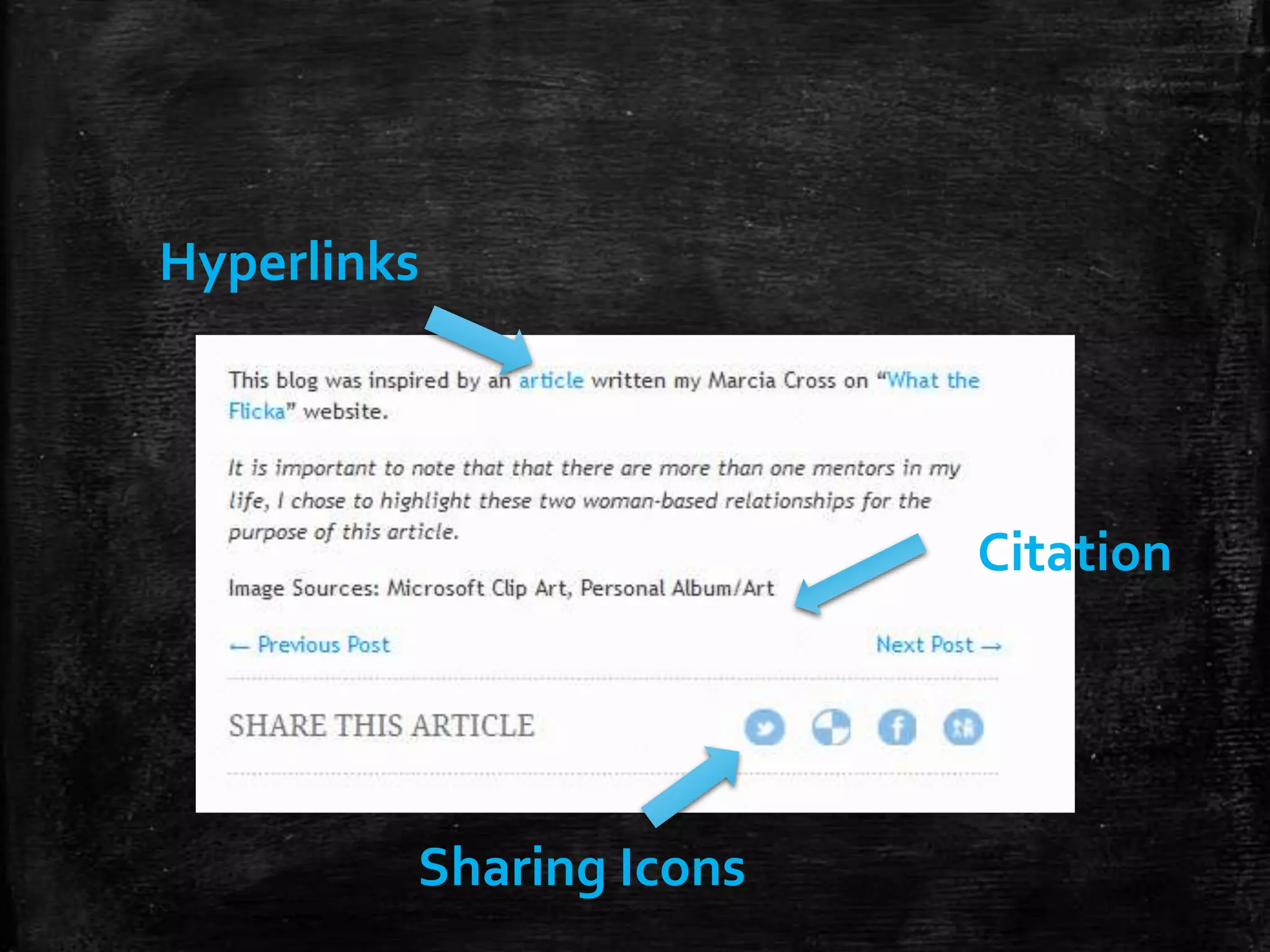
Hyperlinks

Citation

Sharing Icons
Tips for Writing Your Posts
(Writing Formula)
Intro

I am going to tell you about this
topic.

3 Key Points Here are 3 things that prove my point.
Summarize

“Therefore points 1, 2 & 3, verify the
point I am trying to make”.

Byline

Custom text you use to promote
website/courses/etc.
Slideshare
Once Upload Is Compete
▪ Use Course Description in your
description.
▪ Make sure to use keywords for SEO.
▪ You can choose to leave the settings so
individuals can download your
presentation or set it to viewing only.
▪ Promote on social media.
Review
Review
▪ Content is King.
▪ You have the ability to share content
through social media to unify your
current students and attract others
to taking your classes.
Review
▪ Make content quick and easy to
consume: Use images, Infographics,
slide snapshots, top lists, etc.
▪ Develop a class promotion strategy
to repeat for each class and tweak as
you feel necessary.
Thank You
Jeannine O’Neil
Owner
JO Social Branding

www.jeannineoneil.com
@Jeannine_ONeil

How to Promote Community Education Classes Using Social Media

  • 1.
    How to Promote YourClasses Using Social Media Jeannine O’Neil Owner JO Social Branding www.jeannineoneil.com @Jeannine_ONeil
  • 2.
  • 3.
    What is SocialMedia? Any online technology that people use to share content, opinions, insights, experiences, perspectives & media. (Merriam Webster)
  • 4.
    What is SocialMedia? REAL people. REAL interactions. REAL time.
  • 5.
    Social Media isContent and Content is King The Social Media Machine runs on Content.
  • 6.
    YOU Have CONTENT Knowledge Blog  Facts/Case Studies/Stories Social Media  PowerPoint Presentations Slideshare/Blog/Website/ Social Media  Images/Infographics Social Media/Blog
  • 7.
    What to dowith your content Blog Social Media Content Media Email/ Newsletter
  • 8.
    Infographic Example Graphic showing basic infoin a visually appealing format. ▪ Easy on the eyes ▪ Quick and easy to read ▪ Provides value
  • 9.
  • 10.
  • 11.
  • 12.
    The Key Players- Defined Facebook is the Backyard Cookout of Social Media Twitter is the Newsroom of Social Media LinkedIn is the Networking/Cocktail Hour of Social Media
  • 13.
    The Key Players- Defined YouTube is the TV of Social Media Foursquare is Business Directory/Phone Book of Social Media Instagram is the Photo Booth of Social Media.
  • 14.
    The Key Players- Defined Wordpress is the Soapbox of Social Media Pinterest is the Inspiration Corkboard of Social Media
  • 15.
    Benefits of SocialMedia In the Classroom ▪ Developing thought leadership. ▪ Ability to create more hands-on-learning opportunities. ▪ Allow instructors to create deep and long lasting relationships.
  • 16.
    Benefits of SocialMedia In the Classroom ▪ Move beyond the classroom. ▪ Allows past student and potential repeat students to stay connected with your latest news and events.
  • 17.
    How I PromoteMy Classes
  • 18.
    Channels I Use ToPromote My Classes Newsletter LinkedIn Blogging Instagram Facebook Foursquare Twitter Slideshare
  • 19.
    My Process –Pre Class ▪ Develop content in PowerPoint ▪ Take pictures from content (Post on Facebook, Twitter, Website, Newsletter).
  • 20.
    My Process –Pre Class ▪ Take pictures from content. (Post on Facebook, Twitter, Website, Newsletter).
  • 26.
    My Process –Pre Class ▪ Week before class – post on Beverly, Salem Patch websites; promote on my social media. ▪ Send an email to class introducing and reminding them about the class, what to bring/expect, attach the syllabus and give instructions of what to do before class.
  • 27.
    My Process –Day Of Class ▪ Before class – tag myself at class using Foursquare or Instagram, take a picture and share on my other accounts.
  • 28.
    My Process –Day Of Class
  • 29.
    My Process –Day Of Class
  • 30.
    My Process –Day Of Class ▪ Tell students about Slideshare and newsletter and hand around the signup sheet. ▪ Take in any questions/conversations that take place as a future blog post.
  • 31.
    My Process –After Class ▪ Clean up presentation (eliminate agenda, break slides, in class activities) & and post on Slideshare. ▪ Email class and send them Slideshare presentation link/follow up with any answered questions, additional materials.
  • 32.
    My Process –After Class ▪ Write a blog post about topic discussed. Add Slideshare link & promote upcoming courses with link to my calendar. **Automatically posted to other Facebook Page, Twitter, LinkedIn accounts.
  • 33.
    My Process –After Class ▪ Copy blog post and paste to Beverly & Salem Patch.
  • 34.
    My Process –After Class ▪ Upload Slideshare on LinkedIn.
  • 35.
  • 36.
  • 37.
    Facebook ▪ Different Functions ▪How to Write a Status Update ▪ How to Post a Picture ▪ How to Share a Link ▪ How to Tag a Person ▪ What are Groups?
  • 38.
    Different Functions Video Sharing content Articles Images Talking with Friends Staying Connected Getthe latest Business News Messaging Email Post on Walls Group Boards Invite to Events Play Games Graph Search – find others with similar Fan Pages interests, frien ds, etc. Keeping tabs on others Post Updates Share content from other social media platforms
  • 39.
    Different Aspects ▪ Profile– Your Personal Account ▪ Page – Business Account ▪ Group – Online Networking Group/Forum that you opt-in to.
  • 40.
    How to Writea Status Update What Who When Where Why
  • 41.
    How to Uploada Photo/Video
  • 47.
  • 54.
  • 57.
  • 58.
    Facebook Groups Why WouldI Participate? • Connect students in your classroom • Host a weekly discussion/question • Share news, events, articles, assignments, project keys, etc. • i.e. Chronicle is running a segment tonight about “topic” – try and catch it tonight…
  • 59.
    Facebook Groups Why WouldI Participate? Great way to: • Connect & unify the class • Make class more interactive • Develop class discussions through tools • Keep class on their toes 24/7 access.
  • 60.
  • 61.
  • 62.
  • 63.
  • 64.
    How to useFacebook to Promote ▪ Share course registration link. ▪ Take picture of presentation and share as photo. ▪ Take a video and post about class with link.
  • 65.
    How to useFacebook to Promote ▪ Share article Infographic. ▪ Post Slideshare link after class. ▪ Post Blog. ▪ Post Picture of class.
  • 66.
  • 67.
    Twitter ▪ What isTwitter/What is a Tweet ▪ How to Write a Tweet. ▪ How to Post a Picture. ▪ How to Share a Link? ▪ What are Hashtags and How Do I Use Them? ▪ How To Correspond with Others.
  • 68.
  • 69.
    Twitter – WhatIs It? Twitter is a social media information network and microblogging service that allows users to “tweet” messagesbased posts of up to 140 characters. Twitter’s mission is to create “a real-time information network that connects you to the latest stories, ideas, opinions and news about what you find interesting.” (twitter.com)
  • 70.
    Twitter – Why WouldI Use It? ▪ You can share: • Breaking News • School/Class Updates • Blog posts/website links/course registration links • Business-related media (photos, articles, videos) • Build relationships and communicate with students
  • 71.
    What Is ATweet?
  • 72.
    What is aTweet? Tweet is a short burst of information that share news or content. The limit is 140 characters so you have to be creative and brief in your messages.
  • 73.
  • 74.
    What is aHashtag (#)? Hashtag - The # symbol is used to mark keywords or topics in a Tweet.
  • 75.
    What is aHashtag (#)? Hashtag - The # symbol is used to mark keywords or topics in a Tweet. • By marking a term/topic with a # it then becomes searchable on Twitter. • A way to track conversations surrounding a specific topic.
  • 76.
    What is aHashtag (#)? Hashtag - The # symbol is used to mark keywords or topics in a Tweet. • Hashtags are either chosen by an organization or are organically “grown” in the Twitter community. • Originally started on Twitter it has now been adopted by other social media platforms.
  • 77.
  • 78.
  • 79.
    How to Tweet •Use @ + Twitter Handle to comment or “tag” someone • Use # + term to talk about a specific topic and join a conversation. • Add a photo, link, tag a location.
  • 80.
  • 81.
  • 82.
  • 83.
  • 84.
    How To Posta Picture
  • 85.
    How to Posta Picture
  • 86.
    How to Posta Picture
  • 87.
    How to Posta Picture
  • 88.
  • 93.
  • 94.
  • 95.
  • 96.
  • 97.
  • 98.
    Other URL Shortener Tools •You do not need an account to shorten your URL, however if you create an account with them you can track the analytics of each URL you have shortened.
  • 99.
    Other URL Shortener Tools •Some allow for custom URLs so you can brand your own URLs rather than use the default provided. http://goo.gl/ http://ow.ly/url/shorten-url https://bitly.com/ http://tinyurl.com/ More info: http://sproutsocial.com/insights/2011/09/twitter-url-shorteners/
  • 103.
    Corresponding With Others There aremany ways that you can talk with others using Twitter.
  • 104.
    Corresponding With Others –Reply Reply – directly respond to their tweet.
  • 105.
    Corresponding With Others -Mention Mention them with an @ + their Twitter handle.
  • 106.
    Corresponding With Others DirectMessage (DM) Direct Message – send a hidden message that only they can see.
  • 107.
    Corresponding With Others DirectMessage (DM) Direct Message – send a hidden message that only they can see.
  • 108.
    Corresponding With Others -Favorite Favorite (Star) their tweet.
  • 109.
    Corresponding With Others -RT ReTweet (RT) something they posted to share with your followers.
  • 110.
    Things to ThinkAbout When Posting to Social Media Find ways to create engagement: ▪ Images/video. ▪ Make it personal. ▪ Have enticing conversations. ▪ Time your posts. ▪ Infographics. ▪ Top tips / top lists.
  • 111.
  • 112.
    Other Ideas ▪ Posta weekly question for extra credit online. ▪ Weekly group discussion on Facebook. ▪ Posting answer keys or additional tools to help with projects. ▪ Sharing fun infographics with information about your upcoming class
  • 113.
  • 114.
    Blogging is SocialMedia It is the grandfather of current social media but plays well with the newbies. Use social media tools to promote your blog content? Facebook, LinkedIn, Twitter, Media…
  • 115.
    Blogging Platforms Wordpress.com (Free) Wordpress.org(Paid) Blogger – owned by Google Tumblr Medium
  • 116.
  • 117.
  • 118.
  • 119.
    Tips for WritingYour Posts (Writing Formula) Intro I am going to tell you about this topic. 3 Key Points Here are 3 things that prove my point. Summarize “Therefore points 1, 2 & 3, verify the point I am trying to make”. Byline Custom text you use to promote website/courses/etc.
  • 120.
  • 125.
    Once Upload IsCompete ▪ Use Course Description in your description. ▪ Make sure to use keywords for SEO. ▪ You can choose to leave the settings so individuals can download your presentation or set it to viewing only. ▪ Promote on social media.
  • 126.
  • 127.
    Review ▪ Content isKing. ▪ You have the ability to share content through social media to unify your current students and attract others to taking your classes.
  • 128.
    Review ▪ Make contentquick and easy to consume: Use images, Infographics, slide snapshots, top lists, etc. ▪ Develop a class promotion strategy to repeat for each class and tweak as you feel necessary.
  • 129.
    Thank You Jeannine O’Neil Owner JOSocial Branding www.jeannineoneil.com @Jeannine_ONeil